
Alarm Task Script Language Version 4.2. Script Language
|
|
|
- Colin Blankenship
- 10 years ago
- Views:
Transcription
1 Alarm Task Script Language Version 4.2 en Script Language

2

3 Alarm Task Script Language Table of Contents en 3 Table of Contents 1 Introduction 4 2 Definitions Actions Events and States Alarm Task Engine 5 3 System Integration 6 4 Configuration 7 5 Syntax Action Types Send Alarm JPEG Posting Recording Connection Connection List RCP Command VCA Configuration Bicom Command Control Code Message Check Operation Mode Timer Stopping an Action State Types I/O States Tamper States Action States Conditions Boolean Composition of Conditions State Condition State Operation Mode Action Condition Comments 27 6 Starting the Alarm Task Engine 28 Glossary 29 Bosch Security Systems Script Language

4 4 en Introduction Alarm Task Script Language 1 Introduction The Alarm Task Engine is an extension of the alarm I/O (Input/Output) matrix. It supports the definition of actions, action timers, temporary states and I/O states. Furthermore, the Alarm Task Engine supports conditions when actions shall be triggered or states shall be set Script Language Bosch Security Systems

5 Alarm Task Script Language Definitions en 5 2 Definitions 2.1 Actions Each device provides various actions. Actions could be sending of an alarm , JPEG posting, sending of RCP commands or connecting to another device and so on. With the script language it is possible to define and to configure the different actions and the according parameters like IP address or password and more. 2.2 Events and States The script language provides the Boolean evaluation of various kinds of states. Each device has a different number of I/O states. These could be relays, alarm inputs, connection state and so on. Such states are either enabled or disabled. The number of I/O states depends on the particular device. Furthermore, there are states which depend on the particular defined actions. With these states it is possible to query whether the execution of the action was successful or not. Another possibility is to query whether a particular connection is even active or not to a decoder or encoder. All I/O states and action states are distinguished between: Readable (R) Readable/Writable (R/W) Configurable (C) R-state means, you can just query its current value. If you use R/W-states, you can change the value. C-states can be used to set it to a different kind of operation mode like bistable, monostable or periodic. An event is always created when the I/O state is changing. Consequently, the event has the temporal information about which state has changed from disabled to enabled or vice versa. 2.3 Alarm Task Engine The Alarm Task Engine parses all events of the I/O Manager module and evaluates changes of the I/O states. The Alarm Task Engine receives the events from the I/O Manager and triggers the according defined actions. Bosch Security Systems Script Language

6 6 en System Integration Alarm Task Script Language 3 System Integration Figure 3.1 shows the architecture which is relevant for the Alarm Task Engine. The I/O Manager receives all types of events. Such events could be the changing of an alarm or an activated video input and so on. Furthermore, if the Alarm Task Engine is running, it can create events, too. All these created events are fed into the I/O Manager. Consequently, the I/O Manager knows all I/O states and evaluates whether the state has been changed or not. Hence, it can be guaranteed that the Alarm Task Engine is only running if a state has been changed. Figure 3.1 Alarm Task Engine Architecture Script Language Bosch Security Systems

7 Alarm Task Script Language Configuration en 7 4 Configuration The Alarm Task Engine is configured by a script. There is the option to create scripts automatically or you can input the script directly. The script can be configured automatically on the \Settings.html browser page: Alarm > Alarm Connections Alarm > Alarm Network > JPEG Posting Interfaces > Relay If you use these options, the script is created and sent to the device automatically. You can find the editor in the browser on the \Settings.html page: Alarm > Alarm Task Editor Figure 4.1 shows the user defined settings for sending an alarm . Figure 4.1 Alarm Dialog Box Figure 4.2 displays the automatically created script. You can see in the script that an alarm will be sent to the entered mail server IP address, if an alarm input is activated. Figure 4.2 Alarm Task Engine Script Bosch Security Systems Script Language

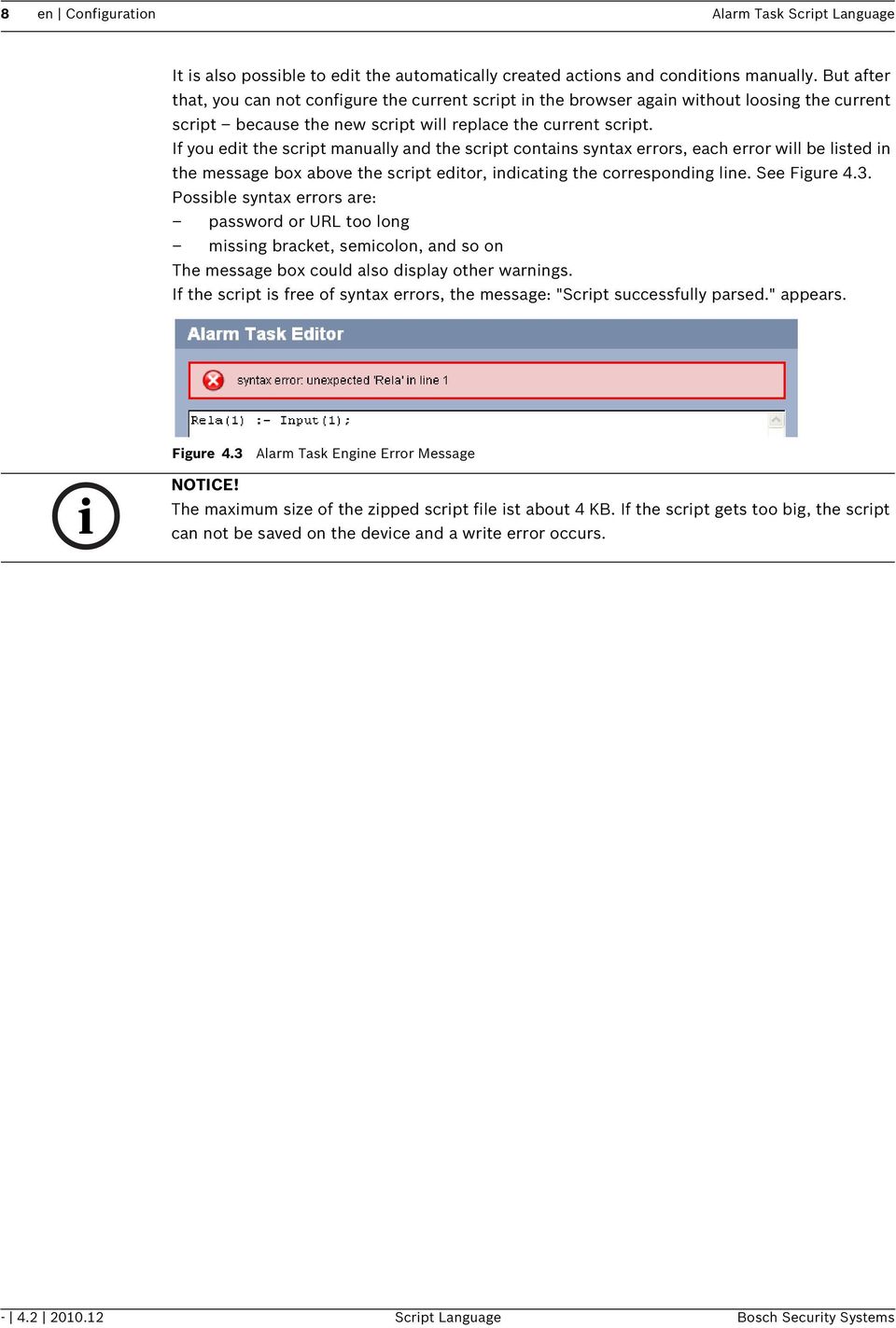
8 8 en Configuration Alarm Task Script Language It is also possible to edit the automatically created actions and conditions manually. But after that, you can not configure the current script in the browser again without loosing the current script because the new script will replace the current script. If you edit the script manually and the script contains syntax errors, each error will be listed in the message box above the script editor, indicating the corresponding line. See Figure 4.3. Possible syntax errors are: password or URL too long missing bracket, semicolon, and so on The message box could also display other warnings. If the script is free of syntax errors, the message: "Script successfully parsed." appears. Figure 4.3 Alarm Task Engine Error Message NOTICE! The maximum size of the zipped script file ist about 4 KB. If the script gets too big, the script can not be saved on the device and a write error occurs Script Language Bosch Security Systems
9 Alarm Task Script Language Syntax en 9 5 Syntax 5.1 Action Types The script language supports the configuration of various action types. Each action is configured by standard and optional parameters. The general syntax of actions is: <action name> <identifier>:={<standard parameters> [<optional parameters>]}; There are two different types of actions, asynchronous actions and synchronous actions. It can take several seconds before asynchronous actions are finished or started. In contrast, the synchronous actions will execute immediately. The following list shows the <action name> and whether the action is asynchronous or synchronous: Asynchronous: AlarmMail JPEGPosting Recording Connection ConnectionList RcpCommand VCAConfiguration BicomCommand ControlCode MessageCheck Synchronous: OperationMode Timer An <identifier> begins with a lower-case phrase that can be followed by either: A capitalized phrase A lower-case phrase A digit An underscore Example: alarmmail_1 con_23 The maximum length of an identifier is 31 characters. Each action has at least one parameter. All parameters have the same syntax, which is as follows: <parameter name>(<parameter>) The order of the standard parameters should be entered correctly. In contrast to the standard parameters, the optional parameters have no fixed order Send Alarm Alarms can be documented by . This allows notification of clients which do not have a video receiver. Thus you can define an action that automatically sends an to a previously defined address. Standard parameters: IP(" ") Specify the IP or URL address of an server that operates on the SMTP standard here. The maximum URL length is 127 characters. Bosch Security Systems Script Language

10 10 en Syntax Alarm Task Script Language Enter the address for alarm s here. The maximum length is 127 characters. Optional parameters: Layout(<format>) You can select the data format of the alarm message. The <format> can be: Standard: attached with one or more JPEG image files. SMS: is sent in SMS format to an -to-sms gateway (for example to send an alarm to a cell phone) without an image attachment. This value is the default format. From("[email protected]") Enter the sender address here. The default address is videoserver. Subject("Alarm Mail") Enter the subject here. The default subject is alarm. Password("anonymous") If the mail server is password protected, you can enter the password here. Login("anonymous") Enter the login for the server here. Camera(1,2,3,...) In order to select image files, you must list the particular cameras. If you select all cameras, you can also use the word All. The default value is empty. That means, no image file will be sent. Name("Action Name") Enter a name for the action here. This name is then recorded as meta data when the action is processed. Later, this name can, for example, be searched for in recordings. Example: AlarmMail mail:={ip(" ")to("[email protected]") Layout(Standard)From("[email protected]") Subject("test")Password("anonymous") Login("anonymous")Camera(1,3)Name("alarm ")}; JPEG Posting You can define an action for individually posting one or more JPEG images on an FTP server. NOTICE! If you change the script, all open FTP connections are closed. Standard parameters: IP(" ") Enter the IP or URL address of the FTP server on which you wish to save the JPEG images here. The maximum URL length is 127 characters. Login("anonymous") Enter the login of the FTP server here; the maximum length is 31 characters. Password("anonymous") Enter the password of the FTP server here; the maximum length is 31 characters Script Language Bosch Security Systems

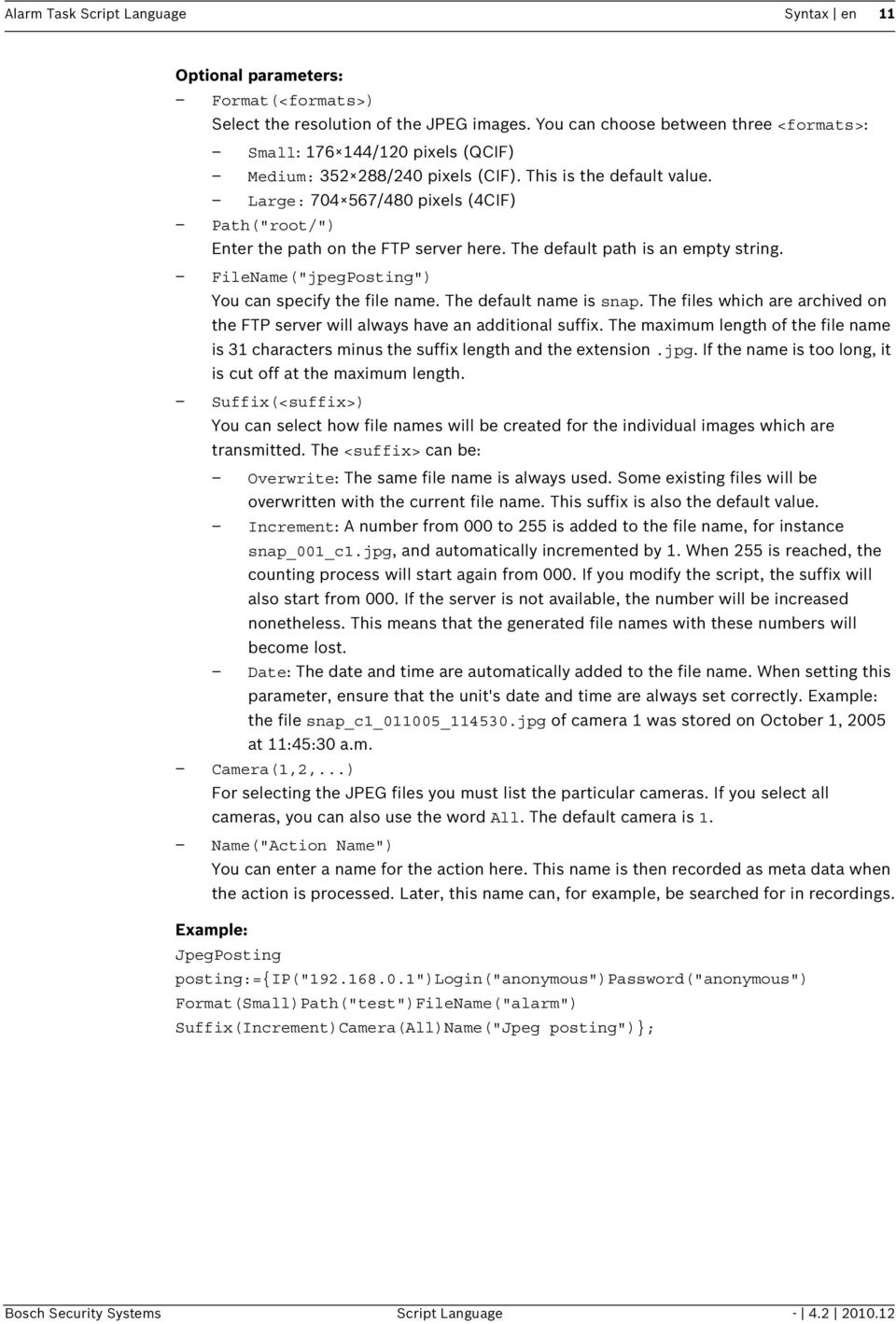
11 Alarm Task Script Language Syntax en 11 Optional parameters: Format(<formats>) Select the resolution of the JPEG images. You can choose between three <formats>: Small: /120 pixels (QCIF) Medium: /240 pixels (CIF). This is the default value. Large: /480 pixels (4CIF) Path("root/") Enter the path on the FTP server here. The default path is an empty string. FileName("jpegPosting") You can specify the file name. The default name is snap. The files which are archived on the FTP server will always have an additional suffix. The maximum length of the file name is 31 characters minus the suffix length and the extension.jpg. If the name is too long, it is cut off at the maximum length. Suffix(<suffix>) You can select how file names will be created for the individual images which are transmitted. The <suffix> can be: Overwrite: The same file name is always used. Some existing files will be overwritten with the current file name. This suffix is also the default value. Increment: A number from 000 to 255 is added to the file name, for instance snap_001_c1.jpg, and automatically incremented by 1. When 255 is reached, the counting process will start again from 000. If you modify the script, the suffix will also start from 000. If the server is not available, the number will be increased nonetheless. This means that the generated file names with these numbers will become lost. Date: The date and time are automatically added to the file name. When setting this parameter, ensure that the unit's date and time are always set correctly. Example: the file snap_c1_011005_ jpg of camera 1 was stored on October 1, 2005 at 11:45:30 a.m. Camera(1,2,...) For selecting the JPEG files you must list the particular cameras. If you select all cameras, you can also use the word All. The default camera is 1. Name("Action Name") You can enter a name for the action here. This name is then recorded as meta data when the action is processed. Later, this name can, for example, be searched for in recordings. Example: JpegPosting posting:={ip(" ")login("anonymous")password("anonymous") Format(Small)Path("test")FileName("alarm") Suffix(Increment)Camera(All)Name("Jpeg posting")}; Bosch Security Systems Script Language
12 12 en Syntax Alarm Task Script Language Recording It is possible to define an action that sends a command for starting and stopping the recording. This action has one standard parameter only. Preconditions for recording are a storage medium and that the recording scheduler is enabled. Further reading: Section Stopping an Action, page 20 NOTICE! If you change the script, the activated recording will not be stopped because the recording might have been started from another client. If you want to stop the recording, you have to do it manually. Standard parameter: Camera(1,2,...) You can list all cameras for which the recording should be started or stopped. If you want to select all cameras, you can use the word All. Example: Recording recording:={camera(1,2,3)}; Connection You can define a video and an audio connection from an encoder to a decoder or vice versa. The device, where you enter the script is the local and the other one the remote. It is possible to start and stop a connection. Further reading: Section Stopping an Action, page 20 NOTICE! If you change the script, all open connections will be closed. Standard parameter: IP(" Enter the IP or URL address of the device you would like to connect here. The maximum URL length is 127 characters. NOTICE! If you use a decoder the optional parameter LocalDirection (see below) must be set. Optional parameters: Protocol(<protocol>) Select one of these protocols: UDP, the default value. It is recommended to use the UDP protocol. TCP LocalLine(<line>) Enter the local line as integer that should be connected to a remote station. The default line is 0. That means, the first line, where a video is activated, will be chosen. LocalCoder(<coder>) A coder is a monitor or view where you can see the video. The default coder is 0. That means, the first free monitor, where a video is displayed, will be chosen Script Language Bosch Security Systems

13 Alarm Task Script Language Syntax en 13 LocalDirection(<direction>) Choose from the following options: Out (outgoing): Use this option if you are using an encoder. This option is the default value. In (incoming): Use this option if you are using a decoder. Bi (bidirectional): For devices which support both outgoing and incoming. RemoteLine(<line>) Enter the remote line as integer where the connection should be established. The default line is 0. That means, the first free line of the remote station will be chosen. RemoteCoder(<coder>) A coder is a monitor or view where you can see the video. The default coder is 0. That means, the first free monitor of the remote station will be chosen. RemotePort(<port>) Depending on the network configuration, you can set a browser port: HTTP: This value designates port number 80 (the default value). HTTPS: This value designates port number 443 and enables the encryption mode automatically. Enter a valid port number manually. If you use port number 443, the SSL encryption mode will be set to true automatically. SSL(<boolean>) You can set the encryption mode <boolean> to true or false. If you want to use a HTTPS connection, you must enable SSL mode. The default value for SSL mode is false. Audio(<boolean>) For <boolean>, enter true to enable and false to disable the audio connection; false is also the default value. Password("anonymous") If the remote station is password protected, enter the password here. The default password is an empty string and the maximum length is 31 characters. VideoCoding(<coding>) Enter one of the coding types: MPEG2 MPEG4 H264 All: The best match will be attempted for connection. This is the default value. VideoSubstitute(<boolean>) If a connection already exists, you can disconnect the old one with the value true and replace it with the new one. The default value is false. Name("Action Name") You can enter a name for the action here. This name is then recorded as meta data when the action is processed. Later, this name can, for example, be searched for in recordings. Bosch Security Systems Script Language

14 14 en Syntax Alarm Task Script Language Example: Figure 5.1 Encoder/Decoder Connections In Figure 5.1 you can see the connection from an encoder to a hardware decoder. In this figure the encoder is the local station and the decoder the remote. A decoder device has one or four views per line. They are called single or quad view. You can set the coder per line where you want to see the video. In the following practical example, the video from the encoder, Line 1 and Coder 1, should be established to the decoder, Line 3 and Coder 4: Connection con_1:={ip(" ")localline(1)localcoder(1)remoteline(3) RemoteCoder(4)}; Connection List With this action it is possible to define the order in which connections should be activated until a connection has been established. It is also possible to stop this action. Further reading: Section Stopping an Action, page 20 Standard parameter: Connection(con_1,con_2,...) List the connections here. Before you enter the connections, you must define all of them. The action will try to connect the first one after about 10 seconds and proceed with the next one until a connection has been established. Further reading: Section Connection, page 12 Optional parameters: AutoConnect(<boolean>) You can enable the AutoConnect property with true or disable it with false (default). If the property is activated, the connection list is restarted after one second delay until a connection has been established. If AutoConnect is disabled, the connection list will not restart again Script Language Bosch Security Systems

15 Alarm Task Script Language Syntax en 15 Name("Action Name") You can enter a name for the action here. This name is then recorded as meta data when the action is processed. Later, this name can, for example, be searched for in recordings. Example: Connection con_1:={ip(" ")}; Connection con_2:={ip(" ")}; ConnectionList autoconnect:={connection(con_1,con_2)autoconnect(true) Name("Connection List")}; RCP Command With this action you can send RCP commands to the device itself (local host) or to another device. Standard parameter: Command(<rcp command>) The <rcp command> has the same structure as the CGI command. The according command can be created on the debug page: \dbg_rcpcmd. So you can copy the created CGI command and enter it here. Optional parameters: SSL(<boolean>) With true you can enable or with false disable the encryption mode for sending the RCP command. Port(<port>) Enter the <port> for sending the RCP command here: HTTP: This value designates port number 80 (the default value). HTTPS: This value designates port number 443 and enables the encryption mode automatically. Enter a valid port number manually. If you use port number 443, the encryption mode is enabled automatically. Password("anonymous") If the remote device is password protected, enter the password here. The default password is an empty string and the maximum length is 31 characters. UserName(<username>) Enter the corresponding user name for the password here. The user name defines the authorization level. Possible levels for <username> are: Service: This is the highest authorization level (default value). After entering the correct password, this authorization level allows you to use all the functions of the device and change all configuration settings. User: This is the middle authorization level. With this authorization level, you can operate the device, but you cannot change the configuration. Live: This is the lowest authorization level. With this authorization level, you can view live video, but you cannot operate the device or change the configuration. IP(" ") Enter the IP or URL address here. The default IP address is (local host). The maximum URL length is 127 characters. Name("Action Name") You can enter a name for the action here. This name is then recorded as meta data when the action is processed. Later, this name can, for example, be searched for in recordings. Bosch Security Systems Script Language

16 16 en Syntax Alarm Task Script Language Example: RcpCommand sendrcp:={ Command("rcp.xml?command=0x002f&type=P_STRING&direction=WRITE&num=1") SSL(true)Port(HTTPS)IP(" ")Password("anonymous")UserName(User) Name("Rcp Command 0x002")}; VCA Configuration With this action you can apply a certain VCA configuration profile to a video line. Standard parameters: Line(<line>) Enter the video line (starting from 1) for which you would like to set the configuration. Configuration(<config>) Enter the number of the configuration profile which you would like to set. 0 means no configuration. Optional parameter: Name("Action Name") You can enter a name for the action here. This name is then recorded as meta data when the action is processed. Later, this name can, for example, be searched for in recordings. Example: VCAConfiguration setvcaconfig:={ Line(1)Configuration(1)Name("SetConfig 1")}; Bicom Command With this action you can send Bicom commands to the device itself (local host). For further information about Bicom, please see the BiCom Bilinx Command Interface documentation. Standard parameters: Server (<BicomServer>) Enter the <BicomServer> to which the command should be sent here: DeviceSrv: Device Server CamersSrv: Camera Server PtzSrv: PTZ Server CaSrv: Content Ananlysis Server IoSrv: I/O Server ObjectId(<Id>) Enter the Bicom object <Id> here. The ID can be either decimal or hexadecimal. Payload( 0x1234 ) Enter the Bicom command payload here. The payload must be hexadecimal and start with 0x. The length of the payload must match with the length specified in the Bicom documentation for the corresponding object. Optional parameter: Name("Action Name") You can enter a name for the action here. This name is then recorded as meta data when the action is processed. Later, this name can, for example, be searched for in recordings. Example: BicomCommand sendbicom:={ Server(CameraSrv)ObjectId(0x0140)Payload("0x0001")Name("Bicom Command 0x0140")}; Script Language Bosch Security Systems

17 Alarm Task Script Language Syntax en Control Code With this action you can send (Bicom-) control codes to the device itself (local host). For further information about Bicom control codes please see the BiCom Bilinx Command Interface documentation. Standard parameters: Operation(<type>) Enter the <type> of operation here: AuxOn AuxOff Shot Set Number(<num>) Enter the control code number <num> here. Optional parameter: Name("Action Name") You can enter a name for the action here. This name is then recorded as meta data when the action is processed. Later, this name can, for example, be searched for in recordings. Example: ControlCode commandlock:={ Operation(AuxOn)Number(90)Name("ControlCode 90 on")}; Message Check With this action you can check for received messages from the device itself (local host) or from another device. The message check needs to be performed regularly and within a time period shorter than 20 seconds. Otherwise messages can be lost. Additionally, a maximum of 32 messages can be received between two consecutive checks. If the specified message has been received, the action state is set to activated, which can be checked via IsActivated(). Standard parameter: Message("<message>") Here you can specify which messages you like to check. <message> has the same structure like the CGI command. It is composed as follows: rcp.xml?message= plus a message tag code or a list of message tag codes Examples: rcp.xml?message=0x01c0 rcp.xml?message=0x01c0$01c1 Optional parameters: Payload("0x1234") Here you can specify a certain payload. This is checked against the payload which has been received within the message. Only if the message has the same payload as specified here, the MessageCheck action state is activated. Num(<index>) Here you can specify a certain numeric parameter. This is checked against the numeric parameter which has been received within the message. Only if the message has the same numeric parameter as specified, the MessageCheck action state is activated. Bosch Security Systems Script Language

18 18 en Syntax Alarm Task Script Language SSL (<boolean>) With true, you can enable or with false disable the encryption mode for sending the message check. Port(<port>) Enter the <port> for sending the message check here: HTTP: This value designates port number 80 (the default value). HTTPS: This value designates port number 443 and enables the encryption mode automatically. Enter a valid port number manually. If you use port number 443, the encryption mode is enabled automatically. Password("anonymous") If the remote device is password protected, enter the password here. The default password is an empty string and the maximum length is 31 characters. UserName(<username>) Enter the corresponding user name for the password here. The user name defines the authorization level. Possible levels for <username> are: Service: This is the highest authorization level (default value). After entering the correct password, this authorization level allows you to use all the functions of the device and change all configuration settings. User: This is the middle authorization level. With this authorization level, you can operate the device, but you cannot change the configuration. Live: This is the lowest authorization level. With this authorization level, you can view live video, but you cannot operate the device or change the configuration. IP(" ") Enter the IP or URL address here. The default IP address is (local host). The maximum URL length is 127 characters. Name("Action Name") You can enter a name for the action here. This name is then recorded as meta data when the action is processed. Later, this name can, for example, be searched for in recordings. Example: MessageCheck msg1 := { Message("rcp.xml?message=0x0a8b")Num(1)Payload("0x00")IP(" ")}; OperationMode trigger5sec := { Low(1) High(50) }; TempState(1) := trigger5sec; if(tempstate(1)) then msg1; if( IsActivated(msg1) ) then Relay(1):=true; Further reading: Section Action States, page Script Language Bosch Security Systems

19 Alarm Task Script Language Syntax en Operation Mode You can configure the operation mode of C-states. C-states have a normal behavior, but you can change the mode with this action. You can configure the operation mode of C-states only. You can set a bistable, monostable or periodic mode. NOTICE! If you change the script, all used C-states will be set to the open idle state. Further, the C-states which were used in the monostable or periodic mode will be disabled. Bistable With bistable mode, you can specify whether the C-state should be open or closed. Standard parameter: Idle(<idle state>) Configure the <idle state> here. It can be open or closed. The default value for all states is open. Monostable In monostable mode, the C-state will return to disabled after a defined time. Standard parameter: High(<time>) Enter the duration of <time> in tenths of a second. High means, the C-state is enabled and after the specified time it will be disabled. The time must not be 0. Optional parameter: Idle (<idle state>) Configure the <idle state> here. It can be open or closed. The default value for all states is open. Periodic With periodic mode, you can define how long a C-state should be enabled or disabled. Standard parameters: Low(<time>) Enter the duration of <time> in tenths of a second. Low means, the C-state is disabled. The <time> value must not be 0. High(<time>) Enter the duration of <time> in tenths of a second. High means, the C-state is enabled. The <time> value must not be 0. Optional parameters: Idle (<idle state>) Configure the <idle state> here. It can be open or closed. The default value for all states is open. Name("Action Name") You can enter a name for the action here. This name is then recorded as meta data when the action is processed. Later, this name can, for example, be searched for in recordings. Bosch Security Systems Script Language

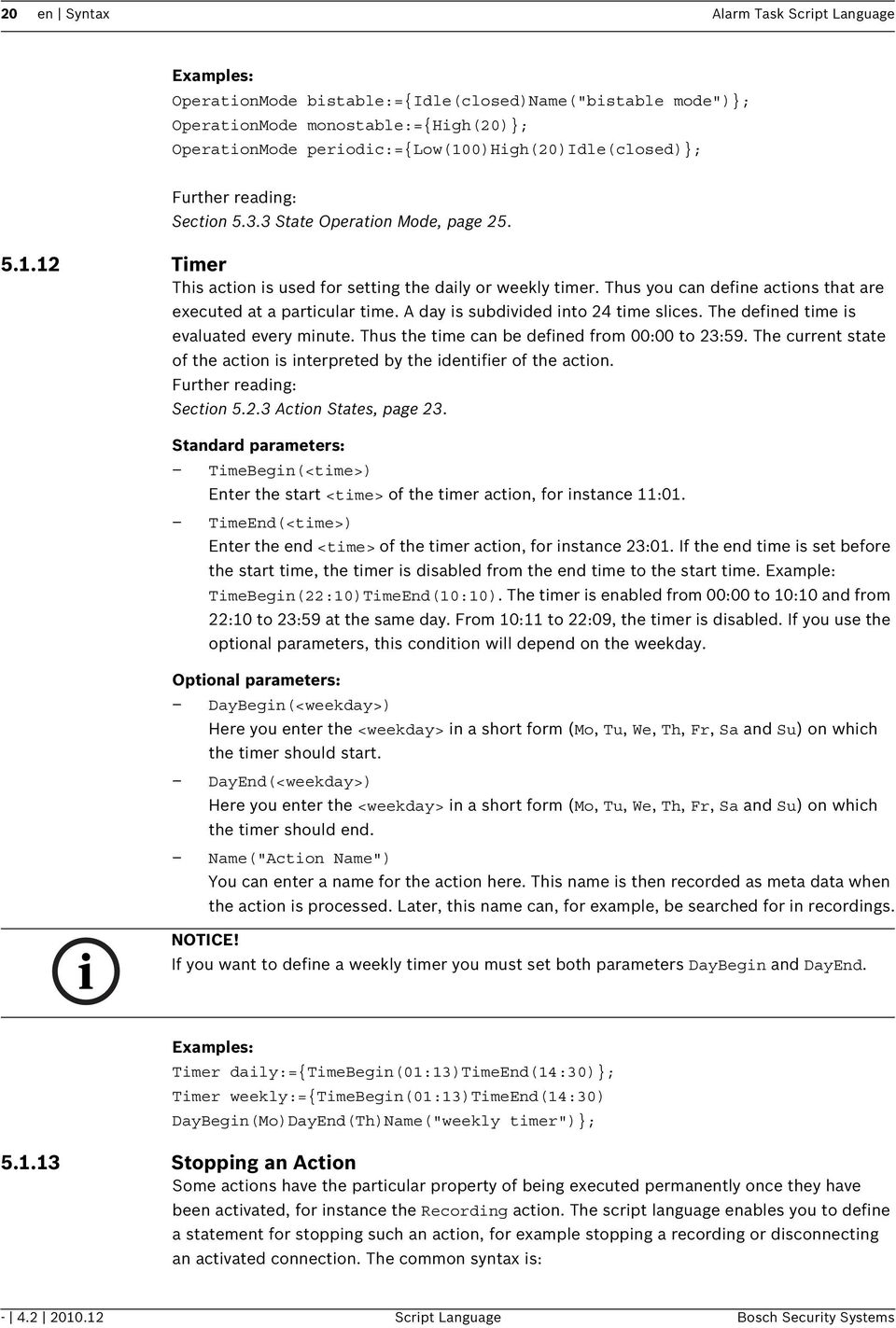
20 20 en Syntax Alarm Task Script Language Examples: OperationMode bistable:={idle(closed)name("bistable mode")}; OperationMode monostable:={high(20)}; OperationMode periodic:={low(100)high(20)idle(closed)}; Further reading: Section State Operation Mode, page Timer This action is used for setting the daily or weekly timer. Thus you can define actions that are executed at a particular time. A day is subdivided into 24 time slices. The defined time is evaluated every minute. Thus the time can be defined from 00:00 to 23:59. The current state of the action is interpreted by the identifier of the action. Further reading: Section Action States, page 23. Standard parameters: TimeBegin(<time>) Enter the start <time> of the timer action, for instance 11:01. TimeEnd(<time>) Enter the end <time> of the timer action, for instance 23:01. If the end time is set before the start time, the timer is disabled from the end time to the start time. Example: TimeBegin(22:10)TimeEnd(10:10). The timer is enabled from 00:00 to 10:10 and from 22:10 to 23:59 at the same day. From 10:11 to 22:09, the timer is disabled. If you use the optional parameters, this condition will depend on the weekday. Optional parameters: DayBegin(<weekday>) Here you enter the <weekday> in a short form (Mo, Tu, We, Th, Fr, Sa and Su) on which the timer should start. DayEnd(<weekday>) Here you enter the <weekday> in a short form (Mo, Tu, We, Th, Fr, Sa and Su) on which the timer should end. Name("Action Name") You can enter a name for the action here. This name is then recorded as meta data when the action is processed. Later, this name can, for example, be searched for in recordings. NOTICE! If you want to define a weekly timer you must set both parameters DayBegin and DayEnd. Examples: Timer daily:={timebegin(01:13)timeend(14:30)}; Timer weekly:={timebegin(01:13)timeend(14:30) DayBegin(Mo)DayEnd(Th)Name("weekly timer")}; Stopping an Action Some actions have the particular property of being executed permanently once they have been activated, for instance the Recording action. The script language enables you to define a statement for stopping such an action, for example stopping a recording or disconnecting an activated connection. The common syntax is: Script Language Bosch Security Systems
21 Alarm Task Script Language Syntax en 21 Stop(<identifier>) The <identifier> has to belong to a defined action. In many cases, using of the Stop command is not obvious. The following list shows all actions where the Stop command can be used and explains the meaning: Recording Stops the recording. ConnectionList If the AutoConnect parameter was set to true but no connection could be established, this action will keep running until a connection has been established. The action can be terminated with the Stop command at any time. Connect Disconnects the connection. The operation mode action has a different syntax. Here, you must allocate the Stop command the C-state as follows: <C-state>:=Stop(<identifier>) The <identifier> has to belong to a defined action operation mode. If a C-state is deactivated, the idle state is always set to open. Furthermore the C-states which were used in the monostable and periodic mode will be set to disabled. Thus, after being deactivated, C- states have always a defined state. Further reading: Section Operation Mode, page State Types There are different state types. The script language enables you to request the value of a state which is a Boolean. The general syntax of the different state types is: <state name> <state name>(<integer>) <state name>(<identifier>) <state name>(<integer>,<integer>) I/O States I/O states are R-states or C-states, which are as follows: R-states: HddError Triggered by an HDD defect. Connect Triggered whenever a connection has been established. EthernetLink(<index>) There are internal and external links. The internal link has always the index 0. If a device only has one link, the internal link is coevally the external link. If a device additionally has a fiber link, it always has the highest index of the links. An activated link status is always 1 or true. Input(<index>) Triggered by an external alarm input. VideoAlarm(<camera>) Triggered by an interruption of the video signal. Motion(<camera>) Triggered by motion alarm. Bosch Security Systems Script Language
22 22 en Syntax Alarm Task Script Language Remote(<index>) Triggered by remote station's switching contact (only if a connection exists). VCARule(<camera>,<rule>,<configuration(opt)>) Triggered by a certain VCA alarm (rule) from a video line (camera). The <configuration> parameter is optional and checks additionally if the alarm was generated by the specified VCA configuration profile. See also the IVA Task Script Language documentation. Key(<index>) Triggered by a softkey (1-8) or the alarm key (0) of a connected IntuiKey keyboard. NightMode Triggered when the night mode of the device is activated (only for devices supporting night mode). AudioAlarm(<audio line>) Triggered by an audio alarm on the corresponding audio line. VitualAlarm(<index>) Triggered by a virtual alarm input. IsFirstPass Triggered once when the Alarm Task Engine is started and the script is processed for the first time. This can be used, for example, to initialize other states. VCATaskRunning(<camera>) Triggered when the VCA task of a video line (camera) is running. This state can, for example, be used to perform an action or an alarm in case the VCA task is interrupted. ManipulationAlarm(<index>) Triggered by an external manipulation alarm (for example if the housing of the device is opened). Only for devices which support manipulation alarms. C-states: Relay(<index>) The number of relays depends on the device. TempState(<index>) There are 18 temporal states for saving. NOTICE! The number of cameras and indices depends on the particular device except the temporal states. All numbers start with 1 except the index of the Ethernet links which starts with Tamper States The MOTION+, IVMD (Intelligent Video Motion Detection) or IVA (Intelligent Video Analysis) algorithms can detect tampering of a camera. The default algorithm is MOTION+. The different kinds of tampering do not need to be enabled from the configuration of the algorithms except the RefImageCheckFailed tamper state. Configuring the tamper states is also possible on the browser page under Settings > Advanced Mode > Alarm > VCA. You can disable or enable all tamper states here. The output of possible tamper actions is accessible via Boolean states. For each state, the parameter is <camera>. Thus you have to enter the corresponding camera for the tamper state. The following tamper states are available: SignalTooNoisy(<camera>) This state will be enabled if the video signal becomes too noisy, in such a way that automatic object detection becomes impossible. This can happen if an analog video signal is transmitted over a large distance Script Language Bosch Security Systems
23 Alarm Task Script Language Syntax en 23 SignalTooBright(<camera>) This state will be enabled if the video signal becomes too bright, so that automatic object detection becomes impossible. This can happen if the camera is dazzled by a strong light source. SignalTooDark(<camera>) This state will be enabled if the video signal becomes too dark, so that automatic object detection becomes impossible. This can happen if the camera is covered by a sheet, in such a way that an almost black image is recorded. SignalLoss(<camera>) This state will be enabled if the video signal is lost. RefImageCheckFailed(<camera>) If a reference image has been set during the configuration of the algorithms and the reference checking of the algorithms has been enabled, manipulation of the camera is detected by comparing the current video signal with the preset reference image. Significant differences between the two images are forwarded to the Alarm Task Engine. GlobalChange(<camera>) This state will be enabled if most of the image content has been changed. This can happen if the camera is moved or if an object comes too close to the camera Action States Some actions have R- or R/W-states. Therewith, you can verify whether a defined action was successful or not. For instance, if you have defined an but the SMTP server does not work or the login is wrong, the will not be sent. Such errors can be evaluated with the following syntax: Error(<identifier>) This error state is an R/W-state and the <identifier> has to belong to a configured action, for instance Error(mail). Here, mail is the identifier of the action AlarmMail. But the type of the errors cannot be interpreted. That means, you cannot specify the source of failure. The following list shows the actions which have an error state and some hints why an action could not be successfully executed: RcpCommand Sending an RCP command has not been successful. Maybe you have entered a wrong IP address. Connection The connection has not been established, e.g. because the IP address is incorrect. AlarmMail The mail could not be sent to an SMTP server, e.g. because the server is password protected. JpegPosting Posting to an FTP server has not been successful because the server could not be reached. VCAConfiguration Setting the VCA configuration has not been successful. BicomCommand Sending a Bicom command has not been successful. Maybe the object ID is wrong or maybe the payload length is incorrect. ControlCode Sending a control code has not been successful. Maybe the control code number is incorrect or out of range. Bosch Security Systems Script Language
24 24 en Syntax Alarm Task Script Language MessageCheck The message check has not been successful. Maybe the time interval between two checks was too long or the remote device is not available. NOTICE! Error states are not set back to disabled. That means, if the action, for example JPEG posting, was not successful, the error state Error(posting), will not be set back to disabled. Thus, if you execute the action once more and the posting was not successful again, you cannot evaluate the error. Therefore, you must set back the error state. Example: JpegPosting posting:={ip(" ") Login("anonymous")Password("anonymous")}; if(error(posting))then Error(posting):=false; Furthermore, you can verify whether a defined action is activated or not, for instance, with the Connection action. The syntax of this state is: IsActivated(<identifier>) The <identifier> has to belong to a configured action as follows: Connection If there is a connection to the IP address entered, the state is enabled, otherwise it is disabled. ConnectionList When trying to connect an encoder or decoder, the state is enabled, otherwise it is disabled. Timer If the configured timer is active, the state is enabled, otherwise it is disabled. Example: Timer dailyrelay:={timebegin(08:00)timeend(18:00)}; if(isactivated(dailyrelay))then Relay(1):=true else Relay(1):= false; MessageCheck If the defined message has been received and - if specified - the payload and numeric parameters are correct, the state is enabled. After a short time the state is automatically disabled again Script Language Bosch Security Systems
25 Alarm Task Script Language Syntax en Conditions Boolean Composition of Conditions A Boolean condition is a condition that returns a Boolean value, that is true or false. In this Boolean composition you can use: constants negation conjunction disjunction There are two constants which have a value with a fixed meaning. These constants are true (1) and false (0). The syntax of negation, conjunction and disjunction is: Negation of conditions: <condition>:=!<condition> <condition>:=not <condition> Conjunction of conditions: <condition>:=<condition> && <condition> <condition>:=<condition> and <condition> Disjunction of conditions: <condition>:=<condition> <condition> <condition>:=<condition> or <condition> Ambiguities in the evaluation of expressions are resolved by priorities. Negations have the highest priority, followed by conjunctions, and disjunctions have the lowest priority. Furthermore, the priority can be controlled by putting sub-expressions in parentheses: <condition>:=(<condition>) With the help of the Boolean conditions you can combine all R-, R/W- and C-states with each other. Examples: (Relay(1) Motion(2)) && VideoAlarm(1) IsActivated(con_1) and VCARule(2,3)!Connect or Error(sendRcp) State Condition With a state condition it is possible to set an R/W-state depending on a Boolean condition. The general syntax is: <R/W-state>:=<condition>; Consequently, the <R/W-state> is defined by the <condition> on the right. If the result of the condition is true, the R/W-state is enabled and if the condition is false the R/W-state is disabled. Note that the R/W-state is only set if this one has changed. Some practical examples for using states: Examples: Relay(1):=Motion(2) && VideoAlarm(1); TempState(2):=not Relay(2) and VCARule(2,3); Relay(2):=true; State Operation Mode The TempState(<index>) and Relay(<index>) C-states have a special property. It is possible to allocate them a specific operation mode like bistable, monostable or periodic. Bosch Security Systems Script Language
26 26 en Syntax Alarm Task Script Language Before an operation mode is allocated, it must be defined. Such statements will execute only once if the Alarm Task Engine is initialized. The syntax is: <C-state>:=<identifier>; The <identifier> must be an OperationMode action. The following example shows how to configure a C-state. In this example a relay is disabled for 10 seconds and enabled for 2 seconds: OperationMode periodic:={low(100)high(20)}; Relay(1):=periodic; This way, you only can activate the operation mode of a C-state. It is not possible to stop or to deactivate the C-state this way. Further reading: Section Action Condition, page Action Condition Actions defined with an action condition can be executed on a particular condition. The syntax of an action condition is: if(<condition>)then <statement list> [else <statement list>]; A <statement list> is defined as: <statement_list>:= <statement> <statement>,<statement list> <statement>:= <identifier> <state condition> <state operation mode> The <identifier> must belong to a configured action. Examples: You have configured an action for recording and the recording should start if the relay is enabled. Therefore, you must define an action condition as follows: Recording recording:={camera(1)}; if(relay(1))then recording; After a motion alarm, an alarm should be sent and a JPEG-file should be posted. First, you have to configure both actions, then you have to define the action condition as follows: JpegPosting posting:={ip(" ") Login("anonymous")Password("anonymous")}; AlarmMail mail:={ip(" ")to("[email protected]")}; if(motion(1 ))then mail,posting; A relay should be set to monostable mode from 8:00 a.m. to 10:00 p.m., the remaining time the relay should be set to normal mode. Therefore, you have to configure an operation mode, a timer and a condition action: OperationMode monostable:={high(50)}; Timer daily:={timebegin(8:00)timeend(22:00)}; if(isactivated(daily))then Relay(1):=monostable else Relay(1):=Stop(monostable); Script Language Bosch Security Systems
27 Alarm Task Script Language Syntax en 27 NOTICE! The statements will be evaluated if the Boolean condition alternates from disabled to enabled or from enabled to disabled. If for security reasons you want to send an alarm each time one of the relays Relay(1) or Relay(2) is enabled, you must define the action condition as follows: if(relay(1))then sendmail;if(relay(2))then sendmail; You cannot define the action condition in the following way: if(relay(1) or Relay(2))then sendmail; In this action condition the alarm mail is only sent once even if both relays are enabled. Further reading: Section State Condition, page 25 Section State Operation Mode, page Comments You can set comments within the script so that you can describe your actions or states or comment these out. There are two types of comments. The first one is the line comment. It starts with the characters // (double slash) followed by other characters and ends with a new line like: //comment The other one is the multiline comment. This one begins with /* (slash and asterisk) and ends with */ (asterisk and slash): /*multiline comment*/ It is also possible to combine both types. Everything within a comment is not evaluated. Since the script size is restricted, you should limit the number of comments to the necessary extent. Further reading: Section 4 Configuration, page 7 Bosch Security Systems Script Language
28 28 en Starting the Alarm Task Engine Alarm Task Script Language 6 Starting the Alarm Task Engine If you have automatically or manually created a script, the script will be sent to the device. It is recommended to send the script via HTTPS. Otherwise, the passwords and login information are sent plain. Then the script is parsed on the device. If the script is free of syntax errors, the message "Script successfully parsed" is displayed above the Alarm Task Editor and a new Alarm Task Engine is created. If there is an older Alarm Task Engine, it will run until a new one is created. Before the new Alarm Task Engine starts to run, all previously created events which belong to an older Alarm Task Engine are deleted. Also, all actions are deleted except the one which is being executed. Furthermore, the temporal states will be set to disabled and then the Alarm Task Engine is initialized. For instance, the operation mode of a C-state is activated or actions are being executed when the Boolean condition is true and so on. For instance, you have configured the device and it is going to reset. After the restart, the device can reconnect automatically or immediately send an alarm Connection con_1:={ip(" ")}; AlarmMail restart:={ip(" To("[email protected]")Subject("restart")}; if(true)then restart,con_1; Further reading: Section I/O States, page Script Language Bosch Security Systems
29 Alarm Task Script Language Glossary en 29 Glossary C C-state CGI CIF Configurable state Common Gateway Interface Common Intermediate Format F FTP File Transfer Protocol H HDD HTTP HTTPS Hard Disk Drive Hypertext Transfer Protocol Hypertext Transfer Protocol Secure I I/O IP Input/Output Internet Protocol J JPEG Joint Photographic Expert Group M MPEG Moving Picture Experts Group Q QCIF Quarter Common Intermediate Format R R-state R/W-state RCP Readable state Readable/Writable state Remote Control Protocol S SMS SMTP SSL Short Message Service Simple Mail Transfer Protocol Secure Socket Layer Bosch Security Systems Script Language
30 30 en Glossary Alarm Task Script Language T TCP Transmission Control Protocol U UDP URL User Datagram Protocol Uniform Resource Locator Script Language Bosch Security Systems
31
32 Bosch Security Systems Werner-von-Siemens-Ring Grasbrunn Germany Bosch Security Systems, 2010
Alarm Task Script Language Version 4.1. Script Language
 Alarm Task Script Language Version 4.1 en Script Language Alarm Task Script Language Table of Contents en iii Table of Contents 1 Introduction 1 2 Definitions 1 2.1 Actions 1 2.2 Events and States 1 2.3
Alarm Task Script Language
 Alarm Task Script Language Version 5.92 en Script Language Alarm Task Script Language Table of Contents en 3 Table of contents 1 Introduction 4 2 Definitions 5 2.1 Actions 5 2.2 Events and states 5 2.3
IP Matrix MVC-FIPM. Installation and Operating Manual
 IP Matrix MVC-FIPM en Installation and Operating Manual IP Matrix IP Matrix Table of Contents en 3 Table of Contents 1 Preface 5 1.1 About this Manual 5 1.2 Conventions in this Manual 5 1.3 Intended Use
From Telephone Nuremberg. This letter contains latest information about the above mentioned product.
 Release Letter Product: Version: VIP X1 XF H.264 Firmware 4.10.0039 This letter contains latest information about the above mentioned product. 1. General This initial release covers the new single channel
Notification messages
 AXIS P8221 Network I/O Audio Module TECHNICAL NOTE Notification messages How to integrate AXIS P8221 Updated: August 19, 2011 Rev: 1.1 TABLE OF CONTENTS 1 INTRODUCTION 3 1.1 HTTP and TCP 3 1.2 VAPIX 3
This firmware is a feature release for the multi-stream, dual-monitor HD Decoder
 Release Letter Product: VIDEOJET decoder 7000 VJD-7000 Version: Firmware 54.8.0 This letter contains latest information about the above mentioned product. 1 General This firmware is a feature release for
VIP X1600 XFMD Decoder Module. Installation and Operating Manual
 VIP X1600 XFMD Decoder Module en Installation and Operating Manual VIP X1600 XFMD VIP X1600 XFMD Table of Contents en 3 Table of Contents 1 Preface 5 1.1 About this Manual 5 1.2 Conventions in this Manual
Device Log Export ENGLISH
 Figure 14: Topic Selection Page Device Log Export This option allows you to export device logs in three ways: by E-Mail, FTP, or HTTP. Each method is described in the following sections. NOTE: If the E-Mail,
ImagineWorldClient Client Management Software. User s Manual. (Revision-2)
 ImagineWorldClient Client Management Software User s Manual (Revision-2) (888) 379-2666 US Toll Free (905) 336-9665 Phone (905) 336-9662 Fax www.videotransmitters.com 1 Contents 1. CMS SOFTWARE FEATURES...4
Bosch Recording Station Appliance. Software Installation Manual
 Bosch Recording Station Appliance en Software Installation Manual Bosch Recording Station Appliance Table of Contents en 3 Table of Contents 1 Safety Notes 6 1.1 Safety symbols used here 6 1.2 Installation/Configuration
Packet Capture. Document Scope. SonicOS Enhanced Packet Capture
 Packet Capture Document Scope This solutions document describes how to configure and use the packet capture feature in SonicOS Enhanced. This document contains the following sections: Feature Overview
Configuration Manager 5.0
 Configuration Manager en Installation and operation manual Configuration Manager Table of Contents en 3 Table of contents 1 Using the Configuration Manager help 5 1.1 Finding information 5 1.2 Printing
Bosch Video Management System. VIDOS to Bosch VMS Migration Guide
 Bosch Video Management System en VIDOS to Bosch VMS Migration Guide Bosch Video Management System Table of Contents en 3 Table of Contents 1 Safety 4 2 Short Information 5 3 Prerequisites 6 3.1 Planning
Bosch Video Management System. Configuration Manual
 Bosch Video Management System en Configuration Manual Bosch Video Management System Table of Contents en 3 Table of Contents 1 Using the Help 10 1.1 Finding information 10 1.2 Printing the Help 10 2 Introduction
TENVIS Technology Co., Ltd. User Manual. For H.264 Cameras. Version 2.0.0
 TENVIS Technology Co., Ltd User Manual For H.264 Cameras Version 2.0.0 Catalogue Basic Operation... 3 Hardware Installation... 3 Search Camera... 3 Get live video... 5 Camera Settings... 8 System... 8
User Manual of Web Client
 User Manual of Web Client 1 Index Chapter 1 Software Installation... 3 Chapter 2 Begin to Use... 5 2.1 Login and Exit... 5 2.2 Preview Interface Instruction... 6 2.3 Preview Image... 7 Chapter 3 Playback...
Architecture and Data Flow Overview. BlackBerry Enterprise Service 10 721-08877-123 Version: 10.2. Quick Reference
 Architecture and Data Flow Overview BlackBerry Enterprise Service 10 721-08877-123 Version: Quick Reference Published: 2013-11-28 SWD-20131128130321045 Contents Key components of BlackBerry Enterprise
MJPEG Camera Client User Manual
 MJPEG Camera Client User Manual CONTENTS User Manual 1 WELCOME... 3 1.1Features... 3 1.2Installation Requirements... 3 1.3 Software Installation... 3 2 Software Operation... 5 2.1 Tab bar... 6 2.2 Device
This section will focus on basic operation of the interface including pan/tilt, video, audio, etc.
 Catalogue Basic Operation... 2 For Internet Explorer... 2 For Other Non-IE Web Browsers... 5 Camera Settings... 6 System... 6 About... 6 PT Setting... 7 Backup and Restore Setup... 8 NTP Setting... 8 System
Bosch Video Management System
 Bosch Video Management System Mobile Video Service en Technical Note Bosch Video Management System Table of Contents en 3 Table of contents 1 Introduction 4 2 System overview 5 2.1 Installation notes
User s Manual of DVR DVS Remote Client Software V 4.0.1
 User s Manual of DVR DVS Remote Client Software V 4.0.1 Index Version description...4 1 Introduction...8 2 Software Install, Uninstall and use...9 2.1 Install remote client software ver4.0.1...9 2.2 Uninstall
Using triggers and actions
 Using triggers and actions Important For Triggers and Actions to function correctly, the server PC must be running at all times. Triggers and Actions is a powerful feature. It can be used to report on
NVMS-1200. User Manual
 NVMS-1200 User Manual Contents 1 Software Introduction... 1 1.1 Summary... 1 1.2 Install and Uninstall... 1 1.2.1 Install the Software... 1 2 Login Software... 3 2.1 Login... 3 2.2 Control Panel Instruction...
Lepide Active Directory Self Service. Configuration Guide. Follow the simple steps given in this document to start working with
 Lepide Active Directory Self Service Configuration Guide 2014 Follow the simple steps given in this document to start working with Lepide Active Directory Self Service Table of Contents 1. Introduction...3
Basic File Recording
 PART NUMBER: PUBLICATION DATE: 23. October 2015 Copyright 2014 2015 SightLine Applications, Inc. Hood River, OR All Rights Reserved Summary In addition to performing digital video stabilization, object
Configuration Manager 1.6
 Configuration Manager 1.6 en Manual Configuration Manager 1.6 Table of Contents en 1 Table of Contents 1 Introduction 3 1.1 About this manual 3 1.2 Conventions in this manual 3 1.3 System requirements
CNet IP Camera Configuration Document
 CNet IP Camera Configuration Document CIC-901W CIC-901L Brief Description: CIC-901L- IP Surveillance Camera Features Motion JPEG video compression Built-in web server for monitoring via standard browser
Monitor Wall 4.0. Installation and Operating Manual
 Monitor Wall 4.0 en Installation and Operating Manual Monitor Wall 4.0 Table of Contents en 3 Table of Contents 1 Introduction 4 1.1 About this Manual 4 1.2 Conventions in this Manual 4 1.3 Minimum Installation
XCenter User Manual (For Windows XP/2003/2008/ Vista/Win7)
 Xcenter(v2.0.1.8) User Manual XCenter User Manual (For Windows XP/2003/2008/ Vista/Win7) Document edition: For all IP cameras and digital video servers made in our company. 1/39 Xcenter(v2.0.1.8) User
Bosch Video Management System
 Bosch Video Management System Device Replacement Guide en Technical Note Bosch Video Management System Table of Contents en 3 Table of contents 1 Introduction 4 2 System overview 4 2.1 Hardware requirements
Remote Client Program... 3. Web Client... 39
 Remote Client / Web Client USER MANUAL T Series Digital Video Recorder Remote Client Program... 3 Remote Client Program Installation... 4 Remote Client... 6 Main Window... 6 Site Registration... 7 Group
Avigilon View Software Release Notes
 Version 4.6.3 System Version 4.6.3 includes the following components: Avigilon VIEW Version 4.6.3 R-Series Version 4.6.3 Rialto Version 4.6.3 ICVR-HD Version 3.7.1 ICVR-SD Version 2.6.3 System Requirements
TREK HOSC PAYLOAD ETHERNET GATEWAY (HPEG) USER GUIDE
 TREK HOSC PAYLOAD ETHERNET GATEWAY (HPEG) USER GUIDE April 2016 Approved for Public Release; Distribution is Unlimited. TABLE OF CONTENTS PARAGRAPH PAGE 1 Welcome... 1 1.1 Getting Started... 1 1.2 System
From Telephone Nuremberg
 Release Letter Product: H.264 Firmware for CPP5 encoder Version: Firmware 5.70.0028 This letter contains latest information about the above mentioned product. 1 General This firmware is a maintenance release
How To Configure A Network Monitor Probe On A Network Wire On A Microsoft Ipv6 (Networking) Device (Netware) On A Pc Or Ipv4 (Network) On An Ipv2 (Netnet) Or Ip
 61700600L2-29.3D January 2014 Configuration Guide This configuration guide describes network monitoring and its use on ADTRAN Operating System (AOS) products. This guide contains information about the
IP Wireless / Wired Camera NIGHT VISION & REMOTE PAN/TILT ROTATE. User Manual
 IP Wireless / Wired Camera NIGHT VISION & REMOTE PAN/TILT ROTATE User Manual WELCOME This model IP Camera is an integrated wireless IP Camera solution. It combines a high quality digital Video Camera with
With the purchase of ONSSI NetDVMS you have chosen an extremely powerful and intelligent surveillance solution.
 Dear ONSSI Customer, With the purchase of ONSSI NetDVMS you have chosen an extremely powerful and intelligent surveillance solution. This Getting Started Administrator Guide will explain how to install
Quadro Configuration Console User's Guide. Table of Contents. Table of Contents
 Epygi Technologies Table of Contents Table of Contents About This User s Guide... 3 Introducing the Quadro Configuration Console... 4 Technical Specification... 6 Requirements... 6 System Requirements...
Quectel Cellular Engine
 Cellular Engine GSM FTP AT Commands GSM_FTP_ATC_V1.1 Document Title GSM FTP AT Commands Version 1.1 Date 2010-12-28 Status Document Control ID Release GSM_FTP_ATC_V1.1 General Notes offers this information
LOREX CLIENT Remote Software 4.0
 LOREX CLIENT Remote Software 4.0 Instruction Manual English Version 2.0 MODEL: L20WD800 Series www.lorexcctv.com Copyright 2008 LOREX Technology Inc. Table of Contents Table of Contents Software Installation...
TVWall User s Manual (for WindowsXP/2003/Win7/Vista)
 TVWall User s Manual (for WindowsXP/2003/Win7/Vista) Document edition:v4.1 Document suit for all of the NVS and NVD made in our company. 1 Preface Thank you for using our products, TVWall also called TVwall
Chapter 6 Virtual Private Networking Using SSL Connections
 Chapter 6 Virtual Private Networking Using SSL Connections The FVS336G ProSafe Dual WAN Gigabit Firewall with SSL & IPsec VPN provides a hardwarebased SSL VPN solution designed specifically to provide
IVA Task Script Language Version 1.2. Script Language
 IVA Task Script Language Version 1.2 en Script Language IVA Task Script Language Table of Contents en 3 Table of Contents 1 Change Log 4 1.1 Version 1.0 4 1.2 Upgrade to Version 1.1 4 1.3 Upgrade to Version
idvr-pro Viewer Software for Mac User Manual ver 0.1
 idvr-pro Viewer Software for Mac User Manual ver 0.1 1 Contents 1. Introduction... Error! Bookmark not defined. 1.1 Summary... Error! Bookmark not defined. 2. Install... Error! Bookmark not defined. 2.1
4. Rear View. Function Switches 1. Fixed IP 2. DHCP Floating IP 3. Auto IRIS (DC Driver LENS) 4. Fixed LENS (AES)
 4. Rear View 5 1.STATIC IP 2.DHCP 3.DC IRIS Mini USB 1 2 3 4 5 6 1. ALM-RST 2. ALM-IN 3. ALM-OUT 4. GND 5. RS485-6. RS485 + 1 2 3 4 5 6 7 DC Power Input: DC Jackψ2.1, DC12V---0.5A or higher. LAN/WAN Network
IP EQUIPMENT WEB. User manual
 IP EQUIPMENT WEB User manual V1.0 Thank you for purchasing our products,please contact with us anytime if you have any question or requirement. It is possible that there might be inaccurate places, inconsistencies
OCS Training Workshop LAB14. Email Setup
 OCS Training Workshop LAB14 Email Setup Introduction The objective of this lab is to provide the skills to develop and trouble shoot email messaging. Overview Electronic mail (email) is a method of exchanging
VMS A1 Client Software. User Manual (V2.0)
 VMS A1 Client Software User Manual (V2.0) Contents Chapter 1 Overview...4 1.1 Description...4 1.2 Running Environment...4 1.3 Function Modules...5 Chapter 2 Live View...7 2.1 User Registration and Login...7
SeeTec ExpansionPackage
 SeeTec ExpansionPackage Contents Contents 1 SeeTec WebClient...1 1.1 System requirements... 2 1.1.1 Server requirements for Apache HTTP Server, SeeTec TranscodingEngine (STE) and SeeTec ApplicationGateway
Chapter 5. Data Communication And Internet Technology
 Chapter 5 Data Communication And Internet Technology Purpose Understand the fundamental networking concepts Agenda Network Concepts Communication Protocol TCP/IP-OSI Architecture Network Types LAN WAN
E-mail Settings 1 September 2015
 Training Notes 1 September 2015 PrintBoss can be configured to e-mail the documents it processes as PDF attachments. There are limitations to embedding documents in standard e-mails. PrintBoss solves these
Avigilon Control Center 5 System Integration Guide. for Software House C Cure 9000
 Avigilon Control Center 5 System Integration Guide for Software House C Cure 9000 2011-2015 Avigilon Corporation. All rights reserved. Unless expressly granted in writing, no license is granted with respect
GV-iView HD V1 for ipad
 GV-iView HD V1 for ipad Article ID: GV10-11-03-07 Release Date: 03/07/2011 GV-iView HD V1 function is introduced to support ipad for the mobile surveillance application. System Requirements Handheld Device
RoomWizard Synchronization Software Manual Installation Instructions
 2 RoomWizard Synchronization Software Manual Installation Instructions Table of Contents Exchange Server Configuration... 4 RoomWizard Synchronization Software Installation and Configuration... 5 System
SITRANS RD500 Configuring the RD500 with PSTN or GSM modems and Windows-based servers and clients for communication Objective:
 AG041410 SITRANS RD500 Configuring the RD500 with PSTN or GSM modems and Windows-based servers and clients for communication Objective: Determine how to configure the RD500 and your PSTN or GSM modem APPLICATION
Bosch Video Management System Scheduled Recording Settings as of Bosch VMS 3.0. Technical Note
 Bosch Video Management System Scheduled Recording Settings as of Bosch VMS 3.0 en Technical Note Bosch Video Management System Table of Contents en 3 Table of Contents 1 Overview 4 2 Basic stream settings
Matrix Technical Support Mailer - 72 Procedure for Image Upload through Email Server in SATATYA DVR,NVR & HVR
 Matrix Technical Support Mailer - 72 Procedure for Image Upload through Email Server in SATATYA DVR,NVR & HVR Dear Friends, This mailer will help you configure Email Notification in SATATYA Web Client
IPC series IP camera user manual
 IPC series IP camera user manual 1. Product introduction IPC series IP camera applied embedded RTOS system design, Dual-core T architecture 32-bit TI Da Vinci chip (DSP), Super storage capability, which
ivms-4200 Client Software Quick Start Guide V1.02
 ivms-4200 Client Software Quick Start Guide V1.02 Contents 1 Description... 2 1.1 Running Environment... 2 1.2 Surveillance System Architecture with an Performance of ivms-4200... 3 2 Starting ivms-4200...
BlackBerry Enterprise Service 10. Secure Work Space for ios and Android Version: 10.1.1. Security Note
 BlackBerry Enterprise Service 10 Secure Work Space for ios and Android Version: 10.1.1 Security Note Published: 2013-06-21 SWD-20130621110651069 Contents 1 About this guide...4 2 What is BlackBerry Enterprise
CHAPTER 2: USING THE CAMERA WITH THE APP
 TABLE OF CONTENTS OVERVIEW... 1 Front of your camera... 1 Back of your camera... 2 ACCESSORIES... 3 CHAPTER 1: Navigating the Mobile Application... 4 Device List: How to Use this Page... 4 My Messages:
Network Viewing Software User and Administrators Guide
 Network Viewing Software User and Administrators Guide Contents Contents...2 Introduction...3 System requirements...3 Connecting through a firewall....3 Connecting using a proxy server....3 Using Network
THE CHALLENGE OF ADMINISTERING WEBSITES OR APPLICATIONS THAT REQUIRE 24/7 ACCESSIBILITY
 THE CHALLENGE OF ADMINISTERING WEBSITES OR APPLICATIONS THAT REQUIRE 24/7 ACCESSIBILITY As the constantly growing demands of businesses and organizations operating in a global economy cause an increased
User Manual V1.0. Remote Software
 User Manual V1.0 Notice: The information in this manual was current when published. The manufacturer reserves the right to revise and improve its products. All specifications are therefore subject to change
Bosch Video Management System
 Bosch Video Management System Recording Settings en Technical Note Bosch Video Management System Table of Contents en 3 Table of contents 1 Overview 4 2 System overview 4 2.1 Hardware requirements 5 2.2
Appendix. Web Command Error Codes. Web Command Error Codes
 Appendix Web Command s Error codes marked with * are received in responses from the FTP server, and then returned as the result of FTP command execution. -501 Incorrect parameter type -502 Error getting
PageR Enterprise Monitored Objects - AS/400-5
 PageR Enterprise Monitored Objects - AS/400-5 The AS/400 server is widely used by organizations around the world. It is well known for its stability and around the clock availability. PageR can help users
Junos Pulse for Google Android
 Junos Pulse for Google Android User Guide Release 4.0 October 2012 R1 Copyright 2012, Juniper Networks, Inc. Juniper Networks, Junos, Steel-Belted Radius, NetScreen, and ScreenOS are registered trademarks
Professional Surveillance System User s Manual
 Professional Surveillance System User s Manual \ 1 Content Welcome...4 1 Feature...5 2 Installation...6 2.1 Environment...6 2.2 Installation...6 2.3 Un-installation...8 3 Main Window...9 3.1 Interface...9
Central Management Software CV3-M1024
 Table of Contents Chapter 1. User Interface Overview...5 Chapter 2. Installation...6 2.1 Beginning Installation...6 2.2 Starting the CMS software...10 2.3 Starting it from the Start menu...10 2.4 Starting
Central Management System (CMS) USER MANUAL
 Central Management System (CMS) USER MANUAL LEGAL INFORMATION Reproduction, transfer, distribution or storage of part or all of the contents in this document in any form without the prior written permission
Bitrix Site Manager ASP.NET. Installation Guide
 Bitrix Site Manager ASP.NET Installation Guide Contents Introduction... 4 Chapter 1. Checking for IIS Installation... 5 Chapter 2. Using An Archive File to Install Bitrix Site Manager ASP.NET... 7 Preliminary
Camera Browser Interface
 Camera Browser Interface Bosch IP 200 Series Cameras FW5.50 en Software manual Camera Browser Interface Table of Contents en 3 Table of Contents 1 Browser connection 10 1.1 System requirements 10 1.2
PC-ZViewer User Manual
 PC-ZViewer User Manual For further help, please visit www.zmodo.com Contents Preface... 3 Statement... 3 Intended Reader... 3 Terms in this Manual... 3 Software Introduction... 3 Operating Environment...
VS-100. PoE. H.264 PoE Video Server. H.264 Compression H.264 DI/DO. Compression Rate Comparison MJPEG MPEG4 H.264.
 H.264 Video Server T he AirLive is a one channel video server for easily upgrade your old CCTV camera to a network-enabled IP camera and hence convert your local surveillance system into a global one.
Bosch Video Management System Scheduled Recording Settings as of Bosch VMS 3.0. Technical Note
 Bosch Video Management System Scheduled Recording Settings as of Bosch VMS 3.0 en Technical Note Bosch Video Management System Table of Contents en 3 Table of Contents 1 Overview 3 2 Basic stream settings
<User s Guide> Plus Viewer. monitoring. Web
 Plus Viewer 1 < Plus Viewer (web ) > 1-1 Access Method The user can access the DVR system through the web. 1 Enter the IP for the DVR system in the address field of the web browser. 2 The
HP A-IMC Firewall Manager
 HP A-IMC Firewall Manager Configuration Guide Part number: 5998-2267 Document version: 6PW101-20110805 Legal and notice information Copyright 2011 Hewlett-Packard Development Company, L.P. No part of this
Step-by-Step Configuration
 Step-by-Step Configuration Kerio Technologies Kerio Technologies. All Rights Reserved. Printing Date: August 15, 2007 This guide provides detailed description on configuration of the local network which
Conference Bridge setup
 Conference Bridge setup This chapter provides information to configure conference bridges using Cisco Unified Communications Manager Administration. See the following for additional information: Conference
A quick user guide for your LX Apollo DVR
 A quick user guide for your LX Apollo DVR The LX Apollo series of DVR s is designed specially for the security and surveillance field and is an outstanding digital surveillance product. It has an embedded
IP Configuration Manual
 IP Configuration Manual Safety precautions and warnings Thank you for deciding to use a Frama Franking System. The information in this guide is intended to support you during the configuration of the franking
NeoMail Guide. Neotel (Pty) Ltd
 NeoMail Guide Neotel (Pty) Ltd NeoMail Connect Guide... 1 1. POP and IMAP Client access... 3 2. Outlook Web Access... 4 3. Outlook (IMAP and POP)... 6 4. Outlook 2007... 16 5. Outlook Express... 24 1.
APPLICATION NOTE. CC5MPX Digital Camera and IPn3Gb Cellular Modem 10/14. App. Note Code: 3T-Z
 APPLICATION NOTE App. Note Code: 3T-Z CC5MPX Digital Camera and IPn3Gb Cellular Modem 10/14 C o p y r i g h t 2 0 1 3-2 0 1 4 C a m p b e l l S c i e n t i f i c ( C a n a d a ) C o r p. Table of Contents
Smart Professional Surveillance System User s Manual
 Smart Professional Surveillance System User s Manual Version 1.12.1 Table of Contents 1. OVERVIEW AND ENVIRONMENT... 1 1.1 Overview... 1 1.2 Performance... 1 1.3 Environments... 1 2. INSTALLATION AND UPGRADE...
Application Note FC-Series
 Application Note FC-Series Radiometric, Video Analytic and General Purpose Input Output (GPIO) Alarms 427-0073-13-28 Rev. 110 May 2015 Copyright 2015 FLIR Systems, Inc. All rights reserved. FLIR Commercial
NETAVIS Observer 4.6. Full Feature List
 NETAVIS Observer 4.6 Full Feature List Contents 1 Live monitoring... 3 2 Event management... 3 3 Archive... 3 4 icat video analytics... 4 5 Privacy and security... 4 6 Interfaces... 4 7 Multi-server and
Wifi Pan/Tilt IP Camera User Manual
 Wifi Pan/Tilt IP Camera User Manual Rev. 3.0 Software Version 3.00 May. 25 th.2009 Table of Contents 1. PRODUCT VIEWS...3 1.1. PRONT PANEL...3 1.2. BACK PANEL...3 1.3. ACCESSORIES...4 2. SETUP AND STARTUP...5
User s Guide [Security Operations]
![User s Guide [Security Operations]](/thumbs/24/3393053.jpg "User s Guide [Security Operations]") User s Guide [Security Operations] 010. 6 Ver. 1.01 Contents 1 Security 1.1 Introduction... 1- Compliance with the ISO15408 Standard... 1- Operating Precautions... 1- INSTALLATION CHECKLIST... 1-3 1. Security
User s Guide [Security Operations] 010. 6 Ver. 1.01 Contents 1 Security 1.1 Introduction... 1- Compliance with the ISO15408 Standard... 1- Operating Precautions... 1- INSTALLATION CHECKLIST... 1-3 1. Security
Kaseya Server Instal ation User Guide June 6, 2008
 Kaseya Server Installation User Guide June 6, 2008 About Kaseya Kaseya is a global provider of IT automation software for IT Solution Providers and Public and Private Sector IT organizations. Kaseya's
WIRED/WIRELESS IP CAMERA USER MANUAL V1.0
 WIRED/WIRELESS IP CAMERA USER MANUAL V1.0 CATALOGUE 1.DESCRIPTION OF PRODUCT -------------------------------------------------------------------------1 1.1 Packing ------------------------------------------------------------------------------------------------------2
Avalanche Remote Control User Guide. Version 4.1.3
 Avalanche Remote Control User Guide Version 4.1.3 ii Copyright 2012 by Wavelink Corporation. All rights reserved. Wavelink Corporation 10808 South River Front Parkway, Suite 200 South Jordan, Utah 84095
IOS Server Load Balancing
 IOS Server Load Balancing This feature module describes the Cisco IOS Server Load Balancing (SLB) feature. It includes the following sections: Feature Overview, page 1 Supported Platforms, page 5 Supported
Network Management Card. User Manual
 User Manual 1 Contents Contents 2 Chapter 1 Overview 3 1.1 NMC package contents 4 1.2 NMC CD Resources 4 1.3 Features 4 1.4 NMC Applications 5 Chapter 2 NMC parameters setting via serial COM port 6 2.1
BlackHawk for MAC Software User Guide
 BlackHawk for MAC Software User Guide Products: BLK-DH2 Series and BLK-HD Series DVRs Please read this manual before using your software, and always follow the instructions for safety and proper use. Save
Server Manager. Open Text Web Solutions Management Server 10.0
 Server Manager Open Text Web Solutions Management Server 10.0 Copyright 2009 Open Text Corporation. All rights reserved. Documentation 01/2009 - Management Server 10.0 This documentation contains information
Email & text message (SMS) relaying using Talk2M
 Email & text message (SMS) relaying using Talk2M 1 Introduction This document explains how to configure your ewon in order to send out emails and text messages (SMS) using the Talk2M relay server. 1.1
Dictamus Manual. Dictamus is a professional dictation app for iphone, ipod touch and ipad. This manual describes setup and use of Dictamus version 10.
 Dictamus Manual Dictamus is a professional dictation app for iphone, ipod touch and ipad. This manual describes setup and use of Dictamus version 10. Table of Contents Settings! 3 General! 3 Dictation!
Packet Monitor in SonicOS 5.8
 Packet Monitor in SonicOS 5.8 Document Contents This document contains the following sections: Packet Monitor Overview on page 1 Configuring Packet Monitor on page 5 Using Packet Monitor and Packet Mirror
AS DNB banka. DNB Link specification (B2B functional description)
 AS DNB banka DNB Link specification (B2B functional description) DNB_Link_FS_EN_1_EXTSYS_1_L_2013 Table of contents 1. PURPOSE OF THE SYSTEM... 4 2. BUSINESS PROCESSES... 4 2.1. Payment for goods and services...