
UNIVERSITY INFORMATION TECHNOLOGY SERVICES IT TRAINING. OnBase Training Guide. Document Prepare and Scan
|
|
|
- Beverley Parsons
- 10 years ago
- Views:
Transcription
1 UNIVERSITY INFORMATION TECHNOLOGY SERVICES IT TRAINING OnBase Training Guide Document Prepare and Scan

2 About IT Training The University Information Technology Services (UITS) IT Training program at Indiana University offers instructor-led computing workshops and self-study training resources to the Indiana University community and beyond. We deliver training to more than 30,000 participants annually across all Indiana University campuses. Our staff is comprised of enthusiastic professionals who enjoy developing and teaching computing workshops. We appreciate your feedback and use it to improve our workshops and expand our offerings. We have received several international awards for our materials and they are being used at universities across the country. Please keep your questions, comments and suggestions coming! Contact us at or call us at (812) or (317) For the most up-to-date information about workshops and schedules, visit us at: Copyright 2014 The Trustees of Indiana University These materials are for personal use only and may not be copied or distributed. If you would like to use our materials for self-study or to teach others, please contact us at: IT Training, 2709 East 10 th Street, Bloomington, IN , phone: (812) All rights reserved. The names of software products referred to in these materials are claimed as trademarks of their respective companies or trademark holders.

3 Table of Contents Overview... 4 Getting Help... 4 Preparing to Scan... 5 Starting OnBase... 5 OnBase Retrieval Screen... 6 Scan / Index Process... 6 Scan Format Setup... 8 Scanner Properties:...10 Document Setup:...11 Scanning Setup...12 Adjust Quality...12 Profiles...15 Scanning Document Preparation...16 Scanning a Batch...16 Indexing...20 Error Correction...25 Re-Indexing...25 Creating New Documents from Existing Documents...28 Deleting or Reordering Pages in a Document...30 Importing and Indexing a Document Sweeping a Batch Exiting OnBase Contributions to These Materials Where to Go From Here Indiana University Page: 3

4 Overview OnBase is a document management system. Document imaging in OnBase allows you to convert paper documents to electronic documents or to bring existing electronic documents into OnBase. These electronic files/documents can then be indexed, stored and retrieved later. Documents can be imported into OnBase using the following methods: Scanning - This allows a user to scan paper documents and convert the captured images into electronic image documents. When scanning, you can use any TWAIN, Kofax, or ISIS -compliant scanner. Sweeping - This allows a user to import, individually or in large quantities, existing electronic files into OnBase without using a scanner. Scanning from disk - This is similar to sweeping. Scanning from disk allows a user to import existing digital images into OnBase. Documents can be scanned or swept, individually or in large batches into scan queues. The newest version of the OnBase client is the Unity client. With this client you can perform batch scanning of paper documents or sweeping of electronic documents. Getting Help The OnBase Online Help can be accessed through the Unity client. When in the Unity client, click the F1 key. Training tutorials/videos from the Hyland Software vendor for OnBase can be accessed here: To contact the OnBase Help Desk, [email protected]. For more information about OnBase, see: Indiana University Page: 4

5 Preparing to Scan Before scanning your documents, you will need to set up the scan format properties, the scanner properties and the document properties. Starting OnBase To begin, you will need to open the OnBase Unity Client. 1. Double Click on the Unity Client icon. NOTE: This links directly to the database. It may take several seconds for the Log-in Box to appear. DO NOT double click the icon again this will only delay access to the program. 2. The OnBase Log-in box appears and will prompt you for a User Name and Password. 3. Enter your User Name and Password. The OnBase User Name is the same as your ADS User Name. The Password is the same as your network passphrase. NOTE: The User Name will automatically default to all CAPS. Make sure the Caps Lock key is off when entering your Password. 4. Click or press the ENTER key to continue Indiana University Page: 5

6 OnBase Retrieval Screen When you log into OnBase, your Home Page will display. The Home Page is configurable and is always the default when logging in. In the example below, the Home page has been set to the Document Retrieval screen. NOTE: It is recommended that you set the Home Page to the Retrieval screen if you have not done so already. To do this, click on the Retrieval button, then click the Home button and select Make this layout my Home Page. Scan / Index Process 1. To access the scan / index process, click on the ribbon. The main screen for the scanning and indexing process will display. You will notice the scan queues on the left side of the screen. This is a list of the scan queues to which you have user rights Indiana University Page: 6

7 In these Scan Queues, documents are indexed and can undergo additional processing before being added to OnBase. When you select a Scan Queue, you will see the Scan Mode (or Indexing panel) on the right side. We will discuss this in more detail later. 2. Select one of the Scan Queues in the Scan Queue section (upper left hand box). In this example, we have selected the Test queue. 3. The Batches for that Scan Queue will display at the bottom of the window. Under the Batches section, you will see a list of the batches that have been scanned. Each batch is automatically assigned a batch number. A batch consists of either multiple documents scanned at one time, which can be separated later during the indexing phase, or multiple pages scanned in as a single document in which the pages cannot be separated during indexing, but will be indexed as one document with multiple pages Indiana University Page: 7

8 NOTE: It is recommended that when doing Batch scanning, the number of pages per batch be limited to 50 so that the indexing phase is less tedious. You can look at the settings and details assigned to the Scan Queue. The settings for the Scan Queue are called the Scan Format. Scan formats are user configurable and contain information about the type of scanner, document, file format and image processing. These formats retain specific settings for different types of source documents. Scan Format Setup Before scanning can take place a scan format must be chosen. Separate scan formats can be created depending on the type of pages to be scanned, page size (letter, legal, 11x17), multiple page batch, single document with multiple pages batch, duplex, single sided, etc. 1. To access the Scan Format Setup, click. You can also highlight the Scan Queue, right click and select Scan Format Setup. 2. Click. The New Scan Format dialog box will display. 3. Type the Name of the scan format. For example, Duplex Multi Doc. 4. Select Kofax for the Source Type if VRS software is installed Indiana University Page: 8


9 5. Click. 6. Click. The following box will display a list of scanner types. 7. From the list, select the name of the type of scanner you are using. 8. Click. The Scanner Properties dialog box will display. NOTE: This box only appears when a scan format is created. It does not appear when editing an existing scan format Indiana University Page: 9


10 Scanner Properties: Source: ADF (Automatic Document Feeder) this option will default to ADF and be grayed out unless the scanner has a flatbed. Destination: This option will also be grayed out unless you have more than one tray to feed the paper through the scanner. Resolution (DPI): 240 or 300 is a recommended setting. Paper Size: Set to Letter Size if all documents are letter size. Set to Legal Size if documents are legal size or a mixture of legal and letter size. Orientation: Either Portrait or Landscape (will be grayed out if the scanner will only feed one way). Scan Start (secs): Defaults to 10 Color Mode: Always Black & White Other: May be grayed out and not have the option to change. Sides: Single should be marked if only scanning one side of a document. Duplex should be marked if scanning both sides of a document. 9. Once all of the Scanner Properties are selected, click. The Source Properties dialog box will display. The standard is to leave the source properties at the default settings. The one exception is with duplex scanning. The Back Delete Blank Page Threshold can be set to delete blank pages during the scanning process. The Threshold (bytes): field should be set to a number that is less than the file size of a typical scanned page, if the file size is less than the number in the Threshold (bytes) field, it will be deleted Indiana University Page: 10


11 10. After completing the Scanner Setup, click The Document Setup dialog box will display. Document Setup: The choices you select in the Document Setup box will affect indexing. Adjust for Duplex - With this setting, OnBase acts as a two sided scanner. If the scanner is capable of duplex scanning this setting should not be used. One Document - This setting is used when scanning multiple pages as one document. When this setting is used the pages cannot be separated during indexing because they are considered one document with multiple pages. Multiple Documents - This is the most common setting. This setting allows the batch consisting of multiple pages to be indexed separately. NOTE: For the best results, select the Multiple Documents option and Pages per document should be set to 1. Rotation - The rotation of the document can be predetermined at the time of scanning. This setting works best on No Rotation since the majority of the time the documents are loaded into the scanner facing the correct direction and should not need to be rotated. If a document needs to be rotated, it is possible to rotate the document after it has been committed and then save the rotation Indiana University Page: 11

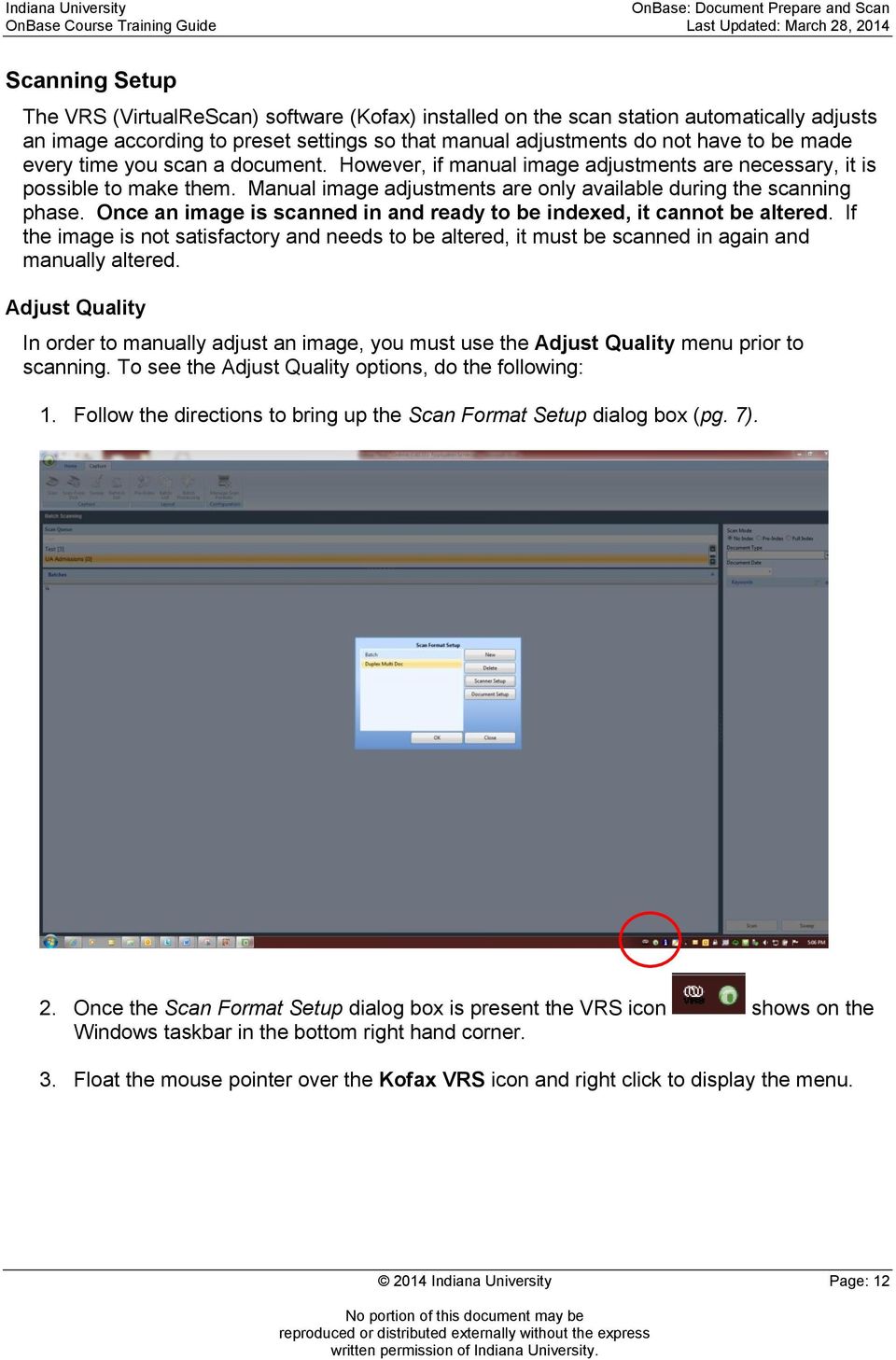
12 Scanning Setup The VRS (VirtualReScan) software (Kofax) installed on the scan station automatically adjusts an image according to preset settings so that manual adjustments do not have to be made every time you scan a document. However, if manual image adjustments are necessary, it is possible to make them. Manual image adjustments are only available during the scanning phase. Once an image is scanned in and ready to be indexed, it cannot be altered. If the image is not satisfactory and needs to be altered, it must be scanned in again and manually altered. Adjust Quality In order to manually adjust an image, you must use the Adjust Quality menu prior to scanning. To see the Adjust Quality options, do the following: 1. Follow the directions to bring up the Scan Format Setup dialog box (pg. 7). 2. Once the Scan Format Setup dialog box is present the VRS icon shows on the Windows taskbar in the bottom right hand corner. 3. Float the mouse pointer over the Kofax VRS icon and right click to display the menu Indiana University Page: 12

13 4. Click Adjust Quality to access the submenu of available modes. Select one of the modes. These modes or Kofax/VRS Interface (dialogs) are the windows used to manually alter the image. On First Page - * VRS dialogs open on the first page only of the batch being scanned. On Every Page - * VRS dialogs open on every page of the batch being scanned. On Warnings - * VRS dialogs only open when exception conditions occur. Never - * VRS dialogs never open and images cannot be manually altered even if exception conditions occur. When an Adjust Quality mode is chosen to stop scanning, either On Warnings, On First Page, or On Every Page, the following VRS User Interface opens during the scanning phase Indiana University Page: 13


14 The viewer displays the image being scanned, and to the right, displays the Image Quality Controls blue pane used to access touch up options for the image. You can drag options from the toolbar and drop them onto the Image Quality Controls blue pane on the right side of the window. If adjustments are needed, the Clarity group is the one used most often. The Black & White and Skew already default to best quality. The Blank Page deletion threshold is already determined in the scanner source properties. The Options consists of: Page Adjustments group: Used to straighten an image that is skewed or crooked, does not apply to the text just the image. Blank Page group: Used to set blank page deletion sensitivity, includes front and back. Clarity group: Used to adjust the settings for brightness, contrast, and auto contrast. o Brightness - relates to the intensity (of density) of the gray shades in an image o Contrast - relates to the range of the lightest and darkest shades in an image o Auto Contrast - relates to the contrast between the light and dark of an image Black & White Group: Used to adjust line weights or to remove unwanted speckling from an image. Other options on the Kofax VRS menu include: Preview - Opens the image to test image property settings. Profiles - Different profiles can be created if preset default profiles do not give the best image quality for the documents being scanned. Use the menu above to choose available profiles. See the Profiles section in this document for more information on how to create a Profile. Admin Console - Preset error detection settings and general information Indiana University Page: 14


15 5. When you are finished making adjustments, click. Profiles It might be possible that the default Kofax VRS profile is not the best set up for the majority of the images you scan. If the images need constant altering, then it is beneficial to create a new profile. In order to create a profile, the image which needs adjustments must be scanned in and stopped in an Adjust Quality Mode to bring up the VRS Interactive Viewer. When the viewer is active, use the options in the Image Quality Controls pane (pg. 13) to touch up the image. When a satisfactory image is present, create a profile with the new settings. 1. Click in the Profile box (top right of screen). 2. Click. 3. Enter a name for the Profile and click. The new profile will now be saved with the new name and the specified settings. Later you can choose the profile from the drop down list when scanning similar documents/images. If a different setting is needed for an existing profile, it is possible to edit the profile. First the new setting must be determined by going to the VRS Interactive Viewer and choosing the new settings (refer to page 13). Once the settings are determined, edit the profile. 1. Click. The Kofax VRS Administration Console dialog box will display Indiana University Page: 15

16 2. Select the profile to be updated to the new settings and click. To load existing profiles from here, select a profile and click. The Save As and Delete functions can also be performed from the Kofax VRS Administration Console dialog box. NOTE: The Default settings profile should never be deleted. Once scan formats are set up and profiles are created (if needed), documents can then be scanned. Scanning You will need to prepare the documents before scanning in the batch. Document Preparation Make sure all paper clips and staples are removed from pages before loading the documents into the scanner. This will prevent and avoid damaging the scanner. After pages are prepared, load them into the scanner document feeder in the direction indicated on the scanner. Scanning a Batch 1. Once the documents are loaded into the document feeder, make sure the appropriate Scan Queue is selected. This will display the Scan Mode on the right of the screen Indiana University Page: 16

17 2. Select an option in the Scan Mode panel. The options are: No Index - Select to perform manual indexing after documents have been scanned. A Document Type will not be automatically assigned. o No Index is the preferred Scan Mode because the documents are sent to the Awaiting Index queue. From the Awaiting Index queue someone other than the person who scanned the batch can index the batch and check the quality of the image scanned. If the image quality is not satisfactory the document can be rescanned at a different setting until the image is acceptable. No Index should always be used when scanning multiple documents that will be separated into different document types. Pre-Index- Select to activate the Document Type drop down list and the keyword fields which allows the indexing of documents before they are scanned into the system. When scanning is complete the batch is sent to the Awaiting Index queue where information can be reviewed and updated or accepted. Full Index - Select to activate the Document Type drop down list and the keyword fields which allows the indexing of documents before they are scanned into the system. When scanning is complete the batch is sent to the Committed queue where information cannot be reviewed or updated during the scan/index phase. 3. Press to scan documents. The Scan button should be active (bold not grayed out). You can also right click on the name of the Scan Queue and click Scan Indiana University Page: 17


18 4. A box will pop up with a default name (the default name is the current date and the Username of the person logged in). 5. Change the Batch Name. The Batch Name typically defaults to a username. Naming standards can be set. For example, a naming standard may include: Date Institution Code Type of Document, as show below. Naming standards can be set per department business procedures. 6. Verify that the Scan Format is correct and click. 7. The documents will automatically feed through the Automatic Document Feeder (ADF) and the documents scanned will be automatically assigned a batch number. When all the documents have been fed through, a message will appear indicating that the feeder is out of paper. 8. Click when done scanning or load more paper to add to the batch. After the Cancel button is selected the Scanning Complete box will appear: 2014 Indiana University Page: 18


19 9. Choose one of the options: Scan More Pages - When there are more pages to scan into the batch New Document - When additional pages are to be scanned into a new document or batch Change Format - When a new Scan Format is needed to scan additional pages Discard Pages - When the pages just scanned are not needed and should be discarded Done - When scanning of the batch is complete ends the scanning session Delete Last Page - Deletes the last page of the batch Delete Last Document - Deletes the last document of the batch 10. Once the batch is completely scanned, click. The batch is now ready for indexing. 11. If after you have clicked, you find that you need to add pages, double click the document in the Batches section to open the document. This will open the Document Review tab with this toolbar. 12. You can then click to add a page to the existing document Indiana University Page: 19

20 13. Select one of the options and click. Indexing NOTE: It is the responsibility of the indexer to determine if the image quality is acceptable as a record to replace the paper copy. If the image is not acceptable or unreadable it must be scanned in again. After the batch is scanned in, the batch must be indexed. Indexing places values in the keyword fields so documents can be easily retrieved. 1. Click the Home tab. 2. Click Indiana University Page: 20

21 This will display Status Queues (left side of screen). The different scanning/indexing status queues include: Awaiting Ad Hoc Advanced Capture This queue will not be applicable to most users and may not appear in the Scan Queues section. Awaiting Index Batches that have been scanned in and are waiting to be indexed Index in Progress Batches where indexing was started but not finished Awaiting Ad Hoc OCR This queue will not be applicable to most users and may not appear in the Scan Queues section. Awaiting Commit Batches that have been completely indexed and are waiting to be committed Committed Batches that have gone completely through the Scan/Index process and are committed to the system as permanent records. 3. Click the Awaiting Index queue. You will see the list of batches that need to be indexed. 4. Select the batch you would like to index (right side of screen) Indiana University Page: 21
22 5. Right click and select Index Documents. The following screen will display with the image of the first page in the batch displayed Indiana University Page: 22
23 The Batch Indexing pane displays on the left. You can preview each document that needs to be indexed in the Preview pane on the right. 6. In the Document Type field, select the document type of the document/image in the viewer. 7. Once the Document Type is determined, the Keyword fields will display. From here, you (or the indexer) can fill in the keywords attached to the document (or image) you are indexing. 8. Once the Keyword fields have been filled in, the Indexer can: 2014 Indiana University Page: 23
24 This button indexes the image after document type and keywords are filled in. Indexing attaches the Document Type and Keywords to the image. Adds the image to the most recently indexed document Will undo the last Indexing option. Activates the scanning process (only available if workstation has a registered document imaging license with a scanner). When indexing, a keyword field can be locked. If you type in a keyword and click the lock key, that keyword will stay constant when indexing the next document. This is helpful because the indexer will not have to type in the same keyword if there is a batch with multiple pages and the same keyword applies to a keyword field. If you lock a keyword field, the value remains until you unlock that field. Other Icon options are: First Page: Allows indexer to view the first page of the document. Previous Page: Allows indexer to view the previous page of the document. Next Page: Allows indexer to view the next page of the document. Last Page: Allows indexer to view the last page of the document. Delete Page: Deletes page currently in the viewer. Move to First Document: Allows indexer to move to the first document. Move to Previous Document: Allows indexer to move to the previous document. Move to Next Document: Allows indexer to move to the next document. Move to Last Document: Allows indexer to move to the last document Indiana University Page: 24
25 Delete Document: Deletes the entire document. Skip Document: Skips the document without deleting it from the batch. Create New Document: Will start a new document using the page in the viewer as the first page of the new document. Undo: Will undo the last indexing operation. Stop Indexing Batch: Allows indexer to stop in the middle of indexing. Any un-indexed images can be found in the Index in Progress queue. When indexing from the Awaiting Index queue it is possible to stop indexing. Once you stop indexing before completely indexing the whole batch the batch moves to the Indexing in Progress queue. You can resume indexing the batch from the Indexing in Progress queue. 9. Once the batch is completely indexed, it will automatically be committed and will skip the Awaiting Commit queue. Error Correction Once a document has been committed, it may be necessary to correct inadvertent mistakes made such as combined documents that need to be separated or updating keywords. Re-Indexing Once a document is indexed, it is possible to Re-Index a document to modify information associated with document. You can update, add, or delete keywords. 1. In order to re-index, first search for the document to open it in the viewer. Click the Home tab, then click. 2. In the Document Types and Groups section, select the document type Indiana University Page: 25
26 3. Enter some search criteria in the Keywords and Date Range section. 4. Click. This will display the document in the Search Results section Indiana University Page: 26
27 5. Select the document in the Search Results, then right click and select Re-Index. NOTE: You can also open the document first and then select the Re-Index button in the Actions group on the tool bar. This will display the Re-Index panel on the right of the screen Indiana University Page: 27
28 6. From here you can change the Document Type and update the Keywords. When you are finished, click to accept the updated entries. Creating New Documents from Existing Documents If two documents were inadvertently combined, they can be separated. 1. Open the document that was combined. 2. Click and select Create New Document from the list Indiana University Page: 28
29 3. A box will pop up allowing you to select the appropriate Document Type Group and Document Type. You can then enter the pages for which you want to create the new document Indiana University Page: 29
30 If you have multiple pages and you leave the Delete copied pages from original document checkbox selected, the system will delete the pages you are specifying for the new document from the old document. 4. To give the new document new keyword values, change the keyword values in the Keywords boxes and then click. If the keyword values are not changed before clicking, the keyword values from the original document will be automatically applied to the new document. If the keyword information still needs to be changed, you will need to Re-Index the new document. Deleting or Reordering Pages in a Document You can reorder pages within a document in the Page Editor tab. or delete pages from a document. 1. From the Batches section or the Search Results, double click to open the document. 2. Click the Image tab. 3. Click. 4. Click. This will open the document in the Page Editor tab Indiana University Page: 30
31 5. Click. You can also float over the thumbnail of the page until you see the red X and click on it to delete that page. 6. From the thumbnails, you can also reorder pages. Click the thumbnail and drag the page before or after the desired page. The page numbers will automatically update based on the new order. Importing and Indexing a Document You can import an electronic document into OnBase. 1. From the Home tab, click. 2. Click Indiana University Page: 31
32 3. Select the correct file and click. You will see a preview of the file in the Upload layout. You can see the relevant information that you will need to enter as Keyword values. 4. Select a Document Type Group from the drop down list. 5. Select a Document Type from the drop down list. The Keyword fields will display. 6. Enter the appropriate keywords. NOTE: If you have an autofill keyword set established, when you fill in the primary keyword and tab out of the field, it will automatically fill in the related keyword values. The autofill keyword sets are used to standardize data entry. 7. Click. You will receive a message that the file has been uploaded. Sweeping a Batch Sweeping is a way to import files into OnBase via a scan queue. Sweeping allows you to import both image and non-image documents into OnBase. You can access the sweeping feature from the Batch Scanning layout/screen Indiana University Page: 32
33 1. To access the sweeping process, click on the ribbon. The main screen for the scanning and indexing process will display. You will notice the scan queues on the left side of the screen. This is a list of the scan queues to which you have user rights. 2. Select one of the Scan Queues in the Scan Queue section (upper left hand box). In this example, we have selected the Test queue. 3. Click. The following box will display Indiana University Page: 33
34 4. Select Sweep all files from a particular directory. The Sweep Directory window will display. 5. Click to browse to a directory/folder. 6. Locate the folder and click. This will return you to the Sweep Directory window. Select the Delete Files After Sweep check box if you would like to delete the original files from the folder after they are swept into OnBase. Select the Sweep Images Only check box if you would like to sweep only image files from the specified location into OnBase. All non-image files are ignored. Use the Image Orientation options if you would like to automatically change the orientation of image files being swept into OnBase when they are viewed. 7. Click. You may be prompted with the Batch Name box. 8. Enter a Batch Name using the naming standards that your department has established. 9. Click Indiana University Page: 34
35 The file(s) is swept into OnBase. The status of the process is displayed in the Scan Progress window on the right of the screen. 10. Click to return to the primary screen. 11. You will now see this document in the Batches section. 12. You can now index the file, if necessary. See the section on Indexing. Exiting OnBase When you are finished using OnBase, you will need to exit in the correct way. 1. Close the Unity Client window Indiana University Page: 35
36 2. Right click on the Unity Client icon on the task bar. 3. This will open a menu.. 4. From the menu, select Exit OnBase. 5. Click Indiana University Page: 36
37 Contributions to These Materials Project Developers: Editor: Lisa Leedy Kathy Wade Todd Neal This training manual is based on documentation from OnBase. Where to Go From Here You can use the resources listed below to further build your computing skills. Taking Other IT Training Workshops UITS IT Training offers hands-on instructor-led computing workshops aimed at a variety of skill levels, covering a broad range of topics. We teach hundreds of workshops on more than 80 topics every year! For more information, to see a detailed workshop schedule, or to register for a workshop, contact IT Training: Web: [email protected] Phone: (IUB) 812/ ; (IUPUI) 317/ Indiana University Page: 37
OnBase Quick Reference Guide
 Support: Team M [email protected] 440.788.6605 Prepared by: Hyland Software, Inc. 28500 Clemens Road Westlake, Ohio 44145 Ph: (440) 788-5000 Fax: (440) 788-5100 www.hyland.com DISCLAIMER Copyright Hyland
State of Ohio DMS Solution for Personnel Records Training
 State of Ohio DMS Solution for Personnel Records Training 1 Contents LOGGING IN AND THE BASICS... 3 LOGGING INTO THE DMS... 3 NAVIGATING THE UNITY CLIENT... 4 CREATING PERSONAL PAGES... 6 ADDING WEB LINKS
Configure a scanning device Install ImageNow If you are using Kofax/VRS, install the Kofax application as an administrator. the following procedure.
 Setting Up the ImageNow Scanner and ImageNow Printer To perform these procedures, you must be a manager or local admin in ImageNow. To create a scanning profile, the user logged in to the local machine
BDMS Banner Document Management Suite DRAFT User Instructions Page 1 of 19
 DRAFT Page 1 of 19 INTRODUCTION BDMS is an imaging and electronic document management system for clients who use Banner products. It is designed to meet the imaging and document management requirements
Contents. A-61623 July 2008 i
 Contents Image Processing......................................................... 1 Overview.......................................................... 1 Terminology and features..............................................
17 April 2014. Remote Scan
 17 April 2014 Remote Scan 2014 Electronics For Imaging. The information in this publication is covered under Legal Notices for this product. Contents 3 Contents...5 Accessing...5 Mailboxes...5 Connecting
OnBase 13. Unity Client Retrieval, Upload and Batch Processing. User Guide. IT Training (818) 677-1700 [email protected] www.csun.
 User Guide OnBase 13 Unity Client Retrieval, Upload and Batch Processing IT Training (818) 677-1700 [email protected] www.csun.edu/it/training *The information in this guide was provided by Hyland Software,
OnBase with Workflow
 Table of Contents with Workflow 9.2.0 User Manual February 2010 Page 1 of 55 2008 Northwoods Consulting Partners, Inc. ABOUT NORTHWOODS CONSULTING PARTNERS Northwoods Consulting Partners provides document
VirtualReScan 4.2 User s Guide
 VirtualReScan 4.2 User s Guide 10300700-000 Revision A 2008 Kofax Image Products, Inc., 16245 Laguna Canyon Road, Irvine, California 92618, U.S.A. All rights reserved. Use is subject to license terms.
Banner Document Management Suite (BDMS) Web Access Help
 May 10 th, 2011 Banner Document Management Suite (BDMS) Web Access Help Division of Information Technology AppXtender Web Access Help: For questions regarding AppXtender Web Access, please contact the
Scanned image. If multiple scanner installed in the computer then click here to select desired scanner. Select Resolution, Color, and Scan Type.
 Objectives & Goals Scanning & Document Management Opening & Understanding Multi Scan/Select Scanning & Drag/Drop Documents Set Document Details Set Reminders, Actions and Links Create New Document From
Photocopying and scanning
 Photocopying and scanning Logging in at the copier Scan your card using the Barcode Scanner at the copier Press in the PIN field Enter your PIN, and then press OK. 1 Photocopying 1. Position your document
Baylor Secure Messaging. For Non-Baylor Users
 Baylor Secure Messaging For Non-Baylor Users TABLE OF CONTENTS SECTION ONE: GETTING STARTED...4 Receiving a Secure Message for the First Time...4 Password Configuration...5 Logging into Baylor Secure Messaging...7
Enhanced Imaging Options for Client Profiles for Windows
 C ase Manag e m e n t by C l i e n t P rofiles Enhanced Imaging Options for Client Profiles for Windows T E C H N O L O G Y F O R T H E B U S I N E S S O F L A W Table of Contents 2 Table of Contents Scanning
ONBASE OUTLOOK CLIENT GUIDE for 2010 and 2013
 To install Outlook 2010/2013 client Note: NOT currently compatible with Windows 10. Make sure your version of outlook is 32bit if not reinstall your version of Microsoft Office to the 32bit version. Must
Snap 9 Professional s Scanning Module
 Miami s Quick Start Guide for Using Snap 9 Professional s Scanning Module to Create a Scannable Paper Survey Miami s Survey Solutions Snap 9 Professional Scanning Module Overview The Snap Scanning Module
Using SSH Secure Shell Client for FTP
 Using SSH Secure Shell Client for FTP The SSH Secure Shell for Workstations Windows client application features this secure file transfer protocol that s easy to use. Access the SSH Secure FTP by double-clicking
Installing Lync. Configuring and Signing into Lync
 Microsoft Lync 2013 Contents Installing Lync... 1 Configuring and Signing into Lync... 1 Changing your Picture... 2 Adding and Managing Contacts... 2 Create and Manage Contact Groups... 3 Start an Instant
Now part of ALLSCRIPTS. HealthMatics EMR Input Manager
 Now part of ALLSCRIPTS HealthMatics EMR Input Manager May 9, 2006 Statement of Confidentiality The information contained herein is proprietary and confidential to A 4 HEALTH SYSTEMS. No part of this document
MEDILINK ESI 2011+ (R2) How To: Use the Medilink Document Management System. Casey Pittman Developer - APS Medilink 2011/08/12
 How To: Use the Medilink Document Management System Casey Pittman Developer - APS Medilink 2011/08/12 Table Of Contents Table Of Contents... ii Introduction... 1 Getting Started... 1 1 Document Management
ProjectWise Explorer V8i User Manual for Subconsultants & Team Members
 ProjectWise Explorer V8i User Manual for Subconsultants & Team Members submitted to Michael Baker International Subconsultants & Team Members submitted by Michael Baker International ProjectWise Support
Introduction. KIC Help Desk Guide v. 2.7
 Introduction Knowledge Imaging Center (KIC) kiosks are public self-serve scanning/copying systems for students, faculty, researchers, administrators and the general public. KIC systems make it fast and
Pictorial User s Guide
 S-T IMAGING Pictorial User s Guide Copyright 2008 ST Imaging, Inc. a division of Digital Check Corp. All Rights Reserved. Table of Contents Getting Started... 1 Adjust for Viewing...1 Loading Microfilm...2
QIAsymphony Management Console User Manual
 April 2012 QIAsymphony Management Console User Manual For use with software version 4.0 Sample & Assay Technologies Trademarks QIAGEN, QIAsymphony, Rotor-Gene (QIAGEN Group). InstallShield (Informer Technologies,
Where do I start? DIGICATION E-PORTFOLIO HELP GUIDE. Log in to Digication
 You will be directed to the "Portfolio Settings! page. On this page you will fill out basic DIGICATION E-PORTFOLIO HELP GUIDE Where do I start? Log in to Digication Go to your school!s Digication login
SMART Board Tips & Tricks (version 9.0) Getting Started. SMART Tools vs. SMART Notebook software
 SMART Board Tips & Tricks (version 9.0) Getting Started SMART Tools vs. SMART Notebook software Click the SMART Board icon (in the system tray at the bottom right of your screen) to access the SMART Board
University of Minnesota Financial Document Scanning Guide for ImageNow 6.2
 University of Minnesota Financial Document Scanning Guide for ImageNow 6.2 INTRODUCTION... 2 LAUNCHING IMAGENOW AND LOGGING IN... 2 IMAGENOW TOOLBAR... 3 SCANNING DOCUMENTS INTO IMAGENOW... 3 PREPARATION...
SOS SO S O n O lin n e lin e Bac Ba kup cku ck p u USER MANUAL
 SOS Online Backup USER MANUAL HOW TO INSTALL THE SOFTWARE 1. Download the software from the website: http://www.sosonlinebackup.com/download_the_software.htm 2. Click Run to install when promoted, or alternatively,
TSScan - Usage Guide. Usage Guide. TerminalWorks TSScan 2.5 Usage Guide. [email protected]
 Usage Guide TerminalWorks TSScan 2.5 Usage Guide Page 1 Contents Installation... 5 TSScan Server... 5 TSScan Client... 9 TSScan Modes... 14 TSScan Standalone... 14 TSScan DS... 14 Virtual TWAIN DS... 14
AR-NB2 A NETWORK EXPANSION KIT. OPERATION MANUAL (for network scanner) SCANNER FUNCTION 17 USING THE NETWORK
 MODEL AR-NB A NETWORK EXPANSION KIT OPERATION MANUAL (for network scanner) Page INTRODUCTION BEFORE USING THE NETWORK SCANNER FUNCTION USING THE NETWORK SCANNER FUNCTION 7 TROUBLESHOOTING SHARPDESK CD-ROM
Banner Document Management Suite Scanning / Indexing with webxtender DU Student Services
 Before You Begin... Page 1 Banner Document Management Suite Applications... Page 2 User Preferences and Setup... Page 2 Document Preparation Before You Scan... Page 9 Naming Conventions... Page 9 Ready
Office of History. Using Code ZH Document Management System
 Office of History Document Management System Using Code ZH Document The ZH Document (ZH DMS) uses a set of integrated tools to satisfy the requirements for managing its archive of electronic documents.
Lotus Notes Client Version 8.5 Reference Guide
 Lotus Notes Client Version 8.5 Reference Guide rev. 11/19/2009 1 Lotus Notes Client Version 8.5 Reference Guide Accessing the Lotus Notes Client From your desktop, double click the Lotus Notes icon. Logging
Table of Contents 2. Table of Contents
 Scanning Options Table of Contents 2 Table of Contents Scanning Overview and Setup... 3 Scanning Tools and Equipment... 3 File Locations... 4 Other Settings... 5 Scanning Options and Techniques... 6 Scanned
OnBase Quick Reference Guide
 OnBase Quick Reference Guide Unity Client Retrieval For OnBase 11.0 Support: Team M [email protected] 440.788.6605 Prepared by: Hyland Software, Inc. 28500 Clemens Road Westlake, Ohio 44145 Ph: (440) 788-5000
Xerox 700 Digital Color Press with Integrated Fiery Color Server. Utilities
 Xerox 700 Digital Color Press with Integrated Fiery Color Server Utilities 2008 Electronics for Imaging, Inc. The information in this publication is covered under Legal Notices for this product. 45072726
KViewCenter Software User Manual 2012 / 04 / 20 Version 2.2.1.0
 KViewCenter Software User Manual 2012 / 04 / 20 Version 2.2.1.0 Table of Contents Chapter 1. KViewCenter Interface... 5 1.1. Log in.... 5 1.2. Log out... 5 1.3. Control Panel... 6 1.4. Control Panel (Preview
Fax-to-Email Application User Guide
 Fax-to-Email Application User Guide Table of Contents 1 Welcome to Windstream Fax-to-Email...1 2 Getting Started with Windstream Fax-to-Email...1 2.1 Getting Started Splash Screen... 1 2.2 Navigation...
Profit Developers, Inc. (PDI) 2015 SAXTAX Software Installation Guide
 2015 SAXTAX Software Installation Guide 1. Installation: Installing from a Link: Please click on the link provided in the setup email received. Some email accounts will not allow access to executable links
ImageNow User. Getting Started Guide. ImageNow Version: 6.7. x
 ImageNow User Getting Started Guide ImageNow Version: 6.7. x Written by: Product Documentation, R&D Date: June 2012 2012 Perceptive Software. All rights reserved CaptureNow, ImageNow, Interact, and WebNow
Central Management Software CV3-M1024
 Table of Contents Chapter 1. User Interface Overview...5 Chapter 2. Installation...6 2.1 Beginning Installation...6 2.2 Starting the CMS software...10 2.3 Starting it from the Start menu...10 2.4 Starting
Xerox Multifunction Devices. Verify Device Settings via the Configuration Report
 Xerox Multifunction Devices Customer Tips March 15, 2007 This document applies to these Xerox products: X WC 4150 X WCP 32/40 X WCP 35/45/55 X WCP 65/75/90 X WCP 165/175 X WCP 232/238 X WCP 245/255 X WCP
How to Scan, Import & Index Documents in BDM. Banner Document Management (BDM)
 (BDM) How to Scan, Import & Index Documents in BDM 1 This How To guide provides an introduction to the processes of scanning and importing documents for the purpose of indexing them in BDM. These processes,
Scanning. WorkCentre C2424 Copier-Printer
 Scanning This chapter includes: "Basic Scanning" on page 4-2 "Installing the Scan Driver" on page 4-4 "Adjusting Scanning Options" on page 4-5 "Retrieving Images" on page 4-11 "Managing Files and Controlling
Kurzweil 3000 version 10.0.4 General User Guide
 Kurzweil 3000 version 10.0.4 General User Guide Kurzweil 3000 is software that provides students with specialized tools for reading, highlighting and note taking. In addition this tool allows students
1. Contents 1. Introduction... 2. Installation... 2.1 Preparing for the installation... 2.2 Installing the Pre-Requisites Components... 2.
 1. Contents 1. Introduction... 2. Installation... 2.1 Preparing for the installation... 2.2 Installing the Pre-Requisites Components... 2.3 Installing the Implicit Sync Outlook Add-In... 3. Initial Configuration...
Web Content Management Training Manualv3
 City & County of San Francisco Powered by Innovation DT City & County of Sa Departme Techno Powered by Innova DEPARTMENT OF TECHNOLOGYDT Web Content Management Training Manualv3 Department of Technology
Document Manager 2.0. User Guide
 Document Manager 2.0 User Guide Document Manager 2.0 Introduction Document Manager 2.0 is the Web to Print ordering application for OfficeMax ImPress. Many features and functionality are available to you
UniFLOW Print and Copy Instructions for Students
 UniFLOW Print and Copy Instructions for Students Getting Started, Setting up your PIN Page 2 Purchasing Credits for printing and Photocopying Page 4 How to use the MFD Page 8 Photocopying Page 10 Printing
ECHO360 PERSONAL CAPTURE
 ECHO360 PERSONAL CAPTURE Echo360 - Personal Capture allows a User an easy way to capture, edit, publish, and view lectures from their personal computers. Users and/or Instructors can use Echo360 to capture
Introduction. KIC Help Desk Guide Page 1
 Introduction Knowledge Imaging Center (KIC) kiosks are public self-serve scanning/copying systems for students, faculty, researchers, administrators and the general public. KIC systems make it fast and
NETWORK PRINT MONITOR User Guide
 NETWORK PRINT MONITOR User Guide Legal Notes Unauthorized reproduction of all or part of this guide is prohibited. The information in this guide is subject to change without notice. We cannot be held liable
OnBase Client for Department Admins GEISEL FINANCE CENTER NOVEMBER 2015
 OnBase Client for Department Admins GEISEL FINANCE CENTER NOVEMBER 2015 2 Contents Overview e-forms Administrator Access System Requirements Starting Unity Via Unity Via Citrix First Run: Make this Change
Scan to PC. Create a scan profile... 2. Custom Scan to PC settings... 7. Make copies. Send faxes
 1 Create a scan profile.................... 2 Use ScanBack utility...................... 2 Use the MarkNet web pages................ 4 Custom settings............. 7 Create a scan profile 2 A scan profile
PCLaw 11.0. Administration Guide
 PCLaw 11.0 Administration Guide About this guide This guide provides a list of tasks for installing PCLaw Practice Management Software. If you need additional information, refer to the PCLaw Support Center.
Legal Notes. Regarding Trademarks. Model supported by the KX printer driver. 2010 KYOCERA MITA Corporation
 Legal Notes Unauthorized reproduction of all or part of this guide is prohibited. The information in this guide is subject to change for improvement without notice. We cannot be held liable for any problems
Quick Reference Guide. copy. locked print. fax. scan-to-email
 Quick Reference Guide copy locked print fax scan-to-email Copy Basic Copy Procedure 3 Place original(s) face up in the Auto Document Feeder, or face down on the Platen Glass.. Select the [Copy] function
Getting Started with Vision 6
 Getting Started with Vision 6 Version 6.9 Notice Copyright 1981-2009 Netop Business Solutions A/S. All Rights Reserved. Portions used under license from third parties. Please send any comments to: Netop
User Guide Win7Zilla
 User Guide Win7Zilla Table of contents Section 1: Installation... 3 1.1 System Requirements... 3 1.2 Software Installation... 3 1.3 Uninstalling Win7Zilla software... 3 Section 2: Navigation... 4 2.1 Main
WebSphere Business Monitor V6.2 Business space dashboards
 Copyright IBM Corporation 2009 All rights reserved IBM WEBSPHERE BUSINESS MONITOR 6.2 LAB EXERCISE WebSphere Business Monitor V6.2 What this exercise is about... 2 Lab requirements... 2 What you should
Outlook Web Access. PRECEDED by v\
 Outlook Web Access Logging in to OWA (Outlook Web Access) from Home 1. Login page http://mail.vernonct.org/exchange 2. To avoid these steps each time you login, you can add the login page to your favorites.
Content Author's Reference and Cookbook
 Sitecore CMS 6.2 Content Author's Reference and Cookbook Rev. 091019 Sitecore CMS 6.2 Content Author's Reference and Cookbook A Conceptual Overview and Practical Guide to Using Sitecore Table of Contents
IRIS OPENDOCS. Getting Started Guide. IRIS OpenDocs IRIS OpenDocs
 IRIS OPENDOCS Getting Started Guide IRIS OpenDocs IRIS OpenDocs Contents Page What is IRIS OpenDocs?... 3 Guide Introduction... 3 Switching Modes... 5 Getting Documents into the System... 6 Scan a Document
FaxFinder Fax Servers
 FaxFinder Fax Servers Models: FF130 FF230 FF430 FF830 Client User Guide FaxFinder Client User Guide Fax Client Software for FaxFinder Series PN S000460B, Version B Copyright This publication may not be
Document Imaging. Version 9.2.0
 Document Imaging Version 9.2.0 Document Imaging OnBase 9.2.0 COPYRIGHT Information in this document is subject to change without notice. The OnBase Information Management System software described in this
Acrobat 9: Forms. 56 Pages. Acrobat 9: Forms v2.0.0. Windows
 Acrobat 9: Forms Windows Acrobat 9: Forms v2.0.0 2009 56 Pages About IT Training & Education The University Information Technology Services (UITS) IT Training & Education program at Indiana University
Virtual Exhibit 5.0 requires that you have PastPerfect version 5.0 or higher with the MultiMedia and Virtual Exhibit Upgrades.
 28 VIRTUAL EXHIBIT Virtual Exhibit (VE) is the instant Web exhibit creation tool for PastPerfect Museum Software. Virtual Exhibit converts selected collection records and images from PastPerfect to HTML
Customer Tips. Xerox Network Scanning TWAIN Configuration for the WorkCentre 7328/7335/7345. for the user. Purpose. Background
 Xerox Multifunction Devices Customer Tips dc07cc0432 October 19, 2007 This document applies to these Xerox products: X WC 7328/7335/7345 for the user Xerox Network Scanning TWAIN Configuration for the
Remote Deposit Desktop Guide
 TABLE OF CONTENTS Remote Deposit Desktop Guide TABLE OF CONTENTS... 1 INTRODUCTION... 2 GETTING STARTED... 2 ELIGIBILITY... 2 REGISTERING FOR REMOTE DEPOSIT... 2 MAKING A REMOTE DEPOSIT... 3 LOG ON...
Document Manager 2.0. Corporate Administrator Guide
 Document Manager 2.0 Corporate Administrator Guide Introduction to the Corporate Administrator Guide Document Manager 2.0 is the Web to Print ordering application for OfficeMax ImPress. Many features and
Ohio University Computer Services Center August, 2002 Crystal Reports Introduction Quick Reference Guide
 Open Crystal Reports From the Windows Start menu choose Programs and then Crystal Reports. Creating a Blank Report Ohio University Computer Services Center August, 2002 Crystal Reports Introduction Quick
WebSphere Business Monitor V6.2 KPI history and prediction lab
 Copyright IBM Corporation 2009 All rights reserved IBM WEBSPHERE BUSINESS MONITOR 6.2 LAB EXERCISE WebSphere Business Monitor V6.2 KPI history and prediction lab What this exercise is about... 1 Lab requirements...
User guide. Tax & Accounting. Version 4.1. Last updated April 16, 2010. Copyright 2010 Thomson Reuters/ONESOURCE. All Rights Reserved
 Onesource Fileroom User guide Version 4.1 Last updated April 16, 2010 Tax & Accounting Copyright 2010 Thomson Reuters/ONESOURCE. Proprietary Materials No use of these Proprietary materials is permitted
1. Open the preferences screen by opening the Mail menu and selecting Preferences...
 Using TLS encryption with OS X Mail This guide assumes that you have already created an account in Mail. If you have not, you can use the new account wizard. The new account wizard is in the Accounts window
INSTALLING THE SOFTWARE AND GETTING STARTED 2-1 THE USER INTERFACE 3-1 JOB SETUP 4-1 PATCH SETUP 5-1 BAR CODE AND OCR SETUP 6-1 PAGE SETUP 7-1
 OVERVIEW 1-1 INSTALLING THE SOFTWARE AND GETTING STARTED 2-1 THE USER INTERFACE 3-1 JOB SETUP 4-1 PATCH SETUP 5-1 BAR CODE AND OCR SETUP 6-1 PAGE SETUP 7-1 PRODUCTIVITY SHORTCUTS 8-1 USER AND GROUP SETUP
ImageNow User Getting Started Guide
 ImageNow User Getting Started Guide Version: 6.6.x Written by: Product Documentation, R&D Date: February 2011 ImageNow and CaptureNow are registered trademarks of Perceptive Software, Inc. All other products
Legal Notes. Regarding Trademarks. 2012 KYOCERA Document Solutions Inc.
 Legal Notes Unauthorized reproduction of all or part of this guide is prohibited. The information in this guide is subject to change without notice. We cannot be held liable for any problems arising from
TREENO FILE MONITOR. Installation and Configuration Guide
 TREENO FILE MONITOR Installation and Configuration Guide October 2012 Contents Introduction... 3 About This Guide... 3 About Treeno... 3 Monitored Folders... 4 Monitored Folder Types... 4 Installing Treeno
Ricoh Copier Scan to File Instructions
 Overview Ricoh Copier Scan to File Instructions Your new Ricoh copier provides scanning functions to: Scan documents up to 11 by 17 Convert them to Adobe Acrobat PDF file or TIFF file format and then either:
Mobility with Eye-Fi Scanning Guide
 Mobility with Eye-Fi Scanning Guide Scan and Transfer Images Wirelessly with Eye-Fi This document is to be used in addition to the scanner s user guide located on the installation disc. The instructions
TAMUS Terminal Server Setup BPP SQL/Alva
 We have a new method of connecting to the databases that does not involve using the Texas A&M campus VPN. The new way of gaining access is via Remote Desktop software to a terminal server running here
Reduce the number of years of general ledger transactions and balances to save
 MINIMIZING DISK SPACE USAGE IN VIRTUAL OFFICE CS OR SAAS In General... 1 Creative Solutions Accounting... 1 Engagement CS... 4 FileCabinet CS... 4 Fixed Assets CS... 6 Practice CS... 8 UltraTax CS... 8
owncloud Configuration and Usage Guide
 owncloud Configuration and Usage Guide This guide will assist you with configuring and using YSUʼs Cloud Data storage solution (owncloud). The setup instructions will include how to navigate the web interface,
NVMS-1200. User Manual
 NVMS-1200 User Manual Contents 1 Software Introduction... 1 1.1 Summary... 1 1.2 Install and Uninstall... 1 1.2.1 Install the Software... 1 2 Login Software... 3 2.1 Login... 3 2.2 Control Panel Instruction...
Operating Instructions (For Document Manager and Document Viewer)
 Operating Instructions (For Document Manager and Document Viewer) Software Model No. DP-C262/C322 Editing Documents General Description System Requirements Document Management Menus Explanation Basic Operations
To successfully initialize Microsoft Outlook (Outlook) the first time, email settings need to be verified.
 TO: UAN CLIENTS FROM: UAN STAFF DATE: OCTOBER 8, 2008 SUBJECT: Steps for Initial Setup of Microsoft Outlook To successfully initialize Microsoft Outlook (Outlook) the first time, email settings need to
MULTIFUNCTIONAL DIGITAL COLOR SYSTEMS / MULTIFUNCTIONAL DIGITAL SYSTEMS. e-filing Guide
 MULTIFUNCTIONAL DIGITAL COLOR SYSTEMS / MULTIFUNCTIONAL DIGITAL SYSTEMS e-filing Guide 2012-2014 TOSHIBA TEC CORPORATION All rights reserved Under the copyright laws, this manual cannot be reproduced in
VoIP Quick Start Guide
 VoIP Quick Start Guide VoIP is made up of three elements: The Phone The Software (optional) The Web Version of the software (optional) Your new voice mail can be accessed by calling (971-722) 8988. Or,
University of Minnesota Voucher and Journal Imaging Guide for ImageNow 6.2
 University of Minnesota Voucher and Journal Imaging Guide for ImageNow 6.2 INTRODUCTION... 2 LAUNCHING IMAGENOW AND LOGGING IN... 2 IMAGENOW TOOLBAR... 3 VENDOR PAYMENT OR JOURNAL ENTRY WORKFLOW... 3 OPENING
Microsoft Outlook 2003 Basic Guide
 Microsoft Outlook 2003 Basic Guide Table of Contents Introduction... 2 Getting Help... 2 Exploring Outlook... 3 Drop-Down Menus... 3 Navigation Pane... 4 Folder Pane... 7 Reading Pane... 7 Toolbars...
IT Quick Reference Guides Using Windows 7
 IT Quick Reference Guides Using Windows 7 Windows Guides This sheet covers many of the basic commands for using the Windows 7 operating system. WELCOME TO WINDOWS 7 After you log into your machine, the
Internet Explorer 7. Getting Started The Internet Explorer Window. Tabs NEW! Working with the Tab Row. Microsoft QUICK Source
 Microsoft QUICK Source Internet Explorer 7 Getting Started The Internet Explorer Window u v w x y { Using the Command Bar The Command Bar contains shortcut buttons for Internet Explorer tools. To expand
Check current version of Remote Desktop Connection for Mac.. Page 2. Remove Old Version Remote Desktop Connection..Page 8
 CONTENTS SECTION 1 Check current version of Remote Desktop Connection for Mac.. Page 2 SECTION 2 Remove Old Version Remote Desktop Connection..Page 8 SECTION 3 Download and Install Remote Desktop Connection
EDC Client Software Quick Start Guide
 Version 5.10 All rights reserved. No parts of this work may be reproduced in any form or by any means - graphic, electronic, or mechanical, including photocopying, recording, taping, or information storage
EBOX Digital Content Management System (CMS) User Guide For Site Owners & Administrators
 EBOX Digital Content Management System (CMS) User Guide For Site Owners & Administrators Version 1.0 Last Updated on 15 th October 2011 Table of Contents Introduction... 3 File Manager... 5 Site Log...
Document Number: 13004.25-4.5.2-6/15/2012
 Mobile Android App User Guide Copyright 2012 icontrol Networks, Inc. All rights reserved. No reproduction in whole or in part without prior written approval. icontrol Networks, icontrol, and icontrol logo
WatchDox for Windows User Guide. Version 3.9.0
 Version 3.9.0 Notice Confidentiality This document contains confidential material that is proprietary WatchDox. The information and ideas herein may not be disclosed to any unauthorized individuals or
Build a New Website Using the UB Content Management System (UBCMS)
 Build a New Website Using the UB Content Management System (UBCMS) Support Website Online training, help and support, UBCMS status and more. ubcms.buffalo.edu Training Feedback Survey https://www.surveymonkey.com/s/mm-dd-yyyy
You can find the installer for the +Cloud Application on your SanDisk flash drive.
 Installation You can find the installer for the +Cloud Application on your SanDisk flash drive. Make sure that your computer is connected to the internet. Next plug in the flash drive and double click
WatchDox for Windows. User Guide. Version 3.9.5
 WatchDox for Windows User Guide Version 3.9.5 Notice Confidentiality This document contains confidential material that is proprietary WatchDox. The information and ideas herein may not be disclosed to