
TeamViewer Forensics
|
|
|
- Gregory Park
- 10 years ago
- Views:
Transcription
1 TeamViewer Forensics Written by: Colby Lahaie Researched by: Colby Lahaie & David Leberfinger The Senator Patrick Leahy Center for Digital Investigation Champlain College Date Jan 29, 2013

2 Disclaimer: This document contains information based on research that has been gathered by employee(s) of The Senator Patrick Leahy Center for Digital Investigation (LCDI). The data contained in this project is submitted voluntarily and is unaudited. Every effort has been made by LCDI to assure the accuracy and reliability of the data contained in this report. However, LCDI nor any of our employees make no representation, warranty or guarantee in connection with this report and hereby expressly disclaims any liability or responsibility for loss or damage resulting from use of this data. Information in this report can be downloaded and redistributed by any person or persons. Any redistribution must maintain the LCDI logo and any references from this report must be properly annotated. Contents Contents Introduction Background Terminology Research Questions Methodology and Methods Results Versions of TeamViewer Specifications Physical Test Computer Specifications Victim VM Specifications Suspect VM Specifications Installing TeamViewer TeamViewer Access Control TeamViewer Installation Type Remote Access TeamViewer Remote Control Window Remote Control Remote Control Access Prompt Suspect s Mouse Pointer Figure Suspect Tool Bar Transferring Files Version: 0.1 Document Name: TeamViewer Forensics Report Review Date: MM/DD/YYYY Page 1 of 22

3 3.6.1 File Box Figure TeamViewer File Box File Transfer Figure TeamViewer File Transfer Figure TeamViewer File Transfer Event Log Communication... Error! Bookmark not defined. Figure TeamViewer Communication Panel... Error! Bookmark not defined. 3.8 Meetings... Error! Bookmark not defined Remote Control during a Meeting... Error! Bookmark not defined. Figure TeamViewer Meeting Panel... Error! Bookmark not defined. 3.9 Recording Sessions Malicious Intent Log Files Figure TeamViewer Log File Figure TeamViewer Log File Figure TeamViewer Log File Registry Changes Figure RegShot Comparison Figure RegShot Comparison Conclusion Further Work References Version: 0.1 Document Name: TeamViewer Forensics Report Review Date: MM/DD/YYYY Page 2 of 22

4 1 Introduction Remote viewing or remote access software allows individual access to a computer when physical access to the computer is not possible or convenient. With remote viewing software, a user can access his or her computer from wherever he or she is instead. Unlike typical File Transfer Protocols (FTP), which only allows you to transfer files, you have the ability to edit, modify, and view everything on the hosting computer, without having to save or move information to a flash drive for later use. If a user needs to share his or her desktop or transfer files between computers, remote access software is one option. There are many varieties of remote viewing and remote accessing software around, but there is one tool in particular that we will be looking at, the software TeamViewer. Remote desktop software is widely used because of its many capabilities and low cost to users. TeamViewer has many different versions, which are available for Windows, Mac, Linux, Android, and ios and is available in both purchased and free versions. For our tests, we chose to use the full version of TeamViewer (see for other versions), as it appeals to the typical user and provides the most functionality. Although both remote viewing and remote access software can be helpful, they can also pose a serious threat to a person or business. If an unauthorized individual uses the software to remotely access a person or company s computers or networks, he or she could steal sensitive, confidential data. Understanding how this software works is extremely important and provides forensic investigators and law enforcement officials with data that can help them understand what type of information is left behind, as well as how to figure out if it was used during a crime. 1.1 Background When we first started the TeamViewer Forensics project, there was no prior in-depth research that had been done on the artifacts of TeamViewer. Throughout the course of our research, we came across a website, forensicartifacts.com, which contained an article by Matt Nelson called TeamViewer 8, providing a list of all of the artifacts found on a computer (Nelson, 2012). Although this has been done, we want to provide a paper on where the artifacts are stored and how to find them using forensic software from a student s perspective. 1.2 Terminology The area that we are researching is the remote viewing and access of computers. File Box The file box is one of the two ways to transfer files using TeamViewer. File sizes are limited to 25 MB, but the file box is available in every TeamViewer session, including meetings. The file box is accessible to the host and client via the File Transfer drop down menu on the tool bar, as well as to the victim via the file box button on the TeamViewer panel. File Transfer The file transfer service is the second method of transferring files through TeamViewer. There is no apparent limit on the size of files transferred with this method. This service is available during one-onone sessions only. Through the file transfer service, users can transfer files from almost anywhere on their system or from the remote system. However, certain files, such as system files, cannot be transferred. The file transfer service is only available to the person currently remotely accessing the computer. Remote Access Remote access is the connection to a system from a secondary location other than that of the primary location of the system being accessed. Version: 0.1 Document Name: TeamViewer Forensics Report Review Date: MM/DD/YYYY Page 3 of 22

5 Remote Control Remote control is the ability to control a system from a secondary location other than that of the primary location of the system being accessed. Suspect (client) The client is the user that remotely accesses the host s (victim s) system. TeamViewer v (full version) This version provides the most functionality and use. A user can control other computers, hold meetings, and allow others to control his or her computer. This is the version that was used for the report. Victim (host) The victim, or host, is the user that hosts the incoming remote session. 1.3 Research Questions 1) Will a user be alerted by TeamViewer if someone is remotely accessing his or her computer and/or taking his or her files? Will the victim see the mouse moving or the keystrokes of the person remotely accessing his or her computer? Also, if the victim opens up Windows Task Manager, will they see TeamViewer running? 2) Is it possible for a user to record the screen of the remotely accessed computer? Will the person remote into the other s computer be able to watch what the other user is doing and/or view the history of the other user? 3) How much information or data can be transferred between the two computers? Is it possible to transfer data without notifying the victim? 4) What artifacts are stored and where are they stored? 5) Once TeamViewer is deleted, what artifacts are left behind? 2 Methodology and Methods We began this project by creating two Windows 7 virtual machines (VM). We used two VMs to simulate the host computer, which we called the victim s computer (see 3.2.2), and the client (or connecting computer), which we called the suspect s computer (see 3.2.3). We started by taking snapshots and registry shots of the fresh installation of Windows 7 for both VMs. Then, we proceeded to install TeamViewer 8 on both the suspect s VM and the victim s VM. Once we installed TeamViewer, we created a folder labeled Victim on the Host VM and a folder labeled Suspect on the Client VM. We transferred files between these folders. Through multiple sessions using the full version of TeamViewer, we transferred files via the File Box and File Transfer actions, set up and joined a meeting, sent messages via the chat feature, used the remote log off action, used the disable remote input action, allowed remote control during a meeting, and denied remote control during a meeting. By taking registry shots and snapshots of each VM before and after completing each task, we can determine what artifacts are generated by each action. Version: 0.1 Document Name: TeamViewer Forensics Report Review Date: MM/DD/YYYY Page 4 of 22

6 3 Results 3.1 Versions of TeamViewer All research was done using the full version of TeamViewer. Other versions of TeamViewer can be found on the TeamViewer website: Versions of Teamviewer Verison What it does TeamViewer QuickSupport Simple and small customer module, runs immediately without installation and does not require administrative rights - optimized for instant support. (TeamViewer, 2013) TeamViewer Host TeamViewer Host is running as a system service and is used for 24/7 access to remote computers, including login/logout and remote reboot - optimized for server maintenance or home-office access. (TeamViewer, 2013) TeamViewer QuickJoin With the application QuickJoin, your customers can easily participate in your presentations. Your customers start the QuickJoin module and log in with their session data - ideal for quick and easy online presentations. (TeamViewer, 2013) TeamViewer Portable TeamViewer Portable can be run directly from a USB stick or a CD - the perfect solution if you are on the road. (TeamViewer, 2013) TeamViewer Manager TeamViewer Manager is an optional tool for the administration of your computers and contacts in a database. It also includes logging and reporting functionality for your connections. (TeamViewer, 2013) TeamViewer MSI package TeamViewer MSI is an alternative installation package for the full version or TeamViewer Host. It's used for deploying TeamViewer via Group Policy (GPO) in an Active Directory domain. TeamViewer MSI is only included in the Corporate license. (TeamViewer, 2013) 3.2 Specifications TeamViewer does not specify any requirements to use their software. Sections 3.2.1, 3.2.2, and list the specifications of the test physical computer and the VMs used Physical Test Computer Specifications Memory Processor HDD VMs: 6GB Single Processor Quad Core 2.66GHz SCSI 232GB Victim VM Specifications Memory 2GB Processor Single processor 2 core Version: 0.1 Document Name: TeamViewer Forensics Report Review Date: MM/DD/YYYY Page 5 of 22

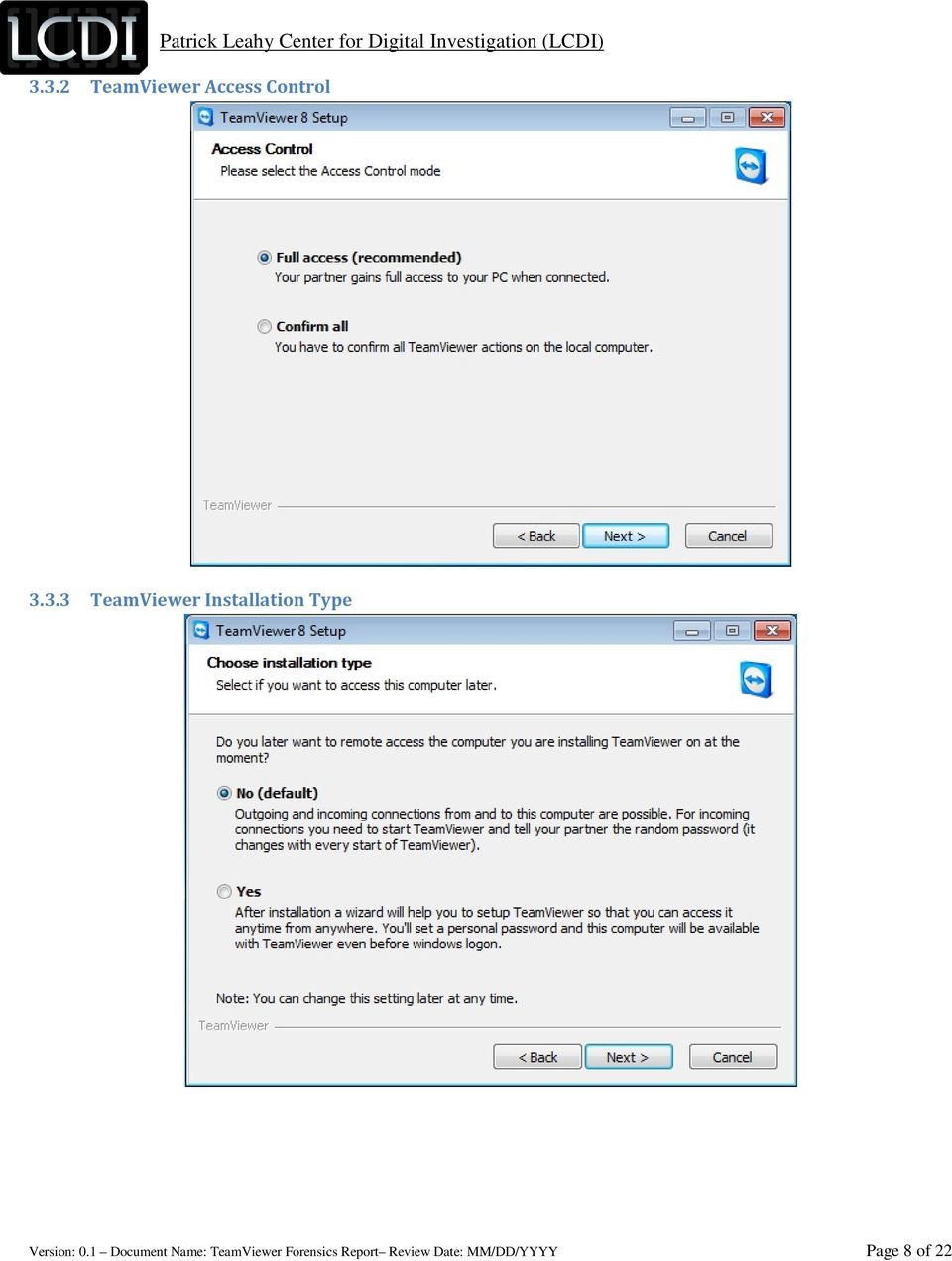
7 HDD CD/DVD Floppy Network USB Sound Card Printer SCSI 60GB IDE - Auto (connected at power on) Auto (not connected) NAT Auto connect Default host card, connect at power on Connected at power on Suspect VM Specifications Memory Processor HDD CD/DVD Floppy Network USB Sound Card Printer 2GB Single processor 2 core SCSI 60GB IDE - Auto (connected at power on) Auto (not connected) NAT Auto connect Default host card, connect at power on Connected at power on 3.3 Installing TeamViewer When first installing TeamViewer, the user is prompted with two options: Full access (Recommended) or Confirm all. Confirm all could be used if someone is trying to connect his or her computer while a family member is at home (see Figure below). When Full access is selected, the suspect will have full access to the connected computer; no prompts will be displayed for actions the suspect attempts. By selecting the Confirm all option, the victim will be prompted every time the connecting user attempts to perform an action. On install, the victim also has the choice to set up remote access, which allows him or her to remotely connect to his or her own system from anywhere in the world as long as TeamViewer is installed (see Figure below). When TeamViewer is finished setting up, the victim and suspect are given a username and password, which they will use to remotely access their system, or another person s system, in the future. Even if the suspect has full access, he or she will still have to obtain the ID and password (the given password will change every time TeamViewer is launched on the same computer) of the victim s TeamViewer in order to first gain control of the victim s computer. In order to start a TeamViewer session, the victim and suspect must both have a version of TeamViewer on their system. The person who initializes the session must have the full version of TeamViewer. When we first installed TeamViewer, we chose to not allow full access, prompting a notification for every action (for the majority of the research we used the full access option). At any point after TeamViewer is installed, if the victim wishes to set up full access control for their system, they can do so by clicking on Extras -> Options -> Advance, as shown Version: 0.1 Document Name: TeamViewer Forensics Report Review Date: MM/DD/YYYY Page 6 of 22

8 in Figure below. We chose to not allow full access at first, allowing us to be certain that we covered all of the options for the installation of the program. Later, after some research, we found that the options chosen do not make a difference in terms of artifacts left behind, nor do they change or add information in the logs. For maximum security, the user should choose the Confirm all option, especially when the remote session is being conducted with an unknown person. Note: It is not necessary to have a TeamViewer account to use TeamViewer TeamViewer Options Version: 0.1 Document Name: TeamViewer Forensics Report Review Date: MM/DD/YYYY Page 7 of 22

9 3.3.2 TeamViewer Access Control TeamViewer Installation Type Version: 0.1 Document Name: TeamViewer Forensics Report Review Date: MM/DD/YYYY Page 8 of 22
10 3.4 Remote Access When a suspect first opens TeamViewer, he or she is prompted with a remote control window (see Figure below). This window gives you an ID number and a password (the password changes every time you open TeamViewer on the same computer), which you would use to remote into your computer. This could make it hard, if not impossible, for a suspect to use TeamViewer to access a victim s computer, unless the victim has set up unattended access (see Figure 3.4.1). Unattended access allows the victim to enter his or her own personal password, making it easier for a suspect to access the victim s computer using TeamViewer. Additionally, this will allow the victim (or the suspect) to access the computer without needing someone to provide them with the generated password, enabling them to automatically connect to the system. If the suspect can obtain the victim s ID and password, they will enter the ID in the Partner ID window on the right and click Connect to partner. Once they click this button, it will ask them for the victim s password, which will allow remote access to the victim s computer if the password is correct. This would allow the suspect to easily and readily access the victim s system whenever and wherever, without having to worry about asking the victim for the generated password TeamViewer Remote Control Window 3.5 Remote Control When a suspect first connects to a victim, they are immediately given remote access (with full access turned on); they do not have to get permission from the victim to complete actions such as transferring files or recording the screen. If the confirm all option is turned on and the suspect is attempting to access the victim s computer, the victim will be alerted and must confirm the action before the suspect can connect. All prompts are set on a 10 second timer that automatically denies the action if it is not allowed in the allotted time, as seen in Figure below. Once the suspect is remotely viewing the victim s screen, the suspect s pointer will show his or her ID hovering nearby (this will occur only if Version: 0.1 Document Name: TeamViewer Forensics Report Review Date: MM/DD/YYYY Page 9 of 22

11 the confirm all action is turned on), as seen in Figure below. If full access is turned on, the mouse pointer will look like a normal white mouse pointer. When the suspect is remotely accessing the victim s screen, the screen will show the movement of the mouse and all of the actions as if the suspect were physically present. If a victim is at the computer at the time, he or she will be able to see someone accessing the computer and can exit TeamViewer or turn off the computer. However, there is an option on the suspect s side of TeamViewer that allows him or her to disable remote input. In this case, the victim would not be able to click on anything or access his or her computer. Additionally, this allows the suspect to turn the victim s screen black so they cannot see what is taking place on their system (see Figure below); however, although the victim cannot see what is going on, he or she can still see the mouse moving on the black screen Remote Control Access Prompt Suspect s Mouse Pointer Disable Remote Input/Show black Screen Version: 0.1 Document Name: TeamViewer Forensics Report Review Date: MM/DD/YYYY Page 10 of 22

12 During remote control, the suspect has access to nearly every part of the system that a normal user would, including access to all hard drives on the system. The suspect is provided with a tool bar, which gives him or her different options to use while accessing the system (see Figure 3.5.4). With this toolbar, the suspect has the ability to lock the computer instantly or on session end, remote reboot, disable remote input on the victim s side, show a blank screen, start chats conference calls, start videos, transfer files, record the session, as well as access the files and use the computer like a normal user would. There are very few limitations to what the suspect can do. One of the only limitations that we have found in the course of our research is that the suspect cannot transfer system files via the file transfer features in TeamViewer, such as the NTUSER.dat files in the user s folders. System files are prohibited from being transferred via TeamViewer; however, he or she could use a freely available acquisition tool, or other such tool, and could access the system files and export them to his or her computer Suspect Tool Bar 3.6 Transferring Files There are two methods for transferring files in TeamViewer: the File Box and the File Transfer service File Box The file box is a fast and convenient way to share files under 25 MB. The file box is available in every TeamViewer session, including meetings. The file box is accessible to the suspect via the File Transfer drop down menu on the tool bar, and to the victim via the file box button on the TeamViewer panel. Files in the file box remain there for the duration of the session and are removed when the session is ended. Files can be shared via the file box by dragging and dropping files into the file box. System files and files over 25 MB cannot be shared via the file box. Files dropped into the file box are shared to all individuals in the session, allowing all users to access the files during a meeting (see Figure below) TeamViewer File Box File Transfer The file transfer service is a way to transfer multiple files easily, including files that are over 25 MBs. This service is available during one-on-one sessions only. Through the file transfer service, users can transfer files from almost Version: 0.1 Document Name: TeamViewer Forensics Report Review Date: MM/DD/YYYY Page 11 of 22

13 anywhere on their system or from the remote system. However, certain files, such as system files cannot be transferred. The file transfer service is only available to the suspect; he or she can open it via the file transfer menu, as seen in Figure below. The file transfer menu is only visible on the suspect s screen. When a suspect is currently utilizing the file transfer service, the victim can see everything that is occurring via an active log. The active log will show the directories the client is going through, as well as what files they transfer to and from the system. The event log is saved in the TeamViewer log file and shows everything that is happening, including what file is being transferred and from where. Through the event log, the victim also has the ability to stop the file transfer at any time via the large Stop file transfer! command at the bottom of the event log (see Figure below). This screen cannot be hidden by the suspect, only minimized or closed, which will stop the transfer. By looking back at the event log, law enforcement is able to see what files were sent to the victim, or taken from the victim, and also from where they were taken or where they were placed. Version: 0.1 Document Name: TeamViewer Forensics Report Review Date: MM/DD/YYYY Page 12 of 22

14 TeamViewer File Transfer TeamViewer File Transfer Event Log 3.7 Recording Sessions Recording of a TeamViewer session is possible from within the program. Recording can be started from the Extras menu on the suspect tool bar and is only accessible to the suspect (see Figure ). A victim cannot record a session. A suspect has the ability to record the session without the consent of the victim, as long as they have it set to full access. If TeamViewer is setup to confirm all, the victim will be alerted. Version: 0.1 Document Name: TeamViewer Forensics Report Review Date: MM/DD/YYYY Page 13 of 22

15 Recording Option Patrick Leahy Center for Digital Investigation (LCDI) Recordings through TeamViewer are saved in a.tvs format, which is proprietary to TeamViewer. The file can be viewed using TeamViewer. By default, the filename is formatted as VictimName (VideoNumber) (ID)_YEAR-MM-DD HH:MM.tvs. For example, LCDIHost (1) ( )_ tvs. The time is saved using a 24 hour format. The user is prompted to choose where to save these files after they stop the recording. 3.8 Malicious Intent Due to the nature of TeamViewer, being a remote desktop program, it has its share of potential hazards. When a user is granted remote control access to a system, especially if the system has full control allowed by default, the remote system is at risk. The suspect who is connected has full access to the system and can delete files from the system or damage the system if they so choose. A more knowledgeable suspect could go so far as to transfer (or download) and launch a virus, key logger, or other malware onto the victim s system, shut down their firewall and/or anti-virus software, and steal files that contain personal or financial information without the user knowing. The suspect potentially has access to every part of the victim s computer. They have control of all of the actions of the remote computer, including transferring files, remote printing, taking screenshots, recording the screen, and inviting other participants. They even have the ability to disable remote input on the victim s computer, showing a black screen that will not allow the victim to see the suspect s actions. Also, although they cannot directly transfer system protected files, they could easily download software on the computer, such as FTK Imager (a free software), to get a copy of the system files, including the SAM registry hive (which contains password hashes of the user s Windows accounts). The suspect also has the ability to turn off log saving, leaving no log evidence of interactions. A suspect could even lock or logoff the computer, while still having access to it, leaving the victim unsuspecting of the suspect s activity. A suspect also has the ability to start TeamViewer and have it close to the tray menu, so that there is no icon showing on the dock bar; however, the side panel still shows up (see Figure 3.8.1) which is impossible to hide unless you install a third party software. In order for a suspect to use this tool for malicious intent, they would have to know the victim personally. It would be very hard for a suspect to obtain the information from TeamViewer, such as the ID and password, to access the victim s system, unless they knew the individual and knew they had TeamViewer installed. A good example of this would be a wife suspecting her husband of cheating. Since she has physical access to the computer that she and her husband share, she could use TeamViewer to monitor her husband s activities on the computer while she was away. The wife would be Version: 0.1 Document Name: TeamViewer Forensics Report Review Date: MM/DD/YYYY Page 14 of 22

16 able to record the session and access any files that could contain information proving that her husband was cheating; however, it would be very hard for her to access the computer with TeamViewer if she didn t know the victim. Also, TeamViewer would not help a suspect obtain information from a suspect who is constantly monitoring his or her system. If the victim saw TeamViewer running and didn t run it or didn t have it installed on his or her computer, he or she would most likely realize that someone is trying to access the system and would terminate the process. Also, if a suspect was able to hide TeamViewer, it can still be found as a running process in the Windows Task Manager, as seen in Figure Side Panel Version: 0.1 Document Name: TeamViewer Forensics Report Review Date: MM/DD/YYYY Page 15 of 22

17 3.8.2 Task Manager Patrick Leahy Center for Digital Investigation (LCDI) What does this mean for investigators and forensics analysts? There needs to be a valid and credible method to analyze systems that have or once had TeamViewer installed. The information generated and left behind by TeamViewer could assist in an investigation and can help show if a suspect used TeamViewer to access the victim s computer. However, it can be difficult to prove because the victim may have installed TeamViewer for his or her own personal use. Investigators can look for the logs files, if there are any, as it shows the IP address of the person connected. Again, in order for a suspect to access a victim s computer, they would most likely need to know the victim, as they would need to get the victim s ID and password. 3.9 Log Files TeamViewer saves connection data in a log file that can be found in the TeamViewer install folder. For TeamViewer 8, that folder is C:\Program Files (x86)\teamviewer\version8 by default. The log file is saved in a.log format, a common format, and is named TeamViewer8_Logfile.log in Version 8. The file constantly grows, adding a new line for every entry. The log saves program data, errors, and connection information. Every new session creates a new entry in the log file, separated by a heading that contains information about the session. The log file can provide extremely useful data if it is turned on. In TeamViewer, the logs are turned on by default; however, they can also be turned off. TeamViewer leaves very little information behind when the logs are turned off. If the suspect was decided to turn off logging, then an investigator would be unable to find information about the session from the suspect or the victim s computers. The log entry below shows a suspect browsing folders of a remote system with the File Transfer tool. The suspect who was controlling the remote computer started the file transfer service. The suspect requested to start the File Transfer at 12:14 and was allowed the request. The suspect then searched through multiple folders, starting at the root drive and finding their way to C:\Users\Host\Desktop\Victim\. An investigator can trace the way a suspect went to the folder via the log. The suspect then transferred two files, PrivateInfo.txt from C:\Users\Host\Desktop\Victim\ and also BadFile.txt from their system to the remote system. BadFile.txt was sent to C:\Users\Host\Desktop\Victim\. The Version: 0.1 Document Name: TeamViewer Forensics Report Review Date: MM/DD/YYYY Page 16 of 22

18 suspect searched through additional files, ending in C:\Users\Host\, where the suspect attempted to transfer a file. This file was not successfully transferred. The File Transfer was then shutdown at 12:40. Every line of the log file, excluding line breaks and headers, begin with a timestamp starting with the date and followed by the time, down to a fraction of a second. The date is formatted as YEAR:MM:DD, and the time is formatted as HH:MM:SS.SSS. The timestamp uses a 24 hour system TeamViewer Log File 2013/01/25 12:14: G2 - File transfer request from allowed 2013/01/25 12:14: G2 - Views folder <root drives> 2013/01/25 12:18: S0 CConnectionThread::PingRouter(): Router Ping started 2013/01/25 12:18: S0 CT4 CConnectionThread::CmdPingRouter(): Router Pong Received with following Hops: /01/25 12:18: G2 - Views folder C:\Users\Host\Desktop\ 2013/01/25 12:18: G2 - Views folder C:\Users\Host\Desktop\Victim\ 2013/01/25 12:28: G2 - Processing file transfer /01/25 12:28: G2 - Send file C:\Users\Host\Desktop\Victim\PrivateInfo.txt 2013/01/25 12:28: G2 - File transfer finished. 2013/01/25 12:30: G2 - Processing file transfer /01/25 12:30: G2 - Write file C:\Users\Host\Desktop\Victim\BadFile.txt 2013/01/25 12:30: G2 - File transfer finished. 2013/01/25 12:30: G2 - Views folder C:\Users\Host\Desktop\Victim\ 2013/01/25 12:31: G2 - Views folder <root drives> 2013/01/25 12:31: G2 - Views folder C:\ 2013/01/25 12:31: G2 - Views folder C:\Users\ 2013/01/25 12:31: G2 - Views folder C:\Users\Host\ 2013/01/25 12:32: G2 - Views folder C:\Users\ 2013/01/25 12:32: G2 - Views folder C:\ 2013/01/25 12:32: G2 - Views folder C:\Windows\ 2013/01/25 12:32: G2 - Views folder C:\ 2013/01/25 12:32: G2 - Views folder C:\Program Files\ 2013/01/25 12:32: G2 - Views folder C:\ 2013/01/25 12:32: G2 - Views folder C:\Program Files (x86)\ 2013/01/25 12:32: G2 - Views folder C:\ 2013/01/25 12:32: G2 - Views folder C:\Users\ 2013/01/25 12:32: G2 - Views folder C:\Users\Host\ 2013/01/25 12:32: G2 - Views folder C:\Users\Host\Documents\ 2013/01/25 12:32: G2 - Views folder C:\Users\Host\ 2013/01/25 12:33: G2 - Processing file transfer /01/25 12:33: G2 - File transfer finished. 2013/01/25 12:40: G2 Ending CFileTransferThreadServer /01/25 12:40: G2 The CFileTransferThreadServer has ended. 2013/01/25 12:40: G2 DragDropManager: Aborting 0 copy operations 2013/01/25 12:40: G2 - File transfer server shut down. Below are two more lines from the log files that show some useful data. The data is color coded with a key to help distinguish the data in the line from the log file TeamViewer Log File Key: Date, Time, IP Address, Port 2013/01/23 12:39: S0 CT3 CT.Connect :5938 Key: Display Device Name, Signal Type, Display Number, Resolution Version: 0.1 Document Name: TeamViewer Forensics Report Review Date: MM/DD/YYYY Page 17 of 22

19 2013/01/23 12:40: G1 Monitors: S211HL (Analog), \\.\DISPLAY1, 1920x1080, flags= Start of a new session in TeamViewer logfile At the start of every new session with TeamViewer, a special heading is made in the log file that shows information about the computer that was connecting to the system that the log file is on. This not only makes the log file a bit more user friendly when searching for a particular session, but it can also provide some valuable information such as the date and time that the session began, the OS being used, the IP address, and the location of the TeamViewer executable on the system TeamViewer Log File Start: 2013/01/23 12:09: Version: ID: 0 License: 0 Server: master12.teamviewer.com IC: CPU: Intel64 Family 6 Model 23 Stepping 7, GenuineIntel OS: Win7 (64-bit) IP: MID: 0x000c29ec87c2_1ca0431fd8ab1dc_ MIDv: 0 Proxy-Settings: Type=1 IP= User= IE: AppPath: C:\Program Files (x86)\teamviewer\version8\teamviewer_service.exe UserAccount: SYSTEM 3.11 Registry Changes When uninstalling TeamViewer, the user is given the option to remove all settings or to keep the settings on the machine (this option generally would be used when upgrading versions). For law enforcement, the option a suspect chooses when uninstalling TeamViewer could be the difference between a conviction and the suspect getting away, if the suspect chooses a setting that removes information from the computer that could be pertinent to a case. To compare the changes in the registry before the program was installed and after it was uninstalled, we used RegShot. We compared two different sets of shots. The first set was the comparison from before TeamViewer was installed and after it was uninstalled with the Remove Settings box unchecked. The second set of RegShots were from before installing TeamViewer and after uninstalling TeamViewer with the Remove Settings box checked. We were able to compare the different uninstall options by taking a snapshot of the VM before uninstall, then by uninstalling TeamViewer with one of the options, and then reverting back to the snapshot and choosing the second uninstall option. The first set gave 80 hits of changed or added values to the registry. Only a number of the results have been shown to save on space RegShot Comparison Fresh Install VS Uninstall with Remove Settings Unchecked (80 Total, 30 Shown) HKLM\SOFTWARE\TeamViewer HKLM\SOFTWARE\TeamViewer\Version8 HKLM\SOFTWARE\TeamViewer\Version8\AccessControl HKLM\SOFTWARE\TeamViewer\Version8\DefaultSettings HKLM\SYSTEM\ControlSet002\services\TeamViewer8 HKU\S \Software\TeamViewer HKU\S \Software\TeamViewer\Version8 HKU\S \Software\TeamViewer\Version8\MsgBoxDontShow Version: 0.1 Document Name: TeamViewer Forensics Report Review Date: MM/DD/YYYY Page 18 of 22

20 HKU\S \Software\TeamViewer\Version8\MultiMedia HKLM\SOFTWARE\TeamViewer\Version8\DefaultSettings\Autostart_GUI: 0x HKLM\SOFTWARE\TeamViewer\Version8\InstallationDate: " " HKLM\SOFTWARE\TeamViewer\Version8\Always_Online: 0x HKLM\SOFTWARE\TeamViewer\Version8\Security_ActivateDirectIn: 0x HKLM\SOFTWARE\TeamViewer\Version8\Version: " " HKLM\SOFTWARE\TeamViewer\Version8\LastMACUsed: HKLM\SOFTWARE\TeamViewer\Version8\LastUpdateCheck: 0x HKLM\SOFTWARE\TeamViewer\Version8\MIDInitiativeGUID: "{ba332aa9-276c-4c50-af f8bb4eb}" HKLM\SOFTWARE\TeamViewer\Version8\MIDVersion: 0x HKLM\SOFTWARE\TeamViewer\Version8\ClientID: 0x19BCAF03 HKLM\SOFTWARE\TeamViewer\Version8\UsageEnvironmentBackup: 0x HKLM\SOFTWARE\TeamViewer\Version8\LicenseType: 0x HKLM\SOFTWARE\TeamViewer\Version8\UpdateVersion: 00 HKLM\SOFTWARE\TeamViewer\Version8\ConnectionHistory: 75 F1 2A C2 D2 5D 3D 35 E6 6C 7B CA 6C 62 HKLM\SOFTWARE\TeamViewer\Version8\Security_PasswordStrength: 0x HKLM\SOFTWARE\TeamViewer\Version8\SecurityPasswordAES: F2 5C 41 A7 21 A8 84 E7 F9 25 CC 3E A6 4E B9 9B CF 39 1D B E 6D E3 C C 54 HKLM\SOFTWARE\TeamViewer\Version8\LastKeepalivePerformance: " :1" HKLM\SYSTEM\ControlSet002\services\TeamViewer8\Type: 0x HKLM\SYSTEM\ControlSet002\services\TeamViewer8\Start: 0x HKLM\SYSTEM\ControlSet002\services\TeamViewer8\ErrorControl: 0x HKLM\SYSTEM\ControlSet002\services\TeamViewer8\ImagePath: ""C:\Program Files (x86)\teamviewer\version8\teamviewer_service.exe"" The second set only gave 36 changes or additions to the registry. By checking the Remove Settings box when uninstalling TeamViewer, the user removed more than half of the entries or changes that would otherwise exist without the box being checked RegShot Comparison Fresh Install VS Uninstall with Remove Settings Checked (36 Total, 20 Shown) HKLM\SYSTEM\ControlSet002\services\TeamViewer8 HKU\S \Software\TeamViewer HKLM\SYSTEM\ControlSet002\services\TeamViewer8\Type: 0x HKLM\SYSTEM\ControlSet002\services\TeamViewer8\Start: 0x HKLM\SYSTEM\ControlSet002\services\TeamViewer8\ErrorControl: 0x HKLM\SYSTEM\ControlSet002\services\TeamViewer8\ImagePath: ""C:\Program Files(x86)\TeamViewer\Version8\TeamViewer_Service.exe"" HKLM\SYSTEM\ControlSet002\services\TeamViewer8\DisplayName: "TeamViewer 8" HKLM\SYSTEM\ControlSet002\services\TeamViewer8\WOW64: 0x HKLM\SYSTEM\ControlSet002\services\TeamViewer8\ObjectName: "LocalSystem" HKLM\SYSTEM\ControlSet002\services\TeamViewer8\Description: "TeamViewer Remote Software" HKLM\SYSTEM\ControlSet002\services\TeamViewer8\FailureActions: D D HKU\S \Software\Microsoft\Windows\CurrentVersion\Explorer\StartPage\NewShortcuts\C:\Users\Host\AppData\Roaming\Microsoft\Windows\Star t Menu\Programs\TeamViewer 8.lnk: 0x HKU\S \Software\Microsoft\Windows\CurrentVersion\Explorer\StartPage\NewShortcuts\C:\ProgramData\Microsoft\Windows\Start Menu\Programs\TeamViewer 8.lnk: 0x HKU\S \Software\Microsoft\Windows NT\CurrentVersion\AppCompatFlags\Compatibility Assistant\Persisted\C:\Users\Host\Desktop\TeamViewer_Setup_en-ckj.exe: 0x HKU\S \Software\Microsoft\Direct3D\MostRecentApplication\Name: "TeamViewer_Service.exe" HKU\S \Software\Classes\Local Settings\Software\Microsoft\Windows\Shell\MuiCache\C:\Program Files (x86)\teamviewer\version8\tv_x64.exe: "TeamViewer 8" HKU\S \Software\Classes\Local Settings\Software\Microsoft\Windows\Shell\MuiCache\C:\Program Files (x86)\teamviewer\version8\tv_w32.exe: "TeamViewer 8" HKU\S \Software\Classes\Local Settings\Software\Microsoft\Windows\Shell\MuiCache\C:\Program Files (x86)\teamviewer\version8\teamviewer_service.exe: "TeamViewer 8" Version: 0.1 Document Name: TeamViewer Forensics Report Review Date: MM/DD/YYYY Page 19 of 22

21 HKU\.DEFAULT\Software\Microsoft\Direct3D\MostRecentApplication\Name: "TeamViewer_Desktop.exe" HKU\S \Software\Microsoft\Direct3D\MostRecentApplication\Name: "TeamViewer_Desktop.exe" 4 Conclusion When a victim s system is being accessed by TeamViewer, depending upon their settings, they may have no alerts to the other user s actions, or they may be asked to allow access to their machine. When a system is being controlled by TeamViewer, the mouse movements and clicks will be visible on the system being controlled. As with any program, the Task Manager will always show the service or process that is running behind the program, therefore if a victim s system is running TeamViewer or is being accessed by TeamViewer, evidence of this can be found in the Task Manager. The process will be listed under Processes, and there will be a small amount of CPU and Memory usage from this process. In TeamViewer, there is a built in session recorder. This allows suspects to record their sessions while they are in a meeting or accessing a remote system; however, the remote system has to allow the session to be recorded. At the same time, even if the remote system does not allow the suspect to record the session, any screen capture program can be used outside of TeamViewer to record the session without the knowledge of the remote system. There are two methods that can be used to transfer files in TeamViewer: the File Box and the File Transfer service. The File Box only allows for files up to 25 MB in size to be transferred, while the File Transfer service allows for files of any size as well as any amount of files to be transferred at one time. Through both methods, the remote system user must allow the transfers to occur, and they also have the ability to monitor any file being transferred and the ability to cancel files from being transferred. After files are transferred they show up in the log files. Some files on the remote system are restricted from file transfer to the connecting system, such as system files. When uninstalling TeamViewer, the user is prompted to either remove settings or to retain the settings after the program is uninstalled. For a suspect to remove all traces of evidence, he or she would have to physically access the victim s computer, as you are unable to uninstall TeamViewer while remotely accessing the computer. Generally, the reason that a user would keep his or her settings is if they intend to reinstall the program again, to update it for instance. When a user does not remove the settings there are more artifacts left behind, which can be found in most of the default saved locations mentioned in the report above, versus if they chose to remove all settings. Using the registry as an example, when the program was uninstalled without removing the settings, there were about 80 entries and changes, but when the settings were removed, only 36 entries and changes remained. Other than registry changes, few artifacts are left behind by TeamViewer. The install folder itself remains as well, but nothing else; everything is deleted, including the log file. The log files left by TeamViewer hold the most data and show a large portion of what has happened during a session, including every file transfer and information about the members in the session. The log file is named Version: 0.1 Document Name: TeamViewer Forensics Report Review Date: MM/DD/YYYY Page 20 of 22
22 TeamViewer8_Logfile.log in Version 8. These log files are all stored in the TeamViewer install folder, which by default is C:\Program Files (x86)\teamviewer\version8 for TeamViewer Version 8. 5 Further Work Due to the numerous features that exist within TeamViewer, the amount of further work that can be done with TeamViewer is immense. The fact that TeamViewer exists in over 5 different versions, such as the standard version, the host version, and mobile versions, leads to even more information and data that could be gathered and analyzed. TeamViewer Host version is one version that is particularly interesting and could use more research. This version could be used maliciously against another person if the remote system user was unaware that the program was installed on their system, as it does not need any human interaction and can only be found running in the Task Manager. More work could also be done with the images from the VMs. Keyword searches and other examination techniques could be used to find more artifacts that TeamViewer leaves behind. A more thorough search could also be done to find more artifacts and to do more analysis of those artifacts to find out whether or not important data could be found in them. A thorough look through the log files to find more information that is logged by the program could also be beneficial, as this is the largest source of information about previous sessions. 6 References Nelson, M. (2012, December 22). TeamViewer 8. Retrieved February 5, 2013, from ForensicArtifacts.com: TeamViewer. (2013). TeamViewer Download for Windows. Retrieved January 29, 2013, from TeamViewer: Version: 0.1 Document Name: TeamViewer Forensics Report Review Date: MM/DD/YYYY Page 21 of 22
TeamViewer 8 Manual Remote Control
 TeamViewer 8 Manual Remote Control Rev 8.1-12/2012 TeamViewer GmbH Kuhnbergstraße 16 D-73037 Göppingen www.teamviewer.com Table of Contents 1 About TeamViewer... 6 1.1 About the software... 6 1.2 About
TeamViewer 9 Manual Remote Control
 TeamViewer 9 Manual Remote Control Rev 9.2-07/2014 TeamViewer GmbH Jahnstraße 30 D-73037 Göppingen www.teamviewer.com Table of Contents 1 About TeamViewer... 6 1.1 About the software... 6 1.2 About the
TeamViewer 7 Manual Remote Control
 TeamViewer 7 Manual Remote Control TeamViewer GmbH Kuhnbergstraße 16 D-73037 Göppingen teamviewer.com Table of Contents 1 About TeamViewer... 5 1.1 About the software... 5 1.2 About the manual... 5 2 Basics...
TeamViewer 10 Manual Remote Control
 TeamViewer 10 Manual Remote Control Rev 10.3-201506 TeamViewer GmbH Jahnstraße 30 D-73037 Göppingen www.teamviewer.com Table of contents 1 About TeamViewer 5 1.1 About the software 5 1.2 About the manual
TeamViewer 7 Manual Remote Control
 TeamViewer 7 Manual Remote Control TeamViewer GmbH Kuhnbergstraße 16 D-73037 Göppingen www.teamviewer.com Table of Contents 1 About TeamViewer... 5 1.1 About the software... 5 1.2 About the manual... 5
Manual - TeamViewer 6.0
 Manual - TeamViewer 6.0 Revision TeamViewer 6.0 9947c Table of Contents Table of Contents 1 Scope of Service... 1 1.1 About TeamViewer... 1 1.2 New with Version 6.0... 1 1.3 Functions of Mac and Linux
Freshservice Discovery Probe User Guide
 Freshservice Discovery Probe User Guide 1. What is Freshservice Discovery Probe? 1.1 What details does Probe fetch? 1.2 How does Probe fetch the information? 2. What are the minimum system requirements
Enterprise Remote Control 5.6 Manual
 Enterprise Remote Control 5.6 Manual Solutions for Network Administrators Copyright 2015, IntelliAdmin, LLC Revision 3/26/2015 http://www.intelliadmin.com Page 1 Table of Contents What is Enterprise Remote
Getting Started with Vision 6
 Getting Started with Vision 6 Version 6.9 Notice Copyright 1981-2009 Netop Business Solutions A/S. All Rights Reserved. Portions used under license from third parties. Please send any comments to: Netop
How to Setup and Connect to an FTP Server Using FileZilla. Part I: Setting up the server
 How to Setup and Connect to an FTP Server Using FileZilla The ability to store data on a server and being able to access the data from anywhere in the world has allowed us to get rid of external flash
Mercy s Remote Access Instructions
 Mercy s Remote Access Instructions ~~~~~~~~~~~~~~ Section A Windows 2000 / XP ~~~~~~~~~~~~~~ I. Install Meditech............................... A1 II. Install VPN Client............................. A3
Pearl Echo Installation Checklist
 Pearl Echo Installation Checklist Use this checklist to enter critical installation and setup information that will be required to install Pearl Echo in your network. For detailed deployment instructions
User Guide Win7Zilla
 User Guide Win7Zilla Table of contents Section 1: Installation... 3 1.1 System Requirements... 3 1.2 Software Installation... 3 1.3 Uninstalling Win7Zilla software... 3 Section 2: Navigation... 4 2.1 Main
Sharp Remote Device Manager (SRDM) Server Software Setup Guide
 Sharp Remote Device Manager (SRDM) Server Software Setup Guide This Guide explains how to install the software which is required in order to use Sharp Remote Device Manager (SRDM). SRDM is a web-based
Core Protection for Virtual Machines 1
 Core Protection for Virtual Machines 1 Comprehensive Threat Protection for Virtual Environments. Installation Guide e Endpoint Security Trend Micro Incorporated reserves the right to make changes to this
Imaging Computing Server User Guide
 Imaging Computing Server User Guide PerkinElmer, Viscount Centre II, University of Warwick Science Park, Millburn Hill Road, Coventry, CV4 7HS T +44 (0) 24 7669 2229 F +44 (0) 24 7669 0091 E [email protected]
How To Backup Your Computer With A Remote Drive Client On A Pc Or Macbook Or Macintosh (For Macintosh) On A Macbook (For Pc Or Ipa) On An Uniden (For Ipa Or Mac Macbook) On
 Remote Drive PC Client software User Guide -Page 1 of 27- PRIVACY, SECURITY AND PROPRIETARY RIGHTS NOTICE: The Remote Drive PC Client software is third party software that you can use to upload your files
CYCLOPE let s talk productivity
 Cyclope 6 Installation Guide CYCLOPE let s talk productivity Cyclope Employee Surveillance Solution is provided by Cyclope Series 2003-2014 1 P age Table of Contents 1. Cyclope Employee Surveillance Solution
Cloud Forensics. 175 Lakeside Ave, Room 300A Phone: 802/865-5744 Fax: 802/865-6446 http://www.lcdi.champlin.edu
 Cloud Forensics Written & Researched by: Maegan Katz & Ryan Montelbano 175 Lakeside Ave, Room 300A Phone: 802/865-5744 Fax: 802/865-6446 http://www.lcdi.champlin.edu November 4, 2013 Disclaimer: This document
User Manual. Copyright Rogev LTD
 User Manual Copyright Rogev LTD Introduction Thank you for choosing FIXER1. This User's Guide is provided to you to familiar yourself with the program. You can find a complete list of all the program's
Password Memory 6 User s Guide
 C O D E : A E R O T E C H N O L O G I E S Password Memory 6 User s Guide 2007-2015 by code:aero technologies Phone: +1 (321) 285.7447 E-mail: [email protected] Table of Contents Password Memory 6... 1
HOSTED DESKTOP MANUAL
 HOSTED DESKTOP MANUAL TABLE OF CONTENTS REMOTE DESKTOP MANUAL Last revision August 18, 2005 WHAT IS A REMOTE DESKTOP... 1 Security... 1 Terminals...2 SETTING UP YOUR REMOTE DESKTOP... 2 Installing Remote
Technology Services Group Procedures. IH Anywhere guide. 0 P a g e
 VDI Pilot Technology Services Group Procedures IH Anywhere guide 0 P a g e Installation Disable Apple Security Table of Contents IH Anywhere for Apple OSX (MAC)... 2 1. Installation... 2 Disable Apple
M100 System File Manager Help
 Copyright (c) Vuzix Corporation 2013-2014. All Rights Reserved. M100 System File Manager Help Section I) Installation of the M100 Section II) General Information Section III) Troubleshooting Section IV)
Upgrading Client Security and Policy Manager in 4 easy steps
 Page 1 of 13 F-Secure White Paper Upgrading Client Security and Policy Manager in 4 easy steps Purpose This white paper describes how to easily upgrade your existing environment running Client Security
Net Protector Admin Console
 Net Protector Admin Console USER MANUAL www.indiaantivirus.com -1. Introduction Admin Console is a Centralized Anti-Virus Control and Management. It helps the administrators of small and large office networks
User Manual. Onsight Management Suite Version 5.1. Another Innovation by Librestream
 User Manual Onsight Management Suite Version 5.1 Another Innovation by Librestream Doc #: 400075-06 May 2012 Information in this document is subject to change without notice. Reproduction in any manner
ACS CLIENT SOFTWARE USER MANUAL
 ACS CLIENT SOFTWARE USER MANUAL 1 ACS USER GUIDE 1.1 System Requirement Recommended System Requirement OS CPU VGA RAM HDD WindowXP, Vista Pentium 4, 2Ghz 1024*768, 64MB 24bit color graphic card 1GB 20MB
User's Manual. Intego Remote Management Console User's Manual Page 1
 User's Manual Intego Remote Management Console User's Manual Page 1 Intego Remote Management Console for Macintosh 2007 Intego, Inc. All Rights Reserved Intego, Inc. www.intego.com This manual was written
SecuraLive ULTIMATE SECURITY
 SecuraLive ULTIMATE SECURITY Home Edition for Windows USER GUIDE SecuraLive ULTIMATE SECURITY USER MANUAL Introduction: Welcome to SecuraLive Ultimate Security Home Edition. SecuraLive Ultimate Security
SOS Suite Installation Guide
 SOS Suite Installation Guide rev. 8/31/2010 Contents Overview Upgrading from SOS 2009 and Older Pre-Installation Recommendations Network Installations System Requirements Preparing for Installation Installing
NetWrix USB Blocker. Version 3.6 Administrator Guide
 NetWrix USB Blocker Version 3.6 Administrator Guide Table of Contents 1. Introduction...3 1.1. What is NetWrix USB Blocker?...3 1.2. Product Architecture...3 2. Licensing...4 3. Operation Guide...5 3.1.
Mirtrak 6 Powered by Cyclope
 Mirtrak 6 Powered by Cyclope Installation Guide Mirtrak Activity Monitoring Solution v6 is powered by Cyclope Series 2003-2013 Info Technology Supply Ltd. 2 Hobbs House, Harrovian Business Village, Bessborough
Mikogo Web Conferencing & Remote Support. User Guide (Windows Version)
 Mikogo Web Conferencing & Remote Support User Guide (Windows Version) Table of Contents Register an Account... 3 Download the Software... 3 Start a Session... 4 Informing your Participants to Join the
Using Remote Desktop to access your Office Computer or Faculty Remote Desktop Server August, 2005 This document consists of two main parts and an
 Using Remote Desktop to access your Office Computer or Faculty Remote Desktop Server August, 2005 This document consists of two main parts and an addendum. The first part will be the steps required to
Avigilon Control Center Server User Guide
 Avigilon Control Center Server User Guide Version 4.10 PDF-SERVER-D-Rev1 Copyright 2011 Avigilon. All rights reserved. The information presented is subject to change without notice. No copying, distribution,
Vess A2000 Series. NVR Storage Appliance. Windows Recovery Instructions. Version 1.0. 2014 PROMISE Technology, Inc. All Rights Reserved.
 Vess A2000 Series NVR Storage Appliance Windows Recovery Instructions Version 1.0 2014 PROMISE Technology, Inc. All Rights Reserved. Contents Introduction 1 Different ways to backup the system disk 2 Before
TeamViewer 9 Manual Meeting
 TeamViewer 9 Manual Meeting Rev 9.2-07/2014 TeamViewer GmbH Jahnstraße 30 D-73037 Göppingen www.teamviewer.com Table of contents 1 About TeamViewer... 5 1.1 About the software... 5 1.2 About the manual...
WebEx. Remote Support. User s Guide
 WebEx Remote Support User s Guide Version 6.5 Copyright WebEx Communications, Inc. reserves the right to make changes in the information contained in this publication without prior notice. The reader should
Verizon Remote Access User Guide
 Version 17.12 Last Updated: August 2012 2012 Verizon. All Rights Reserved. The Verizon names and logos and all other names, logos, and slogans identifying Verizon s products and services are trademarks
StrikeRisk v6.0 IEC/EN 62305-2 Risk Management Software Getting Started
 StrikeRisk v6.0 IEC/EN 62305-2 Risk Management Software Getting Started Contents StrikeRisk v6.0 Introduction 1/1 1 Installing StrikeRisk System requirements Installing StrikeRisk Installation troubleshooting
Installation and Deployment
 Installation and Deployment Help Documentation This document was auto-created from web content and is subject to change at any time. Copyright (c) 2016 SmarterTools Inc. Installation and Deployment SmarterStats
Getting Started with Zoom
 Signing in to Zoom Note: this is not necessary to join meetings. Getting Started with Zoom 1. Go to https://trentu.zoom.us. 2. Click Sign In. 3. Login using your Trent username and password. Download the
VMware Horizon FLEX User Guide
 Horizon FLEX 1.1 This document supports the version of each product listed and supports all subsequent versions until the document is replaced by a new edition. To check for more recent editions of this
WebEx Remote Access User s Guide
 About This Guide This guide introduces you to WebEx Remote Access and its features. This guide assumes that you have a user account for your Remote Access service. Note To obtain a user account, contact
Topaz Installation Sheet
 Topaz Installation Sheet P/N 460924001E ISS 08FEB12 Content Introduction... 3 Recommended minimum requirements... 3 Setup for Internet Explorer:... 4 Topaz installation... 10 Technical support... 14 Copyright
escan Corporate Edition User Guide
 Anti-Virus & Content Security escan Corporate Edition (with Hybrid Network Support) User Guide www.escanav.com [email protected] The software described in this guide is furnished under a license agreement
AXIS Camera Station Quick Installation Guide
 AXIS Camera Station Quick Installation Guide Copyright Axis Communications AB April 2005 Rev. 3.5 Part Number 23997 1 Table of Contents Regulatory Information.................................. 3 AXIS Camera
Table of Contents. FleetSoft Installation Guide
 FleetSoft Installation Guide Table of Contents FleetSoft Installation Guide... 1 Minimum System Requirements... 2 Installation Notes... 3 Frequently Asked Questions... 4 Deployment Overview... 6 Automating
Manual TeamViewer 3.6
 Manual TeamViewer 3.6 Revision TV3.6 4889 g TeamViewer Introduction Table of Contents 1 Introduction... 3 1.1.1 About TeamViewer... 3 1.1.2 New as of version 3.6... 3 1.1.3 New as of version 3.5... 3 1.1.4
BIGPOND ONLINE STORAGE USER GUIDE Issue 1.1.0-18 August 2005
 BIGPOND ONLINE STORAGE USER GUIDE Issue 1.1.0-18 August 2005 PLEASE NOTE: The contents of this publication, and any associated documentation provided to you, must not be disclosed to any third party without
MS Live Communication Server managed by TELUS. Getting Started Guide. v. 1.0
 MS Live Communication Server managed by TELUS Getting Started Guide v. 1.0 Table of Contents Getting Connected...1 Managing Contacts...2 Searching for a Contact...2 Adding a Contact to Your Contacts List...2
Using MioNet. 2006 Senvid Inc. User Manual Version 1.07
 Using MioNet Copyright 2006 by Senvid, Inc. All rights reserved. 2445 Faber Place, Suite 200, Palo Alto, CA 94303 Voice: (650) 354-3613 Fax: (650) 354-8890 1 COPYRIGHT NOTICE No part of this publication
How To Use Senior Systems Cloud Services
 Senior Systems Cloud Services In this guide... Senior Systems Cloud Services 1 Cloud Services User Guide 2 Working In Your Cloud Environment 3 Cloud Profile Management Tool 6 How To Save Files 8 How To
ILTA HANDS ON Securing Windows 7
 Securing Windows 7 8/23/2011 Table of Contents About this lab... 3 About the Laboratory Environment... 4 Lab 1: Restricting Users... 5 Exercise 1. Verify the default rights of users... 5 Exercise 2. Adding
VMware Horizon FLEX User Guide
 Horizon FLEX 1.5 This document supports the version of each product listed and supports all subsequent versions until the document is replaced by a new edition. To check for more recent editions of this
formerly Help Desk Authority 9.1.3 Upgrade Guide
 formerly Help Desk Authority 9.1.3 Upgrade Guide 2 Contacting Quest Software Email: Mail: Web site: [email protected] Quest Software, Inc. World Headquarters 5 Polaris Way Aliso Viejo, CA 92656 USA www.quest.com
Personal Call Manager User Guide. BCM Business Communications Manager
 Personal Call Manager User Guide BCM Business Communications Manager Document Status: Standard Document Version: 04.01 Document Number: NN40010-104 Date: August 2008 Copyright Nortel Networks 2005 2008
Comodo LoginPro Software Version 1.5
 Comodo LoginPro Software Version 1.5 User Guide Guide Version 1.5.030513 Comodo Security Solutions 1255 Broad Street STE 100 Clifton, NJ 07013 Table of Contents 1.Introduction to Comodo LoginPro... 3 1.1.System
Table of Contents. OpenDrive Drive 2. Installation 4 Standard Installation Unattended Installation
 User Guide for OpenDrive Application v1.6.0.4 for MS Windows Platform 20150430 April 2015 Table of Contents Installation 4 Standard Installation Unattended Installation Installation (cont.) 5 Unattended
Ultra Thin Client TC-401 TC-402. Users s Guide
 Ultra Thin Client TC-401 TC-402 Users s Guide CONTENT 1. OVERVIEW... 3 1.1 HARDWARE SPECIFICATION... 3 1.2 SOFTWARE OVERVIEW... 4 1.3 HARDWARE OVERVIEW...5 1.4 NETWORK CONNECTION... 7 2. INSTALLING THE
Polycom Converged Management Application (CMA ) Desktop for Mac OS X. Help Book. Version 5.1.0
 Polycom Converged Management Application (CMA ) Desktop for Mac OS X Help Book Version 5.1.0 Copyright 2010 Polycom, Inc. Polycom and the Polycom logo are registered trademarks and Polycom CMA Desktop
GUARD1 PLUS SE Administrator's Manual
 GUARD1 PLUS SE Administrator's Manual Version 4.4 30700 Bainbridge Road Solon, Ohio 44139 Phone 216-595-0890 Fax 216-595-0991 [email protected] www.guard1.com i 2010 TimeKeeping Systems, Inc. GUARD1 PLUS
Information in this document, including URL and other Internet Web site references, is subject to change without notice. Unless otherwise noted, the
 Information in this document, including URL and other Internet Web site references, is subject to change without notice. Unless otherwise noted, the example companies, organizations, products, domain names,
Getting Started With Halo for Windows For CloudPassage Halo
 Getting Started With Halo for Windows For CloudPassage Halo Protecting your Windows servers in a public or private cloud has become much easier and more secure, now that CloudPassage Halo is available
File Transfer Protocol Tool FTP-WatchDog V3
 A. Introduction: File Transfer Protocol Tool FTP-WatchDog V3 FTP-WatchDog is a reliable application program that can be used to send files using the File Transfer Protocol. FTP-WatchDog typically is used
MXIE. User s Manual. Manual Part Number 90-18002. Zultys Technologies 771 Vaqueros Avenue Sunnyvale CA 94085-5327 USA
 MXIE User s Manual Manual Part Number 90-18002 Zultys Technologies 771 Vaqueros Avenue Sunnyvale CA 94085-5327 USA +1-408-328-0450 http://www.zultys.com Notice The information contained in this document
ThinPoint Quick Start Guide
 ThinPoint Quick Start Guide 2 ThinPoint Quick Start Guide Table of Contents Part 1 Introduction 3 Part 2 ThinPoint Windows Host Installation 3 1 Compatibility... list 3 2 Pre-requisites... 3 3 Installation...
The following pages describe the installation and configuration process of GPmicro s dinkum Backup Software.
 INSTALLATION & CONFIGURATION The following pages describe the installation and configuration process of GPmicro s dinkum Backup Software. 1. System Requirements The following minimum system requirements
Quick Start Guide for VMware and Windows 7
 PROPALMS VDI Version 2.1 Quick Start Guide for VMware and Windows 7 Rev. 1.1 Published: JULY-2011 1999-2011 Propalms Ltd. All rights reserved. The information contained in this document represents the
Table of Contents. Introduction...9. Installation...17. Program Tour...31. The Program Components...10 Main Program Features...11
 2011 AdRem Software, Inc. This document is written by AdRem Software and represents the views and opinions of AdRem Software regarding its content, as of the date the document was issued. The information
TeamViewer 7 Manual Meeting
 TeamViewer 7 Manual Meeting TeamViewer GmbH Kuhnbergstraße 16 D-73037 Göppingen www.teamviewer.com Table of contents 1 About TeamViewer... 5 1.1 About the software... 5 1.2 About the manual... 5 2 Basics...
A+ Guide to Software: Managing, Maintaining, and Troubleshooting, 5e. Chapter 3 Installing Windows
 : Managing, Maintaining, and Troubleshooting, 5e Chapter 3 Installing Windows Objectives How to plan a Windows installation How to install Windows Vista How to install Windows XP How to install Windows
User Guide Online Backup
 User Guide Online Backup Table of contents Table of contents... 1 Introduction... 2 Adding the Online Backup Service to your Account... 2 Getting Started with the Online Backup Software... 4 Downloading
Remote Console Installation & Setup Guide. November 2009
 Remote Console Installation & Setup Guide November 2009 Legal Information All rights reserved. No part of this document shall be reproduced or transmitted by any means or otherwise, without written permission
NetSupport Manager v11
 Remote Support For Any Environment NetSupport Manager v11 NetSupport Manager has been helping organizations optimize the delivery of their IT support services since 1989 and while the use of Remote Control
Central Management Software CV3-M1024
 Table of Contents Chapter 1. User Interface Overview...5 Chapter 2. Installation...6 2.1 Beginning Installation...6 2.2 Starting the CMS software...10 2.3 Starting it from the Start menu...10 2.4 Starting
Important. Please read this User s Manual carefully to familiarize yourself with safe and effective usage.
 Important Please read this User s Manual carefully to familiarize yourself with safe and effective usage. About This Manual This manual describes how to install and configure RadiNET Pro Gateway and RadiCS
Intel Unite Solution. Standalone User Guide
 Intel Unite Solution Standalone User Guide Legal Disclaimers & Copyrights All information provided here is subject to change without notice. Contact your Intel representative to obtain the latest Intel
Introduction to TightVNC. Installation. TightVNC for Windows: Installation and Getting Started. TightVNC Version 2.6 Copyright 2012 GlavSoft LLC.
 TightVNC for Windows: Installation and Getting Started Introduction to TightVNC TightVNC Version 2.6 Copyright 2012 GlavSoft LLC. TightVNC is a remote desktop software application. It lets you connect
Maintenance Guide. Outpost Firewall 4.0. Personal Firewall Software from. Agnitum
 Maintenance Guide Outpost Firewall 4.0 Personal Firewall Software from Agnitum Abstract This document is intended to assist Outpost Firewall users in installing and maintaining Outpost Firewall and gets
Windows Client/Server Local Area Network (LAN) System Security Lab 2 Time allocation 3 hours
 Windows Client/Server Local Area Network (LAN) System Security Lab 2 Time allocation 3 hours Introduction The following lab allows the trainee to obtain a more in depth knowledge of network security and
NETASQ SSO Agent Installation and deployment
 NETASQ SSO Agent Installation and deployment Document version: 1.3 Reference: naentno_sso_agent Page 1 / 20 Copyright NETASQ 2013 General information 3 Principle 3 Requirements 3 Active Directory user
Server application Client application Quick remote support application. Server application
 The system needs to be Online, with a server hosted as a HTTP/WEB interface. The WEB interface will have a login interface, Administrators can download the server & client application to any desktop to
Moxa Device Manager 2.0 User s Guide
 First Edition, March 2009 www.moxa.com/product 2009 Moxa Inc. All rights reserved. Reproduction without permission is prohibited. Moxa Device Manager 2.0 User Guide The software described in this manual
Quick Start. Installing the software. for Webroot Internet Security Complete, Version 7.0
 Quick Start for Webroot Internet Security Complete, Version 7.0 This Quick Start describes how to install and begin using the Webroot Internet Security Complete 2011 software. This integrated suite delivers
Law Conferencing uses the Webinterpoint 8.2 web conferencing platform. This service is completely reservationless and available 24/7.
 Law Conferencing uses the Webinterpoint 8.2 web conferencing platform. This service is completely reservationless and available 24/7. This document contains detailed instructions on all features. Table
owncloud Configuration and Usage Guide
 owncloud Configuration and Usage Guide This guide will assist you with configuring and using YSUʼs Cloud Data storage solution (owncloud). The setup instructions will include how to navigate the web interface,
Getting Started Guide
 Getting Started Guide www.exclaimer.com Contents About This Guide... 2 Mail Disclaimers Overview... 3 What Does Exclaimer Mail Disclaimers Do?... 3 But That s Not All... 3 And There s More... 3 How Does
TeamViewer 8 Manual Meeting
 TeamViewer 8 Manual Meeting Rev 8.1-12/2012 TeamViewer GmbH Kuhnbergstraße 16 D-73037 Göppingen www.teamviewer.com Table of contents 1 About TeamViewer... 5 1.1 About the software... 5 1.2 About the manual...
Chapter 1 Downloading Images to Your Computer (Windows)
 Software User Guide For the safe use of your camera, be sure to read the Safety Precautions thoroughly before use. Types of software installed on your computer varies depending on the method of installation
Table of Contents. zipform 6 User Guide
 Table of Contents Welcome 4 Creating and Using Transactions.. 4 How to Create a Transaction...... 4 Creating a Transaction Using a Template....... 5 Adding and Removing Forms from a Transaction.......
1. System Requirements
 BounceBack Ultimate 14.2 User Guide This guide presents you with information on how to use BounceBack Ultimate 14.2. Contents 1. System Requirements 2. BounceBack Pre-Installation 3. How To Install The
Copyright. Disclaimer. Introduction 1. System Requirements... 3. Installing the software 4
 Digital Signatures User Guide Revision 1.2 build 1, Document Revision 1.12 Published 31. Octover 2011 ii Contents Copyright Disclaimer iii iii Introduction 1 System Requirements... 3 Installing the software
SC-T35/SC-T45/SC-T46/SC-T47 ViewSonic Device Manager User Guide
 SC-T35/SC-T45/SC-T46/SC-T47 ViewSonic Device Manager User Guide Copyright and Trademark Statements 2014 ViewSonic Computer Corp. All rights reserved. This document contains proprietary information that
Windows 2003 Server Installation Guide
 Windows 2003 Server Installation Guide Revision 2.0 April 14, 2011 Licenses This manual is the exclusive property of Prometric, Inc. This manual is licensed for use with restrictions to authorized centers
Your Assistant Collaboration Module
 MITEL Your Assistant Collaboration Module User Guide Notice This guide is released by Mitel Networks Corporation and provides information necessary to use the Mitel Your Assistant Collaboration Module.
WhatsUp Gold v16.2 Installation and Configuration Guide
 WhatsUp Gold v16.2 Installation and Configuration Guide Contents Installing and Configuring Ipswitch WhatsUp Gold v16.2 using WhatsUp Setup Installing WhatsUp Gold using WhatsUp Setup... 1 Security guidelines