
How To Use An Aoc Usb Monitor On A Pc Or Notebook Or Ipad Or Ipa Or Ipam Or Ipac Or Ipcom Or Ipom Or Ipo Or Iporom Or Usb Monitor (Aoc) On A Computer Or
|
|
|
- Donald Powers
- 5 years ago
- Views:
Transcription
1 USB Monitor User Manual E1759FWU AOC. All Rights Reserved.

2 Safety... 3 National Conventions... 3 Installation... 4 Cleaning... 5 Other... 6 Setup... 7 Contents of the box... 7 Setup Stand... 8 Adjusting Viewing Angle... 9 Connecting the Monitor Installation of USB Graphic software on your computer For Microsoft Windows 8/ For Microsoft Windows For Microsoft Windows Vista For Microsoft Windows XP Setting the USB Monitor To Control the Display For Microsoft Windows 8/8.1 and Microsoft Windows For Microsoft Windows XP and Microsoft Windows Vista Disconnecting the USB Monitor Cleaning the USB Monitor Media Playback PC Requirements Troubleshooting Specification General Specification Regulation FCC Notice WEEE Declaration WEEE Declaration for India RoHS Declaration for India EPA Energy Star Service Warranty Statement for Europe Warranty Statement for Middle East and Africa (MEA) Warranty Statement for North & South America (excluding Brazil)

3 Safety National Conventions The following subsections describe notational conventions used in this document. Notes, Cautions, and Warnings Throughout this guide, blocks of text may be accompanied by an icon and printed in bold type or in italic type. These blocks are notes, cautions, and warnings, and they are used as follows: NOTE: A NOTE indicates important information that helps you make better use of your computer system. CAUTION: A CAUTION indicates either potential damage to hardware or loss of data and tells you how to avoid the problem. WARNING: A WARNING indicates the potential for bodily harm and tells you how to avoid the problem. Some warnings may appear in alternate formats and may be unaccompanied by an icon. In such cases, the specific presentation of the warning is mandated by regulatory authority. NOTE: The output of USB3.0 port supply for this unit must comply with LPS and SELV circuit. 3


4 Installation Do not place the monitor on an unstable cart, stand, tripod, bracket, or table. If the monitor falls, it can injure a person and cause serious damage to this product. Use only a cart, stand, tripod, bracket, or table recommended by the manufacturer or sold with this product. Follow the manufacturer s instructions when installing the product and use mounting accessories recommended by the manufacturer. A product and cart combination should be moved with care. Never push any object into the slot on the monitor cabinet. It could damage circuit parts causing a fire or electric shock. Never spill liquids on the monitor. Do not place the front of the product on the floor. Leave some space around the monitor as shown below. Otherwise, air-circulation may be inadequate hence overheating may cause a fire or damage to the monitor. See below the recommended ventilation areas around the monitor when the monitor is installed on the wall or on the stand: Installed on the wall Leave at least this space around the set. Installed with stand Leave at least this space around the set. 4

5 Cleaning Clean the cabinet regularly with cloth. You can use soft-detergent to wipe out the stain, instead of strong-detergent which will cauterize the product cabinet. When cleaning, make sure no detergent is leaked into the product. The cleaning cloth should not be too rough as it will scratch the screen surface. 5

6 Other If the product is emitting a strange smell, sound or smoke, disconnect the power plug IMMEDIATELY and contact a Service Center. Make sure that the ventilating openings are not blocked by a table or curtain. Do not engage the USB Monitor in severe vibration or high impact conditions during operation. Do not knock or drop the monitor during operation or transportation. 6


7 Setup Contents of the box Monitor * CD Manual Carry Case (Option) 7 USB Cable


8 Setup Stand Please setup the stand following the steps as below. Setup: Caution: Must put unit on a flat surface. Any uneven or sloped surface may result in unit damage or injury to user. 8

9 Adjusting Viewing Angle For optimal viewing, it is recommended to look at the full face of the monitor, and then adjust the monitor's angle to your own preference. Hold the stand so you will not topple the monitor when you change the monitor's angle. You are able to adjust the monitor's angle as below. NOTE: Do not touch the LCD screen when you change the angle. It may cause damage or break the LCD screen. The AOC E1759FWU monitor supports an auto-pivot function to keep the display upright as the monitor is rotated between portrait and landscape position. The monitor has to be rotated slowly and over 75 with the tilt angle within 30 to activate the auto-pivot function. The default setting for auto-pivot is on. You need to disable the auto-pivot function if you would like to manually rotate the display. If the auto-pivot is not functioned, rotate the display using orientation menu, then set the auto-pivot to on again. 9


10 Connecting the Monitor Cable Connections In Rear of Monitor to Connect PC/Notebook/Laptop: Important!! Follow the software installation described on page 11 to 16 before connecting the USB monitor to your Notebook/Laptop/PC. 1 Connecting the USB Monitor to your computer To protect the equipment, always turn off the computer before connecting. - Connect one end of the USB cable to the USB Monitor and the other end of USB cable to the computer. - Your computer should detect the USB Monitor automatically. Follow the procedure described starting on page 17 to configure your USB Monitor. Note: Some computers may not provide enough power to the USB Monitor from one USB port. If so, connect the other USB connector on the Y end of the cable into another USB on your computer. 10


11 Installation of USB Graphic software on your computer For Microsoft Windows 8/8.1 Important!! Install the USB Graphic software first before connecting the USB monitor to your computer. Windows 8/8.1 DisplayLink software can be installed from Windows update. Alternatively, the software can be downloaded from the DisplayLink website following the steps below. 1. Double click on Setup.exe. The Windows User Account Control window opens (if enabled in the OS). 2. Click Yes. The DisplayLink software end user license agreement window opens. 3. Click I Accept. DisplayLink Core software and DisplayLink Graphics installs. Note: The screen may flash or go black during the installation. No message will be shown at the end of the installation. 11

12 4. Connect your DisplayLink device via the USB cable to your PC. A message will be shown that DisplayLink software is configuring itself for first use. 5. The screen should flash and the DisplayLink device should start to extend the Windows desktop. Note: You may need to reboot the computer before you use the DisplayLink enabled device. For Microsoft Windows 7 Important!! Install the USB Graphic software first before connecting the USB monitor to your computer. 1. Double click on Setup.exe. The Windows User Account Control window opens (if enabled in the OS). 2. Click Yes. The USB Monitor software end user license agreement window opens. 12

13 3. Click I Accept. DisplayLink Core software and DisplayLink Graphics installs. Note: The screen may flash or go black during the installation. The installation box above will disappear but no message will be shown at the end of the installation. 4. Connect your AOC USB Monitor via the USB cable to your PC/Notebook. Installing device driver message will be shown on the taskbar. The Windows User Account control window opens. 5. Click YES. DisplayLink will automatically install the AOC USB Monitor. The DisplayLink software end user license agreement windows opens (see above). 6. Click I Accept. The DisplayLink USB Graphics software installs, without notification that it has completed. Note: You may need to reboot the computer before you use your AOC USB Monitor. 13


14 For Microsoft Windows Vista Important!! DO NOT connect USB Monitor to your PC/Notebook before the software install. 1. Double click on Setup.exe. The Windows User Account Control window opens (if enabled in the OS). 2. Click Yes. The USB Monitor software end user license agreement window opens. 3. Click I Accept. DisplayLink Core software and DisplayLink Graphics installs. Note: The screen may flash or go black during the installation. The installation box above will disappear but no message will be shown at the end of the installation. 14

15 4. Connect your AOC USB Monitor via the USB cable to your PC/Notebook. Installing device driver message The Windows User Account control window opens. 5. Click YES. DisplayLink automatically installs the AOC USB Monitor. The DisplayLink software end user license agreement windows opens (see above). 6. Click I Accept. The DisplayLink USB Graphics software installs, without notification that it has completed. Note: On some machines you may need reboot before you can use your AOC USB Monitor. 15

16 For Microsoft Windows XP Important!! DO NOT connect USB Monitor to your PC/Notebook before the software install. 1. Double click on Setup.exe. The Windows User Account Control window opens (if enabled in the OS). 2. Click I Accept. DisplayLink core software and DisplayLink Graphics installs. Note: The screen may flash or go black during the installation. 3. Connect your AOC USB Monitor via the USB cable to your PC/Notebook. The following message (or similar) will be seen. Windows installs the AOC USB Monitor device. Note: The screen may flash or go black during the installation. 16

17 Setting the USB Monitor Follow this procedure to configure the AOC Monitor 1. Open screen resolution 2. Set the display options. Refer to the table below for details on each option. Menu Sub-Menu Description Display Resolution Use the drop down list to select a display to be configured. Use the drop down list and user the slider to choose a resolution Orientation Multiple Displays Landscape Portrait Landscape (flipped) Portrait (flipped) Duplicates these displays Extend these displays Show Desktop only on 1 Shows Desktop only on 2 Set the display to landscape view Set the display to portrait mode Set the display to upside down landscape mode Set the display to upside down portrait mode Reproduces the main display on the second display Extends the main display on the secondary display The desktop appears on the display marked 1. The display marked 2 become blank. The desktop appears on the display marked 2. The display marked 1 become blank. To control the behavior of an attached AOC USB monitor, it is also possible to use Windows Key ( ) + P to display a menu (and cycle through it) to switch mode. 17

18 To Control the Display You can use the AOC USB USB Monitor in mirror mode or extended mode. Settings may vary depending on your operating system. For Microsoft Windows 8/8.1 and Microsoft Windows 7 Press the Windows key ( ) + P to switch between different modes as shown below. For Microsoft Windows XP and Microsoft Windows Vista Right-click the display settings. icon in the system tray of your Windows desktop to configure the MENU Sub-menu Descsription Displaylink Opens the Windows Screen Resolution Manager window. Connects to the Microsoft Windows Update Check for Updates Server to check for newer software versions and downloads them, if available. Screen Resolution Displays a list of available resolutions. Screen Rotation Rotation is applied to the DisplayLink display Extend To Extends the display to the right\left\above \below of the main display. DisplayLink Devices Audio Setup Video Setup Extend Set as Main Monitor Mirror Off Extends your Windows desktop onto this display. Sets this screen as the main display. Copies what is on the main display and reproduces it on this display. Switches off this display. Opens the Windows Audio Configuration Window. Opens the Windows Screen Resolution window. 18

19 Disconnecting the USB Monitor 1. For Microsoft Windows 7 only, you can turn the monitor OFF by pressing the Windows key ( ) + P, and then selecting Computer only. For Microsoft Windows vista and Windows XP, you can select OFF by right-clicking the icon in the system tray. 2. Remove the USB cable from the computer and monitor. Cleaning the USB Monitor Please follow the guidelines below when cleaning the USB Monitor: - Always unplug the monitor before cleaning. - Use a soft cloth to wipe the screen and other parts of the monitor - Never spray liquids directly onto the LCD screen or use harsh chemical products to clean it. Precautions: for Microsoft Windows 8/8.1, Windows 7, Windows Vista and Windows XP Due to the configurations of computers and Windows operating systems available, functionality may differ slightly than stated in the user manual. This may be due to the computer manufacture's BIOS and other custom configurations of the hardware, pre-installed software or operating system installed at time of production. If you have specific problems, you may need to contact the computer manufacturer to inquire about BIOS, hardware driver or operating system updates. - The AOC USB Monitor utilizes an advanced video graphics controller to display the video. However, due to USB 2.0 transfer speed limitations, some or all portions of DVD playback may appear slow or choppy. This is not a malfunction of the Mobile USB Monitor. Move the video playback from the Mobile USB Monitor to your computer display for optimal video performance when viewing DVDs. - On Windows XP systems, DVDs may not display correctly on the Mobile USB Monitor. Use your computer's built-in monitor to view DVDs. - This product does not support 3D programs. - In some software application programs that utilize certain direct draw commands such as some 2D-Games, the display on the Mobile USB Monitor will not be supported. If you want to play these games in full screen, we suggest you disconnect the Mobile USB Monitor. - This product is unable to enter full screen DOS mode when using the Mobile USB Monitor. - To play DVDs, use the Media Player included with your operating system. 19

20 Media Playback On Windows 8/8.1, Windows 7, Vista, and Windows XP (XP in extend mode), the DisplayLink USB Graphic device can display media files and DVDs using the following media players: Windows Media Player 12 ( Windows Media Player 11 ( WinDVD 11 ( PowerDVD 12 ( The DisplayLink USB Graphics device can display media files and DVDs using most media players. Media playback in mirror mode (XP) or in Basic mode (Vista and Windows 7) is not recommended. PC Requirements DisplayLink software can be used on PCs, from Netbooks, Notebooks/Laptops to Desktops. The driver will run on processors ranging from Atom N270 based PCs, basic single Core CPUs, and of course the latest Dual, Quad Core and Core i3/i5/i7 CPUs. The performance of the software is dependent upon the processing power available, as well as the operating system in use. More capable systems offer higher performance. DisplayLink software is available for PCs running one of the following Windows operating systems: Windows 8/8.1 (32-bit or 64-bit) Windows 7 (32-bit or 64-bit) Windows Vista with Service Pack 1 or 2 (32-bit or 64-bit) Windows XP Home or Professional (including Tablet edition) with Service Pack 2 or 3 Windows Server 2003, 2008 and 2008 R2 DisplayLink provide a version of Software for Windows Multipoint server. Please visit to download software for Windows Multipoint Server. Note: 64-bit editions of XP are not supported. Mac OS X support can be found at 20

21 Windows 7 and Windows 8/8.1 For Windows 7 and Windows 8/8.1, the Windows Experience Index (WEI) is a useful measure of hardware level. The WEI is accessible from Computer > Properties, or from Control Panel > System. The recommended typical hardware requirements for the PC are: WEI score of at least 3 in the Graphics; Desktop performance for Windows Aero category. Overall WEI score of at least 3 as recommended by Microsoft. At least one USB 2.0 port. 30 megabytes (MB) of free disk space. Computer screen for use with the DisplayLink device, if it is not integrated. Network access for software downloads, or access to a CD-ROM drive. Windows Vista For Windows Vista, the Windows Experience Index (WEI) is a useful measure of hardware level. The WEI is accessible from Computer > Properties, or from Control Panel > System. The recommended typical hardware requirements for the PC are: WEI score of at least 3 in the 'Graphics; Desktop performance for Windows Aero' category. Overall WEI score of at least 3 as recommended by Microsoft. At least one USB 2.0 port 30 megabytes (MB) of free disk space. Computer screen for use with the DisplayLink device, if it is not integrated. Network access for software downloads, or access to a CD-ROM drive. If the PC specification is below this, performance will be lower (or CPU loading higher than acceptable). 21
22 Windows XP For 1-2 monitors, business usage, productivity target. This may not provide full frame rate DVD playback at full screen. 1.2GHz Single Core CPU 512MB memory For 3 monitors where 1 could run DVD video while also targeting productivity and business apps. Will support only 1 video of DVD resolution at full screen: 1.6GHz CPU 1GB memory For 6 screens where 1 screen can run full screen DVD video: 1.8GHz Core Duo 1GB memory At least one USB 2.0 port. 30 megabytes (MB) of free disk space. Computer screen for use with the DisplayLink device, if it is not integrated. Network access for software downloads, or access to a CD-ROM drive. Graphics Card Support (Windows 8/8.1/Windows 7/Windows Vista) On Windows 8/8.1, Windows 7 and Windows Vista, DisplayLink software interacts closely with the primary graphics card. DisplayLink support and test a single graphics card (GPU) installed in a PC from all major GPU vendors (Intel, ATI, NVidia and Via). SIS graphic cards are not supported. The following GPU configurations may exhibit compatibility issues on Windows 8/8.1, Windows 7 and Vista in certain circumstances: NVIDIA SLI in SLI mode Other GPU configurations, including the following, are currently unsupported and will not function on Windows 8/8.1/Windows 7/Vista: Crossfire SLI not in SLI mode Multiple WDDM 1.1 or WDDM1.2 graphics drivers active at once Graphics Card Support (Windows XP) All graphics cards are supported on Windows XP. 22
23 Troubleshooting This section provides tips for correcting problems, should any occur. It also describes how to contact AOC should you encounter problems that you cannot resolve. Before you call AOC service center, please read the troubleshooting advice in this manual and in your computer User's Manual. You may also want to consult with your system administrator or company technical support staff. Problem & Question The monitor does not turn on The screen is blank, although the computer power is on The picture bounces or moves in a wave-like pattern Cannot play DVDs using the Third-Party DVD player program Possible Solutions Check the connectors. Make sure the USB cable is firmly connected to the monitor Disconnect and reconnect the USB cable again. Check the condition of the USB cable. If the cable is frayed or damaged, replace the cable. If the connectors are soiled, wipe them with a clean cloth. Make sure the USB cable is properly connected the computer. Make sure the computer is on and working. The computer may be in sleep or power-saving mode, or displaying a blank screen saver. Move the mouse to wake up the computer. Move electrical devices that may cause electrical interference away from the monitor. Use the Media Player included in your operating system. 23
24 Specification General Specification Panel Resolution Physical Characteristics Environmental Model name Driving system Viewable Image Size Pixel pitch Display Color Dot Clock Horizontal scan range Horizontal scan Size(Maximum) Vertical scan range Vertical scan Size(Maximum) Optimal preset resolution Plug & Play E1759FWU TFT Color LCD 43.8cm diagonal (H)mm x (V)mm Colors MHz kHz mm 60Hz mm @60Hz VESA DDC2B Input Connector Micro USB 3.0 Input Video Signal Power Source Power Consumption Off timer NA PC USB 5V 10 W Standby < 0.5 W NA Connector Type Micro USB 3.0 Signal Cable Type Dimensions & Weight: Height Width Depth Weight (monitor only) Temperature: Detachable 250 mm 412 mm 18 mm 1280 g Operating 0 to 40 Non-Operating -25 to 55 Humidity: Operating Non-Operating Altitude: 10% to 85% (non-condensing) 5% to 93% (non-condensing) Operating 0~ 3658m (0~ ft ) Non-Operating 0~ 12192m (0~ ft ) 24
25 FACTORY PRESENT TIMING TABLE Mode SVGA XGA SXGA SXGA WXGA WSXGA Resolution Regulation FCC Notice FCC Class B Radio Frequency Interference Statement WARNING: (FOR FCC CERTIFIED MODELS) NOTE: This equipment has been tested and found to comply with the limits for a Class B digital device, pursuant to Part 15 of the FCC Rules. These limits are designed to provide reasonable protection against harmful interference in a residential installation. This equipment generates, uses and can radiate radio frequency energy, and if not installed and used in accordance with the instructions, may cause harmful interference to radio communications. However, there is no guarantee that interference will not occur in a particular installation. If this equipment does cause harmful interference to radio or television reception, which can be determined by turning the equipment off and on, the user is encouraged to try to correct the interference by one or more of the following measures: Reorient or relocate the receiving antenna. Increase the separation between the equipment and receiver. Connect the equipment into an outlet on a circuit different from that to which the receiver is connected. Consult the dealer or an experienced radio/tv technician for help. NOTICE: The changes or modifications not expressly approved by the party responsible for compliance could void the user's authority to operate the equipment. Shielded interface cables and AC power cord, if any, must be used in order to comply with the emission limits. The manufacturer is not responsible for any radio or TV interference caused by unauthorized modification to this equipment. It is the responsibilities of the user to correct such interference. It is the responsibility of the user to correct such interference. 25

26 WEEE Declaration Disposal of Waste Equipment by Users in Private Household in the European Union. This symbol on the product or on its packaging indicates that this product must not be disposed of with your other household waste. Instead, it is your responsibility to dispose of your waste equipment by handing it over to a designated collection point for the recycling of waste electrical and electronic equipment. The separate collection and recycling of your waste equipment at the time of disposal will help to conserve natural resources and ensure that it is recycled in a manner that protects human health and the environment. For more information about where you can drop off your waste equipment for recycling, please contact your local city office, your household waste disposal service or the shop where you purchased the product. WEEE Declaration for India This symbol on the product or on its packaging indicates that this product must not be disposed of with your other household waste. Instead it is your responsibility to dispose of your waste equipment by handing it over to a designated collection point for the recycling of waste electrical and electronic equipment. The separate collection and recycling of your waste equipment at the time of disposal will help to conserve natural resources and ensure that it is recycled in a manner that protects human health and the environment. For more information about where you can drop off your waste equipment for recycling in India please visit the below web link. RoHS Declaration for India This product complies with all implemented RoHS type regulations worldwide, including but not limited to, EU, Korea, Japan, US States (e.g. California), Ukraine, Serbia, Turkey, Vietnam and India. We continue to monitor, influence and develop our processes to comply with upcoming proposed RoHS type regulations, including but not limited to, Brazil, Argentina, Canada. Restriction on Hazardous Substances statement (India) This product complies with the India E-waste Rule 2011 and prohibits use of lead, mercury, hexavalent chromium, polybrominated biphenyls or polybrominated diphenyl ethers in concentrations exceeding 0.1 weight % and 0.01 weight % for cadmium, except for the exemptions set in Schedule 2 of the Rule. 26
27 EPA Energy Star ENERGY STAR is a U.S. registered mark. As an ENERGY STAR Partner, AOC International (Europe) BV and Envision Peripherals, Inc. have determined that this product meets the ENERGY STAR guidelines for energy efficiency. 27
28 Service Warranty Statement for Europe LIMITED THREE-YEAR WARRANTY* For AOC LCD Monitors sold within Europe, AOC International (Europe) B.V. warrants this product to be free from defects in material and workmanship for a period of Three (3) years after the original date of consumer purchase. During this period, AOC International (Europe) B.V. will, at its option, either repair the defective product with new or rebuilt parts, or replace it with a new or rebuilt product at no charge except as *stated below. In the absent of the proof of purchase, the warranty will start 3 months after the date of manufacturing indicated on the product. If the product appears to be defective, please contact your local dealer or refer to the service and support section on for the warranty instructions in your country. The freight cost for the warranty is pre-paid by AOC for the delivery and return. Please ensure you provide a dated proof of purchase along with the product and deliver to the AOC Certified or Authorized Service Center under the following condition: Make sure the LCD Monitor is packed in a proper carton box (AOC prefers the original carton box to protects your monitor well enough during transport). Put the RMA number on the address label Put the RMA number on the shipping carton AOC International (Europe) B.V. will pay the return shipping charges within one of the countries specified within this warranty statement. AOC International (Europe) B.V. is not responsible for any costs associated with the transportation of product across international borders. This includes the international border within the European Union. If the LCD Monitor is not available for collection when the currier attends, you will be charged a collection fee. * This limited warranty does not cover any losses or damages that occur as a result of: Damages during transport due to improper packaging Improper installation or maintenance other then in accordance with AOC s user manual Misuse Neglect Any cause other than ordinary commercial or industrial application Adjustment by non-authorized source Repair, modification, or installation of options or parts by anyone other than an AOC Certified or Authorized Service Center Improper environments like humidity, water damage and dusts Damaged by violence, earthquake and terrorist attacks Excessive or inadequate heating or air conditioning or electrical powers failures, surges, or other irregularities This limited warranty does not cover any of the product firmware or hardware that you or any third party have modified or altered; you bear the sole responsibility and liability for any such modifications or alteration. 28
29 If your warranty has expired, you still have access to all available service options, but you will be responsible for the cost of service, including parts, labor, shipping (if any) and applicable taxes. AOC Certified or Authorized Service Center will provide you with an estimate of service costs before receiving your authorization to perform service. ALL EXPRESS AND IMPLIED WARRANTIES FOR THIS PRODUCT (INCLUDING THE WARRANTIES OF MERCHANTABILITY AND FITNESS FOR A PARTICULAR PURPOSE) ARE LIMITED IN DURATION TO A PERIOD OF THREE (3) YEARS FOR PARTS AND LABOR FROM THE ORIGINAL DATE OF CONSUMER PURCHASE. NO WARRANTIES (EITHER EXPRESSED OR IMPLIED) APPLY AFTER THIS PERIOD. AOC INTERNATIONAL (EUROPE) B.V. OBLIGATIONS AND YOUR REMEDIES HEREUNDER ARE SOLELY AND EXCULSIVELY AS STATED HERE. AOC INTERNATIONAL (EUROPE) B.V. LIABILITY, WHETHER BASED ON CONTRACT, TORT, WARRANTY, STRICT LIABILITY, OR OTHER THEORY, SHALL NOT EXCEED THE PRICE OF THE INDIVIDUAL UNIT WHOSE DEFECT OR DAMAGE IS THE BASIS OF THE CLAIM. IN NO EVENT SHALL AOC INTERNATIONAL (EUROPE) B.V. BE LIABLE FOR ANY LOSS OF PROFITS, LOSS OF USE OR FACILITIES OR EQUIPMENT, OR OTHER INDIRECT, INCIDENTAL, OR CONSEQUENTIAL DAMAGE. SOME STATES DO NOT ALLOW THE EXCLUSION OR LIMITATION OF INCIDENTAL OR CONSEQUENTIAL DAMAGES, SO THE ABOVE LIMITATION MAY NOT APPLY TO YOU. ALTHOUGH THIS LIMITED WARRANTY GIVES YOU SPECIFIC LEGAL RIGHTS, YOU MAY HAVE OTHER RIGHTS, WHICH MAY VARY FROM COUNTRY TO COUNTRY. THIS LIMITED WARRANTY IS ONLY VALID FOR PRODUCTS PURCHASED IN THE MEMBER COUNTRIES OF THE EUROPEAN UNION. Information in this document is subject to change without notice. For more information, please visit: 29
30 Warranty Statement for Middle East and Africa (MEA) And The Commonwealth of Independent States (CIS) LIMITED ONE to THREE YEARS WARRANTY* For AOC LCD Monitors sold within the Middle East and Africa (MEA) and the Commonwealth of Independent States (CIS), AOC International (Europe) B.V. warrants this product to be free from defects in material and workmanship for a period of One (1) to Three (3) years from the manufacture date depending on sale country. During this period, AOC International (Europe) B.V. offers a Carry-In (return to Service Center) Warranty Support at an AOC s Authorized Service Center or Dealer and at its option, either repair the defective product with new or rebuilt parts, or replace it with a new or rebuilt product at no charge except as *stated below. As a Standard Policy, the warranty will be calculated from the manufacture date identified from the product ID serial number, but the total warranty will be Fifteen (15) months to Thirty Nine (39) months from MFD (manufacture date) depending on sale country. Warranty will be considered for exceptional cases that are out of warranty as per the product ID serial number and for such exceptional cases; Original Invoice/Proof Of Purchase Receipt is mandatory. If the product appears to be defective, please contact your AOC authorized dealer or refer to the service and support section on AOC s website for the warranty instructions in your country: Egypt: CIS Central Asia: Middle East: South Africa: Saudi Arabia: Please ensure you provide a dated proof of purchase along with the product and deliver to the AOC Authorized Service Center or Dealer under the following condition: Make sure the LCD Monitor is packed in a proper carton box (AOC prefers the original carton box to protects your monitor well enough during transport). Put the RMA number on the address label Put the RMA number on the shipping carton * This limited warranty does not cover any losses or damages that occur as a result of: Damages during transport due to improper packaging Improper installation or maintenance other then in accordance with AOC s user manual Misuse Neglect Any cause other than ordinary commercial or industrial application Adjustment by non-authorized source 30
31 Repair, modification, or installation of options or parts by anyone other than an AOC Certified or Authorized Service Center Improper environments like humidity, water damage and dusts Damaged by violence, earthquakes and terrorist attacks Excessive or inadequate heating or air conditioning or electrical powers failures, surges, or other irregularities This limited warranty does not cover any of the product firmware or hardware that you or any third party have modified or altered; you bear the sole responsibility and liability for any such modifications or alteration. If your warranty has expired, you still have access to all available service options, but you will be responsible for the cost of service, including parts, labor, shipping (if any) and applicable taxes. AOC Certified, Authorized Service Center or dealer will provide you with an estimate of service costs before receiving your authorization to perform service. ALL EXPRESS AND IMPLIED WARRANTIES FOR THIS PRODUCT (INCLUDING THE WARRANTIES OF MERCHANTABILITY AND FITNESS FOR A PARTICULAR PURPOSE) ARE LIMITED IN DURATION TO A PERIOD OF ONE (1) to THREE (3) YEARS FOR PARTS AND LABOR FROM THE ORIGINAL DATE OF CONSUMER PURCHASE. NO WARRANTIES (EITHER EXPRESSED OR IMPLIED) APPLY AFTER THIS PERIOD. AOC INTERNATIONAL (EUROPE) B.V. OBLIGATIONS AND YOUR REMEDIES HEREUNDER ARE SOLELY AND EXCULSIVELY AS STATED HERE. AOC INTERNATIONAL (EUROPE) B.V. LIABILITY, WHETHER BASED ON CONTRACT, TORT, WARRANTY, STRICT LIABILITY, OR OTHER THEORY, SHALL NOT EXCEED THE PRICE OF THE INDIVIDUAL UNIT WHOSE DEFECT OR DAMAGE IS THE BASIS OF THE CLAIM. IN NO EVENT SHALL AOC INTERNATIONAL (EUROPE) B.V. BE LIABLE FOR ANY LOSS OF PROFITS, LOSS OF USE OR FACILITIES OR EQUIPMENT, OR OTHER INDIRECT, INCIDENTAL, OR CONSEQUENTIAL DAMAGE. SOME STATES DO NOT ALLOW THE EXCLUSION OR LIMITATION OF INCIDENTAL OR CONSEQUENTIAL DAMAGES, SO THE ABOVE LIMITATION MAY NOT APPLY TO YOU. ALTHOUGH THIS LIMITED WARRANTY GIVES YOU SPECIFIC LEGAL RIGHTS, YOU MAY HAVE OTHER RIGHTS, WHICH MAY VARY FROM COUNTRY TO COUNTRY. THIS LIMITED WARRANTY IS ONLY VALID FOR PRODUCTS PURCHASED IN THE MEMBER COUNTRIES OF THE EUROPEAN UNION. Information in this document is subject to change without notice. For more information, please visit: 31
32 Warranty Statement for North & South America (excluding Brazil) WARRANTY STATEMENT for AOC Color Monitors Including those Sold within North America as Specified Envision Peripherals, Inc. warrants this product to be free from defects in material and workmanship for a period of three (3) years for parts & labor and one (1) year for CRT Tube or LCD Panel after the original date of consumer purchase. During this period, EPI ( EPI is the abbreviation of Envision Peripherals, Inc. ) will, at its option, either repair the defective product with new or rebuilt parts, or replace it with a new or rebuilt product at no charge except as *stated below. The parts or product that are replaced become the property of EPI. In the USA to obtain service under this limited warranty, call EPI for the name of the Authorized Service Center closest to your area. Deliver the product freight pre-paid, along with the dated proof of purchase, to the EPI Authorized Service Center. If you cannot deliver the product in person: Pack it in its original shipping container (or equivalent) Put the RMA number on the address label Put the RMA number on the shipping carton Insure it (or assume the risk of loss/damage during shipment) Pay all shipping charges EPI is not responsible for damage to inbound product that was not properly packaged. EPI will pay the return shipment charges within one of the countries specified within this warranty statement. EPI is not responsible for any costs associated with the transportation of product across international borders. This includes the international borders of the countries within this warranty statements. In the United States and Canada contact your Dealer or EPI Customer Service, RMA Department at the toll free number (888) Or you can request an RMA Number online at * This limited warranty does not cover any losses or damages that occur as a result of: Shipping or improper installation or maintenance Misuse Neglect Any cause other than ordinary commercial or industrial application Adjustment by non-authorized source Repair, modification, or installation of options or parts by anyone other than an EPI Authorized Service Center Improper environment Excessive or inadequate heating or air conditioning or electrical power failures, surges, or other irregularities This three-year limited warranty does not cover any of the product's firmware or hardware that you or any third party have modified or altered; you bear the sole responsibility and liability for any such modification or alteration. 32
33 ALL EXPRESS AND IMPLIED WARRANTIES FOR THIS PRODUCT (INCLUDING THE WARRANTIES OF MERCHANTABILITY AND FITNESS FOR A PARTICULAR PURPOSE) ARE LIMITED IN DURATION TO A PERIOD OF THREE (3) YEARS FOR PARTS AND LABOR AND ONE (1) YEAR FOR CRT TUBE OR LCD PANEL FROM THE ORIGINAL DATE OF CONSUMER PURCHASE. NO WARRANTIES (EITHER EXPRESSED OR IMPLIED) APPLY AFTER THIS PERIOD. IN THE UNITED STATES OF AMERICA, SOME STATES DO NOT ALLOW LIMITATIONS ON HOW LONG AN IMPLIED WARRANTY LASTS, SO THE ABOVE LIMITATIONS MAY NOT APPLY TO YOU. EPI OBLIGATIONS AND YOUR REMEDIES HEREUNDER ARE SOLELY AND EXCLUSIVELY AS STATED HERE. EPI LIABILITY, WHETHER BASED ON CONTRACT, TORT. WARRANTY, STRICT LIABILITY, OR OTHER THEORY, SHALL NOT EXCEED THE PRICE OF THE INDIVIDUAL UNIT WHOSE DEFECT OR DAMAGE IS THE BASIS OF THE CLAIM. IN NO EVENT SHALL ENVISION PERIPHERALS, INC. BE LIABLE FOR ANY LOSS OF PROFITS, LOSS OF USE OR FACILITIES OR EQUIPMENT OR OTHER INDIRECT, INCIDENTAL, OR CONSEQUENTIAL DAMAGE. IN THE UNITED STATES OF AMERICA, SOME STATES DO NOT ALLOW THE EXCLUSION OR LIMITATION OF INCIDENTAL OR CONSEQUENTIAL DAMAGES. SO THE ABOVE LIMITATION MAY NOT APPLY TO YOU. ALTHOUGH THIS LIMITED WARRANTY GIVES YOU SPECIFIC LEGAL RIGHTS. YOU MAY HAVE OTHER RIGHTS WHICH MAY VARY FROM STATE TO STATE. In the United States of America, this limited warranty is only valid for Products purchased in the Continental United States, Alaska, and Hawaii. Outside the United States of America, this limited warranty is only valid for Products purchased in Canada. Information in this document is subject to change without notice. For more details, please visit: USA: ARGENTINA: BOLIVIA: CHILE: COLOMBIA: COSTA RICA: DOMINICAN REPUBLIC: ECUADOR: EL SALVADOR: GUATEMALA: HONDURAS: NICARAGUA: PANAMA: PARAGUAY: PERU: URUGUAY: VENEZUELA: IF COUNTRY NOT LISTED: 33
E970SWN/E970SWNL/E2270SWN. (LED Backlight)
 E970SWN/E970SWNL/E2270SWN (LED Backlight) Safety... 3 National Conventions... 3 Power... 4 Installation... 5 Cleaning... 6 Other... 7 Setup... 8 Contents of Box... 8 Setup Stand... 9 Adjusting Viewing
DisplayLink USB Graphics User Manual Software Version 5.6
 DisplayLink USB Graphics User Manual All materials (c) DisplayLink 2011 and may not be used without permission DisplayLink 2011 Issue 1 Page 1 Contents Introduction...3 PC Requirements...4 Windows 7...4
Business Audio System: Music & Messaging MP3 Player. by Grace Digital Audio. User Guide. Model No. GDI-USBM10
 Business Audio System: Music & Messaging MP3 Player by Grace Digital Audio User Guide Model No. GDI-USBM10 User Guide Contents Introduction 2 Safety & General Use Information 2 Features 3 Set Up & Operation
User Guide USB 2.0 LAPTOP DOCKING STATION WITH VIDEO N2953
 USB 2.0 LAPTOP DOCKING STATION WITH VIDEO 410-1864-001B / ACP51US 1 YEAR LIMITED WARRANTY: We pride ourselves on the quality of our products. For complete warranty details and a list of our worldwide offices,
USB to DVI Video Adapter
 USB2DVI Instruction Manual USB to DVI Video Adapter USB 2.0 to DVI External Multi Monitor Video Adapter FCC Compliance Statement This equipment has been tested and found to comply with the limits for a
USB to VGA Adapter USB2VGAE2. Instruction Manual. USB 2.0 to VGA Multi Monitor External Video Adapter
 USB to VGA Adapter USB2VGAE2 Instruction Manual USB 2.0 to VGA Multi Monitor External Video Adapter *Please ensure that the driver installation is complete prior to the physical installation of the USB
Acer LCD Monitor Driver Installation Guide
 1 Contents 1 Contents... 1 2 Introduction... 2 3 Installation Guide... 2 3.1 PC requirements... 2 3.2 Installing the Acer LCD Monitor Driver on Windows Vista... 3 3.2.1 Hardware first install... 3 3.2.2
USB2VGA. Instruction Manual. USB to VGA Adapter. USB 2.0 to VGA External Multi Monitor Video Adapter
 USB to VGA Adapter USB2VGA Instruction Manual USB 2.0 to VGA External Multi Monitor Video Adapter FCC Compliance Statement This equipment has been tested and found to comply with the limits for a Class
DisplayLink USB Graphics User Manual
 DisplayLink USB Graphics User Manual All materials (c) DisplayLink 2013 and may not be used without permission DisplayLink 2013 Issue 1 Page 1 1. Contents 2. Introduction... 4 3. PC Requirements... 5 3.1.
USB to DVI-I Graphics Adapter CSV-2300D USER S MANUAL
 USB to DVI-I Graphics Adapter CSV-2300D USER S MANUAL 1 of 40 Table of contents Safety instructions 3 Copyright 4 Trademarks 4 Introduction 4 Features 5 Application 5 Package contents 6 System requirement
BroadBand PowerShield. User Manual
 BroadBand PowerShield User Manual 990-0375G 12/2006 Chapter 1 General Information The PowerShield provides a power source for broadband telephony and other DC applications. Safety This Safety Guide contains
MB169B+ USB Monitor. User Guide
 MB169B+ USB Monitor User Guide Table of contents Notices... iii Safety information... iv Care & cleaning... v Takeback services... vi 1.1 Welcome!... 1-1 1.2 Package contents... 1-1 1.3 System requirement...
USB 3.0 to HDMI Adapter with 3-Port USB 3.0 Hub USB 3.0 to VGA Adapter with 3-Port USB 3.0 Hub
 USB 3.0 to HDMI Adapter with 3-Port USB 3.0 Hub USB 3.0 to VGA Adapter with 3-Port USB 3.0 Hub USB32HDEH3 / USB32VGAEH3 *actual product may vary from photos DE: Bedienungsanleitung - de.startech.com FR:
7 High-Resolution Digital Photo Frame
 TM 16-1003 User s Guide 7 High-Resolution Digital Photo Frame One demo photo included, as illustrated Please read this user s guide before using your new photo frame. Package contents Photo Frame AC Adapter
NFC Communication Tray Model: HHX-IT3-Z
 INSTRUCTION MANUAL NFC Communication Tray Model: HHX-IT3-Z ENGLISH CONTENTS Introduction...3 Important safety information...4 Know your unit...6 Transferring data to the PC...7 Care and maintenance...8
ES-CAM3A Outdoor IP Camera
 ES-CAM3A Outdoor IP Camera www.etiger.com EN Specifications - Image sensor: 1/3 CMOS, 3.15 MP - Video resolution: 160x90, 320x180, 640x360, 1280x720 (H.264) - Digital zoom: 2x - Focal: 3.6mm, Aperture:
User s Manual. Bluetooth Calculator Keypad. Page
 User s Manual Bluetooth Calculator Keypad Page Regulatory Compliance This device complies with Part 15 of the FCC Rules. Operation is subject to the following two conditions: (1) This device may not cause
Start Here. 3200 Series. All-in-One Printer. Print Copy Scan. Includes Information on the: ESP 3250 All-in-One Printer ESP 3260 All-in-One Printer
 Start Here All-in-One Printer 3200 Series MS SD/HC MMC Print Copy Scan Includes Information on the: ESP 3250 All-in-One Printer ESP 3260 All-in-One Printer Note: A USB 2.0 cable is required to connect
www.iconnectivity.com
 www.iconnectivity.com USER GUIDE WARRANTY INFORMATION iconnectivity warrants to the original purchaser that this unit is free of defects in materials and workmanship under normal use and maintenance for
USB 2.0 4-Port Hub with USB Power Cable. User s Manual
 USB 2.0 4-Port Hub with USB Power Cable Model: UH2500 User s Manual 251104-109159 Rev. 061107 User s Record: To provide quality customer service and technical support, it is suggested that you keep the
DisplayLink USB Graphics User Manual
 DisplayLink USB Graphics User Manual All materials (c) DisplayLink 2014 and may not be used without permission DisplayLink 2013 Issue 3 Page 1 Contents 1. Introduction... 4 2. PC Requirements... 5 2.1.
reflecta Super 8 Scanner
 reflecta Super 8 Scanner User Manual 1 FEDERAL COMMUNICATIONS COMMISSION (FCC) STATEMENT This Equipment has been tested and found to comply with the limits for a class B digital device, pursuant to Part
Regulatory Compliance. IC Certification. FCC Certification. Declaration of Conformity
 VP6495 Regulatory Compliance This device complies with Part 15 of the FCC Rules. Operation is subject to the following two conditions: (1) This device may not cause harmful interference, and (2) This device
HANDS-FREE BLUETOOTH CONTROLLER for SMART READY TABLETS AND COMPUTERS
 HANDS-FREE BLUETOOTH CONTROLLER for SMART READY TABLETS AND COMPUTERS Operating Manual 2 CONTENTS Before Turning on Your PED... 4 Power... 5 ON... 5 OFF... 5 Modes... 6 Changing the MODE... 7 Connecting
External Hard Drive esata & USB 2.0 Combo. User Guide English
 External Hard Drive esata & USB 2.0 Combo User Guide English Contents Introduction 3 Controls, Connectors and Indicators 3 Front Panel Area 3 Rear Panel Area 3 About the Hard Drive 4 Locating the Drive
iosafe Solo External Hard Drive
 Users Manual & Limited Warranty iosafe Solo External Hard Drive USB 2.0 Fireproof Waterproof FloSafe Cooling Technology Data Recovery Service 910-10841-00 REV 7.1 2 COPYRIGHTS Copyright iosafe, Inc. 2009.
USB 2.0 VGA ADAPTER USER MANUAL
 USB 2.0 VGA ADAPTER USER MANUAL CONTENTS INTRODUCTION... 3 FEATURES... 3 SYSTEM REQUIREMENTS... 3 PACKAGE CONTENTS... 3 SUPPORTED COMMON DISPLAY RESOLUTION... 4 TECHNICAL SPECIFICATIONS... 4 INSTALLATION
User Manual. RK-2d / RK-2t. dedicated KVM switch and rackmount screen technology. Designed and manufactured by Austin Hughes
 dedicated KVM switch and rackmount screen technology User Manual RK-2d / RK-2t 1U Short Depth Keyboard Drawer Designed and manufactured by Austin Hughes 751 Legal Information First English printing, October
Wolverine 35mm Film to Digital Converter. Model F2D USER MANUAL
 Wolverine 35mm Film to Digital Converter Model F2D USER MANUAL Version 1.01 December 2008 TABLE OF CONTENTS DESCRIPTION PAGE Table of Contents 1 Before Using the F2D Converter 3 FCC Certifications 3 Warning
Mercury Helios 2 ASSEMBLY MANUAL & USER GUIDE
 Mercury Helios 2 ASSEMBLY MANUAL & USER GUIDE TABLE OF CONTENTS INTRODUCTION...1 1.1 MINIMUM SYSTEM REQUIREMENTS 1.1.1 Apple Mac Requirements 1.1.2 PC Requirements 1.1.3 Supported PCIe Cards 1.2 PACKAGE
2 Port USB Keyboard Mouse Switch Cable with File Transfer for PC and Mac
 2 Port USB Keyboard Mouse Switch Cable with File Transfer for PC and Mac SVKMS2 *actual product may vary from photos DE: Bedienungsanleitung - de.startech.com FR: Guide de l'utilisateur - fr.startech.com
3.5in Black USB 2.0 IDE SATA External Hard Drive Enclosure
 3.5in Black USB 2.0 IDE SATA External Hard Drive Enclosure UNI3510U2 UNI3510U2EB UNI3510U2EB UNI3510UEBGB *actual product may vary from photos DE: Bedienungsanleitung - de.startech.com FR: Guide de l'utilisateur
USB 2.0 Peripheral Switch USER MANUAL US221A / US421A
 USB 2.0 Peripheral Switch USER MANUAL US221A / US421A FCC Information This equipment has been tested and found to comply with the limits for a Class B digital device, pursuant to Part 15 of the FCC Rules.
AVerMedia AVerKey imicro User s Manual
 FCC NOTICE This device has been tested and found to comply with the limits for a Class B digital device, pursuant to Part 15 of the FCC Rules. These limits are designed to provide reasonable protection
PCI Express USB Card. PCI Express 4 Port USB 2.0 card PEX400USB2. Instruction Manual. Actual product may vary from photo
 PCI Express USB Card PCI Express 4 Port USB 2.0 card PEX400USB2 Actual product may vary from photo FCC Compliance Statement This equipment has been tested and found to comply with the limits for a Class
MP3 Digital On-Hold Audio Systems
 TELEPHONE MAN OF AMERICA Earning Your Business Every Step of the Way! Specializing in Telecom Equipment of all Brands, Carrier Services, Technician Services, Maintenance Agreements & Purchasing Excess
ViviCam 25 Digital Camera User s Manual
 ViviCam 25 Digital Camera User s Manual 2010 Sakar International, Inc. All rights reserved. Windows and the Windows logo are registered trademarks of Microsoft Corporation. All other trademarks are the
Quick 1.3MP WebCam with Night Vision
 Quick 1.3MP WebCam with Night Vision Model #: WC1100BLU, WC1200RED WC1300BLK, WC1400YLW User s Manual PID # 031362/3/4/5-109281 Rev. 100524 All brand name and trademarks are the property of their respective
Quick Installation Guide TK-209K TK-409K
 Quick Installation Guide TK-209K TK-409K Table of of Contents Contents English... 1. Before You Start... 2. How to Connect... 3. Operation... 1 1 2 4 Troubleshooting... 5 Version 09.07.2006 1. Before You
Docking station for two laptops
 Docking station for two laptops USB3DDOCKFT DE: Bedienungsanleitung - de.startech.com FR: Guide de l'utilisateur - fr.startech.com ES: Guía del usuario - es.startech.com IT: Guida per l'uso - it.startech.com
2-Disk RAID USB and esata External Hard Drive. User Guide English
 2-Disk RAID USB and esata External Hard Drive User Guide English 1 Contents Introduction 3 Drive Contents: IMPORTANT Notice 3 Nero BACKITUP 2 Software 3 Controls, Connectors and Indicators 4 Front Panel
Laser Wireless Rechargeable Mouse. User s Manual
 Laser Wireless Rechargeable Mouse Model #: LM8000WR User s Manual Rev. 060801 User s Record: To provide quality customer service and technical support, it is suggested that you keep the following information
ES-CAM2AU IP Camera. www.etiger.com
 ES-CAM2AU IP Camera www.etiger.com EN Box content Connect your smartphone to the camera - ES-CAM2AU x1 - Mounting bracket x1 - AC Adaptor x1 - User Manual x1 and apps Before using the ES-CAM2AU, download
USER MANUAL VS92A / VS94A / VS98A
 Video Splitter USER MANUAL VS92A / VS94A / VS98A FCC Information This equipment has been tested and found to comply with the limits for a Class B digital device, pursuant to Part 15 of the FCC Rules. These
USB 2.0 GRAPHIC ADAPTER
 USB 2.0 GRAPHIC ADAPTER User s Manual DA-70833 USB 2.0 to VGA DA-70834 USB 2.0 to DVI-I Table of Contents 1. Introduction... 1 Applications... 2 Features... 2 Package Contents... 3 System Requirements...
PCI Express USB 2.0 Adapter Card
 PEXUSB400 Instruction Manual PCI Express USB 2.0 Adapter Card 4-Port (Independent) PCI Express to High Speed USB 2.0 Adapter Card FCC Compliance Statement This equipment has been tested and found to comply
Quick Operation Guide DAB, DAB + und DMB USB Digital Receiver Albrecht DR 403
 Quick Operation Guide DAB, DAB + und DMB USB Digital Receiver Albrecht DR 403. 1 Note Thank you for purchasing the DAB/ DMB receiver. This Quick Guide is to guide you to the software installation of the
Universal Push2TV HD Adapter PTVU1000 Installation Guide
 Universal Push2TV HD Adapter PTVU1000 Installation Guide 2011 NETGEAR, Inc. All rights reserved. No part of this publication may be reproduced, transmitted, transcribed, stored in a retrieval system, or
HDMI USB Extender VE803 User Manual
 HDMI USB Extender VE803 User Manual www.aten.com VE803 User Manual FCC Information This is an FCC Class A product. In a domestic environment this product may cause radio interference in which case the
QUICK INSTALLATION. 8-Port Telephony Gateway. Model: SPA8000
 QUICK INSTALLATION 8-Port Telephony Gateway Model: SPA8000 Table of Contents Connect................................................. 4 Regulatory Information....................................12 WEEE
USB 2.0 to DVI/VGA Pro Installation Guide
 Introduction USB 2.0 to DVI/VGA Pro Installation Guide The USB 2.0 to DVI/VGA Pro adds DVI or VGA port to your USB enabled system. Key Features and Benefits Quickly adds a monitor, LCD or projector to
Optical Wireless Mouse. User s Manual
 Optical Wireless Mouse Model : OM4000W User s Manual 110935-109154 Rev. 061101 User s Record: To provide quality customer service and technical support, it is suggested that you keep the following information
Verbatim PowerBay Single USB and esata External Hard Drive Version 1.00
 Verbatim PowerBay Single USB and esata External Hard Drive Version 1.00 User Manual Table of Contents Introduction... 2 Controls, Connectors and Indicators... 2 About the Hard Drive... 2 Locating the Drive
PCI Express USB 3.0 Controller Adapter Card
 PEXUSB3S2 Instruction Manual PCI Express USB 3.0 Controller Adapter Card 2-Port PCI Express SuperSpeed USB 3.0 Controller Adapter Card FCC Compliance Statement This equipment has been tested and found
dedicated KVM switch and rackmount screen technology User Manual IP-S101 Combo KVM Extender Designed and manufactured by Austin Hughes
 dedicated KVM switch and rackmount screen technology User Manual IP-S101 Combo KVM Extender Designed and manufactured by Austin Hughes 751 Legal Information First English printing, October 2002 Information
HP ProDisplay P17A LED Backlit Monitor. User Guide
 HP ProDisplay P17A LED Backlit Monitor User Guide 2013 Hewlett-Packard Development Company, L.P. Microsoft, Windows, and Windows Vista are either trademarks or registered trademarks of Microsoft Corporation
PCI USB 2.0 Card PCI225USB PCI225USB_LP PCI425USB PCI625USB2I. Instruction Manual. Actual product may vary from photo
 PCI USB 2.0 Card 2 Port High-Speed USB 2.0 PCI Card 2 Port High-Speed USB 2.0 Low-Profile PCI Card 4 Port High-Speed USB 2.0 PCI Card 6 Port High-Speed USB 2.0 PCI Card PCI225USB PCI225USB_LP PCI425USB
USB 2.0 to DVI External Video Adapter USB 2.0 to VGA External Video Adapter
 USB 2.0 to DVI External Video Adapter USB 2.0 to VGA External Video Adapter USB2DVIE2 USB2VGAE2 DE: Bedienungsanleitung - de.startech.com FR: Guide de l'utilisateur - fr.startech.com ES: Guía del usuario
User and Installation Guide
 Connect the AC adapter with the amplifier BEFORE plugging the AC adapter into an outlet to avoid spark generation! User and Installation Guide BlueFIDELITYTM Bluetooth Audio Amplifier Model 300 Contents
4 Port PCIe 2.0 SATA III 6Gbps RAID Controller
 4 Port PCIe 2.0 SATA III 6Gbps RAID Controller PEXSAT34SFF *actual product may vary from photos DE: Bedienungsanleitung - de.startech.com FR: Guide de l'utilisateur - fr.startech.com ES: Guía del usuario
DisplayLink USB Graphics User Manual
 DisplayLink USB Graphics User Manual All materials (c) DisplayLink 2014 and may not be used without permission DisplayLink 2014 Issue 1 Page 1 1. Introduction... 4 2. PC Requirements... 5 2.1. Windows
Conference Phone UserÕs Manual. Part No. 54-2070-01R1 Printed in Korea. 2002 Bogen Communications, Inc.
 Part No. 54-2070-01R1 Printed in Korea. 2002 Bogen Communications, Inc. UserÕs Manual Notice Every effort was made to ensure that the information in this guide was complete and accurate at the time of
Serial ATA Hard Drive Enclosure
 SAT2510U2E SAT2510BU2E Instruction Manual Serial ATA Hard Drive Enclosure 2.5 esata/usb External Hard Drive Enclosure for Serial ATA Hard Drives FCC Compliance Statement This equipment has been tested
HP ProDisplay P19A LED Backlit Monitor. User Guide
 HP ProDisplay P19A LED Backlit Monitor User Guide 2013 Hewlett-Packard Development Company, L.P. The only warranties for HP products and services are set forth in the express warranty statements accompanying
user s manual Battery Case model #: SPB3200 Battery Case Charger for Samsung Galaxy S 4
 user s manual model #: SPB3200 Charger for Samsung Galaxy S 4 What s Included Unpack the battery case and make sure all accessories are put aside so they will not be lost. hello. USB to Micro USB Cable
3.5 USB 3.0 to SATA III HDD Enclosure with UASP Support
 3.5 USB 3.0 to SATA III HDD Enclosure with UASP Support S3510BMU33 S3510SMU33 *actual product may vary from photos DE: Bedienungsanleitung - de.startech.com FR: Guide de l'utilisateur - fr.startech.com
SEE2 UV150 QUICK INSTALL GUIDE
 technologies SEE2 UV150 QUICK INSTALL GUIDE Easily Add A Display To Your Computer External VGA Video Card Windows Compatible Mac OS X Compatible Windows Compatible USB Mac 2.0 OS X Compatible Three Year
ITC-BTTN Cellular Bluetooth Gateway. Owner s Manual 1
 ITC-BTTN Cellular Bluetooth Gateway Owner s Manual 1 2 Table of Contents Introduction...3 Package Contents...3 XLink Connections Diagram...4 Setup...5 Pairing your Bluetooth Cell Phone to the XLink...6
Serial ATA Hard Drive Docking Station
 Serial ATA Hard Drive Docking Station UNIDOCK2U Instruction Manual USB to SATA, IDE External Hard Drive Docking Station for 2.5 or 3.5 Hard Drives FCC Compliance Statement This equipment has been tested
LabelWriter. Print Server. User Guide
 LabelWriter Print Server User Guide Copyright 2010 Sanford, L.P. All rights reserved. 08/10 No part of this document or the software may be reproduced or transmitted in any form or by any means or translated
USB to IDE or SATA Adapter
 USB to IDE or SATA Adapter USB 2.0 to IDE or SATA Adapter Cable USB2SATAIDE Instruction Manual Actual product may vary from photo FCC Compliance Statement This equipment has been tested and found to comply
USB Scrolling Optical Mini Mouse
 USB Scrolling Optical Mini Mouse Owner s Manual Please read before using this equipment. ˆ Contents Features... 3 System Requirements... 4 FCC Declaration of Conformity... 5 The FCC Wants You to Know...
Dual-Cool Notebook Cooler Pad. User s Manual
 Dual-Cool Notebook Cooler Pad Model #: CF4500U User s Manual Rev. 060801 User s Record: To provide quality customer service and technical support, it is suggested that you keep the following information
ExpressCard USB 3.0 Controller Adapter Card
 ECUSB3S2 Instruction Manual ExpressCard USB 3.0 Controller Adapter Card 2-Port ExpressCard SuperSpeed USB 3.0 Controller Adapter Card FCC Compliance Statement This equipment has been tested and found to
SATA PCI Express Adapter PEXSATA22I
 SATA PCI Express Adapter PEXSATA22I FCC Compliance Statement This equipment has been tested and found to comply with the limits for a Class B digital device, pursuant to part 15 of the FCC Rules. These
USB 3.0 to 3.5 SATA III Upright HDD Enclosure with UASP
 USB 3.0 to 3.5 SATA III Upright HDD Enclosure with UASP S3510BMU33B *actual product may vary from photos DE: Bedienungsanleitung - de.startech.com FR: Guide de l'utilisateur - fr.startech.com ES: Guía
SMART Board 8055i and 8055i-SMP
 SMART Board 8055i and 8055i-SMP Interactive flat panel Installation guide Product registration If you register your SMART product, we ll notify you of new features and software upgrades. Register online
Verbatim PowerBay 4-Bay RAID Multi-Interface Drive Version 1.00
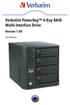 Verbatim PowerBay 4-Bay RAID Multi-Interface Drive Version 1.00 User Manual Table of Contents Introduction... 2 Package Contents... 2 Controls, Connectors and Indicators... 2 About the Hard Drive... 4
ATTENTION RISQUE D ÉLECTROCUTION! NE PAS OUVRIR!
 Quick Start Guide ATTENTION RISQUE D ÉLECTROCUTION! NE PAS OUVRIR! CAUTION: TO REDUCE THE RISK OF ELECTRIC SHOCK, DO NOT REMOVE COVER (OR BACK). NO USER-SERVICEABLE PARTS INSIDE. REFER SER- VICING TO QUALIFIED
WAVE BLUETOOTH MUSIC ADAPTER
 WAVE BLUETOOTH MUSIC ADAPTER FOR WAVE SYSTEMS Owner s Guide Bedienungsanleitung Guía de usuario Notice d utilisation Manuale di istruzioni Gebruiksaanwijzing Tab 8, 16 Tab 7, 15 Tab 6, 14 Tab 5, 13 Tab
9,'(2 #6(3$5$725 8VHU V#0DQXDO 96043;
 9,'(2 #6(3$5$725 8VHU V#0DQXDO 96043; Introduction 3 Features 3 Specifications 4 Installation 4 Stand-Alone Installation 4 Daisy-Chain Installation 5 Preventing Radio & TV Interference 6 Limited Warranty
High Speed File Share Cable USER GUIDE
 High Speed File Share Cable USER GUIDE Visit our Website at www.targus.com/emea Features and specifications are subject to change without notice. 2008 Targus Group International, Inc. and Targus, Inc.
2 Bay USB 3.0 RAID 3.5in HDD Enclosure
 2 Bay USB 3.0 RAID 3.5in HDD Enclosure SAT3520U3SR *actual product may vary from photos DE: Bedienungsanleitung - de.startech.com FR: Guide de l'utilisateur - fr.startech.com ES: Guía del usuario - es.startech.com
PCI Express FireWire & USB 2.0 card
 PCI Express FireWire & USB 2.0 card PCI Express Firewire 800 and USB 2.0 card PEX3U3F800 Actual product may vary from photo FCC Compliance Statement This equipment has been tested and found to comply with
4 Port PCI Express Low Profile High Speed USB Card
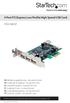 4 Port PCI Express Low Profile High Speed USB Card PEXUSB4DP DE: Bedienungsanleitung - de.startech.com FR: Guide de l'utilisateur - fr.startech.com ES: Guía del usuario - es.startech.com IT: Guida per
Stretch DisplayPort TM
 Stretch DisplayPort TM User s Manual (M1-5000) Doc No. : OEC-DP130903 / Rev1.2 Manual Contents Manual Contents 1-0 Welcome!, Product Description 1-1 System Requirements for Setup 1-2 Installation 1-3 Troubleshooting,
ASUS GX900 Gaming Mouse
 ASUS GX900 Gaming Mouse User Manual 15G06S002000 E5887 First Edition (V1) July 20 Copyright 20 ASUSTeK Computer Inc. All Rights Reserved. No part of this manual, including the products and software described
2GB MP3 Player USER GUIDE
 DO NOT FORMAT UNIT under FAT. 2GB MP3 Player USER GUIDE Jazwares, Inc. 2010 CONTENTS Please read the instructions along with the MP3 Player carefully before you use it, so that you can operate it conveniently.
Intelli-Time Alarm Clock model 13027
 Instruction Manual Intelli-Time Alarm Clock model 13027 CONTENTS Unpacking Instructions... 2 Package Contents... 2 Product Registration... 2 Features & Benefits... 3 Clock Setup... 4 Intelli-Time Clock...
User Manual AUDIO OUT OFF 9V DC USB POWER. Digital On-Hold Audio System with analog line capability
 MP On-Hold Audio System User Manual memory card IMPEDANCE PHONE LINES on speaker off ON OFF 9V DC USB AUDIO OUT 8Ω 6Ω // /4 POWER Digital On-Hold Audio System with analog line capability al /06 Before
Sense. 3D Scanner. User Guide. See inside for use and safety information.
 Sense 3D Scanner User Guide See inside for use and safety information. 1 CONTENTS INTRODUCTION.... 3 IMPORTANT SAFETY INFORMATION... 4 Safety Guidelines....4 SENSE 3D SCANNER FEATURES AND PROPERTIES....
File Share Cable USER GUIDE. for Mac. www.targus.com/us/formac ONE YEAR LIMITED WARRANTY N2953
 N2953 USER GUIDE ACC9602US / 410-1486-001A www.targus.com/us/formac 2008 Manufactured or imported by Targus Group International, Inc. (for U.S. sales: 1211 North Miller Street, Anaheim, CA 92806 USA, for
User Guide. SURFboard SB6183. DOCSIS 3.0 Cable Modem
 User Guide SURFboard SB6183 DOCSIS 3.0 Cable Modem 2014 ARRIS Enterprises, Inc. All rights reserved. No part of this publication may be reproduced in any form or by any means or used to make any derivative
USB 3.0 to HDMI Video Adapter with USB Hub Port
 USB 3.0 to HDMI Video Adapter with USB Hub Port USB32HDEH *actual product may vary from photos DE: Bedienungsanleitung - de.startech.com FR: Guide de l'utilisateur - fr.startech.com ES: Guía del usuario