
GE Healthcare Life Sciences. UNICORN start 1.0. User Manual
|
|
|
- Virginia Rodgers
- 10 years ago
- Views:
Transcription
1 GE Healthcare Life Sciences UNICORN start 1.0 User Manual

2

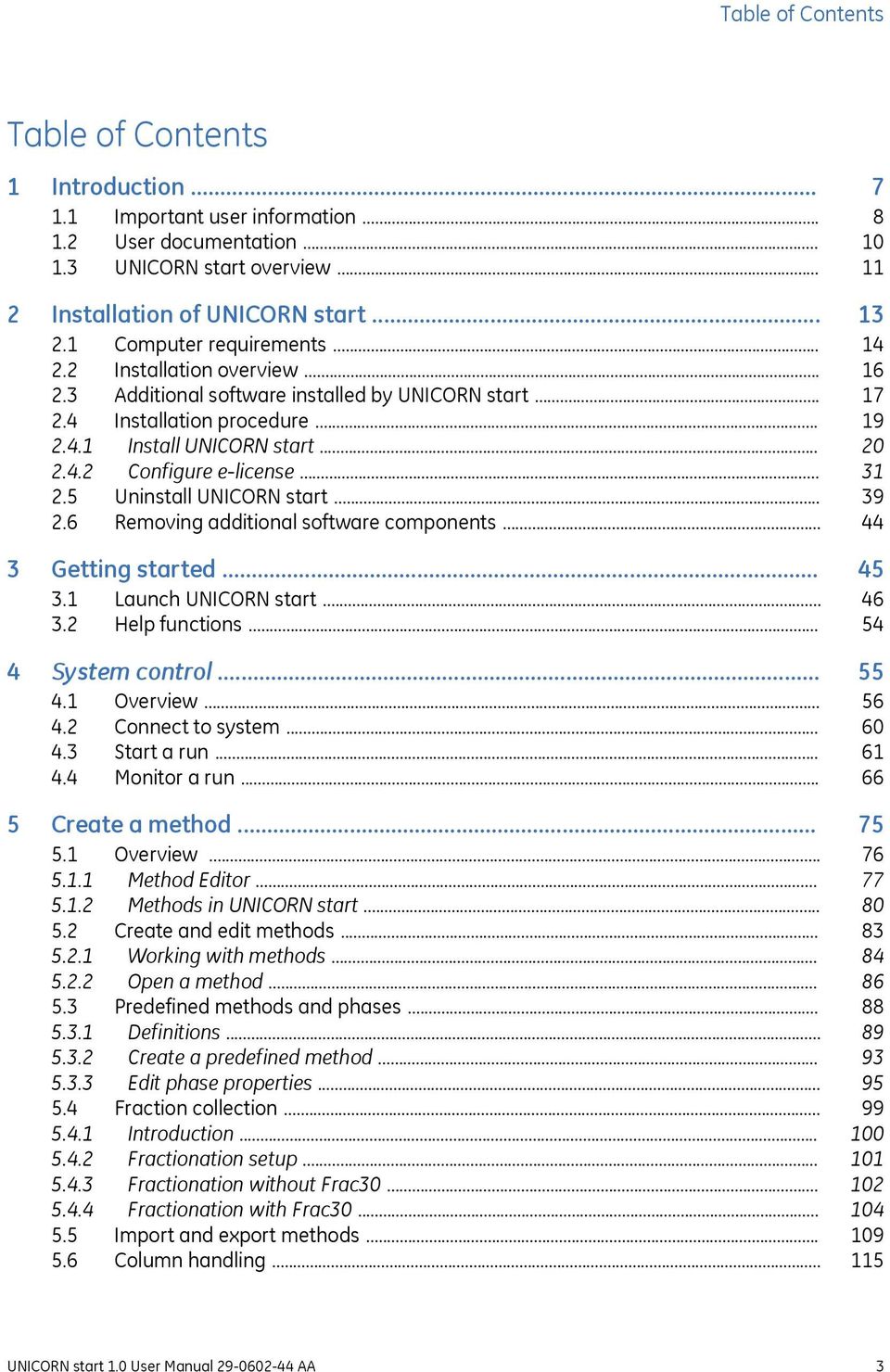
3 Table of Contents Table of Contents 1 Introduction Important user information User documentation UNICORN start overview... 2 Installation of UNICORN start Computer requirements Installation overview Additional software installed by UNICORN start Installation procedure Install UNICORN start Configure e-license Uninstall UNICORN start Removing additional software components... 3 Getting started Launch UNICORN start Help functions... 4 System control Overview Connect to system Start a run Monitor a run... 5 Create a method Overview Method Editor Methods in UNICORN start Create and edit methods Working with methods Open a method Predefined methods and phases Definitions Create a predefined method Edit phase properties Fraction collection Introduction Fractionation setup Fractionation without Frac Fractionation with Frac Import and export methods Column handling UNICORN start 1.0 User Manual AA 3
4 Table of Contents 6 View and present the results Introduction Evaluation module interface User interface Result navigator Chromatogram View and present the results Open and view results Locate results Optimize the presentation of chromatograms Customize the chromatogram layout Edit curve presentation Change the axes Print chromatograms and peak data Save report as PDF... 7 Evaluate and compile the results Peak integration Perform a peak integration Baseline calculation Display peak data Edit the integration parameters Integrate part of a curve Exclude peaks Baseline operations Edit the baseline manually Optimize the baseline with a morphological algorithm Optimize the baseline with a classic algorithm Fraction and peak operations The Fraction Histogram Match protein activity to a curve Compare different runs Open and compare chromatograms Open and compare curves Shift curves Create a mirror image Rename folders, results, chromatograms, curves and peak tables Save results Import and export results Import results Export results... 8 USB Export and Import Operations with ÄKTA start Export a method to a USB memory stick Import results from a USB memory stick UNICORN start 1.0 User Manual AA

5 Table of Contents 9 Administration System administration Database administration Database overview Database maintenance Troubleshooting Installation and uninstallation System connections System access errors Database functions Evaluation errors... A Evaluation functions and instructions... A.1 Smoothing algorithms... A.2 Baseline calculation theory... A.3 Peak table column components... Index UNICORN start 1.0 User Manual AA 5

6

7 1 Introduction 1 Introduction About this user manual This user manual provides the instructions needed to install and operate UNICORN start, and analyze chromatography run data. In this chapter This chapter contains the following sections: Section 1.1 Important user information 1.2 User documentation 1.3 UNICORN start overview See page UNICORN start 1.0 User Manual AA 7
8 1 Introduction 1.1 Important user information 1.1 Important user information Purpose of UNICORN start User Manual The purpose of this user manual is to provide a guide describing system control, method editor and result evaluation functions of UNICORN start. The manual covers the following topics: System control Create and edit methods View, evaluate and present results Administration and database management Troubleshooting Refer to the ÄKTA start Operating Instructions for further information on how to perform a chromatography run. Note: The UNICORN start User Manual does not describe all functions or every command in all panes and dialogs of the user interface. Refer to the UNICORN start Online Help for more information about commands that are not described in this manual. Notes and tips Note: Tip: A Note is used to indicate information that is important for trouble-free and optimal use of the product. A tip contains useful information that can improve or optimize your procedures. Typographical conventions Software items are identified in the text by bold italic text. A colon separates menu levels, thus File:Open refers to the Open command in the File menu. Hardware items are identified in the text by bold text (e.g., Power switch). Text entries that UNICORN start generates or that the user must type are represented by a monotype typeface (e.g., C:\Program Files\GE Healthcare\UNICORN\UNI- CORN start 1.0\Database). 8 UNICORN start 1.0 User Manual AA
9 1 Introduction 1.1 Important user information Prerequisites The following prerequisites must be fulfilled before you can use this manual the way it is intended: You need to have a general understanding of how your PC/laptop and Microsoft Windows work. You need to understand the general concepts of liquid chromatography. UNICORN start 1.0 User Manual AA 9
10 1 Introduction 1.2 User documentation 1.2 User documentation User documentation From the Help menu in UNICORN start or on the UNICORN start DVD, the following user documentation is available. Document UNICORN start User Manual UNICORN start Online Help Main contents Overview and detailed descriptions of the different features in UNICORN start. Instructions on how to use the software. Workflow descriptions for common operations. Dialog descriptions and user instructions, context-linked from all software features. Dialog descriptions for UNICORN start (accessible from the Help menu only). The user documentation listed in the table below is available on the ÄKTA start User Documentation CD. A display help is available from the Instrument Display. Documentation ÄKTA start Operating Instructions ÄKTA start Display Help ÄKTA start Maintenance Manual ÄKTA start System Cue Card ÄKTA start Maintenance Cue Card Main contents Instructions needed to install, operate and maintain ÄKTA start in a safe way. Dialog descriptions of the functionality menu for ÄKTA start (only accessible from the Instrument Display). Detailed instrument and module descriptions, including instructions needed to maintain and troubleshoot ÄKTA start. A condensed guide to prepare and run chromatographic techniques on ÄKTA start. A condensed guide to handling routine maintenance operations and troubleshooting ÄKTA start. 10 UNICORN start 1.0 User Manual AA
11 1 Introduction 1.3 UNICORN start overview 1.3 UNICORN start overview UNICORN start is a complete software package for: Control, edit methods and monitor chromatography run on ÄKTA start. Evaluation and analysis of the results generated from ÄKTA start. Illustration of the system The illustration below shows the ÄKTA start System with UNICORN start installed on a computer Part Description ÄKTA start (instrument). Frac30 (Fraction collector). UNICORN start (software installed on a computer). UNICORN start 1.0 User Manual AA 11

12 1 Introduction 1.3 UNICORN start overview UNICORN start modules The four modules of UNICORN start and their main features are listed below. Module System Control Method Editor Evaluation Administration Features Provides an intuitive and easy-to-use interface to control ÄKTA start. Performs and monitors quick start or user defined chromatography method runs. Performs and monitors chromatography runs from predefined or user-defined methods. Performs system performance method runs. Provides the flexibility to automate the chromatography runs. Allows creation of methods from predefined chromatography templates like Affinity, Gel Filtration, Ion Exchange and Desalting. Gives flexibility to create a customized method by dragging and dropping the chromatography phases such as Prime and Equilibration, Sample Application, Elution and Fractionation,etc. Allows exporting methods to a USB memory stick for importing them into ÄKTA start. Allows viewing and presentation of results, including creation of PDF reports. Allows various evaluation operations on curves and chromatograms including comparison, peak integration etc. Allows importing results from ÄKTA start and exporting results to other formats. Allows administration of the UNICORN start database for backup, restore, archive and retrieve operations. Allows reviewing of UNICORN start and system logs. 12 UNICORN start 1.0 User Manual AA
13 2 Installation of UNICORN start 2 Installation of UNICORN start In this chapter This chapter describes how to install UNICORN start. It contains the following sections: Section 2.1 Computer requirements 2.2 Installation overview 2.3 Additional software installed by UNICORN start 2.4 Installation procedure 2.5 Uninstall UNICORN start 2.6 Removing additional software components See page UNICORN start 1.0 User Manual AA 13

14 2 Installation of UNICORN start 2.1 Computer requirements 2.1 Computer requirements Installation requirements Before starting the installation procedure, make sure that the following requirements are met for the computer (PC or laptop): NOTICE UNICORN start is tested using US-English operating system version. Using other language versions of the operating system may cause errors. NOTICE Changing the default font and font size on windows may cause problems in the UNICORN start user interface. NOTICE A screen resolution of 1280x1024 or higher is recommended. Parts of the UNICORN start user interface may not be displayed properly using a lower specification. NOTICE Windows power save features should be turned off to avoid conflicts with system operations. Component Operating System RAM Specification Recommended: Windows 7 Professional x86 or x64 with SP1 (English US). Also compatible with Windows XP professional with SP3 (English US). 4 GB (minimum) 14 UNICORN start 1.0 User Manual AA

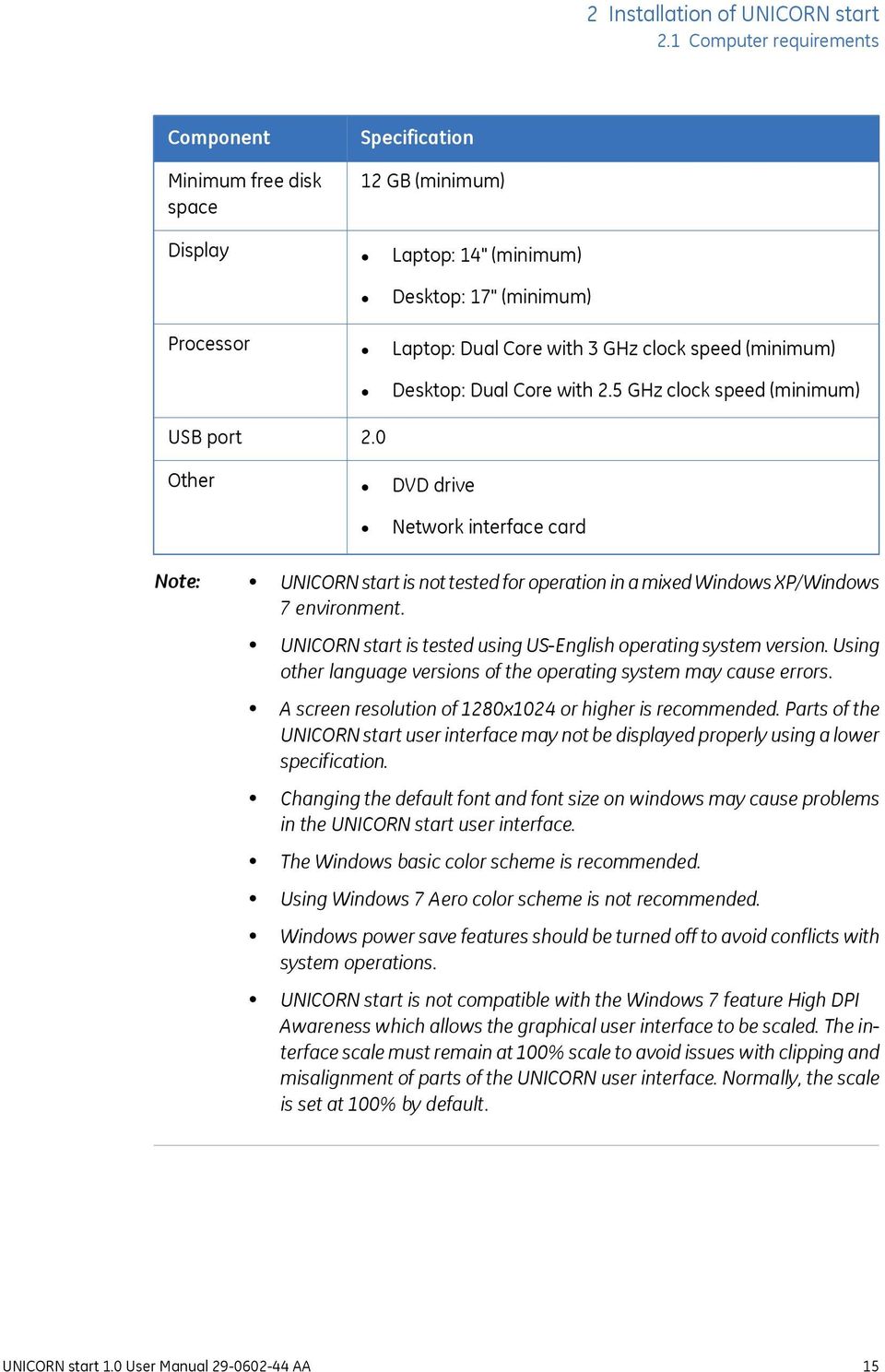
15 2 Installation of UNICORN start 2.1 Computer requirements Component Minimum free disk space Display Specification 12 GB (minimum) Laptop: 14" (minimum) Desktop: 17" (minimum) Processor Laptop: Dual Core with 3 GHz clock speed (minimum) Desktop: Dual Core with 2.5 GHz clock speed (minimum) USB port Other 2.0 DVD drive Network interface card Note: UNICORN start is not tested for operation in a mixed Windows XP/Windows 7 environment. UNICORN start is tested using US-English operating system version. Using other language versions of the operating system may cause errors. A screen resolution of 1280x1024 or higher is recommended. Parts of the UNICORN start user interface may not be displayed properly using a lower specification. Changing the default font and font size on windows may cause problems in the UNICORN start user interface. The Windows basic color scheme is recommended. Using Windows 7 Aero color scheme is not recommended. Windows power save features should be turned off to avoid conflicts with system operations. UNICORN start is not compatible with the Windows 7 feature High DPI Awareness which allows the graphical user interface to be scaled. The interface scale must remain at 100% scale to avoid issues with clipping and misalignment of parts of the UNICORN user interface. Normally, the scale is set at 100% by default. UNICORN start 1.0 User Manual AA 15
16 2 Installation of UNICORN start 2.2 Installation overview 2.2 Installation overview Installation summary The table below provides an overview of the UNICORN start installation procedure for setting up a UNICORN start workstation. Stage 1 2 Description Installation of additional software necessary to run UNICORN start. See Section 2.3 Additional software installed by UNICORN start, on page 17. Installation of UNICORN start. See Section 2.4 Installation procedure, on page 19. Do not copy the DVD-ROM or decompress the files NOTICE Do not run the installation from a network drive. NOTICE Do not attempt to decompress the files using any other file decompression utility. UNICORN start is supplied on a DVD-ROM. Files on the DVD-ROM are compressed and the installation cannot be performed by simply copying the files onto the local hard drive. However, the installation files can be copied to a hard drive and the installation may be run from the hard drive instead. Do not run the installation from a network drive. During the installation procedure, the required folder structure is created on the hard drive and the files are decompressed. Do not attempt to decompress the files using any other file decompression utility. 16 UNICORN start 1.0 User Manual AA
17 2 Installation of UNICORN start 2.3 Additional software installed by UNICORN start 2.3 Additional software installed by UNICORN start Required software The following additional software will be installed, if not found, before the installation of UNICORN start begins: MadCap HelpViewer MS Windows Installer 4.5 (x86) Microsoft.Net Framework 4.0 Windows PowerShell 1.0 Microsoft Visual C SP1 Redistributable Package (x86) Microsoft Core XML Services (MSXML) 6.0 Microsoft SQL Server Express Edition 2008 R2 (x86) The installation will be initiated automatically by the UNICORN start installation program. Any of the listed software that are already installed will not be included in this installation step. You may need to restart the computer several times to proceed from one application installation to the next. All software listed above are already installed on computers delivered from GE Healthcare. Note: By default, the software listed above is installed on the computer C:\ drive. However, you can manually change to another computer drive e.g., D:\ drive. If the available space on the drive is insufficient, the installation may fail and the installation program will attempt to repeat the installation after each restart. Make sure that enough space is available on the drive before starting the installation. The actual required space will vary depending on what is previously installed on the computer, and subsequent selections in the UNICORN start installation. However, the installation program needs a total of 6 GB of free space to initiate the installation. Required disc space NOTICE Make sure that enough space is available on the drive before starting the installation. UNICORN start 1.0 User Manual AA 17

18 2 Installation of UNICORN start 2.3 Additional software installed by UNICORN start The installation program needs 6 GB of free space to initiate the installation. If the available space on the drive is insufficient, the installation may fail and the installation program will attempt to repeat the installation after each restart. Make sure that enough space is available on the drive before starting the installation. The actual required space will vary depending on what is previously installed on the computer, and subsequent selections in the UNICORN start installation. The help viewer application As part of the UNICORN start installation, a special viewer for the UNICORN start Online Help is also installed. This application, the MadCap HelpViewer, is accessed from the UNICORN start user interface either by clicking the help buttons in the dialogs, by pressing the F1 key or by selecting Help from the menu bar. 18 UNICORN start 1.0 User Manual AA
19 2 Installation of UNICORN start 2.4 Installation procedure 2.4 Installation procedure In this section This section contains the following subsections: Section Install UNICORN start Configure e-license See page UNICORN start 1.0 User Manual AA 19
20 2 Installation of UNICORN start 2.4 Installation procedure Install UNICORN start Install UNICORN start Introduction NOTICE Make sure that enough space is available on the drive before starting the installation. The installation of UNICORN start includes all software components necessary to operate UNICORN start and a connected ÄKTA start instrument. The components that are installed are described in the table below. Software component UNICORN start client UNICORN start database Instrument server Characteristics UNICORN client software for the workstation, including the four UNICORN start modules: Administration, Method Editor, System Control and Evaluation. An instance of Microsoft SQL Server Express Edition that stores the results and methods created by the UNICORN start modules. A Windows service necessary to control and manage an instrument that is connected to the workstation. Instructions NOTICE Make sure that enough space is available on the drive before starting the installation. To install UNICORN start, follow the steps below: 20 UNICORN start 1.0 User Manual AA

21 2 Installation of UNICORN start 2.4 Installation procedure Install UNICORN start 1 Insert the installation DVD in the DVD drive. The UNICORN start 1.0 installation starts. Tip: If the DVD drive is not set up to allow automatic start, browse the DVD contents and double click the file Setup.exe to initiate the installation. NOTICE Do not click on the.msi file to start the installation. The.msi file does not check the pre-required software for the installation to succeed. UNICORN start 1.0 User Manual AA 21
22 2 Installation of UNICORN start 2.4 Installation procedure Install UNICORN start 2 If there are any required software components to be installed (as mentioned in Section 2.3 Additional software installed by UNICORN start, on page 17), the following dialog appears: Note: Multiple restarts of the computer may occur during the installation process of these software components. If the installation does not start automatically after a restart, please manually restart the installation as described in step UNICORN start 1.0 User Manual AA
23 2 Installation of UNICORN start 2.4 Installation procedure Install UNICORN start 3 The UNICORN start 1.0 InstallShield Wizard window opens. Click Next to continue with the installation. UNICORN start 1.0 User Manual AA 23
24 2 Installation of UNICORN start 2.4 Installation procedure Install UNICORN start 4 Read the license agreement carefully. Select I accept the terms in the license agreement. Click Next to proceed. 24 UNICORN start 1.0 User Manual AA
25 2 Installation of UNICORN start 2.4 Installation procedure Install UNICORN start 5 Click Next to install UNICORN start in the default folder, or click Change to install in a different folder. Note: By default, UNICORN start suggests C:\Program Files\GE Healthcare\UNI- CORN\. UNICORN start 1.0 User Manual AA 25
26 2 Installation of UNICORN start 2.4 Installation procedure Install UNICORN start 6 Enter locations for Backup and Archive folders. Click Next to proceed. Note: To ensure data safety, it is recommended that the backup and archive folders are copied or moved at regular intervals to another server computer or some other storage media. Tip: The UNICORN Configuration Manager is located at Start:Programs: GE Healthcare. This dialog can be used to edit the backup and archive information after the installation. 26 UNICORN start 1.0 User Manual AA
27 2 Installation of UNICORN start 2.4 Installation procedure Install UNICORN start 7 Click Install to begin installation of UNICORN start, ÄKTA start driver and UNICORN services. Note: The SQL Server software is installed on the C:\ drive by default. If the available space for this is insufficient, the installation may fail. The required space varies depending on what is previously installed on the computer but at least 2 GB should be available to ensure that the installation is completed correctly. UNICORN start 1.0 User Manual AA 27
28 2 Installation of UNICORN start 2.4 Installation procedure Install UNICORN start Note: If a warning is displayed when the ÄKTA start USB communication driver is installed on a Windows XP system, click the Continue button to proceed. Note: If a windows security warning is displayed when the ÄKTA startusb communication driver is installed, click Install button to proceed. 28 UNICORN start 1.0 User Manual AA
29 2 Installation of UNICORN start 2.4 Installation procedure Install UNICORN start 8 Proceed by configuring the e-license, see Section Configure e-license. UNICORN start 1.0 User Manual AA 29
30 2 Installation of UNICORN start 2.4 Installation procedure Install UNICORN start 9 Click the Finish button in the UNICORN start InstallShield Wizard Completed window. Note: The installation report can be viewed by clicking the View Report button. 30 UNICORN start 1.0 User Manual AA
31 2 Installation of UNICORN start 2.4 Installation procedure Configure e-license Configure e-license Introduction NOTICE Make sure that your PC/laptop is connected to the internet before initiating e-license configuration. After completing a UNICORN start installation, the software prepares to configure an e-license for UNICORN start. Note: Make sure that your PC/laptop is connected to the internet before initiating e- license configuration. An internet connection needs to be established in order to get access to the GE Healthcare e-licensing web site. For details about retrieving an e-license, see Section Access the e-licensing web site UNICORN start 1.0 User Manual AA 31
32 2 Installation of UNICORN start 2.4 Installation procedure Configure e-license Initiate license configuration Follow the instructions below to perform the final installation step and initiate the e-license configuration. 1 In the Configure e-license dialog: Click the Copy to Clipboard button to copy the Ethernet address. Note: UNICORN start attempts to select the right Ethernet address from the available set of network interface cards. If you anticipate the selected network configuration to change in this computer please choose a more permanent Ethernet address from the list. 2 Click the hyperlink in the dialog to proceed to the e-licensing web site. 32 UNICORN start 1.0 User Manual AA
33 Access the e-licensing web site 2 Installation of UNICORN start 2.4 Installation procedure Configure e-license You must retrieve the e-license from the GE Healthcare e-licensing web site. Follow the instructions below to access this site from the configuration dialog. 1 Click the hyperlink in the Configure e-license dialog. Result: The GE Healthcare software elicensing web site opens in your web browser. 2 Enter the Access Code presented on the DVD label, and then click the Login button. Result: The operations portal opens. UNICORN start 1.0 User Manual AA 33
34 2 Installation of UNICORN start 2.4 Installation procedure Configure e-license Retrieve the e-license Follow the instructions below to retrieve the e-license. 1 Click the Collect License hyperlink. Result: The manage entitlements page opens. 2 Select the checkbox for your license and click the Activate button. Result: A manage entitlements data input page opens. 34 UNICORN start 1.0 User Manual AA
35 2 Installation of UNICORN start 2.4 Installation procedure Configure e-license 3 Enter the requested data: Start date, if requested by the GE Healthcare software e-licensing web site. Customer data: - Name Note: - Department - Organization - Order You must also note if you want software updates and information about related products or not. All items marked with red dots are mandatory. Click the Next button to proceed to the next page. Note: The options Ship to or Ship to Address can be selected if, for some reason, the e-license cannot be saved to a file during the configuration. Normally, this will not be necessary. 4 Under the heading Nodelocked Hosts, click the Add New Host button. Result: The create license host dialog opens. UNICORN start 1.0 User Manual AA 35
36 2 Installation of UNICORN start 2.4 Installation procedure Configure e-license 5 Click in the empty Nodelocked Hosts field and press the Ctrl and V keys simultaneously to paste your Ethernet address from the clipboard into this field. Note: If you use another computer to retrieve the e-license, you must write down the Ethernet address from the computer you are installing UNICORN start, and type this address in the Nodelocked Hosts field. Click the OK button to proceed. Result: Your computer address is added to the Nodelocked Hosts list. 6 If the displayed information is correct, click the Generate button. Result: The License summary page opens. 36 UNICORN start 1.0 User Manual AA
37 2 Installation of UNICORN start 2.4 Installation procedure Configure e-license 7 Select the Product checkbox for your license and then click the Save to File button. Result: A File download dialog opens. Save the license file in a temporary folder or on your Windows desktop. 8 Click the Complete button and Logout to close the GE Healthcare software e-licensing web site. UNICORN start 1.0 User Manual AA 37
38 2 Installation of UNICORN start 2.4 Installation procedure Configure e-license Locate and connect the e-license The table below describes how to connect and confirm the e-license in the UNICORN start e-license Configuration dialog. 1 Click the Browse button to locate the license file and Click the Open button to add the search path to the file in the e-license Configuration dialog. 2 3 Click the Configure e-license button. Result: A confirmation dialog opens, showing that the configuration has been successful. Click OK in the confirmation dialog, and Close in the e-license Configuration dialog to complete the process. 38 UNICORN start 1.0 User Manual AA
39 2 Installation of UNICORN start 2.5 Uninstall UNICORN start 2.5 Uninstall UNICORN start Introduction This section describes how to remove UNICORN start using the installation program. UNICORN start can also be removed using the Windows Add or Remove Programs dialog. Remove the installation To uninstall UNICORN start, follow the steps described below: Note: Before removing UNICORN start, a backup must made, otherwise all data will be lost if proceeding. For instructions about how to back up data, see Section Database maintenance, on page Open the UNICORN start installation program Setup.exe. This will open the UNICORN start InstallShield Wizard. UNICORN start 1.0 User Manual AA 39
40 2 Installation of UNICORN start 2.5 Uninstall UNICORN start 2 Click the Next button. UNICORN start Program Maintenance dialog opens. 40 UNICORN start 1.0 User Manual AA
41 2 Installation of UNICORN start 2.5 Uninstall UNICORN start 3 Select Remove and click the Next button. UNICORN start 1.0 User Manual AA 41
42 2 Installation of UNICORN start 2.5 Uninstall UNICORN start 4 Make sure that a backup of the database has been made. If no backup has been made, all data will be lost if proceeding. For instructions about how to back up data, see Section Database maintenance, on page UNICORN start 1.0 User Manual AA
43 2 Installation of UNICORN start 2.5 Uninstall UNICORN start 5 Click the Yes button to proceed. The UNICORN start InstallShield Wizard Completed window appears. 6 Click the Finish button to complete the uninstallation. Note: After removing UNICORN start, some parts will still remain in the installation folder, for example logs and database backups. If desired, these objects must be removed manually. UNICORN start 1.0 User Manual AA 43
44 2 Installation of UNICORN start 2.6 Removing additional software components 2.6 Removing additional software components Some software components required to operate UNICORN cannot be removed automatically by the installation wizard. This is because the same components may be used for other purposes as well as for UNICORN start. The components may also have been updated after the original installation, and UNICORN start can no longer determine if they were part of the installation package. If any of the components listed below are not in use by other applications, they need to be removed manually: Microsoft.Net Framework 4.0 (including all language versions). Microsoft Visual C Redistributable Package Microsoft SQL Server 2008 Express Edition Note: The UNICORN start instance of the Microsoft SQL Server needs to be uninstalled manually. Follow the instructions described in the table below to uninstall the Microsoft SQL Server. The table below describes how to remove the components manually Open the Windows Control Panel. Double-click the Add or Remove Programs icon. Result: The Add or Remove Programs dialog opens. All programs installed on the client computer are listed. Select the software component from the list and click the Change/Remove button. Follow the instructions in the dialogs that opens, until the software is removed. 44 UNICORN start 1.0 User Manual AA
45 3 Getting started 3 Getting started In this chapter This chapter provides a general description of the operation of UNICORN start, including log on and log off functions, instructions on how to structure files and folders, and how to use the UNICORN start Online Help. The chapter contains the following sections: Section 3.1 Launch UNICORN start 3.2 Help functions See page UNICORN start 1.0 User Manual AA 45
46 3 Getting started 3.1 Launch UNICORN start 3.1 Launch UNICORN start Start and log on Follow the instructions below to start and log on to UNICORN start. 1 Double-click the UNICORN start icon on the desktop, or Select Start:All Programs:GE Healthcare:UNICORN start 1.0:UNICORN start 1.0. Result: The Select Application dialog opens. 46 UNICORN start 1.0 User Manual AA
47 3 Getting started 3.1 Launch UNICORN start 2 In the Select Application dialog, select the module(s) to be opened. Result: The selected UNICORN start modules open. 3 Select System Control. UNICORN start 1.0 User Manual AA 47
48 3 Getting started 3.1 Launch UNICORN start 4 Click to connect to the ÄKTA start instrument. Result: UNICORN start connects to the ÄKTA start. NOTICE Make sure that the computer which is used for running UNICORN start is connected to the ÄKTA start instrument, using the USB cable. 48 UNICORN start 1.0 User Manual AA
49 3 Getting started 3.1 Launch UNICORN start Start and evaluate a Manual run Follow the instructions below to start a Manual run using UNICORN start. 1 Click in the toolbar to start a manual run. The Manual Run settings dialog opens. 2 3 Enter the desired Flow Rate as ml/min. Click the OK button to start the manual run. The run starts and System Control shows the current flow path as well as the real time chromatogram. UNICORN start 1.0 User Manual AA 49
50 3 Getting started 3.1 Launch UNICORN start 4 Select the upper radio button to change the position of the wash valve. Result: The change in flow is reflected in the process picture. 5 End the run by clicking the Result: The run stops. button. 6 Open the Evaluation module by selecting it on the Windows task bar or by selecting Tools:Evaluation. Result: The Evaluation module opens. 50 UNICORN start 1.0 User Manual AA
51 3 Getting started 3.1 Launch UNICORN start 7 Open the Result Navigator by clicking the icon. Result: The Result Navigator opens. icon or the Result Navigator UNICORN start 1.0 User Manual AA 51
52 3 Getting started 3.1 Launch UNICORN start 8 Double-click the most recent run to open the chromatogram. The chromatogram result opens. 9 Click the icon to save a PDF result and select a location to save the file. The PDF result is generated and saved in the location selected above. 52 UNICORN start 1.0 User Manual AA
53 3 Getting started 3.1 Launch UNICORN start Exit UNICORN start To exit UNICORN start select File:Exit UNICORN. This can be performed from any of the UNICORN start modules. Result: All open UNICORN start modules close. Note: If an updated method or result is open and not saved during exit or log off from UNICORN start, a warning is displayed. Click Yes to save, No to exit without saving, or Cancel to stay logged on. UNICORN start 1.0 User Manual AA 53
54 3 Getting started 3.2 Help functions 3.2 Help functions The help viewer application As part of the UNICORN start installation, a special viewer for the online help is installed. This application, the MadCap HelpViewer, can be accessed from the UNICORN start user interface either by clicking help buttons in dialogs, by pressing the F1 key or by selecting Help from the menu bar. By default, this application places a shortcut icon on the desktop, which can be used to open the online help without logging on to UNICORN start. However, if the desktop icon is not present, this application can also be accessed from Start:All Programs:MadCap Software:MadCap HelpViewer V6. To start the UNICORN start online help: 1 Double-click the shortcut icon Note: Choose File:Open. Browse to the folder UNICORN\Documentation\Help. Select the file Manual.mchelp. Click the Open button. Result: The online help portal page opens. Sometimes Windows may need to register MadCap HelpViewer as the application for files of the type.mchelp before it recognizes calls from help buttons in UNICORN start. If that happens, open the viewer manually as described above. 54 UNICORN start 1.0 User Manual AA
55 4 System control 4 System control In this chapter This chapter gives an overview of the System Control module and describes how to start method and manual runs. It contains the following sections: Section 4.1 Overview 4.2 Connect to system 4.3 Start a run 4.4 Monitor a run See page UNICORN start 1.0 User Manual AA 55
56 4 System control 4.1 Overview 4.1 Overview Introduction The System Control module is used to start, monitor and control a chromatography run. Runs can be performed in two different ways, as listed below: Using a pre-defined method template. Performing the chromatography run by providing manual instructions. System Control user interface The illustration below shows the different panes and areas of the System Control module. Note: Pane 1 The status bar in the bottom of the window shows the current connection and control status for the displayed system. Function Toolbar: Includes buttons and icons for system control. 56 UNICORN start 1.0 User Manual AA
57 4 System control 4.1 Overview Pane Function Chromatogram: Illustrates data as curves such as UV absorbance (mau), Conductivity (ms/cm), Flow rate (ml/min), Pressure (mpa), Gradient (%B), Run log and Fraction. Process Picture: Illustrates the current flow path. Run Log: Displays the current state of the system. Toolbar icons in the System Control module The table below describes the toolbar icons in the System Control module. Icon Function Starts a method run. Start a Method Run Note: It is mandatory to select a method from the Method Navigator dialog to start the run. Starts a manual run. Start a Manual Run Hold Temporarily holds the run, with currently set flow rate, valve positions, and B concentration. Pause Temporarily pauses the run by stopping the pump. UNICORN start 1.0 User Manual AA 57
58 4 System control 4.1 Overview Icon Continue Function Continues the run that has been paused End Terminates the ongoing run. Connect Connects the software to the instrument. Disconnect Disconnects the software from the instrument. Select panes to display The table below describes how to display panes: 1 In the System Control menu bar, select View. 58 UNICORN start 1.0 User Manual AA
59 4 System control 4.1 Overview 2 Select the panes to display. Selected panes are displayed on the screen. Instrument states Information about the status of instrument connections and chromatography runs is displayed as Current State in the chromatogram. UNICORN start 1.0 User Manual AA 59
60 4 System control 4.2 Connect to system 4.2 Connect to system Connect the ÄKTA start system to UNICORN start Click on the icon to connect UNICORN start to the ÄKTA start instrument. Alternatively, navigate to System:Connect to System in the System Control module. Disconnect from system Click on the icon to disconnect UNICORN start from the ÄKTA start instrument. Alternatively, navigate to System:Disconnect from System in the System Control module. 60 UNICORN start 1.0 User Manual AA
61 4 System control 4.3 Start a run 4.3 Start a run Start a method run Follow these steps to start a method run: 1 Click the icon in the toolbar. Or, select Method Run from File menu in the System Control toolbar. This opens the Select Method dialog. 2 Select the desired Selection criteria: User defined or Pre defined. UNICORN start 1.0 User Manual AA 61
62 4 System control 4.3 Start a run 3 For User defined, find and select a suitable method in the folder pane. For Pre defined, select View and find a suitable method in the folder pane, and then select Sample setting: View: - Quick start - Templates - System preparation Sample setting: - Apply sample using sample loop - Apply sample using system pump 4 Click the OK button to start the selected method run. This opens the Start protocol dialog. 5 Review the Variable List and change method parameters if required, and then click Next to proceed to the next page. 62 UNICORN start 1.0 User Manual AA
63 4 System control 4.3 Start a run 6 Specify a result name and then click Start to start the run. Start a manual run Follow theses steps to start a manual run: 1 Click the icon in the toolbar. This opens the Manual Run settings dialog. 2 3 Enter the desired flow rate. Click the Browse button and select the location where the result should be saved. UNICORN start 1.0 User Manual AA 63
64 4 System control 4.3 Start a run 4 Click the OK button to start the manual run. Manual Instructions To open the Manual Instructions dialog, select Manual:Execute Manual Instructions. The following manual instructions can be performed from the process picture (see the illustration below): All valve changes can be executed with a single click. % B concentrations can be set. Flow rate can be changed. Fractionation can be started or stopped. Autozero can be performed; an injection mark can be set. Perform manual instructions during a method run The instruction below is an example of how to manually interact with an ongoing method run. The example shows how to increase the system flow. 1 Open the Manual Instruction dialog according to the above instruction. 64 UNICORN start 1.0 User Manual AA
65 4 System control 4.3 Start a run 2 3 In the Instructions list, select the instruction group Pumps and instruction Flow rate. Enter a new value for Flow rate To execute several instructions at the same breakpoint, select and edit an instruction and click Insert. Repeat for several instructions. To refresh the parameter fields during a method run, check the Auto update of parameters during run checkbox. To execute the instructions, click the Execute button. UNICORN start 1.0 User Manual AA 65
66 4 System control 4.4 Monitor a run 4.4 Monitor a run Introduction This section describes the data shown in System Control during a run, and the procedure to customize the view of the different panes. It also describes how to enable alarm and error notifications. You can follow the ongoing method run in the System Control module. Selected curves are shown in the Chromatogram pane. The current flow path is shown in the Process Picture pane. To find an overview of the System Control user interface, see Section 4.1 Overview, on page 56. Open the Customize dialog To customize displayed information and data in the different panes: Select Customize from the Tools menu in the System Control toolbar. or Right-click in the different panes (except Process Picture) and select Customize. 66 UNICORN start 1.0 User Manual AA
67 4 System control 4.4 Monitor a run Result: The Customize dialog is opened. Note: Further information about the settings in the Customize dialog can be found in the Online Help. Customize Chromatogram The Chromatogram pane displays registered curves during the run. Tab in Customize dialog Curves Curve style and color X-axis Y-axis Customization Choose curves to be displayed Customize the appearance of the displayed curves Choose base unit (time or volume) and set axis scale Set scale for the different curves and select which axes to display UNICORN start 1.0 User Manual AA 67
68 4 System control 4.4 Monitor a run Customize Run Log The Run Log pane displays registered actions during the run. Tab in Customize dialog Run Log Customization Selects what to display in the log. Note: All information in the run log is saved. The selections define what is displayed. Select and zoom a curve in the chromatogram The table below shows how to select a curve and to zoom in the chromatogram. Command Select a curve Instruction Position the mouse marker over a curve name: The curve line becomes bold to faciliate the identification of desired curve. Click the curve: The corresponding legend text is shown in bold type and the Y-axis scale changes to the unit applicable for the curve. 68 UNICORN start 1.0 User Manual AA
69 4 System control 4.4 Monitor a run Command Zoom Instruction Click and hold the left mouse button with the pointer positioned in the top left corner of the area you want to zoom in on. Drag the pointer downwards and to the right. A dotted rectangle marks the selected area. Select the area you want to zoom in on, and release the left mouse button. (The text Zoomed mode is shown in the chromatogram) To reset zoom, right-click and select Reset zoom. To reset the last zoom action, right-click and select Undo zoom. Right-click menu options Right-click and select options and actions. See Online Help for information. UNICORN start 1.0 User Manual AA 69
70 4 System control 4.4 Monitor a run Illustration of the Process Picture pane The Process Picture pane shows the current flow path during the run. Color indication is applied and real-time data from monitors are shown. The following illustration shows an example of a process picture. In this example, the orange marking indicates where you can shift between options by clicking the radio button for e.g., Buffer A or B. The table describes how different colors indicate the current state of the flow paths; open or closed. Color Green Gray Indication Open flow path Closed flow path 70 UNICORN start 1.0 User Manual AA
71 4 System control 4.4 Monitor a run Options in the Process Picture pane The following table describes how to change valve positions, set values, start/stop fractionation and start/stop peak collection in the Process Picture pane. Option Change valve positions Description Click the radio buttons to change between the valve positions. Set % B concentration Enter a value for setting the B concentration and then click Set %B. UNICORN start 1.0 User Manual AA 71
72 4 System control 4.4 Monitor a run Option Set flow rate Description Enter a value for flow rate and then click Set flow rate to set the flow rate. Introduce Injection mark Click the Injection mark button to introduce an injection mark in the chromatogram. Preform UV baselining Click the AutoZero button to perform UV baselining. 72 UNICORN start 1.0 User Manual AA
73 4 System control 4.4 Monitor a run Option Start/Stop fractionation Description Enter a fraction volume per tube (ml) and then click Start Fractionation to start the fractionation. Click Stop Fractionation to stop the fractionation. Note: This option is visible only if a fraction collector has been enabled. To enable the fraction collector, refer to the ÄKTA start Operating Instructions. UNICORN start 1.0 User Manual AA 73
74 4 System control 4.4 Monitor a run Option Peak collection Description Click Start peak collection to start the peak based collection. Click Stop peak collection to stop the peak based collection. Note: This option is visible only if the fraction collector has been disabled. 74 UNICORN start 1.0 User Manual AA
75 5 Create a method 5 Create a method In this chapter This chapter contains a general introduction to creating and editing methods using UNICORN start. It also describes overall method options, how to print methods, and how to import/export methods. Descriptions of the pre-defined methods and phases supplied with the software are included as well. The chapter contains the following sections: Section 5.1 Overview 5.2 Create and edit methods 5.3 Predefined methods and phases 5.4 Fraction collection 5.5 Import and export methods 5.6 Column handling See page UNICORN start 1.0 User Manual AA 75
76 5 Create a method 5.1 Overview 5.1 Overview About this section This section gives an introduction to the Method Editor module of UNICORN start. It also gives a brief description of the Method Editor interface and describes the concept of methods in UNICORN start. For information on how to create, open and edit methods and import/export methods, see Section 5.2 Create and edit methods, on page 83. In this section This section contains the following topics: Section Method Editor Methods in UNICORN start See page UNICORN start 1.0 User Manual AA
77 5 Create a method 5.1 Overview Method Editor Method Editor Introduction The Method Editor module is used to: Create and edit methods. Copy, save and delete methods. Method Editor also assists the user in optimizing runs and allows handling of column types and user defined columns. For more information, see the following sections. Method Editor interface The Method Editor interface consists of different panes that allows the user to get an overview of the method, a deep dive into each phase of a method and what methods and phases the database contains. The Method Editor interface with all the optional panes is illustrated next Pane 1 2 Description Toolbar (optional pane): Shows the toolbar icons. Method Navigator (optional pane): Shows all the user folders and methods that are available in the database. UNICORN start 1.0 User Manual AA 77
78 5 Create a method 5.1 Overview Method Editor Pane Description Phase Library (optional pane): Contains all available phases. Method outline: Shows the phases included in the open method. Gradient (optional pane): Shows the programmed gradient and break points for included phases. Phase properties: Shows the settings for the highlighted phase in the method outline. Display optional panes The optional panes in Method Editor are displayed by selecting them in the View menu. To restore the appearance of Method Editor and display the default panes, select Restore to Default in the View menu. Then, the Toolbar, Gradient and Phase Library are displayed. The appearance of the optional panes can also be controlled using the auto hide function (see below for more information). The illustration below shows the View menu with the default panes selected. 78 UNICORN start 1.0 User Manual AA
79 Method Navigator auto hide 5 Create a method 5.1 Overview Method Editor The Method Navigator may be displayed in the left portion of the Method Editor module, or the Auto Hide function can be selected by clicking the pin symbol in the top righthand corner of the pane. Pin direction Function Auto Hide is off. Click the pin symbol to turn the function on. Auto Hide is on. Click the pin symbol to turn the function off. If Auto Hide is selected, the Method Navigator opens automatically when the mouse pointer is placed over its tab. It remains open as long as the mouse pointer remains over the pane. The pane closes automatically when the pointer is moved outside the pane. Getting help on the toolbar and panes in Method Editor The table below describes how to find detailed information about the toolbar and the different panes in Method Editor by opening the online help. 1 To display detailed information about the toolbar and different panes in the Method Editor interface, select Help:Help For Method Editor. Result: The online help opens and displays the Method Editor help start page. 2 To display help for a specific pane, click in the pane and press the F1 key. Result: The online help page describing that pane is opened. UNICORN start 1.0 User Manual AA 79
80 5 Create a method 5.1 Overview Methods in UNICORN start Methods in UNICORN start About methods The program instructions for a chromatography run are defined in a method. These instructions are specific for each instrument configuration and follow certain syntactical and hierarchical rules. In a predefined method, each phase reflects a step in the chromatography run, for example, equilibration or sample application. A number of settings are available for each type of phase. By building methods in this way, methods are easily created and edited. See Section 5.2 Create and edit methods, on page 83 for information about creating and editing methods in Method Editor. The illustration below shows the phases in a predefined method in the method outline pane (left) and the corresponding settings for the highlighted phase in the phase properties pane (right). Method structure A method always starts with the Method Settings phase. This phase contains the general settings that affect the rest of the method. If Column type is changed for a predefined method, UNICORN start automatically calculates the correct settings for column volume, flow rate, and pressure limits that will be used throughout the method. Subsequent phases reflect steps included in the chromatography run. A predefined method with the different phases in the method outline pane is illustrated next. 80 UNICORN start 1.0 User Manual AA
81 5 Create a method 5.1 Overview Methods in UNICORN start Working with methods It is recommended to create and edit methods using phase properties. Phases can easily be dragged-and-dropped into the method outline from the Phase Library and the phases are easily rearranged. Settings for each phase are set in the phase properties pane. The phase properties settings for the Method Settings phase in a predefined method are illustrated next. UNICORN start 1.0 User Manual AA 81
82 5 Create a method 5.1 Overview Methods in UNICORN start Method types UNICORN start provides a number of predefined methods for different chromatography techniques, and for preparation and maintenance of the instrument (e.g., preparation and cleaning of the system and columns). Customized methods may be created, by dragging and dropping the phases from the phase library followed by setting the parameters. The phase Method Settings is mandatory to all methods. See Section5.2 Create and edit methods, on page83 for information about how to create new methods. The table below gives a general description of the different method types. Method Predefined Method Customized Method Description Predefined methods include a number of relevant phases appropriate for the purification or maintenance to be performed. These predefined methods can be used as they are, or with adjusted settings as needed. See Section Section 5.3 Predefined methods and phases, on page 88 for descriptions of the predefined methods provided with the software. Customized methods include the mandatory phase Method Settings. Other phases are then added by the user from the Phase Library pane and settings adjusted as needed. Predefined phases UNICORN start provides a number of predefined phases. Predefined phases (for example, Prime and Equilibration) can be used when building or editing methods in Method Editor. A predefined phase contains all the necessary instructions needed for a particular phase. All predefined phases can easily be viewed in the Phase Library pane. See Section5.3.1 Definitions, on page89 for descriptions of the predefined phases supplied with the software. 82 UNICORN start 1.0 User Manual AA
83 5 Create a method 5.2 Create and edit methods 5.2 Create and edit methods About this section This section describes how to create and edit methods in UNICORN start using the phase properties pane. In this section This section contains the following topics: Section Working with methods Open a method See page UNICORN start 1.0 User Manual AA 83
84 5 Create a method 5.2 Create and edit methods Working with methods Working with methods Introduction In UNICORN start, the predefined methods for ÄKTA start are built up of phases, where each phase corresponds to a step in a chromatography run, with a number of properties associated with that phase. See About methods, on page 80 for more information about method structure, definitions and concepts of methods in UNICORN start. Methods can be created and edited by using phases and phase properties. Main steps when defining a new method using predefined phases The main steps when defining a method are: Description Create/open a method Create a predefined method (including a set of phases that may be edited) or Open an existing method that can be edited and saved with a new name or overwritten. Build/edit the method outline and/or edit the phase properties for the appropriate phases Predefined Methods: use as they are, or edit the method outline and/or phase properties. Opened methods: edit the method outline and/or phase properties. Save the method. Main steps when defining a customized method The main steps when defining an empty method are: 1 Description Create/open a method Create a new empty method containing the Method Settings phase. 84 UNICORN start 1.0 User Manual AA
85 5 Create a method 5.2 Create and edit methods Working with methods 2 3 Description Build/edit the method outline and edit the phase properties for the phases Add predefined phases to the method (i.e., build the method outline) and edit the phases as appropriate. Rename the phases. Save the method. UNICORN start 1.0 User Manual AA 85
86 5 Create a method 5.2 Create and edit methods Open a method Open a method Follow the instructions to open an existing method in the database: 1 In Method Editor: Click the icon in the toolbar or Select File:Open or Select View:Method Navigator Result: The Method Navigator is displayed. 86 UNICORN start 1.0 User Manual AA
87 5 Create a method 5.2 Create and edit methods Open a method 2 Select the method to be opened in the Folder name column. 3 To open the method, Click the Open button located in the toolbar of the Method Navigator pane or Double-click the selected method or Right-click on the method name and select Open from the context menu Result: The method is opened and displayed in the method outline pane with the included phases. The phases of the method are still editable using phase properties. UNICORN start 1.0 User Manual AA 87
88 5 Create a method 5.3 Predefined methods and phases 5.3 Predefined methods and phases In this section This section describes how to work with methods and phases. It contains the following subsections: Section Definitions Create a predefined method Edit phase properties See page UNICORN start 1.0 User Manual AA
89 5 Create a method 5.3 Predefined methods and phases Definitions Definitions Introduction A predefined method contains a set of phases, each phase reflecting a specific stage of a chromatography or maintenance run. Additional phases can be selected from the phase library and added to an existing method and phases that are not required can be removed. The predefined purification methods have default values with suitable running conditions for the chosen column type such as flow and pressure limits. Other settings (e.g., sample application technique, sample volume, elution profile and fractionation) are set in the phase properties pane of the appropriate phases. This section describes the predefined methods and phases. Predefined purification methods Method Editor has five predefined methods for different separation techniques. The methods include a number of relevant phases. The table below describes the available predefined purification methods and which phases that are included. Predefined purification method Affinity Chromatography (AC) Principle Separates molecules based on the reversible interaction between the target protein and the specific ligand attached to a chromatography matrix. The steps include equilibration, sample application, wash unbound step to remove unbound non-specific proteins, elution with with fractionation followed by re-equilibrating the column. Included phases UNICORN start 1.0 User Manual AA 89
90 5 Create a method 5.3 Predefined methods and phases Definitions Predefined purification method Anion Exchange Chromatography (AIEX) Principle Based on the reversible interaction between negatively charged protein and positively charged chromatography media. The steps include, equilibration with binding buffer, sample application, elution with change in salt concentration (e.g. NaCl) or change in ph of elution buffer and re-equilibration with binding buffer. Included phases Cation Exchange Chromatography (CIEX) Based on the reversible interaction between positively charged protein and negatively charged chromatography media. The steps include, equilibration with binding buffer, sample application, elution with change in salt concentration (e.g. NaCl) or ph of elution buffer and re-equilibration with binding buffer. 90 UNICORN start 1.0 User Manual AA
91 5 Create a method 5.3 Predefined methods and phases Definitions Predefined purification method Desalting Gel filtration (GF) Principle A gel filtration technique that allows rapid group separation of high molecular weight substances from low molecular weight substances. Small molecules like salt, free labels and other impurities are efficiently separated from the high molecular weight substances of interest. The method involves equilibration followed by sample application, elution and fractionation using single buffer. Also known as size-exclusion chromatography, is a chromatography technique that separates molecules based on differences in the molecular size. The method involves equilibration, sample application and elution and fractionation. Included phases UNICORN start 1.0 User Manual AA 91
92 5 Create a method 5.3 Predefined methods and phases Definitions Predefined phases The table below describes the predefined phases. Phase Name Method Settings Description The first, and mandatory, phase in any method. Defines common parameters used in the subsequent phases. The Method Settings phase defines: Column selection Flow rate Pressure limit Note: Default values for pressure limits and flow rate are given for the GE Healthcare selected column type. Note: Some of these options may not be required by certain methods. Prime and Equilibration Sample Application Washout unbound Elution and Fractionation Primes the flow path by filling it with buffers of interest, and equilibrates the column before a purification, or re-equilibrates the column after a purification. Applies sample to the column. Defines the sample application mode technique, sample volume, and handling of the flow through. Washes out unbound sample after sample application. Elutes the sample from the column. Defines parameters for the elution and fractionation settings. 92 UNICORN start 1.0 User Manual AA
93 5.3.2 Create a predefined method Follow the instructions to create a new method using phases: 5 Create a method 5.3 Predefined methods and phases Create a predefined method 1 In Method Editor: Click the or icon in the toolbar Select File:New Method Result: The New Method dialog opens. UNICORN start 1.0 User Manual AA 93
94 5 Create a method 5.3 Predefined methods and phases Create a predefined method 2 In the New Method dialog: Select a Predefined Method. Click the OK button. Result: The method outline pane shows the included phases for the chosen method and the phase properties pane shows the default settings for the currently highlighted phase. 94 UNICORN start 1.0 User Manual AA
95 5 Create a method 5.3 Predefined methods and phases Edit phase properties Edit phase properties Introduction When editing phase properties, the changes affect either: The whole method, when editing the Method Settings phase. Only the phase that is being edited, when editing phases other than the Method Settings phase. UNICORN start 1.0 User Manual AA 95
96 5 Create a method 5.3 Predefined methods and phases Edit phase properties Getting help when editing phase properties Follow the instructions to get help for the properties in a phase: 1 Select a phase in the method to be edited, for example, Sample Application. Result: The properties for the selected phase are displayed in the phase properties pane. Note: Click the Advanced Options button to display more phase properties settings. 2 Click anywhere in the phase properties area to make it the active area in the software. 96 UNICORN start 1.0 User Manual AA
97 5 Create a method 5.3 Predefined methods and phases Edit phase properties 3 Press the F1 keyboard key. or Select Help:Contextual Help Result: The Online help for the selected phase is displayed. View and edit phases using phase properties Follow the instructions to edit a method phase in the Phase properties pane: Make sure the phase properties pane is selected. Select the Method Settings phase if the basic settings affecting the whole method need to be edited (e.g., Column type, and Flow rate). Continue with steps 3 and 4. or Select any other phase to edit the properties for that specific phase. Continue with step 5. To edit the properties for the Method Settings phase, click Method Settings in the method outline pane. Result: The phase properties of the Method Settings phase is displayed. UNICORN start 1.0 User Manual AA 97
98 5 Create a method 5.3 Predefined methods and phases Edit phase properties 4 Edit the settings for the Method Settings phase in the phase properties pane as appropriate. If changing Column type, UNICORN start automatically calculates the correct settings for volume, flow rate, and pressure limits. Note: Settings in this phase affect the whole method. Note: Allowed parameter ranges are shown in parentheses beside the text boxes. Result: The method is updated with the new settings. 5 6 Select a phase in the method to be edited, for example, Sample Application. Result: The properties for the selected phase are displayed in the phase properties pane. Edit the settings as appropriate. Repeat steps 5 and 6 until the appropriate phases have been edited. Result: The method is updated with the new settings. The edited settings remain in place while subsequent phases are edited. If the method is closed and not saved, the settings will revert back to the earlier values. 7 Save the method. 98 UNICORN start 1.0 User Manual AA
99 5 Create a method 5.4 Fraction collection 5.4 Fraction collection In this section This section decribes how to set up different options for fraction collection, with or without Frac30. It contains the following subsections: Section Introduction Fractionation setup Fractionation without Frac Fractionation with Frac30 See page UNICORN start 1.0 User Manual AA 99
100 5 Create a method 5.4 Fraction collection Introduction Introduction Collecting the protein fractions during either sample application, wash unbound or elution step, is an important activity during a chromatography run. Some of the predefined phases and methods include options for fraction collection in the phases. Note: The Fraction Collector needs to be turned ON from the ÄKTA start Instrument Display for it to be available as an option within UNICORN start. Fractionation Fractionation settings are available in the phase properties pane in the predefined phases Sample Application, Washout Unbound and Elution and Fractionation. These three phases are included in many of the predefined methods of UNICORN start. See Section Edit phase properties, on page 95 for details on how to edit methods and phases. For each phase, fractions can either be collected with or without fraction collector (using Outlet Valve). If there is no risk of sample loss, the eluate may be sent to the waste and not collected. 100 UNICORN start 1.0 User Manual AA
101 5 Create a method 5.4 Fraction collection Fractionation setup Fractionation setup Options The following fractionation options are available based on the instrument configuration in use. Instrument Configuration ÄKTA start, UNICORN start and Frac30 Fractionation options Fixed volume fractionation Peak fractionation - Level based - Slope based ÄKTA start and UNICORN start Single Peak collection - Level based - Slope based ÄKTA start and Frac30 ÄKTA start Fixed volume fractionation Collection of elution volume Delay volume handling Option Fractionation with Frac30 Fractionation without Frac30 Description Delay volume is collected in the first tube (T1) followed by the rest of the fractions in subsequent tubes. Delay volume is collected in the collection container along with fraction (total collected volume = Delay volume + fraction volume). For setting the delay volume refer to section Prepare the fraction collector in the ÄKTA start Operating Instructions. For detailed instructions on fractionation operations using ÄKTA start, see ÄKTA start Operating Instructions. UNICORN start 1.0 User Manual AA 101
102 5 Create a method 5.4 Fraction collection Fractionation without Frac Fractionation without Frac30 Single peak collection Single Peak Collection option is available when Frac30 has been disabled from the instrument. Single Peak Collection can be chosen and configured in the Elution and Fractionation phase as depicted above. Setting Start level End level Description UV absorbance (mau) that triggers the start of peak collection. UV absorbance (mau) that triggers the end of peak collection. A representative chromatogram depicting fractionation by setting level [Abs(mAU)] values for collecting fractions from UNICORN start using Outlet Valve (without Frac30) is shown below. 102 UNICORN start 1.0 User Manual AA
103 5 Create a method 5.4 Fraction collection Fractionation without Frac30 Note: Make sure to standardize and set the optimized level values and fraction volume in order to collect the peak of interest in a single collection tube. For collecting multiple peaks, make sure to change the collection tube manually after collecting each peak. Note: The UV monitor to Outlet Valve volume (0.27 ml) is constant for all instruments. Make sure to use recommended length and inner diameter of polyether ether ketone tubing from UV monitor to Outlet Valve to avoid incorrect calculation of delay volume. Make sure to update the length and inner diameter of the polyether ether ketone tubing in case the tubing is not of the recommended length and inner diameter. UNICORN start 1.0 User Manual AA 103
104 5 Create a method 5.4 Fraction collection Fractionation with Frac Fractionation with Frac30 Fixed volume fractionation Fixed volume fractionation can be chosen and configured in the Sample Application, Washout unbound and the Elution and Fractionation phases as depicted. Fixed fractionation volume is the volume that will be collected in every fraction per tube. A representative chromatogram depicting fractionation using fixed volume fraction collection from UNICORN start with Frac30 is shown below. Note: Make sure to set fraction volumes that suit the column being used, and to fill adequate number of collection tubes. 104 UNICORN start 1.0 User Manual AA
105 Peak fractionation: Level based 5 Create a method 5.4 Fraction collection Fractionation with Frac30 Peak fractionation can be chosen and configured in the Elution and Fractionation phase as depicted. Level based peak fractionation can be configured by editing the Peak Frac Settings. Setting Start level End level Column default User defined Description UV absorbance (mau) that triggers the start of peak fractionation. UV absorbance (mau) that triggers the end of peak fractionation. Selecting this option displays the default minimum peak width based on the column type selected in Method Settings. To choose a custom value for the minimum peak width. A representative chromatogram depicting fractionation by setting level [Absorbance (mau)] values for collecting fractions from UNICORN start with Frac30 is shown below. UNICORN start 1.0 User Manual AA 105
106 5 Create a method 5.4 Fraction collection Fractionation with Frac30 Note: Make sure to standardize and set the optimized level values and fraction volume in order to collect the peak of interest in a single collection tube. Peak fractionation: Slope based Peak fractionation can be chosen and configured in the Elution and Fractionation phase as depicted. Slope based peak fractionation can be configured by editing Peak Frac Settings. 106 UNICORN start 1.0 User Manual AA
107 5 Create a method 5.4 Fraction collection Fractionation with Frac30 Setting Start slope End slope Column default User defined Description Slope value (mau/min) that triggers the start of peak fractionation. Slope value (mau/min) that triggers the end of peak fractionation. Selecting this option displays the default minimum peak width based on the column type selected in Method Settings. To choose a custom value for the minimum peak width. A representative chromatogram depicting fractionation by setting slope [Abs(mAU)/ Time (min)] values for collecting fractions from UNICORN start with Frac30 is shown below. UNICORN start 1.0 User Manual AA 107
108 5 Create a method 5.4 Fraction collection Fractionation with Frac30 Note: Make sure to standardize and set the optimized slope values and fraction volume in order to collect the peak of interest in single collection tube. It is recommended to set lower slope values for collection smaller peaks and larger values for collecting higher peaks so that the peak of interest is collected in a single collection tube. The suitable slope values could be derived from UV curve with the UNICORN start differentiate operation available in the Evaluation module. 108 UNICORN start 1.0 User Manual AA
109 5 Create a method 5.5 Import and export methods 5.5 Import and export methods Introduction UNICORN start methods are stored internally in the UNICORN start database. It is however possible to export entire methods or individual phases to a zip file on the local computer so that they can be imported again later into the same database installation, or imported into another database installation. Alternatively, methods or phases can be exported as plain text files or Excel files, which may be useful for documentation purposes. Export a method to another UNICORN start database Follow these steps to export a method into a UNICORN start database. 1 In the Method Navigator pane, select the method to be exported. Note: Several methods in the same folder can be selected and exported at the same time. Also, several results can be selected simultaneously by using the Shift or Ctrl key. UNICORN start 1.0 User Manual AA 109
110 5 Create a method 5.5 Import and export methods 2 Choose File:Export:to UNICORN:Export Method to UNICORN. Result: The Export to Another UNICORN Database dialog opens. 3 Choose a file name and location and click the Save button to save the zip file. 110 UNICORN start 1.0 User Manual AA
111 5 Create a method 5.5 Import and export methods Export a method to a plain text file or to Excel Follow these steps to export a method as a plain text file,.asc or to Excel. 1 In the Method Navigator pane, select the method to be exported. It is only possible to export one method at a time to an external file. 2 Choose File:Export:Export Method Externally. Result: The Export Externally dialog opens. Only Variable list can be exported externally. 3 Click the Save As button to save the exported variable list. UNICORN start 1.0 User Manual AA 111
112 5 Create a method 5.5 Import and export methods 4 To save the text file with the selected information included click the Save As button. Result: The Export Method(s) to File dialog opens. 5 6 Choose whether to save to an ASCII file or to an Excel file from the Save as type drop-down list. Choose a file name and location and click the Save button to save the zip file. 112 UNICORN start 1.0 User Manual AA
113 5 Create a method 5.5 Import and export methods Import a method into UNICORN start Methods that have previously been exported as zip files can be imported back into UNICORN start. Plain text files or Excel files can be imported if they contain all the information that UNICORN start needs to recreate the method. Follow these steps to import a method. 1 Select File:Import:Import Method. Result: The Import dialog opens. 2 Browse to the required zip file in the Import dialog. UNICORN start 1.0 User Manual AA 113
114 5 Create a method 5.5 Import and export methods 3 Select the file and click the Open button, or double click on the file name to open it. Note: Several methods in the same folder can be selected and imported at the same time. Several results can be selected simultaneously by using the Shift or Ctrl key. Result: The Import Method(s) dialog opens. 4 5 Browse to the required folder in the database and type in a new Name if necessary. Click the Import button to import the method. Result: The imported method is opened in Method Editor. To import several methods, repeat the procedure in the Import Method dialog for each method. 114 UNICORN start 1.0 User Manual AA
115 5 Create a method 5.6 Column handling 5.6 Column handling Introduction This section describes how to update predefined column types provided by GE Healthcare. For details on how to add, edit, delete, import, export and print specific column types refer to UNICORN start Online Help. Updated lists of predefined column types are provided by GE Healthcare. When a new list is imported, it will replace all the predefined column types in the database with the updated column types. Only predefined column types will be replaced, user defined column types will remain in the database. Tip: For column list updates please visit Import column list into the database Follow these steps to import a new column list into the database. 1 Click the column handling icon in the Toolbar. 2 In the Column Type Parameters tab, in the Column Handling dialog, click the Import button. Result: The Import dialog opens. 3 Locate the zip file with the column list to be imported and click Open. UNICORN start 1.0 User Manual AA 115
116 5 Create a method 5.6 Column handling Result: The Import confirmation dialog opens, explaining what happens when the zip file is imported. 4 Click Yes. Result: The new list of predefined column types is imported into the database. 116 UNICORN start 1.0 User Manual AA
117 6 View and present the results 6 View and present the results In this chapter This chapter describes how to view results, edit and optimize the representation of the results. It contains the following sections: Section 6.1 Introduction 6.2 Evaluation module interface 6.3 View and present the results 6.4 Optimize the presentation of chromatograms See page UNICORN start 1.0 User Manual AA 117
118 6 View and present the results 6.1 Introduction 6.1 Introduction A result is automatically generated at the end of a run and contains a complete record of the chromatography run, including system settings, monitored data and run log. The complete result is saved in the UNICORN start database. UNICORN start Evaluation module is used to view and analyze the result data and optimize the result presentation, for example, by: Integrating peaks. Measuring peak properties such as area and height. Comparing curves and chromatograms from different runs. When a satisfactory evaluation is obtained, a report may be compiled. The report can be anything from a simple print of a chromatogram, showing selected curves, to a comprehensive report containing chromatograms from several results. 118 UNICORN start 1.0 User Manual AA
119 6 View and present the results 6.2 Evaluation module interface 6.2 Evaluation module interface In this section This section gives an overview of the Evaluation module. It contains the following subsections: Section User interface Result navigator Chromatogram See page UNICORN start 1.0 User Manual AA 119
120 6 View and present the results 6.2 Evaluation module interface User interface User interface The interface consists of a pane where the current result is displayed and, the Result Navigator. Both panes are described below. Evaluation module interface Different parts of the Evaluation module are illustrated below: Pane Function Toolbar Result navigator Chromatogram Peak summary table 120 UNICORN start 1.0 User Manual AA
121 6 View and present the results 6.2 Evaluation module interface User interface Toolbar icons in the Evaluation module The table below describes the toolbar icons in the Evaluation module. Icon Function Opens the Result Navigator. The Result Navigator is described below. Opens the Add To Compare dialog. You may use the dialog to search for curves to compare in specified folders, results or chromatograms. This dialog is described in Section 7.4 Compare different runs, on page 203. Note: This dialog can also be opened from the File menu. Saves the current result. This icon is used to save the current result that has been edited and not saved yet. Note: This function can also be selected in the File menu. Note: To save the result with a different name, select File: Save As. The Save As dialog opens, and the result can be named and saved in the selected folder. Opens the Print Chromatograms dialog. This dialog is used for printing the chromatograms on a selected printer. The chromatogram can also be previewed before printing. This dialog is described in Section6.4.4 Print chromatograms and peak data, on page152. Note: This dialog can also be opened from the File menu. Saves the report as PDF. This opens the Save As dialog where the result can be named and saved in the selected folder. Note: This dialog can also be opened from the File menu. UNICORN start 1.0 User Manual AA 121
122 6 View and present the results 6.2 Evaluation module interface User interface Icon Function Performs peak integration of the selected UV curve. This dialog is described in detail in Section 7.1 Peak integration, on page 156. Note: This dialog can also be opened from the Integrate menu. Opens the Edit Peak Table dialog. This wizard can be used to edit peak tables. Note: This dialog can also be opened from the File menu. 122 UNICORN start 1.0 User Manual AA
123 6 View and present the results 6.2 Evaluation module interface Result navigator Result navigator Illustration of Result Navigator pane The Result Navigator shows all the folders and individual results. Result Navigator auto hide Result Navigator may be displayed in the left portion of the Evaluation module, or the auto hide function can be selected by clicking the pin symbol in the top right-hand corner of the pane. Pin direction Function Auto Hide is off. Click the pin symbol to turn the function on. UNICORN start 1.0 User Manual AA 123
124 6 View and present the results 6.2 Evaluation module interface Result navigator Pin direction Function Auto Hide is on. Click the pin symbol to turn the function off. If auto hide is on, the Result Navigator opens automatically when the mouse pointer is placed over its tab. It remains open as long as the mouse pointer remains over the pane. The pane closes automatically when the pointer is moved outside the pane. 124 UNICORN start 1.0 User Manual AA
125 6 View and present the results 6.2 Evaluation module interface Chromatogram Chromatogram The Chromatogram pane The Chromatogram pane is illustrated below. The current result contains two chromatograms. The chromatograms are displayed by clicking the corresponding tab. A Peak Table is displayed below the chromatogram. Peak Table are described in detail in Section Display peak data, on page 161. Docking Chromatogram panes If a result contains several chromatograms, each chromatogram is displayed in its own pane. The chromatograms can be stacked on top of each other and selected by clicking the corresponding tab. They can also be arranged in various positions using a docking function. The arrangement of chromatograms is described in Section Open and compare chromatograms, on page 204. UNICORN start 1.0 User Manual AA 125
126 6 View and present the results 6.3 View and present the results 6.3 View and present the results In this section This section describes how to present the chromatograms and curves of the result file, and how to create and print reports. It contains the following subsections: Section Open and view results Locate results See page UNICORN start 1.0 User Manual AA
127 6 View and present the results 6.3 View and present the results Open and view results Open and view results Introduction A result file is opened in the Evaluation module where all of its content can be analyzed and reports created. The Evaluation module user interface and toolbar icons are described in Section User interface, on page 120. The result files and their folder locations are shown in the Result Navigator. There are different ways to locate a specific result, Section Result navigator, on page 123 describes this. In this section a preview function to identify a certain result and locate specific curves is described, it is called Quick View. This section also describes how to highlight curves in a chromatogram, read curve values using a marker and save curve data as a Snapshot. How to open specific chromatograms and curves is described in Section Open and compare chromatograms, on page 204 and Section Open and compare curves, on page 207. Open a result in the Evaluation module There are four ways to open a result from the Result Navigator: Select a result and press the Enter key. Double-click a result. Right-click a result and select Open from the shortcut menu. Select a result and click the Open toolbar icon in the Result Navigator. Only one result at a time may be opened this way. If a new result is opened, the previous result closes automatically. However, several chromatograms from different results can be opened simultaneously. This is described in Section Open and compare chromatograms, on page 204. UNICORN start 1.0 User Manual AA 127
128 6 View and present the results 6.3 View and present the results Open and view results Illustration of a result opened in the Evaluation module A result may contain several chromatograms and corresponding peak tables. Each chromatogram can be shown by clicking the corresponding tab. The chromatograms can also be displayed simultaneously by selecting View:Tile All Chromatograms. Highlight or select a curve An individual curve in the chromatogram can be selected or highlighted. The table below describes the differences: If you... hold the mouse pointer over a curve segment hold the mouse pointer over a curve name click a curve segment or a curve name Then... a pop-up box displays the curve name. the curve and the short line segment in front of the curve name become bold. the Y-axis shows the values for this specific curve. 128 UNICORN start 1.0 User Manual AA
129 6 View and present the results 6.3 View and present the results Open and view results UNICORN start 1.0 User Manual AA 129
130 6 View and present the results 6.3 View and present the results Open and view results Insert a vertical marker The vertical marker is used to measure the values for a specific curve position. Rightclick in the chromatogram and choose Vertical marker. Move the marker along the X- axis and read the X-axis and Y-axis values of the selected curve in the box in the top left corner of the chromatogram. Note: The marker measures the curve that currently is selected if several curves are displayed in the chromatogram. The marker has the same color as the selected curve. Set marker reference The vertical marker can be used for more measurements than just the readings from a specific curve position. Follow these steps to use the marker to determine Delta Peak and Mean Y-axis values. 1 Position the marker to where the measurement should begin. Right-click and select Set vertical marker reference point. Result: The reference point is set to the position shown in the box in the top left corner of the chromatogram. 130 UNICORN start 1.0 User Manual AA
131 6 View and present the results 6.3 View and present the results Open and view results 2 Drag the marker to the point where the measurement should end. Result: The measured area is colored as illustrated below: 3 Read e.g. the Volume, Delta and Mean values from the box: Note: If the X-axis has been set to volume base, X will hear equal to the volume for the selected area. UNICORN start 1.0 User Manual AA 131
132 6 View and present the results 6.3 View and present the results Open and view results Snapshots It is possible to take a snapshot of all the curve values at the marker position. Follow these steps to take a snapshot: 1 Position the marker to where the snapshot should be taken. Right-click and select Snapshot from the shortcut menu. 2 Click the Save button to save the Snapshot. Alternatively, click the Print button to print the Snapshot. The Print dialog opens and the Snapshot can be printed. 3 Note: Click the Close button to close the Snapshot dialog. The snapshot only records the values of the curves that are displayed in the current view. 132 UNICORN start 1.0 User Manual AA
133 6 View and present the results 6.3 View and present the results Locate results Locate results Introduction In the Method Editor and Evaluation modules of UNICORN start there are navigator panes that can be used to locate and open methods and result files, and to arrange files in folders. The Evaluation module contains a Result Navigator pane that is of the same type as the navigator pane in the Method Editor module, but it also contains a pane for Recent Runs and a specific search pane, Find Results. If desired, the Result Navigator can also display methods. Show the navigator pane To open and display the navigator panes: Choose the Result Navigator menu command in the View menu. Or, Note: Click the (open result navigator) toolbar icon. As described in the general overview of the Evaluation module in Section 6.2 Evaluation module interface, on page 119, Auto Hide can be selected for the navigator panes. Navigator toolbar The table below shows the navigator toolbar icons: Icon Function Opens the selected result. Note: Selected items can also be opened by selecting the File:Open menu command or by double-clicking the file in the navigator pane. The Open command from the right-click shortcut menu can also be used to open selected chromatograms, curves or peak tables. UNICORN start 1.0 User Manual AA 133
134 6 View and present the results 6.3 View and present the results Locate results Icon Function Creates a new folder in the folder that is currently selected. Note: This function can also be accessed by selecting the File:New Folder menu command or selecting the New Folder command from the right-click shortcut menu. Performs a Refresh in the navigator pane to update all items to the current status. Note: This function can also be accessed from the View menu. However, note that the Refresh menu command updates both the items in the navigator pane and items open in the module. The navigator toolbar icon updates only the navigator pane. Opens the View Details drop-down list where the following optional information columns may be selected for display in the navigator pane: System Created by Last modified Expand and collapse folders When a folder is selected in the Result Navigator pane, the subfolders and results are displayed. If the folder structure is expanded to lower levels, collapse all folders below a selected top folder, to simplify browsing. 134 UNICORN start 1.0 User Manual AA
135 6 View and present the results 6.3 View and present the results Locate results Right-click a folder and choose the Expand/Collapse All shortcut. Result: The folder structure is collapsed to the selected folder level. The Recent Runs pane The Recent Runs pane shows all the available recorded recent runs based on the selected preferences. Follow the instructions below to use Recent Runs to locate and open a result. 1 Click the Recent Runs tab in the Result Navigator. Result: The Recent Runs pane opens. 2 If needed, click the Refresh button. Result: The Recent Runs list is updated with all runs that were performed since the Result Navigator was opened the last time. UNICORN start 1.0 User Manual AA 135
136 6 View and present the results 6.3 View and present the results Locate results 3 Note: Locate and double-click the desired result. Result: The result opens in the Evaluation module. Click the + signs to view or select individual chromatograms from the results. Individual results can be selected and removed from the list by clicking the Remove button. The Remove all button clears the whole list. The Remove and Remove all buttons only clear the list, the results are not deleted. Search for results using Find Results The Find Results function in the Result Navigator is used to locate results in the available folders. Note: There is also a common Find function which is available in the Edit menu of all modules except the Administration module. The table below describes how to use the Find Results function to locate and open a result. 1 Click the Find Results tab. Result: The Find Results pane opens. 2 Type a result name or part of a result name in the Result name text box. Note: The standard wildcard character * can be used to represent a number of characters before or after the partial result name. 136 UNICORN start 1.0 User Manual AA
137 6 View and present the results 6.3 View and present the results Locate results 3 Result: The located results are listed. 4 Double-click the desired result or chromatogram. Result: The file or chromatogram opens in the Evaluation module. Close the navigator pane To close the navigator pane: Click the small cross in the top right-hand corner of the navigator. Result: The navigator closes. UNICORN start 1.0 User Manual AA 137
138 6 View and present the results 6.4 Optimize the presentation of chromatograms 6.4 Optimize the presentation of chromatograms In this section This section describes some of the ways to optimize the presentation of a chromatogram. It contains the following subsections: Section Customize the chromatogram layout Edit curve presentation Change the axes Print chromatograms and peak data Save report as PDF See page UNICORN start 1.0 User Manual AA
139 6.4.1 Customize the chromatogram layout 6 View and present the results 6.4 Optimize the presentation of chromatograms Customize the chromatogram layout Introduction The Customize dialog box is used to change the chromatogram presentation. The main features of the Customize dialog box regarding chromatograms are described in the subsequent sections. Features regarding peak tables are described in Section 7.1 Peak integration, on page 156. Instruction Follow the instructions below to make changes in the Customize dialog box: 1 2 Open a result. Right-click the chromatogram and select Customize. or Choose Tools:Customize. Result: The Customize dialog box is displayed. UNICORN start 1.0 User Manual AA 139
140 6 View and present the results 6.4 Optimize the presentation of chromatograms Customize the chromatogram layout 3 Carry out the changes on the different tabs to get the desired layout for header, curves and peak table. For more info, see below. Select Apply to all chromatograms if you want to apply the changes made in the Customize: dialog to all open chromatograms. 4 Click OK to apply the changes. Tabs in the Customize dialog The table below lists the tabs of the Customize dialog and outlines the editing functions of each tab. Tab Y-Axis Use this tab to... Determine how the Y-axis is displayed. This is described in detail in Section Change the axes, on page UNICORN start 1.0 User Manual AA
141 6 View and present the results 6.4 Optimize the presentation of chromatograms Customize the chromatogram layout Tab X-Axis Curve Peak Table Curve Style and Color Use this tab to... Determine how the X-axis is displayed.this is described in detail in Section Change the axes, on page 148. Select the curves to display in the chromatogram. Select the Peak Table settings. This is described in detail in Section Display peak data, on page 161. Determine how the curves are displayed. This is described in detail in Section Edit curve presentation, on page 143. Note: The selected settings in all tabs can be applied to all open chromatograms. Layout options in the right-click menu You can also change the chromatogram layout by choosing some menu items from the right-click shortcut menu. The table below describes the layout options available on this menu: Choose... Grid Filter Curves when you want to... Add a grid to the background of the chromatogram. Add a list of all available curves to the chromatogram, with checkboxes to select the curves to display: Note: Click the arrow buttons to show additional curves that do not fit in the available space. Select Active Curve Only Show only the active curve in the chromatogram. (this option is available only when Filter Curves is selected) UNICORN start 1.0 User Manual AA 141
142 6 View and present the results 6.4 Optimize the presentation of chromatograms Customize the chromatogram layout Choose... Select All Curves Legend Time or Volume or Column volume when you want to... Show all curves in the chromatogram. (this option is available only when Filter Curves is selected) Show the list of all displayed curve names over the curve area of the chromatogram. Select the unit of the X-axis. 142 UNICORN start 1.0 User Manual AA
143 6 View and present the results 6.4 Optimize the presentation of chromatograms Edit curve presentation Edit curve presentation Select curves to display The Curve tab of the Customize dialog contains a list of all the curves included in the chromatogram. Select the curves to be displayed in the chromatogram, and click the OK button. Curve style and color settings All curves within a chromatogram are represented by a default color and line style. Curves that are imported into the chromatogram or newly created curves are automatically assigned a color and line style. The settings are available in the Curve Style and Color tab. The tab also contains settings for peak labels, fraction marks and run log texts. Change the color and style of a curve The table below describes how to change the color and style of a curve: 1 2 Open the Customize dialog. Click the Curve Style and Color tab. UNICORN start 1.0 User Manual AA 143
144 6 View and present the results 6.4 Optimize the presentation of chromatograms Edit curve presentation 3 Select the curve to change, from the list. Click the Color button to open the Color dialog and choose a color from the palette. Click a button to choose a Line style. Repeat step 3 to modify other curves. 4 Click the OK button to apply the changes. 144 UNICORN start 1.0 User Manual AA
145 Align Fraction and Run log texts 6 View and present the results 6.4 Optimize the presentation of chromatograms Edit curve presentation Both Fraction and Run log text can be set to be displayed either when the mouse pointer is positioned over a fraction mark (Fly over only) or at all times. The Fraction text can be aligned both vertically and horizontally. Default setting for both text types is Vertical. The Vertical selection for Run log text is the setting to show the text at all times. Filter Run log information Follow the instructions below to select the run log entry and feedback types to show in the chromatogram: Open the Customize dialog. Click the Curve Style and Color tab. Click the Filter button in the Run log text alignment field. Result: The Filter Run log dialog opens. UNICORN start 1.0 User Manual AA 145
146 6 View and present the results 6.4 Optimize the presentation of chromatograms Edit curve presentation 4 Select the entry types to show in the chromatogram. Select the feedback types to include in the run log entries. Click the OK button. Result: The Filter Run log dialog closes. 5 Click the OK button in the Customize dialog to apply the changes. 146 UNICORN start 1.0 User Manual AA
147 6 View and present the results 6.4 Optimize the presentation of chromatograms Edit curve presentation Add a grid It is possible to add a grid to the background of the chromatogram by selecting the Grid checkbox. Note: This can also be accessed by right-clicking in the chromatogram and selecting Grid from the shortcut menu. UNICORN start 1.0 User Manual AA 147
148 6 View and present the results 6.4 Optimize the presentation of chromatograms Change the axes Change the axes Introduction This section describes how to change the chromatogram axes. These changes are made in the Y-Axis and X-Axis tabs of the Customize dialog. Change and fix the Y-axis Follow the instructions below to change and fix the scale of the curves in the chromatogram Y-axis: 1 2 Click the Y-Axis tab. Select the appropriate curve from the list. Select the Fixed option in the Scale for curve number field. 148 UNICORN start 1.0 User Manual AA
149 6 View and present the results 6.4 Optimize the presentation of chromatograms Change the axes 3 Type the desired minimum and maximum values. Click the All With This Unit button if you want other curves with the same Y-axis units as the current scaled curve to be similarly scaled. Note: The values will only be applied to existing curves. They will not be applied to new curves created after this function was last used. 4 Click the OK button to apply the changes. Select Y-axes to display Follow the instructions below to select the Y-axes to display in the chromatogram. 1 2 Click the Y-Axis tab. Select a curve for the left Y-axis in the Left Axis drop-down list. To add a second Y-axis, proceed with step 3. If not, jump to step Select a second curve from the Right Axis drop-down list. Click the OK button to apply the changes. UNICORN start 1.0 User Manual AA 149
150 6 View and present the results 6.4 Optimize the presentation of chromatograms Change the axes Change and fix the X-axis Follow the instructions below to change and fix the scale of the X-axis in the Customize dialog: 1 Click the X-Axis tab. 2 Select the appropriate option in the Base field: Time Volume Column Volume Note: Some calculated curves, for example baselines, exist in only one base and might seem to disappear when the base is changed. Curves are collected in time and recalculated for display in volume. Thus, switching the base between Time and Volume can slightly alter the resolution of the displayed curves. 150 UNICORN start 1.0 User Manual AA
151 6 View and present the results 6.4 Optimize the presentation of chromatograms Change the axes 3 Click the Fixed option in the Axis scale field to set the axis limits manually. Type the desired minimum and maximum values. If desired, select the Adjust retention zero to injection number checkbox and choose an injection number from the drop-down list. Note: This sets the time/volume to zero at the selected injection mark. The time and volume before selected injection will become negative values. 4 Click the OK button to apply the changes. UNICORN start 1.0 User Manual AA 151
152 6 View and present the results 6.4 Optimize the presentation of chromatograms Print chromatograms and peak data Print chromatograms and peak data Introduction This section describes how to print the chromatograms that are open in the Evaluation module. The Print Chromatograms dialog box The Print Chromatograms dialog is illustrated below. Instructions Follow the instructions below to print active chromatograms. 1 2 Open all chromatograms to be printed. Select File:Print. or Click the toolbar icon. Result: The Print Chromatograms dialog opens. 152 UNICORN start 1.0 User Manual AA
153 6 View and present the results 6.4 Optimize the presentation of chromatograms Print chromatograms and peak data 3 Click the OK button to open the Print dialog and proceed with step 7. or Proceed with step 4 to preview and edit the layout. Note: Click and drag the chromatogram tabs to change the order of the chromatograms on print. 4 5 Click the Preview button. Result: The Customize Report window opens. Select File:Print. or Click the toolbar icon. Result: The Print dialog opens. Note: It is possible to print directly from the Customize Report window or click the Exit button to return to the Print Chromatogram dialog. 6 Select the print range and number of copies. If necessary, click the Properties button to open the printer properties dialog where the settings for the printer can be changed. Click the OK button to print the chromatograms. UNICORN start 1.0 User Manual AA 153
154 6 View and present the results 6.4 Optimize the presentation of chromatograms Save report as PDF Save report as PDF To save the report as PDF, select File:Report As PDF. Result: The report is created as a PDF file and saved in the location specified in the dialog. Note: A PDF report can also be generated by clicking the of the Evaluation module. (icon) in the toolbar 154 UNICORN start 1.0 User Manual AA
155 7 Evaluate and compile the results 7 Evaluate and compile the results About this chapter This chapter describes how to perform a number of editing and evaluation operations on the results, for example: Peak integrations Baseline operations (editing and optimization) Fraction and peak operations Comparison of different runs This chapter also describes how to import and export results. For information about how to view results, see Chapter 6 View and present the results, on page 117. In this chapter This chapter contains the following sections: Section 7.1 Peak integration 7.2 Baseline operations 7.3 Fraction and peak operations 7.4 Compare different runs 7.5 Rename folders, results, chromatograms, curves and peak tables 7.6 Save results 7.7 Import and export results See page UNICORN start 1.0 User Manual AA 155
156 7 Evaluate and compile the results 7.1 Peak integration 7.1 Peak integration About this section Peak integration is used to identify and measure a number of curve characteristics, including peak areas, retention time and peak widths. In this section This section contains the following subsections: Section Perform a peak integration Baseline calculation Display peak data Edit the integration parameters Integrate part of a curve Exclude peaks See page UNICORN start 1.0 User Manual AA
157 7.1.1 Perform a peak integration Follow the instructions below to perform a basic peak integration. 7 Evaluate and compile the results 7.1 Peak integration Perform a peak integration 1 2 Open a result file in the Evaluation module. Choose Integrate:Peak Integrate. or Click the Result: toolbar icon. Peak integration of the UV curve is performed. Peak integration results The peak table is displayed below the active chromatogram. The start point and end point of each peak are marked by vertical marks, drop-lines, in the chromatogram. The peaks are automatically labelled according to what is selected in the Curve Style and Color tab of the Chromatogram Layout dialog box. A summary of the integration and the settings used can be viewed by clicking the Integration summary tab. The result after a peak integration is illustrated below: UNICORN start 1.0 User Manual AA 157
158 7 Evaluate and compile the results 7.1 Peak integration Perform a peak integration Note: Peak tables can be copied from one chromatogram to another by selecting Edit:Copy between chromatograms. The copied peak table name has the default suffix COPY. Edit peak integration data 1 Click the (icon) or select File:Integrate:Edit Peak Table. Result: The Edit Peak Table dialog opens. 158 UNICORN start 1.0 User Manual AA
159 7 Evaluate and compile the results 7.1 Peak integration Perform a peak integration 2 Edit different parameters of the curve from the Edit Peak Table dialog: Section Baseline calculation, on page 160 Section Edit the integration parameters, on page 164 Section Exclude peaks, on page 178 Section 7.2 Baseline operations, on page 180 Result: The peaks are integrated and updated automatically. UNICORN start 1.0 User Manual AA 159
160 7 Evaluate and compile the results 7.1 Peak integration Baseline calculation Baseline calculation Introduction The first step when integrating peaks is to calculate a baseline. A correct baseline is important for accurate calculation of the peak areas. The baseline is per default calculated using the morphological algorithm, when a one-click peak integration is performed. This section describes the options available to calculate baselines manually. Baseline options UNICORN start offers several options to create an accurate baseline: Classical algorithm Morphological algorithm Zero baseline The Calculate baseline function Automatic calculation of the baseline can be performed using the Classical or Morphological algorithm, the latter being the default one. In most cases, the measurement is very accurate. Zero baseline The baseline will appear as a straight line at zero absorbance. 160 UNICORN start 1.0 User Manual AA
161 7 Evaluate and compile the results 7.1 Peak integration Display peak data Display peak data Introduction There are a number of options available to display and edit peak data and peak table contents. This section describes some of these options. Other options are described in Section Edit the integration parameters, on page 164. Peak characteristics The peak retention times and several other peak characteristics are calculated automatically. Follow the instructions below to display other peak characteristics. 1 Right-click in the active chromatogram. Select Customize from the shortcut menu. Result: The Customize dialog opens. 2 Click the Peak Table tab. UNICORN start 1.0 User Manual AA 161
162 7 Evaluate and compile the results 7.1 Peak integration Display peak data 3 Select options from the Select peak table columns list. Click the OK button. Result: The selected items are displayed in the peak table. How to filter peaks Peaks can be excluded from display in a peak table. Follow the instructions below to filter the peaks: 1 Right-click in the active chromatogram or peak table. Select Customize from the shortcut menu. Result: The Customize dialog opens. 2 3 Click the Peak Table tab. Click the check boxes in the Filter Peaks field to select the filter criteria. Specify filter values. Click the OK button. To filter peaks vs. to reject peaks The table below describes the major differences in the effects of filtering peaks compared to excluding the peaks by rejection. Filter peaks... excludes the peaks from display, does not exclude the peaks from the calculation of the total peak area, can be reversed. Reject peaks... permanently excludes peaks from the integration, excludes the peaks from the calculation of the total peak area, cannot be reversed. 162 UNICORN start 1.0 User Manual AA
163 Measurement options It is possible to determine the coordinates of any point on a curve and to obtain values for retention and peak height. This is a useful tool for many other functions, such as for measuring the parameters used in baseline calculations. Coordinates can be obtained in two ways: Through direct measurement using the Vertical marker. This is described in Section Open and view results, on page 127. From peak table data. 7 Evaluate and compile the results 7.1 Peak integration Display peak data UNICORN start 1.0 User Manual AA 163
164 7 Evaluate and compile the results 7.1 Peak integration Edit the integration parameters Edit the integration parameters Introduction Once a peak table has been generated based on an appropriate baseline, it is possible to split or join peaks and to manually adjust the peak start and end points. The peaks are then automatically renumbered and the peak values recalculated. Theses changes can be made in the Edit Peak Table dialog. In this dialog, peak names that may be used as labels in the chromatogram can also be added. Open the peak table for editing Follow the instructions below to open the peak table for editing. The editing options are described below the instructions. 1 Select Integrate:Edit Peak Table. Result: The Edit Peak Table dialog opens. Note: If there are several peak tables in the result, the dialog opens for the peak table tab that is selected. The name of the baseline on which the peak table is based is displayed in the dialog Note: Perform the changes (described in the instructions below). Click the OK button. Result: The Save Edited Peak Table dialog opens. The dialog displays a suggested name and location for the peak table. Confirm the name and location and click the OK button. The Edit Peak Table dialog is opened immediately if Save and Edit Peak Table is selected. 164 UNICORN start 1.0 User Manual AA
165 The Edit Peak Table dialog The illustration below shows the Edit Peak Table dialog: 7 Evaluate and compile the results 7.1 Peak integration Edit the integration parameters Toolbar icons in the Edit Peak Table dialog The table below describes the toolbar icons in the Edit Peak Table dialog. Icon Function Activates the Zoom mode. When it is activated, you can use the mouse pointer to drag out an area to be zoomed in. This is described in The zoom function below. Activates the Edit Peaks mode. In this mode, you can select a peak and edit the start and end points. This is described in Edit the peaks manually below. Activates the Set Curve Points mode. In this mode, you can select baseline curve points for editing and add new points to re-draw the baseline. This is described in Adjust the baseline below. UNICORN start 1.0 User Manual AA 165
166 7 Evaluate and compile the results 7.1 Peak integration Edit the integration parameters Icon Function Returns the result to the state it was in before the last change (Undo). Note: This function can also be selected in the Edit menu. The zoom function Follow the instructions below to use the zoom function in the Edit Peak Table dialog. 1 Click the Zoom icon. Result: The mouse pointer is changed into Note: Position the mouse pointer over the left topmost position of the area you want to zoom in. Press and hold the left mouse button. Drag the cursor over the area you want to zoom in. Release the mouse button. Result: The area is enlarged. A Zoomed mode note will be displayed in the top right-hand corner of the chromatogram when the zoom function has been used. Right-click and select Reset Zoom from the shortcut menu to return to the full display. 166 UNICORN start 1.0 User Manual AA
167 Peak start and end points 7 Evaluate and compile the results 7.1 Peak integration Edit the integration parameters The beginning of each peak is marked with a dropline above the curve, and the end of each peak is marked with a dropline below the curve. The table below shows examples of start and end point droplines: Stage Description Single peak. Double peaks: the end of the first peak will be at the same point as the beginning of the next peak. Edit the peaks manually The start and end points of a peak can be adjusted graphically by moving the droplines in the Edit Peak Table dialog. 1 Click the Edit Peaks icon. Result: The mouse pointer is changed into. 2 Click the peak you want to edit. Result: The peak is highlighted and marker lines show the start and end points. UNICORN start 1.0 User Manual AA 167
168 7 Evaluate and compile the results 7.1 Peak integration Edit the integration parameters 3 Position the mouse pointer over the marker line that you want to change. Result: The pointer is changed into a double-arrow symbol. 4 Note: Drag the marker to a new position with the mouse pointer. Result: The start or end point droplines of the peak are changed and the corresponding values are updated in the peak table. A dropline can never be moved beyond another dropline or beyond a point where the peak meets the baseline. 168 UNICORN start 1.0 User Manual AA
169 Adjust the baseline 7 Evaluate and compile the results 7.1 Peak integration Edit the integration parameters The baseline can be adjusted graphically in the Edit Peak Table dialog. 1 Click the Set Curve Points icon. Result: The mouse pointer is changed into. 2 Perform one or more of the operations below as desired: Click to insert a new data point. Double-click on a data point or right-click the point and select Delete Point from the shortcut menu to delete the point. Click a data point and drag the point to a new position to move the baseline. Result: The baseline is edited and the peak table values are recalculated accordingly. Note: Accept negative peaks must be selected before the peak integration if you want to be able to drag a data point to move the baseline above the curve. UNICORN start 1.0 User Manual AA 169
170 7 Evaluate and compile the results 7.1 Peak integration Edit the integration parameters Calculate a new baseline The baseline can be recalculated in the Edit Peak Table dialog. To alter the baseline settings: 1 2 Select an algorithm (Morphological is default). Adjust the Baseline parameters as desired. - Structure width - Minimum distance between points or Click the Default Values button for the default values. 3 Note: Click OK. Result: The baseline is recalculated. Select Zero Baseline and click the Apply Zerobaseline button to replace the calculated baseline with a zero baseline. Add color to a peak The table below describes how to add a fill color and a pattern to an individual peak in the Edit Peak Table dialog: 1 Click the Edit Peaks icon. Result: The mouse pointer is changed into. 2 Click to select the peak. 170 UNICORN start 1.0 User Manual AA
171 7 Evaluate and compile the results 7.1 Peak integration Edit the integration parameters 3 Right-click and select Fill Peaks from the shortcut menu or Select Edit:Fill Peak. Result: The Color and Pattern dialog opens. 4 Select the Fill selected peaks check box. Result: The Color button and Pattern field are activated. UNICORN start 1.0 User Manual AA 171
172 7 Evaluate and compile the results 7.1 Peak integration Edit the integration parameters 5 Click the Color button. Result: The Color dialog opens. 6 7 Select one of the Basic colors or Click the Define Custom Colors button to open the settings field and define new colors (illustrated above). After you have selected a color, click OK to close the dialog. Select a fill pattern in the Pattern field. Click OK. Result: The peak is filled according to the selections. Note: The color and pattern selections will override the general Fill settings that can be selected for all peaks on the Peak Table tab in the Customize dialog for the chromatogram. 172 UNICORN start 1.0 User Manual AA
173 Split a peak 7 Evaluate and compile the results 7.1 Peak integration Edit the integration parameters It is possible to split a peak into two new peaks by inserting a dropline. Follow the instructions below to split a peak in the Edit Peak Table dialog: 1 Click the Edit peaks icon. Result: The mouse pointer is changed into. 2 3 Note: Click the peak in the curve or in the peak table to select the peak. Right-click and select Split Peak from the shortcut menu or Select Edit:Split Peaks. Result: A new dropline is inserted at the middle point between the two existing droplines and the peak is split. The peak numbering and the peak table are updated accordingly. The area under each new peak will not be the same if the symmetry of the original peak was not perfect. Join peaks It is possible to join the areas of adjacent peaks if they are separated by a dropline. Follow the instructions below to join adjacent peaks in the Edit Peak Table dialog: 1 Click the Edit peaks icon. Result: The mouse pointer is changed into. 2 3 Click the peak in the curve or in the peak table to select the peak. Right-click and select Join Left or Join Right from the shortcut menu or Select Edit:Join Left or Edit:Join Right. Result: The original intervening dropline is removed, all peaks are renumbered and the peak table is updated. UNICORN start 1.0 User Manual AA 173
174 7 Evaluate and compile the results 7.1 Peak integration Edit the integration parameters Add peak names Follow the instructions below to add names in the Edit Peak Table dialog, to identify the peaks: 1 Click the Edit peaks icon. Result: The mouse pointer is changed into. 2 Click the peak in the curve or in the peak table to select the peak. 174 UNICORN start 1.0 User Manual AA
175 7 Evaluate and compile the results 7.1 Peak integration Edit the integration parameters 3 Right-click and select Peak Name from the shortcut menu or Choose Edit:Peak name or Double-click the peak. Result: The Edit Peak Name dialog opens. The number and retention of the selected peak is displayed. 4 5 Note: Type a name in the Peak name textbox. Click OK. Result: The new name is added in the corresponding Peak name cell in the peak table. It is also shown below the peak in the chromatogram. If you have selected to show peak names in the chromatogram, it will also be displayed over the peak. You can also add a peak name by selecting the Peak name cell in the peak table, click again in the cell and then type the peak name. A pencil symbol is displayed by the peak number to indicate that you are able to enter the text. Delete peaks Follow the instructions below to delete a peak in the Edit Peak Table dialog: 1 Click the Edit Peaks icon. Result: The mouse pointer is changed into. 2 Click the peak in the curve or in the peak table to select the peak. UNICORN start 1.0 User Manual AA 175
176 7 Evaluate and compile the results 7.1 Peak integration Edit the integration parameters 3 Right-click and select Delete Peaks from the shortcut menu or Select Edit:Delete Peaks or Press the Delete key. Result: The peak is deleted, the remaining peaks are renumbered and the peak table is updated. The Integrate menu If needed, you can use the selections on the Integrate menu to perform a peak integration in the Edit Peak Table dialog box. This is useful for example if you want to re-integrate the curve using different settings or integrate only part of a curve with different settings. 176 UNICORN start 1.0 User Manual AA
177 7 Evaluate and compile the results 7.1 Peak integration Integrate part of a curve Integrate part of a curve Introduction There are several possibilities to improve the results if the peak integration is unsatisfactory. This section describes how to select only part of a curve for integration. This partial integration can be performed both in the Integrate dialog in preparation for the peak integration, or in the Edit Peak Table dialog to adjust an unsatisfactory peak integration. Both alternatives are described here. Select part of a curve for integration Follow the instructions below to select only part of a curve for peak integration in the Integrate dialog box: 1 Choose Integrate:Peak Integrate or Click the icon. 4 Click OK. Result: The baseline will be calculated from the whole curve, but the calculation of the peak areas is only performed on the selected section. UNICORN start 1.0 User Manual AA 177
178 7 Evaluate and compile the results 7.1 Peak integration Exclude peaks Exclude peaks Introduction The results of the peak integration can sometimes be improved if some peaks are excluded. Also, more accurate results may be obtained if smaller peaks are skimmed off larger peaks with shoulders, as described in this section. Exclude peaks Follow the instructions below to define peaks to be excluded in the Peak Integrate dialog during a peak integration. 1 Click the Reject peaks button. Result: The Reject Peaks dialog opens Note: Select the appropriate checkboxes and type values for peak height, width and area. Define how many of the largest peaks you want to include. Click OK. Proceed with the peak integration. You can also exclude peaks from the peak integration in the Edit Peak Table dialog. Select Integrate:Settings to open the Reject Peaks dialog. 178 UNICORN start 1.0 User Manual AA
179 Include negative peaks 7 Evaluate and compile the results 7.1 Peak integration Exclude peaks Select the Accept negative peaks checkbox of the Peak Integrate dialog to include negative peaks in the integration. The negative peaks will be reported as negative areas in the peak table. By default, negative peaks are not included in the integration. UNICORN start 1.0 User Manual AA 179
180 7 Evaluate and compile the results 7.2 Baseline operations 7.2 Baseline operations About this section In order to achieve the best possible peak integration result, the baseline may have to be edited or optimized. The edit baseline operations can be accessed through the edit peak dialog. In this section This section contains the following subsections: Section Edit the baseline manually Optimize the baseline with a morphological algorithm Optimize the baseline with a classic algorithm See page UNICORN start 1.0 User Manual AA
181 7 Evaluate and compile the results 7.2 Baseline operations Edit the baseline manually Edit the baseline manually Introduction The first choice when you want to optimize the peak integration is to change the baseline parameters. This section describes how to optimize the baseline manually. How to use the zoom function Follow the instructions below to use the zoom function in the Edit Baseline dialog. 1 Click the Zoom icon. Result: The cursor is changed into a magnifying glass. 2 Press and hold the left mouse button. Drag the cursor over the area you want to zoom in. Release the mouse button. Result: The area is enlarged. Right-click and select Reset zoom to restore the full view. How to edit and insert data points Follow the instructions below to edit and insert baseline data points: 1 Select Integrate:Edit Baseline. Result: If there is more than one baseline available, the Select Baseline to Edit dialog opens. If not, proceed to step 2. Select the baseline you want to edit from the list. Click OK. Result: The Edit Baseline dialog opens UNICORN start 1.0 User Manual AA 181
182 7 Evaluate and compile the results 7.2 Baseline operations Edit the baseline manually 2 Click the Set Curve Points icon. Result: The mouse pointer is changed into a pen symbol and a cross Add, delete and/or move data points according to the table below. Click OK. Result: The Save Edited Baseline dialog opens. Confirm the location and type a new name if necessary. Click OK. Result: The new baseline is saved. If you want to... Add a data point Then... Click the left mouse button to place a new baseline point in the chromatogram. Result: A new point is created, marked by a red square. The baseline curve is redrawn as a smooth spline function based on the old and the new points. The baseline is guided by the points, but does not necessarily pass through them. Tip: If you want to create straight baselines, read the instruction later in this section. Delete a data point Click the data point to select it and click the Delete button. Result: The data point is deleted and the curve is redrawn. Note: Click the Delete All button to delete all the data points at once. Move a data point Select the data point and drag it to a new position. Result: The baseline curve is redrawn. Tip: Click the Undo button to cancel the last edit if the result is not satisfactory. 182 UNICORN start 1.0 User Manual AA
183 Edited baseline 7 Evaluate and compile the results 7.2 Baseline operations Edit the baseline manually The illustration below is a simulated example of a baseline before and after editing: How to draw a straight line Follow the instructions below to force a straight baseline between two points. 1 2 Select the first of the two points in the point list. Click the Draw straight to next point button. Result: The baseline is drawn through the points as a straight line. UNICORN start 1.0 User Manual AA 183
184 7 Evaluate and compile the results 7.2 Baseline operations Optimize the baseline with a morphological algorithm Optimize the baseline with a morphological algorithm Introduction The first choice when you want to optimize the peak integration is to change the baseline parameters. This section describes how to optimize the baseline with a morphological algorithm. Morphological algorithm description A morphological algorithm can be described as a line that follows the chromatogram parallel to the X-axis. Data points for the baseline are created whenever the line touches the curve, and the points are joined at the end to create a baseline. A morphological algorithm gives the best result in curves with drifting baseline and peak clusters. The morphological baseline follows the curve faithfully, and a curve with a baseline at a more even level can be created by subtracting the morphological baseline. A morphological algorithm does not work well if there are negative peaks or if quantitative data from negative peaks are important in the run. Note: Morphological algorithm is the default baseline setting. How to set a morphological baseline Follow the instructions below to choose a Morphological algorithm and define baseline settings. 1 Click the integration. icon or select Integrate:Edit Peak Table to perform peak 2 Choose Calculate baseline in the Baseline drop-down menu. Click the Baseline settings button. Result: The Baseline Settings dialog opens. 184 UNICORN start 1.0 User Manual AA
185 7 Evaluate and compile the results 7.2 Baseline operations Optimize the baseline with a morphological algorithm 3 Select the Morphological algorithm. Change the Baseline parameters if necessary. See more information about the parameters below this table. Click OK. Morphological algorithm parameters The parameters for the Morphological algorithm are: Structure width Minimum distance between points Structure width Structure width determines the length of the straight line that follows the chromatogram. The default value is set at the widest peak in the chromatogram multiplied by 1.5. The illustration below is an example of how a morphological baseline follows the peaks at the different levels in the curve: UNICORN start 1.0 User Manual AA 185
186 7 Evaluate and compile the results 7.2 Baseline operations Optimize the baseline with a morphological algorithm The correct structure width settings Settings too low Structure width settings that are too low can result in a baseline that reaches too high up in the peaks of the curve. Sometimes a wider peak is not recognized because it contains a cluster of smaller peaks. The Structure width is then set to a value according to the largest width of the identified narrower peaks, and must be increased. Settings too high Structure width settings that are too high mean that narrower peaks, especially in fluctuating curves, are not properly followed. This happens when an artifact in a curve is identified as the widest peak by the morphological algorithm, and then is used to set the default Structure width value. The illustration below is an example of baselines using the default morphological algorithm settings (A) and a morphological algorithm with an increased Structure width value (B). 186 UNICORN start 1.0 User Manual AA
187 Minimum distance between points 7 Evaluate and compile the results 7.2 Baseline operations Optimize the baseline with a morphological algorithm The Minimum distance between points is a measure of the distance between the data points used to generate a baseline. The largest number of data points is produced at the slopes of the curves. If you increase the Minimum distance between points value, fewer points will be collected on the slopes. The illustration below is an example of a baseline (A) that is created with the Minimum distance between points parameter set at a low value. The number of data points is reduced when the Minimum distance between points parameter is set to a higher value (B). UNICORN start 1.0 User Manual AA 187
188 7 Evaluate and compile the results 7.2 Baseline operations Optimize the baseline with a classic algorithm Optimize the baseline with a classic algorithm Introduction The first choice when you want to optimize the peak integration is to change the baseline parameters. This section describes how to optimize the baseline with a classic algorithm. Classic algorithm description A classic algorithm searches for all parts of the source curve that are longer than a defined minimum baseline segment and fall within limiting parameters. Together, the parameter values define the limits for a rectangular box. A part of the source curve must fit entirely inside this rectangular box to be identified as a baseline segment. A classic algorithm is particularly useful when you need to integrate curves with negative peaks and when quantitative data from negative peaks are important. Classic algorithm parameters The parameters for the Classic algorithm are: Shortest baseline segment Noise window Max baseline level Slope limit See more information about the parameters below. How to set a classic baseline Follow the instructions below to set a Classic algorithm and define a baseline. 1 Click the Baseline settings button in the Peak Integrate dialog. Result: The Baseline Settings dialog opens. 188 UNICORN start 1.0 User Manual AA
189 7 Evaluate and compile the results 7.2 Baseline operations Optimize the baseline with a classic algorithm 2 Select the Classic algorithm. Change the Baseline parameters. See more information about the parameters below this table. Click OK. Tip: The same settings can be edited in the Calculate Baseline dialog when a new baseline is created. Choose Integrate:Calculate Baseline to open the dialog. Test your parameter changes The best way to optimize the baseline is to change the baseline parameters step by step and then check the resulting baseline after each change. When the desired effect is accomplished it is best to go back and try a parameter value in between the two last settings to avoid an unnecessarily low or high value. How much the values should be changed depends on the cause of the peak integration problem. The table below is a general guideline. Baseline parameter Shortest baseline segment Noise window Max baseline level Slope limit Recommended initial change 20%-50% 10%-30% Usually not necessary to adjust 25%-50% Tip: If necessary, click the Default Values button to restore the default values. UNICORN start 1.0 User Manual AA 189
190 7 Evaluate and compile the results 7.2 Baseline operations Optimize the baseline with a classic algorithm Shortest baseline segment If an excessively high Shortest baseline segment value is set, short curve segments between peaks in the middle of the chromatogram are not identified as baseline segments. The calculated baseline does not follow the source curve, see below: The Shortest baseline segment value is decreased by 50% in this example: 190 UNICORN start 1.0 User Manual AA
191 7 Evaluate and compile the results 7.2 Baseline operations Optimize the baseline with a classic algorithm Slope limit A changed Slope limit will often improve the baseline calculation. The Slope limit sets the maximum slope of the curve to define when a peak is recognized. An excessively high Slope limit will cause the up-slopes of the peaks to be recognized as baseline segments. The example above was improved by the shorter baseline segments but the high slope of the short segments in the region between the second and the fourth peak still makes the baseline unacceptable. In the example below the Slope limit is increased by a factor of 2.5, which produces a correct baseline: Slope limit too high An excessively high Slope limit value can cause peak limits too high up on the peaks. This can be the case when the chromatogram includes a very large flowthrough or solvent peak. The large peak affects the calculation of the default parameters and leads to excessively high values for the Slope limit. Note: An excessive value for the Noise window can have the same effect and be caused by the same situation, often also in combination with a high Slope limit. Peak limits are defined on peaks in the example below due to the high Slope limit: UNICORN start 1.0 User Manual AA 191
192 7 Evaluate and compile the results 7.2 Baseline operations Optimize the baseline with a classic algorithm The example below has a much lower Slope limit, and a lower Noise window: 192 UNICORN start 1.0 User Manual AA
193 Noise window 7 Evaluate and compile the results 7.2 Baseline operations Optimize the baseline with a classic algorithm Occasionally too many peaks occur after the peak integration, usually because noise on the baseline is erroneously detected as peaks. The solution to this is to increase the Noise window parameter. However, this can result in peak limits too high up on the peak slopes. The illustration below is an example of noise detected as peaks (A) and the result of a second peak integration with an increased Noise window (B). Tip: You can also use the Reject peaks function in the Peak Integrate dialog to reduce the number of peaks based on the total number of accepted peaks or the minimum peak height. UNICORN start 1.0 User Manual AA 193
194 7 Evaluate and compile the results 7.2 Baseline operations Optimize the baseline with a classic algorithm Missing peaks Sometimes obvious peaks are not detected in the peak integration. The probable cause is that the Noise window is set too high. See the illustration below: All peaks are detected if the Noise window is decreased- see example below: Note: Missing peaks can also be caused by improper settings for Reject peaks in the Peak Integrate dialog, or Filter peaks in the Chromatogram Layout dialog. 194 UNICORN start 1.0 User Manual AA
195 When to change the Max baseline level 7 Evaluate and compile the results 7.2 Baseline operations Optimize the baseline with a classic algorithm In rare cases the top of a broad, flat peak can be incorporated as a baseline segment. This is one of the very few situations where it is useful to change the Max baseline level. The illustration below is an example: How to set the Max baseline level Follow the instructions below to set the Max baseline level. 1 2 Right-click in the chromatogram and select Marker. Result: A vertical line is set in the chromatogram. A text box in the top left corner of the chromatogram displays the X-axis and Y-axis values of the curve at the point where the vertical Marker line crosses the curve. Move the Marker with your mouse. Measure the height of the peak you want to exclude from the baseline. 3 Choose Integrate:Calculate baseline. UNICORN start 1.0 User Manual AA 195
196 7 Evaluate and compile the results 7.2 Baseline operations Optimize the baseline with a classic algorithm 4 Select Classic as Algorithm. Type a new value for Max baseline level. Set the level slightly lower than the value that you measured in step 2. Click OK. Example of a correct baseline The illustration below is an example of a correct baseline after the Max baseline level has been changed: 196 UNICORN start 1.0 User Manual AA
197 7 Evaluate and compile the results 7.3 Fraction and peak operations 7.3 Fraction and peak operations About this section This section describes additional operations that you can perform on your results: Create an average fraction absorbance curve, the Fraction Histogram. Match protein activity to a curve using the Activity Histogram. Use the absorbance ratio to verify peak purity or identify peaks. In this section This section contains the following subsections: Section The Fraction Histogram Match protein activity to a curve See page UNICORN start 1.0 User Manual AA 197
198 7 Evaluate and compile the results 7.3 Fraction and peak operations The Fraction Histogram The Fraction Histogram Introduction The Fraction Histogram dialog in the Evaluation module can be used to create a curve for the average fraction absorbance. It can also be used to create a table showing the amount of protein and the concentration in each fraction. Create a Fraction Histogram curve Follow the instructions below to create a Fraction Histogram curve. 1 2 Select Operations:Fraction Histogram. Result: The Fraction Histogram dialog opens. Select the desired UV curve in the left Source chromatogram and curve field. Tip: The fractions curve should already be selected on the middle field. 3 Tip: Click OK. Result: The average fraction absorbance values are displayed as a new curve in the chromatogram. By default, the Fraction Histogram curve will be assigned to the first available curve position, which is shown in the Target chromatogram and curve list. A default curve name with the ending HIST is suggested in the Curve name field. You can choose another curve position and type another curve name in the Curve name field if desired. Protein concentrations in the fractions The protein concentration in the fractions are calculated using the following formula: Concentration [mg/ml] = A / (d * 1000 * Ext. coef.) A = Average fraction absorbance = Area / Volume [mau] d = UV cell path length [cm] Ext. coef. = Protein coefficient at used wavelength. [l g -1 cm -1 ] 198 UNICORN start 1.0 User Manual AA
199 7 Evaluate and compile the results 7.3 Fraction and peak operations The Fraction Histogram Protein amounts in the fractions The total amount of protein found in the fraction is calculated using the following formula: Amount [mg] = Concentration [mg/ml] * fraction volume [ml] Calculate the protein concentration and amount Follow the instructions below to calculate the protein concentration and amount in the fractions using the Fraction table in the Fraction Histogram dialog: 1 Select Operations:Fraction Histogram. Result: The Fraction Histogram dialog opens. Note: If the path length is not shown, it can be entered manually. 2 Type the extinction coefficient for each fraction in the corresponding Ext. coef table cell. Result: The fraction protein concentration and amount are calculated and displayed in the corresponding Conc. and Amount table cells. Note: The values are calculated using a zero baseline (i.e., no baseline subtraction is applied). Export the Fraction table The complete Fraction table can be exported as an Excel file: Click the Export Table button in the Fraction Histogram dialog. Result: The Export Fraction Table to Excel file dialog opens. Browse to the folder where you want to save the file. Type a name in the File name field. Click the Save button. Result: The table is saved in Excel format. UNICORN start 1.0 User Manual AA 199
200 7 Evaluate and compile the results 7.3 Fraction and peak operations The Fraction Histogram Print the Fraction table The complete Fraction table can be printed directly from the Fraction Histogram dialog: Click the Print Table button. Result: The Print dialog opens. If necessary, select a printer and the number of copies to print. You may also click the Properties button in this dialog, to change the general printer settings. Click OK. Result: The table is printed on the selected printer. 200 UNICORN start 1.0 User Manual AA
201 7 Evaluate and compile the results 7.3 Fraction and peak operations Match protein activity to a curve Match protein activity to a curve Introduction You can compare data from the results of protein activity assays, such as ELISA, with the data contained in the UV curve. The activity curve and the UV curve can be compared in a combined presentation. The Activity Histogram dialog The illustration below shows the Activity Histogram dialog: UNICORN start 1.0 User Manual AA 201
202 7 Evaluate and compile the results 7.3 Fraction and peak operations Match protein activity to a curve Enter protein activity values for comparison Follow the instructions below to enter the values from a protein activity assay in a comparison histogram: Choose Operations:Activity Histogram. Result: The Activity Histogram dialog opens. By default, the fraction curve for the current chromatogram is selected in the Source chromatogram and fraction curve list. If necessary, change the source and target chromatograms. All the component fractions of the fraction curve are listed in the Fraction column of the Edit source activity values field. Type an activity value for each fraction in the Activity column. Click OK. Result: A histogram curve showing the activity values is added to the chromatogram. Tip: By default, the Activity Histogram curve will be assigned to the first available curve position, which is shown in the Target chromatogram and curve list. A default curve name with the ending HIST is suggested in the Curve name field. You can choose another curve position and type another curve name in the Curve name field if you so wish. 202 UNICORN start 1.0 User Manual AA
203 7 Evaluate and compile the results 7.4 Compare different runs 7.4 Compare different runs About this section This section describes how to: Make comparisons between curves or chromatograms from different runs. Present curves or chromatograms from different runs. Compare curve parameters among curves from different runs. View several chromatograms at the same time. Overlay curves from different runs in one chromatogram. Stack curves from different runs in one chromatogram. Create mirror images In this section This section contains the following subsections: Section Open and compare chromatograms Open and compare curves Shift curves Create a mirror image See page UNICORN start 1.0 User Manual AA 203
204 7 Evaluate and compile the results 7.4 Compare different runs Open and compare chromatograms Open and compare chromatograms Introduction This section describes how to: Import chromatograms from other result files to an open result. Compare chromatograms in a result. Import chromatograms with the command File:Add to compare Follow the instructions below to import chromatograms with the File:Add to compare command. The search is performed at specific locations or with specific search criterias. This method is useful if, for example, you want to import chromatograms from all results of a specific folder. 1 Choose File:Add to compare:chromatograms in the Evaluation module. Result: The Open Chromatogram to Compare dialog box is displayed. 204 UNICORN start 1.0 User Manual AA
205 7 Evaluate and compile the results 7.4 Compare different runs Open and compare chromatograms 2 Click the Browse... button beside the Folder drop-down list This opens a browse dialog where you can select the result folder where you want to search for chromatograms. Note: The search will not include the contents of subfolders. You must select the subfolders individually for the search. Repeat this step to define specific results or chromatograms if desired. Tip: Click the drop-down list arrow buttons to view searchpaths that you have used previously. You can click selections in these lists to search the same locations again. 3 4 Click the Search button in the Found chromatograms field and a list of chromatograms will be displayed based on the designated search criteria. A new search can be performed with new search criteria without erasing the initial chromatograms from the list. Select the chromatograms that you want to import. If you click the Select All button, all the displayed chromatograms will be imported. If you want to clear the list of displayed chromatograms, click the Clear button. Click the OK button. Result: All the selected chromatograms are opened in the Evaluation module. Note: If the names of the imported chromatograms are already used they will be sequentially numbered for identification purposes. Each chromatogram will be opened in its own tab. However, depending on the number of chromatograms and the length of the names, not all tabs may be visible at once. Click the arrow symbol on the top right corner of the chromatogram pane to show a list of all open chromatograms. You may select the chromatogram you want to view from this list. UNICORN start 1.0 User Manual AA 205
206 7 Evaluate and compile the results 7.4 Compare different runs Open and compare chromatograms Display all chromatograms on the same scale Click the Customize icon or select Tools:Customize to open the Customize dialog for any chromatogram. Select the X-Axis tab and make the changes to the Base and the Axis scale. Select the Apply to all chromatograms option and click OK. 206 UNICORN start 1.0 User Manual AA
207 7 Evaluate and compile the results 7.4 Compare different runs Open and compare curves Open and compare curves Introduction This section describes how to import or copy curves from different runs into one chromatogram for comparison. UNICORN start 1.0 User Manual AA 207
208 7 Evaluate and compile the results 7.4 Compare different runs Open and compare curves File:Add to compare Follow the instructions below to import curves to a chromatogram with the command File:Add to compare: 1 In the Evaluation module, Choose File:Add to compare:curves or Click the Open curves to compare toolbar button. Result: The Open Curves to Compare dialog opens. 208 UNICORN start 1.0 User Manual AA
209 7 Evaluate and compile the results 7.4 Compare different runs Open and compare curves 2 Select the desired search criteria in the Folder, Result, Chromatogram and Curve drop-down list of the Curve selection section. Click Search and a list of curves will be displayed based on the selected search criteria. Tip: A new search can be performed with new search criteria without erasing curves located in the previous search. Select the check boxes for the curves that you want to import. Click the Select All button if you want to import all the curves. If you select the Store in new chromatogram option, the curves will be imported into a new chromatogram. This is recommended to keep the source chromatogram free of too many additional curves. 3 Select how to display the imported curves in the Curve options field. The options are described in "Curve options" below. Click OK. UNICORN start 1.0 User Manual AA 209
210 7 Evaluate and compile the results 7.4 Compare different runs Open and compare curves 4 If you selected the Stack option in step 3, the Shift Curves by Offset dialog is displayed: You can set the Offset value to increase or decrease the offset distance between the curves. Click OK. Result: Depending on your previous choices, the imported curves are now displayed in the source chromatogram or in a newly created chromatogram. Note: If curves with several different units have been selected, the curves with each different unit will be grouped together with a separate offset from the other groups. 210 UNICORN start 1.0 User Manual AA
211 Curve options The illustrations below show the different curve presentation options: Overlay 7 Evaluate and compile the results 7.4 Compare different runs Open and compare curves The curves are presented overlaid on one another. Stack UNICORN start 1.0 User Manual AA 211
212 7 Evaluate and compile the results 7.4 Compare different runs Open and compare curves The curves are presented with a given offset Y-axis value so that the curves are stacked and distinct from one another. Mirror For comparison of two imported curves. One curve is inverted in the Y-axis and thus appears to mirror the other curve. Change comparison settings Follow the instructions below to change other comparison settings: Click the Customize icon to open the Customize dialog. Select or de-select the check boxes on the Curve tab to compare a different set of curves. Select the Y-Axis tab to change the curve scales either - individually or - all with the same scale (click the All With This Unit button). Click OK to update the curves. 212 UNICORN start 1.0 User Manual AA
213 7 Evaluate and compile the results 7.4 Compare different runs Shift curves Shift curves Introduction You can use the Shift function to stack and move curves from different runs to better visualize the differences. Each curve is repositioned along the x- or y-axis by a precise value and the instruction is logged in the evaluation log. Note: The Shift function requires that the curves are present in one chromatogram. Move a curve with the Shift function Follow the instructions below to use the Shift function: 1 2 Make sure that a chromatogram with the relevant curves is open in the Evaluation module. Choose Operations:Shift. Result: The Shift dialog is displayed. Select the curve to be shifted in the Source chromatogram and curve list. Select a curve position in the Target chromatogram and curve list. Type a new Curve name or accept the default. The default curve name ending is SHFT. 3 Select the axis/axes along which the shift is to be made: - along the X-axis (Shift retention) - along the Y-axis (Shift amplitude). Type the shift value(s). Click OK. 4 Repeat steps 1 to 3 to shift other curves in the chromatogram. UNICORN start 1.0 User Manual AA 213
214 7 Evaluate and compile the results 7.4 Compare different runs Create a mirror image Create a mirror image Instruction A very useful way to compare the features of two curves is to produce a mirror image of one curve. To create a mirror image of a chromatogram: 1 Open a chromatogram to insert the relevant curves into. Choose File:Open to Compare:Curves. Result: The Open Curves to Compare dialog is displayed. 2 Select the desired search criteria in the Folder, Result, Chromatogram and Curve drop-down list of the Curve selection section. Click Search and a list of found curves will be displayed based on the selected search criteria. Tip: A new search can be performed with new search criteria without erasing curves located in the previous search. 3 Select the checkboxes for the curves that you want to import. Select Mirror in the Curve options field. Click OK. Result: The curves are displayed with one of the curves as a mirror image in the active chromatogram window. 214 UNICORN start 1.0 User Manual AA
215 7 Evaluate and compile the results 7.4 Compare different runs Create a mirror image 4 Shift the mirror image curve downwards Shift the mirror image curve downwards for an improved presentation: Choose Operations:Shift. Result: The Shift dialog box is displayed. Select the curve to be shifted in the Source chromatogram and curve list. Select the same curve number in the Target chromatogram and curve list box as in step 2. Select the Shift amplitude checkbox since the shift is to be made along the Y-axis. Type a shift value. Click OK. The illustration below shows a curve and a mirror image curve displayed. UNICORN start 1.0 User Manual AA 215
216 7 Evaluate and compile the results 7.5 Rename folders, results, chromatograms, curves and peak tables 7.5 Rename folders, results, chromatograms, curves and peak tables Rename folders and files Folders and files may be renamed in the Result Navigator either by Right-clicking the object and choosing Rename from the shortcut menu or Choosing Edit:Rename:Navigator Object This will highlight the name of the selected object and you can type a new name instead. Note: You cannot rename assigned home folders. Rename chromatograms, curves and peak tables Follow the instructions below to rename chromatograms, curves or peak tables in the Evaluation module. 1 2 Choose Edit:Rename and the relevant option Chromatogram, Curve or Peak Table. Result: The Rename dialog opens. Select the appropriate object. Type a new name in the Name field. Click OK. Note: The original chromatogram or original raw data curves cannot be renamed. They will not be available in the Rename dialog. 216 UNICORN start 1.0 User Manual AA
217 7 Evaluate and compile the results 7.6 Save results 7.6 Save results Introduction After you have finished the evaluation process, you can save all the changes you have made to the chromatograms, including newly created curves and chromatograms that you have imported and created. Delete unwanted curves All the curves that you created during your manipulations will be saved in the chromatogram. If some of these curves are no longer needed, select Edit:Delete:Curves in the Evaluation module to remove the curves. Note: The original curves that were created during the run can never be deleted. Save the results You can either save your edited results in the original file or in a new result file. The table below describes how to save the results in the Evaluation module. If you want to save the edited results... In the original result file then... Select File:Save. or Click the Save toolbar icon. In a new result file Select File:Save as. Note: The previous version of the result file will be overwritten if you save the changes. This cannot be reversed. However, the raw data curves remain unchanged. UNICORN start 1.0 User Manual AA 217
218 7 Evaluate and compile the results 7.6 Save results Exit the Evaluation module The table below describes how to exit the Evaluation module: If you want to... Close only the Evaluation module Exit UNICORN start then... Click the red cross icon in the top right corner of the module window. Choose File:Exit UNICORN. Note: If there are unsaved changes, a dialog box opens with an option to save the changes before exit. 218 UNICORN start 1.0 User Manual AA
219 7 Evaluate and compile the results 7.7 Import and export results 7.7 Import and export results About this section Curves and data can be imported and exported in different formats. This chapter describes how to import and export results. In this section This chapter contains the following subsections: Section Import results Export results See page UNICORN start 1.0 User Manual AA 219
220 7 Evaluate and compile the results 7.7 Import and export results Import results Import results Import curves Individual curves saved in ASCII format (as *.asc or *.txt files) may be imported into the active chromatogram. Follow the instructions below to import curves: 1 2 Choose File:Import:Curves. Result: The Import dialog box opens. Locate the file that contains the curve and click the file. Click the Open button. Result: The Import Curves dialog opens, showing the available curves in the file. 3 Select the curve(s) to import. Click the OK button. Result: The curves are opened in the active chromatogram. Note: A curve can only be imported in the base unit that it was exported in. For volume base, the curve is shown in chromatogram with ml and CV as x-axis. For time base, the curve is shown in in chromatogram with min as x-axis. Import results Results that have been exported from a UNICORN start database may be imported into the UNICORN start database again. Follow the instructions below to import results: 1 2 Choose File:Import:Entire Result Result: The Import dialog opens. Locate and click the zip-file that contains the result. To select several files, press Shift while you click the files. Click the Open button. Result: The Import Result dialog opens. 220 UNICORN start 1.0 User Manual AA
221 7 Evaluate and compile the results 7.7 Import and export results Import results 3 Select the destination folder for the result. Click the Import button. Result: The result files are individually unzipped and imported into the selected folder. Note: A result file cannot be imported into a folder if the folder already contains a result with the same name. In that case you must rename the file. UNICORN start 1.0 User Manual AA 221
222 7 Evaluate and compile the results 7.7 Import and export results Export results Export results Introduction This section describes how to export entire results and result items, including Curves Documentation Peak tables The section also describes how to copy items using the Windows clipboard. Export options Select File:Export in the Evaluation module to export data from an open result file. The following export options are available: If you choose... to UNICORN Externally Then the options are... Curves or Entire Result Curves Peak Table Documentation or Copy to Metafile These options are explained further below. 222 UNICORN start 1.0 User Manual AA
223 Export results 7 Evaluate and compile the results 7.7 Import and export results Export results One or the several of the complete results may be exported for use in another UNICORN database. To export entire results: 1 2 Select a result in the Result Navigator. To select several results, press Shift while you click the results. Select File:Export:To UNICORN:Entire Result. Result: The Export to Another UNICORN Database dialog opens if one result was chosen. The Browse For Folder dialog opens if several results were chosen. Result files are exported as compressed.zip files only. Select an export location. Make a new folder if desired. Type a name in the File name field in the Export to Another UNICORN Database dialog if one result was chosen. Note: As the results are exported individually, it is not applicable to enter a destination file name if several results are selected for export. 3 Click Save in the Export to Another UNICORN Database dialog or OK in the Browse For Folder dialog. Result: The result is saved as a zip file. If several results were exported, each result is saved as an individual zip file. UNICORN start 1.0 User Manual AA 223
224 7 Evaluate and compile the results 7.7 Import and export results Export results Export curves Follow the instructions below to export curves in the Evaluation module. 1 Choose File:Export:To UNICORN:Curves. or Choose File:Export:Externally:Curves Result: The Export Curves dialog opens. 2 Select the curve(s) you want to export. Enter parameters to limit the curve(s) if necessary (described in "Limit the exported curves" below). Click the Select >> button. Repeat this step to select more curves. 3 Click the Export button. Result: The Export Curves to File dialog opens. 224 UNICORN start 1.0 User Manual AA
225 7 Evaluate and compile the results 7.7 Import and export results Export results 4 5 Select the export file format from the Save as type drop-down list. ASCII files (*.asc) or Comma Separated Values (*.csv) Select a destination folder. Type a file name and click Save. Note: Curves are exported as series of numerical coordinates that refers to the time/volume and signal respectively. Limit the exported curves You can optimize the exported curves to only the parts that you want to focus on, in the Export Curves dialog. The table below describes how to use these editing options. Option Cut curves Cut graphically Instruction Enter retention values in the text boxes to limit the curve to only a portion of the original curve. This button opens a graphical Export Curves dialog. Move the vertical markers to the correct cut-off points. Reduce number of samples Adjust the factor value or the maximum number of samples. To reduce the number of samples by a factor of five means that only every fifth point will be sampled for export. UNICORN start 1.0 User Manual AA 225
226 7 Evaluate and compile the results 7.7 Import and export results Export results Option Normalize retention Instruction Select the Normalize retention check box to have all exported curves normalized to a common X-axis. Export peak tables Follow the instructions below to export peak tables. 1 2 Choose File:Export:Externally:Peak Table. Result: The Export Peak Table dialog opens. Select the source chromatogram and the peak table you want to export. Click the Export button. Result: The Export Peak Table To File dialog opens. 3 Select the export file format from the Save as type drop-down list: ASCII files (*.asc) Excel files (*.xls) XML files (*.xml) 4 Select a destination folder. Type a file name. Click Save. Note: Peak tables are exported as text strings in ASCII or XML format and numerical values in the Excel format. 226 UNICORN start 1.0 User Manual AA
227 Export the chromatogram to a Windows meta file 7 Evaluate and compile the results 7.7 Import and export results Export results You can export an image of the open chromatogram as a Windows enhanced metafile. This image format can be used in other applications, for example Microsoft Word or PowerPoint. To export a chromatogram to a Windows meta file: 1 2 Choose File:Export:Externally:Copy to Metafile or Right-click in the chromatogram and choose Copy to Metafile Result: The Export Chromatogram to Windows Enhanced Metafile dialog opens. The only available file type is Enhanced Meta File (*.emf) Select a destination folder. Type a file name. Click Save. Copy to the clipboard You can use the Windows clipboard to copy the contents of the active window and paste it into other programs. To copy to the clipboard: 1 Choose Edit:Copy or Right-click and choose Copy to Clipboard or Click the Copy icon Result: If the active window only contains a chromatogram, it will immediately be copied to the clipboard as a Windows metafile. If the active window also contains a peak table, the Copy to Clipboard dialog opens. UNICORN start 1.0 User Manual AA 227
228 7 Evaluate and compile the results 7.7 Import and export results Export results 2 Select one of the options: Copy curve window as enhanced meta file Copy selected peak table data as tabbed text 3 Click the OK button. 228 UNICORN start 1.0 User Manual AA
229 8 USB Export and Import Operations with ÄKTA start 8 USB Export and Import Operations with ÄKTA start About this chapter This chapter describes how to export a method from ÄKTA start and how to import results generated with ÄKTA start (without UNICORN start). In this chapter This chapter contains the following sections: Section 8.1 Export a method to a USB memory stick 8.2 Import results from a USB memory stick See page UNICORN start 1.0 User Manual AA 229
230 8 USB Export and Import Operations with ÄKTA start 8.1 Export a method to a USB memory stick 8.1 Export a method to a USB memory stick Instructions Follow the instructions below to export a method to a USB memory stick: 1 In the Method Navigator pane, select the method to be exported. It is only possible to export one method at a time to an external file Choose File:Export:Export Method To USB. Result: The File Explorer dialog opens. Locate the USB flash drive and enter a file name. Click the Save button. 230 UNICORN start 1.0 User Manual AA
231 8 USB Export and Import Operations with ÄKTA start 8.2 Import results from a USB memory stick 8.2 Import results from a USB memory stick Instructions Results can also be imported from a ÄKTA start instrument into the UNICORN start database using a USB stick. To import results from a USB stick: 1 5 Select File: Import: Import Result from USB. Result:The Import dialog opens. Locate the USB drive. Locate and click the zip-file that contains the result. To select several files, press Shift while you click the files. Click the Open button. Result: The Import Result dialog opens. 6 Select the destination folder for the result. Click the Import button. Result: The result files are individually unzipped and imported into the selected folder. UNICORN start 1.0 User Manual AA 231
232 9 Administration 9 Administration In this chapter This chapter describes the system and database administration aspects of UNICORN start. It contains the following sections: Section 9.1 System administration 9.2 Database administration See page UNICORN start 1.0 User Manual AA
233 9 Administration 9.1 System administration 9.1 System administration Purpose UNICORN start, system, run and result related logs provide the system administrator with a full record of UNICORN start usage and system activity. Different types of logs There are two types of logs: UNICORN start log which records all system independent events, System log which records events related to the ÄKTA start. UNICORN start and system logs are available in the UNICORN start Administration module, by clicking the UNICORN and System Log icon. UNICORN start 1.0 User Manual AA 233
234 9 Administration 9.1 System administration UNICORN and System Log dialog The UNICORN and System Log dialog is illustrated next. Tip: Click the Refresh button to update the displayed events to the latest records. View selected log entries By default, the UNICORN and System Log dialog shows all the log entries for UNICORN start, ÄKTA start up to a month before the current date. Specific log entries can be selected so that only the items of interest are displayed. It is also possible to combine selections to narrow down the displayed items, for example, to the log entries for a specific user at a specific system on a specific date. The table below describes how select specific log entries for display: 234 UNICORN start 1.0 User Manual AA
235 9 Administration 9.1 System administration To view log entries... From a specific time period For specific systems From the UNICORN log For specific events Then... Click the down arrow by the From field and select the starting date for the time period in the calender and Click the down arrow by the To field and select the ending date. Click the Select logs option button and Select UNICORN from the list below. Click the Select logs option button and Select UNICORN from the list below. Select one or several of the items below: Data management (folder, method and result activities, for example, create, copy, changes, etc.) Manual and method runs (run start and end, created results, etc.) System management and information (connections, session start and end, create new, activate or deactivate systems, etc.) System alarms, warnings and errors (alarm and error descriptions, acknowledgement and action records, etc.) System settings and calibration (changed settings and calibration actions) UNICORN start 1.0 User Manual AA 235
236 9 Administration 9.1 System administration Long log entries Long entries in the logs may sometimes be shown only in part, ending the entry with four period characters (i.e., "..."). The full entry can be viewed by double-clicking the Log Entry Details button. 1 Select the entry and double-click the Log Entry Details button. Tip: This button is enabled when a log entry is selected. 2 The full log entry is shown in a separate dialog. Tip: The complete entries are included in printed logs. Find specific log entries You can search for specific log entry text by clicking the Find button and entering text to search for in the Find what field of the Find dialog: 236 UNICORN start 1.0 User Manual AA
237 9 Administration 9.1 System administration Export logs You can export the selected log entries to an XML file by clicking the Export button. Using the XML file format, the log entries can be imported into XML-based reporting systems. Archive logs To reduce the size of the logs, older records can be archived. The archiving procedure is part of the Database Management routines, and it is described in Archive data, on page246. The archived logs can be retrieved by using the Database Management retrieval procedure. Note: Note: It is possible to retrieve logs to the same database that they were originally archived from. That is, the retrieval procedure cannot be used to import logs from one database to another. It is recommended that all archived logs be saved on a different hard drive than where the active database is stored. Print the logs Follow the instructions below to print selected log entries: 1 2 Select the log entries to print. Click the Print button. Result: The Print dialog opens. UNICORN start 1.0 User Manual AA 237
238 9 Administration 9.1 System administration 3 Select a printer from the drop-down list. If desired, click the Properties button and select printer settings and Click the OK button. Result: The selected log entries are printed. 238 UNICORN start 1.0 User Manual AA
239 9 Administration 9.2 Database administration 9.2 Database administration About this section This section describes the standard database solution used for data storage and the maintenance procedures required to operate the database. This section also contains a general instructions on how to upgrade the database server software to editions with greater data handling capacity. In this section This chapter contains these sections. Section Database overview Database maintenance See page UNICORN start 1.0 User Manual AA 239
240 9 Administration 9.2 Database administration Database overview Database overview About the UNICORN database Data storage in UNICORN start is handled by a database. The database is a relational database. SQL (Structured Query Language) is the querying language used for the retrieval, insertion, updating, deleting and general management of the data. The UNICORN start database server installation for a stand-alone workstation includes a distributable version of Microsoft SQL Server Express. It is described in SQL Server Express facts below. The installation and basic set up of the database is an integrated part of the installation sequence for the options including the database server functions. It will not require any user settings other than the initial selection of the option and selection of destination folders for backup and archives. Normally, the database maintenance functions offered by UNICORN start are sufficient for the UNICORN start administrator. Using management tools such as SQL Server Management Studio should not be necessary and it is not recommended since improper changes may corrupt the database. SQL Server Express usage with UNICORN start The list below includes some properties of Microsoft SQL Server Express distributed with UNICORN start: Primarily suited for small-scale applications. Up to 1 GB of server RAM can be utilized. Utilizes one single physical CPU. Operates databases up to 10 GB, excluding log files. 240 UNICORN start 1.0 User Manual AA
241 9.2.2 Database maintenance 9 Administration 9.2 Database administration Database maintenance Once the database is installed and a system is running and producing data, it is essential that routines and schedules for backup and archiving of data are established. This section describes how to perform these routines. Database backup During the database server installation, a target folder for the regular, scheduled backup was set up. By default, backups were also scheduled at the installation. The default backup settings are: Daily backup At 03:00 local time In the selected target folder With the last 14 recent backup files kept. (when additional files are saved, the oldest backup is deleted) UNICORN start 1.0 User Manual AA 241
242 9 Administration 9.2 Database administration Database maintenance Verify or edit the database backup schedule Follow the instructions below to schedule the database backup: 1 Click the Database Management icon in the Administration module. Result: The Database Management dialog opens. Tip: The Backup tab shows the current schedule. If the settings are suitable, click the Close button at this point. 2 Click the Edit Backup Schedule button. Result: The Edit Backup Schedule wizard opens. 242 UNICORN start 1.0 User Manual AA
243 9 Administration 9.2 Database administration Database maintenance 3 Click the Next button to open the next wizard dialog: 4 Select the frequency and the start time for the scheduled backups. Note: It is possible to disable the scheduled backups at this point. 5 6 Click the Next button to proceed. Choose the number of backup files that are to be kept. Note: It is possible to keep all files. However, depending on the number of results that are created, this may cause disk space problems. 7 8 Click the Next button to proceed. The final wizard page shows a summary of the selected settings. Click the Finish button to accept and apply the schedule. Note: The backup files will be named UNICORN_SCHEDULED_BACK- UP_<Date>_<Time>.BAK by default. UNICORN start 1.0 User Manual AA 243
244 9 Administration 9.2 Database administration Database maintenance Note: Note: It is recommended that another physical drive than where the active database is stored is selected for the scheduled backups at the installation of UNICORN start. If this is not possible, it is recommended that the backup files are copied to another physical drive or storage media at regular intervals. Make sure that the database server computer is turned on at the time when the scheduled backup will occur. If it is not turned on and operational, the backup will fail, it will not be postponed. Manual backup Extra backups can be made manually between the scheduled backups. Follow the instructions below to make extra backups: Tip: Click the Database Management icon in the Administration module. Result: The Database Management dialog opens. Click the Backup Now button in the Backup tab. Result: A Backup Now confirmation dialog opens. Click the OK button to start the backup. This process may take several minutes. A progress dialog is displayed while the backup is performed. Result: A Backup confirmation dialog opens when the backup is completed. The backup file will be named UNICORN_MANUAL_BACK- UP_<Date>_<Time>.BAK by default. Verify that the backup has been performed in the default folder and then either Click the Close button or Click Go To Backup File to open the backup folder and access the files. It is recommended to copy or move the backup files to an external storage device to minimize the risk for loss of data. The backup also includes the database content and log reports of UNICORN start. 244 UNICORN start 1.0 User Manual AA
245 Restore backup data It is possible to restore data from a previous backup, for example, if data has been deleted by mistake. The restored data replaces all the current data in the database with the data generated up to the point of time when the backup was made. All changes performed after the time of the backup will be lost. This procedure can be used to move data from one database instance to another but all data in the database instance where the backup is restored will be overwritten. Follow the instructions below to restore data from a previous backup: 9 Administration 9.2 Database administration Database maintenance 1 2 Click the Database Management icon in the Administration module. Result: The Database Management dialog opens. Click the Restore tab. All the available backup files are shown in the displayed list. 3 Select the backup file to restore and click the Restore button. Result: A warning dialog opens. This dialog suggests that a backup of the database be made before restoring the previous backup. This ensures that all the essential data is saved before it is replaced with the data from the backup. UNICORN start 1.0 User Manual AA 245
246 9 Administration 9.2 Database administration Database maintenance 4 5 Either Click the Yes button to backup before restoring or Click the No button to proceed without making a new backup. Result: A second warning dialog opens. This dialog shows the backup file that is restored and explains the implications for the current data. All other UNICORN start modules are closed and no other actions may be performed during the restoration. Click theok button to proceed. Result: A progress dialog is displayed while the restoration is performed. The process is complete when the dialog closes. Archive data When the database size reaches a level where performance is affected and the remaining space is not enough for the immediate storage needs, selected parts of the result data can be archived. This can either be the entire result contents from before a specified date, or selected results. It is also possible to archive logs. It is normally a good idea to archive data that is not immediately needed at regular intervals. Archiving will reduce the size of the database. It is not the same as exporting result data, which creates copies of the results and does not reduce the size of the database at all. Follow the instructions below to archive complete result data or logs: 1 Click the Database Management icon in the Administration module. Result: The Database Management dialog opens. 246 UNICORN start 1.0 User Manual AA
247 9 Administration 9.2 Database administration Database maintenance 2 Click the Archive tab. The archive directory and a suggested archive file name are shown in the dialog. The directory was selected at the installation and cannot be edited here. However, the file name can be changed. The default name suggested by UNICORN start includes the date of archiving, and reflects if the selected content is results or logs. 3 Choose the data to be archived: If Result files is selected - then choose a latest date from the drop-down list calender or - select Free selection and click the Pick Result button. (this option is described in Archive selected results below) If UNICORN and System log is selected Then choose a latest date from the drop-down list calender and Select the log to archive - UNICORN or a system log - from the For log list. UNICORN start 1.0 User Manual AA 247
248 9 Administration 9.2 Database administration Database maintenance 4 Click the Archive button. Result: A warning dialog opens. This dialog suggests that a backup of the database be made before archiving the selected data. Note: It is recommended to always perform a backup before archiving. 5 6 Note: Either Click the Yes button to backup before restoring or Click the No button to proceed without making a new backup. Result: A progress dialog opens while the data is archived. Depending on the selections above, this may take several minutes. When archiving is completed, a confirmation dialog opens. Click the Close button to close the confirmation dialog. It is recommended to save the archived data on another storage media than where the active database is stored. Archive selected results Follow the instructions below to select individual results for archiving: 1 In the Database Management dialog, select the Archive tab. Select Result files Select Free selection and Click the Pick Result button Result: The Pick Result dialog opens. 248 UNICORN start 1.0 User Manual AA
249 9 Administration 9.2 Database administration Database maintenance 2 In the Pick Result dialog: Locate and select the result to archive and Click the arrow button to add it to the To Archive list Repeat step 2 until all the results have been added to the archive list. It is possible to remove results from the list by selecting them and clicking the Remove From List button. Click the Archive button. Result: A warning dialog opens. This dialog suggests that a backup of the database be made before archiving the selected data. Either Click the Yes button to backup before restoring or Click the No button to proceed without making a new backup. Result: A progress dialog opens while the data is archived. Depending on the selections above, this may take several minutes. When the archiving is completed, a confirmation dialog opens. Click the Close button to close the confirmation dialog. UNICORN start 1.0 User Manual AA 249
250 9 Administration 9.2 Database administration Database maintenance Retrieve archived data Results and logs that have been archived can be retrieved from the archive and included in the active database again. Individual results are selected from the archive directory, not the entire archive. However, when logs are retrieved, the entire log is restored. Note: Tip: Only archived results and logs can be retrieved back into the same database that they were originally archived from. This procedure cannot be used to migrate data from one database to another. Archived results can be shown in the Evaluation module Result Navigator by selecting the Show All option. This can help in locating the archived results to be retrieved. Archived results are represented by a special icon: Follow the instructions below to 1 Click the Database Management icon in the Administration module. Result: The Database Management dialog opens. 250 UNICORN start 1.0 User Manual AA
251 9 Administration 9.2 Database administration Database maintenance 2 Click the Retrieve tab. Note: Archived results or logs can be retrieved. All archived files have the extension.arc. The Show only archived files option displays only these files. By deselecting this option additional files that have the extension.log are also displayed. These log files record the archiving operations and are not connected to the actual UNICORN start results or logs. UNICORN start 1.0 User Manual AA 251
252 9 Administration 9.2 Database administration Database maintenance 3 Select the archive file to be retrieved and click the Retrieve button. If a log has been selected to be retrieved: The log is restored to the active database and a confirmation dialog is shown. (This completes the retrieving process.) If archived results has been selected to be retrieved: The Pick Result dialog opens. (Proceed with the steps below.) 4 5 Note: Select an archived result in the Archive file list and click the right arrow button. Result: The result is moved to the UNICORN database list. The destination folder search path is shown in the list. It is possible to remove selected results from the UNICORN database list by clicking the left arrow button. Click the Retrieve button in the Pick Result dialog. Result: The results are restored to the active database and a confirmation dialog is displayed. The retrieved results are restored to the folder where they were originally archived from. All archived material is, however, still saved in the archive. 252 UNICORN start 1.0 User Manual AA
253 10 Troubleshooting 10 Troubleshooting About this chapter This chapter describes different operational scenarios which may arise in UNICORN start and their solutions or consequences. In this chapter This chapter contains the following sections: Section 10.1 Installation and uninstallation 10.2 System connections 10.3 System access errors 10.4 Database functions 10.5 Evaluation errors See page UNICORN start 1.0 User Manual AA 253
254 10 Troubleshooting 10.1 Installation and uninstallation 10.1 Installation and uninstallation Problem description SQL Server Express or.net framework installation fails. Solution Make sure that any other installation or an operating system upgrade is not in progress. Retry the installation after the existing installation is complete. Alternatively, try restarting the computer and install again. If the above fails in addition check the following locations for additional clues on SQL Server failure: C:\Program Files\Microsoft SQL Server\100\Setup Bootstrap\Log\Summary.txt or for 64 bit operating system C:\Program Files (x86)\microsoft SQL Server\100\Setup Bootstrap\Log\Summary.txt SQL Server installation can fail due to an incompatible Operating System, a pending reboot, incompatible pre-existing SQL Server version among other reasons. Unable to configure a license. Prerequisite software fail to install. An error message stating that your access rights are insufficient appears when you try to uninstall UNICORN start from the Windows 7 Add or Remove Programs dialog. 1 Open the.lic license file and note the address mentioned as the value for HOSTID. 2 Compare this value to the address generated by the configure e-license tool found at Start:Programs:GE Healthcare menu. 3 If none of the addresses match the HOSTID value you may have an incorrect file or the file was generated for another machine. Contact your GE Healthcare representative to generate a new license file. Make sure that there is enough disk space on the C:\ drive. This is caused by Windows 7 UAC. Turning off UAC may solve this problem. If not, use the software removal procedure from the UNICORN start installation DVD. 254 UNICORN start 1.0 User Manual AA
255 10 Troubleshooting 10.2 System connections 10.2 System connections Problem description The connections are not available even though: The connection between the PC and the ÄKTA start instrument appears to be correct. The power is turned on. Solution Unplug and then replug the USB cable, wait for a minute and try to reconnect from UNICORN start. If the above solution fails: 1 Switch off the ÄKTA startinstrument. 2 Exit UNICORN start. 3 Restart the computer. 4 Restart the ÄKTA startinstrument. 5 Log on to UNICORN start and try to connect again. If the connection still does not work, run the UNICORN Diagnostics Manager from the folder All Programs:GE Healthcare:UNICORN start 1.0, for description see section Running the Diagnostics manager. You are connected to a UNICORN start system but have no contact with the ÄKTA start instrument. The system hangs at initialization. The UNICORN start system connection is lost when the PC\Laptop goes to sleep or the laptop lid is closed. Check that the instrument is turned on. Check that all cable connections are intact. Turn of Windows power save options to prevent this from happening. UNICORN start 1.0 User Manual AA 255
256 10 Troubleshooting 10.2 System connections Running the Diagnostics manager Start the UNICORN start Diagnostics Manager from the folder All Programs:GE Healthcare:UNICORN start The following statuses will be displayed: Status Port Service USB Description If the port status is not displayed in green, it may indicate that some other application is blocking the ports reserved for UNICORN start communication. The process name which is blocking the port will be displayed. If the service status is not displayed in green, it may indicate that the service used forunicorn start communication and data base operations is not running. Try to restart the service from the application. Examples of status messages: USB device is working properly. USB device cannot work properly until the computer is restarted. USB device is disabled. Note: There are often multiple USB devices connected to the computer and a failure indication here might not indicate a failure in connecting to ÄKTA start. Try the following: Unplug and replug the USB cable. Restart the computer. 256 UNICORN start 1.0 User Manual AA
257 10 Troubleshooting 10.3 System access errors 10.3 System access errors Problem description UNICORN start modules are not available for selection in the Log On dialog. The help viewer cannot be opened using help buttons or the F1 key. Solution Check that the modules in question are not already open. 1 Open the MadCap HelpViewer from the Windows desktop icon. 2 Try the Help button or F1 key again. The Microsoft Office Document Image Writer causes UNICORN start to terminate. This writer application will not work. Set another printer driver as the default printer. 1 Open the Windows Control Panel (in Category View). 2 Choose Hardware and Sound. 3 Choose Devices and Printers. 4 Right-click on an alternate printer and choose Set as default printer from the menu. UNICORN start 1.0 User Manual AA 257
258 10 Troubleshooting 10.4 Database functions 10.4 Database functions Problem description The database is not available at log on The scheduled database backups are not performed Unable to connect to the database server. Solution Wait a couple of minutes to allow the SQL Server services to start and try to log on again. (This may be necessary when logging on after a computer re-start) Verify in the Windows Services dialog that the SQL Server and SQL Server Browser services are running properly. Re-set the scheduled backup in the Database backup wizard. Verify in the Windows Services dialog that the SQL Server service MSSQL$UNICORNSTART and the SQL Server Browser service are running. If the services are not running, try to start them. If the services are running, try to restart the same. 258 UNICORN start 1.0 User Manual AA
259 10 Troubleshooting 10.5 Evaluation errors 10.5 Evaluation errors Maximum number of curves exceeded Problem description The maximum number of curves (100) are exceeded when importing curves Solution The injection curve is also included for each curve that is imported. Delete the unnecessary curves before importing more curves. Distorted peaks Problem description Peaks appear distorted Solution A high UV averaging time value will distort and delay the peaks. Retention time differences Problem description The retention time in the peak table differs from that in the chromatogram. Solution Verify that the integration was performed on the currently displayed chromatogram. Note: Only applicable if there are more than one chromatogram in the result. The retention value in the peak label differs from that in the x-axis. Verify that the x-axis base has not changed after the peak integration was performed, but is the same as in the peak table. This is applicable for ml and CV bases. UNICORN start 1.0 User Manual AA 259
260 10 Troubleshooting 10.5 Evaluation errors Problem description The retention value is not displayed in the peak label. Solution Verify that the x-axis base has not changed after the peak integration was performed, but is the same as in the peak table. This is applicable for volume and time bases. Verify that the chromatogram has not been changed, for example by selecting or deselecting Adjust retention zero to injection number in the Customize dialog, X-Axis tab. General evaluation errors Problem description Computer restarts abruptly. Solution If it is a 64 bit computer\laptop there are known incompatibilities between Intels graphic driver (igdkmd64.sys) and Windows 7. Please ask your administrator to update to the latest graphics driver. Note: Note: In case you are unable to resolve your problem, please contact your local GE Healthcare representative. For UNICORN start product updates please visit: UNICORN start 1.0 User Manual AA
261 A Evaluation functions and instructions Appendix A Evaluation functions and instructions Introduction This appendix contains background information about the algorithms and calculation theories applied in UNICORN. It also describes the peak table column components and the instructions that are available for automated evaluation procedures. In this appendix This appendix contains these sections: Section A.1 Smoothing algorithms A.2 Baseline calculation theory A.3 Peak table column components See page UNICORN start 1.0 User Manual AA 261
262 A Evaluation functions and instructions A.1 Smoothing algorithms A.1 Smoothing algorithms Introduction This section describes how the smoothing functions are calculated. Choose Operations:Smooth in the Evaluation module to view and edit the options. Moving average The table below describes the process when the Moving average smoothing algorithm is used. Stage 1 2 Note: Description For each data point in the source curve, the processed curve is calculated as the average of the data points within a window centered on the source data point. The width of the window is determined by the Filter Parameter value, expressed as number of data points. When the source point is less than half the window size from the beginning of the end of the curve, the average is calculated symmetrically round the source point over as many data points as possible. If you increase the window width, the smoothing effect is also increased. The filter algorithm only accepts odd integer parameter values between 1 and 151. If an even number has been given, it is incremented by adding the number one (1). Autoregressive The table below describes the process when the Autoregressive smoothing algorithm is used: Stage 1 2 Description The first data point in the source curve is copied to the processed curve. For each subsequent data point, the previous processed point is multiplied with the filter parameter value and added to the current source data point. 262 UNICORN start 1.0 User Manual AA
263 A Evaluation functions and instructions A.1 Smoothing algorithms Stage 3 Description The result is then divided by the parameter value plus 1 according to the following formulae: Where: t n = current processed point t n-1 = previous processed point S n = current source point p = smoothing parameter value Note: If you increase the parameter value, the smoothing effect is also increased. Note: The filter algorithm only accepts integer parameter values between 1 and 25. Median The table below describes the process when the Median smoothing algorithm is used. Stage 1 2 Description For each data point in the source curve, the processed curve is calculated as the median of the data points within a window centered on the source data point. The width of the window is determined by the parameter value, expressed as number of data points. When the source point is less than half the window size from the beginning of the end of the curve, the median is calculated symmetrically round the source point over as many data points as possible. If you increase the window width, the smoothing effect is also increased. To completely remove a noise spike, the window width should in effect be slightly more than twice the width of the spike. UNICORN start 1.0 User Manual AA 263
264 A Evaluation functions and instructions A.1 Smoothing algorithms Note: The filter algorithm only accepts odd integer parameter values between 1 and 151. If an even number has been given, it is incremented by adding the number one (1). Savitzky-Golay The table below describes the process when the Savitzky-Golay smoothing algorithm is used. Stage 1 2 Tip: Description The algorithm is based on performing a least squares linear regression fit of a polynominal of degree k over at least k+1 data points around each point in the curve to smooth the data. The derivative is the derivative of the fitted polynominal at each point. The calculation uses a convolution formalism to calculate 1st through 9th derivatives. The calculation is performed with the data in low X to high X order. If the input trace goes from low to high, it is reversed for the calculation and is re-reversed afterwards. See Gorry, Peter A, General Least-Squares Smoothing and Differentation by the Convolution (Savitsky-Golay) Method (Analytical Chemistry 1990, Volume 62, ) for information about the Savitzky-Golay algorithm. 264 UNICORN start 1.0 User Manual AA
265 A Evaluation functions and instructions A.2 Baseline calculation theory A.2 Baseline calculation theory Introduction There are two methods to calculate the baseline, based on a morphological and classic algorithm. Overall process The table below describes the overall process of a baseline calculation. Stage Description The baseline segments are defined. The baseline points are selected. The baseline is drawn. Baseline segment definition Baseline parameters are used to find the baseline segments. The default values for the parameters are determined from the source curve. The baseline segments are found by different parameters that are based on the type of algorithm that is selected. Tip: The parameters can be displayed in the Evaluation module if you choose Integrate:Calculate baseline function. You can also click the Baseline settings button in the Integrate:Peak integrate dialog. Morphological algorithm The Morphological algorithm searches for all parts of the source curve where: The curve parts come into contact at both ends of a horizontal line of the length defined in the Structure width parameter. The default value of this parameter is based on the widest detected peak in the curve. The horizontal line is moved along the curve up the peak until it reaches the contact points. The curve parts below the horizontal line and the line will now form a "curve" with a plateau. The center point in the plateau formed by the horizontal line will be the data point for the baseline. The data points fulfil the Minimum distance between data points. This parameter reduces the total number of data points that are created from a curve. UNICORN start 1.0 User Manual AA 265
266 A Evaluation functions and instructions A.2 Baseline calculation theory Classic algorithm The Classic algorithm searches for all parts of the source curve where: The curve parts are longer than the Shortest baseline segment. This parameter determines the minimum length for a part of the source curve to be considered a possible baseline segment. The curve has no point outside the Noise window. The noise window is defined as a rectangular corridor parallel to the slope of the curve and centered on the first and last points within the currently inspected segment. The slope is less than the Slope limit. This limits the maximum slope of the baseline to differentiate baseline segments from peaks. The curve parts are lower than the Max baseline level. This parameter determines the highest acceptable signal level for the baseline. The baseline parameters can be illustrated as a rectangular box that the source curve has to fit into in order to be identified as a baseline segment, where: The length of the box corresponds to the Shortest baseline segment. The height of the box corresponds to the maximum level of noise on the baseline segments. This is referred to as the Noise window. The box is allowed to be tilted with a maximum slope corresponding to the Slope limit. The box is not allowed to move up above the Max baseline level. 266 UNICORN start 1.0 User Manual AA
267 A Evaluation functions and instructions A.2 Baseline calculation theory Baseline parameters - illustration (Classic algorithm) The illustrations below show the baseline parameters graphically. Shortest baseline segment Noise window Max baseline level Slope limit UNICORN start 1.0 User Manual AA 267
268 A Evaluation functions and instructions A.2 Baseline calculation theory Baseline segment identification (Classic algorithm) The table below describes the baseline segment identification process: Stage Description The box is virtually moved along the source curve in steps of one third of the Shortest baseline segment length to look for baseline segments. A baseline segment is found whenever the currently examined part of the source curve fits completely within the box. The found baseline segments are joined by connecting adjacent segments, provided that the slope of the joining lines does not exceed the Slope limit. Baseline points (Classic algorithm) When the baseline segments have been defined and joined, they are replaced by baseline points at the start and end of each segment. The line between these is also filled with points. Tip: The baseline points are shown as gray squares in the Integrate:Edit baseline function of the Evaluation module. Baseline drawing (Classic algorithm) The baseline points are used to create the baseline curve using a spline interpolation. The spline function ensures that the baseline curve is guided by the baseline points. However, the curve does not necessarily pass through the baseline points. The baseline will be a smoothly curved function passing close to or through the points. To reduce the effect of noise at the peak integration, the created baseline is forced equal to the source curve in every position where the difference between the baseline and the source curve is small enough. Choose Integrate:Calculate Baseline. If the Accept negative peaks option is off, the baseline will be forced down to the level of the source curve whenever the created baseline goes above the source curve. 268 UNICORN start 1.0 User Manual AA
269 A Evaluation functions and instructions A.2 Baseline calculation theory Measure a Classic algorithm baseline segment You can try to measure the Shortest baseline segment length directly on your chromatogram. To measure the shortest baseline segment: Locate the shortest segment of the curve that you consider a part of the baseline. Right-click in the chromatogram and choose Vertical marker. Use the Vertical marker to measure the length of the segment by reading the start and end point values. Choose Integrate:Calculate Baseline and insert this value as the Shortest baseline segment value. Measure noise level (Classic algorithm) Curve coordinates can also be used to measure noise levels on the source curve. To measure noise levels: Use the Zoom function to focus on a part of the curve that is representative for the baseline noise. Select an appropriate Y-axis scale. Measure the Y-axis coordinates. Calculate the noise range as the difference between the max. and min. values. Add an extra 20%. Choose Integrate:Calculate Baseline and insert this value as the Noise window value. UNICORN start 1.0 User Manual AA 269
270 A Evaluation functions and instructions A.2 Baseline calculation theory Measure the slope limit (Classic algorithm) Follow the instructions below to measure the slope at any part of the curve. Stage 1 2 Description Select Operations:Differentiate in the Evaluation module. Result: The Differentiate dialog opens. Select the desired source curve. Select the First order calculation option. Click OK. Result: The differentiated curve will appear in the active chromatogram. 3 4 Select an appropriate Y-axis scale, right-click and select Vertical marker to measure the Y-axis values for the differentiated curve with the curve coordinates function. Result: The Y-axis value is interpreted as the UV curve slope at the selected retention point. Determine the highest slope value of the baseline (non-peak) part of the curve. Add 10%. Select Integrate:Calculate Baseline and use this value as the Slope limit. Tip: If the differentiated curve is very noisy, it can be filtered with a light Moving average filter in the Operations:Smooth function. 270 UNICORN start 1.0 User Manual AA
271 A Evaluation functions and instructions A.3 Peak table column components A.3 Peak table column components Introduction This section contains a list of peak parameters with explanations and calculation formulae when applicable. Peak parameters - illustration The diagram below illustrates the peak parameters. See the parameter list below for explanations. Peak parameter descriptions The list below contains descriptions of the peak parameters. Parameter Area Description Calculated as the area between the curve and baseline, between the peak start and peak end, time or volume base (gray area in the diagram above). UNICORN start 1.0 User Manual AA 271
272 A Evaluation functions and instructions A.3 Peak table column components Parameter Asymmetry Baseline height Retention factor Fraction tube id Height Kav Plate height (HETP) Peak endpoint heights Peak endpoint retention Peak name Percent of total area Description Peak asymmetry (indicator of column packing). See definition below this table. Baseline amplitude at peak start, peak maximum and peak end (A, F and G in the diagram above). The retention factor will only be calculated when the chromatogram is in volume base. The total liquid volume, V t, must be entered in the Peak Integrate dialog for this parameter to be calculated. See definition below this table. Fraction number at peak start, peak maximum and peak end. Maximum amplitude above the baseline (C-F in the diagram above). Gel phase distribution constant in gel filtration. Kav will only be calculated when a gel filtration column was used and when the chromatogram is in volume base. The void volume, V 0, must be entered in the Peak Integrate dialog for this parameter to be calculated. See definition below this table. Height equivalent to theoretical plate and plates/meter. The column height must be entered in the Peak Integrate dialog for this parameter to be calculated. See definition below this table. Amplitude above the baseline at left (A in the diagram above) and right peak limits (E-G in the diagram above). Retention value at peak start and peak end, time or volume base (A and G in the diagram above). Name of the peak. Peak area as a percent of the total area under the curve above the baseline. Time or volume base. Note: This value can differ in time and volume base if the flow rate is not constant throughout the method. Percent of total peak area Peak area as a percent of the sum of all integrated peaks. Note: This value can differ in time and volume base if the flow rate is not constant throughout the method. 272 UNICORN start 1.0 User Manual AA
273 A Evaluation functions and instructions A.3 Peak table column components Parameter Resolution Retention Sigma Type of peak limits Width Width at half height Description Peak resolution. See definition below this table. Retention at the peak maximum, time or volume base (C in the diagram above). Standard deviation for a Gaussian-shaped peak. See definition below this table. Identifies the criteria for peak start and peak end as either the baseline intersection or dropline to the baseline or skim line. Difference in retention between the peak end and peak start, time or volume base (G-A in the diagram above). Calculated by taking the maximum height of the peak above the baseline, then determining the peak width at half this value above the baseline. Time or volume base. (B-D in the diagram above, where BD bisects CF) Note: In the Options dialog (which is available in all UNICORN modules from the Tools menu) you can select if negative retentions should be displayed or not. The default selection is that negative retention is displayed. Asymmetry formula The formula below is used to calculate the Asymmetry. Asymmetry = B / A Where: A is a partial peak width, measured at a percentage of the peak height (asymmetry ratio), for the leading part of the peak. B is a partial peak width, measured at a percentage of the peak height (asymmetry ratio), for the tailing part of the peak. UNICORN start 1.0 User Manual AA 273
274 A Evaluation functions and instructions A.3 Peak table column components Change the Asymmetry Ratio The Asymmetry Ratio is selected in the Options dialog. The table below describes how to select a value: 1 2 Choose the Tools:Options menu item. Result: The Options dialog opens. Type a ratio value in the Asymmetry Ratio at text box. Click OK. Result: The ratio value is changed and the dialog closes. Note: You must repeat the peak integrations after the change to update the values based on the new asymmetry ratio. The default ratio is 10%. Retention factor formula The formula below is used to calculate the Retention factor. Where: V R = retention volume. V t = total liquid volume. 274 UNICORN start 1.0 User Manual AA
275 A Evaluation functions and instructions A.3 Peak table column components K av formula The formula below is used to calculate Kav. Where: V R = retention volume. V 0 = void volume. V C = column volume. HETP formula The formula below is used to calculate the HETP value. HETP = L/N N = 5.54 x (V R /w h ) 2 assuming a Gaussian peak. Where: N = no. of theoretical plates. L = bed height in cm. V R = peak retention volume or time. w h = peak width at half height expressed in the same units as V R. Peak resolution algorithms The peak resolution is calculated with one of the following three algorithms: 1 (V R2 - V R1 ) / ((W b2 + W b1 ) / 2) 2 (V R2 - V R1 ) / ((Sigma 2 + Sigma 1 ) x 2) 3 ((V R2 - V R1 ) / (2 x (W h2 + W h1 ))) / Where: V R1, W b1, Sigma 1 and W h1 are the retention, width, Sigma and width at half height of the previous peak. V R2, W b2, Sigma 2 and W h2 are the retention, width, Sigma and width at half height of the current peak. UNICORN start 1.0 User Manual AA 275
276 A Evaluation functions and instructions A.3 Peak table column components Note: The Resolution Algorithm variable in the Options dialog determines which of the three algorithms is used. The default setting is algorithm 3. Change the peak resolution algorithm Follow the instructions below to change the peak resolution algorithm in the Options dialog Choose the Tools:Options menu item in any of the UNICORN modules. Result: The Options dialog opens. Click the Evaluation tab. Select the desired algorithm as described in Peak resolution algorithm above, in the Resolution Algorithm droplist. Click OK. Result: The dialog closes and the peak resolution algorithm is changed. Note: You must repeat the peak integrations after the change to update the values based on the new algorithm. 276 UNICORN start 1.0 User Manual AA
277 A Evaluation functions and instructions A.3 Peak table column components Sigma formula The formula below is used to calculate Sigma. Where: n is the number of data points. x is the volume or time value. x ymax is the volume or time value at the maximum amplitude value. A peak is the area of the peak. Note: The peak width for a Gaussian peak is (4 x Sigma). UNICORN start 1.0 User Manual AA 277
278 Index Index A Affinity chromatography Predefined method, 89 ÄKTA start system description, 11 Anion exchange Predefined method, 90 Auto Hide Method Navigator in the Evaluation module, 79, 123 B Baseline Adjust the baseline graphically, 169 Calculate a new, 170 Definition of a segment, 265 How to edit manually, 181 Parameters, 266 The Calculate function, 160 C Cation exchange Predefined method, 90 Chromatogram Select and zoom, 68 Chromatograms Background grid, 147 Change and fix the X-axis, 150 Change and fix the Y-axis, 148 Change curve color and style, 143 Customize - select curves to display, 143 Export as Windows metafile image, 227 Fraction text alignment, 145 How to import curves with File:Open to compare, 208 How to make layout changes, general, 139 How to rename, 216 Insert a marker for measurements, 130 Measure using marker references, 130 Print active chromatograms, 152 Run log text display, 145 Select Y-axes to display, 149 The command File:Open to compare, 204 Classic algorithm Definition, 188, 266 How to set, 188 How to set Max baseline level, 195 Measure baseline segments, 269 Measure noise level, 269 Measure the slope limit, 270 Missing peaks, 194 Noise window, 193 Parameters, 188 Shortest baseline segment, 190 Slope limits, 191 When to change the Max baseline level, 195 Column handling Import column list, 115 Column wash Predefined phase, 92 Curves Change and fix the X-axis, 150 Change and fix the Y-axis, 148 Change curve color and style, 143 Export options, 222 Fraction text alignment, 145 Highlight in a chromatogram, 128 How to create a fraction histogram, 198 How to delete unwanted curves, UNICORN start 1.0 User Manual AA
279 Index D How to export, 224 How to move using the Shift function, 213 How to produce a mirror image, 214 How to rename, 216 How to shift a mirror image, 215 How to use the Open to compare command, 208 Import, 220 Measure using a marker reference, 130 Run log text display, 145 Select Y-axes to display, 149 Database maintenance archive results or logs, 246 archive selected results, 248 disable scheduled backup, 243 manual database backup, 244 restore backup data, 245 retrieve archived results or logs, 250 schedule backup, 242 Desalting Predefined method, 91 Docking panes In the Evaluation module, 125 E Edit Method phases, 97 Elution Predefined phase, 92 Equilibration Predefined phase, 92 Evaluation How to exit the module, 218 How to make chromatogram layout changes, general, 139 Evaluation module The Chromatogram pane, 125 Toolbar icons, 121 Toolbar icons in the Edit Peak Table dialog, 165 Exporting Methods, 109 Phases, 109 F File Navigator How to close, 137 Files How to rename, 216 Folders How to rename, 216 Fraction collection Overview, 100 Fraction Histogram How to create a curve, 198 Protein amount calculation, 199 Protein concentration calculation, 198 G Gel filtration Predefined method, 91 H Help Viewing, 79 I Importing Column list, 115 Methods, 113 Installation overview of workstation installation and configuration, 16 Ion exchange Predefined method, 90 L Log off UNICORN, 53 Log on UNICORN, 46, 49 Logs archive, 237 export, 237 UNICORN start 1.0 User Manual AA 279
280 Index M print, 237 search for specific text, 236 types of logs, 233 UNICORN and System Log dialog, 234 view selected UNICORN and system log entries, 234 Method Editor Optional panes, 78 Viewing help topics, 79 Method Navigator Expand or collapse folders, 134 Toolbar icons, 133 Method outline Description, 80 Methods Affinity chromatography, 89 Anion exchange, 90 Create new method, 93 Definition, 80 Desalting, 91 Edit methods, 97 Empty methods, 82 Export a method, 109 Export as text, 111 Gel filtration, 91 Import a method, 113 Open a method, 86 Predefined methods, 82, 89 Structure of, 80 Working with, 81 Method settings Predefined phase, 92 Morphological algorithm Definition, 265 Description, 184 How to set, 184 Incorrect structure width, 186 Minimum distance between points, 187 Structure width, 185 P Panes Display panes in System Control, 58 Peak integration Adjust the peak start and end points manually, 167 Differences between to filter peaks and to reject peaks, 162 How to perform, 157 Select characteristics to display, 161 Select part of a curve for peak integration, 177 Peaks Add a fill color and pattern, 170 Add peak names, 174 Adjust the start and end points manually, 167 Change the Asymmetry Ratio value, 274 Change the peak resolution algorithm, 276 Delete peaks, 175 Drop-lines, description, 167 How to filter from view, 162 Include negative peaks in integration, 179 Join peaks, 173 Open the peak table for editing, 164 Peak parameters, 271 Split a peak, 173 Peak table How to export, 226 How to rename, 216 Phase properties Edit phase, 97 Help, 96 Phases Column wash, 92 Edit phases, 97 Elution, 92 Equilibration, 92 Export a phase, 109 Help, 96 Method settings, 92 Phase properties, 97 Predefined phases, 82, 92 Sample application, 92 Process Picture 280 UNICORN start 1.0 User Manual AA
281 Index actions in the process picture, 70 Protein activity Match to UV curve, 202 Protein amount in fractions Calculate in Fraction Histogram dialog, 199 Protein concentration Calculate in Fraction Histogram dialog, 198 R Recent runs Listed in the Result Navigator, 135 Result files Export options, 222 How to export for use in another UNICORN database, 223 How to rename, 216 How to save, 217 Import, 220 Open a result, 127 Result Navigator Expand or collapse folders, 134 Recent Runs list, 135 Toolbar icons, 133 Use Find Results to locate a file, 136 Run monitor a run, 66 Select a method, 61 S Sample application Predefined phase, 92 Smoothing algorithms Autoregressive, 262 Median, 263 Moving average, 262 Savitzky-Golay, 264 Snapshots Take a Snapshot of curve values in a result, 132 Software installation configure e-license, 31 removing prerequisite software, 44 States Display in System Control, 59 System Control Customize, 66 Display panes, 58 Instrument status, 59 System Log dialog illustration, 234 general description, 233 T Troubleshooting access to UNICORN start functions, 257 database functions, 258 Diagnostics manager, 256 distorted peaks, 259 maximum number of curves exceeded, 259 system or computer connections, 255 U UNICORN Exit, 53 Log off, 53 Log on, 46, 49 Start, 46, 49 UNICORN start Log dialog illustration, 234 general description, 233 Z Zero baseline Definition, 160 Zoom Chromatogram, 68 UNICORN start 1.0 User Manual AA 281
282
283
284 For local office contact information, visit GE Healthcare Bio-Sciences AB Björkgatan Uppsala Sweden GE, imagination at work and GE monogram are trademarks of General Electric Company. ÄKTA and UNICORN are trademarks of GE Healthcare companies. Microsoft, Windows, Windows Powershell, Windows Powerpoint, Windows Visual C++ and SQL Server are trademarks of Microsoft Corporation. MadCap is a trademark of MadCap Software. Any use of UNICORN start is subject to GE Healthcare Standard Software End- User License Agreement for Life Sciences Software Products. A copy of this Standard Software End-User License Agreement is available on request. UNICORN start 2013 General Electric Company General Electric Company All rights reserved. First published Sep All goods and services are sold subject to the terms and conditions of sale of the company within GE Healthcare which supplies them. A copy of these terms and conditions is available on request. Contact your local GE Healthcare representative for the most current information. GE Healthcare Europe GmbH Munzinger Strasse 5, D Freiburg, Germany GE Healthcare UK Limited Amersham Place, Little Chalfont, Buckinghamshire, HP7 9NA, UK GE Healthcare Bio-Sciences Corp. 800 Centennial Avenue, P.O. Box 1327, Piscataway, NJ , USA GE Healthcare Japan Corporation Sanken Bldg , Hyakunincho Shinjuku-ku, Tokyo , Japan imagination at work AA 09/2013
UNICORN 7.0. Administration and Technical Manual
 UNICORN 7.0 Administration and Technical Manual Page intentionally left blank Table of Contents Table of Contents 1 Introduction... 1.1 Administrator functions overview... 1.2 Network terms and concepts...
UNICORN 6.4. Administration and Technical Manual
 UNICORN 6.4 Administration and Technical Manual Page intentionally left blank Table of Contents Table of Contents 1 Introduction... 1.1 Administrator functions overview... 1.2 Network terms and concepts...
GE Healthcare Life Sciences. PrimeView 5.31. User Manual
 GE Healthcare Life Sciences PrimeView 5.3 User Manual Table of Contents Table of Contents Introducing PrimeView.... About PrimeView.... About this manual... PrimeView concepts.... Concept definitions....
GE Healthcare Life Sciences UNICORN 5.31. Administration and Technical Manual
 GE Healthcare Life Sciences UNICORN 5.31 Administration and Technical Manual Table of Contents Table of Contents 1 Network setup... 1.1 Network terms and concepts... 1.2 Network environment... 1.3 UNICORN
QIAsymphony Management Console User Manual
 April 2012 QIAsymphony Management Console User Manual For use with software version 4.0 Sample & Assay Technologies Trademarks QIAGEN, QIAsymphony, Rotor-Gene (QIAGEN Group). InstallShield (Informer Technologies,
IT Quick Reference Guides Using Windows 7
 IT Quick Reference Guides Using Windows 7 Windows Guides This sheet covers many of the basic commands for using the Windows 7 operating system. WELCOME TO WINDOWS 7 After you log into your machine, the
StrikeRisk v6.0 IEC/EN 62305-2 Risk Management Software Getting Started
 StrikeRisk v6.0 IEC/EN 62305-2 Risk Management Software Getting Started Contents StrikeRisk v6.0 Introduction 1/1 1 Installing StrikeRisk System requirements Installing StrikeRisk Installation troubleshooting
PowerLogic ION Enterprise 6.0
 70002-0298-00 06/2009 PowerLogic ION Enterprise 6.0 Power management software User guide Notices This section describes the symbols used in this guide. Danger This alerts you to things that may cause
NETWORK PRINT MONITOR User Guide
 NETWORK PRINT MONITOR User Guide Legal Notes Unauthorized reproduction of all or part of this guide is prohibited. The information in this guide is subject to change without notice. We cannot be held liable
Table of Contents. 1. Overview... 3. 1.1 Materials Required. 3 1.2 System Requirements. 3 1.3 User Mode 3. 2. Installation Instructions..
 Table of Contents 1. Overview..... 3 1.1 Materials Required. 3 1.2 System Requirements. 3 1.3 User Mode 3 2. Installation Instructions.. 4 2.1 Installing the On Call Diabetes Management Software. 4 2.2
PowerLogic ION Enterprise 5.6
 PowerLogic ION Enterprise 5.6 Power Management Software User Guide April 2007 Notices This section describes the symbols used in this guide. Danger This alerts you to things that may cause serious injury
Chapter 1 Downloading Images to Your Computer (Windows)
 Software User Guide For the safe use of your camera, be sure to read the Safety Precautions thoroughly before use. Types of software installed on your computer varies depending on the method of installation
MGC WebCommander Web Server Manager
 MGC WebCommander Web Server Manager Installation and Configuration Guide Version 8.0 Copyright 2006 Polycom, Inc. All Rights Reserved Catalog No. DOC2138B Version 8.0 Proprietary and Confidential The information
Introduction and Overview
 Inmagic Content Server Workgroup 10.00 Microsoft SQL Server 2005 Express Edition Installation Notes Introduction and Overview These installation notes are intended for the following scenarios: 1) New installations
Getting Started with Vision 6
 Getting Started with Vision 6 Version 6.9 Notice Copyright 1981-2009 Netop Business Solutions A/S. All Rights Reserved. Portions used under license from third parties. Please send any comments to: Netop
How To Use Senior Systems Cloud Services
 Senior Systems Cloud Services In this guide... Senior Systems Cloud Services 1 Cloud Services User Guide 2 Working In Your Cloud Environment 3 Cloud Profile Management Tool 6 How To Save Files 8 How To
DOC026.53.80098. PharmSpec 3. Software Manual. 10/2013, Edition 3
 DOC026.53.80098 PharmSpec 3 Software Manual 10/2013, Edition 3 Table of Contents Section 1 PharmSpec 3 description...3 1.1 What is new in PharmSpec 3?...3 1.2 Software components...3 Section 2 Installation...5
Installation and Operation Manual Unite Log Analyser
 Installation and Operation Manual Unite Log Analyser Contents 1 Introduction... 3 1.1 Abbreviations and Glossary... 4 2 Technical Solution... 4 2.1 Requirements... 5 2.1.1 Hardware... 5 2.1.2 Software...
Diamond II v2.3 Service Pack 4 Installation Manual
 Diamond II v2.3 Service Pack 4 Installation Manual P/N 460987001B ISS 26APR11 Copyright Disclaimer Trademarks and patents Intended use Software license agreement FCC compliance Certification and compliance
Legal Notes. Regarding Trademarks. 2012 KYOCERA Document Solutions Inc.
 Legal Notes Unauthorized reproduction of all or part of this guide is prohibited. The information in this guide is subject to change without notice. We cannot be held liable for any problems arising from
GE Healthcare Life Sciences UNICORN 5.31. Evaluation for Cross Flow Filtration / User Reference Manual
 GE Healthcare Life Sciences UNICORN 5.31 Evaluation for Cross Flow Filtration / User Reference Manual Table of Contents Table of Contents 1 Introducing UNICORN for evaluation of cross flow filtration...
OPERATION MANUAL. MV-410RGB Layout Editor. Version 2.1- higher
 OPERATION MANUAL MV-410RGB Layout Editor Version 2.1- higher Table of Contents 1. Setup... 1 1-1. Overview... 1 1-2. System Requirements... 1 1-3. Operation Flow... 1 1-4. Installing MV-410RGB Layout
AXIS Camera Station Quick Installation Guide
 AXIS Camera Station Quick Installation Guide Copyright Axis Communications AB April 2005 Rev. 3.5 Part Number 23997 1 Table of Contents Regulatory Information.................................. 3 AXIS Camera
Simple Computer Backup
 Title: Simple Computer Backup (Win 7 and 8) Author: Nancy DeMarte Date Created: 11/10/13 Date(s) Revised: 1/20/15 Simple Computer Backup This tutorial includes these methods of backing up your PC files:
Decision Support AITS University Administration. Web Intelligence Rich Client 4.1 User Guide
 Decision Support AITS University Administration Web Intelligence Rich Client 4.1 User Guide 2 P age Web Intelligence 4.1 User Guide Web Intelligence 4.1 User Guide Contents Getting Started in Web Intelligence
Telelogic DASHBOARD Installation Guide Release 3.6
 Telelogic DASHBOARD Installation Guide Release 3.6 1 This edition applies to 3.6.0, Telelogic Dashboard and to all subsequent releases and modifications until otherwise indicated in new editions. Copyright
13 Managing Devices. Your computer is an assembly of many components from different manufacturers. LESSON OBJECTIVES
 LESSON 13 Managing Devices OBJECTIVES After completing this lesson, you will be able to: 1. Open System Properties. 2. Use Device Manager. 3. Understand hardware profiles. 4. Set performance options. Estimated
Password Memory 6 User s Guide
 C O D E : A E R O T E C H N O L O G I E S Password Memory 6 User s Guide 2007-2015 by code:aero technologies Phone: +1 (321) 285.7447 E-mail: [email protected] Table of Contents Password Memory 6... 1
Xactimate v.27 Network Installation
 Xactimate v.27 Network Installation Requirements Like all networked software applications, Xactimate Version 27 must be installed on a workstation connected to a network that has been properly set up and
Qbox User Manual. Version 7.0
 Qbox User Manual Version 7.0 Index Page 3 Page 6 Page 8 Page 9 Page 10 Page 12 Page 14 Page 16 Introduction Setup instructions: users creating their own account Setup instructions: invited users and team
1. Installing The Monitoring Software
 SD7000 Digital Microphone Monitor Software manual Table of Contents 1. Installing The Monitor Software 1.1 Setting Up Receivers For Monitoring 1.2 Running The Application 1.3 Shutdown 2. The Detail Monitoring
Centran Version 4 Getting Started Guide KABA MAS. Table Of Contents
 Page 1 Centran Version 4 Getting Started Guide KABA MAS Kaba Mas Welcome Kaba Mas, part of the world-wide Kaba group, is the world's leading manufacturer and supplier of high security, electronic safe
Getting Started Guide. Trimble Accubid Enterprise Software
 Getting Started Guide Trimble Accubid Enterprise Software Revision A August 2013 F Toronto Office Trimble Canada Ltd. 7725 Jane Street Concord, Ontario L4K 1X4 Copyright and Trademarks 2005-2013 Trimble
OPTAC Fleet Viewer. Instruction Manual
 OPTAC Fleet Viewer Instruction Manual Stoneridge Limited Claverhouse Industrial Park Dundee DD4 9UB Help-line Telephone Number: 0870 887 9256 E-Mail: [email protected] Document version 4.0 Part Number:
SonicWALL CDP Local Archiving
 This document describes how to configure, implement, and manage a local archive for your SonicWALL CDP appliance. It contains the following sections: Feature Overview section on page 1 Using Local Archiving
File Management Utility. T u t o r i a l
 File Management Utility T u t o r i a l Contents System Requirements... 2 Preparing Files for Transfer to GlobalMark... 2 Application Launch... 2 Printer Setup... 2 Communication Status... 4 Communication
SonicWALL CDP 5.0 Microsoft Exchange InfoStore Backup and Restore
 SonicWALL CDP 5.0 Microsoft Exchange InfoStore Backup and Restore Document Scope This solutions document describes how to configure and use the Microsoft Exchange InfoStore Backup and Restore feature in
Manual. Sealer Monitor Software. Version 0.10.7
 Manual Sealer Monitor Software Version 0.10.7 Contents 1 Introduction & symbols 1 2 Installation 2 2.1 Requirements 2 2.2 Installation process 2 3 Menu & Tooblar 5 3.1 File menu 5 3.2 Print menu 6 3.3
TANDBERG MANAGEMENT SUITE 10.0
 TANDBERG MANAGEMENT SUITE 10.0 Installation Manual Getting Started D12786 Rev.16 This document is not to be reproduced in whole or in part without permission in writing from: Contents INTRODUCTION 3 REQUIREMENTS
Administration guide. Host software WinCCU Installation. Complete gas volume and energy data management
 Administration guide Host software WinCCU Installation Complete gas volume and energy data management Contents 1 Introduction... 1 Safety first... 1 Warning... 1 Typographic conventions... 1 Product versioning...
Welcome to MaxMobile. Introduction. System Requirements
 MaxMobile 10.5 for Windows Mobile Smartphone Welcome to MaxMobile Introduction MaxMobile 10.5 for Windows Mobile Smartphone provides you with a way to take your customer information on the road. You can
Personal Call Manager User Guide. BCM Business Communications Manager
 Personal Call Manager User Guide BCM Business Communications Manager Document Status: Standard Document Version: 04.01 Document Number: NN40010-104 Date: August 2008 Copyright Nortel Networks 2005 2008
Custom Reporting System User Guide
 Citibank Custom Reporting System User Guide April 2012 Version 8.1.1 Transaction Services Citibank Custom Reporting System User Guide Table of Contents Table of Contents User Guide Overview...2 Subscribe
@ptitude Observer. Installation Manual. Part No. 32170700 Revision G
 Part No. 32170700 Revision G Installation Manual Copyright 2012 by SKF Reliability Systems All rights reserved. Aurorum 30, 977 75 Lulea Sweden Telephone: +46 (0) 31 337 10 00, Fax: +46 (0) 920 134 40
USB 2.0 VGA ADAPTER USER MANUAL
 USB 2.0 VGA ADAPTER USER MANUAL CONTENTS INTRODUCTION... 3 FEATURES... 3 SYSTEM REQUIREMENTS... 3 PACKAGE CONTENTS... 3 SUPPORTED COMMON DISPLAY RESOLUTION... 4 TECHNICAL SPECIFICATIONS... 4 INSTALLATION
OPTAC Fleet Viewer. Instruction Manual
 OPTAC Fleet Viewer Instruction Manual Stoneridge Limited Claverhouse Industrial Park Dundee DD4 9UB Help-line Telephone Number: 0870 887 9256 E-Mail: [email protected] Document version 3.0 Part Number:
BIGPOND ONLINE STORAGE USER GUIDE Issue 1.1.0-18 August 2005
 BIGPOND ONLINE STORAGE USER GUIDE Issue 1.1.0-18 August 2005 PLEASE NOTE: The contents of this publication, and any associated documentation provided to you, must not be disclosed to any third party without
GUARD1 PLUS SE Administrator's Manual
 GUARD1 PLUS SE Administrator's Manual Version 4.4 30700 Bainbridge Road Solon, Ohio 44139 Phone 216-595-0890 Fax 216-595-0991 [email protected] www.guard1.com i 2010 TimeKeeping Systems, Inc. GUARD1 PLUS
StruxureWare Power Monitoring 7.0.1
 StruxureWare Power Monitoring 7.0.1 Installation Guide 7EN02-0308-01 07/2012 Contents Safety information 5 Introduction 7 Summary of topics in this guide 7 Supported operating systems and SQL Server editions
Automation License Manager
 s Contents Product Overview 1 Installation 2 Working with the Automation License Manager 3 Glossary Manual Index 12/2008 A5E02389428-01 Legal information Warning notice system This manual contains notices
1 Installation. Note: In Windows operating systems, you must be logged in with administrator rights to install the printer driver.
 Installation A printer driver is an application that manages communication between a printer and your computer. Once installed, the printer driver settings must be configured in the printer Properties
NVMS - 1000 USER MANUAL. Version 2.1.0
 NVMS - 1000 USER MANUAL Version 2.1.0 Contents 1 Software Introduction... 1 1.1 Summary... 1 1.2 Operation Environment... 1 1.3 Install and Uninstall... 2 1.3.1 Install the Software... 2 1.3.2 Uninstall
InventoryControl for use with QuoteWerks Quick Start Guide
 InventoryControl for use with QuoteWerks Quick Start Guide Copyright 2013 Wasp Barcode Technologies 1400 10 th St. Plano, TX 75074 All Rights Reserved STATEMENTS IN THIS DOCUMENT REGARDING THIRD PARTY
Topaz Installation Sheet
 Topaz Installation Sheet P/N 460924001E ISS 08FEB12 Content Introduction... 3 Recommended minimum requirements... 3 Setup for Internet Explorer:... 4 Topaz installation... 10 Technical support... 14 Copyright
INSTALLATION GUIDE. Trimble AutoBid Mechanical Software
 INSTALLATION GUIDE Trimble AutoBid Mechanical Software Revision A April 2014 F Englewood Office Trimble Navigation Limited 116 Inverness Drive East, Suite 210 Englewood, Colorado 80112 (800) 234-3758 Copyright
NDA-30141 ISSUE 1 STOCK # 200893. CallCenterWorX-Enterprise IMX MAT Quick Reference Guide MAY, 2000. NEC America, Inc.
 NDA-30141 ISSUE 1 STOCK # 200893 CallCenterWorX-Enterprise IMX MAT Quick Reference Guide MAY, 2000 NEC America, Inc. LIABILITY DISCLAIMER NEC America, Inc. reserves the right to change the specifications,
DiskPulse DISK CHANGE MONITOR
 DiskPulse DISK CHANGE MONITOR User Manual Version 7.9 Oct 2015 www.diskpulse.com [email protected] 1 1 DiskPulse Overview...3 2 DiskPulse Product Versions...5 3 Using Desktop Product Version...6 3.1 Product
Contents. Hardware Configuration... 27 Uninstalling Shortcuts Black...29
 Contents Getting Started...1 Check your Computer meets the Minimum Requirements... 1 Ensure your Computer is Running in Normal Sized Fonts... 7 Ensure your Regional Settings are Correct... 9 Reboot your
TimeValue Software Due Date Tracking and Task Management Software
 User s Guide TM TimeValue Software Due Date Tracking and Task Management Software File In Time Software User s Guide Copyright TimeValue Software, Inc. (a California Corporation) 1992-2010. All rights
Guide to Installing BBL Crystal MIND on Windows 7
 Guide to Installing BBL Crystal MIND on Windows 7 Introduction The BBL Crystal MIND software can not be directly installed on the Microsoft Windows 7 platform, however it can be installed and run via XP
Instructions for Use. CyAn ADP. High-speed Analyzer. Summit 4.3. 0000050G June 2008. Beckman Coulter, Inc. 4300 N. Harbor Blvd. Fullerton, CA 92835
 Instructions for Use CyAn ADP High-speed Analyzer Summit 4.3 0000050G June 2008 Beckman Coulter, Inc. 4300 N. Harbor Blvd. Fullerton, CA 92835 Overview Summit software is a Windows based application that
How To Use The Workstation Program On A Pc Or Mac Or Macbook Or Macintosh (Aero) With A Computer Or Ipa (A2) With An Ipa Or Ipad (A3) With The Powerpoint 2.
 Mirasys NVR 6.1 User s Guide CONTENTS Contents... 2 Before you start... 3 Introduction... 6 Logging in... 9 User interface... 13 Navigator... 16 Cameras... 25 Video outputs... 41 Digital outputs... 46
Acer LCD Monitor Driver Installation Guide
 1 Contents 1 Contents... 1 2 Introduction... 2 3 Installation Guide... 2 3.1 PC requirements... 2 3.2 Installing the Acer LCD Monitor Driver on Windows Vista... 3 3.2.1 Hardware first install... 3 3.2.2
Software User's Guide
 BROTHER QL-500/550/650TD/1050/1050N Software User's Guide QL-500 QL-650TD QL-550 QL-1050/1050N 1 Contents Contents....................................................................................2................................................................................4
Advanced Presentation Features and Animation
 There are three features that you should remember as you work within PowerPoint 2007: the Microsoft Office Button, the Quick Access Toolbar, and the Ribbon. The function of these features will be more
Welcome to MaxMobile. Introduction. System Requirements. MaxMobile 10.5 for Windows Mobile Pocket PC
 MaxMobile 10.5 for Windows Mobile Pocket PC Welcome to MaxMobile Introduction MaxMobile 10.5 for Windows Mobile Pocket PC provides you with a way to take your customer information on the road. You can
Upgrading to Document Manager 2.7
 Upgrading to Document Manager 2.7 22 July 2013 Trademarks Document Manager and Document Manager Administration are trademarks of Document Logistix Ltd. TokOpen, TokAdmin, TokImport and TokExRef are registered
3M Stats and Status Software for 3M Detection System Model 8900/9900. Administrator s Guide
 3M Stats and Status Software for 3M Detection System Model 8900/9900 Administrator s Guide Copyright 2009, 3M. All rights reserved. 3M Stats and Status Software for 3M Detection System Model 8900/9900
SOFTWARE INSTALLATION INSTRUCTIONS
 AUDITGARD LGA Electronic Combination Lock SOFTWARE INSTALLATION INSTRUCTIONS Implementation Package The AuditGard Software implementation package includes: 707013 AuditGard Software Install CD 42145 Programming/Audit
WHAT S NEW IN WORD 2010 & HOW TO CUSTOMIZE IT
 WHAT S NEW IN WORD 2010 & HOW TO CUSTOMIZE IT The Ribbon... 2 Default Tabs... 2 Contextual Tabs... 2 Minimizing and Restoring the Ribbon... 3 Customizing the Ribbon... 3 A New Graphic Interface... 5 Live
Partner. Sage Pastel. Accounting. Installation Guide
 Sage Pastel Accounting Partner Installation Guide Sage Pastel: +27 11 304 3000 Sage Pastel Intl: +27 11 304 3400 www.pastel.co.za www.sagepastel.com [email protected] [email protected] Sage Pastel Accounting
Magaya Software Installation Guide
 Magaya Software Installation Guide MAGAYA SOFTWARE INSTALLATION GUIDE INTRODUCTION Introduction This installation guide explains the system requirements for installing any Magaya software, the steps to
Remote Management System
 RMS Copyright and Distribution Notice November 2009 Copyright 2009 ARTROMICK International, Inc. ALL RIGHTS RESERVED. Published 2009. Printed in the United States of America WARNING: ANY UNAUTHORIZED
User Manual. Onsight Management Suite Version 5.1. Another Innovation by Librestream
 User Manual Onsight Management Suite Version 5.1 Another Innovation by Librestream Doc #: 400075-06 May 2012 Information in this document is subject to change without notice. Reproduction in any manner
Software User's Guide
 Software User's Guide Brother QL-series The contents of this guide and the specifications of this product are subject to change without notice. Brother reserves the right to make changes without notice
ACS CLIENT SOFTWARE USER MANUAL
 ACS CLIENT SOFTWARE USER MANUAL 1 ACS USER GUIDE 1.1 System Requirement Recommended System Requirement OS CPU VGA RAM HDD WindowXP, Vista Pentium 4, 2Ghz 1024*768, 64MB 24bit color graphic card 1GB 20MB
Contents. Quick Start Steps 1. Welcome to PayClock 3. Product Overview 8. Routine Operations Guide 17
 User's Guide Contents Quick Start Steps 1 Verify the Contents...1 Mount the Terminal (PC600 and FaceIN Only)...1 Verify the System Requirements...1 Install the PayClock Software...2 Open PayClock...2
Desktop Surveillance Help
 Desktop Surveillance Help Table of Contents About... 9 What s New... 10 System Requirements... 11 Updating from Desktop Surveillance 2.6 to Desktop Surveillance 3.2... 13 Program Structure... 14 Getting
Point of Sale 2015 Enterprise. Installation Guide
 Point of Sale 2015 Enterprise Installation Guide Contents About this guide 3 System Requirements - Microsoft SQL Server 2008 R2 Express 3 System Requirements - POS Enterprise 2015 (Administrator) 3 System
BSDI Advanced Fitness & Wellness Software
 BSDI Advanced Fitness & Wellness Software 6 Kellie Ct. Califon, NJ 07830 http://www.bsdi.cc SOFTWARE BACKUP/RESTORE INSTRUCTION SHEET This document will outline the steps necessary to take configure the
Outlook Email. User Guide IS TRAINING CENTER. 833 Chestnut St, Suite 600. Philadelphia, PA 19107 215-503-7500
 Outlook Email User Guide IS TRAINING CENTER 833 Chestnut St, Suite 600 Philadelphia, PA 19107 215-503-7500 This page intentionally left blank. TABLE OF CONTENTS Getting Started... 3 Opening Outlook...
3 Setting up Databases on a Microsoft SQL 7.0 Server
 3 Setting up Databases on a Microsoft SQL 7.0 Server Overview of the Installation Process To set up GoldMine properly, you must follow a sequence of steps to install GoldMine s program files, and the other
Using These Manuals. How to Use the. Software User Guide. Display examples: 1. Understanding How to Use Your Camera.
 Software User Guide For the safe use of your camera, be sure to read the Safety Precautions thoroughly before use. Types of software installed on your computer varies depending on the method of installation
Internet Explorer 7. Getting Started The Internet Explorer Window. Tabs NEW! Working with the Tab Row. Microsoft QUICK Source
 Microsoft QUICK Source Internet Explorer 7 Getting Started The Internet Explorer Window u v w x y { Using the Command Bar The Command Bar contains shortcut buttons for Internet Explorer tools. To expand
Baylor Secure Messaging. For Non-Baylor Users
 Baylor Secure Messaging For Non-Baylor Users TABLE OF CONTENTS SECTION ONE: GETTING STARTED...4 Receiving a Secure Message for the First Time...4 Password Configuration...5 Logging into Baylor Secure Messaging...7
ivms-4200 Client Software Quick Start Guide V1.02
 ivms-4200 Client Software Quick Start Guide V1.02 Contents 1 Description... 2 1.1 Running Environment... 2 1.2 Surveillance System Architecture with an Performance of ivms-4200... 3 2 Starting ivms-4200...
Central Management Software CV3-M1024
 Table of Contents Chapter 1. User Interface Overview...5 Chapter 2. Installation...6 2.1 Beginning Installation...6 2.2 Starting the CMS software...10 2.3 Starting it from the Start menu...10 2.4 Starting
SOFTWARE GUIDE PM1405 DATA PROCESSING SOFTWARE
 SOFTWARE GUIDE PM1405 DATA PROCESSING SOFTWARE Equipment Software Manufacturer Survey meter РМ1405 "РМ1405 Software" Polimaster Copyright Polimaster 2015. All rights reserved. According Copyright protection
Manuals for This Product
 Installation Guide Manuals for This Product Manuals for this product have the following structure. Read the manual according to your purpose for using this product. Disc Guides with this symbol are PDF
Sage Intelligence Financial Reporting for Sage ERP X3 Version 6.5 Installation Guide
 Sage Intelligence Financial Reporting for Sage ERP X3 Version 6.5 Installation Guide Table of Contents TABLE OF CONTENTS... 3 1.0 INTRODUCTION... 1 1.1 HOW TO USE THIS GUIDE... 1 1.2 TOPIC SUMMARY...
Remote Backup Software User Manual V 2.0
 Remote Backup Software User Manual V 2.0 Table of Contents Chapter 1 Welcome to Remote Backup Software... 2 1.1 Overview... 2 1.2 Computer Disposition Request... 2 1.3 Convention... 2 Chapter 2 Installing
16.4.3 Lab: Data Backup and Recovery in Windows XP
 16.4.3 Lab: Data Backup and Recovery in Windows XP Introduction Print and complete this lab. In this lab, you will back up data. You will also perform a recovery of the data. Recommended Equipment The
SOS SO S O n O lin n e lin e Bac Ba kup cku ck p u USER MANUAL
 SOS Online Backup USER MANUAL HOW TO INSTALL THE SOFTWARE 1. Download the software from the website: http://www.sosonlinebackup.com/download_the_software.htm 2. Click Run to install when promoted, or alternatively,
CODESOFT Installation Scenarios
 CODESOFT Installation Scenarios NOTES: CODESOFT is a separate install from existing versions of CODESOFT. You will need to make note of your current settings (default directories, etc.) so you can duplicate
NVMS-1200. User Manual
 NVMS-1200 User Manual Contents 1 Software Introduction... 1 1.1 Summary... 1 1.2 Install and Uninstall... 1 1.2.1 Install the Software... 1 2 Login Software... 3 2.1 Login... 3 2.2 Control Panel Instruction...
File Management Utility User Guide
 File Management Utility User Guide Legal Notes Unauthorized reproduction of all or part of this guide is prohibited. The information in this guide is subject to change without notice. We cannot be held
ArcGIS 9. Installation Guide: Workgroup for Microsoft SQL Server Express
 ArcGIS 9 Installation Guide: Workgroup for Microsoft SQL Server Express Copyright 2006 ESRI All Rights Reserved. Printed in the United States of America. The information contained in this document is the
Chapter 25 Backup and Restore
 System 800xA Training Chapter 25 Backup and Restore TABLE OF CONTENTS Chapter 25 Backup and Restore... 1 25.1 General Information... 2 25.1.1 Objectives... 2 25.1.2 Legend... 2 25.1.3 Reference Documentation...
Xerox 700 Digital Color Press with Integrated Fiery Color Server. Utilities
 Xerox 700 Digital Color Press with Integrated Fiery Color Server Utilities 2008 Electronics for Imaging, Inc. The information in this publication is covered under Legal Notices for this product. 45072726
Creating client-server setup with multiple clients
 Creating client-server setup with multiple clients Coffalyser.Net uses a SQL client server database model to store all project/experiment- related data. The client-server model has one main application