
GA-P31-ES3G LGA775 socket motherboard for Intel Core TM processor family/ Intel Pentium processor family/intel Celeron processor family
|
|
|
- Sandra Boyd
- 10 years ago
- Views:
Transcription
1 GA-P31-ES3G LGA775 socket motherboard for Intel Core TM processor family/ Intel Pentium processor family/intel Celeron processor family User's Manual Rev ME-P31ES3G-1101R
2 Motherboard GA-P31-ES3G Jul. 24, 2008 Motherboard GA-P31-ES3G Jul. 24, 2008
3 Copyright 2008 GIGA-BYTE TECHNOLOGY CO., LTD. All rights reserved. The trademarks mentioned in this manual are legally registered to their respective owners. Disclaimer Information in this manual is protected by copyright laws and is the property of GIGABYTE. Changes to the specifications and features in this manual may be made by GIGABYTE without prior notice. No part of this manual may be reproduced, copied, translated, transmitted, or published in any form or by any means without GIGABYTE's prior written permission. Documentation Classifications In order to assist in the use of this product, GIGABYTE provides the following types of documentations: For detailed product information, carefully read the User's Manual. For instructions on how to use GIGABYTE's unique features, read or download the information on/from the Support\Motherboard\Technology Guide page on our website. For product-related information, check on our website at: Identifying Your Motherboard Revision The revision number on your motherboard looks like this: "REV: X.X." For example, "REV: 1.0" means the revision of the motherboard is 1.0. Check your motherboard revision before updating motherboard BIOS, drivers, or when looking for technical information. Example:

4 Table of Contents Box Contents... 6 Optional Items... 6 GA-P31-ES3G Motherboard Layout... 7 Block Diagram... 8 Chapter 1 Hardware Installation Installation Precautions Product Specifications Installing the CPU and CPU Cooler Installing the CPU Installing the CPU Cooler Installing the Memory Dual Channel Memory Configuration Installing a Memory Installing an Expansion Card Back Panel Connectors Internal Connectors Chapter 2 BIOS Setup Startup Screen The Main Menu Standard CMOS Features Advanced BIOS Features Integrated Peripherals Power Management Setup PnP/PCI Configurations PC Health Status MB Intelligent Tweaker(M.I.T.) Load Fail-Safe Defaults Load Optimized Defaults Set Supervisor/User Password Save & Exit Setup Exit Without Saving

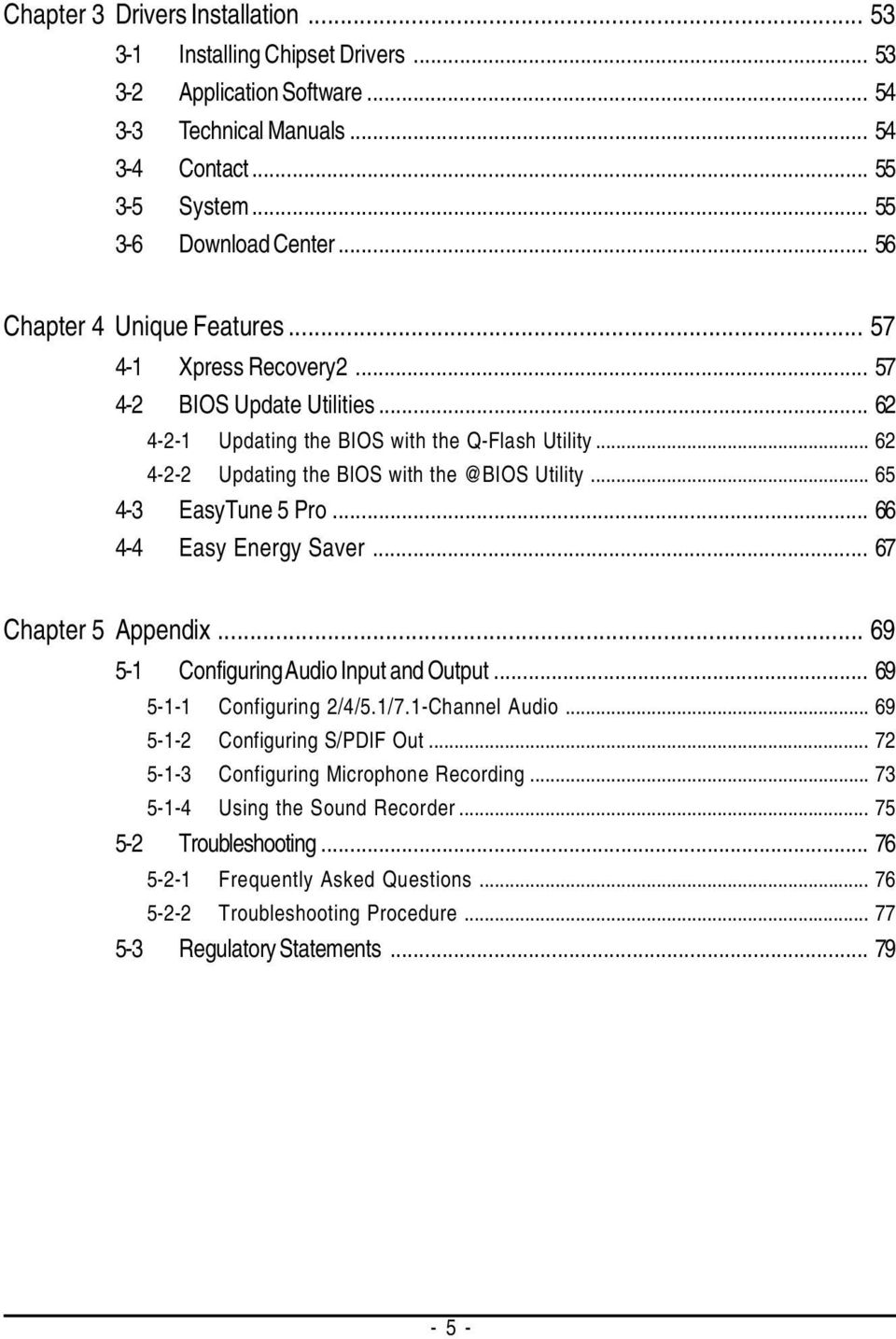
5 Chapter 3 Drivers Installation Installing Chipset Drivers Application Software Technical Manuals Contact System Download Center Chapter 4 Unique Features Xpress Recovery BIOS Update Utilities Updating the BIOS with the Q-Flash Utility Updating the BIOS with Utility EasyTune 5 Pro Easy Energy Saver Chapter 5 Appendix Configuring Audio Input and Output Configuring 2/4/5.1/7.1-Channel Audio Configuring S/PDIF Out Configuring Microphone Recording Using the Sound Recorder Troubleshooting Frequently Asked Questions Troubleshooting Procedure Regulatory Statements
6 Box Contents GA-P31-ES3G motherboard Motherboard driver disk User's Manual One IDE cable and one floppy disk drive cable Two SATA 3Gb/s cables I/O Shield The box contents above are for reference only and the actual items shall depend on product package you obtain. The box contents are subject to change without notice. The motherboard image is for reference only. Optional Items 2-port USB 2.0 bracket (Part No. 12CR1-1UB030-51R) 2-port SATA power cable (Part No. 12CF1-2SERPW-01R) - 6 -

7 GA-P31-ES3G Motherboard Layout KB_MS ATX_12V CPU_FAN LGA775 LPT COMA COAXIAL ATX USB R_USB LAN AUDIO Intel P31/ G31 GA-P31-ES3G F_AUDIO RTL8111C PCIE_1 PCIE_16 SYS_FAN1 DDRII1 DDRII2 IDE PWR_LED F_PANEL IT8718 PCIE_2 CD_IN CODEC SPDIF_O PCIE_3 PCI1 BATTERY Intel ICH7 CLR_CMOS PWR_FAN SATA2_3 SATA2_2 PCI2 F_USB1 F_USB2 M_BIOS B_BIOS SATA2_1 SATA2_0 PCI3 FDD SYS_FAN2 CI - 7 -

8 Block Diagram PCIe CLK (100 MHz) LGA775 Processor CPU CLK+/- (333/266/200 MHz) PCI Express x16 3 PCI Express x1 Intel P31/G31 Host Interface DDR2 1066/800/667 MHz Dual Channel Memory MCH CLK (333/266/200 MHz) PCIe CLK (100 MHz) x1 x1 x1 Dual BIOS ATA-100/66/33 IDE Channel PCI Express Bus RTL8111C RJ45 Intel ICH7 4 SATA 3Gb/s 8 USB Ports LAN PCI Bus Floppy CODEC IT8718 LPT Port COM Port PS/2 KB/Mouse 3 PCI PCI CLK (33 MHz) Line-Out (Front Speaker Out) MIC (Center/Subwoofer Speaker Out) Line-In (Rear Speaker Out) SPDIF Out - 8 -

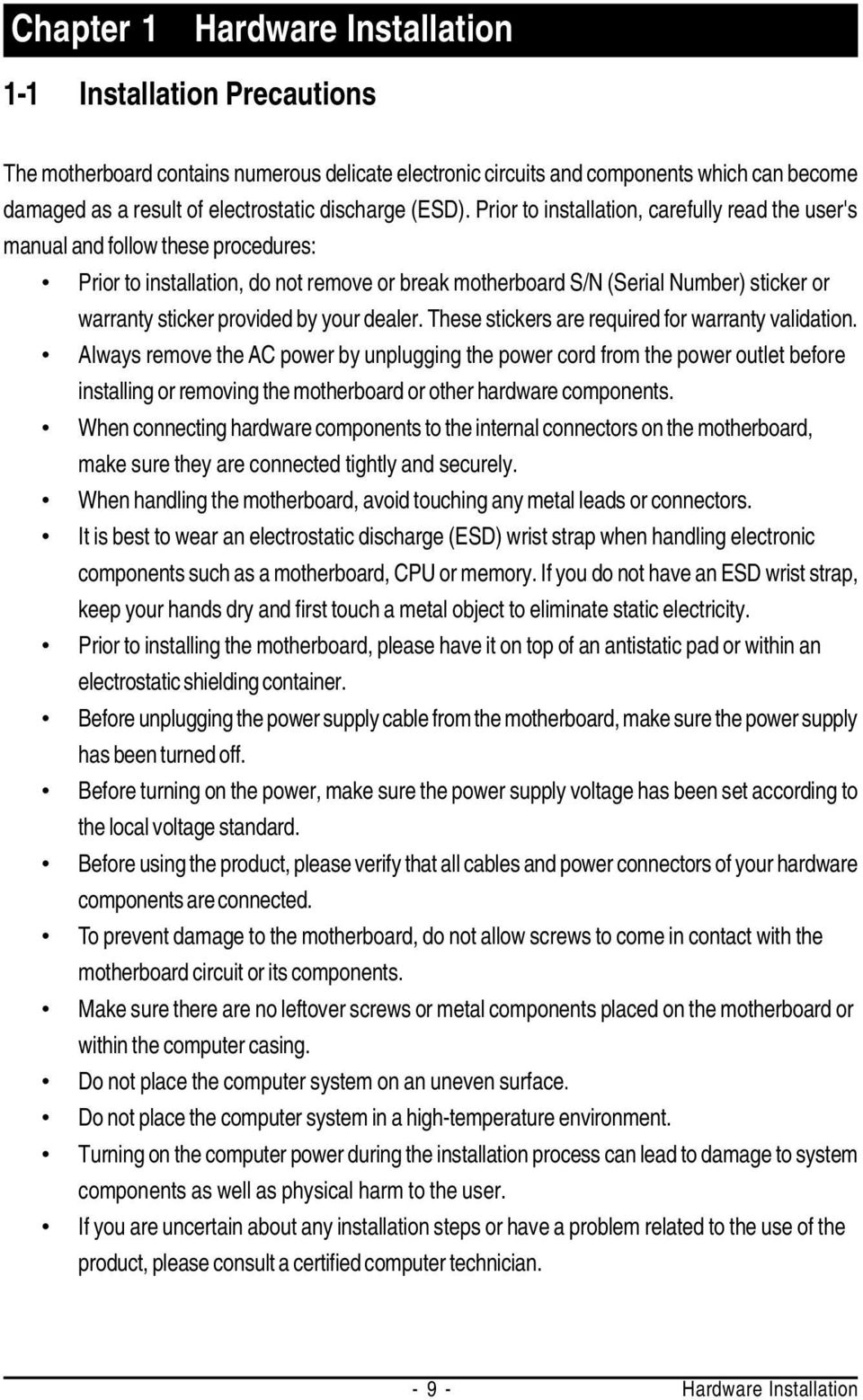
9 Chapter 1 Hardware Installation 1-1 Installation Precautions The motherboard contains numerous delicate electronic circuits and components which can become damaged as a result of electrostatic discharge (ESD). Prior to installation, carefully read the user's manual and follow these procedures: Prior to installation, do not remove or break motherboard S/N (Serial Number) sticker or warranty sticker provided by your dealer. These stickers are required for warranty validation. Always remove the AC power by unplugging the power cord from the power outlet before installing or removing the motherboard or other hardware components. When connecting hardware components to the internal connectors on the motherboard, make sure they are connected tightly and securely. When handling the motherboard, avoid touching any metal leads or connectors. It is best to wear an electrostatic discharge (ESD) wrist strap when handling electronic components such as a motherboard, CPU or memory. If you do not have an ESD wrist strap, keep your hands dry and first touch a metal object to eliminate static electricity. Prior to installing the motherboard, please have it on top of an antistatic pad or within an electrostatic shielding container. Before unplugging the power supply cable from the motherboard, make sure the power supply has been turned off. Before turning on the power, make sure the power supply voltage has been set according to the local voltage standard. Before using the product, please verify that all cables and power connectors of your hardware components are connected. To prevent damage to the motherboard, do not allow screws to come in contact with the motherboard circuit or its components. Make sure there are no leftover screws or metal components placed on the motherboard or within the computer casing. Do not place the computer system on an uneven surface. Do not place the computer system in a high-temperature environment. Turning on the computer power during the installation process can lead to damage to system components as well as physical harm to the user. If you are uncertain about any installation steps or have a problem related to the use of the product, please consult a certified computer technician Hardware Installation
10 1-2 Product Specifications CPU Support for an Intel Core TM 2 Extreme processor/ Intel Core TM 2 Quad processor/intel Core TM 2 Duo processor/ Intel Pentium processor Extreme Edition/Intel Pentium D processor/ Intel Pentium 4 processor Extreme Edition/Intel Pentium 4 processor/ Intel Celeron processor in the LGA 775 package (Go to GIGABYTE's website for the latest CPU support list.) L2 cache varies with CPU Front Side Bus 1333/1066/800 MHz FSB Chipset North Bridge: Intel P31/G31 Express Chipset South Bridge: Intel ICH7 Memory (Note 1) 2 x 1.8V DDR2 DIMM sockets supporting up to 4 GB of system memory Dual channel memory architecture Support for DDR2 1066/800/667 MHz memory modules (Go to GIGABYTE's website for the latest memory support list.) Audio Realtek ALC888 codec High Definition Audio (Note 2) 2/4/5.1/7.1-channel Support for S/PDIF Out Support for CD In LAN RTL 8111C chip (10/100/1000 Mbit) Expansion Slots 1 x PCI Express x16 slot 3 x PCI Express x1 slots 3 x PCI slots Storage Interface South Bridge: - 1 x IDE connector supporting ATA-100/66/33 and up to 2 IDE devices - 4 x SATA 3Gb/s connectors supporting up to 4 SATA 3Gb/s devices ite IT8718 chip: - 1 x floppy disk drive connector supporting up to 1 floppy disk drive USB Integrated in the South Bridge Up to 8 USB 2.0/1.1 ports (4 on the back panel, 4 via the USB brackets connected to the internal USB headers) GA-P31-ES3G Motherboard

11 Internal Connectors 1 x 24-pin ATX main power connector 1 x 4-pin ATX 12V power connector 1 x floppy disk drive connector 1 x IDE connector 4 x SATA 3Gb/s connectors 1 x CPU fan header 2 x system fan headers 1 x power fan header 1 x front panel header 1 x front panel audio header 1 x CD In connector 1 x S/PDIF Out header 2 x USB 2.0/1.1 headers 1 x chassis intrusion header 1 x power LED header Back Panel 1 x PS/2 keyboard port Connectors 1 x PS/2 mouse port 1 x parallel port 1 x serial port 1 x coaxial S/PDIF Out connector 4 x USB 2.0/1.1 ports 1 x RJ-45 port 3 x audio jacks (Line In/Line Out/Microphone) I/O Controller ite IT8718 chip Hardware Monitor System voltage detection CPU temperature detection CPU/System/Power fan speed detection CPU overheating warning CPU/System/Power fan fail warning (Note 3) CPU fan speed control BIOS 2 x 4 Mbit flash Use of licensed AWARD BIOS Support for DualBIOS TM PnP 1.0a, DMI 2.0, SM BIOS 2.4, ACPI 1.0b Hardware Installation

12 Unique Features Support Support for Download Center Support for Q-Flash (Note 4) Support for EasyTune Support for Xpress Install Support for Xpress Recovery2 Support for Virtual Dual BIOS (Note 5) Support for Easy Energy Saver Bundled Software Norton Internet Security (OEM version) Operating System Support for Microsoft Windows Vista/XP Form Factor ATX Form Factor; 30.5cm x 19.4cm (Note 1) Based on standard PC architecture, a certain amount of memory is reserved for system usage and therefore the actual memory size is less than the stated amount. For example, 4 GB of memory size will instead be shown as 3.xx GB during system startup. (Note 2) To enable 7.1-channel audio, you have to use an HD front panel audio module and enable the multi-channel audio feature through the audio driver. (Note 3) Whether the CPU fan speed control function is supported will depend on the CPU cooler you install. (Note 4) Available functions in EasyTune may differ by motherboard model. (Note 5) Due to the hardware limitation, you must install the Intel Core TM 2 Extreme/ Core TM 2 Quad/ Core TM 2 Duo/ Pentium Dual-Core/ Celeron Dual-Core/ Celeron 400 Series CPU to enable support for Easy Energy Saver. GA-P31-ES3G Motherboard
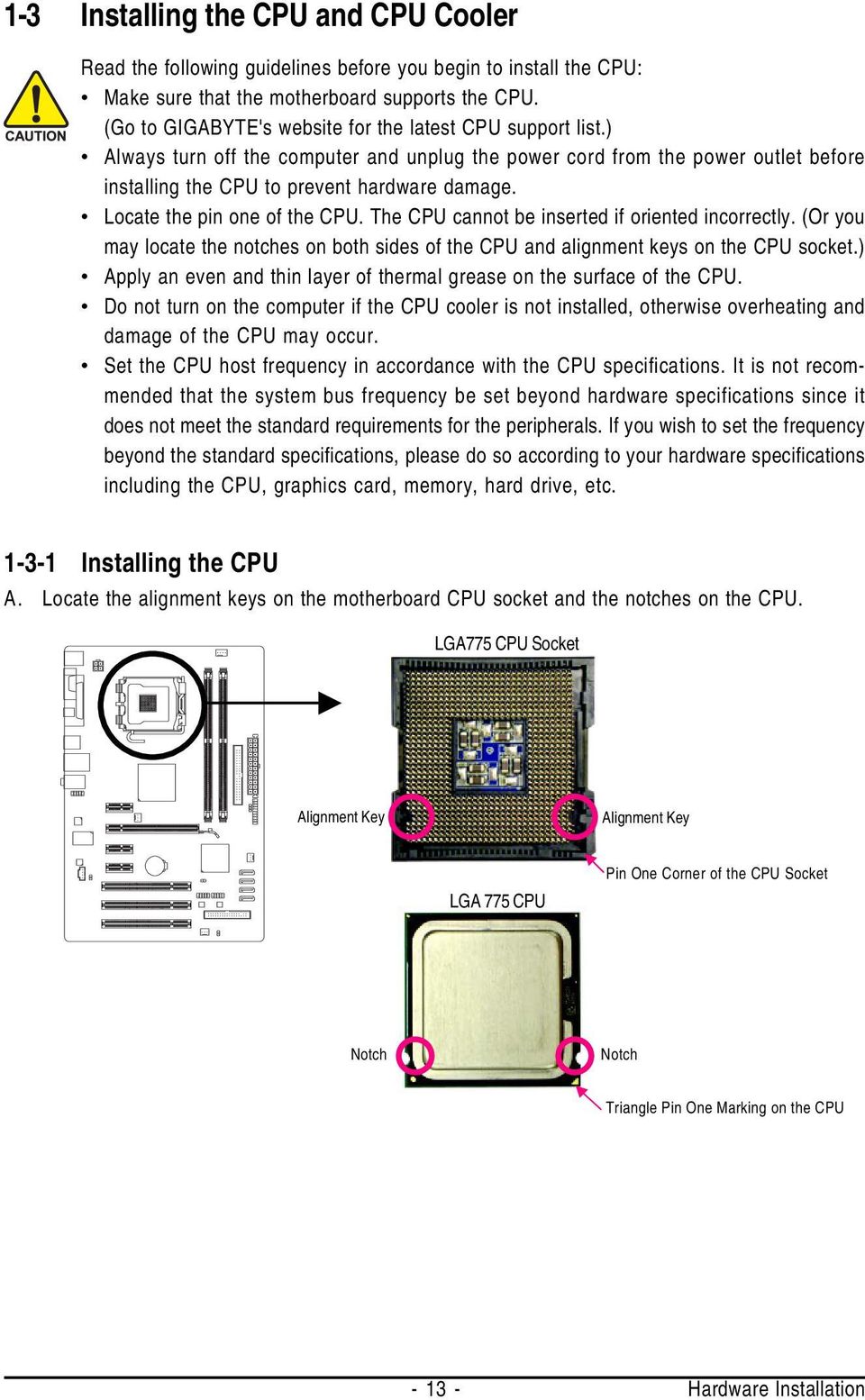
13 1-3 Installing the CPU and CPU Cooler Read the following guidelines before you begin to install the CPU: Make sure that the motherboard supports the CPU. (Go to GIGABYTE's website for the latest CPU support list.) Always turn off the computer and unplug the power cord from the power outlet before installing the CPU to prevent hardware damage. Locate the pin one of the CPU. The CPU cannot be inserted if oriented incorrectly. (Or you may locate the notches on both sides of the CPU and alignment keys on the CPU socket.) Apply an even and thin layer of thermal grease on the surface of the CPU. Do not turn on the computer if the CPU cooler is not installed, otherwise overheating and damage of the CPU may occur. Set the CPU host frequency in accordance with the CPU specifications. It is not recommended that the system bus frequency be set beyond hardware specifications since it does not meet the standard requirements for the peripherals. If you wish to set the frequency beyond the standard specifications, please do so according to your hardware specifications including the CPU, graphics card, memory, hard drive, etc Installing the CPU A. Locate the alignment keys on the motherboard CPU socket and the notches on the CPU. LGA775 CPU Socket Alignment Key Alignment Key LGA 775 CPU Pin One Corner of the CPU Socket Notch Notch Triangle Pin One Marking on the CPU Hardware Installation
14 B. Follow the steps below to correctly install the CPU into the motherboard CPU socket. Before installing the CPU, make sure to turn off the computer and unplug the power cord from the power outlet to prevent damage to the CPU. CPU Socket Lever Step 1: Completely raise the CPU socket lever. Step 2: Lift the metal load plate from the CPU socket. (DO NOT touch socket contacts.) Step 3: Remove the protective socket cover from the load plate. (To protect the CPU socket, always replace the protective socket cover when the CPU is not installed.) Step 4: Hold the CPU with your thumb and index fingers. Align the CPU pin one marking (triangle) with the pin one corner of the CPU socket (or you may align the CPU notches with the socket alignment keys) and gently insert the CPU into position. Step 5: Once the CPU is properly inserted, replace the load plate and push the CPU socket lever back into its locked position. GA-P31-ES3G Motherboard

15 1-3-2 Installing the CPU Cooler Follow the steps below to correctly install the CPU cooler on the motherboard. (The following procedure uses Intel boxed cooler as the example cooler.) Direction of the Arrow Sign on the Male Push Pin Male Push Pin The Top of Female Push Pin Female Push Pin Step 1: Apply an even and thin layer of thermal grease on the surface of the installed CPU. Step 2: Before installing the cooler, note the direction of the arrow sign on the male push pin. (Turning the push pin along the direction of arrow is to remove the cooler, on the contrary, is to install.) Step 3: Place the cooler atop the CPU, aligning the four push pins through the pin holes on the motherboard. Push down on the push pins diagonally. Step 4: You should hear a "click" when pushing down each push pin. Check that the Male and Female push pins are joined closely. (Refer to your CPU cooler installation manual for instructions on installing the cooler.) Step 5: After the installation, check the back of the motherboard. If the push pin is inserted as the picture above, the installation is complete. Use extreme care when removing the CPU cooler because the thermal grease/tape between the CPU cooler and CPU may adhere to the CPU. Inadequately removing the CPU cooler may damage the CPU Step 6: Finally, attach the power connector of the CPU cooler to the CPU fan header (CPU_FAN) on the motherboard. Hardware Installation

16 1-4 Installing the Memory Read the following guidelines before you begin to install the memory: Make sure that the motherboard supports the memory. It is recommended that memory of the same capacity, brand, speed, and chips be used. (Go to GIGABYTE's website for the latest memory support list.) Always turn off the computer and unplug the power cord from the power outlet before installing the memory to prevent hardware damage. Memory modules have a foolproof design. A memory module can be installed in only one direction. If you are unable to insert the memory, switch the direction Dual Channel Memory Configuration This motherboard provides two DDR2 memory sockets and supports Dual Channel Technology. After the memory is installed, the BIOS will automatically detect the specifications and capacity of the memory. Enabling Dual Channel memory mode will double the original memory bandwidth. The two DDR2 memory sockets are divided into two channels and each channel has one memory socket as following: Channel 0: DDRII1 Channel 1: DDRII2 DDRII1 DDRII2 Due to chipset limitation, read the following guidelines before installing the memory in Dual Channel mode. 1. Dual Channel mode cannot be enabled if only one DDR2 memory module is installed. 2. When enabling Dual Channel mode with two memory modules, it is recommended that memory of the same capacity, brand, speed, and chips be used. GA-P31-ES3G Motherboard

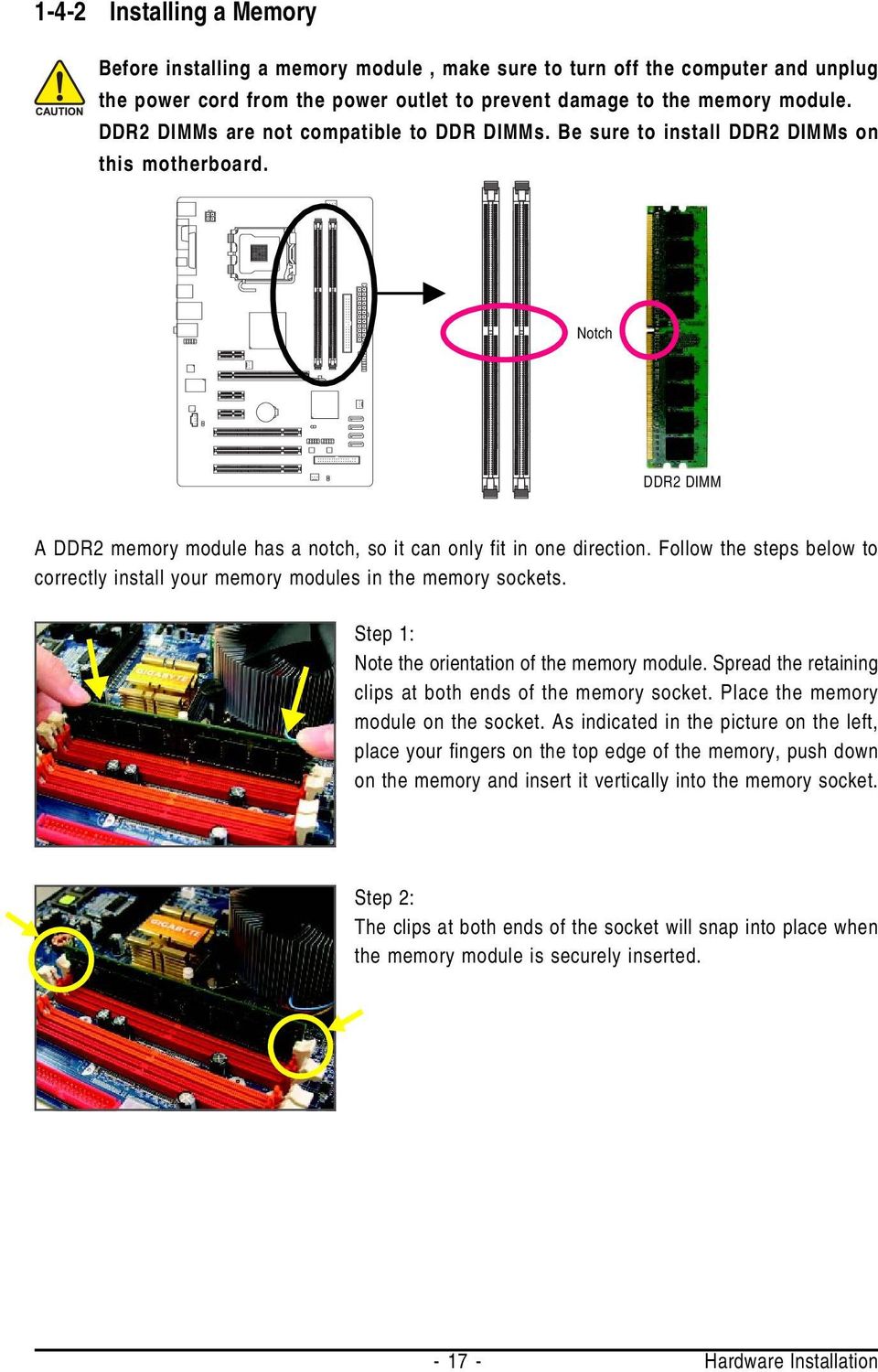
17 1-4-2 Installing a Memory Before installing a memory module, make sure to turn off the computer and unplug the power cord from the power outlet to prevent damage to the memory module. DDR2 DIMMs are not compatible to DDR DIMMs. Be sure to install DDR2 DIMMs on this motherboard. Notch DDR2 DIMM A DDR2 memory module has a notch, so it can only fit in one direction. Follow the steps below to correctly install your memory modules in the memory sockets. Step 1: Note the orientation of the memory module. Spread the retaining clips at both ends of the memory socket. Place the memory module on the socket. As indicated in the picture on the left, place your fingers on the top edge of the memory, push down on the memory and insert it vertically into the memory socket. Step 2: The clips at both ends of the socket will snap into place when the memory module is securely inserted Hardware Installation
18 1-5 Installing an Expansion Card Read the following guidelines before you begin to install an expansion card: Make sure the motherboard supports the expansion card. Carefully read the manual that came with your expansion card. Always turn off the computer and unplug the power cord from the power outlet before installing an expansion card to prevent hardware damage. PCI Express x1 Slot PCI Express x16 Slot PCI Slot Follow the steps below to correctly install your expansion card in the expansion slot. 1. Locate an expansion slot that supports your card. Remove the metal slot cover from the chassis back panel. 2. Align the card with the slot, and press down on the card until it is fully seated in the slot. 3. Make sure the metal contacts on the card are completely inserted into the slot. 4. Secure the card's metal bracket to the chassis back panel with a screw. 5. After installing all expansion cards, replace the chassis cover(s). 6. Turn on your computer. If necessary, go to BIOS Setup to make any required BIOS changes for your expansion card(s). 7. Install the driver provided with the expansion card in your operating system. Example: Installing and Removing a PCI Express x16 Graphics Card: Installing a Graphics Card: Gently push down on the top edge of the card until it is fully inserted into the PCI Express x16 slot. Make sure the card is securely seated in the slot and does not rock. Removing the Card: Gently push back on the lever on the slot and then lift the card straight out from the slot. GA-P31-ES3G Motherboard

19 1-6 Back Panel Connectors PS/2 Keyboard and PS/2 Mouse Port Use the upper port (green) to connect a PS/2 mouse and the lower port (purple) to connect a PS/2 keyboard. Parallel Port Use the parallel port to connect devices such as a printer, scanner and etc. The parallel port is also called a printer port. Serial Port Use the serial port to connect devices such as a mouse, modem or other peripherals. Coaxial S/PDIF Out Connector This connector provides digital audio out to an external audio system that supports digital coaxial audio. Before using this feature, ensure that your audio system provides a coaxial digital audio in connector. USB Port The USB port supports the USB 2.0/1.1 specification. Use this port for USB devices such as an USB keyboard/mouse, USB printer, USB flash drive and etc. RJ-45 LAN Port The Gigabit Ethernet LAN port provides Internet connection at up to 1 Gbps data rate. The following describes the states of the LAN port LEDs. Connection/ Speed LED LAN Port Activity LED Connection/Speed LED: State Description Orange 1 Gbps data rate Green Off 100 Mbps data rate 10 Mbps data rate Activity LED: State Description Blinking Data transmission or receiving is occurring Off No data transmission or receiving is occurring When removing the cable connected to a back panel connector, first remove the cable from your device and then remove it from the motherboard. When removing the cable, pull it straight out from the connector. Do not rock it side to side to prevent an electrical short inside the cable connector Hardware Installation

20 Line In Jack (Blue) The default line in jack. Use this audio jack for line in devices such as an optical drive, walkman, etc. Line Out Jack (Green) The default line out jack. Use this audio jack for a headphone or 2-channel speaker. This jack can be used to connect front speakers in a 4/5.1-channel audio configuration. Mic In Jack (Pink) The default Mic in jack. Microphones must be connected to this jack. To enable 7.1-channel audio, you have to use an HD front panel audio module and enable the multi-channel audio feature through the audio driver. Refer to the instructions on setting up a 2/4/5.1/7.1-channel audio configuration in Chapter 5, "Configuring 2/4/5.1/7.1-Channel Audio." GA-P31-ES3G Motherboard

21 1-7 Internal Connectors ) ATX_12V 2) ATX 3) CPU_FAN 4) SYS_FAN1/SYS_FAN2 5) PWR_FAN 6) FDD 7) IDE 8) SATA2_0/1/2/3 9) PWR_LED 10) F_AUDIO 11) F_PANEL 12) CD_IN 13) SPDIF_O 14) F_USB1/F_USB2 15) CLR_CMOS 16) CI 17) BATTERY Read the following guidelines before connecting external devices: First make sure your devices are compliant with the connectors you wish to connect. Before installing the devices, be sure to turn off the devices and your computer. Unplug the power cord from the power outlet to prevent damage to the devices. After installing the device and before turning on the computer, make sure the device cable has been securely attached to the connector on the motherboard Hardware Installation
22 1/2) ATX_12V/ATX (2x2 12V Power Connector and 2x12 Main Power Connector) With the use of the power connector, the power supply can supply enough stable power to all the components on the motherboard. Before connecting the power connector, first make sure the power supply is turned off and all devices are properly installed. The power connector possesses a foolproof design. Connect the power supply cable to the power connector in the correct orientation. The 12V power connector mainly supplies power to the CPU. If the 12V power connector is not connected, the computer will not start. To meet expansion requirements, it is recommended that a power supply that can withstand high power consumption be used (500W or greater). If a power supply is used that does not provide the required power, the result can lead to an unstable or unbootable system. The main power connector is compatible with power supplies with 2x10 power connectors. When using a 2x12 power supply, remove the protective cover from the main power connector on the motherboard. Do not insert the power supply cable into pins under the protective cover when using a 2x10 power supply ATX_12V ATX_12V: Pin No. Definition 1 GND 2 GND 3 +12V 4 +12V ATX: Pin No. Definition 1 3.3V 2 3.3V 3 GND 4 +5V 5 GND 6 +5V 7 GND 8 Power Good 9 5V SB(stand by +5V) V V (Only for 2x12-pin ATX) V (Only for 2x12-pin ATX) Pin No. Definition V 14-12V 15 GND 16 PS_ON(soft On/Off) 17 GND 18 GND 19 GND 20-5V 21 +5V 22 +5V 23 +5V (Only for 2x12-pin ATX) 24 GND (Only for 2x12-pin ATX) ATX GA-P31-ES3G Motherboard
23 3/4/5) CPU_FAN/SYS_FAN1/SYS_FAN2/PWR_FAN (Fan Headers) The motherboard has a 4-pin CPU fan header (CPU_FAN), two 3-pin system fan headers (SYS_FAN1 and SYS_FAN2), and a 3-pin power fan header (PWR_FAN). Most fan headers possess a foolproof insertion design. When connecting a fan cable, be sure to connect it in the correct orientation (the black connector wire is the ground wire). The motherboard supports CPU fan speed control, which requires the use of a CPU fan with fan speed control design. For optimum heat dissipation, it is recommended that a system fan be installed inside the chassis. CPU_FAN: Pin No. Definition 1 GND V / Speed Control 3 Sense CPU_FAN 4 Speed Control 1 SYS_FAN1 1 SYS_FAN2 SYS_FAN1/SYS_FAN2: Pin No. Definition 1 GND 2 +12V 3 Sense 1 PWR_FAN PWR_FAN Pin No. Definition 1 GND 2 +12V 3 Sense Be sure to connect fan cables to the fan headers to prevent your CPU and system from overheating. Overheating may result in damage to the CPU or the system may hang. These fan headers are not configuration jumper blocks. Do not place a jumper cap on the headers. 6) FDD (Floppy Disk Drive Connector) This connector is used to connect a floppy disk drive. The types of floppy disk drives supported are: 360 KB, 720 KB, 1.2 MB, 1.44 MB, and 2.88 MB. Before connecting a floppy disk drive, be sure to locate pin 1 of the connector and the floppy disk drive cable. The pin 1 of the cable is typically designated by a stripe of different color Hardware Installation
24 7) IDE (IDE Connector) The IDE connector supports up to two IDE devices such as hard drives and optical drives. Before attaching the IDE cable, locate the foolproof groove on the connector. If you wish to connect two IDE devices, remember to set the jumpers and the cabling according to the role of the IDE devices (for example, master or slave). (For information about configuring master/slave settings for the IDE devices, read the instructions from the device manufacturers.) ) SATA2_0/1/2/3 (SATA 3Gb/s Connectors, Controlled by ICH7) The SATA connectors conform to SATA 3Gb/s standard and are compatible with SATA 1.5Gb/s standard. Each SATA connector supports a single SATA device. SATA2_3 7 1 SATA2_2 7 1 SATA2_1 7 1 SATA2_0 7 1 Pin No. Definition 1 GND 2 TXP 3 TXN 4 GND 5 RXN 6 RXP 7 GND Please connect the L-shaped end of the SATA 3Gb/s cable to your SATA hard drive. GA-P31-ES3G Motherboard
25 9) PWR_LED (System Power LED Header) This header can be used to connect a system power LED on the chassis to indicate system power status. The LED is on when the system is operating. The LED keeps blinking when the system is in S1 sleep state. The LED is off when the system is in S3/S4 sleep state or powered off (S5). 1 Pin No. Definition 1 MPD+ 2 MPD- 3 MPD- System Status S0 S1 S3/S4/S5 LED On Blinking Off 10) F_AUDIO (Front Panel Audio Header) The front panel audio header supports Intel High Definition audio (HD) and AC'97 audio. You may connect your chassis front panel audio module to this header. Make sure the wire assignments of the module connector match the pin assignments of the motherboard header. Incorrect connection between the module connector and the motherboard header will make the device unable to work or even damage it. For HD Front Panel Audio: For AC'97 Front Panel Audio: Pin No. Definition Pin No. Definition MIC2_L 1 MIC 2 GND 2 GND MIC2_R 3 MIC Power 4 -ACZ_DET 4 NC 5 LINE2_R 5 Line Out (R) 6 GND 6 NC 7 FAUDIO_JD 7 NC 8 No Pin 8 No Pin 9 LINE2_L 9 Line Out (L) 10 GND 10 NC The front panel audio header supports HD audio by default. If your chassis provides an AC'97 front panel audio module, refer to the instructions on how to activate AC'97 functioninality via the audio software in Chapter 5, "Configuring 2/4/5.1/7.1-Channel Audio." Audio signals will be present on both of the front and back panel audio connections simultaneously. If you want to mute the back panel audio (only supported when using an HD front panel audio module), refer to Chapter 5, "Configuring 2/4/5.1/7.1-Channel Audio." Some chassis provide a front panel audio module that has separated connectors on each wire instead of a single plug. For information about connecting the front panel audio module that has different wire assignments, please contact the chassis manufacturer Hardware Installation
26 11) F_PANEL (Front Panel Header) Connect the power switch, reset switch, speaker and system status indicator on the chassis front panel to this header according to the pin assignments below. Note the positive and negative pins before connecting the cables. Speaker Connector SPEAK- SPEAK Power Switch Message LED/ Power/ Sleep LED PW- PW+ MSG- MSG+ 2 1 NC RES+ RES- HD- HD+ Reset Switch IDE Hard Drive Activity LED MSG (Message/Power/Sleep LED, Yellow): System Status LED Connects to the power status indicator on the chassis front panel. The S0 On LED is on when the system is operating. The LED keeps blinking when S1 Blinking the system is in S1 sleep state. The LED is off when the system is in S3/S4/S5 Off S3/S4 sleep state or powered off (S5). PW (Power Switch, Red): Connects to the power switch on the chassis front panel. You may configure the way to turn off your system using the power switch (refer to Chapter 2, "BIOS Setup," "Power Management Setup," for more information). SPEAK (Speaker, Orange): Connects to the speaker on the chassis front panel. The system reports system startup status by issuing a beep code. One single short beep will be heard if no problem is detected at system startup. If a problem is detected, the BIOS may issue beeps in different patterns to indicate the problem. Refer to Chapter 5, "Troubleshooting," for information about beep codes. HD (IDE Hard Drive Activity LED, Blue) Connects to the hard drive activity LED on the chassis front panel. The LED is on when the hard drive is reading or writing data. RES (Reset Switch, Green): Connects to the reset switch on the chassis front panel. Press the reset switch to restart the computer if the computer freezes and fails to perform a normal restart. NC (Purple): No connection The front panel design may differ by chassis. A front panel module mainly consists of power switch, reset switch, power LED, hard drive activity LED, speaker and etc. When connecting your chassis front panel module to this header, make sure the wire assignments and the pin assignments are matched correctly. GA-P31-ES3G Motherboard
27 12) CD_IN (CD In Connector) You may connect the audio cable that came with your optical drive to the header. 1 Pin No. Definition 1 CD-L 2 GND 3 GND 4 CD-R 13) SPDIF_O (S/PDIF Out Header) This header supports digital S/PDIF out and connects a S/PDIF digital audio cable (provided by expansion cards) for digital audio output from your motherboard to certain expansion cards like graphics cards and sound cards. For example, some graphics cards may require you to use a S/PDIF digital audio cable for digital audio output from your motherboard to your graphics card if you wish to connect an HDMI display to the graphics card and have digital audio output from the HDMI display at the same time. For information about connecting the S/PDIF digital audio cable, carefully read the manual for your expansion card. 1 Pin No. Definition 1 SPDIFO 2 GND Hardware Installation
28 14) F_USB1/F_USB2 (USB Headers) The headers conform to USB 2.0/1.1 specification. Each USB header can provide two USB ports via an optional USB bracket. For purchasing the optional USB bracket, please contact the local dealer Pin No. Definition 1 Power (5V) 2 Power (5V) 3 USB DX- 4 USB DY- 5 USB DX+ 6 USB DY+ 7 GND 8 GND 9 No Pin 10 NC Do not plug the IEEE 1394 bracket (2x5-pin) cable into the USB header. Prior to installing the USB bracket, be sure to turn off your computer and unplug the power cord from the power outlet to prevent damage to the USB bracket. 15) CLR_CMOS (Clearing CMOS Jumper) Use this jumper to clear the CMOS values (e.g. date information and BIOS configurations) and reset the CMOS values to factory defaults. To clear the CMOS values, place a jumper cap on the two pins to temporarily short the two pins or use a metal object like a screwdriver to touch the two pins for a few seconds. Open: Normal Short: Clear CMOS Values Always turn off your computer and unplug the power cord from the power outlet before clearing the CMOS values. After clearing the CMOS values and before turning on your computer, be sure to remove the jumper cap from the jumper. Failure to do so may cause damage to the motherboard. After system restart, go to BIOS Setup to load factory defaults (select Load Optimized Defaults) or manually configure the BIOS settings (refer to Chapter 2, "BIOS Setup," for BIOS configurations). GA-P31-ES3G Motherboard
29 16) CI (Chassis Intrusion Header) This motherboard provides a chassis detection feature that detects if the chassis cover has been removed. This function requires a chassis with chassis intrusion detection design. 1 Pin No. Definition 1 Signal 2 GND 17) BATTERY The battery provides power to keep the values (such as BIOS configurations, date, and time information) in the CMOS when the computer is turned off. Replace the battery when the battery voltage drops to a low level, or the CMOS values may not be accurate or may be lost. You may clear the CMOS values by removing the battery: 1. Turn off your computer and unplug the power cord. 2. Gently remove the battery from the battery holder and wait for one minute. (Or use a metal object like a screwdriver to touch the positive and negative terminals of the battery holder, making them short for 5 seconds.) 3. Replace the battery. 4. Plug in the power cord and restart your computer. Always turn off your computer and unplug the power cord before replacing the battery. Replace the battery with an equivalent one. Danger of explosion if the battery is replaced with an incorrect model. Contact the place of purchase or local dealer if you are not able to replace the battery by yourself or uncertain about the battery model. When installing the battery, note the orientation of the positive side (+) and the negative side (-) of the battery (the positive side should face up). Used batteries must be handled in accordance with local environmental regulations Hardware Installation
30 GA-P31-ES3G Motherboard
31 Chapter 2 BIOS Setup BIOS (Basic Input and Output System) records hardware parameters of the system in the CMOS on the motherboard. Its major functions include conducting the Power-On Self-Test (POST) during system startup, saving system parameters and loading operating system, etc. BIOS includes a BIOS Setup program that allows the user to modify basic system configuration settings or to activate certain system features. When the power is turned off, the battery on the motherboard supplies the necessary power to the CMOS to keep the configuration values in the CMOS. To access the BIOS Setup program, press the <Delete> key during the POST when the power is turned on. To see more advanced BIOS Setup menu options, you can press <Ctrl> + <F1> in the main menu of the BIOS Setup program. To upgrade the BIOS, use either the GIGABYTE Q-Flash utility. Q-Flash allows the user to quickly and easily upgrade or back up BIOS without entering the operating is a Windows-based utility that searches and downloads the latest version of BIOS from the Internet and updates the BIOS. For instructions on using the Q-Flash utilities, refer to Chapter 4, "BIOS Update Utilities." Because BIOS flashing is potentially risky, if you do not encounter problems using the current version of BIOS, it is recommended that you not flash the BIOS. To flash the BIOS, do it with caution. Inadequate BIOS flashing may result in system malfunction. BIOS will emit a beep code during the POST. Refer to Chapter 5, "Troubleshooting," for the beep codes description. It is recommended that you not alter the default settings (unless you need to) to prevent system instability or other unexpected results. Inadequately altering the settings may result in system's failure to boot. If this occurs, try to clear the CMOS values and reset the board to default values. (Refer to the "Load Optimized Defaults" section in this chapter or introductions of the battery/clearing CMOS jumper in Chapter 1 for how to clear the CMOS values.) BIOS Setup
32 2-1 Startup Screen The following screens may appear when the computer boots. A. The LOGO Screen (Default) <TAB>:POST Screen <DEL>:BIOS Setup/Q-Flash <F9>:XpressRecovery2 <F12>:Boot Menu <END>:Qflash Function Keys B. The POST Screen Motherboard Model BIOS Version Award Modular BIOS v6.00pg, An Energy Star Ally Copyright (C) , Award Software, Inc. Intel P31 BIOS for P31-ES3G E4.... <DEL>: BIOS Setup <F9>: XpressRecovery2 <F12>: Boot Menu <End>: Qflash 07/18/2008-P31-ICH7-6A89OG0DC-00 Function Keys Function Keys: <TAB>: POST Screen Press the <Tab> key to show the BIOS POST screen. To show the BIOS POST screen at system startup, refer to the instructions on the Full Screen LOGO Show item on page 38. <DEL>: BIOS Setup/Q-Flash Press the <Delete> key to enter BIOS Setup or to access the Q-Flash utility in BIOS Setup. <F9>: Xpress Recovery2 If you have ever entered Xpress Recovery2 to back up hard drive data using the motherboard driver disk, the <F9> key can be used for subsequent access to XpressRecovery2 during the POST. For more information, refer to Chapter 4, "Xpress Recovery2." <F12>: Boot Menu Boot Menu allows you to set the first boot device without entering BIOS Setup. In Boot Menu, use the up arrow key < > or the down arrow key< > to select the first boot device, then press <Enter> to accept. To exit Boot Menu, press <Esc>. The system will directly boot from the device configured in Boot Menu. Note: The setting in Boot Menu is effective for one time only. After system restart, the device boot order will still be based on BIOS Setup settings. You can access Boot Menu again to change the first boot device setting as needed. <End>: Q-Flash Press the <End> key to access the Q-Flash utility directly without having to enter BIOS Setup first. GA-P31-ES3G Motherboard
33 2-2 The Main Menu Once you enter the BIOS Setup program, the Main Menu (as shown below) appears on the screen. Use arrow keys to move among the items and press <Enter> to accept or enter a sub-menu. (Sample BIOS Version: E4) Standard CMOS Features Advanced BIOS Features Integrated Peripherals Power Management Setup PnP/PCI Configurations PC Health Status MB Intelligent Tweaker(M.I.T.) CMOS Setup Utility-Copyright (C) Award Software Load Fail-Safe Defaults Load Optimized Defaults Set Supervisor Password Set User Password Save & Exit Setup Exit Without Saving ESC: Quit : Select Item F11: Save CMOS to BIOS F8: Q-Flash F10: Save & Exit Setup F12: Load CMOS from BIOS Time, Date, Hard Disk Type... BIOS Setup Program Function Keys < >< >< >< > Move the selection bar to select an item <Enter> Execute command or enter the submenu <Esc> Main Menu: Exit the BIOS Setup program Submenus: Exit current submenu <Page Up> Increase the numeric value or make changes <Page Down> Decrease the numeric value or make changes <F1> Show descriptions of the function keys <F2> Move cursor to the Item Help block on the right (submenus only) <F5> Restore the previous BIOS settings for the current submenus <F6> Load the Fail-Safe BIOS default settings for the current submenus <F7> Load the Optimized BIOS default settings for the current submenus <F8> Access the Q-Flash utility <F9> Display system information <F10> Save all the changes and exit the BIOS Setup program <F11> Save CMOS to BIOS <F12> Load CMOS from BIOS Main Menu Help The onscreen description of a highlighted setup option is displayed on the bottom line of the Main Menu. Submenu Help While in a submenu, press <F1> to display a help screen (General Help) of function keys available for the menu. Press <Esc> to exit the help screen. Help for each item is in the Item Help block on the right side of the submenu. If you do not find the settings you want in the Main Menu or a submenu, press <Ctrl>+<F1> to access more advanced options. When the system is not stable as usual, select the Load Optimized Defaults item to set your system to its defaults. The BIOS Setup menus described in this chapter are for reference only and may differ by BIOS version BIOS Setup
34 The Functions of the <F11> and <F12> keys (For the Main Menu Only) F11: Save CMOS to BIOS This function allows you to save the current BIOS settings to a profile. You can create up to 8 profiles (Profile 1-8) and name each profile. First enter the profile name (to erase the default profile name, use the SPACE key) and then press <Enter> to complete. F12: Load CMOS from BIOS If your system becomes unstable and you have loaded the BIOS default settings, you can use this function to load the BIOS settings from a profile created before, without the hassles of reconfiguring the BIOS settings. First select the profile you wish to load, then press <Enter> to complete. Standard CMOS Features Use this menu to configure the system time and date, hard drive types, floppy disk drive types, and the type of errors that stop the system boot, etc. Advanced BIOS Features Use this menu to configure the device boot order, advanced features available on the CPU, and the primary display adapter. Integrated Peripherals Use this menu to configure all peripheral devices, such as IDE, SATA, USB, integrated audio, and integrated LAN, etc. Power Management Setup Use this menu to configure all the power-saving functions. PnP/PCI Configurations Use this menu to configure the system's PCI & PnP resources. PC Health Status Use this menu to see information about autodetected system/cpu temperature, system voltage and fan speed, etc. MB Intelligent Tweaker(M.I.T.) Use this menu to configure the clock, frequency and voltages of your CPU, memory, etc. Load Fail-Safe Defaults Fail-Safe defaults are factory settings for the most stable, minimal-performance system operations. Load Optimized Defaults Optimized defaults are factory settings for optimal-performance system operations. Set Supervisor Password Change, set, or disable password. It allows you to restrict access to the system and BIOS Setup. A supervisor password allows you to make changes in BIOS Setup. Set User Password Change, set, or disable password. It allows you to restrict access to the system and BIOS Setup. An user password only allows you to view the BIOS settings but not to make changes. Save & Exit Setup Save all the changes made in the BIOS Setup program to the CMOS and exit BIOS Setup. (Pressing <F10> can also carry out this task.) Exit Without Saving Abandon all changes and the previous settings remain in effect. Pressing <Y> to the confirmation message will exit BIOS Setup. (Pressing <Esc> can also carry out this task.) GA-P31-ES3G Motherboard
35 2-3 Standard CMOS Features CMOS Setup Utility-Copyright (C) Award Software Standard CMOS Features Date (mm:dd:yy) Wed, Feb Time (hh:mm:ss) 22:31:24 IDE Channel 0 Master [None] IDE Channel 0 Slave [None] IDE Channel 2 Master [None] IDE Channel 2 Slave [None] IDE Channel 3 Master [None] IDE Channel 3 Slave [None] Drive A [1.44M, 3.5"] Floppy 3 Mode Support [Disabled] Item Help Menu Level Halt On Base Memory Extended Memory Total Memory [All, But Keyboard] 640K 510M 512M : Move Enter: Select +/-/PU/PD: Value F10: Save ESC: Exit F1: General Help F5: Previous Values F6: Fail-Safe Defaults F7: Optimized Defaults Date Sets the system date. The date format is week (read-only), month, date and year. Select the desired field and use the up arrow or down arrow key to set the date. Time Sets the system time. For example, 1 p.m. is 13:0:0. Select the desired field and use the up arrow or down arrow key to set the time. IDE Channel 0 Master/Slave IDE HDD Auto-Detection Press <Enter> to autodetect the parameters of the IDE/SATA device on this channel. IDE Channel 0 Master/Slave Configure your IDE/SATA devices by using one of the three methods below: Auto Lets BIOS automatically detect IDE/SATA devices during the POST. (Default) None If no IDE/SATA devices are used, set this item to None so the system will skip the detection of the device during the POST for faster system startup. Manual Allows you to manually enter the specifications of the hard drive when the hard drive access mode is set to CHS. Access Mode Sets the hard drive access mode. Options are: Auto (default), CHS, LBA, Large. IDE Channel 2, 3 Master/Slave IDE Auto-Detection Press <Enter> to autodetect the parameters of the IDE/SATA device on this channel. Extended IDE Drive Configure your IDE/SATA devices by using one of the two methods below: Auto Lets BIOS automatically detect IDE/SATA devices during the POST. (Default) None If no IDE/SATA devices are used, set this item to None so the system will skip the detection of the device during the POST for faster system startup. Access Mode Sets the hard drive access mode. Options are: Auto (default), Large BIOS Setup
36 The following fields display your hard drive specifications. If you wish to enter the parameters manually, refer to the information on the hard drive. Capacity Approximate capacity of the currently installed hard drive. Cylinder Number of cylinders. Head Number of heads. Precomp Write precompensation cylinder. Landing Zone Landing zone. Sector Number of sectors. Drive A Allows you to selects the type of floppy disk drive installed in your system. If you do not install a floppy disk drive, set this item to None. Options are: None, 360K/5.25", 1.2M/5.25", 720K/3.5", 1.44M/3.5", 2.88M/3.5". Floppy 3 Mode Support Allows you to specify whether the installed floppy disk drive is 3-mode floppy disk drive, a Japanese standard floppy disk drive. Options are: Disabled (default), Drive A. Halt On Allows you to determine whether the system will stop for an error during the POST. No Errors The system boot will not stop for any error. All Errors Whenever the BIOS detects a non-fatal error the system boot will stop. All, But Keyboard The system boot will not stop for a keyboard error but stop for all other errors. (Default) All, But Diskette The system boot will not stop for a floppy disk drive error but stop for all other errors. All, But Disk/Key The system boot will not stop for a keyboard or a floppy disk drive error but it will stop for all other errors. Memory These fields are read-only and are determined by the BIOS POST. Base Memory Also called conventional memory. Typically, 640 KB will be reserved for the MS-DOS operating system. Extended Memory The amount of extended memory. Total Memory The total amount of memory installed on the system. GA-P31-ES3G Motherboard
37 2-4 Advanced BIOS Features CMOS Setup Utility-Copyright (C) Award Software Advanced BIOS Features Hard Disk Boot Priority [Press Enter] Item Help First Boot Device [Floppy] Menu Level Second Boot Device [Hard Disk] Third Boot Device [CDROM] Password Check [Setup] HDD S.M.A.R.T. Capability [Disabled] Limit CPUID Max. to 3 (Note) [Disabled] No-Execute Memory Protect (Note) [Enabled] CPU Enhanced Halt (C1E) (Note) [Enabled] CPU Thermal Monitor 2(TM2) (Note) [Enabled] CPU EIST Function (Note) [Enabled] Virtualization Technology (Note) [Enabled] Full Screen LOGO Show [Enabled] Init Display First [PCI] : Move Enter: Select +/-/PU/PD: Value F10: Save ESC: Exit F1: General Help F5: Previous Values F6: Fail-Safe Defaults F7: Optimized Defaults Hard Disk Boot Priority Specifies the sequence of loading the operating system from the installed hard drives. Use the up or down arrow key to select a hard drive, then press the plus key <+> (or <PageUp>) or the minus key <-> (or <PageDown>) to move it up or down on the list. Press <Esc> to exit this menu when finished. First/Second/Third Boot Device Specifies the boot order from the available devices. Use the up or down arrow key to select a device and press <Enter> to accept. Options are: Floppy, LS120, Hard Disk, CDROM, ZIP, USB-FDD, USB-ZIP, USB-CDROM, USB-HDD, LAN, Disabled. Password Check Specifies whether a password is required every time the system boots, or only when you enter BIOS Setup. After configuring this item, set the password(s) under the Set Supervisor/User Password item in the BIOS Main Menu. Setup A password is only required for entering the BIOS Setup program. (Default) System A password is required for booting the system and for entering the BIOS Setup program. HDD S.M.A.R.T. Capability Enables or disables the S.M.A.R.T. (Self Monitoring and Reporting Technology) capability of your hard drive. This feature allows your system to report read/write errors of the hard drive and to issue warnings when a third party hardware monitor utility is installed. (Default: Disabled) (Note) This item is present only if you install a CPU that supports this feature. For more information about Intel CPUs' unique features, please visit Intel's website BIOS Setup
38 Limit CPUID Max. to 3 (Note) Allows you to determine whether to limit CPUID maximum value. Set this item to Disabled for Windows XP operating system; set this item to Enabled for legacy operating system such as Windows NT4.0. (Default: Disabled) No-Execute Memory Protect (Note) Enables or disables Intel Execute Disable Bit function. This function may enhance protection for the computer, reducing exposure to viruses and malicious buffer overflow attacks when working with its supporting software and system. (Default: Enabled) CPU Enhanced Halt (C1E) (Note) Enables or disables Intel CPU Enhanced Halt (C1E) function, a CPU power-saving function in system halt state. When enabled, the CPU core frequency and voltage will be reduced during system halt state to decrease power consumption. (Default: Enabled) CPU Thermal Monitor 2 (TM2) (Note) Enables or disables Intel CPU Thermal Monitor (TM2) function, a CPU overheating protection function. When enabled, the CPU core frequency and voltage will be reduced when the CPU is overheated. (Default: Enabled) CPU EIST Function (Note) Enables or disables Enhanced Intel SpeedStep Technology (EIST). Depending on CPU loading, Intel EIST technology can dynamically and effectively lower the CPU voltage and core frequency to decrease average power consumption and heat production. (Default: Enabled) Virtualization Technology (Note) Enables or disables Intel Virtualization Technology. Virtualization enhanced by Intel Virtualization Technology will allow a platform to run multiple operating systems and applications in independent partitions. With virtualization, one computer system can function as multiple virtual systems. (Default: Enabled) Full Screen LOGO Show Allows you to determine whether to display the GIGABYTE Logo at system startup. Disabled displays normal POST message. (Default: Enabled) Init Display First Specifies the first initiation of the monitor display from the installed PCI graphics card or PCI Express graphics card. PCI Sets the PCI graphics card as the first display. (Default) PEG Sets the PCI Express graphics card as the first display. (Note) This item is present only if you install a CPU that supports this feature. For more information about Intel CPUs' unique features, please visit Intel's website. GA-P31-ES3G Motherboard
39 2-5 Integrated Peripherals CMOS Setup Utility-Copyright (C) Award Software Integrated Peripherals On-Chip Primary PCI IDE [Enabled] Item Help On-Chip SATA Mode [Auto] Menu Level x PATA IDE Set to Ch.0 Master/Slave SATA Port 0/2 Set to Ch.2 Master/Slave SATA Port 1/3 Set to Ch.3 Master/Slave USB Controller [Enabled] USB 2.0 Controller [Enabled] USB Keyboard Support [Disabled] USB Mouse Support [Disabled] Legacy USB storage detect [Enabled] Azalia Codec [Auto] Onboard H/W LAN [Enabled] SMART LAN [Press Enter] Onboard LAN Boot ROM [Disabled] Onboard Serial Port 1 [3F8/IRQ4] Onboard Parallel Port [378/IRQ7] Parallel Port Mode [SPP] : Move Enter: Select +/-/PU/PD: Value F10: Save ESC: Exit F1: General Help F5: Previous Values F6: Fail-Safe Defaults F7: Optimized Defaults On-Chip Primary PCI IDE Enables or disables the integrated IDE controller. (Default: Enabled) On-Chip SATA Mode Configures the integrated SATA controller. Disabled Disables the integrated SATA controller. Auto Lets BIOS set SATA devices to Combined or Enhanced mode. If your onboard SATA controller is automatically configured to Combined mode, you can manually re-configure it to Enhanced mode as needed. (Default) Combined Sets all SATA devices to operate in PATA mode. Combined allows a maximum of 4 ATA devices to be used simultaneously: two PATA devices plus two SATA devices. Enhanced Sets all SATA devices to operate in SATA mode. Non-Combined Sets all SATA devices to operate in PATA mode and disables the integrated IDE controller. PATA IDE Set to This item is configurable only if the On-Chip SATA Mode is set to Combined. Ch.0 Master/Slave Sets the IDE channels to Ch. 0 Master/Slave. (Default) Ch.1 Master/Slave Sets the IDE channels to Ch. 1 Master/Slave. Disabled Disables the integrated IDE controller when Non-Combined is selected. SATA Port 0/2 Set to This value is dependent on the On-Chip SATA Mode and PATA IDE Set to settings. When PATA IDE Set to is configured to Ch. 1 Master/Slave, this option will be automatically set to Ch. 0 Master/Slave BIOS Setup
40 SATA Port 1/3 Set to This value is dependent on the On-Chip SATA Mode and PATA IDE Set to settings. When PATA IDE Set to is configured to Ch. 0 Master/Slave, this option will be automatically set to Ch. 1 Master/Slave. USB Controller Enables or disables the integrated USB controller. (Default: Enabled) Disabled will turn off all of the USB functionalities below. USB 2.0 Controller Enables or disables the integrated USB 2.0 controller. (Default: Enabled) USB Keyboard Support Allows USB keyboard to be used in MS-DOS. (Default: Disabled) USB Mouse Support Allows USB mouse to be used in MS-DOS. (Default: Disabled) Legacy USB storage detect Determines whether to detect USB storage devices, including USB flash drives and USB hard drives during the POST. (Default: Enabled) Azalia Codec Enables or disables the onboard audio function. (Default: Auto) If you wish to install a 3rd party add-in audio card instead of using the onboard audio, set this item to Disabled. Onboard H/W LAN Enables or disables the onboard LAN function. (Default: Enabled) If you wish to install a 3rd party add-in network card instead of using the onboard LAN, set this item to Disabled. SMART LAN (LAN Cable Diagnostic Function) CMOS Setup Utility-Copyright (C) Award Software SMART LAN Start detecting at Port... Part1-2 Status = Open / Length = 0m Part3-6 Status = Open / Length = 0m Part4-5 Status = Open / Length = 0m Part7-8 Status = Open / Length = 0m Item Help Menu Level : Move Enter: Select +/-/PU/PD: Value F10: Save ESC: Exit F1: General Help F5: Previous Values F6: Fail-Safe Defaults F7: Optimized Defaults This motherboard incorporates cable diagnostic feature designed to detect the status of the attached LAN cable. This feature will detect cabling issue and report the approximate distance to the fault or short. Refer to the following information for diagnosing your LAN cable: When No LAN Cable Is Attached... If no LAN cable is attached to the motherboard, the Status fields of all four pairs of wires will show Open and the Length fields show 0m, as shown in the figure above. GA-P31-ES3G Motherboard
41 When LAN Cable Is Functioning Normally... If no cable problem is detected on the LAN cable connected to a Gigabit hub or a 10/100 Mbps hub, the following message will appear: Start detecting at Port... Link Detected --> 100Mbps Cable Length= 30m Link Detected Cable Length Displays transmission speed Displays the approximate length of the attached LAN cable. Note: The Gigabit hub will only operate at a speed of 10/100Mbps in MS-DOS mode; it will operate at a normal speed of 10/100/1000Mbps in Windows mode or when the LAN Boot ROM is activated. When a Cable Problem Occurs... If a cable problem occurs on a specified pair of wires, the Status field will show Short and thenlength shown will be the approximate distance to the fault or short. Example: Part1-2 Status = Short / Length = 2m Explanation: A fault or short might occur at about 2m on Part 1-2. Note: Part 4-5 and Part 7-8 are not used in a 10/100 Mbps environment, so their Status fields will show Open, and the length shown is the approximate length of the attached LAN cable. Onboard LAN Boot ROM Allows you to decide whether to activate the boot ROM integrated with the onboard LAN chip. (Default: Disabled) Onboard Serial Port 1 Enables or disables the first serial port and specifies its base I/O address and corresponding interrupt. Options are: Auto, 3F8/IRQ4 (default), 2F8/IRQ3, 3E8/IRQ4, 2E8/IRQ3, Disabled. Onboard Parallel Port Enables or disables the onboard parallel port (LPT) and specifies its base I/O address and corresponding interrupt. Options are: 378/IRQ7 (default), 278/IRQ5, 3BC/IRQ7, Disabled. Parallel Port Mode Selects an operating mode for the onboard parallel (LPT) port. Options are: SPP (Standard Parallel Port)(default), EPP (Enhanced Parallel Port), ECP (Extended Capabilities Port), ECP+EPP BIOS Setup
42 2-6 Power Management Setup CMOS Setup Utility-Copyright (C) Award Software Power Management Setup ACPI Suspend Type [S3(STR)] Item Help Soft-Off by PWR-BTTN [Instant-Off] Menu Level PME Event Wake Up [Enabled] Power On by Ring [Enabled] Resume by Alarm [Disabled] x Date (of Month) Alarm Everyday x Time (hh:mm:ss) Alarm 0 : 0 : 0 HPET Support (Note) [Enabled] HPET Mode (Note) [32-bit mode] Power On By Mouse [Disabled] Power On By Keyboard [Disabled] x KB Power ON Password Enter AC Back Function [Soft-Off] : Move Enter: Select +/-/PU/PD: Value F10: Save ESC: Exit F1: General Help F5: Previous Values F6: Fail-Safe Defaults F7: Optimized Defaults ACPI Suspend Type Specifies the ACPI sleep state when the system enters suspend. S1(POS) Enables the system to enter the ACPI S1 (Power on Suspend) sleep state. In S1 sleep state, the system appears suspended and stays in a low power mode. The system can be resumed at any time. S3(STR) Enables the system to enter the ACPI S3 (Suspend to RAM) sleep state (default). In S3 sleep state, the system appears to be off and consumes less power than in the S1 state. When signaled by a wake-up device or event, the system resumes to its working state exactly where it was left off. Soft-Off by PWR-BTTN Configures the way to turn off the computer in MS-DOS mode using the power button. Instant-Off Press the power button and then the system will be turned off instantly. (Default) Delay 4 Sec. Press and hold the power button for 4 seconds to turn off the system. If the power button is pressed for less than 4 seconds, the system will enter suspend mode. PME Event Wake Up Allows the system to be awakened from an ACPI sleep state by a wake-up signal from a PCI or PCIe device. Note: To use this function, you need an ATX power supply providing at least 1A on the +5VSB lead. (Default: Enabled) Power On by Ring Allows the system to be awakened from an ACPI sleep state by a wake-up signal from a modem that supports wake-up function. (Default: Enabled) (Note) Supported on Windows Vista operating system only. GA-P31-ES3G Motherboard
43 Resume by Alarm Determines whether to power on the system at a desired time. (Default: Disabled) If enabled, set the date and time as following: Date (of Month) Alarm : Turn on the system at a specific time on each day or on a specific day in a month. Time (hh: mm: ss) Alarm : Set the time at which the system will be powered on automatically. Note: When using this function, avoid inadequate shutdown from the operating system or removal of the AC power, or the settings may not be effective. HPET Support (Note) Enables or disables High Precision Event Timer (HPET) for Windows Vista operating system. (Default: Enabled) HPET Mode (Note) Allows you to select the HPET mode for your Windows Vista operating system. Select 32-bit mode when you install 32-bit Windows Vista ; select 64-bit mode when you install 64-bit Windows Vista. (Default: 32-bit mode) Power On By Mouse Allows the system to be turned on by a PS/2 mouse wake-up event. Note: To use this function, you need an ATX power supply providing at least 1A on the +5VSB lead. Disabled Disables this function. (Default) Double Click Double click on left button on the PS/2 mouse to turn on the system. Power On By Keyboard Allows the system to be turned on by a PS/2 keyboard wake-up event. Note: you need an ATX power supply providing at least 1A on the +5VSB lead. Disabled Disables this function. (Default) Password Set a password with 1~5 characters to turn on the system. Keyboard 98 Press POWER button on the Windows 98 keyboard to turn on the system. KB Power ON Password Set the password when Power On by Keyboard is set to Password. Press <Enter> on this item and set a password with up to 5 characters and then press <Enter> to accept. To turn on the system, enter the password and press <Enter>. Note: To cancel the password, press <Enter> on this item. When prompted for the password, press <Enter> again without entering the password to clear the password settings. AC Back Function Determines the state of the system after the return of power from an AC power loss. Soft-Off The system stays off upon the return of the AC power. (Default) Full-On The system is turned on upon the return of the AC power. Memory The system returns to its last known awake state upon the return of the AC power. (Note) Supported on Windows Vista operating system only BIOS Setup
44 2-7 PnP/PCI Configurations PCI1 IRQ Assignment PCI2 IRQ Assignment PCI3 IRQ Assignment CMOS Setup Utility-Copyright (C) Award Software PnP/PCI Configurations [Auto] Item Help [Auto] Menu Level [Auto] : Move Enter: Select +/-/PU/PD: Value F10: Save ESC: Exit F1: General Help F5: Previous Values F6: Fail-Safe Defaults F7: Optimized Defaults PCI1 IRQ Assignment Auto BIOS auto-assigns IRQ to the first PCI slot. (Default) 3,4,5,7,9,10,11,12,14,15 Assigns IRQ 3,4,5,7,9,10,11,12,14,15 to the first PCI slot. PCI2 IRQ Assignment Auto BIOS auto-assigns IRQ to the second PCI slot. (Default) 3,4,5,7,9,10,11,12,14,15 Assigns IRQ 3,4,5,7,9,10,11,12,14,15 to the second PCI slot. PCI3 IRQ Assignment Auto BIOS auto-assigns IRQ to the third PCI slot. (Default) 3,4,5,7,9,10,11,12,14,15 Assigns IRQ 3,4,5,7,9,10,11,12,14,15 to the third PCI slot. GA-P31-ES3G Motherboard
45 2-8 PC Health Status CMOS Setup Utility-Copyright (C) Award Software PC Health Status Reset Case Open Status [Disabled] Item Help Case Opened No Menu Level Vcore 1.348V DDR18V 1.824V +3.3V 3.344V +12V V Current CPU Temperature 47 o C Current CPU FAN Speed 3375 RPM Current POWER FAN Speed 0 RPM Current SYSTEM FAN1 Speed 0 RPM Current SYSTEM FAN2 Speed 0 RPM CPU Warning Temperature [Disabled] CPU FAN Fail Warning [Disabled] POWER FAN Fail Warning [Disabled] SYSTEM FAN1 Fail Warning [Disabled] SYSTEM FAN2 Fail Warning [Disabled] CPU Smart FAN Control [Enabled] : Move Enter: Select +/-/PU/PD: Value F10: Save ESC: Exit F1: General Help F5: Previous Values F6: Fail-Safe Defaults F7: Optimized Defaults Reset Case Open Status Keeps or clears the record of previous chassis intrusion status. Enabled clears the record of previous chassis intrusion status and the Case Opened field will show "No" at next boot. (Default: Disabled) Case Opened Displays the detection status of the chassis intrusion detection device attached to the motherboard CI header. If the system chassis cover is removed, this field will show "Yes", otherwise it will show "No". To clear the chassis intrusion status record, set Reset Case Open Status to Enabled, save the settings to CMOS, and then restart your system. Current Voltage(V) Vcore/DDR18V/+3.3V/+12V Displays the current system voltages. Current CPU Temperature Displays current CPU temperature. Current CPU/POWER/SYSTEM FAN Speed (RPM) Displays current CPU/power/system fan speed. CPU Warning Temperature Sets the warning threshold for CPU temperature. When CPU temperature exceeds the threshold, BIOS will emit warning sound. Options are: Disabled (default), 60 o C/140 o F, 70 o C/158 o F, 80 o C/ 176 o F, 90 o C/194 o F. CPU/POWER/SYSTEM FAN Fail Warning Allows the system to emit warning sound if the CPU/system/power fan is not connected or fails. Check the fan condition or fan connection when this occurs. (Default: Disabled) BIOS Setup
46 CPU Smart FAN Control Enables or disables the CPU fan speed control function. Enabled allows the CPU fan to run at different speed according to the CPU temperature. You can adjust the fan speed with EasyTune based on system requirements. If disabled, CPU fan runs at full speed. (Default: Enabled) GA-P31-ES3G Motherboard
47 2-9 MB Intelligent Tweaker(M.I.T.) CMOS Setup Utility-Copyright (C) Award Software MB Intelligent Tweaker(M.I.T.) Robust Graphics Booster [Auto] Item Help CPU Clock Ratio (Note) [14X] Menu Level Fine CPU Clock Ratio (Note) [+0.0] x CPU Frequency 3.73GHz (266x14) O.C. FSB1600 CPU [Auto] CPU Host Clock Control [Disabled] x CPU Host Frequency (Mhz) 266 PCI Express Frequency (Mhz) [Auto] Performance Enhance [Turbo] System Memory Multiplier (SPD) [Auto] Memory Frequency (Mhz) ******** System Voltage Optimized ******** System Voltage Control [Manual] DDR2 OverVoltage Control [Normal] PCI-E OverVoltage Control [Normal] FSB OverVoltage Control [Normal] (G)MCH OverVoltage Control [Normal] CPU Voltage Control [Normal] Normal CPU Vcore V : Move Enter: Select +/-/PU/PD: Value F10: Save ESC: Exit F1: General Help F5: Previous Values F6: Fail-Safe Defaults F7: Optimized Defaults Whether the system will work stably with the overclock/overvoltage settings you made is dependent on your overall system configurations. Incorrectly doing overclock/overvoltage may result in damage to CPU, chipset, or memory and reduce the useful life of these components. This page is for advanced users only and we recommend you not to alter the default settings to prevent system instability or other unexpected results. (Inadequately altering the settings may result in system's failure to boot. If this occurs, clear the CMOS values and reset the board to default values.) When the System Voltage Optimized item blinks in red, it is recommended that you set the System Voltage Control item to Auto to optimize the system voltage settings. Robust Graphics Booster Robust Graphics Booster (R.G.B.) helps to enhance the performance of the graphics chip and memory. Auto allows the BIOS to automatically set the R.G.B. mode based on system configurations. Options are: Auto (default), Fast, Turbo. CPU Clock Ratio (Note) Allows you to alter the clock ratio for the installed CPU. The item is present only if a CPU with unlocked clock ratio is installed. Fine CPU Clock Ratio (Note) Allows you to increases clock ratio by 0.5 for the installed CPU. The item is present only if a CPU with unlocked clock ratio is installed. CPU Frequency Displays the current operating CPU frequency. (Note) This item appears only if you install a CPU that supports this feature BIOS Setup
48 O.C. FSB1600 CPU Enable use of a CPU with 1600 MHz FSB through overclocking. You must install the FSB 1600 MHz CPU with DDR2 800 (or above) memory module(s). Auto Set this item to Auto. Then save the changes and restart your computer. During the POST, a message will appear asking if you want to enable the use of a FSB 1600 processor. Press <Y> to confirm or <N> to reject. Or press any key to continue the POST. (Default) Disabled Disable this function. Enabled Enable this function. CPU Host Clock Control Enables or disables the control of CPU host clock. Enabled will allow the CPU Host Frequency item below to be configurable. Note: If your system fails to boot after overclocking, please wait for 20 seconds to allow for automated system reboot, or clear the CMOS values to reset the board to default values. (Default: Disabled) CPU Host Frequency (Mhz) Allows you to manually set the CPU host frequency. This item is configurable only if the CPU Host Clock Control option is enabled. The adjustable range is from 100 MHz to 700 MHz. For an 800 MHz FSB CPU, set this item to 200 MHz. For a 1066 MHz FSB CPU, set this item to 266 MHz. For a 1333 MHz FSB CPU, set this item to 333 MHz. Important It is highly recommended that the CPU frequency be set in accordance with the CPU specifications. PCI Express Frequency (Mhz) Allows you to manually set the PCIe clock frequency. The adjustable range is from 90 MHz to 150 MHz. Auto sets the PCIe clock frequency to standard 100 MHz. (Default: Auto) Performance Enhance Allows the system to operate at three different performance levels. Standard Lets the system operate at its basic performance level. Turbo Lets the system operate at its good performance level. (Default) Extreme Lets the system operate at its best performance level. System Memory Multiplier (SPD) Allows you to set the system memory multiplier. Options are dependent on CPU FSB. Auto sets memory multiplier according to memory SPD data. (Default: Auto) Memory Frequency (Mhz) The first memory frequency value is the normal operating frequency of the memory being used; the second is the memory frequency that is automatically adjusted according to the CPU Host Frequency (Mhz) and System Memory Multiplier settings. ******** System Voltage Optimized ******** System Voltage Control Determines whether to manually set the system voltages. Auto lets BIOS automatically set the system voltages as required. Manual allows all voltage control items below to be configurable. (Default: Manual) GA-P31-ES3G Motherboard
49 DDR2 OverVoltage Control Allows you to set memory voltage. Normal Supplies the memory voltage as required. (Default) +0.1V ~ +0.7V Increases memory voltage by 0.1V to 0.7V at 0.1V increment. Note: Increasing memory voltage may result in damage to the memory. PCI-E OverVoltage Control Allows you to set PCIe voltage. Normal Supplies the PCIe bus voltage as required. (Default) +0.1V ~ +0.3V Increases PCIe bus voltage by 0.1V to 0.3V at 0.1V increment. FSB OverVoltage Control Allows you to set the Front Side Bus voltage. Normal Supplies the FSB voltage as required. (Default) +0.1V ~ +0.3V Increases FSB voltage by 0.1V to 0.3V at 0.1V increment. (G)MCH OverVoltage Control Allows you to set the North Bridge voltage. Normal Supplies the North Bridge voltage as required. (Default) +0.1V ~ +0.3V Increases North Bridge voltage by 0.1V to 0.3V at 0.1V increment. CPU Voltage Control Allows you to set the CPU voltage. Normal sets the CPU voltage as required. The adjustable range is dependent on the CPU being installed. (Default: Normal) Note: Increasing CPU voltage may result in damage to your CPU or reduce the useful life of the CPU. Normal CPU Vcore Displays the normal operating voltage of your CPU BIOS Setup
50 2-10 Load Fail-Safe Defaults CMOS Setup Utility-Copyright (C) Award Software Standard CMOS Features Load Fail-Safe Defaults Advanced BIOS Features Load Optimized Defaults Integrated Peripherals Set Supervisor Password Power Management Setup Set User Password PnP/PCI Configurations Load Fail-Safe Defaults Save (Y/N)? & Exit N Setup PC Health Status Exit Without Saving MB Intelligent Tweaker(M.I.T.) ESC: Quit : Select Item F11: Save CMOS to BIOS F8: Q-Flash F10: Save & Exit Setup F12: Load CMOS from BIOS Load Fail-Safe Defaults Press <Enter> on this item and then press the <Y> key to load the safest BIOS default settings. In case system instability occurs, you may try to load Fail-Safe defaults, which are the safest and most stable BIOS settings for the motherboard Load Optimized Defaults CMOS Setup Utility-Copyright (C) Award Software Standard CMOS Features Load Fail-Safe Defaults Advanced BIOS Features Load Optimized Defaults Integrated Peripherals Set Supervisor Password Power Management Setup Set User Password PnP/PCI Configurations Load Optimized Defaults Save (Y/N)? & Exit N Setup PC Health Status Exit Without Saving MB Intelligent Tweaker(M.I.T.) ESC: Quit : Select Item F11: Save CMOS to BIOS F8: Q-Flash F10: Save & Exit Setup F12: Load CMOS from BIOS Load Optimized Defaults Press <Enter> on this item and then press the <Y> key to load the optimal BIOS default settings. The BIOS defaults settings helps the system to operate in optimum state. Always load the Optimized defaults after updating the BIOS or after clearing the CMOS values. GA-P31-ES3G Motherboard
51 2-12 Set Supervisor/User Password CMOS Setup Utility-Copyright (C) Award Software Standard CMOS Features Advanced BIOS Features Integrated Peripherals Power Management Setup PnP/PCI Configurations Enter Password: PC Health Status MB Intelligent Tweaker(M.I.T.) Load Fail-Safe Defaults Load Optimized Defaults Set Supervisor Password Set User Password Save & Exit Setup Exit Without Saving ESC: Quit : Select Item F11: Save CMOS to BIOS F8: Q-Flash F10: Save & Exit Setup F12: Load CMOS from BIOS Change/Set/Disable Password Press <Enter> on this item and type the password with up to 8 characters and then press <Enter>. You will be requested to confirm the password. Type the password again and press <Enter>. The BIOS Setup program allows you to specify two separate passwords: Supervisor Password When a system password is set and the Password Check item in Advanced BIOS Features is set to Setup, you must enter the supervisor password for entering BIOS Setup and making BIOS changes. When the Password Check item is set to System, you must enter the supervisor password (or user password) at system startup and when entering BIOS Setup. User Password When the Password Check item is set to System, you must enter the supervisor password (or user password) at system startup to continue system boot. In BIOS Setup, you must enter the supervisor password if you wish to make changes to BIOS settings. The user password only allows you to view the BIOS settings but not to make changes. To clear the password, press <Enter> on the password item and when requested for the password, press <Enter> again. The message "PASSWORD DISABLED" will appear, indicating the password has been cancelled BIOS Setup
52 2-13 Save & Exit Setup CMOS Setup Utility-Copyright (C) Award Software Standard CMOS Features Load Fail-Safe Defaults Advanced BIOS Features Load Optimized Defaults Integrated Peripherals Set Supervisor Password Power Management Setup Save to CMOS and EXIT (Y/N)? Set User Y Password PnP/PCI Configurations Save & Exit Setup PC Health Status Exit Without Saving MB Intelligent Tweaker(M.I.T.) ESC: Quit : Select Item F11: Save CMOS to BIOS F8: Q-Flash F10: Save & Exit Setup F12: Load CMOS from BIOS Save Data to CMOS Press <Enter> on this item and press the <Y> key. This saves the changes to the CMOS and exits the BIOS Setup program. Press <N> or <Esc> to return to the BIOS Setup Main Menu Exit Without Saving Standard CMOS Features Advanced BIOS Features Integrated Peripherals Power Management Setup PnP/PCI Configurations PC Health Status MB Intelligent Tweaker(M.I.T.) CMOS Setup Utility-Copyright (C) Award Software Load Fail-Safe Defaults Load Optimized Defaults Set Supervisor Password Quit Without Saving (Y/N)? Set User N Password Save & Exit Setup Exit Without Saving ESC: Quit : Select Item F11: Save CMOS to BIOS F8: Q-Flash F10: Save & Exit Setup F12: Load CMOS from BIOS Abandon all Data Press <Enter> on this item and press the <Y> key. This exits the BIOS Setup without saving the changes made in BIOS Setup to the CMOS. Press <N> or <Esc> to return to the BIOS Setup Main Menu. GA-P31-ES3G Motherboard
53 Chapter 3 Drivers Installation 3-1 Installing Chipset Drivers Before installing the drivers, first install the operating system. (The following instructions use Windows XP as the example operating system.) After installing the operating system, insert the motherboard driver disk into your optical drive. The driver Autorun screen is automatically displayed which looks like that shown in the screen shot below. (If the driver Autorun screen does not appear automatically, go to My Computer, double-click the optical drive and execute the Run.exe program.) After inserting the driver disk, "Xpress Install" will automatically scan your system and then list all the drivers that are recommended to install. You can click the Install All button and "Xpress Install" will install all the recommended drivers. Or click Install Single Items to manually select the drivers you wish to install. Please ignore the popup dialog box(es) (e.g. the Found New Hardware Wizard) displayed when "Xpress Install" is installing the drivers. Failure to do so may affect the driver installation. Some device drivers will restart your system automatically during the driver installation. After the system restart, "Xpress Install" will continue to install other drivers. After the drivers are installed, follow the onscreen instructions to restart your system. You can install other applications included in the motherboard driver disk. For USB 2.0 driver support under the Windows XP operating system, please install the Windows XP Service Pack 1 or later. After installing the SP1 (or later), if a question mark still exists in Universal Serial Bus Controller in Device Manager, please remove the question mark (by right-clicking your mouse and select Uninstall) and restart the system. (The system will then autodetect and install the USB 2.0 driver.) Drivers Installation
54 3-2 Application Software This page displays all the utilities and applications that GIGABYTE develops and some free software. You can click the Install button on the right of an item to install it. 3-3 Technical Manuals This page provides GIGABYTE's application guides, content descriptions for this driver disk, and the motherboard manuals. GA-P31-ES3G Motherboard
55 3-4 Contact Click the URL on this page to link to the GIGABYTE Web site. Or read the last page of this manual to check the contact information for GIGABYTE Taiwan headquarter or worldwide branch offices. 3-5 System This page provides the basic system information Drivers Installation
56 3-6 Download Center To update the BIOS, drivers, or applications, click the Download Center button to link to the GIGABYTE Web site. The latest version of the BIOS, drivers, or applications will be displayed. GA-P31-ES3G Motherboard
57 Chapter Xpress Recovery2 Unique Features Xpress Recovery2 is a utility that allows you to quickly compress and back up your system data and perform restoration of it. Supporting NTFS, FAT32, and FAT16 file systems, Xpress Recovery2 can back up data on PATA and SATA hard drives and restore it. Before You Begin: Xpress Recovery2 will check the first physical hard drive* for the operating system. Xpress Recovery2 can only back up/restore the first physical hard drive that has the operating system installed. As Xpress Recovery2 will save the backup file at the end of the hard drive, make sure to leave enough unallocated space in advanced (10 GB or more is recommended; actual size requirements vary, depending on the amount of data). It is recommended to back up your system soon after the operating system and drivers are installed. The amount of data and hard drive access speed may affect the speed at which the data is backed up/restored. It takes longer to back up a hard drive than to restore it. System Requirements: Intel platform At least 64 MB of system memory VESA compatible graphics card Windows XP with SP1 or later Xpress Recovery and Xpress Recovery2 are different utilities. For example, a backup file created with Xpress Recovery cannot be restored using Xpress Recovery2. USB hard drives are not supported. Hard drives in RAID/AHCI mode are not supported. "*" Xpress Recovery2 checks the first physical hard drive in the following sequence: The first PATA IDE connector, the second PATA IDE connector, the first SATA connector, the second SATA connector and so forth. For example, when hard drives are attached to the first IDE and the first SATA connectors, the hard drive on the first IDE connector is the first physical drive. When hard drives are attached to the first and second SATA connectors, the hard drive on the first SATA connector is the first physical drive Unique Features
58 Installation and Configuration (The following procedure uses Windows XP as the example operating system.) A. Installing Windows XP and Partitioning the Hard Drive 1. Set CD-ROM drive as the first boot device under "Advanced BIOS Features" in the BIOS Setup program. Save the changes and exit. 2. When partitioning your hard drive (Figure 1), make sure to leave unallocated space for Xpress Recovery2 (10 GB or more is recommended; actual size requirements vary, depending on the amount of data) (Figure 2). Figure 1 Figure 2 3. Select a file system (for example, NTFS) and begin the installation of the operating system (Figure 3). Figure 3 GA-P31-ES3G Motherboard
59 4. After the operating system is installed, right-click the My Computer icon on your desktop and select Manage (Figure 4). Go to Computer Management to check disk allocation. Xpress Recovery2 will save the backup file to the unallocated space (black stripe along the top)(figure 5). Please note that if there is no enough unallocated space, Xpress Recovery2 cannot save the backup file. Figure 4 Figure 5 5. If your hard drive is not properly partitioned before you install the operating system, you may create new partitions using free space on your hard drive (Figure 6, 7). However, if Disk Management shows the hard drive only contains the System partition without any unallocated space, you will not be able to create new partitions or use Xpress Recovery2. If this occurs, reinstall the operating system and re-partition your hard drive. Figure 6 In the New Partition Wizard, you MUST select Primary partition. This will reserve unallocated space for Xpress Recovery2 to use. Figure Unique Features
60 B. Accessing Xpress Recovery2 1. Boot from the motherboard driver disk to access Xpress Recovery2 for the first time. When you see the following message: Press any key to startup Xpress Recovery2 (Figure 8), press any key to enter Xpress Recovery2... Boot from CD/DVD: Press any key to startup XpressRecovery2... Figure 8 2. After you use the backup function in Xpress Recovery2 for the first time, Xpress Recovery2 will stay permanent in your hard drive. If you wish to enter Xpress Recovery2 later, simply press <F9> during the POST (Figure 9). Award Modular BIOS v6.00pg, An Energy Star Ally Copyright (C) , Award Software, Inc. Intel P31 BIOS for P31-ES3G E4.... <DEL>: BIOS Setup <F9>: XpressRecovery2 <F12>: Boot Menu <End>: Qflash 07/18/2008-P31-ICH7-6A89OG0DC-00 Figure 9 C. Using the Backup Function in Xpress Recovery2 1. Select BACKUP to start backing up your hard drive data (Figure 10). 2. Xpress Recovery2 will then begin to search the first physical hard drive as the target drive and detect whether this hard drive contains the Windows operating system. When the Windows operating system is detected, Xpress Recovery2 will begin the backup process (Figure 11). Figure 10 Figure When finished, go to Disk Management to check disk allocation. Xpress Recovery2 will automatically create a new partition to store the backup image file. Figure 12 GA-P31-ES3G Motherboard
61 D. Using the Restore Function in Xpress Recovery2 Select RESTORE to restore the backup to your hard drive in case the system breaks down. The RESTORE option will not be present if no backup is created before (Figure 13, 14). Figure 13 Figure 14 E. Removing the Backup 1. If you wish to remove the backup file, select REMOVE (Figure 15). 2. After the backup file is removed, no backup image file will be present in Disk Management and hard drive space will be freed up (Figure 16). Figure 15 Figure 16 F. Exiting Xpress Recovery2 Select REBOOT to exit Xpress Recovery2. Figure Unique Features
62 4-2 BIOS Update Utilities GIGABYTE motherboards provide two unique BIOS update tools, Q-Flash TM TM. GIGABYTE Q-Flash are easy-to-use and allow you to update the BIOS without the need to enter MS- DOS mode. Additionally, this motherboard features the DualBIOS TM design, which enhances protection for the safety and stability of your computer by adding one more physical BIOS chip. What is DualBIOS TM? Motherboards that support DualBIOS have two BIOS onboard, a main BIOS and a backup BIOS. Normally, the system works on the main BIOS. However, if the main BIOS is corrupted or damaged, the backup BIOS will take over on the next system boot and copy the BIOS file to the main BIOS to ensure normal system operation. For the sake of system safety, users cannot update the backup BIOS manually. What is Q-Flash TM? With Q-Flash you can update the system BIOS without having to enter operating systems like MS-DOS or Window first. Embedded in the BIOS, the Q-Flash tool frees you from the hassles of going through complicated BIOS flashing process. What allows you to update the system BIOS while in the Windows will download the latest BIOS file from the server site and update the BIOS Updating the BIOS with the Q-Flash Utility A. Before You Begin: 1. From GIGABYTE's website, download the latest compressed BIOS update file that matches your motherboard model. 2. Extract the file and save the new BIOS file (e.g. P31ES3G.F1) to your floppy disk, USB flash drive, or hard drive. Note: The USB flash drive or hard drive must use FAT32/16/12 file system. 3. Restart the system. During the POST, press the <End> key to enter Q-Flash. Note: You can access Q-Flash by either pressing the <End> key during the POST or pressing the <F8> key in BIOS Setup. However, if the BIOS update file is saved to a hard drive in RAID/AHCI mode or a hard drive attached to an independent IDE/SATA controller, use the <End> key during the POST to access Q-Flash. Award Modular BIOS v6.00pg, An Energy Star Ally Copyright (C) , Award Software, Inc. Intel P31 BIOS for P31-ES3G E4.... <DEL>: BIOS Setup <F9>: XpressRecovery2 <F12>: Boot Menu <End>: Qflash 07/18/2008-P31-ICH7-6A89OG0DC-00 Because BIOS flashing is potentially risky, please do it with caution. Inadequate BIOS flashing may result in system malfunction. GA-P31-ES3G Motherboard
63 B. Updating the BIOS When updating the BIOS, choose the location where the BIOS file is saved. The follow procedure assumes that you save the BIOS file to a floppy disk. Step 1: 1. Insert the floppy disk containing the BIOS file into the floppy disk drive. In the main menu of Q-Flash, use the up or down arrow key to select Update BIOS from Drive and press <Enter>. The Save Main BIOS to Drive option allows you to save the current BIOS file. Q-Flash only supports USB flash drive or hard drives using FAT32/16/12 file system. If the BIOS update file is saved to a hard drive in RAID/AHCI mode or a hard drive attached to an independent IDE/SATA controller, use the <End> key during the POST to access Q-Flash. 2. Select Floppy A and press <Enter>. Q-Flash Utility v2.05 Flash Type/Size...MXIC 25L K Keep DMI Data Enable Update BIOS from Drive Save 0 file(s) BIOS found to Drive Enter Floppy : Run A :Move ESC:Reset <Drive> F10:Power Off HDD 0-0 <Drive> Total size : 0 Free size : 0 3. Select the BIOS update file and press <Enter>. Make sure the BIOS update file matches your motherboard model. Step 2: The process of the system reading the BIOS file from the floppy disk is displayed on the screen. When the message "Are you sure to update BIOS?" appears, press <Enter> to begin the BIOS update. The monitor will display the update process. Do not turn off or restart the system when the system is reading/updating the BIOS. Do not remove the floppy disk, USB flash drive, or hard drive when the system is updating the BIOS. Step 3: When the update process is complete, press any key to return to the main menu. Q-Flash Utility v2.05 Flash Type/Size...MXIC 25L K Keep DMI Data Enable!! Copy Update BIOS BIOS completed from Drive - Pass!! Save BIOS to Drive Enter : Run Please :Move press any key ESC:Reset to continue F10:Power Off Unique Features
64 Step 4: Press <Esc> and then <Enter> to exit Q-Flash and reboot the system. As the system boots, you should see the new BIOS version is present on the POST screen. Step 5: During the POST, press <Delete> to enter BIOS Setup. Select Load Optimized Defaults and press <Enter> to load BIOS defaults. System will re-detect all peripherals devices after a BIOS update, so we recommend that you reload BIOS defaults. CMOS Setup Utility-Copyright (C) Award Software Standard CMOS Features Advanced BIOS Features Integrated Peripherals Power Management Setup PnP/PCI Configurations PC Health Status MB Intelligent Tweaker(M.I.T.) Load Fail-Safe Defaults Load Optimized Defaults Set Supervisor Password Set User Password Save & Exit Setup Exit Without Saving ESC: Quit : Select Item F11: Save CMOS to BIOS F8: Q-Flash F10: Save & Exit Setup F12: Load CMOS from BIOS Time, Date, Hard Disk Type... Press <Y> to load BIOS defaults Step 6: Select Save & Exit Setup and then press <Y> to save settings to CMOS and exit BIOS Setup. The procedure is complete after the system restarts. GA-P31-ES3G Motherboard
65 4-2-2 Updating the BIOS with Utility A. Before You Begin: 1. In Windows, close all applications and TSR (Terminate and Stay Resident) programs. This helps prevent unexpected failures when performing a BIOS update. 2. During the BIOS update process, ensure the Internet connection is stable and do NOT interrupt the Internet connection (for example, avoid a power loss or switching off the Internet). Failure to do so may result in a corrupted BIOS or a system that is unable to start. 3. Do not use the G.O.M. (GIGABYTE Online Management) function when 4. GIGABYTE product warranty does not cover any BIOS damage or system failure resulting from an inadequate BIOS flashing. B. 1. Update the BIOS Using the Internet Update Function: Click Update BIOS from GIGABYTE Server, select server site closest to your location and then download the BIOS file that matches your motherboard model. Follow the onscreen instructions to complete. If the BIOS update file for your motherboard is not present on server site, please manually download the BIOS update file from GIGABYTE's website and follow the instructions in "Update the BIOS without Using the Internet Update Function" below. 2. Update the BIOS without Using the Internet Update Function: Click Update BIOS from File, then select the location where you save the BIOS update file obtained from the Internet or through other source. Follow the on-screen instructions to complete. 3. Save Current BIOS to File: Click Save Current BIOS to save the current BIOS file. C. After Updating the BIOS: After updating the BIOS, restart your system. As the system boots, press <Delete> to enter the BIOS Setup program. Select Load Optimized Defaults and press <Enter> to load BIOS defaults. Make sure that the BIOS file to be flashed matches your motherboard model. Updating the BIOS with an incorrect BIOS file could cause your system not to boot Unique Features
66 4-3 EasyTune 5 Pro EasyTune TM 5 Pro, an easy-to-use and convenient system overclocking and management tool, lets you do overclock and overvoltage in Windows environment, eliminating the need to enter the BIOS Setup program. EasyTune 5 Pro provides the following functions (Note 1) : overclocking/overvoltage, C.I.A./M.I.B. (Note 2), smart fan control, and hardware monitoring and warning. (For instructions on using EasyTune5 Pro, read or download the information on/from the Support\Motherboard\Utility page on our website.) The EasyTune 5 Pro Interface Button Information Table Button/Display Description 1. OVERCLOCKING Enters the OVERCLOCKING setting page 2. C.I.A./M.I.B. Enters the C.I.A. and M.I.B. setting page 3. SMART FAN Enters the SMART FAN setting page 4. PC HEALTH Enters the PC HEALTH setting page 5. GO Confirmation/execution button 6. EASY MODE/ADVANCED MODE/ Toggles among Easy Mode, Advanced Mode, and GRAPHICS Graphics Mode 7. Display Area Displays the CPU frequency 8. Function LEDs Shows the supported function(s) 9. Live Update Go to GIGABYTE website to update EasyTune 5 Pro 10. Help Opens EasyTune 5 Pro help file 11. Exit/Minimize Quits or minimizes the EasyTune 5 Pro interface 12. Turbo Boost Performance Enhancement Incorrectly doing overclock/overvoltage may result in damage to CPU, chipset, or memory and reduce the useful life of these components. Before you do the overclock/overvoltage, make sure that you fully know how to use each function of EasyTune 5 Pro, or system instability or other unexpected results may occur. (Note 1) Available functions in EasyTune 5 Pro may differ by motherboard model. (Note 2) C.I.A. and M.I.B. may provide optimizations for CPU and memory, enhancing the performance of these components. GA-P31-ES3G Motherboard
67 4-4 Easy Energy Saver GIGABYTE Easy Energy Saver (Note 1) (Note 2) is a revolutionary technology that delivers unparalleled power savings with a click of the button. Featuring an advanced proprietary software design, GIGABYTE Easy Energy Saver is able to provide exceptional power savings and enhanced power efficiency without sacrificing computing performance. The Easy Energy Saver Interface A. Meter Mode In Meter Mode, GIGABYTE Easy Energy Saver shows how much power they have saved in a set period of time. Meter Mode - Button Information Table Button Description 1 Easy Energy Saver On/Off Switch (Default: Off) (Note 3) 2 Dynamic CPU Frequency Function On/Off Switch (Default: Off) 3 CPU Throttling Display 4 CPU Voltage Display 5 Current CPU Power Consumption 6 Meter Time 7 Power Saving (Calculate power savings based on time) 8 Meter/Timer Reset Switch 9 Meter Mode Switch 10 Total Mode Switch 11 Close (Application will enter Stealth Mode) 12 Minimize (Application will continue to run in taskbar) 13 INFO/Help 14 Live Utility Update (Check for the latest utility version) The above data is for reference only. Actual performance may vary depending on motherboard model. CPU Power and Power Scores are for reference only. Actual results may vary based on testing method Unique Features
68 B. Total Mode In Total Mode, users are able to see how much total power savings they have accumulated in a set period of time since activating Easy Energy Saver for the first time (Note 4). Total Mode - Button Information Table Button Description 1 Easy Energy Saver On/Off Switch (Default: Off) 2 Dynamic CPU Frequency Function On/Off Switch (Default: Off) 3 CPU Throttling Display 4 CPU Voltage Display 5 Current CPU Power Consumption 6 Time/Date Easy Energy Saver Enabled (Note 5) 7 Total Power Savings (Total power saving with Easy Energy Saver enabled) 8 Meter Mode Switch 9 Total Mode Switch 10 Close (Application will enter Stealth Mode) 11 Minimize (Application will continue to run in taskbar) 12 INFO/Help 13 Live Utility Update (Check for the latest utility version) C. Stealth Mode In Stealth Mode, the system continues to work with the user-defined power saving settings, even after the system is restarted. Re-enter the application only if you want to make any changes or completely close the application. (Note 1) Due to the hardware limitation, you must install the Intel Core TM 2 Extreme/ Core TM 2 Quad/ Core TM 2 Duo/ Pentium Dual-Core/ Celeron Dual-Core/ Celeron 400 Series CPU to enable support for Easy Energy Saver. (Note 2) Before using the Easy Energy Saver function, make sure the CPU Enhanced Halt (C1E) and CPU EIST Function items in the BIOS Setup program are set to Enabled. (Note 3) Maximize system power saving with Dynamic CPU Frequency Function; system performance may be affected. (Note 4) The total amount of power saved will be recorded until re-activated when only the Easy Energy Saver is under the enable status, and power savings meter is unable to reset to zero. (Note 5) Easy Energy Saver Meter will automatically reset when the total power saving reaches Watts. GA-P31-ES3G Motherboard
69 Chapter 5 Appendix 5-1 Configuring Audio Input and Output Configuring 2/4/5.1/7.1-Channel Audio The motherboard provides three audio jacks on the back panel which support 2/4/5.1/7.1 (Note) -channel audio. The picture to the right shows the default audio jack assignments. The integrated HD (High Definition) audio provides jack retasking capability that allows the user to change the function for each jack through the audio driver. Line In Front Speaker Out Mic In To install a microphone, connect your microphone to the Mic in jack on the back panel or the Line out/mic in jack on the front panel. Then manually configures the jack for microphone functionality. Audio signals will be present on both of the front and back panel audio connections simultaneously. If you want to mute the back panel audio (only supported when using an HD front panel audio module), refer to instructions on page 71. High Definition Audio (HD Audio) HD Audio includes multiple high quality digital-to-analog converters (DACs) that support 44.1KHz/ 48KHz/ 96KHz/192KHz sampling rate. HD Audio features multistreaming capabilities that allow multiple audio streams (in and out) to be simultaneously processed. For example, users can listen to MP3 music, have an Internet chat, make a telephone call over the Internet, and etc. all at the same time. A. Configuring Speakers: (The following instructions use Windows XP as the example operating system.) Step 1: After installing the audio driver, the Audio Manager icon will appear in your system tray. Doubleclick the icon to access the Audio Control Panel. Before installing the audio driver, make sure the "Microsoft UAA Bus driver for High Definition Audio" has been installed from the motherboard driver disk and your operating system has been updated with the latest Service Pack for Windows. (Note) 2/4/5.1/7.1- Channel Audio Configurations: Refer to the following for multi-channel speaker configurations. 2 -channel audio: Headphone or Line out. 4- channel audio: Front speaker out and Rear speaker out channel audio: Front speaker out, Rear speaker out, and Center/Subwoofer speaker out channel audio: Front speaker out, Rear speaker out, Center/Subwoofer speaker out, and Side speaker out (Please refer to the configurations on next page) Appendix
70 The pictures to the right show the 7.1-channel speaker configurations. 7.1-Channel Speakers: Front Speaker Out Rear Speaker Out Center/Subwoofer Speaker Out Side Speaker Out Step 2: Click the Audio I/O tab. In the speaker list on the left, select 2CH Speaker, 4CH Speaker, 6CH Speaker, or 8CH Speaker according to the type of speaker configuration you wish to set up. Step 3: Everytime you connect an audio device to an audio jack, the Connected device box appears. Select the device according to the type of device you connect. Then click OK to complete the configuration. GA-P31-ES3G Motherboard
71 B. Configuring Sound Effect: You may configure an audio environment on the Sound Effect tab. C. Activating an AC'97 Front Panel Audio Module: If your chassis provides an AC'97 front panel audio module, to activate the AC'97 functionality, click the tool icon on the Audio I/O tab. On the Connector Settings box, select the Disable front panel jack detection check box. Click OK to complete. D. Muting the Back Panel Audio (For HD Audio Only): Click the tool icon on the Audio I/O tab. On the Connector Settings box, select the Mute rear panel output when front headphone plugged in check box. Click OK to complete Appendix
72 5-1-2 Configuring S/PDIF Out The S/PDIF out jack can transmit audio signals to an external decoder for decoding to get the best audio quality. A. Conneting a S/PDIF out Cable Connect a S/PDIF coaxial cable to an external decoder for transmitting the S/PDIF digital audio signals. S/PDIF Coaxial Cable B. Configuring S/PDIF out: Click the tool icon in the DIGITAL section. In the S/PDIF Settings dialog box, select an output sampling rate and select (or disable) the output source. Click OK to complete the configuration. (Note) The actual location of the SPDIF Out connector may differ by model. GA-P31-ES3G Motherboard
73 5-1-3 Configuring Microphone Recording Step 1: After installing the audio driver, the Audio Manager icon will appear in your system tray. Double-click the icon to access the Audio Control Panel. Step 2: Connect your microphone to the Mic in jack (pink) on the back panel or the Line in jack on the front panel. Then configure the jack for microphone functionality. Note: The microphone functions on the front panel and back panel cannot be used at the same time. Step 3: Locate the Volume icon in your system tray and click it to open the volume control panel Appendix
74 Step 4: To hear the sound being recorded during the recording process when using the microphone function on the front panel, do not select the Mute check box under Front Pink In or Front Green In in Master Volume. It is recommended that you set the volume at a middle level. or To hear the sound being recorded during the recording process when using the microphone function on the back panel, do not select the Mute check box under Mic Volume in Master Volume. It is recommended that you set the volume at its middle level. (Note) If you cannot find the volume control options you need in Master Volume, go to the Options menu and then choose Properties. Select the volume control options you wish to show and click OK to complete. Step 5: Next, while in Master Volume, go to Options and click Properties. In the Mixer device list, select Realtek HD Audio Input. Then set the recording sound level properly. Do NOT mute the recording sound, or you will not hear any sound when playing back the recording you just made. Select Realtek HD Audio Input in the Mixer device list (Note) Based on the audio specifications, to adjust the recording sound, use the Recording option to set the recording sound for your recording device(s) altogether. Recording Control GA-P31-ES3G Motherboard
75 Step 6: To raise the recording and playing sound for the microphone, go to Options in Master Volume and select Advanced Controls. Click the Advanced button under a volume control option (e.g. Front Green In, Front Pink In). In the Other Controls field, select the 1 Microphone Boost check box. Step 7: After completion, click Start, point to All Programs, point to Accessories, point to Entertainment, and then click Sound Recorder to begin the sound recording Using the Sound Recorder Recording the Sound: 1. Make sure you have connected the audio input device (e.g. microphone) to the computer. 2. On the File menu, choose New. 3. To record a sound file, click the Recording button. 4. To stop the recording, click the Stop button. Be sure to save the recording upon completion. Playing the Sound: 1. On the File menu, choose Open. 2. In the Open dialog box, select the sound (.wav) file you wish to play. 3. To play a sound file, click the Play button. 4. To stop playing, click the Stop button. 5. You may use the Fast Forward button to move to the beginning of a file or the Fast Backward button to the end Appendix
76 5-2 Troubleshooting Frequently Asked Questions To read more FAQs for your motherboard, please go to the Support\Motherboard\FAQ page on GIGABYTE's website. Q: In the BIOS Setup program, why are some BIOS options missing? A: Some advanced options are hidden in the BIOS Setup program. Press <Delete> to enter BIOS Setup during the POST. In the Main Menu, press <Ctrl>+<F1> to show the advanced options. Q: Why is the light of my keyboard/optical mouse still on after the computer shuts down? A: Some motherboard provides a small amount of standby power after the computer shuts down and that's why the light is still on. Q: How do I clear the CMOS values? A: If your motherboard has a clearing CMOS jumper, refer to the instructions on the CLR_CMOS jumper in Chapter 1 to short the jumper to clear the CMOS values. If your board doesn't have this jumper, refer to the instructions on the motherboard battery in Chapter 1. You can temporarily remove the battery from the battery holder to stop supplying power to the CMOS, which will clear the CMOS values after about one minute. Refer to the steps below: Steps: 1. Turn off your computer and unplug the power cord. 2. Gently remove the battery from the battery holder and wait for one minute. (Or use a metal object like a screwdriver to touch the positive and negative terminals of the battery holder, making them short for 5 seconds.) 3. Replace the battery. 4. Plug in the power cord and restart your computer. 5. Press <Delete> to enter BIOS Setup. Select "Load Fail-Safe Defaults" (or "Load Optimized Defaults") to load BIOS default settings. 6. Saves changes and exit BIOS Setup (select "Save & Exit Setup") to restart your computer. Q: Why do I still get a weak sound even though I have turned my speaker to the maximum volume? A: Make sure your speaker is equipped with an internal amplifier. If not, try a speaker with power/ amplifier. Q: What do the beeps emitted during the POST mean? A: The following Award BIOS beep code descriptions may help you identify possible computer problems. (For reference only.) 1 short: System boots successfully 2 short: CMOS setting error 1 long, 1 short: Memory or motherboard error 1 long, 2 short: Monitor or graphics card error 1 long, 3 short: Keyboard error 1 long, 9 short: BIOS ROM error Continuous long beeps: Graphics card not inserted properly Continuous short beeps: Power error GA-P31-ES3G Motherboard
77 5-2-2 Troubleshooting Procedure If you encounter any troubles during system startup, follow the troubleshooting procedure below to solve the problem. START Turn off the power. Remove all peripherals, connecting cables, and power cord etc. Make sure the motherboard does not short-circuit with the chassis or other metal objects. Yes Isolate the short circuit. No Check if the CPU cooler is attached to the CPU securely. Is the power connector of the CPU cooler connected to the CPU_FAN header properly? Yes The problem is verified and solved. Secure the CPU cooler on the CPU. No Connect the CPU cooler power cable to the motherboard. The problem is verified and solved. Check if the memory is installed properly on the memory slot. No Correctly insert the memory into the memory socket. Yes The problem is verified and solved. Insert the graphics card. Connect the ATX main power cable and the 12V power cable. Turn on the power to start the computer. Press <Delete> to enter BIOS Setup. Select "Load Fail-Safe Defaults" (or "Load Optimized Defaults"). Select "Save & Exit Setup" to save changes and exit BIOS Setup. A (Continued...) Appendix
78 A When the computer is turned on, is the CPU cooler running? No The power supply, CPU or CPU socket might fail. Yes The problem is verified and solved. Check if there is display on your monitor. No The graphics card, expansion slot, or monitor might fail. Yes Turn off the computer. Plugg in the keyboard and mouse and restart the computer. The problem is verified and solved. Check if the keyboard is working properly. No The keyboard or mouse might fail. Yes Press <Delete> to enter BIOS Setup. Select "Load Fail-Safe Defaults" (or "Load Optimized Defaults"). Select "Save & Exit Setup" to save changes and exit BIOS Setup. The problem is verified and solved. Turn off the computer and connect the IDE/SATA devices. Check if the system can boot successfully. No The IDE/SATA device, connector, or cable might fail. Yes Reinstall the operating system. Reinstall other devices one by one (install one device at one time and then boot the system to see if the device works successfully). The problem is verified and solved. END If the procedure above is unable to solve your problem, contact the place of purchase or local dealer for help. Or go to the Support\Technical Service Zone page to submit your question. Our customer service staff will reply you as soon as possible. GA-P31-ES3G Motherboard
79 5-3 Regulatory Statements Regulatory Notices This document must not be copied without our written permission, and the contents there of must not be imparted to a third party nor be used for any unauthorized purpose. Contravention will be prosecuted. We believe that the information contained herein was accurate in all respects at the time of printing. GIGABYTE cannot, however, assume any responsibility for errors or omissions in this text. Also note that the information in this document is subject to change without notice and should not be construed as a commitment by GIGABYTE. Our Commitment to Preserving the Environment In addition to high-efficiency performance, all GIGABYTE motherboards fulfill European Union regulations for RoHS (Restriction of Certain Hazardous Substances in Electrical and Electronic Equipment) and WEEE (Waste Electrical and Electronic Equipment) environmental directives, as well as most major worldwide safety requirements. To prevent releases of harmful substances into the environment and to maximize the use of our natural resources, GIGABYTE provides the following information on how you can responsibly recycle or reuse most of the materials in your "end of life" product. Restriction of Hazardous Substances (RoHS) Directive Statement GIGABYTE products have not intended to add and safe from hazardous substances (Cd, Pb, Hg, Cr+6, PBDE and PBB). The parts and components have been carefully selected to meet RoHS requirement. Moreover, we at GIGABYTE are continuing our efforts to develop products that do not use internationally banned toxic chemicals. Waste Electrical & Electronic Equipment (WEEE) Directive Statement GIGABYTE will fulfill the national laws as interpreted from the 2002/96/EC WEEE (Waste Electrical and Electronic Equipment) directive. The WEEE Directive specifies the treatment, collection, recycling and disposal of electric and electronic devices and their components. Under the Directive, used equipment must be marked, collected separately, and disposed of properly. WEEE Symbol Statement The symbol shown below is on the product or on its packaging, which indicates that this product must not be disposed of with other waste. Instead, the device should be taken to the waste collection centers for activation of the treatment, collection, recycling and disposal procedure. The separate collection and recycling of your waste equipment at the time of disposal will help to conserve natural resources and ensure that it is recycled in a manner that protects human health and the environment. For more information about where you can drop off your waste equipment for recycling, please contact your local government office, your household waste disposal service or where you purchased the product for details of environmentally safe recycling. When your electrical or electronic equipment is no longer useful to you, "take it back" to your local or regional waste collection administration for recycling. If you need further assistance in recycling, reusing in your "end of life" product, you may contact us at the Customer Care number listed in your product's user's manual and we will be glad to help you with your effort Appendix
80 Finally, we suggest that you practice other environmentally friendly actions by understanding and using the energy-saving features of this product (where applicable), recycling the inner and outer packaging (including shipping containers) this product was delivered in, and by disposing of or recycling used batteries properly. With your help, we can reduce the amount of natural resources needed to produce electrical and electronic equipment, minimize the use of landfills for the disposal of "end of life" products, and generally improve our quality of life by ensuring that potentially hazardous substances are not released into the environment and are disposed of properly. China Restriction of Hazardous Substances Table The following table is supplied in compliance with China's Restriction of Hazardous Substances (China RoHS) requirements: GA-P31-ES3G Motherboard
81 Appendix
82 GA-P31-ES3G Motherboard
83 Contact Us GIGA-BYTE TECHNOLOGY CO., LTD. Address: No.6, Bau Chiang Road, Hsin-Tien, Taipei 231, Taiwan TEL: FAX: Tech. and Non-Tech. Support (Sales/Marketing) : WEB address (English): WEB address (Chinese): G.B.T. INC. - U.S.A. TEL: FAX: Tech. Support: Web address: G.B.T. INC (USA) - Mexico Tel: x 215 (Soporte de habla hispano) FAX: Correo: [email protected] Tech. Support: Web address: GIGA-BYTE SINGAPORE PTE. LTD. - Singapore WEB address : Thailand WEB address : Vietnam WEB address : NINGBO G.B.T. TECH. TRADING CO., LTD. - China WEB address : Shanghai TEL: FAX: Beijing TEL: FAX: Wuhan TEL: FAX: GuangZhou TEL: FAX: Chengdu TEL: FAX: Xian TEL: FAX: Shenyang TEL: FAX: GIGABYTE TECHNOLOGY (INDIA) LIMITED - India WEB address : Saudi Arabia WEB address : GIGABYTE TECHNOLOGY PTY. LTD. - Australia WEB address : Appendix
84 G.B.T. TECHNOLOGY TRADING GMBH - Germany WEB address : G.B.T. TECH. CO., LTD. - U.K. WEB address : GIGA-BYTE TECHNOLOGY B.V. - The Netherlands WEB address : GIGABYTE TECHNOLOGY FRANCE - France WEB address : Sweden WEB address : Italy WEB address : Spain WEB address : Greece WEB address : Czech Republic WEB address : Hungary WEB address : Turkey WEB address : Russia WEB address : Poland WEB address : Ukraine WEB address : Romania WEB address : Serbia WEB address : Kazakhstan WEB address : You may go to the GIGABYTE website, select your language in the language list on the top right corner of the website. GIGABYTE Global Service System To submit a technical or non-technical (Sales/ Marketing) question, please link to : Then select your language to enter the system. GA-P31-ES3G Motherboard
GA-EP35-DS3P LGA775 socket motherboard for Intel Core TM processor family/ Intel Pentium processor family/intel Celeron processor family
 GA-EP35-DS3P LGA775 socket motherboard for Intel Core TM processor family/ Intel Pentium processor family/intel Celeron processor family User's Manual Rev. 2101 12ME-EP35DS3P-2101R Motherboard GA-EP35-DS3P
GA-EP45-DS3R/ GA-EP45-DS3 LGA775 socket motherboard for Intel Core TM processor family/ Intel Pentium processor family/intel Celeron processor family
 GA-EP45-DS3R/ GA-EP45-DS3 LGA775 socket motherboard for Intel Core TM processor family/ Intel Pentium processor family/intel Celeron processor family User's Manual Rev. 1004 12ME-EP45DS3R-1004R Motherboard
GA-EP45-DQ6 LGA775 socket motherboard for Intel Core TM processor family/ Intel Pentium processor family/intel Celeron processor family
 GA-EP45-DQ6 LGA775 socket motherboard for Intel Core TM processor family/ Intel Pentium processor family/intel Celeron processor family User's Manual Rev. 1004 12ME-EP45DQ6-1004R Motherboard GA-EP45-DQ6
User's Manual. Rev. 2003 12ME-MA770S3-2003R
 GA-MA770-DS3/DS3P GA-MA770-S3/S3P AM2+/AM2 socket motherboard for AMD Phenom TM FX processor/amd Phenom TM X4 processor/ AMD Phenom TM X3 processor/amd Athlon TM X2 processor/ AMD Athlon TM processor/amd
GA-Q35M-S2 LGA775 socket motherboard for Intel Core TM processor family/ Intel Pentium processor family/intel Celeron processor family
 GA-Q35M-S2 LGA775 socket motherboard for Intel Core TM processor family/ Intel Pentium processor family/intel Celeron processor family User's Manual Rev. 1001 12ME-Q35MS2-1001R Motherboard GA-Q35M-S2 Nov.
GA-EG41MF-US2H LGA775 socket motherboard for Intel Core TM processor family/ Intel Pentium processor family/intel Celeron processor family
 GA-EG41MF-US2H LGA775 socket motherboard for Intel Core TM processor family/ Intel Pentium processor family/intel Celeron processor family User's Manual Rev. 1001 12ME-EG41MFU2H-1001R Motherboard GA-EG41MF-US2H
User's Manual. Rev. 2003 12ME-M61PMES2-2003R
 GA-M61PME-S2 AM2 socket motherboard for AMD Athlon TM 64 FX processor/ AMD Athlon TM 64 X2 Dual-Core processor/ AMD Athlon TM 64 processor/amd Sempron TM processor User's Manual Rev. 2003 12ME-M61PMES2-2003R
GA-H55M-S2. User's Manual
 GA-H55M-S2 LGA1156 socket motherboard for Intel Core i7 processors/intel Core i5 processors/intel Core i3 processors/intel Pentium processors User's Manual Rev. 1301 12ME-H55MS2-1301R Motherboard GA-H55M-S2
GA-H67MA-UD2H. User's Manual
 GA-H67MA-UD2H LGA1155 socket motherboard for Intel Core i7 processors/ Intel Core i5 processors/intel Core i3 processors/ Intel Pentium processors/intel Celeron processors User's Manual Rev. 1002 12ME-H67UD2H-1002R
Getting Started. Chapter 1
 Chapter 1 Getting Started Thank you for choosing the 7728 v2.x Series Micro-ATX mainboard. The 7728 v2.x Series mainboards are based on Intel H61 chipsets for optimal system efficiency. Designed to fit
GA-M57SLI-S4 AMD Socket AM2 Processor Motherboard
 GA-M57SLI-S4 AMD Socket AM2 Processor Motherboard User's Manual Rev. 1002 12ME-M57SLI4R-1002R * The WEEE marking on the product indicates this product must not be disposed of with user's other household
Getting Started. Chapter 1
 Chapter 1 Getting Started Thank you for choosing the 7667 v2.2 Series (MS-7667) Micro-ATX mainboard. The series mainboards are based on Intel P67 chipsets for optimal system efficiency. Designed to fit
GA-MA785GT-UD3H. User's Manual. AM3 socket motherboard for AMD Phenom II processor/amd Athlon II processor. Rev. 1002 12ME-MA785T3-1002R
 GA-MA785GT-UD3H AM3 socket motherboard for AMD Phenom II processor/amd Athlon II processor User's Manual Rev. 1002 12ME-MA785T3-1002R Motherboard GA-MA785GT-UD3H Jul. 8, 2009 Motherboard GA-MA785GT-UD3H
GA-H97M-Gaming 3. User's Manual. Rev. 1001 12ME-H97MG3-1001R
 GA-H97M-Gaming 3 User's Manual Rev. 1001 12ME-H97MG3-1001R Motherboard GA-H97M-Gaming 3 Motherboard GA-H97M-Gaming 3 Apr. 25, 2014 Apr. 25, 2014 Copyright 2014 GIGA-BYTE TECHNOLOGY CO., LTD. All rights
GA-H61M-S1. User's Manual. Rev. 2101
 GA-H61M-S1 User's Manual Rev. 2101 Motherboard GA-H61M-S1 Mar. 9, 2012 Motherboard GA-H61M-S1 Mar. 9, 2012 Copyright 2012 GIGA-BYTE TECHNOLOGY CO., LTD. All rights reserved. The trademarks mentioned in
GA-M68MT-D3P GA-M68MT-S2P
 GA-M68MT-D3P GA-M68MT-S2P User's Manual Rev. 3101 12ME-M68MT2P-3101R Motherboard GA-M68MT-D3P/GA-M68MT-S2P Dec. 31, 2010 Motherboard GA-M68MT-D3P GA-M68MT-S2P Dec. 31, 2010 Copyright 2011 GIGA-BYTE TECHNOLOGY
GA-Z97X-Gaming 5. User's Manual. Rev. 1001 12ME-Z97XGM5-1001R
 GA-Z97X-Gaming 5 User's Manual Rev. 1001 12ME-Z97XGM5-1001R Motherboard GA-Z97X-Gaming 5 Mar. 26, 2014 Motherboard GA-Z97X-Gaming 5 Mar. 26, 2014 Copyright 2014 GIGA-BYTE TECHNOLOGY CO., LTD. All rights
GA-M61P-S3 AMD Socket AM2 Processor Motherboard
 GA-M61P-S3 AMD Socket AM2 Processor Motherboard User's Manual Rev. 1002 12ME-M61PS3-1002R * The WEEE marking on the product indicates this product must not be disposed of with user's other household waste
PTM800Pro MAINBOARD MANUAL
 PTM800Pro MAINBOARD MANUAL DOC No. : M0590040 Rev. : A0 Date : 3, 2006 Part No. : 25-13031-00 Table of Contents Chapter 1. Overview... 1-2 Package Checklist...1-3 The PTM800Pro Mainboard...1-4 Main Features...1-5
AP480-S Motherboard layout reference Contents
 AP80-S Motherboard layout reference Contents Specifications summary Motherboard layout Rear panel connectors Function selectors Internal connectors JUL 2008 Specifications summary CPU Chipset Front Side
Getting Started. Chapter 1
 Chapter 1 Getting Started Thank you for choosing the 7681 v3.2 Series (MS7681) ATX mainboard. The series mainboards are based on Intel P67 chipsets for optimal system efficiency. Designed to fit the advanced
GA-Z97M-D3H GA-H97M-D3H
 GA-Z97M-D3H GA-H97M-D3H User's Manual Rev. 1001 12ME-Z97MD3H-1001R GA-Z97M-D3H GA-H97M-D3H Motherboard GA-Z97M-D3H GA-H97M-D3H Motherboard GA-Z97M-D3H GA-H97M-D3H Apr. 11, 2014 Apr. 11, 2014 Copyright
GA-B85N Phoenix. User's Manual. Rev. 1101 12ME-B85NPHX-1101R
 GA-B85N Phoenix User's Manual Rev. 1101 12ME-B85NPHX-1101R Motherboard GA-B85N Phoenix Motherboard GA-B85N Phoenix Jan. 3, 2014 Jan. 3, 2014 Copyright 2014 GIGA-BYTE TECHNOLOGY CO., LTD. All rights reserved.
IPMIP-GS Series Motherboard layout reference
 IPMIP-GS Series Motherboard layout reference Contents Specifications summary Motherboard layout Rear panel s Internal s This manual is meant as a general reference guide. Refer to the product itself for
PS/2 Keyboard Connector
 PS/2 Mouse Connector SPP/EPP/ECP Parallel Port RJ45 LAN Jack (for AX45F-4DL, AX45F-4DN and AX45F-4D Max) Line-In USB 2.0 Ports Speaker Out MIC-In Realtek Gigabit LAN chip (for AX45F-4D Max and AX45F-4DL)
Phoenix SecureCore TM Setup Utility
 Phoenix SecureCore TM Setup Utility Important information: We continually strive to bring you the latest and proven features and technologies. As part of our drive to continually improve our products modifications
Electronic Emission Notices
 1 Electronic Emission Notices Federal Communications Commission (FCC) Statement This equipment has been tested and found to comply with the limits for a Class B digital device, pursuant to Part 15 of FCC
GA-970A-DS3P. User's Manual. Rev. 1001 12ME-970AS3P-1001R
 GA-970A-DS3P User's Manual Rev. 00 2ME-970AS3P-00R Motherboard GA-970A-DS3P Motherboard GA-970A-DS3P Apr. 0, 203 Apr. 0, 203 Copyright 203 GIGA-BYTE TECHNOLOGY CO., LTD. All rights reserved. The trademarks
GA-945PL-S3 Intel Core TM 2 Extreme / Core TM 2 Duo Intel Pentium D / Pentium 4 LGA775 Processor Motherboard
 GA-945PL-S3 Intel Core TM 2 Extreme / Core TM 2 Duo Intel Pentium D / Pentium 4 LGA775 Processor Motherboard User's Manual Rev. 1001 12ME-945PLS3-1001R * The WEEE marking on the product indicates this
GA-78LMT-S2P. User's Manual. Rev. 5101 12ME-78LMT2P-5101R
 GA-78LMT-S2P User's Manual Rev. 5101 12ME-78LMT2P-5101R Motherboard GA-78LMT-S2P Sept. 14, 2012 Motherboard GA-78LMT-S2P Sept. 14, 2012 Copyright 2012 GIGA-BYTE TECHNOLOGY CO., LTD. All rights reserved.
English. Configuring SATA Hard Drive(s)
 Configuring SATA Hard Drive(s) To configure SATA hard drive(s), follow the steps below: (1) Install SATA hard drive(s) in your system. (2) Configure SATA controller mode and boot sequence in BIOS Setup.
GA-H61M-D2H GA-H61M-D2H-USB3
 GA-H61M-D2H GA-H61M-D2H-USB3 User's Manual Rev. 1002 12ME-H61MD2H-1002R Motherboard GA-H61M-D2H/GA-H61M-D2H-USB3 Sept. 9, 2011 Motherboard GA-H61M-D2H/ GA-H61M-D2H-USB3 Sept. 9, 2011 Copyright 2011 GIGA-BYTE
GA-945GZM-S2 (rev. 2.1) Intel Core TM 2 Extreme dual-core / Core TM 2 Duo / Intel Pentium D / Pentium 4 / Celeron D LGA775 Processor Motherboard
 GA-945GZM-S2 (rev. 2.1) Intel Core TM 2 Extreme dual-core / Core TM 2 Duo / Intel Pentium D / Pentium 4 / Celeron D LGA775 Processor Motherboard User's Manual Rev. 2101 12ME-945GZMS2-2101R * The WEEE marking
85MIV2 / 85MIV2-L -- Components Locations
 Chapter Specification 85MIV2 / 85MIV2-L -- Components Locations RJ45 LAN Connector for 85MIV2-L only PS/2 Peripheral Mouse (on top) Power PS/2 K/B(underside) RJ45 (on top) +2V Power USB0 (middle) USB(underside)
(AOpen reserves the right to revise all the specifications and information contained in this document which is subject to change without notice.
 (AOpen reserves the right to revise all the specifications and information contained in this document which is subject to change without notice.) PS/2 Mouse Connector USB2.0 Ports SPP/EPP/ECP Parallel
IPN73-BA Motherboard layout reference Contents
 IPN73-BA Motherboard layout reference Contents Specifications summary Motherboard layout Rear panel connectors Function selectors Status indicators Internal connectors February 2008 Specifications summary
GA-Z170-HD3 GA-Z170-HD3 DDR3
 GA-Z170-HD3 GA-Z170-HD3 DDR3 User's Manual Rev. 1002 12ME-Z170HD3-1002R GA-Z170-HD3 GA-Z170-HD3 DDR3 For more product details, please visit GIGABYTE's website. To reduce the impacts on global warming,
How To Set Up Your Motherboard With A Power Supply And Power Supply On A Microtower 2.2 (Ios) With A Hard Disk Drive On A Mini Usb 2.3 (I386) With An External Hard Disk (I2)
 4-1-4 Configuring SATA Hard Drive(s) To configure SATA hard drive(s), follow the steps below: (1) Install SATA hard drive(s) in your system. (2) Configure SATA controller mode and boot sequence in BIOS
EVGA Z97 Classified Specs and Initial Installation (Part 1)
 User Guide EVGA Z97 Classified Specs and Initial Installation (Part 1) - 1 - Table of Contents Before you Begin 3 Parts Not in the kit.4 Intentions of the kit 4 Motherboard Specifications 5 Unpacking and
G1.Sniper B5. User's Manual. Rev. 1001 12ME-G1SNPB5-1001R
 G.Sniper B5 User's Manual Rev. 00 2ME-GSNPB5-00R Motherboard G.Sniper B5 Motherboard G.Sniper B5 May 30, 203 May 30, 203 Copyright 203 GIGA-BYTE TECHNOLOGY CO., LTD. All rights reserved. The trademarks
Mother Board Component
 Mother Board Component Explain Introduction Mother Board Component 1.Clock Generator 2. CPU socket 3. Memory Socket Memory error checking 4. ROM Bios 5. CMOS Ram 6. Battery 7. Chipset 8. Expansion Slot
GA-B85M-D3H. User's Manual. Rev. 1001 12ME-B85MD3H-1001R
 GA-B85M-D3H User's Manual Rev. 00 2ME-B85MD3H-00R Motherboard GA-B85M-D3H Motherboard GA-B85M-D3H Apr. 9, 203 Apr. 9, 203 Copyright 203 GIGA-BYTE TECHNOLOGY CO., LTD. All rights reserved. The trademarks
GA-F2A55M-DS2. User's Manual. Rev. 1001 12ME-F255MS2-1001R
 GA-F2A55M-DS2 User's Manual Rev. 1001 12ME-F255MS2-1001R Motherboard GA-F2A55M-DS2 Aug. 20, 2012 Motherboard GA-F2A55M-DS2 Aug. 20, 2012 Copyright 2012 GIGA-BYTE TECHNOLOGY CO., LTD. All rights reserved.
GA-F2A88XM-DS2. User's Manual. Rev. 3001 12ME-F288MS2-3001R
 GA-F2A88XM-DS2 User's Manual Rev. 3001 12ME-F288MS2-3001R Motherboard GA-F2A88XM-DS2 Motherboard GA-F2A88XM-DS2 Aug. 30, 2013 Aug. 30, 2013 Copyright 2013 GIGA-BYTE TECHNOLOGY CO., LTD. All rights reserved.
GA-8I945GMF Intel Pentium D / Pentium 4 LGA775 Processor Motherboard
 GA-8I945GMF Intel Pentium D / Pentium 4 LGA775 Processor Motherboard User's Manual Rev. 1005 12ME-8I945GMF-1005R * The WEEE marking on the product indicates this product must not be disposed of with user's
GA-880GM-D2H. User's Manual. Rev. 4001 12ME-880GD2H-4001R
 GA-880GM-D2H User's Manual Rev. 4001 12ME-880GD2H-4001R Motherboard GA-880GM-D2H Sept. 9, 2011 Motherboard GA-880GM-D2H Sept. 9, 2011 Copyright 2011 GIGA-BYTE TECHNOLOGY CO., LTD. All rights reserved.
AwardBIOS Setup Utility
 AwardBIOS Setup Utility Modifications to the BIOS Setup settings should be performed by advanced users only. Setting items to incorrect values may cause your system to malfunction. Introducing BIOS Setup...2
H97M-E/CSM. Chipset. Memory. Graphic. Expansion Slots. Storage
 H97M-E/CSM Intel Socket 1150 for the 5 th /New 4 th /4 th Generation Core i7/core i5/core i3/pentium /Celeron Processors Supports Intel 22 nm CPU Supports Intel Turbo Boost Technology 2.0 * The Intel Turbo
XFX Motherboard Series
 User Guide XFX Motherboard Series nforce 630i with Geforce 7150 nforce 630i with Geforce 7100 nforce 610i with Geforce 7050 with Integrated Graphics ii XFX nforce 630i/610i Motherboard Before You Begin
GA-B85-HD3. User's Manual. Rev. 1001 12ME-B85HD3-1001R
 GA-B85-HD3 User's Manual Rev. 00 2ME-B85HD3-00R Motherboard GA-B85-HD3 Motherboard GA-B85-HD3 Apr. 30, 203 Copyright Apr. 30, 203 203 GIGA-BYTE TECHNOLOGY CO., LTD. All rights reserved. The trademarks
IPAEL-GS. Motherboard layout reference. Contents
 IPAEL-GS Motherboard layout reference Contents Specifications summary Motherboard layout Rear panel connectors Function selectors Internal connectors Oct 2008 Specifications summary CPU Socket: Intel Socket
Compaq Presario Desktop Products. Upgrading and Servicing Guide
 Compaq Presario Desktop Products Upgrading and Servicing Guide The information in this document is subject to change without notice. Hewlett-Packard Company makes no warranty of any kind with regard to
EVGA X99 Classified Specs and Initial Installation (Part 1)
 User Guide EVGA X99 Classified Specs and Initial Installation (Part 1) - 1 - Table of Contents Before you Begin 3 Parts Not in the kit.4 Intentions of the kit 4 Motherboard Specifications 5 Unpacking and
Motherboard Specifications, A8M2N-LA (Naos)
 HP Customer Care > Compaq Presario SR2010NX Desktop PC Motherboard Specifications, A8M2N-LA (Naos) Support details» Motherboard specifications table» Motherboard layout and photos» Clearing the BIOS settings»
ZOTAC ZBOX User s Manual
 ZOTAC ZBOX User s Manual No part of this manual, including the products and software described in it, may be reproduced, transmitted, transcribed, stored in a retrieval system, or translated into any language
GA-K8U AMD Socket 754 Processor Motherboard
 GA-K8U AMD Socket 754 Processor Motherboard User's Manual Rev. 1002 12ME-K8U-1002 Motherboard GA-K8U Jan. 26, 2005 Motherboard GA-K8U Jan. 26, 2005 Copyright 2005 GIGA-BYTE TECHNOLOGY CO., LTD. All rights
Chapter 5 Cubix XP4 Blade Server
 Chapter 5 Cubix XP4 Blade Server Introduction Cubix designed the XP4 Blade Server to fit inside a BladeStation enclosure. The Blade Server features one or two Intel Pentium 4 Xeon processors, the Intel
GA-B150M-D3H GA-B150M-D3H-GSM GA-B150M-D3H DDR3
 GA-B50M-D3H GA-B50M-D3H-GSM GA-B50M-D3H DDR3 User's Manual Rev. 00 GA-B50M-D3H GA-B50M-D3H-GSM GA-B50M-D3H DDR3 For more product details, please visit GIGABYTE's website. To reduce the impacts on global
Serial ATA RAID PCI. User's Manual
 Serial ATA RAID PCI User's Manual Chapter 1 Introduction Table of Contents 1-1 Features and Benefits. 1 1-2 System Requirements. 1 Chapter 2 RAID Arrays 2-1 RAID Overview.. 2 2-1.1 RAID 0 (striping)...
Upgrading and Servicing Guide
 Upgrading and Servicing Guide The only warranties for Hewlett-Packard products and services are set forth in the express statements accompanying such products and services. Nothing herein should be construed
4-1-4 Serial ATA SATA. A. Intel ICH8R (1) SATA (1) SATA (2) BIOS SATA (3) RAID BIOS RAID (4) SATA (5) SATA
 4-1-4 Serial ATA (1) (2) BIOS (3) RAID BIOS RAID ( ) (4) (5) (a) ( RAID ) (b) (c) Windows XP 2000 (d) A. Intel ICH8R (1) ( ) ( ) RAID - 69 - (2) BIOS BIOS 1 BIOS POST (Power-On Self Test ) BIOS CMOS
Technical Information Jumpers, Connectors and Memory JXM7031 (7031-xxx) MicroATX Motherboard Dual Jasper Forest Processors
 Technical Information Jumpers, Connectors and Memory JXM7031 (7031-xxx) MicroATX Motherboard Dual Jasper Forest Processors Dimension Diagram * = Pin 1 = Card Slots are on.800 centers Notes: All dimensions
XPC Bios User Guide. For the : SZ77R5
 XPC Bios User Guide For the : SZ77R5 Shuttle XPC Installation Guide 2012 by Shuttle Inc. All Rights Reserved. Copyright No part of this publication may be reproduced, transcribed, stored in a retrieval
GA-J1800N-D2H. User's Manual. Rev. 1001 12ME-J180D2H-1001R
 GA-J1800N-D2H User's Manual Rev. 1001 12ME-J180D2H-1001R Motherboard GA-J1800N-D2H Motherboard GA-J1800N-D2H Jan. 3, 2014 Jan. 3, 2014 Copyright 2014 GIGA-BYTE TECHNOLOGY CO., LTD. All rights reserved.
Dell Inspiron 660s Owner s Manual
 Dell Inspiron 660s Owner s Manual Computer model: Inspiron 660s Regulatory model: D06S Regulatory type: D06S001 Notes, Cautions, and Warnings NOTE: A NOTE indicates important information that helps you
Z97-PRO GAMER Especificaciones
 Z97-PRO GAMER Especificaciones CPU Intel Socket 1150 for the 5 th /New 4 th /4 th Generation Core i7/core i5/core i3/pentium /Celeron Processors Supports Intel 22 nm CPU Supports Intel Turbo Boost Technology
System Installation. 3-1 Socket 370 Celeron/Pentium-III Processor. Installing S370 CPU. Removing CPU. Configuring System Bus
 System Installation This chapter provides you with instructions to set up your system. The additional information is enclosed to help you set up onboard PCI device and handle WDT operation in software
GA-8I945P Pro/ GA-8I945P-G Intel Pentium D / Pentium 4 LGA775 Processor Motherboard
 GA-8I945P Pro/ GA-8I945P-G Intel Pentium D / Pentium 4 LGA775 Processor Motherboard User's Manual Rev. 1005 12ME-8I945PP-1005 * The WEEE marking on the product indicates this product must not be disposed
ZOTAC ZBOX nano User s Manual
 ZOTAC ZBOX nano User s Manual No part of this manual, including the products and software described in it, may be reproduced, transmitted, transcribed, stored in a retrieval system, or translated into
XPC BIOS User Guide. For the : DS437T
 XPC BIOS User Guide For the : DS437T Shuttle XPC Installation Guide 2014 by Shuttle Inc. All Rights Reserved. Copyright No part of this publication may be reproduced, transcribed, stored in a retrieval
Computer Setup (F10) Utility Guide HP Compaq dx2200 Microtower Business PC
 Guide HP Compaq dx2200 Microtower Business PC Document Part Number: 413759-001 January 2006 This guide provides instructions on how to use Computer Setup. This tool is used to reconfigure and modify computer
Chapter 1. Getting Started Getting Started
 Getting Started Chapter 1. Getting Started Getting Started Thank you for purchasing the MD-8080 M-ATX mainboard. The MD-8080 is based on Intel 865PE & Intel ICH5 chipsets for optimal system efficiency.
Building A Computer: A Beginners Guide
 Building A Computer: A Beginners Guide Mr. Marty Brandl The following was written to help an individual setup a Pentium 133 system using an ASUS P/I- P55T2P4 motherboard. The tutorial includes the installation
GA-G41M-ES2L LGA775 socket motherboard for Intel Core TM processor family/ Intel Pentium processor family/intel Celeron processor family
 GA-G41M-ES2L LGA775 socket motherboard for Intel Core TM processor family/ Intel Pentium processor family/intel Celeron processor family User's Manual Rev. 1002 12ME-G41MES2L-1002R Motherboard GA-G41M-ES2L
SB9011D All-in-one Touch POS Terminal USER MANUAL
 SB9011D All-in-one Touch POS Terminal USER MANUAL Table of Contents 1 Overview... 2 1.1 Safety Information... 2 1.2 Electromagnetic compatibility statement... 3 2 Installation Guide... 4 2.1 Appearances...
TS500-E5. Configuration Guide
 TS500-E5 Configuration Guide E4631 Second Edition V2 March 2009 Copyright 2009 ASUSTeK COMPUTER INC. All Rights Reserved. No part of this manual, including the products and software described in it, may
K7S8XE. User Manual. Version 1.0 Published April 2003 Copyright 2003 ASRock INC. All rights reserved.
 K7S8XE User Manual Version 1.0 Published April 2003 Copyright 2003 ASRock INC. All rights reserved. 1 Copyright Notice: No part of this manual may be reproduced, transcribed, transmitted, or translated
GA-970A-UD3P. User's Manual. Rev. 2101 12ME-970AU3P-2101R. For more product details, please visit GIGABYTE's website.
 GA-970A-UD3P User's Manual Rev. 20 2ME-970AU3P-20R For more product details, please visit GIGABYTE's website. To reduce the impacts on global warming, the packaging materials of this product are recyclable
M266A. User Manual. Version 3.0 Published July 2003 Copyright 2003 ASRock INC. All rights reserved.
 M266A User Manual Version 3.0 Published July 2003 Copyright 2003 ASRock INC. All rights reserved. 1 Copyright Notice: No part of this manual may be reproduced, transcribed, transmitted, or translated in
Data Sheet ESPRIMO P1500. The wide-ranging home office and multimedia PC ESPRIMO P1500
 Pages: Data Sheet The wide-ranging home office and multimedia PC Issue: November 2009 The wide-ranging is the ideal home office and multimedia PC for families. Equipped with powerful Intel processor and
ZOTAC ZBOX User s Manual
 ZOTAC ZBOX User s Manual No part of this manual, including the products and software described in it, may be reproduced, transmitted, transcribed, stored in a retrieval system, or translated into any language
Product Specifications. Shuttle Barebone D10. Shuttle Mini-PC with 7" Touchscreen. Feature Highlight. www.shuttle.com
 Shuttle Mini-PC with 7" The embedded touchscreen display delivers the simplest operation by giving you the multiple functions beyond your image. In addition, you can spread your work or entertainment over
Internal Modem Installation with Windows 95
 Internal Modem Installation with Windows 95 You will need these items from your U.S. Robotics modem box: modem phone cord Plus: a screwdriver (not included) Determining Available Resources Your U.S. Robotics
IPIBL-SI. Motherboard
 Motherboard E3513 First Edition November 2007 Contents specifications summary... iii 1. Motherboard layout... 1 2. Central Processing Unit (CPU)... 2 2.1 Overview... 2 2.2 Installing the CPU... 2 3. System
Intel Desktop Board D925XECV2 Specification Update
 Intel Desktop Board D925XECV2 Specification Update Release Date: July 2006 Order Number: C94210-005US The Intel Desktop Board D925XECV2 may contain design defects or errors known as errata, which may cause
Using GIGABYTE Notebook for the First Time
 Congratulations on your purchase of the GIGABYTE Notebook! This Manual will help you to get started with setting up your notebook. For more detailed information, please visit our website at http://www.gigabyte.com.
Chapter 1. Getting Started Getting Started
 Getting Started Chapter 1. Getting Started Getting Started Thank you for purchasing the MD-5000 M-ATX mainboard. The MD-5000 mainboard is based on SiS 648 North Bridge & 963 South Bridge chipsets for optimal
Using GIGABYTE Notebook for the First Time
 Congratulations on your purchase of the GIGABYTE Notebook P7! This Manual will help you to get started with setting up your notebook. For more detailed information, please visit our website at http://www.gigabyte.com.
P4I45D. User Manual. Published October 2002 Copyright 2002 ASRock INC. All rights reserved.
 P4I45D User Manual Published October 2002 Copyright 2002 ASRock INC. All rights reserved. 1 Copyright Notice: No part of this manual may be reproduced, transcribed, transmitted, or translated in any language,
TECHNICAL MANUAL Of Intel Cedar Trail-D & NM10 Chipset Based Mini-ITX M/B for ATOM Processor
 TECHNICAL MANUAL Of Intel Cedar Trail-D & NM10 Chipset Based Mini-ITX M/B for ATOM Processor NO.G03-NC9K-F Revision: 2.0 Release date: July 17, 2012 Trademark: * Specifications and Information contained
XTreme Files OS & Data Backup/Restore User Manual Please read the Instruction manual before using the XTreme Files (F Series) 1.
 XTreme Files OS & Data Backup/Restore User Manual Please read the Instruction manual before using the XTreme Files (F Series) 1. The suggested interface for your computer is USB2.0 to have better speed
MB ASUS P5G41T-M LX2/GB/LPT Codice Produttore: BRV_33.2118
 MB ASUS P5G41T-M LX2/GB/LPT Codice Produttore: BRV_33.2118 MB ASUS P5G41T-M LX2/GB/LPT LGA775 G41 FSB1333 2D3DC-1066 VGA1024+PCIE16X 2PCI 4SATA2 8USB GLAN MATX BULK 90-MIBBCA-G0ECY0KZ Codice articolo del
HP ProLiant DL165 G7 Server. Installation Instructions
 HP ProLiant DL165 G7 Server Installation Instructions Identifying server components Front panel components Figure 1 Front Panel Components / 4 3.5 HDD Item 1 Thumbscrews for rack mounting 2 Drive status
Express5800/120Ed. Rack Mount Kit Installation Procedures PN: 455-01607-001
 Express5800/120Ed Rack Mount Kit Installation Procedures PN: 455-01607-001 Proprietary Notice and Liability Disclaimer The information disclosed in this document, including all designs and related materials,
E2437. Motherboard. Troubleshooting Guide Q & First Edition September 2006 Copyright 2006 ASUSTeK COMPUTER INC. All Rights Reserved.
 E2437 Motherboard Troubleshooting Guide Q & A First Edition September 2006 Copyright 2006 ASUSTeK COMPUTER INC. All Rights Reserved. 15G063644020 Motherboard troubleshooting This guide provides some solutions
Tyan Computer. Transport PX22. Service Engineer s Manual
 Tyan Computer Transport PX22 Service Engineer s Manual 1 Precaution To read through the user manual, check all assembly and follow setup process before any operation on this server To keep paper clips,
Fujitsu LifeBook S Series
 Fujitsu LifeBook S Series BIOS Guide LifeBook S Series Model: S7220 Document Date: 07/08/2008 Document Part Number: FPC58-1920-01 FUJITSU COMPUTER SYSTEMS CORPORATION 1 LifeBook S Series BIOS S Series
Chapter 6. Inside the System Unit. What You Will Learn... Computers Are Your Future. What You Will Learn... Describing Hardware Performance
 What You Will Learn... Computers Are Your Future Chapter 6 Understand how computers represent data Understand the measurements used to describe data transfer rates and data storage capacity List the components
USA Notice. Any changes or modifications not expressly approved by the grantee of this device could void the user s authority to operate the device.
 Safety and Regulatory Information USA Notice FCC Part 15:This equipment has been tested and found to comply with the limits for a class B digital device, pursuant to Part 15 of the FCC Rules. These limits
Table of Contents. Configuring IDE RAID Hard Drive(s) (Controller GigaRAID (IT8212))... 2
 Table of Contents Configuring IDE RAID Hard Drive(s) (Controller GigaRAID (IT8212))... 2 (1) Installing IDE hard drive(s) in your system... 2 (2) Configuring GigaRAID controller mode and boot sequence