
User Manual SmarTach D-Box 2
|
|
|
- Franklin Tate
- 10 years ago
- Views:
Transcription
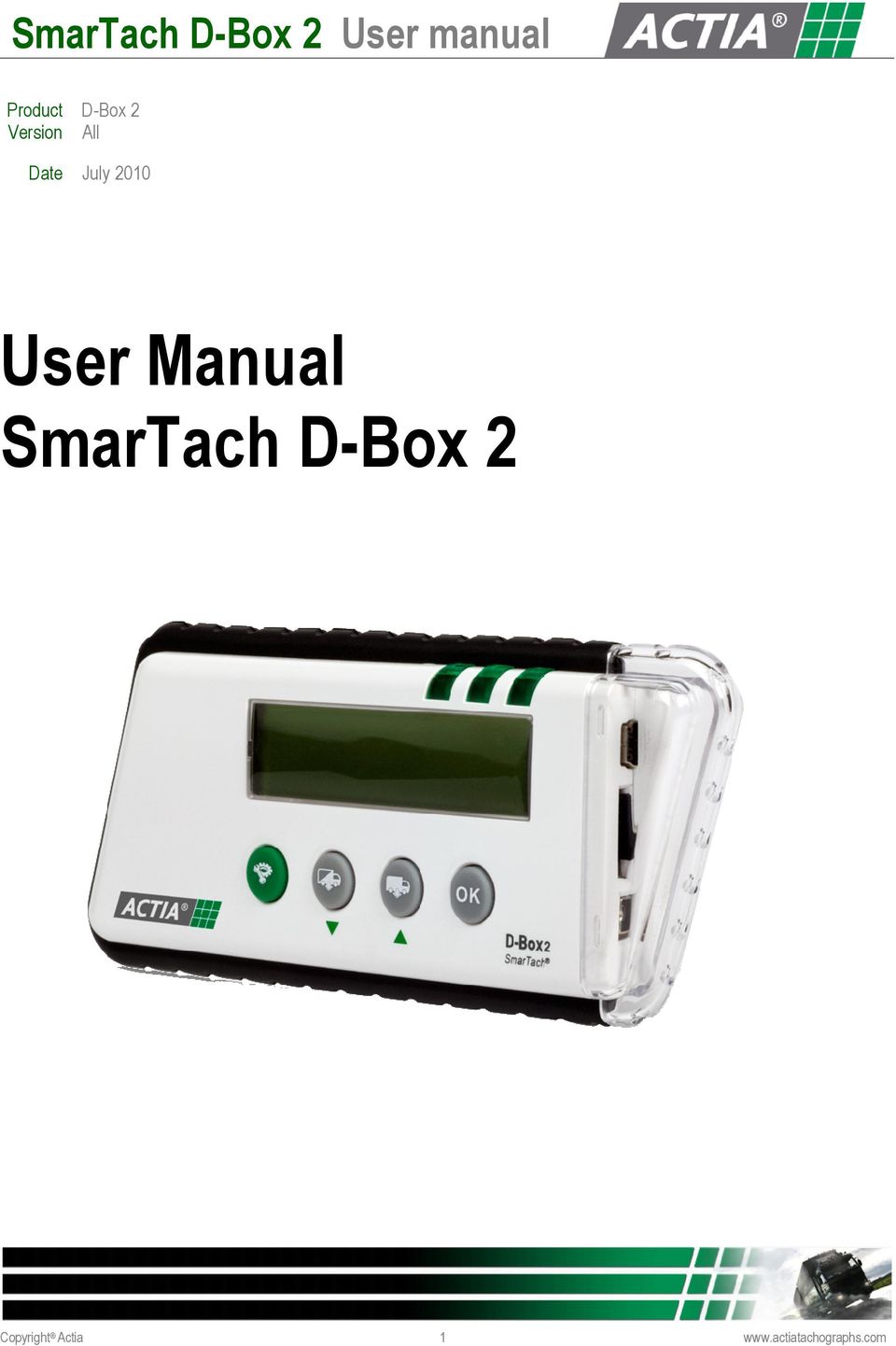
1 Product D-Box 2 Version All Date July 2010 User Manual SmarTach D-Box 2 Copyright Actia 1
2 SUMMARY 1. Introduction... 2 Main functions Components General characteristics Technical specifications Functional specifications LEDS Buttons Connections Configuration Language Date and time Since last download configuration Extension of downloaded files Download Tachograph Connection Process Smartcard Transfer the collected data to a computer Connection Process...7 Nota Bene: In case of breakdown Replace the battery Error messages... 9 Fr Warning: The complete reading of this manual is recommended in order to familiarize the user with the functions and operations of the equipment before using it. 1. Introduction SmarTach D-Box 2, designed by ACTIA, is a portable tool to download Tachographs and Smartcards. It is designed to download data from both vehicle units when connected, or Drivers and Workshops smartcards when inserted in the reader. SmarTach D-Box 2 is compatible with all tachographs brands and all archiving software. Easy to use, it is also a tool to transfer collected data to your computer. This function allows you to respect archiving obligations and to import your data to your management software. Main functions -Download data from tachographs. Look p.6 section 4.1 -Standalone and automatic smartcard download Look p.7 section 4.2 -Transfer collected data to a computer. Look p.7 section 5. Copyright Actia 2
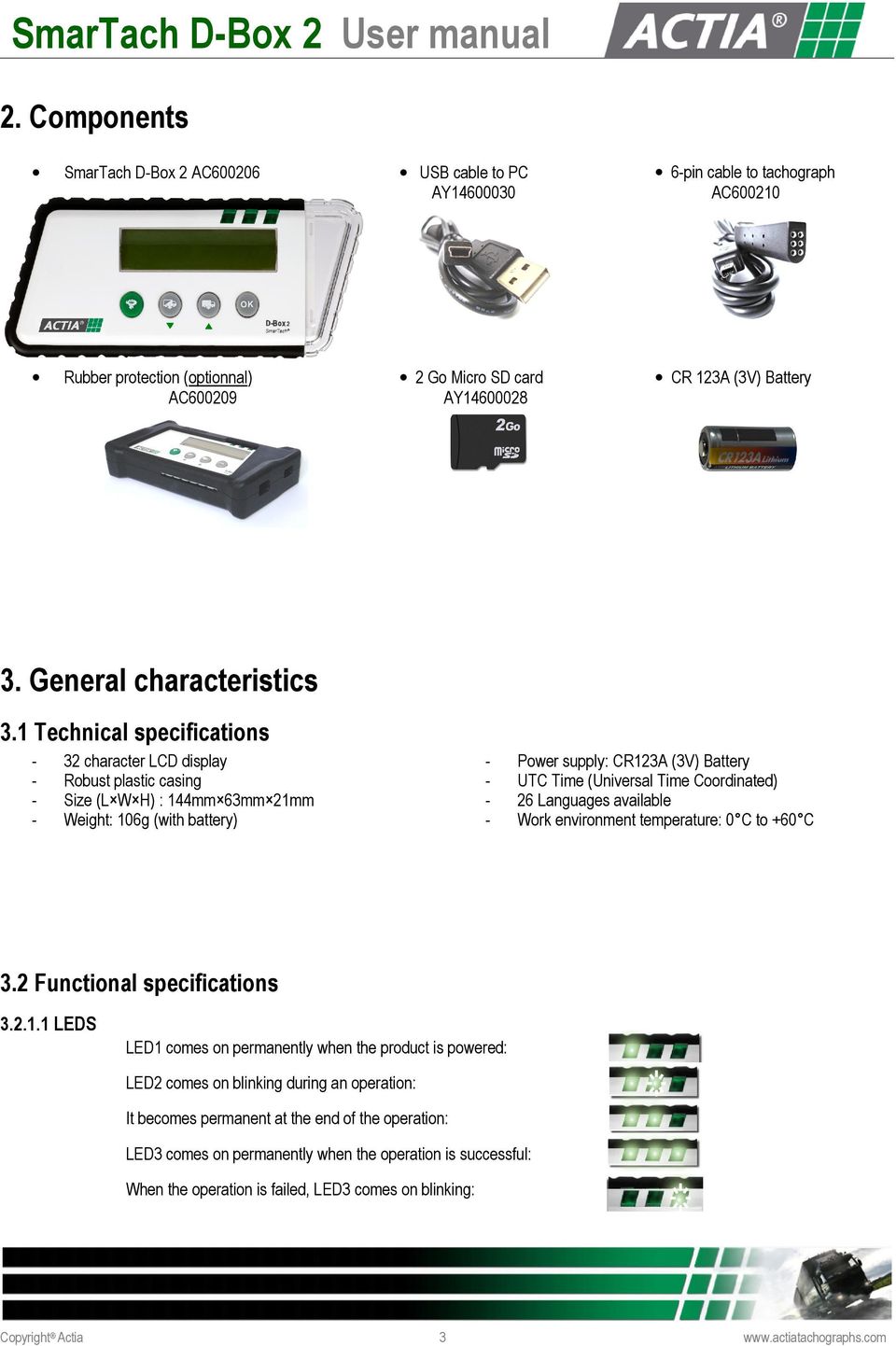
3 SmarTach D-Box 2 User manual 2. Components SmarTach D-Box 2 AC USB cable to PC AY pin cable to tachograph AC Rubber protection (optionnal) AC Go Micro SD card AY CR 123A (3V) Battery 3. General characteristics 3.1 Technical specifications - 32 character LCD display Robust plastic casing Size (L W H) : 144mm 63mm 21mm Weight: 106g (with battery) - Power supply: CR123A (3V) Battery UTC Time (Universal Time Coordinated) 26 Languages available Work environment temperature: 0 C to +60 C 3.2 Functional specifications LEDS LED1 comes on permanently when the product is powered: LED2 comes on blinking during an operation: It becomes permanent at the end of the operation: LED3 comes on permanently when the operation is successful: When the operation is failed, LED3 comes on blinking: Copyright Actia 3

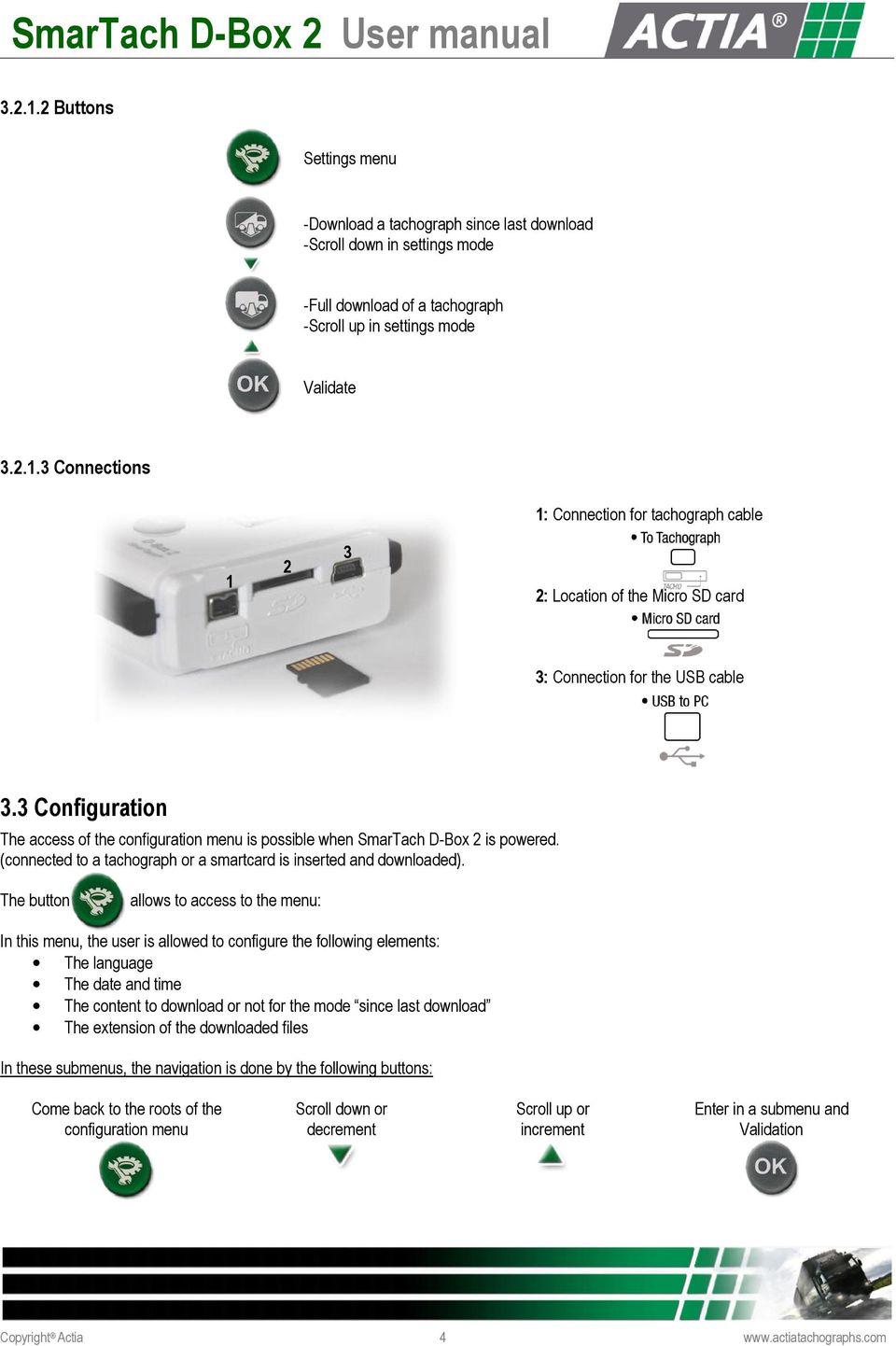
4 Buttons Settings menu -Download a tachograph since last download -Scroll down in settings mode -Full download of a tachograph -Scroll up in settings mode Validate Connections 1: Connection for tachograph cable : Location of the Micro SD card 3: Connection for the USB cable 3.3 Configuration The access of the configuration menu is possible when SmarTach D-Box 2 is powered. (connected to a tachograph or a smartcard is inserted and downloaded). The button allows to access to the menu: In this menu, the user is allowed to configure the following elements: The language The date and time The content to download or not for the mode since last download The extension of the downloaded files In these submenus, the navigation is done by the following buttons: Come back to the roots of the configuration menu Scroll down or decrement Scroll up or increment Enter in a submenu and Validation Copyright Actia 4
5 3.3.1 Language At the beginning of the line, the icon indicates the preselected item. This icon is positioned on the first choice when you enter in this submenu. The user chooses in the list the wished language thanks to the buttons and and press the button OK To memorize the choice made, the user has to be positioned at the end of the list on the line called validation and press the button OK This action allows coming back to the root of the configuration menu. The choice made previously is validated Date and time A blinking cursor is positioned under the value to change. The user changes the values thanks to the buttons and The button OK allows validating the displayed value and going to the next digit. The two first digits of the year, 20 are not editable. The last press on the button OK at the end of the line validates the choice Since last download configuration At the beginning of the line the icon indicates the preselected item. This icon is positioned on the first choice when you enter in this submenu. The user chooses the content to download or not for the mode since last download among: Data sort Detailed speed Data sort Additional data The user chooses in the list the element thanks to the buttons and and press the button OK To memorize the choice made, the user has to be positioned at the end of the list on the line called validation and press the button OK This action allows coming back to the root of the configuration menu. The choices made previously are validated Extension of downloaded files At the beginning of the line the icon indicates the preselected item. This icon is positioned on the first choice when you enter in this submenu. The user chooses the extension of the downloaded files among: DDD format ESM format V1B, C1B format TGD format The user chooses in the list the element thanks to the buttons and and press the button OK To memorize the choice made, the user has to be positioned at the end of the list on the line called validation and press the button OK This action allows coming back to the root of the configuration menu. The choice made previously is validated. Copyright Actia 5


6 4. Download Warning : To avoid breakdown or dysfunction, the SmarTach D-Box 2 must not has to be connected in the same time with 2 different communication medias (USB/Tachograph, Card/Tachograph, USB/Card) 4.1 Tachograph Connection Use the 6-pin cable (AC206210) to connect the SmarTach D-Box 2. (Look p.4 section Connection 1) In the tachograph, this cable has to be connected on the front panel of the product in the 6-pin connector. SmarTach D-Box 2 is powered when it is connected to the tachograph and the following screen appears : PRESS ONE BUTTON TON Process Reminder : To download the content of a tachograph, a smartcard of the type Company, Control or Workshop must be inserted in the tachograph in order to allow download. 2 kinds of download are available regarding the button pressed: Full download -Overview -Activities of all available days -Events and faults -Detailed speed -Technical data - Driver card if present in the tachograph -Additional data (if existing) Since last download -Overview -Activities since the last download -Events and faults -Detailed speed (if item configured previously) -Technical data - Driver card if present in the tachograph -Additional data (if item configured previously) After a press on one of the two buttons, the following screens appears: WAIT Downloaded contents are displayed on the second line of the screen If the download was successful, the following screen appears: If the download failed, the following screen appears: OK ERROR Copyright Actia 6


7 4.2 Smartcard Reminder: Only data from Driver and Workshop smartcards can be downloaded There is two ways to download data from a smartcard: -Introduce the card in the a tachograph and download its content (Look p.6 section 4.1) -Introduce directly the smartcard in the SmarTach D-Box 2 (look this section) N.B: The data collect with the SmarTach D-Box 2 is much faster than the one made by the tachograph When the user introduce a smartcard, the SmarTach D-Box 2 comes on automatically and the following screen appears: Then when the download starts, the following screen appears: If the download was successful, the following screen appears: If the download failed, the following screen appears: WAIT WAIT OK ERROR 5. Transfer the collected data to a computer Reminder: The legislative support for storage is CD-ROM or floppy disk 5.1 Connection Use the USB cable (AY ) to connect the SmarTach D-Box 2 to a computer. (Look p.4 section Connection 3) On the computer, this cable has to be connected on a USB port. SmarTach D-Box 2 is powered when its connected to the USB port and the following screen appears: D-BOX 2 CONNECTED 5.2 Process The SmarTach D-Box 2 is seen as a memory device type removable disk. The structure of this memory is: Copyright Actia 7

8 The root of the disc contains two directories and a configuration file: Under the directory CARD, it is located all the uploaded files from smartcards. The extension of these files depends of the format chose by the user (See p.5 section 3.3.4) The user can copy, remove or delete these folders regarding its needs. Under the directory TACHO, it is located all the uploaded file from tachographs The extension of these files depends of the format chose by the user (See p.5 section 3.3.4) The user can copy, remove or delete these folders regarding its needs. The file Config_NDB.INI contains all the configuration of the SmarTach D-Box 2. Warning: To avoid dysfunction, the file Config_NDB.INI» must not be changed or deleted by the user Nota Bene: In case of breakdown Data from the Micro card SD can be downloaded in order to recover archived data in case of breakdown. The user can make a data back-up. To remove the Micro card SD, it is necessary to unlock it by pressing on (Look p.4 section 3.2.2) When the card is removed, insert it in the card reader of your computer (if available) and recover the data. If your computer doesn t have a SD card reader, use an adaptor or an external card reader available in commercial shops. When the operation is finished, replace the Micro card SD as shown : 6. Replace the battery Step 1: Open the battery compartment by unscrewing the screw Step 2 : Remove the old battery Step 3 : Put the new battery respecting the polarity Step 4 : Replace the battery compartment by screwing the screw Security directives about the battery: Only battery type CR123A is authorised. Do not try to open the battery neither to throw it in the fire. Do not throw batteries in the house waste, eliminate them in accordance with the current legislation on the protection of the environment. Keep batteries out of reach of children. In case of ingestion of the batteries, contact immediately your doctor or a medical assistant. Do not try to reactivate the batteries with heat, an electric charge or any others ways. Copyright Actia 8

9 7. Error messages ERROR INSERT MEMORY CARD Tachograph download: - Check the presence of a Driver, Company or Control smartcard in the tachograph in order to allow the download - Check if the cable is correctly connected and not defective - Check if the SD card is correctly inserted and not defective Smartcard download: - Check if the SD card is correctly inserted and not defective (unreadable) This message appears when the SD card is not present or not inserted correctly - Introduce correctly the memory card SD supplied with the product INVALID MEMORY CARD FULL MEMORY INVALID BATTERY INVALID S.CARD This message appears when the SD card is defective - The system does not manage to format the card - The system does not manage to read or to write on the card - Introduce a new memory card SD (available in ACTIA under the reference AY ) This message appears when the SD card is full - Connect the product to a computer in order to empty the data from the SD card (Look p.7 section 5) This message appears when the battery is too low and does not allow the product to run - Change the battery (Look p.9 section 6) This message appears when the smartcard introduced in the D-Box 2 is not compatible Only smartcards type Driver or Workshop are available to download (Look p.7 section 4.2) Copyright Actia 9

Digital Photo Bank / Portable HDD Pan Ocean E350 User Manual
 Digital Photo Bank / Portable HDD Pan Ocean E350 User Manual Installing a hard disk 1. Power off the unit. 2. Remove the bottom cover from the unit by removing four screws. 3. Insert the 2.5 HDD to the
PHOTO BANK BACKUP DEVICE
 PHOTO BANK BACKUP DEVICE Quick Installation Guide (Version 1.0) Quick Inatallation Guide Photo Bank Backup Device Page 1 Thank you for purchasing the Photo Bank Backup Device. This Quick Installation Guide
System update procedure for Kurio 7 (For build number above 110)
 System update procedure for Kurio 7 (For build number above 110) IMPORTANT NOTE: Before starting the procedure, please check your current Android build number, that can be found as follows: exit the Kurio
How To Download From A Tachograph With A Tachoreader Combo (Tachograph)
 External Devices Handling Data transfer from digital tachograph PC NET SERVICE Stocerz Sp. J. Other devices - Tutorial - Pomoc All rights reserved. No parts of this work may be reproduced in any form or
16.4.3 Lab: Data Backup and Recovery in Windows XP
 16.4.3 Lab: Data Backup and Recovery in Windows XP Introduction Print and complete this lab. In this lab, you will back up data. You will also perform a recovery of the data. Recommended Equipment The
10.3.1.6 Lab - Data Backup and Recovery in Windows XP
 5.0 10.3.1.6 Lab - Data Backup and Recovery in Windows XP Introduction Print and complete this lab. In this lab, you will back up data. You will also perform a recovery of the data. Recommended Equipment
System Firmware Update Instructions for AVH-4000NEX
 System Firmware Update Instructions for AVH-4000NEX IMPORTANT Please download and print these firmware update instructions before downloading and installing the firmware update. It is important that you
1.0. User s Guide & Manual USB 2.0 FLASH DRIVE
 1.0 USB 2.0 FLASH DRIVE User s Guide & Manual Index Introduction 1 CHAPTER1 Features & Specifications 2 CHAPTER2 System Requirements 4 CHAPTER3 Getting Started Installation of the Windows 98SE Driver 5
Using These Manuals. How to Use the. Software User Guide. Display examples: 1. Understanding How to Use Your Camera.
 Software User Guide For the safe use of your camera, be sure to read the Safety Precautions thoroughly before use. Types of software installed on your computer varies depending on the method of installation
Lizard Standalone Mode Guide Version 1.0:
 Lizard Standalone Mode Guide Version 1.0: SECTION 1. DESCRIPTION The standalone Mode in Lizard will allow you go totally on the road, without having to carry a computer with you. The wiring for it its
User's Guide DylosLogger Software Version 1.6
 User's Guide DylosLogger Software Version 1.6 The DylosLogger software allows users of Dylos Air Quality Monitors equipped with PC interface to easily record, download, and graph data. The COM port is
OPTAC Fleet Viewer. Instruction Manual
 OPTAC Fleet Viewer Instruction Manual Stoneridge Limited Claverhouse Industrial Park Dundee DD4 9UB Help-line Telephone Number: 0870 887 9256 E-Mail: [email protected] Document version 4.0 Part Number:
Installing the Gerber P2C Plotter USB Driver
 Installing the Gerber P2C Plotter USB Driver 1 You can install a Gerber P2C plotter using a USB connection and communicate with it using compatible design software. The following procedures describe installing
File Management Utility. T u t o r i a l
 File Management Utility T u t o r i a l Contents System Requirements... 2 Preparing Files for Transfer to GlobalMark... 2 Application Launch... 2 Printer Setup... 2 Communication Status... 4 Communication
Mini Portable Reader (MPR) Model HS 5900L F
 Mini Portable Reader (MPR) Model HS 5900L F TABLE OF CONTENTS Chapter 1: Mini Portable Reader (MPR) Basics 1 1.1 Preparing for Operation 1 1.2 Installing/Changing Batteries 1 1.3 Scanning with the Mini
OPTAC Fleet Viewer. Instruction Manual
 OPTAC Fleet Viewer Instruction Manual Stoneridge Limited Claverhouse Industrial Park Dundee DD4 9UB Help-line Telephone Number: 0870 887 9256 E-Mail: [email protected] Document version 3.0 Part Number:
T R O U B L E S H O O T I N G T I P S
 T R O U B L E S H O O T I N G T I P S D I C T A T I O N M O D U L E 1.) PROBLEM: MEMORY ERROR/FORMAT MESSAGE OR LOCK SYMBOL ON RECORDER A.) Solution: DO NOT TRY TO USE THE RECORDER. Using the recorder
USER S MANUAL TACHOTERMINAL PRO. Firmware 2.00.191
 USER S MANUAL TACHOTERMINAL PRO Firmware 2.00.191 In the Box miniusb-usb cable (1.8 metres) 2GB removable memory card (in the slot) TTConfigurator (pre-installed in TERMINAL folder) Optional Accessories
HOW TO TRANSFER FILES BETWEEN EEN IDL7000 PVR AND USB2 DEVICE
 HOW TO TRANSFER FILES BETWEEN EEN IDL7000 PVR AND USB2 DEVICE CONTENTS CONTENTS...2 FOREWORD...3 TRANSFERRING FILES BETWEEN IDL7000M PVR AND USB2 DEVICE...4 CONNECTING AN EXTERNAL USB2 DEVICE...4 COPYING
Chapter 1 Downloading Images to Your Computer (Windows)
 Software User Guide For the safe use of your camera, be sure to read the Safety Precautions thoroughly before use. Types of software installed on your computer varies depending on the method of installation
USER MANUAL. FLASH DUPLICATOR CopyKing II CPY220
 USER MANUAL FLASH DUPLICATOR CopyKing II CPY220 1 Table of Contents 1. Introduction Page 4 1.1. Welcome 1.2. Package Contents 1.3. Features 2. Important Information (Read before Operation) Page 5 2.1.
TIME BOX BIOMETRIC TECHNICAL INSTRUCTIONS AND QUICK START GUIDE IT IS RECOMMENDED TO READ THIS MANUAL BEFORE OPERATING THE SYSTEM
 TIME BOX BIOMETRIC TECHNICAL INSTRUCTIONS AND QUICK START GUIDE IT IS RECOMMENDED TO READ THIS MANUAL BEFORE OPERATING THE SYSTEM BODET Software B.P. 402 Boulevard du Cormier F-49302 CHOLET Cedex www.bodet.com
PA-80 USB Interface. Installation and Operating Manual. 1. Installation Manual 2. Driver Software installation 3. Operating Manual 4.
 PA-80 USB Interface Installation and Operating Manual 1. Installation Manual 2. Driver Software installation 3. Operating Manual 4. Applications Important Notice: Only a qualified service technician should
PP8X Printer Driver Installation Instruction
 PP8X Printer Driver Installation Instruction Pinnacle Technology Corp. CONTENTS 1 BT Device Installation... 1 2 Printer Driver Installation... 6 3 How to Know the Connecting Port... 10 4 How to Configure
IMPORTANT! CPD 8424R1
 IMPORTANT! You need to reinstall EPSON Image Authentication System (IAS) on your camera if it was installed before your camera was repaired. Please see your EPSON Image Authentication System User s Guide
Loss of data can happen in many ways. One of the most common causes is hard drive failure. Hard drives can die without warning.
 Backing up Important Data Data Backup Procedures for Medford High School Faculty & Staff Backup Procedures for saving to: Zip Drives CD-ROM Drives Floppy Disks Data Travelers And how to use the Windows
EZ DUPE DVD/CD Duplicator
 EZ DUPE DVD/CD Duplicator User s Manual Version 3.0 0 TABLE OF CONTENTS Introduction 2 Setup 11 LCD Front Panel Overview 2 o Auto Start Time 11 Menu Overview 3-5 o Display Mode 12 Functions 6 o Button
Getting the most from your Maxtor OneTouch TM USB hard drive and Linksys Network Storage Link
 Getting the most from your Maxtor OneTouch TM USB hard drive and Linksys Network Storage Link Share your OneTouch drive with everyone on your network. With the Linksys Network Storage Link, you can now
RDC-7 Windows XP Installation Guide
 RDC-7 Windows XP Installation Guide CONTENTS 1. End User License Agreement...3 2. Important notes...4 3. Customer support...4 4. Installing the USB driver...4 I. Prior to installation...4 II. Installation
How to Download Images Using Olympus Auto-Connect USB Cameras and Olympus Master
 How to Download Images Using Olympus Auto-Connect USB Cameras and Olympus Master Introduction Auto-Connect USB is a feature that allows Olympus digital cameras to emulate a Hard disk drive when connected
Practical Application How to Use a Flash Drive
 Practical Application How to Use a Flash Drive Practical application How to Use a Flash Drive Page 1 of 6 About this Practical Application Prerequisite Skills To use this Application you will need be comfortable
How To Program A Powerline System On A Dgma1D (Dgma) With A Smartcard And A Powercard (Dm1D) On A Pcv123D (Powerline) On An Iphone Or
 PCV123D Terminal Unit and DGM1D 1-Door Controller + Contactless Smartcard Reader Version 2.0 G00301FR0219V02 DGM1D: 1-door controller + contactless smartcard reader PCV123D: Terminal unit + PC software
Corsair Flash Voyager USB 2.0 Flash Drive UFD Utility User s Manual
 Corsair Flash Voyager USB 2.0 Flash Drive UFD Utility User s Manual Contents For AP v2.10.0.0 Release For Windows 98/ME/2000/XP Version 1.1B (08/27/2004) Contents...1 Introduction...1 Features & Specifications...2
Copyright 1999 by EPSON America, Inc. 3/99 Torrance, California, USA
 EPSON is a registered trademark of SEIKO EPSON Corporation. PhotoPC is a registered trademark, and HyPict, Image Authentication System, and FaxAdvice are trademarks of EPSON America, Inc. SoundAdvice is
Installation Instructions for 9555 USB Driver
 Prior to using the data modem features of your 9555 handset; you must first install the VCOMPORT 9555 USB Driver. This driver is compatible with: Windows XP Service Pack 2, Windows 2000 Service Pack 4,
Keep it Simple Timing
 Keep it Simple Timing Support... 1 Introduction... 2 Turn On and Go... 3 Start Clock for Orienteering... 3 Pre Start Clock for Orienteering... 3 Real Time / Finish Clock... 3 Timer Clock... 4 Configuring
Colorfly Tablet Upgrade Guide
 Colorfly Tablet Upgrade Guide (PhoenixSuit) 1. Downloading the Firmware and Upgrade Tool 1. Visit the official website http://www.colorful.cn/, choose 产 品 > 数 码 类 > 平 板 电 脑, and click the product to be
LCD MONITOR TOUCH PEN UTILITY OPERATION MANUAL. Version 1.0
 LCD MONITOR TOUCH PEN UTILITY OPERATION MANUAL Version 1.0 Applicable models (as of March 2014) PN-L703A/PN-L603A/PN-70TA3/PN-60TA3/PN-ZL01/PN-ZL02 (Available models differ according to region.) Contents
Using GIGABYTE Notebook for the First Time
 Congratulations on your purchase of the GIGABYTE Notebook. This manual will help you to get started with setting up your notebook. The final product configuration depends on the model at the point of your
SOFTWARE MANUAL. Please ensure that you read the instruction manual carefully before use. About software
 SOFTWARE MANUAL Please ensure that you read the instruction manual carefully before use Software Notes The attached software is a camera driver and image editing software tool for Windows. Under no circumstances
EOS REBEL XS / 1000D Firmware Update Procedures Precaution
 EOS REBEL XS / 1000D Firmware Update Procedures Precaution A power failure during the firmware writing operation may disable the camera. Use a fully charged Battery Pack or dedicated AC Adapter Kit (Optional)
EPSON Stylus COLOR 740. USB Software Installation Guide (Windows 98/iMac ) USB Setup Guide (imac)
 EPSON Stylus COLOR 740 TM USB Software Installation Guide (Windows 98/iMac ) USB Setup Guide (imac) This guide includes USB setup instructions for your imac computer, as well as software installation instructions
Computer Backup Issues For Windows 8
 Computer Backup Issues For Windows 8 Backup Basic information backup Copy your personal information from the hard drive to another media / location CD (700 MB) DVD (4.7 GB) Flash drive (16 GB ± $10) External
HT580 User Reference Guide. Version 1.0
 Version 1.0 NOTICE 1. Li-Ion Battery Pack The HT580 Portable Terminal and the Li-Ion Battery Pack are packaged separately. You will have to install the Battery Pack when you receive your terminal. Please
A. I do not have my own personal certificate I am a new client or want to download a new certificate
 This user guide will help you to create your personal certificate in file/browser or smart card certificate. If you already own a personal certificate in file that you have saved on your computer, you
HDDtoGO. User Guide. User Manual Version 3.4 2004-2010 CoSoSys SRL 2010 A-DATA Technology Co., Ltd. HDDtoGO User Manual
 HDDtoGO User Guide User Manual Version 3.4 2004-2010 CoSoSys SRL 2010 A-DATA Technology Co., Ltd. HDDtoGO User Manual Table of Contents Table of Contents...1 1. Introduction...2 2. System Requirements...3
Caplio Utility for Windows
 Caplio Utility for Windows Operation Manual English To ensure correct use of the product, read this manual carefully before use. Keep the manual handy for future use. Introduction Thank you for purchasing
testo EasyClimate Software Instruction manual
 testo EasyClimate Software Instruction manual 2 1 Contents 1 Contents 1 Contents... 3 1.1. About this document... 5 2 Specifications... 5 2.1. Use... 5 2.2. System requirements... 6 3 First steps... 6
USB Flash Drive User s Manual
 USB Flash Drive User s Manual V4.01 Introduction Thank you for your purchasing the USB Drive. This manual will guide you through the usages of the USB Drive and of all management tools coming with it.
Motorola Phone Tools. Quick Start
 Motorola Phone Tools Quick Start Contents Minimum Requirements...2 Before Installing Motorola Phone Tools...3 Installing Motorola Phone Tools...4 Mobile Device Installation and Configuration...5 Online
HYUNDAI Fingercam. User Manual
 HYUNDAI Fingercam User Manual 7 1. Structure Detail I Characters of Product 8 It has small contour design, which does UV spray finishing for the whole body. Itisvery fashionable and wearable and matches
Moving Rockwell Software Activation Keys to the VersaView 200R Industrial Computer
 Page 1 of 1 01/16/03 K. Smidler Moving Rockwell Software Activation Keys to the VersaView 200R Industrial Computer Rockwell Software programs often have runtime components that require activations to utilize
SOFTWARE INSTALLATION INSTRUCTIONS
 AUDITGARD LGA Electronic Combination Lock SOFTWARE INSTALLATION INSTRUCTIONS Implementation Package The AuditGard Software implementation package includes: 707013 AuditGard Software Install CD 42145 Programming/Audit
Pocket PC Phone Quick Start Guide. Read this guide before operating your Pocket PC Phone.
 Pocket PC Phone Quick Start Guide Read this guide before operating your Pocket PC Phone. 1 Feature Maps Front Panel Components 4. 5. 2. 3. 6. 7. 1. 12. 11. 9. 8. 10. 1 Volume. Press to adjust the volume
How To Use An Fsm1
 17 Data Storage & Downloading The SFM does not store data on internal memory. Data is stored on Non-Volatile storage: MicroSD cards. Data can be downloaded via USB Cable, wireless Radio Frequency (RF),
BankLink Books Clients
 BankLink Books Clients This document is for those practices installing BankLink Books. The BankLink Service Agreement permits licensed BankLink practices to install the software in as many locations as
ScanWin Installation and Windows 7-64 bit operating system
 ScanWin Installation and Windows 7-64 bit operating system In order to run the ScanWin Pro install and program on Windows 7 64 bit operating system you need to install a Virtual PC and then install a valid,
ROM ACCESS CONTROL USER S MANUAL
 ROM ACCESS CONTROL USER S MANUAL Manual Software Pro-Access Page: 1 PRO-ACCESS SOFTWARE GUIDE PRO-ACCESS SOFTWARE GUIDE 1 0. INTRODUCTION 3 1. INSTALLIG THE SOFTWARE 4 2. SOFTWARE OPERATORS AND COMPETENCIES.
Procedure for updating Firmware of EZ4 W or ICC50 W
 Procedure for updating Firmware of EZ4 W or ICC50 W 1. Download the Firmware file for your camera to your PC 2. Download the Leica Camera Configuration program to your PC 3. Install Leica Camera Configuration
Compaq Presario MyMovieSTUDIO. Getting Started
 Compaq Presario MyMovieSTUDIO Getting Started Congratulations and welcome to the Compaq Presario MyMovieSTUDIO leading edge digital video editing and DVD authoring desktop computer. You ve purchased a
LCD MONITOR / 8 CHANNEL DVR COMBO
 LCD MONITOR / 8 CHANNEL DVR COMBO Overview - New System Setup SERIES: SG17LD800 & SG19LD800 www.lorexcctv.com Copyright 2007 LOREX Technology Inc. New System Setup - Overview New System Setup - Overview
LPR for Windows 95/98/Me/2000/XP TCP/IP Printing User s Guide. Rev. 03 (November, 2001)
 LPR for Windows 95/98/Me/2000/XP TCP/IP Printing User s Guide Rev. 03 (November, 2001) Copyright Statement Trademarks Copyright 1997 No part of this publication may be reproduced in any form or by any
Guide to Installing BBL Crystal MIND on Windows 7
 Guide to Installing BBL Crystal MIND on Windows 7 Introduction The BBL Crystal MIND software can not be directly installed on the Microsoft Windows 7 platform, however it can be installed and run via XP
Keychain Barcode Scanner
 Keychain Barcode Scanner User Guide June 2010 2010 TABLE OF CONTENTS Quick Start... 4 Congratulations... 4 Scanner Features... 4 What s Included with Your Scanner... 5 What You Need to Get Started... 6
Driver Installation (USB 2.0) and Software configuration manuals for Sopro Imaging, EagleSoft, and Dentrix Image 4.5
 Driver Installation (USB 2.0) and Software configuration manuals for Sopro Imaging, EagleSoft, and Dentrix Image 4.5 124 Gaither Drive - Suite 140 - Mount Laurel, NJ 08054 USA Tel: 800-289-6367 Fax: 856-222-4726
Installing a printer in Windows 95.
 Installing a printer in Windows 95. Click on Start - Settings - Printers In the Printers Folder double click on the Add Printer Icon Click on the Next Button to start the installation process of your printer
USB 2.0 3.5 External Hard Disk Drive
 USB 2.0 3.5 External Hard Disk Drive System Requirements Notebook or Desktop PC with USB2.0 or USB1.1 port. Windows 98SE/Me/2000, or Windows XP (Make sure the device driver for USB Host controller has
MP3/WMA Player + Digital Voice Recorder + USB Flash Drive
 Kanguru Micro MP3 PRO USB2.0 User s Manual MP3/WMA Player + Digital Voice Recorder + USB Flash Drive Copyright 2004, All Rights Reserved. This manual applies to 1.1 or later versions of the Kanguru Micro
SATA Blu-ray/DVD/CD Duplicator Controller
 SATA Blu-ray/DVD/CD Duplicator Controller TM User Manual Version 1.70 TABLE OF CONTENTS Introduction 1 Setup 13 Image Manager 16 Specifications 1 o Power on Time 13 o Select Image 16 LCD Front Panel Overview
Using the enclosed installation diagram, drill three holes in the wall with the lower hole 1150mm from the floor.
 Terminal Installation When choosing the location of the terminal, care should be taken to select an area with consistent light levels throughout the day and avoid areas where the unit may be subjected
3 ½ Floppy to USB Flash Reader
 3 ½ Floppy to USB Flash Reader Manual Copyright 2010 PLRElectronics PLRElectronics 2010 PLRElectronics PO BOX 11977 Fort Worth, Texas All rights reserved. No part of this manual may be reproduced, transmitted,
PA500II Enterprise Mobile Computer
 PA500II Enterprise Mobile Computer - PA500II - Quick Reference Guide 400891G Version 1.0 PA500II Product Introduction & Accessory Kit After opening the box, ensure the following accessories for the PA500II
PRN_LOAD 17.04.2002 16:22
 PRN_LOAD.EXE is a user-friendly program for loading the HPR4915 with new firmware or fonts. It is based on the DOS operating system and also runs under WIN 95/89/NT WIN2000 WIN ME WIN XP and OS/2. However,
User Guide. F912 Rev 201507
 User Guide F912 Rev 201507 Colorado Time Systems Corporate Office 1551 East 11 th Street Loveland, CO 80537 USA Sales: 800-279-0111 or +1 970-667-1000 Service: 1-800-287-0653 or +1 970-667-1000 Service
Wrist Audio Player Link Soft for Macintosh. User s Guide
 Wrist Audio Player Link Soft for Macintosh User s Guide Trademarks Macintosh and Mac OS are registered trademarks of Apple Computer Inc. All other product, service and company names mentioned herein may
OnDemand Version 1.7. Installation Manual and User s Guide. AST Technology. Sophienstrasse 4 32051 Herford Germany
 OnDemand Version 1.7 Installation Manual and User s Guide AST Technology Sophienstrasse 4 32051 Herford Germany Contents Overview of OnDemand Software... 1 System and Software Requirements... 1 CVe Monitor
Imation LOCK User Manual
 Page: - 0 - Imation LOCK User Manual Security Application Program V2.0 - D Page: - 1 - Table of Contents A. Introduction... 2 B. General Description... 2 C. Features... 2 D. Before Using the Security Application
User Manual. 2 Bay Docking Station
 FANTEC MR-CopyDU3 User Manual 2 Bay Docking Station With One Touch Backup (OTB) and Copy Function Hardware: PC and Notebooks, Macintosh USB 1.1, USB 2.0 or USB 3.0 interface Features: 2,5 or 3,5 SATA I,II,III
Page 1 S5.5 Monitoring Software Manual Rev 1.2 for Software Ver 1.0
 Trantec S5.5 Monitoring Software Manual Initial Setup Minimum PC Requirements 1.6 GHz CPU, 256 MB Memory, 1 available USB port, Windows XP Recommended PC >2.0 GHz CPU, 512 MB (XP) 1 GB (Vista) memory,
Application Note: Connecting to a 2500 Series Processor using PLC Workshop
 Application Note: Connecting to a 2500 Series Processor using PLC Workshop This application note will describe a step by step process for the three ways to connect to a 2500-CXXX with PLC Workshop. The
Content Get Started... 3 Insert SIM card and Memory Card...3 Charging the Battery or Connect to a Computer...4 PAD Overview...
 Content Get Started... 3 Insert SIM card and Memory Card...3 Charging the Battery or Connect to a Computer...4 PAD Overview... 5 Locking and Unlocking the Screen...6 Basic Operation... 7 Switch on/off...
COMBOGARDPRO. 39E Electronic Combination Lock SOFTWARE INSTALLATION INSTRUCTIONS
 COMBOGARDPRO 39E Electronic Combination Lock SOFTWARE INSTALLATION INSTRUCTIONS IMPLEMENTATION PACKAGE The ComboGard Pro Software implementation package includes: 707012 ComboGard Pro Software Install
Inserting the SIM card in the MobiGater device. Connecting the MobiGater Device
 WWW.MOBIGATER.COM 2 Inserting the SIM card in the MobiGater device There is a small cover on the bottom side of the MobiGater device Move the cover in the direction from? to. Move the SIM card holder in
Table of Contents. System Requirement of MP3 Player:... 4. Connection and Downloading... 7. Downloading DRM10 Files... 8.
 Table of Contents Instructions... 1 Precautions... 2 System requirements... 4 System Requirement of MP3 Player:... 4 Introduction... 5 Features... 5 Charging the Battery... 6 Connection and Downloading...
ScoMIS Encryption Service
 Introduction This guide explains how to install the ScoMIS Encryption Service Software onto a laptop computer. There are three stages to the installation which should be completed in order. The installation
Transferring Scans from your Dolphin into Destiny
 Transferring Scans from your Dolphin into Destiny Summary: This article is intended to provide Destiny users with an overview of the following tasks 1. Downloading the Dolphin Transfer Utility to their
JEROME COMMUNICATIONS SOFTWARE (JCS) INSTALLATION and OPERATION MANUAL V1.02 for Windows XP
 AZI P/N 700-0042-B Last update May 2009 USER MANUAL JEROME COMMUNICATIONS SOFTWARE (JCS) INSTALLATION and OPERATION MANUAL V1.02 for Windows XP May 2009 ARIZONA INSTRUMENT LLC 3375 N Delaware Street Chandler,
Installation, Setup, & Uninstall Guide Virtual TimeClock 15 Network Edition for Mac
 Virtual TimeClock Installation, Setup, & Uninstall Guide Virtual TimeClock 15 Network Edition for Mac Overview This guide will help you quickly install, configure, and if needed, uninstall Virtual TimeClock
Intel Compute Stick STCK1A32WFC User Guide. Intel Compute Stick STCK1A32WFC
 Intel Compute Stick STCK1A32WFC User Guide 1 Revision History Revision Revisions History Date 01 First release of the Intel Compute Stick STCK1A32WFC User Guide April 2015 Disclaimer INFORMATION IN THIS
Software Repair Assistant Manual for DuraXV
 Software Repair Assistant Manual for DuraXV 2015 Kyocera Corporation. All rights reserved. KYOCERA is a registered trademark of Kyocera Corporation. All other trademarks are the property of their respective
How To Use An Action Replay Dsi On A Datel Dsi On A Pc Or Dsii On A Playstation 2 On A Ds 2 On Pc Or Playstation 3 On A Ipad Or Playboy Ds (D
 Action Replay DSi User Guide v1.2 Index 1. Getting Started 1.1. Pack Contents 1.2. Connect Action Replay to your DS/DS Lite/DSi 1.3. Getting around Action Replay s Menus 2. Action Replay Cheat Codes 2.1.
Acer LCD Monitor Driver Installation Guide
 1 Contents 1 Contents... 1 2 Introduction... 2 3 Installation Guide... 2 3.1 PC requirements... 2 3.2 Installing the Acer LCD Monitor Driver on Windows Vista... 3 3.2.1 Hardware first install... 3 3.2.2
Mobile Eyewear Recorder
 Mobile Eyewear Recorder 1 2 1. Quality Polaroid Lens from brand makers. 2. User friendly operation button for easy control. 3. With extended memory slot for TF/Micro SD card. 4. Easy connection with PC/Laptops,no
Using GIGABYTE Notebook for the First Time
 Congratulations on your purchase of the GIGABYTE Notebook P7! This Manual will help you to get started with setting up your notebook. For more detailed information, please visit our website at http://www.gigabyte.com.
BSDI Advanced Fitness & Wellness Software
 BSDI Advanced Fitness & Wellness Software 6 Kellie Ct. Califon, NJ 07830 http://www.bsdi.cc SOFTWARE BACKUP/RESTORE INSTRUCTION SHEET This document will outline the steps necessary to take configure the
October 2011 3726 07897 601 Rev. B Page 1
 Upgrading Polycom SoundStation2W software to Version 1.607 and CVM to Version 1.85 Installer for Microsoft Windows Vista and Windows 7 (32 and 64 bit) Operating Systems NOTE: Two versions of upgrader are
Step by step guide how to password protect your USB flash drive
 Step by step guide how to password protect your USB flash drive 1 Content 1. How to create encrypted partition on USB flash drive 2. How to work with encrypted partition on the USB flash drive - Rohos
SA-9600 Surface Area Software Manual
 SA-9600 Surface Area Software Manual Version 4.0 Introduction The operation and data Presentation of the SA-9600 Surface Area analyzer is performed using a Microsoft Windows based software package. The
DriveRight. Fleet Management Software. Getting Started Guide. CarChip. DriveRight. Drivers. Vehicles. Product #8186
 DriveRight Fleet Management Software Getting Started Guide CarChip DriveRight Drivers Vehicles Product #8186 DriveRight Fleet Management Software Getting Started Guide; P/N 8186 Davis Instruments Part
LPR for Windows 95 TCP/IP Printing User s Guide
 LPR for Windows 95 TCP/IP Printing User s Guide First Edition Printed in Taiwan, R.O.C. RECYCLABLE Copyright Statement Trademarks Limited Warranty Copyright 1997 D-Link Corporation No part of this publication