
InfoRad Wireless Enterprise
|
|
|
- Karen Stokes
- 10 years ago
- Views:
Transcription
1 Software Key to Instant Information InfoRad Wireless Enterprise InfoRad, Inc.

2 InfoRad and AlphaPage are licensed registered trademarks of Information Radio Technology, Inc. Connect and AP 32 are trademarks of Information Radio Technology, Inc. Copyright Information Radio Technology, Inc. All rights reserved. Printed in the United States of America. Except as permitted under the Copyright Act of 1976, no part of this publication may be reproduced or distributed in any form or by any means or stored in a database or retrieval system without prior written permission of the publisher. rev. MD0307V10.2D1

3 InfoRad Wireless Enterprise Introduction 1 InfoRad Wireless Enterprise Overview...1 Other Products...1 Support...3 InfoRad Wireless Enterprise System Requirements...4 InfoRad Wireless Enterprise Features...5 Important Terms Used in this Manual...7 What You Need to Get Started...8 Installation 9 Overview...9 Access Rights and InfoRad Wireless Enterprise...9 Basic Security Permissions...9 Windows Networks...9 Advanced Security Permissions Enterprise SV...10 Installing InfoRad Enterprise...12 Enterprise Installation Overview...12 Server Installation...12 Client Installation...15 Installing Enterprise SV...17 Enterprise SV Installation Overview...17 SV Service Module and Controller Installation...18 Remote Service Controller Installation...19 Enterprise SV Client Installation...19 Installation Problems?...20 Technical Support Options...20 Server Setup 21 Setup Overview...21 Communications Setup...22 Modem Dialup Connection Settings...23 Internet Setup...26 Internet Connection Settings...26 Telnet Proxy Setup Options...27 Other (Internet Setup)...29 ASCII File Processing Setup...30 Preference Options...32 Change Graphics Option...34 Building Your Wireless Messaging Directories 35 Messaging Directories Overview...35 Building Your Wireless Messaging Services Directory...36 Manually Adding or Editing a Messaging Service...37 Messaging Service Connection Settings...39 The "Add a Messaging Service" Setup Wizard...44 Building Your Wireless Receiver Directory...45 Route on Failure option...46 Manually Adding or Editing a Wireless Receiver...47 The "Add Wireless Receiver" Setup Wizard...49 Building Your Group Directory (Optional)...50 Introduction i

4 Introduction ii Adding a New Group...51 Modifying a Group...51 Receiver Group Assignment Query...51 Using the Client Application 53 Client Messaging Overview...53 Client Preference Options...54 Sending Messages by Name or Group...56 Server Status...57 Message Options...58 Signature...59 Predefined Messages...59 Previous Message (Last Message Recall)...61 Template Messages...62 Scheduled Messages...64 Recurring Scheduled Messages...65 Scheduled Messages Queue...68 Message Queue...70 Message Logging...71 A Note About Log Files...72 Exiting the Client Application...72 Background Messaging...72 Server Technical Reference 73 Server Message Processing Overview...73 Enterprise SV General Operation...74 Enterprise SV Service Controller...75 Enterprise SV Service Controller Preferences...77 Enterprise SV Services Module...79 Custom File Processing...80 Message File Filename Conventions...80 Message File Format...80 Message File Conventions...82 Manual Messaging in Message Files...82 Message Status Files...88 Example Message File Process - Enterprise SV...90 Note to Enterprise SV users of previous InfoRad Enterprise and AlphaPage APC systems 91 Sending Messages By Receiver Number...92 Directory Maintenance...93 Directory Listings...93 Removing Directory Entries...93 Backing Up and Restoring Directories...94 Exiting the Server Application...95 Background Messaging...95 Upgrading InfoRad Wireless Enterprise 97 Contacting InfoRad Sales...97 Solving Problems 99 Technical Support...99 Technical Support Options Installation Problems InfoRad Wireless Enterprise Installation Problems InfoRad Enterprise SV Installation Problems Double-clicking the Enterprise icon does nothing Errors Processing Message Files InfoRad Wireless Enterprise

5 Server Message File Processing Problems Access Rights-Related Problems Windows Networks Advanced Security Permissions Enterprise SV Failed Messages Error Screen Error Codes Local Errors Remote Errors Communications Errors TAPI errors TAP Errors ASCII File Processing (AFP) errors APC (Enterprise Server) Errors Network Errors WCTP Client-side Errors WCTP Server-side Errors Enterprise SV Service Controller Error Messages Enterprise SV Troubleshooting Tips Other errors Addendum T 122 About Message Templates Creating Message Templates Message Template Reference Item Type Summary Item Type Details Warranty and License Agreement 133 InfoRad Wireless Enterprise Warranty License Agreement Index 137 InfoRad Wireless Enterprise Introduction iii

6

7 Introduction Overview InfoRad is the premier provider of instant information solutions since InfoRad presents InfoRad Wireless Enterprise, a text messaging solution that allows users on a network to easily send text messages to any user of wireless receivers (alpha-numeric pagers, PCS phones with short messaging capability, and wireless PDA s). The InfoRad Wireless Enterprise Server is designed to automatically process messages created by a network user running the client application and send those messages to the desired individual or group without requiring every network user to have their own phone line and modem. Messages are centrally dispatched from a single server with a single phone line and modem or Internet connection. In addition, the server application can process message files created by other programs, allowing you to easily add wireless messaging services to your custom applications. (See Server Technical Reference on page 73 for details.) There are two versions of InfoRad Enterprise available: InfoRad Wireless Enterprise and InfoRad Wireless Enterprise SV. The difference is in the Enterprise "Server Application". The Enterprise and Enterprise SV Client applications will run on all Windows Operating Systems Windows 2000 and greater, as will the InfoRad Wireless Enterprise Server application. The "server application" in InfoRad Wireless Enterprise SV is optimized to run as a Windows Service on Windows 2000 and greater. While the Enterprise Server and Enterprise SV Service are functionally similar, there are differences in the installation and user interface (See Enterprise SV General Operation on page 74 for more information on the changes in the InfoRad Wireless Enterprise SV). Other Products Free 30 day Trial versions are available for download for most products at Contact InfoRad Sales for more information or to purchase: Phone: [email protected] Products may be also purchased on-line at InfoRad Wireless Enterprise Introduction 1

8 InfoRad Wireless Office InfoRad etext InfoRad Wireless Pro AlphaPage First Responder Watch-IT ASCII InfoRad s most popular Messaging Software. Internet and dial-up (TAP) messaging., basic (One-Time) Message Scheduling, Pre-defined messages, Groups, message logging. Low cost alternative of Wireless Office for basic messaging capability. InfoRad etext supports Internet messaging only. Wireless Office features with expanded Groups (500 Receivers per Group), expanded Pre-defined Messages (500), expanded Scheduled Messages (500), and NEW Advanced Scheduler (recurring scheduled messages - daily, weekly, monthly), and NEW Spell Checker. Includes all Wireless Pro features including NEW Advanced Scheduler and NEW Spell Checker plus NEW Route on Failure automatic rollover to secondary receiver address on primary error, NEW Message Templates (pre-programmed fill in the blank type messages), and Direct Serial Connection messaging option for use with on-site paging systems or leased-line connections. Turns your wireless receiver into a monitoring device for critical applications that produce ASCII text files. (Integrates with CAD Systems, and dispatch/service software applications like Bottom Line Software and Wintac. Watch-IT ASCII SV Watch-IT ASCII that runs as a Service on Windows 2000 and greater. Watch-IT ASCII-75 Watch-IT Serial Monitor-IT Serve-IT InfoRad Enterprise InfoRad Enterprise SV Low cost, reduced capability Watch-IT ASCII for small shops such as HVAC, plumbing, electrical, mechanical, couriers, and taxi services. See Watch-IT ASCII for full-featured product. Allows automated dispatch of wireless messages from any computer system platform by monitoring a serial port information stream. Monitors the integrity of a wireless messaging system, reporting system failure via a secondary wireless system or e- mail. Customizable application that allows for integrating wireless messaging into an existing customer service environment. A Client/Server solution for sharing the InfoRad Wireless messaging system over a LAN or WAN. Wireless Pro and AlphaPage First Responder features including Internet and dial-up (TAP) messaging, NEW Advanced Scheduler, NEW Spell Checker, NEW Message Templates, NEW Route on Failure features, and Direct Serial Connection messaging option for use with on-site paging systems or leased-line connections. InfoRad Enterprise with the Messaging Server runs as a Service on Windows 2000 and greater. InfoRad Enterprise inet Low cost, reduced capability Enterprise. Available in 2 and 3 Concurrent Client license only. Enterprise inet supports Internet messaging only. Includes NEW Spell Checker and NEW Advanced Scheduler features. For full-featured product see InfoRad Enterprise and InfoRad Enterprise SV. Introduction 2 InfoRad Wireless Enterprise

9 Support Technical Support is only available to registered users of the software as detailed in the licensing agreement. Please register if you haven t already. This program is licensed with 90-days free telephone technical support included. AlphaCare Subscription options are available that extend the support period, as well as offer priority telephone support and Upgrade Protection. Out-of-warranty support is also available on a perincident basis.. Please call InfoRad Sales at (800) for details on AlphaCare, or to [email protected], or see our website at InfoRad Software Technical Support is available Monday through Friday 8:30 5:30 ET. A technical support section with solutions to common problems is also available at Phone: (216) [email protected] Internet: InfoRad Wireless Enterprise Introduction 3

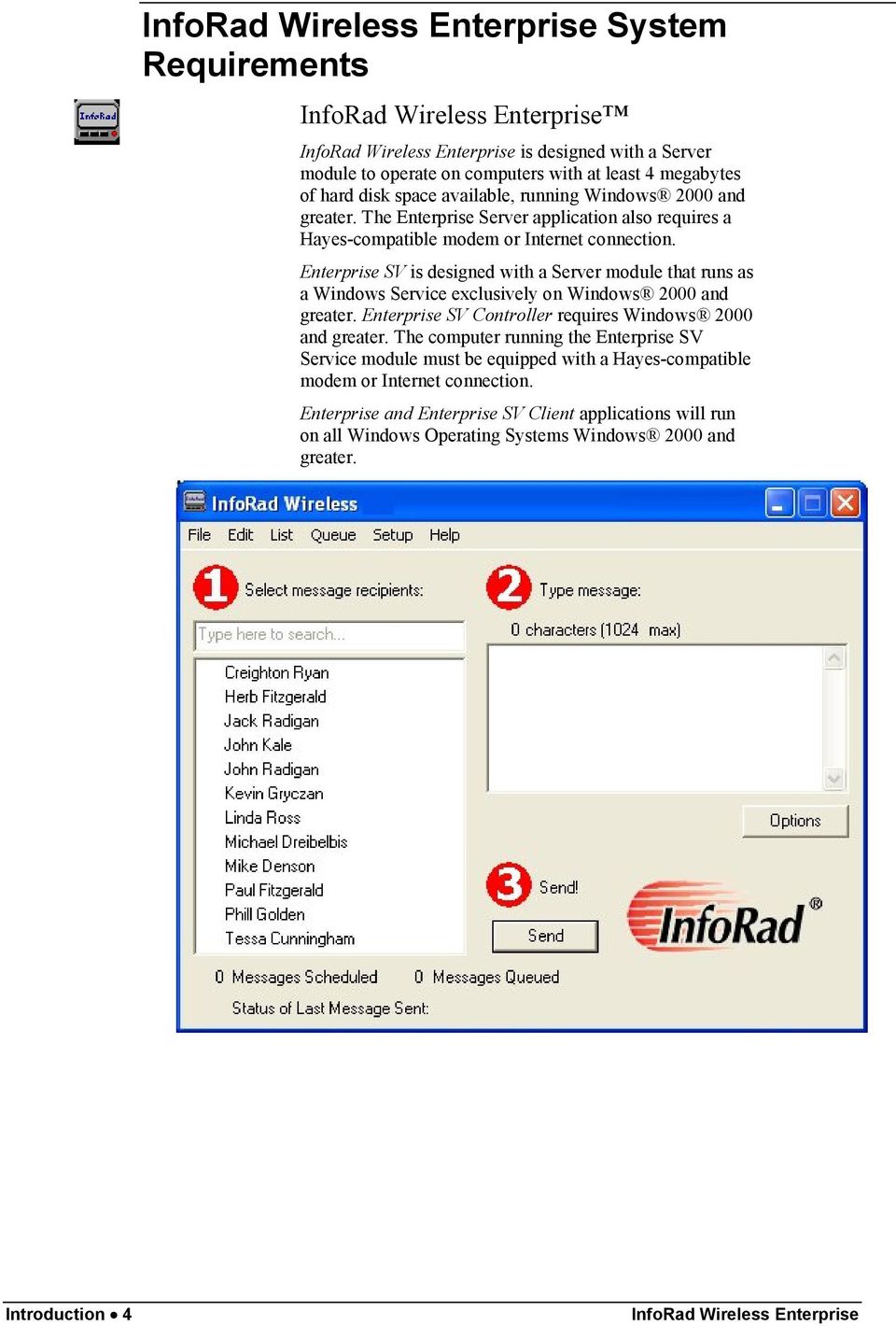
10 InfoRad Wireless Enterprise System Requirements InfoRad Wireless Enterprise InfoRad Wireless Enterprise is designed with a Server module to operate on computers with at least 4 megabytes of hard disk space available, running Windows 2000 and greater. The Enterprise Server application also requires a Hayes-compatible modem or Internet connection. Enterprise SV is designed with a Server module that runs as a Windows Service exclusively on Windows 2000 and greater. Enterprise SV Controller requires Windows 2000 and greater. The computer running the Enterprise SV Service module must be equipped with a Hayes-compatible modem or Internet connection. Enterprise and Enterprise SV Client applications will run on all Windows Operating Systems Windows 2000 and greater. Introduction 4 InfoRad Wireless Enterprise
11 InfoRad Wireless Enterprise Features InfoRad Wireless Enterprise is easy to install and provides fast, automated dispatch of your text messages. InfoRad Wireless Enterprise processes ASCII text files created by other programs, allowing you to easily add automated messaging capabilities to your custom applications. Message by Name or Group easily through any messaging company that accepts remote alphanumeric/text messaging. Take advantage of the unique feature of automatically sending messages while performing other tasks on your computer. Drop down selections and alphabetical search functions assist you with setup, directory features, and sending your messages. Message entry includes use of cut and paste functions, recall of previous messages, preprogrammed messages, and an optional Auto-Split feature for long messages. Schedule messages to be sent at a specific date and time. Use messages as reminders for meetings, recurring events, and more. Directories can be listed by wireless receiver phone or ID #, Name, Group, and Wireless messaging service. Message logging with time/date stamp. Logs can be sorted by recipient or message count. Communications options offer you maximum setup flexibility and full compatibility with practically any modem. Experienced live technical support available. Long block/message chaining capable. PCS Phone short messaging services (SMS). Send messages over the Internet (via modem or network connection) directly to your Messaging Services Internet Server via Internet messaging protocols WCTP & SNPP. Messaging via Internet (SMTP) also supported. Receive message responses to your address, or your wireless receivers address, from 2-way devices with WCTP and SMTP services. Send messages to on-site/customer-owned paging system or via leased-line connection to Messaging Service with Direct Serial Connection Option. Expanded Group Members, Scheduled and Predefined Messages HTTP Proxy Authentication support for WCTP Services. SMTP Authentication & SSL Connection support for messaging. WCTP Authentication & SSL Connection support. InfoRad Wireless Enterprise Introduction 5

12 NEW Advanced Scheduler schedule recurring daily, weekly, monthly messages/reminders. NEW Spell Checker check and correct messages before sending. NEW Message Templates preformatted, fill-in-the-blank messages. NEW Route on Failure alternate delivery destination / alternate receiver delivery on primary failure. Extended AlphaCare Support Services available: Priority Technical Support, FREE updates. Keep your product current with changing Operating System and Wireless specifications. Introduction 6 InfoRad Wireless Enterprise

13 Important Terms Used in this Manual The following terms are used throughout the InfoRad Wireless Enterprise user s manual: Network Drive: A logical or mapped drive or UNC path that is located on your network. Program Drive: The location where the InfoRad Wireless Enterprise program and data files are stored. Message Drive: The location where the InfoRad Wireless Enterprise message files used during the sending and processing of pages will be stored. This is usually a network path, but can also be a mapped or local drive. Note: If the message drive for Enterprise SV is located on a network drive, the Enterprise SV Service Logon must use a logon that has network rights as well as Administrative rights on the Service computer. (Services Control Panel Logon properties.) Messaging Server: The computer which processes and sends the message files. This is the computer where the InfoRad Wireless Enterprise server application was installed. Requirements: 1. Read / Write access to both the program and message drives. 2. Access to a dial-out modem or Internet connection. Messaging Client: The computer that creates and sends the message files to the server. This is a computer where the client application was installed. Requirements: Read / Write access to the server program and message directories on the network. Note: Please see Access Rights and InfoRad Wireless Enterprise on page 9 for information on the specific directory and file rights required for proper operation of InfoRad Wireless Enterprise. InfoRad Wireless Enterprise Introduction 7

14 What You Need to Get Started How does a text message get from your computer to your wireless receiver? Unlike sending a numeric message, sending a text message is a three-step process: 1. Messaging via the following options: a. Dial-up TAP service: InfoRad Enterprise uses your computer's modem to dial into the Wireless Messaging Service's modem Phone Number. This number is different from your Wireless Receiver number. If you don't have a Service Phone Number, contact your wireless messaging or short messaging service. b. Internet service WCTP & SNPP: InfoRad Enterprise uses your Internet connection (Dial-up ISP, broadband, or network) and connects to the service s Internet Server for WCTP & SNPP services. If you don t have the Internet address for the WCTP or SNPP service, contact your wireless messaging or short messaging service. c. Internet (SMTP): InfoRad Enterprise uses your Internet connection (Dial-up ISP, broadband, or network) to connect to your ISP or network server. If you do not have your server address, contact your ISP or network administrator. d. Direct Connection: I. InfoRad Enterprise uses your computer s serial port and a leased-line modem to connect to your Wireless Messaging Service or on-site paging system. II. InfoRad Enterprise uses your computer s serial port and a serial cable connection to connect to your on-site paging system. 2. After a connection is made to your wireless messaging service, InfoRad Enterprise uploads the wireless receiver ID number and the message you wish to send. 3. After InfoRad Enterprise disconnects, your wireless messaging service broadcasts the message through their radio tower and out to your wireless receiver. For every wireless receiver you wish to set up in InfoRad Wireless Enterprise, you will need the following information: 1. The Wireless Receiver Number. If your wireless messaging service uses PIN Numbers or Cap Codes, you will need the PIN Number or Cap Code for your wireless receiver. Otherwise, you will just need the Wireless Receiver Phone Number. If using (SMTP) you will need the e- mail address for your wireless receiver. 2. The Service Provider Phone Number or Service Provider SNPP or WCTP Internet Address and Port or Server Address. The Service Provider phone number is the dialup number for your wireless messaging service, also sometimes called a Access Number, Terminal Number, Modem Number, Alpha Port phone number, or Short Messaging Service phone number. If you dial this number from a telephone, you should hear a screeching noise, like a fax machine. If connecting through the Internet, the SNPP or WCTP address and port are used to transmit your message to the service provider; the Server address is used to relay your message through the Internet mail system. If you are unsure of any of the required information, contact your wireless messaging or short messaging service. Introduction 8 InfoRad Wireless Enterprise

15 Installation Overview There are two versions of InfoRad Wireless Enterprise, each with a different installation procedure: To install the standard version of InfoRad Wireless Enterprise, refer to Installing InfoRad Enterprise on page 12. To install the SV version of InfoRad Wireless Enterprise, refer to Installing Enterprise SV on page 17. Access Rights and InfoRad Wireless Enterprise For proper operation, the InfoRad Wireless Enterprise messaging software requires certain file and directory access rights to be properly set, especially if the message directory is located on a network drive. Before installing InfoRad Wireless Enterprise, check that the following access rights are properly set. Basic Security Permissions Use the following simple Security Permissions on networks where Advanced Security is not required. Note: Novell rights are shown. If you are using a different network, set the access rights to the equivalent rights on your network. Key: R W C E M F Read Write Create File Erase or Delete File Modify File Filescan and Directory Control (i.e., rename a file) Item Program Directory Message Directory Rights RWCEMF RWCEMF Note: If you are installing the message directory on a local hard drive, the access rights are probably set correctly. You will most likely only have to modify access rights if you set up the message directory on a network drive (see ASCII File Processing Setup on page 30 for details on setting up the messaging message directory). Windows Networks For Windows networks, set the access type for file sharing to SHARED with FULL access for the drive and directory that is being shared. InfoRad Wireless Enterprise Installation 9

16 Advanced Security Permissions Enterprise SV For networks where stricter Security Permissions are desired, specific folder and file permissions can be set. To install InfoRad Wireless Enterprise SV onto a Windows 2000 and greater environment, you will need Administrator rights at the Windows Server you are installing InfoRad Wireless Enterprise SV Service on. Administrator rights are needed for the installation of the Service Controller on the Windows workstation or Windows Server. For deployment of the Enterprise SV Client, installation on Windows workstations will need at least local Power User permissions as the installation will write into the System Registry tree. For running the Enterprise Client, you need only be a local User on the Windows workstation. For Advanced Security Permissions ease of application it is suggested that the Domain Administrator create a Domain Group, and include all Domain Users who will be using InfoRad Wireless Enterprise SV (InfoRad Users Group). Go to the Service folder (Windows Explorer), click to select the folder, then right click and select Properties. Under the Sharing tab of the Service folder, select Share this Folder. You can change the Share name as desired. Click on the Permissions button and then select Full Control (for Everyone) to set Share Permissions for the InfoRad Enterprise SV folder. Next go to the Security tab of the Service folder and Add the InfoRad Users Group to the listing, click on Apply, and then click on Advanced (with the InfoRad Users Group selected in the list) and set the following permissions: ALLOW Traverse Folder / Execute File, List Folder / Read Data, Read Attrributes, Read Extended Attributes, Read Permissions DENY Create Files / Write Data, Create Folders / Append Data, Write Attributes, Write Extended Attributes, Delete Subfolders and Files, Delete, Change Permissions, and TakeOwnership Installation 10 InfoRad Wireless Enterprise

17 After completing the Service folder permission settings, in the Service folder select the MSG folder, right click and select Properties. Under the Security tab for the MSG folder select the InfoRad Users Group and select Full Control Permissions and then click on Apply. Finally go to the Service folder and select the LICENSE.IRT file, right click and select Properties. Under the Security tab for the LICENSE.IRT file select the InfoRad Users Group and select Full Control Permissions and then click on Apply. Applying these settings will allow InfoRad Users to run the Enterprise Client application and send messages, but will lockdown the Service folder for users ability to change or manipulate any of the program files. Administrators will still have full access. InfoRad Wireless Enterprise Installation 11

18 Installing InfoRad Enterprise NOTE: The installation procedure listed here is for the InfoRad Wireless Enterprise running on Windows 2000 and greater. If you are installing the Enterprise SV, please refer to Installing Enterprise SV on page 17 for the installation procedure. Enterprise Installation Overview InfoRad Wireless Enterprise includes two separate applications, the Enterprise Server, and the Enterprise Client. Both are capable of creating wireless messages, however only the server can actually send a wireless message or edit the messaging configuration settings. The client application should be used for normal messaging needs. Enterprise Server: The server handles the actual sending of messages. It takes the messages created by the client applications and transmits them to the appropriate messaging company via the modem or internet connection. The application monitors the message directory and processes any new messages sent to that directory by the client applications. The server allows access by the System Administrator to all setup features, including setup of wireless receivers, messaging companies, groups, dialing, communications, and password selection and maintenance. Enterprise Client: The client application allows general access for messaging purposes only users can enter and send messages, but cannot edit the central messaging database information. The client application is designed for use at computer stations where the user only needs the ability to send wireless messages. The server application is used to edit the configuration information. Each of these modules is installed separately. Server Installation Note: The initial installation should be done from the computer that is to serve as the Messaging Server. During the initial installation both the server and client applications will be installed. 1. If InfoRad Wireless Enterprise was provided on a floppy disk, make a back-up copy of your installation floppy disk before you use it. 2. To install InfoRad Wireless Enterprise server on your computer hard drive, click on the Start button, and select Run. Browse to your CD or floppy drive and select SETUP.EXE, and then click on OK. 3. The InfoRad Installation wizard license agreement screen will appear. Click on the I agree button to continue the installation. 4. The Installation wizard will begin. Click on the Next button or press Return to continue the installation process. 5. You are then prompted for a destination directory for the installation. If you wish to change the directory where the server application will be installed, click on the browse button and select a new directory. Otherwise, click on the Next button to continue the installation process. Note: If you are re-installing or upgrading InfoRad Wireless Enterprise, the installer will also ask if you wish to use the existing messaging database files and program setup files, or replace them. 6. You are then prompted for a private setup directory. This directory is used for storing information specific to this installation, such as preprogrammed messages, scheduled messages, the message log, and more. If you wish to change the default directory, click on the browse button and select a new directory. Otherwise, click on the Next button to accept the default directory setting. Note: If the installer detects setup files in the private setup directory, you will be given the option to use the existing setup files or replace the setup files. 7. Next, you are prompted for the Server Message Path. This is the directory which the server application will monitor for message files sent by the client applications, and is usually a network Installation 12 InfoRad Wireless Enterprise

19 drive which can be accessed by the client applications. Select a server message directory, then click on the Next button. 8. Next select Client Access for Current User or ALL Users. Selecting Current User will store Program Settings in the Windows Current User Registry. Selecting ALL Users will store the Program Settings in the Windows Local Machine Registry (All Users). Selecting ALL Users may require Administrative privileges. 9. You are then prompted if you would like a shortcut icon placed on the desktop. Select yes or no. 10. Ready to Install! Click next and Setup will then install the program files. Once the program files are installed, the program will prompt you for program setup information. Click on the Next button to begin the program setup process. 11. Select whether you will be using a Modem (dial-up Messaging Service or ISP) or network/dsl/cable Internet connection to send messages. If you will be using both, select Modem to start the Modem Setup Wizard. 12. If you selected Modem above, the Modem Setup Wizard will begin. Click Next to go to Communications Setup. (Please note if you are using a dial-up Internet connection, after Setup completes you will need to select the Internet Connection to use (Setup Menu / Internet Settings). (See Communications Setup on page 22 for full details on the communications setup procedure.) 13. Next, if you purchased the retail version of InfoRad Wireless Enterprise, the Wireless Messaging Service wizard is started. Enter the wireless messaging service information as prompted. (See Building Your Wireless Messaging Services Directory on page 36 for details). 14. After you have entered a wireless messaging service, the Add Wireless Receiver wizard is started. Enter at least one receiver number, and click Finish when finished. (See Building Your Wireless Receiver Directory on page 45 for details on adding wireless receivers to the messaging database). 15. Next, the ASCII File Setup screen is opened: the ASCII File Setup screen allows you to configure how InfoRad Wireless Enterprise will process message files. See ASCII File Processing Setup on page 30 for details. 16. Click on the Register Now or Register Later buttons. If you choose to Register Later the Registration dialog is accessible from the Setup menu after installation. InfoRad Wireless Enterprise Installation 13

20 If you select the Register Now button, the program will automatically open your internet browser to the InfoRad Product Registration website. Registration is necessary for technical support and notification of future upgrades. 17. The installation is now complete. To run the server, click on the InfoRad Wireless Enterprise Server icon located in the InfoRad Wireless program group. Installation 14 InfoRad Wireless Enterprise

21 Client Installation The client installation program (Client Setup.exe) is installed into the server program directory during the server installation procedure. This allows the system administrator to easily install wireless messaging clients as needed. Note: The client installation program must be run from the computer on which you wish to install the Enterprise client application. This computer should have network access to the directory where the Enterprise server was installed (See Access Rights and InfoRad Wireless Enterprise on page 9 for more information). Repeat the following installation procedure on each computer where you wish to install the client application: 1. To install InfoRad Wireless Enterprise client, click on the Start button, and select Run. 2. To install the Enterprise client on the local computer hard drive, click on the browse button in the Run Command line, and locate the Client Setup.exe program in the Enterprise server s program directory. Click OK to run the installer. 3. The Installation wizard will appear. Click on the Next button or press Return to continue the installation of the Enterprise client application. 4. You are first prompted for a Private setup directory. This directory is used for storing setup information specific to this client, such as preprogrammed messages, scheduled messages, the message log, and more. If you wish to change the default directory, click on the browse button and select a new directory. Otherwise, click on the Next button to accept the default directory setting. Note: If the installer detects setup files in the Private setup directory, you will be given the option to use the existing setup files or replace the setup files. 5. Next, you are prompted for the Server Message Path. This is the directory that the Enterprise server application will monitor for message files sent by the client applications, and is usually a network drive that can be accessed by a client application. Select a server message directory, and then click on the Next button. Note: If you do not know where the server message directory is located, click on the Auto Search button, and the installer will automatically attempt to find the correct directory on the network. This process may take some time. The message directory can also be found by checking the Setup/ASCII File Setup/ASCII File Options/Messages Path dialog on the Messaging Server application. InfoRad Wireless Enterprise Installation 15
22 6. Next select Client Access for Current User or ALL Users. Selecting Current User will store Client Program Settings in the Windows Current User Registry. Selecting ALL Users will store the Client Program Settings in the Windows Local Machine Registry (All Users). Selecting ALL Users may require Administrative privileges. 7. You are then asked if you wish to create a shortcut on the desktop for the InfoRad Wireless Enterprise Client application. Click on the Next button once you have made a selection. 8. Ready to Setup! Click Next and Setup will then create a local directory for this Client's application setup information and install an application icon to launch the Client. To run the InfoRad Wireless Enterprise Client, click on the InfoRad Wireless Enterprise Client icon located in the Start Menu and/or Desktop. Installation 16 InfoRad Wireless Enterprise
23 Installing Enterprise SV NOTE: The installation procedure listed here is for the InfoRad Enterprise SV version. If you are installing the standard Enterprise version, please refer to Installing InfoRad Enterprise on page 12 for the installation procedure. Enterprise SV Installation Overview There are three separate software components for Enterprise SV: Enterprise SV Service Module Enterprise SV Service Controller Enterprise SV Client This is the background messaging engine. There is no direct user interaction possible with this module configuration is done through the Service Controller module. The Service module only runs on the computer designated as the messaging server and requires Windows 2000 and greater. The Services Controller is an administrative module for configuring and maintaining the Enterprise SV Services messaging engine. This module can be run from the messaging server PC or remotely from any other Windows 2000 and greater PC on the network with administrative privileges. This is the application used to create wireless messages for transmission by the Enterprise SV Services module. It can be run on any computer on the network (Windows 2000 and greater), but cannot modify any messaging server settings. To use InfoRad Enterprise SV, you must have a computer available on the network with a modem or an Internet connection to run the Service module (we will be referring to this computer as the messaging server ). The Service module should be installed directly onto this computer. NOTE: The Service Controller module can be run from any Windows 2000 and greater computer with administrative privileges on the Service computer, but the Communications Setup can only be accessed when the Service Controller is run directly on the messaging server. InfoRad Wireless Enterprise Installation 17
24 SV Service Module and Controller Installation NOTE: Installing Internet downloaded Enterprise SV file. The download file will install the Enterprise SV Service (follow steps 1, & 4-6 in Enterprise SV Service Module Installation.) During the Service installation a Controller setup file is copied into the Enterprise SV Service folder. Run the Controller Setup.exe file to install the Enterprise SV Controller (follow steps 7-12 in Enterprise SV Service Controller Installation ). To install the Enterprise SV from CD/disk first install the Service Module ( Enterprise SV Service Module Installation ), then install the Service Controller ( Enterprise SV Service Controller Installation ): Enterprise SV Service Module Installation 1. On the computer with a modem or Internet connection that you have designated as the messaging server, log in as the Administrator. 2. Insert the installation disk into the CD or floppy drive. 3. Click on the Start button, and select Run. Browse to your CD or floppy drive and select SETUP.EXE, and then click on OK. 4. Select the directory where you would like to install the software. (By default this is C:\Program Files\InfoRad Enterprise SV Service.) The service program, the client application, client installation program, and database files will then be installed into the specified installation directory. 5. When the module has been installed, reboot the computer when prompted. 6. Ensure that the installation directory for the Service module is shared and that all client computers will have full rights to the message directory. The installation program cannot share these directories automatically. Enterprise SV Service Controller Installation 7. Once the computer has rebooted, login again as the Administrator. Click on the Start button and select Run. CD/disk install: Browse to your CD or floppy drive and select CNTSETUP.EXE, and then click on OK. (This is the Controller Setup from the installation disk.) Download file install: Browse to the shared Enterprise SV Service folder and select the Controller Setup.exe file, and then click OK. 8. Select the directory where you would like to install the Service Controller (by default this is C:\Program Files\InfoRad Enterprise SV Controller). 9. Once the Controller installation is complete, select InfoRad Enterprise SV Controller from the Start>Programs menu. 10. When the Service Controller asks which computer you would like to connect to, select Service on This Computer. 11. When prompted to select the path to the database files, select the Enterprise SV Service installation directory. Double-click on any one of the.irt files listed in the directory. 12. Set up the Enterprise SV Service program settings (See Server Setup on page 21). 13. If you wish, you can also set up the messaging services, wireless receivers, and messaging groups at this time. (See Building Your Wireless Messaging Directories on page 35.) Installation 18 InfoRad Wireless Enterprise
25 Remote Service Controller Installation 1. If you wish to administer the service module from another computer on the network, take the installation disk to that computer, login as the administrator, and then run the CNTSETUP.EXE program on the installation disk to install the Service Controller. (For Internet downloaded products, browse to the shared Enterprise SV Service folder on the Messaging Server and run Controller Setup.exe.) 2. When you run the Service Controller from a remote system you must be logged in as the Administrator, and when the Service Controller asks which computer you would like to connect to, select Service on a Remote Computer and enter the name of the remote computer (such as Server1 ). 3. When prompted to select the path to the database files, select the Enterprise SV Service installation directory. Double-click on any one of the.irt files listed in the directory. 4. You can now access the edit and setup options from the Edit menu. NOTE: The Service Controller module can be run from any Windows 2000 and greater computer with administrative privileges on the Service computer, but the Communications Setup can only be accessed when the Service Controller is run directly on the messaging server. Enterprise SV Client Installation To install the Enterprise SV client application on a client computer: 1. Login to the client computer (you do not have to login as an Administrator to install the client application.) 2. Locate the client installation program (Client Setup.exe) located in the service module s installation directory and run it. This will create a local directory for this client application s setup information and install an application icon to launch the client. 3. You are first prompted for a Private Setup Directory. This directory is used for storing setup information specific to this client, such as preprogrammed messages, scheduled messages, the message log, and more. If you wish to change the default directory, click on the browse button and select a new directory. Otherwise, click on the Next button to accept the default directory setting. 4. You are then asked if you wish to create a shortcut on the desktop for the InfoRad Wireless Enterprise Client application. Click on the Next button once you have made a selection. 5. Next select Client Access for Current User or ALL Users. Selecting Current User will store Client Program Settings in the Windows Current User Registry. Selecting ALL Users will store the Client Program Settings in the Windows Local Machine Registry (All Users). Selecting ALL Users may require Administrative privileges. 6. Repeat this process on all computers that you wish to run the Enterprise SV Client application. InfoRad Wireless Enterprise Installation 19
26 Installation Problems? Should you require additional assistance with InfoRad Enterprise, please briefly document your problem and questions, serial number and version number. Technical Support Options Technical Support is only available to registered users of the software as detailed in the licensing agreement. Please register if you haven t already. This program is licensed with 90-days free telephone technical support included. AlphaCare Subscription options are available that extend the support period, as well as offer priority telephone support and Upgrade Protection. Out-of-warranty support is also available on a per-incident basis.. Please call InfoRad Sales at (800) for details on AlphaCare, or to [email protected], or see our website at InfoRad Software Technical Support is available Monday through Friday 8:30 5:30 ET. A technical support section with solutions to common problems is also available at Phone: (216) [email protected] Internet: Installation 20 InfoRad Wireless Enterprise
27 Server Setup Setup Overview Your InfoRad Wireless Enterprise server software, during installation, is configured for compatibility with most computer systems. InfoRad Wireless Enterprise provides you with additional communications options should your system or personal needs require them. Access to these features is achieved by selecting Communications, ASCII File Processing Setup, or Preferences from the Setup menu (Edit menu in Enterprise SV). There are four main setup areas: Communications Setup Internet Setup ASCII File Processing Setup Preference Options Change Graphics Option (Enterprise only) InfoRad Wireless Enterprise Server Setup 21
28 Communications Setup The Communications Setup defines the settings and options used by InfoRad Enterprise when connecting to Messaging Services that are programmed to connect via modem dialup (TAP). InfoRad Enterprise uses the Windows communications settings and dialing properties, allowing you to easily use your current Windows modem settings when setting up InfoRad Enterprise. In addition, there are several modem configuration options that you can use to further define how InfoRad Enterprise uses your modem. To setup InfoRad Enterprise s communication settings, select Communications from the Setup menu (Edit menu in Enterprise SV). The Communications Setup dialog is displayed. Server Setup 22 InfoRad Wireless Enterprise
29 Modem Dialup Connection Settings The Modem dialog lists all available modems on the current system and modem configuration settings. When you are finished with the modem selection and configuration, click on OK to finish the communications setup process. Use this modem to send messages: Click on the drop-down box to select the modem you wish to use with InfoRad Enterprise. Modem configuration: The standard Windows modem settings should work with InfoRad Enterprise. However, if you should need to modify the modem settings for use with InfoRad Enterprise, additional modem configuration settings are available from within the Modem dialog. From this dialog you can change the following options: Modem Configuration Communications Log Flow Control Note: InfoRad Enterprise uses your Windows settings to determine what modems are available and how to dial phone numbers. To modify the dialing properties in Windows click on the Dialing tab in the Communications Setup screen. InfoRad Wireless Enterprise Server Setup 23
30 Modem Configuration If your modem requires a unique initialization string, select Override the system s modem configuration, use this initialization string instead: and enter your modem s initialization string: 1. If you are unsure of what initialization string you should use, try using the Create button. InfoRad Enterprise will automatically build a custom modem initialization string for your modem. 2. If the custom initialization string built by Create does not work, enter a custom modem initialization string manually. See Using High Speed and Fax Modems on page 25 for more information on creating a custom initialization string. Note: If you change the modem selection in Communications Setup, you must first click on the Apply button to activate the Create function to allow automatic setup of an initialization string for the newly selected modem. Communications Log The Keep a log of communications activity for diagnostic purposes checkbox enables communications logging of all modem connections to a files named CM*.txt, which is saved in the program installation directory. The log filename is CM, followed by the day of the month, followed by the time of day - for example, a message or group of messages sent on the 6th day of the month at 9:15am would have a log file with the name CM txt.; at 9:15pm the filename would be CM txt Flow Control The flow control settings allows you to enable/disable modem flow control, and select between software (XON/XOFF) flow control and hardware (RTS/CTS) flow control (default setting). Normally there is no need to change this setting. Server Setup 24 InfoRad Wireless Enterprise
31 Using High Speed and Fax Modems If you need to use a custom modem initialization string and are using a Fax modem, a high-speed modem (above 2400 baud), or a modem with error correction or data compression features, several of your modem s advanced features will typically need to be disabled to achieve successful communications with a wireless messaging service s answering modem. If you are not familiar with the proper commands, syntax, or command order for your particular modem, please reference your modem user manual or contact your modem manufacturer s technical support staff. Also note the following settings for a typical initialization string: Select Bell mode (For U.S.) Select CCITT mode (For European and other countries) Error correction = OFF Data compression = OFF Auto baud adjust = OFF or ON Return verbal result codes = ON (typically Q0V1) Extended result codes (typically X4 to return BUSY, NO DIAL TONE and CONNECT message with speeds) Flow control = OFF Operation mode = Normal mode Modem reset on DTR transition = ON Trellis Encoding = OFF Communications mode = asynchronous Note: Try adding an &F at the beginning of the init string to reset modem before issuing other commands. Try setting the operation mode to direct mode if normal mode fails. Some modems use the +MS command to set the speed of the modem. A typical setting will look like the following: +MS=B103 for a 300 baud rate connection +MS=B212 for a 1200 baud rate connection For more information on modem configuration, please see InfoRad Wireless Enterprise Server Setup 25
32 Internet Setup Access the Internet Setup by selecting Internet Settings from the Setup Menu (Edit menu in Enterprise SV). Internet Setup section allows you to configure: Internet Connection Settings Telnet Proxy Setup Options Other (Internet Setup) Internet Connection Settings These settings are used for internet-based messaging services (WCTP, SNPP, SMTP( )). The following are the Internet connection options: Connect to the Internet through: You can configure the software to connect to the Internet through your local network, or you can select a dial-up Internet connection. If you select a dial-up Internet connection, you will need to enter the login account name, account password, and optional domain name. Reconnection options: These settings define the number of redial attempts to connect to Internet if a connection or logon problem occurs (such as a busy signal). HTTP Proxy Server Authentication: WCTP Messaging Services utilize the HTTP Internet protocol in the same way as your Internet Browser. If your network contains a Proxy Server that requires Authentication to access the Internet, check 'Proxy server requires authentication' and enter your Username and Password required for Internet Access. (Note for Enterprise SV: The Enterprise SV Service accesses the HTTP Proxy. The Enterprise SV Service Logon properties must use a logon account that will allow the Service both admin rights to the machine running the Service and network access to the HTTP Proxy.) Keep a log of internet activity for diagnostic purposes: This option enables logging of all internet connections. This is useful to confirm that the computer is successfully connecting to the Internet to transmit messages. When this option is enabled, a file named inetlog.txt is saved in the program installation directory. This file contains a log of all Internet activity generated by the program, including connection attempts and sent messages. Server Setup 26 InfoRad Wireless Enterprise
33 Telnet Proxy Setup Options When sending messages via SNPP to a Messaging Service through a network Internet connection that utilizes a proxy server or firewall for network security, it may be necessary to setup InfoRad Enterprise to use a telnet proxy. This may be required since SNPP is not a common port that is open on most Proxy servers or Firewalls. Check with your network administrator to determine if you must use a Telnet Proxy and for proper settings. Select the Use a telnet proxy for SNPP services checkbox to enable the use of a telnet proxy in the Telnet Proxy tab of Internet Setup. InfoRad Wireless Enterprise Server Setup 27
34 Use a telnet proxy for SNPP services: If you are using a proxy or firewall with your Internet connection, you can select this checkbox to enable proxy use and to specify the proxy settings, including the proxy address and port number. Note that telnet proxy is used only for SNPP Services. (WCTP and SMTP Services will not use a telnet proxy. WCTP connects via an HTTP Proxy if the network requires; SMTP connects via an SMTP server located on your network or at your ISP.) Telnet Proxy Address and Port: This is the address and port number of the proxy server being used. Telnet proxy responses: The Telnet prompt options specifies the prompt text that the proxy server displays to indicate that it is ready for input. Note that if your Telnet prompt contains a space after the prompt (and before the cursor), you must enter the space as part of your "Telnet prompt" text entry. (To determine your telnet prompt, open a command window and establish a telnet connection to your telnet proxy server. The command prompt that is returned is your "Telnet prompt".) Telnet proxy commands: The Connect command is the command the proxy server will use to connect to the messaging service Internet server. Note: to send the proxy address, enter ADDRESS. To send the proxy port, enter PORT. Example: If you enter CONNECT ADDRESS PORT in the Connect command field, and your Messaging Service SNPP Internet server address is snpp.alphatech.com, and the port is 444, InfoRad Enterprise will send the command CONNECT snpp.alphatech.com 444 when connecting to the messaging service Internet server through the Telnet Proxy. Normally, the proxy connect command is ADDRESS PORT or CONNECT ADDRESS PORT. Check with your network administrator for the proper commands for your proxy server. Flow of a Telnet proxy connection: When sending a message utilizing a Telnet Proxy Server, InfoRad Enterprise first establishes a telnet connection to the proxy as defined in the Telnet Proxy Address and Port. When InfoRad Enterprise detects the Telnet prompt (as defined in the Telnet Proxy Setup), it then sends the Connect command (as defined in the Telnet Proxy Setup) using the ADDRESS and PORT as defined in the Messaging Service. The Telnet Proxy then establishes a connection to the Messaging service. InfoRad Enterprise then sends the message to the Messaging Service via the connection established by the Telnet Proxy. Server Setup 28 InfoRad Wireless Enterprise
35 Other (Internet Setup) InfoRad Enterprise supports sending messages to wireless receivers via Internet using the standard Internet protocol SMTP. To send messages via please reference the Messaging Service setup. The Other tab in Internet Setup allows you to define the Reply-To Address for messages sent via (SMTP) and WCTP. Enter your Internet address in the field. Note that some servers may reject messages that do not have a Reply-To Address defined. The Subject Line field is used as the Subject in (SMTP) messages. Note that some servers may reject messages that do not have a subject defined. The subject line can also be used with some SPAM filter software to allow the message through the SMTP server. For example an SMTP Server SPAM filter may be defined to allow messages with ALERT as the subject to be processed. If no entry is made in the address field, then message responses and failed to send notices will not be returned. NOTE: Some WCTP Messaging Services require the use of a senderid. The Reply-To Address field will be used as the senderid (in addition to being used as the reply address) when connecting to WCTP services. The ReplyTO Address in the Enterprise Server will be used for messages entered and sent on the Server to SMTP and WCTP Messaging Services. The ReplyTO Address in the Enterprise Server will also be used as the ReplyTO Address for Enterprise Clients that do not enter a ReplyTO Address in the Client setup. InfoRad Wireless Enterprise Server Setup 29
36 ASCII File Processing Setup The ASCII File Processing Setup option allows you to configure how InfoRad Wireless Enterprise will process message files. The ASCII File Options dialog is automatically opened during the installation process, and can also be accessed from the Setup menu (Edit menu in Enterprise NT). InfoRad Enterprise ASCII File Options Screen Enterprise SV ASCII File Options Screen Server Setup 30 InfoRad Wireless Enterprise
37 The following are the available ASCII File Setup processing options: Message Directory The Message Path field allows you to enter the directory where InfoRad Wireless Enterprise will check for new message files. By default this directory is C:\Program Files\InfoRad\Wireless Enterprise\MSG\, however it can be changed to any directory on available local or network drives. (Default for Enterprise SV is C:\Program Files\InfoRad Enterprise SV Service\MSG\.) (Note for Enterprise SV: The Enterprise SV Service accesses the Message Directory. If the Message Directory is not located on the Service machine, but is located on a network location, the Enterprise SV Service Logon properties must use a logon account that will allow the Service both admin rights to the machine running the Service and network access to the Message Directory.) Check Interval The check interval option sets how often InfoRad Wireless Enterprise checks the message directory for new message files to process. By default this is set to 15 seconds. (This option is not available in the SV version of InfoRad Wireless Enterprise.) Strip whitespace The strip whitespace option automatically removes any excess spaces from the contents (or message) of a wireless receiver message, converting multiple spaces into a single space. For example, the message Frank, give me a call -- John would be sent as Frank, give me a call -- John. An example reason to turn off this option is if you are formatting messages to fit a specific wireless receiver s line format and use spaces in the message to accomplish this task. Include time Selecting this option will automatically insert the time that InfoRad Wireless Enterprise sent the wireless receiver message into the message text. Include day Selecting this option will insert the day (abbreviated to three letters, such as Mon or Tue) that InfoRad Wireless Enterprise sent the wireless receiver message into the message text. Include date Selecting this option will insert the date (without the year) that InfoRad Wireless Enterprise sent the wireless receiver message into the message text. Include year Selecting this option will insert the year that InfoRad Wireless Enterprise sent the wireless receiver message into the message text. If the Include date in page option is also selected, the year is appended to the date. Include sender Selecting this option will insert the text included on the FROM: line of the message file into the wireless receiver message. Note that this option is only used when paging from custom applications (See Server Technical Reference on page 73 for details on custom message file processing.) Note: The time and date options are included in messages created by the client application or custom applications, but are not included in messages created directly on the server console. InfoRad Wireless Enterprise Server Setup 31
38 Preference Options InfoRad Enterprise offers you several wireless receiver preference options for handling long message input, entering a message signature, and more. To set or select your Preference Options, select Preferences under the Setup menu. The General Preferences dialog will appear. General Options Split long messages into multiple pages: Selecting this option allows you to send messages up to 1024 characters long. Your message is automatically split into shorter messages based on the message length capability defined when you set up your wireless messaging service s information (see Building Your Wireless Messaging Services Directory on page 36). Require confirmation for deleting and clearing items: This option allows you to select whether InfoRad Enterprise Server will ask for confirmation upon deleting or clearing items from the Receivers, Groups and Messing Service Directory. Send button sends all queued messages: This option allows you to select whether InfoRad Enterprise Server application will send all messages in the queue when sending a newly entered message. When not selected the behavior is to send only the newly entered message and queued messages must be sent from the Queue Menu, Send Queue. Remove duplicate messages: This option allows you to select whether Wireless Enterprise will remove duplicate messages when sending to multiple Groups. If a Receiver belongs to multiple Groups, the message will be sent only one time if this option is selected. When not selected the behavior is to send the Receiver for each Group it is associated. Password option Password protect edit controls: Access for editing any of the InfoRad Enterprise setup or directory entries is restricted by selecting this option. Once disabled, access is allowed only by your password. The InfoRad Enterprise default password is priv. Change Password: The password governs the Edit Controls option. The default password is priv. To change the password, click on the Change Password button, enter your new password, and click on OK. Make sure to document the new password. Server Setup 32 InfoRad Wireless Enterprise
39 Spell Check Option Spell Check performs a spelling check of an entered message before sending and allows for correction. Options: You can use the Options Dialog to specify various spelling-checker options. These options affect the way the spelling-checker operates. Click on the Help button for information on available spellingchecker options. Dictionaries: The Dictionaries Dialog allows you to open and close user dictionaries, and to edit the contents of an open user dictionary. The contents of dictionaries are saved in disk files. Click on the Help button for more information on Spell Check Dictionaries. Message Signature option The message signature text allows you to define a short signature string of characters that will be attached to each message you send. For example, John Smith, ARB Inc. Type in the signature you wish to use in the Signature Text field. When you enter a text message, you will have the opportunity to turn the signature on or off, and select signature inserted before or after each message ( Message Options on page 58). Failed Message Retries Options This option allows you to select the number of attempts that InfoRad Wireless Enterprise will make when an error is encountered during sending of a message. For Dial-up TAP messages the program will also attempt redials upon the following conditions: receiving a telephone company busy signal while dialing the messaging service; if the modem is in use by another application; or if the phone line is in use (no dial tone). There are several retry options available: Retry when manually typed-in messages fail: This option allows you to select whether InfoRad Wireless Enterprise will automatically retry when sending a message that you entered and sent manually. Retry when scheduled messages fail: This option allows you to select whether InfoRad Wireless Enterprise will automatically retry when sending scheduled messages. Retry attempts: Enter the number of times you wish the program to attempt to send a message that is receiving an error. Seconds between attempts: Enter the number of seconds you wish the program to wait before retrying. Bring retry window to foreground: If the program has to attempt to retry, selecting this option will bring the retry window to the foreground (in front of any other open windows). Scheduled Messages option Send past due messages: This option allows you to send past due scheduled messages within a user selected time frame. Turning off this option (un-checking the option) will cause all past due scheduled messages to not be sent. If the message is a One-Time scheduled message, the message will be deleted if the scheduled send time is outside the selected time frame for sending past due scheduled messages. If the program has Advanced Scheduled messaging feature (Daily, Weekly, Monthly recurring scheduled messages), the next occurrence will always automatically be scheduled after determining to send a past due message. If overdue less than: Select the time limit for sending past due scheduled messages from 1-Hour to 1- Month. Log File Location Log File Location: Browse and create an alternate Log File folder location, if desired. This option can be used to relocate Server Log Files for security and privacy purposes. InfoRad Wireless Enterprise Server Setup 33
40 Change Graphics Option If you wish, you can change the background graphic and the text color used by the software. To modify the graphics, select the Change Graphics option from the Setup menu. To select a picture to use as the backdrop, enter the directory path and filename of the graphic, or click on the Browse button and then select the graphic file you wish to use. Next, select a backdrop style: None, Stretch to fit, Centered, or Tiled. To change the color of the text used in the main screen, click on the Pick Text Color button, and then select the color you wish to use. When you click on the Ok button, your graphic preferences will be applied to the main screen. Server Setup 34 InfoRad Wireless Enterprise
41 Building Your Wireless Messaging Directories Messaging Directories Overview InfoRad Wireless Enterprise lets you select wireless receivers for text messages by Name and by Group. To do this, you must first create the following three messaging database directories (Wireless Messaging Service, Wireless Receivers, and Group) in the following order: 1. Building Your Wireless Messaging Services Directory 2. Building Your Wireless Receiver Directory 3. Building Your Group Directory (Optional) These directories contain information about messaging service companies, individual wireless receiver numbers, and grouped listings of receivers that you wish to send text messages to as a set (such as a sales team or emergency action group). InfoRad Wireless Enterprise Building Your Wireless Messaging Directories 35
42 Building Your Wireless Messaging Services Directory The Wireless Messaging Service Directory is a database of messaging companies, including information on each company s wireless messaging service number/internet address (and related communications information). InfoRad Wireless Enterprise allows you to set up as many wireless messaging service entries as you require. You will need a separate entry for each different company used by those wireless receivers you wish to message for example, if you are sending messages to one wireless receiver using a nationwide messaging service and to another using a local messaging service, you will need to create two messaging service directory entries. There are two messaging service setup methods. To quickly add a new modem-based wireless messaging service, you can use the "Add a Messaging Service" wizard. For more advanced setup options, or to edit an existing messaging service, you can manually edit the service s configuration. To access either setup method, select Messaging Services... from the Edit menu to open the Listing of Messaging Services screen, which lists all currently defined wireless messaging services and their current call and packet counts. From this screen you can add, modify, or delete a messaging service. Note: Setup wizards are not available in InfoRad Wireless Enterprise SV. To set up your wireless messaging services, please refer to Manually Adding or Editing a Messaging Service on page 37. Building Your Wireless Messaging Directories 36 InfoRad Wireless Enterprise
43 Manually Adding or Editing a Messaging Service From the Listing of Messaging Services screen you can add a new service or edit an existing service. To add a new service, click on the New button. To edit an existing service, select the messaging service you wish to edit and then click on the Edit button. The Messaging Service Setup screen will open. CONSULT YOUR MESSAGING SERVICE for their system s connection method dial-up or Internet. Dial-up (TAP) connection is also sometimes called a Access Number, Terminal Number, Modem Number, Alpha Port phone number, or Short Messaging Service phone number), optional system log-on password and for changes in any of the default communications parameters (Port Settings). For Internet connections: SNPP & WCTP: Internet server address and port. For (SMTP): Consult your network administrator or ISP for Internet (SMTP) server address. Consult your Messaging Service for the address format of your wireless receiver for later entry of Receivers. InfoRad Wireless Enterprise Building Your Wireless Messaging Directories 37
44 The Messaging Service Setup screen allows you to edit or create messaging service entries in the database. The following are the Messaging Service Setup fields: Messaging service name: Enter the name of the messaging service. Password: If the messaging service requires a password, enter it here (most services do not require a password). Note that if a password is entered into this field and it is not required or is incorrect, a communications error can occur while logging onto the wireless messaging service s system. Maximum Message Length: Enter the maximum number of characters that your wireless messaging service can accept for a text message if it is different from the default setting of 80 characters. If you exceed the wireless messaging service s maximum message capability, your message will typically be either truncated and partially sent or not sent. Log messages to this service: If you wish for a log to be kept of all messages sent to this service, select this checkbox. (See Message Logging on page 71 for more information.) Note: Message logging can also be turned on for individual receivers in the Wireless Receiver setup (See Manually Adding or Editing a Wireless Receiver on page 47.) Connect to this paging service via: There are five connection methods supported Modem Dialup (TAP) connection, Internet (SNPP), Internet (SMTP), Internet (WCTP), and Direct Connection (via leased line modem or serial connection). Check with your messaging service if you are unsure of the connection method to use. Note: Internet (SMTP) is not a direct connection to the Messaging Service. Internet (SMTP) utilizes the Internet routing system, and as such long delays could result. Do not use Internet (SMTP) for time critical messages. Settings: The settings area of the dialog changes depending on the connection method chosen (Dial-up, SNPP, SMTP, WCTP or Direct Serial). See Messaging Service Connection Settings on page 39 for details on setting up each of the available connection methods. Building Your Wireless Messaging Directories 38 InfoRad Wireless Enterprise
45 Messaging Service Connection Settings Depending on the connection method chosen, the setup options listed in the settings area of the Messaging Services setup screen vary. Listed below are the setup options for each connection method: Modem Dial-up (TAP) Connection Country: Select the proper country for this phone number. Area Code: Enter the phone number s area code. Phone Number: Enter the messaging service phone number. Use of commas in the service phone number delays the dialing sequence by two seconds per comma. This is helpful for accessing an outside line in some telephone systems. Note that in most cases commas should be entered in your Windows Dialing Properties settings, and not in this field. Use Area Code, Country Code, and Dialing Properties: If this checkbox is not selected, only the phone number will be dialed the area code and country code will not be dialed. Use this only if you have a special dialing sequence that cannot be defined in the dialing properties. Use Wizard: This button opens the "Add a Messaging Service" wizard. Port Settings: This button allows you to change the communications properties for this connection. The default settings should work with most messaging services change these settings only if you know that your messaging service requires special settings. InfoRad Wireless Enterprise Building Your Wireless Messaging Directories 39
46 Internet (SNPP) Connection Server Address: Enter the Internet address of the SNPP wireless messaging server. (Example: snpp.alphatech.com) Port Number: Enter the port number of the messaging server (usually 444). Login ID: If your messaging service requires a login ID, enter the login ID here (usually the login ID is left blank). Building Your Wireless Messaging Directories 40 InfoRad Wireless Enterprise
47 Internet (SMTP) Connection Note: Internet (SMTP) is not a direct connection to the Messaging Service. Internet (SMTP) utilizes the Internet routing system, and as such long delays could result. Do not use Internet (SMTP) for time critical messages. Server and Port: Enter the server address and port used to send Internet . Check with your network administrator or your ISP for the correct setting. Typically the port number for SMTP is 25. Server requires an SSL-secured connection: Check this option if your SMTP server requires an SSLsecure connection. Enter the port number for your SMTP SSL connection, typically the port number for SMTP SSL is 465. SMTP Authentication: Check this option if your outgoing mail server requires Authentication and enter the logon information.. InfoRad Wireless Enterprise Building Your Wireless Messaging Directories 41
48 Internet (WCTP) Connection Server address and Port number: Enter the Internet address of the WCTP wireless messaging server. (Examples: wctp.inforad.com; wctp.inforad.com/wctp) DTD Address: If your WCTP Service requires a special DTD address, enter their DTD address. Most providers use the default provided. Use Secure HTTP: Selecting this option will use Secure HTTP (SSL) for the connection to the WCTP Server. The Port number will change to 443 for HTTPS when selected and the Server address will use the designation on save. WCTP Authentication: Most WCTP Services do not require Authentication. If your WCTP provider requires Authentication enter your logon information. (Note: Verizon Wireless Messaging requires Authentication, and you must first register at: Building Your Wireless Messaging Directories 42 InfoRad Wireless Enterprise
49 Direct Serial Connection Direct serial connection through: Select the COM port that will be used for the direct serial or leased-line modem connection. Port Settings: This button allows you to change the serial communications properties for this connection. The default settings should work with most messaging services change these settings only if you know your messaging service requires special settings. Flow Control: The flow control settings allows you to enable/disable Serial Port flow control, and select between XON/XOFF (software) flow control, Hardware (RTS/CTS) flow control, and the default setting None (no flow control). Normally there is no need to change this setting. InfoRad Wireless Enterprise Building Your Wireless Messaging Directories 43
50 The "Add a Messaging Service" Setup Wizard The "Add a Messaging Service" Setup Wizard helps guide you through the process of setting up a new wireless messaging service. To set up an Internet connection to a messaging service, please refer to Manually Adding or Editing a Messaging Service on page 37. Note: Setup wizards are not available in InfoRad Wireless Enterprise SV. To set up your wireless messaging services, please refer to Manually Adding or Editing a Messaging Service on page 37. To start the wizard, select "Messaging Service..." from the Edit menu to open the Messaging Services Setup screen, and then click on the Add button. When the Add Messaging Service dialog appears, click on the Wizard button. To begin using the wizard, click on the Next button. 1. You are first prompted to enter a name for the messaging service you wish to add. Enter the name of the messaging service company, and click on Next to continue. 2. You are then prompted to enter the phone number of the wireless messaging service s system (also sometimes called a Access Number, Terminal Number, Modem Number, Alpha Port phone number, or Short Messaging Service phone number). Your modem connects with this number and then relays the wireless receiver numbers and associated text messages that you wish to send. Enter the messaging service s number. Use of commas in the service phone number delays the dialing sequence by two seconds per comma. When you have entered a messaging service number, click on Next to continue. 3. Next, enter the maximum number of characters that your messaging service can accept for an text message if it is different from the default setting of 80 characters. Note: If you exceed the messaging service s maximum message capability, your message will typically be either truncated and partially sent or not acknowledged and not sent. 4. Next, select the baud rate that is used by your wireless messaging service. Usually, this is either 300, 1200, or 2400 baud. If you do not know the baud rate, use the default setting of 1200 baud. Click Next to continue. 5. The messaging service setup is complete. Click on Finish to add the new messaging service to the InfoRad Wireless Enterprise messaging database or click on Add another messaging service if you wish to repeat the wizard. Building Your Wireless Messaging Directories 44 InfoRad Wireless Enterprise
51 Building Your Wireless Receiver Directory You should have already set up at least one messaging service before entering new receivers. (See Building Your Wireless Messaging Services Directory on page 36 for details.) InfoRad Wireless Enterprise provides for easy entry or changes in your wireless receiver directory. The directory allows you to setup as many receivers as you require, and each receiver name entered can be assigned to any previously programmed messaging service. The InfoRad Wireless Enterprise alphabetical search feature will quickly zoom you in on a receiver to view/modify and will also help you select from your messaging service directory. There are two receiver entry setup methods, the Add a Receiver setup wizard and the Wireless Messaging Receivers screen. To quickly add a new wireless receiver, you can use the Add a Receiver Setup Wizard. For more advanced receiver setup options, or to edit an existing receiver entry, use the Wireless Messaging Receivers screen. To access either method, select Receivers... from the Edit menu. This will open the Wireless Messaging Receivers screen, which lists all defined wireless receiver numbers, who carries the receiver, and the appropriate messaging service. Note: Setup wizards are not available in InfoRad Wireless Enterprise SV. To set up your wireless receiver directory, please refer to Manually Adding or Editing a Wireless Receiver on page 47. From the Wireless Messaging Receivers screen you can add, modify, or delete wireless receiver information from the InfoRad Wireless Enterprise receiver directory. InfoRad Wireless Enterprise Building Your Wireless Messaging Directories 45
52 Route on Failure option The Route on Failure feature in InfoRad Wireless Enterprise allows the addition of an Alternate Receiver or Alternate delivery method in the event of a failure when sending to the Primary Receiver. For example, if the Internet connection is down, the message can be routed to the Dial-up TAP Service for delivery. Another option might be routing the message to an alternate Receiver different from the Primary Receiver, for example, route the pager message to the persons cell phone or PDA. The Alternate Receiver could even be a different persons wireless receiver, if desired. Note that the program will use the Retries settings in Failed Message Retries in Preferences when attempting to deliver to the Primary receiver before rolling over to the Alternate Receiver to attempt delivery. To utilize the Route on Failure feature for a Receiver, simply check the Route to alternate receiver option, and enter the appropriate Receiver ID and Messaging Service for the Alternate Receiver. Please note that Alternate delivery methods may have a different Receiver ID. For example, the Receiver ID when using an Internet service may require the 10-digit phone number, and the Dial-up service may require the 7-digit phone number; if the Primary delivery is the Receiver ID is the address, and the Alternate delivery may require the 7- or 10-digit phone number. Building Your Wireless Messaging Directories 46 InfoRad Wireless Enterprise
53 Manually Adding or Editing a Wireless Receiver The Wireless Receiver Setup screen allows you to enter a new receiver s information or edit the settings for an existing wireless receiver. To access the Edit Wireless receiver screen, select "Receivers..." from the Edit menu or click on the Receivers button in the toolbar to display the Wireless Receivers Setup screen. From this screen you can add or edit a wireless receiver s settings, including the name of the person carrying the wireless receiver, the wireless receiver s phone or PIN number, and the wireless messaging service used by the wireless receiver. You can also specify if wireless receiver messages sent to the wireless receiver will be logged or not. InfoRad Wireless Enterprise Building Your Wireless Messaging Directories 47
54 Adding a New Wireless Receiver 1. When the Edit Wireless receivers screen appears, click on the Add button. 2. Enter the person s name carrying the wireless receiver. 3. Tab or click to the next line and fill in the wireless receiver number. Note: For Wireless Receivers utilizing a modem dial-up (TAP) connection, enter either the pager s PIN number or phone number as required by your messaging service, but DO NOT include the area code. (An exception for this rule would be if you are dialing in to a single, central TAP connection for a Messaging Service, versus individual TAP connections by city then use the 10-digit phone number with area code.) If you are using Internet paging (SNPP, WCTP, SMTP) use the 10-digit phone number (including the area code) or the PIN number of the Receiver. For PCS phones enter the phone number including the area code. 4. Click on the Wireless messaging service pull down to select a messaging service. If you wish to add a new wireless messaging service, click on the Add button. 5. Optionally, you can enable message logging for this receiver. Note: You can also select the message logging options when setting up your messaging service directory, to log all messages sent to a specific messaging service. (See Manually Adding or Editing a Messaging Service on page 37 for more information.) 6. Check the Route to alternate receiver box if you wish to utilize the Route on Failure feature for this Receiver. Enter the Receiver ID and Messaging Service for the Alternate Receiver. (See Route on Failure option on page 46 for more information.) 7. When all the information is correct, click Ok. Editing an Existing Wireless receiver To view or edit information about a wireless receiver later, select Wireless receivers from the Edit menu or click on the Receivers button in the toolbar. 1. Select the wireless receiver you wish to edit. 2. When the Edit Wireless receivers screen appears, use the mouse or arrow keys to highlight the receiver you want to see and click on the Change button. The system automatically displays the receiver information you entered earlier. 3. Tab down or click to any line and change the entry by typing over it or clicking the drop down to select the setting you want. 4. Click Ok to save your changes. Building Your Wireless Messaging Directories 48 InfoRad Wireless Enterprise
55 The "Add Wireless Receiver" Setup Wizard The "Add Wireless Receiver" Setup Wizard helps guide you through the process of adding a new wireless receiver to your messaging database. Note: Setup wizards are not available in InfoRad Wireless Enterprise SV. To set up your wireless receiver directory, please refer to Manually Adding or Editing a Wireless Receiver on page 47. To use the wizard, select "Receivers..." from the Edit menu or click on the Receivers button in the toolbar. Click on the Add button to open the Wireless Receiver Setup screen, then click on the Use Wizard button. 1. You are first prompted to enter a name for the new wireless receiver. Enter a name and click on Next to continue. 2. You are then prompted for the receiver s personal ID number (PIN) or wireless receiver number. Enter the wireless receiver number or PIN and click on Next to continue. Note: For Wireless Receivers utilizing a modem dial-up (TAP) connection, enter either the pager s PIN number or phone number as required by your messaging service, but DO NOT include the area code. (An exception for this rule would be if you are dialing in to a single, central TAP connection for a Messaging Service, versus individual TAP connections by city then use the 10-digit phone number with area code.) If you are using Internet paging (SNPP, WCTP, SMTP) use the 10-digit phone number (including the area code) or the PIN number of the Receiver. For PCS phones enter the phone number including the area code. 3. Next, select the messaging service used by the receiver. If their messaging service is not listed, you can click on the "Add " button to start the "Add a Messaging Service" wizard and enter their messaging service into the database. When you have selected the receiver's messaging service, click on Next to continue. 4. The new receiver setup is complete. If you wish to add another receiver, click on the Add another receiver button. Click on Finish if you are done using the Add Wireless Receiver wizard. Note: If you later wish to edit this receiver's settings or add an Alternate Receiver for Route on Failure, you can use the Wireless Receiver Setup screen to make modifications (See Editing an Existing Wireless receiver on page 48 for details). InfoRad Wireless Enterprise Building Your Wireless Messaging Directories 49
56 Building Your Group Directory (Optional) Wireless receivers can be grouped together so you can send messages to a number of people simultaneously. When a group is messaged, InfoRad Wireless Enterprise automatically sorts and combines all messages in the messaging dispatch queue according to their messaging service. This eliminates redialing and speeds up the messaging process when you have a large number of people to send messages. To create a messaging group, select Groups... from the Edit menu. The Listing of Groups screen appears. The Listing of Groups screen lists all of the defined messaging groups. From this screen you can add a new group or modify an existing group. Building Your Wireless Messaging Directories 50 InfoRad Wireless Enterprise
57 Adding a New Group 1. From the Edit Groups screen, click the Add button. 2. Enter a name for the new group. 3. To add a receiver, select that receiver from the Available receivers column and press << Add. Note: There is a limit of 500 members per group. 4. To remove a receiver, select the receiver in the Group Members column and press Remove >>. 5. Repeat as needed to add additional receivers. When you are finished adding receivers to the group, click on Ok. Modifying a Group 1. From the Edit Groups screen, select the messaging group you want to modify and select the Modify button. 2. To add a receiver, select that receiver from the Available receivers column and press << Add. Note: There is a limit of 500 members per group. 3. To remove a receiver, select the receiver in the Group Members column and press Remove >>. 4. When you are finished adding or removing receivers to the group, click on Ok to save the changes to the group. Receiver Group Assignment Query From the main screen Receiver/Group list a Receivers Group assigment(s) can be viewed by hovering the mouse pointer over or selecting a Receiver name and then clicking the mouse right-button. A listing of the selected Receivers Group assignments will be displayed. The Edit Groups setup dialog can be accessed from the list to change Group assignments by clicking on the Edit Groups button in the assingment list dialog. InfoRad Wireless Enterprise Building Your Wireless Messaging Directories 51
58
59 Using the Client Application Client Messaging Overview The InfoRad Wireless Enterprise client application allows the creation of wireless messages from any computer on the network where the client is installed. You can enter and send wireless messages from the client application, but you cannot edit the central messaging database information. The server application must be used to edit the messaging configuration information. When you create a wireless message from the client application, it is saved as a message file in the message file directory. These message files contain all of the information necessary for the server to create a wireless message and send it to the desired individual or group. There are several messaging options available, such as scheduled messages and predefined messages. For details on messaging options, please refer to [D2HML73]Message Options on page 58. Note: The standard InfoRad Wireless Enterprise Server application can also be used to send messages, with some limitations. (The Enterprise SV Service / Controller does not have an interface for message entry and cannot be used to send messages directly. Setup an Enterprise SV Client on the Enterprise SV server for message entry on the message server.) Automatic messaging / messaging from Enterprise Clients is halted while entering a message in the Enterprise Server Application. Messages from the network will continue to queue, however, but will not be processed sent until the console message has been entered. Also, please note that the time and date stamping feature is only available when sending messages from a client application or through custom file processing, and cannot be used when sending a message from the server application. InfoRad Wireless Enterprise Using the Client Application 53
60 Client Preference Options The InfoRad Wireless Enterprise client application offers several preference options for handling long message input, message replies, message signatures, and message status display information. To set or select your preferences, select Preferences under the Option menu. The General Preferences dialog will appear. The following are the available preferences and their definitions: General Options Split long messages into multiple pages: This option, which is automatically set according to the Enterprise Server preferences, allows you to send messages up to 1024 characters long. Your message is automatically split into shorter messages based on the max message length capability. Require confirmation for deleting and clearing items: When this option is selected, a confirmation dialog will appear when you attempt to delete or clear a database item. Send button sends all queued pages: Selecting this option causes InfoRad Wireless Enterprise to send all pending messages when the Send button is pressed. If this option is not enabled, only the current message will be sent and Queued messages will have to be sent from the Queue menu / Send Queue. Remove duplicate messages: This option, which is automatically set according to the Enterprise Server preferences, allows you to select whether InfoRad Wireless Enterprise will remove duplicate messages when sending to multiple Groups. If a Receiver belongs to multiple Groups, the message will be sent only one time if this option is selected. When not selected the behavior is to send the Receiver for each Group it is associated. Spell Check Option Spell Check performs a spelling check of an entered message before sending and allows for correction. Options: You can use the Options Dialog to specify various spelling-checker options. These options affect the way the spelling-checker operates. Click on the Help button for information on available spellingchecker options. Dictionaries: The Dictionaries Dialog allows you to open and close user dictionaries, and to edit the contents of an open user dictionary. The contents of dictionaries are saved in disk files. Click on the Help button for more information on Spell Check Dictionaries. Using the Client Application 54 InfoRad Wireless Enterprise
61 Scheduled Messages option Send past due messages: This option allows you to send past due scheduled messages within a user selected time frame. Turning off this option (un-checking the option) will cause all past due scheduled messages to not be sent. If the message is a One-Time scheduled message, the message will be deleted if the scheduled send time is outside the selected time frame for sending past due scheduled messages. If the program has Advanced Scheduled messaging feature (Daily, Weekly, Monthly recurring scheduled messages), the next occurrence will always automatically be scheduled after determining to send a past due message. If overdue less than: Select the time limit for sending past due scheduled messages from 1-Hour to 1- Month. Message Signature The message signature text allows you to define a short signature string of characters that will be attached to each message you send. For example, John Smith, ARB Inc. Type in the signature you wish to use in the Signature Text field. When you enter a text message, you will have the opportunity to turn the signature on or off, and select signature inserted before or after each message ( Message Options on page 58). (Note: If the Server Option to use the clients network IP address is selected, the Message Signature will be not be changeable by the Client.). Reply Address The Reply Address is used for messages sent to WCTP and SMTP Messaging Services. The Reply Address can be different for each Client. If no Reply Address is entered, the Reply Address on the Enterprise Server is used as the Reply Address. Message Directory The Message Directory is the directory that the server application will monitor for message files sent by the client application, and is usually a network drive that can be accessed by the client application. This must be the same directory as defined by the server application. Log File Location Log File Location: Browse and create an alternate Log File folder location for Client messages, if desired. InfoRad Wireless Enterprise Using the Client Application 55
62 Sending Messages by Name or Group 1. In the Select message recipients window, click on the name of the person or group you wish to send a message to or type in the first few letters of the name. Groups have a group icon displayed next to the group name in the receivers list. (If you have not set up any receivers yet, please see Building Your Wireless Messaging Directories on page 35.) To choose a different name, just use the arrow keys or click on the new name to select it. Note: You can message more than one person or group at a time (creating a temporary or ad-hoc group) by selecting multiple names from the list. To select more than one name, hold down the Control (or Ctrl) key when clicking on additional names. Also, the Shift key can be held down to select a range of names (from the currently selected name to where you click). 2. Once you have selected the recipients, press Tab to move to the Type message window to begin typing your message. The message you enter will be sent to all selected individuals and groups. (If you plan on often sending messages to the same group of individuals, you should set up a messaging group. See Building Your Group Directory (Optional) on page 50 for more information.). A character counter is visible above the message entry area. Messages can be up to 1024 characters long and can be optionally auto-split into several pages depending on the capacity of the messaging service and receiver you are using. To correct typing mistakes, use the Delete or Backspace keys to type over existing text. Also, you can use your mouse to move around within your message. Note: You can also enter messages from other documents using Windows copy (Ctrl+C) and paste (Ctrl+V) functions. Just copy the desired text, and paste it into the message input screen. 3. When your message is complete, click on the Send button to send the message. When Send is selected, InfoRad Wireless Enterprise will inform you of its progress in sending your message. Optionally, you can queue the message for batch sending, or schedule when the message will be sent (See Message Queue on page 70 and Scheduled Messages on page 64 for details). Using the Client Application 56 InfoRad Wireless Enterprise
63 Server Status The Enterprise Client / Enterprise SV Client application checks the Messaging Server (Enterprise Server / Enterprise SV Service) status every 10 seconds, and before attempting to send a message to the Messaging Server. The Client application will display a Server Unavailable icon below the message entry area if the Messaging Server is not available for sending messages. Some reasons for the Server Unavailable notification can be the following: 1. The Enterprise Server operator is in the process of sending messages from the Enterprise Server application. 2. The Enterprise Server / Enterprise SV Service configuration is being changed. 3. The Enterprise Server / Enterprise SV Service application has been shut down. 4. The machine running Enterprise Server / Enterprise SV Service is unavailable or shut down. 5. Network connectivity between the Client and Messaging Server has been lost. If the Messaging Server is unavailable for reasons 1 or 2 above, typically this will be a short duration and the Server Unavailable notice will be short lived. You may still be able to queue your message on the Messaging Server for sending when the Messaging Server is again available. After entering a message, send the message and you will be given the option to queue the message on the Messaging Server for sending once available. Selecting OK will queue the message on the Message Server, if possible. Selecting Cancel will cancel and clear the message. If an attempt to queue the message fails it is usually because connectivity to the Message Server has been lost. An error screen will pop up advising a Message file creation error (typically Error 5003). If you notice the Server Unavailable notice not clearing within a few minutes, or you receive an error when attempting to queue the message to the Messaging Server, please notify your Server operator or system administrator. InfoRad Wireless Enterprise Using the Client Application 57
64 Message Options InfoRad Wireless Enterprise offers you several different options for text message input, including the following: Signature Predefined Messages Previous Message (Last Message Recall) Template Messages Scheduled Messages Queue Message (See Message Queue on page 70) These options are available by selecting them from the Options button drop-down menu. Using the Client Application 58 InfoRad Wireless Enterprise
65 Signature If you wish to include your message signature with a message, click on the Options button below the message entry area, select Signature, and then select whether you d like the signature placed before or after the message. If either of these options is selected, your signature message will automatically be included with each message you send. Note: Your message signature will not be displayed while you enter your message, but will be included with the message when it is sent. (See Client Preference Options on page 54 for details on setting up a message signature). If you include your message signature, the character count for the message will include the number of characters in your signature. Predefined Messages InfoRad Wireless Enterprise allows you to define common messages into a custom list that can be easily accessed from the message input screen. To view or create a predefined message, click on the Options button under the message input window and then select the Predefined Message menu. To send a predefined message, select the message you wish to send from the Predefined message menu. The message text is entered into the message input window, where it can then be modified and sent as an ordinary wireless receiver message. To create a new predefined message or edit an existing predefined message, select Edit predefined messages from the Predefined message menu. The Predefined Messages dialog will appear. InfoRad Wireless Enterprise Using the Client Application 59
66 The Predefined Messages dialog allows you to add, edit, or delete custom messages. The list of predefined messages can be listed alphabetically, or by the number of times each message has been used. To create a new predefined message, click on the Add button, then type in the new message you wish to save. To edit a message, first highlight the message you wish to modify and then click on the Edit button. To delete a message, click on the message you wish to delete and then click on the Delete button. Using the Client Application 60 InfoRad Wireless Enterprise
67 Previous Message (Last Message Recall) You may want to repeat your last message entered, either to the same recipient or to someone else. InfoRad Wireless Enterprise allows you to access any of the last 10 messages sent. To send a previous message, first select the Wireless receiver Name or Group that you want to send the message to. To recall the text of a previous message, click on the Options button and then select the Previous Message menu. A list of previous messages will be displayed. If you wish to delete all previous messages from the recall menu, select the Clear list option. Select the desired previous message from the list. The message is entered into the message input window, where it can now be edited as needed for the new message. When the new message is correct, click on the Send button to send your message. InfoRad Wireless Enterprise Using the Client Application 61
68 Template Messages InfoRad Wireless Enterprise allows you create and utilize Template Messages. Template messages are predefined messages with entry fields for the sender. For example, a job dispatch template. InfoRad Wireless Enterprise installs several sample templates as examples. Please see Addendum T for instruction on creating and using Template Messages. About Message Templates on page 122 Creating Message Templates on page 123 Message Template Reference on page 126 To use a template for messaging, select the Receiver(s) or Group(s) to receive the message, then on the Options menu select Template message. A listing of available templates will be displayed. Select the template you wish to use from the list. Using the Client Application 62 InfoRad Wireless Enterprise
69 The selected template will be displayed. An example is shown below. Enter the required information into the template fields. Then select the Send button to send the message immediately, or select the Schedule button to schedule the message for sending later. InfoRad Wireless Enterprise Using the Client Application 63
70 Scheduled Messages InfoRad Wireless Enterprise allows you specify messages to be sent at a specific time and date, if necessary. This allows you to send messages as meeting or appointment reminders. If you have entered your own receiver information into InfoRad Wireless Enterprise, you can even send yourself scheduled reminders. To schedule a message, simply create a message as you normally would, then click on the Options button under the message input window and select the Schedule message option from the Options menu to bring up the Scheduled Message dialog. From this dialog you can set the time and date that you would like the wireless receiver message to be sent. Once you have selected a date and time to send your message, click on the Ok button to place your message in the scheduled messages queue. The scheduled messages queue can be viewed by selecting Scheduled Messages from the List menu. Note: InfoRad Wireless Enterprise Client will warn you if there are any scheduled messages pending when you try to exit the program. InfoRad Wireless Enterprise Client cannot send a scheduled message if the program is not running at the specified date and time. If the software is not running when a message is scheduled to go out, the message will be processed the next time InfoRad Wireless Enterprise Client is started according to the Scheduled Messages option in Client Preference Options on page 54. Using the Client Application 64 InfoRad Wireless Enterprise
71 Recurring Scheduled Messages InfoRad Watch-IT includes an Advanced Scheduler allowing for Recurring Scheduled Messages. Messages can be set to recur on a Daily, Weekly, or Monthly schedule. To schedule a Recurring Message, simply create a message as you normally would, then click on the Options button under the message input window and select the Schedule message option from the Options menu to bring up the Scheduled Message dialog, then select one of the Advanced Schedule Options (Daily, Weekly, Monthly) from the Message will be sent option drop down. InfoRad Wireless Enterprise Using the Client Application 65
72 Daily options: Every xx day(s): Select how many days (1-365) between sending the message. Example: Choose 1 day for every day. Choose 365 days for once a year. Start Date: Select the date the scheduled message should begin being sent. End Date: Select the last day the scheduled message should be sent. If no end date is selected, the message will continue as scheduled until deleted from the Scheduled Messages list. Weekly options: Every xx weeks(s): Select how many weeks (1-52) between sending the message. Example: Choose 1 week for every week. Choose 26 weeks for twice a year. Days of the Week: Select the day(s) of the week to send the message. Example: The message can be sent one day a week, several days a week, weekdays only, or weekends only. Start Date: Select the date the scheduled message should begin being sent. End Date: Select the last day the scheduled message should be sent. If no end date is selected, the message will continue as scheduled until deleted from the Scheduled Messages list. Note that the end date will be adjusted automatically when the schedule is saved according to the last time the message can be sent under the selected schedule. Using the Client Application 66 InfoRad Wireless Enterprise
73 Monthly options: Day of the month: Select the day of the month (1-31) between sending the message. Note: If the day of the month selected is greater than the 28 th, a warning dialog will pop up stating that no message will be sent in any months that do not have that number of days in the month. See next option for Last Day of Month option. The xx xx of the month: Select first, second, third, fourth, or last and the day of the week (Monday Friday) to send the message. Example: The message can be sent the second Tuesday of every month, or the last Friday of every month. Note: A special option for the last day of the month has been programmed. The last day of the month option is only available when last is selected in the first drop down list of this option. Start Date: Select the date the scheduled message should begin being sent. End Date: Select the last day the scheduled message should be sent. If no end date is selected, the message will continue as scheduled until deleted from the Scheduled Messages list. Note that the end date will be adjusted automatically when the schedule is saved according to the last time the message can be sent under the selected schedule. InfoRad Wireless Enterprise Using the Client Application 67
74 Scheduled Messages Queue The Scheduled Message Queue window lists all upcoming scheduled messages. From this window you can view or delete any or all of the currently scheduled messages. Note: InfoRad Wireless Enterprise Client will warn you if there are any scheduled messages pending when you try to exit the program. InfoRad Wireless Enterprise Client cannot send a scheduled message if the program is not running at the specified date and time. If the software is not running when a message is scheduled to go out, the message will be processed the next time InfoRad Wireless Enterprise Client is started according to the Scheduled Messages option in Client Preference Options on page 54. Using the Client Application 68 InfoRad Wireless Enterprise
75 Edit Schedule: Change the scheduled time, date, or recurrence settings of the message. Edit Message: Change the text of the message. Delete Selected: Delete the selected message(s) from the list. Recurring Scheduled Messages will give you the option to delete just the next scheduled delivery or all remaining occurrences. Delete All: Deletes all scheduled messages in the list. InfoRad Wireless Enterprise Using the Client Application 69
76 Message Queue When you select Queue message from the Options button menu after entering a message, InfoRad Wireless Enterprise automatically creates a Message Dispatch Queue, a holding line for messages waiting to be sent. This queue can be edited, allowing you to remove messages before they are sent. When there are messages in the Message Dispatch Queue, the Send Queue and Edit Queue options under the Queue menu become active. If you select Edit Queue from the Queue menu, the Message Queue screen will be displayed. In the Edit Queue screen you can selectively highlight and delete from the queue individual messages or all messages in your dispatch queue. To mark a message for deleting, click on the message line. To delete all marked messages click on the "Delete selected" button. Note: You can select more than one message at a time to delete. To select more than one message, hold down the Control (or Ctrl) key when clicking on pages, or use the Shift key to select a range of messages (from the currently selected message to where you click). Click on Ok to close the Edit Queue screen and return to the main screen when you are done with editing or viewing the queue. Using the Client Application 70 InfoRad Wireless Enterprise
77 Message Logging You can log all messages going to a wireless receiver, including a time/date stamp. You can select your logging preferences when creating or editing a Receiver or Messaging Service directory entry. Logging functions, when selected under a wireless messaging service name, affect any receiver entries who use that particular wireless messaging service. When you select Logged Messages from the List Menu, the Logged Messages dialog is opened. From this window you can view, copy, delete, and print the information stored in your log files. Note that Sender information (Computer Name and Logon Username) of the Client is displayed on the Enterprise Server and Enterprise SV Controller Logged Messages viewer. Today's messages are displayed by default. To view log messages for another date range, enter the date range you wish to view then press Enter or click on the Update button. The logged messages are summarized by the name of the person they were sent to. If you wish to view specific messages sent to an individual, click on that person in the list and then click on the Details button. All of the logged messages sent to that specific person are then listed, including any errors that occurred when trying to send those messages. To see the full text of any of the messages, simply click on that message. The text will be shown in the Full Message Text box. If you wish to copy the information, click on the Copy to Clipboard button. To delete all messages in the displayed date range, simply click on the Delete button. Note that the delete function will move the file(s) to the Windows Recycle Bin. InfoRad Wireless Enterprise Using the Client Application 71
78 A Note About Log Files When information is logged on the hard disk, it is generated as a daily file in the InfoRad directory, such as JUL17_05.LOG. In addition to viewing log files from within InfoRad Wireless, you can also use Windows Notepad or any word processing program to view or print logged messages. Note that Logged Messages sender information is not displayed in the Client Logged Messages viewer. To view the sender information for a message (Computer Name and Logon Username) open the Log Files on the Client workstation with Windows Notepad or other word processor. Remember to purge your log files occasionally, to conserve hard disk space. Exiting the Client Application To exit the InfoRad Wireless Enterprise Client application, select Exit from the File menu or click on the close box in the upper right-hand corner of the main screen. Note: If you try to exit the InfoRad Wireless Enterprise Client while there are messages in the message dispatch queue or scheduled messages, InfoRad Wireless Enterprise Client will warn you of their presence. You can choose to return to the Message screen or exit without saving the message queue. Background Messaging If you want to send the messages in queue without maintaining the Client in the foreground, select Send Queue from the Queue menu, then click on the minimize box located in the upper right corner of the menu bar. The Client will continue running in the background and your messages will be dispatched while you resume other tasks. If there is a problem in sending messages in the background the Communications Error screen will come to the foreground. Using the Client Application 72 InfoRad Wireless Enterprise
79 Server Technical Reference Server Message Processing Overview The InfoRad Wireless Enterprise server is designed to automatically process message files created by the client application or a custom application. These message files contain all of the messaging information necessary for the server to create a wireless receiver message and send it to the desired individual. The Enterprise server monitors a specified file directory for message files. The following is the normal sequence of events during InfoRad Wireless Enterprise server message processing: 1. A message file is created by an Enterprise client application and saved in the InfoRad Wireless Enterprise message directory. (This file can also be manually created by a user or automatically generated by a program, batch file, or process. See Custom File Processing on page 80 for details.) 2. InfoRad Wireless Enterprise checks the message directory at a predetermined time interval, looking for files that match the expected filename format. (See Message File Filename Conventions on page 80 for details on filename setup.) 3. If the program finds a file that matches the correct filename format, InfoRad Wireless Enterprise opens the message file and processes the information inside to generate and send a wireless receiver message. 4. After a message file has been processed, InfoRad Wireless Enterprise creates message status files, indicating whether the message was successfully sent or if there was an error in processing the file. (See Message Status Files on page 88 for details on using message status files.) InfoRad Wireless Enterprise Server Technical Reference 73
80 Enterprise SV General Operation Note: Enterprise SV is a version of InfoRad Wireless Enterprise optimized for use on Windows 2000 and greater. While it provides all of the functionality of InfoRad Enterprise, the main application has been split into two separate programs: a messaging engine, which has been transformed from an application into a Windows Service, and a Service Controller application which acts as an administrative interface for managing the messaging engine. This change also affects certain portions of the program interface. This section covers the differences in Enterprise SV program operation from the non-sv version. There are three separate software components for Enterprise SV: Enterprise SV Service Enterprise SV Controller Enterprise SV Client This is the background messaging engine. There is no direct user interaction possible with this module configuration is done through the Service Controller module. The services module only runs on the computer designated as the messaging server. The Services Controller is an administrative module for configuring and maintaining the Enterprise SV Service messaging engine. This module can be run from the messaging server PC or remotely from any other PC on the network. This is application used to create wireless messages for transmission by the Enterprise SV Services module. It can be run on any computer on the network, but cannot modify any messaging settings. Server Technical Reference 74 InfoRad Wireless Enterprise
81 Enterprise SV Service Controller To configure or modify Enterprise SV settings, you need to use the Enterprise SV Service Controller, which is available from the Windows Start>Programs menu. From the Service Controller you can start or stop the Enterprise messaging service, run the service from another computer on the network, or configure Enterprise SV. The original Enterprise program accesses all setup and configuration options from the Setup menu. In the Enterprise SV Controller, these setup options are accessed from the Edit menu. Once you have configured the Enterprise SV settings, you can close the Service Controller. The Enterprise SV services do not require the service controller to be running. Note: While the Service Controller can be run remotely from any computer on the network, the communications setup can only be run directly on the computer that has been setup as the messaging server. InfoRad Wireless Enterprise Server Technical Reference 75
82 Enterprise SV Setup and Configuration All configuration and setup of Enterprise SV is done through the Service Controller. Setup options are accessed through the Edit menu, instead of the Setup menu (as in InfoRad Enterprise). From the Edit menu you can add or change the messaging databases, including messaging services, receivers, and receiver groups. You can also change the program preferences and communication settings. For details on each of these setup options, please refer to the following sections: Building Your Wireless Messaging Directories on page 35 Enterprise SV Service Controller Preferences on page 77 Server Setup on page 21 Note: While the Service Controller can be run remotely from any computer on the network, the communications setup procedure can only be run directly on the computer that has been setup as the messaging server. All other setup options can be run from any computer. Server Technical Reference 76 InfoRad Wireless Enterprise
83 Enterprise SV Service Controller Preferences Message Signature option Type in the signature you wish to use in the Message Signature field. The message signature text allows you to define a short signature string of characters that will be attached to each message. For example, InfoRadServer1 will be attached to the end of every message processed by the Enterprise SV Service. (Note that the signature will be added to Client messages and any custom files from external systems or applications.) Forced Client Options Split long messages into multiple pages: Selecting this option allows you to send messages up to 1024 characters long. Your message is automatically split into shorter messages based on the message length capability defined when you set up your wireless messaging service s information (see Building Your Wireless Messaging Services Directory on page 36). Remove duplicate messages: This option allows you to select whether Wireless Enterprise will remove duplicate messages when sending to multiple Groups. If a Receiver belongs to multiple Groups, the message will be sent only one time if this option is selected. When not selected the behavior is to send the Receiver for each Group it is associated. Password option Password protect edit controls: Access for editing any of the InfoRad Wireless setup or directory entries is restricted by selecting this option. Once disabled, access is allowed only by your password. The InfoRad Wireless default password is priv. Change Password: The password governs the Edit and Setup menu options. The default password is priv. To change the password, click on the Change Password button, enter your new password, and click on OK. Make sure to document the new password. InfoRad Wireless Enterprise Server Technical Reference 77
84 General option Require confirmation for deleting and clearing items: This option allows you to select whether InfoRad Enterprise Server will ask for confirmation upon deleting or clearing items from the Receivers, Groups and Messing Service Directory. Failed Message Retries option This option allows you to select the number of attempts that InfoRad Wireless Enterprise SV Service will make when an error is encountered during sending of a message. For Dial-up TAP messages the program will also attempt redials upon the following conditions: receiving a telephone company busy signal while dialing the messaging service; if the modem is in use by another application; or if the phone line is in use (no dial tone). There are several retry options available: Retry failed messages: This option allows you to select whether InfoRad Wireless Enterprise SV Service will automatically retry failed messages. Retry attempts: Enter the number of times you wish the program to attempt to send a message that is receiving an error. Seconds between attempts: Enter the number of seconds you wish the program to wait before retrying. Log File Location Log File Location: Browse and create an alternate Log File folder location for the Enterprise SV Service, if desired. This option can be used to relocate Service Log Files for security and privacy purposes Server Technical Reference 78 InfoRad Wireless Enterprise
85 Enterprise SV Services Module The Enterprise SV Services module is a background messaging engine. There is no direct user interaction possible with this module configuration is done through the Service Controller module. The services module only runs on the computer designated as the messaging server. When installed, the services module is listed in the Service control panel of the computer where it was installed. To configure the Services module, select Connect to Enterprise Service from the File menu of the Service Controller. You will be prompted to select whether you wish to connect to the service on this computer or on another computer. If you are currently on the computer designated as the messaging server, select Service on this computer: If you are running the Service Controller on another computer on the network, select Service on a remote computer and enter the name of the messaging server computer. You can also start or stop the Enterprise service from the Service Controller. The Service Status portion of the main screen lists the current status of the service module. To Start or Stop the service, select the Start service or Stop service buttons as appropriate. The Update Status button can be used to update the current Service Status display. InfoRad Wireless Enterprise Server Technical Reference 79
86 Custom File Processing The InfoRad Wireless Enterprise Server and Enterprise SV Service can process message files created by external systems or applications. The server will process any properly formatted file with a valid filename that is placed into the message directory. Message File Filename Conventions A program (third party client) that wishes to send pages through the Enterprise server must adhere to the Enterprise file naming convention; A program (third party client) that wishes to send pages through the Enterprise SV service must adhere to the Enterprise NT file naming convention and must also use a unique client number. Unique client numbers are assigned to Enterprise SV clients by the installation program. The client installation program keeps a counter of how many times it has been run, and simply updates that counter every time it is run. Since there are 4 billion available client numbers, for all practical purposes no installation will ever run out of client numbers. A practical way to assign client numbers to third party clients (or your custom application) is to work backwards from the top of the available range. It s pretty much a foregone conclusion that client numbers FFFFFFFF, FFFFFFFE, FFFFFFFD, FFFFFFFC, FFFFFFFB, FFFFFFFA, FFFFFFF9, and so on will never be used by an actual Enterprise NT client. If you wish to set up a program to send messages through the Enterprise NT service, use files with the name MESSAGE FFFFFFFF.*, this will ensure there will be no conflict with the Enterprise NT clients. If multiple third party clients are to be used, it is up to the System Administrator to assign unique client numbers to each of those programs to ensure there is no conflict. Message File Format A message file is an ASCII text document that can contain any number of messages to individuals or groups. The beginning of each wireless receiver message in the message file is marked by a single line with MSG:, followed by between two and four components: Delimiter Description Required? FROM: Who the message is from. Optional TO: Who the message is to be sent to. Mandatory DATE: Date the message was created. Optional REPLYTO: Reply address. SMTP & WCTP only. Optional CONTENTS: The actual message text. Mandatory Message files are formatted in a specific manner for automated processing. This section details the message file format, and includes some notes on developing custom messaging applications. Note that multiple messages can be included in a single message file. Server Technical Reference 80 InfoRad Wireless Enterprise
87 Sample Message File MSG: TO: George Brown FROM: Server 128 CONTENTS: Power has failed; server 128 is now running on UPC power. (Automated Message) MSG: TO: FROM: Dispatch Central CONTENTS: Proceed to I90&E.185th. Multi-car accident. ** This is a comment line. It is not sent. ** Message Delimiters The following are the default delimiters used to mark the different parts of a wireless receiver message file. MSG: FROM: TO: DATE: CONTENTS: REPLYTO: Marks the beginning of a new wireless receiver message. This delimiter must be on a line by itself. Indicates who the message is from. Inclusion is optional. Destination delimiter text. This is a preprogrammed User or Group name from the InfoRad Wireless Enterprise directory files. Optional Date/Time Stamp delimiter text. Note: Many messaging services automatically stamp each message. A Date/Time Stamp requires 8-15 characters and will reduce your maximum message length by that amount. The message contents delimiter text. The message contents can be multiple lines of text. Reply To address for SMTP & WCTP messages. Inclusion is oprtional. ** The comment delimiter text. Comments are not transmitted with the message. Comments must begin and end with the comment delimiter. Note: The format and filenames for the message files cannot be altered. If you need a different message file format, Watch-IT ASCII and Watch-IT ASCII SV also allows automated dispatch of messages from ASCII text files, and can be custom-configured to offer much more flexibility in message file setup and delimiter parameters, as well as post-processing information and control. For applications that generate serial data instead of files (such as alarm and SCADA systems), Watch-IT Serial is available. For more information on Watch-IT ASCII or Serial, see Contacting InfoRad Sales on page 97. InfoRad Wireless Enterprise Server Technical Reference 81
88 Message File Conventions Each message in the wireless receiver message file must be preceded by the delimiter MSG:. This delimiter marks the beginning of a new wireless receiver message and must be the first element in any wireless receiver message. The FROM:, TO:, and CONTENTS: sections may be in any order within the file but must contain the exact delimiter text followed by one blank (space) character. Any text preceded by two asterisks (**) and a blank and followed by a blank and two asterisks is considered informational only and is not scanned as part of the page message information. This allows you to insert comments or additional notes into the message file that you do not wish to send as messaging data. Note: Multiple messages can be entered in one message file. Manual Messaging in Message Files InfoRad Wireless Enterprise and Enterprise SV allow you to manually enter a wireless receiver number and messaging service number or address in place of a name in the TO: field. This allows you to page someone who has not been entered into the messaging directory, or use messaging information stored elsewhere (such as in a custom database). To enter a manual messaging number, you need to enter the wireless receiver number of the person you wish to page first, then a space, and then the number or the name of the person s messaging service. Note: You do not need to enter dashes in the phone number, and spaces are not allowed. For example, may be entered as either or , but not Also note that you can enter either the messaging service number or the name of the messaging service (if you have already defined the messaging service information). Example: MSG: TO: FROM: FRANK WEILER CONTENTS: Tom, page me when you get a chance. In the example message, InfoRad Wireless Enterprise will send the wireless receiver message to the messaging service at , which in turn will transmit the message to wireless receiver Server Technical Reference 82 InfoRad Wireless Enterprise
89 Manual Modem Dial-Up (TAP) Message Files To enter a manual messaging number, you need to enter the wireless receiver number of the person you wish to page first, then a space, and then the number or the name of the person s messaging service. Note: You do not need to enter dashes in the phone number, and spaces are not allowed. For example, may be entered as either or , but not Also note that you can enter either the messaging service number or the name of the messaging service (if you have already defined the messaging service information). The "Add a Messaging Service" Setup Wizard on page 44 can be used to define a modem dial-up (TAP) messaging service. Example: MSG: TO: FROM: FRANK WEILER CONTENTS: Tom, page me when you get a chance. In the example message, InfoRad Enterprise will send the wireless receiver message to the messaging service at , which in turn will transmit the message to wireless receiver number MSG: TO: PagerCentral FROM: FRANK WEILER CONTENTS: Tom, page me when you get a chance. In the example message, InfoRad Enterprise will send the wireless receiver message to the messaging service PagerCentral, which in turn will transmit the message to wireless receiver number MSG: TO: tap:// FROM: FRANK WEILER CONTENTS: Tom, page me when you get a chance. In the example message, InfoRad Enterprise will send the wireless receiver message to the messaging service at , which in turn will transmit the message to wireless receiver number InfoRad Wireless Enterprise Server Technical Reference 83
90 Manual Message Files for Internet Messaging You can send manual messages to Internet services by including in the TO: field of a Message File the 10- digit Receiver phone number or Receiver PIN number followed by a space, and then one of the following protocol identifiers followed by the Messaging Service address. Optionally, the Messaging Service address can be followed by the Port number. wctp:// identifies a WCTP Messaging Service address identifies a WCTP Messaging Service address snpp:// identifies a SNPP Messaging Service address smtp:// identifies a SMTP( ) address WCTP Examples: TO: wctp://wctp.sample.com /wctp or TO: SNPP Example: TO: snpp://snpp.sample.com:7777 SMTP Example: TO: @mypager.com smtp://smtp.sample.com Also, for the Internet address you can use the IP address (for all the Internet protocols). For example: TO: snpp:// Server Technical Reference 84 InfoRad Wireless Enterprise
91 Manual Internet (WCTP) Message Files To enter a manual messaging number, you need to enter the wireless receiver number of the person you wish to page first, then a space, and then the name or address of the Receiver s messaging service. Note: You do not need to enter dashes in the phone number / ReceiverID number, and spaces are not allowed. For example, may be entered as either or , but not Also note that you can enter either the WCTP address (and optionally the Port number) of the messaging service or the name of the messaging service (if you have already defined the messaging service information). Manually Adding or Editing a Messaging Service on page 37 can be used to define an internet(wctp) messaging service. Example: MSG: TO: PagerCentral FROM: FRANK WEILER CONTENTS: Tom, page me when you get a chance. In the example message, Enterprise / Enterprise SV will send the wireless receiver message to the messaging service PagerCentral, which in this example is defined in the Messaging Service Directory as an Internet WCTP service, which in turn will transmit the message to wireless receiver number MSG: TO: wctp://wctp.sample.com/wctp FROM: FRANK WEILER CONTENTS: Tom, page me when you get a chance. In the example message, Enterprise / Enterprise SV will send the wireless receiver message to the messaging service at Internet address wctp.sample.com on Port 80 via the WCTP protocol, which in turn will transmit the message to wireless receiver number When no Port assignment follows the WCTP address, Port 80 is assumed. MSG: TO: wctp://wctp.sample.com/wctp:80 FROM: FRANK WEILER CONTENTS: Tom, page me when you get a chance. In the example message, Enterprise / Enterprise SV will send the wireless receiver message to the messaging service at Internet address wctp.sample.com on Port 80 via the WCTP protocol, which in turn will transmit the message to wireless receiver number MSG: TO: FROM: FRANK WEILER CONTENTS: Tom, page me when you get a chance. For a WCTP service you can also use the address of the messaging service. In the example message, Enterprise / Enterprise SV will send the wireless receiver message to the messaging service at Internet address on Port 80 via the WCTP protocol, which in turn will transmit the message to wireless receiver PIN number MSG: TO: wctp:// /wctp FROM: FRANK WEILER CONTENTS: Tom, page me when you get a chance. In the example message, Enterprise / Enterprise SV will send the wireless receiver message to the messaging service at Internet address on Port 80 via the WCTP protocol, which in turn will transmit the message to wireless receiver PIN number InfoRad Wireless Enterprise Server Technical Reference 85
92 Manual Internet (SNPP) Message Files To enter a manual messaging number, you need to enter the wireless receiver number of the person you wish to page first, then a space, and then the name or address of the Receiver s messaging service. Note: You do not need to enter dashes in the phone number / ReceiverID number, and spaces are not allowed. For example, may be entered as either or , but not Also note that you can enter either the SNPP address (and optionally the Port number) of the messaging service or the name of the messaging service (if you have already defined the messaging service information). Manually Adding or Editing a Messaging Service on page 37 can be used to define an internet(snpp) messaging service. Example: MSG: TO: PagerCentral FROM: FRANK WEILER CONTENTS: Tom, page me when you get a chance. In the example message, Enterprise / Enterprise SV will send the wireless receiver message to the messaging service PagerCentral, which in this example is defined in the Messaging Service Directory as an Internet SNPP service, which in turn will transmit the message to wireless receiver number MSG: TO: snpp://snpp.sample.com FROM: FRANK WEILER CONTENTS: Tom, page me when you get a chance. In the example message, Enterprise / Enterprise SV will send the wireless receiver message to the messaging service at snpp.sample.com/wctp on Port 444 via the SNPP protocol, which in turn will transmit the message to wireless receiver number When no Port assignment follows the SNPP address, Port 444 is assumed. MSG: TO: snpp://snpp.sample.com:7777 FROM: FRANK WEILER CONTENTS: Tom, page me when you get a chance. In the example message, Enterprise / Enterprise SV will send the wireless receiver message to the messaging service at Internet address snpp.sample.com on Port 7777 via the SNPP protocol, which in turn will transmit the message to wireless receiver number MSG: TO: snpp:// FROM: FRANK WEILER CONTENTS: Tom, page me when you get a chance. In the example message, Enterprise / Enterprise SV will send the wireless receiver message to the messaging service at Internet address on Port 444 via the SNPP protocol, which in turn will transmit the message to wireless receiver PIN number Server Technical Reference 86 InfoRad Wireless Enterprise
93 Manual Internet (SMTP) Message Files To enter a manual messaging number, you need to enter the wireless receiver number of the person you wish to page first, then a space, and then the name or address of the Receiver s messaging service. Note: Do not enter dashes in the phone number / ReceiverID number portion of the Wireless Receiver s e- mail address, and spaces are not allowed. For example, Wireless Receiver must be entered as @mypager.com, not @mypager.com. Also note that you can enter either the SMTP address (and optionally the Port number) of the messaging service or the name of the messaging service (if you have already defined the messaging service information). Manually Adding or Editing a Messaging Service on page 37 can be used to define an internet (smtp) messaging service. Example: MSG: TO: @mypager.com MyISP FROM: FRANK WEILER CONTENTS: Tom, page me when you get a chance. In the example message, Enterprise / Enterprise SV will send the wireless receiver message to the messaging service MyISP , which in this example is defined in the Messaging Service Directory as an Internet SMTP service, which in turn will relay the message to the Messaging Service s Internet server, which will process the message into the wireless network and to wireless receiver number MSG: TO: @mypager.com smtp://smtp.sample.com FROM: FRANK WEILER CONTENTS: Tom, page me when you get a chance. In the example message, Enterprise / Enterprise SV will send the wireless receiver message to the server at smtp.sample.com on Port 25 via the SMTP protocol, which in turn relay the message to the Messaging Service s Internet server, which will process the message into the wireless network and to wireless receiver number When no Port assignment follows the SMTP address, Port 25 is assumed. MSG: TO: @mypager.com smtp://smtp.sample.com:25 FROM: FRANK WEILER CONTENTS: Tom, page me when you get a chance. In the example message, Enterprise / Enterprise SV will send the wireless receiver message to the server at Internet address snpp.sample.com on Port 25 via the SMTP protocol, which in turn will relay the message to the Messaging Service s Internet server, which will process the message into the wireless network and to wireless receiver number MSG: TO: @mypager.com SMTP:// FROM: FRANK WEILER CONTENTS: Tom, page me when you get a chance. In the example message, Enterprise / Enterprise SV will send the wireless receiver message to the server at Internet address on Port 25 via the SMTP protocol, which in turn will relay the message to the Messaging Service s Internet server, which will process the message into the wireless network and to wireless receiver number InfoRad Wireless Enterprise Server Technical Reference 87
94 Message Status Files InfoRad Wireless Enterprise/Enterprise SV utilizes three different message status text files during and after processing a message file in addition to the original input message file. Input File The Enterprise Server or Service looks for files with this filename, and attempts to parse them. This is the filename created by the clients when first generating a message file: Enterprise: PAGEMSG.(message ID) Enterprise SV: MESSAGE (client number).(message ID) Status File: processing The Enterprise Server or Service creates a file with this name to let the clients know that it has seen and parsed the corresponding input file. The system erases the input file: Enterprise: PAGEMSG.(message ID) Enterprise SV: MESSAGE (client number).(message ID) and creates a new file to indicate the file is being processed: Enterprise: PAGEMSGI.(message ID) Enterprise SV: PROCESS (client number).(message ID) Status File: sent The Enterprise Server or Service creates a file with this name to indicate that the messages in the corresponding input file have been sent successfully: Enterprise: PAGEMSGS.(message ID) Enterprise SV: SENT_MSG_(client number).(message ID) Status File: failed The Enterprise Server or Service creates a file with this name to indicate that the messages in the corresponding input file have not been sent. This file contains information on why the message or messages failed: Enterprise: PAGEMSGE.(message ID) Enterprise SV: ERR_MSG (client number).(message ID) NOTE: The custom application that generates the message files must be responsible for removing the generated status files (processing, and sent or failed) once the message status has been reported as Sent or Error by the creation of the appropriate status file. Server Technical Reference 88 InfoRad Wireless Enterprise
95 Example Message File Process - Enterprise When a user sends a message from one of the Enterprise clients, the client: 1. obtains a message ID from the global source (let s suppose it s 247 for our example) 2. updates the global source to the next message number (248 in our case) 3. creates a message file with the message ID (PAGEMSG.247 in our case) The server watches out for the appearance of PAGEMSG.* files. When the server sees our message file (PAGEMSG.247) it: 4. parses the file, attempts to read any messages contained in it 5. renames the file to the in-process file name (PAGEMSGI.247 in our case) 6. attempts to send the message, if any 7. creates a file to indicate that the message was sent (PAGEMSGS.247) or that the message failed (PAGEMSGE.247). The client waits, and watches for the presence of one of two filenames: PAGEMSGS.247 or PAGEMSGE If the PAGEMSGE file is present, it is read to find out what went wrong. 9. If the PAGEMSGS file is present, the client assumes the message was sent OK. 10. In either case, the client erases the PAGEMSGI.247, PAGEMSGS.247, and PAGEMSGE.247 files, if they exist. InfoRad Wireless Enterprise Server Technical Reference 89
96 Example Message File Process - Enterprise SV When a message is sent from one of the Enterprise SV Clients or an external third part client, the client: 1. obtains a message ID from its own local source (let s suppose it s for our example) 2. updates its local source to the next message number ( in our case) 3. obtains its client ID from its own local setup file (let s suppose it s for our example) 4. creates a message file with its message ID and its client number (MESSAGE ). The server watches out for the appearance of MESSAGE *.* files. When the server sees our message file (MESSAGE ) it: 1. parses the file, attempts to read any messages contained in it 2. erases the MESSAGE file. 3. creates a file to indicate that the message is in process: PROCESS attempts to send the message 5. creates a file to indicate that the message was sent (SENT_MSG_ ) or that the message failed (ERR_MSG ). The client waits, and watches for the presence of one of two filenames: SENT_MSG_ or ERR_MSG If the ERR_MSG file is present, it is read to find out what went wrong. If the SENT_MSG_ file is present, the client assumes the message was sent OK. In either case, the client erases the PROCESS , SENT_MSG_ , and ERR_MSG files, if they exist. Server Technical Reference 90 InfoRad Wireless Enterprise
97 Note to Enterprise SV users of previous InfoRad Enterprise and AlphaPage APC systems The Message File filename conventions for Enterprise SV have changed from the Enterprise and AlphaPage APC versions. This will only affect you if you were previously using the Enterprise or AlphaPage APC to send wireless messages via message files created by external systems or applications and will now use Enterprise SV service. The contents required by the message files remain the same (Message File Format), only the file naming conventions have changed. Differences from the Enterprise / AlphaPage APC system Files use long filenames Two ID numbers for each file: Message ID Client number Filename format for Enterprise/Enterprise SV systems Those who are familiar with the Enterprise / APC system may find it helpful to compare the difference in filenames used in Enterprise SV: File Type Enterprise / APC Enterprise SV Input PAGEMSG.(message ID) MESSAGE (client number).(message ID) Output: processing PAGEMSGI.(message ID) PROCESS (client number).(message ID) Output: sent PAGEMSGS.(message ID) SENT_MSG_(client number).(message ID) Output: failed PAGEMSGE.(message ID) ERR_MSG (client number).(message ID) (message ID) In the Enterprise and APC, this is a 3 character base-36 number. This number is kept on a global basis. In the Enterprise SV, message IDs are 8 character hexadecimal numbers. A client number is included (see below) and the message IDs are kept by the client programs, not globally. (client number) Every file in the Enterprise SV also contains a client number. This ensures that no two clients will ever attempt to use the same filename. The client number is assigned when the client is installed. This makes it quite important to use the installation program to set up client systems; setting up a client by hand could result in duplicate client numbers, which could allow the clients to grab each other s status files. InfoRad Wireless Enterprise Server Technical Reference 91
98 Sending Messages By Receiver Number Note: Sending a wireless receiver message directly from within the InfoRad Enterprise server application is not supported in Enterprise SV. If you are using Enterprise SV, disregard this section. InfoRad Wireless Enterprise allows you to send messages manually, without first defining a receiver. This is useful for one-time messaging needs, when you do not wish to add the receiver number to your directory. 1. Enter the message you wish to send or use the Options menu pull down to select the previous message and other options. A character counter is visible above the message entry area. Messages can be up to 1024 characters long and can be optionally auto-split depending on the capacity of your messaging service and the receiver you are using. (See Preference Options on page 32 for more information.) 2. Click on the Options button under the type message window, and then select Send to unlisted receiver. The Send to Unlisted Receiver screen will appear. 3. Enter the ID number of the receiver you wish to send to. Note: For PCS phones enter the phone number including the area code. For text pagers, enter either the pager s PIN number or phone number as required by your messaging service, but DO NOT include the area code, unless you are using internet (SNPP), or internet(wctp) service, which may require a 10-digit pager phone number (including the area code) or PIN number. 4. Click on the drop down box and select a messaging service, or enter the messaging service phone number. Click on Ok. 5. When your message is complete, press Enter or click on the Ok button to send the message. InfoRad Wireless Enterprise will inform you of its progress in sending your message. Server Technical Reference 92 InfoRad Wireless Enterprise
99 Directory Maintenance Note: The Directory Maintenance features are available in the client application for Enterprise SV, but Edit options are not accessible. Directory Listings The InfoRad Wireless Enterprise server allows you to print your directory information, including detailed messaging information, such as the number of messages and packets sent. You can generate directory listings organized by Receiver name, Receiver number, Group name and Messaging Service. To view a directory listing, select the desired type of directory (Receiver Name, Receiver Numbers, Groups, or Messaging Services) from the Edit menu. If the directory listing display contains more information than can be displayed on the screen at one time, a scroll bar will appear on the right side of the listing so you can move through the listing. To make a hard copy of the displayed directory information, click on the Print button. When you are finished viewing the listing, click Ok. Clearing Message and Packet Counts Once you have displayed and printed your listing, you may want to clear the message and packet counts. You can clear counts for an individual wireless receiver by clicking the name of the individual and then clicking on Clear Counts. If you click Clear All Counts, the system zeros all the counts in the listing. When you are finished with the directory listing, click OK. Note: A wireless receiver s call count is recorded in increments of one per each message sent. The packet count is incremented by one per every 20 characters of message per message sent. Removing Directory Entries 1. Select the directory you wish to change (Receiver, Group or Messaging Service) from the Edit menu. 2. Once the desired Edit screen is displayed, select the entry you wish to delete and click Delete to remove the entry. InfoRad Wireless Enterprise Server Technical Reference 93
100 Backing Up and Restoring Directories The Enterprise server application (for the standard version of Wireless Enterprise) or the Service Controller (for the SV version) offers you the ability to backup and restore your directory database files. You can use this feature for backup and to transfer directory information. Backing Up Your Directories To backup your directory information: 1. Select Save Program Files To from the File menu. You will be prompted for a directory to backup the database files. 2. Select the directory or drive that you wish to save the backup files. Do Not select the program directory. Restoring Your Directories To restore your directory information: 1. Select Load Program Files From from the File menu. You will be prompted for a directory where the backup files are located. 2. Select the File Types that you wish to restore: All Program Files Loads Database files, Predefined and Scheduled Messages files Database Files Loads Database Files ONLY Message Templates Loads Message Template files ONLY (*.tml) Predefined Messages Loads Predefined Message file ONLY Scheduled Messages Loads Scheduled Message file ONLY Legacy Database Files Loads Database Files from InfoRad versions 10.0 and prior (Note that Legacy Database files will not be listed in the Load Program Files Browse dialog unless the Legacy Database Files option is selected.) 3. If you currently have database files, InfoRad Wireless Enterprise will ask if you are certain you wish to replace the current files. Click Ok to load the backup database files. Server Technical Reference 94 InfoRad Wireless Enterprise
101 Exiting the Server Application Note: The Server application has been replaced with a background SV service module in Enterprise SV. If you are using Enterprise SV, please refer Enterprise SV Services Module on page 79 for details on starting or stopping the Enterprise SV services module. To exit the InfoRad Wireless Enterprise server application, select Exit from the File menu or click on the close box in the upper right-hand corner of the main screen. Note: If you try to exit the InfoRad Wireless Enterprise server while there are messages in the message dispatch queue or scheduled messages, InfoRad Wireless Enterprise will warn you of their presence. You can choose to return to the Message screen or exit without saving the message queue. Background Messaging If you want to send the messages in queue without maintaining the server in the foreground, select Send Queue from the Queue menu, then click on the minimize box located in the upper right corner of the menu bar. The server will continue running in the background and your messages will be dispatched while you resume other tasks. If there is a problem in sending messages in the background the Communications Error screen will come to the foreground. InfoRad Wireless Enterprise Server Technical Reference 95
102
103 Upgrading InfoRad Wireless Enterprise Contacting InfoRad Sales For more information or pricing, please contact InfoRad Sales: Toll Free: Phone: Fax: Internet: WWW: Versions of InfoRad Wireless are currently available for Windows, and Network installations. InfoRad Wireless Enterprise Upgrading InfoRad Wireless Enterprise 97
104
105 Solving Problems Technical Support If you are having problems, first make certain that InfoRad Wireless Enterprise is configured properly: Server Setup Building Your Wireless Messaging Directories Building Your Wireless Messaging Services Directory Building Your Wireless Receiver Directory Building Your Group Directory (Optional) Please review the following troubleshooting sections first to assist you with the InfoRad Wireless Enterprise software system: Installation Problems Errors Processing Message Files Failed Messages Error Screen Error Codes Should you require additional assistance with InfoRad Wireless Enterprise, please briefly document your problem and questions, serial number and version number. InfoRad Wireless Enterprise Solving Problems 99
106 Technical Support Options Technical Support is only available to registered users of the software as detailed in the licensing agreement. Please register if you haven t already. This program is licensed with 90-days free telephone technical support included. AlphaCare Subscription options are available that extend the support period, as well as offer priority telephone support and Upgrade Protection. Out-of-warranty support is also available on a perincident basis.. Please call InfoRad Sales at (800) for details on AlphaCare, or to [email protected], or see our website at InfoRad Software Technical Support is available Monday through Friday 8:30 5:30 ET. A technical support section with solutions to common problems is also available at Phone: (216) [email protected] Internet: Solving Problems 100 InfoRad Wireless Enterprise
107 Installation Problems InfoRad Wireless Enterprise Installation Problems 1. InfoRad Wireless Enterprise installs to any local physical or logical drive and runs from any drive assignment. 2. To install InfoRad Enterprise in Windows click on the Start button and select Run. Browse to your CD or floppy drive and select SETUP.EXE, and then click on OK. 3. InfoRad Wireless Enterprise only requires 2mb of hard disk space for normal operation. Make sure that you have sufficient hard disk space for the installation. InfoRad Enterprise SV Installation Problems 1. InfoRad Enterprise SV installs to any local physical or logical drive and runs from any drive assignment. InfoRad Enterprise SV requires Windows 2000 and greater. 2. To install InfoRad Enterprise SV in Windows 2000 and greater, click on the Start button and select Run. Browse to your CD or floppy drive and select SETUP.EXE, and then click on OK. 3. InfoRad Enterprise SV requires approximately 2mb of hard disk space for normal operation. Make sure that you have sufficient hard disk space for the installation. Double-clicking the Enterprise icon does nothing 1. Verify with your Windows Explorer/File Manager that the following files exist in your InfoRad directory on the drive assignment you selected during the installation process: InfoRad Wireless Enterprise: APC_SERV.EXE (for Server installations) APC_CLI.EXE (for Client installations) InfoRad Enterprise SV: ENTERPRISE SERVICE.EXE and ENTERPRISE CONTROLLER.EXE (for Server installations) ENTERPRISE CLIENT.EXE (for Client installations) 2. Reinstall InfoRad Wireless Enterprise. InfoRad Wireless Enterprise Solving Problems 101
108 Errors Processing Message Files Server Message File Processing Problems If you are experiencing difficulty with the server s ASCII message file processing from your custom application, examine the error status files. Error status files are automatically generated when there is a problem processing an ASCII file, and can be viewed with any editor. Error files contain a short error message describing the problem, and can be used as a troubleshooting aid. Note: For the standard version of Wireless Enterprise, you can also send the message manually from the server to help aid you in locating potential problems (this option is not available in the SV version). The Error Codes section on page 104 contains typical errors and possible resolutions. Access Rights-Related Problems For proper operation of the InfoRad Wireless Enterprise messaging system, certain access rights / security permissions must be properly set. If you are having problems or errors when sending messages, try manually sending a message from the server. If you can successfully send a wireless message from the server application, you should check the access rights for clients to directories and files. This is responsible for the majority of problems in processing wireless receiver message files. If the access rights are correctly set, please call technical support. Access Rights Settings Note: Novell rights are shown. If you are using a different network operating system, set the access rights to the equivalent rights on your network. The following are the file access rights required: Key: R W C E M F Read Write Create File Erase or Delete File Modify File Filescan and Directory Control (i.e., rename a file) Item Program Directory Message Directory Rights RWCEMF RWCEMF Note: If you installed the message directory on a local hard drive, the access rights are probably set correctly. You will most likely only have to modify access rights if you set up the messaging message directory on a network drive (see ASCII File Processing Setup on page 30 for details on setting up the messaging message directory). Windows Networks For Windows networks, set the access type for file sharing to SHARED with FULL access for the drive and directory that is being shared. Advanced Security Permissions Enterprise SV See Advanced Security Permissions Enterprise SV on page 10. Solving Problems 102 InfoRad Wireless Enterprise
109 Failed Messages Error Screen The Failed Messages Error screen lists all messaging errors that have occurred, including the type of problem, the probable cause of the problem, and any messages from the messaging service. You can scroll through the errors to examine each error. To cancel a message, click on the message line for that message. To cancel all messages click on the Cancel All button. Note: You can select more than one message at a time to cancel. To select more than one message, hold down the Control (or Ctrl) key when clicking on the messages, or use the Shift key to select a range of messages (from the currently selected message to where you click). To try and send the messages again, click on the Try again now button. If you wish to postpone InfoRad Wireless Enterprise from attempting to send the messages again, click on the Try again Later button. This moves the messages back into the send queue, where they can be sent at a later time by clicking on the Send Queue button from the main screen. InfoRad Wireless Enterprise Solving Problems 103
110 Error Codes Local Errors Local errors are errors that are the result of problems with the local computer; that is, the one InfoRad Wireless Enterprise is running on. For local errors, check the following: Make sure the modem is properly connected and turned on. Verify your modem selection, advanced settings, and other modem options are correct in Communications Setup. Check to see if any other communications program is currently using your modem or hasn t properly disconnected from it. Reset or power down your modem. If it is an internal modem, power your system down and reboot. (1104) Local Error: Could not access modem This means InfoRad Wireless Pro tried to open the comport and could not get a response from the modem. This could be because the port could not be opened (port was busy, or does not exist) or because the modem did not respond (modem was turned off, or is on another port, etc.). (1105) Local Error: Line is not available This means that the line device selected for sending pages is unavailable. Usually this means that the line is in use by some other application. Solving Problems 104 InfoRad Wireless Enterprise
111 Remote Errors Remote errors are what happen when the remote system (the wireless messaging service) reports a specific error or when there is difficulty communicating with the wireless messaging service. These errors happen after a connection with the messaging service has been established. (1201) Remote Error: Could not handshake with service InfoRad Wireless Pro was able to CONNECT to the answering modem, but is receiving no further response from the messaging service. Check to insure the messaging service modem access number is correct. Note that it may also be called the Terminal phone number, Alpha Port phone number, Access number, or PCS short messaging service (SMS) phone number. Check the messaging service communication parameters Baud Rate, Data Bits, Parity, and Stop Bit. (Note: Most wireless messaging services are 1200 Baud, sometimes 2400 or 300; and are almost always 7 data bits, even parity, 1 stop bit.) Check the modem selection in the Communications Setup for proper modem type. Select Override in the Modem Configuration dialog, and then click on the Create button to build a unique initialization string for your modem. Reference the Using High Speed and Fax modems section of the manual or on-line Help and your modem s manual (reference AT command section) to construct a modem initialization string for your modem. Check with your modem manufacturer to insure your modem supports the wireless messaging service Baud Rate and data settings (Ex: 1200, 7, even 1). (1202) Remote Error: Service did not respond to message The wireless messaging service did not return any response code after InfoRad Wireless Pro sent a data block; generally a result of a poor connection, or can be a problem at the messaging service. Retry sending the message(s). If received when sending multiple messages, check with your wireless messaging service for any limit on the number of messages that can be sent in a single dial-up session. (1203) Remote Error: Message was not acknowledged The wireless messaging service responded to a data block with the NAK code. Retry sending the message. Remove the area code from the wireless receiver ID number (text pagers). Verify the proper wireless receiver ID number is entered. Use the wireless receiver s PIN number. InfoRad Wireless Enterprise Solving Problems 105
112 (1204) Remote Error: Forced to abandon by service The wireless messaging service responded with the abandon code. This means the wireless messaging service is rejecting the message. A [P in error messages in the Failed Messages error screen indicates that the program is starting to send the message if disconnects occur at this point it usually indicates an invalid wireless receiver ID number. Verify that the proper wireless receiver number is entered. Sometimes wireless receivers are assigned two numbers: One number for numeric messaging from a phone, and another for the wireless receiver identifier when remote messaging (PIN number). Verify with your wireless messaging service which number to use. You may need to verify with the wireless messaging service that the wireless receiver number is activated, programmed for text or short messaging (not numeric-only messaging), and that you are using the correct service number for text messaging. If you are using a dialup modem connection, verify that there is no area code in the pager number. If you are using an Internet connection, verify that the area code is included. Verify that you are dialing the correct service number for your wireless receiver messaging companies sometimes have multiple service numbers, and your wireless receiver ID number must be valid on the system to which you are connecting. Some messaging companies will reject messages if the message is too long. Try sending a short message. If it successfully sends, verify the allowable message length with your wireless messaging service, and then set the message size in the wireless messaging service setup. (1205) Remote Error: Service forced a disconnect The wireless messaging service sent InfoRad Wireless Pro the disconnect code. This can happen when the service does not accept InfoRad Wireless Pro s response to the login prompt. Check that any password is valid in the Wireless Messaging Service setup advanced properties. (Note that most wireless messaging services do not require a password.) A [P in error messages in the Failed Messages error screen indicates that the wireless receiver ID # is incorrect try and use the PIN number and not the wireless receiver phone number in the receiver s ID Number field. Double-check the receiver ID to make sure it was correctly entered. Some messaging companies will reject messages if the message is too long. Try sending a short message. If it successfully sends, verify the allowable message length with your messaging company, and then set the message size in the wireless messaging service. Make sure the wireless receiver has been activated or not disconnected by the messaging company. Optionally, try messaging it from your phone as a numeric pager. Verify that you are dialing the correct access number for your receiver wireless messaging services sometimes have multiple systems, and your wireless receiver number must be valid on the system to which you are connecting. Solving Problems 106 InfoRad Wireless Enterprise
113 (1206) Remote Error: Invalid reply to login The messaging service did not properly respond after InfoRad Wireless Pro s login. Retry sending the message. Check the data bits and parity settings (Messaging Service Advanced Settings). Check that any password is valid. Try changing the baud rate (Messaging Service Advanced Settings). Check the modem selection in the Communications Setup to ensure that the proper modem is selected. Select Override in the modem configuration, and click on the Create button to build a custom initialization string for your modem. Reference the Using High Speed and Fax modems section of the manual or on-line Help and your modem s manual (reference AT command section) to construct a modem initialization string for your modem. Check with your modem manufacturer to insure your modem supports the messaging service Baud Rate and data settings (Ex: 1200, 7, even, 1). InfoRad Wireless Enterprise Solving Problems 107
114 Communications Errors These errors report problems establishing or maintaining the link between the wireless messaging service and the local computer, whether the source of the problem is the wireless messaging service, the local computer, the phone network, or anything else. (1301) Communications Error: Could not connect with remote modem This appears when the phone was successfully dialed, but no CONNECT message was received. Common causes are bad service phone numbers, bad modem initialization strings, bad modems (on either end), incorrectly installed modems (no dial tone) and so on. Verify that you correctly entered your messaging service phone number and parameters such as baud rate, data parity, and stop bits. You should always hear a high-pitched modem connection tone when dialing the correct number. If your modem speaker is turned off, try dialing the messaging service phone number from a telephone to verify that there is a modem connection tone when connecting. Verify your modem selection or custom init string. If you are using a Fax or high-speed modem disable the data compression and error correction features; see Using High Speed and Fax Modems on page 25 for more information. Verify that you are dialing the correct service number for your wireless receiver messaging services sometimes have multiple service numbers, and your wireless receiver number must be valid on the number you are dialing. Verify your dialing location settings and selection. Check if the messaging service requires a password, and if so, verify that password (normally, messaging services don t use a password). Double-check the custom modem initialization string, if the override option was used during modem setup. Make sure the modem isn t attempting to connect to a fax number. The wireless messaging system may be experiencing technical difficulties. Check with your messaging service. (1303) Communications Error: There was no dial tone on the dialing line This appears when the local modem could not detect a dial tone, and so could not begin dialing. Verify the modem is correctly installed. Check to see if the phone line is in use or is working properly. Verify that your modem has power, that you have dial tone at your modem, and that your phone line is plugged into the modem jack labeled line. Verify that your dialing location and options are correct (Windows Telephony or Modems control panels). Verify your modem selection. If you have a digital phone system, you may need to use a special jack to access an analog phone line. Plugging your modem directly into a digital phone system will not work, and may damage the modem or the phone system. Solving Problems 108 InfoRad Wireless Enterprise
115 (1304) Communications Error: The called number was busy This appears when the program has already redialed the service provider the specified number of times, and received a busy signal every time. Verify the messaging service access number is correct. Check if the messaging service is busy or experiencing problems. Increase the re-dial on busy setting in Communications Setup, Advanced Modem Settings, Dialing Options. (1399) Communications Error The generic communications error that appears when there is some problem reading data from the communications port. Check for any device conflicts. InfoRad Wireless Enterprise Solving Problems 109
116 TAPI errors TAPI errors report problems setting up and using the Windows telephony interface. These errors should represent problems that are specific to TAPI, and not to the process of sending pages in general. For TAPI errors, unless specified below, check the following: Check other programs that utilize TAPI for a similar problem. Verify the TAPI setup/installation for the operating system. Verify that your system is using TAPI 1.4 or above. Verify that you modem is setup properly in the operating system. Check for any device conflicts. Check for any software conflicts. Try deleting the current modem configuration in the Modems Control Panel and then adding it back. Check your TAPI location selection and settings (dialing options) in the Windows Telephony or Modems control panels. (1400) TAPI error: TAPI initialization failed To start up TAPI, the program must load some TAPI / operating system DLLs. If the DLLs cannot be loaded, this error will appear. (1401) TAPI error: Could not negotiate common API version There are different versions of TAPI available. Windows 95 shipped with TAPI 1.4, Windows NT 4.0 shipped with TAPI 2.0, and Windows 98 shipped with TAPI 2.1, and TAPI 2.2 shipped with Windows 2000, XP, and 2003 Server. InfoRad Wireless tells the system that it can support TAPI 2.0 and the system responds by enabling only the features available in that version. If there is some problem with this process (for example, if the system only supports TAPI 1.3 or lower), you may see this error. (1402) TAPI error: Unable to query TAPI address capabilities Before placing a call on a device, the program queries TAPI about the line s capabilities. This message shows up when TAPI will not or can not respond to the request. (1405) TAPI error: Selected device does not support data calls TAPI devices include modems, fax boards, ISDN telephones, and other devices, not all of which can transfer data the way modems can. Before sending messages, InfoRad Wireless checks to be sure that the device the user selected is in fact a data modem, and not some other TAPI device. (1410) TAPI error: Could not open line device Before placing a call, InfoRad Wireless checks to be sure that the line is available (and shows error 1105 if it is not), but if there is some problem opening the line (even if TAPI claimed the line was available) this is the error message. (1415) TAPI error: Could not specify status messages to monitor After opening a line device, InfoRad Wireless informs TAPI which status messages are important for the call. If there is a problem doing this, this error appears. Solving Problems 110 InfoRad Wireless Enterprise
117 (1425) TAPI error: Could not specify port settings prior to opening port Before placing a call, InfoRad Wireless attempts to set the baud rate, data bits, stop bits, flow control, error correction and data compression settings specified for the modem and messaging service in use. If there is a problem doing this, this error appears. Verify with your modem manufacturer that your modem supports the baud rate and data settings required by your messaging service (usually 300, 100, or 2400 baud with 7 Data Bits, Even parity, 1 Stop Bit). (1435) TAPI error: Could not create call parameters This error appears if the data structure containing parameters for TAPI cannot be created. This would only happen if the computer ran out of memory. (1440) TAPI error: Call to linemakecall() failed InfoRad wireless uses the linemakecall() function of TAPI, which opens the serial port. This error appears when this call fails. (1450) TAPI error: No response to linemakecall() After placing a phone call with TAPI, InfoRad Wireless expects to get some responses back from TAPI, including an announcement that the modems have either connected or disconnected. If those responses don t arrive within 60 seconds, this error appears. (1455) TAPI error: Couldn't get port handle from TAPI After placing the phone call, InfoRad Wireless asks TAPI for direct access to the COM port, through which it can send and receive data. If the port handle is unavailable for some reason, this error appears. (1460) TAPI error: Could not change call parameters After dialing a call in Override mode (Modem Configuration), InfoRad Wireless attempts to switch back to standard TAPI mode to actually send pages, then hang up. If the switch back to standard TAPI mode does not work, this error appears. (1499) TAPI error: Unexpected TAPI error This is error message used in cases where InfoRad Wireless is able to detect that something has gone wrong with TAPI, but the error is not one of the above listed errors. InfoRad Wireless Enterprise Solving Problems 111
118 TAP Errors The TAP protocol includes provision for a messaging terminal to report 3-digit error codes back to the InfoRad software that is trying to send a page. The last three digits of a TAP error are always the same as the digits reported by the paging system. For example, if the TAP terminal returns error code 501, InfoRad products would show the user error (2112) TAP error: Maximum pages entered for session Some Services limit the number of messages that can be sent in a single session. Check with your Messaging Service for their limit. Exceeding the maximum number allowed per session will result in this message. This message might result when sending to large groups, multiple groups, or a large ad hoc group. (2113) TAP error: Maximum time reached for session Some Services limit the session connection time when sending messages. Sending to large groups, multiple groups, or a large ad hoc group may result in this error. Check with your Messaging Service for their limit. (2212) TAP error: Long message truncated and sent Some services will automatically truncate and send a long message at the Services Maximum Message Length allowed by the system. Check with your Service for their Maximum Message Length. Make the change to the Messaging Service setup and turn On AutoSplit to avoid this error. (2214) TAP error: Long message truncated and sent Paging terminal sent the first X characters of the message, where X is the maximum characters per page allowed. These two errors differ only in that the terminal sends a message along with 2214 that indicates what X is. Since this information is not currently parsed or used in any way by InfoRad products, both errors show the same message text. (2501) TAP error: A time out occurred while waiting for input During Message sending if the Service does not see a response within a specified period this error results. Usually this is caused by a poor connection. Retry sending the message. (2502) TAP error: Unexpected characters received before start of transaction Terminal did not get either the <STX>(message block) or <EOT><CR> expected after the client software logged in OK. Could indicate line noise or a timing problem. (2503) TAP error: Excessive attempts to send/re-send transaction When the terminal finds that a page contains checksum errors (theoretically the result of line noise), the client software may try to send the message again. If this happens too much, the terminal can end the session with this error message. (2504) TAP error: Message characters not allowed for this receiver The page as the terminal received it contained message characters, and the terminal does not recognize that the PIN belongs to a pager with message receiving capabilities. The pager could be a simple beeper or tone only device. Note differences between this message and (2505) TAP error: Message text not allowed for this receiver The page as the terminal received it contained alphabetic characters, and the terminal does not recognize that the PIN belongs to a pager with alphabetic message capabilities. The pager could be a standard numeric or digital pager. Note differences between this message and Solving Problems 112 InfoRad Wireless Enterprise
119 (2506) TAP error: Excessive invalid pages received Sending multiple messages that contain invalid Receiver ID's could result in this message. Check the programming of Receivers, or check if the Service has other Dial-up Modem ports for sending messages and for which Dial-up Modem port to use with your specific Receivers. (2507) TAP error: Login failed, bad login sequence If this message is received it could be a bad connection try resending the message. Continued errors - check your Data Settings in the Message Service setup (typically should be 7 data, Even Parity, 1 Stop). (2508) TAP error: Login failed, service not supported The service in this error message refers to the service type specified just before the password in the standard TAP login sequence. The only services currently supported are PG1(password) (for automatic page entry) and M (for manual message entry), but InfoRad products only send the PG1 sequence. The TAP standard does mention that other services may be added to the TAP protocol, so there is the possibility that there could be a TAP terminal that did not support paging, that is, the PG1 service type. This is the error that would result from using InfoRad products to send a page to such a terminal. (2509) TAP error: Login failed, bad password Incorrect password. Typically Services do not require a password and the password field in the Service setup shuold be blank. (2510) TAP error: Illegal receiver ID TAP system was expecting the receiver PIN to have a different number of digits, to not contain characters that it did contain, or otherwise be very different. The PIN as received is so screwed up, it can t even be looked for in a database of PIN numbers. (2511) TAP error: Unrecognized receiver ID TAP system does not have a record of any receiver with the PIN number sent. Very common problem with pagers, since the pager s telephone number and alphanumeric PIN number are sometimes different, and the people selling the pagers sometimes don t know that. (2512) TAP error: Temporarily unable to deliver messages to this receiver Possibly used on two-way systems that know the target pager is not in the service area. (2513) TAP error: Message exceeds maximum length, rejected Paging terminal has refused to send a message because it contained more than X characters, where X is the maximum characters per page allowed. Check with your Messaging Service for their Maximum Message Length and change the settings in the Messaging Service setup and turn on AutoSplit to avoid this error. (2514) TAP error: Bad checksum This error is usually caused by a poor connection / noisy line. Retry sending the message. (2515) TAP error: Message format error May be caused by a poor connection / noisy line. Retry sending the message. InfoRad Wireless Enterprise Solving Problems 113
120 (2516) TAP error: Message quota temporarily exceeded Some receivers may be limited to the number of messages per day or per month, or attempting to send too many messages in a short time period to a specific receiver that might exceed the receiver's capability. If this limit is exceeded this error may result. Check with your Messaging Service about any limits or restrictions on the specific pager. (2517) TAP error: Message exceeds maximum length, rejected Paging terminal has refused to send a message because it contained more than X characters, where X is the maximum characters per page allowed. Check with your Messaging Service for their Maximum Message Length and change the settings in the Messaging Service setup and turn on AutoSplit to avoid this error. Solving Problems 114 InfoRad Wireless Enterprise
121 ASCII File Processing (AFP) errors Errors specific to the ASCII File Processor (AFP) module. (4001) AFP error: Name does not exist in pager or group list The AFP was able to read an ASCII file, but the word or words interpreted as the name of a pager or a group of pagers did not match any pager or pager group in the database. Check for correct spelling of the name or group name in InfoRad Enterprise or in the application generating the message. Remove any excess spaces in the name in InfoRad Enterprise. (4002) AFP error: Service does not exist in service list The AFP read an ASCII file which it determined contained a pager number and a messaging service name. The word or words interpreted as the service name did not match any messaging service in the database. Check for correct spelling of the messaging service in InfoRad Enterprise or in the application generating the message. (4003) AFP error: Incomplete message file The AFP did not find all of the mandatory entries (header, recipient, and message contents) in the ASCII message file. Check the application generating the message file for proper formatting. (4005) AFP error: No Header found The AFP did not find the mandatory header in the ASCII message file. The default header is "MSG: ". Check the application generating the message file for proper formatting. InfoRad Wireless Enterprise Solving Problems 115
122 APC (Enterprise Server) Errors Errors specific to the Enterprise Server report problems creating ASCII files for the InfoRad Wireless Enterprise server or problems retrieving message status information from the server status files. For all APC Server errors Reference the LAN Problems section concerning network access rights. Check for proper path specified for the messages directory. The path should be the same in the InfoRad Wireless Pro Client and Server. (5001) APC process error: Could not write APC message file The client was able to open or create a file to place its message in, but there was an error writing to the file. Possibly this could happen as an access rights problem, but more commonly, access rights problems will show up as (5002) APC process error: Could not open APC message file The client was not able to open or create a file to place a message in. Usually this is either the result of network access rights problems or a problem with the message path. (5003) APC process error: Could not get message file number from control file The client was not able to open the control file. Usually this is either the result of network access rights problems or a problem with the message path. Check the Messages path on both the client and server applications. (5004) APC process error: Could not read error information from AFP status file When a message fails, the client attempts to extract the explanation from the resulting status file, in which case the error from the server appears. If there is a problem opening or reading from the status file, this error appears. Solving Problems 116 InfoRad Wireless Enterprise
123 Network Errors Network errors indicate a failure in the process of connecting to the internet, finding the paging server on the internet, or actually sending the page to the paging server. (6001) Network error: Could not connect to internet Winsock services could not be started, RAS could not be started, or a RAS connection could not be established. (6002) Network error: Could not connect to host Most likely caused by problems with the host name or address as entered in the paging service setup or the telnet proxy setup. May also indicate that the host itself is down, or that part of the network connecting the user s computer to the host is down, or that the host is simply not accepting connections on the specified port. (6101) Network error: Socket I/O operation failed Some unexpected error occurred while sending or receiving data. (6201) Network error: Host terminated connection The remote host (the SNPP server, or possibly the telnet proxy server, if one is configured) disconnected without warning. (6202) Network error: Timed out waiting for server The timeout for the paging service (set up in the paging service properties screen) elapsed with no response from the SNPP server. Increasing the timeout can sometimes rectify this problem, but it may indicate something wrong with the SNPP server or with the network connection. (6203) Network error: Host returned error code SNPP server responded to an SNPP protocol command with a failure code. When this error happens, the explanation text sent by the SNPP server will be included on the error screen along with this error message. That explanation should provide more detail on why the transaction failed. The explanation might be, for example, 550 Error, pager ID must be 10 digits or 550 Error, pager ID cannot be identified and so on. (6301) Network error: Target address or URL appears to be invalid The URL address for the Messaging Service could not be parsed in order to attempt a connection. Check the Messaging Service address. InfoRad Wireless Enterprise Solving Problems 117
124 WCTP Client-side Errors (7000) WCTP Error: Could not read WCTP response Message to a WCTP gateway was able to POST, but the WCTP gateway response was unreadable. Attempt to re-send. (7001) WCTP Error: WCTP response was garbled, invalid, or unrecognized The WCTP gateway reply to a message was OK, but the text of the reply cannot be read or is unrecognized. This can happen when a valid web page URL is entered in the Messaging Service WCTP address instead of a valid WCTP gateway address. (Any web server will send a reply back to an HTTP POST operation, but the reply will be HTML and not XML. XML is the expected format of a reply from a WCTP gateway.) (7002) WCTP Error: Could not POST WCTP message to gateway Could not connect to the WCTP gateway. Most likely an invalid address was entered in the Messaging Service WCTP address. (7003) WCTP Error: Bad HTTP status code (check server address?) The HTTP session returned an error code, or no response from the HTTP session was received. This can happen when a valid web page URL is entered in the Messaging Service WCTP address instead of a valid WCTP gateway address. The internet log (inetlog.txt) may contain the specific HTTP error for further clues. (7004) WCTP Error: HTTP 407 Proxy Authentication Required The HTTP session returned a Proxy Authentication error. This can happen when the Internet Connection uses a Proxy Server and you have not turned on Proxy Authentication in the program Internet Setup options. Turn on Proxy Authentication in the Setup Menu. Internet Settings. Enter your Username and Password. (7005) WCTP Error: HTTP 407 Proxy Authentication bad username/password The HTTP session returned a Proxy Authentication error. This can happen when your Proxy Authentication setup contains an incorrect Username or Password. Edit the Proxy Authentication Username and Password in the Setup Menu. Internet Settings. Check with your Network Administrator for the correct Username and Password for Proxy Authentication. WCTP Server-side Errors These errors are of the format 7xxx where xxx is the WCTP error code. These are errors returned by the WCTP gateway. The text of the error message indicates the problem. Solving Problems 118 InfoRad Wireless Enterprise
125 Enterprise SV Service Controller Error Messages When a system error occurs in the SV version of InfoRad Enterprise, the service controller application will display a dialog listing the Windows error number and description of the error. The errors listed are Windows error messages. The following are some possible specific error messages: System code 5: Access is denied (Windows NT) You don t have administrator rights on the machine you are attempting to connect to. To use the service controller, you have to log in to an account that the service machine will recognize as having administrative rights. If your computers are part of a network domain, log in as the domain administrator. System Error 53: The network path was not found No computer with the name you typed is visible from your computer. It s possible that the computer you want to connect to is turned off or not logged in to the network, or maybe you made a typo when you typed the name. System Error 997: Overlapped I/O operation 1) You don t have administrator rights on the machine you are attempting to connect to. To use the service controller, you have to log in to an account that the service machine will recognize as having administrative rights. If your computers are part of a network domain, log in as the domain administrator. 2) The service program is not installed on the computer you connected to. If you are sure you installed the service before running the service controller, check to be sure you typed the correct computer name System code 1060: The specified service does not exist as an installed service The service program is not installed on the computer you connected to. If you are sure you installed the service before running the service controller, check to be sure you typed the correct computer name. InfoRad Wireless Enterprise Solving Problems 119
126 Enterprise SV Troubleshooting Tips Clients send messages to the service, but the service never dials and never sends the page. Check that the service is running. You can do this with the service controller or with the services control panel applet on the service machine. When I try to connect to the service computer, the service controller reports System Error 997: Overlapped I/O operation Be sure that you ve typed the computer s name correctly. This message can show up if you ve connected to the wrong computer (one that does not have the service installed) or if you have not installed the service yet; or if you do not have Admin rights on the computer running the Watch-IT ASCII NT Service. You can use the Services control panel applet on the service computer to verify that the service is installed. You must be logged in as the Administrator to do so. From the start menu, pick Settings, then Control Panel. Double click on the Services icon. Installed services are listed in alphabetical order; the service for the InfoRad Enterprise system should be listed as InfoRad Enterprise Service. Solving Problems 120 InfoRad Wireless Enterprise
127 Other errors Modem is Not Dialing General Notes on Dialing Problems: Check to see if any other application is using the modem. Make sure that the phone line is plugged into the Line jack of the modem, and not the Phone jack. To rule out software conflicts, turn off any fax receive software, communications software, or remote control software before trying to send a message. Verify your modem selection Check for possible device conflicts. After dialing a voice or a ring and a beep is heard Verify the phone number you entered in your Messaging Service setup. You should always hear a modem connection tone when dialing the correct number. Hearing a ring and a beep means you have inadvertently programmed a receiver number into your messaging service access phone number. Tone Only or a blank message, only numbers are sent, or message is garbled or incomplete. If the message to a wireless receiver is incomplete or garbled, check for the following possible problems: Check for a Message Sent status in InfoRad Wireless Pro. This indicates that the wireless receiver message was successfully sent to the wireless messaging service. The wireless messaging service then radio-transmits that message to the wireless receiver(s). Check for a low battery in the wireless receiver. The wireless receiver could be out of range or in a fringe coverage area for transmission. The wireless receiver could be in a building with strong RMI (Radio Magnetic Interference i.e., near many computers). The wireless receiver could be in a building or area of a building that is difficult to penetrate with radio transmissions. Weak or inoperative wireless receiver (i.e. bad wireless receiver). Pagers: Try using the PIN number instead of the pager phone number. Verify that the wireless receiver has been programmed at the wireless messaging service as an alphanumeric (text) pager or PCS short messaging receiver. If the wireless receiver is receiving numeric characters in the message but not the letter characters the wireless receiver has been programmed as a numeric-only wireless receiver in the wireless messaging service system and needs to be programmed for alphanumeric/text. InfoRad Wireless Enterprise Solving Problems 121
128 Addendum T About Message Templates Message templates allow you to create custom message entry screens. This can be useful if you send many messages that contain identical or very similar information. Much (or all) of the message text can be defined in advance, which can save time and reduce mistakes. Here s an example of a message template that might be useful for a singing telegram service: The text message includes all of the editable and non-editable text on this screen. In this case, the message would be: Singing telegram scheduled for 04/04/ :00 Recipient: Sally Sender: Tom Song: Happy Birthday Address: 123 Main Street, Anytown Notes: Sally s 40th Message sent at 04/04/ :00 Message templates are created from simple text files that may be created or edited with Windows Notepad. We ll call these files template definition files. Template definition files are saved with a.tml filename extension in the program directory. Addendum T 122 InfoRad Wireless Enterprise
129 Creating Message Templates To illustrate how message entry templates are written, we ll first look at a very simple example: The template definition file for this custom message entry screen is: title text "Say Hello" static text "Hello from " edit required length 30 This file was saved with the filename hello.tml in the program directory. To use it, a user chooses message recipients, and then picks Template Message from the Options menu. A list of message templates appears, and the user double-clicks on hello.tml to see this screen. The first thing to notice about this template definition file is that each item in the message entry screen occupies a separate line in the template definition file. The screen title occupies exactly one line, the block of static text occupies exactly one line, and the text edit field occupies exactly one line. Template definition files must always be written this way. On each line, the first word indicates what sort of item the line is defining. We ll call this an item type. In this simple definition file, there are just three item types: title, static, and edit. There are a few other item types available, but we ll start with these basics. Each line contains some words after the item type. We ll call these additional pieces of information item properties. Item properties specify additional information about how each item type is handled. For example, the last line includes the word required. This is an item property that means the edit field must be filled in before the message may be sent. There are a few other item properties specified here. Some item properties are just a single word, like required, and others are groups of words, like length 30. InfoRad Wireless Enterprise Addendum T 123
130 If we were to break this template definition file down into item types and item properties, we d get something like this: Item Type Item Property Item Property title text Say Hello static text Hello from edit required length 30 In this example, only the last line has more than one item property. The first two lines have the text property, which is always followed by a string of characters in quotes. Some item types (like title and static) will be permanently set to the supplied string of characters. The edit item type also is set to the string of characters, but can be changed by the user. It's not possible to apply every item property to every item type. Each item type has a few properties that make sense for it. If a template definition file attempts to apply a property to an item type that can't use that property, the program will display an error message. Here are the allowed item properties for the item types in our simple example: Item Type title static edit Properties Allowed text text text, required, length, nochange More complete information is included in the Message Template Reference on page 126: See Item Type Summary on page 126 and see Item Type Details on page 127. We can see that the title and static item types are very simple, but the edit item type has a few more settings we can try. Suppose your name is George, and you want your Hello message template to always start with your name already typed-in. You could change the message template to read: title text "Say Hello" static text "Hello from " edit required length 30 text "George" Now when you use the message template, it will look like this, without any typing: Now you can say hello without typing, but a friend using your PC can also use the template, if they change the name. Addendum T 124 InfoRad Wireless Enterprise
131 Perhaps you've decided that since your name is so short, you may as well save a little room on the screen and trim the name length. You might change the message template to read: title text "Say Hello" static text "Hello from " edit required length 10 text "George" With the shorter edit length, the screen will look like this: Maybe your friend Tom has been using your computer to say hello so often that he's become a real pest, and you want to prevent him from doing that any more. You might change the message template to read: title text "Say Hello" static text "Hello from " edit required length 10 nochange text "George" With the nochange property, the screen will look like this: The nochange property turns the editable field gray and prevents it from being changed. It's functionally equivalent to the static item type. This is a somewhat silly example - Tom would probably stop saying hello from your computer if you asked him to - but the nochange property may be useful if you make many similar template files, but want to make some editable fields non-editable in some of them. InfoRad Wireless Enterprise Addendum T 125
132 Message Template Reference Item Type Summary Type Included In Message? Properties About newline no (none) Makes a line break in the message entry screen (but not in the message) title no text Sets the title of the message entry screen static yes text Adds non-editable text to the message entry screen time yes auto nochange Adds a time control to the message entry screen. date yes nochange Adds a date control to the message entry screen. datetime yes auto hours yes auto minutes yes auto nochange nochange nochange edit yes required text length nochange editml yes required text length height width nochange Adds a date and time control to the message entry screen. Adds an hours control to the message entry screen. Adds a minutes control to the message entry screen. Adds an editable field to the message entry screen. Adds a multi-line editable field to the message entry screen. Addendum T 126 InfoRad Wireless Enterprise
133 Item Type Details newline newline Adds a line break to the message entry screen without affecting the message text. Prevents the message entry screen from getting too wide for the screen or for reading comfort. For example, this template definition is pretty wide; if it got much wider, the message entry box wouldn't fit on some screens: static text "One item: " datetime auto static text "Two items: " edit length 20 Here's how it looks: With the addition of a newline, the readability and expandability improve: static text "One item: " datetime auto newline static text "Two items: " edit length 20 Here's how it looks: InfoRad Wireless Enterprise Addendum T 127
134 title title text "The Name Of The Game" Sets the title displayed on the message entry screen. Does not affect the message text. Property text "Your Text Here" Effect Sets the screen title to Your Text Here static static "The rain in Spain" Includes non-editable text in the message entry screen. Property text "Your Text Here" Effect Includes Your Text Here in message time time auto Includes a time control in the message entry screen. The time is shown in 24-hour format ("military time"). The time displayed initially is "00:00" unless the auto property is used. A user may change the time displayed with the up/down buttons, by typing numbers, or by using the up/down cursor keys. Property auto nochange Effect Initially shows the current time. The time shown cannot be changed. Addendum T 128 InfoRad Wireless Enterprise
135 date date auto Includes a date control in the message entry screen. The date format is month/day/year. The current date is always displayed initially. Clicking the down arrow displays a calendar that can be used to select dates. The keyboard and up/down cursor keys can also be used to change the date shown. Property nochange Effect The date shown cannot be changed. datetime datetime auto Includes a date-and-time control in the message entry screen. The date format is month/day/year. The current date is always displayed initially. The time is shown in 24-hour format ("military time"). The time displayed initially is "00:00" unless the auto property is used. Clicking the down arrow displays a calendar that can be used to select dates. The keyboard and up/down cursor keys can also be used to change the time and date shown. Property auto nochange Effect The time control initially shows the current time (the date is always initially the current date). The date and time shown cannot be changed. InfoRad Wireless Enterprise Addendum T 129
136 hours hours auto Includes an hours control in the message entry screen. The field is limited to the range 00 to 23. "00" is initially displayed unless the auto property is used. The hours shown can be changed with the up/down buttons, the up/down cursor keys, or by typing digits on the keyboard. Property auto nochange Effect Initially shows the hours of the current time (i.e., at 11 at 11:45, 4 at 4:03 etc.) The hours shown cannot be changed minutes minutes auto Includes a minutes control in the message entry screen. The field is limited to the range 00 to 59. "00" is initially displayed unless the auto property is used. The minutes shown can be changed with the up/down buttons, the up/down cursor keys, or by typing digits on the keyboard. Property auto nochange Effect Initially shows the minutes of the current time (i.e., at 45 at 11:45, 03 at 4:03 etc.) The minutes cannot be changed. Addendum T 130 InfoRad Wireless Enterprise
137 edit edit length 30 text "The rain in Spain" Includes an edit field in the message entry screen. Property required text "Your Text Here" length n required nochange Effect Text must be entered in this field before message may be sent Edit field initially contains Your Text Here Limits text entry to n characters maximum Requires some text to be entered in this field before the message may be sent. The text in this edit field cannot be changed. Makes this edit field behave like a static item. InfoRad Wireless Enterprise Addendum T 131
138 editml editml length 90 height 3 width 30 text "The rain in Spain" Includes a multi-line edit field in the message entry screen. Useful for allowing very long text entries. The format of the message in the multi-line edit control does not affect the format of the message text. Property required text "Your Text Here" length n required nochange height width Effect Text must be entered in this field before message may be sent Edit field initially contains Your Text Here Limits text entry to n characters Requires some text to be entered in this field before the message may be sent. The text in this edit field cannot be changed. Makes this edit field work like a static item. Specifies how many lines high the edit field is. Limits how many characters may be entered on each line. Addendum T 132 InfoRad Wireless Enterprise
139 Warranty and License Agreement InfoRad Wireless Enterprise Warranty InfoRad Wireless Enterprise InfoRad, Inc. warrants only that the diskette upon which the software is furnished shall be free from substantial defects in materials and workmanship under proper and normal use for a period of ninety (90) days from the date of delivery. This warranty does not extend to any diskette which has been damaged as a result of accident or misuse; or as a result of service or modification by anyone other than InfoRad, Inc. InfoRad, Inc. does not warrant that the software will meet your requirements or that the operation of the software will be error free. You assume full responsibility for the selection of the software, its installation, use, and results. In no event will Information Radio Technology Inc. be liable to you or any other person for any damages, including any consequential damages, expenses, lost profits, lost data, or other damages arising out the use or of the inability to use the software. If any software or diskette fails to meet the warranty, your sole remedy and sole liability shall be that InfoRad, Inc. will either replace the software with one that conforms to the warranty or it shall refund your money. No other warranties, either express or implied, are made with respect to this software, including, but not limited to, the implied warranties of merchantability and fitness for a particular purpose, InfoRad, Inc. expressly disclaims all warranties not stated herein. Some states do not allow the exclusion of implied warranties, so the above exclusion may not apply to you. This warranty gives you specific legal rights, and you may also have other rights which vary from state to state. Some states do not allow the limitation or exclusion of incidental or consequential damages for consumer products, so the above limitations or exclusions may not apply to you. InfoRad, Inc. 635 East 185th St. Cleveland, OH PHONE (216) InfoRad Wireless Enterprise Warranty and License Agreement 133
140 License Agreement InfoRad Wireless Enterprise Read this agreement carefully before using this package. Use of this package by you or your agent, including your employee, means that you accept the terms of this License Agreement. If you do not agree to the terms of this license agreement, discontinue use of this software now. A refund is issued only if you have removed all the associated software files related to this package from your computer system and have destroyed all backup copies before returning the software. Your money will be refunded if you have honored the above stated refund terms and the package is returned within 30 days of purchase. If a demonstration version has been supplied, it in addition to the terms stated in this agreement is not for sale or copy. The demonstration version is supplied solely for demonstrating the product s features and ability to operate. This License Agreement licenses the use of this product for the United States of America and in countries that adhere to the copyright laws of the United States of America. No use of this software product is authorized or granted by this agreement beyond the United States of America and countries that adhere to the copyright laws of the United States of America. THE LICENSEE IS ENTITLED TO: 1. Use one copy of the licensed program on a single machine unless this software has been purchased with a multi-user SITE or LAN license; 2. Remove the licensed program from one computer and install it on another. At no time is it permitted to make multiple copies for others to use or transfer the program license except under the terms set forth within this agreement; 3. Make one copy of the software solely for backup purposes; 4. Transfer the program and license to another party so long as the other party agrees to the terms and conditions of this Agreement, and written notification is given to InfoRad, Inc. of said transfer. If the program is transferred, all copies not transferred, whether in machine readable or printed form must be destroyed. This includes all modifications and portions of the program used; 5. Use the manual for its intended purpose by the licensee or his agents. 6. Telephone Technical Support for 90 days for Registered users. Registration may be in the form of Auto-Registration mail in registration form, fax in registration form, or telephone registration. Warranty and License Agreement 134 InfoRad Wireless Enterprise
141 THE LICENSEE IS PROHIBITED FROM: 1. Using, modifying, copying or in any way transferring, by any means or medium the licensed program except as expressly permitted by this Agreement or by prior written agreement of InfoRad, Inc.; 2. Distributing, renting, giving, lending, sub-licensing or leasing, disseminating, translating, reverse engineering, decompiling, disassembling and/or creating derivative works from the licensed program; 3. Using or allowing use of the backup copy unless the purchased diskette becomes defective; 4. Copying the manual or using the manual except as authorized. COPYRIGHT: The software is licensed to you for your use, the software is not sold to you. The software and documentation is owned by InfoRad, Inc., and is protected by the copyright laws of the United States and by international treaties. You must reproduce and include the copyright notice on any backup copy. Any copy of the software made by you will be the property of InfoRad, Inc. and is subject to the terms and conditions of this agreement. This license agreement terminates with the licensed purchaser or user upon transfer of this program or for failure to comply with the terms of this Agreement. Upon termination, the licensee has no rights to use this program and must destroy all copies in his or her possession. InfoRad, Inc. retains all rights not expressly granted by this Licensee Agreement. This Agreement constitutes the complete and exclusive Agreement between the parties. InfoRad, Inc. 635 East 185th Street Cleveland, OH (216) InfoRad Wireless Enterprise Warranty and License Agreement 135
142
143 Index A B C D E Access Rights 9, 102 Access Rights Settings 102 Advanced Security Permissions Enterprise SV 9, 102 AFP Errors 115 APC Errors 116 ASCII File Setup 13, 21, 30 ASCII Message Processing 73 Automated Messaging 73 Background Messaging 72, 95 Backing Up Directories 94 Check Interval 31 Client Preference Options 54 Communications Errors 108 Communications Setup 22 Custom Messages 53 Default Message Delimiters 81 Delimiters 81 Dialing Options 109 Dialing Problems 121 Directory Backup and Restore 94 Directory Entries 93 Directory Listings 93 Directory Maintenance 93 Edit Controls 32, 77 Error Codes 99, 104 Error Screen 72, 95, 103, 106 Errors AFP 115 APC 116 Communications 108, 110 Local 104 Other 121 Remote 105 TAPI 110 Exiting 72, 95 InfoRad Wireless Enterprise Index 137
144 F Failed Messages Screen 72, 95, 103, 106 Features 5 File Access Rights 9 File Conventions 82 File Format 80 File Processing errors 115 File Processing Problems 102 Flow Control 24 G General Preferences 32, 54 Group Directory 50 I L Include date 31 Include day 31 Include sender 31 Include time 31 Include year 31 Initialization string 24, 25, 105, 107, 108 Installation Install Procedure 101 Options 18, 21, 76, 99 Overview 9, 12 Problems 20, 101 Requirements 4 Internet Connection 13, 26, 118 LAN Problems 116 License Agreement 134 Local Errors 104 Logging 5, 48, 71 M Manual Messaging 82 Message and Packet Counts 93 Message Delimiters 81 Message Directory 13, 15, 31, 102 Message File Conventions 82 Message File Format 80 Message Logging 5, 48, 71 Message Options 58 Message Queue 72, 95 Message Status Files 73, 88, 102 Messaging by Receiver Number 53, 92 Message Queue 72, 95 Overview 53 Scheduled 53, 72, 95 InfoRad Wireless Enterprise Index 138
145 Messaging Directories 35 Messaging Server 7, 12 Messaging Service Directory 36, 45, 48, 71 Modem Dialing Options 109 Initialization String 105, 107 O P R S Other Products 1 Password 12, 32, 77 permissions 9, 10, 102 Permissions 102 Predefined Messages 53 Custom Messages 59 Preference Options 32, 54 Problem Solving 99 Problems Dialing 121 File Processing 102 Installation 20, 101 Program Features 5 Proxy 26, 118 Recurring Scheduled Messages 65 Remote Errors 105 Removing Directory Entries 93 Restoring Directories 94 Route on Failure option 46 Sample Message File 81 Scheduled Messages 53, 64, 72, 95 Security Permissions 9, 102 Sending Messages by Receiver Number 53, 92 Server Status 57 Setup Communications 22 Dialing Options 109 Messaging Directories 35 Options 18, 21, 76, 99 Overview 21 Preference Options 54 Preferences 32 SNPP 26 Solving Problems 99 Spell Check Option 33, 54 Status Files 73, 88, 102 Strip whitespace 31 InfoRad Wireless Enterprise Index 139
146 Support 3, 20, 100 System Requirements 4 T TAPI errors 110 Technical Support 3, 20, 25, 99, 100, 102 telnet proxy 28 Template Messages 62 Terms 7 Tone Only Error 121 W Warranty 3, 20, 100, 133 Windows Networking 9, 102 InfoRad Wireless Enterprise Index 140
Allworx OfficeSafe Operations Guide Release 6.0
 Allworx OfficeSafe Operations Guide Release 6.0 No part of this publication may be reproduced, stored in a retrieval system, or transmitted, in any form or by any means, electronic, mechanical, photocopy,
MGC WebCommander Web Server Manager
 MGC WebCommander Web Server Manager Installation and Configuration Guide Version 8.0 Copyright 2006 Polycom, Inc. All Rights Reserved Catalog No. DOC2138B Version 8.0 Proprietary and Confidential The information
SECURITY SYSTEM MANAGEMENT SOFTWARE FOR WINDOWS. Quick Start Instructions
 TM SECURITY SYSTEM MANAGEMENT SOFTWARE FOR WINDOWS Quick Start Instructions Introduction WinLoad for Windows was developed to simplify and speed up the task of programming Paradox control panels. Remote
TANDBERG MANAGEMENT SUITE 10.0
 TANDBERG MANAGEMENT SUITE 10.0 Installation Manual Getting Started D12786 Rev.16 This document is not to be reproduced in whole or in part without permission in writing from: Contents INTRODUCTION 3 REQUIREMENTS
Setup and Configuration Guide for Pathways Mobile Estimating
 Setup and Configuration Guide for Pathways Mobile Estimating Setup and Configuration Guide for Pathways Mobile Estimating Copyright 2008 by CCC Information Services Inc. All rights reserved. No part of
026-1010 Rev 7 06-OCT-2011. Site Manager Installation Guide
 026-1010 Rev 7 06-OCT-2011 Site Manager Installation Guide Retail Solutions 3240 Town Point Drive NW, Suite 100 Kennesaw, GA 30144, USA Phone: 770-425-2724 Fax: 770-425-9319 Table of Contents 1 SERVER
User Manual. Onsight Management Suite Version 5.1. Another Innovation by Librestream
 User Manual Onsight Management Suite Version 5.1 Another Innovation by Librestream Doc #: 400075-06 May 2012 Information in this document is subject to change without notice. Reproduction in any manner
UltraSite32 Network Installation Guidelines
 technical bulletin UltraSite32 Network Installation Guidelines This technical bulletin provides instructions to support users who wish to install UltraSite32 on a LAN or WAN, with multiple client machines
User Guide. Version 3.2. Copyright 2002-2009 Snow Software AB. All rights reserved.
 Version 3.2 User Guide Copyright 2002-2009 Snow Software AB. All rights reserved. This manual and computer program is protected by copyright law and international treaties. Unauthorized reproduction or
STATISTICA VERSION 9 STATISTICA ENTERPRISE INSTALLATION INSTRUCTIONS FOR USE WITH TERMINAL SERVER
 Notes: STATISTICA VERSION 9 STATISTICA ENTERPRISE INSTALLATION INSTRUCTIONS FOR USE WITH TERMINAL SERVER 1. These instructions focus on installation on Windows Terminal Server (WTS), but are applicable
Using Avaya Aura Messaging
 Using Avaya Aura Messaging Release 6.3.2 Issue 1 December 2014 Contents Chapter 1: Getting Started... 4 Messaging overview... 4 Prerequisites... 4 Accessing your mailbox from any phone... 4 Accessing the
Portions of this product were created using LEADTOOLS 1991-2009 LEAD Technologies, Inc. ALL RIGHTS RESERVED.
 Installation Guide Lenel OnGuard 2009 Installation Guide, product version 6.3. This guide is item number DOC-110, revision 1.038, May 2009 Copyright 1992-2009 Lenel Systems International, Inc. Information
Non-ThinManager Components
 Non-ThinManager Components Microsoft Terminal Servers play an important role in the ThinManager system. It is recommended that you become familiar with the documentation provided by Microsoft about their
MadCap Software. Upgrading Guide. Pulse
 MadCap Software Upgrading Guide Pulse Copyright 2014 MadCap Software. All rights reserved. Information in this document is subject to change without notice. The software described in this document is furnished
Setting Up a Unisphere Management Station for the VNX Series P/N 300-011-796 Revision A01 January 5, 2010
 Setting Up a Unisphere Management Station for the VNX Series P/N 300-011-796 Revision A01 January 5, 2010 This document describes the different types of Unisphere management stations and tells how to install
Dr.Backup Remote Backup Service. Quick Start User Guide
 Dr.Backup Remote Backup Service Quick Start User Guide Version 8.5.0-1 Copyright 2003-2004 Doctor Backup, LLC. All Rights Reserved. No part of this publication may be reproduced, transmitted, transcribed,
Cox Business Premium Online Backup USER'S GUIDE. Cox Business VERSION 1.0
 Cox Business Premium Online Backup USER'S GUIDE Cox Business VERSION 1.0 Table of Contents ABOUT THIS GUIDE... 4 DOWNLOADING COX BUSINESS PREMIUM ONLINE BACKUP... 5 INSTALLING COX BUSINESS PREMIUM ONLINE
Point of Sale 2015 Enterprise. Installation Guide
 Point of Sale 2015 Enterprise Installation Guide Contents About this guide 3 System Requirements - Microsoft SQL Server 2008 R2 Express 3 System Requirements - POS Enterprise 2015 (Administrator) 3 System
CPEi 800/825 Series. User Manual. * Please see the Introduction Section
 CPEi 800/825 Series User Manual * Please see the Introduction Section Contents Introduction...iii Chapter 1: CPEi 800/825 User Guide Overview... 1-1 Powerful Features in a Single Unit... 1-2 Front of the
1 Getting Started. Before you can connect to a network
 1 Getting Started This chapter contains the information you need to install either the Apple Remote Access Client or Apple Remote Access Personal Server version of Apple Remote Access 3.0. Use Apple Remote
Empowered by Innovation. Setting Up and Using Fax Mail. P/N 1770087 July 2006 Printed in U.S.A.
 Empowered by Innovation Setting Up and Using Fax Mail P/N 1770087 July 2006 Printed in U.S.A. This manual has been developed by NEC Unified Solutions, Inc. It is intended for the use of its customers and
Installation Instruction STATISTICA Enterprise Small Business
 Installation Instruction STATISTICA Enterprise Small Business Notes: ❶ The installation of STATISTICA Enterprise Small Business entails two parts: a) a server installation, and b) workstation installations
Exchange 2010. Outlook Profile/POP/IMAP/SMTP Setup Guide
 Exchange 2010 Outlook Profile/POP/IMAP/SMTP Setup Guide September, 2013 Exchange 2010 Outlook Profile/POP/IMAP/SMTP Setup Guide i Contents Exchange 2010 Outlook Profile Configuration... 1 Outlook Profile
VERITAS Backup Exec TM 10.0 for Windows Servers
 VERITAS Backup Exec TM 10.0 for Windows Servers Quick Installation Guide N134418 July 2004 Disclaimer The information contained in this publication is subject to change without notice. VERITAS Software
Getting Started With Halo for Windows For CloudPassage Halo
 Getting Started With Halo for Windows For CloudPassage Halo Protecting your Windows servers in a public or private cloud has become much easier and more secure, now that CloudPassage Halo is available
Installation / Migration Guide for Windows 2000/2003 Servers
 PSQL v9 SP1 (9.1) & Installation / Migration Guide for Windows 2000/2003 Servers Ebix, Inc. Corporate Headquarters Concourse Parkway, Suite 3200 Atlanta, GA 30328 USA Phone: 678-281-2020 Fax: 678-281-2019
Installing the Microsoft Network Driver Interface
 Installing the Microsoft Network Driver Interface Overview This guide explains how to install the PictureTel Live200 Microsoft Network Driver Interface (NDIS) software you have downloaded from PictureTel's
Ipswitch WS_FTP Server
 Ipswitch WS_FTP Server User s Guide Software Version 5.0 Ipswitch, Inc Ipswitch Inc. Web: http://www.ipswitch.com 10 Maguire Road Phone: 781.676.5700 Lexington, MA Fax: 781.676.5710 02421 Copyrights The
Info-Alert Guide. Version 7.5
 Info-Alert Guide Version 7.5 1995 2008 Open Systems Holdings Corp. All rights reserved. Document Number 2290.IA020 No part of this manual may be reproduced by any means without the written permission of
Legal Notes. Regarding Trademarks. 2012 KYOCERA Document Solutions Inc.
 Legal Notes Unauthorized reproduction of all or part of this guide is prohibited. The information in this guide is subject to change without notice. We cannot be held liable for any problems arising from
VERITAS Backup Exec 9.1 for Windows Servers Quick Installation Guide
 VERITAS Backup Exec 9.1 for Windows Servers Quick Installation Guide N109548 Disclaimer The information contained in this publication is subject to change without notice. VERITAS Software Corporation makes
Iridium Extreme TM Satellite Phone. Data Services Manual
 Iridium Extreme TM Satellite Phone Data Services Manual Table of Contents 1 OVERVIEW... 1 2 HOW IT WORKS... 1 3 BEFORE INSTALLING... 2 4 USB DRIVER INSTALLATION... 3 5 MODEM INSTALLATION AND CONFIGURATION...
The following items are trademarks or registered trademarks of Kaba Mas in the United States and/or other countries. GITCON
 The Gitcon Access Management Software Installation Guide is a publication of Kaba Mas LLC (hereinafter Kaba Mas). No part of this book may be reproduced or transmitted in any form or by any means, electronic
FrontDesk Installation And Configuration
 Chapter 2 FrontDesk Installation And Configuration FrontDesk v4.1.25 FrontDesk Software Install Online Software Activation Installing State Related Databases Setting up a Workstation Internet Transfer
Crystal Reports Installation Guide
 Crystal Reports Installation Guide Version XI Infor Global Solutions, Inc. Copyright 2006 Infor IP Holdings C.V. and/or its affiliates or licensors. All rights reserved. The Infor word and design marks
ProSystem fx Document
 ProSystem fx Document Server Upgrade from Version 3.7 to Version 3.8 1 This Document will guide you through the upgrade of Document Version 3.7 to Version 3.8. Do not attempt to upgrade from any other
Updated: April 2010. Copyright 2005-2010 DBA Software Inc. All rights reserved. 2 Getting Started Guide
 Updated: April 2010 Copyright 2005-2010 DBA Software Inc. All rights reserved. 2 Getting Started Guide Table of Contents Welcome 4 Support Center Subscription 5 1. System Requirements 8 2. Installing the
Installation Instruction STATISTICA Enterprise Server
 Installation Instruction STATISTICA Enterprise Server Notes: ❶ The installation of STATISTICA Enterprise Server entails two parts: a) a server installation, and b) workstation installations on each of
WebSpy Vantage Ultimate 2.2 Web Module Administrators Guide
 WebSpy Vantage Ultimate 2.2 Web Module Administrators Guide This document is intended to help you get started using WebSpy Vantage Ultimate and the Web Module. For more detailed information, please see
How To Set Up Total Recall Web On A Microsoft Memorybook 2.5.2.2 (For A Microtron)
 Total Recall Web Web Module Manual and Customer Quick Reference Guides COPYRIGHT NOTICE Copyright 1994-2009 by DHS Associates, Inc. All Rights Reserved. All TOTAL RECALL, TOTAL RECALL SQL, TOTAL RECALL
System Administration Training Guide. S100 Installation and Site Management
 System Administration Training Guide S100 Installation and Site Management Table of contents System Requirements for Acumatica ERP 4.2... 5 Learning Objects:... 5 Web Browser... 5 Server Software... 5
Nortel Networks Call Center Reporting Set Up and Operation Guide
 Nortel Networks Call Center Reporting Set Up and Operation Guide www.nortelnetworks.com 2001 Nortel Networks P0919439 Issue 07 (24) Table of contents How to use this guide... 5 Introduction...5 How this
BillQuick Agent 2010 Getting Started Guide
 Time Billing and Project Management Software Built With Your Industry Knowledge BillQuick Agent 2010 Getting Started Guide BQE Software, Inc. 2601 Airport Drive Suite 380 Torrance CA 90505 Support: (310)
FedEx Ship Manager TM
 FedEx Ship Manager TM Quick Reference Guide Your Meter Number: Technical Support: 1.877.339.2774 FedEx Ship Manager Installation Instructions FedEx Ship Manager is a desktop shipping solution that automates
FedEx Ship Manager Software. Installation Guide
 FedEx Ship Manager Software Installation Guide Before you start Check here to see that your PC has what it needs to run FedEx Ship Manager Software: Minimum System and Hardware Requirements Intel Pentium
How To Set Up A Backupassist For An Raspberry Netbook With A Data Host On A Nsync Server On A Usb 2 (Qnap) On A Netbook (Qnet) On An Usb 2 On A Cdnap (
 WHITEPAPER BackupAssist Version 5.1 www.backupassist.com Cortex I.T. Labs 2001-2008 2 Contents Introduction... 3 Hardware Setup Instructions... 3 QNAP TS-409... 3 Netgear ReadyNas NV+... 5 Drobo rev1...
Installing Novell Client Software (Windows 95/98)
 Installing Novell Client Software (Windows 95/98) Platform: Windows 95/98 Level of Difficulty: Intermediate The following procedure describes how to install the Novell Client software. This software allows
Network Scanner Tool R3.1. User s Guide Version 3.0.04
 Network Scanner Tool R3.1 User s Guide Version 3.0.04 Copyright 2000-2004 by Sharp Corporation. All rights reserved. Reproduction, adaptation or translation without prior written permission is prohibited,
for Windows 7 Laplink Software, Inc. Quick Start Guide h t t p : / / w w w. l a p l i n k. c o m / h e l p MN-LLG-EN-15 (REV.
 1 for Windows 7 Laplink Software, Inc. Customer Service/Technical Support: Web: http://www.laplink.com/help E-mail: [email protected] Laplink Software, Inc. 14335 NE 24th Street, Suite 201 Bellevue,
STATISTICA VERSION 11 CONCURRENT NETWORK LICENSE WITH BORROWING INSTALLATION INSTRUCTIONS
 data analysis data mining quality improvement web-based analytics Notes STATISTICA VERSION 11 CONCURRENT NETWORK LICENSE WITH BORROWING INSTALLATION INSTRUCTIONS 1. The installation of the Concurrent network
Installation Guide for Pulse on Windows Server 2012
 MadCap Software Installation Guide for Pulse on Windows Server 2012 Pulse Copyright 2014 MadCap Software. All rights reserved. Information in this document is subject to change without notice. The software
Dell Statistica 13.0. Statistica Enterprise Installation Instructions
 Dell Statistica 13.0 2015 Dell Inc. ALL RIGHTS RESERVED. This guide contains proprietary information protected by copyright. The software described in this guide is furnished under a software license or
FileMaker Server 11. FileMaker Server Help
 FileMaker Server 11 FileMaker Server Help 2010 FileMaker, Inc. All Rights Reserved. FileMaker, Inc. 5201 Patrick Henry Drive Santa Clara, California 95054 FileMaker is a trademark of FileMaker, Inc. registered
Installation and Configuration of VPN Software
 Installation and Configuration of VPN Software for Remote Spat Systems These instructions help you install AT&T Global Services and VPN Client (Extranet Access) software on your Windows computer for accessing
SMART Vantage. Installation guide
 SMART Vantage Installation guide Product registration If you register your SMART product, we ll notify you of new features and software upgrades. Register online at smarttech.com/registration. Keep the
Installation Instructions Release Version 15.0 January 30 th, 2011
 Release Version 15.0 January 30 th, 2011 ARGUS Software: ARGUS Valuation - DCF The contents of this document are considered proprietary by ARGUS Software, the information enclosed and any portion thereof
WhatsUp Gold v16.3 Installation and Configuration Guide
 WhatsUp Gold v16.3 Installation and Configuration Guide Contents Installing and Configuring WhatsUp Gold using WhatsUp Setup Installation Overview... 1 Overview... 1 Security considerations... 2 Standard
Allworx Installation Course
 VPN Hello and welcome. In the VPN section we will cover the steps for enabling the VPN feature on the Allworx server and how to set up a VPN connection to the Allworx System from your PC. Page 1 VPN The
Diamond II v2.3 Service Pack 4 Installation Manual
 Diamond II v2.3 Service Pack 4 Installation Manual P/N 460987001B ISS 26APR11 Copyright Disclaimer Trademarks and patents Intended use Software license agreement FCC compliance Certification and compliance
OPS Data Quick Start Guide
 OPS Data Quick Start Guide OPS Data Features Guide Revision: October, 2014 Technical Support (24/7) - (334) 705-1605 http://www.opelikapower.com Quick Start Guide OPS Data: Beginning today, you have access
TELSTRA BUSINESS MAIL QUICK REFERENCE GUIDE
 1.1 Introduction 01 1.2 The Checklist 02 1.3 Business Mail Requirements 03 1.4 Downloading & Installing Outlook 2003 04 BEFORE YOU START 1.1 INTRODUCTION 1.1.1 Who this Guide is For 1.1.2 What s in this
How To Install Caarcserve Backup Patch Manager 27.3.2.2 (Carcserver) On A Pc Or Mac Or Mac (Or Mac)
 CA ARCserve Backup Patch Manager for Windows User Guide r16 This Documentation, which includes embedded help systems and electronically distributed materials, (hereinafter referred to as the Documentation
Topaz Installation Sheet
 Topaz Installation Sheet P/N 460924001E ISS 08FEB12 Content Introduction... 3 Recommended minimum requirements... 3 Setup for Internet Explorer:... 4 Topaz installation... 10 Technical support... 14 Copyright
How to Configure Terminal Services for Pro-Watch in Remote Administration Mode (Windows 2000)
 How to Configure Terminal Services for Pro-Watch in Remote Administration Mode (Windows 2000) This instruction guide describes how to configure Terminal Services in Windows 2000 Server for Remote Administration
STATISTICA VERSION 12 STATISTICA ENTERPRISE SMALL BUSINESS INSTALLATION INSTRUCTIONS
 STATISTICA VERSION 12 STATISTICA ENTERPRISE SMALL BUSINESS INSTALLATION INSTRUCTIONS Notes 1. The installation of STATISTICA Enterprise Small Business entails two parts: a) a server installation, and b)
STATISTICA VERSION 10 STATISTICA ENTERPRISE SERVER INSTALLATION INSTRUCTIONS
 Notes: STATISTICA VERSION 10 STATISTICA ENTERPRISE SERVER INSTALLATION INSTRUCTIONS 1. The installation of the STATISTICA Enterprise Server entails two parts: a) a server installation, and b) workstation
Verizon Remote Access User Guide
 Version 17.12 Last Updated: August 2012 2012 Verizon. All Rights Reserved. The Verizon names and logos and all other names, logos, and slogans identifying Verizon s products and services are trademarks
DDM Distributed Database Manager for SQL and ODBC. Installation and User Guide Version 5.27.xx
 DDM Distributed Database Manager for SQL and ODBC Installation and User Guide Version 5.27.xx Communication Devices Inc. 85 Fulton St. Boonton, NJ 07005 USA Phone: 800 359 8561 Fax: 973 334 0545 Internet:
Veritas Cluster Server Database Agent for Microsoft SQL Configuration Guide
 Veritas Cluster Server Database Agent for Microsoft SQL Configuration Guide Windows 2000, Windows Server 2003 5.0 11293743 Veritas Cluster Server Database Agent for Microsoft SQL Configuration Guide Copyright
9236245 Issue 2EN. Nokia and Nokia Connecting People are registered trademarks of Nokia Corporation
 9236245 Issue 2EN Nokia and Nokia Connecting People are registered trademarks of Nokia Corporation Nokia 9300 Configuring connection settings Legal Notice Copyright Nokia 2005. All rights reserved. Reproduction,
CS SoftDent Practice Management Software Installation Guide for Client/Server Configurations
 DE1005-18 CS SoftDent Practice Management Software Installation Guide for Client/Server Configurations Notice Carestream Health, Inc., 2013. No part of this publication may be reproduced, stored in a retrieval
Step-by-Step Setup Guide Wireless File Transmitter FTP Mode
 EOS Step-by-Step Setup Guide Wireless File Transmitter FTP Mode Infrastructure Setup Windows XP 2012 Canon U.S.A., Inc. All Rights Reserved. Reproduction in whole or in part without permission is prohibited.
Outlook Profile Setup Guide Exchange 2010 Quick Start and Detailed Instructions
 HOSTING Administrator Control Panel / Quick Reference Guide Page 1 of 9 Outlook Profile Setup Guide Exchange 2010 Quick Start and Detailed Instructions Exchange 2010 Outlook Profile Setup Page 2 of 9 Exchange
523 Non-ThinManager Components
 28 Non-ThinManager Components Microsoft Terminal Servers play an important role in the ThinManager system. It is recommended that you become familiar with the documentation provided by Microsoft about
Installation Guide for Pulse on Windows Server 2008R2
 MadCap Software Installation Guide for Pulse on Windows Server 2008R2 Pulse Copyright 2014 MadCap Software. All rights reserved. Information in this document is subject to change without notice. The software
Sophos Anti-Virus for NetApp Storage Systems startup guide
 Sophos Anti-Virus for NetApp Storage Systems startup guide Runs on Windows 2000 and later Product version: 1 Document date: April 2012 Contents 1 About this guide...3 2 About Sophos Anti-Virus for NetApp
2X ApplicationServer & LoadBalancer Manual
 2X ApplicationServer & LoadBalancer Manual 2X ApplicationServer & LoadBalancer Contents 1 URL: www.2x.com E-mail: [email protected] Information in this document is subject to change without notice. Companies,
Opera 3 Installation & Upgrade Guide
 Opera 3 Installation & Upgrade Guide Opera 3 Copyright Pegasus Software Limited, 2014 Manual published by: Pegasus Software Limited Orion House Orion Way Kettering Northamptonshire NN15 6PE www.pegasus.co.uk
Bosch ReadykeyPRO Unlimited Installation Guide, product version 6.5. This guide is item number DOC-110-2-029, revision 2.029, May 2012.
 Bosch ReadykeyPRO Unlimited Installation Guide, product version 6.5. This guide is item number DOC-110-2-029, revision 2.029, May 2012. Copyright 1995-2012 Lenel Systems International, Inc. Information
CentreWare Internet Services Setup and User Guide. Version 2.0
 CentreWare Internet Services Setup and User Guide Version 2.0 Xerox Corporation Copyright 1999 by Xerox Corporation. All rights reserved. XEROX, The Document Company, the digital X logo, CentreWare, and
WS_FTP Server. User s Guide. Software Version 3.1. Ipswitch, Inc.
 User s Guide Software Version 3.1 Ipswitch, Inc. Ipswitch, Inc. Phone: 781-676-5700 81 Hartwell Ave Web: http://www.ipswitch.com Lexington, MA 02421-3127 The information in this document is subject to
MAS 90. Installation and System Administrator's Guide 4WIN1010-02/04
 MAS 90 Installation and System Administrator's Guide 4WIN1010-02/04 Copyright 1998-2004 Best Software, Inc. All rights reserved. Rev 02 Contents Chapter 1 Introduction 1 How to Use This Manual 1 Graphic
UNICORN 7.0. Administration and Technical Manual
 UNICORN 7.0 Administration and Technical Manual Page intentionally left blank Table of Contents Table of Contents 1 Introduction... 1.1 Administrator functions overview... 1.2 Network terms and concepts...
ICE.TCP Pro Update Installation Notes
 ICE.TCP Pro Update Installation Notes Important Note: Based on customer comments, we are providing these revised installation instructions. They supercede the instructions in the manual. For previous users
Installation Instruction STATISTICA. Concurrent Network License with Borrowing Domain Based Registration
 Installation Instruction STATISTICA Concurrent Network License with Borrowing Domain Based Registration Notes: ❶ The installation of the Concurrent network version entails two parts: a) a server installation,
UX Mail Fax Features. Empowered by Innovation. P/N 0913251 Rev 1, September 15, 2008 Printed in U.S.A. V4.21
 Empowered by Innovation UX Mail Fax Features P/N 0913251 Rev 1, September 15, 2008 Printed in U.S.A. V4.21 For additional resources, visit UX5000 on the web at http://www.necux5000.com. This manual has
UNICORN 6.4. Administration and Technical Manual
 UNICORN 6.4 Administration and Technical Manual Page intentionally left blank Table of Contents Table of Contents 1 Introduction... 1.1 Administrator functions overview... 1.2 Network terms and concepts...
Introduction 1-1 Installing FAS 500 Asset Accounting the First Time 2-1 Installing FAS 500 Asset Accounting: Upgrading from a Prior Version 3-1
 Contents 1. Introduction 1-1 Supported Operating Environments................ 1-1 System Requirements............................. 1-2 Security Requirements........................ 1-3 Installing Server
FileMaker Server 10 Help
 FileMaker Server 10 Help 2007-2009 FileMaker, Inc. All Rights Reserved. FileMaker, Inc. 5201 Patrick Henry Drive Santa Clara, California 95054 FileMaker, the file folder logo, Bento and the Bento logo
WatchGuard Mobile User VPN Guide
 WatchGuard Mobile User VPN Guide Mobile User VPN establishes a secure connection between an unsecured remote host and a protected network over an unsecured network using Internet Protocol Security (IPSec).
Administration guide. Host software WinCCU Installation. Complete gas volume and energy data management
 Administration guide Host software WinCCU Installation Complete gas volume and energy data management Contents 1 Introduction... 1 Safety first... 1 Warning... 1 Typographic conventions... 1 Product versioning...
Sage 100 ERP. Installation and System Administrator s Guide
 Sage 100 ERP Installation and System Administrator s Guide This is a publication of Sage Software, Inc. Version 2014 Copyright 2013 Sage Software, Inc. All rights reserved. Sage, the Sage logos, and the
LepideAuditor Suite for File Server. Installation and Configuration Guide
 LepideAuditor Suite for File Server Installation and Configuration Guide Table of Contents 1. Introduction... 4 2. Requirements and Prerequisites... 4 2.1 Basic System Requirements... 4 2.2 Supported Servers
Table of Contents. CHAPTER 1 About This Guide... 9. CHAPTER 2 Introduction... 11. CHAPTER 3 Database Backup and Restoration... 15
 Table of Contents CHAPTER 1 About This Guide......................... 9 The Installation Guides....................................... 10 CHAPTER 2 Introduction............................ 11 Required
Copyright Pro Softnet Corporation. All rights reserved. 2 of 24
 Copyright Pro Softnet Corporation. All rights reserved. 2 of 24 Remote Access Helpdesk User Manual TABLE OF CONTENTS Introduction...4 Features...4 Administrator: Manage Technicians...5 Technician: Initiate
Tufts VPN Client User Guide for Windows
 Tufts VPN Client User Guide for Windows Introduction The Tufts Virtual Private Network (VPN) implementation is a service that is provided to the faculty and staff of Tufts University to enable secure access
Dial-up Installation for CWOPA Users (Windows Operating System)
 Dial-up Installation for CWOPA Users (Windows Operating System) 1 Table of Contents Download and Install Digital Certificates... 3 Internet Explorer 8/9 Certificate Installation.3 Windows XP Instructions
Network DK2 DESkey Installation Guide
 VenturiOne Getting Started Network DK2 DESkey Installation Guide PD-056-306 DESkey Network Server Manual Applied Cytometry CONTENTS 1 DK2 Network Server Overview... 2 2 DK2 Network Server Installation...
Dell SupportAssist Version 2.0 for Dell OpenManage Essentials Quick Start Guide
 Dell SupportAssist Version 2.0 for Dell OpenManage Essentials Quick Start Guide Notes, Cautions, and Warnings NOTE: A NOTE indicates important information that helps you make better use of your computer.
Portions of this product were created using LEADTOOLS 1991-2010 LEAD Technologies, Inc. ALL RIGHTS RESERVED.
 Installation Guide Lenel OnGuard 2010 Installation Guide, product version 6.4. This guide is item number DOC-110, revision 1.045, May 2010 Copyright 1995-2010 Lenel Systems International, Inc. Information