
CASHBOOK BANK MANAGEMENT TRAINING NOTES
|
|
|
- Noah Shepherd
- 10 years ago
- Views:
Transcription

1 Riverside, Agecroft Road Manchester, M27 8SJ Tel: Fax: CASHBOOK BANK MANAGEMENT TRAINING NOTES JM Computing Ltd Registered in Cardiff No Registered Office as above
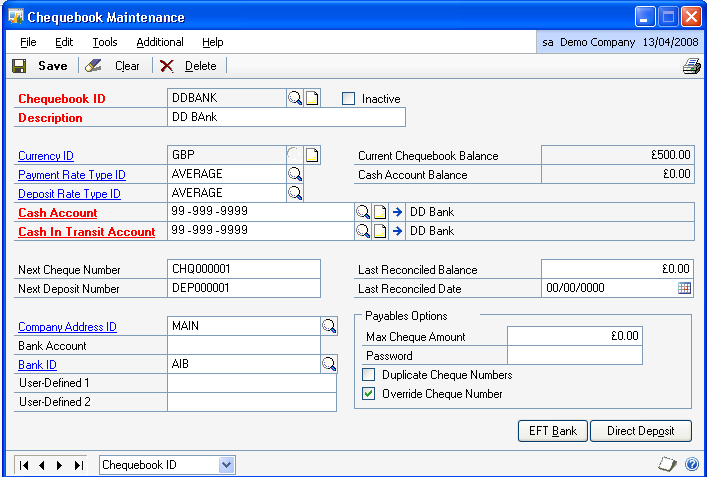
2 CASHBOOK SETUP How to set up Bank Management CARDS>FINANCIAL>CHEQUEBOOK Use the Chequebook Maintenance window to set up chequebook information for an unlimited number of chequebooks. You can use chequebooks to maintain deposits or cash paid out. You can also reconcile this information with the statement of activity provided by your bank. Commercially In Confidence Page 2


3 How to set up Bank Management (cont.) CARDS>FINANCIAL>BANK MANAGEMENT>SETUP You are required to give users access to the newly created bank account now within Bank Management. Commercially In Confidence Page 3


4 How to apply user access to bank accounts CARDS>FINANCIAL>BANK MANAGEMENT>SETUP>ACCESS BUTTON Use the Chequebook Access window to give users access to selected chequebooks in Cashbook Bank Management. Commercially In Confidence Page 4

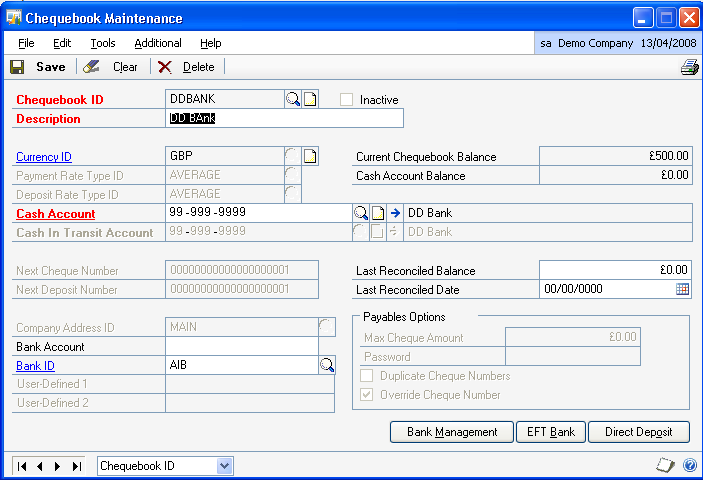
5 How to apply user access to bank accounts (cont.) CARDS>FINANCIAL>CHEQUEBOOK Return to the Chequebook Maintenance window once access has been granted, you will now have the Bank Management button will now be available. Commercially In Confidence Page 5


6 How to set up Cheque Books within Bank Management CARDS>FINANCIAL>CHEQUEBOOK>BANK MANAGEMENT BUTTON Use the Bank Management Options window to set up chequebooks for Cashbook Bank Management. Commercially In Confidence Page 6


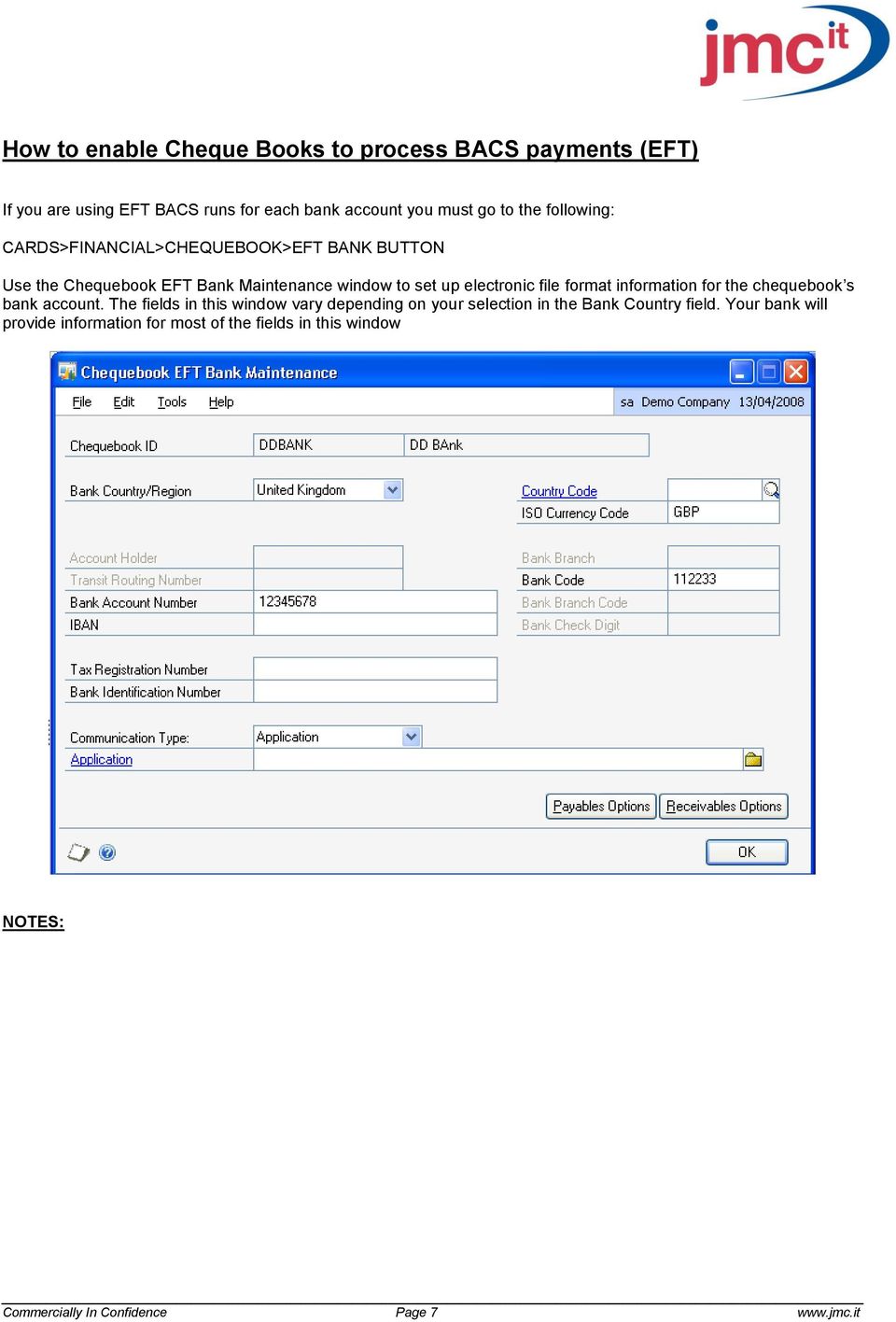
7 How to enable Cheque Books to process BACS payments (EFT) If you are using EFT BACS runs for each bank account you must go to the following: CARDS>FINANCIAL>CHEQUEBOOK>EFT BANK BUTTON Use the Chequebook EFT Bank Maintenance window to set up electronic file format information for the chequebook s bank account. The fields in this window vary depending on your selection in the Bank Country field. Your bank will provide information for most of the fields in this window Commercially In Confidence Page 7

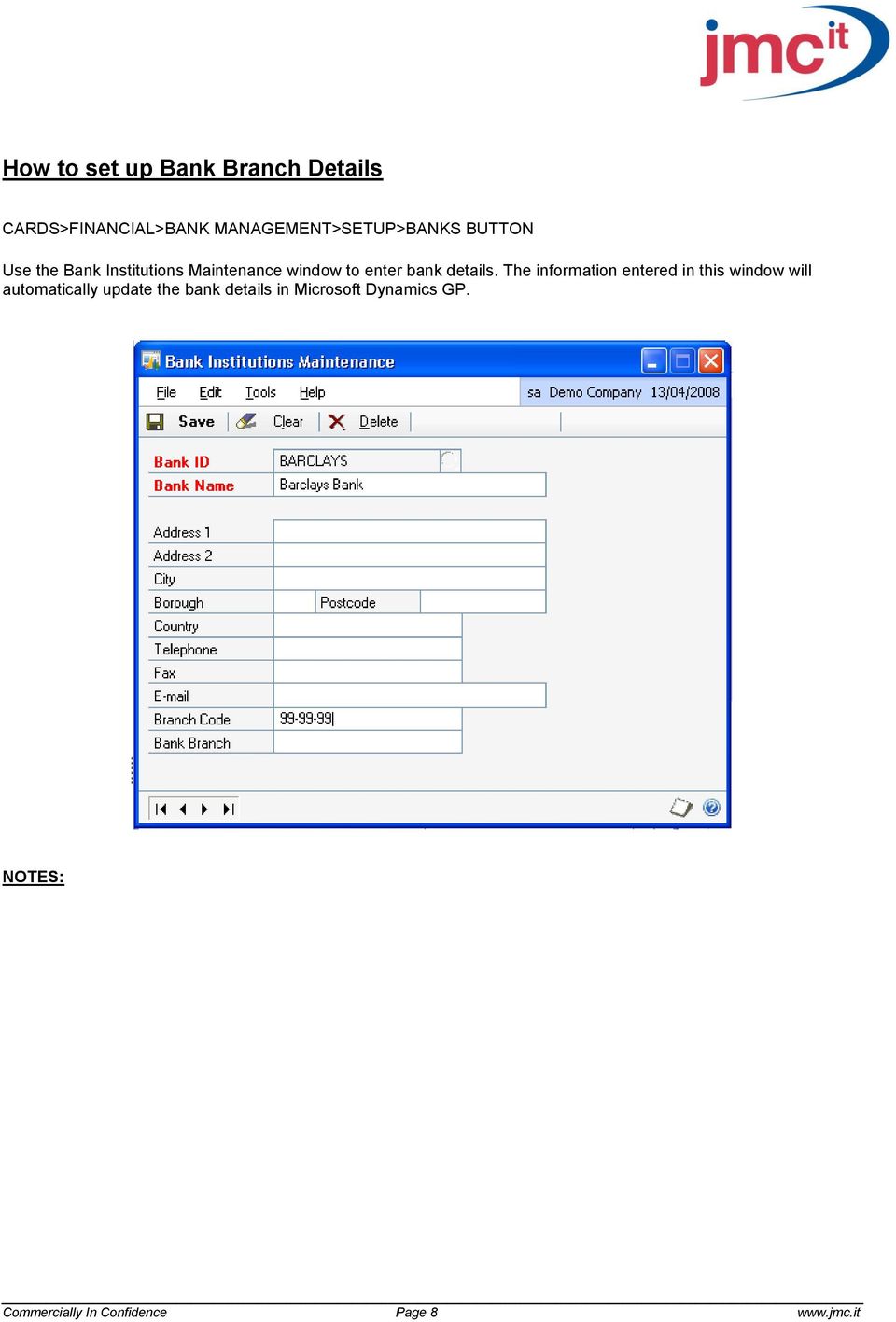
8 How to set up Bank Branch Details CARDS>FINANCIAL>BANK MANAGEMENT>SETUP>BANKS BUTTON Use the Bank Institutions Maintenance window to enter bank details. The information entered in this window will automatically update the bank details in Microsoft Dynamics GP. Commercially In Confidence Page 8

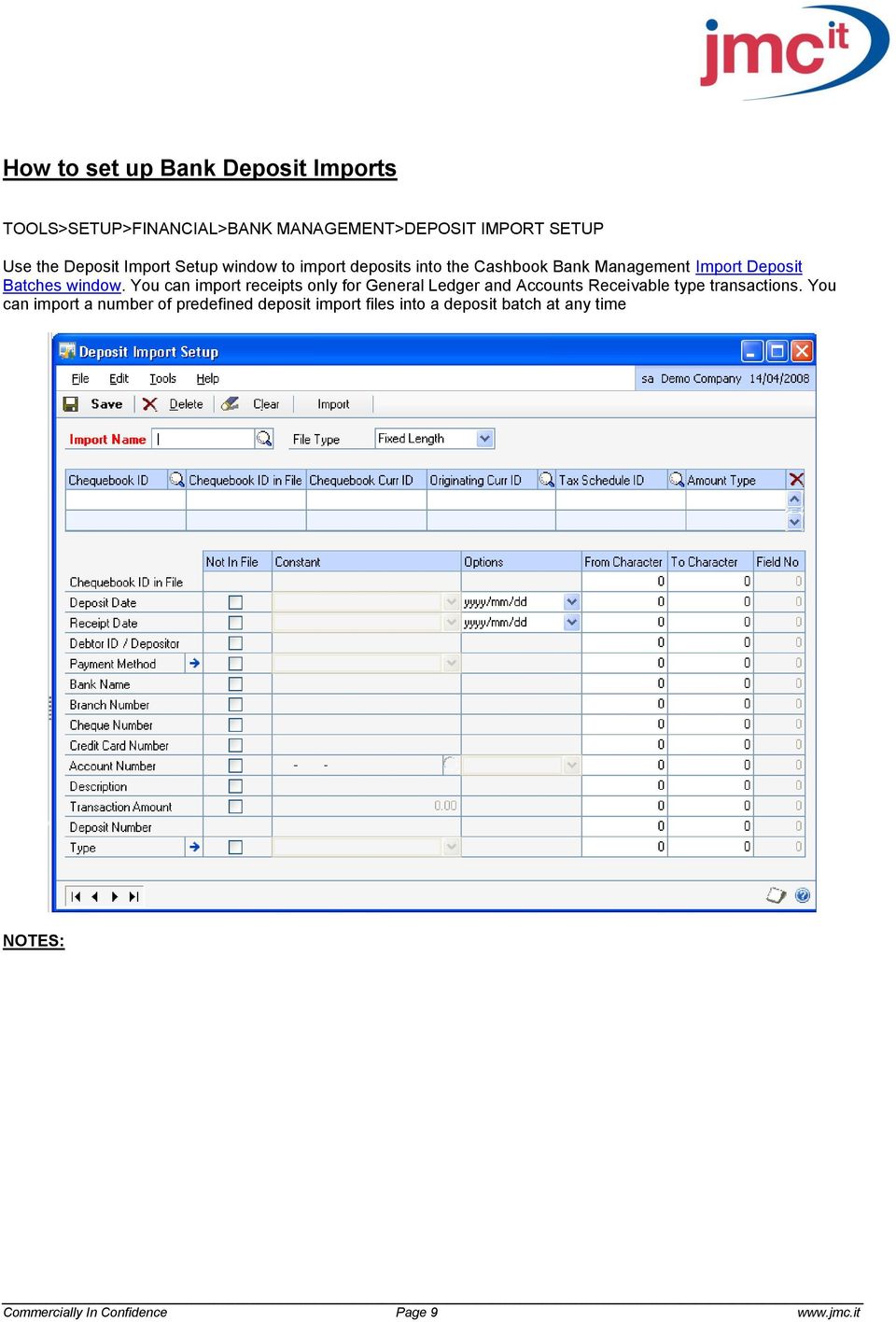
9 How to set up Bank Deposit Imports TOOLS>SETUP>FINANCIAL>BANK MANAGEMENT>DEPOSIT IMPORT SETUP Use the Deposit Import Setup window to import deposits into the Cashbook Bank Management Import Deposit Batches window. You can import receipts only for General Ledger and Accounts Receivable type transactions. You can import a number of predefined deposit import files into a deposit batch at any time Commercially In Confidence Page 9
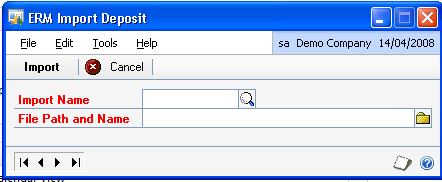
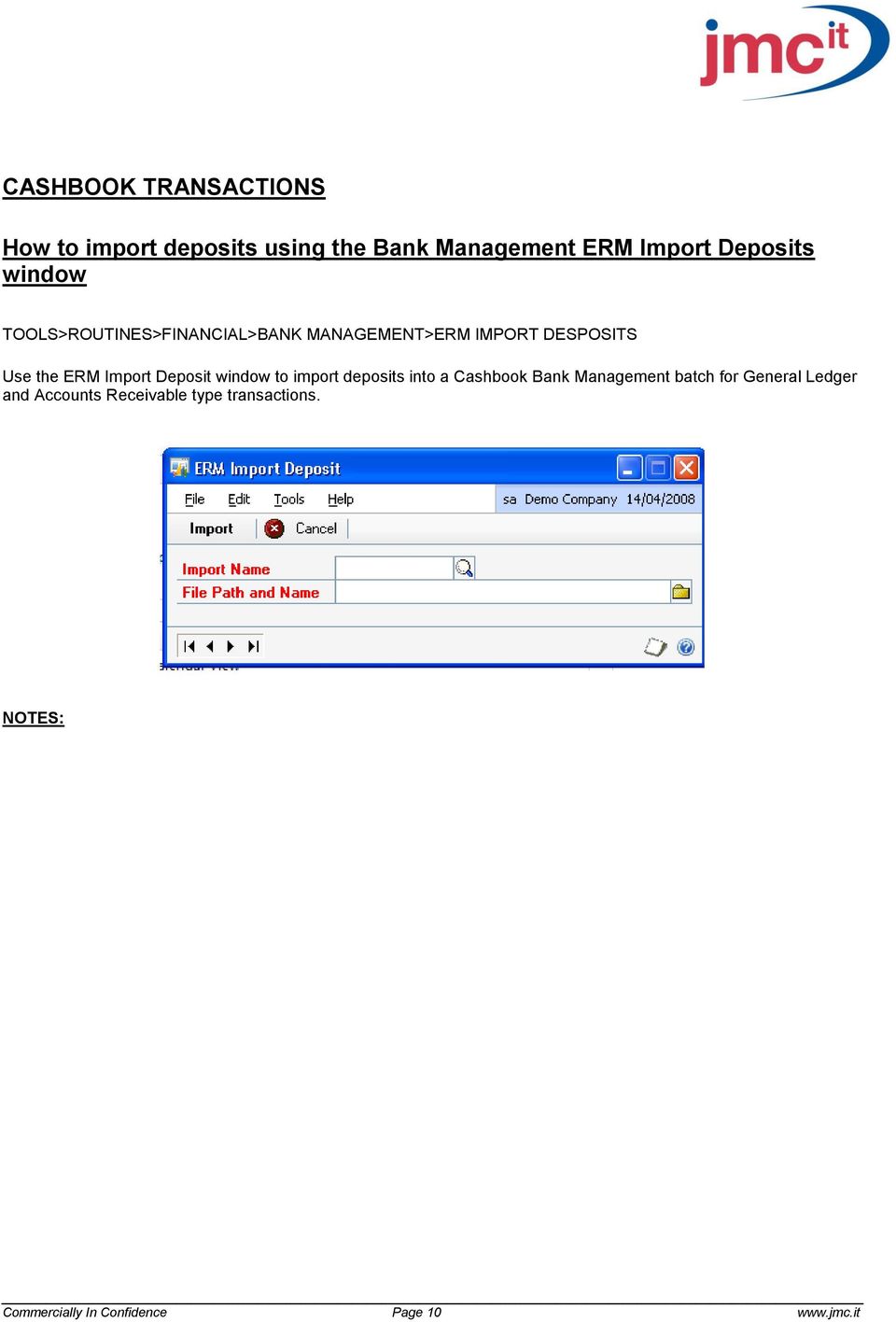
10 CASHBOOK TRANSACTIONS How to import deposits using the Bank Management ERM Import Deposits window TOOLS>ROUTINES>FINANCIAL>BANK MANAGEMENT>ERM IMPORT DESPOSITS Use the ERM Import Deposit window to import deposits into a Cashbook Bank Management batch for General Ledger and Accounts Receivable type transactions. Commercially In Confidence Page 10
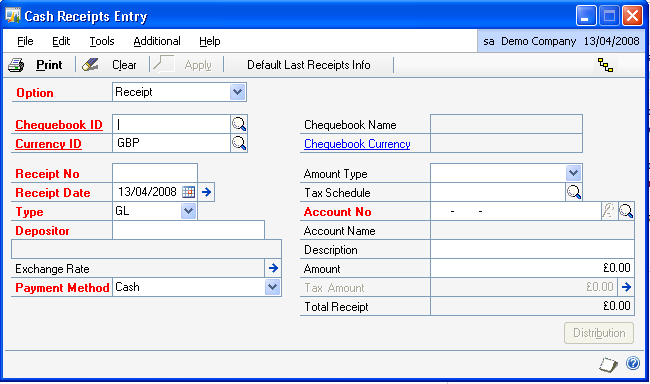
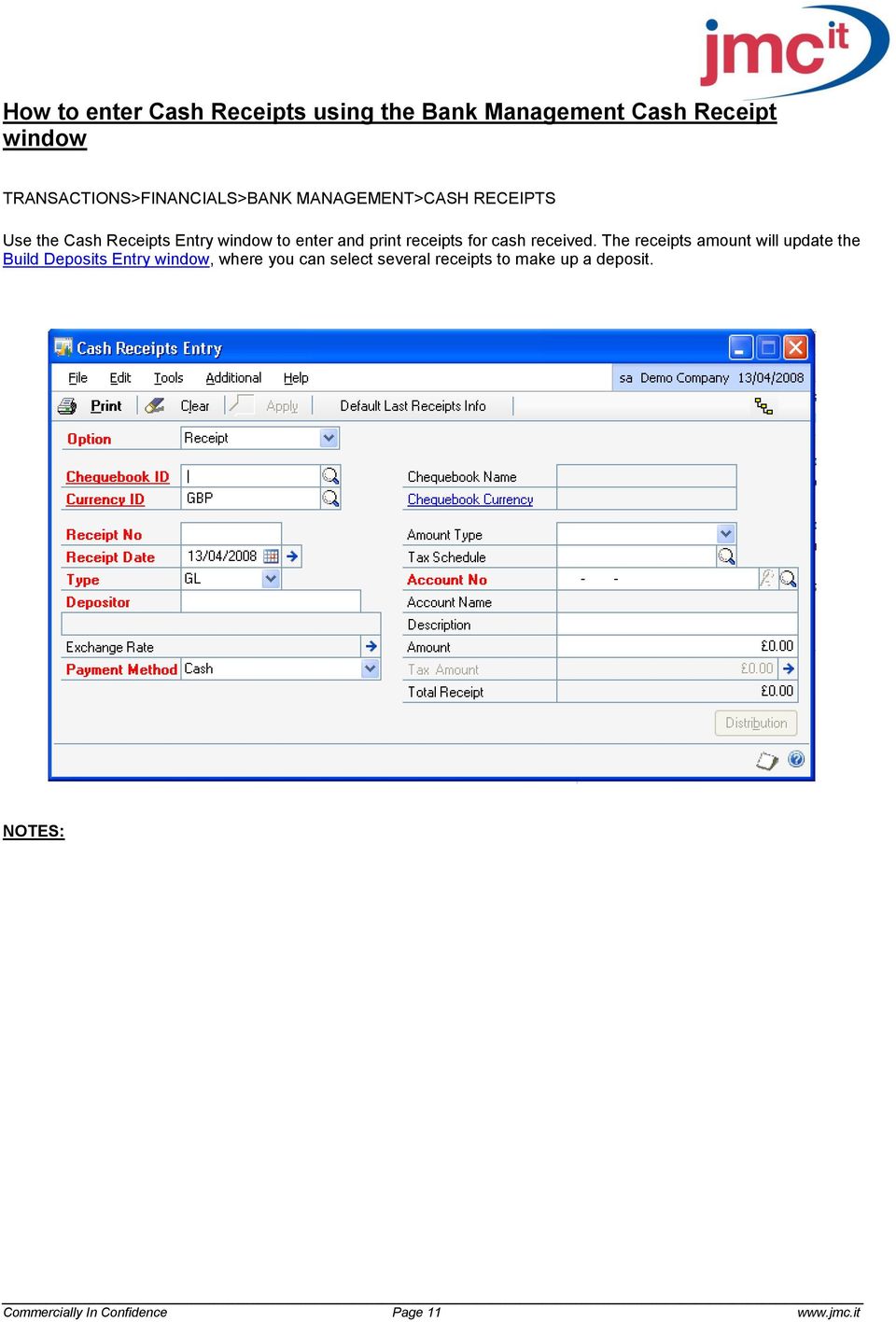
11 How to enter Cash Receipts using the Bank Management Cash Receipt window TRANSACTIONS>FINANCIALS>BANK MANAGEMENT>CASH RECEIPTS Use the Cash Receipts Entry window to enter and print receipts for cash received. The receipts amount will update the Build Deposits Entry window, where you can select several receipts to make up a deposit. Commercially In Confidence Page 11
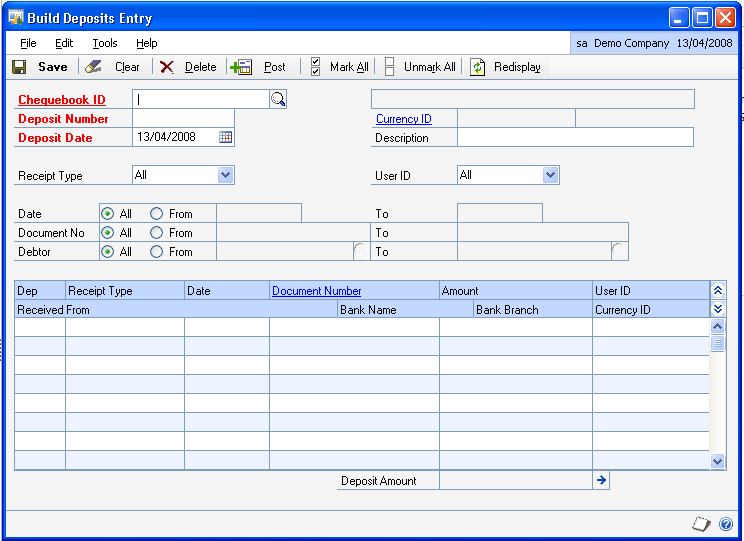
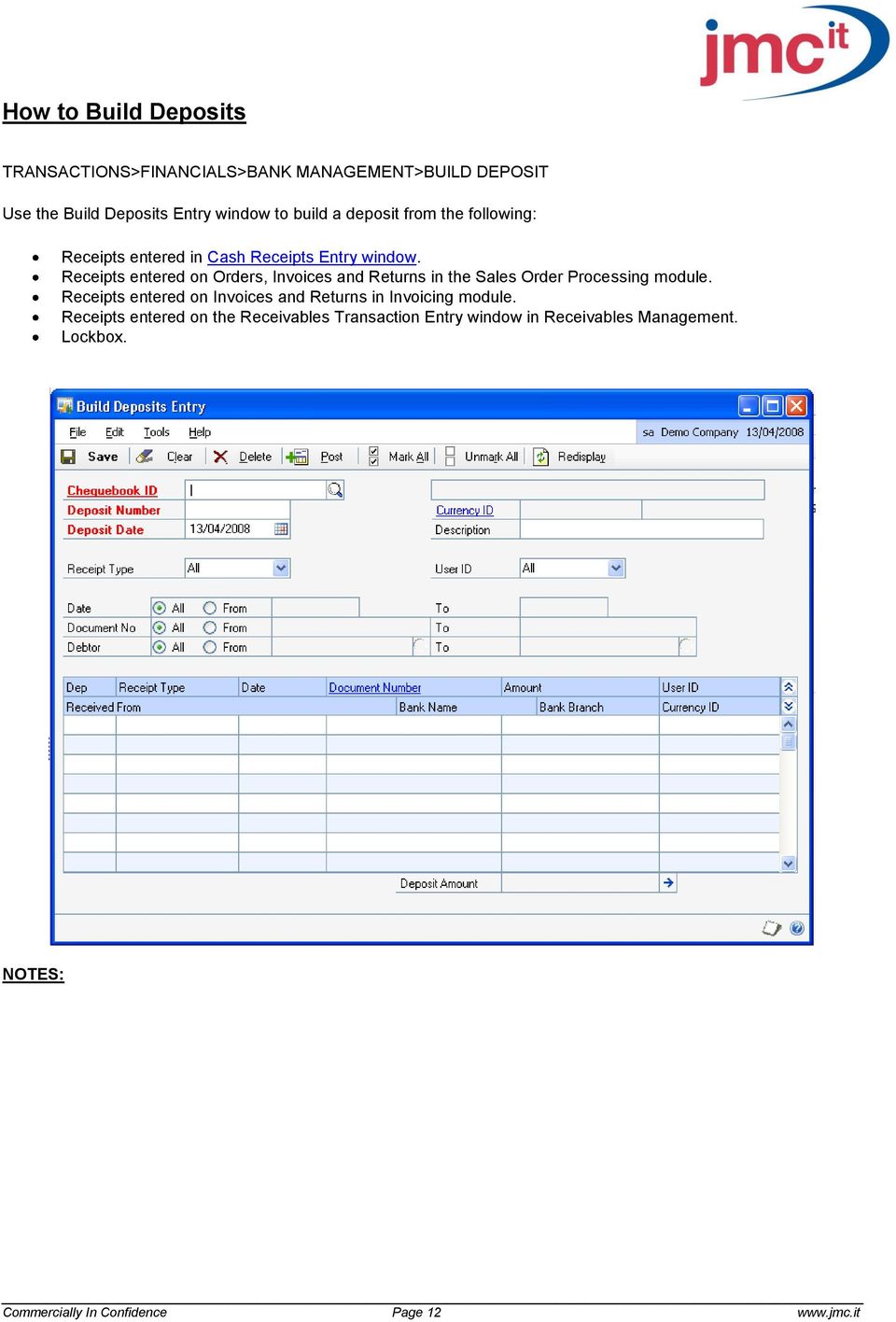
12 How to Build Deposits TRANSACTIONS>FINANCIALS>BANK MANAGEMENT>BUILD DEPOSIT Use the Build Deposits Entry window to build a deposit from the following: Receipts entered in Cash Receipts Entry window. Receipts entered on Orders, Invoices and Returns in the Sales Order Processing module. Receipts entered on Invoices and Returns in Invoicing module. Receipts entered on the Receivables Transaction Entry window in Receivables Management. Lockbox. Commercially In Confidence Page 12

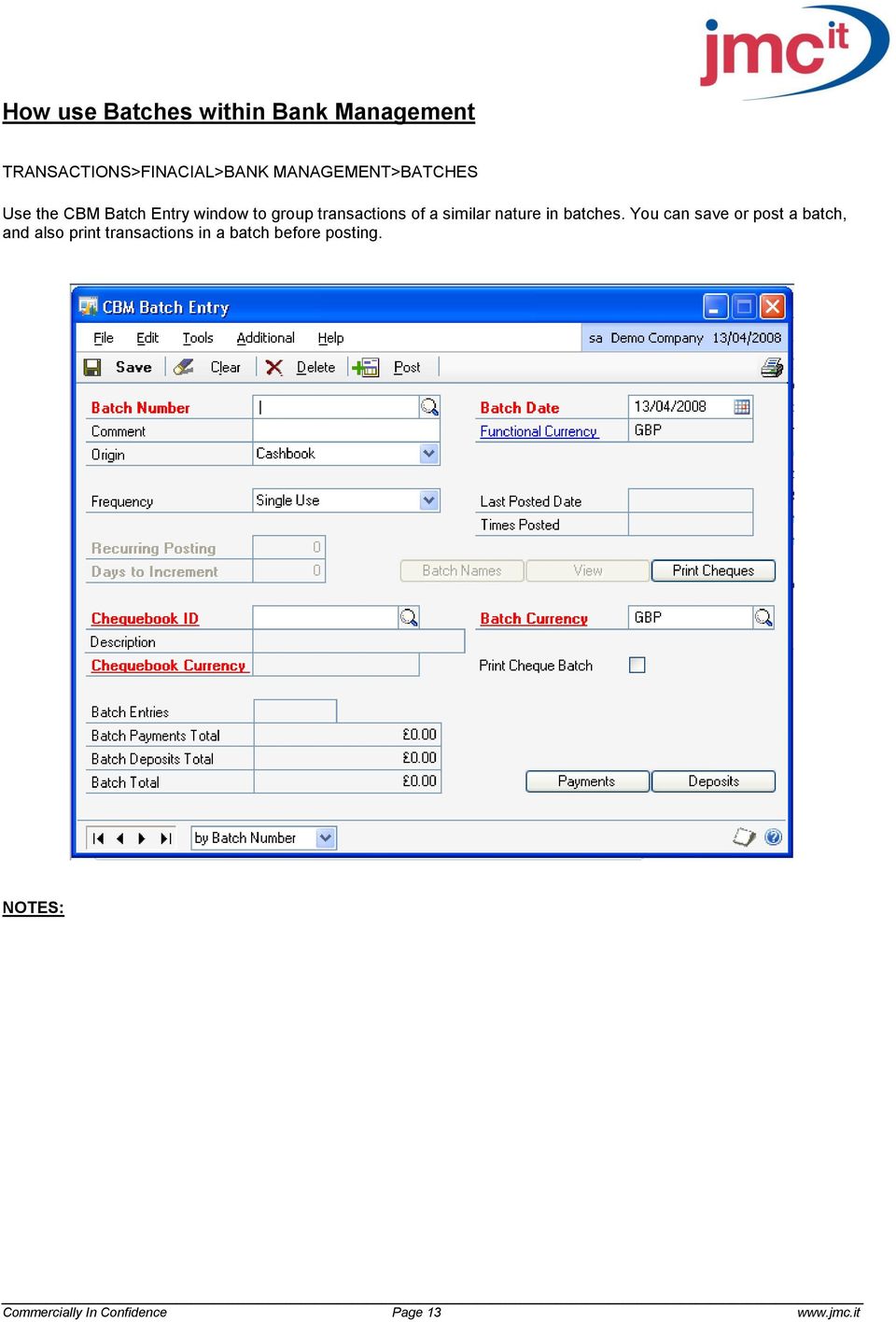
13 How use Batches within Bank Management TRANSACTIONS>FINACIAL>BANK MANAGEMENT>BATCHES Use the CBM Batch Entry window to group transactions of a similar nature in batches. You can save or post a batch, and also print transactions in a batch before posting. Commercially In Confidence Page 13

14 How to process Payments using Batches TRANSACTIONS>FINANCIAL>BANK MANAGEMENT>BATCHES>PAYMENT BUTTON Use the Payment Entry window to enter payments in the form of cheques, cash, credit cards, debit orders, bank charges and electronic funds transfers. Commercially In Confidence Page 14

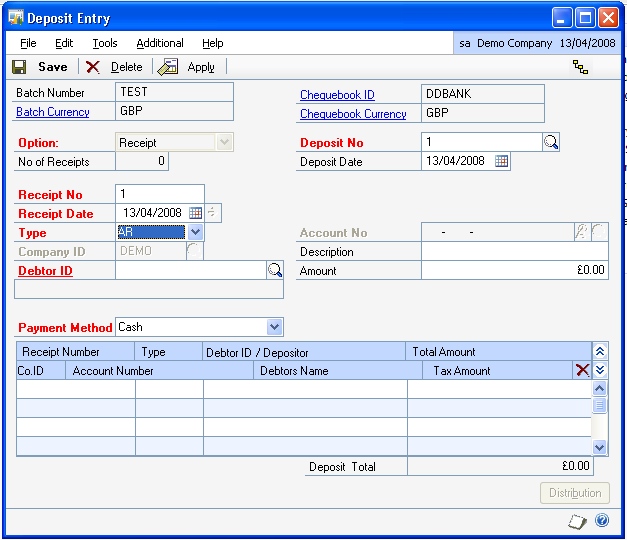
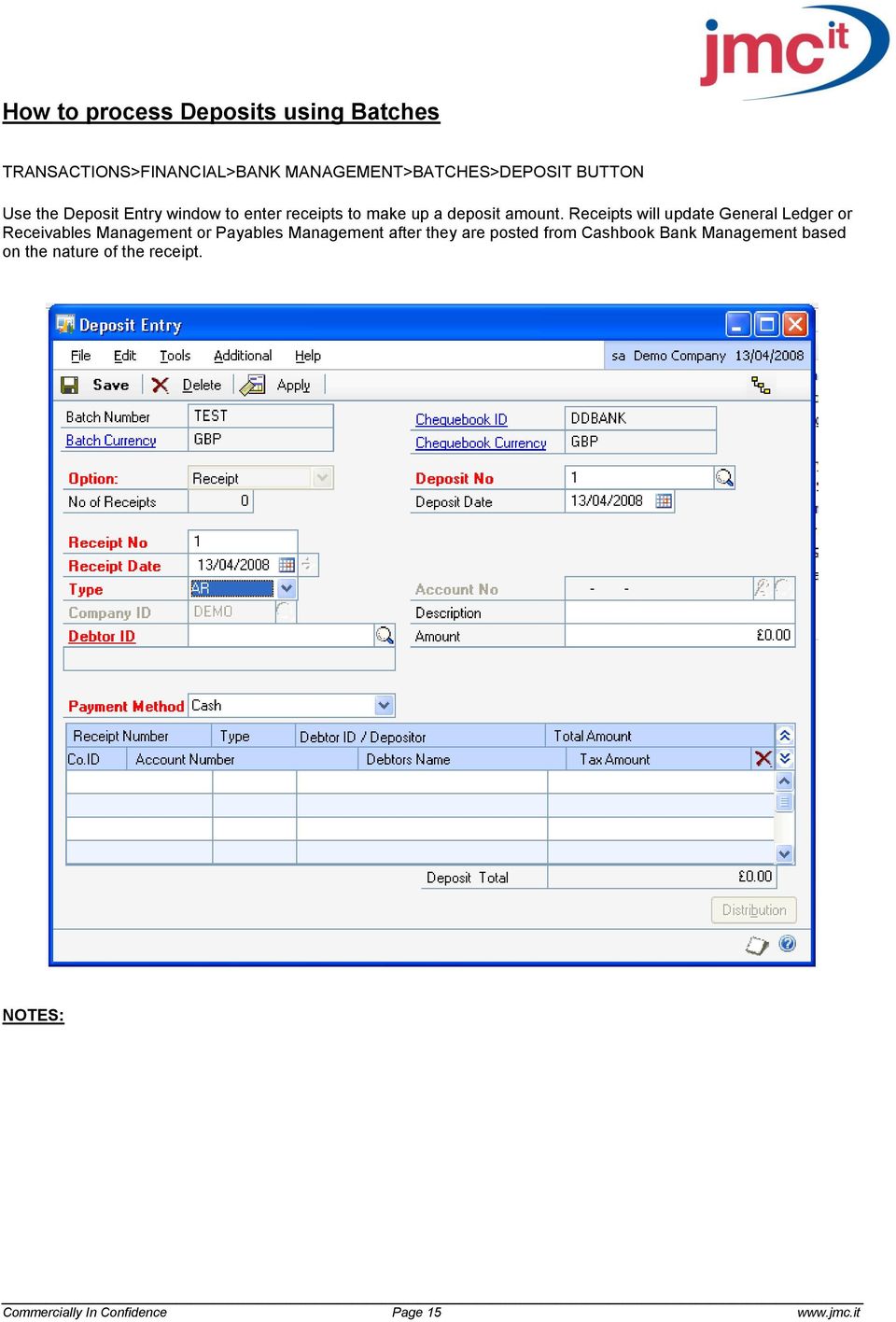
15 How to process Deposits using Batches TRANSACTIONS>FINANCIAL>BANK MANAGEMENT>BATCHES>DEPOSIT BUTTON Use the Deposit Entry window to enter receipts to make up a deposit amount. Receipts will update General Ledger or Receivables Management or Payables Management after they are posted from Cashbook Bank Management based on the nature of the receipt. Commercially In Confidence Page 15

16 How to process Bank Transfers TRANSACTIONS>FINANCIAL>BANK MANAGEMENT>BANK TRANSFERS Use the Bank Transfer Entry window to transfer funds from one chequebook to another, such as from a current account to a deposit account. The transfer amount will update the Transaction Reconcile window and the Transaction Enquiry / Void window for both chequebooks in the chequebook currency. It will also update the Transaction Entry window in the General Ledger in the functional currency and transaction currency. You can also enter bank charges in the chequebook currency and process intercompany bank transfers in the functional currency, if Intercompany has been registered. Commercially In Confidence Page 16

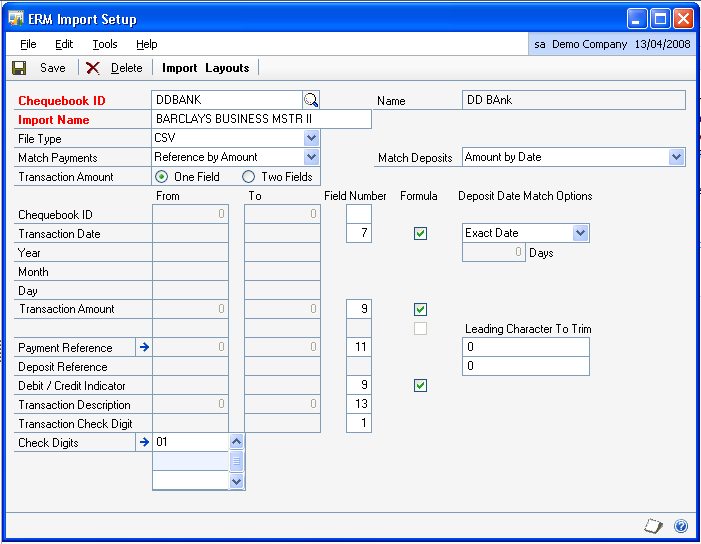
17 RECONCILING YOUR BANK ACCOUNTS How to set up Bank Statement Import TOOLS>SETUP>FINACIAL>BANK MANAGEMENT>ERM IMPORT SETUP Use the ERM Setup window to define where to find required information on the bank statement file you want to import. Commercially In Confidence Page 17


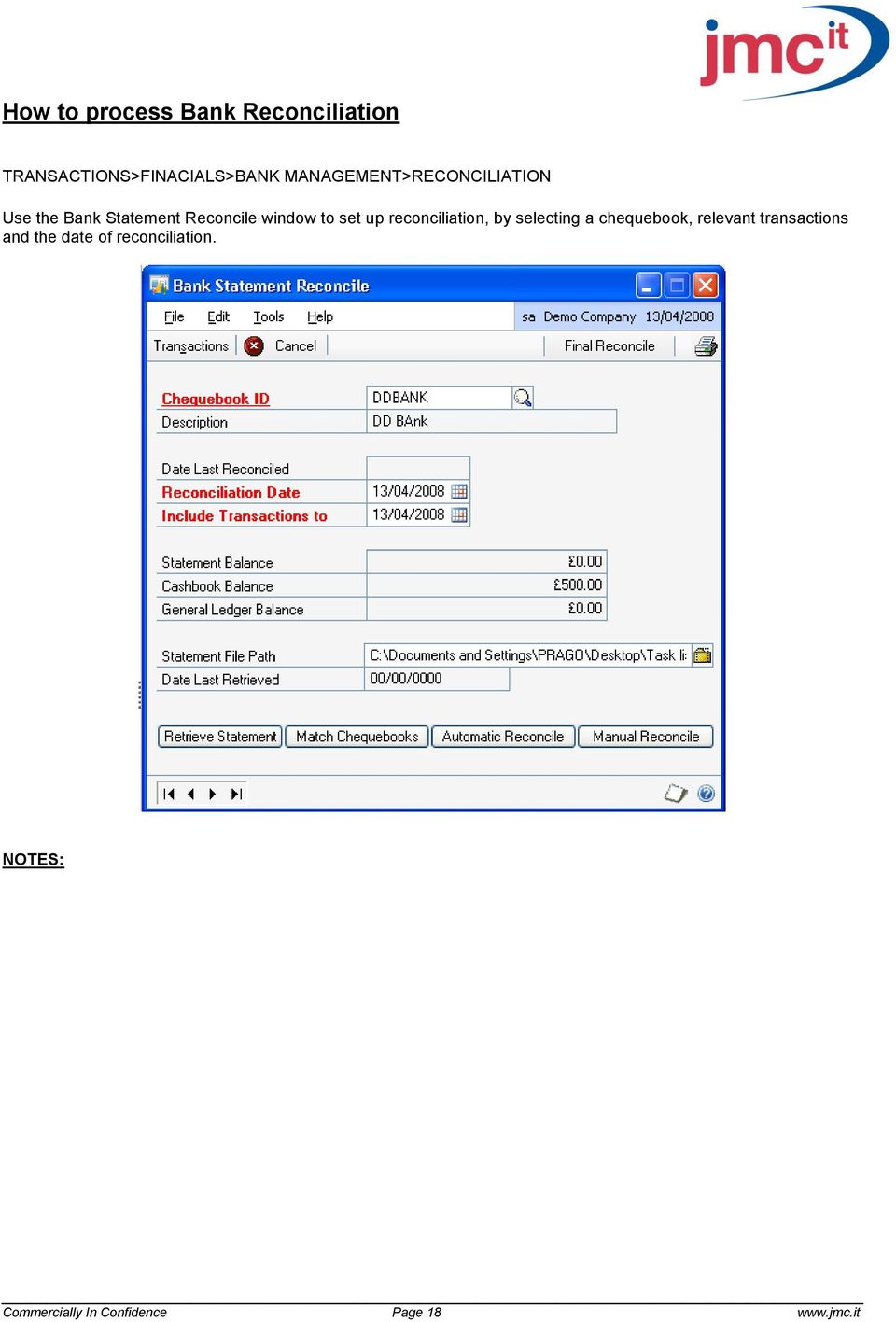
18 How to process Bank Reconciliation TRANSACTIONS>FINACIALS>BANK MANAGEMENT>RECONCILIATION Use the Bank Statement Reconcile window to set up reconciliation, by selecting a chequebook, relevant transactions and the date of reconciliation. Commercially In Confidence Page 18

19 How to manually complete Reconciliation after Automatic Reconcile TRANSACTIONS>FINANCIAL>BANK MANAGEMENT>MANUAL RECONCILE Use the Match Transactions window to select and match individual transactions. Commercially In Confidence Page 19

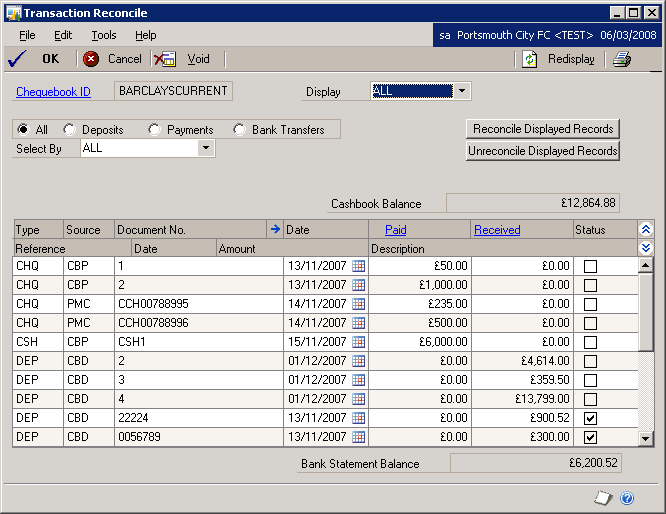
20 How to manually complete Reconciliation TRANSACTIONS>FINANCIAL>BANK MANAGEMENT>TRANSACTION BUTTON Use the Transaction Reconcile window to reconcile, unreconcile, partially reconcile and void transactions. Commercially In Confidence Page 20


21 How to complete the Bank Management Reconciliation TRANSACTIONS>FINANCIAL>BANK MANAGEMENT>RECONCILIATION>FINAL RECONCILE This window is used to confirm the actual month end reconciliation procedure on the bank account. You must enter the statement balance as per the Bank Reconcile window, and then click the POST button. Commercially In Confidence Page 21
22 Reports Bank Reconciliation Report Marked Transactions Report Commercially In Confidence Page 22
23 Reports (cont.) Outstanding Transactions Report i). Once you have printed the three reports, the Print Cashbook Report window opens: If you select the Detailed Button, the Detailed Cashbook report is printed for the chequebook that you are reconciling. This report gives an opening balance as at the start of the month (brought forward from the previous month), a detailed breakdown of all the transactions that have hit the chequebook during the specified reconciliation period, and a closing balance for the chequebook: Commercially In Confidence Page 23
24 Reports (cont.) If you select the Summary button, the Summary Cashbook report is printed for the chequebook that you are reconciling. This report gives an opening balance as at the start of the month (brought forward from the previous month), a detailed breakdown of all the transactions that have hit the chequebook during the specified reconciliation period, and a closing balance for the chequebook: Commercially In Confidence Page 24

25 CASHBOOK ENQUIRIES Transaction Enquiry ENQUIRY > FINANCIAL > BANK MANAGEMENT > TRANSACTION ENQUIRY Use the Transaction Enquiry window to view the transactions entered in Cashbook Bank Management. You can place columns in the scrolling window in the order you want by dragging the column and placing it where you want. You also can increase or decrease the size of the column by dragging it to the right or left. You can also sort any column by clicking on it. Commercially In Confidence Page 25
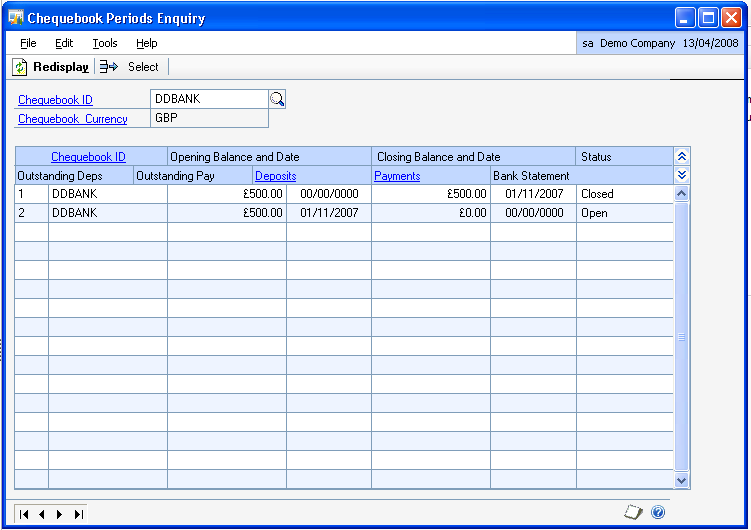
26 CHEQUEBOOK PERIODS ENQUIRY ENQUIRY > FINANCIAL > BANK MANAGEMENT > CHEQUEBOOK PERIODS Use the Chequebook Periods Enquiry window to view opening, closing and statement balances for each period for specific chequebooks. Commercially In Confidence Page 26
Microsoft Dynamics GP. Cashbook Bank Management
 Microsoft Dynamics GP Cashbook Bank Management Copyright Copyright 2010 Microsoft. All rights reserved. Limitation of liability This document is provided as-is. Information and views expressed in this
Microsoft Dynamics GP. Cashbook Bank Management
 Microsoft Dynamics GP Cashbook Bank Management Copyright Copyright 2007 Microsoft Corporation. All rights reserved. Complying with all applicable copyright laws is the responsibility of the user. Without
M4 Systems. Batch & Document Management (BDM) Brochure
 M4 Systems Batch & Document Management (BDM) Brochure M4 Systems Ltd Tel: 0845 5000 777 International: +44 (0)1443 863910 www.m4systems.com www.dynamicsplus.net Table of Contents Introduction ------------------------------------------------------------------------------------------------------------------
for Sage 100 ERP Bank Reconciliation Overview Document
 for Sage 100 ERP Bank Reconciliation Document 2012 Sage Software, Inc. All rights reserved. Sage Software, Sage Software logos, and the Sage Software product and service names mentioned herein are registered
Entering the Take-up data in CrossCheck Travel
 Entering the Take-up data in CrossCheck Travel Review of Data Entry procedures By now you will have prepared your financial take-up figures ready to be entered into CCT and faxed them to your GSC representative.
Vadim Computer Managment Group LTD. Next Generation Software Bank Reconcilliation
 Next Generation Software Bank Reconciliation Vadim Computer Managment Group LTD. Next Generation Software Bank Reconcilliation Contents i Contents Chapter 1: Bank Reconciliation Transactions 1 Bank Reconciliation
TrustOnline. ... powerful Trust accounting software that s so easy to use. User Guide. Simple. Versatile. Powerful. Email: [email protected].
 TrustOnline... powerful Trust accounting software that s so easy to use User Guide Simple. Versatile. Powerful. Email: [email protected] TABLE OF CONTENTS INTRODUCTION 4 GETTING STARTED INITIAL
Go to Tools General Ledger Setup Ledger Codes and Tab 5: Ledger Codes
 Debit Card Functionality in FMS6 The SIMS Spring 2015 release introduced functionality to assist schools to record the use of debit cards to pay for goods and services. Prior to this release, payments
CHAPTER 4: CASH MANAGEMENT
 Chapter 4: Cash Management CHAPTER 4: CASH MANAGEMENT Objectives Introduction The objectives are: Describe the Bank Account Card. Demonstrate the process for entering and posting payments received from
ADDING OPENING BALANCES
 ADDING OPENING BALANCES This document outlines how to enter Opening Balances when you are starting with GlobalBake s native accounting features. In order to bring on the opening balances you will need
How Dynamics GP Receivables and Collections Can Save you Money
 Aspire 2009 How Dynamics GP Receivables and Collections Can Save you Money Together driving your business to a new level and Accelerating your growth and profitability Objectives Automate /Streamline Routine
Receivables Management Year End Closing Checklists Dynamics GP2015
 Year End Closing Checklists Dynamics GP2015 Date 29 June 2015 Version 1.0 29 June 2015 Page 1 of 8 Table of Contents Control Year End Closing... 3 What happens when I close the year on Dynamics GP2015?...
How To Use Microsoft Gpa On Microsoft Powerbook 2.5.2.2 (Windows) On A Microsoft P2.1 (Windows 2.2) On An Uniden Computer (Windows 1.5) On Micro
 Microsoft Dynamics GP Analytical Accounting Copyright Copyright 2011 Microsoft. All rights reserved. Limitation of liability This document is provided as-is. Information and views expressed in this document,
SIMMS. Accounts Payable Module. Table of Contents. Check Numbers. Currency Trader Manual Check Entry. Paying Bills. Inventory Management System
 201-31234 Wheel Avenue, Abbotsford, BC V2T 6G9 Tel: 604-504-7936 Fax: 604-504-7976 Website: www.kcsi.ca Email: [email protected] SIMMS Inventory Management System Accounts Payable Module Table of Contents
Credit Card Accounts
 Table Of Contents Credit Card Register Accounts... 3 Creating a Credit Card Account... 3 Making Payments Using Your Credit Card Account... 4 Making Payments to Your Credit Card Account or Another Register
Step 3. Clear Withdrawals, Data Entry Errors, and Bank Errors
 Reconciling Bank Statements If this is the first time you have reconciled a bank statement for this company, you must prepare your bank accounts. See Chapter 4, Setting Up Bank Services, for the procedure.
Sage 50 Accounting. Premium 2014 Level 2. Courseware 1616-1. For Evauluation Only. MasterTrak Accounting Series
 Sage 50 Accounting Premium 2014 Level 2 Courseware 1616-1 MasterTrak Accounting Series Sage 50 Premium Accounting 2014 Level 2 Lesson 2: Banking and Credit Cards Lesson Objectives In this lesson, you will
Batch & Document Management. User Guide
 Batch & Document Management User Guide Version 9.18 Last Updated: November 2009 Table of Contents Overview 4 Introduction 4 Summary of Features 4 Key Benefits 5 Installation / Upgrade / Security 6 System
Welcome to the handling payments topic. 2-1
 Welcome to the handling payments topic. 2-1 After completing this topic, you will be able to: List the steps of the payment process and perform them in SAP Business One including: Incoming Payments, Outgoing
Discover different ways to make your payment. Discover different ways to make your payment
 Discover different ways to make your payment How can I pay? There are several different ways to pay an invoice just choose the method that suits you best. The quickest and easiest way to pay is by Direct
Click the Entries tab to enter transactions that originated at the bank.
 Reconciling Bank Statements If this is the first time you have reconciled a bank statement for this company, you must prepare your bank accounts. See Chapter 4, Setting Up Bank Services, in the Tax and
Accounts Payable. Cash Projections Reports - 3-tiered Pay on Dates show what is due in the next 30/60/90 days.
 The Accounts Payable module can process multiple Companies and Locations and is fully integrated to the General Ledger module. With the Reporting and Query capabilities of the AP module, you can increase
Microsoft Dynamics GP. Receivables Management
 Microsoft Dynamics GP Receivables Management Copyright Copyright 2010 Microsoft. All rights reserved. Limitation of liability This document is provided as-is. Information and views expressed in this document,
BACK OFFICE DATA ENTRY REVISION 1.2
 BACK OFFICE DATA ENTRY REVISION 1.2 Contents Contents... 1 BEACON BACK OFFICE SYSTEM... 3 DATA ENTRY... 3 Overview... 3 Receipt Entry... 4 Overview... 4 Debtor Receipt Entry Screen... 4 Debtor Receipt
Microsoft Dynamics GP. Payment Document Management
 Microsoft Dynamics GP Payment Document Management Copyright Copyright 2007 Microsoft Corporation. All rights reserved. Complying with all applicable copyright laws is the responsibility of the user. Without
Credit Card Best Practices Using ParishSoft ConnectNow Accounting Credit Card Feature
 Credit Card Best Practices Using ParishSoft ConnectNow Accounting Credit Card Feature When processing parish credit card bills, credit card receipts are a key component of internal controls and best practices.
HOW TO RECONCILE YOUR CASH ACCOUNTS
 HOW TO RECONCILE YOUR CASH ACCOUNTS Monthly all accounts under 1000.00 must be reconciled (excluding the Petty Cash account or accounts where the statements may not be sent on a monthly basis in that case
This is a legal requirement as directed in the Finance Instruction 2/97 dated 16 th October 1997.
 SECTION 11: BANK RECONCILIATION & PROCEDURES All bank accounts operated by Government departments including Provincial and Local-level Governments MUST be reconciled and all relevant statements should
OISC Model Documents. Adviser Guidance. Codes 62 to 69 set standards to be met in the management of finances.
 Adviser Guidance Client Money and the Client Account Codes 62 to 69 set standards to be met in the management of finances. The OISC considers clear and comprehensive financial management to be a key indicator
TRUST ACCOUNTING. Copyright Box & Dice Software Pty. Ltd. LAST UPDATE: october 2009
 Tr TRUST ACCOUNTING Copyright Box & Dice Software Pty. Ltd. LAST UPDATE: october 2009 Name... Date... Trainer... 2 Tr TRUST ACCOUNTING COURSE CONTENTS TRUST ACCOUNTING COURSE Configuration Terminology
General Ledger Module
 PestPac Software General Ledger Module The General Ledger Module in PestPac allows certain transactions to be recorded and then be exported into a format that is compatible with your accounting software.
User Guide. For. Diaspark ERP Software. Cash Manager Module
 User Guide For Diaspark ERP Software Version 2.0 Diaspark Inc. 200, Metroplex Drive Suit 401, Edison, NJ 08820 Web: www.diaspark.com CM-User Guide-Ver-2.0 Page 1 of 12 Creation Date 24-Oct-11 Release Notice
Chapter 11 - Banking and Reconciliation
 Chapter 11 - Banking and Reconciliation This Section Includes: 11.1 Banks and GL Accounts 11.2 Adding Banks, Branches and Bank Accounts 11.2.1 Adding a new Bank 11.2.2 Adding a New Branch 11.2.3 Adding
Legal Accounting in GhostPractice
 Software Overview Legal Accounting in GhostPractice GhostPracticeoffers several user-friendly modules ideally configured for bookkeeping and financial Management in a Legal Practice These modules are:
Balancing Bank Reconciliation and General Ledger. Where to Compare Balances (between Bank Reconciliation and General Ledger)
 Tech Tips Balancing Bank Reconciliation and General Ledger Where to Compare Balances (between Bank Reconciliation and General Ledger) There are two windows in Microsoft Dynamics GP that display both the
PayBiz Bank Accounts
 PayBiz Bank Accounts 30/01/2014 Document Contents Bank Accounts...2 Window Control Buttons....3 Create an Opening Balance....4 Create a Bank Transaction....5 Create the Bank Statement....5 Enter Unpresented
Livestock Office Payments: Creditor Cashbook Transactions
 Livestock Office Payments: Creditor Cashbook Transactions 18/06/2015 Contents Paying Creditors - Find Creditors Due for Payment... 2 Payment Due Report... 2 Creditors Aged Trial Balance... 3 Processing
Prerequisite: Bank statement file loaded from bank.
 Module File Name Version 1.0 Accounts Payable Document Generation 8/7/2006 Date Date Modified 10/15/2009 2_11_1 Automatic Reconciliation Process_BUSPROC.doc Prerequisite: Bank statement file loaded from
How To Post A Cash Receipt On A Bank Account On A Credit Card On A Microsoft Nokia 9.3.3 (Aero) (Ahem) (For A Creditcard) (Or A Bank Card) ( For A Credit
 Chapter 5: Receivables Management CHAPTER 5: RECEIVABLES MANAGEMENT Objectives Introduction The objectives are: Reference the Payments FastTab on the Customer Card. Explain the Cash Receipt Journal, which
ACCRUAL ACCOUNTING WORKFLOW
 ACCRUAL ACCOUNTING WORKFLOW TABLE OF CONTENTS COMPANY ACCOUNT NUMBERS... 2 POLICY ENTRY... 2 Agency Bill... 2 Direct Bill... 3 Transaction Detail... 3 CLIENT PAYMENTS... 4 Agency Billed Payment... 4 Direct
Getting Started Using CC Merchant for Trams Back Office
 Getting Started Using CC Merchant for Trams Back Office System Requirements Trams Back Office - Version 3.01 or higher Microsoft Internet Explorer 6.0 or higher Internet Connection The CC Merchant feature
ACCOUNTS PAYABLE SETUP
 ACCOUNTS PAYABLE SETUP Mortgage Computer Ogden, Utah Contents - Updated September 9, 2013 General Ledger Setup... 4 Bank Accounts... 6 ScrolEx Setup... 10 General Ledger 3 General Ledger Setup This selection
What s new in Sage Evolution Version 6.81
 What s new in Sage Evolution Version 6.81 Sage Sage s continuous investment in research and development ensures that you are kept up-to-date with the latest and most cutting-edge business management software.
Solar Eclipse Accounts Receivable. Release 8.7.2
 Solar Eclipse Accounts Receivable Release 8.7.2 Legal Notices 2011 Epicor Software Corporation. All rights reserved. Unauthorized reproduction is a violation of applicable laws. Epicor and the Epicor logo
User Guide. Microsoft Dynamics GP 10 Upgrade. Understanding and using new features and functionality within Dynamics GP 10
 User Guide Microsoft Dynamics GP 10 Upgrade Understanding and using new features and functionality within Dynamics GP 10 Version 3.7 (Spring 2009) Microsoft Dynamics GP 10 Upgrade Copyright Copyright 1997-2009
Quick Guide Bank Charges & Handling NSF Checks
 Quick Guide Bank Charges & Handling NSF Checks NSF Checks are handled by entering in the deduction from your bank account through the Bank Reconciliation Module. This is also where you will enter any Bank
Receiving Payment in Foreign Currency
 Receiving Payment in Foreign Currency Contents An Example Preparing PCLaw for Foreign Currency Receiving Funds in Foreign Currency Performing Month End Procedures An Example To better illustrate the procedures
Cash Management User Guide
 Cash Management User Guide Version 9.0 February 2006 Document Number CBUG-90UW-01 Lawson Enterprise Financial Management Legal Notices Lawson does not warrant the content of this document or the results
MODULE 7: RECEIVABLES MANAGEMENT: REMINDERS AND FINANCE CHARGE MEMOS
 MODULE 7: RECEIVABLES MANAGEMENT: REMINDERS AND FINANCE CHARGE MEMOS Module Overview The Receivables Management application area also has a collections management feature to keep track of reminders and
IPM-Software. CornerStone 3.0 Update Summary
 IPM-Software CornerStone 3.0 Update Summary This document provides installation instructions and a summary of program changes and enhancements. This document printed on: Thursday, July 28, 2005 UPDATE
Chapter 13 Bank Reconciliations
 Chapter 13 Bank Reconciliations The Bank Reconciliation module of school cash allows Treasurers to quickly perform bank reconciliations and print month-end reports for the Principal s review and approval.
Repairing Your Accounting System
 Repairing Your Accounting System Who is this paper for? This paper is for companies that have been using DBA Next-Generation for some time, but have struggled up to now with getting the accounting system
Dynamics GP 50 More Tips in 50 Minutes
 Financial Tip #1 Use Keyboard Shortcuts for Marking Cleared Transactions in Bank Rec Transactions >> Financial >> Reconcile Bank Statement Select the first transaction, then type CTRL+B (Begin Range).
Managing Company Credit Cards
 Managing Company Credit Cards Contents About Managing Company Credit Cards Managing Credit Cards as Vendors Managing Credit Cards as Short Term Liabilities Paying by General Check Without Posting the Statement
The Validator GP. User Guide. Reporting-Central
 The Validator GP User Guide Reporting-Central This document contains proprietary information which is protected by copyright. All rights are reserved. 1 T h e V a l i d a t o r G P TABLE OF CONTENTS 1.
Application Programming Interface (API)
 Integration to Salesforce CRM Create a Recurring Billing Contract from an Opportunity in one click. Create a Sales Order from an Opportunity in one click. Create a Project from a list of pre- defined templates
Microsoft Dynamics GP. Payables Management
 Microsoft Dynamics GP Payables Management Copyright Copyright 2010 Microsoft. All rights reserved. Limitation of liability This document is provided as-is. Information and views expressed in this document,
The following options under the Financial area will be available on the Web as of the February 2016 Release.
 The following options under the Financial area will be available on the Web as of the February 2016 Release. Please Note: They will not be going away on PaC. Bank Reconciliation Overview Check Reconciliation
PARITY SOFTWARE S SAGE ERP X3 CASHBOOK USER MANUAL
 PARITY SOFTWARE S SAGE ERP X3 CASHBOOK USER MANUAL Introduction Parity s Cashbook allows for the efficient reconciliation of Bank Statements to Bank Entry transactions within Sage ERP X3. Parity s Cashbook
AR Part 1: An Introduction to Accounts Receivable
 AR Part 1: An Introduction to Accounts Receivable Table of Contents 1. Overview... 3 2. Searching for a Customer... 4 3. Transactions... 6 4. Raising a sales invoice... 7 5. Completing a Transaction...
Reference Document Month-End Closing
 Overview Each individual company according to their own business practices establishes month end closing procedures. Typically, a company will create a monthly accounting calendar, which sets the dates
Microsoft Dynamics GP. Not For Profit Accounting
 Microsoft Dynamics GP Not For Profit Accounting Copyright Copyright 2010 Microsoft. All rights reserved. Limitation of liability This document is provided as-is. Information and views expressed in this
ES ACCOUNTING QUICK START GUIDE
 QUICK START GUIDE Version 5.0.7 Malaysia GST Ready Page 1 CONTENTS Chapter 1 PAGE Overview 1.1 Introduction 1.2 File Module 1.3 General Ledger Module 1.4 Customer Module 1.5 Supplier Module 1.6 Malaysia
MICROSOFT DYNAMICS GP. Product Capabilities and Business Ready Licensing Module Guide. Solutions
 MICROSOFT DYNAMICS GP Product Capabilities and Business Ready Licensing Module Guide Solutions Become a Dynamic Business with Microsoft Dynamics GP For more than 25 years, Microsoft Dynamics GP has delivered
SOLUTIONS MICROSOFT DYNAMICS GP 2010. Business Ready Licensing Product Module Guide
 SOLUTIONS MICROSOFT DYNAMICS GP 2010 Business Ready Licensing Product Module Guide Business Ready Licensing for Microsoft Dynamics GP 2010 Microsoft Dynamics business management solutions are designed
How To Use A Bank Service On A Bank System
 Sage 300 ERP 2014 Bank Services User's Guide This is a publication of Sage Software, Inc. Copyright 2014. Sage Software, Inc. All rights reserved. Sage, the Sage logos, and the Sage product and service
for Sage 100 ERP Purchase Order Overview Document
 for Sage 100 ERP Purchase Order Document 2012 Sage Software, Inc. All rights reserved. Sage Software, Sage Software logos, and the Sage Software product and service names mentioned herein are registered
CHAPTER 5: RECEIVABLES MANAGEMENT
 Chapter 5: Receivables Management CHAPTER 5: RECEIVABLES MANAGEMENT Objectives Introduction The objectives are: Provide a point of reference to the Payments tab on the Customer Card window. Explain the
Tools & Resources. A Guide to Managing your Invoice Discounting Account. How to get the most out of your Invoice Finance service
 Tools & Resources A Guide to Managing your Invoice Discounting Account How to get the most out of your Invoice Finance service 2 Introduction This guide is designed to help you understand the actions you
Dues & Billing. Dues & Billing. I. Dues and Billing Overview. Welcome to Dues and Billing!
 Dues & Billing I. Dues and Billing Overview Welcome to Dues and Billing! This feature allows you to create batches of invoices and specify members as recipients. The current functionality allows you to
Sage 300 ERP 2012. Bank Services User's Guide
 Sage 300 ERP 2012 Bank Services User's Guide This is a publication of Sage Software, Inc. Copyright 2014. Sage Software, Inc. All rights reserved. Sage, the Sage logos, and the Sage product and service
Cash Basis Reporting
 Cash Basis Reporting For Microsoft Dynamics Microsoft Dynamics GP Microsoft Small Business Financials Installation, Setup and User Manual Version 10.0 Cash Basis Reporting 10.0 1 2007 AIM Technologies
Microsoft Dynamics GP. Bank Reconciliation
 Microsoft Dynamics GP Bank Reconciliation Copyright Copyright 2007 Microsoft Corporation. All rights reserved. Complying with all applicable copyright laws is the responsibility of the user. Without limiting
Accounts Receivable. Chapter
 Chapter 7 Accounts Receivable The Accounts Receivable module displays information about individual outstanding income sources. Use this screen to verify that invoice receipts, cash receipts, and other
AgencyPro. Cash Accounting Workflow
 AgencyPro Cash Accounting Workflow This document is a supplemental accounting guide to reiterate the general processes outlined during the first accounting training. Some of the outlined processes differ
University of St Andrews
 University of St Andrews Aptos10 User Notes Contents Revision History... 2 1. Purchase Order Enquiries... 3 1.1. Purchase Order Enquiries using the PO enquiry screen... 3 1.2. Purchase Order Enquiries
Microsoft Dynamics GP. Cash Flow Management
 Microsoft Dynamics GP Cash Flow Management Copyright Copyright 2010 Microsoft. All rights reserved. Limitation of liability This document is provided as-is. Information and views expressed in this document,
Unit 2 The Basic Accounting Cycle
 Unit 2 The Basic Accounting Cycle Chapter 3 Chapter 4 Chapter 5 Chapter 6 Chapter 7 Chapter 8 Chapter 9 Business Transactions and the Accounting Equation Transactions That Affect Assets, Liabilities, and
Omni Getting Started Manual. switched on accounting
 Omni Getting Started Manual switched on accounting Omni Getting Started Table of Contents Install & Register... 3 Install and Register... 3 Omni Programs... 3 Users... 4 Creating Companies... 5 Create
Computer Helper Publishing, Inc. 800-533-5227 www.churchwindows.com
 Training 2010 Financial to Accounting Transition Book 3: Transactions & Corrections Computer Helper Publishing, Inc. 800-533-5227 www.churchwindows.com Book 3 Transactions & Corrections Basic Transactions...
Prerequisite : Stable internet connection ; Mozilla or Chrome browser ; Disable browser pop-up ; own laptop
 Wavelet Management Suite - Training_Schedule - # 30 - Migrated to https://wavelet.atlassian.net/wiki/display/wms/wavelet+training Training Schedule Project Implementation / Training Schedule Prerequisite
Bank Manager Version 2... 3
 Table of Contents Bank Manager Version 2... 3 Bank Manager Overview... 4 Working with Bank Manager... 5 Converting Recurring Coding from Bank Manager Version 1 to Bank Manager Version 2 Mappings... 5 Download
Sage Accounting A Step by Step Guide
 Sage Accounting A Step by Step Guide Integra Accounting Limited Chartered Certified Accountants 5 Station Road Hinckley Leicestershire LE10 1AW Tel: 01455 238551 Email: [email protected]
How do I Carry out a Manual Bank Reconciliation?
 1/9 How do I Carry out a Manual Bank Reconciliation? Introduction: You need to reconcile, from time to time, the system s view or understanding of your various Bank Accounts status with the reality of
TOWN OF CARLYLE POLICY MANUAL
 TOWN OF CARLYLE POLICY MANUAL POLICY DESCRIPTION: POLICY NUMBER: IAC 0010 Internal Accounting Controls DATE APPROVED: March 26, 2008 DATE REVISED: October 12, 2011 Purpose of Policy: To promote and protect
Billing Matters Accounting Sunset
 WHITE PAPER Billing Matters Accounting Sunset May 2013 Introduction... 2 Key Differences in Process... 2 How to Transition... 3 QuickBooks Setup... 4 What Do I Need... 4 QuickBooks Installation and Creation
Accounts Payable and Inventory Management
 Accounts Payable and Inventory Management 2013 SedonaOffice Users Conference Presented by: Lisa Gambatese & Laurie Goodrich Table of Contents Accounts Payable G/L Account Defaults (AP) 4 A/P Setup Processing
CREDIT CARD PROCEDURES OBJECTIVE..2 OVERVIEW..2 DEPARTMENT S CREDIT CARD PROCEDURES...3 FINANCIAL SERVICES PROCEDURES... 5 BANK RECONCILIATION 6
 CREDIT CARD PROCEDURES TABLE OF CONTENTS OBJECTIVE..2 OVERVIEW..2 DEPARTMENT S CREDIT CARD PROCEDURES...3 FINANCIAL SERVICES PROCEDURES... 5 BANK RECONCILIATION 6 APPENDIX A..16 APPENDIX B...18 OBJECTIVE
How To Create A Report On A Pc Or Macbook
 TheFinancialEdge Reports Guide for Accounts Payable 041813 2013 Blackbaud, Inc. This publication, or any part thereof, may not be reproduced or transmitted in any form or by any means, electronic, or mechanical,
CHAPTER 7: CASH AND BANK MANAGEMENT SETUP
 Chapter 7: Cash and Bank Management Setup CHAPTER 7: CASH AND BANK MANAGEMENT SETUP Objectives Introduction The objectives are: Set up cash bank transaction types. Set up bank transaction groups. Set up