
Model: DIVER. Firmware Version Revised 28/03/2012. Nautilus Lifeline VHF-GPS Radio for Divers OPERATIONS MANUAL
|
|
|
- Steven Wilkinson
- 10 years ago
- Views:
Transcription
1 Firmware Version Revised 28/03/2012 Nautilus Lifeline VHF-GPS Radio for Divers OPERATIONS MANUAL Model: DIVER 1. Lifeline (RED) button is not functional until registered. 2. Lifeline must be charged to 100% before first use 3. Splash proof at surface in all sea conditions, when upper cap is open. 4. Avoid submerging your Lifeline with upper cap open. Speaker performance may be temporarily affected. Web: [email protected] WARNING! The Nautilus Lifeline is an aid to your safety. It is not a life-saving device. It is not intended to save your life.

2 CONTENTS Introduction... 2 About this Manual... 3 Important Safety Considerations... 3 Federal Communications Commission Notice... 3 Radio Frequency Exposure Safety Statement... 3 Operator Warnings... 3 Licensing... 4 Usage in the European Union... 4 Maritime Mobile Service Identity... 4 Parts Supplied... 4 Optional Accessories... 4 How the Radio and GPS Work... 4 Controls and Features... 5 Front of Unit... 5 LCD Screen... 5 Top of Unit with Cap Open... 5 Before You Start... 6 Check the Unit... 6 Charge the Unit... 6 Install the Setup Utility... 6 Register Your Nautilus Lifeline... 7 After Registration... 7 Getting Started... 8 Open the Cap... 8 Extend the Antenna... 8 Power On... 8 Browse the Menu... 8 Power Off... 8 Using the Radio... 9 Chat to Other Boats or Divers... 9 Change the Green Chat Button Channel... 9 Hail Boats in the Area... 9 Transmitting a Distress Message Turn Distress Mode On Turn Distress Mode Off Test Mode Selecting and Adjusting Settings on the Computer Selecting and Adjusting Settings on the Unit Adjust Volume and Squelch Select GPS Polling Change the Green Chat Button Channel Reset the Radio Maintenance Maintain the O-Rings Replace the Battery Store the Unit Open Troubleshooting Unit Does Not Power On Warranty Warranty Returns Returning Your Unit for Service Customer Support Specifications Declaration of Conformity INTRODUCTION Thank you for your purchase of a Nautilus Lifeline VHF-GPS Radio for Divers! Your unit is ready for immediate use as a fully functional marine VHF radio and GPS. You can talk on the radio using either of the following buttons: Green Chat Button: Channel 68 by default, and adjustable to any marine VHF frequency. Orange Hail + Distress Button: Pre-set to channel 16, the international hail and distress channel. NOTE: Before first use, be sure to charge your Nautilus Lifeline battery to 100%. Additional features are available once your Lifeline unit is registered. Connect your unit to your computer using the included USB cable and visit in order to register your warranty, activate distress mode, and enter a Maritime Mobile Service Identity (MMSI) number. See Register Your Nautilus Lifeline on page 11.

3 About this Manual We encourage you to read through this Operations Manual before using your Nautilus Lifeline VHF-GPS Radio for Divers. This will help you access the latest additional features of your Lifeline and understand the safe and proper way to use it. The label "WARNING!" identifies conditions that could result in personal injury or loss of life, or cause damage to your Nautilus Lifeline. The labels "IMPORTANT" and NOTE alert you to information that is important to proper operation or maintenance of your Nautilus Lifeline. IMPORTANT SAFETY CONSIDERATIONS WARNING! The Nautilus Lifeline is intended to aid in your safety. It is not a life-saving device. It is not intended to save your life. FEDERAL COMMUNICATIONS COMMISSION NOTICE This unit has been tested and found to comply with the limits for a Class B digital device, pursuant to part 15 of the Federal Communications Commission (FCC) Rules. These limits are designed to provide reasonable protection against harmful interference in a residential installation. This equipment generates, uses, and can emit radio frequency energy and, if not installed and used in accordance with the instructions, may cause harmful interference to radio communications; however, there is no guarantee that interference will not occur in a particular installation. If this equipment does cause harmful interference to radio or television reception (which can be determined by turning the equipment off and on), the user is encouraged to try to correct the interference using one or more of the following measures: Increase the separation between the equipment and receiver. Connect the equipment to a different electrical circuit from the receiver. Consult the dealer or an experienced marine electronics technician for help. This device complies with Part 15 of the FCC Rules; operation is subject to the condition that this device does not cause harmful interference. Unauthorized changes or modifications to this equipment may void compliance with the FCC Rules. RADIO FREQUENCY EXPOSURE SAFETY STATEMENT Your wireless handheld portable transceiver (Lifeline) contains a low-power transmitter. When the push-to-talk button is pressed, the transceiver sends out radio frequency (RF) signals. In August 1996, the FCC adopted RF exposure guidelines with safety levels for handheld wireless devices. This device is authorized to operate at a duty factor not to exceed 50% (this corresponds to 50% transmission time and 50% reception time). WARNING! In order to maintain compliance with the FCC s RF exposure guidelines, this transmitter and its antenna must maintain a separation distance of at least 1 inch (2.5 centimeters) from your face. Speak in a normal voice, with the antenna pointed up and away from your face at the required separation distance. Use only the supplied antenna. Unauthorized antennas, modifications, or attachments may damage the transmitter and violate FCC regulations. Min. 1 inch/2.5 cm OPERATOR WARNINGS WARNING! Unauthorized operation of, or modifications to the Nautilus Lifeline may result in violations of FCC Rules. WARNING! Disassembly and repair of the Nautilus Lifeline should only be performed by the manufacturer. Any modification of the serial number or attempt to repair the original equipment or accessories by unauthorized individuals will void the warranty. WARNING! The Nautilus Lifeline radio is capable of transmitting on the very high frequency (VHF) marine band. Use of the VHF marine band is permitted on water only. Use of the VHF marine band on land is prohibited. If the VHF marine band is used on land and interferes with on-land radio communication, authorities may be notified and search for the interference. Responsible parties found to be transmitting on the VHF marine band on land may be fined. The following communications are prohibited: False distress or emergency messages General messages (messages not addressed to a particular station), except in an emergency or if you are testing your radio

4 Transmission while on land Messages containing obscene, indecent, or profane language (potential fine of $10,000) LICENSING You may need a license to operate your handheld VHF radio. Contact your local authorities before using your unit to ensure that you are complying with the rules and regulations in your area. Regulations may vary between countries, please contact the local authorities when using your Nautilus Lifeline in another country. USAGE IN THE EUROPEAN UNION In the EU, the Nautilus Lifeline Radio for Divers is a class 2 device. Not all frequencies in the EU are harmonized, and users are advised to select their country or region of diving in order to ensure that the correct table of channels is available. MARITIME MOBILE SERVICE IDENTITY A Maritime Mobile Service Identity (MMSI) number is a nine-digit number used on marine radios that are capable of using digital selective calling (DSC). It is used similarly to a telephone number to identify the user. Regulations regarding MMSI registration vary by country; please speak with your local regulatory body about the laws surrounding MMSI number registration and usage in your area. Input the MMSI number of your dive boat OR: In the United States, register at: or In Canada, visit: or To enter your MMSI number, see Register Your Nautilus Lifeline on page 11. International regulations require that you contact the manufacturer to change your MMSI to a different or second number. This can be done online. Please visit for full details. PARTS SUPPLIED Before using your Nautilus Lifeline VHF-GPS Radio for Divers, make sure that the following parts are included in the box: One Nautilus Lifeline USB adapter cable 2x USB port cover (one spare) Clip (attached to unit) Antenna (installed on unit) Quick Start Guide If any of these items are absent upon receipt of your Lifeline, contact your dealer or Nautilus Lifeline (see Customer Support on page 22). OPTIONAL ACCESSORIES The following optional accessories are available for the Nautilus Lifeline: DIVER Pouch Spare DIVER O-rings Extended Warranty NOTE: These accessories are available online at You can also check with your local dealer to place an order. HOW THE RADIO AND GPS WORK Very High Frequency Radio: (VHF) The most common method of communication between boats. Part of the radio spectrum has been allocated specifically to maritime users, and this VHF marine band is the same worldwide. Digital Selective Calling: (DSC) An advanced, computerized form of VHF radio designed for marine use. When a distress call is made by pressing just one button on the radio, your identification and location may be automatically transmitted to the Coast Guard and other vessels in the area with a modern marine VHF radio. This function is only for emergency use. Maritime Mobile Service Identity: (MMSI) A nine-digit number used on marine radios like your Nautilus Lifeline that are capable of using digital selective

5 calling (DSC). It is used similarly to a telephone number to selectively call other vessels. For more information, see the following: To obtain an MMSI number: go to our support page To enter your MMSI number, see Register Your Nautilus Lifeline on page 11 Global Positioning System: (GPS) A means for locating any point on the earth. On your Nautilus Lifeline, it allows your latitude and longitude position to be acquired as long as you have a clear view of the sky. This ensures that you can be found even without communicating your position. CONTROLS AND FEATURES Front of Unit Latch LCD Display Position Indicating Light Green Charging Light Polycarbonate Housing: Provides waterproof protection to a depth of 425 feet (130 meters) so you can take your Nautilus Lifeline with you on every dive. Clip: Conveniently and securely attaches the Nautilus Lifeline to a D-ring. For ultimate convenience, order a DIVER Pouch. GPS Receiver: Jupiter 3 GPS receiver shows your latitude and longitude on the LCD screen. Position Indicating Light: Flashes in distress mode to indicate diver position: especially useful after sunset. Charging Light: Green light illuminates when unit is being charged. LCD Screen: Shows GPS coordinates, number of satellites in view, channel in use, and battery level. When scrolling through the menu, the screen shows volume, squelch, and channel selection. Rechargeable Battery: 1850 mah Lithium ion battery connects to any USB charger. The battery provides 30 minutes of talk time plus 24 hours of distress mode. LCD Screen GPS Coordinates Number of Satellites In View Signal Lock Green Charging Light Transmitting Indicator Battery Meter Channel Name and Number Position Indicating Light Top of Unit with Cap Open Safety Tab Mic Speaker Chat Button / On Button Antenna Lifeline Button

6 Hail + Distress Button VHF Whip Antenna: Waterproof to IP67 standards. The antenna s range can be further extended by holding the unit above your head in distress mode. When your unit is not in use, store it with the cap open and the antenna fully extended. Speaker / Microphone: Splash-proof and functional in all sea conditions. Do not submerge. If incoming transmissions are muffled, hold unit upside down and gently tap on speaker grill to dislodge trapped or standing water. Chat Button: Allows you to chat to your dive boat or other divers on a regular transmission channel, or to change the channel to any marine VHF frequency. Hail + Distress Button: Allows you to talk to every boat within range on channel 16, the universal hail and distress channel on every marine radio worldwide. Users can change this channel to any marine VHF frequency. Software embedded in the unit prevents you from accidentally jamming the channel. Lifeline Button: Allows you to transmit a distress message and your GPS coordinates by using LocateMe TM Technology. Your message will be shown on the screen of all boats with modern marine radios. Their radios should automatically switch to channel 16, alarms will sound, lights will flash, and your GPS coordinates and emergency message should be shown on the screen of each radio. This function varies according to country and certification. USB Port: For recharging the battery. Also allows you to connect to a computer to change advanced settings or download a GPS log of dive sites. BEFORE YOU START To activate all the latest available features for your Lifeline, follow the instructions under each section below: Check the unit Charge the unit Install the Setup Utility from Register your Nautilus Lifeline Adjust settings with Lifeline Setup Utility Check the Unit Check the O-ring carefully for dust or contaminants before submerging the unit. Also make sure that the USB cover is firmly in place. Charge the Unit Your Nautilus Lifeline comes from the factory with a partial charge. You can charge it by connecting it to a USB charger, to any computer, or to a USB wall adapter using the supplied USB cable. To charge your unit: 1. Open the cap on the unit. 2. Remove the protective cover over the USB port. 3. Plug the USB cable into the unit and into a USB charger, into any computer or into a USB wall adaptor. 4. Leave the unit plugged in until it is fully charged. Charging usually takes 4 5 continuous hours. A green LED indicator will indicate that the unit is charging. Charge to 100%. 5. Once your Lifeline is charged, disconnect the USB cable and carefully replace the cover over the USB port on the unit. Ensure that the USB cover is clean and properly placed to ensure protection of the USB port. IMPORTANT: You must charge your unit every 6 months. Make sure your unit goes no longer than 6 months without a charge. Prolonged periods of inactivity may result in severe battery depletion. Fully charge your unit before storing for long periods of time. If battery becomes completely depleted please return unit to manufacturer for maintenance. Install the Setup Utility In order to activate all of the latest available features, you will need to download and install the Setup Utility from the Nautilus Lifeline website. To accomplish this: Windows Users: 1. Make sure that your computer is connected to the Internet. Go to and download the Nautilus Lifeline Setup Utility. 2. Install the Setup Utility for Windows users. 3. Follow the installer instructions, and connect your Lifeline to your computer using the provided USB cord when the installer prompts you to do so. 4. Windows may warn you that you are trying to install an Unsigned device driver. Choose Install the Unsigned Driver Anyways to install the device driver for your Nautilus Lifeline. If you do not install the driver, your computer will be unable to connect to the Nautilus Lifeline. 5. Run the Setup Utility with your Nautilus Lifeline plugged into your computer.

7 6. When finished, disconnect the USB cable and carefully replace the cover over the USB port on the unit. Mac Users: 1. Make sure that your computer is connected to the Internet. Go to and initiate the download of the Nautilus Lifeline Setup Utility. 2. Unzip the NautilusLifelineMac.app.zip package 3. You can drag the Nautilus-Lifeline Setup Utility (app) to the Dock for easy access, or run it from another Location on your Mac. 4. Run the Setup Utility and plug in your Nautilus Lifeline 5. When finished, disconnect the USB cable and carefully replace the cover over the USB port on the unit. IMPORTANT! The Nautilus Lifeline Setup Utility is currently most compatible with Windows Operating Systems (XP, Vista, 7) for the initial setup of your Lifeline. A Windows computer is highly recommended for this initial setup. Register Your Nautilus Lifeline Additional features are available once you've registered your Nautilus Lifeline: you will need to use the included Nautilus Lifeline Setup Utility in order to register your unit, validate warranty, select your country or dive region, activate distress mode red button, and enter an MMSI number (if applicable). To do this: 1. Ensure the unit is connected to the computer with the USB cable. 2. Open the Nautilus Lifeline Setup Utility on your computer. 3. Follow the instructions for validating your warranty. Be sure to accurately fill out the required fields and carefully read the Limited Liability. 4. You must register your Nautilus Lifeline in order to use the distress mode function on your unit. Regulation surround the distress mode function varies according to country and certification. Contact your local authorities before using this function. After Registration 1. Select your region. IMPORTANT: Your unit must always be set to the region In which you are using it. If you travel to a different country, make sure to set your unit to the appropriate region. 2. If you have already obtained an MMSI number, you may enter that number into your Lifeline using the Setup Utility. For information on obtaining an MMSI number, go to The Red Button will not be activated until an MMSI number has been entered into the software and synced with your Nautilus Lifeline. NOTE: You must enter an MMSI number in order to have full use of the distress mode function. You can only enter your MMSI number once, and you can only enter one MMSI number. If you need to change it or add a new MMSI number, contact Nautilus Lifeline in order to reset your MMSI number to the default See Customer Support on page When finished, disconnect the USB cable and carefully replace the cover over the USB port on the unit. This cover must be clean of all contaminants and carefully fitted in place in order to maintain waterproof integrity. GETTING STARTED To start using your Nautilus Lifeline, follow the instructions under each section below: Open the cap Extend the antenna Turn Your Lifeline On Use the menu Turn Your Lifeline Off Open the Cap IMPORTANT: Only open the cap if you are at the surface. Do not open the cap underwater. GPS and radio functions may only be used at the surface. When the cap is open, the unit is splash-proof and can be used at the surface in any sea state. Do not submerge the unit with the cap open. If the Lifeline is submerged, the speaker may temporarily lose clarity until it has been thoroughly dried out. No other functions are affected. When the cap is closed, the unit is submersible to 425 feet (130 metres). Extend the Antenna The whip antenna can be flipped up when the cap is opened. NOTE: You can maximize the range of your unit in distress mode by fully extending your arm upwards and holding the unit as high above your head as possible.

8 Turn Your Lifeline On Opening and closing the cap on your unit does not turn it on or off. To turn on your unit, open the cap and press the green button once. There will be a 1 second time lag before the unit powers up. Once your unit is turned on, the home screen will appear and the GPS will automatically acquire your latitude and longitude position as long as you have a clear view of the sky. Home Screen: The screen flashes coordinates from west to north. Coordinates are locked when the screen shows your position and a plus sign + in the top right corner. GPS Coordinates West GPS Coordinates North Signal Lock NOTE: When the unit is turned on for the first time, triangulation may take up to 3 minutes. The next time, the GPS will take less time to lock. We recommend turning on your radio upon arrival at a new dive destination so it acquires an accurate position. Use the Menu To access the menu options or to return to the home screen at any time, press and hold the Green and Orange Buttons at the same time. To scroll through the menu options, press the Green Button. To select a menu option, press the Orange Button. Turn Your Lifeline Off If no buttons are pressed for more than 5 minutes while your unit is on, it will automatically turn off. You can change this auto-off time using the Setup Utility on your computer (see Selecting and Adjusting Settings on the Computer on page 17). To manually turn off the Nautilus Lifeline: Press the Green and Orange buttons at the same time. Scroll through the menu by pressing the Green Button until you reach the Power OFF option. Press and hold the Orange Button until question Continue? appears. Press the Orange Button to select Yes. USING YOUR NAUTILUS LIFELINE To use the radio on your Nautilus Lifeline, follow the instructions under each section below: Chat to Other Boats or Divers Change the Chat Channel Hail Boats in the Area Chat to Other Boats or Divers Use the Green Button to talk to your dive boat or other divers on a regular transmission channel. To talk on the Green Chat Button channel: 1. Press and hold the Green Button. The radio will switch to transmit mode. 2. Speak clearly into the speaker / microphone area of the radio. When you are transmitting, the screen shows the channel on which it is transmitting and the letter T. Wait 3 seconds before speaking.


9 3. When finished transmitting, release the button. You must release the button in order to listen to incoming transmissions. Change the Green Chat Button channel The Green Chat Button channel is pre-set to channel 68. To change the Green Chat Button channel to any marine VHF frequency: 1. Press the Green Chat Button quickly 3 times. 2. Scroll through the channel options by pressing the Chat Button. 3. Press and hold the Green Chat Button to confirm the channel and return to the home screen. Hail Boats in the Area Use the Hail + Distress Button to talk to boats within range on channel 16, the universal hail and distress channel on every marine radio worldwide. Every boat in the world is required to monitor this channel. To talk on channel 16: 1. Press and hold the Orange Hail + Distress Button. 2. Talk clearly into the speaker / microphone area of the radio. When you are transmitting, the screen shows the channel that it is transmitting on and the letter T. Wait 3 seconds before speaking. 3. When finished transmitting, or in order to listen, release the button. NOTE: The Green and Orange Button functions are not available in distress mode when less than 24 hours-worth of battery life remains. The final 24 hours of battery are reserved for transmission using the Red button. While transmitting a message, the radio cannot receive a call. Software embedded in the unit prevents you from accidentally jamming the channel. NOTE: If incoming transmissions are muffled, hold unit upside down and gently tap on speaker grill to dislodge trapped water. Minimum transmission time is pre-set to 10 seconds. After 15 seconds of transmitting on the Green Button, or 20 seconds of transmitting on the Orange Button, the radio will automatically cut out in order to reserve battery life. Self Diagnostic Before using your radio, it is recommended that you check all functions of your Lifeline by utilizing the Self Diagnostic feature. This can be activated by rapidly pressing the Orange Button 3 times. This function will run a diagnostic of your Lifeline and ensure that it is operating at the highest standard. TRANSMITTING A DISTRESS MESSAGE Use distress mode to transmit a distress message and indicate your GPS position and alert message to stations or vessels within range that are equipped with a modern VHF marine radio. NOTE: This feature is not activated until your Nautilus Lifeline has been registered online. Please visit to register your unit. Turn Distress Mode On To turn distress mode on, slide the RED safety tab over, then press and hold the Lifeline Button for at least 3 seconds. Stations within range that are equipped with a modern VHF marine radios should automatically switch to channel 16, alarms will sound, lights will flash, and your GPS coordinates and a brief message should be shown on the screen of each radio. NOTE: The distress mode function is available as long as there is any battery life. NOTE: To maximize the range of your unit in distress mode, fully extend your arm upwards and hold the unit as high above your head as possible. Turn Distress Mode Off To turn distress mode off, press and hold the Lifeline Button for more than 3 seconds. The screen will show the message distress mode off. IMPORTANT! Remember to turn distress mode off, as it will continue to broadcast emergency messages until it is turned off. TEST MODE 1. Ensure that you are outside and can get GPS reception. 2. Enter Menu mode by pressing the Green and Orange buttons simultaneously. 3. Scroll through to the "Distress Test" Screen 4. Press the Orange Button to Select 5. Press the Orange Button again to continue 6. The Position Indicating Light will flash immediately, confirming test. 7. Press Red Distress button for 3 seconds to deactivate test mode. 8. Turning the unit off will also deactivate test mode.

10 SELECTING AND ADJUSTING SETTINGS ON THE COMPUTER You can select and adjust settings on your unit manually or on your computer (see "Selecting and Adjusting Settings on the Unit"). To use the included Setup Utility on your computer: 1. Connect your unit to your computer using the provided USB cable. 2. Open the Nautilus Lifeline Setup Utility on your computer. (For information on downloading and installing the Setup Utility, see Install the Setup Utility on page 10.) 3. Click on the Advanced tab to do the following: Adjust volume or squelch Adjust the amount of time before the unit automatically turns off (default auto-off time is 5 minutes) Change the Green Chat Button channel or Hail + Distress Button channel Add country-specific channels to memory or delete channels from memory Reset the radio to factory settings Add an MMSI (see Register Your Nautilus Lifeline on page 11) 4. When finished, disconnect the USB cable and carefully replace the cover over the USB port on the unit. SELECTING AND ADJUSTING SETTINGS ON YOUR LIFELINE Follow the instructions under each section below to do the following on your unit: Adjust volume and squelch Change the Green Chat Button channel Change the Hail + Distress Button channel Reset Your Lifeline to Factory Settings Adjust Volume and Squelch Squelch is used to eliminate static and background noise between transmissions, and It allows silent operation of the radio until a transmission is received. Your Lifeline comes from the factory preset to auto squelch. On this setting, you never need to worry about squelch. To manually change the squelch go to the Setup Utility and select Auto Squelch Off. To adjust volume or squelch: 1. Press the Green Button and the Orange Button at the same time. 2. Scroll through the menu by pressing the Green Button. When you reach the Squelch or Volume option, press the Orange Button to lower the squelch or volume, or the Green Button to raise it. 3. When satisfied with the settings, press and hold the Green Button for 2 seconds to confirm and return to the home screen. Change the Green Chat Button channel Your Nautilus Lifeline can store any VHF channel. The Green Chat Button is pre-set to channel 68. In order to change the Green Chat Button channel to any marine VHF frequency: 1. Press the Green Chat Button quickly 3 times. 2. Scroll through the channel options by pressing the Chat Button. 3. Press and hold the Green Chat Button to confirm the channel and return to the home screen. Reset Your Lifeline to Factory Settings You can reset many radio settings back to the factory default settings. Resetting the radio will: Erase any channels stored in memory Return power settings to their original state To reset the radio, press the Chat Button, Hail + Distress Button, and Lifeline Button at the same time. MAINTENANCE Maintain the O-Rings and USB Cap To lengthen the life of your unit and prevent accidental flooding, keep the O-rings and USB caps clean of dirt, hair, and debris. WARNING: Any dirt or contamination on either the O-ring or the USB cap may result in damage or permanent failure of your Nautilus Lifeline.

11 Replace the Battery An 1850 mah lithium ion battery is used to power the Nautilus Lifeline. Return your unit to the manufacturer if the battery needs to be changed. Any attempt to replace the battery by the user will void the warranty. Rinse the Unit Gently rinse your Nautilus Lifeline in fresh water after each use. Do not pressure blow-dry. Store the Unit Open Store the unit in a clean dry environment, clear of dust and contaminants and out of direct sunlight. To prolong the life of the O-ring and antenna, always store the unit with the top cap open and the antenna fully extended. TROUBLESHOOTING Please read our troubleshooting guidelines listed on our website at This may enable you to solve a performance problem yourself and avoid sending your unit back for repair. NOTE: Do not attempt to repair the Nautilus Lifeline yourself, as there are no user serviceable parts inside, and special tools and techniques are required for reassembly to maintain the waterproof integrity of the housing. Repairs should be performed only by authorized Nautilus Lifeline technicians. WARRANTY The Nautilus Lifeline comes with a limited warranty. This warranty only applies if the unit has been registered online. The Nautilus Lifeline limited warranty covers the correction of manufacturing defects and resulting damage only, and is valid for 1 year from the date you take delivery of your unit. Without limiting the generality of the foregoing, this warranty does not cover physical misuse or abuse of your unit, including tampering by unauthorized persons or repair facilities. Flooding as a result of customer misuse/neglect or improper care and maintenance, damage or flooding if the unit is submerged without the lid being properly latched or if the O-ring is not clean and clear of contamination will also void the warranty. IMPORTANT: THIS WARRANTY IS ONLY AVAILABLE TO THE ORIGINAL OWNER ON UNITS BOUGHT FROM AN AUTHORIZED DEALER AT MANUFACTURER SUGGESTED RETAIL PRICE (MSRP) OR MINIMUM ADVERTISED PRICE (MAP). This warranty does not apply to a unit that has been: Improperly used for a purpose other than that recommended in the product installation and operation instructions Damaged or has failed because of an accident or abnormal operation Repaired or modified by entities other than Nautilus Lifeline. Please keep your original receipt as a proof of the purchase date. You must register your unit online within 30 days of purchase to qualify for the limited warranty. Extended Warranty Includes all benefits and terms of non-extended warranty for an additional 12 months. Please visit for more details. SPECIFICATIONS NOTE: Product specifications and features are subject to change without notice.

12 NOTE: Product specifications and features are subject to change without notice.

13 DECLARATION OF CONFORMITY Download CE Documentation at

User manual. Your best protection against theft and loss. (Android) Made for
 User manual Made for Your best protection against theft and loss (Android) Warranty SCOPE OF THE WARRANTY Subject to legal provisions, the responsibility of SECU4 under this warranty is limited to the
How To Use A U.S. Cell Phone At Home
 U.S. Cellular Home Phone 1 Contents Getting to Know Your Device...5 Appearance... 5 LED Indicators... 6 Device Installation...7 Before You Begin... 7 Installing the Battery... 7 Installing the Power Adapter...
GETTING TO KNOW YOUR TELSTRA PRE-PAID 3G WI-FI
 GETTING TO KNOW YOUR TELSTRA PRE-PAID 3G WI-FI LET S GET THIS SHOW ON THE ROAD You must be excited about your brand new Telstra Pre-Paid 3G Wi-Fi. This guide will help you get connected as quickly and
User s Manual. Bluetooth Calculator Keypad. Page
 User s Manual Bluetooth Calculator Keypad Page Regulatory Compliance This device complies with Part 15 of the FCC Rules. Operation is subject to the following two conditions: (1) This device may not cause
Contents. Product Code -------------------------------------------------------15. Page 1
 Contents Important Safety Instructions -------------------------------------2 BT HP01 --------------------------------------------------------------4 BT HP01 Anatomy ---------------------------------------------------5
GETTING TO KNOW YOUR PRE-PAID TELSTRA WI-FI 4G
 GETTING TO KNOW YOUR PRE-PAID TELSTRA WI-FI 4G LET S GET THIS SHOW ON THE ROAD You must be excited about your brand new Pre-Paid Telstra Wi-Fi 4G. This guide will help you get connected as quickly and
125 8880 telstra.com/ppmbb visit a telstra store or partner GETTING TO KNOW YOUR
 FOR MORE INFORMATIoN: 125 8880 telstra.com/ppmbb visit a telstra store or partner GETTING TO KNOW YOUR Telstra PRE-paid 4G wi-fi LET S GET THIS SHOW ON THE ROad WHAT S INSIDE Your Telstra Pre-Paid 4G Wi-Fi
ITC-BTTN Cellular Bluetooth Gateway. Owner s Manual 1
 ITC-BTTN Cellular Bluetooth Gateway Owner s Manual 1 2 Table of Contents Introduction...3 Package Contents...3 XLink Connections Diagram...4 Setup...5 Pairing your Bluetooth Cell Phone to the XLink...6
Table of Contents. 16 Technical Support System Requirements. Included in the Box General Controls Playback Features Care Charging
 Instruction Manual Table of Contents 01 02 02 03 04 Included in the Box General Controls Playback Features Care Charging 05 06 07 08 09 10 10 10 Uploading Songs Supported Audio Files Manual Drag and Drop
Wireless Mouse USER GUIDE. for Mac. www.targus.com/us/formac ONE YEAR LIMITED WARRANTY N2953
 AMW43US / 410-1514-001C N2953 www.targus.com/us/formac 2008 Manufactured or imported by Targus Group International, Inc. (for U.S. sales: 1211 North Miller Street, Anaheim, CA 92806 USA, for Australia
2GB MP3 Player USER GUIDE
 DO NOT FORMAT UNIT under FAT. 2GB MP3 Player USER GUIDE Jazwares, Inc. 2010 CONTENTS Please read the instructions along with the MP3 Player carefully before you use it, so that you can operate it conveniently.
User Guide Microsoft Screen Sharing for Lumia Phones (HD-10)
 User Guide Microsoft Screen Sharing for Lumia Phones (HD-10) Issue 1.1 EN-US User Guide Microsoft Screen Sharing for Lumia Phones (HD-10) Contents Safety 3 About your accessory 4 Keys and parts 5 Connect
mysensors mysensors Wireless Sensors and Ethernet Gateway Quick Start Guide Information to Users Inside the Box mysensors Ethernet Gateway Quick Start
 mysensors Information to Users mysensors Wireless Sensors and Ethernet Gateway Quick Start Guide This equipment has been tested and found to comply with the limits for a Class B digital devices, pursuant
Getting Started. Table of Contents. Quick User Guide - English
 Getting Started This Quick User Guide helps you get started with the IRIScan TM Anywhere Wifi. Please read this guide before operating this scanner and its software. All information is subject to change
INSTALLATION GUIDE ConnectLine TV Adapter Getting started
 INSTALLATION GUIDE ConnectLine TV Adapter Getting started PURPOSE OF THIS GUIDE READ THIS FIRST Before your hearing instruments can receive sound from the TV, the adapter must be connected to the TV and
Wireless Travel Mouse with 5-Buttons User Manual
 Wireless Travel Mouse with 5-Buttons User Manual Product Features 1. Radio frequency 27MHz wireless transmission 2. Use of 256 ID codes to prevent interference between several wireless mice being used
USER GUIDE. Access to the Server is via the following webpage: www.admin.airgoosignage.co.uk
 USER GUIDE The A+K Airgoo Digital Signage MicroPlayer is a totally new generation of product with wireless capabilities and innovative features. It is designed to operate with our Digital Signage Server
Quick Start Guide. Getting to know your AIR PRO WIFI camera EN-1
 Quick Start Guide Quick Start Guide Thank you for purchasing the ion AIR PRO WiFi HD sports video camera. The ion AIR PRO with WiFi PODZ allows you to connect to your PCs and smart devices without using
Targus Wireless RF Mouse USER S GUIDE. Making Your Mobile Life Easier.
 Targus Wireless RF Mouse Visit our Web site at: www.targus.com Features and specifications are subject to change without notice. 2004 Targus Group International and Targus, Inc.. 400-0111-001B USER S GUIDE
Introduction. Setting Up Your Remote Installing the Battery. Contents. System Requirements
 410-1681-001F / AMP13US 1 YEAR LIMITED WARRANTY: We pride ourselves on the quality of our products. For complete warranty details and a list of our worldwide offices, please visit www.targus.com. Features
Quick Start USER GUIDE
 ECOSTONE Features & Operation Models: GDI-EGST700--710 QUICK START 1-2-3 STEP 1: STEP 2: STEP 3: Power ON your ECOSTONE SEARCH your Bluetooth Connection on your Smart-device PAIR & PLAY STANDBY ON/OFF
TL-PS310U Single USB 2.0 Port MFP and Storage Server
 TL-PS310U Single USB 2.0 Port MFP and Storage Server Rev: 2.0.0 1910010313 Contents Chapter 1 Introduction... 1 1.1 Product Overview...1 1.2 Network Management...1 1.3 Components and Features...1 1.4 Hardware
Fit Clip Plus Portable Media Player
 Fit Clip Plus Portable Media Player User Guide BL 8GB Thank you for purchasing a Fit Clip Plus Portable Media Player! To get the most out of your Fit Clip Plus, please read this entire user guide carefully.
User Guide USB 2.0 LAPTOP DOCKING STATION WITH VIDEO N2953
 USB 2.0 LAPTOP DOCKING STATION WITH VIDEO 410-1864-001B / ACP51US 1 YEAR LIMITED WARRANTY: We pride ourselves on the quality of our products. For complete warranty details and a list of our worldwide offices,
What is Bitdefender BOX?
 Quick Setup Guide What is Bitdefender BOX? Think about Bitdefender BOX like an antivirus for your network. It s a hardware device that sits next to your Wi-Fi router and protects all Internet connected
User Guide Microsoft Screen Sharing for Lumia Phones (HD-10)
 User Guide Microsoft Screen Sharing for Lumia Phones (HD-10) Issue 1.1 EN User Guide Microsoft Screen Sharing for Lumia Phones (HD-10) Contents Safety 3 About your accessory 4 Keys and parts 5 Connect
Wireless Alarm System. Window/Door Sensor. User s Manual. Choice ALERT. Control all Sensors & accessories from one location
 45131 Wireless Alarm System Window/Door Sensor User s Manual Choice ALERT Control all Sensors & accessories from one location Table of Contents Important Safeguards 4 Introduction 5 Installation 6 Assigning
QUICK START GUIDE CX-MC200LE-VZ
 QUICK START GUIDE CX-MC200LE-VZ LTE/EV-DO Business-Grade Modem For use with Juniper Networks CX111 3G/4G Bridge with Enhanced Performance and Reliability GETTING READY TO USE YOUR CX-MC200LE-VZ MODEM Thank
Targus Bluetooth Keyboard for Tablets
 1 BLUETOOTH KEYBOARD for Tablets 410-2153-001B / AKB33US 1 YEAR LIMITED WARRANTY: We pride ourselves on the quality of our products. For complete warranty details and a list of our worldwide offices, please
Table of Contents Function Keys of Your RF Remote Control Quick Setup Guide Advanced Features Setup Troubleshooting
 Congratulations on your purchase of the AT&T U-verse TV Point Anywhere RF Remote Control. This product has been designed to provide many unique and convenient features to enhance your AT&T U-verse experience.
AIRAVE 2.5 User Guide
 AIRAVE 2.5 User Guide 2012 Sprint. Sprint and the logo are trademarks of Sprint. Other marks are trademarks of their respective owners. 911702 Rev. 51.13 Important Messages IMPORTANT: Sprint s policies
Intelli-Time Alarm Clock model 13027
 Instruction Manual Intelli-Time Alarm Clock model 13027 CONTENTS Unpacking Instructions... 2 Package Contents... 2 Product Registration... 2 Features & Benefits... 3 Clock Setup... 4 Intelli-Time Clock...
Quick Operation Guide DAB, DAB + und DMB USB Digital Receiver Albrecht DR 403
 Quick Operation Guide DAB, DAB + und DMB USB Digital Receiver Albrecht DR 403. 1 Note Thank you for purchasing the DAB/ DMB receiver. This Quick Guide is to guide you to the software installation of the
Atomic Alarm Clock model 13131W2
 Instruction Manual Atomic Alarm Clock model 13131W2 CONTENTS Unpacking Instructions... 2 Package Contents... 2 Product Registration... 2 Features & Benefits... 3 Clock Setup... 4 Atomic Clock... 5 Set
466-1936 Rev E October 2004 ZZZ*(6HFXULW\FRP. Part No: 60-883-95R. CareGard. User Guide
 ) *(6HFXULW\ 466-1936 Rev E October 2004 ZZZ*(6HFXULW\FRP Part No: 60-883-95R CareGard User Guide FCC Notices FCC Part 15 Information to the User Changes or modifications not expressly approved by GE Security
Wireless Stow-N-Go Keypad USER GUIDE
 Wireless Stow-N-Go Keypad USER GUIDE Table of Contents Introduction...3 System Requirements...3 Installing the Battery...4 Connecting the Receiver and Installing the Default Drivers...5 Turning the Keypad
GETTING TO KNOW YOUR 4G USB
 GETTING TO KNOW YOUR Telstra Pre-paid 4G USB LET S GET THIS SHOW ON THE ROAD WHAT S INSIDE Your Telstra Pre-Paid 4G USB has been tested to the highest standards to deliver you the best possible coverage
AXIS 5810 A Bluetooth Print Plug. Quick Start
 AXIS 5810 AXIS 5810 A Bluetooth Print Plug Quick Start BLUETOOTH is a trademark owned by its proprietor and used by Axis Communications AB under license 1 AXIS 5810 Regulatory Information Regulatory Information
Wireless Home Security System Product Manual (Model #80355)
 Wireless Home Security System Product Manual (Model #80355) Installation Instructions During set-up, if no key is pressed for 15 seconds it will come out of the setup mode and you will have to start over.
FB-500A User s Manual
 Megapixel Day & Night Fixed Box Network Camera FB-500A User s Manual Quality Service Group Product name: Network Camera (FB-500A Series) Release Date: 2011/7 Manual Revision: V1.0 Web site: Email: www.brickcom.com
The Third Rail System User Manual
 The Third Rail System User Manual System Contents: Slim Case and Smart Battery for iphone 4 Slim Case for iphone 4 Smart Battery micro-usb Cable USB Adapter Cable User Manual Smart Battery only Smart Battery
Alarm Clock USER GUIDE
 Alarm Clock USER GUIDE Jazwares, Inc. 2012 CONTENTS Please read the instructions along with the Alarm Clock carefully before you use it, so that you can operate it conveniently. WELCOME & Warnings Page
Business Audio System: Music & Messaging MP3 Player. by Grace Digital Audio. User Guide. Model No. GDI-USBM10
 Business Audio System: Music & Messaging MP3 Player by Grace Digital Audio User Guide Model No. GDI-USBM10 User Guide Contents Introduction 2 Safety & General Use Information 2 Features 3 Set Up & Operation
Key. ➍ Micro USB Port ➎ Operating System Toggle Keys ➏ Foam Screen Protectors. ➊ On/Off switch ➋ Bluetooth Connect Button (flashes when searching)
 INSTRUCTION MANUAL ➏ ➋ ➊ Product Features ➎ ➍ ➌ Built-in wireless Bluetooth 3.0 keyboard Compatible across ios, Android, and Windows, enabling you to mix and match with devices Ultra-thin, lightweight
ReadyNet Easy Jack 2 Voice/Data and Data Only Owner s Manual PX-211d and PX-211v
 ReadyNet Easy Jack 2 Voice/Data and Data Only Owner s Manual PX-211d and PX-211v Phonex Broadband Corporation dba ReadyNet 6952 High Tech Drive Midvale, Utah 84047 801.566.0100 Phone 801.566.0880 Fax www.readynetsolutions.com
Conference Phone UserÕs Manual. Part No. 54-2070-01R1 Printed in Korea. 2002 Bogen Communications, Inc.
 Part No. 54-2070-01R1 Printed in Korea. 2002 Bogen Communications, Inc. UserÕs Manual Notice Every effort was made to ensure that the information in this guide was complete and accurate at the time of
THE NEW GENERATION IN TECHNOLOGY. NI-3103A Alarm Clock w/fm Radio ipod & iphone Docking. Operating Instructions
 THE NEW GENERATION IN TECHNOLOGY NI-3103A Alarm Clock w/fm Radio ipod & iphone Docking Operating Instructions Table of Contents Important Safeguards... 3 Parts... 6 Controls... 6 To Set Up... 7 ipod/iphone
Eclipse 180 User s Manual
 Eclipse 180 User s Manual Congratulations on purchasing your Eclipse Personal Media Player! To get the most out of your purchase, please take the time to carefully read through this manual. Foreword If
GETTING TO KNOW YOUR NEW TELSTRA MOBILE WI-FI 4G
 GETTING TO KNOW YOUR NEW TELSTRA MOBILE WI-FI 4G LET S GET THIS SHOW ON THE ROAD You must be excited about your brand new Telstra Mobile Wi-Fi 4G. This guide will help you get started as quickly and easily
GETTING TO KNOW YOUR TELSTRA PRE-PAID 3G USB + WI-FI
 FOR MORE INFORMATION CALL 125 8880 or FROM A NON-TELSTRA PHONE, CALL 13 2200 AND SAY PRE-PAID VISIT telstra.com/ppmbb VISIT A TELSTRA STORE OR PARTNER GETTING TO KNOW YOUR TELSTRA PRE-PAID 3G USB + WI-FI
BTX180 Wireless Bluetooth Speaker
 BTX180 Wireless Bluetooth Speaker User Manual 2012 Kinivo LLC. All rights reserved. Kinivo is a trademark of Kinivo LLC. Bluetooth word mark and the Bluetooth logo are registered trademarks of Bluetooth
Weather Radio Alarm Clock
 1200093 User s Guide Weather Radio Alarm Clock Thank you for purchasing your Weather Radio Alarm Clock from RadioShack. Please read this user s guide before installing, setting up, and using your new weather
BIGPOND ULTIMATE MOBILE BROADBAND WI-FI QUICK START GUIDE
 BIGPOND ULTIMATE MOBILE BROADBAND WI-FI QUICK START GUIDE WARNINGS AND SAFETY NOTICES Please read all the safety notices before using this device. The BigPond Ultimate Mobile Broadband Wi-Fi is designed
DELORME. Getting Started with. Earthmate GPS BT-20. Bluetooth
 DELORME Getting Started with GPS BT-20 Bluetooth Earthmate Table of Contents Overview... 2 Hardware Features... 2 Using the Earthmate GPS BT-20... 3 Charging the Battery... 4 Troubleshooting... 4 Hardware
USB Dual Handset Adapter for Nortel 1100-Series IP Phones
 1021 USB Dual Handset Adapter for Nortel 1100-Series IP Phones User Guide Document#: 90-00039 [email protected] [email protected] www.algosolutions.com Table of Contents Algo 1021 USB Dual
Bank. Wireless Portable Hard Drive. User s Manual
 Bank Wireless Portable Hard Drive User s Manual REGULATORY AND SAFETY INFORMATION FCC Compliance and Advisory Statement This device complies with Part 15 of the FCC rules. Operation is subject to the following
Nucleus CP810 Sound Processor and Nucleus CR110 Remote Assistant Troubleshooting Guide
 Nucleus CP810 Sound Processor and Nucleus CR110 Remote Assistant Troubleshooting Guide Symbols Contents Note Important information or advice. Can save inconvenience. Tip Time saving hint or saves inconvenience.
Fig. 2. Fig. 1a. Fig. 1b. Fig. 3
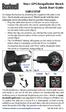 Neo+ GPS Rangefinder Watch Quick Start Guide SIMPLE SETUP 1) Charge the battery by attaching the supplied USB cable to the Neo+ Watch (make sure you are in Watch mode with the time displayed, not on the
Wireless Alarm System. Silent Alert. User s Manual. Choice ALERT. Control all Sensors & accessories from one location
 45137 Wireless Alarm System Silent Alert User s Manual Choice ALERT Control all Sensors & accessories from one location Table of Contents Important Safeguards 4 Introduction 4 Adding a Silent Alert to
WLAN600 Wireless IP Phone Administrator s Guide
 WLAN600 Wireless IP Phone Administrator s Guide Trademark Acknowledgement All brand names are trademarks or registered trademarks of their respective companies. Disclaimer This document is supplied by
safe, smart, protected
 safe, smart, protected en Safety, Regulatory, &Legal Charging Dock Operation Charging Dock Operation The charging dock is designed for tabletop use. To be compliant with RF exposure guidelines and to
ES-CAM2AU IP Camera. www.etiger.com
 ES-CAM2AU IP Camera www.etiger.com EN Box content Connect your smartphone to the camera - ES-CAM2AU x1 - Mounting bracket x1 - AC Adaptor x1 - User Manual x1 and apps Before using the ES-CAM2AU, download
HANDS-FREE BLUETOOTH CONTROLLER for SMART READY TABLETS AND COMPUTERS
 HANDS-FREE BLUETOOTH CONTROLLER for SMART READY TABLETS AND COMPUTERS Operating Manual 2 CONTENTS Before Turning on Your PED... 4 Power... 5 ON... 5 OFF... 5 Modes... 6 Changing the MODE... 7 Connecting
User Guide. Cordless Optical Mouse N2953
 Cordless Optical Mouse 410-XXXXXXXXXXX 1 YEAR LIMITED WARRANTY: We pride ourselves on the quality of our products. For complete warranty details and a list of our worldwide offices, please visit www.targus.com.
FOR MORE INFORMATION. 125 8880 or from a non-telstra phone 13 2200 and say pre-paid telstra.com/ppmbb visit a telstra store or partner
 FOR MORE INFORMATION 125 8880 or from a non-telstra phone 13 2200 and say pre-paid telstra.com/ppmbb visit a telstra store or partner getting to know your telstra pre-paid 4G WI-FI (760S) LET S GET THIS
Wireless Alarm System. Alarm Siren. User s Manual. Choice ALERT. Control all Sensors & accessories from one location
 45136 Wireless Alarm System Alarm Siren User s Manual Low Batt On Armed ON/OFF LEARN Choice ALERT Control all Sensors & accessories from one location Table of Contents Important Safeguards 4 Introduction
Owner s Manual. Not suitable for mobile applications. Important Safety Instructions 2. Quick Installation 3. Basic Operation 4. Storage & Service 7
 Register online today for a chance to win a FREE Tripp Lite product! www.tripplite.com/warranty Owner s Manual Internet Office & BC Personal UPS Systems Not suitable for mobile applications. Important
Wireless Indoor/ Outdoor Thermometer
 Wireless Indoor/ Outdoor Thermometer Owner s Manual Please read before using this equipment. ˆ Contents FCC Information... 3 FCC Declaration of Conformity... 5 Preparation... 5 Installing Batteries...
Plantronics.Audio 995 User Guide
 Plantronics.Audio 995 User Guide Welcome Congratulations on purchasing your new Plantronics.Audio 995. This User Guide contains instructions for setting up and using the.audio 995. Please refer to the
3.5 mm Audio Jack. Manual innoxplore ix B24 A2DP Stereo Bluetooth Audio Adapter Dongle 3.5mm Audio Jack [ix B24] Contents
![3.5 mm Audio Jack. Manual innoxplore ix B24 A2DP Stereo Bluetooth Audio Adapter Dongle 3.5mm Audio Jack [ix B24] Contents](/thumbs/40/20932712.jpg "3.5 mm Audio Jack. Manual innoxplore ix B24 A2DP Stereo Bluetooth Audio Adapter Dongle 3.5mm Audio Jack [ix B24] Contents") 3.5 mm Audio Jack Manual innoxplore ix B24 A2DP Stereo Bluetooth Audio Adapter Dongle 3.5mm Audio Jack [ix B24] Contents 1 Safety Information.. 2 1.1. Electronic Devices 2 1.2 Aircraft..2 1.3 Medical Instruments..2
3.5 mm Audio Jack Manual innoxplore ix B24 A2DP Stereo Bluetooth Audio Adapter Dongle 3.5mm Audio Jack [ix B24] Contents 1 Safety Information.. 2 1.1. Electronic Devices 2 1.2 Aircraft..2 1.3 Medical Instruments..2
TL-PS310U Single USB 2.0 Port MFP and Storage Server
 Single USB 2.0 Port MFP and Storage Server REV3.0.0 1910010947 COPYRIGHT & TRADEMARKS Specifications are subject to change without notice. is a registered trademark of TP-LINK TECHNOLOGIES CO., LTD. Other
Personal Assistance System Owner's Guide
 Owner's Guide PSC07 READ THIS FIRST This equipment generates and uses radio frequency energy, and if not installed and used properly, that is, in strict accordance with the manufacturers instructions,
245YDS 3 9:30AM P4 USER GUIDE
 3 P4 USER GUIDE TABLE OF CONTENTS Thank You for Choosing Swami Sport...2 Warranty...2 Registration...2 1. General Description of Hardware...3 1.1 Device Layout...3 1.2 Accessories List...3 1.3 Charging
LabelWriter. Print Server. User Guide
 LabelWriter Print Server User Guide Copyright 2010 Sanford, L.P. All rights reserved. 08/10 No part of this document or the software may be reproduced or transmitted in any form or by any means or translated
WPR400 Wireless Portable Reader
 P516-098 WPR400 Wireless Portable Reader User guide Para el idioma español, navegue hacia www.schlage.com/support. Pour la portion française, veuillez consulter le site www.schlage.com/support. Contents
Quick Start Guide. Rev. 1.0
 Quick Start Guide Rev. 1.0 WARNING TO PREVENT SERIOUS INJURY OR DEATH FROM MOVING GARAGE DOORS OR GATES: DO NOT let children use the Gogogate product and app without adult supervision. ONLY operate your
Laser Wireless Rechargeable Mouse. User s Manual
 Laser Wireless Rechargeable Mouse Model #: LM8000WR User s Manual Rev. 060801 User s Record: To provide quality customer service and technical support, it is suggested that you keep the following information
Duplex ID Card & License Scanner. User Guide
 Duplex ID Card & License Scanner User Guide CE Conformity and FCC Statement This equipment has been tested and found to comply with the limits of the European Council Directive on the approximation of
Introduction. Setting Up Your Remote Installing the Battery. Contents. System Requirements
 410-1680-001E / AMP09US 1 YEAR LIMITED WARRANTY: We pride ourselves on the quality of our products. For complete warranty details and a list of our worldwide offices, please visit www.targus. com. Features
SanDisk Connect Wireless Flash Drive QUICK START GUIDE
 SanDisk Connect Wireless Flash Drive QUICK START GUIDE GET STARTED 1. Charge your Wireless Drive Plug the Drive into a computer or USB-AC adaptor. A full charge can take up to 2 hours. 2) Turn on the
reflecta Super 8 Scanner
 reflecta Super 8 Scanner User Manual 1 FEDERAL COMMUNICATIONS COMMISSION (FCC) STATEMENT This Equipment has been tested and found to comply with the limits for a class B digital device, pursuant to Part
CarePartner Telephone With Reminders
 Philips wordmark and Lifeline K100 CarePartner Telephone With Reminders Model 9500 User s Manual Black and white version For use with newsprint and other one-color applications. 1 x P height 1 x P height
User Guide. Soft-Touch TM Bluetooth Laser Mouse N2953
 Soft-Touch TM Bluetooth Laser Mouse 410-XXXXXXXXXXX 1 YEAR LIMITED WARRANTY: We pride ourselves on the quality of our products. For complete warranty details and a list of our worldwide offices, please
Otium Gear S Smart Watch User Guide Please read the manual before use. * For further information, please visit www.otiumobile.com
 Otium Gear S Smart Watch User Guide Please read the manual before use. * For further information, please visit www.otiumobile.com 1 About this manual You can use this Gear S as a companion device to some
Model: 616-146v2 Quick Setup Guide DC: 071015 Atomic Projection Alarm with Indoor and Outdoor Temperature
 Model: 616-146v2 Quick Setup Guide DC: 071015 Atomic Projection Alarm with Indoor and Outdoor Temperature Snooze/Backlight BUTTONS Time, Alarm with Snooze, & Calendar Projection Arm Rotates 180 Indoor/Outdoor
ES-CAM3A Outdoor IP Camera
 ES-CAM3A Outdoor IP Camera www.etiger.com EN Specifications - Image sensor: 1/3 CMOS, 3.15 MP - Video resolution: 160x90, 320x180, 640x360, 1280x720 (H.264) - Digital zoom: 2x - Focal: 3.6mm, Aperture:
BT-105 Transceiver Product Family. Includes DIGIT and ATFS-2. User Manual
 BT-105 Transceiver Product Family Includes DIGIT and ATFS-2 User Manual Table of Contents BT-105... 4 Description... 4 Setup and Pairing... 5 Resetting the Pairing... 5 Turning off the BT-105... 6 Modes...
USER GUIDE. BLUETOOTH HEADSET system
 USER GUIDE Plantronics VOYAGER 510-USB BLUETOOTH HEADSET system 0 0 0 TABLE OF CONTENTS PACKAGE CONTENTS Package Contents 3 Features 4 Charging 5 Powering 6 Pairing 7 Installing PerSono Suite Software
ARCHOS (www.archos.com/support).
 1 ! www.archos.com/register, ARCHOS.. ARCHOS, (www.archos.com/register).. ARCHOS (www.archos.com/support)., Windows, Windows Help Start ( ), Help and Support.. ARCHOS. 2 ,.! /, : ARCHOS 9,,,,,. -.,. ARCHOS
User guide. Stereo Bluetooth Headset SBH70
 User guide Stereo Bluetooth Headset SBH70 Contents Introduction...3 Function overview...3 Hardware overview...3 Basics...5 Charging the battery...5 Battery and power management...5 Turning the headset
Cellular Medical Alert User s Guide
 Cellular Medical Alert User s Guide What s in the Box 70 F MAY 03 FRI 10:05 AM RESET 70 F Volume: 10:05 AM RESET RESET + TEST TEST Cellular Base Station Neck Pendant and/or Wrist Button Setup Guide Cellular
1. Installation Requirements
 1. Installation Requirements 1.1. Package Contents Analog Telephone Adapter (CRA-210) Standard Telephone Cable (RJ11) Ethernet Cable (RJ45) Power Adapter 1.2. You will also need the following: 1.2.1. A
User Guide. Your first steps to smart monitoring
 User Guide Your first steps to smart monitoring 2 3 Important safety and legal Information We have taken all measures to ensure the BabyPing Video Monitor meets the highest safety standards but it must
Portable Satellite TV Antenna. VQ1000 Owner s Manual
 Portable Satellite TV Antenna VQ1000 Owner s Manual Model VQ1 Solutions for Mobile Markets 11200 Hampshire Avenue South, Bloomington, MN 55438-2453 Phone: (952) 922-6889 Fax: (952) 922-8424 20963 REV E
PR-2500 Portable Receiver. Owner s Manual
 PR-2500 Portable Receiver Owner s Manual CONTENTS The PR-2500, battery charger, and belt clip. (figure 1) Figure 1 Warning This device complies with Part 15 of the FCC rules, operation of this device is
User s Manual Model KB990W
 Wireless Internet Keyboard & Optical Mouse User s Manual Model KB990W FCC Statement This device complies with part 15 of FCC Rules. Operation is subject to the following two conditions: (1) this device
DSB-100 Portable Premium Bluetooth Speaker Owner s Manual
 . DSB-100 Portable Premium Bluetooth Speaker Owner s Manual You can print more than one page of a PDF onto a single sheet of paper. 1 Index Preparation Unpacking 3 Overview 4 Sound Quality 4 Design 4 Operation
WIRELESS EARPHONES with ACTIVE NOISE CANCELLING Thank you for purchasing PHIATON BT 100 NC
 WIRELESS EARPHONES with ACTIVE NOISE CANCELLING Thank you for purchasing PHIATON BT 100 NC - Please follow the directions, and read the guidelines carefully before use. Please keep the owner s guide for