
Custom Question Builder Tutorial
|
|
|
- Jocelin Matthews
- 10 years ago
- Views:
Transcription
1 Custom Question Builder Tutorial Introduction Pearson Education, 2011 (1/21/2011) Page 1

2 CONTACT INFORMATION General Information MyMathLab: MyStatLab: MathXL: MyMathTest: Customer Technical Support for Educators (888) MyMathLab and MyStatLab: MathXL: MyMathTest: Customer Technical Support for Students MyMathLab and MyStatLab: MathXL: MyMathTest: TRADEMARK NOTICES MyMathLab, CourseCompass, and MathXL are either trademarks or registered trademarks of Pearson Education, Inc. ActiveX, Microsoft, and Windows are either trademarks or registered trademarks of Microsoft Corporation in the United States and other countries. Adobe and Acrobat are registered trademarks of Adobe Systems Incorporated. America Online and AOL are registered trademarks of America Online, Inc. Macintosh and QuickTime are trademarks of Apple Computer, Inc., registered in the U.S. and other countries. Macromedia Flash is a trademark of Macromedia, Inc. in the United States and/or other countries. Netscape and Netscape Navigator are registered trademarks of Netscape Communications Corporation in the United States and other countries. RealPlayer and RealOne are either trademarks or registered trademarks of RealNetworks, Inc. Virtual Machine for Java is a trademark of Sun Microsystems, Inc. in the U.S. or other countries. All other trademarks are the property of their respective owners. Copyright Copyright 2011 Pearson Education, Inc. Publishing as Pearson Addison-Wesley and Pearson Prentice Hall. All rights reserved. No part of this publication may be reproduced, stored in a retrieval system, or transmitted, in any form or by any means, electronic, mechanical, photocopying, recording, or otherwise, without the prior written permission of the publisher. Printed in the United States of America. Pearson Education, 2011 (1/21/2011) Page 2
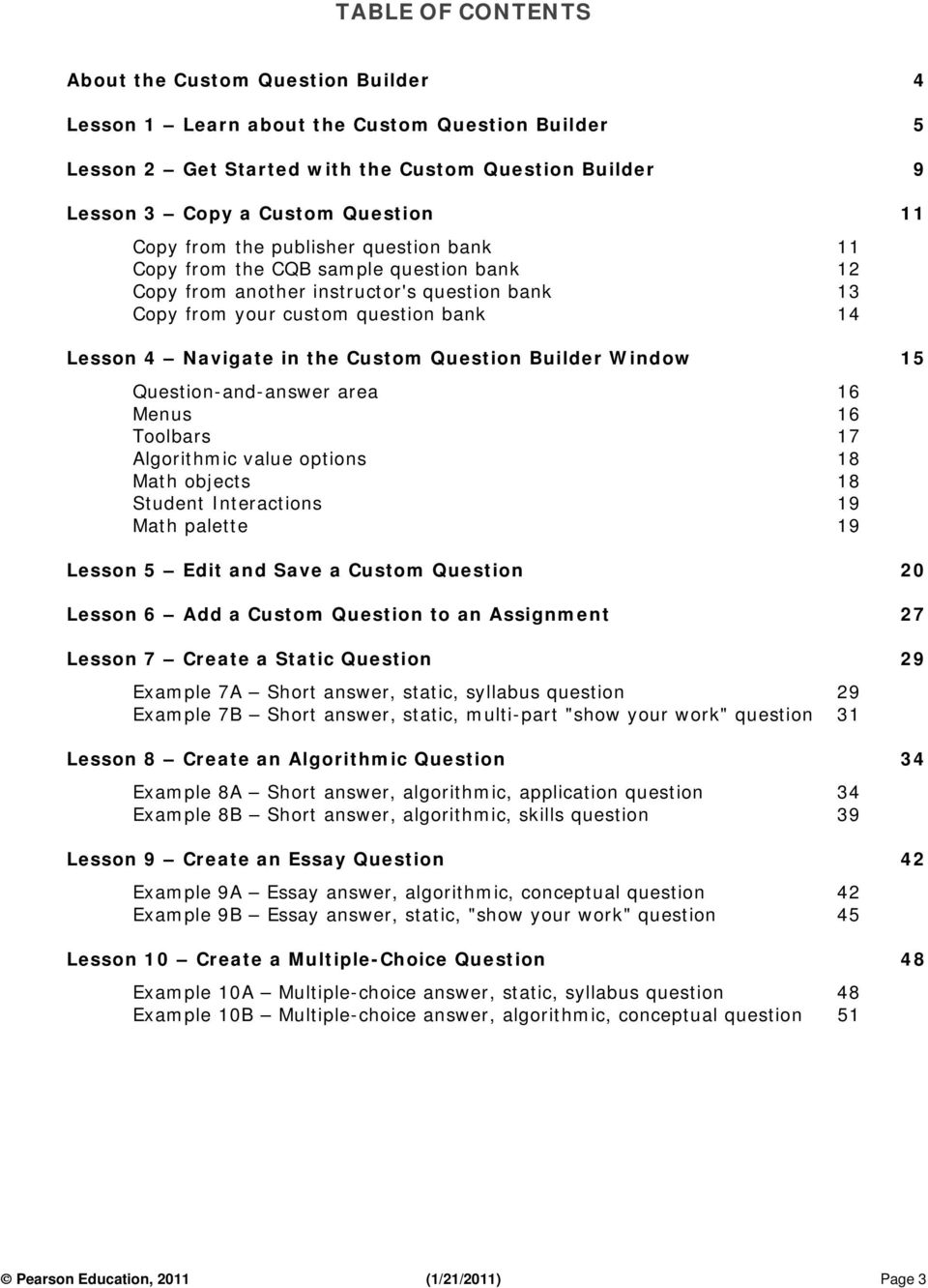
3 TABLE OF CONTENTS About the Custom Question Builder 4 Lesson 1 Learn about the Custom Question Builder 5 Lesson 2 Get Started with the Custom Question Builder 9 Lesson 3 Copy a Custom Question 11 Copy from the publisher question bank 11 Copy from the CQB sample question bank 12 Copy from another instructor's question bank 13 Copy from your custom question bank 14 Lesson 4 Navigate in the Custom Question Builder Window 15 Question-and-answer area 16 Menus 16 Toolbars 17 Algorithmic value options 18 Math objects 18 Student Interactions 19 Math palette 19 Lesson 5 Edit and Save a Custom Question 20 Lesson 6 Add a Custom Question to an Assignment 27 Lesson 7 Create a Static Question 29 Example 7A Short answer, static, syllabus question 29 Example 7B Short answer, static, multi-part "show your work" question 31 Lesson 8 Create an Algorithmic Question 34 Example 8A Short answer, algorithmic, application question 34 Example 8B Short answer, algorithmic, skills question 39 Lesson 9 Create an Essay Question 42 Example 9A Essay answer, algorithmic, conceptual question 42 Example 9B Essay answer, static, "show your work" question 45 Lesson 10 Create a Multiple-Choice Question 48 Example 10A Multiple-choice answer, static, syllabus question 48 Example 10B Multiple-choice answer, algorithmic, conceptual question 51 Pearson Education, 2011 (1/21/2011) Page 3
4 ABOUT THE CUSTOM QUESTION BUILDER The Custom Question Builder (CQB) is a powerful tool available in MyMathLab, MyStatLab, MathXL, and MyMathTest that allows you to create your own custom questions for a wide variety of mathematical and statistical topics. You can create custom questions with either static values or algorithmically generated values that regenerate each time a student works the question. The Custom Question Builder lets you create short answer, multiple-choice, true/false, or essay questions, and your questions can include number lines, graphs, pie charts, bar charts, and figures. In addition to creating your own custom questions from scratch, you can also copy and edit questions from another textbook, from the sample question bank, or from another instructor. After you have created your questions, you can then add them into your online homework, quizzes, or tests in MyMathLab, MyStatLab, and MathXL, or in your online tests in MyMathTest. The lessons in this tutorial assume that you are already comfortable using MyMathLab, MyStatLab, MathXL, or MyMathTest. Each lesson in this tutorial builds cumulatively on the previous lesson. Online Help You can view the CQB online help file by clicking the Instructor Help link in the Control Panel in your MyMathLab or MyStatLab course. In MathXL or MyMathTest, click the Help link at the top right of the program window. This will open up a Help page with links to the online help file as well as information about tours and training and additional support options. Click the link for the Custom Question Builder Help in the Search Online Help section to view the CQB online help file. Pearson Education, 2011 (1/21/2011) Page 4

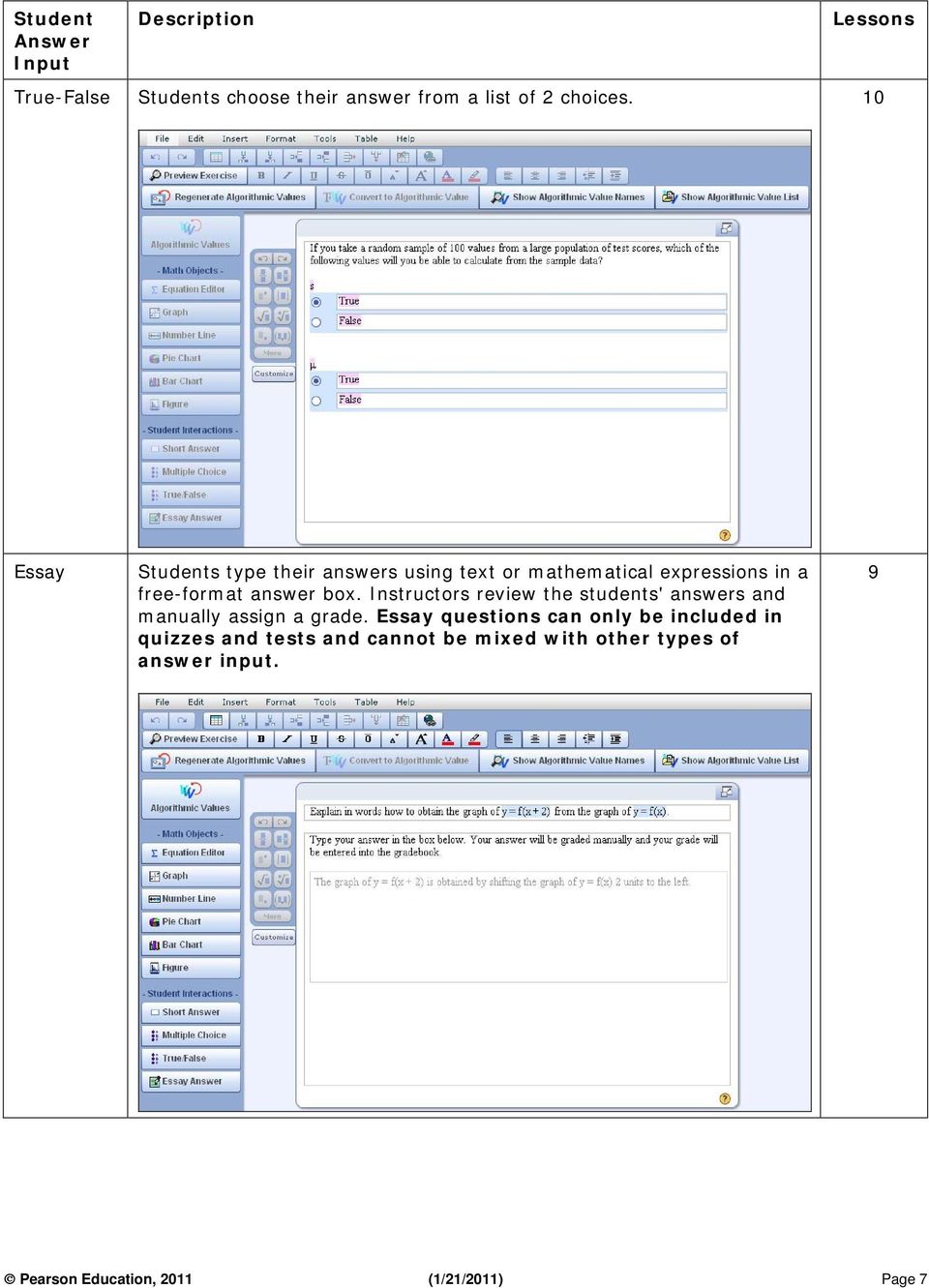
5 LESSON 1 LEARN ABOUT THE CUSTOM QUESTION BUILDER There are four ways you can choose to create a custom question. Refer to the lessons listed in the table below for detailed directions on each method. Custom Question Creation Method Lessons Copy a publisher question. 3 and 5 Copy a sample question. 3 and 5 Copy another instructor's question. 3 and 5 Start with a new question. 7, 8, 9, 10 Regardless of which method you choose to begin with, you can edit the question as needed. The diagram below illustrates the interrelationships among the four methods. Your custom question can be written as a static or algorithmic question. Static questions do not change when the question is displayed in an assignment, and all students will see the same values in the question. Algorithmic questions, on the other hand, are designed to randomly generate values each time the question is displayed in an assignment. Each student should see a different version of the question. The algorithms are defined by the question writer, and follow the constraints set for each algorithmic value. In addition, each custom question can have one or more types of student answer input. The available answer input types are listed in the following table, along with an example illustrating the answer input. The screenshots show the custom question in the Custom Question Builder editor window. Pearson Education, 2011 (1/21/2011) Page 5

6 Student Answer Input Description Lessons Short answer Students enter the exact answer in text, numerical, or symbolic format. 7, 8 Multiplechoice Students choose their answer from a list of 3 or more choices. 10 Pearson Education, 2011 (1/21/2011) Page 6

7 Student Answer Input Description Lessons True-False Students choose their answer from a list of 2 choices. 10 Essay Students type their answers using text or mathematical expressions in a free-format answer box. Instructors review the students' answers and manually assign a grade. Essay questions can only be included in quizzes and tests and cannot be mixed with other types of answer input. 9 Pearson Education, 2011 (1/21/2011) Page 7
8 Now that you know what options are available for designing a custom question, let's look at some reasons why you might want to write your own questions. Remember that any of these types of questions can be static or algorithmic and you can use a variety of answer inputs (short answer, multiple-choice, true/false, essay). Type of question Syllabus questions Vocabulary or conceptual questions Show your work questions Skill and application questions Description These questions would assess students' knowledge of your course syllabus and policies, including such items as the grading scale, author/title of the textbook, homework policy, or instructor office hours. Since these questions would be unique to your course, you would need to create the questions from scratch. These questions would assess students' knowledge of the relevant terms/definitions and concepts in your course curriculum. Vocabulary and conceptual questions are usually not included in the online question database, and so you would probably need to create these types of questions from scratch. Many textbooks include vocabulary and conceptual questions in the end-of-section question sets and you might be able to model your custom questions from these questions. You can design questions that require students to enter the steps for working out the solution to the question. You can either use the essay answer input to allow students to freely format their work, or create a multi-part question that walks students through the solution steps. These questions would supplement the questions that are included in the online question bank for your textbook. You can either create these from scratch or you could copy a question from another textbook. Lessons 7, 10 9, 10 7, 9 8 Follow the rest of the lessons in this tutorial to learn how to write your custom questions. Pearson Education, 2011 (1/21/2011) Page 8

9 LESSON 2 GET STARTED WITH THE CUSTOM QUESTION BUILDER In this lesson, you will learn how to open the Custom Question Builder and navigate in the program. Note that only instructors can access the Custom Question Builder. Section instructors cannot create custom questions unless they are given full access as an instructor for a course. 1. Log in to MyMathLab, MyStatLab, MathXL, or MyMathTest. Open your browser and log in as an instructor to MyMathLab, MyStatLab, MathXL, or MyMathTest. 2. Open the Homework/Test Manager or Test Manager. Enter any course in MyMathLab, MyStatLab, or MathXL, and navigate to the Homework/Test Manager. In MyMathTest, enter any program and navigate to the Test Manager. 3. Open the Custom Question Builder. In the Homework/Test Manager, click the Create Assignment button and select Create Custom Question. If you are in the MyMathTest Test Manager, click the Create Test button and select Create Custom Question. Alternatively, select Manage Custom Questions from the More Assignment Tools dropdown list. Note: If the Create Custom Question option is not available, this means that you are not an instructor for the course. Select another course to access the Create Custom Question option. If you do not have any other courses, consult with your math coordinator to see if you can obtain an instructor account. 4. View the Custom Question Manager. The Custom Question Manager lists all of the custom questions that are in your database. Questions are initially ordered alphabetically by question title but you can change the sort order by clicking on the column name. 5. Filter the list of questions. Note: If there are no questions listed in your Custom Question Manager, you can return to this lesson to practice the filtering later when you do have questions in your list. In the Custom Question Manager, you can filter your question by book or keyword. When you save a question (see Lesson 5) you have the option of associating the question with the content in a textbook. This allows you to organize your questions by textbook. In addition, if you associate the custom question to an objective in the textbook, your students' performance on the question in a homework assignment, quiz or test can be used to update their Study Pearson Education, 2011 (1/21/2011) Page 9
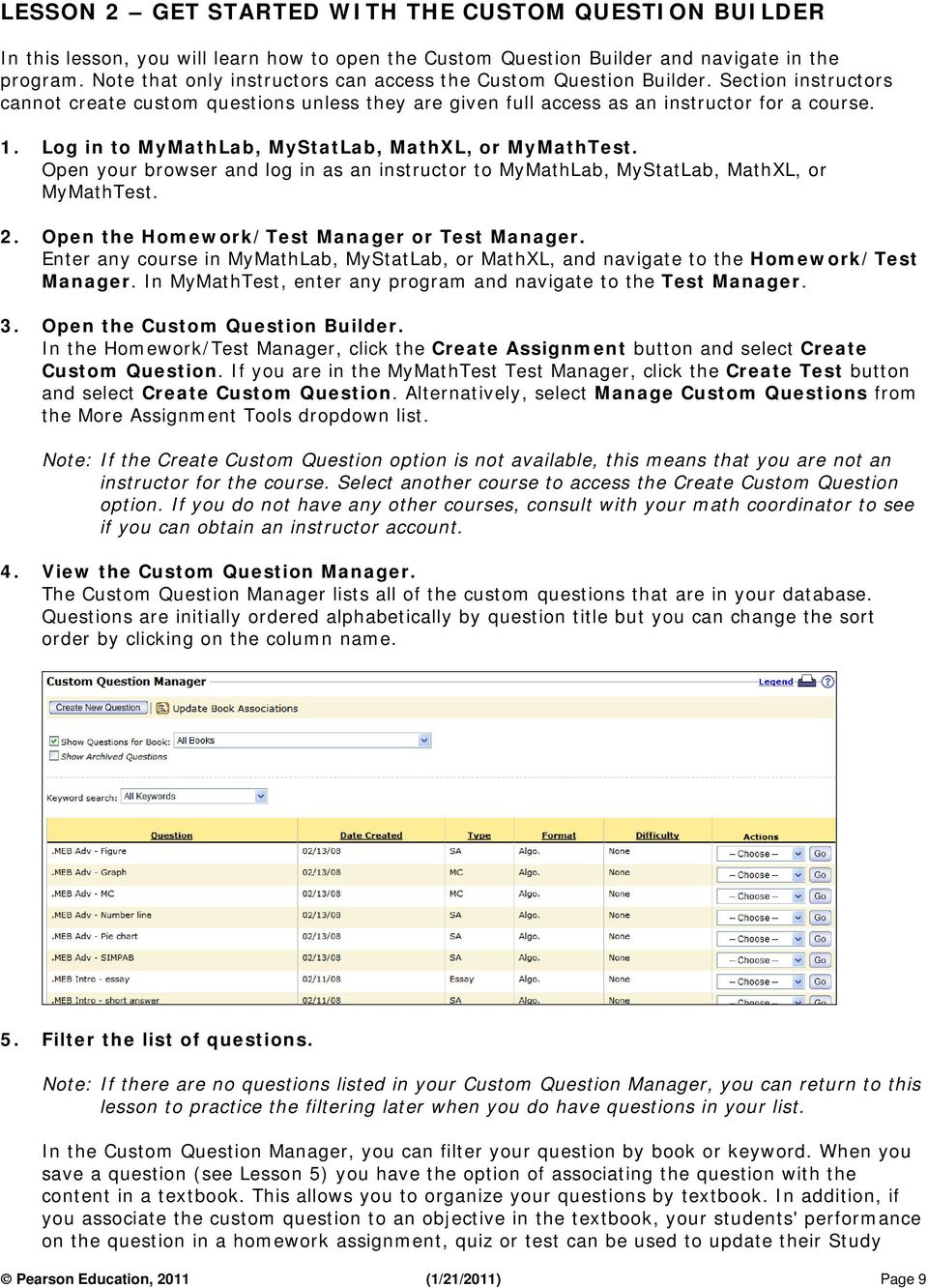
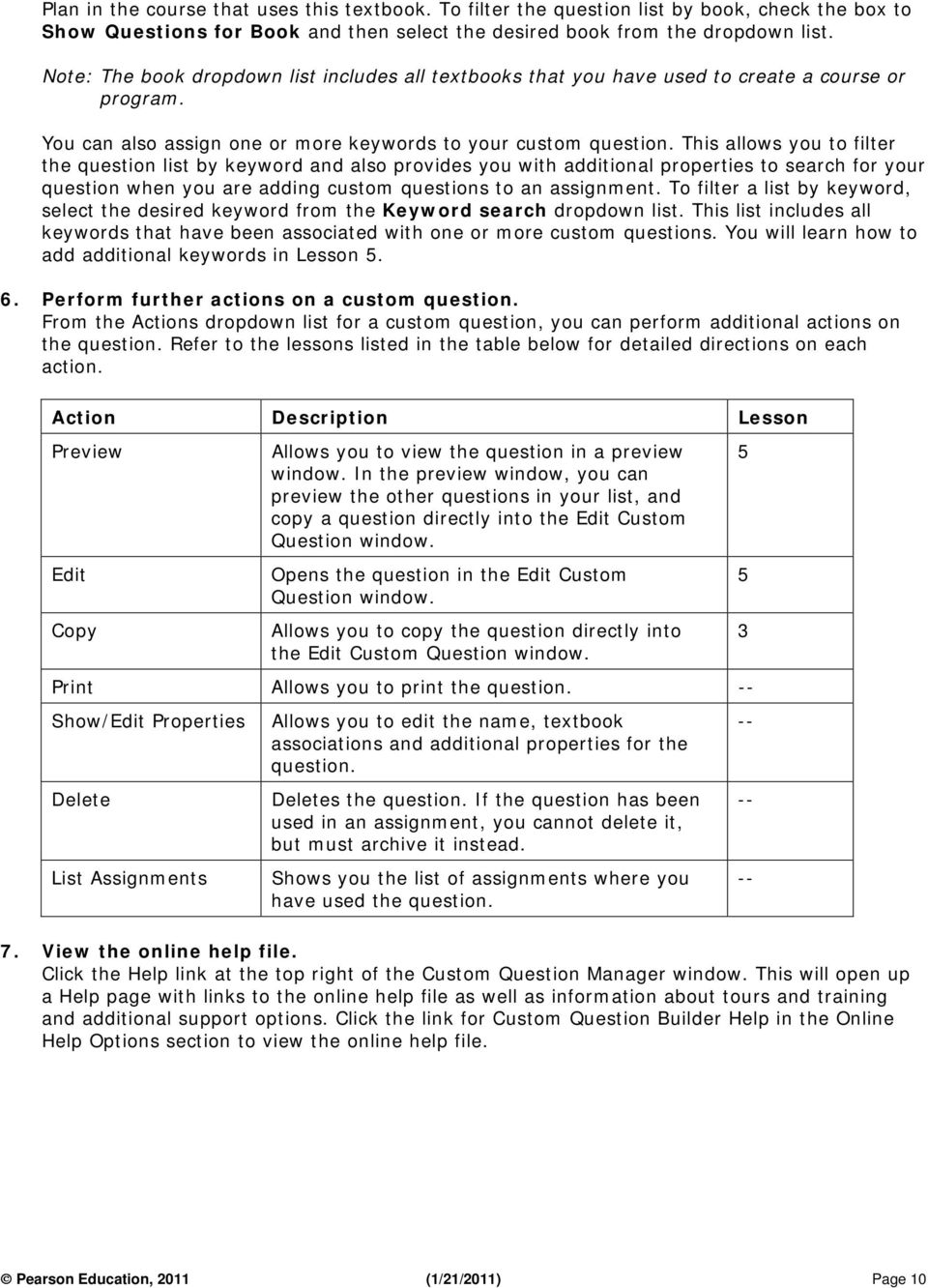
10 Plan in the course that uses this textbook. To filter the question list by book, check the box to Show Questions for Book and then select the desired book from the dropdown list. Note: The book dropdown list includes all textbooks that you have used to create a course or program. You can also assign one or more keywords to your custom question. This allows you to filter the question list by keyword and also provides you with additional properties to search for your question when you are adding custom questions to an assignment. To filter a list by keyword, select the desired keyword from the Keyword search dropdown list. This list includes all keywords that have been associated with one or more custom questions. You will learn how to add additional keywords in Lesson Perform further actions on a custom question. From the Actions dropdown list for a custom question, you can perform additional actions on the question. Refer to the lessons listed in the table below for detailed directions on each action. Action Description Lesson Preview Edit Copy Allows you to view the question in a preview window. In the preview window, you can preview the other questions in your list, and copy a question directly into the Edit Custom Question window. Opens the question in the Edit Custom Question window. Allows you to copy the question directly into the Edit Custom Question window. Print Allows you to print the question. -- Show/Edit Properties Delete List Assignments Allows you to edit the name, textbook associations and additional properties for the question. Deletes the question. If the question has been used in an assignment, you cannot delete it, but must archive it instead. Shows you the list of assignments where you have used the question. 7. View the online help file. Click the Help link at the top right of the Custom Question Manager window. This will open up a Help page with links to the online help file as well as information about tours and training and additional support options. Click the link for Custom Question Builder Help in the Online Help Options section to view the online help file Pearson Education, 2011 (1/21/2011) Page 10
11 LESSON 3 COPY A CUSTOM QUESTION There are four sources of questions you can copy from: Publisher question bank Custom Question Builder sample question bank Another instructor's question bank Your custom question bank Regardless of the source, when you copy a question, the original question is unchanged; instead, a copy of the question is saved in your instructor account and you can edit the copy as desired. Copy from the publisher question bank You can select a question from the question bank associated with any online course you have created. Note: If you choose to copy and edit a question from the publisher question bank, the learning aids usually associated with that question (such as Help Me Solve This, View an Example, videos, or animations) will not be available. In addition, any multi-step questions will be unrolled and presented in one screen. 1. Navigate to the Custom Question Manager. Follow the steps in Lesson 2 to navigate to the Custom Question Manager. 2. Create a new question. In the Custom Question Manager window, click the Create New Question button. 3. Select a copy option. In Step 1 of the Create Custom Question wizard, select the first option to Copy and edit a question from your online course. Click Next to continue. 4. Filter the list of available questions. The Choose Question step contains dropdown lists which you use to filter the question database. The questions available for your selection are displayed in the Available Questions box. Note that the Book dropdown list includes all textbooks or testbanks that you have used to create a course or program. Tip: To copy and edit a question from a textbook that you are not teaching from, first create a course using that textbook. Use the dropdown lists to select a book, chapter, section, and objective. The list of Available Questions shows you the question ID for each question. The question ID identifies the chapter, section, and objective from the corresponding question in the textbook. In the example shown in the Pearson Education, 2011 (1/21/2011) Page 11

12 screenshot, question corresponds to question 35 in section 2.1 of your textbook. The online question will be an algorithmic version of the textbook question. Note: In MyMathTest, there are only three dropdown lists (Book, Chapter, Section), and the question IDs are given for your convenience only and do not correspond to questions in any textbook. 5. Preview a question. Select a question in the Available Questions list, and click the Preview button. In the Preview Question window, you can practice entering an answer and generating a similar question. You can also preview other questions in the Available Questions list by clicking the Previous Item or Next Item button. 6. Copy the question. In the Preview Question window, click the Copy and Edit button. Note: If you are in the Choose Question step, select the question in the Available Questions list and click the Next button. A copy of the question is opened in the Edit Custom Question window. In Lesson 4, you will learn how to navigate in this editor window. Refer to Lesson 5 for detailed directions on editing and saving the question. Copy from the CQB sample question bank The Custom Question Builder comes with its own sample question bank that is unassociated with any textbook and includes questions from arithmetic through trigonometry. Sample questions do not have any learning aids associated with them. Note: The sample question bank is not available in MyMathTest. 1. Navigate to the Custom Question Manager. Follow the steps in Lesson 2 to navigate to the Custom Question Manager. 2. Create a new question. In the Custom Question Manager window, click the Create New Question button. 3. Select a copy option. In Step 1 of the Create Custom Question wizard, select the second option to Copy and edit a question from the sample question bank. Click Next to continue. 4. Filter the list of available questions. The Choose Question window contains dropdown lists which you use to filter the question database. The questions available for your selection are displayed in the Sample Questions box. Use the dropdown lists to select a book type, topic, subtopic, and objective. The list of Sample Questions shows you the title for each question. Pearson Education, 2011 (1/21/2011) Page 12

13 5. Preview a question. Select a question in the Sample Questions list, and click the Preview button. In the Preview Question window, you can practice entering an answer and generating a similar question. You can also preview other questions in the Sample Questions list by clicking the Previous Item or Next Item button. 6. Copy the question. In the Preview Question window, click the Copy and Edit button. Note: If you are in the Choose Question window, select the question in the Sample Questions list and click the Next button. A copy of the question is opened in the Edit Custom Question window. In Lesson 4, you will learn how to navigate in the editor window. Refer to Lesson 5 for detailed directions on editing and saving the question. Copy from another instructor's question bank You also have the option of copying a question created by another instructor. You will need the instructor's login name for the program that the question was created in, as well as the titles of the questions you want to copy. Note: You can copy custom questions created by another instructor in MyMathLab, MyStatLab, MathXL, or MyMathTest regardless of which of these programs you are logged in to. 1. Navigate to the Custom Question Manager. Follow the steps in Lesson 2 to navigate to the Custom Question Manager. 2. Create a new question. In the Custom Question Manager window, click the Create New Question button. 3. Select a copy option. Select the fourth option to Copy and edit a question from another instructor's account with this login and type the instructor's login name in the box. Click Next to continue. Note: You can only copy questions marked "Allow other instructors to copy and edit this question" by the author. Refer to Lesson 5 for details on how to change this question setting. 4. Filter the list of available questions. The Choose Question window shows you the list of questions available for copying from the instructor's question database. The list of Available Questions shows you the title for each question. Note: The Custom Question Builder automatically adds a plus sign as a prefix to the title of each custom question. Pearson Education, 2011 (1/21/2011) Page 13

14 5. Preview a question. Select a question in the Available Questions list, and click the Preview button. In the Preview Question window, you can practice entering an answer and generating a similar question. You can also preview other questions in the Available Questions list by clicking the Previous Item or Next Item button. 6. Copy the question. In the Preview Question window, click the Copy and Edit button. Note: If you are in the Choose Question window, select the question in the Available Questions list and click the Next button. A copy of the question is opened in the Edit Custom Question window. In Lesson 4, you will learn how to navigate in the editor window. Refer to Lesson 5 for detailed directions on editing and saving the question. Copy from your custom question bank Lastly, you can copy one of your existing custom questions from your question database. As with the other copying methods, the original custom question is not altered and you can edit the copy and save it as a new question. 1. Navigate to the Custom Question Manager. Follow the steps in Lesson 2 to navigate to the Custom Question Manager. 2. Preview a question. In the Custom Question Manager window, select Preview from the Actions dropdown list to the right of the question you want to copy. Click the Go button to preview the question. In the Preview Question window, you can practice entering an answer and generating a similar question. You can also preview other questions in your question database by clicking the Previous Item or Next Item button. 3. Copy the question. In the Preview Question window, click the Copy and Edit button. Note: If you are in the Custom Question Manager window, select the Copy button from the Actions dropdown list to the right of the question you want to copy and click the Go button. A copy of the question is opened in the Edit Custom Question window. In Lesson 4, you will learn how to navigate in the editor window. Refer to Lesson 5 for detailed directions on editing and saving the question. Pearson Education, 2011 (1/21/2011) Page 14

15 LESSON 4 NAVIGATE IN THE CUSTOM QUESTION BUILDER WINDOW If you have completed Lesson 3, you should have a question open in the Custom Question Builder window. If not, you can return to Lesson 3 to copy a question. You should see a window similar to the one shown below. The Custom Question Builder window contains all the controls you need to customize your question. From this window, you can create and edit algorithmic values, insert graphical objects, build complex mathematical expressions, and format your question and answer. In this lesson, you will explore the features and tools available in the CQB window. Refer to the indicated lessons in the tables for more information on each feature. Pearson Education, 2011 (1/21/2011) Page 15

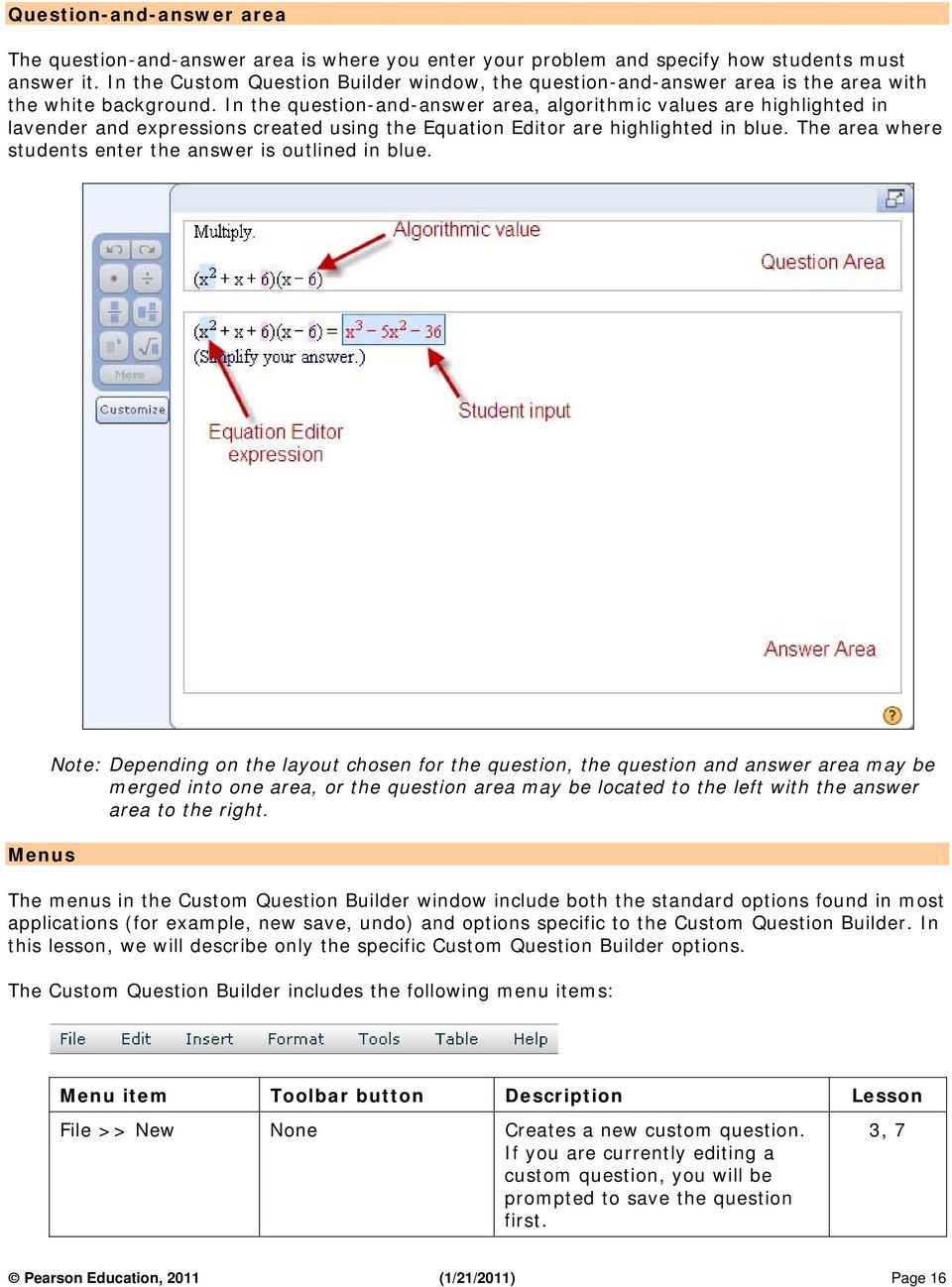
16 Question-and-answer area The question-and-answer area is where you enter your problem and specify how students must answer it. In the Custom Question Builder window, the question-and-answer area is the area with the white background. In the question-and-answer area, algorithmic values are highlighted in lavender and expressions created using the Equation Editor are highlighted in blue. The area where students enter the answer is outlined in blue. Menus Note: Depending on the layout chosen for the question, the question and answer area may be merged into one area, or the question area may be located to the left with the answer area to the right. The menus in the Custom Question Builder window include both the standard options found in most applications (for example, new save, undo) and options specific to the Custom Question Builder. In this lesson, we will describe only the specific Custom Question Builder options. The Custom Question Builder includes the following menu items: Menu item Toolbar button Description Lesson File >> New None Creates a new custom question. If you are currently editing a custom question, you will be prompted to save the question first. 3, 7 Pearson Education, 2011 (1/21/2011) Page 16
17 File >> Preview Exercise Insert >> Horizontal Line None Opens the Preview window where you can view the question as your students will see it. Inserts a horizontal line in either the question area or the answer area. Insert >> Picture None Opens a file browser where you can navigate to an image and add it to either the question area or the answer area. Insert >> Symbol None Opens the Symbols window, where you can choose Greek letters, operators, and other symbols to insert in your question. Insert >> Weblink Tools >> Regenerate Algorithmic Values Tools >> Preview Exercise Tools >> Show Algorithmic Value Names Tools >> Customize Palette None Opens the Insert a Weblink window, where you enter a URL and link description to insert in your question. Generates new values for algorithmic variables in your questions Opens the Preview window where you can view the question as your students will see it. Displays the variable name for algorithmic values in the question-and-answer area. Opens the Edit Tool Palette window, where you can choose what buttons to display to students on questions that display the math palette. Help >> Help None Opens the online instructor help file. Help >> Tutorials None Opens this Custom Question Builder tutorial Advanced , 8 5 5, 8, Toolbars The toolbars in the Custom Question Builder window include both the standard options found in most applications (for example, save, insert table, format characters and paragraphs) and options specific to the Custom Question Builder. The Custom Question Builder options (Preview Question, Insert Weblink) are described in the table above under the Menus section. The Custom Question Builder includes the following toolbar items: Pearson Education, 2011 (1/21/2011) Page 17

18 Algorithmic value options The Custom Question Builder algorithmic values toolbar contains the options you need to work with algorithmic values. Algorithmic values are variable values that are regenerated each time a student works on a question. The Custom Question Builder includes the following algorithmic values buttons: Toolbar button Description Lesson Recalculates all the algorithmic values in your question. The recalculated values are shown in the question-and-answer area. Opens the Edit Algorithmic Value window, where you can change static values to algorithmic values. Displays the variable names of your algorithmic values. Click the button again to return to the values view. Opens the Algorithmic Values List window, where you can add and edit the algorithmic values in your question. Opens a pop-up window that allows you to add new algorithmic values, manage/view algorithmic values, or select from a list of algorithmic values to insert into your question. 5, , 8 5, 8 8 Math objects The Math Objects section of the Custom Question Builder window lets you insert mathematical expressions and graphical elements into your questions. Math object Description Lesson Opens the Equation Editor, where you can create expressions that include mathematical notation, symbols, and other special characters. Opens the Edit Graph window, where you can define a Cartesian graph to include in your question. Your graph can incorporate functions, parametric equations, linear equations, and data points (ordered pairs). 7, 8 Advanced 6 Pearson Education, 2011 (1/21/2011) Page 18

19 Opens the Edit Number Line window, where you can define the properties of a number line to include in your question. You can plot intervals or points on your number lines. Opens the Edit Pie Chart window, where you can create a pie chart to include in your question. Opens the Edit Bar Chart window, where you can create a bar chart to include in your question. You can create both horizontal and vertical bars. Opens the Figure Editor, where you can import graphics or use the drawing tools palette to create figures. Advanced 7 Advanced 9 Advanced 9 Advanced 8 Student Interactions The Student Interactions toolbar lets you specify the format of answers in your question. Note: Your cursor must be in the answer section of the question-and-answer area in order to access the buttons in the Student Interactions toolbar. Answer option Description Lesson Opens the Edit Answer Definition window, where you can specify the acceptable forms of the correct answer and choose how strictly you want the player to evaluate student answers. Inserts a multiple-choice template, initially with four choices in the answer section. You can enter the correct answer and distractor answers, define the behavior of the choices, and change the number of choices. Inserts a True/False template. You can specify the correct answer and define the behavior of the choices. Opens the Edit Essay Answer window, where you can provide a sample answer your students can see when they review a quiz or test that includes this essay question. 7, Math palette The math palette contains math symbols and notation that your students may need to enter their answers to the question. Students click a button in the palette to insert the object into their answer. Most publisher-provided questions display eight buttons on the palette, with a More option so that students can access more buttons. When you are designing your question, you can specify what buttons appear on the math palette. The math palette appears automatically in mathematics and statistics courses. Refer to Lesson 9 for more information on customizing the math palette. Pearson Education, 2011 (1/21/2011) Page 19

20 LESSON 5 EDIT AND SAVE A CUSTOM QUESTION In Lesson 3, you learned how to copy a custom question from the online database. In this lesson, you will learn how to edit the question and save it to your custom question database. The example used for this lesson is taken from the Sullivan, College Algebra, 8e textbook and is question The original question has 3 parts and you will learn how to edit the question text, remove an answer part, edit an answer part, and edit some of the algorithms. 1. Copy the custom question. Follow the steps in Lesson 3 to copy the question from the publisher question bank. You can either copy the question used in this lesson (Sullivan, College Algebra, 8e, question ) or copy another question with similar characteristics. If you choose to copy the question used in this lesson, you may need to first create a course from the Sullivan, College Algebra, 8e textbook. Note: If you are in MyMathTest, you will need to copy a question from one of the MyMathTest testbanks since you will not be able to create a course from the Sullivan, College Algebra, 8e textbook. 2. Remove an answer part. For this lesson, you will remove the last answer part of this question and not ask students to determine the symmetry of the function. In the question area, delete the text for part c. In the answer area, scroll down till you see the text related to part c and delete all of this text. Note: When you remove answer parts from a custom question, be sure to review and edit the entire question for consistency. Pearson Education, 2011 (1/21/2011) Page 20

21 3. Edit the question text. Next, you will edit part b in the original question so that students will be asked to only enter the x-intercepts. Edit the question text for part b, as shown below. Now you need to edit the answer for part b. Scroll down in the answer area till you see the part that asks students to enter the intercepts. Edit the sentence "What are the intercepts?" to "What are the x-intercepts, if any?", since you will be asking students to only enter the x- intercepts in this part. 3. Edit an answer part. Next, you need to edit the student input box so that the program will only look for the two x- intercepts and not the y-intercept. Double-click in the student input box. Click on Step 2 in the Edit Answer Definition window. In the Define Answers window, place your cursor in the third line in the Value list, right-click and select Delete to remove this line. Pearson Education, 2011 (1/21/2011) Page 21
22 Note: There are 4 steps in the Edit Answer Definition window, and for this lesson you will only focus on Step 2. Refer to Lesson 7 for a more detailed discussion of this window. Click Save to save your changes and exit this window. The bottom part of the answer area should look like this. 4. Edit the algorithms. Depending on the question, some of the algorithms may be editable. In this lesson, you will learn how to edit some of the simpler algorithms. Once you have worked through the rest of the lessons in this tutorial and the Custom Question Builder Advanced tutorial, you should be able to understand and edit the more complicated algorithms. Click the Show Algorithmic Value Names button so that you can see what algorithms were used to write the question. Scroll down to the bottom part of the answer area, and you will see the following algorithm values used in the student input boxes for the domain, range and x- intercepts: Compare this screenshot with the one previously shown. Notice that algorithmic values are prefixed with the tilde symbol (~). You will see that the algorithmic value, ~dy, represents the lower limit of the range, and the algorithmic values, ~xint1 and ~xint2, represent the x- intercepts. Click the Show Algorithmic Values List button. You will see a list of all the algorithmic values defined for this question, including the type of algorithmic value, format, constraints, and value, as shown in the following screenshot. Pearson Education, 2011 (1/21/2011) Page 22
23 For this question, ~dx is defined as an integer constrained to be between the values of -6 and 6 and not equal to 0. Scroll down until you see the algorithmic values, ~xint1 and ~xint2. One of the x-intercepts is defined as the square root of ~dy added to ~dx, and the other x- intercept is defined as the negative square root of ~dy added to ~dx. From these definitions, you can deduce that the ordered pair (~dx, ~dy) represents the coordinates of the vertex of the parabola. For this lesson, you will edit the constraints for ~dx. In the Algorithmic Values List window, click the Edit link to the left of ~dx. In the Edit Algorithmic Value window, the constraints for ~dx are given in the middle of the window, as shown in the following screenshot. Pearson Education, 2011 (1/21/2011) Page 23
24 ~dx represents the x-intercept of the vertex and you will change the range of possible values so that the vertex is restricted between -4 and 4. To do this, highlight the constraint value of -6 and change it to -4. Similarly, highlight the constraint value of 6 and change it to 4. Click Save when done. Note: In the Algorithmic Values List window, notice that ~dy is defined as one of the values, - 1, -4, -9, and there are additional constraints prefixed with the? symbol. Any constraints that are prefixed with the? symbol are usually not editable by instructors. If you open up the Edit Algorithmic Value window for ~dy, you will see that this window will only display constraints that can be edited. 5. Test the algorithms. In the Algorithmic Values List window, click the Regenerate Algorithmic Values button. Notice that the values for each algorithmic value are updated each time you click the button. Do this several times to check that there are no error messages for any of the algorithmic values. If you do see an error message, you will need to edit one or more of the algorithmic values to fix the error. Click Close to dismiss the Algorithmic Values List window. In the editor, click the Show Algorithmic Values Names button, if necessary, to display values instead of algorithmic value names in the question. Next, click the Regenerate Algorithmic Values button several times to check that there are no mathematical errors in the question. 6. Preview the question. Click the Preview Exercise button to view the question as your students will see it. Pearson Education, 2011 (1/21/2011) Page 24
25 Test your question in the following ways: o Enter an incorrect answer and view the feedback given. o Enter a correct answer in various formats to see what formats are accepted. o Generate a similar question. When you are satisfied with your testing of the question, close the Preview window to return to the editor. 7. Save the question. In the editor, click the Save and Exit button to save the question and exit the editor. In the Choose Settings window, enter a name for the question. Use a descriptive name so that you can easily find the question in your Custom Question Manager. Since you copied this question from the publisher question bank, it is already associated with the textbook from which this question was copied. You can edit or remove this association, or add an additional textbook association. Note: You can associate a question with more than one textbook. You can also add a custom question to an assignment in any course using any textbook regardless of the textbook association. Tip: It is highly recommended that you add a textbook association for each custom question you create or copy. This will make it easier for you to find the custom question when you are creating an assignment, and the textbook association will cause the question to affect your students' Study Plans when you use the question in an assignment that updates the Study Plan. Pearson Education, 2011 (1/21/2011) Page 25
26 In the additional properties section, you can add information to help you organize your list of custom questions. For this lesson, you will practice adding several keywords for this question. Click the Change link to the right of the Keywords line. In the Assign Keywords window, any keywords that you have already used are listed. Check the box to the left of the keyword you want to use. Add a new keyword, "domain", by typing it in the box below the list of Available Keywords and clicking the Add button. In the same way, add the keywords "function" and "graphing". Click OK to associate these keywords with your question. To allow other instructors to copy your question, check the box for Sharing in the Other section. Click OK to finish saving the question. Your new custom question will be listed in the Custom Question Manager in alphabetical order. Refer to Lesson 2 for directions on how to filter the list of questions or to perform further actions on the question. Pearson Education, 2011 (1/21/2011) Page 26
27 LESSON 6 ADD A CUSTOM QUESTION TO AN ASSIGNMENT Now that you have at least one custom question in your database, you will learn how to add the question to an assignment. Custom questions can be added to homework assignments, quizzes, or tests in MyMathLab, MyStatLab, or MathXL, and to tests in MyMathTest. You can include custom questions along with publisher questions in the same assignment. In this lesson, you will learn how to add a custom question to a test. The steps for adding a custom question to a homework assignment or quiz are similar. Note: Remember that learning aids are not available in your custom questions, so if you add the question to a homework assignment, your students will not have access to learning aids such as the Help Me Solve This or View An Example screens. 1. Create a new test. In the Homework/Test Manager in MyMathLab, MyStatLab, or MathXL, click the Create Assignment button and select Create Test. In MyMathTest, go to the Test Manager, click the Create Test button and select Create Test. Note: You can add a custom question to any of your courses, regardless of the textbook you may have associated the question with. However, if you add the question to a course that uses a different textbook, the question will not affect your students' Study Plans. 2. Enter a name for the test. In Step 1 of the New Test wizard, enter a name for the test. Click Next to continue. 3. Locate the custom question. In Step 2, filter the question database by chapter, section, and objective. If you saved the example custom question from Lesson 5 and you are in the course that uses the Sullivan, College Algebra, 8e textbook, you should be able to find it in your list of available questions by selecting Chapter 3, Section 2. The custom question should be at the top of the list, prefixed by a + sign, as shown below. If you did not associate the custom question to this textbook, you will need to check box to "Show other custom questions". Refine the selection as needed to locate the custom question. Pearson Education, 2011 (1/21/2011) Page 27
28 4. Add the custom question to the test. Check the box to the left of the custom question and click the Add button to add the question to your test. Add additional questions to the test as desired, then click Next to continue. Note: If you are only adding custom questions to an assignment and not including any publisher questions, at least one of your custom questions must be associated to a chapter of the textbook. 5. Choose the test settings. In Step 3, you can choose the desired settings for your test. Note: For more details about choosing test settings, refer to the tutorials for MyMathLab, MathXL, or MyMathTest. 6. Save the test. Click Save or Save & Assign to save the test. Pearson Education, 2011 (1/21/2011) Page 28
29 LESSON 7 CREATE A STATIC QUESTION In this lesson, you will learn how to create a custom question from scratch. Both examples used for this lesson are static, which means that the values in the question do not change. In the next lesson you will learn how to create an algorithmic question where the values do change each time the question is displayed to the students. Here are the steps you should follow when creating a custom question from scratch. Design the question Create a new question Enter the question Test the question Save the question Note: If you are creating a long question, you may want to save the question as you are developing it. Example 7A Short answer, static, syllabus question The first example will be a syllabus question. This type of question can be used at the beginning of the term to verify that your students have read and understand your syllabus policies. 1. Design the question. For this lesson, you want to write a question to check that students know that the final exam counts as 25% of the course average. The question you want to ask is: "The final exam counts as % of the course average. Type your answer as a whole number, without the percent symbol." Students would enter their answer in the blank and the program will evaluate their answer. 2. Create a new question. Follow the steps in Lesson 2 to navigate to the Custom Question Manager, and click the Create New Question button. In Step 1 of the Create Custom Question window, select the option to "Start with an empty template", and then click Next to continue. In Step 2, select the Full Screen layout, and then click Next to go to the editor. 3. Enter the question. Replace the words "Problem Statement and Interaction Area" from the question-and-answer area with the following. You need an answer box in place of the blank so that students have a place to type in their answer. Delete the blank and place your cursor in front of the % symbol. In the Student Interactions toolbar, click the Short Answer button. Creating a short answer is a 4-step process. In Step 1, select the answer rule "Specify a subset of equivalent answers to accept", and then select "Accept integer or decimal equivalents only." Answer rules are used to determine what equivalent forms of the correct answer will be accepted as correct, and the rule you choose will restrict the accepted forms to integers and decimal only. Pearson Education, 2011 (1/21/2011) Page 29
30 In Step 2, enter the number 25 in the first row of the Value column. In Step 3, accept the default options. In Step 4, you can enter customized feedback for incorrect and correct answers. For this lesson, type the sentence "Read the syllabus to see the grade distribution for this class." in the Incorrect Answer Feedback box. Click Save to confirm your choices. The program puts a blue-outlined box before the % symbol. In the editor, this box is filled with the answer. In the student preview window, this box will be empty and students will type their answer in the box. 4. Test the question. Since this is a static question, there are no algorithms and you do not need to regenerate algorithmic values to test the question. You should, however, check the spelling in the question and make sure that the answer you entered is the correct answer. Preview the question and practice entering the correct answer as well as incorrect answers to view the feedback. Also enter the correct answer in various formats to see what formats are accepted. Pearson Education, 2011 (1/21/2011) Page 30
31 5. Save the question. Click the Save and Exit button to save the question and exit the editor. Example 7B Short answer, static, multi-part "show your work" question The second example will demonstrate how you can create a custom question to require students to show their steps when solving a problem. 1. Design the question. In this example, you will ask students to complete the steps for solving a linear equation. You will start with the equation 2x + 9 = 15 and write out the steps partially, requiring students to enter the correct values in the blanks. Here is how the question will look like: Solve the equation: 2x + 9 = 15 Complete each of the following steps by entering the correct values in the answer boxes. 2x + 9 = 15 2x = 15-2x = x = 2. Create a new question. Follow the steps in Lesson 2 to navigate to the Custom Question Manager, and click the Create New Question button. In Step 1 of the Create Custom Question window, select the option to "Start with an empty template", and then click Next to continue. In Step 2, select the Top/Bottom layout, and then click Next to go to the editor. 3. Enter the question. Replace the words "Problem Statement Area" from the question area with the statement "Solve the equation:". Press Enter twice, then click the Increase Indent icon, formatting toolbar., in the You will use the Equation Editor to enter the equation, as this gives us better control over the spacing between terms. Click the Equation Editor button in the Math Objects toolbar. In the Equation Editor, type the equation 2x+9=15. Notice that the editor automatically spaces the terms correctly. Click OK to exit the equation editor and place the equation in the question. The equation is highlighted in blue to show that it is an Equation Editor object. Pearson Education, 2011 (1/21/2011) Page 31
32 Replace the words "Interaction Area" in the answer area with the directions to the student "Complete each of the following steps by entering the correct values in the answer boxes." Press Enter twice. For the first line of the solution, type the equation using the Equation Editor. For the second line of the solution, type the beginning part "2x+9 " using the Equation Editor. Next, you need to enter an answer box in place of the blank. Click the Short Answer button in the Student Interactions toolbar. As you did in the first example for this lesson, you will select the answer rule "Accept integer or decimal equivalents only." in step 1, and enter the answer as 9 in step 2. For this answer, you will not change any setting in steps 3 or 4. For the right side of this line, use the Equation Editor to enter "=15-" and then enter another Short Answer student interaction for the blank. In a similar way, enter the third and fourth lines of the solution, using the Equation Editor and Short Answer student interaction as needed. Lastly, you can "dress up" the question by adding text before each step, as shown below. Pearson Education, 2011 (1/21/2011) Page 32
33 4. Test the question. As with the first example in this lesson, check the spelling in the question and make sure that the steps are mathematically correct. Preview the question and practice entering the correct answer in each part as well as entering incorrect answers for some of the parts. Try entering the correct answers in various formats as well. Dismiss the preview window when done. Note: The program will display all of the answer parts at once. Students will need to enter their answers for all parts before the program will check their answers. 5. Save the question. Click the Save and Exit button to save the question and exit the editor. Don't forget to add one or more textbook associations and keywords to your question in the Choose Settings window. Refer to Lesson 5 for more details. Pearson Education, 2011 (1/21/2011) Page 33
34 LESSON 8 CREATE AN ALGORITHMIC QUESTION Now that you know how to create a static question from scratch, you will learn how to create algorithms so that the values in the question will change each time the question is displayed. Here are the steps you should follow when creating an algorithmic custom question from scratch. Note that these are the same steps that you followed in Lesson 7 but with the addition of the step for entering the algorithms. Design the question Create a new question Enter the algorithms Enter the question Test the question Save the question Tip: If you are creating a long question, save the question as you are developing it. Example 8A Short answer, algorithmic, application question The first example will be an application problem. Students will solve the problem offline and only enter their final answer. 1. Design the question. The question that you will use as the model is shown on the right. To make this question algorithmic, you will define algorithmic values for the numbers highlighted, as follows: Name Definition Constraints ~start number of cookies originally in the jar integer between (and including) 15 and 25 ~buy number of dozen of cookies bought by Magan integer between (and including) 2 and 5 ~end number of cookies in the jar at the end integer between (and including) 40 and 50 You need one additional algorithmic value, ~eaten, to represent the number of cookies eaten by the children. This value is calculated from the other three values, per this equation: # cookies remaining = # original cookies - # cookies eaten + # cookies added Using algorithmic values, the equation is: ~end = ~start - ~eaten + 12*~buy Solving for ~eaten, you get ~eaten = ~start + 12*~buy - ~end. Given the range of values for the other algorithmic values, it is possible that ~eaten would be a negative number or a large number. Since you want a reasonable value for ~eaten, you will constrain the value to be between (and including) 3 and 15. Pearson Education, 2011 (1/21/2011) Page 34
35 2. Create a new question. Follow the steps in Lesson 2 to navigate to the Custom Question Manager. Create a new question by starting with a new template and choosing the Top/Bottom layout. 3. Enter the algorithms. Before entering the question, you will define the algorithms that will be used in the question. Click the Show Algorithmic Values List button in the Algorithmic Values toolbar to open up the Algorithmic Values List window. In the Algorithmic Values List window, click the Add button in the toolbar to bring up the Edit Algorithmic Value window. Enter the name, type, and constraints for the algorithmic value ~start, as shown below. Remember to omit the ~ symbol when entering the algorithmic value name. Pearson Education, 2011 (1/21/2011) Page 35
36 Note: The algorithmic value name field is not case-sensitive. Click Save to create this algorithmic value. Enter the algorithmic values, ~buy and ~end, in the same way. Your Algorithmic Values List should look like this. Note: The numbers in the Value column may be different from what you see in the screenshot. These numbers are randomly generated by the program based on the constraints you defined for each algorithmic value. The last algorithmic value, ~eaten, is entered differently since it is defined with a formula. Add a new algorithmic value, and in the Edit Algorithmic Value window, enter the formula, ~start+12*~buy-~end in the Constraint Value box. Also enter the constraints so that ~eaten is between (and including) 3 and 15. Your list of constraints for ~eaten should be as shown below. Now that you have entered all of the algorithmic values, it is a good idea to type in a brief annotation in the Authoring Notes column for each algorithmic value, as shown below. 4. Enter the question. Now that the algorithms are all entered, you are ready to enter the question. In the editor, replace the words "Problem Statement Area" from the question area with the word problem, including the actual numbers in the original problem. Next, you will convert each of the numbers to algorithmic values. Highlight the number 18 in the problem and click the Algorithmic Values button above the Math Objects toolbar. Select the algorithmic Pearson Education, 2011 (1/21/2011) Page 36
37 value, ~start, from the list. The program will replace the number 18 with this algorithmic value and you will see the current value of ~start highlighted in lavender. Click the Show Algorithmic Value Names button to display the variable name. Click the Show Algorithmic Value Names button again to return to the values view. In the same way, convert the text "three" to the algorithmic value ~buy. For this example, you will use the numerical value instead of the spelled out number. Refer to the Custom Question Builder Advanced tutorial to learn how to use lists to replace the number with the spelling of the number. Lastly, convert the number 49 to the algorithmic value ~end. Your problem should now look like this. Replace the words "Interaction Area" in the answer area with the text "Magan's children ate cookies." Highlight the blank and click the Short Answer button in the Student Interactions toolbar. Complete the steps in the Edit Answer Definition window as follows: o o o o Step 1 Select the answer rule "Accept integer or decimal equivalents only." Step 2 Enter the algorithmic value, ~eaten, in the first line of the Value column. Step 3 Do not change any settings. Step 4 Enter customized feedback if desired. Your question should now look like this. Pearson Education, 2011 (1/21/2011) Page 37
38 Click the Show Algorithmic Value Names button in the Algorithmic Values toolbar to display the algorithmic value names. Click the Show Algorithmic Value Names button again to return to the values view. 5. Test the question. Check the spelling in the question and also check that the arithmetic calculations are correct. Click the Regenerate Algorithmic Values button in the Algorithmic Values toolbar several times and verify that your algorithms are working correctly. Preview the question and practice entering the correct answer. 6. Save the question. Click the Save and Exit button to save the question and exit the editor. Don't forget to add one or more textbook associations and keywords to your question in the Choose Settings window. Refer to Lesson 5 for more details. Pearson Education, 2011 (1/21/2011) Page 38
39 Example 8B Short answer, algorithmic, skills question The second example in this lesson will show you how to create an algebraic skills question. 1. Design the question. The question that you will use as the model is shown on the right. To make this question algorithmic, you will define algorithmic values for the coefficient of y, the constant term in the equation, and the two solutions to the equation. You start by defining the solutions to be distinct integers. Then, you will define the coefficient of y and the constant term from the two solutions. Here is the list of algorithmic values that you will define. Name Definition Constraints ~ans1 one solution to the quadratic equation integer between (and including) -1 and -9 ~ans2 the other solution to the quadratic equation integer between (and including) -1 and -9, but not equal to ~ans1 ~coeff coefficient of y in the quadratic equation equal to the opposite of the sum of the two solutions ~const constant term in the quadratic equation equal to the product of the two solutions. 2. Create a new question. Follow the steps in Lesson 2 to navigate to the Custom Question Manager. Create a new question by starting with a new template and choosing the Top/Bottom layout. 3. Enter the algorithms. Follow the steps in the first example in this lesson to enter the algorithms. Click the Show Algorithmic Values List button in the Algorithmic Values toolbar and then click Add in the Algorithmic Values List window. Define each algorithmic value using the constraints given in the table in the Design step. For ~ans2, don't forget to add the constraint so that the two solutions will not be identical. Here is the constraint list for ~ans2: After you have defined all of the algorithmic values, type in brief annotations for each value, as shown below. Pearson Education, 2011 (1/21/2011) Page 39
40 4. Enter the question. Replace the words "Problem Statement Area" in the editor with the directions for the problem in the question area. Place your cursor where you want to enter the equation and click the Equation Editor button in the Math Objects toolbar. The equation you will enter looks like this: To enter the exponent of 2, click the "Superscripts, subscripts" button and select the superscript template, as shown on the right. To enter each algorithmic value, click the Insert Algorithmic Value button,, and select the item you wish to enter. Notice that algorithmic values are displayed in lavender in the equation editor. Click OK to insert the equation into your question. Click the Show Algorithmic Value Names button to display the algorithmic value names. Note: By default, the equation editor displays math functions, such as e, in special notation. If you want to turn off this conversion, edit the equation and uncheck the "Use Math style" box at the top of the Equation Editor window. Next, replace the words "Student Interaction Area" with the prompt for the solution in the answer area. Place your cursor where you want the student interaction box and click the Short Answer button in the Student Interactions toolbar. Complete the steps in the Edit Answer Definition window as follows: o o Step 1 Select the answer rule "Accept integer or decimal equivalents only." Step 2 Enter the algorithmic value, ~ans1, in the first line of the Value column, and ~ans2 in the second line. Check the box for "All solutions listed above are required for the correct answer. The program will accept the answers in either order. Pearson Education, 2011 (1/21/2011) Page 40
41 o o Step 3 Do not change any settings. Step 4 Enter customized feedback if desired. Your question should now look like this. Since the program will expect students to enter the answers separated by a comma, you should enter directions to the student, as shown below. 5. Test the question. As before, check the spelling in the question and also check that the solution to the equation is correct. Click the Regenerate Algorithmic Values button in the Algorithmic Values toolbar several times and verify that your algorithms are working correctly. Preview the question and practice entering the solutions. Also practice entering the solutions in varying order to see if the program correctly evaluates the answer regardless of the order. 6. Save the question. Click the Save and Exit button to save the question and exit the editor. Don't forget to add one or more textbook associations and keywords to your question in the Choose Settings window. Refer to Lesson 5 for more details. Pearson Education, 2011 (1/21/2011) Page 41
42 LESSON 9 CREATE AN ESSAY QUESTION In this lesson, you will learn how to create an essay question where students can type their answers using text or mathematical expressions in a free-format answer box. Essay questions are not graded by the program and the instructor will need to manually review the question and assign a grade. Essay answer choices cannot be mixed with any other answer choices in a multi-part question. Remember that essay questions can only be added to quizzes and tests, and cannot be used in a homework assignment. As before, you will use these steps when creating the question. Design the question Create a new question Enter the algorithms Enter the question Test the question Save the question Note: If you are creating a long question, save the question as you are developing it. Example 9A Essay answer, algorithmic, conceptual question For the first example, we will illustrate how to use an essay question to test students' understanding of graph transformations. Instead of asking students to draw the graph, you will ask them to describe how to use transformations to draw the graph. 1. Design the question. You will model part (c) of the question shown on the right. To make the question algorithmic, you will define algorithmic values for the horizontal shift and the vertical shift, as follows: Name Definition Constraints ~horiz horizontal shift integer between (and including) 1 and 9 ~vert vertical shift integer between (and including) 1 and 9, not equal to the horizontal shift For this lesson, you will restrict the horizontal and vertical shifts to positive integers so that the values are displayed correctly. Refer to the Custom Question Builder Advanced tutorial to learn how to modify the display of mathematical expressions so that you can use negative values for the shifts. 2. Create a new question. Follow the steps in Lesson 2 to navigate to the Custom Question Manager. Create a new question by starting with a new template and choosing the Full Screen layout. 3. Enter the algorithms. Click the Show Algorithmic Values List button in the Algorithmic Values toolbar and then click Add in the Algorithmic Values List window. Define each algorithmic value using the constraints given in the table shown above in the Design step. Your Algorithmic Values List should look like this when you are done: Pearson Education, 2011 (1/21/2011) Page 42
43 4. Enter the question. Replace the words "Problem Statement and Interaction Area" in the editor with the directions for the problem, using the equation editor to enter the function, as shown below. Next, use the equation editor to enter the equation. Substitute the algorithmic values ~horiz and ~vert in place of the numerical values for the shifts in the equation. Enter directions to the student so that they know how to enter their answer. Next, you will put in the essay box for students to type their answer. Place your cursor on a new line and click the Essay Answer button in the Student Interactions toolbar. In the Edit Essay Answer window, enter a sample answer that students will see when they review the question. With the cursor in the answer box, you can right-click to get a popup menu. In the menu, click Editing Options to add or insert algorithmic values or to open up the Equation Editor to enter mathematical expressions. You can also enter algorithmic values and symbols by clicking the appropriate button to the left of the sample answer box. Click OK when done. Pearson Education, 2011 (1/21/2011) Page 43
44 Here's how the completed question should look. 5. Test the question. Check the spelling and grammar for the question. In addition, click the Regenerate Algorithmic Values button in the Algorithmic Values toolbar several times to verify that the values in your sample answer are consistent with the values in the equation. Preview the question and practice entering the correct answer. Notice that the program will not evaluate your answer. You can view your sample answer by clicking the Show Sample Answer button in the preview window. Pearson Education, 2011 (1/21/2011) Page 44
45 6. Save the question. Click the Save and Exit button to save the question and exit the editor. Don't forget to add one or more textbook associations and keywords to your question in the Choose Settings window. Refer to Lesson 5 for more details. Example 9B Essay answer, static, "show your work" question In Lesson 7, you created a question that required students to show their steps to solve an equation. Each step of the solution was designed so that students could enter the correct value and the program would evaluate each answer. In this example, you will show you how to create a question which requires students to show their work by typing out each step on their own. You will use an essay answer to accomplish this goal. 1. Design the question. You will model question 9 from the question set shown on the right, and require students to write out all steps in their solution. Since you will be grading this question manually, it may be more convenient to create a static question so that the values in each solution step remain the same. 2. Create a new question. Follow the steps in Lesson 2 to navigate to the Custom Question Manager. Create a new question by starting with a new template and choosing the Full Screen layout. 3. Enter the question. Replace the words "Problem Statement and Interaction Area" in the editor with the directions for the problem, including directions to the student on how to enter their answer. From the Insert menu, select Insert Symbol to pull up the Symbols palette (shown below) from which you can enter the inequality and infinity symbols. Use the Equation Editor to enter the inequality. Here's how your question should look like once you are done. Pearson Education, 2011 (1/21/2011) Page 45
46 Click the Essay Answer button in the Student Interactions toolbar to enter the essay answer box. You can choose to enter a general statement instead of the sample answer, as shown below. Since your students will need to enter the inequality and infinity symbols in their answer, you should customize the math palette to make it more convenient for them to locate these symbols on the palette. Click the Customize button below the math palette located to the left of the question-and-answer area. In the Edit Tool Palette window, the currently active buttons are grayed-out. The Preview palette on the right shows you which buttons are active. Click an active button on the left side of the window to add it to the math palette. Click any grayed-out button to remove it from the math palette. Click OK to save your changes. Note: Students can always access any button in the math palette by clicking the More button. 4. Test the question. Check the spelling and grammar for the question. Since this is a static question, you do not need to check any algorithms. Preview the question and practice entering an answer. The program will not evaluate your answer, but you can view your sample answer by clicking the Show Sample Answer button in the preview window. Pearson Education, 2011 (1/21/2011) Page 46
47 5. Save the question. Click the Save and Exit button to save the question and exit the editor. Don't forget to add one or more textbook associations and keywords to your question in the Choose Settings window. Refer to Lesson 5 for more details. Pearson Education, 2011 (1/21/2011) Page 47
48 LESSON 10 CREATE A MULTIPLE-CHOICE QUESTION The last lesson in this introductory tutorial will show you how to create custom questions which have multiple-choice answers. Students select their answer from a list of 2 or more answer choices. You will also learn how to add a true-false answer, which will have 2 answer choices and is a special case of the multiple-choice answer. Multiple-choice and true-false answers can be mixed with short answers in a multi-part question. Example 10A Multiple-choice answer, static, syllabus question The first example with multiple-choice and true-false answers is a question that illustrates how to include a weblink in the problem statement. 1. Design the question. For this lesson, you want to write a question that checks that students have read the information on a website. You will include a link to the MyMathLab website and ask students to identify the ways they can contact Customer Technical Support. Students will choose the correct answer from a list of five choices. In addition, you will ask students to answer a True/False question to test their knowledge of the system requirements for using MyMathLab. 2. Create a new question. Follow the steps in Lesson 2 to navigate to the Custom Question Manager. Create a new question by starting with a new template and choosing the Full Screen layout. 3. Enter the question. Replace the words "Problem Statement and Interaction Area" in the editor with the problem statements as shown below. You will now enter the weblink in place of the blank in the first sentence. Highlight the blank and select Weblink from the Insert menu. In the Edit a Weblink window, enter the Link URL and the Link description as shown below. Pearson Education, 2011 (1/21/2011) Page 48
49 Note: You can also click the Weblink icon in the formatting toolbar to insert a weblink. Click OK to dismiss the window. The weblink is displayed as a blue hyperlink. Clicking on this link in the student view will open up the website in a new browser window. Next, you will insert a multiple-choice answer below the problem statement for part a). Put your cursor where you want to locate the grid and click the Multiple-choice button in the Student Interactions toolbar. The multiple-choice grid is inserted and initially has 4 answer choices. The radio button next to answer choice A is highlighted to indicate that this is the correct answer. When you include the question in an assignment, the location of the correct answer is shuffled randomly. Therefore, you can safely leave the correct answer choice at A without compromising the security of the question. If you want to change the location of the correct answer, click the radio button next to the desired correct answer. Click anywhere in the grid to view the Multiple Choice Options window. From this window, you can specify the location of the correct answer, lock an answer choice in place, rearrange answer choices, insert additional answer choices, delete answer choices, or customize the feedback and settings. For this example, you want five answer choices. In the Multiple Choice Options window, click the Manage Choices button and select Insert Choice Below. Then enter the answer choices as shown in the next screenshot. Pearson Education, 2011 (1/21/2011) Page 49
50 You want answer choice D to be locked in place, so put your cursor in answer choice D and check the "locked in place" box in the Multiple Choice Options window. Notice that the letter D in the multiple-choice grid is boldfaced to indicate that this choice is locked in place. In the same way, lock answer choice E. Lastly, select D as the correct answer choice. Your multiple-choice answer should now look like this. Next, you will insert a True/False answer below the problem statement for part b). Put your cursor where you want to locate the grid and click the True/False button in the Student Interactions toolbar. The true-false answer is inserted with both answer choices filled in. The answer to part b) is false, so click the radio button next to False to indicate that this is the correct answer. In the Multiple Choice Options window, notice that each choice is locked in place. You can change this setting by unchecking the "locked in place" box in the Multiple Choice Options window. Pearson Education, 2011 (1/21/2011) Page 50
51 4. Test the question. Check the spelling and grammar for the question. Since this is a static question, you do not need to check any algorithms. Preview the question and practice selecting the correct answer in each part. Also practice selecting an incorrect answer for one part and a correct answer for the second part to see how the program handles this situation. 5. Save the question. Click the Save and Exit button to save the question and exit the editor. Don't forget to add one or more textbook associations and keywords to your question in the Choose Settings window. Refer to Lesson 5 for more details. Example 10B Multiple-choice answer, algorithmic, conceptual question The last example in this introductory tutorial will show you how to create a conceptual question to check students' understanding of the slopes of perpendicular lines. 1. Design the question. You will create an algorithmic question that asks students to identify the slope of a perpendicular line. The equations of the lines will be defined as follows. First line: y = ~slope1*x + ~int1 Second line: y = mx - ~int2 Pearson Education, 2011 (1/21/2011) Page 51
52 Students will be asked to pick the correct value for m, given that the two lines are perpendicular. The correct answer choice will be given as a fraction -1/~slope1, and the three answer distractors will be ~slope1, -~slope1, and 1/~slope1. Here are the constraints for the algorithmic values. Name Definition Constraints ~slope1 slope of first line integer between (and including) 2 and 9 ~int1 y-intercept of first line integer between (and including) 1 and 9 ~int2 y-intercept of second line integer between (and including) 1 and 9 2. Create a new question. Follow the steps in Lesson 2 to navigate to the Custom Question Manager. Create a new question by starting with a new template and choosing the Top/Bottom layout. 3. Enter the algorithms. Click the Show Algorithmic Values List button in the Algorithmic Values toolbar and then click Add in the Algorithmic Values List window. Define each algorithmic value using the constraints given in the table shown above in the Design step. Your Algorithmic Values List should look like this when you are done: 4. Enter the question. Replace the words "Problem Statement Area" in the question area with the problem statement, using the equation editor to enter the two equations, as shown below. Click Show Algorithmic Value Names to view the algorithmic values in each equation. In the answer area, delete the words "Interaction Area" and click the Multiple-choice button in the Student Interactions toolbar to insert a multiple-choice grid with 4 answer choices. You will enter the correct answer in A. Put your cursor in answer choice A and then click the Equation Editor button. In the Equation Editor, type a negative sign and then click the Fractions, roots, abs template button and select the fraction template. Type the number 1 in the numerator of the template. Move your cursor to the denominator and click the Insert Algorithmic Value button to select the algorithmic value ~slope1. Click OK to insert the fraction into the multiple-choice grid. Pearson Education, 2011 (1/21/2011) Page 52
53 For answer choices B and C, use the Algorithmic Values button to enter ~slope1 and -~slope1 respectively. For answer choice D, enter the fraction 1/~slope1 using the Equation Editor. Your answer choices should look like this: 5. Test the question. Check the spelling and grammar for the question. Regenerate values to check that the algorithms are working as expected. Preview the question and practice selecting the correct answer. Also practice selecting an incorrect answer to see how the program handles this situation. 6. Save the question. Click the Save and Exit button to save the question and exit the editor. Don't forget to add one or more textbook associations and keywords to your question in the Choose Settings window. Refer to Lesson 5 for more details. Pearson Education, 2011 (1/21/2011) Page 53
MyMathLab / MyStatLab Advanced Interactive Training Guide
 MyMathLab / MyStatLab Advanced Interactive Training Guide MYMATHLAB/MYSTATLAB ADVANCED Lesson 1 Manage Multiple Courses... 129 Lesson 2 Export Grades... 135 Lesson 3 Transfer Students... 139 Lesson 4 Design
MathXL Getting Started Guide for Instructors
 MathXL Getting Started Guide for Instructors Copyright Notice Copyright 2013 by Pearson Education. All rights reserved. No part of the contents of this book may be reproduced or transmitted in any form
MyMathLab & CourseCompass
 FOR STUDENTS Getting Started with MyMathLab & CourseCompass Go online to register and log in at: http://students.pearsoned.com Trademark Notices CourseCompass is a trademark of Pearson Education, Inc.
Best Practices with MyMathLab/ Faculty Instruction Manual
 Best Practices with MyMathLab/ Faculty Instruction Manual Help when you need it: MyMath Lab Professor Support 1-888-695-6577 Mon-Thu, 9am to 10pm Fri, 9am to 5pm Sun, 5pm to 10pm all times EST. Your Tech
Using the SimNet Course Manager
 Using the SimNet Course Manager Using the SimNet Course Manager Contents Overview...3 Requirements...3 Navigation...3 Action Menus...3 Sorting Lists...4 Expanding and Collapsing Sections...4 Instructor
MyMathLab / MyStatLab Beginning Interactive Training Guide
 MyMathLab / MyStatLab Beginning Interactive Training Guide MYMATHLAB/MYSTATLAB BEGINNING Lesson 1 Set Up Your First Course... 5 Lesson 2 Explore Your Course... 13 Lesson 3 Customize the Home Page... 24
Reading Management Software. Software Manual. Motivate Your Students to Read More and Better Books!
 Reading Management Software Software Manual Motivate Your Students to Read More and Better Books! Renaissance Learning P. O. Box 8036 Wisconsin Rapids, WI 54495-8036 Phone: (866) 846-7323* Fax: (715) 424-4242
Student Instructions for Registration and Login
 Student Instructions for Registration and Login Before you go online to register be sure you have: - A valid e-mail address - The MyMathLab Course ID from your instructor - A student access code, which
Lesson 07: MS ACCESS - Handout. Introduction to database (30 mins)
 Lesson 07: MS ACCESS - Handout Handout Introduction to database (30 mins) Microsoft Access is a database application. A database is a collection of related information put together in database objects.
MathXL Getting Started Guide for Students
 MathXL Getting Started Guide for Students Copyright Notice Copyright 2013 by Pearson Education. All rights reserved. No part of the contents of this book may be reproduced or transmitted in any form or
MyMathLab/MyStatLab Beginning LESSON 4 CREATE A HOMEWORK ASSIGNMENT
 MyMathLab/MyStatLab Beginning LESSON 4 CREATE A HOMEWORK ASSIGNMENT In this lesson, you will learn how to: Create a homework assignment from scratch Create a homework assignment from scratch The Homework/Test
MyMathLab/MyStatLab Student User Guide
 MyMathLab/MyStatLab Student User Guide Copyright Notice Copyright 2012 by Pearson Education. All rights reserved. No part of the contents of this book may be reproduced or transmitted in any form or by
6. If you want to enter specific formats, click the Format Tab to auto format the information that is entered into the field.
 Adobe Acrobat Professional X Part 3 - Creating Fillable Forms Preparing the Form Create the form in Word, including underlines, images and any other text you would like showing on the form. Convert the
GDP11 Student User s Guide. V. 1.7 December 2011
 GDP11 Student User s Guide V. 1.7 December 2011 Contents Getting Started with GDP11... 4 Program Structure... 4 Lessons... 4 Lessons Menu... 4 Navigation Bar... 5 Student Portfolio... 5 GDP Technical Requirements...
Getting Started with Excel 2008. Table of Contents
 Table of Contents Elements of An Excel Document... 2 Resizing and Hiding Columns and Rows... 3 Using Panes to Create Spreadsheet Headers... 3 Using the AutoFill Command... 4 Using AutoFill for Sequences...
Appendix A How to create a data-sharing lab
 Appendix A How to create a data-sharing lab Creating a lab involves completing five major steps: creating lists, then graphs, then the page for lab instructions, then adding forms to the lab instructions,
Excel 2002. What you will do:
 What you will do: Explore the features of Excel 2002 Create a blank workbook and a workbook from a template Format a workbook Apply formulas to a workbook Create a chart Import data to a workbook Share
Test Generator. Creating Tests
 Test Generator Creating Tests Table of Contents# Cognero Overview... 1 Cognero Basic Terminology... 2 Logging On to Cognero... 3 Test Generator Organization... 4 Question Sets Versus Tests... 4 Editing
Beginner s Guide to AIA Contract Documents Online Service for Single-Seat Users
 Beginner s Guide to AIA Contract Documents Online Service for Single-Seat Users Table of Contents Getting Started - Introducing ACD5- AIA Contract Documents New Online Service System Requirements Transitioning
Online Master of Science in Information Technology Degree Program User s Guide for Students
 Online Master of Science in Information Technology Degree Program User s Guide for Students Copyright 2006, Bisk Education, Inc., and Florida Tech. All rights reserved. i Online User s Guide for Students
Google Sites: Site Creation and Home Page Design
 Google Sites: Site Creation and Home Page Design This is the second tutorial in the Google Sites series. You should already have your site set up. You should know its URL and your Google Sites Login and
Online International Business Certificate Programs
 Online International Business Certificate Programs User s Guide for Students Copyright 2007, Bisk Education, Inc., and Thunderbird School of Global Management. All rights reserved. i Table of Contents
-SoftChalk LessonBuilder-
 -SoftChalk LessonBuilder- SoftChalk is a powerful web lesson editor that lets you easily create engaging, interactive web lessons for your e-learning classroom. It allows you to create and edit content
Learn About Analysis, Interactive Reports, and Dashboards
 Learn About Analysis, Interactive Reports, and Dashboards This document supports Pentaho Business Analytics Suite 5.0 GA and Pentaho Data Integration 5.0 GA, documentation revision February 3, 2014, copyright
Smart Web. User Guide. Amcom Software, Inc.
 Smart Web User Guide Amcom Software, Inc. Copyright Version 4.0 Copyright 2003-2005 Amcom Software, Inc. All Rights Reserved. Information in this document is subject to change without notice. The software
Introduction to Microsoft Access 2013
 Introduction to Microsoft Access 2013 A database is a collection of information that is related. Access allows you to manage your information in one database file. Within Access there are four major objects:
Context-sensitive Help Guide
 MadCap Software Context-sensitive Help Guide Flare 11 Copyright 2015 MadCap Software. All rights reserved. Information in this document is subject to change without notice. The software described in this
SOUTHWEST COLLEGE Department of Mathematics
 SOUTHWEST COLLEGE Department of Mathematics COURSE SYLLABUS MATH 0312: Intermediate Algebra - Online INSTRUCTOR: CONFERENCE TIMES: CONTACT INFORMATION: Emmanuel Usen TBA [email protected] 713-718-8062
Managing the Database and Student Records Online (at the District Level)
 ReadyResults.net 2014 Managing the Database and Student Records Online (at the District Level) For Administrators Only For help, send email to: [email protected] or call: 877-456-1547 Table of Contents
Microsoft Access 2010 handout
 Microsoft Access 2010 handout Access 2010 is a relational database program you can use to create and manage large quantities of data. You can use Access to manage anything from a home inventory to a giant
Introduction to SPSS 16.0
 Introduction to SPSS 16.0 Edited by Emily Blumenthal Center for Social Science Computation and Research 110 Savery Hall University of Washington Seattle, WA 98195 USA (206) 543-8110 November 2010 http://julius.csscr.washington.edu/pdf/spss.pdf
Pierce College Online Math. Math 115. Section #0938 Fall 2013
 1 Pierce College Online Math Math 115 Section #0938 Fall 2013 Class meets in room 1512 Mon. & Wed. 1:30pm 2:55pm Instructor: Dr. Forkeotes Office: 1409F Office hours: Mon.Wed.12:30-1:30pm, M-Th 6:45pm
Standard Client Configuration Requirements
 Test Developer s Studio (TDS) Standard Client Configuration Requirements Information Technologies (IT) Content Applications Development Group (CADG) Version 1.0 February 20, 2008 Copyright 2008 by NCS
Access Queries (Office 2003)
 Access Queries (Office 2003) Technical Support Services Office of Information Technology, West Virginia University OIT Help Desk 293-4444 x 1 oit.wvu.edu/support/training/classmat/db/ Instructor: Kathy
Student User Guide for BioPortal Biochemistry, Seventh Edition
 Student User Guide for BioPortal Biochemistry, Seventh Edition Berg, Tymoczko, & Stryer Getting Started with BioPortal for Berg, Tymoczko, & Stryer Biochemistry, 7e Table of Contents Overview... 1 Getting
Tutorial Microsoft Office Excel 2003
 Tutorial Microsoft Office Excel 2003 Introduction: Microsoft Excel is the most widespread program for creating spreadsheets on the market today. Spreadsheets allow you to organize information in rows and
MICROSOFT ACCESS 2003 TUTORIAL
 MICROSOFT ACCESS 2003 TUTORIAL M I C R O S O F T A C C E S S 2 0 0 3 Microsoft Access is powerful software designed for PC. It allows you to create and manage databases. A database is an organized body
Wiley PLUS Student User Guide
 Wiley PLUS Student User Guide Table Of Contents WileyPLUS... 1 WileyPLUS Help... 1 Introduction to WileyPLUS... 2 Technical Support and Additional Help... 3 WileyPLUS System Requirements... 4 Getting
Student Registration for MyMathLab
 Student Registration for MyMathLab Website Description MyMathLab/CourseCompass is a website you can use to assess your math skills, do homework, take tests, view videos and more! Access to this website
SonicWALL GMS Custom Reports
 SonicWALL GMS Custom Reports Document Scope This document describes how to configure and use the SonicWALL GMS 6.0 Custom Reports feature. This document contains the following sections: Feature Overview
JOOMLA 2.5 MANUAL WEBSITEDESIGN.CO.ZA
 JOOMLA 2.5 MANUAL WEBSITEDESIGN.CO.ZA All information presented in the document has been acquired from http://docs.joomla.org to assist you with your website 1 JOOMLA 2.5 MANUAL WEBSITEDESIGN.CO.ZA BACK
Introduction to Microsoft Access 2010
 Introduction to Microsoft Access 2010 A database is a collection of information that is related. Access allows you to manage your information in one database file. Within Access there are four major objects:
Web Intelligence User Guide
 Web Intelligence User Guide Office of Financial Management - Enterprise Reporting Services 4/11/2011 Table of Contents Chapter 1 - Overview... 1 Purpose... 1 Chapter 2 Logon Procedure... 3 Web Intelligence
Creating Custom Crystal Reports Tutorial
 Creating Custom Crystal Reports Tutorial 020812 2012 Blackbaud, Inc. This publication, or any part thereof, may not be reproduced or transmitted in any form or by any means, electronic, or mechanical,
NYS OCFS CMS Contractor Manual
 NYS OCFS CMS Contractor Manual C O N T E N T S CHAPTER 1... 1-1 Chapter 1: Introduction to the Contract Management System... 1-2 CHAPTER 2... 2-1 Accessing the Contract Management System... 2-2 Shortcuts
Google Docs Basics Website: http://etc.usf.edu/te/
 Website: http://etc.usf.edu/te/ Google Docs is a free web-based office suite that allows you to store documents online so you can access them from any computer with an internet connection. With Google
MICROSOFT OFFICE ACCESS 2007 - NEW FEATURES
 MICROSOFT OFFICE 2007 MICROSOFT OFFICE ACCESS 2007 - NEW FEATURES Exploring Access Creating and Working with Tables Finding and Filtering Data Working with Queries and Recordsets Working with Forms Working
Adobe Dreamweaver CC 14 Tutorial
 Adobe Dreamweaver CC 14 Tutorial GETTING STARTED This tutorial focuses on the basic steps involved in creating an attractive, functional website. In using this tutorial you will learn to design a site
Business Insight Report Authoring Getting Started Guide
 Business Insight Report Authoring Getting Started Guide Version: 6.6 Written by: Product Documentation, R&D Date: February 2011 ImageNow and CaptureNow are registered trademarks of Perceptive Software,
Timeless Time and Expense Version 3.0. Copyright 1997-2009 MAG Softwrx, Inc.
 Timeless Time and Expense Version 3.0 Timeless Time and Expense All rights reserved. No parts of this work may be reproduced in any form or by any means - graphic, electronic, or mechanical, including
Website Editor User Guide
 CONTENTS Minimum System Requirements... 3 Design Your Website... 3 Choosing your Theme... 4 Choosing your Header Style... 4-5 Website Content Editor... 6 Text Editor Toolbar features... 6 Main Menu Items...
Maple Quick Start. Introduction. Talking to Maple. Using [ENTER] 3 (2.1)
![Maple Quick Start. Introduction. Talking to Maple. Using [ENTER] 3 (2.1)](/thumbs/19/376447.jpg "Maple Quick Start. Introduction. Talking to Maple. Using [ENTER] 3 (2.1)") Introduction Maple Quick Start In this introductory course, you will become familiar with and comfortable in the Maple environment. You will learn how to use context menus, task assistants, and palettes
Introduction Maple Quick Start In this introductory course, you will become familiar with and comfortable in the Maple environment. You will learn how to use context menus, task assistants, and palettes
Extension Course -9006 Notes, Attachments, and Document Management Version 9.0
 Extension Course -9006 Notes, Attachments, and Document Management Version 9.0 Information in this document is subject to change without notice and does not represent a commitment on the part of Technical
The LSUHSC N.O. Email Archive
 The LSUHSC N.O. Email Archive Introduction The LSUHSC N.O. email archive permanently retains a copy of all email items sent and received by LSUHSC N.O. Academic email users. Email items will be accessible
Activity Builder TP-1908-V02
 Activity Builder TP-1908-V02 Copyright Information TP-1908-V02 2014 Promethean Limited. All rights reserved. All software, resources, drivers and documentation supplied with the product are copyright Promethean
Microsoft Excel Tutorial
 Microsoft Excel Tutorial by Dr. James E. Parks Department of Physics and Astronomy 401 Nielsen Physics Building The University of Tennessee Knoxville, Tennessee 37996-1200 Copyright August, 2000 by James
INFOPATH FORMS FOR OUTLOOK, SHAREPOINT, OR THE WEB
 INFOPATH FORMS FOR OUTLOOK, SHAREPOINT, OR THE WEB GINI COURTER, TRIAD CONSULTING Like most people, you probably fill out business forms on a regular basis, including expense reports, time cards, surveys,
Creating Interactive PDF Forms
 Creating Interactive PDF Forms Using Adobe Acrobat X Pro Information Technology Services Outreach and Distance Learning Technologies Copyright 2012 KSU Department of Information Technology Services This
Copyright EPiServer AB
 Table of Contents 3 Table of Contents ABOUT THIS DOCUMENTATION 4 HOW TO ACCESS EPISERVER HELP SYSTEM 4 EXPECTED KNOWLEDGE 4 ONLINE COMMUNITY ON EPISERVER WORLD 4 COPYRIGHT NOTICE 4 EPISERVER ONLINECENTER
0 Introduction to Data Analysis Using an Excel Spreadsheet
 Experiment 0 Introduction to Data Analysis Using an Excel Spreadsheet I. Purpose The purpose of this introductory lab is to teach you a few basic things about how to use an EXCEL 2010 spreadsheet to do
MyMathLab User Guide
 MyMathLab User Guide For Students By: Nathan Kurtz The following is a guide on how to join your course in MyMathLab (MML) and some ideas of how MyMathLab can help you in your class. MyMathLab Support If
Excel 2010: Create your first spreadsheet
 Excel 2010: Create your first spreadsheet Goals: After completing this course you will be able to: Create a new spreadsheet. Add, subtract, multiply, and divide in a spreadsheet. Enter and format column
Enterprise Reporting Advanced Web Intelligence Training. Enterprise Reporting Services
 Enterprise Reporting Advanced Web Intelligence Training Enterprise Reporting Services Table of Contents Chapter Page 1 Overview 4 2 Web Intelligence Access 8 3 BI Launch Pad Navigation 12 4 Nested Query
Getting Started with MasteringPhysics
 Getting Started with MasteringPhysics POWERED BY MYCYBERTUTOR STUDENT EDITION MasteringPhysics helps you when you need it most when you are stuck working out a problem. Designed specifically for university
1. Registering for MyMathLab (MML) 3. 2. Logging in 5. 3. Acessing MyMathLab on Campus 5. 4. Accessing MyMathLab from home 6. 5.
 CONTENTS 1. Registering for MyMathLab (MML) 3 2. Logging in 5 3. Acessing MyMathLab on Campus 5 4. Accessing MyMathLab from home 6 5. Using MyMathLab 7 Taking a test/quiz 8 Doing Homework 10 6. Solutions
Backup Assistant. User Guide. NEC NEC Unified Solutions, Inc. March 2008 NDA-30282, Revision 6
 Backup Assistant User Guide NEC NEC Unified Solutions, Inc. March 2008 NDA-30282, Revision 6 Liability Disclaimer NEC Unified Solutions, Inc. reserves the right to change the specifications, functions,
Task Force on Technology / EXCEL
 Task Force on Technology EXCEL Basic terminology Spreadsheet A spreadsheet is an electronic document that stores various types of data. There are vertical columns and horizontal rows. A cell is where the
Creating tables of contents and figures in Word 2013
 Creating tables of contents and figures in Word 2013 Information Services Creating tables of contents and figures in Word 2013 This note shows you how to create a table of contents or a table of figures
MicroStrategy Desktop
 MicroStrategy Desktop Quick Start Guide MicroStrategy Desktop is designed to enable business professionals like you to explore data, simply and without needing direct support from IT. 1 Import data from
Calc Guide Chapter 9 Data Analysis
 Calc Guide Chapter 9 Data Analysis Using Scenarios, Goal Seek, Solver, others Copyright This document is Copyright 2007 2011 by its contributors as listed below. You may distribute it and/or modify it
Microsoft Dynamics GP. Extender User s Guide
 Microsoft Dynamics GP Extender User s Guide Copyright Copyright 2010 Microsoft. All rights reserved. Limitation of liability This document is provided as-is. Information and views expressed in this document,
Excel Database Management Microsoft Excel 2003
 Excel Database Management Microsoft Reference Guide University Technology Services Computer Training Copyright Notice Copyright 2003 EBook Publishing. All rights reserved. No part of this publication may
InfoView User s Guide. BusinessObjects Enterprise XI Release 2
 BusinessObjects Enterprise XI Release 2 InfoView User s Guide BusinessObjects Enterprise XI Release 2 Patents Trademarks Copyright Third-party contributors Business Objects owns the following U.S. patents,
Qualtrics Survey Tool
 Qualtrics Survey Tool This page left blank intentionally. Table of Contents Overview... 5 Uses for Qualtrics Surveys:... 5 Accessing Qualtrics... 5 My Surveys Tab... 5 Survey Controls... 5 Creating New
NetIQ Operations Center 5: The Best IT Management Tool in the World Lab
 NetIQ Operations Center 5: The Best IT Management Tool in the World Lab NIQ08 Novell Training Services ATT LIVE 2012 LAS VEGAS www.novell.com Legal Notices Novell, Inc., makes no representations or warranties
SoftChalk. Level 1. University Information Technology Services. Training, SoftChalk Level Outreach, 1 Learning Technologies and Video Production
 SoftChalk Level 1 University Information Technology Services Training, SoftChalk Level Outreach, 1 Learning Technologies and Video Production Page 1 of 49 Copyright 2013 KSU Department of University Information
Key Tasks for Accelerated Reader Renaissance Place
 Key Tasks for Accelerated Reader Renaissance Place Welcome Our new Renaissance Place edition of Accelerated Reader still helps you motivate and monitor students guided independent reading practice, but
Intro to Web Development
 Intro to Web Development For this assignment you will be using the KompoZer program because it free to use, and we wanted to keep the costs of this course down. You may be familiar with other webpage editing
SOUTHWEST COLLEGE Department of Mathematics COURSE SYLLABUS
 SOUTHWEST COLLEGE Department of Mathematics COURSE SYLLABUS MATH 0312: Intermediate Algebra INSTRUCTOR: E-MAIL: Location: Mohammad Abbasi [email protected] H. C. C. West Loop Campus MATH 0312: Intermediate
Word 2007: Basics Learning Guide
 Word 2007: Basics Learning Guide Exploring Word At first glance, the new Word 2007 interface may seem a bit unsettling, with fat bands called Ribbons replacing cascading text menus and task bars. This
Destination Learning Management User Guide v. 4.2
 Destination Learning Management User Guide v. 4.2 c. 2008 Houghton Mifflin Harcourt Publishing Company. All rights reserved. Destination Math, Destination Reading, Destination Teach, Destino Lectura, Destino
Connect Math Hosted by Aleks. Training Guide
 Connect Math Hosted by Aleks 1 Training Guide Table of Contents Section 1: Getting Started 3 Guidelines for Training Faculty... 3 Navigating Your Account... 5 Navigating Your Course... 9 Managing Your
Dreamweaver CS5. Module 2: Website Modification
 Dreamweaver CS5 Module 2: Website Modification Dreamweaver CS5 Module 2: Website Modification Last revised: October 31, 2010 Copyrights and Trademarks 2010 Nishikai Consulting, Helen Nishikai Oakland,
Intro to Excel spreadsheets
 Intro to Excel spreadsheets What are the objectives of this document? The objectives of document are: 1. Familiarize you with what a spreadsheet is, how it works, and what its capabilities are; 2. Using
Using FileMaker Pro with Microsoft Office
 Hands-on Guide Using FileMaker Pro with Microsoft Office Making FileMaker Pro Your Office Companion page 1 Table of Contents Introduction... 3 Before You Get Started... 4 Sharing Data between FileMaker
Contents. Launching FrontPage... 3. Working with the FrontPage Interface... 3 View Options... 4 The Folders List... 5 The Page View Frame...
 Using Microsoft Office 2003 Introduction to FrontPage Handout INFORMATION TECHNOLOGY SERVICES California State University, Los Angeles Version 1.0 Fall 2005 Contents Launching FrontPage... 3 Working with
Web Ambassador Training on the CMS
 Web Ambassador Training on the CMS Learning Objectives Upon completion of this training, participants will be able to: Describe what is a CMS and how to login Upload files and images Organize content Create
Custom Reporting System User Guide
 Citibank Custom Reporting System User Guide April 2012 Version 8.1.1 Transaction Services Citibank Custom Reporting System User Guide Table of Contents Table of Contents User Guide Overview...2 Subscribe
Where do I start? DIGICATION E-PORTFOLIO HELP GUIDE. Log in to Digication
 You will be directed to the "Portfolio Settings! page. On this page you will fill out basic DIGICATION E-PORTFOLIO HELP GUIDE Where do I start? Log in to Digication Go to your school!s Digication login
Basic Web Development @ Fullerton College
 Basic Web Development @ Fullerton College Introduction FC Net Accounts Obtaining Web Space Accessing your web space using MS FrontPage Accessing your web space using Macromedia Dreamweaver Accessing your
Decision Support AITS University Administration. Web Intelligence Rich Client 4.1 User Guide
 Decision Support AITS University Administration Web Intelligence Rich Client 4.1 User Guide 2 P age Web Intelligence 4.1 User Guide Web Intelligence 4.1 User Guide Contents Getting Started in Web Intelligence
Getting Started with Microsoft Office Live Meeting. Published October 2007 Last Update: August 2009
 Getting Started with Microsoft Office Live Meeting Published October 2007 Last Update: August 2009 Information in this document, including URL and other Internet Web site references, is subject to change
Getting Started with Microsoft Office Live Meeting. Published October 2007
 Getting Started with Microsoft Office Live Meeting Published October 2007 Information in this document, including URL and other Internet Web site references, is subject to change without notice. Unless
Microsoft Access Basics
 Microsoft Access Basics 2006 ipic Development Group, LLC Authored by James D Ballotti Microsoft, Access, Excel, Word, and Office are registered trademarks of the Microsoft Corporation Version 1 - Revision
INROADS, INC. TRAINING AND DEVELOPMENT. Intern E- Learning Guide 2012 (rev. 4.2012)
 INROADS, INC. TRAINING AND DEVELOPMENT Intern E- Learning Guide 2012 (rev. 4.2012) 1 Introduction Welcome to another valuable piece of your INROADS development experience, e learning! If you are unfamiliar
ACCESS 2007. Importing and Exporting Data Files. Information Technology. MS Access 2007 Users Guide. IT Training & Development (818) 677-1700
 Information Technology MS Access 2007 Users Guide ACCESS 2007 Importing and Exporting Data Files IT Training & Development (818) 677-1700 [email protected] TABLE OF CONTENTS Introduction... 1 Import Excel