
How To Use The Catc Netmate Usb/Ethernet Link On A Single Pc Or Ipad Or Ipa (For A Laptop) With A Microsoft Ipa Microsoft Microsoft Usb/Netmate (For An Ip
|
|
|
- Lisa Johnson
- 5 years ago
- Views:
Transcription
1 Computer Access Technology Corporation 2403 Walsh Avenue, Santa Clara, CA Tel: +1/ Fax: +1/ CATC NetMate USB/Ethernet Link User s Manual Version October, 2001
2
3 Warranty and License Computer Access Technology Corporation (hereafter CATC) warrants this product to be free from defects in material, content, and workmanship, and agrees to repair or replace any part of the enclosed unit that proves defective under these terms and conditions. Parts and labor are warranted for one year from the date of first purchase. The CATC NetMate USB/Ethernet Link software is licensed for use on a single PC. The software may be copied for backup purposes only. This warranty covers all defects in material or workmanship. It does not cover accidents, misuse, neglect, unauthorized product modification, or acts of nature. Except as expressly provided above, CATC makes no warranties or conditions, express, implied, or statutory, including without limitation, the implied warranties of merchantability and fitness for a particular purpose. CATC shall not be liable for damage to other property caused by any defects in this product, damages based upon inconvenience, loss of use of the product, loss of time or data, commercial loss, or any other damages, whether special, incidental, consequential, or otherwise, whether under theory of contract, tort (including negligence), indemnity, product liability, or otherwise. In no event shall CATC s liability exceed the total amount paid to CATC for this product. FCC-B Radio Frequency Interference Statement This equipment has been tested and found to comply with the limits for a Class B digital device, pursuant to Part 15 of the FCC Rules. These limits are designed to provide reasonable protection against harmful interference in a residential installation. This equipment generates, uses, and can radiate radio frequency energy and, if not installed and used in accordance with the instructions, may cause harmful interference to radio communications. If this equipment does cause harmful interference to radio or television reception, the user will be responsible to correct the interference at his own expense. Note 1: Changes or modifications not expressly approved by the party responsible for compliance could void the user s authority to operate the equipment. Note 2: Shielded interface cables must be used in order to comply with the emissions limits. Copyright 2001, Computer Access Technology Corporation (CATC). All rights reserved. No part of this manual may be copied, photocopied, reproduced, translated, or reduced to electronic medium or machine-readable form without prior written consent form CATC. CATC and NetMate are trademarks of Computer Access Technology Corporation. All other trademarks and tradenames are the property of their respective owners. A printed copy of this manual is available from CATC upon request. An electronic copy of this manual can be downloaded at
4
5 CATC NetMate USB/Ethernet Link User s Manual Table of Contents 1. Introduction USB Overview CATC NetMate USB/Ethernet Link System Setup Supplied Components In addition Supplied Software Cable Connections Installation Automatic Installation: Windows 95 and 98 Systems Installation on Windows 2000 and Later Versions of Windows Uninstalling the Link Software Specifying the TCP/IP Parameters Troubleshooting Specifications How to Contact CATC iii
6
7 CATC NetMate USB/Ethernet Link User s Manual 1. Introduction The CATC NetMate USB/Ethernet Link (a Universal Serial Bus-to- Ethernet adapter) makes it easy to connect any USB-equipped notebook, portable, or desktop computer to an Ethernet local area network. The product consists of a small plastic enclosure incorporating both USB and 10BaseT (RJ45 TP) Ethernet ports, plus the associated software. Windows applications that communicate via an Ethernet card will also work with the CATC NetMate Link (simply referred to as the Link). The Link offers a Plug and Play solution for network connectivity, eliminating the need to insert cards or shut down the system at connection time. Figure 1-1. CATC NetMate USB/Ethernet Link The Link, which conforms to both USB and Ethernet specifications, functions as a full-speed USB device. In addition, the hardware includes an Ethernet controller, appropriate memory buffers, and onboard non-volatile memory for network configuration. The unit requires no external power supply; it is powered directly by the Universal Serial Bus. 1
8 NetMate USB/Ethernet Link User s Manual CATC The provided software supports the Windows 98, 98SE, ME, 2000, and XP operating systems. The CATC software drivers provide a bridge between the existing network layer protocols and the USB protocol stack, hiding the details of the USB interface from the application programs. This manual explains how to connect and use the CATC NetMate USB/Ethernet Link hardware and software with your PC and network environment. 1.1 USB Overview The Universal Serial Bus (USB) is an open industry standard, providing a simple and inexpensive way to connect up to 127 devices to a single computer port. Keyboards, mice, tablets, digitizers, scanners, bar-code readers, modems, printers, and more can all run at the same time. USB devices plug into any platform that supports the standard from notebooks to desktop PCs to workstations. USB is a dynamically reconfigurable serial bus with an elementary data rate of 12,000,000 bits/second, based on off-the-shelf, low-cost microcontroller technology. Its modular layered software protocol supports sophisticated device drivers and application programs. Please refer to the USB Specifications for details on the USB protocol. The USB specifications are available from the USB Implementers Forum at: USB IF M/S JF NE 25th Avenue Hillsboro, OR Telephone: +1/ Fax: +1/ Web: 2
9 CATC USB/Ethernet Link User s Manual 2. CATC NetMate USB/Ethernet Link 2.1 System Setup The NetMate Link works with any computer that has a standard USB port. The USB line powers the Link directly; an additional power supply is not required. The USB cable is provided; you provide the network cable. Caution: If you choose to use a USB hub, the hub must be externally powered. You cannot use a bus-powered hub. In order to use the Link, you must install drivers in the USB host PC, as described in the following sections. In addition, you need to configure the network parameters. 2.2 Supplied Components The following components are included with the Link: CATC NetMate USB/Ethernet Link device (Specifications are outlined in Section 6.) USB cable Software installation diskette CATC NetMate USB/Ethernet Link User s Manual (this manual) 2.3 In addition You will need a network (Ethernet) cable, and the original CD for Windows 95, 98, 98SE, ME, 2000, or XP. You should be familiar with using Microsoft Windows folders, dialogs, and forms. If you need to review this information, consult your Microsoft Windows documentation. You should be familiar with your required network configuration procedures and how to specify valid IP addresses and Subnet Masks. 3
10 NetMate USB/Ethernet Link User s Manual CATC 2.4 Supplied Software The software installation diskette contains all of the installation and utility files required for the CATC NetMate Link. 2.5 Cable Connections Figure 2-1 illustrates the provided USB cable connection from the PC (rectangular Series A connector) to the Link (square Series B connector), and a standard 10BaseT Ethernet cable connection from the RJ45 connector on the Link to an Ethernet port. Make connections as illustrated below. For Windows 95 and Windows 98 do not connect the USB cable to the host until asked for by the Setup Program included in the diskette. For Windows 2000 and later releases use Windows install procedure to add a new USB device. USB/Ethernet Link PC Series B USB Connector To Ethernet Port Series A USB Connector Figure 2-1. Basic PC-to-Ethernet Port Connections 4
11 CATC USB/Ethernet Link User s Manual This document makes several references to an Ethernet port, used to connect the Link to an Ethernet environment. Such a port might be an Ethernet hub, network wall socket, peripheral device, etc. Figures 2-2, 2-3, and 2-4 illustrate sample applications for the CATC NetMate USB Ethernet/Link. USB/Ethernet Links PC PC Ethernet Cross Cable Figure 2-2. PC-to-PC Direct Connections 5
12 NetMate USB/Ethernet Link User s Manual CATC PC USB/Ethernet Link Ethernet Hub PC PC PC Figure 2-3. PC-to-Ethernet Network Connections USB/Ethernet Link Cable Modem PC CABLE POWER RESET ASYNC PC Figure 2-4. PC-to-Cable Modem Connections 6
13 CATC USB/Ethernet Link User s Manual 7
14 NetMate USB/Ethernet Link User s Manual CATC 3. Installation Your particular environment may require drive letters or folder names different than those mentioned here. You may be asked to specify file locations on the Windows CD, or on the software installation diskette. For example: Windows might look on the A:\ drive for a file that is on a CD. In this case, you would specify a search such as D:\WIN95\OSR2\SETUP. 3.1 Automatic Installation: Windows 95 and 98 Systems This section outlines the quick and easy, automatic installation procedure for the NetMate Link drivers. Note: The installation program automatically detects if your computer is properly configured and initialized for USB installation. If the installation program aborts, see the Troubleshooting section. You may need to upgrade your computer. Make connections when requested in the installation procedure, illustrated in Figure 2-1. The installation procedure assumes that this is a new driver installation on a Windows system. The installation program automatically recognizes if your operating system is Windows 95 and Close any Windows applications that may be running on your computer. 2. Insert the software installation diskette in the floppy disk drive. 3. Connect the USB cable to your computer. Do not connect the USB cable to the Link. 4. Connect the network cable to the network port and to the Link. 5. From the Windows Taskbar, select Start / Run. 8
15 CATC USB/Ethernet Link User s Manual 6. In the Run dialog, type A:\SETUP. 7. Click OK. The system displays Setup and Welcome screens. 8. Click Next. 9. Read the on-screen messages. Make the connection as requested. 10. A New Hardware Found form appears with the message: CATC USB/Ethernet Link. The system builds the driver information database and completes the installation. 11. Click Finish. 12. Read, then close, the Notepad message confirming the installation. It describes the requirements for configuring the appropriate Ethernet connections and specifying the TCP/IP (or other) protocol parameters. Turn to Section 4 in this manual for additional information. 3.2 Installation on Windows 2000 and Later Versions of Windows For Windows 2000 and later versions of Windows operating systems, use the windows installliation process "Add Hardware." For details, refer to the document install.txt in the root directory of the supplied software. 3.3 Uninstalling the Link Software If you wish to remove the CATC NetMate USB/Ethernet Link component from your computer, do the following: 1. Disconnect the USB cable from the Link. 2. Select My Computer / Control Panel / Add/Remove Programs. 3. In the Install/Uninstall tab, select CATC USB Ethernet Link. 4. Click Add/Remove. 5. Click Yes. 9
16 NetMate USB/Ethernet Link User s Manual CATC The software program will be automatically removed by Windows. 4. Specifying the TCP/IP Parameters This configuration procedure is identical to that of other NICs, for example, a 3COM Ethernet card. The following sections describe two basic setups using the TCP/IP protocol. A. When the CATC USB/Ethernet Link is the only installed NIC. Select My Computer / Control Panel / Network. The Network Configuration form appears. In this form, the CATC USB/Ethernet Link NIC icon should be visible. Additionally, a new protocol icon with the title TCP/IP should be visible. To specify the TCP/IP parameters, use the procedure described below. B. When another NIC is already installed in the system. Select My Computer / Control Panel / Network. The Network Configuration form appears. In this form, the CATC USB/Ethernet Link icon should be visible. If the TCP/IP protocol was previously installed, a network connection icon with the title TCP/IP -> CATC USB/Ethernet Link should also be visible. To specify the TCP/IP parameters, use the procedure described below. To specify the TCP/IP parameters: 1. Select TCP/IP, (or TCP/IP -> CATC USB/Ethernet Link, if more than one NIC is installed). 2. Click Properties. 3. Select Specify an IP Address. 4. Enter a valid IP address and Subnet Mask, per the instructions of your local System Administrator. 5. Click OK. 10
17 CATC USB/Ethernet Link User s Manual 6. Select the Identification tab and verify / modify the computer name and workgroup. 7. Click OK. You will see the option to restart your computer if you made changes. 8. Remove any diskette that might be in the floppy drive. 9. Click Yes to restart the computer. 5. Troubleshooting If you encounter difficulties when installing or using the CATC NetMate USB/Ethernet Link, use the following table to troubleshoot the problem. Problem The installation procedure produces the message: Hardware and software support for USB was not found. The LED is off. Suggested Solution / Comments The program detected that your computer is not configured for proper USB support. There are four main conditions to check: 1. Your Windows 95 version may not have the OSR2.1 extension. The solution is to upgrade to OSR You do not have a USB connection on the motherboard. The solution is to upgrade your motherboard or add a USB controller card. 3. It is possible that you do have the proper OS, but there is no connection between the motherboard and the USB connectors on the bracket. 4. It is possible that you do have the proper OS, but the controller on the motherboard is malfunctioning. There are two main possibilities: 11
18 NetMate USB/Ethernet Link User s Manual CATC 1. The host computer might be in standby mode, and not supplying full power to its devices. 2. The Link did not properly enumerate. Enumerate is a USB term meaning the system has identified and configured the device and given it a unique address. 12
19 CATC USB/Ethernet Link User s Manual Problem The LED is blinking. You require additional information about adding or removing network drivers. The system does not respond when connecting the Link under Windows 95 (for example, the hourglass cursor remains on the screen). The system installation appears to be slow. When reconnecting the USB device, the system seems to take a long time. You cannot find the other computer (on the Ethernet side of the network connection). Problem Suggested Solution / Comments The Ethernet port connection might be inoperable. Check the Ethernet connection. Replace the Ethernet cable. Consult the appropriate Windows documentation, or contact your System Administrator. Remove and reinstall the USB support component of the operating system (typically, the OSR2.1 extension). Be patient when Windows is installing the Link (or any other USB device). Plug and Play operations in Windows can sometimes take up to 30 seconds or so between apparent activities. Be patient when reconnecting a USB device. Wait at least 20 seconds between disconnecting and connecting devices. Use the Windows Find Computer option. Suggested Solution / Comments 13
20 NetMate USB/Ethernet Link User s Manual CATC The Link does not work when connected through a bus-powered USB hub. You replaced the Link with a new Link and it does not work. The Link is a (USB) bus-powered product. Current versions are considered high power devices (that is, they consume more than 100 ma when in operating mode). Thus, they cannot be used downstream of bus-powered hubs, which deliver only 100 ma per port. The Link will enumerate correctly, but the operating system will not allow it to come up to full power. Each CATC NetMate Link has a unique encoded Ethernet identifier. Unplugging a Link from the Windows machine, and plugging a different Link into the same port, will cause a problem in the protocol software. The original device should first be completely uninstalled. 14
21 CATC USB/Ethernet Link User s Manual 6. Specifications Package Dimensions: cm ( in.) Connector (Ethernet): RJ45 Connector (USB): Series B Weight: 70 g (2.5 oz) Power Requirements 5 V, 200 ma (powered via the USB connection) Data Transfer Rate approaches 6 Mbits/s (depending on the computer, operating system, and communication protocol) Environmental Conditions Operating Range: 0 to 55 C (32 to 131 F) Storage Range: 20 to 80 C ( 4 to 176 F) Humidity: 10 to 90%, non-condensing LED Flashes when the USB connection is operational. Remains steady on when both the USB and Ethernet connections are active. Memory Size 32K 8-bit SRAM for IN and OUT data buffers 1024-bit non-volatile configuration storage Certification FCC, Class B CE Mark Software Compatibility The CATC NetMate USB/Ethernet Link works with any standard Ethernet protocol. The supplied drivers for Microsoft Windows 95, 98, 98SE, ME, 2000, and XP support the following protocols: TCP, IPX, and NetBEUI. 15
22 NetMate USB/Ethernet Link User s Manual CATC 7. How to Contact CATC Type of Service Contact Call for technical support... US and Canada: +1/ Worldwide: +1/ Fax your questions... Worldwide: +1/ Write a letter... Computer Access Technology Corp. Customer Support 2403 Walsh Avenue Santa Clara, CA Send ... [email protected] Visit CATC s web site
If anything is damaged or missing, contact your dealer.
 User Manual UN-201 Read this guide thoroughly and follow the installation and operation procedures carefully in order to prevent any damage to the units and/or any devices that connect to them. This package
Targus USB Port Adapter USER S GUIDE. Making Your Mobile Life Easier. Making Your Mobile Life Easier.
 Targus USB Port Adapter Making Your Mobile Life Easier. Visit our Web site at: www.targus.com Features and specifications are subject to change without notice. 2002 Targus Corp. 400-0066-001A USER S GUIDE
How To Connect A Port Replicator With An Ethernet To A Usb Port From A Usb Device
 USB Mobile Port Replicator with Ethernet NOTEBOOK COMPUTER MOBILE PORT REPLICATOR User s Guide INTRODUCTION Congratulations on your purchase of the Targus USB Mobile Port Replicator with Ethernet! It is
USB 2.0 to 10/100Mbps Ethernet Adapter UE-9521. User Manual
 USB 2.0 to 10/100Mbps Ethernet Adapter UE-9521 User Manual 1 Copyright Copyright 2004 by PLANET Technology Corp. All rights reserved. No part of this publication may be reproduced, transmitted, transcribed,
Meridian 1 Meridian 1 Attendant PC LAN Interface Installation Guide
 Meridian 1 Meridian 1 Attendant PC LAN Interface Installation Guide Document Number: P0874391 Document Release: Standard 1.00 Date: November 1997 Year Publish FCC TM 1997 All rights reserved Printed in
LabelWriter. Print Server. User Guide
 LabelWriter Print Server User Guide Copyright 2010 Sanford, L.P. All rights reserved. 08/10 No part of this document or the software may be reproduced or transmitted in any form or by any means or translated
USB to RS232 Adapter User s Manual
 USB to RS232 Adapter User s Manual 34000212 Rev0 Table of Contents Warnings...3 Introduction...4 USB to RS232 Adapter Package Contents...4 Setup Procedure...5 Setup Procedure for Windows 98, ME, and 2000...5
PCI Express USB Card. PCI Express 4 Port USB 2.0 card PEX400USB2. Instruction Manual. Actual product may vary from photo
 PCI Express USB Card PCI Express 4 Port USB 2.0 card PEX400USB2 Actual product may vary from photo FCC Compliance Statement This equipment has been tested and found to comply with the limits for a Class
USB2VGA. Instruction Manual. USB to VGA Adapter. USB 2.0 to VGA External Multi Monitor Video Adapter
 USB to VGA Adapter USB2VGA Instruction Manual USB 2.0 to VGA External Multi Monitor Video Adapter FCC Compliance Statement This equipment has been tested and found to comply with the limits for a Class
PCI USB 2.0 Card. 3 Port PCI USB 2.0 Card PCI330USB2. Instruction Manual. Actual product my vary from photo
 PCI USB 2.0 Card 3 Port PCI USB 2.0 Card PCI330USB2 Instruction Manual Actual product my vary from photo FCC Compliance Statement This equipment has been tested and found to comply with the limits for
USB-2.0 Mobile Mini Hub USER S GUIDE. Making Your Mobile Life Easier. Making Your Mobile Life Easier.
 USB-2.0 Mobile Mini Hub Making Your Mobile Life Easier. Visit our Web site at: www.targus.com Features and specifications are subject to change without notice. 2002 Targus Corp. 400-0093-001A USER S GUIDE
PCI Express FireWire & USB 2.0 card
 PCI Express FireWire & USB 2.0 card PCI Express Firewire 800 and USB 2.0 card PEX3U3F800 Actual product may vary from photo FCC Compliance Statement This equipment has been tested and found to comply with
Congratulations on your HomePortal purchase. To install your HomePortal and configure your home network, follow these steps.
 Notice to Users 2003 2Wire, Inc. All rights reserved. This manual in whole or in part, may not be reproduced, translated, or reduced to any machine-readable form without prior written approval. 2WIRE PROVIDES
Wireless Optical Travel Mouse
 Wireless Optical Travel Mouse User s Manual PLEASE READ THESE INSTRUCTIONS CAREFULLY BEFORE INSTALLING THIS DEVICE. Table of Contents FCC Statement Page 3 Introduction.. Page 6 Package Contents.. Page
Professional USB to Serial Adapter Hub with COM Retention
 Professional USB to Serial Adapter Hub with COM Retention ICUSB2321X ICUSB2322X ICUSB2324X *actual product may vary from photos *actual product may vary from photos DE: Bedienungsanleitung - de.startech.com
Installation Guide 1-port USB 2.0 Print Server 1 GPSU21
 Installation Guide 1-port USB 2.0 Print Server 1 GPSU21 2 Welcome Thank you for purchasing this 1-port USB 2.0 Print Server that allows any networked computer to share a USB printer. It complies with USB
CONTENTS C ONTENTS CONTENTS... 1 SAFETY INSTRUCTIONS... 2 INTRODUCTION... 2 HARDWARE APPEARANCE AND CONNECTIVITY... 4 SETUP INSTRUCTIONS...
 C ONTENTS CONTENTS CONTENTS... 1 SAFETY INSTRUCTIONS... 2 INTRODUCTION... 2 HARDWARE APPEARANCE AND CONNECTIVITY... 4 SETUP INSTRUCTIONS... 5 IMPORTANT NOTES:... 19 1 S AFETY I NSTRUCTIONS SAFETY INSTRUCTIONS
Regulatory Compliance. IC Certification. FCC Certification. Declaration of Conformity
 VP6495 Regulatory Compliance This device complies with Part 15 of the FCC Rules. Operation is subject to the following two conditions: (1) This device may not cause harmful interference, and (2) This device
USB 2.0 4-Port Hub with USB Power Cable. User s Manual
 USB 2.0 4-Port Hub with USB Power Cable Model: UH2500 User s Manual 251104-109159 Rev. 061107 User s Record: To provide quality customer service and technical support, it is suggested that you keep the
QUICK GUIDE FOR. Installing Nokia Connectivity Cable Drivers
 QUICK GUIDE FOR Installing Nokia Connectivity Cable Drivers Contents 1. Introduction...1 2. Must haves...1 3. Installing Nokia Connectivity Cable Drivers...1 3.1 Before installation...1 3.2 Installing
USB 2.0 Peripheral Switch USER MANUAL US221A / US421A
 USB 2.0 Peripheral Switch USER MANUAL US221A / US421A FCC Information This equipment has been tested and found to comply with the limits for a Class B digital device, pursuant to Part 15 of the FCC Rules.
SATA PCI Express Adapter PEXSATA22I
 SATA PCI Express Adapter PEXSATA22I FCC Compliance Statement This equipment has been tested and found to comply with the limits for a Class B digital device, pursuant to part 15 of the FCC Rules. These
EZ-USB 2.0 CardBus Card
 EZ-USB 2.0 CardBus Card User Manual www.apricorn.com Table of Contents Introduction...... 1 Installation....... 2-3 Drivers (Windows XP & Windows 2000).. 4 Drivers (Windows 98, 98SE, ME)... 5 Attaching
USB to VGA Adapter USB2VGAE2. Instruction Manual. USB 2.0 to VGA Multi Monitor External Video Adapter
 USB to VGA Adapter USB2VGAE2 Instruction Manual USB 2.0 to VGA Multi Monitor External Video Adapter *Please ensure that the driver installation is complete prior to the physical installation of the USB
IDE ATA/133 Controller
 IDE ATA/133 Controller 2 Port PCI ATA-133 IDE Adapter Card PCIIDE2 Actual product may vary from photo FCC Compliance Statement This equipment has been tested and found to comply with the limits for a Class
WUA-0605 300Mbps Wireless USB Network Adapter
 WUA-0605 300Mbps Wireless USB Network Adapter User Manual V1.0 Certification FCC CE FCC Statement This equipment has been tested and found to comply with the limits for a Class B digital device, pursuant
P73881_F5U142_man.qxd 11/27/01 8:50 AM Page 1. Belkin Dual USB Media Reader/Writer for Compact Flash & Smart Media
 P73881_F5U142_man.qxd 11/27/01 8:50 AM Page 1 Belkin Dual USB Media Reader/Writer for Compact Flash & Smart Media P73881 F5U142 P73881_F5U142_man.qxd 11/27/01 8:50 AM Page 1 Introduction Thank you for
User Guide USB 2.0 LAPTOP DOCKING STATION WITH VIDEO N2953
 USB 2.0 LAPTOP DOCKING STATION WITH VIDEO 410-1864-001B / ACP51US 1 YEAR LIMITED WARRANTY: We pride ourselves on the quality of our products. For complete warranty details and a list of our worldwide offices,
JTAGjet. series SIGNUM SYSTEMS CORPORATION. USB 2.0 Driver for JTAGjet and ADM51. Installation Instructions
 JTAGjet series SIGNUM SYSTEMS CORPORATION USB 2.0 Driver for JTAGjet and ADM51 Installation Instructions COPYRIGHT NOTICE Copyright (c) 2011 by Signum Systems Corporation. All rights are reserved worldwide.
USB Peripheral Switch Share a USB device with up to four computers
 Belkin Corporation 501 West Walnut Street Compton CA 90220 USA Tel: 310.898.1100 Fax: 310.898.1111 Belkin Components, Ltd. Express Business Park Shipton Way Rushden NN10 6GL United Kingdom Tel: +44 (0)
MACTek Corporation. USB HART Interface. Users Manual
 MACTek Corporation USB HART Interface DM01003100AA February, 2003 LIMITED WARRANTY VIATOR Interface for HART MACTek Corporation warrants this Interface and all of its component against defects in materials
USER S MANUAL USB FILE TRANSFER CABLE
 1. Introduction USER S MANUAL USB FILE TRANSFER CABLE Congratulations on your purchase of the PC-Linq, an USB file transfer cable. This unique cable allows you to easily connect two computers with USB
USB VoIP Phone Adapter. User s Manual
 USB VoIP Phone Adapter User s Manual FCC Certifications This Equipment has been tested and found to comply with the limits for a Class B digital device, pursuant to part 15 and part 68 of the FCC Rules.
Installation Guide Wireless 4-Port USB Sharing Station. GUWIP204 Part No. M1172-a
 Installation Guide Wireless 4-Port USB Sharing Station 1 GUWIP204 Part No. M1172-a 2011 IOGEAR. All Rights Reserved. PKG-M1172-a IOGEAR, the IOGEAR logo, MiniView, VSE are trademarks or registered trademarks
Installation Guide. APA-1460 SlimSCSI. PCMCIA-to-SCSI Host Adapter
 R Installation Guide APA-1460 SlimSCSI PCMCIA-to-SCSI Host Adapter Introduction This document explains how to install and use Adaptec s APA -1460 SlimSCSI PCMCIA-to-SCSI adapters. The SlimSCSI adapters
EPSON USB/Parallel Adapter User s Guide
 EPSON USB/Parallel Adapter User s Guide EPSON Stylus COLOR 440 EPSON Stylus COLOR 1520 EPSON Stylus COLOR 600 EPSON Stylus COLOR 3000 EPSON Stylus COLOR 640 EPSON Stylus Photo 700 EPSON Stylus COLOR 660
IEEE 802.11b WLAN PC Card
 IEEE 802.11b WLAN PC Card User s Guide Version: 1.3 August 2001 Please install the Utility/Driver first before inserting the PCMCIA Card. FCC Class B Radio Frequency Interference Statement The manufacturer
USER GUIDE. Ethernet Configuration Guide (Lantronix) P/N: 2900-300321 Rev 6
 KRAMER ELECTRONICS LTD. USER GUIDE Ethernet Configuration Guide (Lantronix) P/N: 2900-300321 Rev 6 Contents 1 Connecting to the Kramer Device via the Ethernet Port 1 1.1 Connecting the Ethernet Port Directly
USB-to-Serial RS-232 Hub USB-to-Serial RS-422/485 Hub USER MANUAL UC2322 / UC2324 / UC4852 / UC4854
 USB-to-Serial RS-232 Hub USB-to-Serial RS-422/485 Hub USER MANUAL UC2322 / UC2324 / UC4852 / UC4854 FCC Information This equipment has been tested and found to comply with the limits for a Class B digital
USB Mini Print Server PS121. Installation Guide
 USB Mini Print Server PS121 Installation Guide Introduction Thank you for purchasing a NETGEAR PS121 USB Mini Print Server. With this print server you can share your printer with all the computers in your
2 Port PCI to IDE Controller Card
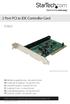 2 Port PCI to IDE Controller Card PCIIDE2 *actual product may vary from photos DE: Bedienungsanleitung - de.startech.com FR: Guide de l'utilisateur - fr.startech.com ES: Guía del usuario - es.startech.com
TCP/IP MODULE CA-ETHR-A INSTALLATION MANUAL
 TCP/IP MODULE CA-ETHR-A INSTALLATION MANUAL w w w. c d v g r o u p. c o m CA-ETHR-A: TCP/IP Module Installation Manual Page Table of Contents Introduction...5 Hardware Components... 6 Technical Specifications...
TL-PS310U Single USB 2.0 Port MFP and Storage Server
 TL-PS310U Single USB 2.0 Port MFP and Storage Server Rev: 2.0.0 1910010313 Contents Chapter 1 Introduction... 1 1.1 Product Overview...1 1.2 Network Management...1 1.3 Components and Features...1 1.4 Hardware
EPSON USB/Parallel Adapter User s Guide
 EPSON USB/Parallel Adapter User s Guide EPSON Stylus COLOR 440 EPSON Stylus COLOR 800 EPSON Stylus COLOR 600 EPSON Stylus COLOR 850 EPSON Stylus COLOR 640 EPSON Stylus COLOR 1520 EPSON Stylus Photo EX
1394 CardBus Quick Installation Guide
 1394 CardBus Quick Installation Guide Introducing the 1394 Cardbus The 1394 CardBus is designed to add FireWire (1394) interface to notebook computers for easy connection to DV camcorders, hard disk drives
Quick Start Guide for USB 2.0 4 Port Hub
 Quick Start Guide for USB 2.0 4 Port Hub Model No. CP-H420P CP-H420PS This USB Hub makes the most of your computer and workspace by increasing the number of available USB ports. There has never been a
USB Scrolling Optical Mini Mouse
 USB Scrolling Optical Mini Mouse Owner s Manual Please read before using this equipment. ˆ Contents Features... 3 System Requirements... 4 FCC Declaration of Conformity... 5 The FCC Wants You to Know...
DisplayPort 2-Port KVM Switch Installation Guide
 DisplayPort 2-Port KVM Switch Installation Guide Introduction The DisplayPort 2-Port KVM Switch shares one DisplayPort display between two DisplayPort computers. Key Features and Benefits Access multiple
Laser Wireless Rechargeable Mouse. User s Manual
 Laser Wireless Rechargeable Mouse Model #: LM8000WR User s Manual Rev. 060801 User s Record: To provide quality customer service and technical support, it is suggested that you keep the following information
User Manual USB Laptop KVM Switch. GCS661U Part No. M1069
 User Manual USB Laptop KVM Switch 1 GCS661U Part No. M1069 2 Table of Contents User Notice 4 A Note About Terminology 5 Overview 6 Features 7 Package Contents 8 Requirements 9 Operating System Support
2.5/3.5 SATA HDD Docking Station
 SATADOCKU2 SATADOCKU2E SATADOCK22UE 2.5/3.5 SATA HDD Docking Station FCC Compliance Statement This equipment has been tested and found to comply with the limits for a Class B digital device, pursuant to
USB 3.0 to HDMI Adapter with 3-Port USB 3.0 Hub USB 3.0 to VGA Adapter with 3-Port USB 3.0 Hub
 USB 3.0 to HDMI Adapter with 3-Port USB 3.0 Hub USB 3.0 to VGA Adapter with 3-Port USB 3.0 Hub USB32HDEH3 / USB32VGAEH3 *actual product may vary from photos DE: Bedienungsanleitung - de.startech.com FR:
USB Serial Adapter ICUSB232SM3. Instruction Manual. 1-Port 3ft USB to RS232 DB9 Serial Adapter Cable
 ICUSB232SM3 Instruction Manual USB Serial Adapter 1-Port 3ft USB to RS232 DB9 Serial Adapter Cable Manual Revision:07/25/2011 For the most up-to-date information, please visit www.startech.com FCC Compliance
10/100 Mbps USB Print Server
 10/100 Mbps USB Print Server PM1115U *actual product may vary from photos DE: Bedienungsanleitung - de.startech.com FR: Guide de l'utilisateur - fr.startech.com ES: Guía del usuario - es.startech.com IT:
KVM - DVI, USB 2.0, Cat 5 Extender
 KVM - DVI, USB 2.0, Cat 5 Extender 330 feet (100 meters) EL5100 User Guide Powered by Thank you for purchasing the KVM - DVI, USB 2.0, Cat 5 Extender 330 feet (100 meters) Please read this guide thoroughly.
Wireless Keyboard and Optical Mouse Bundle
 Wireless Keyboard and Optical Mouse Bundle Enjoy the freedom of wireless optical precision User Manual F8E832-BNDL TABLE OF CONTENTS Introduction....................................1 Compatible Equipment............................2
EPSON Network Image Express Card User s Guide
 Network Scan Server English EPSON Network Image Express Card User s Guide All rights reserved. No part of this publication may be reproduced, stored in a retrieval system, or transmitted in any form or
VM-4 USB Desktop Audio Device Installation Guide
 VM-4 USB Desktop Audio Device Installation Guide THE POSSIBILITIES ARE ENDLESS. 9 Austin Drive, Marlborough, CT 06447 (860) 295-8100 www.essentialtel.com [email protected] Table of Contents Introduction...3
PCI Express Serial Card
 PCI Express Serial Card 1 Port 16650 PCI Express Serial Card 2 Port 16650 PCI Express Serial Card PEX1S550 PEX2S550 Actual product may vary from photo FCC Compliance Statement This equipment has been tested
PCI Express USB 3.0 Controller Adapter Card
 PEXUSB3S2 Instruction Manual PCI Express USB 3.0 Controller Adapter Card 2-Port PCI Express SuperSpeed USB 3.0 Controller Adapter Card FCC Compliance Statement This equipment has been tested and found
VM-8 USB Desktop Audio Device Installation Guide
 VM-8 USB Desktop Audio Device Installation Guide THE POSSIBILITIES ARE ENDLESS. 9 Austin Drive, Marlborough, CT 06447 (860) 295-8100 www.essentialtel.com [email protected] Table of Contents Introduction...3
1 Port FTDI USB to RS232 Null Modem Adapter
 1 Port FTDI USB to RS232 Null Modem Adapter ICUSB232FTN *actual product may vary from photos DE: Bedienungsanleitung - de.startech.com FR: Guide de l'utilisateur - fr.startech.com ES: Guía del usuario
hp digital home networking wireless USB network adapter hn210w quick start guide
 hp digital home networking wireless USB network adapter hn210w quick start guide Revision #: 15 Page: 1 of 11 Printed: 08/15/01 04:44 PM The Hewlett-Packard Company makes no warranty of any kind with regard
4 Independent Port PCI Express SuperSpeed USB 3.0 Card
 4 Independent Port PCI Express SuperSpeed USB 3.0 Card PEXUSB3S400 *actual product may vary from photos DE: Bedienungsanleitung - de.startech.com FR: Guide de l'utilisateur - fr.startech.com ES: Guía del
15 Digital Photo Frame Instructional Manual
 15 Digital Photo Frame Instructional Manual aluratek.com mnl M10054 ADMPF315F Copyright 2011 Aluratek, Inc. All Rights Reserved. Table of Contents Frame Close-up... Remote Control Close-up... Package Contents...
PCI Express USB 2.0 Adapter Card
 PEXUSB400 Instruction Manual PCI Express USB 2.0 Adapter Card 4-Port (Independent) PCI Express to High Speed USB 2.0 Adapter Card FCC Compliance Statement This equipment has been tested and found to comply
1789 Norwood Avenue Itasca, Illinois 60143-1095 630-893-1600 Customer Service: 1-800-945-4545 http://www.fellowes.com
 1789 Norwood Avenue Itasca, Illinois 60143-1095 630-893-1600 Customer Service: 1-800-945-4545 http://www.fellowes.com Australia Tullamarine, Vic. Benelux Vianen, NL Canada Markham, Ont. France Rennes,
ENGLISH. Polar IrDA USB Adapter and Bridge Driver User manual
 Polar IrDA USB Adapter and Bridge Driver User manual CONTENTS 1. GENERAL... 3 2. DRIVER INSTALLATION... 4 Driver Installation With Windows Vista and Windows 7 Operating Systems... 7 3. HARDWARE INSTALLATION...
Duplex ID Card & License Scanner. User Guide
 Duplex ID Card & License Scanner User Guide CE Conformity and FCC Statement This equipment has been tested and found to comply with the limits of the European Council Directive on the approximation of
Wireless Keyboard & Optical Mouse. User Manual
 Wireless Keyboard & Optical Mouse User Manual Table of Contents Introduction... 1 Software Compatibility... 1 Product Features... 2 Quick Installation Setup for PS/2 Connections (PC-only)... 5 Quick Installation
Wireless LAN 802.11g USB Adapter
 Wireless LAN 802.11g USB Adapter User s Guide Version 1.0 User s Guide 0 Copyright statement No part of this publication may be reproduced, stored in a retrieval system, or transmitted in any form or by
INSTALL GUIDE Making Your Mobile Life Easier.
 Targus USB Bluetooth Adapter Making Your Mobile Life Easier. Visit our Web site at: www.targus.com Features and specifications are subject to change without notice 2005 Targus Group International, Inc.
Caplio Utility for Windows
 Caplio Utility for Windows Operation Manual English To ensure correct use of the product, read this manual carefully before use. Keep the manual handy for future use. Introduction Thank you for purchasing
User s Manual Model KB990W
 Wireless Internet Keyboard & Optical Mouse User s Manual Model KB990W FCC Statement This device complies with part 15 of FCC Rules. Operation is subject to the following two conditions: (1) this device
Belkin USB 2.0 Dual-Port PCI Card
 Belkin USB 2.0 Dual-Port PCI Card P73941 F5U219 Introduction Welcome to Belkin USB 2.0! Thank you for purchasing the Belkin USB 2.0 Dual-Port PCI Card (the PCI Card). Now you can upgrade your computer
TG-3468 Gigabit PCI Express Network Adapter
 TG-3468 Rev:2.0.0 1910010580 COPYRIGHT & TRADEMARKS Specifications are subject to change without notice. is a registered trademark of TP-LINK TECHNOLOGIES CO., LTD. Other brands and product names are trademarks
IMATION SECURE SCAN. ck Start Guide. Imation Secure Scan
 IMATION SECURE SCAN Quick ck Start Guide Imation Corp 2012 Imation Secure Scan page 1 of 6 1 Unpacking your Imation Secure Scan The following items are contained inside the case: 1 2 Imation Secure Scan
USB to RS232 Serial DB9 Adapter Cable
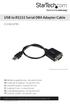 USB to RS232 Serial DB9 Adapter Cable ICUSB232PRO *actual product may vary from photos DE: Bedienungsanleitung - de.startech.com FR: Guide de l'utilisateur - fr.startech.com ES: Guía del usuario - es.startech.com
USB 3.0 to Gigabit Ethernet Adapter Installation Guide
 USB 3.0 to Gigabit Ethernet Adapter Installation Guide Introduction The USB 3.0 to Gigabit Ethernet Adapter adds one 10/100/1000 Mbps Ethernet port to your USB 3.0 enabled system. Features and Benefits
USB to Serial Quick Installation Guide
 Introduction USB to Serial Quick Installation Guide The USB to Serial adapter converts one USB port to multiple 9-pin (DB9) serial ports. Features and Benefits Full support for Windows-based software Low
GPS 35 USB. installation and quick start guide
 GPS 35 USB installation and quick start guide 2001 GARMIN Corporation GARMIN International, Inc. 1200 E 151 st Street, Olathe, Kansas 66062 U.S.A. Tel. 913/397.8200 Fax. 913/397.8282 GARMIN (Europe) Ltd.
64-Bit Compatibility with Micromeritics Applications
 Tech Tip 7 64-Bit Compatibility with Micromeritics Applications Micromeritics products are designed to operate in most Microsoft Windows environments. However, more current versions of Microsoft Windows,
External USB 2.0 DVD-RW Drive
 External USB 2.0 DVD-RW Drive External Slim USB 2.0 8x DVD-RW Drive SLIMDVDRW8U2 Actual product may vary from photo FCC Compliance Statement This equipment has been tested and found to comply with the
Quick 1.3MP WebCam with Night Vision
 Quick 1.3MP WebCam with Night Vision Model #: WC1100BLU, WC1200RED WC1300BLK, WC1400YLW User s Manual PID # 031362/3/4/5-109281 Rev. 100524 All brand name and trademarks are the property of their respective
High Speed File Share Cable USER GUIDE
 High Speed File Share Cable USER GUIDE Visit our Website at www.targus.com/emea Features and specifications are subject to change without notice. 2008 Targus Group International, Inc. and Targus, Inc.
USB to IDE or SATA Adapter
 USB to IDE or SATA Adapter USB 2.0 to IDE or SATA Adapter Cable USB2SATAIDE Instruction Manual Actual product may vary from photo FCC Compliance Statement This equipment has been tested and found to comply
AVerMedia AVerKey imicro User s Manual
 FCC NOTICE This device has been tested and found to comply with the limits for a Class B digital device, pursuant to Part 15 of the FCC Rules. These limits are designed to provide reasonable protection
LS9 Editor Installation Guide
 LS9 Editor Installation Guide ATTENTION SOFTWARE LICENCING AGREEMENT PLEASE READ THIS SOFTWARE LICENSE AGREEMENT ( AGREEMENT ) CAREFULLY BEFORE USING THIS SOFTWARE. YOU ARE ONLY PERMITTED TO USE THIS SOFTWARE
USB 3.0 & 2.0 Hub with Gigabit Ethernet and 5V/ 4A Adapter Quick Installation Guide
 Introduction USB 3.0 & 2.0 Hub with Gigabit Ethernet and 5V/ 4A Adapter Quick Installation Guide The USB 3.0 & 2.0 Hub with Gigabit Ethernet and 5V/4A Adapter provides 6 additional USB 3.0 & 2.0 ports
8 Digital Photo Frame Instructional Manual
 8 Digital Photo Frame Instructional Manual aluratek.com mnl M10126 ADMPF108F Copyright 2012 Aluratek, Inc. All Rights Reserved. Table of Contents Frame Close-up... Remote Control Close-up... Package Contents...
PN-L702B LCD MONITOR TOUCH PANEL DRIVER OPERATION MANUAL. Version 2.1
 PN-L702B LCD MONITOR TOUCH PANEL DRIVER OPERATION MANUAL Version 2.1 Contents Setting up the PC...3 Installing the touch panel driver...3 Touch Panel Settings...4 How to configure settings...4 Calibration...5
Getting Started. rp5800, rp5700 and rp3000 Models
 Getting Started rp5800, rp5700 and rp3000 Models Copyright 2011 Hewlett-Packard Development Company, L.P. The information contained herein is subject to change without notice. Microsoft, Windows, and Windows
1-Port PCI Gigabit Ethernet Network Card
 1-Port PCI Gigabit Ethernet Network Card ST1000BT32 *actual product may vary from photos DE: Bedienungsanleitung - de.startech.com FR: Guide de l'utilisateur - fr.startech.com ES: Guía del usuario - es.startech.com
Network Setup Guide. Introduction. Setting up for use over LAN
 Network Setup Guide This manual contains the setup information required to use the machine over wired LAN. If you use the machine with USB connection, refer to your setup sheet. Introduction To use the
user manual IH-W350DB IH-W351DW MyLife webcam pro 5.0 megapixel max resolution
 IH-W350DB IH-W351DW MyLife webcam pro 5.0 megapixel max resolution Congratulations on the purchase of your new MyLife webcam pro. This product comes with a limited lifetime warranty. Before using your
P220 DIGITAL GAMEPAD USER MANUAL MANUEL D UTILISATION BEDIENUNGSANLEITUNG MANUALE D USO MANUAL DEL USUARIO
 P220 DIGITAL GAMEPAD USER MANUAL MANUEL D UTILISATION BEDIENUNGSANLEITUNG MANUALE D USO MANUAL DEL USUARIO QUICK-START GUIDE FOR THE P220 DIGITAL GAMEPAD Congratulations on your purchase of the Saitek