
DVI 2/4 PORT USB KVMP Switch
|
|
|
- Gloria Cole
- 9 years ago
- Views:
Transcription
1 MiniView DVI 2/4 PORT USB KVMP Switch User Manual (GCS1762 / GCS1764)

2

3 Welcome Thank you for purchasing one of the most feature-rich DVI KVM with USB peripheral sharing and audio technology on the market. You can save money and space by eliminating the need for multiple DVI monitors, keyboards, mice, and USB peripheral devices such as printers, scanners, and more. Up to 127 USB devices can be daisy chained from this KVMP switch. Sharing speakers and a microphone also offers extra value and convenience for the users. USB and KVM technology together makes cross-platform management easy. A single USB console can control a PC and a MAC workstation, and share peripherals and audio between the computers. We hope you enjoy using your Miniview DVI USB KVMP switch, yet another first-rate connectivity solution from IOGEAR 2005 IOGEAR. All Rights Reserved. PKG-M0140 IOGEAR, the IOGEAR logo, are trademarks or registered trademarks of IOGEAR, Inc. Microsoft and Windows are registered trademarks of Microsoft Corporation. IBM is a registered trademark of International Business Machines, Inc. Macintosh, G3/G4 and imac are registered trademarks of Apple Computer, Inc. All other brand and product names are trademarks or registered trademarks of their respective holders. IOGEAR makes no warranty of any kind with regards to the information presented in this document. All information furnished here is for informational purposes only and is subject to change without notice. IOGEAR, Inc. assumes no responsibility for any inaccuracies or errors that may appear in this document.

4 Table of Contents Package Contents Overview Features System Requirements Introduction Installation Basic Operation Hotkey Operation Firmware Upgrade Utility Appendix Specifications Technical Support Radio & TV Interference Statement Limited Warranty

5 Package Contents This package contains: 1 x GCS1762 or GCS1764 KVMP Switch 2 x Custom 6 KVM Cables (GCS1762) 4 x Custom 6 KVM Cables (GCS1764) 1 x Firmware Upgrade Cable 1 x Power Adapter 1 x User Manual 1 x Quick Start Guide Check to make sure that all the components are present and that nothing was damaged in shipping. If you encounter a problem, contact your dealer. Read this manual thoroughly and follow the installation and operation procedures carefully to prevent any damage to the unit, and/or any of the devices that connect to it. 2

6 Overview The GCS1762/GCS1764 DVI KVM Switch charts a revolutionary new direction in KVM switch functionality by combining a switch with a 2 port USB hub at the same time as it provides an interface for a digital monitor (DVI). The new IOGEAR GCS1762/GCS1764 enhances some of the great features found in the MiniView KVM line and adds DVI technology into the mix. The independent (asynchronous) switching feature, allows the KVM focus to be on one computer while the USB peripheral/audio focus is on another computer. This gives the user greater control over and more flexibility. It also eliminates the need to purchase a separate USB hub as well as additional speakers set for your other computers; thus reducing cost and maximizing user space. The Miniview DVI USB KVMP Switch fully supports the DVI specification for both digital video input (flat panel displays, data projectors, plasma displays) and analog video input (traditional monitors). 3

7 Features Independent switching of KVM video, audio and USB hub Fully compliant with USB 1.1 specs for data transfer rates of up to 12 Mbps DVI digital and analog monitor support fully compliant with the DVI specifications Computer selection via front panel switches and hotkeys LED display for easy status monitoring Auto Scan mode for monitoring of all computers Complete keyboard emulation for error free booting Superior video quality 1600 x 1200; DDC2B Hot pluggable add or remove computers without powering down the switch Supports Windows and MAC systems 4

8 System Requirements Console DVI monitor compliant with DVI-I specs that can support resolution of KVM switch USB style mouse USB style keyboard Microphone and speakers* *Must be set of powered speakers Computer Available DVI port for video** Type A USB port Audio ports Cables GCS1762 includes set of 2 cables (6 long) GCS1764 includes set of 4 cables (6 long) 5

9 Introduction Front View 1. Port selection buttons Press selection button for less than two (2) seconds to bring only the KVM focus to the computer attached to its corresponding port Press selection button for longer than two (2) seconds to bring KVM, Audio, and USB Hub focus to the computer attached to its corresponding port. Press selection button 1 and 2 simultaneously for two seconds to start Auto Scan Mode. 2. Ports LEDs The Ports LEDs are built into the port selection switches. The upper ones are the KVM port LEDs; the lower ones are the USB LEDs. KVM LEDs Lights DIM ORANGE to indicate that the computer attached to the corresponding port is up and running (On Line). Lights BRIGHT ORANGE to indicate that the computer attached to its corresponding port is the one that has the KVM focus (Selected) Flashes to indicate that the computer attached to its corresponding port is being accessed under Auto Scan mode. 6

10 Introduction USB LED Lights GREEN to indicate that the computer attached to its corresponding port is the one that has access to the USB Peripherals. 3. USB Console ports Your USB keyboard and USB mouse plug in here. 7

11 Introduction Back View 1. Firmware Upgrade port The included Firmware Upgrade cable that transfers the firmware upgrade data from the administrator s computer to the GCS1762/ GCS1764 plugs into this connector. 2. USB Hub ports Plug your USB peripherals (printers, scanners, etc.) into these ports Console ports Connect the cables from DVI monitor and speakers to these ports. 4. CPU ports The cables included with KVM switch plug into here and the other end to your computers. 5. Power Jack The power adapters plugs into this jack

12 Introduction Cable The USB KVM Cables are included in the package. USB KVM Cable 9

13 Installation Before you Begin 1. Make sure that power to all the devices you will be connecting up has been turned off. You must unplug the power cords of any computers that have the Keyboard Power On function. Otherwise, the switch will receive power from the computer. 2. To prevent damage to your installation, make sure that all devices on the installation are properly grounded. 10

14 Installation Setup and Installation 1. Plug your USB keyboard and USB mouse into their corresponding USB ports located on the KVM s front panel. 2. Plug your DVI monitor, microphone, and speaker cables into the Console ports located on the unit s rear panel (left-most section labeled console ). 3. Using one of the included KVM cables, plug the DVI, USB, and Audio connectors into one of the CPU ports on the KVM 4. Plug the other end of the KVM cable to the respective ports on the computer that is part of your installation. 5. Plug the USB peripherals that you want to be part of your KVM setup into the rear USB hub ports 11

15 Installation 6. Repeat steps 3 and 4 for any other computers you are connecting 7. Plug the power adapter cable into the switch s power jack, then plug the power adapter into an AC power source 8. Turn on the power to the computers (Connection for USB Computers) 12

16 Basic Operation Hot Plugging The GCS1762/GCS1764 supports USB hot plugging components can be removed and added back into the installation by unplugging their cables from the USB hub ports without the need to shut the unit down. Powering Off and Restarting If it becomes necessary to Power Off the KVM unit, before starting it back up you must do the following: 1. Shut down all the computers that are attached to the switch. 2. Unplug power adapter cable from the switch 3. Wait 10 seconds, then plug the switch s power adapter cable back in. 4. After the switch is up, Power On the computers. NOTE: If the KVM switch has become unresponsive or shows erratic behavior, it is highly suggested that you unplug all cables from the KVM (all KVM cables and power cable) and leave the unit disconnected for 30 minutes. After this, plug all the KVM cables back and power ON the unit. 13

17 Basic Operation Port ID Numbering Each CPU port on the GCS1762/GCS1764 switch is assigned a port number (1 or 2 for GCS1762; 1 to 4 for GCS1764). The port numbers are marked on the rear panel of the switch. The Port ID of a computer is derived from the CPU port number it is connected to. For example, a computer connected to CPU port 2 has a Port ID of 2. The Port ID is used to specify which computer gets the KVM USB peripheral, and audio focus with the Hotkey port selection method. Port Switching There are two ways to access the computers in your KVM setup: Manual switching pressing the push-buttons on the unit s front panel Hotkey switching entering commands from the keyboard 14

18 Hotkey Operation Manual Switching 1. Press and release a port selection switch to bring the KVM focus to the computer attached to its corresponding port. The USB and Audio focus does not change; they stay on the port that they re already on. 2. Press and hold a port selection switch for more than 2 seconds to bring the KVM, USB, and Audio focus to the computer attached to its corresponding port 3. Press and hold port selection switches 1 and 2 for more than two seconds to start Auto Scan Mode. Tip: To stop Auto Scan mode, simply press any of the port selection switches on the KVM. 15

19 Hotkey Operation Hotkey Operation The GCS1762/GCS1764 provides an extensive, easy-to-use, hotkey function that makes it convenient to control and configure your KVM installation from the keyboard. NOTE: The table shown next page assumes the use of a PC-compatible keyboard with the Scroll Lock key. If you are using a MAC keyboard (or a keyboard that does not have Scroll Lock key), refer to the section in the manual Alternate Port Switching Keys for information on re-configuring the KVM s hotkeys Scroll Lock 16 PC keyboard

20 Hotkey Operation Port Switching t Note: The n stands for the computer s Port ID number (1, 2, 3, or 4). Replace the n with the appropriate Port ID when entering hotkey combinations. 17

21 Hotkey Operation Auto Scanning OSD Operation Note: While Auto Scan is active, ordinary keyboard and mouse functions are suspended only Auto Scan mode compliant keystrokes and mouse clicks can be entered. You must exit Auto Scan mode to regain normal console control. Although the video focus switches from port to port, the keyboard, mouse, and USB focus doesn t switch. 18
22 Hotkey Operation Hotkey Setting Mode Invoking HSM For all Hotkey operations, you must use the number keypad on the right side of your keyboard. To Invoke HSM (PC-Compatible keyboard): 1. Press and hold the Num Lock key 2. Press and release the Minus key 3. Release the Num Lock key within one half second after releasing Minus key; otherwise the KVM will not go into Hotkey mode. Num Lock Minus 19 PC keyboard
23 Hotkey Operation To invoke HSM (MAC keyboards): 1. Press and hold the Clear key 2. Press and release the Minus key 3. Release the Clear key within one half second after releasing Minus key; otherwise the KVM will not go into Hotkey mode. Clear Minus Mac keyboard 20
24 Hotkey Operation Note: If using the Num Lock and Minus key to invoke Hotkey function is not optimal for your setup, refer to the next page to change the hotkey invocation keys. When HSM is active, the Caps Lock and Scroll Lock LEDs flash in succession to indicate that HSM is in effect. They stop flashing and revert to normal status when you exit HSM. Ordinary keyboard and mouse functions are suspended only Hotkey compliant keystrokes and mouse clicks can be input. At the conclusion of some hotkey operations, you automatically exit Hotkey mode. With some operations, you must exit manually by pressing the Esc or Spacebar on your keyboard. 21
25 Hotkey Operation Alternate HSM Invocation Keys In case the default HSM invocation keys (Num Lock and Minus) are not optimal in your setup, you may change them to Ctrl and F12, respectively. To switch to an alternate HSM invocation, do the following: 1. Invoke HSM (see page 19) 2. Press and release H 3. This will change the HSM invocation key to Ctrl and F12 (instead of Num Lock and Minus). Note: This procedure is a toggle between the two methods. To revert back to the original HSM invocation keys, repeat the above procedure again. 22
26 Hotkey Operation Alternate Port Switching Keys The port switching activation keys can be changed from tapping Scroll Lock key twice ([Scroll Lock] [Scroll Lock]) to tapping Ctrl key twice ([Ctrl] [Ctrl]). If you have a MAC keyboard (or your keyboard does not have Scroll Lock), you can change the port switching activation keys by doing the following: 1. Invoke HSM (see page 19) 2. Press and release T Now you can tap [Ctrl], [Ctrl] to switch between ports on your KVM. Please note that any hotkey operations in the manual that use Scroll Lock, will now work with the new [Ctrl][Ctrl] port switching key. Note: This procedure is a toggle between the two methods. To revert back to the original port switching keys, repeat the above procedure. 23
27 Hotkey Operation Keyboard Operating Platform The GCS1762/GCS1764 default port configuration is for a PC Compatible keyboard operating platform. If you have a MAC attached to a port, you can change a port s keyboard operating platform configuration as follows: 1. Bring the KVM focus to the desired port 2. Invoke HSM 3. Press and release the appropriate Function key (see table). 24
28 Hotkey Operation List Hotkey Settings To see a list of the current hotkey settings, do the following: 1. Invoke HSM 2. Open a text editor (such as Notepad or Word) 3. Press F4 on your keyboard to paste this information USB Reset If the USB loses focus and needs to be reset, do the following: 1. Invoke HSM 2. Press and release F5 function key Hotkey Beeper Control The beep sound the KVM makes when switching can be Toggled ON and OFF by doing the following: 1. Invoke HSM 2. Press and release B Disable Port Switching Keys To disable the port switching keys (Scroll Lock or Ctrl), please do the following: 1. Invoke HSM 2. Press [X] [Enter] 25
29 Hotkey Operation Note: This procedure is a toggle. To re-enable the keys, repeat the procedure above. Firmware Upgrade Mode To set the GCS1762/GCS1764 in firmware upgrade mode: 1. Invoke HSM 2. Key in: upgrade 3. Press [Enter] Note: The front panel LEDs will flash to indicate that the KVM is in firmware upgrade mode. To exit firmware upgrade mode, you must power off the switch. Restore Default Settings To reset the GCS1762/GCS1764 to its factory default settings, do the following: 1. Invoke HSM 2. Press [R] [Enter] All hotkey settings return to factory default. 26
30 Hotkey Operation MAC Keyboard Emulation Make sure to first set the KVM to Mac operating platform as instructed on section Hotkey Operation keyboard operating platform 27
31 Hotkey Operation Hotkey Default Settings 28
32 The Firmware Upgrade Utility The Windows-based Firmware Upgrade Utility (FWUpgrade.exe) provides a smooth, automated process for upgrading the KVM switch s firmware. To run the firmware, you will need to use a windows based PC with an available serial port. The Utility comes as part of a Firmware Upgrade Package that is specific for each device. New firmware upgrade packages are posted on our web site as new firmware revisions become available. Check the web site regularly to find the latest packages and information relating to them: Before You Begin To prepare for the firmware upgrade, do the following: 1. From a computer that is not part of your KVM installation, go to the IOGEAR support site and select the product part number (GCS1762 or GCS1764) to get a list of available Firmware Upgrade Packages. 2. Choose the Firmware Upgrade Package you want to install (usually the most recent), and download it to your computer. 3. Use the Firmware Upgrade Cable provided with this unit, to connect to a serial port on your computer to the Firmware Upgrade Port of your switch. 29
33 The Firmware Upgrade Utility 4. Shut down the computers on your MiniView Extreme installation and make sure you have set the KVM in firmware upgrade mode as instructed under section Hotkey operation Firmware upgrade mode 5. Make sure the power is plugged into the KVM. Once the power is plugged in and the switch is set to upgrade, all of the amber lights on the KVM will flash once per second. Now you are ready to run the firmware upgrade utility. 30

34 The Firmware Upgrade Utility Starting the Upgrade To upgrade your firmware: 1. Run the downloaded Firmware Upgrade Package file - either by double-clicking the file icon, or by opening a command line and entering the full path to it. 2. The Firmware Upgrade Utility Welcome screen appears: Read and Agree to the License Agreement (enable the I Agree radio button). 31
35 The Firmware Upgrade Utility 3. Click Next to continue. The Firmware Upgrade Utility main screen appears: The Utility inspects your installation. All the devices capable of being upgraded by the package are listed in the Device List panel. 32
36 The Firmware Upgrade Utility 4. As you select a device in the list, its description appears in the Device Description panel. 33
37 The Firmware Upgrade Utility 5. After you have made your device selection(s), Click Next to perform the upgrade. If you enabled Check Firmware Version, the Utility compares the device s firmware level with that of the upgrade files. If it finds that the device s version is higher than the upgrade version, it brings up a dialog box informing you of the situation and gives you the option to continue or cancel. If you didn t enable Check Firmware Version, the Utility installs the upgrade files without checking whether they are a higher level, or not. 34
38 The Firmware Upgrade Utility As the Upgrade proceeds status messages appear in the Status Messages panel, and the progress toward completion is shown on the Progress bar. After the upgrade has completed, a screen appears to inform you that the procedure was successful: Click Finish to close the Firmware Upgrade Utility. 35
39 The Firmware Upgrade Utility If the upgrade failed to complete successfully a dialog box appears asking if you want to retry. Click Yes to retry. If you click No, the Upgrade Failed screen appears: Firmware Upgrade Recovery There are basically three conditions that call for firmware upgrade recovery: When you begin a firmware upgrade, but decide not to proceed with it. When the Mainboard firmware upgrade fails. When the I/O firmware upgrade fails. To perform a firmware upgrade recovery, do the following: 1. Slide the Firmware Upgrade Recovery Switch (see p. 8 drawing) to the Recover position. Click Cancel to close the Firmware Upgrade Utility. See the next section, Firmware Upgrade Recovery, for how to proceed. 2. Power off and restart the switch. 3. Slide the Firmware Upgrade Recovery Switch back to the Normal position. 4. Repeat Step 2. 36
40 Appendix Troubleshooting 37
41 38 Specification
42 Specification 39
43 Technical Support If you need technical support, please check out our IOGEAR Tech Info Library (T.I.L.) at support for the latest tips, tricks, and troubleshooting. The IOGEAR T.I.L. was designed to provide you with the latest technical information about our products. Most of the answers to your questions can be found here, so please try it out before contacting technical support. Technical support is available Monday through Friday from 8:00 am to 5:00 pm PST and can be reached at (949)
44 Radio & TV Interference Statement WARNING!!! This equipment generates, uses and can radiate radio frequency energy and, if not installed and used in accordance with the instruction manual, may cause interference to radio communications. This equipment has been tested and found to comply with the limits for a Class B computing device pursuant to Subpart J of Part 15 of FCC Rules, which are designed to provide reasonable protection against such interference when operated in a commercial environment. Operation of this equipment in a residential area is likely to cause interference, in which case the user at his own expense will be required to take whatever measures may be required to correct the interference. 41
45 Limited Warranty IN NO EVENT SHALL THE DIRECT VENDOR S LIABILITY FOR DIRECT, INDIRECT, SPECIAL, INCIDEN- TAL OR CONSEQUENTIAL DAMAGES RESULTING FROM THE USE OF THE PRODUCT, DISK, OR ITS DOCUMENTATION EXCEED THE PRICE PAID FOR THE PRODUCT. The direct vendor makes no warranty or representation, expressed, implied, or statutory with respect to the contents or use of this documentation, and especially disclaims its quality, performance, merchantability, or fitness for any particular purpose. The direct vendor also reserves the right to revise or update the device or documentation without obligation to notify any individual or entity of such revisions, or updates. For further inquires please contact your direct vendor. 42
46 Contact info. 23 Hubble Irvine, CA (P) (F)
MiniView Dual View USB KVMP Switch. User Manual (GCS1742 / GCS1744)
 MiniView Dual View USB KVMP Switch User Manual (GCS1742 / GCS1744) 1 Welcome Thank you for purchasing one of the industry s most feature-rich dual display KVMs, with USB peripheral sharing and audio technology.
MiniView Micro USB Plus 2-Port KVM Switch with Built-in KVM Cables and Audio Support. Installation Manual (GCS632U)
 MiniView Micro USB Plus 2-Port KVM Switch with Built-in KVM Cables and Audio Support Installation Manual (GCS632U) 2005 IOGEAR. All Rights Reserved. PKG-M0089b IOGEAR, the IOGEAR logo, MiniView, VSE are
MiniView Micro USB Plus
 MiniView Micro USB Plus 2-Port KVM Switch with Built-in KVM Cables and Audio Support Installation Manual (GCS632U) 2003 IOGEAR. All Rights Reserved. PKG-M0089 IOGEAR, the IOGEAR logo, MiniView, VSE are
User Manual 2-Port USB KVM Switch with Audio GCS632U PART NO. M0104
 User Manual 2-Port USB KVM Switch with Audio 1 GCS632U PART NO. M0104 Welcome Thank you for purchasing one of the most feature-rich keyboard, video, and mouse switches on the market. IOGEAR s MiniView
USB KVM Console Extender User Manual (GCE700)
 USB KVM Console Extender User Manual (GCE700) Welcome Thank you for purchasing the IOGEAR USB KVM Console Extender that allows you to access you computer or KVM switch from up to 500 ft away, via a CAT5e
PS/2 KVM Console Extender User Manual (GCE250)
 PS/2 KVM Console Extender User Manual (GCE250) Welcome Thank you for purchasing IOGEAR PS/2 KVM Console Extender that allows you to access you computer or KVM switch from up to 500 ft away, via a CAT5e
User Manual. Installation 4-Port USB Guide KVM Switch. 4-Port USB KVM Switch. www.iogear.com GCS634U. PART NO. Q1013-a GCS634UW6. Part No.
 User Manual Installation 4-Port USB Guide KVM Switch 4-Port USB KVM Switch GCS634U PART NO. Q1013-a 1 GCS634UW6 www.iogear.com Part No. M1013-a 2012 IOGEAR. All Rights Reserved. PKG-M0320-a IOGEAR, the
USB KVM Switch USER MANUAL CS62US / CS64US
 USB KVM Switch USER MANUAL CS62US / CS64US EMC Information FEDERAL COMMUNICATIONS COMMISSION INTERFERENCE STATEMENT: This equipment has been tested and found to comply with the limits for a Class B digital
5-Button USB Laser Mouse, 1600DPI. User Manual (GME521)
 5-Button USB Laser Mouse, 1600DPI User Manual (GME521) Thank you for purchasing IOGEAR s USB Laser Mouse. IOGEAR only manufactures high quality devices, so we are sure you will be satisfied with your purchase.
USB KVM Switch. with Audio & Ethernet Hub
 USB KVM Switch with Audio & Ethernet Hub FCC Compliance Statement This equipment has been tested and found to comply with the limits for a Class B digital device, pursuant to part 15 of the FCC Rules.
2 Port KVM Switch. If anything is damaged or missing, contact your dealer.
 2 Port KVM Switch User Manual CS-82A Read this guide thoroughly and follow the installation and operation procedures carefully in order to prevent any damage to the units and/or any devices that connect
USB 2.0 DVI KVM Switch USER MANUAL CS682
 USB 2.0 DVI KVM Switch USER MANUAL CS682 FCC Information This equipment has been tested and found to comply with the limits for a Class B digital device, pursuant to Part 15 of the FCC Rules. These limits
If anything is damaged or missing, contact your dealer.
 User Manual CS-62U Read this guide thoroughly and follow the installation and operation procedures carefully in order to prevent any damage to the units and/or any devices that connect to them. This package
Bluetooth Wireless USB Adapter. User Manual (GBU221/321)
 Bluetooth Wireless USB Adapter User Manual (GBU221/321) 1 2007 IOGEAR. All Rights Reserved. M0345 IOGEAR, the IOGEAR logo, MiniView, VSE are trademarks or registered trademarks of IOGEAR, Inc. Microsoft
Bluetooth CompactFlash Card User Manual (GBC201)
 Bluetooth CompactFlash Card User Manual (GBC201) Thank you for purchasing IOGEAR Bluetooth CompactFlash card for PDAs! The IOGEAR Bluetooth Compact Flash Card for PDAs fits into both Type I and Type II
MiniView II 4 Port USB KVM Swtich (GCS124U Installation Manual)
 MiniView II 4 Port USB KVM Swtich (GCS124U Installation Manual) 2001 IOGEAR. All Rights Reserved. IOGEAR, the IOGEAR logo, MiniView, VSE are trademarks or registered trademarks of IOGEAR, Inc. Microsoft
Bluetooth Wireless USB Adapter. User Manual (GBU221P)
 Bluetooth Wireless USB Adapter User Manual (GBU221P) 1 2006 IOGEAR. All Rights Reserved. M0394 IOGEAR, the IOGEAR logo, MiniView, VSE are trademarks or registered trademarks of IOGEAR, Inc. Microsoft and
Bluetooth Wireless USB Adapter. User Manual (GBU211 / GBU311)
 Bluetooth Wireless USB Adapter User Manual (GBU211 / GBU311) Welcome Thank you for purchasing one of the most feature-rich Bluetooth to USB adapters available. IOGEAR s Bluetooth to USB adapters are first-rate
USB / USB 2.0 DVI KVMP
 USB / USB 2.0 DVI KVMP Switch CS1762 / CS1764A User Manual www.aten.com FCC Information This equipment has been tested and found to comply with the limits for a Class B digital device, pursuant to Part
2 Port USB/ VGA KVM Switch with Ethernet Switch and Audio & USB Hub
 2 Port USB/ VGA KVM Switch with Ethernet Switch and Audio & USB Hub SV231USBAN SV431USBAN *SV231USBAN shown DE: Bedienungsanleitung - de.startech.com FR: Guide de l'utilisateur - fr.startech.com ES: Guía
If anything is damaged or missing, contact your dealer.
 User Manual CS-62 Read this guide thoroughly and follow the installation and operation procedures carefully in order to prevent any damage to the units and/or any devices that connect to them. This package
TruLink VGA and PS/2 KVM USER MANUAL
 TruLink VGA and PS/2 KVM USER MANUAL Part #52041 Part #52042 Contents Introduction...2 Overview...2 Package Contents...3 Requirements...4 Console...4 Computers...4 Cables...4 Safety Instructions...5 Hardware
USB 2.0 KVMP Switch with OSD CS1732B / CS1734B. User Manual. www.aten.com
 USB 2.0 KVMP Switch with OSD CS1732B / CS1734B User Manual www.aten.com FCC Information This equipment has been tested and found to comply with the limits for a Class B digital device, pursuant to Part
User Manual CS-1742 CS-1744
 User Manual CS-1742 CS-1744 FCC Information This is an FCC Class A product. In a domestic environment this product may cause radio interference in which case the user may be required to take adequate measures.
1-port USB 2.0 Print Server. Manual (GPSU21)
 1-port USB 2.0 Print Server Manual (GPSU21) 2006 IOGEAR. All Rights Reserved. Part No. M0374 IOGEAR, the IOGEAR logo, is trademarks or registered trademarks of IOGEAR, Inc. Microsoft and Windows are registered
USB 2.0 Peripheral Switch USER MANUAL US221A / US421A
 USB 2.0 Peripheral Switch USER MANUAL US221A / US421A FCC Information This equipment has been tested and found to comply with the limits for a Class B digital device, pursuant to Part 15 of the FCC Rules.
Installation Guide 1-port USB 2.0 Print Server 1 GPSU21
 Installation Guide 1-port USB 2.0 Print Server 1 GPSU21 2 Welcome Thank you for purchasing this 1-port USB 2.0 Print Server that allows any networked computer to share a USB printer. It complies with USB
Installation Guide Wireless 4-Port USB Sharing Station. GUWIP204 Part No. M1172-a
 Installation Guide Wireless 4-Port USB Sharing Station 1 GUWIP204 Part No. M1172-a 2011 IOGEAR. All Rights Reserved. PKG-M1172-a IOGEAR, the IOGEAR logo, MiniView, VSE are trademarks or registered trademarks
User Manual 8-Port DVI KVMP Switch with VGA support
 User Manual 8-Port DVI KVMP Switch with VGA support 1 GCS1108 PART NO. M1207 2012 IOGEAR. All Rights Reserved. Part No. M1207 IOGEAR, the IOGEAR logo, MiniView, VSE are trademarks or registered trademarks
USB 2.0 DVI KVMP Switch CS1784 User Manual
 USB 2.0 DVI KVMP Switch CS1784 User Manual www.aten.com FCC Information This equipment has been tested and found to comply with the limits for a Class B digital device, pursuant to Part 15 of the FCC Rules.
USB Keyboard/Video/Mouse Sharing Switch. User's Manual SV431USB SV231USB
 USB Keyboard/Video/Mouse Sharing Switch User's Manual SV431USB SV231USB Table of Contents Introduction Overview 1 Features 2 System Requirements Console Side 3 Computer Side 3 Installation PC BIOS Notice
USB 2.0 DVI Dual View KVMP Switch CS1642 / CS1644 User Manual
 USB 2.0 DVI Dual View KVMP Switch CS1642 / CS1644 User Manual www.aten.com FCC Information This equipment has been tested and found to comply with the limits for a Class B digital device, pursuant to Part
USB 2.0 KVMP Switch with OSD CS1732B / CS1734B User Manual
 USB 2.0 KVMP Switch with OSD CS1732B / CS1734B User Manual www.aten.com FCC Information This equipment has been tested and found to comply with the limits for a Class B digital device, pursuant to Part
User Manual (GKM531R)
 Wireless RF Keyboard/Optical Mouse Combo User Manual (GKM531R) 2006 IOGEAR. All Rights Reserved. M0391 IOGEAR, the IOGEAR logo, are trademarks or registered trademarks of IOGEAR, Inc. Microsoft and Windows
Dual DVI USB KVM Switch
 SV231DD2DUA SV431DD2DUA Instruction Manual Dual DVI USB KVM Switch 2/4-Port Dual DVI, USB KVM Switch with Audio and USB 2.0 Hub Manual Revision:08/19/2010 For the most up-to-date information, please visit
If anything is damaged or missing, contact your dealer.
 User Manual CS-114A Read this guide thoroughly and follo the installation and operation procedures carefully in order to prevent any damage to the units and/or any devices that connect to them. This package
User Manual USB Laptop KVM Switch. GCS661U Part No. M1069
 User Manual USB Laptop KVM Switch 1 GCS661U Part No. M1069 2 Table of Contents User Notice 4 A Note About Terminology 5 Overview 6 Features 7 Package Contents 8 Requirements 9 Operating System Support
USB DVI Dual View KVMP Switch CS1642A / CS1644A. User Manual. www.aten.com
 USB DVI Dual View KVMP Switch CS1642A / CS1644A User Manual www.aten.com CS1642A / CS1644A User Manual FCC Information This is an FCC Class A product. In a domestic environment this product may cause radio
USB 2.0 HDMI KVMP Switch CS1792 / CS1794 User Manual
 USB 2.0 HDMI KVMP Switch CS1792 / CS1794 User Manual www.aten.com FCC Information This equipment has been tested and found to comply with the limits for a Class B digital device, pursuant to Part 15 of
DVI Video Splitter USER MANUAL VS-162 / VS-164
 DVI Video Splitter USER MANUAL VS-162 / VS-164 FCC Information This equipment has been tested and found to comply with the limits for a Class B digital device, pursuant to Part 15 of the FCC Rules. These
8 Port KVM Switch. User Manual CS-128A
 8 Port KVM Switch User Manual CS-128A Packing List The complete Master View Pro package consists of: One CS-128A KVM Switch One Power Adapter One User Manual Check to make sure that the unit was not damaged
PS/2-USB KVM Switch CS82U / CS84U User Manual
 PS/2-USB KVM Switch CS82U / CS84U User Manual www.aten.com FCC Information This equipment has been tested and found to comply with the limits for a Class B digital device, pursuant to Part 15 of the FCC
USB Print Server User Manual (GPSU01)
 USB Print Server User Manual (GPSU01) Welcome Thank you for purchasing this 1-port USB Print Server that allows any networked computer to share a USB printer. It complies with USB 1.1 specifications,
Bluetooth Wireless Stereo Solution. User Manual (GBMA201, GBMH201, GBMHKIT)
 Bluetooth Wireless Stereo Solution User Manual (GBMA201, GBMH201, GBMHKIT) Welcome Now you can experience the most comfortable way to listen to your favorite music without wires! IOGEAR s wireless Bluetooth
HP Advanced Wireless Docking Station. User Guide
 HP Advanced Wireless Docking Station User Guide Copyright 2014, 2015 Hewlett-Packard Development Company, L.P. Intel is a trademark of Intel Corporation in the U.S. and other countries. Windows and Windows
Video Keyboard Mouse Audio automatic Switch CAS-241, CAS-441, CAS-441-PM
 CAS-241, CAS-441, CAS-441-PM USER MANUAL Please read this manual and follow the installation procedure carefully to prevent any damage to the VKMA switch and/or to the connected devices. 2 Disclaimer We
DKVM-2KU KVM Switch with USB 2.0 Sharing with Built-In Cables. Quick Installation Guide
 This product works with all Windows Operating Systems DKVM-2KU 2-Port KVM Switch with USB 2.0 Sharing with Built-in Cables Before You Begin You must have at least the following: PS/2 Keyboard PS/2 Mouse
Installation Guide 2/4-Port DVI KVMP Switch with Cables
 Installation Guide 2/4-Port DVI KVMP Switch with Cables GCS1102/GCS1104 PART NO. M1108/M1109 Table of Contents Package Contents 4 System Requirements 5 GCS1102 Overview 6 GCS1104 Overview 8 Installation
8-port USB DVI KVM Switch CS1768 User Manual
 8-port USB DVI KVM Switch CS1768 User Manual www.aten.com FCC Information This is an FCC Class A product. In a domestic environment this product may cause radio interference in which case the user may
Laptop USB KVM Switch USER MANUAL CS661
 Laptop USB KVM Switch USER MANUAL CS661 FCC Information This equipment has been tested and found to comply with the limits for a Class B digital device, pursuant to Part 15 of the FCC Rules. These limits
8-port USB DVI KVM Switch CS1768 / CS1788 User Manual
 8-port USB DVI KVM Switch CS1768 / CS1788 User Manual www.aten.com FCC Information This is an FCC Class A product. In a domestic environment this product may cause radio interference in which case the
2 Port USB VGA Cable KVM Switch with Audio
 2 Port USB VGA Cable KVM Switch with Audio SV215MICUSBA *actual product may vary from photos DE: Bedienungsanleitung - de.startech.com FR: Guide de l'utilisateur - fr.startech.com ES: Guía del usuario
HDMI Switch USER MANUAL VS481A
 HDMI Switch USER MANUAL VS481A FCC Information This equipment has been tested and found to comply with the limits for a Class B digital device, pursuant to Part 15 of the FCC Rules. These limits are designed
Installation Guide 2-Port HD Cable KVM Switch with Audio GCS62HU PART NO. M1130
 Installation Guide 2-Port HD Cable KVM Switch with Audio GCS62HU PART NO. M1130 Table of Contents Package Contents 4 System Requirements 5 Overview 6 Standard Installation 7 Advanced Installation 9 LED
Quick Installation Guide TK-209K TK-409K
 Quick Installation Guide TK-209K TK-409K Table of of Contents Contents English... 1. Before You Start... 2. How to Connect... 3. Operation... 1 1 2 4 Troubleshooting... 5 Version 09.07.2006 1. Before You
CONSOLE REMOTE I /O AC 9V
 CONSOLE CONSOLE REMOTE I /O AC 9V AC 9V REMOTE I /O User Manual CE-220 Read this guide thoroughly and follow the installation and operation procedures carefully in order to prevent any damage to the units
3.5 Combo ION Drive Hi-Speed Portable External Hard Drive. FireWire 800/USB 2.0 User Manual
 3.5 Combo ION Drive Hi-Speed Portable External Hard Drive FireWire 800/USB 2.0 User Manual Thank you for purchasing IOGEAR s ION Drive, one of the fastest and sleekest Hi-Speed portable external Hard Drives
GWA501 package contains: 1 Wireless-G Broadband Gateway 1 Power Adapter 1 Ethernet Cable 1 Manual CD 1 Quick Start Guide 1 Warranty/Registration Card
 Wireless-G Broadband Gateway GWA501 Quick Start Guide Read this guide thoroughly and follow the installation and operation procedures carefully to prevent any damage to the unit and/or any of the devices
8-Port HDMI Switch USER MANUAL VS0801H
 8-Port HDMI Switch USER MANUAL VS0801H FCC Information This equipment has been tested and found to comply with the limits for a Class B digital device, pursuant to Part 15 of the FCC Rules. These limits
3NNet KVM CP-104S /OSD / 19 KVM CP-108S / OSD / 19 KVM CP-116S / OSD / 19
 3NNet USERS MANUAL KVM CP-104S /OSD / 19 KVM CP-108S / OSD / 19 KVM CP-116S / OSD / 19 RACK MOUNTABLE 4 / 8 / 16 PORT PS2 KVM SWITCH Rev 1.1 TABLE OF CONTENTS INTRODUCTION.. 3 FEATURES... 3 PACKAGE CONTENTS........
Installation Guide USB Laptop KVM Switch GCS661U
 Installation Guide USB Laptop KVM Switch 1 GCS661U 2 Table of Contents Table of Contents 3 Package Contents 4 System Requirements 5 Overview 6 Before You Start 7 Software Installation 8 Hardware Installation
2 Port Professional USB KVM Switch Kit with Cables 4 Port Professional USB KVM Switch
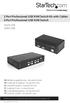 2 Port Professional USB KVM Switch Kit with Cables 4 Port Professional USB KVM Switch SV231USB SV431USB DE: Bedienungsanleitung - de.startech.com FR: Guide de l'utilisateur - fr.startech.com ES: Guía del
USB/VGA Cat 5 UTP Console Extender
 USB/VGA Cat 5 UTP Console Extender SV565UTPU SV565UTPUGB SV565UTPUEU Instruction Manual FCC Compliance Statement This equipment has been tested and found to comply with the limits for a Class B digital
4-Port Pocket. USB KVM Switch with USB 2.0 Hub
 4-Port Pocket USB KVM Switch with USB 2.0 Hub Manual - 1 - Index 1. INTRODUCTION... 3 1.1 FEATURES... 3 1.2 PHYSICAL DIAGRAM... 4 1.3 PACKAGE CONTENTS... 4 2. SPECIFICATIONS... 5 2.1 ERAL... 5 2.2 LED
Getting Started. rp5800, rp5700 and rp3000 Models
 Getting Started rp5800, rp5700 and rp3000 Models Copyright 2011 Hewlett-Packard Development Company, L.P. The information contained herein is subject to change without notice. Microsoft, Windows, and Windows
KVM-1501/ KVM-1508/ KVM-1516 KVM-1701/ KVM-1708/ KVM-1716 USER MANUAL
 LCD KVM SWITCH KVM-1501/ KVM-1508/ KVM-1516 KVM-1701/ KVM-1708/ KVM-1716 USER MANUAL Table of content 1. BRIEF INTRODUCTION...1 2. PACKAGE INSIDE...1 3. FEATURES...2 3.1 Computer System...2 3.2 Cable...2
4 Port DVI USB KVM Switch with Audio and USB 2.0 Hub
 4 Port DVI USB KVM Switch with Audio and USB 2.0 Hub SV431DVIUA *actual product may vary from photos DE: Bedienungsanleitung - de.startech.com FR: Guide de l'utilisateur - fr.startech.com ES: Guía del
DisplayPort 2-Port KVM Switch Installation Guide
 DisplayPort 2-Port KVM Switch Installation Guide Introduction The DisplayPort 2-Port KVM Switch shares one DisplayPort display between two DisplayPort computers. Key Features and Benefits Access multiple
User Guide USB 2.0 LAPTOP DOCKING STATION WITH VIDEO N2953
 USB 2.0 LAPTOP DOCKING STATION WITH VIDEO 410-1864-001B / ACP51US 1 YEAR LIMITED WARRANTY: We pride ourselves on the quality of our products. For complete warranty details and a list of our worldwide offices,
Lenovo Miix 2 8. User Guide. Read the safety notices and important tips in the included manuals before using your computer.
 Lenovo Miix 2 8 User Guide Read the safety notices and important tips in the included manuals before using your computer. Notes Before using the product, be sure to read Lenovo Safety and General Information
GWA502 package contains: 1 Wireless-G Broadband Router 1 Power Adapter 1 Ethernet Cable 1 Manual CD 1 Quick Start Guide 1 Warranty/Registration Card
 Wireless-G Broadband Router GWA502 Quick Start Guide Read this guide thoroughly and follow the installation and operation procedures carefully to prevent any damage to the unit and/or any of the devices
Newton Backup Utility User s Guide. for the Windows Operating System
 Newton Backup Utility User s Guide for the Windows Operating System K Apple Computer, Inc. 1995 Apple Computer, Inc. All rights reserved. Under the copyright laws, this manual may not be copied, in whole
Using GIGABYTE Notebook for the First Time
 Congratulations on your purchase of the GIGABYTE Notebook P7! This Manual will help you to get started with setting up your notebook. For more detailed information, please visit our website at http://www.gigabyte.com.
USB to VGA Adapter USB2VGAE2. Instruction Manual. USB 2.0 to VGA Multi Monitor External Video Adapter
 USB to VGA Adapter USB2VGAE2 Instruction Manual USB 2.0 to VGA Multi Monitor External Video Adapter *Please ensure that the driver installation is complete prior to the physical installation of the USB
USB-2.0 Mobile Mini Hub USER S GUIDE. Making Your Mobile Life Easier. Making Your Mobile Life Easier.
 USB-2.0 Mobile Mini Hub Making Your Mobile Life Easier. Visit our Web site at: www.targus.com Features and specifications are subject to change without notice. 2002 Targus Corp. 400-0093-001A USER S GUIDE
USER MANUAL VS92A / VS94A / VS98A
 Video Splitter USER MANUAL VS92A / VS94A / VS98A FCC Information This equipment has been tested and found to comply with the limits for a Class B digital device, pursuant to Part 15 of the FCC Rules. These
E7495. Notebook PC. User Guide for Windows 8
 E7495 Notebook PC User Guide for Windows 8 e7495_win8_user_guide.indd 1 8/13/12 2:47:52 PM Copyright Information No part of this manual, including the products and software described in it, may be reproduced,
User Manual ACS-1208A ACS-1216A 2003-06-20
 User Manual ACS-1208A ACS-1216A Note: This equipment has been tested and found to comply with the limits for a Class B digital device, pursuant to Part 15 of the FCC Rules. These limits are designed to
USB2VGA. Instruction Manual. USB to VGA Adapter. USB 2.0 to VGA External Multi Monitor Video Adapter
 USB to VGA Adapter USB2VGA Instruction Manual USB 2.0 to VGA External Multi Monitor Video Adapter FCC Compliance Statement This equipment has been tested and found to comply with the limits for a Class
15 Digital Photo Frame Instructional Manual
 15 Digital Photo Frame Instructional Manual aluratek.com mnl M10054 ADMPF315F Copyright 2011 Aluratek, Inc. All Rights Reserved. Table of Contents Frame Close-up... Remote Control Close-up... Package Contents...
SwitchView 1000 Switch. Installer/User Guide
 SwitchView 1000 Switch Installer/User Guide SwitchView 1000 Switch Installer/User Guide Avocent, the Avocent logo, The Power of Being There and SwitchView are registered trademarks of Avocent Corporation.
If anything is damaged or missing, contact your dealer.
 User Manual UN-201 Read this guide thoroughly and follow the installation and operation procedures carefully in order to prevent any damage to the units and/or any devices that connect to them. This package
How To Connect A Port Replicator With An Ethernet To A Usb Port From A Usb Device
 USB Mobile Port Replicator with Ethernet NOTEBOOK COMPUTER MOBILE PORT REPLICATOR User s Guide INTRODUCTION Congratulations on your purchase of the Targus USB Mobile Port Replicator with Ethernet! It is
USB-to-Serial RS-232 Hub USB-to-Serial RS-422/485 Hub USER MANUAL UC2322 / UC2324 / UC4852 / UC4854
 USB-to-Serial RS-232 Hub USB-to-Serial RS-422/485 Hub USER MANUAL UC2322 / UC2324 / UC4852 / UC4854 FCC Information This equipment has been tested and found to comply with the limits for a Class B digital
Instruction Guide. Professional VGA to NTSC/PAL TV Converter with Remote VGA2NTSCPRO. The Professionals Source For Hard-to-Find Computer Parts
 VIDEO CONVERTER Professional VGA to NTSC/PAL TV Converter with Remote VGA2NTSCPRO Instruction Guide * Actual product may vary from photo Revised: February 4, 2003 The Professionals Source For Hard-to-Find
8 Digital Photo Frame Instructional Manual
 8 Digital Photo Frame Instructional Manual aluratek.com mnl M10126 ADMPF108F Copyright 2012 Aluratek, Inc. All Rights Reserved. Table of Contents Frame Close-up... Remote Control Close-up... Package Contents...
USB 2.0 4-PORT NETWORK HUB. User Manual DA-70251 DA-70252 1
 USB 2.0 4-PORT NETWORK HUB User Manual DA-70251 DA-70252 1 Copyright Notice Copyright DIGITUS 2010. All rights reserved. Disclaimer DIGITUS shall not be liable for technical or editorial errors or omissions
2.5 COMBO ION Drive Hi-Speed Portable External Hard Drive. GHE125C User Manual
 2.5 COMBO ION Drive Hi-Speed Portable External Hard Drive GHE125C User Manual Thank you for purchasing IOGEAR s ION Drive, one of the fastest and slimmest Hi-Speed portable external Hard Drives on the
Using AORUS Notebook for the First Time
 V2.0 Congratulations on your purchase of the AORUS Notebook! This Manual will help you to get started with setting up your notebook. For more detailed information, please visit our website at http://www.aorus.com.
KVM Switch CS1308 / CS1316 User Manual
 KVM Switch CS1308 / CS1316 User Manual www.aten.com FCC Information This is an FCC Class A product. In a domestic environment this product may cause radio interference in which case the user may be required
PCI USB 2.0 Card. 3 Port PCI USB 2.0 Card PCI330USB2. Instruction Manual. Actual product my vary from photo
 PCI USB 2.0 Card 3 Port PCI USB 2.0 Card PCI330USB2 Instruction Manual Actual product my vary from photo FCC Compliance Statement This equipment has been tested and found to comply with the limits for
Video Splitter VS-104 / VS-108 User's Manual
 Video Splitter VS-104 / VS-108 User's Manual VS-1048 07-11-02 Page 1 of 6 Packing Checklist 1 VS-104/VS-108 Video Splitter 1 DC 9V 300mA (min.) Power Adapter 1 User's Manual Please read this manual thoroughly
MAINTENANCE & TROUBLESHOOTING
 MAINTENANCE & TROUBLESHOOTING This section describes how to: clean the lens replace the projection lamp replace the batteries in the remote use the security lock feature troubleshoot the projector Cleaning
Rack Mount LCD KVM Assembly Installer/User Guide
 Rack Mount LCD KVM Assembly Installer/User Guide Japanese Notification Chinese Notification Taiwanese Notification Rack Mount LCD KVM Assembly Installer/User Guide Avocent, the Avocent logo and The Power
MAINTENANCE & TROUBLESHOOTING
 MAINTENANCE & TROUBLESHOOTING This section describes how to: clean the lens clean the fan intake filter replace the projection lamp replace the batteries in the remote control use the Kensington lock feature