
Red Box and Flarm interface for LX 5000 with optionally SD-card interface and IGC approved flight recorder User manual
|
|
|
- Dulcie Hall
- 9 years ago
- Views:
Transcription
1 LX Red Box and Flarm interface for LX 5000 with optionally SD-card interface and IGC approved flight recorder User manual

2 1 Introduction Technical data Part list Flarm Red Box Flarm interface for LX Operation Flarm external display Display settings Update of Red Box settings Firmware update Cable configurations Colibri power and data adapter (COL-AC-PC) LX Flarm update cable The procedure: Installation Display installation Power Flarm Red Box Flarm interface for LX RF antenna installation GPS antenna installation Final check SD card and Flight recorder option (Firmware 3.05 or later) Firmware update after using of SD card Limitations Version having IGC approved flight recorded Task declaration...15

3 1 Introduction Flarm is a collision avoidance system developed by Flarm Technologies from Switzerland. LX Navigation and Flarm Technologies signed a contract under which LX Navigation got rights to integrate Flarm technology into LX Navigation products. A Flarm module consists of following main parts. GPS receiver Microcontroller unit Radio Transceiver Pressure altimeter Flarm external indicator The GPS receiver defines position of the glider, the microcontroller is responsible for collision prediction calculations and the transceiver is sending and receiving data. Both units use the same electronic and are mechanically nearly identical. The only difference is power and GPS antenna connection. Red Box is a completely stand alone solution and LX 5000 interface uses LX bus for power. Already installed LX 5000 GPS antenna will serve both units. 2 Technical data Dimensions:50x27x97 mm aluminum housing Weight: approximately 150 gr. GPS connector: BNC female RF connector: SMA female RF range: max. 5 km, depends on antenna installation Data interface 6P telephone type Power : 8-16 V DC,consumption ca. 60 ma by 12V DC Pin 6 power input (8-16V), 4 and 1 GND (near to RF connector), 2 data in, 3 data out, 5 power for external display 3

4 2.1 Part list Flarm Red Box Flarm red Box unit RF antenna GPS antenna Flarm External display with cable (1x 60cm and 1x 150cm) Flarm interface for LX 5000 Flarm Interface for LX 5000 unit RF antenna GPS antenna Flarm External display with cable (1x 60cm and 1x 150cm) 3 Operation The unit will run immediately after power will be applied. With GPS antenna connected and visible satellites about three minutes will take to be operable. There are no commands or status indicators on the unit. All important statuses are be readable on External display, also all inputs will be done this way. 3.1 Flarm external display The unit consists of a 50x20 mm flat housing which has one push button and 16 LED s. A 6P telephone type connector connects External display with Flarm unit. Each LED position is equipped with two LEDs, one red and one green. Status LED Warning/Nearest LED Mode selector 10 radial positioned LED s, defines direction to the near glider (top LED active means frontal collision risk) 2 additionally red light emitting diodes marked like above and below informs about vertical position of the glider, which is close. Mode button is used to control the unit, see table below 5 status LED s. 4

5 Description of LED statuses: Power red flashing, no data from Flarm Power green data received GPS red GPS BAD, GPS green GPS OK/3D Tx green flashing, data sent Rx green, minimum one glider in range Green circular, indication of near gliders Red circular flashing, collision warning Above below green by near Above below red by warning 018, 054, 324 and 288 green and red flashing, obstacles in front The external display has two modes of operation: WARNING Mode will activate a red blinking diode, if another glider equipped with Flarm will be close and a prediction for a collision risk will exist. An audio warning will be also executed. Higher collision risk will increase blinking frequency and the same is with audio. The warnings are classified into three levels (See Flarm manual for details) -First level approximately 18 seconds before predicted collision -Second level approximately 13 seconds before predicted collision -Third level approximately 8 seconds before predicted collision Warning mode will show only gliders who caused a collision risk, other gliders won t be detected. NEAREST Mode will show the direction to the nearest glider (always green) which position is inside of radio range. One green LED will light permanently and there will be no audio. The unit will change over to Warning Mode automatically, if warning criteria will be fulfilled and will continue in NEAREST after collision risk will disappear. The external displays produced by LX Navigation will change over to Demo mode after MODE button will be short pressed 10 times. Nearest mode and all possible warnings will be displayed. To change over back to normal operation switch the unit off. Pressing of MODE selector continuously for approximately 4 seconds will deactivate Flarm external display for next 5 minutes, no warnings and no near information will be displayed during this period. A very typical situation only Power LED on, will characterize this status. To change mode of operation (nearest to warning and vice versa) press MODE button for approximately 2 seconds. If the radial LED s will run from top toward bottom means change over to NEAREST and vice versa. After new power on, nearest will be set. Obstacles. Flarm electronic is capable to store coordinates of obstacles, which could cause a collision during flight. This data is available on use Flarm tools to update. The unit is factory loaded with actual obstacle database. An obstacle warning will be activated, if an obstacle is to be found in the front of the glider and a collision risk is predicted. After a low level warning has been activated two upper LEDs will be active (such a situation will newer appear by glider collision risk). Medium and high risk will be indicated with more LED s active and more frequent audio signal. 5

6 To change audio warning volume press short mode selector, each press will increase audio volume (three levels and mute available). To change mode of operation press MODE button for approximately 2 seconds. If the radial LED s will run from top toward bottom means change over to NEAREST and vice versa. After each new power on, the unit will start in Nearest mode Display settings Using of mode selector button is possible to adjust some parameters of the display (baudrate and hierarchy). Disconnect the unit, press mode selector and hold, power on and continue holding of mode selector for about 4 seconds. The display parameter indication will change (see table below) after each press on mode selector for approximately 2 seconds. To change press mode short, the status will indicate circular LED s. Parameter LED Green LED 018 Green LED 054 Green LED 090 Green LED 126 Green LED 162 Green LED 198 Twin confg. Tx PIC PAX Baudrate Tx+Rx 4800 bps 9600 bps bps bps bps Table of possible settings 4800 bps Tx,Rx l bps Example (color doesn t matter) If two units will work in parallel (double seater), one unit must be PIC (front seat) and another PAX. Baudrate is factory set to

7 3.2 Update of Red Box settings It is obligatory that both units (Red Box and the display) have the same communication speed (baud rate). If there is any reason for another com speed, (using of Flarm as GPS source for other units ), the com speed of the Flarm unit can be any time adjusted after using of Flarm tools. Use option Settings. How to connect Flarm Red Box to PC see capture 4. The option Navigation and Flarm means that the Flarm unit is sending Flarm and navigation data. This option is obligatory to be enabled, if the LX Flarm Red Box will be taken as GPS source for another navigation instrument or PDA. If another navigation device for instance PDA is intended to be used, a splitter should be inserted. LX Navigation offers a wide range of splitters. Important! Both, Flarm and the display must have the same baudrate. 7

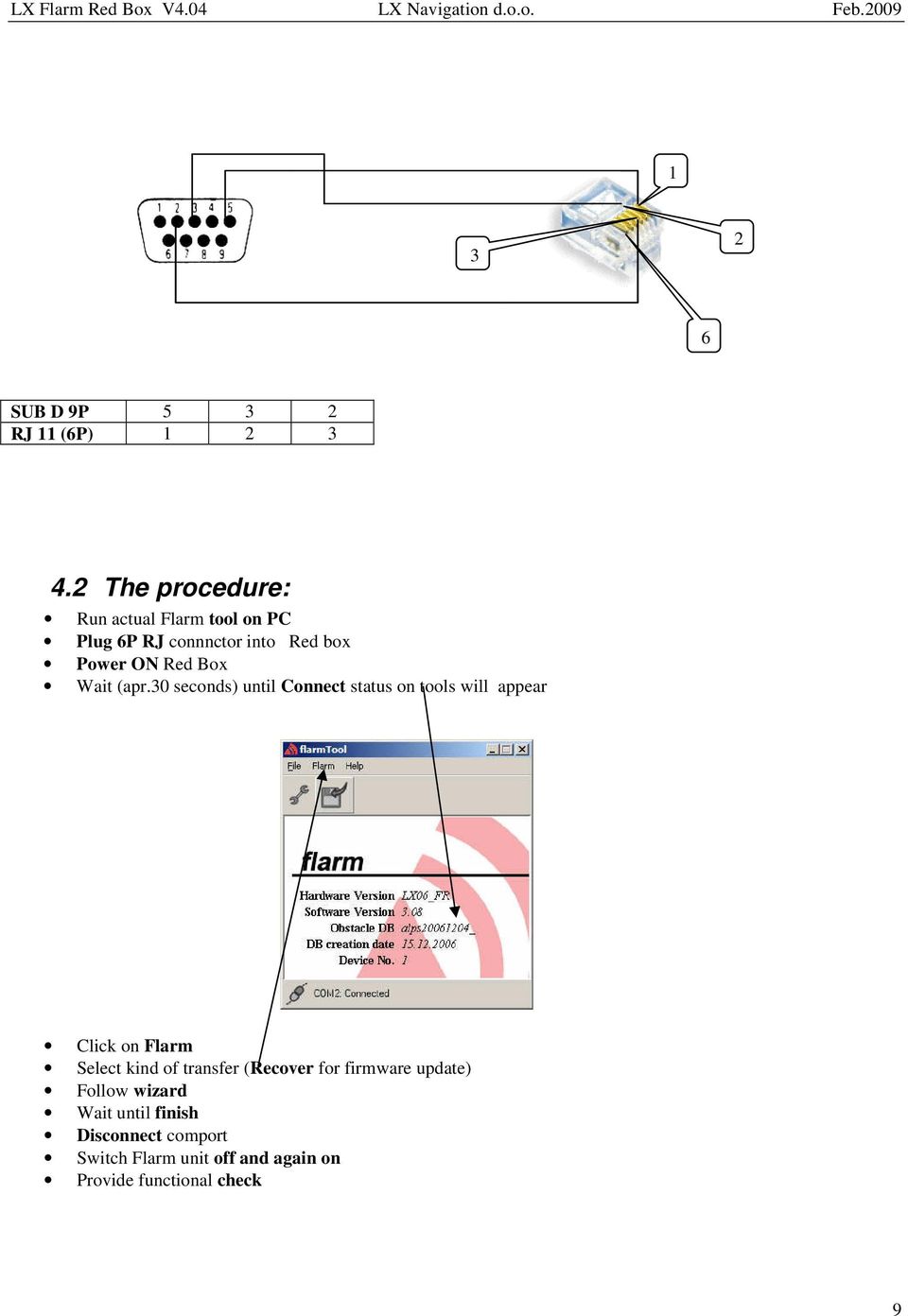
8 4 Firmware update Flarm software expires and therefore periodically firmware upgrades are necessary. Flarm original tools should be used, available on A cable set isn t a part of delivery. Use IGC compatible cables, for instance Colibri/LX20 power and data adapter (COL-AC-PC). Colibri power adapter will also power Red Box 4.1 Cable configurations The cable connecting PC and Red Box should consist of 3 wires, two data wires and GND. There are many solutions which enables communication and consecutive firmware update. Some cable configurations are listed below Colibri power and data adapter (COL-AC-PC) This cable set is a part of delivery of every Colibri unit and could be simple borrowed from some Colibri owner. The set can be also ordered at any time by LX Navigation. This is a completely plug and play solution which makes possible to arrange update without glider power, let say at your home. The set has an AC/DC converter and this also powers Red Box during the firmware update. PC 6P telephone type marked as External display Important! Keep Red Box power lines isolated during the update LX Flarm update cable This cable is a part of delivery of every LX 7007 Flarm unit and can be also used for Red box update. In this case Red Box needs power via its power lines. The cable can be simple build by the Red Box owner or ordered by LX Navigation.. 8

9 SUB D 9P RJ 11 (6P) The procedure: Run actual Flarm tool on PC Plug 6P RJ connnctor into Red box Power ON Red Box Wait (apr.30 seconds) until Connect status on tools will appear Click on Flarm Select kind of transfer (Recover for firmware update) Follow wizard Wait until finish Disconnect comport Switch Flarm unit off and again on Provide functional check 9
10 5 Installation The Red Box may be installed wherever in the cockpit (doesn t need manipulation during flight). Respect that periodically firmware update will be requested. The display should be good insight and also available for manipulation. 5.1 Display installation Find a convenient place in the cockpit, which offers a good viewing angle to the LED s. LX Navigation offers a small housing which will make installation on the top of the instrument panel professional. Two connection cables having different lengths are offered to ensure all possible installation solutions. 5.2 Power Flarm Red Box Two wires coming out of the unit (red + and blue -) are used for power supply. There is no internal fuse built in the unit. Use External fuse 1A. The unit is prevented against wrong polarity of input voltage Flarm interface for LX 5000 Connect 9P SUB D to LX system bus. Usually a free plug will be found on LCD Vario. In case of no free connector a 485 splitter should be used (available by LX Navigation). 10

11 All other details match LX Flarm red box specifications. 5.3 RF antenna installation The RF antenna installation should be taken serious; a bad positioned antenna may reduce system parameters dramatically. The antenna consists of three parts: Radiator apr. 10 cm rubber coated Back plane an aluminum plate having diameter 12 cm Cable (60 cm) with SMA connector The radiator should be vertical and the back plane horizontal. Use top positions on the instrument panel. Having no space to install the antenna, use a dipole variant, available by LX Navigation or Flarm dealers. λ/4 antenna Dipole antenna 11

12 5.4 GPS antenna installation The GPS antenna which is a part of delivery (Red Box only) should be installed somewhere in the cockpit where a good satellite contact can be established. Never install the antenna close to another GPS antenna. Minimum 15 cm of space diversity is required. Flarm unit will not work until having GPS 3D, means antenna installation is an important fact. 5.5 Final check After LX Flarm unit will receive power, the External display will pass initial routine which will take several seconds. 1. Power red flashing, no data from Flarm ERROR 2. Power green data received..ok 3. GPS red GPS BAD, GPS green GPS OK/3D OK 4. Tx green flashing, data sent.ok 5. Rx green minimum one glider received...ok After installation obligatory check functionality from 1 to 3 and 5. 12

13 6 SD card and Flight recorder option (Firmware 3.05 or later) Both versions (Red box and Interface) may be delivered with SD card interface and flight recorder option. The flight recorder hasn t IGC approval. The SD card slot is connected via 50 cm flexible cable to the Flarm unit. One already formatted SD card is delivered with the unit. It is recommended to install SD card slot somewhere on the instrument panel. The functionality of SD card is as follows: Storing of flights Update of obstacle data base Flarm firmware update Update of flight recorder settings via flarmcfg.txt and SD card How to create easy flarmcfg.txt see 13

14 The configuration can be sent also after using of PC and SeeYou. PDA solutions are offered by ConnectMe and Strepla Flarm traffic avoidance functionality does not depend on SD card status (inserted or not). Files for any update are available on FAT 32 formatted SD cards will no be accepted by the system. Use FAT 16 formatted cards, delivery included card is already formatted and ready for operation. All files should be copied to the SD card (no folders permitted), also it is not allowed to change any file name. 6.1 Firmware update after using of SD card Ready for update procedure: -Insert the card and switch the Flarm unit off, for minimum 5 seconds -Power on Flarm unit Firmware update: -An update will follow after a file having extension.fw will be detected; the procedure will take approximately one minute and will run automatically. The obstacle data base update procedure: -If an.obs file type will be detected, an update will follow. The update may take several minutes. Read of flight recorder data: -The last 20 flights will be automatically copied to SD card after each power on. If some flights also exists, they will not be doubled. After a longer time flying without the card inserted the copy procedure may take some longer time because all 20 flights must be transferred to the card. To start copy to SD card remove power for apr. 5 seconds and power on again. The procedure will run automatically. 7 Limitations Using of Flarm will not reduce responsibility of the pilot to monitor the airspace and to react in case of a collision risk. See Flarm manual for details. 14

15 8 Version having IGC approved flight recorded LX Flarm Red Box is offered also with diamond level IGC approved flight recorder. Units having this option differ against to non approved units in following: On the label you see a three character IGC designation code (for instance MR0) The unit is protected with one safety label against non authorized opening of the box The button on the top of the unit may be used as event marker activator The label should remain not damaged, after damage the flight data will become invalid. 8.1 Task declaration There are many ways to provide task declaration. The simplest way seems to be with SD card and flarmcfg.txt file. Immediately after Flarm will recognise mentioned file an automatic update will follow. To create files use FLARM- CONFIGURATION TOOL available on As a possible PC solution we suggest SeeYou and as PDA solution you can use: ConnectMe ( a free ware program from Naviter) Srepla For details see also LX navigation [email protected] [email protected] 15

16 16

Flarm LED indicator. Version 1.1
 Flarm LED indicator Version 1.1 LXNAV d.o.o. Kidričeva 24a, 3000 Celje, Slovenia tel +386 592 33 400 fax +386 599 33 522 [email protected] www.lxnav.com 1 Important Notices 3 1.1 Limited Warranty 3 2 Packing
MANUAL FOR RX700 LR and NR
 MANUAL FOR RX700 LR and NR 2013, November 11 Revision/ updates Date, updates, and person Revision 1.2 03-12-2013, By Patrick M Affected pages, ETC ALL Content Revision/ updates... 1 Preface... 2 Technical
Communication with BushingGard using computer USB port
 Communication with BushingGard using computer USB port There are two ways of communication with BushingGard through computer USB port: Direct communication between computer USB port and BushingGard USB
Programming and Using the Courier V.Everything Modem for Remote Operation of DDF6000
 Programming and Using the Courier V.Everything Modem for Remote Operation of DDF6000 1.0 Introduction A Technical Application Note from Doppler System July 5, 1999 Version 3.x of the DDF6000, running version
Smarthome SELECT Bluetooth Wireless Stereo Audio Receiver and Amplifier INTRODUCTION
 Smarthome SELECT Bluetooth Wireless Stereo Audio Receiver and Amplifier INTRODUCTION The Smarthome SELECT Bluetooth Wireless Stereo Audio Receiver and Amplifier is a multi-functional compact device. It
HOW TO TRANSFER FILES BETWEEN EEN IDL7000 PVR AND USB2 DEVICE
 HOW TO TRANSFER FILES BETWEEN EEN IDL7000 PVR AND USB2 DEVICE CONTENTS CONTENTS...2 FOREWORD...3 TRANSFERRING FILES BETWEEN IDL7000M PVR AND USB2 DEVICE...4 CONNECTING AN EXTERNAL USB2 DEVICE...4 COPYING
GSM Interfacing Board
 Campus Component Pvt. Ltd. DISCLAIMER Information furnished is believed to be accurate and reliable at the time of publication. However, Campus Component Pvt. Ltd. assumes no responsibility arising from
PRODUCTIVITY THROUGH INNOVATION 600 CONTROL DIRECT DRIVE TECHNICAL/OPERATION MANUAL
 Rev. D PRODUCTIVITY THROUGH INNOVATION 600 CONTROL DIRECT DRIVE TECHNICAL/OPERATION MANUAL 10 BORIGHT AVENUE, KENILWORTH NEW JERSEY 07033 TELEPHONE: 800-524-0273 FAX: 908-686-9317 TABLE OF CONTENTS Page
PM1122 INT DIGITAL INTERFACE REMOTE
 PM1122 INT DIGITAL INTERFACE REMOTE PM1122 INT front panel description: 1. Clear wireless remotes knob: push this button for more than 2 seconds to clear the list of all assigned wireless remote settings
LDG DTS-4/4R Desktop Coaxial Switch / Remote
 LDG DTS-4/4R Desktop Coaxial Switch / Remote LDG Electronics 1445 Parran Road, PO Box 48 St. Leonard MD 20685-2903 USA Phone: 410-586-2177 Fax: 410-586-8475 [email protected] www.ldgelectronics.com
User manual Compact Web PLC WP240 series IEC-line
 User manual Compact Web PLC WP240 series IEC-line update: 09-01-2014 IEC-line by OVERDIGIT overdigit.com 1. General description The WP240 device is a PLC, programmable in IEC61131-3 language using CoDeSys
RC2200DK Demonstration Kit User Manual
 Demonstration Kit User Manual Table of contents TABLE OF CONTENTS... 1 QUICK INTRODUCTION... 2 INTRODUCTION... 3 DEMONSTRATION BOARD... 4 POWER SUPPLY SECTION... 5 RS-232 INTERFACE... 6 CONNECTORS... 7
1 Technical Description Lokal-200PC
 1 Technical Description Lokal-200PC 1.1 Overview laptop with in-built accummulator USB connection correlator box internal power supply laptop (if the device has been supplied by F.A.S.T.) BNC aerial connection
MiniPlex-41USB NMEA-0183 multiplexer Manual
 MiniPlex-41USB NMEA-0183 multiplexer Manual MiniPlex-41USB, V1.0 Firmware V1.30 CustomWare, 2004 Introduction The MiniPlex-41USB is a four-channel NMEA multiplexer, enabling the connection of multiple
How to setup a serial Bluetooth adapter Master Guide
 How to setup a serial Bluetooth adapter Master Guide Nordfield.com Our serial Bluetooth adapters part UCBT232B and UCBT232EXA can be setup and paired using a Bluetooth management software called BlueSoleil
MANUAL PC1000R [email protected]
 MANUAL PC1000R [email protected] Features The APart PC1000R is a professional multisource CD/USB/SD card music player, equipped with balanced and unbalanced analog outputs, coaxial and optical digital
USB VoIP Phone Adapter. User s Manual
 USB VoIP Phone Adapter User s Manual FCC Certifications This Equipment has been tested and found to comply with the limits for a Class B digital device, pursuant to part 15 and part 68 of the FCC Rules.
Mobile Satellite Solutions. A WiWorld Partner SATELLITE TV ANTENNA CONTROLLER RFM-1000/1100 TECHNICAL MANUAL STOW SEARCH
 Mobile Satellite Solutions A WiWorld Partner SATELLITE TV ANTENNA CONTROLLER RFM-1000/1100 TECHNICAL MANUAL SEARCH STOW Ver. 1 June 2012 WARNING Make all electrical and coax connections from the controller
2.4G Bluetooth Datalink & ipad Ground Station User Guide V1.12
 2.4G Bluetooth Datalink & ipad Ground Station User Guide V1.12 Thank you for purchasing DJI products. Please strictly follow this user guide to mount and connect the 2.4G Bluetooth Datalink, install the
SYSTEM 4C. C R H Electronics Design
 SYSTEM 4C C R H Electronics Design SYSTEM 4C All in one modular 4 axis CNC drive board By C R Harding Specifications Main PCB & Input PCB Available with up to 4 Axis X, Y, Z, A outputs. Independent 25
Troubleshooting and Diagnostics
 Troubleshooting and Diagnostics The troubleshooting and diagnostics guide provides instructions to assist in tracking down the source of many basic controller installation problems. If there is a problem
RFID Logger Software User Manual Rev 1.0
 RFID Logger Software User Manual Rev 1.0 Table of Contents 1. System Overview... 2 2. Installation... 2 3. USB RFID Interface Box... 3 4. Operation... 4 4.1. Start Up... 4 4.2. Menu overview... 4 4.2.1.
Bluetooth HC-06 with serial port module Easy guide
 1 Bluetooth HC-06 with serial port module Easy guide This manual consists of 3 parts: PART 1. Overview of Bluetooth HC-06 module with serial port. PART 2. Installing Bluetooth HC-06 module with Bolt 18F2550
TX OPEN RS232/485 module
 s 8 185 8185P01 TX-I/O ; DESIGO OPEN TX OPEN RS/485 module for integrating third-party systems and devices to DESIGO (V4 or higher) TXI1.OPEN Platform to integrate third-party systems and devices to the
BIT COMMANDER. Serial RS232 / RS485 to Ethernet Converter
 BIT COMMANDER Serial RS232 / RS485 to Ethernet Converter (Part US2000A) Copyrights U.S. Converters 1 Contents Overview and Features... 3 Functions..5 TCP Server Mode... 5 Httpd Client Mode.5 TCP Auto mode....6
Operating instructions Diffuse reflection sensor. OJ50xx 701396 / 01 07 / 2004
 Operating instructions Diffuse reflection sensor OJ50xx 7096 / 0 07 / 004 Contents Preliminary note. Symbols used Function and features Installation. Installation of the supplied mounting fixture 4 4 Electrical
ENET-710. ENET-710 - Ethernet Module ENET-710 JAN / 06 FOUNDATION
 ENET-710 ENET-710 - Ethernet Module JAN / 06 ENET-710 FOUNDATION E N E T 7 1 0 ME smar www.smar.com Specifications and information are subject to change without notice. Up-to-date address information is
SYSTEM 45. C R H Electronics Design
 SYSTEM 45 C R H Electronics Design SYSTEM 45 All in one modular 4 axis CNC drive board By C R Harding Specifications Main PCB & Input PCB Available with up to 4 Axis X, Y, Z, & A outputs. Independent 25
Modular I/O System Analog and Digital Interface Modules
 OPERATING INSTRUCTIONS Modular I/O System Analog and Digital Interface Modules Installation Operation Maintenance Document Information Document ID Title: Operating Instructions Modular I/O System Part
Bluetooth to Serial Adapter
 Bluetooth to Serial Adapter Third Edition, Oct 2007 Version 3.0 771-BTS1009C3-001 Contents 1.0 Features....P.2 2.0 Package Content....P.2 3.0 Hard Drives Requirement.P.2 4.0 Specifications.P.3 5.0 Pin
iloq P10S.10/20 Programming device User's Guide
 iloq P10S.10/20 Programming device User's Guide CONTENTS CONTENTS... 2 GENERAL... 3 USING THE PROGRAMMING DEVICE... 5 Starting the programming device... 5 Programming of locks... 5 Programming of keys...
10/100/1000 Base-T to Gigabit Fiber Media Converter
 10/100/1000 Base-T to Gigabit Fiber Media Converter Operation Manual DA-MC1101 Powered by Before Using the Product FCC Compliance Statement This device complies with part 15 of the FCC Rules. Operation
SCREENLOGIC INTERFACE WIRELESS CONNECTION KIT
 SCREENLOGIC INTERFACE WIRELESS CONNECTION KIT FOR INTELLITOUCH AND EASYTOUCH CONTROL SYSTEMS INSTALLATION GUIDE IMPORTANT SAFETY INSTRUCTIONS READ AND FOLLOW ALL INSTRUCTIONS SAVE THESE INSTRUCTIONS Technical
Instruction Manual. 2in1 LAN Tester & Multimeter. Model: LA-1011
 Instruction Manual 2in1 LAN Tester & Multimeter Model: LA-1011 1 Contents Introduction... Features... Safety Precautions.. Meter Description... Electrical Specification... Operation.. AutoRanging Multimeter.
INSTALLATION MANUAL XM3 Reader
 INSTALLATION MANUAL XM3 Reader Conditions Transactions, deliveries et cetera will be according to the general terms of delivery as deposited at the Chamber of Commerce at Meppel, The Netherlands. Registration
Orbit PCI Mk 2 Network Card. User Manual. Part No. 502566 Issue 4
 Orbit PCI Mk 2 Network Card User Manual Part No. 502566 Issue 4 Information in this document is subject to change without notice. Companies, names and data used in examples herein are fictitious unless
Belkin High Speed Cable Modem with USB and Ethernet. User Manual
 Belkin High Speed Cable Modem User Manual P74206 F5D5530-W Introduction Congratulations on your purchase of this quality Belkin product. The Belkin High-Speed Cable Modem allows you to enjoy the Internet
Ethernet Radio Configuration Guide
 Ethernet Radio Configuration Guide for Gateway, Endpoint, and Repeater Radio Units April 20, 2015 Customer Service 1-866-294-5847 Baseline Inc. www.baselinesystems.com Phone 208-323-1634 FAX 208-323-1834
CelluLine CGW-TS GSM Cellular Gateway. Installation and Programming Manual
 CelluLine CGW-TS GSM Cellular Gateway Installation and Programming Manual CelluLine CGW-TS GSM Cellular Gateway Installation and Programming Manual CGWTS-M001A Version 1, Release 1, December 2004 NOTICE
User Guide Reflow Toaster Oven Controller
 User Guide Reflow Toaster Oven Controller Version 1.5-01/10/12 DROTEK Web shop: www.drotek.fr SOMMAIRE 1. Introduction... 3 2. Preparation of THE REFLOW CONTROLLER... 4 2.1. Power supply... 4 2.2. USB
Driver Pant 8 and antenna switcher Ant 8. User manual
 Driver Pant 8 and antenna switcher Ant 8 User manual Table of contents Table of contents... 2 Introduction... 3 Shipping Contents... 3 Technical Data... 3 Control Panel... 4 Rear panel... 5 Controller
IMMS-CCC. IMMS-CCC Hardwire Central Interface. Installation Instructions
 IMMS-CCC IMMS-CCC Hardwire Central Interface Installation Instructions TABLE OF CONTENTS... Choose a Location... 1 Connections... 2 Operations... 3 Software Configuration... 4 Troubleshooting... 5 Loopback
4-Port Pocket. USB KVM Switch with USB 2.0 Hub
 4-Port Pocket USB KVM Switch with USB 2.0 Hub Manual - 1 - Index 1. INTRODUCTION... 3 1.1 FEATURES... 3 1.2 PHYSICAL DIAGRAM... 4 1.3 PACKAGE CONTENTS... 4 2. SPECIFICATIONS... 5 2.1 ERAL... 5 2.2 LED
AC1200 WiFi Range Extender
 Model EX6200 User Manual February 2014 202-11298-01 350 East Plumeria Drive San Jose, CA 95134 USA Support Thank you for selecting NETGEAR products. After installing your device, locate the serial number
Business/Home GSM Alarm System. Installation and User Manual
 Business/Home GSM Alarm System Installation and User Manual Brief Introduction: GSM 900/1800/1900 bands, can be used in most parts of the world Full duplex communication with the host Monitor the scene
Secure Ethernet Gateway SEG-1 and SEG-M for IEI Access Systems Installation Manual
 Secure Ethernet Gateway SEG-1 and SEG-M for IEI Access Systems Installation Manual Section 1: Introduction SECURITY WARNING: New SEG's shipped after April 2008 will have Telnet setup option enabled by
FOR MORE INFORMATION. 125 8880 or from a non-telstra phone 13 2200 and say pre-paid telstra.com/ppmbb visit a telstra store or partner
 FOR MORE INFORMATION 125 8880 or from a non-telstra phone 13 2200 and say pre-paid telstra.com/ppmbb visit a telstra store or partner getting to know your telstra pre-paid 4G WI-FI (760S) LET S GET THIS
ScreenLogic Wireless Connection Kit. Installation Guide. pool/spa control system
 pool/spa control system ScreenLogic Wireless Connection Kit Installation Guide P/N 520663 - Rev B 8 Technical Support Contact Technical Support at: Sanford, North Carolina (8 A.M. to 5 P.M.) Phone: (800)
Digital Photo Bank / Portable HDD Pan Ocean E350 User Manual
 Digital Photo Bank / Portable HDD Pan Ocean E350 User Manual Installing a hard disk 1. Power off the unit. 2. Remove the bottom cover from the unit by removing four screws. 3. Insert the 2.5 HDD to the
StructureScan HD Module. Installation Guide ENGLISH. www.bandg.com www.simrad-yachting.com www.lowrance.com
 StructureScan HD Module Installation Guide ENGLISH www.bandg.com www.simrad-yachting.com www.lowrance.com Disclaimer As Navico is continuously improving this product, we retain the right to make changes
LDG DTS-6/6R Desktop Coaxial Switch / Remote
 LDG DTS-6/6R Desktop Coaxial Switch / Remote LDG Electronics 1445 Parran Road, PO Box 48 St. Leonard MD 20685-2903 USA Phone: 410-586-2177 Fax: 410-586-8475 [email protected] www.ldgelectronics.com
mdm-mp3 minidirector with MP3 Player
 minidirector with MP3 Player User Manual December 15, 2014 V1.02 Copyright Light O Rama, Inc. 2007, 2008 Table of Contents Introduction... 4 What s in the Box... 4 Hardware Utility Version... 5 Important
INTELLIGENT CONTROL MODULE SA-2000-II HARDWARE MANUAL. Access Technologies International, Inc.
 SA-2000-II HARDWARE MANUAL Access Technologies International, Inc. 1 Table of Contents 1. Introduction 3 2. Features 3 3. Specification 4 4. Identifying Supplied Parts 4 5. Panel Description 5 6. Connection
Maxtor OneTouch User's Guide
 EXTERNAL HARD DRIVE Maxtor OneTouch User's Guide TM II P/N:20259600 i Contents 1 Introduction................................................. 1 Maxtor OneTouch II Drive Components............................
Weather Direct Displays show Lost Forecast (blank boxes in the picture icons)
 Weather Direct Displays show Lost Forecast (blank boxes in the picture icons) Many routine events can cause a Lost Forecast situation. Examples include: Power outage Change batteries Internet down in your
Quick Reference Guide VT55 & OBDII. Customer Service 1-888-621-TPMS 1-888-621-8767. Version: QSG 2.0-24/12
 Quick Reference Guide VT55 & OBDII Customer Service 1-888-621-TPMS 1-888-621-8767 Version: QSG 2.0-24/12 Table of contents Section A General Description (2 / 12). Section B Triggering a Sensor / Results
USER S MANUAL TACHOTERMINAL PRO. Firmware 2.00.191
 USER S MANUAL TACHOTERMINAL PRO Firmware 2.00.191 In the Box miniusb-usb cable (1.8 metres) 2GB removable memory card (in the slot) TTConfigurator (pre-installed in TERMINAL folder) Optional Accessories
CAN@net II Intelligent PC/CAN Interface. Manual
 CAN@net II Intelligent PC/CAN Interface Manual IXXAT Automation GmbH Leibnizstr. 15 D-88250 Weingarten Tel.: +49 (0)7 51 / 5 61 46-0 Fax: +49 (0)7 51 / 5 61 46-29 Internet: www.ixxat.de e-mail: [email protected]
Technical Manual. For use with Caller ID signaling types: Belcore 202, British Telecom, & ETSI
 Technical Manual For use with Caller ID signaling types: Belcore 202, British Telecom, & ETSI Caller ID.com WHOZZ CALLING? POS 2 Caller ID Monitoring Unit Technical Manual For use with Caller ID signaling
ZMR 80 STEREO MODULAR ZONER USERS MANUAL
 ZMR 80 STEREO MODULAR ZONER USERS MANUAL Lime Technologies http://limetechnologies.co.uk Tel: 08712 233127 ZMR80 Stereo Modular Zoner Mixer Introduction The modular construction of the ZMR80 allows it
Six-servo Robot Arm. DAGU Hi-Tech Electronic Co., LTD www.arexx.com.cn. Six-servo Robot Arm
 Six-servo Robot Arm 1 1, Introduction 1.1, Function Briefing Servo robot, as the name suggests, is the six servo motor-driven robot arm. Since the arm has a few joints, we can imagine, our human arm, in
- 35mA Standby, 60-100mA Speaking. - 30 pre-defined phrases with up to 1925 total characters.
 Contents: 1) SPE030 speech synthesizer module 2) Programming adapter kit (pcb, 2 connectors, battery clip) Also required (for programming) : 4.5V battery pack AXE026 PICAXE download cable Specification:
G-100/200 Operation & Installation
 G-100/200 Operation & Installation 2 Contents 7 Installation 15 Getting Started 16 GPS Mode Setup 18 Wheel Sensor Mode Setup 20 Fuel Calibration 23 Basic Operation 24 Telemetery Screen 27 Entering a Distance
Stop Alert Flasher with G-Force sensor
 Stop Alert Flasher with G-Force sensor Stop Alert module creates brake light flashing effect to catch attention of the drivers behind to avoid dangerous rear end collision. The flasher module is a state
User Manual. EtherUSB
 User Manual EtherUSB USB Ethernet Access Point for PDA V 2.0 Clarinet Systems, Inc. Clarinet Systems, Inc. http://www.clarinetsys.com Page 1 Publication Revision No. Control Table Rev. No. Date Contents
Chapter 1 Connecting the Router to the Internet
 Chapter 1 Connecting the Router to the Internet This chapter describes how to set up the router on your Local Area Network (LAN) and connect to the Internet. It describes how to set up your wireless ADSL
M2M 3350 GSM/GPRS Modem User s Manual & Reference Guide Revision 1 June 2007
 M2M 3350 GSM/GPRS Modem User s Manual & Reference Guide Revision 1 June 2007 1999-2007 by Laipac Technology, Inc. All rights reserved The Specifications and information regarding the products in this manual
RS232C < - > RS485 CONVERTER S MANUAL. Model: LD15U. Phone: 91-79-4002 4896 / 97 / 98 (M) 0-98253-50221 www.interfaceproducts.info
 RS232C < - > RS485 CONVERTER S MANUAL Model: LD15U INTRODUCTION Milestone s model LD-15U is a RS232 to RS 485 converter is designed for highspeed data transmission between computer system and or peripherals
Bluetooth UART/RS232 Module
 Introduction BLUEMORE600 is a professional, slim, wireless module ready for integration in brand new or existing electronic products. Based on CSR chipset BC03MM it s fully compatible for Serial Port profiles.
DragonLink User Guide
 DragonLink User Guide Chris Seto, 2012 R5 8/24/2012 This document is in beta status. 1 P a g e Table of Contents 1) Quick Start checklist 2) DragonLink Versions 3) Getting to know the DragonLink hardware
Digital I/O: OUTPUT: Basic, Count, Count+, Smart+
 Digital I/O: OUTPUT: Basic, Count, Count+, Smart+ The digital I/O option port in the 4-Series provides us with 4 optically isolated inputs and 4 optically isolated outputs. All power is supplied externally.
RACEAIR REMOTE PAGER SYSTEM
 Computech Systems, Inc. 301-884-5712 30071 Business Center Dr. Charlotte Hall, MD 20622 RACEAIR REMOTE PAGER SYSTEM TM Introduction: Computech s RaceAir Remote Competition Weather Station with the Data
USER MANUAL MODEL 72-7480
 PATTERN GENERATOR Introduction Through the use of portable HDMI pattern generator MODEL 72-7480, you are able to use 48 timings and 34 patterns, and operate it continuously for 6~8 hours after the battery
MAINTENANCE & TROUBLESHOOTING
 MAINTENANCE & TROUBLESHOOTING This section describes how to: clean the lens replace the projection lamp replace the batteries in the remote use the security lock feature troubleshoot the projector Cleaning
LDG SLS-2 Two-Port RJ45 Switch
 SLS-2 OPERATIONS MANUAL MANUAL REV. A LDG SLS-2 Two-Port RJ45 Switch LDG Electronics 1445 Parran Road St. Leonard MD 20685-2903 USA Phone: 410-586-2177 Fax: 410-586-8475 [email protected] www.ldgelectronics.com
INDEX. Trademarks All name and product s trademarks mentioned below are the property of their respective companies.
 USB2.0 EASY IDE ADAPTER INDEX Trademarks ---------------------------------------------------------------------------- Introduction ---------------------------------------------------------------------------
PSC RF Multi SR Six Pack
 PSC RF Multi SR Six Pack The PSC RF Multi SR Six Pack contains two, separate, active 1 x 4 RF splitters for use with up to three slot style receivers. This compact, rugged device was developed using the
SDN INSTRUCTIONS 07/10, Ver 1.2. Somfy Digital Network (SDN) Installation and Programming
 Somfy Digital Network (SDN) Installation and Programming SSoomffyy SSyysst teemss IInncc.. 1 Table of Contents 1 General Information and Features... 3 1.1 ILT2 Motor... 3 1.2 SDN Switches... 4 1.3 ILT2
Options for ABB drives, converters and inverters. User s manual FDPI-02 diagnostics and panel interface
 Options for ABB drives, converters and inverters User s manual FDPI-02 diagnostics and panel interface Table of contents Table of contents 3 1. FDPI-02 diagnostics and panel interface Safety..............................................
omega.com ΩOMEGA RS232 Multi-Drop www.omega.com FMA1600-MDB Multi-Drop Box
 omega.com ΩOMEGA RS232 Multi-Drop www.omega.com FMA1600-MDB Multi-Drop Box 1 3/29/2010 Rev.0 DOC-OMEGABB9MAN 2 Introduction FMA1600-MDB Multi-Drop Box Operating Bulletin The FMA1600-MDB Multi-Drop Box
AXIS 291 1U Video Server Rack Installation Guide
 AXIS 291 1U Video Server Rack Installation Guide About This Document This document describes how to install Axis blade video servers in the AXIS 291 1U Video Server Rack. Updated versions of this document
Alarm over IP. IRIS Touch Home Installation Manual. Version 1.0 ENGLISH. Now certified and compliant with EN50131, EN50136 Security Grade 4 ATS6
 Alarm over IP IRIS Touch Home Installation Manual Version 1.0 ENGLISH Now certified and compliant with EN50131, EN50136 Security Grade 4 ATS6 1. Introduction No more bulky batteries, just one sleek unit
UPS Network Interface. Quick InstallationGuide
 UPS Network Interface Quick InstallationGuide Version 1.1 March 1999 COPYRIGHT Copyright 1999 RINGDALE UK Limited. All rights reserved. No part of this publication may be reproduced, transmitted, transcribed,
FUTURELIGHT RDM PC DIRECTOR
 FUTURELIGHT RDM PC DIRECTOR User manual rev. 1.3 Contents INTRODUCTION... 3 ABOUT LIGHTING NORMS... 3 INSTALLATION... 3 Connections... 5 Software upgrade... 5 THE PC SOFTWARE... 5 MENU - ABOUT... 6 MENU
Link Link sys E3000 sys RE1000
 User Guide High Performance Extender Wireless-N Router Linksys Linksys RE1000 E3000Wireless-N Table of Contents Contents Chapter 1: Product Overview 1 Front 1 Top 1 Bottom 1 Back 2 Chapter 2: Advanced
Testo FlashUpdate. Instument Software Update and Download Instructions. 1... How to Download Instrument Software and Updates from the Internet
 Testo FlashUpdate Instument Software Update Contents 1.... How to Download Instrument Software and Updates from the Internet 2. How to use the Flash Program 2.1.. Instrument-Preparation before Flashing
Vroom Hardware manual ver. 1.00 Code 114VROOHWE00. Vroom CANBUS USER INTERFACE WITH LCD GRAPHIC DISPLAY AND WITH TEMPERATURE AND HUMIDITY SENSOR
 Vroom CANBUS USER INTERFACE WITH LCD GRAPHIC DISPLAY AND WITH TEMPERATURE AND HUMIDITY SENSOR ENGLISH HARDWARE MANUAL ver. 1.00 CODE 114VROOHWE00 page 1 of 22 Important Important Read these instructions
E&P HYDRAULICS Remote control EPRC-01 Level System Camper
 USER S GUIDE E&P HYDRAULICS Remote control EPRC-01 Level System Camper 1 Copyright 2012, E&P Hydraulics This manual is copyrighted, with all rights reserved. Under the copyright laws, this may not, in
GPS INSTALLATION & USER GUIDE. Internet. Compatible with the following controllers. Nomad SD/SD2. ALL RIGHTS RESERVED Rev 03.25.11
 GPS INSTALLATION & USER GUIDE Compatible with the following controllers TV Nomad 3 Nomad SD/SD2 Internet MESA ALL RIGHTS RESERVED Rev 03.25.11 INDEX BILL OF MATERIALS Components for configuration 3 BLOCK
FlyingDream AAT Driver Quick Guide V1.1
 FlyingDream AAT Driver Quick Guide V1.1 1. Introduction: AAT Driver is designed to drive the FlyingDream AAT system. It includes two parts: the TeleFlyLite module and the Driver module. The TeleFlyLite
Ericsson W25. Mobile Networks. Quick Installation Guide
 Ericsson W25 Fixed Wireless Terminal for WCDMA/HSDPA Mobile Networks Quick Installation Guide Table of Contents INTRODUCTION... 3 Package Contents... 3 Requirements... 3 INSTALLATION... 4 Unit Preparation...
Setting Up the Cisco IP Phone
 CHAPTER 3 This chapter includes this following topics, which help you install the Cisco IP Phone on an IP telephony network: Before You Begin, page 3-1 Installing the Cisco IP Phone, page 3-6 Adjusting
4 Port VGA Video Audio Switch with RS232 control
 4 Port VGA Video Audio Switch with RS232 control VS410RVGAA *actual product may vary from photos DE: Bedienungsanleitung - de.startech.com FR: Guide de l'utilisateur - fr.startech.com ES: Guía del usuario
GETTING TO KNOW YOUR TELSTRA PRE-PAID 3G USB + WI-FI
 FOR MORE INFORMATION CALL 125 8880 or FROM A NON-TELSTRA PHONE, CALL 13 2200 AND SAY PRE-PAID VISIT telstra.com/ppmbb VISIT A TELSTRA STORE OR PARTNER GETTING TO KNOW YOUR TELSTRA PRE-PAID 3G USB + WI-FI
Alpha 10 SERVICE MANUAL. Downloaded from www.cbradio.nl. MAX 10 Meter Amateur Transceiver AM/FM/CW/SSB 6 BAND PROGRAMMABLE MODEL AM-1000.
 Alpha 10 MAX 10 Meter Amateur Transceiver MODEL AM-1000 AM/FM/CW/SSB 6 BAND PROGRAMMABLE SERVICE MANUAL Downloaded from www.cbradio.nl Cover Page LOUDER TALKBACK MOD Alpha 10 Max - Model AM-1000 4.7K Resistor
Table of Contents. Hardware Installation...7 Push Button Security... 8. Using the Setup Wizard...10. Configuration...11 Main... 12 Security...
 Table of Contents Table of Contents Product Overview...3 Package Contents...3 System Requirements... 3 Introduction...4 Features... 4 Hardware Overview...5 LEDs... 5 Connection... 6 Hardware Installation...7
Bluetooth + USB 16 Servo Controller [RKI-1005 & RKI-1205]
![Bluetooth + USB 16 Servo Controller [RKI-1005 & RKI-1205]](/thumbs/40/21161302.jpg "Bluetooth + USB 16 Servo Controller [RKI-1005 & RKI-1205]") Bluetooth + USB 16 Servo Controller [RKI-1005 & RKI-1205] Users Manual Robokits India [email protected] http://www.robokitsworld.com Page 1 Bluetooth + USB 16 Servo Controller is used to control up to
Bluetooth + USB 16 Servo Controller [RKI-1005 & RKI-1205] Users Manual Robokits India [email protected] http://www.robokitsworld.com Page 1 Bluetooth + USB 16 Servo Controller is used to control up to
The Wireless LAN (Local Area Network) USB adapter can be operated in one of the two following networking configurations :
 SAGEM Wi-Fi 11g USB ADAPTER Quick Start Guide About this guide This Quick Start Guide describes how to install and operate your SAGEM Wi-Fi 11g USB ADAPTER. Please read this manual before you install the
Installing Your POS Hardware
 Installing Your POS Hardware! Installing Your Barcode Scanner Remove the scanner from the packing materials. Attach the Y-cable to the scanner. Orient the connector on one end of the Y-cable so it has
XBee USB Adapter Board (#32400)
 Web Site: www.parallax.com Forums: forums.parallax.com Sales: [email protected] Technical: [email protected] Office: (916) 624-8333 Fax: (916) 624-8003 Sales: (888) 512-1024 Tech Support: (888) 997-8267