
WS 2810U Wireless Professional Weather Center
|
|
|
- John Trevor Joseph
- 9 years ago
- Views:
Transcription
1 WS 2810U Wireless Professional Weather Center Operations Manual (A) Wireless Professional Weather Center (B) Wireless Thermo Hygro (C) Wireless Rain Gauge (D) Wireless Wind Sensor (E) USB Transceiver with P.C. Software Revision: 45

2 TABLE OF CONTENTS TABLE OF CONTENTS... 2 INTRODUCTION... 5 Inventory of Contents... 6 Features:... 7 Wireless display... 7 Thermo hygro sensor... 7 Wind sensor... 7 Rain sensor... 8 Setting up:... 8 Mounting the sensors and placement of the wireless display:... 8 Wind sensor... 9 Rain sensor Thermo hygro sensor Heavy Weather PC Software Function keys: SET key UP ARROW key DOWN ARROW key ALARM key MIN/MAX key LCD screen Mode 1 display: Mode 2 display: Date or seconds display mode MANUAL settings: LCD contrast setting Manual Time setting: /24 hour time display setting: Date setting: F/ C temperature unit setting Wind speed unit setting Rainfall unit setting Relative air pressure unit setting Relative pressure reference value setting Weather tendency sensitivity setting Storm warning threshold value setting Storm Alarm on/ off setting Wind direction display type setting Page 2

3 Factory reset procedure To exit the manual setting mode Weather alarm operations The following Weather Alarms can be adjusted in ALARM setting mode: Default weather alarm values: Pressure alarms Indoor temperature alarms Indoor humidity alarms Outdoor temperature alarms Outdoor humidity alarms Wind gust alarm Wind direction alarm Hour rainfall alarm Hysteresis Weather forecast and weather tendency Weather forecasting icons: Weather tendency indicator Air pressure history graph Wind direction and wind speed measurement Rainfall measurement Viewing the MIN/MAX weather data Reset the MIN/MAX weather data Total rainfall amount Care and Maintenance: Specifications: Indoor temperature Outdoor temperature / dew point Indoor humidity Outdoor humidity Wind speed/ gust Wind chill Rainfall Outdoor data reception Air pressure Transmission range Power consumption Weather Center Thermo hygro transmitter Rain sensor Wind sensor Page 3

4 Battery life Dimensions (L x W x H) Wireless display: WS 2810U IT Thermo hygro transmitter: TX59U IT Wind sensor: TX 56U IT Rain sensor: TX58U IT USB TranscEIver: USBTRX Liability Disclaimer FCC Statement WARRANTY INFORMATION Page 4

5 INTRODUCTION C ongratulations on purchasing this state of the art weather station. Featuring time, date, weather forecast, wind gust and wind speed, indoor/outdoor temperature and outdoor humidity, air pressure and rainfall, this weather station will provide you with various weather information and weather forecasts. Heavy Weather Pro software allows you to use a PC to monitor and record weather data received from your La Crosse Technology wireless weather station via a proprietary USB device that was provided with your 2800 series weather station. You can monitor and record a variety of data collected by your weather station including both indoor and external values sampled by the various weather station sensors. You can also review weather history data, and analyze trends and tendencies over time using the software's charts and graphing features. Download the free Heavy Weather Pro PC software at: Page 5

6 INVENTORY OF CONTENTS Carefully open the package and check that the following contents are complete: Wind Sensor Rain Sensor Thermo Hygro Sensor Wireless Display USB Transceiver Mast holder Right angle adaptor 1 x U bolts 2 Washers + 2 Nuts Plastic Reset Rod Wind Sensor also Protected under U.S. Patent: 6,761,065 Base sensor, funnel top cover and battery cover (preassembled) Rain protection cover Wall mount adapter Mounting screws Plastic anchors for screws Detachable stand All items, including Wind Sensor, are Protected under U.S. Patents: 5,978,738; 6,076,044; & 6,597,990 USB wireless interface for PC INSTANT TRANSMISSION is the state of the art new wireless transmission technology, exclusively designed and developed by La Crosse Technology. INSTANT TRANSMISSION offers you an immediate update of all your outdoor data measured from the transmitters: follow your climatic variations in real time! Page 6

7 FEATURES: WIRELESS DISPLAY Time display in 12/24 hour time format Automatic time and date (PC time) update from USB transceiver if connected Calendar display (date, month, year) Weather forecast with 3 weather icons (sunny, cloudy, and rainy) with weather tendency indicator Temperature display in F/ C: from 39.8 F to F Humidity display in RH%: from 1% to 99% Dew point display in F/ C: from 39.8 F to F Wind chill display in F / C: down to 39.8 F o Wind chill value is calculated from outdoor temperature and wind velocity values. MIN/MAX values of indoor/outdoor temperature, indoor/outdoor humidity, dew point display with time and date of recording Relative air pressure reading in inhg/hpa: preset range to inhg 24h/72h selectable pressure history graph Wind speed displayed in mph, km/h, m/s, knots, and Beaufort scale: 0 to mph Wind speed & direction with LCD compass display (16 steps/ 22.5 degree) MAX records for wind gust with time & date of recording Rainfall display in inch/mm: from 0 to Rainfall data for total rain, last hour, last 24h, last week, last month Weather alarm modes: temperature, humidity, wind gust, wind direction, air pressure, 24h rain and storm warning Buzzer on/off select LCD contrast setting Storage of 1750 sets of weather records with user selectable recording interval from 1 minute to 24 hours THERMO HYGRO SENSOR Transmission of temperature and humidity data Transmission range: 200 feet (Open field, free of obstructions) WIND SENSOR 100% solar powered with built in rechargeable alkaline power cell High efficient solar panels maintain operation throughout all seasons Transmission range: 200 feet (Open field, free of obstructions) Page 7

8 RAIN SENSOR Self emptying bucket Transmission range: 200 feet (Open field, free of obstructions) SETTING UP: IMPORTANT: Make sure to observe the correct polarity when inserting batteries. The "+" markings on the batteries must line up with the diagrams inside the battery compartments. Inserting the batteries incorrectly may result in permanent damage to the units. During the setup process, place the wireless display and the outdoor sensors on a surface with 3 10 feet between the sensors and the display. Only use Alkaline Batteries, rechargeable batteries may not work. 1. It is important to allow sufficient light to reach the solar panel while activating the wind sensor. Make sure the lights are on in the setup room and the solar panel is facing a 60W light bulb or brighter do not cover with hands or other objects. Remove the black protective foil on the solar panel and use the provided plastic reset rod to gently press the reset button once in the hole on the bottom of the sensor. 2. Insert two "AA" size batteries into the rain sensor with the correct polarity. 3. Insert two "C" size batteries into the thermo hygro sensor with the correct polarity. 4. Insert three "C" size batteries into the wireless display with the correct polarity. NOTE: Every time the wireless display receives data from the sensors, the wireless icons will blink once and then return to solid if the last transmission was successful. A wind speed or rainfall amount that reads "0" does not mean reception failure, it means that there was no wind or rain at the time of the last measurement. The thermo hygro sensor syncs with the wind and rain sensors and sends all outdoor sensor data to the display. The thermo hygro sensor tries for 4 minutes to sync to the wind sensor and then 4 minutes for the rain sensor. If not successful within 4 minutes, the thermo hygro sensor will stop looking for the other sensors. 5. Setup troubleshooting: If the sensor data fails to display for any of the outdoor sensors within 10 minutes, ( is displayed), remove the batteries from all units for 1 minute and start the Setup procedure again at Step 1. MOUNTING THE SENSORS AND PLACEMENT OF THE WIRELESS DISPLAY: IMPORTANT: Ensure that all of the sensor data can be received at the intended mounting locations before you drill mounting holes. The outdoor sensors have a wireless range of 200 feet. Keep in mind that the 200 foot range equates to an open air scenario with no obstructions. Each obstruction (roof, walls, floors, ceilings, etc.) will reduce the range. Page 8

9 The thermo hygro sensor measures outdoor temperature & humidity and collects the data from the wind and the rain sensors and sends all outdoor weather data to the wireless display, so the thermo hygro sensor must be within the 200 foot wireless range of the wireless display. This allows the wind and rain sensors to be placed relative to the thermo hygro sensor rather than the wireless display. See Wireless Data Diagram above. The wind and rain sensors must be mounted within the 200 foot wireless range of the thermo hygro sensor and on the same side of the house. The wireless display must be within the 80 foot wireless range of the USB transceiver to send weather data to the PC. If the sensor wireless icons drop from the display as you move them into their intended locations, the sensors may be too far from the wireless display. Try moving the wireless display or the sensors closer and wait a few minutes to see if the wireless icons display again. If the wireless icons are still not displayed after re positioning the sensors or the wireless display, press and hold the UP ARROW key for 2 seconds to re synchronize the wireless display with the sensors. WIND SENSOR The wind sensor must be installed with the front of the sensor (the solar panel) facing true South, or the reported wind direction will not be accurate. Mount within the 200 foot wireless range of the thermo hygro sensor and on the same side of the house. The roof may or may not Page 9

10 be an ideal mounting location. Secure the main unit to the shaft of the mast holder. Use the right angle adaptor if the wind sensor will be mounted on a horizontal mast or surface. Fasten the wind sensor to a suitable mast using the two U bolts, washers and nuts included. Note: Mount the wind sensor onto a mast so the wind can reach the sensor unobstructed from all directions for an accurate reading. The ideal mast is between 0.62" and 1.3 in diameter. The wind sensor DOES NOT have replaceable batteries, it consumes solar power and charges the internal battery pack automatically. RAIN SENSOR The rain sensor should be mounted on a level surface in an open area within the 200 foot wireless range of the thermo hygro sensor and on the same side of the house. Mount the rain sensor at least 1 foot off the ground level for optimum wireless transmission. The rain sensor should be accessible to allow for period cleaning of debris or insects. THERMO HYGRO SENSOR The thermo hygro sensor is "weather resistant", but not "water proof". To ensure an extended life of your sensor, mount it in a semi covered place out of the elements. An ideal location for the thermo hygro sensor is under the eaves on the North side of the house to avoid the effects of sunlight. Mount the sensor 18" down from the eaves to ensure optimum performance. This way the weather data collected by the sensor will not be affected by the temperature of the air coming out of the attic. To wall mount the thermo hygro sensor, fix the wall holder onto the desired wall using the included screws, plug the sensor firmly into the wall holder and replace the rain cover if it is not already in place. Note: After mounting the units, if the weather data is not received, press and hold the UP ARROW key for 2 seconds to synchronize the wireless display to the sensors. HEAVY WEATHER PC SOFTWARE Use your PC to store and graph the latest weather data collected by the weather station. Download the Heavy Weather PC software from The Heavy Weather Pro User's Guide available on the download page details the computer requirements, installation and usage instructions. Page 10

11 FUNCTION KEYS: SET KEY Press and hold for 3 seconds to enter the SET mode, where the following can be changed: LCD contrast, Manual time setting, 12/24 hour time display, Date setting, F/ C temperature unit, Wind speed unit, Rainfall unit, Pressure unit, Relative pressure reference setting, Weather tendency threshold setting, Storm warning threshold setting and Storm Alarm On/ Off setting, Wind direction display type, Factory reset Press to toggle between the display of Mode 1 or Mode 2: o Mode 1: "Wind speed + outdoor temp + 24 hr. pressure history graph" o Mode 2: "Gust + Dew Point temp + 72 hr. pressure history graph " Mode 2 is displayed for 30 seconds, returning to Mode 1 automatically. In the weather alarm setting mode, press to switch the weather alarm On / Off In the weather alarm setting mode, press and hold to adjust the weather alarm value Stop the weather alarm during ringing UP ARROW KEY Press to toggle between the display of seconds or date in the time display Press to increase the level of different settings in SET mode Press and hold to re learn the thermo hygro sensor synchronization Press to reset the MIN/MAX record when in MIN/MAX display mode Stop the weather alarm during ringing DOWN ARROW KEY Press to switch the rainfall display mode: Total, 1h, 24h, week, month Press to decrease the level of different settings in SET mode Synchronize the display with the PC (see Heavy Weather Pro User s Guide) Stop the weather alarm during ringing ALARM KEY Press to enter the time alarm and weather alarm setting mode Confirm particular alarm setting Press to exit the manual setting mode Stop the alarm during the time alarm or weather alarm ringing Press to exit max/ min record display mode Stop the weather alarm during ringing Page 11

12 MIN/MAX KEY Press to display minimum and maximum records of various weather data Stop the weather alarm during ringing LCD SCREEN When the signal from an outdoor transmitter is successfully received by the Weather Station, the corresponding icon will be switched on. (If not successful, the icon will not be shown on the LCD). The user can see whether the last reception was successful ( icon is on) or not ( icon is off). Blinking of the icon shows that a reception is in process. MODE 1 DISPLAY: Press the SET key to toggle between Mode 1 and Mode 2 display: Pressure history graph displays 24 hour history Outdoor temperature displayed in the outdoor section Wind speed displayed in the wind section Page 12

13 MODE 2 DISPLAY: Press the SET key to toggle between Mode 1 and Mode 2 display: Pressure history graph displays 72 hour history Dew point displayed in the outdoor section Wind gust displayed in the wind section DATE OR SECONDS DISPLAY MODE Press the UP ARROW key to toggle between display of the date or seconds MANUAL SETTINGS: Press and hold the SET key for 3 seconds to enter the SET mode. If you wait 30 seconds without pressing any keys while in SET mode, the display will automatically return to Mode 1 display. While in SET mode, each press of the SET key will advance to the next SET mode item: 1. LCD contrast setting 2. Manual time setting 3. 12/24 hour time display 4. Date setting 5. F/ C temperature unit setting 6. Wind speed unit 7. Rainfall unit setting 8. Air pressure unit setting 9. Relative pressure reference value setting 10. Weather tendency threshold value 11. Storm warning threshold value 12. Alarm On/ Off setting 13. Wind direction display type 14. Factory Reset LCD CONTRAST SETTING The LCD contrast can be set within 8 levels, from "Lcd 1" to "Lcd 8" (default setting is "Lcd 5"): Page 13

14 1. Press and hold the SET key for 3 seconds, the contrast level digit will start flashing. 2. Press the UP ARROW key or DOWN ARROW key to adjust the level of contrast. 3. Press the SET key to confirm and to enter the MANUAL TIME SETTING. MANUAL TIME SETTING: The time will be updated automatically with the time from the computer when the display is synchronized with the USB transceiver and connected to the Heavy Weather Pro software. The time can also be set manually by following the steps below. 1. The hour digit is flashing. 2. Press the UP ARROW key or DOWN ARROW key to set the hour. 3. Press the SET key to switch to the minutes. The minute digit will start flashing. 4. Press the UP ARROW key or DOWN ARROW key to set the minute. 5. Press the SET key to confirm and to enter the 12/24 HOUR TIME DISPLAY SETTING. 12/24 HOUR TIME DISPLAY SETTING: The time can be set as 12 hour or 24 hour format. To change the time display: 1. The "12h" or "24h" digits start flashing. 2. Press the UP ARROW key or DOWN ARROW key to toggle the value. 3. Press the SET key to confirm and to enter the DATE SETTING. DATE SETTING: The default date is of year The date will be updated automatically with the date from the computer when the display is synchronized with the USB transceiver and connected to the Heavy Weather Pro software. The date can also be set manually by following the steps below. Page 14

15 1. The year digit starts flashing. 2. Press the UP ARROW key or DOWN ARROW key to set the year. The range runs from "00" (2000) to "99" (2099). 3. Press the SET key to confirm the year and enter the month setting. The month digit will start flashing. 4. Press the UP ARROW key or DOWN ARROW key to set the month. 5. Press the SET key to confirm the month and enter the date setting mode. The date digit will start flashing. 6. Press the UP ARROW key or DOWN ARROW key to set the date. 7. Press the SET key to confirm and to enter the F/ C TEMPERATURE UNIT SETTING. F/ C TEMPERATURE UNIT SETTING The temperature can be displayed in F or C. (default F) 1. The temperature unit is flashing 2. Press the UP ARROW key or DOWN ARROW key to toggle between F or C. 3. Press the SET key to confirm and to enter the WIND SPEED UNIT SETTING. WIND SPEED UNIT SETTING The wind speed unit can be set as mph (miles per hour), km/h (kilometers per hour), bft (Beaufort), knots, or m/s (meters per second). The default unit is mph. 1. Press the UP ARROW key or DOWN ARROW key to toggle between the unit mph, km/h, "bft", "knots" or m/s 2. Press the SET key to confirm and to enter the RAINFALL UNIT SETTING. Page 15

16 RAINFALL UNIT SETTING The rainfall unit can be set as inch or mm. The default unit is inch. 1. Press the UP ARROW key or DOWN ARROW key to toggle between the unit inch or mm 2. Press the SET key to confirm and to enter the RELATIVE AIR PRESSURE UNIT SETTING RELATIVE AIR PRESSURE UNIT SETTING The relative air pressure can be set as inhg (inches of mercury) or hpa (hectopascal). The default unit is inhg. 1. Press the UP ARROW key or DOWN ARROW key to toggle between the unit inhg" or hpa 2. Press the SET key to confirm and to enter the RELATIVE PRESSURE REFERENCE VALUE SETTING. RELATIVE PRESSURE REFERENCE VALUE SETTING Note: For an exact measurement, it is necessary to first adjust the barometer to your local relative air pressure (related to elevation above sea level). Ask for the current air pressure of your home area (local weather service, the world wide web, optician, calibrated instruments in public buildings, airport). The default reference pressure value is 29.91inHg. The relative air pressure can be manually set to another value within the range of to inhg (920 to 1080 hpa) for a better reference. 1. The current relative pressure value will start flashing. 2. Press the UP ARROW key or DOWN ARROW key to increase or decrease the value. Continually holding the key will allow the value to increase faster. 3. Press the SET key to confirm and enter the WEATHER TENDENCY SENSITIVITY SETTING. Page 16

17 WEATHER TENDENCY SENSITIVITY SETTING The sensitivity of the weather forecast icons to changes in air pressure can be set manually. Smaller values result in a more sensitive forecast. The switching sensitivity value can be set to.06,.09, or.12 inhg (2,3 or4 hpa). Select lower values (.06) for high humidity areas like the coastline. Select high numbers (.12) for dry areas like the desert. The default value is 0.09 inhg. 1. The sensitivity value will start flashing 2. Press the UP ARROW key or DOWN ARROW key to select the value. 3. Press the SET key to confirm and to enter the STORM WARNING SENSITIVITY SETTING. STORM WARNING THRESHOLD VALUE SETTING A storm warning is displayed by flashing of the down weather tendency arrow. when the air pressure decreases a specified amount over six hours. The switching sensitivity value for the storm warning display can be set between.09 inhg to.27 inhg (3hPa to 9hPa). The default value is 0.15 inhg. 1. The sensitivity value will start flashing. 2. Press the UP ARROW key or DOWN ARROW key to select the value. 3. Press the SET key to confirm and to enter the STORM ALARM ON/OFF SETTING. STORM ALARM ON/ OFF SETTING The storm warning display (flashing downward weather tendency arrow) can be accompanied by a ring of the alarm. Switch the acoustic storm warning alarm On or Off (Default OFF). 1. The digit "AOFF" will start flashing. 2. Press the UP ARROW key or DOWN ARROW key to switch the alarm On or Off. ("AOFF" = Off; "AON" = On) 3. Press the SET key to confirm and to enter the WIND DIRECTION DISPLAY TYPE SETTING. Page 17

18 WIND DIRECTION DISPLAY TYPE SETTING The wind direction can be displayed using either compass directions or degree measurements. N is equivalent to 0 on the compass. The default setting is compass directions. 1. The wind direction will start flashing. 2. Press the UP ARROW key or DOWN ARROW key to toggle from compass directions to degree measurements. 3. The next step in the SET mode is the factory reset, so unless you wish to reset the display to factory defaults, simply wait until the SET mode times out and returns to the Mode 1 display. 4. If you wish to perform a FACTORY RESET, press the SET key to confirm and to enter the FACTORY RESET PROCEDURE. SEE WARNINGS in the FACTORY RESET section. FACTORY RESET PROCEDURE WARNING: Performing a factory reset will erase all MIN/MAX values and weather data stored in the display's internal memory and return the weather units settings back to the factory defaults. If you have not yet uploaded the data to the Heavy Weather Pro software, the data will be lost. If you do not wish to reset the display to factory defaults, either: Press the MIN/MAX key or the ALARM key to exit SET mode, or Simply wait 30 seconds until the SET mode times out and returns to the Mode 1 display. To reset the display to the factory defaults, follow the procedure below. WARNING: A factory reset will erase the connection between the display and the thermo hygro sensor and require the connection to be re established. 1. "res off" will start flashing. 2. Use the UP ARROW key or DOWN ARROW key to turn "res on". 3. Press the SET key to confirm and a countdown timer will begin counting down from "127" When the timer displays "done", you must remove the batteries from the display for 10 Page 18

19 minutes. While the batteries are out of the display, also remove the batteries from the thermo hygro sensor. 4. After waiting for 10 minutes, insert the batteries into the thermo hygro sensor, making sure to align the "+" symbol on the batteries with the markings on the battery cover and inside the battery compartment. 5. Within 2 minutes of inserting the batteries into the thermo hygro sensor, insert the batteries into the display, making sure to align the "+" symbol on the batteries with the markings inside the battery compartment. 6. Wait 5 minutes for the outdoor weather data to display. If any of the outdoor data displays " " after waiting for 5 minutes, follow the "Setting Up" Procedure near the beginning of this manual or in the Quick Set Up Manual included with the product. TO EXIT THE MANUAL SETTING MODE To exit the manual setting at any time during the manual setting modes, either: Press the MIN/MAX key or the ALARM key to exit SET mode, or Simply wait 30 seconds until the SET mode times out and returns to the Mode 1 display. WEATHER ALARM OPERATIONS The Weather alarms can be set when certain weather conditions are met according to your requirements. For example, you can set the thresholds for the outdoor temperature to +104 F (high) and 14 F (low), while enabling the high alarm and disabling the low alarm (i.e. temperatures <14 F won t trigger alarm, but temperatures >+104 F will). If the value meets the condition for high alarm or low alarm, the alarm will ring for 2 minutes and the value will blink, along with the corresponding icon ("HI AL"/ "LO AL"). Press any key to stop a ringing alarm. The high and low alarms can be switched On/Off independently, according to your needs. If at any time during the alarm setting process you would like to exit alarm setting mode, press the MIN/MAX key or wait for about 30 seconds and the display will return to normal display mode automatically. Press the ALARM key to enter ALARM mode. Subsequent presses of the ALARM key will advance to the next weather alarm section. Page 19

20 Note: Weather alarms can also be set from the Heavy Weather Pro software. Consult the Heavy Weather Pro User s Guide for instructions. THE FOLLOWING WEATHER ALARMS CAN BE ADJUSTED IN ALARM SETTING MODE: High and Low pressure alarms High and Low indoor temperature alarms High and Low indoor humidity alarms High and Low outdoor temperature alarms High and Low outdoor humidity alarms High wind gust alarm Wind direction alarm Rainfall amount in 24 hour period alarm DEFAULT WEATHER ALARM VALUES: Pressure Low inhg Wind gust High 62.0mph High inhg Wind Direction North Temperature (In or Out) Low 32F Rainfall in 24 hours High 1.96 in High 104F Relative Humidity (In or Out) Low 45% High 70% PRESSURE ALARMS 1. In the normal display mode, press the ALARM key once. The high pressure alarm display will be shown. 2. Press and hold the SET key for about 2 seconds. The pressure digit will start flashing. 3. Press the UP ARROW key or DOWN ARROW key to set the high pressure alarm value. Hold the Page 20

21 arrow key in to change the value faster. 4. Press the ALARM key to confirm the setting. The digit will stop flashing. 5. Press the SET key to switch the alarm on or off. The ((( ))) icon indicates the alarm is switched on. 6. Press the ALARM key once. The Low Pressure alarm display will be shown. 7. Press and hold the SET key for about 2 seconds. The pressure digit will start flashing. 8. Press the UP ARROW key or DOWN ARROW key to set the low pressure alarm value. Hold the arrow key in to change the value faster. 9. Press the ALARM key to confirm the setting. The digit will stop flashing. 10. Press the SET key to switch the alarm on or off. The ((( ))) icon indicates the alarm is switched on. 11. Press the ALARM key to move to the indoor temperature alarm settings. INDOOR TEMPERATURE ALARMS 1. The high indoor temperature alarm display will be shown. 2. Press and hold the SET key for about 2 seconds. The temperature digit will start flashing. 3. Press the UP ARROW key or DOWN ARROW key to set the high indoor temp alarm value. Hold the key in to change the value faster. 4. Press the ALARM key to confirm the setting. The digit will stop flashing. 5. Press the SET key to switch the alarm on or off. The ((( ))) icon indicates that the alarm is switched on. 6. Press the ALARM key once. The low outdoor temperature alarm display will be shown. 7. Press and hold the SET key for about 2 seconds. The temperature digit will start flashing. 8. Press the UP ARROW key or DOWN ARROW key to set the low indoor temp alarm value. Hold the arrow key in to change the value faster. 9. Press the ALARM key to confirm the setting. The digit will stop flashing. 10. Press the SET key to switch the alarm on or off. The ((( ))) icon indicates the alarm is switched on. 11. Press the ALARM key to move to the indoor humidity alarm settings. INDOOR HUMIDITY ALARMS 1. The high indoor humidity alarm display will be shown. 2. Press and hold the SET key for about 2 seconds. The humidity digit will start flashing. 3. Press the UP ARROW key or DOWN ARROW key to set the high indoor humidity alarm value. 4. Press the ALARM key to confirm the setting. The digit will stop flashing. Page 21
22 5. Press the SET key to switch the alarm on or off. The ((( ))) icon indicates the alarm is switched on. 6. Press the ALARM key once. The low indoor humidity alarm display will be shown. 7. Press and hold the SET key for about 2 seconds. The humidity digit will start flashing. 8. Press the UP ARROW key or DOWN ARROW key to set the low indoor humidity alarm value. 9. Press the ALARM key to confirm the setting. The digit will stop flashing. 10. Press the SET key to switch the alarm on or off. The ((( ))) icon indicates the alarm is switched on. 11. Press the ALARM key to move to the outdoor temperature alarm settings. OUTDOOR TEMPERATURE ALARMS 1. The high outdoor temperature alarm display will be shown. 2. Press and hold the SET key for about 2 seconds. The temperature digit will start flashing. 3. Press the UP ARROW key or DOWN ARROW key to set the high outdoor temp alarm value. Hold the key in to change the value faster. 4. Press the ALARM key to confirm the setting. The digit will stop flashing. 5. Press the SET key to switch the alarm on or off. The ((( ))) icon indicates that the alarm is switched on. 6. Press the ALARM key once. The low outdoor temperature alarm display will be shown. 7. Press and hold the SET key for about 2 seconds. The temperature digit will start flashing. 8. Press the UP ARROW key or DOWN ARROW key to set the low outdoor temp alarm value. Hold the arrow key in to change the value faster. 9. Press the ALARM key to confirm the setting. The digit will stop flashing. 10. Press the SET key to switch the alarm on or off. The ((( ))) icon indicates the alarm is switched on. 11. Press the ALARM key to move to the outdoor humidity alarm settings. OUTDOOR HUMIDITY ALARMS 1. The high outdoor humidity alarm display will be shown. 2. Press and hold the SET key for about 2 seconds. The humidity digit will start flashing. 3. Press the UP ARROW key or DOWN ARROW key to set the high outdoor humidity alarm value. 4. Press the ALARM key to confirm the setting. The digit will stop flashing. Page 22
23 5. Press the SET key to switch the alarm on or off. The ((( ))) icon indicates the alarm is switched on. 6. Press the ALARM key once. The low outdoor humidity alarm display will be shown. 7. Press and hold the SET key for about 2 seconds. The humidity digit will start flashing. 8. Press the UP ARROW key or DOWN ARROW key to set the low indoor humidity alarm value. 9. Press the ALARM key to confirm the setting. The digit will stop flashing. 10. Press the SET key to switch the alarm on or off. The ((( ))) icon indicates the alarm is switched on. 11. Press the ALARM key to move to the outdoor temperature alarm settings. WIND GUST ALARM 1. The wind gust alarm display will be shown. 2. Press and hold the SET key for about 2 seconds. The wind gust digit will start flashing. 3. Press the UP ARROW key or DOWN ARROW key to set the wind gust alarm value. 4. Press the ALARM key to confirm the setting. The digit will stop flashing. 5. Press the SET key to switch on or off the alarm. The ((( ))) icon indicates the alarm is switched on. 6. Press the ALARM key to move to the wind direction alarm settings. WIND DIRECTION ALARM Multiple wind direction alarms can be set simultaneously if desired. 1. The wind direction alarm display will be shown. 2. Press and hold the SET key for about 2 seconds. The wind direction arrow on the outside of the compass circle will start flashing with the corresponding compass direction or degrees reading displayed in the center of the compass. 3. Press the UP ARROW key or DOWN ARROW key to move the wind direction alarm pointer. 4. Press the SET key to set a wind direction alarm value. A pointer icon will appear inside of the compass circle to indicate an alarm setting for that wind direction. 5. To remove an alarm setting for a wind direction, press the SET key again to remove the selected wind direction alarm. The arrow icon inside the compass circle will disappear. 6. If more than one wind direction is desired as an alarm setting, Press the UP ARROW key or DOWN ARROW key to move the wind direction alarm pointer to the next desired setting. Page 23
24 7. Press the SET key to confirm the next wind direction value. A pointer icon will appear inside of the compass circle to indicate an alarm setting for that wind direction. You can set as many wind direction alarms as you desire. 8. Press the ALARM key to confirm the setting. The digit will stop flashing. 9. Press the SET key to switch on or off the alarm. The ((( ))) icon indicates the alarm is switched on. 10. Press the ALARM key to move to the 24 hour rainfall alarm settings. 24 HOUR RAINFALL ALARM HYSTERESIS 1. The 24 hour rainfall alarm display will be shown. 2. Press and hold the SET key for about 2 seconds. The 24 hour rainfall digit will start flashing. 3. Press the UP ARROW key or DOWN ARROW key to set the 24 hour rainfall alarm value. 4. Press the ALARM key to confirm the setting. The digit will stop flashing. 5. Press the SET key to switch on or off the alarm. The ((( ))) icon indicates the alarm is switched on. 6. Press the ALARM key to exit the alarm setting mode. To compensate for fluctuation of the weather data, which may cause the weather alarm to ring constantly if the measured reading is close to the alarm level, a hysteresis function has been implemented for each weather alarm. Weather data Temperature Hysteresis 1.8 F For example, if the high temperature alarm is set to 77 F and the temperature reaches 77 F, the alarm will be activated. If the temperature then drops to 76.8 F (a change of less than 1.8 F) and then increases to 77 F again, the data will blink, but no alarm will be activated. Humidity Pressure Wind speed 3% RH inhg 6.2 mph The temperature would have to drop below 75.2 F (with a preset hysteresis of 1.8 F) so that the alarm can be produced again. Hysteresis values for the various weather data types are given in the table. Note: The temperature or humidity data will keep flashing even after a weather alarm has been switched off by a key press. The flashing value indicates that the current weather condition is out of the pre set weather alarm limit(s). WEATHER FORECAST AND WEATHER TENDENCY Page 24
25 WEATHER FORECASTING ICONS: Sunny Cloudy with sunny intervals Rainy For every sudden or significant change in the air pressure, the weather icons will update accordingly to represent the change in weather. (Every time a new average pressure value has been obtained (once per minute), this value is compared with an internal reference value. If the difference between these values is bigger than the selected weather tendency sensitivity, the weather icon changes, either for worse or for better. In this case, the current pressure value becomes the new weather tendency reference.) If the icons do not change, either the air pressure has not changed or the change has been too small for the Weather Center to register. So you may adjust the "sensitivity" of the pressure change checking in the setting mode see WEATHER TENDENCY SENSITIVITY VALUE SETTING above. However, if the icon displayed is a sun or raining cloud, there will be no change of icon if the weather gets any better (with sunny icon) or worse (with rainy icon) since the icons are already at their extremes. The displayed icon forecasts the weather in terms of getting better or worse and not necessarily sunny or rainy as each icon indicates. For example, if the current weather is cloudy and the rainy icon is displayed, it does not mean that the product is faulty because it is not raining. It simply means that the air pressure has dropped and the weather is expected to get worse but not necessarily rainy. Note: After setting up, readings for weather forecasts should be disregarded for the next hours. This will allow sufficient time for the Weather station to collect air pressure data at a constant altitude and therefore result in a more accurate forecast. Common to weather forecasting, absolute accuracy cannot be guaranteed. The weather forecasting feature is estimated to have an accuracy level of about 75% due to the varying areas the Weather Center has been designed for use. 75% accuracy is comparable to the best meterological forecasting rate. In areas that experience sudden changes in weather (for Page 25
26 example from sunny to rain), the Weather Center will be more accurate compared to use in areas where the weather is stable most of the time (for example mostly sunny). If the Weather Center is moved to another location significantly higher or lower than its initial standing point (for example from the ground floor to the upper floors of a house), discard the weather forecast for the next hours, as the Weather Center may mistake the new location as being a possible change in air pressure when really it is due to the slight change of altitude. WEATHER TENDENCY INDICATOR Working together with the weather icons is the weather tendency indicators (arrow located on the left and right sides of the weather icons). When the indicator points upwards, it means that the air pressure is increasing and the weather is expected to improve, but when indicator points downwards, the air pressure is dropping and the weather is expected to become worse. Taking this into account, one can see how the weather has changed and is expected to change. For example, if the indicator is pointing downwards together with cloud and sun icons, then the last noticeable change in the weather was when it was sunny (the sun icon only). Therefore, the next change in the weather will be cloud with rain icons since the indicator is pointing downwards. Note: Once the weather tendency indicator has registered a change in air pressure, either the upward or downward tendency arrow will be displayed until the tendency changes again. AIR PRESSURE HISTORY GRAPH The LCD shows the relative air pressure value and the air pressure history on a bar graph. Press the SET key to toggle between Mode1 and Mode2 of the display. Mode 1: The bar graph displays the air pressure history of the past 24 hours in seven steps. The horizontal axis represents the last 24 hours of air pressure recording ( 24, 18, 12, 8, 6, 3 and 0 hour). Mode 2: The bar graph displays the air pressure history of the past 72 hours in seven steps. The horizontal axis represents the last 72 hours of air pressure recording ( 72, 48, 36, 24, 12, 6 and 0 hour). Page 26
27 The vertical bars are plotted at each of the seven steps and give the trend over the recorded period. The 0 hour vertical bar will always display at the midline height to indicate the current air pressure. The varying height of bars inn other columns on the graph indicate a relative change in air pressure up or down from the previous measurement. New pressure measurements are compared to previously recorded pressure measurements. The pressure change is expressed by the difference between the current ("0h") and the past readings in divisions of ±0.06 inhg or ±2 hpa. If the bars are rising from left to right, this indicates that the weather is getting better due to an increase in air pressure. If the bars are falling from left to right, this indicates that the weather is expected to get worse due to a drop in air pressure. At every full hour, the current air pressure is used as a basis for the display of a new graph bar. The existing graph is then moved one column to the left. Note: For accurate barometric pressure trend, the Weather Center should operate at the same altitude. Should the unit be moved, for instance from the ground to the second floor of the house, the readings for the next hours shall be discarded. Note: The bar graph will scroll right to left regularly to prevent LCD burnout. WIND DIRECTION AND WIND SPEED MEASUREMENT The current wind direction is indicated by a pointer on the outer circle of the compass. The last 6 wind directions are displayed with pointers on the inner circle. The wind direction (abbreviation or degrees) is displayed in center of compass. Press the SET key to toggle between Mode1 and Mode2 of the display. Mode 1 displays the following wind data: Wind direction Wind chill in F or C Wind speed in mph, km/h, bft, knots or m/s Page 27
28 Mode 2 displays the following wind data: Wind direction Wind chill in F or C Wind gust in mph, km/h, bft, knots or m/s RAINFALL MEASUREMENT The 1hour, 24 hour, week, month or total rainfall measurement is displayed on the LCD, in the unit of inch or mm. Press the DOWN ARROW to select the rainfall display from the following modes: 1. Total rainfall reset manually (see "RESET THE MIN/MAX WEATHER DATA") 2. Last 1 hour rainfall every four minutes, totals last 15 measurements 3. Last 24 hours rainfall. 4. Last week rainfall reset every Monday night at 12:00am (midnight) 5. Last month rainfall reset every 1 st of month at 12:00am (midnight) VIEWING THE MIN/MAX WEATHER DATA The weather station will record the maximum and minimum value of the various weather data with time and date of recording automatically. The following stored maximum and minimum weather data can be viewed by pressing the MIN/MAX key in normal display mode. 1. MIN/MAX indoor temperature with the date and time of recording 2. MIN/MAX indoor humidity with the date and time of recording 3. MIN/MAX outdoor temperature with the date and time of recording 4. MIN/MAX dew point temperature with the date and time of recording 5. MIN/MAX outdoor humidity with the date and time of recording 6. MAX wind gust with the date and time of recording 7. Total rainfall with the date the rainfall total was last reset. If the rainfall total has not yet been reset, ".. will be displayed for the date. RESET THE MIN/MAX WEATHER DATA 1. Press MIN/MAX key to show the desired weather data. 2. Press UP ARROW key. The stored value will be reset to the current value and current time. To reset the MIN/MAX weather data, you need to reset each of the values independently. Page 28
29 TOTAL RAINFALL AMOUNT The total rainfall measurement is displayed in the unit of mm or inch. It shows the total rainfall accumulated since last reset of the total rainfall amount. In either Mode 1 or Mode 2 display, press the MIN/MAX key until the display shows the total rainfall value. To reset the rainfall reading, press the UP ARROW key. The total rainfall amount will be reset to 0, and the time updated to current time. Note: Until the first rainfall total reset is performed, the time and date of the total rainfall are displayed as ".. ". After the rainfall total is reset, the rainfall total display will indicate the date and time of the last rainfall total reset. CARE AND MAINTENANCE: Extreme temperatures, vibration and shock should be avoided as these may cause damage to the unit and give inaccurate forecasts and readings. Precautions shall be taken when handling the batteries. Injuries, burns, or property damage may be resulted if the batteries are in contact with conducting materials, heat, corrosive materials or explosives. The batteries shall be taken out from the unit before the product is to be stored for a long period of time. Immediately remove all low powered batteries to avoid leakage and damage. Replace only with new batteries of the recommended type. When cleaning the display and casings, use a soft damp cloth only. Do not use solvents or scouring agents as they may mark the LCD and casings. Do not submerge the unit in water. Special care shall be taken when handling a damaged LCD display. The liquid crystals can be harmful to user's health. Do not make any repair attempts to the unit. Return them to their original point of purchase for repair by a qualified engineer. Opening and tampering with the unit may invalidate their guarantee. Never touch the exposed electronic circuit of the device as there is a danger of electric shock should it become exposed. Do not expose the units to extreme and sudden temperature changes, this may lead to rapid changes in forecasts and readings and thereby reduce their accuracy. Page 29
30 SPECIFICATIONS: INDOOR TEMPERATURE 40 F to F with 0.2 F resolution 40 C to C with 0.1 C resolution ( OF.L displayed if outside this range) OUTDOOR TEMPERATURE / DEW POINT 40 F to F with 0.2 F resolution 40 C to C with 0.1 C resolution ( OF.L displayed if outside this range) INDOOR HUMIDITY 1% to 99% with 1% resolution ( displayed if < 1%, "99" displayed if 99%) OUTDOOR HUMIDITY 1% to 99% with 1% resolution ( displayed if < 1%, "99" displayed if 99%) WIND SPEED/ GUST 0 to mph with resolution of 0.22 mph 0 to 180 km/h with resolution of 0.36 km/h 0 to 12 bft 0 to 97.1 knots with resolution of 0.19 knots 0 to 50 m/s with resolution of 0.1 m/s (displays "OF.L" when > mph; 49.9 m/s) Page 30
31 WIND CHILL 40 F to F with 0.2 F resolution 40ºC to +59.9ºC with 0.1 C resolution (displays "OF.L" if outside this) RAINFALL 0" to 393.7" with 0.01 inch resolution 0 to 9999 mm with 0.1 mm resolution (displays "OF.L" when > 393.7") OUTDOOR DATA RECEPTION Temperature and humidity data every 13 seconds Wind data every 17seconds Rain data every 19 seconds AIR PRESSURE 8.86 inhg to inhg 300 hpa to 1099 hpa Relative pressure pre set range: to inhg (919 to 1080 hpa) measured every 15 seconds TRANSMISSION RANGE Thermo hygro: over 200 feet (60 meters) in open space Rain: over 200 feet (60 meters) in open space Wind: over 200 feet (60 meters) in open space Page 31
32 POWER CONSUMPTION WEATHER CENTER 3 x C size batteries (IEC LR14, 1.5V) THERMO HYGRO TRANSMITTER 2 x C size batteries (IEC LR14, 1.5V) RAIN SENSOR 2 x AA size batteries (IEC LR6, 1.5V) WIND SENSOR Solar powered BATTERY LIFE DIMENSIONS (L X W X H) approximately 24 months (Alkaline batteries recommended) WIRELESS DISPLAY: WS 2810U IT 4.59 (L) x 0.94 (W) x 7.01 (H) (116.8 mm (L) x 24 mm (W) x mm (H)) THERMO HYGRO TRANSMITTER: TX59U IT 3.13 (L) x 3.54 (W) x 7.45 (H) (79.4 mm L x 89.8 mm W x mm H) WIND SENSOR: TX 56U IT 9.84 (L) x 5.74 (W) x (H) (250 mm (L) x mm (W) x mm (H)) Page 32
33 RAIN SENSOR: TX58U IT Diameter: 5.18 Height: 7.19 (Diameter: mm Height: mm) USB TRANSCEIVER: USBTRX " (L) x 0.35" (W) x 0.89" (H) (81.8 mm (L) x 9 mm (W) x 22.7 mm (H)) LIABILITY DISCLAIMER The electrical and electronic wastes contain hazardous substances. Disposal of electronic waste in wild country and/or in unauthorized grounds strongly damages the environment. Please contact your local or/and regional authorities to retrieve the addresses of legal dumping grounds with selective collection. All electronic instruments must from now on be recycled. User shall take an active part in the reuse, recycling and recovery of the electrical and electronic waste. The unrestricted disposal of electronic waste may do harm on public health and the quality of environment. As stated on the gift box and labeled on the product, reading the User manual is highly recommended for the benefit of the user. This product should not be thrown in general rubbish collection points. The manufacturer and supplier cannot accept any responsibility for any incorrect readings and any consequences that occur should an inaccurate reading take place. This product is designed for use in the home only as indication of the temperature. This product is not to be used for medical purposes or for public information. The specifications of this product may change without prior notice. This product is not a toy. Keep out of the reach of children. No part of this manual may be reproduced without written authorization of the manufacturer. Page 33
34 FCC STATEMENT Statement according to FCC part 15.19: This device complies with part 15 of the FCC rules. Operation is subject to the following two conditions: (1) This device may not cause harmful interference. (2) This device must accept any interference received, including interference that may cause undesired operation. Statement according to FCC part 15.21: Modifications not expressly approved by this company could void the user's authority to operate the equipment. Statement according to FCC part : NOTE: This equipment has been tested and found to comply with the limits for a Class B digital device, pursuant to Part 15 of the FCC Rules. These limits are designed to provide reasonable protection against harmful interference in a residential installation. This equipment generates, uses and can radiate radio frequency energy and, if not installed and used in accordance with the instructions, may cause harmful interference to radio communications. However, there is no guarantee that interference will not occur in a particular installation. If this equipment does cause harmful interference to radio or television reception, which can be determined by turning the equipment off and on, the user is encouraged to try to correct the interference by one or more of the following measures: Reorient or relocate the receiving antenna. Increase the separation between the equipment and receiver. Connect the equipment into an outlet on a circuit different from that to which the receiver is connected. Consult the dealer or an experienced radio/tv technician for help. Page 34
35 WARRANTY INFORMATION La Crosse Technology, Ltd provides a 1 year limited warranty on this product against manufacturing defects in materials and workmanship. This limited warranty begins on the original date of purchase, is valid only on products purchased and used in North America and only to the original purchaser of this product. To receive warranty service, the purchaser must contact La Crosse Technology, Ltd for problem determination and service procedures. Warranty service can only be performed by a La Crosse Technology, Ltd authorized service center. The original dated bill of sale must be presented upon request as proof of purchase to La Crosse Technology, Ltd or La Crosse Technology, Ltd s authorized service center. La Crosse Technology, Ltd will repair or replace this product, at our option and at no charge as stipulated herein, with new or reconditioned parts or products if found to be defective during the limited warranty period specified above. All replaced parts and products become the property of La Crosse Technology, Ltd and must be returned to La Crosse Technology, Ltd. Replacement parts and products assume the remaining original warranty, or ninety (90) days, whichever is longer. La Crosse Technology, Ltd will pay all expenses for labor and materials for all repairs covered by this warranty. If necessary repairs are not covered by this warranty, or if a product is examined which is not in need or repair, you will be charged for the repairs or examination. The owner must pay any shipping charges incurred in getting your La Crosse Technology, Ltd product to a La Crosse Technology, Ltd authorized service center. La Crosse Technology, Ltd will pay ground return shipping charges to the owner of the product to a USA address only. Your La Crosse Technology, Ltd warranty covers all defects in material and workmanship with the following specified exceptions: (1) damage caused by accident, unreasonable use or neglect (including the lack of reasonable and necessary maintenance); (2) damage occurring during shipment (claims must be presented to the carrier); (3) damage to, or deterioration of, any accessory or decorative surface; (4) damage resulting from failure to follow instructions contained in your owner s manual; (5) damage resulting from the performance of repairs or alterations by someone other than an authorized La Crosse Technology, Ltd authorized service center; (6) units used for other than home use (7) applications and uses that this product was not intended or (8) the products inability to receive a signal due to any source of interference.. This warranty covers only actual defects within the product itself, and does not cover the cost of installation or removal from a fixed installation, normal set up or adjustments, claims based on misrepresentation by the seller or performance variations resulting from installation related circumstances. LA CROSSE TECHNOLOGY, LTD WILL NOT ASSUME LIABILITY FOR INCIDENTAL, CONSEQUENTIAL, PUNITIVE, OR OTHER SIMILAR DAMAGES ASSOCIATED WITH THE OPERATION OR MALFUNCTION OF THIS PRODUCT. THIS PRODUCT IS NOT TO BE USED FOR MEDICAL PURPOSES OR FOR PUBLIC INFORMATION. THIS PRODUCT IS NOT A TOY. KEEP OUT OF CHILDREN S REACH. Page 35
36 This warranty gives you specific legal rights. You may also have other rights specific to your State. Some States do not allow the exclusion of consequential or incidental damages therefore the above exclusion of limitation may not apply to you. For warranty work, technical support, or information contact: La Crosse Technology, Ltd 2809 Losey Blvd. S. La Crosse, WI Phone: Fax: Customer Support: For information on other products: For more information: Page 36
OPUS WIRELESS WEATHER STATION Instructions Manual Cat. Nr. 35.1112.IT
 OPUS WIRELESS WEATHER STATION Instructions Manual Cat. Nr. 35.1112.IT TABLE OF CONTENTS TABLE OF CONTENTS... 35 INTRODUCTION... 38 INVENTORY OF CONTENTS... 39 FEATURES:... 40 WIRELESS DISPLAY... 40 THERMO-HYGRO
WS-9005TWC 915MHz WIRELESS RAIN GAUGE INSTRUCTION MANUAL
 WS-9005TWC 915MHz WIRELESS RAIN GAUGE INSTRUCTION MANUAL CONTENTS 03 introduction 03 features 04 setting up 06 function keys 06 operations 07 mounting 08 maintenance 09 specifications 09 liability disclaimer
Model: 308-1412 Manual DC: 080215 WIRELESS COLOR FORECAST STATION
 Model: 308-1412 Manual DC: 080215 WIRELESS COLOR FORECAST STATION FRONT VIEW SENSOR TX141TH-Bv2 LED TX Sensor Battery Cover Sensor Battery Compartment 2 AA Buttons Battery Compartment 3 AAA BACK VIEW Battery
PROFESSIONAL WEATHER CENTER WS-1510-IT Instruction Manual. PROFESSIONAL WEATHER CENTER WS-1510-IT Instruction Manual. Table of Contents FEATURES:
 PROFESSIONAL WEATHER CENTER WS-1510-IT Instruction Manual Table of Contents Topic Page Features 2 Setting up 4 Function keys 7 LCD Screen 9 Manual Setting 10 Time alarm setting 13 Weather alarm operations
FAMILY WEATHER STATION Instruction Manual
 FAMILY WEATHER STATION Instruction Manual INTRODUCTION: Congratulations on purchasing this state-of-the-art weather station as an example of excellent design and innovative measuring technique. Featuring
Estação Meteorológica sem fio VEC-STA-003
 Estação Meteorológica sem fio VEC-STA-003 The Weatherwise Instruments professional touch-screen weather station is designed for easy everyday use and fits right into any home or office. The indoor base
TOUCH SCREEN WEATHER STATION MODEL WS-3500. Operation Manual
 TOUCH SCREEN WEATHER STATION MODEL WS-3500 Operation Manual 28 Table of Contents 1... General 2... Important Touch Screen Operating Notes generally applicable 3... Putting into Operation 3.1... Wiring
The Weather Station. Hanging Hole. LCD Display Battery Cover. Function Keys. Detachable Stand
 WIRELESS 433 MHz WEATHER STATION Instructions Manual INTRODUCTION: Congratulations on purchasing this Weather Station with wireless 433 MHz transmission of outdoor temperature and display of indoor temperature
WIRELESS FORECAST STATION
 Model: 308-1451 Instruction Manual DC: 072915 WIRELESS FORECAST STATION Table of Contents INITIAL SETUP... 2 LCD FFEATURES... 3 BUTTONS... 3 SET TIME, DATE, ETC.... 4 BACKLIGHT... 6 CITY SELECTION-SUNRISE/SUNSET
Wireless Indoor/ Outdoor Thermometer
 Wireless Indoor/ Outdoor Thermometer Owner s Manual Please read before using this equipment. ˆ Contents FCC Information... 3 FCC Declaration of Conformity... 5 Preparation... 5 Installing Batteries...
Mini Digital Altimeter & Climb rate & Barometer & Thermometer & Compass & Weather forecast & Time
 Mini Digital Altimeter & Climb rate & Barometer & Thermometer & Compass & Weather forecast & Time User Manual 1.Introduction Thank you for purchase of Mini Digital Altimeter. This mini digital atimeter
Operating Manual Remote Cost Control Monitor
 Operating Manual Remote Cost Control Monitor INTRODUCTION: Congratulations on purchasing the Remote Cost Control. This is a state-of-the-art power monitoring socket that is highly accurate and easy to
LCD Display. Function keys. Stand. Adapter socket
 433 MHz RADIO CONTROLLED PROJECTION ALARM CLOCK Instructions manual INTRODUCTION: Congratulations on purchasing this innovative 433MHz Projection alarm clock which displays indoor temperature and humidity
Operation Manual Professional Remote Weather Station
 Operation Manual Professional Remote Weather Station Table of Contents WIRELESS WEATHER STATION 433MHZ This Operation Manual is part of this product and should be kept in a safe place for future reference.
WIRELESS MULTI-ZONE DIGITAL WEATHER CENTER. Model No. 91905 User s Manual
 WIRELESS MULTI-ZONE DIGITAL WEATHER CENTER Model No. 91905 User s Manual BASE STATION REMOTE SENSOR FEATURES AND SPECIFICATIONS BASE STATION Indoor / wireless outdoor temperature, C / F selectable Indoor
RF Projection Barometer With Remote Thermo Sensor
 RF Projection Barometer With Remote Thermo Sensor Model No.: BAR338P (UK VERSION BAR338PU) User s Manual MAIN UNIT CONTROLS GB INTRODUCTION Congratulations on your purchasing the BAR338P RF Projection
TOUCH SCREEN WEATHER STATION (WIND AND AIR PRESSURE) WH-1080PC. Operation Manual
 TOUCH SCREEN WEATHER STATION (WIND AND AIR PRESSURE) WH-1080PC Operation Manual About this manual Thank you and congratulations on selecting this professional weather station! We are positive you will
Atomic Projection Alarm with Indoor and Outdoor Temperature
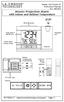 Model: WS-5220U-IT Instruction Manual DC: 082415 Atomic Projection Alarm with Indoor and Outdoor Temperature SNOOZE button Time, Alarm + WWVB Icon Projection arm Indoor Temp., Outdoor Temp. Battery Compartment
RADIO CONTROLLED DIGITAL CLOCK MODELS 88905 / 88906
 RADIO CONTROLLED DIGITAL CLOCK MODELS 88905 / 88906 QUICK SETUP GUIDE IMPORTANT! INSTALL BATTERIES IN THE OUTDOOR TRANSMITTER BEFORE INSTALLING BATTERIES IN THE RADIO-CONTROLLED CLOCK. ALKALINE BATTERIES
WEATHER STATION Instruction Manual Cat. No. 35.1115.IT
 WEATHER STATION Instruction Manual Cat. No. 35.1115.IT Thank you for choosing this wireless weather station from TFA. BEFORE YOU USE IT Please be sure to read the instruction manual carefully. This information
Solar Weather Station Model: BAR806 / BAR806A
 Solar Weather Station Model: BAR806 / BAR806A EN CONTENTS USER MANUAL Overview... 2 Front view... 2 Back view... 3 Remote sensor... 3 Getting started... 3 Solar panel... 3 Insert batteries... 4 Remote
Atomic Alarm Clock model 13131W2
 Instruction Manual Atomic Alarm Clock model 13131W2 CONTENTS Unpacking Instructions... 2 Package Contents... 2 Product Registration... 2 Features & Benefits... 3 Clock Setup... 4 Atomic Clock... 5 Set
WEATHER STATION Instruction Manual Cat. No. 35.1111.IT
 WEATHER STATION Instruction Manual Cat. No. 35.1111.IT Thank you for choosing this wireless weather station from TFA. BEFORE YOU USE IT Please be sure to read the instruction manual carefully. This information
Model: 616-146v2 Quick Setup Guide DC: 071015 Atomic Projection Alarm with Indoor and Outdoor Temperature
 Model: 616-146v2 Quick Setup Guide DC: 071015 Atomic Projection Alarm with Indoor and Outdoor Temperature Snooze/Backlight BUTTONS Time, Alarm with Snooze, & Calendar Projection Arm Rotates 180 Indoor/Outdoor
PROFESSIONAL WEATHER STATION (WIND AND AIR PRESSURE) Operation Manual
 PROFESSIONAL WEATHER STATION (WIND AND AIR PRESSURE) Operation Manual About this manual Thank you and congratulations on selecting this professional weather station! We are positive you will enjoy the
Alarm Clock USER GUIDE
 Alarm Clock USER GUIDE Jazwares, Inc. 2010 1 CONTENTS Please read the instructions along with the alarm clock carefully before you use it, so that you can operate it conveniently. WELCOME, Safety Tips
Weather Radio Alarm Clock
 1200093 User s Guide Weather Radio Alarm Clock Thank you for purchasing your Weather Radio Alarm Clock from RadioShack. Please read this user s guide before installing, setting up, and using your new weather
Digital Wireless Rain Gauge & Thermometer
 2753 Digital Wireless Rain Gauge & Thermometer Indoor/Outdoor Thermometer with Remote Rain Gauge Leading the Way in Accuracy Required: Screw Driver & 4 AAA Batteries Instruction Manual Welcome to the Taylor
4.3-inch Back-Up Camera
 TM 4.-inch Back-Up Camera Model No.: PKC0BU4 Owner s Manual and Warranty Information Read these instructions completely before using this product. Retain this Owner s Manual for future reference. INTRODUCTION
IN-OUT Thermometer with Cable Free Sensor and Clock
 IN-OUT Thermometer with Cable Free Sensor and Clock MODEL: RAR232 USER'S MANUAL INTRODUCTION Congratulations on your purchase of the RAR232 In-Out Thermometer with 433MHz cable free sensor and calendar
WS1093 PROFESSIONAL WIRELESS WEATHER STATION WITH TOUCHSCREEN AND USB UPLOAD
 PROFESSIONAL WIRELESS WEATHER STATION WITH TOUCHSCREEN AND USB UPLOAD - 1 - PROFESSIONAL WIRELESS WEATHER STATION WITH TOUCHSCREEN AND USB UPLOAD Operation Manual Thank you and congratulations on selecting
7 High-Resolution Digital Photo Frame
 TM 16-1003 User s Guide 7 High-Resolution Digital Photo Frame One demo photo included, as illustrated Please read this user s guide before using your new photo frame. Package contents Photo Frame AC Adapter
Atomic Alarm Clock Instruction Manual
 Atomic Alarm Clock Instruction Manual Introduction: Congratulations on purchasing the Atomic Alarm Clock with WWVB Radio controlled time, calendar, 12/24 hours display, time zone with US map, indoor temperature
Water Tank Level Monitor
 Water Tank Level Monitor INSTRUCTION MANUAL MODEL NO: WTL001 Table of Contents 1. INTRODUCTION... 2 1.1 Package Contents... 2 1.2 Features... 2 2. INSTALLATION... 3 2.1 Water Tank Sensor Battery Installs...
Thermometer model 00754
 Instruction Manual Thermometer model 00754 CONTENTS Unpacking Instructions... Package Contents... Product Registration... Features & Benefits: Sensor... Features & Benefits: Display... 3 Setup... 4 Sensor
Intelli-Time Alarm Clock model 13027
 Instruction Manual Intelli-Time Alarm Clock model 13027 CONTENTS Unpacking Instructions... 2 Package Contents... 2 Product Registration... 2 Features & Benefits... 3 Clock Setup... 4 Intelli-Time Clock...
WIRELESS 433 MHz WEATHER CLOCK Instruction Manual
 WIRELESS 433 MHz WEATHER CLOCK Instruction Manual INTRODUCTION: Congratulations on purchasing this fancy Weather clock with wireless 433MHz transmission of outdoor temperature and display of indoor temperature
ST815 Illumination Sensor with LCD
 ST815 Illumination Sensor with LCD The Illumination Sensor with LCD (refer to as Illumination Sensor hereafter) is a Z-Wave TM enabled device which is fully compatible with any Z-Wave TM enabled network.
Mold Alert... Operation Manual P0270
 Mold Alert... Operation Manual P0270 introduction Congratulations on your purchase of the P0270 Mold Alert! Mold is as old as the Earth and it s everywhere. Under the right set of conditions, it can actually
Weather Center model 00436/00634A1/00634A2/00634CA
 Instruction Manual Weather Center model 00436/00634A1/00634A2/00634CA CONTENTS Unpacking Instructions...2 Package Contents...2 Product Registration...2 Features & Benefits: 3-in-1...3 Features: Display
Alarm Clock USER GUIDE
 Alarm Clock USER GUIDE Jazwares, Inc. 2012 CONTENTS Please read the instructions along with the Alarm Clock carefully before you use it, so that you can operate it conveniently. WELCOME & Warnings Page
MEMO ALARM CLOCK Operating Manual
 MEMO ALARM CLOCK Operating Manual INTRODUCTION Congratulations on purchasing this state-of-the-art Alarm clock with radio controlled time. The operation of this product is simple and straightforward and
INSTALLING A/C ADAPTER
 WS 6502 INTRODUCTION 1. SNOOZE/LIGHT BUTTON 2. BASE 3. ALM SET BUTTON 4. + / C/F BUTTON 5. HISTORY BUTTON 6. MODE BUTTON 7. CHANNEL BUTTON 8. - / RCC BUTTON 9. MAX/MIN BUTTON 10. BATTERY COMPARTMENT 11.
THE NEW GENERATION IN TECHNOLOGY. NI-3103A Alarm Clock w/fm Radio ipod & iphone Docking. Operating Instructions
 THE NEW GENERATION IN TECHNOLOGY NI-3103A Alarm Clock w/fm Radio ipod & iphone Docking Operating Instructions Table of Contents Important Safeguards... 3 Parts... 6 Controls... 6 To Set Up... 7 ipod/iphone
2GB MP3 Player USER GUIDE
 DO NOT FORMAT UNIT under FAT. 2GB MP3 Player USER GUIDE Jazwares, Inc. 2010 CONTENTS Please read the instructions along with the MP3 Player carefully before you use it, so that you can operate it conveniently.
ATOMIC CLOCK WITH MOON PHASE. MODEL 86730 Instruction Manual
 ATOMIC CLOCK WITH MOON PHASE MODEL 86730 Instruction Manual FEATURES: WWVB Radio controlled time with manual time setting 12/24 hour time display Time display: hour, minute, second Alarm setting with snooze
USER MANUAL INTRODUCTION CONTENTS PACKAGING CONTENTS BASE STATION WIND SENSOR TEMPERATURE & HUMIDITY SENSOR
 EN Wireless Pro Weather Station with USB upload Model: WMR88 / WMR88A INTRODUCTION Thank you for selecting the Oregon Scientific Wireless Pro Weather Station with USB upload (WMR88 / WMR88A). The base station
Installation. Ventus Wireless Weather station. Owner s Manual
 Ventus Wireless Weather station Owner s Manual Thank you for purchasing the new generation of professional weather station. Designed and engineered with the state-of-art technology and components, this
Atomic Projection Alarm Clock model 13021
 Instruction Manual Atomic Projection Alarm Clock model 13021 CONTENTS Unpacking Instructions... 2 Package Contents... 2 Product Registration... 2 Features & Benefits... 3 Clock Setup... 5 Atomic Clock...
CABLE FREE TM WEATHER STATION
 CABLE FREE TM WEATHER STATION MODEL: WMR968 USER S MANUAL SECTION 1 INTRODUCTION Congratulations on your purchasing the WMR968 Cable Free TM Weather Station. An all-purpose easy-to-use system, the WMR968
WIRELESS WEATHER STATION Model 81690 USER'S INSTRUCTIONS
 WIRELESS WEATHER STATION Model 81690 USER'S INSTRUCTIONS The multifunctional weather station is equipped with many functions providing thorough weather information to you. The receiver unit has a clear,
2013 VTech Printed in China 91-009656-000 US
 Rechargeable Power Pack User s Manual 2013 VTech Printed in China 91-009656-000 US INTRODUCTION The Rechargeable Power Pack makes it easier than ever to keep the InnoTab 3 or InnoTab 3S charged and ready
NFC Communication Tray Model: HHX-IT3-Z
 INSTRUCTION MANUAL NFC Communication Tray Model: HHX-IT3-Z ENGLISH CONTENTS Introduction...3 Important safety information...4 Know your unit...6 Transferring data to the PC...7 Care and maintenance...8
Weather@Home Bluetooth-enabled Weather Station Model: BAR218HG. User Manual
 Weather@Home Bluetooth-enabled Weather Station Model: BAR218HG User Manual Weather@Home Bluetooth-enabled Weather Station Model: BAR218HG TABLE OF CONTENT User Manual Introduction-----------------------------------------------------------------3
WIRELESS WEATHER STATION
 WIRELESS WEATHER STATION INSTRUCTION MANUAL MODEL: WS1151 Page 1. Inventory of contents...2 2. Feature...2 3. Set up guide... 2 3.1 Battery installation... 2 3.2 Mounting... 3 4. LCD overview... 3 4.1
RS Stock No. 724-4207 Instruction Manual RS-1340 Hot Wire Anemometer
 RS Stock No. 724-4207 Instruction Manual RS-1340 Hot Wire Anemometer EN FR IT DE ES CONTENTS / EN Title CONTENTS Page 1. SAFETY INFORMATION...1 2. INTRODUCTION...2 3. SPECIFICATIONS...3 4. PARTS & CONTROLS...4
Professional Weather Center model 01010
 Instruction Manual Professional Weather Center model 01010 CONTENTS Unpacking Instructions... 2 Package Contents... 2 Product Registration... 2 Features & Benefits: 5-in-1... 3 Features: Display Unit...
Mini Power Bank and Charger
 Mini Power Bank and Charger Owner s Manual Please read before using this equipment. Your charger is ETL listed to UL standards and meets all applicable FCC standards. WARNING: To reduce the risk of fire
Touch Screen Wireless Weather Station WS-2510 Operating instructions
 Touch Screen Wireless Weather Station WS-2510 Operating instructions Contents 1. General information and functioning... 3-5 Quick overview of the display fields on the main display... 3-4 Weather station
WIRELESS 868 MHz WEATHER STATION Instruction Manual
 WIRELESS 868 MHz WEATHER STATION Instruction Manual INTRODUCTION: Congratulations on purchasing this fancy Weather Station with wireless 868MHz transmission of outdoor temperature and display of indoor
Reference Guide. Vantage PRO2 Quick
 3465 Diablo Avenue, Hayward, CA 94545-2778 U.S.A. 510-732-9229 Fax: 510-732-9188 E-mail: [email protected] www.davisnet.com Vantage PRO2 Quick Reference Guide Part Number: 07395.235 Rev C (1/6/2012) 2012
12 Volt 30 Amp Digital Solar Charge Controller
 12 Volt 30 Amp Digital Solar Charge Controller User s Manual WARNING Read carefully and understand all INSTRUCTIONS before operating. Failure to follow the safety rules and other basic safety precautions
User Manual. Humidity-Temperature Chart Recorder. Model RH520
 User Manual Humidity-Temperature Chart Recorder Model RH520 Introduction Congratulations on your purchase of the Extech RH520 Temperature + Humidity Chart Recorder. The RH520 measures and displays Temperature,
Atomic Dual Alarm Clock models 13022 / 13035
 Instruction Manual Atomic Dual Alarm Clock models 13022 / 13035 CONTENTS Unpacking Instructions... 2 Package Contents... 2 Product Registration... 2 Features & Benefits: Sensor... 2 Features & Benefits:
USB Scrolling Optical Mini Mouse
 USB Scrolling Optical Mini Mouse Owner s Manual Please read before using this equipment. ˆ Contents Features... 3 System Requirements... 4 FCC Declaration of Conformity... 5 The FCC Wants You to Know...
User Guide. Soft-Touch TM Bluetooth Laser Mouse N2953
 Soft-Touch TM Bluetooth Laser Mouse 410-XXXXXXXXXXX 1 YEAR LIMITED WARRANTY: We pride ourselves on the quality of our products. For complete warranty details and a list of our worldwide offices, please
Application and Instruction Manual Motion Activated Solar Powered LED Security Light with Camera MODEL: XP-2H38WC
 Application and Instruction Manual Motion Activated Solar Powered LED Security Light with Camera MODEL: XP-2H38WC Please do not return this item to the store. If you have any questions, please contact
User's Guide. Integrating Sound Level Datalogger. Model 407780. Introduction
 User's Guide 99 Washington Street Melrose, MA 02176 Phone 781-665-1400 Toll Free 1-800-517-8431 Visit us at www.testequipmentdepot.com Back to the Extech 407780 Product Page Integrating Sound Level Datalogger
Wireless Alarm System. Panic Button. User s Manual. Choice ALERT. Control all sensors, accessories and remote transmitters from one location
 Wireless Alarm System Panic Button User s Manual Choice ALERT Control all sensors, accessories and remote transmitters from one location Table of Contents Important Safeguards 4 Introduction 5 Activating
INSTRUCTION MANUAL PLEASE READ ALL THE INSTRUCTIONS COMPLETELY BEFORE USE AND SAVE THIS MANUAL FOR FUTURE REFERENCE
 INSTRUCTION MANUAL PLEASE READ ALL THE INSTRUCTIONS COMPLETELY BEFORE USE AND SAVE THIS MANUAL FOR FUTURE REFERENCE m Before Use Please read IMPORTANT SAFETY INSTRUCTIONS on page 10 before use. It is important
Wireless Alarm System. Window/Door Sensor. User s Manual. Choice ALERT. Control all Sensors & accessories from one location
 45131 Wireless Alarm System Window/Door Sensor User s Manual Choice ALERT Control all Sensors & accessories from one location Table of Contents Important Safeguards 4 Introduction 5 Installation 6 Assigning
REMOTE TERMOMETER TE 219 LED USER MANUAL
 INTRODUCTION REMOTE TERMOMETER TE 219 LED USER MANUAL Thank you for purchasing this unit with indoor thermometer, wireless thermometer sensor and radiocontrolled clock. This device is also equipped with
ViviCam 25 Digital Camera User s Manual
 ViviCam 25 Digital Camera User s Manual 2010 Sakar International, Inc. All rights reserved. Windows and the Windows logo are registered trademarks of Microsoft Corporation. All other trademarks are the
Get Support: www.lacrossetechnology.com/308-146
 Model: 308-146/308-146W Instruction Manual The Wireless Color Forecast Station features atomic time, weather forecast, indoor and outdoor temperature/humidity as well as heat index and dew point, on a
Wireless Mouse USER GUIDE. for Mac. www.targus.com/us/formac ONE YEAR LIMITED WARRANTY N2953
 AMW43US / 410-1514-001C N2953 www.targus.com/us/formac 2008 Manufactured or imported by Targus Group International, Inc. (for U.S. sales: 1211 North Miller Street, Anaheim, CA 92806 USA, for Australia
User manual. Your best protection against theft and loss. (Android) Made for
 User manual Made for Your best protection against theft and loss (Android) Warranty SCOPE OF THE WARRANTY Subject to legal provisions, the responsibility of SECU4 under this warranty is limited to the
Table of Contents Function Keys of Your RF Remote Control Quick Setup Guide Advanced Features Setup Troubleshooting
 Congratulations on your purchase of the AT&T U-verse TV Point Anywhere RF Remote Control. This product has been designed to provide many unique and convenient features to enhance your AT&T U-verse experience.
Wireless Alarm System. Alarm Siren. User s Manual. Choice ALERT. Control all Sensors & accessories from one location
 45136 Wireless Alarm System Alarm Siren User s Manual Low Batt On Armed ON/OFF LEARN Choice ALERT Control all Sensors & accessories from one location Table of Contents Important Safeguards 4 Introduction
Microwave Meter. Instruction Manual
 Microwave Meter 840046 Instruction Manual Microwave Meter 840046 Copyright 2009 by Sper Scientific ALL RIGHTS RESERVED Printed in the USA The contents of this manual may not be reproduced or transmitted
DAB+ / FM Tuner Model: TU-201
 DAB+ / FM Tuner Model: TU-201 Instruction Manual www.pulse-audio.co.uk 1 Safety Information The lightning bolt within a triangle is intended to alert the user to the presence of dangerous voltage levels
Conserve Insight Energy Use Monitor. User Guide
 Conserve Insight Energy Use Monitor User Guide Find out how much energy your devices really use including watts, the cost of operation, and the amount of carbon dioxide (CO 2 ) produced in generating the
Automatic Wrist Blood Pressure Monitor with
 Instruction Manual Automatic Wrist Blood Pressure Monitor with Model HEM-609 ENGLISH ESPAÑOL CONTENTS Before Using the Monitor Introduction...................................... 3 Important Safety Notes.............................
WPR400 Wireless Portable Reader
 P516-098 WPR400 Wireless Portable Reader User guide Para el idioma español, navegue hacia www.schlage.com/support. Pour la portion française, veuillez consulter le site www.schlage.com/support. Contents
MAKING MODERN LIVING POSSIBLE. living connect. Installation and User Guide. Danfoss Heating Solutions
 MAKING MODERN LIVING POSSIBLE living connect Installation and User Guide Danfoss Heating Solutions 2 living connect Thank you for buying a Danfoss product Danfoss Heating Solutions 3 Contents 1. System
DELORME. Getting Started with. Earthmate GPS BT-20. Bluetooth
 DELORME Getting Started with GPS BT-20 Bluetooth Earthmate Table of Contents Overview... 2 Hardware Features... 2 Using the Earthmate GPS BT-20... 3 Charging the Battery... 4 Troubleshooting... 4 Hardware
AVerMedia AVerKey imicro User s Manual
 FCC NOTICE This device has been tested and found to comply with the limits for a Class B digital device, pursuant to Part 15 of the FCC Rules. These limits are designed to provide reasonable protection
Business Audio System: Music & Messaging MP3 Player. by Grace Digital Audio. User Guide. Model No. GDI-USBM10
 Business Audio System: Music & Messaging MP3 Player by Grace Digital Audio User Guide Model No. GDI-USBM10 User Guide Contents Introduction 2 Safety & General Use Information 2 Features 3 Set Up & Operation
Contents. Product Code -------------------------------------------------------15. Page 1
 Contents Important Safety Instructions -------------------------------------2 BT HP01 --------------------------------------------------------------4 BT HP01 Anatomy ---------------------------------------------------5
Indoor/Outdoor Color Camera with Built-in 2.4 GHz Wireless Transmitter, plus X10 controlled power supply, and Video Receiver.
 Indoor/Outdoor Color Camera with Built-in 2.4 GHz Wireless Transmitter, plus X10 controlled power supply, and Video Receiver. OWNER'S MANUAL VR36A XC18A XM13A MODEL VK69A (INCLUDES XC18A CAMERA, XM13A
User Guide Microsoft Screen Sharing for Lumia Phones (HD-10)
 User Guide Microsoft Screen Sharing for Lumia Phones (HD-10) Issue 1.1 EN-US User Guide Microsoft Screen Sharing for Lumia Phones (HD-10) Contents Safety 3 About your accessory 4 Keys and parts 5 Connect
T0118 T2118 T3118. Instruction Manual
 Programmable indoor transmitter of temperature T0118 Programmable indoor transmitter of atmospheric pressure T2118 Programmable indoor transmitter of temperature, relative humidity and other derived humidity
Time. Choose a location 6 feet or more from electronics such as cordless phones, wireless gaming systems, televisions,
 Model: 404-1220 Instruction Manual DC: 050614 20 Atomic Wall Clock Mountain Central DST Indicator Pacific Eastern Manual Set Button Battery Compartment 1- C Alkaline Get Started Step 1: Insert 1 fresh
ITC-BTTN Cellular Bluetooth Gateway. Owner s Manual 1
 ITC-BTTN Cellular Bluetooth Gateway Owner s Manual 1 2 Table of Contents Introduction...3 Package Contents...3 XLink Connections Diagram...4 Setup...5 Pairing your Bluetooth Cell Phone to the XLink...6
Key. ➍ Micro USB Port ➎ Operating System Toggle Keys ➏ Foam Screen Protectors. ➊ On/Off switch ➋ Bluetooth Connect Button (flashes when searching)
 INSTRUCTION MANUAL ➏ ➋ ➊ Product Features ➎ ➍ ➌ Built-in wireless Bluetooth 3.0 keyboard Compatible across ios, Android, and Windows, enabling you to mix and match with devices Ultra-thin, lightweight
06MAR THU 12:38.28. User Manual
 06MAR THU 12:38.28 88.2% 28.0C User Manual 1.0 General Guide Thank you for purchasing your new ADC. We recommend reading this manual, and practicing the operations before using your ADC in the field. The
Wireless Home Security Alarm System AM 500
 Wireless Home Security Alarm System AM 500 12 MONTH GUARANTEE Installation & Operating Instructions INTRODUCTION The AM500 is a simple self-contained alarm system. It protects the home by sounding a siren
user s manual Battery Case model #: SPB3200 Battery Case Charger for Samsung Galaxy S 4
 user s manual model #: SPB3200 Charger for Samsung Galaxy S 4 What s Included Unpack the battery case and make sure all accessories are put aside so they will not be lost. hello. USB to Micro USB Cable
AN500T, AN1000, AN1000T, AN1500, AN1500T AN2000, AN2000T
 Product Instruction Manual Accona AN500T, AN1000, AN1000T, AN1500, AN1500T AN2000, AN2000T Panel heater v16.5/5 Version 3.2 Jan 2015 Contents 1. Important safety points 2. Installation 2.1. Wall mounting
Conference Phone UserÕs Manual. Part No. 54-2070-01R1 Printed in Korea. 2002 Bogen Communications, Inc.
 Part No. 54-2070-01R1 Printed in Korea. 2002 Bogen Communications, Inc. UserÕs Manual Notice Every effort was made to ensure that the information in this guide was complete and accurate at the time of
Wireless Home Security System Product Manual (Model #80355)
 Wireless Home Security System Product Manual (Model #80355) Installation Instructions During set-up, if no key is pressed for 15 seconds it will come out of the setup mode and you will have to start over.