
Network Camera. Installation Manual V UD.6L0201A1008A01. Hangzhou Hikvision Digital Technology Co., Ltd.
|
|
|
- Margaret Stewart
- 9 years ago
- Views:
Transcription
1 Network Camera Installation Manual V5.0 Hangzhou Hikvision Digital Technology Co., Ltd. UD.6L0201A1008A01

2 Installation Manual of Network Camera 1 Thank you for purchasing our product. If there are any questions, or requests, please do not hesitate to contact the dealer. There is variety of structures of network cameras in our company. Installing instructions of all these cameras are listed in this manual. Find the model of your camera in the following list. Then according to the structure Type on the left of your camera Model, you can find corresponding chapter for instructions of your camera. Type Box camera I Dome camera I Dome camera II Dome camera III Dome camera IV Dome Camera V Dome Camera VI Bullet Camera I Bullet Camera II Bullet Camera III Bullet Camera IV Bullet Camera V Cube Camera I Cube Camera II Mini Dome Camera Model DS-2CD883F-E(W), DS-2CD855(F)-E, DS-2CD854F(WD)-E(W), DS-2CD853F-E(W), DS-2CD864F(WD)-E(W), DS-2CD863PF(NF)-E(W), DS-2CD893PFWD(NFWD)-E(W), DS-2CD833F-E(W), DS-2CD893PF(NF)-E(W) DS-2CD733F-E(I)(Z), DS-2CD793PF(NF)-E(I)(Z), DS-2CD793PFWD(NFWD)-E(I)(Z), DS-2CD763PF(NF)-E(I)(Z), DS-2CD764FWD-E(I)(Z), DS-2CD764F-E(I)(Z), DS-2CD753F-E(I)(Z), DS-2CD754F-E(I)(Z), DS-2CD754FWD-E(I)(Z)(B), DS-2CD783F-E(I)(Z), DS-2CD755F-E(I)(Z) DS-2CD7233F-E(I)Z(H)(S), DS-2CD7253F-E(I)Z(H)(S), DS-CD7254F-E(I)Z(H)(S), DS-CD7254FWD- E(I)Z(H)(S), DS-2CD7255F- E(I)Z(H)(S), DS-2CD7283F-E(I)Z(H)(S), DS-2CD7293PFWD(NFWD)- E(I)Z(H)(S), DS-2CD7263NF(PF)- E(I)Z(H)(S), DS-2CD 7264FWD- E(I)Z(H)(S), DS-2CD7293PF(NF)- E(I)Z(H)(S) DS-2CD2312-I5, DS-2CD2332-I5 DS-2CD2112-(I), DS-2CD2132-(I) DS-2CD7353F-E(I)(S), DS-2CD7393(PF)(NF)(WD)-E(I)(S) DS-2CD2712F-I(S); DS-2CD2732F-I(S) DS-2CD8253F- E(I)(Z)(S), DS-2CD8233F-E(I)(Z)(S), DS-2CD8264FWD-E(I)(Z)(S), DS-2CD8264F-E(I)(Z)(S), DS-2CD8254F- E(I)(Z)(S), DS-2CD8254FWD- E(I)(Z)(S), DS-2CD8283F- E(I)(Z)(S), DS-2CD8255F- E(I)(Z)(S), DS-2CD4212F-IS, DS-2CD4212F-IZS, DS-2CD4212F-I, DS-2CD4212F, DS-2CD4224-IZS, DS-2CD4224F-I DS-2CD864-EI(3)(5), DS-2CD855-EI(3)(5) DS-2CD2012-I, DS-2CD2032-I DS-2CD2212-I(3)(5), DS-2CD2232-I(3)(5), DS-2CD2612F-I(S), DS-2CD2632F-I(S) DS-2CD8133F-E(I)(W), DS-2CD8153F-E(I)(W) DS-2CD8464F-E(I)(W), DS-2CD8433F-E(I)(W) DS-2CD7164-E,DS-2CD7153-E, DS-2CD7133-E

3 Installation Manual of Network Camera 2 This manual may contain several technical incorrect places or printing errors, and the content is subject to change without notice. The updates will be added to the new version of this manual. We will readily improve or update the products or procedures described in the manual. DISCLAIMER STATEMENT Underwriters Laboratories Inc. ( UL ) has not tested the performance or reliability of the security or signaling aspects of this product. UL has only tested for fire, shock or casualty hazards as outlined in UL s Standard(s) for Safety, UL UL Certification does not cover the performance or reliability of the security or signaling aspects of this product. UL MAKES NO REPRESENTATIONS, WARRANTIES OR CERTIFICATIONS WHATSOEVER REGARDING THE PERFORMANCE OR RELIABILITY OF ANY SECURITY OR SIGNALING RELATED FUNCTIONS OF THIS PRODUCT.

4 Installation Manual of Network Camera 3 Safety Instruction These instructions are intended to ensure that the user can use the product correctly to avoid danger or property loss. The precaution measure is divided into Warnings and Cautions : Warnings: Serious injury or death may be caused if any of these warnings are neglected. Cautions: Injury or equipment damage may be caused if any of these cautions are neglected. Warnings Follow these safeguards to prevent serious injury or death. Cautions Follow these precautions to prevent potential injury or material damage. Warnings: Please adopt the power adapter which can meet the safety extra low voltage (SELV) standard. And source with DC 12V or AC 24V (depending on models) according to the IEC and Limited Power Source standard. If the product does not work properly, please contact your dealer or the nearest service center. Never attempt to disassemble the camera yourself. (We shall not assume any responsibility for problems caused by unauthorized repair or maintenance.) To reduce the risk of fire or electrical shock, do not expose this product to rain or moisture. This installation should be made by a qualified service person and should conform to all the local codes. Please install blackouts equipment into the power supply circuit for convenient supply interruption. Please make sure that the ceiling can support more than 50(N) Newton gravities if the camera is fixed to the ceiling. If the product does not work properly, please contact your dealer or the nearest service center. Never attempt to disassemble the camera yourself. (We shall not assume any responsibility for problems caused by unauthorized repair or maintenance.)

5 Installation Manual of Network Camera 4 Notice: Make sure the power supply voltage is correct before using the camera. Do not drop the camera or subject it to physical shock. Do not touch sensor modules with fingers. If cleaning is necessary, use a clean cloth with a bit of ethanol and wipe it gently. If the camera will not be used for an extended period of time, put on the lens cap to protect the sensor from dirt. Do not aim the camera lens at the strong light such as sun or incandescent lamp. The strong light can cause fatal damage to the camera. The sensor may be burned out by a laser beam, so when any laser equipment is being used, make sure that the surface of the sensor not be exposed to the laser beam. Do not place the camera in extremely hot, cold temperatures (the operating temperature should be between -10 C ~ 60 C), dusty or damp environment, and do not expose it to high electromagnetic radiation. To avoid heat accumulation, good ventilation is required for a proper operating environment. Keep out of water and any liquid. While shipping, the camera should be packed in its original packing. Improper use or replacement of the battery may result in hazard of explosion. Please use the manufacturer recommended battery type.

6 Installation Manual of Network Camera 5 Table of Contents CHAPTER 1 INTRODUCTION APPLICATIONS PREPARATIONS... 1 CHAPTER 2 BOX CAMERA INSTALLATION APPEARANCE DESCRIPTION Box Camera I INSTALLATION Lens Installation Wiring Mounting... 5 CHAPTER 3 DOME CAMERA INSTALLATION DOME CAMERA I Appearance Description Installation DOME CAMERA II Appearance Description Installation DOME CAMERA III Overview Installation DOME CAMERA IV Overview Installation DOME CAMERA V Overview Installation DOME CAMERA VI Overview Installation IMAGE AND FOCUS ADJUSTING CHAPTER 4 BULLET CAMERA INSTALLATION BULLET CAMERA I Appearance Description Installation BULLET CAMERA II Appearance Description Installation BULLET CAMERA III Appearance Description... 63

7 Installation Manual of Network Camera Installation BULLET CAMERA IV Appearance Installation BULLET CAMERA V Appearance Installation CHAPTER 5 CUBE CAMERA INSTALLATION CUBE CAMERA I Appearance Description Installation CUBE CAMERA II Appearance Description Installation CHAPTER 6 MINI DOME CAMERA INSTALLATION APPEARANCE DESCRIPTION INSTALLATION... 85

8 Installation Manual of Network Camera 1 Chapter 1 Introduction The network camera is a kind of embedded digital surveillance product that combines the features of both traditional analog camera and net DVS (Digital Video Server). With a built-in video server, the network camera is capable of providing real-time video stream compression, processing, video analysis and transmission simultaneously. Applying the latest processing chip and hardware platform, the network camera can be widely applied to various surveillance and image processing systems with high reliability and stability. 1.1 Applications This camera can be adopted for network video surveillance systems, e.g.: Network surveillance for over-the-counter activities in the banks, ATMs, supermarkets and factories. Remote surveillance systems for nursing homes, kindergartens and schools. Artificial Intelligent access control systems. Artificial Intelligent office building/residential compounds management systems. Unguarded power station and telecommunication base station surveillance systems. Pipelining and warehousing monitoring systems. Surveillance systems for airports, railway stations, bus stops, etc. 1.2 Preparations Before you start: Verify the package contents are correct by checking the items against the packing list. Read the following contents carefully before installation. Make sure that all the related equipment is power-off during installation. Check whether the power supply is matched with your AC outlet to avoid damage. Do not place the camera in extremely hot or damp environment. To avoid heat accumulation, good ventilation of the operating environment is required. If the product does not function properly, please contact your dealer or the nearest service center. Do not disassemble the camera for repair or maintenance by yourself.

9 Installation Manual of Network Camera 2 Chapter 2 Box Camera Installation 2.1 Appearance Description Box Camera I Camera description: Figure 2-1 Overview Table 2-1 Description No. Description 1 Lens mount 2 Back focus ring 3 SD card slot 4 Auto-iris interface 5 10M/100M self-adaptive Ethernet interface 6 VIDEO OUT: Video output interface 7 AUDIO OUT: Audio output interface 8 POWER: Power LED indicator 9 Power supply interface 10 MIC IN: Audio input interface 11 D+, D-: RS-485 interface 12 IN, G: Alarm input interface 13 1A, 1B: Alarm output interface 14 Ground 15 RESET: Reset button

10 Installation Manual of Network Camera 3 Notes: To reset the default parameters to the camera, you need to press and hold the RESET button and power on the camera. After the power on of the camera, you must still press and hold the Reset button for about 20 seconds. The type of auto-iris interface is shown in Figure 2-2, and the definition of each pin is shown below: Figure 2-2 Auto-iris Interface Table 2-2 Pins DC-driven 1 Damp- 2 Damp+ 3 Drive+ 4 Drive- Damp+, Damp-, Drive+ and Drive- pins are used when the auto-iris is driven by DC. Camera wiring Diagram:

11 Installation Manual of Network Camera 4 Figure 2-3 Wiring Diagram 2.2 Installation Box camera I, II, III can be installed to wall or ceiling. Ceiling mounting is taken as an example in this section; if you adopt wall mounting, you can also take the below procedure as a reference Lens Installation Steps: 1. Remove the back cover from the lens mount. 2. Screw your lens (not provided) clockwise onto the lens mount of the camera. Note: Please prevent dust from entering between the lens mount and the lens. Figure 2-4 Install the Lens 3. Plug the cable of the lens to the 4-pin auto-iris interface on the side of the camera Wiring You can take the connection diagram of Figure 2-3 as a reference for connecting peripheral devices: Connecting the power supply The cameras operate using a DC 12V power supply. You can simply plug the DC 12V wire to the supplied connector. Connecting a video output device The camera with no HDMI interface provides a BNC connector of video output for debugging. Connecting audio input/output devices You can connect an audio input device, such as a pickup, and an audio output device such as a speaker to the camera. Connecting alarms It provides an alarm input and an output. You can connect alarm input and output devices with relay controlled circuits to the camera. Connecting a remote control device RS-485 ports (D+, D-) are used for connecting to remote control devices, such as DVRs and

12 Installation Manual of Network Camera 5 keyboards. Grounding The ground screw can be connected for grounding Mounting Before you start: These box cameras can be installed to wall or ceiling. Wall mounting is taken as an example in this section; if you adopt ceiling mounting, you can also take below procedure as a reference. Steps: 1. Attach the wall mount (not provided) to the wall and tighten the screws to fix it. Notes: The wall mount should be longer than 1/2 of the camera length. For cement ceiling mounting, you need to use the expansion screw to fix the bracket. The mounting hole of the expansion pipe on the wall should align with the mounting hole on the bracket. For wooden ceiling mounting, you can just use the self-tapping screw to fix the bracket. The ceiling must be strong enough to withstand more than 3 times the weight of the camera and the bracket. Figure 2-5 Install the Wall Mount 2. Secure the camera to the wall mount with set screws. 3. Route the cables for the camera. Refer to the Section Wiring for detailed information. Figure 2-6 Route Cables

13 Installation Manual of Network Camera 6 Figure 2-7 Mount the Camera Note: This camera is designed for indoor and outdoor use. To use the camera outdoors, it must be installed in an approved outdoor housing as shown in Figure 2-8. Figure 2-8 Wall Mounting with the Housing 4. Loosen the panning lock screw, you can adjust the panning angle of the camera up to 360 (Figure 2-9); Loosen the tilting lock screw, you can adjust the tilting angle of the camera up to 90 (Figure 2-10). Figure 2-9 Panning

14 Installation Manual of Network Camera 7 Figure 2-10 Tilting

15 Installation Manual of Network Camera 8 Chapter 3 Dome Camera Installation 3.1 Dome Camera I Appearance Description Camera description: Figure 3-1 Overview Table 3-1 Description No. Description 1 10M/100M self-adaptive Ethernet interface 2 INITIAL SET: Reset button 3 AUDIO OUT: Audio output interface 4 MIC IN: Audio input interface 5 D+, D-: RS-485 interface 6 1A, 1B, 2A, 2B: Alarm output interface 7 IN1, GND, IN2, GND: Alarm input interface 8 Power supply interface Note: To reset the default parameters to the camera, you need to press and hold the RESET button and power on the camera. After the power on of the camera, you must still press and hold the Reset button for about 20 seconds Camera wiring Diagram:

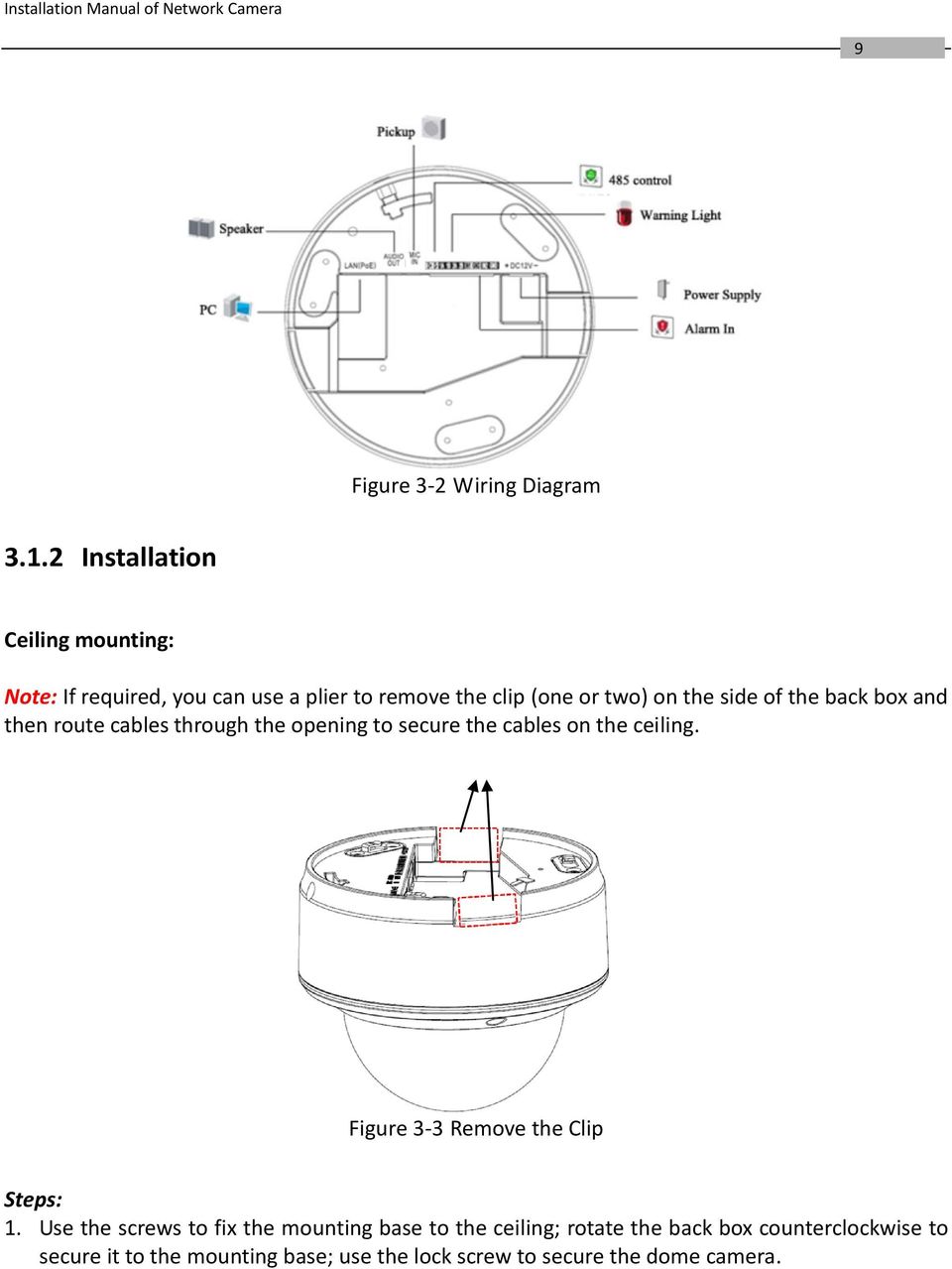
16 Installation Manual of Network Camera 9 Figure 3-2 Wiring Diagram Installation Ceiling mounting: Note: If required, you can use a plier to remove the clip (one or two) on the side of the back box and then route cables through the opening to secure the cables on the ceiling. Figure 3-3 Remove the Clip Steps: 1. Use the screws to fix the mounting base to the ceiling; rotate the back box counterclockwise to secure it to the mounting base; use the lock screw to secure the dome camera.
17 Installation Manual of Network Camera 10 Figure 3-4 Mount the Camera 2. Loosen the set screws with the hex key (supplied) to remove the lower dome. Figure 3-5 Remove the Lower Dome 3. Connect the RCA analog video output with a monitor to view the image of the camera. Loosen the lens set screw and pan, tilt or rotate the lens to get a desired surveillance angle. Adjust the lens focus to obtain a perfect image. Fasten the lens set screw. Figure 3-6 Adjust the image

18 Installation Manual of Network Camera Reinstall the lower dome and tighten the screws. Figure 3-7 Reinstall the Lower Dome In-ceiling mounting: Steps: 1. Secure the mounting base to the in-ceiling mounting base with screws. Figure 3-8 Secure the Mounting Base 2. Push the dome camera to the in-ceiling mounting base, rotate the dome camera for 10 degrees counterclockwise and then fasten the lock screws to fix the camera.

19 Installation Manual of Network Camera 12 Figure 3-9 Fix the Camera 3. Cut a 176~180 mm diameter hole in the ceiling and push the dome camera with in-ceiling mounting base to the hole. Note: The thickness of the ceiling should be less than 30 mm. Figure 3-10 Mount the Camera 4. It is strongly recommended that you use a safety rope to secure the in-ceiling mounting base to the roof.

20 Installation Manual of Network Camera 13 Figure 3-11 Safety rope 5. Fasten the lock screws to secure the dome camera. Figure 3-12 Secure the Camera 6. Remove the lower dome and connect the RCA analog video output with a monitor to view the image of the camera. Loosen the lens set screw and pan, tilt or rotate the lens to get a desired surveillance angle. Adjust the lens focus to obtain a perfect image. Fasten the lens set screw. Figure 3-13 Adjust the Image 7. Install the trim plate with screws to finish the installation.

21 Installation Manual of Network Camera 14 Figure 3-14 Reinstall the Lower Dome 3.2 Dome Camera II Appearance Description Camera description:
22 Installation Manual of Network Camera 15 Figure 3-15 Overview Table 3-2 Description No. Description 1 Video output interface 2 LINK: Indicator is solid yellow when network is connected. 3 ACT: Indicator flashes blue when network connection is functioning properly. 4 PWR: Indicator is solid red when the device is powered on. 5 Micro SD slot 6 RESET: Reset button 7 10M/100M self-adaptive Ethernet interface 8 Power supply interface 9 Extended interface Notes: The extended interface can be connected to alarm input/output interface, audio input/output interface, RS-485 interface, etc. To reset the default parameters to the camera, you need to press and hold the RESET button and power on the camera. After the power on of the camera, you must still press and hold the Reset button for about 20 seconds Camera wiring Diagram: Figure 3-16 Wiring Diagram Installation Ceiling mounting: Steps: 1. Drill the screw holes on the ceiling with the supplied drilling template. If you need to route the cables from the bottom of the camera, cut a cable hole in the ceiling.
23 Installation Manual of Network Camera 16 Figure 3-17 Drill Template 2. Secure the back box to the ceiling with screws. Figure 3-18 Mount the Back Box 3. Loosen the set screws with the hex key (supplied) to remove the lower dome; remove the dome liner.
24 Installation Manual of Network Camera 17 Figure 3-19 Remove the Lower Dome 4. Install the dome module to the back box and pull the cables through the cable outlet on the bottom of the back box. Figure 3-20 Mount the Camera Note: If you need to pull the cable through the cable outlet from the side of the camera, please remove the cover and use water-proof joints and water-proof pipe to route the cables.
25 Installation Manual of Network Camera 18 Figure 3-21 Route Cable through Side Outlet 5. After connecting the network cable and power cable, view the image of the camera over the network. Loosen the lock screws; adjust the panning position and tilting position and rotate the lens to get the desired surveillance angle; fasten the lock screws. Figure 3-22 Adjust Image 6. Reinstall the dome liner and lower dome to finish the installation.
26 Installation Manual of Network Camera 19 Figure 3-23 Reinstall the Lower Dome In-ceiling mounting: Steps: 1. Drill the screw holes on the ceiling with the supplied drilling template. Figure 3-24 Drill Screw Holes 2. Cut the mounting holes on the ceiling with the supplied drilling template.
27 Installation Manual of Network Camera 20 Figure 3-25 Cut Mounting Hole 3. Loosen the set screws with the hex key (supplied) to remove the lower dome; remove the dome liner. Figure 3-26 Remove the Lower Dome 4. Rotate the toggle to remove it from the toggle bolt; insert the bolt into the toggle bolt hole on the dome module and use the screw driver to rotate the bolt slightly but not tightly; Reinstall the toggle and push the dome module to the mounting hole on the ceiling with toggle bolts aligned with the screw holes on the ceiling.
28 Installation Manual of Network Camera 21 Figure 3-27 Mount the Camera 5. Fasten the toggle bolt and the toggle will automatically secure the dome module to the ceiling. Figure 3-28 Fasten the Bolts 6. After connecting the network cable and power cable, view the image of the camera over the network. Loosen the lock screws; adjust the panning position and tilting position and rotate the lens to get the desired surveillance angle; fasten the lock screws.
29 Installation Manual of Network Camera 22 Figure 3-29 Adjust Image 7. Reinstall the dome liner and lower dome to finish the installation.
30 Installation Manual of Network Camera 23 Figure 3-30 Reinstall Wall mounting: Steps: 1. Drill the screw holes on the wall with the supplied drilling template. If you need to route the cables from the bottom of the camera, cut a cable hole in the wall. Figure 3-31 Drill Template 2. Secure the back box to the wall with screws. Note: Position the side cable outlet directly below to prevent moisture from getting inside the camera.
31 Installation Manual of Network Camera 24 Figure 3-32 Secure the Back Box 3. Loosen the set screws with the hex key (supplied) to remove the lower dome; remove the dome liner. Figure 3-33 Remove the Lower Dome 4. Install the dome module to the back box and pull the cables through the cable outlet on the bottom of the back box. Note: If you need to pull the cable through the cable outlet from the side of the camera, please remove the cover and use water-proof joints and water-proof pipe to route the cables.
32 Installation Manual of Network Camera 25 Figure 3-34 Route Cable through Side Outlet 5. After connecting the network cable and power cable, view the image of the camera over the network. Loosen the lock screws; adjust the panning position and tilting position and rotate the lens to get the desired surveillance angle; fasten the lock screws.
33 Installation Manual of Network Camera 26 Figure 3-35 Adjust Image 6. Reinstall the dome liner and lower dome to finish the installation. Outdoor mounting: You can use DS-1242ZJ or DS-1243ZJ for outdoor mounting. DS-1242ZJ DS-1243ZJ Steps: 1. Remove the front panel and secure the bracket to the wall or ceiling. 2. Loosen the set screws with the hex key (supplied) to remove the lower dome; remove the dome liner. Figure 3-36 Remove the Lower Dome 3. Rotate the toggle to remove it from the toggle bolt; insert the bolt into the toggle bolt hole on the dome module and use the screw driver to rotate the bolt slightly but not tightly; Reinstall the toggle and push the dome module to the mounting hole on the bracket with toggle bolts aligned with the screw holes on the bracket.
34 Installation Manual of Network Camera 27 Figure 3-37 Secure the Camera 4. Fasten the toggle bolt and the toggle will automatically secure the dome module to the bracket. 5. After connecting the network cable and power cable, view the image of the camera over the network. Loosen the lock screws; adjust the panning position and tilting position and rotate the lens to get the desired surveillance angle; fasten the lock screws.
35 Installation Manual of Network Camera Reinstall the dome liner and lower dome. Figure 3-38 Adjust Image Figure 3-39 Reinstall the Lower Dome 7. Reinstall the front panel to finish the installation.
36 Installation Manual of Network Camera 29 Figure 3-40 Reinstall the Front Panel 3.3 Dome Camera III Overview Figure 3-41 Product Structure Diagram Table 1-1 Description NO. Name Description 1 10M/100M self-adaptive Ethernet interface Connect to the network; PoE 2 Power Cable Connect to the 12V DC 3 Trim Ring Protect the camera 4 Camera Collect and read the image signals
37 Installation Manual of Network Camera 30 Note: Please make sure that the power adapter is compatible with the camera. This series of camera supports Power over Ethernet (PoE), and the standard power supply is 12V DC.
38 Installation Manual of Network Camera Installation Before you start, please verify the package contents are correct by checking the items against the packing list, and make sure all the components are included. Wall mounting is preferred. We will take wall mounting as an example to explain the installation steps in this section. Note: Please make sure that the wall is strong enough to withstand three times the weight of the camera. Steps: 1. Dissembling the Trim Ring Rotate the trim ring counterclockwise to remove it from the camera. Figure 3-42 Dissembling the Trim Ring 2. Drill the Holes 1) Attach the supplied drill template to the position where you want to fix the camera. 2) Drill the screw holes and the cable hole on the ceiling according to the drill template. Figure 3-43 The Drill Template
39 Installation Manual of Network Camera 32 There are two cable outlet methods. One is to route the cables through the cable hole, and the other is to route the cables through the side outlet shown below. Figure 3-44 Side Outlet Note: Three side outlets on the enclosure are selectable, which makes routing the cables easier instead of drilling a cable hole on the ceiling. Use a plier to remove the plastic and route the cables through the hole. 3. Install the Camera 1). Connect the corresponding power/video cables. 2). Insert the supplied screws to the screw holes. 3). Tighten the screws to secure the camera to the ceiling. Figure 3-45 Secure the Camera to the Ceiling 4. Adjust the Lens 1). Loosen the lock screw. 2). Rotate the enclosure to adjust the pan angle; rotate the camera to adjust the tilt angle. 3). Tighten the lock screw to clamp the lens.
40 Installation Manual of Network Camera 33 Figure 3-46 Lock Screw Figure 3-47 Adjust the Lens 5. Install the Trim Ring 1). Attach the trim ring to the camera. 2). Rotate the trim ring clockwise to secure it to the camera.
41 Installation Manual of Network Camera 34 Figure 3-48 Install the Trim Ring Figure 3-49 Complete the Installation 3.4 Dome Camera IV
42 Installation Manual of Network Camera Overview Figure 3-50 Overview Table 3-3 Physical Description No. Description 1 Mounting base 2 Horizontal stand 3 Vertical stand 4 Lower dome 5 Cables 6 Plate of infrared lamp 7 Lens 8 Black Liner 9 Safety rope Installation Notes: Read the following contents carefully before the installation. Check the specification of the products for the installation environment. Make sure that all the related equipment is power-off during the installation. Check whether the power supply is matched with your AC outlet to avoid any damage.
43 Installation Manual of Network Camera 36 Do not place the camera in extremely hot or damp environment. To avoid heat accumulation, good ventilation is required for a proper operating environment. If the product does not function properly, please contact your dealer or the nearest service center. Do not disassemble the camera for repair or maintenance by yourself. Ceiling mounting is recommended for this camera. Note: The ceiling must be thick enough to withstand more than three times the weight of the camera. Steps: 1. Drill the screw holes on the ceiling with the supplied drilling template. If you need to route the cables from the bottom of the camera, cut a cable hole in the ceiling. Hole Ceiling Mounting Hole Hole Figure 3-51 Drill Template 2. Loosen the set screws with a hex key (supplied) to remove the lower dome. Figure 3-52 Remove the Lower Dome
44 Installation Manual of Network Camera Fix the mounting base on the ceiling with screws. Figure 3-53 Fix the Mounting Base Note: If required, you can route cables through the side opening on the side of the mounting base. Figure 3-54 Side Opening 4. Loosen the tilt lock screws, adjust the tilting position in a range of 65 degrees, and tighten the tilt lock screws. Rotate the black liner to adjust the panning position in a range of 360 degrees until getting the desired surveillance angle. Figure 3-55 Angle Adjusting Note: As the lens of camera has already been factory adjusted to the best imaging effect, you just need to adjust the panning position and tilting position to get the desired surveillance angle. 5. Reinstall the lower dome and tighten the screws.
45 Installation Manual of Network Camera 38 Figure 3-56 Reinstalling 3.5 Dome Camera V Overview Figure 3-57 Overview Table 1-2 Physical Description No. Description 1 Ceiling mount 2 Lock button 3 Mounting base 4 SD card slot No. Description 5 Lens
46 Installation Manual of Network Camera 39 6 Infrared lamp 7 Lower dome 8 Status indicator 9 RCA analog video output 10 Debug 11 Reset Note: After the power-on of the camera, pressing and holding the RESET button for about 10 seconds can reset all the parameters to the default settings Installation Notes: Read the following contents carefully before the installation. Check the specification of the products for the installation environment. Make sure that all the related equipment is power-off during the installation. Check whether the power supply is matched with your AC outlet to avoid any damage. Do not place the camera in extremely hot or damp environment. To avoid heat accumulation, good ventilation is required for a proper operating environment. If the product does not function properly, please contact your dealer or the nearest service center. Do not disassemble the camera for repair or maintenance by yourself. Ceiling mounting is recommended for this camera. Note: The ceiling must be thick enough to withstand more than three times the weight of the camera. Steps: 1. Drill the screw holes on the ceiling with the supplied drilling template. If you need to route the cables from the bottom of the camera, cut a cable hole on the ceiling. Figure 3-58 Drill Template 2. Fix the ceiling mount on the ceiling with screws.
47 Installation Manual of Network Camera 40 Figure 3-59 Fix the Ceiling Mount 3. Route the cables through the cable hole on the ceiling. Note: If required, you can rotate to remove the side cover on the mounting base and route the cables through the side outlet. Figure 3-60 Side Cover 4. Insert the three screws on the mounting base into the corresponding holes on the ceiling mount. Rotate the mounting base clockwise to secure the dome camera to the ceiling mount. Hole Screw Lock Button
48 Installation Manual of Network Camera 41 Figure 3-61 Install the Dome Camera Note: To uninstall the dome camera, press the lock screw and rotate the mounting base counterclockwise. A A 3:1 Figure 3-62 Uninstall the Dome Camera 5. Loosen the set screws with a hex key (supplied) to remove the lower dome. Figure 3-63 Remove the Lower Dome 6. Connect the RCA analog video output with a monitor to view the image of the camera. Loosen the set screw and adjust the panning position and tilting position until get the desired surveillance angle. Loosen the zoom puller and focus puller and adjust the lens focus to obtain a perfect image. RCA Analog Video Output for Test Zoom Puller Focus Puller Set Screw Figure 3-64 Image Adjusting

49 Installation Manual of Network Camera Reinstall the lower dome and tighten the screws. Figure 3-65 Reinstallation 3.6 Dome Camera VI Overview Figure 3-66 Reinstallation
50 Installation Manual of Network Camera 43 Notes: Table 1-3 Overview No. Description 1 Lower Dome 2 Black Liner 3 Reset Button 4 AUX Video Output Interface 5 Serial Port 6 Power interface 7 Ethernet interface 8 Mounting Base 9 Lens To reset the default parameters to the camera, you need to press and hold the reset button and power on the camera. After the power on the camera, you must still press and hold the reset button for about 10 seconds. The DS-2CD2712F-IS and DS-2CD2732F-IS models support audio and alarm functions. The interfaces are shown as follows. Audio and Alarm Interfaces Figure 3-67 Audio and Alarm Interface Installation Before mounting, please make sure that the device in the package is in good condition and all the assembly parts are included. Notes: Please make sure that the device in the package is in good condition and all the assembly parts are included.
51 Installation Manual of Network Camera 44 Check the specification of the products for the installation environment. Make sure that all the related equipment is power-off during the installation. Check whether the power supply is matched with your AC outlet to avoid any damage. If the product does not function properly, please contact your dealer or the nearest service center. Do not disassemble the camera for repair or maintenance by yourself. Please make sure that the wall is strong enough to withstand three times the weight of the camera. Disassembling Steps: 1. Loosen the three screws on the edge of the lower dome with screw driver. 2. Open the lower dome and remove the inner black liner as shown in Figure Black Liner Screws Lower Dome Figure 3-68 Remove the Lower Dome and Black Liner Mounting Ceiling mounting Steps: 1. Disassemble the camera. Refer to the section Attach the drill template (supplied) to the place where you want to fix the camera. 3. According to the drill template drill three screw holes in the ceiling.
52 Installation Manual of Network Camera 45 Cable Hole Drill Template Figure 3-69 The Drill Template Screw Hole 4. If you want to route the cables inside the ceiling, drill a cable hole in the ceiling according to the drill template. Skip this step, if you want to route the cables on the surface of the ceiling. Refer to Conduit Installation on the Side for side cable routing. 5. Attach the camera to the ceiling by aligning the holes of the back box with the holes on the ceiling. 6. Secure the camera with the supplied screws as shown in the below figure. Back Box Screws Figure 3-70 Secure the Camera 7. Route the cables through the cable hole. 8. Connect the video output connector to the monitor. Connect the power connector to the power supply. 9. Adjust the image and focus. Please refer to the section 2.3 for more detailed information. 10. Install the inner black liner back to the camera.
53 Installation Manual of Network Camera Install the lower dome back to the camera and secure it with screws as shown in Figure 2-4. Figure 3-71 Secure Black Liner and Lower Dome Conduit Installation on the Side If you want to route the cables from side of the camera, you need to follow the steps below to install a conduit for cable routing. Steps: 1. Rotate the water-proof plug counterclockwise to remove it from the camera. Water-proof Plug Side Outlet Figure 3-72 Remove the water-proof plug
54 Installation Manual of Network Camera Route the power cable and network cable through the side outlet to the conduit. 3. Align and rotate clockwise the conduit to the side outlet tightly. Conduit Figure 3-73 Install the Conduit to the Camera Note: For wall mounting, position the side outlet directly downward for water proofing. Downward Figure 3-74 Side Outlet Direction Ceiling mounting with gang box Steps:
55 Installation Manual of Network Camera Disassemble the camera. Refer to the section Install the gang box in the ceiling. 3. Attach the mounting base to the gang box with two screws. Screw Hole Mounting Base Screw Hole Figure 3-75 In-ceiling Mount Figure 2-8 In-ceiling Mount 4. Route the cables through the hole in the center of the mounting base. 5. Align the camera with the mounting base. 6. Tighten the screws to secure the camera with the mounting base. 7. Connect the video output connector to the monitor. Connect the power connector to the power supply. 8. Adjust the image and focus. Please refer to the section 2.3 for more detailed information.
56 Installation Manual of Network Camera 49 Figure 3-76 Secure Camera 9. Install the inner black liner back to the camera. 10. Align the lower dome with the camera. 11. Tighten the screws to secure the lower dome with the camera as shown in Figure 2-7.
57 Installation Manual of Network Camera 50 Figure 3-77 Secure Lower Dome Wall Mounting For the wall mounting, you have to purchase a wall mount. Steps: 1. Disassemble the camera. 2. Install the wall mount and mounting adapter. 3. Align the screw holes of the mounting base with the corresponding screw holes of the mounting adapter. 4. Secure the mounting base to the mounting adapter with four screws.
58 Installation Manual of Network Camera 51 Mounting Adaptor Figure 3-78 Install the Mounting Adapter
59 Installation Manual of Network Camera 52 Mounting Base Figure 3-79 Secure Mounting Base 5. Route the cables through the hole in the center of the wall mount. 6. Align the camera with the mounting base. 7. Tighten the set screws to secure the camera with the mounting base. 8. Connect the video output connector to the monitor. Connect the power connector to the power supply. 9. Adjust the image and focus. Please refer to the section 2.3 for more detailed information.
60 Installation Manual of Network Camera 53 Camera Figure 3-80 Secure Camera 10. Install the inner black liner back to the camera. 11. Align the lower dome with the camera. 12. Tighten the screws to secure the lower dome with the camera.
61 Installation Manual of Network Camera 54 Black Liner Lower Dome Figure 3-81 Secure Black Liner and Lower Dome Image and Focus Adjusting Steps: 1. Three-axis adjustment. 1) View the camera image using the monitor. 2) Rotate the panning table to adjust the panning position of the camera. 3) Rotate the tilting axes to adjust the tilting position of the camera. 4) Rotate the lens table to adjust the azimuth angle of the image.
62 Installation Manual of Network Camera 55 Tilting Panning Rotation Figure 3-82 Three-axis Adjustment 2. Zoom and focus adjustment. 1) View the camera image using the monitor. 2) Loosen the zoom lever and move the lever between T(Tele) and W(Wide) to obtain the appropriate angle of view. 3. Tighten the zoom lever. 1) Loosen the focus lever and move the lever between F(Far) and N(Near) to obtain the optimum focus. 2) Tighten the focus lever.
63 Installation Manual of Network Camera 56 Lever Figure 3-83 Lens Adjustment Lever
64 Installation Manual of Network Camera 57 Chapter 4 Bullet Camera Installation 4.1 Bullet Camera I Appearance Description Camera description: Figure 4-1 Overview Figure 4-2 Overview Camera wiring Diagram: Table 4-1 Description No. Description 1 10M/100M self-adaptive Ethernet interface 2 Power supply interface 3 IN, G: Alarm input interface 1A, 1B: Alarm output interface 4 D+, D-: RS-485 interface 5 AUDIO IN, G: Audio input interface AUDIO OUT, G: Audio output interface
65 Installation Manual of Network Camera 58 Figure 4-3 Wiring Diagram Installation Bullet camera can be installed to wall or ceiling. Wall mounting is taken as an example in this section; if you adopt ceiling mounting, you can also take below procedure as a reference. Steps: 1. Fix the mounting base to the wall. The mounting base can also be used to hide the cables. Figure 4-4 Secure the Mounting Base Notes: Please apply water-proof measures between the ceiling surface and mounting base and around the cables. For cement wall mounting, you need to use the expansion screw to fix the mounting base. The mounting hole of the expansion pipe on the wall should align with the mounting hole on the mounting base. For wooden wall mounting, you can just use the self-tapping screw to fix the mounting base. The wall must be strong enough to withstand more than 3 times the weight of the camera and the bracket. 2. Attach the mounting bracket with the camera to the mounting base with the safety rope (not shown in the
66 Installation Manual of Network Camera 59 figure below). Fix the mounting bracket with the camera to the mounting base with screws. Note: The bottom mark on the mounting base should align with the bottom mark on the mounting bracket. Figure 4-5 Secure the Camera 3. View the image of the camera over the network. 4. Loosen the screws on the bracket slightly. Note: Please loosen the screws slightly until you can adjust the camera and do not remove the screws from the bracket. 5. Adjust the camera to the desired surveillance angle and then tighten the screws on bracket to fix the camera. Figure 4-6 Adjust Image 6. Loosen the lock screw on the sun shield and move the sun shield until you can remove it. Remove the sun shield. Figure 4-7 Remove the Sun Shield 7. Rotate to remove the front cover from camera and adjust the lens to get a clear image.
67 Installation Manual of Network Camera 60 Figure 4-8 Adjust the Lens 8. Fix the lens; reinstall the front cover and the sun shield to finish the installation. Note: Reinstall the front cover until aligning the mark on the front cover with the mark on the camera. 4.2 Bullet Camera II Figure 4-9 Reinstall the Camera Appearance Description Camera description: 1 2 Figure 4-10 Overview
68 Installation Manual of Network Camera 61 Figure 4-11 Overview Table 4-2 Description No. Description 1 10M/100M self-adaptive Ethernet interface 2 Power supply 3 Sun shade 4 Adjusting screw Installation These bullet cameras can be installed to wall. Please refer to the steps below for installation. Steps: 1. Attach the wall mount(not provided) to the wall and tighten the screws to fix it. Notes: The wall mount should be longer than 1/2 of the camera length. For cement wall mounting, you need to use the expansion screw to fix the bracket. The mounting hole of the expansion pipe on the wall should align with the mounting hole on the bracket. For wooden wall mounting, you can just use the self-tapping screw to fix the bracket. The wall must be strong enough to withstand more than 3 times the weight of the camera and the bracket. Figure 4-12 Install the Wall Mount 2. Secure the camera to the wall mount with set screws. 3. Route the cables for the camera as shown follows.
69 Installation Manual of Network Camera 62 Figure 4-13 Mount the Camera 4. Loosen the panning lock screw, you can adjust the panning angle of the camera up to 360 (Figure 2-9); Loosen the tilting lock screw, you can adjust the tilting angle of the camera up to 90 (Figure 2-10). Figure 4-14 Panning Figure 4-15 Tilting
70 Installation Manual of Network Camera 4.3 Bullet Camera III Appearance Description Figure 4-16 Bullet Camera Overview Sun Shield Back Box Grounding Screw Adjustable Bracket Reset Figure 4-17 Product Structure Diagram Installation Note: Please make sure that the ceiling is strong enough to withstand three times the weight of the camera and the housing. Steps: 1. Install the Camera This series of camera is designed as a whole compact structure, and you only need to secure the mounting base to the ceiling with the supplied P A4 screws.
71 Installation Manual of Network Camera The Ceiling 64 Expansion Screw Figure 4-18 Secure the Camera to the Ceiling 2. Three-Axis Adjustment Loosen the adjusting nuts on the bracket, and adjust the camera from P/R/T direction. P Direction: 0~360 adjustable. T Direction: 0~90 adjustable. R Direction: 0~360 adjustable Adjust the lens to the surveillance angle. Tighten the adjusting nuts to complete the installation. R Direction T Direction P Direction Adjustable Nut Figure 4-19 Three-Axis Adjustment
72 Installation Manual of Network Camera Bullet Camera IV Appearance Figure 4-20 Product Structure Diagram No. Name Description 1 Sun Shield Protection the camera 2 Lock Screw Secure the sun shield 3 Cables Power/Video Cable Installation Before you start, please verify the package contents are correct by checking the items against the packing list, and make sure all the components are included. Wall mounting is preferred. We will take wall mounting as an example to explain the installation steps in this section. Note: Please make sure that the wall is strong enough to withstand three times the weight of the camera. Steps: 1. Adjust the Sun Shield Push the sun shield to the outermost position and secure it with the lock screw. Figure 4-21 Adjust the Sun Shield
73 Installation Manual of Network Camera 2. Secure the Mount Secure the wall mount to the wall with the screws. Note: If the wall is the cement wall, you need to insert the expansion screws before you install the wall mount. If the wall is the wooden wall, you can use self-tapping screw to secure the wall mount Install the Camera Secure the camera to the wall mount with the screws. Figure 4-22 Secure the Wall Mount Figure 4-23 Install the Camera
74 Installation Manual of Network Camera Bullet Camera V Appearance Figure 4-24 Overview Notes: No. Description 1 Sun Shield 2 Front Cover 3 Zoom and Focus Lever 4 IR LED 5 Lens 6 Air Vent 7 Video Output Interface 8 Integrated Bracket 9 Reset Button 10 SD Card Slot 11 Power Interface 12 Network Interface
75 Installation Manual of Network Camera 68 To reset the default parameters to the camera, you need to press and hold the reset button and power on the camera. After the power on the camera, you must still press and hold the reset button for about 10 seconds. The DS-2CD2612F-IS and DS-2CD2632F-IS models support audio and alarm functions. The interfaces are shown as follows. Audio Figure 4-25 Audio and Alarm Interfaces Alarm Installation Before mounting, please make sure that the device in the package is in good condition and all the assembly parts are included. Notes: Please make sure that the device in the package is in good condition and all the assembly parts are included. Check the specification of the products for the installation environment. Make sure that all the related equipment is power-off during the installation. Check whether the power supply is matched with your AC outlet to avoid any damage. If the product does not function properly, please contact your dealer or the nearest service center. Do not disassemble the camera for repair or maintenance by yourself. Please make sure that the wall is strong enough to withstand three times the weight of the camera SD Card Installation Steps: 1. Rotate the TW M3X5 screw counterclockwise about 3 to 4 rounds to loosen it. Slide the sun shield according to the arrow direction as shown in Figure 4-26(left). 2. Remove the sun shield according to the arrow direction as shown in Figure 4-26(right). 3. Remove the front cover by rotating it counterclockwise as shown in Figure 4-26(right).
76 Installation Manual of Network Camera Insert the SD card to the SD card slot. Figure 4-26 Disassemble the Camera 5. Rotate the front cover clockwise back to the camera and install the sun shield according to the arrow direction as shown in Figure 4-27(right). SD Card Slot Figure 4-27 Install the SD Card 6. Slide the sun shield according to the arrow direction as shown in Figure 4-28(left). 7. Rotate the TW M3X5 screw clockwise to tighten the sun shield.
77 Installation Manual of Network Camera 70 Rotating Label Figure 4-28 Assemble the Camera Note: For water-proof, please align the rotating label on the front cover with that on the camera when you rotate the front cover clockwise. Refer to Figure 4-28(right). Mounting This camera is equipped with a bracket on the bottom. It can be mounted to a wall directly and can also be mounted to a wall with a junction box or a gang box. Wall mounting Steps: 1. Attach the drill template (supplied) to the wall where the camera is to be mounted. 2. Drill screw holes in the wall according to the number one holes of the drill template. Refer to the Figure 4-29.
78 Installation Manual of Network Camera 71 2 Screw Hole Cable Hole 2 1:Screw Hole for Bracket 2:Screw Hole for Mounting Base Figure 4-29 Drilling Holes in the Wall 3. If you need to route cables through the wall (or ceiling), cut a cable hole according to the drill template. Skip this step, if you want to route the cables on the surface of the ceiling. 4. Route the cables of the camera. 5. Secure the camera to the wall (or ceiling) with expansion screws. Refer to the Figure 4-30.
79 Installation Manual of Network Camera 72 Wall Mounting with a Junction Box Figure 4-30 Secure the Camera Before you start: For mounting with a junction box, you have to purchase a junction box. Steps: 1. Attach the drill template (supplied) to the wall where the camera is to be mounted. 2. Drill holes in the wall according to the number two holes of the drill template. Refer to the Figure If you need to route cables through the wall (or ceiling), cut a cable hole according to the drill template. Skip this step, if you want to route the cables on the surface of the ceiling. 4. Secure the junction box to the wall with expansion screws. 5. Route the cables of the camera. 6. Connect the video output connector to the monitor. Connect the power connector to the power supply. 7. Adjust the image and focus. Please refer to the section 2.3 and 2.4 for more detailed information. 8. Hook the camera to the junction box with the safety rope. 9. Secure the camera to the junction box with screws.
80 Installation Manual of Network Camera 73 Junction Box Safety Rope Wall Mounting with a Gang Box Figure 4-31 Secure the Camera Before you start: For mounting with a gang box, you have to purchase a gang box. Steps: 1. Secure the camera attachment to a gang box with screws. 2. Route the cables of the camera. 3. Secure the camera to the camera attachment with screws. Gang Box Camera Attachment Figure 4-32 Secure the camera
81 Installation Manual of Network Camera 74 View Angle Adjusting Purpose: 3-axis (pan/tilt/rotation) adjusting allows adjustment for optimum camera rotation and placement. You can use this function to get the angle of view that you want. Pan Adjustment Steps: 1. Loosen the lock screw Adjust the panning position of the camera. The adjusting range is from 0 degrees to 360 degrees. 3. Tighten the lock screw-1. Tilt Adjustment Steps: 1. Loosen the lock screw Adjust the tilting position of the camera. The adjusting range is from 0 degrees to 90 degrees. 3. Tighten the lock screw-2. Rotation Adjustment Steps: 1. Loosen the lock screw Rotate the rotation position to adjust the azimuth angle of the image. The adjusting range is from 0 degrees to 360 degrees. 3. Tighten the lock screw-3. Lock Screw-1 Pan Lock Screw-2 Lock Screw-3 Rotation Tilt Figure 4-33 Lens Adjustment Zoom and Focus Adjusting Purpose: You can use the zoom lever and focus lever to adjust the zoom value and focus value. Steps:
82 Installation Manual of Network Camera Disassemble the camera. Refer to section View the camera image using the monitor. 3. Loosen the zoom lever and move the lever between T(Tele) and W(Wide) to obtain the appropriate angle of view. 4. Tighten the zoom lever. 5. Loosen the focus lever and move the screw between F(Far) and N(Near) to obtain the optimum focus. 6. Tighten the focus lever. 7. Assemble the camera. Refer to section 2.1. Lever Lever Figure 4-34 Zoom and Focus Adjustment Chapter 5 Cube Camera Installation
83 Installation Manual of Network Camera Cube Camera I Appearance Description Camera description: Figure 5-1 Overview Table 5-1 Description No. Description 1 Microphone 2 Infrared light (Optional) 3 Micro SD card slot 4 LINK: Network status LED indicator. LED indicator is solid yellow when network connection is functioning properly. 5 Power LED indicator, It is solid red when power is applied to the unit. 6 Lens 7 ETHERNET: 10M / 100M self-adaptive Ethernet interface 8 RESET: Reset button 9 Speaker 10 Power supply interface 11 Screw hole, used to fix the camera to the bracket Note: To reset the default parameters to the camera, you need to press and hold the RESET button and power on the camera. After the power on of the camera, you must still press and hold the Reset button for about 20 seconds Camera wiring Diagram:
84 Installation Manual of Network Camera 77 Figure 5-2 Wiring Diagram Installation The cube camera can be installed to wall or ceiling. Ceiling mounting is taken as an example in this section; if you adopt wall mounting, you can also take below procedure as a reference. Steps: 1. Fix the bracket to the ceiling. Figure 5-3 Fix the Bracket Notes: For cement ceiling mounting, you need to use expansion screw to fix the bracket, and the hole of the expansion pipe should align with the mounting hole of mounting base. For wooden ceiling mounting, you can just use the self-tapping screw to fix the bracket. The ceiling must be strong enough to withstand more than 3 times the weight of the camera and the bracket. 2. Aim the screw hole on the camera at the bracket and rotate the camera tightly.
85 Installation Manual of Network Camera 78 Figure 5-4 Mount the Camera 3. View the video image over the network. Loosen the knob on bracket to adjust the camera to the desired surveillance angle. Tighten the knob on bracket to secure the camera. Figure 5-5 Adjust Image
86 Installation Manual of Network Camera Cube Camera II Appearance Description Camera description: Figure 5-6 Overview Table 5-2 Description No. Description 1 Photosensitive resistance 2 Infrared light 3 PIR sensor 4 Microphone 5 Lens 6 Alarm: Indicator is solid red when the camera is armed with PIR and access control and it is solid blue when the camera is unarmed. 7 Indicator flashes blue when movement or presence is detected in its field of view. 8 Link: Indicator flashes orange when network connection is functioning properly. 9 Tri-axial adjustment bracket 10 USB interface 11 Battery 12 Speaker 13 RESET: Reset button 14 Micro SD card slot
87 Installation Manual of Network Camera Power supply interface 16 10M / 100M self-adaptive Ethernet interface & PoE Note: To reset the default parameters to the camera, you need to press and hold the RESET button and power on the camera. After the power on of the camera, you must still press and hold the Reset button for about 20 seconds. Camera wiring diagram: Figure 5-7 Wiring Diagram Installation The cube camera can be installed to wall, ceiling or table. Ceiling mounting is taken as an example in this section; if you adopt wall mounting or table mounting, you can also take below procedure as a reference. Steps: 1. Slide the right cover to remove it from the camera. Remove the fixator. Fixator Side Cover Figure 5-8 Remove the Side Cover 2. Remove the battery cover; insert the battery; reinstall the battery cover.
88 Installation Manual of Network Camera 81 Note: If you want to install the battery, then you can take this step. Battery Battery Cover Figure 5-9 Insert Battery 3. Stick the drilling template to the ceiling. Notes: For cement ceiling mounting, you need to use expansion screw to fix the camera, and the hole of the expansion pipe should align with the mounting hole of the drilling template. For wooden ceiling mounting, you can just use the self-tapping screw to fix the camera. The ceiling must be strong enough to withstand more than 3 times the weight of the camera. Cable Outlet Drill Template Figure 5-10 Drill Template 4. Use two PA4X24 screws to fix the camera to the ceiling and the screw hole on the camera should align with the mounting hole on the drilling template.
89 Installation Manual of Network Camera 82 Figure 5-11 Secure the Camera 5. Connect the network cable and power cable; reinstall the right cover and fixator. Note: If you need to pull the cable through the side cable outlet of the camera, pull the cables from the slot without reinstall the fixator. Slot Figure 5-12 Reinstall 6. Adjust Image. 1) View the image of the camera over the network. 2) Loosen the packing nut 1 to adjust the panning position and tilting position. 3) Fasten the packing nut 1. 4) Loosen the packing nut 2 to rotate the camera. 5) Fasten the packing nut 2.
90 Installation Manual of Network Camera 83 Pan Packing Nut 1 Tilt Packing Nut 2 Figure 5-13 Adjust Image
91 Installation Manual of Network Camera 84 Chapter 6 Mini Dome Camera Installation 6.1 Appearance Description Camera description: Figure 6-1 Overview Table 6-1 Description No. Description 1 Cover 2 Lens 3 P: Power LED indicator, It is solid red when power is applied to the unit. 4 Base plate 5 Set screw hole 6 Set screw of lens 7 S & L: Network status LED indicator. When the network is connected, the S LED is solid yellow, while the L LED flashes orange. 8 RESET: Reset button. Note: To reset the default parameters to the camera, you need to press and hold the RESET button and power on the camera. After the power on of the camera, you must still press and hold the Reset button for about 20 seconds Camera wiring Diagram:
92 Installation Manual of Network Camera 85 Figure 6-2 Wiring Diagram 6.2 Installation The ceiling mounting is recommended for this camera. Note: If required, you can use a plier to remove the clip on the side of the back box and then route cables through the opening to secure the cables on the ceiling. Figure 6-3 Remove the Clip Steps: 1. Loosen the set screws with a hex key (supplied) to remove the cover. Figure 6-4 Remove the Cover
93 Installation Manual of Network Camera Use the screws to fix the base plate on the ceiling. Figure 6-5 Fix the Base Plate 3. View the video image of the camera over the network. 4. Loosen the lens set screws. Figure 6-6 Loosen Set Screws 5. Insert the hex key into the hole marked in the Figure 6-7 and rotate the hex key to adjust the panning position and tilting position until getting the desired surveillance angle. Tighten the set screws.
94 Installation Manual of Network Camera 87 Figure 6-7 Adjust Image Notes: As the lens of camera has already been factory adjusted to the best imaging effect, you just need to adjust the panning position and tilting position to get the desired surveillance angle. Reinstall the cover before viewing the image of the camera because you may get an unclear image without the cover. 6. Reinstall the cover, and tighten the set screws.
95 Installation Manual of Network Camera 88 Figure 6-8 Reinstall Figure 6-9 Reinstall
Bullet Camera. Installation Guide. Hangzhou Hikvision Digital Technology Co., Ltd. http://www.hikvision.com
 Bullet Camera Installation Guide Hangzhou Hikvision Digital Technology Co., Ltd. http://www.hikvision.com 1 Thank you for purchasing our product. If there are any questions, or requests, please do not
Network Bullet Camera. Quick Operation Guide KNC-p3BR28V12IR
 Network Bullet Camera Quick Operation Guide KNC-p3BR28V12IR Thank you for purchasing our product. If there are any questions, or requests, please do not hesitate to contact the dealer. About This Document
aseries A13B Mini Bullet Camera User Manual
 aseries A13B Mini Bullet Camera User Manual Thank you for purchasing our product. If there are any questions, or requests, please do not hesitate to contact the dealer. This manual applies to the MicroView
Network Camera. Quick Operation Guide V4.0.1
 Network Camera Quick Operation Guide V4.0.1 Thank you for purchasing our product. If there are any questions, or requests, please do not hesitate to contact the dealer. This manual applies to DS-2CD8253F-EI(Z),
Camera. Network Bullet Camera. Quick Operation Guide UD.6L0201B1307A01
 Camera Network Bullet Camera Quick Operation Guide UD.6L0201B1307A01 1 Thank you for purchasing our product. If there are any questions, or requests, please do not hesitate to contact the dealer. About
Day / Night IR Color Camera User Manual V2.1.0
 Day / Night IR Color Camera User Manual V2.1.0 1 Thank you for purchasing our product. If there is any question or request, please do not hesitate to contact dealer. This manual is applicable to DS-2CC102P(N)-IR1(IR3)(IR5),
Network Mini Dome Camera Installation Manual V3.0.0. Hangzhou Hikvision Digital Technology Co., Ltd. http://www.hikvision.
 Network Mini Dome Camera Installation Manual V3.0.0 Hangzhou Hikvision Digital Technology Co., Ltd. http://www.hikvision.com 2010-04 Thank you for purchasing our product. If there are any questions, or
2M IR Mini Dome Quick Installation Guide
 2M IR Mini Dome 2M IR Mini Dome Quick Installation Guide Please follow the installation steps below to set up 2M IR Mini Dome IP Camera. Check the package contents against the list below. See P.1 Physical
Arecont Vision H.264 Color or Day/Night SurroundVideo Series Installation Manual
 0 P a g e H.264 Color or Day/Night SurroundVideo Installation Manual Inside the box: A. Arecont Vision SurroundVideo camera B. Mounting template C. RJ45 female to female coupler D. Hex key E. Security
Network Box Camera Installation Manual
 Network Box Camera Installation Manual V3.0.0 Hangzhou Hikvision Digital Technology Co., Ltd. http://www.hikvision.com 2010 04 Thank you for purchasing our product. If there are any questions, or requests,
Cooktop Low-Profile Ventilation Hoods
 INSTALLATION GUIDE Cooktop Low-Profile Ventilation Hoods Contents Wolf Cooktop Low-Profile Ventilation Hoods........ 3 Cooktop Low-Profile Hood Specifications.......... 4 Cooktop Low-Profile Hood Installation............
HD Megapixel Indoor Network Camera Quick Start Guide
 HD Megapixel Indoor Network Camera Quick Start Guide Version 1.0.0 Welcome Thank you for purchasing our network camera! This quick start guide is designed to be a reference tool for your system. Please
4.3-inch Back-Up Camera
 TM 4.-inch Back-Up Camera Model No.: PKC0BU4 Owner s Manual and Warranty Information Read these instructions completely before using this product. Retain this Owner s Manual for future reference. INTRODUCTION
Mounting Plate / Screwdriver. Alignment Stickers Screws / Desiccant Bag / Double-sided Tape / Rubber Seal Plug / Rubber Washer
 5000020G Warning Before Installation English Power off the Network Camera as soon as smoke or unusual odors are detected. Do not place the Network Camera on unsteady surfaces. Do not insert sharp or tiny
AutoDome Easy II. VEZ Series. Mounting Manual
 AutoDome Easy II VEZ Series en Mounting Manual AutoDome Easy II Table of Contents en 3 Table of Contents 1 Important Safety Instructions 5 2 Unpacking 7 2.1 Parts List 7 3 Description 9 4 Installing a
HP UPS R1500 Generation 3
 HP UPS R1500 Generation 3 Installation Instructions Part Number 650952-001 NOTE: The rating label on the device provides the class (A or B) of the equipment. Class B devices have a Federal Communications
Outdoor-Ready Box. Hardware Manual KCM-5211E, KCM-5311E KCM-5511, KCM-5611. Ver. 2014/10/15
 Outdoor-Ready Box Hardware Manual KCM-5211E, KCM-5311E KCM-5511, KCM-5611 Ver. 2014/10/15 Table of Contents Precautions 3 Safety Instructions... 4 Introduction 6 Package Contents... 6 Physical Description...
INFRARED QUARTZ WALL HEATER
 INFRARED QUARTZ WALL HEATER MODEL NO: IQ2000 PART NO: 6939004 MOUNTING & OPERATION INSTRUCTIONS GC0715 INTRODUCTION Thank you for purchasing this CLARKE Infrared Wall Heater. Before attempting to use this
DTM04 TANK MONITOR DTM08 TANK MONITOR Dtm12 TANK MONITOR. Installation and Operation Manual
 DTM04 TANK MONITOR DTM08 TANK MONITOR Dtm12 TANK MONITOR Installation and Operation Manual 1 ENGLISH Safety Instructions 2 Features 2-3 Specifications 3 Installation 4-5 Wiring Diagrams 6-7 Warranty 8
MAINTENANCE & TROUBLESHOOTING
 MAINTENANCE & TROUBLESHOOTING This section describes how to: clean the lens replace the projection lamp replace the batteries in the remote use the security lock feature troubleshoot the projector Cleaning
IMPORTANT INSTRUCTIONS & OPERATING MANUAL. Houston 50 Inch Electric Wall Mounted Fireplace Black / White
 IMPORTANT INSTRUCTIONS & OPERATING MANUAL Houston 50 Inch Electric Wall Mounted Fireplace Black / White Model Number:MFE5050BK Model Number:MFE5050WH Read these instructions carefully before attempting
Installing the Broadband Global Area Network (BGAN) Fixed Mount Kit
 Installing the Broadband Global Area Network (BGAN) Fixed Mount Kit Product description BGAN fixed mount kit Although the BGAN satellite modem terminal is designed for portable use, the BGAN Fixed Mount
2 Mega-Pixel PoE Plus Speed Dome Internet Camera ICA-HM620. Quick Installation Guide
 2 Mega-Pixel PoE Plus Speed Dome Internet Camera ICA-HM620 Quick Installation Guide Table of Contents Verify The Contents Inside Package Box... 3 Physical Installation... 4 Further Configuration...12 Verify
HDCVI Series DVR Quick Start Guide
 HDCVI Series DVR Quick Start Guide Version 1.1.0 Welcome Thank you for purchasing our HDCVI DVR! This quick start guide will help you become familiar with our HDCVI DVR in a very short time. Before installation
SVC400P/SVC800P. 4/8 Camera Live Tracking Vehicle DVR Installation Manual. Version 1.0
 SVC400P/SVC800P 4/8 Camera Live Tracking Vehicle DVR Installation Manual Version 1.0 1. MAIN FEATURES... 2 2. PRODUCT OVERVIEW... 2 3. DIMENSIONS... 4 4. PACKAGE CONTENTS... 5 5. MOUNTING AND ENVORNMENTAL
Detector transparent with Color Inserts. FAA 500 TR P Trim Ring transparent with Color Inserts. FCA 500 / FCA 500 E Detector Bases
 Detector Color Detector transparent with Color Inserts FAA 500 TR W Trim Ring FAA 500 TR P Trim Ring transparent with Color Inserts FAA 500 BB Ceiling Mount Back Box FCA 500 / FCA 500 E Detector Bases
OPERATOR S MANUAL 18 VOLT, 1 HOUR CHARGER
 OPERATOR S MANUAL 18 VOLT, 1 HOUR CHARGER P110 Your battery charger has been engineered and manufactured to Ryobi s high standard for dependability, ease of operation, and operator safety. When properly
NEI-30 VEI-30 Dinion Infrared Imager NEI VEI Series. Quick Install Guide
 NEI-30 VEI-30 Dinion Infrared Imager NEI VEI Series en Quick Install Guide NEI-30 VEI-30 Dinion Infrared Imager Table of Contents en 3 Table of Contents 1 Planning 4 1.1 Hardware Requirements 4 1.2 Pre-installation
RI-215A Operator s Manual. Part Number: 71-0045RK Revision 0 Released: 10/3/05
 RI-215A Operator s Manual Part Number: 71-0045RK Revision 0 Released: 10/3/05 Warranty RKI Instruments, Inc., warrants gas alarm equipment sold by us to be free from defects in materials and workmanship,
GreenWay Solar LED Path and Trail Lighting System. Installation and Owner s Manual
 GreenWay Solar LED Path and Trail Lighting System Installation and Owner s Manual Important Notes and Warnings This installation and instruction manual provides installation, operation, and maintenance
Express5800/120Ed. Rack Mount Kit Installation Procedures PN: 455-01607-001
 Express5800/120Ed Rack Mount Kit Installation Procedures PN: 455-01607-001 Proprietary Notice and Liability Disclaimer The information disclosed in this document, including all designs and related materials,
AMERBRITE UNDERWATER WHITE LED POOL LAMP
 AMERBRITE UNDERWATER WHITE LED POOL LAMP FOR USE ONLY WITH PENTAIR AMERLITE LUMINAIRE INSTALLATION AND USER S GUIDE IMPORTANT SAFETY INSTRUCTIONS READ AND FOLLOW ALL INSTRUCTIONS SAVE THESE INSTRUCTIONS
AC-115 Compact Networked Single Door Controller. Installation and User Manual
 AC-115 Compact Networked Single Controller Installation and User Manual December 2007 Table of Contents Table of Contents 1. Introduction...5 1.1 Key Features... 6 1.2 Technical Specifications... 7 2.
Encoder Firmware V4.06.09 User s Manual. Outdoor PTZ Camera Hardware Manual KCM-8211 2014/01/02
 Encoder Firmware V4.06.09 User s Manual Outdoor PTZ Camera Hardware Manual KCM-8211 2014/01/02 Table of Contents Precautions... 4 Safety Instructions... 6 Introduction... 7 List of Models... 7 Package
R O A D M A S T E R, I N C.
 R O A D M A S T E R, I N C. 11 10 20 12 4 18 19 1 2 13 16 ITEM QTY NAME MATERIAL 1...2... 1/2" x 3 1/2" BOLT... 350103-00 2...2... 1/2" x 2" BOLT... 350097-00 3...6... 1/2" x 1 1/2" BOLT... 350095-00 4...2...
Figure 1-A This end of the cable is the side that will be plugged into the power adapter and DVR Card.
 Follow these steps to properly connect your All-In-One Power and Video Cables to your camera and DVR Card. Required Tools: None A, First, remove the Cable from it s packaging and un-coil it enough to find
User Manual. September 18, 2007. Copyright 2004-2007 Thomson. All rights reserved.
 User Manual September 18, 2007 Copyright 2004-2007 Thomson. All rights reserved. Notices and Warranties Notices & Warraties Copyright Regulations It is illegal for anyone to violate any of the rights provided
GAERTNER SCIENTIFIC CORPORATION 3650 Jarvis Ave. Skokie, Illinois 60076 U.S.A. tel: 1 847 673-5006 fax: 1 847 673-5009 email@gaertnerscientific.
 7109-C-244E-R1 Field Installation of HeNe Laser in B, C, and D-Type Auto Gain Ellipsometers GAERTNER SCIENTIFIC CORPORATION 3650 Jarvis Ave. Skokie, Illinois 60076 U.S.A. tel: 1 847 673-5006 fax: 1 847
D/N VANDAL RESISTANT 700TVL VARI-FOCAL IR DOME CAMERA CMR6082X/6082MX3.6 N/P CMR6086X/6086MX3.6 N/P
 D/N VANDAL RESISTANT 700TVL VARI-FOCAL IR DOME CAMERA CMR6082X/6082MX3.6 N/P CMR6086X/6086MX3.6 N/P INSTRUCTION MANUAL IMPORTANT SAFEGUARDS CAUTION RISK OF ELECTRIC SHOCK DO NOT OPEN CAUTION TO REDUCE
Original Assembly Guide
 TCT Multipurpose Single Bevel Sliding Compound Mitre Saw Original Assembly Guide Read instructions before assembling this tool. Table of Contents GB Assembly Guide Read instructions before assembling this
Single Day Alarm Clock with. Bluetooth and USB Play-through
 Single Day Alarm Clock with Bluetooth and USB Play-through MODEL : BSC 200 READ THIS INSTRUCTION MANUAL BEFORE OPERATING THE APPLIANCE. SAVE THIS MANUAL FOR FUTURE REFERENCE. TABLE OF CONTENTS IMPORTANT
Tyan Computer. Transport PX22. Service Engineer s Manual
 Tyan Computer Transport PX22 Service Engineer s Manual 1 Precaution To read through the user manual, check all assembly and follow setup process before any operation on this server To keep paper clips,
BUILT-IN DISHWASHER INSTALLATION INSTRUCTIONS
 BUILT-IN DISHWASHER INSTALLATION INSTRUCTIONS PLEASE READ COMPLETE INSTRUCTIONS BEFORE YOU BEGIN LEAVE INSTALLATION INSTRUCTIONS AND USER'S GUIDE WITH OWNER ALL ELECTRIC WIRING AND PLUMBING MUST BE DONE
24 Wide Screen LED Monitor with HDMI
 24 Wide Screen LED Monitor with HDMI USER MANUAL L24LE11B_MANUAL_EN_R1 Please read this manual carefully before using, and keep it for future reference. TABLE OF CONTENTS GETTING STARTED Monitor Stand
16/32 Channel 1U Rack Mount CCTV Power Supply
 16/32 Channel 1U Rack Mount CCTV Power Supply Manual PH-A3224-GUQ Shown 16-Channel 32-Channel PTC PH-A1612-PUQ PH-A3224-PUQ Glass Fuse PH-A1612-GUQ PH-A3224-GUQ Industrial design 12 Amp 3 Amps per channel
QUICK REFERENCE MANUAL
 PIONEER PLASMA DISPLAY SYSTEM QUICK REFERENCE MANUAL PDP-501HD: PLASMA DISPLAY PANEL PDP-501R: MEDIA RECEIVER PDP-501S-LR: SPEAKERS TABLE OF CONTENTS 1.0 CHOOSE THE INSTALLATION SITE...2 2.0 SET UP THE
D/N VANDAL RES. VARI-FOCAL DOME CAMERA
 D/N VANDAL RES. VARI-FOCAL DOME CAMERA PIH-2342X/2346X W/S INSTRUCTION MANUAL IMPORTANT SAFEGUARDS CAUTION RISK OF ELECTRIC SHOCK DO NOT OPEN CAUTION TO REDUCE THE RISK OF ELECTRIC SHOCK, DO NOT REMOVE
149mm. Walk-Thru Assembly Gate. MODEL NO: 1161, 1167 Owner s Manual. www.regalo-baby.com
 149mm 210mm Walk-Thru Assembly Gate MODEL NO: 1161, 1167 Owner s Manual READ ALL INSTRUCTIONS BEFORE ASSEMBLY AND USE OF GATE. KEEP INSTRUCTIONS FOR FUTURE USE. www.regalo-baby.com... Regalo International,
3. SEISCO PARTS & SERVICE REMOVAL AND REPAIR GUIDE
 4 3. SEISCO PARTS & SERVICE REMOVAL AND REPAIR GUIDE A. Changing the Control Board B. Replacing a Heating Element C. Thermistor Replacement D. High Limit Switch Replacement E. Level Detector Replacement
CAUTION RISK OF ELECTRIC SHOCK DO NOT OPEN
 BeoLab 4000 Guide CAUTION RISK OF ELECTRIC SHOCK DO NOT OPEN CAUTION: To reduce the risk of electric shock, do not remove cover (or back). No User-serviceable parts inside. Refer servicing to qualified
RL HW / RL HW+ / RL HGW / RL HV / RL HVPW/RL HVPW-G
 Auto-Levelling Rotary Laser Level RL HW / RL HW+ / RL HGW / RL HV / RL HVPW/RL HVPW-G 77-496 / 77-429 / 77-439 / 77-497 / 77-427/ 77-441 Please read these instructions before operating the product Auto-Levelling
Digital Photo Picture Frame. Operation Manual
 Digital Photo Picture Frame Operation Manual 20070309 CONGRATULATIONS on your purchase of a Polaroid 7 LCD Digital Photo Picture Frame. Please read carefully and follow all warnings and instructions in
Digital Fingerprint safe
 Digital Fingerprint safe Model 96846 Operation Instructions Diagrams within this manual may not be drawn proportionally. Due to continuing improvements, actual product may differ slightly from the product
Advantium 2 Plus Alarm
 ADI 9510-B Advantium 2 Plus Alarm INSTALLATION AND OPERATING INSTRUCTIONS Carefully Read These Instructions Before Operating Carefully Read These Controls Corporation of America 1501 Harpers Road Virginia
Indoor/Outdoor Color Camera with Built-in 2.4 GHz Wireless Transmitter, plus X10 controlled power supply, and Video Receiver.
 Indoor/Outdoor Color Camera with Built-in 2.4 GHz Wireless Transmitter, plus X10 controlled power supply, and Video Receiver. OWNER'S MANUAL VR36A XC18A XM13A MODEL VK69A (INCLUDES XC18A CAMERA, XM13A
LUCCI AIRFUSION QUEST II CEILING FAN
 LUCCI AIRFUSION QUEST II CEILING FAN WITH IR REMOTE INSTALLATION OPERATION MAINTENANCE WARRANTY INFORMATION CAUTION READ INSTRUCTIONS CAREFULLY FOR SAFE INSTALLATION AND FAN OPERATION. V1.0 QUEST II IR
Table of Contents. www.hunterfan.com. What to Expect with. Preparation. Tools Needed. Wiring. Hanging the Fan. Blades. Motor Housing.
 www.hunterfan.com Table of Contents What to Expect with Your Installation 30 inches Hanging the Fan Wiring 8 Maintenance, Operation & Cleaning Light Kit 13??? 14 1 9 Troubleshooting 11 5 Blades Motor Housing
Elo Touch Solutions Wall-mounting Kit for the 5501L IDS Touchmonitors
 Installation Manual Elo Touch Solutions Wall-mounting Kit for the 5501L IDS Touchmonitors SW602206 Rev B Table of Contents Chapter 1: Safety Warning... 3 Chapter 2: Kit Contents... 4 Included in Kit...
When any of the following symbols appear, read the associated information carefully. Symbol Meaning Description
 Samba OPLC SM35-J-R20 Installation Guide The Unitronics SM35-J-R20 offers the following onboard I/Os: 12 Digital Inputs, configurable via wiring to include: 1 HSC/Shaft-encoder Input, 2 Analog inputs (only
Dell P Series Monitor VESA Mounting Bracket Installation Instructions
 Dell P Series Monitor VESA Mounting Bracket Installation Instructions The VESA mounting bracket enables a Wyse cloud client to be mounted to the Dell P Series Monitor and the Dell E24 Monitor. The cloud
TABLE OF CONTENTS QUICK START... 1 DIAGRAM OF THE DIGITAL PHOTO FRAME... 2 KEYPAD BUTTON FUNCTIONS... 3 REMOTE CONTROL FUNCTIONS..
 TABLE OF CONTENTS QUICK START........ 1 DIAGRAM OF THE DIGITAL PHOTO FRAME... 2 KEYPAD BUTTON FUNCTIONS..... 3 REMOTE CONTROL FUNCTIONS..4 DIGITAL PHOTO FRAME NAVIGATION........5 OSD MENU FUNCTIONS..6
StorTrends 3400 Hardware Guide for Onsite Support
 StorTrends 3400 Hardware Guide for Onsite Support MAN-3400-SS 11/21/2012 Copyright 1985-2012 American Megatrends, Inc. All rights reserved. American Megatrends, Inc. 5555 Oakbrook Parkway, Building 200
Awning Instructions. Full Cassette 1.5m to 6m
 Awning Instructions Full Cassette 1.5m to 6m English Full Cassette Manual & Electric Instructions Contents Warning 1.5m - 3.5m Awnings 8 x Expansion bolts ** 2 x brackets 1 x Awning 1 x Winder 4.0m -
Before installation it is important to know what parts you have and what the capabilities of these parts are.
 INSTALLATION GUIDE Before installation it is important to know what parts you have and what the capabilities of these parts are. The Recon XZT is the smallest and most powerful gauge of its kind. With
WARNING: FAILURE TO FOLLOW THESE RULES MAY RESULT IN SERIOUS PERSONAL INJURY CAUTION: INSTALLATION LOCATION:
 Revision Level: 01 Revision Date: 07/07/2011 Please read all instructions carefully to help ensure a correct and SAFE installation of your Second Wind Ultraviolet Germicidal Air Purifier. Failure to do
LED Security Spotlight User Manual
 MOT ION-TR ACKING LED Security Spotlight User Manual www.jascoproducts.com 1-800-654-8483 2 TABLE OF CONTENTS Parts List 3 Questions? Missing Parts? 4 Installation (Wall mount) 6-9 Installation (Eave mount)
D7050/D7050TH. Installation Instructions. Multiplex Photoelectric Smoke Detectors
 D7050/D7050TH EN Installation Instructions Multiplex Photoelectric Smoke Detectors D7050/D7050TH Installation Instructions.0 Description Notices These instructions cover the installation of the D7050/D7050TH
12-Volt 10-Amp Regulated Power Supply
 22-506.fm Page 1 Friday, August 6, 1999 12:55 PM Cat. No. 22-506 OWNER S MANUAL Please read before using this equipment. 12-Volt 10-Amp Regulated Power Supply 22-506.fm Page 2 Friday, August 6, 1999 12:55
D/N VANDAL RES. VARI-FOCAL IR DOME CAMERA
 D/N VANDAL RES. VARI-FOCAL IR DOME CAMERA PIH-0746XW/0746XS INSTRUCTION MANUAL IMPORTANT SAFEGUARDS CAUTION RISK OF ELECTRIC SHOCK DO NOT OPEN CAUTION TO REDUCE THE RISK OF ELECTRIC SHOCK, DO NOT REMOVE
AT&T. PARTNER Plus Door Phone. Installation and Operation Manual
 AT&T PARTNER Plus Door Phone Installation and Operation Manual Copyright 1990 AT&T All Rights Reserved Printed in U.S.A. CIC# 999-500-317 OII722050-051 Issue 1 October 1990 PARTNER Plus Door Phone is a
TraceTek TTDM Series Leak Detection and Location Modules Replacement Parts Installation Instructions
 TraceTek TTDM Series Leak Detection and Location Modules Replacement Parts Installation Instructions TRACETEK TraceTek TTDM Replacement Parts General Information These instructions detail the steps to
Wireless Indoor/ Outdoor Thermometer
 Wireless Indoor/ Outdoor Thermometer Owner s Manual Please read before using this equipment. ˆ Contents FCC Information... 3 FCC Declaration of Conformity... 5 Preparation... 5 Installing Batteries...
Daily use. Never use alcohol or other solvents to clean any part of the loudspeakers!
 BeoLab 6002 Guide WARNING: To reduce the risk of fire or electric shock, do not expose this appliance to rain or moisture. Do not expose this equip ment to dripping or splashing and ensure that no objects
LED MOTION ACTIVATED FLOOD LIGHT
 Utilitech & UT Design are registered trademarks of LF, LLC. All Rights Reserved. ITEM #0611551, #0611550 LED MOTION ACTIVATED FLOOD LIGHT MODEL #SE1036-BP2-02LF0-U, SE1036-WH3-02LF0-U Français p. 10 Español
FLUORESCENT UV- RING LIGHT OPERATING INSTRUCTION
 FLUORESCENT UV- RING LIGHT OPERATING INSTRUCTION Caution! UV-radiation of this device is in the range of UV-A (320-400 nm). Direct exposure to eyes shall therefore be avoided. UV protection glasses shall
CELO5. User & Installation Manual. www.audac.eu
 CELO5 User & Installation Manual www.audac.eu 2 Introduction 5 High-end Slim Ceiling Speaker The CELO5 is the 5 version of AUDAC s CELO High-end Slim ceiling speaker series with an RMS power of 50 Watt
Owners & Installation Manual for the Sheridan, Mountainair, Pine Valley and Old Forge Ceiling Fan Family
 Owners & Installation Manual for the Sheridan, Mountainair, Pine Valley and Old Forge Ceiling Fan Family Part of the Kiva Lighting Family Custom Lighting and Fans Since 1992 1312 12th St NW Albuquerque,
BBWX1 Satellite Weather Receiver. Installation and Maintenance Guide
 BBWX1 Satellite Weather Receiver Installation and Maintenance Guide Rev FUSA 15JUL2007 Table of Contents Safety Precautions 3 Disclaimer. 3 Contents of Package. 4 Tools Required..4 Installation General
Infrarot-Bewegungsmelder IP44
 Infrarot-Bewegungsmelder IP44 infrared motion sensors IP44 ODA (weiß) slim ODA (schwarz) slim 95174 96000 ODA (weiß) ODA (schwarz) 95175 96001 Betriebsanleitung User s Manual User s Manual infrared motion
GENUINE PARTS INSTALLATION INSTRUCTIONS
 GENUINE PARTS INSTALLATION INSTRUCTIONS DESCRIPTION: Illuminated Kick Plate APPLICATION: Rogue (2011) PART NUMBER: 999G6 GX010 KIT CONTENTS: Item A B C G H QTY 1 1 1 D 1 E 1 F 3 15 6 Description Kick Plate,
INSTALLATION AND OPERATING INSTRUCTIONS For Model GL1 Gate Locks
 Securitron Magnalock Corp. www.securitron.com ASSA ABLOY, the global leader Tel 800.624.5625 [email protected] in door opening solutions INSTALLATION AND OPERATING INSTRUCTIONS For Model GL1 Gate
SECTION G2: CABLE PROCESSOR MODULE MAINTENANCE
 SECTION G2: CABLE PROCESSOR MODULE MAINTENANCE Cable Processor Module overview WARNING! When tipping the Cable Processor Module back, (after removing the toggle arm pin), use extreme caution not to drop
ATS Overhead Table Shelf System INSTRUCTION MANUAL
 ATS Overhead Table Shelf System INSTRUCTION MANUAL ATS Overhead Table Shelf System Instruction Manual Warranty Newport Corporation warrants this product to be free of defects in material and workmanship
TOYOTA Tundra 2007 - BACK-UP CAMERA SYSTEM Preparation
 Preparation Part Number(s): PT233-34070, PT923-35070-11, PT923-35070-43 NOTE: Part number of this accessory may not be the same as part number shown. Back Up Monitor Kit Contents PT923-35070-11 / PT923-35070-43
Andersen Electric Window Opener for Andersen Awning and Roof Windows
 W A Electric Window Opener Electric Window Opener for Awning and Roof Windows Congratulations! You have just purchased one of the many fine products. For ease of installation and continued enjoyment of
Installation Instructions
 520 Installation Instructions Thank you very much for purchasing PIAA product. Please read this entire manual before installation and use of this product. For Installers Please give this Installation Manual
B100. single-line business telephone
 users guide B100 single-line business telephone B100 TELEPHONE DIAGRAM TABLE OF CONTENTS 1) FEATURES......2 1.1 FLASH 1.2 LAST NUMBER REDIAL 1.3 MUTE 1.4 HANDSET VOLUME CONTROL 1.5 DATA PORT 1.6 HEARING
Owner s Guide and Installation Manual. Vancouver Model Name. 21321, 21328 Model No. English Español
 For Your Records and Warranty Assistance For reference, also attach your receipt or a copy of your receipt to the manual. Vancouver Model Name 21321, 21328 Model No. Type A Models Owner s Guide and Installation
MAINTENANCE & TROUBLESHOOTING
 MAINTENANCE & TROUBLESHOOTING This section describes how to: clean the lens clean the fan intake filter replace the projection lamp replace the batteries in the remote control use the Kensington lock feature
Box Camera Series Hardware Manual
 Encoder Firmware V4.06.09 User s Manual Box Camera Series Hardware Manual D21 (D21F / D21V) D22 (D22F / D22V) E21 (E21F / E21V) E22 (E22F / E22V) E23, E24, E25 2013/08/27 Table of Contents Precautions...
TRIMBLE TX5 3D LASER SCANNER QUICK START GUIDE
 TRIMBLE TX5 3D LASER SCANNER QUICK START GUIDE Equipment 1 8 9 5 6 7 4 3 2 The TX5 laser scanner ships with the following equipment: 1 Scanner transport and carry case 6 USB memory card reader 2 AC power
OPL BASIC. Dosing System for Professional Laundry machines. Contents
 OPL BASIC Dosing System for Professional Laundry machines Contents 1 Getting Started. Page 2 2 Installation. Page 4 3 Set Up & Operation. Page 8 4 Maintenance & Accessories. Page 10 5 Troubleshooting Page
TS93 EMR T/PT/TDE. Surface applied door closer
 TS EMR T/PT/TDE Surface applied door closer Installation instructions: Pull side track mount door closer with smoke detector (EMR T) Push side track mount door closer with smoke detector (EMR PT) Double
GPS AutoSteer System Installation Manual
 GPS AutoSteer System Installation Manual Supported Vehicles John Deere Sprayers 4720 4630 4730 4830 AutoTrac Ready PN: 602-0227-01-A LEGAL DISCLAIMER Note: Read and follow ALL instructions in this manual
Evolution Digital HD Set-Top Box Important Safety Instructions
 Evolution Digital HD Set-Top Box Important Safety Instructions 1. Read these instructions. 2. Keep these instructions. 3. Heed all warnings. 4. Follow all instructions. 5. Do not use this apparatus near
CAUTION RISK OF ELECTRIC SHOCK NO NOT OPEN
 Evolution Digital HD Set-Top Box Important Safety Instructions 1. Read these instructions. 2. Keep these instructions. 3. Heed all warnings. 4. Follow all instructions. 5. Do not use this apparatus near
1000-LB. TRAILER JACK OWNER S MANUAL
 1000-LB. TRAILER JACK OWNER S MANUAL WARNING: Read carefully and understand all INSTRUCTIONS before operating. Failure to follow the safety rules and other basic safety precautions may result in serious
ScreenLogic Wireless Connection Kit. Installation Guide. pool/spa control system
 pool/spa control system ScreenLogic Wireless Connection Kit Installation Guide P/N 520663 - Rev B 8 Technical Support Contact Technical Support at: Sanford, North Carolina (8 A.M. to 5 P.M.) Phone: (800)