
HP LP2480zx LCD Monitor User Guide
|
|
|
- Calvin Hamilton
- 9 years ago
- Views:
Transcription
1 HP LP2480zx LCD Monitor User Guide

2 2008 Hewlett-Packard Development Company, L.P. Microsoft, Windows, and Windows Vista are either trademarks or registered trademarks of Microsoft Corporation in the United States and/or other countries. All other product names mentioned herein may be trademarks of their respective companies. Hewlett-Packard Company shall not be liable for technical or editorial errors or omissions contained herein or for incidental or consequential damages in connection with the furnishing, performance, or use of this material. The information in this document is provided as is without warranty of any kind, including, but not limited to, the implied warranties of merchantability and fitness for a particular purpose, and is subject to change without notice. The warranties for Hewlett-Packard products are set forth in the express limited warranty statements accompanying such products. Nothing herein should be construed as constituting an additional warranty. This document contains proprietary information that is protected by copyright. No part of this document may be photocopied, reproduced, or translated to another language without the prior written consent of Hewlett-Packard Company. First Edition (March 2008) Document Part Number:

3 About This Guide This guide provides information on setting up the monitor, installing drivers, using the on-screen display menu, troubleshooting and technical specifications. WARNING! Text set off in this manner indicates that failure to follow directions could result in bodily harm or loss of life. CAUTION: Text set off in this manner indicates that failure to follow directions could result in damage to equipment or loss of information. NOTE: Text set off in this manner provides important supplemental information. iii

4 iv About This Guide

5 Table of contents 1 Product Features HP LP2480zx Model Safety and Maintenance Guidelines Important Safety Information... 4 Maintenance Guidelines... 5 Cleaning the Monitor... 6 Shipping the Monitor Setting Up the Monitor Installing the Monitor Pedestal Base... 7 Rear Components... 8 Selecting and Connecting the Signal Cables... 9 Cable Management Connecting the Monitor Power Connecting USB Devices Adjusting the Monitor Turning on the Monitor Using the Accessory Rails Removing the Monitor Pedestal Base Mounting the Monitor Locating the Rating Labels Operating the Monitor Software and Utilities The Information File The Image Color Matching File Installing the.inf and.icm Files Installing from the CD Downloading from the Worldwide Web Using the Auto-Adjustment Function Front Panel Controls Adjusting the Monitor Settings Using the On-Screen Display Menu OSD Menu Selections Optimizing Digital Conversion Using the HP Display Assistant Software Identifying Monitor Conditions v

6 Sleep Timer Mode Recommended Options Appendix A Advanced Color Management Features and Usage Color Gamut and Color Space Coverage Color Space Emulation Theory of Operation Summary of Color Space Selection Availability bits/color LCD Module LED Backlight Unit Transfer Function (Gamma) Appendix B Troubleshooting Solving Common Problems Using the Worldwide Web Preparing to Call Technical Support Appendix C Technical Specifications HP LP2480zx Model Recognizing Preset Display Resolutions Entering User Modes Energy Saver Feature Appendix D Agency Regulatory Notices Federal Communications Commission Notice Modifications Cables Declaration of Conformity for Products Marked with the FCC Logo (United States Only) Canadian Notice Avis Canadien European Union Regulatory Notice German Ergonomics Notice Japanese Notice Korean Notice Power Cord Set Requirements Japanese Power Cord Requirements Product Environmental Notices Materials Disposal Disposal of Waste Equipment by Users in Private Household in the European Union Chemical Substances Restriction of Hazardous Substances (RoHS) Appendix E LCD Monitor Quality and Pixel Policy vi
7 1 Product Features HP LP2480zx Model The LCD (liquid crystal display) monitor has an active matrix, thin-film transistor (TFT) panel. The monitor features include: RGB LED backlight for wider color gamut support, better color and luminance uniformity on the screen, and better color and luminance stability Wide 105% NTSC color gamut to enable accurate color gamut remapping for Adobe-RGB and srgb IPS 61 cm (24-inch)1920 x 1200 panel for the best available LCD panel color performance True 10-bit panel to increase supported colors from 16.7 million (8-bit) to 1.07 billion colors and reduce color banding Panel support for refresh rates of 48Hz, 50Hz, and 60Hz to enable video with these refresh rates to be displayed without frame rate conversion and the artifacts this process causes Ability to accurately remap the color gamut of the monitor (within the supported color gamut of the panel) to enable the selection of the color space and very accurately set the RGB primaries for consistent and repeatable colors Adjustable white point of 4K to 12K using the LED backlight (no loss of dynamic range) to provide maximum flexibility Adjustable gamma of 1.0 to 3.0 with a step size of 0.1 to provide maximum flexibility Adjustable luminance of 50 to 250 cd/m 2 with a wide adjustment range for maximum flexibility in a working environment and ability to adjust down to very low luminance levels (50 cd/m 2 ) Very high color and luminance stability (with typical use) and calibration only needed every 1000 hours, which means the monitor will not require frequent calibrations Ability to set up color space presets and choose the RGB primaries, luminance, gamma, and white point to allow you to quickly switch between different monitor color settings Calibrated color space factory presets for Adobe-RGB, Rec. 709, srgb, SMPTE-C, and DCI-P3 Emulation so the monitor is ready to use for color critical applications with minimal setup Typical 100% Adobe-RGB coverage for very accurate support of this common color space Option to return to Factory Calibration settings to easily restore the monitor to the factory settings Option to easily return to last User Calibration settings in case the new calibration was not successful HP LP2480zx Model 1
8 OSD warning and reminder messages when the monitor needs to be recalibrated All controls supported over DDC/CI and USB for maximum flexibility and support for both Windows and Linux Updatable 12-bit pre-lut, 3x3 matrix, and post-lut for maximum flexibility HP Display Assistant software (Windows) to support easy set up of the monitor HP Display Assistant software support for Asset Management to help IT managers and Theft Deterrence to help reduce unauthorized relocation of the monitor Updatable monitor firmware to enable HP to quickly and easily provide solutions to identified problems and provide custom solutions Front bezel Function button to quickly select the most commonly used operation PIP functionality to enable the Component, S-video, and Composite inputs to be viewed in a small secondary window or side-by-side on the main window Easy to use PIP control through HP Display Assistant software DVI-I (analog and single link digital), DisplayPort 1.1, HDMI 1.3, Component, S-video, and Composite inputs for support of a wide range of video inputs Video cables provided: DVI-I to DVI-D, DVI-I to VGA, DisplayPort, and HDMI True 10-bit monitor with full 10-bit support from the monitor DisplayPort 1.1 and HDMI 1.3 inputs through the panel for support of 1.07 B colors HDCP copy protection support on DVI (digital), DisplayPort, and HDMI inputs to enable the display of protected content Support for 2048 x 1200 and 2048 x 1080 modes (using cropping) to support commonly used resolutions used by animation studios Backlight bezel buttons and OSD button labels to help make working with the monitor in a dark environment easy USB port hub with the connectors on the side for easy access to USB connections USB cable included to connect the monitor's USB hub to the USB connector on the computer Height adjustment, tilt, and swivel for support of the best ergonomic setup of the monitor Integrated sensor for support of auto-pivot with HP Display Assistant software so that when the display panel is rotated, the video automatically switches to portrait mode Wide viewing angle to allow viewing from a sitting or standing position, or moving side-to-side Removable pedestal base for flexible mounting solutions with HP Quick Release and VESA 100 mm mounting holes Accessory rail on monitor to accept optional mounted devices, such as an HP speaker bar Plug and play capability if supported by the system. Security slot provision on rear of monitor for optional cable lock Cable management feature for placement of cables and cords 2 Chapter 1 Product Features
9 On-Screen Display (OSD) adjustments in several languages for ease of setup and screen optimization Software and documentation CD that includes HP Display Assistant software, monitor driver software, and product documentation Energy saver feature to meet requirements for reduced power consumption Compliant with the following regulated specifications: European Union CE Directives Swedish MPR II 1990 Swedish TCO Requirements HP LP2480zx Model 3

10 2 Safety and Maintenance Guidelines Important Safety Information A power cord is included with the monitor. If another cord is used, use only a power source and connection appropriate for this monitor. For information on the correct power cord set to use with the monitor, refer to the Power Cord Set Requirements on page 50 in Appendix C. WARNING! To reduce the risk of electric shock or damage to the equipment: Do not disable the power cord grounding feature. The grounding plug is an important safety feature. Plug the power cord in a grounded (earthed) outlet that is easily accessible at all times. Disconnect power from the product by unplugging the power cord from the electrical outlet. For your safety, do not place anything on power cords or cables. Arrange them so that no one may accidentally step on or trip over them. Do not pull on a cord or cable. When unplugging from the electrical outlet, grasp the cord by the plug. To reduce the risk of serious injury, read the Safety and Comfort Guide. It describes proper workstation, setup, posture, and health and work habits for computer users, and provides important electrical and mechanical safety information. This guide is located on the Web at and/or on the documentation CD, if one is included with the monitor. CAUTION: For the protection of the monitor, as well as the computer, connect all power cords for the computer and its peripheral devices (such as a monitor, printer, scanner) to some form of surge protection device such as a power strip or Uninterruptible Power Supply (UPS). Not all power strips provide surge protection; the power strips must be specifically labeled as having this ability. Use a power strip whose manufacturer offers a Damage Replacement Policy so you can replace the equipment, if surge protection fails. Use the appropriate and correctly sized furniture designed to properly support your HP LCD monitor. 4 Chapter 2 Safety and Maintenance Guidelines

11 WARNING! If an LCD monitor is not positioned in a sufficiently stable location, it can be potentially hazardous due to falling. Many injuries, particularly to children, can be avoided by taking simple precautions such as: Using cabinets or stands recommended by the manufacturer of the LCD monitor. Only using furniture that can safely support the LCD monitor. Ensuring the LCD monitor is not overhanging the edge of the supporting furniture. Not placing the LCD monitor on tall furniture (for example, cupboards or bookcases) without anchoring both the furniture and the LCD monitor to a suitable support. Not standing the LCD monitor on cloth or other materials placed between the LCD monitor and supporting furniture. Educating children about the dangers of climbing on furniture to reach the LCD monitor or its controls. Maintenance Guidelines To enhance the performance and extend the life of the monitor: Do not open the monitor cabinet or attempt to service this product yourself. Adjust only those controls that are covered in the operating instructions. If the monitor is not operating properly or has been dropped or damaged, contact an authorized HP dealer, reseller, or service provider. Use only a power source and connection appropriate for this monitor, as indicated on the label/ back plate of the monitor. Be sure the total ampere rating of the products connected to the outlet does not exceed the current rating of the electrical outlet, and the total ampere rating of the products connected to the cord does not exceed the rating of the cord. Look on the power label to determine the ampere rating (AMPS or A) for each device. Install the monitor near an outlet that you can easily reach. Disconnect the monitor by grasping the plug firmly and pulling it from the outlet. Never disconnect the monitor by pulling the cord. Turn the monitor off when not in use. You can substantially increase the life expectancy of the monitor by using a screen saver program and turning off the monitor when not in use. Slots and openings in the cabinet are provided for ventilation. These openings must not be blocked or covered. Never push objects of any kind into cabinet slots or other openings. Do not drop the monitor or place it on an unstable surface. Do not allow anything to rest on the power cord. Do not walk on the cord. Keep the monitor in a well-ventilated area, away from excessive light, heat or moisture. When removing the monitor base, you must lay the monitor face down on a soft area to prevent it from getting scratched, defaced, or broken. Maintenance Guidelines 5

12 Cleaning the Monitor 1. Turn off the monitor and the computer. 2. Unplug the monitor from the wall outlet. 3. Clean the monitor plastics with a clean cloth dampened with water. 4. Clean the monitor screen with an antistatic screen cleaner. CAUTION: Do not use benzene, thinner, ammonia, or any other volatile substances to clean the monitor or the screen. These chemicals may damage the cabinet finish as well as the screen. Shipping the Monitor Keep the original packing box in a storage area. You may need it later if you move or ship the monitor. 6 Chapter 2 Safety and Maintenance Guidelines

13 3 Setting Up the Monitor To set up the monitor, ensure that the power is turned off to the monitor, computer system, and other attached devices, then follow the instructions below. NOTE: Be sure the master power switch, located on the rear panel of the monitor, is in the off position. The master power switch turns off all power to the monitor. CAUTION: For proper ventilation, the monitor must have a minimum of 5 cm (2 inches) of clearance around all sides and the cooling fan below the handle must not be blocked. Installing the Monitor Pedestal Base NOTE: Do not install the pedestal base if the monitor will be used on a wall, swing arm, or other mounting fixture; instead see Mounting the Monitor on page 16 in this chapter. 1. Using both hands, position the monitor over the pedestal base. CAUTION: Do not touch the surface of the LCD panel. Pressure on the panel may cause nonuniformity of color or disorientation of the liquid crystals. If this occurs the screen will not recover to its normal condition. 2. Press down firmly on the monitor to lock the pedestal base in place. When the base locks, it will make a clicking sound. Figure 3-1 Inserting the Monitor into the Pedestal Base Installing the Monitor Pedestal Base 7

14 NOTE: Be sure the pedestal base is securely locked before continuing with the setup. Rear Components Figure 3-2 Rear Components Table 3-1 HP LP2480zx Rear Components Component 1 USB Downstream Connectors (side panel) Function Connects optional USB devices to the monitor. 2 Cable Lock Provision Provides slot for use with cable security locks. 3 DisplayPort Connector Connects the DisplayPort signal cable to the monitor. 4 HDMI Connector Connects the HDMI signal cable to the monitor. 5 DVI-I Connectors Connects the DVI-I to VGA signal cable or DVI-I to DVI-D signal cable to the monitor. 6 Component Connectors Connects Component signal cables to the monitor. 7 S-Video Connector Connects an S-Video signal cable to the monitor. 8 Composite Connector Connects a Composite signal cable to the monitor. 9 USB Upstream Connector Connects the monitor USB hub to a host USB port/hub. 10 Master Power Switch Turns off all power to the monitor. 11 AC Power Connector Connects the AC power cord to the monitor. 8 Chapter 3 Setting Up the Monitor

15 Selecting and Connecting the Signal Cables The monitor features two DVI-I connectors capable of supporting either analog or digital input, one DisplayPort connector, one HDMI connector, one set of Component connectors, one S-Video connector, and one Composite connector. The monitor will automatically select an active signal on the DVI, HDMI, and DisplayPort inputs. The Component, S-Video, and Composite inputs must be selected manually. The inputs can be selected through the On-Screen Display (OSD) feature by pressing the Input button on the front panel. NOTE: Refer to Rear Components on page 8 for signal input connector locations. Table 3-2 Signal Connectors and Cables Input DVI-I Monitor Connector and Cable Plug Connection Description The video mode supported by the DVI-I connectors are determined by the video cable used. For digital operation, use the DVI-I to DVI-D signal cable provided. Connect the DVI-I to DVI-D signal cable to the DVI-I connector on the monitor and the other end to the DVI-D connector on the computer. For analog operation, use the DVI-I to VGA signal cable provided. Connect the DVI-I to VGA signal cable to a DVI-I connector on the monitor and the other end to the VGA connector on the computer. DisplayPort Connect the DisplayPort cable provided to the DisplayPort connector on the monitor and the DisplayPort connector on the computer for digital operation. NOTE: The DisplayPort cable locks in place when it is connected. To remove a DisplayPort cable, press the button on top of the cable end and pull the cable end from the connector. HDMI Connect the HDMI cable provided to the HDMI connector on the monitor and the HDMI connector on the input device for digital operation. Component (Y Pb Pr) Connect a set of Component cables to the Component connectors on the monitor and the Component connectors on the input device for analog operation. Cable set purchased separately. Selecting and Connecting the Signal Cables 9

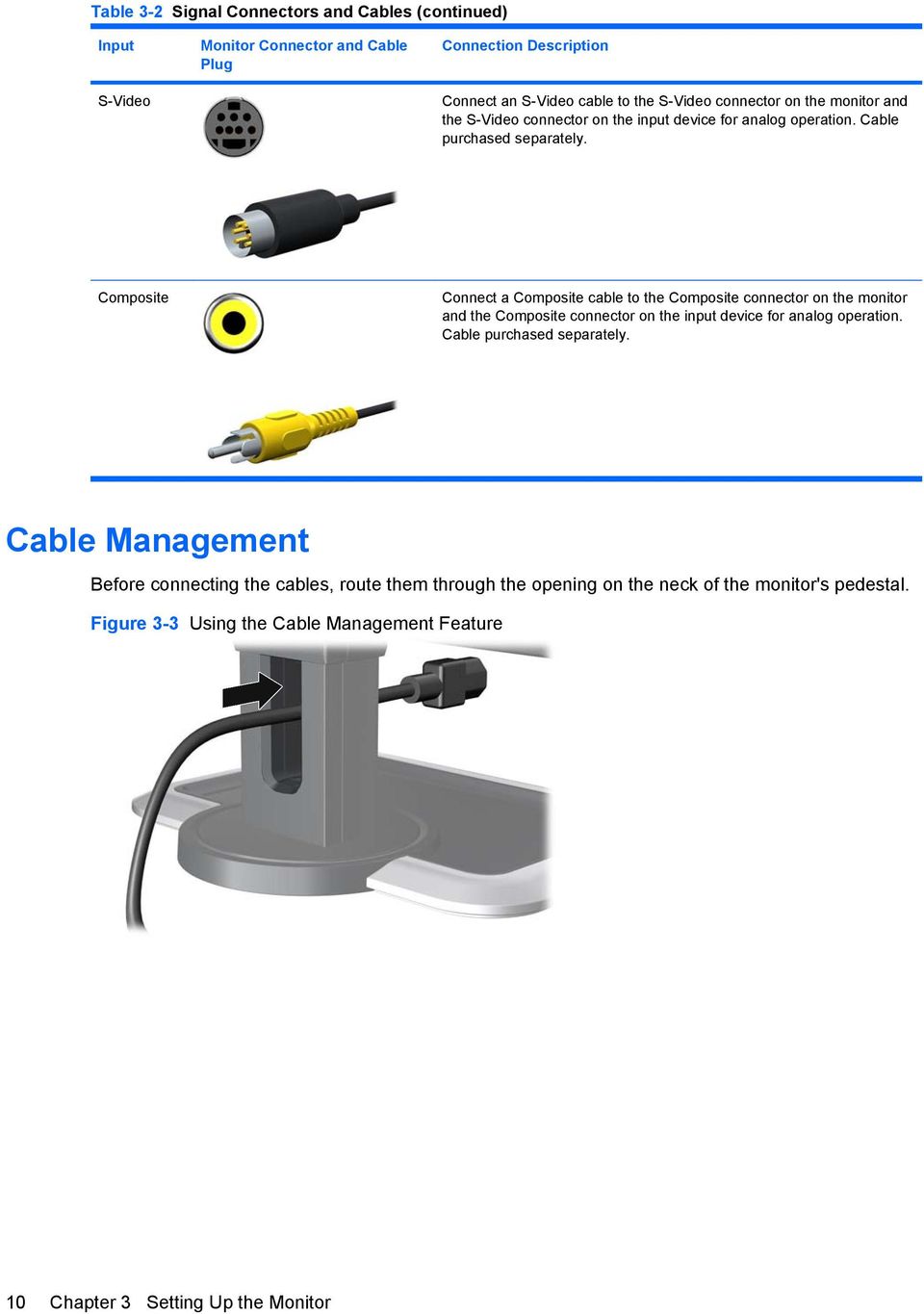
16 Table 3-2 Signal Connectors and Cables (continued) Input S-Video Monitor Connector and Cable Plug Connection Description Connect an S-Video cable to the S-Video connector on the monitor and the S-Video connector on the input device for analog operation. Cable purchased separately. Composite Connect a Composite cable to the Composite connector on the monitor and the Composite connector on the input device for analog operation. Cable purchased separately. Cable Management Before connecting the cables, route them through the opening on the neck of the monitor's pedestal. Figure 3-3 Using the Cable Management Feature 10 Chapter 3 Setting Up the Monitor
17 Connecting the Monitor Power 1. Place the monitor in a convenient, well-ventilated location near the computer. 2. Connect one end of the power cable to the AC power connector on the back of the monitor (1), and the other end to an electrical wall outlet (2). Figure 3-4 Connecting the Power Cable WARNING! To reduce the risk of electric shock or damage to the equipment: Do not disable the power cord grounding plug. The grounding plug is an important safety feature. Plug the power cord into a grounded (earthed) electrical outlet that is easily accessible at all times. Disconnect power from the equipment by unplugging the power cord from the electrical outlet. For your safety, do not place anything on power cords or cables. Arrange them so that no one may accidentally step on or trip over them. Do not pull on a cord or cable. When unplugging from the electrical outlet, grasp the cord by the plug. Connecting the Monitor Power 11

18 Connecting USB Devices The monitor provides four USB connectors on the side panel that can be used to connect devices such as a digital camera, USB keyboard, or USB mouse. 1. Connect one end of the USB hub cable to the USB connector on the rear panel of the computer, and the other end to the upstream USB connector on the monitor. 2. Connect the USB devices to the USB downstream connectors on the side panel of the monitor. Figure 3-5 Connecting USB Devices Adjusting the Monitor 1. Tilt the monitor's panel forward or backward to set it to a comfortable eye level. Figure 3-6 Tilting the Monitor 12 Chapter 3 Setting Up the Monitor

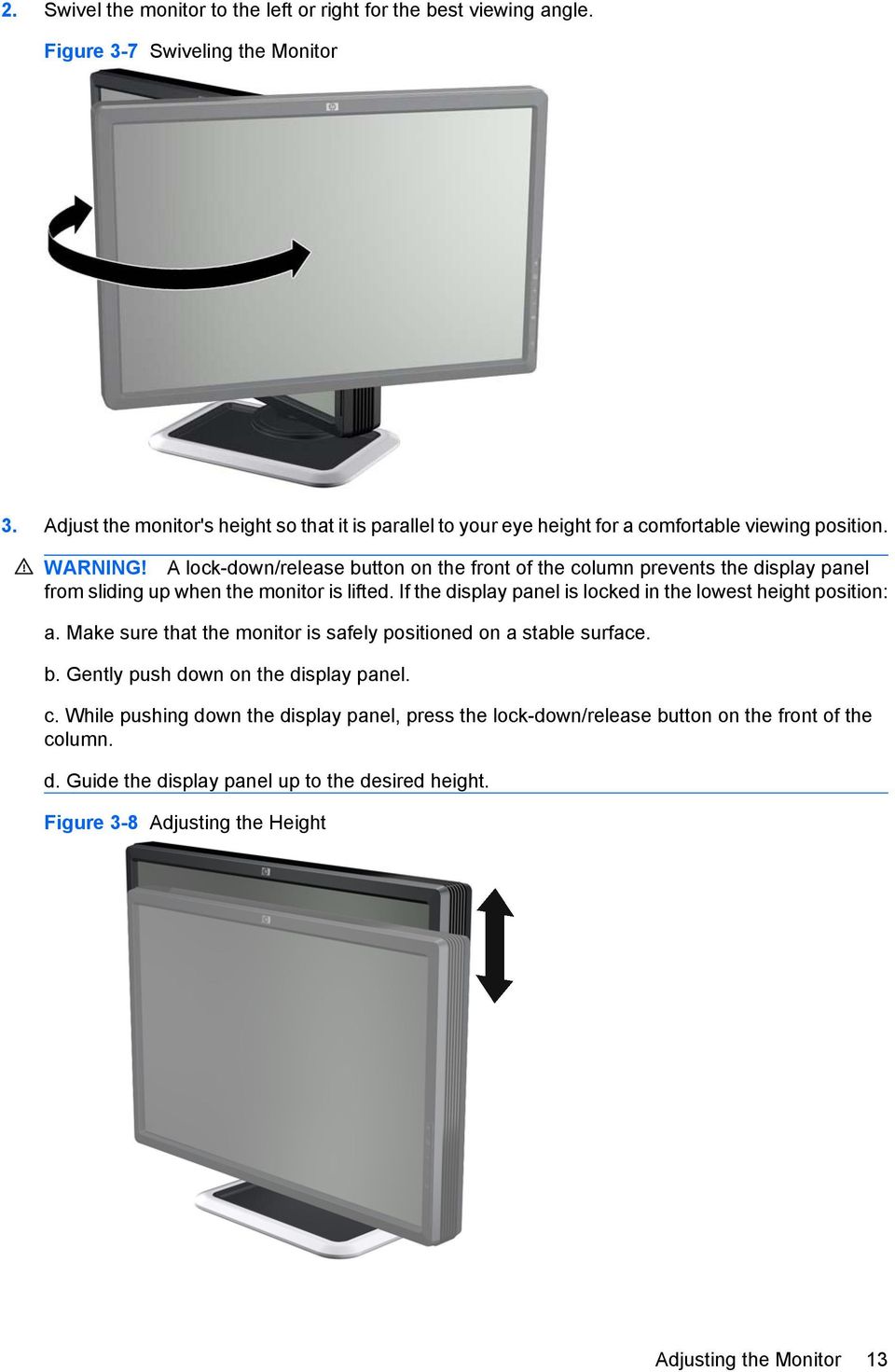
19 2. Swivel the monitor to the left or right for the best viewing angle. Figure 3-7 Swiveling the Monitor 3. Adjust the monitor's height so that it is parallel to your eye height for a comfortable viewing position. WARNING! A lock-down/release button on the front of the column prevents the display panel from sliding up when the monitor is lifted. If the display panel is locked in the lowest height position: a. Make sure that the monitor is safely positioned on a stable surface. b. Gently push down on the display panel. c. While pushing down the display panel, press the lock-down/release button on the front of the column. d. Guide the display panel up to the desired height. Figure 3-8 Adjusting the Height Adjusting the Monitor 13
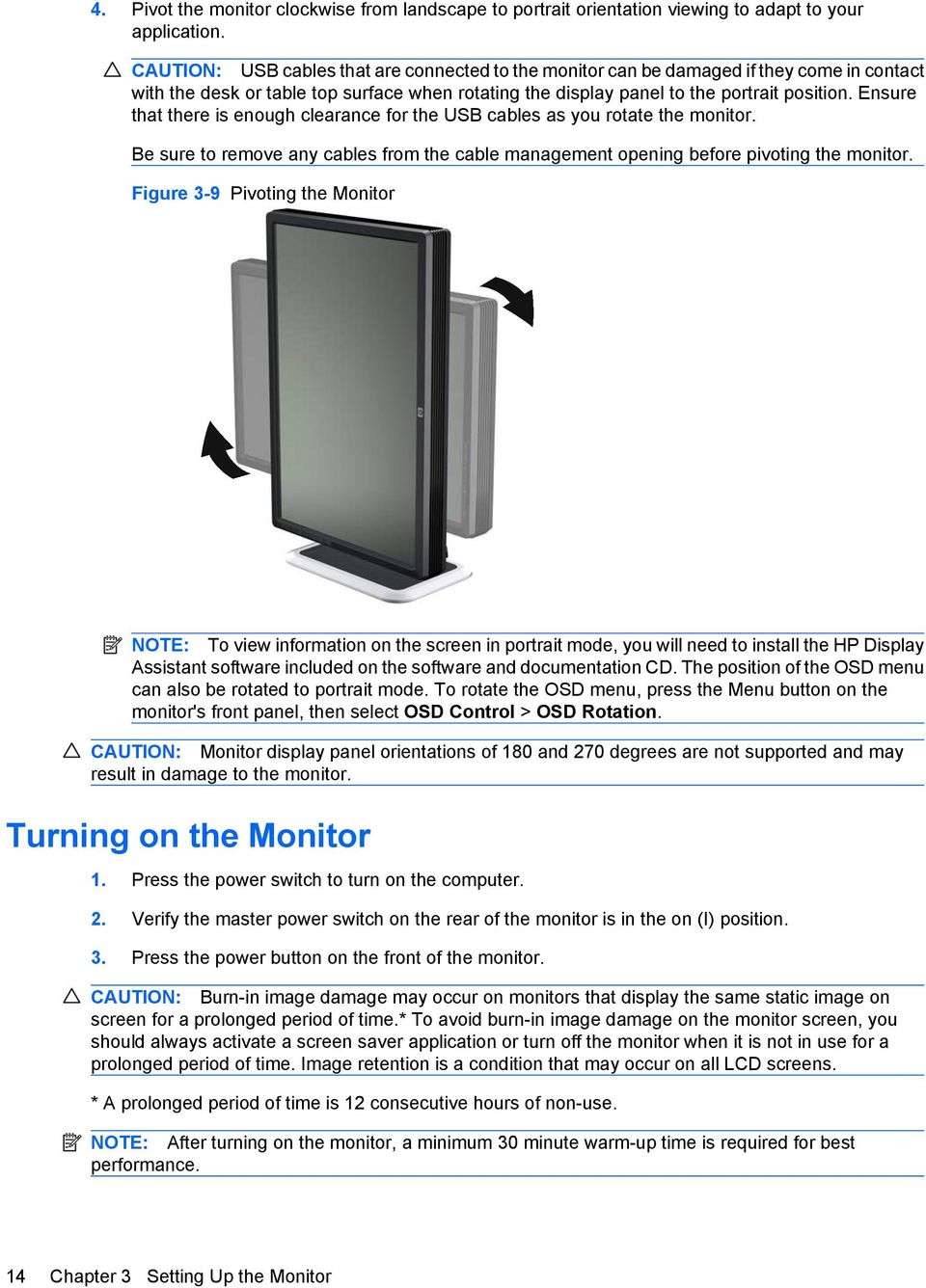
20 4. Pivot the monitor clockwise from landscape to portrait orientation viewing to adapt to your application. CAUTION: USB cables that are connected to the monitor can be damaged if they come in contact with the desk or table top surface when rotating the display panel to the portrait position. Ensure that there is enough clearance for the USB cables as you rotate the monitor. Be sure to remove any cables from the cable management opening before pivoting the monitor. Figure 3-9 Pivoting the Monitor NOTE: To view information on the screen in portrait mode, you will need to install the HP Display Assistant software included on the software and documentation CD. The position of the OSD menu can also be rotated to portrait mode. To rotate the OSD menu, press the Menu button on the monitor's front panel, then select OSD Control > OSD Rotation. CAUTION: Monitor display panel orientations of 180 and 270 degrees are not supported and may result in damage to the monitor. Turning on the Monitor 1. Press the power switch to turn on the computer. 2. Verify the master power switch on the rear of the monitor is in the on (I) position. 3. Press the power button on the front of the monitor. CAUTION: Burn-in image damage may occur on monitors that display the same static image on screen for a prolonged period of time.* To avoid burn-in image damage on the monitor screen, you should always activate a screen saver application or turn off the monitor when it is not in use for a prolonged period of time. Image retention is a condition that may occur on all LCD screens. * A prolonged period of time is 12 consecutive hours of non-use. NOTE: After turning on the monitor, a minimum 30 minute warm-up time is required for best performance. 14 Chapter 3 Setting Up the Monitor
21 Using the Accessory Rails The monitor features accessory rails on the rear that may be used to mount optional devices, such as the HP speaker bar, to the LCD monitor. Refer to the documentation included with the optional device for detailed mounting instructions. Figure 3-10 Using the Accessory Rails Feature Removing the Monitor Pedestal Base You can remove the monitor panel from the pedestal base to mount the panel on a wall, a swing arm, or other mounting fixture. This monitor has a Quick Release mechanism that allows you to easily remove and replace the monitor panel to the pedestal base. CAUTION: Before beginning to disassemble the monitor, be sure the monitor is turned off and the power and signal cables are both disconnected. Also disconnect any USB cables that are connected to the monitor. 1. Disconnect and remove the signal and power cables from the back of the monitor. 2. Slide the quick release latch (1) on the pedestal base to the side (either right or left). Using the Accessory Rails 15
22 3. Pull up on the monitor display panel (2) to remove it from the base. Figure 3-11 Removing the Monitor from the Pedestal Base Mounting the Monitor The HP Quick Release can be removed from the pedestal base and installed on a mounting fixture. It allows you to quickly and securely attach the monitor panel to the mounting fixture. 1. Remove the monitor panel from the pedestal base. Refer to Removing the Monitor Pedestal Base on page 15 in the previous section. CAUTION: This monitor supports the VESA industry standard 100 mm mounting holes. To attach a third-party mounting solution to the monitor, four 4 mm, 0.7 pitch, and 10 mm long screws are required (not provided with the monitor). Longer screws must not be used because they may damage the monitor. It is important to verify that the manufacturer s mounting solution is compliant with the VESA standard and is rated to support the weight of the monitor display panel. For best performance, it is important to use the power and video cables provided with the monitor. WARNING! To reduce the risk of personal injury or of damage to the equipment, check that the wall-mounting fixture is adequately installed and secured before attaching the monitor. Refer to the instructions supplied with the wall-mounting fixture and check that it is capable of supporting the monitor. 16 Chapter 3 Setting Up the Monitor
23 2. Remove the Quick Release from the pedestal base by removing the four screws. Figure 3-12 Removing the HP Quick Release from the Pedestal Base 3. Mount the Quick Release to a swing arm or other mounting fixture using the four screws removed from the Quick Release in the previous step. Figure 3-13 Installing the Quick Release CAUTION: The Quick Release can also be installed directly to a wall to mount the monitor panel. It is designed to support a maximum of up to 10.9 kg (24 lbs). If you are mounting to a wall, HP recommends that you consult with a qualified engineering, architectural, or construction professional to determine the appropriate type and quantity of mounting fasteners required for your application and to ensure that the mounting solution is properly installed to support applied loads. Removing the Monitor Pedestal Base 17
24 4. Insert the monitor panel into the Quick Release, and then press down firmly on the monitor to lock it in place. When the Quick Release locks, it will make a clicking sound. Figure 3-14 Inserting the Monitor Panel into the Quick Release Locating the Rating Labels The rating labels on the monitor provide the spare part number, product number, and serial number. You may need these numbers when contacting HP about the monitor model. The rating labels are located on the rear of the monitor display panel. Figure 3-15 Locating the Rating Labels 18 Chapter 3 Setting Up the Monitor
25 4 Operating the Monitor Software and Utilities The CD that comes with the monitor contains files you can install on the computer: an.inf (Information) file.icm (Image Color Matching) files auto-adjustment pattern utility HP Display Assistant software PDF Complete is supplied on this CD and can be installed from the menu. NOTE: If the monitor does not include a CD, the.inf and.icm files can be downloaded from the HP monitors support Web site. See Downloading from the Worldwide Web on page 20 in this chapter. The Information File The.INF file defines monitor resources used by Microsoft Windows operating systems to ensure monitor compatibility with the computer s graphics adapter. This monitor is Microsoft Windows Plug and Play compatible and the monitor will work correctly without installing the.inf file. Monitor Plug and Play compatibility requires that the computer s graphic card is VESA DDC2 compliant and that the monitor connects directly to the graphics card. Plug and Play does not work through separate BNC type connectors or through distribution buffers/boxes. The Image Color Matching File The.ICM files are data files that are used in conjunction with graphics programs to provide consistent color matching from monitor screen to printer, or from scanner to monitor screen. The.ICM file contains a monitor color system profile. This file is activated from within graphics programs that support this feature. NOTE: The ICM color profile is written in accordance with the International Color Consortium (ICC) Profile Format specification. Software and Utilities 19
26 Installing the.inf and.icm Files After you determine that you need to update, you can install the.inf and.icm files from the CD or download them. Installing from the CD To install the.inf and.icm files on the computer from the CD: 1. Insert the CD in the computer CD-ROM drive. The CD menu is displayed. 2. View the Monitor Driver Software Readme file. 3. Select Install Monitor Driver Software. 4. Follow the on-screen instructions. 5. Ensure that the proper resolution and refresh rates appear in the Windows Display control panel. NOTE: You may need to install the digitally signed monitor.inf and.icm files manually from the CD in the event of an installation error. Refer to the Monitor Driver Software Readme file on the CD. Downloading from the Worldwide Web To download the latest version of.inf and.icm files from the HP monitors support Web site: 1. Refer to and select the country region. 2. Follow the links for the monitor to the support page and download page. 3. Ensure the system meets the requirements. 4. Download the software by following the instructions. 20 Chapter 4 Operating the Monitor
27 Using the Auto-Adjustment Function You can optimize the screen performance for VGA (analog) input by using the - (Minus) button on the monitor and the auto-adjustment pattern software utility on the CD provided. Do not use this procedure if the monitor is using a DVI-D, HDMI, or DisplayPort input. If the monitor is using a VGA (analog) input, this procedure can correct the following image quality conditions: Fuzzy or unclear focus Ghosting, streaking or shadowing effects Faint vertical bars Thin, horizontal scrolling lines An off-center picture To use the auto-adjustment feature: 1. Allow the monitor to warm up for 20 minutes before adjusting. 2. Press the - (minus) button on the monitor front panel. You can also press the Menu button, then select Image Control > Auto Adjustment from the OSD Main Menu. Refer to Adjusting the Monitor Settings on page 23 in this chapter. If the result is not satisfactory, continue with the procedure. 3. Insert the CD in the disc drive. The CD menu is displayed. 4. Select Open Auto-Adjustment Software. The setup test pattern is displayed. 5. Press the - (minus) button on the monitor front panel to produce a stable, centered image. 6. Press the ESC key or any other key on the keyboard to exit the test pattern. Using the Auto-Adjustment Function 21
28 Front Panel Controls Table 4-1 Monitor Front Panel Controls Control Function 1 Function Performs the function set in the OSD menu (OSD Control > Function Control). 2 Input Selects the video input (DVI-1, DVI-2, HDMI, DisplayPort, Component, S-Video, or Composite). 3 + (Plus) Navigates forward through the OSD menu and increases adjustment levels. 4 (Minus) Navigates backward through the OSD menu and decreases adjustment levels. When the OSD menu is inactive, activates the auto adjustment feature to optimize the screen image. 5 Menu/Select Opens, selects or exits the OSD menu. 6 Power LED Green = Fully powered. Amber = Sleep mode. Flashing Amber = Sleep Timer mode. 7 Power Turns the monitor on or off. 22 Chapter 4 Operating the Monitor
29 Adjusting the Monitor Settings The monitor settings can be adjusted from the On-Screen Display (OSD) menu or from the HP Display Assistant software. NOTE: If you are having a problem with the monitor settings, select the Factory Reset option in the OSD menu to see if that solves the problem before adjusting other settings in the OSD menu. The Factory Reset function returns all OSD menu settings and DDC/CI controls to the factory default settings, except the language. Using the On-Screen Display Menu Use the On-Screen Display (OSD) to adjust the screen image based on your viewing preferences. To access the OSD, do the following: 1. If the monitor is not already on, press the Power button to turn on the monitor. 2. To access the OSD Menu, press the Menu button on the monitor s front panel. 3. To navigate through the OSD Menu, press the + (plus) button on the monitor s front panel to scroll down, or the (minus) button to scroll up. 4. To select an item from the OSD Menu, use the + or buttons to scroll to and highlight your selection, then press the Menu button to select that function. 5. Adjust the item using the + or buttons on the front panel to adjust the scale. 6. After adjusting the function, select Save and Return, or Cancel if you don t want to save the setting, then select Exit from the Main Menu. NOTE: If the front panel buttons remain untouched for 40 seconds while displaying a menu, the OSD will automatically time out and close, and all adjustments made in the OSD will be saved. The factory default 40 second delay can be adjusted in the OSD to between 10 and 60 seconds. Adjusting the Monitor Settings 23
30 OSD Menu Selections The following table lists the On-Screen Display (OSD) menu selections and their functional descriptions. After changing an OSD menu item, and if the menu screen has these options, you may choose to: Cancel to return to the previous menu level. Save and Return to save all changes and return to the OSD Main Menu screen. This Save and Return option is only active if you change a menu item. Reset to change back to the previous setting. Table 4-2 OSD Menu Icon Main Menu Submenu Description Color Space Displays the Color Space presets. For each Color Space preset, the RGB primaries, WhitePoint, Gamma, and Luminance are listed. Presets set up at the factory can be reset to factory calibration. Presets set up by the user can be reset to the last calibration. Full Adobe-RGB SMPTE-C srgb Rec. 709 DCI-P3 Emulation User-7 Luminance/Brightness WhitePoint/Color Temp Primaries and Gamma Information Reset to Factory Calibration Reset to Last Calibration Factory-calibrated preset with the full color gamut and native white point supported by the panel/backlight. Factory calibrated preset for the Adobe-RGB standard. Factory calibrated preset for the SMPTE-C standard. Factory calibrated preset for the srgb standard. Factory calibrated preset for the Rec. 709 standard. Factory calibrated emulation preset for the DCI-P3 standard. Note the monitor s color gamut does not fully enclose the DCI-P3 color space. User-calibrated preset that must be set up before use. Adjusts the Luminance/Brightness level of the screen. The control range is cd/m 2 with a step size of 1 cd/m 2. Adjust the WhitePoint/Color Temp level of the screen. The control range is ,000 K with a step size of 100. Displays Primaries and Gamma information for the active Color Space preset. Returns Color Space preset to the factory calibrated settings. Returns Color Space preset to the last calibrated settings. Image Control Adjusts the screen image. Auto Adjustment Automatically adjusts the screen image. Horizontal Position Adjusts the position of the screen image left and right. Vertical Position Adjusts the position of the screen image up and down. Custom Scaling Selects the method on how displayed information on the monitor will be formatted. Select: 24 Chapter 4 Operating the Monitor
31 Table 4-2 OSD Menu (continued) Icon Main Menu Submenu Description Fill to Screen image fills the entire screen and may look distorted or elongated because of non-proportional scaling of height and width Fill to Aspect Ratio image is sized to fit the screen and maintains proportional image One-to-one disables video scaling, displays an image that is smaller in size than the monitor s capability and centers the image on the screen in the active viewing area Overscan enables over-scanning of the image for HDMI, Component, S-video, and Composite inputs Crop Right Side crops the video on the right side of the image (enabled for the supported horizontal resolutions over 1920 pixels) Crop Left Side crops the video on the left side of the image (enabled for the supported horizontal resolutions over 1920 pixels) Crop Left and Right (Center) crops the video on the left and right sides in equal amounts and centers the image (enabled for the supported horizontal resolutions over 1920 pixels) Clock Clock Phase Black Level OverDrive Minimizes any vertical bars or strips visible on the screen background. Adjusting the Clock will also change the horizontal screen image. Adjusts the focus of the display. This adjustment allows you to remove any horizontal noise and clear or sharpen the image of characters. Adjusts the black level or offset of the monitor. The factory default value is 128 (no offset) and the range is 0 to 255. Disables or enables the overdrive feature. The factory default is Enabled. NOTE: OverDrive improves the response time of the panel for watching motion video. Hue Adjusts the Hue settings for the HDMI, Component, S-Video, and Composite inputs. Saturation Adjusts the Saturation settings for the HDMI, Component, S- Video, and Composite inputs. PIP Control Sets up PIP functionality. NOTE: DVI-I, HDMI, and DisplayPort are supported for the main window. Component, S-Video, and Composite are supported for the secondary window. PIP Mode Enables PIP mode (PIP or Side-by-Side). PIP Position Sub Picture Select Sets the position of the PIP window on the screen. The choices are top right, top left, bottom right, or bottom left. Selects the input source for the PIP window. The choices are Component, S-Video, or Composite video signal inputs. Adjusting the Monitor Settings 25
32 Table 4-2 OSD Menu (continued) Icon Main Menu Submenu Description Language Management Selects the language in which the OSD menu is displayed. The factory default is English. Selects the power management features of the monitor. Power Saver Enables the power saving feature. Select: On Off The factory default is On. Power On Recall Restores power to the monitor following an unexpected removal of power. Select: On Off The factory default is On. DDC/CI Support Allows the computer to control the OSD controls and calibrate the monitor. Set to: On Off The factory default is On. Firmware Update Support Enables or disables the monitor support of firmware updates. The factory default is On. NOTE: The Firmware Update Support is automatically disabled when DDC/CI Support is disabled. Bezel Button LED Disables or enables the bezel button backlight LEDs. Auto EDID Update Sleep Timer Disables or enables the monitor s automatic update of the DVI, DisplayPort, and HDMI extended display identification data (EDID) based on the selected Color Space preset. The EDID will only be updated for the input selected for the primary window. Provides the timer adjustment menu options: Set Current Time sets the current time in hours and minutes Set Sleep Time sets the time you want to place the monitor in sleep mode Set On Time sets the time you want the monitor to wake up from sleep mode Timer sets the Sleep Timer feature On or Off. The default setting is Off Sleep Now immediately sets the monitor to enter sleep mode OSD Control Provides a menu for adjusting the on-screen display (OSD) controls. 26 Chapter 4 Operating the Monitor
33 Table 4-2 OSD Menu (continued) Icon Main Menu Submenu Description Horizontal OSD Position Vertical OSD Position Function Control Monitor Status Message Warning Messages Changes the viewing position of the OSD menu to the left or right area of the screen. The factory default range is 50. Changes the viewing position of the OSD menu to the top or bottom area of the screen. The factory default range is 50. Selects the operation of the front panel Function button. The options are Color Space, Brightness, Color Temp, Reset to Last, Black Level, OverDrive, Custom Scale, Crop (L-C-R), and PIP Control. Disables or enables the Power-On Status Display and selects the position the OSD message is displayed on the screen. Enables or Disables OSD recommendation messages. Calibration Limit OSD Button Labels Mode Display OSD Transparency Sets the limit (in backlight hours) for the calibration message. The range is 0 to 5,000 hours. The factory default is 1000 hours. A value of 0 disables the timer. The number of backlight hours since the last calibration is also displayed. Disables or enables the front panel button label display on the screen. Disables or enables the mode display information that is displayed on the bottom of the main menu. Adjust to view the background information through the OSD. OSD Timeout OSD Rotation Sets the time duration in seconds that the OSD is visible after the last button is pressed. The range is seconds. The factory default is 40 seconds. Rotates the OSD menus and messages to support the monitor's Pivot feature. The choices are 0 and 90 degrees. Video Input Control Provides a menu of the input options. The default input selection is DVI-I 1. DVI-1 Analog/Digital DVI-2 Analog/Digital HDMI DisplayPort Component S-Video Composite Input Auto-Switching Selects DVI-I 1 as the primary video input. This input accepts either analog or digital signals. Selects DVI-I 2 as the primary video input. This input accepts either analog or digital signals. Selects HDMI as the primary video input. Selects DisplayPort as the primary video input. Selects Component as the primary video input. Selects S-Video as the primary video input. Selects Composite as the primary video input. Enables or disables the monitor automatically switching to an active input if the current signal is inactive. The factory default is Enabled. Information Selects and displays important information about the monitor. Current Settings Provides the current input video mode. Adjusting the Monitor Settings 27
34 Table 4-2 OSD Menu (continued) Icon Main Menu Submenu Description Recommended Settings Serial Number Version Last Calibration Backlight hours Provides the recommended resolution mode and refresh rate for the monitor. Reports the serial number of the monitor. The serial number is needed if contacting HP technical support. Reports the firmware version of the monitor. Displays the number of backlight hours since the last calibration. Reports the total hours of backlight operation. Factory Reset Returns all OSD menu settings and DDC/CI controls to the factory default settings, except the Language. CAUTION: A Factory Reset will result in the loss of all user control and Color Space settings. Use this feature only if other attempts to troubleshoot the monitor have been unsuccessful. Exit Exits the OSD menu screen. Optimizing Digital Conversion Two controls in the on-screen display can be adjusted to improve image performance: Clock and Clock Phase. NOTE: The Clock and Clock Phase controls are adjustable only when using an analog input. These controls are not adjustable for digital inputs. The Clock must first be set correctly since the Clock Phase settings are dependent on the main Clock setting. Use these controls only when the auto-adjustment function does not provide a satisfactory image. Clock Increases/decreases the value to minimize any vertical bars or stripes visible on the screen background. Clock Phase Increases/decreases the value to minimize video distortion or video jitter. NOTE: When using the controls, you will obtain the best results by using the auto-adjustment pattern software utility provided on the CD. When adjusting the Clock and Clock Phase values, if the monitor images become distorted, continue adjusting the values until the distortion disappears. To restore the factory settings, select Yes from the Factory Reset menu in the on-screen display. Using the HP Display Assistant Software HP Display Assistant software, included on the software and documentation CD, is a software utility that guides you through the tuning process with easy to understand instructions and background patterns designed for each monitor control. It provides: The ability to set up and select from multiple color space presets. Software control of the monitor image and color settings to eliminate dependence on the monitor s front panel buttons and On-Screen Display (OSD) menu. 28 Chapter 4 Operating the Monitor
35 Defined preset display settings for each individual user in a multi-user environment. Asset Management and Power Management capabilities that include remote control for individual or a group of displays on the domain from a centralized console application. Theft deterrence to help reduce unauthorized relocation of the monitor. NOTE: Refer to the HP Display Assistant software user guide for additional information about the software. Identifying Monitor Conditions Special messages will appear on the monitor screen when identifying the following monitor conditions: Input Signal Out of Range, Change Settings to 1920 x Hz Indicates the monitor does not support the input signal because the resolution and/or refresh rate are set higher than the monitor supports. No Input Signal Indicates the monitor is not receiving a video signal from the PC on the monitor video input connector. Check to determine if the PC or input signal source is off or in the power saving mode. Auto Adjustment is in Progress Indicates the auto-adjustment function is active. Monitor Going to Sleep Indicates the screen display is entering a sleep mode. Check Video Cable Indicates the video cable is not properly connected to the computer. OSD Lockout The OSD can be enabled or disabled by pressing and holding the Menu button on the front panel for 10 seconds. If the OSD is locked, the warning message OSD Lockout displays for ten seconds. If the OSD is locked, press and hold the Menu button for 10 seconds to unlock the OSD. If the OSD is unlocked, press and hold the Menu button for 10 seconds to lock the OSD. Power Button Lockout Indicates the power button is locked. If the power button is locked, the warning message Power Button Lockout displays. If the power button is locked, press and hold the power button for 10 seconds to unlock the power button function. If the power button is unlocked, press and hold the power button for 10 seconds to lock out the power button function. Recommend Recalibration for Best Color Performance Indicates the calibration limit has been reached or a change has been made to one of the color controls (RGB primaries, Gamma, Luminance, WhitePoint, or Black Level) Color Settings have Changed, Recommend you Update the Monitor Color Profile Indicates the need to change the color profile for the OS when the active color space preset or settings have been changed. Recommend Minimum 30 Minute Warm-up for Best Color Performance Indicates a minimum 30 minute warm-up period is recommended after the monitor is first powered on or comes out of Sleep mode (when not displaying video for 30 minutes or more). Identifying Monitor Conditions 29
36 Scanning Inputs. Please Wait Indicates the monitor is in the process of scanning the DVI (analog and digital), DisplayPort, and HDMI inputs. Color Gamut Remapping Enabled Indicates the color gamut remapping has been enabled because the monitor video input or video signal changed from YUV to an RGB signal. Color Gamut Remapping Disabled Indicates the color gamut remapping has been disabled because the monitor video input or video signal changed from RGB to a YUV signal. Sleep Timer Mode The Sleep Timer mode is an energy-saving feature that enables you to set a time for the monitor to power on and off at the same time every day. This also extends the life of the backlight bulbs in the monitor. The Sleep Timer has five settings: Set Current Time Set Sleep Time Set On Time Timer: On/Off Sleep Now To set the timer: 1. Press the Menu button on the monitor front panel to display the OSD Menu. 2. Scroll down and highlight Management. 3. Press the Menu button to select Management. 4. Scroll down and highlight and select Sleep Timer > Set Current Time. NOTE: You must set the current local time before you reset the time for Sleep Time or On Time. Note that the time is displayed in a 24 hour clock format. For example, 1:15 p.m. is displayed as 13 hours 15 minutes. 5. Press the Menu button once to enter the adjustment mode for hours. 6. Press the - (Minus) or + (Plus) button to adjust the hour. 7. Press the Menu button again to enter the time for minutes. 8. Press the - (Minus) or + (Plus) button to adjust the minutes. 9. Press the Menu button to lock in the time chosen. 10. After setting the current time, the highlight automatically skips to Set Sleep Time hours. Repeat steps 6 through 9 to set Sleep Time. 11. If you do not want to set Sleep Time, press the Menu button twice, then select Save and Return to exit the menu. 12. After setting Sleep Time, the highlight automatically skips to Set On Time hours. Repeat steps 6 through 9 to set On Time. 30 Chapter 4 Operating the Monitor
37 13. Set the Timer mode to On to activate the Sleep Timer settings. 14. When you are finished, select Save and Return to exit the menu. The fifth selection, Sleep Now, turns the monitor backlights off immediately and stays in sleep mode until the next On Time activates or a monitor button is pressed. Recommended Options For Microsoft Windows and Macintosh users, HP recommends purchasing the HP/X-Rite color calibration kit. The calibration kit is required to set up new color space presets and calibrate the monitor to maintain the color performance. For more information on the color calibration kit, refer to For best color performance, HP recommends the monitor be used in an environment with minimal ambient light. If the monitor is used in a typical office environment with bright overhead lights, HP recommends using a monitor hood to minimize ambient light. For more information on the monitor hood, refer to Recommended Options 31
38 A Advanced Color Management Features and Usage The HP LP2480zx monitor provides several advanced features that make it particularly well-suited to color-critical applications, such as professional computer graphics development, video production, and similar uses. These include: True 10-bit drivers in the LCD panel itself, and the ability to support true 10 bits/color (30 bits/pixel) video through the DisplayPort 1.1 and HDMI 1.3 inputs. An LED backlight unit (instead of the usual cold-cathode fluorescent, or CCFL type) with independent control of the red, green, and blue channels. This permits white point control using the backlight, and a very wide range of white level (peak luminance) settings. The LED backlight, coupled with specially-selected color filters in the LCD, provides a very wide gamut (133% of the 1953 NTSC gamut area, as expressed in the CIE 1976 u v space) for this monitor. As this gamut encloses a number of standard output device gamuts, such as Adobe RGB and srgb/rec. 709, this enables accurate emulation of these standards by means of gamutadaptation capabilities built into the monitor. NOTE: In the earlier 1931 CIE xy space, the gamut area of the LP2480zx is 110% that of the 1953 NTSC gamut. The monitor front-end electronics provides support for the gamut adaptation mentioned above, including numerous factory-adjusted color space presets, which permit the user to quickly set up the monitor to accurately emulate these standard output device specifications. The factorycalibrated presets include Adobe RGB, srgb, ITU-R Rec. BT-709, SMPTE-C, and the Digital Cinema Initiative reference projector (informally known as DCI-P3, also SMPTE-431-2) output device spaces, in addition to space for a user-adjustable preset. The user preset permits the setup of a custom color space emulation, with full control over the desired RGB primaries, white point, white luminance, and gamma (display transfer function). This Appendix will detail the operation and usage of these features provided on the LP2480zx monitor. 32 Appendix A Advanced Color Management Features and Usage
39 Color Gamut and Color Space Coverage The LP2480zx monitor uses an LED-backlit LCD module that provides an extremely wide color gamut. This gamut was chosen to enclose a number of color spaces as defined by various standard output device specifications, which (along with other color-management features in this product s electronics) permits the monitor to accurately emulate display devices conforming to these standards. The nominal native primary set, white point, and gamma of the LP2480zx, and those of the various supported standards, are provided in the table below: Table A-1 Supported Color Gamut and Color Space Full Adobe RGB SMPTE-C ITU-Rec. BT. 709 srgb DCI-P3 (SMPTE-431-2) White point: Color temp (CCT) 6500K 6500K 6500K 6500K 6500K ~6300K x y u' v' Red x y u' v' Green x y u' v' Blue x y u' v' Gamma ~2.2* ~2.2* 2.6 * The display response specified by the srgb and ITU-R Rec. BT.709 standards cannot be accurately described by a simple gamma value; see Transfer Function (Gamma) on page 39 in this appendix for details. The Digital Cinema/SMPTE reference projector gamut is not fully enclosed by the LP2480zx s native gamut; when set to the DCI preset, the monitor will provide as accurate an emulation of this space as possible within its available gamut. The difference is primarily along the red-green edge of the DCI gamut, as the DCI red and green primaries are slightly outside the LP2480zx gamut. See the diagram below. Color Gamut and Color Space Coverage 33
40 As plotted within the 1976 CIE u v color space, these gamuts are shown below: Figure A-1 Color Space Diagram Color Space Emulation As noted earlier, the LP2480zx has the capability of emulating a display that conforms to a number of standard output device specifications, such as srgb, Adobe RGB, and et cetera. This emulation includes matching the specified primaries, transfer function (gamma), white point, and, where appropriate, white level (luminance) of the target specification. Preset color spaces are provided as described earlier, and in addition, the user may program custom spaces as desired. Full custom color space programming involves the selection of primaries, white point, gamma value, and et cetera, which may be accomplished using the optional HP/X-Rite calibration tool. However, the display luminance (brightness) and white point may be adjusted using the on-screen display (OSD) or HP Display Assistant software. The following sections describe the theory behind this emulation, the hardware provided to support it in the LP2480zx, and information on its usage. Theory of Operation In general, most display devices such as CRT- or LCD-based monitors, may be mathematically modeled as comprising two functions: first, a mapping of the input values (which we will assume for this discussion are in the form of RGB codes, that is, the relative values of red, green, and blue levels for each pixel in the image) to the intensity of light output by the device for each (this is the display s transfer function, sometimes referred to as the gamma, for each of the three channels). This now gamma adjusted data must also be mapped to the specific primary colors and intensities provided by the display device for 34 Appendix A Advanced Color Management Features and Usage
41 each of the three channels (that is, exactly what will be output, in terms of light, for the given values of red, green, and blue). This may be expressed by the following diagram: Figure A-2 Model of Standard Display Device Here, the input RGB values are first modified by the appropriate transfer function (γ R, γ G, or γ B ); this operation may be viewed as being performed by three look-up tables (LUTs) of the appropriate width and depth. The modified RGB values (R, G, and B ) are then mapped to the resulting output light levels of the correct intensity and color. This may be viewed as a matrix multiplication operation (A) involving the R G B values and the appropriate XYZ tristimulus values for the specific display device primaries, luminance, and white point in question: Figure A-3 Matrix Multiplication of Input Values In essence, the R, G, and B values may be seen as gain controls on three light sources whose peak outputs are described as (X R,Y R,Z R ), (X G,Y G,Z G ), and (X B,Y B,Z B ). The display device itself in this case, the LCD module used in the LP2480zx monitor of course has its own native characteristics which may be modeled as described above. The problem of emulating a different (presumably, standard) output device characteristic is then one of adding a transform block (T, in the diagram below) which will modify this native characteristic such that the overall system emulates the desired performance. In terms of the above diagram, if the combination of γ S and A S represent the desired standard characteristic, it is the function of the transform block T to correct the native display characteristics (γ D and A D ) such that the output (TD) of this system matches that of the standard device, for the same input values: Color Space Emulation 35
42 Figure A-4 Correcting Native Display Characteristics It can be shown that the required transform (T) may be implemented as a pair of appropriately-sized look-up tables (LUTs), on either side of a 3 x 3 matrix multiplication. The LUT preceding the matrix multiplication (the pre-lut ) implements the desired standard transfer function or gamma response curve, such that input values are correctly mapped per that standard into a linear light space. The required matrix for the color remapping (which is referred to as R) is a combination of the matrix that transforms R G B to X Y Z values under the target standard (A S ), and the inverse of the corresponding matrix for the existing display device (A D ). In other words, R = A D -1 A S This stage must then be followed by a second look-up table (the post-lut ), which linearizes the existing display device; specifically, it contains the inverse of the display s transfer functions γ D(R,G,B). The complete transform block (plus the LCD module) as implemented in the LP2480zx monitor is then: Figure A-5 Color Space Conversion Hardware in the LP2480zx 36 Appendix A Advanced Color Management Features and Usage
43 Note that since the look-up tables for the three channels (R, G, and B) are independent, differences in the display device s transfer function across these three, along with any minor errors in the display white point, may be nulled out using the look-up tables, in addition to the operations required for the color space emulation as described above. In the LP2480zx, these functional blocks are implemented as part of the front end electronics, in addition to the usual scaler/controller functions of a standard monitor. Due to the limitations imposed by the components used in the LP2480zx front end, full color space emulation functionality is not available on the analog composite, component, or S-Video inputs*; it is, however, fully supported when using the DVI-I (both analog and digital sections), HDMI, and DisplayPort inputs IF the input video is provided using RGB encoding. Color space emulation is not provided on any input for video using YUV/YC B C R encoding. The complete matrix of feature support for the various inputs and signal encodings is provided in the table on the following page. NOTE: * These inputs connect between the pre-luts and the 3x3 matrix multiplier; therefore, remapping of the input values per the desired output device transfer function is not possible. Selection of the desired standard color space, or selection of a user-defined custom color space setting, may be achieved through the on-screen display (OSD) menus, the HP Display Assistant software, or the optional HP/X-Rite calibration software. These provide the correct programming of the color management hardware described above as needed for the desired color space characteristics. NOTE: Refer to the monitor s DDC/CI and USB communication specification for more details. Summary of Color Space Selection Availability As noted, the selection of output device color space presets and the resulting emulation of the desired display characteristics, is not available for all LP2480zx inputs or all color encodings. Basically, this functionality is available only when a progressive-scanned RGB input is provided by the video source. YUV (which is considered here as including YC B C R, et cetera) encoding cannot be used, nor can color space emulation be supported for interlaced video (as the LP2480zx must convert any interlaced video to YUV, if not in this form already, in order for the built-in de-interlacing to operate correctly). When support for the standard or user-defined color space presets cannot be provided, these options will be grayed out on the OSD, and adjustments for image Hue and Saturation will be provided instead. Table A-2 Supported Signal Inputs and Color Space Matrix Input used Color encoding Scan format Result DVI RGB (YUV not supported on these inputs) Progressive Color Space presets: enabled Hue/Saturation controls: disabled HDMI or DisplayPort RGB Progressive Color Space presets: enabled Hue/Saturation controls: disabled Interlaced Color Space presets: disabled Hue/Saturation controls: enabled YUV Either Color Space presets: disabled Hue/Saturation controls: enabled Color Space Emulation 37
44 Table A-2 Supported Signal Inputs and Color Space Matrix (continued) Input used Color encoding Scan format Result Component, CVBS, S-Video YUV (RGB not supported) Either Color Space presets: disabled Hue/Saturation controls: enabled 10 bits/color LCD Module As noted earlier, the LCD module in the LP2480zx monitor provides a 10 bits/color (30 bits/pixel) input, with true 10-bit drivers within the LCD itself. This means that each primary (red, green, and blue) may be controlled over 1,024 steps (input codes 0 to 1023) from the black level to the white (peak luminance for that color). This results in over 1.07 billion separate colors available within the display s gamut, versus approximately 16.7 million for a conventional 8 bits/color display. This increase in dynamic range is required for the accurate display of color within the wide gamut provided by the LP2480zx s LCD, and especially for achieving the necessary degree of color accuracy within the more restricted gamuts that this monitor is capable of providing when emulating various standard output devices. Increasing a display s color gamut the area covered by the display when the primaries are plotted on a standard chromaticity diagram would result in a greater difference between adjacent colors if the degree of control (bits per color) for each primary were not also increased. Increasing the bit depth of the display drivers achieves this without the possibility of undesirable image artifacts which may result from temporal or spatial dithering as may sometimes be used with an LCD of lower inherent accuracy. (The LP2480zx s front-end electronics are also, however, capable of providing temporal dithering, if needed, to increase the delivered accuracy beyond the 10 bits/color level. By default, this is used only between the pre-lut and the 3x3 matrix multiplier stage; temporal dithering is possible but normally disabled at the 30-bit connection between the post-lut and the LCD module itself.) With most video sources (which typically provide video information at the standard 8 bits/color or 24 bits/pixel), and across all of the LP2480zx s various inputs, the increased accuracy of the LP2480zx LCD module is used to provide more accurate color within the selected standard color space. However, 30-bit sources may also be directly supported using the DisplayPort 1.1 and HDMI 1.3 inputs only. This will be of greatest benefit when the LP2480zx is used in the wider-gamut modes (such as Full, Adobe RGB, DCI). LED Backlight Unit As noted earlier, the LP2480zx monitor employs a backlight consisting of an array of red, green, and blue light-emitting diodes (LEDs) rather than the more typical cold-cathode fluorescent lamps (CCFLs) on most LCD monitors. This provides several significant advantages, in addition to the obvious benefit of a wider color gamut (that is, more saturated primaries) than can currently be achieved using CCFLs. In the LP2480zx, the red, green, and blue LED arrays are controlled both collectively and separately by a dedicated backlight controller, which permit both very accurate setting of the display luminance as well as control of the white point of the unit. Color sensors in the backlight unit feed color information back to the controller constantly, permitting an accurate white point to be maintained. Compared with CCFLs, which have only a limited range of brightness control available and a fixed emission spectrum, the LED backlight used here provides a very wide range of both brightness and color control. The white point may be adjusted over a range corresponding to a correlated color temperature (CCT) of 4,000K to 12,000K, including support for all standard white points with CCTs within this range. In addition, the white luminance may be adjusted from a maximum of approximately 250 cd/ m 2 down to 50 cd/m 2, making the LP2480zx suitable for use in low-light environments; at the lower 38 Appendix A Advanced Color Management Features and Usage
45 brightness settings, both its white luminance and black level compare favorably with those of traditional CRT displays. (At the low end of this range, the monitor s black level will typically be approximately 0.05 cd/m 2.) As with several other parameters set in the color space presets, the programming of the backlight controller is managed either through the LP2480zx s on-screen display (OSD), or by using the HP Display Assistant software. Transfer Function (Gamma) As noted briefly in the previous section on Color Space Emulation on page 34 in this Appendix, display devices typically impose a non-linear transfer function on the input video data, in terms of how the intensity of the light output by the device varies versus these inputs. This is often referred to as the display s gamma response characteristic, as one simple model for this behavior is a power-function curve (in which the exponent is typically represented by the Greek letter gamma, γ) as follows: Figure A-6 Gamma Curve Response Characteristic This model, with a gamma value of about , describes the actual response of a standard CRT display fairly well,* and so was assumed for years to be the typical response curve of an electronic display device. As it turns out, encoding image information under the assumption of an output device response of this nature has other advantages, and so it remains very common for standard output device specifications to require a transfer function or response curve which is of this general nature. The most common modification to this simple model as seen in many current output device or image encoding standards is the addition of a linear region at the lower end of the response curve, as shown in the following diagram. This linear region avoids problems, which otherwise would result from applying the inverse of the response curve (in image encoding), as otherwise the slope of the curve would be changing very rapidly in the low-luminance regions of the image. NOTE: * The biggest shortcoming of the simple gamma curve model as given, with respect to CRT displays, is that the black level of the input signal (assumed to be zero) does not generally result in exactly zero luminance for a properly-adjusted CRT. This requires the addition of an offset term into the model. However, the basic model as shown here remains an adequate description for most non-critical work. Transfer Function (Gamma) 39
46 Figure A-7 Low Linear Region Response Curve A generalized model for the display response curve accommodating the addition of a linear section as shown above thus requires the specification of four parameters in addition to the gamma exponent value: For input values (I) A 0 : Y = I/A 1 For input values (I) > A 0 Y = [(I + A 2 )/(1 + A 3 )] γ The response of the LP2480zx is automatically set to the correct standard as part of the color-space selection, using either the on-screen display (OSD) or using the HP Display Assistant software, or using the optional HP/X-Rite color calibration tools. Independently programming a custom response (as in the case of the user-defined custom color space preset) requires use of the HP/X-Rite calibration tools. Using the software provided with this calibration product, the display response may be programmed using the four-value-plus-gamma model described above. Several of the standard color space specifications supported by the LP2480zx require the use of the four-value model, as they include a linear section in the response curve as described above. Of course, even the simple gamma-only model may be accommodated within the four-value model, by setting the A 0, A 2, and A 3 parameters to zero, and A 1 to a value of 1.0. The values used to describe the response for the standard color spaces or output device specifications supported by the LP2480zx are listed in the table below. Table A-3 Response Curve Constants for Various Color Spaces Color space A 0 A 1 A 2 A 3 gamma (γ) srgb ITU-R BT SMPTE-C Adobe RGB DCI-P Appendix A Advanced Color Management Features and Usage
47 Table A-3 Response Curve Constants for Various Color Spaces (continued) Color space A 0 A 1 A 2 A 3 gamma (γ) Full * * Note that in full gamut mode, the color space emulation capabilities of the LP2480zx monitor are used to correct any deviations in the LCD s native performance from its nominal specified values. The color gamut, white point, and response curve seen in this mode are therefore those of the LCD panel itself, but corrected to their nominal values as accurately as possible. References: Adobe RGB (1998) Color Image Encoding, Version , May 2005, Adobe Systems, Inc. Digital Cinema System Specification, Vers. 1.1, April 12, 2007 Digital Cinema Initiatives, LLC IEC :1999 Colour Measurement and Management in Multimedia Systems and Equipment Part 2-1: Default RGB Colour Space srgb, International Electrotechnical Commission, TC ITU Recommendation BT. 709: Parameter values for the HDTV standards for production and international programme exchange, April 2002, International Telecommunications Union SMPTE Recommended Practice , SMPTE-C Color Monitor Colorimetry SMPTE Standard 431-2, Reference Projector and Environment for Display of DCDM in Review Rooms and Theaters, Society of Motion Picture and Television Engineers Transfer Function (Gamma) 41
48 B Troubleshooting Solving Common Problems The following table lists possible problems, the possible cause of each problem, and the recommended solutions. Problem Possible Cause Solution Screen is blank. Power cord is disconnected. Connect the power cord. Monitor will not turn on. Image appears blurred, indistinct, or too dark. Power button on front panel of the monitor is turned off. Video cable is improperly connected. Screen blanking is active. Master power switch on rear panel of the monitor is turned Off. Brightness is too low. Press the front panel power button. NOTE: If pressing the power button has no effect, press and hold the power button for 10 seconds to disable the power button lockout feature. Connect the video cable properly. Refer to Setting Up the Monitor on page 7 for more information. Press any key on the keyboard or move the mouse to inactivate the screen blanking utility. Turn the master power switch to On. Press the (minus) button on the front panel. If this does not correct the image, press the Menu button to open the OSD Menu, and adjust the brightness scale as needed. Image is not centered Position may need adjustment. Press the Menu button to access the OSD menu. Select Image Control/Horizontal Position or Vertical Position to adjust the horizontal or vertical position of the image. Check Video Cable is displayed on screen. Monitor video cable is disconnected. Connect the appropriate video signal cable between the computer and monitor. Be sure that the computer power is off while connecting the video cable. Input Signal Out of Range, Change Settings to 1920 x Hz is displayed on screen. Video resolution and/or refresh rate are set higher than what the monitor supports. Restart the computer and enter Safe Mode. Change the settings to a supported setting (see Recognizing Preset Display Resolutions on page 46). Restart the computer so that the new settings take effect. The monitor is off but it did not seem to enter into a lowpower sleep mode. OSD Lockout is displayed. Power Button Lockout is displayed. The monitor's power saving control is disabled. The monitor's OSD Lockout function is enabled. The monitor's Power Button Lockout function is enabled. Check the monitor's OSD menu setting for power saving enable/disable controls. The control should be set to enable to allow the monitor to enter into low-power modes. Press and hold the Menu button for 10 seconds to disable the OSD Lockout function. Press and hold the power button for 10 seconds to unlock the power button function. 42 Appendix B Troubleshooting
49 Using the Worldwide Web For the online access to technical support information, self-solve tools, online assistance, community forums of IT experts, broad mutlivendor knowledge base, monitoring and diagnostic tools, go to Preparing to Call Technical Support If you cannot solve a problem using the trouble shooting tips in this section, you may need to call technical support. Have the following information available when you call: The monitor Monitor model number Serial number for the monitor Purchase date on invoice Conditions under which the problem occurred Error messages received Hardware configuration Video card Type of computer Cable input used (for example, HDMI, VGA, DVI, or DisplayPort) Calibration system used Hardware and software you are using Using the Worldwide Web 43
50 C Technical Specifications NOTE: All performance specifications are provided by the component manufacturers. Performance specifications represent the highest specification of all HP's component manufacturers' typical level specifications for performance and actual performance may vary either higher or lower. HP LP2480zx Model Table C-1 HP LP2480zx Model Specifications Display Type 61 cm TFT LCD 24 inches Viewable Image Size 61 cm diagonal 24 inch diagonal Tilt Adjustment -5 to 35 Swivel Adjustment -45 to 45 Height Adjustment 100 mm range 3.94 inch range Pivot Clockwise Maximum Weight (Unpacked) 12.5 kg 27.5 lbs. Dimensions (include base) Height Depth Width Optimum Graphic Resolution 42.5 cm 25.4 cm 56.5 cm (60Hz) analog input (60Hz) digital input 16.7 inches 10.0 inches 22.2 inches Text Mode Dot Pitch Horizontal Frequency Vertical Refresh Rate (H) (W) mm 24 to 76 khz 47 to 61 Hz Environmental Requirements Temperature Operating Temperature Storage Temperature 5 to 35 C -20 to +60 C 41 to 95 F -4 to 140 F Relative Humidity 20 to 80% 44 Appendix C Technical Specifications
51 Table C-1 HP LP2480zx Model Specifications (continued) Power Source VAC, Hz Altitude: Operating Storage 0 to m 0 to m 0 to 12,000 feet 0 to 40,000 feet Power Consumption (maximum) <90 watts Input Terminal Two DVI-I connectors with DVI-I to DVI-D and DVI- I to VGA cables included; DisplayPort connector with cable included; HDMI connector with cable included; Component connectors; S-Video connector; Composite connector HP LP2480zx Model 45
52 Recognizing Preset Display Resolutions The display resolutions listed below are the most commonly used modes and are set as factory defaults. This monitor automatically recognizes these preset modes and they will appear properly sized and centered on the screen. Table C-2 LP2480zx Model Factory Preset Display Modes Preset Pixel Format Horz Freq (khz) Horz Polarity Vert Freq (Hz) Vert Polarity Pixel Clk (MHz) Source VGA VGA VGA VESA VESA o CVT 0.83MA DVT 16: CVT 0.98M9-R VESA VESA x CVT 1.60MA-R VESA CVT 1.76MA CVT 2.07M CVT DTV 16: CVT 2.30MA-R CVT 2.30MA x CVT x CVT-R x CVT x CVT-R NOTE: inputs. The 2048 x Hz mode is only supported on the DVI Digital, HDMI, and DisplayPort The following high definition modes are also supported. 46 Appendix C Technical Specifications
53 Table C-3 LP2480zx Model High Definition Video Formats Preset Timing Name Pixel Format Horz Freq (khz) Vert Freq (khz) Pixel Rate (MHz) OSD Display 1 480i 720 x i 2 480p 720 x p 3 720p x p-60Hz i x i-60Hz 5 576i 720 x i 6 576p 720 x p 7 720p x p-50Hz i x i-50Hz p x p-60Hz p x p-50Hz Entering User Modes The video controller signal may occasionally call for a mode that is not preset if: You are not using a standard graphics adapter. You are not using a preset mode. It this occurs, you may need to readjust the parameters of the monitor screen by using the on-screen display. Your changes can be made to any or all of these modes and saved in memory. The monitor automatically stores the new setting, then recognizes the new mode just as it does a preset mode. In addition to the factory preset modes, there are twenty user modes that can be entered and stored. Energy Saver Feature When the monitor is in its normal operating mode, the monitor uses less than 90 watts of power and the Power light is green. The monitor also supports a reduced power state. The reduced power state will be entered into if the monitor detects the absence of either the horizontal sync signal and/or the vertical sync signal. Upon detecting the absence of these signals, the monitor screen is blanked, the backlight is turned off, and the power light is turned amber. When the monitor is in the reduced power state, the monitor will utilize less than 3 watts of power. There is a brief warm up period before the monitor will return to its normal operating mode. Refer to the computer manual for instructions on setting energy saver features (sometimes called power management features). NOTE: The above power saver feature only works when connected to computers that have energy saver features. By selecting the settings in the monitor's Energy Saver utility, you can also program the monitor to enter into the reduced power state at a predetermined time. When the monitor's Energy Saver utility causes the monitor to enter the reduced power state, the power light blinks amber. Entering User Modes 47
54 D Agency Regulatory Notices Federal Communications Commission Notice This equipment has been tested and found to comply with the limits for a Class B digital device, pursuant to Part 15 of the FCC Rules. These limits are designed to provide reasonable protection against harmful interference in a residential installation. This equipment generates, uses, and can radiate radio frequency energy and, if not installed and used in accordance with the instructions, may cause harmful interference to radio communications. However, there is no guarantee that interference will not occur in a particular installation. If this equipment does cause harmful interference to radio or television reception, which can be determined by turning the equipment off and on, the user is encouraged to try to correct the interference by one or more of the following measures: Reorient or relocate the receiving antenna. Increase the separation between the equipment and the receiver. Connect the equipment into an outlet on a circuit different from that to which the receiver is connected. Consult the dealer or an experienced radio or television technician for help. Modifications Cables The FCC requires the user to be notified that any changes or modifications made to this device that are not expressly approved by Hewlett Packard Company may void the user's authority to operate the equipment. Connections to this device must be made with shielded cables with metallic RFI/EMI connector hoods to maintain compliance with FCC Rules and Regulations. Declaration of Conformity for Products Marked with the FCC Logo (United States Only) This device complies with Part 15 of the FCC Rules. Operation is subject to the following two conditions: 1. This device may not cause harmful interference. 2. This device must accept any interference received, including interference that may cause undesired operation. For questions regarding the product, contact: 48 Appendix D Agency Regulatory Notices
55 Hewlett Packard Company P. O. Box , Mail Stop Houston, Texas Or, call HP-INVENT ( ) For questions regarding this FCC declaration, contact: Hewlett Packard Company P. O. Box , Mail Stop Houston, Texas Or, call (281) To identify this product, refer to the Part, Series, or Model number found on the product. Canadian Notice This Class B digital apparatus meets all requirements of the Canadian Interference-Causing Equipment Regulations. Avis Canadien Cet appareil numérique de la classe B respecte toutes les exigences du Règlement sur le matériel brouilleur du Canada. European Union Regulatory Notice This product complies with the following EU Directives: Low Voltage Directive 2006/95/EC EMC Directive 2004/108/EC Compliance with these directives implies conformity to applicable harmonized European standards (European Norms) which are listed on the EU Declaration of Conformity issued by Hewlett-Packard for this product or product family. This compliance is indicated by the following conformity marking placed on the product: This marking is valid for non-telecom products and EU harmonized Telecom products (e.g. Bluetooth) This marking is valide for EU nonharmonized Telecom products. *Notified body number (used only if applicable refer to the product label). Canadian Notice 49
56 Hewlett-Packard GmbH, HQ-TRE, Herrenberger Strasse 140, Boeblingen, Germany German Ergonomics Notice HP products which bear the GS approval mark, when forming part of a system comprising HP brand computers, keyboards and monitors that bear the GS approval mark, meet the applicable ergonomic requirements. The installation guides included with the products provide configuration information. Japanese Notice Korean Notice Power Cord Set Requirements The monitor power supply is provided with Automatic Line Switching (ALS). This feature allows the monitor to operate on input voltages between V or V. The power cord set (flexible cord or wall plug) received with the monitor meets the requirements for use in the country where you purchased the equipment. If you need to obtain a power cord for a different country, you should purchase a power cord that is approved for use in that country. The power cord must be rated for the product and for the voltage and current marked on the product's electrical ratings label. The voltage and current rating of the cord should be greater than the voltage and current rating marked on the product. In addition, the cross-sectional area of the wire must be a minimum of 0.75 mm² or 18 AWG, and the length of the cord must be between 6 feet (1.8 m) and 12 feet (3.6 m). If you have questions about the type of power cord to use, contact an authorized HP service provider. A power cord should be routed so that it is not likely to be walked on or pinched by items placed upon it or against it. Particular attention should be paid to the plug, electrical outlet, and the point where the cord exits from the product. Japanese Power Cord Requirements For use in Japan, use only the power cord received with this product. 50 Appendix D Agency Regulatory Notices
57 CAUTION: Do not use the power cord received with this product on any other products. Product Environmental Notices Materials Disposal This HP product contains mercury in the fluorescent lamp in the display LCD that might require special handling at end-of-life. Disposal of this material can be regulated because of environmental considerations. For disposal or recycling information, contact the local authorities or the Electronic Industries Alliance (EIA) Disposal of Waste Equipment by Users in Private Household in the European Union This symbol on the product or on its packaging indicates that this product must not be disposed of with your household waste. Instead, it is your responsibility to dispose of your waste equipment by handing it over to a designated collection point for the recycling or waste electrical and electronic equipment. The separate collection and recycling of your waste equipment at the time of disposal will help to conserve natural resources and ensure that it is recycled in a manner that protects human health and the environment. For more information about where you can drop off your waste equipment for recycling, please contact the local city office, the household waste disposal service or the shop where you purchased the product. Chemical Substances HP is committed to providing our customers with information about the chemical substances in our products as needed to comply with legal requirements such as REACH (Regulation EC No 1907/2006 of the European Parliament and the Council). A chemical information report for this product can be found at: Restriction of Hazardous Substances (RoHS) A Japanese regulatory requirement, defined by specification JIS C 0950, 2005, mandates that manufacturers provide Material Content Declarations for certain categories of electronic products offered for sale after July 1, To view the JIS C 0950 material declaration for this product, visit Product Environmental Notices 51
58 Appendix D Agency Regulatory Notices
59 E LCD Monitor Quality and Pixel Policy The TFT monitor uses high-precision technology, manufactured according to HP standards, to guarantee trouble-free performance. Nevertheless, the display may have cosmetic imperfections that appear as small bright or dark spots. This is common to all LCD displays used in products supplied by all vendors and is not specific to the HP LCD. These imperfections are caused by one or more defective pixels or sub-pixels. A pixel consists of one red, one green, and one blue sub-pixel. A defective whole pixel is always turned on (a bright spot on a dark background), or it is always off (a dark spot on a bright background). The first is the more visible of the two. A defective sub-pixel (dot defect) is less visible than a defective whole pixel and is small and only visible on a specific background. To locate defective pixels, the monitor should be viewed under normal operating conditions, in normal operating mode at a supported resolution and refresh rate, from a distance of approximately 50 cm (20 in). HP expects that, over time, the industry will continue to improve its ability to produce LCDs with fewer cosmetic imperfections and HP will adjust guidelines as improvements are made. 53
HP ProDisplay P19A LED Backlit Monitor. User Guide
 HP ProDisplay P19A LED Backlit Monitor User Guide 2013 Hewlett-Packard Development Company, L.P. The only warranties for HP products and services are set forth in the express warranty statements accompanying
HP ProDisplay P17A LED Backlit Monitor. User Guide
 HP ProDisplay P17A LED Backlit Monitor User Guide 2013 Hewlett-Packard Development Company, L.P. Microsoft, Windows, and Windows Vista are either trademarks or registered trademarks of Microsoft Corporation
HP Compaq LE1902x, LE2002x, LE2002xm, and LE2202x LED Backlit LCD Monitors. User Guide
 HP Compaq LE1902x, LE2002x, LE2002xm, and LE2202x LED Backlit LCD Monitors User Guide 2011 Hewlett-Packard Development Company, L.P. Microsoft, Windows, and Windows Vista are either trademarks or registered
HP Compaq LA1905wl, LA1905wg, LA2205wg, LA2205wl, LA22f, LA2405wg, and LA2405x LCD Monitors. User Guide
 HP Compaq LA1905wl, LA1905wg, LA2205wg, LA2205wl, LA22f, LA2405wg, and LA2405x LCD Monitors User Guide 2009 2012 Hewlett-Packard Development Company, L.P. Microsoft, Windows, and Windows Vista are either
HP EliteDisplay LED Backlit Monitors. User Guide
 HP EliteDisplay LED Backlit Monitors User Guide 2012, Hewlett-Packard Development Company, L.P. Microsoft and Windows are U.S. registered trademarks of Microsoft Corporation. The only warranties for HP
HP ZR22w and ZR24w LCD Monitors. User Guide
 HP ZR22w and ZR24w LCD Monitors User Guide 2009 Hewlett-Packard Development Company, L.P. Microsoft, Windows, and Windows Vista are either trademarks or registered trademarks of Microsoft Corporation in
HP LP1965 19", LP2065 20", and LP2465 24" LCD Monitors
 HP LP1965 19", LP2065 20", and LP2465 24" LCD Monitors User Guide 2005 2006 Hewlett-Packard Development Company, L.P. Microsoft, Windows, and the Windows logo are trademarks of Microsoft Corporation in
HP Compaq LA1956x, LA2006x, LA2206x, and LA2306x LED Backlit LCD Monitors. User Guide
 HP Compaq LA1956x, LA2006x, LA2206x, and LA2306x LED Backlit LCD Monitors User Guide 2010-2012, Hewlett-Packard Development Company, L.P. Microsoft, Windows, and Windows Vista are either trademarks or
HP Z24i, Z27i, and Z30i IPS Displays. User Guide
 HP Z24i, Z27i, and Z30i IPS Displays User Guide 2013 Hewlett-Packard Development Company, L.P. Microsoft and Windows are U.S. registered trademarks of Microsoft Corporation. The only warranties for HP
HP LP1965 19", LP2065 20", and LP2465 24" LCD Monitors User Guide
 HP LP1965 19", LP2065 20", and LP2465 24" LCD Monitors User Guide 2005 2008 Hewlett-Packard Development Company, L.P. Microsoft, Windows, and the Windows logo are trademarks of Microsoft Corporation in
HP Compaq LA1905wg, LA2205wg, and LA2405wg LCD Monitors User Guide
 HP Compaq LA1905wg, LA2205wg, and LA2405wg LCD Monitors User Guide 2009 Hewlett-Packard Development Company, L.P. Microsoft, Windows, and Windows Vista are either trademarks or registered trademarks of
Preface: HP w19 LCD Monitor
 Back to Contents Page Preface: HP w19 LCD Monitor About This Guide Notational Conventions About This Guide This guide is intended for anyone who uses the HP w19 LCD Monitor. It describes the monitor's
2015 HP Development Company, L.P.
 User Guide 2015 HP Development Company, L.P. HDMI, the HDMI Logo and High-Definition Multimedia Interface are trademarks or registered trademarks of HDMI Licensing LLC. The information contained herein
IPS LED Backlit Monitors. User Guide
 IPS LED Backlit Monitors User Guide 2014, Hewlett-Packard Development Company, L.P. Windows is either a trademark or registered trademark of Microsoft Corporation in the United States and/or other countries.
Pavilion IPS LED Backlit Monitors. User Guide
 Pavilion IPS LED Backlit Monitors User Guide 2012, Hewlett-Packard Development Company, L.P. Microsoft, Windows, and Windows Vista are either trademarks or registered trademarks of Microsoft Corporation
HP ENVY 24 IPS Monitor. User Guide
 HP ENVY 24 IPS Monitor User Guide 2014 Hewlett-Packard Development Company, L.P. Microsoft, Windows, and Windows Vista are either trademarks or registered trademarks of Microsoft Corporation in the United
HP Compaq LA2006x, LA2206x, and LA2306x LED Backlit LCD Monitors. User Guide
 HP Compaq LA2006x, LA2206x, and LA2306x LED Backlit LCD Monitors User Guide 2010, 2011 Hewlett-Packard Development Company, L.P. Microsoft, Windows, and Windows Vista are either trademarks or registered
HP LP3065 30" LCD Monitor
 HP LP3065 30" LCD Monitor User Guide 2006 Hewlett-Packard Development Company, L.P. Microsoft, Windows, and the Windows logo are trademarks of Microsoft Corporation in the U.S. and other countries. All
HP EliteDisplay Webcam Backlit LCD Monitor. User Guide
 HP EliteDisplay Webcam Backlit LCD Monitor User Guide 2013, Hewlett-Packard Development Company, L.P. Microsoft and Windows are U.S. registered trademarks of Microsoft Corporation. The only warranties
HP Compaq L2311c LCD Monitor. User Guide
 HP Compaq L2311c LCD Monitor User Guide 2012 Hewlett-Packard Development Company, L.P. Microsoft, Windows, and Windows Vista are either trademarks or registered trademarks of Microsoft Corporation in the
HP LCD Monitors. Reference Guide
 HP LCD Monitors Reference Guide 2011 Hewlett-Packard Development Company, L.P. Microsoft, Windows, and Windows Vista are either trademarks or registered trademarks of Microsoft Corporation in the United
HP Advanced Wireless Docking Station. User Guide
 HP Advanced Wireless Docking Station User Guide Copyright 2014, 2015 Hewlett-Packard Development Company, L.P. Intel is a trademark of Intel Corporation in the U.S. and other countries. Windows and Windows
User Guide HP L1740 17 and L1940 19 Flat Panel Monitors
 User Guide HP L1740 17 and L1940 19 Flat Panel Monitors Document Part Number: 372837-001 January 2005 This guide provides information on setting up the monitor, installing drivers, using the on-screen
HP assumes no responsibility for the use or reliability of its software on equipment that is not furnished by HP.
 User s Guide vp15 LCD Monitor vp17 LCD Monitor vp19 LCD Monitor FP1707 LCD Monitor WF1907 LCD Monitor w1707 LCD Monitor w1907 LCD Monitor w2007 LCD Monitor w2207 LCD Monitor w2216 LCD Monitor w2408 LCD
HP EliteDisplay S230tm Touch Monitor. User Guide
 HP EliteDisplay S230tm Touch Monitor User Guide 2013 Hewlett-Packard Development Company, L.P. Microsoft and Windows are either trademarks or registered trademarks of Microsoft Corporation in the United
Lenovo ThinkVision L197 Widescreen LCD Monitor View your images on a wide screen
 Lenovo Europe Announcement ZG08-0333, dated April 15, 2008 Lenovo ThinkVision L197 Widescreen LCD Monitor View your images on a wide screen Description...2 Product positioning... 5 At a glance The Lenovo
HP Compaq L2206tm and L2206tmp LED Backlit Touch Monitors. User Guide
 HP Compaq L2206tm and L2206tmp LED Backlit Touch Monitors User Guide 2012, 2014 Hewlett-Packard Development Company, L.P. Microsoft, Windows, and Windows Vista are either trademarks or registered trademarks
PLL2210W LED LCD Monitor
 PLL2210W LED LCD Monitor USER'S GUIDE www.planar.com Content Operation Instructions...1 Safety Precautions...2 First Setup...3 Front View of the Product...4 Rear View of the Product...5 Quick Installation...6
Senses SV series industrial monitor user manual
 Industrial Monitors Senses SV series Senses SV19 / SV17 User manual (Issue A) Part No: 85090084 Page 1 of 25 Copyright Copyright 2008 Amplicon Liveline Ltd. All rights reserved. This publication, including
User s Guide. HP f2105 LCD Monitor
 User s Guide HP f2105 LCD Monitor The only warranties for HP products and services are set forth in the express warranty statements accompanying such products and services. Nothing herein should be construed
HP Display Assistant User Guide
 HP Display Assistant User Guide Copyright 2007 Hewlett-Packard Development Company, L.P. The information contained herein is subject to change without notice. Microsoft, Windows, and Windows Vista are
Wall-Mounting your HP computer. User Guide
 Wall-Mounting your HP computer User Guide The only warranties for Hewlett-Packard products and services are set forth in the express statements accompanying such products and services. Nothing herein should
LCD Drawer User Manual
 LCD Drawer User Manual - 1 - This manual, covering various aspects of the equipment such as installation, setup and installation, will help you make full use of this LCD KVM Drawer. Please read this manual
HP Elite L2201x 21.5-inch LED Backlit LCD Monitor. User Guide
 HP Elite L2201x 21.5-inch LED Backlit LCD Monitor User Guide 2011 Hewlett-Packard Development Company, L.P. Microsoft, Windows, and Windows Vista are either trademarks or registered trademarks of Microsoft
VFS24/32HDIP. Public Display IP Monitor User Manual
 VFS24/32HDIP Public Display IP Monitor User Manual 2 Contents Before You Begin...4 Side Panel Control buttons...6 Connections...7 OSD Function...7 LCD monitor Mounting Guide...9 Getting started... 10 Power
HP SuperSpeed USB 3.0 PCIe x1 Card. User Guide
 HP SuperSpeed USB 3.0 PCIe x1 Card User Guide Copyright 2010 Hewlett-Packard Development Company, L.P. The information contained herein is subject to change without notice. Microsoft, Windows, and Windows
HP 2400/2500 Ultra Light Docking Station User Guide
 HP 2400/2500 Ultra Light Docking Station User Guide Copyright 2007 Hewlett-Packard Development Company, L.P. Microsoft is a U.S. registered trademark of Microsoft Corporation. The information contained
Digital Photo Picture Frame. Operation Manual
 Digital Photo Picture Frame Operation Manual 20070309 CONGRATULATIONS on your purchase of a Polaroid 7 LCD Digital Photo Picture Frame. Please read carefully and follow all warnings and instructions in
W220q LCD Monitor User s Guide
 W220q LCD Monitor User s Guide The only warranties for HP products and services are set forth in the express warranty statements accompanying such products and services. Nothing herein should be construed
Getting Started. rp5800, rp5700 and rp3000 Models
 Getting Started rp5800, rp5700 and rp3000 Models Copyright 2011 Hewlett-Packard Development Company, L.P. The information contained herein is subject to change without notice. Microsoft, Windows, and Windows
MAINTENANCE & TROUBLESHOOTING
 MAINTENANCE & TROUBLESHOOTING This section describes how to: clean the lens replace the projection lamp replace the batteries in the remote use the security lock feature troubleshoot the projector Cleaning
QuickSpecs. HP VH22 21.5-inch Monitor. HP VH22 21.5-inch Monitor. Overview
 Overview 1. Menu: Opens, selects or exits the OSD menu. 4. OK/Auto: If the OSD menu is on, press to select the highlighted menu item. If the OSD menu is inactive, press to activate the auto adjustment
HP x2301 LCD Monitor. User Guide
 HP x2301 LCD Monitor User Guide 2011 Hewlett-Packard Development Company, L.P. Microsoft and Windows are U.S. registered trademarks of Microsoft Corporation, ENERGY STAR and the ENERGY STAR mark are registered
2011x/2011s/2011xi 2211f/2211x 2311cm/2311f/2311x/2311xi 2511x 2711x LCD Monitors. User Guide
 2011x/2011s/2011xi 2211f/2211x 2311cm/2311f/2311x/2311xi 2511x 2711x LCD Monitors User Guide 2010 2012 Hewlett-Packard Development Company, L.P. Microsoft and Windows are U.S. registered trademarks of
24 Wide Screen LED Monitor with HDMI
 24 Wide Screen LED Monitor with HDMI USER MANUAL L24LE11B_MANUAL_EN_R1 Please read this manual carefully before using, and keep it for future reference. TABLE OF CONTENTS GETTING STARTED Monitor Stand
Widescreen LCD Monitors. FlexScan EcoView. Eco-awareness meets smart business.
 Widescreen LCD Monitors FleScan Eco-awareness meets smart business. New Design, New Lineup The FleScan series presents five new models designed to help your business' bottom line with ergonomic and environmental
HP 22-in-1 Media Card Reader
 HP 22-in-1 Media Card Reader Introduction This document describes how to install the HP 22-in-1 Media Card Reader into an HP Workstations adapter bracket, and then install the media card reader and bracket
Connect to a remote PC via Ethernet with a monitor, keyboard, and mouse. This network monitor offers both long distance and wireless transmission.
 17" (43 cm) LCD Monitor Connect to a remote PC via Ethernet with a monitor, keyboard, and mouse. This network monitor offers both long distance and wireless transmission. Long Distance Transmission Easily
Rack Mount LCD KVM Assembly Installer/User Guide
 Rack Mount LCD KVM Assembly Installer/User Guide Japanese Notification Chinese Notification Taiwanese Notification Rack Mount LCD KVM Assembly Installer/User Guide Avocent, the Avocent logo and The Power
HP rack and power infrastructure products are designed and developed to be used specifically with HP servers and storage.
 Overview HP LCD8500 1U Rackmount Console Kit The HP LCD8500 1U Rackmount Console Kit is an ultra-dense, high-performance KVM console that combines a full 18.5-inch LCD monitor with keyboard and touch pad
User s Guide. w1858 w2228h w2338h w2348h w2448h/hc w2558hc
 User s Guide w1858 w2228h w2338h w2348h w2448h/hc w2558hc The only warranties for HP products and services are set forth in the express warranty statements accompanying such products and services. Nothing
MAINTENANCE & TROUBLESHOOTING
 MAINTENANCE & TROUBLESHOOTING This section describes how to: clean the lens clean the fan intake filter replace the projection lamp replace the batteries in the remote control use the Kensington lock feature
Notebook Tour User Guide
 Notebook Tour User Guide Copyright 2007 Hewlett-Packard Development Company, L.P. Microsoft and Windows are U.S. registered trademarks of Microsoft Corporation. Bluetooth is a trademark owned by its proprietor
HP LD4200tm LCD Monitor. User Guide
 HP LD4200tm LCD Monitor User Guide 2009, 2010 Hewlett-Packard Development Company, L.P. Microsoft, Windows, and Windows Vista are either trademarks or registered trademarks of Microsoft Corporation in
24 16:10 Multimedia Ergonomic Display with DisplayPort and 4 USB3.0
 VG2438Sm 24 16:10 Multimedia Ergonomic Display with DisplayPort and 4 USB3.0 24 16:10 Multimedia Ergonomic Display with DisplayPort and 4 USB3.0 Overview ViewSonic s VG2438Sm is a high performance multimedia
focus TOuCh P10 FOR DISPLAYS: 55, 70 AND 82 ENgliSh V01.3-2014-7
 focus TOuCh P10 FOR DISPLAYS: 55, 70 AND 82 ENgliSh V01.3-2014-7 Thank you for purchasing our product. Please read this manual carefully before operation your set and retain it for future reference. FT55-P10
Upgrading and Servicing Guide
 Upgrading and Servicing Guide The only warranties for Hewlett-Packard products and services are set forth in the express statements accompanying such products and services. Nothing herein should be construed
COLOR TFT LCD MONITOR. User Manual
 COLOR TFT LCD MONITOR User Manual GENERAL INFORMATION Thank you for choosing our TFT LCD(liquid crystal display) monitor. This product employs integrate circuits, low power consumption, and no radiation
HP UPS R1500 Generation 3
 HP UPS R1500 Generation 3 Installation Instructions Part Number 650952-001 NOTE: The rating label on the device provides the class (A or B) of the equipment. Class B devices have a Federal Communications
HP SATA/SAS hard drive and Solid State Drive installation
 HP SATA/SAS hard drive and Solid State Drive installation This document describes how to install Serial ATA (SATA) and Serial Attached SCSI (SAS) hard drives or Solid State Drives (SSD) in an internal
VG2435Sm. 24 16:10 Ergonomic Multimedia Display. Overview. See More, Work More with a 16:10 Aspect Ratio Display
 VG2435Sm 24 16:10 Ergonomic Multimedia Display 24 16:10 Ergonomic Multimedia Display Overview ViewSonic s VG2435Sm high-performance multimedia display features 1920 x 1200 resolution with 16:10 aspect
English. Acer LCD Monitor Quick Start Guide (QSG)
 Acer LCD Monitor Quick Start Guide (QSG) Important safety instructions Please read the following instructions carefully. 1. To clean the LCD monitor screen: Turn off the LCD monitor and unplug the power
TruLink VGA and PS/2 KVM USER MANUAL
 TruLink VGA and PS/2 KVM USER MANUAL Part #52041 Part #52042 Contents Introduction...2 Overview...2 Package Contents...3 Requirements...4 Console...4 Computers...4 Cables...4 Safety Instructions...5 Hardware
QuickSpecs. HP Z24n 24-inch Narrow Bezel IPS Display. HP Z24n 24-inch Narrow Bezel IPS Display. Overview
 Overview 1. Menu button 4. Input control 2. Luminance 5. Information 3. Color control 6. Power button/led 1. Master power switch 6. Mini-DisplayPort 2. Power connector 7. DisplayPort v 1.2 in 3. Audio
TABLE OF CONTENTS QUICK START... 1 DIAGRAM OF THE DIGITAL PHOTO FRAME... 2 KEYPAD BUTTON FUNCTIONS... 3 REMOTE CONTROL FUNCTIONS..
 TABLE OF CONTENTS QUICK START........ 1 DIAGRAM OF THE DIGITAL PHOTO FRAME... 2 KEYPAD BUTTON FUNCTIONS..... 3 REMOTE CONTROL FUNCTIONS..4 DIGITAL PHOTO FRAME NAVIGATION........5 OSD MENU FUNCTIONS..6
15-INCH TFT-LCD MONITOR
 15-INCH TFT-LCD MONITOR 15RTV INSTRUCTION MANUAL Please read this manual thoroughly before use, and keep it handy for future reference. SAFETY INSTRUCTION.2-3 CAUTIONS....4 FCC RF INTERFERENCE STATEMENT.5
Data Sheet Fujitsu Display P27T-7 LED Displays
 Data Sheet Fujitsu Display P27T-7 LED Displays Superior display: 69 cm (27-inch) widescreen Cutting edge display technology and innovative Green solutions Enjoy perfect picture quality with 3.7 Mio pixels,
FORMULA Industrial Monitors
 FORMULA Industrial Monitors DOC-IWS-713 Revision A Nematron FORMULA Users Guide The Nematron FORMULA Industrial Monitors Users Guide (DOC-IWS-713) describes the installation and operation of the Nematron
ViewSonic s VG2438Sm is a high performance multimedia display that features full-ergonomic functionality, including -5 to 37 tilt, 360 swivel, 90
 VG2438SM 24" 16:10, Flicker Free PLS LED Monitor with VGA, DVI, DisplayPort, 4 USB 3.0 ports, Speakers and Full Ergonomic Stand VG2438Sm ViewSonic s VG2438Sm is a high performance multimedia display that
Compaq Presario Desktop Products. Upgrading and Servicing Guide
 Compaq Presario Desktop Products Upgrading and Servicing Guide The information in this document is subject to change without notice. Hewlett-Packard Company makes no warranty of any kind with regard to
LCD Monitor User Manual
 LCD Monitor User Manual Products: LCD17-5, LCD19-5 Please read this manual before using your monitor, and always follow instructions for proper use. Please save this manual for future reference. LCD17-19_DM
Mercury Helios 2 ASSEMBLY MANUAL & USER GUIDE
 Mercury Helios 2 ASSEMBLY MANUAL & USER GUIDE TABLE OF CONTENTS INTRODUCTION...1 1.1 MINIMUM SYSTEM REQUIREMENTS 1.1.1 Apple Mac Requirements 1.1.2 PC Requirements 1.1.3 Supported PCIe Cards 1.2 PACKAGE
Digital Photo Frame User s Manual
 OM6075US001-CMYK Digital Photo Frame User s Manual Questions? Need Some Help? This manual should help you understand your new product. If you still have questions, call our help line found on the insert
SAFETY WARNINGS. Important Safety Instructions. FCC Notice. Caution
 Table of Contents SAFETY WARNINGS...2 FCC Notice...2 Caution...2 Important Safety Instructions...2 Basic Instructions...3 Equipment checklist...3 Input Voltage...3 Power Indicator Light...3 Function Keys...3
Important. Please read this User s Manual carefully to familiarize yourself with safe and effective usage.
 Important Please read this User s Manual carefully to familiarize yourself with safe and effective usage. About ScreenManager Pro for LCD... 3 1. Setting Up... 4 1-1. System Requirements...4 1-2. Installing
QuickSpecs HP TFT7600 G2 KVM Console and Monitor (TFT7600 G2)
 Overview The TFT7600 G2 KVM Console and Monitor combines a full 17.3 inch WXGA+ monitor and keyboard with touch pad in a 1U format with room to mount an HP KVM Switch behind it. The TFT7600 G2 includes
SMART Board 8070i-SMP and 8070i
 SMART Board 8070i-SMP and 8070i Interactive flat panel Installation guide Product registration If you register your SMART product, we ll notify you of new features and software upgrades. Register online
Table of Contents WARNINGS AND PRECAUTIONS... 3 DISPOSAL... 4 WARRANTY... 4 STANDARD WARRANTY... 4 TWO YEAR WARRANTY... 5 PACKING LIST...
 1 Table of Contents WARNINGS AND PRECAUTIONS... 3 DISPOSAL... 4 WARRANTY... 4 STANDARD WARRANTY... 4 TWO YEAR WARRANTY... 5 PACKING LIST... 5 INTRODUCTION... 6 FEATURES... 6 CONNECTIONS & CONTROLS... 7
User Guide. HDMI Active Cable Extender. DVI-7370c
 User Guide HDMI Active Cable Extender DVI-7370c TABLE OF CONTENTS SECTION PAGE PRODUCT SAFETY...1 PRODUCT LIABILITY...1 1.0 INTRODUCTION...2 2.0 SPECIFICATIONS...3 3.0 PACKAGE CONTENTS...4 4.0 CONNECTING
User s Guide W2363V Important Precautions
 User s Guide W2363V Make sure to read the Important Precautions before using the product. Keep the User's Guide(CD) in an accessible place for future reference. See the label attached on the product and
QuickSpecs. HP IP Console Switch with Virtual Media Overview
 Overview HP's IP Console Switch with Virtual Media is a key component in managing the heterogeneous data center and along with the IP Viewer software allows remote access to multiple servers running various
HP Pavilion FX75 Flat Panel Display User s Guide
 HP Pavilion FX75 Flat Panel Display User s Guide Revision #: 30 Page: 1 of 43 Printed: 10/16/00 03:31 PM The information in this document is subject to change without notice. Hewlett-Packard Company makes
LCD Monitor User Manual BL2201PT BL2400PT. Welcome
 LCD Monitor User Manual BL2201PT BL2400PT Welcome Copyright Copyright 2010 by BenQ Corporation. All rights reserved. No part of this publication may be reproduced, transmitted, transcribed, stored in a
SMART Board 8055i and 8055i-SMP
 SMART Board 8055i and 8055i-SMP Interactive flat panel Installation guide Product registration If you register your SMART product, we ll notify you of new features and software upgrades. Register online
SMART Podium Interactive Pen Display
 SMART Podium Interactive Pen Display Specifications Model ID350 Physical Specifications Size With Tilt Stand (lowest position) With Tilt Stand (highest position) Display Area Weight (with stand) Shipping
Lenovo Miix 2 8. User Guide. Read the safety notices and important tips in the included manuals before using your computer.
 Lenovo Miix 2 8 User Guide Read the safety notices and important tips in the included manuals before using your computer. Notes Before using the product, be sure to read Lenovo Safety and General Information
HP USB Smartcard CCID Keyboard. User Guide
 HP USB Smartcard CCID Keyboard User Guide Copyright 2013 Hewlett-Packard Development Company, L.P. The information contained herein is subject to change without notice. Microsoft, Windows, and Windows
MB169B+ USB Monitor. User Guide
 MB169B+ USB Monitor User Guide Table of contents Notices... iii Safety information... iv Care & cleaning... v Takeback services... vi 1.1 Welcome!... 1-1 1.2 Package contents... 1-1 1.3 System requirement...
Digital Satellite Receiver
 USER GUIDE Digital Satellite Receiver Models DSR207, DSR317, DSR505, and DSR530 CONTENTS IMPORTANT SAFETY INSTRUCTIONS...1 DSR BASICS SYMBOLS/ICONS...6 Front Panel...6 Back Panel...7 CONNECTING YOUR DSR...10
GW Series LCD Monitor User Manual
 GW Series LCD Monitor User Manual Copyright Copyright 2014 by BenQ Corporation. All rights reserved. No part of this publication may be reproduced, transmitted, transcribed, stored in a retrieval system
7 High-Resolution Digital Photo Frame
 TM 16-1003 User s Guide 7 High-Resolution Digital Photo Frame One demo photo included, as illustrated Please read this user s guide before using your new photo frame. Package contents Photo Frame AC Adapter
OWNER S MANUAL NETWORK MONITOR
 ENGLISH OWNER S MANUAL NETWORK MONITOR Please read this manual carefully before operating your set and retain it for future reference. NETWORK MONITOR MODEL N194WA www.lg.com Accessories Thank you for
Android Dongle. User Manual TL869
 Android Dongle User Manual TL869 2 User Manual Android TV Dongle Before using the product, please read this manual thoroughly. The specifications and software in this manual are subject to change without
BL Series LCD Monitor User Manual
 BL Series LCD Monitor User Manual Copyright Copyright 2013 by BenQ Corporation. All rights reserved. No part of this publication may be reproduced, transmitted, transcribed, stored in a retrieval system
User Manual. VGA to HDMI
 User Manual Model 1385 VGA to HDMI PC to TV Converter/Scaler WARNINGS Read these instructions before installing or using this product. To reduce the risk of fire or electric shock, do not expose this unit
HP POS Keyboard with MSR for Point of Sale System. User Guide
 HP POS Keyboard with MSR for Point of Sale System User Guide Copyright 2008 2010 Hewlett-Packard Development Company, L.P. The information contained herein is subject to change without notice. Microsoft,
HP U160 LED Backlit Monitor. User Guide
 HP U160 LED Backlit Monitor User Guide 2012 Hewlett-Packard Development Company, L.P. Microsoft and Windows are U.S. registered trademarks of Microsoft Corporation. The only warranties for HP products