
OPERATIONS MANUAL. ba76143e04 09/ MultiLab DIGITAL METER FOR IDS SENSORS
|
|
|
- Annabel Melanie Joseph
- 9 years ago
- Views:
Transcription
1 OPERATIONS MANUAL ba76143e04 09/2015 MultiLab DIGITAL METER FOR IDS SENSORS

2 MultiLab For the most recent version of the manual, please visit Contact Copyright YSI 1725 Brannum Lane Yellow Springs, OH USA Tel: Internet: Xylem Inc. 2 ba76143e04 09/2015

3 MultiLab Contents MultiLab Contents 1 Overview Meter MultiLab Sensors IDS sensors IDS adapter for analog sensors Automatic sensor recognition Safety Safety information Safety information in the operating manual Safety signs on the meter Further documents providing safety information Safe operation Authorized use Requirements for safe operation Unauthorized use Commissioning Scope of delivery Power supply Initial commissioning Connecting the power pack Operation General operating principles Keypad Display Status information Instrument connectors Channel display Sensor info Display of several sensors in the measuring mode Switching on the meter Switching off the meter Login with user name Navigation Operating modes Measured value display Menus and dialogs Example 1 on navigation: Setting the language Example 2 on navigation: Setting the date and time ba76143e04 09/2015 3

4 Contents MultiLab ph value Measuring Measuring the ph value Measuring the temperature ph calibration Why calibrate? When do you have to calibrate? Carrying out automatic calibration (AutoCal) Carrying out a manual calibration (ConCal) Calibration points Calibration data Continuous measurement control (CMC function) QSC function (sensor quality control) ORP voltage Measuring Measuring the ORP Measuring the relative ORP Measuring the temperature ORP calibration Ion concentration Measuring Measuring the ion concentration Measuring the temperature Calibration Why calibrate? When to calibrate? Calibration (ISE Cal) Calibration standards Calibration data Selecting the measuring method Standard addition Standard subtraction Sample addition Sample subtraction Standard addition with blank value correction (Blank value addition) Dissolved oxygen (D.O.) Measuring Measuring D.O Measuring the temperature Calibration Why calibrate? When to calibrate? Calibration procedures point calibration point calibration Calibration data ba76143e04 09/2015

5 MultiLab Contents 9 Conductivity Measuring Measuring the conductivity Measuring the temperature Temperature compensation Calibration Why calibrate? When to calibrate? Determining the cell constant (calibration in control standard) Calibration data Settings ph measurement settings Settings for ph measurements Buffer sets for calibration Calibration interval ORP measurement settings ISE measurement settings D.O. measurement settings Settings for D.O. measurement Enter Sensor Cap coefficients Saturation local Cond measurement settings Settings for IDS conductivity sensors Sensor-independent settings System Data storage Automatic Stability control Reset Resetting the measurement settings Resetting the system settings Data storage Manual data storage Automatic data storage at intervals Measurement data storage Editing the measurement data storage Erasing the measurement data storage Measurement dataset Storage locations Transmitting data Outputting current measurement data Transmitting data Connecting the PC / USB-B interface (USB Device) Connecting a USB memory device/usb printer (USB-A interface (USB Host)) Options for data transmission to the USB-B (PC) interface and the USB-A (USB printer) interface Data transmission to the USB-A interface ba76143e04 09/2015 5

6 Contents MultiLab (USB memory device) MultiLab Importer BOD Analyst Pro Maintenance, cleaning, disposal Maintenance General maintenance activities Exchanging the battery Cleaning Packing Disposal What to do if ph ISE Dissolved oxygen Conductivity General information Technical data Measuring ranges, resolution, accuracy General data Firmware update Firmware update for the meter MultiLab Firmware-Update for IDS Sensors Glossary Index Appendix Oxygen solubility table DO% Calibration values Contact Information Ordering & Technical Support Service Information ba76143e04 09/2015

7 MultiLab Overview 1 Overview 1.1 Meter MultiLab The MultiLab meter enables you to perform measurements (ph, U, ISE, conductivity, D.O.) quickly and reliably. The MultiLab provides the maximum degree of operating comfort, reliability and measuring certainty for all applications. The MultiLab supports you in your work with the following functions: proven calibration procedures automatic stability control (AR), automatic sensor recognition CMC (continuous measurement control) QSC (sensor quality control) Keypad (antibacterial) 2 Display 3 Connectors Due to its antibacterial properties, the keypad of the MultiLab is especially suitable for applications in an environment where hygiene is important (see SECTION 15.2 GENERAL DATA, page 120). ba76143e04 09/2015 7

8 Overview MultiLab Sensors IDS sensors IDS sensors support the automatic sensor recognition show only the settings relevant to the specific sensor in the setting menu process signals in the sensor digitally so that precise and interference-free measurements are enabled even with long cables facilitate to assign a sensor to a measured parameter with differently colored couplings have quick-lock couplings with which to fix the sensors to the meter. Sensor data from IDS sensors IDS sensors transmit the following sensor data to the meter: SENSOR ID Sensor name Sensor series number Calibration data Measurement settings The calibration data are updated in the IDS sensor after each calibration procedure. A message is displayed while the data are being updated in the sensor. In the measured value display, you can display the sensor name and series number of the selected sensor with the [Info] softkey. You can then display further sensor data stored in the sensor with the [More] softkey (see section SENSOR INFO, page 17). 8 ba76143e04 09/2015

9 MultiLab Overview IDS adapter for analog sensors With the aid of an IDS adapter, you can also operate analog sensors on the MultiLab The combination of the IDS adapter and analog sensor behaves like an IDS sensor. The MultiLab has a recess where the IDS adapter (ADA 94/IDS DIN or ADA 94/IDS BNC), which is available as an accessory, can be permanently mounted. The IDS adapter replaces a digital input (channel 2) with a connector for an analog ph/ U/ISE sensor (DIN or BNC plug) and a temperature sensor Automatic sensor recognition The automatic sensor recognition for IDS sensors allows to operate an IDS sensor with different meters without recalibrating to operate different IDS sensors at one meter without recalibration to assign measurement data to an IDS sensor Measurement datasets are always stored and output with the sensor name and sensor series number. to assign calibration data to an IDS sensor Calibration data and calibration history are always stored and output with the sensor name and sensor series number. to activate the correct cell constant for conductivity sensors automatically to hide menus automatically that do not concern this sensor To be able to use the automatic sensor recognition, a meter that supports the automatic sensor recognition (e.g. MultiLab ) and a digital IDS sensor are required. In digital IDS sensors, sensor data are stored that clearly identify the sensor. The sensor data are automatically taken over by the meter. ba76143e04 09/2015 9

10 Safety MultiLab Safety 2.1 Safety information Safety information in the operating manual This operating manual provides important information on the safe operation of the meter. Read this operating manual thoroughly and make yourself familiar with the meter before putting it into operation or working with it. The operating manual must be kept in the vicinity of the meter so you can always find the information you need. Important safety instructions are highlighted in this operating manual. They are indicated by the warning symbol (triangle) in the left column. The signal word (e.g. "Caution") indicates the level of danger: WARNING indicates a possibly dangerous situation that can lead to serious (irreversible) injury or death if the safety instruction is not followed. CAUTION indicates a possibly dangerous situation that can lead to slight (reversible) injury if the safety instruction is not followed. NOTE indicates a possibly dangerous situation where goods might be damaged if the actions mentioned are not taken Safety signs on the meter Note all labels, information signs and safety symbols on the meter. A warning symbol (triangle) without text refers to safety information in this operating manual Further documents providing safety information The following documents provide additional information, which you should observe for your safety when working with the measuring system: Operating manuals of sensors and other accessories Safety datasheets of calibration or maintenance accessories (such as buffer solutions, electrolyte solutions, etc.) 2.2 Safe operation Authorized use The authorized use of the meter consists exclusively of the measurement of the ph, ORP, conductivity and dissolved oxygen in a laboratory environment. 10 ba76143e04 09/2015

11 MultiLab Safety Only the operation and running of the meter according to the instructions and technical specifications given in this operating manual is authorized (see section 15 TECHNICAL DATA, page 120). Any other use is considered unauthorized Requirements for safe operation Note the following points for safe operation: The meter may only be operated according to the authorized use specified above. The meter may only be supplied with power by the energy sources mentioned in this operating manual. The meter may only be operated under the environmental conditions mentioned in this operating manual. The meter may not be opened Unauthorized use The meter must not be put into operation if: it is visibly damaged (e.g. after being transported) it was stored under adverse conditions for a lengthy period of time (storing conditions, see section 15 TECHNICAL DATA, page 120). ba76143e04 09/

12 Commissioning MultiLab Commissioning 3.1 Scope of delivery MeterMultiLab USB cable (A plug on mini B plug) Power pack Stand with stand base Short instructions Detailed operating manual CD-ROM 3.2 Power supply The MultiLab is supplied with power in the following ways: Mains operation with the supplied power pack Operation of the system clock with a buffer battery if there is no mains power supply (see section EXCHANGING THE BATTERY, page 111). 3.3 Initial commissioning Perform the following activities: Connect the power pack (see section CONNECTING THE POWER PACK, page 13) Switch on the meter (see section 4.2 SWITCHING ON THE METER, page 19) Set the date and time (see section EXAMPLE 2 ON NAVIGATION: SETTING THE DATE AND TIME, page 25) Mount the stand (see operating manual of the stand) 12 ba76143e04 09/2015

13 MultiLab Commissioning Connecting the power pack CAUTION The line voltage at the operating site must lie within the input voltage range of the original power pack (see section 15.2 GENERAL DATA, page 120). CAUTION Use original power packs only (see section 15.2 GENERAL DATA, page 120). 1. Connect the plug of the power pack to the socket for the power pack on the MultiLab Connect the original power pack to an easily accessible power outlet. The meter performs a self-test. ba76143e04 09/

14 Operation MultiLab Operation 4.1 General operating principles Keypad In this operating manual, keys are indicated by brackets <..>. The key symbol (e.g. <ENTER>) generally indicates a short keystroke (press and release) in this operating manual. A long keystroke (hold for approx. 2 sec) is indicated by the underscore behind the key symbol (e.g. <ENTER_>). <F1> <F4> Softkeys providing situation dependent functions, e.g.: <F1>/[Info]: View information on a sensor <On/Off> Switches the meter on or off <M> Selects the measured parameter <CAL> <CAL_> <AR> Calls up the calibration procedure Displays the calibration data Freezes the measured value (HOLD function) Switches the AutoRead measurement on or off <ESC> Switches back to the higher menu level / Cancels inputs <STO> <STO_> Saves a measured value manually Opens the menu for the automatic save function <RCL> <RCL_> < >< > Displays the manually stored measured values Displays the automatically stored measured values Menu control, navigation < >< > <ENTER> <ENTER_> <PRT> <PRT_> Opens the menu for measurement settings / Confirms entries Opens the menu for system settings Outputs stored data to the interface Outputs displayed data to the interface at intervals 14 ba76143e04 09/2015

15 MultiLab Operation Display Example (ph): AutoCal YSI TEC 1 HOLD AR Info : Status information (meter) 2 Status information (sensor) 3 Measured value 4 Measured parameter 5 Continuous measurement control (CMC function) 6 Channel display: Plug position of the sensor 7 Sensor symbol (calibration evaluation, calibration interval) 8 Measured temperature (with unit) 9 Softkeys and date + time Status information AutoCal e.g. YSI ConCal Error AR HOLD Calibration with automatic buffer recognition, e.g. with the buffer set: YSI buffers Calibration with any buffers An error occurred during calibration Stability control (AutoRead) is active Measured value is frozen (<AR> key) Data are automatically output to the USB-B interface at intervals Data are output to the USB-A interface (USB flash drive) Data are output to the USB-A interface (USB printer). If there is a USB-B connection at the same time (e.g. to a PC), the data are output to the USB- B interface only. Connection to a PC is active (USB-B interface) Data transfer from/to a IDS sensor is active ba76143e04 09/

16 Operation MultiLab Instrument connectors b a c IDS sensors: (ph, ORP, conductivity, D.O.) a) Channel 1 b) Channel 2 c) Channel 3 2 USB B (device) interface 3 Stirrer (ProOBOD) 4 USB-A (host) interface 5 Power pack 6 Service interface 7 Cover plate The cover plate closes the mounting slot for the IDS adapter (4010-2/ 3 ph Adapter DIN or /3 ph Adapter BNC) available as an accessory CAUTION Only connect sensors to the meter that cannot return any voltages or currents that are not allowed (> SELV and > current circuit with current limiting). YSI IDS sensors and IDS adapters meet these requirements. 16 ba76143e04 09/2015

17 MultiLab Operation Channel display The MultiLab manages the connected sensors and displays which sensor is plugged to which connection. 1 Info :00 1 Channel display: Display of the plug position for the respective parameter The red bar indicates for each connected sensor to which plug position (channel) of the meter it is connected Sensor info You can display the current sensor data and sensor settings of a connected sensor at any time. The sensor data are available in the measured value display with the /[Info] softkey. Info :00 1. In the measured value display: Display the sensor data (sensor name, series number) with [Info]. ba76143e04 09/

18 Operation MultiLab More : B Display further sensor data (settings) with [More] B Man. temperature: 25 C ph resolution mv resolution 0.1 Buffer YSI Calibration interval 7d Unit for slope mv/ph QSC: off Software version : Display of several sensors in the measuring mode The measured values of the connected sensors can be displayed in the following ways: Clear display of all connected sensors Detailed display of one sensor (e.g. incl. CMC feature with ph sensors) With the softkey you can very easily switch between the two display types. The suitable softkey is displayed depending on the operating situation. 760 mmhg Info :00 Info :00 18 ba76143e04 09/2015

19 MultiLab Operation 4.2 Switching on the meter 1. Switch the meter on with <On/Off>. The meter performs a self-test. 2. Connect the sensor. The meter is ready to measure. Info :00 If the user administration function is activated, the Login dialog appears after the meter is switched on (see section 4.4 LOGIN WITH USER NAME, page 19). The user administration function is not active in the delivery condition. The user administration function is activated by the administrator via the MultiLab User PC software (see the MultiLab User operating manual). 4.3 Switching off the meter 1. Switch off the meter with <On/Off>. 4.4 Login with user name After activation of the user administration (see the MultiLab User operating manual) by the administrator, measurements are only possible after login with a user name. The user name is documented with the measured values and in records. All user names entered by the administrator are listed in the User name menu. The administrator determines for each user whether or not a password is required for the login to the meter. If the Password menu item is grayed out, no password is required for the login. 1. Switch on the meter with <On/Off>. The Login dialog appears. ba76143e04 09/

20 Operation MultiLab Login User name Admin Password #### Change password :00 2. Using < >< >, select the menu item, User name and confirm with <ENTER>. The user name is highlighted. 3. Using < >< >, select a user name and confirm with <ENTER>. The login is done immediately if no password is required. If a sensor is connected the measured value display appears. 4. If a password is required: Using < >< >, select the menu item, Password and confirm with <ENTER>. The user specifies the password when he or she first logs in with a user name. A valid password consists of 4 digits. The user can change the password with the next login. 5. Change the digit of the highlighted position with < >< >. Switch to the next position of the password with < >< >. When the password was completely entered, confirm with <ENTER>. The login takes place. If a sensor is connected the measured value display appears. Changing the password If the administrator has set up the access with password protection: 1. Switch on the meter with <On/Off>. The Login dialog appears. 2. Using < >< >, select the menu item, User name and confirm with <ENTER>. The user name is highlighted. 3. Using < >< >, select a user name and confirm with <ENTER>. 4. Using < >< >, select the menu item, Change password and confirm with <ENTER>. 20 ba76143e04 09/2015

21 MultiLab Operation 5. In the Password field, enter the old password with < >< > and < >< > and confirm it with <ENTER>. 6. In the New password field, enter the new password with < >< > and < >< > and confirm it with <ENTER>. The password is changed. The login takes place. If a sensor is connected the measured value display appears. Forgotten the password? Contact the administrator. 4.5 Navigation Operating modes Operating mode Measuring Calibration Storage in memory Transmittin g data Setting Explanation The measurement data of the connected sensor are shown in the measured value display The course of a calibration with calibration information, functions and settings is displayed The meter stores measuring data automatically or manually The meter transmits measuring data and calibration records to a USB interface automatically or manually. The system menu or a sensor menu with submenus, settings and functions is displayed Measured value display In the measured value display, you can use < >< > to select one of several connected sensors. The selected sensor is displayed with a colored background. The following actions / menus refer to the selected sensor open the menu for calibration and measurement settings with <ENTER> (short keystroke) open the Storage & config menu with the sensor-independent settings by pressing <ENTER_> (long keystroke, approx. 2 s). change the display in the selected measuring screen (e. g. ph < > mv) by pressing <M> Menus and dialogs The menus for settings and dialogs in procedures contain further subelements. ba76143e04 09/
22 Operation MultiLab The selection is made with the < >< > keys. The current selection is displayed with a frame. Submenus The name of the submenu is displayed at the upper edge of the frame. Submenus are opened by confirming with <ENTER>. Example: System General Interface Clock function Service information Reset :00 Settings Settings are indicated by a colon. The current setting is displayed on the right-hand side. The setting mode is opened with <ENTER>. Subsequently, the setting can be changed with < >< > and <ENTER>. Example: General Language: English Audio signal: on Brightness: 12 Temperature unit: C Stability control: on :00 Functions Functions are designated by the name of the function. They are immediately carried out by confirming with <ENTER>. Example: Display the Calibration record function. ph Calibration record Calibration data storage Buffer: Single-point calibration: Calibration interval: Unit for slope: YSI yes 7 d mv/ph [i] :00 22 ba76143e04 09/2015
23 MultiLab Operation Messages Information is marked by the [i] symbol. It cannot be selected. Example: ph Calibration record Calibration data storage Buffer: Single-point calibration: Calibration interval: Unit for slope: YSI yes 7 d mv/ph [i] : Example 1 on navigation: Setting the language 1. Press the <On/Off> key. The measured value display appears. The instrument is in the measuring mode. Info :00 2. Open the Storage & config menu with <ENTER_>. The instrument is in the setting mode. Storage & config System Data storage :00 ba76143e04 09/
24 Operation MultiLab Select the System submenu with < >< >. The current selection is displayed with a frame. 4. Open the System submenu with <ENTER>. System General Interface Clock function Service information Reset :00 5. Select the General submenu with < >< >. The current selection is displayed with a frame. 6. Open the General submenu with <ENTER>. General Language: English Audio signal: on Brightness: 12 Temperature unit: C Stability control: on :00 7. Open the setting mode for the Language with <ENTER>. General Language: English Audio signal: on Brightness: 12 Temperature unit: C Stability control: on :00 8. Select the required language with < >< >. 24 ba76143e04 09/2015
25 MultiLab Operation 9. Confirm the setting with <ENTER>. The meter switches to the measuring mode. The selected language is active Example 2 on navigation: Setting the date and time The meter has a clock with a date function. The date and time are indicated in the status line of the measured value display. When storing measured values and calibrating, the current date and time are automatically stored as well. The correct setting of the date and time and date format is important for the following functions and displays: Current date and time Calibration date Identification of stored measured values. Therefore, check the time at regular intervals. The date and time are reset, if the following conditions are met: the supply voltage failed and the buffer batteries for the system clock are empty. Setting the date, time and date format The date format can be switched from the display of day, month, year (dd.mm.yy) to the display of month, day, year (mm/dd/yy or mm.dd.yy). 1. In the measured value display: Open the Storage & config menu with <ENTER_>. The instrument is in the setting mode. 2. Select and confirm the System / Clock function menu with < >< > and <ENTER>. The setting menu for the date and time opens up. Clock function Date format: dd.mm.yy Date: Time: 14:53: :00 3. Select and confirm the Time menu with < >< > and <ENTER>. The hours are highlighted. 4. Change and confirm the setting with < >< > and <ENTER>. The minutes are highlighted. ba76143e04 09/
26 Operation MultiLab Change and confirm the setting with < >< > and <ENTER>. The seconds are highlighted. 6. Change and confirm the setting with < >< > and <ENTER>. The time is set. 7. If necessary, set the Date and Date format. The setting is made similarly to that of the time. 8. To make further settings, switch to the next higher menu level with <ESC>. or Switch to the measured value display with <M>. The instrument is in the measuring mode. 26 ba76143e04 09/2015
27 MultiLab ph value 5 ph value 5.1 Measuring Measuring the ph value The sensor connection and the USB-B (device) interface are galvanically isolated. This facilitates interference-free measurements also in the following cases: Measurement in grounded test samples Measurement with several sensors connected to one MultiLab in one test sample 1. Connect the IDS ph sensor to the meter. The ph measuring window is displayed. 2. If necessary, select the measured parameter with <M>. 3. Adjust the temperature of the solutions and measure the current temperature if the measurement is made without a temperature sensor. 4. If necessary, calibrate or check the IDS ph sensor. 5. Immerse the IDS ph sensor in the test sample. Info :00 Stability control (AutoRead) & HOLD function The stability control function (AutoRead) continually checks the stability of the measurement signal. The stability has a considerable impact on the reproducibility of measured values. The measured parameter flashes on the display as soon as the measured value is outside the stability range when the automatic Stability control is switched off. You can start the Stability control manually at any time, irrespective of the setting for automatic Stability control (see section AUTOMATIC STABILITY CONTROL, page 96) in the System menu. 1. Freeze the measured value with <AR>. The [HOLD] status indicator is displayed. The HOLD function is active. ba76143e04 09/
28 ph value MultiLab You can terminate the Stability control function and the HOLD function with <AR> or <M> at any time. 2. Using <ENTER>, activate the Stability control function manually. The [AR] status indicator appears while the measured value is assessed as not stable. A progress bar is displayed and the display of the measured parameter flashes. As soon as a measured value meets the stability criteria, it is frozen. The [HOLD][AR] status indicator is displayed, the progress bar disappears and the display of the measured parameter stops flashing. The current measurement data is output to the interface. Measurement data meeting the stability control criterion is marked by AR. You can prematurely terminate the Stability control function manually with <ENTER> at any time. When the Stability control function is prematurely terminated, the current measurement data are output to the interface (PC, USB memory device or USB printer) without AutoRead info. 3. Using <ENTER>, start a further measurement with stability control. or Release the frozen measured value again with <AR> or <M>. The [AR] status display disappears. The display switches back to the previous indication. Criteria for a stable measured value The Stability control function checks whether the measured values are stable within the monitored time interval. Measured parameter Time interval Stability in the time interval ph value 15 seconds : Better than 0.01 ph Temperature 15 seconds : Better than 0.5 C The minimum duration until a measured value is assessed as stable is the monitored time interval. The actual duration is mostly longer Measuring the temperature For reproducible ph measurements, it is essential to measure the temperature of the test sample. IDS sensors measure the temperature with a temperature sensor integrated in the IDS sensor. When operating a sensor without integrated temperature sensor, e.g. via an IDS ph adapter, you have to measure and enter the temperature of the test sample first. 28 ba76143e04 09/2015
29 MultiLab ph value The display of the temperature indicates the active temperature measuring mode: Temperature sensor Resolution of the temp. display Temp. measurement Yes 0.1 C Automatic with temperature sensor - 1 C Manual 5.2 ph calibration Why calibrate? ph electrodes age. This changes the zero point (asymmetry) and slope of the ph electrode. As a result, an inexact measured value is displayed. Calibration determines and stores the current values of the zero point and slope of the electrode. Thus, you should calibrate at regular intervals When do you have to calibrate? Routinely within the framework of the company quality assurance When the calibration interval has expired Carrying out automatic calibration (AutoCal) Make sure that in the sensor menu, Buffer menu, the buffer set is correctly selected (see section SETTINGS FOR PH MEASUREMENTS, page 83). Use one to five buffer solutions of the selected buffer set in any order. Below, calibration with YSI buffers (YSI) is described. When other buffer sets are used, other nominal buffer values are displayed. Apart from that, the procedure is identical. If single-point calibration was set in the menu, the calibration procedure is automatically finished with the measurement of buffer solution 1 and the calibration record is displayed. 1. Connect the ph sensor to the meter. The ph measuring window is displayed. 2. Keep the buffer solutions ready. When measuring without temperature sensor: Temper the buffer solutions or measure the current temperature. 3. Start the calibration with <CAL>. The calibration display for the first buffer appears (voltage display). ba76143e04 09/
30 ph value MultiLab YSI :00 4. Thoroughly rinse the sensor with deionized water. 5. Immerse the sensor in the first buffer solution. 6. For measurements without temperature sensor (e.g. when using an IDS adapter): Enter the temperature of the buffer with < >< >. 7. Start the measurement with <ENTER>. The measured value is checked for stability (stability control). The [AR] status indicator is displayed. The measured parameter flashes YSI :00 8. Wait for the end of the measurement with stability control or accept the calibration value with <ENTER>. The calibration display for the next buffer appears (voltage display). 9. If necessary, finish the calibration procedure as a single-point calibration with <M>. The calibration record is displayed. For single-point calibration, the instrument uses the Nernst slope (-59.2 mv/ph at 25 C) and determines the zero point of the IDS ph sensor. Continuing with twopoint calibration 10. Thoroughly rinse the sensor with deionized water. 11. Immerse the ph sensor in buffer solution ba76143e04 09/2015
31 MultiLab ph value 12. When measuring without temperature sensor: Enter the temperature of the buffer with < >< >. 13. Start the measurement with <ENTER>. The measured value is checked for stability (stability control). The [AR] status indicator is displayed. The measured parameter flashes. YSI : Wait for the measurement with stability control to be completed or terminate the stability control and take over the calibration value with <ENTER>. The calibration display for the next buffer appears (voltage display). 15. If necessary, finish the calibration procedure as a two-point calibration with <M>. The calibration record is displayed. Continuing with three- to five-point calibration 16. Thoroughly rinse the sensor with deionized water. 17. Immerse the sensor in the next buffer solution. 18. When measuring without temperature sensor: Enter the temperature of the buffer with < >< >. 19. Start the measurement with <ENTER>. The measured value is checked for stability (stability control). The [AR] status indicator is displayed. The measured parameter flashes. ba76143e04 09/
32 ph value MultiLab YSI : Wait for the measurement with stability control to be completed or terminate the stability control and take over the calibration value with <ENTER>. The calibration display for the next buffer appears (voltage display). 21. If necessary, use <M> to finish the calibration. The calibration record is displayed. or Switch to calibration with the next buffer with <ENTER>. Calibration is automatically completed after the last buffer of a buffer set has been measured. Then the calibration record is displayed. The calibration line is determined by linear regression Carrying out a manual calibration (ConCal) Make sure that in the sensor menu, Buffer menu, the ConCal buffer set is correctly selected (see section SETTINGS FOR PH MEASUREMENTS, page 83). Use any one to five buffer solutions in ascending or descending order. If single-point calibration was set in the menu, the calibration procedure is automatically finished with the measurement of buffer solution 1 and the calibration record is displayed. 1. Connect the ph sensor to the meter. The ph measuring window is displayed. 2. Keep the buffer solutions ready. When measuring without temperature sensor: Temper the buffer solutions or measure the current temperature. 3. Start the calibration with <CAL>. The calibration display for the first buffer appears (voltage display). 32 ba76143e04 09/2015
33 MultiLab ph value :00 4. Thoroughly rinse the sensor with deionized water. 5. Immerse the ph sensor in buffer solution For measurements without temperature sensor (e.g. when using an IDS adapter): Enter the temperature of the buffer with < >< >. 7. Start the measurement with <ENTER>. The measured value is checked for stability (stability control). The [AR] status indicator is displayed. The measured parameter flashes :00 8. Wait for the measurement with stability control to be completed or terminate the stability control and take over the calibration value with <ENTER>. The ph value of the buffer solution is displayed :00 ba76143e04 09/
34 ph value MultiLab Set the nominal buffer value for the measured temperature with < >< >. 10. Accept the calibration value with <ENTER>. The calibration display for the next buffer appears (voltage display). 11. If necessary, finish the calibration procedure as a single-point calibration with <M>. The calibration record is displayed. For single-point calibration, the instrument uses the Nernst slope (-59.2 mv/ph at 25 C) and determines the zero point of the IDS ph sensor. Continuing with twopoint calibration 12. Thoroughly rinse the sensor with deionized water. 13. Immerse the ph sensor in buffer solution When measuring without temperature sensor: Enter the temperature of the buffer with < >< >. 15. Start the measurement with <ENTER>. The measured value is checked for stability (stability control). The [AR] status indicator is displayed. The measured parameter flashes. 16. Wait for the measurement with stability control to be completed or terminate the stability control and take over the calibration value with <ENTER>. The ph value of the buffer solution is displayed : Set the nominal buffer value for the measured temperature with < >< >. 18. Accept the calibration value with <ENTER>. The calibration display for the next buffer appears (voltage display). 19. If necessary, finish the calibration procedure as a two-point calibration with <M>. The calibration record is displayed. 34 ba76143e04 09/2015
35 MultiLab ph value Continuing with three- to five-point calibration 20. Thoroughly rinse the sensor with deionized water. 21. Immerse the sensor in the next buffer solution. 22. When measuring without temperature sensor: Enter the temperature of the buffer with < >< >. 23. Start the measurement with <ENTER>. The measured value is checked for stability (stability control). The [AR] status indicator is displayed. The measured parameter flashes. 24. Wait for the measurement with stability control to be completed or terminate the stability control and take over the calibration value with <ENTER>. The ph value of the buffer solution is displayed : Set the nominal buffer value for the measured temperature with < >< >. 26. Accept the calibration value with <ENTER>. The calibration display for the next buffer appears (voltage display). 27. If necessary, use <M> to finish the calibration. The calibration record is displayed. or Continue calibrating using the next buffer with <ENTER>. After the fifth buffer has been measured the calibration is automatically finished. Then the calibration record is displayed. The calibration line is determined by linear regression Calibration points Calibration can be performed using one to five buffer solutions in any order (single-point to five-point calibration). The meter determines the following values and calculates the calibration line as follows: ba76143e04 09/
36 ph value MultiLab Calibration Determined values Displayed calibration data 1-point Asy Zero point = Asy Slope = Nernst slope (-59.2 mv/ph at 25 C) 2-point 3-point to 5- point Asy Slp. Asy Slp. Zero point = Asy Slope = Slp. Zero point = Asy Slope = Slp. The calibration line is calculated by linear regression. You can display the slope in the units, mv/ph or % (see section SETTINGS FOR PH MEASUREMENTS, page 83) Calibration data The calibration record is automatically transmitted to the interface after calibrating. Displaying the calibration data The calibration record of the last calibration is to be found under the menu item, Calibration / Calibration record. To open it in the measured value display, press the <CAL_> key. The calibration records of the last 10 calibrations are to be found in the menu, Calibration / Calibration data storage / Display. To open the Calibration menu, press the <ENTER> key in the measured value display. 36 ba76143e04 09/2015
37 MultiLab ph value Menu item Calibration / Calibration data storage /Display Calibration / Calibration data storage / Output to USB flash drive or printer Calibration / Calibration data storage / Output to RS232/USB Setting/ function Explanation - Displays the calibration records. Further options: Scroll through the calibration records with < >< >. Using <PRT>, output the displayed calibration record to the USB-B (PC) interface or the USB- A (USB printer) interface. Using <PRT_>, output all calibration records to the USB-B (PC) interface or the USB-A (USB printer) interface. Quit the display with <ESC>. Switch directly to the measured value display with <M>. - Outputs the stored calibration data to the USB-A interface (USB memory device/usb printer) - Outputs the stored calibration data to the USB-B interface (PC) Calibration evaluation After calibrating, the meter automatically evaluates the calibration. The zero point and slope are evaluated separately. The worse evaluation of both is taken into account. The evaluation appears on the display and in the calibration record. Display Calibration record Zero point [mv] Slope [mv/ph] <-15 or > <-20 or > <-25 or -> > <-60.5 or > <-61.0 or > ba76143e04 09/
38 ph value MultiLab Display Calibration record Clean the IDS sensor according to the sensor operating manual Zero point [mv] Slope [mv/ph] Error Error <-30 or >+30 <-62.0 or > -50,0 Error elimination (see section 14 WHAT TO DO IF..., page 114) For ph IDS sensors you can optionally enable a more finely graded calibration evaluation (QSC) (see section QSC FUNCTION (SENSOR QUALITY CONTROL), page 40). Calibration record CALIBRATION ph :43: Ser. no. B YSI Buffer Buffer Buffer Voltage mv Voltage mv Voltage mv Temperature C Temperature C Temperature C Slope mv/ph Asymmetry 4.0 mv Sensor +++ etc Continuous measurement control (CMC function) The Continuous Measurement Control (CMC function) facilitates to evaluate the current measured value instantly and definitely. After each successful calibration the scale of the ph measuring range is displayed in the measured value display. Here you can very clearly see whether or not the current measured value is in the calibrated part of the measuring range. 38 ba76143e04 09/2015
39 MultiLab ph value The following information is displayed: Info :00 1 Currently measured ph value (needle) 2 Marking lines for all nominal buffer values used with the last valid calibration 3 Measuring range for which a valid calibration is available. Measured values in this range are suitable for documentation. 4 Measuring range for which no valid calibration is available (dark gray). Measured values in this range are not suitable for documentation. Calibrate the meter with buffers covering this measuring range. If the current measured value is outside the calibrated range, this area is displayed in a darker gray. If a measured value is outside the measuring range ph 0-14, overflow arrows are displayed at the left or right edge of the measuring range. The limits of the calibrated range are determined by the buffers used for calibration: Lower limit: Buffer with lowest ph value - 2 ph units Upper limit: Buffer with highest ph value + 2 ph units ba76143e04 09/
40 ph value MultiLab QSC function (sensor quality control) General information on the QSC function The QSC function (Quality Sensor Control) is a new sensor evaluation for digital IDS sensors. It evaluates the condition of an IDS ph sensor individually and with a very fine grading. The QSC scale shows the current sensor evaluation with an indicator on the display. 1 Info :00 1 QSC scale The double arrow on the QSC scale indicates the current sensor evaluation In the USB output the sensor evaluation is given as a percentage (1-100). The finely graded sensor evaluation of the QSC function promptly calls your attention to changes of the sensor. Thus you can do what is necessary to restore the optimum measuring quality (e.g. clean, calibrate or replace the sensor). Sensor evaluation with / without QSC function With QSC function Very fine grading of the sensor evaluation (100 grades) The reference value is individually determined for each sensor during the QSC initial calibration. Low tolerances for zero point and slope when using QSC buffer solutions Additional QSC calibration required (with special QSC buffer set) Without QSC function (sensor symbol) Rough grading of the sensor evaluation (4 grades) A theoretical reference value is used for all sensors Greater tolerances for zero point and slope when using commercial buffer sets No additional calibration required QSC calibration The QSC function is enabled by once carrying out an additional three-point calibration with special QSC buffer solutions. It covers the measuring range of the sensor (ph 2 to ph 11). The QSC initial calibration determines the actual condition of the sensor and stores it as a reference in the sensor. To meet the high requirements of a QSC initial calibration, the QSC initial calibration should optimally be carried out with the initial commissioning of the sensor. 40 ba76143e04 09/2015
41 MultiLab ph value Carry out the normal calibrations for your special measuring range with your usual standard solutions as previously done. As soon as the QSC function was enabled for an IDS sensor, it is not possible to return to the sensor evaluation with the sensor symbol for this sensor. Carrying out a QSC initial calibration 1. Open the menu for measurement settings with <ENTER>. 2. In the QSC menu, select First calibration with < >< >. The calibration display appears. AutoCal QSC-Kit is displayed as the buffer. Exclusively use the QSC-Kit for the QSC calibration. If you use other buffers, you will have no valid QSC calibration :00 3. Calibration with the buffers of the QSC-Kit is done like a normal threepoint calibration. Follow the user guide. Carry out the QSC initial calibration very carefully. It determines the reference value for the sensor. This reference value cannot be overwritten or reset. As soon as the QSC function was enabled, it is not possible to return to the sensor evaluation with the sensor symbol. 4. As soon as the three-point calibration has been successfully carried out you can decide whether to accept or discard the calibration as the QSC initial calibration. The QSC initial calibration is completed. The sensor is calibrated. If you want to calibrate with special buffers for your measurements, you can subsequently carry out a normal calibration with your buffers. The reference values determined with the QSC calibration are also used for the evaluation of normal calibrations. In the measured value display, the QSC scale of the QSC function is always displayed. A double arrow on the QSC scale indicates the current sen- ba76143e04 09/
42 ph value MultiLab sor evaluation. 1 Info :00 1 QSC scale The double arrow on the QSC scale indicates the current sensor evaluation Carrying out a QSC control calibration A QSC control calibration can, e.g. be useful if the sensor evaluation noticeably changed (after some normal calibrations). You can carry out QSC control calibrations at greater intervals than normal calibrations. 1. Open the menu for measurement settings with <ENTER>. 2. In the QSC menu, select Control calibration with < >< >. The calibration display appears. AutoCal QSC-Kit is displayed as the buffer. Exclusively use the QSC-Kit for the QSC calibration. If you use other buffers, you will have no valid QSC control calibration. 3. Follow the user guide. The calibration is carried out like a normal three-point calibration. As soon as the three-point calibration has been successfully carried out you can decide whether to accept or discard the calibration as the QSC control calibration. 42 ba76143e04 09/2015
43 MultiLab ORP voltage 6 ORP voltage 6.1 Measuring Measuring the ORP The sensor connection and the USB-B (device) interface are galvanically isolated. This facilitates interference-free measurements also in the following cases: Measurement in grounded test samples Measurement with several sensors connected to one MultiLab in one test sample IDS ORP sensors are not calibrated. However, you can check IDS ORP sensors using a test solution. 1. Connect the ORP sensor to the meter. The ORP measuring window is displayed. 2. Adjust the temperature of the solutions and measure the current temperature if the measurement is made without a temperature sensor. 3. Check the meter with the ORP sensor. 4. Immerse the ORP sensor in the test sample. Info :00 Stability control (AutoRead) & HOLD function The stability control function (AutoRead) continually checks the stability of the measurement signal. The stability has a considerable impact on the reproducibility of measured values. The measured parameter flashes on the display as soon as the measured value is outside the stability range when the automatic Stability control is switched off. You can start the Stability control manually at any time, irrespective of the setting for automatic Stability control (see section AUTOMATIC STABILITY CONTROL, page 96) in the System menu. ba76143e04 09/
44 ORP voltage MultiLab Freeze the measured value with <AR>. The [HOLD] status indicator is displayed. The HOLD function is active. You can terminate the Stability control function and the HOLD function with <AR> or <M> at any time. 2. Using <ENTER>, activate the Stability control function manually. The [AR] status indicator appears while the measured value is assessed as not stable. A progress bar is displayed and the display of the measured parameter flashes. As soon as a measured value meets the stability criteria, it is frozen. The [HOLD][AR] status indicator is displayed, the progress bar disappears and the display of the measured parameter stops flashing. The current measurement data is output to the interface. Measurement data meeting the stability control criterion is marked by AR. You can prematurely terminate the Stability control function manually with <ENTER> at any time. When the Stability control function is prematurely terminated, the current measurement data are output to the interface (PC, USB memory device or USB printer) without AutoRead info. 3. Using <ENTER>, start a further measurement with stability control. or Release the frozen measured value again with <AR> or <M>. The [AR] status display disappears. The display switches back to the previous indication. Criteria for a stable measured value The Stability control function checks whether the measured values are stable within the monitored time interval. Measured parameter Time interval Stability in the time interval ORP 15 seconds : Better than 0.3 mv Temperature 15 seconds : Better than 0.5 C The minimum duration until a measured value is assessed as stable is the monitored time interval. The actual duration is mostly longer Measuring the relative ORP To measure the difference of the ORPs of two solutions, you have to define the ORP of one solution as the zero point first. 44 ba76143e04 09/2015
45 MultiLab ORP voltage ORP electrodes can be used to determine the relative ORP. 1. Connect the ORP electrode to the meter. 2. Prepare the reference solution for the determination of the reference point. 3. Select the ΔU (mv display with <M>. 4. Immerse the ORP electrode in the reference solution. 5. Display the potential of the current zero point with <CAL>. 6. Press <ENTER> to measure the reference solution. The measured value is checked for stability (automatic stability control). The display of the measured parameter flashes. The measured potential is defined as the zero point. or Press <M> to terminate the display of the zero point. 7. Rinse the ORP electrode and immerse it in the test sample. The measured value is checked for stability (automatic stability control). The display of the measured parameter flashes. 8. Wait for a stable measured value. The display of the measured parameter no longer flashes. Info :00 AutoRead The Stability control function checks whether the measured values are stable within the monitored time interval. Measured parameter Time interval Stability in the time interval ORP 15 seconds : better than 0.3 mv Temperature 15 seconds : better than 0.5 C The minimum duration until a measured value is assessed as stable is the monitored time interval. The actual duration is mostly longer. ba76143e04 09/
46 ORP voltage MultiLab Measuring the temperature For reproducible ORP measurements, it is essential to measure the temperature of the test sample. When operating a sensor without integrated temperature sensor, you first have to measure and enter the temperature of the sample. The measuring instrument recognizes whether a suitable sensor is connected and automatically switches on the temperature measurement. The display of the temperature indicates the active temperature measuring mode: Temperature sensor Resolution of the temp. display Temp. measurement Yes 0.1 C Automatic with temperature sensor - 1 C Manual 6.2 ORP calibration ORP electrodes are not calibrated. You can, however, check ORP electrodes by measuring the ORP of a test solution and comparing the value with the nominal value. 46 ba76143e04 09/2015
47 MultiLab Ion concentration 7 Ion concentration 7.1 Measuring Measuring the ion concentration The sensor connection and the USB-B (device) interface are galvanically isolated. This facilitates interference-free measurements also in the following cases: Measurement in grounded test samples Measurement with several sensors connected to one MultiLab in one test sample Incorrect calibration of ion selective electrodes will result in incorrect measured values. Calibrate regularly before measuring. For precise ISE measurements the temperature difference between measurement and calibration should not be greater that 2 K. Therefore, adjust the temperature of the standard and measuring solutions accordingly. If the temperature difference is greater the [TpErr] warning appears in the measured value display. 1. Connect the ISE combination electrode to the meter with the aid of an ADA 94/IDS adapter. The ph/ise measuring window is displayed. 2. In the measured value display, select the ISE measuring window with < > < > and <M>. 3. If necessary, change the ion type in the ISE setup/ion type menu. 4. If necessary, measure the temperature of the test sample with a thermometer. 5. Calibrate or check the meter with the electrode. While no valid calibration is available, e.g. in the delivery condition, "Error" appears in the measured value display. 6. Immerse the electrode in the test sample. ba76143e04 09/
48 Ion concentration MultiLab :00 Stability control (AutoRead) & HOLD function The stability control function (AutoRead) continually checks the stability of the measurement signal. The stability has a considerable impact on the reproducibility of measured values. The measured parameter flashes on the display as soon as the measured value is outside the stability range when the automatic Stability control is switched off. You can activate or switch off the automatic Stability control function (see section AUTOMATIC STABILITY CONTROL, page 96). 1. Freeze the measured value with <AR>. The [HOLD] status indicator is displayed. The HOLD function is active. You can terminate the Stability control function and the HOLD function with <AR> or <M> at any time. 2. Using <ENTER>, activate the Stability control function manually. The [AR] status indicator appears while the measured value is assessed as not stable. A progress bar is displayed and the display of the measured parameter flashes. The [HOLD][AR] status indicator appears as soon as a stable measured value is recognized. The progress bar disappears and the display of the measured parameter stops flashing. The current measurement data is output to the interface. Measurement data meeting the stability control criterion is marked by AR. You can prematurely terminate the Stability control function manually with <ENTER> at any time. If the Stability control function is prematurely terminated, the current measurement data are output to the interface without the AutoRead info. 48 ba76143e04 09/2015
49 MultiLab Ion concentration 3. Using <ENTER>, start a further measurement with stability control. or Release the frozen measured value again with <AR> or <M>. The [AR] status display disappears. The display switches back to the previous indication. Criteria The AutoRead criteria affect the reproducibility of the measured values. The following criteria can be adjusted: high: highest reproducibility medium: medium reproducibility low: lowest reproducibility Increasing reproducibility also causes the response time to increase until a measured value is evaluated as stable Measuring the temperature For reproducible ion-selective measurements, it is essential to measure the temperature of the test sample. You have the following options to measure the temperature: Measurement by an external temperature sensor. Manual determination and input of the temperature. The measuring instrument recognizes whether a suitable sensor is connected and automatically switches on the temperature measurement. The display of the temperature indicates the active temperature measuring mode: Temperatur e sensor Resolution of the temp. display Temp. measurement yes 0.1 C Automatic with temperature sensor - 1 C Manual If you wish to measure (or calibrate) without temperature sensor, proceed as follows: 1. Measure the current temperature of the test sample. 2. Set the temperature value with < >< >. or In the <ENTER>/ISE/Man. temperature menu, set the temperature value with < >< >. ba76143e04 09/
50 Ion concentration MultiLab Calibration Why calibrate? Ion-selective electrodes age and are temperature-dependent. This changes the slope. As a result, an inexact measured value is displayed. Calibration determines the calibration line of the electrode and stores this value in the meter. Thus, you should calibrate before each measurement and at regular intervals When to calibrate? Before any measurement if possible After connecting another ISE electrode Calibration (ISE Cal) ISE Cal is the conventional two-point to seven-point calibration procedure that uses 2 to 7 freely selectable standard solutions. The concentration expected for the measurement determines the concentration of the calibration standards. 1. Connect the ISE combination electrode to the meter. The ph/mv/ise measuring window is displayed. 2. Keep the standard solutions ready. 3. If necessary, measure the temperature of the standard solutions with a thermometer. 4. In the measured value display, select the ISE measuring window with < > < > and <M>. 5. If necessary, change the ion type in the ISE setup/ion type menu. 6. If necessary, change the unit of the measurement result and calibration standards in the ISE setup/unit menu. 7. Start the calibration with <CAL>. The calibration display appears. Standard :00 8. Thoroughly rinse the electrode with distilled water. 50 ba76143e04 09/2015
51 MultiLab Ion concentration 9. Immerse the electrode in standard solution When calibrating without temperature sensor: Measure the temperature of the standard solution using a thermometer. Use <F4>/[ ] to select the setting of the temperature. Use < > < > to set the temperature. Use <F4>/[ ] to select the setting of the concentration. 11. Set the concentration of the standard solution with < > < > and press <ENTER>. The standard solution is measured. The measured value is checked for stability (AutoRead) : Wait for the end of the AutoRead measurement or accept the calibration value with <ENTER>. The calibration display for the next standard solution appears. Standard :00 Continuing with twopoint calibration 13. Thoroughly rinse the electrode with distilled water. 14. Immerse the electrode in standard solution 2. ba76143e04 09/

52 Ion concentration MultiLab When calibrating without temperature sensor: Measure the temperature of the standard solution using a thermometer. Use <F4>/[ ] to select the setting of the temperature. Use < > < > to set the temperature. Use <F4>/[ ] to select the setting of the concentration. 16. Set the concentration of the standard solution with < > < > and press <ENTER>. The standard solution is measured. The measured value is checked for stability (AutoRead) : Wait for the end of the AutoRead measurement or accept the calibration value with <ENTER>. The calibration display for the next standard solution appears. Standard : Press <ENTER> to continue with three-point calibration. or Finish the calibration procedure as a two-point calibration with <M>. The new calibration values are displayed. Continuing with three- to seven-point calibration Repeat the steps 8 to 13 in the same way with the third and further standard solutions as necessary. The new calibration values are displayed after the last calibration step was completed. Based on the calibration data, the calibration curve is determined in sections, according to the Nernst equation modified by Nikolski. 52 ba76143e04 09/2015
53 MultiLab Ion concentration Calibration standards Use two to seven different standard solutions. The standard solutions have to be selected in either increasing or decreasing order. Select the unit of the standard solution and measurement result in the ISE setup/unit menu. Standard solution (Std 1-7) Values Unit [mg/l] ,000 Unit [mol/l] ,000 µmol/l ,000 mmol/l Unit [mg/kg] ,000 Unit [ppm] ,000 Unit [%] ,000 The measurement precision is also dependent on the selected standard solutions. Therefore, the selected standard solutions should cover the value range expected of the subsequent concentration measurement. If the measured electrode potential is outside the calibrated range, the [ISEErr] warning is displayed Calibration data The calibration record is automatically transmitted to the interface after calibrating. Displaying the calibration data The calibration record of the last calibration is to be found under the menu item, Calibration / Calibration record. To open it in the measured value display, press the <CAL_> key. The calibration records of the last 10 calibrations are to be found in the menu, Calibration / Calibration data storage / Display. To open the Calibration menu, press the <ENTER> key in the measured value display. ba76143e04 09/
54 Ion concentration MultiLab Menu item Setting/ function Explanation Calibration / Calibration data storage /Display Calibration / Calibration data storage / Output to USB flash drive or printer Calibration / Calibration data storage / Output to RS232/USB - Displays the calibration records. Further options: Scroll through the calibration records with < >< >. Using <PRT>, output the displayed calibration record to the USB-B (PC) interface or the USB- A (USB printer) interface. Using <PRT_>, output all calibration records to the USB-B (PC) interface or the USB-A (USB printer) interface. Quit the display with <ESC>. Switch directly to the measured value display with <M>. - Outputs the stored calibration data to the USB-A interface (USB memory device/usb printer) - Outputs the stored calibration data to the USB-B interface (PC) Display Calibration After calibrating, the meter automatically evaluates the calibration. evaluation Calibration Calibration evaluation Magnitude of the slope [mv] record +++ Ideal * or ** - Poor (measurement accuracy compromised) Eliminate sources of error (see section 14.2 ISE, page 116). Recalibrate Error Error Insufficient (measurement not possible) Error elimination (see section 14.2 ISE, page 116) or * or or ** < 30 or > 90.0 * or < 15 or > 45 ** * monovalent ions ** divalent ions 54 ba76143e04 09/2015
55 MultiLab Ion concentration Calibration record (example) MultiLab Ser. no CALIBRATION ISE :09:10 Sensor Ser. no Standard mg/l Standard mg/l Voltage mv Voltage mv Temperature øc Temperature øc Ion type Ag Slope 54.1 mv Sensor +++ ba76143e04 09/
56 Ion concentration MultiLab Selecting the measuring method The following methods are supported: Standard addition Standard subtraction Sample addition Sample subtraction Blank value addition 1. Connect the ISE combination electrode to the meter. The ph/ise measuring window is displayed. 2. If necessary, select the ISE display with <M>. 3. If necessary, measure the temperature of the test sample with a thermometer. 4. Open the ISE menu with <ENTER>. 5. Thoroughly rinse the electrode with distilled water. 6. Adjust the temperature of the standard solutions. 7. Select Method with < > < > and confirm with <ENTER>. 8. Select a method with < > < > and confirm with <ENTER>. ISE Calibration Man. temperature: 25 C ISE setup Method: Standard addition Start method :00 9. Select Start method with < > < > and confirm with <ENTER>. Measurement with the selected method begins (see section STANDARD ADDITION, page section STANDARD ADDITION WITH BLANK VALUE CORRECTION (BLANK VALUE ADDITION), page 66). 56 ba76143e04 09/2015
57 MultiLab Ion concentration Standard addition In the "Standard addition" procedure, a known amount of standard solution is added to the sample. The ion concentration in the sample is calculated from the change in potential. 1. Select the measuring method (see section 7.3 SELECTING THE MEASU- RING METHOD, page 56). 2. Prepare two standard calibration solutions. 3. Perform a two-point calibration according to user guidance. 4. The calibration record is displayed as soon as a stable value is achieved for the second standard calibration solution. CALIBRATION ADA 94/IDS BNC B :00 # mg/l 20.2 mv 25.0 C # mg/l 79.2 mv 25.0 C Slp.: 54.1 mv Sensor +++ (Ion type: Ag) :00 Measuring 5. Start the measurement with <F1>/[continue]. An entry window appears. Standard addition i Immerse sensor in sample Sample volume ISA/TISAB vol. continue ml 1.0 ml :00 6. Prepare the sample. 7. If necessary, add the ISA/TISAB solution to the sample. 8. Thoroughly rinse the electrode with deionized water. 9. Immerse the electrode in the sample. 10. Using < > < > and <ENTER>, select the values for the volume of the sample (Sample volume) and the volume of the ISA/TISAB solution (ISA/TISAB vol.). ba76143e04 09/
58 Ion concentration MultiLab Select continue with < > < > and start the measurement with <ENTER>. When the measurement is finished an entry window appears. Standard addition i Add standard! Std. volume Std. conc. continue 1.0 ml 1.0 mg/l : Add the standard solution to the sample. 13. Using < > < > and <ENTER>, enter the values for the volume of the standard solution (Std. volume) and concentration of the standard solution (Std. conc.). 14. Select continue with < > < > and start the measurement with <ENTER>. The measurement result is displayed when the measurement is completed. Standard addition : If necessary, start measuring further samples with <ENTER>. Repeat steps 6-14 for all samples. 16. Terminate the measuring method with <M>. A safety query appears. 17. Select yes with < > < >. 18. Confirm yes with <ENTER>. Measurement with the selected method is completed. 58 ba76143e04 09/2015
59 MultiLab Ion concentration Standard subtraction In the "Standard Subtraction" procedure, a known amount of standard solution is added to the sample (as complexing agent or precipitating agent) and, thus, the ion concentration lowered. The ion concentration in the sample is calculated from the change in potential. 1. Select the measuring method (see section 7.3 SELECTING THE MEASU- RING METHOD, page 56). Calibration 2. Prepare two standard calibration solutions. 3. Perform a two-point calibration according to user guidance. 4. The calibration record is displayed as soon as a stable value is achieved for the second standard calibration solution. CALIBRATION ADA 94/IDS BNC B :00 # mg/l 20.2 mv 25.0 C # mg/l 79.2 mv 25.0 C Slp.: 54.1 mv Sensor +++ (Ion type: Ag) :00 Measuring 5. Start the measurement with <F1>/[continue]. An entry window appears. Standard subtraction i Immerse sensor in sample Sample volume ISA/TISAB vol. continue ml 1.0 ml :00 6. Prepare the sample. 7. If necessary, add the ISA/TISAB solution to the sample. 8. Thoroughly rinse the electrode with deionized water. ba76143e04 09/
60 Ion concentration MultiLab Immerse the electrode in the sample. 10. Using < > < > and <ENTER>, select the values for the volume of the sample (Sample volume) and the volume of the ISA/TISAB solution (ISA/TISAB vol.). 11. Select continue with < > < > and start the measurement with <ENTER>. When the measurement is finished an entry window appears. Standard subtraction i Add standard! Ion type Std. volume Std. conc. continue S 1.0 ml 1.0 mg/l : Add the standard (complexing agent or precipitating agent) to the sample. 13. Using < > < > and <ENTER>, enter the values for the volume of the standard solution (Std. volume) and concentration of the standard solution (Std. conc.). 14. If necessary, set the ion type for the ion in the standard (Ion type) with < > < > and <ENTER>. On selection of the ion type that can be defined (ION): Using < > < > and <ENTER>, set the valence (Valency) and molar weight (Molar mass) for the ion in the standard solution. 15. Select continue with < > < > and start the measurement with <ENTER>. The measurement result is displayed when the measurement is completed. Standard subtraction : If necessary, start measuring further samples with <ENTER>. Repeat steps 6-13 for all samples. 60 ba76143e04 09/2015
61 MultiLab Ion concentration 17. Terminate the measuring method with <M>. A safety query appears. 18. Select yes with < > < >. 19. Confirm yes with <ENTER>. Measurement with the selected method is completed. ba76143e04 09/
62 Ion concentration MultiLab Sample addition In the "Sample addition" procedure, a known amount of sample is added to the standard solution. The ion concentration in the sample is calculated from the change in potential. 1. Select the measuring method (see section 7.3 SELECTING THE MEASU- RING METHOD, page 56). Calibration 2. Prepare two standard calibration solutions. 3. Perform a two-point calibration according to user guidance. 4. The calibration record is displayed as soon as a stable value is achieved for the second standard calibration solution. CALIBRATION ADA 94/IDS BNC B :00 # mg/l 20.2 mv 25.0 C # mg/l 79.2 mv 25.0 C Slp.: 54.1 mv Sensor +++ (Ion type: Ag) :00 Measuring 5. Start the measurement with <F1>/[continue]. An entry window appears. Sample addition i Immerse sensor in standard Std. volume Std. conc. ISA/TISAB vol. continue ml 1.0 mg/l 1.0 ml :00 6. Prepare the standard solution. 7. If necessary, add the ISA/TISAB solution to the standard solution. 8. Thoroughly rinse the electrode with deionized water. 9. Immerse the electrode in the standard. 62 ba76143e04 09/2015
63 MultiLab Ion concentration 10. Using < > < > and <ENTER>, enter the values for the volume of the standard solution (Std. volume), the concentration of the standard solution (Std. conc.) and the volume of the ISA/TISAB solution (ISA/TISAB vol.). 11. Select continue with < > < > and start the measurement with <ENTER>. When the measurement is finished an entry window appears. Sample addition i Add sample! Sample volume continue 1.0 ml : Add the sample to the standard solution. 13. Using < > < > and <ENTER>, enter the value for the volume of the sample (Sample volume). 14. Select continue with < > < > and start the measurement with <ENTER>. The measurement result is displayed when the measurement is completed. Sample addition : If necessary, start measuring further samples with <ENTER>. Repeat steps 6-12 for all samples. 16. Terminate the measuring method with <M>. A safety query appears. 17. Select yes with < > < >. 18. Confirm yes with <ENTER>. Measurement with the selected method is completed. ba76143e04 09/
64 Ion concentration MultiLab Sample subtraction With the "Sample subtraction" procedure, a known amount of sample is added to the standard solution (complexing agent or precipitating agent). The ion concentration in the sample is calculated from the change in potential. The sample subtraction is one method for the indirect determination of ions. It is used for the determination of ions for which no direct determination is possible. 1. Select the measuring method (see section 7.3 SELECTING THE MEASU- RING METHOD, page 56). Sample subtraction Ion type continue S :00 2. If necessary, set the ion type for the ion in the standard (Ion type) with < > < > and <ENTER>. On selection of the ion type that can be defined (ION): Using < > < > and <ENTER>, set the valence (Valency) and molar weight (Molar mass) for the ion in the standard solution. 3. Select continue with < > < > and confirm with <ENTER>. Calibration 4. Prepare two standard calibration solutions. 5. Perform a two-point calibration according to user guidance. 6. The calibration record is displayed as soon as a stable value is achieved for the second standard calibration solution. CALIBRATION ADA 94/IDS BNC B :00 # mg/l mv 25.0 C # mg/l mv 25.0 C Slp.: 54.1 mv Sensor +++ (Ion type: S) :00 64 ba76143e04 09/2015
65 MultiLab Ion concentration Measuring 7. Start the measurement with <F1> continue. An entry window appears. Sample subtraction i Immerse sensor in standard Std. volume Std. conc. ISA/TISAB vol. continue ml 1.0 mg/l 1.0 ml :00 8. Prepare the standard solution. 9. If necessary, add the ISA/TISAB solution to the standard solution. 10. Thoroughly rinse the electrode with deionized water. 11. Immerse the electrode in the standard solution (complexing agent or precipitating agent). 12. Using < > < > and <ENTER>, enter the values for the volume of the standard solution (Std. volume), the concentration of the standard solution (Std. conc.) and the volume of the ISA/TISAB solution (ISA/TISAB vol.). 13. Select continue with < > < > and start the measurement with <ENTER>. When the measurement is finished an entry window appears. Sample subtraction i Add sample! Sample volume continue 1.0 ml : Add the sample to the standard (complexing agent or precipitating agent). 15. Using < > < > and <ENTER>, enter the value for the volume of the sample (Sample volume). 16. Select continue with < > < > and start the measurement with <ENTER>. The measurement result is displayed when the measurement is completed. ba76143e04 09/
66 Ion concentration MultiLab Sample subtraction : If necessary, start measuring further samples with <ENTER>. Repeat steps 8-16 for all samples. 18. Terminate the measuring method with <M>. A safety query appears. 19. Select yes with < > < >. 20. Confirm yes with <ENTER>. Measurement with the selected method is completed Standard addition with blank value correction (Blank value addition) In the "Standard addition with blank value correction" procedure, a known amount of standard solution is added to the sample in two steps. With the first addition, the ion concentration is raised to the linear range of the electrode characteristic curve. The second addition is equivalent to the standard addition. The ion concentration in the sample is calculated from the change in potential. 1. Select the measuring method (see section 7.3 SELECTING THE MEASU- RING METHOD, page 56). Calibration 2. Prepare two standard calibration solutions. 3. Perform a two-point calibration according to user guidance. 4. The calibration record is displayed as soon as a stable value is achieved for the second standard calibration solution. 66 ba76143e04 09/2015
67 MultiLab Ion concentration CALIBRATION ADA 94/IDS BNC B :00 # mg/l 20.2 mv 25.0 C # mg/l 79.2 mv 25.0 C Slp.: 54.1 mv Sensor +++ (Ion type: Ag) :00 Measuring 5. Start the measurement with <F1> continue An entry window appears. Blank value addition i Immerse sensor in sample Sample volume ISA/TISAB vol. BV volume BV conc. continue ml 1.0 ml ml mg/l :00 6. Prepare the sample. 7. If necessary, add the ISA/TISAB solution to the sample. 8. Thoroughly rinse the electrode with deionized water. 9. Immerse the electrode in the sample that was supplemented with blank value solution. 10. Using < > < > and <ENTER>, enter the values for the volume of the sample (Sample volume), the volume of the ISA/TISAB solution (ISA/ TISAB vol.), the volume of the blank value solution (BV volume) and the concentration of the blank value solution (BV conc.). 11. Select continue with < > < > and start the measurement with <ENTER>. When the measurement is finished an entry window appears. ba76143e04 09/
68 Ion concentration MultiLab Blank value addition i Add standard! Std. volume Std. conc. continue ml 1.0 mg/l : Add the standard solution to the sample. 13. Using < > < > and <ENTER>, enter the values for the volume of the standard solution (Std. volume) and concentration of the standard solution (Std. conc.). 14. Select continue with < > < > and start the measurement with <ENTER>. The measurement result is displayed when the measurement is completed. Blank value addition : If necessary, start measuring further samples with <ENTER>. Repeat steps 6-14 for all samples. 16. Terminate the measuring method with <M>. A safety query appears. 17. Select yes with < > < >. 18. Confirm yes with <ENTER>. Measurement with the selected method is completed. 68 ba76143e04 09/2015
69 MultiLab Dissolved oxygen (D.O.) 8 Dissolved oxygen (D.O.) 8.1 Measuring Measuring D.O. 1. Connect the IDS D.O. sensor to the meter. The D.O. measuring screen is displayed. 2. If necessary, select the measured parameter with <M>. 3. Check or calibrate the meter with the sensor. 4. Immerse the D.O. sensor in the test sample. 760 mmhg 25.1 C Info :00 Selecting the displayed measured parameter Salinity correction You can switch between the following displays with <M>: D.O. concentration [mg/l] D.O. saturation [%] When measuring the D.O. concentration of solutions with a salt content of more than 1 psu, a salinity correction is required. For this, you have to measure and input the salinity of the measured medium first. When the salinity correction is switched on, the [Sal] indicator is displayed in the measuring screen. You can switch the salinity correction on or off and enter the salinity in the menu for calibration and measurement settings (see section SETTINGS FOR D.O. MEASUREMENT, page 91). Air pressure correction (Saturation local function) The integrated air pressure sensor of the MultiLab measures the current air pressure.during calibration, the air pressure correction function is automatically activated. For measurement, the air pressure correction is applied if the parameter oxygen saturation [%] is displayed and the Saturation local function is enabled. The current air pressure is displayed, when an IDS D.O. sensor is connected. ba76143e04 09/
70 Dissolved oxygen (D.O.) MultiLab The Saturation local function for the parameter oxygen saturation [%] is switched on or off in the menu for calibration and measurement settings (see section SATURATION LOCAL, page 91). Stability control (AutoRead) & HOLD function The stability control function (AutoRead) continually checks the stability of the measurement signal. The stability has a considerable impact on the reproducibility of measured values. The measured parameter flashes on the display as soon as the measured value is outside the stability range when the automatic Stability control is switched off. Irrespective of the setting for automatic Stability control (see section AUTOMATIC STABILITY CONTROL, page 96) in the System menu, you can start a measurement with Stability control manually at any time. 1. Freeze the measured value with <AR>. The [HOLD] status indicator is displayed. The HOLD function is active. You can terminate the Stability control function and the HOLD function with <AR> or <M> at any time. 2. Using <ENTER>, activate the Stability control function manually. The [AR] status indicator appears while the measured value is assessed as not stable. A progress bar is displayed and the display of the measured parameter flashes. As soon as a measured value meets the stability criteria, it is frozen. The [HOLD][AR] status indicator is displayed, the progress bar disappears and the display of the measured parameter stops flashing. The current measurement data is output to the interface. Measurement data meeting the stability control criterion is marked by AR. You can prematurely terminate the Stability control function manually with <ENTER> at any time. When the Stability control function is prematurely terminated, the current measurement data are output to the interface (PC, USB memory device or USB printer) without AutoRead info. 3. Using <ENTER>, start a further measurement with stability control. or Release the frozen measured value again with <AR> or <M>. The [AR] status display disappears. The display switches back to the previous indication. Criteria for a stable measured value The Stability control function checks whether the measured values are stable 70 ba76143e04 09/2015
71 MultiLab Dissolved oxygen (D.O.) within the monitored time interval. Measured parameter Time interval Stability in the time interval D.O. concentration 20 seconds : better than 0.03 mg/l D.O. saturation 20 seconds : better than 0.4 % Temperature 15 seconds : Better than 0.5 C The minimum duration until a measured value is assessed as stable is the monitored time interval. The actual duration is mostly longer Measuring the temperature For reproducible D.O. measurements, it is essential to measure the temperature of the test sample. IDS D.O. sensors measure the temperature with a temperature sensor integrated in the IDS sensor. 8.2 Calibration Why calibrate? D.O. sensors age. This changes the zero point (asymmetry) and slope of the D.O. sensor. As a result, an inexact measured value is displayed. Calibration determines and stores the current values of the zero point and slope When to calibrate? When the calibration interval has expired When your accuracy requirements are especially high Routinely within the framework of the company quality assurance Calibration procedures The MultiLab provides 2 calibration procedures: Calibration in water vapor-saturated air. Calibration via a comparison measurement (e.g. Winkler titration according to DIN EN or ISO 5813). At the same time, the relative slope is adapted to the comparison measurement by a correction factor. When the correction factor is active, the [Factor] indicator appears in the measuring window. Calibration can be carried out either as a 1-point calibration or 2-point calibration procedure. ba76143e04 09/
72 Dissolved oxygen (D.O.) MultiLab point calibration Calibration in water vapor-saturated air (Cal) and calibration via Comparison meas. according to the Winkler method (Comp) are described jointly here. 1. Connect the D.O. sensor to the meter. 2. Check the selected calibration type and selected number of calibration points in the sensor setting menu and, if necessary, change them. 3. Put the IDS D.O. sensor into the calibration medium. When calibrating via comparison measurement (Comp): Put the IDS D.O. sensor into the reference solution. When calibrating in water vapor-saturated air (Cal): Put the IDS D.O. sensor into the calibration vessel with water vaporsaturated air. As the calibration vessel use a BOD bottle that contains a small amount of clean water (approx. 40 ml). The sensor must not be immersed in the water. Leave the sensor in the calibration bottle long enough (5 to 10 minutes) so that the air is water vapor-saturated and the sensor can adapt to the ambient temperature. 4. Start the calibration with <CAL>. Cal (calibration in water vapor-saturated air) or Comp (calibration via Comparison meas. according to the Winkler method) is displayed. The calibration point (DO Sat) is displayed. 5. Start the measurement with <ENTER>. The measured value is checked for stability (stability control). The [AR] status indicator is displayed. The measured parameter flashes. 6. Wait for the AutoRead measurement to be completed (audio signal). When calibrating in water vapor-saturated air (Cal): The calibration record is displayed and output to the interface. When calibrating via comparison measurement (Comp): Set the concentration value with < > < > and accept it with <ENTER>. The calibration record is displayed and output to the interface. 72 ba76143e04 09/2015
73 MultiLab Dissolved oxygen (D.O.) 7. Switch to the measured value display with <ENTER> point calibration Calibration in water vapor-saturated air (Cal) and calibration via Comparison meas. according to the Winkler method (Comp) are described jointly here. 1. Connect the D.O. sensor to the meter. 2. Check the selected calibration type and selected number of calibration points in the sensor setting menu and, if necessary, change them. 3. Place the D.O. sensor in a solution that does not contain any dissolved oxygen. A solution not containing any dissolved oxygen can be prepared by dissolving approx. 8 to 10 g sodium sulfite (Na 2 SO 3 ) in 500 ml tapwater. Carefully mix the solution. It may take up to 60 minutes until the solution is free of oxygen. 4. Start the calibration with <CAL>. Cal (calibration in water vapor-saturated air) or Comp (calibration via Comparison meas. according to the Winkler method) is displayed. The calibration point 1 (0%) is displayed. 5. Start the measurement with <ENTER>. The measured value is checked for stability (stability control). The [AR] status indicator is displayed. The measured parameter flashes. 6. Wait for the AutoRead measurement to be completed (audio signal). The display for the second calibration point is displayed. 7. Put the IDS D.O. sensor into the calibration medium. When calibrating via comparison measurement (Comp): Put the IDS D.O. sensor into the reference solution.. When calibrating in water vapor-saturated air (Cal): Put the IDS D.O. sensor into the calibration vessel with water vaporsaturated air. ba76143e04 09/
74 Dissolved oxygen (D.O.) MultiLab As the calibration vessel use a BOD bottle that contains a small amount of clean water (approx. 40 ml). The sensor must not be immersed in the water. Leave the sensor in the calibration bottle long enough (5 to 10 minutes) so that the air is water vapor-saturated and the sensor can adapt to the ambient temperature. 8. Start the measurement with <ENTER>. The measured value is checked for stability (stability control). The [AR] status indicator is displayed. The measured parameter flashes. 9. Wait for the AutoRead measurement to be completed (audio signal). When calibrating in water vapor-saturated air (Cal): The calibration record is displayed and output to the interface. When calibrating via comparison measurement (Comp): Set the concentration value with < > < > and accept it with <ENTER>. The calibration record is displayed and output to the interface. 10. Switch to the measured value display with <ENTER> Calibration data The calibration record is automatically transmitted to the interface after calibrating. Displaying the calibration record The calibration record of the last calibration is to be found under the menu item, Calibration / Calibration record. To open it in the measured value display, press the <CAL_> key. The calibration records of the last 10 calibrations are to be found in the menu, Calibration / Calibration data storage / Display. To open the Calibration menu, press the <ENTER> key in the measured value display. 74 ba76143e04 09/2015
75 MultiLab Dissolved oxygen (D.O.) Menu item Calibration / Calibration data storage /Display Calibration / Calibration data storage / Output to USB flash drive or printer Calibration / Calibration data storage / Output to RS232/USB Setting/function Explanation - Displays the calibration records. Further options: Scroll through the calibration records with < >< >. Using <PRT>, output the displayed calibration record to the USB-B (PC) interface or the USB-A (USB printer) interface. Using <PRT_>, output all calibration records to the USB-B (PC) interface or the USB-A (USB printer) interface. Quit the display with <ESC>. Switch directly to the measured value display with <M>. - Outputs the stored calibration data to the USB-A interface (USB memory device/usb printer) - Outputs the stored calibration data to the USB-B interface (PC) Calibration evaluation After calibration, the meter automatically evaluates the current status of the calibration. The evaluation appears on the display and in the calibration record. ProOBOD calibration evaluation Display Calibration record Relative slope +++ S = S = or S = S = or S = Error Error S < 0.90 or Error elimination (see section 14 WHAT TO DO IF..., S > 1.10 page 114) ba76143e04 09/
76 Dissolved oxygen (D.O.) MultiLab Calibration record CALIBRATION Ox :43:33 ProOBOD Ser. no. 12B ProOBOD Cap 12B Anzahl der Kalibrierpunkte 1 Sensor ba76143e04 09/2015
77 MultiLab Conductivity 9 Conductivity 9.1 Measuring Measuring the conductivity The sensor connection and the USB-B (device) interface are galvanically isolated. This facilitates interference-free measurements also in the following cases: Measurement in grounded test samples Measurement with several sensors connected to one MultiLab in one test sample 1. Connect the conductivity sensor to the meter. The conductivity measuring window is displayed. The measuring cell and cell constant for the connected IDS conductivity sensor are automatically taken over. 2. If necessary, press <M> to select the measured parameter ϰ. 3. Immerse the conductivity sensor in the test sample. Info :00 Selecting the displayed measured parameter Stability control (AutoRead) & HOLD function You can switch between the following displays with <M>: Conductivity [μs/cm] / [ms/cm] Resistivity [Ω cm] / [kω cm] / [MΩ cm] Salinity SaL [ ] ( psu) Total dissolved solids TDS [mg/l] / [g/l] The factor to calculate the total dissolved solids is set to 1.00 in the factory. You can adjust this factor to meet your requirements in the range The factor is set in the menu for the parameter TDS. The stability control function (AutoRead) continually checks the stability of the measurement signal. The stability has a considerable impact on the reproducibility of measured values. The measured parameter flashes on the display as soon as the measured value is outside the stability range when the automatic Stability control is switched off. ba76143e04 09/
78 Conductivity MultiLab You can start the Stability control manually at any time, irrespective of the setting for automatic Stability control (see section AUTOMATIC STABILITY CONTROL, page 96) in the System menu. 1. Freeze the measured value with <AR>. The [HOLD] status indicator is displayed. The HOLD function is active. You can terminate the Stability control function and the HOLD function with <AR> or <M> at any time. 2. Using <ENTER>, activate the Stability control function manually. The [AR] status indicator appears while the measured value is assessed as not stable. A progress bar is displayed and the display of the measured parameter flashes. As soon as a measured value meets the stability criteria, it is frozen. The [HOLD][AR] status indicator is displayed, the progress bar disappears and the display of the measured parameter stops flashing. The current measurement data is output to the interface. Measurement data meeting the stability control criterion is marked by AR. You can prematurely terminate the Stability control function manually with <ENTER> at any time. When the Stability control function is prematurely terminated, the current measurement data are output to the interface (PC, USB memory device or USB printer) without AutoRead info. 3. Using <ENTER>, start a further measurement with stability control. or Release the frozen measured value again with <AR> or <M>. The [AR] status display disappears. The display switches back to the previous indication. Criteria for a stable measured value The Stability control function checks whether the measured values are stable within the monitored time interval. Measured parameter Time interval Stability in the time interval Conductivity ϰ 10 seconds ϰ: better than 1.0% of measured value Temperature 15 seconds : Better than 0.5 C The minimum duration until a measured value is assessed as stable is the monitored time interval. The actual duration is mostly longer. 78 ba76143e04 09/2015
79 MultiLab Conductivity Measuring the temperature For reproducible conductivity measurements, it is essential to measure the temperature of the test sample. IDS sensors measure the temperature with a temperature sensor integrated in the IDS sensor. 9.2 Temperature compensation The calculation of the temperature compensation is based on the preset reference temperature, 20 C or 25 C. It appears on the display as Tr20 or Tr25. You can select one of the following temperature compensation methods: Nonlinear temperature compensation (nlf) according to ISO 7888 Linear temperature compensation (lin) with adjustable coefficients of %/K No temperature compensation (off) The reference temperature and temperature compensation are set in the menu for the parameter, conductivity (see section SET- TINGS FOR IDS CONDUCTIVITY SENSORS, page 91). Application tips Select the following temperature compensations given in the table according to the respective test sample: Test sample Temperature compensation Display Natural water (ground water, surface water, drinking water) Ultrapure water Other aqueous solutions Salinity (seawater) nlf according to ISO 7888 nlf according to ISO 7888 lin Set linear temperature coefficient %/K Automatic nlf according to IOT (International Oceanographic Tables) nlf nlf lin Sal, nlf ba76143e04 09/
80 Conductivity MultiLab Calibration Why calibrate? Aging slightly changes the cell constant, e. g. due to coatings. As a result, an inexact measured value is displayed. The original characteristics of the cell can often be restored by cleaning the cell. Calibration determines the current value of the cell constant and stores this value in the meter. Thus, you should calibrate at regular intervals When to calibrate? After connecting a sensor Routinely within the framework of the company quality assurance When the cleaning interval has expired Determining the cell constant (calibration in control standard) You can determine the actual cell constant of the IDS conductivity sensor by calibrating with the control standard in the following range: cm -1 (e.g. 4310, nominal cell constant 0.475cm -1 ) The cell constant is determined in the control standard, 0.01 mol/l KCl. In the delivery condition, the calibrated cell constant of the IDS sensor is set to cm -1 (4310 IDS conductivity sensor). For this calibration procedure, the Type setting must be set to cal. Proceed as follows to determine the cell constant: 1. Connect the conductivity sensor to the meter. 2. In the measured value display, select the conductivity parameter with <M>. 3. Start the calibration with <CAL>. The cell constant that was calibrated last is displayed :00 80 ba76143e04 09/2015
81 MultiLab Conductivity 4. Immerse the conductivity sensor in the control standard solution, 0.01 mol/l KCI. 5. Start the measurement with <ENTER>. The measured value is checked for stability (stability control). The [AR] status indicator is displayed. The measured parameter flashes. 6. Wait for the end of the measurement with stability control or take over the calibrated value with <ENTER>. The calibration record is displayed and output to the interface. 7. Switch to the measured value display with <ENTER> Calibration data The calibration record is automatically transmitted to the interface after calibrating. Displaying the calibration record The calibration data can be displayed and then output to the interface. The calibration record of the last calibration is to be found under the menu item, Calibration / Calibration record. To open it in the measured value display, press the <CAL_> key. The calibration records of the last 10 calibrations are to be found in the menu, Calibration / Calibration data storage / Display. To open the Calibration menu, press the <ENTER> key in the measured value display. Menu item Calibration / Calibration data storage /Display Setting/ function Explanation - Displays the calibration records. Further options: Scroll through the calibration records with < >< >. Using <PRT>, output the displayed calibration record to the USB-B (PC) interface or the USB-A (USB printer) interface. Using <PRT_>, output all calibration records to the USB-B (PC) interface or the USB-A (USB printer) interface. Quit the display with <ESC>. Switch directly to the measured value display with <M>. ba76143e04 09/
82 Conductivity MultiLab Menu item Calibration / Calibration data storage / Output to USB flash drive or printer Calibration / Calibration data storage / Output to RS232/USB Setting/ function Explanation - Outputs the stored calibration data to the USB-A interface (USB memory device/usb printer) - Outputs the stored calibration data to the USB-B interface (PC) Calibration evaluation After calibration, the meter automatically evaluates the current status of the calibration. The evaluation appears on the display and in the calibration record. Display Calibration record Cell constant [cm -1 ] +++ Within the range cm -1 Error Error Outside the range cm -1 Error elimination (see section 14 WHAT TO DO IF..., page 114) Calibration record CALIBRATION Cond :43: Ser. no Cell constant /cm 25.0 C Sensor ba76143e04 09/2015
83 MultiLab Settings Menu item Calibration /Calibration record Calibration / Calibration data storage / Display Calibration / Calibration data storage / Output to RS232/USB Calibration / Calibration data storage / Output to USB flash drive or printer Calibration /Buffer Calibration /Single-point calibration Calibration /Calibration interval Calibration /Unit for slope 10 Settings 10.1 ph measurement settings Settings for ph measurements The settings are made in the menu for calibration and measurement settings of the ph/orp measurement. To open the settings, display the required measured parameter in the measured value display and press the <ENTER> key. After completing the settings, switch to the measured value display with <M>. Default settings are printed in bold. Possible setting Explanation - Displays the calibration record of the last calibration. - Displays the last calibration records (max. 10) - Outputs the stored calibration data to the USB-B interface (PC) - Outputs the stored calibration data to the USB-A interface (USB memory device/usb printer) YSI ConCal NIST/DIN... yes no d mv/ph % Buffer sets to be used for ph calibration. More buffers and details: see section BUFFER SETS FOR CALIBRATION, page 85 and section 5.2 PH CALIBRATION, page 29. Quick calibration with 1 buffer Calibration interval for the IDS ph sensor (in days). The meter reminds you to calibrate regularly by the flashing sensor symbol in the measuring screen. Unit of the slope. The % display refers to the Nernst slope of mv/ph (100 x determined slope/nernst slope). QSC /First calibration - Starts the initial calibration with QSC buffers. This menu item is only available as long as no initial calibration was carried out with the connected IDS sensor. QSC /Record of first calibration QSC /Control calibration - Displays the calibration record of the QSC initial calibration. - Starts the control calibration with QSC buffers. This menu item is only available if an initial calibration was carried out with the connected IDS sensor. ba76143e04 09/
84 Settings MultiLab Menu item Alternative temperature Temperature from channel Possible setting on off Explanation Takes the measured temperature value from an IDS sensor. This menu item is only available if an IDS adapter and an IDS sensor with temperature sensor are connected. Selection of the channel from which the temperature value should be taken over. This menu item is only available if two IDS sensors are additionally connected. Man. temperature C ph resolution mv resolution Limit monitoring Limit monitoring/ ph monitoring Limit monitoring/ TP monitoring Limit monitoring/ ph monitoring/ on/ ph upper limit Limit monitoring/ ph monitoring/ on/ ph lower limit Limit monitoring/ TP monitoring/ on/ TP upper limit Limit monitoring/ TP monitoring/ on/ TP lower limit on off on off Entry of the manually determined temperature. This menu item is only available if an IDS adapter is connected. Resolution of the ph display Resolution of the mv display With the Limit monitoring function you define the measured values whose exceeding is signaled. An acoustic signal sounds, and at the same time a message is output to the USB interface. You can switch on or off the acoustic signal in the System menu (see section SYSTEM, page 95). Switch on or off the limit signaling device for the ph value. Switch on or off the limit signaling device for the temperature value Upper limit. A message is output to the USB interface if it is exceeded. This menu item is only visible when the ph monitoring setting is active Lower limit. A message is output to the USB interface if it is exceeded. This menu item is only visible when the ph monitoring setting is active C Upper limit. A message is output to the USB interface if it is exceeded. This menu item is only visible when the TP monitoring setting is active C Lower limit. A message is output to the USB interface if it is exceeded. This menu item is only visible when the TP monitoring setting is active. 84 ba76143e04 09/2015
85 MultiLab Settings Menu item Possible setting Explanation Reset - Resets all sensor settings to the delivery condition (see section RESETTING THE MEASUREMENT SETTINGS, page 97) Buffer sets for calibration You can use the buffer sets quoted in the table for an automatic calibration. The ph values are valid for the specified temperature values. The temperature dependence of the ph values is taken into consideration during the calibration. No. Buffer set * ph values at 1 YSI * C 2 ConCal Any Any 3 NIST/DIN DIN buffers according to DIN and NIST Traceable Buffers 4 TEC Technical buffers Merck 1* Merck 2 * Merck 3 * Merck 4 * Merck 5 * C 25 C 20 C 20 C 20 C 20 C 25 C ba76143e04 09/
86 Settings MultiLab No. Buffer set * ph values at 10 DIN Mettler Toledo USA * Mettler Toledo EU * Fisher * Fluka BS * Radiometer * Baker * Metrohm * Beckman * Hamilton Duracal * Precisa * Reagecon TEC * C 25 C 25 C 25 C 25 C 25 C 25 C 25 C 25 C 25 C 25 C 25 C 86 ba76143e04 09/2015
87 MultiLab Settings No. Buffer set * ph values at 22 Reagecon 20 * Reagecon 25 * Chemsolute * USABlueBook * C 25 C 20 C 25 C * Brand names or trade names are trademarks of their respective owners protected by law. The buffers are selected in the menu, ph / <ENTER> / Calibration / Buffer (see section SETTINGS FOR PH MEASUREMENTS, page 83) Calibration interval The calibration evaluation is displayed as a sensor symbol. After the QSC function has been enabled the sensor symbol is replaced by the QSC scale (see section QSC FUNCTION (SENSOR QUALITY CONTROL), page 40). After the specified calibration interval has expired the sensor symbol or the QSC scale flashes. It is still possible to measure. To ensure the high measuring accuracy of the measuring system, calibrate after the calibration interval has expired. Setting the calibration interval The calibration interval is set to 7 days in the factory. You can change the interval ( days): 1. Open the menu for measurement settings with <ENTER>. 2. In the Calibration / Calibration interval menu, set the calibration interval with < >< >. ba76143e04 09/
88 Settings MultiLab Confirm the setting with <ENTER>. 4. Quit the menu with <M> ORP measurement settings Settings The settings are made in the menu for measuring settings of the ORP measurement. To open the settings, display the required measured parameter in the measured value display and press the <ENTER> key. After completing the settings, switch to the measured value display with <M>. Default settings are printed in bold. Menu item Possible setting Explanation mv resolution Resolution of the mv display Reset - Resets all sensor settings to the delivery condition (see section RESETTING THE MEASURE- MENT SETTINGS, page 97) ISE measurement settings The settings are made in the measuring menu of the ISE measurement. To open the settings, activate the relevant measuring window in the measured value display and press the <ENTER> key shortly. After completing the settings, switch to the measured value display with <M>. The following settings are possible for ISE measurements: Menu item Possible setting Description Calibration / Calibration record - Displays the calibration record of the last calibration. 88 ba76143e04 09/2015
89 MultiLab Settings Menu item Possible setting Description Calibration / Calibration data storage / Display Calibration / Calibration data storage / Output to RS232/ USB - Displays the calibration record. Further options: Scroll through the calibration records with < >< >. Output the displayed calibration record to the interface with <F2>/ [USB-Ausgabe]. Output all calibration records to the interface with <F2_>[USB-Ausgabe]. Quit the display with <F1>/[Back] or <ENTER>. Switch directly to the measured value display with <M>. - Outputs the calibration records to the interface. Man. temperature C Entry of the manually determined temperature. For measurements without temperature sensor only. Alternative temperature Temperature from channel ISE setup / AutoRead criterion on off low medium high Takes the measured temperature value from an IDS sensor. This menu item is only available if an IDS adapter and an IDS sensor with temperature sensor are connected. Selection of the channel from which the temperature value should be taken over. This menu item is only available if two IDS sensors are additionally connected. Selection of the AutoRead criteria (see section MEASURING THE ION CON- CENTRATION, page 47). ba76143e04 09/
90 Settings MultiLab Menu item Possible setting Description ISE setup / Ion type ISE setup / Unit ISE setup/ Valency ISE setup/ Molar mass ISE setup/ Density Method Start method Ag, Br, Ca, Cd, Cl, CN, Cu, F, I, K, Na, NO3, Pb, S, NH3, NH4*, CO2, ION Selection of the ion type to be measured. An ion that is not included in the list can be measured with the setting, ION. * Measuring with the NH 500 electrode: The NH4 setting is not suitable for the gas-sensitive electrode NH 500. Select the following settings: Ion type "ION", Valency "-1". mg/l µmol/l mg/kg ppm % Selection, with which unit the measurement result and calibration standards should be displayed Set the valence (Valency) and molar weight (Molar mass) for the ion (only with g/mol Unit: mg/kg, ppm, %) g/ml or kg/l Standard addition Standard subtraction Sample addition Sample subtraction Blank value addition Adjustable density of the test sample (only with Unit: mg/kg, ppm, %) Selection of the available measuring methods. Start measurement with the selected method. 90 ba76143e04 09/2015
91 MultiLab Settings 10.4 D.O. measurement settings Settings for D.O. measurement The settings are available in the menu for measurement and calibration settings. To open the settings, display the required measured parameter in the measured value display and press the <ENTER> key. After completing the settings, switch to the measured value display with <M> Enter Sensor Cap coefficients The values of the coefficients are provided with the sensor cap. 1. Change the digit of the highlighted position with < >< >. 2. Go to the next position with < >< >. 3. Confirm with <ENTER> when a coefficient is completely entered Saturation local Irrespective of the height or air pressure, the calibration value is set to 100%. Saturation local is ideal for EU compliance. When Saturation local is enabled, an L will appear next to D.O.% on the display. D.O. mg/l readings are unaffected by the selection of Saturation local Cond measurement settings Settings for IDS conductivity sensors The settings are made in the menu for the measured parameter, conductivity. To open the settings, display the required measured parameter in the measured value display and press the <ENTER> key. After completing the settings, switch to the measured value display with <M>. The possible settings are individually displayed for each sensor. Below the setting menu is displayed for two IDS sensors (4310, 4320). Default settings are printed in bold. Setting menu of 4310 Menu item Calibration /Calibration record Possible setting Explanation - Displays the calibration record of the last calibration. ba76143e04 09/
92 Settings MultiLab Menu item Calibration / Calibration data storage / Display Calibration / Calibration data storage / Output to USB flash drive or printer Calibration / Calibration data storage / Output to RS232/USB Calibration /Calibration interval Type - Displays the last calibration records (max. 10) - Outputs the stored calibration data to the USB-A interface (USB memory device/usb printer) - Outputs the stored calibration data to the USB-B interface (PC) d Cal man Man. cell const cm -1 Temp. comp. (TC) / Method Temp. comp. (TC) / Linear coeff. Temp. comp. (TC) / Reference temp. Possible setting nlf lin off %/K 20 C 25 C Explanation Calibration interval for the IDS conductivity sensor (in days). The meter reminds you to calibrate regularly by the flashing sensor symbol in the measuring screen. Used measuring cell Measuring cells whose cell constant is determined by calibration in the KCl control standard solution. Calibration range: to cm -1 The currently valid cell constant is displayed in the status line. Freely adjustable cell constant in the range cm -1. Display and setting options for the cell constant. Procedure for temperature compensation (see section 9.2 TEMPERATURE COMPENSATION, page 79). This setting is only available for the measured parameters, ϰ and ρ. Coefficient of the linear temperature compensation. This menu item is only available when the linear temperature compensation is set. Reference temperature This setting is only available for the measured parameters, ϰ and ρ. Multiplier for TDS Factor for TDS value 92 ba76143e04 09/2015
93 MultiLab Settings Menu item Possible setting Explanation Reset - Resets all sensor settings to the delivery condition (see section RESETTING THE MEASUREMENT SET- TINGS, page 97). ba76143e04 09/
94 Settings MultiLab Setting menu of 4320 Menu item Possible setting Cell constant cm -1 Temp. comp. (TC) / Method Temp. comp. (TC) / Linear coeff. Temp. comp. (TC) / Reference temp. nlf lin off %/K 20 C 25 C Explanation Display and setting options for the cell constant Procedure for temperature compensation (see section 9.2 TEMPERA- TURE COMPENSATION, page 79). This setting is only available for the measured parameters, ϰ and ρ. Coefficient of the linear temperature compensation. This menu item is only available when the linear temperature compensation is set. Reference temperature This setting is only available for the measured parameters, ϰ and ρ. Multiplier for TDS Factor for TDS value Reset - Resets all sensor settings to the delivery condition (see section RESETTING THE MEASUREMENT SETTINGS, page 97). 94 ba76143e04 09/2015
95 MultiLab Settings 10.6 Sensor-independent settings System To open the Storage & config menu, press the <ENTER_> key in the measured value display. After completing the settings, switch to the measured value display with <M>. Default settings are printed in bold. Menu item Setting Explanation System / General / Language System / General / Audio signal Deutsch English (more) on off Selects the menu language Switches on/off the beep on keystroke System / General / Brightness Changes the display brightness System / General / Temperature unit System / General / Stability control C F on off Temperature unit, degrees Celsius or degrees Fahrenheit. All temperature values are displayed with the selected unit. Switches on or off the automatic stability control during measurement (see section AUTOMATIC STA- BILITY CONTROL, page 96 ) System / Interface / Baud rate 1200, 2400, 4800, 9600, System / Interface / Output format ASCII CSV Baud rate of the USB Device interface Output format for data transmission For details, see section 12 TRANSMIT- TING DATA, page 107 System / Interface / Decimal separator System / Interface / Output header System /Clock function Dot (xx.x) Comma (xx,x) Date format Datum Time Decimal separator Output of a header for Output format: CSV Settings of time and date. For details, see section EXAMPLE 2 ON NAVIGATION: SETTING THE DATE AND TIME, page 25 System /Service information Hardware version and software version of the meter are displayed. System /Reset - Resets the system settings to the default values. For details, see section RESETTING THE SYSTEM SETTINGS, page 100 ba76143e04 09/
96 Settings MultiLab Data storage This menu contains all functions to display, edit and erase stored measured values. Detailed information on the memory functions of the MultiLab are given in section 11 DATA STORAGE, page Automatic Stability control The automatic Stability control (AutoRead) function continuously checks the stability of the measurement signal. The stability has a considerable impact on the reproducibility of measured values. You can activate or switch off the automatic Stability control function (see section 10.6 SENSOR-INDEPENDENT SETTINGS, page 95). The measured parameter flashes on the display as soon as the measured value is outside the stability range when you switch over between the measured parameters with <M>. when the automatic Stability control is switched off. 96 ba76143e04 09/2015
97 MultiLab Settings 10.7 Reset You can reset (initialize) all sensor settings and sensor-independent settings separately from each other Resetting the measurement settings The calibration data are reset to the default settings together with the measuring parameters. Recalibrate after performing a reset. ph The following settings for ph measurements are reset to the default settings with the Reset function: Setting Default settings Buffer YSI Calibration interval 7 d Unit for slope mv/ph Measured parameter ph ph resolution mv resolution 0.1 Asymmetry 0 mv Slope mv Man. temperature 25 C Single-point calibration off ORP The sensor settings are reset under the Reset menu item in the menu for calibration and measurement settings. To open the settings, display the required measured parameter in the measured value display and press the <ENTER> key. The following settings for ORP measurements are reset to the default settings with the Reset function: Setting mv resolution 0.1 Man. temperature 25 C Default settings The sensor settings are reset under the Reset menu item in the menu for calibration and measurement settings. To open the settings, display the required measured parameter in the measured value display and press the <ENTER> key. ba76143e04 09/
98 Settings MultiLab ISE The following settings for ISE measurements are reset to the default settings with the Reset function: Setting Default settings AutoRead criterion high Ion type Ag Unit mg/l Man. temperature 25 C Alternative temperature off Method Standard addition Dissolved oxygen The sensor settings are reset under the Reset menu item in the menu for calibration and measurement settings. To open the settings, display the required measured parameter in the measured value display and press the <ENTER> key. The following settings for D.O. measurements are reset to the default settings with the Reset function: Setting Calibration interval Check interval Measured parameter Default settings 180 d 60 d Relative slope (S Rel ) 1.00 Salinity (value) 0.0 Salinity (function) D.O. concentration Off The sensor settings are reset under the Reset menu item in the menu for calibration and measurement settings. To open the settings, display the required measured parameter in the measured value display and press the <ENTER> key. Conductivity The following settings for conductivity measurements are reset to the default settings with the Reset function: Setting Calibration interval Measured parameter Cell constant (c) Temperature compensation Default settings 150 d ϰ Depending on the connected measuring cell: cm -1 (calibrated) cm -1 (set) cm -1 nlf 98 ba76143e04 09/2015
99 MultiLab Settings Setting Reference temperature 25 C Temperature coefficient (TC) of the linear temperature compensation Multiplier for TDS 1.00 Default settings %/K The sensor settings are reset under the Reset menu item in the menu for calibration and measurement settings. To open the settings, display the required measured parameter in the measured value display and press the <ENTER> key. ba76143e04 09/
100 Settings MultiLab Resetting the system settings The following system settings can be reset to the default condition: Setting Language Audio signal Baud rate Output format Decimal separator Default settings English on Brightness 10 Temperature unit C Stability control 4800 Baud ASCII Dot (xx.x) on The system settings are reset in the menu, Storage & config / System / Reset. To open the Storage & config menu, press the <ENTER_> key in the measured value display. 100 ba76143e04 09/2015
101 MultiLab Data storage 11 Data storage You can transmit measured values (datasets) to the data storage: Manual data storage (see section 11.1 MANUAL DATA STORAGE, page 101) Automatic data storage at intervals (see section 11.2 AUTOMATIC DATA STO- RAGE AT INTERVALS, page 101) 11.1 Manual data storage You can transmit a measurement dataset to the data storage as follows. The dataset is at the same time output to the interface: 1. Press the <STO> key shortly. The menu for manual data storage appears. Manual data storage 4 von :24:16 ph C AR +++ ID number: 1 continue :00 2. If necessary, change and confirm the ID number ( ) with < >< > and <ENTER>. The dataset is stored. The meter switches to the measured value display. If the storage is full When all storage locations are occupied, it is not possible to continue storing. Then you can e.g. transmit the stored data to a PC or a USB flash drive (see section EDITING THE MEASUREMENT DATA STORAGE, page 104) and subsequently erase the storage (see section ERASING THE MEASUREMENT DATA STORAGE, page 105) Automatic data storage at intervals The storage interval (Interval) determines the time interval between automatic data storage processes. Each data storage process transmits the current dataset to the interface at the same time. Configuring the automatic storage function 1. Press the <STO_> key. The menu for automatic data storage appears. ba76143e04 09/
102 Data storage MultiLab Automatic data storage ID number 1 Interval 30 s Duration 180 min continue 0d03h00min d17h33min : Adjusted entire storage duration 2 Max. available storage duration 3 Graphical display of the storage usage Settings You can configure the automatic data storage function with the following settings: Menu item Possible setting Explanation ID number ID number for the dataset series. Interval 1 s, 5 s, 10 s, 30 s, 1 min, 5 min, 10 min, 15 min, 30 min, 60 min Storage interval. The lower limit of the storage interval can be restricted by the number of free storage locations. The upper limit is restricted by the storage duration. Duration 1 min... x min Storage duration. Specifies after which time the automatic data storage should be terminated. The lower limit of the storage duration is restricted by the storage interval. The upper limit is restricted by the number of free storage locations. 102 ba76143e04 09/2015
103 MultiLab Data storage Starting the automatic storage function To start the automatic storage function, select continue with < >< > and confirm with <ENTER>. The meter switches to the measured value display. 1 0d03h00min : Remaining storage duration 2 Graphical display of the storage duration The active automatic data storage function can be recognized by the progress bar in the status line. The progress bar indicates the remaining storage duration. If the automatic data storage function is activated, only the following keys are active: <M>, <STO_> and <On/Off>. The other keys and the automatic switch-off function are deactivated. Terminating the automatic storage function prematurely Proceed as follows to switch off the automatic data storage function before the adjusted storage duration has expired: 1. Press the <STO_> key. The following window appears. Warning Stop automatic storage? yes no :00 2. Using < >< >, select yes and confirm with <ENTER>. The meter switches to the measured value display. The automatic data storage function is terminated. ba76143e04 09/
104 Data storage MultiLab Measurement data storage Editing the measurement data storage The contents of the manual or automatic measurement data storage can be shown on the display. Each of the measurement data storages has a function to erase the entire contents. Editing the data storage The storage is edited in the menu, Storage & config / Data storage. To open the Storage & config menu, press the <ENTER_> key in the measured value display. Open the manual or automatic storage directly with the <RCL> or <RCL_> key. The settings are explained here using the manual data storage as an example. The same settings and functions are available for the automatic data storage. Settings Menu item Data storage / Manual data storage / Display Data storage / Manual data storage / Output to USB flash drive or printer Data storage / Manual data storage / Output to RS232/USB Data storage / Manual data storage / Erase Setting/ function Explanation - Displays all measurement datasets page by page. Further options: Scroll through the datasets with < >< >. Output the displayed dataset to the interface with <PRT>. Quit the display with <ESC>. - Outputs all stored measured values to the USB-A interface (USB memory device/usb printer) - Outputs all stored measurement data to the USB-B interface (PC) - Erases the entire manual measurement data storage. Note: All calibration data remain stored when this action is performed. 104 ba76143e04 09/2015
105 MultiLab Data storage Display presentation of a dataset Manual data storage 3 of :24:16 ID number: B ph C AR Sensor: :00 Sample printout :56:20 MultiLab Ser. no Ser. no. B ID number 2 ph C, AR, Sensor: :56:20 MultiLab Ser. no Ser. no. B ID number 2 ph C, AR, Sensor: +++ etc... Quitting the display To quit the display of stored measurement datasets, you have the following options: Switch directly to the measured value display with <M>. Quit the display and move to the next higher menu level with <ESC> Erasing the measurement data storage How to erase the measured value storage is described in section EDITING THE MEASUREMENT DATA STORAGE, page Measurement dataset A complete dataset includes: Date/time Meter name, series number Sensor name, series number ID number ba76143e04 09/
106 Data storage MultiLab Measured value of the connected sensor Measured temperature value of the connected sensor AutoRead info: AR appears with the measured value if the AutoRead criterion was met while storing (stable measured value). Otherwise, the AR display is missing. Calibration evaluation: - 4 levels (+++, ++, +, -, or no evaluation) or - QSC (percentage) Storage locations The MultiLab meter has two measurement data storages. The measured values recorded either manually or automatic are stored separately in individual measurement data storages. Storage Manual data storage 500 Automatic data storage Maximum number of datasets 106 ba76143e04 09/2015
107 MultiLab Transmitting data 12 Transmitting data 12.1 Outputting current measurement data 1. Output the current measurement data to an interface with <PRT>. USB-B: e.g.: PC USB-A: e.g.: printer or USB flash drive (if no PC is connected) 12.2 Transmitting data The meter has the following interfaces: USB-B interface (USB Device) e.g. to connect a PC USB-A interface (USB Host), e.g. to connect a USB flash drive/usb printer Via the USB-B interface (USB Device) you can transmit data to a PC or printer and update the meter software. Via the USB-A interface (USB Host) it is possible to transfer data to an external USB memory device/usb printer Connecting the PC / USB-B interface (USB Device) Installation of the USB driver on the PC Connect the MultiLab to the PC via the USB-B interface. System requirements of the PC for installation of the USB driver: PC with at least one free USB connection and CD-ROM drive Windows 2000, Windows XP, Windows Vista or Windows Insert the supplied installation CD in the CD drive of your PC. 2. Install the driver from the CD. Follow the Windows installation instructions as necessary. 3. Connect the MultiLab to the PC via the USB-B interface. The meter is listed as a virtual COM interface among the connections in the Windows instrument manager. ba76143e04 09/
108 Transmitting data MultiLab Set the same transmission data at the connected instrument (PC): Baud rate: to be selected in the range Handshake: RTS/CTS Set at the PC only: Parity: none Data bits: 8 Stop bits: Connecting a USB memory device/usb printer (USB-A interface (USB Host)) Connect the USB-A interface (USB Host) of the MultiLab to a USB flash drive/usb printer. 1. Connect a USB memory device/usb printer to the USB Host interface. Suitable USB printers: Model Type Paper width Citizen CT-S281 Thermal transfer printer 58 mm Seiko Instruments Inc. DPU-S445 Star SP700 with USB interface* Thermal transfer printer Matrix printer 58 mm 76 mm * Recommended printer settings for Star SP700: - CodePage DIP switch 1...7: =ON, DIP switch 8: OFF Details: see operating manual of your printer. 108 ba76143e04 09/2015
109 MultiLab Transmitting data 12.5 Options for data transmission to the USB-B (PC) interface and the USB-A (USB printer) interface Via the USB-B interface you can transmit data to a PC. Via the USB-A interface, you can transmit data to a USB printer or USB memory device. How to transmit data to a USB memory device is described in an extra section (see section 12.6 DATA TRANSMISSION TO THE USB-A INTERFACE (USB MEMORY DEVICE), page 110). The following table shows which data are transmitted to the interface in which way: Data Control Operation / description Current measured values of all connected sensors Stored measured values Calibration records Manual Automatic, at intervals Manual Manual Automatic With <PRT>. Simultaneously with every manual data storage process (see section 11.1 MANUAL DATA STORAGE, page 101). With <PRT_>. Then you can set the transmission interval. Simultaneously with every automatic data storage process (see section 11.2 AUTOMATIC DATA STORAGE AT INTERVALS, page 101). Displayed dataset with <PRT> after calling up from the storage. All datasets with the Output to RS232/USB function. (see section EDITING THE MEASUREMENT DATA STORAGE, page 104). All datasets with the Output to USB flash drive or printer function (USB-A interface) For details, see section EDITING THE MEASUREMENT DATA STORAGE, page 104. Displayed calibration record with <PRT> (see section CALI- BRATION DATA, page 36; section CALIBRATION DATA, page 74; section CALIBRATION DATA, page 81). All calibration records with the Output to USB flash drive or printer function. All calibration records with <PRT_>. For details, see section 12 TRANSMITTING DATA, page 107. At the end of a calibration procedure. The following rule applies: With the exception of the menus, shortly pressing the <PRT> key generally outputs the display contents to the interface (displayed measured values, measurement datasets, calibration records). ba76143e04 09/
110 Transmitting data MultiLab Data transmission to the USB-A interface (USB memory device) Via the USB-A interface, you can transmit data to a USB memory or USB printer device. How to transmit data to a USB printer device is described in an extra section (see section 12.6 DATA TRANSMISSION TO THE USB-A INTERFACE (USB MEMORY DEVICE), page 110). The following table shows which data are transmitted to the interface in which way: Data Control Operation / description Stored measured values Calibration data storage Manual Manual All datasets with the Output to RS232/ USB function. For details, see section EDITING THE MEASUREMENT DATA STORAGE, page 104 All stored calibration records of a sensor with the Calibr. data storage to USB flash drive function. For details, see menu for calibration and measurement settings of the sensor MultiLab Importer With the aid of the MultiLab Importer software, you can record and evaluate measurement data with a PC. More detailed information can be found in the MultiLab Importer operating manual BOD Analyst Pro With the aid of the BOD Analyst Pro software you can administrate BOD measurement on the PC and automatically calculate the measured values. More detailed information can be found in the BOD Analyst Pro operating manual. 110 ba76143e04 09/2015
111 MultiLab Maintenance, cleaning, disposal 13 Maintenance, cleaning, disposal 13.1 Maintenance General maintenance activities The only maintenance activity required is exchanging the battery that buffers the system clock. See the relevant operating manuals of the IDS sensors for instructions on maintenance Exchanging the battery The MultiLab has a battery (CR2032 type) to buffer the system clock in case of a power failure. To retain the current setting of the date and time during the battery exchange, supply the meter with power with the power pack while changing the battery. To avoid that the system clock is reset in the case of a power failure, we recommend changing the battery before the end of its service life (the battery included in the scope of delivery after approx. 8 years). 1. Unscrew the screws (2) of the lid of the battery compartment with a screwdriver. 2 1 ba76143e04 09/
112 Maintenance, cleaning, disposal MultiLab Open the battery compartment (1) on the underside of the meter. 3. Remove the battery from the battery compartment. 4. Insert a new battery in the battery compartment. 5. Close the battery compartment (1). The date (day) flashes on the display. 6. Tighten the screws (2) of the lid of the battery compartment with a screwdriver. 7. Set the date and time (see EXAMPLE 2 ON NAVIGATION: SETTING THE DATE AND TIME, PAGE 25) Dispose of used batteries according to the local regulations of your country. End users within the European Union are obligated to return used batteries (even ecologically compatible ones) to a collection point set up for recycling purposes. Batteries are marked with the crossed-out waste container symbol. Therefore, they may not be disposed with the domestic waste Cleaning Occasionally wipe the outside of the measuring instrument with a damp, lintfree cloth. Disinfect the housing with isopropanol as required. CAUTION The housing is made of synthetic material (ABS). Thus, avoid contact with acetone or similar detergents that contain solvents. Remove any splashes immediately Packing This meter is sent out in a protective transport packing. We recommend: Keep the packing material. The original packing protects the meter against damage during transport Disposal At the end of its operational lifetime, the meter must be returned to the disposal or return system statutory in your country. If you have any questions, please contact your supplier. 112 ba76143e04 09/2015
113 MultiLab Maintenance, cleaning, disposal ba76143e04 09/
114 What to do if... MultiLab What to do if ph More information and instructions on cleaning and exchange of sensors are given in the documentation of your sensor. Error message OFL, UFL Cause IDS ph sensor: Measured value outside the measuring range Remedy Use suitable IDS ph sensor Air bubble in front of the diaphragm Remove air bubble Air in the diaphragm Extract air or moisten junction Cable broken Exchange IDS ph sensor Gel electrolyte dried out Exchange IDS ph sensor Error message, Error Cause IDS ph sensor: The values determined for zero point and slope of the IDS ph sensor are outside the allowed limits. Remedy Recalibrate Diaphragm contaminated Clean diaphragm IDS ph sensor broken Exchange IDS ph sensor Buffer solutions: The used buffer solutions do not agree with the set buffer set Set different buffer set or Use different buffer solutions Buffer solutions too old Use only once. Note the shelf life Buffer solutions depleted Change solutions 114 ba76143e04 09/2015
115 MultiLab What to do if... No stable measured value Cause Remedy IDS ph sensor: Diaphragm contaminated Clean diaphragm Membrane contaminated Clean membrane Test sample: ph value not stable Measure with air excluded if necessary Temperature not stable Adjust temperature if necessary IDS ph sensor + test sample: Conductivity too low Use suitable IDS ph sensor Temperature too high Use suitable IDS ph sensor Organic liquids Use suitable IDS ph sensor Obviously incorrect measured values Cause IDS ph sensor: Remedy IDS ph sensor unsuitable Use suitable IDS sensor Temperature difference between buffer and test sample too great Measurement procedure not suitable Adjust temperature of buffer or sample solutions Follow special procedure ba76143e04 09/
116 What to do if... MultiLab ISE Error message OFL Cause Remedy Measuring range exceeded Dilute the test sample Obviously incorrect measured values Cause Remedy Electrode not connected Connect the electrode Cable broken Replace the electrode Error message, Error (invalid calibration) or Calibration evaluation poor (-) Cause Remedy ISE electrode: Moisture in the plug Dry the plug Electrode is old Replace the electrode Electrode not suitable for the range to be measured Electrode not suitable for the selected ion Use a suitable electrode Use a suitable electrode or select a suitable ion Socket damp Dry the socket Electrode needs maintenance Use service and storage recommendations in the electrode manual. Replace internal fill solution and/ or the sensor module (if replaceable). Refill hole is not open Open the refill hole (if equipped) during use Electrode junction not in solution The outer junction should be completely immersed in standard or sample. Level of internal fill solution (if refillable) must be higher than the level of standard or sample. Calibration procedure: Wrong sequence of standards for three point calibration Calibration standards do not have the correct temperature (max. ± 2 C temperature difference) Select the correct sequence Adjust the temperature of the calibration standards 116 ba76143e04 09/2015
117 MultiLab What to do if... Cause Calibration standards not prepared correctly Remedy Prepare fresh and accurate standards. Use ionic strength adjustor (ISA). Stir the solution with stir bar and plate. Warning [TpErr] Cause Temperature difference between measurement and calibration greater than 2 C. Remedy Adjust the temperature of the test sample Warning [ISEErr] Cause Electrode voltage outside calibrated range Remedy Recalibrate 14.3 Dissolved oxygen More information and instructions on cleaning and exchange of sensors are given in the documentation of your sensor. Error message, OFL Cause Measured value outside the measuring range Remedy Select a suitable measuring medium Error message, Error Cause Remedy Sensor contaminated Clean the sensor Measured temperature value outside the operating conditions (display of OFL/UFL instead of a temperature value) Keep to the temperature range for the test sample Defective sensor Calibrate Change sensor cap Replace sensor ba76143e04 09/
118 What to do if... MultiLab Conductivity More information and instructions on cleaning and exchange of sensors are given in the documentation of your sensor. Error message, OFL Cause Measured value outside the measuring range Remedy Use suitable IDS conductivity sensor Error message, Error Cause Remedy Sensor contaminated Clean the sensor and replace it if necessary Calibration solution not suitable Check the calibration solutions 14.5 General information Sensor symbol flashes Cause Remedy Calibration interval expired Recalibrate the measuring system Meter does not react to keystroke Cause Operating condition undefined or EMC load unallowed Remedy Processor reset: Press the <ENTER> and <On/ Off> key simultaneously You want to know which software version is in the meter or IDS sensor Cause E. g., a question by the service department Remedy Switch on the meter. Open the menu, <ENTER_> / Storage & config / System / Service information. The instrument data are displayed. or Connect the sensor. Press softkey [Info]/[More] The sensor data are displayed (see section SENSOR INFO, page 17) 118 ba76143e04 09/2015
119 MultiLab What to do if... Data transmission to USB memory device does not work Cause Connected USB memory device was not recognized The USB-B interface is connected to a PC The USB memory device has been formatted to a file system which is not supported, e. g. NTFS Remedy Use other USB memory device Disconnect the PC from the USB-B interface Reformat the USB memory device to FAT 16 or FAT 32 file system (Caution: Reformatting erases all data on the USB memory device. Back up all data before reformatting.) Data transmission to USB printer does not work Cause The USB-B interface is connected to a PC Connected USB memory device does not work Remedy Disconnect the PC from the USB-B interface Use a suitable USB printer (see section 12.4 CONNECTING A USB MEMORY DEVICE/USB PRINTER (USB-A INTERFACE (USB HOST)), page 108) Check printer settings (see section 12.4 CONNECTING A USB MEMORY DEVICE/USB PRINTER (USB-A INTERFACE (USB HOST)), page 108) Error message, Memory error 1 Cause Remedy Instrument storage was not found Please contact the service. Time gets lost Cause Remedy Buffer battery is empty Change the buffer battery (see section GENERAL MAINTE- NANCE ACTIVITIES, page 111) ba76143e04 09/
120 Technical data MultiLab Technical data 15.1 Measuring ranges, resolution, accuracy Measuring ranges, accuracy Parameter Measuring range Accuracy Air pressure (absolute)* mm Hg ± 3 mm Hg *Available only if a D.O. sensor is connected Further data are given in the documentation of your sensor General data Dimensions Approx. 180 x 80 x 55 mm (11.22 x x 3.15 inches) Weight Approx. 0.4 kg Mechanical structure Type of protection IP 43 Electrical safety Protective class III Test certificates CE, cetlus Ambient conditions Storage - 25 C C Operation 0 C C Admissible relative humidity Yearly mean: < 75 % 30 days/year: 95 % Other days: 85 % Power supply Power pack Kuantech Co. Ltd. KSAC W1UV-1 Input: V ~ / Hz / 270 ma Output: 9 V = / 1.1 A Connection max. overvoltage category II Primary plugs contained in the scope of delivery: Euro, US, UK and Australian. Battery (to buffer the system clock in the case of a power failure) 3.0 V lithium manganese dioxide battery, type CR 2032 USB interface (device) Type USB 1.1 USB-B (Device), PC Baud rate Adjustable: 1200, 2400, 4800, 9600, Baud Data bits 8 Stop bits ba76143e04 09/2015
121 MultiLab Technical data Parity Handshake Cable length None RTS/CTS Max. 3 m USB interface (host) Type USB 2.0 USB-A (host), USB device Guidelines and norms used EMC EC directive 2004/108/EC EN EN EN FCC Class A Meter safety EC directive 2006/95/EC EN UL CAN/CSA-C22.2# IP protection class EN FCC Class A Equipment Statement Note: This equipment has been tested and found to comply with the limits for a Class A digital device, pursuant to Part 15 of the FCC Rules. These limits are designed to provide reasonable protection against harmful interference when the equipment is operated in a commercial environment. This equipment generates, uses, and can radiate radio frequency energy and, if not installed and used in accordance with the instruction manual, may cause harmful interference to radio communications. Operation of this equipment in a residential area is likely to cause harmful interference in which case the user will be required to correct the interference at his own expense. Changes or modifications not expressly approved by the manufacturer could void the user s authority to operate the equipment. ba76143e04 09/
122 Technical data MultiLab Keypad (antibacterial) Client:Autotype International Limited Grove Road Wantage Oxon OX12 7B2 United Kingdom Job Ref: 04I0712 Sample Ref No.: LSN 25/71815 Date Received: 15/07/2004 Date Reported: 03/03/2005 CERTIFICATE OF ANALYSIS AUTOTEX AM Meth. Desc FILM TEST Supplier: AUTOTYPE xtest Result Unit Est x Salmonella enteritidis 99.6 % Reduction After 24 Hours x x Klebsiella pneumoniae 99.4 % Reduction After 24 Hours x x Pseudomonas aeruginosa 99.1 % Reduction After 24 Hours x x Streptococcus faecalis 99.4 % Reduction After 24 Hours x x Phoma violacea 99.0 % Reduction After 48 Hours x x Penicillium purpurogenum 99.3 % Reduction After 48 Hours x x Bacillus cereus 99.3 % Reduction After 24 Hours x x Saccharmyces cerevisiae 99.3 % Reduction After 24 Hours x x Comment: The microbiological results demonstrate that the material under test exhibits biocidal activity. R.P.Elliott CChem, MRSC, MIFST Deputy Managing Director C.Fuller BSc. (Hons.), CBiol., MBiol., MIFST Company Microbiologist J.Lloyd BSc. (Hons.) Principal Microbiologist P.M.Sutton CChem., MRSC. Nutritional Services Manager J.Elliott BSc. (Hons.), CBiol., MBiol Senior Microbiologist Law Laboratories Ltd Shady Lane, Great Barr, Birmingham B44 9ET England J. Francis BSc. (Hons.) Senior Microbiologist N.Stanton BSc. (Hons.) Senior Microbiologist 04I0712/6/1/1 122 ba76143e04 09/2015
123 MultiLab Technical data Client:Autotype International Limited Grove Road Wantage Oxon OX12 7B2 United Kingdom Job Ref: 05B1760 Sample Ref No.: LSN 26/38123 Date Received: 24/10/2004 Date Reported: 21/02/2005 CERTIFICATE OF ANALYSIS AUTOTEX AM AGED 15 YEARS Meth. Desc Harmonised JIS Z2801/AATCC 100 xtest Result Unit Est x x Staphylococcus aureus 99.0 % Reduction After 24 Hours x x x Escherichia coli % Reduction After 24 Hours x x x Aspergillus niger 99.1 % Reduction After 48 Hours x x x Comment: The microbiological results demonstrate that the material under test exhibits biocidal activity against the above listed microbial strains. R.P.Elliott CChem, MRSC, MIFST Deputy Managing Director C.Fuller BSc. (Hons.), CBiol., MBiol., MIFST Company Microbiologist J.Lloyd BSc. (Hons.) Principal Microbiologist P.M.Sutton CChem., MRSC. Nutritional Services Manager J.Elliott BSc. (Hons.), CBiol., MBiol Senior Microbiologist Law Laboratories Ltd Shady Lane, Great Barr, Birmingham B44 9ET England J. Francis BSc. (Hons.) Senior Microbiologist N.Stanton BSc. (Hons.) Senior Microbiologist 05B1760/1/3/3 ba76143e04 09/
124 Firmware update MultiLab Firmware update 16.1 Firmware update for the meter MultiLab You can find available firmware update files for your meter on the Internet. With the "Firmware Update " program and a PC you can update the firmware of the MultiLab to the newest version. For the update you have to connect the meter to a PC. For the update via the USB-B interface, the following is required: a free USB interface (virtual COM port) on the PC the driver for the USB interface (on the enclosed CD-ROM) the USB cable (included in the scope of delivery of the MultiLab ). 1. Install the downloaded firmware update on a PC. An update folder is created in the Windows start menu. If an update folder already exists for the meter (or meter type), the new data are displayed there. 2. In the windows start menu, open the update folder and start the firmware update program for the meter 3. Using the USB interface cable, connect the MultiLab to a USB interface (virtual COM port) of the PC. 4. Switch on the MultiLab In the firmware update program, start the update process with OK. 6. Follow the instructions of the firmware update program. During the programming process, a corresponding message and a progress bar (in %) are displayed. The programming process takes up to 15 minutes. A terminatory message is displayed after a successful programming process. The firmware update is completed. 7. Disconnect the MultiLab from the PC. The MultiLab is ready for operation again. After switching the meter off and on you can check whether the meter has taken over the new software version (see YOU WANT TO KNOW WHICH SOFTWARE VERSION IS IN THE METER OR IDS SENSOR, PAGE 118). 124 ba76143e04 09/2015
125 MultiLab Firmware update 16.2 Firmware-Update for IDS Sensors With the "Firmware Update" program and a PC you can update the firmware of an IDS sensor to the newest version. You can find available firmware update files for your IDS sensor on the Internet. For updating, connect the IDS sensor to the MultiLab , and the MultiLab to a PC. For the update via the USB-B interface, the following is required: a free USB interface (virtual COM port) on the PC the driver for the USB interface (on the enclosed CD-ROM) the USB cable (included in the scope of delivery of the MultiLab ). 1. Install the downloaded firmware update on a PC. An update folder is created in the Windows start menu. If an update folder already exists for the sensor (or sensor type), the new data are displayed there. 2. In the windows start menu, open the update folder and start the firmware update program for the IDS sensor 3. Connect the IDS sensor to the MultiLab meter. 4. Using the USB interface cable, connect the MultiLab to a USB interface (virtual COM port) of the PC. 5. Switch on the MultiLab In the firmware update program, start the update process with OK. 7. Follow the instructions of the firmware update program. During the programming process, a corresponding message and a progress bar (in %) are displayed. The programming process takes up to 5 minutes. A terminatory message is displayed after a successful programming process. The firmware update is completed. 8. Disconnect the MultiLab from the PC. Meter and sensor are ready for operation again. After switching the meter off and on you can check whether the sensor has taken over the new software version (see YOU WANT TO KNOW WHICH SOFTWARE VERSION IS IN THE METER OR IDS SENSOR, PAGE 118). ba76143e04 09/
126 Glossary MultiLab Glossary ph/orp/ise Asymmetry Electromotive force of a combination electrode Junction ORP voltage (U) ph value Potentiometry Slope Zero point see zero point The electromotive force U of the combination electrode is the measurable electromotive force of an electrode in a solution. It equals the sum of all the galvanic voltages of the combination electrode. Its dependency on the ph results in the electrode function, which is characterized by the parameters, slope and zero point. The junction is a porous body in the housing wall of reference electrodes or electrolyte bridges. It arranges the electrical contact between two solutions and makes the electrolyte exchange more difficult. The expression, junction, is also used for ground or junction-less transitions. The ORP is caused by oxidizing or reducing substances dissolved in water if these substances become effective on an electrode surface (e. g. a gold or platinum surface). The ph value is a measure of the acidic or basic effect of an aqueous solution. It corresponds to the negative decadic logarithm of the molal hydrogen ions activity divided by the unit of the molality. The practical ph value is the value of a ph measurement. Name of a measuring technique. The signal (depending on the measured parameter) of the electrode is the electrical potential. The electrical current remains constant. The slope of a linear calibration function. The zero point of a ph combination electrode is the ph value at which the electromotive force of the ph combination electrode at a specified temperature is zero. Normally, this is at 25 C. Conductivity Cell constant (C) Conductivity (ϰ) Reference temperature Resistance (ρ) Characteristic quantity of a conductivity measuring cell, depending on the geometry. Short form of the expression, specific electrical conductivity. It corresponds to the reciprocal value of the resistivity. It is a measured value of the ability of a substance to conduct an electric current. In water analysis, the electrical conductivity is a dimension for the ionized substances in a solution. Fixed temperature value to compare temperature-dependent measured values. For conductivity measurements, the measured value is converted to a conductivity value at a reference temperature of 20 C or 25 C. Short name for the electrolytic resistivity. It corresponds to the reciprocal value of the electrical conductivity. 126 ba76143e04 09/2015
127 MultiLab Glossary Salinity Salt content Temperature coefficient Temperature compensation The absolute salinity S A of seawater corresponds to the relationship of the mass of dissolved salts to the mass of the solution (in g/kg). In practice, this dimension cannot be measured directly. Therefore, the practical salinity according to IOT is used for oceanographic monitoring. It is determined by measuring the electrical conductivity. General designation for the quantity of salt dissolved in water. Value of the slope α of a linear temperature function. T Ref = Meas * 1 1+ (T - ) * T Ref Name of a function that considers the temperature influence on the measurement and converts it accordingly. Depending on the measured parameter to be determined, the temperature compensation functions in different ways. For conductimetric measurements, the measured value is converted to a defined reference temperature. For potentiometric measurements, the slope value is adjusted to the temperature of the test sample but the measured value is not converted. Dissolved oxygen D.O. % saturation Salinity Salt content Short name for the relative D.O. saturation. The absolute salinity S A of seawater corresponds to the relationship of the mass of dissolved salts to the mass of the solution (in g/kg). In practice, this dimension cannot be measured directly. Therefore, the practical salinity according to IOT is used for oceanographic monitoring. It is determined by measuring the electrical conductivity. General designation for the quantity of salt dissolved in water. General information Adjusting AutoRange Calibration Measured parameter Measured value To manipulate a measuring system so that the relevant value (e. g. the displayed value) differs as little as possible from the correct value or a value that is regarded as correct, or that the difference remains within the tolerance. Name of the automatic selection of the measuring range. Comparing the value from a measuring system (e. g. the displayed value) to the correct value or a value that is regarded as correct. Often, this expression is also used when the measuring system is adjusted at the same time (see adjusting). The measured parameter is the physical dimension determined by measuring, e. g. ph, conductivity or D.O. concentration. The measured value is the special value of a measured parameter to be determined. It is given as a combination of the numerical value and unit (e. g. 3 m; 0.5 s; 5.2 A; K). ba76143e04 09/
128 Glossary MultiLab Molality Reset Resolution Stability control (AutoRead ) Standard solution Temperature function Test sample Molality is the quantity (in Mol) of a dissolved substance in 1000 g solvent. Restoring the original condition of all settings of a measuring system. Smallest difference between two measured values that can be displayed by a meter. Function to control the measured value stability. The standard solution is a solution where the measured value is known by definition. It is used to calibrate a measuring system. Name of a mathematical function expressing the temperature behavior of a test sample, a sensor or part of a sensor. Designation of the test sample ready to be measured. Normally, a test sample is made by processing the original sample. The test sample and original sample are identical if the test sample was not processed. 128 ba76143e04 09/2015
129 MultiLab Index 18 Index A Air calibration beaker AutoRead , 77 ORP , 45 ph , 48 B Battery compartment Blank value addition C Calibration Conductivity ISE ph , 46 Calibration evaluation Conductivity ISE O ph Calibration interval Conductivity ph Calibration points ph Calibration records Cell constant Comparison measurement (D.O.) Connect the power pack Connecting a PC , 108 D Dataset Date and time Default settings Measured parameter System settings Display F Firmware update I Initial commissioning Initialize Instrument connectors Interval for calibration K Keys M Measured value display Measurement accuracy Measurement data storage Edit Erase Storage locations Measurement dataset Measuring Conductivity ISE O ORP , 44 ph Measuring method Blank value addition Sample addition Sample subtraction Standard addition Standard subtraction Menu for calibration and measurement settings ph/orp Menus (navigation) Messages P ph buffer sets R Reset RS232 interface S Safety Sample addition Sample subtraction Scope of delivery Single-point calibration ph , 34 Slope ISE ph Stability control Automatic Manual , 43, 70 Standard addition ba76143e04 09/
130 Index MultiLab Standard addition with blank value correction Standard subtraction Storage interval Storing in memory Automatic Manual T Temperature compensation Temperature measurement Conductivity ISE O ph , 46 Three-point calibration ISE ph , 35 Transmitting data Automatic Manual Transmitting measured values Two-point calibration ISE ph , 34 Z Zero point of ph electrode ba76143e04 09/2015
131 MultiLab Index ba76143e04 09/
132 Appendix MultiLab Appendix 19.1 Oxygen solubility table Solubility of oxygen in mg/l in water exposed to water-saturated air at 760 mm Hg pressure. Salinity = Measure of quantity of dissolved salts in water. Chlorinity = Measure of chloride content, by mass, of water. S(0/00) = x Chlorinity (0/00) Temp C Chlorinity: 0 Salinity: ppt 9.0 ppt 10.0 ppt 18.1 ppt 15.0 ppt 27.1 ppt 20.0 ppt 36.1 ppt 25.0 ppt 45.2 ppt ba76143e04 09/2015
133 MultiLab Appendix Temp C Chlorinity: 0 Salinity: ppt 9.0 ppt 10.0 ppt 18.1 ppt 15.0 ppt 27.1 ppt 20.0 ppt 36.1 ppt 25.0 ppt 45.2 ppt ba76143e04 09/
134 Appendix MultiLab DO% Calibration values Pressure Altitude Calibration value Inches Hg mm Hg kpa mbar Feet Meters % Saturation ba76143e04 09/2015
135 MultiLab Contact Information 20 Contact Information 20.1 Ordering & Technical Support Telephone: (800) (937) Monday through Friday, 8:00 AM to 5:00 PM ET Fax: (937) Mail: Internet: YSI Incorporated 1725 Brannum Lane Yellow Springs, OH USA When placing an order please have the following information available: YSI account number (if available) Model number or brief description Quantity Name and Phone Number Billing and shipping address Purchase Order or Credit Card 20.2 Service Information YSI has authorized service centers throughout the United States and Internationally. For the nearest service center information, please visit and click Support or contact YSI Technical Support directly at When returning a product for service, include the Product Return form with cleaning certification. The form must be completely filled out for an YSI Service Center to accept the instrument for service. The Product Return form may be downloaded at and clicking on the Support tab. ba76143e04 09/
136 Contact Information MultiLab ba76143e04 09/2015
137
138 Xylem ' zīləm 1) The tissue in plants that brings water upward from the roots; 2) a leading global water technology company. We're 12,500 people unified in a common purpose: creating innovative solutions to meet our world's water needs. Developing new technologies that will improve the way water is used, conserved, and re-used in the future is central to our work. We move, treat, analyze, and return water to the environment, and we help people use water efficiently, in their homes, buildings, factories and farms. In more than 150 countries, we have strong, long-standing relationships with customers who know us for our powerful combination of leading product brands and applications expertise, backed by a legacy of innovation. For more information on how Xylem can help you, go to YSI 1725 Brannum Lane Yellow Springs, OH Tel: ; Fax: [email protected] Web: Xylem Inc
OPERATING MANUAL. ba77053d01 02/2014 6.093 25.0 C. 15.02.2014 08:37 USB output. Multi 3320 METER FOR 2 SENSORS (PH/ORP/D.O./COND)
 15.02.2014 08:37 USB output ph OPERATING MANUAL ba77053d01 02/2014 6.093 25.0 C 3320 Multi 3320 METER FOR 2 SENSORS (PH/ORP/D.O./COND) Multi 3320 For the most recent version of the manual, please visit
Operating manual. ph 7310 ph 7310P. Printermodul. ph 7310P. ph 7310. ph meter
 Operating manual ph 7310 ph 7310P Printermodul ph 7310P ph 7310 ph meter ba75929e02 10/2011 ph 7310 Copyright Weilheim 2011, WTW GmbH Reproduction in whole - or even in part - is prohibited without the
Operating manual. ph 3310 6.093 HOLD AR 25.0 C. Menu 15.11.2008 08:37. ph meter. ba75802e02 12/2008
 08:37 USB output Operating manual ph 3310 ph HOLD AR 6.093 25.0 C Menu 15.11.2008 ph meter ba75802e02 12/2008 ph 3310 Accuracy when going to press The use of advanced technology and the high quality standard
Operating manual. ph 7110. ph meter
 Operating manual ph 7110 ph meter ba75925e02 12/2011 ph 7110 Copyright Weilheim 2011, WTW GmbH Reproduction in whole - or even in part - is prohibited without the express written permission of WTW GmbH,
Operating manual. ph 3110. ph meter. ba75791e02 11/2008
 AR Operating manual ph 3110 ph 6 9 9 2 2 4 8 C TP ph meter ph 3110 Accuracy when going to press The use of advanced technology and the high quality standard of our instruments are the result of a continuous
Operating manual. ph/cond 3400i. Tref25 nlf C TP CAL. ph/conductivity measuring instrument. ba75687e01 01/2007
 Operating manual ph/cond 3400i 5 3 0 Tref25 nlf 2 5 0 S/ C TP M AR STO CAL O AR ph/conductivity measuring instrument ba75687e01 01/2007 Accuracy when going to press The use of advanced technology and the
ProLab 2000 ph/ise/d.o./conductivity
 OPERATING MANUAL ba75577e05 04/2013 OK MENU ProLab 2000 ph/ise/d.o./conductivity MEASURING INSTRUMENT WITH AUTOMATIC SENSOR RECOGNITION AND ELECTRONIC ACCESS CONTROL CE conformity Radio data transmission
Operating manual. Multi 340i. mg/l. ARng. ph/dissolved Oxygen/Conductivity Measuring Instrument. ba52318e02 03/2004
 Operating manual Multi 340i O 7 9 2 M 1 7 6 ARng C TP mg/l STO CAL O AR ph/dissolved Oxygen/Conductivity Measuring Instrument ba52318e02 03/2004 Accuracy when going to press The use of advanced technology
Operating manual. ba75441e. inolab ph/cond 720. Measuring Instrument for ph, Redox, and Conductivity
 Operating manual ba75441e inolab ph/cond 720 ph/cond 720 Measuring Instrument for ph, Redox, and Conductivity ba75441e01 03/2004 Accuracy when going to press The use of advanced technology and the high
ph 200 ph-/redox-/temperature Meter Operating instructions
 ph 200 ph-/redox-/temperature Meter Operating instructions 2 Table of Contents Page 1. Scope of delivery...4 2. System description...4 3. Connections...5 4. Display...7 5. Keypad...7 6. Start up...8 7.
ph Logger WQL-pH PC Program WQL-Log
 Operating manual ph Logger WQL-pH PC Program WQL-Log ph logger and PC program to display and evaluate measurement data from the logger ba75821e02 02/2010 DRAFT: Wednesday, 3. February 2010 Note The latest
User Manual. Thermo Scientific Orion VERSA STAR
 User Manual Thermo Scientific Orion VERSA STAR Advanced Electrochemistry Benchtop Meter 68X006501 Revision A April 2014 Contents Chapter 1 Meter Introduction... 6 Meter Overview... 6 Packing List... 7
User Guide. ExStik TM ph (PH100 & PH110) and ORP (RE300) Waterproof Series Pens. Patent Pending
 User Guide ExStik TM ph (PH100 & PH110) and ORP (RE300) Waterproof Series Pens Patent Pending Getting Started Remove the cap from the bottom of the ExStik TM to expose the electrode bulb and reference
ExStik TM ph Waterproof Meters
 User Guide ExStik TM ph Waterproof Meters Models PH100 & PH110 Patent Pending ExStik TM Description Front Panel Controls 1. Battery compartment cap 2. LCD Display 3. MODE / HOLD button 4. CAL / RECALL
OPERATION MANUAL. Pen type, separate electrode SOIL PH METER Model : PH-220S
 Pen type, separate electrode SOIL PH METER Model : PH-220S Your purchase of this SOIL PH METER marks a step forward for you into the field of precision measurement. Although this METER is a complex and
Measuring ph in Water or CaCl2 Using a ph Meter. Compiled by Darren Murray, June 30, 2011 TABLE OF CONTENTS OVERVIEW 3
 Measuring ph in Water or CaCl2 Using a ph Meter Compiled by Darren Murray, June 30, 2011 TABLE OF CONTENTS OVERVIEW 3 PREPARING THE ph METER FOR USE (Calibration and Buffer Solutions) 4 When is Calibration
IQ SENSOR NET MIQ/JBR
 Operating Manual IQ SENSOR NET Power! OK IQ SENSOR NET signal amplifier module ba76077e01 01/2012 Note For the most recent version of the manual, please visit www.ysi.com. Contact Copyright YSI 1725 Brannum
User's Guide. Integrating Sound Level Datalogger. Model 407780. Introduction
 User's Guide 99 Washington Street Melrose, MA 02176 Phone 781-665-1400 Toll Free 1-800-517-8431 Visit us at www.testequipmentdepot.com Back to the Extech 407780 Product Page Integrating Sound Level Datalogger
Functional description. photolab 6100 VIS. Spectrophotometer. (identical to spectroflex 6100) ba75847e01 08/2009
 Functional description photolab 6100 VIS Spectrophotometer ba75847e01 08/2009 (identical to spectroflex 6100) photolab 6100 VIS Accuracy when going to press The use of advanced technology and the high
4-Channel Thermometer / Datalogger
 USER GUIDE 4-Channel Thermometer / Datalogger RTD and Thermocouple Inputs Model SDL200 Introduction Congratulations on your purchase of the Extech SDL200 Thermometer, an SD Logger Series meter. This meter
Resolution selectable from 0.01 and 0.001 ph. Range -2.000 16.000 ph. Accuracy ± 0.002 ph
 ph EC DO ph Resolution selectable from 0.01 and 0.001 ph Range -2.000 16.000 ph Accuracy ± 0.002 ph Data logging Manual log on demand manual log on stability Interval logging Temperature readout ( C or
SPY-BATT Battery Tutor Device Installation Manual Rev. 1.1-07/04/2016
 SPY-BATT Battery Tutor Device Installation Manual Rev. 1.1-07/04/2016 1. GENERAL DESCRIPTION The SPY-BATT is a device that allows to monitor the state of your battery. The SPY-BATT stores over time the
Hand-held thermometer Model CTH7000
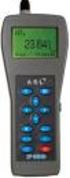 Calibration technology Hand-held thermometer Model CTH7000 WIKA data sheet CT 55.50 Applications Precision thermometer for very accurate temperature measurements in a range of -200... +962 C Reference
User Guide. Temperature and Humidity Datalogger. Model 42280
 User Guide Temperature and Humidity Datalogger Model 42280 Introduction Congratulations on your purchase of the Extech 42280 Thermometer and Relative Humidity Datalogger. The 42280 is a wall-mount, tripod
User Guide. Heavy Duty Dissolved Oxygen Meter. Model 407510
 User Guide Heavy Duty Dissolved Oxygen Meter Model 407510 Introduction Congratulations on your purchase of Extech's Heavy Duty Dissolved Oxygen / Temperature Meter which simultaneously displays Dissolved
Transmitter Interface Program
 Transmitter Interface Program Operational Manual Version 3.0.4 1 Overview The transmitter interface software allows you to adjust configuration settings of your Max solid state transmitters. The following
The Determination of an Equilibrium Constant
 The Determination of an Equilibrium Constant Computer 10 Chemical reactions occur to reach a state of equilibrium. The equilibrium state can be characterized by quantitatively defining its equilibrium
G-100/200 Operation & Installation
 G-100/200 Operation & Installation 2 Contents 7 Installation 15 Getting Started 16 GPS Mode Setup 18 Wheel Sensor Mode Setup 20 Fuel Calibration 23 Basic Operation 24 Telemetery Screen 27 Entering a Distance
SenTix 950 SenTix 980
 SenTix 950 SenTix 980 ph combination electrodes with refillable liquid reference system Operating manual ba75843e01 08/2009 SenTix The latest version of the present operating manual can be found on the
ELECTROCHEMISTRY. BOECO ELECTRODES The electrodes are not included with the ph meters and have to be ordered separately:
 BOECO PORTABLE PH/ORP/TEMP METER MODEL PT-380 A Simultaneous displays ph or mv and temperature. A Convenient calibration with automatic buffer recognition of European and US buffer sets. Calibration data
Deposit Direct. Getting Started Guide
 Deposit Direct Getting Started Guide Table of Contents Before You Start... 3 Installing the Deposit Direct application for use with Microsoft Windows Vista... 4 Running Programs in Microsoft Windows Vista...
UltraBasic Benchtop ph Meter Operation Manual
 UltraBasic Benchtop Meter Operation Manual UB-5 Denver Instrument Measuring 4 4 7 10 Meter 22.2 C 4.06 UltraBasic 902388.1 Rev. A UltraBasic Meter Quick Reference 1. Connect a AC adapter to the power connection.
MODEL 430 PORTABLE ph/conductivity METER OPERATING MANUAL
 MODEL 430 PORTABLE ph/conductivity METER OPERATING MANUAL 430 350/REV A/10-03 MODEL 430 PORTABLE ph/conductivity METER OPERATING MANUAL CONTENTS Introduction 1 Specification 2 Installation 3 Displays 3-4
Manual K 100 PR K 100 W PR. Measuring and control instruments for ph and ORP measurements. 7.02 ph 25.0 C S1 S2 Auto. 7.02 ph 25.
 Manual K 100 PR K 100 W PR Measuring and control instruments for ph and ORP measurements 702 ph 250 C S1 S2 Auto 702 ph 250 C S1 S2 Auto Dr A Kuntze Gutes Wasser mit System Dr A Kuntze GmbH Robert-Bosch-Str
Operating Instructions Bedienungsanleitung Mode d'emploi Instrucciones de manejo Istruzioni d'uso
 Operating Instructions Bedienungsanleitung Mode d'emploi Instrucciones de manejo Istruzioni d'uso SevenEasy Conductivity Italiano Español Français Deutsch English Contents Contents Page 1. Introduction...
Operating instructions Diffuse reflection sensor with background suppression O1D101 O1D104 706114 / 00 01 / 2012
 Operating instructions Diffuse reflection sensor with background suppression O1D101 O1D104 706114 / 00 01 / 2012 Contents 1 Preliminary note 3 1.1 Symbols used 3 1.2 Warning signs used 3 2 Safety instructions
PITE 3921 Battery Monitoring System User Manual P-140606-V1.0
 User Manual P-140606-V1.0 4/F, Bldg A, Chiwan Industrial Park, Shaodi Rd., Chiwan, Shekou Area, Shenzhen, China TEL: +86-755-2680 5759 FAX: +86-755-2688 0310 www.pitetech.com 1 Catalog 1. INTRODUCTION...
YSI Model 5000 YSI Model 5100. Dissolved Oxygen Temperature. Operations Manual
 YSI Model 5000 YSI Model 5100 Dissolved Oxygen Temperature Operations Manual Table of Contents 1. General Description...1 2. Specifications...3 3. Quick Start...5 4. Controls...6 4.1 Front Panel... 6 4.2
Instruction Manual Temp 4/5/6 Temperature Meter Series
 Instruction Manual Temp 4/5/6 Temperature Meter Series 68X243607 Technology Made Easy... Rev. 2 01/03-1 - Preface This instruction manual serves to explain the use of the Temp 4/5/6 temperature meter.
1. Introduction... 3 Introduction...2. 4. Deal command... 13
 Dealer4 PC Software User Manual Service Software Manual ver:ver: 1.11.2 1. Introduction... 3 Introduction...2 2.1 Main Menu... 4 2.1. Main Menu window...4 Summary of additional functions...3 2.2. Board
Milwaukee USER MANUAL. Milwaukee. Smart DO Meter PORTABLE DISSOLVED OXYGEN METER MODEL: SM600. Authorized Dealer: ISMIL600 11/01
 Milwaukee Milwaukee USER MANUAL PORTABLE DISSOLVED OXYGEN METER MODEL: SM600 Smart DO Meter Authorized Dealer: ISMIL600 11/01 PROBE PREPARATION: The meter is supplied with a 9V battery. Slide off the battery
Modular I/O System Analog and Digital Interface Modules
 OPERATING INSTRUCTIONS Modular I/O System Analog and Digital Interface Modules Installation Operation Maintenance Document Information Document ID Title: Operating Instructions Modular I/O System Part
Weather Direct Displays show Lost Forecast (blank boxes in the picture icons)
 Weather Direct Displays show Lost Forecast (blank boxes in the picture icons) Many routine events can cause a Lost Forecast situation. Examples include: Power outage Change batteries Internet down in your
Laboratory Electrochemistry Products. ph Conductivity Dissolved Oxygen
 Laboratory Electrochemistry Products ph Conductivity Dissolved Oxygen Spoilt for choice Small footprint Adjustable viewing angle Wall mountable New style electrode holder Contents page Overview................................3
IX Support Tool Setting Manual
 IX System IP network-compatible intercom IX Support Tool Setting Manual Software version 2.0.0.0 or later Before configuring and using the system, read Setting Manual and Operation Manual (PDF) carefully.
Table of Contents. 1. Overview... 3. 1.1 Materials Required. 3 1.2 System Requirements. 3 1.3 User Mode 3. 2. Installation Instructions..
 Table of Contents 1. Overview..... 3 1.1 Materials Required. 3 1.2 System Requirements. 3 1.3 User Mode 3 2. Installation Instructions.. 4 2.1 Installing the On Call Diabetes Management Software. 4 2.2
User Guide IM/AX4PH Rev. O. AX416, AX436, AX460, AX466 & AX468 Single and dual input analyzers for ph/redox (ORP)
 User Guide IM/AX4PH Rev. O Single and dual input analyzers for ph/redox (ORP) The Company We are an established world force in the design and manufacture of measurement products for industrial process
Quick Start Guide. Cisco SPA232D Mobility Enhanced ATA
 Quick Start Guide Cisco SPA232D Mobility Enhanced ATA Package Contents Analog Telephone Adapter Ethernet Cable Phone Cable Power Adapter Quick Start Guide Product CD-ROM Welcome Thank you for choosing
Milwaukee USER MANUAL
 Milwaukee USER MANUAL PORTABLE DISSOLVED OXYGEN METER MODEL: MW600 Smart DO Meter PROBE PREPARATION: The meter is supplied with a 9V battery. Slide off the battery compartment cover on the back of the
SA-9600 Surface Area Software Manual
 SA-9600 Surface Area Software Manual Version 4.0 Introduction The operation and data Presentation of the SA-9600 Surface Area analyzer is performed using a Microsoft Windows based software package. The
YSI Meter Protocol: Specific Conductivity, ph, & Dissolved Oxygen
 YSI Meter Protocol: Specific Conductivity, ph, & Dissolved Oxygen 1. Check the log-book to see if somebody else has already checked the meter for accuracy within the timeframes below. If the meter hasn
Getting to Know Xsight... 3. Home Screen and Everyday Use... 9. Settings... 11. PC Setup... 17. 2 www.oneforall.com
 User Manual English English Getting to Know Xsight........................................ 3 Unpacking and Setting Up Xsight............................................................. 3 Using Xsight
Parts List. Navigation
 Parts List quantity description 1 LCD-200 Display 1 LCD-200 Display cable 1 CD-ROM 2 dual lock or velcro 1 1GB SD card (optional) 1 CAN termination plug Navigation Main Menu Begin Log/Stop Log page 4 Log
e 1 0 0 I N S T RUC TION M ANU A L
 e 1 0 0 I N S T RUC TION M ANU A L The Empire Digital Level Accuracy, Readability, Durability one FEATURES: Easy to read back light Display reads right side up even if the level is upside down Audio beep
ph-meter 1140 and ph-meter 1140-X Instruction manual
 ph-meter 1140 and ph-meter 1140-X Instruction manual Mettler-Toledo GmbH Process, Postfach, 8902 Urdorf, Switzerland Phone: +41 (1) 736 22 11 Telefax: +41 (1) 736 26 36 Warranty Defects occurring within
SYMBOL MC9060 HAND HELD TERMINAL USER MANUAL
 SYMBOL MC9060 HAND HELD TERMINAL USER MANUAL CORPORATE VERSION FEBRUARY 2007 TABLE OF CONTENTS Welcome... 3 Getting Started... 3 Equipment Setup... 3 Battery Installation... 4 About the Stylus... 5 Aligning
iloq S10 Locking Service User's Guide
 iloq S10 Locking Service User's Guide INTRODUCTION This document is a user's guide to the iloq Manager program. It covers all the basic tasks of locking system maintenance, including maintenance of locking
SupcoLog Logger Interface Software
 SupcoLog Logger Interface Software USER S GUIDE Table Of Contents Quick Start... 5 Overview... 5 Connecting the Logger to Your PC... 5 Setting Up the Logger To Record Data... 6 Custom Interval Setup...
Windows XP Pro: Basics 1
 NORTHWEST MISSOURI STATE UNIVERSITY ONLINE USER S GUIDE 2004 Windows XP Pro: Basics 1 Getting on the Northwest Network Getting on the Northwest network is easy with a university-provided PC, which has
Determining the Free Chlorine Content of Swimming Pool Water. HOCl H + + OCl. Evaluation copy
 Determining the Free Chlorine Content of Swimming Pool Water Computer 33 Physicians in the nineteenth century used chlorine water as a disinfectant. Upon the discovery that certain diseases were transmitted
TOUCH SCREEN WEATHER STATION MODEL WS-3500. Operation Manual
 TOUCH SCREEN WEATHER STATION MODEL WS-3500 Operation Manual 28 Table of Contents 1... General 2... Important Touch Screen Operating Notes generally applicable 3... Putting into Operation 3.1... Wiring
Upgrade Instructions. View Manager 96 v. 5.1. Software Upgrade
 WORLD LEADER IN ELECTRONIC SECURITY Upgrade Instructions View Manager 96 v. 5.1 1 Software Upgrade This software permits you to upgrade your VM96 version 3.x or 4.x system to the latest version of VM96
Appendix C. Vernier Tutorial
 C-1. Vernier Tutorial Introduction: In this lab course, you will collect, analyze and interpret data. The purpose of this tutorial is to teach you how to use the Vernier System to collect and transfer
Combi B PC software 8213X. Installation and operating instructions
 Combi B PC software 8213X Installation and operating instructions EN Table of Contents 1 Important notes... 3 2 Glossary of abbreviations and terms... 4 3 Symbols and special font types used... 5 4 Scope
GSM Autodialer Professional GJD700 Speech & Text Autodialer
 Text Edit message GSM Autodialer Professional GJD700 Speech & Text Autodialer Introduction The GSM Autodialer Professional works in conjunction with standard alarm systems and makes use of your preferred
VIVA 4G LTE Mini Router. Quick Start Guide
 VIVA 4G LTE Mini Router Quick Start Guide Thank you for choosing the VIVA 4G LTE Mini Router (hereinafter referred to as the E57) The supported functions and actual appearance are subject to the product
Instruction Manual FL
 3. Operation Overview The most common used features (such as displaying force, peak hold, zero and changing of displayed units) can all be done by pressing a single dedicated key identified on the front
Features Reference. About Unified Communication System. Before Using This Machine. Starting a Meeting. What You Can Do During the Meeting
 Features Reference About Unified Communication System Before Using This Machine Starting a Meeting What You Can Do During the Meeting Leaving a Meeting Managing Address Book Changing Network Configuration
Multi Client (Integration)
 Multi Client (Integration) Installation and User s Guide Ver 12.10.x *All contents of this document may change without prior notice. INDEX 1. Index 01 2. Introduction 02 3. Installation 03 4. Using Multi
PTR/DTR. Printing Thermometer Software. Software User Manual
 PTR/DTR Printing Thermometer Software Software User Manual CONTENTS Introduction 4 To install the PTR/DTR PC software 4 General tab 6 Device 6 Settings 6 Status 6 Ticket preview 6 Layout 7 Selecting a
e-4 AWT07MLED 7 Q TFT LCD MONITOR (LED Backlighted) USER MANUAL
 Thank you for purchasing our product. Please read this User s Manual before using the product. Change without Notice AWT07MLED 7 Q TFT LCD MONITOR (LED Backlighted) USER MANUAL e-4 SAFETY PRECAUTIONS Federal
Instruction Manual HI 9146. Portable Waterproof Microprocessor Dissolved Oxygen Meter
 Instruction Manual HI 9146 Portable Waterproof Microprocessor Dissolved Oxygen Meter w w w. h a n n a i n s t. c o m Dear Customer, Thank you for choosing a Hanna Product. Please read this instruction
Integrating Sound Level Meter and Datalogger
 USER GUIDE Integrating Sound Level Meter and Datalogger Model 407780A Introduction Thank you for selecting the Extech Instruments Model 407780A. This device is shipped fully tested and calibrated and,
Monitoring Network DMN
 Monitoring Network DMN User Manual Table of contents Table of contents... 2 1. Product features and capabilities... 3 2. System requirements... 5 3. Getting started with the software... 5 3-1 Installation...
INSTRUCTION MANUAL DTH31. 1-800-547-5740 Fax: (503) 643-6322 www.ueitest.com email: [email protected]
 INSTRUCTION MANUAL DTH31 Digital Psychrometer 1-800-547-5740 Fax: (503) 643-6322 www.ueitest.com email: [email protected] Introduction The DTH31 Digital Psychrometer is an advanced handheld humidity and
Operating Manual QUESTOR
 QUESTOR AS 273 Management Software Document: KSW3s527.0004 / en 2010.08 Edition: August 2010 QUESTOR TABLE OF CONTENT 1 Product description EN-4 1.1 Purpose... EN-4 1.2 System components... EN-4 1.2.1
DIGICLIENT 8.0 Remote Agent Software
 DIGICLIENT 8.0 Remote Agent Software MODEL: D17800 Series Instruction Manual English Version 1.0 Copyright 2007 Digimerge Technologies Inc Table of Contents Table of Contents About the DigiClient 8.0...
SNMP Web Management. User s Manual For SNMP Web Card/Box
 SNMP Web Management User s Manual For SNMP Web Card/Box Management Software for Off-Grid Inverter Version: 1.2 Table of Contents 1. Overview... 1 1.1 Introduction... 1 1.2 Features... 1 1.3 Overlook...
HTML Code Generator V 1.0 For Simatic IT Modules CP 443-1 IT, 343-1 IT, 243-1 IT
 HTML Code Generator V 1.0 For Simatic IT Modules CP 443-1 IT, 343-1 IT, 243-1 IT Manual This manual and program are freeware. Every user can use, copy or forward this program and documentation FREE OF
M O D U L E - 7 E Model CS-Caliprompter Operator s Manual
 O P E R A T I O N S A N D P R O C E D U R E S F O R C S - C A L I P R O M P T E R A N D A C C E S S O R I E S Model CS-Caliprompter Visual screen display allows easy step-by-step operation On-site programming
BLU Vivo 4.3 User Manual
 BLU Vivo 4.3 User Manual 1 Table of Contents Phone Safety Information... 3 Appearance and Key Functions... 4 Installation and Charging... 5 Phone Operation... 7 Communication... 10 Camera... 11 Gallery...
User Manual. Humidity-Temperature Chart Recorder. Model RH520
 User Manual Humidity-Temperature Chart Recorder Model RH520 Introduction Congratulations on your purchase of the Extech RH520 Temperature + Humidity Chart Recorder. The RH520 measures and displays Temperature,
User's Manual. Heavy Duty Dissolved Oxygen Meter Model 407510
 User's Manual Heavy Duty Dissolved Oxygen Meter Model 407510 Introduction Congratulations on your purchase of Extech's Heavy Duty Dissolved Oxygen / Temperature Meter which simultaneously displays Dissolved
Dash 18X / Dash 18 Data Acquisition Recorder
 75 Dash 18X / Dash 18 Data Acquisition Recorder QUICK START GUIDE Supports Recorder System Software Version 3.1 1. INTRODUCTION 2. GETTING STARTED 3. HARDWARE OVERVIEW 4. MENUS & BUTTONS 5. USING THE DASH
Technical Note Series
 Technical Note Series SKIN CONDUCTANCE SENSOR (SA9309M) S TN0 0 0 8-0 0 S k i n C o n d u c t a n c e S e n s o r Page 2 IMPORTANT OPERATION INFORMATION WARNING Type BF Equipment Internally powered equipment
User Manual. Thermo Scientific Orion
 User Manual Thermo Scientific Orion Orion Star Com Software Program 68X637901 Revision A April 2013 Contents Chapter 1... 4 Introduction... 4 Star Com Functions... 5 Chapter 2... 6 Software Installation
RS DIGITAL THERMOMETER
 RS DIGITAL THERMOMETER 1319A INSTRUCTION MANUAL C F MX MN AVG TITLE TABLE OF CONTENTS PAGE 1. INTRODUCTION... 1 2. SPECIFICATIONS... 1 3. NAME OF PARTS AND POSITIONS... 3 4. OPERATION INSTRUCTIONS... 5
1 Technical Description Lokal-200PC
 1 Technical Description Lokal-200PC 1.1 Overview laptop with in-built accummulator USB connection correlator box internal power supply laptop (if the device has been supplied by F.A.S.T.) BNC aerial connection
EZ DUPE DVD/CD Duplicator
 EZ DUPE DVD/CD Duplicator User s Manual Version 3.0 0 TABLE OF CONTENTS Introduction 2 Setup 11 LCD Front Panel Overview 2 o Auto Start Time 11 Menu Overview 3-5 o Display Mode 12 Functions 6 o Button
Field Calibration Software
 SIGNAL HOUND Field Calibration Software User s Manual Version 1.1.0 7/8/2016 This information is being released into the public domain in accordance with the Export Administration Regulations 15 CFR 734
Agilent U1610/20A Handheld Digital Oscilloscope Quick Start Guide
 Agilent U1610/20A Handheld Digital Oscilloscope Quick Start Guide Verify that you received the following items in the shipment of your handheld scope: 1 Power cable 1 Li-Ion battery pack, 10.8 V (included
Guide to Digital Tachographs REGULATION (ECC) NO. 3821/1985 REGULATION (EC) NO. 561/2006. Údarás Um Shábháilteacht Ar Bhóithre Road Safety Authority
 Guide to Digital Tachographs REGULATION (ECC) NO. 3821/1985 REGULATION (EC) NO. 561/2006 Údarás Um Shábháilteacht Ar Bhóithre Your guide to Digital Tachographs What is a digital tachograph? Digital tachographs
PRODUCTIVITY THROUGH INNOVATION 600 CONTROL DIRECT DRIVE TECHNICAL/OPERATION MANUAL
 Rev. D PRODUCTIVITY THROUGH INNOVATION 600 CONTROL DIRECT DRIVE TECHNICAL/OPERATION MANUAL 10 BORIGHT AVENUE, KENILWORTH NEW JERSEY 07033 TELEPHONE: 800-524-0273 FAX: 908-686-9317 TABLE OF CONTENTS Page
Integrated Accounting System for Mac OS X
 Integrated Accounting System for Mac OS X Program version: 6.3 110401 2011 HansaWorld Ireland Limited, Dublin, Ireland Preface Standard Accounts is a powerful accounting system for Mac OS X. Text in square
User manual BS1000 LAN base station
 1/18 Contents 1.Introduction 2.Package of the LAN Base Station 3.Software installation 4.Installation of the Receiver 5.Sensor operation 6.Software operation Introduction The BS1000 is a receiver station
How To Set Up An Inverter
 MAKING MODERN LIVING POSSIBLE SOLAR INVERTERS Installation Guide GSM Option Kit FLX series www.danfoss.com/solar Safety Safety Safety Message Types WARNING Safety information important for human safety.
SAP Business Intelligence ( BI ) Financial and Budget Reporting. 7.0 Edition. (Best Seller At Least 43 copies Sold)
 SAP Business Intelligence ( BI ) Financial and Budget Reporting 7.0 Edition (Best Seller At Least 43 copies Sold) November 2011 Table of Contents Log In... 3 Initial Variable Screen... 5 Multiple / Single
INTELLIGENT CONTROL MODULE SA-2000-II HARDWARE MANUAL. Access Technologies International, Inc.
 SA-2000-II HARDWARE MANUAL Access Technologies International, Inc. 1 Table of Contents 1. Introduction 3 2. Features 3 3. Specification 4 4. Identifying Supplied Parts 4 5. Panel Description 5 6. Connection
DVB-T STICK LT. User Manual. USB DVB-T dongle for receiving aerial TV channels MT4171
 DVB-T STICK LT USB DVB-T dongle for receiving aerial TV channels MT4171 User Manual EN Index Index 2 Introduction 2 Package content 2 System Requirements 2 Device installation 3 Software installation 3
IPTV service provided by the company SPBTV in collaboration with Beeline, offers the following opportunities:
 IPTV Contents Service overview... 2 EltexNV-102 media hub... 2 Completeness of set... 2 General characteristics... 2 Overview... 2 Facility front panel... 3 Facility back panel... 3 Facility side panel...