
Field Calibration Software
|
|
|
- Janel Johns
- 9 years ago
- Views:
Transcription
1 SIGNAL HOUND Field Calibration Software User s Manual Version /8/2016 This information is being released into the public domain in accordance with the Export Administration Regulations 15 CFR 734 Requirements, Installation, Instructions, Usage

2 Table of Contents 1 Introduction System Requirements Before Installing the Software Installation Instructions Uninstalling Getting Started Calibration Cycle Lab Standards BB60C Lab Standards VSG25A Lab Standards Running the Software Before starting the software Starting a New Calibration Session Application Layout Filling Out Lab Information Adding Test Standards Adding the Device Under Test Adding GPIB Instruments Greyed out Instruments Adding Passive Test Standards Running the Performance Verification Tests Adjustments BB60C VSG25A Printing the Calibration Report Troubleshooting Test Uncertainty Ratio and Guard Bands Managed Risk Approach Amplitude Accuracy Test Uncertainty Ratio Calculations BB60C VSG25A Signal Hound 1

3 1 Introduction The Signal Hound field calibration software is a PC based application for running performance verification tests and making adjustments to the Signal Hound BB60C spectrum analyzer and the VSG25A vector signal generator. 2 System Requirements PC Requirements for BB60C and VSG25A calibrations - 64-bit Windows 7/8/10 - Intel quad-core i-series processors - 4 GB of RAM or more is recommended - Native USB 3.0 support - 2x USB 3.0 port (recommended) or 1x USB 3.0 and 1x USB 2.0 port (For BB60C) - 1x USB 2.0 for USB to GPIB controller - BB60C Software Application installed (Version or higher) Additional Requirements - USB to GPIB controller 3 Before Installing the Software Before installing the Signal Hound calibration software, ensure the Signal Hound Spike application is installed and working. Spike is Signal Hound s main spectrum analysis software for all the spectrum analyzer products. Spike can be found on the Signal Hound website ( It includes the USB device drivers for the BB60C spectrum analyzer, which is necessary for the calibration software to communicate to the device. The BB60C is required to calibrate the VSG25A. 4 Installation Instructions The Signal Hound calibration software can be downloaded from the Signal Hound website. Unzip the downloaded compressed folder and run the setup.exe file. Follow the on-screen instructions to finish the installation. We recommend installing the software to the default installation directory at C:/Program Files/Signal Hound/Field Calibration 5 Uninstalling On Windows 7/8, the Signal Hound calibration software can be uninstalled from the Programs and Features menu. The Program and Features menu can be found in the Control Panel. Find the Signal Signal Hound 2

4 Hound calibration software, right click the icon, and select uninstall. Once uninstalled, the calibration software can be installed again on the same computer at any time. 6 Getting Started This chapter prepares the user to perform calibrations using the software. 6.1 Calibration Cycle A one-year calibration cycle is recommended for the BB60C and VSG25A. 6.2 Lab Standards The calibration software calls for a number of lab standards. The tests are automated over GPIB. Agilent VISA drivers are used, and a National Instruments or Agilent GPIB adapter is required. To perform all calibrations, all lab standards will need to be present. If any standard is missing, some performance tests will be unavailable. All lab standards need to be within calibration BB60C Lab Standards Below is a list of required equipment to perform a full calibration of the BB60C. Equipment Type Key Specifications Used Required Make / Model Signal Generator 10 MHz to 6 GHz, -50 dbm to +10 dbm output, <-55 dbc harmonics Agilent 83712B/83732B Option 1E1 (Attenuator Option) Or Agilent 83712B/83732B with external Agilent step attenuator model 8496H or equivalent with Agilent driver model 11713A or compatible. Function Generator 9 khz to 10 MHz, Agilent 33120A or compatible -20 dbm to +13 dbm output Power Meter Supports E9304A sensor Agilent EPM-series, E4418, E4419 Spectrum Analyzer 2 GHz to 7.5GHz RF input Agilent 8562E-8565EC Power Sensor 9kHz 6GHz RF input, Agilent E9304A all E9304A specifications required Power Splitter 9kHz 6GHz, VSWR < 1.22, Agilent 11667B or equivalent 0.25 db output tracking Attenuator (10dB) 9kHz 6GHz, VSWR < 1.1, ±0.3 db Agilent 8493C or equivalent Depending on the test setup, various adapters may be needed and are not listed here. Signal Hound 3

5 If an 83712B/83732B signal generator is not available, the Agilent 8340/8341 or Agilent 8665B may be used for all tests except for the spurious mixer products test and phase noise test. For calibration of the BB60C 10 MHz time base reference, your signal generator s internal time base must be within 0.2 ppm, or an accurate external 10 MHz reference must be connected to your signal generator s 10 MHz Input connector. Adjusting the BB60C 10 MHz reference without an accurate external 10 MHz reference is discouraged VSG25A Lab Standards Below is a list of required equipment to perform a full calibration of the VSG25A. Equipment Type Key Specifications Used Required Make / Model Power Meter Supports E9304A sensor Agilent EPM-series, E4418, E4419 Spectrum Analyzer 100 MHz to 2.5 GHz RF input Signal Hound BB60C Power Sensor 9kHz 6GHz RF input, all E9304A specifications required Agilent E9304A 7 Running the Software This chapter acts as a guide to running the Signal Hound field calibration software. 7.1 Before starting the software At this point all lab standards need to be identified and should be on a GPIB network connected to your PC with a unique GPIB address. The Signal Hound spectrum analyzer or signal generator under test should be connected to your PC, and should be allowed at minimum 15 minutes of idling time before starting the software. This allows the device to reach a stable operating temperature. 7.2 Starting a New Calibration Session Upon launching the software, the user will be presented with a splash screen and application menu bar. Using the menu bar, select Start New Test and choose a device to begin a new calibration test session. Signal Hound 4


6 Figure 1: Using the file menu to start a new calibration session 7.3 Application Layout When a test has been selected the software will immediately change into an interface designed to manage the calibration session. Figure 2: Application Layout for a BB60C Calibration Session Signal Hound 5


7 On the left portion of the application you will see various tabs, and on the right is the designated workspace for a given tab. Tabs can be selected with your mouse. Available tabs are colored white, and greyed out tabs indicate tests that are unavailable. 7.4 Filling Out Lab Information Selecting the Lab Info tab displays a workspace for entering your calibration lab information as well as test environment information. You can add any notes and a report number for tracking purposes. This information will be printed on the final test report. You can save/load the information on this page to prevent having to re-type it on future tests. 7.5 Adding Test Standards Selecting the Equipment tab displays a workspace for entering and connecting your available test standards. From this tab you will connect the device under test, all GPIB instrument, and enter all passive test standards. It is recommended to add all test standards before beginning the calibration tests. Figure 3: Equipment entry tab for a BB60C calibration session Adding the Device Under Test The device under test (DUT) can be added simply by having the device connected to your PC and pressing the Connect Equipment button. If it has been properly detected, the Device Under Test section under the equipment tab will be updated to show the connection status and serial number. If at any point during the calibration the DUT becomes disconnected, the software will alert you to this and you will need to return to the Equipment tab and re-connect the DUT. Signal Hound 6

8 7.5.2 Adding GPIB Instruments To add a test standard with a GPIB interface, you need to enter a GPIB address for the standard (addresses default to their values from the previous session), and press the Connect Equipment button. If the device responds at that address, the session will populate the Model / Serial Number / and Cal Due date for that device. You will need to select the Cal Due date the first time you connect a new test standard. Once any test standard with a GPIB interface has been added to the software, it cannot be changed until the software is restarted Greyed out Instruments Some instruments or standards will remain grayed out until the proper equipment is detected. An example of this is the step attenuator. The step attenuator is only compatible when using an Agilent 83712B/83732B without internal attenuator option Adding Passive Test Standards Passive equipment must be added manually, and is stored in dropdown lists by type. All equipment in this category can be found under the Additional Equipment section in the Equipment tab. Pressing Add next to each piece of equipment allows you to enter the model, serial, and calibration due date of each piece of equipment, and adds it to the corresponding dropdown list. Pressing Remove removes the piece of equipment from the dropdown list. Selecting a piece of equipment from the dropdown list designates it for use. 7.6 Running the Performance Verification Tests As you add test standards to the session, test tabs will become available. Each test tab will display a workspace containing a description of the test, and image depicting the test setup, test output, and a start test button. Signal Hound 7


9 Figure 4: The test workspace for BB60C Amplitude Accuracy Tests are grouped together to minimize the changes in the test setup. It is recommended to start at the top of the test list and work your way down. For each test, ensure your test setup matches the one depicted in the image and press Start Test. The test time is shown above the Start Test button. The tests will take less than the estimated time on average. Some tests may require you to change the setup part way through the test. The setup changes will be depicted on the setup images for those tests. Wait for the test status to change to pass/fail before continuing. If the test passes, the test status will be updated to Test Passed and the test tab will be colored green. If the test fails, the test status will be updated to Test Failed and the test tab will be colored red. In either case, a test may be re-run, and the old results overwritten. 7.7 Adjustments BB60C MHz Reference The 10MHz reference time base test will allow you to adjust the device upon completion. The software will give you the choice to make the adjustment once the test is complete. There is a limited amount of FLASH memory dedicated to 10 MHz reference adjustments, so adjustments should not be performed more than once per month. It is very important to read the dialog box that appears to give you the option. All adjustments made are permanent until the device is returned to Signal Hound. If you choose to make an adjustment the software must be manually restarted, and the calibration session restarted. Signal Hound 8


10 7.7.2 VSG25A Internal Time Base The 24 MHz internal time base is easily adjusted to within 1 ppm using a 1.8 mm or 1/16 slotted screwdriver, found in many common jeweler s screwdriver kits. To accomplish this, generate a CW signal of known frequency (e.g. 1 GHz), and adjust using a spectrum analyzer, measuring receiver, or counter. 7.8 Printing the Calibration Report When you are finished with the device calibration tests, you can print a report of the calibration session using the Print Test Report button under the Print Report tab. Figure 5: Printing the Calibration Report You can select the file name and location for the report. You can also print the report at any time during the calibration session. The calibration report includes the facility information, lab standards, and test points and status for each test performed. 8 Troubleshooting If you have any issues contact Signal Hound at [email protected] or by phone TEST Signal Hound 9

11 9 Test Uncertainty Ratio and Guard Bands 9.1 Managed Risk Approach Since the BB60C and VSG25A are relatively new devices, we do not have data on the probability of a device being in tolerance prior to calibration (a priori probability). Because of this, in an effort to meet ANSI/NCSLI Z specifications while minimizing false reject risk, we cannot safely use the simple 4:1 Test Uncertainty Ratio (TUR) to guarantee the required <2% false-accept risk for a calibration. Instead, we use equation 5 of A Guard-Band Strategy for Managing False-Accept Risk by Michael Dobbert, Agilent Technologies: A = T - U95% * (1.04 e (0.38 ln(tur) 0.54) ) where U95% is the measurement uncertainty (95%confidence interval), A is the Acceptance Limit, and T is the specified tolerance. We can derive from this equation that, for a TUR of 4.6:1 or better, it is acceptable to set the acceptance limit equal to the tolerance limit, even without statistics on what percentage of devices are expected to pass calibration, by simply assuming the worst case. Where TUR is less than 4.6:1, a guard-band will be subtracted from the tolerance limit to give a tighter acceptance limit. In the case of the BB60C at 0 db internal attenuator setting (worst case VSWR), the calculated RSS uncertainty of db gives us a TUR of (2.0dB / db) = 3.84:1. Using the above equation, we set our acceptance limit for amplitude accuracy to ±1.96 db to keep the false-accept risk below 2% independent of a priori probability. Where TUR is 4.6:1 or better, the acceptance limit is equal to the test limit. 9.2 Amplitude Accuracy Test Uncertainty Ratio Calculations BB60C Uncertainty, Parameter 0 db Atten Power Splitter Output Tracking 0.25 db 10 db 8493C Attenuator Uncertainty 0.3 db Mismatch gain uncertainty, sensor to splitter (SWR 1.22, 1.19) db Mismatch gain uncertainty, splitter to 10 db pad (SWR 1.22, 1.1) 0.04 db Mismatch gain uncertainty, 10 db pad to BB60C db Power Meter Instrumentation Uncertainty 0.5% Sensor Calibration Factor Uncertainty 2.2% Uncertainty from Power Sensor Linearity 3% Calibrator Output Power Level Uncertainty 0.6% Total System Uncertainty in db (combined using RSS) ±0.521 db Specified Tolerance ±2.0 db Test Uncertainty Ratio (TUR) 3.84 Acceptance Limit (Managed Risk Approach) ±1.96 db Signal Hound 10

12 9.2.2 VSG25A Uncertainty, Parameter 0 db Atten Mismatch gain uncertainty, connector to VSG25A (SWR 1.25, 2.0) db Mismatch gain uncertainty, connector to sensor (SWR 1.25, 1.22) db Power Meter Instrumentation Uncertainty 0.5% Sensor Calibration Factor Uncertainty 2.2% Uncertainty from Power Sensor Linearity 3% Calibrator Output Power Level Uncertainty 0.6% Power Meter Combined uncertainty (db) db Total System Uncertainty in db (RSS) ±0.29 db Specified Tolerance ±2.0 db Where TUR is 4.6:1 or better, the acceptance limit is equal to the test limit. Signal Hound 11

Calibration Guide. Agilent Technologies ESG Vector Signal Generator
 Calibration Guide Agilent Technologies ESG Vector Signal Generator This guide applies to signal generator models and associated serial number prefixes listed below. Depending on your firmware revision,
SIGNAL GENERATORS and OSCILLOSCOPE CALIBRATION
 1 SIGNAL GENERATORS and OSCILLOSCOPE CALIBRATION By Lannes S. Purnell FLUKE CORPORATION 2 This paper shows how standard signal generators can be used as leveled sine wave sources for calibrating oscilloscopes.
Transmitter Interface Program
 Transmitter Interface Program Operational Manual Version 3.0.4 1 Overview The transmitter interface software allows you to adjust configuration settings of your Max solid state transmitters. The following
Guide to Installing BBL Crystal MIND on Windows 7
 Guide to Installing BBL Crystal MIND on Windows 7 Introduction The BBL Crystal MIND software can not be directly installed on the Microsoft Windows 7 platform, however it can be installed and run via XP
Page 1 S5.5 Monitoring Software Manual Rev 1.2 for Software Ver 1.0
 Trantec S5.5 Monitoring Software Manual Initial Setup Minimum PC Requirements 1.6 GHz CPU, 256 MB Memory, 1 available USB port, Windows XP Recommended PC >2.0 GHz CPU, 512 MB (XP) 1 GB (Vista) memory,
Agilent PN 8753-1 RF Component Measurements: Amplifier Measurements Using the Agilent 8753 Network Analyzer. Product Note
 Agilent PN 8753-1 RF Component Measurements: Amplifier Measurements Using the Agilent 8753 Network Analyzer Product Note 2 3 4 4 4 4 6 7 8 8 10 10 11 12 12 12 13 15 15 Introduction Table of contents Introduction
DCT-16 USB HD Audio Converter
 DCT-16 USB HD Audio Converter Operation Manual DISCLAIMERS The information in this manual has been carefully checked and is believed to be accurate. Cypress Technology assumes no responsibility for any
JVC Monitor Calibration 2 User's Guide
 JVC Monitor Calibration 2 User's Guide Table of Contents 1. What is JVC Monitor Calibration 2? 2. System Requirement 3. Installation (JVC Monitor Calibration 2) 4. Uninstall 5. Installation (EyeOne Display
Agilent N2717A Service Software Performance Verification and Adjustment Software for the Agilent ESA Spectrum Analyzers Product Overview
 Agilent N2717A Service Software Performance Verification and Adjustment Software for the Agilent ESA Spectrum Analyzers Product Overview Reduce your cost of ownership by minimizing time to calibrate and
R&S ZNC Vector Network Analyzer Specifications
 ZNC3_dat-sw_en_5214-5610-22_v0300_cover.indd 1 Data Sheet 03.00 Test & Measurement R&S ZNC Vector Network Analyzer Specifications 04.09.2012 13:39:47 CONTENTS Definitions... 3 Measurement range... 4 Measurement
Tektronix RSA306 USB Spectrum Analyzer
 Tektronix RSA306 USB Spectrum Analyzer Simple Demos The Demo of the RSA306 is easy. Even you do not have signal generators, devices under test, or demo boards, using the whip antenna provided in box, you
Deposit Direct. Getting Started Guide
 Deposit Direct Getting Started Guide Table of Contents Before You Start... 3 Installing the Deposit Direct application for use with Microsoft Windows Vista... 4 Running Programs in Microsoft Windows Vista...
2300-555 System Verification Software (SVS)
 Quick Start Guide 2300-555 System Verification Software (SVS) Site Master S820E Cable and Antenna Analyzer 3663-1 Verification Kit, N Connector 3668-1 Verification Kit, K Connector This quick start guide
INF-USB2 and SI-USB Quick Start Guide
 INF-USB2 and SI-USB Quick Start Guide Please follow these instructions carefully. DO NOT connect the INF-USB2 or SI-USB module to your computer before running the setup program. After running Setup and
Table of Contents. 1. Overview... 3. 1.1 Materials Required. 3 1.2 System Requirements. 3 1.3 User Mode 3. 2. Installation Instructions..
 Table of Contents 1. Overview..... 3 1.1 Materials Required. 3 1.2 System Requirements. 3 1.3 User Mode 3 2. Installation Instructions.. 4 2.1 Installing the On Call Diabetes Management Software. 4 2.2
Performing Amplifier Measurements with the Vector Network Analyzer ZVB
 Product: Vector Network Analyzer R&S ZVB Performing Amplifier Measurements with the Vector Network Analyzer ZVB Application Note This document describes typical measurements that are required to be made
Select Correct USB Driver
 Select Correct USB Driver Windows often installs updated drivers automatically, and defaults to this latest version. Not all of these drivers are compatible with our software. If you are experiencing communications
Technical Datasheet Scalar Network Analyzer Model 8003-10 MHz to 40 GHz
 Technical Datasheet Scalar Network Analyzer Model 8003-10 MHz to 40 GHz The Giga-tronics Model 8003 Precision Scalar Network Analyzer combines a 90 db wide dynamic range with the accuracy and linearity
Installing S500 Power Monitor Software and LabVIEW Run-time Engine
 EigenLight S500 Power Monitor Software Manual Software Installation... 1 Installing S500 Power Monitor Software and LabVIEW Run-time Engine... 1 Install Drivers for Windows XP... 4 Install VISA run-time...
SoundLAB Software Download Software from the Bogen website: www.bogen.com/software
 SPLM DIGITAL SOUND PRESSURE LEVEL METER SoundLAB Software INSTALLATION & INSTRUCTION MANUAL Download Software from the Bogen website: www.bogen.com/software Specifications are subject to change without
Scan2CRM for ACT! User Guide
 Scan2CRM for ACT! User Guide APPENDIX Warranty... I Notice to user...ii Publication...III Trademarks...IV Version 9.50 - Supports ACT! by Sage for windows, ACT! 2007 (Version 9) and above. This publication
SL-8800 HDCP 2.2 and HDCP 1.x Protocol Analyzer for HDMI User Guide
 SL-8800 HDCP 2.2 and HDCP 1.x Protocol Analyzer for HDMI Simplay-UG-02003-A July 2015 Contents 1. Overview... 4 1.1. SL-8800 HDCP Protocol Analyzer Test Equipment... 4 1.2. HDCP 2.2/HDCP 1.x Protocol Analyzer
DIGICLIENT 8.0 Remote Agent Software
 DIGICLIENT 8.0 Remote Agent Software MODEL: D17800 Series Instruction Manual English Version 1.0 Copyright 2007 Digimerge Technologies Inc Table of Contents Table of Contents About the DigiClient 8.0...
Agilent AN 1315 Optimizing RF and Microwave Spectrum Analyzer Dynamic Range. Application Note
 Agilent AN 1315 Optimizing RF and Microwave Spectrum Analyzer Dynamic Range Application Note Table of Contents 3 3 3 4 4 4 5 6 7 7 7 7 9 10 10 11 11 12 12 13 13 14 15 1. Introduction What is dynamic range?
Software Utility VNA Frequency Converter Leveling Tool Getting Started
 Software Utility VNA Frequency Converter Leveling Tool Getting Started (=ONÓ2) Getting Started Test & Measurement 1331.3069.02 01 2016 Rohde & Schwarz GmbH & Co. KG Mühldorfstr. 15, 81671 München, Germany
CashFlow Programming Module CPM
 CashFlow Programming Module CPM Installation & User Guide GB REV G4 08/08/2006 Table of Content Table of Content... 2 CashFlow Programming Module (CPM)... 4 What is a CPM?... 4 CPM Identification... 4
Chief Architect X6. Download & Installation Instructions. Chief Architect, Inc. 6500 N. Mineral Dr. Coeur d Alene, Idaho 83815 www.chiefarchitect.
 Chief Architect X6 Download & Installation Instructions Chief Architect, Inc. 6500 N. Mineral Dr. Coeur d Alene, Idaho 83815 www.chiefarchitect.com Contents Chapter 1: Installation What s Included with
Agilent N8973A, N8974A, N8975A NFA Series Noise Figure Analyzers. Data Sheet
 Agilent N8973A, N8974A, N8975A NFA Series Noise Figure Analyzers Data Sheet Specifications Specifications are only valid for the stated operating frequency, and apply over 0 C to +55 C unless otherwise
Quick Start Using DASYLab with your Measurement Computing USB device
 Quick Start Using DASYLab with your Measurement Computing USB device Thank you for purchasing a USB data acquisition device from Measurement Computing Corporation (MCC). This Quick Start document contains
Acer LCD Monitor Driver Installation Guide
 1 Contents 1 Contents... 1 2 Introduction... 2 3 Installation Guide... 2 3.1 PC requirements... 2 3.2 Installing the Acer LCD Monitor Driver on Windows Vista... 3 3.2.1 Hardware first install... 3 3.2.2
WAMLocal. Wireless Asset Monitoring - Local Food Safety Software. Software Installation and User Guide BA/WAM-L-F
 Wireless Asset Monitoring - Local Food Safety Software BA/WAM-L-F Software Installation and User Guide System Overview The BAPI Wireless Asset Monitoring Local (WAM Local) Software receives temperature
Agilent AN 1316 Optimizing Spectrum Analyzer Amplitude Accuracy
 Agilent AN 1316 Optimizing Spectrum Analyzer Amplitude Accuracy Application Note RF & Microwave Spectrum Analyzers Table of Contents 3 3 4 4 5 7 8 8 13 13 14 16 16 Introduction Absolute versus relative
A Guide to Calibrating Your Spectrum Analyzer
 A Guide to Calibrating Your Application Note Introduction As a technician or engineer who works with electronics, you rely on your spectrum analyzer to verify that the devices you design, manufacture,
INSTALLING AND USING ENTEL PROGRAMMER IN WINDOWS 7 Technical Support Bulletin
 INSTALLING AND USING ENTEL PROGRAMMER IN WINDOWS 7 Rev 1.1 Technical Support Bulletin 1 GENERAL DESCRIPTION: Due to the structural changes in Windows 7 compared to previous Windows versions the following
Brother Automatic E-Mail Printing OPERATION MANUAL
 Brother Automatic E-Mail Printing OPERATION MANUAL Copyright Brother 1999 No part of this publication may be reproduced in any form or by any means without permission in writing from the publisher. The
Quick Start Guide. MRB-KW01 Development Platform Radio Utility Application Demo MODULAR REFERENCE BOARD
 Quick Start Guide MRB-KW01 Development Platform Radio Utility Application Demo MODULAR REFERENCE BOARD Quick Start Guide Get to Know the MRB-KW01x Module UART Selector ANT 1 RFIO (TX/RX) USB 2.0 Serial
Sprint 3G/4G Plug-in-Connect USB Web Browser Interface User Guide
 Sprint 3G/4G Plug-in-Connect USB Web Browser Interface User Guide 2012 Sprint. Sprint and the logo are trademarks of Sprint. Other marks are trademarks of their respective owners. Table of Contents Table
3G USB Modem. Model AC327U. User Manual. February 2014 202-11356-01. 350 East Plumeria Drive San Jose, CA 95134 USA
 3G USB Modem Model AC327U User Manual February 2014 202-11356-01 350 East Plumeria Drive San Jose, CA 95134 USA Support Thank you for selecting NETGEAR products. After installing your device, locate the
1. SAFETY INFORMATION
 RS-232 Sound Level Meter 72-860A INSTRUCTION MANUAL www.tenma.com 1. SAFETY INFORMATION Read the following safety information carefully before attempting to operate or service the meter. Use the meter
Pearl Echo Installation Checklist
 Pearl Echo Installation Checklist Use this checklist to enter critical installation and setup information that will be required to install Pearl Echo in your network. For detailed deployment instructions
1. Open the battery compartment as shown in the image.
 This Quick User Guide helps you get started with the IRIScan Book 3 scanner. This scanner is supplied with the software applications Readiris Pro 12, IRIScan Direct and IRISCompressor. Corresponding Quick
Model SL355 Noise Dosimeter/Datalogger
 Model SL355 Noise Dosimeter/Datalogger Software Help Guide Software Introduction The SL355 Noise Dosimeter software allows for setup and retrieval of recorded data in the Noise Dosimeter. A total of 20
OPERATION MANUAL. MV-410RGB Layout Editor. Version 2.1- higher
 OPERATION MANUAL MV-410RGB Layout Editor Version 2.1- higher Table of Contents 1. Setup... 1 1-1. Overview... 1 1-2. System Requirements... 1 1-3. Operation Flow... 1 1-4. Installing MV-410RGB Layout
USB Smart Power Sensor
 50Ω -30 dbm to +20 dbm, 9 khz to 4000 MHz The Big Deal Low cost USB HID device compatible with 32/64 Bit operating systems Includes Measurement Application GUI (Graphical User Interface) software with
The Wireless LAN (Local Area Network) USB adapter can be operated in one of the two following networking configurations :
 SAGEM Wi-Fi 11g USB ADAPTER Quick Start Guide About this guide This Quick Start Guide describes how to install and operate your SAGEM Wi-Fi 11g USB ADAPTER. Please read this manual before you install the
File Management Utility. T u t o r i a l
 File Management Utility T u t o r i a l Contents System Requirements... 2 Preparing Files for Transfer to GlobalMark... 2 Application Launch... 2 Printer Setup... 2 Communication Status... 4 Communication
ELAD FDM-SW1 USER MANUAL. Ver. 1.0
 ELAD FDM-SW1 USER MANUAL Ver. 1.0 Index 1 FDM-SW1 Overview... 4 2 Graphical User Interface (GUI)... 5 2.1 Display Window... 6 2.1.1 Filter Spectrum... 6 2.1.2 Click Options... 7 2.1.3 Graphics Settings...
Installation Instructions
 Installation Instructions Windows USB driver for Installation If a Diagnostic Interface with USB is connected to a PC with a Windows operating system 98, ME, XP or Vista for the first time, it is necessary
Ultra Thin Client TC-401 TC-402. Users s Guide
 Ultra Thin Client TC-401 TC-402 Users s Guide CONTENT 1. OVERVIEW... 3 1.1 HARDWARE SPECIFICATION... 3 1.2 SOFTWARE OVERVIEW... 4 1.3 HARDWARE OVERVIEW...5 1.4 NETWORK CONNECTION... 7 2. INSTALLING THE
Installing USB Drivers With Microsoft Windows XP
 Installing USB Drivers With Microsoft Windows XP Legal Notice No part of this guide may be reproduced, transmitted, transcribed, stored in a retrieval system, or translated into any computer language,
USB FLASH DRIVE. User s Manual 1. INTRODUCTION...1 1.1. FEATURES...1 1.2. SPECIFICATIONS...2 1.3. PACKAGE CONTENTS...2 1.4. SYSTEM REQUIREMENTS...
 Table of Contents 1. INTRODUCTION...1 1.1. FEATURES...1 1.2. SPECIFICATIONS...2 1.3. PACKAGE CONTENTS...2 1.4. SYSTEM REQUIREMENTS...2 2. INSTALLATION PROCEDURE...3 2.1. INSTALL USB FLASH DRIVE ON WINDOWS
Spectrum and Power Measurements Using the E6474A Wireless Network Optimization Platform
 Application Note Spectrum and Power Measurements Using the E6474A Wireless Network Optimization Platform By: Richard Komar Introduction With the rapid development of wireless technologies, it has become
1 Intel Smart Connect Technology Installation Guide:
 1 Intel Smart Connect Technology Installation Guide: 1.1 System Requirements The following are required on a system: System BIOS supporting and enabled for Intel Smart Connect Technology Microsoft* Windows*
Accounting Manager. User Guide A31003-P1030-U114-2-7619
 Accounting Manager User Guide A31003-P1030-U114-2-7619 Our Quality and Environmental Management Systems are implemented according to the requirements of the ISO9001 and ISO14001 standards and are certified
R&S ZNBT8 Vector Network Analyzer Specifications
 ZNBT8_dat-sw_en_3606-9727-22_v0200_cover.indd 1 Data Sheet 02.00 Test & Measurement R&S ZNBT8 Vector Network Analyzer Specifications 20.05.2014 08:39:42 CONTENTS Definitions... 3 Measurement range... 4
Cloud Services ADM. Agent Deployment Guide
 Cloud Services ADM Agent Deployment Guide 10/15/2014 CONTENTS System Requirements... 1 Hardware Requirements... 1 Installation... 2 SQL Connection... 4 AD Mgmt Agent... 5 MMC... 7 Service... 8 License
3G USB Modem. Model AC329U. User Manual. February 2014 202-11357-02. 350 East Plumeria Drive San Jose, CA 95134 USA
 3G USB Modem Model AC329U User Manual February 2014 202-11357-02 350 East Plumeria Drive San Jose, CA 95134 USA Support Thank you for selecting NETGEAR products. After installing your device, locate the
USB 2.0 VGA ADAPTER USER MANUAL
 USB 2.0 VGA ADAPTER USER MANUAL CONTENTS INTRODUCTION... 3 FEATURES... 3 SYSTEM REQUIREMENTS... 3 PACKAGE CONTENTS... 3 SUPPORTED COMMON DISPLAY RESOLUTION... 4 TECHNICAL SPECIFICATIONS... 4 INSTALLATION
WUA-0605 300Mbps Wireless USB Network Adapter
 WUA-0605 300Mbps Wireless USB Network Adapter User Manual V1.0 Certification FCC CE FCC Statement This equipment has been tested and found to comply with the limits for a Class B digital device, pursuant
STIM202 Evaluation Kit
 Table of contents: 1 FEATURES... 2 2 GENERAL DESCRIPTIONS AND SYSTEM CONTENTS... 2 3 SYSTEM REQUIREMENTS... 2 4 GETTING STARTED... 3 4.1 INSTALLATION OF NI-SERIAL CABLE ASSEMBLY DRIVER... 3 4.2 INSTALLATION
CANON FAX L360 SOFTWARE MANUAL
 CANON FAX L360 SOFTWARE MANUAL Before You Begin the Installation: a Checklist 2 To ensure a smooth and successful installation, take some time before you begin to plan and prepare for the installation
Read Me UNISTREAM AUTOMATION IDE
 Read Me UNILOGIC SOFTWARE UNISTREAM AUTOMATION IDE Unitronics UniLogic software is the programming Integrated Development Environment (IDE) you use to configure hardware, communications, and develop both
SA-9600 Surface Area Software Manual
 SA-9600 Surface Area Software Manual Version 4.0 Introduction The operation and data Presentation of the SA-9600 Surface Area analyzer is performed using a Microsoft Windows based software package. The
Automatic compression measurement using network analyzers
 Automatic compression measurement using network analyzers Introduction The dynamic range of an amplifier is determined by noise figure and compression. In multi carrier applications third order intercept
Wireless-N. User Guide. PCI Adapter WMP300N (EU) WIRELESS. Model No.
 2,4 GHz WIRELESS Wireless-N PCI Adapter User Guide Model No. WMP300N (EU) Copyright and Trademarks Specifications are subject to change without notice. Linksys is a registered trademark or trademark of
Fiery E100 Color Server. Welcome
 Fiery E100 Color Server Welcome 2011 Electronics For Imaging, Inc. The information in this publication is covered under Legal Notices for this product. 45098226 27 June 2011 WELCOME 3 WELCOME This Welcome
Dexcom Update Tool: Instructions for Use
 Dexcom Update Tool: Instructions for Use 1 Table of Contents Section 1: Overview... 3 What is the Dexcom Update Tool?... 3 What do I Need to Use This Tool?... 3 Indications for Use... 3 Precautions...
Windows 10.1 Tablet (UB-15MS10 and UB-15MS10SA) FAQ December 2014
 Windows 10.1 Tablet (UB-15MS10 and UB-15MS10SA) FAQ December 2014 Navigation... 2 Question 1: What are charms used for?... 2 Question 2: How do I navigate while using a mouse or trackpad?... 3 Question
ScreenBeam Wireless Display Kit. User Manual. Solutions for the Digital Life. Model #: SBWD100KIT. Ver 1.0
 ScreenBeam Wireless Display Kit Model #: SBWD100KIT User Manual Ver 1.0 Solutions for the Digital Life Table of Contents Introduction 1 Package Contents 1 Features 2 System Requirements 2 Getting to Know
DAS202Tools v1.0.0 for DAS202 Operating Manual
 DAS202Tools v1.0.0 for DAS202 Operating Manual DAT102Tools 1.0.0 Manual Table of context 2 Table of Contents 1 General Information... 3 2 PC... Configuration Requirements 3 3 Software Installation... 3
Analyzer 2.0. Installation Guide. Contents
 Analyzer 2.0 Analyzer 2.0 is a comprehensive suite of tools designed to help you analyze complex aqueous and multisolvent electrolyte solution chemistry, thermophysical properties, phase behavior and corrosion
Midland BT Updater BTUpdater Program Program file (x86) ), Midland
 Midland BT Updater After you downloaded the BT Updater setup application from the web site, double click on it and follow the installation procedure. The BTUpdater application is automatically installed
Introduction 1-1 Installing FAS 500 Asset Accounting the First Time 2-1 Installing FAS 500 Asset Accounting: Upgrading from a Prior Version 3-1
 Contents 1. Introduction 1-1 Supported Operating Environments................ 1-1 System Requirements............................. 1-2 Security Requirements........................ 1-3 Installing Server
To begin, visit this URL: http://www.ibm.com/software/rational/products/rdp
 Rational Developer for Power (RDp) Trial Download and Installation Instructions Notes You should complete the following instructions using Internet Explorer or Firefox with Java enabled. You should disable
A.01.02 1. 1.1 1.2 1.3 1.4 1.5 2. 2.1 2.1.1 PC
 README Agilent 2200 TapeStation Software Contents 1. Introduction 1.1 New features with A.02.01 1.2 New features with A.01.05 1.3 New features with A.01.04 1.4 New features with A.01.03 1.5 New features
Pacesetter BES Lettering Installation Guide
 Pacesetter BES Lettering Installation Guide ii Pacesetter BES Lettering Instruction Manual Copyright Copyright 2009 Pulse Microsystems Ltd. All rights reserved. This Installation Guide is copyrighted by
Impedance 50 (75 connectors via adapters)
 VECTOR NETWORK ANALYZER PLANAR TR1300/1 DATA SHEET Frequency range: 300 khz to 1.3 GHz Measured parameters: S11, S21 Dynamic range of transmission measurement magnitude: 130 db Measurement time per point:
Table of Contents. FleetSoft Installation Guide
 FleetSoft Installation Guide Table of Contents FleetSoft Installation Guide... 1 Minimum System Requirements... 2 Installation Notes... 3 Frequently Asked Questions... 4 Deployment Overview... 6 Automating
Signal and Tracking Generator
 Signal and Tracking Generator USG Series USER MANUAL REVISION 1.1 January 2014 ISO-9001 CERTIFIED MANUFACTURER This manual contains proprietary information, which is protected by copyright. All rights
TellStick User Manual
 1 Installation Guide TellStick User Manual Welcome Thank you for choosing a Telldus Technologies product. This manual will help you install and use the TellStick. We recommend that you read through the
How To Use An Nio V2.2.4.2 (Ios) With A Simioni V2 (V2.3) And V2
 Release Notes Revision: 08 R&S ES-SCAN EMI Measurement Software Software Release V2.60 These Release Notes describe the following types and options of the R&S ES-SCAN EMI Measurement Software. R&S ES-SCAN,
for Windows 7 Laplink Software, Inc. Quick Start Guide h t t p : / / w w w. l a p l i n k. c o m / h e l p MN-LLG-EN-15 (REV.
 1 for Windows 7 Laplink Software, Inc. Customer Service/Technical Support: Web: http://www.laplink.com/help E-mail: [email protected] Laplink Software, Inc. 14335 NE 24th Street, Suite 201 Bellevue,
Procedure for updating Firmware of EZ4 W or ICC50 W
 Procedure for updating Firmware of EZ4 W or ICC50 W 1. Download the Firmware file for your camera to your PC 2. Download the Leica Camera Configuration program to your PC 3. Install Leica Camera Configuration
QUICK START GUIDE. SG2 Client - Programming Software SG2 Series Programmable Logic Relay
 QUICK START GUIDE SG2 Client - Programming Software SG2 Series Programmable Logic Relay SG2 Client Programming Software T he SG2 Client software is the program editor for the SG2 Series Programmable Logic
Experiment 7: Familiarization with the Network Analyzer
 Experiment 7: Familiarization with the Network Analyzer Measurements to characterize networks at high frequencies (RF and microwave frequencies) are usually done in terms of scattering parameters (S parameters).
BabyWare Imperial PC Software
 Overview (see page 1) Things You Should Know (see page 1) Getting Started (see page 2) Licenses and Registration (see page 6) Usernames Passwords and Login (see page 7) BabyWare Imperial PC Software Overview
Installation Guide. N5101A Baseband Studio PCI Card. Overview
 Installation Guide N5101A Baseband Studio PCI Card Overview This guide provides instructions on how to install the N5101A Baseband Studio PCI card in a PC. The PCI card is installed in a PC and is used
Network/Floating License Installation Instructions
 Network/Floating License Installation Instructions Installation steps: On the Windows PC that will act as License Manager (SERVER): 1. Install HASP Run-time environment, SERVER 2. Plug in the red USB hardware
Quick Start. AirCard 340U USB Modem
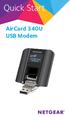 Quick Start AirCard 340U USB Modem Get Started The NETGEAR AirCard 340U USB Modem delivers 4G LTE connections to your laptop. This small, convenient device features a built-in LCD display to monitor connection
1 System requirements (minimum)
 Metrohm AG CH-9101 Herisau Switzerland Phone +41 71 353 85 85 Fax +41 71 353 89 01 [email protected] www.metrohm.com Installation 1 System requirements (minimum) Operating system RAM Memory Interface Windows
Data Logging Software and Cable Bundle Model DL-SC3 User Manual. Overview
 Data Logging Software and Cable Bundle Model DL-SC3 User Manual Overview Eco Sensors Digital Products are capable of transmitting data to a computer via an RS-232 serial connection. Eco Sensors DL-SC3
U90Ladder / VisiLogic /UniLogic and software utilities system requirements. Contents
 U90Ladder / VisiLogic /UniLogic and software utilities system requirements Contents Minimum System Requirements... Error! Bookmark not defined. UniLogic Installation... 3 Firmware Update and Management...
BIODEX. ATOMLAB 500/WIPE TEST COUNTER DATA MANAGER SOFTWARE Version 1.10 (and higher). OPERATION MANUAL 086-333
 ATOMLAB 500/WIPE TEST COUNTER DATA MANAGER SOFTWARE Version 1.10 (and higher). OPERATION MANUAL 086-333 BIODEX Biodex Medical Systems, Inc. 20 Ramsey Road, Shirley, New York, 11967-4704, Tel: 800-224-6339
A6210 WiFi USB Adapter 802.11ac USB 3.0 Dual Band User Manual
 802.11ac USB 3.0 Dual Band User Manual August 2014 202-11373-01 350 East Plumeria Drive San Jose, CA 95134 USA Support Thank you for selecting NETGEAR products. After installing your device, locate the
Building an Embedded Processor System on a Xilinx Zync FPGA (Profiling): A Tutorial
 Building an Embedded Processor System on a Xilinx Zync FPGA (Profiling): A Tutorial Embedded Processor Hardware Design January 29 th 2015. VIVADO TUTORIAL 1 Table of Contents Requirements... 3 Part 1:
Yamaha 01V96 Version2 Upgrade Guide
 Yamaha 01V96 Version2 Upgrade Guide This document explains how to upgrade the 01V96 system software to V2.00 or later. Precautions (please be sure to read these precautions) The user assumes full responsibility
Operation and Maintenance Terminal (OMT 1.2) User s Manual for use with MPW2100-23
 Operation and Maintenance Terminal (OMT 1.2) User s Manual for use with MPW2100-23 1. Outline 1.1 Operation and Maintenance Terminal The OMT is powerful software when it is incorporated with the repeaters;
How To Use An Easymp Network Projector On A Computer Or Network Projection On A Network Or Network On A Pc Or Mac Or Ipnet On A Laptop Or Ipro Or Ipo On A Powerbook On A Microsoft Computer On A Mini
 EasyMP Network Projection Operation Guide Contents 2 Before Use Functions of EasyMP Network Projection....................... 5 Sharing the Projector....................................................
R&S ZVA Vector Network Analyzer Specifications
 www.atecorp.com 8-44-ATEC (2832) R&S ZVA Vector Network Analyzer Specifications ZVA_dat-sw_en_523-568-22_v_cover.indd Data Sheet. E stablished 98 Advanced Test Equipment Rentals Test & Measurement 4.5.22
DSA800 Series Spectrum Analyzer
 DSA800 Series Spectrum Analyzer Configuration Guide This guide is used to help users to configure DSA800 series spectrum analyzer according to their requirements. You can get an overall understanding of