
Implementing and Supporting Windows Intune
|
|
|
- Charleen Hoover
- 9 years ago
- Views:
Transcription
1 Implementing and Supporting Windows Intune Lab 5: Using Windows Intune Remote Assistance Lab Manual
2 Information in this document, including URL and other Internet Web site references, is subject to change without notice. Unless otherwise noted, the example companies, organizations, products, domain names, addresses, logos, people, places, and events depicted herein are fictitious, and no association with any real company, organization, product, domain name, address, logo, person, place or event is intended or should be inferred. Complying with all applicable copyright laws is the responsibility of the user. Without limiting the rights under copyright, no part of this document may be reproduced, stored in or introduced into a retrieval system, or transmitted in any form or by any means (electronic, mechanical, photocopying, recording, or otherwise), or for any purpose, without the express written permission of Microsoft Corporation. Microsoft may have patents, patent applications, trademarks, copyrights, or other intellectual property rights covering subject matter in this document. Except as expressly provided in any written license agreement from Microsoft, the furnishing of this document does not give you any license to these patents, trademarks, copyrights, or other intellectual property Microsoft Corporation. All rights reserved. Microsoft is either a registered trademark or trademark of Microsoft Corporation in the United States and/or other countries. The names of actual companies and products mentioned herein may be the trademarks of their respective owners.
3

4 Implementing and Supporting Windows Intune Lab Manual Table of Contents Lab 5: Using Windows Intune Remote Assistance... 1 Lab Objectives... 1 Exercise 1: Using Windows Intune Remote Assistance... 1 Task 1: Initiate the remote session... 1 Task 2: Use the Chat tool... 3 Task 3: Request control of the remote computer... 3 Exercise 2: Reversing Remote Assistance Roles... 4 Task 1: Initiate the remote session... 4 Task 2: Use the File Upload tool... 6 Task 3: Use the Easy Assist remote restart request feature... 6 Exercise 3: Closing a Windows Intune Remote Assistance Request... 7 Task 1: Archive and close a remote assistance alert... 7 Lab Summary... 7 i
5 Lab 5: Using Windows Intune Remote Assistance Lab Objectives In this lab, you will team up with another student to work through the lab. Each student will have a turn to be the Windows Intune system administrator while the other is a user from their virtual machine (VM). The students will then switch roles and the second student will act as the system administrator. In this lab, Student A refers to the student acting as the system administrator and Student B refers to the student acting as the VM user. The objectives of this lab are to: Save information about a remote assistance alert to an ad-hoc report and close a remote assistance session request. Work with another student to learn how to use the Windows Intune remote assistance feature both as a system administrator and an end user. Switch roles with the other student and clear a remote assistance request. This lab will take approximately 45 minutes to complete. Exercise 1: Using Windows Intune Remote Assistance In this exercise, you will work with another student to initiate and respond to a remote assistance request by using all of the Microsoft Easy Assist tools that are provided with a Windows Intune account. The scenario for this exercise is that a user does not have sufficient hard disk space on his or her computer. The service administrator responds to the user's request for remote assistance, inventories the software that the user has installed on his or her computer, and then remotely uninstalls a piece of software that is not supported in the customer's organization. Task 1: Initiate the remote session 1. Student B: Switch to the VM, and then on the desktop, double-click the Windows Intune Center shortcut. 2. In the Windows Intune Center, click Request remote assistance from your system administrator. If you close the Windows Intune Center client before a system administrator responds to your request for remote assistance, Windows Intune cancels the request. Page 1
6 3. Student A: Open a browser on your computer, in the address bar, type and then click Hotmail. 4. On the sign in page, enter the service administrator credentials that you use to log on to the Windows Intune administrator console, and then click Sign in. 5. On the Windows Live home page, click Inbox. 6. In the Inbox, click the Critical Alert Remote Assistance Session Request message and review its contents. Note that the Source field in the indicates which VM is requesting assistance. You may need to wait for a few minutes for the message to arrive. If the message does not arrive, notify your instructor. 7. Click the link to the alert at the bottom of the message. You are automatically authenticated to the Windows Intune administrator console and directed to the alert. 8. In the workspace shortcuts pane, click Alerts, and then click All Alerts. 9. In the Alerts list, use the Source column to identify the alert that Student A generated, and then click the Remote Assistance Session Request link associated with that source. Multiple students on this course are generating remote assistance requests simultaneously, so steps 8 and 9 are required to make sure that you respond to your partner's remote assistance request. In a production environment, you respond to each critical request you receive in as it arrives. 10. On the Remote Assistance Session Request [Active] page, click the Click here to take action link. 11. On the A New Remote Assistance Request is Pending page, click Accept the remote assistance request. This launches an Easy Assist session with the remote computer, which is the VM in this case. If Easy Assist is not installed on your computer, Windows Intune will prompt you to install Easy Assist. Follow all of the prompts to install Easy Assist. 12. If a browser security dialog box appears, click Allow. 13. On the Microsoft Easy Assist Entry Page page, click Join the Session. 14. If a browser security dialog box appears, click Open. 15. In the Join Session Microsoft Easy Assist dialog box, in the Display Name box, type StudentX and then click Join. Page 2
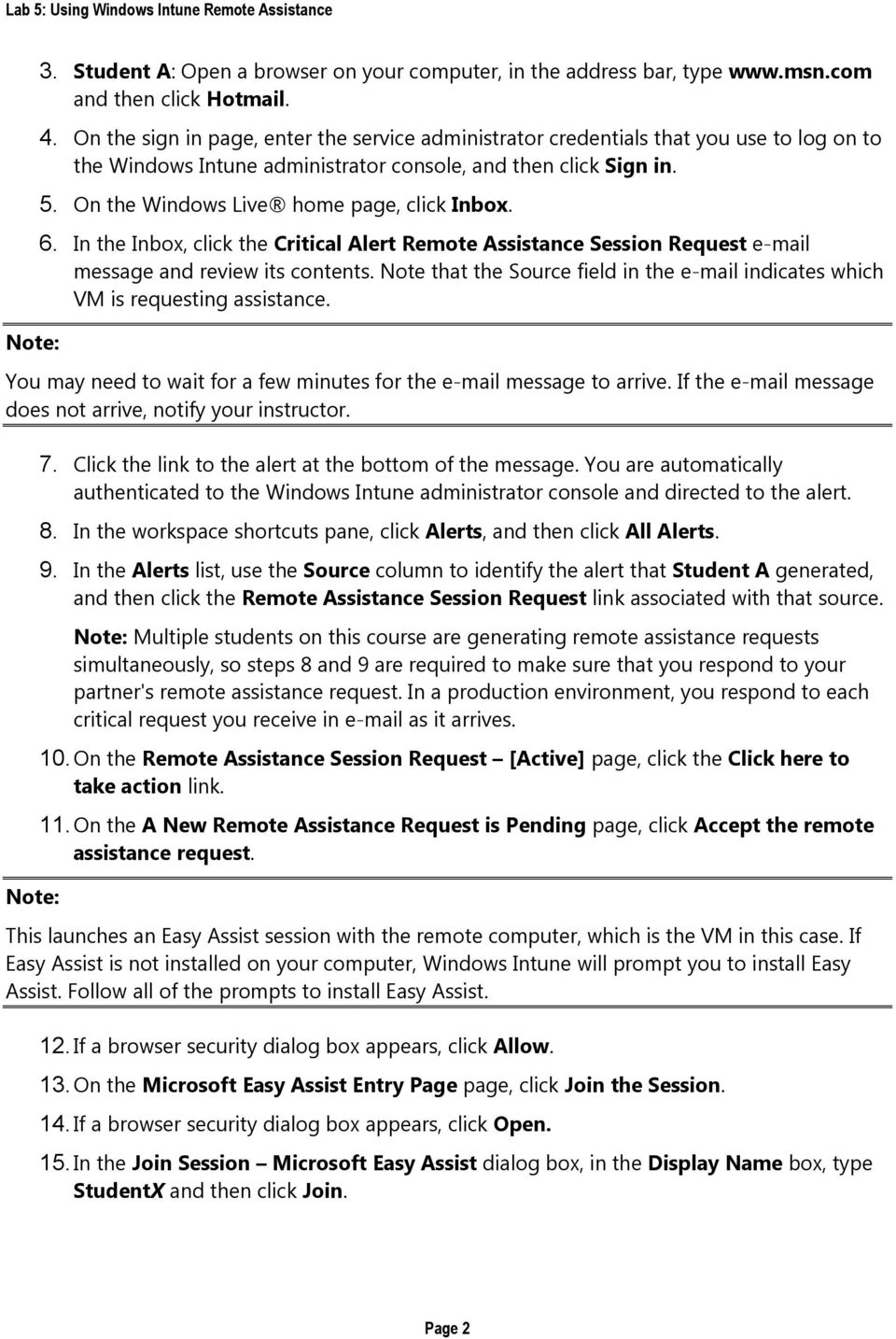
7 In the group name, X is the student number that the instructor gave you at the beginning of this course. If you receive an error message that you could not connect to the Microsoft Office Live Meeting server, close the window, and then accept the remote assistance request again. 16. The Easy Assist Session program opens. Wait a few moments for Student B's VM to respond. 17. The Microsoft Easy Assist dialog box indicates that Student B's VM Admin account has joined the support session, so click OK. Task 2: Use the Chat tool 1. Student B: In the Microsoft Easy Assist dialog box, click Share Desktop, and then click OK. The Easy Assist shared desktop screen appears on Student A's computer. 2. Student A: In the Microsoft Easy Assist window, in the Chat section, type Hi, how can I help you? and then click Send. 3. Student B: In the Easy Assist Chat window, type I'm having a problem with my computer and I don't know how to fix it and then click Send. 4. Student A: In the Easy Assist Session window, reply to Student B's chat message by typing I'm going to check your installed software to see if there are any known issues. Wait just a minute and then click Send. 5. Switch to the Windows Intune administrator console. 6. In the workspace shortcuts pane, click Computers, click All Computers, and then click Student B's computer. 7. Click View Properties, and then click Software. 8. In the Software list, click Zune Switch to the Easy Assist Session window, in the Chat section, type I see that you have Zune installed, which has compatibility issues with some of the software that your company runs. Therefore it isn't supported on your organization's computers and then click Send. 10. In the Chat section, type I'm going to request control of your computer. We're going to uninstall Zune and then click Send. Task 3: Request control of the remote computer 1. Student A: On the Easy Assist shared desktop, click Request Control. 2. Student B: In the Microsoft Easy Assist dialog box, click Yes. Page 3

8 3. Student A: In the Microsoft Easy Assist dialog box, click OK. 4. On the shared desktop, click Start, in the Search programs and files box, type taskm and then click View running processes with Task Manager. 5. In Windows Task Manager, on the Performance tab, briefly review the performance information. 6. On the Processes tab, click ZuneLauncher.exe. 7. Click Start, in the Search programs and files box, type add or and then click Add or remove programs. 8. On the Programs and Features screen, in the program list, click Zune, and then click Uninstall. 9. In the Zune dialog box, click Yes, wait for the software to uninstall from the VM, and then click Close. 10. Switch to Windows Task Manager and confirm that ZuneLauncher.exe no longer appears on the Processes tab. 11. Student A and Student B: Close all Easy Assist windows to end the Easy Assist session. Exercise 2: Reversing Remote Assistance Roles In this exercise, you will reverse roles with your partner from Exercise 1 and use the file upload feature and the remote restart request feature. The scenario for this exercise is that the remote user has had issues with some of the Windows Intune client services. To troubleshoot the problem in the Easy Assist session, the service administrator requests that the user transfer the Windows Intune log file to the Windows Intune server where the administrator can download it and review it at a later time. In the final task, the system administrator requests that the user remotely restart the VM to reset the operating system to see whether that resolves a problem. Task 1: Initiate the remote session 1. Student A: Switch to the VM, and then on the desktop, double-click the Windows Intune Center shortcut. 2. In the Windows Intune Center, click Request remote assistance from your system administrator. If you close the Windows Intune Center client before a system administrator responds to your request for remote assistance, Windows Intune cancels the request. 3. Student B: Open a browser on your computer, in the address bar, type and then click Hotmail. Page 4
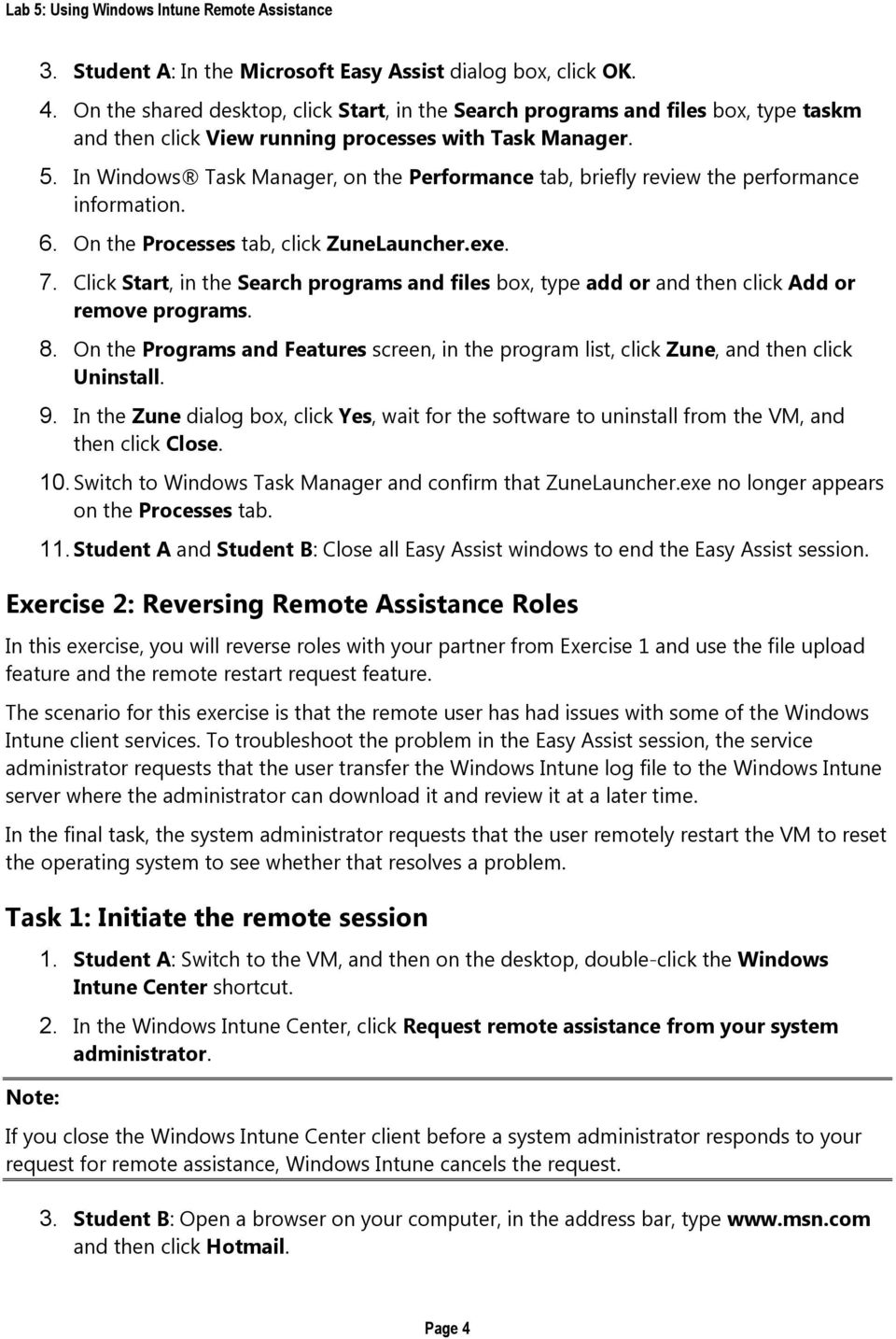
9 4. On the sign-in page, enter the service administrator credentials that you use to log on to Windows Intune administrator console, and then click Sign in. 5. On the Windows Live home page, click Inbox. 6. In the Inbox, click the Critical Alert Remote Assistance Session Request message and review its contents. You may need to wait for a few minutes for the message to arrive. If the message does not arrive, notify your instructor. 7. Click the link to the alert at the bottom of the message. You are automatically authenticated to the Windows Intune administrator console and directed to the alert. 8. In the workspace shortcuts pane, click Alerts, and then click All Alerts. 9. In the Alerts list, use the source column to identify the alert that Student A generated, and then click the Remote Assistance Session Request link associated with that source. Multiple students on this course are generating remote assistance requests simultaneously, so steps 8 and 9 are required to make sure that you respond to your partner's remote assistance request. In a production environment, you respond to each critical request you receive in as it arrives. 10. On the Remote Assistance Session Request [Active] page, click the Click here to take action link. 11. On the A New Remote Assistance Request is Pending page, click Accept the remote assistance request. This launches an Easy Assist session with the remote computer, which is the VM in this case. If Easy Assist is not installed on your computer, Windows Intune will prompt you to install Easy Assist. Follow all of the prompts to install Easy Assist. 12. If a browser security dialog box appears, click Allow. 13. In the Join Session Microsoft Easy Assist dialog box, in the Display Name box, type StudentX and then click Join. If you receive an error message that you could not connect to the Office Live Meeting server, close the window, and then accept the remote assistance request again. Page 5

10 14. The Easy Assist Session program opens. Wait a few moments for Student A's VM to respond. 15. In the Microsoft Easy Assist dialog box that indicates that Student A's VM Admin account has joined the support session, click OK. Task 2: Use the File Upload tool 1. Student A: In the Microsoft Easy Assist dialog box, click Cancel. 2. In the Microsoft Easy Assist dialog box, click Tools, and then click File Transfer. 3. In the File Transfer - Microsoft Easy Assist dialog box, click Upload. 4. In the Choose files to upload dialog box, expand Local Disk (C:), expand Program Files, expand Microsoft, expand OnlineManagement, and then click Logs. 5. Hold down SHIFT, click the HostProtection.log and RemoteAssistance.log files, and then click Open. 6. Student B: In the Easy Assist Session dialog box, click Upload and download files. 7. In the File Transfer - Microsoft Easy Assist dialog box, select all of the log files and then click Download. 8. In the Browse For Folder dialog box, browse to the folder where you want to store the log files, and then click OK. 9. Open Windows Explorer, browse to the folder where you downloaded the files in step 6 and confirm that they are there. 10. Close Windows Explorer, switch to the File Transfer - Microsoft Easy Assist dialog box, and then close the dialog box. Task 3: Use the Easy Assist remote restart request feature 1. Student B: In the Easy Assist session window, click Tools, and then click Request Reboot and Reconnect. 2. In the Microsoft Easy Assist dialog box, click OK. 3. Student A: In the Microsoft Easy Assist dialog box, click OK. The VM shuts down and begins the restart process. 4. Student B: Note that the message in the Microsoft Easy Assist dialog box has changed to notify you that the user has accepted your restart request and that the restart is in progress. 5. Student A: When the Windows 7 logon screen appears, in the Password box, type Pa$$w0rd, and then click the arrow. Page 6
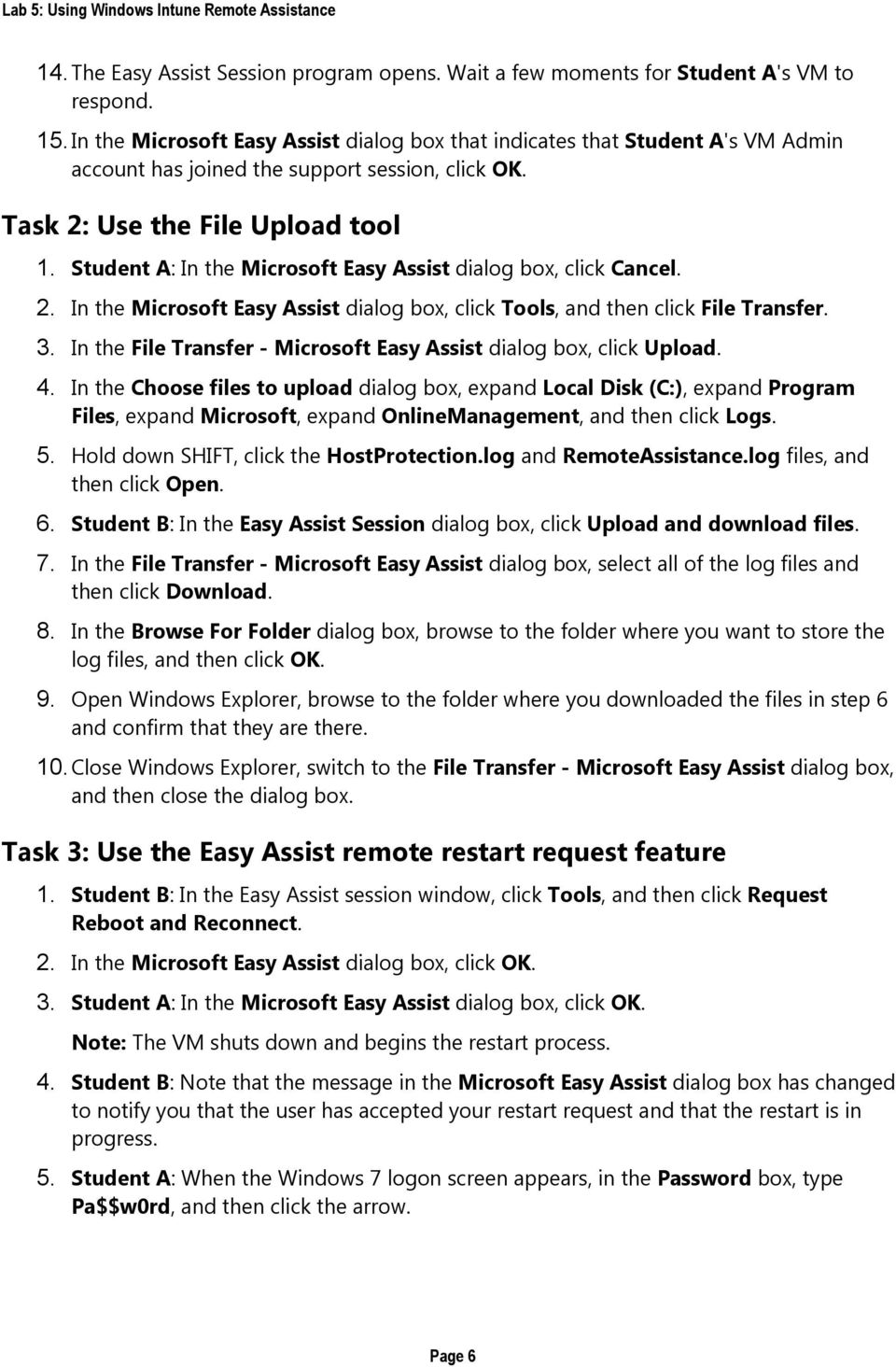
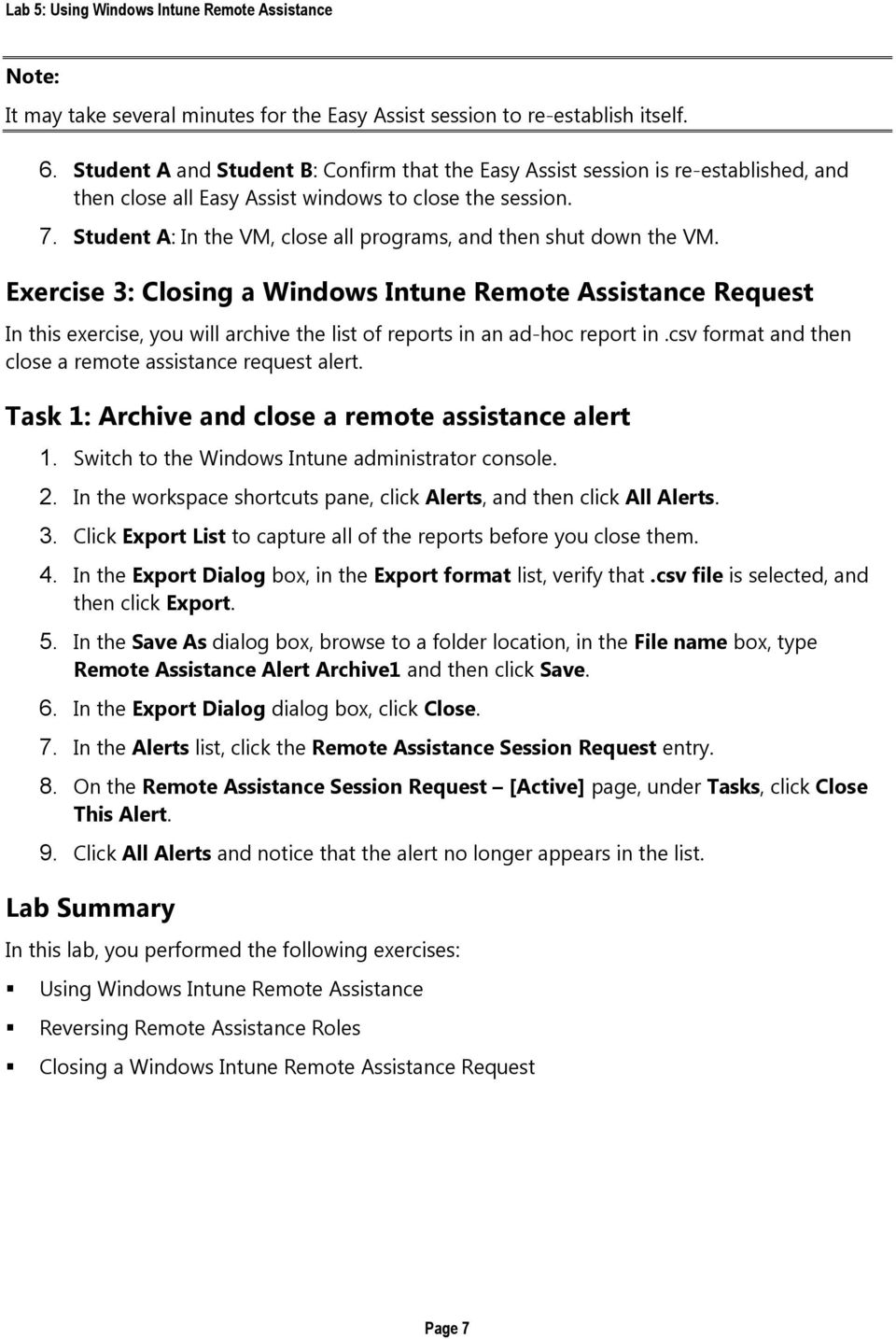
11 It may take several minutes for the Easy Assist session to re-establish itself. 6. Student A and Student B: Confirm that the Easy Assist session is re-established, and then close all Easy Assist windows to close the session. 7. Student A: In the VM, close all programs, and then shut down the VM. Exercise 3: Closing a Windows Intune Remote Assistance Request In this exercise, you will archive the list of reports in an ad-hoc report in.csv format and then close a remote assistance request alert. Task 1: Archive and close a remote assistance alert 1. Switch to the Windows Intune administrator console. 2. In the workspace shortcuts pane, click Alerts, and then click All Alerts. 3. Click Export List to capture all of the reports before you close them. 4. In the Export Dialog box, in the Export format list, verify that.csv file is selected, and then click Export. 5. In the Save As dialog box, browse to a folder location, in the File name box, type Remote Assistance Alert Archive1 and then click Save. 6. In the Export Dialog dialog box, click Close. 7. In the Alerts list, click the Remote Assistance Session Request entry. 8. On the Remote Assistance Session Request [Active] page, under Tasks, click Close This Alert. 9. Click All Alerts and notice that the alert no longer appears in the list. Lab Summary In this lab, you performed the following exercises: Using Windows Intune Remote Assistance Reversing Remote Assistance Roles Closing a Windows Intune Remote Assistance Request Page 7
Implementing and Supporting Windows Intune
 Implementing and Supporting Windows Intune Lab 2: Installing the Windows Intune Client Lab Manual Information in this document, including URL and other Internet Web site references, is subject to change
How To Configure A Windows 8.1 On A Windows 7.1.1 (Windows) With A Powerpoint (Windows 8) On A Blackberry) On An Ipad Or Ipad (Windows 7) On Your Blackberry Or Black
 Introduction to Cloud-Based Mobile Device Management with Intune Information in this document, including URLs and other Internet Web site references, is subject to change without notice. Unless otherwise
File and Printer Sharing with Microsoft Windows
 Operating System File and Printer Sharing with Microsoft Windows Microsoft Corporation Published: November 2003 Abstract File and printer sharing in Microsoft Windows allows you to share the contents of
Pipeliner CRM Phaenomena Guide Add-In for MS Outlook. 2015 Pipelinersales Inc. www.pipelinersales.com
 Add-In for MS Outlook 205 Pipelinersales Inc. www.pipelinersales.com Add-In for MS Outlook Learn how to use sales lead management with Pipeliner MS Outlook Add-In. CONTENT. Setting up Pipeliner Add-In
Hyper-V Server 2008 Setup and Configuration Tool Guide
 Hyper-V Server 2008 Setup and Configuration Tool Guide Microsoft Corporation Published: October 2008 Author: Cynthia Nottingham Abstract This guide will help you set up and configure Microsoft Hyper-V
Overview of Microsoft Office 365 Development
 Overview of Microsoft Office 365 Development Office 365 Hands-on lab In this lab, you will work with existing Office 365 apps. This document is provided for informational purposes only and Microsoft makes
Windows Server Update Services 3.0 SP2 Step By Step Guide
 Windows Server Update Services 3.0 SP2 Step By Step Guide Microsoft Corporation Author: Anita Taylor Editor: Theresa Haynie Abstract This guide provides detailed instructions for installing Windows Server
Deploying the Workspace Application for Microsoft SharePoint Online
 Microsoft Dynamics GP Deploying the Workspace Application for Microsoft SharePoint Online Microsoft Dynamics GP Workspace is a method to enable Microsoft Excel-based dashboards for SharePoint Online. This
Pipeliner CRM Phaenomena Guide Getting Started with Pipeliner. 2015 Pipelinersales Inc. www.pipelinersales.com
 Getting Started with Pipeliner 05 Pipelinersales Inc. www.pipelinersales.com Getting Started with Pipeliner Learn How to Get Started with Pipeliner Sales CRM Application. CONTENT. Setting up Pipeliner
Lab Answer Key for Module 1: Installing and Configuring Windows Server 2008. Table of Contents Lab 1: Configuring Windows Server 2008 1
 Lab Answer Key for Module 1: Installing and Configuring Windows Server 2008 Table of Contents Lab 1: Configuring Windows Server 2008 1 Information in this document, including URL and other Internet Web
Integrate Microsoft Windows Hyper V
 Integrate Microsoft Windows Hyper V EventTracker v7.x Publication Date: Aug 9, 2014 EventTracker 8815 Centre Park Drive Columbia MD 21045 www.eventtracker.com Abstract Hyper-V in Windows Server 2008 and
Using Apple Remote Desktop to Deploy Centrify DirectControl
 APPLICATION NOTE Using Apple Remote Desktop to Deploy Centrify DirectControl Published: June 2007 Abstract Apple Remote Desktop is commonly used by administrators to perform various administrative management
Technical Brief for Windows Home Server Remote Access
 Technical Brief for Windows Home Server Remote Access Microsoft Corporation Published: October, 2008 Version: 1.1 Abstract This Technical Brief provides an in-depth look at the features and functionality
All other trademarks are property of their respective owners.
 Information in this document, including URL and other Internet Web site references, is subject to change without notice. Unless otherwise noted, the companies, organizations, products, domain names, e-mail
Lab 00: Configuring the Microsoft Lync Ignite Environment Cloud Hosted Version
 Lab 00: Configuring the Microsoft Lync Ignite Environment Cloud Hosted Version DISCLAIMER 2013 Microsoft Corporation. All rights reserved. Microsoft, Active Directory, Forefront, Hyper-V, Internet Explorer,
Managing Linux Servers with System Center 2012 R2
 Managing Linux Servers with System Center 2012 R2 System Center 2012 R2 Hands-on lab In this lab, you will use System Center 2012 R2 Operations Manager and System Center 2012 R2 Configuration Manager to
User Guide. Live Meeting. MailStreet Live Support: 866-461-0851
 User Guide Live Meeting Information in this document, including URL and other Internet Web site references, is subject to change without notice. Unless otherwise noted, the example companies, organizations,
Creating and Deploying Active Directory Rights Management Services Templates Step-by-Step Guide
 Creating and Deploying Active Directory Rights Management Services Templates Step-by-Step Guide Microsoft Corporation Published: January 2008 Author: Brian Lich Editor: Carolyn Eller Abstract This step-by-step
Introduction to Hyper-V High- Availability with Failover Clustering
 Introduction to Hyper-V High- Availability with Failover Clustering Lab Guide This lab is for anyone who wants to learn about Windows Server 2012 R2 Failover Clustering, focusing on configuration for Hyper-V
Management Reporter Integration Guide for Microsoft Dynamics GP
 Microsoft Dynamics Management Reporter Integration Guide for Microsoft Dynamics GP July 2013 Find updates to this documentation at the following location: http://go.microsoft.com/fwlink/?linkid=162565
Troubleshooting File and Printer Sharing in Microsoft Windows XP
 Operating System Troubleshooting File and Printer Sharing in Microsoft Windows XP Microsoft Corporation Published: November 2003 Updated: August 2004 Abstract File and printer sharing for Microsoft Windows
Getting Started with Microsoft Office Live Meeting. Published October 2007 Last Update: August 2009
 Getting Started with Microsoft Office Live Meeting Published October 2007 Last Update: August 2009 Information in this document, including URL and other Internet Web site references, is subject to change
RedBlack CyBake Online Customer Service Desk
 RedBlack CyBake Online Customer Service Desk Publication Date: June 2014 Copyright Copyright 2014 RedBlack Software Ltd. All rights reserved. Complying with all applicable copyright laws is the responsibility
Getting Started with Microsoft Office Live Meeting. Published October 2007
 Getting Started with Microsoft Office Live Meeting Published October 2007 Information in this document, including URL and other Internet Web site references, is subject to change without notice. Unless
Hands-On Lab: WSUS. Lab Manual Expediting WSUS Service for XP Embedded OS
 Lab Manual Expediting WSUS Service for XP Embedded OS Summary In this lab, you will learn how to deploy the security update to your XP Pro or XP embedded images. You will also learn how to prepare the
Step-by-Step Guide for Microsoft Advanced Group Policy Management 4.0
 Step-by-Step Guide for Microsoft Advanced Group Policy Management 4.0 Microsoft Corporation Published: September 2009 Abstract This step-by-step guide describes a sample scenario for installing Microsoft
Customizing Remote Desktop Web Access by Using Windows SharePoint Services Stepby-Step
 Customizing Remote Desktop Web Access by Using Windows SharePoint Services Stepby-Step Guide Microsoft Corporation Published: July 2009 Updated: September 2009 Abstract Remote Desktop Web Access (RD Web
20487B: Developing Windows Azure and Web Services
 20487B: Developing Windows Azure and Web Services Microsoft Hyper-V Classroom Setup Guide Contents Introducing Microsoft Hyper-V 1 Setup Overview 2 Activating Windows 8 Virtual Machines 2 Rearming Windows
Installing Windows Rights Management Services with Service Pack 2 Step-by- Step Guide
 Installing Windows Rights Management Services with Service Pack 2 Step-by- Step Guide Microsoft Corporation Published: October 2006 Author: Brian Lich Editor: Carolyn Eller Abstract This step-by-step guide
Installation Instruction STATISTICA. Concurrent Network License with Borrowing Domain Based Registration
 Installation Instruction STATISTICA Concurrent Network License with Borrowing Domain Based Registration Notes: ❶ The installation of the Concurrent network version entails two parts: a) a server installation,
Deploying Remote Desktop IP Virtualization Step-by-Step Guide
 Deploying Remote Desktop IP Virtualization Step-by-Step Guide Microsoft Corporation Updated: April 2010 Published: July 2009 Abstract Remote Desktop IP Virtualization provides administrators the ability
AD RMS Step-by-Step Guide
 AD RMS Step-by-Step Guide Microsoft Corporation Published: March 2008 Author: Brian Lich Editor: Carolyn Eller Abstract This step-by-step guide provides instructions for setting up a test environment to
Integrating Symantec Endpoint Protection
 Integrating Symantec Endpoint Protection EventTracker Version 7.x Publication Date: Nov 8, 2013 EventTracker 8815 Centre Park Drive Columbia MD 21045 www.eventtracker.com About this Guide This guide provides
Lab Answer Key for Module 11: Managing Transactions and Locks
 Lab Answer Key for Module 11: Managing Transactions and Locks Table of Contents Lab 11: Managing Transactions and Locks 1 Exercise 1: Using Transactions 1 Exercise 2: Managing Locks 3 Information in this
Lab Answer Key for Module 6: Configuring and Managing Windows SharePoint Services 3.0. Table of Contents Lab 1: Configuring and Managing WSS 3.
 Lab Answer Key for Module 6: Configuring and Managing Windows SharePoint Services 3.0 Table of Contents Lab 1: Configuring and Managing WSS 3.0 1 Information in this document, including URL and other Internet
Introduction to DirectAccess in Windows Server 2012
 Introduction to DirectAccess in Windows Server 2012 Windows Server 2012 Hands-on lab In this lab, you will configure a Windows 8 workgroup client to access the corporate network using DirectAccess technology,
Lab Answer Key for Module 9: Active Directory Domain Services. Table of Contents Lab 1: Exploring Active Directory Domain Services 1
 Lab Answer Key for Module 9: Active Directory Domain Services Table of Contents Lab 1: Exploring Active Directory Domain Services 1 Information in this document, including URL and other Internet Web site
Deploying Remote Desktop Web Access with Remote Desktop Connection Broker Step-by- Step Guide
 Deploying Remote Desktop Web Access with Remote Desktop Connection Broker Step-by- Step Guide Microsoft Corporation Updated: April 2010 Published: May 2009 Abstract RemoteApp and Desktop Connection provides
Integrate Cisco IronPort Web Security Appliance (WSA)
 Integrate Cisco IronPort Web Security Appliance (WSA) EventTracker v7.x Publication Date: June 2, 2014 EventTracker 8815 Centre Park Drive Columbia MD 21045 www.eventtracker.com Abstract This guide provides
Abila Grant Management. Document Management
 Abila Grant Management This is a publication of Abila, Inc. Version 2014 2014 Abila, Inc. and its affiliated entities. All rights reserved. Abila, the Abila logos, and the Abila product and service names
ATT8367-Novell GroupWise 2014 and the Directory Labs
 ATT8367-Novell GroupWise 2014 and the Directory Labs ATT8367 Novell Training Services AUTHORIZED COURSEWARE www.novell.com Legal Notices Novell, Inc., makes no representations or warranties with respect
Deploying Microsoft RemoteFX on a Single Remote Desktop Virtualization Host Server Step-by-Step Guide
 Deploying Microsoft RemoteFX on a Single Remote Desktop Virtualization Host Server Step-by-Step Guide Microsoft Corporation Published: October 2010 Abstract This step-by-step guide walks you through the
Deploying Personal Virtual Desktops by Using RemoteApp and Desktop Connection Step-by-Step Guide
 c623242f-20f0-40fe-b5c1-8412a094fdc7 Deploying Personal Virtual Desktops by Using RemoteApp and Desktop Connection Step-by-Step Guide Microsoft Corporation Published: June 2009 Updated: April 2010 Abstract
Microsoft Office Communicator 2007 R2 Getting Started Guide. Published: December 2008
 Microsoft Office Communicator 2007 R2 Getting Started Guide Published: December 2008 Information in this document, including URL and other Internet Web site references, is subject to change without notice.
EventTracker: Support to Non English Systems
 EventTracker: Support to Non English Systems Publication Date: April 25, 2012 EventTracker 8815 Centre Park Drive Columbia MD 21045 www.eventtracker.com Introduction This document has been prepared to
Centralized Mac Home Directories with ExtremeZ-IP
 APPLICATION NOTE Centralized Mac Home Directories with ExtremeZ-IP Published: July 2009 Abstract Organizations wanting to integrate Mac OS X systems into their Windows-based enterprise network will most
Windows Small Business Server 2003 Upgrade Best Practices
 Windows Small Business Server 2003 Upgrade Best Practices Microsoft Corporation Published: May 2005 Version: 1 Abstract To ensure a successful upgrade from the Microsoft Windows Small Business Server 2003
SC-T35/SC-T45/SC-T46/SC-T47 ViewSonic Device Manager User Guide
 SC-T35/SC-T45/SC-T46/SC-T47 ViewSonic Device Manager User Guide Copyright and Trademark Statements 2014 ViewSonic Computer Corp. All rights reserved. This document contains proprietary information that
Step By Step Guide: Demonstrate DirectAccess in a Test Lab
 Step By Step Guide: Demonstrate DirectAccess in a Test Lab Microsoft Corporation Published: May 2009 Updated: October 2009 Abstract DirectAccess is a new feature in the Windows 7 and Windows Server 2008
Migrating Active Directory to Windows Server 2012 R2
 Migrating Active Directory to Windows Server 2012 R2 Windows Server 2012 R2 Hands-on lab In this lab, you will complete a migration of a Windows Server 2008 R2 domain environment to Windows Server 2012
Pipeliner CRM Phaenomena Guide Sales Pipeline Management. 2015 Pipelinersales Inc. www.pipelinersales.com
 Sales Pipeline Management 2015 Pipelinersales Inc. www.pipelinersales.com Sales Pipeline Management Learn how to manage sales opportunities with Pipeliner Sales CRM Application. CONTENT 1. Configuring
Microsoft Business Solutions Navision 4.0 Development I C/SIDE Introduction Virtual PC Setup Guide. Course Number: 8359B
 Microsoft Business Solutions Navision 4.0 Development I C/SIDE Introduction Virtual PC Setup Guide Course Number: 8359B Released: 11/2005 Information in this document, including URL and other Internet
User Self-Service Configuration Overview
 User Self-Service Configuration Overview Version 8.2 Mobile Service Manager Legal Notice This document, as well as all accompanying documents for this product, is published by Good Technology Corporation
Microsoft Office Communicator 2007 Getting Started Guide. Published: July 2007
 Microsoft Office Communicator 2007 Getting Started Guide Published: July 2007 Information in this document, including URL and other Internet Web site references, is subject to change without notice. Unless
Integrate Cisco IronPort Email Security Appliance (ESA)
 Integrate Cisco IronPort Email Security Appliance (ESA) EventTracker v7.x Publication Date: Jun 17, 2014 EventTracker 8815 Centre Park Drive Columbia MD 21045 www.eventtracker.com Abstract This guide provides
Contents. VPN Instructions. VPN Instructions... 1
 VPN Instructions Contents VPN Instructions... 1 Download & Install Check Point VPN Software... 2 Connect to FPUA by VPN... 6 Connect to Your Computer... 8 Determine Your Machine Type... 10 Identify 32-bit
How to Secure a Groove Manager Web Site
 How to Secure a Groove Manager Web Site Information in this document, including URL and other Internet Web site references, is subject to change without notice. Unless otherwise noted, the companies, organizations,
Pipeliner CRM Phaenomena Guide Administration & Setup. 2015 Pipelinersales Inc. www.pipelinersales.com
 Administration & Setup 05 Pipelinersales Inc. www.pipelinersales.com Administration & Setup Learn how to manage your sales team with Pipeliner Sales CRM Application. CONTENT. Managing Pipeliner s Users
Microsoft Dynamics GP. Workflow Installation Guide Release 10.0
 Microsoft Dynamics GP Workflow Installation Guide Release 10.0 Copyright Copyright 2008 Microsoft Corporation. All rights reserved. Complying with all applicable copyright laws is the responsibility of
Lab 02 Working with Data Quality Services in SQL Server 2014
 SQL Server 2014 BI Lab 02 Working with Data Quality Services in SQL Server 2014 Jump to the Lab Overview Terms of Use 2014 Microsoft Corporation. All rights reserved. Information in this document, including
Integration Guide. Microsoft Active Directory Rights Management Services (AD RMS) Microsoft Windows Server 2008
 Integration Guide Microsoft Active Directory Rights Management Services (AD RMS) Microsoft Windows Server 2008 Integration Guide: Microsoft Active Directory Rights Management Services (AD RMS) Imprint
Management Reporter Integration Guide for Microsoft Dynamics AX
 Microsoft Dynamics Management Reporter Integration Guide for Microsoft Dynamics AX July 2013 Find updates to this documentation at the following location: http://go.microsoft.com/fwlink/?linkid=162565
WhatsUp Gold v16.2 Installation and Configuration Guide
 WhatsUp Gold v16.2 Installation and Configuration Guide Contents Installing and Configuring Ipswitch WhatsUp Gold v16.2 using WhatsUp Setup Installing WhatsUp Gold using WhatsUp Setup... 1 Security guidelines
Update and Installation Guide for Microsoft Management Reporter 2.0 Feature Pack 1
 Update and Installation Guide for Microsoft Management Reporter 2.0 Feature Pack 1 Microsoft Corporation Published: December 2010 Microsoft Dynamics is a line of integrated, adaptable business management
The 2007 R2 Version of Microsoft Office Communicator Mobile for Windows Mobile: Frequently Asked Questions
 The 2007 R2 Version of Microsoft Office Communicator Mobile for Windows Mobile: Frequently Asked Questions Published: December 2008 Information in this document, including URL and other Internet Web site
Microsoft Dynamics GP. Engineering Data Management Integration Administrator s Guide
 Microsoft Dynamics GP Engineering Data Management Integration Administrator s Guide Copyright Copyright 2007 Microsoft Corporation. All rights reserved. Complying with all applicable copyright laws is
FileMaker Server 15. Getting Started Guide
 FileMaker Server 15 Getting Started Guide 2007 2016 FileMaker, Inc. All Rights Reserved. FileMaker, Inc. 5201 Patrick Henry Drive Santa Clara, California 95054 FileMaker and FileMaker Go are trademarks
MadCap Software. Upgrading Guide. Pulse
 MadCap Software Upgrading Guide Pulse Copyright 2014 MadCap Software. All rights reserved. Information in this document is subject to change without notice. The software described in this document is furnished
Improving Performance of Microsoft CRM 3.0 by Using a Dedicated Report Server
 Improving Performance of Microsoft CRM 3.0 by Using a Dedicated Report Server January 2006 Downloaded from http://www.sonomapartners.com/ - 1 - Information in this document, including URL and other Internet
vcenter Operations Manager for Horizon Supplement
 vcenter Operations Manager for Horizon Supplement vcenter Operations Manager for Horizon 1.6 This document supports the version of each product listed and supports all subsequent versions until the document
Copyright 2015 SolarWinds Worldwide, LLC. All rights reserved worldwide. No part of this document may be reproduced by any means nor modified,
 Copyright 2015 SolarWinds Worldwide, LLC. All rights reserved worldwide. No part of this document may be reproduced by any means nor modified, decompiled, disassembled, published or distributed, in whole
BIGPOND ONLINE STORAGE USER GUIDE Issue 1.1.0-18 August 2005
 BIGPOND ONLINE STORAGE USER GUIDE Issue 1.1.0-18 August 2005 PLEASE NOTE: The contents of this publication, and any associated documentation provided to you, must not be disclosed to any third party without
Windows BitLocker Drive Encryption Step-by-Step Guide
 Windows BitLocker Drive Encryption Step-by-Step Guide Microsoft Corporation Published: September 2006 Abstract Microsoft Windows BitLocker Drive Encryption is a new hardware-enhanced feature in the Microsoft
User Document. Adobe Acrobat 7.0 for Microsoft Windows Group Policy Objects and Active Directory
 Adobe Acrobat 7.0 for Microsoft Windows Group Policy Objects and Active Directory Copyright 2005 Adobe Systems Incorporated. All rights reserved. NOTICE: All information contained herein is the property
Module 8: Implementing Group Policy
 Module 8: Implementing Group Policy Contents Overview 1 Lesson: Implementing Group Policy Objects 2 Lesson: Implementing GPOs in a Domain 12 Lesson: Managing the Deployment of Group Policy 21 Lab: Implementing
STATISTICA VERSION 10 STATISTICA ENTERPRISE SERVER INSTALLATION INSTRUCTIONS
 Notes: STATISTICA VERSION 10 STATISTICA ENTERPRISE SERVER INSTALLATION INSTRUCTIONS 1. The installation of the STATISTICA Enterprise Server entails two parts: a) a server installation, and b) workstation
Mobility Services Platform 3.1.1 Software Installation Guide
 Mobility Services Platform 3.1.1 Software Installation Guide Mobility Services Platform 3.1.1 Software Installation Guide 72E-100159-04 Revision D January 2008 2007 by Motorola, Inc. All rights reserved.
Schools Remote Access Server
 Schools Remote Access Server This system is for school use only. Not for personal or private file use. Please observe all of the school district IT rules. 6076 State Farm Rd., Guilderland, NY 12084 Phone:
Special thanks to the following people for reviewing and providing invaluable feedback for this document: Joe Davies, Bill Mathers, Andreas Kjellman
 Test Lab Guide: Creating a Microsoft Azure Active Directory and Windows Server Active Directory Environment using Microsoft Azure Active Directory Sync Services Microsoft Corporation Published: December
Pipeliner CRM Phaenomena Guide Opportunity Management. 2015 Pipelinersales Inc. www.pipelinersales.com
 Opportunity Management 205 Pipelinersales Inc. www.pipelinersales.com Opportunity Management Learn how to manage sales opportunities with Pipeliner Sales CRM Application. CONTENT. Creating and sharing
Microsoft Office Live Meeting Events User s Guide
 Microsoft Office Live Meeting Events User s Guide Information in this document, including URL and other Internet Web site references, is subject to change without notice. Unless otherwise noted, the companies,
Using Remote Web Workplace Version 1.01
 Using Remote Web Workplace Version 1.01 Remote web workplace allows you to access your Windows XP desktop through Small Business Server 2003 from a web browser. 1. Connect to the Internet in your remote
Setting up VMware ESXi for 2X VirtualDesktopServer Manual
 Setting up VMware ESXi for 2X VirtualDesktopServer Manual URL: www.2x.com E-mail: [email protected] Information in this document is subject to change without notice. Companies, names, and data used in examples
WatchDox Administrator's Guide. Application Version 3.7.5
 Application Version 3.7.5 Confidentiality This document contains confidential material that is proprietary WatchDox. The information and ideas herein may not be disclosed to any unauthorized individuals
Step-by-Step Guide for Creating and Testing Connection Manager Profiles in a Test Lab
 Step-by-Step Guide for Creating and Testing Connection Manager Profiles in a Test Lab Microsoft Corporation Published: May, 2005 Author: Microsoft Corporation Abstract This guide describes how to create
Using Internet or Windows Explorer to Upload Your Site
 Using Internet or Windows Explorer to Upload Your Site This article briefly describes what an FTP client is and how to use Internet Explorer or Windows Explorer to upload your Web site to your hosting
StarWind SMI-S Agent: Storage Provider for SCVMM April 2012
 StarWind SMI-S Agent: Storage Provider for SCVMM April 2012 TRADEMARKS StarWind, StarWind Software, and the StarWind and StarWind Software logos are trademarks of StarWind Software that may be registered
WINDOWS 7 & HOMEGROUP
 WINDOWS 7 & HOMEGROUP SHARING WITH WINDOWS XP, WINDOWS VISTA & OTHER OPERATING SYSTEMS Abstract The purpose of this white paper is to explain how your computers that are running previous versions of Windows
Windows Azure Pack Installation and Initial Configuration
 Windows Azure Pack Installation and Initial Configuration Windows Server 2012 R2 Hands-on lab In this lab, you will learn how to install and configure the components of the Windows Azure Pack. To complete
Quadro Configuration Console User's Guide. Table of Contents. Table of Contents
 Epygi Technologies Table of Contents Table of Contents About This User s Guide... 3 Introducing the Quadro Configuration Console... 4 Technical Specification... 6 Requirements... 6 System Requirements...
Test Lab Guide: Creating a Windows Azure AD and Windows Server AD Environment using Azure AD Sync
 Test Lab Guide: Creating a Windows Azure AD and Windows Server AD Environment using Azure AD Sync Microsoft Corporation Published: December 2014 Author: Mark Grimes Acknowledgements Special thanks to the
Sage 200 Web Time & Expenses Guide
 Sage 200 Web Time & Expenses Guide Sage (UK) Limited Copyright Statement Sage (UK) Limited, 2006. All rights reserved If this documentation includes advice or information relating to any matter other than
Step-by-Step Guide to Setup Instant Messaging (IM) Workspace Datasheet
 Step-by-Step Guide to Setup Instant Messaging (IM) Workspace Datasheet CONTENTS Installation System requirements SQL Server setup Setting up user accounts Authentication mode Account options Import from
MicrosoftDynam ics GP 2015. TenantServices Installation and Adm inistration Guide
 MicrosoftDynam ics GP 2015 TenantServices Installation and Adm inistration Guide Copyright Copyright 2014 Microsoft Corporation. All rights reserved. Limitation of liability This document is provided as-is.
Live Maps. for System Center Operations Manager 2007 R2 v6.2.1. Installation Guide
 Live Maps for System Center Operations Manager 2007 R2 v6.2.1 Installation Guide CONTENTS Contents... 2 Introduction... 4 About This Guide... 4 Supported Products... 4 Understanding Live Maps... 4 Live
Virtual CD v10. Network Management Server Manual. H+H Software GmbH
 Virtual CD v10 Network Management Server Manual H+H Software GmbH Table of Contents Table of Contents Introduction 1 Legal Notices... 2 What Virtual CD NMS can do for you... 3 New Features in Virtual
Cisco WebEx Training Center
 Cisco WebEx Training Center User Guide Training Center 5.17 Copyright 1997 2010 Cisco and/or its affiliates. All rights reserved. WEBEX, CISCO, Cisco WebEx, the CISCO logo, and the Cisco WebEx logo are
WatchDox SharePoint Beta Guide. Application Version 1.0.0
 Application Version 1.0.0 Confidentiality This document contains confidential material that is proprietary WatchDox. The information and ideas herein may not be disclosed to any unauthorized individuals
VERITAS Backup Exec 9.1 for Windows Servers Quick Installation Guide
 VERITAS Backup Exec 9.1 for Windows Servers Quick Installation Guide N109548 Disclaimer The information contained in this publication is subject to change without notice. VERITAS Software Corporation makes