
TELSTRA GATEWAY PRO USER GUIDE
|
|
|
- Wendy Willis
- 9 years ago
- Views:
Transcription
1 TELSTRA GATEWAY PRO USER GUIDE

2 CONTENTS 1. Introduction Getting to know your Telstra Gateway Pro What s in the box? Features and Benefits Getting To Know the Gateway 6 2. Setting Up Your Telstra Gateway Pro Alternative placement methods for the Gateway Setting up your Telstra Gateway Pro for ADSL and VDSL Setting up your Gateway with an NBN box (Fibre to the Premises) Telstra Gateway Pro Quick Start Guide Initial Telstra Gateway Pro Configuration Initial Setup Using The Installation Wizard Configuring Telstra Gateway Pro Using the Control Panel (GUI) Further Configuration of Gateway Settings Changing your Gateway login Password Customising your LAN/WAN Settings Configuring your Gateway Wi-Fi Setup Voice Calling Connecting devices to the Telstra Gateway Pro Setting up USB Mobile Broadband Backup Advanced Settings Guest Wireless Network Setup Content Sharing LAN IP Pool/DHCP Change Port Forwarding Secure Remote Access via VPN Troubleshooting & General Tips The Internet is not working or WAN light is off My devices aren t connecting There is a red internet light (ADSL) Re-setting Telstra Gateway Pro Wireless Adaptor Faults Technical Specifications Devices compatible for use with the Telstra Gateway Pro About the Telstra Gateway Pro 51 Telstra Corporation Limited (ACN ). 2

3 1. INTRODUCTION 1.1. Getting to know your Telstra Gateway Pro Telstra has worked with our partner Netgear to bring you the Telstra Gateway Pro (Netgear model number v7610). The Telstra Gateway Pro is an advanced Gateway, providing high speed Wi-Fi and connectivity for a variety of business devices. It can connect to the Internet using: ADSL VDSL (including NBN Fibre to the Basement and NBN Fibre to the Node connections) NBN Fibre to the Premises The Gateway is compatible with optional USB mobile broadband device for peace of mind in case of an unlikely service interruption. The Telstra Gateway Pro features world leading Wi-Fi and the best connectivity available so you get the most out of your Telstra fixed Broadband service. Enjoy faster Wi-Fi with the latest Wi-Fi AC technology Experience seamless dual band connectivity of multiple devices on your network Make calls on your new business phone with Telstra s Digital Voice service Securely access your business files from home with our remote access feature 1.2. What s in the box? The Quick Start Guide outlines all the components that are included with the Telstra Gateway Pro and can be found on Telstra.com using the following link: -Bundle-Help/ct-p/bundles_and_dot. Note the reference letters for the bundled cables, which will be used later in this guide. Figure 1: What s In The Box? 3

4 1.3. Features and Benefits Faster Wi-Fi with the latest AC technology The Telstra Gateway Pro is a world leading Gateway using the best Wi-Fi standard available, Wi-Fi AC, to maximise your Wi-Fi experience in the office. The Telstra Gateway Pro also has 4 x 4 Wi-Fi streams to deliver the best possible coverage for your network Connect multiple devices via dual band Wi-Fi This Gateway enables connection of devices such as laptops, smart phones and tablets to the Internet via two separate Wi-Fi bands: 2.4GHz band for B/G/N devices 5GHz band for A/N/AC devices This allows you to spread your devices across both bands (depending on device compatibility) to make the best use of your Wi-Fi network coverage. The Wi-Fi Network Security Card provided with your Gateway provides the Wi-Fi Network (SSID) name for both the 2.4GHz and 5GHz bands. The Wireless Security Key (WPA password) is also provided on this card. Figure 2: Wi-Fi Network Security Card Make phone calls with Telstra s Digital Voice Service Digital Office Technology (DOT) customers can use one of Telstra s IP Phones, compatible with this Gateway, to deliver digital calls over the Fixed Broadband service. Telstra s Digital Voice service supports up to 10 services/lines at one site and provides a number of useful calling features to enable smart call management including: Fixed MessageBank Simultaneous and Sequential Ring Call Forwarding when not reachable Virtual Receptionist (Auto-attendant) 4

5 There are a number of compatible business IP phones to choose from including: Panasonic Cordless IP DECT Handset with Base Station (KK-TPG600) Telstra (Yealink) T42G IP Handset Telstra (Yealink) T48G IP Handset Refer section 7.1 for a full list of compatible IP phones. For more information about DOT Digital Voice services or the handsets outlined above refer to the following link: Secure Remote Access Feature The Gateway s Remote Access feature enables secure access to your business files from home. Refer to the VPN configuration guide available at: small-business/bundles/pdf/telstra-gateway-pro-v7610-configuration-guide.pdf Always connected with Telstra s Mobile Broadband USB The Mobile Broadband USB back up feature provides piece of mind in case of an unlikely Fixed Broadband service interruption. This feature ensures that the Gateway is always connected to the Internet via the Telstra Mobile Network USB in the unlikely event that the Broadband service is unavailable. The Gateway supports the use of a compatible Telstra Mobile Broadband USB device providing 2 USB 3.0 ports, one port on the side of the device and the other port can be found on the back of the device. The following USB Mobile Broadband devices are compatible for use with the Telstra Gateway Pro : Netgear 320U (Sierra Wireless). Telstra 4Gx e8372 (Huawei). 5

6 1.4. Getting To Know the Gateway Understanding the lights and what they mean Power LED around the Telstra Logo Internet LED WAN LED Phone LED Wi-Fi On/Off button WPS button DECT button Figure 3: Telstra Gateway Pro Front Panel 6

7 On the front of the Gateway there are 3 LEDs and 3 buttons. The meaning of the various light sequences and buttons are listed in the following table: Front Panel LED & button description Power LED around the Telstra Logo Front Panel LED & button description LED Activity Solid blue Off LED Activity Description Indicates power is on and the Gateway is operating No power is being received by the Gateway. Description Internet LED Solid blue Physical WAN port is connected successfully, authentication of username and password is successful and a public IP address has been assigned Flashing orange Off Solid red Flashing red Authentication of username and password in progress Physical WAN port is not connected or Mobile Broadband not active Physical WAN port is connected but authentication of username and password was unsuccessful. LED is illuminated red and turns off briefly every 5 seconds when operating in mobile fail over mode WAN LED Solid blue WAN port is connected successfully to DSL or NBN Flashing orange Off In progress, layer 2 WAN interface connecting Physical WAN port is not connected (Note: individual LED on the physical Ethernet port at the back panel to indicate: Amber = 10/10Mbps, GREEN = 1Gbps) Phone LED Solid blue Phone service is working between the Gateway and Broadworks voice platform. Registration/authentication has been successful on ALL the configured SIP accounts (FXS and DECT). Wi-Fi On/Off button WPS button DECT button Flashing orange Off Establishing a new SIP registration to the Broadworks platform for any one or more configured SIP accounts. Phone service registered. Phone service disabled. 2.4GHz and 5GHz status and configuration will be available in the Gateway Control Panel. Important Note: To switch Wi-Fi on or off, press the Wi-Fi button for at least 3 seconds. The Wi-Fi button LED will either switch on or off. Solid blue Inbuilt Wi-Fi access point for 2.4GHz and 5GHz is up and operating Flashing orange Packets are transmitting Off Inbuilt Wi-Fi access point for both 2.4GHz and 5GHz is disabled Press this button to open a 2-minute window for the Gateway to connect with other WPS-enabled devices. Solid blue Flashing orange Solid red Off Connection succeeded under Wi-Fi Protected Setup (WPS) WPS is active, pairing has been initiated and in progress (Negotiation is in progress under WPS) WPS has not connected successfully WPS is disabled or not initiated This functionality will be available in a future software update of the Gateway. 7

8 Getting to know the back panel Figure 4: Telstra Gateway Pro Back Panel In the diagram above there are a number of ports and buttons on the back of the Gateway. These ports and buttons are described in the table below: Back Panel LED & port description LED Activity Description DSL port None The DSL port is connected for ADSL and VDSL connections FXO port None N/A FXS1 port None Plug an analogue phone / device into this port when voice is enabled on the Gateway FXS2 port None If enabled plug a second analogue device into this port USB (3.0) port None To plug a Mobile Broadband backup device and/or a storage device to share on the network. There is one USB port on the back and one USB on the side of the Gateway. LAN ports 1-4 Solid Green LAN port is connected at 1000Mbps Flashing green Off LAN port is connected at 10/100Mbps / packets are transmitting No traffic transmitted or no Ethernet cable plugged in WAN port Solid green WAN port is connected successfully Blinking green Off Packets are sending and receiving Physical WAN port is not connected (Note: individual LED on the physical Ethernet port at the back panel to indicate: AMBER = 10/10Mbps, GREEN = 1Gbps) On/Off button None Turns on the power to the Gateway Reset button None Using a paperclip to initiate the reset function. This will take the device back to default factory settings. Refer for more detail. Power port None Plug in power pack/cable supplied to the power point and turn power point on from the wall to turn on power to the Gateway. 8

9 Product label on the bottom of the Gateway Figure 5: Telstra Gateway Pro Label You will find a number of important pieces of information on the product label on the bottom of the Gateway including: Label Description 1. Gateway Login Details Enables you to access the Gateway Control Panel to manage and customise your Gateway settings. Please refer to Section 3 of this Guide for more detail on how to manage your Gateway settings. 2. Serial Number Number supplied by the manufacturer and vendor. 3. Mac Address Registered identified number which interfaces with the Telstra network GHz Wi-Fi Network Name 5. 5GHz Wi-Fi Network Name Broadcast name for the 2.4GHz band of the Wi-Fi Network enabling you to connect your devices via Wi-Fi. Broadcast name for the 5GHz band of the Wi-Fi Network enabling you to connect your devices via Wi-Fi. 6. Network Key (WPA2) Password that authenticates the use of devices with the Gateway s Wi-Fi Network. 9

10 2. SETTING UP YOUR TELSTRA GATEWAY PRO The Telstra Gateway Pro Quick Start Guide provides a full set of instructions on how to set up your Gateway. Please refer to the link below to access the Telstra Gateway Pro Quick Start Guide: This section will provide detailed information on setting up your Telstra Gateway Pro for a variety of internet connection types. Important Note: Place your Telstra Gateway Pro vertically on a surface in a central location to your other Wi-Fi devices to optimise Wi-Fi performance Alternative placement methods for the Gateway The Gateway s mounting location can affect wireless connections. For best results, place your Gateway: Near an AC power outlet, close to computers you plan to connect with Ethernet cables, and near locations where you use wireless computers. In an elevated location, keeping the number of walls and ceilings between the Gateway and your wireless computers to a minimum. Away from electrical devices that are potential sources of interference, such as ceiling fans, security systems, microwaves, or the base for a cordless phone Wall Mount the Gateway Drill holes in the wall where you will wall-mount the Gateway. Put wall anchors in the holes. Insert screws into the wall anchors, leaving 3/16 in. (0.5 cm) of each screw exposed. Figure 6: Gateway Wall Mounting and Adaptor Plate Attach the mounting plate securely to the Gateway and attach to the wall. The Gateway should be mounted securely and flush against the wall Horizontal Mounting Important Note: It is recommended that the Gateway is not placed in a horizontal position. 10


11 2.2. Setting up your Telstra Gateway Pro for ADSL and VDSL If you don t have an NBN box at your premises you will be using one of the following connection types: ADSL (ADSL, ADSL2 and ADSL2+) VDSL (this includes NBN Fibre to the Node and NBN Fibre to the Basement connections) Figure 7: Telstra Gateway Pro Setup for ADSL Figure 8: Telstra Gateway Pro Setup for VDSL 11


12 You will need a copy of your order completion and your Wi-Fi Network Security Card to get started. Your Gateway can be set up in 3 easy steps: Step 1: Connect the cables as in Figure 7 or Figure 8, depending on your connection type. Step 2: Connect your devices to the Gateway, either using an Ethernet cable or via Wi-Fi. How to: Your Wi-Fi Network Security card contains the Network names and Network Key to connect your devices to both the 2.4GHz and 5GHz bands. Step 3: Activate your Internet service and voice service using the Setup Wizard. How to: The Setup Wizard can be accessed by either Ethernet or Wi-Fi by typing the Telstra default IP address, , into your preferred browser. This will start the wizard and you can follow the screens and prompts to complete. For more detail on the Setup Wizard screens refer to section 3.1 of this Guide Setting up your Gateway with an NBN box (Fibre to the Premises) Figure 9: Telstra Gateway Pro Setup for NBN (FTTP) If you do have an NBN box at your premises you will have an NBN Fibre to the Premises (FTTP) connection. You will need a copy of your order completion and your Wi-Fi Network Security Card to get started. 12

13 Your Gateway can be set up in 3 easy steps: Step 1: Connect the cables as per Figure 9. Step 2: Connect your devices to the Gateway, either using an Ethernet cable or via Wi-Fi. How to: Your Wi-Fi Network Security card contains the Network names and Network Key to connect your devices to both the 2.4GHz and 5GHz bands. Step 3: Activate your Internet service and voice service using the Setup Wizard. How to: The Setup Wizard can be accessed by either Ethernet or Wi-Fi by typing the Telstra default IP address, , into your preferred browser. This will start the wizard and you can follow the screens and prompts to complete. For more detail on the Setup Wizard screens refer to Section 3.1 of this Guide Telstra Gateway Pro Quick Start Guide The Telstra Gateway Pro Quick Start Guide provides a full set of instructions on how to set up your Gateway. Please refer to the link below to access the Telstra Gateway Pro Quick Start Guide: Steps 4 and 5 of the Telstra Gateway Pro Quick Start Guide provide details about how you can manage and troubleshoot your Gateway. Figure 10: Quick Reference Guide 13

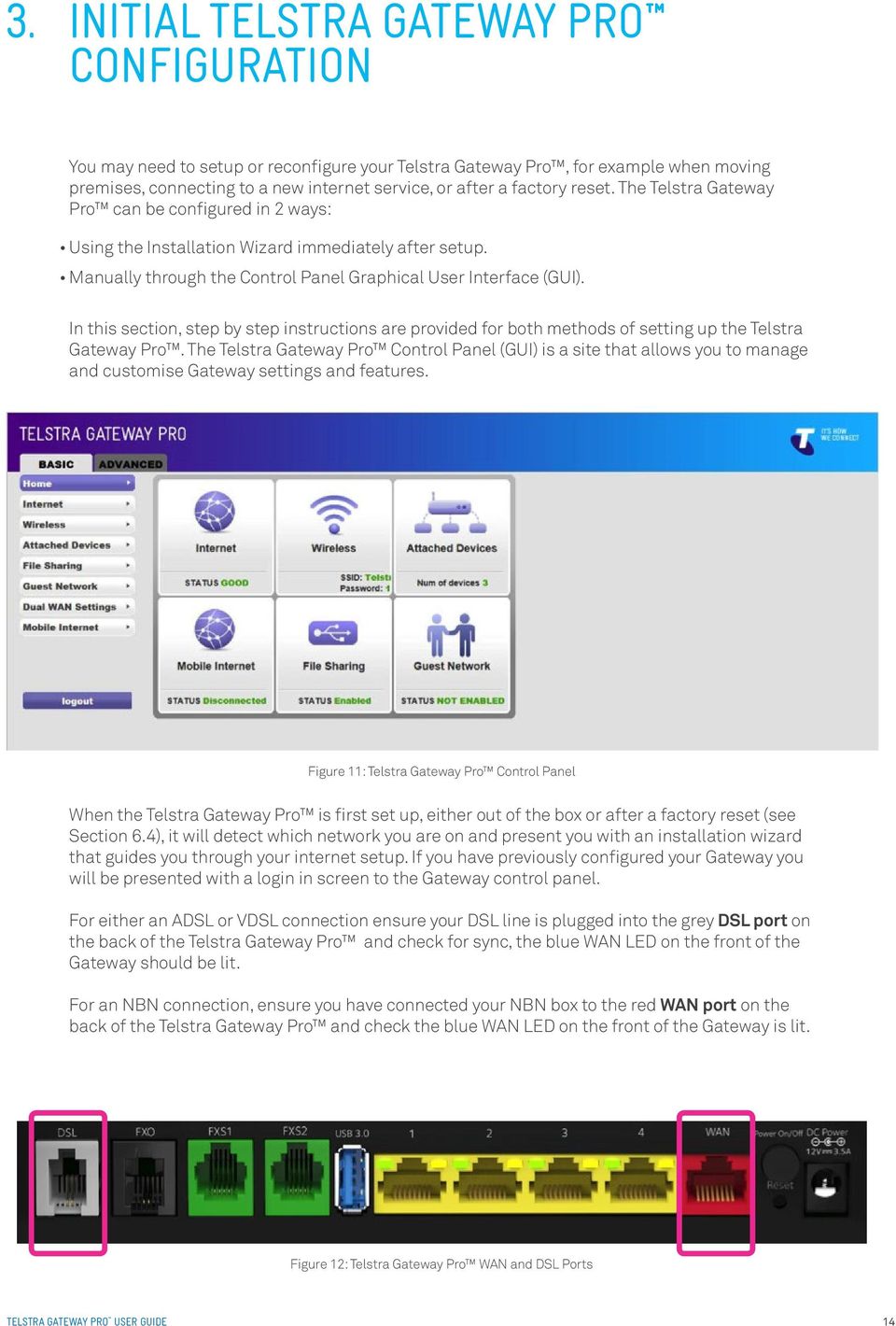
14 3. INITIAL TELSTRA GATEWAY PRO CONFIGURATION You may need to setup or reconfigure your Telstra Gateway Pro, for example when moving premises, connecting to a new internet service, or after a factory reset. The Telstra Gateway Pro can be configured in 2 ways: Using the Installation Wizard immediately after setup. Manually through the Control Panel Graphical User Interface (GUI). In this section, step by step instructions are provided for both methods of setting up the Telstra Gateway Pro. The Telstra Gateway Pro Control Panel (GUI) is a site that allows you to manage and customise Gateway settings and features. Figure 11: Telstra Gateway Pro Control Panel When the Telstra Gateway Pro is first set up, either out of the box or after a factory reset (see Section 6.4), it will detect which network you are on and present you with an installation wizard that guides you through your internet setup. If you have previously configured your Gateway you will be presented with a login in screen to the Gateway control panel. For either an ADSL or VDSL connection ensure your DSL line is plugged into the grey DSL port on the back of the Telstra Gateway Pro and check for sync, the blue WAN LED on the front of the Gateway should be lit. For an NBN connection, ensure you have connected your NBN box to the red WAN port on the back of the Telstra Gateway Pro and check the blue WAN LED on the front of the Gateway is lit. Figure 12: Telstra Gateway Pro WAN and DSL Ports 14


15 3.1. Initial Setup Using The Installation Wizard The Installation Wizard can be accessed from any connected device using an internet browser when visiting any website for the first time (e.g. or by loading the Telstra Gateway Pro default IP address This will start the auto WAN (internet connection) sensing immediately (Figure 13) on the Gateway and determine which WAN interface is being used; ADSL, VDSL or Ethernet WAN (NBN FTTP). Figure 13: Installation Wizard WAN Sensing If no Internet Connection is detected the Installation Wizard will show the following screen. Check that the cabling to the Gateway is correct, and click Retry. Figure 14: Internet Connection Setup Error Screen You will now need to select which options you want to configure (Figure 15). Important Note: It is not necessary to set up any of these options for a Telstra Business Broadband (T-Biz) service unless you want to customise the Wi-Fi settings and/or Admin password. When setting up the Gateway for the first time, click Next. 15

16 Figure 15: Installation Wizard Setup Options For further information on these options review Section 4 and 5 of this guide before selecting any additional options you would like to configure and continuing with the installation process. For ADSL you now need to enter your ADSL credentials (username & password) which you can find in your order completion from Telstra and click Next. Figure 16: Username and Password Fields For ADSL For NBN/ VDSL the Gateway will now attempt to establish a connection to the Internet, once successful it will show you a success page informing you are connected and will then show you an installation summary page with additional details. Figure 17: Successful Connection Page 16

17 If you have selected items to configure follow the wizard through to the summary screen. You will now see a summary of the setup. Review any changes you have made and click Finish. The changes will now be made to the Gateway and additional configuration for voice setup (if applicable) will be downloaded. Figure 17: Installation Summary Page When installation is complete the Telstra Business Website will load. You are now connected to the Internet. Figure 18: Telstra Business Website To configure your Telstra Gateway Pro after the initial setup, follow the steps in Section

18 3.2. Configuring Telstra Gateway Pro Using the Control Panel (GUI) The Gateway Control Panel can be accessed through your internet browser via an Ethernet or Wi-Fi connection using the Telstra default IP address This will bring up the Login screen (Figure 21) and from here you will be able to configure the Telstra Gateway Pro to meet your requirements. To access the Control Panel you need to login with the following details: Username: admin Password: telstra Then click Continue. Figure 19: Gateway Control Panel Login The Control Panel has two main menu types, Basic and Advanced. Control Panel Basic Menu Figure 20: Control Panel Basic Menu 18

19 Control Panel Advanced Menu Figure 21: Control Panel Advanced Menu From each of these menus you will be able to view sub-menus which will provide current details about the device and also give you the ability to configure changes where appropriate. 19


20 4. FURTHER CONFIGURATION OF GATEWAY SETTINGS There are a number of configuration items you can change to manager security, connected devices and update your connection details. This section provides instructions to complete: Changing your Gateway login password. Customising your Internet (WAN) connection. Customising your Wi-Fi settings to connect new or existing devices. Setting up voice calling on your Gateway. Connecting devices to your Gateway. Setting up a mobile broadband back up device Changing your Gateway login Password As a security measure you may wish to change your Control Panel username and password settings. This provides an additional layer of security for your Gateway and business network. You can follow the steps below to complete this process. There are two ways to change your Gateway login password, via the Installation Wizard, or in the Control Panel Change Gateway Password Using the Installation Wizard If you have selected change admin password as part of the installation process using the installation wizard, complete the following steps: Enter the old password into the Old Password field (the default password is telstra). Enter your new password into the New Password and Confirm New Password fields. Click Next to continue the Installation Wizard process. Figure 22: Wizard Password Screen 20

21 Important Note: If your new Gateway password is lost, you will need to reset the device and complete the initial configuration again. ADSL users: Before you reset the Gateway ensure you also have your ADSL log in details to assist with reconnection to the Internet Change Gateway Password Using the Control Panel The second method to change the admin password is via the Control Panel Advanced menu. To access the Gateway Control Panel page go to in your browser and navigate to Advanced->Administration -> Set Password. Figure 23: Set Password Advanced Menu Item Complete the following steps to update your password in this process: Enter the old password in the Old Password field (the default password is telstra). Enter your new password into the New Password and Repeat New Password fields. Click Apply to confirm these changes. Figure 24: Advanced Menu Set Password Screen 21
22 4.2. Customising your LAN/WAN Settings If you credentials change (for example if you have moved to new premises) you may need to update your username and password details for your ADSL connection. You may also need to change your connection type, if you switch from ADSL to an NBN service. The following steps provide you with an overview of how to complete these changes DSL Connection and Username/Password To configure the ADSL connection you will need to enter your Username and Password into the Telstra Gateway Pro Control Panel. To access the Gateway Control Panel page go to in your browser and navigate to Basic>Internet. Figure 25: Control Panel Basic Screen 22
23 Ensure the Does your internet connection require a login? has Yes selected and Internet Service Provider has PPPoE selected. Enter your full Username (Login) and case sensitive Password into the correct fields and click Apply. Figure 26: Internet Settings 23
24 Click Home. The Internet icon should show STATUS: GOOD. The Internet LED will also change to blue. Figure 27: Control Panel Basic Menu- Good Internet Connection WAN Connection (NBN) To configure the NBN connection you will need to access the Telstra Gateway Pro Control Panel. To access the Gateway Control Panel page go to in your browser and navigate to Basic>Internet. Figure 28: Control Panel Basic Screen 24
25 Tick Use Wan Uplink Mode and ensure Does your internet connection require a login? has No selected. Then click Apply. Figure 29: WAN Setup for NBN Click Home. The Internet icon should show STATUS: GOOD. The Internet LED will also change to blue. Figure 30: Control Panel Basic Screen 25
26 4.3. Configuring your Gateway Wi-Fi You may wish to change the default names and passwords for your Wi-Fi network, to reflect your business name. The following information will assist with this process Customising Wi-Fi Settings To access the Gateway Control Panel page go to in your browser and navigate to Basic->Wireless. Figure 31: Basic Menu Wireless Settings On this screen you can update settings for both the 2.4 GHz and 5 GHz Wi-Fi channels including: Change the SSID (Gateway s Wi-Fi name). Enable / Disable SSID Broadcast Change the 2.4 GHz Channel to reduce interference from other 2.4 GHz devices (e.g. cordless phones). Change Encryption Key. Change Security Settings. Important Note: It may be easier to change the Wi-Fi SSID and channel settings in the Telstra Gateway Pro to match those of the Gateway or router you re replacing. Doing this will avoid you having to change all the Wi-Fi settings on devices at your premises. To find the existing Wi-Fi credentials from the old Gateway or router, refer to the instruction manual for that device. 26
27 To configure the Main Wireless LAN settings you will need to make any changes that may be required in the Wireless Setting screen. Refer to the numbered sections in Figure 34 and the Wireless Settings table for detailed information about these settings and how to change them: Figure 32: Basic Menu Wireless Configuration Items 27
28 Wireless Settings Item Number Wireless Settings Items Enable SSID Broadcast Enable Wireless Isolation Enable WPS Name (SSID) Channel: Mode: Security Options Security Options (WPA2-PSK) Description If this feature is enabled, the wireless router will broadcast its name (SSID) to all wireless stations. Stations that have no SSID (or a null value) can then adopt the correct SSID for connections to this access point. If checked, the wireless client under this SSID can only access internet and it can't access other wireless clients even under the same SSID, Ethernet clients or this device. Other clients can't access the wireless client, either. WPS is a network security standard allowing users to easily secure a wireless home network, and connect wireless client devices to it, without accessing the device or Gateway configuration screens, and without even knowing the wireless network's security key/passphrase. Enter a value of up to 32 alphanumeric characters. The same name (SSID) must be assigned to all wireless devices in your network. This field determines which operating frequency will be used. It should not be necessary to change the wireless channel unless you notice interference problems with another nearby access point or wireless device. Select the wireless mode you want to use. The options are: Up to 54 Mbps. Legacy Mode, with a maximum speed of up to 54 Mbps for b/g networks. Up to 289 Mbps. Neighbour-Friendly Mode, the default, with a speed of up to 289 Mbps in the presence of neighbouring wireless networks. Up to 600 Mbps. Performance Mode, with a maximum Wireless-N speed of up to 600 Mbps. Select the security option you want to use: None - no data encryption (not recommended) WEP - Wired Equivalent Privacy, use WEP 64- or 128-bit data encryption Note: Wi-Fi Protected Setup function is disabled when the security setting is WEP authentication WPA2-PSK [AES] - Wi-Fi Protected Access version 2 with Pre-Shared Key, use WPA2-PSK standard encryption with the AES encryption type WPA-PSK [TKIP] + WPA2-PSK [AES] - Allow clients using either WPA-PSK [TKIP] or WPA2-PSK [AES] Normally this can be left at the default value of Automatic. It allows adaptors to use either Open System or Shared Key to do the authentication. If you want to have better secure authentication, then you can select Shared Key and your wireless adaptors can only use Shared Key to connect to this network. After making any changes click Apply at the top of the Wireless Settings screen and test your connection with a Wi-Fi connected device. 28


29 4.4. Setup Voice Calling The Telstra Gateway Pro supports Voice calling for DOT customers. There are two methods to setup voice calling on the Telstra Gateway Pro, via the Installation Wizard or in the Gateway Control Panel. Important Note: Device ID and Password information for Voice Calling can be found on your order completion Method One: Using the Installation Wizard During the installation process, select the Setup Voice Calling (for DOT customers only) option on the Installation Wizard screen. Then click Next. Figure 33: Installation Wizard Menu Enter your Device ID and Password details on the Setup Voice Calling screen. Then click Next. Complete the Installation Wizard process (Section 3.1). Figure 34: Device ID and Password Fields For Voice Calling 29


30 Manual Setup in the Gateway Control Panel The second method to set up voice calling is in the Gateway Control Panel. To access the Gateway Control Panel page go to in your browser and navigate to Advanced -> Setup -> Voice Calling. Figure 35: Control Panel Advanced Menu Enter your Gateway ID and Gateway Password details on the Voice Calling Settings screen. Click Apply to save your settings. Figure 36: Gateway ID and Password Information 30
31 4.5. Connecting devices to the Telstra Gateway Pro You can connect a number of different devices to the Telstra Gateway Pro following the setup information in Section 2 of this guide. In addition Wi-Fi and WPS devices can be connected to the Gateway using the following instructions Connecting via Wi-Fi The Telstra Gateway Pro is delivered with Wi-Fi turned on with a unique Wi-Fi Id and WPA2 Key (Password). The Id, also known as SSID, and the WPA2 Key, are available on a card provided in the packaging. Use this information to connect your Wi-Fi enabled devices Connecting via WPS Wireless Protected Setup (WPS) allows you to connect your network devices such as PCs, printers and mobile devices wirelessly without using a password. To connect using WPS, hold down the WPS button on the Gateway for three seconds. This temporarily enables WPS access. Next, enable WPS on your network device (such as your printer or mobile phone). The device will connect to the network allowing access to your Wi-Fi network. Figure 37: WPS Button 4.6. Setting up USB Mobile Broadband Backup A dropout or loss of your internet connection can have consequences for your business such as a loss of access to internet sites and . The Telstra Gateway Pro has a backup solution available that provides an alternative path in the unlikely event that your primary internet access is not available. It is now possible to switch to 4G mobile access when internet connectivity is not available via the main WAN (ADSL, VDSL or NBN) connection. By plugging a supported Mobile Broadband USB adapter into the USB port on the side or back of the Telstra Gateway Pro, internet connectivity via a 4G network becomes possible. This provides continuous service while your WAN connection issue is investigated and resolved. 31
32 Or Figure 38: USB Port for Mobile Broadband Backup on side or back of device Once you have connected your Mobile Broadband device to the USB port, access and configure it in the Telstra Gateway Pro Control Panel by completing the following steps: To access the Gateway Control Panel page go to in your browser and navigate to Basic ->Mobile Internet. Figure 39: Basic Menu Mobile Internet 32
33 If there is a SIM PIN enabled on your Mobile USB device, enter it into the SIM PIN field. Select the correct APN for your device then click Apply. Figure 40: Mobile Internet Setup Information To check that the mobile broadband device has initiated, click Mobile Info. Figure 41: Mobile Info Button 33
34 A pop-up window will show the mobile device signal strength. Click Close Window. Figure 42: Mobile Internet Signal Strength To check the device status, click Connection Status. Figure 43: Mobile Internet Connection Status 34

35 Click Connection Status. A pop up window will show the Connection State and assigned IP address, click Close Window. Figure 44: Connection Status Details 35
36 5. ADVANCED SETTINGS There are a number of advanced configuration items you can change to make the most of your Telstra Gateway Pro. These changes are most suitable for larger businesses, or those with many Wi-Fi and wired devices that are already configured to work with a modem or Gateway that the Telstra Gateway Pro will replace. This section provides instructions to assist with: Setting up guest Wi-Fi networks. Sharing content over your business network using the Telstra Gateway Pro. Changing LAN pool and DHCP settings to match your devices. Setting up port forwarding. Where to find information about setting up a VPN Guest Wireless Network Setup The Telstra Gateway Pro has the capability to set up three Wireless Guest networks. You can allow guest internet only access or internet & local network access to anyone that is provided the Guest SSID and Wireless Network Keys. These Guest Networks can be enabled and configured by completing the following steps. To access the Gateway Control Panel page go to in your browser and navigate to the Basic -> Guest Network. Figure 45: Basic Menu Guest Wireless Select either of the Network Profiles 1, 2 or 3 wireless access points then enable and configure as required. To configure the Guest Wireless LAN settings you will need to make any changes that may be required in the Guest Network Setting screen. Refer to the numbered sections in the Figure 49 and the Guest Wi-Fi settings table for detailed information about these settings and how to change them. 36
37 Figure 46: Guest Wi-Fi Configuration Setting up the Guest Network follows a similar process to making changes to the Wi-Fi settings on the Telstra Gateway Pro. 37
38 Guest Wi-Fi Settings Item Number Wireless Settings Items Wireless Settings of Profile Enable Guest Network: Enable SSID Broadcast Enable Wireless Isolation: Guest Wireless Network Name (SSID): Security Options Password (Network Key) Description This shows the settings and status of the selected profile in the Guest Wi-Fi Settings screen If this check box is checked, then this guest network is enabled. You and your visitors can connect to your network via the SSID of this profile. If enabled, the Wireless Access Point will broadcast its name (SSID) to all Wireless Stations. Stations which have no SSID (or a null value) can then adopt the correct SSID for connections to this Access Point When enabled, devices connected to your guest network can only access the Internet. They won't be able to access any other devices or log into your router. Enter a value of up to 32 alphanumeric characters. The same Name (SSID) must be assigned to all wireless devices in your network. The default SSID is SSIDN+1, N is the profile number, but Telstra strongly recommends that you change your network s Name (SSID) to a different value. This value is also case-sensitive. None - no data encryption WEP - Wired Equivalent Privacy, use WEP 64- or 128-bit data encryption Note: Wi-Fi Protected Setup function is disabled when the security setting is WEP authentication WPA2-PSK [AES] - Wi-Fi Protected Access version 2 with Pre-Shared Key, use WPA2-PSK standard encryption with the AES encryption type WPA-PSK [TKIP] + WPA2-PSK [AES] - Allow clients using either WPA-PSK [TKIP] or WPA2-PSK [AES] Enter a word or group of printable characters in the Passphrase box. The Passphrase must be constituted of either 8 to 63 ASCII characters or exactly 64 hex digits. After making any changes click Apply at the top of the Wireless Settings screen and test your connection with a Wi-Fi connected device Content Sharing The Telstra Gateway Pro allows you to share the content stored on your USB connected storage device with other users on your network. You can use the rear USB port or side USB port on the device. Features The Telstra Gateway Pro has two USB 3.0 ports. The following file systems are supported: NTFS FAT32 FAT16 38
39 The USB storage device can have up to 10 partitions. If your device has more partitions the extra partitions will be ignored. The File Server is enabled by default. The only thing that you need to do is to plug your USB memory stick or external hard disk in one of the USB ports of your Gateway. The connected storage will be visible on your network. The table below provides a list of configuration options for connected devices: Network File Server UPnP AV Media Server Function Store and access your data on your local network Make media files available for UPnP AV capable devices like media players and set-top boxes from your local network. Access Read and write Read-only Accessible from Local network Local network Type of content shared All files from all partitions and disks that are connected*. All files from the first partition of the connected disks*. *Supported file type information: jpg, jpeg, jpe, png, wav, mp3, wma, m1a, m2a, m4a, mpa, mp4, ts, wmv, mpg, mpv, mpeg, asf, avi, divx, flv, mkv, m2ts, vob, m1v, m2v, m4v, mov, 3gp, pcm, tts. Maximum number of files displayed = 500 including thumbnail files. Figure 47: Telstra Gateway Pro Back USB Port Figure 48: Telstra Gateway Pro Side USB Port 39
40 5.3. LAN IP Pool/DHCP Change The Telstra Gateway Pro allows you to reconfigure the LAN IP pool if required. The following steps outline how to configure the Gateway to suit existing devices connected on a complex network. If you have an existing LAN IP range that does not match that of the Gateway s default LAN IP pool ( ) the following will need to be completed to identify the required LAN IP range. For Windows computers: Open a command prompt, type in ipconfig and press enter. The number next to Default Gateway is your current router/gateway IP address. For Apple computers: Access System Preferences and select Network. Select the appropriate port (e.g. Ethernet / Airport) Click Advanced and then the TCP/IP tab. The number next to Router is your current router/gateway IP address. Once you have noted down the new LAN IP address to be used, you are ready to update these details into the Gateway. Complete the following steps to change the LAN IP pool it in the Gateway: Connect your computer to the Gateway via an Ethernet connection. To access the Gateway Control Panel page go to in your browser and navigate to Advanced> Setup > LAN Setup. Figure 49: LAN Setup Under LAN TCP/IP Setup change the IP Address/IP Subnet Mask to the new range. 40
41 Figure 50: TCP/IP and DHCP Settings Note: The DHCP starting & ending IP addresses may also be changed if necessary. Click Apply and then click OK on the notification pop-up to apply the new settings and reboot the Gateway. After the Gateway has rebooted test the new network settings by trying to log back into the Control Panel using the new IP address for the Gateway Port Forwarding Port forwarding allows the Telstra Gateway Pro to forward traffic from the Internet to a specific device that is connected or a specific application on a device. You may require remote access to devices such as servers, cameras etc. The Gateway allows you to configure these. Important Note: The ports referred to in this section are virtual, not physical. You will need the port numbers that need to be forwarded and the IP addresses of the devices to be forwarded to. Refer to device documentation for how to access this information. Complete the following steps to configure port forwarding on the Gateway: Connect your computer to the Gateway via an Ethernet connection. To access the Gateway Control Panel page go to in your browser and navigate to Advanced> Advanced Setup > Port Forwarding / Port Triggering. Figure 51: Port Forwarding 41
42 From the Service Name dropdown box you can select from a number of common applications and devices. Select the appropriate name and then enter the IP address of the device and click Add. Figure 52: Port Forwarding Configuration If the appropriate service is not in the Service Name list you can create a new service by clicking the Add Custom Service button. Figure 53: Add Custom Service Enter the following Information: Service Name Protocol (either UDP, TCP or both) External Start and End Port numbers (if only 1 port then the same for both) If the same port numbers translate internally or if different port numbers need to be entered. IP address of the device on the internal network Click Apply. 42
43 Figure 54: Custom Services 5.5. Secure Remote Access via VPN The Gateway s Remote Access feature enables secure access to your business files from home. Refer to the detailed VPN setup guide for information on how to enable and configure this option: 43


44 6. TROUBLESHOOTING & GENERAL TIPS 6.1. The Internet is not working or WAN light is off Sometimes a loss of service can occur and Broadband will temporarily be unavailable on your Telstra Gateway Pro, you will presented with the following error screen and the WAN light will be off. Figure 55: WAN Light Figure 56: No Internet Connection Notification Please check that your DSL line or WAN cable has not been unplugged from the Gateway. Important Note: If your Internet light is flashing red your Gateway is now operating in mobile broadband failover mode (if available), you can continue to use the Internet through mobile data. If your issue is not resolved for an extended period of time please call Telstra support on and we will assist you further with your issue. 44
45 6.2. My devices aren t connecting Please check that Wi-Fi has been switched on. The Telstra Gateway Pro Wi-Fi button will glow blue if Wi-Fi is enabled. Figure 57: Wi-Fi Button Important Note: Ensure that your wireless connection setting is enabled on your connecting device. If you do not have a wireless adaptor on your connecting device, you may need to purchase a wireless adaptor There is a red internet light (ADSL) A red internet light indicates that your DSL port is connected but authentication was unsuccessful. Figure 58: Front Panel Internet Light 45
46 In the Gateway Control Panel, check if the Internet is connected. Click on the Internet button. Figure 59: Internet Error Check your login and password details, and update if required. Apply any changes. ******** Figure 60: Login and Password Details 6.4. Re-setting Telstra Gateway Pro Important Note: You should only reset your Gateway as a last option. Try turning the device off and on again, to see if this resolves the issue first. A factory reset will delete all saved information, so ensure you have all of your network login and password information before completing the following steps. 46
47 There are 2 ways to perform a factory reset on the Telstra Gateway Pro : Method One- Hardware reset Insert a paper clip into the Reset hole and hold down for 10 seconds until all the lights on the front panel start flashing. Then release the paper clip. Figure 61: Reset Hole The Gateway will reset and reboot Method Two-Reset from the Gateway Control Panel Log in to the Gateway Control panel. Select Advanced->Administration->Backup Settings and click Erase. Figure 62: Revert To Factory Default Settings 47
48 A confirmation screen will load. If you are sure you wish to erase all of the settings on the Gateway, and reset to factory settings, click Yes. Figure 63: Revert To Factory Default Settings The Reset Progress bar will appear. Once this reset bar has completed, the Gateway will reset and reboot. You will be returned to the Gateway login screen. Figure 64: Reset Progress Screen 48
49 6.5. Wireless Adaptor Faults General Wi-Fi can be negatively affected by interference. Possible sources of interference or connection failure are listed below: A fish tank (or large body of water) between modem and wireless adaptor Interference to or from a cordless phone (any device operating at 2.4GHz) Interference from fridges, microwave ovens etc. Out of date or incorrectly configured Wi-Fi drivers on a PC Need to disable Centrino (inbuilt wireless devices that some PCs have) If a PC has firewall software, it needs to be configured to allow the Wi-Fi connection. The firewall software may need to be deactivated or disabled. A wireless adaptor may be faulty Lights Are Blinking Repeatedly The Wireless Adaptor is not associated with the Gateway. Check the SSID and WPA security settings or reconnect using WPS. The Gateway may be out of range. Try moving the device closer to the Gateway No Lights Are Lit On The Wireless Adaptor The Wireless Adaptor is not inserted securely in the USB port (or USB cable if used) or the A6200 software is not installed. Remove and reinsert the Wireless Adaptor. Check the Windows device manager to see if the Wireless Adaptor is recognized and enabled. Reinstall the A6200 software, if necessary. Insert the Wireless Adaptor in a different USB port on your computer if one is available Figure 65: Netgear Wi-Fi USB Adaptor A
50 7. TECHNICAL SPECIFICATIONS 7.1. Devices compatible for use with the Telstra Gateway Pro The following devices are compatible with the Telstra Gateway Pro : Phones Cisco SPA525G2 IP Phone Cisco SPA504G IP Phone Yealink T42G IP Phone Yealink T48G IP Phone Panasonic KX-TPA50 IP DECT Phone only * Panasonic KX-TGP500 IP DECT Phone with Base Panasonic KK-TPA60 DECT Phone only* Panasonic KK-TGP600 IPDECT Phone with Base Polycom VVX1500 Video Phone *These phones will work as a secondary handset with a Panasonic TGP500 (TPA50) or TPA600 (TPA60) DECT base station. Mobile Broadband USB Netgear 320U Huawei 8372 Accessories Universal Wi-Fi Extender Powerlink Extender Kit XAVB5401 Netgear Wi-Fi AC Extender MAX Netgear Wi-Fi USB adaptor AC A6200 Cisco SG Ethernet Switch (10-Port with 8 POE) Netgear 8 Port POE Gigabit Switch Cisco SPA122 Analogue Adaptor (2-Port ATA) Cisco SPA8000 Analogue Adaptor (8-Port ATA) Plantronics CS540A Wireless Headset 50
51 7.2. About the Telstra Gateway Pro The Telstra Gateway Pro (Netgear V7610) is VDSL Gateway using Wave 2 Wi-Fi with Quad Stream & MU-MIMO. This Gateway delivers Wi-Fi to multiple devices simultaneously for faster speeds and lower latencies. Additionally the Gateway offers integrated FXS ports and CAT-IQ 2.0 for SIP based VoIP connections. Integrated VPN server enables multiple VPN clients for secure connection for remote users or remote office locations. Standard Interfaces One (1) VDSL2+/VDSL/ADSL2+/ADSL port One (1) Gigabit Ethernet WAN port Four (4) Gigabit Ethernet LAN ports 3x b/g/n 2.4GHz Wi-Fi 4x a/n/ac 5.0 GHz Wi-Fi Two (2) USB 3.0 Two (2) FXS ports One (1) FXO port CAT-IQ 2.0 Visual Indicators Internet, WAN and Voice LEDs Buttons Wi-Fi on/off; WPS; DECT Broadband Internet Service VDSL/ADSL Broadband internet service Cable/Fiber via Ethernet WAN port Mobile Broadband using USB dongle Technical Specifications VDSL2+/VDSL/ADSL2+/ADSL compliant DSL interface IPoE, PPPoE, Mobile Broadband (for WAN failover) Auto-detect WAN interface IPV4/IPV6 VLAN MU-MIMO for simultaneous streaming Quad-Stream Wave 2 Wi-Fi Wi-Fi Protected Access (WPA/WPA2 PSK) Multiple SSID Guest Network access Broadsoft compliant SIP client IPSec VPN Server TR069, TR181 based remote confirmation and management QOS for Egress and Ingress traffic USB 3.0, 1.5A shared between two ports Memory: 128 MB Flash and 256 MB DDR Physical Specifications Dimensions: x x 101mm Weight: 845g Mounting: Desktop or wall mount Package Contents Two (2) Ethernet Cables One (1) Phone Cable One (1) DSL Cable One (1) DSL Filter Quick Start Guide 12 V, 3.5 Amp Power Adaptor Wall Mount Brackets Wi-Fi Network Security Card Netgear s product sheet on the Telstra Gateway Pro can be found on the Telstra DOT site: are trade marks, and registered trade marks of Telstra Corporation Limited (ACN ). Netgear is registered trade mark of Netgear Inc _WEL0002_02/16 51
Quick Start Guide. WRV210 Wireless-G VPN Router with RangeBooster. Cisco Small Business
 Quick Start Guide Cisco Small Business WRV210 Wireless-G VPN Router with RangeBooster Package Contents WRV210 Router Ethernet Cable Power Adapter Product CD-ROM Quick Start Guide Welcome Thank you for
AC1900, N900, and N450 WiFi Cable Data Gateways
 AC1900, N900, and N450 WiFi Cable Data Gateways Models C6300BD, CG4500BD, and CG3000Dv2 User Manual March 2015 202-11434-03 350 East Plumeria Drive San Jose, CA 95134 USA Support Thank you for selecting
PREMIUM BUSINESS GATEWAY - DEVG2020 DIGITAL BUSINESS USER GUIDE
 PREMIUM BUSINESS GATEWAY - DEVG2020 DIGITAL BUSINESS USER GUIDE NEED MORE SUPPORT? If you have questions beyond this guide, we want to help. To learn more about your Business Broadband or Digital Business
N300 WiFi Range Extender WN2000RPT User Manual
 N300 WiFi Range Extender WN2000RPT User Manual December 2013 202-11333-01 350 East Plumeria Drive San Jose, CA 95134 USA Support Thank you for selecting NETGEAR products. After installing your device,
Networking. General networking. Networking overview. Common home network configurations. Wired network example. Wireless network examples
 Networking General networking Networking overview A network is a collection of devices such as computers, printers, Ethernet hubs, wireless access points, and routers connected together for communication
AC1600 WiFi VDSL/ADSL Modem Router
 AC1600 WiFi VDSL/ADSL Modem Router Model D6400 User Manual May 2015 202-11485-03 350 East Plumeria Drive San Jose, CA 95134 USA Support Thank you for selecting NETGEAR products. After installing your device,
User Guide. E-Series Routers
 User Guide E-Series Routers Table of Contents Table of Contents Product overview E900/E1200/E1500/E2500/E3200 1 Back view 1 Bottom view 1 E4200 2 Top view 2 Back view 2 Setting Up Your E-Series Router
N300 Wireless Router WNR2000v4 User Manual
 User Manual March 2014 202-11229-03 350 East Plumeria Drive San Jose, CA 95134 USA Support Thank you for selecting NETGEAR products. After installing your device, locate the serial number on the label
N450 Wireless Router WNR2500
 User Manual September 2013 202-11311-01 350 East Plumeria Drive San Jose, CA 95134 USA Support Thank you for purchasing this NETGEAR product. After installing your device, locate the serial number on the
USER GUIDE AC2400. DUAL BAND GIGABIT Wi Fi ROUTER. Model# E8350
 USER GUIDE AC2400 DUAL BAND GIGABIT Wi Fi ROUTER Model# E8350 Table of Contents Product overview E8350..................................... 1 Setting Up Your E-Series Router Where to find more help.........................
Quick Start Guide. RV 120W Wireless-N VPN Firewall. Cisco Small Business
 Quick Start Guide Cisco Small Business RV 120W Wireless-N VPN Firewall Package Contents Wireless-N VPN Firewall Ethernet Cable Power Adapter Quick Start Guide Documentation and Software on CD-ROM Welcome
WRE6505. User s Guide. Quick Start Guide. Wireless AC750 Range Extender. Default Login Details. Version 1.00 Edition 1, 4 2014
 WRE6505 Wireless AC750 Range Extender Version 1.00 Edition 1, 4 2014 2.4G 5G Quick Start Guide User s Guide Default Login Details LAN IP Address 192.168.1.2 User Name admin www.zyxel.com Password 1234
Preparing the Computers for TCP/IP Networking
 Configuration Preparing the Computers for TCP/IP Networking Configuring Windows 98, and ME for TCP/IP Networking Verifying TCP/IP Properties Configuring Windows 2000 or XP for IP Networking Install or
AC750 WiFi Range Extender
 Model EX6100 User Manual April 2014 202-11307-03 350 East Plumeria Drive San Jose, CA 95134 USA Support Thank you for selecting NETGEAR products. After installing your device, locate the serial number
HW550-3G. 3G Mobile Broadband plus 4-Port Wireless-N Router
 HW550-3G 3G Mobile Broadband plus 4-Port Wireless-N Router Table of Contents About the Product...4 Features...5 Requirements...6 Package Content...7 Device Design...8 Getting Started...11 Plan Your Network...12
N750 WiFi DSL Modem Router Premium Edition
 Support Thank you for purchasing this NETGEAR product. After installing your device, locate the serial number on the label of your product and use it to register your product at https://my.netgear.com.
N600 Wireless Dual Band Gigabit Router WNDR3700v2 Setup Manual
 N600 Wireless Dual Band Gigabit Router WNDR3700v2 Setup Manual 2010 by NETGEAR, Inc. All rights reserved. NETGEAR, Inc. 350 E. Plumeria Drive San Jose, CA 95134 USA October 2010 208-10737-01 v1.0 Trademarks
A6210 WiFi USB Adapter 802.11ac USB 3.0 Dual Band User Manual
 802.11ac USB 3.0 Dual Band User Manual August 2014 202-11373-01 350 East Plumeria Drive San Jose, CA 95134 USA Support Thank you for selecting NETGEAR products. After installing your device, locate the
N300 Wireless ADSL2+ Modem Router DGN2200M Mobile Edition
 N300 Wireless ADSL2+ Modem Router DGN2200M Mobile Edition User Manual 350 East Plumeria Drive San Jose, CA 95134 USA November 2011 202-10604-02 v1.0 2011 NETGEAR, Inc. All rights reserved No part of this
N150 and N300 Wireless Routers User Manual
 User Manual Models: JNR1010v2 JWNR2000v5 JWNR2010v5 WNR614 WNR618 WNR1000v4 WNR2010 WNR2020 WNR2050 October 2014 202-11392-03 350 East Plumeria Drive San Jose, CA 95134 USA Support Thank you for selecting
P-2612HNU-Fx. 802.11n ADSL2+ VoIP IAD DEFAULT LOGIN DETAILS. Firmware V3.00 Edition 1, 1/2010. Password: 1234 User Name: admin Password: 1234
 P-2612HNU-Fx 802.11n ADSL2+ VoIP IAD Firmware V3.00 Edition 1, 1/2010 DEFAULT LOGIN DETAILS IP Address: User Login: Administrator Login: http://192.168.1.1 User Name: user Password: 1234 User Name: admin
N600 Wireless Dual Band Router WNDR3400 Setup Manual
 N600 Wireless Dual Band Router WNDR3400 Setup Manual NETGEAR, Inc. 350 E. Plumeria Drive San Jose, CA 95134 USA March 2010 208-10532-03 v1.0 Trademarks NETGEAR and the NETGEAR logo are registered trademarks,
AWG 2.0ac Ubee Equipment Reference Guide (Residential Only)
 Reference Guide (Residential Only) Purpose: Use this Reference Guide to become familiar with the new WiFi standardization, installation, and troubleshooting features of the Advanced Wireless Gateway (AWG)
Chapter 2 Wireless Settings and Security
 Chapter 2 Wireless Settings and Security This chapter describes how to set up the wireless features of your WGT624 v4 wireless router. In planning your wireless network, select a location for the wireless
Quick Start Guide. Cisco SPA232D Mobility Enhanced ATA
 Quick Start Guide Cisco SPA232D Mobility Enhanced ATA Package Contents Analog Telephone Adapter Ethernet Cable Phone Cable Power Adapter Quick Start Guide Product CD-ROM Welcome Thank you for choosing
AC750 WiF Range Extender
 Model EX3700 User Manual May 2015 202-11487-01 350 East Plumeria Drive San Jose, CA 95134 USA Support Thank you for selecting NETGEAR products. After installing your device, locate the serial number on
LTE Broadband 11n Wireless Router MBR1515
 LTE Broadband 11n Wireless Router MBR1515 User Manual 350 East Plumeria Drive San Jose, CA 95134 USA November 2012 202-11102-01 v1.0 Support Thank you for choosing NETGEAR. To register your product, get
User Guide. Linksys X1000. N300 Wireless Router with ADSL2+ Modem
 User Guide Linksys X1000 N300 Wireless Router with ADSL2+ Modem Contents Contents Product Overview X1000..................................... 1 Top 1 Back 1 Wall-mounting placement 2 Installation Set up
Support Package Contents AC1600 WiFi VDSL/ADSL Ethernet cable Trademarks Modem Router Compliance Phone cable Modem router
 Support Thank you for purchasing this NETGEAR product. After installing your device, locate the serial number on the label of your product and use it to register your product at https://my.netgear.com.
VSG1432. User Setup Guide. 802.11n Wireless VDSL2 4-port Gateway. Default Login Details. www.zyxel.com. Firmware Version 1.10 Edition 1, 10/2011
 VSG1432 User Setup Guide 802.11n Wireless VDSL2 4-port Gateway Default Login Details IP Address http://192.168.1.254 Username admin Password telus Firmware Version 1.10 Edition 1, 10/2011 www.zyxel.com
N300 WiFi Range Extender
 Model WN3000RP User Manual September 2014 202-11409-01 350 East Plumeria Drive San Jose, CA 95134 USA Support Thank you for selecting NETGEAR products. After installing your device, locate the serial number
HG658c Home Gateway. User Guide HUAWEI TECHNOLOGIES CO., LTD.
 HG658c Home Gateway User Guide HUAWEI TECHNOLOGIES CO., LTD. HG658c Home Gateway V100R001 User Guide Issue 01 Date 2012-10-19 Part Number 202537 Huawei Technologies Co., Ltd. provides customers with comprehensive
Chapter 1 Installing the Gateway
 Chapter 1 Installing the Gateway This chapter describes how to set up the wireless voice gateway on your Local Area Network (LAN), connect to the Internet, and perform basic configuration. For information
Experience Next-Generation WiFi
 Do More Experience Next-Generation WiFi Your new WiFi extender supports the 802.11ac networking standard. This new standard offers better speed, improved reliability, and more range than older WiFi networking
Chapter 2 Configuring Your Wireless Network and Security Settings
 Chapter 2 Configuring Your Wireless Network and Security Settings This chapter describes how to configure the wireless features of your DG834N RangeMax TM NEXT Wireless ADSL2+ Modem Router. For a wireless
BASIC INSTRUCTIONS TO CONFIGURE ZYXEL P8701T CPE USING THE WEB INTERFACE
 BASIC INSTRUCTIONS TO CONFIGURE ZYXEL P8701T CPE USING THE WEB INTERFACE 12/11/2012 Index 1 INTRODUCTION... 1-1 2 FACTORY DEFAULT SETTINGS... 2-1 3 CPE BASIC OPERATIONS... 3-1 3.1 PASSWORD MODIFICATION...
USER GUIDE Cisco Small Business
 USER GUIDE Cisco Small Business WBPN Wireless-N Bridge for Phone Adapters December 2011 Cisco and the Cisco Logo are trademarks of Cisco Systems, Inc. and/or its affiliates in the U.S. and other countries.
N300 Wireless Gigabit Router Setup Manual
 N300 Wireless Gigabit Router Setup Manual NETGEAR, Inc. 350 E. Plumeria Drive San Jose, CA 95134 USA June 2010 208-10443-03 v1.0 2010 by NETGEAR, Inc. All rights reserved. Trademarks NETGEAR and the NETGEAR
Wi-Fi EOC Slave Quick Start Guide
 Wi-Fi EOC Slave Quick Start Guide Catalog 1. Hardware Setup... 3 1.1 Unpack Your EOC salve... 3 1.2 Hardware Features... 3 1.3 Position Your EOC Slave... 5 1.4 Cable Your EOC Slave... 5 2. Getting Started...
Front LEDs... 2 Rear Ports... 3 BASIC INSTALLATION... 4 Connecting Your Router... 5 Network Configuration... 6
 0 P a g e Table of contents Front LEDs... 2 Rear Ports... 3 BASIC INSTALLATION... 4 Connecting Your Router... 5 Network Configuration... 6 Gateway Configuration... 11 Accessing your gateway... 11 Displaying
WiFi DSL Modem Router
 Support Thank you for purchasing this NETGEAR product. After installing your device, locate the serial number on the label of your product and use it to register your product at https://my.netgear.com.
ZyAIR G-2000 Plus 802.11g Wireless 4-port Router Quick Start Guide
 ZyAIR G-2000 Plus 802.11g Wireless 4-port Router Quick Start Guide Version 3.60 3/2005 Table of Contents 1 Introducing the ZyAIR... 3 2 Hardware Connections... 4 2.1 Side Panel and Connections... 4 2.2
Support. Package Contents. D6200 WiFi DSL Modem Router Installation Guide
 Support Thank you for selecting NETGEAR products. After installing your device, locate the serial number on the label of your product and use it to register your product at https://my.netgear.com. You
P-660HWP-Dx. Quick Start Guide. 802.11g HomePlug AV ADSL2+ Gateway. Version 3.40 7/2007 Edition 1. Copyright 2007. All rights reserved.
 P-660HWP-Dx 802.11g HomePlug AV ADSL2+ Gateway Quick Start Guide Version 3.40 7/2007 Edition 1 Copyright 2007. All rights reserved. Overview The P-660HWP-Dx is a gateway which combines high-speed ADSL
Linksys WAP300N. User Guide
 User Guide Contents Contents Overview Package contents 1 Back view 1 Bottom view 2 How to expand your home network 3 What is a network? 3 How to expand your home network 3 Where to find more help 3 Operating
Home Wi-Fi Gateway Instructions
 Home Wi-Fi Gateway Instructions 1. Connect the gateway. Use the coaxial cable provided by BendBroadband to connect the cable port (A) to your cable outlet. 2. Connect your computer to the cable modem gateway
N600 WiFi USB Adapter
 Model WNDA3100v3 User Manual December 2014 202-11470-01 350 East Plumeria Drive San Jose, CA 95134 USA Support Thank you for selecting NETGEAR products. After installing your device, locate the serial
A quick Guide to your Super Hub 2ac
 A quick Guide to your Super Hub 2ac HELLO. W el c o m e t o t h i s h a n d y g u i d e t o y o u r n ew v i r g i n m e d i a b u s i n e s s b r o a d b a n d. What s inside Getting to know your Super
ProSAFE 8-Port and 16-Port Gigabit Click Switch
 ProSAFE 8-Port and 16-Port Gigabit Click Switch Model GSS108E and GSS116E User Manual March 2015 202-11520-01 350 East Plumeria Drive San Jose, CA 95134 USA Support Thank you for selecting NETGEAR products.
NETVIGATOR Wireless Modem Setup Guide. (TG789Pvn)
 NETVIGATOR Wireless Modem Setup Guide (TG789Pvn) Configure the NETVIGATOR Wireless Modem Make sure that system meets the following requirement prior to NETVIGATOR Wireless Modem usage: - Subscribers who
N300 WiFi Range Extender
 Model EX2700 User Manual July 2014 202-11395-01 350 East Plumeria Drive San Jose, CA 95134 USA Support Thank you for selecting NETGEAR products. After installing your device, locate the serial number on
MN-700 Base Station Configuration Guide
 MN-700 Base Station Configuration Guide Contents pen the Base Station Management Tool...3 Log ff the Base Station Management Tool...3 Navigate the Base Station Management Tool...4 Current Base Station
Wireless-N. User Guide. PCI Adapter WMP300N (EU) WIRELESS. Model No.
 2,4 GHz WIRELESS Wireless-N PCI Adapter User Guide Model No. WMP300N (EU) Copyright and Trademarks Specifications are subject to change without notice. Linksys is a registered trademark or trademark of
N600 Wireless Dual Band Gigabit Router WNDR3700v3 Setup Manual
 N600 Wireless Dual Band Gigabit Router WNDR3700v3 Setup Manual NETGEAR, Inc. 350 E. Plumeria Drive San Jose, CA 95134 USA May 2011 208-10774-02 v1.0 2011 by NETGEAR, Inc. All rights reserved. Trademarks
NBG2105. User s Guide. Quick Start Guide. Wireless Mini Travel Router. Default Login Details. Version 1.00 Edition 1, 11/2012
 NBG2105 Wireless Mini Travel Router Version 1.00 Edition 1, 11/2012 Quick Start Guide User s Guide LAN IP Address Default Login Details 192.168.1.1 (Router Mode) 192.168.1.2 (Other Modes) Passwordwww.zyxel.com
WAP3205 v2. User s Guide. Quick Start Guide. Wireless N300 Access Point. Default Login Details. Version 1.00 Edition 2, 10/2015
 WAP3205 v2 Wireless N300 Access Point Version 1.00 Edition 2, 10/2015 Quick Start Guide User s Guide Default Login Details Web Address http://zyxelsetup Password www.zyxel.com 1234 Copyright 2014 ZyXEL
N300 Wireless Router WNR2200 Setup Manual
 N300 Wireless Router WNR2200 Setup Manual NETGEAR, Inc. 350 E. Plumeria Drive San Jose, CA 95134 USA July 2010 208-10641-01 v1.0 Trademarks NETGEAR and the NETGEAR logo are registered trademarks, and Smart
AC1600 WiFi Cable Modem Router
 Model C6250 User Manual WiFi On/Off WPS February 2016 202-11533-01 350 East Plumeria Drive San Jose, CA 95134 USA Support Thank you for selecting NETGEAR products. After installing your device, locate
Link Link sys E3000 sys RE1000
 User Guide High Performance Extender Wireless-N Router Linksys Linksys RE1000 E3000Wireless-N Table of Contents Contents Chapter 1: Product Overview 1 Front 1 Top 1 Bottom 1 Back 2 Chapter 2: Advanced
P-870HN-51b. 802.11n VDSL2 4-port Gateway DEFAULT LOGIN DETAILS. Firmware v1.00 Edition 1, 9/2009. IP Address: http://192.168.1.1.
 P-870HN-51b 802.11n VDSL2 4-port Gateway Firmware v1.00 Edition 1, 9/2009 DEFAULT LOGIN DETAILS IP Address: http://192.168.1.1 Username: admin Password: 1234 www.zyxel.com Copyright 2009 ZyXEL Communications
N600 WiFi DSL Modem Router. AC750 WiFi DSL Modem Router. User Manual. Model D3600. Model D6000. March 2015 202-11386-01
 N600 WiFi DSL Modem Router Model D3600 AC750 WiFi DSL Modem Router Model D6000 User Manual March 2015 202-11386-01 350 East Plumeria Drive San Jose, CA 95134 USA Support Thank you for selecting NETGEAR
CENTRIA WNDR4700/WNDR4720
 CENTRIA WNDR4700/WNDR4720 User Manual 350 East Plumeria Drive San Jose, CA 95134 USA December 2012 202-11016-02 v1.0 Support Thank you for choosing NETGEAR. After installing your device, locate the serial
N750 Wireless Dual Band Gigabit Router
 N750 Wireless Dual Band Gigabit Router Model WNDR4300 User Manual September 2014 202-11031-07 350 East Plumeria Drive San Jose, CA 95134 USA Support Thank you for selecting NETGEAR products. After installing
Wireless Cable Gateway CG3300CMR
 Wireless Cable Gateway CG3300CMR User Manual 350 East Plumeria Drive San Jose, CA 95134 USA September 2012 202-11068-02 v1.0 2012 NETGEAR, Inc. All rights reserved. No part of this publication may be reproduced,
AC1200 Smart WiFi Router with External Antennas
 AC1200 Smart WiFi Router with External Antennas Model R6220 User Manual November 2014 202-11443-01 350 East Plumeria Drive San Jose, CA 95134 USA Support Thank you for selecting NETGEAR products. After
Setting Up Your Wireless Network
 Setting Up Your Wireless Network 1 TABLE OF CONTENTS Wireless Tips... 3 Terminology... 4 Motorola 2247... 5 Logging In:... 5 Changing the SSID/network name... 6 Westell Model 7500... 12 Configuration of
STEP III: Enable the Wireless Network Card
 How do I configure the wireless printer without a network cable and install the printer driver in Macintosh OS X? NOTE: For successful wireless setup, you MUST know your network security settings. STEP
Nokia Siemens Networks. CPEi-lte 7212. User Manual
 Nokia Siemens Networks CPEi-lte 7212 User Manual Contents Chapter 1: CPEi-lte 7212 User Guide Overview... 1-1 Powerful Features in a Single Unit... 1-2 Front of the CPEi-lte 7212... 1-2 Back of the CPEi-lte
WiFi DSL Modem Router
 WiFi DSL Modem Router Model D6200 User Manual September 2014 202-11171-05 350 East Plumeria Drive San Jose, CA 95134 USA Support Thank you for selecting NETGEAR products. After installing your device,
N150 Wireless Router WNR1000 Setup Manual
 N150 Wireless Router WNR1000 Setup Manual NETGEAR, Inc. 350 E. Plumeria Drive Santa Jose, CA 95134 USA January 2009 208-10430-01 v1.0 2009 by NETGEAR, Inc. All rights reserved. Trademarks NETGEAR and the
Quick Start. Nighthawk X8 AC5300 Tri-Band WiFi Router Model R8500. Package Contents. NETGEAR, Inc. 350 East Plumeria Drive San Jose, CA 95134 USA
 Support Thank you for purchasing this NETGEAR product. You can visit www.netgear.com/support to register your product, get help, access the latest downloads and user manuals, and join our community. We
Chapter 3 Safeguarding Your Network
 Chapter 3 Safeguarding Your Network The RangeMax NEXT Wireless Router WNR834B provides highly effective security features which are covered in detail in this chapter. This chapter includes: Choosing Appropriate
Cable Modem/Router with Wireless-N
 Cable Modem/Router with Wireless-N U S E R M A N U A L NOTICE This document contains proprietary information protected by copyright, and this Manual and all the accompanying hardware, software, and documentation
Quick Installation Guide DSL-2750U/NRU. 3G/ADSL/Ethernet Router with Wi-Fi and Built-in Switch
 DSL-2750U/NRU 3G/ADSL/Ethernet Router with Wi-Fi and Built-in Switch BEFORE YOU BEGIN Delivery Package Router DSL-2750U/NRU Power adapter RJ-11 telephone cable Straight-through Ethernet cable (CAT 5E)
AC1750 Smart WiFi Router
 Model R6400 User Manual June 2015 202-11508-01 350 East Plumeria Drive San Jose, CA 95134 USA Support Thank you for selecting NETGEAR products. After installing your device, locate the serial number on
EX6100 WiFi Range Extender Installation Guide
 EX6100 WiFi Range Extender Installation Guide Getting Started The NETGEAR WiFi Range Extender increases the distance of a WiFi network by boosting the existing WiFi signal and enhancing the overall signal
LTE Internet (Installed)
 LTE Internet (Installed) 1 Getting Started... 1 1.1 Basic Concepts... 3 1.2 Contents of the HBR Box... 4 1.3 Getting to Know the HBR... 5 1.3.1 Front Panel... 6 1.3.2 Back Panel...10 2 Setup... 12 2.1
Powerline 500 WiFi Access Point (XWNB5201) Installation Guide
 Powerline 500 WiFi Access Point (XWNB5201) Installation Guide Support Thank you for selecting NETGEAR products. After installing your device, locate the serial number on the label of your product and use
BoB TM 4 port wireless VoIP router
 BoB TM 4 port wireless VoIP router Table of Contents Chapter 1 Introduction...4 Chapter 2 Product Overview...5 Chapter 3 Knowing BoB Lite...8 Chapter 4 Connection and configuration...9 Chapter 5 Modem
Powerline 500 WiFi Access Point (XWN5001) Installation Guide
 Powerline 500 WiFi Access Point (XWN5001) Installation Guide Support Thank you for selecting NETGEAR products. After installing your device, locate the serial number on the label of your product and use
AC1200 WiFi Range Extender
 Model EX6200 User Manual February 2014 202-11298-01 350 East Plumeria Drive San Jose, CA 95134 USA Support Thank you for selecting NETGEAR products. After installing your device, locate the serial number
WiFi DSL Modem Router
 WiFi DSL Modem Router Model D6300 User Manual December 2015 202-11039-06 350 East Plumeria Drive San Jose, CA 95134 USA Support Thank you for purchasing this NETGEAR product. You can visit www.netgear.com/support
BT Business Total Broadband Fibre User Guide
 BT Business Total Broadband Fibre User Guide Fibre Contents Learn about 4 Your Fibre Hub and BT Business Total Broadband Fibre service. Extra features 7 Setting up extra features once you re online security,
The Wireless LAN (Local Area Network) USB adapter can be operated in one of the two following networking configurations :
 SAGEM Wi-Fi 11g USB ADAPTER Quick Start Guide About this guide This Quick Start Guide describes how to install and operate your SAGEM Wi-Fi 11g USB ADAPTER. Please read this manual before you install the
Chapter 10 Troubleshooting
 Chapter 10 Troubleshooting This chapter provides troubleshooting tips and information for your ProSafe Dual WAN Gigabit Firewall with SSL & IPsec VPN. After each problem description, instructions are provided
Wireless-N Range Extender. User Manual
 Wireless-N Range Extender User Manual Version A1.0, June 19, 2012 Preface This manual provides information related to the installation and operation of this Wireless-N Range Extender. The individual reading
MFC7840W Windows Network Connection Repair Instructions
 Difficulty printing from your PC can occur for various reasons. The most common reason a networked Brother machine may stop printing, is because the connection between the computer and the Brother machine
WN1000RP WiFi Booster for Mobile Installation Guide
 WN1000RP WiFi Booster for Mobile Installation Guide Contents Getting Started......................................... 3 Meet Your WiFi Booster.................................. 4 Front Panel and Side Panel...........................
English version. LW320/LW321 Sweex Wireless 300N Router. Package Contents. Terminology list
 LW320/LW321 Sweex Wireless 300N Router Do not expose the Sweex Wireless 300N Router to extreme temperatures. Do not place the device in direct sunlight or in the direct vicinity of heating elements. Do
Wireless-G Router WGR614v10 Setup Manual
 Wireless-G Router WGR614v10 Setup Manual NETGEAR, Inc. 350 E. Plumeria Drive San Jose, CA 95134 USA December 2009 208-10540-01 v1.1 2009 by NETGEAR, Inc. All rights reserved. Trademarks NETGEAR and the
Wireless Router Setup Manual
 Wireless Router Setup Manual NETGEAR, Inc. 4500 Great America Parkway Santa Clara, CA 95054 USA 208-10082-02 2006-04 2006 by NETGEAR, Inc. All rights reserved. Trademarks NETGEAR is a trademark of Netgear,
Linksys E2000 Advanced Wireless-N Router. User Guide
 User Guide Table of Contents Contents Chapter 1: Product Overview 4 Top....................................................... 4 Back...................................................... 4 Placement Positions............................................
Router Setup Manual. NETGEAR, Inc. 4500 Great America Parkway Santa Clara, CA 95054 USA 208-10060-01 2006-03-17
 NETGEAR, Inc. 4500 Great America Parkway Santa Clara, CA 95054 USA 208-10060-01 2006-03-17 2006 by NETGEAR, Inc. All rights reserved. Trademarks NETGEAR is a trademark of Netgear, Inc. Microsoft, Windows,
Nighthawk AC1900 WiF Range Extender
 Nighthawk AC1900 WiF Range Extender Model EX7000 User Manual December 2014 202-11469-01 350 East Plumeria Drive San Jose, CA 95134 USA Nighthawk AC1900 WiF Range Extender Support Thank you for selecting
2 Setting Up the Hardware for a Wired Ethernet Network... 13. 3 Setting Up the Software for an Ethernet Network... 21
 Contents 1 Networking Basics............................................... 1 Selecting a network connection........................................ 2 Wired Ethernet network...........................................
Advanced Configuration Guide. Vodafone Mobile Broadband Sharing Dock Vodafone R101
 Vodafone R101 Table of Contents Welcome...3 1. Getting Started Initial Connection and Security Settings... 4 1.1 Overview... 5 System Requirements... 5 Device overview... 5 Sharing Dock and USB Stick LEDs...
NOTICE. All brand and product names are the trademarks of their respective owners. Copyright 2011 All rights reserved.
 X7N USER MANUAL NOTICE This document contains proprietary information protected by copyright, and this Manual and all the accompanying hardware, software, and documentation are copyrighted. No part of
AC1750 Smart WiFi Router
 AC1750 Smart WiFi Router Model R6300v2 User Manual May 2015 202-11440-02 350 East Plumeria Drive San Jose, CA 95134 USA Support Thank you for selecting NETGEAR products. After installing your device, locate
N600 WiFi Range Extender
 Installation Guide N600 WiFi Range Extender Model WN2500RP Contents Getting Started......................................... 3 Meet Your Extender..................................... 4 Front Panel........................................