
User s guide. BeoCenter AV5 is an audio/video system with a built-in CD player and a FM Radio.
|
|
|
- Sabrina Boone
- 9 years ago
- Views:
Transcription
1 I N T R O D U C I N G B E O C E N T E R A V 5 1 BeoCenter AV5 is an audio/video system with a built-in CD player and a FM Radio. The BeoCenter AV5 delivers excellent sound and picture quality. As the speakers unfold, you will be surprised and amazed over their construction and not least their sound. With BeoCenter AV5, you have the ability to distribute sound and pictures throughout your home. BeoCenter AV5 s simple operation will further amaze you. From a distance, you can operate all the sources available with ease with the Beo4 remote control. This guide explains how! User s guide

2 2 U S I N G T H I S G U I D E A U T O T U N I N G Let AV5 tune in your stations Let AV5 tune in your Satellite stations Lem ipsum dol sit amet. Consec-tetuer adipiscing elit, sed diam. Nonummy nibh euismod tincidunt ut laeet... Ut wisi enim ad dignissum qui. Blandit praesent luptatum zril de lenit augue duis dole te... Nulla facillisi. Lem ipsum dol sit amet. SETUP TIMER PICTURE STAND CLOCK AV SOCKET SETUP AUTO TUNING PROGRAM LIST UPDATE TUNING MANUAL TUNING Lem ipsum dol sit amet, consectetuer adipiscing elit, sed diam nonummy nibh euismod tincidunt ut laeet dole magna aliquam erat volupat. Ut wisi enim ad dignissum qui blandit praesent luptatum zril de lenit augue duis dole te feugait nulla facillisi. Lem ipsum dol sit amet, consectetuer adipiscing elit, sed diam feugait nulla facilisi. Lem ipsum dol sit amet, consectetuer adipiscing elit, sed diam nonummy nibh euismod tincidunt ut laeet dole magna aliquam erat volupat. Ut wisi enim ad dignissum qui blandit praesent luptatum zril de lenit augue duis dole te feugait nulla facillisi. Lem ipsum dol sit amet, consectetuer adipiscing elit, sed diam feugait nulla facilisi. SETUP SAT TIMER PICTURE STAND CLOCK AV SOCKET SAT SETUP AUTO TUNING PROGRAM LIST UPDATE TUNING MANUAL TUNING Lem ipsum dol sit amet. Consec-tetuer adipiscing elit, sed diam. Nonummy nibh euismod tincidunt ut laeet... Ut wisi enim ad dignissum qui. Blandit praesent luptatum zril de lenit augue duis dole te... Nulla facillisi. Lem ipsum dol sit amet. Consec-tetuer adipiscing elit, sed diam feu-gait nulla facilisi... Nam liber temp cum soluta te nobis eleifend option. Congue nihil imper-diet doming. Wid sit quod mazim place-rat facer possim facilisi. Consectetuer adipiscing elit, sed diam nonummy nibh euismod tincidunt... Duis dole te feugait nulla facillisi. Lem ipsum dol sit amet, consectetuer adipiscing. AUTO TUNING FREQUENCY 210 ACTIVATE Nam liber temp cum soluta te nobis eleifend option congue nihil imperdiet doming id sit quod mazim placerat facer possim facilisi. Consectetuer adipiscing elit, sed diam nonummy nibh euismod tincidunt. Duis dole te feugait nulla facillisi. Lem ipsum dol sit amet, consectetuer adipiscing elit, sed diam feugait nulla facilisi. Nonummy nibh euismod tincidunt sit amet, consectetuer adipiscing elit, sed diam feugait nulla fa. Nam liber temp cum soluta te nobis eleifend option congue nihil imperdiet doming id sit quod mazim placerat facer possim facilisi. Consectetuer adipiscing elit, sed diam nonummy nibh euismod tincidunt. Duis dole te feugait nulla facillisi. Lem ipsum dol sit amet, consectetuer adipiscing elit, sed diam feugait nulla facilisi. Nonummy nibh euismod tincidunt sit amet, consectetuer adipiscing elit, sed diam feugait nulla fa. SAT AUTO TUNING FREQUENCY ACTIVATE Consec-tetuer adipiscing elit, sed diam feu-gait nulla facilisi... Nam liber temp cum soluta te nobis eleifend option. Congue nihil imper-diet doming. Wid sit quod mazim place-rat facer possim facilisi. Consectetuer adipiscing elit, sed diam nonummy nibh euismod tincidunt... Duis dole te feugait nulla facillisi. Lem ipsum dol sit amet, consectetuer adipiscing. Duis dole te feugait nulla facillisi. Lem ipsum dol sit amet, consectetuer adipiscing elit, sed diam feugait nulla facilisi. Nonummy nibh euismod tincidunt sit amet, consectetuer adipiscing elit, sed diam feugait nulla fa. Duis dole te feugait nulla facillisi. Lem ipsum dol sit amet, consectetuer adipiscing elit, sed diam feugait nulla facilisi. Nonummy nibh euismod tincidunt sit amet, consectetuer adipiscing elit, sed diam feugait nulla fa. a b b a Befe you start Two guides are enclosed with the BeoCenter AV5; a User s guide and a Setting-up guide. We recommend that you ( your Bang & Olufsen dealer) follow the instructions in the Setting-up guide when you set up your BeoCenter AV5. If you connect auxiliary equipment to your system, you must also refer to the Setting-up guide f instruction. Apart from explaining how to set up and make the system ready f use, the Setting-up guide also includes maintenance instructions and infmation which you may need from time to time. The User s guide explains how to tune and preset your BeoCenter AV5 as well as operate the various sources and functions offered by BeoCenter AV5, using the Beo4 remote control. This illustration exemplifies the different types of infmation, presented in this guide The section, marked a, gives you a step-by-step instruction of the operation in question. Section a includes: The buttons you must press to complete the operation. The buttons displayed crespond to the buttons on the Beo4 remote control. The captions which give you imptant infmation. The captions must be read in der to complete the operation successfully. The section, marked b, suppts the button sequence. Section b includes: The relevant on-screen menus which you call up when you follow the step-by-step button instruction. A text which gives you an additional introduction to the operation in question, and provides you with examples of how you could benefit from using the function in question.

3 C O N T E N T S 3 4 Principles of remote operation Operating BeoCenter AV5 with Beo4, 4 Beo4 operating principles, 5 Using on-screen menus, 6 7 Quick guide to daily operations 9 Tuning and presetting Auto tuning, 9 Using the program lists, 14 Manual tuning, 16 Update the tuning of your stations, 22 Presetting stand positions, 23 Setting the clock, BeoCenter AV5 close-up operation Buttons on the close-up operation panel, 52 Displayed infmation, 53 Direct access sockets, Quick guide to on-screen menus 27, Satellite and Teletext Daily operations, 28 Teletext, 29 Making video recdings via Teletext, CD CD Audio, 38 Other CD fmats, Radio Daily operations, Sound and Picture 46 Timer function Using the Timer function f play standby, Videotape recding 50 BeoCenter AV5 and BeoLink

4 4 P R I N C I P L E S O F R E M O T E O P E R A T I O N Operating BeoCenter AV5 with Beo4 Befe you start operating BeoCenter AV5, it may be a good idea to familiarise yourself with the Beo4 operating principles. Nice to know about Beo4 buttons... In the step-by-step operating sequences shown in this guide, the buttons on the Beo4 and cues in the Beo4 display will be illustrated like this: Your BeoCenter AV5 is designed f remote operation using the Beo4 remote control. Rectangular buttons f source control, numbers and dedicated functions, such as Teletext and menu operation Your Beo4 remote control commands are registered by a small receiver in the display bar, placed on top of BeoCenter AV5 to the right Most operations are carried out via the Beo4 remote control. The somewhat me advanced functions in the BeoCenter AV5 are guided by menus which you call up on the screen (see pages 6-7). Beo4, furtherme, integrates remote operation of your BeoCenter AV5 and the daily functions in other recent Bang & Olufsen systems. Note: A few functions are operated directly on the small operation panel on the back of the BeoCenter display bar. Please refer to BeoCenter AV5 close-up operation, pages f further infmation. : LIST STAND Buttons within the star-shaped button f stepping, selecting winding The circular button is f accepting and sting instructions The coloured buttons within the star-shaped button are used f special functions, it will be explained when and how to use them The double-button LIST means press repeatedly to reveal me cues functions in the Beo4 LIST of functions The cues functions in the Beo4 display indicate either the current source operation you are addressing an extra function which you call up by pressing LIST

5 5 Beo4 operating principles The Beo4 remote control is divided into 5 areas. Each area has its own dedicated functions. The Beo4 display tells you which source function you are using It also displays extra functions. The buttons are arranged so that your operation of the various functions in BeoCenter AV5 is made as simple and clear as possible. The Beo4 display reads out which source function you are controlling, but if you press the LIST button, the cue on the display changes and reveal me functions buttons available f the operation of BeoCenter AV5*. *Note: If some operations require a function button which is not already available when you press the LIST button, you can add the function to your Beo4 and rearrange the der in which all the extra functions on Beo4 appear, please refer to Beo4 s own User s guide and the chapter Customising your Beo4 f further instruction. Source buttons f switching on; buttons f Audio/Video operation and recding. Number buttons; Teletext and menu control buttons. The control buttons within the star-shaped button are f winding selecting, f stepping and f accepting and sting infmation. The coloured buttons have special functions, it will be specified in this guide when they are needed LIGHT RADIO SAT DVD CD V TAPE RECORD A TAPE TEXT 0 MENU Volume button; LIST button f displaying extra functions; and stop buttons. LIST STOP EXIT Note: Please refer to the special Beo4 User s guide f further infmation about the remote control.

6 6 O N - S C R E E N M E N U S MENU Press to switch on to Press to call up the main setup menu The main SETUP menu f appears Press to select the item menu you want Press to call up the menu you have chosen The menu appears You may have to select another item on a second menu to get to the menu where you fill in infmation In a fill-in menu tt Press to reveal options f an item activate a function, such as ss tuning Press to move from item to item in the menu Using on-screen menus TIMER PICTURE STAND CLOCK AV SOCKET SETUP Main setup menu f gives access to tuning of stations and the program list which lists the tuned stations. TIMER f programming your BeoCenter AV5 to switch on switch to standby automatically. PICTURE f adjusting the picture f adjusting the sound STAND f turning your BeoCenter AV5 and presetting stand positions. CLOCK f setting the BeoCenter AV5 inbuilt clock. AV SOCKET f registering any extra equipment connected to your BeoCenter AV5. Your BeoCenter AV5 on-screen menu system will assist you when you have to carry out the me advanced functions f BeoCenter AV5 such as tuning presetting values f the system. To get access to the on-screen menus, you must call up the main setup menu. Each source,, Satellite, CD and Radio, has its own main setup menu. Each item in a main menu gives access to a menu f a particular function. In some menus, you must fill in infmation, e.g. key in numbers browse through available options f a particular item. The content of some of these menus change when you select specific items. This is intended to further assist you in your operation of these particular functions. 0 through 9 If it is required use the number keys to fill in infmation f an item In some menus, e.g. the menu listing your tuned stations, you must Press the Green Yellow button to carry out a function : CLOCK TIME 20:00 DATE FRI 10 MONTH SEPTEMBER YEAR 1996 TEXT TIME DR DISPLAY YES Once you have entered the required infmation Press to ste the infmation you entered Example of a fill-in menu the menu f setting the clock

7 Q U I C K G U I D E 7 Daily operations LIGHT RADIO SAT DVD CD V TAPE RECORD A TAPE TEXT 0 MENU Your BeoCenter AV5 supplies you with both audio and video sources. You can watch Satellite* stations, choose to play CDs listen to the Radio. You switch on the different sources by pressing the appropriate source buttons on Beo4. While you are watching listening to a source, you can select the different program numbers tracks directly, step through all the program numbers tracks. Likewise, you can raise lower the volume, and mute the speakers at any time. *Note: In der to receive Satellite, your BeoCenter AV5 must be specially equipped f Satellite reception. Please contact your Bang & Olufsen dealer f further infmation about an built-in Satellite receiver. Switching on Press to switch on Press to switch on Satellite Press to switch on Radio CD operation Open the CD compartment by pressing the LOAD button on the BeoCenter AV5 close-up operation panel and load your CD Press to switch on your CD Press to search fward backward on a CD Press to pause CD playback searching Press to stop searching and resume playback Selecting program numbers tracks Use the number keys to select 0 specific program number select through specific tracks on a CD 9 SAT RADIO CD tt ss STOP Press to step through sted program numbers tracks Adjusting volume Press to raise the volume Press to lower the volume LIST EXIT Pressing the Volume button right on the middle silences the speakers, press again to recall the sound STOP Press to switch to the system to standby

8 8

9 T U N I N G A N D P R E S E T T I N G 9 10 Auto tuning Let AV5 tune in your stations Let AV5 tune in your Satellite stations Let AV5 tune in your Radio stations 14 Program lists Using the program lists Naming a station Moving clearing a station 16 Manual tuning Tuning in stations Tuning in Satellite stations Tuning in Radio stations 22 Update tuning Update the tuning of your stations 23 Stand Setting your favourite stand positions 24 Clock Setting the clock

10 10 A U T O T U N I N G Let AV5 tune in your stations MENU tt Press to tune in stations Press to call up the main setup menu The main SETUP menu f appears, is lit up Press to call up the menu f setup The SETUP menu appears, AUTO TUNING is lit up Press to call up the menu f auto tuning The AUTO TUNING menu appears Press to start auto tuning stations (Pressing STOP stops auto tuning) When auto tuning is completed, the program list with the tuned stations appears automatically SETUP TIMER PICTURE Main setup menu f SETUP AUTO TUNING PROGRAM LIST UPDATE TUNING MANUAL TUNING Special setup menu f AUTO TUNING FREQUENCY 210 ACTIVATE Menu f auto tuning stations The BeoCenter AV5 auto tuning function tunes in all your stations automatically. Befe you call up the menu f auto tuning, you must choose as your source. You can tune in up to 79 stations. As the tuning progresses, the registered stations appear on the menu. F most stations, a name is registered automatically. If a station appears without a name, you can name the station in the program list which appears when the auto tuning of stations is completed. See page 14 f instructions of how to use the program list. Note: If a station requires a decoder, it will be selected automatically during tuning, provided the decoder has been connected to the dedicated decoder socket on the back of BeoCenter AV5. EXIT Press to remove the menus from the screen Note: If the auto tuning function fails to tune in a particular station, you may have to use the manual tuning function, see pages f further instruction.

11 11 Let AV5 tune in your Satellite stations Please note If your Satellite arrangement includes a motised dish, please refer to the following page f further infmation befe you start your auto tuning The BeoCenter AV5 auto tuning function tunes in all your Satellite stations* automatically. Befe you call up the menu f auto tuning, choose Satellite as your source. You can tune in up to 119 Satellite stations. As the tuning progresses, the registered stations appear on the menu. F most stations, a name is registered automatically. See page 14 f instructions of how to use the program list and name a station if necessary. *Note: In der to receive Satellite, your BeoCenter AV5 must be especially equipped f Satellite reception. If a Satellite station requires a decoder, it will be selected automatically during tuning, provided the decoder is connected to the dedicated decoder socket on the back of BeoCenter AV5. SETUP SAT TIMER PICTURE Main setup menu f Satellite SAT SETUP AUTO TUNING PROGRAM LIST UPDATE TUNING MANUAL TUNING Special setup menu f Satellite SAT AUTO TUNING FREQUENCY ACTIVATE Menu f auto tuning Satellite stations Press to start tuning in Satellite stations Press to call up the main setup menu The main SETUP menu f Satellite appears, SAT is lit up Press to call up the menu f Satellite setup The SAT SETUP menu appears, AUTO TUNING is lit up Press to call up the menu f auto tuning The SAT AUTO TUNING menu appears Press to start auto tuning Satellite stations (Pressing STOP stops auto tuning) When tuning is completed, the program list with the tuned stations appears automatically Press to remove the menus from the screen SAT MENU tt EXIT Due to special circumstances, the auto tuning function may fail to tune in particular Satellite stations. If this is the case, use the manual tuning function to tune in stations, see pages f further instructions.

12 12 > Auto tuning Satellite Auto tuning of Satellite equipped with motised dish If your Outdo Unit arrangement f Satellite reception includes a motised dish and an external positioner, you must direct the position of the dish to the Satellites you want to auto tune stations from. Once the external positioner is connected to your BeoCenter AV5, start the tuning process using the Beo4: Press SAT, MENU, and now press to call up the SAT SETUP menu Press until MANUAL TUNING is lit up, press to call up the menu Then tune in to a frequency of an appropriate station transmitted by the Satellite you are trying to tune in from Press until POSITION is lit up and adjust with ss tt as required. Now press STOP to leave the SAT MANUAL TUNING menu Then press until AUTO TUNING is lit up and press to call up the SAT AUTO TUNING menu and press tt to start auto tuning stations Repeat the procedure f the stations which are tuned in from other Satellites and adjust the position of the dish as appropriate. However, in der to keep the stations you have tuned in already, and just auto tune the new Satellite stations, you must call up the item UPDATE TUNING instead of AUTO TUNING, see page 22 f further infmation about the update tuning function.

13 13 Let AV5 tune in your Radio stations The BeoCenter AV5 auto tuning function tunes in all your Radio stations automatically. Befe you call up the menu f auto tuning, you must choose Radio as your source. You can tune in up to 59 Radio stations. As the tuning progresses, the registered stations appear on the menu with a program number and a name, if any such is registered*. If a station s frequency appears on the menu, you can name the station in the program list which appears on the screen as soon as the auto tuning is completed. See page 14 f instructions of how to use the program list. *Note: Names f Radio stations are only registered automatically if RDS is broadcast with the station. RDS is a facility which enables Radio broadcasters to transmit infmation such as a station name along with the station itself. If RDS is not broadcast, the station s frequency will appear on the menu. SETUP RADIO TIMER PICTURE Main setup menu f Radio RADIO SETUP AUTO TUNING PROGRAM LIST UPDATE TUNING MANUAL TUNING Special setup menu f Radio RADIO AUTO TUNING FREQUENCY 92.8 ACTIVATE Menu f auto tuning Radio stations Press to start tuning in Radio stations Press to call up the main setup menu The main SETUP menu f Radio appears, RADIO is lit up already Press to call up the menu f Radio setup The RADIO SETUP menu appears, AUTO TUNING is lit up Press to call up the menu f auto tuning The RADIO AUTO TUNING menu appears Press to start auto tuning Radio stations (Pressing STOP stops auto tuning) When tuning is completed, the program list with the tuned stations appears automatically Press to remove the menus from the screen RADIO MENU tt EXIT Note: If the auto tuning function fails to tune in a particular Radio station, you may have to use the manual tuning function, see pages f further instructions.

14 14 P R O G R A M L I S T S MENU 0 through 9 Press to select a source, e.g., Press to call up the main setup menu The main SETUP menu f appears Press to call up the menu f setup The SETUP menu appears Press until PROGRAM LIST is lit up Press to call up the program list f The PROGRAM LIST appears Press to move down the list Press to move up the list Use the number keys to select a station To name rename a station in the list Press to select the station you want to name Press the Green button to name a station Press to display the first character in a name Using the program lists TIMER PICTURE Main setup menu f SETUP SETUP AUTO TUNING PROGRAM LIST UPDATE TUNING MANUAL TUNING Special setup menu f PROGRAM LIST DR 2 ZDF EURO ARD TCC CMT 3 CNN INFO SAT1 FILMNET M RTL SUPER NAME MOVE/CLEAR Menu listing the stations you have tuned in the program list If you have just auto tuned your, Satellite Radio stations, a program list f the appropriate source will appear on the screen. You can use the program lists to call up, name, move clear a tuned station. Naming a station F most stations, names will be available in the program list already. Names f and Satellite stations appear automatically during auto tuning. F Radio stations, a name may appear both during auto and manual tuning. If you wish, you name a station which has not been named already.* Moving clearing a station Via the program list, you can clear move a station to a different program number. If the new program number, you choose, is already occupied, the new station and the old station will change places. Now move the old station to another program number. tt Press to move to the next space and accept the first character See the button sequence on the following page f further instruction

15 15 *Naming a station If you choose to name a station yourself, the station program number you select will be emphasised to make the actual naming easier, as illustrated on the program list f stations to the right. To write a name character by character, you press until you find the first character you want in your name. F Satellite, this character may appear as a part of a preset name which has been entered to make the naming process easier and faster. In der to match up the station with an appropriate preset name, move to the next space and press to find the second character in a name. If a preset name is available f the station in question, it may appear automatically, and all you have to do is accept this preset name. If an appropriate name does not appear, you simply move to the next space and repeat the procedure 8 character spaces are available f a name. With respect to Radio stations, the station s own name may be broadcast via the RDS facility and appear during auto tuning manual tuning. If no name is broadcast, the Radio frequency will appear on the list. If you choose to name a Radio station which has already been given a name via the RDS facility, the infmation received via RDS will be cancelled f this particular station. If you ste the station again, however, the RDS facility will of course apply again PROGRAM LIST DR 2 EURO ARD TCC CMT The program list f stations with the naming function activated PROGRAM LIST DR 2 ZDF ARD TCC CMT 3 CNN INFO SAT1 FILMNET M RTL SUPER MOVE/SWAP EURO CLEAR The program list f stations the station you wish to move to another program number clear has been moved outside the list Press repeatedly to reveal the second character f this space find the appropriate preset name If no preset name is available continue to move to different character spaces and write the name Press to ste the name To move clear a station in the list Select the station you want to move clear Press to move the station out next to the list To move the station Press to move it down up the list to its new program number Press to move the station back into the list If two stations change places, now move the old station to another program number Or, clear the station Press the Yellow button twice to clear the station tt ss : : Press to remove the menus from the screen EXIT

16 16 M A N U A L T U N I N G Tuning in stations MENU tt ss Press to select Press to call up the main setup menu The main SETUP menu f appears Press to select and call up the menu The SETUP menu appears Press until MANUAL TUNING is lit up Press to call up the menu The MANUAL TUNING menu appears Press to start tuning Alternatively, key in the exact frequency, using the number keys (Pressing STOP stops tuning) Once a station is found, press to move to the other items in the menu 1 2 Key in a program number e.g. 12 Now, press to ste your station Or, continue to follow the instructions on the following page TIMER PICTURE Main setup menu f SETUP SETUP AUTO TUNING PROGRAM LIST UPDATE TUNING MANUAL TUNING Special setup menu f MANUAL TUNING FREQUENCY PROGRAM ID EURO Menu f manual tuning of stations MANUAL TUNING FINE DECODER 0 OFF STEREO The second menu f the manual tuning of stations Befe you start On a multi-standard BeoCenter AV5, several broadcast systems may be available f stations, so check that the crect broadcast system is displayed befe you start tuning, otherwise some stations may not appear during tuning. To do so, call up the second menu f manual tuning of stations, select the crect system. You can tune in your stations yourself. Assign them with a program number, as well as a name, and, if it proves necessary, determine whether a decoder should be cut in. You can furtherme choose a type of sound language you wish to ste f your station.

17 17 What s on the MANUAL TUNING menu FREQUENCY Indicates the frequency. PROGRAM Program number 79 program numbers are available. ID (Name) Naming stations write a name by revealing the individual characters f each character space 8 characters spaces are available. When you reveal the first characters, an appropriate preset name may appear. If no preset name is available continue to write the name character by character. What s on the second MANUAL TUNING menu FINE Fine tuning usually the tunes to the best possible picture, however, neighbouring channels may blur the picture slightly. Fine tune within a range of DECODER A decoder can be connected to the reception of coded stations. If DECODER is set to one of the ON options, the decoder will be cut in automatically when the relevant program number is selected. The following options are available f DECODER: ON/AV (decoder on) where both audio and video signals are coded ON/V (decoder on) where only video signals are coded OFF (decoder off) f no decoder Select ON/AV f most coded stations, in der to get both sound and pictures. If only the video signal is coded, select ON/V. If you select ON/AV where only the video signal is coded, the sound may be lost when the signal is decoded. Note: If an extra decoder is connected to the AV socket and DECODER-2 is registered in the AV socket menu (see the Setting-up guide f further infmation), select 1/V 1/AV f Decoder number 1; 2/V, 2/AV f Decoder number 2; OFF f no decoder. (mono/stereo/language) The following types of sound may be available: MONO FM/NICAM mono sound STEREO NICAM/ A2 stereo sound MONO1 Mono language 1 MONO2 Mono language 2 MONO3 Mono language 3 STEREO2 Stereo language 2 Note: MONO3 and STEREO2 are only available, if a NICAM stereo system decoder is built into your BeoCenter AV5. Even though you ste your preferred type of sound/language in this way, you may still switch between the various types of sound while you are watching this station. See page 44, Switching sound, f further instruction. To name a station Press to move to ID Press the Green button to start naming Press to reveal the first character in a name Press to move to the next character spaces Press to reveal the second character a preset name if no name is available, move to the next character space, and reveal the appropriate characters Press to ste your station and, if you wish, continue tuning To fine tune, make decoder sound selections f your station Press repeatedly to call up to the second manual tuning menu The second MANUAL TUNING menu appears Use to move to the other items, and press ss tt to reveal options f an item Press to ste and return to the first tuning menu Press to ste your station Continue to tune in stations tt Or Press to remove the menus from screen EXIT

18 18 > Manual tuning Satellite tuning Tuning in Satellite stations SAT MENU tt ss Press to select Satellite Press to call up the setup menu The main SETUP menu f SAT appears Press to select SAT and call up the menu The SAT SETUP menu appears Press until MANUAL TUNING is lit up Press to call up the menu The SAT MANUAL TUNING menu appears Press to start tuning Or key in the exact frequency (Pressing STOP stops tuning) Once a station is found Press to move from item to item, use tt ss the number keys fill in the required infmation To name a station, move to ID Press the Green button to name Use to reveal characters preset names, and use tt ss to move to the next character space Once you have entered the required infmation Press to ste your station Press repeatedly until the SAT SETUP menu appears SETUP SAT TIMER PICTURE Main setup menu f Satellite SAT SETUP AUTO TUNING PROGRAM LIST UPDATE TUNING MANUAL TUNING Special setup menu f Satellite SAT MANUAL TUNING FREQUENCY POLARITY LNB PROGRAM ID HOR ASTRA 10 FILMNET Menu f manual tuning of Satellite stations SAT MANUAL TUNING FINE DECODER SYSTEM 0 OFF PAL 7.02/7.20 The second menu f the manual tuning of Satellite stations Please note Befe you start tuning in Satellite stations, make sure that the crect broadcast system is displayed. Call up the second manual tuning menu f Satellite. If the crect system is not displayed, enter the crect system. You can tune in your Satellite stations yourself*. Assign them with a program number, as well as a name, and, if necessary, determine whether a decoder should be cut in. You can furtherme choose a type of sound language you wish to ste f your station. Note: If your ODU (Outdo Unit) setup includes an external Positioner, the item POSITION will be available on the menu f manual tuning of Satellite instead of LNB. To adjust the position of your ODU setup, select POSITION and use tt ss to adjust. *Note: In der to be able to receive Satellite, your BeoCenter AV5 must be especially equipped f Satellite reception.

19 19 What s on the SAT MANUAL TUNING menu FREQUENCY Indicates the Satellite (SAT) frequency. POLARITY Select best picture quality. POLARITY can be set to: HOR f Hizontal polarization VERT f Vertical polarization f numerical indication of polarization (relevant only if polarity is set to Skew in the special ODU setup menu*) *Note: F further infmation about the ODU (Out Do Unit) setup menu, please refer to the ODU Setting up guide. LNB (Low Noise Block Converter) The following options are available: ASTRA, 1 o WEST, HOT BIRD, UNI-LNB, TELECOM, SMA, CUSTOM# and NONE. The LNB options, you choose, will appear in the manual tuning menu f Satellite. PROGRAM Program number 119 program numbers are available. ID (Name) Naming stations Reveal a preset name f your station write a name 8 characters spaces are available. When you reveal the first characters, an appropriate preset name may appear. If no preset name is available continue to write the name character by character. What s on the second SAT MANUAL TUNING menu FINE Fine tuning may be necessary to obtain a better reception. Fine tune within a range of DECODER Indicates the decoder setup. Connect a decoder to receive coded Satellite stations. If a station is sted with DECODER set to one of the ON options, the decoder will be cut in automatically, when the relevant station is selected. The following options are available: ON/AV (decoder on) where both audio and video signals are coded ON/V (decoder on) where only video signals are coded Off (decoder off) f no decoder Select ON/AV f most coded stations to get both sound and pictures. If only the video signal is coded, select ON/V. If you select ON/AV where only the video signal is coded, the sound may be lost when the signal is decoded. Note: If an extra decoder is connected to the AV socket and DECODER-2 is registered in the AV socket menu (see the Setting-up guide f further instruction), select 1/V 1/AV f Decoder 1, 2/V, 2/AV f Decoder 2, OFF f no decoder. Decoder number 2 is only available when the PAL broadcast system is in use. SYSTEM Indicates Satellite broadcast system. You can switch between the following systems, PAL, MAC, BB (BaseBand), PAL OBW (Optional bandwidth), MAC OBW, BB OBW. Note, if you set SYSTEM up to any of the MAC BB options, it will not be possible to select set options f, unless you have set DECODER to ON/V in this second Satellite tuning menu. (Mono, Stereo, Language) Several types of sound may be available f a particular Satellite station, mono, stereo several different languages. Alternatively, you may have to call up a manual sound tuning menu to tune in the appropriate sound frequency.* Switch between the sound options currently transmitted f your Satellite station, until you hear the sound you wish to ste. Note: Even though a preferred type of sound/language is sted, you can still switch between the different types of sound available f a programme. See Switching Sound on page 44 f further infmation. *Note: Call up the SAT TUNING menu by pressing the Green button on Beo4 when is highlighted. See next page f further infmation about the manual sound tuning menu! Please note The BeoCenter AV5 Satellite module is preprogrammed with stations from some of the Satellites currently broadcasting.

20 20 > Manual tuning Satellite tuning What s on the SAT TUNING menu Stereo and Mono sound are available. Use to reveal either option. (FREQUENCY) Only applies f when Mono sound is selected. Tune in the mono sound frequency. (LEFT FREQ RIGHT FREQ) Indicates the left and right frequencies. The items are only available, if you have chosen STEREO as your sound option. Once a frequency is selected f LEFT, the RIGTH frequency is changed and set automatically. Use to reveal options, use the number keys to key in values. BANDWIDTH The following options are available: 130 khz, 280 khz, and 450 khz. Use to reveal options. If is set to STEREO, the bandwidth is set to 130 khz automatically, and it will not be possible to select the item. DEEMPHASIS In der to achieve the best possible sound, you may have to deemphasise the sound signal, so that it cresponds to the degree, to which, it was preemphasised, when it was transmitted. Select the appropriate option; 50, 75, J17. EXPAND To achieve the best possible sound, you may have to expand the sound signal. Typically applies, when the transmitted sound is a stereo signal. The function compensates f the deviations which the sound elements, bass and treble, undergo during transmission. To activate the function, set EXPAND to ON, to deactivate the function, set it to OFF. LEVEL Select a sound level f a station. As some stations broadcast programmes with different sound levels, you can choose to e.g. turn the preprogrammed sound level down. The options NORMAL and LOW are available. PICTURE Indicates whether your station is a Satellite Radio station. ON Indicates that the picture screen will be switched on f Satellite stations. OFF Indicates that the picture screen will not be switched on, only sound is available f Satellite Radio stations. SAT MANUAL TUNING FINE DECODER SYSTEM MANUAL 0 OFF PAL 7.02/7.20 The second menu f manual tuning of Satellite stations with the option to call up the SAT TUNING menu. SAT TUNING FREQUENCY LEFT FREQ RIGHT FREQ BANDWIDTH DEEMPHASIS EXPAND LEVEL PICTURE STEREO KHz J17 OFF NORMAL ON The menu f tuning in the sound frequency f Satellite stations

21 21 Tuning in Radio stations You can tune in your Radio stations yourself. Assign them with a program number, and a name, and determine the type of sound, you want f your station. What s on the RADIO MANUAL TUNING menu FREQUENCY Frequency f Radio stations. PROGRAM Program number 59 Radio program numbers are available. SETUP RADIO TIMER PICTURE The main setup menu f Radio RADIO SETUP AUTO TUNING PROGRAM LIST UPDATE TUNING MANUAL TUNING Press to select Radio Press to call up the setup menu The main SETUP menu f Radio appears Press to select RADIO and call up the menu The RADIO SETUP menu appears Press until MANUAL TUNING is lit up Press to call up the menu RADIO MENU ID (Name) Naming stations 8 characters spaces are available. If a station name is broadcast via RDS, it appears automatically. This name will be updated automatically if a different name is broadcast. If no name is broadcast via RDS, the Radio frequency appears on the menu. If you name a Radio station which has been named already via RDS, you will not receive RDS generated infmation f this particular station. Ste the station again, if you want to make use of the RDS facility. To name a station, follow the button sequence to the far right of this page. FINE Fine tuning may be necessary to obtain a better reception. Fine tune within a range of Special setup menu f Radio RADIO MANUAL TUNING FREQUENCY PROGRAM ID VIBORG STEREO Menu f manual tuning of Radio stations Stereo and Mono sound may be available f a particular Radio station. Choose your preferred sound mode and ste it f your station. The RADIO MANUAL TUNING menu appears Press to start tuning Or, key in the exact frequency (Pressing STOP stops tuning)) tt ss Once a station is found, press to move to the other items in the menu Key in a program number e.g Press to ste your station, continue to, f example, fine tune select a type of sound f your station To name a station Move to ID and press the Green button, use to reveal a character, and tt ss to move from space to space. Press to ste the name, you have entered 2 Press to remove the menus from screen EXIT
22 22 U P D A T E T U N I N G Update the tuning of your stations MENU tt Select the source where you want to update your tuning, e.g. Press to call up the main setup menu f The main SETUP menu f appears Press to select and call up the menu The SETUP menu appears Press until UPDATE TUNING is lit up Press to call up the menu The UPDATE TUNING menu appears Press to activate tuning (Pressing STOP stops update tuning) Once update tuning has been completed, the program list appears on the screen automatically TIMER PICTURE Main setup menu f SETUP SETUP AUTO TUNING PROGRAM LIST UPDATE TUNING MANUAL TUNING Special setup menu f UPDATE TUNING FREQUENCY ACTIVATE 45 Menu f updating the tuning of your stations Since new, Satellite Radio stations appear from time to time, you may need to update the tuning of your stations. The update tuning function tunes in these new stations, while the other stations remain the same*. Once update tuning is completed, the program list with the tuned stations appears automatically, you can now choose to name, edit move your stations. See page 14 f infmation of how to use the program lists *Note: As long as the number of stations does not exceed the number of program numbers available, the new stations will be sted on program numbers higher than the program numbers which have already been taken up by other stations. EXIT Press to remove the menus from the screen
23 S T A N D 23 Setting your favourite stand positions You can preset two positions f BeoCenter AV5 to turn to via the menu f stand positions. You can preset the BeoCenter AV5 to automatically turn to your favourite viewing position when you switch it on, and automatically turn to a particular standby position when you switch it off. Turning BeoCenter AV5 directly You can also turn your BeoCenter AV5 directly via your Beo4 remote control without calling up the STAND menu. Press LIST until STAND is displayed on the Beo4 display, use the tt ss buttons to turn BeoCenter AV5 key in a number from 1 to 9 to turn to a pre-defined position, 1 represents the utmost left position and 9 the utmost right position. TIMER PICTURE STAND CLOCK Main setup menu f ON STBY SETUP STAND Menu f presetting stand positions two positions are available, a position f when it is switched on (ON) and a position f when it is switched to Standby (STBY). The positions you ste are indicated on the menu Press to select Press to call up the main setup menu The main SETUP menu f appears Press repeatedly to select STAND Press to call up the menu f stand positions The STAND menu appears, ON is lit up already To preset a viewing angle f BeoCenter AV5 to turn to when you switch it on Press to turn BeoCenter AV5 to your desired viewing position Alternatively, Use the number keys 1-9 to choose a pre-defined position If you wish to preset a position f Standby, too Press to select STBY in the menu MENU ss tt 1 through 9 Press tt ss to turn to your desired standby position,, use the number keys 1-9 to choose a pre-defined position Press to ste your stand positions Press to remove the menus from the screen EXIT
24 24 C L O C K Press to select To synchronise with Teletext time Select a national station by 1 keying in its program number, e.g MENU tt ss Press to call up the main setup menu f The main SETUP menu f appears Press repeatedly to select CLOCK Press to call up the menu The CLOCK menu appears, TIME is already lit up Press repeatedly to select TEXT TIME Press to reveal the name program number of the current station Make sure that the crect date is displayed if not, use to move to the relevant items in the menu and use tt ss to set the date Press to synchronise the time and ste the clock Setting the clock TIMER PICTURE STAND CLOCK AV SOCKET Main setup menu f TIME DATE MONTH YEAR TEXT TIME DISPLAY SETUP CLOCK 20:00 FRI 10 SEPTEMBER 1996 DR YES Menu f setting the clock the item TEXT TIME indicates synchronisation with Teletext. The item DISPLAY indicates whether not the clock will be displayed on the BeoCenter AV5 display In der f BeoCenter AV5 to display the crect time and execute a timed operation crectly, the built-in clock must be set to the crect time and date. You can synchronise the clock with the Teletext time broadcast by the station you are currently on choose to set the clock yourself. If you synchronise with Teletext, make sure that you are on a national station, so that the clock will be set to the right time*. In the menu f setting the clock, you can also preset the BeoCenter AV5 to display the time in the display whenever it is switched on, only interrupted by the operations you undertake. *Note: If you have synchronised with Teletext, the clock in BeoCenter AV5 will be updated automatically and change to Summer and Winter time automatically.
25 25 Showing the clock on the display In der to display the clock on the BeoCenter AV5, you press LIST on Beo4 until CLOCK is revealed in the Beo4 display. Then, press to display the clock. To set the clock yourself Use the number keys to key in the crect time 0 through 9 The clock remains on the display, until you perfm another operation, f example, press. If you wish to remove the clock from the display, press LIST to display CLOCK again, and press. Check that the data in the menu is crect, if not, Press to move from item to item in the menu Press to reveal the crect data tt ss Press to ste the clock Press to remove the menus EXIT
26 26
27 T V, S A T E L L I T E A N D T E L E T E X T Daily operations Watching a programme 29 Teletext How to call up Teletext pages Presetting your own favourite Teletext pages Using the basic Teletext functions Teletext subtitles Making the subtitles appear automatically Page update function Using the Fastext FLOF system Making video tape recdings via Teletext
28 28 D A I L Y O P E R A T I O N S SAT 0 through 9 Press to switch on to the program number you were last watching Press to switch on to the Satellite program number you were last watching Press to step through your program numbers Press to select a specific program number, pressing 0 will switch to the program number you were last watching To switch displays f a station Press to display the name of the current station SAT LIST tt Press SAT again to display the program number Press LIST until STAND is displayed Press to turn the BeoCenter AV5 ss Alternatively, 1 Use the number keys to key in a through pre-defined stand position 9 Watching a programme You will be using the following operations daily: Switching on to program numbers Switching on to Satellite program numbers* Switching displays f Satellite on the BeoCenter AV5 display Turning your BeoCenter AV5 to adjust the viewing angle Adjusting volume Switching the system off To carry out these operations, use the Beo4 remote control. Instead of displaying the program number on the BeoCenter AV5 display, you can choose to display the name of a station, only interrupted by the operations you undertake. You can turn your BeoCenter AV5 with the Beo4 by keying in a pre-defined stand position 9 positions are available, press 1 f its utmost left position and 9 f its utmost right position. Finally, you can adjust the volume level and switch the BeoCenter AV5 to standby. Note: If you wish to just listen to a video source,, Satellite V.Tape, without pictures on the screen, press AV befe you press, SAT V TAPE. Press to adjust the volume Press right on the middle of the volume button to mute the sound, press again to bring the sound back Press to switch to standby *Note: Satellite is only available, if your BeoCenter AV5 is especially equipped f Satellite reception.
29 T E L E T E X T 29 How to call up Teletext pages If the station you are currently watching transmits Teletext, you press TEXT on Beo4 to call up Teletext.* BeoCenter AV5 offers improved Teletext which means that the time it takes to call up Teletext pages is reduced. Four favourite Teletext pages, MEM1, 2, 3 and 4, are available f each station which transmits Teletext. Teletext pages 100, 200, 300 and 400 are preset as favourite Teletext pages. You can, however, preset the pages you use most often instead, see the next page f further instruction. Press to switch to Teletext Press to step through the four preset favourite Teletext pages Use the number keys to select a specific page, f example 302 TEXT tt ss The first page which appears is a preset favourite Teletext page, the cue MEM1 in the upper left-hand cner of the screen indicates this status. This page has been preset in your BeoCenter AV5 and always appears when you first switch to Teletext. *Note: If you get a blank page when you press TEXT, the station does not currently transmit Teletext. Press EXIT a source button e.g. to leave Teletext. The Index page, page 100 preset as MEM1, introduces you to the available Teletext pages, and it may help you find the Teletext page you want. If this is not the case, an alphabetical list of contents is usually available. See the following pages f further infmation about the facilities Teletext offers Or, alternatively Press to step to the next available page Press to step to the previous page Press to leave Teletext, press to return to watching EXIT Please note: The facilities offered by Teletext differ from country to country, and even from one Teletext broadcaster to another. F details of special facilities, we recommend that you consult the infmation distributed onscreen on paper by your Teletext broadcaster.
30 30 > Teletext Presetting your own favourite Teletext pages TEXT Press to call up Teletext Find the page you want to ste as a favourite Teletext page Four special favourite Teletext pages are available f each station which transmits Teletext. These pages can be accessed directly and quickly. By presetting your own favourite Teletext pages, you will obtain greater benefits when using the Teletext infmation system. LIST 1 EXIT Press LIST until STORE is displayed Press to preset the current page as, f example, your favourite Teletext page 1 Press to leave Teletext The Teletext pages 100, 200, 300 and 400 are preset as the four favourite pages, indicated on the screen as MEM1 MEM4. You can change this setup and preset your own favourite Teletext pages which you want direct and quicker access to. Preset favourite Teletext pages and BeoLink* If you have sets connected to your BeoCenter AV5 via the BeoLink system and switch to Teletext, the favourite Teletext pages you have preset yourself will only appear automatically on the set where they have been preset. The favourite Teletext pages you have preset on e.g. your main room set, are not transferred to your BeoLink connected sets. You have to preset your favourite Teletext pages on all your sets. *Note: F further infmation about the BeoLink system which allows you to distribute sound and/ pictures throughout your home, please contact your Bang & Olufsen dealer
31 31 Using the basic Teletext functions Once you have found the Teletext page you want, there are various facilities at your disposal which make it easier f you to read the page. STOP/SUBPAGE You can use this function when you call up a Teletext page with subpages. A Teletext page can have a large number of subpages. The subpages are identified by a 4-digit subcode. Retaining a subpage Call up the Teletext page with the subpages you want Press to retain the subpages STOP To use each of these functions, listed on this page, follow the instructions shown to the right To retain a subpage which would otherwise turn automatically, press STOP. Step through the subpages by pressing key in the number of the subpage. The pages you have retained will not be released until you press STOP again, press tt to choose a favourite Teletext page press TEXT to leave subpage mode. LARGE You can enlarge the text so that it is easier to read from a distance. By pressing repeatedly, you can enlarge the Teletext page on the screen, the upper half of the page appears first, the lower half of the page. You return to nmal page size by pressing while LARGE is still displayed in the Beo4 display. MIX You can superimpose the Teletext page on the picture and see both simultaneously. When you want to see just the Teletext again, press while MIX is still displayed on the Beo4 display. Press to see the subpages Alternatively, Key in the four digits of the subpage you want to see, f example subpage 0005 Press to release the subpages Press LIST until LARGE is displayed Press to enlarge the text Press again to enlarge the remaining part of the text; and press again to return to nmal Teletext size STOP LIST REVEAL* If a Teletext page contains concealed text, f example, the answer to a riddle, you can use the reveal function to reveal the concealed text. When you want to conceal the text again, press while REVEAL* is still displayed on the Beo4 display. *Note: In der to display REVEAL on Beo4, you must add the function to the Beo4 list of functions, see Beo4 s own User s guide and the chapter, Customising your Beo4, f further instructions. Press LIST until MIX is displayed Press to superimpose the Teletext page on the picture Press again to see only the Teletext page Press LIST until REVEAL* is displayed Press to reveal concealed text LIST LIST Press again to conceal the text
32 32 > Teletext Teletext subtitles 6 TEXT Select the program number f which you want subtitles, f example 6, and switch to Teletext Find the subtitles page Use the number keys to call up the subtitles page, f example 333 Some Teletext broadcasters provide subtitles f their SAT programmes. Such subtitles are transmitted on a specific Teletext page*. If you want subtitles f a programme, find the Teletext page with subtitles, the subtitles are inserted on the picture. You can enlarge the subtitles on the screen to make them easier to read. *Note: To find the subtitles page, use the index page100. Here, you usually find a reference to the alphabetical list of contents which lists all available Teletext pages and their appropriate numbers. The subtitles appear on the screen LIST Press LIST until LARGE is displayed Press to enlarge the subtitles Making the subtitles appear automatically To make the subtitles appear whenever you select a specific program number 6 TEXT If it is not switched on already, switch to the relevant program number, f example 6 Press to call up Teletext Use the number keys to call up the subtitles page, f example 333 You can make the insert subtitles automatically whenever you select a specific program number. The procedure involves calling up the program number you want subtitles f and Teletext. Now, find the subtitles page and ste it on favourite Teletext page number 4 (MEM4)*. *Note: If you no longer want the Teletext subtitles to appear automatically on the program number concerned, simply ste another Teletext page on favourite Teletext page number 4, see page 30 f further infmation about favourite Teletext pages. LIST 4 Press LIST until STORE is displayed Select favourite Teletext page 4 Press to preset the subtitles page on the favourite Teletext page 4
33 33 Page update Teletext function You can ask to be reminded as soon as a specific Teletext page is available any changes occur on a page. To do so, call up Teletext and key in the number of the Teletext page you want, select the update function on Beo4 and return to watching undisturbed. If you want to see the Teletext page straight away, press. *Note: While you are watching, waiting f the cues to appear on the screen, do not fget that BeoCenter AV5 is still in Teletext mode. This means that if you, f example, key in a number, the will interpret this as if you are asking f a Teletext page it starts searching f the page, and the update function is cancelled. Call up the Teletext Use the number keys to key in the number of the relevant page Press LIST until UPDATE is displayed Press to activate the update function You will now see the picture again TEXT 0 through 9 LIST The cue FOUND appears on the screen when the page you want to see is found. When the page is updated, the cue UPDATE appears on the screen*. When the page has been found, the cue FOUND appears on the screen When the page has been updated, the cue UPDATE appears on the screen Press to see the updated page Press to leave Teletext mode EXIT
34 34 > Teletext Using the Fastext FLOF system TEXT Press to call up Teletext Find a Fastext page A small bar made up of the colours, red, green, yellow, and blue indicates that the page is a Fastext page The Fastext facility (also known as FLOF = Full Level One Feature) is provided by some Teletext broadcasters. It enables the user to step directly to any one of four different pages linked to the page, currently on the screen. Press one of the four coloured buttons to access the Fastext system The Fastext system helps you find a logical path through the many available Teletext pages. : An extra line appears, indicating the titles of the pages, each written in a different colour A Teletext page with the indication that it is a Fastext page a small colour bar appears in the upper right-hand cner of the screen. If you access the Fastext system, you will see a colour bar in the upper righthand cner of the screen. The colour bar only appears if the Teletext broadcaster is providing the Fastext facility. Press the coloured button that matches the page you want to see Use the buttons on Beo4 to call up the page of your choice: red, green, yellow blue. : TEXT Press to leave Fastext mode EXIT Press to leave Teletext The titles of the four linked pages appear on top of the page each written in a different colour.
35 35 Making video tape recdings via Teletext If you connect a BeoCd V 8000 videotape recder to your BeoCenter AV5, you can make Timer recdings directly via the Teletext page listing ( Satellite) programmes. You can programme several Timer recdings at the same time. Yet the actual programming procedure varies, depending on whether the PDC/VPS* facility in the videotape recder is activated not, and whether the programme you wish to recd is broadcast with PDC/VPS* signals. F further infmation about Timer recding, please refer to the Videotape recder s own User s guide *Note: F further infmation about the PDC/VPS facility in connection with Timer recding via Teletext, see the following page. A Teletext page listing programmes with the Timer recding facility activated Press to call up Teletext Call up the Teletext page listing ( SAT) programmes Press to access the Timer recding function The start of the first programme is highlighted Press to move the curs and select the start time of the programme you want to recd Alternatively, press tt ss to move the curs Press to accept the start time Check the stop time Press to accept the stop time The Timer recding menu appears over the page: 22:00-23:00 30.JAN P10 BBC OK? TEXT RECORD If the data is not crect, use tt ss to move and the number keys to enter the crect data You have now selected a programme f recding and the Timer recding menu is available f you to check and confirm your recding. (Press STOP to cancel the function without sting any infmation) Press to ste the Timer recding The relevant start and stop times of your recding/s and the indication RECORD are displayed above the page Continue to select programmes f Timer recding Or Press to leave Teletext EXIT
36 36 > Making Videotape recdings via Teletext PDC/VPS facility and Timer recding The PDC/VPS facility in your videotape recder enables you to make use of the PDC (Program Delivery Control) and the VPS (Video Programming System) broadcasting signals accompanying programmes in some countries. The facility can be set to On Off via the videotape recder s setup menu. The PDC/VPS facility ensures that a programme accompanied by the PDC/VPS signals will be recded in its full length even if the programme is delayed prolonged. If the PDC/VPS facility is set to On and the PDC/VPS signals times are provided by the broadcaster, you must programme the exact start and stop times of each programme you wish to recd in der f your Timer recding to be successful. If you wish to recd two programmes in a row, you must make two separate Timer recdings. If the PDC/VPS facility is set to Off, recding will start and stop as you programme, even if the programme is delayed prolonged. So, just programme the start time of the first programme and the stop time of the next one to recd two programmes in a row.
37 C D 37 BeoCenter AV5 s built-in CD player is able to play audio CDs. In addition, however, the CD player accommodates other CD fmats such as PHOTO CD CD-i. The BeoCenter AV5 will know what type of CD you load. Just load it and start playback. If you load a CD which is not an audio CD, the CD itself will instruct you how to use it. 38 CD audio Daily operations 39 Playing tracks in a random der 39 Repeated CD playback 40 Other CD fmats Operating other CD fmats with Beo4 41 CD Configuration
38 38 C D A U D I O Daily operations Press the LOAD button on the BeoCenter AV5 close-up operation panel to open the CD compartment and load your CD CD Press to start playing a CD To play your CDs, load it and start playback. On the BeoCenter AV5 display, the number of tracks available on your audio CD will be displayed. 0 through Press to select the next track Press to play the current track again press twice to play the previous track Use the number keys and key in an exact track number You can now choose to step through the tracks, play a specific track search backwards fwards on the CD. It is also possible to have the elapsed track time displayed f a current track. 9 tt ss LIST Press to search fwards on a CD Press to search backwards on a CD While a track is being played Press LIST until COUNTER appears Press to display the elapsed track time in the display To ensure an optimum sound reproduction, turn the BeoCenter AV5 with Beo4 so that it faces you. You can pause CD playback press the standby button on Beo4 to stop the CD player completely. Note: If you leave the CD compartment open, it will close automatically after 5 minutes. Pressing the LOAD button on the BeoCenter AV5 close-up operation panel opens the CD compartment, press again to close the compartment. If you press CD to start playback and the compartment is empty, it will open automatically and the BeoCenter AV5 display will prompt you to load a disc. Remember to load the CD with the text side showing. LIST tt Press LIST until STAND is displayed Press to turn the BeoCenter AV5 ss 1 through Alternatively, Use the number keys to key in a pre-defined stand position 9 STOP Press to pause playback CD Press CD to resume playback Press to switch to standby
39 39 Playing tracks in a random der You can choose to play all the tracks on a CD in random der. The random der playback function can be set to on off. When the function is switched on, RANDOM appears in the BeoCenter AV5 display. If you want to overrule the random der playback sequence in der to hear a specific track, simply key in step to the relevant track number. Once this track is finished, the random der playback sequence will continue. When all the tracks have been played once, the CD player stops, waiting f another instruction to play. If you wish, you can combine the random der playback function with the repeat playback function which would mean that your random der playback sequence will be repeated f up to 4 hours. See Repeated CD playback f further infmation To start random der playback of CD tracks Press LIST until RANDOM is displayed Press to start random der playback To cancel random der playback Press LIST until RANDOM is displayed Press to cancel random der playback LIST LIST Repeated CD playback You can make the CD player play a CD over and over again f up to 4 hours. You can set the repeated playback function to on off. When the function is switched on, REPEAT appears in the BeoCenter AV5 display. If you wish you can combine the repeated playback function with the random der playback function. To do so, switch both functions on. Now the random der playback sequence will be repeated f up to 4 hours. To start repeated playback of a CD Press LIST until REPEAT* is displayed Press to start repeated playback LIST If you switch the repeated playback function on befe you have started playback of a CD, the function will start playback. To cancel repeated playback Press LIST until REPEAT* is displayed Press to cancel the repeated playback function LIST *Note: In der to display REPEAT on Beo4, you must add the function to the Beo4 list of functions, please refer to Beo4 s own User s guide and the chapter, Customising your Beo4, f further instruction.
40 40 O T H E R C D F O R M A T S Operating other CD fmats with Beo4 Press the LOAD button on the close-up operation panel to open the CD compartment and load your CD, press LOAD again to close the compartment CD Press to start a CD Follow the instructions on the CD To move a curs on the screen Press to move the curs upwards tt ss Press to move the curs downwards Press to move the curs to the right Press to move the curs to the left When it is appropriate required Press to activate play a function Press the Green action button 1 to activate a function : Press the Yellow action button 2 to activate a function The BeoCenter AV5 suppts a range of CD fmats such as PHOTO CD and CD-i s. The operation of these other fmats depends on the individual applications. If you choose to operate any of these other fmats with Beo4, you can use Beo4 to guide the directions of a curs on the screen. Beo4 also includes action buttons. on Beo4 acts as action button 1 which selects and activates hotspots functions in an application. The Green and the Yellow button also act as action buttons, action button 1 and 2 respectively*. In some applications, the action buttons are used interchangeably whereas they may have different functions in other applications. The Blue and the Red button on Beo4 represent the functions Next and Previous respectively, allowing you to move fwards backwards in your application. Whereas, STOP acts as a pause button. In der to leave your application, press another source button, e.g., press the Standby button to switch off the entire system. Note: If the CD fmat you have loaded is not suppted by your BeoCenter AV5, the CD compartment opens again and the display prompts you to load another CD. Apply in some applications Press the Blue button to move to the next step function Press the Red button to move back to the previous step function STOP Press to pause your application Press to switch the system to standby *Note: It is also possible to connect pointing devices to the BeoCenter AV5. Even though you connect such a device, you can still operate an application with Beo4. Please refer to Direct access sockets on page 54 f further infmation of where to connect such devices.
41 41 CD configuration Most of the CD fmats suppted by BeoCenter AV5 can be loaded and played directly. If, f some reason, you need to apply a different configuration to your CD application, you must use the menu f CD configuration. CD TIMER PICTURE Main setup menu f CD SETUP Press to select CD as your source Press to call up the main setup menu f CD The main SETUP menu f CD appears, CD is lit up already CD MENU What s on the CD CONFIGURATION menu CD-I PAL and NTSC are available f this item select the appropriate PAL NTSC system f your application. PHOTO CD NTSC and PAL are available f this item Applies to Photo CD applications, they are loaded in NTSC in der to produce a flicker free picture but you can choose the PAL standard instead of NTSC in der to get a picture which is less cropped. VIDEO CD PAL and NTSC are available f this item select the appropriate PAL NTSC system f your application. MIX MIX applies to CDs which include both sound and some graphics. If you wish to simply listen to such a CD without any pictures graphics on the screen, set MIX to AUDIO. If you wish to see the graphics, set MIX to CD-I. CD CONFIGURATION CD-I PHOTO CD VIDEO CD MIX CLEAR Menu f CD configuration PAL NTSC PAL CD-I AUTO *Nice to know about CD STORAGE LIST If you access the STORAGE LIST, you can delete the infmation sted from the CD applications you have played. The infmation sted from each application takes up very little space, though, so the BeoCenter AV5 memy has enough capacity to ste an extensive number of entries. To operate the CD STORAGE LIST, use the Beo4 buttons to guide the curs and activate the functions with the Beo4 action buttons. Press to select CD and call up the menu f CD configuration The CD CONFIGURATION menu appears Press to step from item to item in the menu Press to reveal options f an item Press to ste your options Press to remove the menus from the screen tt ss EXIT CLEAR AUTO and MANUAL are available f this item If you wish to call up the CD STORAGE LIST* to delete infmation sted from your CD applications, set CLEAR to MANUAL, the item will be available the next time you select CD in the main setup menu f CD. If CLEAR is set to AUTO, the entries will be deleted automatically and you will have no access to the CD STORAGE LIST whatsoever.
42 42 R A D I O RADIO Press to switch on to the Radio program number you were last listening to Daily operations You will be using the following operations daily: 0 through 9 Press to step through your program numbers Press to select a specific program number, pressing 0 will switch to the program number you were last listening to To switch displays f the current station RADIO Press to display the name Press again to display the program number LIST tt ss Press LIST until STAND is displayed Press to turn the BeoCenter AV5 Alternatively, 1 Use the number keys to key in a through pre-defined stand position 9 Press to adjust the volume Press right on the middle of the volume button to mute the sound, press again to recall the sound Switching on to Radio program numbers Switching displays f a Radio program number Turning your BeoCenter AV5 to achieve an optimum sound reproduction Adjusting the volume Switching the system off Instead of displaying the program number on the BeoCenter AV5 display, you can choose to display the name permanently only interrupted by the operations you undertake. You can turn your BeoCenter AV5 with the Beo4. When STAND is displayed on Beo4, you can, f example, key in a pre-defined stand position 9 positions are available, press 1 f the utmost left position and 9 f the utmost right position. Finally, you can adjust the volume level and switch the BeoCenter AV5 to standby. LIGHT RADIO SAT DVD CD V TAPE RECORD A TAPE TEXT 0 MENU Press to switch the system to standby LIST EXIT STOP
43 S O U N D A N D P I C T U R E 43 How to adjust sound The sound levels in your BeoCenter AV5 are set to neutral values which suit most situations. However, if you wish, you can adjust the levels to your liking. TIMER PICTURE SETUP Select the source where you want to adjust the sound, e.g. Press to call up the main setup menu f MENU Via the menu f sound adjustment, you can adjust volume, balance, bass and treble levels and switch the Loudness function on off. STAND Main setup menu f The main SETUP menu f appears Press until is lit up Press to call up the menu f sound adjustment What s on the menu VOLUME Adjusts the volume level. You can of course also adjust volume directly by pressing on Beo4. VOLUME BALANCE BASS TREBLE LOUDNESS OFF The menu appears Press to select an item to adjust BALANCE Adjusts loudspeaker balance. BASS Adjusts the bass tones. Menu f sound adjustment Press to adjust the values f an item set LOUDNESS to ON OFF tt ss TREBLE Adjusts the treble tones. Press to ste your adjustments LOUDNESS The loudness function can be set to ON OFF the function is used to compensate f the human ear s lack of sensitivity to high and low frequencies when listening to low volume levels. It boosts the low and the high frequencies so that the music becomes me dynamic. Press to remove the menus from the screen EXIT
44 44 > Picture and Sound Switching sound LIST Press LIST until * is displayed Press to display the current sound The current sound is indicated in the BeoCenter AV5 display Press repeatedly to switch between the different types of sound and stop when you hear the desired sound *Note: In der to display on Beo4, you must add the function to the Beo4 list of functions, please refer to Beo4 s own User s guide and the chapter, Customizing your Beo4, f further instruction. MONO Mono sound (FM/NICAM) STEREO Stereo sound (NICAM/A2) MONO1 Mono language 1 MONO2 Mono language 2 MONO3 Mono language 3 STEREO2 Stereo language 2 Several types of sound may be available f the ( Satellite*) programme you are watching, f example both Stereo and Mono sound, two three different languages. While you are watching a programme you can switch between the types of sound currently available. If you are watching a multi-language programme, you can switch from one language to another. These types of sound may not all be available on any one station, you can choose to hear the various types of sound currently transmitted. Mono Language 3 and Stereo Language 2 are only available if you are tuned in to a station using the NICAM stereo system and your is equipped with a NICAM stereo decoder. *Note: F a Satellite station, you will be able to switch between MONO, STEREO, MONO1, STEREO1, MONO2, MONO3, STEREO2 and STEREO3 sound types. Note: You can ste a specific type of sound f a particular station, so, when you switch on to this station, you will hear the sound language, you sted f it. Please refer to the manual tuning procedure f both and Satellite f further instruction, see pages The various types of sound, which are available, will be displayed on the BeoCenter AV5 display as you select them.
45 45 How to adjust picture The picture levels in your BeoCenter AV5 are set to neutral values which suit most situations. However, if you wish, you can adjust the levels to your liking. SETUP TIMER PICTURE Press to call up the source you want to adjust picture levels f, e.g. Press to call up the main setup menu f MENU Via the menu f picture adjustment, you can adjust levels of brilliance, colour and contrast f your picture screen. The adjustments apply to all your video sources. STAND Main setup menu f PICTURE The main SETUP menu f appears Press until PICTURE is lit up Press to call up the menu f picture adjustment What s on the PICTURE menu BRILLIANCE Adjusts the picture brilliance level. BRILLIANCE COLOUR CONTRAST Menu f picture adjustment The PICTURE menu appears, BRILLIANCE is lit up already Press to adjust BRILLIANCE tt COLOUR Adjusts the colour intensity level. Press to select the other items ss CONTRAST Adjusts the contrast level in the picture. Press to adjust the values tt (TINT) Tint regulation will only be available if NTSC signals are employed. Press to ste your adjustments ss Note: Changing picture fmats If your system has a videotape recder connected and you are playing a videotape which has been recded in a wide-screen fmat, you can change the picture fmat on BeoCenter AV5. To do so, press LIST until FORMAT* is displayed, press key in 1 2 to select FORMAT 1 (Regular picture) FORMAT 2 (Soft wide-screen picture) directly. Press to remove the menus from the screen EXIT Note: In der to display FORMAT on Beo4, you must add the function to the Beo4 list of functions, please refer to Beo4 s own User s guide and the chapter, Customising your Beo4, f further instruction.
46 46 T I M E R F U N C T I O N Using the Timer function f play standby Select the source you wish to make a Timer f, e.g., MENU Press to call up the main setup menu f The main SETUP menu f appears Press until TIMER is lit up tt ss and 0 through 9 Press to call up the menu f Timer play standby The TIMER menu appears Press to select the items on the menu Press to reveal values f the items, e.g. select program number Use the number keys to key in start and stop times Now, select days f your Timer Press until DAYS is lit up : Press the Yellow button to start selecting days Press to exclude the first day from your Timer TIMER PICTURE Main setup menu STAND f PROGRAM START STOP DAYS... SETUP TIMER TIMER LIST 5 FILMNET 10:00 11:00 MTWTFSS STORE Menu f making a Timer play f enter the infmation f your Timer and when you ste it, it appears in the TIMER LIST. Befe you start In der f your Timers to be executed, you must switch on the Timer function on the BeoCenter AV5 close-up operation panel. Timer standby, however, will be executed whether not the Timer function has been switched on not. See the following page f further instruction about the Timer function. The Timer function enables you to make Timers f your BeoCenter AV5. You can make a Timer which: Automatically switches the BeoCenter AV5 off in the mning when you leave f wk. Wakes you up in the mning to your favourite, Satellite Radio programme your favourite CD. Makes sure you do not fget to watch a particular programme on a particular day. When you make your Timer, choose the source you wish to make a Timer f*. Choosing where, when, and how often you want your Timer to take place will be your next choices. Once your Timer is sted, it is listed in the TIMER LIST shown on the same menu. tt Press to include the first day in your Timer and move to the next day Continue to exclude include the days of the week Press twice to ste your selection of days and your Timer
47 47 Via the TIMER LIST, you can edit clear your Timer. If you wish to clear a Timer at a later date, return to the menu f Timer play standby and clear the Timer in question, as described in the button sequence to the far right of this page. *Note: If you wish to make a Timer which switches the entire system off, no matter which source is playing, switch BeoCenter AV5 to standby and press MENU to call up the main setup menu. On the TIMER menu, BeoCenter AV5 writes M MON f Monday T TUE f Tuesday W WED f Wednesday T THU f Thursday F FRI f Friday S SAT f Saturday S SUN f Sunday and JAN f January FEB f February MAR f March APR f April MAY f May JUN f June JUL f July AUG f August SEP f September OCT f October NOV f November DEC f December Or, select a single date f your Timer Move to DAYS, Press the Green button to be able to choose a single date Press to choose the date f your Timer Press to ste your selection Edit a Timer in the TIMER LIST Press to select the Timer you want to edit Press the Green button to start editing Edit your Timer in the same way as when you first made it and press to ste it Delete a Timer in the TIMER LIST Press to select the Timer you want to clear from the list tt ss Press the Yellow button twice to clear your Timer from the list : : Switching the Timer function on off Press the PLAY TIMER button on the BeoCenter AV5 close-up operation panel to switch the Timer function on off. When the function is switched on, the indication PT appears on the display. Your BeoCenter AV5 will now be able to execute your Timer play programming entries. The BeoCenter AV5 display with the Timer function switched on.
48 48 V I D E O T A P E R E C O R D I N G Instant recding onto videotape To make an instant recding SAT RADIO CD 0 through 9 RECORD RECORD To stop recding V TAPE STOP Press to recd from a source Press to choose a program number ( track), if necessary Press to switch the videotape recder to recd pause Press to start recding Press to pause recding Press to stop recding entirely To recd a programme while watching another programme Press to recd a programme STOP RECORD V TAPE RECORD Use the number keys to select a program number Press to switch to recding pause Press to switch to the V.Tape tuner Press to start recding Now switch to another source program number standby If you have a BeoCd V 8000 videotape recder connected to your BeoCenter AV5*, you can make an instant recding of a programme you are currently watching listening to. While the recding is in progress, your recding is protected and you cannot switch on to another program number. You can, though, switch to one of the other sources in your BeoCenter AV5 switch to Standby. If you recd directly from the videotape recder, you can, though, recd a programme and still be able to watch a another programme. This is only possible f programmes because they are tuned into the tuner in your video tape recder as well. F further infmation concerning the V 8000 videotape recder, please refer to the videotape recder s own User s guide Note: If you recd an audio source, the videotape recder will automatically recd at half the usual speed (Long Play). So you can recd uninterruptedly f up to eight hours, if you use an E240 tape. The sound recded will be of very high quality. Instant recding of simulcast and Radio transmissions onto videotape If you wish to make an instant recding of a simulcast transmission onto video tape, press, LIST until AV* is displayed to activate the audio/video function, and finally press RADIO. To recd the transmission, press RECORD, RECORD. If you wish to stop your recding, press V TAPE and STOP twice. *Note: In der to display AV on Beo4, you must add the function to Beo4. Please refer to Beo4 s own User s guide f further instruction. Instant recding from Camcder If you wish to make an instant recding from your Camcder onto video tape Connect your Camcder, Switch on the BeoCenter AV5 Now switch on your Camcder Then press RECORD, RECORD to start recding To stop your recding, press V TAPE and STOP twice. See page 54 f infmation of how and where to connect a Camcder to BeoCenter AV5 *Please Note: With a BeoCd V 8000 connected to your BeoCenter AV5, you can also programme a Timer video recding via Teletext, please refer to page 35 f further infmation.
49 49 Main setup menu f videotape recder In the BeoCenter AV5 menu system, a main setup menu also exists f V.Tape. This main setup menu gives access to the videotape recder s own menu system as well as the menus which are available f your BeoCenter AV5. The menus f sound and picture adjustment, presetting of clock and stand positions as well as the Timer programming function and the menu f registering auxiliary Audio/Video equipment are available. SETUP V. TAPE TIMER PICTURE STAND CLOCK AV SOCKET Main setup menu f V.Tape To call up the videotape recder s own main menu Just select the item V TAPE on the main setup menu f V.Tape and press to call up the menu, operate the videotape recder s menus as instructed in the User s guide f your videotape recder. To access the other menus functions on the main setup menu f V.Tape, press to select the items and to call up the appropriate menu.
50 50 B E O C E N T E R A V 5 A N D B E O L I N K Using BeoCenter AV5 in a BeoLink system CD RADIO Press to switch to Press to play a CD Press to switch on to Radio Then, operate your BeoCenter AV5 as usual Using main room audio video sources SAT Press to switch to Satellite V TAPE Press to switch on a videotape recder Continue to operate the sources in the usual manner If you want to transfer audio video sources from your main room system to your link room system LIST CD Press LIST until LINK* is displayed Press to watch Press to listen to a CD Press to switch your BeoCenter AV5 to standby Press and hold down f two seconds to switch off your entire system Main room system If you have a BeoLink system installed in your home, which enables you to distribute sound and/ pictures throughout your home, and choose to place your BeoCenter AV5 in a link room, you simply operate your BeoCenter AV5 as usual. Link room system You can watch and listen to the sources available in your BeoCenter AV5 as well as the sources available in your main room system. If you wish to watch listen to a source from the main room system, which is also available in your link room BeoCenter AV5, you must use the Link function to transfer such sources. This would apply if you want to watch a decoded programme want to listen to a CD loaded on your main CD player.
51 51 Note: If Satellite and V.Tape are available in your link room system, inbuilt connected to BeoCenter AV5 respectively, and you want to watch Satellite V.Tape from a main room system, you must press LIST repeatedly to find LINK* in the Beo4 display first, and press SAT V TAPE to watch these sources on your link room system. *Note: In der to be able to display LINK on Beo4, you must add the function to the Beo4 LIST of functions, please refer to Beo4 s own User s guide and the chapter, Customising your Beo4, f further instruction. Timer play standby and link room system It is not possible to make a Timer play standby on your link room BeoCenter AV5. However, if you have made a Timer play standby on your main room system, remember to switch on the Timer function on your BeoCenter AV5 close-up operation panel, to be able to execute the Timer on your link room BeoCenter AV5. A Timer standby will be executed on your link room BeoCenter AV5 whether not the Timer function is on not. To do so, press the PLAY TIMER button on the BeoCenter AV5 close-up operation panel, PT appears in the display when the function is switched on.
52 52 B E O C E N T E R A V 5 PLAY TIMER SAT RADIO CD LOAD BeoCenter AV5 close-up operation panel The buttons are placed behind the display bar but you will find that they are easy to operate when you stand in front of the system Buttons on the close-up operation panel LOAD Press to unload and load a CD in the CD compartment. CD The CD button enables you to start playing a loaded CD, and step through the tracks on your CD. RADIO The RADIO button enables you to switch on to Radio, and step through the Radio program numbers available. SAT The SAT button enables you to switch on to Satellite, and step through the Satellite program numbers available. The button enables you to switch on to, and step through the program numbers available. PLAY TIMER Switches the BeoCenter AV5 Timer function on off. It should be set to on, if you want a Timer instruction you have programmed into the system to be executed. Switches the BeoCenter AV5 to standby.
53 C L O S E - U P O P E R A T I O N PT BeoCenter AV5 display bar The display bar gives infmation about the state of the system and conceals the BeoCenter AV5 close-up operation panel. Displayed infmation CD track indicat etc. Indicates all the tracks on the loaded CD (only applies to audio CDs), up to 25 tracks can be displayed. The BeoCenter AV5 display indicates the current source and track. Timer on/off PT PT indicates that the BeoCenter AV5 Timer function is switched on. 12 (Status display) The BeoCenter AV5 status display keeps you infmed about what the system is doing about an on-going operation you are currently prefming. (Standby indicat) The red Standby indicat lights up when you switch off the BeoCenter AV5.
54 54 > BeoCenter AV5 close-up operation Direct access sockets PHONES R L VIDEO S VHS 1 INPUT 2 BeoCenter AV5 direct access socket panel Just below the close-up operation panel, you will find a small socket panel conveniently placed f connection of headphones, Camcder, pointing devices and keyboard. PHONES (Headphones) You can connect stereo headphones to the socket marked PHONES. Cut out the BeoCenter AV5 loudspeakers by pressing the Beo4 volume button right on the middle. Once you remove the headphones, press the volume button again to demute the BeoCenter AV5 loudspeakers. L, R, VIDEO, S-VHS f Camcder The sockets marked, L, R, VIDEO, and S-VHS are f Camcder connections: L, R sockets F audio connection (Left and Right respectively). VIDEO socket F the video signal. S-VHS socket F connection of a S-VHS Camcder Hi-8 Camcder only. To watch your Camcder recdings on the BeoCenter AV5, connect the Camcder and switch the BeoCenter AV5 on by pressing, e.g. on Beo4. Now switch on your Camcder, the signal is automatically registered in your BeoCenter AV5 and the pictures appear on the screen. If you switch to e.g. by accident while you are watching your Camcder recdings, the signal from the Camcder will be switched off. To bring the signal back, just switch off the Camcder and switch it back on again. The pictures from your Camcder recdings should now appear on the screen again. INPUT 1 and 2 The sockets marked INPUT 1 and 2 are f connection of various pointing devices. When you connect a pointing device, you must make sure that BeoCenter AV5 is switched to standby befe you connect disconnect the device. If you wish to connect a CD-i keyboard to BeoCenter AV5, you must connect it to the socket marked INPUT 1.
55 Q U I C K G U I D E T O O N - S C R E E N M E N U S 55 SETUP SETUP AUTO TUNING TIMER PICTURE STAND CLOCK AV SOCKET AUTO TUNING PROGRAM LIST UPDATE TUNING MANUAL TUNING TIMER PROGRAM 5 FILMNET START 10:00 STOP 11:00 DAYS MTWTFSS PICTURE BRILLIANCE COLOUR CONTRAST FREQUENCY ACTIVATE PROGRAM LIST DR 2 ZDF EURO ARD UPDATE TUNING FREQUENCY ACTIVATE MANUAL TUNING VOLUME BALANCE BASS TREBLE LOUDNESS OFF FREQUENCY PROGRAM ID EURO STAND ON STBY MANUAL TUNING FINE 0 DECODER OFF STEREO This illustration displays the principle of the BeoCenter AV5 onscreen menu system. The displayed menus are available f the source CLOCK A similar range of menus are available f all the BeoCenter AV5 sources. Depending on the way you set up your BeoCenter AV5, me menus may be available. TIME DATE MONTH YEAR 20:00 FRI 10 SEPTEMBER 1996 To get from one menu to another, you select an item on the main menu and press to call it up. AV SOCKET V. TAPE2 V. TAPE2 + DECODER2 S-VHS V. TAPE2
56 56 Date purchased Contact person Dealer Telephone Address Recd your serial numbers here: BeoCenter AV5 Beo4 remote control Dear Customer, Your needs as the user of our products are always given careful consideration during the design and development process, and we strive to make our products easy and comftable to operate. We therefe hope that you will take time to drop us a line, telling us about your experiences with your Bang & Olufsen system. Anything which you consider imptant positive negative may help us in our constant effts to refine our products. Thank you! Please write to: Customer infmation dept Bang & Olufsen a/s DK-7600 Struer Denmark Printed in Denmark by Bogtrykkergården a-s, Struer
Contents of the Guide
 BeoCenter 1 Guide Contents of the Guide 3 The following is an index to the contents of the separate Reference book with page references: How to set up BeoCenter 1, 4 Connect your TV cables, 5 Connect
B E O L I N K 1 0 0 0
 BEOLINK 1000 2 The Beolink 1000 remote control gives access to all the primary functions in a Bang & Olufsen system, including audio and video products and special functions such as light control. This
Introducing the hard disc recorder and Beo4, Daily use, Advanced operation, Preference settings, Set up the hard disc recorder, On-screen menus,
 HDR 2 Guide Contents 3 Introducing the hard disc recorder and Beo4, 4 Find out how to operate the hard disc recorder with the Beo4 remote control and bring up the menus on your television screen. Daily
How to use your music system, 4 Find out how to switch on and operate sources, such as CD, radio or DVD via the close-up operation panel
 BeoCenter 2 Guide Contents 3 This Guide explains how to operate your BeoCenter 2. It will guide you through the operations available for your system. All instructions regarding setting-up and the Socket
An explanation of symbols in the Guide and Reference book TV LIST. Buttons on the Beo4 remote control. Display on the Beo4 remote control
 BeoVision 6 Guide The Guide and the Reference book This Guide contains information about the daily use of your Bang & Olufsen product. The Reference book contains information about more advanced operation
The Guide and the Reference book
 BeoVision 7 Guide The Guide and the Reference book This Guide contains information about the daily use of your Bang & Olufsen product. The Reference book contains information about connecting and operating
BeoVision 7. Supplement
 BeoVision 7 Supplement On-screen menus This supplement contains corrections to the Guide and Reference book. The main corrections refer to the Onscreen menus, the CONNECTIONS menu and the socket panels.
UIAA INTERNATIONAL MOUNTAINEERING AND CLIMBING FEDERATION BRAND MANUAL. VERSION 1.0 - december 2008
 UIAA INTERNATIONAL MOUNTAINEERING AND CLIMBING FEDERATION BRAND MANUAL VERSION 1.0 - december 2008 1 Contents UIAA - International Mountaineering and Climbing Federation a - The UIAA logo b - The Composite
ABOUT YOUR SATELLITE RECEIVER
 2 Satellite Receiver ABOUT YOUR SATELLITE RECEIVER This chapter gives you an overview and a description of your satellite receiver. SATELLITE RECEIVER OVERVIEW SINGLE AND DUAL MODES REMOTE CONTROL SATELLITE
BOSSCOM DAB/Internet Radio. DAB+/FM/ Internet Radio & Media Player Modified for use with B&O remotes only. Installation Manual
 BOSSCOM DAB/Internet Radio DAB+/FM/ Internet Radio & Media Player Modified for use with B&O remotes only Installation Manual Getting Started 3 Control or Control... 3 Connection to Bang & Olufsen Equipment
PG-01instruction manual
 PG-01instruction manual DIGITAL RADIO fairbank house ashley road altrincham WA14 2DP united kingdom t: +44 (0)161 924 0300 f: +44 (0)161 924 0319 e: [email protected] www.intempodigital.com PG-01
BeoVision 11. BeoVision 11 40 BeoVision 11 46 BeoVision 11 55
 BeoVision 11 BeoVision 11 40 BeoVision 11 46 BeoVision 11 55 Dear Customer This guide contains additional information about your product and describes some features and functions from the Getting Started
/&' 79 7; /% ) &RORU 7HOHYLVLRQ (QJOLVK
 245U Using the On Screen Displays Many features available on this TV can be accessed via the On Screen Display menu system. Use the remote control as shown below to access and adjust features as desired.
Digital Radio/DAB+/FM RDS digital clock radio with dual alarm Operating instruction
 381SE1D-A Digital Radio/DAB+/FM RDS digital clock radio with dual alarm Operating instruction GB Contents Controls... 2-3 Using the clock radio for the first time... 4 Operating your clock radio... 5 Selecting
19 HD Ready Digital LCD TV. Instruction Manual L19DIGB10
 19 HD Ready Digital LCD TV Instruction Manual L19DIGB10 Contents Preparation... 4 Unpacking the TV...4 Installing / Removing the Base Stand...5 Front / Top / Side View and Controls...6 Rear View and Sockets...7
BEOPLAY V1. BeoPlay V1 32 BeoPlay V1 40
 BEOPLAY V1 BeoPlay V1 32 BeoPlay V1 40 Dear Customer This guide contains additional information about your product and describes some features and functions from the Getting Started in more detail. Among
Getting to Know Xsight... 3. Home Screen and Everyday Use... 9. Settings... 11. PC Setup... 17. 2 www.oneforall.com
 User Manual English English Getting to Know Xsight........................................ 3 Unpacking and Setting Up Xsight............................................................. 3 Using Xsight
DVB-T 730. User s Manual
 EPG Program Reservation There are 10 program timers to bring up reminder for a reserved program. 20 seconds before the start of the reserved program, a pop-up window will remind viewer. If no further instruction,
DAB1001. Wireless Digital Radio Interface. Installation & User Guide
 DAB1001 Wireless Digital Radio Interface Installation & User Guide Contents Contents... 2 Introduction... 3 Contents of Package... 4 Installation... 5 Product Overview... 5 Installation Procedure... 5
Brand Protection. Tokyo 2020 Games. The Tokyo Organising Committee of the Olympic and Paralympic Games
 Brand Protection Tokyo 2020 Games Ver.3.1 2016 August The Tokyo Organising Committee of the Olympic and Paralympic Games Introduction This document provides an overview of the protection standards for
Image. Brand Promise. Trademark Logotype. Identity. Signature. Logo. Gonzaga University. Seal. Colors. Value. Usage. Design.
 Identity Value Design Visual Identity and Graphic Standards Guide Trademark Logotype Business Package Signature Colors Specialty Applications Logotype Components Seal Image Department Usage Typography
Overview. The following section serves as a guide in applying advertising to market the country at a national or international level.
 Advertising Overview The following section serves as a guide in applying advertising to market the country at a national or international level. The Brand South Africa logo is known as the primary brand
PERSONAL music center II
 PERSONAL music center II Owner s Guide Guía de usario Notice d utilisation Français English INTRODUCTION Thank you By choosing a Bose PERSONAL music center II, you have opened the door to a variety of
Table of Contents. Government of Newfoundland and Labrador Graphic Standards Manual. Graphic Standards
 Graphic Standards Table of Contents Graphic Standards Four Colour Brand Signature Master Artwork... 1 The Brand Signature ~ Overview... 2 Department Logos... 4 Special Brand Signatures... 6 Measurement
User Guide. Plaza HDR S freesat digital HD TV recorder
 User Guide Plaza HDR S freesat digital HD TV recorder CONGRATULATIONS on buying a Manhattan Plaza HDR S freesat receiver. This high performance unit lets you record and watch the best of digital TV and
Design Guidelines. Discover. Interact. Optimize. MAY 2 7 Las Vegas, NV
 Design Guidelines Table of Contents Introduction................................................. 2 IBM Brand Elements.......................................... 3 IBM logo....................................................
BOSSCOM DAB/FM Tuner Compatible with B&O Remote Controls
 BOSSCOM DAB/FM Tuner Compatible with B&O Remote Controls User Manual Everyday control with Beo4, Beo5, Beo6 Everyday control with Beolink 1000 Special commands, used only by initial installation Special
Register your product and get support at www.philips.com/welcome. User Manual
 Register your product and get support at www.philips.com/welcome User Manual Contents 1 Your new TV 3 1.1 EasyLink 3 2 Setting up 4 2.1 Read safety 4 2.2 TV stand and wall mounting 4 2.3 Tips on placement
(2012 10 24) manual_tocomsat duo LITE.indd 20-1 2012-10-24 7:44:57
 (2012 10 24) manual_tocomsat duo LITE.indd 20-1 2012-10-24 7:44:57 TABLE OF CONTENTS Table of Contents Table of Contents Safety Warning General Information Package Contents & Features Front Panel Rear
CABLE ONE ALL DIGITAL
 CABLE ONE ALL DIGITAL The world is going All Digital and so is Cable ONE. With the switch from analog to digital technology, Cable ONE will be able to add new channels, especially more HD channels, and
Pre-Registration Consumer DSL/FiOS. Storyboard 8.5.01/5.5.01 07/31/09
 Consumer DSL/FiOS Storyboard 8.5.01/5.5.01 07/31/09 Revision History Version Date Author Description 7.3.01 10/17/08 Kevin Cornwall - Based on 7.2.03 - Revised More Info text for I ll Decide Later - New
In-Car Digital Radio Adaptor User Guide
 S1000-DAB In-Car Digital Radio Adaptor User Guide Table of Content INTRODUCTION... 1 CONTENTS OF PACKAGE... 2 INSTALLATION...3 OVERVIEW OF CONTROLS AND CONNECTORS... 5 STARTING UP THE SYSTEM... 7 USING
BeoLink Media Installation Guide
 Table of contents BeoLink Media Installation Guide 1. INTRODUCTION 2 2. THE BEOLINK MEDIA SOLUTION 2 3. INSTALLATION OVERVIEW 4 4. CONNECTING HOMECENTER MEDIA TO A TV 5 BEOVISION TV WITH SCART - Y/C INPUT
VideoMate V200/V200F Analog Standalone TV Box Start Up Guide
 VideoMate V200/V200F Analog Standalone TV Box Start Up Guide Compro Technology, Inc. www.comprousa.com 1 Table of Contents About This Guide... 3 VideoMate V200/V200F TV Box Contents... 4 Install V200/V200F
Dear Customer. The Guides are found on www.bang-olufsen.com/guides
 BeoVision 10 Dear Customer This Getting Started contains information about the daily use of your Bang & Olufsen product and connected equipment. We expect your retailer to deliver, install and set up
RD-27 ROBERTS. FM RDS/DAB digital radio with. Sound for Generations. Please read this manual before use
 ROBERTS RD-7 Sound for Generations FM RDS/DAB digital radio with Please read this manual before use Contents Controls... Battery operation... 3 Mains operation... 3 Operating your radio - DAB... 4 Selecting
22 LED Backlit LCD TV with DVD Player
 L22LDVB19 22 LED Backlit LCD TV with DVD Player INSTRUCTION MANUAL Congratulations on the purchase of your new LOGIK TV. Your new television has many features and incorporates the latest technology to
Have a question? Talk to us...
 A. Home (Level 1) Philosophy Overview & Methods Curriculum Philosophy & Overview Methods Classroom Curriculum Training Overview Continuing Classroom Training Education Student Continuing Testimonials Education
Tiny Audio C3. English TINY AUDIO C3. Please read carefully before using this product
 English TINY AUDIO C3 Please read carefully before using this product 1 Safety Instructions: 1. Do not use this radio near water. 2. Clean with dry cloth. 3. Do not block any ventilation openings. 4. Do
Controls (front) 1. Loudspeaker 2. Light button 3. Band button 4. Auto tune button 5. Alarm button 6. LCD display
 GB Contents Controls... 2-4 Mains operation... 5 Operating your radio... 6 Selecting a station DAB... 7 Display modes DAB... 8 Finding new stations - DAB... 9 Secondary services DAB... 9 Manual tuning
Meridian Digital Telephones
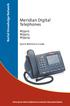 Ntel Knowledge Netwk Meridian Digital Telephones M3902 M3903 M3904 Quick Reference Guide Enterprise Voice Solutions Customer Documentation While you are away from your desk: Call Fward 38 Contents M3902,
Bluetooth FM transmitter User Manual
 Bluetooth FM transmitter User Manual Thank you in earnest that you choose and buy Bluetooth FM transmitter from us! Please browse all details of this manual before using it to get best playing effect.
DVB-T2 DIGITAL TV BOX
 DVB-T2 DIGITAL TV BOX QUALITY OF DIGITAL TELEVISION MT4159 User Manual EN 2 Index Index...2 Introduction...3 Front panel...3 Rear panel...3 Remote control...4 Hardware configuration...5 Connecting tuner
Meridian Digital Telephones
 Ntel Knowledge Netwk Meridian Digital Telephones M3902 M3903 M3904 Quick Reference Guide Enterprise Voice Solutions Customer Documentation While you are away from your desk: Call Fward 38 Contents M3902,
Primare C31 Remote Control User Guide
 Primare C31 Remote Control User Guide i Preface COPYRIGHT AND ACKNOWLEDGMENTS Copyright 2001 Primare Systems AB. All rights reserved. Primare Systems AB Idavägen 17D SE-352 46 Växjö Sweden The information
User s Guide for Polycom HDX Systems
 User s Guide for Polycom HDX Systems Version 1.0 November 2006 Edition 3725-23978-001/A USER S GUIDE FOR POLYCOM HDX SYSTEMS Trademark Information Polycom, the Polycom logo design, and ViewStation are
Contents Introduction Installation Scanning for Channels
 mini User Guide Contents 1 Introduction 7 1.1 Features................................. 7 1.2 Accessories............................... 8 1.3 The Remote Control.......................... 9 1.4 Getting
Powmascables. User manual. BOSSCOM Internet-Radio. For Bang & Olufsen Controlled 12818090. by B&O Remote Control. Powmascables
 User manual BOSSCOM Internet-Radio For Bang & Olufsen Controlled 12818090 by B&O Remote Control Everyday Control with Beo4, Beo5, Beo6 Everyday Control with BeoLink 1000 Select Maneuvering in menus Maneuvering
UVO SYSTEM QUICK REFERENCE GUIDE
 UVO SYSTEM QUICK REFERENCE GUIDE Congratulations on the Purchase of your new UVO system! Your new UVO system allows you to enjoy various audio and multimedia features through the main audio system. For
Jessica McCreary 713.408.3185
 it s all about you My real estate business has been built around one guiding principle: It's all about you. Your needs Your dreams Your concerns Your questions Your finances Your time Your life My entire
FEATURE GUIDE AeroSphère / Small / Large / Base
 FEATURE GUIDE AeroSphère / Small / Large / Base Content: Wi-Fi Setup - advanced topics WPS - advanced topics Wi-Fi Setup with the AeroSphère Network Setup webpage Troubleshooting & FAQ Version v0.52 WI-FI
H203D 中文 GB Version 1
 H203D 中 GB文 Version 1 Contents Installing batteries... 4 Using the AC adapter (not supplied)... 5 Setting the clock... 6-7 Updating your radio - DAB... 8 Selecting a station - DAB... 9 Secondary services
Receiver and Remote Controls
 9242_4_Ch2_eng 6/11/07 9:29 AM Page 1 2 Receiver and Remote Controls ABOUT YOUR SATELLITE RECEIVER This chapter helps you get to know your remote control, which lets you use all the functions of your receiver.
B E O L A B P E N T A
 BEOLAB PENTA 2 For the UK market only: IMPORTANT! The wires in the mains lead supplied with this apparatus are coloured in accordance with the following code: BLUE: NEUTRAL BROWN: LIVE As the colours of
BeoVision Avant BeoVision Avant 55
 BeoVision Avant BeoVision Avant 55 Dear Customer This guide contains additional information about the daily use of your Bang & Olufsen product and connected equipment, and describes the features and functions
DSTV DECODER SETUP MANUAL July 2013
 DSTV DECODER SETUP MANUAL July 2013 DSTV SINGLE VIEW AND SD PVR DECODER SETUP How to program your Single View and SD PVR DSTV Decoders STEP 1 Ensure that the DSTV decoder is connected correctly to the
DR 70 Portable Digital DAB+ and FM Radio Receiver User Manual English Please read carefully before using this product
 DR 70 Portable Digital DAB+ and FM Radio Receiver User Manual Please read carefully before using this product 15 1 Table of Contents 1 Table of Contents... 16 2 Safety Instructions:... 17 3 Specification:...
BeoLab 5 Guide 3506377 GB V SØL GUIDE OMSLAG UDV d i P 5 BEOLAB
 BeoLab 5 Guide This product fulfils the conditions stated in the EEU directives 89/336 and 73/23. CAUTION: To reduce the risk of electric shock, do not remove cover (or back). No User-serviceable parts
The Parts of the System
 2 The Parts of the System THE RECEIVER THE RECEIVER FRONT PANEL Power Light This green light on the receiver front panel lights up when the receiver is turned ON. This light flashes when the receiver memory
TechniSat HDFV Freesat HD Digital Receiver. Owner s Manual
 TechniSat HDFV Freesat HD Digital Receiver Owner s Manual Dear Customer, Welcome and thank you for choosing TechniSat Digital s HDFV Digital Freeview HD Receiver for your TV entertainment. This product
UNIVERSAL REMOTE CONTROL GUIDE
 UNIVERSAL REMOTE CONTROL GUIDE Service provided by We Keep You Connected Your new AT6400 AllTouch Infrared (IR) Universal Remote Control (remote) is a true universal remote, functioning as four remotes
Welcome to FOXTEL Digital!... 1 Your FOXTEL Digital set-top unit... 1 Updates to your digital set-top unit... 1 Getting in touch with FOXTEL...
 Welcome to FOXTEL Digital!......... 1 Your FOXTEL Digital set-top unit...... 1 Updates to your digital set-top unit..... 1 Getting in touch with FOXTEL........ 1 For your safety.................... 2 Getting
CD / DAB / FM Digital Sound System with dock for ipod and iphone
 Enjoy Listening ROBERTS CD / DAB / FM Digital Sound System with dock for ipod and iphone Please read this manual before use Contents Introduction...2-9 Sound 00 Sound System features...3 Controls and connections...4-5
Retro Style Turntable With CD/Radio/USB/SD/MP3/WMA and Vinyl-to-MP3 Encoding
 Retro Style Turntable With CD/Radio/USB/SD/MP3/WMA and Vinyl-to-MP3 Encoding PTCD8U INSTRUCTION MANUAL LOCATION OF CONTROLS 1) DUST COVER 2) DIAL POINTER 3) LEFT SPEAKER 4) LCD DISPLAY 5) FM STEREO LED
Beo4 and Beolink 1000 are remote control terminals from Bang & Olufsen. OneRemote supplies interface
 Beo4 and Beolink 1000 are remote control terminals from Bang & Olufsen. OneRemote supplies interface modules that allow third party equipment to be operated via a Bang & Olufsen remote control system.
DVB-T VERTO. User Manual HD TERRESTRIAL DIGITAL TV STB & PLAYER MT4162
 DVB-T VERTO HD TERRESTRIAL DIGITAL TV STB & PLAYER MT4162 User Manual EN 2 Index Index...2 Overview...2 Remote Control...3 Battery installation in remote control...4 Using remote control...4 Connections...4
Using the System ORDER YOUR BELL EXPRESSVU PROGRAMMING. Page 3-1
 Using the System ORDER YOUR BELL EXPRESSVU PROGRAMMING This procedure notifies the Bell ExpressVu Customer Service Call Centre that your system is on-line and installed. You need to have your services
Poster Design Tips. Academic Technology Center
 Poster Design Tips Academic Technology Center Colors White Background Recommended Full-color backgrounds will be charged extra Use Borders, Images and Graphics to add some color instead Colors Keep it
High Definition LCD TV. Kogan HD32 USER MANUAL
 High Definition LCD TV Kogan HD32 USER MANUAL Safety information To ensure reliable and safe operation of this equipment, please read carefully all of the instructions in this user guide, especially the
www.fmtalkinghouse.com
 www.fmtalkinghouse.com 24x7 FM Announcement System (Talking Sign) 2009 FM TALKING HOUSE All rights reserved Talking Sign 24x7 FM Announcement System Description: The 24x7 FM Announcement System or Talking
A Reform in Progress
 A Reform in Progress author year about this publication By Judge Richard Ross (Ret.) with an introduction by Alfred Siegel 2012 Richard Ross was a New York City Family Court judge from 1991 to 2001 and
HD-TV100 MP Digital TV and media player
 HD-TV100 MP Digital TV and media player User s manual 1. Functions overview: FULL HD TV HD Digital TV with MPEG-4(H.264)&MPEG-2, HD&SD standard DVB-T. HDMI HD format output 1080I, also compatible with
PR-D9W. GB Version 1
 PR-D9W Version 1 Table of contents Important safety instructions... 2-3 Introduction... 4 Controls... 5-8 Using your weather alert radio for the first time... 9 Operating your radio Search tuning AM/FM...
Corporate Design Manual. Design Guidelines / United Kingdom
 Corporate Design Manual Design Guidelines / United Kingdom comdirect CD-Manual 1.0 United Kingdom 05.2001 Editorial Why do we need a uniform corporate image? Our corporate image is characterised externally
How Cisco IT Introduces New Services Quickly and Safely
 Cisco IT Case Study ACE Services Introduction Network How Cisco IT Introduces New Services Quickly and Safely Early testing by volunteer users helps Cisco deploy new network services faster and gain productivity
The package provides not only Roman fonts, but also sans serif fonts and
 The package provides not only Roman fonts, but also sans serif fonts and typewriter fonts. Times Roman Condensed (c, n). 0123456789, $20, C30, 60. Naïve Æsop s Œuvres in français were my first reading.
MVS - Mini Video Speaker
 MVS - Mini Video Speaker Mini Clock Radio Night Vision Hidden Camera User Manual Spy Tec www.spytecinc.com GETTING STARTED Components Features Powering Up the Device Micro SD Memory Card for Data Storage
Radio Interface Setup
 For getting started with Ham Radio Sound Card digital modes. Jeffrey Kopcak K8JTK Table of Contents Introduction... 3 Program versions... 3 Resources... 3 SignaLink... 3 Rigblaster... 3 Configuration...
INSTRUCTIONS Please read all instructions carefully before using
 Car Multimedia System XM-2DTSB79 AUX IR MIC RESET USB INSTRUCTIONS Please read all instructions carefully before using Touch calibration If touch calibration error occurs, you can adjust the touch coordinate
AVR 158. Audio/video receiver. Quick-Start Guide ENGLISH
 158 Audio/video receiver ENGLISH Quick-Start Guide 158 Introduction, Speaker Placement and Connection Introduction Thank you for choosing a harman kardon product! This quick-start guide contains all the
Volkswagen Service Corporate Design Manual. Last revised: July 2012
 Corporate Design Manual Last revised: July 2012 2 Contents Contents Introduction 3 Das Auto 4 Visual Elements 5 Icons 6 Icon application 7 Brand 8 Dealer ad without grid 9 Retail Offers 10 Retails Sub-Brands
RD-11 ROBERTS. FM RDS/DAB digital radio with. Sound for Generations. Please read this manual before use
 ROBERTS Sound for Generations RD- FM RDS/DAB digital radio with Please read this manual before use Contents Controls... Battery operation... 3 Mains operation... 3 Operating your radio - DAB... 4 Selecting
DIGITAL SATELLITE FINDER USER S MANUAL
 DIGITAL SATELLITE FINDER USER S MANUAL Please read this manual carefully before using this device for the first time. The technical specifications and operating methods included in this manual are subject
MyM 3T. User Manual. English
 User Manual Compact unit with 2 DVB-T tuners MPEG-2 and MPEG-4 compliant 3 analogue modulators Two CI for decryption or multidecryption NICAM or A2 stereo 12-volt power supply Low power consumption MyM
Mini Hi-Fi Component System
 3-860-707-14(1) Mini Hi-Fi Component System Operating Instructions Owner s Record The model and serial numbers are located on the rear panel. Record the serial number in the space provided below. Refer
DAB / FM RDS / SD Digital Radio Recorder with PausePlus
 ROBERTS Enjoy Listening DAB / FM RDS / SD Digital Radio Recorder with PausePlus Please read this manual before use Contents Controls... 2-3 Battery operation...4 Using the AC adaptor...5 Operating your
Classroom Setup... 2 PC... 2 Document Camera... 3 DVD... 4 Auxiliary... 5. Lecture Capture Setup... 6 Pause and Resume... 6 Considerations...
 Classroom Setup... 2 PC... 2 Document Camera... 3 DVD... 4 Auxiliary... 5 Lecture Capture Setup... 6 Pause and Resume... 6 Considerations... 6 Video Conferencing Setup... 7 Camera Control... 8 Preview
British Columbia Treatment Guidelines
 655 West 12th Avenue Vancouver, BC V5Z 4R4 General Inquiries: 604.707.2400 Provincial STI/HIV Clinic Phone: 604.707.5600 Provincial STI/HIV Clinic Fax: 604.707.5604 www.bccdc.ca British Columbia Treatment
Using WebEx Player. Playing a recording. Installing WebEx Player. System requirements for listening to audio in a recording
 17 of 24 Using WebEx Player Using WebEx Player, you can play back any recording that was made using WebEx Recorder that is, a WebEx Recording Format (.wrf) file. Installing WebEx Player If you do not yet
Connections and Setup
 9242_14_Ch12_eng 6/11/07 9:36 AM Page 1 Connections and Setup HOW TO CONNECT YOUR SATELLITE RECEIVER Do you have a handful of cables and a head full of questions? This chapter is the perfect place to find
User s Manual DVD-V5600 DVD-V6600. Eng. Czech. Slovak. Magyar. PAL www.samsung.com
 User s Manual -V5600 -V6600 Eng Magyar Czech Slovak PAL www.samsung.com Safety Instructions The following illustrations represent precautions. The lightning bolt is a warning sign alerting you to dangerous
microgranny 2.0 manual draft
 microgranny 2.0 manual draft Introduction microgranny 2.0 (further only microgranny) is a monophonic granular sampler with MIDI input and 8-bit audio input. It has 6 big buttons, each of which plays a
19 LCD TV + DVD. User Guide 1923DT. After Sales Support
 19 LCD TV + DVD User Guide 1923DT After Sales Support Now that you have purchased a quality Tevion product you can rest assured in the knowledge that as well as your 3 year parts and labour warranty you