
BlueWave QX4 User Guide
|
|
|
- Mabel McGee
- 9 years ago
- Views:
Transcription
1 BlueWave QX4 User Guide Multi-Head LED Spot-Curing System Instructions for Safe Use Setup and Operation Maintenance Ordering Spare Parts and Accessories

2 2 BlueWave QX4 User Guide About Dymax UV/Visible light-curable adhesives. Systems for light curing, fluid dispensing, and fluid packaging. Dymax manufactures industrial adhesives, light-curable adhesives, epoxy resins, cyanoacrylates, and activatorcured adhesives. We also manufacture a complete line of manual fluid dispensing systems, automatic fluid dispensing systems, and light-curing systems. Light-curing systems include LED light sources, spot, flood, and conveyor systems designed for compatibility and high performance with Dymax adhesives. Dymax adhesives and light-curing systems optimize the speed of automated assembly, allow for 100% in-line inspection, and increase throughput. System designs enable stand-alone configuration or integration into your existing assembly line. Please note that most dispensing and curing system applications are unique. Dymax does not warrant the fitness of the product for the intended application. Any warranty applicable to the product, its application, and use is strictly limited to that contained in the Dymax standard Conditions of Sale. Dymax recommends that any intended application be evaluated and tested by the user to ensure that desired performance criteria are satisfied. Dymax is willing to assist users in their performance testing and evaluation by offering equipment trial rental and leasing programs to assist in such testing and evaluations.

3 BlueWave QX4 User Guide 3 Contents Introduction... 4 Introduction to the User Guide... 4 Where to Get Help... 4 Safety... 5 General Safety Considerations... 5 Specific Safety Considerations... 5 Dymax UV Light-Curing System Safety Considerations... 6 Product Overview... 8 Description of the BlueWave QX Features & Benefits of the BlueWave QX4 System Validation Front Control Panel Back Panel Unpacking Parts Included System Setup System Connections LED Heads & Lenses Constant Mode Variable Mode PLC Operation System Settings Intensity Control Feature Cleaning & Maintenance LED Head Optic Lens Error Codes & Troubleshooting Error Codes Spare Parts and Accessories Specifications Warranty Index... 35

4 4 BlueWave QX4 User Guide Introduction Introduction to the User Guide This guide describes how to set up, use, and maintain the BlueWave QX4 LED Spot- Curing System safely and efficiently. Intended Audience Dymax prepared this user guide for experienced process engineers, technicians, and manufacturing personnel. If you are new to high-intensity LED light sources and do not understand the instructions, contact Dymax Application Engineering for answers to your questions before using the equipment. Where to Get Help Dymax Customer Support and Application Engineering teams are available by phone in the United States, Monday through Friday, from 8:00 a.m. to 5:30 p.m. Eastern Standard Time. You can also Dymax at Contact information for additional Dymax locations can be found on the back cover of this user guide. Additional resources are available to ensure a trouble-free experience with our products: Detailed product information on Dymax adhesive product data sheets on our website Material safety data sheets (MSDS) sheets provided with shipments of Dymax adhesives

5 BlueWave QX4 User Guide 5 Safety WARNINGS! If you use this LED light source without first reading and understanding the information in this user guide, injury can result from exposure to high-intensity light. To reduce the risk of injury, read and ensure you understand the information in this user guide before assembling and operating the Dymax LED light source. To use the BlueWave QX4 system safely, it must be set up and operated in accordance with the instructions given by Dymax. Using the system in any other manner will impair the protection of the system. Dymax assumes no liability for any changes that may impair the protection of the BlueWave QX4 system. General Safety Considerations All users of Dymax LED light sources should read and understand this user guide before assembling and using the system. To learn about the safe handling and use of light-curable formulations, obtain and read the MSDS for each product. Dymax includes an MSDS with each adhesive sold. In addition, fluid product MSDS are available on our website. Specific Safety Considerations The BlueWave QX4 is designed to maximize operator safety and minimize exposure to light-curing energy. To use the unit safely, it must be set up and operated in accordance with the instructions in this user guide. Please also read and understand the safety considerations unique to LED-curing systems as described below. WARNINGS! Looking directly at the high-intensity light emitted by the heads of the BlueWave QX4 can result in eye injury. To prevent eye injury, never look directly at the end of the high-intensity head and always wear protective goggles. To avoid accidental exposure, always point the LED head away and at the curing substrate. Removing the cover from the BlueWave QX4 controller may result in electrical shock. To prevent the possibility of an electrical shock, never remove the controller s cover The controller is cooled by natural convection. If you block the air flow from the controller, equipment damage and malfunction can result. To prevent damage and

6 6 BlueWave QX4 User Guide malfunction, ensure adequate space around controller vents to allow the free flow of air. Typically, 1.5 in of space around all sides of the controller is sufficient. Dymax UV Light-Curing System Safety Considerations Operators must understand these three concepts to use the LED light source safely: UV exposure, high-temperature surfaces, and bright, visible light. UV Exposure Figure 1. UV Spectrum Standard Dymax UV light-curing systems have been designed primarily to emit UVA and Visible energy (Figure 1). Depending on the type of LED head used, the energy emitted from the BlueWave QX4 can either be in the upper end of the UVA portion of the spectrum (PrimeCure & RediCure ) or in the lower portion of the visible spectrum (VisiCure ). UVA energy is generally considered the safest of the three UV ranges: UVA, UVB, and UVC. Although OSHA does not currently regulate UV-light exposure in the workplace, the American Conference of Governmental Industrial Hygienists (ACGIH) does recommend Threshold Limit Values (TLVs) for ultraviolet light. The strictest interpretation of the TLV (over the UVA range) for workers eyes and skin allows continuous exposure up to 1 mw/cm 2 (intensity). Unless you are placing bare hands into the curing area, it is unusual to exceed these limits. To put 1 mw/cm 2 limit into perspective, a cloudless summer day will typically exceed 3 mw/cm 2 of UVA light, and also include the more dangerous UVB light (primarily responsible for sun tans, sun burns, and skin cancer).

7 BlueWave QX4 User Guide 7 Checking the Workstation The human eye cannot detect "pure" UV light, only visible light. A radiometer should be used to measure stray UV light to confirm the safety of a UV light-curing process. A workstation that exposes an operator to more than 1 mw/cm 2 of UVA continuously should be redesigned. Protecting Operators Light-curing technology can be a regulatory compliant, "worker-friendly" manufacturing process when the proper safety equipment and operator training is utilized. There are two ways to protect operators from UV exposure: shield the operator and/or shield the source. Shield the Operator UV-Blocking Eye Protection UV-blocking eye protection is recommended when operating UV light-curing systems. Both clear and tinted UV-blocking eye protection is available from Dymax. UV-Blocking Skin Protection Opaque, UV-blocking clothing, gloves, and full-face shields are recommended when skin may potentially be exposed to UV light. Shield the Source of UV Any substrate that blocks UV light can be used as a shield to protect workers. The following materials can be used to create simple shielding structures: Rigid Plastic Film Transparent or translucent/uv-blocking plastics (typically polycarbonate or acrylic) are commonly used to create shielding where some level of transparency is also desired. Flexible Film Translucent UV-blocking, flexible urethane films can be used to quickly create workstation shielding. This UV-blocking, flexible urethane film is available from Dymax, call for assistance. High-Temperature Surfaces Surfaces exposed to high-intensity curing lights may rise in temperature. The intensity, distance, exposure time, cooling fans, and composition of the surface can all affect the rise in surface temperature. In some cases, exposed surfaces can reach temperatures capable of producing a burn or causing damage to a substrate. In these cases, care must

8 8 BlueWave QX4 User Guide be taken to ensure either a more moderate surface temperature or appropriate protection/training for operators. No infrared radiation is produced by these LED systems, so surface temperatures will be lower than with conventional lamp systems. Empirical testing should be used to verify the exact temperature rise in each application. Bright Visible Light The bright visible light energy emitted by curing systems can cause eyestrain if proper eye protection or shielding is not used. The use of tinted eye protection and/or opaque/ tinted shielding can be utilized to reduce eyestrain and address this concern. Product Overview Description of the BlueWave QX4 The BlueWave QX4 high-intensity spot-curing system features all the benefits of LEDcuring technology in a smaller, more versatile unit. This system is comprised of a power supply, a controller with an easy-to-use control interface, and up to four LED heads. LED heads are available in 365, 385, and 405 nm and can be outfitted with 3-, 5-, or 8-mm diameter focusing lenses. LED heads and focusing lenses can be used in any combination and can be operated in constant or variable mode. The system s LED heads can be used as hand-held units or integrated into an automated manufacturing system allowing for maximum application flexibility. Their output intensity levels can also be adjusted from 10% to 100% to meet process and adhesive requirements. The BlueWave QX4 is rated for continuous operation. However, if the internal temperature of the system exceeds the maximum safe operating temperature limits, each LED head contains a thermal sensor that will shut the unit down to protect the components of the head.

9 BlueWave QX4 User Guide 9 Figure 2. Main Components of a BlueWave QX4 Controller Front Panel Display LED Heads Focusing Lenses

10 10 BlueWave QX4 User Guide Features & Benefits of the BlueWave QX4 System The Dymax BlueWave QX4 is engineered for precise performance and long service life. Key features include: Features Flexible mounting options One controller controls up to four LED heads PLC interface Variable mode allows each LED head to be programed independently Interchangeable/Replaceable focusing lenses in 3-, 5-, and 8-mm diameters Benefits Adaptable to a variety of process and fixture scenarios Maximum application flexibility Easily incorporated into automated systems Individual exposure times and intensity settings available in 1% increments for each LED head allows for maximum curing flexibility Allows tailoring of the unit to individual curing requirements 100% duty cycle capability Highest throughput (exposure cycles at the speed of light ) No mechanical shutter Intensity output adjustment (10% to 100%) LED heads available in 365, 385, or 405 nm wavelengths Instant on/instant off/no warm up period Superior accuracy over closed-loop feedback" or autoadjusting units Optimum process control Compatible with a variety of UV and visible light-curable materials, including Dymax materials for fewer requalifications Wavelength flexibility allows co-optimization of adhesive and curing system for optimal cure Units can be custom configured to your curing requirements Comfortable hand-held operating temperature Stable LED temperature Maximized continuous operation without overheating Optimizes cure time efficiency Temperature monitoring assures maximum LED life

11 BlueWave QX4 User Guide 11 Validation Tests should be conducted prior to production to determine the time and light intensity required to fully cure your resin. The following approaches may be used to validate the curing process. Set Exposure Time, Determine Intensity Users can specify a cure time and, through empirical testing, determine the intensity required to achieve a full cure. As with any manufacturing process, it is advisable to incorporate a safety factor. Set Intensity, Determine Exposure Time Users can specify light intensity and, through empirical testing, determine the exposure time required to achieve a full cure. As with any manufacturing process, it is advisable to incorporate a safety factor. Control Process validation confirms a minimum acceptable intensity. Users can then choose to operate at full intensity (using the excess intensity as an additional safety factor) or adjust the output to a specific intensity level. To ensure consistent and repeatable process results, intensity levels should be monitored with a radiometer. This enables users to identify light intensity changes and take corrective action (either adjusting the light intensity or performing maintenance). Front Control Panel Front Control Panel Display Displays the currently selected menu. Up Button ( ) Navigates the selector up one position. It is also used to increase the selection value. Down Button ( ) Navigates the selector down one position. It is also used to decrease the selection value. Right Button ( ) Selects the highlighted option and advances the screen to the next menu.

12 12 BlueWave QX4 User Guide Left Button ( ) Navigates to the previous menu. Holding this button down for more than one second will return you back to the main menu. It can also be used to cancel a selected option and return to the previous menu. Run Button ( ) Activates the irradiation when the run option is selected. This button is also used as an enter button. LED Head Indicators Colored lights indicate the status of each connected head. A green light indicates that a head is active. An orange light indicates an overtemperature warning. A red light indicates that the critical temperature has been exceeded. Figure 3. Front Control Panel Front Control Panel Display Run Button LED Head Indicators

13 BlueWave QX4 User Guide 13 Back Panel Power Cord Receptacle Connection point for the power cord. On/Off (I/O) Switch Moving the switch to the on position (I) powers up the controller. Moving the switch to the off position (O) cuts power to the controller. Footswitch Jack Connection point for the footswitch. Pressing the footswitch starts a curing cycle. In timed operation, pressing and releasing the footswitch initiates the curing cycle. A second press will terminate a timed cure cycle immediately. PLC Connector Terminals Connection points for an interface with a usersupplied PLC (for remote operation). RS232 The RS232 port is a Dymax applicable troubleshooting port. No user functionality is available at this time. LED Head Connectors Connection points for up to four LED heads. Each connector corresponds to an available channel and indicator on the front panel. Figure 4. Back Panel Controls & Connections LED Head Connectors PLC Input Connection Terminal PLC Output Connection Terminal RS232 Port On/Off Switch Footswitch Jack Power Cord Receptacle

14 14 BlueWave QX4 User Guide Unpacking Upon arrival, inspect all boxes for damage and notify the shipper of box damage immediately. Open each box and check for equipment damage. If parts are damaged, notify the shipper and submit a claim for the damaged parts. Contact Dymax so that new parts can be shipped to you immediately. Check that the parts included in your order match those listed below. If parts are missing, contact your local Dymax representative or Dymax Customer Support to resolve the problem. Parts Included Controller Controller Base Power Adapter Power Cord Foot Switch Safety Glasses BlueWave QX4 User Guide LED Heads LED Head Assembly Wavelength specific lenses Extra connection cable extensions can be ordered as accessories System Setup System Connections Power Cable Connection Attach the Power Cord to the Power Cord Receptacle located on the unit s back panel (Figure 4). Press the Power Cord firmly into the receptacle until it clicks and locks into place. The unit is now powered and ready to be turned on with the On/Off Switch. To remove the Power Cord, pull the retaining body of the Connector to unlock it from the receptacle. LED Head Connection Jacks Along the top of the Controller s Rear Panel, there are four LED Head Connection Jacks labeled CH 1-4. Press the LED Head Connector into any available jack until it clicks and locks in place.

15 BlueWave QX4 User Guide 15 To remove the LED Head, slide the retaining body of the Connector away from the Controller to unlock it from the Jack. Footswitch Connection Located on the rear panel of the controller. It can be used as an optional irradiation trigger. PLC Connection Terminals There are input and output PLC Connection Terminals that can be used to integrate the unit to an automated assembly line. The input connections are separated into two main groups: the exposure connections and the program selection connections. The unit normally has high logic levels (+5 V) and looks for a low signal (0 V) input. The exposure connections can be used to activate specific wands or all wands simultaneously. The program selection bits determine which program mode the unit will operate in. See the PLC operation Section for more details. When the PLC sense connection has a low signal, the Front Screen will display the PLC connection and will lock out the buttons on the Front Control Display. A low signal on the interlock connection will lock out the unit. LED Heads & Lenses The BlueWave QX4 led heads are available in three different wavelength: 365 nm (RediCure), 385 nm (PrimeCure), and 405 nm (VisiCure). Each LED head is made up of three main components: the handle, a collimating lens, and a spot lens. LED heads are 1.5 M in length. Extensions can be purchased for extra length. Figure 5. LED Head Components Spot Lens Collimating Lens Cooling Fins Handle The handle indicates the wavelength. The collimating lenses in each head are interchangeable, but the handle and spot lenses are unique to a specific wavelength. Each handle and lens is color-coded (black for VisiCure, gray for PrimeCure, and blue for RediCure) to identify which wavelength they are calibrated for. Ø 3-mm, Ø 5-mm, and Ø 8-mm spot diameter lenses are available for each wavelength head.

16 16 BlueWave QX4 User Guide Figure 6. Color-Coded LED Heads and Focusing Lenses RediCure, 365 nm PrimeCure, 385 nm VisiCure, 405 nm Figure 7. Focus Lens Diameters The spot lens and collimating lens can be removed by unscrewing from the handle; however, removing the collimating lens is not recommended. (Figure 8) Figure 8. Remove Spot Lens Fixturing If fixturing the LED head, do not cover the cooling fin or overheating can result. We suggest clamping on the flat portion of the handle. Figure 9. Fixturing Recommendations Do Not Cover Cooling Fins Attach Fixture to the Flat Section of the Handle

17 BlueWave QX4 User Guide 17 Operation WARNING! Looking directly at the high-intensity light emitted by the heads of the BlueWave QX4 can result in eye injury. To prevent eye injury, never look directly at the high-intensity light and always wear protective goggles (provided). Verify that all connectors are firmly plugged into the rear panel of the unit. See System Connections, pg. 14 for more details. Figure 10. Main Menu Screen On the rear panel of the controller, move the Power Switch to the on position (I). The system is now ready for use. Upon startup of the unit, the main menu screen should appear in the display. The main menu displays the two working modes of the unit as well as the system settings. Hold down the left button for longer than one second to bring the display back to the main menu page. Constant Mode Constant mode allows the user to configure each head at a predefined (constant) power output for a given amount of time. Each head can be adjusted independently of each other. Figure 11. Select Constant Mode To enter constant mode, use the up and down buttons to highlight constant mode on the main menu screen. Press the right button to enter.


18 18 BlueWave QX4 User Guide Set Up In the constant mode menu, the user can see the current power and time configuration for each one of the LED Heads. To update any LED Head, navigate to the LED Head using the up and down buttons. The selected option will be highlighted in green. Press the right button to edit. Any LED Head that is not connected will appear grayed out. The user can still select and program any grayed-out rows, but the unit will not run the program for the disconnected LED Head. Another screen will show the power and time (Figure 13). To change the power, press the run button (Figure 14). The number will start blinking. Use the up and down buttons to modify the value. Press the run button again to set. The power can be set from a value of %, at 1% increments. To edit the time, navigate to it using the Down button. Press the run button (Figure 14) to edit. Use the up and down buttons to change the value, then press the run button again to set. The maximum time setting is 999 seconds. To turn off an LED Head, set the power or time setting to 0. Pressing and holding the up or down buttons will increase/decrease the value at a faster pace. Figure 12. Constant Mode Menu Figure 13. Power & Time Editing Screen Figure 14. Run Button When editing is finished, press the left button to go back to the constant model menu.


19 BlueWave QX4 User Guide 19 Irradiation Once all of the LED heads have been configured, navigate to the RUN option. Press the run button to start irradiation. Figure 15. Select Run Row Figure 16. Screen During Irradiation During irradiation, the time will count down to indicate the time remaining on the current curing session. Press the run button during an irradiation cycle to stop the irradiation and reset the cycle. The Footswitch can also be used instead of pressing the run button. An indicator light will show on the bottom of the front display to show which heads are active during the irradiation cycle. A green light shows that the head is active with no faults. An orange indicator light shows that the corresponding head has reached the user-set temperature-warning threshold. The head will continue to function as normal until it reaches a critical temperature condition.


20 20 BlueWave QX4 User Guide Variable Mode Variable mode allows the user to set different power profiles in a given time frame for each head. Up to seven different programs can be stored into the unit. Figure 17. Select Variable Mode To enter variable mode, navigate using the up/down buttons, then press right button to enter. Set Up On the variable mode menu (Figure 18), the user will see seven programs. Each program is a collection of steps and cycles. The programs are stored in local memory and can be used via the GUI interface or the PLC interface. Each LED Head can be programmed independently of the other LED Heads. To run or edit a program, navigate using the up and down buttons. Once highlighted, press the Right button to enter. Figure 18. Variable Mode Menu Figure 19. Program Menu The program menu (Figure 19 ) allows the user to see the number of steps and cycles active for each one of the LED Heads in the given program. To edit the configuration of an LED Head, navigate using the up and down buttons, then press the Right button to edit. Any LED Head that is not connected will be grayed out on the display. The user can still select and program any grayed out rows, but the unit will not run the program for the disconnected LED Head.


21 BlueWave QX4 User Guide 21 On the edit menu (Figure 20), the user will see the number of steps and cycles currently configured for a head. A step consists of a power configuration for a given amount of time. The collection of steps will repeat for the number of cycles. The user can adjust the number of cycles from Setting the number of cycles to 0 will disable the highlighted head. To edit the steps, navigate using the up and down buttons, then press Right button to edit. Figure 20. Edit Menu Figure 21. Steps Menu On the steps menu (Figure 21), the user can see the power and time settings for each step. To edit the step, navigate using the up and down buttons, then Right button to edit. In a similar fashion to the constant mode, the power can be adjusted by first pressing the Right button. Use the up and down buttons to adjust the power, then the run button to set. Use the up and down buttons to set the time, then press the run button to set. The user can set an off step by entering 0% into the power field and setting a time period. Adding an off step to the last step in a cycle allows the user to set a cool down time or an off period for a precise amount of time in between cycles. Press the left button to go back to the previous menu. Once the steps are set, the cycles can be adjusted by pressing the Right button while highlighting the cycles row (Figure 23). Use the up and down buttons to set the cycles.
22 22 BlueWave QX4 User Guide Figure 22. Power Menu Figure 23. Adjust Cycles Irradiation Once all configurations are ready, navigate to the RUN row (Figure 24) using the up and down buttons. Press the center run button to start irradiation in all LED Heads. Figure 24. Select RUN Option Figure 25. Irradiation Screen During irradiation, the steps and cycles will count down to indicate the time remaining on the current curing session. Pressing the center run button during the irradiation cycle will stop the irradiation. The Footswitch can also be used instead of pressing the center run button. An Indicator Light will show on the bottom of the front panel to show which LED Heads are active during the irradiation cycle. A green light shows that the LED Head is active with no faults. An orange indicator light shows that the corresponding LED Head has reached the user-set temperature-warning setting. The LED Head will continue to function as normal until it reaches a critical temperature condition.


23 BlueWave QX4 User Guide 23 PLC Operation PLC operation mode can only be entered by bringing the PLC sense input to a logic (0V). This will lock out the front control panel and will prevent the user from entering any commands using the front buttons. Programs and run modes must be adjusted prior to entering PLC mode. Figure 26. PLC Mode Screen Figure 27. PLC Inputs & Outputs Inputs Exposure The exposure input allows the user to activate any single channel independently or all channels simultaneously. Program Program bits are used to determine what program the unit will be operated in. See Table 1 for program identification.
24 24 BlueWave QX4 User Guide Table 1. Program Bits Bit 1 Bit 2 Bit 3 Program Selection HIGH (1) HIGH (1) HIGH (1) Continuous Mode HIGH (1) HIGH (1) LOW (0) Program 1 HIGH (1) LOW (0) HIGH (1) Program 2 HIGH (1) LOW (0) LOW (0) Program 3 LOW (0) HIGH (1) HIGH (1) Program 4 LOW (0) HIGH (1) LOW (0) Program 5 LOW (0) LOW (0) HIGH (1) Program 6 LOW (0) LOW (0) LOW (0) Program 7 Reserved No functionality at this time. PLC Sense A logic (0V) PLC sense signal will activate PLC mode and lock out the front control panel. Interlock A logic (0V) signal to the interlock terminal block will act as an emergency shutoff switch. GND A ground signal that can be used to produce a logic (0V) signal. Outputs Status Indicates if an LED head is active. An active signal indicates that the head is performing the assigned program, but may not necessarily indicate that head is irradiating. Refer to the assigned program for the irradiation details. A low signal on the ALL terminal indicates that at least one LED head is currently active. Intensity A PWM-type signal ranging from 0% to 100% duty cycle in 100 Hz or 1 KHz frequency. Interlock Status Mirrors the input value of the input Interlock pin. Warning Monitors the temperature/unit error warning. GND A ground reference pin.

25 BlueWave QX4 User Guide 25 System Settings System settings allow the user to change the language, sounds, and temperature warnings. To enter this menu, navigate using the up/down buttons, then press right button to enter. Figure 28. Select System Settings Setting the Language To set the language, navigate to the first row, then press the right button to edit. Select the language from the list of available languages, then press the center button to set. Figure 29. Settings Adjustment Screen Figure 30. Language Options Screen Sound Settings To modify the sounds configuration, navigate to the second row on the settings adjustment screen, then press right button to enter. The user can modify the beep volume (sound made on button presses) and alarm volume (sound made when an error occurs). To edit these values, press the right button, then use the up/down buttons to adjust the value. Press the center button to set.

26 26 BlueWave QX4 User Guide To modify the heads warning temperature, navigate to the bottom row using the up/down buttons. Press center button to edit. Figure 31. Setting Adjustment Screen Figure 32. Sound Options Screen Temperature Warning Settings This is a user-defined temperature warning. The temperature-warning setting determines when the orange indicator light will come on. The head will continue to operate normally during the warning. The LED Head will automatically shut off if it reaches an internal critical temperature point of 90 C. Select the head from the list using up/down buttons. Press run button to edit. Adjust the temperature in Celsius using the up/down buttons. Press center button to set. Figure 33. Setting Adjustment Screen Figure 34. Temperature Warning Adjustment Screen
27 BlueWave QX4 User Guide 27 Intensity Control Feature The components used in all light-curing systems degrade with use. Therefore, the maximum intensity decreases as exposure hours accumulate. Setting process intensity requirements lower than the maximum enables the BlueWave QX4 s intensity control feature to allow for compensation of gradual decreases in light intensity. The unit's intensity can be adjusted using the front control panel. The intensity adjustment is software controlled and allows for control of output intensity. See the Setup Section for further details on adjusting the Intensity. Use a radiometer to correlate the percent power output to a reading in W/cm 2. The adjustment of power level and correlation to a light-intensity value (W/cm 2 ) enables precise control of light intensity during validation and operation. Cleaning & Maintenance LED Head Optic Lens Based on the cleanliness of your operating environment, establish a schedule for cleaning the LED-head lenses. When cleaning is required, shut the unit down and allow it to cool. When cool, clean the surfaces of the lenses with a clean, lint-free cloth and isopropyl alcohol. NOTE: Never soak the lenses in isopropyl alcohol. Damage could occur to the lenses. Always apply the isopropyl alcohol to a cloth, then clean the lenses. Error Codes & Troubleshooting Error Codes There is an over-temperature warning signal that flashes in the upper right hand corner of the screen when an LED head has reached the user-defined warning limit. The front indicator will turn orange to indicate which head has reached the set temperature, but the LED head will still be operational.

28 28 BlueWave QX4 User Guide There is an over-temperature critical warning signal that will shut down the unit when the critical temperature limit has been reached. A critical error message will display on the screen and remain until the wand has cooled to a safe operating temperature. The operator must then clear the warning screen before operation can resume. Figure 35. Cool-Down Screen Figure 36. Temperature Recovered Screen
29 BlueWave QX4 User Guide 29 Table 2. Troubleshooting Chart for BlueWave LED QX4 Problem Possible Cause Corrective Action BlueWave QX4 does not power up BlueWave QX4 powers up but the LED head does not produce light BlueWave QX4 is operating normally and the head suddenly stops producing light LED head provides only low-intensity light Footswitch does not function Power cord not plugged in or damaged No electrical power at Receptacle LED intensity adjustment set to 0% LED cycle time is set to 0 seconds Interface cable connections loose or damaged In variable mode, the cycle count is set to 0 LED head is not connected to the correct port/channel Over-temperature shutdown was triggered LED intensity adjustment set to minimum Contaminated/dirty lens optics Footswitch not connected Footswitch defective Check power connection and condition at power supply Brick and controller. Test Receptacle for power. Increase LED intensity setting. Increase cycle time setting. Check connections and condition of Interface Cable. Adjust the cycle count to the desired number. Verify that the head is connected to the desired port/channel. Check if the front panel overtemperature indicator is red. If so, allow the head to cool and follow the instructions on the screen. Increase LED intensity setting. Clean the surface of the Lens. Connect footswitch. Activate unit using the front control panel. Replace the footswitch if the unit operates from the front control panel.
30 30 BlueWave QX4 User Guide Spare Parts and Accessories Item Part Number Personal Protection Equipment Protective Goggles Green Protective Goggles Gray (standard model included with unit) Face Shield Radiometer Dymax ACCU-CAL 50-LED Radiometer (spot) LED Heads, 23" (58.42 cm) VisiCure PrimeCure RediCure Lens - VisiCure ø3 mm, Spot ø5 mm, Spot ø8 mm, Spot Lens - PrimeCure ø3 mm, Spot ø5 mm, Spot ø8 mm, Spot Lens - RediCure ø3 mm, Spot ø5 mm, Spot ø8 mm, Spot 41562
31 BlueWave QX4 User Guide 31 Item Part Number Extension Cables Connection Cable, 0.5 M Extension Connection Cable, 1.0 M Extension Connection Cable, 1.5 M Extension Connection Cable, 2.0 M Extension Power Cords Power Cord, North America Power Cord, China Key System Components AC Power Adapter Controller Footswitch (Optional) 5028
32 32 BlueWave QX4 User Guide Specifications Property Specification LED Head RediCure PrimeCure VisiCure Intensity Output* 7,430 mw/cm 2 7,400 mw/cm 2 8,480 mw/cm 2 Output Frequency 365 nm 385 nm 405 nm Power Supply Input V ~ 2 A, 50/60 Hz LED Timer 0.1 to 999 seconds LED Activation Footswitch, front panel, or PLC Cooling Natural convection Controller Dimensions 3.5" x 5.5" x 5.6" [9.0 cm x 14.1 cm x 13.7 cm] (W x D x H) LED Head Dimensions See Figure 38 Weight Controller: 2.3 lbs. [1.03 kg] / Head: 0.2 lbs. [0.08 kg] Unit Warranty 1 year from purchase date Operating Environment Recommended Accessories 5-40 C [ F], non-condensing ACCU-CAL 50-LED Radiometer *Measured with 3-mm lens using Dymax ACCU-CAL 50-LED Radiometer, in spot mode at a distance of 5 mm. Figure 37. BlueWave QX4 Spectral Output
33 BlueWave QX4 User Guide 33 Figure 38. Dimensions - LED Heads Figure 39. Dimensions - Controller
34 34 BlueWave QX4 User Guide Warranty From date of purchase, Dymax Corporation offers a one-year warranty against defects in material and workmanship on all system components with proof of purchase and purchase date. Unauthorized repair, modification, or improper use of equipment may void your warranty benefits. The use of aftermarket replacement parts not supplied or approved by Dymax Corporation, will void any effective warranties and may result in damage to the equipment. IMPORTANT NOTE: DYMAX CORPORATION RESERVES THE RIGHT TO INVALIDATE ANY WARRANTIES, EXPRESSED OR IMPLIED, DUE TO ANY REPAIRS PERFORMED OR ATTEMPTED ON DYMAX EQUIPMENT WITHOUT WRITTEN AUTHORIZATION FROM DYMAX. THOSE CORRECTIVE ACTIONS LISTED ABOVE ARE LIMITED TO THIS AUTHORIZATION.
35 BlueWave QX4 User Guide 35 Index Back Panel Controls, 13 Cleaning the Lens, 28 Components, 8 Connections, 14 Constant Mode, 17 Set Up, 18 Constent Mode Irradiation, 19 Curing System Safety, 6 Description, 8 Error Codes, 28 Features and Benefits, 10 Focusing Lenses, 15 Front Panel Controls, 11 Help, 4 Intensity Control Feature, 27 LED Heads, 15 Lens Cleaning, 28 Operation, 17 Optional Equipment, 30 Parts Included, 14 Parts List, 14 PLC, 23 Product Overview, 8 Safety, 5 Safety of UV Light Bright Visible Light, 8 High-Temperature Surfaces, 7 UV Exposure, 6 Settings, 25 Language, 25 Sound, 25 Setup, 14 Spare Parts and Accessories, 30 Specifications, 32 Support, 4 Temperature Warning Setting, 26 Troubleshooting, 29 Unpacking, 14 UV Exposure, 6 UV Light Shielding, 7 Validation, 11 Variable Mode, 19 Irradiation, 22 Set Up, 20 Warranty, 34
36 Dymax Corporation Dymax Oligomers & Coatings Dymax Europe GmbH +49 (0) Dymax Engineering Adhesives Ireland Ltd. +49 (0) Dymax UV Adhesives & Equipment (Shanghai) Co Ltd Dymax Asia (H.K.) Limited Dymax Korea LLC Dymax Asia Pacific Pte. Ltd Dymax UV Adhesives & Equipment (Shenzhen) Co Ltd Dymax Corporation. All rights reserved. All trademarks in this guide, except where noted, are the property of, or used under license by Dymax Corporation, U.S.A. Please note that most curing system applications are unique. Dymax does not warrant the fitness of the product for the intended application. Any warranty applicable to the product, its application and use is strictly limited to that contained in Dymax standard Conditions of Sale published on our website. Dymax recommends that any intended application be evaluated and tested by the user to ensure that desired performance criteria are satisfied. Dymax is willing to assist users in their performance testing and evaluation by offering equipment trial rental and leasing programs to assist in such testing and evaluations. MAN075 1/04/2016
Flexible LED UV Light-Curing System
 Product Bulletin Flexible LED UV Light-Curing System The Dymax BlueWave LED DX-1000 is a flexible LED light-curing system that utilizes liquid-filled or fiber-optic quartz lightguides to deliver up to
Dual Laser InfraRed (IR) Thermometer with Color Alert
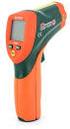 User Manual Dual Laser InfraRed (IR) Thermometer with Color Alert MODEL 42509 Introduction Congratulations on your purchase of the Model 42509 IR Thermometer with Color Alert. This Infrared thermometer
The Dymax Edge. O l i g o m e r s. A d h e s i v e s. C o a t i n g s. E q u i p m e n t. A n d o n e
 The Dymax Edge O l i g o m e r s. A d h e s i v e s. C o a t i n g s. E q u i p m e n t. A n d o n e p r i c e l e s s r e s o u r c e. T h a t s t h e D y m a x E d g e. At Dymax, we re committed to providing
MAINTENANCE & TROUBLESHOOTING
 MAINTENANCE & TROUBLESHOOTING This section describes how to: clean the lens replace the projection lamp replace the batteries in the remote use the security lock feature troubleshoot the projector Cleaning
MAINTENANCE & TROUBLESHOOTING
 MAINTENANCE & TROUBLESHOOTING This section describes how to: clean the lens clean the fan intake filter replace the projection lamp replace the batteries in the remote control use the Kensington lock feature
Dual Laser InfraRed (IR) Thermometer
 User s Manual Dual Laser InfraRed (IR) Thermometer MODEL 42511 Introduction Congratulations on your purchase of the Model 42511 IR Thermometer. This Infrared thermometer measures and displays non-contact
2-3 SAS/SATA II HDD Canister USER S MANUAL XC-23D1-SA10-0-R. Document number: MAN-00076-A
 2-3 SAS/SATA II HDD Canister XC-23D1-SA10-0-R USER S MANUAL Document number: MAN-00076-A ii Preface Important Information Warranty Our product is warranted against defects in materials and workmanship
User s Manual Before using the inverter, you need to read and save the safety instructions.
 User s Manual Before using the inverter, you need to read and save the safety instructions. STI SERIES (STI200, STI300, STI500, STI700, STI1000) Power Frequency Pure Sine Wave Inverter The information
Fixture One Power Cord One User Manual One Omega Bracket One DMX Cable - One
 1. INTRODUCTION AND UNPACKING Thank you for purchasing the MICROH LED NEO SPOT 60R moving head fixture. For your own safety and knowledge, please read this manual before installing or operating the device.
Ultraviolet (UV) Radiation Safety
 Ultraviolet (UV) Radiation Safety April 2005 Compiled by Myung Chul Jo Environmental Health and Safety University of Nevada Reno Page 1 of 8 Table of Contents 1. UVRadiation 3 2. Common sources of UV radiation
HP ProDisplay P19A LED Backlit Monitor. User Guide
 HP ProDisplay P19A LED Backlit Monitor User Guide 2013 Hewlett-Packard Development Company, L.P. The only warranties for HP products and services are set forth in the express warranty statements accompanying
Hegel H80 High End Integrated Amplifier. User manual
 Hegel H80 High End Integrated Amplifier User manual USER GUIDE Congratulations on your new HEGEL H80! All Hegel products are based on a simple philosophy: The audio reproduction instrument shall reproduce
Daker DK 1, 2, 3 kva. Manuel d installation Installation manual. Part. LE05334AC-07/13-01 GF
 Daker DK 1, 2, 3 kva Manuel d installation Installation manual Part. LE05334AC-07/13-01 GF Daker DK 1, 2, 3 kva Index 1 Introduction 24 2 Conditions of use 24 3 LCD Panel 25 4 Installation 28 5 UPS communicator
Portable Air Conditioner. OWNER S MANUAL Read these instructions before use. Model: MF08CESWW. Voltage rating: 115V~60Hz Power rating : 800W
 MODE ALARM Portable Air Conditioner OWNER S MANUAL Read these instructions before use 8 Model: MF08CESWW Voltage rating: 115V~60Hz Power rating : 800W Customer Support : 1-800-474-2147 For product inquiries
Ultra-Violet Products Ltd 2066 W 11th Street, Upland, CA 91786 Unit 1, Trinity Hall Farm Estate
 UV/Air Circulator For the UV PCR Workstation User Instructions UVP, LLC Ultra-Violet Products Ltd 2066 W 11th Street, Upland, CA 91786 Unit 1, Trinity Hall Farm Estate Tel: (800) 452-6788 / (909) 946-3197
FT-100 Fire Training Fog Machine User Manual English
 FT-100 Fire Training Fog Machine User Manual English 2015 Antari Lighting and Effects Ltd. User Manual - English Safety Information Please read the following safety information carefully before operating
PRODUCTIVITY THROUGH INNOVATION 600 CONTROL DIRECT DRIVE TECHNICAL/OPERATION MANUAL
 Rev. D PRODUCTIVITY THROUGH INNOVATION 600 CONTROL DIRECT DRIVE TECHNICAL/OPERATION MANUAL 10 BORIGHT AVENUE, KENILWORTH NEW JERSEY 07033 TELEPHONE: 800-524-0273 FAX: 908-686-9317 TABLE OF CONTENTS Page
G-100/200 Operation & Installation
 G-100/200 Operation & Installation 2 Contents 7 Installation 15 Getting Started 16 GPS Mode Setup 18 Wheel Sensor Mode Setup 20 Fuel Calibration 23 Basic Operation 24 Telemetery Screen 27 Entering a Distance
High Efficiency Vaporizing System and Highly Durable Heaters Ensure 25% Increased Output.
 High Efficiency Vaporizing System and Highly Durable Heaters Ensure 25% Increased Output. Modular Design for Easy, Cost Effective Maintenance. Standardized Interface Allows Interchangeable Control Modules
±15 V Current-Limited Power Supply
 USER S GUIDE ±15 V Current-Limited Power Supply Model 0901 Newport Corporation 3635 Peterson Way Santa Clara, CA 95054 www.newport.com/newfocus Warranty Newport Corporation guarantees its products to be
FLUORESCENT UV- RING LIGHT OPERATING INSTRUCTION
 FLUORESCENT UV- RING LIGHT OPERATING INSTRUCTION Caution! UV-radiation of this device is in the range of UV-A (320-400 nm). Direct exposure to eyes shall therefore be avoided. UV protection glasses shall
Dual Laser InfraRed (IR) Thermometer
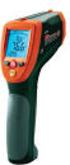 User Manual Dual Laser InfraRed (IR) Thermometer MODEL 42570 Introduction Congratulations on your purchase of the Model 42570 IR Thermometer. This Infrared thermometer measures and displays non-contact
WSD130 SOLDERING STATION
 NOTES S2032ACH 8/98 Rev. 11/01 WSD130 SOLDERING STATION 1. Power Switch 2. Digital Display 3. UP Button 4. DOWN Button 5. Optical Regulator, Right 6. Connection for Soldering Iron, Right 7. Selection Switch
FCC COMPLIANCE STATEMENT FOR AMERICAN USERS
 FCC COMPLIANCE STATEMENT FOR AMERICAN USERS This equipment has been tested and found to comply with the limits for a CLASS A digital device, pursuant to Part 15 of the FCC Rules. These limits are designed
ECD 2 High Performance Balanced DAC. 24 Bit /192kHz. Owner's Manual
 ECD 2 High Performance Balanced DAC 24 Bit /192kHz Owner's Manual EN Unpacking the ECD 2 Immediately upon receipt of the ECD 2, inspect the carton for possible damage during shipment. If the carton is
User's Guide. Integrating Sound Level Datalogger. Model 407780. Introduction
 User's Guide 99 Washington Street Melrose, MA 02176 Phone 781-665-1400 Toll Free 1-800-517-8431 Visit us at www.testequipmentdepot.com Back to the Extech 407780 Product Page Integrating Sound Level Datalogger
IMPORTANT SAFETY INSTRUCTIONS WARNING READ AND SAVE THESE OPERATING AND SAFETY INSTRUCTIONS BEFORE USING THIS HEATER.
 THERMAWAVE CERAMIC HEATER Model HZ-850 Series Model HZ-860 Series IMPORTANT SAFETY INSTRUCTIONS WARNING READ AND SAVE THESE OPERATING AND SAFETY INSTRUCTIONS BEFORE USING THIS HEATER. Warning Failure to
E&P HYDRAULICS Remote control EPRC-01 Level System Camper
 USER S GUIDE E&P HYDRAULICS Remote control EPRC-01 Level System Camper 1 Copyright 2012, E&P Hydraulics This manual is copyrighted, with all rights reserved. Under the copyright laws, this may not, in
K E E P E TH T I H S I MA M N A U N A U L A FO F R
 Quad-C LED Moving Wash Pro SI-055 User Manual KEEP THIS MANUAL FOR FUTURE NEEDS 1. Unpacking Thank you for choosing Color Imagination s Quad-C LED Moving Wash Pro. For your own safety, please read this
Product Information Sheet UH36 Hi Pot Tester
 Product Information Sheet UH36 ETL Prüftechnik GmbH Telefon: +49 711 83 99 39-0 E-Mail: [email protected] Carl-Peters-Straße 23 D-70825 Korntal-Münchingen Telefax: +49 711 83 99 39-9 Internet: www.etl-prueftechnik.de
User Manual. September 18, 2007. Copyright 2004-2007 Thomson. All rights reserved.
 User Manual September 18, 2007 Copyright 2004-2007 Thomson. All rights reserved. Notices and Warranties Notices & Warraties Copyright Regulations It is illegal for anyone to violate any of the rights provided
12 Volt 30 Amp Digital Solar Charge Controller
 12 Volt 30 Amp Digital Solar Charge Controller User s Manual WARNING Read carefully and understand all INSTRUCTIONS before operating. Failure to follow the safety rules and other basic safety precautions
WARNING: FAILURE TO FOLLOW THESE RULES MAY RESULT IN SERIOUS PERSONAL INJURY CAUTION: INSTALLATION LOCATION:
 Revision Level: 01 Revision Date: 07/07/2011 Please read all instructions carefully to help ensure a correct and SAFE installation of your Second Wind Ultraviolet Germicidal Air Purifier. Failure to do
dedicated KVM switch and rackmount screen technology User Manual IP-S101 Combo KVM Extender Designed and manufactured by Austin Hughes
 dedicated KVM switch and rackmount screen technology User Manual IP-S101 Combo KVM Extender Designed and manufactured by Austin Hughes 751 Legal Information First English printing, October 2002 Information
USER MANUAL WARNING! CONTENTS MODEL 1 SPECIFICATIONS READ ALL INSTRUCTIONS BEFORE PROCEEDING. Non-Programmable Single Stage Heat/Cool Thermostat
 Builder MODEL 1010 Series Non-Programmable Single Stage Heat/Cool Thermostat USER MANUAL Compatible with low voltage single stage gas, oil or electric heating or cooling systems, including single stage
ReadyNet Easy Jack 2 Voice/Data and Data Only Owner s Manual PX-211d and PX-211v
 ReadyNet Easy Jack 2 Voice/Data and Data Only Owner s Manual PX-211d and PX-211v Phonex Broadband Corporation dba ReadyNet 6952 High Tech Drive Midvale, Utah 84047 801.566.0100 Phone 801.566.0880 Fax www.readynetsolutions.com
2x1 DisplayPort KVM. EXT-DPKVM-241 User Manual. www.gefen.com
 2x1 DisplayPort KVM EXT-DPKVM-241 User Manual www.gefen.com ASKING FOR ASSISTANCE Technical Support: Telephone (818) 772-9100 (800) 545-6900 Fax (818) 772-9120 Technical Support Hours: 8:00 AM to 5:00
High Temperature InfraRed Thermometer with Laser Pointer
 User s Manual High Temperature InfraRed Thermometer with Laser Pointer MODEL 42540A 6 42540 6 Introduction Congratulations on your purchase of the Model 42540A IR Thermometer. The 42540A is capable of
Wide Range InfraRed (IR) Thermometer with Type K input and Laser Pointer
 User Manual Wide Range InfraRed (IR) Thermometer with Type K input and Laser Pointer MODEL 42515 Introduction Congratulations on your purchase of the Model 42515 IR Thermometer. The Model 42515 IR thermometer
Operating Instructions Bedienungsanleitung Mode d emploi
 Operating Instructions Bedienungsanleitung Mode d emploi DW 400 www.bron-kobold.com Operating instructions DW 400 Before use Please read all the information contained in these operating instructions carefully.
UV100A Ultraviolet Air Treatment System
 UV100A Ultraviolet Air Treatment System INSTALLATION INSTRUCTIONS APPLICATION When installed in forced air heating and cooling systems, the UV100A Ultraviolet Air Treatment System kills airborne microorganism
19 LED Tube Controller ORDERCODE 41003
 19 LED Tube Controller ORDERCODE 41003 Congratulations! You have bought a great, innovative product from Showtec. The Showtec 19 LED Tube Controller brings excitement to any venue. Whether you want simple
User and installation manual
 User and installation manual aquaero 5 The information contained in this manual is subject to change without prior notice. All rights reserved. Current as of April 2011 ENGLISH: PAGE 1 DEUTSCH: SEITE 13
DSM155 Digital LED Light Meter User s Manual DSM155
 DSM155 Digital LED Light Meter User s Manual DSM155 CONTENTS TABLE OF CONTENTS......3 LIMITED WARRANTY AND LIMITATION OF LIABILITY......3 Out of Box....3 Accessories....3 Safety Information....3 Certification....5
EPSON Perfection 2450 PHOTO. Scanner Parts. Scanner Specifications. Basic Specifications. US letter or A4 size (8.5 11.7 inches [216 297 mm])
![EPSON Perfection 2450 PHOTO. Scanner Parts. Scanner Specifications. Basic Specifications. US letter or A4 size (8.5 11.7 inches [216 297 mm])](/thumbs/40/21209055.jpg "EPSON Perfection 2450 PHOTO. Scanner Parts. Scanner Specifications. Basic Specifications. US letter or A4 size (8.5 11.7 inches [216 297 mm])") Scanner Parts Start button power button (TPU) under lid IEEE 1394 port Scanner Specifications Basic Specifications Scanner type Photoelectric device Effective pixels USB port indicator light document cover
Scanner Parts Start button power button (TPU) under lid IEEE 1394 port Scanner Specifications Basic Specifications Scanner type Photoelectric device Effective pixels USB port indicator light document cover
Applied Electronics. Commercial Dimming System UPDATE NOTICE
 REV. A Applied Electronics Commercial Dimming System UPDATE NOTICE This notice is to inform the end user of an additional feature added to this DP12/2400 dimming unit. This unit has been outfitted with
LS1024B / LS2024B/ LS3024B. Solar Charge Controller USER MANUAL
 EPSOLAR LS1024B / LS2024B/ LS3024B Solar Charge Controller USER MANUAL Thank you very much for selecting our product! This manual offers important information and suggestions with respect to installation,
OPERATOR S MANUAL 18 VOLT, 1 HOUR CHARGER
 OPERATOR S MANUAL 18 VOLT, 1 HOUR CHARGER P110 Your battery charger has been engineered and manufactured to Ryobi s high standard for dependability, ease of operation, and operator safety. When properly
COLUMBIA UNIVERSITY HEALTH SCIENCES DIVISION
 COLUMBIA UNIVERSITY HEALTH SCIENCES DIVISION ENVIRONMENTAL HEALTH & SAFETY Working Safely with Ultraviolet Radiation Policy and Procedures Purpose: To provide information and guidelines for the safe use
Back-UPS Pro 1300/1500 Installation and Operation
 Back-UPS Pro 1300/1500 Installation and Operation Inventory Safety Do not install the Back-UPS in direct sunlight, in excessive heat, humidity, or in contact with fluids. Connect the battery bu059a bu058a
Instruction Guide. Professional VGA to NTSC/PAL TV Converter with Remote VGA2NTSCPRO. The Professionals Source For Hard-to-Find Computer Parts
 VIDEO CONVERTER Professional VGA to NTSC/PAL TV Converter with Remote VGA2NTSCPRO Instruction Guide * Actual product may vary from photo Revised: February 4, 2003 The Professionals Source For Hard-to-Find
PRELIMINARY MANUAL STAGE COLOR 48. Preliminary User Guide. Official version will follow soon on: WWW.BRITEQ-LIGHTING.COM TABLE OF CONTENTS
 STGE COO 48 Preliminary User Guide Official version will follow soon on: WWW.BITEQ-IGHTIG.COM TBE OF COTETS 1. Safety Instruction 2. Technical Specification 3. How To Set The Unit 4. How To Control The
TIG INVERTER INSTRUCTION MANUAL
 TIG INVERTER INSTRUCTION MANUAL Contents Warning General Description Block Diagram Main Parameters Circuit Diagram Installation and Operation Caution Maintenance Spare Parts List Troubleshooting 3 4 4
Model 201 Wiegand Touchpad Reader Installation Guide
 Model 201 Wiegand Touchpad Reader Installation Guide P/N 460353001C 15AUG11 2011 UTC Fire & Security. All rights reserved. This document may not be copied in whole or in part or otherwise reproduced without
Notice. Reverse engineering and disassembly are prohibited.
 Notice The information in this document is subject to change without notice. Every effort has been made in the preparation of this document to ensure accuracy of the contents, but all statements, information,
Wolverine 35mm Film to Digital Converter. Model F2D USER MANUAL
 Wolverine 35mm Film to Digital Converter Model F2D USER MANUAL Version 1.01 December 2008 TABLE OF CONTENTS DESCRIPTION PAGE Table of Contents 1 Before Using the F2D Converter 3 FCC Certifications 3 Warning
Installation Instructions
 Installation Instructions Accessory Ultraviolet (UV) Germicidal Lamp 1 & 2 Lamp Models 115-v & 208/230-v UV Lamp C03009 Fig. 1 Two Lamp Model UV Lamp NOTE: Read the entire instruction manual before starting
How To Use A Power Supply Unit (Upu)
 BRAVER UPS (Uninterruptible Power System) User s Manual Safety CAUTION! This UPS utilizes voltages that may be hazardous. Do not attempt to disassemble the unit. The unit contains no user replaceable parts.
Portable Air Conditioner. OWNER S MANUAL Read these instructions before use. Model: MM14CCS. Voltage rating: 115V~60Hz Power rating : 1400W
 Portable Air Conditioner OWNER S MANUAL Read these instructions before use Model: MM14CCS Customer Support : 1-800-474-2147 Voltage rating: 115V~60Hz Power rating : 1400W For product inquiries or support
Installer s Guide WARNING: 18-GJ11D1-2. Ultraviolet (UV-C) Lamp Kit for 2-5 Ton Air Handlers HAZARDOUS VOLTAGE - DISCONNECT POWER BEFORE SERVICING
 Installer s Guide 18-GJ11D1-2 : Models: BAYUVCLK001-40 Watt, 2 Lamp NOTE: A BAYCC24VK01 can be installed for Series 8 Air Handlers to extend the life of the lamp. This accessory kit will disable the lamp
ComPar KIT 1 & 2 DMX LED light set
 ComPar KIT 1 & 2 DMX LED light set User manual 1 Safety precautions WARNING: This unit may cause serious injury to the eyes when used incorrectly. It is therefore strongly advised to read this user manual
FlexFlash Instruction Manual Models SB FLXFLSH400W, SB FLXFLSH200W, SB FLXFLSHE400W, SB FLXFLSHE200W
 FlexFlash Instruction Manual Models SB FLXFLSH400W, SB FLXFLSH200W, SB FLXFLSHE400W, SB FLXFLSHE200W Rev 7/18/13 Accessory release button Flash tube Slave sensor Modeling lamp Repositionable swivel handle
Universal Wireless Effects Controller USER S GUIDE SA115
 Universal Wireless Effects Controller USER S GUIDE SA115 Welcome Thank you for purchasing this Hot Hand 3 Universal Wireless Effects Controller. We hope that the new functionality of the Hot Hand 3 unit
NewAir AC-10000E, AC-10000H Portable Air Conditioner Owner s Manual PLEASE READ AND SAVE THESE INSTRUCTIONS
 NewAir AC-10000E, AC-10000H Portable Air Conditioner Owner s Manual PLEASE READ AND SAVE THESE INSTRUCTIONS BEFORE USE GENERAL SAFETY INSTRUCTIONS: ALWAYS OPERATE THE UNIT IN AN UPRIGHT POSITION AND PLACE
Bubble King. User Manual
 Bubble King User Manual TABLE OF CONTENTS 1. Before You Begin... 3 What Is Included... 3 Unpacking Instructions... 3 Claims... 3 Text Conventions... 3 Icons... 3 Document Information... 3 Product at a
Mercury Helios 2 ASSEMBLY MANUAL & USER GUIDE
 Mercury Helios 2 ASSEMBLY MANUAL & USER GUIDE TABLE OF CONTENTS INTRODUCTION...1 1.1 MINIMUM SYSTEM REQUIREMENTS 1.1.1 Apple Mac Requirements 1.1.2 PC Requirements 1.1.3 Supported PCIe Cards 1.2 PACKAGE
e-4 AWT07MLED 7 Q TFT LCD MONITOR (LED Backlighted) USER MANUAL
 Thank you for purchasing our product. Please read this User s Manual before using the product. Change without Notice AWT07MLED 7 Q TFT LCD MONITOR (LED Backlighted) USER MANUAL e-4 SAFETY PRECAUTIONS Federal
OPERATING INSTRUCTIONS
 PIPELINE INSPECTION COMPANY LTD. OPERATING INSTRUCTIONS Wet Sponge Holiday Detectors 670,673, and MSRB Wet Sponge Holiday Detectors Portable and In-Plant Detectors Table of Contents General Information.......................3
600 Series Camera. User Guide
 600 Series Camera User Guide IMPORTANT SAFEGUARDS Note: This product is listed by Underwriters Laboratories, Inc. (UL). As a condition of listing, UL requires that basic safety information be provided.
Installation and Operation Manual Back-UPS BX800CI-AS/BX1100CI-AS
 + Installation and Operation Manual Back-UPS BX800CI-AS/BX1100CI-AS Inventory Safety and General Information bu001c This unit is intended for indoor use only. Do not operate this unit in direct sunlight,
Installation and Operation Back-UPS 1250, 1300, 1500
 Installation and Operation Back-UPS 1250, 1300, 1500 Inventory bu001a Safety and General Information This unit is intended for indoor use only. Do not operate this unit in direct sunlight, in contact with
www.burntec.com User's Guide Integrating Sound Level Datalogger Model 407780
 User's Guide Integrating Sound Level Datalogger Model 407780 Introduction Congratulations on your purchase of the Extech 407780 Integrating Sound Level Meter. The 407780 with programmable integrating time
K E E P E TH T I H S I MA M N A U N A U L A FO F R
 IP65 LED Wall Washer W-010 User Manual KEEP THIS MANUAL FOR FUTURE NEEDS 1. Unpacking Thank you for our Color Imagination's IP65 LED Wall Washer. For your own safety, please read this manual before installing
BROOKFIELD MODEL VTE250 ELECTRIC VISCOSEL PROCESS VISCOMETER. Installation, Operation, and Maintenance Instructions. Manual No.
 BROOKFIELD MODEL VTE250 ELECTRIC VISCOSEL PROCESS VISCOMETER Installation, Operation, and Maintenance Instructions Manual No. M06-512 SPECIALISTS IN THE MEASUREMENT AND CONTROL OF VISCOSITY BROOKFIELD
LEDPAR64 USER MANUAL
 LEDPAR64 USER MANUAL 1 Table of Content Part I General Information 1.1 Introduction...3 1.2 Safety Information.. 3 1.3 Unpacking..4 1.4 Specifications....4 1.5 Features.. 4 Part II Installation and Operation
USB-2.0 Mobile Mini Hub USER S GUIDE. Making Your Mobile Life Easier. Making Your Mobile Life Easier.
 USB-2.0 Mobile Mini Hub Making Your Mobile Life Easier. Visit our Web site at: www.targus.com Features and specifications are subject to change without notice. 2002 Targus Corp. 400-0093-001A USER S GUIDE
Hydra esata. 4-Bay RAID Storage Enclosure. User Manual January 16, 2009 - v1.0
 4-Bay RAID Storage Enclosure User Manual January 16, 2009 - v1.0 EN Table of Contents 1 Introduction... 1 1.1 System Requirements... 1 1.1.1 PC Requirements... 1 1.1.2 Mac Requirements... 1 1.1.3 Supported
Portable Air Conditioner. OWNER S MANUAL Read these instructions before use. Model: MN12CES / MN10CESWW
 Portable Air Conditioner OWNER S MANUAL Read these instructions before use 8 Model: MN12CES / MN10CESWW Voltage rating: 120V~60Hz Power rating : 1100W (MN12CES) Power rating : 900W (MN10CESWW) Customer
LMU-5000. Hardware and Installation Guide
 LMU-5000 Hardware and Installation Guide Plan The Installation Verify Power, Ground and Ignition. Be sure to check each source (power, ground and ignition) to ensure that the proper signaling exists. This
Congratulations! Thank you!
 TM-47 ORDERCODE D1370 Congratulations! You have bought a great, innovative product from DAP Audio. The DAP Audio Microphone range brings excitement to any venue. Whether you want simple plug-&-play action
CABLE MODEM QUICK START
 CABLE MODEM QUICK START This Quick Start describes how to connect your Zoom cable modem to a cable modem service. This lets your cable modem provide Internet access to a computer or other device connected
Operation and Installation Manual
 Operation and Installation Manual RCM-10 Remote Control Monitor and RSM-10 Remote Status Monitor for the CNA-100 & CNA-200 Automations Revision 1.1 9/98 WARRANTY INFORMATION The RCM-10 Remote Control
anti-aging treatment USER GUIDE & OPERATING INSTRUCTIONS
 anti-aging treatment USER GUIDE & OPERATING INSTRUCTIONS Includes important safety information. Read all instructions before using device. Save these instructions. Kathy Ireland Passion and Promise The
INSTALLATION GUIDE ConnectLine TV Adapter Getting started
 INSTALLATION GUIDE ConnectLine TV Adapter Getting started PURPOSE OF THIS GUIDE READ THIS FIRST Before your hearing instruments can receive sound from the TV, the adapter must be connected to the TV and
Mini-HDMI Series MINIATURE MULTIMODE FIBER OPTIC HDMI TRANSMISSION SYSTEM
 Mini-HDMI Series MINIATURE MULTIMODE FIBER OPTIC HDMI TRANSMISSION SYSTEM BCI reserves the right to make changes to the products described herein without prior notice or consent. No liability is assumed
Flame Direct Attach UV-VIS Integrated Sampling System Installation and Operation Instructions
 Flame Direct Attach UV-VIS Integrated Sampling System Installation and Operation Instructions Description The Flame Integrated Sampling System (FLAME-DA-CUV-UV-VIS) is a snap-on, direct-attach 1 cm cuvette
ITA3D 710. RGB DMX laser with 3D effect. User manual
 ITA3D 710 RGB DMX laser with 3D effect User manual 1 Safety precautions WARNING: This unit may cause serious injury to eyesight when used incorrect. It therefore is strongly advised to read this user manual
Manual for Fire Suppression & Methane Detection System
 Manual for Fire Suppression & Methane Detection System Fogmaker North America Post address: 150 Gordon Dr Exton, PA 19341 Delivery address: 150 Gordon Dr Exton, PA 19341 Tel: 610-265-3610 Fax: 610-265-8327
Installation and Operation Manual. Digital Remote Meter for Monitoring System Performance. Version: RM-1
 REMOTE METER TM Installation and Operation Manual. Digital Remote Meter for Monitoring System Performance. Version: RM-1 1098 Washington Crossing Road Washington Crossing, PA 18977 USA www.morningstarcorp.com
User Guide. HDMI Active Cable Extender. DVI-7370c
 User Guide HDMI Active Cable Extender DVI-7370c TABLE OF CONTENTS SECTION PAGE PRODUCT SAFETY...1 PRODUCT LIABILITY...1 1.0 INTRODUCTION...2 2.0 SPECIFICATIONS...3 3.0 PACKAGE CONTENTS...4 4.0 CONNECTING
Microwave Oven. Warning: a) This oven is not for commercial use. b) Don't open the cover of the machine except professional person.
 HOME ELECTRONICS HE900E/CONV-SS Instruction manual for electronic control microwave oven CONTENTS 1. Specifications 2. Check after unpacking 3. General Safety instructions 4. Special safety instruction
XP Series Balances Operation Manual
 XP Series Balances Operation Manual North and South America: 6542 Fig Street Arvada, Colorado 84 1-8-321-1135 Tel: 33-431-7255 Fax: 33-423-4831 U.K. and Ireland: Denver House, Sovereign Way Trafalgar Business
Digital Photo Picture Frame. Operation Manual
 Digital Photo Picture Frame Operation Manual 20070309 CONGRATULATIONS on your purchase of a Polaroid 7 LCD Digital Photo Picture Frame. Please read carefully and follow all warnings and instructions in
DVI DA2 and DVI DA 4 User Guide
 DVI DA2 and DVI DA 4 User Guide This guide describes the installation and operation of the Extron DVI DA2 and DVI DA4 Distribution Amplifiers. Unless stated otherwise, distribution amplifier or the unit
DAB+ / FM Tuner Model: TU-201
 DAB+ / FM Tuner Model: TU-201 Instruction Manual www.pulse-audio.co.uk 1 Safety Information The lightning bolt within a triangle is intended to alert the user to the presence of dangerous voltage levels
PAR Tablet 10 Quick Start Guide
 ParTech, Inc. 8383 Seneca Turnpike New Hartford, NY 13413 p.800.458.6898 www.partech.com PAR Tablet 10 Quick Start Guide PN 770505503 This material has been created in order to accommodate a wide range
15 Digital Photo Frame Instructional Manual
 15 Digital Photo Frame Instructional Manual aluratek.com mnl M10054 ADMPF315F Copyright 2011 Aluratek, Inc. All Rights Reserved. Table of Contents Frame Close-up... Remote Control Close-up... Package Contents...
DELORME. Getting Started with. Earthmate GPS BT-20. Bluetooth
 DELORME Getting Started with GPS BT-20 Bluetooth Earthmate Table of Contents Overview... 2 Hardware Features... 2 Using the Earthmate GPS BT-20... 3 Charging the Battery... 4 Troubleshooting... 4 Hardware
Wooden Shipping Crate is Available to Protect Your UV Light Source. 11 X 14 8-1" diameter tubes 120 VAC - 2.2 Amps - 265 Watts
 UV Light Source General Information & Frequently Asked Questions Delivery Times Usually, you will have a unit sitting on your front door step within two weeks anywhere in the contiguous United States for
Water Leak Detection System
 Water Leak Detection System Installation and Operating Manual 505-334-5865 ph 505-334-5867 fax www.rodisystems.com email:[email protected] 936 Highway 516 Aztec, NM 87410-2828 Manual Revisions and Copyright