
VT300 Weighbridge Indicator User s Guide
|
|
|
- Monica Benson
- 9 years ago
- Views:
Transcription
1 VT300 Weighbridge Indicator User s Guide Revision A4, September 2006 Doc # UM-VT300-EN

2 Table of Contents Table of Contents TABLE OF CONTENTS... II LEGAL NOTICE... VI WARRANTY... VII SAFETY INSTRUCTIONS... VIII DECLARATION OF CONFORMITY... X ABOUT THIS DOCUMENT... XI QUICK START GUIDE... XIII 1 INTRODUCTION HOW IT WORKS Receiving Input from a Scale Displaying and Manipulating Weight Information Sending Output to Other Devices PRODUCT FEATURES Options Wiring Power STARTUP SEQUENCE USING THE DISPLAY AND KEYS UNDERSTANDING THE VT300 DISPLAY Status Annunciators Common Messages Shown on the Display FRONT PANEL KEYS Using Keys to Perform Operations Using Keys to Enter Information THE MENU Using the Menu Menu Structure and Options Summary VT300 User s Guide, Rev. A4 ii Doc # UM-VT300-EN

3 Table of Contents 3 ZEROING AND TARING MANUAL ZEROING TARING PRESET TARE VIEWING PRESET TARE VALUE MEASURING WEIGHT WEIGHING AN ITEM HIGH RESOLUTION WEIGHING ACCUMULATED TOTAL WEIGHT Adding a Measurement to the Total Viewing the Total Resetting the Total WEIGHING VEHICLES The V-File Weighing a Truck of Unknown Weight Weighing a Truck Stored in the V-File Entering Preset Tare for a Truck COUNTING UNITS COUNTING UNITS USING A SAMPLE TO SET UNIT WEIGHT ENTERING PRESET UNIT WEIGHT PRINTING PRINTING THE CURRENT MEASUREMENT Repeating the Last Printout (Producing a Copy) PRINTING HISTORIC MEASUREMENTS PRINTING FROM V-FILE Printing Truck Tare Values Printing All First Weighings Printing the Entire V-File Printing the V-File Record of a Specific Truck VT300 User s Guide, Rev. A4 iii Doc # UM-VT300-EN

4 Table of Contents 8 ALIBI MEMORY FUNCTIONS VIEWING OR PRINTING A SPECIFIC HISTORIC MEASUREMENT PRINTING ALL HISTORIC MEASUREMENTS CHECKING ALIBI MEMORY FOR ERRORS WORKING WITH THE V-FILE ADDING A NEW VEHICLE PRINTING FROM V-FILE Printing Truck Tare Values Printing All First Weighings Printing the Entire V-File Printing the V-File Record of a Specific Truck CHECKING V-FILE INTEGRITY DELETING V-FILE RECORDS CHECKING AVAILABLE V-FILE MEMORY COMMUNICATION WITH EXTERNAL DEVICES SERIAL PORTS CONFIGURATION RS232 Serial Port RS485 Serial Port SETTING PORT OUTPUT Setting Port 1 Output Setting Port 2 Output OUTPUT FORMATS Continuous Weight Output Continuous Weight With Tare Alibi Transmit EDP Protocol Output Remote Printer Output VT300 User s Guide, Rev. A4 iv Doc # UM-VT300-EN

5 Table of Contents 11 SETPOINTS AND DIGITAL INPUT TECHNICAL SPECIFICATIONS Digital Outputs Digital Input (Tilt Switch) EDITING THRESHOLDS FOR SETPOINTS USING THE TILT SWITCH ERRORS AND TROUBLESHOOTING HARDWARE AND GENERAL ERRORS PRINTING AND EDP PROTOCOL ERRORS WEIGHING AND COUNTING ERRORS ALIBI MEMORY AND ACCUMULATED TOTAL ERRORS APPENDIX A: SETUP PARAMETERS AND MENUS CONTACTING VISHAY TRANSDUCERS VT300 User s Guide, Rev. A4 v Doc # UM-VT300-EN
6 Legal Notice Legal Notice This manual contains information that is proprietary to Vishay Transducers Ltd. ( VT ). No part of this publication may be reproduced in any form whatsoever without prior written approval by VT. Right, title and interest, all information, copyrights, patents, know-how, trade secrets and other intellectual property or other proprietary rights relating to this manual and to VT300 ( the Product ), and any software components contained therein, are proprietary products of VT protected under international copyright law and shall be and remain solely with VT. VT300 is a registered trademark of VT. No right, license, or interest to such trademark is granted hereunder, and you agree that no such right, license, or interest shall be asserted by you with respect to such trademark. You shall not copy, reverse compile or reverse assemble all or any portion of the Manual or the Product. You are prohibited from, and shall not, directly or indirectly, develop, market, distribute, license, or sell any product that supports substantially similar functionality as the Product, based on or derived in any way from the Product. Your undertaking in this paragraph shall survive the termination of this Agreement. This Agreement is effective upon your opening of the packaging of the Product, and shall continue until terminated. VT may terminate this Agreement upon the breach by you of any term hereof. Upon such termination by VT, you agree to return to VT the Product and all copies and portions thereof. For further information contact VT at the address below or contact your local distributor. VT300 User s Guide, Rev. A4 vi Doc # UM-VT300-EN
7 Warranty Warranty Vishay Transducers warrants all instruments it manufactures to be free from defect in materials and factory workmanship, and agrees to repair or replace any instrument that fails to perform as specified within one year after date of shipment. Coverage of computers, cameras, rechargeable batteries, and similar items, sold in conjunction with equipment manufactured by Vishay Transducers and bearing the identifying name of another company, is limited under this warranty to one year after the date of shipment. The warranty on non-rechargeable batteries and similar consumable items is limited to the delivery of goods free from defects in materials and factory workmanship. This warranty shall not apply to any instrument that has been repaired, worked on or altered by persons unauthorized by Vishay Transducers in such a manner as to injure, in our sole judgment, the performance, stability, or reliability of the instrument; subjected to misuse, negligence or accident; or connected, installed, adjusted, or used otherwise than in accordance with the instructions furnished by us. At no charge, we will repair, at our plant, or an authorized repair station, or at our option, replace any of our products found to be defective under this Warranty. This Warranty is in lieu of any other warranties, expressed or implied, including any implied warranties of merchantability or fitness for a particular purpose. There are no warranties which extend beyond the description on the face hereof, Purchaser acknowledges that no salesman, agent, employee or other person has made any such presentations or warranties or otherwise assumed for Vishay Transducers any liability in connection with the sale of any goods to the purchase. Buyer hereby waives all rights Buyer may have arising out of any breach of contract or breach of warranty on the part of Vishay Transducers, to any incidental or consequential damages, including but not limited to damages to property, damages for injury to the person, damages for loss of use, loss of time, loss of profits or income, or loss resulting from personal injury. Some states do not allow the exclusion or limitation of incidental or consequential damages for consumer products, so the above limitations or exclusions may not apply to you. The Purchaser agrees that the Purchaser is responsible for notifying any subsequent Buyer of goods manufactured by Vishay Transducers of the warranty provisions, limitations, exclusions and disclaimers stated herein, prior to the time any such goods are purchased by such Buyer, and the Purchaser hereby agrees to indemnify and hold Vishay Transducers harmless from any claim asserted against or liability imposed on Vishay Transducers occasioned by the failure of the Purchaser to so notify such buyer. This provision is not intended to afford subsequent Purchasers any warranties or rights not expressly granted to such subsequent Purchasers under the law. Vishay Transducers reserves the right to make any changes in the design or construction of its instruments at any time, without incurring any obligation to make any change whatever in units previously delivered. Vishay Transducers sole liabilities, and Buyer s sole remedies, under this agreement shall be limited to the purchase price, or at our sole discretion, to the repair or replacement of any instrument that proves, upon examination, to be defective, when returned to our factory, transportation prepaid by the Buyer, within the applicable period of time from the date of original shipment. Return transportation charges of repaired or replacement instruments under warranty will be prepaid by Vishay Transducers. Vishay Transducers is solely a manufacturer and assumes no responsibility of any form for the accuracy or adequacy of any test results, data, or conclusions which may result from the use of its equipment. The manner in which the equipment is employed and the use to which the data and test results may be put are completely in the hands of the Purchaser. Vishay Transducers shall in no way be liable for damages consequential or incidental to defects in any of its products. This warranty constitutes the full understanding between the manufacturer and buyer, and no terms, conditions, understanding or agreement purporting to modify or vary the terms hereof shall be binding unless hereafter made in writing and signed by an authorized official of Vishay Transducers. VT300 User s Guide, Rev. A4 vii Doc # UM-VT300-EN
8 Safety Instructions Safety Instructions The following instructions serve as a general guide for the safe operation of the VT300. This User s Manual is intended for users of the indicator, who are prohibited from installing, calibrating, setting up or servicing the product. Only qualified and authorized service personnel should install the product, set it up, calibrate it, or carry out adjustment, maintenance or repairs. Safety Symbols This symbol indicates potential safety hazards regarding product operation or maintenance to operator or service personnel. General Safety Practices Do not touch or tamper with the power supply when the power cord is connected. Line voltages may be present even when the product is powered off or a fuse is blown. Before working on equipment connected to power lines or to other devices, remove jewelry or any other metallic object that may come into contact with energized parts. The product is intended to be grounded during normal use. Grounding is provided by connecting the mains plug to a wall socket with a protective earth terminal. The earth lug provided on the product should be connected to the protective earth at all times, by a wire with a diameter of 18 AWG or wider. Always make the ground connection first and disconnect it last. Do not connect data cables to ungrounded equipment. Make sure that all other cables are disconnected before disconnecting the ground. Special Safety Warnings Welding on or in the vicinity of the equipment is strictly prohibited. Use reliable lightening conductors to prevent static loads caused by thunderstorms. VT300 User s Guide, Rev. A4 viii Doc # UM-VT300-EN

9 Safety Instructions Connection of AC Mains Make sure that the electrical installation complies with local codes. Always connect the AC plug to a wall socket with a protective ground. The maximum permissible current capability of the branch distribution circuit that supplies power to the product is 16A. The circuit breaker in the building installation should have high breaking capacity and must operate at short-circuit current exceeding 35A. Always connect the power cord first to the equipment and then to the wall socket. If the power cord cannot be readily disconnected in case of emergency, make sure that a readily accessible circuit breaker or emergency switch is installed in the building. Operating Environment Ambient Temperature Humidity Vibration Air Electromagnetic Fields Incoming and Outgoing Signals Storage temperature: -10C to +70C (14F to 158F). Operating temperature: -10C to +40C (14F to 104F). 40% to 90% RH (non condensing). Severe vibration can affect the accuracy of weighing and damage components. The air surrounding the product should be dust-free and should not contain corrosive gasses or other materials that could adversely effect the product. Heavy electrical equipment should not be installed near to the weighing apparatus. Relays and contacts connected to the equipment must have reliable and effective interference suppression. This also applies to other equipment within 3 meters of the equipment. VT300 User s Guide, Rev. A4 ix Doc # UM-VT300-EN

10 Declaration of Conformity Declaration of Conformity Non-Automatic Weighing Instrument (III) Manufacturer Type/Model EC Type Approval Certificate Number Vishay Transducers VT300 DK Corresponds to the production model described in the EC Type Approval Certificate and to the requirements of the Council Directive 90/384/EEC as amended and to the requirements of the following EC Directives: EN 45501:1994, The Metrological Aspects of Non-Automatic Weighing Machines. EN 55022:1987, Limits and Methods of Measurement of Radio Interference Characteristics of Information Technology Equipment. EN 60950:1992, Safety of Information Technology Equipment. Date April 30, 2004 Signature Benny Shaya, Director R&D/Operations Instruments Being the responsible person employed and appointed by Vishay Transducers. VT300 User s Guide, Rev. A4 x Doc # UM-VT300-EN

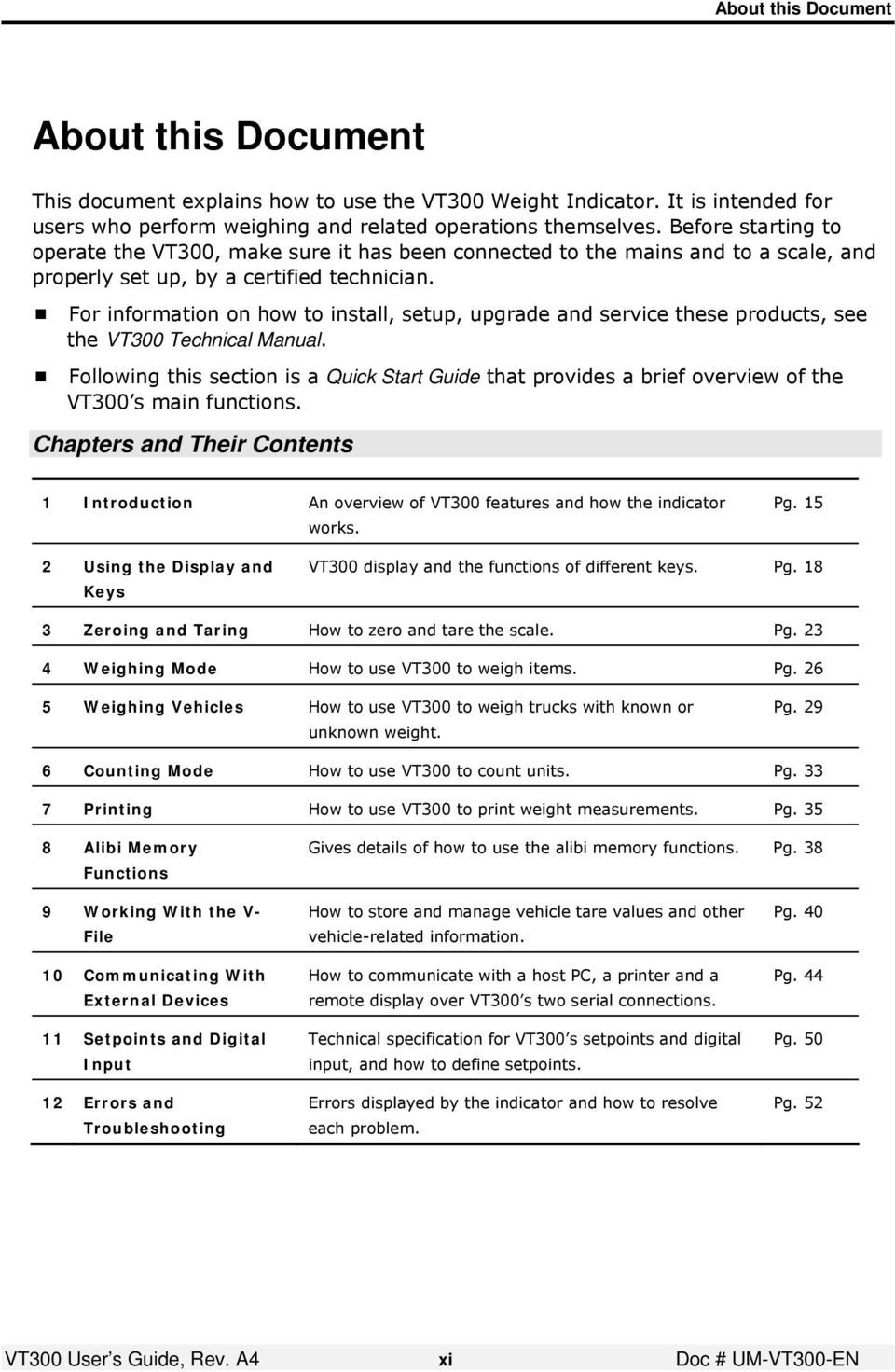
11 About this Document About this Document This document explains how to use the VT300 Weight Indicator. It is intended for users who perform weighing and related operations themselves. Before starting to operate the VT300, make sure it has been connected to the mains and to a scale, and properly set up, by a certified technician. For information on how to install, setup, upgrade and service these products, see the VT300 Technical Manual. Following this section is a Quick Start Guide that provides a brief overview of the VT300 s main functions. Chapters and Their Contents 1 Introduction An overview of VT300 features and how the indicator works. Pg Using the Display and Keys VT300 display and the functions of different keys. Pg Zeroing and Taring How to zero and tare the scale. Pg Weighing Mode How to use VT300 to weigh items. Pg Weighing Vehicles How to use VT300 to weigh trucks with known or unknown weight. Pg Counting Mode How to use VT300 to count units. Pg Printing How to use VT300 to print weight measurements. Pg Alibi Memory Functions Gives details of how to use the alibi memory functions. Pg Working With the V- File 10 Communicating With External Devices 11 Setpoints and Digital Input 12 Errors and Troubleshooting How to store and manage vehicle tare values and other vehicle-related information. How to communicate with a host PC, a printer and a remote display over VT300 s two serial connections. Technical specification for VT300 s setpoints and digital input, and how to define setpoints. Errors displayed by the indicator and how to resolve each problem. Pg. 40 Pg. 44 Pg. 50 Pg. 52 VT300 User s Guide, Rev. A4 xi Doc # UM-VT300-EN
12 About this Document Style Conventions Verdana Regular text. Arial Bold Arial Italics Monospace Commands, keys and other parts of the user interface. Names of classes, methods, arguments, exceptions, properties, etc. Also used for special terms, the first time they appear. Text displayed on the LCD or on a computer attached to the product. Notes, which offer an additional explanation or a hint on how to overcome a common problem. Warnings, which indicate potential safety hazards regarding product operation or maintenance to operator or service personnel. VT300 User s Guide, Rev. A4 xii Doc # UM-VT300-EN

13 Quick Start Guide Quick Start Guide Front Panel Keys Press to zero the scale*. Only works within the zero range. Press once to tare the scale*. Press again to view gross weight. Press to enter a preset tare. Enter the tare value using the alphanumeric keypad and press ENTER. The display shows net weight. To cancel and view gross weight, press ESC. When you press this key, the current weight* is printed to the printer, output to an attached computer, and added to the accumulated total. Press to switch between Weighing Mode and Counting Mode. Press to turn the indicator on, or to switch it off when it is running. Press to perform a first weighing of a vehicle with unknown tare. Press to weigh a vehicle with known tare, or to perform a second weighing of a vehicle with unknown tare. Toggles between scale 1, scale 2 and the sum of both scales (if two scales are connected to the indicator). Enters the menu. The arrows around this button allow you to navigate the menu Keys (cont.) VT300 User s Guide, Rev. A4 xiii Doc # UM-VT300-EN

14 Quick Start Guide Cancels the current operation, exits a menu or exits a mode. Clears the characters entered Confirms the current operation or the information entered. * If the scale is not stable, the current weight cannot be used for this operation. Status Annunciators At the left of the display are several icons. A dot shows up next to these to indicate the current status of the scale or indicator. Stable Center of Zero Net Weight Active the scale is stable (necessary for ZERO, T and PRINT). Inactive the scale is not stable. Active the current weight is at center of zero (or at manual zero). Inactive the scale is above or below center of zero. Active the display is showing net weight. Inactive the display is showing gross weight. S1 Scale 1 Appears on the right of the display to show that the indicator is set to scale 1. S2 Scale 2 Appears on the right of the display to show that the indicator is set to scale 2. S0 Sum of scales Appears on the right of the display to show that the indicator is displaying the sum of the weight on scales 1 and 2. W1 The scale is currently in weight range 1. W2 The scale is currently in weight range 2. * These are not relevant if you only have one scale connected to the indicator. Common Operations Taring the scale Place the empty package on the scale and wait for it to become stable ( becomes active). Press T ( ). Preset tare Press P.TARE ( ). Enter a preset tare, then press ENTER. Weighing an item Counting units by weight Printing current weight Tare the scale if necessary, then move the item onto the scale. Wait for it to become stable ( becomes active). The weight appears on the display. Switch to Counting Mode by pressing PCS ( ). Tare the scale if necessary, then move the item onto the scale. Wait for it to become stable ( becomes active). The number of units appears on the display. Press PRINT ( ). If a printer is connected to the indicator, details of the current weighing print out. The weight is also added to the total. VT300 User s Guide, Rev. A4 xiv Doc # UM-VT300-EN

15 Introduction How it Works 1 Introduction VT300 is an industrial weight indicator, which connects to either one or two scales and allows you to: Zero or tare the scale (see chapter 3) View an item s weight (see chapter 4) Weigh trucks, taring the scale from memory or by weighing twice (see chapter 5) Count large numbers of items that weigh the same (see chapter 6) Print weight measurements (see chapter 7) Save measurements in memory and recall them later (see chapter 8) Enter vehicle tare values and data into a vehicle file, or V-File (see chapter 9) Communicate with external devices over a serial connection (see chapter 10) Define thresholds for two analog setpoints and tilt settings for an analog input (see chapter 11) Before starting to operate VT300, make sure it has been connected to the mains, connected to at least one working scale, calibrated and properly set up. These operations should only be carried out by an authorized technician. For information see the VT300 Technical Manual. 1.1 How it Works A weight indicator is a central component of an industrial weighing system. It receives weight information from a scale; interprets this information, manipulates it and displays it; and can then pass it on to peripheral devices, most commonly printers or personal computers. VT300 User s Guide, Rev. A4 15 Doc # UM-VT300-EN
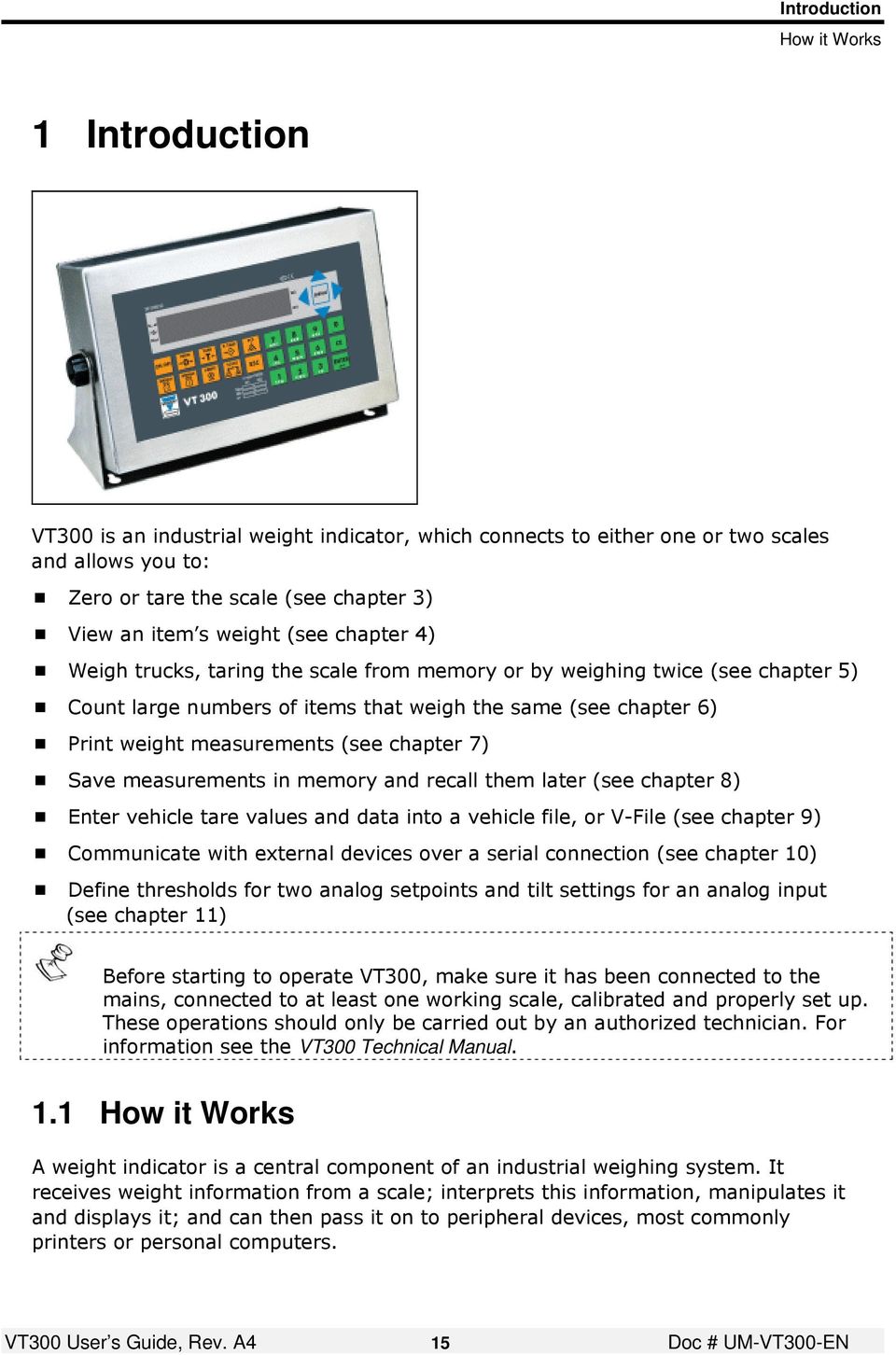
16 Introduction Product Features Receiving Input from a Scale A scale is designed to send out an electrical signal when weight is applied to its weighing platform. The heavier the item being weighed, the stronger the signal. An indicator like VT300 receives this signal and uses it to calculate the weight of the item. To do this, it must be connected to the scale and properly calibrated. Calibration, which may only be performed by authorized technicians, tells the indicator the minimum and maximum weight the scale can handle, and the corresponding electrical signal for each of these extremes. This allows the indicator to translate an electrical measurement into actual weight in kilograms or pounds Displaying and Manipulating Weight Information The basic operation of VT300 is to display the weight of the item that is currently on the platform. This information can be saved to non-volatile memory called Alibi Memory, and retrieved later. If you provide more information, VT300 can do more than just display the current weight. It can deduct the weight of the container (taring); calculate the number of units being weighed; and calculate an average weight for the units being weighed Sending Output to Other Devices In addition to showing and manipulating weight information, VT300 can send it to other devices using its two serial ports. In a typical setup, the indicator is connected to a printer, allowing you to print out weight information in several formats. It is also possible to connect the indicator to a personal computer, which allows more powerful data processing, or to an external display, which allows weight information to be viewed in a larger format or at a distance from the indicator itself. VT300 also has two analog setpoints, with corresponding weight thresholds. When the item being weighed exceeds one of these thresholds, the relevant setpoint can trigger an event in your production process. Only authorized technicians may connect the indicator to external devices such as the ones listed above. 1.2 Product Features High accuracy analog-to-digital converter (max 550,000 internal counts). Front panel with 16 character (14.5mm height) LCD display module. 27-key membrane keyboard with tactile feedback. 32 KB Flash RAM, real-time clock and non-volatile memory for system parameters and calibration data. Flash memory storing up to 10,000 weights (electronic tally roll or Alibi memory). VT300 User s Guide, Rev. A4 16 Doc # UM-VT300-EN

17 Introduction Startup Sequence 2 serial ports (RS232C or RS485A) for connection to printers, computers and remote displays. 2 setpoints, 24VDC/100mA optoisolated, and 1 optoisolated input. Four programmable print formats are available. Weighing file stores up to 250 first-weighing or fixed-tare weights, date and time, serial number and two reference codes. Unit counting feature with selectable sample size. Both printer and host PC interface can be active at the same time Options Second scale input Analog output RS485 serial port adapter Rechargeable battery Scale input board 0/4-20mA or 0-10V, 16 bits resolution. Powered by an external 24VDC. Used for bi-directional communication with a PC For stand-alone operation. Only available for aluminum enclosure Wiring Use load cell cable 6 x 0,5 mm 2 shielded for the sensor. Use 3 x 0,34 mm 2 shielded for RS232C connection, and 2x0,34 mm 2 shielded twisted pair for RS485 connection. All connections to the instrument are made through the rear panel connectors. The shield should be connected to the metal frame of the connector Power The instrument is powered from mains VAC, or from a rechargeable battery (available only for aluminum enclosure option). Power supplied should come from a source that is isolated from other process equipment. 1.3 Startup Sequence Press the ON/OFF key ( place automatically. ) to turn on the VT300. The following steps should then take # Description of Step Display Shows (e.g.) 1 Software ID is displayed briefly XXXXXX 2 Date of issue of current software version is displayed briefly. XXXXXX 3 The scale attempts to zero automatically. ZERO SCALE 4 If current weight is within zero range, the scale zeroes; if not, Error 15 is displayed. To continue, unload the scale and press ESC. ZERO SCALE or E15: PWRUP ZERO 5 Current weight is shown VT300 User s Guide, Rev. A4 17 Doc # UM-VT300-EN

18 Using the Display and Keys Understanding the VT300 Display 2 Using the Display and Keys The VT300 front panel can be divided into four areas: A sixteen-character dot matrix display shows weight information, status information, and the names of menus and functions. The function keypad, with ten orange keys, allows you to turn the unit on and off and perform the most common operations. A navigation area (to the right of the display) allows you to access and navigate the menu, which contains more advanced operations. An alphanumeric keypad, with 12 green keys, allows you to enter numbers and letters. 2.1 Understanding the VT300 Display The VT300 has an LCD display. There are three status annunciators on the left of the display and two more on the right of the display. Small dots (status annunciators) may appear next to one or more of these, to show status information such as whether the scale has been tared or not. VT300 User s Guide, Rev. A4 18 Doc # UM-VT300-EN
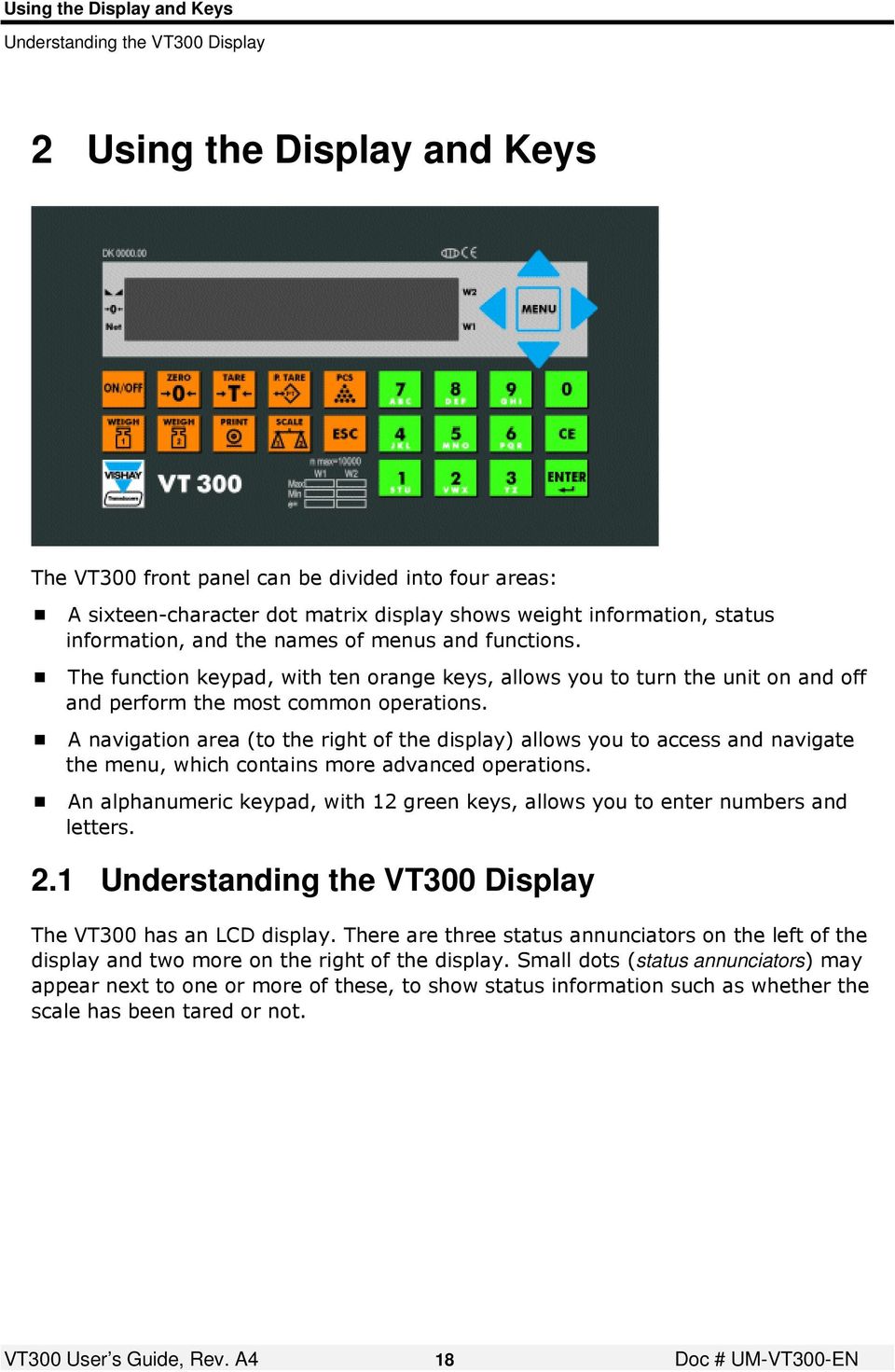
19 Using the Display and Keys Understanding the VT300 Display Status Annunciators At the left of the display are several icons. A dot shows up next to these to indicate the current status of the scale or indicator. Status annunciators are often important to understand what is being shown on the display. Stable Center of Zero Net Weight Active the scale is stable (necessary for ZERO, T and PRINT). Inactive the scale is not stable. Active the current weight is at center of zero (or at manual zero). Inactive the scale is above or below center of zero. Active the display is showing net weight. Inactive the display is showing gross weight. S1 Scale 1 Appears on the right of the display to show that the indicator is set to scale 1. S2 Scale 2 Appears on the right of the display to show that the indicator is set to scale 2. S0 Sum of scales Appears on the right of the display to show that the indicator is displaying the sum of the weight on scales 1 and 2. W1 The scale is currently in weight range 1. W2 The scale is currently in weight range Common Messages Shown on the Display Message Type Meaning Weight of the item on the scale Approximate number of units on the scale ( active) UUUUUU E15: PWRUP ZERO XXXXXX XXXXXX ZERO SCALE Net weight, or number of units calculated after subtracting the container s weight. Over range. The item on the scale weighs more than the maximum capacity of the scale, or the load cell signal is too high. Under range. The item on the scale weighs less than the minimum capacity of the scale, or the load cell signal is too low. An error has occurred (see chapter 12). In some cases, you can ignore the error and continue working by pressing ESC. Software model number, shown during the power-up sequence. Software version issue date, shown during the power-up sequence. Automatic zeroing, performed at the end of the power-up sequence. Other types of messages may be shown when you perform specific operations, such as editing the tare value or displaying battery status. VT300 User s Guide, Rev. A4 19 Doc # UM-VT300-EN

20 Using the Display and Keys Front Panel Keys 2.2 Front Panel Keys The keys on the VT300 front panel can serve two functions: Performing common operations and accessing the menu. Entering alphanumeric information Using Keys to Perform Operations Key Description Related operations Refer to Press to zero the scale*. Only works within the zero range. Manual zeroing Chapter 3.1 Press once to tare the scale*. Press again to view gross weight. Taring using current weight Chapter 3.2 Press to enter a preset tare. Enter the tare value using the alphanumeric keypad and press ENTER. The display shows net weight. To cancel and view gross weight, press ESC. When you press this key, the current weight* is printed to the printer, output to an attached computer, and added to the accumulated total. Preset tare Chapter 3.3 Printing Chapter 7.1 Press to switch between Weighing Mode and Counting Mode. Press to turn the indicator on, or to switch it off when it is running. Counting pieces, weighing Starting the indicator Chapters 4, 6 Press to perform a first weighing of a vehicle with unknown tare. Press to weigh a vehicle with known tare, or to perform a second weighing of a vehicle with unknown tare. Weighing, printing Chapter Weighing, printing Chapter 5 Toggles between scale 1, scale 2 and the sum of both scales (if two scales are connected to the indicator). Enters the menu. The arrows around this button allow you to navigate the menu Chapter 2.3 Cancels the current operation, exits a menu or exits a mode. * If the scale is not stable, the current weight cannot be used for this operation. VT300 User s Guide, Rev. A4 20 Doc # UM-VT300-EN

21 Using the Display and Keys The Menu Using Keys to Enter Information Key Description 0-9 Press a key to enter a digit. When you enter a second digit, the first digit moves to the left and the new digit takes its place. If you make a mistake, press CE to clear the display. Press a key twice or more, quickly, to toggle the letters assigned to that key. For example, to enter the letter b, press 7 / abc three times quickly (the first time shows the number 7). To enter c, press 7 / abc four times. Confirms the current operation or the information entered. Clears the characters entered. 2.3 The Menu The menu, accessed by pressing the MENU key ( ), allows you to perform advanced operations like high-resolution weighing, printing and viewing alibi memory. This subchapter explains how to use the menu and provides a summary of its functions. All operations are explained in more detail further in this document Using the Menu To access a function on the menu: 1. Press the MENU button, located to the right of the display. 2. Use the and arrows to scroll through the menu options. 3. Press ENTER to drill down into a submenu. You can then use the and arrows to scroll through the menu or submenu options. 4. Press ESC to return to a higher menu or submenu level. 5. When you reach the desired menu option, press ENTER to confirm Menu Structure and Options Summary Main menu Submenu contents Description WEIGH PCS CNT Switches to Counting Mode. SETP COPY ALIBI (VIEW, PRINT, CSUM) Shows setpoint values and allows editing. Copies last weighing ticket. Alibi memory functions. VT300 User s Guide, Rev. A4 21 Doc # UM-VT300-EN
22 Using the Display and Keys The Menu Main menu Submenu contents Description VFILE PRINT (TARE, FIRST, ALL, SELECT) Prints from V-File. EDIT TARE CSUM DEL (TARE, FIRST, ALL, SELECT) SIZE Creates a new vehicle record. Checks V-File memory. Deletes V-File records. Shows number of records stored in V-File, and space available. TFILE STOT Subtotal of net weights. Press PRINT to print, CE to reset. TOTAL Total of net weights. Press PRINT to print, CE to reset. MISC INFO Displays indicator model and serial number. 1OIML Displays audit trail counter for scale 1. 2OIML Displays audit trail counter for scale 2. BATTERY HIGH RES Displays remaining battery capacity as % of max capacity. Increases the weight display resolution 10 times. SYSTEM DATE Allows editing date, time and serial print number (user password protected). PIN (PIN SYS, PIN OPER) PRP 1CAL (PAR, ZERO, SPAN, INIT, WRITE) 2CAL (PAR, ZERO, SPAN, INIT, WRITE) D/A CAL SET TEST Allows setting and changing user password. Shows weighing process parameters and allows editing (authorized technicians only). Calibration menu for scale 1 (authorized technicians only). Calibration menu for scale 2 (authorized technicians only). Analog output calibration (authorized technicians only). 0-20mA, 0-10V. Operational setup submenus. Hardware and software testing. VT300 User s Guide, Rev. A4 22 Doc # UM-VT300-EN
23 Zeroing and Taring Manual Zeroing 3 Zeroing and Taring The VT300 allows you to adjust the scale by zeroing or taring. Zeroing adjusts the center of zero to match the current environmental conditions. Taring compensates for the weight of an item s container, by subtracting it from the weight measured. 3.1 Manual Zeroing You only need to manually zero the scale if the display consistently shows a figure lower or higher than zero. This can happen, for example, when mud or other debris collects on the weighing platform. As long as this debris remains in place for the duration of the weighing session, you can zero the scale to compensate for it. Zeroing only works if the current weight is within zero range (as defined during calibration). To manually zero the scale: 1. Clear the scale, wait for it to become stable (the status annunciator becomes active), and check the weight. If the weight is in the zero range, proceed to step 2. If the weight is outside the zero range, no error is shown, but manual zero will not work. Try to reduce (or increase) the pressure on the scale. If is active (i.e. the scale is at center of zero), there is no need to zero it. 2. Press ZERO ( ). The current weight is set as the center of zero. The display shows ZERO briefly, and becomes active. VT300 User s Guide, Rev. A4 23 Doc # UM-VT300-EN
24 Zeroing and Taring Taring 3.2 Taring You can tare the scale by taking a measurement of an item s empty container. This weight is then subtracted from the weight measured by the scale, to arrive at a net weight that is shown on the display. This is called Net Mode. You can exit Net Mode to go back to viewing gross weight. If you know the weight of the container, you can tare the scale by entering this weight directly (preset tare; see chapter 3.3 below). To tare the scale using the current weight: 1. Check if the status annunciator is active. If is active, you are already in Net Mode. If you want to exit Net Mode and tare the scale again, press TARE ( ), then proceed to step 2. If is not active, proceed directly to step Tare the scale. Wait for the scale to become stable ( becomes active). 3. Press TARE ( ). becomes active. 4. Fill the empty container, or replace it with a full one. If you are in Weighing Mode, the display shows the net weight of the item or items, excluding the weight of the container. If you are in Counting Mode, the display shows the number of units derived from the net weight. 5. To return to Gross Weighing Mode press ESC. The display shows gross weight, or number of units derived from the gross weight. 3.3 Preset Tare If you know the weight of the container you intend to place on the scale, you can tare by entering this weight directly. It is then subtracted from the weight measured by the scale, to arrive at a net weight which is shown on the display. This is called Net Mode. You can exit Net Mode to go back to viewing gross weight. If you do not know the weight of the container, you can tare the scale by weighing it empty (see chapter 3.2 above). VT300 User s Guide, Rev. A4 24 Doc # UM-VT300-EN
25 Zeroing and Taring Viewing Preset Tare Value To tare the scale by entering the current weight: 1. Check if the status annunciator is active. If is active, you are already in Net Mode. If you want to exit Net Mode and tare the scale again using a different weight, press TARE ( ), then proceed to step 2. If is not active, proceed directly to step Press P.TARE ( ) is shown on the display, flashing. 3. Enter the weight of the container using the green keypad. 4. Press ENTER. becomes active. 5. Place a full container on the scale. If you are in Weighing Mode, the display shows the net weight of the item or items, excluding the weight of container. If you are in Counting Mode, the display shows the number of units derived from the net weight. 6. To return to Gross Weighing Mode, press TARE ( ). The display shows gross weight, or number of units derived from the gross weight. 3.4 Viewing Preset Tare Value To view the current preset tare: Press P.TARE ( ). The preset tare value is displayed briefly. VT300 User s Guide, Rev. A4 25 Doc # UM-VT300-EN
26 Measuring Weight Weighing an Item 4 Measuring Weight VT300 can: Display the weight of the item on the weighing platform (see chapter 4.1 below). Display an item s weight in high resolution ten times the precision certified for your scale (see chapter 4.2 below). Add the current weight measurement to an accumulated total (see chapter 4.3 below). VT300 shows gross weight by default. If you need to see net weight, tare the scale before weighing. 4.1 Weighing an Item To weigh an item: 1. If the item you want to weigh is stored in a container, and you need to see its net weight, tare the scale (refer to chapter 3.2 if you don t know the weight of the container). 2. Place the item on the scale, and wait for it to become stable (the status annunciator becomes active). The display shows the weight of the item. 3. To print the current measurement, using the currently-selected print format, press PRINT ( ). 4.2 High Resolution Weighing You can temporarily increase the resolution of the weight display by a factor of ten, so that the indicator shows an additional digit on the right. This high-resolution weight measurement is for your reference only. You cannot print it or use it for any legal transaction. To remind you of this, the weight display flashes when it is showing weight in high resolution. To weigh an item with high resolution: 1. Press MENU on the front panel. 2. Use the button to scroll to the MISC menu, then press ENTER to enter it. 3. Scroll to the HIGH RES option, and press ENTER. 4. Place the item on the scale, and wait for it to become stable (the status annunciator becomes active). The display shows the weight of the item. VT300 User s Guide, Rev. A4 26 Doc # UM-VT300-EN
27 Measuring Weight Accumulated Total Weight 5. The display now shows the weight of the item in high resolution (i.e. with one more digit on the right). While high resolution weighing is on, the display flashes to remind you that you cannot use high-resolution measurements for printing or for any legal transaction. 6. When you are done weighing in high resolution, press ESC several times to return to normal weight resolution. 4.3 Accumulated Total Weight Every time you print a weight measurement and/or output it to the PC, the gross weight is added to an accumulated total. You can use the accumulated weight to check how much was weighed on the scale in total, over a certain period (for example, one work-day or one month). To do this, you should reset the total (set it to zero) at the start of the period. At the end of the period, you can view the total, print it and reset it again. Printing and clearing is performed in one operation. When you print the total, the accumulated total is reset to zero Adding a Measurement to the Total To add an item s weight to the accumulated total: 1. Weigh the item normally (see chapter 4.1 above). Make sure the scale is stable 2. Press PRINT ( ) Viewing the Total To view and/or print the accumulated total: 1. Press MENU. Use the button to scroll to the TFILE submenu, and press ENTER to enter it. 2. Press the button to reach the TOTAL option, and press ENTER. The accumulated total of net weights is shown. For example, if you cleared the total and then measured three items, weighing 100kg, 600kg and 300kg respectively (net), the display would show If you want to print the total, press PRINT. Otherwise, press ESC. VT300 User s Guide, Rev. A4 27 Doc # UM-VT300-EN
28 Measuring Weight Accumulated Total Weight Resetting the Total To reset the accumulated total: 1. Press MENU. Use the button to scroll to the TFILE submenu, and press ENTER to enter it. 2. Press the button to reach the TOTAL option, and press ENTER. The accumulated total of net weights is shown. 3. Press CE to reset the total. VT300 User s Guide, Rev. A4 28 Doc # UM-VT300-EN
29 Weighing Vehicles Accumulated Total Weight 5 Weighing Vehicles VT300 can be used to weigh trucks and other vehicles on a weighbridge. All weighing procedures begin after the vehicle has rolled onto the platform and the scale is stable. There are three procedures for weighing trucks. All the truck weighing procedures involve the V-File, or vehicle file, explained below The V-File The V-File is an area of memory allocated in the indicator, which stores information about trucks and other vehicles. The following details are stored in the V-File: Truck ID: A unique identifier for the truck, usually the license plate number. Up to 16 characters in length. Customer ID: A unique identifier for the owner of the truck, usually a company name. Product ID: A description of the product the truck is carrying. The tare value of the truck (must be more than the minimum weighing capacity). When entering information for trucks, always use the same Customer ID and Product ID for each customer and product. For more details on working with the V-File, see chapter Weighing a Truck of Unknown Weight This procedure is used to weigh a truck that is not stored in the V-File, and whose tare value (unloaded weight) is not known. To tare the scale, you weigh the truck twice: Once loaded, and once unloaded. The truck can be first weighed empty, and then weighed loaded with product, or vice versa. Weighing a truck of unknown weight: 1. Press WEIGHT 1. The indicator displays VEHICLE briefly, and then the cursor blinks. 2. Use the alphanumeric keypad to enter the truck ID (usually the plate number) and press ENTER. The indicator displays CLIENT briefly, and then the cursor blinks. 3. Use the alphanumeric keypad to enter the customer ID for the owner of the truck (usually a company name) and press ENTER. The Indicator displays PRODUCT briefly, and then the cursor blinks. 4. Use the alphanumeric keypad to enter a description of the product, and press ENTER. A first weighing ticket (shown below) is printed. The weight of the truck is retained in memory until it returns to be weighed a second time. Take note of the first weighing serial number in memory this appears to the right of the vehicle ID (in the example below, MF:054). VT300 User s Guide, Rev. A4 29 Doc # UM-VT300-EN
30 Weighing Vehicles Accumulated Total Weight DATE: :46 N: st WEIGHT :<15000>kg VEHICLE : AB1234 MF:054 CLIENT : SMITH PRODUCT : SAND BB First weighing information is stored in the V-File, and can be accessed using the menu path VFILE > PRINT > FIRST. When the truck rolls off the platform, other trucks can be weighed until the truck returns to be weighed a second time. If the truck was weighed with goods the first time, the second time it is weighed it should be empty. If the truck was first weighed empty, the second time it should be weighed loaded with product. 5. Once the truck returns to the weighbridge for a second weighing, press WEIGHT 2. The indicator displays VEHICLE briefly, and then the cursor blinks. 6. Use the alphanumeric keypad to enter the memory serial number of the first weighing (this appears on the first weighing ticket, to the right of the vehicle ID). Press ENTER. The indicator displays CLIENT briefly, and then the cursor blinks. 7. Use the alphanumeric keypad to enter the customer ID for the owner of the truck (usually a company name) and press ENTER. The Indicator displays PRODUCT briefly, and then the cursor blinks. 8. Use the alphanumeric keypad to enter a description of the product, and press ENTER. The second weighing ticket is printed out, in the format shown below. The net weight is an absolute value, calculated as the difference between the first and second weighing. DATE: :00 N: st WEIGHT :<15000>kg :46 2nd WEIGHT :<32000>kg NET WEIGHT: kg VEHICLE : AB1234 MF:054 CLIENT : SMITH PRODUCT : SAND BB VT300 User s Guide, Rev. A4 30 Doc # UM-VT300-EN
31 Weighing Vehicles Accumulated Total Weight Weighing a Truck Stored in the V-File To weigh a truck when its details are available in the V-File: 1. Press WEIGHT The indicator displays VEHICLE briefly, and then the cursor blinks. Use the alphanumeric keypad to enter the truck ID (usually the plate number) and press ENTER. Alternatively, enter the truck s memory key (MF or MT) and press ENTER. The display shows P.TARE Type the truck s tare value and press ENTER. 3. The indicator displays CLIENT briefly, and then the cursor blinks. Use the alphanumeric keypad to enter the customer ID for the owner of the truck (usually a company name) and Press ENTER. 4. The indicator displays PRODUCT briefly, and then the cursor blinks. Enter the product ID (a description of the product the truck is carrying). Press ENTER. The indicator displays STORE IN ALIBI. The weight measurement is saved in memory, and a ticket is printed out with the following format: DATE: :00 N: st WEIGHT :<15000>kg :46 2nd WEIGHT :<32000>kg NET WEIGHT: kg VEHICLE : AB1234 MF:054 CLIENT : SMITH PRODUCT : SAND BB Although the customer ID and product ID are stored in the memory, they have to be entered every time a truck is weighed. The only item that is retrieved from memory is the tare value of the truck Entering Preset Tare for a Truck To weigh a truck with a known tare, which is not stored in V-File: 1. Press WEIGHT 2. The indicator displays VEHICLE briefly, and then the cursor blinks. 2. Use the alphanumeric keypad to enter the truck ID (usually the plate number) and press ENTER. The indicator displays P.TARE: Use the alphanumeric keypad to enter the tare value of the truck, and press ENTER. The indicator displays CLIENT briefly, and then the cursor blinks. 4. Use the alphanumeric keypad to enter the customer ID for the owner of the truck (usually a company name), and press ENTER. The Indicator displays PRODUCT briefly, and then the cursor blinks. VT300 User s Guide, Rev. A4 31 Doc # UM-VT300-EN
32 Weighing Vehicles Accumulated Total Weight 5. Enter a description of the product the truck is carrying, and press ENTER. The indicator displays STORE IN ALIBI. The weight measurement is saved in memory, and a ticket is printed out with the following format: DATE: :46 N: st WEIGHT :<15000>kg :00 2nd WEIGHT :<32000>kg NET WEIGHT: kg VEHICLE : AB1234 MF 000 CLIENT : SMITH PRODUCT : SAND BB When you weigh a truck in this manner, it is not added to the V-File. To add it to the V-File, see chapter 9. VT300 User s Guide, Rev. A4 32 Doc # UM-VT300-EN
33 Counting Units Counting Units 6 Counting Units VT300 can count the number of units (pieces) on the weighing platform. This is done by dividing the total weight by a unit weight. For example, you can place a bucket of screws weighing 5kg on the scale. Given that each screw weighs 5g, the indicator calculates that the bucket contains 1000 screws. You can enter unit weight in one of two ways: By weighing a sample of units and entering the number of units. By entering a preset unit weight. This method is recommended if you know the unit weight, or if the units are very small. You should only count units if they all have the same weight. The smallest unit weight is limited to 1 display division. You cannot print from Counting Mode. Counting mode cannot be used as a reference for any legal transaction. By default, Counting Mode uses the gross weight to count units. If your units are stored in a container, it is essential that you tare the scale. Otherwise the container will be counted as additional units, and the indicator will display an inflated number. 6.1 Counting Units To count units: 1. Set a unit weight for counting, either by weighing a sample (see chapter 6.2) or by entering a preset weight (see chapter 6.3). 2. Switch to Counting Mode if necessary, by pressing PCS. 3. Place an unknown quantity of units on the scale, and wait for it to become stable. The display shows the number of units. VT300 User s Guide, Rev. A4 33 Doc # UM-VT300-EN
34 Counting Units Using a Sample to Set Unit Weight 6.2 Using a Sample to Set Unit Weight You can set a unit weight for counting by placing a sample of units on a scale (at least 10 display divisions), and entering the number of units. The indicator calculates the average weight of the sample, and sets this weight as the unit weight for counting. To set unit weight using a sample: 1. If the sample is stored in a container, first tare the scale (refer to chapter 3.2). 2. Place the sample on the scale. It may not contain more than 99 units. 3. Press PCS on the front panel. 4. Press WEIGH 1. The indicator displays PIECES XX. 5. Use the number keypad to enter the number of units in the sample, and press ENTER. The indicator calculates the average weight and sets it as the unit weight for counting. The display should now show the number of units on the scale (the same number you entered earlier). 6.3 Entering Preset Unit Weight You can enter a unit weight directly, instead of using a sample. This method is recommended if you know the unit weight (minimum 1 display division), or if the units are very small. To enter a preset unit weight: 1. Press PCS on the front panel. 2. Press WEIGH 2. The indicator displays APW XXXXX. 3. Use the number keypad to enter the unit weight, and press ENTER. The preset weight you entered is set as the unit weight for counting. VT300 User s Guide, Rev. A4 34 Doc # UM-VT300-EN
35 Printing Printing the Current Measurement 7 Printing VT300 allows you to print the current weight measurement and print historic measurements. The serial number of the printout can be included in each printout. 7.1 Printing the Current Measurement To print the current weight measurement to the printer: 1. Weigh the item normally (see chapter 4.1 above). Make sure the scale is stable 2. Press PRINT ( ). The current measurement is printed to the printer using the following format: kgg Repeating the Last Printout (Producing a Copy) To produce a copy of the last printout: 1. Press MENU on the front panel. Press ENTER to enter the WEIGH submenu. 2. Scroll to the COPY option, and press ENTER. A copy of the last printout is printed. 7.2 Printing Historic Measurements All weight measurements you print are stored in the alibi memory of the indicator. This is a fixed memory unit that stores up to 10,000 records. Only gross weight measurements are stored in alibi memory. You can access the alibi memory and print historic measurements by referencing their serial numbers. The serial number of a measurement appears on its printed ticket. Alternatively, you can print the entire alibi memory. To print a specific record from the Alibi memory: 1. Press MENU on the front panel, and press ENTER to enter the WEIGH submenu. 2. Press the button to reach the ALIBI submenu. Press ENTER to enter the submenu. 3. Press the button to reach the VIEW option, and press ENTER. Alibi memory records are shown on the display. 4. Use the and buttons to scroll through the alibi memory records. 5. The display shows the record in the following format: N: kg. 6. Press PRINT to print the record, together with the next nine records. VT300 User s Guide, Rev. A4 35 Doc # UM-VT300-EN
36 Printing Printing from V-File To print the entire alibi memory: 1. Press MENU on the front panel, and press ENTER to enter the WEIGH submenu. 2. Press the button to reach the ALIBI submenu. Press ENTER to enter the submenu. Before proceeding, make sure the printer has enough paper. The alibi memory may contain thousands of records, and you are about to print them all. However, you can stop the printing at any time. 3. Press the button to reach the PRINT option, and press ENTER. The alibi memory starts printing out in its entirety. To stop printing, press ESC. 7.3 Printing from V-File A V-File, or vehicle file, contains details of trucks, including plate number, customer ID and tare value (unloaded weight) Printing Truck Tare Values To print truck tare values for all trucks: 1. Press MENU on the front panel. Use the button to scroll to the VFILE menu. Press ENTER to enter the menu. 2. Use the button to scroll to the PRINT submenu. Press ENTER to enter the menu. 3. Use the button to scroll to the TARE option. Press ENTER. The printer starts printing all the tare values stored in the V-File, alongside the data of each truck Printing All First Weighings A first weighing is performed when a truck is not stored in the V-File, and its unloaded weight is not known. Together with the second weighing, this allows you to tare the scale. First weighing data is not stored in the regular V-File records (because if a V-File ticket exists there is no need for a first weighing). This data is stored in a separate memory location, and you can print it if needed. To print all first weighings: 1. Press MENU on the front panel. Use the button to scroll to the VFILE menu. Press ENTER to enter the menu. 2. Use the button to scroll to the FIRST option. Press ENTER. The printer starts printing the weight measurements taken in all first weighings (one per line). VT300 User s Guide, Rev. A4 36 Doc # UM-VT300-EN
37 Printing Printing from V-File Printing the Entire V-File This option allows you to print all the information for all the trucks stored in the V- File: truck ID, customer ID, product ID and tare value. To print the entire V-File: 1. Press MENU on the front panel. Use the button to scroll to the VFILE menu. Press ENTER to enter the menu. 2. Use the button to scroll to the PRINT option. Press ENTER to enter the submenu. 3. Use the button to scroll to the ALL option. 4. Press ENTER. The printer starts printing all V-File tickets. The serial number of a V-File record, which is printed on the ticket, reflects the status of the record. A serial number starting with MT indicates a full V-File record, with first and second weighing information. A serial number starting with MF indicates a first weighing only. A serial number starting with M@ indicates that the record is empty. The number following the two-letter status code indicates the record s position in memory Printing the V-File Record of a Specific Truck To print a V-File record for a specific truck: 1. Press MENU on the front panel. Use the button to scroll to the VFILE menu. Press ENTER to enter the menu. 2. Use the button to scroll to the PRINT option, and press ENTER. 3. Use the button to scroll to the vehicle you need, and press ENTER. The indicator displays VEHICLE briefly, and the cursor blinks. 4. Use the alphanumeric keypad to enter the ID of the truck (usually its plate number), and press ENTER. The V-File record for the truck prints out. VT300 User s Guide, Rev. A4 37 Doc # UM-VT300-EN
38 Alibi Memory Functions Viewing or Printing a Specific Historic Measurement 8 Alibi Memory Functions All weight measurements you print are stored in the alibi memory of the indicator. This is a fixed memory unit that stores up to 10,000 records. Only gross weight measurements are stored in alibi memory. You can perform the following actions on the alibi memory: View or print historic measurements by referencing their serial numbers. The serial number of a measurement appears on its printed ticket. Print the entire alibi memory. Check the alibi memory for errors. 8.1 Viewing or Printing a Specific Historic Measurement To view/print an alibi memory record: 1. Press MENU on the front panel, and press ENTER to enter the WEIGH submenu. 2. Press the button to reach the ALIBI submenu. Press ENTER to enter the submenu. 3. Press the button to reach the VIEW option, and press ENTER. Alibi memory records are shown on the display. 4. Enter the record number, if you know it, and press ENTER. Alternatively, use the and buttons to scroll through the alibi memory records. 5. The display shows the record in the following format: N: kg. 6. Press PRINT to print the record, together with the next nine records. 8.2 Printing all Historic Measurements To print the entire alibi memory: 1. Press MENU on the front panel, and press ENTER to enter the WEIGH submenu. 2. Press the button to reach the ALIBI submenu. Press ENTER to enter the submenu. Before proceeding, make sure the printer has enough paper. The alibi memory may contain thousands of records, and you are about to print them all. However, you can stop the printing at any time. 3. Press the button to reach the PRINT option, and press ENTER. The alibi memory starts printing out in its entirety. To stop printing, press ESC. VT300 User s Guide, Rev. A4 38 Doc # UM-VT300-EN
39 Alibi Memory Functions Checking Alibi Memory for Errors 8.3 Checking Alibi Memory for Errors The alibi memory is sometimes used to record legal transactions, so it is important to make sure that it is in working order. This works by performing a checksum on each alibi memory record, to make sure it is not corrupted. To check the alibi memory for errors: 1. Press MENU on the front panel, and press ENTER to enter the WEIGH submenu. 2. Press the button to reach the ALIBI submenu. Press ENTER to enter the submenu. 3. Press the button to reach the CSUM option, and press ENTER. The indicator starts checking the alibi memory for errors. This can take a few minutes. 4. One of two messages is displayed: CHECKSUM OK (displayed briefly). This means all alibi memory records are okay. E77:WM CHECKSUM. This means that at least one record is corrupted. VT300 User s Guide, Rev. A4 39 Doc # UM-VT300-EN
40 Working with the V-File Adding a new vehicle 9 Working with the V-File The V-File is an area of memory allocated in the indicator, which stores vehicle information and first weighing information (250 records in total). The following details are stored in the V-File: Vehicle description: A unique identifier for the truck, usually the license plate number (max 16 chars). Client: A unique identifier for the owner of the truck (max. 16 chars). Product: A description of the product the truck is carrying (max. 16 chars). First weighing or preset tare of the vehicle. Date and time of the weighing. Serial number of the weighing. The serial number of a V-File record, which is printed on the ticket, reflects the status of the record. A serial number starting with MT indicates a full V-File record, with first and second weighing information. A serial number starting with MF indicates a first weighing only. A serial number starting with M@ indicates that the record is empty. The number following the two-letter status code indicates the record s position in memory. V-File Menu Options EDIT TARE - create a new truck. PRINT print some or all V-File data from memory. CSUM - check errors in the V-File. DELETE - delete some or all V-File records. SIZE - check how many V-File records are used, and how many are available. 9.1 Adding a new vehicle To add a new vehicle to the V-File: 1. Press MENU in the front panel. Use the button to reach VFILE submenu, and press ENTER to enter it. 2. Use the button to scroll to EDIT TARE. Press ENTER. The indicator displays VEHICLE briefly, and then the cursor blinks. 3. Use the alphanumeric keypad to enter the truck ID (usually the plate number), and press ENTER. VT300 User s Guide, Rev. A4 40 Doc # UM-VT300-EN
41 Working with the V-File Printing from V-File If the ID you entered already exists in memory, the display shows E42: V/CLE IN W.F. 4. The display shows P.TARE: Enter the tare value of the truck and press ENTER. 5. The display shows CLIENT briefly, and then the cursor blinks. Enter the customer ID of the truck owner (usually a company name), and press ENTER. This is optional if you don t need to enter customer details, leave this empty and press ENTER. 6. The display shows PRODUCT briefly, and then the cursor blinks. Enter a description of the product the truck is carrying, and press ENTER. This is optional if you don t need to enter product details, leave this empty and press ENTER. 7. The display shows STORE IN W.M. briefly. This indicates that the V-File record has been saved in memory. You can now weigh this truck without a first weighing. You may not edit a V-File record. To change the details you entered, delete the record (see chapter 9.4) and create it again. 9.2 Printing from V-File Printing Truck Tare Values To print truck tare values for all trucks: 1. Press MENU on the front panel. Use the button to scroll to the VFILE menu. Press ENTER to enter the menu. 2. Use the button to scroll to the PRINT submenu. Press ENTER to enter the menu. 3. Use the button to scroll to the TARE option. Press ENTER. The printer starts printing all the tare values stored in the V-File, alongside the data of each truck Printing All First Weighings A first weighing is performed when a truck is not stored in the V-File, and its unloaded weight is not known. Together with the second weighing, this allows you to tare the scale. First weighing data is not stored in the regular V-File records (because if a V-File ticket exists there is no need for a first weighing). This data is stored in a separate memory location, and you can print it if needed. To print all first weighings: 1. Press MENU on the front panel. Use the button to scroll to the VFILE menu. Press ENTER to enter the menu. 2. Use the button to scroll to the FIRST option. Press ENTER. The printer starts printing the weight measurements taken in all first weighings (one per line). VT300 User s Guide, Rev. A4 41 Doc # UM-VT300-EN
42 Working with the V-File Checking V-File Integrity Printing the Entire V-File This option allows you to print all V-File records, including the following details: truck ID, customer ID, product ID, tare value, serial number, date and time. To pri nt the entire V-File: 1. Press MENU on the front panel. Use the button to scroll to the VFILE menu. Press ENTER to enter the menu. 2. Use the button to scroll to the PRINT option. Press ENTER to enter the submenu. 3. Use the button to scroll to the ALL option. 4. Press ENTER. The printer starts printing all V-File tickets. The serial number of a V-File record, which is printed on the ticket, reflects the status of the record. A serial number starting with MT indicates a full V-File record, with first and second weighing information. A serial number starting with MF indicates a first weighing only. A serial number starting with M@ indicates that the record is empty. The number following the two-letter status code indicates the record s position in memory Printing the V-File Record of a Specific Truck To print the V-File record for a specific truck: 1. Press MENU on the front panel. Use the button to scroll to the VFILE menu. Press ENTER to enter the menu. 2. Use the button to scroll to the PRINT option, and press ENTER. 3. Use the button to scroll to the SELECT option, and press ENTER. The indicator displays VEHICLE briefly, and the cursor blinks. 4. Use the alphanumeric keypad to enter the ID of the truck (usually its plate number), and press ENTER. The V-File record for the truck prints out. 9.3 Checking V-File Integrity This performs a check on the vehicle file memory to verify that the memory is not corrupted. To check errors in the V-File: 1. Press MENU on the front panel. Use the button to scroll to the VFILE menu. Press ENTER to enter the menu. 2. Use the button to scroll to the CSUM option, and press ENTER. VT300 User s Guide, Rev. A4 42 Doc # UM-VT300-EN
43 Working with the V-File Deleting V-File Records 3. The display shows WAIT... while the memory is checked. When the test finishes, one of the following messages is displayed: CHECKSUM OK (briefly) indicating that the V-File memory has no errors. E77:WM CHECKSUM, indicating that part of the memory is corrupted. 4. If errors were found, you are prompted to correct them. Press ENTER to correct the errors, or CE to leave the memory as-is. 5. Print the entire V-File (see chapter 0 above). Read the printout to see if it makes sense. If some records seem to be corrupted, delete the entire V-File (see chapter 9.4 below). 9.4 Deleting V-File Records To delete V-File records: 1. Press MENU on the front panel. Use the button to scroll to the VFILE menu. Press ENTER to enter the menu. 2. Use the button to scroll to the DELETE submenu. Press ENTER to enter the menu. 3. Select one of the following menu options: TARE deletes all fixed-tare weighings. FIRST deletes all historic first weighing data. ALL deletes all truck records. SELECT prompts for a vehicle ID, and deletes the record for that truck. 4. The indicator displays DEL? AE=Y CE=N. Press ENTER to confirm and delete the record/s you specified. Press ESC to cancel. 9.5 Checking Available V-File Memory To check available V-File capacity: 1. Press MENU on the front panel. Use the button to scroll to the VFILE menu. Press ENTER to enter the menu. 2. Use the button to scroll to the SIZE option, and press ENTER to select it. 3. The display shows USED: xxx FREE: yyy, where xxx is the number of V-File records currently stored and yyy is the number of V-File slots available. When the V-File no longer has any free space, new vehicle information overwrites the existing vehicle information. VT300 User s Guide, Rev. A4 43 Doc # UM-VT300-EN
44 Communication With External Devices Serial Ports Configuration 10 Communication With External Devices 10.1 Serial Ports Configuration VT300 has two serial ports, designated port 1 and port 2. Port 1 is an RS232 port. Port 2 is an optional port installed on order, and can be either RS232 or RS RS232 Serial Port The port is used to connect to serial printers or personal computers. General Protocol Asynchronous serial ASCII, RS232C standard, full duplex 2400 baud, 1 start, 7 data/even parity or 8 data/no parity, 1 stop bit OR transmit only, 9600 baud, 1 start, 7 data/even parity or 8 data/no parity, 1 stop bit Handshake Connection DTR BUSY per character for fanfold printers or REQUEST PAPER END STATUS for EPSON TM-295 slip printer. Cable gland: stainless steel enclosure or DB9 male on rear panel, aluminum enclosure (J1 or J3). Three-conductor shielded cable, max distance 15m. Tx = Pin 3 Rx/DTR = Pin 2 GND = Pin RS485 Serial Port Used to connect to a host computer, remote printer, remote display, etc. General Protocol Connection Asynchronous serial ASCII, RS485 half duplex 2400 to baud, 1 start, 7 or 8 data, 1 Even parity, 1 stop bit. Cable gland: stainless steel enclosure or DB9 female on rear panel, aluminum enclosure (J3). Two-conductor twisted-pair shielded cable, max distance 1000m. A termination resistor 120R may be connected by shorting pins 8 and 9. A = Pin 6 B = Pin 7 VT300 User s Guide, Rev. A4 44 Doc # UM-VT300-EN
45 Communication With External Devices Setting Port Output 10.2 Setting Port Output Setting Port 1 Output You can use menu path SYSTEM > SET > 1COM > OPERATION to determine the output for port 1. The following options are available: TICK 3 Printer mode. The printer driver is selected using menu path SYSTEM > SET > 1COM > PRN TYPE. W.OUT continuous weight output. See section W2OUT continuous weight output with dual-scale operation. See the VT300 Technical Manual. ALIBI transmit alibi memory. See section NONE deactivate the port. 9600T set baud rate to 9600, transmit only Setting Port 2 Output You can use menu path SYSTEM > SET > 2COM > OPERATION to determine the output for port 2. The following options are available: W.OUT continuous weight output. See section W2OUT continuous weight output with dual-scale operation. See VT300 Technical Manual. A.OUT continuous weight output with tare. See section NONE Deactivate the port. EDP EDP protocol output. See section 0. R.PRN printing data from local printer on remote printer. See chapter M/S (A-Y) [A=network address] participate in a network of several indicators as slave, with this address. Refer to the VT300 Technical Manual Output Formats Continuous Weight Output Works With Ports Ports 1, 2 (RS232 or RS485) Description Indicated weight and status information is transmitted continuously. No handshake is required. Used mainly for remote display or PC. VT300 User s Guide, Rev. A4 45 Doc # UM-VT300-EN
46 Communication With External Devices Output Formats Data Block Composition Byte Name Description 1 Weight status Bit0 0=Normal 1=No weight display Bit1 0=Gross 1=Net Bit2 0=No Auto zero 1=Auto zero Bit3 0=Within range 1=Out of range Bit4 0=No standstill 1=Standstill Bit5 0=Normal 1=Under minimum weighing range Bit6 Must be always set to 1 Bit7 Zero or parity 2 Polarity + or Weight 6 digits, including decimal point if any 9 Sync Carriage return (0D hex) for end of transmission Continuous Weight With Tare Works With Ports Ports 2 (RS232 or RS485) Description This option can be programmed using setup parameter SYSTEM > SET > 2COM > OPERATION to A.OUT. The weight indication of each scale is transmitted continuously along with its current tare and gross weight. The format is: P N010.00(T/P)133.45G Where the characters indicate: N for Net weight. G for Gross weight. T for the Tare weight when the scale was manually tared, or P for the tare weight when the tare was preset either from the device or from a PC. VT300 User s Guide, Rev. A4 46 Doc # UM-VT300-EN
47 Communication With External Devices Output Formats Data Block Composition Byte Name Description 1 Weight status Bit 0: 0=Normal 1=No weight display Bit 1: Bit 2: Bit 3: Bit 4: Bit 5: 0=Gross 0=No Auto zero 0=Within range 0=No standstill 0=Normal 1=Net 1=Auto zero 1=Out of range 1=Standstill 1=Under minimum weighing range Bit 6: Must be always set to 1 Bit 7: Zero or parity 2 Polarity + or Net weight 6 digits, including decimal point if any. 9 N Indicates that the preceding weight is net Net weight 6 digits, including decimal point if any. 16 T or P T specifies that the preceding weight is a manual tare. P specifies that the preceding weight is a preset tare Gross weight 6 digits, including decimal point if any. 23 G Indicates that the preceding weight is gross. 24 Sync Carriage return (0D hex) for end of transmission. When Display Indication is Not Weight When the indicator displays something other than weight, the data string to COM2 will be as follows: A XXXX TARE VALUE T/P GROSS VALUE G CR XXXX in the format above will either be blank spaces, an error message, or the menu currently accessed by the user Alibi Transmit Works With Ports Port 1 (RS232). Description Alibi mode can be set in SYSTEM > SET > 1COM > OPERATION: ALIBI. When the PRINT key is pressed, the record is transmitted in the following format: 1234 _ kg G VT300 User s Guide, Rev. A4 47 Doc # UM-VT300-EN
48 Communication With External Devices Output Formats EDP Protocol Output Works With Ports Port 2 (RS232 or RS485). Description Transmits weight measurements to a host computer, according to the currentlyselected print format, with or without an ENQ prompt, and with or without an ACK/NAK handshake (see Setup Options below). The EDP protocol enables communication with two or more indicators connected to the host PC. Full Protocol Workflow 1. Within 5 seconds of initialization, the PC requests data by sending an ENQ (05 h) command. If it doesn t send an ENQ, the indicator shows Error 30 (host not ready). 2. After the PRINT ( ) button is pressed, the indicator transmits weight information according to the currently-selected print format, using the standard data block composition (shown below). 3. Within 5 seconds of transmission, the PC either: Acknowledges receiving the data properly, by sending an ACK (06 h) command. Notifies the indicator the data was not properly received, by sending a NAK (15 h) command. Does not respond, in which case the indicator shows error 33 (host does not acknowledge). 4. If the host responded with a NAK command, steps 2 and 3 are repeated. The number of repeats is unlimited. Relevant Setup Parameters SYSTEM > 2COM > EDP > ERROR CTRL (YES/NO) timeout control. Turning off timeout removes the 5-second constraint in workflow steps 2 and 4. Errors 30 or 33 are never shown. SYSTEM > 2COM > EDP > PROTO A/N (YES/NO) handshake. 0=No; 1=Yes. Turning off handshake removes steps 4 and 5 of the protocol workflow - the indicator sends data blocks on demand, without waiting for a response. SYSTEM > 2COM > EDP > DIS. PROTO (YES/NO) operator disable. 0=No; 1=Yes. If this option is turned on, an indicator may interrupt the protocol by pressing any key on the indicator keypad. SYSTEM > 2COM > EDP > HOST ENQ. (YES/NO) host enquiry. 0=No; 1=Yes. Turning off host enquiry specifies that the indicator should send weight information continuously, not on demand. VT300 User s Guide, Rev. A4 48 Doc # UM-VT300-EN
49 Communication With External Devices Output Formats Data Block Composition Character/s STX (02 h) ASCII (any) ETX (03 h) BCC Description Start of transmission. ASCII data identical to the data printed. End of transmission. Block check character (XORSUM of all data characters STX, ETX inclusive) Remote Printer Output Works With Ports Port 2 (RS485 or RS232) Description Used to transmit the data printed on the local printer to a remote printer. No handshake is required. VT300 User s Guide, Rev. A4 49 Doc # UM-VT300-EN
50 Setpoints and Digital Input Technical Specifications 11 Setpoints and Digital Input The VT300 can interface with weighing automation systems, using two optoisolated outputs (digital setpoints) and one digital input. Only authorized technicians should connect the indicator to other systems in your production environment, using these outputs and inputs. The outputs (setpoints) are triggered when the scale reads an upper weight threshold, which you define. There is a separate threshold for each setpoint. The digital input is used as a tilt switch. When a signal is received on the input cable, the display locks for a certain period of time. The tilt switch is enabled, and its time delay defined, during setup Technical Specifications Digital Outputs Transistor output open collector positive common. 24VDC + 10% /100mA per output. Max off: State voltage 30VDC / leakage 100µA. Optoisolated to 2.5 kv. Short-circuit protected. 2ms maximum delay for both on and off positions Digital Input (Tilt Switch) 9-24 VDC, positive common optoisolated to 2.5 KV. Input resistance 3.3 KΩ. 2ms maximum delay for both on and off positions Editing Thresholds for Setpoints Each setpoint has an upper weight threshold that triggers it. For example, if you set a threshold of 13kg for setpoint 1, nothing will happen as long as the items on the scale weigh less than 13kg. As soon as an item is placed on the scale that weighs exactly 13kg, or more, the setpoint will be switched to on (if normally off) or to off (if normally on). Setpoints can be activated either by net weight value or by gross weight, depending on how this was defined in setup. VT300 User s Guide, Rev. A4 50 Doc # UM-VT300-EN
51 Setpoints and Digital Input Using the Tilt Switch Setpoints can be either normally open or normally closed, depending on how this was defined in setup. To edit weight thresholds for a setpoint: 1. Press MENU, then press ENTER to enter the WEIGH menu. 2. Use the button to scroll to the SETP option. Press ENTER. 3. The display shows SETP1. Press ENTER to select setpoint 1, or press and ENTER (the display shows SETP2) to select setpoint The display shows the current threshold for the setpoint you selected. If you don t want to change this threshold, press ESC. If you do want to change it, proceed to the next step. 5. Enter a new threshold value using the numeric keyboard, and press ENTER Using the Tilt Switch You can set the time delay for the tilt switch function using the setup parameter 4.t. Use this parameter to enter the time delay for display lock in 1/10 seconds. When the contacts close, the display locks after the time delay elapses. When they open again, the display unlocks after the same time delay elapses. Set 4.t to 00 to disable the tilt function. VT300 User s Guide, Rev. A4 51 Doc # UM-VT300-EN
52 Errors and Troubleshooting Hardware and General Errors 12 Errors and Troubleshooting When an error or an unexpected event occurs, the indicator displays the message E.X, where X is the error code, followed by a descriptive message. The following table explains all the error codes and suggests what to do when each error message is displayed Hardware and General Errors Error code & desc. Possible cause Actions to be taken E01: ROM Faulty ROM chip. Contact Vishay Transducers. E02: RAM Faulty flash RAM. Contact Vishay Transducers. E04: EEPROM Faulty EEPROM. EEPROM memory stores calibration data. E05: SC-A/D s1 Scale 1 extremely out of range. E05: SC-A/D s2 Scale 2 extremely out of range. E06: LOW VOLT. Low input voltage (insufficient power). E15: PWRUP ZERO System has been initialized due to power failure or soft reset. E16: W DATE TIME System not initialized properly, or backup battery failure. Contact Vishay Transducers. Check scale, cable, connectors, LC excitation, A/D converter. Contact service. Check scale, cable, connectors, LC excitation, A/D converter. Contact service. Check power supplied to the instrument. Zero the scale. Enter a new date and time using SYSTEM > DATE. Replace battery. VT300 User s Guide, Rev. A4 52 Doc # UM-VT300-EN
53 Errors and Troubleshooting Printing and EDP Protocol Errors 12.2 Printing and EDP Protocol Errors Error code & desc. Possible cause Actions to be taken E20 :PRN NOT RDY E26:NO PAPER E30:HOST NOT RDY E33:HOST NOT ACK The printer is offline, because it is either not connected, out of paper or malfunctioning. No paper. This error only applies to the EPSON TM295 printer. The host PC is not online, either because it is not connected or because the communication link failed. The host does not issue a correct response (acknowledgement) to a request from the indicator. Check printer and cables. Replace printer. Add paper to printer tray. Check computer and cables. Retry. Check computer and cables. Retry Weighing and Counting Errors Error code & desc. Possible cause Actions to be taken E40:OUT OF MEM. W Weighing memory full. Delete unused records or check errors in vehicle file (see chapter 9.3). E41:INVALID I.D. E42:V/CLE IN W.F. E43:SCALE TARED E44:NEG. WEIGHT E45:SCALE MOT. No data entered during first weighing. A first weighing has already been made for this vehicle. First or second weighing cannot be performed because the scale has been tared. Negative weights cannot be printed. Non stable weights can not be processed. Enter first weighing data. Retry entry; carry out second weighing; or delete the first weighing from memory. Cancel tare and return to gross mode. Retry or abort. Wait until the status annunciator activates, and retry. E47:OUT OF LIMIT Weight is out of limits. Retry. E50:SAMPLE CNT E51:SAMPLE WEIGH The sample used in counting has too few units. The sample used in counting weighs too little. Retry. Retry. VT300 User s Guide, Rev. A4 53 Doc # UM-VT300-EN
54 Errors and Troubleshooting Alibi Memory and Accumulated Total Errors 12.4 Alibi Memory and Accumulated Total Errors Error code & desc. Possible cause Actions to be taken E55:ALIBI FULL Alibi memory full. Press ENTER to acknowledge. The unique identification number will reset to E56:NO ALIBI Tare is active, so it is not possible to print. Printout aborted. Cancel tare by pressing ESC, and retry. E57:ALIBI CSUM Alibi memory corrupted. No action. The alibi memory cannot be cleared, but the next records will be corrected. E67:TM CHECKSUM Corrupted accumulated total. Clear accumulated total (TFILE menu). E69:TM OVERFLOW Accumulated total has overflowed because it has not been cleared for a long time. Clear accumulated total (TFILE menu). E77:WM CHECKSUM Corrupted weighing memory. Use menu path VFILE > DELETE to clear weighing memory. VT300 User s Guide, Rev. A4 54 Doc # UM-VT300-EN
55 Appendix A: Setup Parameters and Menus Alibi Memory and Accumulated Total Errors Appendix A: Setup Parameters and Menus Access Codes Option Description Set to Option Description Set to PIN SYS Service code PIN OPER User code Calibration Options and Parameters Menu Option 1CAL 2CAL Menu Option 1CAL 2CAL 2ND SCALE DISP. DIGITS DEC. POINT SCALE DIV WIGH. RANGE DIG. FILTER CONV. RATE MOTION SAMPLES AUTO Z TRACK INIT ZERO A/D AUTO CONV. BATTERY LEAD Z BLANK A/D GAIN AC EXC ZERO RANGE DUAL RANGE PR BELOW MIN CAL MODE UNIT SELECT DUAL FILTER Calibration Param. Scale Set to Calibration Param. Scale Set to Dead Load: C P Scale 1 Dead Load: C P Scale 2 Span: C M Scale 1 Span: C M Scale 2 Setup Menu: SET > OPER Menu option Set to Menu option Set to Menu option Set to TOTALISING M WAIT UNLOAD BRIGHTNESS WEIGHING MEM 1ST W PRINT DATA FORMAT REFER CODE CODE MEM USER FORMS KEY IN TIME AUTO PWR OFF VT300 User s Guide, Rev. A4 55 Doc # UM-VT300-EN
56 Appendix A: Setup Parameters and Menus Setup Menu: SET > 1COM Menu option Set to Menu option Set to PARITY/DATA OPERATION PRN TYPE ERROR CONTROL Setup Menu: SET > 2COM Menu option Set to Menu option Set to BAUD RATE PARITY/DATA M/S A-Y EDP (submenu details below) OPERATION Setup Menu: SET > 2COM > EDP Menu option Set to Menu option Set to ERROR CTRL PROTO A/N DIS. PROTO HOST ENQ. Setup Menu: SET > D/A CAL Menu option Set to Menu option Set to CALIBRATION SCALE ERROR OUTPUT CURRENT RESOLUTION OPERATION MODE Reference Codes Code Set to Code Set to Code 0 Code 3 Code 1 Code 4 Code 2 Setpoint and Input (Tilt) Settings Setting Set to Settings Set to Tilt delay (TILT) Setpoints (SETP) SETP GROSS SETP NC VT300 User s Guide, Rev. A4 56 Doc # UM-VT300-EN
57 Contacting Vishay Transducers Americas Vishay Transducers Americas 677 Arrow Grand Circle, Covina, CA 91722, USA PH: ; FAX: Vishay Transducers Canada 41 Horner Ave, Unit 5, Toronto, Ontario M8Z 4X4, Canada PH: ; FAX: Asia Vishay Transducers Taiwan (Asia except China) 15 Fl, No. 86, Sec. 1 Shintal 5 th Rd. Shijr City, Taipei, Taiwan 221 PH: FAX: [email protected] Vishay Tranducers China No. 5 Binguan Nan Dao Youyi Rd., Hexi District, Tianjin China, Code PH: FAX: [email protected] Europe Vishay Transducers Germany Tatschenweg 1, Heilbronn, Germany PH: FAX: [email protected] Vishay Transducers France 16 Rue Francis Vovelle, Chartres, France PH: FAX: [email protected] Vishay Transducers Sweden P.O. Box 423, SE Karlskoga, Sweden PH: FAX: [email protected] Vishay Transducers Finland Jorvas Hitech Center, FI Jorvas Finland PH: +358-(0) FAX: +358-(0) [email protected] Vishay Tranducers UK Stroudley Road, Basingstoke, Hampshire RG24 8FW, United Kingdom PH: FAX: [email protected] Vishay Transducers Iberica C/Toronga 25, 1 C, Madrid, Spain PH: FAX: [email protected] Vishay Transducers Norway Haarvard Marinsens vei 19, NO-0915 Oslo, Norway PH: FAX: [email protected] Vishay Transducers Israel 5 Hazoran Street, P.O. Box 8381, New Industrial Zone, Netanya 42506, Israel PH: FAX: [email protected]
Temperature & Humidity SMS Alert Controller
 Temperature & Humidity SMS Alert Controller Version 7 [Windows XP/Vista/7] GSMS THR / GSMS THP Revision 110507 [Version 2.2.14A] ~ 1 ~ SMS Alarm Messenger Version 7 [Windows XP/Vista/7] SMS Pro series
User Manual. Humidity-Temperature Chart Recorder. Model RH520
 User Manual Humidity-Temperature Chart Recorder Model RH520 Introduction Congratulations on your purchase of the Extech RH520 Temperature + Humidity Chart Recorder. The RH520 measures and displays Temperature,
User's Guide. Integrating Sound Level Datalogger. Model 407780. Introduction
 User's Guide 99 Washington Street Melrose, MA 02176 Phone 781-665-1400 Toll Free 1-800-517-8431 Visit us at www.testequipmentdepot.com Back to the Extech 407780 Product Page Integrating Sound Level Datalogger
NortechCommander Software Operating Manual MAN-00004 R6
 NortechCommander Software Operating Manual MAN-00004 R6 If the equipment described herein bears the symbol, the said equipment complies with the applicable European Union Directive and Standards mentioned
Firmware version: 1.10 Issue: 7 AUTODIALER GD30.2. Instruction Manual
 Firmware version: 1.10 Issue: 7 AUTODIALER GD30.2 Instruction Manual Firmware version: 2.0.1 Issue: 0.6 Version of the GPRS transmitters configurator: 1.3.6.3 Date of issue: 07.03.2012 TABLE OF CONTENTS
TCP/IP MODULE CA-ETHR-A INSTALLATION MANUAL
 TCP/IP MODULE CA-ETHR-A INSTALLATION MANUAL w w w. c d v g r o u p. c o m CA-ETHR-A: TCP/IP Module Installation Manual Page Table of Contents Introduction...5 Hardware Components... 6 Technical Specifications...
Advantium 2 Plus Alarm
 ADI 9510-B Advantium 2 Plus Alarm INSTALLATION AND OPERATING INSTRUCTIONS Carefully Read These Instructions Before Operating Carefully Read These Controls Corporation of America 1501 Harpers Road Virginia
Wireless Home Security System Product Manual (Model #80355)
 Wireless Home Security System Product Manual (Model #80355) Installation Instructions During set-up, if no key is pressed for 15 seconds it will come out of the setup mode and you will have to start over.
Dolphin 9900 Mobile Computers
 Dolphin 9900 Mobile Computers Dolphin 9900 Dolphin 9950 Dolphin 9951 with Windows Mobile 6.1 Quick Start Guide Dolphin 9900 Series Quick Start Guide Out of the Box Verify that the box contains the following
Model 5511 Filler Controller User s Manual Version 1.1 October 2011
 Thompson Scale Company WEIGHING SYSTEMS & PACKAGING MACHINERY CONTROLS 2758 Bingle Road Houston, Texas 77055 Phone: 713/932-9071 Fax: 713/932-9379 www.thompsonscale.com Model 5511 Filler Controller User
Daker DK 1, 2, 3 kva. Manuel d installation Installation manual. Part. LE05334AC-07/13-01 GF
 Daker DK 1, 2, 3 kva Manuel d installation Installation manual Part. LE05334AC-07/13-01 GF Daker DK 1, 2, 3 kva Index 1 Introduction 24 2 Conditions of use 24 3 LCD Panel 25 4 Installation 28 5 UPS communicator
LCD5500Z / PKP-LCD v3.x Installation Instructions
 LCD5500Z / PKP-LCD v3.x Installation Instructions TM Introduction The LCD5500Z / PKP-LCD keypad displays system status using an LCD screen. The keypad can be used on PowerSeries security systems with up
Model SRMD Setra Remote Monitoring Display
 Model SRMD Setra Remote Monitoring Display 1.0 GENERAL INFORMATION Thank you for purchasing the Setra Remote Monitoring Display (SRMD). The SRMD is a digital panel meter with a bright 1 LED display for
Crow Limited Warranty. Print Version 017
 Crow Limited Warranty (Crow) warrants this product to be free from defects in materials and workmanship under normal use and service for a period of one year from the last day of the week and year whose
Bluetooth Version FUZZYSCAN FAMILY. Quick Start Guide WIRELESS SCANNER
 Bluetooth Version FUZZYSCAN FAMILY Quick Start Guide WIRELESS SCANNER Getting Familiar with Your FuzzyScan Thank you for choosing Cino FuzzyScan Bluetooth Cordless Image Scanner. Powered by the combination
Micro Tuner model S-JR PoD Common Rail Dodge Ram 5.9L, 24 Valve, Cummins Diesel Engine. Instruction Manual
 Micro Tuner model S-JR PoD Common Rail Dodge Ram 5.9L, 24 Valve, Cummins Diesel Engine Instruction Manual PLEASE READ THIS ENTIRE INSTRUCTION MANUAL BEFORE PROCEEDING www.madselectronics.com Rev. 5.08A
PRODUCTIVITY THROUGH INNOVATION 600 CONTROL DIRECT DRIVE TECHNICAL/OPERATION MANUAL
 Rev. D PRODUCTIVITY THROUGH INNOVATION 600 CONTROL DIRECT DRIVE TECHNICAL/OPERATION MANUAL 10 BORIGHT AVENUE, KENILWORTH NEW JERSEY 07033 TELEPHONE: 800-524-0273 FAX: 908-686-9317 TABLE OF CONTENTS Page
LS1024B / LS2024B/ LS3024B. Solar Charge Controller USER MANUAL
 EPSOLAR LS1024B / LS2024B/ LS3024B Solar Charge Controller USER MANUAL Thank you very much for selecting our product! This manual offers important information and suggestions with respect to installation,
M O D U L E - 7 E Model CS-Caliprompter Operator s Manual
 O P E R A T I O N S A N D P R O C E D U R E S F O R C S - C A L I P R O M P T E R A N D A C C E S S O R I E S Model CS-Caliprompter Visual screen display allows easy step-by-step operation On-site programming
Universal Wireless Effects Controller USER S GUIDE SA115
 Universal Wireless Effects Controller USER S GUIDE SA115 Welcome Thank you for purchasing this Hot Hand 3 Universal Wireless Effects Controller. We hope that the new functionality of the Hot Hand 3 unit
TABLE 1: Wiring Terminals. Connect to... 1C 1H 2C 2H 1H1C 2H1C 2H2C 3H2C
 Installation TURN OFF POWER TO THE SYSTEM AT THE MAIN POWER PANEL TO AVOID ELECTRICAL SHOCK. Installation should be carried out by an electrician or a qualified technician. 1.1 Find a Location for the
Vroom Hardware manual ver. 1.00 Code 114VROOHWE00. Vroom CANBUS USER INTERFACE WITH LCD GRAPHIC DISPLAY AND WITH TEMPERATURE AND HUMIDITY SENSOR
 Vroom CANBUS USER INTERFACE WITH LCD GRAPHIC DISPLAY AND WITH TEMPERATURE AND HUMIDITY SENSOR ENGLISH HARDWARE MANUAL ver. 1.00 CODE 114VROOHWE00 page 1 of 22 Important Important Read these instructions
PPM Users Manual Signature Software 01-12-00
 PPM Users Manual Signature Software 0-2-00 PPM User Manual /8/02 Software Versions: 0.0.27 Contents. Introduction 2 2. Parameters 3 2. Overload Limit...4 2.2 Relative Upper Limit...4 2.3 Relative Lower
RI-215A Operator s Manual. Part Number: 71-0045RK Revision 0 Released: 10/3/05
 RI-215A Operator s Manual Part Number: 71-0045RK Revision 0 Released: 10/3/05 Warranty RKI Instruments, Inc., warrants gas alarm equipment sold by us to be free from defects in materials and workmanship,
E&P HYDRAULICS Remote control EPRC-01 Level System Camper
 USER S GUIDE E&P HYDRAULICS Remote control EPRC-01 Level System Camper 1 Copyright 2012, E&P Hydraulics This manual is copyrighted, with all rights reserved. Under the copyright laws, this may not, in
BroadBand PowerShield. User Manual
 BroadBand PowerShield User Manual 990-0375G 12/2006 Chapter 1 General Information The PowerShield provides a power source for broadband telephony and other DC applications. Safety This Safety Guide contains
USER MANUAL. Model 6103 3U ForeFront Alarm Card SALES OFFICE (301) 975-1000 TECHNICAL SUPPORT (301) 975-1007. An ISO-9001 Certified Company
 USER MANUAL Model 6103 3U ForeFront Alarm Card An ISO-9001 Certified Company Part# 07M6103 Doc# 123011U Rev. A Revised 7/15/03 SALES OFFICE (301) 975-1000 TECHNICAL SUPPORT (301) 975-1007 CONTENTS 1.0
KVM - DVI, USB 2.0, Cat 5 Extender
 KVM - DVI, USB 2.0, Cat 5 Extender 330 feet (100 meters) EL5100 User Guide Powered by Thank you for purchasing the KVM - DVI, USB 2.0, Cat 5 Extender 330 feet (100 meters) Please read this guide thoroughly.
OCSM Series. High Resolution Digital Crane Scale. User Guide
 OCSM Series High Resolution Digital Crane Scale Content 1. Safety Guide... 1 2. Features... 1 3. Specifications... 2 4. Capacity... 3 5. Display & Keys... 3 Scale & Remote Keys... 3 Indicators... 4 Message...
Ultrasonic Distance Meter. Operation Manual
 XPROTEC Ultrasonic Distance Meter Operation Manual About XProTec Pro-Installer Tools The XProTec line from XFTP is a comprehensive lineup of professionalgrade technical tools. These full-featured, field-proven,
Supplementary Certificate of Approval NMI S669
 Bradfield Road, West Lindfield NSW 2070 Supplementary Certificate of Approval Issued by the Chief Metrologist under Regulation 60 of the National Measurement Regulations 1999 This is to certify that an
Data Analysis Software
 TRAKPRO Data Analysis Software User s Manual November 1996 P/N 1980200 Rev. D TSI Incorporated TRAKPRO Data Analysis Software User s Manual November 1996 P/N 1980200 Rev. D SHIP TO: TSI Incorporated 500
SELLING TERMS AND CONDITIONS
 SELLING TERMS AND CONDITIONS 1. The Agreement. All sales by Sterling Machinery, Inc., an Arkansas corporation (the Seller ) to the purchaser of Seller s Goods (the Buyer ) shall be governed by the following
USB/VGA Cat 5 UTP Console Extender
 USB/VGA Cat 5 UTP Console Extender SV565UTPU SV565UTPUGB SV565UTPUEU Instruction Manual FCC Compliance Statement This equipment has been tested and found to comply with the limits for a Class B digital
Intelli-Time Alarm Clock model 13027
 Instruction Manual Intelli-Time Alarm Clock model 13027 CONTENTS Unpacking Instructions... 2 Package Contents... 2 Product Registration... 2 Features & Benefits... 3 Clock Setup... 4 Intelli-Time Clock...
2GB MP3 Player USER GUIDE
 DO NOT FORMAT UNIT under FAT. 2GB MP3 Player USER GUIDE Jazwares, Inc. 2010 CONTENTS Please read the instructions along with the MP3 Player carefully before you use it, so that you can operate it conveniently.
GSM Alarm System User Manual
 GSM Alarm System User Manual For a better understanding of this product, please read this user manual thoroughly before using it. Quick Guider After getting this alarm system, you need to do the following
Scanner Wedge for Windows Software User Guide
 Scanner Wedge for Windows Software User Guide Contents INSTALLING THE SCANNER WEDGE SOFTWARE 2 ACTIVATING THE SCANNER CONNECTION 3 TRACING SCANNER OUTPUT 7 FORMATTING OUTPUT 9 SELECTING START-UP OPTIONS
HIGH PRECISION BALANCE MWP OWNER S MANUAL. MWP-2004-12 ver.1.0
 HIGH PRECISION BALANCE MWP OWNER S MANUAL MWP-2004-12 ver.1.0 INTRODUCTION------------------------------------------------1 1. INSTALLATION---------------------------------------------------2 Unpacking---------------------------------------------------------------2
Installation and Operation Back-UPS 1250, 1300, 1500
 Installation and Operation Back-UPS 1250, 1300, 1500 Inventory bu001a Safety and General Information This unit is intended for indoor use only. Do not operate this unit in direct sunlight, in contact with
ADEMCO 4500 Thermostat
 ADEMCO 4500 Thermostat User Guide N7972V1 5/05 Rev. A TABLE OF CONTENTS About the 4500 Thermostat...1 Saving Money on Energy Bills...1 The 4500 Thermostat Provides Comfort and Convenience...1 How the 4500
AC-115 Compact Networked Single Door Controller. Installation and User Manual
 AC-115 Compact Networked Single Controller Installation and User Manual December 2007 Table of Contents Table of Contents 1. Introduction...5 1.1 Key Features... 6 1.2 Technical Specifications... 7 2.
Back-UPS Pro 1300/1500 Installation and Operation
 Back-UPS Pro 1300/1500 Installation and Operation Inventory Safety Do not install the Back-UPS in direct sunlight, in excessive heat, humidity, or in contact with fluids. Connect the battery bu059a bu058a
RIGOL. Quick Guide. DS1000CA Series Oscilloscope. Aug. 2011. RIGOL Technologies, Inc.
 Quick Guide DS1000CA Series Oscilloscope Aug. 2011 Technologies, Inc. Guaranty and Declaration Copyright 2011 Technologies, Inc. All Rights Reserved. Trademark Information is a registered trademark of
OWNERS MANUAL. Status Monitor. for Windows 95, 98, ME, NT 4, 2000 & XP. SIGNALCRAFTERS TECH, INC. www.signalcrafters.com
 OWNERS MANUAL Status Monitor for Windows 95, 98, ME, NT 4, 2000 & XP SIGNALCRAFTERS TECH, INC. www.signalcrafters.com 57 Eagle Rock Avenue, East Hanover, NJ 07936 Tel: 973-781-0880 or 800-523-5815 Fax:
C-Tech-10 Operation Manual
 C-Tech-10 Operation Manual Project: SATS Model: SATS Serial #: SATS Job#: Notice This document contains information protected by copyright. All rights are reserved. The owner of the equipment for which
ADA COMPLIANT BOX STYLE TELEPHONE INSTALLATION, PROGRAMMING AND OPERATING INSTRUCTIONS FOR MODEL PBX
 ADA COMPLIANT BOX STYLE TELEPHONE INSTALLATION, PROGRAMMING AND OPERATING INSTRUCTIONS FOR MODEL PBX INSTALLATION INSTRUCTIONS Step 1. Determine the position for the Hands-free phone in the elevator phone
Installation and Operation Guide PD4600 Series Converter Replacement
 Installation and Operation Guide PD4600 Series Converter Replacement Extended warranties are available for purchase at www.progressivedyn.com Member Thank you for selecting Progressive Dynamics as your
Original instructions Tina 3A/Aps Adaptor unit
 Original instructions Tina 3A/Aps Adaptor unit ABB Jokab Safety Varlabergsvägen 11, SE-434 39 Kungsbacka, Sweden www.abb.com/jokabsafety Read and understand this document Please read and understand this
Single Station Remote Alarm
 ADI 5106G Certified ISO 9001:2000 Single Station Remote Alarm 529 5106-01-120 529 5106-01-220 INSTALLATION AND OPERATING INSTRUCTIONS Carefully Read These Instructions Before Operating Controls Corporation
Testing PCI/ISA & PCMCIA Serial Cards
 Serial Communications Testing PCI/ISA & PCMCIA Serial Cards Instructions on How to Use HyperTerminal to Test Serial Cards USER S MANUAL VER. 1.0 SEP 2001 No part of this manual may be reproduced without
www.burntec.com User's Guide Integrating Sound Level Datalogger Model 407780
 User's Guide Integrating Sound Level Datalogger Model 407780 Introduction Congratulations on your purchase of the Extech 407780 Integrating Sound Level Meter. The 407780 with programmable integrating time
Owner's Manual [ S/N LABEL HERE ] Document # BW-BCU5DOC
![Owner's Manual [ S/N LABEL HERE ] Document # BW-BCU5DOC](/thumbs/39/18146231.jpg "Owner's Manual [ S/N LABEL HERE ] Document # BW-BCU5DOC") Owner's Manual [ S/N LABEL HERE ] Document # BW-BCU5DOC BAYweb Remote Model BW-BCU5 Owner's Manual Copyright 2009-2010 Bay Controls, LLC Part Number: BW-BCU5DOC Revision: 0.2 April 18, 2010 BAYweb is a
Owner's Manual [ S/N LABEL HERE ] Document # BW-BCU5DOC BAYweb Remote Model BW-BCU5 Owner's Manual Copyright 2009-2010 Bay Controls, LLC Part Number: BW-BCU5DOC Revision: 0.2 April 18, 2010 BAYweb is a
When any of the following symbols appear, read the associated information carefully. Symbol Meaning Description
 Samba OPLC SM35-J-R20 Installation Guide The Unitronics SM35-J-R20 offers the following onboard I/Os: 12 Digital Inputs, configurable via wiring to include: 1 HSC/Shaft-encoder Input, 2 Analog inputs (only
CAPTAIN 6. USER GUIDE System ver. 6.0. 6 Zones Intruder Alarm System. PIMA Electronic Systems Ltd. www.pima-alarms.com
 CAPTAIN 6 6 Zones Intruder Alarm System USER GUIDE System ver. 6.0 PIMA Electronic Systems Ltd. www.pima-alarms.com P/N 4410049, G2 XX en, Jan. 2010 2 CAPTAIN 6 User Guide SAFETY INSTRUCTIONS Your CAPTAIN-i
AMS-1000 Multi-Channel Air Management System for Boost Control
 AMS-000 Multi-Channel Air Management System for Boost Control The terminal pin descriptions may also be viewed on screen. See Page 4 of manual for details. Clutch Input Shift Input Scramble Boost Input
VARIO PROX CARD READER INSTALLATION MANUAL
 VARIO PROX CARD READER INSTALLATION MANUAL TABLE OF CONTENTS 1.0 INTRODUCTION...2 1.1 Legend...3 1.2 Terminology...4 2.0 MOUNTING...5 3.0 WIEGAND CONNECTION...6 4.0 AUX BUTTON INPUT...7 5.0 INSTALLER PROGRAMMING...8
User's Manual. Heavy Duty Dissolved Oxygen Meter Model 407510
 User's Manual Heavy Duty Dissolved Oxygen Meter Model 407510 Introduction Congratulations on your purchase of Extech's Heavy Duty Dissolved Oxygen / Temperature Meter which simultaneously displays Dissolved
User Manual. English. APC Smart-UPS SC. 1000/1500 VA 110/120/230 Vac. 2U Tower/Rack-Mount Uninterruptible Power Supply
 User Manual English APC Smart-UPS SC 1000/1500 VA 110/120/230 Vac 2U Tower/Rack-Mount Uninterruptible Power Supply 990-1851C, 10/2005 Introduction The APC Uninterruptible Power Supply (UPS) is designed
Alarm Clock USER GUIDE
 Alarm Clock USER GUIDE Jazwares, Inc. 2012 CONTENTS Please read the instructions along with the Alarm Clock carefully before you use it, so that you can operate it conveniently. WELCOME & Warnings Page
XP Series Balances Operation Manual
 XP Series Balances Operation Manual North and South America: 6542 Fig Street Arvada, Colorado 84 1-8-321-1135 Tel: 33-431-7255 Fax: 33-423-4831 U.K. and Ireland: Denver House, Sovereign Way Trafalgar Business
CelluLine CGW-TS GSM Cellular Gateway. Installation and Programming Manual
 CelluLine CGW-TS GSM Cellular Gateway Installation and Programming Manual CelluLine CGW-TS GSM Cellular Gateway Installation and Programming Manual CGWTS-M001A Version 1, Release 1, December 2004 NOTICE
PC Tab Security System INSTRUCTION MANUAL
 PC Tab Security System INSTRUCTION MANUAL This manual is intended as a Quick Start manual covering the basic functions that have been enabled on the alarm panel. The alarm panel is capable of extensive
Tina 2A/B Adaptor unit
 Original instructions Tina 2A/B Adaptor unit ABB Jokab Safety Varlabergsvägen 11, SE-434 39 Kungsbacka, Sweden www.abb.com/jokabsafety Read and understand this document Please read and understand this
Keep it Simple Timing
 Keep it Simple Timing Support... 1 Introduction... 2 Turn On and Go... 3 Start Clock for Orienteering... 3 Pre Start Clock for Orienteering... 3 Real Time / Finish Clock... 3 Timer Clock... 4 Configuring
EMBEDDED ACCESS CONTROL Hardware Installation Guide
 EMBEDDED ACCESS CONTROL Hardware Installation Guide Lenel goentry Hardware Installation Guide, product version 1.00. This guide is item number DOC- ENHW-ENU, revision 1.003, April 2009 Copyright 2009 Lenel
Terms and Conditions. 3012436v2 12285.01010
 Terms and Conditions ACCEPTANCE. Except as otherwise agreed in a written agreement signed by both parties, these Terms and Conditions will govern Buyer s purchase order. BI Technologies acceptance of Buyer
WA Manager Alarming System Management Software Windows 98, NT, XP, 2000 User Guide
 WA Manager Alarming System Management Software Windows 98, NT, XP, 2000 User Guide Version 2.1, 4/2010 Disclaimer While every effort has been made to ensure that the information in this guide is accurate
User Guide for the Wireless Headset (HS-11W) 9235346 Issue 1
 User Guide for the Wireless Headset (HS-11W) 9235346 Issue 1 DECLARATION OF CONFORMITY We, NOKIA CORPORATION declare under our sole responsibility that the product HS-11W is in conformity with the provisions
Nest Learning Thermostat Installation Guide. Installation step-by-step
 Nest Learning Thermostat Installation Guide Installation step-by-step Contents Compatibility. 3 In the box. 4 Before you start. 5 Choose an installation method. 6 Replacing an existing wired thermostat.
Section 1: Introduction... 2. Section 2: igolf Neo... 9. Section 3: igolf Neo Sync... 19. Section 4: Appendices... 26
 Table of Contents Section 1: Introduction... 2 Welcome Important Information igolf.com Package Contents Additional Requirements igolf Neo Features Battery Information Keypad Function Start Up Section 2:
High precision counting scale. Operation Manual. l RCZ-A Series
 High precision counting scale Operation Manual l RCZ-A Series TABLE OF CONTENTS I. PRECAUTIONS BEFORE USING THE SCALE 1 II. EXPLANATION OF DISPLAY SYMBOLS 2 III. KEYPAD FUNCTIONS 4 IV. OPERATIONS 5 SWITCH
CABLE MODEM QUICK START
 CABLE MODEM QUICK START This Quick Start describes how to connect your Zoom cable modem to a cable modem service. This lets your cable modem provide Internet access to a computer or other device connected
BW-500 BED WEIGHER USER MANUAL
 BW-500 BED WEIGHER USER MANUAL 0 1 TABLE OF CONTENTS SPECIFICATION... 3 Equipment... 4 INSTALLING WEIGH BEAM... 5 PREPARATION FOR MEASUREMENT... 6 DP3800 Indicator... 8 POWER SUPPLY... 8 PANEL... 9 KEY
Dolphin 70e Black. Quick Start Guide. with Windows Embedded Handheld 6.5. 70E-WEH-QS Rev B 6/13
 Dolphin 70e Black with Windows Embedded Handheld 6.5 Quick Start Guide 70E-WEH-QS Rev B 6/13 Out of the Box Verify that your carton contains the following items: Dolphin 70e Black mobile computer (terminal)
Installation Guide Smart-UPS X External Battery Pack SMX120BP
 Installation Guide Smart-UPS X External Battery Pack SMX120BP Inventory Inspect the contents upon receipt. Notify the carrier and dealer if there is damage. Two bezels Tie brackets used to secure multiple
AVerMedia AVerKey imicro User s Manual
 FCC NOTICE This device has been tested and found to comply with the limits for a Class B digital device, pursuant to Part 15 of the FCC Rules. These limits are designed to provide reasonable protection
DMX USB PRO. User Manual. www.enttec.com
 DMX USB PRO User Manual www.enttec.com Firmware V1.43 February 2007 Package Contents Your DMX USB PRO package should contain these items: DMX USB PRO (Part No. 70304) Driver for Windows software on the
15 Digital Photo Frame Instructional Manual
 15 Digital Photo Frame Instructional Manual aluratek.com mnl M10054 ADMPF315F Copyright 2011 Aluratek, Inc. All Rights Reserved. Table of Contents Frame Close-up... Remote Control Close-up... Package Contents...
ABB Drives. User s Manual. Pulse Encoder Interface Module RTAC-01
 ABB Drives User s Manual Pulse Encoder Interface Module RTAC-0 Pulse Encoder Interface Module RTAC-0 User s Manual 3AFE 64486853 REV A EN EFFECTIVE:.5.00 00 ABB Oy. All Rights Reserved. Safety instructions
700/732 SERIES. 5mm HOUR METERS & COUNTERS. CURTIS INSTRUMENTS, INC. 200 Kisco Avenue, Mt. Kisco, NY 10549 Tel. (914) 666-2971 FAX (914) 666-2188
 700/732 SERIES CURTIS INSTRUMENTS, INC. 200 Kisco Avenue, Mt. Kisco, NY 10549 Tel. (914) 666-2971 FAX (914) 666-2188 www.curtisinst.com 53004 REV F 06/02 5mm HOUR METERS & COUNTERS Read Instructions Carefully
PixController, Inc. Wireless Digital PIR Sensor
 PixController, Inc. Wireless Digital PIR Sensor Model: SEN-400 User s Manual Version 1.00 WARRANTY REGISTRATION PixController, Inc. warrants products sold by it and guarantees to correct, by repair or
VM-4 USB Desktop Audio Device Installation Guide
 VM-4 USB Desktop Audio Device Installation Guide THE POSSIBILITIES ARE ENDLESS. 9 Austin Drive, Marlborough, CT 06447 (860) 295-8100 www.essentialtel.com [email protected] Table of Contents Introduction...3
GENERATOR START CONTROL MODULE - MINI (2 Wire to 3 Wire)
 FEATURES & APPLICATIONS Inexpensive 2 wire to 3 wire start controller for electric start high speed gas generators. Optimized for use with Outback Invertors. Supports three types of 3 wire generator control
hello. welcome to smart watering.
 Quick Start Guide hello. welcome to smart watering. 04 Introduction myblossom.com i m your yard s new brain. let s get started. 06 Contents what s in the box. 1 2 3 4 5 Blossom Controller Blossom Bracket
PT500 500Mbps Powerline Adapter. User Guide
 PT500 500Mbps Powerline Adapter User Guide PT500 500Mbps Powerline Adapter V100R001 User Guide 202593_04 Huawei Technologies Co., Ltd. provides customers with comprehensive technical support and service.
Automatic Phone-Out Home Monitoring Systems
 Automatic Phone-Out Home Monitoring Systems Power Outage and Freeze Alarm Model Number: THP202 Power Outage, Freeze and Flood Alarm Product Description Model Number: THP201 These monitoring systems are
USB Rover 2850. 2-port USB 1.1 40m Cat 5 Extender. User Guide
 USB Rover 2850 2-port USB 1.1 40m Cat 5 Extender User Guide Thank you for purchasing the USB Rover 2850, 2-port USB 1.1 40 m (131 ft) Cat 5 Extender Please read this guide thoroughly. FCC Radio Frequency
VM-8 USB Desktop Audio Device Installation Guide
 VM-8 USB Desktop Audio Device Installation Guide THE POSSIBILITIES ARE ENDLESS. 9 Austin Drive, Marlborough, CT 06447 (860) 295-8100 www.essentialtel.com [email protected] Table of Contents Introduction...3
Part I - Installation
 400 Series Pressure and Differential Pressure Switches Types: H400, H402, H403, H400K, H402K, J400, J402, J403, J400K, J402K UNITED ELECTRIC CONTROLS Installation and Maintenance Instructions Please read
User manual. Your best protection against theft and loss. (Android) Made for
 User manual Made for Your best protection against theft and loss (Android) Warranty SCOPE OF THE WARRANTY Subject to legal provisions, the responsibility of SECU4 under this warranty is limited to the
AGS. Owner's Manual. Xantrex Automatic Generator Start Control System
 AGS Owner's Manual Xantrex Automatic Generator Start Control System TABLE OF CONTENTS INTRODUCTION...3 Main Features...3 Safety Summary...3 THINGS YOU SHOULD KNOW...4 THEORY OF OPERATION...5 System...5
3M Wrist Strap and Footwear Tester 740. User s Guide
 3M Wrist Strap and Footwear Tester 740 User s Guide Table of Contents Section Page Safety Information...3 1.0 General...4 2.0 Description...4 3.0 Operation...5 4.0 Wall Mounting...5 5.0 Wrist Strap Test...6
How To Install A Power Supply (Uplast) With A Battery Pack
 APC Smart-UPS RT SURTA48XLBP/SURTA48XLBPJ External Battery Pack User Manual Introduction/Before Installation About this Manual The APC Smart-UPS RT external battery pack (SURTA48XLBP or SURTA48XLBPJ) connects
Duct Humidity Transmitter
 SDC-H Duct Humidity Transmitter Features Replaceable sensor element Humidity measurement for air ducts Minimum and maximum value memory 0 0V, 0 0mA or 0V, 4 0mA measuring signals selectable with jumpers
LDG DTS-4/4R Desktop Coaxial Switch / Remote
 LDG DTS-4/4R Desktop Coaxial Switch / Remote LDG Electronics 1445 Parran Road, PO Box 48 St. Leonard MD 20685-2903 USA Phone: 410-586-2177 Fax: 410-586-8475 [email protected] www.ldgelectronics.com
PK5500 v1.1 Installation Instructions
 PK5500 v1.1 Installation Instructions 1 2 3 4 5 6 7 8 9 * 0 # WARNING: Please refer to the System Installation Manual for information on limitations regarding product use and function and information on
Installation and Operation Manual. Digital Remote Meter for Monitoring System Performance. Version: RM-1
 REMOTE METER TM Installation and Operation Manual. Digital Remote Meter for Monitoring System Performance. Version: RM-1 1098 Washington Crossing Road Washington Crossing, PA 18977 USA www.morningstarcorp.com
UPS Network Interface. Quick InstallationGuide
 UPS Network Interface Quick InstallationGuide Version 1.1 March 1999 COPYRIGHT Copyright 1999 RINGDALE UK Limited. All rights reserved. No part of this publication may be reproduced, transmitted, transcribed,