
BERNINA Embroidery Software
|
|
|
- Ralph Willis
- 9 years ago
- Views:
Transcription
1 Embroidery Software Embroidery Software New Owners Guide MASTERING YOUR ARTISTA EMBROIDERY SOFTWARE 9/2003 1

2 Embroidery Software Table of Contents Class 1: Getting Started... 3 Introduction... 4 Three Levels of BERNINA artista v4.0 Embroidery Software... 5 Exercises: Editing Portfolio... 8 Editing Class 1 Product Reference List Class 2: Modifying Designs Exercises: Mirror Merge Wreath & Kaleidescope Lettering Basics Lettering - Baselines Special Lettering Options True Type Fonts Lettering - Overlay Removal Lettering - Editing Lettering - Editing Buttonholes Class 2 Product Reference List Class 3: Automatic Digitizing Exercises: Automatic Digitizing Automatic Digitizing Magic Wand Magic Wand - Editing Auto & Partial Applique Class 3 Product Reference List Class 4: Manual Digitizing Exercises: Digitizing Tools Blackwork Run More Digitizing Tools Class 4 Product Reference List Class 5: Special Effects Exercises: Gradient Fills Color Blending Color Blending Craft Stitches - Blackwork Craft Stitches - Lacework Craft Stitches - Candlewicking Craft Stitch Sampler Pattern Runs Pattern Runs Class 5 Product Reference List Class 6: Bonus Programs Exercises: BERNINA Cross Stitch BERNINA PhotoSnap BERNINA Quilter - Patchwork Layout BERNINA Quilter - Color & Fabric BERNINA Quilter - Adding Embroidery BERNINA Quitler - Applique Class 6 Product Reference List MASTERING YOUR ARTISTA EMBROIDERY SOFTWARE 9/2003 2

3 Embroidery Software Class 1 - Getting Started Class Overview Software Overview Editor Auto-Designer Designer Plus BERNINA Cross Stitch BERNINA PhotoSnap BERNINA Quilter Prepare Computer Screen Setup Metrics Conserving Resources Customize Software Monitor Scanner Driver Auto-Save Review of Basic Computer Information Quick Reference Card Exercises 1 Editing 1 Open & Modify a Design File Rescaling Printing Design Templates Saving your Work 2 Portfolio Opening Portfolio Viewing Design Information Browsing Designs Archiving Design Files Extracting Designs from a WinZip Archive Portfolio File Conversion Special Note:.pes Files 3 Editing 2 Rehaping an Object Adding Objects from a Separate File Thread Charts This class is formatted for owners of the following levels of version 4.0 artista embroidery software: Editor Auto-Designer Designer Plus MASTERING YOUR ARTISTA EMBROIDERY SOFTWARE 9/2003 3

4 Embroidery Software Introduction Congratulations on your purchase of artista v4.0 embroidery software! This workbook is designed to be used in conjunction with the Owners Classes you will take at your dealership, and contains a series of exercises intended to familiarize you with the features of your new artista v4.0 embroidery software. Note: We recommend that you attend Owners Classes for your embroidery system and review the information in the BERNINA Embroidery Module/Machine Workbook before attending BERNINA artista software classes. Once you have completed the exercises designated for your artista v4.0 embroidery software, print or stitch them as homework. Attach the printed or sewn samples to the indicated workbook pages and insert the pages into plastic page protectors; store them in a 3-ring binder. artista Software Workbook can then be used as a reference tool in the future as you use your software and embroidery module/machine and explore the creative possibilities they afford you. of America, Inc. strives to provide its customers not just with quality sewing machines and software, but with informative publications and classes. Along with providing Owners Classes, your local dealer stocks books and magazines, such as Through the Needle (which always includes a special Software Skillbuilders feature), ABCs of Embroidery, and Feet-ures. Plus, of America, Inc. has a website offering free projects, basic sewing information, a glossary of sewing terms, inspirational stories, interviews with creative stitchers, and a variety of articles and postings that appeal to all types of stitchers, no matter which machines are their favorites. Learn to use your artista embroidery software to its full extent and enjoy being creative with fabric and thread! Be sure to register your artista v4.0 embroidery software, either using the Registration Card packed with your software, or online at My artista v4.0 embroidery software is (circle one): Editor Auto-Designer Designer Plus My dongle serial number is: I purchased my sortware on: (date) at MASTERING YOUR ARTISTA EMBROIDERY SOFTWARE 9/2003 4

5 Embroidery Software 3 Levels of artista v4.0 Software There are three levels of artista v4.0 embroidery software: Editor, Auto-Designer, and Designer Plus. For a complete feature comparison chart, visit Notes Editor v4.0 Powerful but easy-to-use software for making changes to existing designs. For the user who wants to customize & edit designs and text For the user who wants to work on designs from cards, discs, CDs, or those downloaded from the Internet Includes the Cross Stitch Program Includes the BERNINA Quilter Program Can use the Reader/Writer Box and Personal Design Cards Can use the Magic Box and Magic Cards Auto-Designer v4.0 Create professional-looking embroidery designs in seconds. For the user who wants to customize and edit designs and lettering For the user who wants to work on designs from cards, discs, CDs, or those downloaded from the Internet For the user who wants to create designs automatically Includes the Cross Stitch Program Includes the PhotoSnap Program Includes the BERNINA Quilter Program Can use the Reader/Writer Box and Personal Design Cards Can use the Magic Box and Magic Cards Designer Plus v4.0 Explore the complete world of embroidery software including hand-look Craft Stitches, Auto-Applique, Auto-Digitizing & Manual Digitizing tools. For the user who wants to create original embroidery designs For the user who wants to customize and edit designs and lettering For the user who wants to work on designs from cards, discs, CDs, or those downloaded from the Internet For the user who wants to create designs automatically For the user who wants complete control and digitizing flexability Includes the Cross Stitch Program Includes the PhotoSnap Program Includes the BERNINA Quilter Program Includes the Cross Stitch Program Can use the Reader/Writer Box and Personal Design Cards Can use the Magic Box and Magic Cards MASTERING YOUR ARTISTA EMBROIDERY SOFTWARE 9/2003 5

6 Embroidery Software Editing 1 Open and Modify a Design File Select File>Open>My Designs>Samples 4. Single left click on the first design file; use the arrows on your keyboard to scroll through and preview designs. The Preview box shows the selected design and important file information. Select Frog.art; click Open. Use the Select Object tool to draw a bounding box around the bee to select it. Group, copy and paste another bee. Note: The pasted object is directly on top of the original. Notes Refer to User Manual Part I - Basics Position the new bee to the left of and just below the cattails. While bee is selected, click on the Mirror Image Horizontal tool. Paste another bee and position below the second. While the bee is still selected, left click in the center of the object; clear rotation handles appear around the object. Left click and drag the handles to rotate the object. Rescaling Select Edit>Select All. Find the stitch count on the status bar; right click on the Scale by 20% tool to enlarge the design 20%. Notice the stitch count. Click Undo. While the design is still selected, left click on the Scale tool; notice the change in stitch count. Printing Design Templates Right click on the hoop icon located on the general tool bar. From the drop down menu, select 130 x 100mm with x-y lines. Select File>Print Preview or select Print Preview from general tool bar. Left click to zoom in on the text to view the design information - size, date created, number of colors and complete color palette. Left click options from the menu bar. Choose various options to see how each of them affects the print. Saving your Work Select File>Save As. Select the file location, name the file and choose the required format. Save. Close design file. Note: Refer to Chapter 29 in the manual for information on transferring designs to your embroidery module/machine. Always save your work after every major change. Software Level Editor Auto-Designer Designer Plus MASTERING YOUR ARTISTA EMBROIDERY SOFTWARE 9/2003 6

7 Embroidery Software Editing 1 Exercise Note: Graphics are not to scale. MASTERING YOUR EMBROIDERY SOFTWARE 9/2003 7

8 Embroidery Software Portfolio Note: BERNINA artista software must be open to run Portfolio. Opening Portfolio and Viewing Design Information Select File>Portfolio. The directory tree appears on the left side of the screen, the design thumbnails on the right. Single left click on the + next to the MyDesigns folder. Select View>User Preference. Select Double Click opens Properties. Notes Refer to User Manual Chapter 32 - Porfolio Basics Chapter 33 - Portfolio Advanced Browsing Designs in a Folder From the directory tree, select the Samples 4 folder. Select a design. Double click to open the Design Properties box. All Information for the selected design is displayed. Navigation buttons provide the tools to move through the selected folder, viewing its contents from within the Design Properties box. Slide show buttons provide the tools to view (within the Design Properties box) a slide show of the designs contained in the selected folder, slow down, speed up or stop the slides; view folder contents forward or backwards. To open a design for editing in BERNINA artista embroidery software, right click on the selected design. Choose Open from the listed options. Note: Archived (WinZip ) designs do not need to be extracted before opening. Software Level Editor Auto-Designer Designer Plus MASTERING YOUR ARTISTA EMBROIDERY SOFTWARE 9/2003 8

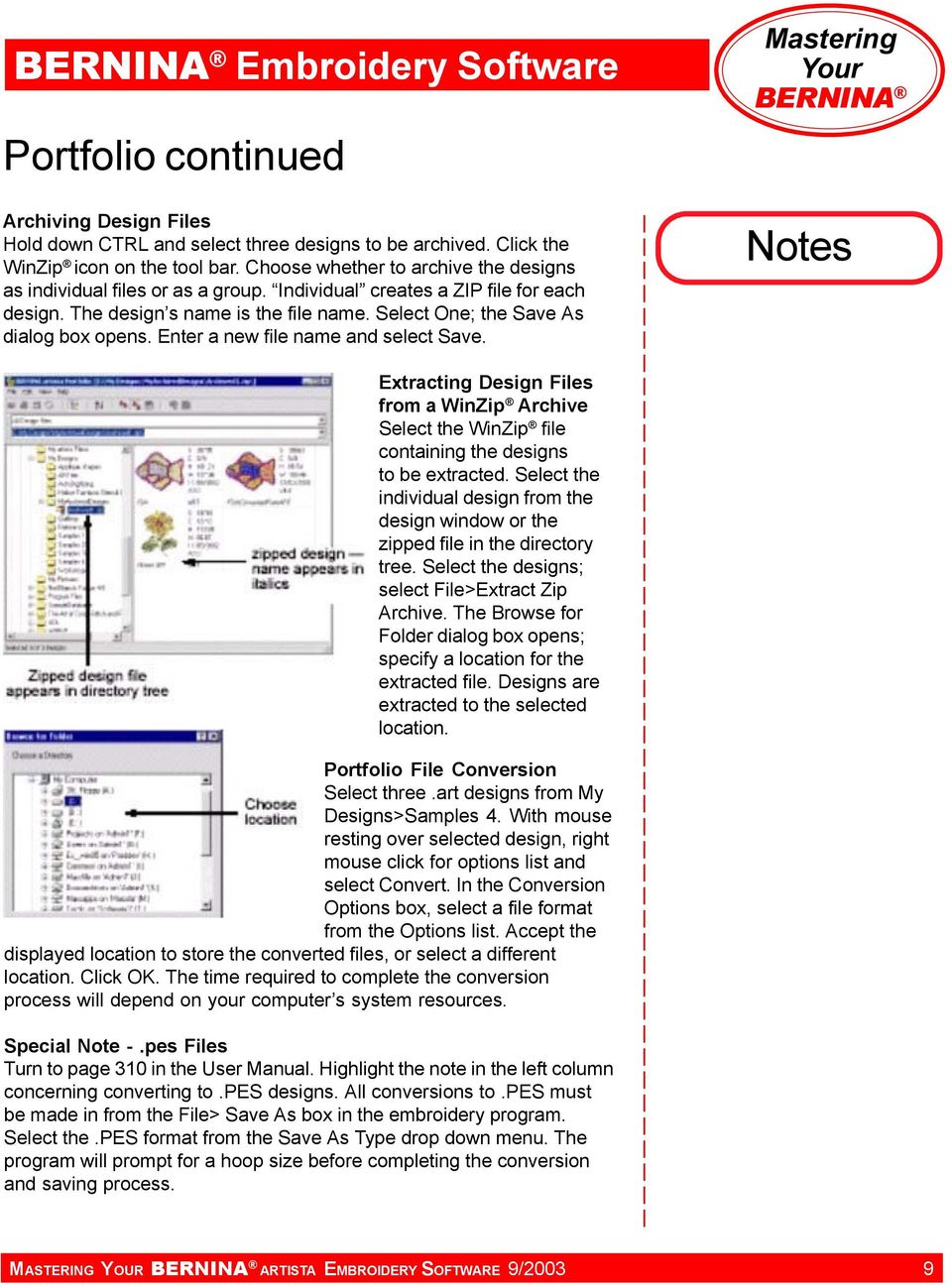
9 Embroidery Software Portfolio continued Archiving Design Files Hold down CTRL and select three designs to be archived. Click the WinZip icon on the tool bar. Choose whether to archive the designs as individual files or as a group. Individual creates a ZIP file for each design. The design s name is the file name. Select One; the Save As dialog box opens. Enter a new file name and select Save. Notes Extracting Design Files from a WinZip Archive Select the WinZip file containing the designs to be extracted. Select the individual design from the design window or the zipped file in the directory tree. Select the designs; select File>Extract Zip Archive. The Browse for Folder dialog box opens; specify a location for the extracted file. Designs are extracted to the selected location. Portfolio File Conversion Select three.art designs from My Designs>Samples 4. With mouse resting over selected design, right mouse click for options list and select Convert. In the Conversion Options box, select a file format from the Options list. Accept the displayed location to store the converted files, or select a different location. Click OK. The time required to complete the conversion process will depend on your computer s system resources. Special Note -.pes Files Turn to page 310 in the User Manual. Highlight the note in the left column concerning converting to.pes designs. All conversions to.pes must be made in from the File> Save As box in the embroidery program. Select the.pes format from the Save As Type drop down menu. The program will prompt for a hoop size before completing the conversion and saving process. MASTERING YOUR ARTISTA EMBROIDERY SOFTWARE 9/2003 9
10 Embroidery Software Editing 2 Reshaping an Object Select File>Open>My Designs>Samples 4>Flower 003.art. Zoom in on the lower leaf. Select leaf; left click on Reshape Object tool. Change stitch angle to 62º. Click and drag reshape points to alter shape of the leaf. Note: Change curve control points to corner points (or corner to curve) by clicking on the point to select it, then pressing the spacebar. When satisfied with the new shape, press enter to accept changes. Notes Refer to User Manual Part IV - Modifying Designs Reshape outlines to match new leaf shape. Repeat for veining. Save your work (File>Save As >new file name). Do not close file. Adding Objects from a Separate File Select File>Open>My Designs>Samples 1>Flower Basket. Select butterfly using Polygon Select; group and copy. Close file; do not save changes. Minimize rose window. Paste butterfly and move to the right side of the rose. Paste a second butterfly, positioning it to the left side of the rose; mirror horizontally, scale down using the sizing handles. Ungroup each butterfly. Select Color Film from general toolbar, then combine butterfly colors to eliminate extra color changes. Select the purple outline; change the color to brown using the Color menu on the Stitch & Color bar. Save your work. Thread Charts Select Settings>Thread Colors. Select the color your wish to change from the Threads in Design chart. Select a thread brand from the drop down menu. Choose a color from the bottom chart; click assign. Continue assigning new colors, changing butterfly colors using the Isacord thread charts. Click OK. Save your work. Refer to User Manual Chapter 10 - Thread Colors & Thread Charts Software Level Editor Auto-Designer Designer Plus MASTERING YOUR EMBROIDERY SOFTWARE 9/

11 Embroidery Software Editing 2 Exercise Note: Graphics are not to scale. MASTERING YOUR EMBROIDERY SOFTWARE 9/

12 Embroidery Software Class 1 Product Reference List ABCs of Embroidery A Touch of Artistry I artista Sampler Seasons of Artistry Through the Needle magazine artista 165E/185E Reader/Writer Box artista 200E Reader/Writer Box artista 165E/185E Personal Design Card artista 200E Personal Design Card Magic Box Magic Cards Notes MASTERING YOUR ARTISTA EMBROIDERY SOFTWARE 9/

13 Embroidery Software Class 2 - Modifying Designs Class Overview Exercises 1 Mirror Merge Mirror Merge Horizontal Mirror Merge Vertical Mirror Merge Vertical/Horizontal 2 Wreath & Kaleidescope Wreath Kaleidescope 3 Lettering Basics Creating Lettering for Embroidery 4 Lettering - Baselines Straight Baseline Lettering - Typing Directly on Screen - Using the Object Properties Box Clockwise & Counterclockwise Lettering Vertical Baseline Lettering Any Shape Baseline Lettering Multiple Baselines 5 Special Lettering Options Secret Garden Alphabet Creative Cross Alphabet 6 True Type Fonts True Type Fonts Creating True Type Text 7 Lettering - Overlay Removal Begin with a Design Add Lettering Remove the Overlay Stitching 8 Lettering - Editing 1 Creating Lettering for Embroidery Curved Elastic Lettering Straight Elastic Lettering Altering Baselines 9 Lettering - Editing 2 Kerning (Manual Spacing) Spacing Letters Evenly Changing Height & Width Editing Individual Letters Changing the Color of Individual Letters 10 Buttonholes Basic Buttonholes Buttonhole Properties Buttonholes in Embroidery This class is formatted for owners of the following levels of version 4.0 artista embroidery software: Editor Auto-Designer Designer Plus MASTERING YOUR ARTISTA EMBROIDERY SOFTWARE 9/

14 Embroidery Software Mirror Merge Mirror-Merge Mirror Merge tools duplicate and transform selected embroidery objects, merging them into a single object. Colors are automatically resequenced to minimize color changes. If an object is grouped prior to using the Mirror Merge function, colors will not be combined. If combined images overlap, you will be prompted to merge designs (a grouped object cannot be merged). If you answer, overlapped objects become one unit and must be edited as one. Notes Refer to User Manual Chapter 15 - Arranging & Transforming Objects Select File>New. Select My Designs>Holice Turnbow Stencil Quilt Designs>HT114. Copy the design to the clipboard for use with the samples. Turn off the grid and the hoop display. Mirror-Merge Horizontal Select All; select the Mirror Merge Horizontal tool. Position the mirrored design to the left or right of the original quilt motif. Duplicate is locked on the horizontal plane. Left mouse click to accept the motif placement. Select File>Close. Mirror-Merge Vertical Select File>New>Paste. Select All; select the Mirror Merge Vertical tool. Position the mirrored design above or below the original quilt motif. Duplicate is locked on the vertical plane. Left mouse click to accept the motif placement. Select File>Close. Mirror Merge Vertical/Horizontal Select File>New. Paste the quilt motif. Select Mirror Merge Vertical/Horizontal. Position the mirrored design to the left or right of the original quilt motif. Left mouse click to accept the motif placement. Software Level Editor Auto-Designer Designer Plus MASTERING YOUR EMBROIDERY SOFTWARE 9/

15 Embroidery Software Mirror Merge Exercises Note: Graphics are not to scale. MASTERING YOUR EMBROIDERY SOFTWARE 9/

16 Embroidery Software Wreath & Kaleidescope Wreath Tool The Wreath tool duplicates objects around a central point. Colos are automatically resequenced to minimize color changes. If an object is grouped prior to using the wreath tool, colors will not be combined. If combined images overlap, you will be prompted to merge the images (a grouped object cannot be merged). If you answer, the overlapped objects become one, and will need to be edited as one. Notes Refer to User Manual Chapter 15 - Arranging & Transforming Objects Select File>New. Paste the quilt motif. Select the Wreath tool. Use the up arrow to select three points. To maintain a 45 angle between motifs, hold down the CTRL key. Move objects around until you are pleased with the arrangement. Left mouse click to accept the motif placement. Experiment with four and five patterns and the Wreath tool. Kaleidoscope Tool The number of spokes on the wreath must be an even number because the Kaleidoscope tool mirror images every other motif in the wreath. Select File>New. Paste the quilt motif. Select the Wreath tool. Use the up arrow to select 6 points. Select the Kaleidoscope tool; every other point is mirror imaged. To maintain a 45 angle between motifs, hold down the CTRL key. Move objects around until you are pleased with the arrangement. Left mouse click to accept the motif placement. Software Level Editor Auto-Designer Designer Plus MASTERING YOUR EMBROIDERY SOFTWARE 9/

17 Embroidery Software Wreath & Kaleidescope Exercises Note: Graphics are not to scale. MASTERING YOUR EMBROIDERY SOFTWARE 9/

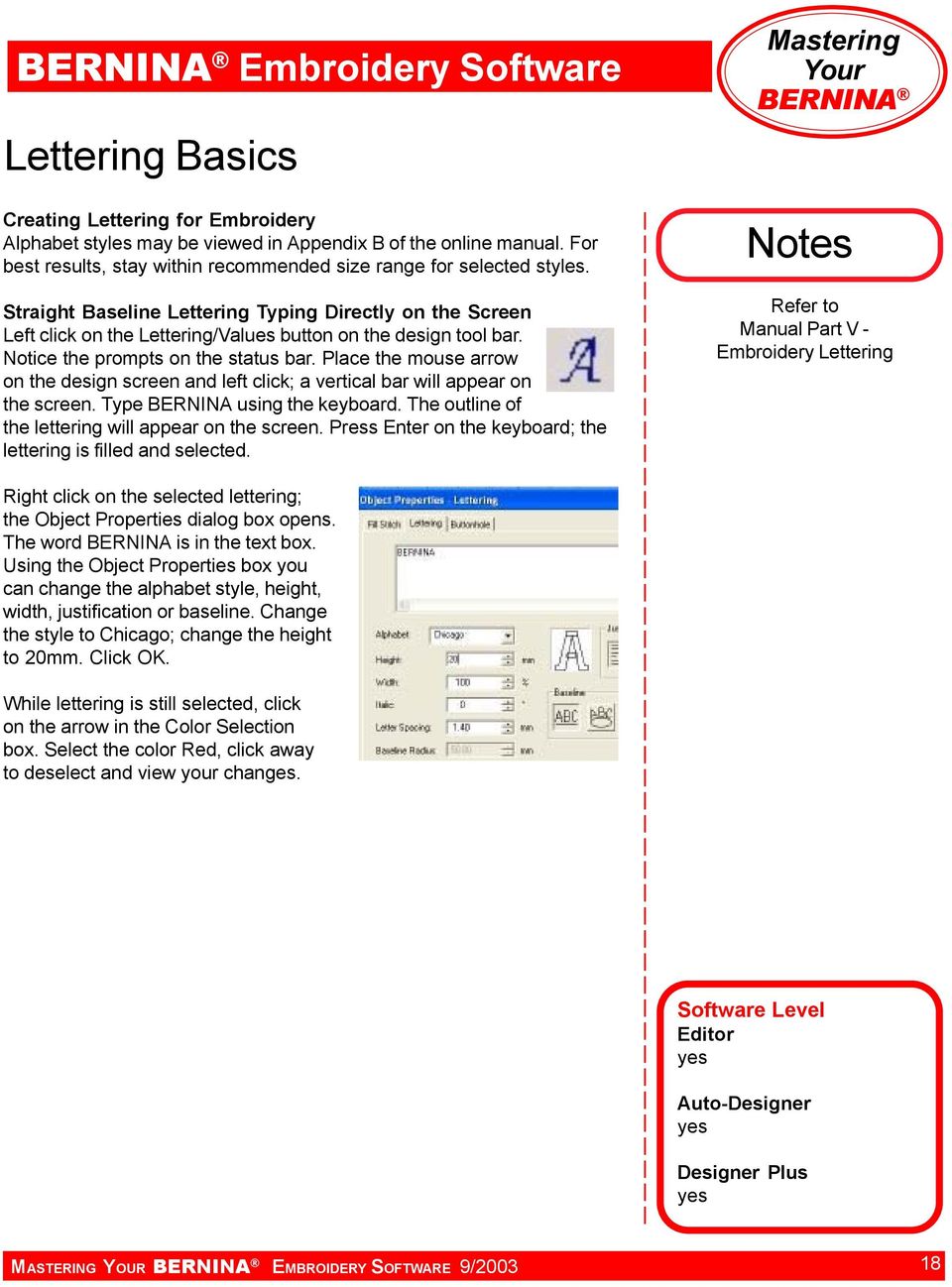
18 Embroidery Software Lettering Basics Creating Lettering for Embroidery Alphabet styles may be viewed in Appendix B of the online manual. For best results, stay within recommended size range for selected styles. Straight Baseline Lettering Typing Directly on the Screen Left click on the Lettering/Values button on the design tool bar. Notice the prompts on the status bar. Place the mouse arrow on the design screen and left click; a vertical bar will appear on the screen. Type BERNINA using the keyboard. The outline of the lettering will appear on the screen. Press Enter on the keyboard; the lettering is filled and selected. Notes Refer to Manual Part V - Embroidery Lettering Right click on the selected lettering; the Object Properties dialog box opens. The word BERNINA is in the text box. Using the Object Properties box you can change the alphabet style, height, width, justification or baseline. Change the style to Chicago; change the height to 20mm. Click OK. While lettering is still selected, click on the arrow in the Color Selection box. Select the color Red, click away to deselect and view your changes. Software Level Editor Auto-Designer Designer Plus MASTERING YOUR EMBROIDERY SOFTWARE 9/
19 Embroidery Software Lettering Basics Exercise Note: Graphics are not to scale. MASTERING YOUR EMBROIDERY SOFTWARE 9/

20 Embroidery Software Lettering - Baselines Straight Baseline Select the A key on the keyboard; the Object Properties box opens. Type the word BERNINA in the text window. Select the Child s Play alphabet; select center justification. Change width to 80%. Click OK. Follow the prompt in the status bar; left click in the center of the screen. Press Enter to set lettering. Notes Refer to User Manual Part V - Embroidery Lettering Clockwise or Counterclockwise Select the A key on the keyboard. Type in the word BERNINA. Select Cursive alphabet; click OK. Following prompts on the status line: - Place the cursor arrow at the center of the circle; left click. - Move cursor straight down to set radius. Press Enter to set a circle; for an oval shape, set cursor at a second reference point; left click. - Press Enter on the keyboard. Right mouse click to open Object Properties. Change the Baseline Radius to 35º. Vertical Baseline Left click on the New button in the general tool bar. Select the A key on the keyboard. Type BERNINA in the text box. Select Vertical baseline; Select Ketchikan alphabet. Click OK. Follow the prompt in the status bar. Press Enter on the keyboard. Any Shape Baseline Left click New on the general tool bar. Select the A key on the keyboard. Type Create Any Shape in text box. Select Cursive alphabet. Select the Any Shape Baseline. Change lettering height to 10 mm; click OK. Following the prompts on the status bar, draw baseline across screen using a series of right clicks. Press Enter to create the lettering. Multiple Left click New on the general tool bar. Select the A key on the keyboard. In the text box, type BERNINA; press Enter. Type ARTISTA; press Enter. Type SOFTWARE; press Enter. Select the Empress alphabet; click OK. Follow the prompts on the status bar. Click the center point of the desired lettering location. Touch Enter on the keyboard to accept the program default Baseline Radius. Software Level Editor Auto-Designer Designer Plus MASTERING YOUR EMBROIDERY SOFTWARE 9/

21 Embroidery Software Lettering - Baselines Exercises Note: Graphics are not to scale. MASTERING YOUR EMBROIDERY SOFTWARE 9/
22 Embroidery Software Special Lettering Options Secret Garden Alphabet The Secret Garden lettering style features upper case characters; you may wish to use Secret Garden as the first letter in a text block or as parts of a monogram. Coordinating flowers and vines are included with this alphabet. Touch the A key to bring up the Lettering dialog box. Choose the Secret Garden alphabet from the drop down menu. Left click on the Select Character button located in the lower right corner of the dialog box. Select the letter B; click OK. The letter B appears in the text box; click OK. Left click on the design screen to position the lettering. Notes Refer to User Manual Part V - Embroidery Lettering Touch the A key on the keyboard to bring up the Lettering dialog box. Select the King Charles alphabet; set the height at 20mm. Type ernina in the text box; click OK. Left click to position lettering on screen. Select the Secret Garden B; rescale to compliment the King Charles lettering. Reposition lettering to form the complete word. Select Edit> Select All. Align the two lettering objects using Align Bottoms Horizontal or Align Centers Horizontal. Creative Cross Alphabet Creative Cross alphabet includes upper case characters, both with and without decorative motifs. Each motif is also available independently. Touch the A on the keyboard to bring up the lettering dialog box. Choose the Creative Cross alphabet from the drop down menu. Click on the Select Character button. Select the letter B with the decorative motif. Select ERNIN without motifs. Select A with decorative motif. Click OK. Click OK in Objects Properties box. Left click to position lettering on design screen. Software Level Editor Auto-Designer Designer Plus MASTERING YOUR EMBROIDERY SOFTWARE 9/
23 Embroidery Software Special Lettering Options Exercises Note: Graphics are not to scale. MASTERING YOUR EMBROIDERY SOFTWARE 9/
24 Embroidery Software True Type Fonts True Type Fonts The ability to create lettering from True Type fonts is a feature of the Designer Plus level of software. Designer Plus will find all True Type fonts stored on your computer and arrange them in alphabetical order in the alphabets list, directly following the embroidery software alphabets. The True Type fonts are treated as graphic images; the software automatically digitizes the selected lettering. Because the software is generating objects, it will need time to process the information. Most True Type fonts convert nicely to embroidery, be aware not every font will convert smoothly or attractively. Notes Refer to User Manual Part V - Embroidery Lettering Typing into the Object Properties dialog box rather than directly on the design screen shortens the processing time. The time needed to process objects depends upon your computer s resources. Creating True Type Text Touch A on the keyboard to bring up the Lettering Object Properties box. Type BERNINA in the text box. Scroll through the alphabet styles to find those marked with T (indicating True Type font). Select Comic Sans. Change height to 20mm; click OK. Left click on the screen to set the lettering and begin processing. Experiment with other true type fonts on your computer. Software Level Editor no Auto-Designer no Designer Plus MASTERING YOUR EMBROIDERY SOFTWARE 9/
25 Embroidery Software True Type Fonts Exercises Note: Graphics are not to scale. MASTERING YOUR EMBROIDERY SOFTWARE 9/
26 Embroidery Software Lettering - Overlay Removal Begin with a Design Select File>Open. From the My Designs folder select Samples3> Golf.ART. Add Lettering Click on the Lettering/Values tool. Type GOLF on the screen. Touch the Enter key to accept the lettering. Notes Refer to User Manual Chapter 23 - Special Digitizing Techniques Select GOLF, right mouse for Object Properties. Change the base line to Vertical and the alphabet to Alice. Move the lettering object into the green grass next to the golfer. Change the lettering object s color to C12. Removing the Overlay Stitching Using the Select object tool, select the lettering, then hold down the CTRL key and select the grass background. TIP: Use the 2 key or the Tab key to help select an object within a complex design. Click on the Lettering Remove Overlay tool to remove the stitching from under the lettering. Select and drag lettering off the green background. Notice that the stitching has been removed. Touch Undo to return the lettering to its correct position on the green background. Software Level Editor Auto-Designer Designer Plus MASTERING YOUR EMBROIDERY SOFTWARE 9/
27 Embroidery Software Lettering - Overlay Removal Exercise Note: Graphics are not to scale. MASTERING YOUR EMBROIDERY SOFTWARE 9/
28 Embroidery Software Lettering - Editing 1 Creating Lettering for Embroidery Alphabet styles may be viewed in Appendix B of the Online Manual. For best results, stay within recommended size ranges for the selected style. Curved Elastic Lettering Left click on the Alphabet/Values button. Left click on the design screen and type BERNINA. Press Enter. Notes Refer to User Manual Part V - Embroidery Lettering Select Edit>Elastic Lettering>Curved. Control handles will appear on the top and bottom of the lettering. Try reshaping the word silhouette using the following methods: - Click and drag top reshape handle to curve top of lettering. Undo. - Click & drag lower reshape handle to curve bottom of lettering. Undo. - Hold down the shift key on the keyboard while clicking and dragging one of the control points. Undo. - Hold down the control key while clicking and dragging one of the control points. Undo. Press Enter to confirm any changes you wish to accept. Close File. Straight Elastic Lettering Left click New on the general tool bar. Left click on the Alphabet/Values button. Left click on the design screen; type BERNINA. Press Enter. Select Edit>Elastic Lettering>Straight. Control handles will appear at the upper and lower edges of the lettering. Handles may be moved individually or in conjunction with the Shift and Control keys. Press Enter to confirm any changes you wish to accept. Close File. Software Level Editor Auto-Designer Designer Plus MASTERING YOUR EMBROIDERY SOFTWARE 9/
29 Embroidery Software Lettering - Editing 1 Exercise Note: Graphics are not to scale. MASTERING YOUR EMBROIDERY SOFTWARE 9/
30 Embroidery Software Lettering - Editing 2 Altering Baselines Left click New on the general tool bar. Left click on the Lettering/Values button. Left click on the design screen; type BERNINA. Press Enter. While the lettering is selected, click on the Reshape Object tool on the Design Tool Bar. Click and drag the control point on the lower left or right of the lettering to change the baseline angle. Note: You may need to move the start point or end point marker to access the control point. Notes Refer to User Manual Part V - Embroidery Lettering Kerning (Manual Spacing) Left click on the Lettering/Values button. Left click on the design screen; type BERNINA. Press Enter. While the lettering is selected, click on the Reshape Object tool. Click and drag the diamond-shape control points to manually adjust individual letter spacing. Spacing Letters Evenly Left click on the Lettering/Values button. Left click on the design screen; type BERNINA. Press Enter. Select lettering; select Reshape Object. Drag the arrow located to the lower left of the lettering to space letters evenly. Alternate method: Open Object Properties box, type in the desired spacing in the Letter Spacing window. Changing Height and Width of Lettering Left click New on the general tool bar. Left click on the Alphabet/Values button. Left click on the design screen; type Bernina. Press Enter. While the lettering is still selected, left click on the Reshape Object tool. Click and drag the top black triangle to scale vertically. Undo. Click and drag the triangle pointing diagonally to scale the lettering proportionally. Undo. Click and drag the triangle on the side to scale horizontally. Undo. Note: The height and width of lettering may also be changed by selecting it, right clicking to open the Open Object properties box and typing in the desired size. Editing Individual Lettering Select lettering, then left click on Reshape Object tool. Left click on the control point in the middle of the letter B. Click on the letter boundary line. Zoom in for better visibility; click and drag control points to reshape letter. Press Enter on the keyboard to accept your changes. Changing the Color of Individual Letters Select the lettering. Right mouse click for Ojbect Properties. Click in the text box. Use the keyboard arrows to move the cursor between B and E. Insert a caret (^). Click OK. Deselect to view changes. Software Level Editor Auto-Designer Designer Plus MASTERING YOUR EMBROIDERY SOFTWARE 9/
31 Embroidery Software Lettering - Editing 2 Exercise Note: Graphics are not to scale. MASTERING YOUR EMBROIDERY SOFTWARE 9/
32 Embroidery Software Buttonholes Basic Buttonholes Select Arrange>Add buttonhole. Left click to position three buttonholes vertically on screen. Touch the Esc key to turn off the Add buttonhole function. Select all, then left click the Align Centers Vertically icon. Buttonhole Properties Select the top buttonhole. Right click to open Buttonhole Object Properties. Select the Rounded buttonhole, change the Slit length (buttonhole opening) to 18mm. Press OK. Notes Refer to User Manual Chapter 23 - Specialized Digitizing Techniques Select the second buttonhole; open the Object Properties box. Select the Heirloom buttonhole; change the Bead stitch spacing (stitch length) to 2. Press OK. Select the third buttonhole; open the Object Properties dialog box. Change Orientation to horizontal; click OK. Select all of the buttonholes; select Align Right Vertical. Buttonholes in Embroidery Select File>New File>Open>Samples3>swirl center.art. Group the design. Select Arrange>Add Buttonhole. Left click to position a buttonhole in the center of the design. Press the ESC key on the keyboard to turn off the tool. Select the design and the buttonhole. Align the centers. With everything selected, choose Arrange>Merge Buttonhole. The stitching is removed from under the buttonhole slit, preventing stitches from raveling when the buttonhole is cut open. Select All, Group, Copy and Paste to create two duplicates; position them vertically. Select All; align centers vertically. Software Level Editor Auto-Designer Designer Plus MASTERING YOUR EMBROIDERY SOFTWARE 9/
33 Embroidery Software Buttonholes Exercises Note: Graphics are not to scale. MASTERING YOUR EMBROIDERY SOFTWARE 9/
34 Embroidery Software Class 2 Product Reference List ABCs of Embroidery A Touch of Artistry I artista Sampler Seasons of Artistry Through the Needle magazine artista 165E/185E Reader/Writer Box artista 200E Reader/Writer Box artista 165E/185E Personal Design Card artista 200E Personal Design Card Magic Box Magic Cards Notes MASTERING YOUR ARTISTA EMBROIDERY SOFTWARE 9/
35 Embroidery Software Class 3 - Automatic Digitizing Class Overview Exercises 1 Automatic Digitizing 1 Creating Embroidery with Auto-Digitizer 2 Automatic Digitizing 2 Editing Auto-Digitized Designs Adding Lettering 3 Magic Wand Creating Embroidery with the Magic Wand 4 Magic Wand - Editing Editing the Design Sequencing Colors Adding Lettering Saving your Work 5 Auto & Partial Applique Auto Applique Partial Applique This class is formatted for owners of the following levels of version 4.0 artista embroidery software: Auto-Designer Designer Plus MASTERING YOUR ARTISTA EMBROIDERY SOFTWARE 9/
36 Embroidery Software Automatic Digitizing 1 Note: All artwork used with the automatic digitizing tools must be processed prior to digitizing. For more information on artwork processing refer to User Manual. Creating Embroidery with Auto-Digitizer Select Picture mode; left click Load Picture to select a picture. From My Designs>Auto-Digitizing folder, select and open tulip.bmp. Click on Save Picture. Rename picture file; click Save. Notes Refer to User Manual Chapter 13 - Automatic Digitizing Click on Touch Up Picture tool; select Paint. Select Flood Fill tool; choose a different shade of green for flower stem. Select File> Exit and Return to Design. Select Artwork Preparation tool to clean up background noise, sharpen outlines, remove color dithering. Change colors to 6; OK. Note: This may take a few moments depending on computer resources. Select Design mode. Select Auto-Digitizer tool; open Object Properties. From Fill Stitch tab, select Effects; increase Pull Compensation to 0.4, and check Underlay. Click OK; click OK again. Click on an area of picture. When dialog box opens, select Omit Colors; select white (background color) to keep background of image from being digitized. Click OK. The program will automatically create embroidery objects for this design. Note: Time needed to generate embroidery objects depends on computer s resources. Touch ESC two times on keyboard to turn off all tools. Enter Picture Mode, select picture and delete it. Return to Design Mode. Save your work. Software Level Editor no Auto-Designer Designer Plus MASTERING YOUR EMBROIDERY SOFTWARE 9/
37 Embroidery Software Automatic Digitizing 1 Exercise Note: Graphics are not to scale. MASTERING YOUR EMBROIDERY SOFTWARE 9/
38 Embroidery Software Automatic Digitizing 2 Editing Auto-Digitized Designs Once embroidery objects have been generated using Auto-Digitizer, you may use any of the available tools to edit the design. Select a leaf; select Reshape Object tool. Click & drag stitch angle line to reflect leaf shape. Press Enter to accept changes. Repeat for other leaf. Touch ESC. Notes Refer to User Manual Chapter 13 - Automatic Digitizing Select front petal. Right click to open Object Properties; from fill stitch tab, select fill pattern 20; OK. Select Artistic view to see changes. Return to Design mode. Repeat for other petals. Select Edit>Select All; right click to open Object Properties. From General tab, rotate design 35 and rescale to 80%; OK. While still selected, group parts and select Edit>Duplicate. Mirror duplicated tulip horizontally. Move tulip to right until stems no longer overlap. Select other flower; Align Bottoms Horizontally. Add Lettering Press A on keyboard to open Lettering Object Properties. Select Empress alphabet and Multiple Baseline. In text box type Take time, press Enter, press Enter again, type to admire the flowers. Click OK. Click center of design. Touch Enter twice to accept programmed radius. Select and reposition lettering as needed. Select Edit>Select All and Align Centers Vertically. Save your work. Software Level Editor no Auto-Designer Designer Plus MASTERING YOUR EMBROIDERY SOFTWARE 9/
39 Embroidery Software Automatic Digitizing 2 Exercise Note: Graphics are not to scale. MASTERING YOUR EMBROIDERY SOFTWARE 9/
40 Embroidery Software Magic Wand All artwork used with automatic digitizing tools must be processed prior to digitizing. For more information on artwork processing refer to User Manual. Creating Embroidery with the Magic Wand In Picture Mode, select the Load Picture tool. From My Designs>Auto- Digitizing, select floral pattern4.bmp. Open. Notes Refer to User Manual Part III - Digitizing with Artwork Process the graphic using the Outline Artwork Preparation tool. Move the slider to the right until the picture turns black. Using the left keyboard arrow, move the slider to the left until the white color returns. Select Design mode. Select Settings>Thread colors. Create a thread chart for the design from Isacord shades. Change the number of threads in design to 6, then assign the following colors: #1 = 5944, #2 = 5933, #3 = 5230, #4 = 0221, #5 = 1375, #6 = Select the Magic Wand, then open the Object Properties dialog box from the general toolbar. Select the Fill tab. Click Effects; check the Underlay box and change the Pull Compensation value to 0.4. Select C1 from the drop down color bar. Left click in the large center stem. Press Enter to generate the object. Select C2, click on one of the leaves; press Enter. Repeat for other leaf. Digitize the centers and flower petals, changing colors as needed. Select Outline, Satin, from the Stitch and Color bar. Designer Plus: Select stem stitch from the Craft Stitch tool bar. Select one of the remaining thin lines; press Enter to generate the outline object. Repeat for remaining design lines. Preview design in Artistic View. Return to Design mode and save your work. Software Level Editor no Auto-Designer Designer Plus MASTERING YOUR EMBROIDERY SOFTWARE 9/
41 Embroidery Software Magic Wand Exercise Note: Graphics are not to scale. MASTERING YOUR EMBROIDERY SOFTWARE 9/
42 Embroidery Software Magic Wand - Editing Editing the Design Once embroidery designs have been generated using the Magic Wand, you may use any of the available tools to edit the design. Select the large center stem; right click to open Object Properties; select fill pattern 9. While stem is still selected, select the Reshape Object tool. Adjust stitch angle to 92, press Enter to accept the change. Notes Refer to User Manual Part III - Digitizing with Artwork Select the flower centers; select Satin from the Fill Type drop down menu. Select a flower petal, select the Reshape object tool; adjust stitch angle to make the stitches appear to radiate out from the center of the flower. Repeat for each petal. Select the leaves; select Edit>Duplicate. While new leaves are still selected, choose Triple from the Outline Stitch Type. Select C6. View changes in Artistic view. Return to Design mode and save your work. Select leaves, open Object Properties dialog box. Select Fancy from the Stitch Type drop down menu. Select Honeycomb. Sequencing Colors Open Color Film to view number and order of stitching. The flowers need to be re-sequenced to eliminate excess thread changes. Close Color Film. Select Edit>Select All. Arrange>Sequence by Color, click OK. The design will be re-sequenced. Open Color Film to see change. Add Lettering Select C2. Touch A on the keyboard to open the lettering Object Properties box. Select Empress, 9mm, Any Shape baseline. Type Create in the text box; press OK. Set baseline points along the upper edge of the stem. Press Enter to create the lettering object. Saving Work Delete the graphic from the design file. Select the entire design, open the Object Properties dialog box. From the General tab, rotate by 90. Click OK. Save design. Software Level Editor no Auto-Designer Designer Plus MASTERING YOUR EMBROIDERY SOFTWARE 9/
43 Embroidery Software Magic Wand - Editing Exercise Note: Graphics are not to scale. MASTERING YOUR EMBROIDERY SOFTWARE 9/
44 Embroidery Software Auto & Partial Appliqué Auto-Applique Auto-Appliqué creates up to four layers of stitching - placement line, cutting line, tackdown and cover stitch-for each appliqué object. When planning applique, begin with bottom fabric layer and work toward top layer. Select Picture tab>load Picture>My Designs>Samples 3 >Watermelon.bmp. Select Design tab. Select Auto-Appliqué tool. Read prompts on status bar. Note: The Auto-Appliqué tool works like the Closed Curve tool; the last 2 points will join automatically. Notes Refer to User Manual Chapter 27 - Digitizing for Applique Do not begin on a corner. Create boundary around watermelon rind, treating white and green as one area. Create boundary around watermelon flesh. TIP: Turn off picture; position watermelon flesh boundary reference points exactly on top of previously created rind boundary reference points. Turn picture on to position remaining points. Press Enter two times. Select entry and exit points. Mark frame out position to complete auto applique process. Select watermelon flesh, change to C3. Select all, right click to open Object Properties, change stitch width to 1.5mm (tack-down is automatically re-set). Select Trim In Place option. Click OK. Select View>Slow Redraw. Watch appliqué stitch. Notice duplicate satin stitching on overlapping areas; this will not produce professional results when embroidered. Note: Auto-appliqué is most effective for designs with a single element. For appliqué designs with adjoining boundaries, use the Partial Appliqué feature to complete the applique design. Partial Applique Partial appliqué removes one of the layers of satin stitching from adjoining appliqué pieces. Plan appliqué sequence carefully, working from bottom layer to top. Stitching is removed in the order in which boundaries are created. Note: If overlapping areas are significantly off, reshape boundaries to align stitching before applying partial appliqué. Select File>Select All. Click on Partial Appliqué tool. Overlapping satin stitches are removed. Select Slow Redraw to watch design stitch sequence. Return to Picture mode and process picture using Artwork Preparation tool. In Design mode select Magic Wand tool. Open Object Properties> Fill Tab>Satin>Effects; turn on Auto Underlay; set Pull Compensation to Select C15; use Magic Wand to digitize each seed. Save work. Software Level Editor no Auto-Designer no Designer Plus MASTERING YOUR EMBROIDERY SOFTWARE 9/
45 Embroidery Software Auto & Partial Appliqué Exercise Note: Graphics are not to scale. MASTERING YOUR EMBROIDERY SOFTWARE 9/
46 Embroidery Software Class 3 Product Reference List ABCs of Embroidery A Touch of Artistry I artista Sampler Seasons of Artistry Through the Needle magazine artista 165E/185E Reader/Writer Box artista 200E Reader/Writer Box artista 165E/185E Personal Design Card artista 200E Personal Design Card Magic Box Magic Cards Notes MASTERING YOUR ARTISTA EMBROIDERY SOFTWARE 9/
47 Embroidery Software Class 4 - Manual Digitizing Class Overview Exercises 1 Block Digitizing Block Digitizing Closed Curve Tool Set Multiple Stitch Angles Remove Overlay Stitching 2 Blackwork Run Open Curve Tool & Blackwork Run 3 More Manual Digitizing Techniques Rectangle Tool Add Holes Wave Effect Add Details This class is formatted for owners of the following levels of version 4.0 artista embroidery software: Designer Plus MASTERING YOUR ARTISTA EMBROIDERY SOFTWARE 9/
48 Embroidery Software Digitizing Tools Block Digitizing The block-digitizing tool digitizes closed objects by placing pairs of points on opposing sides of an image. Each set of points marks both the object boundary and sets stitch angle. Left click on the Block-Digitizing tool. Activate Auto-Underlay from the general toolbar, then select C13 (white). Set boundary points around the white section of the rind. Press Enter to create the object. Notes Refer to User Manual Part II - Basic Digitizing Techniques Turn off the picture to view stitching. Turn on View Picture. Closed Curve Tool Left click on the Closed Curve tool, then activate Auto-Underlay from the general toolbar and select C3 (red). Set boundaries around the fruit (right click sets a curve; a left click sets a corner; backspace erases the last point set). Press Enter to create the object. Select color 1 (green) and digitize outer edge of rind. Setting Multiple Stitch Angles Immediately after creating an object or selecting an object, the Stitch Angle Values tool is available to make multiple stitch angle adjustments to the object. With the green rind still selected, click on the Stitch Angle/Values tool icon. Following the diagram, set stitch angle control points. Touch Enter to accept changes. Remove Overlay Stitching Using the Closed Curve tool, Fill>Step and C15, digitize the seeds or copy and paste the seeds from the Auto Applique/Partial Applique exercise. Use Color Film to select the seeds, then hold down the control key and select the watermelon flesh. Select Arrange>Remove Overlay Stitching. The red stitching under the seeds is removed. Select the seeds (Color Film) and change to Fill:Satin. Software Level Editor no Auto-Designer no Designer Plus Save your work. MASTERING YOUR EMBROIDERY SOFTWARE 9/
49 Embroidery Software Digitizing Tools Exercise Note: Graphics are not to scale. MASTERING YOUR EMBROIDERY SOFTWARE 9/
50 Embroidery Software Blackwork Run Open Curve Tool & Blackwork Run The Open Curve tool is used with any outline stitch type to create lines. Select Picture view>load Picture>My Designs>Samples 1>heartpin 3A. In the Design view, select the Closed Curve tool and C2; digitize the outline of the heart (a right click for a curve; left click for a corner). Press Enter. Notes Refer to User Manual Part II - Basic Digitizing Techniques Select the Open Curved tool. Using left clicks, digitize the lines within the heart, ignoring the lace insert. The lines must touch the heart outline or another interior line. Touch Enter after setting points for each line. Turn off the picture. Select View>Slow Redraw. Notice the jump stitches; this design will not sew out very professionally. Select all; select the Blackwork Run tool. The program will automatically resequence the stitching to eliminate jump stitches. Note: Blackwork run can be applied to backstitches and stem stitches, single, and triple outlines. Select View>Slow Redraw to view changes embroidery run. Software Level Editor no Auto-Designer no Designer Plus MASTERING YOUR EMBROIDERY SOFTWARE 9/
51 Embroidery Software Blackwork Run Exercise Note: Graphics are not to scale. MASTERING YOUR EMBROIDERY SOFTWARE 9/
52 Embroidery Software More Digitizing Tools Rectangle Tool The Rectangle tool is used to create perfect rectangles & squares. Select File>New. Select Picture Mode>Load Picture>Auto-digitizing> house.bmp. Create the House Select Design mode. Select the Rectangle tool; digitize the side of the house by left clicking one corner, moving the cursor to the opposite corner and clicking to create the object. Notes Refer to User Manual Part II - Basic Digitizing Techniques Use the Closed Curve tool to digitize the front of the house and the roof. Add Holes Select the side of the house; select Add Holes. Follow prompts on the status bar to digitize boundaries of holes to be cut from the stitching, in this case three windows. Touch Enter; stitching is removed. Note: When adding holes, use left clicks for corners, right clicks for curves, backspace to remove last point, and enter to close the shape. Repeat for window on front of house. Select the house s front and side. Change color to red; from Object Properties Fill Tab, select Fancy>010Brick 1. Wave Effect The Wave Effect tool changes the stitch angle to a curve. The curve may be altered using the Reshape Object tool. Additional control points may be added and moved. Select the roof; change the color to C12. With the roof still selected, open Object Properties>Fill tab>effects, check Wave Effects>OK. Select the roof; select the Reshape Object tool. Move and add reference points to alter the wave stitch angle. Press Enter. View changes in Artistic view. Return to Design mode. Add Details Use the Open Curve tool to digitize a line across the bottom of the side of the house. Select the line; open Object Properties. From the Stitch Type drop down menu, select Pattern Run. Click on Select; from Symbol Set drop down menu, select Nature. Click on pattern 101, select Make Current; click OK. Change color to yellow. Right click on the Lettering/Values tool. Select Cursive, type 3702 in text box. Left click above door to position numbers. Select the numbers and the front of the house; left click on the Remove Lettering Overlay tool to remove stitches from under the house numbers. Software Level Editor no Auto-Designer no Designer Plus MASTERING YOUR EMBROIDERY SOFTWARE 9/
53 Embroidery Software More Digitizing Tools Exercise Note: Graphics are not to scale. MASTERING YOUR EMBROIDERY SOFTWARE 9/
54 Embroidery Software Class 4 Product Reference List ABCs of Embroidery A Touch of Artistry I artista Sampler Seasons of Artistry Through the Needle magazine artista 165E/185E Reader/Writer Box artista 200E Reader/Writer Box artista 165E/185E Personal Design Card artista 200E Personal Design Card Magic Box Magic Cards Notes MASTERING YOUR ARTISTA EMBROIDERY SOFTWARE 9/
55 Embroidery Software Class 5 - Special Effects Class Overview Exercises 1 Gradient Fills Gradient Fill Travel on Edges 2 Color Blending 1 Color Blending Profiles 3 Color Blending 2 4 Craft Stitches - Blackwork Blackwork Layout 5 Craft Stitches - Lacework Applying Lacework Layout 6 Craft Stitches - Candlewicking Candlewicking Border Candlewicking Fill Layout 7 Craft Stitch Sampler Create All Objects Backstitch Stem Stitch Editing the Design Candlewick Fill Blackwork Fill Lacework Fill Stipple Fill Outline the Heart Candlewick Half Knot 8 Pattern Runs 1 Pattern Outlines Pattern Fills Layout 9 Pattern Runs 2 Create Pattern This class is formatted for owners of the following levels of version 4.0 artista embroidery software: Designer Plus MASTERING YOUR ARTISTA EMBROIDERY SOFTWARE 9/
56 Embroidery Software Gradient Fills Gradient Fill Use Gradient Fill to create color blends, perspective effects and shading. Select File>New. Select the Rectangle tool. Digitize from the bottom left to the top right. Create a square 3 grids by 3 grids. Copy and paste five times (6 squares total). Notes Refer to User Manual Chapter 24 - Artistic Stitch Effects Select square 1. Select Object Properties>Effects>Gradient Fill tab. Check the Gradient Fill box. Select Profile 1; click OK, OK. For blocks 2, 3, & 4, Select Object Properties>Effects>Gradient Fill tab. Be sure Gradient Fill is checked. Select Profiles 2, 3, or 4. Select block 5. Select Object Properties>Effects>Gradient Fill tab. Be sure Gradient Fill is checked. Select Profile 1. Change the Maximum Spacing Value to 0.01 mm; click OK, OK. Select block 6. Select Object Properties>Effects>Gradient Fill tab. Be sure Gradient Fill is checked. Select Profile 1. Change the Maximum Spacing to 10 mm. Click OK. Travel on Edges Use Travel on Edges with the Gradient Fill effects to eliminate travel stitches inside an object. Select Artistic View. Show 1:1 - Traveling stitches are visible. Select the Design tab. Select box #1. Select Object Properties>Effects>Others tab. Check Travel on Edges; click OK, OK. Select Artistic View; Show 1:1 - The traveling stitches are hidden. Software Level Editor no Auto-Designer no Designer Plus MASTERING YOUR EMBROIDERY SOFTWARE 9/
57 Embroidery Software Gradient Fills Exercise Note: Graphics are not to scale. MASTERING YOUR EMBROIDERY SOFTWARE 9/
58 Embroidery Software Color Blending 1 Color Blending Color Blending creates shading effects by blending two colored layers in an embroidery object. The effect is created by duplicating the object, then applying Gradient Fill. Profiles Profiles determine the point from which the color variation occurs. Notes Refer to User Manual Chapter 24 - Artistic Stitch Effects Sample 1 Select File>New. Select Settings>Fabric Display. Select Edit and choose white; click OK, OK. Use the Circle tool to digitize a circle filled with step stitches. Copy and Paste five additional circles onto the screen (6 circles total). Select the first circle. Select the Color Blending tool. Leave the Profile and Spacing at default settings. Change Bottom Layer to color 5; change the Top Layer to color 11. Click OK. Select Artistic View to see the changes. Select Design mode. Select the second circle. Select Color Blending tool. Change to Profile 2. Leave Spacing and Color at new defaults (colors 5 and 11). Click OK. Select the third circle. Select Color Blending tool. Change to Profile 3. Leave Spacing and color at new defaults (colors 5 and 11). Click OK. Select the forth circle. Select Color Blending tool. Change to profile 4. Leave Spacing and Color at new defaults (colors 5 and 11). Click OK. Select the fifth circle. Select Color Blending tool. Select Profile 1. Change Bottom and Top Layer Spacing to 4. Click OK. Select the sixth circle. Select Color Blending tool. Select Profile 1. Change Bottom and Top Layer Spacing to 2. Click OK. Select Artistic View to see the various profile combinations. Select Design tab. Select circle 6. Ungroup and deselect. Select the top layer and slide it aside to look at the thread layers. Select File>New. Create a rectangle. Software Level Editor no Auto-Designer no Designer Plus MASTERING YOUR EMBROIDERY SOFTWARE 9/
59 Embroidery Software Color Blending 1 Exercise Note: Graphics are not to scale. MASTERING YOUR EMBROIDERY SOFTWARE 9/
60 Embroidery Software Color Blending 2 Apply Color Blending using the Profile and Colors of your choice. Adjust Bottom Layer Spacing to 1, Top Layer Spacing to 2. Select the rectangle and Ungroup. Click on the Lettering tool and type your name in the rectangle. Select lettering and top layer of rectangle (CTRL). Select the Remove Lettering Overlay tool. Select and move lettering to see the hole Notes Refer to User Manual Chapter 24 - Artistic Stitch Effects Software Level Editor no Auto-Designer no Designer Plus MASTERING YOUR EMBROIDERY SOFTWARE 9/
61 Embroidery Software Color Blending 2 Exercise Note: Graphics are not to scale. MASTERING YOUR EMBROIDERY SOFTWARE 9/
62 Embroidery Software Craft Stitches - Blackwork Blackwork Select Rectangle tool, left click Blackwork Fill icon from Craft Stitch tool bar. Create a rectangle shape. Select the rectangle; right click to open its Object Properties box. Choose Select and scroll to preview other Blackwork fill styles. Select B007a; click OK. Notes Refer to User Manual Chapter 26 - Craft Stitch Borders & Fills Copy and paste the rectangle 4 times for a total of 5 objects. Layout The Layout function is used to size, reposition, and offset an object s fill stitches. The layout is always positioned in the center of the screen. To easily work with the function, use the scrollbar at the bottom of the screen to move the digitized objects to the left side of the screen. Select the second rectangle, open its Object Properties box, click Layout. Study the picture at the top of page 240 in the User Manual. Identify each of the three Guide-Pattern stitches on the screen. The middle guide pattern is used to rescale and rotate the stitch pattern. Using the black rescaling handles, reduce the size of the fill stitch. When satisfied with the changes, press Enter. Select the third rectangle; open Object Properties and click Layout. Select the Middle Guide-Pattern. Activate the Rotation and Skewing function. Rotate the stitch pattern. Press Enter to accept changes. Select the fourth rectangle, open Object Properties, select Layout. The Top Guide-Pattern is used to offset and increase the rows of stitches. Move the Top Guide-Pattern up and to the right. Press Enter to accept changes. Select the fifth rectangle, open Object Properties, select Layout. The Side Guide-Pattern is used to offset the columns of stitches. Move the Side Guide-Pattern to the left to decrease the column spacing. Press Enter to accept changes. Select Rectangle tool; Outline>Single. Digitize a rectangle across each blackwork object. Software Level Editor no Auto-Designer no Designer Plus MASTERING YOUR EMBROIDERY SOFTWARE 9/
63 Embroidery Software Craft Stitches - Blackwork Exercise Note: Graphics are not to scale. MASTERING YOUR EMBROIDERY SOFTWARE 9/
64 Embroidery Software Craft Stitches - Lacework Lacework stitch consists of an open trellis-like pattern, and is not intended to be a stand-alone embroidery design. Applying Lacework Select File>New. Turn off the grid. Select the Closed Curve tool. Select Lacework from the Craft Stitch toolbar. Digitize a free form object. Touch Enter to see the stitching. Notes Refer to User Manual Chapter 26 - Craft Stitch Borders & Fills Select the object and right mouse click for Object Properties. Choose Select. View the pattern choices - there are five available. Pick a different pattern. Experiment with different pattern choices. Layout Select a digitized lace-filled object from the screen. Right mouse click for Object Properties. Select Layout. Zoom in on the yellow area. Identify the three Guide-Patterns. Note: See Layout Function Handout for detailed instructions. Using the Guide-Patterns, adjust the fill stitch. Software Level Editor no Auto-Designer no Designer Plus MASTERING YOUR EMBROIDERY SOFTWARE 9/
65 Embroidery Software Craft Stitches - Lacework Exercise Note: Graphics are not to scale. MASTERING YOUR EMBROIDERY SOFTWARE 9/
66 Embroidery Software Craft Stitches - Candlewicking Candlewicking is a detail stitch that can be used to outline or fill areas in a design. Candlewicking is a traditional white-on-white embroidery technique, usually done on white linen or cotton fabric with heavy cotton threads. More use of color is becoming popular today. Candle-wicking is often used to embroider white bedspreads, pillows and clothing. Candlewicking Border Select the Open Curve tool. Select Candlewicking Border from the Craft Stitch toolbar. Note: Craft stitches are available from the Stitch and Color bar or the Craft Stitch toolbar. Notes Refer to User Manual Chapter 26 - Craft Stitch Borders & Fills Digitize a line and touch Enter to see the stitches. Note: If the Candlewicking border does not pick up the color you have selected in the color palette when first digitized, select the border after digitizing, and then select a color. Select the line; open Object Properties. Click Select to preview Pattern choices; there are four available patterns. Pick a different pattern. Notice the relationship between size and spacing. Experiment with different pattern choices. Candlewicking Fill Select the Closed Curve tool. Select Candlewicking Fill from the Craft Stitch toolbar. Create a free form shape using left and right mouse clicks. Select the object, then right mouse click for Object Properties. Choose Select to view patterns - there are four available patterns. Select Cancel. Experiment with different pattern choices. Layout Select a digitized Candlewick filled object from the screen. Right mouse click for Object Properties. Select Layout. Zoom in on the yellow area. Identify the 3 guide-patterns. Using Guide-Patterns, adjust the fill stitch. Software Level Editor no Auto-Designer no Designer Plus MASTERING YOUR EMBROIDERY SOFTWARE 9/
67 Embroidery Software Craft Stitches - Candlewicking Exercise Note: Graphics are not to scale. MASTERING YOUR EMBROIDERY SOFTWARE 9/
68 Embroidery Software Craft Stitch Sampler Create All Objects Select Picture mode>load Picture>Samples 3>Tulip Heart>Open. Process using the Artwork Preparation tool. In Design mode, select Magic Wand. Digitize flower centers (C4) and petals (C17). Turn on Auto-Underlay. Use the Magic Wand to digitize leaves (C1). Turn off Auto-Underlay. Select Closed Curve tool, Fill>Step, C6. Digitize heart. Open Color Film; select flower centers, petals, leaves, and heart. The heart must be selected last. Select Arrange>Remove Overlay Stitching. Close Color Film. Select the Rectangle tool, C5, Fill>Step. Digitize a square around the heart. Open Color Film; select flower centers, petals, leaves, heart, and square. The square must be selected last. Select Arrange>Remove Overlay Stitching. Close Color Film. Notes Refer to User Manual Chapter 23 - Specialized Digitizing Techniques Chapter 26 - Craft Stitch Borders and Fills Open Object Properties>Outline Stitch>Stitch Types>Backstitch. Change stem thickness to 0.25; click OK. Select Open Curve tool and C7. Digitize a center vein in each leaf. Select Open Curve tool. Open Object Properties>Outline Stitch>Stitch Type>Stem Stitch. Change spacing to 1, stitch angle to 55º; click OK. Select Open Curve tool and C7. Digitize flower stems. Outline flower centers, petals, and leaves by selecting Color Film, duplicating, and changing from Fill to Outline SIngle. Change color to C6. Delete picture and save your work. Editing the Design Select both flower centers (use the CTRL key). Select Candlewick Fill. Select 1 flower petal. Open Object Properties>Fill Stitch Tab>Stitch Type> Blackwork Fill. Select B002a; click OK. Select Layout; adjust layout as needed. Repeat for other petal. Select heart. Select Open>Object Properties>Fill Stitch Tab>Effects. Check Travel On Edge; OK. Select Stitch Types>Lacework. Select L0003a. Click OK, click OK. Select background square. Click on Stipple. Change Stitch Length and Loop Spacing to 2. Click OK. Outline the Heart Select heart, duplicate it, and change duplicate heart to Outline> Candlewicking. Open Object Properties>Fill Stitch Tab>Stitch Type> Candlewicking. Select Half Knot. Click OK; click OK. Select Artistic view. Return to Design mode and save your work. Software Level Editor no Auto-Designer no Designer Plus MASTERING YOUR EMBROIDERY SOFTWARE 9/
69 Embroidery Software Craft Stitches Sampler Note: Graphics are not to scale. MASTERING YOUR EMBROIDERY SOFTWARE 9/
70 Embroidery Software Pattern Runs 1 Pattern Outlines Select File>New. Select Settings> Object Properties>Outline Stitch tab> Pattern Run>Select. From Symbol Set drop down menu, select NPOO4a & KOO18a. Click Make Current; click OK. Select Open Curve tool and create a line. Touch Enter. Select Rectangle tool and create a rectangle. Note: You have the option of adjusting size, spacing, scale, and shape of Pattern Run stitches. (Review Pattern Runs & Fills in the Online Manual for details) Notes Refer to User Manual Chapter 25 - Pattern Runs & Fills & Appendix J of the Online Manual Pattern Fills Select File>New. Select Settings>Object Properties>Outline Stitch tab> Pattern Run>Select. From Symbol Set, select NPOO4a & A Click Make Current and OK. Select Rectangle tool, Fill: Pattern fill, and C2. Digitize a rectangle 3 grid blocks by 5 grid blocks. Copy and Paste four additional rectangles onto screen (for a total of five). Layout Layout Guide-patterns will always appear in center of screen. Scroll to the left or right so the rectangles are not in middle of viewing screen before selecting Object Properties>Layout. Select 2nd rectangle. From Object Properties>Fill tab select Layout. Zoom in on Layout (yellow) area to view Guide-Patterns. Study page 240 in User Manual for an explanation of the three Guide-Pattern functions. The Prompt Line defines the purpose for selected guide-pattern. Scale pattern using the middle Guide-Pattern. Touch Enter to confirm the change. Select 3rd rectangle. Open Object Properties; Select Layout. Zoom in on Layout (yellow) area to view Guide-Patterns. Use middle Guide- Pattern to rotate the pattern. Touch Enter to confirm the change. Select 4th rectangle. Open Object Properties; Select Layout. Use top Guide-Pattern to offset and increase row spacing by moving Guide- Pattern half a pattern up and to the right. Touch Enter to confirm the change Select 5th rectangle. Open Object Properties; Select Layout. Move side Guide-Pattern to right to increase distance between columns of stitching. Touch Enter to confirm the change. Software Level Editor no Auto-Designer no Designer Plus MASTERING YOUR EMBROIDERY SOFTWARE 9/
71 Embroidery Software Pattern Runs 1 Exercises Note: Graphics are not to scale. MASTERING YOUR EMBROIDERY SOFTWARE 9/
72 Embroidery Software Pattern Runs 2 Create Pattern Create your own pattern outline sets to use as pattern run or fill stitches. Select File>New. Touch the A key. Select the Wingdings2 alphabet. Open Select Character and select the second scissors graphic; click OK; OK. Click on the screen to position the letter/scissors. With the scissors selected, change to C2 and Ungroup. Select Settings>Create Pattern. Click on New set and create a new category for your stitches. Name the stitch (scissors); click OK. Follow the prompt line instructions to enter reference points. Notes Refer to User Manual Chapter 25 - Pattern Runs & Fills & Appendix J of the Online Manual Open Object Properties>Outline tab>pattern Run>Select. Locate your personal folder and the scissors pattern. Make Current ; click OK. Select the Open Curve tool. Digitize a line to see your new Pattern Run. Select the Rectangle tool. Open Object Properties>Fill Tab>Pattern Fill>Select. Locate your Personal Folder and the scissors pattern. Click OK. Digitize a rectangle to see your new pattern fill. Take the Challenge Using the Closed Curve tool and a series of three right mouse clicks, digitize a step filled circle. Select the circle. Open Object Properties>Fill Stitch tab. Select Effect> check Wave Effect; OK. From the Stitch Type drop down menu, select Pattern Fill. Select the pattern of your choice. Adjust layout as needed. Software Level Editor no Auto-Designer no Designer Plus MASTERING YOUR EMBROIDERY SOFTWARE 9/
73 Embroidery Software Pattern Runs 2 Exercises Note: Graphics are not to scale. MASTERING YOUR EMBROIDERY SOFTWARE 9/
74 Embroidery Software Class 5 Product Reference List ABCs of Embroidery Deco-Rations I Deco-Rations II A Touch of Artistry I artista Sampler Seasons of Artistry Through the Needle magazine artista 165E/185E Reader/Writer Box artista 200E Reader/Writer Box artista 165E/185E Personal Design Card artista 200E Personal Design Card Magic Box Magic Cards Notes MASTERING YOUR ARTISTA EMBROIDERY SOFTWARE 9/
75 Embroidery Software Class 6 - Bonus Programs Class Overview Exercises 1 BERNINA Cross Stitch Auto-Cross Basics Manually Setting Stitches Lettering Area Fill Stamping Tool Drawing Tools Saving your Work 2 BERNINA PhotoSnap Creating Embroidery with PhotoSnap PhotoSnap Object Properties Crop for PhotoSnap 3 BERNINA Quilter - Patchwork Layout Opening Quilt & Quilt Layout Selecting Blocks 4 BERNINA Quilter - Colors & Fabrics Coloring the Quilt 5 BERNINA Quilter - Embroidery Adding Embroidery to the Quilt 6 BERNINA Quilter - Applique Creating Appliques This class is formatted for owners of the following levels of version 4.0 artista embroidery software: Editor Auto-Designer Designer Plus MASTERING YOUR ARTISTA EMBROIDERY SOFTWARE 9/
76 Embroidery Software BERNINA Cross Stitch Auto-Cross Basics Select Settings>Fabric Count. Type in x-stitch fabric count; click Update. From Picture tab, select Load Picture tool. From Auto-Digitizing folder, select Butterfly.bmp. Select Design Mode. Select Auto-Cross tool; dialog box opens. Check Omit Background box. Click OK; cross-stitches are automatically generated. Turn off picture & grid; select Show All to view design. Notes Refer to User Manual Part X - Cross Stitch Manually Setting Stitches Turn on Show Grid. Select Pencil tool; left click on Full Cross button to select full cross stitch style. Left click on the Color button to select C15. Left click in grid to set stitches, right click to erase stitches. Add stitches to connect butterfly s right antenna. Lettering BERNINA s Cross Stitch program uses True Type fonts to generate lettering. Right click on Lettering/Values tool; select Arial, 48mm. Left click on screen to place text. Type in Fly Away; press Enter to process stitches. Click on Select Object tool, then draw a bounding box around lettering. From Color box, select a new color to coordinate with Butterfly. Area Fill Select Area Fill tool, color 4 (yellow) from color box, and Fill>Full Cross. Left click in gold areas of wings to fill with a new color and stitch type. From Stitch & Color bar, select Outline>Single Line, and color 15 (black). Click on the various areas of the butterfly to outline each color. Stamping Tool Using Pencil, create a small flower. Select flower; then select Stamp tool. Left click to stamp small flowers around right corner of design. When finished, press Esc key to turn tool off. Drawing Tools Closed and Open Curve tools are used to create freeform cross stitch elements. The Circle and Rectangle tools make it simple to create perfect circular and rectangular shapes. Saving Work Save your work after each major change. Cross stitch designs are saved in the.arx format. Cross stitch files may be opened in the BERNINA embroidery program and combined with regular embroidery. Software Level Editor Auto-Designer Designer Plus MASTERING YOUR EMBROIDERY SOFTWARE 9/
77 Embroidery Software BERNINA Cross Stitch Exercise Note: Graphics are not to scale. MASTERING YOUR EMBROIDERY SOFTWARE 9/
78 Embroidery Software PhotoSnap Creating Embroidery with Photosnap Select Picture tab>load Picture>Auto Digitizing>guitar.bmp. Select picture, click on the PhotoSnap tool. The PhotoSnap Object Properties box opens. Leave settings at default values; click OK. Change background color to white (settings>fabric display>edit, select white, click OK); change thread color to C9. View in Artistic view. Return to Design mode. Touch ESC to turn off all tools. Notes Refer to User Manual Chapter 13 - Automatic Digitizing Delete graphic and save file if desired. PhotoSnap Object Properties Select Picture tab>load Picture>Auto Digitizing>guitar.bmp. Select graphic; click on the PhotoSnap tool. The PhotoSnap Object Properties box opens. Change the background value to dark. Click OK. Select Undo. Select Picture tab>select picture. Select the PhotoSnap icon in the PhotoSnap Object Properties box. Change background value to light, stitch angle to 35. Click OK. Note: Various tapestry effects can be created by experimenting with the Objects Properties values. Close file. Crop for PhotoSnap Select File>New. Select Picture tab>load Picture>Auto-digitizing> dog.bmp. Select picture, Edit>crop image>oval. Click on the upper left corner of the image and drag towards the lower right. Select the Reshape tool if necessary to adjust the position and size of crop outline. When pleased with image, click on the PhotoSnap icon. Change the stitch angle to 35, resolution to fine. Click OK. Software Level Editor no Auto-Designer Designer Plus MASTERING YOUR EMBROIDERY SOFTWARE 9/
79 Embroidery Software PhotoSnap Exercise Note: Graphics are not to scale. MASTERING YOUR EMBROIDERY SOFTWARE 9/
80 Embroidery Software BERNINA Quilter - Patchwork Layout Note: The BERNINA artista embroidery software must be open to run BERNINA Quilter. Opening Quilt & Quilt Layout Open Quilter by single left clicking the icon on the Design toolbar. Open the Layout dialog box by selecting the Layout icon on the Edit toolbar. Input design information on the right to design the quilt layout. Select rec tangular format, three blocks across and four down; height 6, width 6. Select vertical top sashing style and check the sash border box. Add mitered borders 3 wide. Notice that the finished size of the quilt has been calculated for you. Notes Refer to User Manual Part XI - Patchwork & Quilting Selecting Blocks, Colors and Fabrics The Library provides over 300 quilt blocks, a wide color palette, and beautiful fabrics from which to plan your quilt project. Single click on the + beside a file to view the blocks in each folder. Select Ohio Star from the Nine Patch Stars file. Select Paintbrush from the Edit toolbar. Click in the upper left hand white square to assign the block style to the quilt. Individually assign the block to each square, or hold down CTRL and click on a white square to assign the selected block to all squares. Left click on the Fabric button at the top of the Library dialog box. Left click on the + beside Benartex to expand the folder. Left click on the + beside each fabric collection to preview the fabrics. Single click on a fabric swatch, click To Palette; the fabric swatch appears at the top of the screen. Note: For a larger preview of fabric tile, hold down the Alt key while clicking on the swatch. Select 5-6 fabrics, sending each of them to Palette. Left click on the Color button at the top of the Library dialog box. Select from light, medium or dark color values. Select 3-4 colors to coordinate with the fabric on the palette. Note: Double click on a fabric tile from the palette to open Color dialog. A color is selected to coordinate with Palette selection. Use the slider to adjust the value as desired. To add the solid to the Palette, click Add to Custom Colors. Software Level Editor Auto-Designer Designer Plus MASTERING YOUR EMBROIDERY SOFTWARE 9/
81 Embroidery Software BERNINA Quilter - Patchwork Layout Exercise Note: Graphics are not to scale. MASTERING YOUR EMBROIDERY SOFTWARE 9/
82 Embroidery Software BERNINA Quilter - Color & Fabric Coloring the Quilt Select the Paintbrush from the Edit toolbar. Select a fabric for the block centers 1. Left click in the center of 2 blocks to fill with the selected fabric. Hold down the CTRL key while clicking in the center of the next block. Each block center 1 will be filled. Notes Refer to User Manual Part XI - Patchwork & Quilting Select the fabric for triangles a. Hold down the Ctrl key while clicking in the triangle. Each a piece in the same location on each block will be filled at the same time. Select fabric for remaining triangles. Click and drag the fabric to the Colors Used menu (lower right of the screen) drop on the periwinkle block to replace all periwinkle areas at one time. Repeat for block background color with fabric of choice. Color sashing strips with fabric or color of choice. Repeat for borders. Software Level Editor Auto-Designer Designer Plus MASTERING YOUR EMBROIDERY SOFTWARE 9/
83 Embroidery Software BERNINA Quilter - Color & Fabric Exercise Note: Graphics are not to scale. MASTERING YOUR EMBROIDERY SOFTWARE 9/
84 Embroidery Software BERNINA Quilter - Adding Embroidery Adding Embroidery to the Quilt Place and scale embroidery designs or quilt motifs right on the quilt top for perfect sizing. Left click the Embroidery Window icon on the Edit toolbar to link to the Design screen in the BERNINA embroidery software program. Select File>Insert Design>Holice Turnbow Stencil Quilt Designs. Select design HT105; open. Change to color C15 for better visibility when placing the quilt design on the block. Select File>Save and Return. Notes Refer to User Manual Part XI - Patchwork & Quilting Position the quilting design over the block. Reduce the design size using the sizing handles. For perfect positioning, select the block, hold down the Ctrl key and select the embroidery. Select Align Centers from the Alignment toolbar. Select the embroidery design, then copy and paste it into the remaining blocks. Save work frequently. File>Save as, select file location and name file. Click Save. Quilter files are saved with.arq extension and may only be opened from within the quilter program. MASTERING YOUR EMBROIDERY SOFTWARE 9/
85 Embroidery Software BERNINA Quilter - Adding Embroidery Exercise Note: Graphics are not to scale. MASTERING YOUR EMBROIDERY SOFTWARE 9/
86 Embroidery Software BERNINA Quilter - Applique When creating appliqués in BERNINA Quilter, you are designing appliqué patterns for stitching by hand or by sewing machine, not in an embroidery hoop on the embroidery machine. If you wish to add embroidered appliqués to your quilt top, digitize them in Designer Plus and use Embroidery Window to insert the appliqué file. Creating Appliqués Open the BERNINA Quilter program. Select Layout. Select rectangular format, one block across and one block down, 10 square. Add a 2 mitered border. Press OK. Select Show All. Notes Refer to User Manual Chapter 40 - BERNINA Quilter Editing Open the Fabric Library. Select a fabric for the block and fill the block. This will be the base/background fabric for the appliqué. Select the Load Picture icon from the Edit toolbar. Select Samples 1>Heartpin3.bmp. Open. Left click on a corner control point; drag the point diagonally to rescale the picture to fit the block. With the picture selected, hold down the Ctrl key, select the block and align the centers. Each area of the heart will be assigned a different fabric. The ruffled edges and the lace insert will be eliminated. From the Fabric Library, select the first fabric you will use in the appliqué. Select the Draw Appliqué tool. Click points to set the boundary around one of the shapes. (Right clicks set curves, left clicks set corners, backspace erases the last point.) When you have finished setting points around the first boundary, press Enter. Press Enter again to complete the shape. Repeat for each section of the appliqué. Click the Show Picture tool to remove the picture from the view screen. If necessary, reshape the boundary lines of the applique pieces. Using the Paintbrush tool, select a fabric from the Library and fill the borders of the quilt. Save the project. Print the appliqué pattern pieces and quilt templates. Select File>Close. Software Level Editor Auto-Designer Designer Plus MASTERING YOUR EMBROIDERY SOFTWARE 9/
87 Embroidery Software BERNINA Quilter - Applique Exercise Note: Graphics are not to scale. MASTERING YOUR EMBROIDERY SOFTWARE 9/
88 Embroidery Software Class 6 Product Reference List ABCs of Embroidery Deco-Rations I Deco-Rations II A Touch of Artistry I artista Sampler Seasons of Artistry Through the Needle magazine artista 165E/185E Reader/Writer Box artista 200E Reader/Writer Box artista 165E/185E Personal Design Card artista 200E Personal Design Card Magic Box Magic Cards Notes MASTERING YOUR ARTISTA EMBROIDERY SOFTWARE 9/
BERNINA Embroidery Software 7. Feature list. New or enhanced in Version 7. Editor Plus. Designer Plus. Feature. ARTlink
 BERNINA Embroidery Software Feature list Feature GENERAL FEATURES Windows XP, and 8 compatible Electronic On-Screen Reference Manual Easy switching between measurements systems Printed Quick Start Guide
Frequently Asked Questions Overview:
 Frequently Asked Questions Overview: Do I have to register the software? Product registration is not required to preview the software but is recommended. Registration of the product will allow us to provide
Personal Embroidery Design Software System. Instruction Manual. Ver.7
 Personal Embroidery Design Software System Instruction Manual Ver.7 Table of Contents How to Use This Manual... 1 Screen configuration... 1 Operation buttons... 1 How to use Support menus... 1 How to use
Using Microsoft Word. Working With Objects
 Using Microsoft Word Many Word documents will require elements that were created in programs other than Word, such as the picture to the right. Nontext elements in a document are referred to as Objects
Brother PE-DESIGN Version 7.0 Features Overview
 Brother PE-DESIGN Version 7.0 Features Overview **Copyrighted and proprietary information. Cannot be reprinted and distributed without purchase from Brother International Corp. Table of Contents General
Adobe Illustrator CS5 Part 1: Introduction to Illustrator
 CALIFORNIA STATE UNIVERSITY, LOS ANGELES INFORMATION TECHNOLOGY SERVICES Adobe Illustrator CS5 Part 1: Introduction to Illustrator Summer 2011, Version 1.0 Table of Contents Introduction...2 Downloading
ArtLink 7 Basics ~ ~ ~ ~ ~ ~ ebook. Just EMBROIDER It! SERIES. Basic features. Open and view designs. Modify designs.
 ebook SERIES Just EMBROIDER It! ArtLink 7 Basics Basic features Open and view designs Modify designs Print a template Send designs to machine Frequently asked questions ArtLink 7 is a basic software program
DOING MORE WITH WORD: MICROSOFT OFFICE 2010
 University of North Carolina at Chapel Hill Libraries Carrboro Cybrary Chapel Hill Public Library Durham County Public Library DOING MORE WITH WORD: MICROSOFT OFFICE 2010 GETTING STARTED PAGE 02 Prerequisites
BERNINA ART Design Online Manual
 BERNINA ART Design Online Manual COPYRIGHT 1997-2008 BY WILCOM PTY LTD. ALL RIGHTS RESERVED. No parts of this publication or the accompanying software may be copied or distributed, transmitted, transcribed,
Excel 2007 Basic knowledge
 Ribbon menu The Ribbon menu system with tabs for various Excel commands. This Ribbon system replaces the traditional menus used with Excel 2003. Above the Ribbon in the upper-left corner is the Microsoft
Embroidery Fonts Plus ( EFP ) Tutorial Guide Version 1.0505
 Embroidery Fonts Plus ( EFP ) Tutorial Guide Version 1.0505 1 Contents Chapter 1 System Requirements.................. 3 Chapter 2 Quick Start Installation.................. 4 System Requirements................
WHAT S NEW IN WORD 2010 & HOW TO CUSTOMIZE IT
 WHAT S NEW IN WORD 2010 & HOW TO CUSTOMIZE IT The Ribbon... 2 Default Tabs... 2 Contextual Tabs... 2 Minimizing and Restoring the Ribbon... 3 Customizing the Ribbon... 3 A New Graphic Interface... 5 Live
Create a Poster Using Publisher
 Contents 1. Introduction 1. Starting Publisher 2. Create a Poster Template 5. Aligning your images and text 7. Apply a background 12. Add text to your poster 14. Add pictures to your poster 17. Add graphs
ClarisWorks 5.0. Graphics
 ClarisWorks 5.0 Graphics Level 1 Training Guide DRAFT Instructional Technology Page 1 Table of Contents Objectives... Page 3 Course Description and Organization... Page 4 Technology Requirements... Page
MacBroidery Embroidery Lettering Software for Mac Instruction Manual
 MacBroidery Embroidery Lettering Software for Mac Instruction Manual ii MacBroidery Embroidery Lettering Software Copyright Copyright 2012 Pulse Microsystems Ltd. All rights reserved. This instruction
PowerPoint 2013: Absolute Beginners. Workbook
 PowerPoint 2013: Absolute Beginners Workbook Edition 1 August 2014 Document Reference: 3809-2014 PowerPoint 2013: Absolute Beginners Contents Introduction Getting started with PowerPoint... 1 After the
World Class Digitizing Software
 DesignShop V9 offers easy lettering and digitizing tools that get the job done quickly while providing robust features that inspire the imagination. World Class Digitizing Software highlights turn art
Microsoft Word 2010. Quick Reference Guide. Union Institute & University
 Microsoft Word 2010 Quick Reference Guide Union Institute & University Contents Using Word Help (F1)... 4 Window Contents:... 4 File tab... 4 Quick Access Toolbar... 5 Backstage View... 5 The Ribbon...
Amazing Designs Apps Instruction Manual
 Amazing Designs Apps Instruction Manual Amazing Designs Apps is a new embroidery software system from Amazing Designs that contains multiple features, in different toolpacks that are activated separately.
Microsoft Office 2010: Introductory Q&As PowerPoint Chapter 1
 Microsoft Office 2010: Introductory Q&As PowerPoint Chapter 1 Are the themes displayed in a specific order? (PPT 6) Yes. They are arranged in alphabetical order running from left to right. If you point
Publisher 2010 Cheat Sheet
 April 20, 2012 Publisher 2010 Cheat Sheet Toolbar customize click on arrow and then check the ones you want a shortcut for File Tab (has new, open save, print, and shows recent documents, and has choices
Intro to Excel spreadsheets
 Intro to Excel spreadsheets What are the objectives of this document? The objectives of document are: 1. Familiarize you with what a spreadsheet is, how it works, and what its capabilities are; 2. Using
Smart Board Notebook Software A guide for new Smart Board users
 Smart Board Notebook Software A guide for new Smart Board users This guide will address the following tasks in Notebook: 1. Adding shapes, text, and pictures. 2. Searching the Gallery. 3. Arranging objects
In this session, we will explain some of the basics of word processing. 1. Start Microsoft Word 11. Edit the Document cut & move
 WORD PROCESSING In this session, we will explain some of the basics of word processing. The following are the outlines: 1. Start Microsoft Word 11. Edit the Document cut & move 2. Describe the Word Screen
Introduction to Autodesk Inventor for F1 in Schools
 Introduction to Autodesk Inventor for F1 in Schools F1 in Schools Race Car In this course you will be introduced to Autodesk Inventor, which is the centerpiece of Autodesk s digital prototyping strategy
Introduction to Autodesk Inventor for F1 in Schools
 F1 in Schools race car Introduction to Autodesk Inventor for F1 in Schools In this course you will be introduced to Autodesk Inventor, which is the centerpiece of Autodesk s Digital Prototyping strategy
Plotting: Customizing the Graph
 Plotting: Customizing the Graph Data Plots: General Tips Making a Data Plot Active Within a graph layer, only one data plot can be active. A data plot must be set active before you can use the Data Selector
Communicate: In Print
 Communicate: In Print A simple guide Work areas Communicate: In Print has two different modes in which to edit your documents: Create and Adjust modes. These are easily interchangeable and the toolbars
Fireworks CS4 Tutorial Part 1: Intro
 Fireworks CS4 Tutorial Part 1: Intro This Adobe Fireworks CS4 Tutorial will help you familiarize yourself with this image editing software and help you create a layout for a website. Fireworks CS4 is the
CATIA Drafting TABLE OF CONTENTS
 TABLE OF CONTENTS Introduction...1 Drafting...2 Drawing Screen...3 Pull-down Menus...4 File...4 Edit...5 View...6 Insert...7 Tools...8 Drafting Workbench...9 Views and Sheets...9 Dimensions and Annotations...10
Embroidery Machine Appliqué
 ebook SERIES Just EMBROIDER It! Embroidery Machine Appliqué ~ ~ ~ ~ Getting started Pattern method Trim-in-place method Helpful tips 2014 BERNINA of America Getting Started Appliqué created on the embroidery
TABLE OF CONTENTS. INTRODUCTION... 5 Advance Concrete... 5 Where to find information?... 6 INSTALLATION... 7 STARTING ADVANCE CONCRETE...
 Starting Guide TABLE OF CONTENTS INTRODUCTION... 5 Advance Concrete... 5 Where to find information?... 6 INSTALLATION... 7 STARTING ADVANCE CONCRETE... 7 ADVANCE CONCRETE USER INTERFACE... 7 Other important
Embroidery Software Version 1. BERNINA Art Design Quick Start Guide
 Embroidery Software Version 1 BERNINA Art Design Quick Start Guide 1 1 Installation Art Design 1. Art Design installation requires administrator authorisation. 2. Close all programs before installing the
PowerPoint 2007: Basics Learning Guide
 PowerPoint 2007: Basics Learning Guide What s a PowerPoint Slide? PowerPoint presentations are composed of slides, just like conventional presentations. Like a 35mm film-based slide, each PowerPoint slide
Chapter 1. Creating Sketches in. the Sketch Mode-I. Evaluation chapter. Logon to www.cadcim.com for more details. Learning Objectives
 Chapter 1 Creating Sketches in Learning Objectives the Sketch Mode-I After completing this chapter you will be able to: Use various tools to create a geometry. Dimension a sketch. Apply constraints to
PowerPoint 2013: Basic Skills
 PowerPoint 2013: Basic Skills Information Technology September 1, 2014 1 P a g e Getting Started There are a variety of ways to start using PowerPoint software. You can click on a shortcut on your desktop
Microsoft Excel 2010 Charts and Graphs
 Microsoft Excel 2010 Charts and Graphs Email: [email protected] Web Page: http://training.health.ufl.edu Microsoft Excel 2010: Charts and Graphs 2.0 hours Topics include data groupings; creating
Working With Animation: Introduction to Flash
 Working With Animation: Introduction to Flash With Adobe Flash, you can create artwork and animations that add motion and visual interest to your Web pages. Flash movies can be interactive users can click
Florence School District #1
 Florence School District #1 Training Module 2 Designing Lessons Designing Interactive SMART Board Lessons- Revised June 2009 1 Designing Interactive SMART Board Lessons Lesson activities need to be designed
K e y b o a r d s h o rt c ut s
 Keyboard shortcuts Mouse navigation Middle button (wheel) Click + drag = pan Double-click = re-center view Left button Click = tool operation Click + spacebar = pan Shift + click + drag = multi-select
Introduction to Microsoft Excel 2010
 Introduction to Microsoft Excel 2010 Screen Elements Quick Access Toolbar The Ribbon Formula Bar Expand Formula Bar Button File Menu Vertical Scroll Worksheet Navigation Tabs Horizontal Scroll Bar Zoom
House Design Tutorial
 Chapter 2: House Design Tutorial This House Design Tutorial shows you how to get started on a design project. The tutorials that follow continue with the same plan. When we are finished, we will have created
Handout: Word 2010 Tips and Shortcuts
 Word 2010: Tips and Shortcuts Table of Contents EXPORT A CUSTOMIZED QUICK ACCESS TOOLBAR... 2 IMPORT A CUSTOMIZED QUICK ACCESS TOOLBAR... 2 USE THE FORMAT PAINTER... 3 REPEAT THE LAST ACTION... 3 SHOW
Basic Microsoft Excel 2007
 Basic Microsoft Excel 2007 The biggest difference between Excel 2007 and its predecessors is the new layout. All of the old functions are still there (with some new additions), but they are now located
SpaceClaim Introduction Training Session. A SpaceClaim Support Document
 SpaceClaim Introduction Training Session A SpaceClaim Support Document In this class we will walk through the basic tools used to create and modify models in SpaceClaim. Introduction We will focus on:
Creating a Poster in PowerPoint 2010. A. Set Up Your Poster
 View the Best Practices in Poster Design located at http://www.emich.edu/training/poster before you begin creating a poster. Then in PowerPoint: (A) set up the poster size and orientation, (B) add and
Welcome to CorelDRAW, a comprehensive vector-based drawing and graphic-design program for the graphics professional.
 Workspace tour Welcome to CorelDRAW, a comprehensive vector-based drawing and graphic-design program for the graphics professional. In this tutorial, you will become familiar with the terminology and workspace
Introduction To Microsoft Office PowerPoint 2007. Bob Booth July 2008 AP-PPT5
 Introduction To Microsoft Office PowerPoint 2007. Bob Booth July 2008 AP-PPT5 University of Sheffield Contents 1. INTRODUCTION... 3 2. GETTING STARTED... 4 2.1 STARTING POWERPOINT... 4 3. THE USER INTERFACE...
Basic AutoSketch Manual
 Basic AutoSketch Manual Instruction for students Skf-Manual.doc of 3 Contents BASIC AUTOSKETCH MANUAL... INSTRUCTION FOR STUDENTS... BASIC AUTOSKETCH INSTRUCTION... 3 SCREEN LAYOUT... 3 MENU BAR... 3 FILE
Word 2007 WOWS of Word Office 2007 brings a whole new basket of bells and whistles for our enjoyment. The whistles turn to wows.
 WOWS of Word Office brings a whole new basket of bells and whistles for our enjoyment. The whistles turn to wows. [email protected] Templates Click on the Office Button PDF and select New. You can now change
Lession: 2 Animation Tool: Synfig Card or Page based Icon and Event based Time based Pencil: Synfig Studio: Getting Started: Toolbox Canvas Panels
 Lession: 2 Animation Tool: Synfig In previous chapter we learn Multimedia and basic building block of multimedia. To create a multimedia presentation using these building blocks we need application programs
Torchmate CAD User s Guide
 Torchmate CAD User s Guide Revised May 2011 Table of Contents: Overview of the Manual Installation and Setup Important Configuration Changes Overview of Menus Navigation and Selection Methods Basic CAD
Microsoft PowerPoint 2007
 Microsoft PowerPoint 2007 PowerPoint is currently the most common software used for making visual aids for presentations. It has been redesigned for the 2007 release with a much more user-friendly and
Introduction to SketchUp
 Introduction to SketchUp This guide is handy to read if you need some basic knowledge to get started using SketchUp. You will see how to download and install Sketchup, and learn how to use your mouse (and
SMART NOTEBOOK 10. Instructional Technology Enhancing ACHievement
 SMART NOTEBOOK 10 Instructional Technology Enhancing ACHievement TABLE OF CONTENTS SMART Notebook 10 Themes... 3 Page Groups... 4 Magic Pen... 5 Shape Pen... 6 Tables... 7 Object Animation... 8 Aligning
Generative Drafting. Page 1 1997 2001 DASSAULT SYSTEMES. IBM Product Lifecycle Management Solutions / Dassault Systemes
 Generative Drafting Page 1 Tutorial Objectives Description This Tutorial is an introduction to Generative Drafting. Message To show how CATIA V5 allows the user to automatically generate associative drafting
6D PREMIER INSTRUCTIONS CREATE APPLIQUÉ. 1. Open your 6D PREMIER system. 2. Quick link to 6D Design Creator.
 6D PREMIER INSTRUCTIONS CREATE APPLIQUÉ 1. Open your 6D PREMIER system. 2. Quick link to 6D Design Creator. 3. Select Start New Design with no Picture. Select Next. 4. Select Draw Window. Select Next.
Per fection star ts here ṬM. Sewing. My Passion. per formance 5.2
 Per fection star ts here ṬM Sewing. My Passion. per formance 5.2 per formance 5.2 Through my passion for sewing I reveal my true self. Beautiful fabrics inspire me to let my imagination run free. My creations
Introduction to CATIA V5
 Introduction to CATIA V5 Release 16 (A Hands-On Tutorial Approach) Kirstie Plantenberg University of Detroit Mercy SDC PUBLICATIONS Schroff Development Corporation www.schroff.com www.schroff-europe.com
DESIGNER DIAMOND deluxe Techniques #1 - Design Positioning
 DESIGNER DIAMOND deluxe Techniques #1 - Design Positioning 1 2 3 4 5 6 7 8 9 10 11 12 13 14 Select Embroidery Mode Slide on the embroidery unit Touch Ok to Calibrate Touch the Start Menu to open the Extended
Microsoft PowerPoint 2010
 Microsoft PowerPoint 2010 Starting PowerPoint... 2 PowerPoint Window Properties... 2 The Ribbon... 3 Default Tabs... 3 Contextual Tabs... 3 Minimizing and Restoring the Ribbon... 4 The Backstage View...
Movie Maker 2 Beginning
 Movie Maker 2 Beginning Quick Overview...3 Preparing a Folder...3 Collecting Resources...3 Pictures...4 Screen Resolution...4 Starting Windows Movie Maker...4 Which Version?...4 Windows Movie Maker 2 Window...4
3D-GIS in the Cloud USER MANUAL. August, 2014
 3D-GIS in the Cloud USER MANUAL August, 2014 3D GIS in the Cloud User Manual August, 2014 Table of Contents 1. Quick Reference: Navigating and Exploring in the 3D GIS in the Cloud... 2 1.1 Using the Mouse...
Microsoft Publisher 2010 What s New!
 Microsoft Publisher 2010 What s New! INTRODUCTION Microsoft Publisher 2010 is a desktop publishing program used to create professional looking publications and communication materials for print. A new
MS Word 2007 practical notes
 MS Word 2007 practical notes Contents Opening Microsoft Word 2007 in the practical room... 4 Screen Layout... 4 The Microsoft Office Button... 4 The Ribbon... 5 Quick Access Toolbar... 5 Moving in the
PowerPoint 2007 Basics Website: http://etc.usf.edu/te/
 Website: http://etc.usf.edu/te/ PowerPoint is the presentation program included in the Microsoft Office suite. With PowerPoint, you can create engaging presentations that can be presented in person, online,
A Quick Start Guide to Using PowerPoint For Image-based Presentations
 A Quick Start Guide to Using PowerPoint For Image-based Presentations By Susan Jane Williams & William Staffeld, Knight Visual Resources Facility College of Architecture, Art and Planning Cornell University.
Micro Cam Software. User Manual V1.3
 Micro Cam Software User Manual V1.3 CONTENT CHAPTER 1: MICRO CAM SOFTWARE INSTALLATION AND CONNECTION... - 1-1.1 SOFTWARE MICRO CAM INSTALLATION... - 1-1.2 WIRED DEVICE CONNECTION... - 4-1.3 SOFTWARE OPERATION
Word 2010: The Basics Table of Contents THE WORD 2010 WINDOW... 2 SET UP A DOCUMENT... 3 INTRODUCING BACKSTAGE... 3 CREATE A NEW DOCUMENT...
 Word 2010: The Basics Table of Contents THE WORD 2010 WINDOW... 2 SET UP A DOCUMENT... 3 INTRODUCING BACKSTAGE... 3 CREATE A NEW DOCUMENT... 4 Open a blank document... 4 Start a document from a template...
Guide To Creating Academic Posters Using Microsoft PowerPoint 2010
 Guide To Creating Academic Posters Using Microsoft PowerPoint 2010 INFORMATION SERVICES Version 3.0 July 2011 Table of Contents Section 1 - Introduction... 1 Section 2 - Initial Preparation... 2 2.1 Overall
Basic 2D Design Be sure you have the latest information!
 Basic 2D Design mastercam x getting started tutorials Basic 2D Design December 2011 Be sure you have the latest information! Information might have been changed or added since this document was published.
ECDL. European Computer Driving Licence. Word Processing Software BCS ITQ Level 2. Syllabus Version 5.0
 European Computer Driving Licence Word Processing Software BCS ITQ Level 2 Using Microsoft Word 2010 Syllabus Version 5.0 This training, which has been approved by BCS, The Chartered Institute for IT,
Publisher 2007: Part 2 Advanced Features. Grouped Objects in Publisher:
 Publisher 2007: Part 2 Advanced Features Grouped Objects in Publisher: Most pre-designed publications in MS Publisher come with objects grouped together. Objects can be either multiple text boxes or an
My Custom Design ver.1.0
 My Custom Design ver.1.0 Embroidery Data Creation Software Instruction Manual Before using this software, be sure to read this Instruction Manual for information on the correct use of the software. Keep
Epson Brightlink Interactive Board and Pen Training. Step One: Install the Brightlink Easy Interactive Driver
 California State University, Fullerton Campus Information Technology Division Documentation and Training Services Handout Epson Brightlink Interactive Board and Pen Training Downloading Brightlink Drivers
Using Kid Pix Deluxe 3 (Windows)
 Using Kid Pix Deluxe 3 (Windows) KidPix Deluxe 3 is a multimedia software program that is especially effective for use with primary level students. Teachers and students can create animated slide presentations
User Guide. Ahead Software AG
 User Guide Ahead Software AG Information on copyright and trade marks The Nero Cover Designer user manual and all its contents are protected by copyright and are the property of Ahead Software. All rights
The main imovie window is divided into six major parts.
 The main imovie window is divided into six major parts. 1. Project Drag clips to the project area to create a timeline 2. Preview Window Displays a preview of your video 3. Toolbar Contains a variety of
Microsoft Office PowerPoint 2013
 Microsoft Office PowerPoint 2013 Navigating the PowerPoint 2013 Environment The Ribbon: The ribbon is where you will access a majority of the commands you will use to create and develop your presentation.
DESIGN A WEB SITE USING PUBLISHER Before you begin, plan your Web site
 Page 1 of 22 DESIGN A WEB SITE USING PUBLISHER Before you begin, plan your Web site Before you create your Web site, ask yourself these questions: What do I want the site to do? Whom do I want to visit
Creating an invitation
 Creating an invitation Michaela Maginot Concept and design Invitation complete with gift box, card, and transparent envelope. For more options, please visit www.corel.com/design collection. The goal was
Introduction to the TI-Nspire CX
 Introduction to the TI-Nspire CX Activity Overview: In this activity, you will become familiar with the layout of the TI-Nspire CX. Step 1: Locate the Touchpad. The Touchpad is used to navigate the cursor
I ntroduction. Accessing Microsoft PowerPoint. Anatomy of a PowerPoint Window
 Accessing Microsoft PowerPoint To access Microsoft PowerPoint from your home computer, you will probably either use the Start menu to select the program or double-click on an icon on the Desktop. To open
[Not for Circulation]
![[Not for Circulation]](/thumbs/39/20045725.jpg "[Not for Circulation]") Using SMART Notebook SMART Notebook is software meant to supplement use with the SMART Board. The software helps users create interactive presentations, and offers a variety of ways to enhance presenting
Using SMART Notebook SMART Notebook is software meant to supplement use with the SMART Board. The software helps users create interactive presentations, and offers a variety of ways to enhance presenting
Creating a Logo in CorelDRAW
 Creating a Logo in CorelDRAW In this tutorial, we will look at creating a logo for an electrical contracting firm. Our goal is to create a logo that is clean and easily recognizable. Lighthouse Electric
Introduction to Microsoft Word 2008
 1. Launch Microsoft Word icon in Applications > Microsoft Office 2008 (or on the Dock). 2. When the Project Gallery opens, view some of the available Word templates by clicking to expand the Groups, and
HOW TO VIEW AND EDIT PICTURES
 Get started Shutterfly can help you make your pictures look their best. We re going to show you the different ways to view and edit your pictures using our easy-to-use tools. To begin, sign in to your
Help. Contents Back >>
 Contents Back >> Customizing Opening the Control Panel Control Panel Features Tabs Control Panel Lists Control Panel Buttons Customizing Your Tools Pen and Airbrush Tabs 2D Mouse and 4D Mouse Tabs Customizing
CREATE A 3D MOVIE IN DIRECTOR
 CREATE A 3D MOVIE IN DIRECTOR 2 Building Your First 3D Movie in Director Welcome to the 3D tutorial for Adobe Director. Director includes the option to create three-dimensional (3D) images, text, and animations.
Excel -- Creating Charts
 Excel -- Creating Charts The saying goes, A picture is worth a thousand words, and so true. Professional looking charts give visual enhancement to your statistics, fiscal reports or presentation. Excel
Getting Started Guide
 3D Architect Home Designer Getting Started Guide Produced and published in the UK by Eleco Software Limited 2014 Eleco plc. All rights reserved. The software and hardware names and labels used in this
Layout Tutorial. Getting Started
 Getting Started Layout Tutorial This tutorial will explain how create a layout template, send views to a layout page, then save the document in PDF format. In this tutorial you will learn about: Creating
Microsoft PowerPoint 2008
 Microsoft PowerPoint 2008 Starting PowerPoint... 2 Creating Slides in Your Presentation... 3 Beginning with the Title Slide... 3 Inserting a New Slide... 3 Slide Layouts... 3 Adding an Image to a Slide...
SMART Notebook 10 User s Guide. Linux Operating Systems
 SMART Notebook 10 User s Guide Linux Operating Systems Product Registration If you register your SMART product, we ll notify you of new features and software upgrades. Register online at www.smarttech.com/registration.
Appointment Scheduler
 EZClaim Appointment Scheduler User Guide Last Update: 11/19/2008 Copyright 2008 EZClaim This page intentionally left blank Contents Contents... iii Getting Started... 5 System Requirements... 5 Installing
Interactive Voting System. www.ivsystem.nl. IVS-Basic IVS-Professional 4.4
 Interactive Voting System www.ivsystem.nl IVS-Basic IVS-Professional 4.4 Manual IVS-Basic 4.4 IVS-Professional 4.4 1213 Interactive Voting System The Interactive Voting System (IVS ) is an interactive
Manual. OIRE Escuela de Profesiones de la Salud. Power Point 2007
 Power Point 2007 Manual OIRE Escuela de Profesiones de la Salud Power Point 2007 2008 The New Power Point Interface PowerPoint is currently the most common software used for making visual aids for presentations.
PLAY VIDEO. Close- Closes the file you are working on and takes you back to MicroStation V8i Open File dialog.
 Chapter Five Menus PLAY VIDEO INTRODUCTION To be able to utilize the many different menus and tools MicroStation V8i offers throughout the program and this guide, you must first be able to locate and understand
Introduction to Google SketchUp (Mac Version)
 Introduction to Google SketchUp (Mac Version) This guide is handy to read if you need some basic knowledge to get started using SketchUp. You will see how to download and install Sketchup, and learn how