
Red Hat Linux 7.2 Installation Guide
|
|
|
- Maximilian Cross
- 9 years ago
- Views:
Transcription
1 Red Hat Linux 7.2 Installation Guide Ryan Spangler April 2002 Department of Business Education/ Computer and Network Administration Copyright Ryan Spangler 2002

2 Table of Contents TABLE OF CONTENTS Starting the installation program... 1 Selecting an Installation Method... 1 Beginning the Installation... 1 Language Selection... 2 Keyboard Configuration... 2 Mouse Configuration... 3 Welcome to Red Hat Linux... 4 Install Options... 4 Disk Partitioning Setup... 4 Automatic Partitioning... 5 Boot Loader Installation... 6 GRUB Password... 7 Network Configuration... 7 Firewall Configuration... 8 Language Support Selection... 9 Time Zone Configuration... 9 Account Configuration Package Group Selection X Configuration Preparing to Install Installing Packages Boot Disk Creation X Configuration Installation Complete i

3 Installing Red Hat Linux This guide explains how to install Red Hat Linux from a CD-ROM using the graphical, mousebased installation program. Starting the installation program There are several ways to start the installation program. This guide will be using the bootable CD-ROM installation method. Here are some other ways to start the installation program: Bootable CD-ROM this is where your computer supports a bootable CD-ROM drive Local boot disk this is where your computer does not support a bootable CD-ROM and you want to install from a local CD-ROM or hard drive Network boot disk this is where you take a boot disk that allows you to install from a FTP or HTTP site PCMCIA boot disks use this when you need PCMCIA support Insert the boot disk into the floppy disk drive, and reboot. If your computer supports booting from the CD-ROM drive, put the CD into the drive, and reboot. After rebooting the computer you will see a screen showing the boot prompt. Press [Enter] to boot. Selecting an Installation Method Next, you will be asked what type of installation you would like to use. The following installation methods are available: CD-ROM You will need a boot disk or a bootable CD-ROM. Hard Drive If you have copied the Red Hat Linux ISO images to your hard drive, you can use this method. You will need a boot disk. NFS Images If you are installing from an NFS server, you can use this method. You will need a network boot disk. FTP If you are installing directly from an FTP server, use this method. You will need a network boot disk. HTTP If you are installing directly from an HTTP server, use this method. You will need a network boot disk. Beginning the Installation To install Red Hat Linux from a CD-ROM, choose the CD-ROM option from the boot loader screen and select OK. Now, you will be prompted to insert the Red Hat Linux CD into your CD- ROM drive (if you didn't boot from the bootable CD-ROM). After putting the CD into the drive, select OK, and press [Enter]. 1

4 The installation program will then look for your CD-ROM drive. If your CD-ROM is found, you will continue to the next stage, Language Selection. Language Selection Using the mouse, select the language you would like to use for the installation (see Figure 1. Language Selection). Once you have selected the language, click Next to continue. Figure 1. Language Selection Keyboard Configuration Now, you can pick the keyboard that you have (see Figure 2. Keyboard Configuration). If you can't find the exact model, choose the one of the generic models. To test your keyboard configuration, use the blank text field at the bottom of the screen to enter text. Once you are done testing your keyboard, click Next to continue. 2

5 Figure 2. Keyboard Configuration Mouse Configuration Choose the correct mouse type for your computer (see Figure 3. Mouse Configuration). If you can t find an exact match, choose a generic one. Figure 3. Mouse Configuration 3

6 Welcome to Red Hat Linux Now, you will see the Welcome screen. Notice the Hide Help button at the bottom left corner of the screen. If you don't want to view the help information from now, click on Hide Help to minimize the help portion of the screen. Click on the Next button to continue. Install Options Choose whether you want to perform a full installation or an upgrade (see Figure 4. Choosing Install or Upgrade). Red Hat Linux offers these install options: Workstation, Server, Laptop, Custom, and Upgrade. Figure 4. Choosing Install or Upgrade Disk Partitioning Setup Partitioning allows you to divide your hard drive into different sections, where each section acts as its own hard drive. Partitioning is very useful if you re running more than one operating system. In this screen you can choose to perform automatic partitioning, to partition manually using Disk Druid, or to partition manually using fdisk (see Figure 5. Disk Partitioning Setup). Automatic partitioning allows you to perform an installation without having to partition your hard drive(s) yourself. If you don t feel comfortable partitioning your hard drive, it s recommended that you choose to have the install automatically partition for you. 4

7 To partition manually, choose either Disk Druid or fdisk. Figure 5. Disk Partitioning Setup Automatic Partitioning Automatic partitioning gives you some control in deciding what data to remove (see Figure 6. Automatic Partitioning). Your options are: Figure 6. Automatic Partitioning 5

8 Remove all Linux partitions on this system select this option to remove only Linux partitions Remove all partitions on this system select this option to remove all partitions on your hard drive(s) including Windows partitions NOTE: If you select this option, all data on the selected hard drive(s) will be removed. Keep all partitions and use existing free space select this option to keep your current data and partitions Using your mouse, select the hard drive(s) you want to install Red Hat Linux on. To review and make changes to the partitions created by automatic partitioning, select the Review option. Click Next once you are satisfied reviewing the partition information. Boot Loader Installation In order to boot your Red Hat Linux system without a boot disk, you will need to install a boot loader. You can choose to install either GRUB (default) or LILO (see Figure 7. Boot Loader Installation). GRUB is a software boot loader that can be used to start other operating systems, such as Windows 9x. Figure 7. Boot Loader Installation Now that you have chosen to install a boot loader, you have to decide where you want to install it. The recommended place to install it is in the master boot record. If you install it in your master boot record, when your computer boots, GRUB (or LILO) will present a boot prompt. You can then boot Red Hat Linux or any other operating system that you have configured the boot loader to boot. 6

9 GRUB Password If you are installing GRUB as your boot loader, you should create a password to protect your system (see Figure 8. GRUB Password). Figure 8. GRUB Password After checking the box, enter a password and confirm it. Network Configuration If you have a network card, and haven t configured your networking yet, now is the time (see Figure 9. Network Configuration). If you have more than one network device, you will see a tab for each one. Check the box if you want to configure your IP address using DHCP. If you select Activate on boot, your network interface card will be started when you boot up the computer. Next, enter if known, the IP Address, Netmask, Network, and Broadcast addresses. 7

10 Figure 9. Network Configuration Finally, enter the Hostname, Gateway, and Primary DNS addresses. Firewall Configuration Red Hat Linux offers firewall protection for added security. A firewall exists between your computer and the Internet. A properly configured firewall can increase the security of your computer (see Figure 10. Firewall Configuration). Figure 10. Firewall Configuration There are three different levels of security. The security levels are High, Medium, and No firewall. You can also choose Customize to allow specific services through the firewall. 8

11 Language Support Selection Red Hat Linux can install and support multiple languages for use on your computer. You must select a language to use as the default language though (see Figure 11. Language Support Selection). Figure 11. Language Support Selection Time Zone Configuration You can set your time zone by either selecting your physical location or selecting your time zone (see Figure 12. Configuring the Time Zone). 9

12 Figure 12. Configuring the Time Zone Account Configuration The account configuration screen lets you set your root password. On this screen you can also set up additional user accounts for you to log in once the installation is complete (see Figure 13. Account Creation). Figure 13. Account Creation 10

13 Package Group Selection Now, you are ready to select packages for installation. GNOME and KDE are both graphical desktop environments. You must choose one of these to have a default graphical setup, but you can also install both, and then chose which one you like better. You can now select package groups like Printing Support, Laptop Support, Network Support, etc. To select a package group, click on the checkbox beside it (see Figure 14. Package Group Selection). Figure 14. Package Group Selection Selecting Everything will install all packages included with Red Hat Linux. If you do install everything you will need at least 1.7 GB of free disk space. You can also select individual packages. X Configuration If you decided to install the X Window System packages in the previous step, you can now configure your X server for your computer. If your video card doesn t show up on the list, X may not support it. When this happens, it s recommended that you select something similar to your card (see Figure 15. Video Card Setup). 11

14 Figure 15. Video Card Setup Next, enter the amount of memory on your video card. Preparing to Install You should now see a screen preparing you for the installation of Red Hat Linux. NOTE: To cancel the installation, press the computer s Reset button or press the [Control]-[Alt]-[Delete] combination to restart the computer. Installing Packages Now, you have to install the selected packages (see Figure 16. Installing Packages). 12
![NOTE: To cancel the installation, press the computer s Reset button or press the [Control]-[Alt]-[Delete]](/docs-images/47/20877628/images/page_14.jpg "combination to restart the computer.")
15 Figure 16. Installing Packages Boot Disk Creation It is highly recommended that you create boot disk. If your system were not able to boot properly using GRUB (or LILO), a boot disk would allow you to properly boot your Red Hat Linux System. Here is the screen you should see (see Figure 17. Creating Your Boot Disk). Figure 17. Creating Your Boot Disk 13

16 X Configuration The last thing you need to do to complete X configuration is to configure your monitor and customize your X-settings. First, you have to configure your monitor. You will see a list of monitors to choose from. Your monitor should be selected based on auto detection (see Figure 18. Monitor Selection). Figure 18. Monitor Selection If your monitor isn t in the list, select a generic model. Click Next when you have finished configuring your monitor. The next screen allows you to customize X Windows. You can set the color depth and screen resolution and then test it (see Figure 19. X Customization). 14

17 Figure 19. X Customization You can also choose whether you want to boot your computer into a text or graphical environment. Booting into a graphical environment is recommended. Installation Complete You have now completed the installation process. Make sure that you remove any disks from the drive or CD in the CD-ROM drive. When the computer reboots you should see a graphical boot loader prompt that shows the following choices: Press [Enter] This causes the default boot entry to be booted. Select a boot label, and then press [Enter] This causes the boot loader to boot the operating system that you selected. Do nothing This causes the boot loader to automatically boot the default boot entry. You should now see a lot of text scroll by. Eventually, you will see a GUI login screen. 15
![When the computer reboots you should see a graphical boot loader prompt that shows the following choices: Press [Enter] This causes the default boot entry to be booted.](/docs-images/47/20877628/images/page_17.jpg "Select a boot label, and then press [Enter] This causes the boot loader to boot the operating system that you selected.")
OS Installation Guide Red Hat Linux 9.0
 OS Installation Guide Red Hat Linux 9.0 C o n t e n t s Contents 3 About This Guide 5 1 Planning Your Installation 7 Requirements 7 2 Installing Red Hat 9.0 Error! Bookmark not defined. What s Next? 19
Operating System Installation Guidelines
 Operating System Installation Guidelines The following document guides you step-by-step through the process of installing the operating systems so they are properly configured for boot camp. The document
II. Installing Debian Linux:
 Debian Linux Installation Lab Spring 2013 In this lab you will be installing Debian Linux in a KVM (Kernel Virtual Machine). You will be guided through a series of steps to setup the network (IP addresses,
Installing Ubuntu Server 9.04
 Hervey Allen Network Startup Resource Center PacNOG 6: Nadi, Fiji Installing Ubuntu Server 9.04 Default Installation If you do a default install of Jaunty Jackalope (Ubuntu 9.04) you will end up with the
Installing the Operating System or Hypervisor
 Installing the Operating System or Hypervisor If you purchased E-Series Server Option 1 (E-Series Server without preinstalled operating system or hypervisor), you must install an operating system or hypervisor.
Using Red Hat Enterprise Linux with Georgia Tech's RHN Satellite Server Installing Red Hat Enterprise Linux
 Using Red Hat Enterprise Linux with Georgia Tech's RHN Satellite Server Installing Red Hat Enterprise Linux NOTE: If you need more information regarding the installation process for other distributions
Create a virtual machine at your assigned virtual server. Use the following specs
 CIS Networking Installing Ubuntu Server on Windows hyper-v Much of this information was stolen from http://www.isummation.com/blog/installing-ubuntu-server-1104-64bit-on-hyper-v/ Create a virtual machine
LOCKSS on LINUX. CentOS6 Installation Manual 08/22/2013
 LOCKSS on LINUX CentOS6 Installation Manual 08/22/2013 1 Table of Contents Overview... 3 LOCKSS Hardware... 5 Installation Checklist... 6 BIOS Settings... 9 Installation... 10 Firewall Configuration...
How to Install Microsoft Windows Server 2008 R2 in VMware ESXi
 How to Install Microsoft Windows Server 2008 R2 in VMware ESXi I am not responsible for your actions or their outcomes, in any way, while reading and/or implementing this tutorial. I will not provide support
Joining an XP workstation to a domain Version 1.00
 Joining an XP workstation to a domain Version 1.00 All Windows XP Professional workstations need to be joined to a domain to function as part of the domain security environment. Need to Know TM 1. To join
LOCKSS on LINUX. Installation Manual and the OpenBSD Transition 02/17/2011
 LOCKSS on LINUX Installation Manual and the OpenBSD Transition 02/17/2011 1 Table of Contents Overview... 3 LOCKSS Hardware... 5 Installation Checklist... 7 BIOS Settings... 10 Installation... 11 Firewall
Also you need the C-MOR ISO file. This file you will find following this link: http://www.cmor.com/video-surveillance/download-vm.
 This Guide will show you the installation of C-MOR Video Surveillance on a Microsoft Hyper- V server. You are able to download the Microsoft Hyper-v 2012 server on http://www.microsoft.com/en-us/server-cloud/hyper-v-server/.
Amahi Instruction Manual
 History of Amahi Chapter 1 Installing fedora 12 and Amahi Home Digital Assistant (HDA) Chapter 2 Your DHCP/DNS options Chapter 3 Network Troubleshooting Chapter 4 Getting Started Appendix: Advanced Hard
AdvLinux for i486sx User Manual V1.02
 AdvLinux for i486sx User Manual V1.02 Contents 1. ABOUT THIS MANUAL...1 2. ADVLINUX FOR I486SX OVERVIEW...1 2.1. SUPPORT DEVICES...1 2.2. MAIN FEATURES...1 3. INSTALL ADVANTECH EMBEDDED LINUX FOR I486SX...3
Using iscsi with BackupAssist. User Guide
 User Guide Contents 1. Introduction... 2 Documentation... 2 Terminology... 2 Advantages of iscsi... 2 Supported environments... 2 2. Overview... 3 About iscsi... 3 iscsi best practices with BackupAssist...
Easy Setup Guide for the Sony Network Camera
 -878-191-11 (1) Easy Setup Guide for the Sony Network Camera For setup, a computer running the Microsoft Windows Operating System is required. For monitoring camera images, Microsoft Internet Explorer
Deployment Guide: Transparent Mode
 Deployment Guide: Transparent Mode March 15, 2007 Deployment and Task Overview Description Follow the tasks in this guide to deploy the appliance as a transparent-firewall device on your network. This
Windows 2003 Server Installation Guide
 Windows 2003 Server Installation Guide Revision 2.0 April 14, 2011 Licenses This manual is the exclusive property of Prometric, Inc. This manual is licensed for use with restrictions to authorized centers
Keystone 600N5 SERVER and STAND-ALONE INSTALLATION INSTRUCTIONS
 The following instructions are required for installation of Best Access System s Keystone 600N5 (KS600N) network key control software for the server side. Please see the system requirements on the Keystone
2. PMP New Computer Installation. & Networking Instructions
 ONTARIO CHIROPRACTIC ASSOCIATION PATIENT MANAGEMENT PROGRAM PUTTING EXPERIENCE INTO PRACTICE PMP New Computer Installation & Networking Instructions This document provides installation instructions for
Yosemite Server Backup Installation Guide
 Yosemite Server Backup Installation Guide Part number: First edition: October, 2010 Legal and notice information Copyright 2004, 2012 Barracuda Networks, Inc. Under copyright laws, the contents of this
25265 - SYSTEM ADMINISTRATION LAB
 25265 - SYSTEM ADMINISTRATION LAB Ex.NO:1 Installation of Windows Server 2003 AIM: To write Installation of Windows 2003 Server. PROCEDURE: To install Windows Server 2003: 1 Insert the Windows Server 2003
How to set up a free iscsi or NAS storage system for VMware ESX using Openfiler
 Page 1 of 29 How to set up a free iscsi or NAS storage system for VMware ESX using Openfiler Everything I am about to demonstrate to you here is free. You won t have to spend a penny on software to build
Setup Cisco Call Manager on VMware
 created by: Rainer Bemsel Version 1.0 Dated: July/09/2011 The purpose of this document is to provide the necessary steps to setup a Cisco Call Manager to run on VMware. I ve been researching for a while
REMOTE DESKTOP IN WINDOWS XP
 REMOTE DESKTOP IN WINDOWS XP Why would you want to connect remotely to another desktop on your network, you ask? Say you are at home comfortably working in bed and your laptop doesn t have the word processing
Backup & Disaster Recovery Appliance User Guide
 Built on the Intel Hybrid Cloud Platform Backup & Disaster Recovery Appliance User Guide Order Number: G68664-001 Rev 1.0 June 22, 2012 Contents Registering the BDR Appliance... 4 Step 1: Register the
Quick Start Guide. Version R91. English
 Using StorageCraft Recovery Environment Quick Start Guide Version R91 English May 20, 2015 Agreement The purchase and use of all Software and Services is subject to the Agreement as defined in Kaseya s
Fedora 19. Fedora Documentation Project
 Fedora 19 Downloading and installing Fedora 19 on most desktop and laptop computers Fedora Documentation Project Copyright 2013 Red Hat, Inc. and others. The text of and illustrations in this document
Novell Open Workgroup Suite
 Novell Open Workgroup Suite Small Business Edition QUICK START GUIDE September 2007 v1.5 Page 1 Introduction This Quick Start explains how to install the Novell Open Workgroup Suite software on a server.
Novell Identity Manager Resource Kit
 AUTHORIZED DOCUMENTATION Installation Guide for SUSE Linux Enterprise Server 10 SP2 Novell Identity Manager Resource Kit 1.2 August 17, 2009 www.novell.com Identity Manager Resource Kit 1.2 Installation
Linux Server (Web, FTP, File) on Vmware
 Linux Server (Web, FTP, File) on Vmware Purposes Many people want to use Linux but don't want to spend all their weekend in order to be familiar with this operating system. This file allows to share the
Using the IPMI interface
 Using the IPMI interface The T800, T1600 and T3200 server models are equipped with an IPMI interface with KVM / IP functionality. This enables you to access the server console if it becomes inaccessible
Outlook Profile Setup Guide Exchange 2010 Quick Start and Detailed Instructions
 HOSTING Administrator Control Panel / Quick Reference Guide Page 1 of 9 Outlook Profile Setup Guide Exchange 2010 Quick Start and Detailed Instructions Exchange 2010 Outlook Profile Setup Page 2 of 9 Exchange
Microsoft BackOffice Small Business Server 4.5 Installation Instructions for Compaq Prosignia and ProLiant Servers
 Integration Note October 2000 Prepared by OS Integration Engineering Compaq Computer Corporation Contents Introduction...3 Requirements...3 Minimum Requirements...4 Required Information...5 Additional
SSL VPN. Virtual Appliance Installation Guide. Virtual Private Networks
 SSL VPN Virtual Appliance Installation Guide Virtual Private Networks C ONTENTS Introduction... 2 Installing the Virtual Appliance... 2 Configuring Appliance Operating System Settings... 3 Setting up the
Lotus Foundations Start Getting Started
 Lotus Foundations Start Getting Started Guide Contents 1 Introduction... page 2 2 Product overview... page 2 3 System Requirements... page 2 4 Summary of Installation... page 3 5 Lotus Foundations operating
1. Set Daylight Savings Time... 3. 2. Create Migrator Account... 3. 3. Assign Migrator Account to Administrator group... 4
 1. Set Daylight Savings Time... 3 a. Have client log into Novell/Local Machine with Administrator Account...3 b. Access Adjust Date/Time...3 c. Make sure the time zone is set to Central Time...3 2. Create
ECT362 Installing Linux Virtual Machine in KL322
 ECT362 Installing Linux Virtual Machine in KL322 The steps below outline how to install Linux under Windows as a virtual machine. This install uses the Ubuntu 10.04 distribution of Linux along with the
BaseManager & BACnet Manager VM Server Configuration Guide
 BaseManager & BACnet Manager VM Server Configuration Guide For Self-Hosted BaseManager & BACnet Manager Servers Deployed as Virtual Machines August 27, 2015 Customer Service 1-866-294-5847 i Baseline Inc.
Operating System Installation Guide
 Operating System Installation Guide This guide provides instructions on the following: Installing the Windows Server 2008 operating systems on page 1 Installing the Windows Small Business Server 2011 operating
Required Virtual Interface Maps to... mgmt0. bridge network interface = mgmt0 wan0. bridge network interface = wan0 mgmt1
 VXOA VIRTUAL APPLIANCE KVM Hypervisor In-Line Deployment (Bridge Mode) 2012 Silver Peak Systems, Inc. Support Limitations In Bridge mode, the virtual appliance only uses mgmt0, wan0, and lan0. This Quick
VoIPon www.voipon.co.uk [email protected] Tel: +44 (0)1245 808195 Fax: +44 (0)1245 808299
 VoiceGear Connect Installation Guide Ver.3.0 Page 2 1. OVERVIEW... 3 1.1 MINIMUM SYSTEM REQUIREMENTS... 3 2. INSTALLATION PROCEDURE... 4 2.1 STEP ONE... 4 2.2 STEP TWO... 4 2.3 STEP THREE... 4 2.4 STEP
AXIS Camera Station Quick Installation Guide
 AXIS Camera Station Quick Installation Guide Copyright Axis Communications AB April 2005 Rev. 3.5 Part Number 23997 1 Table of Contents Regulatory Information.................................. 3 AXIS Camera
Instructions for installing Microsoft Windows Small Business Server 2003 R2 on HP ProLiant servers
 Instructions for installing Microsoft Windows Small Business Server 2003 R2 on HP ProLiant servers integration note Abstract... 2 Installation requirements checklists... 3 HP ProLiant server checklist...
Product Description. Licenses Notice. Introduction TC-200
 User Manual TC-200 Introduction TC-200 Product Description The TC-200 provides the fastest Thin Client performance on the market, It runs embedded Linux, swing user interface, Citrix 6.3, Microsoft RDP
Deploying IBM Lotus Domino on Red Hat Enterprise Linux 5. Version 1.0
 Deploying IBM Lotus Domino on Red Hat Enterprise Linux 5 Version 1.0 November 2008 Deploying IBM Lotus Domino on Red Hat Enterprise Linux 5 1801 Varsity Drive Raleigh NC 27606-2072 USA Phone: +1 919 754
Using VirtualBox ACHOTL1 Virtual Machines
 Using VirtualBox ACHOTL1 Virtual Machines The steps in the Apache Cassandra Hands-On Training Level One courseware book were written using VMware as the virtualization technology. Therefore, it is recommended
Shutting down / Rebooting Small Business Server 2003 Version 1.00
 Shutting down / Rebooting Small Business Server 2003 Version 1.00 Need to Know TM It may be necessary at some stage of the life of Small Business Server 2003 that it be shutdown or rebooted. In many cases
Server Configuration and Deployment (part 1) Lotus Foundations Essentials
 Server Configuration and Deployment (part 1) Lab Manual Lotus Foundations Essentials Introduction: In this lab, students will configure an IBM Lotus Foundations server using a virtual image to perform
FrontDesk Installation And Configuration
 Chapter 2 FrontDesk Installation And Configuration FrontDesk v4.1.25 FrontDesk Software Install Online Software Activation Installing State Related Databases Setting up a Workstation Internet Transfer
StarWind iscsi SAN Software: Installing StarWind on Windows Server 2008 R2 Server Core
 StarWind iscsi SAN Software: Installing StarWind on Windows Server 2008 R2 Server Core www.starwindsoftware.com Copyright 2008-2011. All rights reserved. COPYRIGHT Copyright 2008-2011. All rights reserved.
Lab - Dual Boot - Vista & Windows XP
 Lab - Dual Boot - Vista & Windows XP Brought to you by RMRoberts.com After completing this lab activity, you will be able to: Install and configure a dual boot Windows XP and Vista operating systems. Explain
Type Message Description Probable Cause Suggested Action. Fan in the system is not functioning or room temperature
 Table of Content Error Messages List... 2 Troubleshooting the Storage System... 3 I can t access the Manager... 3 I forgot the password for logging in to the Manager... 3 The users can t access the shared
Installing a fresh version of Windows 95b
 What you will need Page 2 Summary of what will be involved Page 3 Configuring the BIOS to boot from A: Page 4 Partitioning and formatting the hard disk Partitioning the hard disk (FDISK) Page 5 Formatting
Intel Entry Storage System SS4000-E
 Intel Entry Storage System SS4000-E Software Release Notes March, 2006 Storage Systems Technical Marketing Revision History Intel Entry Storage System SS4000-E Revision History Revision Date Number 3 Mar
LifeSize Transit Virtual Appliance Installation Guide June 2011
 LifeSize Transit Virtual Appliance Installation Guide June 2011 LifeSize Transit Server VM LifeSize Transit Client VM LifeSize Transit Virtual Appliance Installation Guide 2 Installation Overview This
STATISTICA VERSION 9 STATISTICA ENTERPRISE INSTALLATION INSTRUCTIONS FOR USE WITH TERMINAL SERVER
 Notes: STATISTICA VERSION 9 STATISTICA ENTERPRISE INSTALLATION INSTRUCTIONS FOR USE WITH TERMINAL SERVER 1. These instructions focus on installation on Windows Terminal Server (WTS), but are applicable
Shellshock Security Patch for X86
 Shellshock Security Patch for X86 Guide for Using the FFPS Update Manager October 2014 Version 1.0. Page 1 Page 2 This page is intentionally blank Table of Contents 1.0 OVERVIEW - SHELLSHOCK/BASH SHELL
Windows 7 Embedded Standard. Setup Guide
 Windows 7 Embedded Standard Setup Guide Upon first boot, the Windows 7 embedded thin client will boot to the screen as seen below: Enter a computer name for the thin client. The computer name is the same
Datacolor TOOLS. Datacolor TOOLS QCX. Datacolor TOOLS WORKSTATION
 Datacolor TOOLS Datacolor TOOLS QCX Datacolor TOOLS WORKSTATION Installation Instructions Datacolor TOOLS Installation Guide (June, 2009) All efforts have been made to ensure the accuracy of the information
Required Virtual Interface Maps to... mgmt0. virtual network = mgmt0 wan0. virtual network = wan0 mgmt1. network adapter not connected lan0
 VXOA VIRTUAL APPLIANCES Microsoft Hyper-V Hypervisor Router Mode (Out-of-Path Deployment) 2013 Silver Peak Systems, Inc. Assumptions Windows 2008 server is installed and Hyper-V server is running. This
Quick Start Guide. Citrix XenServer Hypervisor. Server Mode (Single-Interface Deployment) Before You Begin SUMMARY OF TASKS
 Quick Start Guide VX VIRTUAL APPLIANCES If you re not using Citrix XenCenter 6.0, your screens may vary. Citrix XenServer Hypervisor Server Mode (Single-Interface Deployment) 2013 Silver Peak Systems,
CentovaCast 3 - Broadcasting With VirtualDJ
 CentovaCast 3 - Broadcasting With VirtualDJ In this tutorial we are going to be taking a look at how to broadcast to our premium service running under CentovaCast 3 using VirtualDJ. Differences Between
AMD RAID Installation Guide
 AMD RAID Installation Guide 1. AMD BIOS RAID Installation Guide.. 2 1.1 Introduction to RAID.. 2 1.2 RAID Configurations Precautions 3 1.3 Installing Windows 7 / 7 64-bit / Vista / Vista 64-bit / XP /
SAS 9.1.3 Installation Instructions Windows 2003, XP, 2000, NT. SAS 9.1.3 Client Server Installation. Introduction:
 UCit Instructional and Research Computing, Software Distribution Office, 303B Zimmer Hall, Cincinnati, OH 45221-0088. Phone: (513) 556 9068 Email: [email protected] SAS 9.1.3 Installation Instructions Windows
Accounts Production Installation Guide
 Accounts Production Installation Guide Copyright statement Sage (UK) Limited and Sage Hibernia Limited, 2014. All rights reserved. If this documentation includes advice or information relating to any matter
Updates Click to check for a newer version of the CD Press next and confirm the disc burner selection before pressing finish.
 Backup. If your computer refuses to boot or load Windows or if you are trying to restore an image to a partition the Reflect cannot lock (See here), and then you will have to start your PC using a rescue
How to Install a Business Internet Video Camera
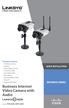 Package Contents 2300 Series Camera Stand Kit Power Supply (12V 1A) 6 Ethernet Cable Lens Adapter Ring Allen Wrench Quick Installation Guide Setup CD Antenna (WVC2300) Business Internet Video Camera with
Secure Perfect RAID Recovery Instructions
 Secure Perfect RAID Recovery Instructions Contents Overview Dell PowerEdge 2500 RAID Level 1 Recovery Instructions Overview NOTE If you possess a previous version of this document, you may notice changes
VOICE IMPROVEMENT PROCESSOR (VIP) BACKUP AND RECOVERY PROCEDURES - Draft Version 1.0
 VOICE IMPROVEMENT PROCESSOR (VIP) BACKUP AND RECOVERY PROCEDURES - Draft Version 1.0 This document contains the backup and recovery procedures for the NWR CRS VIP. These procedures shall be used by all
TANDBERG MANAGEMENT SUITE 10.0
 TANDBERG MANAGEMENT SUITE 10.0 Installation Manual Getting Started D12786 Rev.16 This document is not to be reproduced in whole or in part without permission in writing from: Contents INTRODUCTION 3 REQUIREMENTS
Plexxi Control Installation Guide Release 2.1.0
 Plexxi Control Installation Guide Release 2.1.0 702-20002-10 Rev 1.2 February 19, 2015 100 Innovative Way - Suite 3322 Nashua, NH 03062 Tel. +1.888.630.PLEX (7539) www.plexxi.com Notices The information
OUTDOOR IR NETWORK CAMERA Series
 OUTDOOR IR NETWORK CAMERA Series INSTALLATION GUIDE Please read instructions thoroughly before operation and retain it for future reference. 1. OVERVIEW 1.1 Package Content Network camera Installation
Plesk 11 Manual. Fasthosts Customer Support
 Fasthosts Customer Support Plesk 11 Manual This guide covers everything you need to know in order to get started with the Parallels Plesk 11 control panel. Contents Introduction... 3 Before you begin...
Installation Instruction STATISTICA Enterprise Small Business
 Installation Instruction STATISTICA Enterprise Small Business Notes: ❶ The installation of STATISTICA Enterprise Small Business entails two parts: a) a server installation, and b) workstation installations
JMC Next Generation Web-based Server Install and Setup
 JMC Next Generation Web-based Server Install and Setup This document will discuss the process to install and setup a JMC Next Generation Web-based Windows Server 2008 R2. These instructions also work for
ThinkServer RD540 and RD640 Operating System Installation Guide
 ThinkServer RD540 and RD640 Operating System Installation Guide Note: Before using this information and the product it supports, be sure to read and understand the Read Me First and Safety, Warranty, and
Navigating the Rescue Mode for Linux
 Navigating the Rescue Mode for Linux SUPPORT GUIDE DEDICATED SERVERS ABOUT THIS GUIDE This document will take you through the process of booting your Linux server into rescue mode to identify and fix the
Installation Guidelines (MySQL database & Archivists Toolkit client)
 Installation Guidelines (MySQL database & Archivists Toolkit client) Understanding the Toolkit Architecture The Archivists Toolkit requires both a client and database to function. The client is installed
3.5 EXTERNAL NETWORK HDD. User s Manual
 3.5 EXTERNAL NETWORK HDD User s Manual Table of Content Before You Use Key Features H/W Installation Illustration of Product LED Definition NETWORK HDD Assembly Setup the Network HDD Home Disk Utility
System Area Manager. Remote Management
 System Area Manager Remote Management Remote Management System Area Manager provides remote management functions for its managed systems, including Wake on LAN, Shutdown, Restart, Remote Console and for
AT&T Global Network Client v6.8.0 and Passport IP Setup Instructions for Broadband VPN Access
 AT&T Global Network Client v6.8.0 and Passport IP Setup Instructions for Broadband VPN Access October 19, 2006 1 Installing AT&T GNC 6.8.0 for Broadband VPN Access... 3 Getting Started... 3 License Agreement...
If you re not using Citrix XenCenter 6.0, your screens may vary. Required Virtual Interface Maps to... mgmt0. virtual network = mgmt0 wan0
 If you re not using Citrix XenCenter 6.0, your screens may vary. VXOA VIRTUAL APPLIANCES Citrix XenServer Hypervisor In-Line Deployment (Bridge Mode) 2012 Silver Peak Systems, Inc. Support Limitations
VMWare Workstation 11 Installation MICROSOFT WINDOWS SERVER 2008 R2 STANDARD ENTERPRISE ED.
 VMWare Workstation 11 Installation MICROSOFT WINDOWS SERVER 2008 R2 STANDARD ENTERPRISE ED. Starting Vmware Workstation Go to the start menu and start the VMware Workstation program. *If you are using
Apple Server Diagnostics User Guide. For Version 3X10⁶
 Apple Server Diagnostics User Guide For Version 3X10⁶ KKApple Inc. 2009 Apple Inc. All rights reserved. Under the copyright laws, this manual may not be copied, in whole or in part, without the written
AMD RAID Installation Guide
 AMD RAID Installation Guide 1. AMD BIOS RAID Installation Guide.. 2 1.1 Introduction to RAID.. 2 1.2 RAID Configurations Precautions 3 1.3 Installing Windows XP / XP 64-bit / Vista / Vista 64-bit With
Section 5: Installing the Print Driver
 Section 5: Installing the Print Driver In This Section Print Driver Installation for USB Connection Using the Ethernet Connection and a Crossover Cable Print Driver: The Epilog print driver is the software
StarWind iscsi SAN Software: Using StarWind with VMware ESX Server
 StarWind iscsi SAN Software: Using StarWind with VMware ESX Server www.starwindsoftware.com Copyright 2008-2010. All rights reserved. COPYRIGHT Copyright 2008-2010. All rights reserved. No part of this
Virtualization Technology (or how my Windows computer gave birth to a bunch of Linux computers)
 Virtualization Technology (or how my Windows computer gave birth to a bunch of Linux computers) The purpose of this document is to walk you through creating a Linux Virtual Machine (a guest Operating System)
SOS SO S O n O lin n e lin e Bac Ba kup cku ck p u USER MANUAL
 SOS Online Backup USER MANUAL HOW TO INSTALL THE SOFTWARE 1. Download the software from the website: http://www.sosonlinebackup.com/download_the_software.htm 2. Click Run to install when promoted, or alternatively,
White Paper. Fabasoft on Linux - Preparation Guide for Community ENTerprise Operating System. Fabasoft Folio 2015 Update Rollup 2
 White Paper Fabasoft on Linux - Preparation Guide for Community ENTerprise Operating System Fabasoft Folio 2015 Update Rollup 2 Copyright Fabasoft R&D GmbH, Linz, Austria, 2015. All rights reserved. All
To begin, visit this URL: http://www.ibm.com/software/rational/products/rdp
 Rational Developer for Power (RDp) Trial Download and Installation Instructions Notes You should complete the following instructions using Internet Explorer or Firefox with Java enabled. You should disable
Nexio Connectus with Nexio G-Scribe
 Nexio Connectus with Nexio G-Scribe 2.1.2 3/20/2014 Edition: A 2.1.2 Publication Information 2014 Imagine Communications. Proprietary and Confidential. Imagine Communications considers this document and
Install the SP350 Softphone
 Install the SP350 Softphone Installation of NEC SP350 softphone is to be completed after provisioning the product through the ITS Software Store. Once the softphone has been provisioned through the Software
MFC7840W Windows Network Connection Repair Instructions
 Difficulty printing from your PC can occur for various reasons. The most common reason a networked Brother machine may stop printing, is because the connection between the computer and the Brother machine
Test instructions & HW/SW specifications Contents
 Test instructions & HW/SW specifications Contents Test instructions... 1 Hardware/software constrains... 2 Test platform hardware specifications:... 2 Virtualization software... 2 Operating systems included
A+ Guide to Software: Managing, Maintaining, and Troubleshooting, 5e. Chapter 3 Installing Windows
 : Managing, Maintaining, and Troubleshooting, 5e Chapter 3 Installing Windows Objectives How to plan a Windows installation How to install Windows Vista How to install Windows XP How to install Windows
DSG SoftPhone & USB Phone Series User Guide
 DSG SoftPhone & USB Phone Series User Guide Table of Contents Overview Before You Start Installation Step 1. Installing DSG SoftPhone Step 2. Installing USB Phone Step 3. System Check First Time Use Step
Topaz Installation Sheet
 Topaz Installation Sheet P/N 460924001E ISS 08FEB12 Content Introduction... 3 Recommended minimum requirements... 3 Setup for Internet Explorer:... 4 Topaz installation... 10 Technical support... 14 Copyright