
LaCie d2 Quadra Hard Drive USB 2.0 FireWire 400 FireWire 800 esata
|
|
|
- Myron Ray
- 9 years ago
- Views:
Transcription
1 Hard Drive USB 2.0 FireWire 400 FireWire 800 esata user manual manuel utilisateur guída utente handbuch 用 户 手 册 manual de instrucciones gebruikershandleiding ユーザー マニュアル 용자 설명서

2 Quadruple Interface Hard Drive Table of Contents page Table of Contents Health and Safety Precautions 3 General Use Precautions 3 1. Introduction To The LaCie d2 Quadra Hard Drive Hard Drive Heat Management 6 2. Your LaCie d2 Quadra Hard Drive Minimum System Requirements Package Content Views Of The Drive Cables and Connectors Installing Your LaCie d2 Quadra Hard Drive Connecting the Power Supply a. Connecting the USB 2.0 Interface Cable b. Connecting the FireWire 400 Interface Cable c. Connecting the FireWire 800 Interface Cable d. Connecting the esata Interface Cable Connecting Multiple Devices Disconnecting Your LaCie d2 Quadra Hard Drive Switching Interfaces LaCie Shortcut Button Helpful Information Formatting and Partitioning Your LaCie d2 Quadra Hard Drive Interface Comparisons FireWire Questions & Answers USB Questions & Answers esata Questions & Answers Troubleshooting Mac Users Windows Users Contacting Customer Support LaCie Technical Support Contacts Warranty Information 48 Glossary 49

3 Quadruple Interface Hard Drive Forward page Copyrights Copyright 2007 LaCie. All rights reserved. No part of this publication may be reproduced, stored in a retrieval system, or transmitted in any form or by any means, electronic, mechanical, photocopying, recording or otherwise, without the prior written consent of LaCie. Trademarks Apple, Mac, and Macintosh are registered trademarks of Apple Computer, Inc. Microsoft, Windows 98, Windows 98 SE, Windows 2000, Windows Millennium Edition and Windows XP are registered trademarks of Microsoft Corporation. Other trademarks mentioned in this manual are the property of their respective owners. Changes The material in this document is for information only and subject to change without notice. While reasonable efforts have been made in the preparation of this document to assure its accuracy, LaCie assumes no liability resulting from errors or omissions in this document, or from the use of the information contained herein. LaCie reserves the right to make changes or revisions in the product design or the product manual without reservation and without obligation to notify any person of such revisions and changes. Canada Compliance Statement This Class A digital apparatus meets all requirements of the Canadian Interference-Causing Equipment Regulations. FCC Statement This device complies with Part 15 of the FCC Rules. Operation is subject to the following conditions: LaCie d2 Quadra Hard Drive Tested To Comply With FCC standards For Home or Office Use The devices may not cause harmful interference The devices must accept any interference received, including interference that may cause undesired operation. NOTE: This equipment has been tested and found to comply with the limits for a Class B digital device, pursuant to Part 15 of the FCC Rules. These limits are designed to provide reasonable protection against harmful interference in a residential installation. This equipment generates, uses and can radiate radio frequency energy and, if not installed and used in accordance with the instructions, may cause harmful interference to radio communications. However, there is no guarantee that interference will not occur in a particular installation. If this equipment does cause harmful interference to radio or television reception, which can be determined by turning the equipment off and on, the user is encouraged to try and correct the interference by one or more of the following measures: Reorient or relocate the receiving antenna. Increase the separation between the equipment and receiver. Connect the equipment into an outlet on a circuit different from that to which the receiver is connected. Consult the dealer or an experienced radio/tv technician for help. Modifications to this product not authorized by LaCie could void the FCC & Industry Canada regulations and negate your authority to operate the product. CAUTION: Modifications not authorized by the manufacturer may void the user s authority to operate this device. Manufacturer s Declaration for CE Certification We, LaCie, solemnly declare that this product conforms to the following European standards: Class B EN60950, EN55022, EN55024 With reference to the following conditions: 73/23/EEC Low Voltage Directive; 89/336/EEC EMC Directive

4 Quadruple Interface Hard Drive Forward page This symbol on the product or on its packaging indicates that this product must not be disposed of with your other household waste. Instead, it is your responsibility to dispose of your waste equipment by handing it over to a designed collection point for the recycling of waste electrical and electronic equipment. The separate collection and recycling of your waste equipment at the time of disposal will help to conserve natural resources and ensure that it is recycled in a manner that protects human health and the environment. For more information about where you can drop off your waste equipment for recycling, please contact your local city office, your household waste disposal service, or the shop where you purchased the product. CAUTION: The LaCie d2 Quadra Hard drive's warranty may be void as a result of the failure to respect the precautions listed above. Health and Safety Precautions Only qualified persons are authorized to carry out maintenance on this device. Read this User Manual carefully and follow the correct procedure when setting up the device. Do not open your LaCie d2 Quadra Hard Drive or attempt to disassemble or modify it. Never insert any metallic object into the drive to avoid any risk of electrical shock, fire, short-circuiting or dangerous emissions. Your LaCie d2 Quadra Hard Drive contains no user-serviceable parts. If it appears to be malfunctioning, have it inspected by a qualified LaCie Technical Support representative. Never expose your device to rain, or use it near water, or in damp or wet conditions. Never place objects containing liquids on the LaCie d2 Quadra Hard Drive, as they may spill into its openings. Doing so increases the risk of electrical shock, short-circuiting, fire or personal injury. Make sure that the computer and LaCie d2 Quadra Hard Drive are electrically grounded. If the devices are not grounded, there is an increased risk of electrical shock. Power requirements V~, 1.5 A, Hz, (Supply voltage fluctuations not exceeding ± 10% of the nominal, transient over-voltages according to over-voltage category II). General Use Precautions Do not expose the LaCie d2 Quadra Hard Drive to temperatures outside the range of 5 C to 35 C (41 F to 95 F); or to operational humidity beyond 5-80%, non-condensing, or non-operating humidity beyond of heat or exposing it to sunlight (even through a window). Inversely, placing your LaCie d2 Quadra Hard Drive in an environment that is too cold or humid may damage the unit %, non-condensing. Doing so Always unplug the LaCie d2 Quadra may damage the LaCie d2 Quadra Hard Drive from the electrical outlet if there is a risk of lightning or Hard Drive or disfigure its casing. Avoid placing your LaCie d2 if it will be unused for an extended Quadra Hard Drive near a source period of time. Otherwise, there is an increased risk of electrical shock, short-circuiting or fire. Use only the power supply shipped with the device. Do not use the LaCie d2 Quadra Hard Drive near other electrical appliances such as televisions or radios. Doing so may cause interference which will adversely affect the operation of the other products.

5 Quadruple Interface Hard Drive Forward page Do not place the LaCie d2 Quadra Do not place heavy objects on top of Hard Drive near sources of magnetic interference, such as computer the LaCie d2 Quadra Hard Drive or use excessive force on it. displays, televisions or speakers. Never use excessive force on your Magnetic interference can affect LaCie d2 Quadra Hard Drive. If the operation and stability of your you detect a problem, see the Troubleshooting section in this LaCie d2 Quadra Hard Drive. manual. CAUTION: A shielded-type power cord is required in order to meet FCC emission limits and also to prevent interference to the nearby radio and television reception. It is essential that only the supplied power cord be used. Important Info: 1GB = 1,000,000,000 bytes. 1TB = 1,000,000,000,000 bytes. Once formatted, the actual available storage capacity varies depending on operating environment (typically 5-10% less). Important Info: Any loss, corruption or destruction of data while using a LaCie drive is the sole responsibility of the user, and under no circumstances will LaCie be held liable for the recovery or restoration of this data. To help prevent the loss of your data, LaCie highly recommends that you keep TWO copies of your data; one copy on your external hard drive, for instance, and a second copy either on your internal hard drive, another external hard drive or some other form of removable storage media. LaCie offers a complete line of CD and DVD drives. If you would like more information on backup, please refer to our website.

6 Quadruple Interface Hard Drive Introduction page 1. Introduction To The LaCie d2 Quadra Hard Drive Thank you for purchasing the new LaCie d2 Quadra with Quadruple Interface. Combining compatibility with high throughput rates and mammoth storage capacity, the Quadra is ideally suited for audio/video pros working with large amounts of DV and SD video or professional level 2D/3D imaging projects, or high speed data backup. With its four interfaces, the Quadra Hard Drive is universally compatible with almost any computer and can be daisy-chained with peripherals or expanded via FireWire. Engineered to fit seamlessly in to any work environment, the LaCie d2 Quadra Hard Drive with Quadruple Interface can be stood vertically on the LaCie Drive Stand (included), placed in the LaCie Desk Rack (sold separately) or incorporated into standard 19 computer equipment racks with the LaCie Rackmount Kit (sold separately). Your Quadra Hard Drive Capabilities USB 2.0, FireWire 400, FireWire 800, esata interfaces Interface transfer rate of up to 1.5 Gbits/s via esata Daisy-chain digital video cameras directly to the drive Connects to all of the FireWire and USB standard interfaces Back up your computer s internal hard drive Store and exchange data between several computers

7 Quadruple Interface Hard Drive Introduction page 1.1. Hard Drive Heat Management Heat Dissipation Design The LaCie d2 Quadra Hard Drive s metal body is ideal for naturally dissipating internal drive heat. Its unique design actually draws heat away from the internal drive toward the external casing. The casing absorbs heat and will take advantage of its large surface to further dissipate heat outside the casing. Because of this advantageous feature, heat is taken away from the internal drive, keeping it safe and prolonging its life and reliability. As a consequence, it is normal that the external casing is hot to the touch. Please make sure that the vents of the back-bezel and front-bezel are not obstructed so that there is a natural airflow across the casing. Upright, Stack & Rackmount Configuration Heat dissipation is maximized when the drive is in the upright position (1). If you have several LaCie drives stacked on each other, please remember to attach the included rubber feet on the under side of your drives (2). This will allow for some airflow between your drives so that the heat dissipation can work effectively - especially if your LaCie drive does not include a fan. LaCie does not recommend stacking or racking more than 3 d2 drives on top of each other (3), especially if these drives are turned ON simultaneously. 1 2 Smart Fan Technology The casing alone is a great way to dissipate heat without the need of a fan. Therefore, currently, most drives do not require a fan. Only the largest capacity drives may need a fan. To find out if your drive includes a fan, please refer to the item number and product datasheet. Some models of the d2 Quadra Hard Drive have a thermo-regulated smart fan, which activates when the heat inside the casing reaches a certain temperature. The smart fan adjusts automatically to changes in temperature. 3

8 Quadruple Interface Hard Drive Your LaCie d2 Quadra Hard Drive page 2. Your LaCie d2 Quadra Hard Drive 2.1. Minimum System Requirements Windows Users esata*, FireWire 800*, FireWire 400 or USB 2.0 port Windows 2000, Windows XP or later 500MHz processor or higher Minimum 128MB RAM (512MB recommended) Mac Users esata*, FireWire 800*, FireWire 400 or USB 2.0 port Mac OS (Mac OS 10.3 for esata) or later G4, G5, Intel 500MHz processor or higher Minimum 128MB RAM (512MB recommended) * Most computers do not come from the factory with FireWire 800 or esata ports, so you may need to purchase a PCI, PCI-X or PCI-Express card to be able to connect your d2 Quadra via these interfaces. LaCie offers a wide selection of esata and FireWire 800 cards. Visit the LaCie website at Important Info: The LaCie d2 Quadra is compatible with the Intel Core processors. Technical note: The LaCie Shortcut Button is not compatible with esata. To use the Shortcut Button, connect your LaCie hard drive to your computer via USB or FireWire.

9 (Windows and Mac OS compatible) LaCie User Manuals LaCie 1-Click Backup Software (Windows XP/2000, Mac OS X) Silverkeeper backup software (Mac OS 9 & OS X) Silverlining Pro Utilities (Mac OS 9) LaCie logo USB 2.0, FireWire 400, FireWire 800 & esata Launch any application with one easy push Windows: EMC Retrospect Express HD 2.0 with Shortcut Button for Windows XP, Windows 2000 Mac: EMC Retrospect Express HD with Shortcut Button for Mac OS or higher SATA SATA LaCie d2 Quadra Quadruple Interface Hard Drive Your LaCie d2 Quadra Hard Drive page 2.2. Package Content Your LaCie d2 Quadra Hard Drive should contain the following: 1 LaCie d2 Quadra Hard Drive 1 w 4 2 Vertical stand kit Power supply kit Hi-Speed USB 2.0 cable FireWire to-6-pin cable 6 esata-to-esata cable 6 7 FireWire to-9-pin cable 8 d2 Storage Utilities version LaCie Shortcut Button 8 LaCie Storage Utilities CD-ROM (includes User Manual) 2007, LaCie. All rights reserved. LaCie and the are trademarks of LaCie, which may be registered in some jurisdictions LaCie, all rights reserved. LaCie and the LaCie logo are trademarks of LaCie which may be registered in some jurisdictions LaCie Shortcut Button CD-ROM 10 LaCie d2 Quadra Hard Drive 10 Quick Install Guide Quick Install Guide Important Info: Please save your packaging. In the event that the drive should need to be repaired or serviced, it must be returned in its original packaging.

10 Quadruple Interface Hard Drive Your LaCie d2 Quadra Hard Drive page 2.3. Views Of The Drive Front View 1 1 Shortcut Button with Activity LED Push the Shortcut Button to launch the document or application of your choice (see section 3.6, LaCie Shortcut Button for more information). The LED remains lit to show that the drive is on, and blinks to indicate drive activity.

11 Your LaCie d2 Quadra Hard Drive Quadruple Interface Hard Drive page 10 Rear View 1 WARRANTY VOID IF SEAL BROKEN. FW4OO FW8OO FW8OO USB 2.O off 2! esata auto on Lock Slot - This slot is used to connect an antitheft chain lock, such as a Kensington security lock*, for maximum protection. 2 Rackmount Grooves - These grooves are used for attaching your drive to the Drive Stand, mounting in the Desk Rack kit (sold separately) or placing your drive in standard 19 computer equipment racks using the LaCie Rackmount Kit (sold separately). 3 On/Off/Auto Power Switch - The auto position allows the drive to be powered on and off automatically with your computer (works with FireWire and USB connections only). This feature also allows the drive to manage power consumption. If the system s power fan supports it, the LaCie d2 Quadra will spin down while in power save mode. The d2 Quadra will then take several seconds to spin up to full power. 5 Hi-Speed USB 2.0 Port - This is where you plug in the Hi-Speed USB 2.0 cable furnished with the drive. See page 16, Connecting the Interface Cable for more information. 6 FireWire 800 Ports - This is where you plug in the FireWire 800 cable furnished with the drive. See page 18, Connecting the Interface Cable for more information. 7 FireWire 400 Port - This is where you plug in the FireWire 400 cable furnished with the drive. See page 17, Connecting the Interface Cable for more information. 8 Power Supply Connection - This is where you plug in the AC adapter supplied with the drive. See page 15, Connecting The Power Supply for more information. 4 esata Port - This is where you plug in the esata cable furnished with the drive. See page 19, Connecting the Interface Cable for more information. * Kensington 2006 Kensington Computer Products Group

12 Your LaCie d2 Quadra Hard Drive Quadruple Interface Hard Drive page Cables and Connectors FireWire 400 & FireWire 800 FireWire 400, also known as IEEE 1394, is a highspeed serial input/output technology for connecting peripheral devices to a computer or to each other, and FireWire 800 is the implementation of the new IEEE 1394b standard. FireWire 800 offers increased bandwidth and extended distance between devices. FireWire 800 is ideal for bandwidth-intensive applications, such as audio, video and graphics. Please see page 35, FireWire Questions And Answers for more information on FireWire. FireWire 800 Benefits Resourceful architecture: FireWire 800 reduces delays in arbitration and signal distortion, and increases throughput. Backwards compatibility: adapter cables allow FireWire 400 devices to operate under the FireWire 800 port (at FireWire 400 speed). FireWire 400 & FireWire 800 Benefits FireWire Icons Theses icons will help you easily identify the FireWire interface. They appear on FireWire cables, and next to the FireWire port connectors on certain computers. Hot-pluggable: devices can be added and removed while the bus is active. Isochronous data delivery: no dropped frames FireWire supports real-time data delivery. Flexible: up to 63 devices can be connected on a single bus. FireWire 800 Cable and Cable End FireWire icon ilink icon DV icon FireWire Cables There are two categories of FireWire cables on the market: FireWire 800 cables, which feature the 9-to-9- pin, 9-to-6-pin, and 9-to-4-pin cables; and the original FireWire cables which feature the 6-to-6-pin and 6-to- 4-pin cables. FireWire 400 Cable and Cable End ilink/dv Cable and Cable End (Sold separately) For more information on the differences between the d2 Quadra s interfaces, see chapter 4.2. Interface Comparison.

13 Your LaCie d2 Quadra Hard Drive Quadruple Interface Hard Drive page 12 Hi-Speed USB 2.0 USB is a serial input/output technology for connecting peripheral devices to a computer or to each other. Hi-Speed USB 2.0 is the latest implementation of this standard, and it provides the necessary bandwidth and data transfer rates to support high speed devices such as hard drives, CD/DVD drives and digital cameras. Please see page 37, USB Questions And Answers for more information on USB s uses and capabilities. Hi-Speed USB 2.0 Benefits Backwards compatibility: Hi-Speed USB 2.0 works with the original USB specifications. Hot-swappable: no need to shut down or restart your computer when adding or removing devices. USB Icons These icons will help you easily identify the USB interfaces. They appear on USB cables and next to the USB port connectors on certain computers. USB 2.0 icon USB 1.1 icon USB 2.0 Cables Your LaCie drive is shipped with a Hi-Speed USB 2.0 cable, to ensure maximum data transfer performance when connected to a Hi-Speed USB 2.0 port. The cable will also work when connected to a USB port, but drive performance will be limited to USB 1.1 transfer rates. USB 2.0 Cable and Cable End For more information on the differences between the d2 Quadra s interfaces, see chapter 4.2. Interface Comparison.

14 Your LaCie d2 Quadra Hard Drive Quadruple Interface Hard Drive page 13 esata Your LaCie d2 Quadra Hard Drive uses the latest in SATA technology, allowing interface (or bus) transfer rates of up to 1.5 Gbits/s. SATA technology was originally developed to serve as an internal interface, delivering improved performance to internal connections. Soon after, esata, or external SATA was developed, allowing for the use of shielded cables outside the PC. esata technology was developed to be rugged and durable. esata connectors do not have the L shaped design of other SATA connectors. In addition, the guide features are vertically offset and reduced in size to prevent the use of unshielded internal cables in external applications. Please see page 39, esata Questions And Answers for more information on esata s uses and capabilities. External SATA (esata) Benefits esata interface can achieve up to 1.5 Gbits/s transfer rate Plug orientation An extrusion on the outside of the connector helps guide and align the connector during insertion. Hot-plug support esata enables adding and removing a drive without having to power down the system or reboot. Utilizing staggered pins to aid insertion, the specification ensures device detection and passive and active limits to in-rush current. esata Icons These icons will help you easily identify the esata interfaces. They appear on esata cables and next to the esata port connectors on certain computers. esata 1.5 Gbits/s icon esata Cables Your LaCie drive is shipped with a esata cable, to ensure maximum data transfer performance when connected to a esata port. Technical note: You can connect your d2 Quadra to a first-generation SATA PCI card interface. However, you will need a SATA-to-eSATA cable (not included). esata Cable and Cable End SATA SATA For more information on the differences between the d2 Quadra s interfaces, see chapter 4.2. Interface Comparison.

15 Installing Your LaCie Hard Drive Quadruple Interface Hard Drive page Installing Your LaCie d2 Quadra Hard Drive There are two parts to connecting and turning on your LaCie d2 Quadra: 1) connect the power supply to the drive and to an outlet, and 2) connecting an interface cable to the drive and to your computer In about five minutes, you should be able to access your new hard drive to back up data and to transfer files between computers and other peripherals. Thanks to its support of four different interfaces and its support of both the Mac and Windows operating system, the LaCie d2 Quadra Hard Drive gives you many connectivity options. These steps are divided into sections by operating system (Mac or Windows) and the type of interface cable (FireWire 800, FireWire 400, esata and Hi-Speed USB 2.0). This chapter also has helpful information about connecting digital video cameras to the LaCie drive, connecting multiple devices and special steps that need to be followed when disconnecting the drive or switching between the different interfaces. Important Info: You cannot have the FireWire, USB, or esata interfaces connected at the same time. If you would like to switch between interfaces, you must follow the steps on page 21, Switching Interfaces. Technical note: If you plan to use your drive in a cross-platform (Mac/Windows) environment, consider reformatting the drive to the MS-DOS (also known as FAT 32) File System format. See page 30 for more details. Step 1 Connecting the Power Supply Page 15 Step 2 Connecting the USB 2.0 Cable Page 16 Connecting the FireWire 400 Cables Page 17 Connecting the FireWire 800 Cables Page 18 Connecting the esata Cable Page 19 Connecting Multiple Devices Page 20 CAUTION: Your LaCie d2 Quadra relies on its aluminum alloy casing to help dissipate heat. Make sure to place your drive in a well ventilated space, do not block the ventilation outlet on the back of the drive and keep the area in front of the drive unobstructed to allow for proper airflow.

16 Installing Your LaCie Hard Drive Quadruple Interface Hard Drive page Connecting the Power Supply The power supply kit is composed of two cables: one cable (A) connects to the LaCie drive; and the other cable (B) connects to a power outlet, such as a wall outlet or a surge protector. A B FW4OO FW8OO FW8OO USB 2.O esata off auto on C Connect Cable A to your LaCie Drive. Connect Cable B to the Power supply brick (C). Connect Cable B to a surge protector or wall outlet. 4. On the back of the drive, turn on the drive by flipping the power switch to ON or AUTO (drive powers on/hibernates automatically; available only for USB/FireWire connections). CAUTION: Only use the AC adapter supplied with your specific LaCie drive. Do not use a power supply from another LaCie drive or another manufacturer. Using any other power cable or power supply may cause damage to the device and void your warranty. Always remove the AC adapter before transporting your LaCie drive. Failure to remove the adapter may result in damage to your drive and will void your warranty. Technical note: If you are using the LaCie Serial ATA PCI Card to connect your LaCie d2 Quadra Hard Drive to your computer, you can draw power from the PCI card to operate your hard drive. Please refer to the LaCie Serial ATA PCI Card User Manual for guidelines and instructions. Technical note: On/Off/Auto Power Switch: The AUTO position allows the drive to be powered on and off automatically with your computer (works with USB and FireWire connection only). If the system s power fan supports it, the LaCie d2 Quadra will spin down while in the power save mode. The d2 Quadra will then take several seconds to spin up to full power. Use this position when energy efficiency and quiet drive operation are priorities. The ON position is ideal for network configurations and allows quick access to your data. You must use the On switch to power on your drive when connected via esata. The OFF position is ideal for protecting your d2 Quadra against viruses. The Off mode also isolates your hard drive from incorrect operation, protecting your data when your d2 Quadra is not in use.

17 Installing Your LaCie Hard Drive Quadruple Interface Hard Drive page a. Connecting the USB 2.0 Interface Cable Connect the Power supply cable (page 15) and turn on the LaCie d2 Quadra Hard Drive by flipping the power switch to ON or AUTO (drive powers on/ hibernates automatically; available only for USB/ FireWire connections). Connect the Hi-Speed USB 2.0 cable into the Hi- Speed USB 2.0 port on the back of the LaCie d2 Quadra Hard Drive (A). Technical note: To achieve Hi-Speed USB 2.0 transfer rates, you have to be connected to a Hi-Speed USB 2.0 port on your computer. Otherwise, you will be limited to USB 1.1 data transfer rates. 3. Attach the other end of the interface cable to an available USB port on your computer (B). FW4OO FW8OO FW8OO USB 2.O A esata off auto on B 4.Windows Users: You must format the drive before it will mount in your My Computer folder. See page 31, Formatting and Partitioning Your LaCie d2 Quadra Hard Drive, for more details. Mac Users: The drive is pre-formatted for Mac use and should appear on your desktop. Technical note: For more information on USB connections, see the following pages: Page 11, Cables and Connectors Page 37, USB Questions & Answers

18 Installing Your LaCie Hard Drive Quadruple Interface Hard Drive page b. Connecting the FireWire 400 Interface Cable 1. Connect the power supply cable (page 15) and turn on the LaCie d2 Quadra Hard Drive by flipping the power switch to ON or AUTO (drive powers on/ hibernates automatically; available only for USB/ FireWire connections). Technical note: For information on daisy-chaining using the FireWire interface, see page 20, Connecting Multiple Devices Connect the FireWire 400 cable into the FireWire 400 port on the back of the LaCie d2 Quadra Hard Drive (A). Attach the other end of the interface cable to an available FireWire 400 port on your computer (B). A FW4OO FW8OO FW8OO USB 2.O esata off auto on B 4.Windows Users: You must format the drive before it will mount in your My Computer folder. See page 31, Formatting and Partitioning Your LaCie d2 Quadra Hard Drive, for more details. Mac Users: The drive is pre-formatted for Mac use and should appear on your desktop. Technical note: For more information on FireWire connections, see the following pages: Page 11, Cables and Connectors Page 35, FireWire Questions & Answers

19 Installing Your LaCie Hard Drive Quadruple Interface Hard Drive page c. Connecting the FireWire 800 Interface Cable 1. Connect the power supply cable (page 15) and turn on the LaCie d2 Quadra Hard Drive by flipping the power switch to ON or AUTO (drive powers on/ hibernates automatically; available only for USB/ FireWire connections). Technical note: For information on daisy-chaining using the FireWire interface, see page 20, Connecting Multiple Devices Connect the FireWire 800 cable into the FireWire 800 port on the back of the LaCie d2 Quadra Hard Drive (A). Attach the other end of the interface cable to an available FireWire 800 port on your computer (B). FW4OO FW8OO FW8OO A USB 2.O esata off auto B on 4.Windows Users: You must format the drive before it will mount in your My Computer folder. See page 31, Formatting and Partitioning Your LaCie d2 Quadra Hard Drive, for more details. Mac Users: The drive is pre-formatted for Mac use and should appear on your desktop. Technical note: For more information on FireWire connections, see the following pages: Page 12, Cables and Connectors Page 35, FireWire Questions & Answers

20 Installing Your LaCie Hard Drive Quadruple Interface Hard Drive page d. Connecting the esata Interface Cable Connect the power supply cable (page 15) and turn on the LaCie d2 Quadra Hard Drive by flipping the power switch to ON (the AUTO position is available only for USB/FireWire connections). If you plan to connect the esata interface cable to a LaCie esata PCI-X card port, make sure that the card has been installed completely and correctly. Refer to the card s User Manual for details. Connect the esata cable into the esata port on the back of the LaCie d2 Quadra Hard Drive (A). Attach the other end of the interface cable to an available esata port on your computer (B). B FW4OO FW8OO FW8OO USB 2.O esata A off auto on 4.Windows Users: You must format the drive before it will mount in your My Computer folder. See page 31, Formatting and Partitioning Your LaCie d2 Quadra Hard Drive, for more details. Mac Users: The drive is pre-formatted for Mac use and should appear on your desktop. Technical note: For more information on esata connections, see the following pages: Page 13, Cables and Connectors Page 39, esata Questions & Answers

21 Installing Your LaCie Hard Drive Quadruple Interface Hard Drive page Connecting Multiple Devices With both FireWire 400 and FireWire 800 interfaces, it is possible to connect another hard drive or digital video camera directly to the LaCie d2 Quadra (this connection is called daisy-chaining ). To daisy-chain devices, you must be using the same interface (FireWire). Your computer will not recognize the daisy-chained device if the interfaces are mixed, i.e. a FireWire device attached to a drive that is connected to the computer via the Hi-Speed USB 2.0 interface. 1. Connect your LaCie d2 Quadra s power supply and host computer interface by following the steps on page 15 and on 17 (FireWire 400) or 18 (FireWire 800) (A/B). 2. To attach a digital video camera*: a. Using the ilink/dv cable (sold separately), connect the 4-pin end of the cable to the 4-pin port on your digital camera. b. Connect the 6-pin end of the ilink/dv cable to the 6-pin FireWire port on the back of the LaCie Hard drive (C). To attach a FireWire peripheral: a. Connect the FireWire 400 or 800 cable into an available FireWire 400 or 800 port on your FireWire peripheral. b. Attach the other end of the FireWire 400 or 800 cable to an available FireWire 400 or 800 port on the LaCie d2 Quadra (C). 3. The digital camera should now appear under My Computer (Windows users) or on the desktop (Mac users). Important Info: You can not have the FireWire and USB interfaces connected at the same time. If you would like to switch between interfaces, you must follow the steps on page 21, Switching Interfaces. Daisy-Chain Configurations FireWire 400 device connected directly to the LaCie d2 Quadra, which is connected to the computer via the FireWire 800 port. ilink/dv device connected directly to the LaCie d2 Quadra, which is connected to the computer via the FireWire 800 port. FireWire 800 device connected directly to the LaCie d2 Quadra, which is connected to the computer via the FireWire 800 port. Technical note: When you daisy-chain using a mix of interfaces (FireWire 400 and FireWire 800) the resultant speed will be limited to the lowest common denominator (FireWire 400 speeds). * Some cameras do not support this configuration or may downgrade your LaCie d2 Quadra s performance A FW4OO FW8OO FW8OO USB 2.O esata off auto on B C
22 Installing Your LaCie Hard Drive Quadruple Interface Hard Drive page Disconnecting Your LaCie d2 Quadra Hard Drive FireWire, esata and USB external devices feature plug & play connectivity, which means that your drive can be connected and disconnected while the computer is running. To prevent failures, however, it is important you follow these steps when disconnecting your LaCie d2 Quadra. Windows Users Mac Users From the System Tray (located in the lower right-hand side of your screen), click the Eject icon (a small green arrow over a hardware image). A message will appear, detailing the devices that the Eject icon controls, i.e. Safely remove.... Click on this prompt. You will be then given this message: Safe to Remove Hardware (or similar). It is now safe to disconnect the device Drag the hard drive icon to the trash. The drive can now be disconnected Switching Interfaces FireWire, esata and USB external devices feature plug & play connectivity, which means that your drive can be connected and disconnected while the computer is running. To prevent failures, however, it is important to unmount your drive before switching interfaces. See chapter 3.4. Disconnecting Your LaCie d2 Quadra Hard Drive, for the unmounting procedure.
23 LaCie Shortcut Button Quadruple Interface Hard Drive page LaCie Shortcut Button The LaCie Shortcut Button allows you to use your LaCie hard drive to perform a variety of automated tasks on your computer. Instantly back up your work files with EMC Retrospect Express, open a family budget spreadsheet, or launch your most commonlyused applications simply by pushing the blue button on the front of your drive. LaCie Shortcut Button will help you to customize the Button to perform the action of your choice. Setup is easy just install the software and push the Button on your LaCie hard drive to set up the button action. Technical note: esata bus is not compatible with LaCie Shortcut Button. To use LaCie Shortcut Button, connect your LaCie hard drive to your computer via USB or FireWire. Important Info: For instructions on using EMC Retrospect Express, please see the EMC Retrospect Express user manual, installed with the application Software Installation To install LaCie Shortcut Button and EMC Retrospect Express: 1. Insert the installation CD into your computer s CD-ROM drive. 2. Double-click the CD icon. 3. Follow the on-screen instructions. Technical note: EMC Retrospect Express and LaCie Shorcut Button must be uninstalled separately. Uninstalling EMC Retrospect Express does not uninstall LaCie Shortcut Button. Mac Users EMC Retrospect Express is installed in the Applications folder. LaCie Shortcut Button appears in System Preferences (see section 3.6.3, Changing Button Settings). Windows Users Technical note: esata bus is not compatible with LaCie Shortcut Button. To use LaCie Shortcut EMC Button, Retrospect connect Express your LaCie is installed hard drive in to your C:/Program computer Files. via USB or FireWire. LaCie Shortcut Button appears in the Control Panel (see section 3.6.3, Changing Button Settings).
24 LaCie Shortcut Button Quadruple Interface Hard Drive page Setup You can set up the Button to automatically back up data from your computer to your LaCie hard drive or to perform a custom action. 1. Make sure your LaCie hard drive is connected to your computer and turned on and then push the button on the front of the drive. The LaCie Shortcut Button Welcome screen appears. Click OK. Important Info: Pushing the button launches setup only once. After setup, pushing the button will launch the action you specify in setup. 2. The LaCie Shortcut Button main window opens. See Fig A (Mac) and B (Windows). Mac Interface Windows Interface Fig A Fig B Drive List Displays all compatible LaCie drives currently connected to your computer. Settings and Information Displays and modifies LaCie Shortcut Button preferences for the selected drive. Also displays drive information. Show in system tray Check this box to display the LaCie Shortcut Button icon in the system tray (Windows only).
25 LaCie Shortcut Button Quadruple Interface Hard Drive page 24 Set up EMC Retrospect Express Select the drive you want to modify from the drive list. EMC Retrospect Express is selected by default. Click OK. See A in Fig C and D. Important Info: Please consult the EMC Retrospect Express user manual for informations on creating and modifying backups. 5. EMC Retrospect Express launches. Use EMC Retrospect Express to make settings for the backup you want to perform each time you push the LaCie Button. After you have configured EMC Retrospect Express, each time you push the Button, EMC Retrospect Express will automatically perform the backup operation specified in setup. To change the backup operation, launch EMC Retrospect Express and change settings. Set up a Custom Action 3. Select the drive you want to modify from the drive list. Fig C To use a custom action, click the Please choose a custom action... radio button. See B in Fig C and D. Click the Choose... button and navigate to the application, document or script you want to launch with the Button. Click Open. 6. A new icon and name are displayed for the selected application, document or script. Click Apply. Click OK. Fig D Disable the Button Select the drive you want to modify from the drive list. To disable the Button for this drive, select No action. See C in Fig C amd D. Windows users, if the system tray icon is activated, the alert in Fig E will appear when the button is pushed. Fig E
26 LaCie Shortcut Button Quadruple Interface Hard Drive page Changing Button Settings Mac Users To change the action assigned to a Button, open LaCie Shortcut Button by clicking on the LaCie Shortcut Button icon in System Preferences (Apple Menu > System Preferences ). See Fig A. Select the Settings tab and follow the instructions in section beginning with step 3 of the type of action you want to activate. Fig A Windows Users To change the action assigned to a Button, open LaCie Shortcut Button by clicking on the LaCie Shortcut Button icon in the Control Panel (Start > Settings > Control Panel). See Fig B. Select the Settings tab and follow the instructions in section beginning with step 3 of the type of action you want to activate. Fig B

27 LaCie Shortcut Button Quadruple Interface Hard Drive page Drive Detection At launch, LaCie Shortcut Button will search for LaCie Shortcut Button-compatible drives and display them in the drive list. See A in Fig A (Mac) and B (Windows). If no drives can be detected on the USB or FireWire bus, the list will display No drives connected. See B in Fig A (Mac) and B (Windows). Check your drive s connections and make sure it is turned on. If the problem persists, see section 4, Troubleshooting. Technical note: esata bus is not compatible with LaCie Shortcut Button. To use LaCie Shortcut Button, connect your LaCie hard drive to your computer via USB or FireWire. Fig A Fig B
28 LaCie Shortcut Button Quadruple Interface Hard Drive page 27 Windows Connection Alerts Windows Users Only: The LaCie Shortcut Button icon in the system tray displays a connection message when a button-enabled LaCie drive is connected or disconnected from the computer. See Fig C. To remove the LaCie Shortcut Button icon from the system tray, uncheck the Show in system tray check box on the LaCie Shortcut Button main window. See Fig D. Fig C Fig D

29 LaCie Shortcut Button Quadruple Interface Hard Drive page Information The Information tab of LaCie Shortcut Button displays basic details of the drive selected in the drive list. Items on the Information tab are not editable. See Fig A (Mac) and B (Windows). Fig A Fig B Updates The software version number of the LaCie Shortcut Button is displayed below the drive list. To search for new updates, go to Fig
30 LaCie Shortcut Button Quadruple Interface Hard Drive page Troubleshooting Mac Problem Drive is connected, but No drives connected message appears in the drive list. Nothing happens when the button is pushed. The action [ action name ] can t be launched error message when the button is pushed. Solution Check both ends of the FireWire or USB cable to make sure they are fully seated in their respective ports. Try disconnecting the cables, waiting 10 seconds, and then reconnecting them. If the drive is still not recognized, restart your computer and try again. NOTE: esata bus is not compatible with LaCie Shortcut Button. To use LaCie Shortcut Button, connect your LaCie hard drive to your computer via USB or FireWire. Make sure the drive is connected to your computer. See above. Launch LaCie Shortcut Button from System Preferences. Make sure the drive appears in the drive list. Make sure that the No action button is off. If it is on, select the EMC Retrospect Express action or a custom action. If the application, document or script you defined as the custom action has been moved from its location at the time you defined the action, LaCie Shortcut Button will not be able to locate or launch it. Either redefine the action by clicking Choose... to select the application, document or script in its new location or return it to its original location Troubleshooting Windows Problem Drive is connected, but No drives connected message appears in the drive list. Nothing happens when the button is pushed. File not found. Renew custom action selection. error message when the button is pushed. Solution Check both ends of the FireWire or USB cable to make sure they are fully seated in their respective ports. Try disconnecting the cables, waiting 10 seconds, and then reconnecting them. If the drive is still not recognized, restart your computer and try again. NOTE: esata bus is not compatible with LaCie Shortcut Button. To use LaCie Shortcut Button, connect your LaCie hard drive to your computer via USB or FireWire. Make sure the drive is connected to your computer. See above. Launch the LaCie Shortcut Button by double-clicking on the LaCie Shortcut Button system tray icon or from Control Panel > LaCie Shortcut Button. Make sure the drive appears in the drive list. Make sure that the No action button is off. If it is on, select the EMC Retrospect Express action or a custom action. If the application, document or script you defined as the custom action has been moved from its location at the time you defined the action, LaCie Shortcut Button will not be able to locate or launch it. Redefine the action by clicking Choose... to select the application, document or script in its new location.
31 Helpful Information Quadruple Interface Hard Drive page Helpful Information Your LaCie d2 Quadra Hard Drive is formatted in HFS+. This is the most efficient format for use with your Mac. If you would like to share this hard drive with PC users, you will have to reformat your LaCie d2 Quadra Hard Drive. What is Formatting? Formatting a disk consists of the following: the operating system erases all of the bookkeeping information on the disk, tests the disk to make sure that all of the sectors are reliable, marks bad sectors (i.e., those that are scratched) and creates internal address tables that it later uses to locate information. File System Formats Partitioning Your LaCie d2 Quadra Hard Drive After you ve formatted the drive, you will have the opportunity to divide the hard drive into sections, called partitions. A partition is a section of the hard drive s storage capacity that is created to contain files and data. For instance, you could create three partitions on your drive: one partition for your Office documents, one for your backup, and one for your multimedia files. Technical note: FAT 32 is recommended for sharing a hard drive with Windows 98 SE and Mac OS users. However keep in mind that the FAT 32 format will slow down your hard drive and single file size is limited to 4 GB. There are essentially three different file system formats: NTFS, FAT 32, and Mac OS Extended (HFS+). See the following chart for more information. Use NTFS if......you will be using the drive only under Windows 2000 or Windows XP (performance will generally be greater when compared to FAT 32). This file system is compatible in read only mode with Mac OS 10.3 and higher. Use HFS+ if......you will be using the drive on Macs only; performance will generally be greater when compared to FAT 32. This file system is NOT compatible with Windows OS. Use FAT 32 if......you will be using your drive between both Windows and Mac OS 9.x or 10.x; or sharing the drive between Windows 2000, XP, and 98 SE. Maximum single file size: 4GB. For more information, please refer to page 31, Formatting And Partitioning Your LaCie Hard Drive.

32 Helpful Information Quadruple Interface Hard Drive page Formatting and Partitioning Your LaCie d2 Quadra Hard Drive Once you have setup your LaCie d2 Quadra Hard Drive, you can reformat it to suit your needs. Windows Users Windows 2000 and XP Use the Disk Management Utility, which is native to the operating system. Formatting Using Windows 2000 and Windows XP The process of formatting a drive on a computer running Windows 2000 or Windows XP consists of two steps: (1) installing a signature on the drive, and (2) formatting the drive. These steps will erase anything that is on the disk. 1. Connect the drive to the computer via the interface port. Disk management utility 2. Right click My Computer and click Manage From the Computer Management window, select Disk Management (located below the Storage group). If the Initialize and Convert Disk Wizard window appears, click Cancel. 5. Windows will list the hard drives that are installed on the system. Locate the drive that is represented by the icon. Right click the icon and select Initialize In the box to the right that says Unallocated, right click and select New Partition... In the first page of the New Partition Wizard, click Next. Disk management utility


33 Helpful Information Quadruple Interface Hard Drive page Click Next. 9. Click Next. 10. Click Next. 11. Click Next. 12. In this window, you have the option of selecting the Quick Format option. This allows a much faster format; however, this will disallow Disk Management to check the drive for errors (recommended). Click Next. Disk management utility 13. Click Finish to begin the format process. 14. Your drive is ready for use and should now appear in your My Computer. Important Info: Please refer to page 30, Helpful Information, for a more detailed comparison of the various file system formats. Disk management utility (drive ready for use)
34 Helpful Information Quadruple Interface Hard Drive page 33 Mac Users Mac OS 10.x will use the Apple Disk Utility application, which is native to the operating system. Formatting Using Mac OS 10.x 1. Connect the drive to the computer via one of its interfaces and turn on the drive by pressing the blue button. 2. Go to the Menu Bar, and open Go. 3. From the Go menu, click on Applications. 4. In the Applications menu, open the Utilities folder, and then double-click Disk Utility from the Utilities folder. Important Info: Following these steps will erase anything that is on the hard drive. Therefore, if you have information that you want to protect or continue to use, backup this information before performing these steps. 5. The Disk Utility window will open. In the left side of the window will be a list of the available hard disk drives. You should see a volume that represents your internal hard drive, and one labeled LaCie Hard Drive From the Volume Scheme: button, choose the number of partitions you want to divide the drive into by clicking on the pull down menu starting with Current (Mac OS 10.x gives you the option of dividing the drive into at most 8 partitions). You can customize the size of the partitions by using the slide bar between the partitions in the Volume Scheme: area. In the Volume Information section, create a name for each partition, choose the volume format (Mac OS Extended, Mac OS Standard or UNIX File System) and the volume size. Once you have finalized the volume format, number of partitions, size and options, click OK. The following message will appear: Warning! Saving the new volume will erase all existing volumes. This can NOT be undone. Are you sure you want to do that? Click Partition to continue. Mac OS 10.x will automatically setup the disk with the partitions and volume format you selected, and your new drive will be available for use. Disk management utility (Mac) Important Info: Please refer to page 30, Helpful Information, for a more detailed comparison of the various file system formats. Important Info: Apple recommends that unless you have a specific reason to use the UNIX File System (UFS), you should use the Mac OS Extended format since it provides a more familiar experience to Macintosh users.
35 Helpful Information Quadruple Interface Hard Drive page Interface Comparisons Deciding which interface to use, whether it be Hi- Speed USB 2.0, FireWire 400, FireWire 800 or esata can be a complicated decision. Depending on the interfaces your computer has, your decision should be based on the following: Computer With only USB 1.1 Ports If your computer is only equipped with a USB port, your decision is fairly simple: connect via the USB cable provided with your drive. Hi-Speed USB 2.0 is backward compatible and can be used in USB 1.1 ports. Again, you will be limited to USB 1.1 speeds and performance. Computer With Hi-Speed USB 2.0 and FireWire 400 Ports If your computer is equipped with a Hi-Speed USB 2.0 port and a FireWire port, you will get noticeably better performance by using the FireWire connection. Compared to Hi-Speed USB 2.0, FireWire has higher sustained data transfer rates, a feature especially important for audio and video editors. Also, Hi-Speed USB 2.0 will not allow you to daisy-chain multiple hard drives to your computer. Computer With Hi-Speed USB 2.0, FireWire 400 And FireWire 800 Ports If your computer is equipped with these three interfaces, you have several options to consider. The key decision in this equation is, again, speed. FireWire 800 effectively offers twice the bandwidth of both Hi-Speed USB 2.0 and FireWire 400. So, if you are running bandwidth-intensive applications, such as digital audio, video or graphics, FireWire 800 is your clear choice. Computer With Above Interfaces Plus esata Ports In a single drive configuration, esata and FireWire 800 connections will provide similar transfer rates for your d2 Quadra. FireWire 800, however, allows for longer interface cables and offers the possibility of daisy-chaining with other FireWire devices. The advantage esata has over FireWire 800 is that, when several d2 drives are connected to your computer in a RAID0 configuration, FireWire 800 will limit the connection to 100MB/s, while esata 1.5Gbits/s can theoretically transfer at up to 150 MB/s. See chapter 7. esata Questions and Answers, for more information. Another alternative is to purchase a FireWire 400, FireWire 800, Hi-Speed USB 2.0 or esata host adapter card that you would install into a PCI, PCI-X or PCI-Express slot on your computer, thereby allowing your computer to take advantage of the performances that these interfaces have to offer. Contact your LaCie reseller or LaCie Customer Support for information about PCI, PC, PCI-X or PCI-Express Cards, or visit our website:
36 FireWire Questions & Answers Quadruple Interface Hard Drive page FireWire Questions & Answers What Does IEEE 1394 Mean? IEEE (the Institute of Electrical and Electronics Engineers) refers to the engineering corps that developed the 1394th standard, defining the high-performance serial input/output (I/O) bus used to connect peripheral devices. There are now two standards: IEEE 1394a, which refers to the original standard adopted in 1995, and IEEE 1394b, which refers to the new standard, adopted in What Is The Relationship Between IEEE 1394, FireWire, ilink And DV? These four names all refer to the same interface: IEEE 1394 is the term commonly used in the computer industry. FireWire is the brand name used by Apple. ilink is the brand name used by Sony for both consumer electronics and personal computers. DV is short for Digital Video, and is used as the logo for the interface on most video camcorders. What Are The FireWire Interface Benefits? The FireWire interface is a fast, cross-platform serial bus, and is ideal for digital audio, video and graphic applications that demand plenty of bandwidth. Both versions of FireWire offer Plug & Play connectivity, so all you have to do is plug in your drive and you re ready to go. They also allow up to 63 devices to be connected via a single bus and offer peer-to-peer connectivity, enabling multiple computers and FireWire devices to be connected at the same time. FireWire also supports both isochronous and asynchronous capabilities, meaning that it can guarantee real-time data delivery, so there is no danger of inaccurately ordered or delayed frames. What Is The Difference Between FireWire 400 And FireWire 800? Essentially, the main difference between the two interfaces is speed. FireWire 800 effectively doubles the bandwidth of the original FireWire 400 interface. The new FireWire 800 interface offers truly impressive results, with speeds up to 800Mb/s for a single bus, and even greater for several buses in RAID 0 configurations. Other key advancements include the support of increased cabling distances and a newly enhanced arbitration architecture. Utilizing cables constructed of professional-grade glass optical fiber, when both devices are connected via a FireWire 800 hub, FireWire 800 can burst data across 100 meters of cable. The new arbitration scheme greatly improves on the existing architecture by incorporating advanced 8B10B data encoding (based on codes used by Gigabit Ethernet and Fibre Channel), which reduces signal distortion, and also improves the arbitration time by prepping the arbitration while the current data packet is being sent, so that data is sent as soon as the current transmission is completed. What Are The Ideal Uses For FireWire? FireWire helped fuel a revolution for digital content creators, and was awarded a 2001 Primetime Emmy Engineering Award by the Academy of Television Arts & Sciences for its contribution. Due to its high bandwidth and support of both isochronous and asynchronous data delivery, FireWire has found a very successful place in both the computer and consumer electronics industries. Whether connecting game consoles, personal video recorders, home stereo equipment, digital TVs, hard drives, CD/DVD-RW drives, printers, scanners, tape
37 FireWire Questions & Answers Quadruple Interface Hard Drive page 36 drives or other digital hardware equipment, FireWire is well suited to handle all these requirements. For those working with digital video, the new standard will enable new bandwidth-intensive applications, such as multiple-stream, uncompressed, standard-definition video. Will FireWire 400 Devices Run Faster When Connected To A FireWire 800 Port? Unfortunately, this is not the case. In order to attain FireWire 800 speeds, both the device and port have to be FireWire 800 enabled. For instance, an external hard drive with a FireWire pin connection will only reach FireWire 800 transfer rates when it is connected to a FireWire pin host bus adapter card via a properly certified FireWire pin to 9-pin beta cable. When a FireWire 400 device is connected to a FireWire 800 port, the FireWire 400 device will only operate at the original FireWire 400 speeds. Will FireWire 800 Devices Work On FireWire 400 Ports And Vice Versa? The new standard was designed to be backwards compatible, meaning that FireWire 800 devices will still operate via the original FireWire 400 port. However, to connect a FireWire 800 device to a FireWire 400 port, a specific adapter cable must be used. Two types of FireWire 400 ports exist: 6-pin and 4-pin. For FireWire 800 devices to work, they must be connected by placing the 9-pin end of the FireWire cable into the FireWire 800 port of the device, and the opposite 6-pin or 4-pin end into the FireWire 400 port. The same holds true for FireWire 400 devices being connected to a FireWire 800 host port. The 4-pin or 6- pin end of the FireWire cable must be connected to the FireWire 400 port of the device, and the 9-pin end must be connected to the FireWire 800 port. When FireWire 400 and FireWire 800 devices are mixed, all transfer rates revert to the original FireWire 400 speed. What Do I Do If My Computer Does Not Have A FireWire Port? Most computers manufactured today incorporate at least one FireWire port. If your computer does not have a native port, you can install one by adding a PCI or PCMCIA host bus adapter card. Please contact your computer supply specialist for a specific card that will work with your system. For more information about PCI cards, please visit:
38 USB Questions & Answers Quadruple Interface Hard Drive page USB Questions & Answers What Are The USB Interface Benefits? Cross-platform: Use your USB peripherals on both Mac and Windows platforms. Hot Swappable : No need to shut down or restart your computer when adding or removing a USB device. Plug it in and it s ready to use. Automatic configuration: Once your device is connected, your computer recognizes the device and automatically configures the necessary software. Daisy-Chaining: with USB ports on your computer, you can connect up to 127 peripherals using hubs. Easy Installation: One standardized port and plug combination makes it simple to connect. What Is The Difference Between USB And Hi-Speed USB 2.0? The main difference is speed. The original version of the interface is capable of throughput up to 12Mb/s. Hi-Speed USB 2.0 supports data speeds up to 480 Mb/s, making it 40 times faster than its predecessor. This increased bandwidth translates into higher performance in demanding applications requiring high transfer rates. What Are The Ideal Uses For USB? USB is perfect for more traditional connections such as keyboards, mice, joysticks and scanners. These types of devices don t require fast data transfer rates, and operate very successfully at the slower speeds. What Are The Ideal Applications For Hi-Speed USB 2.0? Digital cameras, CD/DVD drives, hard drives and scanners will all benefit from the added bandwidth and performance gains of the new implementation of the USB standard. Hi-Speed USB 2.0 provides the necessary fast data transfer rates that today s devices require, and combines the earlier specifications so older devices that operated under the original USB standards will still work with Hi-Speed USB 2.0. Will USB Devices Run Faster When Connected To A Hi-Speed USB 2.0 Bus? Unfortunately, no. The Hi-Speed USB 2.0 specification is specifically written to allow developers to design higher speed peripherals that can take advantage of the extra bandwidth. USB devices, though, will still operate at 12Mb/s at full-speed and 1.5Mb/s at low-speed on a Hi-Speed USB 2.0 bus. Even though USB devices won t run any faster, they can work alongside Hi-Speed USB 2.0 devices on the same bus. However, if you plug in a Hi-Speed USB 2.0 device to a USB bus, the speed of the Hi-Speed USB 2.0 device will decrease to 12Mb/s. What Is A USB Hub? Technically, you can connect up to 127 devices to a single USB bus. For more than two devices, though, you must make new connections using a peripheral called a hub. A hub, which you hook up directly to a USB connector on your computer, usually has 4 or 7 output connections enabling you to connect the same number of peripherals. One of the hub s main functions is to regenerate signals that lose strength as they are transmitted via the USB cable. By connecting yet another hub to a connector on the existing hub, you can then plug in a new set of peripherals etc, up to a maximum of 127. Some hubs have no power supply and others are self-powered. When you choose a hub, opt for the selfpowered variety, as they have their own AC adapter. The most powerful hubs provide 0.5A of power to each
39 USB Questions & Answers Quadruple Interface Hard Drive page 38 port. If you buy a hub, make sure that it supports per-port switching. This function prevents the entire chain of peripherals from freezing up if one of them is not working properly or is down. Will Hi-Speed USB 2.0 Devices Work On USB Hubs And Vice Versa? You can use your Hi-Speed USB 2.0 devices with USB hubs, but the peripherals will be limited to USB performance levels. There are Hi-Speed USB 2.0 hubs that are able to communicate in three modes: high-speed (480Mb/s), full-speed (12Mb/s), and low-speed (1.5Mb/s). Hi- Speed USB 2.0 is backwards compatible, so you will be able to connect USB devices to Hi-Speed USB 2.0 hubs; however, the USB devices will still maintain their normal performance levels (i.e. 12 Mb/s). In order to achieve the fast data transfer rates of Hi- Speed USB 2.0, you must connect your Hi-Speed USB 2.0 device directly to a Hi-Speed USB 2.0 port on either a computer or hub. For more information about the USB interface, please visit: Technical note: Avoid using USB connectors found on certain peripherals such as keyboards. These are passive (or passthrough) connectors that lead to power loss and unstable operation. Only use USB cables shorter than 5 meters (approximately 15 feet). Using longer cables may cause the peripherals to malfunction due to excessive reduction in electrical signal strength.
40 esata Questions & Answers Quadruple Interface Hard Drive page esata Questions & Answers What is esata? Your LaCie d2 Quadra Hard Drive uses the latest in SATA technology, allowing interface (or bus) transfer rates of up to 1.5Gb/s. SATA technology was originally developed to serve as an internal interface, delivering improved performance to internal connections. Soon after, esata, a connector that can be used for SATA I as well as SATA II, was developed, allowing for the use of shielded cables outside the PC. esata technology was developed to be rugged and durable. esata connectors do not have the L shaped design of other SATA connectors. In addition, the guide features are vertically offset and reduced in size to prevent the use of unshielded internal cables in external applications. Initial Serial ATA technology removed the performance bottleneck of the Parallel ATA specification, and follows a clearly defined road map to greater and greater data transfer rates and feature improvements. Deriving its name from the way that it transmits signals, in a single stream, or serially, Serial ATA operates in a point-to-point topology. This connectivity methodology delivers the entire available interface bandwidth to each device, allowing each device to operate at its maximum throughput, and provides direct communication between the device and the system at any time, reducing arbitration delays associated with shared bus topologies. What are the key differences between SATA I and SATA II technology? For single drive configurations, SATA I, SATA II and FireWire 800 will have about the same performance. However, in a RAID0 configuration, SATA I and SATA II will allow faster transfer rates than FireWire 800, which may limit transfer rates. What are the features and benefits of Serial ATA and Serial ATA II? The Serial ATA specification provides several key features that will help spur widespread implementation: Performance: Serial ATA is a point-to-point topology, and does not have to share the bus, instead dedicating full bandwidth to the device. These dedicated links make creating a Serial ATA RAID array quick and relatively inexpensive to implement. Easy installation and configuration: There are no device IDs, termination or master/slave conflicts, and the standard supports hot-plug connectivity. Drives can be added, upgraded or removed without having to power down the whole system. Improved reliability: Serial ATA also uses 32-bit cyclic redundancy checking (CRC) on all transfers to ensure correct data transmissions. Due to this CRC capability, Serial ATA performs protection and recovery features at multiple levels: PHY layer, link layer and transport and software layers. Command optimization: Serial ATA utilizes Native Command Queing (NCQ) and first party direct memory access (DMA) to intelligently order commands in an internal queue within the drive, without having to involve the host CPU. Judging its own drive head s angular and rotational position, the drive selects a data transfer from the queue that will minimize both its seek and rotational latencies. Simplified structure: Serial ATA utilizes a more efficient signaling voltage (250mV vs. 5V for Parallel ATA), and much smaller, thinner and compact cables and connectors. Due to the simplified cabling (the reduction in the number of pins and wires), the number of fault possibilities decreases. Seamless integration: Serial ATA maintains register and software compatibility with Parallel ATA, and
41 esata Questions & Answers Quadruple Interface Hard Drive page 40 should be transparent to both the BIOS and operating system. Simply add more Serial ATA links to increase the number of connectivity points in your system. What are the ideal uses of Serial ATA? Although the specification supports all ATA and ATAPI devices (i.e. CD, DVD, tape drives, etc.), and delivers superior performance than both Hi-Speed USB 2.0 and FireWire/IEEE 1394, external Serial ATA connectors are intended for storage devices. Serial ATA works best in storage environments that require high data throughput to deliver large files quickly and efficiently, maximizing the storage systems utilization and enhancing overall productivity. Due to its performance, reliability, scalability and cost-effectiveness, Serial ATA can be implemented in a wide-range of settings, from desktop usage to network storage applications.
42 Troubleshooting Quadruple Interface Hard Drive page Troubleshooting In the event that your LaCie d2 Quadra Hard Drive is not working correctly, please refer to the following checklist to find out where the problem is coming from. If you have gone through all of the points on the checklist and your drive is still not working correctly, please have a look at the FAQs that are regularly published on our website One of these FAQs may provide an answer to your specific question. You can also visit the drivers pages, where the most recent software updates will be available. If you need further assistance, please contact your LaCie reseller or LaCie Technical Support (see page 46, Contacting Customer Support for details). Manual Updates LaCie is constantly striving to give you the most up-to-date, comprehensive User s Manuals available on the market. It is our goal to provide you with a friendly, easy-to-use format that will help you quickly install and utilize the many functions of your new device. If your manual does not reflect the configurations of the product that you purchased, please check our website for the most current version available Mac Users Problem Question Answer The drive is not recognized by the computer. Does an icon for the drive appear on the desktop? Does your computer s configuration meet the minimum system requirements for use with this drive? Is the drive s power supply connected and turned on? Did you follow the correct installation steps for the specific interface and operating system. Are both ends of the FireWire, esata or USB cables firmly attached? There should be an icon for the LaCie drive on the desktop. If the drive does not appear, follow the rest of the Troubleshooting tips to isolate the problem. Check page 7, Minimum System Requirements for more information. Make sure that the power supply is properly connected (see page 15, Connecting The Power Supply), that the drive has been turned on by pressing the On/Off/Auto button the back of the drive, and that the outlet the power supply is connected to is also turned on. Review the installation steps on pages 16-19, Connecting The Interface Cable. Check both ends of the FireWire, esata or USB cables and make sure that they are fully seated in their respective ports. Try disconnecting the cables, waiting 10 seconds, and then reconnecting them. If the drive is still not recognized, restart your computer and try again.
43 Troubleshooting Quadruple Interface Hard Drive page 42 Problem Question Answer The drive turns on and off when you turn your computer on and off (USB and FireWire connections only). This is normal. Your drive has an autoswitching power feature, which means that if your drive is connected to your computer, turning the computer on will automatically turn the drive on. Likewise, turning the computer off will automatically turn the drive off. If you wish to power off the drive while it is connected to your computer, first make sure that your computer is not accessing the drive and then follow the steps in page 21, Disconnecting Your LaCie d2 Quadra Hard Drive. After you have disconnected the drive, fkip the On/Off/Auto button on the back of the drive to turn the drive off. The drive is not recognized by the computer. Error messages under Mac OS 10.x. The drive is working slowly. The drive is not running noticeably faster when connected via Hi-Speed USB 2.0. Have the USB, esata or FireWire drivers been installed correctly and enabled? Is there a conflict with other device drivers or extensions? Has the drive been formatted? Does your computer s operating system support the file system? Did you get an Error 50 message while copying to a FAT 32 volume? Did you get an error message telling you that the drive has been disconnected when coming out of sleep mode? Are you having problems getting your FireWire device to be recognized? Are there other USB, esata or FireWire devices connected to the same port or hub? Are you operating in Mac OS 9.x? Are you operating in Mac OS 10.x? Open Apple System Profiler and click on the Devices and Volumes tab. If your device is not listed, recheck the cables and try the other troubleshooting tips listed here. Contact LaCie Technical Support for help. Make sure that the drive has been formatted properly. Please see pages 31, Formatting And Partitioning Your LaCie d2 Quadra Hard Drive and 30, Helpful Information for more details. Check your computer s documentation and see pages 31, Formatting And Partitioning Your LaCie d2 Quadra Hard Drive and 30, Helpful Information for more information. When copying files or folders from Mac OS 10.x to a FAT 32 volume, certain characters cannot be copied. These characters include, but are not limited to:? < > / \ : Check your files and folders to ensure that these types of characters are not being used. Simply ignore this message. The drive will remount to the desktop. LaCie drives conserve power by spinning down when you set your computer to sleep mode, and when the computer is woken from sleep, it does not give the drive enough time to spin-up from its sleep mode. If you are having problems with your FireWire connection under Mac OS 10.2.x, upgrade to the latest Mac OS version. Disconnect any other USB, esata or FireWire devices and see if the drive s performance increases. Apple does not support the Hi-Speed USB 2.0 standard under Mac OS 9.x. You will be limited to the slower transfer rates of the original USB standard. Apple has only recently begun incorporating native Hi-Speed USB 2.0 ports in their computers. To achieve Hi-Speed USB 2.0 transfer rates, you will need to add a Hi-Speed USB 2.0 PCI or PC card to your computer.
44 Troubleshooting Quadruple Interface Hard Drive page 43 Problem Question Answer The drive is not running noticeably faster when connected via Hi-Speed USB 2.0. Is the drive connected to a USB port on your computer, or to a USB hub? Is the drive connected to a Hi- Speed USB 2.0 port on your computer? Does your computer or operating system support Hi-Speed USB 2.0? If your drive is connected to a USB port or hub, this is normal. A Hi-Speed USB 2.0 device can only operate at Hi-Speed USB 2.0 performance levels when it is connected directly to a Hi-Speed USB 2.0 port or hub. Otherwise, the Hi-Speed USB 2.0 device will operate at the slower USB transfer rates. For more information, please see page 37, USB Questions And Answers. Check to see that the Hi-Speed USB 2.0 drivers for both your host bus adapter and device have been installed correctly. If in doubt, un-install the drivers and re-install them. See page 7, Minimum System Requirements. System fan is not running. Confirm the outlet is powered, verify power connections, and try an alternate power cable. The fan on the LaCie d2 Quadra Hard Drive does not run continuously; it is activated at certain temperatures. Your drive may not have a fan. The LaCie d2 Quadra comes in different capacities, and only the highest capacities feature a drive fan Windows Users Problem Question Answer The drive is not recognized by the computer. Has the drive been formatted? Does your computer s operating system support the file system? Is there an icon for the drive in My Computer? Does your computer s configuration meet the minimum system requirements for use with this drive? Is the drive s power supply connected and turned on? Did you follow the correct installation steps for the specific interface and operating system. Make sure that the drive has been formatted properly. Please see pages 31, Formatting And Partitioning Your LaCie d2 Quadra Hard Drive and 30, Helpful Information for details. Check your computer s documentation and see pages 31, Formatting And Partitioning Your LaCie d2 Quadra Hard Drive and 30, Helpful Information for details. Go into My Computer and look for an icon and drive letter assigned to the LaCie drive. If the drive does not appear, follow the rest of the Troubleshooting tips to isolate the problem. Check page 7, Minimum System Requirements for more information. Make sure that the power supply is properly connected (see page 15, Connecting The Power Supply), that the drive has been turned on by flipping the On/Off/Auto button on the back of the drive, and that the outlet the power supply is connected to is also turned on. Review the installation steps on pages 16-19, Connecting The Interface Cable.
45 Troubleshooting Quadruple Interface Hard Drive page 44 Problem Question Answer The drive is not recognized by the computer. Are both ends of the FireWire, esata or USB cables firmly attached? Have the FireWire, esata or USB drivers been installed correctly and enabled? Is there a conflict with other device drivers or extensions? Check both ends of the FireWire or USB cables and make sure that they are fully seated in their respective ports. Try disconnecting the cables, waiting 10 seconds, and then reconnecting them. If the drive is still not recognized, restart your computer and try again. Windows 2000 Users: Go to Start Menu > Settings > Control Panel > System > Hardware tab > Device Manager button > USB Controller or IEEE 1394 Controller. Click on the + sign next to the controller icon, and you should see your device listed. Windows XP Users: Go to Start Menu > Control Panel > Performance and Maintenance > System > Hardware tab > Device Manager button > USB Controller or IEEE 1394 Controller. Click on the + sign next to the controller icon, and you should see your device listed. If you still can t see your device, recheck the cables and try the other troubleshooting tips listed here. Contact LaCie Technical Support for help. The drive turns on and off when you turn your computer on and off (USB and FireWire connections). This is normal. Your drive has an autoswitching power feature, which means that if your drive is connected to your computer, turning the computer on will automatically turn the drive on. Likewise, turning the computer off will automatically turn the drive off. If you wish to power off the drive while it is connected to your computer, first make sure that your computer is not accessing the drive and then follow the steps page 21, Disconnecting Your LaCie d2 Quadra Hard Drive. After you have disconnected the drive, flip the On/Off/ Auto button on the back of the drive to turn the drive off. FireWire 800 does not work under Windows The drive is working slowly. Have you installed the Windows 2000 Service Pack 4? Are there other USB, esata or FireWire devices connected to the same port or hub? In order to operate FireWire 800 devices under Windows 2000, the Service Pack 4 update must be installed. This is a free download offered on Microsoft s website. Disconnect any other USB, esata or FireWire devices and see if the drive s performance increases.
46 Troubleshooting Quadruple Interface Hard Drive page 45 Problem Question Answer The drive is not running noticeably faster when connected via Hi-Speed USB 2.0. The drive is not running noticeably faster when connected via Hi-Speed USB 2.0. Is the drive connected to a USB port on your computer, or to a USB hub? Is the drive connected to a Hi- Speed USB 2.0 port on your computer? Does your computer or operating system support Hi-Speed USB 2.0? Are you using a certified Hi-Speed USB 2.0 cable to connect your drive? Are you using Windows 98 SE or Windows Me? If your drive is connected to a USB port or hub, this is normal. A Hi-Speed USB 2.0 device can only operate at Hi-Speed USB 2.0 performance levels when it is connected directly to a Hi-Speed USB 2.0 port or hub. Otherwise, the Hi-Speed USB 2.0 device will operate at the slower USB transfer rates. For more information, please see page 37, USB Questions And Answers. Check to see that the Hi-Speed USB 2.0 drivers for both your host bus adapter and device have been installed correctly. If in doubt, un-install the drivers and re-install them. See page 7, Minimum System Requirements. Ensure that the cable you are using has been properly certified. The Hi-Speed USB 2.0 cable that was shipped with your LaCie drive has been properly certified and tested to comply with USB standards. These systems are not supported; USB will not work with either Windows 98 SE or Windows Me. System fan is not running. Confirm the outlet is powered, verify power connections, and try an alternate power cable. The fan on the LaCie d2 Quadra Hard Drive does not run continuously; it is activated at certain temperatures. Your drive may not have a fan. The LaCie d2 Quadra comes in different capacities, and only the highest capacities feature a drive fan.
47 Contacting Customer Support Quadruple Interface Hard Drive page Contacting Customer Support Before You Contact Technical Support 1. Read the User Manual and review the Troubleshooting section. that you are in front of your computer and that you have the following information on hand: 2. Try to isolate the problem. If possible, make the drive the only external device on the CPU, and make sure that all of the cables are correctly and firmly attached. If you have asked yourself all of the pertinent questions in the troubleshooting checklist, and you still can t get your LaCie drive to work properly, contact us via the contacts on page 47. Before contacting us, make sure Your LaCie drive s serial number Operating system and version Computer brand and model Amount of memory installed Names of any other devices installed on your computer, including CD/DVD burners Information to Include in Correspondence Information Where to Find Information 1. LaCie d2 Quadra Hard Drive serial number Located on a sticker at the back of drive or on the original packaging 2. LaCie d2 Quadra Hard Drive file format Mac users: Select the d2 Quadra Hard Drive icon on the desktop and press Command + I, or press the Control key and choose Get Info. Windows users: Right click the d2 Quadra Hard Drive icon and select Properties. 3. Macintosh/PC model Mac users: Click on the Apple icon in the menu bar and select About this Mac. 4. Operating system version Windows users: 5. Processor speed Right click My Computer and select Properties > General. 6. Computer memory 7. The brands and models of other internal and external peripherals installed on my computer Mac users: Click on the Apple icon in the finder bar and select About this Mac. Select More Info... The Apple System Profiler will launch and will list your internal and external peripherals. Windows users: Right click My Computer and select Properties > Hardware.
48 Contacting Customer Support Quadruple Interface Hard Drive page LaCie Technical Support Contacts LaCie Asia, Singapore, and Hong Kong Contact us at: LaCie Belgium Contact us at: (Français) LaCie Denmark Contact us at: LaCie France Contact us at: LaCie Italy Contact us at: LaCie Netherlands Contact us at: LaCie Spain Contact us at: LaCie Switzerland Contact us at: (Français) LaCie Ireland Contact us at: LaCie Australia Contact us at: LaCie Canada Contact us at: (English) LaCie Finland Contact us at: LaCie Germany Contact us at: LaCie Japan Contact us at: LaCie Norway Contact us at: LaCie Sweden Contact us at: LaCie United Kingdom Contact us at: LaCie USA Contact us at: LaCie International Contact us at:
49 Warranty Information Quadruple Interface Hard Drive page Warranty Information LaCie warrants your drive against any defect in material and workmanship, under normal use, for the period designated on your warranty certificate. In the event this product is found to be defective within the warranty period, LaCie will, at its option, repair or replace the defective drive. This warranty is void if: The drive was operated/stored in abnormal use or maintenance conditions; The drive is repaired, modified or altered, unless such repair, modification or alteration is expressly authorized in writing by LaCie; The drive was subjected to abuse, neglect, lightning strike, electrical fault, improper packaging or accident; The drive was installed improperly; The serial number of the drive is defaced or missing; The broken part is a replacement part such as a pickup tray, etc. The tamper seal on the drive casing is broken. LaCie and its suppliers accept no liability for any loss of data during the use of this device, or for any of the problems caused as a result. LaCie will not, under any circumstances, be liable for direct, special or consequential damages such as, but not limited to, damage or loss of property or equipment, loss of profits or revenues, cost of replacement goods, or expense or inconvenience caused by service interruptions. Any loss, corruption or destruction of data while using a LaCie drive is the sole responsibility of the user, and under no circumstances will LaCie be held liable for the recovery or restoration of this data. Under no circumstances will any person be entitled to any sum greater than the purchase price paid for the drive. To obtain warranty service, call LaCie Technical Support. You will be asked to provide your LaCie product s serial number, and you may be asked to furnish proof of purchase to confirm that the drive is still under warranty. All drives returned to LaCie must be securely packaged in their original box and shipped with postage prepaid. Important Info: Register online for free technical support:
50 Glossary Quadruple Interface Hard Drive page 49 Glossary Asynchronous Data transfer method where the data is transferred independently of other processes. With this transfer method, the intervals between transmissions can vary, and data can be resent if it is initially missed. Backup (1) The act of creating at least one additional copy of data onto a different (and safe) storage device from where it can be retrieved at a later time if needed. (2) A copy of a file, directory, or volume on a separate storage device from the original, for the purposes of retrieval in case the original is erased, damaged, or destroyed. Bit The smallest measure of computerized data, either a 1 or a 0. Eight bits equal one byte, or one character. Block A very small section of the storage media comprised of one or more sectors. A block is the smallest amount of space allocated on a drive for data storage. By default, a sector of data consists of 512 bytes. Buffer RAM cache that is faster than the data that is being delivered. Buffers are used so data may be stored and delivered to the receiving item as it is needed. Bus Electronic links that enable data to flow between the processor, RAM and extension cables (peripherals). Byte A sequence of adjacent binary digits, or bits, considered as a unit, 8 bits in length. There are 8 bits in 1 byte. See also MB (Megabyte) or GB (Gigabyte). Cache, -ing This is an area of electronic storage (usually RAM) set aside to store frequently used data from electromechanical storage (hard drives, floppy disks, CD/DVD-ROM, tape cartridges, etc.) Therefore, storing frequently used data in RAM can enhance your system s overall response to disk-intensive operations significantly. Configuration When talking about a PC, configuration is understood to be the sum of the internal and external components of the system, including memory, disk drives, the keyboard, the video subsystem and other peripherals, such as the mouse, modem or printer. The configuration also implies software: the operating system and various device managers (drivers), as well as hardware settings and options set by the user via configuration files. Controller This is a component or an electronic card (referred to in this case as a controller card, such as PCI or PCMCIA cards) that enables a computer to communicate with or manage certain peripherals. The controller manages the operation of the peripheral associated with it, and links the PC bus to the peripheral via a ribbon cable inside the PC. An external controller is an expansion card which fills one of the free slots inside your PC and which enables a peripheral (CD-ROM drive, scanner or printer, for instance) to be connected to the computer. Cross-platform Term that refers to a device that is able to be operated by both Mac and Windows operating systems. Data Stream The flow of data that accomplishes a task, usually related to moving data from storage to computer RAM or between storage devices. Digital Discrete information that can be broken down to zero or one bits. Driver (peripheral manager) A software component that enables the computer system to communicate with a peripheral. Most peripherals will not operate correctly if at all if the appropriate drivers are not installed on the system. File System Links the physical map of a disc to its logical structure. Thanks to the file system, users and computers can easily display path, directories and files recorded onto the disc. Firmware Permanent or semi-permanent instructions
51 Glossary Quadruple Interface Hard Drive page 50 and data programmed directly into the circuitry of a programmable read-only memory or an electronicallyerasable, programmable read-only memory chip. Used for controlling the operation of the computer or tape drive. Distinct from the software, which is stored in random access memory and can be altered. Folder A list created on a disk to store files. Creating folders and sub-folders enables you to organize the storage of your files in a logical, hierarchical manner so that you can find and manage them more easily. Format, -ting, -ted This is a process where a device is prepared to record data. In this process, the hard disk writes special information onto its own recording surfaces into areas (blocks) that are ready to accept user data. Since this operation causes all current user data stored on the hard disk to be lost, this is an infrequent operation that usually only happens at the factory that created the hard disk. It is unusual for something to happen to a hard disk that requires the end-user to initially perform this operation. GB (GigaByte) This value is normally associated with data storage capacity. Basically, it means a thousand million or a billion bytes. In fact, it equals 1,073,741,824 bytes (or 1,024 x 1,024 x 1,024). Hardware Physical components of a computer system, including the computer itself and peripherals such as printers, modems, mice, etc. Host Bus Adapter (HBA) A printed circuit board that installs in a standard microcomputer and an interface between the device controller and the computer. Also called a controller. Initialize, -ed, Initialization After a hard drive (or other storage device) is formatted and partitioned, some special data needs to be written to it that helps the Mac and Windows create files and save data. The process is called initialization. This process, like formatting, causes all user data on the storage device to be lost. Interface The protocol data transmitters, data receivers, logic and wiring that link one piece of computer equipment to another, such as a hard drive to an adapter or an adapter to a system bus. Protocol means a set of rules for operating the physical interface, such as: do not read or write before the drive is ready. I/O (Input/Output) Refers to an operation, program or device whose purpose is to enter data into or to extract data from a computer. Isochronous Data transfer method that ensures that data flows continuously and at a steady rate. These transfers provide guaranteed transmission opportunities at defined intervals. Kb (Kilobit) Equivalent to 1,000 bits. Kb/s Kilobits per second. 480Kb/s is equal to 60KB/ s. KB (KiloByte) Basically, this means 1,000 bytes, but it is actually 1,024 bytes. KB/s Kilobytes per second. A means of measuring throughput. Mb (Megabit) Equivalent to 1,000,000 bits. Mb/s Megabits per second. A means of measuring throughput. 480Mb/s is equal to 60MB/s. MB (Megabyte) Basically means one million bytes, but is actually 1,024 Kilobytes or 1,024 x 1,024 bytes, which equals 1,048,576 bytes. MB/s Megabytes per second. A means of measuring throughput. Media The material or device used to store information in a storage subsystem, such as a tape cartridge, CD, DVD or disk drive. Operating System (OS) Software that controls the assignment and use of hardware resources such as memory, processor time, disk space and peripherals. An operating system is the basis on which software (applications) run. Windows, Mac OS and UNIX are among the most common. Overwrite To write data on top of existing data thus
52 Glossary Quadruple Interface Hard Drive page 51 erasing the original data. Partition, -ing After formatting, the hard drive is not yet ready to store files. It must be divided into sections that will contain special information required for a Mac or PC to operate and other sections that will contain the files. This process of dividing up the hard drive is called partitioning. A partition is just one section of the hard drive that will contain either special data put there by Silverlining or other files and data. Peripheral A generic term applied to printers, scanners, mice, keyboards, serial ports, graphics cords, disk drives and other computer subsystems. This type of peripheral often relies on its own control software, known as a peripheral driver. Port, hardware A connection component (SCSI port, for example) that enables a microprocessor to communicate with a compatible peripheral. Port, software A memory address that identifies the physical circuit used to transfer information between a microprocessor and a peripheral. RAM (Random Access Memory) Generally referred to as a computer s memory. An integrated circuit memory chip that allows information to be stored and retrieved by a microprocessor or controller. The information can be stored or accessed in any order, and all storage locations are equally accessible. Seek Time The amount of time (in thousandths of a second, or milliseconds) that it takes a hard drive s read/ write head to move to a specific location on the disk. Average seek, then, is the average of a large number of random samplings all over the disk. Seek time is CPU independent, meaning that seek time is the same for a disk drive, whether it is attached to a computer or not. Software In a nutshell, software is a set of instructions for the computer. A set of instructions to perform a particular task is called a program. There are two main types of software: system software (an operating system such as Mac OS or Windows) which controls the operation of the computer and application software (programs such as Word or Excel) which enable users to perform tasks such as word processing, spreadsheet creation, graphics, etc. Storage In computers, any equipment in which information may be kept. PCs generally use disk units and other external storage media (diskettes, CD-ROMs, magnetic disks, etc.) for permanent storage of information. Striping Spreading data evenly over multiple disk drives to enhance performance. Data striping can be performed on a bit, byte or block basis for optimum application performance. Transfer Rate The rate at which the drive sends and receives data from the controller. Transfer rates for reading data from the disk drive may not be the same as the transfer rate for writing data to the disk drive. Transfer rates are CPU dependent, meaning that regardless of how great a transfer rate your drive is capable of, the actual transfer rate can only be as fast as the slowest of your hard drive and computer. Volume A desktop mountable storage area, may be a partition of a hard drive, a removable disk or a cartridge. Typically measured in Megabytes or Gigabytes. Utility Software designed to perform maintenance tasks on the system or its components. Examples include backup programs, programs to retrieve files and data on disk, programs for preparing (or formatting) a disk or and resource editors.
Maxtor OneTouch User's Guide
 EXTERNAL HARD DRIVE Maxtor OneTouch User's Guide TM II P/N:20259600 i Contents 1 Introduction................................................. 1 Maxtor OneTouch II Drive Components............................
Duo Pro Drive User Guide document version 1.0 (071011)
 Duo Pro Drive User Guide document version 1.0 (071011) Copyright 2007 Fabrik, Inc. All rights reserved. This publication is protected by copyright and international treaty. No part of this publication
SoftRAID 5 QUICK START GUIDE. for OWC ThunderBay
 SoftRAID 5 QUICK START GUIDE for OWC ThunderBay TABLE OF CONTENTS INTRODUCTION...1 1.1 MINIMUM SYSTEM REQUIREMENTS 1.2 FEATURES 1.3 ABOUT THIS MANUAL SYSTEM SETUP...2 2.1 GETTING STARTED 2.2 INITIALIZING,
Mercury Helios 2 ASSEMBLY MANUAL & USER GUIDE
 Mercury Helios 2 ASSEMBLY MANUAL & USER GUIDE TABLE OF CONTENTS INTRODUCTION...1 1.1 MINIMUM SYSTEM REQUIREMENTS 1.1.1 Apple Mac Requirements 1.1.2 PC Requirements 1.1.3 Supported PCIe Cards 1.2 PACKAGE
Aura SSD. for the 2013 Apple Mac Pro INSTALLATION GUIDE
 Aura SSD for the 2013 Apple Mac Pro INSTALLATION GUIDE TABLE OF CONTENTS 1. INTRODUCTION...1 1.1 SYSTEM REQUIREMENTS 1.2 PACKAGE CONTENTS 1.3 ABOUT THIS MANUAL 2. INSTALLATION...2 2.1 PREPARING THE MAC
Table of Contents User Manual page 1
 Table of Contents User Manual page 1 Table of Contents 1. Introduction... 4 1.1. Minimum System Requirements... 5 1.2. Box Content... 6 1.3. Views of the Drive... 7 1.4. Hard Drive Heat Management... 9
HP Personal Media Drive User s Guide
 HP Personal Media Drive User s Guide The only warranties for HP products and services are set forth in the express warranty statements accompanying such products and services. Nothing herein should be
Verbatim PowerBay Single USB and esata External Hard Drive Version 1.00
 Verbatim PowerBay Single USB and esata External Hard Drive Version 1.00 User Manual Table of Contents Introduction... 2 Controls, Connectors and Indicators... 2 About the Hard Drive... 2 Locating the Drive
iosafe Solo External Hard Drive
 Users Manual & Limited Warranty iosafe Solo External Hard Drive USB 2.0 Fireproof Waterproof FloSafe Cooling Technology Data Recovery Service 910-10841-00 REV 7.1 2 COPYRIGHTS Copyright iosafe, Inc. 2009.
Guardian MAXimus ASSEMBLY MANUAL & USER GUIDE
 Guardian MAXimus ASSEMBLY MANUAL & USER GUIDE TABLE OF CONTENTS 1. INTRODUCTION...1 1.1 MINIMUM SYSTEM REQUIREMENTS 1.1.1 Apple Mac Requirements 1.1.2 PC Requirements 1.1.3 Supported Drives 1.2 PACKAGE
Verbatim PowerBay 4-Bay RAID Multi-Interface Drive Version 1.00
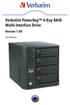 Verbatim PowerBay 4-Bay RAID Multi-Interface Drive Version 1.00 User Manual Table of Contents Introduction... 2 Package Contents... 2 Controls, Connectors and Indicators... 2 About the Hard Drive... 4
External Hard Drive esata & USB 2.0 Combo. User Guide English
 External Hard Drive esata & USB 2.0 Combo User Guide English Contents Introduction 3 Controls, Connectors and Indicators 3 Front Panel Area 3 Rear Panel Area 3 About the Hard Drive 4 Locating the Drive
OWC Mercury Elite Pro Dual ASSEMBLY MANUAL & USER GUIDE
 OWC Mercury Elite Pro Dual ASSEMBLY MANUAL & USER GUIDE TABLE OF CONTENTS 1. INTRODUCTION...1 1.1 MINIMUM SYSTEM REQUIREMENTS 1.1.1 Apple Mac Requirements 1.1.2 PC Requirements 1.1.3 Supported Drives 1.2
OWC Mercury Elite Pro Qx2 ASSEMBLY MANUAL & USER GUIDE
 OWC Mercury Elite Pro Qx2 ASSEMBLY MANUAL & USER GUIDE TABLE OF CONTENTS 1. INTRODUCTION...1 1.1 MINIMUM SYSTEM REQUIREMENTS 1.1.1 Apple Mac Requirements 1.1.2 PC Requirements 1.1.3 Supported Hard Drives
Taurus Super-S3 LCM. Dual-Bay RAID Storage Enclosure for two 3.5-inch Serial ATA Hard Drives. User Manual March 31, 2014 v1.2 www.akitio.
 Dual-Bay RAID Storage Enclosure for two 3.5-inch Serial ATA Hard Drives User Manual March 31, 2014 v1.2 www.akitio.com EN Table of Contents Table of Contents 1 Introduction... 1 1.1 Technical Specifications...
3.5 Dual Bay USB 3.0 RAID HDD Enclosure
 3.5 Dual Bay USB 3.0 RAID HDD Enclosure User Manual August 11, 2011 v1.1 MFG Part # MT2U3-MP BARCODE Introduction 1 Introduction 1.1 System Requirements 1.1.1 PC Requirements Minimum Intel Pentium III
Table of Contents. LaCie Mobile Hard Drive User s Manual - Firewire & USB 2.0. Table of Contents
 Table of Contents page 1 Table of Contents Foreword 2 Precautions 4 1. Unpacking Your LaCie Drive 5 1.1. Minimum System Requirements 6 2. Getting Connected 7 2.1. Connect the FireWire Cable to the Drive
EXTERNAL HARD DRIVE Maxtor OneTouch User s Guide
 EXTERNAL HARD DRIVE Maxtor OneTouch User s Guide P/N: 20246100 Warranty Maxtor s warranty obligations are limited to the terms set forth: Maxtor warrants only to the original consumer purchaser that new
Hydra esata. 4-Bay RAID Storage Enclosure. User Manual January 16, 2009 - v1.0
 4-Bay RAID Storage Enclosure User Manual January 16, 2009 - v1.0 EN Table of Contents 1 Introduction... 1 1.1 System Requirements... 1 1.1.1 PC Requirements... 1 1.1.2 Mac Requirements... 1 1.1.3 Supported
How To Use An Esata External Hard Drive Enclosure (I386) With A Usb 2.0 And Usb 2/1.1 Hard Drive (I219) On A 2.5\" Hard Drive On A Mini Hard Drive Or An Ip
 HDD external enclosure for data-storage mobility with USB 2.0 and esata interface USER Manual English AKASA Company notices The information contained in this document is subject to change without notice.
LaCie SAFE mobile hard drive User s Manual
 V 1.0 Handbuch Manuel Utilisateur Manual de Instrucciones Guida Utente How To Use This Manual How To Use This Manual In the toolbar: Previous Page / Next Page Go to Beginning / Go to End Printing: While
PRODUCT MANUAL. Professional High-Performance Dual-Drive Storage System. g-technology.com
 PRODUCT MANUAL Professional High-Performance Dual-Drive Storage System g-technology.com Table Table of Contents Welcome to G-RAID Table of Contents Safety & General Use Safety Precautions... 4 Backup Your
How To Use This Manual. Icons Used In This Manual. How To Use This Manual. LaCie d2 Hard Drive Serial ATA User s Manual.
 How To Use This Manual How To Use This Manual In the toolbar: Previous Page / Next Page Go to Previous View / Go to Next View Go to Contents Page / Go to Precautions Page On the page: Click on the text
2big network. Professional 2disk RAID Gigabit Ethernet. user manual. manuel utilisateur. manual de instrucciones. gebruikershandleiding.
 2big network Professional 2disk RAID Gigabit Ethernet user manual manuel utilisateur manual de instrucciones gebruikershandleiding guída utente handbuch ユーザー マニュアル 用 户 手 册 용자 설명서 User Manual Table of Contents
RocketStor SMART RAID
 RocketStor SMART RAID User Guide v1.0 1 Copyright HighPoint Technologies Inc., 1995-2012. All rights reserved. OS X and Macintosh are registered trademarks of Apple Corporation. All other trademarks and
2-Disk RAID USB and esata External Hard Drive. User Guide English
 2-Disk RAID USB and esata External Hard Drive User Guide English 1 Contents Introduction 3 Drive Contents: IMPORTANT Notice 3 Nero BACKITUP 2 Software 3 Controls, Connectors and Indicators 4 Front Panel
EPSON USB/Parallel Adapter User s Guide
 EPSON USB/Parallel Adapter User s Guide EPSON Stylus COLOR 440 EPSON Stylus COLOR 800 EPSON Stylus COLOR 600 EPSON Stylus COLOR 850 EPSON Stylus COLOR 640 EPSON Stylus COLOR 1520 EPSON Stylus Photo EX
We reserve the right to make technical changes.
 User Guide External Hard Disk with USB 1.1/2.0 and IEEE 1394 connection Copyright 2003 All rights reserved. This manual is protected by Copyright. The Copyright is owned by Medion. Trademarks: MS-DOS and
3.5'' SATA to USB 3.0 & esata External Hard Drive Enclosure U SER S MANUA L
 3.5'' SATA to USB 3.0 & esata External Hard Drive Enclosure U SER S MANUA L Package Contents: 3.5'' SATA to USB 3.0 & esata External Hard Drive Enclosure 1 3.5" HDD Enclosure 2 Power Adapter 3 USB 3.0
Taurus - RAID. Dual-Bay Storage Enclosure for 3.5 Serial ATA Hard Drives. User Manual
 Dual-Bay Storage Enclosure for 3.5 Serial ATA Hard Drives User Manual v1.0 August 23, 2007 EN Table of Contents CHAPTER 1 - INTRODUCTION 1 CHAPTER 3 - SYSTEM SET UP 9 ICON KEY 1 THE TAURUS RAID 1 AVAILABLE
FUSION R400 RAID USB 3.0
 FUSION R400 RAID USB 3.0 1U Rackmount 4-Drive Hardware RAID 5 SATA Storage System with USB 3.0 Interface User s Guide For Windows Contents 1 Fusion R400 RAID USB 3.0 Features 1 2 Drive Installation and
GENERAL INFORMATION COPYRIGHT... 3 NOTICES... 3 XD5 PRECAUTIONS... 3 INTRODUCTION... 4 FEATURES... 4 SYSTEM REQUIREMENT... 4
 1 Table of Contents GENERAL INFORMATION COPYRIGHT... 3 NOTICES... 3 XD5 PRECAUTIONS... 3 INTRODUCTION... 4 FEATURES... 4 SYSTEM REQUIREMENT... 4 XD5 FAMILULARIZATION... 5 PACKAGE CONTENTS... 5 HARDWARE
Portable External Hard Drive. Quick Start Guide
 Portable External Hard Drive Quick Start Guide Contents Seagate external hard drive with a USB 2.0 interface USB 2.0 Y cable Quick Start Guide Seagate Extra Value CD Requirements Your new Seagate portable
What your 1 Year Warranty Means
 1 External Hard Drive What your 1 Year Warranty Means Great care has gone into the manufacture of this product and it should therefore provide you with years of good service when used properly. In the
2 Bay FireWire 800/400/USB RAID Solution RAID 0, RAID 1, & JBOD. User Manual
 2 Bay FireWire 800/400/USB RAID Solution RAID 0, RAID 1, & JBOD User Manual CalDigit, Inc. 1941 Miraloma Ave, Unit B Placentia, CA 92870 USA www.caldigit.com The information of the products in this manual
User Guide USB 2.0 LAPTOP DOCKING STATION WITH VIDEO N2953
 USB 2.0 LAPTOP DOCKING STATION WITH VIDEO 410-1864-001B / ACP51US 1 YEAR LIMITED WARRANTY: We pride ourselves on the quality of our products. For complete warranty details and a list of our worldwide offices,
is605 Dual-Bay Storage Enclosure for 3.5 Serial ATA Hard Drives FW400 + FW800 + USB2.0 Combo External RAID 0, 1 Subsystem User Manual
 is605 Dual-Bay Storage Enclosure for 3.5 Serial ATA Hard Drives FW400 + FW800 + USB2.0 Combo External RAID 0, 1 Subsystem User Manual (English/Deutsch/ 中 文 ) v1.0 August 23, 2007 Table of Contents CHAPTER
User Manual USB Laptop KVM Switch. GCS661U Part No. M1069
 User Manual USB Laptop KVM Switch 1 GCS661U Part No. M1069 2 Table of Contents User Notice 4 A Note About Terminology 5 Overview 6 Features 7 Package Contents 8 Requirements 9 Operating System Support
Point of View Mobii 10 Tegra Tablet. Notice... 2
 TABLE OF CONTENTS Notice... 2 1.0 Preface... 2 2.0 Getting to know the basics... 4 3.0 How to Start... 7 3.1 Home Shell... 7 3.1.1 Home Shell > Widgets (Search RSS Weather)... 8 3.1.2 Home Shell > Widgets,
EPSON USB/Parallel Adapter User s Guide
 EPSON USB/Parallel Adapter User s Guide EPSON Stylus COLOR 440 EPSON Stylus COLOR 1520 EPSON Stylus COLOR 600 EPSON Stylus COLOR 3000 EPSON Stylus COLOR 640 EPSON Stylus Photo 700 EPSON Stylus COLOR 660
USB VoIP Phone Adapter. User s Manual
 USB VoIP Phone Adapter User s Manual FCC Certifications This Equipment has been tested and found to comply with the limits for a Class B digital device, pursuant to part 15 and part 68 of the FCC Rules.
LACIE 2BIG THUNDERBOLT 2 USER MANUAL
 LACIE 2BIG THUNDERBOLT 2 USER MANUAL CLICK HERE TO ACCESS AN UP-TO-DATE ONLINE VERSION of this document. You will find the most recent content as well as expandable illustrations, easier navigation, and
User Manual. For more information visit www.caldigit.com
 User Manual For more information visit www.caldigit.com Contents 1. Introduction 03 Package Contents 06 T3 Diagram 07 2. Using the T3 08 Connecting the T3 08 How to create a RAID 09 - Mac OS X 09 - Windows
2big Quadra ENTERPRISE CLASS. Professional 2-Disk RAID DESIGN BY NEIL POULTON. esata 3Gb/s FireWire 800 & 400 USB 2.0
 2big Quadra ENTERPRISE CLASS DESIGN BY NEIL POULTON Professional 2-Disk RAID esata 3Gb/s FireWire 800 & 400 USB 2.0 The Enterprise Class Difference The LaCie 2big Quadra Enterprise Class has been developed
WUA-0605 300Mbps Wireless USB Network Adapter
 WUA-0605 300Mbps Wireless USB Network Adapter User Manual V1.0 Certification FCC CE FCC Statement This equipment has been tested and found to comply with the limits for a Class B digital device, pursuant
G SPEED High-Speed, RAID Protected Storage System
 PRODUCT MANUAL G SPEED High-Speed, RAID Protected Storage System g-technology.com G SPEED Table Table of Contents Welcome to G-SPEED Table of Contents Safety & General Use Safety Precautions...4 Backup
reflecta Super 8 Scanner
 reflecta Super 8 Scanner User Manual 1 FEDERAL COMMUNICATIONS COMMISSION (FCC) STATEMENT This Equipment has been tested and found to comply with the limits for a class B digital device, pursuant to Part
G DRIVE Portable USB Drive
 PRODUCT MANUAL Portable Drive g-technology.com Table of Contents Welcome to G-DRIVE mobile Table of Contents Safety & General Use Safety Precautions... 4 Backup Your Data... 5 About Your G-DRIVE mobile
esata External Storage
 esata External Storage Operation Manual DA-ES110 Before reading this manual This operation manual contains basic instruction on installing and using esata External Storage, an IDIS product. Users who are
USB-2.0 Mobile Mini Hub USER S GUIDE. Making Your Mobile Life Easier. Making Your Mobile Life Easier.
 USB-2.0 Mobile Mini Hub Making Your Mobile Life Easier. Visit our Web site at: www.targus.com Features and specifications are subject to change without notice. 2002 Targus Corp. 400-0093-001A USER S GUIDE
2.5/3.5 SATA HDD Docking Station
 SATADOCKU2 SATADOCKU2E SATADOCK22UE 2.5/3.5 SATA HDD Docking Station FCC Compliance Statement This equipment has been tested and found to comply with the limits for a Class B digital device, pursuant to
G DRIVE slim Ultra-Slim Portable USB Drive
 PRODUCT MANUAL Ultra-Slim Portable USB Drive g-technology.com Table of Contents Welcome to G-DRIVE slim Table of Contents Safety & General Use Safety Precautions... 4 Backup Your Data... 5 About Your G-DRIVE
Getting Started. rp5800, rp5700 and rp3000 Models
 Getting Started rp5800, rp5700 and rp3000 Models Copyright 2011 Hewlett-Packard Development Company, L.P. The information contained herein is subject to change without notice. Microsoft, Windows, and Windows
USB2VGA. Instruction Manual. USB to VGA Adapter. USB 2.0 to VGA External Multi Monitor Video Adapter
 USB to VGA Adapter USB2VGA Instruction Manual USB 2.0 to VGA External Multi Monitor Video Adapter FCC Compliance Statement This equipment has been tested and found to comply with the limits for a Class
IEEE1394A FireWire/Hi-Speed USB2.0 2.5 Hard Drive Data Encrypt Enclosure
 IEEE1394A FireWire/Hi-Speed USB2.0 2.5 Hard Drive Data Encrypt Enclosure PHR-250CE User s Manual Copyright 2005 This manual is furnished under license and may be used or copied only in accordance with
1394 CardBus Quick Installation Guide
 1394 CardBus Quick Installation Guide Introducing the 1394 Cardbus The 1394 CardBus is designed to add FireWire (1394) interface to notebook computers for easy connection to DV camcorders, hard disk drives
USB Mini Print Server PS121. Installation Guide
 USB Mini Print Server PS121 Installation Guide Introduction Thank you for purchasing a NETGEAR PS121 USB Mini Print Server. With this print server you can share your printer with all the computers in your
HP-1000E v2. User s Manual. Powerline Ethernet Adapter. HP1000E v2 User s Manual
 HP-1000E v2 Powerline Ethernet Adapter User s Manual HP1000E v2 User s Manual Table of Contents Chapter 1: Introduction...1 Chapter 2: Planning your Powerline Network...1 Network Topology...1 Chapter 3:
2.5 HDD Enclosure Kit
 2.5 HDD Enclosure Kit User s Manual Introduction... 2 Important Reminders for all Enclosures... 2 Important Reminders for Encrypted HDD Enclosures... 2 Getting Started... 4 Assembling the 2.5 HDD Enclosure
Cool USB 2.0/eSATA to SATA Docking Duplicator Quick Installation Guide
 Cool USB 2.0/eSATA to SATA Docking Duplicator Quick Installation Guide Introducing the SATA Docking Duplicator The Cool USB 2.0/eSATA to SATA Docking Duplicator adds extra storage space to your computer
Pre-Installation: Personal Storage 3100 Installation Guide. Hardware and Operating System Requirements for Windows PC
 Pre-Installation: Thank You Thank you for selecting a Maxtor Personal Storage product. Please follow these instructions to take full advantage of its features. Handling Precautions If these handling precautions
USER MANUAL TOUGH DRIVE CUSTOM EXTERNAL MOBILE HARD DRIVE / 2.5" / USB 2.0. Rev. 848
 USER MANUAL TOUGH DRIVE CUSTOM EXTERNAL MOBILE HARD DRIVE / 2.5" / USB 2.0 WIN & Mac Rev. 848 Freecom ToughDrive Custom Dear user! Thank you for choosing the Freecom ToughDrive Custom as an external hard
Access G-RAID mini by its high-speed Interface esata, FireWire 800 (FireWire 400 via included cable) or USB 2.0 ports.
 Table of Contents Introduction Safety Precautions System Requirements What s in the Box G-RAID mini Overview Installing G-RAID mini G-RAID mini Warning LED Operation RAID Levels Explained Configuring G-RAID
Wave/PC Interactive System USB Adapter Kit. Installation Guide
 Wave/PC Interactive System USB Adapter Kit Installation Guide Safety Information 1. Read these instructions for all components before using this product. 2. Keep these instructions for future reference.
Table of Contents User Manual page 1. Health and Safety Precautions... 3 General Use Precautions... 3
 Table of Contents User Manual page 1 Table of Contents Health and Safety Precautions... 3 General Use Precautions... 3 1. Introduction... 4 1.1. Box Content... 5 1.2. Minimum System Requirements... 6 1.3.
Wireless Optical Mouse
 Wireless Optical Mouse User s Manual Model PD950P FCC STATEMENT PD950P This device complies with part 15 of FCC Rules. Operation is subject to the following two conditions: (1) this device may not cause
Congratulations on your HomePortal purchase. To install your HomePortal and configure your home network, follow these steps.
 Notice to Users 2003 2Wire, Inc. All rights reserved. This manual in whole or in part, may not be reproduced, translated, or reduced to any machine-readable form without prior written approval. 2WIRE PROVIDES
IEEE 802.11b WLAN PC Card
 IEEE 802.11b WLAN PC Card User s Guide Version: 1.3 August 2001 Please install the Utility/Driver first before inserting the PCMCIA Card. FCC Class B Radio Frequency Interference Statement The manufacturer
user manual IH-W350DB IH-W351DW MyLife webcam pro 5.0 megapixel max resolution
 IH-W350DB IH-W351DW MyLife webcam pro 5.0 megapixel max resolution Congratulations on the purchase of your new MyLife webcam pro. This product comes with a limited lifetime warranty. Before using your
Creatix 802.11g Adapter CTX405 V.1/V.2 User Manual
 Creatix 802.11g Adapter CTX405 V.1/V.2 User Manual 1 Safety instructions for Creatix 802.11g Adapter This equipment has been designed and tested in accordance with the requirements of Standard EN60950.
Hydra Super-S Combo. 4-Bay RAID Storage Enclosure (3.5 SATA HDD) User Manual July 29, 2009 - v1.3
 4-Bay RAID Storage Enclosure (3.5 SATA HDD) User Manual July 29, 2009 - v1.3 EN Introduction 1 Introduction 1.1 System Requirements 1.1.1 PC Requirements Minimum Intel Pentium III CPU 500MHz, 128MB RAM
Android Dongle. User Manual TL869
 Android Dongle User Manual TL869 2 User Manual Android TV Dongle Before using the product, please read this manual thoroughly. The specifications and software in this manual are subject to change without
LabelWriter. Print Server. User Guide
 LabelWriter Print Server User Guide Copyright 2010 Sanford, L.P. All rights reserved. 08/10 No part of this document or the software may be reproduced or transmitted in any form or by any means or translated
Package Contents: TRADEMARKS
 Package Contents: SATA/IDE-USB adapter: 1. SATA/IDE-USB Adapter 2. Power Adapter with On/Off Switch 3. Power Cable 4. SATA Data Cable 5. SATA Power Supply Cable 6. User Manual (Disc) TRADEMARKS Apple,
2013 VTech Printed in China 91-009656-000 US
 Rechargeable Power Pack User s Manual 2013 VTech Printed in China 91-009656-000 US INTRODUCTION The Rechargeable Power Pack makes it easier than ever to keep the InnoTab 3 or InnoTab 3S charged and ready
Hydra Super-S LCM. 4-Bay RAID Storage Enclosure for four 3.5-inch Serial ATA Hard Drives. User Manual August 18, 2011 - v1.0 www.akitio.
 Hydra Super-S LCM 4-Bay RAID Storage Enclosure for four 3.5-inch Serial ATA Hard Drives User Manual August 18, 2011 - v1.0 www.akitio.com EN Hydra Super-S LCM Table of Contents Table of Contents 1 Introduction...
for 3.5 Serial ATA Hard Drive with One-touch Backup G-S350SU
 Green USB2.0/eSATA Combo Enclosure for 3.5 Serial ATA Hard Drive with One-touch Backup G-S350SU User s Manual CONTENTS INTRODUCING GREEN USB2.0/ESATA 3.5 Hard Drive ENCLOSURE 3 About this Guide 3 System
T N. How To Use This Manual. Icons Used In This Manual. How To Use This Manual. LaCie Biggest F800 User s Manual. In the toolbar:
 How To Use This Manual How To Use This Manual In the toolbar: Previous Page / Next Page Go to Contents Page / Go to Precautions Page Printing: While optimized for onscreen viewing, the pages of this manual
USB 3.0 Desktop Hard Disk Drive Enclosure
 USER GUIDE USB 3.0 Desktop Hard Disk Drive Enclosure NS-PCHD335/NS-PCHD335-C Before using your new product, please read these instructions to prevent any damage. Insignia NS-PCHD335/NS-PCHD335-C USB 3.0
PRODUCT MANUAL. Portable Dual-Drive Storage System. g-technology.com
 PRODUCT MANUAL Portable Dual-Drive Storage System g-technology.com Table Table of Contents Welcome to G-RAID mini Table of Contents Safety & General Use Safety Precautions...4 Backup Your Data...5 About
ATTENTION RISQUE D ÉLECTROCUTION! NE PAS OUVRIR!
 Quick Start Guide ATTENTION RISQUE D ÉLECTROCUTION! NE PAS OUVRIR! CAUTION: TO REDUCE THE RISK OF ELECTRIC SHOCK, DO NOT REMOVE COVER (OR BACK). NO USER-SERVICEABLE PARTS INSIDE. REFER SER- VICING TO QUALIFIED
Bluetooth Wireless USB Adapter. User Manual (GBU211 / GBU311)
 Bluetooth Wireless USB Adapter User Manual (GBU211 / GBU311) Welcome Thank you for purchasing one of the most feature-rich Bluetooth to USB adapters available. IOGEAR s Bluetooth to USB adapters are first-rate
HP SuperSpeed USB 3.0 PCIe x1 Card. User Guide
 HP SuperSpeed USB 3.0 PCIe x1 Card User Guide Copyright 2010 Hewlett-Packard Development Company, L.P. The information contained herein is subject to change without notice. Microsoft, Windows, and Windows
3.5 External Hard Drive Enclosure
 UNI3510U2E / UNI3510U2EGB UNI3510U2EB / UNI3510UEBGB Instruction Manual 3.5 External Hard Drive Enclosure 3.5 esata/usb 2.0 to IDE/SATA External Hard Drive Enclosure with One-Touch Backup FCC Compliance
Universal Push2TV HD Adapter PTVU1000 Installation Guide
 Universal Push2TV HD Adapter PTVU1000 Installation Guide 2011 NETGEAR, Inc. All rights reserved. No part of this publication may be reproduced, transmitted, transcribed, stored in a retrieval system, or
Evolution Digital HD Set-Top Box Important Safety Instructions
 Evolution Digital HD Set-Top Box Important Safety Instructions 1. Read these instructions. 2. Keep these instructions. 3. Heed all warnings. 4. Follow all instructions. 5. Do not use this apparatus near
CAUTION RISK OF ELECTRIC SHOCK NO NOT OPEN
 Evolution Digital HD Set-Top Box Important Safety Instructions 1. Read these instructions. 2. Keep these instructions. 3. Heed all warnings. 4. Follow all instructions. 5. Do not use this apparatus near
7 High-Resolution Digital Photo Frame
 TM 16-1003 User s Guide 7 High-Resolution Digital Photo Frame One demo photo included, as illustrated Please read this user s guide before using your new photo frame. Package contents Photo Frame AC Adapter
EXTERNAL 2.5 IDE & SATA HARD DRIVE ENCLOSURE USER MANUAL
 EXTERNAL 2.5 IDE & SATA HARD DRIVE ENCLOSURE USER MANUAL w w w. v a n t e c u s a. c o m Package Contents: NexStar 3 External 2.5 HDD Enclosure: Driver CD User Manual NexStar 3 External 2.5 HDD Enclosure
Regulatory Compliance. IC Certification. FCC Certification. Declaration of Conformity
 VP6495 Regulatory Compliance This device complies with Part 15 of the FCC Rules. Operation is subject to the following two conditions: (1) This device may not cause harmful interference, and (2) This device
USB 2.0 Peripheral Switch USER MANUAL US221A / US421A
 USB 2.0 Peripheral Switch USER MANUAL US221A / US421A FCC Information This equipment has been tested and found to comply with the limits for a Class B digital device, pursuant to Part 15 of the FCC Rules.
SSDNow For Desktops. Installation Guide
 Installation Guide Your purchase of the SSDNow with Accessory Kit will allow you to enjoy the benefits of increased system performance and reliability. All hardware and software necessary to replace your