
User Guide ADP186 / SDP & CDP-Pro / CDP-Scan / CDP eobd
|
|
|
- Easter Morris
- 9 years ago
- Views:
Transcription
1 User Guide ADP186 / SDP & CDP-Pro / CDP-Scan / CDP eobd Part no EN Ver

2 1. TABLE OF CONTENTS 1. Table of contents Page 2 2. System requirements Page 2 3. Hardware contents Page Hardware Connections Page 4 4. Installing software & setting up hardware (PC) Page Installing software Page Configuration Diagnostics unit - Bluetooth Page Configuration Diagnostics unit - USB Page 8 5. Guide for CDP / ADP186 / SDP PC Page Help program Page Toolbox Page Hardware setup Page Update Firmware Page eobd Page eobd Functions Page OBD Page OBD Menu Page OBD Functions Page Parallel Page Installing software & setting up hardware (Pocket PC) Page Installation of software CDP Page Installation with SD-card Page Updating SD-card via PC/CD Page 17 7 Guide for CDP-Pro / CDP-Scan Pocket PC Page Help program Page Settings Page Software settings Page Configuration Diagnostics unit - Bluetooth Page Hardware setup Page OBD Page OBD Functions Page eobd Page eobd Functions Page Copyright/Brand name Page WEEE Page Technical specification Page System requirements PC Minimum: - Windows 98SE/ME/2000/NT/ XP*/Vista* - Pentium 300 MHz, or corresponding - Com-port RS232 or USB or Bluetooth MB internal memory - CD-ROM unit MB hard drive space - Resolution 800x600, 256 colours PC Recommended: - Windows 2000/XP*/Vista* - Pentium 800 MHz - USB and Bluetooth MB internal memory - CD-ROM unit - Internet connection broadband MB hard drive space - Resolution 1024x768, High Color NOTE! Widescreen not supported Recommended Pocket PC: - HP IPAQ HX2190, HX2490, HX2790, hx2110, h2200, rx3715, h Fujitsu Siemens Pocket LOOX Dell Axim X MHz - QTEK S200 - Acer n300 Contact your supplier for a current list of recommended Pocket PC. 2 * In order for the program to perform well on Windows XP/Vista, the selected Windows style must be Windows Classic

3 3. Hardware contents Check the contents. CDP 1. CDP 2. Carry Case 3. USB-cable 4. Software (CD) 5. Software (SD-card) for CDP Pocket PC 1. CDP-Pro / CDP-Scan ADP186 / SDP 1. ADP186 / SDP 2. Carry Case 3. Power cable 4. Adapter cables for parallel measuring (Not SDP) 5. Software (CD) pin OBD cable 7. Measuring probes 8. USB-cable 9. PC-cable (RS232) 1. ADP186 / SDP x

4 3.1 Hardware Connections CDP Connections / LED pin OBD connector (J1962). 2:1 Yellow LED (Link)- Indicates communication between tests and PC via USB. 2:2 Green LED (Link)- Indicates communication between tests and PC via Bluetooth. 3. Red LED (Pwr)- Indicates that tester is supplied with electric power. 4. Green LED (Test)- Indicates communication between tester and vehicle. 5. USB-connection for PC. 6. Bluetooth antenna 6. ADP186 / SDP Connections / LED 1. PC-9-pin connection for PC (RS232). 2. USB-connection for PC. 3. Bluetooth antenna (option). 4. OBD-26-pin connection for OBD cable. 5. AUX-15-pin connection for EDP8 and ABS-cable. 6. P1- Connection for measuring probe (multimeter/oscilloscope) P2- Connection (master) for measuring probe (multimeter/oscilloscope). 8. EXT- 9-pin analogue connection (voltage connection). 9. POWER- Voltage supply for tester. D1. Green LED- Indicates communication via USB. D2. Red LED- Indicates communication via Bluetooth. Control buttons are used for remote control of parallel measuring. 10. Enter, execute 11. Esc, cancel 12. Reset, restore 13. Start and stop test ADP186 / SDP Yellow LED- Power 15. Green LED- Test 16. Red LED- Fault Only applies to ADP186. D1, D pin connection for parallel measuring pin connection for parallel measuring pin connection for parallel measuring ADP

5 4. Installing program & setting up hardware (PC) New software must be installed before you can use your new product, and the hardware must be configured. 4.1 Installation of software. 4.2 / 4.3 Configuration of Bluetooth / USB. Installation of drivers. NOTE! It is possible to select to configure one of these, or to use connection via Com-port (RS232) for ADP186 / SDP. Does not require any configuration. Only use one of the connection possibilities between PC and tester. Following installation, the hardware must be configured. This is described in ch Installation of software Installing and updating software via CD-ROM. 1. 1: Place the CD in the computer's CDreader. The installation starts automatically. 2. If the installation does not start. - Select Run in the computer's Start menu. - Write D:\Start (applies if the CD-reader is D:). Follow the instructions on the screen: 3. 2: Enter your distributor ID. The ID-number is found on the CD cover. 4. A splash window opens where it is possible to select the installation you want. Click on the button Install. 3: Select language for the installation and press the button OK. 5. 4: Welcome, press Next to continue. 5: Read Me File News in the software, press Next to continue. 5

6 6 6: Continue and select the location where you want to install the program. You can browse by pressing the button Browse. 7: Select the components that are to be installed. 8: Enter the information about your company. The information will be stored and shown when the test result is printed out. (The information can be changed in the program.) 9: Mark the box if you want to create a shortcut on the desktop. 10: You are now ready to install the program, press on the Next -button. 11: Enter the hardware key that is found on the CD cover. 12: The installation is finished, press Finish to complete the installation. 13: Restart the computer after the installation.

7 4.2 Configuration of Diagnostics unit - Bluetooth Note! - The computer's Bluetooth unit must be installed correctly and support Bluetooth Virtual Comport (SPP Serial Port Profile). - Follow Microsoft's instructions when installing the Bluetooth unit on Microsoft Windows XP Service Pack 2 (SP2). - If you install a Bluetooth unit on another operative system than Windows XP Service Pack 2 (SP2) or with another Bluetooth stack than Microsoft, follow the manufacturer's instructions on how to install the unit as well as connect to hardware via Bluetooth Virtual Comport (SPP Serial Port Profile) Quickguide for addition of Bluetooth units with pairing/passkey. 1. Start -> Settings -> Control panel -> Bluetooth 2. In the Bluetooth Devices window, click on the Devices -tab if it is not already open. Here you can see all units that have been listed by the computer. For a new connection, click on the button Add. NOTE! Make sure that the diagnostics unit is connected to vehicle or other electric power source. Check Power light 3. In Add Bluetooth Device Wizard, make sure that the checkbox is checked before you continue Select the unit you want to add. Then click on Next. The diagnostics unit is listed as a Serial Comport. 5. In the passkey window (see below), select Let me choose my own passkey (Choose own passkey). Then enter zero 0 in the text field. Click on Next. 6. Now Windows tries to install the unit with all given parameters. 7. Click on Finish to complete Bluetooth Device Wizard. Now you are ready to get started!! NOTE! Use Outgoing Comport in the Diagnostics program

8 4.3 Configuration of Diagnostics unit USB Note! - It is important that the software installation is finished before the Diagnostics unit is connected. - During installation of the software, drivers for the same directory are also installed and placed in the sub-directory../drivers/usb/. It is important to remember the location since it shall be used when installing the drivers. WinXP installation This guide refers to a new installation of ADP186/SDP/CDP USB, it is also assumed that the software for ADP186//SDP/CDP is already installed. (If you have not performed the installation but still want to install the USB drivers, you will find the zip-files on the CD...Driver\USB\) 1: Connect the power cable to ADP186/SDP or connect CDP to power supply. Connect the USB-cable between tester and computer. ADP186 USB interface C:\Program\Autocom\ADP186\Driver\USB 2: The following guide starts automatically. Select Install from a list or specific location Click on -> Next 3: Click Browse, find the search path where ADP186/SDP/CDP software is installed and select Driver/USB. Click on -> Next. ADP186 USB interface ADP186 USB interface 4: Wizard search starts. When the search is finished, click on -> Next. 5: Two windows open. In the hardware installation pop-up, click on the button Continue anyway. 8

9 ADP186 USB interface ADP186 Serial Port 6: After a few seconds, the first part of the installation is done. Click on -> Finish. 7: This is the second part of the USB installation. This installation creates a virtual com-port. Select Install from a list or specific location. Click on -> Next. ADP186 Serial Port C:\Program\Autocom\ADP186\Driver\USB 8: Next window asks for search of a driver or make a selection in a list. Select -> Search. Enter the same search path as in step 3. Click on -> Next. 9: Wizard search starts. When the search is finished, click on -> Next. ADP186 Serial Port ADP186 Serial Port 10: Two windows open. In the hardware installation pop-up, click on the button -> Continue anyway. 11: After a few seconds, the second part of the installation is done. Click on -> Finish. Now the diagnostics unit is ready! 9

10 5. Guide for CDP / ADP186 / SDP PC Main window and Car selection Exit the program. 2. Help (starts the help program). 3. Toolbox. 4. eobd (starts the eobd/obdii program). 5. OBD. 6. Parallel measring (only applies to ADP186). 7. Auto Expert System (wiring diagrams, etc.). 8. Notes. 9. Measuring functions (BOB, multimeter, oscilloscope, etc.). 10. Here you select the brand name to be tested. 11. Here you select model. 12. Here you select model year. 13. Here you select the system type to be tested. 14. Her you select engine designation or system type. 15. This shows the cylinder volume for selected engine. 16. This shows/selects system depending on choice of system type. 17. This shows the number of pins in the control unit. 18. Shows type of transmission/drive. 19. This shows/selects equipment depending choice of system. 20. Shows the selected system type. 21. Shows user's choices. 22. Shows information about the vehicle. System type (pos. 13) Fuel Ignition Fuel/ignition Diesel ABS (Brake) Transmission (AT) Instruments Immobiliser/ Start lock-out Air conditioning SRS (Airbag) Multi-function/ Central control unit Service Reset 10

11 5.1 HELP PROGRAM Clicking on the Help -button opens the help program. If you select a box or button in the program and press on the F1-button on the keyboard, the applicable help section is shown. 5.2 TOOLBOX Clicking on Toolbox gives you access to functions for setting the program and the hardware. Language Select language in which program shall run. Archive Here you find all saved tests in a library. Workshop This is where information about the workshop is entered. This information is found on printouts of tests, etc. About Autocom Information on how to reach customer support for the product as well as information about the program's versions. It is also possible to add Hardware key and view Release information with news in the database. Hardware configuration This is where you perform settings of hardware and updates of Firmware (the program code that controls the Diagnostics unit). This is described more in the next chapter. 11

12 5.3 HARDWARE SETUP Hardware configuration (firmware download): Here it is possible to check what hardware and communication port to use. After installing the program for the first time or after a program update, a new hardware configuration must be performed. NOTE! For Hardware configuration, the tester must be connected to PC and supplied with electric power. The first time that you use the tester, you must make sure that the correct settings have been performed. Follow the instructions below. Settings In Settings, select Com-port for the tester. By clicking on arrow down, the different Com-port alternatives will be shown. Go to the top of the list to see all available com-ports that are installed on the computer. These are designated -----System Comports USB is designated Virtual Comport in the list. NOTE! When using USB or Bluetooth, a driver must be installed before the Com-port is available for selection. Select the Com-port to be used and click on Test. If the program finds the tester, OK will be shown. If Error! is obtained as result, restart the tester by disconnecting electric power for a short time and try again. Repeat the step for EOBD. 12

13 The information found under the Test -button is as follows: a) Shows type of tester (ADP186 / CDP) b) Shows type of communication (RS232/USB/Bluetooth) c) Shows hardware's serial number d) Shows version of Firmware Update Firmware When you click Test in settings and OK is shown on the screen, everything is ready to update Firmware in the tester. This is done by clicking on the tab ADP186 / SDP, CDP, or EOBD depending on which hardware you have. For updating, follow the instructions on the screen and click on the button Update. The following will happen: a) Status row starts to fill with blue squares. b) When the update is done, Update finished! is shown in the window. c) Now the Firmware is updated and the tester is ready to be used. NOTE! Time may vary depending on which communication type is used. If the update fails, check the following: - that the tester is supplied with electric power. - that USB, RS232, or Bluetooth is connected/on-line between PC and tester. - that the right Com-port is selected in the program. 13

14 5.4 eobd (European On Board Diagnostic) eobd is a standard decided by the EU member states. The mainpurpose of the standard is to provide authorities with a tool to check that exhaust emissions from automobiles follow established legislation. According to law, all automobiles powered by gasoline, sold within the EU from January 2001 must meet the eobd standard (EU directive 98/69/EC). An adapted version of the standard for gas or diesel-powered automobiles came into effect on January 1, eobd Functions Settings - Language, Archive, Workshop, "About" the program and hardware setup. Information - Available control units, communication standard, MIL status and Readiness test status. Read Fault codes* - Reading out permanent and intermittent Fault codes. Erase Fault codes - Erasing Fault codes and diagnostic information. Real-time data - Lists with data parameters (values) from selected control unit. Updated continuously. Freeze frame data - Stored data parameters. Lambda - Reading out lambda values. Non-continuous tests - Defi ned by vehicle supplier. Diagnostics checks - Listed tests that are available per control unit. Car information - Shows chassis number, calibration information number, and calibration verifi cation number. 14 * There may be error codes that are brand-specifi c. These are not supported by the eobd standard and therefore these are shown as brand-specifi c in the program.

15 5.5 OBD (On Board Diagnostic) Since , most modern automobiles have a 16-pin diagnostics socket. According to standard, the socket shall be placed within a radius of one metre from the driver's seat, most often under or close to the instrument panel. Adapter cables are available for cars with other OBD-connectors. OBD means that the tester communicates with selected control unit and writes and reads data OBD Menu Flash-OBD makes it possible to read and erase error codes and turn off service lights, in certain cases. OBD is vehicle-specifi c diagnosis with different possibilities on different vehicles. The functionality is controlled by the vehicle manufacturer. See description below. eobd-button is active when it is verifi ed that the vehicle supports the eobd-standard. SCAN is available on a number of car brands. The function reads off all control systems in the car and shows if there are error codes saved OBD Functions Read Fault codes - Reading out permanent and intermittent Fault codes. Erase Fault codes - Erasing Fault codes and diagnostic information Adjusting / Self-test - Adjusts and restores the system and also special functions such as self-test of the system. Programming - Writes data to the system. E.g. Programming of keys. Activation - Activates selected components in the system. Continuous test - Function to activate continuous test. Real-time data -Show data parameters (values) in real-time. Stop - Stops continuous test. 15

16 NOTE! Only applies to ADP186! 5.6 PARALLEL Parallel measurement enables diagnosis of Engine, ABS, Air conditioning, etc. via direct connection to the control unit. Using an adapter cable, ADP186 is connected between the control unit and the vehicle's cable harness. It is possible to perform measurements on all components and sensors in the system. With different measuring functions, such as Ground & Component test, Automatic test, and Running test, it is easy to determine what the problem is in the vehicle. Functions Ground and Component test - Loaded measurement of grounding points and resistance measurement of selected components. Workshop test Step by Step - Measuring of all grounding points, supply voltages, input signals, and output signals in the system. Workshop test Automatic - Same as Workshop test Step by Step, but with automatic process. Information test - Continuous measuring of selected components/signals. Download Running test - Automatic test while driving. Downloaded in ADP186 for running test on the road. Retrieve Running test - Reads out the measuring results of the running test from ADP Installing software & setting up hardware for Pocket PC Software must be installed and the hardware must be configured before you can use your new product. Contact your supplier for a current list of recommended Pocket PC. Important! 1) Make sure that the battery in your Pocket PC is fully charged. The installation may take up to minutes. To be sure, connect the battery charger during the installation. 2) Under no circumstances may cable or SD-card be removed during the installation 6.1 Installation of software. 7.3 Software settings 7.4 Confi guration of Bluetooth. 7.5 Hardware setup 16

17 6.1 Installation of Software on Pocket PC Installation of SD-card 1. Make sure that the lock-out on the SD-card is in position ON. 2. Insert the SD-card in your Pocket PC. Installation of the program will now take place automatically. NOTE! If this does not occur, remove the SD-card for a few seconds and then reinsert it. 3. The program will ask if you want to start the installation. Click on Yes to proceed. 4. The program will now ask you for distributor ID. The ID-code is found on the CD cover. Enter approved ID-code, click on OK. If you have lost your ID-code, please contact your supplier. 5. Now the software is installed on your Pocket PC. If a message appears that informs that the program already is installed, click OK to perform a new installation. Questions may appear if you want to install reinstall certain components. Press OK to complete the installation. If you get a message informing that the program is designed for an earlier version of Windows Mobile, this will in no way affect the program. Click on OK to complete the installation. How to start the CDP Pocket PC program: Alt.1 First click on the start menu, then click on Program, click on the CDP-icon to start the diagnostics program. See Pocket PC user guide to create shortcuts, etc. Alt.2 The program will start automatically by removing and reinserting the SD-card in the Pocket PC. NOTE! Wait a few seconds before reinserting the SD-card. NOTE! The SD-card must always be in the Pocket-PC when you are going to use the program Updating SD-card via PC/CD 1. Check that the program ActiveSync is installed on your computer. The program enables synchronization between Pocket PC and PC. 2. Connect the Pocket PC to your PC. NOTE! Cable for synchronization is supplied with the Pocket PC. 3. Check that the SD-card is in your Pocket PC and that the switch on the SD-card is in position ON. 4. Follow the instructions on the PC. 5. Now the installation on the SD-card takes place similar to that described above. Follow the instructions! 6. When the installation is finished, remove the SD-card and wait a few seconds before reinserting it. Now the program will start automatically. The installation results in a CDP-Scan which is updated to CDP-Pro via setup of software. See

18 7. Guide for CDP-Pro / CDP-Scan Pocket PC Main functions in the CDP-program. OBD (On Board Diagnostic). Reading out Fault codes and parameters from each selected system (engine, ABS, SRS, ACC, etc.) via the vehicle's diagnostics system, OBD. eobd (European On Board Diagnostics). Reading out Fault codes and parameters according to the eobd standard. Applies to emissions-related systems (engine and automatic transmission). Settings. Input of workshop information, language, hardware settings, as well as program settings. About. System information, support information, and program version information. Finish. Click on the button to finish. Battery. Shows remaining battery capacity in your PDA. Help. Click on the question mark to find the information you are looking for. 7.1 HELP PROGRAM Click on the Help -button to open the help program. The help refers to the chapter in question. 18

19 7.2 SETTINGS In settings, it is possible to perform language settings, enter workshop information, and configure hardware and software. Workshop This is where information about the workshop is entered. This information is found on printouts of tests, etc. Language Here you select the main language in which the program runs. Hardware setup This is where you perform settings of hardware and updates of Firmware (the program code that controls the Diagnostics unit). This is described more in the next chapter. Software settings Software keys are added here to unlock functionality. 7.3 Software settings Set-up of software only for CDP-Pro Pocket PC NOTE! Since the CDP uses wireless Bluetooth, there is no need for a cable between Pocket PC and CDP. 1. Start the CDP program in your Pocket PC. 2. Click on Settings. 3. In Settings, click on Software settings. 4. In Program settings, click on License keys. 5. Now enter the supplied License key and click on Add key. 6. Available modules should now be shown with a Yes. 7. Click on the Finish -button to return to the main menu. 8. The tester is now ready to be used. 19

20 7.4 Configuration of Diagnostics unit- Bluetooth Important! To enable a Bluetooth set-up the CDP must be connected to a vehicle (the CDP must be supplied with voltage). See the service manual to find the diagnostics socket. 1. Start the CDP program in your Pocket PC. 2. Click on Settings. 3. In Settings, click on Hardware configuration. 4. In Hardware configuration, click on Bluetooth. 5. In Bluetooth, the program will automatically search for the hardware. If you do not find the hardware in the list, a new search is performed. 6. When the hardware has been found and the serial number is shown in the list, select the row with your hardware (serial number). The serial number will now be shown in the field Serial no.. 7. Enter the hardware key, for your tester, in the field Hardware key. 8. Click on the Back -button. 9. In the menu for Hardware configuration, click on the Finish -button to return to the main menu. 7.5 Hardware setup Important! To enable a Hardware setup, the CDP must be connected to a vehicle (the CDP must be supplied with voltage). See the service manual to find the diagnostics socket. 1. Start the CDP program in your Pocket PC. 2. Click on Settings. 3. In Settings, click on Hardware configuration. 4. In Hardware configuration, click on Update firmware. 5. To update firmware, click on Yes (Note! Time approx. 15 min.). 6. When firmware is updated, Firmware download successful. Firmware version: xxxx. 7. Click on the Finish -button to return to the main menu. 8. The tester is now ready to be used. NOTE! When updating program or in case of new installation, always perform Hardware configuration. 20

21 7.6 OBD Since , most modern automobiles have a 16-pin diagnostics socket. According to standard, the socket shall be placed within a radius of one metre from the driver's seat, most often under or close to the instrument panel. Adapter cables are available for cars with other OBD-connectors. Information about which cable shall be used is included in the car selection (Step 9 Connect ). SCAN is available on a number of car brands. The function reads off all control systems in the car and shows if there Fault codes are saved. Step 1: Select Brand and click on next Step 2: Select Model and click on next. If you want to undo your selection, click on the back-button and go one step back in the OBD-menu. Step 3: Select Year and click on next. Step 4: Select System type and click on next. See the different system selections below. Ignition system Fuel/ignition system Fuel system Diesel ABS (anti-lock brakes) Transmission (automatic) Immobilizer SRS (Airbag) AC (air conditioning) Multi-function (radio, 4WD, chassis, etc.) Instrument (service lights) 21
22 Step 5: Select Engine designation / System and click on next. For information on engine designation's placement, click on Information. Step 6: Select System / Name and click on next. Step 7: Select Transmission and click on next. <- Info window Step 8: Select equipment. In certain cases it is not possible to choose between different alternatives. In these cases, just click on next. Step 9: Connect. Click OBD to start communication with the selected system in the car. The entire selection is shown in the info window. For certain engine systems, it is also possible to select eobd OBD FUNCTIONS Read Fault codes - Reads Fault codes that are stored in the selected control system. Erase Fault codes - Erases all codes in the selected control system. In certain cases, the ignition has to be turned off and on in order to erase the codes. Real-time data - Reads parameter value in real-time. * Activate components - Activates selected components in the system. * Adjust - Adjusts and sets components and functions in the control system. * Program ECU - Writes data to the control system. * * Only applies to CDP-Pro 22
23 7.7 eobd (European On Board Diagnostic) eobd is a standard decided by the EU member states. The mainpurpose of the standard is to provide authorities with a tool to check that exhaust emissions from automobiles follow established legislation. According to law, all automobiles powered by gasoline, sold within the EU from January 2001 must meet the eobd standard (EU directive 98/69/EC). An adapted version of the standard for gas or diesel-powered automobiles came into effect on January 1, <- Function keys The eobd program is started in the main menu and the program searches for available control units. On the fi rst page, there is information about communication standards, quantity stored error codes, etc. for selected control unit. For more functions and information, use the buttons in the row at the top in the window eobd FUNCTIONS Information - Available control units, communication standard, MIL status and Readiness test status. Read Fault codes* - Reading out permanent and intermittent Fault codes. Erase Fault codes - Erasing Fault codes and diagnostic information. Real-time data - Lists with data parameters (values) from selected control unit. Updated continuously. Freeze frame data - Stored data parameters. Lambda - Reading out lambda values. Non-continuous tests - Defi ned by vehicle supplier. Diagnostics checks - Listed tests that are available per control unit. Car information - Shows chassis number, calibration information number, and calibration verifi cation number. * There may be error codes that are brand-specifi c. These are not supported by the eobd standard and therefore these are shown as brand-specifi c in the program. 23
24 8. Copyright/Brand name Reproduction is strictly prohibited without written permission from Autocom Diagnostic Partner AB. Protected by copyright since 1991, Autocom Diagnostic Partner AB. Autocom and Autocom's logotype are brand names belonging to Autocom Diagnostic Partner AB. 9. WEEE (Waste Electrical and Electronic Equipment) This label shows that the product is manufactured after August 13, 2005, and therefore it shall be recycled according to WEEE (EU directive 2002/96/EC for electrical and electronic equipment waste). Contact your local dealer for more information. 10. Technical specification ADP186 / SDP Meets EU directive 89/336/EEC and 73/23/EEC Dimensions: 370 x 185 x 45 (mm) Weight: 1.9 kg Voltage supply: 9-32 Volt Current consumption: 270 ma Operating temperature: 0-70 ºC Measuring range: Voltage: Volt (+/- 0.5%) Frequency: 0-15 khz (resolution 1 Hz) Resistance: 0-10 kohm (+/- 2%) CDP Meets EU directive 89/336/EEC and 73/23/EEC Dimensions: 180 x 90 x 30 (mm) Weight: 0.5 kg Voltage supply: 9-32 Volt Current consumption: 150 ma Operating temperature: 0-70 ºC Please feel free to contact us, if there is anything you wonder about or if there is anything you want to tell us. Autocom Diagnostic Partner AB Grafitvägen 23 B Trollhättan Telephone: +46 (0) Fax: +46 (0) [email protected] Web: Thank you for choosing our products! Notes: Autocom Diagnostic Partner AB,
VEHICLE DIAGNOSTICS THE AUTOCOM WAY
 VEHICLE DIAGNOSTICS THE AUTOCOM WAY CARS TRUCKS GENERIC A COMPLETE DIAGNOSTIC SOLUTION CDP+ is a quick and reliable diagnostic tool serving as a link between vehicle and computer. It works on both old
VeHiCle diagnostics the autocom way
 VeHiCle diagnostics the autocom way CaRs trucks generic a Complete diagnostic solution CDP+ is a quick and reliable diagnostic tool serving as a link between vehicle and computer. It works on both old
PDA Software Manual For the Windows CE and Mobile Operating Systems
 PDA Software Manual For the Windows CE and Mobile Operating Systems Global Water Instrumentation, Inc. 151 Graham Road P.O. Box 9010 College Station, TX 77842-9010 T: 800-876-1172 Int l: (979) 690-5560,
Installation Instructions
 Installation Instructions Windows USB driver for Installation If a Diagnostic Interface with USB is connected to a PC with a Windows operating system 98, ME, XP or Vista for the first time, it is necessary
DiCE INSTALLATION INSTRUCTION
 DiCE INSTALLATION INSTRUCTION Volvo Cars of North America, LLC DiCE Installation Instructions 1(18) Contents 1 INTRODUCTION 3 1.1 SUPPORT 3 1.2 UNINSTALL BUILT-IN BLUETOOTH 4 1.3 INSTALL THE LATEST VIDA
Install Device Drivers and Toolkit for Windows 7
 Install Device Drivers and Toolkit for Windows 7 The USB driver is required for all installations to assure that the computer communicates with the digitizer. Note: Installation instructions for Windows
Mastertech Diagnostic Software Frequently Asked Questions
 Mastertech Diagnostic Software Frequently Asked Questions Version 1.8 02 February 2010 Table of Contents MDS USER INTERFACE - OVERVIEW... 2 HARDWARE AND O/S REQUIREMENTS... 2 HARDWARE AND O/S REQUIREMENTS...
AXIS 5810 A Bluetooth Print Plug. Quick Start
 AXIS 5810 AXIS 5810 A Bluetooth Print Plug Quick Start BLUETOOTH is a trademark owned by its proprietor and used by Axis Communications AB under license 1 AXIS 5810 Regulatory Information Regulatory Information
Quick Start Guide RIVA/Athena Sea-Doo ECU
 Quick Start Guide RIVA/Athena Sea-Doo ECU PART# - RS11891-ECU-DC APPLICATION(S): Sea-Doo 260/255/215hp icontrol Models RIVA/Athena ECU Manager Web Site: www.rivaathena.com NOTE: YOU MUST PERFORM PHYSICAL
AVL DISCAN 8000. Handheld-Scantool for multifunctional fields of application Faultcode-reader with integrated Informationsystem and Oscilloscope
 AVL DISCAN 8000 Handheld-Scantool for multifunctional fields of application Faultcode-reader with integrated Informationsystem and Oscilloscope Thomas Penz 26.11.2010 Seite 1 Content and Topics Description
A6210 WiFi USB Adapter 802.11ac USB 3.0 Dual Band User Manual
 802.11ac USB 3.0 Dual Band User Manual August 2014 202-11373-01 350 East Plumeria Drive San Jose, CA 95134 USA Support Thank you for selecting NETGEAR products. After installing your device, locate the
Bluetooth Wireless USB Adapter. User Manual (GBU221/321)
 Bluetooth Wireless USB Adapter User Manual (GBU221/321) 1 2007 IOGEAR. All Rights Reserved. M0345 IOGEAR, the IOGEAR logo, MiniView, VSE are trademarks or registered trademarks of IOGEAR, Inc. Microsoft
SLC 5/05 Processors Firmware/Operating System ControlFLASH Upgrade
 Installation Instructions SLC 5/05 Processors Firmware/Operating System ControlFLASH Upgrade Catalog Numbers 1747-DU501 Topic Page System Requirements 3 Install ControlFLASH 3 Prior to Running ControlFLASH
USER GUIDE WIRELESS USB TO AUDIO KIT. Model: 29594
 USER GUIDE WIRELESS USB TO AUDIO KIT Model: 29594 1 TABLE OF CONTENTS Introduction...2 Features...3 System Requirements...4 Package Contents...5 Device Overview Wireless USB Host Adapter...6 Wireless Audio
Guide for Remote Control PDA
 030.0051.01.0 Guide for Remote Control PDA For Use with Bluetooth and a PC Running Windows 7 Table of Contents A. Required Parts... 3 B. PC Software Installation... 3 C. Configure PC Software... 4 D. Testing
N600 WiFi USB Adapter
 Model WNDA3100v3 User Manual December 2014 202-11470-01 350 East Plumeria Drive San Jose, CA 95134 USA Support Thank you for selecting NETGEAR products. After installing your device, locate the serial
WUA-0605 300Mbps Wireless USB Network Adapter
 WUA-0605 300Mbps Wireless USB Network Adapter User Manual V1.0 Certification FCC CE FCC Statement This equipment has been tested and found to comply with the limits for a Class B digital device, pursuant
FX-BTCVT Bluetooth Commissioning Converter Commissioning Guide
 FX-BTCVT Bluetooth Commissioning Converter Commissioning Guide FX-BTCVT-1 (Bluetooth Commissioning Converter) Code No. LIT-12011665 Issued December 5, 2014 Refer to the QuickLIT website for the most up-to-date
1 Technical Description Lokal-200PC
 1 Technical Description Lokal-200PC 1.1 Overview laptop with in-built accummulator USB connection correlator box internal power supply laptop (if the device has been supplied by F.A.S.T.) BNC aerial connection
Guide for Remote Control PDA
 030.0035.01.0 Guide for Remote Control PDA For Use with Bluetooth and a PC Running Windows XP Table of Contents A. Required Parts... 3 B. PC Software Installation... 3 C. ActiveSync Software Configuration...
Midland BT Updater BTUpdater Program Program file (x86) ), Midland
 Midland BT Updater After you downloaded the BT Updater setup application from the web site, double click on it and follow the installation procedure. The BTUpdater application is automatically installed
Bluetooth Installation
 Overview Why Bluetooth? There were good reasons to use Bluetooth for this application. First, we've had customer requests for a way to locate the computer farther from the firearm, on the other side of
EASE Scan Tool Customers. SECTION I - Installation
 Please Install Your EASE Scan Tool DVD Before Installing Any Other Software That Came With Your Package. SECTION I - Installation ATTENTION: Do NOT connect an EASE Vehicle Interface Device to your Computer
Bluetooth GPS with Navigation Software. Software Quick Start Guide (GBGPS201)
 Bluetooth GPS with Navigation Software Software Quick Start Guide (GBGPS201) 2004 IOGEAR. All Rights Reserved. PKG-M0129QS-SW IOGEAR, the IOGEAR logo, MiniView, VSE are trademarks or registered trademarks
Wireless LAN 802.11g USB Adapter
 Wireless LAN 802.11g USB Adapter User s Guide Version 1.0 User s Guide 0 Copyright statement No part of this publication may be reproduced, stored in a retrieval system, or transmitted in any form or by
Automotive Sensor Simulator. Automotive sensor simulator. Operating manual. AutoSim
 Automotive sensor simulator Operating manual AutoSim Contents Introduction.. page 3 Technical specifications.... page 4 Typical application of AutoSim simulator..... page 4 Device appearance... page 5
Installing/Uninstalling Logitech desktop for Bluetooth on my computer
 Installing/Uninstalling Logitech desktop for Bluetooth on my computer 2005 Logitech, Inc. Contents Introduction 3 Before you start 3 I have a computer without Bluetooth. What should I do? 4 I have or I
Wireless Internet Camera
 Wireless Internet Camera Wireless G Mobile USB 2.0 Adapter with 3G Video Minimum System Requirements PC with: Windows XP/2000 1GHz processor Memory Size: 512MB 100MB of available hard drive space and a
HP LaserJet MFP Analog Fax Accessory 300 Send Fax Driver Guide
 HP LaserJet MFP Analog Fax Accessory 300 Send Fax Driver Guide Copyright and License 2008 Copyright Hewlett-Packard Development Company, L.P. Reproduction, adaptation, or translation without prior written
Orbit PCI Mk 2 Network Card. User Manual. Part No. 502566 Issue 4
 Orbit PCI Mk 2 Network Card User Manual Part No. 502566 Issue 4 Information in this document is subject to change without notice. Companies, names and data used in examples herein are fictitious unless
DIAL-UP DATA. User s Guide
 DIAL-UP DATA User s Guide Iridium Satellite LLC Rev. 5; January 1, 2003 DIAL-UP DATA SERVICE--------------------------------------------------------------------------------------- TABLE OF CONTENTS 1 Dial-Up
How To: Upload a Custom Tune to Your Predator or Trinity PREP:
 How To: Upload a Custom Tune to Your Predator or Trinity NOTE to Ford Owners: If you have a Predator number U7146/U7142/U7153, you must use the instructions titled U7146/U7142/U7153 Custom tune installation
Bluetooth Wireless USB Adapter. User Manual (GBU221P)
 Bluetooth Wireless USB Adapter User Manual (GBU221P) 1 2006 IOGEAR. All Rights Reserved. M0394 IOGEAR, the IOGEAR logo, MiniView, VSE are trademarks or registered trademarks of IOGEAR, Inc. Microsoft and
EPSON USB/Parallel Adapter User s Guide
 EPSON USB/Parallel Adapter User s Guide EPSON Stylus COLOR 440 EPSON Stylus COLOR 800 EPSON Stylus COLOR 600 EPSON Stylus COLOR 850 EPSON Stylus COLOR 640 EPSON Stylus COLOR 1520 EPSON Stylus Photo EX
USB-Link 2 Installation and Setup Manual
 USB-Link 2 Installation and Setup Manual USB-Link 2 IDSC Holdings LLC retains all ownership rights to USB-Link 2 and its documentation. The USB-Link 2 source code is a confidential trade secret of IDSC
Motorola Phone Tools. Quick Start
 Motorola Phone Tools Quick Start Contents Minimum Requirements...2 Before Installing Motorola Phone Tools...3 Installing Motorola Phone Tools...4 Mobile Device Installation and Configuration...5 Online
Quick Start Guide RRL Radio Telemetry
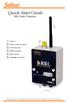 Quick Start Guide RRL Radio Telemetry Antenna External Power Connection LED Activity Light RS232 Connection Serial Number Levelogger Connections RRL Station High Quality Groundwater and Surface Water Monitoring
Quick Reference Guide VT55 & OBDII. Customer Service 1-888-621-TPMS 1-888-621-8767. Version: QSG 2.0-24/12
 Quick Reference Guide VT55 & OBDII Customer Service 1-888-621-TPMS 1-888-621-8767 Version: QSG 2.0-24/12 Table of contents Section A General Description (2 / 12). Section B Triggering a Sensor / Results
Installing the Gerber P2C Plotter USB Driver
 Installing the Gerber P2C Plotter USB Driver 1 You can install a Gerber P2C plotter using a USB connection and communicate with it using compatible design software. The following procedures describe installing
PIGCHAMP MOBILE. PigCHAMP Knowledge Software. Installation Guide for Mobile Units
 PIGCHAMP MOBILE PigCHAMP Knowledge Software Installation Guide for Mobile Units Table of Contents: Important Note:... 4 Chapter 1: PC Setup... 5 A. Install PigCHAMP Mobile Manager on Windows XP...5 B.
STIM202 Evaluation Kit
 Table of contents: 1 FEATURES... 2 2 GENERAL DESCRIPTIONS AND SYSTEM CONTENTS... 2 3 SYSTEM REQUIREMENTS... 2 4 GETTING STARTED... 3 4.1 INSTALLATION OF NI-SERIAL CABLE ASSEMBLY DRIVER... 3 4.2 INSTALLATION
USB PC Adapter V4 Configuration
 Programming PC adapter V4 USB PC Adapter V4 Configuration PC adapter with USB cable Flat Ribbon Cable Power Supply Unit Device Driver General The USB PC adapter V4 is used for communication between a PC
SA-9600 Surface Area Software Manual
 SA-9600 Surface Area Software Manual Version 4.0 Introduction The operation and data Presentation of the SA-9600 Surface Area analyzer is performed using a Microsoft Windows based software package. The
Installation Instructions for 9555 USB Driver
 Prior to using the data modem features of your 9555 handset; you must first install the VCOMPORT 9555 USB Driver. This driver is compatible with: Windows XP Service Pack 2, Windows 2000 Service Pack 4,
Congratulations on your purchase of a BPM Microsystems device programmer. Your new device programmer was designe d to provid e years of suppor t for
 Congratulations on your purchase of a BPM Microsystems device programmer. Your new device programmer was designe d to provid e years of suppor t for thousand s of devices, with the use of optional socket
Connecting your Omega/BetaPAT PLUS to a PC via a USB
 Connecting your Omega/BetaPAT PLUS to a PC via a USB Install software Windows XP and below Insert the disc into your computers disc drive and run through the setup wizard. Windows Vista & 7 1. Insert the
[USING THE NM150 WITH ADULTICIDING] July 13, 2015
![[USING THE NM150 WITH ADULTICIDING] July 13, 2015](/thumbs/30/14036548.jpg "[USING THE NM150 WITH ADULTICIDING] July 13, 2015") Reason Adulticiding 3.5 includes support for the New Mountain NM150 Weather Station. Adulticiding fogger log point details include temperature, wind speed, and wind direction. These can be recorded from
Reason Adulticiding 3.5 includes support for the New Mountain NM150 Weather Station. Adulticiding fogger log point details include temperature, wind speed, and wind direction. These can be recorded from
Caplio Utility for Windows
 Caplio Utility for Windows Operation Manual English To ensure correct use of the product, read this manual carefully before use. Keep the manual handy for future use. Introduction Thank you for purchasing
PN-L702B LCD MONITOR TOUCH PANEL DRIVER OPERATION MANUAL. Version 2.1
 PN-L702B LCD MONITOR TOUCH PANEL DRIVER OPERATION MANUAL Version 2.1 Contents Setting up the PC...3 Installing the touch panel driver...3 Touch Panel Settings...4 How to configure settings...4 Calibration...5
Current Monitoring Kit
 Current Monitoring Kit QUICK START GUIDE DO090-6 CONTENTS Issues: 1) 2.10.02 WP A4 format 2) 2.10.02 Added safety warning 3) 17.3.06 Word A5 format. S1: Removed relay modules. S2: Added MI010. S4.1: added
For Auto Locksmit Association only!!! Key Programmer User s Manual
 For Auto Locksmit Association only!!! Key Programmer User s Manual BMW CAS1 CAS3 (E60-E64, E65, E7x, E82, E83, E88, E9x,) Key Programmer Version: BMWProg - OBD - v 10.6 - works with ISTA-47 latest 2012
Bluetooth Wireless USB Adapter. User Manual (GBU211 / GBU311)
 Bluetooth Wireless USB Adapter User Manual (GBU211 / GBU311) Welcome Thank you for purchasing one of the most feature-rich Bluetooth to USB adapters available. IOGEAR s Bluetooth to USB adapters are first-rate
Cart Interface Installation & Control Board Manual for M38 XP and RX Carts and Legacy M39 Carts
 Rubbermaid Medical Solutions Cart Interface Installation & Control Board Manual for M38 XP and RX Carts and Legacy M39 Carts REVISED FEBRUARY 25, 2010 Filename: Cart Interface Installation & Control Board
Using the Microsoft Bluetooth Stack
 Using the Microsoft Bluetooth Stack Microsoft s Service Pack 2 for Windows XP includes its own Bluetooth stack. The stack has limited support for Bluetooth applications compared to other Windows-based
GV-Keyboard. User's Manual V2.0
 GV-Keyboard User's Manual V2.0 Before attempting to connect or operate this product, please read these instructions carefully and save this manual for future use. 2007 GeoVision, Inc. All rights reserved.
How to setup a serial Bluetooth adapter Master Guide
 How to setup a serial Bluetooth adapter Master Guide Nordfield.com Our serial Bluetooth adapters part UCBT232B and UCBT232EXA can be setup and paired using a Bluetooth management software called BlueSoleil
Router Setup Manual. NETGEAR, Inc. 4500 Great America Parkway Santa Clara, CA 95054 USA 208-10060-01 2006-03-17
 NETGEAR, Inc. 4500 Great America Parkway Santa Clara, CA 95054 USA 208-10060-01 2006-03-17 2006 by NETGEAR, Inc. All rights reserved. Trademarks NETGEAR is a trademark of Netgear, Inc. Microsoft, Windows,
Centurion PLUS CPC4 Download Guide
 Centurion PLUS CPC4 Download Guide using C4 File Transfer Utility. 1010537 03 01 10 Section 50 1.0 Background: 1.1 The Centurion PLUS Control system consists of a Centurion PLUS Core (CPC4 1) and Color
LT1 Tune Kit Quick Start Guide
 LT1 Tune Kit Quick Start Guide Revision D Page 1 Table of Contents Introduction... 3 Minimum PC Requirements... 3 Program Installation... 3 Registering the Program... 4 Installing the USB/ALDL Interface
OBD2 PCM Programmer Quick Start Guide
 OBD2 PCM Programmer Quick Start Guide Table of Contents Introduction... 1 Minimum PC Requirements... 1 Program Installation... 1 Program Registration... 2 Program Setup... 3 Reading the PCM... 3 Programming
Celluon Laserkey - User Guide for Microsoft Windows XP
 Celluon Laserkey - User Guide for Microsoft Windows XP INDEX 1. System Requirements... 2 2. Installation / Uninstalling the Driver... 2 3. Bluetooth dongle software settings... 3 4. Connection Method...4
Getting Started. rp5800, rp5700 and rp3000 Models
 Getting Started rp5800, rp5700 and rp3000 Models Copyright 2011 Hewlett-Packard Development Company, L.P. The information contained herein is subject to change without notice. Microsoft, Windows, and Windows
4-Port Pocket. USB KVM Switch with USB 2.0 Hub
 4-Port Pocket USB KVM Switch with USB 2.0 Hub Manual - 1 - Index 1. INTRODUCTION... 3 1.1 FEATURES... 3 1.2 PHYSICAL DIAGRAM... 4 1.3 PACKAGE CONTENTS... 4 2. SPECIFICATIONS... 5 2.1 ERAL... 5 2.2 LED
3G USB Modem. Model AC329U. User Manual. February 2014 202-11357-02. 350 East Plumeria Drive San Jose, CA 95134 USA
 3G USB Modem Model AC329U User Manual February 2014 202-11357-02 350 East Plumeria Drive San Jose, CA 95134 USA Support Thank you for selecting NETGEAR products. After installing your device, locate the
SharpdeskTM R3.1. Installation Guide Version 3.1.01
 SharpdeskTM R3.1 Installation Guide Version 3.1.01 1 Copyright 2000-2004 by Sharp Corporation. All rights reserved. Reproduction, adaptation or translation without prior written permission is prohibited,
Troubleshooting Sprint Mobile Broadband USB Modem by Novatel Wireless TM (Ovation TM U727)
 Troubleshooting Sprint Mobile Broadband USB Modem by Novatel Wireless TM (Ovation TM U727) If you are unable to resolve your issue using the Troubleshooting steps below, please contact Sprint Customer
IEEE 802.11b WLAN PC Card
 IEEE 802.11b WLAN PC Card User s Guide Version: 1.3 August 2001 Please install the Utility/Driver first before inserting the PCMCIA Card. FCC Class B Radio Frequency Interference Statement The manufacturer
USB VoIP Phone Adapter. User s Manual
 USB VoIP Phone Adapter User s Manual FCC Certifications This Equipment has been tested and found to comply with the limits for a Class B digital device, pursuant to part 15 and part 68 of the FCC Rules.
Personal VoIP Gateway SKG-300 User Manual
 Personal VoIP Gateway SKG-300 User Manual 1 Copyright Copyright (C) 2005 PLANET Technology Corp. All rights reserved. The products and programs described in this User s Manual are licensed products of
Wireless Router Setup Manual
 Wireless Router Setup Manual NETGEAR, Inc. 4500 Great America Parkway Santa Clara, CA 95054 USA 208-10082-02 2006-04 2006 by NETGEAR, Inc. All rights reserved. Trademarks NETGEAR is a trademark of Netgear,
This guide will show you how to configure a Windows Mobile 6 PDA for Bluetooth connection to the KBM Systems OBDKey Bluetooth device.
 This guide will show you how to configure a Windows Mobile 6 PDA for Bluetooth connection to the KBM Systems OBDKey Bluetooth device. You should first connect the OBDKey device to the vehicle and the vehicle
Speedlink software will run on Windows NT, Windows 7, and Windows 8; it will run on both 32 byte and 64 byte versions of Windows.
 Guide to the Speedlink software and drivers. Status Instruments has a range of process control equipment that can be configured using the Speedlink software. Some equipment will connect directly to a Windows
TellStick User Manual
 1 Installation Guide TellStick User Manual Welcome Thank you for choosing a Telldus Technologies product. This manual will help you install and use the TellStick. We recommend that you read through the
Global Water Instrumentation, Inc.
 Global Water Instrumentation, Inc. 151 Graham Road P.O. Box 9010 College Station, TX 77842-9010 Telephone : 800-876-1172 International : (979) 690-5560, Fax : (979) 690-0440 e-mail : [email protected]
FAQ Sprint 3G/4G USB Modem U300
 Page 1 of 5 FAQ Sprint 3G/4G USB Modem U300 Q: What is the Sprint 3G/4G USB Modem U300? A: The U300 USB modem provides broadband access via Sprint s 3G and 4G networks when plugged into USB port on a PC
Quick-Start Guide 007-SE01-001. Gigaset. Residential Wireless Gateway SE567/SE568. Gigaset Communications GmbH is a trademark licensee of Siemens AG
 Quick-Start Guide 007-SE01-001 Gigaset Residential Wireless Gateway SE567/SE568 Gigaset Communications GmbH is a trademark licensee of Siemens AG Before you begin... Verify that the following items came
CashFlow Programming Module CPM
 CashFlow Programming Module CPM Installation & User Guide GB REV G4 08/08/2006 Table of Content Table of Content... 2 CashFlow Programming Module (CPM)... 4 What is a CPM?... 4 CPM Identification... 4
Universal Serial Bus (USB) to DH-485 Interface Converter
 Installation Instructions Universal Serial Bus (USB) to DH-485 Interface Converter Catalog Number 1747-UIC Contents Overview..................................................3 Computer and Operating System
Config software for D2 systems USER S MANUAL
 DT-CONFIG SOFTWARE Config software for D2 systems USER S MANUAL CONTENTS 1. Introductions ------------------------------------------------------------------- 3 2. System Requirement and Connection ----------------------------------------
PC SERIAL INTERFACE FOR LAMBDA GAS CONTROL LGC-700
 PC SERIAL INTERFACE FOR LAMBDA GAS CONTROL LGC-700 INDEX 1- Introduction 2- AGI-PRO Program Set-up 3- AGI-PRO Program Use 3.1- Interface Link 3.2- How Start AGI-PRO program 3.2-1. Page MONITOR 3.2-2. Page
WAMLocal. Wireless Asset Monitoring - Local Food Safety Software. Software Installation and User Guide BA/WAM-L-F
 Wireless Asset Monitoring - Local Food Safety Software BA/WAM-L-F Software Installation and User Guide System Overview The BAPI Wireless Asset Monitoring Local (WAM Local) Software receives temperature
DataSuite Installation and Activation Guide
 DataSuite Installation and Activation Guide This document provides a detailed overview of the installation and activation procedure for the DataSuite v2.4.0.0 software. DataSuite allows you to configure
MADRIX NEO Quick Start Guide & User Manual
 MADRIX NEO Quick Start Guide & User Manual 4 th Edition, Last Update: March 2011 Thank You for Purchasing MADRIX NEO Please read this manual carefully and thoroughly before using the MADRIX NEO. Make sure
Bluetooth to Serial Adapter
 Bluetooth to Serial Adapter Third Edition, Oct 2007 Version 3.0 771-BTS1009C3-001 Contents 1.0 Features....P.2 2.0 Package Content....P.2 3.0 Hard Drives Requirement.P.2 4.0 Specifications.P.3 5.0 Pin
Honeywell Internet Connection Module
 Honeywell Internet Connection Module Setup Guide Version 1.0 - Page 1 of 18 - ICM Setup Guide Technical Support Setup - Guide Table of Contents Introduction... 3 Network Setup and Configuration... 4 Setting
DAB+P Smart DAB Radio Receiver Quick Start Guide
 DAB+P Smart DAB Radio Receiver Quick Start Guide v.1.1 DBP-9201-2 INTRODUCTION The Dension DAB+P device is a universal solution for listening to your favorite DAB (Digital Audio Broadcast) stations everywhere
Basic Specifications. Electrical. EPSON Perfection 3170. Color EPSON MatrixCCD TM line sensor. device Effective pixels
 Scanner Parts Document table Power cord Document cover Transparency unit (TPU) under lid Web Transparency unit (TPU) connector TPU indicator light e-mail Carriage and lamp (in the home position) USB port
FLASHZILLA USER GUIDE rev1.6
 1 Table of Contents Introducing FlashZilla Frequently Asked Questions Precautions Installing FlashZilla Software Configuring FlashZilla FlashZilla Communication With Your Vehicle 2 Introducing FlashZilla
Volume AIG. AGKSOFT ActiveSync Inventory Guide. ActiveSync Inventory Guide
 Volume AIG AGKSOFT ActiveSync Inventory Guide ActiveSync Inventory Guide Introduction T he Microsoft ActiveSync or Windows Mobile Device Center can be used to synchronize your Windows PC with your Portable
iloq P10S.10/20 Programming device User's Guide
 iloq P10S.10/20 Programming device User's Guide CONTENTS CONTENTS... 2 GENERAL... 3 USING THE PROGRAMMING DEVICE... 5 Starting the programming device... 5 Programming of locks... 5 Programming of keys...
SOFTWARE MANUAL. Please ensure that you read the instruction manual carefully before use. About software
 SOFTWARE MANUAL Please ensure that you read the instruction manual carefully before use Software Notes The attached software is a camera driver and image editing software tool for Windows. Under no circumstances
ScanShell.Net Install Guide
 ScanShell.Net Install Guide Please install the software first - DO NOT PLUG IN THE SCANNER The scanner has been carefully packaged to avoid damage during transportation. Before operating the scanner, please
TL-PS310U Single USB 2.0 Port MFP and Storage Server
 TL-PS310U Single USB 2.0 Port MFP and Storage Server Rev: 2.0.0 1910010313 Contents Chapter 1 Introduction... 1 1.1 Product Overview...1 1.2 Network Management...1 1.3 Components and Features...1 1.4 Hardware
Installer Assistance Windows XP
 GearBox/TonePort Setup Installer Assistance Windows XP Welcome to the GearBox installation assistance document. This installation process will install the GearBox software, and optionally, device drivers
Table of Contents. Hardware Installation...7 Push Button Security... 8. Using the Setup Wizard...10. Configuration...11 Main... 12 Security...
 Table of Contents Table of Contents Product Overview...3 Package Contents...3 System Requirements... 3 Introduction...4 Features... 4 Hardware Overview...5 LEDs... 5 Connection... 6 Hardware Installation...7
Table of Contents. 1. Overview... 3. 1.1 Materials Required. 3 1.2 System Requirements. 3 1.3 User Mode 3. 2. Installation Instructions..
 Table of Contents 1. Overview..... 3 1.1 Materials Required. 3 1.2 System Requirements. 3 1.3 User Mode 3 2. Installation Instructions.. 4 2.1 Installing the On Call Diabetes Management Software. 4 2.2
User Guide HUAWEI UML397. Welcome to HUAWEI
 User Guide HUAWEI UML397 Welcome to HUAWEI 1 Huawei UML397 4G LTE Wireless Modem User Manual CHAPTER 1 BEFORE USING YOUR UML397 WIRELESS MODEM ABOUT THIS USER MANUAL...4 WHAT S INSIDE THE PRODUCT PACKAGE...4
How do I monitor the ink levels on my EPSON Stylus printer using Windows 2000 or XP?
 Faulty analysis Error indicators Status Monitor PrintJet Doesn't Print Mats are not drawn in or transported Mats are not delivered correctly The statusmonitor caused an error message Maintenance of PrintJet
Use only a shielded parallel interface cable that is IEEE 1284-compliant and/or a USB cable that is no longer than 6 feet long (1.8 meters).
 For Windows XP Users Setting Up the machine and PC to Work Together Before You begin When necessary, please purchase the appropriate interface cable you intend to use with this machine (parallel or USB).
RS485 Adapters. User Manual October 26, 2008 V1.02 Copyright Light O Rama, Inc. 2006, 2007, 2008 SC485 USB485B USB485 USB485-ISO
 SC485 USB485B USB485 USB485-ISO User Manual October 26, 2008 V1.02 Copyright Light O Rama, Inc. 2006, 2007, 2008 This page intentionally blank Table of Contents Introduction... 4 What s in the Box... 5