
Autodesk WikiHelp Build your own symbols
|
|
|
- Victor Price
- 9 years ago
- Views:
Transcription

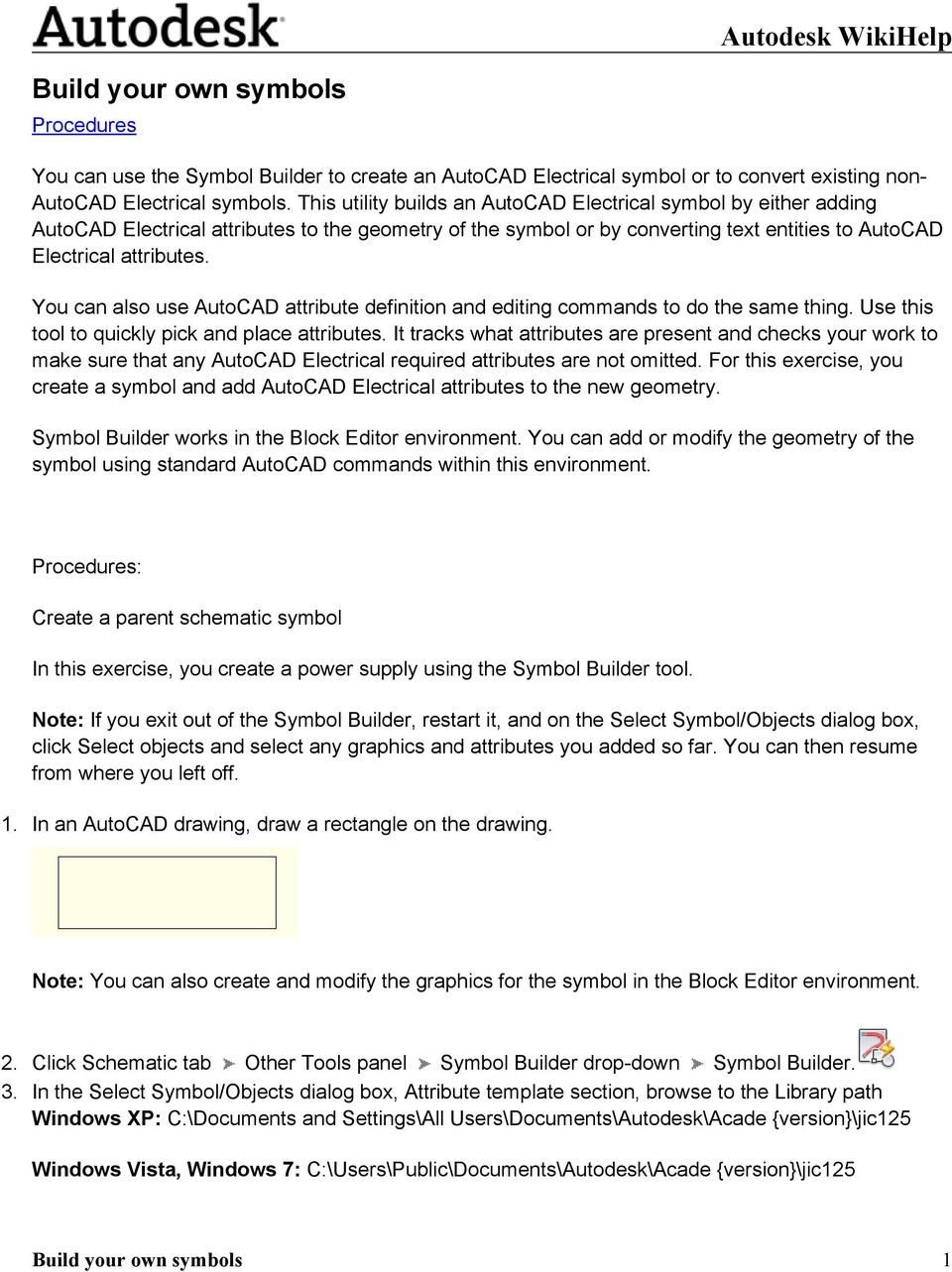
1 Build your own symbols Procedures You can use the Symbol Builder to create an AutoCAD Electrical symbol or to convert existing non- AutoCAD Electrical symbols. This utility builds an AutoCAD Electrical symbol by either adding AutoCAD Electrical attributes to the geometry of the symbol or by converting text entities to AutoCAD Electrical attributes. You can also use AutoCAD attribute definition and editing commands to do the same thing. Use this tool to quickly pick and place attributes. It tracks what attributes are present and checks your work to make sure that any AutoCAD Electrical required attributes are not omitted. For this exercise, you create a symbol and add AutoCAD Electrical attributes to the new geometry. Symbol Builder works in the Block Editor environment. You can add or modify the geometry of the symbol using standard AutoCAD commands within this environment. Procedures: Create a parent schematic symbol In this exercise, you create a power supply using the Symbol Builder tool. Note: If you exit out of the Symbol Builder, restart it, and on the Select Symbol/Objects dialog box, click Select objects and select any graphics and attributes you added so far. You can then resume from where you left off. 1. In an AutoCAD drawing, draw a rectangle on the drawing. Note: You can also create and modify the graphics for the symbol in the Block Editor environment. 2. Click Schematic tab Other Tools panel Symbol Builder drop-down Symbol Builder. 3. In the Select Symbol/Objects dialog box, Attribute template section, browse to the Library path Windows XP: C:\Documents and Settings\All Users\Documents\Autodesk\Acade {version}\jic125 Windows Vista, Windows 7: C:\Users\Public\Documents\Autodesk\Acade {version}\jic125 Build your own symbols 1

2 4. In the Attribute template section, choose Symbol: Horizontal Parent. 5. In the Attribute template section, choose Type: Generic. 6. In the Select from drawing section, click Select objects and select the rectangle. 7. Select OK. Add attributes In this part of the exercise, you insert some AutoCAD Electrical attributes from the Symbol Builder Attribute Editor. You are not limited to these attributes, and you can include your own user-defined attributes on the AutoCAD Electrical block files. Note: The TAG1 attribute is the only one required for a parent schematic symbol. The other attributes in the Required section are expected on a parent schematic symbol, however the symbol is recognized as a parent symbol without them. 1. If the Symbol Builder Attribute Editor is not visible, Autodesk WikiHelp Click Symbol Builder tab Edit panel Palette Visibility Toggle. 2. Select the TAG1 attribute. 3. Select the Properties tool to launch the Insert/Edit Attributes dialog box. 4. Change the height to and Justify to Center. 5. Enter "PS" as the Value. It is the default code used as the %F value of the tag format (such as "CR", "PB", "LT") 6. Select OK. 7. Click the Insert Attribute tool. 8. Select an insertion point for the attribute. Note: You can also right-click and select Insert Attribute or drag the attribute to insert it. 9. Select DESC1, click the Insert Attribute tool, and insert it below TAG Repeat to insert the INST and LOC attributes above TAG Select MFG, CAT, and ASSYCODE. Click the Insert Attribute tool, and insert them near the center of the rectangle. Note: If the CAT and ASSYCODE attributes are not listed they are inserted with MFG as a group. 12. Repeat to insert the FAMILY attribute near the center of the rectangle. Build your own symbols 2


3 13. With FAMILY still highlighted in the Symbol Builder Attribute Editor, select the Properties tool. Enter "PS" as the Value and OK. This assigns the %F value to the FAMILY attribute inserted. Add wire connection attributes You can define wire connection points and terminal text for the library symbol. When you add a wire connection, you select the style, the direction the wire connects from, and whether to include the optional TERMxx and TERMDESCxx attributes. In this exercise, wire connection attributes are inserted at the left, bottom, and right side of the symbol. 1. If the Symbol Builder Attribute Editor is not visible, Click Symbol Builder tab Edit panel Palette Visibility Toggle. 2. Expand the Wire Connection section of the Symbol Builder Attribute Editor. 3. Expand the Direction/Style list and select Others to launch the Insert Wire Connections dialog box. 4. On the Insert Wire Connections dialog box, select Terminal Style: Screw. 5. Select Connection Direction: Left. 6. Check Use this configuration as default. This directs Symbol Builder to use the current Terminal Style and Scale as the default in the drop-down list. 7. (Optional) Enter "L1" as the TERM01 value. This sets "L1" as the default terminal pin number when the symbol is used. 8. (Optional) Select TERMDESC01 in the Pin Information section and click Delete. This directs Symbol Builder not to insert the optional TERMDESCxx attribute with the wire connection attribute. 9. Click Insert and select in the center of the left-hand side of the rectangle as shown. The wire connection attribute, X4TERM01, and the terminal pin attribute, TERM01, are inserted. Build your own symbols 3


4 10. Back on the Symbol Builder Attribute Editor, expand the Wire Connection list and select Bottom/ Screw. 11. Select the Insert Wire Connection tool and insert the terminal in the bottom center of the rectangle. 12. Select Right/Screw from the Wire Connection Direction/Style list. 13. Select the Insert Wire Connection tool and insert the terminal in the center of the right-hand side of the rectangle. 14. In the Pins section, enter "GND" in the TERM02 value, and "L2" in the TERM03 value. Finishing the parent symbol 1. Click Symbol Builder tab Edit panel Done. 2. Click Base Point: Pick point and select the center of the rectangle. Build your own symbols 4

5 3. Select Wblock. Wblock creates the symbol.dwg file, while Block creates the symbol for this drawing file only. 4. Enter the Name and file path or keep the default. AutoCAD Electrical provides a default name for the new symbol based on the attribute template selected. Avoid changing the first four letters of the file name and limit the total length to 32 characters. 5. (Optional) If you are going to add the symbol to the icon menu at a later time using the Icon Menu Wizard, check Icon image. Enter the image name and folder. 6. (Optional) Click Details to see the Symbol Audit dialog box listing potential issues with your symbol. 7. Select OK. 8. Select Close Block Editor from the block editor toolbar. 9. (Optional) Select Yes to insert the symbol on the drawing and select a location. If you place the component on an existing wire, the wire breaks. The component tag is assigned. Additional options The additional options for creating a symbol listed are not used for this example, but you can use them when creating your own symbol. Optional Attributes: The attributes listed in this section are allowed on a parent symbol. You can also add attributes to the Required or Optional list using the following steps. 1. Select the Add Attribute tool to launch the Insert/Edit Attributes dialog box. 2. Enter the attribute name as the Tag value. 3. Enter all property values. 4. Click Insert to insert the attribute or OK to add it to the list without inserting it. Link Lines: Inserts Link Line attributes so the program can draw dashed link lines between a parent symbol and its related child contact. It requires special attributes at the point where the dashed line connects to the symbol. 1. Expand the Link Lines section. 2. Select a direction from the Direction list. 3. Select the Insert Link Lines tool. 4. Select a location for the Link Line attribute. RATING or POS sections: You can add up to 12 Rating and Position attributes. If the attribute template contains a RATING1 or POS1 attribute, or you add one, these sections are available on the Symbol Builder Attribute Editor. 1. Expand the RATING or POS section. 2. Select the Add Next tool. 3. Pick an insertion point. Convert Text to Attribute dialog box: If you selected existing text entities from the Select Symbol/ Objects dialog box, or added text while in the Block Editor environment, this option converts existing text entities to AutoCAD Electrical attributes in the same location as the original text. Build your own symbols 5

6 1. Select the Convert Text to Attribute tool from the Symbol Builder toolbar to launch the dialog box. 2. Select a text entry in the list and click the arrow pointing at the attribute name. 3. Repeat for all text entities. 4. Click Done. The text entity is converted to the attribute. The text value becomes the default value for the attribute. Convert text: If you selected existing text entities from the Select Symbol/Objects dialog box, or added text while in the Block Editor environment, this option converts a single text entity to an AutoCAD Electrical attribute in the same location as the original text. 1. Select an attribute on the Symbol Builder Attribute Editor. 2. Select the Convert Text tool. 3. Select the text entity. The text entity is converted to the attribute. The text value becomes the default value for the attribute. Audit Symbol: At any time you can audit the symbol to find any potential issues with your symbol and symbol name. Create a schematic terminal symbol In this exercise, you create a schematic terminal using the Symbol Builder tool. Note: If you exit out of the Symbol Builder, restart it, and on the Select Symbol/Objects dialog box, click Select objects and select any graphics and attributes you added so far. You can then resume from where you left off. 1. In an AutoCAD drawing, draw a rectangle on the drawing. Note: You can also create and modify the graphics for the symbol in the Block Editor environment. 2. Click Schematic tab Other Tools panel Symbol Builder drop-down Symbol Builder. 3. In the Select Symbol/Objects dialog box, Attribute template section, browse to the Library path Windows XP: C:\Documents and Settings\All Users\Documents\Autodesk\Acade {version}\jic125 Windows Vista, Windows 7: C:\Users\Public\Documents\Autodesk\Acade {version}\jic In the Attribute template section, choose Symbol: Horizontal Terminal. Build your own symbols 6


7 5. In the Attribute template section, choose Type: Terminal with wire number. 6. In the Select from drawing section:, click Select objects and select the rectangle. 7. Select OK. Add attributes In this part of the exercise, you insert some AutoCAD Electrical attributes from the Symbol Builder Attribute Editor. You are not limited to these attributes, and you can include your own user-defined attributes on the AutoCAD Electrical block files. Note: The TAGSTRIP attribute is the only one required for a schematic terminal. The other attributes in the Required section are expected on a schematic terminal, however the symbol is recognized as a schematic terminal without them. 1. If the Symbol Builder Attribute Editor is not visible, Autodesk WikiHelp Click Symbol Builder tab Edit panel Palette Visibility Toggle. 2. Select the TAGSTRIP attribute. 3. Select the Properties tool to launch the Insert/Edit Attributes dialog box. 4. Change the height to and Justify to Center. 5. Select OK. 6. Click the Insert Attribute tool. 7. Insert the attribute above the rectangle. 8. Select WIRENO, click the Insert Attribute tool, and insert it above TAGSTRIP. Use the Properties tool to change it to Justify = Center. 9. Select MFG, CAT, and ASSYCODE. Click the Insert Attribute tool, and insert them near the center of the rectangle. Note: If the CAT and ASSYCODE attributes are not listed they are inserted with MFG as a group. Add wire connection attributes You can define wire connection points for the library symbol. When you add a wire connection, you select the style and the direction the wire connects from. In this exercise, wire connection attributes Build your own symbols 7

8 are inserted at the left, right, top, and bottom of the terminal so that it can be inserted in either horizontal or vertical wires. 1. If the Symbol Builder Attribute Editor is not visible, Autodesk WikiHelp Click Symbol Builder tab Edit panel Palette Visibility Toggle. 2. Expand the Wire Connection section of the Symbol Builder Attribute Editor. 3. Select Left/None. Note: If the default terminal style is not None, select Others and change the default style to None. This wire connection style contains attributes only. 4. Select the Insert Wire Connection tool and insert the wire connection in the center of the left-hand side of the rectangle. Use the Midpoint OSnap to insert the wire connection attribute in the middle of the line. 5. The wire connection insertion remains active until you press Enter. Press "R{spacebar}" and insert the wire connection in the center of the right-hand side of the rectangle. 6. Press "T{spacebar}" and insert the wire connection in the center of the top of the rectangle. 7. Press "B{spacebar}" and insert the wire connection in the center of the bottom of the rectangle. Press Enter. Finishing the terminal symbol 1. Click Symbol Builder tab Edit panel Done. 2. Click Base Point: Pick point and select the center of the rectangle. 3. Select Wblock. Wblock creates the symbol.dwg file, while Block creates the symbol for this drawing file only. 4. Enter the Name and file path or keep the default. AutoCAD Electrical provides a default name for the new symbol based on the attribute template selected. Avoid changing the first four letters of the file name and limit the total length to 32 characters. One-line symbols follow the same naming convention as schematic parent and child symbols. For convenience the one-line symbols provided have a "1-" suffix. However, the symbol name does not define the symbol as a one-line symbol. This is defined by the WDTYPE attribute value of "1-" on the symbol, or a "1-1" on a one-line bus-tap symbol. Build your own symbols 8

9 5. (Optional) If you are going to add the symbol to the icon menu at a later time using the Icon Menu Wizard, check Icon image. Enter the image name and folder. 6. (Optional) Click Details to see the Symbol Audit dialog box listing potential issues with your symbol. 7. Select OK. 8. Select Close Block Editor from the block editor toolbar. 9. (Optional) Select Yes to insert the symbol on the drawing and select a location. If you place the terminal on an existing wire, the wire breaks. The terminal tag is assigned. Create a one-line parent symbol In this exercise, you create a one-line circuit breaker parent using the Symbol Builder tool. Note: If you exit out of the Symbol Builder, restart it, and on the Select Symbol/Objects dialog box, click Select objects and select any graphics and attributes you added so far. You can then resume from where you left off. 1. In an AutoCAD drawing, draw the symbol graphics. Note: You can also create and modify the graphics for the symbol in the Block Editor environment. 2. Click Schematic tab Other Tools panel Symbol Builder drop-down Symbol Builder. 3. In the Select Symbol/Objects dialog box, Attribute template section, browse to the Library path where the one-line symbols are stored: Windows XP: C:\Documents and Settings\All Users\Documents\Autodesk\Acade {version}\jic125\1- Windows Vista, Windows 7: C:\Users\Public\Documents\Autodesk\Acade {version}\jic125\1-4. In the Attribute template section, choose Symbol: Vertical Parent. 5. In the Attribute template section, choose Type: (CB) Circuit breakers. 6. In the Select from drawing section, click Select objects and select the graphics. 7. Select OK. Add attributes In this part of the exercise, you insert some AutoCAD Electrical attributes from the Symbol Builder Attribute Editor. You are not limited to these attributes, and you can include your own user-defined attributes on the AutoCAD Electrical block files. The TAG1 and WDTYPE attributes are the only required attributes for a one-line parent symbol. The other attributes in the Required section are expected on a one-line parent symbol, however the symbol is recognized as a one-line parent symbol without them. Build your own symbols 9

10 The WDTYPE attribute value must have a value of "1-" for a one-line symbol or "1-1" for a one-line bus-tap symbol. 1. If the Symbol Builder Attribute Editor is not visible, Autodesk WikiHelp Click Symbol Builder tab Edit panel Palette Visibility Toggle. 2. Select the TAG1 attribute. 3. Select the Properties tool to launch the Insert/Edit Attributes dialog box. 4. Change the height to and Justify to Center. The value is predefined as "CB" since the Circuit breaker template was selected. It is the default code used as the %F value of the tag format (such as "CR", "PB", "LT") 5. Select OK. 6. Click the Insert Attribute tool. 7. Select an insertion point for the attribute. Note: You can also right-click and select Insert Attribute or drag the attribute to insert it. 8. Select WDTYPE, click the Insert Attribute tool, and insert it. The WDTYPE attribute has a value of "1-" and is invisible by default. It is required to identify the symbol as a one-line symbol. 9. Select DESC1, click the Insert Attribute tool, and insert it below TAG Repeat to insert the INST and LOC attributes above TAG Select MFG, CAT, and ASSYCODE. Click the Insert Attribute tool, and insert them near the center of the rectangle. Note: If the CAT and ASSYCODE attributes are not listed they are inserted with MFG as a group. 12. Repeat to insert the FAMILY attribute near the center of the rectangle. Add wire connection attributes You can define wire connection points for the library symbol. When you add a wire connection, you select the style, the direction the wire connects from, and whether to include the optional TERMxx and TERMDESCxx attributes. In this exercise, wire connection attributes are inserted at the top and bottom of the symbol. 1. If the Symbol Builder Attribute Editor is not visible, Click Symbol Builder tab Edit panel Palette Visibility Toggle. 2. Expand the Wire Connection section of the Symbol Builder Attribute Editor. Build your own symbols 10

11 3. Expand the Direction/Style list and select Top/None. This style contains just the wire connection attributes with no graphics. Select Others to display the Insert Wire Connections dialog box for selecting other styles. 4. Select the Insert Wire Connection tool and insert the wire connection attributes. The wire connection attribute, X2TERM01, and the terminal pin attribute, TERM01, are inserted. 5. Back on the Symbol Builder Attribute Editor, expand the Wire Connection list and select Bottom/ None. 6. Select the Insert Wire Connection tool and insert the wire connection attributes. The wire connection attribute, X8TERM02, and the terminal pin attribute, TERM02, are inserted. Finishing the one-line parent symbol 1. Click Symbol Builder tab Edit panel Done. 2. Click Base Point: Pick point and select the center of the symbol. 3. Select Wblock. Wblock creates the symbol.dwg file, while Block creates the symbol for this drawing file only. 4. Enter the Name and file path or keep the default. AutoCAD Electrical provides a default name for the new symbol based on the attribute template selected. Avoid changing the first four letters of the file name and limit the total length to 32 characters. Note: One-line symbols follow the same naming convention as schematic parent and child symbols. For convenience the one-line symbols provided have a "1-" suffix. However, the symbol name does not define the symbol as a one-line symbol. 5. (Optional) If you are going to add the symbol to the icon menu at a later time using the Icon Menu Wizard, check Icon image. Enter the image name and folder. 6. (Optional) Click Details to see the Symbol Audit dialog box listing potential issues with your symbol. 7. Select OK. 8. Select Close Block Editor from the block editor toolbar. 9. (Optional) Select Yes to insert the symbol on the drawing and select a location. If you place the component on an existing wire, the wire breaks. The component tag is assigned. See Also: Create a parent schematic symbol Convert a non-autocad Electrical block 1. Click Schematic tab Other Tools panel Symbol Builder drop-down Symbol Builder. 2. Browse to the existing block to select the symbol to create or edit. Build your own symbols 11
12 3. In the Select Symbol/Objects dialog box, Attribute template section: Browse to the Library path for example Windows XP: C:\Documents and Settings\All Users\Documents\Autodesk\Acade {version}\jic125 Windows Vista, Windows 7: C:\Users\Public\Documents\Autodesk\Acade {version}\jic In the Attribute template section: Choose Symbol: Horizontal Parent for example. 5. In the Attribute template section: Choose Type: Generic for example. 6. Select OK. 7. Convert existing attribute or text objects to AutoCAD Electrical attributes. 8. Add wire connections as needed. Autodesk WikiHelp 9. Click Symbol Builder tab Edit panel Done. A default symbol name is supplied which you can keep or change as needed depending on the symbol type and symbol naming conventions Converting attribute definition or text objects If the existing symbol contains attribute or text objects you can convert these to the expected attributes for the symbol type. 1. If the Symbol Builder Attribute Editor is not visible, Click Symbol Builder tab Edit panel Palette Visibility Toggle. 2. Select the Convert Text to Attribute tool to open the dialog box. All the attributes and text objects contained in your non-autocad Electrical block are in the left-hand list. The AutoCAD Electrical attribute names are in the right-hand list. 3. Select an existing attribute/text from the left-hand list. Click the arrow next to the attribute in the righthand list. 4. Repeat for each non-autocad Electrical attribute or text object you want to convert. 5. Select Done. Create a panel footprint A panel footprint symbol can be in either of two general forms: a to-scale physical representation of the device or a generic wiring diagram representation whose main purpose is to show wire connection annotation information. The procedure for creating a panel footprint is like that of creating a schematic symbol with the following differences: Build your own symbols 12

13 Panel footprint symbols do not have to carry the wire connection attributes that schematic symbols almost always carry. There are no parent/child versions of a symbol for panel footprint symbols. Some of the attribute names are different. A panel symbol must have the P_TAG1 or P_TAGSTRIP attribute rather than the TAG1 or TAGSTRIP attribute. The symbol block naming for the panel footprint does not follow the special naming convention. The first four or five characters of the block name for a panel symbol is not as critical as it is for schematic symbols. In this example, you take geometry (either geometry you just drew, existing geometry, or a vendor representation) and convert it to an AutoCAD Electrical panel footprint using the Symbol Builder. 1. Click Schematic tab Other Tools panel Symbol Builder drop-down Symbol Builder. 2. In the Select Symbol/Objects dialog box, Attribute template section, browse to the Library path Windows XP: C:\Documents and Settings\All Users\Documents\Autodesk\Acade {version}\jic125 Windows Vista, Windows 7: C:\Users\Public\Documents\Autodesk\Acade {version}\jic In the Attribute template section, choose Symbol: Panel Footprint. 4. In the Attribute template section, choose Type: Generic. 5. In the Select from drawing section, click Select objects and select the existing objects or an existing block. 6. Select OK. Add attributes to the symbol In this part of the exercise, you insert some AutoCAD Electrical attributes from the Symbol Builder Attribute Editor. You are not limited to these attributes and you can include your own user-defined attributes on the AutoCAD Electrical block files. Note: The P_TAG1 attribute is the only one required for a panel footprint symbol. The other attributes in the Required section are expected on a panel footprint, however the symbol is recognized as a panel footprint without them. 1. If the Symbol Builder Attribute Editor is not visible, Build your own symbols 13

14 Click Symbol Builder tab Edit panel Palette Visibility Toggle. 2. Select the P_TAG1 attribute. 3. Select the Properties tool to launch the Insert/Edit Attributes dialog box. 4. Change the height to 0.125, Justify to Center, and Visible. 5. Select OK. 6. Click the Insert Attribute tool. 7. Insert the attribute above the symbol graphics. Note: You can also right-click and select Insert Attribute or drag the attribute to insert it. 8. Select DESC1 and DESC2, click the Insert Attribute tool, and insert them below the P_TAG1. Use the Properties tool to change them to Height = 0.125, Justify = Center, and Visible. 9. Insert the LOC, INST, MFG, CAT, and ASSYCODE attributes. Note: If the CAT and ASSYCODE attributes are not listed they are inserted with MFG as a group. Finishing the panel symbol 1. Click Symbol Builder tab Edit panel Done. 2. Click Base Point: Pick point and select the insertion point for the graphics. 3. Select Wblock. Wblock creates the symbol.dwg file, while Block creates the symbol for this drawing file only. Build your own symbols 14

15 4. Enter the Name and file path or keep the default. AutoCAD Electrical provides a default name for the new symbol based on the attribute template selected. 5. (Optional) If you are going to add the symbol to the icon menu at a later time using the Icon Menu Wizard, check Icon image. Enter the image name and folder. 6. (Optional) Click Details to see the Symbol Audit dialog box listing potential issues with your symbol. 7. Select OK. 8. Select Close Block Editor from the block editor toolbar. 9. (Optional) Select Yes to insert the symbol on the drawing and select a location. Additional Options The additional options for creating a symbol listed are not used for this example, but you can use them when creating your own symbol. Optional Attributes: The attributes listed in this section are allowed on a panel footprint. You can also add attributes to the Required or Optional list using the following steps. 1. Select the Add Attribute tool to launch the Insert/Edit Attributes dialog box. 2. Enter the attribute name as the Tag value. 3. Enter all property values. 4. Click Insert to insert the attribute or OK to add it to the list without inserting it. RATING section: You can add up to 12 Rating attributes. If the attribute template contains a RATING1 attribute, or you add one, this section is available on the Symbol Builder Attribute Editor. 1. Expand the RATING section. 2. Select the Add Next tool. 3. Pick an insertion point. Convert Text to Attribute dialog box: If you selected existing text entities from the Select Symbol/ Objects dialog box, or added text while in the Block Editor environment, this option converts existing text entities to AutoCAD Electrical attributes in the same location as the original text. 1. Select the Convert Text to Attribute tool from the Symbol Builder toolbar to launch the dialog box. 2. Select a text entry in the list and click the arrow pointing at the attribute name. 3. Repeat for all text entities. 4. Click Done. The text entity is converted to the attribute. The text value becomes the default value for the attribute. Convert text: If you selected existing text entities from the Select Symbol/Objects dialog box, or added text while in the Block Editor environment, this option converts a single text entity to an AutoCAD Electrical attribute in the same location as the original text. 1. Select an attribute on the Symbol Builder Attribute Editor. 2. Select the Convert Text tool. 3. Select the text entity. The text entity is converted to the attribute. The text value becomes the default value for the attribute. Build your own symbols 15

16 Audit Symbol: At any time you can audit the symbol to find any potential issues with your symbol. Adding attributes using templates An alternative to using the Symbol Builder to add attributes to the panel footprint, is to use an attribute template to add attributes automatically. You can have certain attributes added to any footprint automatically at footprint insertion time. The templates are located Windows XP: C:\Documents and Settings\All Users\Documents\Autodesk\Acade {version}\libs\panel\ Windows Vista, Windows 7: C:\Users\Public\Documents\Autodesk\Acade {version}\libs\panel\ You can set up to have visible attributes added to any footprint automatically at footprint insertion time. There are five attribute template drawings: wd_ptag_addattr_comp.dwg component footprints wd_ptag_addattr_trm.dwg terminal with terminal number wd_ptag_addattr_wtrm.dwg terminal with wire number as terminal number wd_ptag_addattr_itemballoon.dwg balloons Wd_ptag_addattr_pnltermstrip.dwg terminal footprints (when inserted by Level/Sequencing tools) When a panel footprint is inserted, the following steps are performed if the appropriate attribute template exists. 1. Find the center of the footprint by collecting and averaging the objects that make up the footprint. 2. Insert the attribute template at the calculated center of the footprint. 3. Make sure there are no duplicate attributes. If duplicate attributes are found, the attribute from the footprint is kept. 4. Re-block the added attributes with the inserted footprint. 5. Add the schematic data to the footprint. The data is added as attribute data if the target attribute exists. If the target attribute does not exist, the data is added as invisible xdata. Create a Symbol Builder attribute template Symbol Builder provides some family attribute templates. Each template contains the required and optional attributes for a certain type of symbol. Based on the options selected on the Select Symbol/ Build your own symbols 16

17 Objects dialog box in Symbol Builder, an attribute template is used. The attributes on the template are listed in the Symbol Builder Attribute Editor making it easy to insert them on your symbol. AutoCAD Electrical does not provide an attribute template for every type of symbol. Consider creating your own if you expect to create a number of new symbols. There are three basic steps to creating a Symbol Builder attribute template. Note: Wire connection attributes are not included in the symbol attribute templates but are in separate wire connection templates. 1. Create a drawing file following the naming convention "AT_{symbol}_{type}.dwg" containing the AutoCAD Electrical attribute definitions. 2. (Optional) Add the xdata and indexed attributes which tell the Symbol Builder Attribute Editor how to handle each attribute. 3. (Optional) Add the symbol type to the "_FAMILY_DESCRIPTION" table in the catalog database file. Attribute template naming convention Attribute templates follow the naming convention, AT_{symbol}_{type}. The {symbol} and {type} values appear in the lists on the Select Symbol / Objects dialog box. The selections from these lists direct Symbol Builder to the appropriate attribute template. The {symbol} value appears in the Symbol list in the Select Symbol/Objects dialog box. Certain codes are recognized by Symbol Builder, such as "HP" for "Horizontal Parent". You can use an existing recognized code or use the full text, such as "AT_Horizontal Parent_{type}.dwg". The {type} value appears in the Type list in the Select Symbol/Objects dialog box. You can also map abbreviations for the {type} in the _FAMILY_DESCRIPTION table of the catalog database, default_cat.mdb. Indexed attributes and xdata Autodesk WikiHelp An attribute template can contain an attribute definition that can be indexed. For example, AutoCAD Electrical allows up to 12 Rating attributes. If the attribute template contains an attribute "RATING(x)" this attribute can be indexed in Symbol Builder. Certain optional xdata directs the attribute display in the Symbol Builder Attribute Editor. Use the Xdata Editor to add or modify the xdata on an attribute definition. VIA_WD_GROUP Possible values "Required" or "Optional". The default value is "Required" if the xdata is not present. Build your own symbols 17

18 VIA_WD_TOOLTIP The value provides an attribute description inside the Symbol Builder Attribute Editor. VIA_WD_MULTIATT The value defines a group of attributes to insert together. The value lists all the attributes which are inserted along with the attribute with this xdata. The attributes listed are not displayed in the Symbol Builder Attribute Editor. For example, if you want DESC2 and DESC3 inserted when you insert DESC1, add this xdata with the value "DESC2,DESC3" to the DESC1 attribute definition. Note: MFG, CAT, and ASSYCODE are a default group. To insert them separately, add this xdata to the MFG attribute with a blank value. VIA_WD_INDXMAX The value provides the maximum number of times to index an attribute such as "RATING". The default value is "12" if the xdata is not present. VIA_WD_SEQ The value provides the display order. Symbol type Edit the "_FAMILY_DESCRIPTION" table in the catalog database, default_cat.mdb, to map the symbol name type value to a description. This description is used in the Type list on the Select Symbol / Objects dialog box. For example, if the attribute template name is "AT_HP_PS.DWG" but you want "Power Supply" shown in the list on the dialog box, add an entry with "PS" in the Family column, and "Power Supply" in the Description. Creating a custom wire connection style Symbol Builder inserts a wire connection template drawing when adding a wire connection to your symbol. The list of wire connection styles is built dynamically based on the template drawings found in the symbol library path. The wire connection template name indicates that it is a wire connection template, the wire connection type, and direction. AutoCAD Electrical comes with some schematic wire connection styles. If additional styles are needed, create the wire connection templates for a new style. To create a complete style, create a wire connection template for each wire direction. To add a new schematic style, create the following wire connection template drawings. BB?11.dwg Build your own symbols 18

19 BB?12.dwg BB?13.dwg BB?21.dwg BB?22.dwg BB?23.dwg BB?31.dwg BB?32.dwg BB?33.dwg The "?" is replaced with the next available digit. AutoCAD Electrical allows up to ten styles using the digits 0-9. You can create them using new drawings or by copying a set of existing wire connection template drawings to the appropriate names and modifying as needed. Starting a wire connection template from a new drawing 1. Start a blank new drawing. 2. Draw the graphics for the wire connection. 3. Use the AutoCAD ATTDEF command to add the wire connection attribute definition. The insertion point of the attribute definition is the location AutoCAD Electrical uses to connect the wire. The wire connection attribute tag is X?TERM01. The "?" character position is used to identify the preferred wire connection direction: 1: wire connects to the attribute from the right 2: wire connects to the attribute from above 4: wire connects to the attribute from the left 8: wire connects to the attribute from below 0: special for motor connections that radiate from a circle 4. (Optional) Add the TERM01 attribute definition. 5. (Optional) Add the TERMDESC01 attribute definition. 6. (Optional) Add a custom drawing property to define the style description. This value is the text displayed in the terminal style list in Insert Wire Connections dialog box. Select File Drawing Properties. Select the Custom tab. Select Add. Enter "Terminal style" for the custom property name. Enter the style description for the value. Select OK to save the drawing property. 7. Save the drawing to the appropriate library folder following the wire connection template naming convention. Wire connection template naming convention First two characters are "BB". Optional characters which indicate the symbol type for this wire connection. Build your own symbols 19

20 Blank Parent or child schematic symbol PTWN Panel footprint or nameplate STTN Schematic terminal with terminal number STWN Schematic terminal following the wire number PTWN_NOTERM Panel terminal One or two characters indicating the terminal style. It is a single number, 0 through 9, for schematic symbols. For a panel symbol, the single number is followed by an underscore. Last two characters are digits that indicate the wire direction. 00 Radial, wire connects from an angle 11 Left and top 12 Left 13 Left and bottom 21 Top 22 Top, left, bottom, and right 23 Bottom 31 Right and top 32 Right Build your own symbols 20

21 33 Right and bottom Supplied wire connection templates Template Name Symbol Type Terminal Style Attributes in the template BB012, BB021, BB023, BB032 Schematic parent or child None X?TERMn, TERMn BB000 Schematic parent or child None X0TERMn BB111 to B133 Schematic parent or child Screw X?TERMn, TERMn BB211 to BB233 Schematic parent or child Small Screw X?TERMn, TERMn BB311 to BB333 Schematic parent or child Circle, number inside X?TERMn, TERMn BB411 to BB433 Schematic parent or child Square, number inside X?TERMn, TERMn BB511 to BB533 Schematic parent or child Fixed PLC X?TERMn, TERMn, DESCA01, DESCB01, TAGA01 Build your own symbols 21
22 BBSTTN012, BBSTTN021, BBSTTN023, BBSTTN032 Schematic terminal with terminal number None X?TERM01, TERM01 BBSTWN012, BBSTWN021, BBSTWN023, BBSTWN032 Schematic terminal following wire number None X?TERM01 BBPTWN0_12, BBPTWN0_21, BBPTWN0_23, BBPTWN0_32 Panel footprint One wire number X?TERMn, TERMn, TERMDESCn, WIRENOn BBPTWN1_12, BBPTWN1_21, BBPTWN1_23, BBPTWN1_32 Panel footprint One wire number X?TERMn, TERMn, TERMDESCn, WIRENOn BBPTWN2_12, BBPTWN2_21, BBPTWN2_23, BBPTWN2_32 Panel footprint Two wire numbers X?TERMn, TERMn, TERMDESCn, WIRENOn, WIRENOnA BBPTWN_NOTERM0_12, BBPTWN_NOTERM0_21, BBPTWN_NOTERM0_23, BBPTWN_NOTERM0_32 Panel terminal, no levels No levels WIRENOL, WIRENOR, TERM, TERMDESCL, TERMDESCR BBPTWN_NOTERM1_12, BBPTWN_NOTERM1_21, BBPTWN_NOTERM1_23, BBPTWN_NOTERM1_32 Panel terminal, one level One level terminal WIRENOL, WIRENOR, L01PINL, L01PINR, TERM Build your own symbols 22
23 BBPTWN_NOTERM2_12, BBPTWN_NOTERM2_21, BBPTWN_NOTERM2_23, BBPTWN_NOTERM2_32 Panel terminal, two levels Two level terminal WIRENOL, WIRENOR, L01PINL, L01PINR, TERM, L02WIRENOl, L02WIRENOR, L02PINL, L02PINR, L02TERM BBPTWN_NOTERM3_12, BBPTWN_NOTERM3_21, BBPTWN_NOTERM3_23, BBPTWN_NOTERM3_32 Panel terminal, three levels Three level terminal WIRENOL, WIRENOR, L01PINL, L01PINR, TERM, L02WIRENOl, L02WIRENOR, L02PINL, L02PINR, L02TERM, L03WIRENOL, L03WIRENOR, L03PINL, L03PINR, L03TERM The "?" is replaced with the appropriate wire connection direction number and the "n" is replaced with the two digit sequential number. If your template contains only one wire connection attribute, always use "01". The "01" is replaced with the next available value when the wire connection template is inserted using Symbol Builder. Build your own symbols 23
This Skill Builder demonstrates how to define and place sketched symbols in drawings.
 Sketched Symbols This Skill Builder demonstrates how to define and place sketched symbols in drawings. A sketched symbol is a user-defined symbol. You create sketched symbols in the sketch environment
AutoCAD Electrical Fundamentals - NFPA Course Length: 3 days
 AutoCAD Electrical Fundamentals - NFPA Course Length: 3 days The AutoCAD Electrical Fundamentals training course (three days) covers the indispensable core topics for working with the AutoCAD Electrical
6. If you want to enter specific formats, click the Format Tab to auto format the information that is entered into the field.
 Adobe Acrobat Professional X Part 3 - Creating Fillable Forms Preparing the Form Create the form in Word, including underlines, images and any other text you would like showing on the form. Convert the
WHAT S NEW IN WORD 2010 & HOW TO CUSTOMIZE IT
 WHAT S NEW IN WORD 2010 & HOW TO CUSTOMIZE IT The Ribbon... 2 Default Tabs... 2 Contextual Tabs... 2 Minimizing and Restoring the Ribbon... 3 Customizing the Ribbon... 3 A New Graphic Interface... 5 Live
ACS Version 10.6 - Check Layout Design
 ACS Version 10.6 - Check Layout Design Table Of Contents 1. Check Designer... 1 About the Check Design Feature... 1 Selecting a Check Template... 2 Adding a Check Template... 2 Modify a Check Template...
Appendix A How to create a data-sharing lab
 Appendix A How to create a data-sharing lab Creating a lab involves completing five major steps: creating lists, then graphs, then the page for lab instructions, then adding forms to the lab instructions,
Toolbars and Tabs in SMART Notebook Software
 Toolbars and Tabs in SMART Notebook Software This quick reference introduces you to the toolbar, full screen toolbar and side tabs in SMART Notebook collaborative learning software. Toolbar The SMART Notebook
Using the Cute Rich-Text Editor
 Using the Cute Rich-Text Editor This document is designed to provide users with a basic introduction to using the Cute rich-text editor to format text, create and modify tables, and to place charts and
Content Author's Reference and Cookbook
 Sitecore CMS 6.5 Content Author's Reference and Cookbook Rev. 110621 Sitecore CMS 6.5 Content Author's Reference and Cookbook A Conceptual Overview and Practical Guide to Using Sitecore Table of Contents
TABLE OF CONTENTS. INTRODUCTION... 5 Advance Concrete... 5 Where to find information?... 6 INSTALLATION... 7 STARTING ADVANCE CONCRETE...
 Starting Guide TABLE OF CONTENTS INTRODUCTION... 5 Advance Concrete... 5 Where to find information?... 6 INSTALLATION... 7 STARTING ADVANCE CONCRETE... 7 ADVANCE CONCRETE USER INTERFACE... 7 Other important
BIGPOND ONLINE STORAGE USER GUIDE Issue 1.1.0-18 August 2005
 BIGPOND ONLINE STORAGE USER GUIDE Issue 1.1.0-18 August 2005 PLEASE NOTE: The contents of this publication, and any associated documentation provided to you, must not be disclosed to any third party without
Cascade Server CMS Quick Start Guide
 Cascade Server CMS Quick Start Guide 1. How to log in 2. How to open page 3. How to edit a page 4. How to create a new page 5. How to publish a page 6. How to change settings to view publish status page
Using Microsoft Office XP Advanced Word Handout INFORMATION TECHNOLOGY SERVICES California State University, Los Angeles Version 1.
 Using Microsoft Office XP Advanced Word Handout INFORMATION TECHNOLOGY SERVICES California State University, Los Angeles Version 1.0 Spring 2004 Contents Advanced Microsoft Word XP... 3 Customizing Word
Introduction to Autodesk Inventor for F1 in Schools
 F1 in Schools race car Introduction to Autodesk Inventor for F1 in Schools In this course you will be introduced to Autodesk Inventor, which is the centerpiece of Autodesk s Digital Prototyping strategy
Information Technology Solutions
 Connecting People, Process Information & Data Network Systems Diagnostic Testing Information Technology Solutions Getting started in Workflow Designer Prior Learning 1. While it helps to have some knowledge
Create Mailing Labels from an Electronic File
 Create Mailing Labels from an Electronic File Microsoft Word 2002 (XP) Electronic data requests for mailing labels will be filled by providing the requester with a commadelimited text file. When you receive
Instructions for Configuring a SAS Metadata Server for Use with JMP Clinical
 Instructions for Configuring a SAS Metadata Server for Use with JMP Clinical These instructions describe the process for configuring a SAS Metadata server to work with JMP Clinical. Before You Configure
Introduction to Autodesk Inventor for F1 in Schools
 Introduction to Autodesk Inventor for F1 in Schools F1 in Schools Race Car In this course you will be introduced to Autodesk Inventor, which is the centerpiece of Autodesk s digital prototyping strategy
1.5 MONITOR FOR FMS 6 USER GUIDE
 1.5 MONITOR FOR FMS 6 USER GUIDE 38 Introduction Monitor for FMS6 V1.2 is an upgrade to the previous version of Monitor. The new software is written for 32-bit operating systems only and can therefore
Importing Contacts to Outlook
 Importing Contacts to Outlook 1. The first step is to create a file of your contacts from the National Chapter Database. 2. You create this file under Reporting, Multiple. You will follow steps 1 and 2
Subscribe to RSS in Outlook 2007. Find RSS Feeds. Exchange Outlook 2007 How To s / RSS Feeds 1of 7
 Exchange Outlook 007 How To s / RSS Feeds of 7 RSS (Really Simple Syndication) is a method of publishing and distributing content on the Web. When you subscribe to an RSS feed also known as a news feed
GETTING STARTED GUIDE 4.5. FileAudit VERSION. www.isdecisions.com
 GETTING STARTED GUIDE FileAudit 4.5 VERSION www.isdecisions.com Introduction FileAudit monitors access or access attempts to sensitive files and folders on Microsoft Windows servers. FileAudit allows you
Smart Board Notebook Software A guide for new Smart Board users
 Smart Board Notebook Software A guide for new Smart Board users This guide will address the following tasks in Notebook: 1. Adding shapes, text, and pictures. 2. Searching the Gallery. 3. Arranging objects
Welcome to the topic on Master Data and Documents.
 Welcome to the topic on Master Data and Documents. In this topic, we will look at master data in SAP Business One. After this session you will be able to view a customer record to explain the concept of
Dreamweaver and Fireworks MX Integration Brian Hogan
 Dreamweaver and Fireworks MX Integration Brian Hogan This tutorial will take you through the necessary steps to create a template-based web site using Macromedia Dreamweaver and Macromedia Fireworks. The
Microsoft PowerPoint 2010
 Microsoft PowerPoint 2010 Starting PowerPoint... 2 PowerPoint Window Properties... 2 The Ribbon... 3 Default Tabs... 3 Contextual Tabs... 3 Minimizing and Restoring the Ribbon... 4 The Backstage View...
Adobe Dreamweaver CC 14 Tutorial
 Adobe Dreamweaver CC 14 Tutorial GETTING STARTED This tutorial focuses on the basic steps involved in creating an attractive, functional website. In using this tutorial you will learn to design a site
The first thing to do is choose if you are creating a mail merge for printing or an e-mail merge for distribution over e-mail.
 Create a mail or e-mail merge Use mail or e-mail merge when you want to create a large number of documents that are mostly identical but include some unique information. For example, you can use mail merge
Chapter 23: Drafting in Worksheet View
 Chapter 23: Drafting in Worksheet View Worksheet View is a powerful, 2D production drafting module. Here you can find all of the drawing and editing tools needed to create fast, accurate, detailed working
MICROSOFT ACCESS 2007 BOOK 2
 MICROSOFT ACCESS 2007 BOOK 2 4.1 INTRODUCTION TO ACCESS FIRST ENCOUNTER WITH ACCESS 2007 P 205 Access is activated by means of Start, Programs, Microsoft Access or clicking on the icon. The window opened
AutoCAD Civil 3D 2010 ESSENTIALS
 AutoCAD Civil 3D 2010 ESSENTIALS SDC PUBLICATIONS Schroff Development Corporation www.schroff.com Better Textbooks. Lower Prices. Visit our website to learn more about this and other books: AutoCAD Civil
1.5 MONITOR. Schools Accountancy Team INTRODUCTION
 1.5 MONITOR Schools Accountancy Team INTRODUCTION The Monitor software allows an extract showing the current financial position taken from FMS at any time that the user requires. This extract can be saved
AutoCAD Architecture 2012 UK Content Tools
 AutoCAD Architecture 2012 UK Content Tools Contents Contents... 1 Installation... 2 Loading the utilities... 2 Utilities Overview... 3 Menu and Toolbar... 3 Content Generation... 3 Content Publishing...
Creating forms in Microsoft Access 2007
 Platform: Windows PC Ref no: USER 166 Date: 14 th January 2008 Version: 1 Authors: Derek Sheward, Claire Napier Creating forms in Microsoft Access 2007 This is the fourth document in a series of five on
Presentations and PowerPoint
 V-1.1 PART V Presentations and PowerPoint V-1.2 Computer Fundamentals V-1.3 LESSON 1 Creating a Presentation After completing this lesson, you will be able to: Start Microsoft PowerPoint. Explore the PowerPoint
Tutorials. If you have any questions, comments, or suggestions about these lessons, don't hesitate to contact us at [email protected].
 Tutorials The lesson schedules for these tutorials were installed when you installed Milestones Professional 2010. They can be accessed under File Open a File Lesson Chart. If you have any questions, comments,
Embroidery Fonts Plus ( EFP ) Tutorial Guide Version 1.0505
 Embroidery Fonts Plus ( EFP ) Tutorial Guide Version 1.0505 1 Contents Chapter 1 System Requirements.................. 3 Chapter 2 Quick Start Installation.................. 4 System Requirements................
I ntroduction. Accessing Microsoft PowerPoint. Anatomy of a PowerPoint Window
 Accessing Microsoft PowerPoint To access Microsoft PowerPoint from your home computer, you will probably either use the Start menu to select the program or double-click on an icon on the Desktop. To open
PowerPoint 2007: Basics Learning Guide
 PowerPoint 2007: Basics Learning Guide What s a PowerPoint Slide? PowerPoint presentations are composed of slides, just like conventional presentations. Like a 35mm film-based slide, each PowerPoint slide
WEBSITE CONTENT MANAGEMENT SYSTEM USER MANUAL CMS Version 2.0 CMS Manual Version 1.0 2-25-13
 WEBSITE CONTENT MANAGEMENT SYSTEM USER MANUAL CMS Version 2.0 CMS Manual Version 1.0 2-25-13 CONTENTS Things to Remember... 2 Browser Requirements... 2 Why Some Areas of Your Website May Not Be CMS Enabled...
Quick Start Guide. Highly customizable automated trading Automate your trades according to rules and models you create.
 POWER E*TRADE PRO EXCEL MANAGER Quick Start Guide We are pleased to announce the launch of Excel Manager, an exciting new feature in Power E*TRADE Pro that leverages the flexibility of Microsoft Excel
Custom Reporting System User Guide
 Citibank Custom Reporting System User Guide April 2012 Version 8.1.1 Transaction Services Citibank Custom Reporting System User Guide Table of Contents Table of Contents User Guide Overview...2 Subscribe
Web Ambassador Training on the CMS
 Web Ambassador Training on the CMS Learning Objectives Upon completion of this training, participants will be able to: Describe what is a CMS and how to login Upload files and images Organize content Create
Microsoft Word 2010. Revising Word Documents Using Markup Tools
 Microsoft Word 2010 Revising Word Documents Using Markup Tools Preface Word provides several markup tools that make document collaboration easy. Color coding, highlighting, and the ability maintain multiple
AutoCAD Electrical Symbol Libraries
 AutoCAD Electrical Symbol Libraries AutoCAD Electrical 2005 Symbol file names should conform to the AutoCAD Electrical naming convention. Though not mandatory, you are encouraged to follow the convention
Working with the new enudge responsive email styles
 Working with the new enudge responsive email styles This tutorial assumes that you have added one of the mobile responsive colour styles to your email campaign contents. To add an enudge email style to
Prepare your data in ArcGIS for Desktop
 Collector for ArcGIS (ios) Tutorials Prepare your data in ArcGIS for Desktop Create and share a map for data collection Track where collectors went Additional help FAQs Supported data Configure map capabilities
GETTING STARTED GUIDE. FileAudit VERSION. www.isdecisions.com
 GETTING STARTED GUIDE FileAudit 5 VERSION www.isdecisions.com Introduction FileAudit monitors access or access attempts to sensitive files and folders on Microsoft Windows servers. FileAudit allows you
Data Tool Platform SQL Development Tools
 Data Tool Platform SQL Development Tools ekapner Contents Setting SQL Development Preferences...5 Execution Plan View Options Preferences...5 General Preferences...5 Label Decorations Preferences...6
USING STUFFIT DELUXE THE STUFFIT START PAGE CREATING ARCHIVES (COMPRESSED FILES)
 USING STUFFIT DELUXE StuffIt Deluxe provides many ways for you to create zipped file or archives. The benefit of using the New Archive Wizard is that it provides a way to access some of the more powerful
ACCESS 2007 BASICS. Best Practices in MS Access. Information Technology. MS Access 2007 Users Guide. IT Training & Development (818) 677-1700
 Information Technology MS Access 2007 Users Guide ACCESS 2007 BASICS Best Practices in MS Access IT Training & Development (818) 677-1700 Email: [email protected] Website: www.csun.edu/it/training Access
Umbraco Content Management System (CMS) User Guide
 Umbraco Content Management System (CMS) User Guide Content & media At the bottom-left of the screen you ll see 2 main sections of the CMS Content and Media. Content is the section that displays by default
Introduction to Microsoft Access 2003
 Introduction to Microsoft Access 2003 Zhi Liu School of Information Fall/2006 Introduction and Objectives Microsoft Access 2003 is a powerful, yet easy to learn, relational database application for Microsoft
PowerPoint 2007 Basics Website: http://etc.usf.edu/te/
 Website: http://etc.usf.edu/te/ PowerPoint is the presentation program included in the Microsoft Office suite. With PowerPoint, you can create engaging presentations that can be presented in person, online,
Microsoft Access 2010 Part 1: Introduction to Access
 CALIFORNIA STATE UNIVERSITY, LOS ANGELES INFORMATION TECHNOLOGY SERVICES Microsoft Access 2010 Part 1: Introduction to Access Fall 2014, Version 1.2 Table of Contents Introduction...3 Starting Access...3
State of Illinois Web Content Management (WCM) Guide For SharePoint 2010 Content Editors. 11/6/2014 State of Illinois Bill Seagle
 State of Illinois Web Content Management (WCM) Guide For SharePoint 2010 Content Editors 11/6/2014 State of Illinois Bill Seagle Table of Contents Logging into your site... 2 General Site Structure and
Creating tables of contents and figures in Word 2013
 Creating tables of contents and figures in Word 2013 Information Services Creating tables of contents and figures in Word 2013 This note shows you how to create a table of contents or a table of figures
Excel 2007 Basic knowledge
 Ribbon menu The Ribbon menu system with tabs for various Excel commands. This Ribbon system replaces the traditional menus used with Excel 2003. Above the Ribbon in the upper-left corner is the Microsoft
Microsoft PowerPoint 2008
 Microsoft PowerPoint 2008 Starting PowerPoint... 2 Creating Slides in Your Presentation... 3 Beginning with the Title Slide... 3 Inserting a New Slide... 3 Slide Layouts... 3 Adding an Image to a Slide...
Pro/ENGINEER Wildfire 4.0 Basic Design
 Introduction Datum features are non-solid features used during the construction of other features. The most common datum features include planes, axes, coordinate systems, and curves. Datum features do
Module One: Getting Started... 6. Opening Outlook... 6. Setting Up Outlook for the First Time... 7. Understanding the Interface...
 2 CONTENTS Module One: Getting Started... 6 Opening Outlook... 6 Setting Up Outlook for the First Time... 7 Understanding the Interface...12 Using Backstage View...14 Viewing Your Inbox...15 Closing Outlook...17
CAE-Link Corporation. Building Design and Engineering Services. Dwg Manager. April 2004. AutoCAD 2000i through 2005. 1987 2004, CAE-Link Corporation
 CAE-Link Corporation Building Design and Engineering Services Dwg Manager April 2004 AutoCAD 2000i through 2005 1987 2004, CAE-Link Corporation Copyright 2002-2003 CAE-Link Corporation All Rights Reserved
Vodafone PC SMS 2010. (Software version 4.7.1) User Manual
 Vodafone PC SMS 2010 (Software version 4.7.1) User Manual July 19, 2010 Table of contents 1. Introduction...4 1.1 System Requirements... 4 1.2 Reply-to-Inbox... 4 1.3 What s new?... 4 2. Installation...6
Creating trouble-free numbering in Microsoft Word
 Creating trouble-free numbering in Microsoft Word This note shows you how to create trouble-free chapter, section and paragraph numbering, as well as bulleted and numbered lists that look the way you want
Website Editor User Guide
 CONTENTS Minimum System Requirements... 3 Design Your Website... 3 Choosing your Theme... 4 Choosing your Header Style... 4-5 Website Content Editor... 6 Text Editor Toolbar features... 6 Main Menu Items...
Chapter 12 Creating Web Pages
 Getting Started Guide Chapter 12 Creating Web Pages Saving Documents as HTML Files Copyright This document is Copyright 2010 2012 by its contributors as listed below. You may distribute it and/or modify
Configuration for Professional Client Access
 In a network environment, in order for the clients to access the data over the network, you will need to set up a network share to the data file. CREATING A NETWORK SHARE There may be slight differences
DOING MORE WITH WORD: MICROSOFT OFFICE 2010
 University of North Carolina at Chapel Hill Libraries Carrboro Cybrary Chapel Hill Public Library Durham County Public Library DOING MORE WITH WORD: MICROSOFT OFFICE 2010 GETTING STARTED PAGE 02 Prerequisites
Creating and Using Links and Bookmarks in PDF Documents
 Creating and Using Links and Bookmarks in PDF Documents After making a document into a PDF, there may be times when you will need to make links or bookmarks within that PDF to aid navigation through the
NetOp: Teacher Program Creating and Setting up Your Class
 NetOp: Teacher Program Creating and Setting up Your Class Before you can use NetOp to manage a computer classroom, you must create and set up your class on the tech cart in the classroom you will be using.
Generating a Custom Bill of Materials
 Summary Tutorial TU0104 (v2.3) May 16, 2008 This tutorial describes how to use the Report Manager to set up a Bill of Materials (BOM) report. The manipulation of data and columns and exporting to an Excel
Microsoft Word 2010. Quick Reference Guide. Union Institute & University
 Microsoft Word 2010 Quick Reference Guide Union Institute & University Contents Using Word Help (F1)... 4 Window Contents:... 4 File tab... 4 Quick Access Toolbar... 5 Backstage View... 5 The Ribbon...
Ingeniux 8 CMS Web Management System ICIT Technology Training and Advancement ([email protected])
 Ingeniux 8 CMS Web Management System ICIT Technology Training and Advancement ([email protected]) Updated on 10/17/2014 Table of Contents About... 4 Who Can Use It... 4 Log into Ingeniux... 4 Using Ingeniux
PowerPoint 2013: Basic Skills
 PowerPoint 2013: Basic Skills Information Technology September 1, 2014 1 P a g e Getting Started There are a variety of ways to start using PowerPoint software. You can click on a shortcut on your desktop
Microsoft Access 2010 Overview of Basics
 Opening Screen Access 2010 launches with a window allowing you to: create a new database from a template; create a new template from scratch; or open an existing database. Open existing Templates Create
Asset Track Getting Started Guide. An Introduction to Asset Track
 Asset Track Getting Started Guide An Introduction to Asset Track Contents Introducing Asset Track... 3 Overview... 3 A Quick Start... 6 Quick Start Option 1... 6 Getting to Configuration... 7 Changing
What is a Mail Merge?
 NDUS Training and Documentation What is a Mail Merge? A mail merge is generally used to personalize form letters, to produce mailing labels and for mass mailings. A mail merge can be very helpful if you
HOW TO BURN A CD/DVD IN WINDOWS XP. Data Projects
 Page 1 HOW TO BURN A CD/DVD IN WINDOWS XP There are two ways to burn files to a CD or DVD using Windows XP: 1. Using Sonic RecordNow! Plus or 2. Using the Windows Explorer CD Burning with Sonic Recordnow!
iw Document Manager Cabinet Converter User s Guide
 iw Document Manager Cabinet Converter User s Guide Contents Contents.................................................................... 1 Abbreviations Used in This Guide................................................
BUSINESS OBJECTS XI WEB INTELLIGENCE
 BUSINESS OBJECTS XI WEB INTELLIGENCE SKW USER GUIDE (Skilled Knowledge Worker) North Carolina Community College Data Warehouse Last Saved: 3/31/10 9:40 AM Page 1 of 78 Contact Information Helpdesk If you
Triggers & Actions 10
 Triggers & Actions 10 CHAPTER Introduction Triggers and actions are the building blocks that you can use to create interactivity and custom features. Once you understand how these building blocks work,
Accounts Receivable: Importing Remittance Data
 Updated December 2015 Contents...3 Getting Started...3 Configuring the Excel Spreadsheet...3 Importing the Data...5 2015 ECi Software Solutions, Inc. This feature lets you import check remittance information
Creating a New Project
 Creating a New Project Microsoft Project is a project management software program designed to assist project managers in developing plans, assigning resources to tasks, tracking progress, managing budgets,
Layouts, Plotting, Printing
 Layouts, Plotting, Printing Sacramento City College Engineering Design Technology Layouts, Plotting, Printing 1 Objectives Print and plot a drawing. Set up layouts using title blocks and viewports. Create
MICROSOFT OUTLOOK 2010 WORK WITH CONTACTS
 MICROSOFT OUTLOOK 2010 WORK WITH CONTACTS Last Edited: 2012-07-09 1 Access to Outlook contacts area... 4 Manage Outlook contacts view... 5 Change the view of Contacts area... 5 Business Cards view... 6
Training Manual Version 1.0
 State of Indiana Content Management System Open Text v.11.2 Training Manual Version 1.0 Developed by Table of Contents 1. Getting Started... 4 1.1 Logging In... 4 1.2 OpenText Menu...5 1.3 Selecting a
Microsoft Access Basics
 Microsoft Access Basics 2006 ipic Development Group, LLC Authored by James D Ballotti Microsoft, Access, Excel, Word, and Office are registered trademarks of the Microsoft Corporation Version 1 - Revision
-SoftChalk LessonBuilder-
 -SoftChalk LessonBuilder- SoftChalk is a powerful web lesson editor that lets you easily create engaging, interactive web lessons for your e-learning classroom. It allows you to create and edit content
16.4.3 Lab: Data Backup and Recovery in Windows XP
 16.4.3 Lab: Data Backup and Recovery in Windows XP Introduction Print and complete this lab. In this lab, you will back up data. You will also perform a recovery of the data. Recommended Equipment The
Software Application Tutorial
 Software Application Tutorial Copyright 2005, Software Application Training Unit, West Chester University. No Portion of this document may be reproduced without the written permission of the authors. For
Introduction to AutoCAD 2010
 Page 1 Introduction to AutoCAD 2010 Alf Yarwood Chapter 10 Exercise 1 1. Open AutoCAD 2010 with a double-click on its shortcut icon in the Windows desktop. 2. Open the template acadiso.dwt. 3. Construct
Sample Table. Columns. Column 1 Column 2 Column 3 Row 1 Cell 1 Cell 2 Cell 3 Row 2 Cell 4 Cell 5 Cell 6 Row 3 Cell 7 Cell 8 Cell 9.
 Working with Tables in Microsoft Word The purpose of this document is to lead you through the steps of creating, editing and deleting tables and parts of tables. This document follows a tutorial format
How To Write A Cq5 Authoring Manual On An Ubuntu Cq 5.2.2 (Windows) (Windows 5) (Mac) (Apple) (Amd) (Powerbook) (Html) (Web) (Font
 Adobe CQ5 Authoring Basics Print Manual SFU s Content Management System SFU IT Services CMS Team ABSTRACT A summary of CQ5 Authoring Basics including: Setup and Login, CQ Interface Tour, Versioning, Uploading
Data Visualization. Brief Overview of ArcMap
 Data Visualization Prepared by Francisco Olivera, Ph.D., P.E., Srikanth Koka and Lauren Walker Department of Civil Engineering September 13, 2006 Contents: Brief Overview of ArcMap Goals of the Exercise
DEPLOYING A VISUAL BASIC.NET APPLICATION
 C6109_AppendixD_CTP.qxd 18/7/06 02:34 PM Page 1 A P P E N D I X D D DEPLOYING A VISUAL BASIC.NET APPLICATION After completing this appendix, you will be able to: Understand how Visual Studio performs deployment
Content Author's Reference and Cookbook
 Sitecore CMS 6.2 Content Author's Reference and Cookbook Rev. 091019 Sitecore CMS 6.2 Content Author's Reference and Cookbook A Conceptual Overview and Practical Guide to Using Sitecore Table of Contents
Internet Explorer 7. Getting Started The Internet Explorer Window. Tabs NEW! Working with the Tab Row. Microsoft QUICK Source
 Microsoft QUICK Source Internet Explorer 7 Getting Started The Internet Explorer Window u v w x y { Using the Command Bar The Command Bar contains shortcut buttons for Internet Explorer tools. To expand
CORSAIR GAMING KEYBOARD SOFTWARE USER MANUAL
 CORSAIR GAMING KEYBOARD SOFTWARE USER MANUAL TABLE OF CONTENTS CORSAIR UTILITY ENGINE OVERVIEW PROFILES 1 9 Introduction 2 Starting the Corsair Utility Engine 2 Profiles: Settings for a Specific Program
ITCS QUICK REFERENCE GUIDE: EXPRESSION WEB SITE
 Create a One-Page Website Using Microsoft Expression Web This tutorial uses Microsoft Expression Web 3 Part 1. Create the Site on your computer Create a folder in My Documents to house the Web files. Save