
COAXIAL TV SCART P. SUPPLY
|
|
|
- Samuel Berry
- 9 years ago
- Views:
Transcription
1

2 COAXIAL S/PDIF TV SCART P. SUPPLY

3 COAXIAL S/PDIF TV SCART P. SUPPLY COAXIAL S/PDIF TV SCART P. SUPPLY COAXIAL S/PDIF

4 HOTLINE AT BG ,12/Min. österr. Festnetz CEE DE [email protected] [email protected] 0,14/Min. deutsches Festnetz 0,42/Min. max. Mobilfunknetze DK [email protected] FR NL [email protected] PL UA [email protected] 0,15 par mn poste fixe en France IT [email protected] Da rete fissa 24,8 cent. al min. 12,5 cent. scatto alla risposta Da rete mobile max 49 cent. al min. 15,6 cent. scatto alla risposta [email protected] +380(44) [email protected] Supplied by STRONG & Co, Japan Represented by STRONG Ges.m.b.H. Franz-Josefs-Kai Vienna Austria [email protected] 10 Feb :24

5 Your receiver is delivered with USB multimedia support. After downloading the software for recording via USB from the website the receiver can be upgraded to support the recording function via USB. This user manual describes the full functionality including the recording function and may not be applicable if the software for recording via USB has not yet been installed. English Licenses ANY USE OF THIS PRODUCT IN ANY MANNER OTHER THAN PERSONAL USE THAT COMPLIES WITH THE MPEG-2 STANDARD FOR ENCODING VIDEO INFORMATION FOR PACKAGED MEDIA IS EXPRESSLY PROHIBITED WITHOUT A LICENSE UNDER APPLICABLE PATENTS IN THE MPEG-2 PATENT PORTFOLIO, WHICH LICENSE IS AVAILABLE FROM MPEG LA, LLC, 6312 S. Fiddlers Green Circle, Suite 400E, Greenwood Village, Colorado U.S.A. THIS PRODUCT IS LICENSED UNDER THE AVC PATENT PORTFOLIO LICENSE FOR THE PERSONAL AND NONCOMMERCIAL USE OF A CONSUMER TO (i) ENCODE VIDEO IN COMPLIANCE WITH THE AVC STANDARD ( AVC VIDEO ) AND/OR (ii) DECODE AVC VIDEO THAT WAS ENCODED BY A CONSUMER ENGAGED IN A PERSONAL AND NON-COMMERCIAL ACTIVITY AND/OR WAS OBTAINED FROM A VIDEO PROVIDER LICENSED TO PROVIDE AVC VIDEO. NO LICENSE IS GRANTED OR SHALL BE IMPLIED FOR ANY OTHER USE. ADDITIONAL INFORMATION MAY BE OBTAINED FROM MPEG LA, L.L.C. SEE This product contains one or more programs protected under international and U.S. copyright laws as unpublished works. They are confidential and proprietary to Dolby Laboratories. Their reproduction or disclosure, in whole or in part, or the production of derivative works therefrom without the express permission of Dolby Laboratories is prohibited. Copyright by Dolby Laboratories. All rights reserved. 10 Feb :39 1

6 Table of Content 1.0 Instruction Safety Instructions Storage Equipment Set-up Accessories Usage of external USB devices Your ReceiveR PIN code default: Front and side panel Rear panel Remote Control Installing the batteries Using the remote control Connections Basic connection using an HDMI cable Basic connection using a Scart cable Connecting multiple fixed LNBs using a DiSEqC switch First Time Installation Installation Quick guide for using your receiver Operation Changing channels Info Banner Selection of audio language Teletext Subtitles Changing the aspect ratio Changing the resolution EPG (Electronic Programme Guide) Favourite channels Main Menu Programme Picture Channel Search Time and date settings Option System Settings USB 16 A.1 TroubleshootinG 19 A.2 Specifications 20 STRONG declares that this item complies with the basic requirements and other relevant regulations of directives CE 2004/108/EC and 73/23/EC, RoHS 2002/95/EC Subject to alterations. In consequence of continuous research and development technical specifications, design and appearance of products may change. Manufactured under license from Dolby Laboratories. Dolby and the double-d symbol are trademarks of Dolby Laboratories. HDMI, the HDMI logo and High-Definition Multimedia Interface are trademarks or registered trademarks of HDMI Licensing LLC in the United States and other countries. All product names are trademarks or registered trademarks of their respective owners. STRONG All rights reserved. 2

7 1.0 Instruction 1.1 Safety Instructions DO NOT INSTALL YOUR RECEIVER: In a closed or poorly ventilated cabinet; directly on top of or under any other equipment; on a surface which might obstruct the ventilation slots. English DO NOT EXPOSE THE RECEIVER OR ITS ACCESSORIES: To direct sunlight or any other equipment that generates heat; to rain or intense moisture; to intense vibration and to any shock which may cause permanent damage to your receiver or to any magnetic objects, such as loudspeakers, transformers, etc. Do not use a damaged power cord. It may cause a fire or an electric shock. Do not touch a power cord with wet hands. It may cause an electric shock. When the receiver is not used for a long period of time, you should unplug the power cord from the wall socket. Do not use alcohol or ammonia based liquids to clean the receiver. If you wish, you may clean your receiver with a soft lint-free cloth slightly made damp with a mild soap solution, and only after disconnecting from the mains voltage supply. Make sure no foreign objects fall through the ventilation slots because this could cause fire or an electric shock. Do not place any objects on top of the receiver because this might prevent proper cooling of the components inside. Safety Precautions Never try to open the receiver. It is dangerous to touch the inside of the receiver due to high voltages and possible electrical hazards. Opening the receiver will void the warranty of the product. Refer all maintenance or servicing to suitably qualified personnel. When you are connecting cables, be sure that the receiver is disconnected from the mains supply voltage. Wait a few seconds after switching off the receiver before you move the receiver or disconnect any equipment. It is a necessity that you only use an approved extension and compatible wiring that is suitable for the electrical power consumption of the installed equipment. Please ensure that the electrical power supply corresponds with the voltage on the electrical identification plate at the back of the receiver. If the receiver does not operate normally even after strictly following the instructions in this user manual, it is recommended to consult your dealer. 1.2 Storage Your receiver and its accessories are stored and delivered in a packaging designed to protect against electric shocks and moisture. When unpacking it, make sure that all the parts are included and keep the packaging away from children. When transporting the receiver from one place to another or if you are returning it under warranty conditions, make sure to repack the receiver in its original packaging with its accessories. Failing to comply with such packaging procedures could damage the product and void your warranty. 1.3 Equipment Set-up We recommend you consult a professional installer to set up your equipment. Otherwise, please follow the instructions below: Refer to the user manual of your TV and your antenna. Make sure that the SCART/HDMI cable and outdoor components are in a good condition and the SCART/HDMI connections are well shielded and from good quality. This manual provides complete instructions for installing and using this receiver. The symbols serve as follows. Warning Indicates warning information. Note Indicates any other additional important or helpful information. MENU Represents a button on the remote control or the receiver. (Bold characters) 3

8 Move to 1.4 Accessories 1x installation instructions 1x remote control 2x batteries (AAA type) Represents a menu item within a window. (Italic characters) Note: The batteries should not be recharged, disassembled, electrically short-circuited or be mixed or used with other types of batteries. If rechargeable accumulators instead of batteries are going to be used, we recommend using (e.g. NiMH) types with low self-discharge to ensure long time operation of remote control. 1.5 Usage of external USB devices It is recommended to use USB 2.0 storage devices. If your device is not compatible to USB 2.0 specifications, multimedia, recording and Timeshift functions of the receiver might not work properly.* If you are going to use an external USB HDD (Hard Disk Drive), please consider that the power specifications may exceed the supported output of your receiver (5 V/500 ma). If so, please connect your USB HDD to an according external power adapter. STRONG cannot guarantee compatibility with all types of USB storage devices. It is advised not to store important information on USB storage devices used with the receiver. Always make backups of data on your USB storage device before using it with this receiver. STRONG will not take responsibility for any loss of information or circumstances caused by loss of information. STRONG cannot guarantee the playback of all files although extensions are listed, as it depends on file size, codec, bit rate and resolution. Please ensure that either the USB device is already formatted to FAT/FAT32, or format the USB device via your receiver, refer to chapter 7.7 USB for details. * This user manual describes the full functionality including the recording function and may not be applicable if the software for recording via USB has not yet been installed. 2.0 Your Receiver 2.1 PIN code default: Front and side panel 1. USB: For connection of external storage devices 2. Remote control sensor: Receives the signal from the remote control 3. Standby indicator: Shows power state of the receiver Green LED - receiver is turned on Red LED - receiver is in standby mode 2.3 Rear panel Fig SAT IN To connect to the LNB of your satellite dish for reception of satellite broadcast signal 2. SAT OUT To loop through the satellite signal to a second receiver 3. S/PDIF To connect to a digital or home cinema audio amplifier 4. HDMI To connect to the HDMI input of your TV using a good quality HDMI cable. 5. TV SCART To connect to TV using a SCART cable Fig. 1 4

9 6. DC power To connect to the original included main power adapter (input 100 ~ 240 V 50~60 Hz/output 12 V DC ) 2.4 Remote Control Fig q Turns the receiver ON/Standby 2. REC Starts recording the currently watched programme* 3. LIST Shows the records list. 4.! To turn the sound on or off. 5. EPG Viewing mode: Displays the EPG (Electronic Programme Guide) 6. INFO Press once to display channel number/name and now/next info. Press twice to display detailed event info and transponder/signal strength information. Pressing again back to viewing mode. 7. TTX To open teletext if available on the current channel. 8. AUDIO Displays the audio selection menu with selections for available languages and audio modes 9. SUB To select subtitles language out of available ones on the current channel 10. MENU To open the main menu in viewing mode or to go one step back in the menu 11. EXIT Go back one step in the menu/cancellation of current process/exit from main menu to viewing mode 12. t u Decreasing/increasing the volume level in viewing mode/navigating through the menus/changing values of settings in a menu 13. pq Switches to the next/previous channel in viewing mode, switches to the next/ previous page in channel list or moving the highlight up/down in the menu. 14. OK Viewing mode: Displays the channel list. Menu: activation of the highlighted item 15. FAV To access your favourite channels. Toggles between available favourite groups 16. TV/R Toggles between TV and radio mode Channel number and numeric value input 18. RECALL To switch between the last viewed channels. 19. GOTO In TV mode: shows the list of installed satellites for selecting their channel lists. In playback mode: opens the time banner for selection the moment where to jump Searches backwards during playback. Each pressing increases the speed (x2 x32) Searches forwards during playback. Each pressing increases the speed (x2 x32) Jumps to the previous file during playback Jumps to the next file during playback. 24. u Starts/resumes the playback Freezes/resumes the playback of multimedia files Stops playback of multimedia files. 27. REPEAT Selects different repeat modes during playback 28. RED In viewing mode: fast search of channels. Flexible functions in OSD menu and Teletext 29. GREEN In viewing mode: changes resolution of HDMI output between 1080p, 1080i, 720p, 576p and 576i; flexible functions in OSD menu and Teletext. 30. YELLOW In viewing mode: changes aspect ratio and aspect conversion of Video outputs; flexible functions in OSD menu and Teletext. 31. BLUE In viewing mode: displays the schedule menu for easy setup timers; flexible functions in OSD menu and Teletext. * This user manual describes the full functionality including the recording function and may not be applicable if the software for recording via USB has not yet been installed. English 5

10 2.5 Installing the batteries Remove the battery cover from the remote control and put 2x AAA size batteries inside the compartment. The diagram inside the battery compartment shows the correct way to install the batteries. 1. Open the cover 2. Install batteries 3. Close the cover Fig. 4 NOTE: The batteries should not be recharged, disassembled, electrically short-circuited, be mixed or used with other types of batteries. 2.6 Using the remote control Fig. 5 To use the remote control, point it towards the front of the digital receiver. The remote control has a range of up to 7 metres from the receiver, if properly aligned towards the IR eye on the front panel. The remote control will not operate if its path is blocked. Note: Sunlight or very bright light might decrease the sensitivity of the remote control. 3.0 Connections 3.1 Basic connection using an HDMI cable Fig. 6 a. Connect the LNB of your satellite antenna to the SAT IN connector of your receiver using a good quality coax cable and suitable F-connector plugs. b. Connect one end of a good quality HDMI cable to the HDMI output on your receiver and the other end to the HDMI input of your TV. c. Plug the power adapter to a suitable wall outlet. 3.2 Basic connection using a Scart cable Fig. 7 a. Connect the LNB of your satellite antenna to the SAT IN connector of your receiver using a good quality coax cable and suitable F-connector plugs. b. Connect one end of a good quality Scart cable to the TV SCART connector on your receiver and the other end to the SCART input of your TV. c. Plug the power adapter to a suitable wall outlet. 3.3 Connecting multiple fixed LNBs using a DiSEqC switch Fig. 8 a. Connect the LNBs of your fixed antenna to the inputs of a DiSEqC switch b. Connect the output or to receiver connector of the DiSEqC switch to the SAT IN connector on your receiver. c. Refer to section 3.1 or 3.2 for TV and mains connections. 4.0 First Time Installation After all connections have been made properly, switch on your TV and make sure the receiver is connected to the main power. If you are using the receiver for the first time or restored to factory default, the First Installation menu will appear on your TV screen. Use the t u buttons to select the OSD Language of your preference and press OK to confirm. An Info page will be displayed. Read the info guide and press the INFO button to proceed to the next Installation step. You can open and close the info page again by using the INFO button. 6

11 Note: If German is selected as language, German preset channels from ASTRA 19.2E will be installed. You can continue with the Installation menu to scan and install further channels as described below or directly go to viewing mode by pressing the EXIT button twice to start enjoying the pre-installed channels immediately. English 4.1 Installation Satellite Selection Use pq to highlight the satellite your dish is aimed at. When using a multi feed antenna with more than1 LNB, select the satellites your antenna is adjusted for by pressing the OK button and set the appropriate LNBs in the DiSEqC point. The scan process will then search on all selected satellites Signal Adjust The signal quality bar on the bottom of the screen allows you to fine tune the alignment of your antenna for optimum reception. Adjust your antenna for maximum possible signal quality. When the signal cannot be improved anymore, fix the dish on this position and press the BLUE button for Scan Scan Mode Use pq t u to highlight the options of choice and press OK to start the Channel Search. It is recommended to use the default settings Channel Search Your receiver will now perform an automatic channel search. When the process has been completed, all found channels will be stored and the receiver will switch to the first found channel. You are now ready to enjoy your new receiver. Note: If no channels were found during the automatic channel scan, the receiver will return to the First Installation menu. Please select your language again and refer to chapter 7.3 for further instructions. 5.0 Quick guide for using your receiver We at STRONG understand that you can t wait to enjoy your new HD receiver. The following quick guide will make you familiar with the basic operation of this device. We do, however, advice you to read the full manual to get the best performance from your STRONG HD receiver. To turn your receiver ON or to Standby, use the q button on the remote control. Choose channels with the pq buttons. Alternatively, you can also enter the channel number with the 0~9 buttons on the remote control or press OK in viewing mode to display the channel list. The volume can be adjusted with the t u buttons. 6.0 Operation In viewing mode, several features are available to make watching TV a true pleasure. This paragraph describes these features. Please also read chapter 7 to get familiar with the menu of your new receiver. 6.1 Changing channels There are different ways to change channels with your new receiver. Via direct access Via the channel list Via the pq buttons Via the RECALL button 7

12 6.1.1 Direct access To gain direct access to a certain channel, simply enter its number with the 0~9 keys on the remote control. Channel numbers can be up to four digits long. Entering a number with less than four digits is possible. Just wait a few seconds and your receiver will switch to the selected channel Channel list Press OK in viewing mode to display the channel list. Use pq to highlight your channel of choice and press OK once to select the highlighted channel. The channel list is equipped with a Find function to make it easier to find channels. In the channel list, press RED and an alphabet banner will be displayed. Use pq to select the first letter (or letters) of your channel of choice and OK to confirm. All channels beginning with the chosen letter(s) will now be displayed. Close the alphabet banner by moving the highlight to OK. Now press OK and select the channel in the filtered list. The following buttons are available in the channel list and in viewing mode: RED: Opens an alphabet banner to quickly find a channel TV/R: Toggles between TV and radio channels GOTO: Opens the Satellite List for satellite selection In viewing mode: FAV: To switch to one of the available favourite lists Using the pq buttons p will switch to a higher channel. q will switch a lower channel Using the RECALL button Use the RECALL button for switching between the last viewed channels. Please refer to section 7.6 for more details. 6.2 Info Banner At any time during viewing mode you can press the INFO button to get information about the current channel as well as the current and following programme*. Press INFO twice to view detailed info of current and following programmes and technical details about the current channel. Press INFO again or EXIT to close the information. You can change the on-screen duration of the info banner in the Option menu. Please refer to section 7.5 for more details. * Programme information is displayed when available. Availability depends on broadcast. 6.3 Selection of audio language Some channels support a choice of different audio formats and/or languages. To select another audio stream, press AUDIO in viewing mode. A list with available audio streams will now be displayed. Use pq to select a stream and confirm with OK. With the t u buttons you can choose between mono left, mono right or stereo audio. 6.4 Teletext Your receiver includes a fully featured Teletext. To access Teletext, press the TTX button in viewing mode and use the 0~9 or pq buttons to select the number of the page you wish to see. Subpages (if loaded and available) can be selected with the t u buttons. The coloured buttons of the remote control allow you to jump to selected pages directly, as indicated on the bottom of the teletext screen. Press TTX again or EXIT to go back to viewing mode. 6.5 Subtitles Some programmes support a choice of different DVB subtitle languages. Press the SUB button in viewing mode to display a list of available subtitle languages. Use pq to select a subtitle language and confirm with OK. 6.6 Changing the aspect ratio To change the Aspect Ratio while watching TV, simply press the YELLOW button in viewing mode. Each press will switch to the next format. Please refer to section 7.2 for more details. 8

13 6.7 Changing the resolution To change the Resolution while watching TV, simply press the GREEN button in viewing mode. Each press will switch to the next format. Please refer to section 7.2 for more details. 6.8 EPG (Electronic Programme Guide) The Electronic Programme Guide is a very useful function that allows you to watch programme schedules and information on screen. Press the EPG button to activate this guide (you can also enter EPG via the menu too). Use pq t u to select a channel and RED to move the highlight to the programme list. In the programme list, use pq to select or scroll through programmes and t u to display programme information for the next/previous days. Press BLUE to display detailed information about the selected programme. If there is more than one page of information, use t u to scroll. English Note: Availability of EPG data depends on broadcast. Booking a programme from EPG Select a programme as described above. Press OK when you have selected a programme. This will lead you to the Timer (Schedule) menu. All details are already filled in for you. Save the timer with OK. To display the list of booked events just press the BLUE button while being in the channel list part of EPG or in viewing mode. Please refer to section for more details. 6.9 Favourite channels Use the FAV button to access your favourite channels and to toggle between available favourite groups. Please refer to section for details on how to create favourite lists. 7.0 Main Menu 7.1 Programme Press MENU and select Programme by using the t u buttons. Press OK or the q button to enter the Programme submenu. Press OK or the u button to edit programme settings. Press EXIT to exit the menu Programme Edit To edit your programme preferences (move, skip, lock, delete, favourite or rename), please go to the Programme Edit menu. This menu requires a password upon access. Enter your password or use the default password 0000 if you did not change it. Use pq t u to highlight a channel, TV/R to toggle between TV and radio channel lists and GOTO to select a satellite (if more than one available). Set favourite programme Your receiver allows you to store channels in up to 4 favourite lists. Due to the large number of channels available on satellite nowadays, this can be a very useful function. 1. Highlight the preferred programme, then press the FAV button. A Favourite Type window will pop up on screen. The following 4 groups are available: Movie, News, Sport and Music. Please select one (or more) of them. A star shaped symbol will appear and the programme is marked as a favourite. Press EXIT to return to the channel list for further selection. 2. Repeat the previous step to select more favourite programmes. 3. To confirm and exit the menu, press EXIT Disable favourite TV or radio programme Repeat step1 described above and select Disable in the Favourite Type window. 9

14 View favourite programme 1. In normal viewing mode (no menu mode) press the FAV button to display a list of favourite programmes. In the favourite list, use t u to switch between available favourite lists. 2. Select your favourite programme by pq and press OK to switch to it. 3. Now in viewing mode you can select channels from the chosen favourite group only by pressing pq. If you want to change to the main channel list, press OK in viewing mode and then press GOTO and select All satellites. Delete a TV or radio programme 1. Select the programme you want to delete and press the BLUE button. A message will appear. Press OK to delete the programme or EXIT to cancel. 2. Repeat the previous step to delete more programmes. Skip TV or radio programme 1. Select the programme you want to skip and press the GREEN button. 2. The programme will be marked to skip. The receiver will skip this programme while zapping between programmes in normal viewing mode (in channel list mode the skipped channels remain selectable). 3. Repeat the previous step to skip more programmes. 4. To confirm and exit the menu, press EXIT. Disable a skipped TV or radio programme Press the GREEN button on the programme marked with the skip symbol. Move a TV or radio programme 1. Select the programme you want to move, then press the RED button. A move symbol will appear. 2. Press pq t u to move the programme. 3. Press OK or RED again to confirm the new position. 4. Repeat the above steps to move more channels. Locking programmes You can lock selected programmes for restricted view. 1. Select the programme you want to lock, then press the YELLOW button. The programme is now marked as locked. 2. Repeat the previous step to select more programmes 3. To confirm and exit the menu, press EXIT. To view the locked programme, you need to enter either the default password 0000 or your last set password. We recommend changing of the default password to one of your preference. Please refer to chapter 7.6 System for more details. Disable a locked TV or radio programme Press the YELLOW button on the programme marked with the lock symbol. Rename a TV or radio programme 1. Select the programme you want to rename and press the INFO button. A key table appears. 2. In the key table select a character by using the navigation buttons. Press OK to enter the character. When you have entered the new name, navigate to the OK button on screen and press OK on the remote control to confirm the new name. 3. To store the changes and exit the menu, press EXIT EPG (Electronic Programme Guide) Please refer to section 6.8 above. 10

15 7.1.3 Sort Here you can sort your channels in the following orders: Default Sort the channels in the original order By Encrypt Sort the channels from free to scrambled By Frequency Sort the channels in frequency order (Low-High) By Service Name Sort the channels in alphabetical order (A-Z) 7.2 Picture Press MENU, then select Picture. The menu provides options to adjust the video settings. Press pq to select an option and t u to adjust the setting. Press EXIT to exit the menu. English Aspect Ratio The default and recommended format is Auto. You can also set the display format to available settings like 4:3 Full Screen, 4:3 Pan&Scan, 4:3 Letter Box and 16:9 Wide Screen. 4:3 Letter Box: The full 16:9 picture will be displayed on your 4:3 TV set with black bars above and below the picture. 4:3 Pan&Scan: The centre of the 16:9 picture will be displayed full-screen on your 4:3 TV 4:3 Full: Combination of Letter-box and Pan&Scan. 16:9 Wide Screen: Select when using a 16:9 TV set. Auto Unit will negotiate with monitor for correct setting. Tip: You can change the video output format directly from viewing mode by pressing the YELLOW button on the remote control. Resolution If the video does not appear correctly, change the setting. These settings match the most common settings for HDMI. 480i: for NTSC system TV. 480p: for NTSC system TV. 576i: for PAL system TV. 576p: for PAL system TV. 720p: for NTSC or PAL system TV. 1080i: for NTSC or PAL system TV. 1080p: for NTSC or PAL system TV. Tip: You can change the video resolution directly from viewing mode by pressing the GREEN button on the remote control. TV Format Set the standard corresponding to your TV set. Available options are: PAL and NTSC. Video Output This setting is only relevant when the receiver is connected to the TV set via Scart. Select RGB for the best picture quality or CVBS if your TV doesn t support RGB. 7.3 Channel Search To access the menu press MENU and select Channel Search. It contains two options: Installation and DB (Data Base) Management. Select an option and press OK to enter it. Press EXIT to exit the menu. 11

16 7.3.1 Installation Satellite Selection Use the pq buttons to highlight the satellite your dish is aimed at. Its antenna settings will be shown at the right side. You can enter the right side with the t u buttons and return to the satellite list with EXIT Configure the antenna settings for the selected satellite LNB Type: Press t u or OK to show the list of LNB Types which is shown as frequencies. You also can enter customized frequencies by User Single or User Dual at the bottom of the list. The default setting Universal LNB (09750/10600) the most used on the market. LNB Power: Use t u to set the LNB power. 13/18V is the setting for a Universal LNB. 22KHz: Use t u to switch the 22KHz oscillator signal on or off. Auto is the setting for a Universal LNB. Toneburst: To enable or disable the toneburst switcher if available. DiSEqC1.0: To select the right port from up to4 (if available) for the right LNB. DiSEqC1.1: To select the right port from up to16 (if available) for the right LNB. Motor: If using a motor, press t u to choose between DiSEqC1.2 and GOTOX depending on the motor type you use. Then press OK to show the menu for setting the position or GREEN for location. DiSEqC1.2: Move the motor to the right position for locking the signal like explained below. Move Continue: press t u for moving West/East. It will keep moving as long as the button is hold pressed. By pressing once it will move in 1 step. Move Step(1): press t u for moving West/East in 0.3 step. Store Position: to store the current motor position for selected satellite. Goto Reference: to go to the reference 0 position. GotoX: Select GotoX with the t u buttons. Press GREEN to setup your location coordinates. A pop-up window will appear, in which the following settings can be made: Location: Use t u to select one of the pre-set locations. Choose a location nearest to you. If you know the coordinates of your place of residence, you can choose Manual and make the following extra adjustments: Longitude Direction: Choose East or West. Longitude Angle: Use the NUMERIC buttons to enter the coordinate. Latitude Direction: Choose North or South. Latitude Angle: Use the NUMERIC buttons to enter the coordinate. When all settings have been made, press EXIT to save the data and leave the window. Now press OK to enter the GotoX menu. Move Auto will move the dish to the selected satellite automatically. For Move Continue, Move Step (1) and Goto Reference please see explanation above. Note: GotoX is sometimes called DiSEqC Channel Scan Automatic Scan Satellite Scan: Scan Mode: Default: Blind Scan: NetWork: Crytped: Service Type: Press BLUE for Scan. A window with scan settings will be displayed. Use t u to select Default, Blind Scan or NetWork. All stored transponders in the memory will be scanned. Slow scan in2 MHz steps. The receiver will first scan the whole frequency band to find the transponders it can lock on. After gathering all transponders, it scans the transponders one by one to get all available programmes. Network search will be performed when network information is broadcasted, new transponders will be found and stored. Press t u to select All Channels (scrambled and free) or FTA Channels (free to air); Press t u to select ALL, DTV or Radio. 12

17 After configuring, press OK or BLUE again to start scanning with the selected settings. Your receiver will now perform an automatic channel search with the scanning progress shown on screen. During the channel search you can skip transponders by pressing the MENU button, or quit the scan process with EXIT. When the progress has been completed, all found channels will be stored and the receiver will switch to the first found channel. Multi-Satellites Scan: When using a multi feed antenna with more than1 LNB, select the satellites your antenna is adjusted to with the OK button. The selected satellites will be marked by the ü symbol. Set the appropriate LNB inputs in the DiSEqC point and press BLUE for Scan. A window with scanning settings will be displayed. After configuring the settings like explained in Single Satellite Scan above, press OK or BLUE again to start Multi-Scan on all selected satellites. English Scanning by transponder (Manual Scan) Press GOTO for displaying the transponder list of the highlighted satellite. By pressing GOTO again you switch back to the satellites list. Single Transponder Scan: Use the pq buttons to highlight the transponder you want to scan. Press BLUE for Scan. A window with scanning settings will be displayed. After configuring the settings (explained in above), press OK or BLUE again to start the scanning of the highlighted transponder. When the scan progress has been completed, all found channels will be stored and the receiver will switch to the first found channel. Multi-Transponder Scan: Select the transponders you want to scan with the OK button. The selected transponders will be marked with the ü symbol. Press BLUE for Scan. A window with scan settings will be displayed. After configuring the settings like explained in above, press OK or BLUE again to start Multi-Scan on all selected transponders Satellite Edit options Add satellites: Press RED to add a new satellite. In the pop-up banner, enter the satellite s name and position by using the navigation and numeric buttons. Satellite Name: Press OK to enter text input mode. In the key table select a character by using the navigation buttons. Press OK to enter the chosen character. When you have entered the name, navigate to the OK button on screen and press OK on the remote control to confirm the new name. Save the settings with OK or cancel by EXIT. Edit satellites: Press GREEN to edit the focused satellite. For changing settings see explanation above. Confirm changes with OK or cancel by EXIT. Delete satellite: Press YELLOW to delete the focused satellite. Press OK to confirm deleting or EXIT to cancel Transponder Edit options Note: Add transponder: Edit transponder: Delete transponder: Transponders can only be edited when the transponder list is on screen. To do this, select the satellite you want to edit and press GOTO to open the TP list. The options below are now available. Press RED to add a new transponder. In the pop-up banner, enter the transponder s data by using the navigation and numeric buttons. Confirm the settings with OK or cancel with EXIT. An existing TP cannot be stored again under the same satellite. Press GREEN to edit the highlighted transponder. In the pop-up banner, change the transponder s data by using the navigation and numeric buttons. Confirm changes with OK or cancel with EXIT. Press YELLOW to delete the highlighted transponder. Press OK to confirm or EXIT to cancel. 13

18 7.3.2 DB Management This menu allows you to save and reload the channel Data Base of your receiver from/to a USB-device. This very convenient feature enables you to save your personal settings like Channel-, Favourite-, Sat- and TP-lists on an USB storage device and load them back to the receiver later. This feature is especially helpful after unintentional changes or factory reset. In such cases just skip the First Installation by pressing EXIT in First Installation and select the DB management menu. Connect the USB storage device to you receiver and select one of the options: Load from USB Press OK for displaying the list with available DB files (if any stored before). The DB files HB_DATABASE_DDMM.DBM are shown with their built date (day and month). Select the DB file you want to load and confirm it with OK. When the DB has been successfully loaded (message appears on screen) the receiver will switch automatically to the first stored channel and show its content in the background. Press EXIT until the OSD menu disappears Backup to USB Press OK to make a backup of the data base. A DBM File HB_DATABASE_DDMM.DBM, with the current date (day and month), will be created on the USB-Device. When the DB has been successfully stored a message will be displayed on screen. Press EXIT until the OSD menu disappears SatCR If a SatCR LNB is used, please refer to the manual of that LNB to obtain the technical data about User Bands numbers and corresponding frequencies. Note: SatCR can only work in combination with an optional multi-input (max. 8) satellite splitter and a SatCR LNB, example STRONG type SRT L780 (max. 4 users). SatCR Select On, only if you use a SatCR LNB, otherwise leave to Off. System Automatic select: Pre-programmed User Bands are installed, refer to the manual of your LNB to know which system is supported by the LNB. Channel ID: Manual select: Select the User band ID number according to the specifications of your SatCR LNB. Note: Any SatCR LNB in the chain needs a different Channel ID number. Frequency: Manual select: Select the Centre Frequency according to the specifications of your SatCR LNB. Note: Any SatCR LNB in the chain needs a different Centre Frequency. Press MENU or EXIT to store. 7.4 Time and date settings Press MENU and select Time. The menu provides options to adjust the time and date settings. Press pq to select an option and t u to adjust the setting. Press EXIT to exit the menu. Time Auto: Select On for automatic time and date updates from live signal or Off for entering them manually. Time Zone: Select the Offset from GMT standard time. Summer Time: Select On or Off depending on the year s period. Date: Enter the date when Time Auto is set to Off. Time: Enter the time when Time Auto is set to Off. Timer Enter to the timer (schedule) function. Please refer to section for details Timer (Schedule) In this menu you can setup the schedule for automatic switching to the defined channels at a particular date/time. The timer menu can be entered directly from viewing mode by pressing the BLUE button. Add: Press RED to add a new booking. In the appearing dialog select channel type and number, the starting date and time, end time, repeat cycle (once, daily or weekly). Tip: For selecting the channel number you can use the t u or the numeric buttons but also the fast channel find 14

19 Edit: Delete: option (RED). It allows you to enter the right channel number by selecting the first letters of the channel s name in the pop up window. When you have entered all parameters, press OK to store your booking. Press the GREEN button to edit an existing booking. Press the BLUE button to delete a booking from the list. Press OK to confirm deleting or EXIT to cancel. English Note: You can set timers for programmes directly from the EPG. Please refer to section 6.8 for more details. 7.5 Option Press MENU and select Option. In this menu you can adjust the OSD Language, Subtitle Language, Audio Language, Digital Audio mode and Banner Time. Select an option and press t u to adjust the setting. Press EXIT to exit the menu. OSD Language: Select the preferred language for the On Screen Display. Subtitle Language: Select the preferred subtitle language. Audio Language: Select the preferred audio language for watching TV channels. If the language is not available, the default programme language will be used Digital Audio: Select digital audio output mode. Settings affect both S/PDIF and HDMI outputs. PCM audio from any format will be converted to PCM format RAW audio from receiver will be send in original format RAW (HDMI On)- As RAW, but also affects the HDMI output. OFF digital audio output disabled Banner Time: Set the time-out for the info banner. Possible settings are: 1~10 seconds. 7.6 System Settings Press MENU and select System. The menu provides options to adjust the system settings. Press pq to select an option and press t u to adjust the setting. Press EXIT to exit the menu. Set Password Set or change the password for locked programmes and menu access. Enter your old password or the default password You will then be asked to enter your new password. To confirm, re-enter your new password. After confirming, press EXIT to exit the menu. Restore Factory Default Reset your receiver to the default factory settings. Select Restore Factory Default in the main menu and press OK or u to select. Enter your password or the default password 0000 and press OK to confirm. This option will delete all your channels and settings. The receiver will reboot and start with the First Installation menu. Warning: A factory reset will permanently delete all your personal settings, timers and stored channels. Please consider this before you perform a factory reset. Information Shows model, software and hardware information. Recall List Enable or disable the Recall list function, which supports multi-recall-channel switching. If the status is set ON then a list of all previously selected channels will be displayed for new selection by pressing the RECALL button. If the status is set OFF then the receiver will switch to the previously selected channel by pressing the RECALL button. 15

20 Software update Select Software Update in the main menu and press OK or u to select. By USB Download the required update file for your receiver model from the support page on our website or contact your local dealer. Unzip the file on your computer, if necessary, and copy it to root folder of your USB storage device. Connect the USB storage device to the USB port of the receiver. Press MENU and select Software Update By USB. Press OK to enter the software file list. Select the file containing the software image and press OK to initiate the software update. An attention banner will now be displayed. Press OK to start the update (or EXIT to cancel it). Follow the instructions displayed on screen. The update process will take some time. After the update process has been completed the receiver will restart and show the last watched channel. Warning: NEVER power off the receiver or remove the USB device during the software update process. Doing so might cause irreparable damage to your receiver and will void your warranty. Auto Standby Auto Standby is a new, power saving feature that helps you reduce power consumption. It will switch off the receiver when no command is given for the defined period of time. It is set per default to180 minutes. With the t u buttons you can select between different time intervals or Off for disabling the feature. In the 0000 mode you can enter the auto standby time with the 0~9 buttons. Note: If there are timers running, the auto standby function will be disabled for the booked time. 7.7 USB Press MENU and select USB. The menu provides the Multimedia feature for playback of Music, Photo and Movie. The different file formats listed below are supported. In this menu you can make movie and photo configurations and format the USB device into a format accepted by the receiver. The unit supports USB devices with FAT and FAT32 format. Make sure your USB device is formatted correctly. Note: STRONG cannot guarantee compatibility (operation and/or bus power) with all USB mass storage devices and assumes no responsibility for any loss of data that may occur when connected to this unit. With large amounts of data, it may take longer for the system to read the contents of a USB device. Some USB devices may not be properly recognized. Even when they are in a supported format, some files may not play or display depending on the content Multimedia If there is no USB device plugged in, a warning message No USB Device is Found will be displayed. When a USB device is detected you can select between Music, Photo and Movie in this menu. Select one of them, press OK to enter the file browser and select the file you want to play. Music supported file formats are MP3 and WMA* Photo supported file formats are JPG and BMP* Movie supported video files in various formats (MPG, MPEG, TS, VOB, MP4, AVI,...)* * STRONG cannot guarantee the playback of video files although extensions are listed here, as the correct playback depends on codec used, data bit rate and resolution as well. Please consult the STRONG Hotline in your country to get more details. Music Select a music file and press OK to start playback. During playback, following functions are available: u or OK: Start playback of the selected file. 16

21 2: To pause/resume playback and 3 to stop it. 5 6: To rewind or forward playback in x2, x4, x8, x16 and x32 speed. When it has fast rewound to the beginning, playback of the current file will be resumed. When it has fast forwarded to the end, playback of the next file starts. GOTO: Opens a counter banner for entering the time moment you want to jump to. Use the 0~9 buttons for entering the time and OK to confirm. 7 8: Start playback of the previous/next file. REPEAT: Press once for single file repeat, twice to repeat all files or three times for random playing. The symbol for selected repeat mode will appear at the top of the screen. Press once again to return to the common play mode. RECALL: Goes to the parent folder. EXIT: To get back to the Multimedia menu. Press EXIT once more if you want to leave the Multimedia menu. English TIP: Playback of music will continue as long as the Multimedia menu is active. This allows you to listen to music while watching photos. Just exit the Music submenu and select a slide mode in the Photo submenu like explained below. Photo Your receiver allows you to watch a slide show with all available photos in the chosen folder. Choose a folder with photo files for the slide show. Press u to start the slide show and 3 or EXIT to stop. See the different Photo Configure options explained in point below. In the Photo mode following functions are available: OK Opens a selected photo in full screen format u Starts the slide show 2 To pause/resume slide show. 3 or EXIT To close the full screen format or to stop the slide show and return to the folder view. INFO To open/close the photo details banner in the full screen or slide show mode. RED To zoom a photo (use pq t u to navigate to a certain part of the zoomed picture). GREEN To turn the photo counter clockwise. YELLOW To turn the photo clockwise. GOTO Opens a grid view (to go back press EXIT) RECALL Goes to the parent folder. 7 8 Open the previous/next photo. REPEAT The functionality is explained in the Music section above. When you enter the Photo menu while listening to music, the music playback will be switched to repeat all mode automatically. You can now enjoy your pictures while listening to the music and use all the repeat functions for photo playback in slide show mode. EXIT To get back to the Multimedia menu. Press EXIT again if you want to leave the Multimedia menu. Movie In the Movie menu you have to navigate to a movie file. Select the file and press OK to start playback in preview mode. Use the RED button to switch between preview and full screen. Use RECALL to go to the parent folder. During playback you can use the playback control buttons, such as 2, u, 3, 5, 6, 7 and 8. You can check the file details by pressing the INFO button in full screen mode. To close the banner, press INFO again or EXIT. Use the GOTO button and enter the time moment you want to jump to with the 0~9 buttons, then press OK to confirm. With the 5 6 buttons you can rewind or forward playback in x2, x4, x8, x16 and x32 speed. When it has fast rewinded to the beginning, playback of the current file will be resumed. When it has fast forwarded to the end, playback of the next file starts. With the 7 8 buttons you can jump to the previous/next video file. In the Movie mode it is also possible to use the REPEAT button (its functionality is explained in the Music section above). 17
22 7.7.2 Photo Configure Slide Time: You can adjust the slide show interval to 1~8 seconds. Slide Mode: You can select one of the60 slide show effects or Random (mixed effects). Aspect Ratio: Keep - displays the picture as its original aspect Discard - displays the picture in full screen mode Movie Subtitle This subtitle function is only relevant in the Movie menu for movies which contain subtitle files in.srt or txt format. During playback, press SUB to select a language and confirm with OK. During playback of Movie files you can press SUB twice to change the subtitle settings described below: Subtitle Specific: Choose subtitle size between Small, Normal and Big. Subtitle BG: Choose subtitle background between White, Transparent, Gray and Yellow-Green. Subtitle Font Colour: Choose subtitle font colour between Red, Blue, Green, White and Black My Recorder* Instant recording To directly record a programme, press the REC button to start the recording and press 3 to quit. During a recording it is possible to press the pq buttons or the OK and pq buttons to change to another channel on the same transponder. It is not possible to use the 0-9 buttons Timeshift If you want to use the Timeshift function you only need to press 2 in viewing mode. To playback timeshifted content, press u. During playback you can use the 5 6 or 2 buttons. To quit the Timeshift mode, press 3. If you haven t pressed 3 the Timeshift mode will be kept in the background. By pressing 3 while watching the same channel you will still be able to access the timeshifted content with u or 5 6. If the channel is changed timeshifted content will only be accessible from the new selected channel Timer recording There are2 ways to set a timer: Programming a timer via the EPG The easiest way to record an event is via the EPG. Press the EPG button to open the EPG, then pq to select a channel and then press the RED button to Switch to the events. After that, press pq to select an event. You can book a timer by pressing the OK button. The event data will be applied and you only need to press the pq buttons to select Mode and t u to Record. If needed, the parameters for the timer can be changed as well. Press pq, t u and 0-9 to do so. From the EPG channel list view you can open the Book list with the BLUE button, which allows you to open a list of all booked timers. Programming a timer via the Timer menu If you want to programme a timer via the timer menu, press the BLUE button to open it. Now the timer list is displayed. The list is empty if no bookings have been made previously. Press RED to Add a new timer and configure your timer as explained above. For further details about this menu, please refer to chapter Timer (Schedule) in the user manual Playback After a recording has been made you will find the new folder MyRecords created on your external USB storage device. By pressing the LIST button in viewing mode you can access this folder directly. Inside the folder MyRecords the following functions are supported: OK Starts playback in preview mode. u Starts playback in full screen mode. RECALL Accesses the parent folder/directory. 18
23 YELLOW GREEN REPEAT GOTO Marks a recording for deletion. When all recordings you want to delete are marked, press OK. A message will appear to confirm deleting. By pressing OK again the recordings will be permanently deleted from your external USB storage device. Press EXIT if you don t want to delete them. Opens the keyboard for entering a new name for a selected recording. In the keyboard, press pq t u for navigation, to enter a character press OK. After finishing your changes, select OK and press the OK button to save the new name. If you want to discard your changes select Cancel and then press OK. Allows you to change the repeat mode: Press once for single file repeat, twice to repeat all files or three times for random playing. The symbol for the selected repeat mode appears at the top of the screen. Press once again to return to the common play mode. Allows you to enter the time to start playback. To enter the desired time use 0-9 and press OK to start the playback at this time. * This user manual describes the full functionality including the recording function and may not be applicable if the software for recording via USB has not yet been installed. English Format Warning: The format function will delete all data and information from your USB device or selected partition. STRONG will not take any responsibility for damaged or lost data on the USB device. If you have multiple partitions on your storage device, select the partition you would like to format and press OK to continue. An attention banner will now be displayed. Press OK to start formatting (or EXIT to cancel it). The format procedure will take some time, depending on the size of the used storage device. At the end of the process, the Formatting is complete message will appear. Press EXIT to exit the menu. A.1 Troubleshooting There may be various reasons for abnormal operation of the receiver. Please check the receiver according to the procedures shown below. If the receiver does not work properly after checking it, please contact your local Service line or STRONG dealer. Alternatively you can send a support mail via our website: NEVER open or disassemble your receiver. This may cause a dangerous situation and will void the warranty. Problem Possible cause What to do The standby indicator does not light up The mains lead is unplugged/the multipoint connector is switched off. Check the mains lead/switch the multipoint connector on. No picture The receiver can t receive signal. Check the antenna cable, replace the cable, or connect the cable to the receiver tightly. No picture or sound on TV Incorrect values of some tuner parameters. Wrong direction of the dish. The input is not selected on your TV. The TV is not connected to the main. Bad cable connection. Audio muting. TV power off. Set the values of tuner parameters correctly in the Installation menu. Check signal strength and adjust your dish correctly. Switch to the correct TV input. Check the mains lead. Firmly plug in the cables between the receiver and TV. Press the! button. Turn the TV on. 19
24 Problem Possible cause What to do Scrambled channel The channel is scrambled. Select an alternative channel. message No response to remote The receiver is off. Plug in and turn on the plug. control The handset is not aimed correctly. Aim the handset at the IR sensor. The IR sensor is obstructed. Check for obstructions. The handset batteries are exhausted. Replace the handset batteries. Password forgotten The default password is 0000 Contact local the Service Hotline or send an to our support via The external USB HDD does not start. The power consumption is too high. Connect an extra power supply adapter to your USB HDD device. The receiver switches to standby automatically. A.2 Specifications The Auto Standby function is activated and has reached the set time (default 3h). Set the power down time or disable it in the System > Auto Standby menu. Demodulator Demodulation: Input symbol rate: FEC decoder: Video Decoder Profile level: Input rate: Aspect ratio: Video resolution: QPSK, 8PSK DVB-S QPSK:1 ~ 45 Ms/s DVB-S2 8PSK/QPSK: 10~30 Ms/s Auto, 1/2, 2/3, 3/4, 5/6, 7/8 in DVB-S mode 1/2, 3/5, 2/3, 3/4, 4/5, 5/6, 8/9, 9/10 in DVB-S2 mode 3/5, 2/3, 3/4, 5/6, 8/9, 9/10 in 8PSK mode MPEG-2 MP@ML, MP@HL, MPEG-4 H.264/AVC Max.20 Mbit/s 4:3 and 16:9, Pan & Scan, Pillarbox Letterbox, Full, Auto PAL 50Hz: 576i, 576p, 720p, 1080i, 1080p NTSC 60Hz: 480i, 480p, 720p, 1080i,1080p Audio Decoder Audio decoding: MPEG-1 Layer 1 & 2, AC3, Dolby Digital Downmix Audio mode: Mono L/R, Stereo, AC3+, Dolby Digital, Dolby Digital Plus* Sampling rate: 32, 44.1,48 khz * Dolby and the double-d symbol are registered trademarks of Dolby Laboratories Tuner Type1 F Type, IEC169-24, Female Input frequency range: MHz RF impedance: 75 Ohm unbalanced Signal level: -65 to -25 dbm LNB power: 13/18 V DC (+/- 5%), max. 0.5 A, overload protected Switch versions: Tone burst, DiSEqC 1.0, 1.1 LNB options: Single LO, Universal, SatCR (max.4 users) Motor drive options: DiSEqC 1.2, GotoX. 20
25 System & Memory Main processor: Flash memory: System memory: MSTAR MSD MB 64 MB English Multimedia Video playback: Supported in various formats (MPG, MPEG, TS, VOB, MP4, AVI )* Audio playback: MP3, WMA* Picture view: JPG, BMP* * STRONG cannot guarantee the playback of files although extensions are listed, as it depends on codec used, data bit rate and resolution (all MPEG codec formats are supported). Connectors SAT IN SAT OUT HDMI TV SCART (RGB, CVBS, Audio L/R output with volume control) S/PDIF Dolby Digital/PCM Out (Coaxial) USB 2.0, Type A Connector Power socket for external power supply General Data External Power supply Input voltage range: V AC 50/60 Hz Output voltage range: 12 V DC 1.5 A Power consumption: max.18 W, typ. 10 W Power consumption in standby: max. 0.5 W Operating temperature: 0 ~ +40 C Storage temperature: -10 ~ +50 C Operating humidity range: 10 ~ 85% RH, Non-condensing Size (W x D x H) in mm: 168 x 119 x 32 Weight in kg:
26 22 PART 1
(2012 10 24) manual_tocomsat duo LITE.indd 20-1 2012-10-24 7:44:57
 (2012 10 24) manual_tocomsat duo LITE.indd 20-1 2012-10-24 7:44:57 TABLE OF CONTENTS Table of Contents Table of Contents Safety Warning General Information Package Contents & Features Front Panel Rear
DVB-T2 DIGITAL TV BOX
 DVB-T2 DIGITAL TV BOX QUALITY OF DIGITAL TELEVISION MT4159 User Manual EN 2 Index Index...2 Introduction...3 Front panel...3 Rear panel...3 Remote control...4 Hardware configuration...5 Connecting tuner
Movie Cube N150H. User s Manual
 Movie Cube N150H User s Manual (v1.0) TABLE OF CONTENTS 1. Main Features... 4 1.1 Front panel... 4 1.2 Back panel... 4 2. Remote Control... 5 3. Welcome Page... 6 4. Installation Guide... 6 5. Program...
HD-TV100 MP Digital TV and media player
 HD-TV100 MP Digital TV and media player User s manual 1. Functions overview: FULL HD TV HD Digital TV with MPEG-4(H.264)&MPEG-2, HD&SD standard DVB-T. HDMI HD format output 1080I, also compatible with
Digital High Definition Terrestrial Receiver SRT 8110
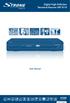 Digital High Definition Terrestrial Receiver SRT 8110 Picture similar User Manual Table of Contents 1. 0 Instruction 2 1.1 Safety Instructions 2 1.2 Storage 3 1.3 Equipment Set-up 3 1.4 Accessories 3
DVB-T VERTO. User Manual HD TERRESTRIAL DIGITAL TV STB & PLAYER MT4162
 DVB-T VERTO HD TERRESTRIAL DIGITAL TV STB & PLAYER MT4162 User Manual EN 2 Index Index...2 Overview...2 Remote Control...3 Battery installation in remote control...4 Using remote control...4 Connections...4
Ref. 717501 SATELLITE. User Manual. High Definition TV Satellite Receiver. w w w. t e l e v e s. c o m
 SATELLITE High Definition TV Satellite Receiver Ref. 717501 User Manual w w w. t e l e v e s. c o m Index SATELLITE 1. Safety recommendations............................................................
TRIAX ST-HD527 CI. Digital Combo set-top box 305013 / 305014
 TRIAX ST-HD527 CI Digital Combo set-top box 305013 / 305014 Copyright Not to be copied, used or translated in part or whole without prior consent in writing except approval of ownership of copyright and
Digital Active Outdoor DVB-T/T2 Antenna SRT ANT 45
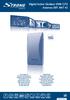 Digital Active Outdoor DVB-T/T2 Antenna SRT ANT 45 User Manual Manuel d utilisateur Bedienungsanleitung Istruzioni d uso Manual de usuario Manual do Usuário Bruksanvisning Bruger Manual Käyttöohje Használati
DVB-T 730. User s Manual
 EPG Program Reservation There are 10 program timers to bring up reminder for a reserved program. 20 seconds before the start of the reserved program, a pop-up window will remind viewer. If no further instruction,
HD Digital Cable Receiver DVBC-123CI. User s Manual
 HD Digital Cable Receiver DVBC-123CI User s Manual Keep this manual for future reference www.facebook.com/denverelectronics I General Safety User s Manual This STB has been manufactured to meet international
Prijemnik za Digitalnu Zemaljsku Televiziju u HD Rezoluciji SRT 8200
 Prijemnik za Digitalnu Zemaljsku Televiziju u HD Rezoluciji SRT 8200 Picture similar Uputstvo za upotrebu User manual 400 kanala TV Info Ručno/ Auto. Pretraživanje 4 favorit Digitalni liste zvuk 30 Tajmera
Digital Terrestrial Receiver SRT 5200/SRT 5202/SRT5205
 Digital Terrestrial Receiver SRT 5200/SRT 5202/SRT5205 Picture similar User manual Table of Contents 1.0 Instruction 2 1.1 Safety Instructions 2 1.2 Storage 3 1.3 Equipment Set-up 4 1.4 Features & Accessories
Quick Start. Digital Satellite Receiver
 Quick Start Digital Satellite Receiver Support of SD (MPEG2), DVB-S system Slot for Smart Card in Conax system HDMI video output Low power consumption in Stand-by mode, below 1W Automatic Stand-By Compatible
IPTV STB QUICK GUIDE. Detailed user manual download from www.my-home-television.com
 IPTV STB QUICK GUIDE Detailed user manual download from www.my-home-television.com Dolby Digital: Manufactured under license from Dolby Laboratories. Dolby and the double-d symbol are trademarks of Dolby
User Guide. Plaza HDR S freesat digital HD TV recorder
 User Guide Plaza HDR S freesat digital HD TV recorder CONGRATULATIONS on buying a Manhattan Plaza HDR S freesat receiver. This high performance unit lets you record and watch the best of digital TV and
Digital High Definition Cable Receiver
 Digital High Definition Cable Receiver SRT 3000 Installation Instructions Installationsanleitung Bruger manual Pokyny k instalaci Pokyny k inštalácii Ръководство за бърз монтаж Telepítési Utasítás Supplied
9600 IP. Set Top Box. User s Guide
 9600 IP Set Top Box User s Guide For your safety Information contained in this manual is subject to change without notice. No part of this publication may be copied, reproduced, or translated to another
DTVS-T1 User Guide. Digital Terrestrial Receiver
 DTVS-T1 User Guide Digital Terrestrial Receiver Contents Safety Instructions...4 Warning... 4 Copyright Statement... 4 Disclaimer... 4 About the Set Top Box...5 Main Features... 5 Package Contents... 5
Instruction Manual. High Definition Personal Video Recorder Digital Satellite Receiver
 Instruction Manual High Definition Personal Video Recorder Digital Satellite Receiver The XPEED LX1digital receiver is fully compliant with the international Digital Video Broad-casting (DVB) standard,
Satellite HD Digital Television Recorder. User s Manual FOXSAT-HDR. The default password is 0000.
 Satellite HD Digital Television Recorder FOXSAT-HDR The default password is 0000. Notice Thank you for purchasing a Humax Foxsat-HDR (Digital Television Recorder) Your Foxsat-HDR supports freesat+ provided
EV-8000S. Features & Technical Specifications. EV-8000S Major Features & Specifications 1
 EV-8000S Features & Technical Specifications EV-8000S Major Features & Specifications 1 I. General Description EV-8000S is fully compliant with the international DVB standard and thus transmits digital
ONE Product Introduction... 2 Package contents...2 Features. 2 Product specifications... 3 Remote control guide..4 Connection ports...
 ONE Product Introduction..... 2 Package contents......2 Features. 2 Product specifications.... 3 Remote control guide..4 Connection ports... 5 TWO Activating media player....6 Setting...6 Video Output
TechniSat HDFV Freesat HD Digital Receiver. Owner s Manual
 TechniSat HDFV Freesat HD Digital Receiver Owner s Manual Dear Customer, Welcome and thank you for choosing TechniSat Digital s HDFV Digital Freeview HD Receiver for your TV entertainment. This product
DIGITAL SATELLITE FINDER USER S MANUAL
 DIGITAL SATELLITE FINDER USER S MANUAL Please read this manual carefully before using this device for the first time. The technical specifications and operating methods included in this manual are subject
 Contents GENERAL INFORMATION Main Features For your Safety Unpacking General Operation RCU P1 P2 P3 P3 P4 P1 INSTALLATION P5 WELCOME PAGE P7 MAIN MENU 1. Edit Channel 2. Installation 3. System Setup 4.
STB- 2. Installation and Operation Manual
 STB- 2 Installation and Operation Manual Index 1 Unpacking your STB- 2 2 Installation 3 WIFI connectivity 4 Remote Control 5 Selecting Video Mode 6 Start Page 7 Watching TV / TV Guide 8 Recording & Playing
HD Digital Receiver. User s Manual. HD-5400S HD-5600S TivuMax Pro. The default password is 0000.
 HD Digital Receiver User s Manual HD-5400S HD-5600S TivuMax Pro The default password is 0000. Contents & Accessories Contents Contents & Accessories...2 Contents Accessories Quick Start Guide...3 Front
Digital Cable TV. User Guide
 Digital Cable TV User Guide T a b l e o f C o n T e n T s DVR and Set-Top Box Basics............... 2 Remote Playback Controls................ 4 What s on TV.......................... 6 Using the OK Button..................
DSTV DECODER SETUP MANUAL July 2013
 DSTV DECODER SETUP MANUAL July 2013 DSTV SINGLE VIEW AND SD PVR DECODER SETUP How to program your Single View and SD PVR DSTV Decoders STEP 1 Ensure that the DSTV decoder is connected correctly to the
Evolution Digital HD Set-Top Box Important Safety Instructions
 Evolution Digital HD Set-Top Box Important Safety Instructions 1. Read these instructions. 2. Keep these instructions. 3. Heed all warnings. 4. Follow all instructions. 5. Do not use this apparatus near
CAUTION RISK OF ELECTRIC SHOCK NO NOT OPEN
 Evolution Digital HD Set-Top Box Important Safety Instructions 1. Read these instructions. 2. Keep these instructions. 3. Heed all warnings. 4. Follow all instructions. 5. Do not use this apparatus near
ABOUT YOUR SATELLITE RECEIVER
 2 Satellite Receiver ABOUT YOUR SATELLITE RECEIVER This chapter gives you an overview and a description of your satellite receiver. SATELLITE RECEIVER OVERVIEW SINGLE AND DUAL MODES REMOTE CONTROL SATELLITE
Digital Satellite Receiver
 USER GUIDE Digital Satellite Receiver Models DSR207, DSR317, DSR505, and DSR530 CONTENTS IMPORTANT SAFETY INSTRUCTIONS...1 DSR BASICS SYMBOLS/ICONS...6 Front Panel...6 Back Panel...7 CONNECTING YOUR DSR...10
HD Digital Receiver. User Manual MODEL NUMBER HD DVB-S2 1201
 TM HD Digital Receiver User Manual MODEL NUMBER HD DVB-S2 1201 Please read this Manual thoroughly before using your Receiver and then retain for future reference. Contents 1. Important Safety Instructions
Echolite DSB-771 Echolite DSB-791. User`s manual
 Echolite DSB771 Echolite DSB791 User`s manual IMP O R TA N T S A F E T Y I N S T R U C T IO N S T h a n k y o u f o r c h o o s in g o u r p r o du c t. B e fo r e i n s ta lla tio n, w e w o u ld lik
DVR GUIDE. Using your DVR/Multi-Room DVR. 1-866-WAVE-123 wavebroadband.com
 DVR GUIDE Using your DVR/Multi-Room DVR 1-866-WAVE-123 wavebroadband.com Table of Contents Control Live TV... 4 Playback Controls... 5 Remote Control Arrow Buttons... 5 Status Bar... 5 Pause... 6 Rewind...
HANTZ + PARTNER The Upgrade Company! www.hantz.com
 Quick Start Guide X3000 HD Network Media Player X3000 HD NETWORK MEDIA PLAYER POWER HANTZ + PARTNER The Upgrade Company! www.hantz.com A Get to know your HELIOS X3000 Thank you for purchasing the HELIOS
HD udta Quick-Start Guide
 HD udta Quick-Start Guide Vyve Broadband HD Set-Top Box Important Safety Instructions 1. Read these instructions. 2. Keep these instructions. 3. Heed all warnings. 4. Follow all instructions. 5. Do not
Higth definition from A to Z. www.azbox-hd.com
 Higth definition from A to Z www.azbox-hd.com Do you Feel the full HD multimedia? Wifi Web Browser Yes, you read this correctly. O2media present a new line of AzBox HD receivers, with the AzBox HD Elite
Point of View SmartTV-500 Center - Android 4.2. General notices for use...2 Disclaimer...2 Box Contents...2
 Point of View SmartTV-500 Center - Android 4.2 English Table of Contents General notices for use...2 Disclaimer...2 Box Contents...2 1.0 Product basics...3 1.1 Buttons and connections... 3 1.2 Connecting
Table of Contents. System Requirement of MP3 Player:... 4. Connection and Downloading... 7. Downloading DRM10 Files... 8.
 Table of Contents Instructions... 1 Precautions... 2 System requirements... 4 System Requirement of MP3 Player:... 4 Introduction... 5 Features... 5 Charging the Battery... 6 Connection and Downloading...
focus TOuCh P10 FOR DISPLAYS: 55, 70 AND 82 ENgliSh V01.3-2014-7
 focus TOuCh P10 FOR DISPLAYS: 55, 70 AND 82 ENgliSh V01.3-2014-7 Thank you for purchasing our product. Please read this manual carefully before operation your set and retain it for future reference. FT55-P10
Transparent Video System. User s s Manual TVS-3000 TCC-6000 HD DVR
 Transparent Video System User s s Manual TVS-3000 TCC-6000 HD DVR CONTENTS Safety Instructions 1 Appearance 2 Remote Control Unit 4 How to Format the Hard Disk Drive 6 Inserting Smartcard 6 Receiver Connections
Getting to Know Xsight... 3. Home Screen and Everyday Use... 9. Settings... 11. PC Setup... 17. 2 www.oneforall.com
 User Manual English English Getting to Know Xsight........................................ 3 Unpacking and Setting Up Xsight............................................................. 3 Using Xsight
Contents For your safety........................2 Welcome to digital satellite TV!...........3
 Contents For your safety........................2 Welcome to digital satellite TV!...........3 Updates to your box........................ 3 Inserting the batteries in your remote control... 3 Your remote
Contents of the Guide
 BeoCenter 1 Guide Contents of the Guide 3 The following is an index to the contents of the separate Reference book with page references: How to set up BeoCenter 1, 4 Connect your TV cables, 5 Connect
Set Top Box User Guide. Global Reach with a Local Touch
 Set Top Box User Guide Global Reach with a Local Touch Table of Contents REMOTE SET UP 3 SET TOP BOX DIAGRAM 4 SET TOP BOX SETTINGS 5 TURN ON/OFF 5 TV INPUT SETTINGS 5 ADJUSTING THE VOLUME 5 RESETTING
Point of View SmartTV HDMI 210 dongle - Android 4.2. General notices for use... 2 Disclaimer... 2 Box Contents... 2
 Table of Contents General notices for use... 2 Disclaimer... 2 Box Contents... 2 1.0 Product basics... 3 1.1 Connecting your device for the first time... 3 1.2 Connections... 4 1.3 Using the remote control
DIGITAL SATELLITE RECEIVER DVB4600
 ENGLISH DIGITAL SATELLITE RECEIVER DVB4600 USER MANUAL STANBY REMOTE DVB4600 DIGITAL SATELLITE RECEIVER Table of Contents Safety Precautions... 70 1. Important Safety Instructions... 70 2. Notice... 71
HD Digital Television Recorder. User s Manual HDR-7500T. The default password is 0000.
 HD Digital Television Recorder User s Manual HDR-7500T The default password is 0000. Notice English Thank you for purchasing a HUMAX product. Please read this user s manual carefully to be able to safely
Always there to help you. Register your product and get support at www.philips.com/welcome PD7001B. Question? Contact Philips.
 Always there to help you Register your product and get support at www.philips.com/welcome Question? Contact Philips PD7001B User manual Contents 1 Important 3 Safety and notice 3 Safety 3 Compliance 4
32FEB5714 (REF. NO.: 10090405)
 FUNAI BRANDNEW PRODUCT LOGO (revised edition 1,APR.,2010 32FEB5714 (REF. NO.: 10090405) ENGLISH Contents Safety Information...1 Getting Started...2...2 Features...2 Connect Power...3 Remote Control...4
Watching and Recording TV. User Guide
 Watching and Recording TV User Guide The only warranties for Hewlett-Packard products and services are set forth in the express statements accompanying such products and services. Nothing herein should
High-Definition Personal Digital Recorder. user guide
 High-Definition Personal Digital Recorder user guide Contents Welcome to MY SKY HDi................... 1 MY SKY HDi................................... 1 Updates to MY SKY HDi......................... 1
Safety Instructions 1 Product Overview 2 Remote Control Unit 4 Set-top box Connections 6 Inserting CI Module & Smartcard 8
 CONTENTS PART I : INSTALLATIONS Safety Instructions 1 Product Overview 2 Remote Control Unit 4 Set-top box Connections 6 Inserting CI Module & Smartcard 8 PART II : MENU GUIDE Menu Map 9 Search Channels
High Definition LCD TV. Kogan HD32 USER MANUAL
 High Definition LCD TV Kogan HD32 USER MANUAL Safety information To ensure reliable and safe operation of this equipment, please read carefully all of the instructions in this user guide, especially the
Welcome to FOXTEL Digital!... 1 Your FOXTEL Digital set-top unit... 1 Updates to your digital set-top unit... 1 Getting in touch with FOXTEL...
 Welcome to FOXTEL Digital!......... 1 Your FOXTEL Digital set-top unit...... 1 Updates to your digital set-top unit..... 1 Getting in touch with FOXTEL........ 1 For your safety.................... 2 Getting
DVB-T2 HD Terrestrial Receiver
 DVB-T2 HD Terrestrial Receiver User Manual MODEL NUMBER HDT2-5101 Please read this Manual thoroughly before using your Receiver and then retain for future reference. Contents 1. Important Instructions
19 HD Ready Digital LCD TV. Instruction Manual L19DIGB10
 19 HD Ready Digital LCD TV Instruction Manual L19DIGB10 Contents Preparation... 4 Unpacking the TV...4 Installing / Removing the Base Stand...5 Front / Top / Side View and Controls...6 Rear View and Sockets...7
Quick Start Guide English
 Quick Start Guide 1. Checking Accessories Quick Start Guide User s Manual Remote Control & Batteries Manual & Quick Start Guide HUMAX Wi-Fi USB Adapter (Supplied with HDR-2000T/1TB/WD) HDMI Cable Ethernet
DVB-T PenType USB Receiver. User s Manual
 DVB-T PenType USB Receiver User s Manual Copyright Notice Copyright 2004. All rights reserved. Axdia reserves the right to modify product offerings or specifications without advance notice. No part of
Contents Introduction Installation Scanning for Channels
 mini User Guide Contents 1 Introduction 7 1.1 Features................................. 7 1.2 Accessories............................... 8 1.3 The Remote Control.......................... 9 1.4 Getting
MVS - Mini Video Speaker
 MVS - Mini Video Speaker Mini Clock Radio Night Vision Hidden Camera User Manual Spy Tec www.spytecinc.com GETTING STARTED Components Features Powering Up the Device Micro SD Memory Card for Data Storage
Eclipse 180 User s Manual
 Eclipse 180 User s Manual Congratulations on purchasing your Eclipse Personal Media Player! To get the most out of your purchase, please take the time to carefully read through this manual. Foreword If
HD Digital Recorder. User s Manual HDR-FOX T2. The default password is 0000.
 HD Digital Recorder User s Manual HDR-FOX T2 The default password is 0000. Notice Thank you for purchasing a Humax HDR-FOX T2 Freeview+ HD product. Freeview+ HD explained: Accurate recording The start
The Parts of the System
 2 The Parts of the System THE RECEIVER THE RECEIVER FRONT PANEL Power Light This green light on the receiver front panel lights up when the receiver is turned ON. This light flashes when the receiver memory
Contents V1.0. ONE Introduction...02. TWO Installation and Instructions...06 THREE FAQ...12
 Contents V1.0 ONE Introduction...02 1.1 Features...02 1.2 Specification...03 1.3 Package Contents...03 1.4 Remote Control Guide...04 1.5 Connection Chart...05 TWO Installation and Instructions...06 2.1
TX-58DX902B TX-65DX902B TX-50DX750B TX-58DX750B TX-65DX750B TX-40DX700B TX-50DX700B TX-58DX700B. e HELP. English
 TX-58DX902B TX-65DX902B TX-50DX750B TX-58DX750B TX-65DX750B TX-40DX700B TX-50DX700B TX-58DX700B e HELP English Read first ehelp How to use 13 Features 4K resolution 14 Home Screen 15 Info Frame 16 Touch
CABLE ONE ALL DIGITAL
 CABLE ONE ALL DIGITAL The world is going All Digital and so is Cable ONE. With the switch from analog to digital technology, Cable ONE will be able to add new channels, especially more HD channels, and
Using the System ORDER YOUR BELL EXPRESSVU PROGRAMMING. Page 3-1
 Using the System ORDER YOUR BELL EXPRESSVU PROGRAMMING This procedure notifies the Bell ExpressVu Customer Service Call Centre that your system is on-line and installed. You need to have your services
ENLTV-FM3. PCI TV Tuner Adapter with FM Radio. User s Guide
 ENLTV-FM3 PCI TV Tuner Adapter with FM Radio User s Guide User s Notice No part of this manual, including the products and software described in it, may be reproduced, transmitted, transcribed, stored
How To Use A Satellite Receiver
 Thank you for choosing this Strong satellite receiver. This receiver is of our latest development and it is designed to be capable of upgrading its software through the satellite and the Internet. It is
/&' 79 7; /% ) &RORU 7HOHYLVLRQ (QJOLVK
 245U Using the On Screen Displays Many features available on this TV can be accessed via the On Screen Display menu system. Use the remote control as shown below to access and adjust features as desired.
TechniSat HDFS Satellite HD Digital Receiver. USB Recorder Instructions
 TechniSat HDFS Satellite HD Digital Receiver USB Recorder Instructions 1 Contents 1 Contents...2 2 Introduction...3 3 Getting Started...4 3.1 Formatting...4 4 Scheduled Recording...6 4.1 Manual Timer...6
Receiver and Remote Controls
 9242_4_Ch2_eng 6/11/07 9:29 AM Page 1 2 Receiver and Remote Controls ABOUT YOUR SATELLITE RECEIVER This chapter helps you get to know your remote control, which lets you use all the functions of your receiver.
Welcome. You re watching Apple TV. This guide contains all the information you need to get from setup to your sofa.
 Welcome. You re watching Apple TV. This guide contains all the information you need to get from setup to your sofa. Contents Chapter 1: Connect. 7 What s in the box 8 Apple TV at a glance 10 What you
19 LCD TV + DVD. User Guide 1923DT. After Sales Support
 19 LCD TV + DVD User Guide 1923DT After Sales Support Now that you have purchased a quality Tevion product you can rest assured in the knowledge that as well as your 3 year parts and labour warranty you
MANUAL PC1000R [email protected]
 MANUAL PC1000R [email protected] Features The APart PC1000R is a professional multisource CD/USB/SD card music player, equipped with balanced and unbalanced analog outputs, coaxial and optical digital
DAB+ / FM Tuner Model: TU-201
 DAB+ / FM Tuner Model: TU-201 Instruction Manual www.pulse-audio.co.uk 1 Safety Information The lightning bolt within a triangle is intended to alert the user to the presence of dangerous voltage levels
DIGITAL CABLE TV RECEIVER TV STAR C101 USER MANUAL
 DIGITAL CABLE TV RECEIVER TV STAR C101 USER MANUAL 1 Table of contents Safety Instructions... 3 General Introduction... 4 Front Panel/ Rear Panel... 5 Remote Control Unit... 6 S.T.B Connection... 8 Digital
Point of view HDMI Smart TV dongle Mini RF Keyboard
 Point of view HDMI Smart TV dongle Mini RF Keyboard English Contents Contents... 1 General notices for use... 2 Disclaimer... 2 Box Contents... 2 1. HDMI TV dongle... 3 1.1. Product display... 3 1.2. Instructions
DAR-101. GB Version 1
 DAR-101 Version 1 Table of contents Important security notice... 2-3 Introduction... 4 Controls and connections... 5-9 Battery operation... 10 Using the AC adaptor / Charging the batteries... 11 Setting
Manhattan Model: Plaza HD S2 LET S GET STARTED YOUR USER GUIDE
 Manhattan Model: Plaza HD S2 LET S GET STARTED YOUR USER GUIDE WELCOME TO FREESAT We are so pleased you bought this Manhattan Plaza HD S2 Freesat receiver. Now you can enjoy: Quality state-of-the-art satellite
ISTAR DIGITAL SATELLITE RECEIVER
 ISTAR DIGITAL SATELLITE RECEIVER ISTAR User Manual February 14, 2015 Table of contents Safety 4 General Introduction 6 Remote Control Unit.. 7 S.T.B Connection.. 10 Main Menu 11 1. Starting 11 1.1 Installation
SP1790JK 900MHz Wireless Indoor/Outdoor Speakers. User Manual INTRODUCTION FEATURES IMPORTANT SAFETY INFORMATION
 SP1790JK 900MHz Wireless Indoor/Outdoor Speakers INTRODUCTION This 900 MHz digital hybrid wireless speaker system uses the latest wireless technology that enables you to enjoy music and TV sound anywhere
Hi! Let s get started.
 Hi! Let s get started. What s in the Box Roku player Remote control 2 x AAA batteries for remote A/V cable RCA Power adapter Get to know your roku A Front view B C F Back view D E A B C D E F Status light
Technical Support. Trademarks
 Getting Started Technical Support Thank you for selecting NETGEAR products. After installing your device, locate the serial number on the label of your product and use it to register your product at https://my.netgear.com.
CONTENTS 1. SAFETY... 3 2. INTRODUCTION... 3 3. FEATURES... 4 4. REMOTE CONTROL... 5 5. FRONT PANEL... 6 6. REAR PANEL... 8
 CONTENTS 1. SAFETY... 3 2. INTRODUCTION... 3 3. FEATURES... 4 4. REMOTE CONTROL... 5 5. FRONT PANEL... 6 6. REAR PANEL... 8 7. CONNECTING YOUR SYSTEM... 8 8. BASIC OPERATIONS... 11 8.1 TURN ON XFINDER...
HTT 101. HDMI/YPbPr/S-Video/AV to DVB-T. HDMI/YPbPr/S Encoder Modulator
 HTT 101 HDMI/YPbPr/S-Video/AV to DVB-T HDMI/YPbPr/S DVB Encoder Modulator TABLE OF CONTENTS 1. SPECIFICATIONS... 3 1.1 Product Overview... 3 1.2 Appearance and Description... 3 1.3 System Diagram... 4
USER S MANUAL DIGITAL SATELLITE METER / SPECTRUM ANALYZER. TM-6600 series
 USER S MANUAL DIGITAL SATELLITE METER / SPECTRUM ANALYZER TM-6600 series Please read this manual carefully before using your meter. The technical specifications and operating guides included in this manual
TVIX HD TUNER. All specifications and information are subject to change without further notices.
 TVIX HD TUNER All specifications and information are subject to change without further notices. TVIX HD TUNER Introduction 1. Features TVIX HD TUNER can play HDTV without a digital TV set-top box with
IMPORTANT SAFETY INSTRUCTIONS. When using this electronic device, basic precautions should always be taken, including the following:
 IMPORTANT SAFETY INSTRUCTIONS When using this electronic device, basic precautions should always be taken, including the following: 1. Read all instructions before using the product. 2. Do not use this
PR-D9W. GB Version 1
 PR-D9W Version 1 Table of contents Important safety instructions... 2-3 Introduction... 4 Controls... 5-8 Using your weather alert radio for the first time... 9 Operating your radio Search tuning AM/FM...
Signal Stand by. HD Digital Receiver. User Manual MODEL NUMBER HDR-6110USB
 Signal Stand by HD Digital Satellite Receiver HD Digital Receiver User Manual MODEL NUMBER HDR-6110USB Please read this Manual thoroughly before using your Receiver and then retain for future reference.
User s Guide Full HD Digital Satellite Receiver
 User s Guide Full HD Digital Satellite Receiver Full HD Digital Satellite Receiver HD Video Formats 1080i, 720p, 576p Internet Connection Ethernet Port USB 2.0 Ready Dolby Digital 5.1 Audio Decoding Smart
Android Dongle. User Manual TL869
 Android Dongle User Manual TL869 2 User Manual Android TV Dongle Before using the product, please read this manual thoroughly. The specifications and software in this manual are subject to change without
How To Use Tv On A Tv On An Ipod (Vplayer) On A Pc Or Macbook
 UFS 910 Operating manual - englisch - HDTV receiver for satellite reception PREFACE Dear customer, this Operating Manual is intended to help you make the fullest use of the extensive range of functions
Notice. Reverse engineering and disassembly are prohibited.
 Notice The information in this document is subject to change without notice. Every effort has been made in the preparation of this document to ensure accuracy of the contents, but all statements, information,
CMP30. User Manual. www.audac.eu
 CMP30 User Manual www.audac.eu 2 Index Introduction 4 Precautions 5 Safety requirements 5 Caution servicing 5 EC Declaration of Conformity 5 Waste of Electrical and Electronic Equipment (WEEE) 6 Caution