
ECU communication protocol : general information
|
|
|
- Lambert Matthews
- 9 years ago
- Views:
Transcription
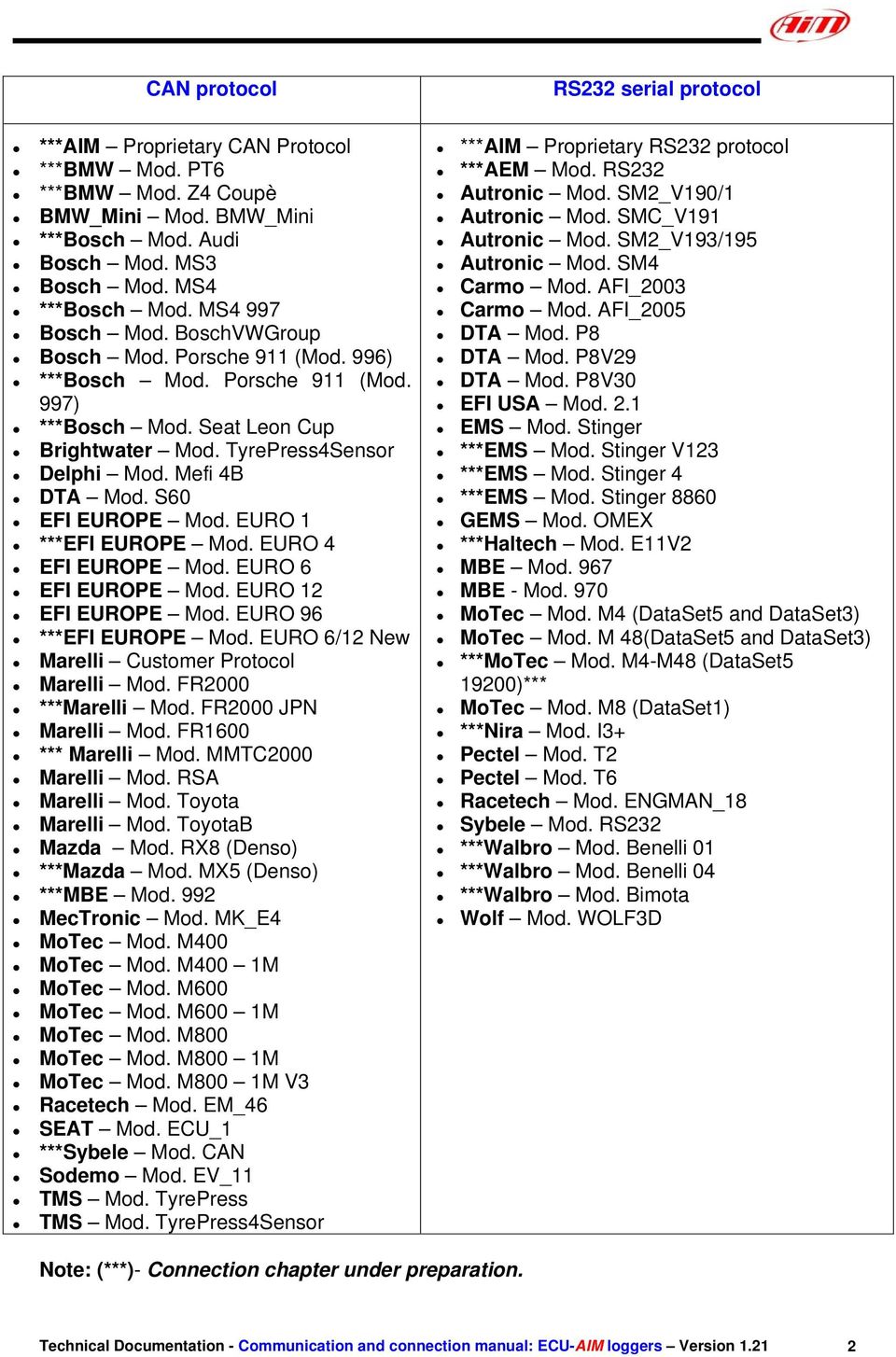
1 TECHNICAL DOCUMENTATION 21/03/2007 ECU Notes: ECUs communication protocols and loggers connection Version 1.21 Supported ECUs ECU communication protocol : general information The available channels list you find inside Race Studio 2 Configuration window is inferred from the ECU s communication protocol. The communication protocol includes all the available channels of a generic Pectel/DTA etc. ECU. The channels you may sample among the available channels list are function of the ECU model, of the ECU configuration and of the wiring. The number of channels that your data logger is able to sample depends on the ECU type and configuration, on the wiring and on the sensors connected to the ECU itself. To know which channels are acquired by your AIM logger, please check your Logger channel page in Race Studio 2 software, where all recorded channels are shown. Please note: for specific information on ECUs pinout and wirings always refer to Your ECU user manual. Here follow some examples of ECU configuration and connection with AIM loggers; these information come from tests made by AIM research and development board or from our dealers or customers that have verified them. Supported ECUs : general information AIM loggers support both CAN and RS232 communication protocol ECUs. To know if your ECU model and communication protocol is supported, please refer to the table next page: Technical Documentation - Communication and connection manual: ECU-AIM loggers Version

2 CAN protocol RS232 serial protocol ***AIM Proprietary CAN Protocol ***BMW Mod. PT6 ***BMW Mod. Z4 Coupè BMW_Mini Mod. BMW_Mini ***Bosch Mod. Audi Bosch Mod. MS3 Bosch Mod. MS4 ***Bosch Mod. MS4 997 Bosch Mod. BoschVWGroup Bosch Mod. Porsche 911 (Mod. 996) ***Bosch Mod. Porsche 911 (Mod. 997) ***Bosch Mod. Seat Leon Cup Brightwater Mod. TyrePress4Sensor Delphi Mod. Mefi 4B DTA Mod. S60 EFI EUROPE Mod. EURO 1 ***EFI EUROPE Mod. EURO 4 EFI EUROPE Mod. EURO 6 EFI EUROPE Mod. EURO 12 EFI EUROPE Mod. EURO 96 ***EFI EUROPE Mod. EURO 6/12 New Marelli Customer Protocol Marelli Mod. FR2000 ***Marelli Mod. FR2000 JPN Marelli Mod. FR1600 *** Marelli Mod. MMTC2000 Marelli Mod. RSA Marelli Mod. Toyota Marelli Mod. ToyotaB Mazda Mod. RX8 (Denso) ***Mazda Mod. MX5 (Denso) ***MBE Mod. 992 MecTronic Mod. MK_E4 MoTec Mod. M400 MoTec Mod. M400 1M MoTec Mod. M600 MoTec Mod. M600 1M MoTec Mod. M800 MoTec Mod. M800 1M MoTec Mod. M800 1M V3 Racetech Mod. EM_46 SEAT Mod. ECU_1 ***Sybele Mod. CAN Sodemo Mod. EV_11 TMS Mod. TyrePress TMS Mod. TyrePress4Sensor ***AIM Proprietary RS232 protocol ***AEM Mod. RS232 Autronic Mod. SM2_V190/1 Autronic Mod. SMC_V191 Autronic Mod. SM2_V193/195 Autronic Mod. SM4 Carmo Mod. AFI_2003 Carmo Mod. AFI_2005 DTA Mod. P8 DTA Mod. P8V29 DTA Mod. P8V30 EFI USA Mod. 2.1 EMS Mod. Stinger ***EMS Mod. Stinger V123 ***EMS Mod. Stinger 4 ***EMS Mod. Stinger 8860 GEMS Mod. OMEX ***Haltech Mod. E11V2 MBE Mod. 967 MBE - Mod. 970 MoTec Mod. M4 (DataSet5 and DataSet3) MoTec Mod. M 48(DataSet5 and DataSet3) ***MoTec Mod. M4-M48 (DataSet )*** MoTec Mod. M8 (DataSet1) ***Nira Mod. I3+ Pectel Mod. T2 Pectel Mod. T6 Racetech Mod. ENGMAN_18 Sybele Mod. RS232 ***Walbro Mod. Benelli 01 ***Walbro Mod. Benelli 04 ***Walbro Mod. Bimota Wolf Mod. WOLF3D Note: (***)- Connection chapter under preparation. Technical Documentation - Communication and connection manual: ECU-AIM loggers Version
3 ECU connection: general information Aim instruments can communicate with the ECU both with a CAN protocol and with an RS232 protocol, using respectively a CAN cable or a Serial cable. The connection is usually done as below explained: Serial Communication Set-Up The usual connection is as follows: please connect cable called RS232 RX with ECU TX and cable called GND with ECU GND as in the figure below. LOG GND LOG RX AIM LOGGER Cable labelled GND Cable labelled RS232 RX ECU GND ECU TX ECU Please note: this setup is all right for almost all ECU communicating with RS232 protocol; there can anyway be ECUs that need LOG TX cable to be connected to ECU RX too. For further information, please see paragraphs in the following pages, related to the single ECUs. CAN Communication Set-Up The connection is as follow: please connect cable labelled CAN+ with ECU CAN+, cable labelled CAN- with ECU CAN- and cable called GND with ECU GND as in the figure below. LOG GND LOG CAN+ LOG CAN- AIM LOGGER Cable labelled GND Cable labelled CAN + Cable labelled CAN - ECU GND ECU CAN+ ECU CAN- ECU Please note: once your ECU is connected to the AIM Logger, you need to set it in the logger configuration in Race Studio 2 software. Technical Documentation - Communication and connection manual: ECU-AIM loggers Version

4 AUTRONIC SM2_V190/191 / SM2_V193/195 / SMC_V191 Serial Communication Set-Up The ECU is has a serial communication protocol (RS 232) and is equipped with a 36 pins connector whose pinout is reported below used to communicate parameters to an external data logger, or to configure the ECU itself. Connection With AIM Data logger To connect Your AIM logger to the ECU, please connect AIM cable labelled as RS232RX with pin 33 of the ECU (ECU TX), AIM cable labelled as GND with pin 21 of the ECU (ECU GND) as in the draw below. LOG GND LOG RX AIM LOGGER Cable labelled GND Cable labelled RS232 RX ECU GND ECU TX AUTRONIC SM2 V190/1911 ECU Pin Function Comments 21 GND 33 RS232TX Technical Documentation - Communication and connection manual: ECU-AIM loggers Version

5 Here below is shown the 36 pins connector and its pinout Pin FUNCTION 1 Ignition O/P 7 2 Injector O/P 6 3 Injector O/P 4 4 Injector O/P 2 5 Injector O/P 1 6 Coolant Temp I/P 7 O2 I/P 8 Ref Trigger I/P 9 Serial I/O Rxd 10 Ignition O/P 4 11 Ignition O/P 2 12 Auxiliary O/P 13 ECU +12V supply 14 Injector O/P 8 15 Injector O/P 5 16 Injector O/P 3 17 Sensor GND 18 Throttle Position I/P 19 Throttle Position Supply 20 Trigger Supply 21 Serial I/O GND 22 Ignition O/P 3 23 Diagnostic O/P 24 Fuel Pump O/P V Pump Rly Supply V Aux O/P Supply 27 ECU GND 28 ECU GND 29 Ignition SW I/P 30 Air Intake Input I/P 31 Trigger GDN 32 Cyl Pulse Trigger I/P 33 Serial O/P Txd 34 GND 35 Ignition O/P 1 36 Ignition O/P Technical Documentation - Communication and connection manual: ECU-AIM loggers Version

6 AUTRONIC SM4 Serial Communication Set-Up The ECU has a serial communication protocol (RS 232) and is equipped with a 42 pins connector and two jack input on its right, as shown in the figure below. Jack Input for PC Serial data link connector 3 way 3.5 dia spiral cable In the ECU package you find also a spiral cable, called Pc Serial data link connector 3 way 3.5 dia with a jack connector on one side, to insert in the right bottom jack input (drawn in red colour in the previous figure) and a DB9 female connector on the other side. To correctly connect your ECU to your AIM logger you have to connect your logger to the DB9 female connector. Here below you see the PC Serial data link spiral cable. Jack connector DB9 Female connector Connection With AIM Data logger To connect Your AIM logger to the ECU, please connect AIM cable labelled as RS232RX with pin 2 of the DB9 female connector (that goes to ECU TX), AIM cable labelled GND with pin 5 of the DB9 female connector (that goes to ECU GND) as in the draw below. LOG GND LOG RX Cable labelled GND Cable labelled RS232 RX DB9 - Pin 5 DB9 - Pin 2 TO ECU GND TO ECU TX AIM LOGGER DB9 Female Connector Pin Function Comments 5 GND 2 RS232TX Technical Documentation - Communication and connection manual: ECU-AIM loggers Version

7 BOSCH MS3 This ECU can be installed on Porsche 911 GT3 Cup cars. On Porsche 911 GT3 Cup cars that have this ECU you find a 22 pins Deutsch connector with red threading (Part Number RP ), shown below Connection With AIM Data logger To connect Your AIM logger to the ECU, please connect cable labelled CAN + with pin 4 of the ECU, cable labelled CAN with pin 16 of the ECU and cable labelled GND with pin 3 of the ECU as shown in the figure below: LOG GND LOG CAN+ LOG CAN- AIM LOGGER Cable labelled GND Cable labelled CAN + Cable labelled CAN - ECU GND ECU CAN+ ECU CAN- BOSCH MS3 ECU Pin Function Comments 4 CAN + 16 CAN - 3 GND Please note: if you want to power your AIM logger directly from the ECU, you can use pin 15 of the ECU (+12V), highlighted with a red coloured circle in the figure below. Technical Documentation - Communication and connection manual: ECU-AIM loggers Version

8 BOSCH - PORSCHE 911 (Mod. 996) The ECU we call Bosch Porsche 911 is an ECU made by Bosch manufacturer and generally installed on Porsche 911 cars (996 model). This ECU has a CAN Protocol and is equipped with a 32 Pins green connector called A and used to communicate with an external data logger as well as to configure the ECU itself. Bosch Porsche 911 connector is shown below. A1 A17 A16 A32 Connection With AIM Data logger To connect Your AIM logger to the ECU, please connect cable labelled CAN + with pin A15 of the ECU (CAN HIGH), cable labelled CAN with pin 31 of the ECU (CAN LOW) and cable labelled GND with pin GND of the ECU, as shown in the figure below: LOG GND LOG CAN+ LOG CAN- AIM LOGGER Cable labelled GND Cable labelled CAN + Cable labelled CAN - ECU GND ECU CAN+ ECU CAN- ECU PORSCHE BOSCH 911 Pin Function Comments A15 CAN + A31 CAN - Please note: as far as GND is concerned, please use the same GND you use for the ECU Technical Documentation - Communication and connection manual: ECU-AIM loggers Version

9 CARMO - AFI 2003 AIM loggers can be connected to both Carmo ignition or injection unit (AFI 2003); they can acquire data from Carmo units installed on Honda CBR600, Kawasaki ZX6R, Yamaha YZ6F and Suzuki GSXR600. The configuration procedure is the same for every bike; when you have selected the channels to acquire or to display, the logger will be able to automatically select the right set of sensors, using the information given by AFI unit. PLEASE NOTE: every manufacturer has it s own set of sensors; if the set of sensors is not the one usually used by the manufacturer for that type of bike, the acquired data could be wrong. Injection unit All ECU channels listed in the configuration dialog window are available when the logger is connected to the injection unit. Ignition unit Only RPM and Throttle Position channels are available when the logger is connected to the ignition unit. In this case we recommend to disable the other ECU channels in order to save memory. Connection With AIM Data logger Connect cable labelled RS 232 RX with ECU TX pin, cable called RS 232 TX with ECU RX pin and cable called GND with ECU Power GND pin as shown in the figure below. Please refer to Your ECU user manual to know Your ECU pinout. LOG GND LOG RX LOG TX Cable labelled GND Cable labelled RS232 RX Cable labelled RS232 TX ECU GND ECU TX ECU RX CARMO AFI 2003 ECU Please note: this ECU needs connection of LOG TX cable to ECU RX pin too. Technical Documentation - Communication and connection manual: ECU-AIM loggers Version

10 CARMO - AFI 2005 AIM loggers can be connected to both Carmo ignition or injection unit (AFI 2005); they can acquire data from Carmo units installed on Honda CBR600, Kawasaki ZX6R, Yamaha YZ6F and Suzuki GSXR600. The configuration procedure is the same for every bike; when you have selected the channels to acquire or to display, the logger will be able to automatically select the right set of sensors, using the information given by the AFI unit. PLEASE NOTE: every manufacturer has it s own set of sensors; if the set of sensors is not the one usually used by the manufacturer for that type of motorbike, the acquired data could be wrong. Injection unit All the ECU channels listed in the configuration dialog window are available when the logger is connected to the injection unit. Ignition unit Only RPM and Throttle Position channels are available when the logger is connected to the ignition unit. In this case we recommend to disable the other ECU channels in order to save memory. Connection With AIM Data logger Your Carmo AFI 2005 ECU has two coloured connectors mounted on the backside, a grey one and a black one. To connect your ECU with AIM loggers you need to connect cable called RS 232 RX with ECU TX (pin A4 of the ECU grey connector), cable called RS 232 TX with ECU RX (pin A5 of the ECU grey connector) and cable called GND with the ECU GND (pin A6 of the ECU grey connector) as shown in the figure below. LOG GND LOG RX LOG TX Cable labelled GND Cable labelled RS232 RX Cable labelled RS232 TX ECU GND ECU TX ECU RX CARMO AFI 2005 ECU Please note: this ECU needs connection of LOG TX cable to ECU RX pin too. Pin Function Comments A6 GND A5 RS232RX A4 RS232TX Technical Documentation - Communication and connection manual: ECU-AIM loggers Version

11 Here below are shown AFI 2005 connectors and their pinout. AFI 2005 Black Connector AFI 2005 Grey connector Pin FUNCTION Pin AIM Logger Function A8 Ignitioncoil #3 A8 Ground A7 Ignitioncoil #2 A7 Down sensor A6 Ignitioncoil #1 A6 LOG GND ECU Ground A5 Injector #1 A5 LOG TX ECU RX A4 Shower injector #1 A4 LOG RX ECU TX A3 Injector #2 A3 ECT sensor A2 Shower injector #2 A2 IAT sensor A1 Injector #3 A1 MAP sensor B8 Ignitioncoil #4 B8 Ground B7 EXUP (-) not connected B7 Launch control output B6 EXUP (+) not connected B6 Quick-shift input B5 Ground EXUP-position-not connected B5 Ground TX RX (2) B4 Signal EXUP-position not connected B4 TX (2) B3 VCC EXUP-position-not connected B3 2 nd map input B2 - B2 TPS sensor B1 Injector #4 B1 +12V C8 Power Ground C8 Ground C7 Power Ground C7 +5V sensors C6 - C6 Tacho output C5 - C5 Ground C4 Shift-light output C4 RX (2) C3 Fan output C3 Cam signal C2 Shower injector #4 C2 Crank signal C1 Shower injector #3 C1 Fuelpump relais output Technical Documentation - Communication and connection manual: ECU-AIM loggers Version

12 DTA - P8 Serial Communication Set-Up The ECU is equipped with a serial communication interface (RS 232) used to communicate parameters to an external data logger, or to configure the ECU itself. Connection With AIM Data logger To connect Your AIM logger to the ECU, please connect AIM cable labelled as RS232RX with ECU TX, AIM cable labelled as GND with ECU GND as in the draw below. Please refer to Your ECU user manual to know Your ECU pinout. LOG GND LOG RX AIM LOGGER Cable labelled GND Cable labelled RS232 RX ECU GND ECU TX DTA P8 ECU Technical Documentation - Communication and connection manual: ECU-AIM loggers Version

13 DTA - P8V30 Serial Communication Set-Up The ECU is equipped with a serial communication interface (RS 232) used to communicate parameters to an external data logger, or to configure the ECU itself. DTA Configuration In order to make DTA ECU communicate with AIM Logger you need to configure the ECU using DTAWin software. To do so, please follow these steps. Launch DTAWin software. Start Choice window is prompted. Please click on Connect button. If a windows saying No Matching File on disc Use Save to Make one appears, please click on OK button and then on Connect button DTAWin main window appears. Please click on File button on the top toolbar and select Map Locking and Pin Number option. When Pin Number and Map Locking window appears, please enable Unlock checkbox and press OK button. Technical Documentation - Communication and connection manual: ECU-AIM loggers Version

14 You step back to DTAWin Main window; please click on Other Map Settings on the top toolbar and select Data Stream option. When Serial Data Output for Dash window appears, please set it as follows: enable Data Stream on? checkbox Fill Number of Header Bytes 1-10 box with number 2 Set 208 on the first two rows of Header Bytes Value box Close the window clicking on the red cross on the top right corner A window asking you if you want to update Serial Stream Settings appears; please click on Yes button. DTAWin main window appears. Please click on File button on the top toolbar and select Map Locking and Pin Number option. Technical Documentation - Communication and connection manual: ECU-AIM loggers Version

15 When Pin Number and Map Locking window appears, please enable Lock checkbox and then press OK button. DTAWin main window appears. Please click on File button on the top toolbar and select Save (Download to disc) option. Save as window appears. Please insert file name and press Save button. Save Map file window appears. Please insert Map comment and click on Save button. Please note: this configuration has been tested on DTA P8V30 ECU, but we have good reasons to think that this configuration should fit DTAP8 and DTA P8V29 ECU too. Technical Documentation - Communication and connection manual: ECU-AIM loggers Version

16 Connection With AIM Data logger DTA P8V30 ECU has a DB15 female connector; to connect the ECU with AIM loggers you need to have an RS232 DB15 male high resistance connector, shown below. To connect Your AIM logger to the ECU, please connect AIM cable labelled as RS232RX with Pin 2 of the RS232 DB15 male connector (goes to ECU TX), AIM cable labelled as GND with Pin 5 of the RS232 DB15 male connector (goes to ECU GND) as in the draw below. LOG GND LOG RX AIM LOGGER Cable labelled GND Cable labelled RS232 RX ECU GND ECU TX High resistance RS232 DB15 Male connector Pin DB15 Function Comments 5 GND 2 RS232TX Technical Documentation - Communication and connection manual: ECU-AIM loggers Version

17 EFI EUROPE ECU GENERAL INFORMATION Introduction EFI ECUs actually supported by all those AIM instruments that can be interfaced with an ECU are: - EURO 1 - EURO 4 - EURO 6 - EURO 12 - EURO 96 Technical communication notes All EFI ECUs have a CAN line to export data to a third party data logger; this CAN line normally works with two only wires 1. CAN hi ( corresponding to AIM Can + white wire) 2. CAN low ( corresponding to AIM Can - blue wire) It is normally unnecessary to ground CAN line with our system. To have communication between EFI and AIM devices you have to configure his ECU with ECT software; please choose 2D data stream (this is valid for all models) in the proper page. You can normally choose one of the following options: 1. UDA91 (for Magneti Marelli Dashboard) 2. 2D (for 2D and AIM loggers and dashes) If getting data from the ECU is not possible first of all, please make an hardware check: 1. check if line-end resistor is installed: a 120 Ohm resistor should be found between CAN+ and CAN (this can be done with any multimeter); to do so, please disconnect AIM instrument from the ECU and make this check on both side (ECU and logger); 2. check if amplitude of each bit is 2V (or at least 1.8 V); this test can be done with a scope grounding the sond on CAN- wire and measuring on CAN+ ; please ensure that no filtering feature is enabled on the scope (this because of high baud rate of this line) On a second step, please ensure that your dashboard is firm upped with the latest firm up version and configured with the latest Race Studio 2 release. Technical Documentation - Communication and connection manual: ECU-AIM loggers Version

18 Once those conditions are satisfied, if the system continues not getting data from EFI hardware, the problem is in EFI firmware. Please refer to the following table and contact an EFI dealer to have the ECU upgraded. EFI MODEL EFI FIRMWARE VERSION CONNECTIBILITY AIM LOGGERS-EFI FIRMWARE WHAT TO DO EURO From 380 Nothing to select EURO Always 2d stream selection via software EURO From 310 2d stream selection via software EURO Always 2d stream selection via software EURO 6 & Always 2d stream selection via software EURO 6 & Always 2d stream selection via software All models 200 Never ECU Firm up needed; please contact EFI for maps compatibility with the new firmware Technical Documentation - Communication and connection manual: ECU-AIM loggers Version

19 EFI EUROPE EURO 1 EFI ECU to AIM CAN Configuration Please note: EFI Euro 1 ECU communication with AIM loggers depends on ECU firmware version. Euro 1 until firmware version 379 included. It is not possible to communicate; please contact EFI manufacturer to upgrade Your ECU firmware. Euro 1 from firmware version 380 until firmware version 400: In EFI configuration software protocol implemented in your ECU is perfectly compatible with AIM loggers and works. Euro 1 from firmware version 400: In ECU software, ECT, you can choose different datasets for CAN protocol management concerning output data: - UDA 91 - None - 2D Please select 2D protocol Connection With AIM Data logger Your ECU is equipped with a 35 pins AMP connector used to communicate parameters to an external data logger or to configure the ECU itself. To connect your AIM logger to the ECU, please connect cable labelled CAN + with pin 22 of the ECU (CAN +), cable labelled CAN - with pin 6 of the ECU (CAN -) and cable labelled GND with pin 23 of the ECU as in the figure below: LOG GND LOG CAN+ LOG CAN- AIM LOGGER Cable labelled GND Cable labelled CAN + Cable labelled CAN - ECU GND ECU CAN+ ECU CAN- EFI EURO 1 ECU Pin Function Comments 23 GND 22 CAN + 6 CAN - Technical Documentation - Communication and connection manual: ECU-AIM loggers Version

20 EFI EUROPE EURO 6 EFI ECU to AIM CAN Configuration In ECU software, ECT, you can choose different datasets for CAN protocol management concerning output data: - UDA 91 - None - 2D Please select 2D protocol Connection With AIM Data logger The ECU is equipped with a 79 pins connector used to communicate parameters to an external data logger or to configure the ECU itself. To connect Your AIM logger to the ECU, please connect cables labelled CAN + with pin 55 of the ECU (CAN +), cable labelled CAN with pin 70 of the ECU (CAN -) and cable called GND with the pin 77 of the ECU (GND) as shown in the figure below: LOG GND LOG CAN+ LOG CAN- AIM LOGGER Cable labelled GND Cable labelled CAN + Cable labelled CAN - ECU GND ECU CAN+ ECU CAN- EFI EURO 6 ECU Pin Function Comments 77 GND / DIG 55 CAN + 70 CAN - Technical Documentation - Communication and connection manual: ECU-AIM loggers Version

21 EFI EUROPE EURO 12 EFI ECU to AIM CAN Configuration In the ECU software, ECT, you can choose different dataset for CAN protocol management concerning output data: - UDA 91 - None - 2D Please select 2D protocol Connection With AIM Data logger The ECU is equipped with a 79 pins connector used to communicate parameters to an external data logger or to configure the ECU itself. To connect Your AIM logger to the ECU, please connect cables labelled CAN + with pin 10 of the ECU (CAN +), cable labelled CAN with pin 9 of the ECU (CAN -) and cable called GND with pin 72 of the ECU (GND) as shown in the figure below: LOG GND LOG CAN+ LOG CAN- AIM LOGGER Cable labelled GND Cable labelled CAN + Cable labelled CAN - ECU GND ECU CAN+ ECU CAN- EFI EURO 12 ECU Pin Function Comments 72 GND 10 CAN + 9 CAN - Technical Documentation - Communication and connection manual: ECU-AIM loggers Version
22 EFI EUROPE EURO 96 EFI ECU to AIM CAN Configuration In ECU software, ECT, you can choose different datasets for CAN protocol management concerning output data: - UDA 91 - None - 2D Please select 2D protocol Connection With AIM Data logger The ECU is equipped with a 79 pins connector used to communicate parameters to an external data logger or to configure the ECU itself. This connection should not change with different firmware versions. To connect Your AIM logger to the ECU, please connect cables labelled CAN + with pin 55 of the ECU (CAN +), cable labelled CAN with pin 70 of the ECU (CAN -) and cable called GND with the pin 77 of the ECU (GND) as shown in the figure below: LOG GND LOG CAN+ LOG CAN- AIM LOGGER Cable labelled GND Cable labelled CAN + Cable labelled CAN - ECU GND ECU CAN+ ECU CAN- EFI EURO 96 ECU Pin Function Comments 77 GND 55 CAN + 70 CAN - Technical Documentation - Communication and connection manual: ECU-AIM loggers Version
23 EFI USA 2.1 ECU communication protocol: general information The available channels list you find inside Race Studio 2 Configuration window is inferred from the ECU s communication protocol. The communication protocol includes all the available channels of an EFI USA 2.1. ECU. The ECU is equipped with a 55 pins Deutsch connector used to communicate with an external data logger or to configure the ECU itself. AIM External Interface Board connection To connect this ECU to AIM Loggers you need an external interface board supplied by AIM (Part Number X05EFIUS210). This board needs to be connected to both the 55 pins Deutsch connector of the ECU and to AIM Logger as shown below. LOG 9-15 VDC LOG GND LOG RX Red wire Black wire Blue wire AIM External Interface Board Part Number X05EFIUS210 White wire ECU TX AIM LOGGER EFI USA 2.1 ECU The External interface board has all wires already labelled as follows: - Red wire: 9-15 VDC to connect to 9-15 VDC pin of AIM Logger - Black wire: GND to connect to GND pin of AIM Logger - Blue wire: Data out to connect to RS232RX pin of AIM Logger - White wire: Data in to connect to pin L of the ECU 55 pins Deutsch connector. Warning: please ensure that ECU GND, AIM External Interface Board GND and AIM Logger GND are the same (in the pinout table below reported GND has been connected to pin AA ). Technical Documentation - Communication and connection manual: ECU-AIM loggers Version
24 EFI USA Pins Deutsch connector pinout The ECU is equipped with a 55 pins Deutsch connector, shown below and its pinout is described in the following table. Pin Description Pin Description A INJ1 f Cam B INJ2 g Oil P C INJ3 h Boost sw D INJ4 i Beacon E Pump j Lambda F Duty1 k Mixture G Duty2 m Fuel T H Heater n Air T J Vref p Water T K Vref q Oil T L TXD r Tach M ECU 12v s IGN1 N FCM/DC2 t IGN2 P Lamp/Dc1 u IGN3 R INJ6 v IGN4 S INJ7 w IGN5/Step1+ T INJ8 x IGN6/Step1- U INJ5 y IGN7/Step2+ V SW 1 z IGN8/Step2- W SW2 AA GND X MAP BB GND Y Fuel P CC GND Z Wheel DD GND a Wheel2 EE GND b TPS FF GND c NGK/Knock GG GND d Crank HH GND e EBP Technical Documentation - Communication and connection manual: ECU-AIM loggers Version
25 GEMS OMEX Serial Communication Set-Up The ECU is equipped with a serial communication interface (RS 232) used to communicate parameters to an external data logger or to configure the ECU itself. The ECU connector is made of four sections: A, B, C, and D so characterised: A - 26 pins B - 16 pins C - 12 pins D 22 pins GEMX OMEX connector is shown below: A 1 A 13 B 1 B 8 C 1 C 6 D 1 D 11 A 14 A 26 B 9 B 16 C 7 C 12 D 12 D 22 Connection With AIM Data logger Connect the cable called RS 232 RX with pin C1 of the ECU (ECU TX) and cable called GND with pin A 13 or with the pin A 26 of the ECU (GND pins) as shown in the figure below: LOG GND LOG RX AIM LOGGER Cable labelled GND Cable labelled RS232 RX ECU GND ECU TX GEMS OMEX ECU Technical Documentation - Communication and connection manual: ECU-AIM loggers Version
26 MARELLI Customer Protocol (12 channels configuration) ECU Marelli configuration Marelli ECUs can be configured so to communicate with AIM logger through Vision Software (the software properly developed by Marelli for their ECU). This communication protocol is called Customer Protocol because is a configuration you can set, with few differences, on more ECUs. At present available configurations are for Marelli MF4 and Marelli RSA. Others are following. Customer protocol: Marelli MF4 First of all, please run Vision Software. The window on the right appears Please click on Map button on the top toolbar and select Map Files (PTA) ReadWrite Map (PTA) File window appears. Please press Edit button. Technical Documentation - Communication and connection manual: ECU-AIM loggers Version
27 PTA table window appears. Please scroll the until CAN COMMUNICATION option and double click on it. The window on the right appears. Please double click on CAN Identifiers option. Edit Table window appears. Please insert the following values: column (1): 280 column (2): 284 column (3): 288 and close the window. Technical Documentation - Communication and connection manual: ECU-AIM loggers Version
28 The window on the right appears again. Please double click on CAN Table option. Edit Table window appears again. Please insert the following values: row 0280: 0, 1, 2, 7 row 0284: 6, 5, 59, 11 row 0288: 9, 12, 49, 10 and close the window. The window on the right appears; please close it clicking on the cross on the top right corner. Vision Windows Application window appears, asking if you want to save changes. Please click on Yes button Technical Documentation - Communication and connection manual: ECU-AIM loggers Version
29 Save as window appears. Please insert file name in the proper cell, choose file destination folder and then click on OK button. ReadWrite Map (PTA) File window appears. Please click on Exit button. It is now necessary to transmit this configuration to your ECU. TX button, on the icons toolbar becomes enabled: please press it. Customer protocol: Marelli RSA First of all, please run Marelli Vision software. First software window appears. Technical Documentation - Communication and connection manual: ECU-AIM loggers Version
30 Please click on File button on the top toolbar and select Open option, as in the figure on the right. Open window appears. Please browse your CD and select SRA_xxxxxx folder and then CFG folder Please select the configuration you want to set and click on Open button. Vision General window appears. Technical Documentation - Communication and connection manual: ECU-AIM loggers Version
31 Please click on Map button on the top toolbar and then select Map files(pta).. option as in the figure on the right. ReadWrite Map (PTA) File window appears. Please click on Dir button. Select PTA path window appears. Please select PTA folder and click on Open button. Technical Documentation - Communication and connection manual: ECU-AIM loggers Version
32 Please select the desired file. ReadWrite Map (PTA) File window appears. Please click on Edit button. PTA Table window appears. Please scroll it and select CAN LINK option. Technical Documentation - Communication and connection manual: ECU-AIM loggers Version
33 Please double click on CAN IDs voice. Edit Table window appears. Please insert the following values: column (1): 280 column (2): 284 column (3): 288 and close the window. Please double click on CAN packets definition voice. Edit Table window appears again. Please insert the following values: row 0280: 0, 1, 2, 7 row 0284: 6, 5, 26, B row 0288: D, C, 31, A and close the window. The window on the right appears. Please close it clicking on the red cross on the top right corner. Technical Documentation - Communication and connection manual: ECU-AIM loggers Version
34 Vision Application window appears, asking you to save changes. Please click on Yes button. Save As window appears. Please insert file name, select file destination folder and then click on Save button. ReadWrite Map (PTA) File appears again. Please click on Exit button. To transmit the configuration to your ECU, please click on TX icon, that has become enabled, on the top icons bar. Technical Documentation - Communication and connection manual: ECU-AIM loggers Version
35 When transmission is finished, please connect your Marelli ECU to your AIM logger following the above reported CAN Communication Set-up CAN Communication Set-Up The connection is as follow: please connect cable labelled CAN+ with ECU CAN+, cable labelled CAN- with ECU CAN- and cable called GND with ECU GND as in the figure below. Please refer to your ECU s user s manual to know its pinout. LOG GND LOG CAN+ LOG CAN- AIM LOGGER Cable labelled GND Cable labelled CAN + Cable labelled CAN - ECU GND ECU CAN+ ECU CAN- MARELLI ECU Technical Documentation - Communication and connection manual: ECU-AIM loggers Version
36 MARELLI RSA (complete 64 Channels configuration) ECU Marelli RSA configuration (64 Channels), To configure your ECU Marelli RSA, please follow these steps. Launch Vision software. Click on File/ Open on the top toolbar as in the figure on the right. The following windows appears. Please look for CFG folder and open it, as in the figure on the right. Select the desired CFG file and open it. Click on Map button on the top toolbar. And select Map files option. Technical Documentation - Communication and connection manual: ECU-AIM loggers Version
37 Click on Dir button. Select the desired PTA file. Click on Edit button. Click on Find button, red circled in the figure on the right. Digit Data Elements and click on OK button. Technical Documentation - Communication and connection manual: ECU-AIM loggers Version
38 If find next table name/reference windows appears, please click on No Button. Double click on Data Elements Table option. Please insert in the first two columns on the left of this table all digits reported in the table you find at the end of this explanation (the digits in the other two columns are all right); the table is called Digits Table When all digits have been inserted (you reach row number 64), please close the window. The window here on the right appears again; please close it. The system asks you to save changes, please click on Yes button. Technical Documentation - Communication and connection manual: ECU-AIM loggers Version
39 The system asks you to choose file destination folder; please select the desired one and click on Save button. ReadWrite Map (PTA) file windows appears, please press Exit button. TX icon, on the top icons toolbar, becomes enabled, please click on it to transmit the configuration to the ECU When transmission is finished, please connect your Marelli RSA ECU to your AIM logger following the above reported CAN Communication Set-up CAN Communication Set-Up The connection is as follow: please connect cable labelled CAN+ with ECU CAN+, cable labelled CAN- with ECU CAN- and cable called GND with ECU GND as in the figure below. LOG GND LOG CAN+ LOG CAN- AIM LOGGER Cable labelled GND Cable labelled CAN + Cable labelled CAN - ECU GND ECU CAN+ ECU CAN- MARELLI RSA ECU Technical Documentation - Communication and connection manual: ECU-AIM loggers Version
40 Digits Table (1) (2) (3) (4) (1) F (2) F (3) F (4) F (5) C F (6) F (7) A F (8) F (9) A F (10) F (11) A F (12) F (13) F (14) F (15) F (16) F (17) F (18) F (19) A F (20) F (21) BC F (22) F (23) F (24) F (25) F (26) F (27) E F (28) F (29) AA F (30) F (31) F (32) F (33) B F (34) F (35) BA F (36) F (37) 00208E F (38) F (39) A F (40) F (41) 00208D F (42) 00208D F (43) 00208D F (44) 00208D F (45) F (46) F (47) D F (48) F Technical Documentation - Communication and connection manual: ECU-AIM loggers Version
41 (49) F (50) F (51) F (52) B F (53) B F (54) B F (55) B F (56) F (57) B E 3F (58) F (59) 00208A E 3F (60) F (61) F (62) F (63) F (64) F Technical Documentation - Communication and connection manual: ECU-AIM loggers Version
42 MBE 967 Serial Communication Set-Up The ECU has a serial communication protocol (RS232) and a 36 pins connector, whose pinout is below, used to communicate with an external logger, or to configure the ECU itself Pin Function Comments 1 Fuel trim Mp 06 2 Water temp. signal 3 Air temp. signal 4 5v analogue Mp 04 5 Analogue GND Mp 05 6 Power GND Mp 01 7 POWER GND 8 Power GND 9 Power GND 10 Gear input 11 Crank return 12 Crank signal 13 ECU supply 14 Serial receive Mp 03: RS232 com. ECU RX 15 Faul light / switch 16 Shift light Switched Ground 17 Fuel pump relay drive Switched Ground 18 Ignition drive 2 Cylinders Power shift input Ground active 20 Throttle signal 21 Map signal 22 5v analogue 23 Analogue GND 24 Analogue GND 25 Oil temperature 26 Ignition trim Mp Oil pressure 28 Barom. press./launch input 29 Lambda signal 30 Not used Not used 31 Not used Not used 32 SERIAL TRANSMIT Mp 02: RS232 com. ECU TX 33 Radiator fan relay drive Switched Ground 34 Tachometer signal 35 Injection output All Cylinders 36 Ignition drive 1 Cylinders (coil if distributor fitted) Mp = Mapping plug Technical Documentation - Communication and connection manual: ECU-AIM loggers Version
43 To connect the ECU to a PC, using a standard DB9 female connector, pin 32 (ECU TX) of the ECU must be connected to pin 2 of the DB9 and pin 7 (or other Power GND pins) of the ECU must be connected to pin 5 of the DB9. To communicate with the PC ECU s Fuel Trim (pin 1) and Ignition Trim (pin 26) inputs must be hold at a voltage other than zero; this procedure enables the Byte Mode and allows the ECU to communicate with EasiMap Windows tool (the MBE configuration program see ECU manual for more information). ECU Configuration In order to communicate with the data logger, the ECU must be properly configured using the program EasiMap provided with the same ECU. PLEASE NOTE: EasiMap v5.0 software can be used to configure data logging feature only by user with Advanced profile; see MBE site: 1. Connect the ECU to a PC with EasiMap 5.0 installed, and turn on power to the ECU [ECU pin 13 at 12V and ECU pin 6 (or other Power GND) at GND]. 2. Launch EasiMap 5.0 software; choose the [Get Data ] option from the [Data] menu. 3. In the window [Select Parameter] open the [Data Logging] directory and select [Data Logger Link]; choose [ECU Device] in the [Data Source] options and then press [OK]. 4. Now the program reads information from the ECU and opens a new window to configure the communication. 5. The parameters must be configured in the right sequence and with the right scaling in order to communicate with the AIM data logger: Data Logger Link: choose [Transmitting at 19200] RPM: choose [4,00] Parameter 1: choose [Engine Speed] Choose 16 bit 2: choose [Ignition] Choose 8 bit 3: choose [Injection Time] Choose 16 bit 4: choose [Throttle Angle] Choose 8 bit 5: choose [Coolant Temp] Choose 8 bit 6: choose [Air Temp] Choose 8 bit 7: choose [Baro Pressure] Choose 8 bit 8: choose [Lambda] Choose 8 bit 9: choose [Ri] Choose 16 bit 10: choose [Engine Oil Pressure] Choose 8 bit 11: choose [Fuel Pressure] Choose 8 bit 12: choose [Water Pressure] Choose 8 bit 13: choose [Engine Oil Temp] Choose 8 bit 14: choose [Gearbox Oil Temp] Choose 8 bit 15: choose [Boost Pressure] Choose 8 bit 16: choose [Gear Position] Choose 8 bit Scaling 6. When all parameter are configured, please press [Send] button and choose [ECU Device] when requested; configuration is saved in the ECU memory. 7. Please close configuration window and quit the program. Before connecting ECU to the Data logger, please enable Broadcast Mode ensuring a nominally zero voltage (or open circuit) on Fuel Trim and Ignition Trim inputs. Technical Documentation - Communication and connection manual: ECU-AIM loggers Version
44 Connection With AIM Data logger Connect cable labelled RS 232 RX with pin 32 of the ECU (ECU TX) and cable labelled GND with pin 7 of the ECU (or other Power GND pins) as shown in the figure below: LOG GND LOG RX AIM LOGGER Cable labelled GND Cable labelled RS232 RX ECU GND ECU TX MBE 967 ECU Pin Function Comments 7 GND 32 RS232TX Technical Documentation - Communication and connection manual: ECU-AIM loggers Version
45 MBE 970 Serial Communication Set-Up The ECU is equipped with a serial communication interface (RS 232) used to communicate parameters to an external data logger, or to configure the ECU itself. The pinout for MBE-967 ECU is shown below: Pin Function Comments 50 POWER GND 46 RS 232 TX Connection With AIM Data logger Connect the cable labelled RS 232 RX with pin 46 of the ECU (ECU TX), and cable labelled GND with pin 50 of the ECU (ECU GND) as shown in the figure below: LOG GND LOG RX AIM LOGGER Cable labelled GND Cable labelled RS232 RX ECU GND ECU TX MBE 970 ECU Technical Documentation - Communication and connection manual: ECU-AIM loggers Version
46 MecTronik MK_E4 MecTronik connection to AIM data logger. MecTronik company produces two MK_E4 ECU version: the standard one and the drive by wire one. Identification of the two version is possible through the ECU serial number. Standard version serial numbers are: - xx HA xxx - xx HB xxx - xx HC xxx Drive by Wire version serial numbers are - Xx HD xxx Where HA HB HC HD are the codes that identify the ECU version. Both MK_E4 ECUs are equipped with a 41 pins connector. To connect Your AIM logger to the ECU, please connect cable labelled CAN + with ECU CAN + pin, cable called CAN - with ECU CAN - and cable called GND with ECU GND as shown in the figure below: LOG GND LOG CAN+ LOG CAN- AIM LOGGER Cable labelled GND Cable labelled CAN + Cable labelled CAN - ECU GND ECU CAN+ ECU CAN- MecTronik MK_E4 ECU As far as ECUs pins are concerned, please refer to the following tables to know which pin is to be connected to which cable. MK_E4 Standard version (codes: xx HA xxx, xx HB xxx, xx HC xxx ) Pin Function Comments H ECU GND J CAN + Y CAN - MK_E4 Drive by Wire version (codes: xx HD xxx ) Pin Function Comments H ECU GND J CAN + c CAN - Technical Documentation - Communication and connection manual: ECU-AIM loggers Version
47 MoTec M400 / M600 / M800 MoTeC ECU to AIM CAN Configuration In MoTeC ECU Manager configuration, go to Adjust/General Setup/ Miscellaneous Setup and set the CAN data set to 1 and the CAN Address to 1520 as in the figure below. Please note: If the MoTeC CAN communication cable is connected, PC will take CAN priority. AIM logger will not receive data. After configuration, please ensure that MoTeC communication cable is disconnected. Connection With AIM Data logger The ECU is equipped with a CAN communication interface used to communicate parameters to an external data logger or to configure the ECU itself. MoTec M800 ECU has two connectors, shown in the figure below. The two connectors are labelled A connector and B connector. A1 A1 A9 B1 B7 A10 A17 B8 B13 A18 A25 B14 B19 A26 A34 B20 B26 Technical Documentation - Communication and connection manual: ECU-AIM loggers Version
48 To connect Your AIM logger to the ECU You need to use connector labelled as B. Please connect cable labelled CAN + with pin 23 of the ECU (CAN +), cable labelled CAN - with pin 24 of the ECU (CAN -) and cable called GND with pin 14 of the ECU as in the figure below: LOG GND LOG CAN+ LOG CAN- AIM LOGGER Cable labelled GND Cable labelled CAN + Cable labelled CAN - ECU GND ECU CAN+ ECU CAN- MoTec M400 M600 M800 ECU Pin Function Comments B 14 POWER GND B 23 CAN + B 24 CAN - AIM Data logger configuration For ECU with MoTec firmware version 2.30S2 onward, once you have correctly connected your AIM Logger to the ECU to correctly configure your logger with Race Studio 2 software, please select the following configuration options. ECU Manufacturer: MoTec ECU Model: M800-M600-M400-1M Technical Documentation - Communication and connection manual: ECU-AIM loggers Version
49 MoTec M4 Please note Motec M4 ECU is supported only from serial number 3000 onwards. MoTeC ECU to AIM RS232 Configuration Please run MoTeC configuration Software and press enter button. Then select Adjust function and press enter button. Scroll the page and select General Setup in Select window. Then choose Miscellaneous Setup 2. Set Telemetry Baud Rate to 9601, (9600) and Telemetry Data Set to 5, (ADL Dash Logger) MoTeC ECU to AIM RS232 Connection Please note: if MoTeC RS-232 communication cable is connected to the ECU and MoTeC software is active, PC takes priority. AIM does not receive data. Close MoTeC software or make sure that MoTeC software is not active. The ECU is equipped with an RS232 communication protocol used to communicate parameters to an external data logger, or to configure the ECU itself. To connect AIM logger to the ECU you need to use a DB9 female connector. Please connect Pin 2 of the DB9 female connector to AIM cable labelled as RS232RX and Pin 5 of the DB9 female connector to AIM cable labelled as GND as in the draw below: LOG GND LOG RX Cable labelled GND Cable labelled RS232 RX DB9 - Pin 5 DB9 - Pin 2 TO ECU GND TO ECU TX AIM LOGGER DB9 Female Connector Pin Function Comments 5 GND 2 RS232RX Technical Documentation - Communication and connection manual: ECU-AIM loggers Version
50 MoTec M48 MoTeC ECU to AIM RS232 Configuration Motec M-48 ECU can be interfaced to Aim loggers through two different communication protocols based upon two different setups agreed by MoTec firmware. Motec M 48 needs a MoTec PC connection cable to be interfaced to a Pc; please address to MoTec to know its part number. Before connecting Your ECU to AIM loggers, please check its setup; to do so, connect it to the serial port of Your Pc using MoTec ECU Menu V6.20 software you can download free of charge from MoTec website If when connecting your ECU to the Pc MoTec software recognizes an older version, an upgrade is needed and this is possible through a Software Update Unit, available from most MoTec dealers. Upgrading is automatically done by the software selecting the related voice in MoTec software. If on the contrary, when connecting your ECU to the Pc MoTec software recognizes a corresponding software version, upgrade is not needed. Once the ECU upgraded (when necessary),please run MoTec software and follow this procedure:. Select EMP (Engine Management Program). Please select Adjust. This way the software acquires ECU setup. If asked, please select the voice use matching file Please select General Setup and then Miscellaneous setup 2. Technical Documentation - Communication and connection manual: ECU-AIM loggers Version
51 In this setup you can use DataSet5 (the most recent and common) or DataSet3. Here are values corresponding to the two setups. DataSet5 DataSet3 Diag Error Hold Time 0 Diag Error Hold Time 0 Telemetry Baud Rate 9601 Telemetry Baud Rate 9601 Telemetry DataSet 5 Telemetry DataSet 3 InternalLogSet 0 InternalLogSet 3 InternalLoggingRate 5 InternalLoggingRate 5 Advanced Tuning 1 Advanced Tuning 1 Once entered these values You can save Setup on current file or on a new one. Changes are automatically saved by the software and the ECU is restarted. MoTeC ECU to AIM RS232 Connection Please note: if MoTeC RS-232 communication cable is connected to the ECU and MoTeC software is active, PC takes priority. AIM logger does not receive data. So, please close MoTeC software or make sure that is not active. The ECU is equipped with an RS232 communication protocol used to communicate parameters to an external data logger, or to configure the ECU itself. MoTec M4 ECU has a 36 pin connector, shown in the figure below and needs a DB9 female connector for external communication and of course to communicate to AIM logger too Please connect AIM cable labelled RS232RX to Pin 2 of the DB9 female connector and Pin 5 of the DB9 female connector to AIM cable labelled as GND as in the draw below: LOG GND LOG RX Cable labelled GND Cable labelled RS232 RX DB9 - Pin 5 DB9 - Pin 2 TO ECU GND TO ECU TX AIM LOGGER DB9 Female Connector Pin Function Comments 5 GND 2 RS232RX Technical Documentation - Communication and connection manual: ECU-AIM loggers Version
52 PECTEL T2 Serial Communication Set-Up The ECU is equipped with a serial communication interface (RS 232) used to communicate parameters to an external data logger, or to configure the ECU itself. The pinout for Pectel T2 ECU is shown below: Pin Function Comments 1 IGN1 Build option: low side / TTL coil driver 14 IGN2 Build option: low side / TTL coil driver 2 INJ1 HIGH IMP High impedance only 15 INJ2 HIGH IMP High impedance only 3 INJ3 HIGH IMP High impedance only 16 INJ4 HIGH IMP High impedance only 4 PWM1 Low side (10A maximum) 17 PWM2 Low side (10A maximum) 5 ENG GROUND 18 ENG GROUND 6 12V+ve 19 RS 232 RX RS 232 communication ECU RX 7 RS 232 TX RS 232 communication ECU TX 20 PWM3 Low side (10A maximum) 8 CRANK Crank sensor input 21 CAM Cam sensor input 9 MAF/MAP Analog input 22 TPS Analog input 10 LAMV Lambda sensor 23 ECT Analog input 11 ACT Analog input 24 SPARE ANALOG Analog input 12 SENSOR GND Analog ground 25 5V+ve 200 ma maximum 13 SPARE DIGITAL Switched input To connect the ECU to a PC, you need a standard DB9 female connector; please connect pin 7 (ECU TX) of the ECU to pin 2 of the DB9 and pin 18 (GND) of the ECU to pin 5 of the DB9. Technical Documentation - Communication and connection manual: ECU-AIM loggers Version
53 ECU Configuration The ECU needs an appropriate configuration through the program Descpro, provided by Pectel to communicate with AIM logger. To configure the ECU, please follow these steps: 1. Connect the ECU to a PC with Descpro installed, and turn on power to the ECU (ECU pin 6 at 12V and ECU pin 5,18 at GND). 2. Launch Descpro software; at start-up mark [Serial], choose the right [COM] port and click on [On-line] button. 3. The software reads the ECU configuration (called MAPS ); when finished, press [Menu] button top-right on the screen, and choose [Software Setup] in the next window. 4. Now choose [Data Logging And Serial Comms] with arrow-keys and press return (or double click with mouse pointer). 5. Select [Default Communication Mode] and press return. 6. The default mode should be [PC], press return and a dialogue-windows appears (Set to:); you must choose [STACK] and press return. 7. The new configuration must be transmitted to the ECU before quitting the program: click on [File] button (bottom-left) and choose [Program current maps into ECU flash]; confirm the operation when prompted. 8. After the transfer is finished quit the program Decspro; ECU is ready to communicate with AIM loggers. Connection With AIM Data logger Connect cable labelled RS 232 RX with pin 7 of the ECU (ECU TX), and cable labelled GND with pin18 of the ECU (ECU GND) as shown in the figure below: LOG GND LOG RX AIM LOGGER Cable labelled GND Cable labelled RS232 RX ECU GND ECU TX Pectel T2 ECU Pin Function Comments 18 GND 7 RS232TX Technical Documentation - Communication and connection manual: ECU-AIM loggers Version
54 PECTEL T6 Serial Communication Set-Up The ECU is equipped with a serial communication interface (RS 232) used to communicate parameters to an external data logger, or to configure the ECU itself. Pectel T2 ECU has a 55 pins AMP connector shown below: Pin Function Comments 1 SW2 Switch input. Internal 22k Pullup 20 SW1 Switch input. Internal 22k Pullup 38 LAMI2 Lambda Sensor 2 2 LAMV2 Lambda Sensor 2 21 PWM6/DET2 Build Option. Knock Sensor 2 or Low side drive 39 LAMI1 Lambda Sensor 1 3 LAMV1 Lambda Sensor V SENSOR SUPPLY 200mA maximum 40 Sensor GND 4 SP2(AN8) Analog input. Software Select Input Type 23 SP1(AN7) Analog input. Software Select Input Type 41 MAP (AN6) Analog input. Software Select Input Type 5 TPS(AN5) Analog input. Software Select Input Type 24 SP4(AN4) Analog input. Software Select Input Type 42 SP3(AN3) Analog input. Software Select Input Type 6 ECT(AN2) Analog input. Software Select Input Type 25 ACT(AN1) Analog input. Software Select Input Type 43 ROT4 Digital input. Software Select 10k Pullup 7 THERMOSIG K Type thermocouple input 26 ROT3 Digital input. Software Select 10k Pullup 44 ROT2 Digital input. Software Select 10k Pullup 8 ROT1 Digital input. Software Select 10k Pullup 27 DET1 Knock Sensor 1 45 PWM5 Low Side Drive 9 CAMSIG CAM sensor 28 CRANKSIG Crank sensor 46 COMMSGND Comms ground 10 RS232TX RS232 comms 29 RS232RX RS232 comms 47 CAN LOW CAN communications 11 CAN HIGH CAN communications 30 ENGGND 48 ENGGND 12 ENGGND Technical Documentation - Communication and connection manual: ECU-AIM loggers Version
55 31 12V ECU SUPPLY 49 PWM4 Low Side Drive (10A maximum) 13 PWM3 Low Side Drive (10A maximum) 32 PWM2 Low Side Drive (10A maximum) 50 PWM1 Low Side Drive (10A maximum) 14 INJ12/IGN8/PWM10 Build Option Injector drive/ignition/low Side Drive (10A max.) 33 INJ11/IGN7/PWM9 Build Option Injector drive/ignition/low Side Drive (10A max.) 51 INJ10/IGN6/PWM8 Build Option Injector drive/ignition/low Side Drive (10A max.) 15 INJ9/IGN5/PWM7 Build Option Injector drive/ignition/low Side Drive (10A max.) 34 INJ8 Software Select Low/High impedance injector drive (10A max) 52 INJ7 Software Select Low/High impedance injector drive 16 INJ6 Software Select Low/High impedance injector drive 35 INJ5 Software Select Low/High impedance injector drive 53 INJ4 Software Select Low/High impedance injector drive 17 INJ3 Software Select Low/High impedance injector drive 36 INJ2 Software Select Low/High impedance injector drive 24 INJ1 Software Select Low/High impedance injector drive 18 IGN4 Build Option: Low Side/TTL Coil Drive 37 IGN3 Build Option: Low Side/TTL Coil Drive 55 IGN2 Build Option: Low Side/TTL Coil Drive 19 IGN1 Build Option: Low Side/TTL Coil Drive ECU Configuration 1. To connect the ECU to a PC, you need to use a standard DB9 female connector; please connect pin 10 (ECU TX) of the ECU to pin 2 of the DB9 and pin 30 (GND) of the ECU to pin 5 of the DB9 2. The ECU must be properly configured using the program Descpro provided by Pectel to communicate with the data logger. Suggested configuration is the same of Pectel T2 ECU. Please note: pins used to power Pectel T6 are: pin 31 12V and pins 30, 48 or 12 for GND. Connection With AIM Data logger Connect cable labelled RS 232 RX with pin 10 of the ECU (ECU TX), and cable called GND with pin 30 of the ECU (ECU GND) as shown in the figure below: LOG GND LOG RX AIM LOGGER Cable labelled GND Cable labelled RS232 RX ECU GND ECU TX Pectel T6 ECU Technical Documentation - Communication and connection manual: ECU-AIM loggers Version
56 SYBELE RS232 Sybele RS232 ECU is equipped with a 35 pins male connector (shown below) used to communicate with an external data logger and to configure the ECU itself. Connection With AIM Data logger Connect cable labelled RS 232 RX with ECU TX (pin 13 of the 35 pins male connector), cable called RS 232 TX with ECU RX (pin 31 of the 35 pins male connector) and cable called GND with ECU Power GND (pin 29 of the 35 pins male connector) as shown in the figure below. LOG GND LOG RX LOG TX AIM LOGGER Cable labelled GND Cable labelled RS232 RX Cable labelled RS232 TX ECU GND ECU TX ECU RX SYBELE RS232 ECU Please note: this ECU needs connection of LOG TX cable to ECU RX pin too. Here below you can see Sybele RS pins male connector and its pinout PIN Function Comments 31 RS232RX 13 RS232TX 29 GND Technical Documentation - Communication and connection manual: ECU-AIM loggers Version
INTRODUCTION. 3 PARTS SUPPLIED. 3 BEFORE YOU BEGIN. 3 CONNECTING THE ECU INTERFACE TO OTHER EQUIPMENT. 11 DATA OUTPUT CHANNELS.
 Table of Contents INTRODUCTION... 3 PARTS SUPPLIED... 3 BEFORE YOU BEGIN... 3 CONNECTING THE ECU INTERFACE TO OTHER EQUIPMENT... 4 CONFIGURING A DATA LOGGER TO WORK WITH THE ECU INTERFACE... 11 DATA OUTPUT
ECU MS 3 Sport GT3 Cup. Quick Start Manual
 ECU MS 3 Sport GT3 Cup Quick Start Manual V1.0 11/6/2015 Table of Contents Table of Contents 1 Welcome... 3 1.1 Hardware Checklist... 3 1.2 Hardware Installation... 3 1.3 Software Installation... 3 2 Tools:
Pectel SQ6 ECU. www.cosworth.com Product Information 29E-071516-4E 1. Introduction
 Pectel SQ6 ECU Introduction The Pectel SQ6 sets the benchmark for high-performance engine management systems. Its Freescale MPC565 microprocessor and dedicated timer co-processor bring class leading performance
MXG Dash Logger USER GUIDE
 Dash Logger USER GUIDE AiM Srl. Via Cavalcanti, 8 20063 Cernusco S/N (MI) Italia Tel. (+39) 02.9290571 Made in Italy www.aim-sportline.com Dash Logger 04 06 08 10 11 12 12 12 14 16 17 18 19 21 22 23 23
Yamaha R1 2007/2008/2009 R6 2006/2007/2008 Plug&Play kit user manual
 Yamaha R 007/008/009 R6 006/007/008 Plug&Play kit user manual INDEX Introduction... Chapter Plug&Play kit content.... Part numbers... 8 Chapter Plug&Play kit installation... 9. Installation on Yamaha R
TCP/IP MODULE CA-ETHR-A INSTALLATION MANUAL
 TCP/IP MODULE CA-ETHR-A INSTALLATION MANUAL w w w. c d v g r o u p. c o m CA-ETHR-A: TCP/IP Module Installation Manual Page Table of Contents Introduction...5 Hardware Components... 6 Technical Specifications...
MXL2 Dash Logger USER GUIDE
 Dash Logger USER GUIDE AiM Srl. Via Cavalcanti, 8 20063 Cernusco S/N (MI) Italia Tel. (+39) 02.9290571 Made in Italy www.aim-sportline.com Dash Logger 04 06 08 10 11 12 12 12 14 14 14 14 16 17 18 19 21
MS830 / MS833 Barcode Reader v1.0 9-December-2014
 MS830 / MS833 Barcode Reader v1.0 9-December-2014 Publication Information 2014 Imagine Communications Corp. Proprietary and Confidential. Imagine Communications considers this document and its contents
USER GUIDE. Ethernet Configuration Guide (Lantronix) P/N: 2900-300321 Rev 6
 KRAMER ELECTRONICS LTD. USER GUIDE Ethernet Configuration Guide (Lantronix) P/N: 2900-300321 Rev 6 Contents 1 Connecting to the Kramer Device via the Ethernet Port 1 1.1 Connecting the Ethernet Port Directly
INSTALLATION MANUAL XM3 Reader
 INSTALLATION MANUAL XM3 Reader Conditions Transactions, deliveries et cetera will be according to the general terms of delivery as deposited at the Chamber of Commerce at Meppel, The Netherlands. Registration
Work with Arduino Hardware
 1 Work with Arduino Hardware Install Support for Arduino Hardware on page 1-2 Open Block Libraries for Arduino Hardware on page 1-9 Run Model on Arduino Hardware on page 1-12 Tune and Monitor Models Running
Fuel Alert FA-KRS-P21. Mounting instruction
 Fuel Alert Mounting instruction 1- General Points : Alarm Mode and Measure Mode 2- Connections 3- Notice, warnings 4- Compatibility check up with the vehicle s level sensor 5- Wire connections with the
Data Logging Software and Cable Bundle Model DL-SC3 User Manual. Overview
 Data Logging Software and Cable Bundle Model DL-SC3 User Manual Overview Eco Sensors Digital Products are capable of transmitting data to a computer via an RS-232 serial connection. Eco Sensors DL-SC3
How To Connect A Directsofl To A Powerpoint With An Acd With An Ctel With An Dm-Tel Modem On A Pc Or Ipad Or Ipa (Powerpoint) With A Powerline 2 (Powerline
 Application Note Last reviewed: 03/17/2008 AN-KEP-003.doc Page 1 of 23 Introduction... 1 Recommended s and ports to use... 1 Cable Wiring... 2 MDM-TEL Configuration ( Wizard)... 3 Direct Logic Communications
CurveMaker v2.1 DYNAFS programmable ignition software
 CurveMaker v2.1 DYNAFS programmable ignition software Dynatek 164 S Valencia St. Glendora CA 91741 phone (626)963-1669 fax (626)963-7399 Contents 1) Installation...1 2) Overview...1 3) Programming a Curve...4
Global Water Instrumentation, Inc.
 Global Water Instrumentation, Inc. 151 Graham Road P.O. Box 9010 College Station, TX 77842-9010 Telephone : 800-876-1172 International : (979) 690-5560, Fax : (979) 690-0440 e-mail : [email protected]
AiM Infotech. Marelli SRA. Release 1.04
 AiM Infotech Marelli SRA Release 1.04 1 Software setting This tutorial explains how to connect Marelli SRA ECU to AiM devices. Marelli SRA ECU needs a software setting to correctly communicate with AiM
Programming and Using the Courier V.Everything Modem for Remote Operation of DDF6000
 Programming and Using the Courier V.Everything Modem for Remote Operation of DDF6000 1.0 Introduction A Technical Application Note from Doppler System July 5, 1999 Version 3.x of the DDF6000, running version
Technical Specifications: The specifications represent a particular hardware platform. Application-specific software is provided.
 Preliminary TECHNICAL DATASHEET #TDAX020700 HYDRAULIC VALVE CONTROLLER 24 I/O 5 Analog and 6 Digital Inputs 1 Temperature Sensor and 1 RPM Sensor Interface 2 PWM Inputs 6 Proportional and 4 ON/OFF Current
BIT COMMANDER. Serial RS232 / RS485 to Ethernet Converter
 BIT COMMANDER Serial RS232 / RS485 to Ethernet Converter (Part US2000A) Copyrights U.S. Converters 1 Contents Overview and Features... 3 Functions..5 TCP Server Mode... 5 Httpd Client Mode.5 TCP Auto mode....6
PCMCIA 1 Port RS232 2.1 EDITION OCTOBER 1999
 232 232232 PCMCIA 1 Port RS232 2.1 EDITION OCTOBER 1999 Guarantee. FULL 36 MONTHS GUARANTEE. We guarantee your interface card for a full 36 months from purchase, parts and labour, provided it has been
RKAT Audit Trail Module RK-LINK TM Software For the Radio Key 600 Series
 RKAT Audit Trail Module RK-LINK TM Software For the Radio Key 600 Series INSTALLATION & OPERATING GUIDE Rev. B P/N 3321515 20301 NORDHOFF STREET CHATSWORTH, CA 91311 PHONE (818) 882-0020 FAX (818) 882-7052
K-Type Thermocouple Sensor User s Guide
 K-Type Thermocouple Sensor User s Guide 1 TABLE OF CONTENTS: 1 INTRODUCTION... 2 2 TYPICAL APPLICATION:... 2 3 INSTALLATION RULES:... 2 3.1 Connecting the sensor to M1/MD4 data logger:... 2 3.2 Connecting
Quick Reference Guide VT55 & OBDII. Customer Service 1-888-621-TPMS 1-888-621-8767. Version: QSG 2.0-24/12
 Quick Reference Guide VT55 & OBDII Customer Service 1-888-621-TPMS 1-888-621-8767 Version: QSG 2.0-24/12 Table of contents Section A General Description (2 / 12). Section B Triggering a Sensor / Results
INDEX. Trademarks All name and product s trademarks mentioned below are the property of their respective companies.
 USB2.0 EASY IDE ADAPTER INDEX Trademarks ---------------------------------------------------------------------------- Introduction ---------------------------------------------------------------------------
Troubleshooting and Diagnostics
 Troubleshooting and Diagnostics The troubleshooting and diagnostics guide provides instructions to assist in tracking down the source of many basic controller installation problems. If there is a problem
Parts List. Navigation
 Parts List quantity description 1 LCD-200 Display 1 LCD-200 Display cable 1 CD-ROM 2 dual lock or velcro 1 1GB SD card (optional) 1 CAN termination plug Navigation Main Menu Begin Log/Stop Log page 4 Log
SDN INSTRUCTIONS 07/10, Ver 1.2. Somfy Digital Network (SDN) Installation and Programming
 Somfy Digital Network (SDN) Installation and Programming SSoomffyy SSyysst teemss IInncc.. 1 Table of Contents 1 General Information and Features... 3 1.1 ILT2 Motor... 3 1.2 SDN Switches... 4 1.3 ILT2
PUSH BUTTON START INSTALLATION MANUAL
 PUSH BUTTON START INSTALLATION MANUAL ALTHOUGH THIS PRODUCT HAS BEEN THOROUGHLY TESTED KPIERSON TECHNOLOGIES ASSUMES NO RESPONSIBILITY FOR ANY DAMAGE THAT MAY RESULT BY THE INSTALLATION OF THIS PRODUCT.
How to setup a serial Bluetooth adapter Master Guide
 How to setup a serial Bluetooth adapter Master Guide Nordfield.com Our serial Bluetooth adapters part UCBT232B and UCBT232EXA can be setup and paired using a Bluetooth management software called BlueSoleil
SA-9600 Surface Area Software Manual
 SA-9600 Surface Area Software Manual Version 4.0 Introduction The operation and data Presentation of the SA-9600 Surface Area analyzer is performed using a Microsoft Windows based software package. The
Modification of an AOR AR-8600 receiver to tune it with a ACECO FC-3002 frequency finder
 Modification of an AOR AR-8600 receiver to tune it with a ACECO FC-3002 frequency finder Matthias DD1US updated June 2 nd 2011 Description of the ACECO FC-3002 unit: The ACECO FC-3002 is a handheld frequency
MTX-D, Oil Temperature/Pressure Gauge
 MTX-D, Oil Temperature/Pressure Gauge 1 Mounting and Sensor Installation... 3 1.1 Mounting the Gauge... 3 1.2 Oil Temp Sensor... 3 1.3 Oil Pressure Sensor... 3 2 Wiring... 3 2.1 Main Gauge Wiring... 4
DUKANE Intelligent Assembly Solutions
 PC Configuration Requirements: Configuration Requirements for ipc Operation The hardware and operating system of the PC must comply with a list of minimum requirements for proper operation with the ipc
User Manual. Thermo Scientific Orion
 User Manual Thermo Scientific Orion Orion Star Com Software Program 68X637901 Revision A April 2013 Contents Chapter 1... 4 Introduction... 4 Star Com Functions... 5 Chapter 2... 6 Software Installation
Omron I/O Driver (Series 2) Programmable Serial Interface Card
 Omron I/O Driver (Series 2) Programmable Serial Interface Card USER MANUAL Rev. P1.55 June 8, 2012 DeltaV is a trademark of Emerson Process Management, Inc Emerson Process Management, Inc. 1998, 1999.
AIM SOFTWARE AND USB DRIVER INSTALLATION PROCEDURE
 AIM SOFTWARE AND USB DRIVER INSTALLATION PROCEDURE CONTENTS AIM software and USB Driver installation Chapter 1 Installing AIM software and AIM USB driver... 2 Chapter 2 Installation under Microsoft Windows
QUICK START GUIDE 199R10546
 QUICK START GUIDE 199R10546 1.0 Overview This contains detailed information on how to use Holley EFI software and perform tuning that is included within the software itself. Once you load the software,
F2103 GPRS DTU USER MANUAL
 F2103 GPRS DTU USER MANUAL Add:J1-J2,3rd Floor,No.44,GuanRi Road,SoftWare Park,XiaMen,China 1 Zip Code:361008 Contents Chapter 1 Brief Introduction of Product... 3 1.1 General... 3 1.2 Product Features...
SEC 4100 SYSTEM MONITOR Programmable Serial Interface Card Series 2
 SEC 4100 SYSTEM MONITOR Programmable Serial Interface Card Series 2 USER MANUAL Rev. P1.11 September 13, 2006 DeltaV is a trademark of Emerson Process Management, Inc Emerson Process Management, Inc. 1998,
RS-232/422/485, Power over Ethernet
 IP-COM-M IP-COMi-M IP-COM-M PoE IP-COMi-M PoE RS-232 RS-232/422/485 RS-232, Power over Ethernet RS-232/422/485, Power over Ethernet Edition: September 2012 The computer programs provided with the hardware
BASLER ACE QUICK INSTALLATION GUIDE
 BASLER ACE QUICK INSTALLATION GUIDE Rev. 01 Quick installation Guide V1 1 Introduction The installation procedures in this guide assume that you want to get your camera operational and begin capturing
A L ERT. Quick Start With
 A L ERT Quick Start With I NSTAL L ATION To launch the installation of Micromedia Solution, insert the installation CD-ROM in the CD/DVD drive. If the installation program does not start automatically
Race Studio 2 Release history
 Page 1 2.55.06 Fixed bug for which RSA could crash while opening files downloaded with RS3 FIAT_ABARTH 695 AC - 695 AC EVO MXL SUZUKI SDS_Protocol /SoloDL Correction bug related to k-line start up communication
ECUs and Engine Calibration 201
 ECUs and Engine Calibration 201 Jeff Krummen Performance Electronics, Ltd. www.pe-ltd.com Page 1 Before we get started.. ECUs and Engine Calibration 201 The goal of this presentation is to explain the
Quick Start Guide RIVA/Athena Sea-Doo ECU
 Quick Start Guide RIVA/Athena Sea-Doo ECU PART# - RS11891-ECU-DC APPLICATION(S): Sea-Doo 260/255/215hp icontrol Models RIVA/Athena ECU Manager Web Site: www.rivaathena.com NOTE: YOU MUST PERFORM PHYSICAL
MTX-D, Boost/Shift Gauge
 MTX-D, Boost/Shift Gauge 1 Mounting and Sensor Installation... 3 1.1 Mounting the Gauge... 3 1.2 MAP sensor... 3 2 Wiring... 3 2.1 Main Gauge Wiring... 3 2.2 MAP sensor wiring... 4 2.3 Tach signal wiring...
How to use the OMEGALOG software with the OM-SQ2010/SQ2020/SQ2040 Data Loggers.
 How to use the OMEGALOG software with the OM-SQ2010/SQ2020/SQ2040 Data Loggers. OMEGALOG Help Page 2 Connecting Your Data Logger Page 2 Logger Set-up Page 3 Download Data Page 8 Export Data Page 11 Downloading
FUEL-16, Troubleshooting Fuel Supply Problems
 FUEL-16, Troubleshooting Fuel Supply Problems Introduction This procedure is used to troubleshooting fuel supply problems including failure of the fuel pump to start during engine cranking. Fuel Pump Not
PRODUCTIVITY THROUGH INNOVATION 600 CONTROL DIRECT DRIVE TECHNICAL/OPERATION MANUAL
 Rev. D PRODUCTIVITY THROUGH INNOVATION 600 CONTROL DIRECT DRIVE TECHNICAL/OPERATION MANUAL 10 BORIGHT AVENUE, KENILWORTH NEW JERSEY 07033 TELEPHONE: 800-524-0273 FAX: 908-686-9317 TABLE OF CONTENTS Page
One Port Serial Server Users Manual Model ESP901, ESP901E
 One Port Serial Server Users Manual Model ESP901, ESP901E Documentation Number: ESP901-2303 International Headquarters B&B Electronics Mfg. Co. Inc. 707 Dayton Road -- P.O. Box 1040 -- Ottawa, IL 61350
PL-1, Pocket Logger 11-0135B
 PL-1, Pocket Logger 1 PL-1... 2 2 Wiring... 3 2.1.1 Single Innovate Device Relay Wiring Instructions... 3 3 Mounting... 4 4 Connecting the PL-1 to the MTS serial chain... 4 5 Recording... 5 6 LogWorks...
Troubleshooting and Diagnostics
 Troubleshooting and Diagnostics The troubleshooting and diagnostics guide provides instructions to assist in tracking down the source of many basic controller installation problems. If there is a problem
WinLIN Setup and Operation:
 Frequently Asked Questions about the 07551-Series Masterflex L/S Computer-Compatible drives and about the Masterflex WinLIN Linkable Instrument Control Software (07551-70) WinLIN Setup and Operation: Will
LINDY ELECTRONICS LIMITED & LINDY-ELEKTRONIK GMBH - SECOND EDITION
 RS-422/485 PCI Card User Manual English No. 51200 (2 Port) No. 51202 (4 Port) No. 51204 (8 Port) www.lindy.com LINDY ELECTRONICS LIMITED & LINDY-ELEKTRONIK GMBH - SECOND EDITION (Nov 2005) 1.0 Introduction
16-Port RS232 to USB2.0 High Speed Multi Serial Adapter (w/ Metal Case) Installation Guide
 16-Port RS232 to USB2.0 High Speed Multi Serial Adapter (w/ Metal Case) Installation Guide 1. Introduction Thank you for purchasing this 16-Port RS232 to USB2.0 High Speed Multi Serial Adapter. It is an
CAN-Bus Shield Hookup Guide
 Page 1 of 8 CAN-Bus Shield Hookup Guide Introduction The CAN-Bus Shield provides your Arduino or Redboard with CAN-Bus capabilities and allows you to hack your vehicle! CAN-Bus Shield connected to a RedBoard.
Model 201 Wiegand Touchpad Reader Installation Guide
 Model 201 Wiegand Touchpad Reader Installation Guide P/N 460353001C 15AUG11 2011 UTC Fire & Security. All rights reserved. This document may not be copied in whole or in part or otherwise reproduced without
USB VoIP Phone Adapter. User s Manual
 USB VoIP Phone Adapter User s Manual FCC Certifications This Equipment has been tested and found to comply with the limits for a Class B digital device, pursuant to part 15 and part 68 of the FCC Rules.
VSCOM USB PRO Series Industrial I/O Adapters
 VSCOM USB PRO Series Industrial I/O Adapters 1.Introduction The VSCOM USB PRO Series Industrial I/O Adapters are advanced USB to Serial Adapters that connect to 1, 2, 4 or 8 RS-232/422/485 serial devices.
INTELLIGENT CONTROL MODULE SA-2000-II HARDWARE MANUAL. Access Technologies International, Inc.
 SA-2000-II HARDWARE MANUAL Access Technologies International, Inc. 1 Table of Contents 1. Introduction 3 2. Features 3 3. Specification 4 4. Identifying Supplied Parts 4 5. Panel Description 5 6. Connection
BIODEX. ATOMLAB 500/WIPE TEST COUNTER DATA MANAGER SOFTWARE Version 1.10 (and higher). OPERATION MANUAL 086-333
 ATOMLAB 500/WIPE TEST COUNTER DATA MANAGER SOFTWARE Version 1.10 (and higher). OPERATION MANUAL 086-333 BIODEX Biodex Medical Systems, Inc. 20 Ramsey Road, Shirley, New York, 11967-4704, Tel: 800-224-6339
LT1 Tune Kit Quick Start Guide
 LT1 Tune Kit Quick Start Guide Revision D Page 1 Table of Contents Introduction... 3 Minimum PC Requirements... 3 Program Installation... 3 Registering the Program... 4 Installing the USB/ALDL Interface
Communication with BushingGard using computer USB port
 Communication with BushingGard using computer USB port There are two ways of communication with BushingGard through computer USB port: Direct communication between computer USB port and BushingGard USB
Transmitter Interface Program
 Transmitter Interface Program Operational Manual Version 3.0.4 1 Overview The transmitter interface software allows you to adjust configuration settings of your Max solid state transmitters. The following
USB to RS-422/485 Serial Adapter
 USB to RS-422/485 Serial Adapter User Manual Ver. 2.00 All brand names and trademarks are properties of their respective owners. Contents: Chapter 1: Introduction... 3 1.1 Product Introduction... 3 1.2
Tutorial: Configuring GOOSE in MiCOM S1 Studio 1. Requirements
 Tutorial: Configuring GOOSE in MiCOM S1 Studio 1. Requirements - Two (2) MiCOM Px4x IEDs with Version 2 implementation of IEC 61850 - Two (2) Cat 5E Ethernet cable - An Ethernet switch 10/100 Mbps - MiCOM
RS-422/485 Multiport Serial PCI Card. RS-422/485 Multiport Serial PCI Card Installation Guide
 RS-422/485 Multiport Serial PCI Card Installation Guide 21 Contents 1. Introduction...1 2. Package Check List...2 3. Board Layouts and Connectors...3 3.1 2S with DB9 Male Connectors...3 3.1.1 JP5: UART
SUDT AccessPort TM Advanced Terminal / Monitor / Debugger Version 1.37 User Manual
 SUDT AccessPort TM Advanced Terminal / Monitor / Debugger Version 1.37 User Manual Version 1.0 - January 20, 2015 CHANGE HISTORY Version Date Description of Changes 1.0 January 20, 2015 Initial Publication
SYSTEM 45. C R H Electronics Design
 SYSTEM 45 C R H Electronics Design SYSTEM 45 All in one modular 4 axis CNC drive board By C R Harding Specifications Main PCB & Input PCB Available with up to 4 Axis X, Y, Z, & A outputs. Independent 25
ISP Engineering Kit Model 300
 TM ISP Engineering Kit Model 300 December 2013 Model 300 Overview The Model 300 programmer supports JTAG programming of all Lattice devices that feature non-volatile configuration elements. The Model 300
NC-12 Modbus Application
 NC-12 Modbus Application NC-12 1 Table of Contents 1 Table of Contents... 2 2 Glossary... 3 SCADA...3 3 NC-12 Modbus in general... 3 4 Entire system... 4 4.1 PFC to PC connection alternatives...4 4.1.1
TP- 051 GPS RECEIVER
 TP- 051 GPS RECEIVER CONTENTS 1. Overview 3 2. Features 3 3. The advantages of TP-051 GPS Receiver 4 4. The appearance and structures 4 5. Applications 5 6. Installation steps for the TP-051 GPS Receiver
ACU-1000 Manual Addendum Replacement of CPM-2 with CPM-4
 ACU-1000 Manual Addendum Replacement of CPM-2 with CPM-4 1 PURPOSE:... 1 2 CPM-4/CPM-2 COMPATIBILITY... 2 2.1 NETWORK CABLES... 2 2.2 FACTORY DEFAULT SETTINGS... 2 2.3 CHANGING THE RS-232 SERIAL PORT BAUD
Using a Laptop Computer with a USB or Serial Port Adapter to Communicate With the Eagle System
 Using a Laptop Computer with a USB or Serial Port Adapter to Communicate With the Eagle System ECU DB9 USB 20-060_A.DOC Page 1 of 18 9/15/2009 2009 Precision Airmotive LLC This publication may not be copied
GPS/GLONASS SiRFstarV Evaluation Kit EVA5100-A
 GPS/GLONASS SiRFstarV Evaluation Kit EVA5100-A A Description of the Evaluation Board for Maestro s GPS/GLONASS Receiver Module A5100-A User s Manual Version 0.1 Revision History Rev. Date Description 0.1
maxon motor maxon motor control EPOS Positioning Controller Cable Starting Set Edition June 2006 part number 302287 Positioning Controller
 control EPOS Positioning Controller Cable Starting Set Edition June 2006 24/1 part number 302287 Positioning Controller Documentation Cable Starting Set 1 Table of contents 1 Table of contents... 2 2 Table
ECUMASTER EMU. Firmware EMU
 ECUMASTER EMU CHANGE LOG Version 1.016 Firmware EMU Critical bugs Important bugs 1) Coild dwell time calculations corrected for low tooth count trigger wheels, 2) Idle control valves bug fixed Low priority
LOVELINK III- Process Monitoring, Logging, Graphing, & Configuration
 LOVELINK III- Process Monitoring, Logging, Graphing, & Configuration VERSION 1.00.00 USER MANUAL Updated 09/13/2002 Table of Contents Hardware/Software Requirements...2 Computer Requirements...2 Instrument
Windows XP.. ELITE Firmware Update procedures.. v1.41
 Windows XP.. ELITE Firmware Update procedures.. v1.41 Download and Extract the ELITE update. Note.. Please ensure you are logged in to Windows as an Administrator before carrying out the instructions in
Testo FlashUpdate. Instument Software Update and Download Instructions. 1... How to Download Instrument Software and Updates from the Internet
 Testo FlashUpdate Instument Software Update Contents 1.... How to Download Instrument Software and Updates from the Internet 2. How to use the Flash Program 2.1.. Instrument-Preparation before Flashing
PCAN-MicroMod Universal I/O Module with CAN Interface. User Manual. Document version 2.1.0 (2014-01-16)
 PCAN-MicroMod Universal I/O Module with CAN Interface User Manual Document version 2.1.0 (2014-01-16) Products taken into account Product Name Part number Model PCAN-MicroMod IPEH-002080 with firmware
Prislista 2009-11. Alla priser är inkl moms.
 Prislista 2009-11 ECU Alla priser är inkl moms. N-7000 Nemesis-2 (type 1,2,or 3) basic ECU kit including: ECU Short PC adaptor cable N-7002 PC serial lead N-7001 Manual CD with all software 10900:- Mounting
Software User Guide UG-461
 Software User Guide UG-461 One Technology Way P.O. Box 9106 Norwood, MA 02062-9106, U.S.A. Tel: 781.329.4700 Fax: 781.461.3113 www.analog.com ezlinx icoupler Isolated Interface Development Environment
QUICK TUNE EFI INSTRUCTION MANUAL
 QUICK TUNE EFI INSTRUCTION MANUAL Step 1: Loading the CB quick Tune Software to your PC A) Take the CB Quick Tune installation CD and load it into your PC. A window will pop up asking to have all programs
DCS 6000. DCS 6000 Digital Conference System Firmware Upgrade & Feature License Key Manual. Upgrade Manual. Digital Conference System
 DCS 6000 Upgrade Manual Digital Conference System DCS 6000 Digital Conference System Firmware Upgrade & Feature License Key Manual Danish Interpretation Systems DIS Copyright 2009 DIS DCS6000 Upgrade Manual
omni.net Plus/D Q u i c k S t a r t G u i d e
 ZyXEL TOTAL INTERNET ACCESS SOLUTION omni.net Plus/D ISDN Terminal Adapter Quick Start Guide GUI Configuration Manager 3Way Conference Call Waiting Call Forwarding Call Hold/Retrieve Multiple Subscriber
RGK60 RGK50 RGAM10 RGAM20 RGAM4 Generator set control units
 I123 GB 1207 RGK60 RGK50 RGAM10 RGAM20 RGAM4 Generator set control units CUSTOMIZATION SOFTWARE MANUAL List of contents Introduction... 2 Main window... 3 Device model selection... 3 Transmission of data
SenseLink TM. End-Point Controller. Addendum
 SenseLink TM End-Point Controller Addendum MKS Instruments, Inc. Control & Information Technology Products Group 3350 Scott Blvd Bldg 4 Santa Clara, CA 95054 Main: 408.235.7620 Fax: 408.235.7625 SenseLink
Manual. Sealer Monitor Software. Version 0.10.7
 Manual Sealer Monitor Software Version 0.10.7 Contents 1 Introduction & symbols 1 2 Installation 2 2.1 Requirements 2 2.2 Installation process 2 3 Menu & Tooblar 5 3.1 File menu 5 3.2 Print menu 6 3.3
Digital I/O: OUTPUT: Basic, Count, Count+, Smart+
 Digital I/O: OUTPUT: Basic, Count, Count+, Smart+ The digital I/O option port in the 4-Series provides us with 4 optically isolated inputs and 4 optically isolated outputs. All power is supplied externally.
PC SERIAL INTERFACE FOR LAMBDA GAS CONTROL LGC-700
 PC SERIAL INTERFACE FOR LAMBDA GAS CONTROL LGC-700 INDEX 1- Introduction 2- AGI-PRO Program Set-up 3- AGI-PRO Program Use 3.1- Interface Link 3.2- How Start AGI-PRO program 3.2-1. Page MONITOR 3.2-2. Page
32 Transferring Projects and Data
 32 Transferring Projects and Data This Chapter explains how to transfer GP-Pro EX project files to the GP and how to transfer the project files stored on the GP to your PC. Please start by reading 32.1
Contents Installing the ucal Software on your PC/Laptop ucal Programmer Version Connecting the ucal Programmer to your PC/Laptop
 Contents Installing the ucal Software on your PC/Laptop 1 ucal Programmer Version 1 Connecting the ucal Programmer to your PC/Laptop 1 Optional USB Adapter Kit (for ucal) 1 Installing the USB Driver for
Compressor Supreme Force Feedback User Manual
 1. Setting up Compressor Supreme 1. Connect the gear shifter to the back panel of the steering wheel column. 2. Connect the foot pedals to the back panel of the steering wheel column. 3. Connect the A.C.
sip Sanyo Modbus Guide Technical Specification Pinouts, Cable Connections & Wiring Issue 2: February 2009 Synapsys Solutions Ltd, all rights reserved
 Sanyo Section : Section : Section : Section : Section : sip Modbus Guide Configuration Modbus Table Technical Specification Pinouts, Cable Connections & Wiring Alarm Fault Codes Issue : February 009 Section
REGTRONIC OPERATING INSTRUCTIONS
 REGTRONIC OPERATING INSTRUCTIONS 1.FEATURES Electrical connection: M12 8-pin connector Preset pressure range 0.05-10 bar with possible full scale regulation. 10 100 mbar adjustable deadband Supply pressure:
RACEAIR REMOTE PAGER SYSTEM
 Computech Systems, Inc. 301-884-5712 30071 Business Center Dr. Charlotte Hall, MD 20622 RACEAIR REMOTE PAGER SYSTEM TM Introduction: Computech s RaceAir Remote Competition Weather Station with the Data
Using the Communication Ports on the DG-700 and DG-500 Digital Pressure Gauges
 Using the Communication Ports on the DG-700 and DG-500 Digital Pressure Gauges 1. USB and Serial Communication Ports: Newer DG-700 and DG-500 gauges contain both a USB and a DB-9 Serial Communication Port,
Installing S500 Power Monitor Software and LabVIEW Run-time Engine
 EigenLight S500 Power Monitor Software Manual Software Installation... 1 Installing S500 Power Monitor Software and LabVIEW Run-time Engine... 1 Install Drivers for Windows XP... 4 Install VISA run-time...