
Advanced Client Phone Training
|
|
|
- Terence Parker
- 9 years ago
- Views:
Transcription
1 Advanced Client Phone Training Interaction Client Last Updated December 19, 2008 This document outlines advanced features and configuration of the Interaction Client. DVS, Inc. 60 Revere Dr., Suite 201 Northbrook, IL
2 Table of Contents Conference Calls... 3 Disconnecting caller from a conference... 4 Selecting Parties... 4 Assistance... 5 Private Calls... 5 Queues... 6 How to Add Directories to the Interactions Window How to Add Contacts to the Public or Private Directory... 8 Public and Private Directories... 9 Recording your Voice Prompts... 9 How to set your Telephone Ring Tone Follow me Monitored appearances Orbit Queue

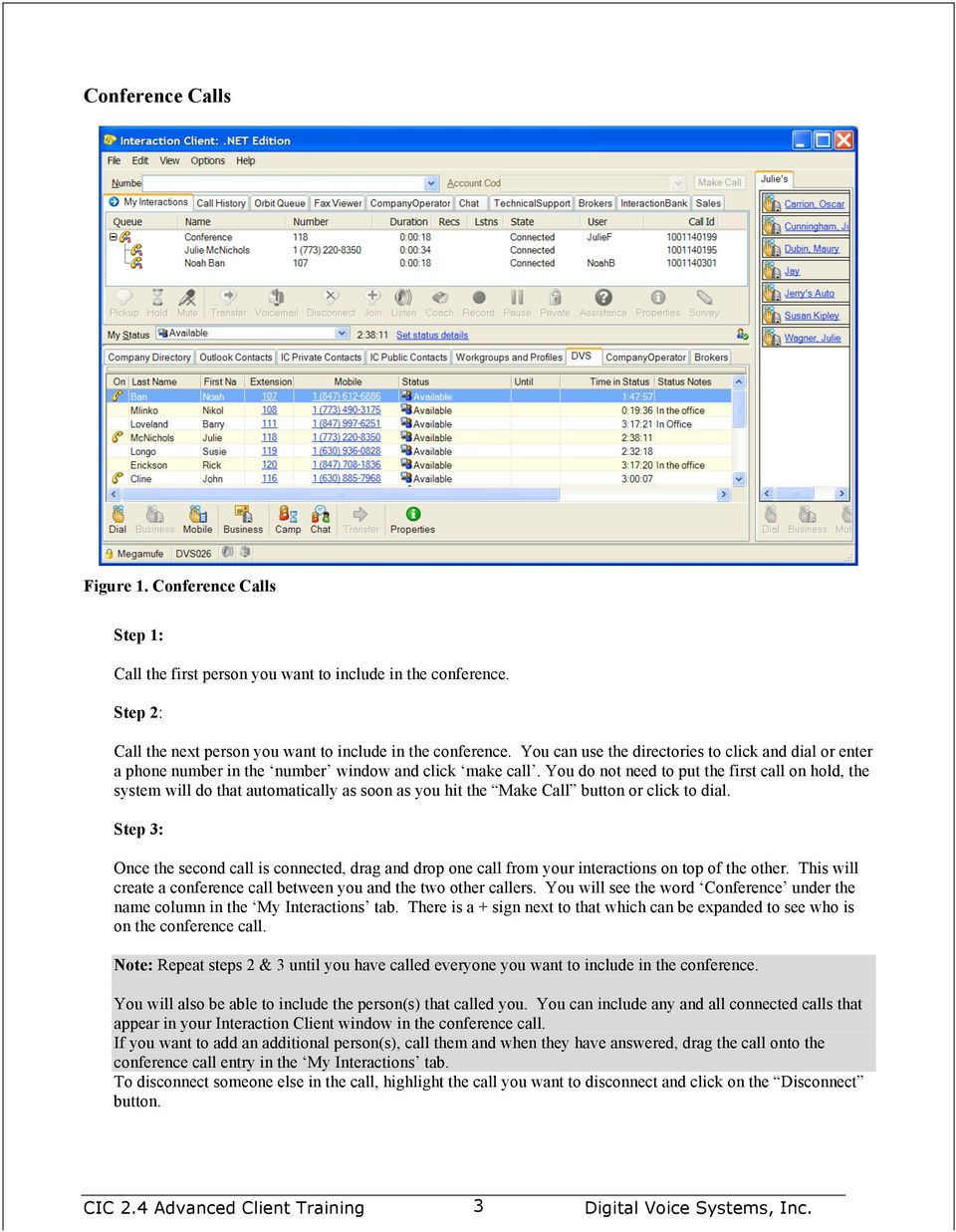
3 Conference Calls Figure 1. Conference Calls Step 1: Call the first person you want to include in the conference. Step 2: Call the next person you want to include in the conference. You can use the directories to click and dial or enter a phone number in the number window and click make call. You do not need to put the first call on hold, the system will do that automatically as soon as you hit the Make Call button or click to dial. Step 3: Once the second call is connected, drag and drop one call from your interactions on top of the other. This will create a conference call between you and the two other callers. You will see the word Conference under the name column in the My Interactions tab. There is a + sign next to that which can be expanded to see who is on the conference call. Note: Repeat steps 2 & 3 until you have called everyone you want to include in the conference. You will also be able to include the person(s) that called you. You can include any and all connected calls that appear in your Interaction Client window in the conference call. If you want to add an additional person(s), call them and when they have answered, drag the call onto the conference call entry in the My Interactions tab. To disconnect someone else in the call, highlight the call you want to disconnect and click on the Disconnect button. 3
4 Figure 2. Disconnecting a caller from the conference Selecting Parties If you select a call within the conference, the buttons immediately below will color. This allows you to selectively disconnect parties, mute them, or put them on hold. Be careful that you are selecting the right party! Use the Name field to distinguish between them. Figure 3. Selecting Parties 4

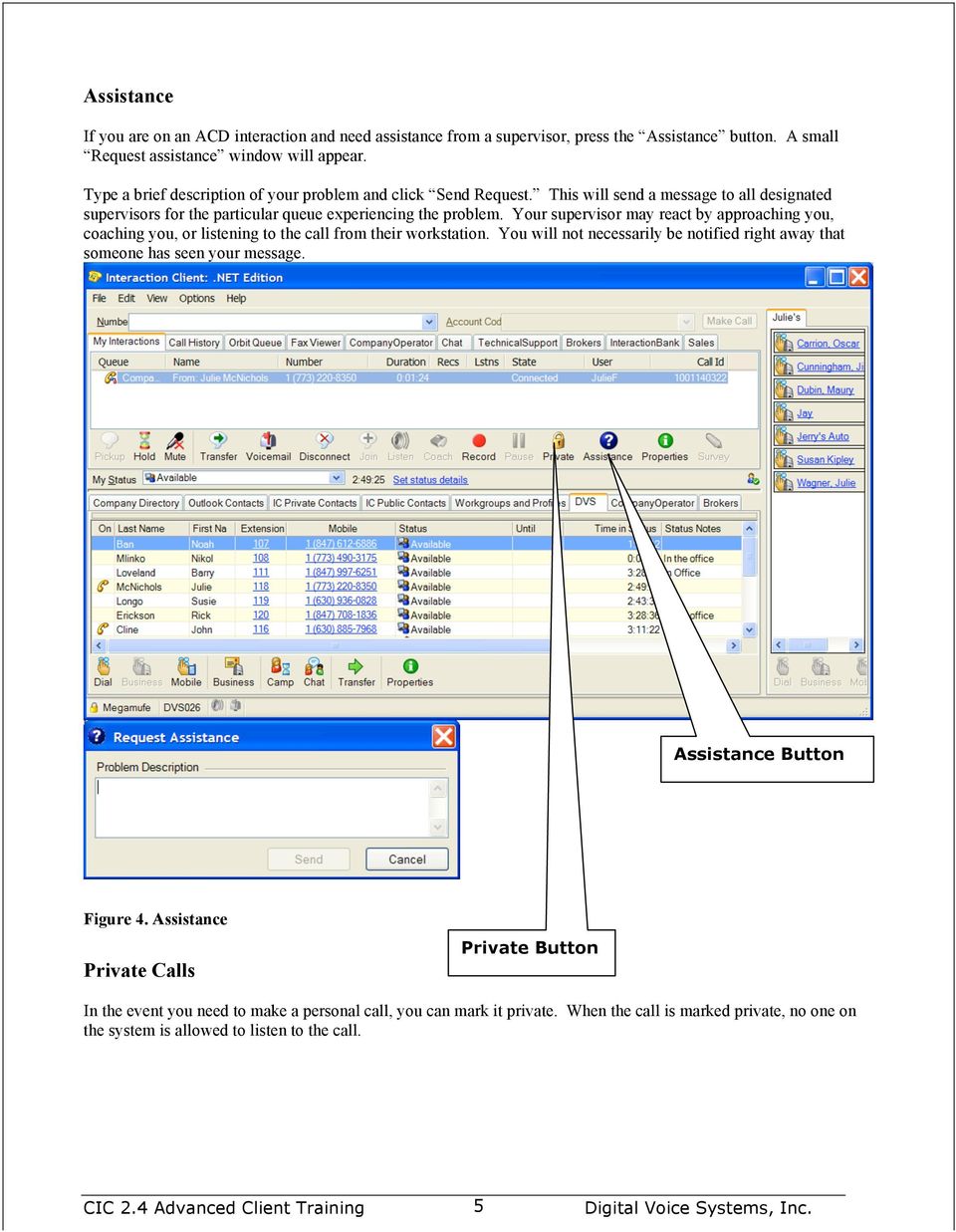
5 Assistance If you are on an ACD interaction and need assistance from a supervisor, press the Assistance button. A small Request assistance window will appear. Type a brief description of your problem and click Send Request. This will send a message to all designated supervisors for the particular queue experiencing the problem. Your supervisor may react by approaching you, coaching you, or listening to the call from their workstation. You will not necessarily be notified right away that someone has seen your message. Assistance Button Figure 4. Assistance Private Calls Private Button In the event you need to make a personal call, you can mark it private. When the call is marked private, no one on the system is allowed to listen to the call. 5
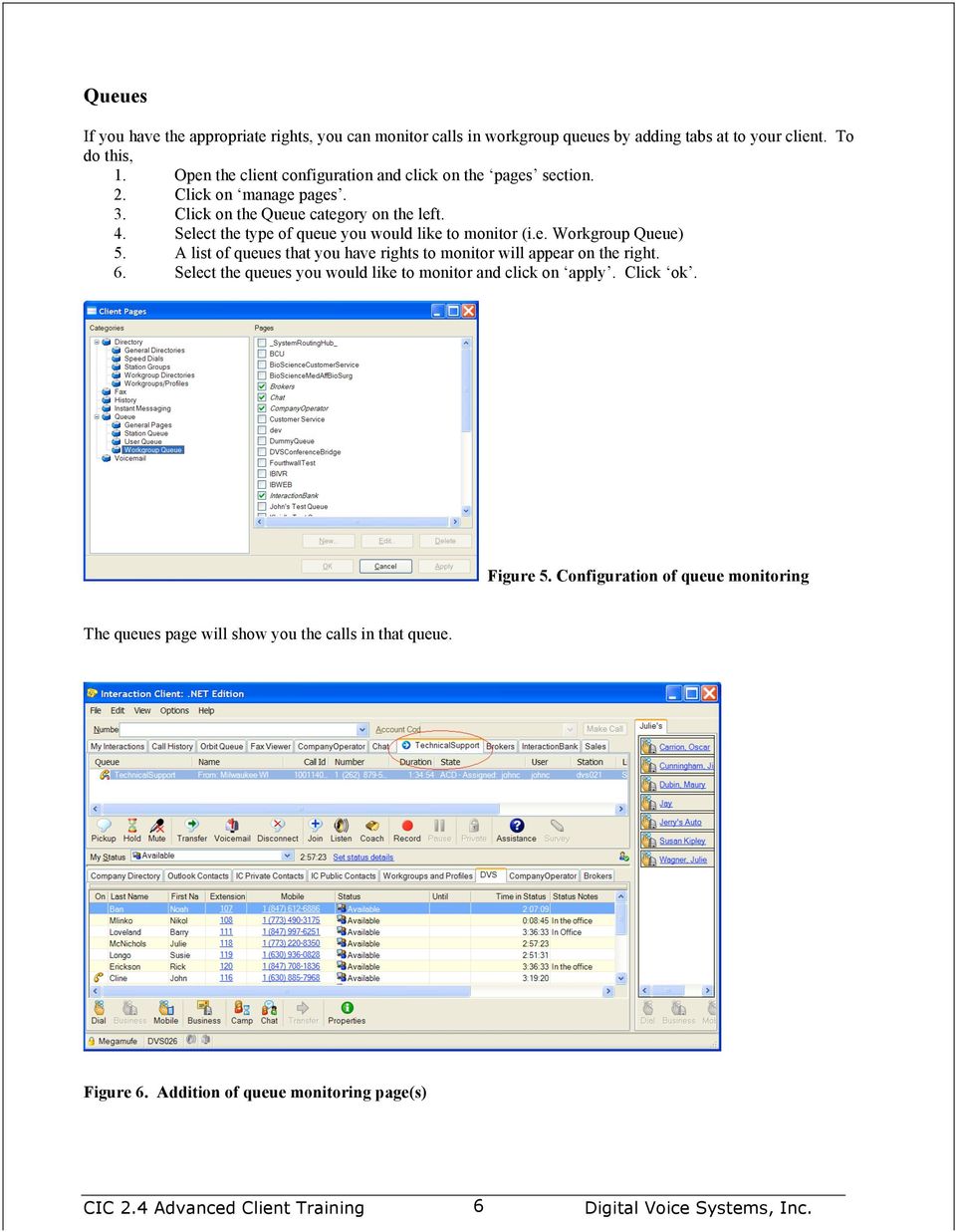
6 Queues If you have the appropriate rights, you can monitor calls in workgroup queues by adding tabs at to your client. To do this, 1. Open the client configuration and click on the pages section. 2. Click on manage pages. 3. Click on the Queue category on the left. 4. Select the type of queue you would like to monitor (i.e. Workgroup Queue) 5. A list of queues that you have rights to monitor will appear on the right. 6. Select the queues you would like to monitor and click on apply. Click ok. Figure 5. Configuration of queue monitoring The queues page will show you the calls in that queue. Figure 6. Addition of queue monitoring page(s) 6
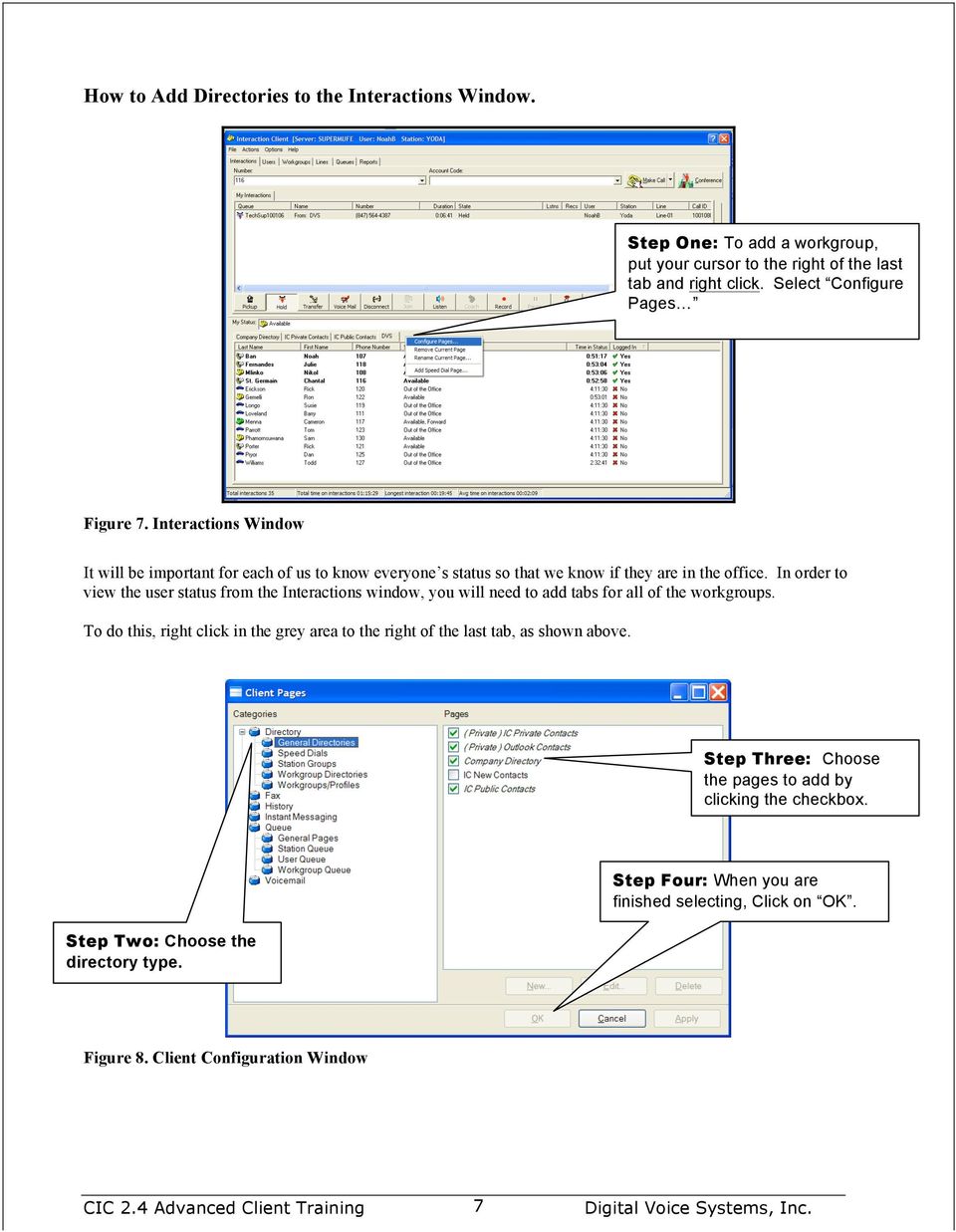
7 How to Add Directories to the Interactions Window. Step One: To add a workgroup, put your cursor to the right of the last tab and right click. Select Configure Pages Figure 7. Interactions Window It will be important for each of us to know everyone s status so that we know if they are in the office. In order to view the user status from the Interactions window, you will need to add tabs for all of the workgroups. To do this, right click in the grey area to the right of the last tab, as shown above. Step Three: Choose the pages to add by clicking the checkbox. Step Two: Choose the directory type. Step Four: When you are finished selecting, Click on OK. Figure 8. Client Configuration Window 7
8 How to Add a Directory, continued The new tab has been created Figure 9. New Tab How to Add Contacts to the Public or Private Directory Step One: Click on the IC Public or Private Contacts tab If you do not have this tab you need to create it See your Advanced training Guide for instructions on How to Add Directories. Figure 10. Adding Contacts 8
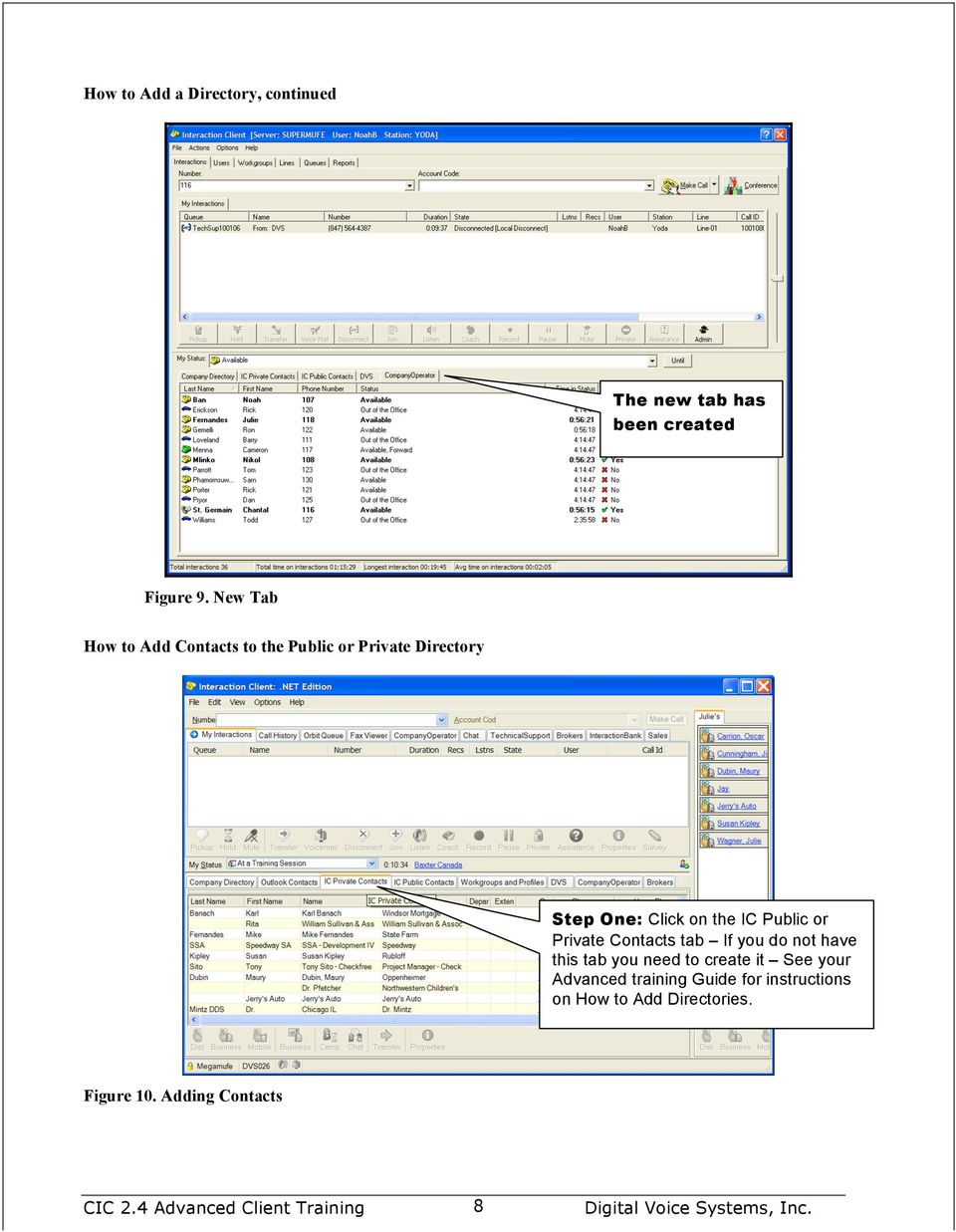
9 How to Add Contacts, continued Figure 11. New Entries Public and Private Directories To add contacts to the public or private directory, follow these basic steps: : : Click Insert Record and the new entry properties box will appear. You can enter all the information in the fields and on multiple pages. If the entry is for the public directory, click the Change and Delete boxes at the bottom. This allows others to update the record in the future. Recording Voice Prompts Step One: Click on the Options menu, Configuration. Figure 12. Voice Prompts 9

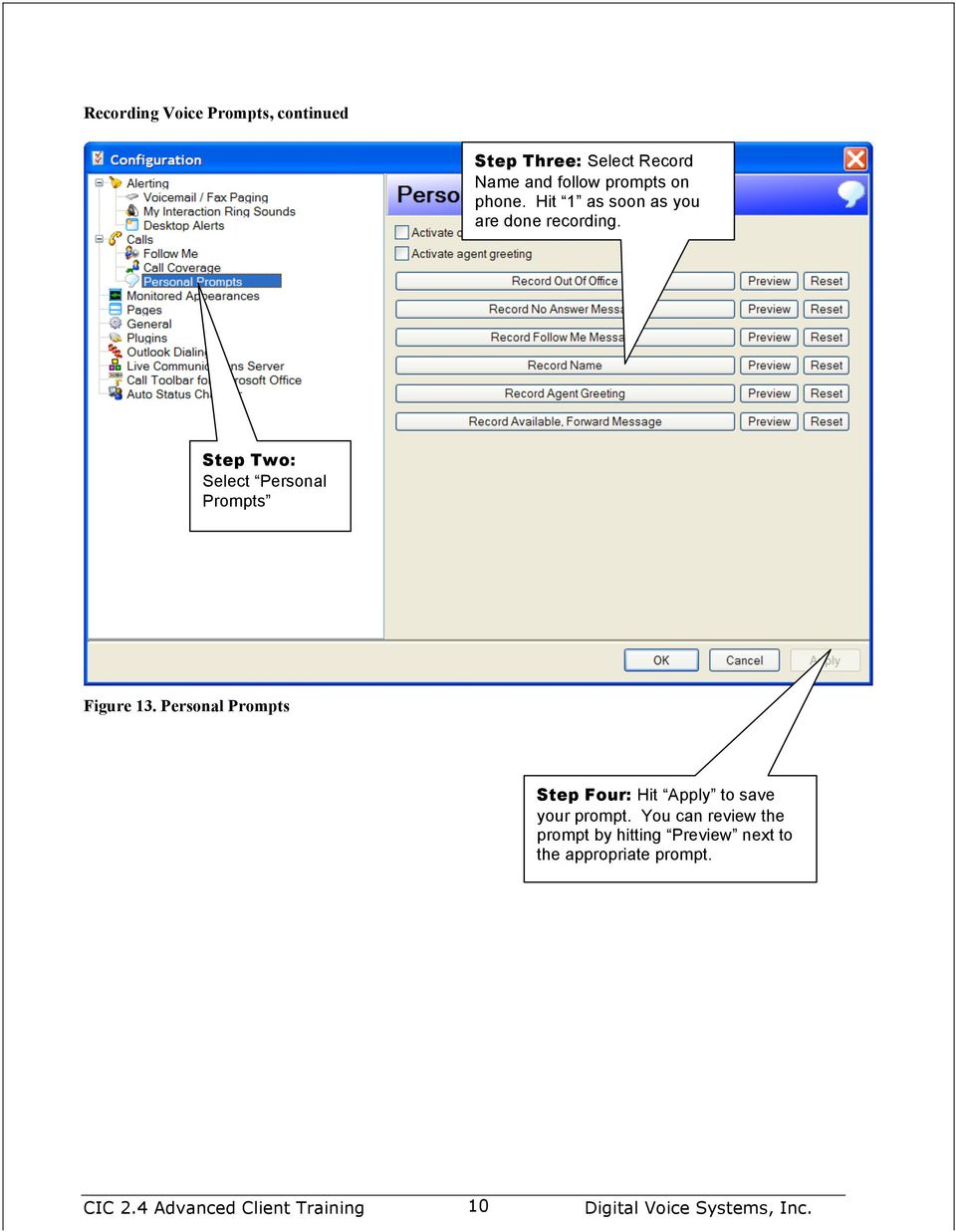
10 Recording Voice Prompts, continued Step Three: Select Record Name and follow prompts on phone. Hit 1 as soon as you are done recording. Step Two: Select Personal Prompts Figure 13. Personal Prompts Step Four: Hit Apply to save your prompt. You can review the prompt by hitting Preview next to the appropriate prompt. 10
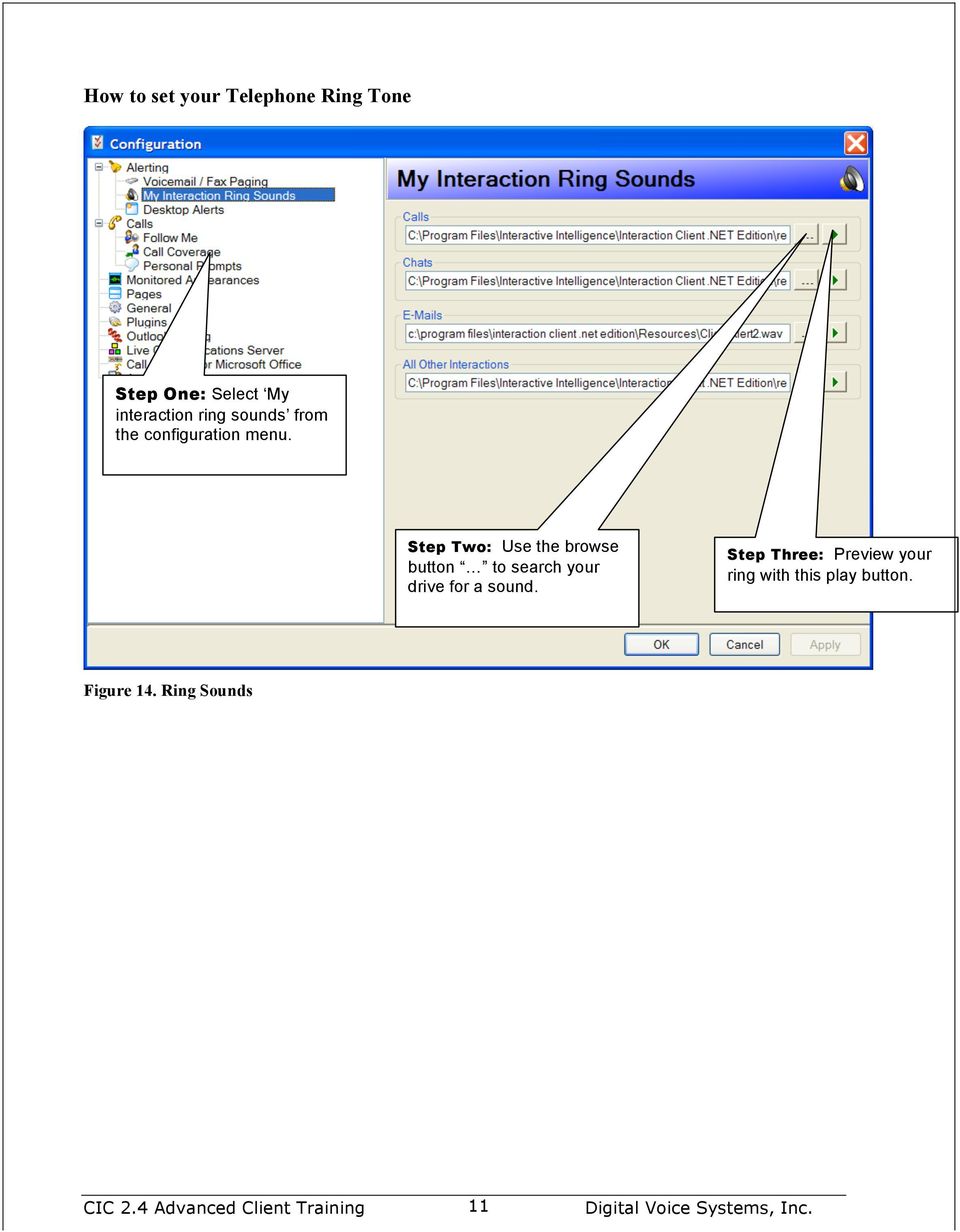
11 How to set your Telephone Ring Tone Step One: Select My interaction ring sounds from the configuration menu. Step Two: Use the browse button to search your drive for a sound. Step Three: Preview your ring with this play button. Figure 14. Ring Sounds 11
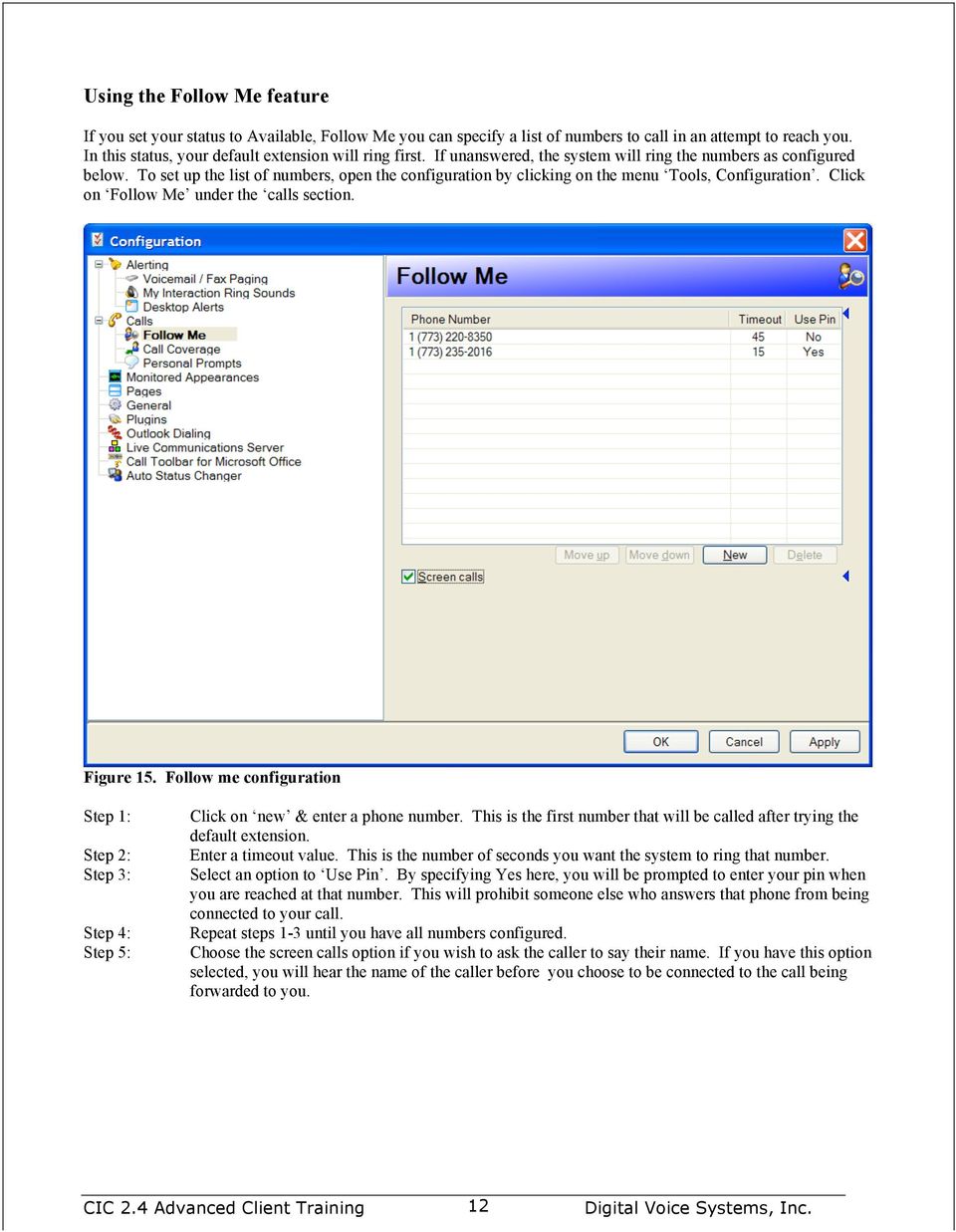
12 Using the Follow Me feature If you set your status to Available, Follow Me you can specify a list of numbers to call in an attempt to reach you. In this status, your default extension will ring first. If unanswered, the system will ring the numbers as configured below. To set up the list of numbers, open the configuration by clicking on the menu Tools, Configuration. Click on Follow Me under the calls section. Figure 15. Follow me configuration Step 1: Step 2: Step 3: Step 4: Step 5: Click on new & enter a phone number. This is the first number that will be called after trying the default extension. Enter a timeout value. This is the number of seconds you want the system to ring that number. Select an option to Use Pin. By specifying Yes here, you will be prompted to enter your pin when you are reached at that number. This will prohibit someone else who answers that phone from being connected to your call. Repeat steps 1-3 until you have all numbers configured. Choose the screen calls option if you wish to ask the caller to say their name. If you have this option selected, you will hear the name of the caller before you choose to be connected to the call being forwarded to you. 12
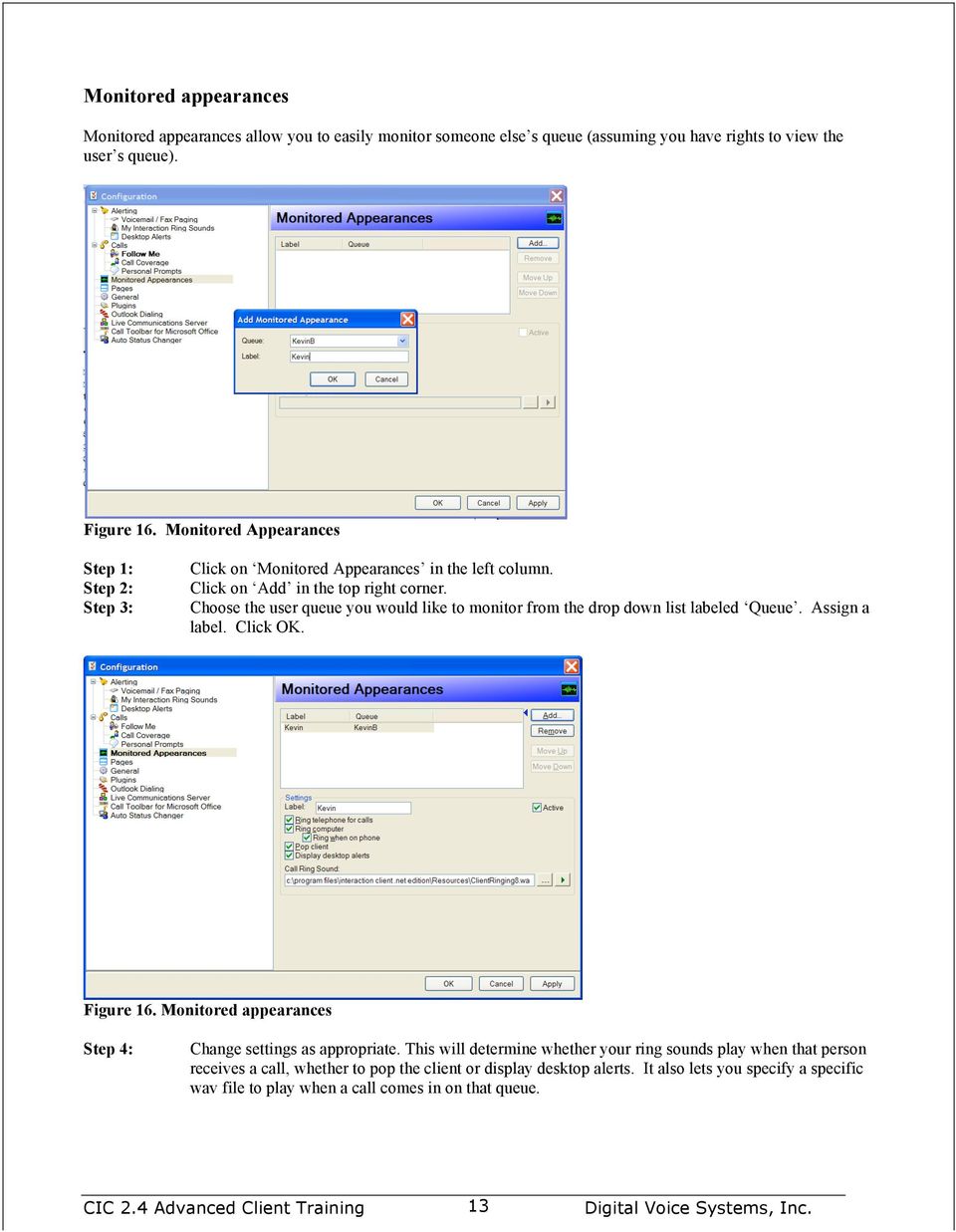
13 Monitored appearances Monitored appearances allow you to easily monitor someone else s queue (assuming you have rights to view the user s queue). Figure 16. Monitored Appearances Step 1: Step 2: Step 3: Click on Monitored Appearances in the left column. Click on Add in the top right corner. Choose the user queue you would like to monitor from the drop down list labeled Queue. Assign a label. Click OK. Figure 16. Monitored appearances Step 4: Change settings as appropriate. This will determine whether your ring sounds play when that person receives a call, whether to pop the client or display desktop alerts. It also lets you specify a specific wav file to play when a call comes in on that queue. 13
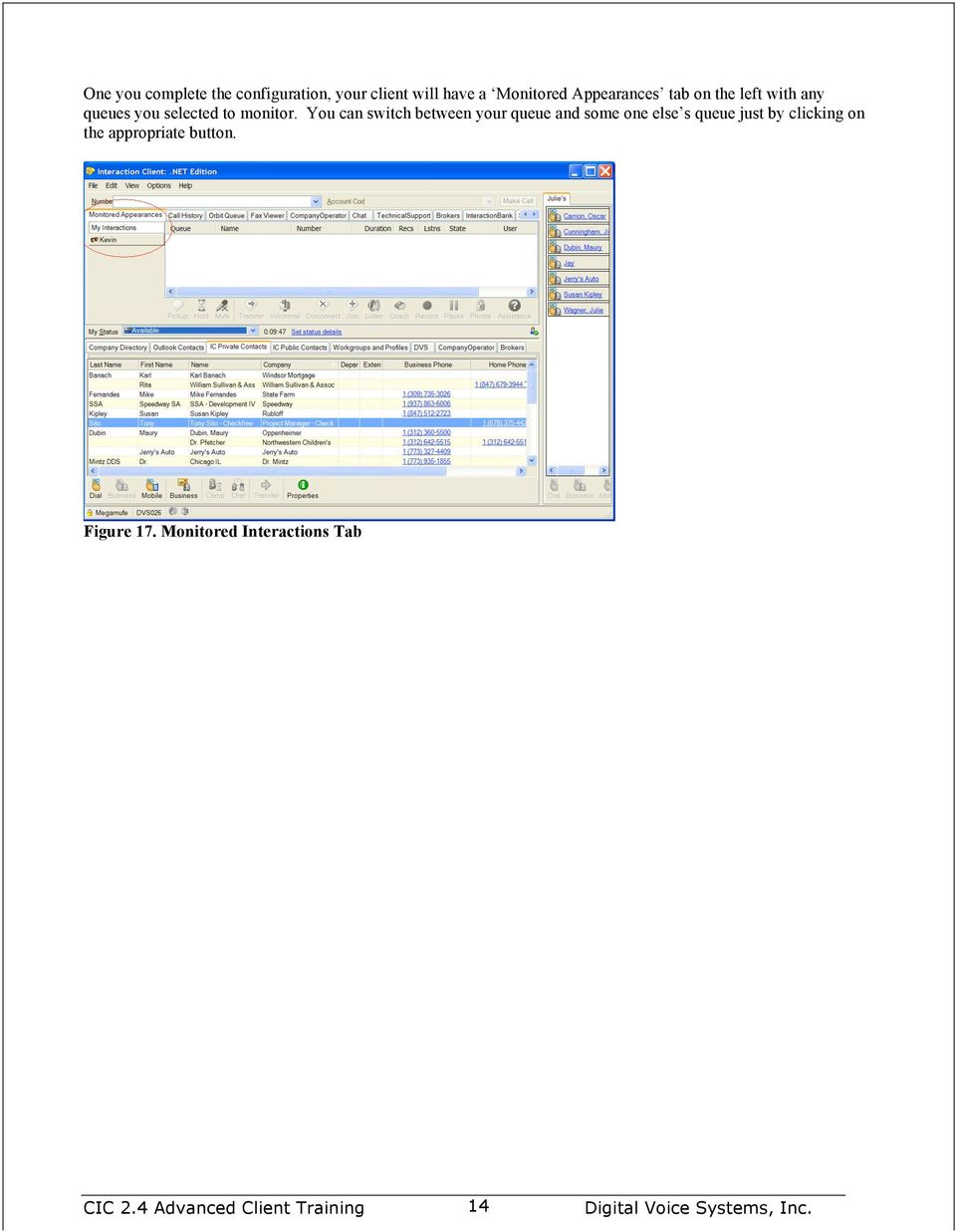
14 One you complete the configuration, your client will have a Monitored Appearances tab on the left with any queues you selected to monitor. You can switch between your queue and some one else s queue just by clicking on the appropriate button. Figure 17. Monitored Interactions Tab 14
15 Orbit queue Parking a call in an orbit queue You can place any connected call in a specific orbit. This places the call on hold and removes it from your station. Depending on the hold behavior your IC administrator configures, callers "in orbit" hear a combination of music and messages. To a caller, there is no difference between being on hold or in orbit. Figure 18. Parking calls on orbit Step 1: Right click on the interaction you want to park in orbit. Step 2: Click on Park on Orbit. Step 3: Enter a numeric value here. 15

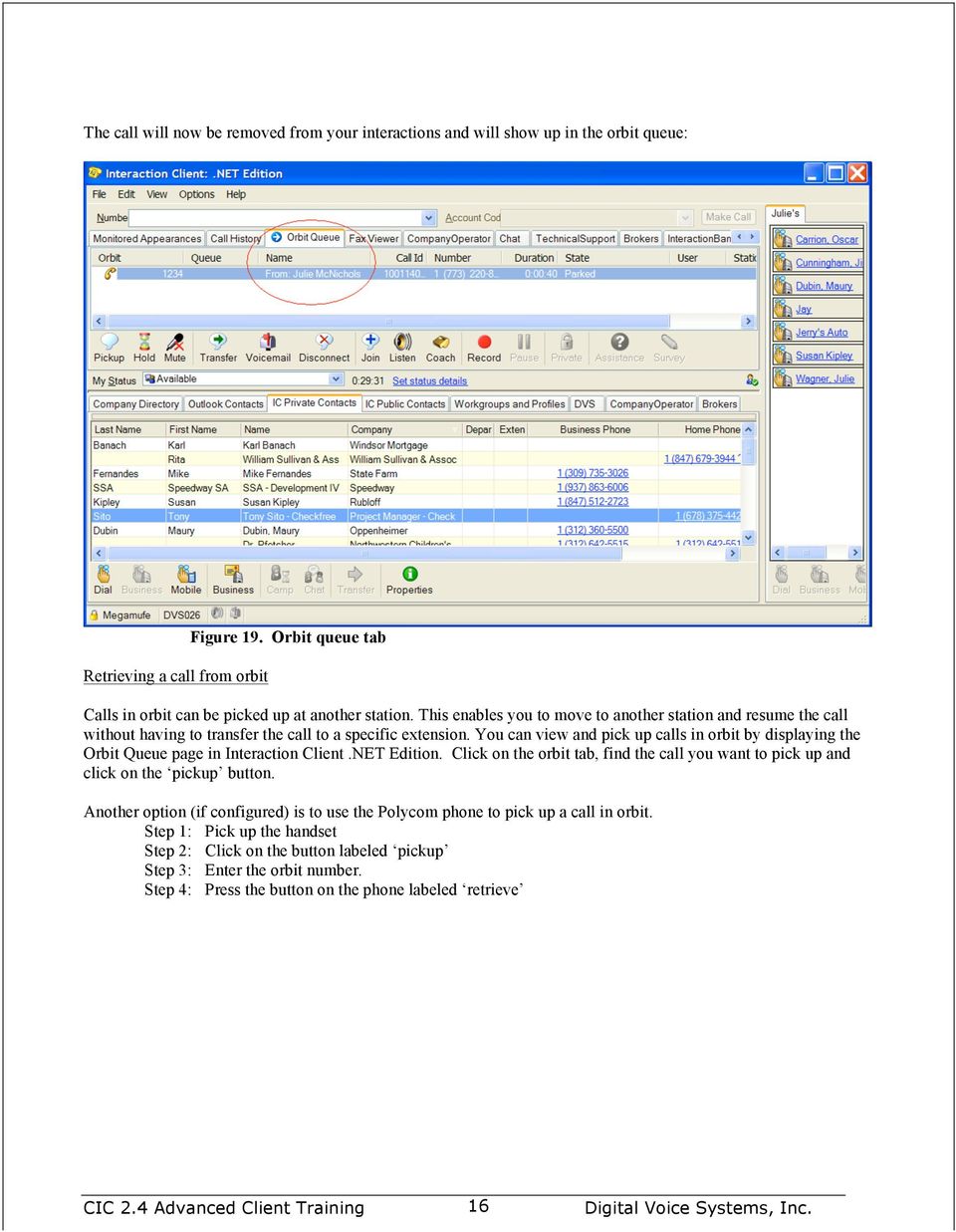
16 The call will now be removed from your interactions and will show up in the orbit queue: Retrieving a call from orbit Figure 19. Orbit queue tab Calls in orbit can be picked up at another station. This enables you to move to another station and resume the call without having to transfer the call to a specific extension. You can view and pick up calls in orbit by displaying the Orbit Queue page in Interaction Client.NET Edition. Click on the orbit tab, find the call you want to pick up and click on the pickup button. Another option (if configured) is to use the Polycom phone to pick up a call in orbit. Step 1: Pick up the handset Step 2: Click on the button labeled pickup Step 3: Enter the orbit number. Step 4: Press the button on the phone labeled retrieve 16
CIC 3.0 Basic Client Training
 CIC 3.0 Basic Client Training Interaction Client Last Updated December 19, 2008 This document offers training for beginning CIC users. DVS, Inc. 60 Revere Dr., Suite 201 Northbrook, IL 60062 847.564.4387
VoIP Quick Start Guide
 VoIP Quick Start Guide VoIP is made up of three elements: The Phone The Software (optional) The Web Version of the software (optional) Your new voice mail can be accessed by calling (971-722) 8988. Or,
Interaction Client.NET Edition and Fax User Guide
 Interaction Client.NET Edition and Fax User Guide Division of Information Technology Charles Sturt University Copyright 2015, Charles Sturt University No part of this document may be reproduced, altered
one Managing your PBX Administrator ACCESSING YOUR PBX ACCOUNT CHECKING ACCOUNT ACTIVITY
 one Managing your PBX Administrator ACCESSING YOUR PBX ACCOUNT Navigate to https://portal.priorityonenet.com/ and log in to the PriorityOne portal account. If you would like your web browser to keep you
How To Use A 9608 Phone On A Cell Phone On Sim Sims 2 (Satellite) On A Sims 3 (Cell Phone) On An Iphone Or Ipad Or Ipa 2 (Cellphone) On Sims 4
 AVAYA 9608 SIP DESKPHONE INSTRUCTIONS MESSAGE WAITING INDICATOR YOUR PHONE 9608 PHONE INSTRUCTIONS If there are messages in your Avaya Voice Mailbox, the light on the top right corner of your telephone
CISCO IP PHONE MODEL 7960 & UNITY VOICEMAIL INCLUDES CISCO CALLMANAGER ATTENDANT CONSOLE. Getting Started Manual
 CISCO IP PHONE MODEL 7960 & UNITY VOICEMAIL INCLUDES CISCO CALLMANAGER ATTENDANT CONSOLE Getting Started Manual... 3 Getting Started... 3 Using LCD Icons... 3 Using the IP Phone Configuration Utility...
CISCO IP PHONE MODEL 7960 & UNITY VOICEMAIL. Getting Started Manual
 CISCO IP PHONE MODEL 7960 & UNITY VOICEMAIL Getting Started Manual... 3 Getting Started... 3 Using LCD Icons... 3 Using the IP Phone Configuration Utility... 3 Tips... 3 How to Use the Handset, Speakerphone,
Polycom 2-Line Desk Phone Quick Reference Guide
 Polycom 2-Line Desk Phone Quick Reference Guide ACC-1142 PUG Table of Contents INTRODUCTION TO YOUR POLYCOM 2-LINE DESK PHONE... 2 WELCOME... 2 DESK PHONE... 2 HOW TO USE YOUR POLYCOM 2-LINE DESK PHONE...
<Insert Picture Here> Contact Center Anywhere: Interaction Manager (IM) Overview
 Contact Center Anywhere: Interaction Manager (IM) Overview What is Interaction Manager? Interaction Manager is the software that each call center agent uses to take and place customer
Optimum Lightpath Hosted Voice User Guide
 Optimum Lightpath Hosted Voice User Guide V10-12-10 Table of Contents 1. Making and Answering Calls... 6 1.1 Internally... 6 1.2 Externally... 6 1.3 Emergency Calls... 6 1.4 Speaker Phone... 6 1.5 Ending
Weave Phone User Guide (VVX 310)
 (VVX 310) Getting Started: Answering a Call: Simply pick up the handset and begin speaking. Placing a Call (2 options): 1. Pick up the handset and dial - OR 2. Dial the number and hit the Dial button (goes
For customers in AL, FL, GA, KS, SC, TN. wowforbusiness.com MATRIX USER GUIDE. For Cisco SPA504 & SPA509 IP Phones MGCP.U.1304.O
 wowforbusiness.com MATRIX USER GUIDE For Cisco SPA504 & SPA509 IP Phones MGCP.U.1304.O Matrix User Guide Table of Contents Getting Started...3 CommPortal...3 Support...3 Understanding Your Phone s Lines
Avaya Campus PBX MICHIGAN STATE UNIVERSITY. Telecommunication Systems. Avaya 2410 User Guide
 Avaya Campus PBX MICHIGAN STATE UNIVERSITY Telecommunication Systems Avaya 2410 User Guide MICHIGAN STATE UNIVERSITY Avaya 2410 Telephone User Guide Michigan State University Telecommunication Systems
Google Sites. How to create a site using Google Sites
 Contents How to create a site using Google Sites... 2 Creating a Google Site... 2 Choose a Template... 2 Name Your Site... 3 Choose A Theme... 3 Add Site Categories and Descriptions... 3 Launch Your Google
TruConnect. Hosted PBX User Guide. Quick Start Guide - Page 2. Table of Contents - Page 5. 1-800-768-1212 www.truvista.net
 TruConnect Hosted PBX User Guide R R Quick Start Guide - Page 2. Table of Contents - Page 5. 1-800-768-1212 www.truvista.net TruConnect User Guide Page 1. Hosted TruConnect IP PBX Quick Reference Guide
Lync TM Phone User Guide Polycom CX600 IP Phone
 The Polycom CX600 IP (Internet Protocol) phone is a full-featured unified communications desktop phone, optimized for use with Microsoft Lync environments. It features Polycom HD Voice technology for crystal-clear
Horizon End User Guide
 Horizon End User Guide Contents How do I gain access to the Horizon website?... 4 How do I change my password?... 4 Logging in as the End User... 5 How do I customise my Dashboard?... 5 How do I initially
UniCom Enterprise Phone (Polycom CX600) User Guide
 UniCom Enterprise Phone (Polycom CX600) User Guide 1 6 What is UniCom Enterprise?...1 Frequently Used Make a Call...6 What is Microsoft Lync?...1 Call Functions Use Call Controls...7 Who can use UniCom
Cisco VoIP 8941/8945 Phones Reference Guide ICIT Technology Training and Advancement [email protected]
 Cisco VoIP 8941/8945 Phones Reference Guide ICIT Technology Training and Advancement [email protected] Updated on 7/31/2014 TABLE OF CONTENTS Phone Overview... 4 Phone Terms... 5 Operating Your Phone...
How To Use A Cell Phone On A Microsoft Powerbook 2.5.2.2 (Windows) On A Pc Or Macbook 2 (Windows 2) On An Ipad Or Ipad 2.2 Or Ipa 2.3
 Interaction Client.NET Edition Agent User Guide Interaction Center Version 2.4 August 3, 2006 DC-001-2.4-BKNA Copyright and Trademark Information 1994 2006 Interactive Intelligence Inc. All rights reserved.
Desktop Reference Guide
 Desktop Reference Guide 1 Copyright 2005 2009 IPitomy Communications, LLC www.ipitomy.com IP550 Telephone Using Your Telephone Your new telephone is a state of the art IP Telephone instrument. It is manufactured
Gazelle Hosted PBX V8.0 End User Guide
 Gazelle Hosted PBX V8.0 End User Guide Document VPM-777-200, Version 1.2 08 Apr 2013 Document Version 1.2 Gazelle Communications Metaswitch Hosted PBX V8.0 08 Apr 2013 End User Guide Contents 1 Introduction...
Cisco 8851. Dial Plan. Feature and Session Buttons. Your Phone
 Cisco 8851 Dial Plan Internal Calls: Dial 5-digit extension External Calls: Domestic/Local: 9+1 Area Code + Number Int l: 9+011+Country Code + Number Emergency: 9+911 or 911 Your Phone 1. Incoming call
ShoreTel Enterprise Contact Center Using Agent Toolbar
 ShoreTel Enterprise Contact Center Using Agent Toolbar USER GUIDES RELEASE 7 Document and Software Copyrights Copyright 1998 2011 ShoreTel, Inc. All rights reserved. Printed in the United States of America.
Polycom VVX500 4 and 6-Line Touch Screen Desk Phone Quick Reference Guide
 Polycom VVX500 4 and 6-Line Touch Screen Desk Phone Quick Reference Guide Contents Introduction to your Polycom VVX500 Touch Screen Desk Phone... 3 Welcome... 3 Desk Phone... 3 Interacting with your Polycom
ShoreTel Contact Center Using ShoreWare Agent Toolbar
 ShoreTel Contact Center Using ShoreWare Agent Toolbar USER GUIDES RELEASE 6 Document and Software Copyrights Copyright 1998 2010 ShoreTel, Inc. All rights reserved. Printed in the United States of America.
ShoreTel Enterprise Contact Center 8 Using Agent Toolbar
 ShoreTel Enterprise Contact Center 8 Using Agent Toolbar November 2012 Legal Notices Document and Software Copyrights Copyright 1998-2012 by ShoreTel Inc., Sunnyvale, California, USA. All rights reserved.
AVAYA 9608/9611G SIP DESKPHONE INSTRUCTIONS
 AVAYA 9608/9611G SIP DESKPHONE INSTRUCTIONS MESSAGE WAITING INDICATOR PHONE DISPLAY NAVIGATION ARROWS and the OK BUTTON PHONE BUTTON MESSAGE BUTTON CONTACTS HISTORY HOME HEADSET SPEAKER VOLUME BUTTON MUTE
Cisco 7912 Users Guide
 Cisco 7912 Users Guide Cisco IP Phone 7912 Road Map to your Cisco IP Phone 1 2 LCD Screen Cisco IP Phone series type 3 Soft Keys 4 5 6 Navigation button Menu Button Hold Button 7 Dial Pad Volume 8 Button
Snom Phone Quick Start Guide
 Snom Phone Quick Start Guide Today s Phone Company 1.866.342.4283 www.megagate.com Table of Contents 1. Quick Reference information... 3 2. Introduction... 4 3. Making Calls... 5 3.1 Internally... 5 3.2
Polycom Conference Phone Quick Reference Guide ACC-1144 PUG
 ACC-1144 PUG Polycom Conference Phone Quick Reference Guide Table of Contents INTRODUCTION TO YOUR POLYCOM CONFERENCE PHONE... 2 WELCOME... 2 CONFERENCE PHONE... 2 HOW TO USE YOUR POLYCOM CONFERENCE PHONE...
UniCom Enterprise Phone (Polycom CX600) User Guide
 UniCom Enterprise Phone (Polycom CX600) User Guide 1 6 What is UniCom Enterprise?...1 Frequently Used Make a Call...6 What is Microsoft Lync?...1 Call Functions Use Call Controls...7 Who can use UniCom
HELPFUL HINTS FOR VOIP PHONES
 HELPFUL HINTS FOR VOIP PHONES TO LEAVE A MESSAGE IN MAILBOX WITHOUT CALLING THE NUMBER ACCESS THE LINE (GET DIAL TONE) - PRESS STAR DIAL 5 DIGIT NUMBER TO TRANSFER A CALL WITHOUT ANNOUNCING WHOSE CALLING
New Participant Digital Certificate Enrollment Procedure
 New Participant Digital Certificate Enrollment Procedure Now that your account has been setup in the ETS system, you need to access it. As this is a secure site, a digital certificate will be required
If you are having a problem or technical issue regarding your IP Telephone, please call the UAA IT Call Center at 907.786.4646
 If you are having a problem or technical issue regarding your IP Telephone, please call the UAA IT Call Center at 907.786.4646 1 Physical Layout. 3-4 Connecting Your Phone. 5 Adjusting the Handset Rest
Cisco IP Phone 7960G and Cisco IP Phone 7940G for Cisco IOS Telephony Services
 CHAPTER 1 Cisco IP Phone 7960G and Cisco IP Phone 7940G for Cisco IOS Telephony Services Button Legend The Cisco IP Phone 7960G and the Cisco IP Phone 7940G differ only in the number of available line
Verizon Collaboration Plug-In for Microsoft Outlook User Guide
 Verizon Collaboration Plug-In for Microsoft Outlook User Guide Version 4.11 Last Updated: July 2011 2011 Verizon. All Rights Reserved. The Verizon and Verizon Business names and logos and all other names,
MEETINGONE ONLINE ACCOUNT MANAGEMENT PORTAL ACCOUNT ADMIN USER GUIDE
 MEETINGONE ONLINE ACCOUNT MANAGEMENT PORTAL ACCOUNT ADMIN USER GUIDE CONTENTS Description of Roles... 4 How to Login... 4 Select a Role... 5 Overview of Tabs... 6 Home Tab... 7 Account Profile Tab... 7
AVAYA VOICE OVER INTERNET PROTOCOL (VOIP) TELEPHONE USER MANUAL. Revised by Leeward CC IT October 2012. University of Hawaiʻi Community Colleges
 AVAYA VOICE OVER INTERNET PROTOCOL (VOIP) TELEPHONE USER MANUAL Revised by Leeward CC IT October 2012 University of Hawaiʻi Community Colleges Hawaiian Telecom Copyright 2012 Table of Contents PLACING
Enhanced Call Processor (ECP) User Guide
 Enhanced Call Processor (ECP) User Guide Overview The Enhanced Call Processing Mailbox (ECP), also referred to as Callers Menu, allows callers to route themselves to specific persons, departments, mailboxes
Vertical 4-Line Desk Phone Quick Reference Guide ACC-1145 PUG
 ACC-1145 PUG Vertical 4-Line Desk Phone Quick Reference Guide Table of Contents INTRODUCTION TO YOUR XCELERATOR DESK PHONE... 2 WELCOME... 2 DESK PHONE... 2 HOW TO USE YOUR XCELERATOR DESK PHONE... 3 Answering
CenturyLink Smart IP Hosted Voice and Data
 CenturyLink Smart IP Hosted Voice and Data Hosted Voice End User Guide Document ID VPM 549 0001 1 TABLE OF CONTENTS 1. Introduction... 7 2. Advanced Phone Features... 8 2.1 Call Forwarding... 8 2.2 Speed
Cisco IP Phone Models 7941 and 7945 Quick Reference Guide December 23, 2011
 Emergency Calls Dial 911 or 3 911 Cisco IP Phone Models 7941 and 7945 Quick Reference Guide December 23, 2011 Place a Call Lift handset (or press the Speaker button, the line button, or New Call soft key)
MiVoice Integration for Salesforce
 MiVoice Integration for Salesforce USER GUIDE MiVoice Integration for Salesforce User Guide, Version 1, April 2014. Part number 58014124 Mitel is a registered trademark of Mitel Networks Corporation. Salesforce
IP Office one-x Portal for IP Office User Guide
 one-x Portal for User Guide 15-601131 Issue 02d - (29 April 2010) 2010 AVAYA All Rights Reserved. Notice While reasonable efforts were made to ensure that the information in this document was complete
... SphericallTM. Sphericall Desktop User Manual
 ................................... SphericallTM Sphericall Desktop User Manual ................................... Sphericall Desktop User Manual H T T P : / / W W W. S P H E R E C O M. C O M P A R T
Featuring the Vertical Xcelerator IP Phone System DESK PHONE USER GUIDE V1.5
 Featuring the Vertical Xcelerator IP Phone System DESK PHONE USER GUIDE V1.5 For Service Purchased After May 1 st 2009 Table of Contents INTRODUCTION TO YOUR XCELERATOR DESK PHONE... 2 WELCOME... 2 XCELERATOR
Overview. Logging in: Table of Contents. adminstrator webportal myphone.rcn.com/hostedvoice/bg
 Guide 3 Overview Logging in: Table of Contents One of the exciting benefits of RCN Hosted Voice is the ability to set-up and control your communications according to your business specific needs. You can
IP Phone System: Cisco 7960G and 7940G
 IP Phone System: Cisco 7960G and 7940G Table of Contents: IP Phone System 7940G and 7960G CISCO IP PHONE ROAD MAP...1 NAVIGATE THE PHONE SYSTEM AND USE THE LCD SCREEN...2 SOFT KEYS... 2 USE THE NAVIGATION
Verizon Collaboration Plug-In for Microsoft Outlook User Guide
 Verizon Collaboration Plug-In for Microsoft Outlook User Guide Version 4.11 Last Updated: July 2011 2011 Verizon. All Rights Reserved. The Verizon and Verizon Business names and logos and all other names,
VoIP Phone System. South Central College VoIP User Guide
 VoIP Phone System South Central College installed a new high tech phone system in July of 2005. This system communicates across the network rather than using traditional phone wiring. The technology, known
Quick Start Guide Cisco 7911 IP Telephone
 Quick Start Guide Cisco 7911 IP Telephone CONTENTS CISCO 7911 IP PHONE FEATURE AND KEY OVERVIEW... 3 BASIC FEATURES... 5 Installing the IP Phone and Connecting to the Network... 5 Placing a Call... 5 Answering
Cisco IP Phone Training 8/26/15
 Cisco IP Phone Training 8/26/15 Using your Phone This document will provide information on the following: Introduce you to your phone Place, transfer, forward, park and pick up a call Set voice mail passwords
Orchestra Call Centre Agent Software Version 3
 Orchestra Call Centre Agent Software Version 3 User Guide v1.0 (Installation & Configuration) Converged Solutions Pte Ltd 1 Table of Contents Installation and Setup for Orchestra AgentIV... 3 Answering
Office Voice User Guide. User Guide
 Office Voice User Guide User Guide Contents Anonymous Call Rejection 3 Call Block 3 Call Forward 4 Call Return 5 Call Waiting 5 Caller ID 6 Do Not Disturb 7 Find Me 7 Last Number Redial 8 Selective Call
Setting up & using your IP Telephone
 Setting up & using your IP Telephone Version: 1.8 Last Edited: 09/02/15 Welcome to your new IP Telephone! In order to help you get acquainted with your new phone this helpsheet provides a basic description
AVAYA 9608 & 9611G IP DESKPHONE INSTRUCTIONS
 AVAYA 9608 & 9611G IP DESKPHONE INSTRUCTIONS 1 MESSAGE WAITING INDICATOR PHONE DISPLAY NAVIGATION ARROWS and the OK BUTTON PHONE BUTTON MESSAGE BUTTON CONTACTS HISTORY HOME HEADSET SPEAKER VOLUME BUTTON
Part 2. Copyright 1998 Philips Consumer Communications L.P. All rights reserved. Printed in Mexico. Issue 1AT&T 848229506
 2 User's Manual for Two-Line Digital Answering System Telephone with Speakerphone 1872 Fold open this paper for information about this telephone's installation and operation. Please read Part 1 Important
Avaya 9630 IP Telephone End User Guide
 Avaya 9630 IP Telephone End User Guide 9630 IP Telephone End User Guide 1 P age Table of Contents About Your Telephone... 3 9630 IP Telephone Button/Feature Descriptions... 3 Scrolling and Navigation...
CISCO IP PHONE 6945 Series User Guide
 CISCO IP PHONE 6945 Series User Guide Notes Page 15 VOICE MAIL Setting up Voice Mail for the First Time: Press the messages key on your phone. Follow the recorded instruction to record your name, record
MaxMobile Communicator User Guide
 MaxMobile Communicator User Guide For Android Phones MAX Communication Server Release 7.0 October 2013 WARNING! Toll fraud is committed when individuals unlawfully gain access to customer telecommunication
VoIP User Guide. Polycom VVX300/310. Polycom VVX300-310 1
 VoIP User Guide Polycom VVX300/310 Polycom VVX300-310 1 Hosted VoIP Services Welcome to GCI Hosted VoIP services. Detailed below is a basic user guide outlining the simplicity of the service. Depending
Extension Manual. User portal, Dial codes & Voice mail for 3CX Phone System Version 7.0
 Extension Manual User portal, Dial codes & Voice mail for 3CX Phone System Version 7.0 Copyright 2006-2008, 3CX ltd. http:// E-mail: [email protected] Information in this document is subject to change without
Key Connected Office Voice User Reference Guide
 Key Connected Office Voice User Reference Guide 02/10/2016 031114/FT/13v1/EX Page 0 Key System User Reference Guide Table of Contents PLACING/RECEIVING CALLS... 1 Answer a Call... 1 Dialing a Number or
WTC Communications Hosted PBX User Guide
 WTC Communications Hosted PBX User Guide Version 7.13.1 Section Subject Page 3 Making Calls...5 3.1 Internal...5 3.2 External...5 3.3 Emergency Calls...5 3.4 Speaker Phone...5 3.5 Ending Calls...5 4 Answering
Conferencing Moderator Guide - Proprietary - 2007 Nextera Communications. Conferencing Moderator Guide
 - Proprietary - Conferencing Moderator Guide TABLE OF CONTENTS 1 INTRODUCTION...3 2 ACTIVATING THE CONFERENCE CALL...3 3 QUICK KEY REFERENCE FOR TELEPHONE ADMINISTRATION...3 4 WEB INTERFACE...4 4.1 Accessing
Lync 2013 Quick Reference Lync Meetings. Join a Lync Meeting. Schedule a Lync Meeting. Do I need a PIN, work number or extension? Set meeting options
 Join a Lync Meeting 1. In the meeting request, click Join Lync Meeting or click Join Online in the meeting reminder. 2. On the Join Meeting Audio window, select one of the options: Use Lync (full audio
Training Guide for Cisco IP Phones 7940/7960
 Training Guide for Cisco IP Phones 7940/7960 LCD Display Indicator Light Foot Stand Adjustment Line Keys Soft Keys Navigation button 1 2 3 4 5 6 7 8 9 * 0 # i Menu buttons Volume Control Sound Control
3904 USER GUIDE. Stores one phone number per key for quick dial.
 AUTO DIAL To Program NOTE To Dial CALL PARK - Park a call - Retrieve the call CALL PICKUP Without Call Pickup key With Call Pickup key CALLING PARTY PRIVACY Stores one phone number per key for quick dial.
Personalizing Your Individual Phone Line Setup For assistance, please call 1-800-453-2251 ext. 102.
 Personalizing Your Individual Phone Line Setup For assistance, please call 1-800-453-2251 ext. 102. With these instructions, you will: 1. Record your greeting. 2. Configure your 911 setting. 3. Learn how
2 Session buttons. 1 Phone Screen
 1 Phone Screen 2 Session buttons Shows information about your phone, including directory number (extension), call information (for example caller ID, icons for an active call or call on hold) and available
Yeastar Technology Co., Ltd.
 MyPBX U100 & U200 Extension User s Guide Version: V1.0 Yeastar Technology Co., Ltd. Date: 25 th February, 2014 Yeastar Technology Co., Ltd.(www.yeastar.com) 1/8 Contents INTRODUCTION... 3 1. MYPBX USER
Polycom Converged Management Application (CMA ) Desktop for Mac OS X. Help Book. Version 5.1.0
 Polycom Converged Management Application (CMA ) Desktop for Mac OS X Help Book Version 5.1.0 Copyright 2010 Polycom, Inc. Polycom and the Polycom logo are registered trademarks and Polycom CMA Desktop
Cisco Jabber IM v11 Mac Reference Guide
 Cisco Jabber IM v11 Mac Reference Guide ICIT Technology Training Department [email protected] Updated on June 29, 2015 1 TABLE OF CONTENTS 1 Table of Contents... 2 2 About Cisco Jabber... 4 3 Installing
5 Setting up a Contact Center
 contact_center.fm 5 This example describes the setup and configuration of an OpenScape Office Contact Center based on a fictional customer scenario. It is intended to assist you in setting up a customized
Receptionist Console User Guide
 Receptionist Console User Guide Contents 1.0 Introduction and Purpose... 4 2.0 Common deployments of the Receptionist Console... 4 2.1 Fixed Receptionist Console... 4 2.2 Soft Receptionist Console... 4
This service allows you to talk to the 3rd party before transferring the original called party to them. To use Attended Call transfer:
 Calling Features Attend Call Transfer Auto Redial Anonymous Call Rejection Call Blocking Call Forward Busy Line Call Forward Don't Answer Call Forwarding Remote Access Call Forwarding Universal Call Holding
Online Tools. CommPortal ADMIN. Lines. Go to http://myphone.bayring.com/bg
 CommPortal ADMIN Go to http://myphone.bayring.com/bg User Name: Your 10-digit telephone number Password: Your voice mail password Lines To view the settings for an individual line, MADN or MLHG pilot number,
Contents How do I gain access to the Horizon website... 2 Logging in as the End User... 2 How do I customise my Dashboard?... 2 How do I initially
 Contents How do I gain access to the Horizon website... 2 Logging in as the End User... 2 How do I customise my Dashboard?... 2 How do I initially configure my user access?... 2 The Dashboard... 3 How
VIP (Traditional) Home Phone Calling Features
 VIP (Traditional) Home Phone Calling Features This document details each calling feature and its usage. Please note that this document applies only to our VIP Home Phone service for Kitchener-Waterloo,
Cisco VoIP 8961/9951/9971 Phones Reference Guide ICIT Technology Training and Advancement [email protected]
 Cisco VoIP 8961/9951/9971 Phones Reference Guide ICIT Technology Training and Advancement [email protected] Updated on 8/1/2014 TABLE OF CONTENTS Phone Overview... 4 Phone Terms... 5 Operating Your Phone...
Business Solutions. Page 1
 2012 C Page 1 Contents Getting Started emerge Dashboard Login... 3 Main Profile Screen... 5 Group Services... 5 Auto Attendant Overview... 7 Modifying Auto Attendant Settings... 7 Auto Attendant Modify
Fidelity ACD Agent. User Guide
 Fidelity ACD Agent User Guide TABLE OF CONTENTS 1- BASIC CONCEPTS...3 2- START THE FIDELITY ACD AGENT PROGRAM...4 3- USING THE FIDELITY ACD AGENT PROGRAM...5 3.1 Registering... 5 3.2 Answering an Incoming
Lync 2013 FAQ s. How do I keep my Lync conversation window on top of all the other windows on my computer, so I can see it while I work?
 Lync 2013 FAQ s How do I keep my Lync conversation window on top of all the other windows on my computer, so I can see it while I work? Select the drop-down button next to the Options icon, select Tools,
Anonymous Call Rejection
 Contents Anonymous Call Rejection 4 Call Block 5 Call Forward 6-7 Call Return 8 Call Waiting 9 Caller ID 10-11 Do Not Disturb 12 Find Me 13 Selective Call Forwarding 14 Speed Dial 15 Three-Way Calling
7971 Basic Phone Overview
 7971 Basic Phone Overview 1 Programmable buttons Configurable buttons that provide access to various phone features 2 Footstand button Allows you to adjust the angle of the phone base. Awakens the touchscreen
Hosted PBX End User Training Guide For the Polycom Soundpoint IP 321, 331 and 335 Phone
 Hosted PBX End User Training Guide For the Polycom Soundpoint IP 321, 331 and 335 Phone HOSTED PBX END USER TRAINING GUIDE ACCESSING VOICEMAIL To retrieve your voicemail, press the Menu button, button
Basic Features. Placing a Call. Answering a Call. Ending a Call. Placing a Call on Hold. Redialing a Call. Press the Phone button. Dial the number.
 Basic Features Placing a Call Press the Phone button. Dial the number. Answering a Call Press the Phone button or the Answer softkey. The active call appears in the active call list in the LCD screen.
IP Office Phone Manager Users Guide
 IP Office Phone Manager Users Guide 40DHB0002USAR Issue 6 (03/04/2002) Contents Getting Started... 3 Introduction... 3 Getting Started... 4 Phone Manager... 5 Main Window... 5 Call Status... 6 Call History...
Online/Web User Interface
 Business Conference Bridge USER GUIDE Local Conference Access Number: 772-597-2743 Toll Free Access Number: 877-680-6338* You and your call participants can use either of the phone number listed above
Unified Communications. Using Jabber for Mac 9.2.2. Common Tasks
 Unified Communications Using Jabber for Mac 9.2.2 Common Tasks April 2015 Table of contents Introduction to Jabber... 3 Contacts... 4 1.1 How to find a contact... 4 1.2 How to add a contact to the contacts
D2L: An introduction to CONTENT University of Wisconsin-Parkside
 D2L: An introduction to CONTENT University of Wisconsin-Parkside FOR FACULTY: What is CONTENT? The Content and Course Builder tools both allow you to organize materials in D2L. Content lets you and your
VoIP User Guide. Polycom IP331 Handset. Polycom IP331 Handset 1
 VoIP User Guide Polycom IP331 Handset Polycom IP331 Handset 1 Hosted VoIP Services Welcome to GCI Hosted VoIP services. Detailed below is a basic user guide outlining the simplicity of the service. Depending
UM8000 MAIL USER GUIDE
 UM8000 MAIL USER GUIDE INT-2076 (UNIV) Issue 1.0 INTRODUCTION Welcome to UM8000 Mail User Guide. The UM8000 Mail is a simple yet powerful voice messaging system that can greet your callers and record your
Panasonic Telephone System
 Electro-Mechanical Technology 6677 W. State Rd. 38, Mulberry, IN 46058 Voice (765) 296-3661 E-Mail [email protected] Panasonic Telephone System Simplified User Guide Here are some of the basic features that
ConnectDirect User Guide
 ConnectDirect User Guide For questions contact ConnectMe Customer Service Email: [email protected] Phone: 800-743-1208 Ext. 2 Page 1 Contents... 1 SECTION 1: Introduction... 4 SECTION 2: Login
Logging In. Supervisor Set Up. Contents. No table of contents entries found.
 Contents No table of contents entries found. Logging In Launch the Mysphere Call Center icon located on your desktop by double clicking it. Your log in screen will appear. (To create an icon on your desktop,
Impact Call PC. call001. Impact Call User s Guide
 R Impact Call PC call001 Impact Call User s Guide Comdial strives to design the features in our communications systems to be fully interactive with one another. However, this is not always possible, as