
Divide your material into sections, for example: Abstract, Introduction, Methods, Results, Conclusions
|
|
|
- Anna Pope
- 9 years ago
- Views:
Transcription
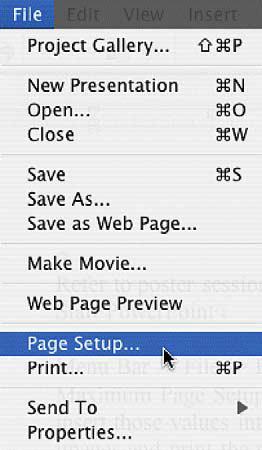
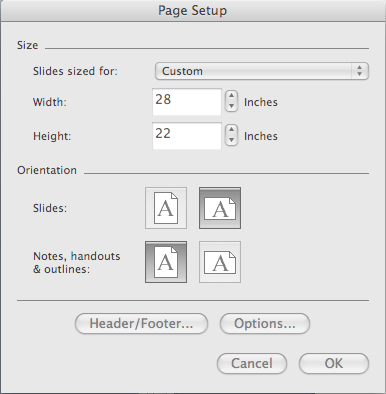
1 Creating a Research Poster in PowerPoint Adapted by Libertad Flores from guidelines by the Department of Medical Graphics and Photography, Memorial Sloan-Kettering Cancer Center, July ) Planning Divide your material into sections, for example: Abstract, Introduction, Methods, Results, Conclusions Consider creating a sketch on paper to rough out your poster, including tables, graphs and photos Whenever possible, represent materials graphically rather than textually For reader comfort, plan content in vertical columns rather than horizontal rows Consider your color choices carefully Gathering photos, graphs, and illustrations to be used in advance will save you time Carefully proof your text 2) Setting up your poster In PowerPoint, open a New Presentation and go to PAGE SETUP under the File Menu Slide sized for: Custom Page setup does not accommodate the actual size of a poster, so you ll enter a page size that is 50% of the final product. Enter a width of no more than 28 and a height of no more than 22. Click OK. You may get a message current page exceeds printable area of paper in printer. Click OK and ignore the warning, as you will not be printing to your own desktop printer. Leave at least a 1 white margin/border around the edges of your poster for printing purposes. Your content should not butt up against the printed edges
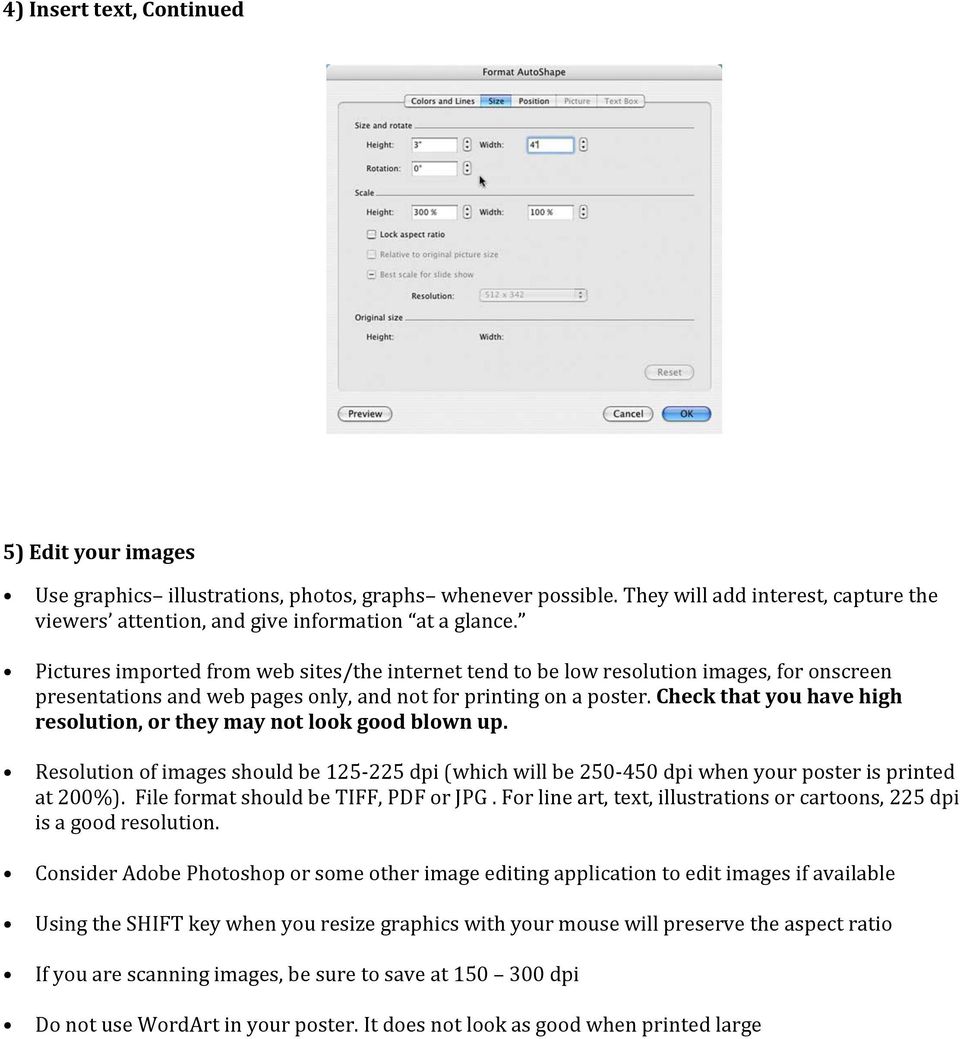
2 3) Color Background of the poster: White and lighter colors work better Select the design tab, background styles, format background Text: Dark, contrasting colors are easier to read Use one or two accent colors for visual interest and draw attention to important information. Consistent colors are a must. Top priority should be placed on readability. Maintain a good contrast between the background color and the text color. 4) Insert text Use common, easy to read sans serif fonts, such as Arial, Helvetica, Verdana, Palatino. Do not use any City fonts, such as Geneva, New York or Chicago Use bold, italics, or color, and avoid script fonts as these are hard to read. CAPITAL LETTERS ARE LIKE YELLING! Try not to underline, as that denotes a hyperlink Sizes: Title: pt font, depending on title length. It s OK to write titles in Bold Headings, Authors/Institution: pt font, depending on space Body text: pt font Create a text box for each block of information Type directly into PowerPoint when possible, as opposed to pasting text in as a graphic, so that you can edit it directly If you need to cut and paste text, use Paste Special under the Edit menu. If you just use paste, the text will not be editable. Let text wrap in the text box. Do not use a hard return at the end of each line of text, only at the end of a paragraph. Use only soft returns (shift+ return) if you must manually put in a line break. Insert image place holder boxes, by drawing rectangles as placeholders for your images after you have placed all the text and know how much room you have for the images. This is helpful because after your pictures go in, they make the file very large, possibly prone to crashes, and it will take a long time to save. You can then double-click on the rectangle to get the Format Auto Shape box. Select the Size tab, and make a note of the size the image in that box should be.
3 4) Insert text, Continued 5) Edit your images Use graphics illustrations, photos, graphs whenever possible. They will add interest, capture the viewers attention, and give information at a glance. Pictures imported from web sites/the internet tend to be low resolution images, for onscreen presentations and web pages only, and not for printing on a poster. Check that you have high resolution, or they may not look good blown up. Resolution of images should be dpi (which will be dpi when your poster is printed at 200%). File format should be TIFF, PDF or JPG. For line art, text, illustrations or cartoons, 225 dpi is a good resolution. Consider Adobe Photoshop or some other image editing application to edit images if available Using the SHIFT key when you resize graphics with your mouse will preserve the aspect ratio If you are scanning images, be sure to save at dpi Do not use WordArt in your poster. It does not look as good when printed large
4 6) Insert your images Always Insert your images (pictures, illustrations) rather than using Copy, Paste into PowerPoint Browse to find your picture and click Open or Insert If you are inserting tables, graphs or illustrations from another Microsoft Office application, use copy and then Paste Special into your poster Size of printed image file guidelines 4 inches by 6 inches 1.5MB 8 inches by 10 inches 5 MB 8.5 inches by 11 inches 6 MB 12 inches by 18 inches 14 MB 24 inches by 36 inches 55 MB

5 7) Fine-tuning Have a colleague proof your poster. The most common mistake is including too much text, so whittle where you can. Too many words will turn readers away and people may avoid your poster altogether. Once your text and pictures are in place, you may decide to add some color or texture effects. The color options and background effects are found under Format on the toolbar, or you may double click the border of any text box to view the Format Text Box and play with color and line options. Adding borders: Click AutoShapes in the Drawing toolbar, point to Lines, and then click the line style you want. Drag to draw the line. To constrain the line to draw at 15-degree angles from its starting point, hold down SHIFT as you drag. To lengthen the line in opposite directions from the first end point, hold down CTRL as you drag. Change the color of a line or border: Select the object you want to change. On the Drawing toolbar, click the arrow next to Line Color, or right mouse click and select Format Autoshapes Change the style of a line or border: Select the line or border you want to change. On the Drawing toolbar, click Line Style. Click the style you want; or click More Lines, and then click a style. Add or change a fill: You can fill objects with solid or gradient (shaded) colors, a pattern, a texture, or a picture. Any time you fill an object, the new fill replaces the old one. If you change an object s fill, you can easily change it back to its default.

6 8) Make sure the poster looks just how you want it to look Carefully review your poster. Take a walk, and then review it again. Congratulate yourself. Print a copy of the poster for preview. Under File, select Print, making sure you click the Scale to fit box. If it looks correct, save your poster: from the File menu select Save 9) You may want to make a PDF of your poster before you submit for printing (not necessary) With a pdf, no shifting of information, layout, fonts or symbols will occur, but make sure the pdf you submit is exactly what how you want your poster printed. o To make a pdf on a Mac: a) Use the print dialogue box this is a little tricky b) Use Adobe Acrobat Distiller o To make a pdf on a PC: a) Use Adobe Acrobat Distiller

CREATING POSTERS WITH POWERPOINT
 CREATING POSTERS WITH POWERPOINT PowerPoint files will be required for Posters on CD-Rom with very few exceptions. WHY POWERPOINT? Although there are many software programs that will create posters, PowerPoint
Making a Poster Using PowerPoint 2007
 Making a Poster Using PowerPoint 2007 1. Start PowerPoint: A Blank presentation appears as a Content Layout, a blank one one without anything not even a title. 2. Choose the size of your poster: Click
Creating a Poster Presentation using PowerPoint
 Creating a Poster Presentation using PowerPoint Course Description: This course is designed to assist you in creating eye-catching effective posters for presentation of research findings at scientific
KB COPY CENTRE. RM 2300 JCMB The King s Buildings West Mains Road Edinburgh EH9 3JZ. Telephone: 0131 6505001
 KB COPY CENTRE RM 2300 JCMB The King s Buildings West Mains Road Edinburgh EH9 3JZ Telephone: 0131 6505001 Email: [email protected] [email protected] [email protected] Step 1. Set up page orientation
Guide To Creating Academic Posters Using Microsoft PowerPoint 2010
 Guide To Creating Academic Posters Using Microsoft PowerPoint 2010 INFORMATION SERVICES Version 3.0 July 2011 Table of Contents Section 1 - Introduction... 1 Section 2 - Initial Preparation... 2 2.1 Overall
NDSU Technology Learning & Media Center
 1 NDSU Technology Learning & Media Center QBB 150C 231-5130 www.ndsu.edu/its/tlmc Creating a Large Format Poster (Plot) Using PowerPoint 2013 Posters should be designed and created in a manner that best
Designing a Poster using MS-PowerPoint
 Designing a Poster using MS-PowerPoint TABLE OF CONTENTS Introduction... 3 Main components of a poster... 3 Setting up your poster... 5 Setting up the document size... 5 Configuring the grid and guides...
A series Metric (cm) Imperial (inch)
 Poster Creation PowerPoint for Posters PowerPoint is well known as a presentation support application. However, it can also be used to create academic posters as it is a format that many people are already
Instructions for Creating a Poster for Arts and Humanities Research Day Using PowerPoint
 Instructions for Creating a Poster for Arts and Humanities Research Day Using PowerPoint While it is, of course, possible to create a Research Day poster using a graphics editing programme such as Adobe
Sample Table. Columns. Column 1 Column 2 Column 3 Row 1 Cell 1 Cell 2 Cell 3 Row 2 Cell 4 Cell 5 Cell 6 Row 3 Cell 7 Cell 8 Cell 9.
 Working with Tables in Microsoft Word The purpose of this document is to lead you through the steps of creating, editing and deleting tables and parts of tables. This document follows a tutorial format
MICROSOFT WORD TUTORIAL
 MICROSOFT WORD TUTORIAL G E T T I N G S T A R T E D Microsoft Word is one of the most popular word processing programs supported by both Mac and PC platforms. Microsoft Word can be used to create documents,
Instructions to Create Your Rollup Poster in PowerPoint
 Instructions to Create Your Rollup Poster in PowerPoint THE IDEAL POSTER IS DESIGNED TO... Provide a brief overview of your research Encourage discussion Stand alone when you re not there to provide an
GUIDELINES FOR PREPARING POSTERS USING POWERPOINT PRESENTATION SOFTWARE
 Society for the Teaching of Psychology (APA Division 2) OFFICE OF TEACHING RESOURCES IN PSYCHOLOGY (OTRP) Department of Psychology, Georgia Southern University, P. O. Box 8041, Statesboro, GA 30460-8041
Microsoft Word 2013 Tutorial
 Microsoft Word 2013 Tutorial GETTING STARTED Microsoft Word is one of the most popular word processing programs supported by both Mac and PC platforms. Microsoft Word can be used to create documents, brochures,
Creating a Poster in PowerPoint 2010. A. Set Up Your Poster
 View the Best Practices in Poster Design located at http://www.emich.edu/training/poster before you begin creating a poster. Then in PowerPoint: (A) set up the poster size and orientation, (B) add and
Publisher 2010 Cheat Sheet
 April 20, 2012 Publisher 2010 Cheat Sheet Toolbar customize click on arrow and then check the ones you want a shortcut for File Tab (has new, open save, print, and shows recent documents, and has choices
Poster Preparation & Presentation. Updated 4/27/2015, JC
 Poster Preparation & Presentation Updated 4/27/2015, JC What Makes a Great Poster? Meets TWO goals: 1) Attracts attention so passersby STOP for a second look 2) Concisely communicates the research/case
Microsoft Word 2010 Tutorial
 Microsoft Word 2010 Tutorial GETTING STARTED Microsoft Word is one of the most popular word processing programs supported by both Mac and PC platforms. Microsoft Word can be used to create documents, brochures,
Creating Interactive PDF Forms
 Creating Interactive PDF Forms Using Adobe Acrobat X Pro Information Technology Services Outreach and Distance Learning Technologies Copyright 2012 KSU Department of Information Technology Services This
Advanced Presentation Features and Animation
 There are three features that you should remember as you work within PowerPoint 2007: the Microsoft Office Button, the Quick Access Toolbar, and the Ribbon. The function of these features will be more
Introduction to Microsoft PowerPoint
 Introduction to Microsoft PowerPoint By the end of class, students should be able to: Identify parts of the work area. Create a new presentation using PowerPoint s design templates. Navigate around a presentation.
Acrobat PDF Forms - Part 2
 Acrobat PDF Forms - Part 2 PDF Form Fields In this lesson, you will be given a file named Information Request Form that can be used in either Word 2003 or Word 2007. This lesson will guide you through
Creating Forms with Acrobat 10
 Creating Forms with Acrobat 10 Copyright 2013, Software Application Training, West Chester University. A member of the Pennsylvania State Systems of Higher Education. No portion of this document may be
Formatting Slides. PERFoRMaNCE objectives CHAPTER. PowerPoint PC3
 CHAPTER Formatting Slides PERFoRMaNCE objectives Upon successful completion of Chapter 3, you will be able to: Apply font and paragraph formatting to text in slides Apply formatting with the Mini toolbar
Create a Poster Using Publisher
 Contents 1. Introduction 1. Starting Publisher 2. Create a Poster Template 5. Aligning your images and text 7. Apply a background 12. Add text to your poster 14. Add pictures to your poster 17. Add graphs
Organize your project in a way that identifies the research questions and methodology you will use.
 Step 1- Content Organize your project in a way that identifies the research questions and methodology you will use. Collect and analyze data using accepted scientific and statistical methodology. Think
PowerPoint 2007 Basics Website: http://etc.usf.edu/te/
 Website: http://etc.usf.edu/te/ PowerPoint is the presentation program included in the Microsoft Office suite. With PowerPoint, you can create engaging presentations that can be presented in person, online,
DOING MORE WITH WORD: MICROSOFT OFFICE 2010
 University of North Carolina at Chapel Hill Libraries Carrboro Cybrary Chapel Hill Public Library Durham County Public Library DOING MORE WITH WORD: MICROSOFT OFFICE 2010 GETTING STARTED PAGE 02 Prerequisites
HOW TO CREATE A SCANNED DIGITAL SIGNATURE AND INSERT INTO A PDF DOCUMENT
 HOW TO CREATE A SCANNED DIGITAL SIGNATURE AND INSERT INTO A PDF DOCUMENT Option I Attach your signature as a digital signature 1. Sign a piece of paper PHASE I CREATE THE SIGNATURE Sign a piece of paper
Producing Posters with PowerPoint 2007
 Producing Posters with PowerPoint 2007 ICT for Research Frank Van Puyvelde 2 Table of Contents 1 Introduction... 4 2 Setting up your PowerPoint Environment... 6 2.1 Get a maximal screen area... 6 2.2 Start
Introduction to Microsoft Publisher : Tools You May Need
 Introduction to Microsoft Publisher : Tools You May Need 1. Why use Publisher instead of Word for creating fact sheets, brochures, posters, newsletters, etc.? While both Word and Publisher can create documents
Creating Custom Crystal Reports Tutorial
 Creating Custom Crystal Reports Tutorial 020812 2012 Blackbaud, Inc. This publication, or any part thereof, may not be reproduced or transmitted in any form or by any means, electronic, or mechanical,
6. If you want to enter specific formats, click the Format Tab to auto format the information that is entered into the field.
 Adobe Acrobat Professional X Part 3 - Creating Fillable Forms Preparing the Form Create the form in Word, including underlines, images and any other text you would like showing on the form. Convert the
Making TIFF and EPS files from Drawing, Word Processing, PowerPoint and Graphing Programs
 Making TIFF and EPS files from Drawing, Word Processing, PowerPoint and Graphing Programs In the worlds of electronic publishing and video production programs, the need for TIFF or EPS formatted files
Adobe Dreamweaver CC 14 Tutorial
 Adobe Dreamweaver CC 14 Tutorial GETTING STARTED This tutorial focuses on the basic steps involved in creating an attractive, functional website. In using this tutorial you will learn to design a site
Creating a Newsletter with Microsoft Word
 Creating a Newsletter with Microsoft Word Frank Schneemann In this assignment we are going to use Microsoft Word to create a newsletter that can be used in your classroom instruction. If you already know
Creating Web Pages with Microsoft FrontPage
 Creating Web Pages with Microsoft FrontPage 1. Page Properties 1.1 Basic page information Choose File Properties. Type the name of the Title of the page, for example Template. And then click OK. Short
InDesign for Beginners Step-By-Step Guide
 InDesign for Beginners Step-By-Step Guide Learning Objectives At the end of the workshop, you will be able to: 1. Adjust text with the Character panel and change alignment with the Paragraph panel or Control
In this session, we will explain some of the basics of word processing. 1. Start Microsoft Word 11. Edit the Document cut & move
 WORD PROCESSING In this session, we will explain some of the basics of word processing. The following are the outlines: 1. Start Microsoft Word 11. Edit the Document cut & move 2. Describe the Word Screen
Google Docs Basics Website: http://etc.usf.edu/te/
 Website: http://etc.usf.edu/te/ Google Docs is a free web-based office suite that allows you to store documents online so you can access them from any computer with an internet connection. With Google
I ntroduction. Accessing Microsoft PowerPoint. Anatomy of a PowerPoint Window
 Accessing Microsoft PowerPoint To access Microsoft PowerPoint from your home computer, you will probably either use the Start menu to select the program or double-click on an icon on the Desktop. To open
MS Word 2007 practical notes
 MS Word 2007 practical notes Contents Opening Microsoft Word 2007 in the practical room... 4 Screen Layout... 4 The Microsoft Office Button... 4 The Ribbon... 5 Quick Access Toolbar... 5 Moving in the
Introduction to Microsoft Word 2008
 1. Launch Microsoft Word icon in Applications > Microsoft Office 2008 (or on the Dock). 2. When the Project Gallery opens, view some of the available Word templates by clicking to expand the Groups, and
Creating a PowerPoint Poster using Windows
 Creating a PowerPoint Poster using Windows Copyright 2001 Michael Dougherty ([email protected]) Purpose The purpose of this tutorial is to illustrate how to create a 3 x 4 ft. poster using PowerPoint. This
Using Microsoft Word. Working With Objects
 Using Microsoft Word Many Word documents will require elements that were created in programs other than Word, such as the picture to the right. Nontext elements in a document are referred to as Objects
Sage Accountants Business Cloud EasyEditor Quick Start Guide
 Sage Accountants Business Cloud EasyEditor Quick Start Guide VERSION 1.0 September 2013 Contents Introduction 3 Overview of the interface 4 Working with elements 6 Adding and moving elements 7 Resizing
Printing to the Poster Printer
 Printing to the Poster Printer Document size The HP Design Jet Z3100ps uses a roll of paper that is 36 wide, however it does not print all the way to the edge of the paper (known as a bleed ). One dimension
Excel Project Creating a Stock Portfolio Simulation
 Background Vocabulary Excel Project Creating a Stock Portfolio Simulation 1. What is a stock? A stock is a share in the ownership of a corporation, a large business organization. A stock, also, represents
S M A R T D R A W U S E R G U I D E
 2015 S M A R T D R A W U S E R G U I D E Copyright 2015 By SmartDraw, LLC Contents Welcome to SmartDraw... 6 The Resources Section of SmartDraw.com... 7 Tech Support... 7 SmartHelp... 7 Chapter 1: Building
Microsoft Word 2010 Tutorial
 1 Microsoft Word 2010 Tutorial Microsoft Word 2010 is a word-processing program, designed to help you create professional-quality documents. With the finest documentformatting tools, Word helps you organize
Basic Excel Handbook
 2 5 2 7 1 1 0 4 3 9 8 1 Basic Excel Handbook Version 3.6 May 6, 2008 Contents Contents... 1 Part I: Background Information...3 About This Handbook... 4 Excel Terminology... 5 Excel Terminology (cont.)...
PowerPoint 2013 Basics for Windows Training Objective
 PowerPoint 2013 Basics for Windows PowerPoint 2013 Basics for Windows Training Objective To learn the tools and features to get started using PowerPoint more efficiently and effectively. What you can expect
Microsoft Power Point 2007: The Basics
 Creating a presentation in Microsoft PowerPoint involves starting with a basic design; adding new slides and content, choosing layouts; modifying slide design; and creating effects such as animated slide
Creating and Using Links and Bookmarks in PDF Documents
 Creating and Using Links and Bookmarks in PDF Documents After making a document into a PDF, there may be times when you will need to make links or bookmarks within that PDF to aid navigation through the
Paragraph Formatting 4
 Paragraph Formatting 4 LESSON SKILL MATRIX Skill Exam Objective Objective Number Formatting Paragraphs Set indentation. 2.2.7 Setting Line Spacing in Text and Between Paragraphs Creating and Formatting
Microsoft PowerPoint 2010 Templates and Slide Masters (Level 3)
 IT Services Microsoft PowerPoint 2010 Templates and Slide Masters (Level 3) Contents Introduction... 1 Installed Templates and Themes... 2 University of Reading Templates... 3 Further Templates and Presentations...
Creating Fill-able Forms using Acrobat 8.0: Part 1
 Creating Fill-able Forms using Acrobat 8.0: Part 1 The first step in creating a fill-able form in Adobe Acrobat is to generate the form with all its formatting in a program such as Microsoft Word. Then
Intro to Excel spreadsheets
 Intro to Excel spreadsheets What are the objectives of this document? The objectives of document are: 1. Familiarize you with what a spreadsheet is, how it works, and what its capabilities are; 2. Using
Microsoft Office PowerPoint 2013
 Microsoft Office PowerPoint 2013 Navigating the PowerPoint 2013 Environment The Ribbon: The ribbon is where you will access a majority of the commands you will use to create and develop your presentation.
Introduction to Microsoft Word 2003
 Introduction to Microsoft Word 2003 Sabeera Kulkarni Information Technology Lab School of Information University of Texas at Austin Fall 2004 1. Objective This tutorial is designed for users who are new
Tips for optimizing your publications for commercial printing
 Tips for optimizing your publications for commercial printing If you need to print a publication in higher quantities or with better quality than you can get on your desktop printer, you will want to take
Step 1: Setting up the Document/Poster
 Step 1: Setting up the Document/Poster Upon starting a new document, you will arrive at this setup screen. Today we want a poster that is 4 feet (48 inches) wide and 3 feet tall. Under width, type 48 in
Creating Electronic Portfolios using Microsoft Word and Excel
 Step-by-Step Creating Electronic Portfolios using Microsoft Word and Excel The Reflective Portfolio document will include the following: A Cover Page for the portfolio - Include a Picture or graphic A
DESIGN A WEB SITE USING PUBLISHER Before you begin, plan your Web site
 Page 1 of 22 DESIGN A WEB SITE USING PUBLISHER Before you begin, plan your Web site Before you create your Web site, ask yourself these questions: What do I want the site to do? Whom do I want to visit
A Beginner s Guide to PowerPoint 2010
 A Beginner s Guide to PowerPoint 2010 I. The Opening Screen You will see the default opening screen is actually composed of three parts: 1. The Slides/Outline tabs on the left which displays thumbnails
Microsoft PowerPoint 2010 Computer Jeopardy Tutorial
 Microsoft PowerPoint 2010 Computer Jeopardy Tutorial 1. Open up Microsoft PowerPoint 2010. 2. Before you begin, save your file to your H drive. Click File > Save As. Under the header that says Organize
PowerPoint: Design Themes and Slide Layouts Contents
 PowerPoint: Design Themes and Slide Layouts Contents Design Themes... 1 Apply a theme to your presentation... 1 Theme colors... 1 Theme fonts... 3 Theme effects... 3 Quick Styles... 4 Customize a theme...
Preparing TIFF-images for publication
 2013-11-22 Jesper Wiklander: Managing digital illustrations in publications 1 Preparing TIFF-images for publication There are 4 basic steps: 1. Check out the author instructions for the journal where you
DIY Formatting and Layout Guidelines
 DIY Formatting and Layout Guidelines Print-ready means that you give us your book PDFs once they re final. You ve written, edited and proofread your book, and you ve formatted it to look the way you want.
Microsoft Office PowerPoint 2003. Creating a new presentation from a design template. Creating a new presentation from a design template
 Microsoft Office PowerPoint 2003 Tutorial 2 Applying and Modifying Text and Graphic Objects 1 Creating a new presentation from a design template Click File on the menu bar, and then click New Click the
Clip Art in Office 2000
 Clip Art in Office 2000 In the process of making a certificate, we will cover: Adding clipart and templates from the Microsoft Office Clip Gallery, Modifying clip art by grouping and ungrouping, Flipping
PRINT SPECIFICATIONS PRINT ADVERTISEMENT SPECIFICATIONS BLEED AD SPECIFICATIONS DIGITAL SPECIFICATIONS MEDIA GLOBAL
 PRINT SPECIFICATIONS PRINT ADVERTISEMENT SPECIFICATIONS BLEED AD SPECIFICATIONS DIGITAL SPECIFICATIONS GLOBAL MEDIA PRINT SPECIFICATIONS Please provide ad materials in one of the following formats: Acrobat:.pdf
ADOBE DREAMWEAVER CS3 TUTORIAL
 ADOBE DREAMWEAVER CS3 TUTORIAL 1 TABLE OF CONTENTS I. GETTING S TARTED... 2 II. CREATING A WEBPAGE... 2 III. DESIGN AND LAYOUT... 3 IV. INSERTING AND USING TABLES... 4 A. WHY USE TABLES... 4 B. HOW TO
Creating Personal Web Sites Using SharePoint Designer 2007
 Creating Personal Web Sites Using SharePoint Designer 2007 Faculty Workshop May 12 th & 13 th, 2009 Overview Create Pictures Home Page: INDEX.htm Other Pages Links from Home Page to Other Pages Prepare
Creating a Poster in Powerpoint
 Creating a Poster in Powerpoint January 2013 Contents 1. Starting Powerpoint 2. Setting Size and Orientation 3. Display a Grid 5. Apply a background 7. Add text to your poster 9. Add WordArt to your poster
Shipment Label Header Guide
 Shipment Label Header Guide This guide will walk you through the 3 main phases of setting up a shipment label header within World Ship 2013. This guide was made using standard Windows Microsoft Office
Word 2007 WOWS of Word Office 2007 brings a whole new basket of bells and whistles for our enjoyment. The whistles turn to wows.
 WOWS of Word Office brings a whole new basket of bells and whistles for our enjoyment. The whistles turn to wows. [email protected] Templates Click on the Office Button PDF and select New. You can now change
Producing Presentations A Beginner's Guide to PowerPoint
 INFORMATION TECHNOLOGIES Producing Presentations A Beginner's Guide to PowerPoint January 13, 2005 connecting people and information Table of Contents TABLE OF CONTENTS...III INTRODUCTION...V ABOUT THIS
PowerPoint 2013: Basic Skills
 PowerPoint 2013: Basic Skills Information Technology September 1, 2014 1 P a g e Getting Started There are a variety of ways to start using PowerPoint software. You can click on a shortcut on your desktop
Create Charts in Excel
 Create Charts in Excel Table of Contents OVERVIEW OF CHARTING... 1 AVAILABLE CHART TYPES... 2 PIE CHARTS... 2 BAR CHARTS... 3 CREATING CHARTS IN EXCEL... 3 CREATE A CHART... 3 HOW TO CHANGE THE LOCATION
Step 1. Preparation. Step 2. Design for Impact. Step 3. Poster Construction. Step 4. Assess Your Poster...
 Step 1. Preparation Define your audience... Distill your message... Consider your presentation requirements Decide on your printing method... Organize your information... Step 2. Design for Impact Using
KOMPOZER Web Design Software
 KOMPOZER Web Design Software An IGCSE Student Handbook written by Phil Watkins www.kompozer.net CONTENTS This student guide is designed to allow for you to become a competent user* of the Kompozer web
As in the example given, a Newsletter created on the computer typically has: A title that explains what sort of information is in the newsletter
 Create a How do you let others know about events and activities taking place in your community? Do you want to create a newsletter to share the information? A newsletter is a publication that is distributed
Handout: Word 2010 Tips and Shortcuts
 Word 2010: Tips and Shortcuts Table of Contents EXPORT A CUSTOMIZED QUICK ACCESS TOOLBAR... 2 IMPORT A CUSTOMIZED QUICK ACCESS TOOLBAR... 2 USE THE FORMAT PAINTER... 3 REPEAT THE LAST ACTION... 3 SHOW
Excel 2007: Basics Learning Guide
 Excel 2007: Basics Learning Guide Exploring Excel At first glance, the new Excel 2007 interface may seem a bit unsettling, with fat bands called Ribbons replacing cascading text menus and task bars. This
TASKSTREAM FAQs. 2. I have downloaded a lesson attachment, but I cannot open it. What is wrong?
 TASKSTREAM FAQs Why do I not receive emails from TaskStream? It could be that your email program is interpreting incoming TaskStream mail as spam, which is a term for junk mail Spam is not typically stored
Microsoft Office Publisher 2010
 1 Microsoft Office Publisher 2010 Microsoft Publisher is a desktop publishing application which allows you to create artistic documents as brochures, flyers, and newsletters. To open Microsoft Office Publisher:
Word 2007: Basics Learning Guide
 Word 2007: Basics Learning Guide Exploring Word At first glance, the new Word 2007 interface may seem a bit unsettling, with fat bands called Ribbons replacing cascading text menus and task bars. This
Enhanced Formatting and Document Management. Word 2010. Unit 3 Module 3. Diocese of St. Petersburg Office of Training Training@dosp.
 Enhanced Formatting and Document Management Word 2010 Unit 3 Module 3 Diocese of St. Petersburg Office of Training [email protected] This Page Left Intentionally Blank Diocese of St. Petersburg 9/5/2014
Report Card Template Navigating Techniques
 Report Card Template Navigating Techniques For training purposes, five Report Card templates have been designed for Demonstrating Results: Developing State and Local Report Cards, using sample data, charts,
Using Adobe Dreamweaver CS4 (10.0)
 Getting Started Before you begin create a folder on your desktop called DreamweaverTraining This is where you will save your pages. Inside of the DreamweaverTraining folder, create another folder called
Advanced Word for Windows
 Advanced Word for Windows Version: 2002 Academic Computing Support Information Technology Services Tennessee Technological University September 2003 1. Opening Word for Windows In the PC labs, click on
PowerPoint 2007: Basics Learning Guide
 PowerPoint 2007: Basics Learning Guide What s a PowerPoint Slide? PowerPoint presentations are composed of slides, just like conventional presentations. Like a 35mm film-based slide, each PowerPoint slide
Introduction to dobe Acrobat XI Pro
 Introduction to dobe Acrobat XI Pro Introduction to Adobe Acrobat XI Pro is licensed under the Creative Commons Attribution-NonCommercial-NoDerivatives 4.0 International License. To view a copy of this
Module One: Getting Started... 6. Opening Outlook... 6. Setting Up Outlook for the First Time... 7. Understanding the Interface...
 2 CONTENTS Module One: Getting Started... 6 Opening Outlook... 6 Setting Up Outlook for the First Time... 7 Understanding the Interface...12 Using Backstage View...14 Viewing Your Inbox...15 Closing Outlook...17
Microsoft Office 2010: Introductory Q&As PowerPoint Chapter 1
 Microsoft Office 2010: Introductory Q&As PowerPoint Chapter 1 Are the themes displayed in a specific order? (PPT 6) Yes. They are arranged in alphabetical order running from left to right. If you point
How to Edit Your Website
 How to Edit Your Website A guide to using your Content Management System Overview 2 Accessing the CMS 2 Choosing Your Language 2 Resetting Your Password 3 Sites 4 Favorites 4 Pages 5 Creating Pages 5 Managing