
Oracle Business Intelligence Publisher: Create Reports and Data Models. Part 1 - Layout Editor
|
|
|
- Norma Maxwell
- 9 years ago
- Views:
Transcription
1 Oracle Business Intelligence Publisher: Create Reports and Data Models Part 1 - Layout Editor Pradeep Kumar Sharma Senior Principal Product Manager, Oracle Business Intelligence Kasturi Shekhar Director, Curriculum Development, Oracle Business Intelligence Kevin McDermott Senior Principal Technical Support Engineer
2 Table of Contents Introduction...2 Prerequisites...2 Create a Report Launch the Report Editor Creating a Report Template Using the Layout Editor Adding Charts Populating the Table with Data View the Report Schedule the Report...29 Introduction Release 11g of Oracle BI Publisher introduces a new type of layout that you can create directly in your browser. BI Publisher Layout Templates are created using the BI Publisher Layout Editor - a design tool that provides a WYSIWIG, drag and drop interface for creating pixel perfect reports that can be output to PDF, HTML, RTF, Excel, and PowerPoint. It also provides dynamic HTML output that supports lightweight interaction through a browser. Prerequisites To create a report, the user must have one of the following roles: BI Administrator BI Author Page 2

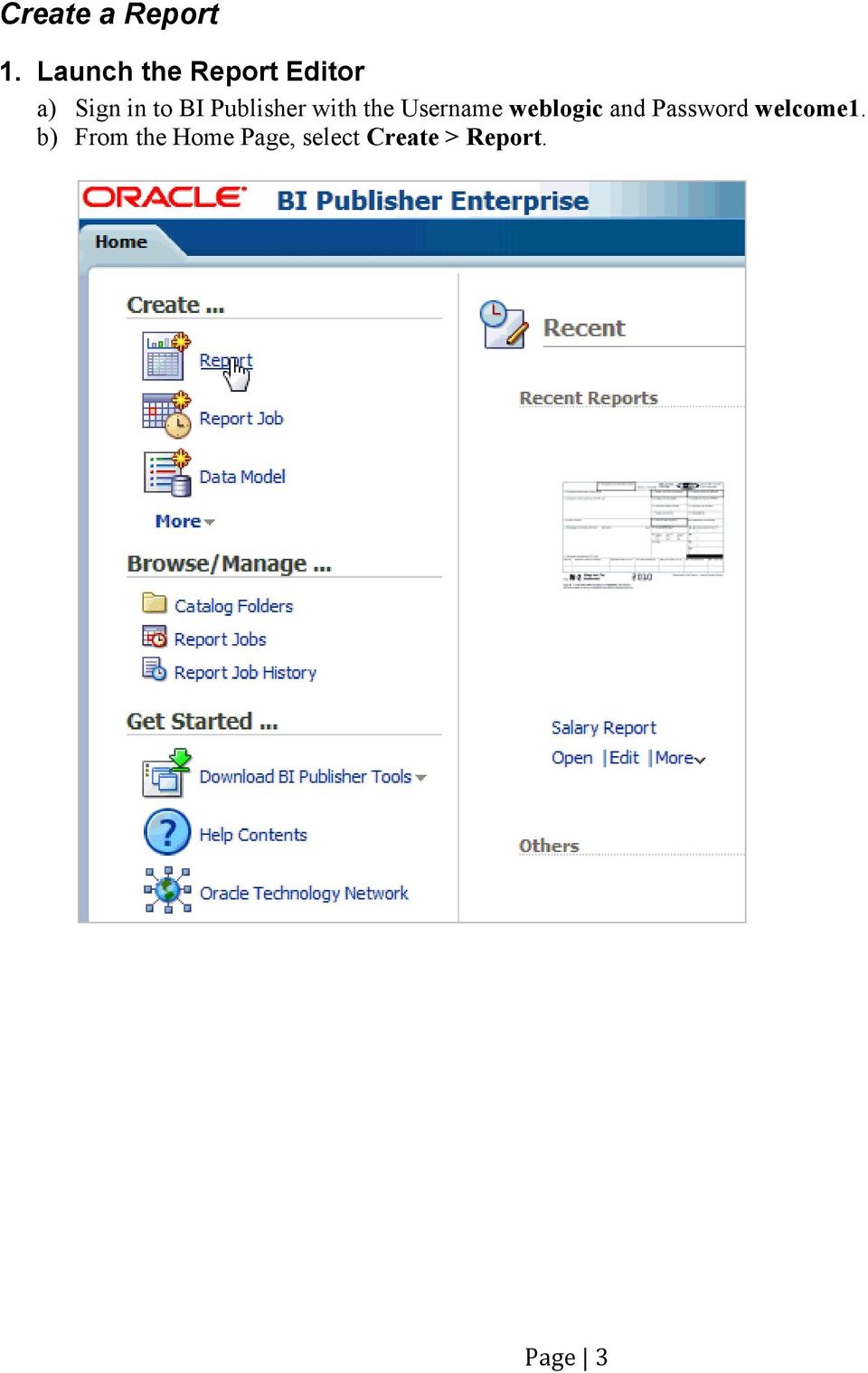
3 Create a Report 1. Launch the Report Editor a) Sign in to BI Publisher with the Username weblogic and Password welcome1. b) From the Home Page, select Create > Report. Page 3
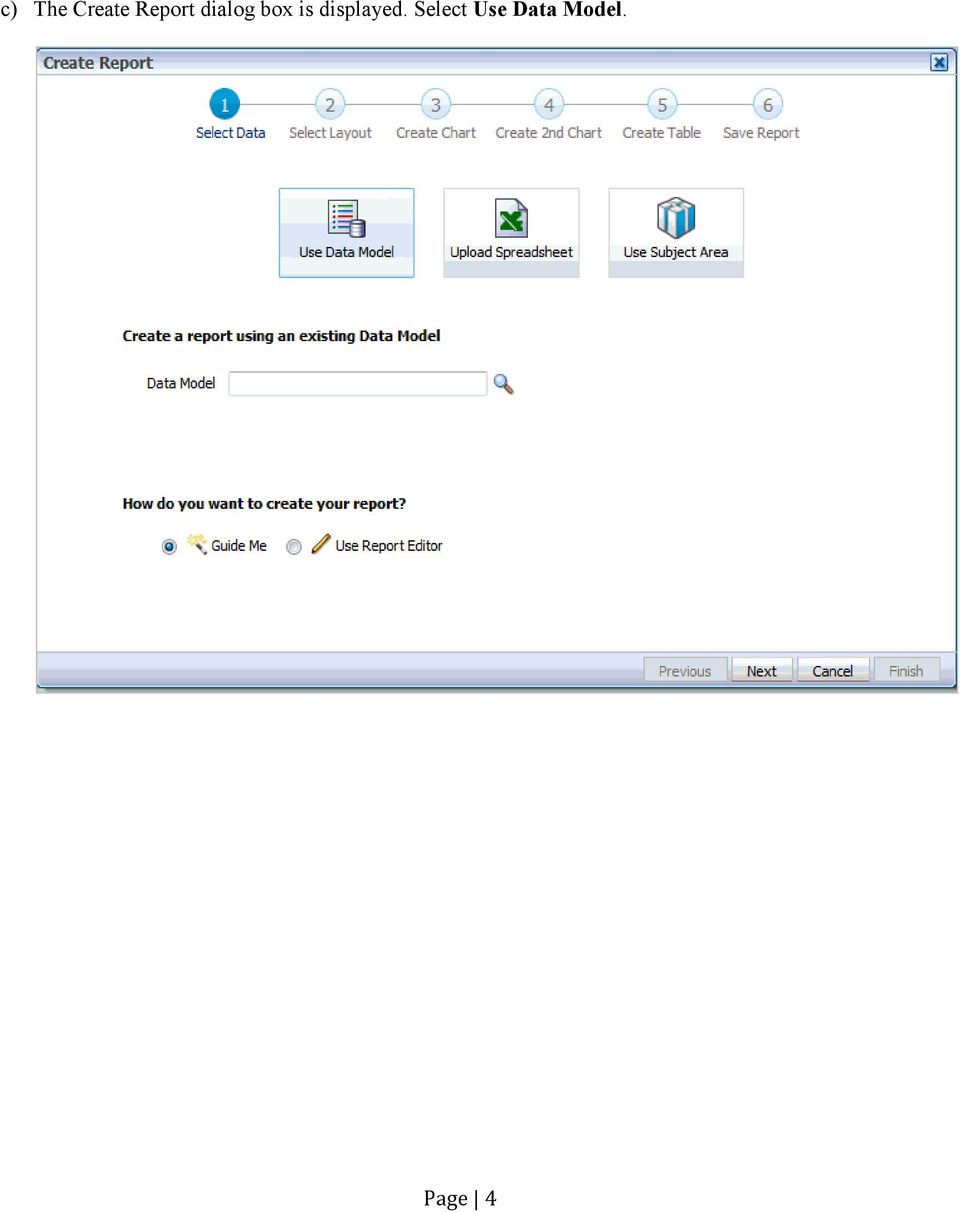
4 c) The Create Report dialog box is displayed. Select Use Data Model. Page 4
5 d) In the Data Model field browse for Salary Parameter Datamodel under Shared Folders\Samples\1. Overview\Data Models. Click Open. Page 5

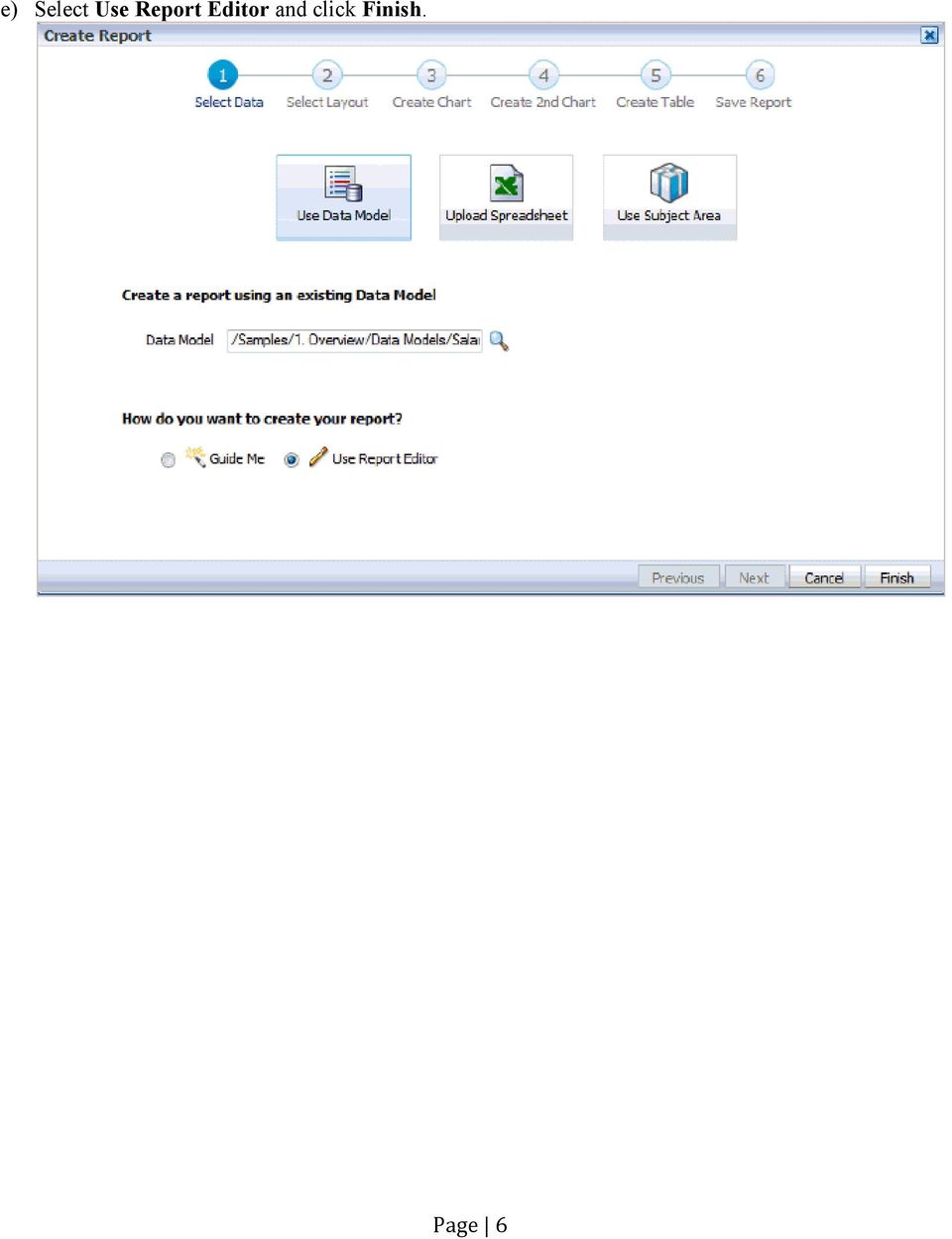
6 e) Select Use Report Editor and click Finish. Page 6
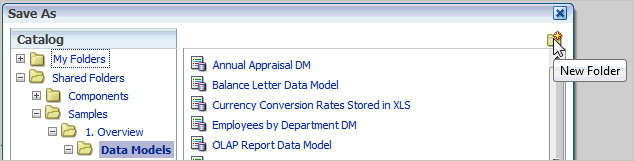
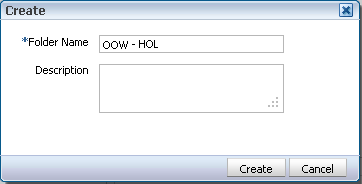
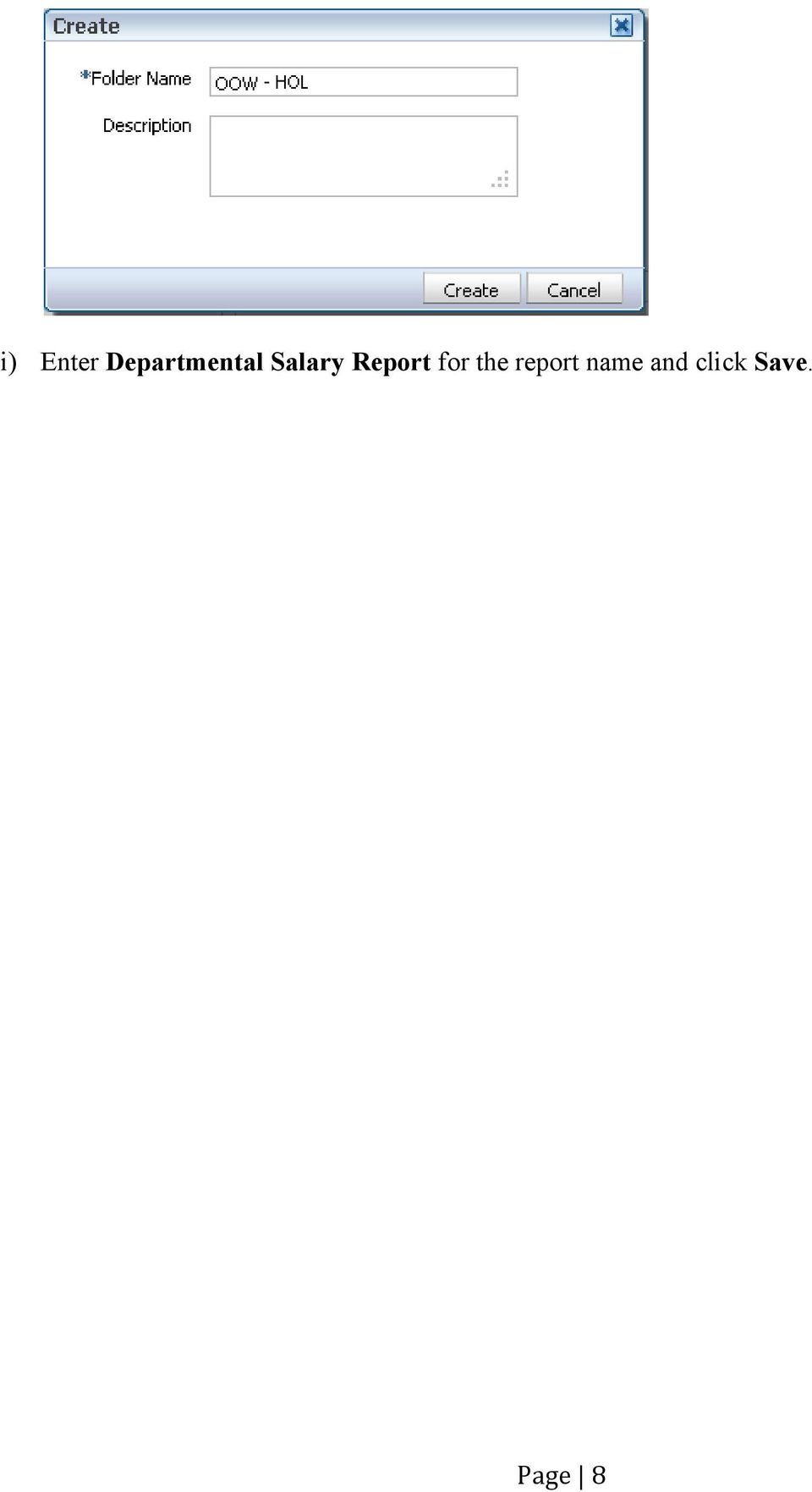
7 f) The Save As dialog box is displayed. g) Create a new folder under My Folders. Make sure you have selected My Folders. h) Name the folder OOW HOL and click Create. Page 7

8 i) Enter Departmental Salary Report for the report name and click Save. Page 8

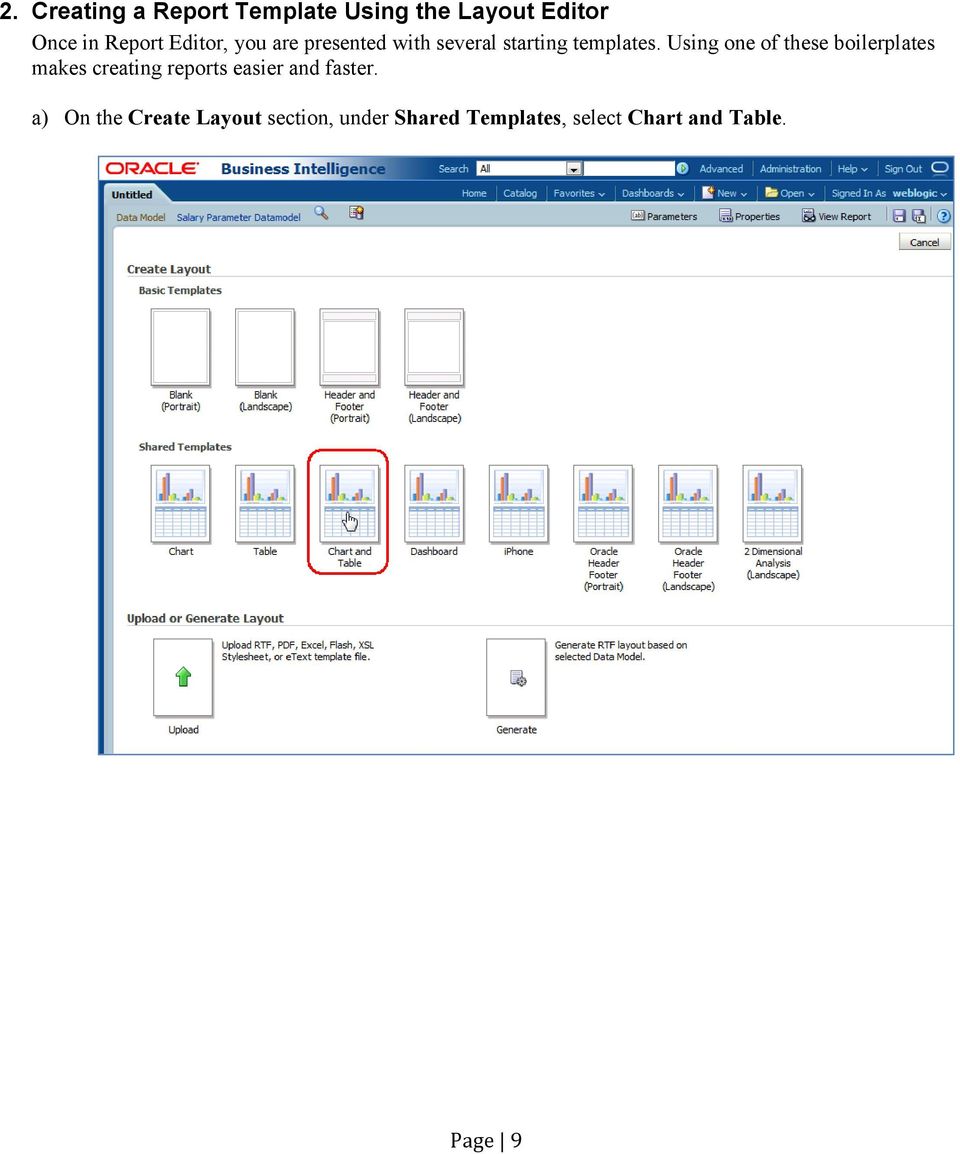
9 2. Creating a Report Template Using the Layout Editor Once in Report Editor, you are presented with several starting templates. Using one of these boilerplates makes creating reports easier and faster. a) On the Create Layout section, under Shared Templates, select Chart and Table. Page 9

10 This will launch the Layout Editor as shown below. Static Tool Bar Dynamic Tabbed Tool Bar Accordion Pane To select Data Source, Layout Components and Properties of selected component Page 10

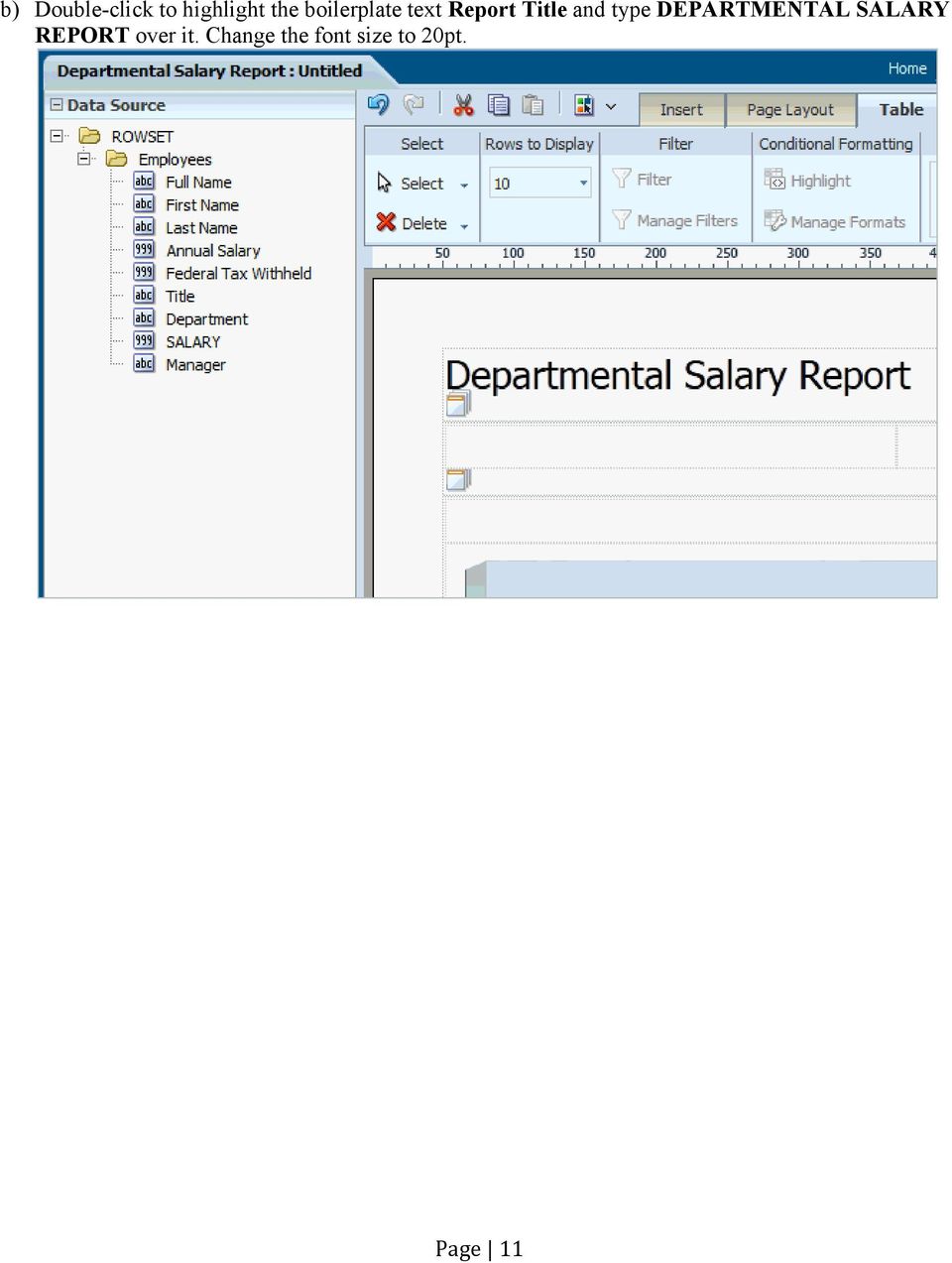
11 b) Double-click to highlight the boilerplate text Report Title and type DEPARTMENTAL SALARY REPORT over it. Change the font size to 20pt. Page 11
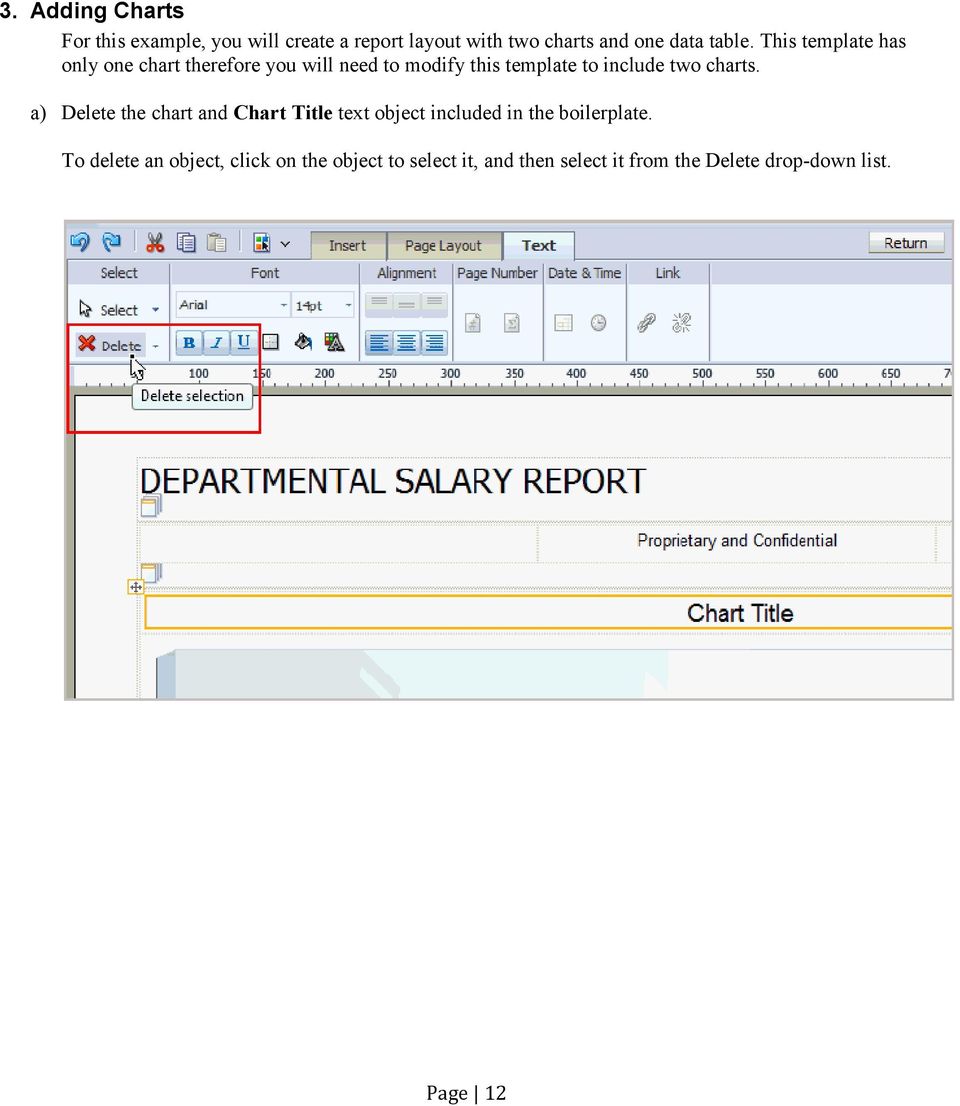
12 3. Adding Charts For this example, you will create a report layout with two charts and one data table. This template has only one chart therefore you will need to modify this template to include two charts. a) Delete the chart and Chart Title text object included in the boilerplate. To delete an object, click on the object to select it, and then select it from the Delete drop-down list. Page 12
13 b) From the Insert ribbon, drag Layout Grid in the row as shown below. c) Insert a layout grid that is 2 rows x 2 columns. Use Grids in your layouts to have pixel perfect control of placing objects like table, charts, data fields and text. Note that an empty row has been kept between the inserted Layout Grid and the Table Title to allow gap between the charts and the table title. d) Insert a Chart in the left Grid Layout cell. You can insert a chart by performing one of the following actions: Page 13
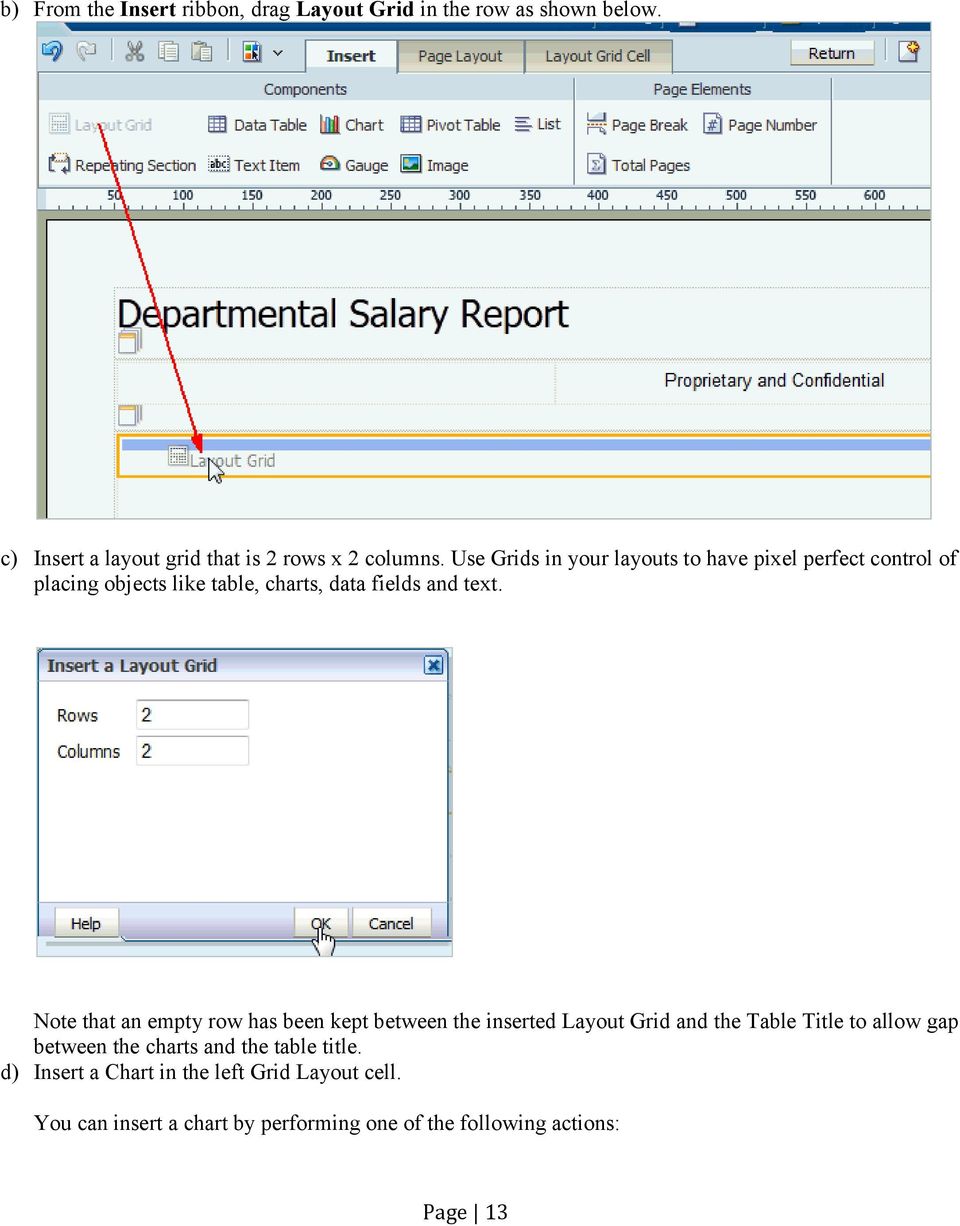
14 Drag and drop the Chart object from the Insert ribbon to the layout. Set the focus in the grid cell by clicking inside the cell, and then click the Chart object on the Insert ribbon. An empty chart object is added to the layout. Page 14

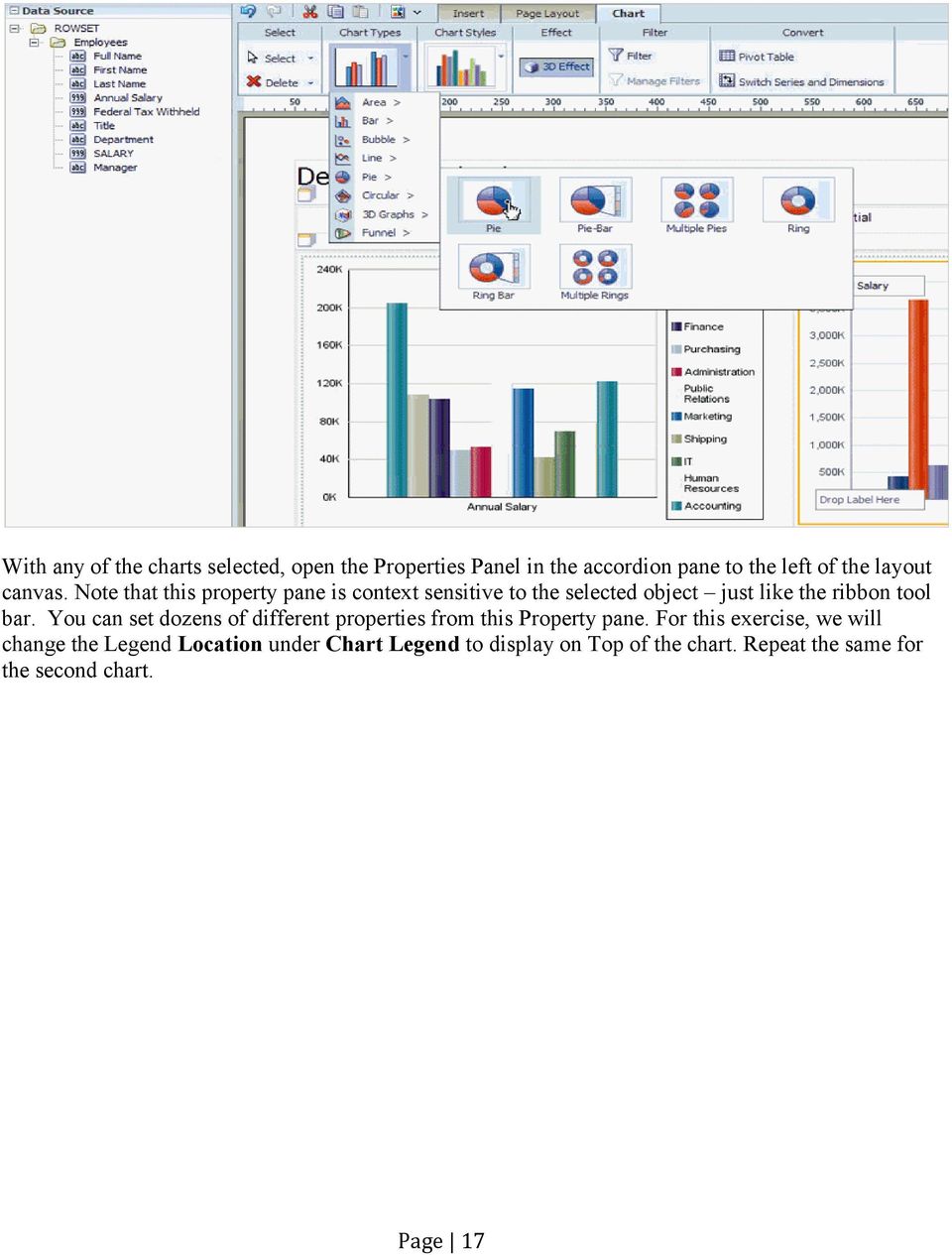
15 e) To populate the chart, drag and drop Annual Salary to the Drop Value Here target on the chart, and Department to Drop Series Here. f) The default chart type is Bar Chart. You can use the Chart Types and Chart Styles options to change chart types and styles. Optionally, turn off 3D Effect and set style to Regatta. Page 15

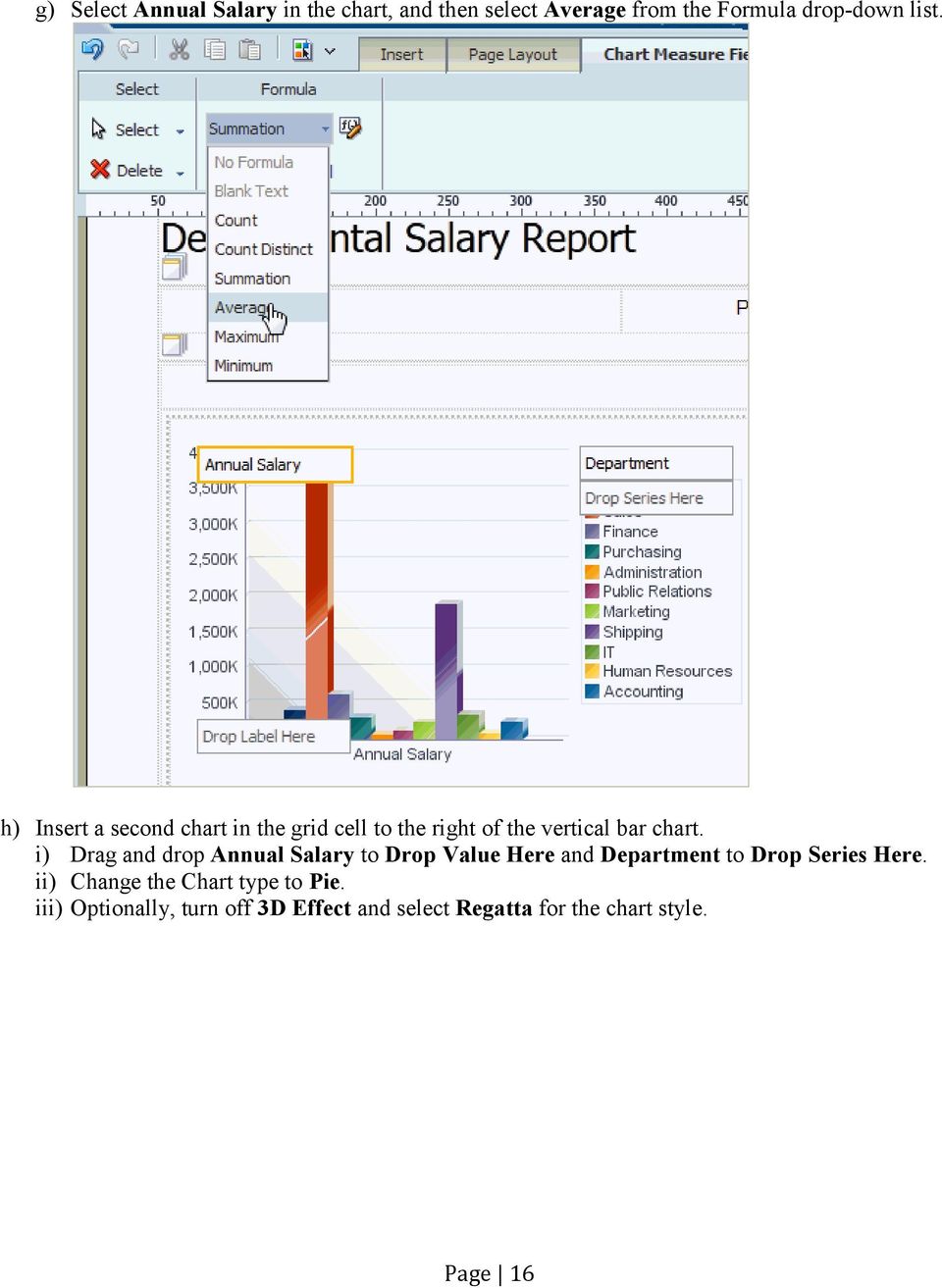
16 g) Select Annual Salary in the chart, and then select Average from the Formula drop-down list. h) Insert a second chart in the grid cell to the right of the vertical bar chart. i) Drag and drop Annual Salary to Drop Value Here and Department to Drop Series Here. ii) Change the Chart type to Pie. iii) Optionally, turn off 3D Effect and select Regatta for the chart style. Page 16
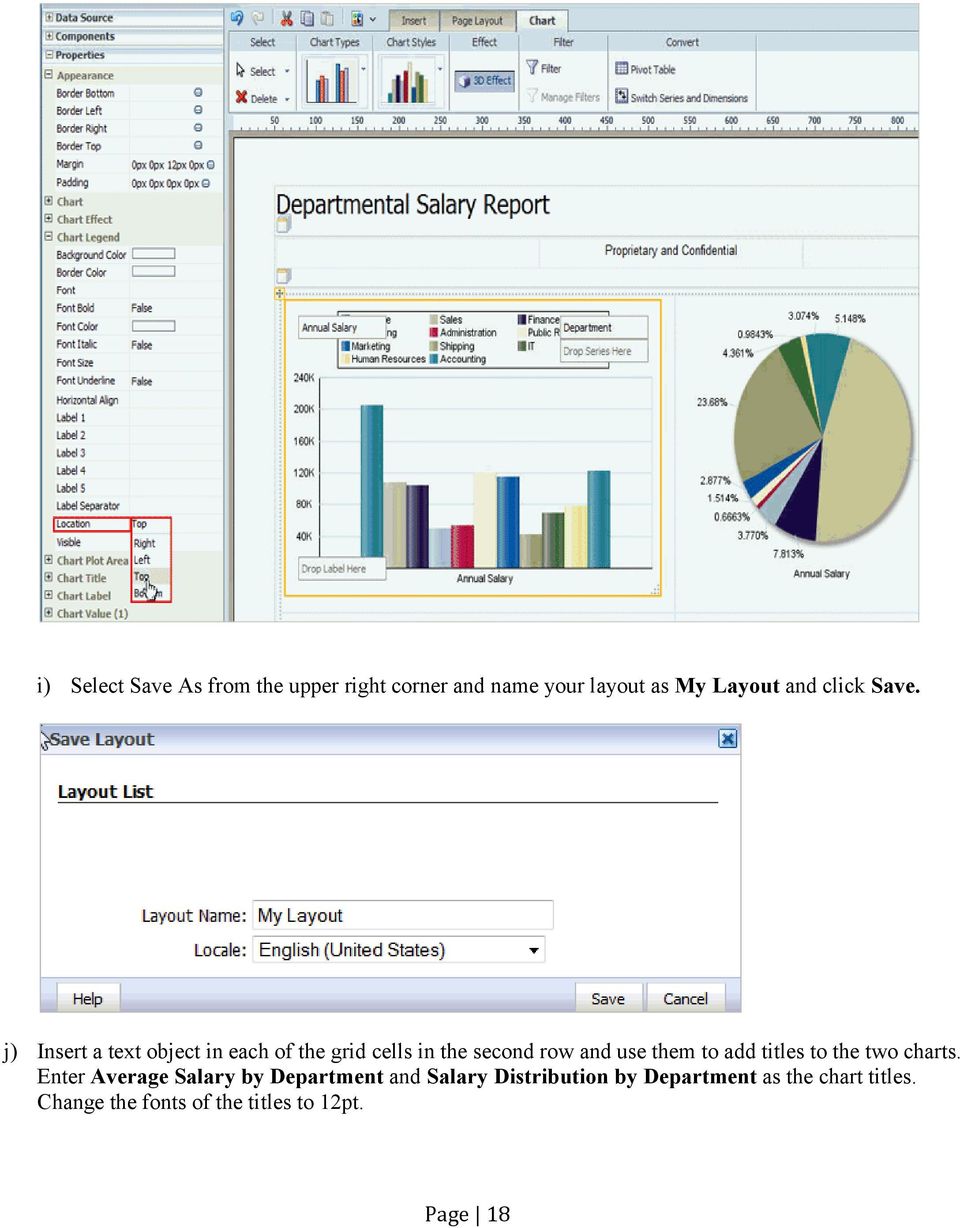
17 With any of the charts selected, open the Properties Panel in the accordion pane to the left of the layout canvas. Note that this property pane is context sensitive to the selected object just like the ribbon tool bar. You can set dozens of different properties from this Property pane. For this exercise, we will change the Legend Location under Chart Legend to display on Top of the chart. Repeat the same for the second chart. Page 17
18 i) Select Save As from the upper right corner and name your layout as My Layout and click Save. j) Insert a text object in each of the grid cells in the second row and use them to add titles to the two charts. Enter Average Salary by Department and Salary Distribution by Department as the chart titles. Change the fonts of the titles to 12pt. Page 18
19 Page 19

20 k) You can preview the report layout at anytime. Click on the Preview menu choice and Preview the report in PDF. Close the Preview and continue. Page 20

21 4. Populating the Table with Data a) Highlight the Table Title boilerplate text and enter the title Departmental Salary Details. Change the font to 12pt. b) Set focus on the Data Table. Page 21
22 c) From the Data Source pane, drag and drop the following data fields into the Table: Department Manager Full Name Title Annual Salary You may have to adjust the column width to fit all the columns. d) Group above by Department by dragging the Department column above the table. This creates a repeating group of detail data for each Department. Page 22
23 e) Group Left by Manager: Select the Manager column. On the Table Column Header ribbon, set Grouping to Group Left. This groups all employees with their manager. f) Apply number format for Annual Salary and grand total Annual Salary for each department. Select the Annual Salary column value, on the Column ribbon, set the Data Formatting to Currency. This will apply the currency format to both the Annual Salary and the Grand Total. Page 23
24 Page 24
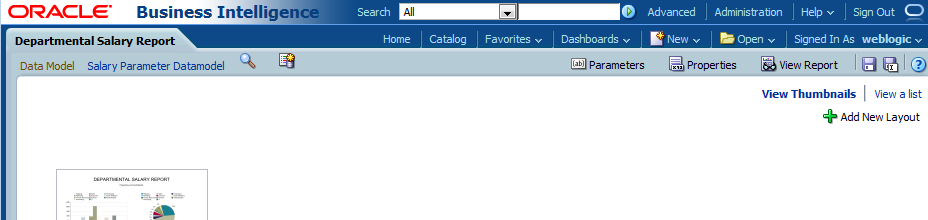
25 g) Adjust table column widths to fill the entire width of the page. h) Save the layout, and then click on the Return button. This takes you back to the Report Editor page showing a thumbnail image of the layout. Page 25
26 5. View the Report a) After you save the report, click the View Report button to run the report. By default, the report is rendered in interactive output format. Interactive Viewer enables you to view reports online and interact with the report data. For example: 1. Mouse over pop-up chart details 2. Table column sorting & filtering 3. Group filtering 4. Region Collapsing 5. Scrollable tables 6. Automatic Table Column Totaling Page 26
27 Page 27
28 b) View the report in PDF format (HTML, PPT, RTF etc. if time permits). Observe the page break in PDF output. Page 28
29 6. Schedule the Report a) In Report Viewer, from the action menu, select Schedule. The Schedule Report Job page is displayed. The Departmental Salary Report is selected by default. b) Keep the default parameters under General Tab. Page 29
30 c) Select the Output tab and select PDF for the output format. You can give a name to the output which is helpful when you have multiple outputs defined based on different combination of Layout, Format, Locale, Time zone and Calendar. Normally, you will also select a destination type for delivery. For this Hand-On Lab exercise, we will submit the job to just run on the server, we will not choose any destination. d) Select the Schedule tab. The default frequency is set to Once and Run Now. For this Hand-On Lab exercise, keep the default schedule frequency. Page 30
31 e) Click the Submit button in the top right hand corner. f) On the Submit Job dialog, enter Departmental Salary Report, as the report job name, and click OK. g) Click OK when Job Departmental Salary Report successfully submitted. message appears. Executed report jobs appear in the Job History page. Page 31
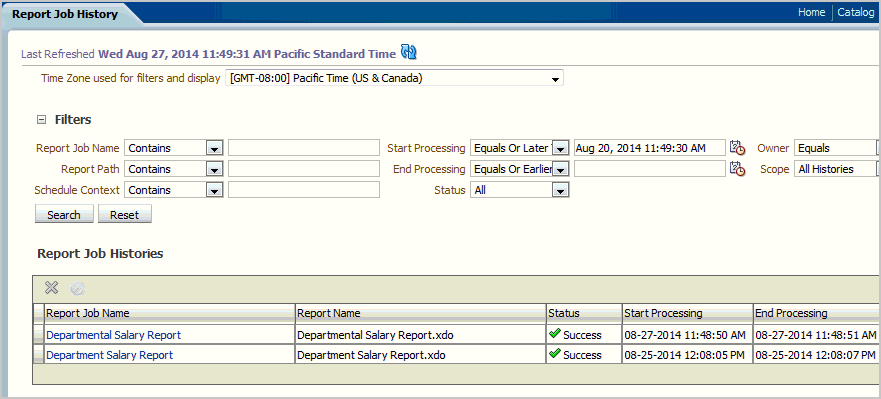
32 h) From the Home Page, select Report Job History to view the report job history and job history details. i) On the Report Job History page, you can use the Filters to search for the job, or you can sort the columns by report job name or processing time to help you locate your jobs. Since you submitted the job just now, it will show up at the top. Page 32
33 j) Click on the Job Name to view the Job History Details. k) To view the Output, click on the report Output Name. Page 33
34 Congratulations! You just completed the Hands-on Lab Session on BI Publisher Report Creation. Page 34
ORACLE BUSINESS INTELLIGENCE WORKSHOP
 ORACLE BUSINESS INTELLIGENCE WORKSHOP Integration of Oracle BI Publisher with Oracle Business Intelligence Enterprise Edition Purpose This tutorial mainly covers how Oracle BI Publisher is integrated with
How to create pop-up menus
 How to create pop-up menus Pop-up menus are menus that are displayed in a browser when a site visitor moves the pointer over or clicks a trigger image. Items in a pop-up menu can have URL links attached
Participant Guide RP301: Ad Hoc Business Intelligence Reporting
 RP301: Ad Hoc Business Intelligence Reporting State of Kansas As of April 28, 2010 Final TABLE OF CONTENTS Course Overview... 4 Course Objectives... 4 Agenda... 4 Lesson 1: Reviewing the Data Warehouse...
Decision Support AITS University Administration. Web Intelligence Rich Client 4.1 User Guide
 Decision Support AITS University Administration Web Intelligence Rich Client 4.1 User Guide 2 P age Web Intelligence 4.1 User Guide Web Intelligence 4.1 User Guide Contents Getting Started in Web Intelligence
Excel 2013 What s New. Introduction. Modified Backstage View. Viewing the Backstage. Process Summary Introduction. Modified Backstage View
 Excel 03 What s New Introduction Microsoft Excel 03 has undergone some slight user interface (UI) enhancements while still keeping a similar look and feel to Microsoft Excel 00. In this self-help document,
HOW TO CREATE AN HTML5 JEOPARDY- STYLE GAME IN CAPTIVATE
 HOW TO CREATE AN HTML5 JEOPARDY- STYLE GAME IN CAPTIVATE This document describes the steps required to create an HTML5 Jeopardy- style game using an Adobe Captivate 7 template. The document is split into
Departmental User Dashboard
 WEBFOCUS Departmental User Dashboard Contents Dashboard Login... 2 Tab Selection... 4 Run Report... 4 Saving output in Excel 2000 format... 6 Excel 2007 Formatting Tips... 7 Dashboard Logoff... 9 Academic
Google Docs Basics Website: http://etc.usf.edu/te/
 Website: http://etc.usf.edu/te/ Google Docs is a free web-based office suite that allows you to store documents online so you can access them from any computer with an internet connection. With Google
Oracle Fusion Middleware
 Oracle Fusion Middleware Getting Started with Oracle Business Intelligence Publisher 11g Release 1 (11.1.1) E28374-02 September 2013 Welcome to Getting Started with Oracle Business Intelligence Publisher.
Creating a Patch Management Dashboard with IT Analytics Hands-On Lab
 Creating a Patch Management Dashboard with IT Analytics Hands-On Lab Description This lab provides a hands-on overview of the IT Analytics Solution. Students will learn how to browse cubes and configure
Custom Reporting System User Guide
 Citibank Custom Reporting System User Guide April 2012 Version 8.1.1 Transaction Services Citibank Custom Reporting System User Guide Table of Contents Table of Contents User Guide Overview...2 Subscribe
Microsoft PowerPoint 2008
 Microsoft PowerPoint 2008 Starting PowerPoint... 2 Creating Slides in Your Presentation... 3 Beginning with the Title Slide... 3 Inserting a New Slide... 3 Slide Layouts... 3 Adding an Image to a Slide...
Working with SQL Server Integration Services
 SQL Server Integration Services (SSIS) is a set of tools that let you transfer data to and from SQL Server 2005. In this lab, you ll work with the SQL Server Business Intelligence Development Studio to
Maximizing the Use of Slide Masters to Make Global Changes in PowerPoint
 Maximizing the Use of Slide Masters to Make Global Changes in PowerPoint This document provides instructions for using slide masters in Microsoft PowerPoint. Slide masters allow you to make a change just
Adobe Dreamweaver CC 14 Tutorial
 Adobe Dreamweaver CC 14 Tutorial GETTING STARTED This tutorial focuses on the basic steps involved in creating an attractive, functional website. In using this tutorial you will learn to design a site
Learn About Analysis, Interactive Reports, and Dashboards
 Learn About Analysis, Interactive Reports, and Dashboards This document supports Pentaho Business Analytics Suite 5.0 GA and Pentaho Data Integration 5.0 GA, documentation revision February 3, 2014, copyright
UF Health SharePoint 2010 Introduction to Content Administration
 UF Health SharePoint 2010 Introduction to Content Administration Email: [email protected] Web Page: http://training.health.ufl.edu Last Updated 2/7/2014 Introduction to SharePoint 2010 2.0 Hours
for Sage 100 ERP Business Insights Overview Document
 for Sage 100 ERP Business Insights Document 2012 Sage Software, Inc. All rights reserved. Sage Software, Sage Software logos, and the Sage Software product and service names mentioned herein are registered
Create an Excel BI report and share on SharePoint 2013
 2013 Create an Excel BI report and share on SharePoint 2013 Hands-On Lab Lab Manual This document is provided as-is. Information and views expressed in this document, including URL and other Internet Web
Recreate your Newsletter Content and Layout within Informz (Workshop) Monica Capogna and Dan Reade. Exercise: Creating two types of Story Layouts
 Recreate your Newsletter Content and Layout within Informz (Workshop) Monica Capogna and Dan Reade Exercise: Creating two types of Story Layouts 1. Creating a basic story layout (with title and content)
UF Health SharePoint 2010 Document Libraries
 UF Health SharePoint 2010 Document Libraries Email: [email protected] Web Page: http://training.health.ufl.edu Last Updated 2/7/2014 SharePoint 2010 Document Libraries 1.5 Hours 1.0 Shared Network
Using Adobe Dreamweaver CS4 (10.0)
 Getting Started Before you begin create a folder on your desktop called DreamweaverTraining This is where you will save your pages. Inside of the DreamweaverTraining folder, create another folder called
Creating Personal Web Sites Using SharePoint Designer 2007
 Creating Personal Web Sites Using SharePoint Designer 2007 Faculty Workshop May 12 th & 13 th, 2009 Overview Create Pictures Home Page: INDEX.htm Other Pages Links from Home Page to Other Pages Prepare
WebSphere Business Monitor V6.2 Business space dashboards
 Copyright IBM Corporation 2009 All rights reserved IBM WEBSPHERE BUSINESS MONITOR 6.2 LAB EXERCISE WebSphere Business Monitor V6.2 What this exercise is about... 2 Lab requirements... 2 What you should
Oracle Business Intelligence 11g OPN Advanced Workshop
 Oracle Business Intelligence 11g OPN Advanced Workshop Lab Book OPN: Oracle Business Intelligence 11g Advanced Workshop OPN Workshop: BI 11g Advanced Seite 1 Authors Revision Jignesh Mehta Naresh Nemani
CMS Training. Prepared for the Nature Conservancy. March 2012
 CMS Training Prepared for the Nature Conservancy March 2012 Session Objectives... 3 Structure and General Functionality... 4 Section Objectives... 4 Six Advantages of using CMS... 4 Basic navigation...
Microsoft Access 2010 Overview of Basics
 Opening Screen Access 2010 launches with a window allowing you to: create a new database from a template; create a new template from scratch; or open an existing database. Open existing Templates Create
INFOASSIST: REPORTING MADE SIMPLE
 INFOASSIST: REPORTING MADE SIMPLE BRIAN CARTER INFORMATION BUILDERS SUMMIT 2010 USERS CONFERENCE JUNE 2010 Presentation Abstract: InfoAssist, WebFOCUS' browser-based ad hoc reporting tool, provides a single
USER GUIDE. Unit 2: Synergy. Chapter 2: Using Schoolwires Synergy
 USER GUIDE Unit 2: Synergy Chapter 2: Using Schoolwires Synergy Schoolwires Synergy & Assist Version 2.0 TABLE OF CONTENTS Introductions... 1 Audience... 1 Objectives... 1 Before You Begin... 1 Getting
ORACLE BUSINESS INTELLIGENCE WORKSHOP
 ORACLE BUSINESS INTELLIGENCE WORKSHOP Creating Interactive Dashboards and Using Oracle Business Intelligence Answers Purpose This tutorial shows you how to build, format, and customize Oracle Business
FastTrack Schedule 10. Tutorials Manual. Copyright 2010, AEC Software, Inc. All rights reserved.
 FastTrack Schedule 10 Tutorials Manual FastTrack Schedule Documentation Version 10.0.0 by Carol S. Williamson AEC Software, Inc. With FastTrack Schedule 10, the new version of the award-winning project
About SharePoint Server 2007 My Sites
 SharePoint How To s / My Sites of 6 About SharePoint Server 007 My Sites Use your My Site to store files and collaborate with your co-workers online. My Sites have public and private pages. Use your public
emarketing Manual- Creating a New Email
 emarketing Manual- Creating a New Email Create a new email: You can create a new email by clicking the button labeled Create New Email located at the top of the main page. Once you click this button, a
Business Objects 4.1 Quick User Guide
 Business Objects 4.1 Quick User Guide Log into SCEIS Business Objects (BOBJ) 1. https://sceisreporting.sc.gov 2. Choose Windows AD for Authentication. 3. Enter your SCEIS User Name and Password: Home Screen
The first thing to do is choose if you are creating a mail merge for printing or an e-mail merge for distribution over e-mail.
 Create a mail or e-mail merge Use mail or e-mail merge when you want to create a large number of documents that are mostly identical but include some unique information. For example, you can use mail merge
Computer Training Centre University College Cork. Excel 2013 Pivot Tables
 Computer Training Centre University College Cork Excel 2013 Pivot Tables Table of Contents Pivot Tables... 1 Changing the Value Field Settings... 2 Refreshing the Data... 3 Refresh Data when opening a
HRS 750: UDW+ Ad Hoc Reports Training 2015 Version 1.1
 HRS 750: UDW+ Ad Hoc Reports Training 2015 Version 1.1 Program Services Office & Decision Support Group Table of Contents Create New Analysis... 4 Criteria Tab... 5 Key Fact (Measurement) and Dimension
Decision Support AITS University Administration. EDDIE 4.1 User Guide
 Decision Support AITS University Administration EDDIE 4.1 User Guide 2 P a g e EDDIE (BI Launch Pad) 4.1 User Guide Contents Introduction to EDDIE... 4 Log into EDDIE... 4 Overview of EDDIE Homepage...
WebFOCUS BI Portal: S.I.M.P.L.E. as can be
 WebFOCUS BI Portal: S.I.M.P.L.E. as can be Author: Matthew Lerner Company: Information Builders Presentation Abstract: This hands-on session will introduce attendees to the new WebFOCUS BI Portal. We will
Developing Own Crystal Reports
 Developing Own Crystal Reports 1.1.1 The Report Creation Wizard ShipWeight is delivered with a set of sample reports to be used with the Report Viewer. In many cases, the easiest way of creating your own
COGNOS Query Studio Ad Hoc Reporting
 COGNOS Query Studio Ad Hoc Reporting Copyright 2008, the California Institute of Technology. All rights reserved. This documentation contains proprietary information of the California Institute of Technology
EMAIL QUICK START GUIDE
 IT Services Microsoft Outlook 2010 EMAIL QUICK START GUIDE Contents What is Outlook?...2 Quick Guide to Email...2 Create a new e-mail message...2 Forward or reply to an e-mail message...2 Creating new
Business Objects Version 5 : Introduction
 Business Objects Version 5 : Introduction Page 1 TABLE OF CONTENTS Introduction About Business Objects Changing Your Password Retrieving Pre-Defined Reports Formatting Your Report Using the Slice and Dice
Email Basics. a. Click the arrow to the right of the Options button, and then click Bcc.
 Email Basics Add CC or BCC You can display the Bcc box in all new messages that you compose. In a new message, do one of the following: 1. If Microsoft Word is your e-mail editor a. Click the arrow to
Hamline University Administrative Computing Page 1
 User Guide Banner Handout: BUSINESS OBJECTS ENTERPRISE (InfoView) Document: boxi31sp3-infoview.docx Created: 5/11/2011 1:24 PM by Chris Berry; Last Modified: 8/31/2011 1:53 PM Purpose:... 2 Introduction:...
Monthly Payroll to Finance Reconciliation Report: Access and Instructions
 Monthly Payroll to Finance Reconciliation Report: Access and Instructions VCU Reporting Center... 2 Log in... 2 Open Folder... 3 Other Useful Information: Copying Sheets... 5 Creating Subtotals... 5 Outlining
Microsoft Access 2007 Introduction
 Microsoft Access 2007 Introduction Access is the database management system in Microsoft Office. A database is an organized collection of facts about a particular subject. Examples of databases are an
Module A2 Item Activities, Gantt Chart and Utilization Sheet. A2.1 Project item activities A2.2 Gantt chart A2.3 Utilization sheet
 Module A2 Item Activities, Gantt Chart and Utilization Sheet A2.1 Project item activities A2.2 Gantt chart A2.3 Utilization sheet 1 Assistance PSA: Advanced Functionalities Welcome to the Advanced Functionalities
Kentico Content Management System (CMS
 Kentico Content Management System (CMS Table of Contents I. Introduction... 1 II. Log into a Kentico CMS Desk to Edit GC Website... 1 A. Select a Browser (Internet Explorer or Firefox only)... 1 B. Login
Create Charts in Excel
 Create Charts in Excel Table of Contents OVERVIEW OF CHARTING... 1 AVAILABLE CHART TYPES... 2 PIE CHARTS... 2 BAR CHARTS... 3 CREATING CHARTS IN EXCEL... 3 CREATE A CHART... 3 HOW TO CHANGE THE LOCATION
EBOX Digital Content Management System (CMS) User Guide For Site Owners & Administrators
 EBOX Digital Content Management System (CMS) User Guide For Site Owners & Administrators Version 1.0 Last Updated on 15 th October 2011 Table of Contents Introduction... 3 File Manager... 5 Site Log...
Using FileMaker Pro with Microsoft Office
 Hands-on Guide Using FileMaker Pro with Microsoft Office Making FileMaker Pro Your Office Companion page 1 Table of Contents Introduction... 3 Before You Get Started... 4 Sharing Data between FileMaker
Enterprise Reporting Advanced Web Intelligence Training. Enterprise Reporting Services
 Enterprise Reporting Advanced Web Intelligence Training Enterprise Reporting Services Table of Contents Chapter Page 1 Overview 4 2 Web Intelligence Access 8 3 BI Launch Pad Navigation 12 4 Nested Query
Microsoft Access 2010 handout
 Microsoft Access 2010 handout Access 2010 is a relational database program you can use to create and manage large quantities of data. You can use Access to manage anything from a home inventory to a giant
Microsoft Access 2010- Introduction
 Microsoft Access 2010- Introduction Access is the database management system in Microsoft Office. A database is an organized collection of facts about a particular subject. Examples of databases are an
MicroStrategy Desktop
 MicroStrategy Desktop Quick Start Guide MicroStrategy Desktop is designed to enable business professionals like you to explore data, simply and without needing direct support from IT. 1 Import data from
Microsoft Excel Basics
 COMMUNITY TECHNICAL SUPPORT Microsoft Excel Basics Introduction to Excel Click on the program icon in Launcher or the Microsoft Office Shortcut Bar. A worksheet is a grid, made up of columns, which are
Microsoft PowerPoint 2011
 Microsoft PowerPoint 2011 Starting PowerPoint... 2 Creating Slides in Your Presentation... 3 Beginning with the Title Slide... 3 Inserting a New Slide... 3 Adding an Image to a Slide... 4 Downloading Images
SAS BI Dashboard 4.3. User's Guide. SAS Documentation
 SAS BI Dashboard 4.3 User's Guide SAS Documentation The correct bibliographic citation for this manual is as follows: SAS Institute Inc. 2010. SAS BI Dashboard 4.3: User s Guide. Cary, NC: SAS Institute
Sage Intelligence Report Designer Add-In
 Sage Intelligence Report Designer Add-In Q: What is Sage Intelligence Reporting? A: Sage Intelligence Reporting helps you to easily control, automate and analyze your data to make better informed decision,
Introduction to Microsoft Access 2010
 Introduction to Microsoft Access 2010 A database is a collection of information that is related. Access allows you to manage your information in one database file. Within Access there are four major objects:
Decision Support AITS University Administration. Web Intelligence 4.1 Reporting Basics
 Decision Support AITS University Administration Web Intelligence 4.1 Reporting Basics 2 Web Intelligence 4.1: Reporting Basics Appropriate Use and Security of Confidential and Sensitive Information Due
Microsoft PowerPoint 2010
 Microsoft PowerPoint 2010 Starting PowerPoint... 2 PowerPoint Window Properties... 2 The Ribbon... 3 Default Tabs... 3 Contextual Tabs... 3 Minimizing and Restoring the Ribbon... 4 The Backstage View...
Instructions for Creating an Outlook E-mail Distribution List from an Excel File
 Instructions for Creating an Outlook E-mail Distribution List from an Excel File 1.0 Importing Excel Data to an Outlook Distribution List 1.1 Create an Outlook Personal Folders File (.pst) Notes: 1) If
Task Force on Technology / EXCEL
 Task Force on Technology EXCEL Basic terminology Spreadsheet A spreadsheet is an electronic document that stores various types of data. There are vertical columns and horizontal rows. A cell is where the
Sample Table. Columns. Column 1 Column 2 Column 3 Row 1 Cell 1 Cell 2 Cell 3 Row 2 Cell 4 Cell 5 Cell 6 Row 3 Cell 7 Cell 8 Cell 9.
 Working with Tables in Microsoft Word The purpose of this document is to lead you through the steps of creating, editing and deleting tables and parts of tables. This document follows a tutorial format
BID2WIN Workshop. Advanced Report Writing
 BID2WIN Workshop Advanced Report Writing Please Note: Please feel free to take this workbook home with you! Electronic copies of all lab documentation are available for download at http://www.bid2win.com/userconf/2011/labs/
Umbraco Content Management System (CMS) User Guide
 Umbraco Content Management System (CMS) User Guide Content & media At the bottom-left of the screen you ll see 2 main sections of the CMS Content and Media. Content is the section that displays by default
Logi Ad Hoc Reporting Report Design Guide
 Logi Ad Hoc Reporting Report Design Guide Version 10.2 Last Updated: May 2012 Page 2 Table of Contents INTRODUCTION... 4 What is Logi Ad Hoc Reporting?... 5 CHAPTER 1 Getting Started... 6 Learning the
Sage Accountants Business Cloud EasyEditor Quick Start Guide
 Sage Accountants Business Cloud EasyEditor Quick Start Guide VERSION 1.0 September 2013 Contents Introduction 3 Overview of the interface 4 Working with elements 6 Adding and moving elements 7 Resizing
Excel Unit 4. Data files needed to complete these exercises will be found on the S: drive>410>student>computer Technology>Excel>Unit 4
 Excel Unit 4 Data files needed to complete these exercises will be found on the S: drive>410>student>computer Technology>Excel>Unit 4 Step by Step 4.1 Creating and Positioning Charts GET READY. Before
Sample- for evaluation purposes only! Advanced Excel. TeachUcomp, Inc. A Presentation of TeachUcomp Incorporated. Copyright TeachUcomp, Inc.
 A Presentation of TeachUcomp Incorporated. Copyright TeachUcomp, Inc. 2012 Advanced Excel TeachUcomp, Inc. it s all about you Copyright: Copyright 2012 by TeachUcomp, Inc. All rights reserved. This publication,
How To Create A Powerpoint Intelligence Report In A Pivot Table In A Powerpoints.Com
 Sage 500 ERP Intelligence Reporting Getting Started Guide 27.11.2012 Table of Contents 1.0 Getting started 3 2.0 Managing your reports 10 3.0 Defining report properties 18 4.0 Creating a simple PivotTable
Taleo Enterprise. Taleo Reporting Getting Started with Business Objects XI3.1 - User Guide
 Taleo Enterprise Taleo Reporting XI3.1 - User Guide Feature Pack 12A January 27, 2012 Confidential Information and Notices Confidential Information The recipient of this document (hereafter referred to
Crystal Reports Payroll Exercise
 Crystal Reports Payroll Exercise Objective This document provides step-by-step instructions on how to build a basic report on Crystal Reports XI on the MUNIS System supported by MAISD. The exercise will
Introduction to Microsoft Access 2013
 Introduction to Microsoft Access 2013 A database is a collection of information that is related. Access allows you to manage your information in one database file. Within Access there are four major objects:
WebSphere Business Monitor V7.0 Business space dashboards
 Copyright IBM Corporation 2010 All rights reserved IBM WEBSPHERE BUSINESS MONITOR 7.0 LAB EXERCISE WebSphere Business Monitor V7.0 What this exercise is about... 2 Lab requirements... 2 What you should
Build Your First Web-based Report Using the SAS 9.2 Business Intelligence Clients
 Technical Paper Build Your First Web-based Report Using the SAS 9.2 Business Intelligence Clients A practical introduction to SAS Information Map Studio and SAS Web Report Studio for new and experienced
Login: https://ipfw.edu/c Quick Guide for dotcms & Accessibility November 2014 Training: http://ipfw.edu/training
 dotcms & Accessibility Folders Creating a New Folder Note: All folders showing on menu must have an index page. 1. Right-click the parent folder in which the new folder will reside. 2. Click New > Folder.
Spreadsheet - Introduction
 CSCA0102 IT and Business Applications Chapter 6 Spreadsheet - Introduction Spreadsheet A spreadsheet (or spreadsheet program) is software that permits numerical data to be used and to perform automatic
Using Excel as a Management Reporting Tool with your Minotaur Data. Exercise 1 Customer Item Profitability Reporting Tool for Management
 Using Excel as a Management Reporting Tool with your Minotaur Data with Judith Kirkness These instruction sheets will help you learn: 1. How to export reports from Minotaur to Excel (these instructions
Creating Mailing Lables in IBM Cognos 8 Report Studio
 Tip or Technique Creating Mailing Lables in IBM Cognos 8 Report Studio Product(s): IBM Cognos 8.4 Area of Interest: Reporting Creating Mailing Lables in IBM Cognos 8 Report Studio 2 Copyright and Trademarks
Creating a Website with Publisher 2013
 Creating a Website with Publisher 2013 University Information Technology Services Training, Outreach, Learning Technologies & Video Production Copyright 2015 KSU Division of University Information Technology
Sitecore InDesign Connector 1.1
 Sitecore Adaptive Print Studio Sitecore InDesign Connector 1.1 - User Manual, October 2, 2012 Sitecore InDesign Connector 1.1 User Manual Creating InDesign Documents with Sitecore CMS User Manual Page
Business Insight Report Authoring Getting Started Guide
 Business Insight Report Authoring Getting Started Guide Version: 6.6 Written by: Product Documentation, R&D Date: February 2011 ImageNow and CaptureNow are registered trademarks of Perceptive Software,
Kyubit Business Intelligence OLAP analysis - User Manual
 Using OLAP analysis features of Kyubit Business Intelligence www.kyubit.com Kyubit Business Intelligence OLAP analysis - User Manual Using OLAP analysis features of Kyubit Business Intelligence 2016, All
Microsoft Office System Tip Sheet
 Experience the 2007 Microsoft Office System The 2007 Microsoft Office system includes programs, servers, services, and solutions designed to work together to help you succeed. New features in the 2007
In this example, Mrs. Smith is looking to create graphs that represent the ethnic diversity of the 24 students in her 4 th grade class.
 Creating a Pie Graph Step-by-step directions In this example, Mrs. Smith is looking to create graphs that represent the ethnic diversity of the 24 students in her 4 th grade class. 1. Enter Data A. Open
How to create and personalize a PDF portfolio
 How to create and personalize a PDF portfolio Creating and organizing a PDF portfolio is a simple process as simple as dragging and dropping files from one folder to another. To drag files into an empty
User Guide. Opening secure email from the State of Oregon Viewing birth certificate edits reports in MS Excel
 User Guide Opening secure email from the State of Oregon Viewing birth certificate edits reports in MS Excel Birth Certifier Edition Last Revised: August, 0 PUBLIC HEALTH DIVISION Center for Public Health
Outlook. Getting Started Outlook vs. Outlook Express Setting up a profile Outlook Today screen Navigation Pane
 Outlook Getting Started Outlook vs. Outlook Express Setting up a profile Outlook Today screen Navigation Pane Composing & Sending Email Reading & Sending Mail Messages Set message options Organizing Items
Building A Very Simple Web Site
 Sitecore CMS 6.2 Building A Very Simple Web Site Rev 100601 Sitecore CMS 6. 2 Building A Very Simple Web Site A Self-Study Guide for Developers Table of Contents Chapter 1 Introduction... 3 Chapter 2 Building
Creating and Managing Online Surveys LEVEL 2
 Creating and Managing Online Surveys LEVEL 2 Accessing your online survey account 1. If you are logged into UNF s network, go to https://survey. You will automatically be logged in. 2. If you are not logged
Advanced Excel 10/20/2011 1
 Advanced Excel Data Validation Excel has a feature called Data Validation, which will allow you to control what kind of information is typed into cells. 1. Select the cell(s) you wish to control. 2. Click
Decreases the magnification of your chart. Changes the magnification of the displayed chart.
 OrgPlus Guide 1) Logging In 2) Icon Key 3) Views a. Org Chart b. Salary Org Chart c. Head Count/Span of Control 4) Viewing Profile/Explore/Bookmarks Panels a. Creating Bookmarks 5) Searching a. From the
Baylor Secure Messaging. For Non-Baylor Users
 Baylor Secure Messaging For Non-Baylor Users TABLE OF CONTENTS SECTION ONE: GETTING STARTED...4 Receiving a Secure Message for the First Time...4 Password Configuration...5 Logging into Baylor Secure Messaging...7
STC: Descriptive Statistics in Excel 2013. Running Descriptive and Correlational Analysis in Excel 2013
 Running Descriptive and Correlational Analysis in Excel 2013 Tips for coding a survey Use short phrases for your data table headers to keep your worksheet neat, you can always edit the labels in tables
Editing your Website User Guide
 User Guide Adding content to your Website To add or replace content on your website you will need to log in to your Content Management System (Joomla) using your username and password. If you do not already
Creating Analyses and Dashboards Topic List Collapse All Topics Hide All Images Print
 Creating Analyses and Dashboards Topic List Collapse All Topics Hide All Images Print Overview Purpose In this tutorial, you will learn how to build, format, and customize Oracle Business Intelligence