
SUZUKI Q CHORD. MODEL QC-1 Owners Manual
|
|
|
- Charlotte Lawson
- 9 years ago
- Views:
Transcription
1 SUZUKI Q CHORD MODEL QC- Owners Manual

2 THANK YOU & CONGRATULATIONS Welcome to a new and exciting way to make music, that s creative, mind expanding and fun. Q Cards Every music lover has dreamed of playing with an orchestra or performing in a band. The Suzuki Corporation, MIDI Hits and Tune 000 have worked together to combine the latest sound card technology with your favorite songs. The availability of these professionally produced, optional, song cartridges now enable you to have a truly heightened, interactive musical experience right out of the box. Q Chord The Q Chord contains the latest technological advancement s that now enables everyone to play or create music. It offers the ultimate combination of musical instrument and technology in a light weight, portable and dynamic sounding package never before available. All of the Q Chord s features and functions can be used individually or in exciting combinations. There is no end to the music you can make no matter what skill level you aspire too. This owner s manual contains easy to follow, step by step instruction for all Q Chord functions. If you hate to read instruction manuals, we understand and encourage you to play and experiment with the instrument and refer to this manual to answer any questions you have as you create your own personal symphony. Also remember that clinical studies the world over have shown that playing a musical instrument has many benefits for both body and soul. It utilizes and strengthens portions of your brain that are not normally used in everyday activities. Take a few moments now to start to find the hidden creative musical side that we all have within.

3 QUICK PLAY - POWER UP Your Q Chord comes complete with 8 batteries (size C, Sum- or R-4) and is ready to use now, right from the box. Let s power up by installing either the enclosed batteries or using the optional AC adapter QCA (use only the Q Chord QCA adapter). BATTERY INSTALLATION Turn the Q Chord over and pull back the plastic tabs and remove the battery door. Insert the 8 batteries included in the shipping carton. Use the diagram on the battery cover to make sure you correctly insert them into the battery cradle. 3 Press the power button If there is no power recheck to make sure you have correctly inserted the batteries and replaced the battery door. Jack Connector Panel PLUG IN AC ADAPTER Plug one end of the AC adapter into the 0v (standard) AC outlet, while plugging the other end into the Q Chord power jack on the side of the instrument. Press the power button Make sure you only use the QCA adapter. Other adapters could cause damage to this instrument. See specification page for further details. Q TIP: After removing the instrument, batteries, and instruction manual from the packing carton and shipping materials, save the box and molded foam insert for later use. It s a great way to store or transport your instrument. 3

4 QUICK PLAY - DEMO SONG The Q Chord has a built-in demonstration song which will immediately allow you to begin playing along with the song Michelle by the Beatles. Follow the steps below and begin playing now! PLAYING ALONG WITH THE DEMONSTRATION SONG Press the Demo Button. You should begin to hear the Demo song play. Make sure that the Power button is already engaged and that the Master Volume Knob is set to the :00 position or higher. Slide your thumb or index finger up the strumplate. Continue to slide or tap your fingers up the strumplate at your own pace. You are now playing along with the band! Play along with this Demo to get familiar with the sounds you can make as you strum the Strumplate in various different ways. Q-TIP: Later we will explain many fun and interesting playing techniques and set ups. For example: how to select and play one of the 00 different strumplate voices available, plus different sustain settings and strumplate playing techniques. Playing along with this Beatles song is similar to playing along with one of the optional song cartridges. The amount of orchestration varies from song to song. Some have full big band orchestra will others like the demo song Michelle, use the same instruments as the original recording. 4 As stated above there are many fun, exciting and challenging ways to practice, play and perform, the wide variety of song titles that are available on the many optional song cartridges.

5 QUICK PLAY - DEMO SONG continued The Q Chord has the ability to play prerecorded song cartridges called Q Cards. You can play along with these song cartridges just like you are playing along with the demo song. Listed below are more fun ways to play along with the demo song. PLAYING ALONG WITH CERTAIN BAND MEMBERS Press the Auto Chord button once. This will turn off the Chord Plus LED. This will eliminate the melody line from the Demo song. Press the Demo Button. You should begin to hear the Demo song play. This time without hearing the melody line of the demo song. 3 Strum or tap the Strumplate with your thumb or fingers. Try taping your fingers to the beat of the music. Play around using different finger and or thumb activity. Q TIP: With the Chord Plus turned off you may want to actively strum or tap the strumplate to make up for the missing notes. There are many different ways to play along with the band on this demo song. You can play with any member of the Q Chord band or any combination of Q Chord band members. Or you can play solo by yourself. For example: You could play with just the drummer and the bass player. There are many combinations that we will detail later in this manual. 5

6 QUICK PLAY - SONG CARTRIDGE (optional) The Q Chord has the ability to play prerecorded song cartridges called Q Cards. To play one of these optional cartridges follow the simple instructions shown below. For more advanced play see the Song Cartridge section later in this manual. PLAYING ALONG WITH THE SONG CARTRIDGES Turn the power off. Push the open end of the song cartridge into the Chord Button end of the Q Chord, marked Q Card, as shown. Press in firmly until the Cartridge is seated properly. Make sure that the label side of the Cartridge is up so that you do not force it in the wrong way. Do not force the Q Card into its connection, it should insert properly when firmly pressed. Make sure to insert the open end of the cartridge, not the label end. When the Song Cartridge is correctly inserted the display will read 0. If you want to play a song other than the first selection press the UP search button until you reach your desired song. Remember if the card is not inserted properly then the Q Card control LCD will not display any digits. 3 3 Press the Play button. Make sure that the Master Volume Knob is set to the o clock position or higher. You should hear your selected song. 4 Strum or tap the Strumplate with your thumb or fingers. Try taping your fingers to the beat of the music. Play around using different finger and or thumb activity. Q TIP: There are many different fun and exciting ways that you can play with this prerecorded music. We will get into more detail later in this manual. 6 Remember it s that simple to play!. Plug in the song cartridge. Press Play 3. Strum Away!

7 TABLE OF CONTENTS Q CHORD - MODEL QC- THANK YOU & CONGRATULATIONS Q UICK PLAY - SET UP 3 Q UICK PLAY - DEMO SONG 5 Q UICK PLAY - SONG CARTRIDGE (OPTIONAL) 6 TABLE OF CONTENTS 7 CONTROLS AND FUNCTIONS 9 EZ PLAY STRUMPLATE 5 STRUMPLATE - EFFECTS 7 STRUMPLATE - PITCH BEND WHEEL 8 ONE FINGER CHORD PLAY 9 MULTI FINGER CHORD PLAY 0 RHYTHM SECTION - DRUMS 3 CHORD MODE - ACCOMPANIMENT 8 PLAYING A SONG WITH THE BAND 30 ADDITIONAL FEATURES - TRANSPOSE 30 ADDITIONAL FEATURES - TUNING 3 ADDITIONAL FEATURES - MIDI EXPANDER 3 ADDITIONAL FEATURES - OCTAVE SHIFT 33 STRUMPLATE - ADDITIONAL INSTRUMENT VOICES 35 MELODY KEYBOARD 36 SONG/STYLE CARTRIDGES 39 MIDI 4 JACK CONNECTOR PANEL 43 STRUMPLATE INSTRUMENT VOICE LIST 45 WARRANTY 46 SPECIFICATIONS 47 ACCESSORIES 48 NOTES 7

8 Use this reference page as you continue to play and add new features and functions. MASTERS. POWER - Main of/off switch. DEMO 3. VOLUME - Master Control RHYTHMS 4. RHYTHM VOLUME - Up/Down 5. RHYTHM BANK - Indicator LED S (two) 6. INTRO/END 7. RHY. LIGHT BAR SEGMENTS 8. RHYTHM SELECT BUTTONS 9. TEMPO - Up/Down Buttons 0. BASS PORT. FILL STRUMPLATE. STRUMPLATE VOLUME 3. STRUMPLATE BANK - Indicator LED S (two) 4. STRUMPLATE LIGHT BAR SEGMENTS (0) 5. STRUMPLATE SELECT BUTTONS 6. START/STOP - Master Control 7. STRUMPLATE SUSTAIN 8. SPEAKER GRILL 9. STRUMPLATE 0. PITCH BEND WHEEL CHORD BUTTONS. TRANSPOSE BUTTONS. CHORD BUTTONS 3. TUNE BUTTONS 4. MIDI EXPANDER CONTROL 5. OCTAVE SHIFT(strmplt. & kybd) 6. STRUMPLATE VOICE BUTTON EFFECTS BUTTONS 7. VIBRATO BUTTON 8. EZ PLAY BUTTON 9. REVERB BUTTON V BOTTOM VIEW

9 Q CARD CONTROL 30. STOP BUTTON 3. PLAY / PAUSE BUTTON 3. TRACK & VOICE # DISPLAY 33. SEARCH DOWN / UP CHORD MODE 34. CHORD VOL. & DEPTH BUTTONS 35. AUTO & CHORD PLUS BUTTON 36. CHRD. & MANUAL CHRD. BUTTONS 37. BASS & MEL. KYBD. BUTTONS Q CARD 38. CHORD VOL. & DEPTH BUTTONS 39. AUTO & CHORD PLUS BUTTON BOTTOM VIEW 40. BASS PORT 4. BATTERY COVER 4. IDENTIFICATION TAG W/ SN # V V x - + V STOP PLAY/PAUSE

10 EZ PLAY When first starting to play the Q Chord you may want to begin by engaging the Easy Play button. This function will automatically set up the Q Chord so that only the selected chord button and the strumplate will be heard. This basic set up is an ideal way to start playing a new song. EZ PLAY FEATURE Press the Easy Play button. The Q Chord s Chord Mode section will automatically set up the Q Chord, so that only the chord and strumplate sounds are heard. Press a Chord Button You will hear the sustained chord of the button you pressed sound. This basic set up is an ideal way to start playing a new song, by first getting familiar with playing chord buttons of your selected song. 3 Strum or tap the Strumplate with your thumb or fingers. You should only hear the strumplate and the engaged chord button. Q TIP: The EZ Play mode is an excellent function to experiment with the different sounds you can get out of the strumplate by the different ways that you strum or tap it. We will show you how to select from the 00 available strumplate voices, how to add effects and use the pitch bend wheel, later in this manual. We will also explain how you can begin playing your favorite songs. 0

11 EZ PLAY - continued The Chord Button sound with the EZ Play feature engaged can be changed by selecting a different Rhythm Style. Follow the simple instructions shown below. EZ PLAY FEATURE - CHANGING THE INSTRUMENT SOUND Press the Rhythm Select Down button once to engage the Country Style. Press the down select button one time. The LED segment for the Country Style will turn on. Press a Chord Button You will now hear a sustained chord of the button you pressed. This chord sound is now Organ instead of the Strings voice that you heard when the Bossa Nova Style was engaged. 3 Press the Rhythm Select buttons (Up or Down) and repeat step. Try the other Rhythm Styles to hear the chord sounds that are available. Q TIP: Some chord voices are repeated for certain Styles. Some voices may sound better than others depending on the style of song that you are playing. Try out all the different combinations and let your creative juices flow as you mix and match the chord sounds with the many different Strumplate voices.

12 STRUMPLATE The Q Chord is equipped with a unique feature called a Strumplate. This Strumplate will respond instantly to the touch of your thumb or fingers. Whether you press a chord button, or play along with the Demo button or Song Cartridge, the four octave range of the Strumplate is always in tune. There are a total of 00 Strumplate voices to choose from. CHOOSING A CONTROL PANEL STRUMPLATE VOICE Press the Down Select Strumplate Voice Button. Pressing the button once will sequence the LED light bar segment from the Guitar down one to the Piano voice. Q TIP: Pressing and holding down the Down Select button will engage the rapid select mode. Release the button when you have reached your desired voice. Observe the Strumplate Voice LED light to distinguish which bank of voices is selected. The indicator LED will show which left or right bank is selected. For our example the left LED indicator is selected which means the left bank of voices is selected. ADJUSTING THE STRUMPLATES VOLUME CONTROL Press the Strumplate Volume Up button until all 0 light bar segments are lit. This is maximum strumplate volume. If you want more volume make sure to turn the Master Volume knob all the way to the right. Q TIP: Fine Tuning Volume control. There are four degrees of sensitivity for each LED light bar segment. Every time you press the up or down volume control button you will change the volume level. Every fourth time you press one volume control button you will increase or decrease the LED light bar segment by one light bar.

13 STRUMPLATE CONTROL PANEL VOICES - CONTINUED The Sustain Control for the 0 control panel Strumplate voices is preset and ready to play. However, depending on the style of your strumplate playing, you may want to adjust the amount of sustain to fit your individual and creative feel for the sound you have in mind. ADJUSTING THE SUSTAIN CONTROL Press down the Up Sustain Button to increase the amount of sustain on your selected Strumplate voice. Pressing the button once will show the sustain level setting. Q TIP: Pressing and holding down the Down Select button will engage the rapid select mode. Release the button when you have reached your desired level. Fine Tuning Volume control. There are four degrees of sensitivity for each LED light bar segment. Every time you press the up or down sustain control button you will change the sustain level. Every fourth time you press one sustain control button you will increase or decrease the LED light bar segment by one light bar. Strum the strumplate with your thumb or fingers. Listen to the difference in the sound that the additional sustain can make. Q TIP: The amount of sustain engaged for your selected strumplate voice can have big effect on the sound of that instrument voice. When you have the time experiment with various sustain levels to get a feel for the different ways that you can alter and vary the many Strumplate voices with the Sustain feature. 3

14 STRUMPLATE PLAYING TECHNIQUES The Strumplate is always in tune with what you are playing, but just like a guitar there are many ways to strum the strings. There is no one correct way because you determine what method sounds best for each individual song. Use your creativity and feel for the sound you want to hear and then attempt to achieve that sound through the expressive Strumplate, and its controls (Sustain, Effects and the Pitch Bend Wheel). SLIDE (STRUM) PLAY Press the EZ Play button and then slide your thumb or finger up the strumplate. Try again this time using two fingers as shown. Try again this time using three fingers. Try with fingers spread out and then try with fingers close together. As you noticed the more fingers you play with the fuller the sound becomes. By trying these different combinations you will get a better feel for the different ways you can produce sound from the Strumplate. TAP PLAY Using the tip of your finger(s) tap the Strumplate as you would tap a table as you listen to a song. Use the same EZ Play set up as above. Try using one, two, three fingers or thumb as shown. Try taping in one area of the Strumplate to start. Then try taping in various areas of the Strumplate. You will be able to hear each octave of the chord as you tap at the various areas of the Strumplate. As you continue playing with these two techniques, try combining them by using the Slide Play and then Tap Play etc... Their are many different ways to play the Strumplate, these are just two techniques. Have fun and take your time experimenting with different playing styles of your own. 4

15 STRUMPLATE VOICE ONLY Listed below is how to set up the Q Chord to hear only the strumplate, some do s and don ts, and another playing technique. EZ PLAY - STRUMPLATE VOICE ONLY Press the EZ Play button and then press the Auto Chord button twice. The Auto Chord/Chord Plus LED will turn off, and only the Chord Hold and Manual Chord buttons in the Chord Mode section should now be lit now. Press a Chord button and then strum the Strumplate. You should only hear the Strumplate voice. STRUMPLATE DO S AND DON TS Q TIP: Do not use your fingernails or any sharp object on the Strumplate. A slight downward pressure from your thumb or fingers is all you need to activate this sensitive area. The more familiar you get with the strumplate the more expressive you will be able to become with the Q Chord. We urge you to relax as you enjoy trying out the various control panel strumplate voices and the different ways to play them. You can even try the no movement technique of placing three fingers on the Strumplate with the Organ or Strings voice engaged. You don t even have to move your fingers on strumplate, just pressing different chord buttons 5

16 STRUMPLATE EFFECTS The next two pages discuss the on board Strumplate effects: Vibrato & Reverb. Both of these effects have depth control so that you can select how much of the effect you would like to add to your Strumplate voice. The Vibrato effect causes an oscillating or wavy sound to the strumplate voice. VIBRATO STRUMPLATE EFFECT To hear only the Strumplate voice press the EZ Play button and then press the Auto Chord button twice. Only the Chord Hold and Manual Chord LED s in the Chord Mode section should now be on. Press VIBRATO button. The Vibrato LED should now be on. When you engage the Vibrato effect the LED light bar in the Strumplate Voice section will light for two seconds to indicate the amount or depth of the Vibrato effect that is engaged. 3 Strum the Strumplate to hear the Vibrato effect. Strum the Strumplate once with the Vibrato effect engaged and once with the Vibrato effect off. Listen to the difference, if you want to increase or decrease the amount of Vibrato continue on to Step 4. 4 ADJUSTING THE DEPTH OF THE VIBRATO EFFECT Press the Chord Mode Volume Control after you select the Vibrato button. You have seconds after engaging the Vibrato effect to adjust the depth. After that the Chord Mode Volume control will adjust the overall Accompaniment Chord Mode Volume. Try different depth settings with different Strumplate voices to get a feel for the impact of this interesting and impressive effect on the strumplate sounds. 6

17 STRUMPLATE EFFECTS - continued The Digital Reverb effect simulates the event of playing in a larger room where the sound reverberates or bounces off the walls, ceiling etc... The Reverb effect is more subtle than the Vibrato effect and is most apparent when the Sustain turned down to one or two light bar segments. REVERB STRUMPLATE EFFECT To hear only the Strumplate voice press the EZ Play button and then press the Auto Chord button twice. Only the Chord Hold and Manual Chord LED s in the Chord Mode section should now be on. Press the Sustain Down button until you reach the LED light bar segment. This effect is most noticeable when you have set your Sustain control to low levels. Therefore try it with the Sustain Control setting with only or LED light bar segments displayed. 3 Strum the Strumplate. Strum the Strumplate once with the Reverb effect engaged and once with the Reverb effect off, to hear this subtle but important instrument effect. We recommend leaving this feature on unless it interferes with your playing style. ADJUSTING THE DEPTH OF THE REVERB EFFECT 4 The Depth Control Function is the same as the Vibrato depth control. Press the Chord Mode Volume Control after you select the Reverb button to adjust the depth of the Reverb effect. You have seconds after engaging the Vibrato effect to adjust the depth. After that the Chord Mode Volume control will control the overall Accompaniment of the Chord Mode. 7

18 STRUMPLATE EFFECTS - PITCH BEND The Pitch Bend Wheel will alter the pitch of the Strumplate. When you strum the Strumplate and turn the Pitch Bend Wheel down it lowers the pitch, and when you turn it up it raises the pitch. This effect is very similar to how a guitarist will bend the strings on a guitar for greater expression. USING THE PITCH BEND WHEEL To hear only the Chord and the Strumplate press the EZ Play button. This EZ Play mode will help to focus on the sound of the Strumplate. Press a Chord button with you left hand. You should now hear that Chord buttons sound. 3 Strum the Strumplate and turn the Pitch Bend Wheel down. You should hear the Pitch of the Strumplate lower or go flat. If you strum the Strumplate and turn the Pitch Bend Wheel up you should hear the Pitch of the Strumplate raise or go sharp. This feature is a fun and creative way to add expression to your strumplate playing. Experiment with different Strumplate voices and different playing styles to get familiar with feel of this effect. Using the Pitch Bend Wheel can add a whole new expressive dimension to your performances. 8

19 ONE FINGER CHORD PLAY The Q Chord is capable of playing up to 84 different chord combinations. This section explains the simple one finger play. By using only one finger you can play major, minor or seventh chords in any key. You do not need to be a musician to play, you only need to know the letters in the alphabet. PLAYING CHORDS WITH ONE FINGER To hear only the Chord press the EZ Play button. This will help to hear the different chords when you press the Chord Buttons. Press a Chord button with you left hand. You should now hear that Chord buttons sound. A string ensemble will sound playing the Chord Button that you engaged. 3 WHEN THE SAINTS GO MARCHING IN C Oh when the Saints go march-ing in, G7 Oh when the Saints go march-ing in, C C7 F Oh I want to be in that number C F G7 C when the saints go march - ing in. 4 PLAYING A SONG WITH CHORD AND STRUMPLATE From the Song Shown on the left, press the corresponding Chord buttons Take your time as you locate and press the corresponding Chord Buttons of the song When the Saints Go Marching In shown to the left. Press the Start/Stop button If you wish to stop the Chord sound, press the Start/Stop button and the Chord Sound will stop. To reactivate the sound simply press a Chord Button again. Sing the words to the song as you press the Chord buttons and strum the Strumplate. Take your time and start off slowly until you learn the location of the chord buttons and you are comfortable singing and playing the Strumplate. 9

20 MULTI-FINGER CHORD PLAY This section explains the multi-finger chord play. The chord section is capable of playing more complex chord progressions, including Major 7th, Minor 7th, Augmented and Diminished chords. To play these chords, you need to push two or three chord buttons simultaneously. PLAYING MULTI-BUTTON CHORDS To hear only the Chord press the EZ Play button. This will help to hear the different chords when you press the Chord Buttons. Major 7th Chord Select a key (Db, Ab, Eb, F, C, G, D, A, E, B, or F#). Press the Major and the 7th Chord buttons together (top and bottom rows). For example, if the music calls for a C Major 7th Chord you would press the buttons shown. (C Maj 7) 3 Minor 7th Chord Press the Minor and the 7th Chord buttons together (middle and bottom rows). For example, if your music calls for a G Min 7th Chord you would press the buttons shown. (G Min 7) 4 Augmented Chord Press the Major, Minor and the 7th Chord buttons together (top, middle and bottom rows). For example, if your music calls for a A Augmented Chord you would press the buttons shown (A aug). 5 Diminished Chord Press the Major and Minor Chord buttons together (top and middle rows). For example, if your music calls for a G Diminished Chord you would press the buttons shown (D dim). 0

21 RHYTHM SECTION - DRUMS The Q Chord has 0 professionally produced on board Rhythm Styles. There are an additional 30 Rhythm Styles available on the optional Rhythm Style Cartridge. SELECTING A RHYTHM STYLE - DRUMS ONLY Press the Rhythm Select down button and release it. When you press this button down and release it the LED light bar segment will move down one segment. Press the Rhythm Select down button, to select the Blues Shuffle Style. As you continue to press the button you will notice that the indicator LED will switch to the other rhythm style bank. The diagram on the left shows the selected Blues Shuffle Style set up. Q TIP: If you press and hold down the down select button it will swiftly sequence through the selected Styles. Just release the button when you arrive at your desired Style. Q TIP : The left LED Rhythm Bank indicator LED will pulse at the selected Tempo of the engaged Rhythm Style. 3 Press the Start / Stop button to hear the Blues Shuffle Rhythm Style. When you press this button down and release it the LED light bar segment will move down one segment.
22 RHYTHM SECTION - DRUMS VOLUME AND TEMPO CONTROL - DRUMS ONLY To hear only the Drums press the Start/Stop button. You should now be able to hear the Rhythm Styles Drum pattern. Press the Rhythm Volume Up button until all 0 light bar segments are lit. This is maximum strumplate volume. If you want more volume make sure the Master Volume knob is set to its maximum level. Q TIP: Fine Tuning Volume control. There are four degrees of sensitivity for each LED light bar segment. Every time you press the up or down volume control button you will change the volume level. Every fourth time you press one volume control button you will increase or decrease the LED light bar segment by one light bar. 3 Press the Rhythm Tempo Down button to decrease the speed of the playing Rhythm Style. If you press and hold down this button it will reduce the Tempo swiftly. Q TIP: Fine Tuning Tempo control. There are 40 Tempo settings for each Style. There are four degrees of sensitivity for each LED light bar segment. Every time you press the up or down Tempo control button you will change the Tempo level. Every fourth time you press one volume control button you will increase or decrease the LED light bar segment by one light bar.
23 RHYTHM SECTION - DRUMS All 0 Rhythm Styles have a discrete Introduction and Ending rhythm pattern. They all also have a discrete Fill Rhythm pattern. The Q Chord Tempo setting is displayed not only on the light bar segment but also on left bank indicator LED which pulses to the selected Rhythm Styles beat. INTRO / ENDING PATTERN - INTRO/ENDING PATTERN To hear the Drums only introduction of your selected Style, press the Intro/End button and then press the Start/Stop button. You should now hear the selected Rhythm Styles Introduction Drum pattern. Press the Intro/End button while the Style is playing. You should now hear the selected Rhythm Styles Ending Drum pattern. Q TIP: When you press the Intro/End button, the left indicator LED will pulse at a faster pace to ensure the user that the button has been engaged. FILL PATTERN - DRUMS ONLY To hear the Drums only Fill pattern of your selected Style, press the Fill button while the Style is playing. You should now hear the selected Rhythm Styles Fill drum pattern. When you hold down the Fill button it will continue to play the Fill pattern until it is released. Q TIP: When you press the Fill button, the left indicator LED will pulse at a faster pace until the Fill pattern has been completed. 3
24 CHORD MODE - ACCOMPANIMENT Each of the 0 Rhythm Styles have a discrete Accompaniment pattern. These professionally produced accompaniment patterns consist of Bass, Chord Accompaniment and Chord Plus tracks. Each of these tracks volume can be adjusted, or all can be adjusted at once. PLAYING THE ACCOMPANIMENT Press a Chord button with the engaged Chord Mode set up shown on the left. With these indicator LED s lit you should hear the full accompaniment pattern. This is also the default setting so when you turn on the unit and press a Chord button you will hear the full Accompaniment pattern. ADJUSTING THE ACCOMP. VOLUME LEVELS With the Accompaniment playing press the down Volume button. This will lower all the Accompaniment tracks engaged (bass, chord & chord plus). The Strumplate s LED light bar segments will display the Accompaniment volume levels, for two seconds after the Chord Volume button is released. After which it will revert back to indicating the selected strumplate voice. Q TIP: The Chord Mode volume control functions the same as the volume controls for the Rhythms and Strumplate voices. Review those sections if necessary. 4
25 CHORD MODE - ACCOMPANIMENT With Q Chord you can play or compose a song in so many different ways, that it can always be fun and exciting no matter how many times you play the same song. You can play a song with just the Drums and Bass or Drums and Chords or Chords and Bass or Chords Plus, Bass and Drums etc.. The combinations are numerous, so let your creativity flow! SELECTING INDIVIDUAL ACCOMPANIMENT TRACKS Press a Chord button with the engaged Chord Mode set up shown on the left. With indicator LED s on the left lit you should hear a full accompaniment pattern. CHORD, BASS AND DRUMS ONLY MODE Press the Auto Chord / Chord Plus button once. The Chord Plus LED will turn off, and you will no longer hear the additional accompaniment track. You should now hear only the Chord, Bass and Drums. 3 BASS AND DRUMS ONLY MODE Press the Auto Chord / Chord Plus button two more times. The Chord Plus LED will turn off and the Auto Chord LED should also now be off. You should now hear only the Bass and Drums. 4 DRUMS ONLY Press the Bass button once. The Bass LED should now be off and you should only hear the Drums. Experiment with how things sound with the different accompaniment tracks engaged or disengaged by pressing their respective buttons when playing various Rhythm Styles. Q-TIP: You can really change the sound of a song by eliminating or adding certain parts of the accompaniment track. When Melody Keyboard LED is on, the Chord and Accompaniment features will be turned off. See Melody keyboard section for more information. 5
26 CHORD MODE - ACCOMPANIMENT You can adjust the volume levels of each of the Accompaniment tracks. Therefore, if you want a louder heavier bass line you can increase its volume and reduce the Chord Accompaniment if you like. Experiment with the different sound levels and combinations of accompaniment tracks while playing the same song. SELECTING INDIVIDUAL ACCOMP. VOLUME LEVELS Press the Auto Chord/Chord Plus button. As you press the button you will notice that the Chord Plus LED and Auto Chord LED s turn on and off. When the LED is turned on you will notice that the Strumplate LED light bar segment lights up for two seconds to show the volume level Press the Chord Mode Volume Up Button to increase its volume level while the Strumplate LED light bar is lit up. You will see the light bar segment increase as you continue to press the button or hold it down. There are three Accompaniment levels that you can control as described above: Bass, Auto Chord and Chord Plus. The Chord Hold, Manual Chord and Melody Keyboard do not have this type of function. Q TIP: If the Melody Keyboard LED is engaged, then the function of the Accompaniment and Strumplate will be terminated (unless the Demo or Song Cartridge functions are engaged. 6
27 CHORD MODE - ACCOMPANIMENT Listed below are descriptions of the chord mode buttons and their functions. AUTO CHORD / CHORD PLUS BUTTON Auto Chord Button Feature This Accompaniment track will play the Chord Comp. Depending on the Style you have engaged it will play the complete chord or parts of the chord from the Chord Button you have selected. The selected Rhythm Style will also dictate the instrument voice used on this track. Usually guitar, strings, piano, brass, accordion etc... Chord Plus Button Feature This Accompaniment track adds more flavor to the selected Rhythm Style. While the Auto Chord, Bass and Drum make up the main structure of the Chord the Chord Plus will add certain nuances to bring the Style to life. Q TIP: This button has four positions: ) Auto Chord & Chord Plus - On ) Chord Plus - On 3) Auto Chord - On 4) Auto Chord & Chord Plus - Off CHORD HOLD / MANUAL CHORD Chord Hold Button Feature This Button will make sure your selected chord button stays engaged even if you remove you finger from it. Manual Chord Button Feature When engaged only the steady chord sound selected Chord is heard, without Accompaniment. What instrument sound is heard will depend on which Accompaniment track is selected Q TIP: When both of these buttons are disengaged the Accompaniment tracks will play (if selected) but when you lift your finger from the chord button all Accompaniment play will stop. 7
28 CHORD MODE - ACCOMPANIMENT The Bass feature is discussed below but the Melody Keyboard feature is discussed later in its own Melody Keyboard section. BASS CONTROL BUTTON BASS BUTTON FEATURE This Accompaniment track will play the Bass line of the selected Rhythm Style. The selected Rhythm Style will dictate the type of bass instrument used on this track. Usually acoustic Bass, Fretless Bass, Slap Bass, Electric Bass etc... Q TIP: If the Melody Keyboard LED is engaged then the function of the Accompaniment and Strumplate will be terminated (unless the Demo or Song Cartridge functions are engaged). 8
29 PLAYING A SONG WITH THE BAND Listed below are the simple steps needed to play a song, similar to what you would find in a songbook. For this practice song we will play with all the accompaniments tracks (Drums, Bass, Auto Chord, Chord Plus) and the strumplate. If you are not familiar with the song on the next page substitute the song Oh When the Saints Go Marching In (found earlier in this manual. QUICK Q CHORD SET UP Turn off the power switch, wait 5 seconds and turn the power back on. We want to start with the power up settings. You can easily obtain these settings without turning the unit off as you become more familiar with the instrument. Press the Down Rhythm Selector Button three times. We want the Jazz Style selected, its LED should now be on. 3 4 Get familiar with the location of the Chord Buttons. You may first want to get familiar with the 5 chord button position, that are used in the song (F, G7, C, C7, Bb). These Chord buttons appear above the lyrics and Melody line notation. Press the first chord button in the song on the next page - F(major). When you are ready to begin press the F Chord button and begin to sing or hum along while you play. Singing or humming along helps you keep your place in the song and also helps you recognize when you play a wrong chord. Q TIP: Start slowly and begin to increase the tempo as you get more familiar with how to play the song. Some people start by just pressing the chord buttons and then begin to play the strumplate after they are comfortable with the songs tempo and chord button locations. If you are not ready to play with all the accompaniments, select the EZ Play button or eliminate the Auto Chord and Chord Plus tracks so that the song is not crowded with other instrumentation. Just remember to start slow and conquer one function at a time, also don t forget to have fun. 9
30 PLAYING A SONG WITH THE BAND Sing or hum the melody and press the Chord Button listed above the words as they appear in the song. Follow the simple instructions listed on the previous page. I D LIKE TO TEACH THE WORLD TO SING (in perfect harmony) words and music by B.Backer, B.Davis, R. Cook and R. Greena way 30
31 ADDITIONAL FEATURES The Q Chord has the capability to Transpose, Tune, MIDI Expander, and perform an Octave Shift. Below we will discuss the simple ways to access these functions. The Melody Keyboard button must be engaged to select the buttons listed below. TRANSPOSE BUTTONS Press the Melody Keyboard button. The Melody Keyboard LED will turn on. This feature allows you to Transpose the Chord buttons to your desired Chord sound. 3 3 Press the Ab Major Button one time. The Q Card Control LCD will turn on and the should be displayed. The instrument has just been raised one half step. Press the Melody Keyboard button.. The Melody Keyboard LED should turn off. Press a chord and strum the strumplate and you will now hear the Strumplate sound raised one half step. Transpose Example: If the song you want to perform is in the key of E, but you want to Transpose it to the key of G. Press the Ab major chord button 3 times or until the Q Card LCD screen displays the digit 3. Q TIP: The Q Chord can be transposed up by 6 half steps or transposed down by 5 half steps. To Transpose down, press the Db Major down arrow chord button. The Transpose setting will be displayed in the LCD window for seconds time. TUNING BUTTONS If for some reason you must alter the pitch, this feature allows you to change the perfect pitch of the Q Chord. Press the Melody Keyboard button. The Melody Keyboard LED will turn on. Press the F Major Button. Every time you press the F Major Button (Bb Major Button to lower) the pitch of the instrument will be raised by one cent. Therefore if you press it 0 times the pitch will be raised by 0 cents. Press both Bb and F buttons to return to perfect pitch. Press the Melody Keyboard button. The Melody Keyboard LED should turn off. Now you can press a chord and strum the Strumplate to hear the higher pitched voice. Q TIP: The Q Chord s pitch can be raised by +50 cents or lowered by -40 cents. 3
32 ADDITIONAL FEATURES - MIDI EXPANDER MODE Q CHORD JACK PANEL The Q Chord has MIDI In and Out Jacks. This page is devoted to the MIDI expander mode of the unit, for further information on MIDI please see the MIDI section of this manual. You should select the Expander mode when you want to use your Q Chord as a sound source. You may connect it with other MIDI instruments (keyboards, guitars etc..) or computers, sequencers and other MIDI devices. When the Expander Mode is engaged all control buttons and functions are disabled, as the unit is prepared to playback the MIDI data it will receive from the MIDI In port. TYPICAL MIDI EXPANDER SET UP Plug a MIDI cable into the MIDI Out Jack on the MIDI device that you want to connect to the Q Chord. Plug the other end of the MIDI cable into the MIDI In jack on the Q Chord. 3 Press the Melody Keyboard button twice. The Melody Keyboard LED should now be on and the Bass Control LED should now be off. 4 Press the G Major Button one time. The Q Card Control LCD will turn on and EP should be displayed. The instrument is now in the Expander mode. When the Q Chord is in this mode it can not be played. To disengage this mode press the G major chord button again and turn off the Melody Keyboard LED. EP Q TIP: The MIDI input channels are preset and can not be manipulated. For further MIDI specifications see the MIDI implementation chart and the MIDI section of this manual. 3
33 ADDITIONAL FEATURES - continued The Q Chord has the capability to perform an Octave Shift. This feature extends the range of the Strumplate and Melody Keyboard. This Octave Shift feature can lower or raise the Strumplate and the Melody Keyboard by one octave. OCTAVE SHIFT BUTTONS To raise the Strumplate and Melody Keyboard notes by one octave follow the steps below. Press the Melody Keyboard button. The Melody Keyboard LED will turn on. Press the E Major Button one time. The Q Card Control LCD will turn on and the no. 0 or should be displayed. The instrument s Strumplate has just been raised one octave. To lower the Strumplate (& Melody Keyboard) by one Octave, press the A Major Button Press the Melody Keyboard button so that it s LED is off, if you want to return to Strumplate play. If you want play the Melody Keyboard please disregard this step. Q TIP: The Q Chord has three Octave settings -, 0 and. - being the lowest setting and being the highest. The Octave setting will be displayed in the LCD window for seconds time. Be sure to experiment because different voices sound better or more realistic on different octave settings. It will vary from instrument to instrument depending on the tonal qualities of that instrument. A higher octave setting will allow the Strumplate to stand out from the rest of the band if you are playing with the full accompaniment. 33
34 STRUMPLATE FEATURES - SELECTING ADDITIONAL VOICES You can select up to 00 different voices for the Strumplate to play. In the back of this manual is a numbered list of voices available. Please follow the simple instructions listed below to pick your desired instrument voice. SELECTING ADDITIONAL STRUMPLATE VOICES Press the Melody Keyboard button twice. The Melody Keyboard LED will turn on and the Bass Control button will turn off. Press the F# Major Button one time. The Q Card Control LCD will turn on and the number 00 should be displayed for seconds. Also the Strumplate LED Light Bar will turn off. This will indicate that the Q Chord is now in the additional Strumplate voice mode. Q-TIP: The number 00 is for acoustic piano, the number 0 is for Piano, the number for Piano is 0. To see the entire list of voices available from 00 to 99, refer to the Strumplate Voice list in the back of this manual). 3 Press the Melody Keyboard button once again. The Melody Keyboard LED will turn off and the Bass Control button will turn on. 34
35 SELECTING ADDITIONAL VOICES - continued 4 SELECTING ADDITIONAL STRUMPLATE VOICES - cont. Press the Up Strumplate Select Button. Keep pressing this button until the number 06 is shown in the Q Card Control LCD. (This number 06 will be displayed for seconds). The number 06 is for the Harpsichord voice. The numbered list of the 00 Strumplate voices is in the back of this manual titled Strumplate Instrument Voice List Press a Chord button and Strum the Strumplate. You should now hear the Harpsichord instrument voice when the Strumplate is played. To select another voice simply press the Up or Down Strumplate Select buttons. Q-TIP: Remember you may need to adjust the sustain when selecting a new instrument voice, because instruments have different textures and tonality. Have fun trying different voices, and the different sounds you can get out of each voice depending on how you play the Strumplate and the Effects, Sustain and Octave settings. 35
36 MELODY KEYBOARD 3 4 The Q Chord is equipped with a chromatic melody keyboard that enables you to play the melody of a song. This keyboard is on the bottom two rows of the Chord Buttons. The keyboard begins with the note C through G as shown on the left. The Melody Keyboard Overlay will be help you identify the keyboard notes. USING THE MELODY KEYBOARD Place the Melody Keyboard Overlay over the Chord Buttons. Press the Melody Keyboard Button until the Melody Keyboard LED is turned on. Select the Strumplate Voice that you would like to hear on the Melody Keyboard. You can select any of the 00 instrument voices. If you do not know how to access these voices please see the section titled Additional Features Strumplate Voices. Press any one of the Chord Buttons in the bottom row. You should hear the single note of the Chord Button that you selected. Our example shows playing an E note. 5 Press the Up or Down Volume buttons to adjust the volume. The Strumplate volume control will adjust the Melody keyboard volume. Because the Chord Buttons are now piano keys, only the Drums and the Melody Keyboard can be heard when the Melody Keyboard LED is on, unless a song cartridge is engaged or the Demo Button has been selected. Therefore, if you play an optional song cartridge, you will be able to play the melody line on the Melody Keyboard with the full accompaniment orchestration. Q TIP: To raise the Melody Keyboard by one octave press the E Major Chord button, to lower it by one octave press the A Major Chord button. 36
37 SONG/STYLE CARTRIDGES - optional Open end of the song or style cartridge. Every music lover has dreamed of playing with an orchestra or performing in a band. The Suzuki Corporation, MIDI Hits and Tune 000 have worked together to combine the latest sound card technology with your favorite songs. The availability of these professionally produced song cartridges now enable you to have a truly interactive musical experience. Performing: As a featured member of the band you will experience the excitement of playing your favorite songs with fully orchestrated arrangements. The orchestra is just waiting for your cue! Learning: By playing along with the band you will learn how different instrument voices interact with other instrument sounds. You will learn different rhythm and tapping styles to inject your own personal style into the song. The more you play, the more confident you will become, and the more creative and experimental your playing style will be. Entertainment: Tune 000 and MIDI Hits staff of musicians are some of the industries finest. Simply put the Q Card in the instrument, press play and turn your Q Chord into a live concert where you can produce the show by controlling the volume levels of each accompaniment track (drums, bass, chords, chord plus). SONG/STYLE CARTRIDGE HANDLING PRECAUTIONS - Do not leave Song/Style Cartridges in locations which are subject to excessive heat or humidity. - Do not drop Song Cartridges or subject them to strong shock. - Do not disassemble Song/Style Cartridges. - Do not directly touch the Song/Style Cartridge s electrical contacts. Persistent touching may cause electrical contacts to break or generate static electricity. Static electric charges can cause loss of data and unreliable operation. - Do not insert objects or cartridges other than the Suzuki Q Card song or style cartridges into the Q Card slot. Doing so can cause serious damage to the instrument. - Do not attempt to insert or remove the song/style cartridges with the power on, doing so can cause the Q Chord to respond erratically. - The song/style cartridge data may not be select or play properly if the electrical contacts are affected with dust or other debris. If this happens, wipe and clean the electrical contracts on the cartridge with a dry soft cloth. 37
38 SONG CARTRIDGES - optional Q Chord The Q Chord features a Q Card cartridge slot which accepts preprogrammed Suzuki Music Cartridges that contain style or song data. These optional cartridges are available from Suzuki or from your local Suzuki dealer. INSTALLING THE Q CARD (SONG CARTRIDGE) Turn the power off. Push the end of the song cartridge into the Chord Button end of the Q Chord marked Q Card, as shown. Press in firmly until the Cartridge is seated properly. Make sure that the label side of the Cartridge is up so that you do not force it in the wrong way. If the cartridge is inserted correctly the Q Card control LCD will read O. These digits represent the first song or style on the Q Card cartridge. If the Q Card LCD continues to read - - try to reinsert the cartridge into the Q Card slot. Remember not to force it but to push in firmly until seated properly. 3 Press the Search Up button twice until the Q Card Control LCD reads 03. Then press the Play/Pause button and you should hear the #3 song selection. Remember that as you are listening or playing along with the song you can edit this song s playback. Try eliminating the Chord Plus feature by pressing its button until its LED turns off. You can add or remove and control the volume of each of the songs accompaniment tracks. Experiment with the different playing styles and Strumplate voices while you experiment with different musical configurations. Such as drums and melody only, Drums and Bass or Bass and Chords. 4 Strum the strumplate to play your favorite songs with the band. As mentioned above experiment with the many different strumplate voices, sustain settings and the Pitch Bend Wheel, as you play along. Continue to try various strumplate playing styles. Just remember to relax and have fun, be creative and get lost in the music. 38
39 STYLE CARTRIDGES - optional Q Chord The Q Chord features a Q Card cartridge slot which accepts preprogrammed Suzuki Music Cartridges that contain style or song data. These optional cartridges are available from Suzuki or from your local Suzuki dealer. INSTALLING THE Q CARD (STYLE CARTRIDGE) Turn the power off. Push the end of the Style cartridge into the Chord Button end of the Q Chord marked Q Card, as shown. Press in firmly until the Cartridge is seated properly. Make sure that the label side of the Cartridge is up so that you do not force it in the wrong way. Remember not to force it but to push in firmly until seated properly. Press the Stop and Play/Pause in the Q Card Control section simultaneously. The Rhythm Style LED light will turn off. You may now access the Styles on the Q Card Style Cartridge. Select them like you would select a song from the Song Cartridge. All other function Rhythm controls are used in the same manner as before. 3 Press the Search Up button twice until the Q Card Control LCD reads 03. Now press a chord button. You should now hear the 3rd Style on the Style Cartridge playing. Experiment with the different playing styles and Strumplate voices while you experiment with different musical configurations, such as drums and melody only, Drums and Bass or Bass and Chords. 39
40 MIDI The Q Chord is equipped with MIDI input and output jacks, that can be connected to any other MIDI device (MIDI keyboard, MIDI guitar, computer, sequencer etc.). The Q Chord can be used as a sound Expander ((tone module) see the additional features section for further details)). It can also be used to send data to MIDI devices. Therefore you can control a MIDI keyboard from your Q Chord so that when you strum the Strumplate the MIDI keyboard will sound the Strumplate notes. WHAT IS MIDI? MIDI stands for Musical Instrument Digital Interface. This is a world wide standard communication interface that enables musical instruments (of all brands) and computers to communicate so that instructions and other data can pass between them. This exchange of information makes it possible to create a system of MIDI instruments and equipment that offer greater musical versatility and control than what would be available with just isolated instruments. Whether you interface with computers, sequencers, expanders or other keyboards your musical horizons will be greatly enhanced. For further information on MIDI and MIDI equipment that is available please contact your local Suzuki music store. The MIDI jacks are located on the side jack panel with the AC adapter input and the Audio output jack.. The MIDI OUT connector transmits MIDI data generated by the Q Chord. Therefore chord notes, Strumplate notes, Melody Keyboard notes and other Accompaniment data produced by playing the Q Chord.. The MIDI IN connector receives MIDI data from an external MIDI device which can be used to control the Q Chords sound generation. 40
41 MIDI - continued The Q Chord receives MIDI data via the MIDI In port and sends or transmits MIDI data via the MIDI Out port. 3 TRANSMITTING MIDI DATA With the Q Chord and MIDI device power off, connect a MIDI cable to the Q Chord MIDI Out jack. Connect the other end of the MIDI cable to the MIDI In jack of your MIDI device. When all connections are complete you may turn the power on for both devices. When the Q Chord is played with this setup you will hear the Q Chord s sound and the sound of the MIDI instrument device that you are connected with (provided that device has its own sound generation and it is set up properly to receive the Q Chord s MIDI data). If you prefer the MIDI instrument device s sound only, simply turn down the Master Volume of the Q Chord. If you prefer a mixture of the MIDI devices sound and the Q Chord s sound, simply set the volume controls on both instruments accordingly. The Q Chord transmits MIDI data on the MIDI channels shown below. These are fixed preset channels of MIDI transmission : MIDI Channel 3 - CHORD PLUS MIDI Channel 5 - AUTO CHORD MIDI Channel 6- AUTO CHORD MIDI Channel 7- AUTO CHORD 3 MIDI Channel 8- AUTO CHORD 4 MIDI Channel 9 - BASS MIDI Channel 0- DRUMS MIDI Channel 4,5,6 - STRUMPLATE Your MIDI device should have the ability to receive all MIDI channels or to channel select to receive only the channels that you desire. Q TIP: For further information refer to the MIDI implementation chart that follows this page or refer to the MIDI instruments device instruction manual MIDI section. RECEIVING MIDI DATA The Q Chord is multi timbrel and preset in the Omni Mode. This means that it will receive all MIDI channels at all times. Q TIP: You can not have both MIDI Input and MIDI Output jacks connected at the same time for proper operation. Use only the MIDI Input jack or the MIDI Output jack. If both are connected at the same time the data may not be transmitted or received properly. 4
42 MIDI - continued MIDI IMPLEMENTATION CHART FUNCTION TRANSMITTED RECOGNIZED REMARKS Basic Default omni Channel Channel -6, off omni Default X mode 3 Mode Messages X X Altered Note Number True Voice Velocity Note On X X Note OFF X X After Key's X X Touch Ch's X X Pitch Bender O O X X Bank Select X X Modulation X X Portamento Time X X Data Entry 7 X O Volume X X Hold X X Soft 69 O O Sustain 9 O O Reverb Level 93 O O Effect Level X X Data Inc/Dec X X NRPN LSB, MSB X X RPN LSB, MSB Prog O X Change True X System Exclusive X X System :Song Pos X X :Song Sel X X Common :Tune X X System :Clock O O Real Time :Commands O O Aux :Local ON/OFF X X Messages :Active Sense x x X: No O: Yes 4
43 JACK CONNECTOR PANEL These Jacks are located on the upper right side of the Q Chord. JACK CONNECTOR PANEL. DC Adapter Jack Input: Plug the QCA, QCD adapter into this input jack. When the Adapter is plugged in the batteries are automatically disconnected MIDI Out Jack: This connector transmits MIDI data generated by the Q Chord (note information etc..). 3. MIDI In Jack: This connector receives MIDI data from an external MIDI device. 4. Headphone and Stereo Output Jack: A pair of Stereo Headphones can be plugged in here for private practice or late night playing. The internal speaker system is automatically shut off when a pair of headphones is plugged into the phone jack. This is also the Auxiliary Stereo Output Jack. This jack can deliver the output of the Q Chord to an external amplifier, home stereo, mixing console, PA system or recording equipment. To obtain stereo sound you must make sure to insert a /4 stereo plug. With use of either headphones or stereo amplification you will be amazed at the Q Chord s stereo sound output. 43
44 STRUMPLATE INSTRUMENT VOICE LIST Voice Number Instrument Name Voice Number Instrument Name PIANO VIOLIN ACOUSTIC GRAND PIANO BRIGHT ACOUSTIC PIANO ELECTRIC GRAND PIANO HONKY-TONK PIANO ELECTRIC PIANO ELECTRIC PIANO HARPSICHORD CLAV VIOLIN VIOLA CELLO CONTRA BASS TREMOLO STRINGS PIZZICATO STRINGS ORCHESTRAL HARP TIMPANI VIBES STRINGS CELESTA GLOCKENSPIEL MUSIC BOX VIBRAPHONE MARIMBA XYLOPHONE TUBULAR BELLS DULCIMER STRINGS ENSEMBLE STRINGS ENSEMBLE SYNTH STRINGS SYNTH STRINGS CHOIR AAHS VOICE OOHS SYNTH VOICE ORCHESTRA HIT ORGAN TRUMPET DRAWBAR ORGAN PERCUSSIVE ORGAN ROCK ORGAN CHURCH ORGAN REED ORGAN ACCORDION HARMONICA TANGO ACCORDION TRUMPET TROMBONE TUBA MUTED TRUMPET FRENCH HORN BRASS SECTION SYNTH BRASS SYNTH BRASS GUITAR SAXOPHONE ACOUSTIC GUITAR(NYLON) ACOUSTIC GUITAR(STEEL) ELECTRIC GUITAR(JAZZ) ELECTRIC GUITAR(CLEAN) ELECTRIC GUITAR(MUTED) OVERDRIVEN GUITAR DISTORTION GUITAR GUITAR HARMONICS SOPRANO SAX ALTO SAX TENOR SAX BARITONE SAX OBOE ENGLISH HORN BASSOON CLARINET BASS FLUTE ACOUSTIC BASS ELECTRIC BASS(FINGER) ELECTRIC BASS(PICK) FRETLESS BASS SLAP BASS SLAP BASS SYNTH BASS SYNTH BASS PICCOLO FLUTE RECORDER X PAN FLUTE BLOWN BOTTLE SHAKUHACHI WHISTLE OCARINA 44
45 STRUMPLATE INSTRUMENT VOICE LIST - continued Voice Number Voice Name SYNTH LEAD LEAD (SQUARE) LEAD (SAWTOOTH) LEAD 3(CALLIOPE) LEAD 4(CHIFF) LEAD 5(CHARANG) LEAD 6(VOICE) LEAD 7(FIFTH) LEAD 8(BASS+LEAD) SYNTH PAD (NEW AGE) PAD (WARM) PAD 3(POLYSYNTH) PAD 4(CHOIR) PAD 5(BOWED) PAD 6(METALLIC) PAD 7(HALO) PAD 8(SWEEP) SYNTH FX FX (RAIN) FX (SOUNDTRACK) DRUM KIT SOUND FX 45
46 WARRANTY This product, except the exterior cosmetic parts, is warranted by the Suzuki Corporation to the original purchaser to be free from defects in materials and workmanship under normal use as follows:. For a period of 90 days from the date of purchase, the Suzuki Corporation will pay the labor charges to repair the defective product. After this one year period, you must pay all labor charges.. In addition, the Suzuki Corporation will supply, at no charge, new or rebuilt parts for any defective parts for a period of one year from the date of purchase. In the event repairs are needed, the original purchaser will return the product to an Authorized Suzuki Retail Center with the proof of purchase. The dealer will then repair the product or return it to the QChord Network in California for repairs. Upon completion of the repair, the unit will be returned to the dealer freight prepaid. This warranty will not apply to this product if it has been misused, abused, or altered. This warranty is void if the product is opened. Without limiting the foregoing, bending, dropping of unit, or visible cracks and/or scratches are presumed to be defects resulting form misuse or abuse. Neither this warranty nor any other warranty expressed or implied, including implied warranties of merchantability, shall extend beyond the warranty period. No responsibility is assumed for any incidental or consequential damages. In the United States Contact: QChord Network, P.O. Box 577, Tarzana, CA , USA Phone , Fax All Other Countries Contact: Original retailer where product was purchased for additional warranty details. 46
47 SPECIFICATIONS Strumplate & Melody Keyboard Voices Strumplate Range Chord Buttons Rhythms Variable Controls Button Controls Song/Style Cartridge Functions Effects Other Functions Display Output Jacks Power Requirements Dimensions Weight Four Full Octaves 00 GM Instrument Voices 36 Soft Touch Buttons, 84 Chord Combinations: Major, Minor 7th, Major 7th, Minor 7th, Augmented and Diminished 0 professionally produced Rhythm Styles an additional 30 available Master Volume, Strumplate Volume, Strumplate Sustain, Rhythm Volume, Rhythm Tempo, Bass Volume, Chord Volume, Chord Plus Volume, Reverb Depth Control, Chorus Depth Control, Vibrato Depth Control, Pitch Bend Wheel, Transpose, Tuning, Octave Shift Power, Demo, Strumplate Voice Select, Rhythm Style Select, Rhythm Fill, Rhythm Intro/End, Start/Stop Q Card Play/Pause, Q Card Search Up and Down, Stop 00 GM Instrument Voices Rhythm Fill, Rhythm Intro/End, Pitch Bend Wheel, MIDI IN & MIDI Out, Transpose, Tuning, Octave Shift +/- 50 Cents Two Digit LCD, Two LED Light Bars, LED s A/C Power In, /4 Line Out/Headphone, MIDI In, MIDI Out volts DC (use only QCA adapter or exact type) 8 C cell batteries /4 L x 3/4 W x /8 H 3.5 lbs 47
48 ACCESSORIES The Q Chord accessories can enhance your playing experience. Please visit your local Suzuki Dealer or call Suzuki Toll Free to place a credit card order for the accessories shown below. Q Chord & Accessories Name... Model Q Chord Digital SoundCard Guitar... QC- Moulded Case... QCC A/C Adapter... QCA D/C Car Adapter... QCD Adjustable Strap... QCS Stereo Cable (connect to home stereo)... QCB Stereo Headphones... QCH Amplifier (5 Watt with tone controls)... QCP Q Chord Video (demonstration video)... QCV Visit your local QChord Network Outlet or call Toll Free to place a credit card order For more details on the following accessories and other Q Chord upgrades or for new song cartridge or song book releases visit us on the web at: Q Card Digital Song Cartridges Country Classics... QSC- Great Standards... QSC- Lennon & McCartney... QSC-3 Strangers in the Night... QSC-4 Pop favorites... QSC-5 Holiday Song Favorites... QSC-6 Pop Classics... QSC-7 Childrens Song Favorites... QSC-8 Religious Standards... QSC-9 Religious Favorites... QSC-0 Country Hits... QSC- Platinum Chartbusters... QSC- Party Hits... QSC-3 Disney Songs... QSC-4 Q Card Digital Style Cartridge Rhythm Style (30 professionally produced styles)... QRC- 48
49 ACCESSORIES Q Chord Song Books Country Classics... QSB- Great Standards... QSB- Lennon & McCartney... QSB-3 Strangers in the Night... QSB-4 Pop favorites... QSB-5 Holiday Song Favorites... QSB-6 Pop Classics... QSB-7 Childrens Song Favorites... QSB-8 Religious Standards... QSB-9 Q Chord Big Book of Songs... QSB-0 49
50 NOTES This page is provided for your convenience so that you may list your favorite Strumplate Voice Numbers, Style or Songs cartridge title numbers etc... Favorite Strumplate Instrument Voices Instrument Name Number. #. # 3. # 4. # 5. # 6. # 7. # 8. # 9. # 0. # Favorite Styles From Style Cartridge Style Name Number. #. # 3. # 4. # 5. # 6. # Favorite songs From Song Cartridge Song Name Number. #. # 3. # 4. # 5. # 6. # 50
51 5
52 SUZUKI OWNER'S MANUAL MODEL QC- QChord Network, P.O. Box 577, Tarzana, CA , USA Phone Fax Copyright 000 Suzuki Musical Instrument Corporation
OWNER S MANUAL SUZUKI
 SUZUKI Pianos SP-37 Portable Keyboard OWNER S MANUAL SUZUKI 1 2 WELCOME! We would like to express our appreciation and congratulate you for purchasing this Suzuki portable keyboard. This keyboard has been
Jim Hall Chords and Comping Techniques
 Jim Hall Chords and Comping Techniques Jazz guitar comping is an art form in its own right. The comping rhythms, melodies, and voicings of the greatest Jazz guitarists are delightful to listen to, with
Beginners Guide to the Walkingbass
 Beginners uide to the Walkingbass Learning to play a new instrument can open up a whole new world of creativity. It certainly has for me. The 3-string Walkingbass is an easy instrument to learn, yet it
DGX-650 DIGITAL PIANOS
 The DGX-650 offers the playability of a real acoustic piano with a comprehensive suite of auto-accompaniment and performance functions that let you give form to your musical inspirations with ease. More
PSR-S950 DIGITAL KEYBOARDS
 The PSR-S950 arranger keyboard effectively blurs the line between digital and acoustic sound, and the result will alter your musical perceptions forever. We recorded pro musicians to achieve authentic
User s Guide. Creative Prodikeys DM
 User s Guide Creative Prodikeys DM Information in this document is subject to change without notice and does not represent a commitment on the part of Creative Technology Ltd. No part of this manual may
Sample Entrance Test for CR125-129 (BA in Popular Music)
 Sample Entrance Test for CR125-129 (BA in Popular Music) A very exciting future awaits everybody who is or will be part of the Cork School of Music BA in Popular Music CR125 CR126 CR127 CR128 CR129 Electric
Rehearsal Strategies A Night in Tunisia By Reginald Thomas, Professor of Jazz Piano Michigan State University, East Lansing, MI
 Rehearsal Strategies A Night in Tunisia By Reginald Thomas, Professor of Jazz Piano Michigan State University, East Lansing, MI Do you remember the first time you heard this jazz classic, A Night In Tunisia?
Advanced Techniques for the Walkingbass
 Advanced Techniques for the Walkingbass I have seen guys with 5 string basses who can t get half the sounds that you are getting out of just three. -Buddy Fo of the Invitations If you have read the Beginners
Learning To Play The Guitar An Absolute Beginner s Guide By Anthony Pell
 Learning To Play The Guitar An Absolute Beginner s Guide By Anthony Pell http://www.learningtoplaytheguitar.net All Rights Reserved. No part of this publication may be reproduced in any form or by any
MIDIKeyz User Manual (Build 1.0) MIDIKeyz is under the umbrella of MIDIculous. All rights reserved 2009
 MIDIKeyz User Manual (Build 1.0) MIDIKeyz is under the umbrella of MIDIculous. All rights reserved 2009 Overview Thank you for purchasing one of the most dynamic virtual MIDI keyboard programs ever created.
GCSE Music Unit 3 (42703) Guidance
 GCSE Music Unit 3 (42703) Guidance Performance This unit accounts for 40% of the final assessment for GCSE. Each student is required to perform two separate pieces of music, one demonstrating solo/it skills,
Table of contents. Quick Start... 1. Basic operation... 4. Creating your own sounds...12. Items in the screen... 6. Performing...
 1 Table of contents ii Quick Start... 1 Step 1 Listen to the sound of the effect programs...1 Step 2 Play back a song and cancel the guitar part...2 Step 3 Perform along with the song...3 Basic operation...
DIGITAL MUSIC DAY 1 WHAT IS SOUND? ANALOG AND DIGITAL EARLY RECORDING WAX FOR YOUR EARS ROUND BUT FLAT WIRE AND TAPE PURE SOUND
 DIGITAL MUSIC DAY 1 WHAT IS SOUND? 1. Making a sound playing a musical instrument, moves the surrounding the instrument. 2. Making a sound sends out air which hit your ears. 3. Waves of changing air pressure
Congratulations on purchasing Molten MIDI B by Molten Voltage
 OWNER S MANUAL Congratulations on purchasing Molten MIDI B by Molten Voltage Molten MIDI B is designed to control the Digitech Bass Whammy. When configured for Whammy & Clock output, Molten MIDI B also
Demonstrate technical proficiency on instrument or voice at a level appropriate for the corequisite
 MUS 101 MUS 111 MUS 121 MUS 122 MUS 135 MUS 137 MUS 152-1 MUS 152-2 MUS 161 MUS 180-1 MUS 180-2 Music History and Literature Identify and write basic music notation for pitch and Identify and write key
Beginner Guitar Level I
 Welcome to Beginner Guitar Level I E A D G B E * Please fill out the student form * Who is this guy? E A D G B E Logistics, etc.. sign in / out everyday start promptly -> don t be late! breaks / bathrooms
Piano Accordion vs. Chromatic Button Accordion
 Piano Accordion vs. Chromatic Button Accordion Which is best, piano accordion (PA), or five row chromatic button accordion (CBA)? This is a question which is often debated in newsgroups. The question should
User Manual. DXS-1000 Player
 User Manual DXS-1000 Player Table of contents 1. Safety instructions... 3 1.1. FOR SAFE AND EFFICIENT OPERATION... 3 2. Operation... 4 3. Software Display... 8 2 / 9 1. Safety instructions This device
The Tuning CD Using Drones to Improve Intonation By Tom Ball
 The Tuning CD Using Drones to Improve Intonation By Tom Ball A drone is a sustained tone on a fixed pitch. Practicing while a drone is sounding can help musicians improve intonation through pitch matching,
Suitable for: Beginners with absolutely no previous experience. Beginners who appear particularly shy or nervous.
 Lesson plan 1: CHORD STRUMMING FOR THE BEGINNER Suitable for: Beginners with absolutely no previous experience. Beginners who appear particularly shy or nervous. Prerequisites: None General Objective:
The Basic Jazz Guitar Chord Book
 The Basic Jazz Guitar Chord Book By Dirk Laukens / January 25, 2005 Hello and welcome to the basic jazz guitar chord book, brought to you by www.jazzguitar.be. How are guitar chords built? What makes a
Spider IV 15. Pilot s Handbook Manuel de pilotage Pilotenhandbuch Pilotenhandboek Manual del Piloto 取 扱 説 明 書
 Spider IV 15 Pilot s Handbook Manuel de pilotage Pilotenhandbuch Pilotenhandboek Manual del Piloto 取 扱 説 明 書 40-00-0187 Pilot s Handbook available @ www.line6.com/manuals Rev D Important Safety Instructions
How to Improvise Jazz Melodies Bob Keller Harvey Mudd College January 2007 Revised 4 September 2012
 How to Improvise Jazz Melodies Bob Keller Harvey Mudd College January 2007 Revised 4 September 2012 There are different forms of jazz improvisation. For example, in free improvisation, the player is under
UKU User Guide 1 / 14
 UKU User Guide 1 / 14 Welcome to Acousticsamples Thank you for using the UKU library. We hope you enjoy playing the instrument and wish it supports your musical ideas or even better: inspire new ones.
Companion Workbook to the bonus section with Glenn Pearce
 Companion Workbook to the bonus section with Glenn Pearce Page 1 of 21 Page 2 of 21 Chapter 1 leadworship.com title page Chapter 2 main menu and Paul s introduction Electric guitar players - what to play
MUSIC GLOSSARY. Accompaniment: A vocal or instrumental part that supports or is background for a principal part or parts.
 MUSIC GLOSSARY A cappella: Unaccompanied vocal music. Accompaniment: A vocal or instrumental part that supports or is background for a principal part or parts. Alla breve: A tempo marking indicating a
GETTING STARTED GUIDE
 GETTING STARTED GUIDE CONTENTS Introduction... 1 Impulse Features... 2 Box Contents... 2 About this Guide... 2 Minimum System Requirements... 2 Connecting the Impulse... 3 Impulse Basic Operation... 3
The Instant Impresario Guitar Instruction Guide
 The Instant Impresario Guitar Instruction Guide (Everything you need to know to get playing right away!) First Things First: This guitar can either be powered by the AC Adapter (included) or via eight
How to Play Chords on your Mountain Dulcimer tuned DAd
 How to Play Chords on your Mountain Dulcimer tuned DAd (or Surviving in a Multi-Instrument Jam) by Missy Strothers If you are like me, sooner or later you ll get into a festival situation where you ll
The Secret Weapon for Bar Chords
 Created by BCM The Secret Weapon for Bar Chords This handy device will make it much easier to form bar chords on your guitar. It is an effective tool that will give you immediate results. No more hours
DIGITAL DRUM. Instruction Manual
 DIGITAL DRUM Instruction Manual Thank you for purchasing this digital drum module. The drum module has been developed to act and play like a drum set but with greater ease. Before you use the instrument,
User Manual. Listen to your favourite songs on the radio on the road & in a car
 Technaxx FMT500 Transmitter User Manual The Declaration of Conformity is under the Internet link: www.technaxx.de/ (in bottom bar Konformitätserklärung ); Before using the device, read the user manual
INSTRUCTION MANUAL PLEASE READ ALL THE INSTRUCTIONS COMPLETELY BEFORE USE AND SAVE THIS MANUAL FOR FUTURE REFERENCE
 INSTRUCTION MANUAL PLEASE READ ALL THE INSTRUCTIONS COMPLETELY BEFORE USE Ver. 2.0 AND SAVE THIS MANUAL FOR FUTURE REFERENCE Table of Contents Unpacking... 3 About the CCRadio-EP... 4 Quick Start Guide...
Basics. Mbox 2. Version 7.0
 Basics Mbox 2 Version 7.0 Copyright 2005 Digidesign, a division of Avid Technology, Inc. All rights reserved. This guide may not be duplicated in whole or in part without the express written consent of
GarageBand 2.0 Recording, Editing, & Mixing
 GarageBand 2.0 Recording, Editing, & Mixing Darby Tober School of Information, Technology Lab Fall 2005 GarageBand 2.0 is part of Apple s ilife 05 suite of programs. Need music for your imovie HD video
Guitar Chords: a Beginner's Guide DEMO VERSION by Darrin Koltow
 Guitar Chords: a Beginner's Guide DEMO VERSION by Darrin Koltow Copyright 2002 Darrin Koltow Guitar Chords: a Beginner's Guide - DEMO VERSION Page 2 Table of Contents Other Ebooks...3 Introduction...4
Evolution USB Keyboards. 249/361 USB MIDI Controller Keyboard
 Evolution USB Keyboards 249/361 USB MIDI Controller Keyboard 225C/249C/361C USB MIDI Controller Keyboard with additional programmable rotary controllers WWW.EVOLUTION.CO.UK EVOLUTION 249/361/225C/249C/361C
An Introduction to Chords
 1 An Introduction to Chords by David Gilson A chord is the musical sound produced by playing a number of notes at the same time. The sound of the chord is different depending on the key you are playing
ROCK BAND 3 WIRELESS KEYBOARD:
 Music Systems, Inc. ROCK BAND 3 WIRELESS KEYBOARD: MIDI User Guide HMXHW1023 REVISION: 01 Date: 07/16/10 Introduction... 3 What is MIDI?... 3 Features... 3 Getting Started... 4 Control Surface Functions
C Chord. Play these three notes at the same time with your right hand. These three notes make up a C chord.
 This book will get you playing keyboard instantly-whether you read music or not. We put together a band with some of our friends and recorded some really fun music. The Instant Keyboard CD has songs ready
Music Theory for Cajun Accordionists
 1 Music Theory for Cajun Accordionists Right off the bat, I need to make clear that I m no expert; far from it. I ve had to piece together what little I know about music theory from here and there, mostly
UKULELE CHORD SHAPES. More Strumming, Less Memorizing BRAD BORDESSA
 UKULELE CHORD SHAPES More Strumming, Less Memorizing BRAD BORDESSA TABLE OF CONTENTS GRATITUDES 2 9th 26 13th 26 INTRODUCTION 3 Altered 27 HOW TO USE THIS BOOK 4 Suspended 2 28 The Fingerboard 5 Suspended
Digital Photo Picture Frame. Operation Manual
 Digital Photo Picture Frame Operation Manual 20070309 CONGRATULATIONS on your purchase of a Polaroid 7 LCD Digital Photo Picture Frame. Please read carefully and follow all warnings and instructions in
CS540. Wireless Headset System. User Guide
 CS540 Wireless Headset System User Guide Contents Welcome 3 What s in the Box 4 Base and Headset Basics 5 Accessories 6 Customize Your Headset 7 Change Headset Configuration 7 Left Earloop Assembly 7 Headband
midi2style - the program for converting MIDI files to YAMAHA keyboard style files
 midi2style - the program for converting MIDI files to YAMAHA keyboard style files Help Version 5.0 2002-2013 Jørgen Sørensen Web site: http://www.jososoft.dk/yamaha/software/midi2style E-mail: [email protected]
Standard 1: Skills and Techniques 1
 1 Standard 1: Skills and Techniques 1 CB.1.1 Instrument Knowledge Skills CB.1.1.1 Instrument in good playing condition- including proper assembly, reed care, and cleaning. CB.1.2 Playing Posture Skills
Brief Introduction... 2. Thump Bluetooth Wireless Headphones features... 2. What s in the package?... 2. Bluetooth Wireless technology...
 Thump User Guide Thank you for choosing the Thump Bluetooth Wireless Headphones. Please read this guide carefully to ensure your ease in using your Thump features fully. Reproduction, transfer, distribution
AT&T MERLIN COMMUNICATIONS SYSTEM ADMINISTRATION MANUAL: MODELS 206 AND 410 WITH FEATURE PACKAGE 1
 AT&T MERLIN COMMUNICATIONS SYSTEM ADMINISTRATION MANUAL: MODELS 206 AND 410 WITH FEATURE PACKAGE 1 Table of Contents Page How to Use This Manual The MERLIN Voice Terminal Setting the Control Unit Model
Guitar Method Beginner: Book 1
 Guitar Method Beginner: Book 1 This book has been a project in the works for over a year, and now my dream of releasing it has finally come true. I would like to thank everyone who has encouraged or helped
Music Theory: Explanation and Basic Principles
 Music Theory: Explanation and Basic Principles Musical Scales Musical scales have developed in all cultures throughout the world to provide a basis for music to be played on instruments or sung by the
THE NEW GENERATION IN TECHNOLOGY. NI-3103A Alarm Clock w/fm Radio ipod & iphone Docking. Operating Instructions
 THE NEW GENERATION IN TECHNOLOGY NI-3103A Alarm Clock w/fm Radio ipod & iphone Docking Operating Instructions Table of Contents Important Safeguards... 3 Parts... 6 Controls... 6 To Set Up... 7 ipod/iphone
How to Start Making Music in Pro Tools
 How to Start Making Music in Pro Tools Read this guide if you are new to Pro Tools or are just starting out making your own music. Inside, you ll find quick examples of how to record, compose, mix, and
FMT600BT Transmitter
 Technaxx FMT600BT Transmitter User Manual Transfer of music and calls directly from your Bluetooth device to your car radio This device complies with the requirements of the standards referred to the Directive
ITC-BTTN Cellular Bluetooth Gateway. Owner s Manual 1
 ITC-BTTN Cellular Bluetooth Gateway Owner s Manual 1 2 Table of Contents Introduction...3 Package Contents...3 XLink Connections Diagram...4 Setup...5 Pairing your Bluetooth Cell Phone to the XLink...6
Getting Started on the Hawaiian Steel Guitar
 Getting Started on the Hawaiian Steel Guitar Acoustic Hawaiian Steel Guitar Played in the Old Taro Patch Open G Tuning by Konabob - [email protected] When Hawaiians began playing guitars flat on their laps,
DegerPipes. Electronic Bagpipe Chanter. Operating Manual. Overview. Precautions. PHONES Jack MIDI-Jack. Mouthpiece
 1 DegerPipes Electronic Bagpipe Chanter SOUND MET PITCH DRONES + - DegerPipes MIDI PHONES 2 3 4 5 6 7 Overview Operating Manual Mouthpiece PHONES Jack MIDI-Jack Front Panel Power On Sensor Thumb Contact
Definitive Piano Improvisation Course
 Definitive Piano Improvisation Course By Yoke Wong 2007 Harmony and Melody Studio Inc Contents Pages Introduction Pentatonic Scale Improvisation 1 Country Western Style Made Easy 4 Left Hand Harmonizing
BEGINNER GUITAR - LESSON 1
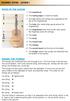 BEGINNER GUITAR - LESSON 1 PARTS OF THE GUITAR 1- The headstock. 2- The tuning pegs or machine heads. 3- The nut (where the strings are supported at the top of the fingerboard). 4- The frets (the metal
Ukulele Music Theory Part 2 Keys & Chord Families By Pete Farrugia BA (Hons), Dip Mus, Dip LCM
 This lesson assumes that you are using a ukulele tuned to the notes G, C, E and A. Ukulele Notes In lesson 1, we introduced the sequence of 12 notes, which repeats up and down the full range of musical
Foundation Course. Study Kit No 1. Away In A Manger
 Foundation Course Study Kit No 1 Away In A Manger Reharmonization Study Kit No. 1 Away In A Manger Author: Rosablanca Suen Web: www.learnpianowithrosa.com Email: [email protected] Cover Design:
TELEPHONE BUTTONS & ICONS TOUCHSCREEN OVERVIEW
 This Telephone Guide describes the various features available to you. Telephone Buttons and Icons describe the physical buttons and keys on the phone, the Touchscreen Overview outlines basic functions,
Swing & Jump Blues Guitar Matthieu Brandt
 Swing & Jump Blues Guitar Matthieu Brandt Goto www.swingblues.com for more on Swing and Jump Blues Guitar. 1997-2016 No part of this material (book/cd/website) may be reproduced in any way without prior
ENGLISH DEUTSCH FRANÇAIS ESPAÑOL
 ENGLISH DEUTSCH FRANÇAIS ESPAÑOL SPECIAL MESSAGE SECTION This product utilizes batteries or an external power supply (adapter). DO NOT connect this product to any power supply or adapter other than one
2012 Music Standards GRADES K-1-2
 Students will: Personal Choice and Vision: Students construct and solve problems of personal relevance and interest when expressing themselves through A. Demonstrate how musical elements communicate meaning
The Chord Book - for 3 string guitar
 The Chord Book - for 3 string guitar Prepared for: 3 string fretted cbg Prepared by: Patrick Curley Forward This short ebook will help you play chords on your 3 string guitar. I m tuned to G, if you re
WAVES JJP STRINGS & KEYS User Guide
 WAVES JJP STRINGS & KEYS TABLE OF CONTENTS CHAPTER 1 INTRODUCTION...3 1.1 WELCOME...3 1.2 PRODUCT OVERVIEW...3 1.3 COMPONENTS...4 1.4 A FEW WORDS FROM JJP...4 CHAPTER 2 QUICKSTART GUIDE...5 CHAPTER 3 CONTROLS,
Operation Manual for Users
 Operation Manual for Users Model No.: FLTAMFMRCD!!!!!!!!!! ATTENTION!!!!!!!!!! THE RESET BUTTON MUST BE PRESSED TO ENSURE PROPER OPERATION. SEE INSTRUCTION MANUAL Table of Contents Table of Contents ---------------------------------------------------------------------------------------------
Single Day Alarm Clock with. Bluetooth and USB Play-through
 Single Day Alarm Clock with Bluetooth and USB Play-through MODEL : BSC 200 READ THIS INSTRUCTION MANUAL BEFORE OPERATING THE APPLIANCE. SAVE THIS MANUAL FOR FUTURE REFERENCE. TABLE OF CONTENTS IMPORTANT
Portable Air Conditioner
 Portable Air Conditioner Owner's Manual Model:3 in 1 12,000 Btu/h Series 3 Please read this owner s manual carefully before operation and retain it for future reference. CONTENTS 1. SUMMARY...1 2. PORTABLE
Larry's Guitar Chord Key Chart
 C Larry's Guitar Chord Key Chart C# G# G D D# A A# E B C# # The middle triangle in any circle is the name of that key. Every circle is a key. This does not show the minors but they follow the same pattern.
National Standards for Music Education
 National Standards for Music Education 1. Singing, alone and with others, a varied repertoire of music. 2. Performing on instruments, alone and with others, a varied repertoire of music. 3. Improvising
Tablet PC User Manual
 Tablet PC User Manual Please read all instructions carefully before use to get the most out of your Time2Touch Tablet PC. The design and features are subject to change without notice. Contents Important
Study Kit No 9. Aura Lee (Love Me Tender)
 Study Kit No 9 Aura Lee (Love Me Tender) Reharmonization Study Kit No. 9 Aura Lee Author: Rosablanca Suen Web: www.learnpianowithrosa.com Email: [email protected] Cover Design: Raymond Suen Copyright
QUALITY AV PRODUCTS INMATE/INMATE USB PROFESSIONAL 19" MIXER. User Guide and Reference Manual
 INMATE/INMATE USB PROFESSIONAL " MIXER User Guide and Reference Manual INTRODUCTION Welcome to the NEWHANK INMATE and INMATE USB professional " mixers series user manual. INMATE and INMATE USB both offer
Music Literacy for All
 Music Literacy for All Developing Musically Literate Individuals in Performance-Based Ensembles J. Steven Moore, DMA Research Data How Many Public Performances Does the Average H.S. Band Present Annually?
Mbox Basics Guide. Version 6.7 for LE Systems on Windows XP or Mac OS X. Digidesign
 Mbox Basics Guide Version 6.7 for LE Systems on Windows XP or Mac OS X Digidesign 2001 Junipero Serra Boulevard Daly City, CA 94014-3886 USA tel: 650 731 6300 fax: 650 731 6399 Technical Support (USA)
Playing By Ear Who Can Play By Ear?... 2 How To Play By Ear... 3 Happy Birthday To You (By Ear)... 4 Match Tones... 5 Add Chords...
 Playing By Ear Who Can Play By Ear?... 2 How To Play By Ear... 3 Happy Birthday To You (By Ear)... 4 Match Tones... 5 Add Chords... 6 Allcanplay TM Piano * MaxLearning.Net 2009 * Playing By Ear * 4/6/2009
M a n u a l O R C H E S T R A L T O O L S. C O M. 2011 by OrchestralTools Schwarzer & Mantik GbR
 M a n u a l O R C H E S T R A L T O O L S. C O M 2011 by OrchestralTools Schwarzer & Mantik GbR About Symphonic Sphere (SSP) When dreams transform into possibilities There are some nice orchestrational
MAKING YOUR LINES SOUND MORE LIKE JAZZ!
 MAKING YOUR LINES SOUND MORE LIKE JAZZ! BY ALISDAIR MACRAE BIRCH One of the common questions asked by jazz guitar students is, How do I make my lines sound more like jazz? or Why do my improvised lines
ATTENTION RISQUE D ÉLECTROCUTION! NE PAS OUVRIR!
 Quick Start Guide ATTENTION RISQUE D ÉLECTROCUTION! NE PAS OUVRIR! CAUTION: TO REDUCE THE RISK OF ELECTRIC SHOCK, DO NOT REMOVE COVER (OR BACK). NO USER-SERVICEABLE PARTS INSIDE. REFER SER- VICING TO QUALIFIED
Life Is Calling. Meet Your New CaptionCall Phone. Spoken Words into Captions. Free Service Means No Cost to You. 2 CaptionCall
 setup guide Life Is Calling Meet Your New CaptionCall Phone We d like to introduce you to CaptionCall. Your new CaptionCall phone looks and works pretty much like an ordinary telephone, but with one big
Keyboard Basics. By Starling Jones, Jr. http://www.starlingsounds.com& http://www.smoothchords.com
 Keyboard Basics By Starling Jones, Jr. In starting on the piano I recommend starting on weighted keys. I say this as your fingers will be adjusted to the stiffness of the keys. When you then progress to
PAR Tablet 10 Quick Start Guide
 ParTech, Inc. 8383 Seneca Turnpike New Hartford, NY 13413 p.800.458.6898 www.partech.com PAR Tablet 10 Quick Start Guide PN 770505503 This material has been created in order to accommodate a wide range
SETTING UP YOUR 6000 SERIES TIME RECORDER
 INTRODUCTION The Pyramid 6000 Series Time Recorder is an electronic time recorder designed to make payroll processing easier and more efficient. The 6000 series will meet your business needs whether your
2017 NAfME All-Northwest Jazz Audition Materials Saxophones and Brass
 2017 NAfME All-Northwest Jazz Audition Materials Saxophones and Brass Track 1 Track 2 Track 3 Basic Audition The following three tracks are required of all wind applicants ALTO SAXOPHONE (pages 5-6) TENOR
Contents. 5. Navigating the Software Menus 25 The Basics 25 Diagrams of Top Level Sub Menus 27. 6. Tips and Troubleshooting 34
 Contents 1. Quick Start 1 Features 1 What You Need to Begin 2 Installing the Battery 2 The Basic Controls 3 Play Music 5 Listen to the FM Radio 7 Voice recording 8 Headphone/Earphone 9 2. Playing Music
YDP-161 YDP-141. Owner's Manual. For information on assembling the keyboard stand, refer to the instructions at the end of this manual.
 YDP-161 YDP-141 Owner's Manual For information on assembling the keyboard stand, refer to the instructions at the end of this manual. IMPORTANT Check your power supply (YDP-161) Make sure that your local
Sample Pages. This pdf contains sample pages from the ebook The Easy Guide to Jazz Guitar Arpeggios. To get the full ebook, Click Here
 1 Sample Pages This pdf contains sample pages from the ebook The Easy Guide to Jazz Guitar Arpeggios. To get the full ebook, Click Here 2 Contents Introduction....6 What Are Arpeggios?....7 Chapter 1:
Hi! Let s get started.
 Hi! Let s get started. What s in the box Roku 2 player Roku 2 enhanced remote Headphones 2 x AA batteries for remote A/V cable (RCA) Power adapter Get to know your Roku 2 A Front view B E C Back view
Part 2. Copyright 1998 Philips Consumer Communications L.P. All rights reserved. Printed in Mexico. Issue 1AT&T 848229506
 2 User's Manual for Two-Line Digital Answering System Telephone with Speakerphone 1872 Fold open this paper for information about this telephone's installation and operation. Please read Part 1 Important
Note: To use the following three applications, first start up Data Manager and then use Data Manager button operations to start them up.
 This software lets you create WK-3000/WK-3200/WK-3500/WK-3700/CTK-691 and CTK-900 (keyboard) data on your computer and exchange such data between the computer and keyboard. Data Manager Transfer keyboard
Music. Music-Instrumental
 Music-Instrumental Program Description Students may select from three music programs Instrumental, They-Composition, Vocal. Music majs are urged to take class lessons private instruction in their specialization
GarageBand 2.0 Getting Started
 GarageBand 2.0 Getting Started Darby Tober School of Information, Technology Lab Fall 2005 GarageBand 2.0 is the musical component of Apple s ilife 05 Suite. Novice and more advanced composers can use
EP4300 4 Line Intercom Speakerphone with Caller ID and Jumbo Pivoting Display
 EP4300 4 Line Intercom Speakerphone with Caller ID and Jumbo Pivoting Display User s Guide Please read before using telephone Getting Started Congratulations! You ve purchased a HGC EP4300 System Intercom
CS530. Wireless Headset System. User Guide
 CS530 Wireless Headset System User Guide Contents Welcome 3 What s in the Box 4 Base and Headset Basics 5 Accessories 6 Customize Your Headset 7 Change the Eartip 7 Position Your Headset 7 Connect Your
Guitar Reference. By: Frank Markovich
 Guitar Reference By: Frank Markovich Guitar Reference Introduction The purpose of this book is to give the student the reference materials for learning how to play the guitar. In this book you will find
Guitar Rubric. Technical Exercises Guitar. Debut. Group A: Scales. Group B: Chords. Group C: Riff
 Guitar Rubric Technical Exercises Guitar Debut In this section the examiner will ask you to play a selection of exercises drawn from each of the three groups shown below. Groups A and B contain examples
MUSIC OFFICE - SONGWRITING SESSIONS SESSION 1 HARMONY
 MUSIC OFFICE - SONGWRITING SESSIONS SESSION 1 HARMONY Introduction All songwriters will use harmony in some form or another. It is what makes up the harmonic footprint of a song. Chord sequences and melodies