
Appliance Backup Utility Installation and User Guide Release B A December 2011
|
|
|
- Toby McDaniel
- 9 years ago
- Views:
Transcription
1 Appliance Backup Utility Installation and User Guide Release B A December 2011

2 The product or products described in this book are licensed products of Teradata Corporation or its affiliates. Teradata, Active Enterprise Intelligence, Applications Within, Aprimo, Aprimo Marketing Studio, Aster, BYNET, Claraview, DecisionCast, Gridscale, Managing the Business of Marketing, MyCommerce, Raising Intelligence, Smarter. Faster. Wins., SQL-MapReduce, Teradata Decision Experts, Teradata Labs Logo, Teradata Raising Intelligence Logo, Teradata Source Experts, WebAnalyst, and Xkoto are trademarks or registered trademarks of Teradata Corporation or its affiliates in the United States and other countries. Adaptec and SCSISelect are trademarks or registered trademarks of Adaptec, Inc. AMD Opteron and Opteron are trademarks of Advanced Micro Devices, Inc. EMC, PowerPath, SRDF, and Symmetrix are registered trademarks of EMC Corporation. GoldenGate is a trademark of Oracle. Hewlett-Packard and HP are registered trademarks of Hewlett-Packard Company. Intel, Pentium, and XEON are registered trademarks of Intel Corporation. IBM, CICS, RACF, Tivoli, and z/os are registered trademarks of International Business Machines Corporation. Linux is a registered trademark of Linus Torvalds. LSI is a registered trademark of LSI Corporation. Microsoft, Active Directory, Windows, Windows NT, and Windows Server are registered trademarks of Microsoft Corporation in the United States and other countries. NetVault is a trademark or registered trademark of Quest Software, Inc. in the United States and/or other countries. Novell and SUSE are registered trademarks of Novell, Inc., in the United States and other countries. Oracle, Java, and Solaris are registered trademarks of Oracle and/or its affiliates. QLogic and SANbox are trademarks or registered trademarks of QLogic Corporation. SAS and SAS/C are trademarks or registered trademarks of SAS Institute Inc. SPARC is a registered trademark of SPARC International, Inc. Symantec, NetBackup, and VERITAS are trademarks or registered trademarks of Symantec Corporation or its affiliates in the United States and other countries. Unicode is a registered trademark of Unicode, Inc. in the United States and other countries. UNIX is a registered trademark of The Open Group in the United States and other countries. Other product and company names mentioned herein may be the trademarks of their respective owners. The information contained in this document is provided on an as-is basis, without warranty of any kind, either express or implied, including the implied warranties of merchantability, fitness for a particular purpose, or non-infringement. Some jurisdictions do not allow the exclusion of implied warranties, so the above exclusion may not apply to you. In no event will Teradata Corporation be liable for any indirect, direct, special, incidental, or consequential damages, including lost profits or lost savings, even if expressly advised of the possibility of such damages. The information contained in this document may contain references or cross-references to features, functions, products, or services that are not announced or available in your country. Such references do not imply that Teradata Corporation intends to announce such features, functions, products, or services in your country. Please consult your local Teradata Corporation representative for those features, functions, products, or services available in your country. Information contained in this document may contain technical inaccuracies or typographical errors. Information may be changed or updated without notice. Teradata Corporation may also make improvements or changes in the products or services described in this information at any time without notice. To maintain the quality of our products and services, we would like your comments on the accuracy, clarity, organization, and value of this document. Please [email protected] Any comments or materials (collectively referred to as Feedback ) sent to Teradata Corporation will be deemed non-confidential. Teradata Corporation will have no obligation of any kind with respect to Feedback and will be free to use, reproduce, disclose, exhibit, display, transform, create derivative works of, and distribute the Feedback and derivative works thereof without limitation on a royalty-free basis. Further, Teradata Corporation will be free to use any ideas, concepts, know-how, or techniques contained in such Feedback for any purpose whatsoever, including developing, manufacturing, or marketing products or services incorporating Feedback. Copyright by Teradata Corporation. All Rights Reserved.

3 Table of Contents Preface...7 Changes to This Book...7 Purpose...7 Audience...7 Supported Releases...7 Related Documentation...8 Software Download...8 Chapter 1: Appliance Backup Utility...9 Appliance Backup Utility...9 What is an Appliance Backup Utility Server?...10 What is an Appliance Backup Utility Client?...10 What is an Appliance Backup Utility GUI?...10 What Are Streams?...10 About Appliance Backup Utility Operation...11 Chapter 2: Appliance Backup Utility Planning...13 Teradata Node Connection to Secondary Storage Device...13 Secondary Storage Device...13 Network Switch...14 Mount Points...14 Chapter 3: Appliance Backup Utility Installation...15 About Appliance Backup Utility Installation...15 Installing Dependencies...15 Installing Appliance Backup Utility...16 Uninstalling Appliance Backup Utility...17 Appliance Backup Utility Installation and User Guide, Release

4 Table of Contents Upgrading Appliance Backup Utility Without PUT...17 Upgrading Appliance Backup Utility After Rollback...18 Chapter 4: Appliance Backup Utility Configuration...19 About Appliance Backup Utility Configuration...19 Standard Configuration...19 Special Configuration...20 Performance and Teradata Database...20 Local AMP for Improved Performance...20 Running the Configuration Script...21 Changing the Configuration Options...22 Installing the GUI on Another Node...23 Chapter 5: Appliance Backup Utility GUI...25 About the Appliance Backup Utility GUI...25 Alternate Ways to Start GUI...26 Appliance Backup Utility Server Node...26 Virtual Network Computing...26 X Emulator...26 Backing Up All Data...27 Restoring All Data from the Latest Backup Job...28 About Restoring Prior Backup All Datasets...29 Backing Up Selected Database Objects...29 Restoring Selected Objects...30 About Restoring Data to Other Instances...30 Restoring Data to a Second Instance...32 Restoring Using a Template...33 Object Type Icons...35 Script Options...35 Validating a Dataset using ANALYZE...37 About Job States...37 Configuring Appliance Backup Utility Server...38 Viewing and Saving Job History...39 Deleting Failed Jobs in Job History...40 Searching for Strings in Job Logs...40 Job Status Icons...41 About the Script Editor...42 About Scheduling Appliance Backup Utility Installation and User Guide, Release 14.00

5 Table of Contents Chapter 6: Appliance Backup Utility Command-Line Utilities...43 About Appliance Backup Utility Command-Line Utilities...43 About Automating Backups and Restores...43 About the ABULaunch Command-Line Utility...43 ABULaunch Parameters...44 About the ABUJobQuery Command-Line Utility...45 ABUJobQuery Parameters...46 About the ABUJobRM Command-Line Utility...49 ABUJobRM Parameters...50 Chapter 7: Appliance Backup Utility Troubleshooting...53 About Appliance Backup Utility Troubleshooting...53 Restarting the Server...53 Restarting the Client...53 Restarting the GUI...54 Troubleshooting Incorrect Port Number...54 About Debug Logs...55 Logfile...55 Dflt File...55 Using Debug Logs...55 About File Maintenance...56 Deleting Files...56 Backing Up Job Repositories...56 ABULaunch Return Codes...57 Return Codes Return Codes Return Codes 126 and Return Codes ABUJobRM Return Codes...58 Return Codes Return Codes Troubleshooting Job-Stream Failure...59 Troubleshooting an Unresponsive Server...61 Troubleshooting Incoming Data Paths...62 Troubleshooting Outgoing Data Paths...62 About Failover Recovery...63 Appliance Backup Utility Installation and User Guide, Release

6 Table of Contents Recovering from Failed Appliance Backup Utility Server...64 Operating with a Failed Node...65 Chapter 8: Appliance Backup Utility Migration...67 About Appliance Backup Utility Migration to a BAR Solution...67 Disabling the Appliance Backup Utility...67 Removing the Appliance Backup Utility Appliance Backup Utility Installation and User Guide, Release 14.00

7 Preface Changes to This Book Date and Release December November Description Changed procedure for restoring latest backup jobs. Added note in Restore Selected Objects option about stream specification. Added section on restoring prior Backup All datasets. Added section on using local AMP for better performance. Added ability to search for strings in job log. Changed installation directories. Added NoSync option to Online Backup script option. Changed Targets to Destination Path in Script Options dialog box. Noted that data and dictionary settings in Script Options dialog box must match in backup and restore jobs. Added uninstallation information. Added upgrade information. Noted that a private LAN connection to the storage device improves performance. Purpose This book describes how to install, configure, and use the Appliance Backup Utility. Audience Database administrators System administrators Software developers and production users Supported Releases This book supports the following releases. Teradata Database and Teradata Appliance Backup Utility or later Appliance Backup Utility Installation and User Guide, Release

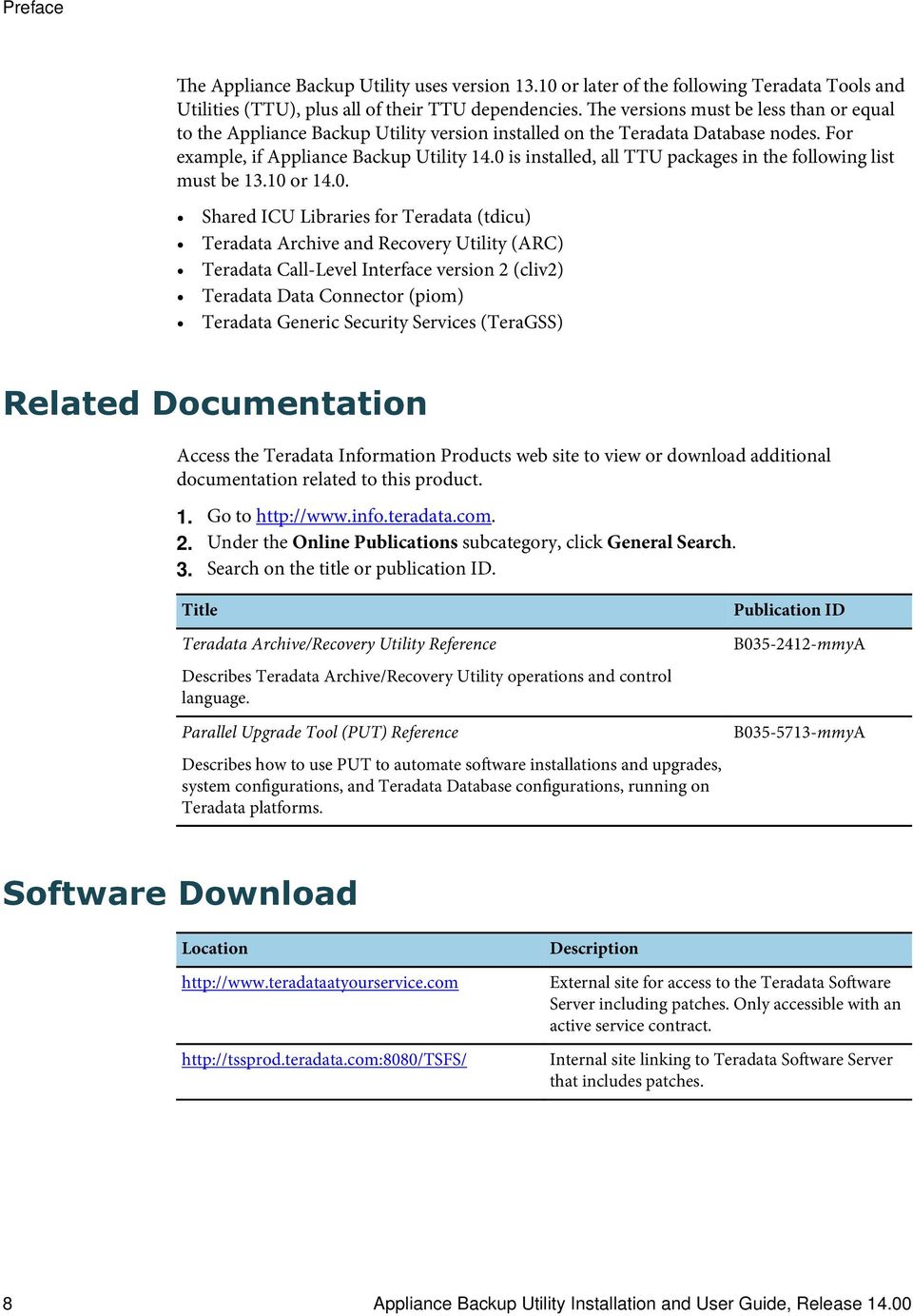
8 Preface The Appliance Backup Utility uses version or later of the following Teradata Tools and Utilities (TTU), plus all of their TTU dependencies. The versions must be less than or equal to the Appliance Backup Utility version installed on the Teradata Database nodes. For example, if Appliance Backup Utility 14.0 is installed, all TTU packages in the following list must be or Shared ICU Libraries for Teradata (tdicu) Teradata Archive and Recovery Utility (ARC) Teradata Call-Level Interface version 2 (cliv2) Teradata Data Connector (piom) Teradata Generic Security Services (TeraGSS) Related Documentation Access the Teradata Information Products web site to view or download additional documentation related to this product. 1. Go to 2. Under the Online Publications subcategory, click General Search. 3. Search on the title or publication ID. Title Teradata Archive/Recovery Utility Reference Describes Teradata Archive/Recovery Utility operations and control language. Parallel Upgrade Tool (PUT) Reference Describes how to use PUT to automate software installations and upgrades, system configurations, and Teradata Database configurations, running on Teradata platforms. Publication ID B mmyA B mmyA Software Download Location Description External site for access to the Teradata Software Server including patches. Only accessible with an active service contract. Internal site linking to Teradata Software Server that includes patches. 8 Appliance Backup Utility Installation and User Guide, Release 14.00
9 CHAPTER 1 Appliance Backup Utility Appliance Backup Utility The Appliance Backup Utility provides a simple way to back up the Teradata Database to a disk file system, then restore the backup datasets from the disk file system to the same Teradata Database. You can also use the Appliance Backup Utility to copy Teradata Database object data of one instance of a Teradata Database to another instance of a Teradata Database. Data is backed up to IP SAN (iscsi) or NAS (NFS) disk storage, which is required, but Teradata Corporation does not provide. You are responsible for providing, configuring, and maintaining the disk storage. Figure 1: System Diagram Teradata Node 1 Appliance Backup Utility Using ARC CLIv2 PIOM TDICU and Tera-GSS GB Ethernet IP SAN or NAS Disk Storage Third-Party Server Third-Party Backup Application Client and Media Server Teradata Node 2 Appliance Backup Utility Using ARC CLIv2 PIOM TDICU and Tera-GSS VTL or Disk Storage Tape Storage For complete data protection, copy data from the IP SAN or NAS disk storage to tape through any third-party backup application such as NetBackup, IBM Tivoli, EMC NetWorker, and CommVault. Backing up then becomes a two-step process: backing up to IP SAN or NAS disk storage, then copying to tape storage, disk, or Virtual Tape Library (VTL) with a third-party application. To restore, use the original file names to copy the data back to the IP SAN or NAS disk storage, then restore to the Teradata Database. Note: You are responsible for providing, configuring, and maintaining the third-party application and should be proficient in managing your data protection environment. Teradata Corporation support is limited to Appliance Backup Utility functionality on the node. Using the Appliance Backup Utility GUI, you can: Back up all DBC data with the Backup All option Restore the latest DBC backup with the Restore Latest option Appliance Backup Utility Installation and User Guide, Release

10 Chapter 1 Appliance Backup Utility Back up selected database objects such as triggers, macros, or tables with the Backup Selected Objects option Restore selected database objects with the Restore Selected Objects option You cannot use the GUI to restore a backup dataset to a different Teradata Database system. The Appliance Backup Utility software components are the Appliance Backup Utility server, client, and GUI. What is an Appliance Backup Utility Server? The Appliance Backup Utility server is a Teradata Database node that: Has Appliance Backup Utility server, client, and GUI software Is connected to the IP SAN or NAS disk storage Is the node on which you run the configuration script The Teradata Database node that is designated as the Appliance Backup Utility server also functions as the GUI and an Appliance Backup Utility client. There must always be an active Application Backup Utility client on the Teradata Database node that is selected to run the Application Backup Utility server. Install and configure only one Appliance Backup Utility server. What is an Appliance Backup Utility Client? An Appliance Backup Utility client is a Teradata Database node that you have specified as a client and has: Active Appliance Backup Utility client software A connection to the IP SAN or NAS disk storage Passive Appliance Backup Utility server software, which is not used unless the server is manually switched in failover recovery. What is an Appliance Backup Utility GUI? The Appliance Backup Utility GUI allows you to control the back up and restore operations of the Appliance Backup Utility. You can install the GUI on any node or PC workstation that is connected to the Appliance Backup Utility server. What Are Streams? The data that is backed up to the IP SAN or NAS disk storage consists of one or more streams. Each stream is a portion of the entire backup job. Increasing the number of streams can yield increased throughput through parallel processing, up to the threshold of the connections to the disk storage device. Teradata Corporation recommends one stream per node. 10 Appliance Backup Utility Installation and User Guide, Release 14.00

11 Chapter 1 Appliance Backup Utility About Appliance Backup Utility Operation The Teradata Database node that is designated as the Appliance Backup Utility server controls backup and restore operations, working as a master to Appliance Backup Utility clients that manage the data streams during backup and restore operations. A Backup All job is configured to run multiple data streams, which are equal to the number of Appliance Backup Utility clients configured to the Appliance Backup Utility. For every job data stream, a backup file is created on the storage device. There might be multiple disk partitions or directories designated as destination paths for the backup stream. The sum of all backup files created by the data streams equals the entire backup of your Teradata Database. If one or more of these files are deleted or corrupted, you will not be able to restore your Teradata Database backup. You can configure a Backup Selected Objects job to run one or more data streams. Configure one stream only if you know the length of time the backup will take and if the objects or group of objects are small. Optimal backup throughput is only achieved with full parallelism where all Appliance Backup Utility clients are used. Appliance Backup Utility Installation and User Guide, Release

12 Chapter 1 Appliance Backup Utility 12 Appliance Backup Utility Installation and User Guide, Release 14.00

13 CHAPTER 2 Appliance Backup Utility Planning Teradata Node Connection to Secondary Storage Device The Appliance Backup Utility takes advantage of Teradata node parallelism to back up and restore Teradata Database, resulting in high performance. Appliance Backup Utility backup and restore throughput also scales with the size of the system. To achieve maximum parallelism, connect each Teradata Database node to a backup target disk device. This allows the node to send all data on its primary disk to the device through the Gbit network connection on the node. If there is no direct connection from a node to the secondary storage device, an Appliance Backup Utility client cannot be configured for that node. The data local to that node is redirected through the Teradata BYNET to other nodes that are configured as Appliance Backup Utility clients. The backup and restore operation will complete, but the throughput will be severely degraded. To achieve maximum network performance, ensure that the network connection is in a private LAN. Secondary Storage Device Teradata Database backup and restore throughput is affected by several factors. One of the most important factors is the storage device you choose to connect to the Teradata Database node. The Appliance Backup Utility supports the use of IP SAN (iscsi) or NAS (NFS) as a secondary storage device, but Teradata Corporation does not sell or recommend a specific brand. However, consider the following criteria when choosing the storage device: Total size of the storage space Type, quantity, and size of the disk drives in the array Storage device performance rating Type of network connection (1Gbit or 10Gbit) Number of network connections to the device Concurrency and parallelism aspects of the device Disk partitioning Other device specifications that contribute to the read and write performance of the storage device Appliance Backup Utility Installation and User Guide, Release

14 Chapter 2 Appliance Backup Utility Planning Network Switch A Gbit network switch might be necessary to connect every Teradata Database node to the IP SAN or NAS storage device. Teradata Corporation does not provide this device. It is your responsibility to provide and configure this device. Mount Points The base directory of all mounted external storage for the Appliance Backup Utility must be directly under /var/abu_storage of each node, for example, /var/abu_storage/ disk1. A mount point directory cannot be the /var/abu_storage directory itself. 14 Appliance Backup Utility Installation and User Guide, Release 14.00

15 CHAPTER 3 Appliance Backup Utility Installation About Appliance Backup Utility Installation The Appliance Backup Utility and required Teradata client software packages are preinstalled by Teradata manufacturing on each Teradata Data Warehouse Appliance node. In cases where the Appliance Backup Utility is not installed, you must install it. Version or higher of the following Teradata client software packages are required before you install Appliance Backup Utility on a Teradata Database node, but the TTU and Teradata Database versions must be less than or equal to the Appliance Backup Utility version. For example, if you install Appliance Backup Utility 14.0, all TTU and Teradata Database versions must be or Shared ICU Libraries for Teradata (tdicu) Teradata ARC (teradata_arc) Teradata Call-Level Interface version 2 (cliv2) Teradata Data Connector (piom) Teradata Generic Security Services (TeraGSS) Installing Dependencies You can use the Parallel Upgrade Utility (PUT) to install the required Teradata client software packages or use the psh procedure to install each package on all Teradata Database nodes. Refer to Parallel Upgrade Tool (PUT) Reference for information on PUT. For the psh procedure, refer to the following instructions. 1 Copy the package to a temporary directory on one of the nodes. 2 At the command line on the node, type: psh -group tpa op s <package_name>.rpm /tmp rpm -i /tmp/<package_name>.rpm rm /tmp/<package_name>.rpm quit The package is installed and the rpm file is removed from the /tmp directory on all Teradata Database nodes. Appliance Backup Utility Installation and User Guide, Release

16 Chapter 3 Appliance Backup Utility Installation Installing Appliance Backup Utility For multi-node systems, you can use PUT or the psh procedure to install the abu_service i386.rpm package on all Teradata Database nodes. Refer to Installing Dependencies for the psh procedure. Refer to Parallel Upgrade Tool (PUT) Reference for information on PUT. For single-node systems, install the abu_service i386.rpm package directly from a command-line window. 1 [Conditional] If your Teradata Database node does not have the required dependencies, you must install them first. 2 In a command-line window, change to the directory where the Appliance Backup Utility rpm package is located. 3 Type rpm -i abu_service i386.rpm. The directories installed in var/opt/teradata/abu_service are: /var/opt/teradata/abu_service /var/opt/teradata/abu_service/service /var/opt/teradata/abu_service/service/config /var/opt/teradata/abu_service/service/jir /var/opt/teradata/abu_service/service/logs /var/opt/teradata/abu_service/service/sr The files installed in /opt/teradata/abu_service/service/bin are: abujobrm abulaunch abu_gui i386.rpm abu_service.pkf abuclient abuclient_cron abuclient_postinstall.sh abuclient_preuninstall.sh abujobquery abulogongen abuserver_cron abusetcfg abusrv abusrv_preuninstall.sh 16 Appliance Backup Utility Installation and User Guide, Release 14.00

17 Chapter 3 Appliance Backup Utility Installation abutdb config configure defaults_original modifyconf.bat runarc.bat switch tcsmon.bat tdabuclient_original tdabusrv_original updrepos.bat Uninstalling Appliance Backup Utility In some situations, Appliance Backup Utility components require removal. For example, you might need to remove the Appliance Backup Utility when migrating to a BAR solution, or before installing a newer version of the Appliance Backup Utility. 1 At the command-line prompt, type the code that is highlighted in bold font in the following example: # psh -group tpa psh.0> s all all 3 nodes selected psh.1> rpm -e abu_service psh.2> rpm -e abu_gui psh.3> quit # All Appliance Backup Utility packages from all of the Teradata Database nodes in the system are removed. Upgrading Appliance Backup Utility Without PUT If you have an Appliance Backup Utility patch and are not using PUT, uninstall the patch before upgrading. 1 At the command-line, type rpm -e pabu_service. 2 Type rpm -U abu_service-<xx.xx.xx.xx>-1.rpm, where xx.xx.xx.xx is the release number of the abu_service you want to install. Appliance Backup Utility Installation and User Guide, Release

18 Chapter 3 Appliance Backup Utility Installation Upgrading Appliance Backup Utility After Rollback After using PUT to upgrade Appliance Backup Utility from a patch version to a major release, for example, from the patch to 14.00, you might roll back to the patch to compare versions when troubleshooting an issue. To subsequently reinstall 14.00, manually uninstall the patch before upgrading. If you use PUT to upgrade from the Appliance Backup Utility patch to Appliance Backup Utility 14.00, then roll back to the patch, reinstallation of the version requires that you: Manually uninstall the patch Use PUT to upgrade to Appliance Backup Utility At the command-line prompt, type rpm -e pabu xxx, where xxx is the patch version you want to remove. 2 Use PUT to upgrade to the major release, for example, Appliance Backup Utility version Appliance Backup Utility Installation and User Guide, Release 14.00

19 CHAPTER 4 Appliance Backup Utility Configuration About Appliance Backup Utility Configuration Standard Configuration In a standard configuration, the server, client, and GUI reside on one Teradata Database node and clients reside on the remaining Teradata Database nodes in the system. For best performance, connect each Teradata Database node to the IP SAN or NAS disk storage. Each storage destination must be large enough to store a client stream's data. If the destination becomes full before all data in the stream has been backed up, the backup job aborts. Note: For multi-node systems, the Application Backup Utility uses the public network interface to communicate between the Application Backup Utility server and Application Backup Utility clients, and maps BYNET aliases to established SMPxxx-yy host aliases. For example, SMP001-6 is the public network interface and byn001-6 is the BYNET interface for the same node. The Application Backup Utility server and GUI software is automatically configured on the node when you run the configuration script. The configuration script also establishes and registers each client with the server. You can install the GUI on any node that is connected to the Appliance Backup Utility server. For example, you could install the GUI on a Linux PC that has JRE 1.5 software or later version. Appliance Backup Utility Installation and User Guide, Release

20 Chapter 4 Appliance Backup Utility Configuration Figure 2: Appliance Backup Utility Software IP SAN or NAS Disk Storage Linux PC ABU GUI Teradata Node 1 ABU Server ABU Client ABU GUI Teradata Node 2 ABU Client (ABU Server for Failover Only) Teradata Node 3 ABU Client (ABU Server for Failover Only) Disk storage device capacity must be greater than the size of the Teradata Database that you are backing up. During the backup process, a stream writes to only one storage device path. If the storage device reaches its capacity limit, the stream will fail. Special Configuration The Appliance Backup Utility is designed to use all Teradata Database nodes in the Teradata Database system, but you can configure the Appliance Backup Utility to use a subset of the Teradata Database nodes. For example, if you have eight Teradata Database nodes but only four nodes are connected to the IP SAN or NAS disk storage, configure the Appliance Backup Utility to use the four Teradata Database nodes that are connected to the disk storage. Backup and restore performance is degraded when Appliance Backup Utility client software is not installed on every node and IP SAN or NAS disk storage is not connected to every node. Teradata Corporation does not recommend this configuration. Performance and Teradata Database Appliance Backup Utility performance depends on the Teradata Database platform your system uses. Performance information is frequently tuned and updated. The most current information is on an internal Teradata Corporation website, the Appliance Infohub, therefore please consult with your sales representative to obtain this information. Local AMP for Improved Performance To improve backup and restore job performance, Teradata ARC optimizes local sessions when assigning AMPs. The process requires that Teradata ARC must be able to log onto a MONITOR session to determine AMP location. Grant the MONITOR privilege to the Teradata user logon that was specified when the configuration script was run. 20 Appliance Backup Utility Installation and User Guide, Release 14.00

21 Chapter 4 Appliance Backup Utility Configuration Use the BTEQ utility to grant the privilege. Type GRANT MONITOR TO < arcuser >, where <arcuser> is the user name specified in the configuration script. Running the Configuration Script Prerequisite: You must be the root user to run the configuration script. You must establish a mount point for each Teradata Database node that will function as an Appliance Backup Utility client before you run the configuration script. The mount point must be directly under /var/abu_storage of the node, for example, /var/ abu_storage/disk1. To configure, determine which Teradata Database node should be the Appliance Backup Utility server and run the configuration script on that node. Appliance Backup Utility software must be installed on the Teradata Database node where the configuration script will run. The configuration script prompts for: How many Appliance Backup Utility clients you want in your system Teradata TDPID Teradata Database user logon name The number of ARC sessions per stream Client storage destinations Administrator password for the Appliance Backup Utility server For best performance, specify each Teradata Database node as a client. Each Appliance Backup Utility client requires Appliance Backup Utility software and a connection to the IP SAN or NAS disk storage. Note: Do not specify node system disks as destination paths. 1 In a command-line window, change the directory to /opt/teradata/abu_service/ service/bin. 2 At the command line prompt, type./configure. An options menu appears. 3 Type configure -all to install the Appliance Backup Utility client and GUI and configure the Appliance Backup Utility. 4 Follow the prompts. The Appliance Backup Utility server starts and Appliance Backup Utility clients are established. Configuration File Running the configuration script produces the /etc/opt/teradata/abu_service/defaults configuration file, shown in the next example. Do not edit the defaults configuration file. [Client] Appliance Backup Utility Installation and User Guide, Release
22 Chapter 4 Appliance Backup Utility Configuration SMP001-6=SMP001-6,1 SMP001-7=SMP001-7,1 [Groups] MainGroup=null [Teradata] local=local,arcuser1,nunsg_wd7rscgf_ljaigpuhxj70scix $6VXCKguiz7tsAS8gdX2Bxs8Nu6rYYzcGSXTR4tJNJw$u$JqY,,arcuser1,A0GK$M1 _UjtBiJSBxp4N7Bv3Q_AYyaubaV3uQ4eC5kraJuwJsf3cn2wx5JcnwgndcvQbWxQl1Emh 5zqQ,,0,36 [Defaults] abuserver=smp001-6 administrator=mp$92$nga_oa_dqvgecp5y4vnorj $y5bpt5rclhgbef8kbbfvdlhf4urvl0$uqi0epcgx3gp33vqvfqc catalog=1 charset=ascii checksum=1 configpath=/etc/opt/teradata/abu_service/defaults defaultotb=disk installedotb=disk jobinfopath=/var/opt/teradata/abu_service/service/jir loglevel=63 logpath=/var/opt/teradata/abu_service/service/logs otherparams= overridelog=false portnumber=54323 scriptpath=/var/opt/teradata/abu_service/service/sr serviceuser=abuservice [Disk] job=backupall multistream=2 sessions=36 SMP001-6=/var/abu_storage/d1500 SMP001-7=/var/abu_storage/d2500 streamclients=smp001-6\ SMP001-7 tdpid=local userid=arcuser1 Changing the Configuration Options Rerun the configuration script to change configuration values for the Appliance Backup Utility after the initial configuration. The values are used as the parameters for the Backup All option that backs up all DBC data. Therefore, to change the parameters for the Backup All option, rerun the configuration script. 1 In a command-line window, change the directory to /opt/teradata/abu_service/ service/bin. 22 Appliance Backup Utility Installation and User Guide, Release 14.00
23 Chapter 4 Appliance Backup Utility Configuration 2 At the command line prompt, type./configure. An options menu appears. 3 Type configure plus one or more of the following options: Option Description -au -cd -ci -gi -ss Updates the Teradata user logon information. Updates the destination paths. Use this option to specify an alternate destination path if a disk is full. Establishes the server startup file on this node and client startup file on all nodes. Updates the Graphical User Interface package and information. Updates the number of ARC sessions. 4 Follow the prompts. Installing the GUI on Another Node You can install and run the Appliance Backup Utility GUI on any node that is connected to the Appliance Backup Utility server, including a Linux PC workstation that has JRE 1.5 software or later version. 1 On the Appliance Backup Utility server node, copy the abu_gui i386.rpm package at /opt/teradata/abu_service/ service/bin. 2 Copy the GUI rpm package to any directory on the node where you want to install the GUI. 3 At the command line, type rpm - i abu_gui i386.rpm to install the GUI rpm package. A /opt/teradata/abu_service/gui/bin folder is created. 4 On the node where you copied the GUI, change the directory to /opt/teradata/ abu_service/gui/bin. 5 Type the following to start the GUI: abugui Appliance Backup Utility Installation and User Guide, Release
24 Chapter 4 Appliance Backup Utility Configuration 24 Appliance Backup Utility Installation and User Guide, Release 14.00
25 CHAPTER 5 Appliance Backup Utility GUI About the Appliance Backup Utility GUI The Appliance Backup Utility GUI allows you to: Back up and restore all DBC data Back up and restore specific objects in a database Configure the Appliance Backup Utility Server View and save backup and restore job history The Appliance Backup Utility dialog box includes: Menu Toolbar The menu includes tasks to back up and restore data, configure the Appliance Backup Utility server, and view and save job history. The Backup All button allows you to back up all DBC data. Appliance Backup Utility Installation and User Guide, Release
26 Chapter 5 Appliance Backup Utility GUI The Restore Latest button allows you to restore the latest backup job. Job-Stream Table Scripts The Job-Stream Table displays the status of current jobs, including the job name, stream name, the client on which the job is running, the job state, and the object that is currently being backed up or restored. The Abort button aborts the current job displayed in the Job-Stream Table. The Scripts list allows you to select a job script. Launch allows you to launch the job for the selected job script. Refresh allows you to refresh the list of job scripts. Options provides options to edit, delete, and rename the selected job script. Alternate Ways to Start GUI Appliance Backup Utility Server Node To start the Appliance Backup Utility GUI on the Appliance Backup Utility server node: 1. At the command line, change directory to /opt/teradata/abu_service/gui/bin. 2. Type: abugui Virtual Network Computing To start the Appliance Backup Utility GUI using Virtual Network Computing (VNC) from a Windows PC workstation: 1. Before proceeding, verify with your database administrator that you have permission to start the GUI using this method. 2. Use yast on the node to enable Network Services>Remote Administration. 3. In an Internet Explorer window, set the address as 4. Click OK to the VNC password. 5. Log onto the node. 6. Change directory to /opt/teradata/abu_service/gui/bin. 7. Type: abugui X Emulator To start the Appliance Backup Utility GUI using an X emulator on a Linux PC workstation: 1. Log onto the node with a terminal emulator. 26 Appliance Backup Utility Installation and User Guide, Release 14.00
27 Chapter 5 Appliance Backup Utility GUI 2. Type export DISPLAY=<ip_address_of_your workstation:<root_window_number> to set the DISPLAY variable. 3. Launch /opt/teradata/abu_service/gui/bin/abugui. Backing Up All Data You can back up all of your data in the DBC database with the Backup All option. Note: Disk size should exceed the size of the entire backup. If the disk to which you are backing up data is full, rerun the configuration script and specify an alternate destination path. If a job fails, it cannot be restarted from the failed mount point. 1 From the menu, click Task > Backup All. The Launch dialog box appears. 2 [Optional] Click Verify Script/Save to open and edit the job script. Changing the script file name when you save the Backup All job script is not recommended. If you change the script file name, you must: a b c Make a copy of the latest defaults file at /etc/opt/teradata/abu_service/ defaults before editing the file. Accidental deletion of fields or inclusion of unwanted characters can affect the Appliance Backup Utility server. Change the JOB value within the [Disk] stanza of /etc/opt/teradata/ abu_service/defaults with the new script file name. Type /etc/init.d/tdabusrv start to restart the Appliance Backup Utility server. 3 Click OK to launch the job. 4 [Optional] If you received a warning message that a journal table backup was skipped and you are certain that your database has no journal tables, you can modify the job script so that the message does not reoccur. If your database has no journal tables, the backup completes successfully despite the error message. To change the script: a b Click Verify Script/Save to open the Script Editor. Delete the following code: c ARCHIVE JOURNAL TABLES (DBC)ALL, EXCLUDE(DBC), NONEMPTY DATABASES, RELEASE LOCK, FILE=JOURNAL; Click Save. You can launch the job with the Backup Selected Objects option. Appliance Backup Utility Installation and User Guide, Release
28 Chapter 5 Appliance Backup Utility GUI Restoring All Data from the Latest Backup Job The Restore Latest option allows you to recover the entire Teradata Database. The following requirements apply: You must restore to the same Teradata Database system that was the source for the backup job data. The Teradata Database system must have an identical Teradata Database major release version, for example, Teradata Database xx.xx. The restore job must have the same stream count as the Backup All job. The stream count is automatically configured in the restore job: do not change the stream count in the job script. The Restore Latest option requires a Teradata Database system initialization process that destroys all user and dictionary data and reinitializes the system. Use Restore Latest only for disaster recovery or when the system initialization process has been run on Teradata Database. You can use the RestoreLatest dataset to selectively restore data with the Restore Selected Objects option. The Restore Selected Objects option is required if you: Restore a Backup All job that is not the most recent job. Only the dataset of the latest successful Backup All job is used by the Restore Latest option. Use Appliance Backup Utility 14.0 or later to restore the parent DBC database from a backup dataset created with a version prior to Before you restore all data from the latest backup job with the Restore Latest option, delete the DBC database: 1. Run sysinit to reinitialize the system. Refer to Utilities - Volume 1 A - F, B If necessary, reconfigure the system to the desired configuration. 3. Run the DBC Initialization Procedure (DIP) to initialize system views, macros, users, and error message tables. Refer to Utilities - Volume 1 A - F, B After you have deleted the DBC database and reinitialized the system, restore the latest backup job: 1 From the menu, click Task > Restore Latest to restore the latest backup job. 2 In the Restore Latest dialog box, click Generate in step 1. The DBC database is deleted and restored. 3 [Optional] Check the Skip Step box if you will not complete the remaining two steps listed in the Restore Latest dialog box at the current time. Checking the box will remind you that the first step has been completed. 4 Validate that the DBC database has been restored by checking job status in the Appliance Backup Utility GUI. 5 On a TPA node, run the post_dbc_restore script. When PUTTools is installed, the script is located at/opt/teradata/puttools/ td14.xx.xx.xx/iumb_script 28 Appliance Backup Utility Installation and User Guide, Release 14.00
29 Chapter 5 Appliance Backup Utility GUI 6 Validate that the restore script has completed successfully. A message indicates when the script has completed. 7 In the Restore Latest dialog box, click Done. 8 Click Generate in step 3. 9 After the data and journal tables are restored, run the post_data_restore script on the TPA node at/opt/teradata/puttools/td14.xx.xx.xx/iumb_script. The restore process is completed. 10 Click Close. About Restoring Prior Backup All Datasets The Restore Latest option uses only the dataset of the latest successful Backup All job. To restore a Backup All dataset that is not the latest: 1. Change the SOURCEUID in the Restore Latest job script to the SOURCEUID used by the latest Backup All job. 2. Build the modified Restore Latest job script. Backing Up Selected Database Objects You can back up selected database objects such as indexes and triggers with the Backup Selected Objects option when you do not want to back up all DBC data. With this option, you can also override the parameters that were set through the configuration script. However, the changes affect only how the selected objects for a specific job are backed up. 1 From the menu, click Task > Backup Selected Objects. 2 [Optional] From the Log on to Teradata DBS dialog box: a Enter a UserID for the user account. b Enter a password for the user account. 3 Click Connect to log on to Teradata Database. The Backup Object Selection dialog box appears. 4 In the Backup Object Selection dialog box: a In the left pane, highlight a database and click next to the database tree you want to expand. b In the right pane, select the boxes next to the objects in the database that you want to back up. 5 Click. Note: Select all objects in a database by checking the box next to the database in the left pane. Appliance Backup Utility Installation and User Guide, Release
30 Chapter 5 Appliance Backup Utility GUI 6 Click OK. 7 In the Script Options dialog box, enter the Job Name and any other options you choose. Job names are case sensitive. For example, backup1.bkp and Backup1.bkp specify different jobs. Destination paths are assigned and a stream is assigned to each Appliance Backup Utility client in round-robin fashion. Teradata Corporation recommends you do not change these defaults. Restoring Selected Objects You can restore selected objects or user databases from any backup data in the IP SAN or NAS storage device. You cannot restore the entire DBC database with the Restore Selected Objects option. Note: The Restore Selected Objects option is required if you use Appliance Backup Utility 14.0 or later to restore a Backup All job created with a version prior to If the Backup All job was created with Appliance Backup Utility 14.0, use the Restore Latest option. 1 From the menu, click Task > Restore Selected Objects. 2 In the Restore Object Selection dialog box: a In the left pane, highlight a database and click next to the database tree you want to expand. b In the right pane, select the boxes next to the user databases or objects in the database that you want to restore. Do not select the entire DBC database. 3 Click. Note: Select all objects in a user database by checking the check box next to the user database in the left pane. 4 Click OK. 5 In the Script Options dialog box, enter the Job Name and any other options you choose. Note: If you are restoring a Backup All job that was created with an Appliance Backup Utility version prior to 14.0, specify the same number of streams for the restore job that you specified for the backup job. Otherwise, the job will fail. About Restoring Data to Other Instances You can copy data from one instance of a Teradata Database to another instance of a Teradata Database. With this capability, you can back up a table or database from a production system, then copy that table or database to a test system. In a Disaster Recovery (DR) scenario, you can restore data from a primary production site to a physically separate DR (secondary) site. 30 Appliance Backup Utility Installation and User Guide, Release 14.00
31 Chapter 5 Appliance Backup Utility GUI The two Teradata Database systems must be connected through TCP/IP to transfer the ABU JobFile, which is a binary file that contains all the information about backup and restore jobs and is located in/var/opt/teradata/abu_service/service/jir. However, the TCP/IP connection is not used or supported for the actual data transfer of the Teradata Database. Each instance of the Teradata Database must be configured separately, and the Appliance Backup Utility must be installed on both machines. The restore image must also be local to the secondary instance of the Teradata Database. An image of the data is backed up to and restored from one or two external disks. In the first configuration, external disk storage for the source and target are in separate locations. Figure 3: Restoring from Tape and External Disk Source TD DB Teradata Nodes (ABU installed) Disk 1 NAS/SAN Disk 2 Teradata Nodes (ABU installed) Target TD DB Customer Backup Product (copy) Customer Backup Product (restore) In the second configuration, source and target use the same external disk storage. Any dataset images that are deleted must be restored to disk before the data is restored. Figure 4: Restoring from Shared External Disk Source TD DB Teradata Nodes (ABU installed) NAS/SAN Teradata Nodes (ABU installed) Target TD DB Customer Backup Product (copy) Customer Backup Product (restore) To restore to a second instance of the Teradata Database, you will use the Appliance Backup Utility GUI and a command-line interface running on the system to which you will restore data. There are also specific requirements, which are listed in the Restoring Data to a Second Instance procedure. For example, if there are eight streams in the backup job, eight streams are required in the restore job. Appliance Backup Utility Installation and User Guide, Release
32 Chapter 5 Appliance Backup Utility GUI Restoring Data to a Second Instance The process to restore data to a second instance of a Teradata Database requires the Appliance Backup Utility GUI, the abulaunch utility, and a script or command-line interface. You can also use the cron utility to schedule and launch the job. 1. On the primary system, create a backup job using the Backup Selected Objects or the Backup All option. 2. Launch the backup job using the GUI or abulaunch. 3. (Optional) Use the cron utility to schedule and automatically launch the job. 4. Copy the ABU backup jobfile to the secondary site's ABU job repository using a script or command-line interface, as shown in the following Linux example: a. At a command-line prompt, list the job files in the job information repository on the primary Appliance Backup Utility server. In the example, bar1 is the primary server and $ABUPARMS represents -u administrator -e <path to encoded password file>: bar1:~ # abujobquery $ABUPARMS -L List of summary Job information for all Job Files in the Job Information Repository on ABU Server ' '. File Name/Job ID Job Name Date Stream Cnt 4cacebaa test1-cdbuild :41:33 2 4cacebaa R-test1-cdbuild :42:33 2 4cacebaa test2-cdbuild-mntpointnotavail :49:15 2 4cacf test :24:49 2 4cacf mm_xrst :56:10 2 4cacf mm_xrst :15:00 2 4cacf mm_xrst :16:40 2 4cacf mm_xrst :34:09 2 4cacf bb_sfe_2str :45:24 2 4cacf BackupAll :06:51 2 4cacf T505_to_brun :51:03 2 List of summary Job information completed. b. Copy the file to the secondary server. In the example, 4cacf is copied to bar2: bar1:~ # scp /var/opt/teradata/abu_service/service/jir/ 4cacf root@bar2:/var/opt/teradata/abu_service/service/jir 4cacf % KB/s 00:00 32 Appliance Backup Utility Installation and User Guide, Release 14.00
33 Chapter 5 Appliance Backup Utility GUI If the destination paths are not shared between the two sites, copy the stream files from the backup job from the primary site to the secondary site. Note: Stream 1 in an Appliance Backup Utility backup or restore job is the parent stream. All other streams in the job are child streams, which are directed by the parent stream. 5. On the secondary server, change the job file owner from root to abuservice: bar2:/var/opt/teradata/abu_service/service/jir # ls -l 4cacf rw root root 9316 Mar 10 09:58 4cacf bar2:/var/opt/teradata/abu_service/service/jir # chown abuservice 4cacf bar2:/var/opt/teradata/abu_service/service/jir # ls -l 4cacf rw abuservice root 9316 Mar 10 09:58 4cacf Use the Appliance Backup Utility GUI on the secondary system to create a restore job or use a script template to automate the job: With the Appliance Backup Utility GUI, use the Restore Selected Objects option. Do not use the Restore Latest option. Assign the Stream 1 image name in the backup job to Stream 1 of the restore job. (Optional) If the secondary Appliance Backup Utility has fewer clients than the primary Appliance Backup Utility, use the Assign Clients dialog box to adjust the streams-to-client ratio on the secondary Appliance Backup Utility. For example, if the primary system has four clients and the secondary system has three clients, configure one of the clients in the secondary system for two streams. Note: The backup images assigned to the child streams of the secondary restore job can be in any order if the Appliance Backup Utility clients have access to the image files. Update the UserName and Password. Edit the ARCMAIN script: 1. In the Script Options dialog box, enter a job name. 2. Click Preview to edit the job. 3. In the Script Editor, replace the ARCMAIN keyword RESTORE with COPY. Note: The target database needs to exist in the destination Teradata Database when you use the ARCMAIN COPY command. COPY creates a new table if it does not already exist on the target database. 7. Launch the restore job from the Appliance Backup Utility GUI or abulaunch. Restoring Using a Template You can create a restore job template to automate a restore job for a secondary system. To create a restore job template: 1. Use the Appliance Backup Utility GUI to create a restore job. Appliance Backup Utility Installation and User Guide, Release
34 Chapter 5 Appliance Backup Utility GUI 2. Add any STREAM, STREAMNAME, or DESTINATIONPATH overrides to the script. STREAM and DESTINATIONPATH lines are required. STREAMNAME lines are required only when you need to override the order of the streams, as in the following code example. STREAM lines Assign a client to each stream. The first STREAM line represents stream 1, and so on. The STREAM lines must be located immediately after the MULTISTREAM line. Modify these lines only if you need to change client stream assignments. DESTINATION PATH lines Assign a directory path to a stream's image. The first DESTINATIONPATH represents the path assigned to stream 1, and so on. DESTINATIONPATH lines must be located after STREAM lines and before the SCRIPT line. Add a value to the right of the DESTINATIONPATH keyword, as in the following example. If there is no value, the first path defined for that stream's client is used. STREAMNAME lines are optional. Assign a stream image name to each stream. A stream image name is the file name of the stream that was backed up at the primary site and is now accessible to the secondary site. If STREAMNAME lines are present, they must be located immediately after STREAM lines and must account for all the streams. The first STREAMNAME line represents stream 1, and so on. In the script, replace the ARCMAIN keyword RESTORE with COPY and assign the JobID that created the backup image dataset as the SOURCEUID value. The JobID is the name of the JobFile that was copied from the primary Teradata system. In the following example, there are four streams in the job that backs up the primary Teradata Database instance. The secondary site has two Teradata Database nodes that can access the four primary stream images as mount points. JOB T505_from_prod SESSIONS 4 MULTISTREAM 4 STREAM smp001-7 STREAM smp001-8 STREAM smp001-7 STREAM smp001-8 STREAMNAME T505_from_prod_4d7912ba _DSTREAM0001 STREAMNAME T505_from_prod_4d7912ba _DSTREAM0004 STREAMNAME T505_from_prod_4d7912ba _DSTREAM0002 STREAMNAME T505_from_prod_4d7912ba _DSTREAM0003 COMMANDLINE TDPID barbunk USERID dbc PASSWORD LoNHBWeIkEaCKwOIl0_yGeLz7KcdppR7KmQaZHX5orhN3Tqt1c8uNGATAsSTmmgXyBZahYS 35E71zZ0x SOURCEUID 4d7912ba DESTINATIONPATH /var/abu_storage/disk1 DESTINATIONPATH /var/abu_storage/disk4 DESTINATIONPATH /var/abu_storage/disk2 DESTINATIONPATH /var/abu_storage/disk3 SCRIPT Restore LOGON $LOGON; 34 Appliance Backup Utility Installation and User Guide, Release 14.00
35 Chapter 5 Appliance Backup Utility GUI COPY DATA TABLES ( ), RELEASE LOCK, FILE=ARCHIVE; LOGOFF; ENDSCRIPT Object Type Icons You can back up and restore different object types. The available choices are represented by the following icons. Icon Object Database Function Index Join Index Journal Macro Procedure Table Trigger View Script Options The Script Options dialog box provides options for scripts that run backup and restore jobs. When using the Script Options dialog box for backup jobs, you can override the parameters that were set through the configuration script. Specify the number of streams and sessions per stream that match your system setup. If you change the number of streams from the default, also change the number of sessions per stream, assign clients, and assign destination paths. Option Job Name Description Allows you to enter the case-sensitive job name, which cannot contain any spaces or these characters: < > ~ " *,?. \ / Appliance Backup Utility Installation and User Guide, Release
36 Chapter 5 Appliance Backup Utility GUI Option TDPID UserName Password Sessions (per stream) ARC Command-Line Options Data and Dictionary Online Backup Number of Streams Description Backs up or restores the TDPID with which you logged on. You cannot change the TDPID. Displays the user name with which you logged on. To create another job for the specified database, enter a new user name. Displays the password with which you logged on. To create another job for the specified database using another user name and password, enter a new password. Allows you to define the number of sessions to assign per stream. The optimal number of sessions to assign to each stream is one session for every AMP in the node. If the node has 25 AMPs, assign 25 sessions to each stream. An adequate number of parallel ARC sessions per stream is necessary to keep data moving. Too few sessions cause ARCMAIN to be the bottleneck during the backup or restore process. Too many sessions waste resources because some of the sessions remain idle. Allows you to define any ARCMAIN command-line options that do not override the Appliance Backup Utility multi-stream capabilities. An example of a valid entry is VB3, which is a debug parameter that ARCMAIN uses to enable a level of tracing. Backs up and restores one of the following: Dictionary Only Data and Dictionary The default is Data and Dictionary. Note: The restore job setting must match the associated backup job setting or the restore job will fail. For example, if the backup job has the Dictionary Only setting, the associated restore job must have the Dictionary Only setting. (Backup only) Backs up rows from a table synchronously with update, insert, or delete operations and creates a log that contains all changes to the table. When the table is restored or copied, the recorded changes are used to roll back those changes in the table. The table is rolled back to the point that was established when online archive logging started on that table. Online backup also creates table locks during the synchronization process, therefore do not use the Online Backup option when there is a heavy database workload. With the NoSync option, no read or access lock is placed on the database and the tables are not synchronized. The tables do not have a shared consistency point. Instead, each table has its own consistency point for restore jobs. The primary purpose of NoSync is to minimize the effect of transactions writing to the database. Refer to Teradata Archive/Recovery Utility Reference, B for more information. Allows you to define the number of streams per node. The default is the number of nodes specified during configuration. 36 Appliance Backup Utility Installation and User Guide, Release 14.00
37 Chapter 5 Appliance Backup Utility GUI Option Clients Destination Path Save Launch Preview Close Description Assigns a specific Appliance Backup Utility client (or a specific client group) to each stream. The default assigns a stream to each Appliance Backup Utility client, which distributes the workload across all Teradata Database nodes and improves backup and restore performance. (Backup only) Specifies a destination path for each backup stream. All destination paths are displayed and are not filtered for a specific client. Note: Do not specify a system disk as a destination path. Accepts the current script. Launches the job. Opens the Script Editor dialog box and displays the job script, which you can edit and save. Closes the Script Options dialog box. Validating a Dataset using ANALYZE You can use the ANALYZE command to validate all records in a backup dataset. 1 From the menu, click Task > Restore Selected Objects. 2 In the Restore Object Selection dialog box, select the dataset you want to validate. 3 Click Build ARC script. 4 Click OK. 5 In the Script Options dialog box, enter a job name. 6 Click Preview to edit the job. 7 In the Script Editor, replace the lines from RESTORE DATA TABLES through RELEASE LOCK (inclusive) with: "ANALYZE ALL, DISPLAY LONG, VALIDATE," 8 Click Launch to start the analyze job. The Analyze job should complete with a success icon for each stream, indicating no warnings or errors. If any stream terminates with a Caution icon, examine the stream log for warning or error messages. The object that generated the warning or error might not be restorable, but the remaining objects are restorable. indicates a critical failure. The entire dataset is not restorable. About Job States When you launch a job, the state of each stream changes during the job-launch process and is displayed in the State column of the Job-Stream Table. After the job has launched, the State column displays backup and restore information. Appliance Backup Utility Installation and User Guide, Release
38 Chapter 5 Appliance Backup Utility GUI State Job-Launch Step Description Connecting 1 Backup stream connects to the Appliance Backup Utility server. Logon 2 Streams receive instructions from the Appliance Backup Utility server, then log ARC sessions onto Teradata Database. Setup 3 Specified destination path is mounted. Backup 4 Data is moved to the destination path designated in the configuration script. In the Bytes Processed column of the Job- Stream Table, the number of bytes increases as data is moved. Waiting 5 One of the following occurs: Child stream waits for instructions from the parent stream (Stream 1) Parent stream waits for a child stream to complete the current instruction Logoff 6 Stream closes the ARC sessions and the job ends. B D T Job launch successful. Job launch successful. Job launch successful. (Restore only) Build phase of the restore job. (Backup and restore) Dictionary data is backed up or restored. (Backup and restore) Table data is backed up or restored. Configuring Appliance Backup Utility Server In the Server Configuration dialog box, you can specify ARC command-line options, change the port number, user name and password, and adjust the global log setting for the Appliance Backup Utility server. 1 In the menu, click Task > Configure. 2 [Optional] In Server Configuration > ARC Command-Line Options, enter any ARCMAIN command-line options that do not override the Appliance Backup Utility's multi-stream capabilities. 3 [Optional] In Global Log Setting, change the global log level to change the verbose level of the log. The default level is 48. The minimum level is [Optional] In Enter the new Server Port Number, enter an alternate server port number. You must restart the Appliance Backup Utility for the new port specification to take effect. The last step gives instructions on how to do this. 5 [Optional] In Select User Name, select Administrator or User from the list to configure the logon setup. 6 [Optional] In Enter Password, enter a password for the administrator or user. 38 Appliance Backup Utility Installation and User Guide, Release 14.00
39 Chapter 5 Appliance Backup Utility GUI 7 Click Apply to save changes and keep the dialog box open. 8 [Optional] Create additional logons for your system. 9 Click OK to save changes and close the dialog box. 10 [Optional] If you specified a new server port number, do the following for the new port to take effect: a b c d e f Close all Appliance Backup Utility GUI windows. Type /etc/init.d/tdabusrv stop to stop the Appliance Backup Utility server. Type /etc/init.d/tdabuclient stop to stop the Appliance Backup Utility client. Type /etc/init.d/tdabusrv start to restart the Appliance Backup Utility server. Type /etc/init.d/tdabuclient start to restart the Appliance Backup Utility client. At the command-line prompt on the Appliance Backup Utility server, verify that the server is running on the new port by typing: netstat -pant grep <newportnumber> For example, if the new port number is 55555, the display will look similar to the following: tcp : :* LISTEN 20296/abusrv tcp : :55555 ESTABLISHED 20375/abuclient Note: If the new port is not shown, refer to the Troubleshooting chapter. g h i On the node or workstation where the GUI is installed, type abugui to start the GUI. Enter the new port number. Log on to the Appliance Backup Utility server. Viewing and Saving Job History 1 Click Task > Job Viewer. The Job History view displays the job name, the date and time the job ran, the job size in bytes, how long the job took to run, and the rate at which the job ran. 2 [Optional] To save the list of jobs in HTML format, click File > Export List to HTML. Appliance Backup Utility Installation and User Guide, Release
40 Chapter 5 Appliance Backup Utility GUI Deleting Failed Jobs in Job History To clean up the Job History view and search for jobs more easily, delete failed jobs. 1 Click Task > Job Viewer. 2 Select one or more failed jobs or jobs with unknown status, which is indicated by?. 3 Right-click to display the shortcut menu. 4 Click Delete or Delete All. A warning appears. 5 Click OK. Searching for Strings in Job Logs The Appliance Backup Utility GUI allows you to search for a specific string in a job log instead of logging onto the node and searching for the.out file in /home/abuservice. You can use the search function to determine if specific tables or databases were backed up or if there were any errors or warnings during the job. 1 Click Task > Job Viewer. 2 In Job History, double-click a job. A view with stream and object information for the specified job appears. 3 Click on a stream. Job log information appears in the bottom half of the view. 4 Position your cursor anywhere in the job log output and do one of the following: Right-click and select Search. Press Ctrl+F. 40 Appliance Backup Utility Installation and User Guide, Release 14.00
41 Chapter 5 Appliance Backup Utility GUI The Search dialog box appears. 5 Enter the search string in Enter text. 6 Click OK. Job Status Icons In the Job History view, several icons indicate job status. Icon Description The job completed successfully. The job did not complete. The job completed with errors.? The status is unknown. There can be many reasons for an unknown status. For example, the job was launched from the Appliance Backup Utility server but there was no connection to the Appliance Backup Utility client or the connection was Appliance Backup Utility Installation and User Guide, Release
42 Chapter 5 Appliance Backup Utility GUI Icon Description lost. A job can stay in the connecting state for 5 minutes before the attempt fails and the status is displayed as unknown. The log file does not indicate the failed job launch because there was no connection to the client. About the Script Editor The Script Editor provides the ability to: Check a job script before launching the job Edit existing job scripts About Scheduling The Appliance Backup Utility does not provide the ability to schedule jobs. Refer to the UNIX cron man page for scheduling functions. 42 Appliance Backup Utility Installation and User Guide, Release 14.00
43 CHAPTER 6 Appliance Backup Utility Command-Line Utilities About Appliance Backup Utility Command-Line Utilities ABUJobQuery and ABULaunch are standalone, command-line utilities that you can use to automate the reporting of and launching of jobs. With ABUJobRM, the database administrator can remove script or job files. About Automating Backups and Restores You can save the job scripts that are generated with the Backup All, Backup Selected Objects, Restore Latest, and Restore Selected Object options and use them in scripts that automate backing up and restoring user data. If you use the saved Backup All job script to automate backing up all DBC data, verify that the script information matches the /etc/opt/teradata/abu_service/defaults file, which contains the most recent information. If the information in the Backup All job script is not current, restart the Appliance Backup Utility GUI and resave the script. If you use the saved Restore Latest script to automate restoring the latest job, manually update the SOURCEUID with the SOURCEUID from the /var/opt/teradata/ abu_service/service/config/latest file. The Restore Latest script is not automatically updated with the SOURCEUID, which is a unique number that identifies every Appliance Backup Utility job. If the SOURCEUID is not updated, an incorrect backup job will be restored. You do not need to manually update the SOURCEUID when you are using saved Restore Selected Object scripts. About the ABULaunch Command-Line Utility The ABULaunch utility allows you to run a job script without using the Appliance Backup Utility GUI. The script must already exist and be stored in the script repository (SR directory) on an Appliance Backup Utility server. You can launch only one script at a time. Appliance Backup Utility Installation and User Guide, Release
44 Chapter 6 Appliance Backup Utility Command-Line Utilities Use one of the following job specifications to run ABULaunch. Command-line parameters are case-sensitive. Specify each parameter only once in the command line. abulaunch -u -p -j [-s -v -P -w] -u username - (required) -p password - (required) or -e path to encoded password file - (required) -j jobname - (required) -s ABU server name - (optional) -P port - (optional) -v verbose level: (optional) -w seconds-to-wait - (optional) ABULaunch Parameters Parameter Description -j jobname Specifies the job name, which must match the name of an existing job in the script repository on the specified Appliance Backup Utility server. Do not include a path qualifier or any of the following characters in the jobname: < > ~ *,?. \ / If you create or modify a script and the job name contains embedded spaces, enclose the entire name inside straight quotation marks. For example, -j "My Backup Job". For example: abulaunch -j MyBackupJob.bkp -u username - Specifies the user name for the Appliance Backup Utility server. Valid names are administrator and user. The user has read-only privilege. For example: abulaunch -u administrator -p password Specifies the password for the user name. For example: abulaunch -u administrator -p xjmt9 -e path to encoded password file Specifies the file path for the username password. The file abu.pwd is located in /opt/teradata/abu_service/service/bin. For example: abulaunch -u administrator -e /opt/teradata/abu_service/ service/bin/abu.pwd 44 Appliance Backup Utility Installation and User Guide, Release 14.00
45 Chapter 6 Appliance Backup Utility Command-Line Utilities Parameter Description -P port number [Optional] Specifies the port number that the Appliance Backup Utility server uses. The default port is For example: abulaunch -u administrator -p xflu7 -j MyBackupJob.bkp -P s ABU service SMP node name [Optional] Specifies the Appliance Backup Utility server where the jobinformation file and job repository are stored. The ABU service SMP node name value can be a host name or a host IP address. This parameter is valid with the List and Query options. For example: abulaunch -s localhost abulaunch -s v verbose level: [Optional] Specifies the level of debug information. Higher values provide more extensive information. This information typically is only useful for utility developers when gathering information about a reported problem. For example: abulaunch -v 3 -w seconds to wait [Optional] Keeps ABULaunch active until the job completes or the specified seconds have elapsed. Then ABULaunch closes with the return value set to the ARC job severity code (0, 4, 8, 12, 16). If an external error occurs, such as a network error, the return code represents the type of error. If the -w option is specified without a secondsto-wait value, ABULaunch waits indefinitely for the job to terminate. If the seconds-to-wait value is exceeded, ABULaunch exits with a 126 return code. However, the active job is not affected. For example: abulaunch -w 45 About the ABUJobQuery Command-Line Utility The ABUJobQuery utility displays job-related information for all Appliance Backup Utility jobs, including those that have failed. The job information that ABUJobQuery accesses is stored in a job information file in the JIR directory on the Appliance Backup Utility server. Only one job-information file can be accessed at a time. ABUJobQuery provides the following options for displaying job information: The List option summarizes job information for all job-information files in the job repository, allowing you to determine what data is stored in each job-information file. Appliance Backup Utility Installation and User Guide, Release
46 Chapter 6 Appliance Backup Utility Command-Line Utilities The Query option displays specific job information for a single job-information file. Only one job-information file can be accessed at a time. You can run ABUJobQuery using the List option first to find the job-information file that you want to query, then rerun ABUJobQuery using the Query option to display job data from that job-information file. Use the following job specifications to run ABUJobQuery. Command-line parameters are case-sensitive. Specify each parameter only once in the command line. To query for a list of summary information from all job-information files: abujobquery -u username to log onto ABU server -p password to log onto ABU server or -e path to encoded password file -L[-s-P-f-v] -L display summary list -(required) -s ABU server name -(optional) -P port -(optional) -f output file name -(optional) -v verbose level: (optional) To query for job information from a specific job-information file: abujobquery -u username to log onto ABU server -p password to log onto ABU server or -e path to encoded password file -j [-s -S -O -f -l -L -N -P -v] -j jobid - (required) -s ABU service name - (optional) -P port - (optional) -S stream options - (optional) -O object options - (optional) -f output file name - (optional) -l output ARC logs - (optional) -v verbose level: (optional) ABUJobQuery Parameters Parameter Description -u username Specifies the user name for the Appliance Backup Utility server. Valid names are administrator and user. The user has read-only privilege. For example: abujobquery -u administrator 46 Appliance Backup Utility Installation and User Guide, Release 14.00
47 Chapter 6 Appliance Backup Utility Command-Line Utilities Parameter Description -p password Specifies the password for the user name. For example: abujobquery -u administrator -p xjmt9 -e path to encoded password file Specifies the file path for the username password. For example: abujobquery -u administrator -e /opt/teradata/abu_service/ service/bin/abu.pwd -L Lists summary job information for each job-information file in the job repository, including the jobid required to run ABUJobQuery using the Query option. Note: If you specify -L, you cannot use the -j jobid parameter. For example: abujobquery -L -j jobid Queries for job information stored in a job-information file that is specified by the jobid value. The jobid value is typically a 16-digit number. The names of available job-information files are in the job repository (JIR directory) on the specified Appliance Backup Utility server. To determine what data is stored in a job-information file, run ABUJobQuery using the List option. Note: If you specify -j jobid, you cannot use the L parameter. For example: abujobquery -j 43c2ac s ABU server name [Optional] Specifies the Appliance Backup Utility server where the jobinformation file and job repository are stored. The ABU service name value can be a host name or a host IP address. This parameter is valid with the List and Query options. For example: abujobquery -s localhost abujobquery -s P port number [Optional] Specifies the port number that the Appliance Backup Utility server uses. The default port is For example: abujobquery -u administrator -p xflu7 -j MyBackupJob -P S stream options [Optional] Displays job stream information. The stream options value is a string of characters in which each character specifies a type of stream information: Appliance Backup Utility Installation and User Guide, Release
48 Chapter 6 Appliance Backup Utility Command-Line Utilities Parameter Description c - Client machine name e - Exit code f - File type (archive or journal) g - Group name n - Dataset name s - Stream size t - Stream time to complete (displayed in HH:MM:SS format) This parameter is valid only with the Query option. For example: abujobquery -S cefgnst -O object options [Optional] Displays job object information. The object options value is a string of characters in which each character specifies a type of object information: c - Object count h - Hierarchical view (defaults to Traditional view) o - Owner name s - Object size t - Object time (displayed in HH:MM:SS format) y - Object type (table or journal) The job object information can be displayed in a traditional or hierarchical view. In a traditional view, the objects appear in alphabetical order without regard to parent and child relationship. In a hierarchical view, the objects appear in alphabetical order according to their parent and child relationship. This parameter is valid only with the Query option. For example: abujobquery -O chosty -f output file name [Optional] Names the output file that ABUJobQuery generates. For the List option, specify the full name of the output file. For the Query option, the output file name is used as the base name for: output file name_job.txt - Job information and stream info output file name_obj.txt - Object information output file name_log_%d.txt - Log file for stream %d (only if -l specified) If you do not specify a value the output is sent to stdout, which is usually the monitor. When sent to the monitor, a permanent copy of the file is not kept. A fully-qualified output file name creates files in the specified directory. An output file name that is not fully-qualified creates files in the current directory. Log records stored in the name_log_%d.txt file consist of the output lines from the ARC job that the Appliance Backup Utility job runs. In a multistream job, each stream-specific log file contains the output from the corresponding stream in the ARC job. If you use the List option, the myname file is created to store the output from ABUJobQuery. If you use the Query option, these files are created: 48 Appliance Backup Utility Installation and User Guide, Release 14.00
49 Chapter 6 Appliance Backup Utility Command-Line Utilities Parameter Description myname_job.txt myname_obj.txt myname_log_1.txt (if there is one stream and -l is specified) If the name contains embedded spaces or special characters, enclose the entire name in straight quotation marks: "my name" or "mydir/my Documents/myname". This parameter is valid with the List and Query options. For example: abujobquery -f myname -l [Optional] Creates a file to store ARC log information. There is one file created for each stream that is defined for the job. If you specify -l, the -f output file name parameter is also necessary. The -f output file name parameter generates one or more files for ARC output (for example, myname_log_1.txt). This parameter is valid only with the Query option. For example: abujobquery -l -v verbose level: [Optional] Specifies the level of debug information. Higher values provide more extensive information. This information typically is only useful for utility developers when gathering information about a reported problem. For example: abujobquery -v 3 About the ABUJobRM Command-Line Utility ABUJobRM allows the database administrator to remove script files or job files from the Appliance Backup Utility server repository. Note: ABUJobRM is located in /opt/teradata/abu_service/service/bin. Use one of the following job specifications to run ABUJobRM. abujobrm -u username to logon to the server -p password to logon to the server or -e path to encoded password file -s abu service -P port -S [ script_name -f input_file ] [-v ] abujobrm Appliance Backup Utility Installation and User Guide, Release
50 Chapter 6 Appliance Backup Utility Command-Line Utilities -u username to logon to the server -p password to logon to the server or -e path to encoded password file -s abu service -P port -F Force removal of JobFile -J [ jobfile_name -f input_file ] [-v ] ABUJobRM Parameters Parameter Description -u username Specifies the user name for the Appliance Backup Utility server. Valid names are administrator and user. The user has read-only privilege. For example: abujobrm -u administrator -p password Specifies the password for the user name. For example: abujobrm -u administrator -p xjmt9 -P port number [Optional] Specifies the port number that the Appliance Backup Utility server uses. The default port is For example: abujobrm -u administrator -p xflu7 -j MyBackupJob -P e path to encoded password file Specifies the file path for the username password. The file abu.pwd is located in /opt/teradata/abu_service/ service/bin. To recreate a file with the encoded password, run /opt/teradata/ abu_service/service/bin/abulogongen.exe. Enter the password and the tool creates an abu.pwd file that contains the encoded password. For example: abujobrm -u administrator -e /opt/teradata/ abu_service/service/bin/abu.pwd -S script_name [-S or -J parameter is required] Specifies a script name or the name of a file that lists script names to delete. Specify a single file name immediately following -S. Specify a file that has a list of script names by preceding the file name with -f. In the file that contains the list: Each script name must be the first field in the line. 50 Appliance Backup Utility Installation and User Guide, Release 14.00
51 Chapter 6 Appliance Backup Utility Command-Line Utilities Parameter Description Spaces must delimit the fields in a line. There can be only one script name on each line. For example: abujobrm -S acctscrpt.res -f input_filename Specifies the name of a file that has a list of script or job names to delete. Use -S or -J with this parameter. In the next example, filelist is a list of script names, such as script1.res, script2.bkp: abujobrm -S -f filelist In the next example, filelist is a list of file names or job IDs, such as 4c99084c : abujobrm -J -f filelist -J jobfile_name [-J or -S parameter is required] Specifies a job name or the name of a file that has a list of job file names to delete. Specify a single file name immediately following -J. Specify a file that has a list of job file names by preceding the file name with -f. In the file that contains the list: Each job file name must be the first field in the line. Spaces must delimit the fields in a line. There can be only one job file name on each line. To obtain a list of all jobs in the Appliance Backup Utility server repository, run abujobquery -L. For example: abujobrm -J 4c99084c s ABUServer_name [Optional] This option is not required if the Appliance Backup Utility server resides on the same Teradata Database node where the Appliance Backup Utility is launched. Otherwise, the ABUServer_name value is the name of the Teradata Database node running the Appliance Backup Utility server. For example: abujobrm -s tdnode1 -v verbose level: [Optional] Specifies the level of debug information. Higher values provide more extensive information. This information typically is only useful for utility developers when gathering information about a reported problem. For example: Appliance Backup Utility Installation and User Guide, Release
52 Chapter 6 Appliance Backup Utility Command-Line Utilities Parameter Description abujobrm -v 3 -F [Optional] Forces removal of an Appliance Backup Utility job file. For example: abujobrm -F 52 Appliance Backup Utility Installation and User Guide, Release 14.00
53 CHAPTER 7 Appliance Backup Utility Troubleshooting About Appliance Backup Utility Troubleshooting For late-breaking, known software issues, refer to the readme file on the Appliance Backup Utility CD-ROM. Restarting the Server Use the command line to stop and restart the Appliance Backup Utility server. Start only one Appliance Backup Utility server per Teradata Database system. 1 Type the following at the command line to stop the server: /etc/init.d/tdabusrv stop 2 Wait 60 seconds, then type the following to ensure there are no connections: netstat -pant grep Note: If you attempt to start the tdabusrv script immediately after stopping the server, the operation might fail. 3 Type the following to restart the server: /etc/init.d/tdabusrv start 4 [Optional] Type the following to check server status: /etc/init.d/tdabusrv status Restarting the Client Use the command line to stop and restart the client process. 1 Type the following at the command line to stop the client process: /etc/init.d/tdabuclient stop 2 Type the following to restart the client process: /etc/init.d/tdabuclient start 3 [Optional] Type the following to check client status: Appliance Backup Utility Installation and User Guide, Release
54 Chapter 7 Appliance Backup Utility Troubleshooting /etc/init.d/tdabuclient status Restarting the GUI If a user logs onto the Appliance Backup Utility server but does not have root permissions, the Appliance Backup Utility GUI fails to launch. When the GUI is launched, gui_log.txt is created in /opt/teradata/abu_service/gui. If the directory does not have write permissions for the current user, the log file cannot be created. 1 Give the current user write permissions to /opt/teradata/abu_service/gui if the permissions do not exist. 2 On the console of the Teradata node where the Appliance Backup Utility server resides, type /opt/teradata/abu_service/gui/bin/abugui to relaunch the GUI. You can remotely connect to the Appliance Backup Utility server node from a workstation that is running an X server. Troubleshooting Incorrect Port Number Try the following steps to determine why a new port number that you have specified for the Appliance Backup Utility server has not taken effect. 1 [Optional] If the Appliance Backup Utility server is not running on the new port: a b c Verify that the new port is reflected in the [Defaults] stanza of the /etc/opt/ teradata/abu_service/defaults file and correct if necessary. Type /etc/init.d/tdabusrv start to restart the Appliance Backup Utility server. On all Appliance Backup Utility clients, type /etc/init.d/tdabuclient start to restart the clients. 2 [Optional] If an Appliance Backup Utility client is trying to connect to the Appliance Backup Utility server on the old port: a b c Verify that the new port is reflected in the /home/abuservice/config file and correct if necessary. Type /etc/init.d/tdabusrv start to restart the Appliance Backup Utility server. On all Appliance Backup Utility clients, type /etc/init.d/tdabuclient start to restart the clients. 54 Appliance Backup Utility Installation and User Guide, Release 14.00
55 Chapter 7 Appliance Backup Utility Troubleshooting About Debug Logs You can use four levels of log debug information to troubleshoot problems with the Appliance Backup Utility. Higher values provide more extensive information. Level 0 suppresses most debug information, with the exception of parameter validation errors that are useful when you use ABULaunch in a shell script. The shell script checks $? to obtain the ABULaunch return code. Level 1 is the default. This level displays: A successful launch message Any error message indicating what prevented the job launch Errors that occurred during monitoring (when the -w option is used) Level 2 can be useful when using ABULaunch with the -w option, which displays job states and job elapsed time in seconds until the job ends or the maximum wait time is exceeded. Level 3 provides the most debug information and is typically useful for developers when gathering information about a reported problem. Logfile The Appliance Backup Utility server uses the logfile in /var/opt/teradata/ abu_service/service/logs to record events for diagnostic purposes. This file is saved as logfile.prev when you restart the Appliance Backup Utility server. Dflt File There are jobid.dflt files that are created in /home/abuservice when a job is launched. These intermediate files are not deleted when a job fails and are useful in troubleshooting. When a job runs successfully or completes with warnings, the dflt file is deleted. Using Debug Logs This task describes how to change the detail level of the server log and the client logs. 1 [Optional] To modify the detail level of the server log: a b From the menu, click Task > Configure. In the Server Configuration dialog box, select a number from the Global Log Setting list. The default is 48. Level 63 provides maximum information, including the messages received and sent from the Appliance Backup Utility server and is the largest file size. The log file is created under /var/opt/teradata/abu_service/service/ logs. 2 [Optional] To modify the detail level of the client log: Appliance Backup Utility Installation and User Guide, Release
56 Chapter 7 Appliance Backup Utility Troubleshooting a Type /etc/init.d/tdabuclient stop at the command line to stop the Appliance Backup Utility client. b Edit the level in /etc/init.d/tdabuclient by including -v (verbose) level 1-5 in the command to start the ABU client. Level 1 is lowest and level 5 is highest. The log file ABUDLogFile.txt is created in /home/abuservice. The next example specifies verbose level 5: startproc -s -u abuservice -q /opt/teradata/abu_service/service/ bin/abuclient -j TCS -s bsrv15 -v 5 -p /home/abuservice About File Maintenance Deleting Files You can periodically delete files that are no longer needed, such as expired savesets, from / home/abuservice and /var/opt/teradata/abu_service/service/jir. However, do not delete the following files: abuclient.log abuclient_cron.log config config.previous modifyconf.bat modifyconf.bat.previous runarc.bat runarc.bat.previous tcsmon.bat tcsmon.bat.previous updrepos.bat Note: Application Backup Utility clients use a cron job to ensure the client process remains active and remove the previous month's temporary files from/home/abuservice on the 28 th of each month. Backing Up Job Repositories Appliance Backup Utility repositories, located in /var/opt/teradata/abu_service/ service, are automatically updated on all the Teradata Database nodes on which abu_service is configured. You should regularly copy the repositories to another server, the target NAS/iSCSI device, portable storage, or to an off-site location so that if files on the Teradata Database node are corrupted, you can use the job repositories to restore backed up images. 56 Appliance Backup Utility Installation and User Guide, Release 14.00
57 Chapter 7 Appliance Backup Utility Troubleshooting ABULaunch Return Codes Return Codes 0-16 ABULaunch return codes 0-16 indicate if the job launched successfully. Code Number Description 0 Successful ARC job termination. 4 ARC job completed with warnings. 8 ARC job completed with non-fatal errors. 12 ARC job terminated with fatal errors. 16 Internal ARC failure. Return Codes ABULaunch return codes are parameter validation errors. Code Number Description 101 Incorrect number of parameters given to ABULaunch. 102 Missing parameter (-j -s -v -w) and value is greater than 256 characters. 103 Parameters (-j -s -v -w) must begin with a hyphen. 104 The parameter value is more than one word. 105 The -j parameter is specified more than once. 106 The initial parameter is -j and is not followed by a value. 107 The -j value is longer than 255 characters. 108 The -j parameter is not followed by a value. 109 The -s parameter is specified more than once. 110 The initial parameter is -s and is not followed by a value. 111 The -s value is longer than 100 characters. 112 The -s parameter is not followed by a value. 113 The -v parameter is specified more than once. 114 The -v parameter is not followed by a value. 115 The -v value is too long. 116 The initial parameter is -v and is not followed by a value. 117 The -v value must be one character. 118 The -w value must be a non-zero decimal number. 119 The parameter is not -j, -s, -v or -w. Appliance Backup Utility Installation and User Guide, Release
58 Chapter 7 Appliance Backup Utility Troubleshooting Return Codes 126 and 127 ABULaunch return codes 126 and 127 indicate that the job was successfully launched with the Wait-for-Completion option, but ABULaunch could not continue monitoring the job. Code Number Description 126 The seconds-to-wait time expired during the wait-for-job-completion monitoring. 127 A network error terminated the ABULaunch connection to the ABU server during the wait-for-job-completion monitoring. Return Codes ABULaunch return codes indicate that ABULaunch was unsuccessful in attempting to launch the job. Code Number Description 201 ABULaunch could not make the initial connection to the ABU server. 202 Network error terminated the initial send to the ABU server. 203 Network error terminated the initial receive from the ABU server. 204 The ABU server rejected the request. 205 Network error during job launch request transmission. 206 Network error waiting for response of job launch request. ABUJobRM Return Codes Return Codes ABUJobRM return codes designate errors that occur during the removal of a job file or script. Code Number Description 101 Unable to connect to the Appliance Backup Utility server. 102 Network failure sending the file remove request to the Appliance Backup Utility server. 103 Network failure receiving the file remove response from the Appliance Backup Utility server. 104 Cannot open the job list or script list file. 105 Cannot read the job list or script list file. 106 The job list or script list file contains an unrecognizable line. 110 Cannot read the y or n response to the file verification message. 111 Job terminated. User answered n to the file verification message. 58 Appliance Backup Utility Installation and User Guide, Release 14.00
59 Chapter 7 Appliance Backup Utility Troubleshooting Return Codes ABUJobRM return codes designate parameter validation errors. Code Number Description 700 Incorrect number of parameters entered. 701 The parameter value is greater than the maximum size of 255 characters. 702 A parameter value is not preceded by a parameter key (-s, -S, -J, -f, or -v). 703 Unknown parameter key (not -s, -S, -J, -f or -v). 705 The -J parameter key is specified twice. 706 The -J parameter key is specified, but no value or -f filename is specified. 707 The -J parameter key is specified with a value, but the value is not 16 characters in length. 709 The -s parameter key is specified twice. 710 The -s parameter key does not have an Appliance Backup Utility server value following it. 711 The -s parameter key is specified with a value, but the value is greater than 100 characters in length. 713 The -S parameter key is specified twice. 714 The -S parameter key is specified, but no value or -f filename is specified. 715 The -S parameter key is specified with a value, but the value is greater than 255 characters in length. 738 The -f parameter key is specified twice. 739 The -f parameter key does not have a filename value following it. 740 The value associated with the -f parameter key is greater than 255 characters in length. 743 The -v parameter key is specified twice. 744 The -v parameter key must be followed by a value of 0, 1, 2 or The -S (script) or -J (Jobfile) parameter is required. 750 Both the -S and -J parameters are found. Only one can be specified. 751 The -f parameter is specified but the -S or -J parameter is not specified, one of which is required. 753 Invalid level specified for -v. Valid values are 0, 1, 2 or 3. Troubleshooting Job-Stream Failure Job-stream failure results from an ARC-to-server timeout and suggests that a problem has occurred with the ARC stream trying to connect to the Appliance Backup Utility server. The Appliance Backup Utility GUI displays the stream in the Connecting state for 5 minutes Appliance Backup Utility Installation and User Guide, Release
60 Chapter 7 Appliance Backup Utility Troubleshooting before the job stream fails. This symptom normally occurs after a recent installation or reconfiguration of the Appliance Backup Utility or Teradata ARC. Try each of the following steps, in the following order, to determine the cause of the job stream failure. 1 Verify that ARC output (.out) files are being created in the Appliance Backup Utility user home directory, /home/abuservice. If.out files do not exist, Teradata ARC was not launched. This indicates that the Appliance Backup Utility cannot find the ARCMAIN binary, the permission on the Teradata ARC launch script is incorrect, or the Appliance Backup Utility client on the node was unable to establish a connection with the Appliance Backup Utility server. 2 [Optional] If an ARC.out file exists and has a matching timestamp of the attempted launch, open and examine the ARC log for client errors. 3 [Optional] If an ARC.out file does not exist, or an.out file of 0 bytes exists, examine the Teradata ARC launch script: a Verify that the proper permissions and owners are assigned to the runarc.bat file: -rwxr-xr-x 1 abuservice root 2274 Jul 17 15:26 runarc.bat b Determine whether runarc.bat locates the ARCMAIN binary: rpm -q --queryformat '%{INSTALLPREFIX}\n' teradata_arc If the following output results, Teradata ARC might not launch. As a result, jobs in the Appliance Backup Utility GUI could remain in the connection phase, and the ARC.out file could remain a zero-length file: (none) (none) c Verify that there is a valid link to the ARCMAIN utility: ls -l /usr/bin/arcmain lrwxrwxrwx 1 root root 37 Feb 26 10:39 /usr/bin/arcmain -> /opt/teradata/client/14.0/bin/arcmain d [Optional] If the link does not exist but the rpm display in step a shows a path, create a link to it: ln -s /opt/teradata/client/14.0/bin/arcmain /usr/bin/arcmain 4 [Optional] Verify that the server's home directory has read, write, and execute permissions for the Appliance Backup Utility user account. The next example shows a valid home directory where SrvUser is configured as the Appliance Backup Utility user account: barlnx1:/home # ls -ld SrvUser drwxr-xr-x 3 SrvUser root Apr 26 07:20 SrvUser 60 Appliance Backup Utility Installation and User Guide, Release 14.00
61 Chapter 7 Appliance Backup Utility Troubleshooting Troubleshooting an Unresponsive Server A scenario might exist where jobs no longer run successfully in the current configuration. Perform the following procedure to determine whether the Appliance Backup Utility server has stopped responding to job requests and to correct the situation. 1 To test Appliance Backup Utility server responsiveness, at the command line type / opt/teradata/abu_service/gui/bin/abujobquery -u administrator -p <password> -L. If successful, a list of current and previous jobs that have been launched through the Appliance Backup Utility is returned. 2 To verify that there is no filesize statement in the defaults file that exceeds 2 GB, type: grep filesize /etc/opt/teradata/abu_service/defaults Note: If there is no return from the grep command, there is no filesize parameter in the defaults file. 3 [Optional] To adjust the logfile maximum length to a value less than 2 GB: a b c Add an entry within the [Defaults] stanza of the/etc/opt/teradata/ abu_service/defaults file: filesize=numofbytes. For example, to set the log file size to 500 MB (500 * 1024): filesize= The default size of the Appliance Backup Utility server logfile is 2 GB. When this limit is reached, the server saves the existing log as logfile.prev and creates a new logfile before writing more log entries. [Optional] If you want to keep the logfile information, rename the file so that the information is not overwritten when a new logfile and logfile.prev are created. At the command line, type /etc/init.d/tdabusrv start to restart the server. 4 To create core files for debugging: a Add ulimit -c to the /etc/init.d/tdabusrv script: case "$1" in start) echo -n 'Starting abusrv ' ulimit -c if [ $KTYPE -eq 0 ]; then Core files are located in /var/opt/teradata/abu_service/service/config. b Type /etc/init.d/tdabusrv start to restart the Appliance Backup Utility server. Appliance Backup Utility Installation and User Guide, Release
62 Chapter 7 Appliance Backup Utility Troubleshooting Troubleshooting Incoming Data Paths To isolate performance problems with backup jobs, you can create files that test incoming data paths. A backup job obtains the data from the Teradata Database and writes it to NULL. 1 Use the Appliance Backup Utility GUI to create a Backup Selected Objects job, configured with one stream per Appliance Backup Utility client. 2 Select at least one database table greater than 1 GB. 3 Click Build ARC script. 4 Click OK. 5 In the Script Options dialog box, enter a job name. 6 Click Preview to edit the job. 7 In the Script Editor, change FILE=ARCHIVE; to FILE=_DUMMY;. 8 [Optional] If you want to run the job more than once, click Save. 9 Click Launch. 10 After the job completes, use the ARC output to calculate the rate of bytes transferred for each stream by dividing the table byte count by the number of elapsed seconds. 09/22/ :06:37 ARCHIVING DATABASE "HISTORY" 09/22/ :06:37 ARCHIVING DATABASE "HISTORY" 09/22/ :07:14 TABLE "HIST16G" - 8,724,338,948 BYTES, 16,777,574 ROWS ARCHIVED FOR THIS STREAM In the example, the rate is 224 Megabytes per second (8,724,338,948 bytes/37 seconds/ 1,048,576 bytes). Troubleshooting Outgoing Data Paths To isolate performance problems with backup jobs, you can create files that test outgoing data paths. The step to test outgoing data paths provides the transfer rate from the Appliance Backup Utility to the storage device and does not access any data from the Teradata Database. 1 On each Appliance Backup Utility client, change directory to the destination storage path that you want to test. If you neglect this step, diagnostic data is written to the current working directory and might fill up that file system. 2 At the command-line prompt, type: arcmain 3 Log onto the Teradata Database using the logon user and password you established for the Appliance Backup Utility: LOGON TDPID/user_name,password; 62 Appliance Backup Utility Installation and User Guide, Release 14.00
63 Chapter 7 Appliance Backup Utility Troubleshooting 4 To generate data that will be written to the storage device, type the following. The test_file_name is the name of the diagnostic output file and must be 8 characters or less. DIAGNOSTIC ARCHIVE FOR 1 GB, FILE=test_file_name; You can also choose a different value of dummy data to generate, for example 100 MB. 5 Log off the Teradata Database: LOGOFF; The ARC output displays the data rate written per 500 megabytes. For example: 09/22/ :17:18 DIAGNOSTIC DUMP: 500,038,300 BYTES (476.9 MB/sec) 09/22/ :17:18 DIAGNOSTIC DUMP: 1,000,041,632 BYTES (953.7 MB/sec) About Failover Recovery The installation process installs the abu_service package on all Teradata Database nodes. When you run the configuration script the first time, you select one of the nodes to run the Appliance Backup Utility server. The configuration process also establishes the Appliance Backup Utility client and an Appliance Backup Utility service repository on each Teradata Database node. Job files that are created when a backup or restore job runs, scripts, and changes to the server configuration file are sent to the service repository. If the Teradata Database node that you have configured as the Appliance Backup Utility server fails, you can reconfigure one of the other Teradata Database nodes as the Appliance Backup Utility server and copy the Appliance Backup Utility GUI to that node. The node that you specify as the server node must have Appliance Backup Utility software and be connected to IP SAN or NAS disk storage. For example, if Teradata Node 1 fails, you can specify Teradata Node 2 as the server and retain Teradata Node 3 as a client. Figure 5: Failover Recovery IP SAN or NAS Disk Storage Teradata Node 1 ABU Server ABU Client ABU GUI Teradata Node 2 ABU Client ABU Server Active for Failover Teradata Node 3 ABU Client (ABU Server) Appliance Backup Utility Installation and User Guide, Release
64 Chapter 7 Appliance Backup Utility Troubleshooting Recovering from Failed Appliance Backup Utility Server Prerequisite: You must be the root user to run switch in the following procedure. If the Appliance Backup Utility server fails, run the switch on an alternate node to specify that node as the server. 1 Ensure that the Appliance Backup Utility GUI is not running. 2 Ensure that the Appliance Backup Utility server node is down. To check status, type / etc/init.d/tdabusrv status. 3 [Optional] To stop the Appliance Backup Utility server, type /etc/init.d/tdabusrv stop. There must be only one Appliance Backup Utility server running within the Teradata Database system. 4 Choose a Teradata Database node with abu_service software where the Appliance Backup Utility server will run. 5 On the node that you have chosen to run the Appliance Backup Utility server, type / opt/teradata/abu_service/service/bin/switch -f. The Appliance Backup Utility server is switched to this node and Appliance Backup Utility clients are connected to the server on this node. Note: If the original Application Backup Utility server node is down, switch will instruct you to perform the following on that node when it becomes available: /opt/teradata/abu_service/service/bin/switch -u 6 [Conditional] If the original server is unavailable as an Appliance Backup Utility client, make its destination paths available to the other clients. 7 Do one of the following to reconfigure the Appliance Backup Utility clients and client destination paths: Type /opt/teradata/abu_service/service/bin/configure -cd. To install the Appliance Backup Utility GUI on the same node as the server and reconfigure the clients and destination paths, type /opt/teradata/abu_service/ service/bin/configure -cd -gi. This completes the Appliance Backup Utility server configuration and starts the server. 8 When the failed node becomes available, add the node as a client and configure its destination paths. On the active Appliance Backup Utility server node, type /opt/ teradata/abu_service/service/bin/configure -cd. This adds the previously unavailable node to the configuration as a client and reconfigures the destination paths. 64 Appliance Backup Utility Installation and User Guide, Release 14.00
65 Chapter 7 Appliance Backup Utility Troubleshooting Operating with a Failed Node If a Teradata Database node that is not running the Appliance Backup Utility server fails, you can reconfigure the Appliance Backup Utility to run backup and restore jobs without the failed node. Run the Appliance Backup Utility configuration script to change the client and destination paths. The mount points that the failed node used as Appliance Backup Utility destination paths must be accessible to the newly configured Teradata Database node. Appliance Backup Utility Installation and User Guide, Release
66 Chapter 7 Appliance Backup Utility Troubleshooting 66 Appliance Backup Utility Installation and User Guide, Release 14.00
67 CHAPTER 8 Appliance Backup Utility Migration About Appliance Backup Utility Migration to a BAR Solution A Teradata Managed BAR Framework solution is configured differently than the Application Backup Utility, has different software components, and does not run on a Teradata Database node. Software for a Teradata Managed BAR Framework solution runs on BAR servers, removing the workload from the database nodes. Teradata Corporation advocates using Symantec NetBackup as the core backup application product in the Teradata Managed BAR servers. This allows Teradata backup procedures to integrate seamlessly with Symantec NetBackup so that Teradata Database backup datasets can be easily managed. Appliance Backup Utility backup files are not compatible with the images that Symantec NetBackup creates and writes to tape or disk. You can only restore the backup files or Appliance Backup Utility backup datasets with the Appliance Backup Utility. Disabling the Appliance Backup Utility A Teradata Managed BAR solution must be installed and configured before you migrate to a Managed BAR Framework solution. When the Managed BAR Framework solution is active, disable the Appliance Backup Utility to prevent backup conflicts and remove any cron jobs that were used to automatically schedule backups. 1 On the node where the Appliance Backup Utility server is running, type /etc/ init.d/tdabusrv stop to stop the server. 2 Type chkconfig tdabusrv off to disable the automatic startup. 3 On all nodes where the Appliance Backup Utility client is running, type /etc/init.d/ tdabuclient stop to stop the client. 4 Type chkconfig tdabuclient off to disable the automatic startup. Removing the Appliance Backup Utility Do not remove the Appliance Backup Utility until the backup datasets are unnecessary. If you need to restore from an Appliance Backup Utility dataset before the datasets are Appliance Backup Utility Installation and User Guide, Release
68 Chapter 8 Appliance Backup Utility Migration outdated, start the server and the clients manually using /etc/init.d/tdabusrv start and /etc/init.d/tdabuclient start. You can also restore selected backups to a temporary user database, then back up the datasets using the Teradata Managed BAR Framework. The existing configuration of connections to the external storage device must remain intact as long as there is a possibility that you need to restore an Appliance Backup Utility dataset. When all datasets become outdated, remove the Appliance Backup Utility components. 1 At the command line, type the code in bold font: # psh -group tpa psh.0> s all all 3 nodes selected psh.1> rpm -e abu_service psh.2> rpm -e abu_client psh.3> rpm -e abu_gui psh.4> quit # All Appliance Backup Utility packages from all of the Teradata Database nodes in the system are removed. 2 [Optional] To remove Appliance Backup Utility working and external storage directories, at the end of the psh command line: a b c d Type rm -rf /opt/teradata/abu_service/*. Type rm -rf /var/opt/teradata/abu_service/*. Type rm -rf /etc/opt/teradata/abu_service/*. Type rm -rf /var/abu_storage. 68 Appliance Backup Utility Installation and User Guide, Release 14.00
Teradata Query Scheduler. User Guide
 Teradata Query Scheduler User Guide Release 14.00 B035-2512-071A November 2011 The product or products described in this book are licensed products of Teradata Corporation or its affiliates. Teradata,
Teradata Business Intelligence Optimizer. Release Definition
 Teradata Business Intelligence Optimizer Release Definition Release 13.00 B035-4104-099C March 2010 The product or products described in this book are licensed products of Teradata Corporation or its affiliates.
Teradata Tools and Utilities. Installation Guide for Microsoft Windows
 Teradata Tools and Utilities Installation Guide for Microsoft Windows Release 12.00.00 B035-2407-067A December 2007 The product or products described in this book are licensed products of Teradata Corporation
Teradata Business Intelligence Optimizer. Release Definition
 Teradata Business Intelligence Optimizer Release Definition Release 13.01 B035-4104-060C June 2010 The product or products described in this book are licensed products of Teradata Corporation or its affiliates.
OpenSSL Heartbleed Vulnerability Fix Procedure for Aster Database Versions 5.0.2x, 5.0.1, 5.0.0 and 4.6.3x
 OpenSSL Heartbleed Vulnerability Fix Procedure for Aster Database Versions 5.0.2x, 5.0.1, 5.0.0 and 4.6.3x Product ID: B700-6070-502K Aster Database version: 5.0.2x, 5.0.1, 5.0.0 and 4.6.3x Summary This
Teradata Alerts Installation, Configuration, and Upgrade Guide Release 14.10 B035-2211-053K May 2013
 Teradata Alerts Installation, Configuration, and Upgrade Guide Release 14.10 B035-2211-053K May 2013 The product or products described in this book are licensed products of Teradata Corporation or its
Teradata AWS. User Guide
 Teradata AWS User Guide Release 4.5 B035-5220-089A August 2009 The product or products described in this book are licensed products of Teradata Corporation or its affiliates. Teradata, BYNET, DBC/1012,
Teradata SQL Assistant for Microsoft Windows. User Guide
 Teradata SQL Assistant for Microsoft Windows User Guide Release 14.01 B035-2430-032A March 2012 The product or products described in this book are licensed products of Teradata Corporation or its affiliates.
Teradata Manager. User Guide
 Teradata Manager User Guide Release 12.0 B035-2428-067A July 2007 The product or products described in this book are licensed products of Teradata Corporation or its affiliates. Teradata, BYNET, DBC/1012,
Aster Express Getting Started Guide
 Aster Express Getting Started Guide Release Number 6.00 Product ID: B700-6050-600K April 2014 The product or products described in this book are licensed products of Teradata Corporation or its affiliates.
Teradata SQL Assistant/Web Edition. User Guide
 Teradata SQL Assistant/Web Edition User Guide Release 12.00.00 B035-2505-067A July 2007 The product or products described in this book are licensed products of Teradata Corporation or its affiliates. Teradata,
Teradata Database. Security Administration
 Teradata Database Security Administration Release 13.0 B035-1100-098A November 2009 The product or products described in this book are licensed products of Teradata Corporation or its affiliates. Teradata,
Teradata SQL Assistant for Microsoft Windows. User Guide
 Teradata SQL Assistant for Microsoft Windows User Guide Release 14.10 B035-2430-082K February 2013 The product or products described in this book are licensed products of Teradata Corporation or its affiliates.
Teradata SQL Assistant for Microsoft Windows. User Guide
 Teradata SQL Assistant for Microsoft Windows User Guide Release 12.00.00 B035-2430-067A July 2007 The product or products described in this book are licensed products of Teradata Corporation or its affiliates.
Teradata Tools and Utilities for Microsoft Windows Installation Guide Release 14.10 B035-2407-082K March 2013
 Teradata Tools and Utilities for Microsoft Windows Installation Guide Release 14.10 B035-2407-082K March 2013 The product or products described in this book are licensed products of Teradata Corporation
Teradata Workload Analyzer. User Guide
 Teradata Workload Analyzer User Guide Release 13.10 B035-2514-020A February 2010 The product or products described in this book are licensed products of Teradata Corporation or its affiliates. Teradata,
Symantec NetBackup Backup, Archive, and Restore Getting Started Guide. Release 7.5
 Symantec NetBackup Backup, Archive, and Restore Getting Started Guide Release 7.5 Symantec NetBackup Backup, Archive, and Restore Getting Started Guide The software described in this book is furnished
NetBackup Backup, Archive, and Restore Getting Started Guide
 NetBackup Backup, Archive, and Restore Getting Started Guide UNIX, Windows, and Linux Release 6.5 Veritas NetBackup Backup, Archive, and Restore Getting Started Guide Copyright 2007 Symantec Corporation.
Using Symantec NetBackup with VSS Snapshot to Perform a Backup of SAN LUNs in the Oracle ZFS Storage Appliance
 An Oracle Technical White Paper March 2014 Using Symantec NetBackup with VSS Snapshot to Perform a Backup of SAN LUNs in the Oracle ZFS Storage Appliance Introduction... 2 Overview... 3 Oracle ZFS Storage
CA ARCserve Backup for Windows
 CA ARCserve Backup for Windows Agent for Microsoft SharePoint Server Guide r15 This documentation and any related computer software help programs (hereinafter referred to as the "Documentation") are for
VERITAS NetBackup 6.0
 VERITAS NetBackup 6.0 Backup, Archive, and Restore Getting Started Guide for UNIX, Windows, and Linux N15278C September 2005 Disclaimer The information contained in this publication is subject to change
Deploying Business Objects Crystal Reports Server on IBM InfoSphere Balanced Warehouse C-Class Solution for Windows
 Deploying Business Objects Crystal Reports Server on IBM InfoSphere Balanced Warehouse C-Class Solution for Windows I Installation & Configuration Guide Author: Thinh Hong Business Partner Technical Enablement
Symantec NetBackup for Lotus Notes Administrator's Guide
 Symantec NetBackup for Lotus Notes Administrator's Guide for UNIX, Windows, and Linux Release 7.5 Symantec NetBackup for Lotus Notes Administrator's Guide The software described in this book is furnished
RSM Web Gateway RSM Web Client INSTALLATION AND ADMINISTRATION GUIDE
 RSM Web Gateway RSM Web Client INSTALLATION AND ADMINISTRATION GUIDE Installation and Administration Guide RSM Web Client and RSM Web Gateway 17 August, 2004 Page 1 Copyright Notice 2004 Sony Corporation.
CA arcserve Unified Data Protection Agent for Linux
 CA arcserve Unified Data Protection Agent for Linux User Guide Version 5.0 This Documentation, which includes embedded help systems and electronically distributed materials, (hereinafter referred to as
Quest ChangeAuditor 4.8
 Quest ChangeAuditor 4.8 Migration Guide Copyright Quest Software, Inc. 2009. All rights reserved. This guide contains proprietary information protected by copyright. The software described in this guide
VERITAS Backup Exec TM 10.0 for Windows Servers
 VERITAS Backup Exec TM 10.0 for Windows Servers Quick Installation Guide N134418 July 2004 Disclaimer The information contained in this publication is subject to change without notice. VERITAS Software
MySQL Installer Guide
 MySQL Installer Guide Abstract This document describes MySQL Installer, an application that simplifies the installation and updating process for a wide range of MySQL products, including MySQL Notifier,
Teradata Database. Introduction to Teradata
 Teradata Database Introduction to Teradata Release 13.10 B035-1091-109A August 2010 The product or products described in this book are licensed products of Teradata Corporation or its affiliates. Teradata,
TIBCO Fulfillment Provisioning Session Layer for FTP Installation
 TIBCO Fulfillment Provisioning Session Layer for FTP Installation Software Release 3.8.1 August 2015 Important Information SOME TIBCO SOFTWARE EMBEDS OR BUNDLES OTHER TIBCO SOFTWARE. USE OF SUCH EMBEDDED
Teradata Database. Introduction to Teradata Warehouse
 Teradata Database Introduction to Teradata Warehouse Release 12.0 B035-1091-067A March 2010 The product or products described in this book are licensed products of Teradata Corporation or its affiliates.
Dell NetVault Backup Plug-in for Hyper-V 10.0.1. User s Guide
 Dell NetVault Backup Plug-in for Hyper-V 10.0.1 2015 Dell Inc. ALL RIGHTS RESERVED. This guide contains proprietary information protected by copyright. The software described in this guide is furnished
Veritas NetBackup for Microsoft Exchange Server Administrator s Guide
 Veritas NetBackup for Microsoft Exchange Server Administrator s Guide Windows Release 6.5 Veritas NetBackup for Microsoft Exchange Server Administrator s Guide Copyright 2002-2007 Symantec Corporation.
Veritas Cluster Server Database Agent for Microsoft SQL Configuration Guide
 Veritas Cluster Server Database Agent for Microsoft SQL Configuration Guide Windows 2000, Windows Server 2003 5.0 11293743 Veritas Cluster Server Database Agent for Microsoft SQL Configuration Guide Copyright
TIBCO Hawk SNMP Adapter Installation
 TIBCO Hawk SNMP Adapter Installation Software Release 4.9.0 November 2012 Two-Second Advantage Important Information SOME TIBCO SOFTWARE EMBEDS OR BUNDLES OTHER TIBCO SOFTWARE. USE OF SUCH EMBEDDED OR
Teradata Database. Introduction to Teradata
 Teradata Database Introduction to Teradata Release 13.0 B035-1091-098A March 2010 The product or products described in this book are licensed products of Teradata Corporation or its affiliates. Teradata,
Sage 100 ERP. Installation and System Administrator s Guide
 Sage 100 ERP Installation and System Administrator s Guide This is a publication of Sage Software, Inc. Version 2014 Copyright 2013 Sage Software, Inc. All rights reserved. Sage, the Sage logos, and the
Attix5 Pro Server Edition
 Attix5 Pro Server Edition V7.0.3 User Manual for Linux and Unix operating systems Your guide to protecting data with Attix5 Pro Server Edition. Copyright notice and proprietary information All rights reserved.
BrightStor ARCserve Backup for Linux
 BrightStor ARCserve Backup for Linux Agent for MySQL Guide r11.5 D01213-2E This documentation and related computer software program (hereinafter referred to as the "Documentation") is for the end user's
Symantec Backup Exec TM 11d for Windows Servers. Quick Installation Guide
 Symantec Backup Exec TM 11d for Windows Servers Quick Installation Guide September 2006 Symantec Legal Notice Copyright 2006 Symantec Corporation. All rights reserved. Symantec, Backup Exec, and the Symantec
VERITAS NetBackup 6.0 for Microsoft Exchange Server
 VERITAS NetBackup 6.0 for Microsoft Exchange Server System Administrator s Guide for Windows N152688 September 2005 Disclaimer The information contained in this publication is subject to change without
EMC Avamar 7.2 for IBM DB2
 EMC Avamar 7.2 for IBM DB2 User Guide 302-001-793 REV 01 Copyright 2001-2015 EMC Corporation. All rights reserved. Published in USA. Published June, 2015 EMC believes the information in this publication
Using Symantec NetBackup with Symantec Security Information Manager 4.5
 Using Symantec NetBackup with Symantec Security Information Manager 4.5 Using Symantec NetBackup with Symantec Security Information Manager Legal Notice Copyright 2007 Symantec Corporation. All rights
Upgrade Guide. CA Application Delivery Analysis 10.1
 Upgrade Guide CA Application Delivery Analysis 10.1 This Documentation, which includes embedded help systems and electronically distributed materials, (hereinafter referred to as the Documentation ) is
CA XOsoft Replication for Windows
 CA XOsoft Replication for Windows Microsoft SQL Server Operation Guide r12.5 This documentation and any related computer software help programs (hereinafter referred to as the Documentation ) is for the
Oracle Fusion Middleware
 Oracle Fusion Middleware Getting Started with Oracle Data Integrator 12c Virtual Machine Installation Guide December 2014 Oracle Fusion Middleware Getting Started with Oracle Data Integrator, 12c Copyright
Interworks. Interworks Cloud Platform Installation Guide
 Interworks Interworks Cloud Platform Installation Guide Published: March, 2014 This document contains information proprietary to Interworks and its receipt or possession does not convey any rights to reproduce,
Symantec NetBackup for DB2 Administrator's Guide
 Symantec NetBackup for DB2 Administrator's Guide UNIX, Windows, and Linux Release 7.5 Symantec NetBackup for DB2 Administrator's Guide The software described in this book is furnished under a license agreement
Symantec NetBackup OpenStorage Solutions Guide for Disk
 Symantec NetBackup OpenStorage Solutions Guide for Disk UNIX, Windows, Linux Release 7.6 Symantec NetBackup OpenStorage Solutions Guide for Disk The software described in this book is furnished under a
Use QNAP NAS for Backup
 Use QNAP NAS for Backup BACKUP EXEC 12.5 WITH QNAP NAS Copyright 2010. QNAP Systems, Inc. All Rights Reserved. V1.0 Document revision history: Date Version Changes Apr 2010 1.0 Initial release Note: Information
IBM WebSphere Application Server Version 7.0
 IBM WebSphere Application Server Version 7.0 Centralized Installation Manager for IBM WebSphere Application Server Network Deployment Version 7.0 Note: Before using this information, be sure to read the
DSView 4 Management Software Transition Technical Bulletin
 DSView 4 Management Software Transition Technical Bulletin DSView, Avocent and the Avocent logo are trademarks or registered trademarks of Avocent Corporation or its affiliates in the U.S. and other countries.
TSM Studio Server User Guide 2.9.0.0
 TSM Studio Server User Guide 2.9.0.0 1 Table of Contents Disclaimer... 4 What is TSM Studio Server?... 5 System Requirements... 6 Database Requirements... 6 Installing TSM Studio Server... 7 TSM Studio
2.6.1 Creating an Acronis account... 11 2.6.2 Subscription to Acronis Cloud... 11. 3 Creating bootable rescue media... 12
 USER'S GUIDE Table of contents 1 Introduction...3 1.1 What is Acronis True Image 2015?... 3 1.2 New in this version... 3 1.3 System requirements... 4 1.4 Install, update or remove Acronis True Image 2015...
ChangeAuditor. Migration Guide CA-MG-0808-470
 ChangeAuditor Migration Guide CA-MG-0808-470 Copyright 2008 NetPro Computing, Inc. Disclaimer NetPro Computing, Inc. (NetPro) makes no representations or warranties, either expressed or implied, with
Teradata Database. SQL Reference. Stored Procedures and Embedded SQL
 Teradata Database SQL Reference Stored Procedures and Embedded SQL Release 12.0 B035-1148-067A October 2007 The product or products described in this book are licensed products of Teradata Corporation
HP Intelligent Management Center v7.1 Virtualization Monitor Administrator Guide
 HP Intelligent Management Center v7.1 Virtualization Monitor Administrator Guide Abstract This guide describes the Virtualization Monitor (vmon), an add-on service module of the HP Intelligent Management
VERITAS NetBackup Bare Metal Restore 6.0
 VERITAS NetBackup Bare Metal Restore 6.0 System Administrator s Guide for UNIX, Windows, and Linux N15279C September 2005 Disclaimer The information contained in this publication is subject to change without
HP Data Protector Integration with Autonomy IDOL Server
 HP Data Protector Integration with Autonomy IDOL Server Introducing e-discovery for HP Data Protector environments Technical white paper Table of contents Summary... 2 Introduction... 2 Integration concepts...
LifeKeeper for Linux. Network Attached Storage Recovery Kit v5.0 Administration Guide
 LifeKeeper for Linux Network Attached Storage Recovery Kit v5.0 Administration Guide February 2011 SteelEye and LifeKeeper are registered trademarks. Adobe Acrobat is a registered trademark of Adobe Systems
WANSync SQL Server. Operations Guide
 WANSync SQL Server Operations Guide This documentation and any related computer software help programs (hereinafter referred to as the Documentation ) is for the end user s informational purposes only
CA ARCserve Backup for Windows
 CA ARCserve Backup for Windows Enterprise Option for SAP R/3 for Oracle Guide r15 This documentation and any related computer software help programs (hereinafter referred to as the "Documentation") are
Acronis Backup & Recovery 11.5
 Acronis Backup & Recovery 11.5 Update 2 Backing Up Microsoft Exchange Server Data Copyright Statement Copyright Acronis International GmbH, 2002-2013. All rights reserved. Acronis and Acronis Secure Zone
EMC NetWorker. Licensing Guide. Release 8.0 P/N 300-013-596 REV A01
 EMC NetWorker Release 8.0 Licensing Guide P/N 300-013-596 REV A01 Copyright (2011-2012) EMC Corporation. All rights reserved. Published in the USA. Published June, 2012 EMC believes the information in
Veritas NetBackup Installation Guide
 Veritas NetBackup Installation Guide Windows Release 6.5 12308334 NetBackup Installation Guide Copyright 1998-2007 Symantec Corporation. All rights reserved. NetBackup 6.5 Symantec, the Symantec logo,
Teradata Data Warehouse Appliance. 2650 Platform. Customer Guide for Hardware Replacement
 Teradata Data Warehouse Appliance 2650 Platform Customer Guide for Hardware Replacement B035-5437-080K September 2011 The product or products described in this book are licensed products of Teradata Corporation
How To Install Caarcserve Backup Patch Manager 27.3.2.2 (Carcserver) On A Pc Or Mac Or Mac (Or Mac)
 CA ARCserve Backup Patch Manager for Windows User Guide r16 This Documentation, which includes embedded help systems and electronically distributed materials, (hereinafter referred to as the Documentation
Acronis Backup & Recovery 11.5. Backing Up Microsoft Exchange Server Data
 Acronis Backup & Recovery 11.5 Backing Up Microsoft Exchange Server Data Copyright Statement Copyright Acronis International GmbH, 2002-2012. All rights reserved. Acronis and Acronis Secure Zone are registered
SteelEye Protection Suite for Linux v8.2.0. Network Attached Storage Recovery Kit Administration Guide
 SteelEye Protection Suite for Linux v8.2.0 Network Attached Storage Recovery Kit Administration Guide October 2013 This document and the information herein is the property of SIOS Technology Corp. (previously
VERITAS NetBackup TM 6.0
 VERITAS NetBackup TM 6.0 System Administrator s Guide, Volume II for UNIX and Linux N15258B September 2005 Disclaimer The information contained in this publication is subject to change without notice.
English ETERNUS CS800 S3. Backup Exec OST Guide
 English ETERNUS CS800 S3 Backup Exec OST Guide Edition April 2012 Comments Suggestions Corrections The User Documentation Department would like to know your opinion on this manual. Your feedback helps
Acronis Backup & Recovery 11 Virtual Edition
 Acronis Backup & Recovery 11 Virtual Edition Backing Up Virtual Machines Copyright Acronis, Inc., 2000-2011. All rights reserved. Acronis and Acronis Secure Zone are registered trademarks of Acronis, Inc.
Symantec NetBackup for NDMP Administrator's Guide
 Symantec NetBackup for NDMP Administrator's Guide UNIX, Windows, and Linux Release 7.5 Symantec NetBackup for NDMP Administrator's Guide The software described in this book is furnished under a license
EMC NetWorker Module for Microsoft for Windows Bare Metal Recovery Solution
 EMC NetWorker Module for Microsoft for Windows Bare Metal Recovery Solution Release 3.0 User Guide P/N 300-999-671 REV 02 Copyright 2007-2013 EMC Corporation. All rights reserved. Published in the USA.
Disaster Recovery. Websense Web Security Web Security Gateway. v7.6
 Disaster Recovery Websense Web Security Web Security Gateway v7.6 1996 2011, Websense, Inc. All rights reserved. 10240 Sorrento Valley Rd., San Diego, CA 92121, USA Published 2011 The products and/or methods
Acronis SharePoint Explorer. User Guide
 Acronis SharePoint Explorer User Guide Table of contents 1 Introducing Acronis SharePoint Explorer... 3 1.1 Supported Microsoft SharePoint versions... 3 1.2 Supported backup locations... 3 1.3 Licensing...
for the VaultDR Online Plugin for Linux-based Operating Systems
 Redefining Data Protection Title Page User s Guide for the VaultDR Online Plugin for Linux-based Operating Systems NVE 7009-36B 01/19-07 Copyrights NetVault:Backup - User s Guide for the VaultDR Online
Symantec NetBackup Clustered Master Server Administrator's Guide
 Symantec NetBackup Clustered Master Server Administrator's Guide for Windows, UNIX, and Linux Release 7.5 Symantec NetBackup Clustered Master Server Administrator's Guide The software described in this
Symantec LiveUpdate Administrator. Getting Started Guide
 Symantec LiveUpdate Administrator Getting Started Guide Symantec LiveUpdate Administrator Getting Started Guide The software described in this book is furnished under a license agreement and may be used
Symantec NetBackup PureDisk Deduplication Option Guide
 Symantec NetBackup PureDisk Deduplication Option Guide Windows, Linux, and UNIX Release 6.6.5 Revision 1 The software described in this book is furnished under a license agreement and may be used only
Crystal Reports Installation Guide
 Crystal Reports Installation Guide Version XI Infor Global Solutions, Inc. Copyright 2006 Infor IP Holdings C.V. and/or its affiliates or licensors. All rights reserved. The Infor word and design marks
BrightStor ARCserve Backup for Windows
 BrightStor ARCserve Backup for Windows Serverless Backup Option Guide r11.5 D01182-2E This documentation and related computer software program (hereinafter referred to as the "Documentation") is for the
Plesk 8.3 for Linux/Unix Acronis True Image Server Module Administrator's Guide
 Plesk 8.3 for Linux/Unix Acronis True Image Server Module Administrator's Guide Revision 1.0 Copyright Notice ISBN: N/A SWsoft. 13755 Sunrise Valley Drive Suite 600 Herndon VA 20171 USA Phone: +1 (703)
Dell NetVault Backup Plug-in for SharePoint 1.3. User s Guide
 Dell NetVault Backup Plug-in for 1.3 2014 Dell Inc. ALL RIGHTS RESERVED. This guide contains proprietary information protected by copyright. The software described in this guide is furnished under a software
NetNumen U31 R06. Backup and Recovery Guide. Unified Element Management System. Version: V12.14.30
 NetNumen U31 R06 Unified Element Management System Backup and Recovery Guide Version: V12.14.30 ZTE CORPORATION No. 55, Hi-tech Road South, ShenZhen, P.R.China Postcode: 518057 Tel: +86-755-26771900 Fax:
Moving the TRITON Reporting Databases
 Moving the TRITON Reporting Databases Topic 50530 Web, Data, and Email Security Versions 7.7.x, 7.8.x Updated 06-Nov-2013 If you need to move your Microsoft SQL Server database to a new location (directory,
Active Directory 2008 Operations
 The Essentials Series Active Directory 2008 Operations sponsored by by Greg Shields Understanding Active Directory Recovery in Windows Server 2008...1 Backing Up AD...1 Full Server Recovery of a Domain
Veritas Operations Manager Advanced 5.0 HSCL Pack 1 Release Notes
 Veritas Operations Manager Advanced 5.0 HSCL Pack 1 Release Notes November 2012 Veritas Operations Manager Advanced Release Notes The software described in this book is furnished under a license agreement
TIBCO ActiveMatrix BusinessWorks Plug-in for TIBCO Managed File Transfer Software Installation
 TIBCO ActiveMatrix BusinessWorks Plug-in for TIBCO Managed File Transfer Software Installation Software Release 6.0 November 2015 Two-Second Advantage 2 Important Information SOME TIBCO SOFTWARE EMBEDS
Symantec Backup Exec System Recovery Granular Restore Option User's Guide
 Symantec Backup Exec System Recovery Granular Restore Option User's Guide Symantec Backup Exec System Recovery Granular Restore Option User's Guide The software described in this book is furnished under
Teradata Extension for Tivoli Storage Manager. Administrator Guide
 Teradata Extension for Tivoli Storage Manager Administrator Guide Release 15.00 B035-2444-054K May 2014 The product or products described in this book are licensed products of Teradata Corporation or its
Rapid Data Backup and Restore Using NFS on IBM ProtecTIER TS7620 Deduplication Appliance Express IBM Redbooks Solution Guide
 Rapid Data Backup and Restore Using NFS on IBM ProtecTIER TS7620 Deduplication Appliance Express IBM Redbooks Solution Guide This IBM Redbooks Solution Guide provides an overview of how data backup and
CA ARCserve D2D for Linux
 CA ARCserve D2D for Linux User Guide r16.5 This Documentation, which includes embedded help systems and electronically distributed materials, (hereinafter referred to as the Documentation ) is for your
Veritas Cluster Server Database Agent for Microsoft SQL Configuration Guide
 Veritas Cluster Server Database Agent for Microsoft SQL Configuration Guide Windows Server 2003, Windows Server 2008 5.1 Veritas Cluster Server Database Agent for Microsoft SQL Configuration Guide Copyright
MultiValue Dashboard. Installation Guide
 MultiValue Dashboard Installation Guide Introduction to MultiValue Dashboard MultiValue Dashboard is a dynamic Web-based development tool for the creation of desktop widgets utilizing your knowledge of
VERITAS NetBackup 6.0 for Microsoft SQL Server
 VERITAS NetBackup 6.0 for Microsoft SQL Server System Administrator s Guide for Windows N152678 September 2005 Disclaimer The information contained in this publication is subject to change without notice.
NetApp Storage System Plug-In 12.1.0.1.0 for Oracle Enterprise Manager 12c Installation and Administration Guide
 NetApp Storage System Plug-In 12.1.0.1.0 for Oracle Enterprise Manager 12c Installation and Administration Guide Sachin Maheshwari, Anand Ranganathan, NetApp October 2012 Abstract This document provides
Acronis Backup & Recovery 11.5 Quick Start Guide
 Acronis Backup & Recovery 11.5 Quick Start Guide Applies to the following editions: Advanced Server for Windows Virtual Edition Advanced Server SBS Edition Advanced Workstation Server for Linux Server