
Veritas NetBackup for Microsoft Exchange Server Administrator s Guide
|
|
|
- Curtis Marvin Reed
- 9 years ago
- Views:
Transcription
1 Veritas NetBackup for Microsoft Exchange Server Administrator s Guide Windows Release 6.5
2 Veritas NetBackup for Microsoft Exchange Server Administrator s Guide Copyright Symantec Corporation. All rights reserved. NetBackup 6.5 Symantec, the Symantec logo, and NetBackup are trademarks or registered trademarks of Symantec Corporation or its affiliates in the U.S. and other countries. Other names may be trademarks of their respective owners. Portions of this software are derived from the RSA Data Security, Inc. MD5 Message-Digest Algorithm. Copyright , RSA Data Security, Inc. Created All rights reserved. The product described in this document is distributed under licenses restricting its use, copying, distribution, and decompilation/reverse engineering. No part of this document may be reproduced in any form by any means without prior written authorization of Symantec Corporation and its licensors, if any. THIS DOCUMENTATION IS PROVIDED AS IS AND ALL EXPRESS OR IMPLIED CONDITIONS, REPRESENTATIONS AND WARRANTIES, INCLUDING ANY IMPLIED WARRANTY OF MERCHANTABILITY, FITNESS FOR A PARTICULAR PURPOSE OR NON-INFRINGEMENT, ARE DISCLAIMED, EXCEPT TO THE EXTENT THAT SUCH DISCLAIMERS ARE HELD TO BE LEGALLY INVALID, SYMANTEC CORPORATION SHALL NOT BE LIABLE FOR INCIDENTAL OR CONSEQUENTIAL DAMAGES IN CONNECTION WITH THE FURNISHING, PERFORMANCE, OR USE OF THIS DOCUMENTATION. THE INFORMATION CONTAINED IN THIS DOCUMENTATION IS SUBJECT TO CHANGE WITHOUT NOTICE. The Licensed Software and Documentation are deemed to be commercial computer software and commercial computer software documentation as defined in FAR Sections and DFARS Section Symantec Corporation Stevens Creek Blvd. Cupertino, CA Printed in the United States of America.

3 Third-party legal notices Licensing and registration Technical support Third-party software may be recommended, distributed, embedded, or bundled with this Symantec product. Such third-party software is licensed separately by its copyright holder. All third-party copyrights associated with this product are listed in the accompanying release notes. Windows is a registered trademark of Microsoft Corporation. Veritas NetBackup is a licensed product. See the NetBackup Installation Guide for license installation instructions. For technical assistance, visit and select phone or support. Use the Knowledge Base search feature to access resources such as TechNotes, product alerts, software downloads, hardware compatibility lists, and our customer notification service.
4 4

5 Contents Chapter 1 Chapter 2 Chapter 3 Introduction to NetBackup for Exchange Server Exchange 2007 support... 9 Features...10 Backup operations...12 Automatic backups...12 Manual backups...13 User-directed backups...13 Exchange Server files that are backed up...13 Restore operations...17 Server-directed restores...17 Redirecting a restore to a different client...17 Redirecting a restore to a different path...17 Restoring Exchange 2003 or Exchange 2007 to a recovery storage group...18 Related resources...18 Installing the NetBackup for Exchange Server agent Verifying the installation prerequisites...19 Operating system and platform compatibility...19 NetBackup software...20 Database agent...20 Cluster software...21 Registering the license key...21 Configuration User interface terminology notes...23 Configuring NetBackup for backups and restores of individual mailboxes and public folders...24 Creating a user account for the NetBackup Client Service...24 Configuring the NetBackup Client Service log on account...26 Configuring NetBackup to use the mailbox that is associated with the NetBackup Client Service account...27 Configuring the account that is used for Exchange Server restores...28 Configuring Single Instance Store backups...29 Configuring a backup policy for a database...30

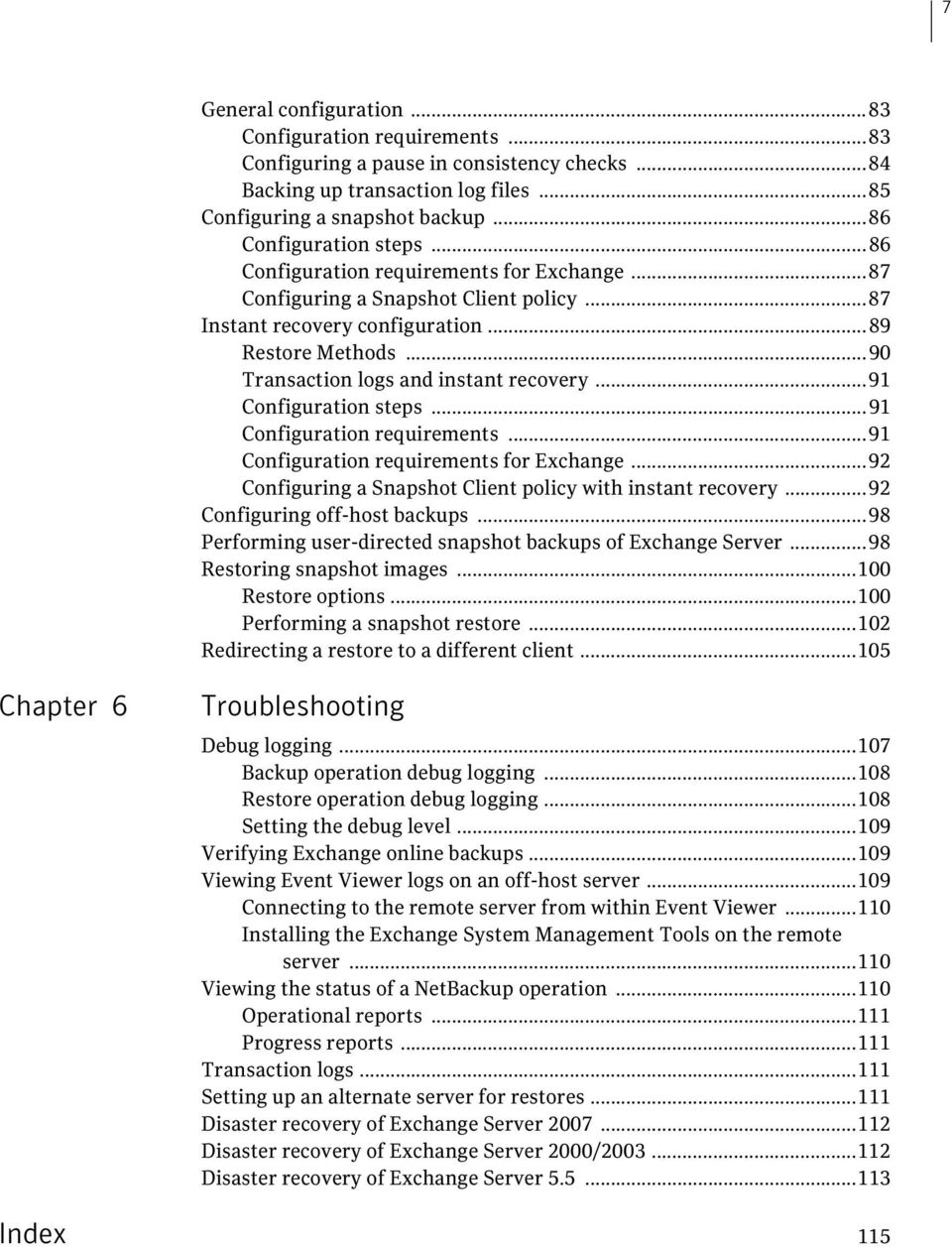
6 6 Adding a new policy Adding schedules Adding clients Adding backup selections Testing configuration settings Chapter 4 Chapter 5 Using NetBackup for Exchange Server Prerequisites for performing backups and restores Performing user-directed backups Specifying the server (and client) for a backup operation Backup options Performing user-directed backups of Exchange Server 2000 or later Performing user-directed backups of Exchange Server 5.x Performing user-directed backups of mailboxes and public folders Specifying the server, client, and policy type for a restore operation Performing restores of Exchange Server Before performing restores Existing transaction logs Restore options Restoring storage groups or storage group databases Restoring the Key Management Service or Site Replication Service Restoring Exchange 2003 or later to the recovery storage group Restoring Exchange Server 5.x objects Restoring the 5.x public and private databases separately from a Backup Exec backup Performing restores of Exchange mailboxes and public folders Restore options Restoring individual mailboxes, mailbox folders, public folders, or messages Redirecting a restore of mailbox objects or public folders to a different path Redirecting a restore to a different client Using NetBackup for Exchange Server with Snapshot Client NetBackup Snapshot Client for Exchange Server overview Supported platforms Limitations How does Snapshot Client for Exchange Server work? What is backed up? Consistency checks on database and log files... 82
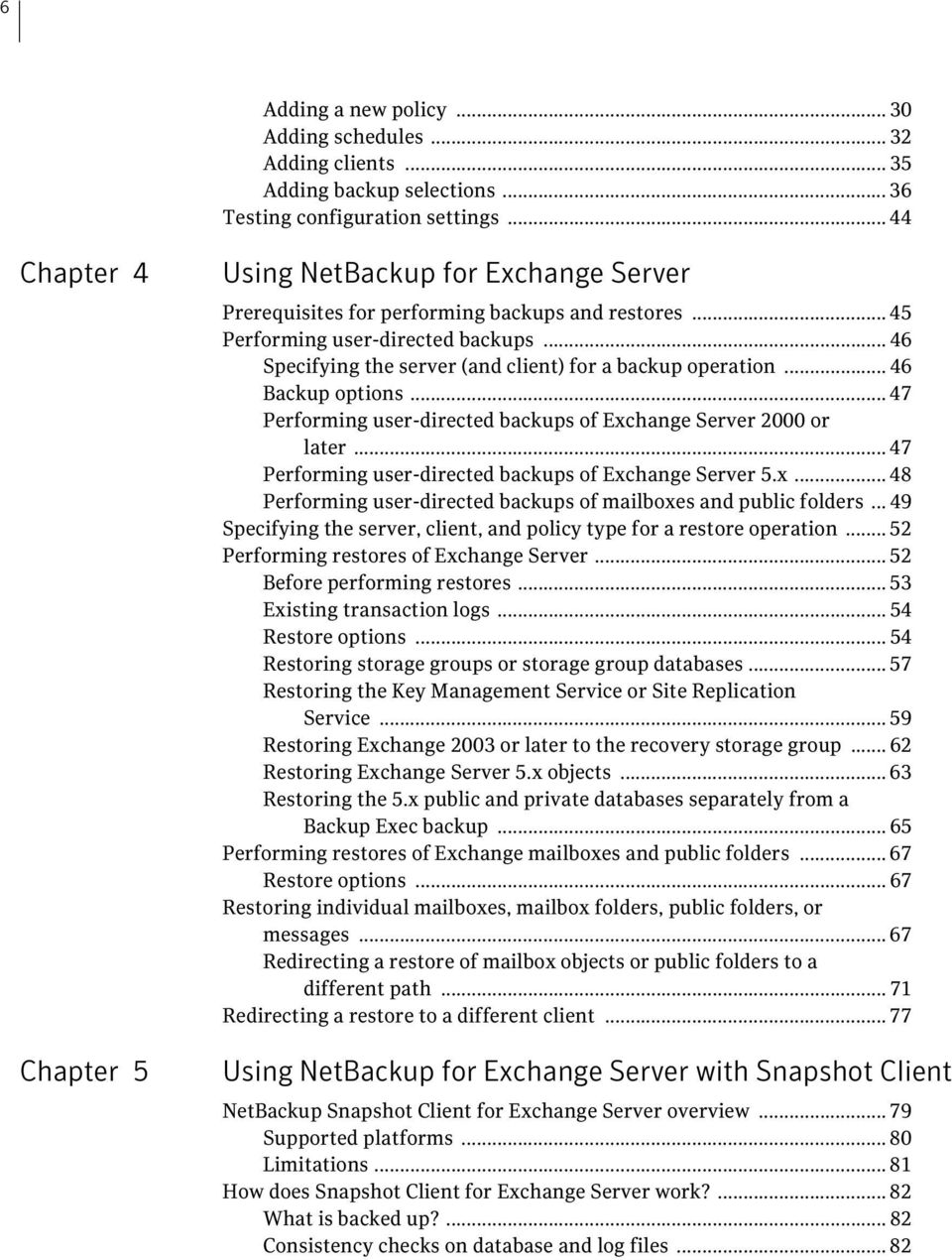
7 7 General configuration...83 Configuration requirements...83 Configuring a pause in consistency checks...84 Backing up transaction log files...85 Configuring a snapshot backup...86 Configuration steps...86 Configuration requirements for Exchange...87 Configuring a Snapshot Client policy...87 Instant recovery configuration...89 Restore Methods...90 Transaction logs and instant recovery...91 Configuration steps...91 Configuration requirements...91 Configuration requirements for Exchange...92 Configuring a Snapshot Client policy with instant recovery...92 Configuring off-host backups...98 Performing user-directed snapshot backups of Exchange Server...98 Restoring snapshot images Restore options Performing a snapshot restore Redirecting a restore to a different client Chapter 6 Index Troubleshooting Debug logging Backup operation debug logging Restore operation debug logging Setting the debug level Verifying Exchange online backups Viewing Event Viewer logs on an off-host server Connecting to the remote server from within Event Viewer Installing the Exchange System Management Tools on the remote server Viewing the status of a NetBackup operation Operational reports Progress reports Transaction logs Setting up an alternate server for restores Disaster recovery of Exchange Server Disaster recovery of Exchange Server 2000/ Disaster recovery of Exchange Server
8 8

9 Chapter 1 Introduction to NetBackup for Exchange Server NetBackup for Microsoft Exchange Server extends the capabilities of NetBackup to include online backups and restores of Exchange databases when Exchange Server has been installed. This capability is provided as an add-on or extension to the NetBackup for Windows client software. Because this product is tightly integrated with the Backup, Archive, and Restore interface for Windows, this document only gives an overview of NetBackup functionality. In general, backup and restore operations for Exchange files are identical to other NetBackup file operations, except where noted in this document. Microsoft Exchange Server is referred to as Exchange Server or Exchange. NetBackup for Microsoft Exchange Server is referred to as NetBackup for Exchange Server. Exchange 2007 support At the time of release of NetBackup 6.5 for Microsoft Exchange, some documented capabilities are not yet available: Instant Recovery for Exchange Server Mailbox Backup for Exchange 2007 Snapshot Backup for Exchange 2007 These capabilities are planned for availability in the next release update, or NetBackup

10 10 Introduction to NetBackup for Exchange Server Features Features Table 1-1 Feature Online backups Features of NetBackup for Exchange Server Description Exchange Server data and transaction logs can be backed up without taking the Exchange Server offline. Exchange services and data remain available during the Exchange Server backup. Minimal backup time Exchange Server Backup methods Tight NetBackup integration Central administration Media management Automated backups Restore operations An administrator has the choice of to perform full or incremental backups (differential incremental backup or cumulative incremental backup). A full backup may take considerable time, so it may be performed infrequently. In the interim, any updates that have occurred since the full backup can be quickly and incrementally backed up through a transaction log backup. In the event of a failure, the full backups and incremental backups would be restored. During recovery, the Exchange Server updates the databases and applies each of the logged transactions to the database. After the Exchange Server recovery has completed, the system is brought back to the state as it existed when the last incremental backup was performed. NetBackup supports all Exchange Server backup methods: full backups, cumulative incremental backups, differential incremental backups, and copy backups. Tight integration with NetBackup means two things: 1 An administrator already familiar with NetBackup procedures and software can easily configure and use NetBackup to perform Exchange Server backup and restore operations. 2 Features and strengths of the NetBackup product suite are available to the Exchange Server backup user. These features include software data compression and encryption, scheduled and user-directed operations, backups of multiple data streams, and in-line tape copy. Many of these features are described, in detail, in the NetBackup Administrator s Guide, Volume I. Administrators can define, back up, and restore Exchange Servers and other NetBackup client machines from a central location. Exchange Server backups can be saved directly to a wide variety of storage devices that the NetBackup master server supports. Administrators can set up schedules for automatic, unattended backups for local or remote clients across the network. These backups can be full or incremental and are managed entirely by the NetBackup server from a central location. The administrator can also manually back up the clients. An administrator using the Backup, Archive, and Restore interface can browse backups and select the ones to be restored.

11 Introduction to NetBackup for Exchange Server Features 11 Table 1-1 Feature Redirected restores Features of NetBackup for Exchange Server Description In a redirected restore, you restore an object (database, mailbox, folder, or message) to a new location. Individual mailbox backup and restore Exchange 2000 or later backup and restore features Backup and restore of the Exchange Public Store Single Instance Storage (SIS) of mailbox message attachments Compression of backups Administrators can perform backup and restore operations on individual mailboxes and folders. The capabilities of this feature are: Scheduled backups of individual mailboxes and folders User-directed backups of individual mailboxes and folders Restores of individual mailboxes, folders, or messages. These restores can be performed using the Backup, Archive, and Restore interface (on the server or on the client). Or you can use the Remote Administration Console for Windows or UNIX. NetBackup can back up and restore storage groups, as well as back up and restore databases within the storage group. The capabilities of this feature are: Scheduled backups of individual storage groups and databases User-directed backups of individual storage groups and databases Restores of individual storage groups and databases.these restores can be performed using the Backup, Archive, and Restore interface (on the server or on the client). Or you can use the Remote Administration Console for Windows or UNIX. (Exchange 2000) NetBackup can perform backups and restores of the Exchange Key Management Server (KMS) (Exchange 2000/2003) Exchange Site Replication Service (SRS) databases. NetBackup can back up and restore the Exchange Public Store. The capabilities of this feature are: Scheduled backups of individual folders User-directed backups of individual folders Restores of individual folders or messages. These restores can be performed using the Backup, Archive, and Restore interface (on the server or on the client). Or you can use the Remote Administration Console for Windows or UNIX. Users can enable Single Instance Storage for message attachments so only one copy of an attachment is written to the backup. Compression increases backup performance over the network and reduces the size of the backup image that is stored on the disk or tape.

12 12 Introduction to NetBackup for Exchange Server Backup operations Table 1-1 Feature Snapshot Client Cluster support Features of NetBackup for Exchange Server Description This separately-priced option allows NetBackup to perform backups and restores of Exchange 2003 or later objects using snapshot methodology. NetBackup can perform backups using the primary (or local) client where the Exchange server resides or using an alternate client. The latter reduces the backup I/O burden on the primary client. If the snapshot was preserved with the instant recovery option, NetBackup tries to restore the database with the fastest means possible. Usually, a rollback of the snapshot volume(s) which contain the Exchange files is the fastest means. However, the ability to perform a rollback depends on several things: the configuration of the Exchange database files, the contents of the volumes, and configuration of the disk array. If a volume rollback cannot be performed, the files that are required for restoration are copied from the snapshot volume to the original volume. The NetBackup for Exchange Server agent supports Microsoft Cluster Server (MSCS) environment and Veritas Cluster Server (VCS). Refer to the Veritas NetBackup Enterprise Server 6.5 Cluster Compatibility list. This list contains information on the versions of Exchange Server that are supported with the cluster environments. Backup operations Automatic backups NetBackup provides three methods to perform backups: automatic, manual, and user-directed. For more information on these backup methods and other administrator-directed activities, refer to the NetBackup Administrator s Guide, Volume I. The NetBackup administrator can schedule the full backups and the incremental backups that occur automatically and unattended. (Incremental backups can be differential incremental backups or cumulative incremental backups.) Automatic backups meet most backup requirements. You cannot perform an automatic copy backup. To perform a copy backup, run a user-directed backup.

13 Introduction to NetBackup for Exchange Server Backup operations 13 Manual backups User-directed backups NetBackup allows the administrator to perform immediate manual backups of the files that are associated with any policy, client, or schedules. The manual backup option can be useful for the following situations: Testing a configuration When workstations miss their regular backups Before installing new software (to preserve the old configuration) Preserving records before a special event such as when companies split or merge Using the Backup, Archive, and Restore interface, the user can perform backups of Exchange Server, mailboxes, and public folders. The user can also perform a user-directed backup to create a copy backup. A user-directed backup of Exchange databases is similar a backup of normal files. Exchange Server files that are backed up The following files can be backed up during a backup operation. Except where noted, the same files are backed up whether frozen image methodology is used to back up the files or not. (Frozen image methodology is available with the Snapshot Client feature.) Database files Different database files are backed up for Exchange Server 2007, Exchange 2000/2003 and for Exchange Server 5.x. Exchange Server 2000 or later For Exchanger Server 2000 and 2003, there can be up to 20 database stores. Each database store consists of 2 database files. For Exchange 2007, there can be up to 50 database stores. Each database store contains only one database file. By default, the database file is named database_name.edb.
14 14 Introduction to NetBackup for Exchange Server Backup operations The following table gives the database names and their default locations for the first Exchange Storage group. Table 1-2 Default locations for Exchange 2000 or later database files Database File Name Default Directory Mailbox Store Priv1.edb...\exchsrvr\mdbdata Priv1.stm...\exchsrvr\mdbdata Note: Subsequent storage groups and databases may have different locations and names (user-defined). Exchange Server 5.x The Exchange Server has three database files, one for the Directory and two for the Information Store. The following table gives the database names and their default locations. Table 1-3 Default locations for Exchange 5.x database files Database File Name Default Directory Directory Dir.edb...\exchsrvr\dsadata Information Store - Public Pub.edb...\exchsrvr\mdbdata Information Store - Private Priv.edb...\exchsrvr\mdbdata Database patch files (Exchange 5.5 or pre-exchange 2000, Service pack 2) Database patch files are used to handle transactions being written to the database during a backup. During the backup operation, data is read from the.edb file. If a transaction causes an update to a part of the.edb file that has already been backed up, then the update is written to the patch file for that database. Patch files only exist during the backup process. These patch files are used during the Exchange Server recovery process. They update the restored

15 Introduction to NetBackup for Exchange Server Backup operations 15 database file with the transactions that were in progress during the backup. The following table gives the names of the patch files and their default locations. Table 1-4 Default locations for patch files Database Patch File File Name Default Directory Directory Dir.pat...\exchsrvr\dsadata Information Store - Public Pub.pat...\exchsrvr\mdbdata Information Store - Private Priv.pat...\exchsrvr\mdbdata Transaction logs For performance and recoverability, the Exchange database uses transaction logs to accept, track, and maintain data. All transactions are first written to transaction logs and memory, and then to their respective databases. Transaction logs can be used to recover Directory or Information Store databases in the event that a failure has corrupted the database. The Information Store can have up to five separate databases but transaction logs are kept in a single set. Transactions are first written to the edb log or e0y log file and then later written to the database. Therefore, the current actual or effective database is a combination of the uncommitted transactions in the transaction log file and the actual edb or e0y database file. When the log file is filled with transaction data, it is renamed and a new edb or e0y log file is created. When the log file is renamed, the other renamed log files are stored in the same subdirectory. The renamed log files are named in a sequential numbering order, using hexadecimal. For full backups and differential incremental backups, the committed transaction logs are truncated (deleted) by Exchange after a successful backup. Note: After every 5MB of transaction log data is written, a new log is created. The log is created even though the transaction data may not be committed to the database. There may be several transaction logs that contain uncommitted data, and therefore they are not purged. Transactions in log files are committed to the respective edb or e0y file when the service is shut down normally. For example, consider when the Information Store service experiences a normal shutdown (service shuts down with no errors). Any transactions that existed in log files and not in the Priv.edb and or Pub.edb files are committed to the edb files. Log files should not be manually purged; instead, purge logs through the backup process.

16 16 Introduction to NetBackup for Exchange Server Backup operations The following process takes place during a full backup: Database files are written to the backup media. (Exchange 5.5 or pre-exchange 2000, Service Pack 2) Patch files are created to accommodate updates to the database during the backup. Transaction logs are written to the backup media. (Exchange 5.5 or pre-exchange 2000, Service Pack 2) Patch files are written to the backup media. Committed transaction logs are truncated (deleted) by Exchange. These logs are no longer required since they have been committed to the database file and they have been written to the backup media. Exchange 2007 The following table gives the names of the transaction logs and their default locations. Table 1-5 Default locations for Exchange 2007 transaction logs Database Transaction Log File Name Default Directory Information Store exxyyyyyyyy.log..\exchsrvr\mdbdata XX is the storage group number (in hex). YYYYYYYY is the log file number (in hex). Note that the log file number now has 8 digits, instead of 5 digits. The size of the transaction logs has changed from 5 MB in Exchange 2000/2003 down to 1MB in Exchange Exchange 2000/2003 The following table gives the names of the transaction logs and their default locations. Table 1-6 Default locations for Exchange 2000/2003 transaction logs Database Transaction Log File Name Default Directory Information Store e0yxxxxx.log..\exchsrvr\mdbdata Where Y is a number from 0-3 representing the storage group, e.g., e00.log, e01.log, e02.log, e03.log. XXXXX is a five-digit hexadecimal number that is incremented each time an e0y log file is renamed.
17 Introduction to NetBackup for Exchange Server Restore operations 17 Exchange 5.5 logs The following table gives the names of the Exchange 5.5 transaction logs and their default locations. Table 1-7 Default locations for Exchange 5.5 transaction logs Database Transaction Log File Name Default Directory Directory edbxxxxx.log..\exchsrvr\dsadata Information Store edbxxxxx.log..\exchsrvr\mdbdata Where XXXXX is a five digit hexadecimal number that is incremented each time an edb log file is renamed. Restore operations With the Backup, Archive, and Restore interface, the administrator can browse for Exchange Server backups and select the ones to restore. Server-directed restores An administrator can browse Exchange Server databases and select the ones to be restored. NetBackup allows you to select the NetBackup server from which files are restored, to view the backup history, and to select items to restore for a specific client or other clients that were backed up by the selected NetBackup server. Redirecting a restore to a different client Databases or directories can be restored to a client other than the one from which they were backed up. The NetBackup administrator must enable this configuration and the database agent must be installed on the alternate client. The administrator can direct restores to any NetBackup client (regardless of which client performed the backup). The administrator can use the NetBackup Administration Console on the master server or the Remote Administration Console to redirect a restore. See the NetBackup Administrator s Guide for the configuration that is needed for this type of redirected restore. Redirecting a restore to a different path A user can restore mailbox objects and Public folder objects to directories that are different from the directories from which the objects were backed up.

18 18 Introduction to NetBackup for Exchange Server Related resources Database objects should not be redirected to different paths. Database objects can be redirected to an Exchange Recovery Storage Group. A user can restore Exchange databases to directories that are different from the directories from which the databases were backed up. Restoring Exchange 2003 or Exchange 2007 to a recovery storage group Related resources NetBackup supports the restore of Exchange 2003 or Exchange 2007 to a recovery storage group. You may also need the following resources from Microsoft Corporation: Exchange Server white papers and FAQs (go to and search for Disaster Recovery ) Microsoft Exchange Administrator's Guide Microsoft Exchange Concepts and Planning Guide Microsoft TechNet Microsoft BackOffice Resource Kit
19 Chapter 2 Installing the NetBackup for Exchange Server agent In order to install the database agent, perform the following tasks: Verify the installation prerequisites. Perform this task before enabling this agent. The database agent software is installed when you install NetBackup, so verify these prerequisites before enabling the agent. Register the license key for the agent. Verifying the installation prerequisites NetBackup for Exchange Server is installed with the NetBackup server and client software, but you must confirm that the installation prerequisites in this section are met before you enable the database agent. These requirements apply for remote and local installations. Operating system and platform compatibility Verify that NetBackup for Exchange Server is supported on your operating system or platform. To verify compatibility 1 Go to the technical support Web page: 2 In the Product Lookup field, type in NetBackup Enterprise Server and click on the > button. 3 From the list on the right, click on Compatibility List.

20 20 Installing the NetBackup for Exchange Server agent Verifying the installation prerequisites 4 In the list of documents, click Veritas NetBackup Enterprise Server (tm) x.x/ NetBackup Server x.x Database Agent Compatibility (Updated date). For x.x, look for the current release. For date, look for the most recent date. For information on supported cluster environments for NetBackup for Exchange Server, see NetBackup (tm) x.x Cluster Compatibility (updated date). 5 Click the link for the PDF document, which is a downloadable file that enables you to view the supported database spreadsheet for this release. 6 Read the document and verify that the software in your environment is compatible with the NetBackup and the database agent. NetBackup software Database agent Verify that the following requirements are met for the NetBackup server and client software: The NetBackup server software is installed and operational on the NetBackup server. The NetBackup server platform can be any that NetBackup supports. For installation information, see the NetBackup Installation Guide. The NetBackup client software is installed on the client that has the databases you want to back up. This step also installs the database agent. (If the database client is also a NetBackup server, the client software is installed along with the server software.) The install_path\netbackup directory must exist on the client. For installation information, see the NetBackup Installation Guide. Make sure that you configure any backup media that the storage unit uses. The amount of backup media that is required depends on the devices that are used, the sizes of the databases that you want to back up, the amount of data that you want to archive, the size of your backups, and the frequency of backups or archives. For information on using Media Manager, see the NetBackup Administrator s Guide, Volume I. Verify that the follow requirements are met for the database software. The Exchange Server software is installed and operational on each client.
21 Installing the NetBackup for Exchange Server agent Registering the license key 21 Cluster software Verify the following requirements if you are enabling the database agent on a NetBackup server configured in a NetBackup cluster: The Exchange vendor software is installed and operational on each node to which NetBackup can failover. The NetBackup server software is installed and configured to work in a NetBackup cluster. Follow the instructions in the NetBackup Installation Guide. The NetBackup server installation procedure installs the database agent software along with the server and client software. After all other prerequisites are met, you only need to register the license key for the agent on each NetBackup server in order to enable the agent. Registering the license key The database agent is installed with the server and client software. To use this agent, register a valid license key for it on the master or media server. In a NetBackup cluster, register the key on each node on which the NetBackup server is installed. To register a license key 1 On the master or media server, open the NetBackup administration console. 2 Choose Help > License Keys. 3 Click the New button. 4 Type in the license key and click Add. For information on adding license keys, see the NetBackup Administrator s Guide, Volume I.
22 22 Installing the NetBackup for Exchange Server agent Registering the license key
23 Chapter 3 Configuration The following topics provide information on how to configure NetBackup to perform backup and restore operations of Exchange Server. Configuring NetBackup for backups and restores of individual mailboxes and public folders Configuring the account that is used for Exchange Server restores Configuring a backup policy for a database Configuring Single Instance Store backups Testing configuration settings User interface terminology notes You can perform many of the configuration steps in this chapter from the NetBackup administration console on the master server. Depending on your master server s platform, the console is available in one or two forms. NetBackup supports a Java interface for both Windows and UNIX master servers. In addition, NetBackup supports a Windows interface for Windows master servers. The Java and Windows interfaces are nearly identical. If interface differences exist in the configuration procedures, this manual uses the following headings to identify the interface being described: From the Windows interface: From the Java interface:
24 24 Configuration Configuring NetBackup for backups and restores of individual mailboxes and public folders Configuring NetBackup for backups and restores of individual mailboxes and public folders The following configuration must be performed so that NetBackup can back up and restore individual mailboxes and mailbox folders, and folders within the public folders. Note: If in a cluster, these steps need to be performed on each Exchange node in the cluster. Creating a user account for the NetBackup Client Service on page 24 Configuring the NetBackup Client Service log on account on page 26 Configuring NetBackup to use the mailbox that is associated with the NetBackup Client Service account on page 27 Creating a user account for the NetBackup Client Service For NetBackup to gain access to the mailboxes and folders to perform backup and restore operations, the NetBackup Client Service must be associated with a valid Exchange mailbox. Symantec recommends that you create a uniquely named mailbox. Creating a user account for the NetBackup Client Service (Exchange 2000/2003) To create a user account for the NetBackup Client Service 1 Use Active Directory Users and Computers to create a user account that has a mailbox with a unique name. A unique name is one that does not already exist within the Exchange Organization. This name cannot be contained as a set of characters in an existing name. For example: EXCH1 is entered as the unique mailbox name, and other mailbox names such as EXCH1BACKUP or BACKUPEXCH1 exist. The backup or restore of individual mailboxes or both fail. 2 After you create the account, double-click the account, click the Members Of tab, and add this account to the Domain Admins group. 3 Open Exchange System Manager. 4 Right-click the Exchange Organization and select Delegate Control. 5 Click Next.
25 Configuration Configuring NetBackup for backups and restores of individual mailboxes and public folders 25 6 On the Users or the Groups screen, click Add. 7 In the Delegate Control dialog box, provide the following information. Group or User Specify the name of the account that was created in step 1. Role Select Exchange Full Administrator. 8 Complete the Delegation wizard. 9 If you have an Active/Active configuration, continue with the next section, Granting the NetBackup Client Service account advanced permission. 10 Continue with the instructions for Configuring the NetBackup Client Service log on account on page 26. Granting the NetBackup Client Service account advanced permission If you have an Active/Active configuration, the account created for the NetBackup Client Service must also be granted Receive As and Send As advanced permission on each virtual Exchange Server in the configuration. To grant the NetBackup Client Service account advanced permission 1 Open Exchange System Manager. 2 Locate the virtual Exchange Server. 3 Right-click the virtual Exchange Server and select Properties. 4 Click the Security tab. 5 Select the account that was created in Creating a user account for the NetBackup Client Service on page Under Permissions, select Receive As and Send As. 7 Click OK. 8 Repeat step 2 through step 7 for each virtual Exchange Server in the cluster. 9 Continue with the instructions for Configuring the NetBackup Client Service log on account on page 26. Creating a user account for the NetBackup Client Service (Exchange 5.x) For Exchange 5.x, if a mailbox is not created for the NetBackup Client Service, you can use any existing mailbox on the Exchange Server to which the NetBackup Client Service account is granted log on rights.
26 26 Configuration Configuring NetBackup for backups and restores of individual mailboxes and public folders Note: Certain minimum rights are required for backing up and for restoring a mailbox. These rights are Modify User Attributes and Modify Administrator Attributes. If you grant permissions individually to each mailbox rather than to all mailboxes at the site or at the recipient container level, you can assign the User role. This role allows backups and restores of mailboxes to which permissions have been given. To back up public folders, add the account that was created for backups (the account for the Netbackup Client Service) to the public folders. Give it Reviewer permissions. To create a user account for the NetBackup Client Service 1 Use Exchange Administrator to create a new mailbox. This mailbox must have a unique name or you must assign a unique alias to the mailbox. A unique name is one that does not already exist within the Exchange Organization. This name cannot be contained as a set of characters in an existing name. For example: EXCH1 is entered as the unique mailbox name, and other mailbox names such as EXCH1BACKUP or BACKUPEXCH1 exist. The backups or restores of individual mailboxes or both fail. 2 Double-click the new mailbox and click the General tab. 3 Click Primary Windows NT Account and add the account that was created step 1. 4 Select either a site container or recipient container that contains the mailboxes you want to back up. 5 Click the Properties button. 6 On the Permissions tab, add the account that was created step 1, select the Admin Role, and click OK. 7 Continue with the instructions for Configuring the NetBackup Client Service log on account on page 26. Configuring the NetBackup Client Service log on account By default, the NetBackup Client Service uses Local System as the account on which to log on. To perform backups or restores of individual mailboxes and folders and items in the public folders, change the service account to the Windows domain account you previously created. (See Creating a user account for the NetBackup Client Service on page 24.) To change this account, you must have administrator group privileges.
27 Configuration Configuring NetBackup for backups and restores of individual mailboxes and public folders 27 To change the log on account for the NetBackup Client Service 1 Open the Windows Services application. 2 Double-click the NetBackup Client Service entry. 3 Click the Log On tab. 4 Provide the name of the account you created for Creating a user account for the NetBackup Client Service on page 24. The account must include the domain name, followed by the user account, domain_name\account. For example, recovery\netbackup. 5 Stop and start the NetBackup Client Service. 6 Continue with the instructions for Configuring NetBackup to use the mailbox that is associated with the NetBackup Client Service account on page 27. Configuring NetBackup to use the mailbox that is associated with the NetBackup Client Service account To configure NetBackup to use the mailbox that are associated with the NetBackup Client Service account 1 Open the NetBackup Administration Console or the Remote Administration Console. 2 In the left pane, expand Host Properties. 3 Click Clients. 4 In the right pane, right-click on the Exchange client you want to configure and choose Properties. 5 Expand Windows client and click Exchange. 6 In the Mailbox for message level backup and restore text box, specify the mailbox. The mailbox may be specified as: An Exchange mailbox name. Use the mailbox that was configured in Creating a user account for the NetBackup Client Service on page 24.
28 28 Configuration Configuring the account that is used for Exchange Server restores A fully-qualified name, if you did create a unique mailbox for NetBackup. For example: /O=<Org_Name>/OU=<Site_Name>/CN=<Server_Name>/CN=<Mailbox_Name> A mailbox alias 7 Click OK. 8 Create a backup policy for Exchange mailboxes. See Configuring a backup policy for a database on page 30. Configuring the account that is used for Exchange Server restores Symantec recommends that the NetBackup Client Service use the same account that runs Exchange Services. If you restore from Exchange 5.x and use an account other than the one for Exchange, add the account to the local computer s Administrators group. You do not need to add the account to the Domain Administrators or Domain Admins groups. Exchange 5.x services must be shut down to restore Exchange Server, and Administrator privileges are necessary to shut down services in Windows.
29 Configuration Configuring Single Instance Store backups 29 Configuring Single Instance Store backups Exchange Server uses single-instance storage (SIS) to store mail messages. This capability in Exchange Server allows the database to keep one copy of a message attachment sent to multiple users on the same server. To perform SIS backups, this feature must be enabled on the client where Exchange Server is installed. Note: Only attachments larger than 100K are backed up as SIS objects. Attachments smaller than 100K are backed up with each individual message. To enable Single Instance Store backups 1 Open the NetBackup Administration Console or the Remote Administration Console. 2 In the left pane, expand Host Properties. 3 Click Clients. 4 In the right pane, right-click on the client you want to configure and choose Properties. 5 Expand Windows client and click Exchange. 6 Select Enable single instance backup for message attachments. 7 Click OK.
30 30 Configuration Configuring a backup policy for a database Configuring a backup policy for a database A backup policy for a database defines the backup criteria for a specific group of one or more clients. These criteria include: Storage unit and media to use Policy attributes Backup schedules Clients to be backed up Items (database objects) to be backed up To back up a database environment, you need to define at least one MS-Exchange-Server policy with the appropriate schedules. A configuration can have a single policy that includes all clients, or there can be many policies, some of which include only one client. Most requirements for database policies are the same as for file system backups. In addition to the policy attributes for this database agent, other attributes are available that you should consider. For configuration instructions and information on all the attributes available, see the NetBackup Administrator s Guide, Volume I. Adding a new policy These instructions describe how to add a new backup policy for a database. To configure a backup policy for databases 1 Log on to the master server as administrator (Windows) or root (UNIX). 2 Start the NetBackup Administration console. 3 If your site has more than one master server, choose the one on which you want to add the policy. 4 From the Windows interface: In the left pane, right-click Policies and choose New Policy. From the Java interface: In the left pane, click Policies. In the All Policies pane, right-click the master server, and click New Policy. 5 In the Add a New Policy dialog box, in the Policy name field, type a unique name for the new policy. 6 Click OK.
31 Configuration Configuring a backup policy for a database 31 7 In the Add a New Policy or Change Policy dialog box, in the Policy type list, select the MS-Exchange-Server policy type. The database agent policy type does not appear in the drop-down list unless your master server has a license key for the database agent. 8 Complete the entries on the Attributes tab. For more information, see Description of attributes on page Add other policy information. To add schedules, see Adding schedules on page 32. To add clients, see Adding clients on page 35. To add Exchange objects to the backup selections list, see Adding backup selections. 10 When you have added all the schedules, clients, and backup selections you need, click OK. Description of attributes With a few exceptions, NetBackup manages a database backup like a file system backup. Table 3-1 shows the policy attributes that are different for Exchange backups. This information is used when you add a new policy. Other policy attributes vary according to your specific backup strategy and system configuration. For more information on policy attributes, see the NetBackup Administrator s Guide, Volume I. Table 3-1 Attribute Policy type Policy attribute descriptions Description Determines the types of clients that can be in the policy. In some cases the policy type determines the types of backups that NetBackup can perform on those clients. To use the database agent, you must define at least one policy of type that is MS-Exchange-Server. Allow multiple data streams Specifies that NetBackup can divide automatic backups for each client into multiple jobs. Each job backs up only a part of the list of backup selections.the jobs are in separate data streams and can occur concurrently. The number of available storage units, multiplex settings, and the maximum jobs parameters determine the total number of streams and how many can run concurrently. Not all directives in the backup selections list allow for multiple database streams.
32 32 Configuration Configuring a backup policy for a database Table 3-1 Attribute Keyword phrase Snapshot Client Policy attribute descriptions (continued) Description A textual description of a backup. Useful for browsing backups and restores. See Using NetBackup for Exchange Server with Snapshot Client on page 79 for information on how to configure policies for snapshot methods. Adding schedules Each policy has its own set of schedules. These schedules control initiation of automatic backups and also specify when user operations can be initiated. To add a schedule 1 In the Policy dialog box, click the Schedules tab. To access the Policy dialog box, double-click the policy name in the Policies list in the NetBackup Administration Console. 2 Click New. 3 Specify a unique name for the schedule. 4 Select the Type of backup. See Types of backups on page Specify the other properties for the schedule. See Schedule properties on page If this is the last schedule, click OK. To add more schedules, click Add and repeat step 2 through step 6.
33 Configuration Configuring a backup policy for a database 33 Types of backups Table 3-2 Type of Backup Full Backup Differentialincremental backup User Backup Description of Types of Backups Description For server backups, this schedule type backs up the Exchange Server database and associated transaction logs. All committed transaction logs are truncated (deleted) after they are successfully backed up. For mailbox backups, this schedule type backs up the entire mailbox, including all the folders and messages in that mailbox. For the Public Store, this schedule type backs up the entire Public Store, including all the folders and messages within the Public Store. A differential incremental backup only backs up changes since the last full or differential incremental backup. Differential incremental backups can be performed of databases, the KMS and the SRS services, mailboxes and of the Public Share. When you use this method to back up a database, only transaction logs are backed up. After the successful backup of the transaction logs, all committed logs are truncated (deleted). The truncation of the transaction logs sets the context for the next backup. To perform a full restore the data that is needed is contained in multiple NetBackup images. One image for the full backup and another image for each differential incremental that was performed. A user backup is not automatically scheduled and is initiated on the target client machine. A user-directed backup of a database is identical to a full backup except that the transaction logs are not truncated. User backups are like a snapshot of the databases at a given point in time, without impacting the content of ongoing full and incremental backups. You may want to consider creating a separate policy for User Backup schedule types. Then you can easily separate user-directed and scheduled backups when you restore files. If you decide to create separate policies for User Backup schedule types, the considerations are similar to those for automatic backups. A Backup Selections list is not needed because users select the files to restore.
34 34 Configuration Configuring a backup policy for a database Table 3-2 Type of Backup Cumulativeincremental backup Description of Types of Backups (continued) Description A cumulative incremental backup backs up all changes since the last full backup or differential incremental backup. (However, most configurations do not mix cumulative and differential incremental backups between full backups.) Cumulative incremental backups can be performed of databases, the KMS and the SRS services, mailboxes and of the Public Share. When you use this method to back up databases, only transaction logs are backed up and they are not truncated upon completion of the backup. When you restore databases, transaction logs remain intact since the last full backup. In an Exchange Server data recovery scenario where the transaction logs are all intact, you only need to restore the database from the last full backup and the last cumulative incremental backup. During recovery, Exchange Server replays all the logs in the log folder. The Exchange Server database is brought back to the current date instead of to the time of the last full or incremental backup. Caution: Differential incremental and cumulative incremental backup types fail if database circular logging is configured for the Exchange Server. See Microsoft s Exchange Server Administration Guide for more information on configuring circular logging. Note: You are allowed to configure incremental schedule types, but incremental backups are not performed for individual databases within storage groups. The backup job still runs according to the configured incremental schedules, but the job logs warnings for attempted incremental backups of these objects.
35 Configuration Configuring a backup policy for a database 35 Schedule properties Some of the schedule properties have a different meaning for database backups than for a regular file system backup. Table 3-3 explains the schedule properties. Table 3-3 Property Type of backup Description of schedule properties Description Specifies the type of backup that this schedule controls. The selection list shows only the backup types that apply to the policy you want to configure. For more information, see Types of backups on page 33. Frequency Calendar Retention This setting is used only for scheduled backups and not for user-directed backups. Frequency specifies the period of time that can elapse until the next backup or archive operation begins on this schedule. For example, assume that the frequency is seven days and a successful backup occurs on Wednesday. The next full backup does not occur until the following Wednesday. Typically, incremental backups have a shorter frequency than full backups. This setting is used only for scheduled backups. It is not used for user-directed backups. The Calendar option allows you to schedule backup operations that are based on specific dates, recurring week days, or recurring days of the month. Specifies a retention period for keeping backup copies of files before deleting them. The retention level also denotes a schedules priority within the policy, with Level 9 schedules having the highest priority and Level 0 the lowest. Set the time period to retain at least two full backups of your database. In this way, if one full backup has been lost, you have another full backup to fall back on. For example, if your database is backed up once every Sunday morning, you should select a retention period of at least 2 weeks. Other schedule properties vary according to your specific backup strategy and system configuration. For more information on schedule properties, consult the NetBackup Administrator s Guide, Volume I. Adding clients The Clients list contains a list of the clients that are backed up during an automatic backup. A NetBackup client must be in at least one policy but can be in more than one.
36 36 Configuration Configuring a backup policy for a database For a database policy, clients you want to add must have the following software installed: Exchange Server NetBackup client or server To add clients to a policy 1 In the Policy dialog box, click the Clients tab. To access the Policy dialog box, double-click the policy name in the Policies list in the NetBackup administration console. 2 Click New. 3 Enter the name of the client you want to add. If Exchange is installed in a NetBackup cluster, specify the virtual Exchange name as the client name. From the Windows interface Type the name of the client and press Enter. If NetBackup cannot detect the hardware and operating system, a dialog box displays so you can specify this information. OR Click the Browse for Computer button to choose the client from the network. From the Java interface a b In the Client name field, type the name of the client you want to add. Choose the Hardware and operating system type and click Add. 4 To add another client, repeat step 2 and step 3. 5 If this client is the last client, click OK. Adding backup selections The Backup Selections list defines the following: the Exchange objects (databases, mailboxes, and mailbox folders) to back up and the grouping of Exchange objects for multiple data streams. For information on how to exclude items from backups, see Excluding folders and files from mailbox and public folder backups on page 43. Notes and limitations To perform backups of mailboxes, additional steps are required beyond policy configuration.
37 Configuration Configuring a backup policy for a database 37 Refer to Configuring NetBackup for backups and restores of individual mailboxes and public folders on page 24. Perform database backups separately from mailbox backups. Perform Exchange 5.5 and Exchange 200x backups separately. For example, do not add Microsoft Exchange Server:\Information Store\ and Microsoft Information Store:\First Storage Group\ to the same policy. The first is an Exchange 5.5 directive. The second is an Exchange 200x directive. Also, do not add Microsoft Exchange Mailboxes:\ (a mailbox directive) and Microsoft Information Store:\ (an Exchange 200x directive) to the same policy. Only backups of mailboxes or folders or both are allowed. You cannot specify the backup of an individual message or individual public document. (Exchange 2000 or later) Incremental and differential backups are only supported at storage group level. It does not support incremental and differential backups of individual databases within a storage group. Exchange database backups are required for disaster recovery. Mailbox backups allow for mailbox recovery, but are not adequate for disaster recovery. For Active/Active configuration of Exchange 2000 or later in a Microsoft Cluster Server environment, backups behave differently if more than one instance is running on the same node. In that case, scheduled backups that use the Mailbox directive only back up all mailboxes on all instances that run on that node. The mailboxes are backed up regardless of which virtual server name is specified for backups. When individual databases in a storage group are backed up, the transaction logs for the entire storage group are also included in the backup. Transaction logs are not truncated (deleted) until a full backup is run on every database in the storage group. To ensure that transaction logs are truncated (deleted) regularly, include all databases for a storage group in a full backup policy. Or specify the storage group (not individual databases) in the backup policy. Creating a backup selections list by browsing On Windows systems, you can browse for Exchange objects and add them to the Backup Selections list. Alternatively, the objects can be specified manually. See Manually adding entries to the backup selections list on page 38. For examples, see Example entries in the Backup Selections list on page 39.
38 38 Configuration Configuring a backup policy for a database To add an Exchange object to the backup selections list by browsing (Windows only) 1 In the Policy dialog box, click the Backup Selections tab. 2 Click New. 3 Click the Remote Folder icon. 4 Navigate to and select the Exchange object to back up and click OK. 5 Edit the new entry, if you want to define groups of objects or use multiple data streams. For example, you can create groups of mailboxes, storage groups or databases, or public folders to back up. See Using wildcards on page 41. To divide backups into multiple data streams, see Performing backups with multiple data streams on page (Exchange 2000 only) Add the ExIFS drive (M drive, by default) to the NetBackup client s Exclude list. Then create a policy to back up the following: public folders, the Microsoft Information Store, Storage Groups, or databases. This action prevents Exchange 2000 objects from being backed up as file-level files. 7 Click OK. Manually adding entries to the backup selections list Database objects can be manually added to the Backup Selections list, if you do not want to use the browse feature. For examples, see Example entries in the Backup Selections list on page 39. To manually add entries to the backup selections list In the Policy dialog box, click the Backup Selections tab. Click New. (Windows) Click the Directives icon. Select the directive set. Select the directive. Click OK. Edit the new entry, if you want to define groups of objects or use multiple data streams.
39 Configuration Configuring a backup policy for a database 39 For example, you can create groups of mailboxes, storage groups or databases, or public folders to back up. See Using wildcards on page 41. To divide backups into multiple data streams, see Performing backups with multiple data streams on page (Exchange 2000 only) Add the ExIFS drive (M drive, by default) to the NetBackup client s Exclude list. Then create a policy to back up the following: public folders, the Microsoft Information Store, or Storage Groups or databases. This action prevents Exchange 2000 objects from being backed up as file-level files. 9 Click OK. Example entries in the Backup Selections list The following table includes example entries for mailboxes, public folders, Storage Groups, and Storage Group databases. Note: The root path of an Exchange Mailbox object ( Microsoft Exchange Mailboxes: ) is case sensitive. Note: Allow multiple data streams must be enabled to use the NEW_STREAM directive. Table 3-4 To back up Example entries in the Backup Selections list Example path An individual mailbox Microsoft Exchange Mailboxes:\Mailbox 1\ A mailbox folder Multiple mailboxes, by using two datastreams Multiple mailboxes, by using one stream for each mailbox Microsoft Exchange Mailboxes:\Mailbox 1\Top of Information Store\Inbox NEW_STREAM Microsoft Exchange Mailboxes:\[a-m]* NEW_STREAM Microsoft Exchange Mailboxes:\[n-z]* Microsoft Exchange Mailboxes:\*
40 40 Configuration Configuring a backup policy for a database Table 3-4 To back up Example entries in the Backup Selections list (continued) Example path Multiple folders by using two datastreams An individual public folder A Public subfolder Multiple public folders, by using two datastreams Multiple public folders, by using one stream for each folder An individual storage group A database within a storage group NEW_STREAM Microsoft Exchange Mailboxes:\Mailbox 1\Top of Information Store\[a-m]* NEW_STREAM Microsoft Exchange Mailboxes:\Mailbox 1\Top of Information Store\[n-z]* Microsoft Exchange Public Folders:\Folder1\ Microsoft Exchange Public Folders:\Folder1\Subfolder1\ NEW_STREAM Microsoft Exchange Public Folders:\Folder1\ NEW_STREAM Microsoft Exchange Public Folders:\Folder2\ Microsoft Exchange Public Folders:\* Microsoft Information Store:\First Storage Group\ Microsoft Information Store:\First Storage Group\Mailbox Store\ Note: When individual databases in a storage group are backed up, the transaction logs for the entire storage group are also included in the backup. Transaction logs are not truncated (deleted) until a full backup is run on every database in the storage group. To ensure that transaction logs are truncated (deleted) regularly, include all databases for a storage group in a full backup policy. Or specify the storage group in the backup policy, not individual databases. Multiple storage groups, with one stream for each group Multiple storage groups, by using two datastreams Multiple storage groups, by using one stream for each storage group An Exchange 5.5 server Microsoft Information Store:\* NEW_STREAM Microsoft Information Store:\First Storage Group NEW_STREAM Microsoft Information Store:\Second Storage Group Microsoft Information Store:\* Microsoft Exchange Server:\Directory\ Microsoft Exchange Server:\Information Store\
41 Configuration Configuring a backup policy for a database 41 Performing backups with multiple data streams Multiple datastreams divide automatic backups into multiple jobs; each job backs up only a part of the Backup Selections list. To use multiple data streams, enable Allow multiple data streams on the Attributes tab for the policy. Then add the NEW_STREAM directive in the Backup Selections list to indicate where a new backup stream should begin. The exchange mailboxes or storage groups that are defined in the Backup Selections list with wildcard characters are backed up in multiple streams. You can choose to have NetBackup automatically determine where to begin new streams. Or you can control where each stream begins by inserting the NEW_STREAM directive at a certain point or points in the Backup Selections list. For example, if you enable multiple datastreams and specify the following in the Backup Selections list, NetBackup creates a new stream for each mailbox. Microsoft Exchange Mailboxes:\[a-m]* Microsoft Exchange Mailboxes:\[n-z]* If you specify the following in the Backup Selections list, NetBackup creates only two streams, one for mailboxes a-m and one for mailboxes n-z. NEW_STREAM Microsoft Exchange Mailboxes:\[a-m]* NEW_STREAM Microsoft Exchange Mailboxes:\[n-z]* For more information on the multiple data streams feature, refer to the NetBackup Administrator s Guide, Volume I. Using wildcards Wildcard characters can be used to define groups of mailboxes or public folders. This way multiple objects can be backed up without having to specify the objects individually in the Backup Selections list. Multiple data streams must also be enabled. If this feature was not enabled, the backup fails. Table 3-5 describes the supported wildcard characters for Backup Selections lists in an Exchange policy. Table 3-5 Supported wildcard characters Wildcard character Action Asterisk (*) Question Mark (?) Use as a substitute for zero or more characters. To specify all objects that start with an a use a*. Use as a substitute for a single character in a name. For example, s?z would process all objects that had s for a first character, any character for a second character, and z for a third character.
42 42 Configuration Configuring a backup policy for a database Table 3-5 Supported wildcard characters (continued) Wildcard character Action Left & Right Brackets ([ ]) Use to match any one character that is enclosed in square brackets. A minus (-) may be used to indicate a range of consecutive characters; for example, [0-9] is equivalent to [ ]. Note: The - loses this special meaning if it occurs last in the string. Note: The right square bracket (]) does not terminate such a string when it is the first character within it. For example, [] a-f] matches either a right square bracket (]) or one of the ASCII letters a through f inclusive. Asterisk (*) and Question Mark (?) stand for themselves within such a string of characters. The following rules apply when wildcard characters are used in the Backup Selections list. Only one wildcard pattern per Backup Selections list entry is allowed. Wildcard patterns are honored only in the final segment of the path name. Correct Microsoft Exchange Mailboxes:\Mailbox 1\Top of Information Store\* Microsoft Exchange Public Folders:\Folder\Subfolder? Incorrect Microsoft Exchange Mailboxes:\Mailbox 1\*\Inbox Microsoft Exchange Public Folders:\Folder?\ Wildcard patterns are not supported under the Microsoft Information Store:\ directive. Incorrect Microsoft Information Store:\First Sto* Microsoft Information Store:\First Storage Group\Database* If a wildcard pattern is not honored it is treated literally. For an Exchange Mailbox path: any segment of the path can contain wildcard characters as long as the wildcard characters are the last characters in the segment. These segments include mailbox names, folders, or messages within the Mailbox hierarchy. Correct Microsoft Exchange Mailboxes:\Mailbox 1\Top of Information Store\[a-m]* Microsoft Exchange Mailboxes:\Mailbox [1-3] Incorrect Microsoft Exchange Mailboxes:\Mailbox [1-3]\Top of Information Store
43 Configuration Configuring a backup policy for a database 43 Microsoft Exchange Mailboxes:\Mailbox 1\Top*\ For Exchange public folders: any segment of the path can contain wildcard characters as long as the wildcard characters are the last characters in the segment. These segments include work space names or work space folders. Correct Microsoft Exchange Public Folders:\Folder1\Subfolder? Incorrect Microsoft Exchange Public Folders:\Folder?\Subfolder1 Microsoft Exchange Public Folders:\*\Subfolder1 Excluding folders and files from mailbox and public folder backups To exclude specific folders and files from backups of mailboxes or backups of the public folder, add these folders and files to an exclude list. This topic describes the syntax to use to add Exchange entries to an exclude list. An exclude list can be added from the server or from the client. For more information on how to create exclude lists by using the NetBackup Administration Console, see the NetBackup Administrator s Guide, Volume I. Table 3-6 Example Exchange mailbox entries in an exclude list This entry... excludes... Microsoft Exchange Mailboxes:\J* All mailboxes with a name that starts with J. Microsoft Exchange Mailboxes:\J?e* Microsoft Exchange Mailboxes:\Joe Smith* Microsoft Exchange Mailboxes:\Joe Smith?JoeS? Microsoft Exchange Mailboxes:\Joe Smith*\Top of Information Store\Deleted Items Microsoft Exchange Mailboxes:\*\Top of Information Store\Inbox\Virus* All mailboxes with a name that starts with J and where the third letter of the mailbox name is e. Any mailbox with a name that starts with Joe Smith. Any mailbox with a name Joe Smith and an alias name of JoeS. The Deleted Items folder for the mailbox Joe Smith. Any messages that begin with Virus in the user's Inbox. Table 3-7 Example public folder entries in an exclude list This entry... excludes... Microsoft Exchange Public Folders:\Marketing The root public folder called Marketing. Microsoft Exchange Public Folders:\Marketing\*.xls All.xls documents under the Public Folder called Marketing.
44 44 Configuration Testing configuration settings Testing configuration settings After you configure the master server for NetBackup for Exchange Server, test the configuration settings. Perform a manual backup (or backups) with the automatic backup schedules you created. For a description of status codes and other troubleshooting information, see the NetBackup Troubleshooting Guide. To test the configuration settings 1 Log onto the master server as administrator (Windows) or root (UNIX). 2 Start the NetBackup administration console. 3 In the left pane, click Policies. From the Windows interface: The policy list appears in the right pane. From the Java interface: The right pane splits into an All Policies pane and a details pane. 4 Click the policy you want to test. 5 Choose Actions > Manual Backup. The Schedules pane contains the name of an automatic schedule (or schedules) configured for the policy that you want to test. The Clients pane contains the name of the client(s) listed in the policy that you want to test. 6 Follow the directions in the Manual Backup dialog box. 7 Click Activity Monitor on the NetBackup administration console. The Activity Monitor and the script output indicates the status of the backup operation. If the manual backup does not exit with a successful status, see the Troubleshooting chapter.
45 Chapter 4 Using NetBackup for Exchange Server After the configuration completes, you can use the Backup, Archive, and Restore interface to back up Exchange databases, mailboxes or folders. Prerequisites for performing backups and restores The following services are running on the NetBackup client machine. For mailbox backups or restores, the services that perform the backups or to which mailboxes are restored must be running on the Exchange Server. Microsoft Exchange System Attendant (MSEXCHANGESA) (Exchange 5.x) Microsoft Exchange Directory (MSEXCHANGEDS) Microsoft Exchange Information Store (MSEXCHANGEIS) (Exchange 2000 only) For KMS backups and restores, the Microsoft Exchange Key Management Service (MSEXCHANGEKMS) (Exchange 2000 or 2003) For SRS backups and restores, the Microsoft Exchange Site Replication Service (MSEXCHANGESRS)
46 46 Using NetBackup for Exchange Server Performing user-directed backups Performing user-directed backups By using the Backup, Archive, and Restore interface, the user can perform backups of Exchange Server, mailboxes, and public folders. Specifying the server (and client) for a backup operation When you perform user backups of Exchange Server, you must specify the server that you want to perform the backups. In a cluster environment, the name of the virtual Exchange Server must be included in the client list of the policy. This configuration is required in order for backup operations of Exchange Server to be successful. NetBackup performs the backup of the client (or Exchange Server) by using the virtual name of the Exchange Server. Note: You cannot use the Java client interface to select a virtual client for a backup operation. To back up a virtual client using the Java interface, log in using the virtual client name. To specify the server (and client) for a backup operation 1 Choose File > Specify NetBackup Machines and Policy Type. 2 In the Specify NetBackup Machines and Policy Type dialog box, provide the following information. Server to use for backups and restores Source client for restores (or virtual client for backups) Select the desired server. Select the client you want to back up. To perform a backup of Exchange in a clustered environment, verify that the virtual Exchange Server name is selected. If necessary, add the virtual Exchange Server name to the list and select it. 3 Click OK.
47 Using NetBackup for Exchange Server Performing user-directed backups 47 Backup options The following options are available when you perform a backup. Table 4-1 Option NetBackup server Backup Files dialog box options Description To change the NetBackup server that you want to perform the backup operation, select another server from the drop-down list. Items marked to be backed up Keyword phrase to associate with the backup or archive Start Backup Contains a list of objects to be backed up. Specifies a keyword phrase, up to 128 characters in length, that NetBackup associates with the image created by this backup operation. You can then restore the image by specifying the keyword phrase in the Search Backups dialog box. All printable characters are permitted including space ( ) and period (. ). The default keyword phrase is the null (empty) string Initiates the backup operation. Performing user-directed backups of Exchange Server 2000 or later Exchange 2000 or later users can back up the Information Store, Storage groups, and individual databases. With Exchange 2000/2003, users can back up the Site Replication Services database. With Exchange 2000, users can back up the Key Management Services database. To perform a user-directed backup of Exchange Server 2000 or later 1 Mount all databases to be backed up. 2 Open the Backup, Archive, and Restore interface. 3 Choose File > Select Files and Folders to Backup. 4 If you are in a cluster environment, specify the name of the Virtual Exchange Server as the client.
48 48 Using NetBackup for Exchange Server Performing user-directed backups See Specifying the server (and client) for a backup operation on page 46 for details. 5 In the All Folders pane, select the objects you want to back up. The following objects can be backed up. Storage groups. Expand the Microsoft Information Store node and select the storage group to back up. Individual databases. To back up an individual database within a specific storage group, expand the Microsoft Information Store. Then expand the storage group and select the database to back up. (Exchange 2000/2003) Site Replication Services database. Select the SRS node to back up this database. (Exchange 2000) Key Management Services database. Select the KMS node to back up this database. 6 Choose Actions > Backup. 7 Click Start Backup. 8 If you want to view the progress of the backup, click Yes. If you do not want to view the progress of the backup, click No. Performing user-directed backups of Exchange Server 5.x Exchange 5.x users can back up the Information Store and the Directory. Note: To ensure consistent and accurate backups, always check database consistency before backing up a database.
49 Using NetBackup for Exchange Server Performing user-directed backups 49 To perform a user-directed backup of Exchange Server 5.x 1 Open the Backup, Archive, and Restore interface. 2 Choose File > Select Files and Folders to Backup. 3 If you are in a cluster environment, specify the name of the virtual Exchange Server as the client. See Specifying the server (and client) for a backup operation on page 46 for details. 4 In the All Folders pane, expand the Exchange Server object. 5 Select the Information Store or Directory objects to back up. 6 Choose Actions > Backup. 7 Click Start Backup. 8 If you want to view the progress of the backup, click Yes. If you do not want to view the progress of the backup, click No. Performing user-directed backups of mailboxes and public folders Special configuration is required before you can perform backups and restores of individual mailboxes and of individual folders in the public folders. Refer to Configuring NetBackup for backups and restores of individual mailboxes and public folders on page 24. Note: The administrator must have the same Exchange privileges as the NetBackup Client Service Account. Note: For an Exchange 2000 or later Active/Active configuration, the NetBackup Client Service Account must also have the advanced privileges Send As and Receive As. Refer to Granting the NetBackup Client Service account advanced permission on page 25 for more information about how to assign privileges.
50 50 Using NetBackup for Exchange Server Performing user-directed backups Any mailbox folders or message subjects that contain the characters ~, \, or / are translated as follows: Table 4-2 Character Translation of special characters in mailbox folders and message subjects Translation ~ ~0 / ~1 \ ~2 To perform a user-directed backup of a mailbox or a public folder 1 Log onto the server as Administrator. 2 Open the Backup, Archive, and Restore interface on the Exchange Server. 3 Choose File > Select Files and Folders to Backup. 4 Select the Exchange policy type (choose File > Specify NetBackup Machines and Policy Type). If you are in a cluster environment, specify the name of the virtual Exchange Server as the source client. For more details see Specifying the server (and client) for a backup operation on page In the All Folders pane, expand the node you want. To select mailbox objects, expand the Microsoft Exchange Mailboxes node.
51 Using NetBackup for Exchange Server Performing user-directed backups 51 To select public folders, expand the Microsoft Exchange Public Folders node. Note: NetBackup displays mailboxes differently for Active/Active configuration of Exchange 2000 or later in a Microsoft Cluster Server environment. If more than one instance is running on the same node, the NetBackup displays all mailboxes of all instances that run on that node when you browse for mailboxes, regardless of the specified virtual server name. 6 Select the item you want to back up. To back up a folder of a specific mailbox, expand the appropriate mailbox and select the folder that needs to be backed up. 7 Select the wanted backup options. 8 Click Start Backup. A NetBackup message indicates that the restore successfully started. Click Yes to open the View Status dialog box and view the progress report of the NetBackup operation.
52 52 Using NetBackup for Exchange Server Specifying the server, client, and policy type for a restore operation Specifying the server, client, and policy type for a restore operation To browse for and restore Exchange backups, you need to specify the following things: the server that performed the backups the client that was backed up the Exchange policy type You can also choose the destination client to which you want a backup to be restored. (This type of operation is called redirecting a restore to a different client.) To redirect a restore in this way, you must have administrative privileges or be logged into the master or the media server. For more information see Redirecting a restore to a different client on page 77. In a cluster environment, the name of the virtual Exchange Server must be included in the client list of the policy. This configuration is required in order for restore operations of Exchange Server to be successful. To specify the server, client, and policy type for a restore operation 1 Choose File > Specify NetBackup Machines and Policy Type. 2 In the Specify NetBackup Machines and Policy Type dialog box, from the Server to use for backups and restores list, select the desired server. 3 From the Source client for restores list, select the desired client. The source client is the Exchange Server machine name whose backup images you would like to browse. 4 From the Policy type for restores list, choose MS-Exchange-Server. 5 If you want to redirect a restore to a different client, select the client to which to redirect the restore. (From the Destination clients for restores list.) 6 Click OK. Performing restores of Exchange Server Refer to the following before performing restore operations. Before performing restores on page 53. Specifying the server, client, and policy type for a restore operation on page 52.
53 Using NetBackup for Exchange Server Performing restores of Exchange Server 53 Before performing restores Existing transaction logs on page 54. With the Backup, Archive, and Restore interface, you can perform the following restore operations. Restoring storage groups or storage group databases Restoring the Key Management Service or Site Replication Service Restoring Exchange 2003 or later to the recovery storage group Restoring Exchange Server 5.x objects Restoring the 5.x public and private databases separately from a Backup Exec backup When an administrator restores individual databases or transaction logs, the administrator should have a thorough working knowledge of Exchange Server databases, transaction logs, and utilities. If the correct files are not restored, the Exchange Server fails to start. Do not restore both Microsoft Exchange Mailbox and Microsoft Information Store objects at the same time. The restore of the mailbox objects fails because the Exchange services are down to perform a restore of Exchange server databases. Or, the restore of the Exchange mailbox items can finish before the restore of the Exchange databases starts. In this case the restore of the Exchange databases overwrites the restored mailbox objects. If you want to restore full and incremental backups, you can restore all the backups a single operation. Or you can restore the full backups and incremental backups individually. If you restore all the backups in a single operation, NetBackup performs a commit after the last incremental is restored. If you restore the backups individually, select the following options when you restore the last incremental backup set: Commit after last backup set is restored and Mount database after restore. Make sure the temporary location for log and patch files is empty before you start a restore job. (Patch files apply only to Exchange 5.5 or Exchange 2000, pre-service Pack 1. If a restore job fails, check the temporary location (including subdirectories) to make sure log and patch files from a previous restore job are deleted. Associated log and patch files are kept in the Exchange working directory (..\exchsrvr\mdbdata) until the database is restored. If storage groups are restored, a subdirectory is created under the working directory for each storage group.
54 54 Using NetBackup for Exchange Server Performing restores of Exchange Server After the database is restored, the log and patch files in the temporary location are applied to the database. Then the current log files are applied. After the restore is complete, the log and patch files are automatically deleted from the temporary location (including any subdirectories). Do not restore the ExIFS drive (M drive, by default) on the Exchange 2000 server. It leaves Exchange 2000 in an unstable state. Existing transaction logs Depending upon the data recovery scenario you have, you must take existing transaction logs into consideration. For example: Restore options Replay all log files After you restore the files and the service starts up, the database commits the transactions in the logs you restored. If contiguous logs exist on the server beyond the log with the highest number you restored, those transactions also are committed. If there is any gap in the numeric sequence of log names, no further transactions are committed beyond the gap. This scenario is useful when the transaction logs are intact but you require the database to be restored. When you keep existing transaction logs, Exchange Server can recover to the point of the failure. Otherwise, you must recover to the time of the last full backup or an incremental backup. (differential incremental backup or cumulative incremental backup). Replay only restored log files Use this option if you only want to restore up to the point of the last backup. Any transaction logs that are created after the last backup are not involved in the recovery of the database(s). The following restore options are available when you perform restores of Exchange Server.
55 Using NetBackup for Exchange Server Performing restores of Exchange Server 55 Note: The Roll-Forward Recovery and Point-in-Time Recovery options correspond to the Delete existing transaction logs prior to restore option in previous releases. However, the default option has changed. In previous releases, Delete existing transaction logs prior to restore was enabled by default, which corresponds to Point-in-Time Recovery. The new default option is Roll-Forward Recovery. Table 4-3 Option Microsoft Exchange tab options Description Roll-Forward Recovery (Replay all log files) Retains the existing transaction logs.the transaction logs that are part of the restore are replayed, followed by any transaction logs that currently exist. See Existing transaction logs on page 54 for further information. Point-in-Time Recovery (Replay only restored log files) Restores the database and replaces only the transaction logs that existed at the time of backup. Transaction logs created after the backup are deleted. Transaction logs are only deleted for the Exchange database being restored. For Exchange 5.5, you can choose to restore only the Information Store. In this case, transaction logs for the Information Store are deleted and the Directory transaction logs are retained intact. Transaction logs are replayed during the recovery processing only if they are in the backup image. Current transaction logs are ignored. Exchange 200x Note: The following options only apply to Exchange 200x, KMS, and SRS. These options do not apply when restoring Exchange 5.x objects.
56 56 Using NetBackup for Exchange Server Performing restores of Exchange Server Table 4-3 Option Microsoft Exchange tab options (continued) Description Temporary location for log and patch files Enter a location where the associated log and patch files are to be kept until the database is restored. The default location is c:\temp. If you choose to restore storage groups, a subdirectory in c:\temp is created for each storage group. The log and patch files for each storage group are kept in the corresponding subdirectory. If Commit after last backup set is restored is selected during the restore, the log and patch files are applied to the database. Then the current log files are applied. After the restore is complete, the log and patch files are automatically deleted from the temporary location (including any subdirectories). Note: Make sure the temporary location for log and patch files is empty before you start a restore job. If a restore job fails, check the temporary location (including subdirectories) to make sure any previous log and patch files from a previous restore job were deleted. Dismount database prior to restore Dismounts the database before the restore begins. If you want to restore any storage groups that contain databases, select this option to dismount all selected Exchange databases. By default this option is not enabled. Caution: Use this option with caution. Ensure that you selected the correct database to restore before choose to dismount it with this option. Commit after last backup set is restored Mount database after restore This option should only be set on the last job of a multi-job restore. This option enables the restore operation to play through log files and roll back any uncompleted transactions. If this option is not selected, the database is left in an intermediate state and is not yet usable. If Commit after last backup set is restored is selected when an intermediate backup is applied, you cannot restore further backups. You must restart the restore operation from the beginning. Mounts the database so that it is available to users. This option is only available if Commit after last backup set is restored is selected. Exchange 5.5 Note: The following only apply when restoring Exchange 5.5 images that were backed up by Backup Exec.
57 Using NetBackup for Exchange Server Performing restores of Exchange Server 57 Table 4-3 Option Microsoft Exchange tab options (continued) Description Restore public databases Restore private mailboxes Start Restore Restores only the Information Store s public database (Pub.edb). Although this database cannot be backed up separately from the Information Store s private database (Priv.edb), it can be restored separately. Restores only the Information Store s private database. Although this database cannot be backed up separately from the Information Store s public database (Pub.edb), it can be restored separately. Initiates the restore operation. Restoring storage groups or storage group databases Note: A restore of Exchange Server files always overwrites any existing files. For example, if Pub.edb already exists on the target machine, it is replaced with the copy from the backup. To restore the storage groups, or storage group databases 1 Log on as Administrator. 2 Dismount all Exchange databases that need to be restored. Or, when you perform the restore, you can select the Dismount database prior to restore option. 3 Open the Backup, Archive, and Restore interface. 4 Select the type of restore to perform. To restore from NetBackup backup images, choose File > Select Files and Folders to Restore > from Normal Backup. To restore from Backup Exec backup images, choose File > Select Files and Folders to Restore > from Backup Exec Backup. 5 Select the Exchange policy type (choose File > Specify NetBackup Machines and Policy Type). For more details see Specifying the server, client, and policy type for a restore operation on page 52. After you have selected the policy type, NetBackup displays Exchange Server backup images.
58 58 Using NetBackup for Exchange Server Performing restores of Exchange Server 6 From the NetBackup History pane, select the image(s) containing the objects you want to restore. the last full backup, or the last full backup and all subsequent differential backups, or the last full backup and the last cumulative backup Browsing an Exchange Server 2000 or later backup image 7 In the All Folders pane, select the objects you want to restore. Storage groups. Expand the Microsoft Information Store node and select the storage group to restore. Individual databases. To restore an individual database within a specific storage group, expand the Microsoft Information Store, then the storage group, and select the database. A full backup of an Exchange database includes the database transaction log files. When you restore a database, you must also restore the transaction log files.
59 Using NetBackup for Exchange Server Performing restores of Exchange Server 59 8 On the Actions > Restore. 9 Choose the desired restore options. See Restore options on page If you want to restore the backups individually, you must select the Commit after last backup set is restored and Mount database after restore options when you restore the last incremental backup set. 11 Click Start Restore. 12 If you chose to restore storage groups and you did not select Mount database after restore (after the restore), be sure to mount the storage group databases that were restored. Restoring the Key Management Service or Site Replication Service To restore the Key Management Service or Site Replication Service 1 Log on as Administrator. 2 Stop the KMS or the SRS service. The KMS service can be stopped by using Exchange System Manager. See Stopping and starting KMS on page 61 for more information. The SRS service can be stopped by using the Services applet in the Control Panel.
60 60 Using NetBackup for Exchange Server Performing restores of Exchange Server Note: Before you stop the KMS service, be sure that you have the KMS service password. 3 Delete content of the kmsdata or the srsdata directory, which is located under the default Exchange Server installation path. 4 Start the KMS or the SRS service. 5 Open the Backup, Archive, and Restore interface. 6 Choose File > Select Files and Folders to Restore > from Normal Backup. 7 Select the Exchange policy type (choose File > Specify NetBackup Machines and Policy Type). For more details see Specifying the server, client, and policy type for a restore operation on page 52. After you select the policy type, NetBackup displays Exchange Server backup images. 8 From the NetBackup History pane, select the image(s) that contain the objects you want to restore. Select one of the following: The last full backup The last full backup and all subsequent differential backups The last full backup and the last cumulative backup Note: If you restore the backups individually, you must select the following options when you restore the last incremental backup set: Commit after last backup set is restored and Mount database after restore. 9 In the All Folders pane, select the objects you want to restore. To restore the Key Management Services database, select the KMS node. To restore the Site Replication Services database, select the SRS node.
61 Using NetBackup for Exchange Server Performing restores of Exchange Server Choose Actions > Restore. 11 Choose the restore options you want. See Restore options on page Click Start Restore. 13 After a restore of the KMS is complete, stop and start this service after the restore has completed. Stopping and starting KMS The following section describes how to stop and start the KMS using the Exchange System Manager. Note: Before stopping or starting the KMS, be sure that you have the KMS password. To stop or start the KMS 1 Choose Start > Programs > Microsoft Exchange > System Manager. 2 In the left pane, open the appropriate Administrator Group and click on Advanced Security.
62 62 Using NetBackup for Exchange Server Performing restores of Exchange Server 3 In the right pane, right-click on Key Manager and choose All Tasks, then Stop Service or Start Service. Restoring Exchange 2003 or later to the recovery storage group NetBackup supports restores to the recovery storage group. You do not need to redirect the restore; the restore automatically is restored to the recovery storage group, if it exists. To ensure that a restore to the recovery storage group is successful, configure the recovery storage group before you perform the restore operation. For further instructions, refer to the information on recovery storage groups on Microsoft s TechNet site: Exchange 2007 Exchange
63 Using NetBackup for Exchange Server Performing restores of Exchange Server 63 Restoring Exchange Server 5.x objects This topic contains instructions for restoring Exchange 5.x Server objects. Notes on how to restore Exchange 5.x objects that were backed up with Backup Exec Copy backups in Backup Exec appear as Full backups in NetBackup. Incremental backups appear as Differential backups. Differential backups appear as Cumulative Incremental backups. The backup date is appended to the Backup Exec Exchange 5.5 Directory and Information Store file names. To restore Exchange 5.x Server objects 1 Log on as Administrator. 2 Open the Backup, Archive, and Restore interface. 3 Select the type of restore to perform. To restore from NetBackup backup images, choose File > Select Files and Folders to Restore > from Normal Backup. To restore from Backup Exec backup images, choose File > Select Files and Folders to Restore > from Backup Exec Backup. 4 Select the Exchange policy type (choose File > Specify NetBackup Machines and Policy Type). For more details see Specifying the server, client, and policy type for a restore operation on page 52. After you select the policy type, NetBackup displays Exchange Server backup images. 5 From the NetBackup History pane, select the image(s) that contains the objects you want to restore. Select one of the following: The last full backup The last full backup and all subsequent differential backups The last full backup and the last cumulative backup 6 In the All Folders pane, select the checkbox next to the machine name or Microsoft Information Store to restore the entire content of the selected backup image. You can also select any individual databases that need to be restored.
64 64 Using NetBackup for Exchange Server Performing restores of Exchange Server Note: A restore of Exchange Server files always overwrites existing files. (If Pub.edb already exists on the target machine, it is replaced with the copy from the backup.) A full backup of an Exchange database includes the database patch file and the database transaction log files. When you restore a database, at a minimum, you must also restore the database patch file and the transaction log files. Figure 4-1 Select Exchange Server 5.x objects to restore
65 Using NetBackup for Exchange Server Performing restores of Exchange Server 65 7 Choose Actions > Restore. 8 Choose the restore options you want. See Restore options on page If you chose to restore the backups individually, you must select the following options when restoring the last incremental backup set: Commit after last backup set is restored and Mount database after restore. 10 After a successful restore, restart the Exchange 5.x services. If not in an Exchange cluster, restart the system to restart the services. Or manually restart the services through the Control Panel or a batch file. In an Exchange cluster, use the Control Panel to start the services from the node that owns the Exchange resources. From the Cluster Administrator, bring the Exchange resources online. Restoring the 5.x public and private databases separately from a Backup Exec backup As with Backup Exec, the public and the private databases in Exchange 5.5 can also be restored separately when you use NetBackup. To restore public and private databases separately from a Backup Exec image 1 Log on as Administrator.
66 66 Using NetBackup for Exchange Server Performing restores of Exchange Server 2 Open the Backup, Archive, and Restore interface. 3 Choose File > Select Files and Folders to Restore > from Backup Exec Backup. 4 Select the Exchange policy type (choose File > Specify NetBackup Machines and Policy Type). For more details see Specifying the server, client, and policy type for a restore operation on page From the NetBackup History pane, select the image(s) that contain the objects you want to restore. Select one of the following: The last full backup The last full backup and all subsequent differential backups The last full backup and the last cumulative backup 6 In the All Folders pane, expand the Microsoft Exchange Server node. 7 Select the Information Store text box. 8 Choose Actions > Restore. 9 Choose the restore options you want. See Restore options on page Click Start Restore.
67 Using NetBackup for Exchange Server Performing restores of Exchange mailboxes and public folders 67 Performing restores of Exchange mailboxes and public folders Refer to the following before performing restore operations. Prerequisites for performing backups and restores on page 45. Specifying the server, client, and policy type for a restore operation on page 52. By using the Backup, Archive, and Restore interface, you can perform the following restore operations. Restore options Restoring individual mailboxes, mailbox folders, public folders, or messages Redirecting a restore of mailbox objects or public folders to a different path Redirecting a restore of a folder to a different path Redirecting a restore of a mailbox message to a different location The following restore options are available when you perform restores of Exchange Server mailboxes. Table 4-4 Option Options for mailbox restores Description Exchange Mailbox Overwrite existing message(s) Do not restore the message(s) Start Restore Restores the copies of the mailbox messages that already exist. Does not restore mailbox messages if they already exist. Initiates the restore operation. Restoring individual mailboxes, mailbox folders, public folders, or messages NetBackup can restore individual mailboxes, mailbox folders, public folders, or the mailbox messages that NetBackup or Backup Exec back up. Special configuration is required before you can perform backups and restores of individual mailboxes and of individual folders in the public folders.
68 68 Using NetBackup for Exchange Server Restoring individual mailboxes, mailbox folders, public folders, or messages Refer to Configuring NetBackup for backups and restores of individual mailboxes and public folders on page 24. Notes When you restore mailbox or Public Folder messages, the option Overwrite existing message(s) overwrites the contents and properties of the original messages. Messages are overwritten regardless of their location. (For example, if the messages have been moved to Deleted Items folder.) If the original message no longer exists a new message is generated with the same contents and properties. A new message is also generated if a new destination location has been entered. If the option Do not restore the message(s) is selected, NetBackup skips the restore of any message that still exists, regardless of the current location. Note: If the original message(s) no longer exists, a restore of the message(s) generates a new copy every time it is restored. The destination mailbox must exist to successfully restore a mailbox. When a mailbox is restored, all folders and messages that are contained in the mailbox are restored. You can choose to restore specific folders or messages or both from the mailbox backup image. When a folder is restored, all subfolders and messages that are contained in the folder are restored. You also can choose to restore specific subfolders or specific messages or both from the folder backup image. For an Active/Active configuration of Exchange 2000 or later in a Microsoft Cluster Server environment: if more than one instance is running on the same node, scheduled backups that use the Mailbox directive behave differently. NetBackup backs up all mailboxes on all instances that run on that node, regardless of which virtual server name was specified for backups. Restoring a mailbox, folder, or message Caution: Do not restore Microsoft Exchange Mailbox and Microsoft Exchange Server objects at the same time. The restore of the mailbox objects fail because the Exchange services are down to perform a restore of Exchange server databases. Or, if the restore of the Exchange mailbox items finishes before the restore of the Exchange databases starts, the restore of the Exchange databases wipes out the restored mailbox objects.
69 Using NetBackup for Exchange Server Restoring individual mailboxes, mailbox folders, public folders, or messages 69 For information on how to restore to different locations, see Redirecting a restore of mailbox objects or public folders to a different path. To restore a mailbox, folder or message 1 Log on as Administrator. 2 Open the Backup, Archive, and Restore interface. 3 Select the type of restore to perform. To restore from NetBackup backup images, choose File > Select Files and Folders to Restore > from Normal Backup. To restore from Backup Exec backup images, choose File > Select Files and Folders to Restore > from Backup Exec Backup. 4 Select the Exchange policy type (choose File > Specify NetBackup Machines and Policy Type). For more details, see Specifying the server, client, and policy type for a restore operation on page 52. After you specify the policy type, NetBackup displays Exchange Server backup images. 5 From the NetBackup History pane, select the image(s) that contain the objects you want to restore. Select one of the following: The last full backup The last full backup and all subsequent differential backups The last full backup and the last cumulative backup 6 In the All Folders pane, select the mailbox, folder, or message to restore.
70 70 Using NetBackup for Exchange Server Restoring individual mailboxes, mailbox folders, public folders, or messages Figure 4-2 Select a mailbox for restore When you select objects from the Microsoft Exchange Mailbox tree, all objects appear as folders and messages. You can identify some non-message objects by the subject line. For example, if you create a Calendar event named Appointment1, that name appears in the subject line for that object. However, some objects such as Forms and Views do not have a subject line (even though they can be named). They may not be easily identified. 7 Choose Actions > Restore.
71 Using NetBackup for Exchange Server Restoring individual mailboxes, mailbox folders, public folders, or messages 71 8 On the Microsoft Exchange tab, choose whether or not to restore existing mailbox messages. See Restore options on page Click Start Restore. Redirecting a restore of mailbox objects or public folders to a different path NetBackup can restore Exchange mailbox objects or public folders from NetBackup and Backup Exec images to different locations. Requirements The following are requirements for redirecting a restore. The NetBackup directive Microsoft Exchange Mailboxes:\ or Microsoft Exchange Public Folders:\ of the destination path cannot be changed. If it is changed, NetBackup does not recognize that it is an Exchange mailbox or public folder restore. NetBackup then attempts to restore the objects as normal files. If the destination path s mailbox name is changed from the original, the destination mailbox or destination folder must already exist. It also must have an associated user account.
72 72 Using NetBackup for Exchange Server Restoring individual mailboxes, mailbox folders, public folders, or messages When redirecting a restore of public folders, the folder that is indicated in the destination path does not have to exist. When redirecting mailbox backups, if the third segment of the destination path is modified (the Exchange folders Top of Information Store, Views, Finder ), the selected object is restored to that specified folder name. The new folder can be seen when you browse for backups and is backed up on subsequent backups of that mailbox. However, the folder and any subfolders and messages in that folder cannot be viewed by using Outlook. Examples Mailbox 1 consists of Top of Information Store, Inbox, and Folders 1 and 2, each containing some mail messages. If you back up Mailbox 1 and restore Mailbox 1 to the existing Mailbox 2, all of Mailbox 1 (including its contents) is restored to Mailbox 2. Note that Mailbox 1 itself is not created under Mailbox 2. Figure 4-3 Redirecting the restore of mailbox 1 to mailbox 2 If you redirect the restore of Mailbox 1\Top of Information Store\Folder 2 to Mailbox 2, the contents of Mailbox 1\Top of Information Store\Folder 2, Message 5 and Message 6, are placed in Mailbox 2 in the same folder as they were in Mailbox 1. Figure 4-4 Redirecting the restore of folder 2 to mailbox 2
73 Using NetBackup for Exchange Server Restoring individual mailboxes, mailbox folders, public folders, or messages 73 Redirecting a restore of a mailbox to a different mailbox or public folder to a different folder To redirect a mailbox to a different mailbox or public folder to a different folder 1 In the Backup, Archive, and Restore interface, open a Restore window. 2 Select the Exchange policy type (choose File > Specify NetBackup Machines and Policy Type). After you specify the policy type, NetBackup displays Exchange Server backup images. 3 From the NetBackup History pane, select the image(s) that contain the objects you want to restore. Select one of the following: The last full backup The last full backup and all subsequent differential backups The last full backup and the last cumulative backup 4 Select an item to restore. 5 Choose Actions > Restore. 6 On the Microsoft Exchange tab, select the restore options you want. See Restore options on page On the General tab, select Restore everything to a different location. 8 In the Destination text box, change the destination to restore to. When you restore mailboxes, change the mailbox portion of the Destination field to another existing mailbox to restore to. For example, if you want to restore the contents of Mailbox 1 to Mailbox 2, specify Microsoft Exchange Mailboxes:\Mailbox 2\ in the Destination text box. When you restore public folders, specify a different location to restore to. This folder does not have to exist.
74 74 Using NetBackup for Exchange Server Restoring individual mailboxes, mailbox folders, public folders, or messages Note: You must indicate an explicit path (or full path) in the Restore everything to a different location text box for this option to be successful. 9 Click Start Restore. Redirecting a restore of a folder to a different path Use the following procedure to restore a mailbox folder to a different location or an individual folder within the public folders to a different location. To restore a mailbox folder or folder within pubic folders to a different location 1 In the Backup, Archive, and Restore interface, open a Restore window. 2 Select the Exchange policy type (choose File > Specify NetBackup Machines and Policy Type). After you specify the policy type, NetBackup displays Exchange Server backup images. 3 From the NetBackup History pane, select the image(s) that contain the folder you want to restore. Select one of the following: The last full backup The last full backup and all subsequent differential backups The last full backup and the last cumulative backup
75 Using NetBackup for Exchange Server Restoring individual mailboxes, mailbox folders, public folders, or messages 75 4 Select a folder to restore. 5 Choose Actions > Restore. 6 On the Microsoft Exchange tab, select the restore options you want. See Restore options on page On the General tab, select the Restore individual folders and files to different locations option. Each row under Restore individual folders and files to different locations is associated with a selected folder to restore. 8 Double-click on a row to modify the folder destination. 9 In the New Destination text box, change the destination to restore to. The destination can be any valid existing Exchange folder path. When you restore a mailbox folder, the destination can be any valid existing Exchange folder path. 10 Click OK. 11 Click Start Restore.
76 76 Using NetBackup for Exchange Server Restoring individual mailboxes, mailbox folders, public folders, or messages Redirecting a restore of a mailbox message to a different location To restore a mailbox message to a different location 1 In the Backup, Archive, and Restore interface, open a Restore window. 2 Select the Exchange policy type (choose File > Specify NetBackup Machines and Policy Type). After you specify the policy type, NetBackup displays Exchange Server backup images. 3 From the NetBackup History pane, select the image(s) that contain the message you want to restore. Select one of the following: The last full backup The last full backup and all subsequent differential backups The last full backup and the last cumulative backup 4 Select a message to restore. 5 Choose Actions > Restore. 6 On the Microsoft Exchange tab, select the restore options you want. See Restore options on page On the General tab, select the Restore individual folders and files to different locations. Each row under Restore individual folders and files to different locations is associated with a selected message to restore. 8 Double-click on a row to modify the message destination. 9 In the New text box, change the destination to restore to.
77 Using NetBackup for Exchange Server Redirecting a restore to a different client 77 The destination can be any valid existing Exchange folder path. 10 Click OK. 11 Click Start Restore. Redirecting a restore to a different client An Exchange restore can be redirected to a client other than the client that originally performed the backup. Most of the Exchange objects that have been backed up can be redirected to a different client, with the following limitations: The Microsoft Exchange Directory and SRS databases contain machine and security information. Therefore, they can only be restored to the original computer or a clone of the original computer. The Microsoft Exchange Information Store databases can be restored to a different Exchange Server. The following requirements must be met for Exchange 2000 or later before you redirect the restore of storage groups or individual databases. The storage groups and databases must exist on the target server.
78 78 Using NetBackup for Exchange Server Redirecting a restore to a different client The storage groups and databases must have the same names as the original storage groups or databases. The target databases must be configured so that they can be overwritten. (Use the Exchange System Manager and right-click the database you want to overwrite and choose Properties. On the Database tab, select This database can be overwritten by a restore.) The target server must have the same Organization and Administrative Group name as the source server. If you redirect the KMS, this service must be installed on the destination client. To redirect a restore to a different client 1 Follow the instructions in Specifying the server, client, and policy type for a restore operation on page 52 to indicate the client to which you want to restore. 2 Continue with the instructions for restoring Exchange Server, public folders, or mailboxes: Restoring storage groups or storage group databases on page 57 Restoring the Key Management Service or Site Replication Service on page 59 Restoring Exchange Server 5.x objects on page 63 Restoring individual mailboxes, mailbox folders, public folders, or messages on page 67
79 Chapter 5 Using NetBackup for Exchange Server with Snapshot Client NetBackup for Exchange Server can be combined with the features of NetBackup Snapshot Client. To use the database agent with Snapshot Client, you must have a license key for both NetBackup for Exchange Server and NetBackup Snapshot Client. NetBackup Snapshot Client for Exchange Server overview NetBackup Snapshot Client, when used with NetBackup for Exchange Server, can back up and restore Exchange objects by taking snapshots of the component files. Data is captured at a particular instant. The resulting capture or snapshot can be backed up without affecting the performance or availability of the database. These snapshots are backed up to tape or to the storage unit. Or the snapshot image is retained for instant recovery. Snapshot Client supports the Microsoft Volume Shadow Copy Service (VSS) of Windows 2003 or later for creating a snapshot image. The actual VSS provider that is used is dependent on your hardware environment and software environment. For a description of VSS providers available for use with NetBackup for Exchange Server, see the supported platforms matrix on the NetBackup support site.
80 80 Using NetBackup for Exchange Server with Snapshot Client NetBackup Snapshot Client for Exchange Server overview The following Snapshot Client features are available for use with NetBackup for Exchange Server. snapshot backup instant recovery alternate client backup A snapshot is a disk image of the client's data that is made almost instantaneously. NetBackup backs up the data from the snapshot volume, not directly from the client s original volume. Client operations and user access are allowed to continue without interruption during the backup. This feature makes backups available for instant recovery from disk. Instant recovery combines snapshot technology with the ability to do rapid disk-based restores. Optionally, the image is retained on disk as well as backed up to storage. To perform an instant recovery, one of the following methods is used: files are copied back from the snapped volume to the original volume the volume is rolled back For Storage Foundations for Windows, Fast File Resync (FFR) can be performed on the individual files Snapshot Client for Exchange supports off-host alternate client backups. Alternate client backups use a second or alternate client to perform the backup on behalf of the primary client. Compared to local Snapshot Client backups, this approach reduces the backup I/O burden on the primary client. Supported platforms Note: NetBackup Snapshot Client for Exchange is only supported for Exchange 2003 or later on Windows 2003 or later. A compatibility list for Snapshot Client and Database Agents is available from the Symantec Support Web site. To access the supported platforms information 1 Go to the following Web site: 2 From the Select Product Family list, click NetBackup Products.
81 Using NetBackup for Exchange Server with Snapshot Client NetBackup Snapshot Client for Exchange Server overview 81 3 From the Select Product list in the right pane, click NetBackup Enterprise Server. 4 Under Support Resources, click Compatibility and Reference. 5 In the list of documents, click Veritas NetBackup Enterprise Server (tm)/ Server <x.x> Snapshot Client Supported Arrays, Operating Systems and Database Agent Compatibility (updated <date>). For <x.x>, look for the current release. For <date>, look for the most recent date. 6 Click on the link for the PDF document, which is a downloadable file that enables you to view the supported database spreadsheet for this release. 7 Read the document and verify that the software in your environment is compatible with the NetBackup and NetBackup for Exchange Server software. Limitations The following limitations exist when NetBackup Snapshot Client is used with NetBackup for Exchange Server. Snapshot backups are supported only for the full Information Store or storage groups. The entire Information Store or a storage group must be selected for backup. You can only select individual databases for backup if you have selected all of the databases in a storage group. Only select databases for backup if you want to perform multistreamed backups to storage units. (However, individual databases can be selected for restore). Snapshot backups are not supported for Exchange mailboxes, the Site Replication Service (SRS), the Key Management Service (KMS), or public folders. (Exchange 2003, pre-service Pack 1) Differential and cumulative backups are not supported. Data movers are not supported with off-host backups. Only alternate clients are supported for off-host backups. You cannot restore both snapshot backups and standard backups in the same restore operation. Also, you cannot restore standard incremental backups with snapshot full backups or snapshot incremental backups with standard full backups. An incremental backup must be of the same type (standard or snapshot) as the last full backup.
82 82 Using NetBackup for Exchange Server with Snapshot Client How does Snapshot Client for Exchange Server work? How does Snapshot Client for Exchange Server work? The following topics describe how NetBackup for Exchange Server works with the Snapshot Client option. What is backed up? Snapshot Client can back up the Information Store and individual storage groups. The same files are backed up when frozen image methodology is used as when non-frozen image backup methods is used. When NetBackup performs full backups, the database files and the transaction log files are included in the snapshot. (For Exchange 2003 the database files refer to the.edb and.stm files. For Exchange 2007 the database files refer to the.edb file.) User-directed backups are supported when a User schedule is included in a snapshot policy. Note: For Exchange 2003 pre-service Pack 1, both full and user-directed backups truncate log files. Incremental and differential types backups are not supported. For Exchange 2003 with Service Pack 1 or for Exchange 2007 user-directed backups do not truncate logs files and differential and cumulative backups are supported. Table 5-1 How backup types affect log truncation Exchange 2003 pre-service Pack 1 Exchange 2003 with Service Pack 1 or Exchange 2007 Supported? Logs Truncated? Supported? Logs Truncated? Full Yes Yes Yes Yes Backup Type User Yes Yes Yes No Differential No N/A Yes Yes Cumulative No N/A Yes No Consistency checks on database and log files For an Exchange VSS backup, Microsoft requires that each database file (.edb, but not.stm) and each transaction log file required for the restore have a checksum consistency check run against the files. The consistency check runs
83 Using NetBackup for Exchange Server with Snapshot Client General configuration 83 General configuration Configuration requirements eseutil.exe with the proper options against the files that exist on the snapshot. For alternate client backups, the consistency checks are run on the alternate client rather than on the primary client. If any of the files fail the consistency check, the backup fails and the backup image is discarded. The Exchange VSS Writer is notified of the failure. When this kind of backup failure occurs, Exchange does not truncate log files. Failure of the consistency check may be an indication of either database corruption or a problem with the snapshot. The Exchange administrator should investigate the reason for the failure. First, dismount the Exchange database that caused the failure, and then run eseutil.exe against the database file to determine the cause of the corruption. A pause option was added in Exchange 2003 SP2. Refer to Configuring a pause in consistency checks on page 84. The following configuration information applies to all snapshot backup and restore operations, both with or without instant recovery. Configuration requirements on page 83 Configuring a pause in consistency checks on page 84 Backing up transaction log files on page 85 The hardware and software for the appropriate snapshot method is installed and configured correctly. Refer to the NetBackup Snapshot Client Administrator s Guide. See the Symantec Support Web site for details on the snapshot methods and platforms that are supported for your agent. NetBackup Snapshot Client is configured correctly and the license key for this option has been registered. Refer to the NetBackup Snapshot Client Administrator s Guide for details. If you want to perform alternate client backups, perform any special configuration that is required. See the NetBackup Snapshot Client Administrator s Guide for information. Databases need to be mounted for before you perform a backup.
84 84 Using NetBackup for Exchange Server with Snapshot Client General configuration Configuring a pause in consistency checks NetBackup runs the checksum integrity verification after a snapshot is complete. You can adjust the I/O rate of the verification by adjusting the value of the Snapshot verification I/O throttle option. This option is only applicable to Exchange 2003 SP2 or later. The value is used during snapshot validation by the Exchange command ESEUTIL /pxxx where XXX is the value of Snapshot verification I/O throttle. ESEUTIL defines the /p setting as a forced one-second pause after every XXX I/Os to limit the I/O rate during database verification. See the Microsoft Exchange documentation regarding the ESEUTIL command for details. To configure a pause 1 Open the NetBackup Administration Console or the Remote Administration Console. 2 In the left pane, expand Host Properties. 3 Click Clients. 4 In the right pane, right-click on the Exchange client you want to configure and choose Properties. 5 Expand Windows client and click Exchange. 6 In the Snapshot verification I/O throttle text box, specify the number of I/Os to process for each 1-second pause.
85 Using NetBackup for Exchange Server with Snapshot Client General configuration 85 7 Click OK. Backing up transaction log files The Backup option for log files during full backups determines how many log files are backed up during a full or user-directed type backup. If Backup only uncommitted log files is selected, NetBackup only backs up and catalogs the transaction log files that were not committed to the Exchange database at the time that the snapshot was taken. Exchange requires these uncommitted log files to make the database consistent during the recovery of the Exchange database. If Backup all log files (including committed log files) is selected, all of the log files that exist on the snapshot volume are backed up and cataloged. When you back up only the uncommitted log files, the advantage is that less space is needed on the storage unit for the transaction logs. When you back up all of the log files, the advantage is that a consecutive set of log files is maintained. A previous full backup can use these log files for rolling forward. These options do not affect the ability to recover the current full or user-directed type backup. These options affect the ability to roll forward from a previous full or user-directed type backup. For example, consider if a full backup is performed, followed by two differential backups, followed by another full backup. If Backup all log files is specified, all of the log files exist in backup images. The first full backup, the log files from the two differential backups, and the log files from the second full backup can be restored. The existence of all the log files allows for a roll-forward recovery. If Backup only uncommitted log files is specified, a gap exists in the sequence of transaction logs in the backup images. Only the first full backup and the two differential backups can be restored. To back up all Exchange log files 1 Open the NetBackup Administration Console or the Remote Administration Console. 2 In the left pane, expand Host Properties. 3 Click Clients. 4 In the right pane, right-click on the Exchange client you want to configure and choose Properties. 5 Expand Windows client and click Exchange.
86 86 Using NetBackup for Exchange Server with Snapshot Client Configuring a snapshot backup 6 Choose the Backup option for log files during full backups option. Back up only uncommitted log files Choose this option to back up only the log files that are uncommitted. This option is the default. Back up all log files (including Choose this option to back up all log files. committed log files) 7 Click OK. Configuring a snapshot backup Configuration steps Before you configure NetBackup for Exchange Server for snapshot backups, review the configuration requirements and configuration steps. For instructions on how to configure a snapshot policy with instant recovery, see Configuring a Snapshot Client policy with instant recovery on page 92. Configuration steps on page 86 Configuration requirements for Exchange on page 87 Configuring a Snapshot Client policy on page 87 To perform a Snapshot Client for Exchange Server backup, you must perform the following configuration steps: Review the general configuration requirements for snapshot operations. See Configuration requirements on page 83. Review the configuration requirements for Exchange. See Configuration requirements for Exchange on page 87. Choose which transaction logs to back up. See Backing up transaction log files on page 85. Configure a pause in consistency checks. See Configuring a pause in consistency checks on page 84. Configure an MS-Exchange-Server policy that has the Snapshot Client attributes selected. See Configuring a Snapshot Client policy on page 87. Configure the snapshot volume that you want to use during the backup process.
87 Using NetBackup for Exchange Server with Snapshot Client Configuring a snapshot backup 87 Disable circular logging for all Exchange storage groups. Configuration requirements for Exchange Symantec recommends the following when you configure Snapshot Client for Exchange. The volume(s) that contains the Exchange databases should be dedicated to Exchange only. Other types of databases (e.g., SQL) should not reside on the volume(s). Only Exchange objects are included in a snapshot backup. Transaction logs or Exchange system files should not reside on the same volume as the Exchange database files (.edb and.stm). (Exchange 2003, pre-service Pack 1) The Information Store must be configured with only one database per storage group. All databases in a storage group should be restored at the same time and before the transaction logs are committed and the databases are mounted. Transaction logs are committed at a storage group level, rather than at a database level. Configuring a Snapshot Client policy This procedure describes how to configure a Snapshot Client policy. Optionally you can choose to perform an off-host backup. See Configuring a backup policy for a database on page 30 for information on the following: other policy attributes, how to create schedules, add clients, and add backup selections. To configure a Snapshot Client policy 1 Open the policy you want to configure. 2 Click on the Attributes tab.
88 88 Using NetBackup for Exchange Server with Snapshot Client Configuring a snapshot backup 3 Select the MS-Exchange-Server policy type. Select the policy type. Select the appropriate storage unit or storage unit group. Click Allow multiple data streams to divide backups into multiple jobs. Click Perform snapshot backups. (Optional) Click Perform off-host backup. Select the alternate client from the list, or type it in. 4 Select a Policy storage unit/lifecycle policy. 5 Select Perform snapshot backups. 6 Optional: You can choose to perform off-host backups. See Configuring off-host backups on page Optional: If you want to divide backups into multiple jobs, select Allow multiple data streams. 8 To configure schedules, click on the Schedules tab. Refer to the Adding schedules on page 32 for details on how to add schedules to a policy. 9 Use the Clients tab to specify clients to be backed up by this policy. Refer to the Adding clients on page 35 for details on how to add clients to a policy.
89 Using NetBackup for Exchange Server with Snapshot Client Instant recovery configuration 89 Note: For off-host backups, the client name should be the name of the primary client. 10 Use the Backup Selections tab to enter the directives or browse for Exchange objects. When you configure an Exchange snapshot backup policy, only the Exchange 200x directive set is valid. The only valid directives are Microsoft Information Store:\ (a storage group can be appended) or NEW_STREAM. The following are examples of valid entries: Backup Selections List 1, backs up the Information Store Microsoft Information Store:\ Backup Selections List 2, backs up certain storage groups only Microsoft Information Store:\storage_group_1 Microsoft Information Store:\storage_group_3 Microsoft Information Store:\storage_group_5 Backup Selections List 3 uses separate backup streams to back up all the individual databases in a storage group Microsoft Information Store:\First Storage Group\ NEW_STREAM Microsoft Information Store:\First Storage Group\ NEW_STREAM Microsoft Information Store:\First Storage Group\ Note: If you want to back up individual databases, you must select all the databases in the storage group. 11 Click OK to close the dialog box. Instant recovery configuration This topic describes how instant recovery works on how to configure your environment and NetBackup for instant recovery backups and restores. Restore Methods on page 90 Transaction logs and instant recovery on page 91 Configuration steps on page 91 Configuration requirements on page 91 Configuration requirements for Exchange on page 92 Configuring a Snapshot Client policy with instant recovery on page 92
90 90 Using NetBackup for Exchange Server with Snapshot Client Instant recovery configuration Restore Methods The following methods can be used during an Exchange database restore to restore the physical files. Volume rollback File copy back Fast File Resync (FFR) The entire volume is rolled back, or resynchronized, by using the snapshot. This method overwrites the entire volume with the snapped volume. This method is generally the fastest method for instant recovery. Individual files are copied back from the snapped volume to the current volume. This method is generally the slowest method for instant recovery. This method is available only for the volumes that Storage Foundations for Windows (SFW) controls. To determine if a volume can be rolled back, checks are made to insure that the same list of files exists in three places: The file list on the current volume. The file list on the snapped volume. The file list that corresponds to the Exchange database that is to be restored. For a volume rollback to occur, all three of these file lists must match. For instance, if Database1 is to be restored, the.edb and.stm files are the physical files that are to be restored. These files must exist on the current volume and on the snapped volume. In addition, these files must be the only files on the volumes. If the database files from multiple databases exist on the same volume, then all of the databases must be selected for restore. This allows for volume rollback to occur. These checks are in place to prevent any files that are not part of the Exchange restore from being overwritten. The NetBackup client excludes some known Exchange files when it determines whether a volume is eligible for rollback or not. For Exchange 2003, these files include the res1.log, res2.log, and tmp.edb files. For Exchange 2007, these files include Exxresyyyyy.jrs and tmp.edb. In addition, if a Point-in-Time restore is tried, any transaction log files that exist on the current volume are excluded. For FFR to occur, the files to be restored must already exist on the current volume. FFR cannot be used for any files that have been deleted. If multiple volumes are included in the restore set, each volume is evaluated separately to determine if it is eligible for rollback. (The restore set is based on the location of the Exchange database, transaction logs, and system files that are part of the restore.) For example, the volume is eligible that contains the
91 Using NetBackup for Exchange Server with Snapshot Client Instant recovery configuration 91 database files, but the volume that contains log files has extra, non-exchange files. At the time of the restore, only the volume that contains the database files is rolled back. All the log files are copied back from the snapshot to the current volume. Transaction logs and instant recovery Configuration steps Configuration requirements Transaction logs are not truncated for any type of instant recovery backup (full, user, differential, or cumulative). To truncate transaction logs, you must perform a snapshot backup to a storage unit. (In the attributes for the schedule, you must select Snapshots and copy snapshots to a storage unit.) To perform a Snapshot Client for Exchange Server backup, you must perform the following configuration steps: Review the general configuration requirements for snapshot operations. See General configuration on page 83. Review the configuration requirements for instant recovery operations. See Configuration requirements on page 91. Review the configuration requirements for Exchange. See Configuration requirements for Exchange on page 92. Choose which transaction logs to back up. See Backing up transaction log files on page 85. Configure a pause in consistency checks. See Configuring a pause in consistency checks on page 84. Configure an MS-Exchange-Server policy that has the instant recovery attribute selected and the Snapshot Client options that you want. See Configuring a Snapshot Client policy with instant recovery on page 92. Configure one snapshot volume for each backup image that you need to retain on disk. Disable circular logging for all Exchange storage groups. Do not mix differential and cumulative backups in the same policy. Differential backups require that you select use the Snapshots and copy snapshots to a storage unit option for the policy schedule.
92 92 Using NetBackup for Exchange Server with Snapshot Client Instant recovery configuration To allow for disaster recovery, you must configure at least one Full type of backup. Then select the Snapshots and copy snapshots to a storage unit option for the schedule. Configuration requirements for Exchange The following configuration is required for the Exchange Server when you use instant recovery. For Exchange 2003, the database files are the.edb and.stm files. For Exchange 2007, the database file is the.edb file. The volume(s) that contains the Exchange databases should be dedicated to Exchange only. Other types of databases (e.g., SQL) should not reside on the volume(s). Only Exchange objects are included in a snapshot backup. To allow volume rollback to occur during a restore, a volume should contain the database files for only one database. The transaction logs and Exchange system files should reside on a different volume than the Exchange database files. (Exchange 2003, pre-service Pack 1) The Information Store must be configured with only one database per storage group. All databases in a storage group should be restored at the same time and before the transaction logs are committed and the databases are mounted. Transaction logs are committed at a storage group level, rather than at a database level. Configuring a Snapshot Client policy with instant recovery This procedure describes how to configure a Snapshot Client policy with instant recovery. Optionally you can choose to perform an off-host backup. The information here only covers what is necessary to configure snapshot backups of Exchange Server. See Configuring a backup policy for a database on page 30 for information on the following: other policy attributes, how to create schedules, add clients, and add backup selections. To configure a Snapshot Client policy 1 Create a new policy. 2 Click on the Attributes tab.
93 Using NetBackup for Exchange Server with Snapshot Client Instant recovery configuration 93 3 Select the MS-Exchange-Server policy type. Select the policy type. Select the appropriate storage unit or storage unit group. Click Allow multiple data streams to divide backups into multiple jobs. Click Perform snapshot backups. Select this option to enable instant recovery. Click Snapshot Client Options to select other instant recovery options. (Optional) Click Perform off-host backup. Select the alternate client from the list, or type it in. 4 Select a Policy storage unit/lifecycle policy. If you select Snapshots only for the Instant Recovery option (on the Schedules tab) the storage unit is not used. NetBackup creates only a disk snapshot. See Adding schedules for instant recovery on page Select Perform snapshot backups. 6 Select Retain snapshots for Instant Recovery. NetBackup retains the snapshot on disk, so that instant recovery can be performed from the snapshot. A normal backup to storage is also performed, if you do not choose to create a snapshot only. See Adding schedules for instant recovery on page 95.
94 94 Using NetBackup for Exchange Server with Snapshot Client Instant recovery configuration 7 Click Snapshot Client Options. 8 In the Snapshot Client Options dialog box, from the Snapshot method list, choose VSS. 9 Adjust the configuration parameters. Refer to Snapshot Client options on page Optional: You can choose to perform off-host backups. See Configuring off-host backups on page Optional: If you want to divide backups into multiple jobs, select Allow multiple data streams. 12 Add other policy information. To add schedules, refer to Adding schedules for instant recovery on page 95 for details on how to add schedules to an instant recovery policy. To add clients, refer to the Adding clients on page 35 for details on how to add clients to a policy. For off-host backups, the client name should be the name of the primary client. To add backup selections, refer to Adding backup selections on page When you have added all the schedules, clients, and backup selections you need, click OK.
95 Using NetBackup for Exchange Server with Snapshot Client Instant recovery configuration 95 Snapshot Client options The following options are available for instant recovery backups. Table 5-2 Snapshot Client options Parameter Value Description Provider Type 0-auto The VSS Provider is automatically selected based on the providers available for the snapshot volumes. 1-system 2-software 3-hardware Only the default Microsoft VSS Provider is used. Currently, the only software VSS Provider that is supported is SFW. If this provider is not in control of one of the volumes that is required for the backup, the backup fails. The applicable hardware VSS Provider is used for the volumes. If a hardware provider is not available for one of the volumes that is required for the backup, the backup fails. Snapshot Attribute 0-unspecified The setting for this option depends on the configuration of the 1-differential snapshot volume. 2-plex Maximum Snapshots (Instant Recovery only) This option defines the number of snapshots that is retained for instant recovery. When this threshold is reached, a snapshot is automatically snapped back before another snapshot backup is performed. The value you select should ensure that a full backup is always available for restore. Adding schedules for instant recovery Follow these instructions when you add a schedule for a policy with instant recovery. Note the following settings in the Schedules tab. Table 5-3 Settings for schedules in instant recovery policies Setting Options Description Type of Backup full or user Snaps the volumes that contain the Exchange database, system, and log files.
96 96 Using NetBackup for Exchange Server with Snapshot Client Instant recovery configuration Table 5-3 Settings for schedules in instant recovery policies Setting Options Description Instant Recovery differential or cumulative incremental Snapshots and copy snapshots to a storage unit Snapshots only Snaps the volumes that contain the Exchange system and log files. Differential backups require that the transaction logs are backed up to a storage unit and kept on the instant recovery snapshot volume. (Select the Snapshots and copy snapshots to a storage unit option.) This configuration is required because all of the differential backups after the last full backup are required to fully restore a database. Since a differential backup truncates the transaction logs, the only way to guarantee that all of the log files exist is to have them backed up to a storage unit. Note: The Instant Recovery options in this dialog box are unavailable if instant recovery is not selected in the policy attributes. NetBackup creates a disk snapshot and backs up the client s data to the storage unit that is specified for the policy. Transaction logs are truncated when the backup (full or differential) to the storage unit has completed. The image is not backed up to tape or to other storage. NetBackup creates a disk snapshot only. Note that this disk snapshot is not considered a replacement for traditional backup. Transaction logs are not truncated for any type of instant recovery backup. To truncate transaction logs, you must perform a backup to a storage unit. Select this option only if you have selected Retain snapshots for instant recovery (on the Attributes tab of the policy). Retention 1 week - infinity The retention level indicates the maximum time that the instant recovery snapshot is retained. For full backups, select a retention level that ensures a full backup is always available for restore. The snapshot may be deleted prior to that time if the snapshot volume is required for another backup attempt. See Instant recovery volume rotation on page 97. To add schedules for instant recovery 1 In the Policy dialog box, click the Schedules tab. 2 Click New. 3 In the Schedules dialog box, create at least one Full type of schedule.
97 Using NetBackup for Exchange Server with Snapshot Client Instant recovery configuration 97 4 From the Instant Recovery group, select Snapshots and copy snapshots to a storage unit. This option is required for differential backups. This option is also required for disaster recovery scenarios where both the primary and the snapshot volume have been damaged. 5 To close the dialog box, click OK. Instant recovery volume rotation At the start of a backup, the snapshot client is queried to determine how many instant recovery snapshots currently exist for each volume. This information is required for the Exchange Storage Groups that are selected for backup. If the number of snapshots is currently at the configured maximum level of snapshots, a snapshot is resynced. Then a snapshot is available for the upcoming backup attempt. The algorithm to determine which snapshot volume is resynced considers whether the snapshot was taken as part of a full backup or an incremental backup. The algorithm tries to maintain as many full backups as possible, even if newer incremental backups have to be resynced. Adding backup selections Include each Exchange storage group in only one backup policy. Or, you can choose to include a storage group in more than one policy. In the latter case, ensure that enough snapshot volumes exist to satisfy the Maximum Snapshots value for each policy that contains the storage group. When you configure an Exchange snapshot backup policy, only the Exchange 200x directive set is valid. The only valid directives are Microsoft Information Store:\ (a storage group can be appended) or NEW_STREAM. The following are examples of valid entries: Backup Selections List 1, backs up the Information Store Microsoft Information Store:\ Backup Selections List 2, backs up certain storage groups only Microsoft Information Store:\storage_group_1 Microsoft Information Store:\storage_group_3 Microsoft Information Store:\storage_group_5 Backup Selections List 3 uses separate backup streams to back up all the individual databases in a storage group Microsoft Information Store:\First Storage Group\ NEW_STREAM Microsoft Information Store:\First Storage Group\
98 98 Using NetBackup for Exchange Server with Snapshot Client Configuring off-host backups NEW_STREAM Microsoft Information Store:\First Storage Group\ Note: If you want to back up individual databases, you must select all the databases in the storage group. Configuring off-host backups You can use an alternate client to reduce the processing load on the client. Use data mover is not a supported option for NetBackup for Exchange Server. The alternate client must be the client that shares the disk array. This option may require additional configuration. Refer to the NetBackup Snapshot Client Administrator s Guide. To configure an off-host backup 1 In the Policy dialog box, click the Attributes tab. 2 Select Perform off-host backup. 3 Select Use alternate client and enter the name of the alternate client. Note: When you add the client on the Clients tab, the client name should be the name of the primary client Performing user-directed snapshot backups of Exchange Server To perform a user-directed snapshot backup, a policy must exist on the server that is configured for snapshot backups. This policy must also have a User schedule. The user can back up the complete Information Store or a storage group. Transaction logs are also backed up. However, transaction logs are not truncated for user-directed backups. Note: For Exchange 2003 pre-sp1, a user-directed backup also truncates the transaction logs.
99 Using NetBackup for Exchange Server with Snapshot Client Performing user-directed snapshot backups of Exchange Server 99 To perform a user-directed snapshot backup of Exchange Server objects 1 Mount any databases that you want to back up. 2 Open the Backup, Archive, and Restore interface. 3 Choose Actions > Specify Policy and Schedule. 4 In the Backup Policy and Schedule box, type the name of the Snapshot Client policy. 5 Choose File > Select Files and Folders to Backup. 6 If you are in a cluster environment, specify the name of the virtual Exchange Server. See Specifying the server (and client) for a backup operation on page In the All Folders pane, select the objects you want to back up. To back up the entire Microsoft Information Store, select this node. To back up a storage group, expand the Microsoft Information Store, then select the storage group to back up. Note: If you want to back up individual databases, you must select all the databases in the storage group. If you do not select all the databases, the backup job fails. 8 Choose Actions > Backup.
100 100 Using NetBackup for Exchange Server with Snapshot Client Restoring snapshot images 9 In the Backup Files dialog box, click Start Backup. 10 If you want to view the progress of the backup, click Yes. If you do not want to view the progress of the backup, click No. Restoring snapshot images The following describes how to restore the backups that are performed with the Snapshot Client feature. Note the following when you perform restores: Restore options All databases in a storage group must be dismounted before you begin a restore operation. You can instruct NetBackup to dismount the databases before the restore begins. See Restore options on page 100. All of the images you select for the restore must be from Snapshot Client backups. Objects must be restored to the original location from which they were backed up (Exchange 2003 SP1 or a later, or Exchange 2007). If you restore individual databases to a different location, Exchange does not allow the transaction logs to be rolled forward. A restore to an Exchange Recovery storage group is not supported. The following options are available when you restore a Snapshot Client backup. Table 5-4 Option Microsoft Exchange tab options for Snapshot Client restores Description Roll-Forward Recovery (Replay all log files) Retains the existing transaction logs. The transaction logs that are part of the restore operation are replayed, followed by any transaction logs that currently exist. See Existing transaction logs on page 54 for further information.
101 Using NetBackup for Exchange Server with Snapshot Client Restoring snapshot images 101 Table 5-4 Option Point-in-Time Recovery (Replay only restored log files) Microsoft Exchange tab options for Snapshot Client restores Description Restores the storage group(s) and replaces only the transaction logs that existed at the time of backup. Transaction logs created after the backup are deleted. Transaction logs are only deleted for the Exchange storage group(s) that is restored. If multiple backup images are required for the restore and you start the restore jobs individually, only select Point-in-Time Recovery for the first job. Otherwise, transaction logs from the previous restore jobs are deleted in subsequent restore jobs. For example, a restore may require a full backup and one or more incremental backups. You can select all of the images and perform the restore in one job. Or you can restore each backup image separately. Exchange 200x Temporary location for log and patch files Dismount database prior to restore Not applicable for restores of snapshots. Dismounts the database(s) before the restore begins. This option dismounts all of the databases in the Storage Groups that you want to restore, even if a database is not selected for restore. By default this option is not selected. Caution: Use this option with caution. Ensure that you selected the correct database to restore before choose to dismount it with this option. Commit after last backup set is restored This option should only be set on the last job of a multi-job restore. This option enables the restore operation to play through log files and roll back any uncompleted transactions. If this option is not selected, the database needs to be mounted manually after the restore. If Commit after last backup set is restored is selected when an intermediate backup is applied, you cannot restore further backups. You must restart the restore operation from the beginning. Mount database Mounts the database so that it is available to users. The user after restore cannot change this setting. A database must be mounted to commit it. Therefore Mount database after restore is selected if Commit after last backup set is restored is selected. Otherwise, this option is disabled.
102 102 Using NetBackup for Exchange Server with Snapshot Client Restoring snapshot images Performing a snapshot restore During a restore of an instant recovery backup, one of the following occurs: the selected storage group is copied back or the selected databases are copied back from the snapped volume to the original volume. To perform a snapshot restore 1 Log on as Administrator. 2 If you want to restore any storage groups that contain databases, dismount all Exchange databases. 3 Open the Backup, Archive, and Restore interface. 4 Choose File > Select Files and Folders to Restore > from Normal Backup. Choose this option even if you want to perform volume rollback or FFR restores. NetBackup automatically selects the fastest available file restore method. 5 Select the Exchange policy type. For more details see Specifying the server, client, and policy type for a restore operation on page 52. After you select the policy type, NetBackup displays Exchange Server backup images. 6 From the NetBackup History pane, select the backup image that contains the objects you want to restore. the last full backup or user-directed backup, or
103 Using NetBackup for Exchange Server with Snapshot Client Restoring snapshot images 103 the last full backup and all subsequent differential backups, or the last full backup and the last cumulative backup 7 In the All Folders pane, select the objects you want to restore. The Microsoft Information Store. To restore the entire content of the selected backup image, select the checkbox next to the machine name or Microsoft Information Store. Storage groups. Expand the Microsoft Information Store node and select the storage group to restore. For Exchange 2003 without SP1, all of the databases and the log file folder under a storage group must be restored at the same time. (Exchange 2003 with SP1 or a later, or Exchange 2007) Databases. Expand the storage group and select the database(s) and log files to be restored.
104 104 Using NetBackup for Exchange Server with Snapshot Client Restoring snapshot images 8 Choose Actions > Restore. For information on the restore options available on the Exchange tab, see Restore options on page 100. Note: A restore of Exchange Server files always overwrites existing files. (If Pub.edb already exists on the target machine, it is replaced with the copy from the backup.) The database files (.edb and.stm) are always overwritten. 9 Click Start Restore. Manually mounting a database after a restore If you did not choose Commit after last backup set is restored, you need to mount the database manually after the restore is completed. To mount a database manually after a restore 1 Mount all of the databases that were restored in the storage group. 2 If the mount fails, try a soft recovery (ignore mismatched database attachments) of the Exchange databases to bring the databases to a consistent state. eseutil /r E0n /i 3 Mount the databases again.
105 Using NetBackup for Exchange Server with Snapshot Client Redirecting a restore to a different client 105 Redirecting a restore to a different client A restore of a snapshot backup can be redirected to a different client as can a standard backup, though additional limitations apply. The following additional limitations apply when you redirect a restore of a snapshot backup. Other limitations exist when you redirect a restore to a different client. Refer to Redirecting a restore to a different client on page 77. The log prefix (i.e., E00.log) for the storage group on the target server must be the same as the prefix of the original storage group. You may need to create temporary storage groups so that the target storage group has the same log prefix as the original. The target storage group and databases must have the same path for the Exchange database, transaction logs, and system files as the original storage group and databases. To redirect a restore to a different client 1 Follow the instructions in Redirecting a restore to a different client on page If you did not choose Commit after last backup set is restored, manually mount the database after the restore is completed. See Manually mounting a database after a restore on page 104.
106 106 Using NetBackup for Exchange Server with Snapshot Client Redirecting a restore to a different client
107 Chapter 6 Troubleshooting The following topics include details on how to troubleshoot NetBackup for Exchange Server, how set up an alternate server for restores, and how to perform a disaster recovery of Exchange Server. Debug logging Verifying Exchange online backups Viewing Event Viewer logs on an off-host server Viewing the status of a NetBackup operation Transaction logs Setting up an alternate server for restores Disaster recovery of Exchange Server 2007 Disaster recovery of Exchange Server 2000/2003 Disaster recovery of Exchange Server 5.5 Debug logging The NetBackup master server and client software offers a comprehensive set of debug logs for troubleshooting problems that may occur during NetBackup operations. Debug logging is also available for Exchange Server backup and restore operations. You can control the amount of information written to debug logs by following the instructions in Setting the debug level on page 109. After the cause of the problem has been determined, debug logging can be disabled by removing the previously created debug logging directories. For details on the contents of these debug logs, refer to the NetBackup Troubleshooting Guide. For additional NetBackup client logs and NetBackup
108 108 Troubleshooting Debug logging master server logs, see the online help for the Backup, Archive, and Restore interface and the NetBackup Administrator s Guide, Volume I. Note: When debug logging is enabled, the files can become large. The same files are used by normal file backups. To create all debug logs Backup operation debug logging Run the following batch file: install_path\netbackup\logs\mklogdir.bat To turn on debug logging for standard backup operations, create the following directory. install_path\netbackup\logs\bpbkar For snapshot backups, create the following directories. For backups performed by an alternate client, the bpfis log exists on the alternate client and the primary client; bpbkar only exists on the alternate client. install_path\netbackup\logs\bpbkar install_path\netbackup\logs\bpfis After creating these directories and performing a backup, debug logging information will be placed in the directory in a file named mmddyy.log. Restore operation debug logging To turn on debug logging for restore operations, create the following directory. For all restores, tar logs exist on the primary client. install_path\netbackup\logs\bpbkar (instant recovery only) install_path\netbackup\logs\bppfi (snapshot client) install_path\netbackup\logs\tar (snapshot client) To troubleshoot restores from Snapshot Client backup (local and transportable), create the following directories. For alternate client backups, bpfis logs exist on both the primary and alternate clients. install_path\netbackup\logs\bpfis After creating these directories and performing a restore, debug logging information will be placed in the directory in a file named mmddyy.log.
109 Troubleshooting Verifying Exchange online backups 109 Setting the debug level You can control the amount of information written to the debug logs by changing the General debug level debug level. The higher the value, the more information is logged. For most operations, the default value of 0 is sufficient. However, technical support may ask you to set the value higher when a problem is being analyzed. To set the debug level 1 Choose Start > Programs > Veritas NetBackup > Backup, Archive, and Restore. 2 Choose File > NetBackup Client Properties. 3 Click the Troubleshooting tab. By default, the settings are zero. 4 Set the General debug level debug level. 5 Click OK to save your changes. Verifying Exchange online backups To verify that the Exchange Server online backup contains a usable copy of the database, perform the following steps: 1 Perform an online backup. 2 Set up a test server and restore the backup. 3 Stop the Exchange services. 4 (Exchange 5.5 only) Perform an integrity check of the databases and verify that no errors are reported when you run the following commands: Eseutil /g /ispriv Eseutil /g /ispub Eseutil /g /ds 5 Restart the Exchange services. If the services start, the database is usable and contains no errors. Viewing Event Viewer logs on an off-host server During the verification of an off-host backup, Exchange Server logs messages on the off-host server. These logs are helpful if you need to troubleshoot the verification stage of the backup. If Exchange Server is not installed on the remote server, you can not view the details of these logs.
110 110 Troubleshooting Viewing the status of a NetBackup operation You can view the logs on the remote server in one of the following ways: Connecting to the remote server from within Event Viewer Installing the Exchange System Management Tools on the remote server Connecting to the remote server from within Event Viewer You can view the logs on the remote server by opening Event Viewer on a server that has Exchange Server installed. Then connect to the remote computer (the server that performed the off-host backup). To connect to the remote server from within Event Viewer 1 Log in to a server that has Exchange Server installed. 2 Open the Event Viewer. 3 Choose Action > Connect to another computer. 4 In the Select Computer dialog box, select Another computer. 5 Type in the name of the remote server or click Browse to select the server. 6 Click OK. 7 In the left-hand pane, select Application to view the Exchange logs related to the off-host backup. Installing the Exchange System Management Tools on the remote server If you want to install the Exchange System Management Tools, refer to the following articles. On the Microsoft Support Web site, refer to article On the Microsoft TechNet Web site, refer the Administration Guide for Exchange Server 2003 Viewing the status of a NetBackup operation NetBackup provides many standard status reports to verify the completion of backup and restore operations. In addition, users and the administrator can set up additional reports if a site requires them.
111 Troubleshooting Transaction logs 111 Operational reports Progress reports Transaction logs The administrator has access to operational progress reports through the NetBackup Administration Console. Reports may be generated for Status of Backups, Client Backups, Problems, All Log Entries, Media Lists, Media Contents, Images on Media, Media Logs, Media Summary, and Media Written. These reports may be generated for a specific time frame, client, or master server. Refer to NetBackup Administrator s Guide, Volume I for details. Progress reports on the client allow easy monitoring of user operations. When reports are created by the NetBackup client for each user-directed backup or restore operation, administrators can monitor these operations and detect any problems that may occur. To view the status of an operation 1 Choose File > View Status. 2 Click on the task for which you want to check the progress. 3 Click Refresh. The status of the operation is displayed in the lower pane. When the requested operation was successfully completed message appears, the NetBackup operation is finished. (See your NetBackup Backup, Archive, and Restore Getting Started Guide for further information on the progress report and the meanings of the messages.) The Exchange server deletes transaction logs after a successful backup (for full and differential backup types). If the Exchange server encounters any errors during the deletion process, the NetBackup for Exchange agent logs this information. Since the actual backup was successful, NetBackup exits with a status 0 (successful backup). Refer to the Microsoft Exchange Server documentation for information on any errors that are encountered with the transaction logs. Setting up an alternate server for restores An alternate server can be used to recover an Exchange database. You can then extract mailbox or public folder data. The following technotes cover how to configure an alternate server for restore operations.
112 112 Troubleshooting Disaster recovery of Exchange Server 2007 Exchange Server 2000 or later TechNote , Exchange Server 5.5 TechNotes , Disaster recovery of Exchange Server 2007 Exchange 2007 disaster recovery information can be found at: Disaster recovery of Exchange Server 2000/2003 The following instructions describe what is necessary to perform a full server recovery of Exchange 2000/2003. For detailed information about Exchange disaster recovery, refer to the Exchange 2003 Disaster Recovery Operations Guide at Other disaster recovery information may be found at The following are required before an Exchange 2000/2003 restoration can be performed: If the Exchange server you want to restore is a member server in a domain, the Active Directory must be running. If Active Directory does not exist, you must restore it before you restore the Exchange. If the Exchange server you want to restore is a domain controller, you must first restore Active Directory on the machine. To recover Exchange Server 2000/ Install the same version of Windows on the new or the repaired server 2 Apply any service pack you previously had installed. 3 Restore the IIS Metabase. 4 Reinstall Exchange 2000/2003 and any service packs that had been present. (Use the /DisasterRecovery if the domain is intact.) 5 Restore the databases. 6 If you have KMS or SRS, these have to be restored independently of an Exchange 2000/2003 server restore. 7 If you have KMS, restore the Certificate of Authority. The CA can be restored from a backup of the system_state of the server.
113 Troubleshooting Disaster recovery of Exchange Server Disaster recovery of Exchange Server 5.5 The following instructions describe what is necessary to perform a full server recovery of Exchange 5.5. To recover Exchange Server Install Exchange Server on the alternate server and create a new site. Caution: Do not try to join an existing site. Give the server its original organization and site name (Org:xxx, Site:xxxxx or xxxxx). 2 Run the Performance Optimizer and select the appropriate locations for the files. 3 Check the working path for the Directory and Information Store. This path is set on the Database Path property page for the server object set for the D drive. 4 Install Microsoft Outlook Client on the alternate server. 5 Perform a full restore, which includes the Directory, Information Store and the transaction logs and patch files from the latest tape backup. 6 Start all Exchange services. Start the System Attendant first. Then start the Directory, IS, MTA, and Event Services. 7 Review the Event Viewer for any errors. 8 Run a DS/IS Consistency Adjustment (from the Server properties, choose Advanced). 9 To verify that your users mailboxes have a Windows account associated with them, follow these steps. a b c In Microsoft Exchange Administrator, select a server, and choose Recipients. Double-click a user s name. Review the Primary Windows NT Account setting to verify that the Windows account matches the mailbox. Repeat this procedure as needed for each user. To test a user's logon from a client workstation To test a user s logon from a Microsoft Outlook Client workstation, perform these steps. 1 Start the Microsoft Outlook Client.
114 114 Troubleshooting Disaster recovery of Exchange Server Verify that the user s password is accepted. 3 Confirm that the data has been restored.
115 Index A automatic backups Exchange 2000 or later databases 13 Exchange 5.x databases 14 B Back up all log files 86 Back up only uncommitted log files 86 Backup Selections list adding by browsing 38 example entries 39 backup types backups and mounting Exchange 2000 or later databases 47 automatic, described 12 copy 12, 13 in a cluster 46 manual 44 manual, described 13 of mailboxes 50 services which must be running 45 Single Instance Store (SIS) 29 snapshot 86 user-directed and cluster environments 47, 49 described 13 mailboxes 50 of Exchange 2000 or later objects 47 of Exchange 5.x objects 49 snapshot 99 bpbkar log 108 bpfis log 108 bppfi log 108 browsing for Exchange objects 38 C circular logging, and incremental backups 34 Clients list 35 clusters, performing backups in 46 Commit after last backup set is restored 56, 101 compatibility information 19 configuration database debug level 109 Media Manager 20 consistency checks configuring a pause in 84 of snapshot backups 82 copy backups 12, 13 cumulative incremental backups 34 D database circular logging, and incremental backups 34 database patch files 14, 16 debug logs 107 for backup operations 108 for restore operations 108 differential incremental backups 33, 34 directives for Exchange 2000 or later databases 13 for Exchange 5.x databases 14 mixing directive sets 37 disaster recovery alternate servers 111 Exchange 2000/ Exchange Exchange E e0y.log 15 edb.log 15 excluding folders and files from mailbox and public folder backups 43 F files backed up Exchange 2000 or later databases 13 Exchange 5.x databases 14 full backups 16, 33
116 116 I incremental backups, objects backed up 34 installation platform compatibility 19 prerequisites 19 prerequisites in a cluster 21 registering the license key 21 requirements for NetBackup software 20 instant recovery configuring backup schedules for 95 enabling 93 J Java interface 23 K Key Management Services (KMS) restores of 59 user-directed backup of 48 L license keys, registering 21 log files how applied after a restore 54 where kept until database restored 53 M mailbox operations and required privileges 49 configuring NetBackup for backups and restores of excluding folders and files from backups 43 permissions required for backing up and restoring 26 Media Manager configuring backup media 20 Mount database after restore 56, 101 multiple data streams 41 N NetBackup for Microsoft Exchange database agent features 10 O off-host backups 98 P patch files how applied after restore 54 where kept until database restored 53 permissions for restores 28 required for mailbox operations 26 platform compatibility 19 Point-in-Time Recovery (Replay only restored log files) 55, 101 policy configuration adding clients 36 attributes 31 for databases 30 overview 30 schedules 32 specifying objects to back up 36 testing 44 progress reports 111 client 111 public folders operations configuring NetBackup for excluding folders and files from backups 43 R recovery and cumulative-incremental backups 34 and differential-incremental backups 33 recovery storage group 62 redirected restores of mailbox objects, to different paths 71 to different clients 52, 77 to different clients, requirements for Exchange 2000 or later 77 to different paths 17, 18 reports client 111 media 111 operational 111 progress 111 Restore private mailboxes 57 Restore public databases 57 restores and existing transaction logs 54 Backup Exec 63 Exchange 2000 or later database 58 Exchange 5.x 63 failure of 53
117 117 Key Management Service (KMS) 59 mailbox message to a different message 76 mailbox objects to different paths 71 mailbox to a different mailbox 73 redirected, to different client 77 requirements for Exchange 2000 or later 57 services which must be running 45 Site Replication Service (SRS) 59 snapshot client backups 102 storage group databases 57 storage groups 57 Retain snapshots for instant recovery 93 retention period 35 Roll-Forward Recovery (Replay all log files) 55, 100 U user backups 33 V virtual Exchange Server, specifying 46 W wildcard characters rules when using 42 supported 41 used to define groups of objects 41 Windows interface 23 S schedules adding 32 frequency 35 properties 35 retention 35 Single Instance Store (SIS) backups 29 Site Replication Service (SRS) user-directed backup of 48 Snapshot Client backup limitations 81 what is backed up 82 Snapshot verification I/O throttle 84 T tar log 108 temporary location for log and patch files 56, 101 testing policy configuration 44 transaction logs and cumulative-incremental backups 34 and differential-incremental backups 33 and instant recovery 91 and troubleshooting 111 point-in-time recovery 55, 101 replaying all 54 replaying those restored 54 roll-forward recovery 55, 100 troubleshooting NetBackup debug logs 107 status of NetBackup operations 110 transaction logs 111 viewing Event Viewer logs on an off-host server 109
118 118
VERITAS NetBackup 6.0 for Microsoft Exchange Server
 VERITAS NetBackup 6.0 for Microsoft Exchange Server System Administrator s Guide for Windows N152688 September 2005 Disclaimer The information contained in this publication is subject to change without
VERITAS NetBackup 4.5 for Microsoft Exchange Server
 VERITAS NetBackup 4.5 for Microsoft Exchange Server System Administrator s Guide for Windows Feature Pack January 2003 Disclaimer The information contained in this publication is subject to change without
NetBackup Backup, Archive, and Restore Getting Started Guide
 NetBackup Backup, Archive, and Restore Getting Started Guide UNIX, Windows, and Linux Release 6.5 Veritas NetBackup Backup, Archive, and Restore Getting Started Guide Copyright 2007 Symantec Corporation.
Symantec NetBackup for Lotus Notes Administrator's Guide
 Symantec NetBackup for Lotus Notes Administrator's Guide for UNIX, Windows, and Linux Release 7.5 Symantec NetBackup for Lotus Notes Administrator's Guide The software described in this book is furnished
Symantec NetBackup for Microsoft Exchange Server Administrator s Guide
 Symantec NetBackup for Microsoft Exchange Server Administrator s Guide for Windows Release 7.5 Symantec NetBackup for Microsoft Exchange Server Administrator s Guide The software described in this book
Symantec NetBackup for Microsoft Exchange Server Administrator s Guide
 Symantec NetBackup for Microsoft Exchange Server Administrator s Guide for Windows Release 7.5 Symantec NetBackup for Microsoft Exchange Server Administrator s Guide The software described in this book
Symantec NetBackup for Microsoft Exchange Server Administrator s Guide
 Symantec NetBackup for Microsoft Exchange Server Administrator s Guide for Windows Release 7.6 Symantec NetBackup for Microsoft Exchange Server Administrator's Guide The software described in this book
Symantec NetBackup for Microsoft SharePoint Server Administrator s Guide
 Symantec NetBackup for Microsoft SharePoint Server Administrator s Guide for Windows Release 7.5 Symantec NetBackup for Microsoft SharePoint Server Administrator s Guide The software described in this
VERITAS NetBackup 6.0 for Microsoft SQL Server
 VERITAS NetBackup 6.0 for Microsoft SQL Server System Administrator s Guide for Windows N152678 September 2005 Disclaimer The information contained in this publication is subject to change without notice.
Symantec NetBackup for Microsoft SharePoint Server Administrator s Guide
 Symantec NetBackup for Microsoft SharePoint Server Administrator s Guide for Windows Release 7.6 Symantec NetBackup for Microsoft SharePoint Server Administrator s Guide The software described in this
Veritas Cluster Server Database Agent for Microsoft SQL Configuration Guide
 Veritas Cluster Server Database Agent for Microsoft SQL Configuration Guide Windows 2000, Windows Server 2003 5.0 11293743 Veritas Cluster Server Database Agent for Microsoft SQL Configuration Guide Copyright
Veritas Cluster Server Database Agent for Microsoft SQL Configuration Guide
 Veritas Cluster Server Database Agent for Microsoft SQL Configuration Guide Windows Server 2003, Windows Server 2008 5.1 Veritas Cluster Server Database Agent for Microsoft SQL Configuration Guide Copyright
Symantec NetBackup for Enterprise Vault Agent Administrator's Guide
 Symantec NetBackup for Enterprise Vault Agent Administrator's Guide for Windows Release 7.6 The software described in this book is furnished under a license agreement and may be used only in accordance
Symantec Enterprise Vault Technical Note. Administering the Monitoring database. Windows
 Symantec Enterprise Vault Technical Note Administering the Monitoring database Windows December 2006 Symantec Enterprise Vault Administering the Monitoring database Copyright 2006 Symantec Corporation.
Symantec Backup Exec TM 11d for Windows Servers. Quick Installation Guide
 Symantec Backup Exec TM 11d for Windows Servers Quick Installation Guide September 2006 Symantec Legal Notice Copyright 2006 Symantec Corporation. All rights reserved. Symantec, Backup Exec, and the Symantec
Using Backup Exec System Recovery's Offsite Copy for disaster recovery
 Using Backup Exec System Recovery's Offsite Copy for disaster recovery The software described in this book is furnished under a license agreement and may be used only in accordance with the terms of the
Veritas Cluster Server Application Note: Disaster Recovery for Microsoft SharePoint Server
 Veritas Cluster Server Application Note: Disaster Recovery for Microsoft SharePoint Server Windows Server 2003, Windows Server 2008 5.1 Veritas Cluster Server Application Note: Disaster Recovery for Microsoft
Symantec NetBackup for DB2 Administrator's Guide
 Symantec NetBackup for DB2 Administrator's Guide UNIX, Windows, and Linux Release 7.5 Symantec NetBackup for DB2 Administrator's Guide The software described in this book is furnished under a license agreement
Symantec NetBackup Backup, Archive, and Restore Getting Started Guide. Release 7.5
 Symantec NetBackup Backup, Archive, and Restore Getting Started Guide Release 7.5 Symantec NetBackup Backup, Archive, and Restore Getting Started Guide The software described in this book is furnished
Symantec NetBackup for Microsoft SQL Server Administrator's Guide
 Symantec NetBackup for Microsoft SQL Server Administrator's Guide for Windows Release 7.5 Symantec NetBackup NetBackup for Microsoft SQL Server Administrator's Guide The software described in this book
Symantec NetBackup for Microsoft SQL Server Administrator's Guide
 Symantec NetBackup for Microsoft SQL Server Administrator's Guide for Windows Release 7.1 Symantec NetBackup NetBackup for Microsoft SQL Server Administrator's Guide The software described in this book
Symantec NetBackup OpenStorage Solutions Guide for Disk
 Symantec NetBackup OpenStorage Solutions Guide for Disk UNIX, Windows, Linux Release 7.6 Symantec NetBackup OpenStorage Solutions Guide for Disk The software described in this book is furnished under a
Administration GUIDE. Exchange Database idataagent. Published On: 11/19/2013 V10 Service Pack 4A Page 1 of 233
 Administration GUIDE Exchange Database idataagent Published On: 11/19/2013 V10 Service Pack 4A Page 1 of 233 User Guide - Exchange Database idataagent Table of Contents Overview Introduction Key Features
VERITAS NetBackup 6.0
 VERITAS NetBackup 6.0 Backup, Archive, and Restore Getting Started Guide for UNIX, Windows, and Linux N15278C September 2005 Disclaimer The information contained in this publication is subject to change
Symantec Backup Exec System Recovery Exchange Retrieve Option User's Guide
 Symantec Backup Exec System Recovery Exchange Retrieve Option User's Guide Symantec Backup Exec System Recovery Exchange Retrieve Option User's Guide The software described in this book is furnished under
Symantec Backup Exec System Recovery Granular Restore Option User's Guide
 Symantec Backup Exec System Recovery Granular Restore Option User's Guide Symantec Backup Exec System Recovery Granular Restore Option User's Guide The software described in this book is furnished under
How To Install The Exchange Idataagent On A Windows 7.5.1 (Windows 7) (Windows 8) (Powerpoint) (For Windows 7) And Windows 7 (Windows) (Netware) (Operations) (X
 Page 1 of 208 User Guide - Exchange Database idataagent TABLE OF CONTENTS OVERVIEW Introduction Key Features Add-On Components Customized Features for Your Exchange Version Terminology SYSTEM REQUIREMENTS
Veritas Cluster Server Getting Started Guide
 Veritas Cluster Server Getting Started Guide Windows Server 2003, Windows Server 2008 5.1 Service Pack 2 21101490 Veritas Cluster Server Getting Started Guide The software described in this book is furnished
Symantec Backup Exec 2010 R2. Quick Installation Guide
 Symantec Backup Exec 2010 R2 Quick Installation Guide 20047221 The software described in this book is furnished under a license agreement and may be used only in accordance with the terms of the agreement.
Symantec AntiVirus Corporate Edition Patch Update
 Symantec AntiVirus Corporate Edition Patch Update Symantec AntiVirus Corporate Edition Update Documentation version 10.0.1.1007 Copyright 2005 Symantec Corporation. All rights reserved. Symantec, the Symantec
User Guide - Exchange Public Folder idataagent
 Page 1 of 191 User Guide - Exchange Public Folder idataagent TABLE OF CONTENTS OVERVIEW Introduction Key Features Add-On Components Terminology SYSTEM REQUIREMENTS - EXCHANGE PUBLIC FOLDER IDATAAGENT DEPLOYMENT
Symantec NetBackup for Microsoft SQL Server Administrator's Guide
 Symantec NetBackup for Microsoft SQL Server Administrator's Guide for Windows Release 7.7.1 Documentation version: 7.7.1 Legal Notice Copyright 2015 Symantec Corporation. All rights reserved. Symantec,
Symantec Enterprise Vault
 Symantec Enterprise Vault Guide for Microsoft Outlook 2003/2007 Users 10.0 Full Outlook Add-In Symantec Enterprise Vault: Guide for Microsoft Outlook 2003/2007 Users The software described in this book
Symantec Enterprise Vault
 Symantec Enterprise Vault Guide for Microsoft Outlook 2003/2007 Users 9.0 Symantec Enterprise Vault: Guide for Microsoft Outlook 2003/2007 Users The software described in this book is furnished under a
Symantec NetBackup for Microsoft SharePoint Server Administrator s Guide
 Symantec NetBackup for Microsoft SharePoint Server Administrator s Guide for Windows Release 7.7 Symantec NetBackup for Microsoft SharePoint Server Administrator s Guide Documentation version: 7.7 Legal
Symantec Enterprise Vault
 Symantec Enterprise Vault Guide for Microsoft Outlook 2010 Users 9.0 Symantec Enterprise Vault: Guide for Microsoft Outlook 2010 Users The software described in this book is furnished under a license agreement
WHITE PAPER: DATA PROTECTION. Veritas NetBackup for Microsoft Exchange Server Solution Guide. Bill Roth January 2008
 WHITE PAPER: DATA PROTECTION Veritas NetBackup for Microsoft Exchange Server Solution Guide Bill Roth January 2008 White Paper: Veritas NetBackup for Microsoft Exchange Server Solution Guide Content 1.
VERITAS Backup Exec TM 10.0 for Windows Servers
 VERITAS Backup Exec TM 10.0 for Windows Servers Quick Installation Guide N134418 July 2004 Disclaimer The information contained in this publication is subject to change without notice. VERITAS Software
VERITAS NetBackup TM 6.0
 VERITAS NetBackup TM 6.0 System Administrator s Guide, Volume II for UNIX and Linux N15258B September 2005 Disclaimer The information contained in this publication is subject to change without notice.
BEST PRACTICES FOR PROTECTING MICROSOFT EXCHANGE DATA
 BEST PRACTICES FOR PROTECTING MICROSOFT EXCHANGE DATA Bill Webster September 25, 2003 VERITAS ARCHITECT NETWORK TABLE OF CONTENTS Introduction... 3 Exchange Data Protection Best Practices... 3 Application
Symantec NetBackup for Hyper-V Administrator's Guide. Release 7.6
 Symantec NetBackup for Hyper-V Administrator's Guide Release 7.6 Symantec NetBackup for Hyper-V Guide The software described in this book is furnished under a license agreement and may be used only in
VERITAS Backup Exec 9.1 for Windows Servers Quick Installation Guide
 VERITAS Backup Exec 9.1 for Windows Servers Quick Installation Guide N109548 Disclaimer The information contained in this publication is subject to change without notice. VERITAS Software Corporation makes
How To Manage Your Email On A Microsoft Powerbook 2.5 (For Microsoft) On A Macbook 2 (For A Mac) On An Iphone Or Ipad (For An Ipad) On Your Pc Or Macbook
 Page 1 of 285 User Guide - Exchange Mailbox idataagent TABLE OF CONTENTS OVERVIEW Introduction Key Features Add-On Components Terminology SYSTEM REQUIREMENTS - EXCHANGE MAILBOX IDATAAGENT DEPLOYMENT -
Symantec Enterprise Vault
 Symantec Enterprise Vault Guide for Microsoft Outlook 2003/2007 Users 10.0 Light Outlook Add-In Symantec Enterprise Vault: Guide for Microsoft Outlook 2003/2007 Users The software described in this book
Veritas CommandCentral Disaster Recovery Advisor Release Notes 5.1
 Veritas CommandCentral Disaster Recovery Advisor Release Notes 5.1 Veritas CommandCentral Disaster Recovery Advisor Release Notes Copyright 2009 Symantec Corporation. All rights reserved. Product version:
Symantec Enterprise Vault
 Symantec Enterprise Vault Guide for Microsoft Outlook 2010/2013 Users 10.0 Full Outlook Add-In Symantec Enterprise Vault: Guide for Microsoft Outlook 2010/2013 Users The software described in this book
Technical Notes TECHNICAL NOTES. Release number 8.2 Service Pack 1 302-001-239 REV 01. January, 2015
 EMC NetWorker Module for Microsoft: Exchange Server Granular Level Recovery (GLR) using EMC NetWorker Module for Microsoft with Ontrack PowerControls Release number 8.2 Service Pack 1 TECHNICAL NOTES 302-001-239
Backup Exec 15. Quick Installation Guide
 Backup Exec 15 Quick Installation Guide 21344987 Documentation version: 15 PN: 21344987 Legal Notice Copyright 2015 Symantec Corporation. All rights reserved. Symantec, the Symantec Logo, the Checkmark
Symantec LiveUpdate Administrator. Getting Started Guide
 Symantec LiveUpdate Administrator Getting Started Guide Symantec LiveUpdate Administrator Getting Started Guide The software described in this book is furnished under a license agreement and may be used
CommVault Simpana Archive 8.0 Integration Guide
 CommVault Simpana Archive 8.0 Integration Guide Data Domain, Inc. 2421 Mission College Boulevard, Santa Clara, CA 95054 866-WE-DDUPE; 408-980-4800 Version 1.0, Revision B September 2, 2009 Copyright 2009
VERITAS NetBackup 6.0 High Availability
 VERITAS NetBackup 6.0 High Availability System Administrator s Guide for UNIX, Windows, and Linux N152848 September 2005 Disclaimer The information contained in this publication is subject to change without
Symantec Enterprise Vault
 Symantec Enterprise Vault Guide for Microsoft Outlook 2010/2013 Users 10.0 Light Outlook Add-In Symantec Enterprise Vault: Guide for Microsoft Outlook 2010/2013 Users The software described in this book
Symantec Integrated Enforcer for Microsoft DHCP Servers Getting Started Guide
 Symantec Integrated Enforcer for Microsoft DHCP Servers Getting Started Guide Legal Notice Copyright 2006 Symantec Corporation. All rights reserved. Federal acquisitions: Commercial Software - Government
Acronis Backup & Recovery 11.5
 Acronis Backup & Recovery 11.5 Update 2 Backing Up Microsoft Exchange Server Data Copyright Statement Copyright Acronis International GmbH, 2002-2013. All rights reserved. Acronis and Acronis Secure Zone
Symantec NetBackup for Hyper-V Administrator's Guide. Release 7.5
 Symantec NetBackup for Hyper-V Administrator's Guide Release 7.5 21220062 Symantec NetBackup for Hyper-V Guide The software described in this book is furnished under a license agreement and may be used
Acronis Backup & Recovery 11.5. Backing Up Microsoft Exchange Server Data
 Acronis Backup & Recovery 11.5 Backing Up Microsoft Exchange Server Data Copyright Statement Copyright Acronis International GmbH, 2002-2012. All rights reserved. Acronis and Acronis Secure Zone are registered
Enterprise Vault Installing and Configuring
 Enterprise Vault Installing and Configuring Enterprise Vault 6.0 Legal Notice Copyright 2005 Symantec Corporation. All rights reserved. Symantec, the Symantec Logo, VERITAS, the VERITAS Logo, and Enterprise
Symantec Enterprise Vault
 Symantec Enterprise Vault Guide for Microsoft Outlook 2010/2013 Users 10.0 Full Outlook Add-In Symantec Enterprise Vault: Guide for Microsoft Outlook 2010/2013 Users The software described in this book
Symantec NetBackup Clustered Master Server Administrator's Guide
 Symantec NetBackup Clustered Master Server Administrator's Guide for Windows, UNIX, and Linux Release 7.5 Symantec NetBackup Clustered Master Server Administrator's Guide The software described in this
Veritas Operations Manager LDom Capacity Management Add-on User's Guide 4.1
 Veritas Operations Manager LDom Capacity Management Add-on User's Guide 4.1 November 2011 Veritas Operations Manager LDom Capacity Management Add-on User's Guide The software described in this book is
User Guide - Exchange Mailbox Archiver Agent
 Page 1 of 245 User Guide - Exchange Mailbox Archiver Agent TABLE OF CONTENTS OVERVIEW Introduction Key Features Add-On Components Terminology SYSTEM REQUIREMENTS - EXCHANGE MAILBOX ARCHIVER AGENT DEPLOYMENT
Using Symantec NetBackup with Symantec Security Information Manager 4.5
 Using Symantec NetBackup with Symantec Security Information Manager 4.5 Using Symantec NetBackup with Symantec Security Information Manager Legal Notice Copyright 2007 Symantec Corporation. All rights
Symantec NetBackup Blueprints
 Symantec NetBackup Blueprints Blueprint for Microsoft Exchange Symantec Backup and Recovery Technical Services Symantec NetBackup Blueprints 1 Symantec NetBackup Blueprints Preface/disclaimer Notice This
Symantec Event Collector 4.3 for Microsoft Windows Quick Reference
 Symantec Event Collector 4.3 for Microsoft Windows Quick Reference Symantec Event Collector for Microsoft Windows Quick Reference The software described in this book is furnished under a license agreement
Exchange Server Backup and Restore
 WHITEPAPER BackupAssist Version 6 www.backupassist.com Cortex I.T. 2001-2007 2 Contents 1. Introduction... 3 1.1 Overview... 3 1.2 Requirements... 3 1.3 Requirements for remote backup of Exchange 2007...
Symantec Database Security and Audit 3100 Series Appliance. Getting Started Guide
 Symantec Database Security and Audit 3100 Series Appliance Getting Started Guide Symantec Database Security and Audit 3100 Series Getting Started Guide The software described in this book is furnished
Microsoft Exchange 2003 Disaster Recovery Operations Guide
 Microsoft Exchange 2003 Disaster Recovery Operations Guide Microsoft Corporation Published: December 12, 2006 Author: Exchange Server Documentation Team Abstract This guide provides installation and deployment
Veritas Cluster Server Database Agent for Microsoft SQL Configuration Guide
 Veritas Cluster Server Database Agent for Microsoft SQL Configuration Guide Windows Server 2003, Windows Server 2008 5.1 Service Pack 1 Veritas Cluster Server Database Agent for Microsoft SQL Configuration
Symantec Enterprise Vault Technical Note. Troubleshooting the Monitoring database and agents. Windows
 Symantec Enterprise Vault Technical Note Troubleshooting the Monitoring database and agents Windows December 2006 Symantec Enterprise Vault Troubleshooting the Monitoring database and agents Copyright
Symantec Mail Security for Microsoft Exchange Management Pack Integration Guide
 Symantec Mail Security for Microsoft Exchange Management Pack Integration Guide Symantec Mail Security for Microsoft Exchange Management Pack Integration Guide The software described in this book is furnished
Symantec NetBackup for NDMP Administrator's Guide
 Symantec NetBackup for NDMP Administrator's Guide UNIX, Windows, and Linux Release 7.5 Symantec NetBackup for NDMP Administrator's Guide The software described in this book is furnished under a license
Veritas Storage Foundation and High Availability Solutions HA and Disaster Recovery Solutions Guide for Enterprise Vault
 Veritas Storage Foundation and High Availability Solutions HA and Disaster Recovery Solutions Guide for Enterprise Vault Windows Server 2003 Windows Server 2008 5.1 Service Pack 2 Veritas Storage Foundation
Symantec Mail Security for Microsoft Exchange Management Pack Integration Guide
 Symantec Mail Security for Microsoft Exchange Management Pack Integration Guide Symantec Mail Security for Microsoft Exchange Management Pack Integration Guide The software described in this book is furnished
EMC NetWorker Module for Microsoft Exchange Server Release 5.1
 EMC NetWorker Module for Microsoft Exchange Server Release 5.1 Installation Guide P/N 300-004-750 REV A02 EMC Corporation Corporate Headquarters: Hopkinton, MA 01748-9103 1-508-435-1000 www.emc.com Copyright
Veritas NetBackup Installation Guide
 Veritas NetBackup Installation Guide Windows Release 6.5 12308334 NetBackup Installation Guide Copyright 1998-2007 Symantec Corporation. All rights reserved. NetBackup 6.5 Symantec, the Symantec logo,
Using Symantec NetBackup with VSS Snapshot to Perform a Backup of SAN LUNs in the Oracle ZFS Storage Appliance
 An Oracle Technical White Paper March 2014 Using Symantec NetBackup with VSS Snapshot to Perform a Backup of SAN LUNs in the Oracle ZFS Storage Appliance Introduction... 2 Overview... 3 Oracle ZFS Storage
NetVault : Backup. for Exchange Server. User s Guide. Application Plugin Module (APM) version 4.1 MEG-101-4.1-EN-01 10/29/09
 NetVault : Backup Application Plugin Module (APM) for Exchange Server version 4.1 User s Guide MEG-101-4.1-EN-01 10/29/09 Copyrights NetVault: Backup APM for Exchange Server User s Guide Software Copyright
Symantec Backup Exec Management Plug-in for VMware User's Guide
 Symantec Backup Exec Management Plug-in for VMware User's Guide The software described in this book is furnished under a license agreement and may be used only in accordance with the terms of the agreement.
Symantec NetBackup for Oracle Administrator's Guide
 Symantec NetBackup for Oracle Administrator's Guide UNIX, Windows, and Linux Release 7.6 Symantec NetBackup for Oracle Administrator's Guide The software described in this book is furnished under a license
Veritas Operations Manager Package Anomaly Add-on User's Guide 4.1
 Veritas Operations Manager Package Anomaly Add-on User's Guide 4.1 November 2011 Veritas Operations Manager Package Anomaly Add-on User's Guide The software described in this book is furnished under a
Symantec Enterprise Vault
 Symantec Enterprise Vault Guide for Mac OS X Users 10.0 Symantec Enterprise Vault: Guide for Mac OS X Users The software described in this book is furnished under a license agreement and may be used only
Symantec Endpoint Protection 11.0 Architecture, Sizing, and Performance Recommendations
 Symantec Endpoint Protection 11.0 Architecture, Sizing, and Performance Recommendations Technical Product Management Team Endpoint Security Copyright 2007 All Rights Reserved Revision 6 Introduction This
VERITAS NetBackup Microsoft Windows User s Guide
 VERITAS NetBackup Microsoft Windows User s Guide Release 3.2 Windows NT/95/98 May, 1999 P/N 100-001004 1994-1999 VERITAS Software Corporation. All rights reserved. Portions of this software are derived
Symantec NetBackup Getting Started Guide. Release 7.1
 Symantec NetBackup Getting Started Guide Release 7.1 21159722 Contents NetBackup Getting Started Guide... 5 About NetBackup... 5 How a NetBackup system works... 6 How to make a NetBackup system work for
Symantec System Recovery 2011 Management Solution Administrator's Guide
 Symantec System Recovery 2011 Management Solution Administrator's Guide Symantec System Recovery 2011 Management Solution Administrator's Guide The software described in this book is furnished under a
Symantec Backup Exec TM 10d for Windows Servers
 Symantec Backup Exec TM 10d for Windows Servers Quick Installation Guide N180808 September 2005 Disclaimer The information contained in this publication is subject to change without notice. Symantec Corporation
VERITAS NetBackup 6.0 Encryption
 VERITAS NetBackup 6.0 Encryption System Administrator s Guide for UNIX, Windows, and Linux N15274C September 2005 Disclaimer The information contained in this publication is subject to change without notice.
Symantec NetBackup Desktop and Laptop Option README. Release 6.1 MP7
 TM Symantec NetBackup Desktop and Laptop Option README Release 6.1 MP7 2 The software described in this document is furnished under a license agreement and may be used only in accordance with the terms
CA ARCserve Backup for Windows
 CA ARCserve Backup for Windows Agent for Microsoft SharePoint Server Guide r15 This documentation and any related computer software help programs (hereinafter referred to as the "Documentation") are for
Symantec NetBackup Clustered Master Server Administrator's Guide
 Symantec NetBackup Clustered Master Server Administrator's Guide for Windows, UNIX, and Linux Release 7.6 Symantec NetBackup Clustered Master Server Administrator's Guide The software described in this
Symantec Enterprise Vault
 Symantec Enterprise Vault Setting up SMTP Archiving 10.0 Symantec Enterprise Vault: Setting up SMTP Archiving The software described in this book is furnished under a license agreement and may be used
Symantec Enterprise Vault
 Symantec Enterprise Vault Setting up Exchange Server Archiving 10.0 Symantec Enterprise Vault: Setting up Exchange Server Archiving The software described in this book is furnished under a license agreement
How to protect, restore and recover Exchange 2003 and Exchange 2007 databases
 How to protect, restore and recover Exchange 2003 and Exchange 2007 databases Introduction This document covers protection, restoration and recovery of Exchange Storage Groups. After data is protected
Symantec NetBackup PureDisk Deduplication Option Guide
 Symantec NetBackup PureDisk Deduplication Option Guide Windows, Linux, and UNIX Release 6.6.5 Revision 1 The software described in this book is furnished under a license agreement and may be used only
Symantec Enterprise Vault Technical Note. Backing up Enterprise Vault in a clustered environment. Windows
 Symantec Enterprise Vault Technical Note Backing up Enterprise Vault in a clustered environment Windows December 2006 Symantec Enterprise Vault Backing up Enterprise Vault in a clustered environment Copyright
Dell Recovery Manager for Exchange 5.6. Product Overview
 Dell Recovery Manager for Exchange 5.6 2014 Dell Inc. ALL RIGHTS RESERVED. This guide contains proprietary information protected by copyright. The software described in this guide is furnished under a
Technical Note. Performing Exchange Server Granular Level Recovery by using the EMC Avamar 7.1 Plug-in for Exchange VSS with Ontrack PowerControls
 Performing Exchange Server Granular Level Recovery by using the EMC Avamar 7.1 Plug-in for Exchange VSS with Ontrack PowerControls Technical Note 302-001-437 REV 01 December, 2014 This technical note describes
Acronis Backup Advanced for Exchange. Version 11.5 Update 3. Backing Up Microsoft Exchange Server Data
 Acronis Backup Advanced for Exchange Version 11.5 Update 3 Backing Up Microsoft Exchange Server Data Copyright Statement Copyright Acronis International GmbH, 2002-2014. All rights reserved. Acronis and