
NIC. Biometric Attendance System
|
|
|
- Rebecca Hopkins
- 9 years ago
- Views:
Transcription
1 Draft National Informatics Centre Government of India Biometric Attendance System Handout for on- boarding Central Government organizations to install Common Biometric Attendance System powered by Aadhaar Version 0.4 September 2014
2 Document Control Document Control Page 1 of 29
3 Table of Content Table of Contents TABLE OF CONTENTS PURPOSE OF THIS DOCUMENT TARGETED AUDIENCE BACKGROUND ABOUT THE PROJECT: AEBAS High level Architecture CURRENT STATUS WAY FORWARD ON-BOARDING REQUIREMENTS IDENTIFICATION OF NODAL OFFICER REGISTRATION OF ORGANIZATION REGISTRATION OF EMPLOYEES AADHAAR ENROLMENT E-AADHAAR ACCESS BEST FINGER DETECTION PROCUREMENT OF DEVICES PROCUREMENT OF CONNECTIVITY SITE IDENTIFICATION & PREPARATION INSTALLATION OF DEVICES OPERATIONS & MAINTENANCE APPENDIX A FORMAT FOR ORGANIZATION ON-BOARDING APPENDIX B FORMAT FOR CONNECTIVITY REQUIREMENT APPENDIX C FORMAT FOR SITE REQUIREMENTS Page 1 of 29
4 1. Purpose of this Document As part of the Digital India program of Government of India, it has decided to implement common Biometric Attendance System (BAS) in the Central Government Offices (Agencies) located in Delhi to begin with. The proposed system would enable an employee to register attendance by presenting his/her biometric (finger print/iris) which will be authenticated online by doing one to one match with the bio-metric stored in the UIDAI data base against the employee s Aadhaar number. For implementing the same, the Central Government Organizations need to follow a structured approach in coordination with different stakeholders. The purpose of this document is to serve as handbook for the Central Government organizations for implementing Bio-metric Attendance System within their organization. Page 1 of 29
5 2. Targeted Audience This document is intended for the Central Government organizations that would like to implement Bio-metric Attendance System in their organization. The following are the envisaged Agencies; Ministries, Departments, Attached/Sub-ordinate organizations of Central Government Autonomous Central Government bodies, institutions and offices Central Public Sector Units Page 2 of 29
6 3. Background As part of the Digital India programme of Government of India, it has decided to implement common Biometric Attendance System (BAS) in the Central Government Offices (Agencies) located in Delhi to begin with. The proposed system would enable an employee to register attendance by presenting his/her biometric (finger print/iris) which will be authenticated online by doing one to one match with the bio-metric stored in the UIDAI data base against the employee s Aadhaar number. In the first phase of implementation, approximately 150 central Government organizations have on boarded more than 40,000 employees on common attendance portal i.e. attendnace.gov.in wall mounted bio-metric attendance terminals, 5000 finger print scanning devices and 200 IRIS devices have been procured through an open tender process floated by SI which are currently being installed in about 100 Government Bhawans/buildings. During the 2 nd phase of this program, it is proposed that Central Government organizations shall use the common biometric attendance portal, which is hosted at data center and shall procure/maintain biometric attendance terminals and desktop fingerprint scanning devices/iris devices in a decentralized manner, using the DGS&D rate contract. The Central Government Organizations shall also procure the required Wi-Fi Access points and 3G/2G connectivity for enabling network connectivity in the biometric attendance terminals through DGS&D rate contract. Aadhaar based biometric authentication requires usage of Standardisation Testing and Quality Certification (STQC) Directorate certified Iris or Fingerprint devices the client machines. Page 3 of 29
7 1.1. About the Project: BAS Various Government Organizations are operating across different locations. The major challenge is to enable and manage the attendance of the Government workforce across various locations keeping the Total Cost of Ownership (TCO) low. Presently, various Government Organizations have deployed proprietary biometric attendance solutions, which lack uniformity in technical architecture due to which these solutions are difficult to scale up and integrate with each other. Aadhaar based biometric Authentication for the purpose of attendance would ensure that the attendance of all the Government employees will be visible in real time on the common attendance portal ensuring transparency and accountability to bring efficiency High level Architecture National Informatics Centre () will provide Common Bio-metric Attendance back-end platform from its data center, which can be used by any central Government organization to register their employees for marking attendance. Central Government organizations would need to procure/maintain the biometric attendance terminals and desktop fingerprint scanning devices/iris devices using the DGS&D rate contract in a decentralized manner. The Central Government agencies shall also need to procure the required Wi-Fi Access points and 3G/2G connectivity for enabling network connectivity in the biometric attendance terminals through DGS&D rate contract. At a high level the overall solution would have two main components A. Front End System B. Back End System The overall solution architecture is explained as under. A. Front End System The Front End System (FES) or the attendance system would be a device having hardware and client attendance application. The client attendance module in the Page 4 of 29
8 idle state would wait for user to do enter his/her attendance id (through touch screen), which would usually be first 6 digits or last 6 digits of the Aadhaar number. Once the attendance id is captured, the application would prompt user to provide the biometric data required for Aadhaar online authentication. It would then create the request in accordance with the Aadhaar Authentication API and send the request to the backend application at UIDAI Central Identity Data Repository (CIDR). Back End System The Back End System or attendance server would have functionalities to create Aadhaar Authentication request, submit the request and receive the response in accordance with Aadhaar Authentication API requirements, mark in/out attendance, attendance system activation/de-activation, report generation etc. The picture below represents a high level schematic diagram of the Biometric attendance system. Attendance Request Aadhaar Holder Attendance Front End 7 System Attendance confirmation 6 Attendance Back End System and Necessary Updates & 5 A S Yes / No Respon UIDAI s CIDR Schematic diagram of Aadhaar Biometric Attendance System Page 5 of 29
9 1.2. Current Status Following activities have been completed during Phase 1 A common biometric attendance portal viz. attendance.gov.in has been developed. The attendance portal is hosted in data center. These centralized back-end servers shall be common which will be used by all central Government organizations for biometric attendance system. First step towards using bio-metric attendance system will to be appoint a nodal officer by each organization and on-line register all their employees at attendance.gov.in which will undergo two steps of verification i.e. Aadhaar verification by UIDAI team and second verification will be done by the nodal officer. After that employee will be able to mark his/her attendance from biometric terminal to be installed at the user location. In the first phase of implementation, approximately 150 central Government organizations have registered more than 40,000 employees on common attendance portal i.e. attendnace.gov.in. UIDAI team has developed back-end portal software and client side attendance software wall mounted biometric terminals and 5000 desktop STQC certified finger print devices devices have been installed in various Ministries/Departments located in about 100 Bhawans/Buildings in Delhi. For phase-i all the devices have been procured and installed by by UIDAI funding. Page 6 of 29
10 1.3. Way forward In phase-ii, it is proposed that Government organizations that could not register in phase-i shall register on attendance.gov.in portal for the implementation of biometric attendance system. All the central Government organizations shall use the common back-end infrastructure installed at data centers. The Government organizations shall procure the wall mounted biometric attendance terminals and desktop finger print devices from the rate contract which will be finalized by DGS&D. The Government agencies shall provide connectivity for connecting the bio-metric attendance terminals (GPRS/Wi-Fi using NET/Broadband/existing Internet) Government organizations shall make suitable provision for getting Client API installed on the software provided for wall mounted and desktop finger print devices. The organizations shall be responsible for maintaining the devices installed in their premises and will be responsible for smooth day-today functioning of the Bio-metric Attendance terminals. Page 7 of 29
11 4. On-boarding Requirements 4.1. Identification of Nodal Officer To facilitate the implementation and thereafter run the Biometric attendance syetm, it is desired that the Ministry/Department shall nominate a Nodal Officer not below the rank of Joint Secretary for acting as a Single Point of Contact (SPoC) for driving the Bio-metric attendance initiative. The Nodal Officer shall be responsible for Monitoring and co-coordinating with the stakeholders for smooth the functioning of the Bio-metric attendance system Providing update facility for biometric updation in case of poor biometric capture during enrolment process and in cases where there are failures in detecting the fingerprints by organizing Aadhaar camps. Organizing special Aadhaar Enrolment Camps (AECs), where there is need a number of employees are not able to register on the portal due to non-availability of Aadhaar numbers; Aadhaar number generation for the enrolments done in the AECs e-aadhaar access BFD and other Aadhaar related issues The agencies may use the format placed at Appendix B for capturing the details of the Nodal Officer. Page 8 of 29
12 4.2. Registration of Organization The Organizations are required to online register once to the portal for using attendance.gov.in by giving number of employees and their existing website name. Once the registration of the organization is done, the organization will be listed in the portal for the enrolment of the employees and generation of various types of reports pertaining to the organization. Following are the steps for on-boarding organization in the attendance portal. 1. Select the Organization Registration link in the attendance portal 2. Download the Organization On-boarding form from the above link. 3. Fill the downloaded form with the required information and get it signed by the Head of the organization/department, with the organization stamp/seal. 4. Scan the filled, signed & stamped form and save it in ".jpg" format of max file size 200 Kb. The scanned file required to be uploaded in the online form in the attendance portal. 5. Steps to fill the online form in the attendance portal Select the name of your organization. If the organization name does not show than please get in touch with the help desk. Enter the communication address of the organization Select the state. (as applicable) Enter pin code Enter the landline number Enter the address of Co-ordinator Enter the name of the nodal officer Provide the Aadhaar number of the nodal officer Enter the designation of the nodal officer Enter the Mobile number of the nodal officer Select the scanned file which you need to upload with the form Note: 6. Review the form for any changes before submission. a. After submitting the form, a One Time Password (OTP) will be sent to the nodal officer and mobile, to verify the form data submitted. b. After your request is processed, you will receive an with your account details. c. If your organization does not feature in the list, please get in touch with the Attendance helpdesk at [email protected]. Page 9 of 29
13 4.3. Registration of Employees Once the organization is registered with the attendance portal, employees of the organization are required to do online registration on attendance.gov.in portal for enabling them to mark attendance. The employees need to fill an online form using the link Employee Registration on the attendance portal. Once the details are filled, the employee data goes to the Quality Check team of UIDAI/Nodal Officer of the organization for verification. After the approval from the nodal officer, the employee becomes active in the attendance portal and can mark its attendance through the devices installed. The following details are required for on boarding of employees in the attendance portal. Note: 1. Enter Full Name. 2. Enter Date of Birth (format DD-MM-YYYY) 3. Select Gender. 4. Please provide 12 digit Aadhaar number 5. Enter Enter 10 digits Mobile Number. 7. Hit the "Next" button or click on Organization details tab to complete the second part of the form. 8. Select the name of Organization. If the organization does not list, please get in touch with Organization's Nodal Officer to get your organization listed. 9. Select Employee Type 10. Enter the name of Division/Unit within the Organization (you can choose from suggestions) 11. Select Designation (only when Employee Type is Government) 12. Select office location.(e.g. your office building name) 13. Upload scanned/digital picture in ".jpg" format of max file size 150KB. 14. Please enter the captcha code. 15. Please review the form before submission. Page 10 of 29
14 a. If Organization does not feature in the Organization list, please get in touch with your Nodal officer for getting the Organization on-boarded in the Attendance system. b. If any of the pre-requisite information is not available in the form (select options only), please get in touch with the concerned officer in your department to get the details updated. c. For any other assistance please get in touch with the Attendance Helpdesk at Page 11 of 29
15 4.4. Aadhaar Enrolment One of the mandatory requirements for registering on the common bio-metric attendance system is the Aadhaar Number of the employees for enabling him/her to mark attendance. In order to facilitate the BAS implementation, UIDAI can organize Aadhaar Enrolment Camps (AECs) for all such employees, who do not possess Aadhaar numbers. UIDAI shall also extend its support for the employees who have already enrolled but have not yet received their Aadhaar, or have lost their Aadhaar, or for those who need to update their Aadhaar data. Page 12 of 29
16 4.5. e-aadhaar Access To enable downloading of the Aadhaar for the employees who have enrolled but have not yet received their Aadhaar, or have lost their Aadhaar or did not received Aadhaar due to any reason whatsoever, UIDAI has provides access to e-aadhaar facility to HoDs of the deputed in various Ministries/Departments. The employees can get in touch with their respective HoD of to get their Aadhaar downloaded. Page 13 of 29
17 4.6. Best Finger Detection In order to increase the chances of the Aadhaar Authentication while marking attendance, UIDAI has also extended the facility of Best Finger Detection (BFD) to all the Head of Departments (HoDs) of in the respective Ministries/Departments. Those employees, who are facing frequent authentication failures while marking attendance, can get their best finger identified from the device installed in the office of cell in respective Ministry/Department. After identification of the Best Finger, the employee can use the identified best finger for marking attendance with an increased chance of success for Aadhaar Authentication. Page 14 of 29
18 4.7. Procurement of devices The Agencies registering in phase-ii shall procure the wall mounted and desktop devices from the DGS&D. DGS&D is in process of empanelling vendors for supplying the devices required for installing AEBAS. The Agencies have the option of selection following array of devices for implementing AEBAS. 1. Integrated Attendance Device (IAD) Type 1: These are Android Tablet based devices integrated with Single STQC certified Fingerprint (FP) scanner. Both the Tablet and FP device are then housed in rugged casing so that the Integrated Attendance Device could be suitably mounted on the wall as single unit. There are two types in this category. The Type-1 of Integrated Attendance Device are the device were the manufacturer assembles Android Tablet and FP scanner and then house them in a rugged casing (custom or specifically made for the purpose) for mounting suitably on the wall. The specification of the Type-1 devices is mentioned at S.No. 1 of the table placed below. 2. Integrated Attendance Device (IAD) Type 2: These are the devices manufactured as a Single Unit with a capability of punching number as well as scanning fingerprint for recording attendance. The specification of the Type-2 devices is mentioned at S.No. 2 of the table placed below. 3. Besides the above devices, Agencies can procure separate Tablets, Fingerprint/ IRIS device integrate and house them in a suitable casing for using as an attendance system. The specifications of the tablets, fingerprint/iris device are at S.No. 3, 4, 5, 6 of the table placed below. It may be noted the AEBAS is to be implement using wall mounted devices for the employees at large. However, for senior level officers, there is provision of installing AEBAS using Desktops. The desktop device shall be installed in the room of senior officers or the section. It is estimated that a for every 50 users one wall mounted device could be used and for every 20 users one desktop device could be used. Therefore, the total requirement of wall mounted as well as desktop device could be estimated based on total number of employees in the department. For example if there are 200 employees and 50 senior level officer then the number of wall mounted devices Page 15 of 29
19 required would be 4 and the desktop devices would be 3. However, depending upon the ground circumstances the Agencies can justify the actual number of devices, if required, for implementing AEBAS. Following are the indicative specifications of the devices required for the installation of the AEBAS. S. NO. ITEM SPECIFICATIONS 1. Integrated Attendance Device Type 1 - Integrated Android Tablet and Single Fingerprint Scanner Device Housed in Rugged Casing Specifications of Android Tablet same as those given for Item No. 1 Specifications for Single Fingerprint Scanner Device same as those given for Item No. 2 (STQC Certificate for the integrated bio-metric device must be submitted) Android Tablet and Single Fingerprint Scanner should be integrated in a rugged casing. The Rugged Casing should comply with the following: The casing should be made of inflexible, solid material and can be of polycarbonate / thick plastic / acrylic / other tough material. It should be of black colour and should have a glossy / matte finish Acrylic casings must have a thickness of at least 5 mm. Casing should be durable and should be able to withstand rough daily operational usage. The casing should not suffer any damage or disfiguration on being dropped from a height of up to 2 metres Tablet should be vertically oriented in the casing. This is important because the attendance application to be deployed is designed to run in vertical mode only. The casing should be designed to cover/hide the android task bar of the tablet. This is required to prevent misuse of any other functionality of the tablet. The casing should have provision to access the power/reset button of the tablet. The access should be easy but controlled. The vendor thus should make arrangements to provide an external tool to perform the power on/off and/or reset function of the tablet through the casing. The fingerprint scanner should be ergonomically placed to support ease of usage for biometric attendance in standing posture of the users. Page 16 of 29
20 S. NO. ITEM SPECIFICATIONS 2. Integrated Attendance Device Type 2 - Integrated Attendance Device Manufactured as a Single Unit An integrated device for recoding biometric attendance with STQC certified fingerprint sensor meeting following configurations / requirements Display At least 4 inch display with a minimum of 800x480 pixel resolution, 16 M Colors Processor- 1.0 GHz or above RAM- 512 MB or above Hard Key / Soft Key Numeric key pad Internal Storage- 4GB or above Expandable storage through micro SD, minimum 8 GB USB Port- Minimum one available USB host port to support application loading / configurations / full functional keyboard Device must come with connector cables to allow connection of the device to Micro USB and Standard USB ports Internal Speakers GSM SIM card slot Inbuilt replaceable battery with min. battery backup of up to 120 minutes Charging / operation on AC volt range with inbuilt surge protection Biometric sensor/extractor STQC certified fingerprint sensor/extractor for Aadhaar authentication (STQC Certificate for the integrated bio-metric device must be submitted) SDK for fingerprint device The fingerprint scanner should be ergonomically placed to support ease of usage for biometric attendance in standing posture of the users Connectivity Requirements Mandatory Edge / 3G mobile data support WiFi IEEE b/g/n OR LAN (Ethernet) interface OR Both Strength, safety and operating environment Should be able to withstand 1 m drop test Operating temp: 0 C to 50 C Storage not including battery: 0 C to 55 C CE certification/ RoHS certification SAR values within acceptable range Operating system / software requirements Android 4.0 Operating System or above Page 17 of 29
21 S. NO. ITEM SPECIFICATIONS Sample application to test fingerprint sensor/extractor Vendor has to provide all necessary technical support for integration of their device drivers with the attendance software and associated UIDAI applications. 3. Android Tablet with 7 inch screen 4. Single Fingerprint Scanner Processor- 1.0 GHz or above RAM- 512 MB or above Internal Storage- 4GB or above Expandable storage through micro SD, minimum 8 GB USB Port- Minimum one Micro USB port and an optional additional USB Port USB port should provide power supply to biometric device and support USB OTG. Front facing Camera with VGA resolution Internal Speakers 7 Capacitive touch screen and minimum 800x480 pixel resolution or above, 16 M Colors GSM SIM card slot Min. Battery backup upto 120 minutes SAR values within acceptable range Separate charging non-usb port with AC adapter volt range Micro USB host cable Connectivity Requirements Mandatory Edge / 3G mobile data support WiFi IEEE b/g/n OR LAN (Ethernet) interface OR Both Software Requirements Android 4.0 Operating System or Above Safety and other standards compliance CE certification/ RoHS certification Full featured Web Browser Application to be deployed on android tablet will require rooted Android OS Vendor has to provide all necessary technical support for integration of their device drivers with the attendance software and associated UIDAI attendance applications. STQC certified Single Finger-print biometric device for Aadhaar Authentication with driver, in-built template extractor software/sdk (mandatorily with license, if Page 18 of 29
22 S. NO. ITEM Device for use with Android Tablet SPECIFICATIONS required) (STQC Certificate for the device must be submitted) API/SDK for Android (4.0 and above) platform. Device should be plug and play with any android (4.0 and above) tablet without need of any additional license to be deployed. The device should have integrated micro USB or standard USB type connector. Device must come with connector cables to allow connection of the device to Micro USB and Standard USB ports Vendor has to provide all necessary technical support for integration of their device drivers with the attendance software and associated UIDAI applications. 5. Fingerprint Scanner Device for use with Desktop 6. Iris Authentication Device for use with Desktop STQC certified single finger-print biometric device for Aadhaar Authentication and extractor software/sdk (STQC Certificate must be submitted) API/SDK for Windows (7.0 and above) platform. Device should be plug and play with any Windows (7.0 and above) without need of any additional license to be deployed. The device should have integrated USB 2.0 type connector. Device must come with connector cables to allow connection of the device to Micro USB and Standard USB ports Vendor has to provide all necessary technical support for integration of their device drivers with the attendance software and associated UIDAI applications. STQC certified Iris authentication device for Aadhaar Authentication and extractor software/sdk (STQC Certificate must be submitted) API/SDK for Windows (7.0 and above) platform and Android (4.0 or above) Operating System Device should be plug and play with any Windows (7.0 and above) and Android (4.0 and above) without need of any additional license to be deployed The device should have integrated USB 2.0 type connector. Device must come with connector cables to allow connection of the device to Micro USB and Standard USB ports Page 19 of 29
23 S. NO. ITEM SPECIFICATIONS Sample application for Windows and Android platform to test Iris sensor/extractor Vendor has to provide all necessary technical support for integration of their device drivers with the attendance software and associated UIDAI applications. Page 20 of 29
24 4.8. Procurement of Connectivity AEBAS device connecting to attendance portal requires internet/lan connectivity for communicating to attendance server as well as Aadhaar server. The Agencies registering in phase II shall procure connectivity (GPRS/Wi-Fi using NET/Broadband) from the ISPs as suitable. Looking the high traffic load during peak hours (8 am am and 4pm 7pm), the minimum 1mbps of bandwidth connectivity would be required for proper functioning of AEBAS. The agencies may use the format placed at Appendix C for capturing the connectivity requirements. Page 21 of 29
25 4.9. Site Identification & Preparation The wall mounted devices are preferred to be placed at the entry/exit points, lift lobby or the corridors for enabling easy access to the employees for marking attendance. The Agencies registering in phase II shall ensure the points identified for installing AEBAS should have; 220V/5A Electrical points Suitable security within the premises Protection from environmental conditions like rain, sun, etc LAN point or availability of adequate/sufficient Wi-Fi access in the area The Agencies are required to ensure that for successfully installing AEBAS, the above conditions at the site are available. If the above conditions are not available, the Agencies shall undertake to make them available. The agencies may use the format placed at Appendix D for capturing the site requirements. Page 22 of 29
26 4.10. Installation of devices The Agencies registering in phase II shall take up the installation and commissioning of the AEBAS in their premises. UIDAI, and DeitY shall extend all technical/administrative support as required Operations & Maintenance The Agencies registering in phase II shall maintain the devices installed in their premises and will be responsible for smooth functioning of the AEBAS. The agencies will also be responsible warranty and other support for smooth functioning of AEBAS Page 23 of 29
27 Appendices Appendix A Format for Organization On-Boarding Organization Type [ ] Ministry [ ] Department under Ministry [ ] Attached Office Organization Name Address District State Landline Phone Website Sub-domain Nodal Officer Name Aadhaar No Designation Mobile Date: the Name & Designation of Head of the Department with Signature & Seal Page 24 of 29
28 Appendices Appendix B Format for Connectivity Requirement S.No Organization / Location Name Address or the location identifier (such as entry /exit number/floor etc) where the device would be installed Do LAN point available at the point where device is to be installed (Yes / No) If (3) is No then Can Wi-Fi be placed using nearby LAN point in the location (Yes / No) If (4) is No then a LAN I/O point is required to be installed (Yes/No) (1) (2) (3) (4) (5) Page 25 of 29
29 Appendices Appendix C Format for Site Requirements S.No Organization / Location Name Address or the location identifier (such as entry /exit number /floor etc) where the device would be installed Do electrical power point available at the point where device is to be installed (Yes / No) If (4) is No then a electrical point (220V/5A) point is required to be installed (Yes/No) (1) (2) (3) (5) Page 26 of 29
Installation and Configuration of Aadhaar Enrolment Client
 Installation and Configuration of Aadhaar Enrolment Client UIDAI Unique Identification Authority of India Version: 2.0.0.2 Release date: 27-11-2012 Preface This training manual contains the detailed steps
Specifications. What s Inside The box
 Tablet of Contents Specifications.1 What s inside the box Tablet Parts Getting started... Connection to Internet..6 Task Bar..8 Install and Uninstall 9 Camera.10 HDMI.11 Trouble Shooting 11 Specifications
Common Patient Portal (ors.gov.in)
 Common Patient Portal (ors.gov.in) ON-BOARING MANUAL FOR HOSPITALS National Informatics Centre July 2015 (version 1.0) Target Audience As part of the Digital India program of Government of India, Hon ble
User Manual. Product Model: MiTraveler 10C3. OS: Android 4.0
 User Manual Product Model: MiTraveler 10C3 OS: Android 4.0 Tablet of Contents Specifications.1 What s inside the box 2 Tablet Parts 2 Getting started...2 Connection to Internet..6 Task Bar..8 Install and
esign Online Digital Signature Service
 esign Online Digital Signature Service Government of India Ministry of Communications and Information Technology Department of Electronics and Information Technology Controller of Certifying Authorities
AADHAAR ENABLED BIOMETRIC ATTENDANCE SYSTEM (AEBAS) An Introduction
 AADHAAR ENABLED BIOMETRIC ATTENDANCE SYSTEM (AEBAS) An Introduction 2 Introduction Biometric Attendance System based on Aadhaar Authentication Attendance System with real time monitoring Comprehensive
A-307. Mobile Data Terminal. Android OS Platform Datasheet
 A-307 Mobile Data Terminal Android OS Platform Datasheet Revision 1.1 July, 2013 Introduction A-307 Platform Overview Introduction A-307 Platform Overview The A-307 provides Original Equipment Manufacturers
esign FAQ 1. What is the online esign Electronic Signature Service? 2. Where the esign Online Electronic Signature Service can be used?
 esign FAQ 1. What is the online esign Electronic Signature Service? esign Electronic Signature Service is an innovative initiative for allowing easy, efficient, and secure signing of electronic documents
A-317. Mobile Data Terminal. Android Platform Datasheet
 A-317 Mobile Data Terminal Android Platform Datasheet Revision 1.4 October, 2014 Disclaimer: Micronet reserves the right to change product specifications without prior notice. Introduction A-317 Platform
Biometric Authentication. Biometric Consortium Conference Tampa
 Biometric Authentication Biometric Consortium Conference Tampa 18 September 2013 Features of UID (Aadhaar) Authentication Only Numbers No Smart Cards Random Numbers No Intelligence, No Profiling All Residents
Series. Laser air Leddura Lexinus Mensa. 70 inch. Smart innovation! When function matters.
 Leddura Lexinus Mensa Series When function matters. High quality displays suitable for all applications. Stay connected to your audience via the built-in wireless access point for a productive and collaborative
User Manual. Product Model: MiTraveler 7D-4A. OS: Android 4.0
 User Manual Product Model: MiTraveler 7D-4A OS: Android 4.0 Tablet of Contents Specifications.1 What s inside the box 2 Tablet Parts 2 Getting started...2 Connection to Internet..6 Task Bar..8 Install
Basic Software Setup Guide. www.easyclocking.com
 1 Basic Software Setup Guide www.easyclocking.com 2 Table of Contents Software registration 3 How to connect the time clock.. 5 How to turn the time clock on 5 Defining the type of connection... 5 TCP/IP
KANGAROO MOBILE DESKTOP USER GUIDE
 KANGAROO MOBILE DESKTOP USER GUIDE Copyright InFocus Corporation., 2015. All rights reserved. This document contains information proprietary to InFocus Corporation, hereinafter InFocus. Use or disclosure
Wage Disbursement Project (Aadhaar Authenticated Benefit Disbursement) User Operational Manual Version 3.9
 Wage Disbursement Project (Aadhaar Authenticated Benefit Disbursement) User Operational Manual Version 3.9 Contents Aadhaar authenticated Benefit Disbursement Introduction... 5 1. Benefit Disbursement
Aadhaar. Security Policy & Framework for UIDAI Authentication. Version 1.0. Unique Identification Authority of India (UIDAI)
 Aadhaar Security Policy & Framework for UIDAI Authentication Version 1.0 Unique Identification Authority of India (UIDAI) Table of Contents ACRONYMS AND TERMS... 3 1. INTRODUCTION... 4 2. SECURITY CONSIDERATION...
SINGLE DEVICE FOR MULTIPLE TASKS
 ViZRO s BioMate M043 SINGLE DEVICE FOR MULTIPLE TASKS Datasheet ViZRO S BioPad Vizro Technologies www.vizro.net INDEX 1. Introduction 2. Main Application Area 3.Technical Specifications 4.Product Picture
PA700 Rugged Handheld Computer
 PA700 Rugged Handheld Computer User s Manual Version 1.0 Table of content Table of content... 2 1. Package Contents... 3 2. Getting started... 4 2.1 Device overview... 4 2.2 Assembly... 6 Accessing battery,
HP-1000 Powerline USB Adapter
 HP-1000 Powerline USB Adapter User s manual BEFORE INSTALLATION Plan ahead the installation of your powerline network. Note: You will need at least two powerline adapters to create a powerline network.
HP-1000 Powerline Ethernet Adapter
 HP-1000 Powerline Ethernet Adapter User s manual BEFORE INSTALLATION Plan ahead the installation of your powerline network. Note: You will need at least two powerline adapters to create a powerline network.
social networking and use of media and portable device to manage digital operating system and offer a series of applications for web browsing,
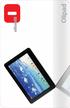 PRODUCT Olipad is a new 10" touch tablet from Olivetti for people who want a versatile portable device to manage digital content. The new Olipad runs the Android operating system and offer a series of
HandPunch. Overview. Biometric Recognition. Installation. Is it safe?
 HandPunch Overview Biometric Recognition Installation This section describes the HandPunch series of biometric scanners from RSI (Recognition Systems). These instructions apply to all the different HandPunch
Quick Start. Nighthawk X8 AC5300 Tri-Band WiFi Router Model R8500. Package Contents. NETGEAR, Inc. 350 East Plumeria Drive San Jose, CA 95134 USA
 Support Thank you for purchasing this NETGEAR product. You can visit www.netgear.com/support to register your product, get help, access the latest downloads and user manuals, and join our community. We
1. Check the Accessories
 This Quick User Guide helps you get started with the IRIScan Book Executive 3 scanner. This scanner is supplied with the software applications Readiris Pro 14 (Windows and Mac ), IRIScan Direct and IRISCompressor
http://docs.trendmicro.com
 Trend Micro Incorporated reserves the right to make changes to this document and to the products described herein without notice. Before installing and using the product, please review the readme files,
10 Magni Tablet User Guide
 10 Magni Tablet User Guide MODEL NUMBER: Wireless Mobile Internet Tablet Powered by SYTAB10ST Top View Front View Bottom View Side View SYTAB10ST Getting to Know Your New Tablet: MINI Micro SD Micro SD
KT40. Quick Guide Android 4.4.2
 KT40 Quick Guide Android 4.4.2 List KT40 SPECIFICATION... 3 1 EXTERNAL STRUCTURE DESCRIPTION... 4 2 HOME SCREEN... 5 2.1 Notification Bar Icons... 6 3 OPERATION INSTRUCTIONS... 7 3.1 Dialing... 7 3.2 Notification
JKW-IP. IP Video Entry System. QuikStart Guide
 1210 JKW-IP IP Video Entry System QuikStart Guide This is an abbreviated instruction manual for installation purposes. Please see the JKW-IP Installation Manual and JKW-IP Operation Manual for complete
Table of Contents. Chapter1. Introduction...1. 1.1 Before Installation... 1 1.2 System Requirements... 1
 Table of Contents Chapter1. Introduction...1 1.1 Before Installation... 1 1.2 System Requirements... 1 Chapter2. IVS-110 1-Channel Internet Video Server...2 2.1 Package Content... 2 2.2 Physical Installation...
QUICK START GUIDE QUAD CORE 8 INCH MODEL NO: PTBPTW81QC8
 QUICK START GUIDE QUAD CORE 8 INCH MODEL NO: PTBPTW81QC8 Table of Contents 1. What s in the Box.1 2.Tablet Parts.. 1 3.Getting Started 2 4. The Start Screen 3 5. Getting Around.4 6. Apps..5 7. Charm Menu.6
Ozbytes Design Biometric Fingerprint Time and Attendance and Access Control Unit Item Code: OZD-ABC-AV100
 Biometric Fingerprint Time and Attendance and Access Control Unit Item Code: OZD-ABC-AV100 The OZD-ABC-AV100 Biometric Fingerprint Time and Attendance and Access Control Unit is a Professional Time and
GETTING TO KNOW YOUR TELSTRA PRE-PAID 3G WI-FI
 GETTING TO KNOW YOUR TELSTRA PRE-PAID 3G WI-FI LET S GET THIS SHOW ON THE ROAD You must be excited about your brand new Telstra Pre-Paid 3G Wi-Fi. This guide will help you get connected as quickly and
Multi-Profile CMOS Infrared Network Camera
 Multi-Profile CMOS Infrared Network Camera Quick Start Guide About multi-profile Multi-profile stands for simultaneously video stream. The Network Camera and Video Server can generate MPEG4 and MJPEG streaming
How To Use An Easypad On A Pc Or Macbook Or Ipad (For Pc)
 User Guide Congratulations on your new EasyPad 1000. Please follow the instructions in this manual carefully. Statement: If the final version of this product has any differences from the description of
Sense. 3D Scanner. User Guide. See inside for use and safety information.
 Sense 3D Scanner User Guide See inside for use and safety information. 1 CONTENTS INTRODUCTION.... 3 IMPORTANT SAFETY INFORMATION... 4 Safety Guidelines....4 SENSE 3D SCANNER FEATURES AND PROPERTIES....
End-User Manual. for. e-pramaan: A National e-authentication Service. Submitted to
 e-pramaan: A National e-authentication Service End User Manual version 0.1 1 End-User Manual for e-pramaan: A National e-authentication Service Submitted to Department of Electronics & Information Technology
Frontier DSL SelfConnect Guide
 Frontier DSL SelfConnect Guide Frontier DSL Self-Installation Guide Table of Contents Getting Started...2 Customer and Computer Requirements...2...3 STEP 1: Install Microfilters...3 STEP 2: Install Your
S-SupremaConfigurationGuide-DOC 7/23/2014. Suprema Biometrics Configuration Guide ACS OnSite Aparato
 S-SupremaConfigurationGuide-DOC 7/23/2014 Suprema Biometrics Configuration Guide ACS OnSite Aparato Page 2 Suprema Configuration Guide ACS OnSite Aparato Table of Contents 1. SUPREMA BIOSTAR CONFIGURATION...
Mobility with Eye-Fi Scanning Guide
 Mobility with Eye-Fi Scanning Guide Scan and Transfer Images Wirelessly with Eye-Fi This document is to be used in addition to the scanner s user guide located on the installation disc. The instructions
Installation Guide. Wireless N Access Point EAP110/EAP120/EAP220
 Installation Guide Wireless N Access Point EAP110/EAP120/EAP220 CONTENTS Network Topology 01 Hardware Overview 02 Hardware Installation 05 1. Installation Requirements... 05 2. Mounting Bracket... 05
AuditMatic Enterprise Edition Installation Specifications
 Enterprise Edition Installation Specifications Version: 4.0 Copyright 2005 F.A.S., Inc. All rights reserved. Copyright 2008 F.A.S., Inc. All rights reserved. Copyright Notice Information contained in this
User Guide. Memo S580. www.poshmobile.com
 User Guide Memo S580 www.poshmobile.com Welcome to POSH S580 Memo Quick Guide S580 is designed with Android system, support dual Sim and dual stand-by. Except for the standard communication function, it
MODECOM MC-602 ART UNIQUE MICE COLLECTION. MODECOM Tablet FreeTAB 2096+
 MODECOM FreeTAB 2096+ is a refreshed version of MODECOM FreeTAB 2096. Similarly like its predecessor, this tablet hidden inside technologically advance and highquality components. MODECOM FreeTAB 2096+
Computer Hardware and Software:
 Computer Hardware and Software: The ConnDOT Project Engineer will provide the Contractor with a copy of the current PC specifications, approved printer list and data wiring schematic as soon as possible
formerly Help Desk Authority 9.1.3 Upgrade Guide
 formerly Help Desk Authority 9.1.3 Upgrade Guide 2 Contacting Quest Software Email: Mail: Web site: [email protected] Quest Software, Inc. World Headquarters 5 Polaris Way Aliso Viejo, CA 92656 USA www.quest.com
User Guide Vodafone Mobile Wi-Fi R206-Z. Designed by Vodafone
 User Guide Vodafone Mobile Wi-Fi R206-Z Designed by Vodafone Welcome to the world of mobile communications 1 Welcome 2 Device overview 3 Getting started: Step 1 4 Getting started: Step 2 5 Mobile Wi-Fi
HP Slate 500 Tablet PC Overview
 Overview 1. VGA webcam 6. Optional HP Slate Dock 2. Capacitive multi-touch screen with pen digitizer 7. Secure Digital slot (SD)/SDHC/SDXC) 3. Power button (also controls display auto rotate) 8. Onscreen
Point of View ProTab 3XXL IPS - Android 4.0 Tablet PC. Contents... 1 General notices for use... 2 Disclaimer... 2 Box Contents...
 Point of View ProTab 3XXL IPS - Android 4.0 Tablet PC English Contents Contents... 1 General notices for use... 2 Disclaimer... 2 Box Contents... 2 1.0 Product basics... 3 1.1 Buttons and connections...
USING THE MODEL V800 VELOCITY CLOCK
 USING THE MODEL V800 VELOCITY CLOCK Velocity Clocks are advanced clocks with many options and features. They can be used to restrict employee punching, allowing employees to punch at the clock during their
SPICES BOARD (Ministry of Commerce & Industry, Govt. of India) Palarivattom.P.O. N H By Pass Kochi 682025
 SPICES BOARD (Ministry of Commerce & Industry, Govt. of India) Palarivattom.P.O. N H By Pass Kochi 682025 Phone: 0484-2333603 Email: [email protected] Requirement of biometric time attendance system
1. Desktop Systems: Given below is the clarification and suggested changes.
 Haryana State Health Resource Centre Clarification for Tender Notice in reference to bid no. NIT 1 0f 2013-14 dated 14-12-13 and /Addendum dated 28-01-2014 and subsequent clarifications dated 14-02-14,
Junos Pulse for Google Android
 Junos Pulse for Google Android User Guide Release 4.0 October 2012 R1 Copyright 2012, Juniper Networks, Inc. Juniper Networks, Junos, Steel-Belted Radius, NetScreen, and ScreenOS are registered trademarks
Connecting Software Connect Bridge - Mobile CRM Android User Manual
 Connect Bridge - Mobile CRM Android User Manual Summary This document describes the Android app Mobile CRM, its functionality and features available. The document is intended for end users as user manual
Light Industrial Panel PC
 Light Industrial Panel PC 7 ~15.6 Light Industrial Interactive Panel PC Features 7 ~15.6 light industrial interactive panel PC 9 V ~ 30 V wide range DC input with lockable DC jack Selectable AT/ATX power
Acellus Natural 3D Tablet
 Acellus Natural 3D Tablet Locked Down & Optimized for Use with the Acellus Learning System Acellus Natural 3D Tablet Locked Down & Optimized for Use with the Acellus Learning System Contents I. Quick Start
PCS300 Universal IP Reporting Module V1.0
 PCS300 Universal IP Reporting Module V1.0 Reference and Installation Manual Patents: One or more of the following US patents may apply: 7046142, 6215399, 6111256, 6104319, 5920259, 5886632, 5721542, 5287111,
ADSL Wi-Fi Router/modem INSTALLATION GUIDE
 ADSL Wi-Fi Router/modem INSTALLATION GUIDE Welcome! Thank you for choosing Telkom to provide your ADSL service. You have purchased Telkom s ADSL service that enables you to use your existing copper telephone
Windows 10.1 Tablet (UB-15MS10 and UB-15MS10SA) FAQ December 2014
 Windows 10.1 Tablet (UB-15MS10 and UB-15MS10SA) FAQ December 2014 Navigation... 2 Question 1: What are charms used for?... 2 Question 2: How do I navigate while using a mouse or trackpad?... 3 Question
Here s your guide to easy installation. Get the most out of Verizon High Speed Internet.
 Here s your guide to easy installation. Get the most out of Verizon High Speed Internet. Congratulations on choosing Verizon High Speed Internet. In this guide, you ll find everything you need to set up
M3 ORANGE single-slot Cradle. User Guide. Product Number: A-1CR-US0D-030-R00, A-1CR-U0ED-030-R00. Compatible Device(s): M3 ORANGE
 M3 ORANGE single-slot Cradle User Guide Product Number: A-1CR-US0D-030-R00, A-1CR-U0ED-030-R00 Compatible Device(s): M3 ORANGE Version 2.0 Released in January 2011 Contents Copyright and Agreement... 3
Your Phone This section introduces you to the hardware of the device.
 Your Phone This section introduces you to the hardware of the device. No. Items Functions 1 Earphone jack 2 Strap hole 3 LED / Speaker Use a headset for hands-free conversation or listening to music. It
NAS 242 Using AiMaster on Your Mobile Devices
 NAS 242 Using AiMaster on Your Mobile Devices Learn to use AiMaster on your mobile devices A S U S T O R C O L L E G E COURSE OBJECTIVES Upon completion of this course you should be able to: 1. Use AiMaster
PD590-KT. Guide Android 4.4.2
 PD590-KT Guide Android 4.4.2 List PD-590 SPECIFICATION... 3 1 EXTERNAL STRUCTURE DESCRIPTION... 4 2 HOME SCREEN... 5 2.1 Notification Bar Icons... 6 3 OPERATION INSTRUCTIONS... 7 3.1 Dialing... 7 3.2 Notification
USER GUIDE AC2600 MU-MIMO GIGABIT ROUTER. Model# EA8500
 USER GUIDE AC2600 MU-MIMO GIGABIT ROUTER Model# EA8500 Table of Contents Product overview EA8500.....................................1 Setting Up Your Router Where to find more help.........................
LCD Drawer User Manual
 LCD Drawer User Manual - 1 - This manual, covering various aspects of the equipment such as installation, setup and installation, will help you make full use of this LCD KVM Drawer. Please read this manual
IRIS Onboarding Platform. Product Overview
 IRIS Onboarding Platform Product Overview The Need for a Digitized Onboarding Platform In the current paper-based onboarding process, disparate and self-contained systems work in a non-integrated environment.
http://docs.trendmicro.com
 Trend Micro Incorporated reserves the right to make changes to this document and to the products described herein without notice. Before installing and using the product, please review the readme files,
TCC INTERNET. Setup and Configuration. Comtrend DSL Modem with built-in Wireless Router
 TCC INTERNET Setup and Configuration Comtrend DSL Modem with built-in Wireless Router Guide Contents The Basics: Lights & Plug-ins Security: WEP Setup USB Driver Installation Troubleshooting & Support
Copy Audit Touch Installation and Operating Guide
 Copy Audit Touch Installation and Operating Guide Overview The software and hardware combination for Copy Audit Touch allows you to track walk-up copying on your copiers and report it in the Print Audit
FB-500A User s Manual
 Megapixel Day & Night Fixed Box Network Camera FB-500A User s Manual Quality Service Group Product name: Network Camera (FB-500A Series) Release Date: 2011/7 Manual Revision: V1.0 Web site: Email: www.brickcom.com
The Swivl Solution. Uses. Swivl User Guide. Swivl is more than just video capture, it is a 3-part solution.
 The Swivl Solution Swivl is more than just video capture, it is a 3-part solution. Swivl Robot Swivl Capture App Swivl Cloud The Swivl Robot works with any tablet device and follows the movement of the
TPG MOBILE BROADBAND QUICK SETUP GUIDE
 TPG MOBILE BROADBAND QUICK SETUP GUIDE TPG USB E1762 Modem Thank you for choosing TPG Mobile Broadband and USB E1762 modem. This User Guide provides step by step instructions that will take you through
Leo (for any device) User Guide. 1. Important information to protect your business
 User Guide 1. Important information to protect your business The following steps should be followed at all times to protect you and your customers from fraud. You must ensure that the software application
STB- 2. Installation and Operation Manual
 STB- 2 Installation and Operation Manual Index 1 Unpacking your STB- 2 2 Installation 3 WIFI connectivity 4 Remote Control 5 Selecting Video Mode 6 Start Page 7 Watching TV / TV Guide 8 Recording & Playing
Kaseya 2. User Guide. Version 1.0
 Kaseya 2 Mobile Device Management User Guide Version 1.0 March 12, 2012 About Kaseya Kaseya is a global provider of IT automation software for IT Solution Providers and Public and Private Sector IT organizations.
Rate Contract Government of India Directorate General of Supplies & Disposals
 Rate Contract Government of India Directorate General of Supplies & Disposals Jeevan Tara Building, 5 Sansad Marg New Delhi-110001 Tel Number 23360610/23360537 Digitally signed by: SURENDRA SINGH Email
ScanShell.Net Install Guide
 ScanShell.Net Install Guide Please install the software first - DO NOT PLUG IN THE SCANNER The scanner has been carefully packaged to avoid damage during transportation. Before operating the scanner, please
PRELIMINARY GUIDELINES E-PROCUREMENT MODULE OF NIC
 PRELIMINARY GUIDELINES E-PROCUREMENT MODULE OF NIC As per the Office Memorandum (OM)no. 10/3/2012-PPC dated 30 th March, 2012, issued by the Department of Expenditure, all Ministries / Departments of the
Ultra Thin Client TC-401 TC-402. Users s Guide
 Ultra Thin Client TC-401 TC-402 Users s Guide CONTENT 1. OVERVIEW... 3 1.1 HARDWARE SPECIFICATION... 3 1.2 SOFTWARE OVERVIEW... 4 1.3 HARDWARE OVERVIEW...5 1.4 NETWORK CONNECTION... 7 2. INSTALLING THE
User Guide Vodafone Mobile Wi-Fi R210. Designed by Vodafone
 User Guide Vodafone Mobile Wi-Fi R210 Designed by Vodafone Welcome to the world of mobile communications 1 Welcome 2 Device overview 3 Getting started: Step 1 4 Getting started: Step 2 5 Mobile Wi-Fi web
PU-USBX. USB over Ethernet Extender OPERATION MANUAL
 PU-USBX USB over Ethernet Extender OPERATION MANUAL Safety Precautions Please read all instructions before attempting to unpack or install or operate this equipment, and before connecting the power supply.
English. Aimetis E-Series. Physical Security Appliance. Installation and User Guide
 Aimetis E-Series Physical Security Appliance Installation and User Guide y, Table of Contents Introduction... 1 Setup Process... 2 Unpack the Box... 3 E3200 Features...3 Front Panel E3200...4 Back Panel
UNION OF THE REPUBLIC OF MYANMAR MINISTRY OF COMMUNCIATIONS AND INFORMATION TECHNOLOGY INVITATION FOR QUOTATIONS
 UNION OF THE REPUBLIC OF MYANMAR MINISTRY OF COMMUNCIATIONS AND INFORMATION TECHNOLOGY INVITATION FOR QUOTATIONS Description of goods: I T and office equipment Request for quotation Ref. No. : Date: To:
Bode Collection Point Electronic DNA Sample Information Program Technical Specifications
 Bode Collection Point Electronic DNA Sample Information Program Technical Specifications Product Definition Bode Collection Point software is used to collect and report personal information and other meta
Interactive Whiteboard Functionality Overview... 4. Choosing Pen Style... 5. Erasing / Modifying Writing... 6. Undo / Redo... 6. Email...
 Quick Start Guide 1 Stand-alone Usage Interactive Whiteboard Functionality Overview... 4 Choosing Pen Style... 5 Erasing / Modifying Writing... 6 Undo / Redo... 6 Email... 7 Import / Open file... 7 Saving
Chapter 5 Cubix XP4 Blade Server
 Chapter 5 Cubix XP4 Blade Server Introduction Cubix designed the XP4 Blade Server to fit inside a BladeStation enclosure. The Blade Server features one or two Intel Pentium 4 Xeon processors, the Intel
Shakambaree Technologies Pvt. Ltd.
 Welcome to Support Express by Shakambaree Technologies Pvt. Ltd. Introduction: This document is our sincere effort to put in some regular issues faced by a Digital Signature and USB Token user doing on
TCMS V2 WITH OFIS SCANNER
 1 TCMS V2 WITH OFIS SCANNER SUGGESTIONS & SOLUTIONS FOR TCMS V2 2 A FINGERTEC OFIS SCANNER DRIVER INSTALLATION 3 Installing FingerTec Ofis Scanner Software 3 B FINGERTEC OFIS SCANNER ACTIVATION STEP 8
22 (21.5 viewable) Smart Display, Full HD, Rockchip Quad-Core, Optical touch, Android KitKat. VSD224
 22 (21.5 viewable) Smart Display, Full HD, Rockchip Quad-Core, Optical touch, Android KitKat. VSD224 The ViewSonic VSD224 is a 22 (21.5 viewable) all-in-one Smart Display with 1920x1080 Full HD resolution.
I. Hardware Setup Required for Enrollment Station : II. Fresh Installation: Installing Dependencies: First the following driver dependencies need to
 I. Hardware Setup Required for Enrollment Station : 1. Laptop with Internet Connectivity 2. Iris Capturing Device 3. Fingerprint Capturing Device 4. Digital Camera 5. White Background Screen 6. Printer
Online Proctoring Services
 Online Proctoring Services Observing test takers online using webcams and microphones. It sounds simple, yet for educational institutions, it is no simple task. Kryterion is leading the industry in providing
AC 750. Wireless Dual Band 4G LTE Router. Highlights
 AC 750 Wireless Dual Band 4G LTE Router Highlights Share Your 4G LTE Network Share your 4G LTE network with multiple Wi-Fi devices and enjoy download speeds of up to 150Mbps Great Coverage Powerful, integrated
1. Open the battery compartment as shown in the image.
 This Quick User Guide helps you get started with the IRIScan Book 3 scanner. This scanner is supplied with the software applications Readiris Pro 12, IRIScan Direct and IRISCompressor. Corresponding Quick
OA101 Fingerprint Time attendance system Preface
 Preface Honorable customers, Thanks for choosing products of this company. OA101, with world cutting edge technologies fingerprint recognition, computer communication, as well as microelectronics, is considered
IntraVUE Plug Scanner/Recorder Installation and Start-Up
 IntraVUE Plug Scanner/Recorder Installation and Start-Up The IntraVUE Plug is a complete IntraVUE Hardware/Software solution that can plug directly into any network to continually scan and record details
Innovation with a difference
 Innovation with a difference The Smallest, Super Stylish User Engagement Tool Available Today Just 38cm high Perfect for Desk Top Use In Store Shelf Edge Use Mini Kiosk And so much more Not much bigger
User Guide Vodafone Pocket WiFi Pro. Designed by Vodafone
 User Guide Vodafone Pocket WiFi Pro Designed by Vodafone Welcome to the world of mobile communications 1 Welcome 2 Device overview 3 Getting started: setup 4 Getting started: use 5 Pocket WiFi online dashboard
How To Test On The Dsms Application
 Performance Test Summary Report Skills Development Management System December 2014 Performance Test report submitted to National Skill Development Corporation Version Date Name Summary of Changes 1.0 22/12/2014