
Laplink Everywhere 4 Copyright/Trademark Notice. Contact Laplink Software. Patents
|
|
|
- Abigayle Perkins
- 9 years ago
- Views:
Transcription
1 1

2 Contact Laplink Software For technical support issues or questions, please visit: For other non-technical inquiries: Tel (USA): Tel (UK): +44 (0) Fax (USA): Fax (UK): +44 (0) Laplink Software, Inc NE Points Drive, Suite 400, Kirkland, WA, 98033, USA Copyright/Trademark Notice Copyright 2005 Laplink Software, Inc. All rights reserved. Laplink, the Laplink logo, Laplink Everywhere, Laplink Secure VNC, and SpeedSync are either registered trademarks or trademarks of Laplink Software, Inc. in the United States and/or other countries. winshadow is a registered trademark of OmniCom Technologies, Inc. Other brands and products are trademarks of their respective holder(s). Patents SpeedSync(r) U.S. Patent Number 5,446,888 This software may contain one or more of the following licensed products: RSA Data Security, Inc. MD5 Message- Digest Algorithm. Copyright , RSA Data Security, Inc. Created All rights reserved. ZLIB general purpose compression library, July 24, Copyright Jean-Loup Gailly and Mark Adler. 1

3 Laplink Software, Inc. ("Laplink") End User License Agreement IF YOU INSTALL THE SOFTWARE PROGRAM, YOU ARE BY THAT ACT AGREEING TO BE BOUND BY THE TERMS AND CONDITIONS OF THIS LICENSE AGREE- MENT. OWNERSHIP OF SOFTWARE. You acknowledge and agree that all of the computer programs and associated documentation contained in this software executable or physical package (collectively, the "Software") are owned exclusively by Laplink and/or its licensors. The Software is protected under copyright and other intellectual property laws of the United States and international copyright treaties. LICENSE. Laplink grants to you, and you accept, a limited, non-exclusive and revocable license to use the Software, in machinereadable, object code form only. You agree to use the Software only as authorized in this License Agreement. This License Agreement does not convey to you any ownership rights or any other interest in the Software. SCOPE OF LICENSE. This is a single-user license, that depending on the subscription plan that you purchased or were granted separately, entitles you only to either a single or a multiple computer license. The single computer license entitles you to install the software on one computer at a time. A multiple computer license authorizes you to install the Software on up to a total number of computers for which you purchased or were otherwise provided a subscription and where Laplink Everywhere will be used exclusively by you (e.g., three licenses for use by you on an office computer, a laptop computer, and a home computer). A valid license must be obtained for each person who will use the Software. Every user that will use Laplink Everywhere to connect to another computer must have a valid license of Laplink Everywhere in good standing. Please contact Laplink to obtain additional licenses. You may not copy or make any changes or modifications to the Software, and you may not translate, decompile, disassemble, or otherwise reverse engineer the computer program(s). You may not loan, rent, lease or sublicense the Software or any copy to others for any purpose. You agree to use all reasonable efforts to protect the Software from unauthorized use, modification, reproduction, distribution or publication. You are not permitted to make any uses or copies of the Software that are not specifically authorized by the terms of this License Agreement, and Laplink reserves all rights that are not expressly granted to you. TERM. This license will become effective on the date you acquire the Software and will remain in force until terminated. You may terminate this license at any time by completely removing the Software from your computer. This license will automatically terminate if you breach any of the terms or conditions set out in this License Agreement. You agree to remove the Software from your computer upon termination of this license for any reason. Laplink Everywhere functionality is provided on an "as available" basis. Laplink does not 2

4 warrant that the functionality will be uninterrupted. Additional charges may apply if file transfers continually exceed 100 MB or more within 30 days at Laplink's discretion. If you have purchased a subscription to Laplink Everywhere, this will remain in effect based on the terms of the chosen subscription which may include automatic renewal unless terminated in advance with such fees being non-refundable. TRANSFER. You may not transfer your license of the Software to another party. LAPLINK SPECIFICALLY DISCLAIMS ALL OTHER WAR- RANTIES, EXPRESS OR IMPLIED, INCLUDING BUT NOT LIMITED TO IMPLIED WARRANTIES OF MER- CHANTABILITY AND FITNESS FOR A PARTICULAR PURPOSE. LAPLINK DOES NOT WARRANT THE PRO- GRAM MEDIA, DOCUMENTATION OR COMPUTER PROGRAM(S), NOR DOES LAPLINK PROVIDE ANY WARRANTY AS TO THE OPERATION OF THE SOFT- WARE OR ITS FITNESS FOR ANY PARTICULAR APPLI- CATION, USE, OR PURPOSE. LIMITATION OF LIABILITIES AND REMEDIES: IN NO EVENT SHALL LAPLINK OR ITS LICENSORS HAVE ANY LIABILITY FOR ANY CONSEQUENTIAL, INDIRECT, INCIDENTAL, PUNITIVE, OR SPECIAL DAMAGES, WHATSOEVER, INCLUDING WITHOUT LIMITATION, DAMAGES FOR LOSS OF BUSINESS PROFITS, BUSINESS INTERRUP- TION, LOSS OF BUSINESS INFORMATION, AND THE LIKE ARISING OUT OF THIS AGREEMENT, THE LICENSING OF SOFTWARE BY LAPLINK OR THE PRO- VISION OF MAINTENANCE AND SUPPORT SERVICES BY LAPLINK, EVEN IF LICENSEE HAS ADVISED LAPLINK OF THE POSSIBILITY OF SUCH DAMAGES, AND INCLUDING UNDER ANY CLAIM OF NEGLI- GENCE, STRICT LIABILITY, DESIGN DEFECT,OR OTHER THEORY. IN NO EVENT SHALL THE LIABILITY OF LAPLINK OR ITS LICENSORS EXCEED THE PUR- CHASE PRICE PAID FOR THE SOFTWARE, LESS ALL APPLICABLE TAXES AND DUTIES. SOME STATES DO NOT ALLOW THE EXCLUSION OR LIMITATIONS OF LIABILITIY FOR INCIDENTAL OR CONSEQUENTIAL DAMAGES, SO THE AFOREMENTIONED LIMITATION OR EXCLUSION MAY NOT APPLY TO YOU. U.S. GOV- ERNMENT RESTRICTED RIGHTS. The Software is provided with Restricted Rights. Use, duplication, or disclosure by the United States Government is subject to restrictions set forth in subparagraph (c)(1)(ii) of The Rights in Technical Data and Computer Software clause at DFARS or subparagraphs (c)(1) and (2) of the Commercial Computer Software-Restricted Rights at 48 CFR , as applicable. Contractor/Manufacturer is Laplink Software, Inc., NE Points Drive, Suite 400, Kirkland, Washington, U.S.A. TRADEMARKS. Laplink, the Laplink logo, Connect Your World, Laplink Everywhere, Laplink Secure VNC, and SpeedSync are either registered trademarks or trademarks of Laplink Software, Inc. in the United States and/or other countries. win- Shadow and the associated logo(s) are registered trademarks of OmniCom Technologies, Inc. Google and the associated logo(s) are registered trademarks of Google Inc. Other brands and products are trademarks of their respective holder(s). SpeedSync is covered by U.S. Patent No. 5,446,888 and other filings. No right or license to any trademarks owned by Laplink or others appearing in the Software or packaging is granted to you by this License Agreement. 3

5 MISCELLANEOUS. Unless otherwise restricted by law, you agree that this License Agreement shall be construed, interpreted and governed by the laws of the State of Washington of the United States of America, without regard to the laws governing conflicts of law. If any action is brought by either party against the other regarding any subject matter of this License Agreement, the prevailing party shall be entitled to recover, in addition to any other relief granted, reasonable attorney fees and expenses of litigation. You further agree that any claim relating to this License Agreement shall be brought in the courts of competent jurisdiction in the State of Washington. If any term of this License Agreement is declared void or unenforceable by any court of competent jurisdiction, enforcement of the remaining terms shall not be affected. No waiver of any right under this License Agreement shall be effective unless in writing and signed by both parties. No waiver of any past or present right arising from any breach or failure to perform shall be deemed to be a waiver of any future right arising under this License Agreement. This License Agreement sets forth the entire agreement between Laplink and you with respect to all matters covered herein. IF YOU HAVE ANY QUESTIONS CONCERNING THIS LICENSE AGREEMENT, PLEASE CONTACT LAPLINK SOFTWARE AT NE POINTS DRIVE, SUITE 400, KIRKLAND, WASHINGTON, U.S.A. ( ). 4
6 Introduction to 1 Introducing 2 System Requirements 4 Installation and Setup 6 Installation and Setup 7 Registering Laplink Everywhere 11 Account Management Options 12 Laplink Everywhere Setup 14 Configuring Laplink Everywhere 15 Settings 16 Configuring Users and Sharing 22 History 27 Connecting to your Host PC 28 Connecting to your Host PC 29 Using Remote Control 37 Laplink Everywhere Remote Control 38 Option 1: Remote Desktop 39 Option 2: Remote Control 4 41 Option 3: Laplink Secure VNC 42 Laplink Secure VNC Software Installation 46 Connecting before Windows login and Remote Reboot 49 Contents Using File Transfer 51 Using File Transfer 52 Dual Pane File Transfer Utility 53 Web File Transfer Utility 55 Remote Desktop Search and Utilities 56 Remote Desktop Search and Utilities 57 Using , Calendar, Contacts, Notes and Tasks 60 Using , Calendar, Contacts, Notes and Tasks 61 (Outlook and Outlook Express) 62 Contacts (Outlook and Outlook Express) 64 Calendar (Outlook only) 66 Notes (Outlook only) 68 Tasks (Outlook only) 70 Using PDAs and Smartphones 72 Using PDAs and Smartphones 73 Using Google Desktop Search on your Handheld Device 76 Using your PDA with Laplink Companion 78 Troubleshooting Laplink Everywhere 81 Troubleshooting 82 1

7 1 Introduction to Laplink Everywhere 4 Introduction to 1 Introducing 2 System Requirements 4 1
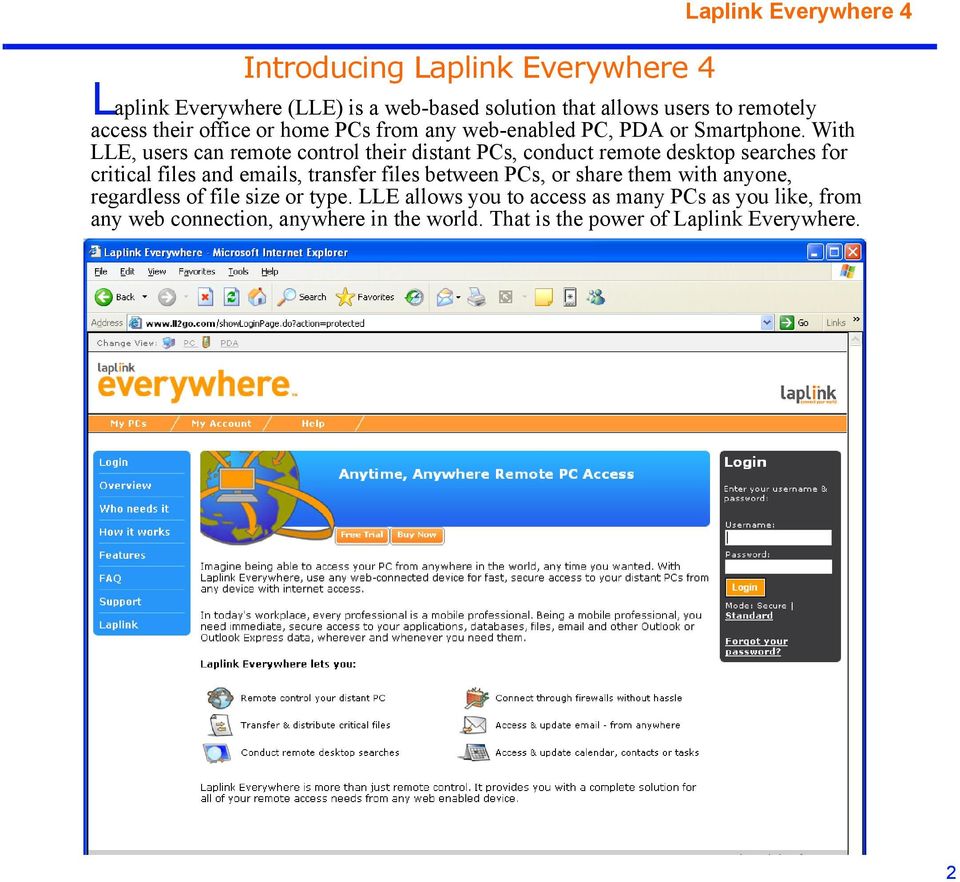
8 Introducing Laplink Everywhere (LLE) is a web-based solution that allows users to remotely access their office or home PCs from any web-enabled PC, PDA or Smartphone. With LLE, users can remote control their distant PCs, conduct remote desktop searches for critical files and s, transfer files between PCs, or share them with anyone, regardless of file size or type. LLE allows you to access as many PCs as you like, from any web connection, anywhere in the world. That is the power of Laplink Everywhere. 2
9 Laplink Everywhere is simple and secure Laplink Everywhere gives you complete access to your , folders, files and applications from any of your webenabled devices. Laplink Everywhere must be installed and running on each PC that you will want to access remotely. Then these PCs will be easily accessible from any browser and Internet connection. To access these PCs remotely, go to and log in using your username and password. Once logged in, you will see links to all your LLE PCs. Even if some of the PCs you are connecting to are behind firewalls, Laplink Everywhere will establish the connections automatically. Laplink Everywhere secures your data using 128-bit Secure Sockets Layer (SSL) encryption. Laplink does not disclose information about any Laplink Everywhere user to any third party. On the browser side, no information about the Laplink Everywhere host PC is cached, so that no other users can access your information. You can feel safe accessing LLE from any PC, anywhere. Features Laplink Everywhere connects to your host PCs easily through any web-enabled browser, providing complete access. The main features include: Remote Control- Laplink Everywhere provides you complete desktop control to any of the PCs where you have LLE running. Remote Desktop Search- Laplink Everywhere allows you to search your host PC for files or s from any browser or web-connected device (including Smartphones, Palm or Pocket PC devices) anywhere in the world, and allows you to reply to your and send files just as easily. File Transfers for files of any size or type- LLE enables you to transfer files of any size to and from your PC, and to send files to anyone using a secure, click-and-download link. Remote Access to your Outlook or Outlook Express- LLE provides web access to your Outlook and Express , providing not only the s themselves but access to your Calendar, Address Book, Contact, Notes and Tasks. Connect to all of your PCs instantly!- Laplink Everywhere can be set up on as many PCs as you would like, and all your PCs can be accessed in a single browser session. 3

10 System Requirements On the PC you will connect to: You must have Laplink Everywhere installed, and have the following to access your information remotely: Windows 98SE/ME/2000/XP 16 MB RAM 6 MB of free hard disk space A persistent Internet connection (optional) - Microsoft Outlook 97, 98, 2000, 2002 or 2003 to access , Contacts, Calendar, Notes, and Tasks or an client that utilizes Windows Address Book (such as Outlook Express 5.5 or greater) to access Contacts. On the PC you will connect from: Required on the PC you desire to access from: Internet connection Internet Explorer 5.5 or higher. Netscape version 6.0 or higher. Firefox version 1.02 or higher. Opera version 7.0 or higher. (optional) Ability to download ActiveX control, if desiring to use. Requirements for Remote Control connections: Remote Desktop- LLE Remote Desktop uses Windows RDP (Remote Desktop Protocol), and is only available on PCs running: Windows XP (Professional only) with Remote Desktop Protocol enabled. Windows Server 2000 and Server 2003 Editions, with terminal services installed and enabled. Remote Control 4- LLE Remote Control 4 is available on PCs running Windows 98SE/ME/2000/XP/2003, and is automatically installed during LLE installation. A user name and password is created during the Remote Desktop 4 installation, and required when connecting remotely using Remote Desktop 4. NOTE Both Remote Desktop and Remote Control 4 require ActiveX controls to install. Certain Internet browsers, such as Netscape, Opera and Firefox, do not support ActiveX controls. To use remote control using these browsers, use Secure VNC (see below). Laplink Secure VNC- Laplink Secure VNC is a remote control option used primarily when connecting in non- Windows platforms. It also works well on browsers that don t allow ActiveX controls, such as Netscape, Firefox and Opera. The Secure VNC server must be manually installed on your host PC in order to use Secure VNC. In install, go to Start, Programs, Laplink Everywhere, and choose the Download Laplink Secure VNC link, and install the server software on your host PC. A password is created during the account creation process, and needed when connecting remotely. Requirements for Google Desktop Search- Google Desktop Search runs on PCs using Windows 2000 (Service Pack 3 or above) or Windows XP, and Microsoft Internet Explorer 5.0 or above or Mozilla Firefox. It requires 1 gigabyte (Gb) of space available on 4
11 your hard drive. For best performance, at least 128 Mb RAM and a 400MHz or faster Pentium processor is reccommended. Requirements for using LLE with a PDA or Smartphone- LLE supports any web-enabled PDA and Smartphone running the following operating systems: Microsoft Pocket PC 2000, 2002 or 2003 Microsoft Windows CE Microsoft Windows Mobile Palm OS or later Symbian 5
12 2 Installation and Setup Installation and Setup 7 Registering Laplink Everywhere 11 Account Management Options 12 Laplink Everywhere Setup 14 Configuring Laplink Everywhere 15 Settings 16 Configuring Users and Sharing 22 History 27 6

13 Installation and Setup This chapter discusses the Laplink Everywhere software installation and configuration. It is important to make sure LLE is set up the way you want, so you can maximize your experience when connecting. Important Definition: Host PC Throughout this document, you will see references to your Host PC. The host PC always refers to the PC(s) you want to access remotely. Laplink Everywhere must be installed and running on each host PC in order to create the connection. Each host PC must also have a persistent Internet connection in order to create this connection. Installing.0 The following includes two sets of installation instructions. On the PC where you are installing (host PC), if: Laplink Everywhere (any version) has been installed on this PC before, follow the See Upgrading to on page 8. Laplink Everywhere has NEVER been installed on this PC before, See Installing Laplink Everywhere on this PC for the First Time on page 8. Even if you have a current LLE account, if this is the first time you ve installed LLE on this PC, follow these instructions. Also in this section, you will find instructions on how to assign additional host PCs to your LLE account. Prior to installation Before installing the software, shut down all other applications currently running on the PC. Purchasing Laplink Everywhere By default, Laplink Everywhere installs as a trial. If you are installing as a trial, you can proceed to the next section. When you purchase Laplink Everywhere, you receive an with serial numbers that you can enter during the installation and setup process. These serial numbers can also be entered after installation. Until a serial number is entered, your LLE account will be considered a trial account, and will end 15 days after setup. If you choose to upgrade from a trial to a purchase at a later date, use the following instructions. To purchase LLE, go to and click on the Buy Now button to purchase. Choose the purchase options that best suit your needs, and complete the purchase process. You will be sent an with serial numbers, and a link That will read To download this product, click on the link below. 7

14 This will take you to your available downloads in your My Downloads section of the Laplink website. You will automatically be logged in, and if you don t already have one, a Laplink My Support account will be created for your during the purchase process. Your new purchase of will be available for download. Click on the download button, and save the lle-setup.exe file to your PC. Once the file is downloaded to your PC, choose the set of installation instructions that follow that are appropriate for you on this PC. NOTE When at the My Downloads page, on the left toolbar click on the Edit My Account link. From here, you can note or change your Laplink My Support account information, so that you can access your information and downloads from any web-enabled PC. See My Support account on page 12. Upgrading to NOTE These instructions assume you are at the host PC. If you have installed Laplink Everywhere in the past on this PC, follow these instructions: 1 In your System Tray (near your Windows clock on the bottom right of your screen), right-click on the Laplink Everywhere icon, if present. Choose Exit to stop Laplink Everywhere on your PC. 2 To get the latest software, go to and click the Upgrade icon. 3 Save the LLE setup file (lle-setup.exe) to your PC, then double-click on the file to install. 4 The installation will detect a previous version of Laplink Everywhere on your system, and will need to uninstall it on order to continue. Click Yes to uninstall. 5 Double-click on your downloaded lle-setup.exe file again, and your installation will proceed. 6 Follow the instructions to complete your Laplink Everywhere installation. Installing Laplink Everywhere on this PC for the First Time NOTE These instructions assume you are at the host PC. If you have never installed Laplink Everywhere on this PC, the installation instructions below apply to you. 1 To get the latest software, go to and select the Buy Now or Free Trial button, whichever is your preference. 2 Save the LLE setup file (lle-setup.exe) to your PC, then double-click on the file to install. 3 Follow the installation instructions to complete your Laplink Everywhere installation. 8

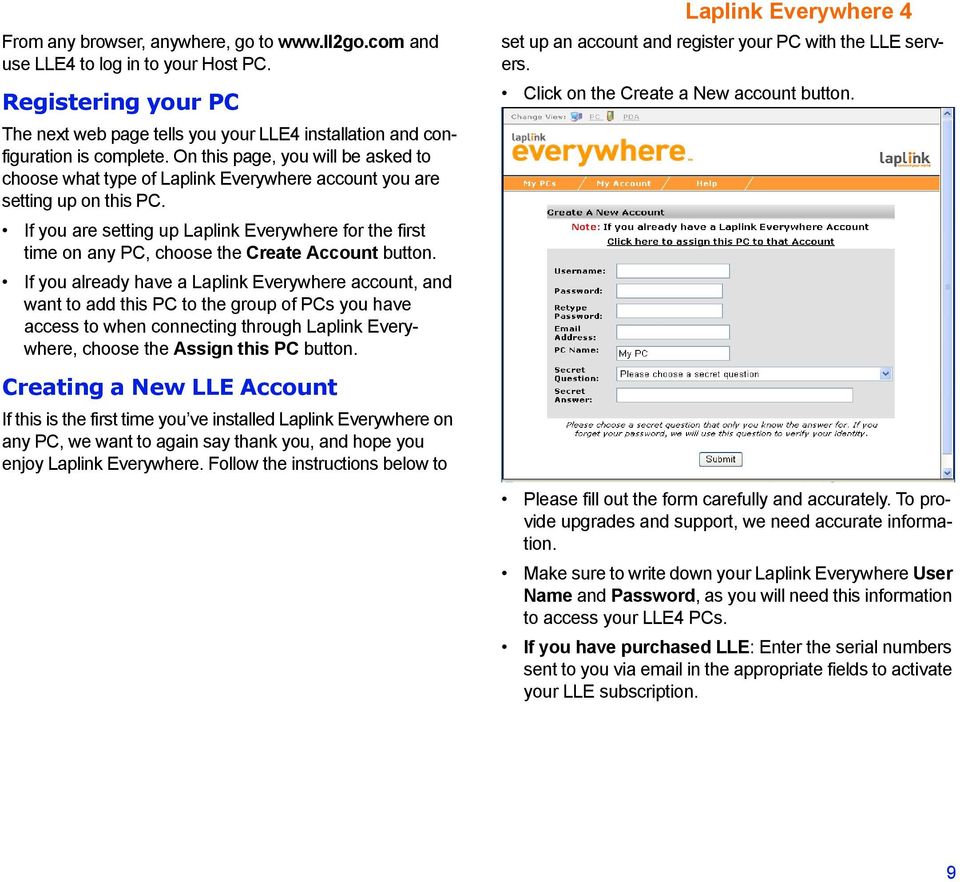
15 From any browser, anywhere, go to and use LLE4 to log in to your Host PC. Registering your PC The next web page tells you your LLE4 installation and configuration is complete. On this page, you will be asked to choose what type of Laplink Everywhere account you are setting up on this PC. If you are setting up Laplink Everywhere for the first time on any PC, choose the Create Account button. If you already have a Laplink Everywhere account, and want to add this PC to the group of PCs you have access to when connecting through Laplink Everywhere, choose the Assign this PC button. Creating a New LLE Account If this is the first time you ve installed Laplink Everywhere on any PC, we want to again say thank you, and hope you enjoy Laplink Everywhere. Follow the instructions below to set up an account and register your PC with the LLE servers. Click on the Create a New account button. Please fill out the form carefully and accurately. To provide upgrades and support, we need accurate information. Make sure to write down your Laplink Everywhere User Name and Password, as you will need this information to access your LLE4 PCs. If you have purchased LLE: Enter the serial numbers sent to you via in the appropriate fields to activate your LLE subscription. 9
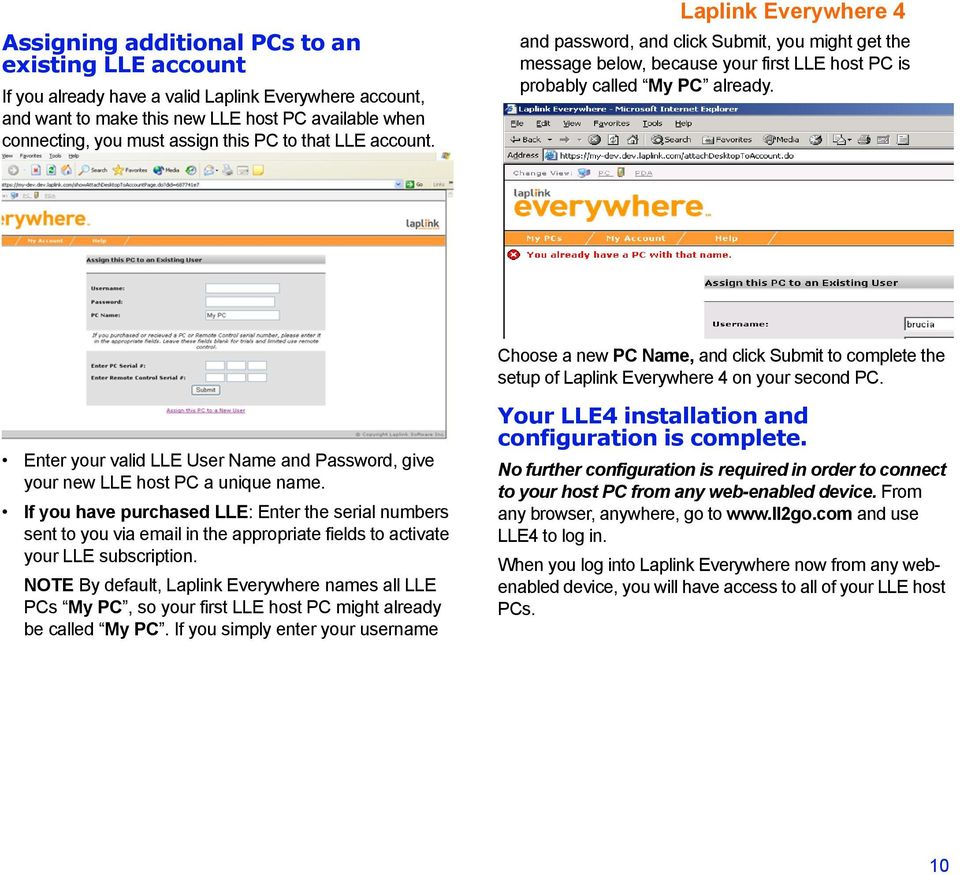
16 Assigning additional PCs to an existing LLE account If you already have a valid Laplink Everywhere account, and want to make this new LLE host PC available when connecting, you must assign this PC to that LLE account. and password, and click Submit, you might get the message below, because your first LLE host PC is probably called My PC already. Choose a new PC Name, and click Submit to complete the setup of on your second PC. Enter your valid LLE User Name and Password, give your new LLE host PC a unique name. If you have purchased LLE: Enter the serial numbers sent to you via in the appropriate fields to activate your LLE subscription. NOTE By default, Laplink Everywhere names all LLE PCs My PC, so your first LLE host PC might already be called My PC. If you simply enter your username Your LLE4 installation and configuration is complete. No further configuration is required in order to connect to your host PC from any web-enabled device. From any browser, anywhere, go to and use LLE4 to log in. When you log into Laplink Everywhere now from any webenabled device, you will have access to all of your LLE host PCs. 10
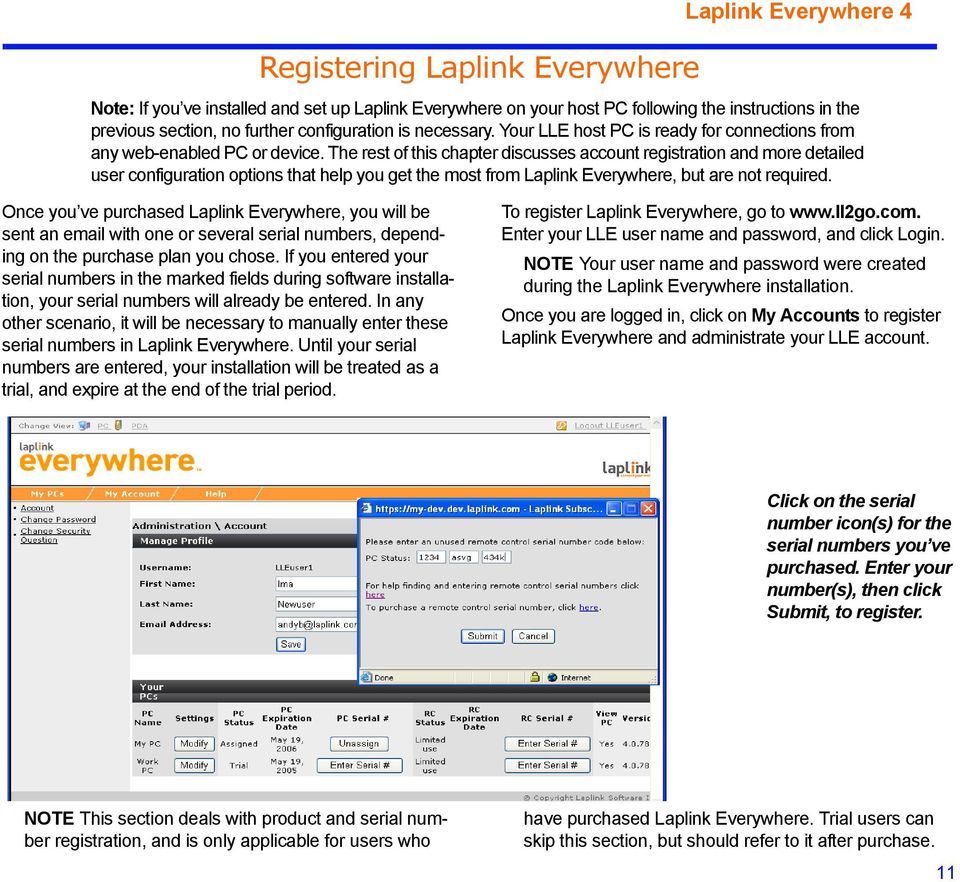
17 Registering Laplink Everywhere Note: If you ve installed and set up Laplink Everywhere on your host PC following the instructions in the previous section, no further configuration is necessary. Your LLE host PC is ready for connections from any web-enabled PC or device. The rest of this chapter discusses account registration and more detailed user configuration options that help you get the most from Laplink Everywhere, but are not required. Once you ve purchased Laplink Everywhere, you will be sent an with one or several serial numbers, depending on the purchase plan you chose. If you entered your serial numbers in the marked fields during software installation, your serial numbers will already be entered. In any other scenario, it will be necessary to manually enter these serial numbers in Laplink Everywhere. Until your serial numbers are entered, your installation will be treated as a trial, and expire at the end of the trial period. To register Laplink Everywhere, go to Enter your LLE user name and password, and click Login. NOTE Your user name and password were created during the Laplink Everywhere installation. Once you are logged in, click on My Accounts to register Laplink Everywhere and administrate your LLE account. Click on the serial number icon(s) for the serial numbers you ve purchased. Enter your number(s), then click Submit, to register. NOTE This section deals with product and serial number registration, and is only applicable for users who have purchased Laplink Everywhere. Trial users can skip this section, but should refer to it after purchase. 11
18 Account Management Options Laplink Everywhere allows you to manage your LLE accounts in many ways. You can assign multiple PCs to a single account, so that you can access all of your PCs from a single web-enabled connection. You can assign and unassign PCs, change your LLE PC names, edit passwords and more. When clicking on My Account, select the Enter Serial # icon to enter your purchased serial numbers. This will change the expiration date on your account. to reflect your purchase plan. You can have multiple PCs assigned for use simultaneously, depending on your purchase plan. You can also move your serial numbers to other PCs by Unassigning one PC, and entering a serial number on another. This allows you to change which PC(s) you are able to connect to remotely. My Support account During the Laplink Everywhere installation process, a My Support account is created for you, regardless of whether you purchased Laplink Everywhere, or you are using the free trial. Choosing Modify allows you to change your PC names, and to Enable or Disable remote access to that PC. Multiple serial numbers gives you access to all your PCs from a single connection. Your My Support account can be accessed from any browser with your user name and password. You can access your available downloads, check registered products, edit your account information, and choose your 12

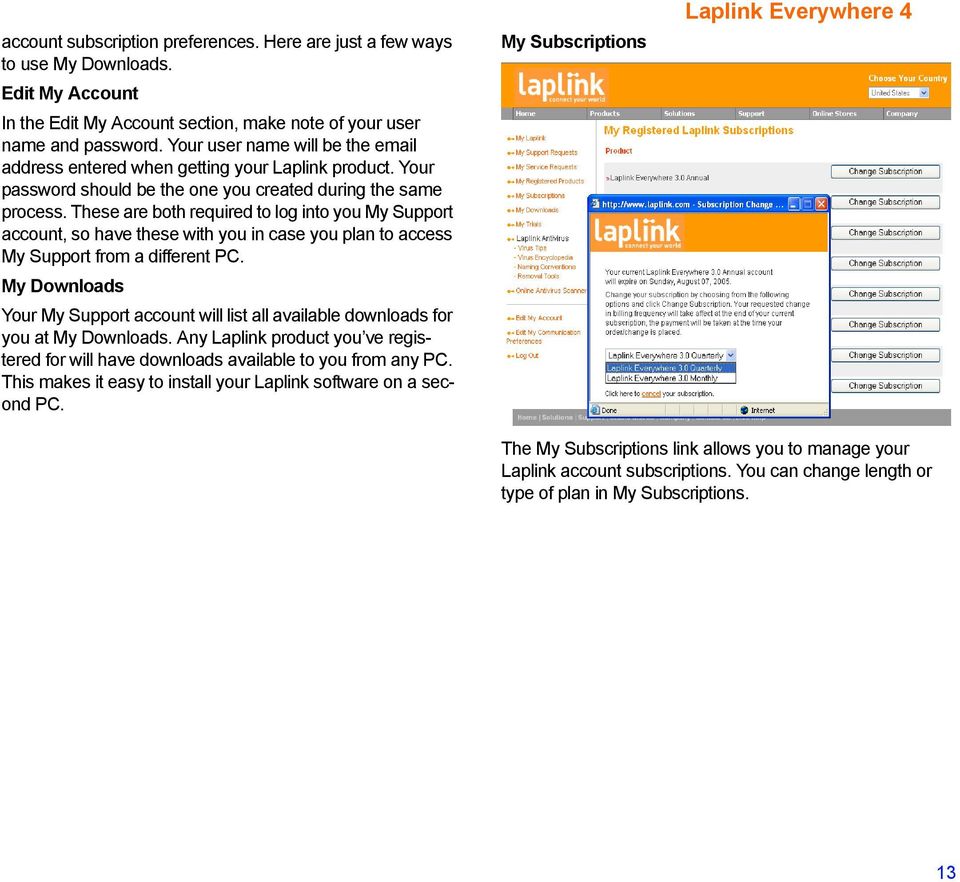
19 account subscription preferences. Here are just a few ways to use My Downloads. Edit My Account In the Edit My Account section, make note of your user name and password. Your user name will be the address entered when getting your Laplink product. Your password should be the one you created during the same process. These are both required to log into you My Support account, so have these with you in case you plan to access My Support from a different PC. My Downloads Your My Support account will list all available downloads for you at My Downloads. Any Laplink product you ve registered for will have downloads available to you from any PC. This makes it easy to install your Laplink software on a second PC. My Subscriptions The My Subscriptions link allows you to manage your Laplink account subscriptions. You can change length or type of plan in My Subscriptions. 13
20 Laplink Everywhere Setup Laplink Everywhere allows you to manage all connections to and from your PC. From this application, you can manage user connections, file transfers, remote control, and more. It is important to make sure everything is ready to create your remote connection. To ensure you are prepared to connect, and that you will have access to all of the many capabilities of Laplink Everywhere, read the materials below. You can set the LLE to start automatically upon Windows startup, or run LLE as a service, as well as set up many other configuration options. LLE requires: A persistent Internet connection on the host PC. Laplink Everywhere must be running on the host PC. It is not necessary to make any special configuration changes in order to make Laplink Everywhere work behind a firewall. LLE will negotiate this connection for you. All you ll need is a browser with an Internet connection and your LLE user name and password to connect to your PC from any remote location. To make certain LLE software is running on your PC, look in your system tray. If the LLE icon is present as it appears here, LLE is running and prepared for incoming connections. LLE icon If this icon is not present in your system tray, click on Start>Programs>Laplink Everywhere>Laplink Everywhere, where you will see the same icon as above. This will launch LLE. Remote Desktop Search LLE currently supports Google Desktop Search, and all of its powerful capabilities. If you use desktop search tools to find files and s on your system, you can now use this feature on the road when connecting through Laplink Everywhere. To have access to Desktop Search in LLE, you must first install the Desktop Search software on your host PC. To install Google Desktop Search: On your host PC, click on Start> Programs>Laplink Everywhere, and choose the Download Google Search link. You will also have the option to download and install the Google Desktop Search software at the after you have completed the LLE software installation on any PC. 14

21 Configuring Laplink Everywhere LLE allows automatically installs with certain defaults settings so that it is ready to use immediately after installation. This section walks you through the key configuration settings, allowing you to make changes to fit your specific requirements. Laplink Everywhere must be installed on each host PC in order to allow connections from web-enabled devices. To make certain LLE software is running on your PC, look in your system tray. If the LLE icon is present as it appears Laplink Everywhere icon here, LLE is running and prepared for incoming connections. To access LLE, double-click on this icon in your System Tray. If this icon is not present in your system tray, click on Start>Programs>Laplink Everywhere>Laplink Everywhere, where you will see the same icon as above. This will launch LLE. 15
22 Settings Under Settings, configure your LLE connection. LLE allows you to decide how to start and run LLE, manage proxy settings, define what information is exportable to your PDAQ, and more. Under Settings, the Miscellaneous tab includes several options that make LLE easier and more powerful to use. Setting LLE to Automatically Start Up with Windows because LLE will be set to run as a default, so remembering to launch LLE each time you plan to connect won t be necessary. To set up LLE to Start Up with Windows: In LLE application, click on the Settings tab, and select Miscellaneous. Check the box that reads, Autostart Laplink Everywhere, and LLE will be set to run at Windows login. Setting LLE to Start as a Service LLE can also be set to start as a service. This is useful because it allows the user to access the remote PC, even if the PC is not logged into Windows. To set up LLE to run as a Service: In LLE application, click on the Settings, Miscellaneous tab. Select the checkbox that reads Run LLE as a Service, and LLE will be set to run upon startup, even if the PC isn t logged into Windows. LLE can be set up to automatically start and run when Windows is restarted. Setting up LLE this way is useful, 16
23 Security Options Laplink Everywhere allows you to secure your connection and data in several ways. You can enable and password protect your remote control options, set up a local password on your host PC and more. Remote Control 4 Remote Control 4 is another option available when connecting to your host PC. This option is available on any PC that supports LLE. During installation, you created a Remote Control 4 user name and password. This information is required in order to connect to your host PC. If you want to change your user name or password for Remote Control 4, make changes here. Make sure to type your password identically in the Confirm Password field. NOTE The User Name and password fields are casesensitive. Local Password Laplink Everywhere allows you to set up a local security password to fully secure any connections into your PC. Set up LLE with a password that only you would know to ensure connections. Data Encryption Windows Remote Desktop Protocol In Security options, LLE allows you to enable or disable your Remote Desktop Protocol (RDP). If enabled, you will be able to connect using RDP to this host PC. NOTE Only available when the LLE host PC meets the RDP operating system and setup requirements. See System Requirements for more information. Checking the Enable Windows Remote Desktop checkbox changes your global Windows RDP access permissions to this PC. Any applications using RDP would now be enabled, not just LLE. However, all connections would still require a valid user name and password in order to connect. The Laplink Everywhere server first exchanges data with your PC, and then with your browser. You have options as to how this data is passed using Laplink Everywhere. You can choose from two different options: Do Not Encrypt Data- This choice allows for a faster connection, but is less secure, as the data is not encrypted. Accept only Secure Socket Layer (SSL) connections- This choice is slower, but is much more secure when transmitting data. Configuration 17
24 LLE allow users to choose and configure the connection between Laplink Everywhere and the client in use on their PC. Laplink Everywhere supports Outlook and Outlook Express. Outlook- Laplink Everywhere links automatically with your Outlook mail, detecting Outlook during installation. There is no configuration required using Outlook with Laplink Everywhere. Outlook Express- Laplink Everywhere also links to your Outlook Express data. Please read the Outlook Express configuration notes. None- Under Settings, choose None if you don t have configured on your PC. You will still be able to use Laplink Everywhere s file transfer, desktop search, remote control and other capabilities. Expire Links- One of the options LLE supports is the sending of secure file links to recipients. This option allows the LLE user to set a time frame when this file link will expire and no longer be available. Define the length of time you would like links to be available on your host PC to recipients. The tab allows you to configure what kind of information will be downloaded to your PDA. This section also allows the user to configure notification, signatures and more. NOTE The option tabs that appear under Miscellaneous are linked to your Outlook or Outlook Express . All options are enabled when Outlook is in use. and Contacts are enabled when Outlook Express is in use. 18
25 Calendar (Outlook users only) Clicking on this icon allows you to configure what calendar entries are downloaded to your PDA, and how you will be notified. Contacts (Outlook and Outlook Express) Offline Access- Laplink Companion allows you to download the contact information you define for offline access. Notification- Choose when and how you want Laplink Everywhere to notify you regarding calendar changes. Offline Access- Choose how many days of appointment data, and which parts of that data, you want downloaded to your PDA. This allows you to access the calendar data you need without having to take extra time downloading information that isn t important right now. Mail Laplink Everywhere allows you to configure your signature, which parts of your data is downloaded to your PDA, 19
26 and other settings. See below. Remote Desktop Search Laplink Everywhere allows you to connect and use Google Remote Desktop Search to find files and s on your host PC. Signature- Allows users to create a digital signature, and define its use. Offline Access- LLE allows users to define whether new mail is sent to the Laplink Companion for later viewing, and which parts of each message will be downloaded. General Settings- Set alarms and settings to make LLE work best for you. Tasks Set an audible alarm to notify you of a Task. LLE also allows you limit the types of desktop searches that can be performed, and also limit who can perform these searches. By default, all Remote Desktop settings are on when you connect. This allows you to connect from any PC and search your host PC for s and files and more. If you share your LLE PCs with other LLE users, these settings allow you to limit what types of searches these LLE users can perform on your PC, if any. By default, Remote Desktop Search permissions are set to off for all other LLE users connecting to your PC. This provides you a level of security, as well as the flexibility to allow Remote Desktop Search to other LLE users if you choose. LLE even allows you to provide remote desktop search access to some areas, and not others. 20
27 Internet Favorites LLE gives you access to all your Internet Favorites on your host PC. You can also decide to limit access to this area to other LLE users as well, and decide which Remote Desktop components to provide access. Proxy Settings By default, Laplink Everywhere will use the proxy settings used by your browser. If you choose, you can manually enter other proxy settings, and use these. Click on the Proxy Settings tab to change your proxy settings Logging Options This tab allows you to manually set the logging parameters for Laplink Everywhere. Log Duration- This setting allows you to set how many days back you would like to track activity on Laplink Everywhere, including; , file transfers, remote connections and other activity on your system. Diagnostic logging- This setting is to be used only when instructed to do so by the Laplink Technical Support department. The log data captured here will help Laplink to solve certain technical problems, but will use more system resources. 21
28 Add\Remove Users- Provide other Laplink Everywhere users access to this PC Configuring Users and Sharing Configuring Users and Sharing allows you to decide the level of control to provide to others, or even to yourself, when connecting to your host PC. This sections allows you to provide very specific access to files, folders, , tasks, your calendar and more. Define user access, including different levels of access for , files and more. Providing other LLE Users Access The area in the left pane lists Laplink Everywhere (LLE) users who have access to this PC. Add users here, then define user access using the other tabs. If you are the only user who you will allow remote access into this PC, you may not need to define access levels. All access settings are enabled by default for your own account. However, if you allow others to access this PC using LLE, all access settings are disabled, and must be manually enabled to allow access. NOTE The user selected in the left Users pane is the user for whom access settings are being determined. For example, if you are defining remote access for a different user, then click on another account in the Users 22
29 pane, you will see the following message. LLE detects that changes on the LLE user account you were working on have taken place, and that you are now proceeding to work on a different user account. LLE is asking if you d like to change those changes. When managing access, be careful when defining access. Define Access Regardless of whether you are providing access to files, or other areas, Laplink Everywhere allows you to define access in 2 ways: 1 All- Provide access to all data in this area to a connecting LLE user. 2 Only those specified below- Define specific drives and folders that can be accessed by a connecting LLE user. Configuring Access In Laplink Everywhere, when clicking on Configure, Users and Sharing, under each tab there are several folder options: In all User Configuration tabs, the following rules apply: When All is selected, the file/folder tree box below will be greyed. Full access is provided when All is selected. To Allow\Deny access to specific folders, highlight that folder, and click the Allow button 23
30 Files Under Files, define which folders connecting LLE users have access to. You can provide connecting LLE users access to Under these conditions: Unrestricted access- Allow connecting LLE user the ability to upload and download files in folders where access has been provided. Restricted Access- Enable connecting LLE user the ability to view and retrieve (download) files ONLY. No uploading, writing or deleting privileges. files- Allow users to choose any file to directly send as a file attachment or secure link. When sending as an attachment, the recipient receives the file attached to their , same as when sending a standard attachment. When sending as a secure link, the recipient receives a secure link to the file, not an attachment, and clicks on the link to begin downloading directly from your PC. The file can be of any size as it does not have to adhere to attachment file size limits. This tab allows you to configure remote access to your Outlook or other SMTP . You can allow LLE connections to access specific folders, allow complete access, or choose different access levels for different users. For example, if you are connecting remotely to your office PC using LLE, you would probably want to provide yourself complete access, so that you can access all your files and folders. However, if you are providing remote access to another user, you may want to limit the access to the connecting LLE user, providing access only to specific folders. Laplink Everywhere s configuration tools allow this level of flexibility. NOTE Laplink Everywhere shows different tab options, depending on your integration. For instance, the picture below shows LLE when Outlook is in use. In 24
31 Outlook Express, only the File, and Contact options would be available. Choose All to allow access to all folders, or Choose Only those specified below to Deny access or provide access to specific folders. Highlight a folder, then click the Allow/Deny button to define access to this folder. Provide the ability to Compose, Reply, Forward or Delete . Contacts, Calendar, Tasks and Notes These four tabs, available only when Laplink Everywhere is used with Outlook, allow you to define access to each of these areas of Outlook to users connecting using Laplink Everywhere. 25
32 Contacts, Calendars, Tasks and Notes If you choose: All-Provides full access to selected Outlook folder (Contacts, Calendar, etc.)is provided to this LLE connection. Only those specified below- Permits user to Allow or Deny access to a folder by selecting a folder and clicking the Allow/Deny button. Choosing Only those specified below and Allowing no folders will deny this area to the connecting LLE user. The ability to Add/Edit and Delete can be enabled or disabled in each of these categories. NOTE The Calendar tab also allows you to enable/disable View Appointments. Apply The Apply button at the bottom right corner of all Users and Sharing screens allows you to apply the changes you ve made. For instance, if you make changes under several tabs, you must click Apply to make these changes take effect. Click Apply after you have defined the file and folder access level you want to provide a user. 26
33 History The history tab allows you to view activity to and from your LLE connection to your PC. You can view connection information, and file transfer activity, and use this information to help track your data. 27
34 3 Connecting to your Host PC Your Remote Access Toolset 29 Remote Control 30 File Transfer 31 Remote Desktop Search and Favorites 33 Remote , Contacts, Calendar, Notes and Tasks 35 28
35 Connecting to your Host PC When you are ready to connect to your host PC from any web-connected PC, go to enter your user name and password, and click Login. This will take you to the main Laplink Everywhere page. Click on one of your host PCs to access a Laplink Everywhere service on that PC.] Click on the PC icons to access your host PCs. These PC Names were created when you created your LLE account Users have 4 sections in the left toolbar: Remote Control File Transfer Utilities and PIM Depending on your integration, you will have different options available. If you are using Outlook, the icons will appear as they do here. When using Outlook Express with Laplink Everywhere, you will have access to only Mail and Contacts. NOTE Laplink Everywhere must be running on your host PC in order to connect to it remotely. 29
36 Your Remote Access Toolset Laplink Everywhere includes four key areas of functionality, each designed to meet your remote access needs. Remote Control- Laplink Everywhere provides remote PC control using three different methods. Each method provides a secure remote control connection from any browser with an Internet connection, making it like you were sitting at your desk. File Transfer- Laplink Everywhere provides the ability to transfer files easily between PCs. LLE also provides the ability to send files secure, click-to-download links, or as attachments, without having to launch your . Remote Desktop Search and Favorites- Laplink Everywhere provides desktop utilities that make it even easier. LLE includes Remote Desktop Search, which allows you to search your PC from anywhere. LLE also provides you access to all your Internet favorites, so that you can get to that website you saved at your desk from any web-connected device. and PIM- Laplink Everywhere gives you web access to your Outlook, Outlook Express accounts, giving you access to , Notes, Contacts, Calendar and other functions, depending on which application you use. Remote Control Laplink Everywhere allows you to remote control to your PC, and work from any browser as if you were sitting at your desk. To connect to your PC using Remote Control, click the Start link under the Remote Control sectiion. Click Start under Remote Control. Clicking Start will bring up the Remote Control page, where you will see your Remote Control options, determined during the LLE software installation. Click on the Remote Con- 30
37 trol option you d like to use to begin your Remote Control session. Remote Desktop- Remote Desktop uses Windows RDP (Remote Desktop Protocol), on computers running: Windows XP, with Remote Desktop Protocol enabled.) Windows Server 2000 and Server 2003 Editions, with terminal services installed and enabled. To connect remotely, use your Windows login name and password. Remote Control 4- LLE Remote Control 4 is available on PCs running Win98 or later. Remote Control 4 is automatically installed during LLE installation. Your Remote Control 4 user name and password is created during the LLE software installation. To connect remotely using Remote Control 4, you will need this user name and password. NOTE Both Remote Desktop and Remote Control 4 require ActiveX controls to install. Certain Internet browsers, such as Netscape, Opera and Firefox, do not support ActiveX controls. To use remote control using these browsers, use Secure VNC (see below). Laplink Secure VNC- Laplink Secure VNC is a remote control option used primarily when connecting in non- Windows platforms. It also works well on browsers that don t allow ActiveX controls, such as Netscape, Firefox and Opera. The Secure VNC server must be manually installed on your host PC in order to use Secure VNC. In install, go to Start, Programs, Laplink Everywhere, and choose the Download Laplink Secure VNC link, and install the server software on your host PC. A password must be created during the account creation process. To connect remotely using Secure VNC, you will need this password. To learn more about your different Remote Control options, go to the Remote Control section of the Laplink Everywhere User Guide. File Transfer Laplink Everywhere makes it easy to access files on your host PC. You can transfer files between PCs, all from your web browser. You can also send files of any size or type as a secure, click-to-download web link, or as attachments without having to launch your . To access your File Transfer options, Click Start under the File Transfer section. File Transfer Options There are 2 File Transfer options in LLE. They are: 31
38 Dual Pane File Transfer Utility Web File Transfer Utility Dual Pane File Transfer Utility provides users the ability to transfer multiple files to and from their host PC quickly and easily. The easy-to-use interface makes it simple to browse to a folder on either PC, select multiple files, and transfer them between PCs. NOTE The Dual Pane File Transfer Utility requires an ActiveX control to install. Certain Internet browsers, such as Netscape, Opera and Firefox, do not support ActiveX controls. To transfer files using these browsers, use the Web File Transfer utility. Once installed, the Dual Pane File Transfer screen appears. NOTE For more information on Dual Pane File Transfer, see the The File Transfer chapter of this User Guide Web File Transfer Utility allows you the ability to browse and choose an individual file, and provides you the ability to manage files in many different ways. Using the Web File Transfer Utility allows you to transfer and share critical files from any web-enabled computer or device without needing to download an ActiveX control. As you navigate through folders, your folder path is listed at the top. Each step in the path is an active hyperlink. Click on any folder in the path to go directly to that folder. File Options Once you ve selected a file, another screen appears, providing several options. To transfer files using Dual Pane File Transfer: 1 Browse to the folder where the files you want to transfer are located, on either the local or host PC. 2 On the PC to which the files will be transferred, select or create the folder where you want the files to be copied. 3 On the PC from which the files will be transferred, select the files you want to transfer. 4 Drag and drop these files to the target folder location. Download File- This allows the user to download the selected file to the current desktop, and to choose the download directory. Delete File- This option provides the ability to delete individual files on the host PC. Send Files by Secure Link or Attachment- Allows users to send specific files via , either by sending a secure, click-and-download web link to a file, or as a standard attachment. Sending as a secure link sends the recipient an with a secure URL for them to use to download the file. They can then click on the link and download the file, directly from your PC. The advantage of sending a link is that files of any 32
39 size can be sent, as file size limits often placed on attachments don t apply here. Using either method, LLE sends the file directly from your host PC, instead of first downloading to the PC you are connecting from. This makes the process quick and easy, while allowing the mobility you need. NOTE To learn more about File Transfer, go to the File Transfer chapter of the Laplink Everywhere User Guide. Remote Desktop Search and Favorites Laplink Everywhere offers several utilities to make it even easier to connect in and find what you need on your PC when on the road. Remote Desktop Search allows you to search your host PC for files or s as easily as if you were sitting at your PC, with even greater capabilities. As noted before, the desktop search software must be installed on LLE PC in order to use this functionality when connecting remotely. In the Utilities section, click on the Remote Desktop Search link.[ This brings you to your Desktop Search. From here, it works just like it does when you are at your PC. Simply enter the search text, and click the Search Desktop button. Remote Desktop Search via LLE allows you to perform a desktop search from any browser on a PC, PDA or Smartphone. Not only can you search your host PC for files and s from any web-enabled device, but you can now act upon the search results- respond to s, send secure links or file attachments- from anywhere, from any device with an Internet connection, without launching any other applications. Once you ve searched and found what you want on your PC, you have all the file transfer options available when using File Transfer (download, send or delete). See previous File Transfer section to review details. Internet Favorites Save a favorite on your PC, but can t remember what it s called? LLE gives you access to all your Internet favorites, so you have full access to you sites while away from the office. 33
40 Click on the Internet Favorites link to access your favorite web links on your host PC. 34
41 Remote , Contacts, Calendar, Notes and Tasks Laplink Everywhere gives you fast, secure web access to your , contacts and other Outlook and Outlook Express information on your host PCs. Other Drop-Down Menus and icons Status bar- The status bar lists the options available to you in your current screen. Different icons and drop-downs are shown, depending on which option you ve selected (Mail, Contacts, Calendars, et cetera). 35
42 To open an - Click on Mail on the left toolbar, then on any of the headings for that (From, To, Subject, Date) to open. Message Options Laplink Everywhere , while looking a little different, offers much of the same flexibility and power as your Outlook or Outlook Express . To learn more about sending and receiving using LLE, go to the Using , Calendar, Contacts, Tasks and Notes section of the LLE User Guide. 36
43 4 Using Remote Control Laplink Everywhere Remote Control 38 Option 1: Remote Desktop 39 Option 2: Remote Control 4 41 Option 3: Laplink Secure VNC 42 Laplink Secure VNC Software Installation 46 Connecting before Windows login and Remote Reboot 49 37
44 Laplink Everywhere Remote Control Laplink Everywhere offers several ways to create Remote Control connections to your host PC. Each method provides a fast, secure Remote Control experience that makes it like you were at your desk. Each LLE Remote Control option is listed below, along with requirements and features. Remote Control Options With your Laplink Everywhere account, you receive one hour of free Remote Control access per month, regardless of which Remote Control option you use. For unlimited Remote Control access using any of the three LLE Remote Control options, go to LLE Remote Control plans to purchase an unlimited account. NOTE To use Laplink Everywhere Remote Control, the desktop you are connecting from must allow ActiveX controls to download and install. One Connection- 3 Options Laplink Everywhere provides 3 Remote Control options for users. Each is described in detail, and each has different features. Your Laplink Everywhere account includes a free hour of Remote Control each month. Purchasing Remote Control allows you unlimited access using whichever Remote Control options suit your needs best. 38
45 Option 1: Remote Desktop Laplink Everywhere Remote Desktop provides a fast, remote control connection from any browser. Remote Desktop requires Windows XP or Windows 2000/2003 Server edition on the host PC in order to run. The LLE installation will allow you to enable Remote Desktop, as long as your host PC supports RDP. Logging In Remote Desktop connects directly using Desktop Protocol, so when you click on Start to connect, you must use your current Windows User Name and Password to login to LLE Remote Desktop. Click Start to launch Remote Desktop Remote Desktop screen Once you are logged in, you will see your remote desktop, which should look the same or similar to your remote desk. NOTE If you ve never connected to your LLE Host PC from this PC before, you will be asked to download an ActiveX control in order to use Remote Desktop. This is required to use Remote Desktop. Click OK to continue. NOTE When you log in using Remote Desktop, you are locking your host PC. The next time you attempt to log into your host PC, you will need to log in to gain access. Shortcut Keys When making a Remote Desktop Connection, you can browse the remote PC, using your mouse and keyboard as 39
46 if you were there. LLE also supports certain shortcut keys, to make it even easier to navigate during your remote control session. Shortcut Key Table 1: Description Shortcut Key ALT+PAGE UP ALT+ PAGE DOWN ALT+ INSERT ALT+HOME CTRL+ALT+BREAK or CTRL+SHIFT+F CTRL+ALT+END ALT+DELETE CTRL+ALT+Minus (-) Table 1: Description Switches between programs from left to right.. Switches between programs from right to left. Cycles through the programs in the order they were started. Displays the Start Menu. Switches the client between a window and a full screen. Brings up the Windows Security dialog. Displays the Windows menu. Places a snapshot of the active window on the Terninal server clipboard. CTRL+ALT+Plus (+) Places a snapshot of the entire Remote Control window on the Terminal server clipboard. Print Redirection LLE provides Printer redirection with Remote Desktop, routing print jobs from the Remote Desktop computer to a printer attached to the computer you are using to connect, via LLE. Printer redirection works automatically. When you log on to a session on Remote Desktop, any local printers attached to LPT, COM and USB ports that are installed on the computer are automatically detected. The remote computer printer settings for the default printer and some properties (such as printing on both sides of the page) are used. Print to your local PC with Remote Desktop When using LLE to connect in a Remote Desktop session, you can print a document from your host PC to your current desktop, even if you don t have the application you are printing from on your current computer. For instance, let s say you have a Word document on your host PC, and Microsoft Word is installed on that computer, but not on the PC you are connecting from. LLE and Remote Desktop will still allow you to print this document to your current printer. Just choose Print, and you should see the your local printer on your list. 40
47 Option 2: Remote Control 4 Laplink Remote 4 offers quick and easy remote control access, allowing you control of your PC from any browser. Remote Control 4 is available in any operating system that supports Laplink Everywhere, and provides full, remote control access. The Remote Control 4 software is automatically installed during the Laplink Everywhere installation process. You create a Remote Control 4 user name and password during LLE software installation, and you will need this user name and password when using Remote Control 4 to connect. NOTE If you ve never connected to your host PC from this PC before, you will be asked to download an ActiveX control in order to use Remote Control 4. This is required to use Remote Control 4. Click OK to continue. Right-click Menu Click Start to launch Remote Control 4 Once connected, LLE Remote Control 4 offers a right-click menu, and also some hotkey commands, that make using remote control even easier. Right-click anywhere over the Remote Control 4 screen once you connect to view the right-click menu options. CTRL+SHIFT+F- As it is in all Laplink products, this will switch the client between a window and full screen. LEFT ALT + RIGHT ALT- Refresh the screen. You can also send commands from the right-click menu. Choosing Ctrl+Alt+Del will send this command to the remote PC. Choosing Ctrl+Shift+F will switch the client between window and full screen. Copy local clipboard to host- Allows users to copy the contents of the clipboard on the PC you are working from back to your host computer. Copy host clipboard to local- Copies the content of the clipboard on your host PC to your current desktop. 41
48 Option 3: Laplink Secure VNC To start Laplink Secure VNC, click Start.. To connect to your host PC, you will be asked to download a Java client in order to connect using Secure VNC. This is required to use Secure VNC. Click OK to continue. Laplink Secure VNC works on all platforms, including Unix and Macintosh. Because it doesn t require an ActiveX control to run, it can also be used with browsers such as Opera, Firefox and Netscape. It is somewhat slower than the other Remote Control options, but is still an excellent, flexible remote control option. Laplink Everywhere must be manually installed on the Host PC prior to connecting. To learn more, see Laplink Secure VNC Software Installation on page 46. Once the Laplink Secure VNC software is installed and ready for connections on the Host PC, click on the Start but- 42
49 ton under Secure VNC, as seen above left. You should see the VNC login screen as it appears below. available when using Laplink Secure VNC. Click the Options tab to view or edit these options. Enter your VNC password as you entered it when setting up your VNC server. Laplink Secure VNC Once you enter your password and click OK, Laplink Secure VNC will display the view as if you were sitting in front of your host PC. Once at this screen, you will be able to run applications on your remote computer, and perform any task as if you were sitting at your desk. Laplink Secure VNC offers several options that allow you to display your view in different ways. For instance, depending on your connection, how quickly the screen draws can vary. Setting your Laplink Secure VNC to suit your needs can help you get the most of this software. Secure VNC Options Depending on where you are connecting from, your connection speed may vary. You might have a modem connection from your home, a cable connection from the hotel, or an even faster connection from an internet cafe. Laplink Secure VNC allows you to adjust your settings to suit your connection. There are several display and function options Several options have the choice between Faster and Reliable. Reliable is designed for and should work well with faster (non-modem) internet connections. Faster should work well with slower connection types, but there might be a drop-off in quality. Choose the options that provide the best display for your connection. Laplink Secure VNC Server Laplink Secure VNC Server offers additional configuration options that provide further flexibility. These options allow users to adjust their display in VNC to suit their needs, and to get the most out of VNC in whatever connection speed they are using. These are set on the PC you will be connecting to from other locations, so you have to set this up prior to trying to connect from a remote location. 43
50 To access the Laplink Everywhere Secure VNC server, on your host PC, click on the VNC icon in the system tray to open the VNC server. T Double-click on the Secure VNC icon to access the SecureVNC server The Laplink Everywhere Secure VNC server allows you to configure VNC so that connections from remote computers work best. The server offers you several connection and handling options and settings. NOTE The following information is excerpted from the Win VNC server documentation web pages. To learn more about VNC, visit the WinVNC website at Incoming Connections Display Number - This allows the user to specify the display number which the server will use. There is normally no need to change this from the default of zero. Password - Incoming connections must be authenticated to verify that the person connecting is allowed to connect to this PC. This text box allows your password to be specified for authentication. Auto - This tick box indicates to WinVNC whether it should use the display number specified in the Display Number box, or whether it should use the first display number not already in use on the server PC. Enable Java Viewer - WinVNC can optionally run a simple web server on port 5800+display number, which will serve a web page allowing the PC to be accessed from any Java-enabled browser. If this box is not ticked then the PC will not be accessible via the standard web interface. When Last Client Disconnects - This catchily-named option determines the VNC server's behaviour when the last client connection to it is closed. The available settings are: Do Nothing (default). Lock Workstation - (Only available under 2000/XP). The desktop will be automatically locked on disconnect. Logoff Workstation - The current user will be logged off when the final VNC viewer disconnects. 44
51 Connection Settings Disable Remote Keyboard & Pointer - Any new incoming connections will be able to view the screen but not send any input. Disable Local Keyboard & Pointer - This is experimental, and works on NT/2000/XP only. If selected, then the local keyboard and mouse will be disabled during a connection. Useful if you want to log in to a PC from elsewhere and don't want passers-by to be able to use your session. Remove desktop Wallpaper - (default) desktop wallpaper can consume excessive bandwidth when transmitted over VNC to a client. This option allows WinVNC to remove the desktop wallpaper when a client connects, and to restore it when the last client disconnects. Update Handling Note that clicking in a window will generally cause it to be updated, so if you have certain applications which don't update very well, try this! The default update handling settings should be the right ones for most people, and in general you will slow things down by changing them, so don't do this unless you have applications which cause problems. Poll Full Screen- Some applications are incompatible with the methods currently used in WinVNC to trap screen updates. For this reason, it is sometimes useful to be able to poll the entire screen in order to check for changes, sacrificing performance for accuracy. Poll Foreground Window - (default) Polling only the currently selected window for changes is less CPU intensive than full-screen polling and often gives similar results, for example when using the Command Prompt, which is not normally compatible with WinVNC. Poll Window Under Cursor- A variation on Poll Foreground Window, this option causes the window under the mouse cursor to be polled for changes. Both options may be enabled simultaneously if required. Poll Console Windows Only- (default) When this option is set, the only windows which will be ever be polled are Command Prompts. This works well in conjunction with Poll Window Under Cursor, to use polling only when the cursor is over a console window. Poll On Event Received Only- When this option is set, the screen will only be polled for updates when a mouse or keyboard event is received from the remote client. This is provided for low bandwidth networks, where it may be useful to control how often the screen is polled and changes sent. 45
52 Laplink Secure VNC Software Installation Unlike the other Remote Control options, which are installed as part of the software installation, Secure VNC requires the user to install the software manually on the host PC. Follow these instructions to install Laplink Secure VNC. Laplink Secure VNC is an add-on to Laplink Everywhere that allows you to Remote Control your Windows desktop from almost any web browser safely and securely using a 128bit SSL encrypted connection. NOTE You must first install Laplink Everywhere before installing Laplink Secure VNC. Click on Start, Programs, Laplink Everywhere, and choose Download Laplink Secure VNC. Click on Save to save the file to your computer, in case you need it later. Click Open to run the installation program, or browse to the downloaded file (LaplinkVNC.exe) and double-click to begin installing the software. This will bring you to the Laplink Secure VNC installation screen. Click Next. The next screen shows the Laplink Secure VNC license agreement. Please read the agreement, and click Yes to proceed. 46
53 At the Customer Information page, enter your user information. Click Next when complete. Choose which VNC components you d like to install, and to which directory you d like to have them installed. The next screen is an informational page that describes the two VNC components available for installation. Read through these descriptions, then choose Next. The next screen allows you to select your icon, startup and other configuration options for Laplink Secure VNC. Make your selections, then click Next. 47
54 The next screen allows you to review your choices prior to installing files. Click Back to change previously selected options. When ready, click Next to begin installing the Laplink Secure VNC software. NOTE If you accepted the defaults, and under Additional Tasks had Start the VNC server when setup is complete checked, the VNC server will now appear. Choose and enter a password, then click OK. NOTE If you click OK without choosing a password, the warning message below will appear. Create a password, then click OK. Setup Complete. Click Finish to exit the installation program. 48
55 Connecting before Windows login and Remote Reboot When LLE is set up to run as a service, the LLE software will run and your host PC will be accessible, even prior to the Windows login. This allows you to connect, even reboot your host PC from any browser connection, then login after reboot. As long as your PC is turned on, you can connect using Laplink Everywhere 4. First, it is necessary to set LLE to run as a service in order to connect to your LLE host from a web-enabled device. To learn how, See Setting LLE to Start as a Service on page 16. Next, you simply go to and log in, using your correct user name and password. The next screen will be somewhat different than what you normally see when logging into LLE. You will see your PC icon with a triangular yellow icon with an exclamation point. If you click this host PC, you will be taken directly to your remote control options. Remote control is the only option initially available when connecting to a host PC in this state. NOTE You will see the screen above any time LLE is set to run as a service, your host PC is turned on, and the host PC is not logged into Windows. Click Start on one of your remote control options to connect to your host PC. This will launch another browser session, and ask that you log into Windows using your user name and password. Depending on the remote control option you choose, it may also ask that you enter your remote control user name and password. When ready, log into Windows as if you were at your PC. You will now see your host PC screen, and have full remote control capability. Click on the screen seen above. This browser session will now be below the remote control session, but still active. 49
56 Click on this screen to make it the active window, hit the F5 key on your keyboard to refresh your screen. NOTE This host PC is now fully available. Because you are now logged into Windows, when you click on your host PC, you will have full access to all your LLE features, including file transfer, desktop search, and more. Remote Reboot If for some reason you want to reboot your host PC when connecting from any browser, you can use LLE to connect and reboot. Again, it is necessary to set LLE to run as a service in order to connect to your LLE host from a web-enabled device. To learn how, See Setting LLE to Start as a Service on page 16. NOTE If you needed to set LLE to run as a service, but didn t make the change when at your PC, you could use remote control to connect to your host PC, then open LLE, and make this setting change, following the same instructions listed above. First, it is necessary to connect using one of your remote control options. When connected and ready to reboot your host PC, click Start, Shutdown, and choose the Restart option. Windows will now restart. In a few minutes, again log into your LLE account at You will be at the screen described at the beginning of this section. Once again, log in using remote control, then refresh your screen to make all of your LLE options available. 50
57 5 Using File Transfer Using File Transfer 52 Dual Pane File Transfer Utility 53 Web File Transfer Utility 55 51
58 File Transfer Using File Transfer Laplink Everywhere makes it easy to access files on your work PC, transfer files you forgot from home, or access your network on the road, all from your browser. You can also send files of any size via , ignoring file size limits, because Laplink sends the recipient a secure, click-to-download link to the file they can then download. web browser. You can also send files of any size or type as a secure, click-to-download web link, or as attachments without having to launch your . To access your File Transfer options, Click Start under the File Transfer section. File Transfer Options There are 2 File Transfer options in LLE. They are: Dual Pane File Transfer Utility Web File Transfer Utility Laplink Everywhere makes it easy to access files on your host PC. You can transfer files between PCs, all from your 52
59 Dual Pane File Transfer Utility The Dual Pane File Transfer Utility provides users the ability to transfer multiple files to and from their host PC quickly and easily. The easy-to-use interface makes it simple to browse to a folder on either PC, select multiple files, and transfer them between PCs. NOTE The Dual Pane File Transfer Utility requires an ActiveX control to install. Certain Internet browsers, such as Netscape, Opera and Firefox, do not support ActiveX controls. To transfer files using these browsers, use the Web File Transfer utility. Once installed, the Dual Pane File Transfer screen appears. File Options Laplink Everywhere allows you to manage files in several different ways on both your current PC and your host PC. When you select a single file or group of files in the Dual File Transfer Utility, you have several options. Select the files, then right-click to see those options. To transfer files using Dual Pane File Transfer: 1 Browse to the folder where the files you want to transfer are located, on either the local or host PC. 2 On the PC to which the files will be transferred, select or create the folder where you want the files to be copied. 3 On the PC from which the files will be transferred, select the files you want to transfer. 4 Drag and drop these files to the target folder location. Delete files- You can delete selected files on either your current or your host PC. Rename files- Rename selected file. Make folder- Create a folder in the selected directory on either PC. View- View the selected directory using the different viewing options above. Refresh- Refresh the view of the current screen/folder. 53
60 File Transfer Dialogs When files are transferring, you might see a few dialogs. One is a general status dialog, which shows the progress of the current transfer. If you attempt to transfer a file with the same name as a file in the target directory, an updated version of a document for instance, SpeedSync will detect the changes in the file and update it, and only transfer the file changes, instead of re-sending the entire document. This can save a lot of time. Once a transfer is complete, the following dialog appears, providing you details regarding files, transfer time and more. Dual Pane File Transfer also includes SpeedSync. SpeedSync detects changes in the files you are sending. First, Laplink will ask if you want to replace the file. Click Yes to continue. 54
61 Web File Transfer Utility The Web File Transfer Utility allows you the ability to browse and choose an individual file, and provides you the ability to manage files in many different ways. Using the Web File Transfer Utility allows you to transfer and share critical files from any web-enabled PC or device without needing to download an ActiveX control. As you navigate through folders, your folder path is listed at the top. Each step in the path is an active hyperlink. Click on any folder in the path to go directly to that folder. File Options Once you ve selected a file, another screen appears, providing several options. Download File- This allows the user to download the selected file to the current PC, and to choose the download directory. Delete File- This option provides the ability to delete individual files on the host PC. Send Files by Secure Link or Attachment- Allows users to send specific files via , either by sending a secure, click-and-download web link to a file, or as a standard attachment. Sending as a secure link sends the recipient an with a secure URL for them to use to download the file. They can then click on the link and download the file, directly from your PC. The advantage of sending a link is that files of any size can be sent, as file size limits often placed on attachments don t apply here. Using either method, LLE sends the file directly from your host PC, instead of first downloading to the PC you are connecting from. This makes the process quick and easy, while allowing the mobility you need. Laplink Everywhere makes it easy to access files on your host PC. You can transfer files, access your network and files while on the road, all from your browser. 55
62 6 Remote Desktop Search and Utilities Remote Desktop Search and Utilities 57 Internet Favorites 59 56
63 Remote Desktop Search and Utilities Laplink Everywhere offers Remote Desktop Search and access to your Internet Favorites to make it even easier to connect in and find what you need on your PC when on the road. To access the Laplink Everywhere Utilities, click on the Utilities option on the left option bar. Choose one of the options under Utilities to begin. Remote Desktop Search Remote Desktop Search allows you to search your host PC for files or s as easily as if you were sitting at your PC. NOTE To use Remote Desktop Search, it is necessary to first install Google s Remote Desktop Search for LLE on your host PC. To download and install the Desktop Search tools, go to Start>Programs> Laplink Everywhere, and click on Download Google Desktop Search. Follow the installation instructions to enable Google Desktop Search for use with Laplink Everywhere. Restart your PC if requested. 57
64 When ready for use in Laplink Everywhere, connect to your host PC, and click on the Remote Desktop Search link in the Utilities section. Remote Desktop Search via LLE allows you to not only perform a remote desktop search from any browser, but also allows you to send files directly from your PC. This brings you to your Desktop Search. From here, it works just like it does when you are at your PC, allowing you to search your PC for files, s, and more. Simply enter the Search text, and click the Search Desktop button. Sending Files using Remote Desktop Search Once you ve searched and found what you want on your PC, you have all the file transfer options available when using Web File Transfer. When you select one of the files your Remote Desktop Search has found, another screen appears, providing several options. Download File- This allows the user to download the selected file to the current PC, and to choose the download directory. Delete File- This option provides the ability to delete individual files on the Remote Desktop. 58
65 Send files by Attachment or Link- Allows users to send specific files via , either as a standard attachment or by sending a link to a file. Sending as a link sends the recipient an with a secure URL for them to use to download the file. They can then click on the link and download the file, directly from your PC. The advantage of sending a link is that files of any size can be sent, as file size limits often placed on attachments don t apply here. Using either method, LLE sends the file directly from your host PC, instead of first downloading to the PC you are connecting from. This makes the process quick and easy. Internet Favorites Save a favorite on your PC, but can t remember what it s called? LLE gives you access to all your Internet favorites, so you have full access to you sites while away from the office. Click on the Internet Favorites link to access your Internet favorites on your PC. Help Click the Help link under Utilities to access Laplink Everywhere Help, and to learn more about Laplink Everywhere. 59
66 7 Using , Calendar, Contacts, Notes and Tasks Using , Calendar, Contacts, Notes and Tasks 61 (Outlook and Outlook Express) 62 Contacts (Outlook and Outlook Express) 64 Calendar (Outlook only) 66 Notes (Outlook only) 68 Tasks (Outlook only) 70 60
67 Using , Calendar, Contacts, Notes and Tasks Laplink Everywhere accesses your , contacts and other information from links in your Outlook and Outlook Express, displaying them in the LLE Inbox seen below. The folder options are slightly different when using Outlook or Outlook Express, but either gives you access to your LLE icons Status bar , and provides remote access through the Laplink Everywhere web interface. Folder drop-down list Drop Down Menu- Allows users to sort s by different headings, folders and other options, as well as refresh the contents of a folder. Other Drop-Down Menus and icons New Mail icon- Click this icon, located on the left side of the Status bar, to create . Status bar- The status bar lists the options available to you in your current screen. Different icons and drop-downs are shown, depending on which application you ve selected (Mail, Contacts, Calendars, et cetera). To open an - Click on any of the headings for that (From, To, Subject, Date) to open. 61
68 (Outlook and Outlook Express) Laplink Everywhere , while looking a little different, offers much of the same flexibility and power as your Outlook or Outlook Express . Status Toolbar The status bar provides several drop-down menus and toolbars to make it easy to manage using Laplink Everywhere. Status Toolbar Options Edit Menu- Allows user to Delete currently selected message. View Menu- Provides user different views, including viewing all or limited header information, and attachments. Sending an using LLE To create and send an using the Laplink Everywhere interface, begin by clicking on the New Mail icon, located on the left side of the status toolbar on the Laplink Everywhere desktop. New Mail icon An screen will appear, providing the same capabilities you are familiar with in your Outlook or Outlook Express . Clicking To or CC accesses your Contacts, and allows you to choose recipients from your Contact list. Under the Edit menu, you have several options: 62
69 Attachments- Add, edit and remove attachments from your by choosing Attachments from the Edit dropdown menu. You can also attach files using the attachment icons on the status bar. Lookup- Search your contacts for a specific user. Send- When ready, click the send icon to send your using Laplink Everywhere. 63
70 Contacts (Outlook and Outlook Express) Laplink Everywhere provides users of Outlook and Outlook Express access to their local Contacts list through LLE. LLE also allows users to add, edit and delete Contact entries, directly from a Contact, and more. To access Contacts, click on the Contacts icon under Applications on your Laplink Everywhere desktop. A list of your local Outlook contacts will appear. On the left side of the screen, click on a letter to list users whose names begin with that letter. See above. Click the New Contact icon on the Contact Status bar to begin adding a New Contact. Edit- Click Edit to access several options: Delete- Delete the selected user Undo- Undo the previous action. Find Options- Allows you to choose your search criteria, including searching by names, addresses and notes. Find also accessible by entering data in the Find field at the bottom of the screen. Enter the Contact information you want to search on according to your search criteria, and click OK. Find will locate the next user in your Contact list that meets your search criteria. Clicking OK again will find the next match, and so on. Lookup Address- Search on criteria set under Find Options. View- Click View to sort and view your Contacts by the following criteria: By First Name By Last Name By Company By Contact Summary (Notes) Click the Send icon on the Contacts Status bar to send an to the selected contact To edit the Contact information on any user, click on the specific contact s Name, Company, Work Phone or information to bring up the Contact Edit screen. 64
71 Finding Contacts Contact Edit Screen Clicking on Find on the Search below will bring the focus to the next Contact list entry matching the Find criteria Find is accessible by entering data in the Find field at the bottom of the screen. Enter the Contact information you want to search on according to your search criteria, and click Find. Find will locate the next user in your Contact list that meets your search criteria, changing the focus to that user. Clicking Find again will find the next match, and so on. In the Contact Edit screen, you can add or change a wide array of information about this contact. You can use the Next and Previous arrows to view other Contacts in your list. Clicking on the New Mail icon allows you to send the selected Contact an directly from this Contact page. Click Return to go to the main Contact page. 65
72 Calendar (Outlook only) Laplink Everywhere links to your Outlook Calendar as well, allowing you several view options, supporting reminder and alert functions, and allowing users to add, edit and delete calendar events. To access your Calendar, click on the Calendar icon under Applications on your Laplink Everywhere desktop. Calendar Status Bar New- Create new appointment Delete- Delete selected Calendar appointments, or Undo Previous action. View- View Calendar by a single day, week or work week. (Day view, seen here, is the default.) Click on the Calendar icon under and PIM to access your Outlook Calendar entries Other Views LLE supports other Views of your Calendar events, including by week or work week. Seeing a full week s calendar, as shown in the screen to the right, can make it easier to plan your work, keep appointments and keep on track. LLE makes this possible even when you re away from your PC. In any View, click on any appointment link to view its details, or to make changes to the Calendar entry. 66
73 Weekly View Creating a New Appointment To create a new Calendar entry, click on the New Appointment icon. This is only present when viewing your Calendar by Day. When viewing by Week or Work Week, click on the day you want to create an Appointment on, then click the New Appointment icon to begin Editing an Appointment To edit any appointment, click on the appointment description or date link. This will bring you to the appointment screen seen below, where you can change or delete the appointment.. Place your Appointment details on the Subject line. Set Dates, Times, Recurrences and Reminders as you would in Outlook. Under Edit, Attachments, attach files you want to Send. Use the Required and Optional icons to invite Contacts to meetings or other events. Inviting Contacts and Sending Invitations To invite Contacts to this Appointment, click on the Required or Optional icons and choose Contacts from your Contact list depending on attendance needs. You can also choose to attach files, then click Send when ready to send your meeting invitation. 67
74 New Note icon Notes (Outlook only) Laplink Everywhere links with your Outlook Notes, providing access to everything you need from your host PC. Click Notes under and PIM to access your Outlook Notes To access your Outlook Notes using LLE, click on Notes under and PDA on the Laplink Everywhere desktop. LLE lists your Outlook Notes on the right pane of the screen, allowing you to choose and read individual notes, create new ones and delete old ones, depending on permissions set for your account on the Laplink Everywhere Host. In the Main Notes screen in LLE, you can manage your Notes in several ways: By clicking Edit, you have the option to Delete the selected note, and to Undo your previous selection. By clicking View, you can choose to list your Notes by Subject or Date. Creating a New Note Click on the New Note icon on the Status bar to create a New Note. Enter the information you need in your Note. Click Return to save, or Cancel to exit the note without saving. If you ve already saved this Note but now want to delete it, click Edit, Delete to delete this note. Click Return to return to the main Notes list. 68
75 Viewing and Editing an Existing Note To view or edit an existing note, click on the text of the note. This will bring your to the Note View and Edit screen. Clicking on the text of the Note allows you to view the entire contents of the note. There are several options in this screen: Cancel- Click the Cancel icon to keep the contents of your Note, or to choose not to save changes you ve made in your note. Edit, Delete- Choose Edit, Delete to delete this message from your Notes. Note will also be deleted from your LLE and Outlook notes. Previous- Previous note Next- Next note Return- Return to Main Notes page. 69
76 Tasks (Outlook only) Laplink Everywhere allows you to access Tasks you ve created in Outlook, as well as change and add tasks when using the LLE interface. To access your Tasks, click on the Tasks icon under and PIM on the Laplink Everywhere desktop. You will only see this option if you use Outlook with Laplink Everywhere. The Task Page The main Task page allows you to create and edit tasks, mark them completed, set date parameters and more. Task Status Bar Edit menu- Provides the ability to Delete the selected task, or Undo the previous step. View Menu- Lists Tasks in a variety of ways. Users can choose to View tasks by: Subject Priority Start Date Due Date In View, users can also choose to Hide or Show Completed Items. Status icon provides users the ability to mark a selected Task as completed or not completed. Editing and Creating Tasks To create a new task, click on the New Task icon on the Status Bar. To edit an existing task, click on the Subject of the task. 70
77 Either choice brings up the Task Edit screen seen below. Click the Previous and Next icons to view other tasks. Click the Return icon when Task editing is complete. Mark a Task completed by clicking the Completed checkbox. Select start and end dates, task priority, and set a reminder in the checkboxes. Enter or edit the text of your Task on the edit line as seen above. Under Edit, you can choose to Delete the Task, or add file Attachments to this task. 71
78 8 Using PDAs and Smartphones Using PDAs and Smartphones 73 Using Google Desktop Search on your Handheld Device 76 72
79 Using PDAs and Smartphones LLE works with most leading, web-enabled PDAs (Personal Desktop Assistants), as well as Smartphones. It is very easy to use; just log on to the Internet on your PDA, and go to and log in as you would from your PC. Click on My PCs, then choose the host PC you want to connect to. LLE supports all Palm, Pocket PC, SmartPhone or other devices that use the following operating systems: Windows CE for Pocket PC 2000, 2002 or 2003 Windows Mobile Symbian Palm OS or later You can read and reply to , search for files and s, use remote desktop search, check and change calendar events, and more. Regardless of which device you use to connect to your LLE account, you will have the same powerful options. Your view might differ slightly, depending on your device, but LLE offers the same capabilities on each. Logging In Once you are able to access on your hand-held device, Laplink Everywhere should identify that you are connecting through your PDA, and display the page in a view similar to the one below. Click on My PCs to access your LLE PCs On the next screen, choose the PC you want to connect to. 73
80 LLE will connect you to your PC, and show you the many file, search and mail options available via your PDA when connecting through LLE. Click on Files to see your options. File transfer provides a list of drives, but also gives you links to your PC and documents. Click on a a drive or folder then select a file to access your file options. File Options Files LLE allows you to delete files, send files as attachments and as secure, click-to-download links. All of it is available through your PDA. Laplink File Transfer allows you the ability to browse and choose a single file, and provides you the ability to manage files in many different ways. 74
81 As you navigate through folders, your folder path is listed at the top. Each step in the path is an active hyperlink. Click on any folder in the path to go directly to that folder. Like when accessing files through a standard browser session, you have several options, depending on how your LLE account permissions are set up. Once you ve selected a file, you can delete the file, or choose to send it via . There are two options for sending files via . Delete File- This option provides the ability to delete individual files on the Remote Desktop. Send files by Attachment or Link- Allows users to send specific files via , either as a standard attachment or by sending a link to a file. Sending as a secure link sends the recipient an with a click-to-download web link to the selected file. The advantage of sending a link is that files of any size or type can be sent using this method. Using either method, LLE securely sends the file directly from your host PC. This makes the process quick and easy. 75
82 Using Google Desktop Search on your Handheld Device As long as Google Desktop Search is installed on your host PC, LLE allows you to use your web-enabled PDA and Smartphone to access this powerful feature. Google Desktop Search allows you to search your host PC for files or s easily and quickly. NOTE The following features work the same on either PDAs or Smartphones, though they might display slightly differently, depending on your device. On your PDA, click on the Desktop Search link. This brings you to your Google Desktop search. From here, it works just like it does when you are at your PC. Simply enter the text, and click the Search button. Google Desktop Search searches s, files, web history and chats. You can click on any found in your search and reply, never opening an client anywhere. From your desktop search connection to your PDA on LLE, you can not only perform a remote desktop search from any device, but also allows you to send files directly from your PC. Delete File- This option provides the ability to delete individual files on the Remote Desktop. Send files by Attachment or Link- Allows users to send specific files via , either as a standard attachment or by sending a link to a file. Use the right scroll bar to scroll through files and s that match your search criteria. 76
83 Sending as a secure link sends the recipient an with a click-to-download web link to the selected file. The advantage of sending a link is that files of any size or type can be sent using this method. Using either method, LLE securely sends the file directly from your host PC. This makes the process quick and easy. Internet Favorites LLE allows you access to your Internet Favorites, right from your PDA. LLE will provide you access to your Internet Favorites as supported by your PDA and your Internet Favorite websites. 77
84 Using your PDA with Laplink Companion Laplink Everywhere works with Laplink Companion to allow users to download their , contacts, calendar and other information to their PDA. Laplink Companion links to your Outlook and Outlook Express and allows you to not only download , but also your Contacts, Calendar and other important tools from your Outlook suite. Companion also provides the ability to define how much and what kind of information is downloaded to your PDA, so that you can have just what you need without having to look through what you don t. The Laplink Companion software is included with your purchase or trial of Laplink Everywhere. You must install the Laplink Companion software on your PDA to use Laplink Companion. To install the Laplink Companion software on your PDA: Step 1: Make sure your PDA is securely in its cradle and connected to your PC. Step 2: Click on Start, Programs, Laplink Everywhere. Step 3: Depending on your PDA, you will need to choose the appropriate LLE client to install. If your PDA uses Windows CE (Pocket PC) click the Download Windows CE client link. If your PDA uses Palm, choose the Download Palm client. Step 4: You can choose to save the download to you PC, or run it from its current location. The installation will work either way, but it is suggested you download the software, so you can have the file saved for later use. Step 5: Install the software Step 6: The following pop-up screens appear, allowing you to configure your Laplink Companion to work with Laplink Everywhere. Accept the default install directory, or click No to choose a different install directory. 78
85 Step 7: When the software is installed, LLE Companion asks you to check your PDA to see if there is anything you need to do to confirm the installation. Calendar- (Outlook users only) Clicking on this icon allows you to configure what calendar entries are downloaded to your PDA, and how you will be notified. Step 8: Follow the steps on your PDA, then Click OK. The Laplink Companion software is successfully installed. (Outlook and Outlook Express) The tab allows you to configure what kind of information will be downloaded to your PDA. This section also allows the user to configure notification, signatures and more. NOTE The option tabs that appear under Miscellaneous are linked to your Outlook or Outlook Express . All options are enabled when Outlook is in use. and Contacts are enabled when Outlook Express is in use. Notification- Choose when and how you want Laplink Everywhere to notify you regarding calendar changes. Offline Access- Choose how many days of appointment data, and which parts of that data, you want downloaded to your PDA. This allows you to access the calendar data you need without having to take extra time downloading information that isn t important right now. 79
86 Contacts- (Outlook and Outlook Express) Allows users to define which portions of the contact information they would like to have access to on their PDA. Mail- Laplink Everywhere allows you to configure your signature, as well as which parts of your data is downloaded to your PDA, and other settings. See below. Signature- Allows users to create a digital signature, and define its use. Offline Access- LLE allows users to define whether new mail is sent to the Laplink Companion for later viewing, and which parts of each message will be downloaded. General Settings- Set alarms and settings to make LLE work best for you. Tasks- Set an audible alarm to notify you of a Task. Help Help for Laplink Everywhere is accessible through PDA as well. 80
87 9 Troubleshooting Laplink Everywhere 81
88 Troubleshooting Below are some troubleshooting tips for common problems encountered when using Laplink Everywhere. Why would I use Laplink Remote Control instead of just using Windows RDP? Laplink Remote Control automatically negotiates firewalls, so you won't have to. Using Windows RDP, you would have to negotiate your connection manually. With LLE, you won't even know there is a firewall to negotiate; you'll just be connected. The icon of the Remote Control option I want to use on the main Remote Control page is grayed. What can I do? Laplink Everywhere supports three different Remote Control options. Not each of these is available in every operating system. For instance, Remote desktop works in Windows XP Pro and Windows Server. If your host PC is a different operating system than these mentioned here, Remote desktop will not be available on your host PC, and will appear grayed when connecting remotely. If your LLE host PC uses one of the operating systems listed above, and the icon still appears grayed, it could be that: You did not check the "Enable Windows RDP" checkbox during LLE software installation, this option will appear grayed when connecting remotely. To enable RDP after installing LLE, go to Start, Control Panel, System, Remote, and under Remote Control, check the "Allow users to connect remotely to this computer" checkbox. Terminal services are not installed. In Windows server edition, RDP will fail if Terminal Services is not installed and running on your desktop. Install Terminal Services, then retry LLE Remote desktop. Remote Control 4 is automatically installed, and works with any operating system the supports Laplink Everywhere. If this icon appears grayed on the main Laplink Everywhere Remote Control page, contact Laplink technical support. Secure VNC will appear grayed by default. Laplink Secure VNC must be manually installed on the host PC in order to make this option available when connecting remotely. To install the Secure VNC on your host PC and enable this option, see the User Guide-Secure VNC installation instructions for more information. When using Laplink Secure VNC, several things need to be true to connect. The Laplink Secure VNC Host software must be installed on the Host desktop. Laplink Everywhere Secure VNC must be running on your remote computer in order for you to be able to connect to it. On the Host PC, go to Start, Programs, Laplink Secure VNC, Laplink Secure VNC to start the server. On the Host PC, if you receive a message that reads, "Another instance of WinVNC is already running", Secure 82
89 VNC is running and your computer is ready to receive a remote connection. Windows XP is not installed with the Java Virtual PC, required to run Secure VNC. When using XP with Laplink Everywhere Secure VNC, if it does not display properly, it is necessary to download and install the Java VMs to run Secure VNC. To obtain this free of charge, go to java.sun.com/, click on Popular Downloads, and choose Java VM. I lost my remote control password, or it doesn't seem to be working anymore. What can I do? In Remote desktop, your user name and password are identical to your current user name and password for logging into Windows. For instance, even if you originally set up Remote desktop with a different user name and password, your current user name and password will work. If you use Windows with RDP, but do not have a user name and password set up, Remote desktop should automatically connect when clicking Start. NOTE When using RDP, it is strongly recommended you set up your PC with a user name and password for security purposes. In Remote Control 4, if you lose your password, on your host PC, open the Laplink Everywhere Host. Under Security options, choose the Change Remote desktop 4 password. You will see the following dialog: To change your user name or password, Laplink Everywhere must temporarily shut down the Remote desktop 4 service. Current Remote desktop 4 connections to your desktop will be disconnected, and will need to reconnect after the service restarts. If anyone is currently connected in to your Remote desktop using Remote desktop 4, they will be disconnected, then have to reconnect after the service is restarted. When using Laplink Secure VNC, on your host PC, go to your System Tray, and double-click on your Secure VNC icon. This will bring up the Secure VNC server. Under Incoming Connections, there is a password field. Delete this password, and create a new one. (It is not necessary to know the old password to delete it.) Make a note of this password, and use it when trying to connect remotely. I forgot my LLE password. Is there anything I can do? Even if you ve forgotten your LLE password, we can still help you connect. First, go to At the Laplink Everywhere login, click on the link that reads Forgot Your Password? The next screen requires you enter your Laplink Everywhere User Name. Enter it in the field provided, and click Continue. The next screen will ask you to answer a secret question about your password. When you set up your password originally, you were asked to create a password, and choose a hint to help you remember the password. Use this hint to remember your password. If you are still unable to remember your password, contact Laplink technical support for help. I forgot my LLE user name. Is there anything I can do? If you have forgotten your Username, on your LLE Host desktop, go to Start>Programs>Laplink Everywhere>Laplink Everywhere. Under the Users and 83
90 Sharing tab, choose the Me entry. The name in parenthesis next to Me, such as Me(User) is your User Name. If you are away from your LLE Host computer and need this information, contact Laplink technical support. I m trying to connect, but my desktop has an X through it, and I can t see anything. When you connect to Laplink Everywhere you see your desktop with an X through it, your desktop is not available. There could be several reasons. If: Your desktop isn t running or is locked up for some reason, or It is running but has no current connection to the internet. you would see the Laplink Everywhere host desktop as unavailable. If you ve confirmed that those aren t the reasons, the main reason would be that the Laplink Everywhere host software is not currently running on your host desktop, which would make your desktop unavailable for remote connections. On your remote desktop, make sure that the Laplink Everywhere host software is running. You can choose to run the LLE Host as a service, to run at Windows startup, or run it manually. Once the host is running, you should be able to connect. I can connect to some of my remote desktop s, but not to others. This would probably indicate that your LLE Host software is running and available on some of your desktop s, but not available on others. Again, make certain the host is running on the host desktop, then try to reconnect. I have two Outlook profiles. How do I tell LLE to look at the right one? Laplink Everywhere will automatically use the default Outlook profile. If you only have a single Outlook profile, LLE will use this. If you use multiple profiles, LLE will use whichever profile you have set to default. To determine which profile is set as your Outlook default, or to change your default Outlook profile, look at your Outlook profiles to do this: To access you Outlook profiles, in Outlook, choose Tools, Options, Mail Services, and under Startup settings, choose the Outlook profile settings you prefer. LLE will always use the default profile selected here. I have my PC set up with Laplink Everywhere, but I just got a new PC. How can I move my LLE account to my new PC? First, you will need the Laplink Everywhere setup file available on the desktop where you want LLE installed. You can copy your previously downloaded copy to the new desktop, or download it from My Downloads on Next, you can install and run the 15-day LLE trial on as many PCs as you like. If you've purchased LLE, you were sent a serial number for your LLE account. This serial number must be entered to assign your PC and allow you to use your LLE account past the 15-day trial. Once your PC is assigned, this serial number links your PC to the serial number. You must Unassign your desktop to move the license to another computer. To move your serial number, go to : 1 Go to LL2go.com on the PC where you want to begin using LLE. 84
91 2 Log into your LLE account using your User Name and Password. 3 Click on My Account at the top. 4 Under Serial Number, click the Unassign button. This will unlink any serial number from the PC to which it it was originally linked. 5 Click Submit to confirm Unassigning your PC. 6 Click on the Serial number button. 7 Enter your serial number, then click Submit. 8 Your serial number has been removed from your original PC, and is now set up on your current PC. What are Google desktop requirements? Laplink Everywhere now works with Google desktop to allow you to perform remote desktop searches. Google desktop search has certain system requirements, listed below. This information is from the Google pages, and you should contact Google with further questions about Google desktop Search. Google desktop Search runs on computers using Windows 2000 (Service Pack 3 or above) or Windows XP, and Microsoft Internet Explorer 5.0 or above or Mozilla Firefox. It requires 1 gigabyte (Gb) of space available on your hard drive. For best performance, we recommend at least 128 Mb RAM and a 400MHz or faster Pentium processor. desktop Search is a very small program, so you don't need to worry about having a high-speed internet connection to download it: the initial download for desktop Search should take 2 minutes or less over a dial-up modem. Important Note for Outlook Express Users CAUTION Outlook Express users only- Please read before logging into Laplink Everywhere. During installation, Laplink Everywhere automatically detects and uses your Outlook Express configuration data, then connects and downloads your Outlook Express the first (and every) time Laplink Everywhere is run. When accessing Outlook Express from any secondary location, by default that would be marked as downloaded. This is true when using Outlook Express on a second PC as well. When next downloading at the primary computer using Outlook Express, the viewed from the remote location, having been marked as downloaded, would be gone. Laplink Everywhere uses these Outlook Express defaults. Because these s have been marked as downloaded, they will be removed from your server store. After you log off Laplink Everywhere, these s will be lost, no longer appearing in Laplink Everywhere or Outlook Express. A simple configuration change in Outlook Express allows you to use Laplink Everywhere, and not lose any . 1 In Outlook Express, click on Tools, Accounts. 2 Choose your account, then click on Properties, then the Advanced tab. 3 In the Delivery section near the bottom, check the checkbox that reads, Leave a copy of messages on server. 4 Click OK to save your changes. This will allow you to access your using Laplink Everywhere, and also keep a copy for your Outlook 85
92 Express as well. Changing this setting will prevent from being lost. 86
User Guide. Laplink Software, Inc. User Guide MN-LLE-EN-05 (REV. 2/2010) h t t p : / / w w w. l a p l i n k. c o m / h e l p
 1 Laplink Software, Inc. Customer Service/Technical Support: Web: http://www.laplink.com/help E-mail: [email protected] User Guide Laplink Software, Inc. 14335 NE 24th Street, Suite 201 Bellevue,
Quick Start Guide. Laplink Software, Inc. Quick Start Guide MN-LLTLBR-EN-05 (REV. 02/2010) h t t p : / / w w w. l a p l i n k.
 1 Laplink Software, Inc. Customer Service/Technical Support: Web: http://www.laplink.com/help E-mail: [email protected] Quick Start Guide Laplink Software, Inc. 14335 NE 24th Street, Suite 201
FileMover 1.2. Copyright Notice. Trademarks. Patents
 FileMover 1.2 Copyright Notice No part of this publication may be reproduced, transmitted, transcribed, stored in a retrieval system, or translated into any human or computer language, in any form or by
for Windows 7 Laplink Software, Inc. Quick Start Guide h t t p : / / w w w. l a p l i n k. c o m / h e l p MN-LLG-EN-15 (REV.
 1 for Windows 7 Laplink Software, Inc. Customer Service/Technical Support: Web: http://www.laplink.com/help E-mail: [email protected] Laplink Software, Inc. 14335 NE 24th Street, Suite 201 Bellevue,
Installation & Activation Guide. Lepide Active Directory Self Service
 Installation & Activation Guide Lepide Active Directory Self Service , All Rights Reserved This User Guide and documentation is copyright of Lepide Software Private Limited, with all rights reserved under
formerly Help Desk Authority 9.1.3 Upgrade Guide
 formerly Help Desk Authority 9.1.3 Upgrade Guide 2 Contacting Quest Software Email: Mail: Web site: [email protected] Quest Software, Inc. World Headquarters 5 Polaris Way Aliso Viejo, CA 92656 USA www.quest.com
User Manual. Onsight Management Suite Version 5.1. Another Innovation by Librestream
 User Manual Onsight Management Suite Version 5.1 Another Innovation by Librestream Doc #: 400075-06 May 2012 Information in this document is subject to change without notice. Reproduction in any manner
Contents Notice to Users
 Web Remote Access Contents Web Remote Access Overview... 1 Setting Up Web Remote Access... 2 Editing Web Remote Access Settings... 5 Web Remote Access Log... 7 Accessing Your Home Network Using Web Remote
Xythos on Demand Quick Start Guide For Xythos Drive
 Xythos on Demand Quick Start Guide For Xythos Drive What is Xythos on Demand? Xythos on Demand is not your ordinary online storage or file sharing web site. Instead, it is an enterprise-class document
IBackup Drive User Guide
 IBackup Drive User Guide TABLE OF CONTENTS Introduction... 3 Features... 4 Install IBackup Drive... 5 Login to IBackup Drive... 5 About Main Screen... 7 Settings... 8 Toolbar Options... 11 IBackup Drive
Web Remote Access. User Guide
 Web Remote Access User Guide Notice to Users 2005 2Wire, Inc. All rights reserved. This manual in whole or in part, may not be reproduced, translated, or reduced to any machine-readable form without prior
Intel Device View. User Guide
 Intel Device View User Guide Year 2000 Capable An Intel product, when used in accordance with its associated documentation, is Year 2000 Capable when, upon installation, it accurately stores, displays,
CompleteView Pop Up Monitor User s Manual. Version 3.8
 CompleteView Pop Up Monitor User s Manual Version 3.8 Table of Contents Introduction... 3 End User License Agreement... 4 System Requirements... 5 Installation... 6 Operating the Pop Up Monitor... 11 Normal
LogMeIn Backup. Getting Started Guide
 LogMeIn Backup Getting Started Guide Contents Getting Started with LogMeIn Backup...3 About LogMeIn Backup...3 How does LogMeIn Backup Work, at-a-glance?...3 About Security in LogMeIn Backup...3 LogMeIn
ALL WEATHER, INC. SOFTWARE END USER LICENSE AGREEMENT
 ALL WEATHER, INC. SOFTWARE END USER LICENSE AGREEMENT THIS SOFTWARE END USER LICENSE AGREEMENT (THIS AGREEMENT ) IS DATED FOR REFERENCE PURPOSES ONLY AS OF MARCH 26, 2009, AND IS BY AND BETWEEN ALL WEATHER,
DME-N Network Driver Installation Guide for M7CL/LS9/DSP5D
 DME-N Network Driver Installation Guide for M7CL/LS9/DSP5D ATTENTION SOFTWARE LICENSE AGREEMENT PLEASE READ THIS SOFTWARE LICENSE AGREEMENT ( AGREEMENT ) CAREFULLY BEFORE USING THIS SOFTWARE. YOU ARE ONLY
Server Installation Guide ZENworks Patch Management 6.4 SP2
 Server Installation Guide ZENworks Patch Management 6.4 SP2 02_016N 6.4SP2 Server Installation Guide - 2 - Notices Version Information ZENworks Patch Management Server Installation Guide - ZENworks Patch
VeriSign PKI Client Government Edition v 1.5. VeriSign PKI Client Government. VeriSign PKI Client VeriSign, Inc. Government.
 END USER S GUIDE VeriSign PKI Client Government Edition v 1.5 End User s Guide VeriSign PKI Client Government Version 1.5 Administrator s Guide VeriSign PKI Client VeriSign, Inc. Government Copyright 2010
Trend Micro Incorporated reserves the right to make changes to this document and to the products described herein without notice.
 Trend Micro Incorporated reserves the right to make changes to this document and to the products described herein without notice. Before installing and using the software, please review the readme files,
Quadro Configuration Console User's Guide. Table of Contents. Table of Contents
 Epygi Technologies Table of Contents Table of Contents About This User s Guide... 3 Introducing the Quadro Configuration Console... 4 Technical Specification... 6 Requirements... 6 System Requirements...
LogMeIn Backup User Guide
 LogMeIn Backup User Guide Contents About LogMeIn Backup...4 Getting Started with LogMeIn Backup...5 How does LogMeIn Backup Work, at-a-glance?...5 About Security in LogMeIn Backup...5 LogMeIn Backup System
Quick Install Guide. Lumension Endpoint Management and Security Suite 7.1
 Quick Install Guide Lumension Endpoint Management and Security Suite 7.1 Lumension Endpoint Management and Security Suite - 2 - Notices Version Information Lumension Endpoint Management and Security Suite
Microsoft Dynamics GP. Engineering Data Management Integration Administrator s Guide
 Microsoft Dynamics GP Engineering Data Management Integration Administrator s Guide Copyright Copyright 2007 Microsoft Corporation. All rights reserved. Complying with all applicable copyright laws is
Administration Guide. SafeWord for Internet Authentication Service (IAS) Agent Version 2.0
 Administration Guide SafeWord for Internet Authentication Service (IAS) Agent Version 2.0 Copyright 2004 Secure Computing Corporation. All rights reserved. No part of this publication may be reproduced,
FME SOFTWARE LICENSE AGREEMENT
 FME SOFTWARE LICENSE AGREEMENT IMPORTANT READ CAREFULLY: This FME Software License Agreement ("Agreement") is a legal agreement between You (either an individual or a single legal entity) and Safe Software
ArcGIS 9. Installation Guide: Workgroup for Microsoft SQL Server Express
 ArcGIS 9 Installation Guide: Workgroup for Microsoft SQL Server Express Copyright 2006 ESRI All Rights Reserved. Printed in the United States of America. The information contained in this document is the
Web Enabled Software for 8614xB-series Optical Spectrum Analyzers. Installation Guide
 for 8614xB-series Optical Spectrum Analyzers Installation Guide Copyright Agilent Technologies Company 2001 All Rights Reserved. Reproduction, adaptation, or translation without prior written permission
Remote Programming Software (RPS)
 Remote Programming Software (RPS) D5500CU en Installation Guide Remote Programming Software (RPS) Table of Contents en 3 Table of contents 1 Introduction 4 1.1 About documentation 4 1.2 Software license
We suggest you retain a copy of these End User Terms of Use for your records.
 END USER TERMS OF USE The use of Incident Response Technologies Inc. s ("IRT") Software is offered to you upon your acceptance of these End User Terms of Use. By using IRT s software (the Software ), you
PLEASE NOTE: The client data used in these manuals is purely fictional.
 Welcome! CAREWare Quick Start guides will walk you through the basics of setting up, managing and using the main CAREWare functions. It is intended for non-technical users who just need to get basic information
Getting Started Guide for Symantec On-Demand Protection for Outlook Web Access 3.0
 Getting Started Guide for Symantec On-Demand Protection for Outlook Web Access 3.0 PN: 12199694 Getting Started Guide for Symantec On-Demand Protection for Outlook Web Access 3.0 The software described
Charter Business Desktop Security Administrator's Guide
 Charter Business Desktop Security Administrator's Guide Table of Contents Chapter 1: Introduction... 4 Chapter 2: Getting Started... 5 Creating a new user... 6 Recovering and changing your password...
Adaptive System of School Improvement Support Tools (ASSIST ) TERMS AND CONDITIONS
 Adaptive System of School Improvement Support Tools (ASSIST ) TERMS AND CONDITIONS Effective as of October 1, 2014 IMPORTANT THIS IS A LEGAL AGREEMENT BETWEEN YOU ("You" or the "Authorized User") AND ADVANCE
Setting Up Email on Your Palm. Treo 700wx Smartphone
 Setting Up Email on Your Palm Treo 700wx Smartphone Intellectual property notices 2006 Palm, Inc. All rights reserved. Trademark, copyright, patent, and other intellectual property notices are set forth
RockWare Click-Wrap Software License Agreement ( License )
 RockWare, Inc. ( RockWare ) 2221 East Street, Suite 101 Golden CO 80401 USA RockWare Click-Wrap Software License Agreement ( License ) IMPORTANT - READ ALL OF THE TERMS AND CONDITIONS IN THIS LICENSE CAREFULLY
WebEx. Remote Support. User s Guide
 WebEx Remote Support User s Guide Version 6.5 Copyright WebEx Communications, Inc. reserves the right to make changes in the information contained in this publication without prior notice. The reader should
NetBak Replicator 4.0 User Manual Version 1.0
 NetBak Replicator 4.0 User Manual Version 1.0 Copyright 2012. QNAP Systems, Inc. All Rights Reserved. 1 NetBak Replicator 1. Notice... 3 2. Install NetBak Replicator Software... 4 2.1 System Requirements...
Dell Statistica 13.0. Statistica Enterprise Installation Instructions
 Dell Statistica 13.0 2015 Dell Inc. ALL RIGHTS RESERVED. This guide contains proprietary information protected by copyright. The software described in this guide is furnished under a software license or
LogMeIn Backup. User Guide
 LogMeIn Backup User Guide Contents About LogMeIn Backup...4 Getting Started with LogMeIn Backup...5 How does LogMeIn Backup Work, at-a-glance?...5 About Security in LogMeIn Backup...5 LogMeIn Backup System
Fuji Synapse PACS Installation Instructions Radiology Specialists of Denver, P.C.
 Fuji Synapse PACS Installation Instructions Radiology Specialists of Denver, P.C. Disclaimer & Synapse Use Agreement... 2 Authenticated Users... 2 Secure Connection to Radiology Specialists of Denver,
Ektron CMS400.NET Virtual Staging Server Manual Version 7.5, Revision 1
 Ektron CMS400.NET Virtual Staging Server Manual Version 7.5, Revision 1 Ektron Inc. 542 Amherst St. Nashua, NH 03063 Tel: +1 603-594-0249 Fax: +1 603-594-0258 Email: [email protected] http://www.ektron.com
PRODUCT GUIDE. N u c l e u s D a t a R e c o v e r y. C o m P riv a t e L i m i t e d
 PRODUCT GUIDE Table of Contents 1. Introduction to Kernel SQL Password Recovery... 4 1.1 Using this Manual... 4 1.2 About Kernel SQL Password Recovery... 5 1.4 Who Should Use this Software?... 5 2. Getting
AcroTime Workforce Management Time & Labor Human Resources Payroll Service Terms and Conditions
 Terms of Agreement Acroprint Time Recorder Company (referred as Acroprint ) grants you access to use its web hosted time and attendance solution AcroTime (referred as Service ), subject to your agreement
All Rights Reserved. Copyright 2006
 All Rights Reserved Copyright 2006 The use, disclosure, modification, transfer, or transmittal of this work for any purpose, in any form, or by any means, without the written permission of the copyright
User Guide. CTERA Agent. August 2011 Version 3.0
 User Guide CTERA Agent August 2011 Version 3.0 Copyright 2009-2011 CTERA Networks Ltd. All rights reserved. No part of this document may be reproduced in any form or by any means without written permission
Crestron VMK-WIN TouchPoint Virtual Mouse & Keyboard Software for Windows Installation Guide
 Crestron VMK-WIN TouchPoint Virtual Mouse & Keyboard Software for Windows Installation Guide This document was prepared and written by the Technical Documentation department at: Crestron Electronics, Inc.
How to install Artologik HelpDesk 3
 How to install Artologik HelpDesk 3 --------------------------------------------------------------------------- WARNING: This program is protected by copyright law and international treaties. Unauthorized
SERVICE TERMS AND CONDITIONS
 SERVICE TERMS AND CONDITIONS Last Updated: April 19th, 2016 These Service Terms and Conditions ( Terms ) are a legal agreement between you ( Customer or you ) and Planday, Inc., a Delaware corporation
DME-N Network Driver Installation Guide for LS9
 DME-N Network Driver Installation Guide for LS9 ATTENTION SOFTWARE LICENSE AGREEMENT PLEASE READ THIS SOFTWARE LICENSE AGREEMENT ( AGREEMENT ) CAREFULLY BEFORE USING THIS SOFTWARE. YOU ARE ONLY PERMITTED
ZConverter. Windows Backup v 3.5
 ZConverter ZConverter Windows Backup v 3.5 [User Guide] NOTE : DO NOT COPY, REPRODUCE OR REDISTRIBUTE WITHOUT EXPRESS WRITTEN CONSENT OF THE AUTHOR Copyright 2004-2010 ISA Technologies, Inc. ZConverter
How To Backup Your Computer With A Remote Drive Client On A Pc Or Macbook Or Macintosh (For Macintosh) On A Macbook (For Pc Or Ipa) On An Uniden (For Ipa Or Mac Macbook) On
 Remote Drive PC Client software User Guide -Page 1 of 27- PRIVACY, SECURITY AND PROPRIETARY RIGHTS NOTICE: The Remote Drive PC Client software is third party software that you can use to upload your files
Canon USA, Inc. WEBVIEW LIVESCOPE SOFTWARE DEVELOPMENT KIT DEVELOPER LICENSE AGREEMENT
 Canon USA, Inc. WEBVIEW LIVESCOPE SOFTWARE DEVELOPMENT KIT DEVELOPER LICENSE AGREEMENT This Webview Livescope Software Development Kit Developer License ("Agreement") between you, the "Developer" and the
LS9 Editor Installation Guide
 LS9 Editor Installation Guide ATTENTION SOFTWARE LICENCING AGREEMENT PLEASE READ THIS SOFTWARE LICENSE AGREEMENT ( AGREEMENT ) CAREFULLY BEFORE USING THIS SOFTWARE. YOU ARE ONLY PERMITTED TO USE THIS SOFTWARE
FortKnox Personal Firewall
 FortKnox Personal Firewall User Manual Document version 1.4 EN ( 15. 9. 2009 ) Copyright (c) 2007-2009 NETGATE Technologies s.r.o. All rights reserved. This product uses compression library zlib Copyright
WebEx Integration to Outlook. User Guide
 WebEx Integration to Outlook User Guide 072310 Copyright 1997 2010 Cisco and/or its affiliates. All rights reserved. WEBEX, CISCO, Cisco WebEx, the CISCO logo, and the Cisco WebEx logo are trademarks or
How To Install Help Desk Premier
 Help Desk Premier Installation Guide 2012 BrightBox Solutions All rights reserved. Last Updated October, 2012 Help Desk Premier is a trademark of BrightBox Solutions. Help Desk Premier software and the
Outlook Web App User Guide
 Outlook Web App Table of Contents QUICK REFERENCE... 2 OUTLOOK WEB APP URL... 2 Imagine! Help Desk...... 2 OUTLOOK WEB APP MAIN WINDOW... 2 KEY NEW FEATURES... 3 GETTING STARTED WITH OUTLOOK... 4 LOGGING
Installation & Upgrade Guide. Hand-Held Configuration Devices Mobility DHH820-DMS. Mobility DHH820-DMS Device Management System Software
 Installation & Upgrade Guide Hand-Held Configuration Devices Mobility DHH820-DMS Mobility DHH820-DMS Device Management System Software WARNING notices as used in this manual apply to hazards or unsafe
Symantec Backup Exec System Recovery Granular Restore Option User's Guide
 Symantec Backup Exec System Recovery Granular Restore Option User's Guide Symantec Backup Exec System Recovery Granular Restore Option User's Guide The software described in this book is furnished under
Getting Started with Vision 6
 Getting Started with Vision 6 Version 6.9 Notice Copyright 1981-2009 Netop Business Solutions A/S. All Rights Reserved. Portions used under license from third parties. Please send any comments to: Netop
Symantec Enterprise Vault
 Symantec Enterprise Vault Guide for Microsoft Outlook 2003/2007 Users 10.0 Full Outlook Add-In Symantec Enterprise Vault: Guide for Microsoft Outlook 2003/2007 Users The software described in this book
MGC WebCommander Web Server Manager
 MGC WebCommander Web Server Manager Installation and Configuration Guide Version 8.0 Copyright 2006 Polycom, Inc. All Rights Reserved Catalog No. DOC2138B Version 8.0 Proprietary and Confidential The information
Symantec System Recovery 2013 Management Solution Administrator's Guide
 Symantec System Recovery 2013 Management Solution Administrator's Guide Symantec System Recovery 2013 Management Solution Administrator's Guide The software described in this book is furnished under a
3M Stats and Status Software for 3M Detection Systems Model 8900/9900. Site Planning Guide
 3M Stats and Status Software for 3M Detection Systems Model 8900/9900 Site Planning Guide Copyright 2009, 3M. All rights reserved. 3M Stats and Status Software for 3M Detection System Model 8900/9900 Site
How to Install Microsoft Mobile Information Server 2002 Server ActiveSync. Joey Masterson
 How to Install Microsoft Mobile Information Server 2002 Server ActiveSync Joey Masterson How to Install Microsoft Mobile Information Server 2002 Server ActiveSync Joey Masterson Copyright Information
Norton Family Product Manual
 Norton TM Family Product Manual Care for our Environment; It's the right thing to do. Symantec has removed the cover from this manual to reduce the Environmental Footprint of our products. This manual
Symantec Backup Exec System Recovery Exchange Retrieve Option User's Guide
 Symantec Backup Exec System Recovery Exchange Retrieve Option User's Guide Symantec Backup Exec System Recovery Exchange Retrieve Option User's Guide The software described in this book is furnished under
NEC CLOUD STORAGE. Demo Guide
 NEC CLOUD STORAGE Demo Guide 2014 1 INTRODUCTION... 4 1.1 GOALS OF THIS DOCUMENT... 4 1.2 TERMS, ACRONYMS AND ABBREVIATIONS... 4 2 INTRODUCTION TO NEC CLOUD STORAGE... 5 2.1 WHAT IS NEEDED TO USE CLOUD
Zimbra Connector for Microsoft Outlook User Guide 7.1
 Zimbra Connector for Microsoft Outlook User Guide 7.1 March 2011 Legal Notices Copyright 2005-2011 VMware, Inc. All rights reserved. This product is protected by U.S. and international copyright and intellectual
Table of Content. Introduction. Software Install and Uninstall. Software Features and GUI. Quick Getting Started Guide. Frequently Asked Questions
 Table of Content Introduction Overview System Requirements Software Install and Uninstall Install Uninstall Software Features and GUI Software Menu Options Software Navigation Quick Getting Started Guide
Database Client/Server
 Part IV Database Client/Server Database Server 1. Run srvadmin.exe (you can add to the Windows Startup folder). Figure IV.1 DBISAM Database Server Icon Figure IV.2 DBISAM Database Server Status E-Mon Energy
Getting Started with WebEx Access Anywhere
 Getting Started with WebEx Access Anywhere This guide provides basic instructions to help you start using WebEx Access Anywhere quickly. This guide assumes that you have a user account on your meeting
Configuring your email client to connect to your Exchange mailbox
 Configuring your email client to connect to your Exchange mailbox Contents Use Outlook Web Access (OWA) to access your Exchange mailbox... 2 Use Outlook 2003 to connect to your Exchange mailbox... 3 Add
In the same spirit, our QuickBooks 2008 Software Installation Guide has been completely revised as well.
 QuickBooks 2008 Software Installation Guide Welcome 3/25/09; Ver. IMD-2.1 This guide is designed to support users installing QuickBooks: Pro or Premier 2008 financial accounting software, especially in
Sample- for evaluation purposes only! Outlook Web App. TeachUcomp, Inc. A Presentation of TeachUcomp Incorporated. Copyright TeachUcomp, Inc.
 A Presentation of TeachUcomp Incorporated. Copyright TeachUcomp, Inc. 2015 Outlook Web App TeachUcomp, Inc. it s all about you Copyright: Copyright 2015 by TeachUcomp, Inc. All rights reserved. This publication,
FAQ. F-Secure Online Backup
 F-Secure Online Backup Before installation... 3 Does the F Secure Online Backup program work if there are other online backup programs installed on my computer?... 4 Are two online backup programs better
2X SecureRemoteDesktop. Version 1.1
 2X SecureRemoteDesktop Version 1.1 Website: www.2x.com Email: [email protected] Information in this document is subject to change without notice. Companies, names, and data used in examples herein are fictitious
Symantec Integrated Enforcer for Microsoft DHCP Servers Getting Started Guide
 Symantec Integrated Enforcer for Microsoft DHCP Servers Getting Started Guide Legal Notice Copyright 2006 Symantec Corporation. All rights reserved. Federal acquisitions: Commercial Software - Government
SMTP Express Installation Manual
 SMTP Express Installation Manual Revision: July 28, 2005 For SMTP Express Software Version 1.03 Lieberman Software Corporation - 1900 Ave of the Stars, Suite 425, Los Angeles, CA 90067 Voice: 800.829.6263
VERITAS Backup Exec 9.1 for Windows Servers Quick Installation Guide
 VERITAS Backup Exec 9.1 for Windows Servers Quick Installation Guide N109548 Disclaimer The information contained in this publication is subject to change without notice. VERITAS Software Corporation makes
Spambrella SaaS Email Encryption Enablement for Customers, Domains and Users Quick Start Guide
 January 24, 2015 Spambrella SaaS Email Encryption Enablement for Customers, Domains and Users Quick Start Guide Spambrella and/or other noted Spambrella related products contained herein are registered
SMARTDRAW SOFTWARE LICENSE AGREEMENT
 SMARTDRAW SOFTWARE LICENSE AGREEMENT PLEASE READ CAREFULLY: SMARTDRAW SOFTWARE, LLC ("SMARTDRAW") IS WILLING TO LICENSE THE SMARTDRAW SOFTWARE ONLY UPON THE CONDITION THAT YOU ACCEPT ALL OF THE TERMS CONTAINED
CentreWare Internet Services Setup and User Guide. Version 2.0
 CentreWare Internet Services Setup and User Guide Version 2.0 Xerox Corporation Copyright 1999 by Xerox Corporation. All rights reserved. XEROX, The Document Company, the digital X logo, CentreWare, and
Preparing Your Network for an MDsuite Installation
 Preparing Your Network for an MDsuite Installation Professional Data Services 1632 East 23 rd Avenue Hutchinson, KS 67502 Toll-free: 800.875.0480 Fax: 858.486.5493 www.mdsuite.com Introduction This document
Comodo LoginPro Software Version 1.5
 Comodo LoginPro Software Version 1.5 User Guide Guide Version 1.5.030513 Comodo Security Solutions 1255 Broad Street STE 100 Clifton, NJ 07013 Table of Contents 1.Introduction to Comodo LoginPro... 3 1.1.System
Using MioNet. 2006 Senvid Inc. User Manual Version 1.07
 Using MioNet Copyright 2006 by Senvid, Inc. All rights reserved. 2445 Faber Place, Suite 200, Palo Alto, CA 94303 Voice: (650) 354-3613 Fax: (650) 354-8890 1 COPYRIGHT NOTICE No part of this publication
SYMPHONY LEARNING LICENSE AND REMOTE HOSTED SERVICES AGREEMENT
 SYMPHONY LEARNING LICENSE AND REMOTE HOSTED SERVICES AGREEMENT PLEASE READ THIS LICENSE AND REMOTE HOSTED SERVICES AGREEMENT CAREFULLY BEFORE USING THIS WEB SITE BY CHOOSING THE ACCEPT BUTTON YOU ARE (1)
Accounts Production Installation Guide
 Accounts Production Installation Guide Copyright statement Sage (UK) Limited and Sage Hibernia Limited, 2014. All rights reserved. If this documentation includes advice or information relating to any matter
NTP Software File Auditor for Windows Edition
 NTP Software File Auditor for Windows Edition An NTP Software Installation Guide Abstract This guide provides a short introduction to installation and initial configuration of NTP Software File Auditor
PLEASE READ THIS AGREEMENT CAREFULLY. BY INSTALLING, DOWNLOADING OR OTHERWISE USING THE SOFTWARE, YOU AGREE TO THE TERMS OF THIS AGREEMENT.
 Access Governance Suite 6 Lifecycle Manager 6 Compliance Manager 6 Software License Agreement PLEASE READ THIS AGREEMENT CAREFULLY. BY INSTALLING, DOWNLOADING OR OTHERWISE USING THE SOFTWARE, YOU AGREE
Terms of Service. Your Information and Privacy
 These terms of service (the "Terms") govern your access to and use of the Online File Storage ("OFS") websites and services (the "Service"). The Terms are between DigitalMailer, Incorporated and Digital
ALPHA TEST LICENSE AGREEMENT
 ALPHA TEST LICENSE AGREEMENT IMPORTANT NOTICE! PLEASE READ THIS STATEMENT AND THE ALPHA TEST LICENSE AGREEMENT COMPLETELY BEFORE USING THIS ALPHA SOFTWARE. BY CLICKING ON THE BUTTON MARKED YES BELOW OR
TRIAL AGREEMENT FOR QUALIANCE
 TRIAL AGREEMENT FOR QUALIANCE PLEASE READ THE TERMS OF THIS TRIAL AGREEMENT (THIS AGREEMENT ) CAREFULLY BEFORE SUBMITTING YOUR TRIAL REGISTRATION REQUEST THIS AGREEMENT GOVERNS ACCESS TO AND USE BY THE
FAQ. F-Secure Online Backup 2.1
 FAQ F-Secure Online Backup 2.1 Before installation... 4 Does the F-Secure Online Backup program work if there are other online backup programs installed on my computer?... 4 Are two online backup programs
Symantec Enterprise Vault
 Symantec Enterprise Vault Guide for Microsoft Outlook 2003/2007 Users 9.0 Symantec Enterprise Vault: Guide for Microsoft Outlook 2003/2007 Users The software described in this book is furnished under a
C-DAC Medical Informatics Software Development Kit End User License Agreement
 C-DAC Medical Informatics Software Development Kit End User License Agreement BY DOWNLOADING AND INSTALLING, COPYING OR OTHERWISE USING THE CENTRE FOR DEVELOPMENT OF ADVANCED COMPUTING ( C-DAC ) MEDICAL
TOOLS for CC121 Installation Guide
 TOOLS for CC121 Installation Guide ATTENTION SOFTWARE LICENSE AGREEMENT PLEASE READ THIS SOFTWARE LICENSE AGREEMENT ( AGREEMENT ) CAREFULLY BEFORE USING THIS SOFTWARE. YOU ARE ONLY PERMITTED TO USE THIS
NCPTC Handbook. Please Distribute to your Monitored Users
 NCPTC Handbook Please Distribute to your Monitored Users *YOUR CASE # *PCM-ID Contact Information: 855 855 6278 (NCPTC) Email: [email protected] www.paycomputermonitoring.com *Provided by