
Information for NGT Trialists A Guide to Using the NGT App
|
|
|
- Miranda Watts
- 9 years ago
- Views:
Transcription
1 Information for NGT Trialists A Guide to Using the NGT App

2 What do I need to get started? A phone: at home or work, landline, mobile or VoIP (Voice over Internet Protocol) An internet connection: broadband, wi-fi, mobile internet or office network A device to display and type the conversation: a computer, laptop, tablet or smartphone. (To be able to download the app your smartphone needs to be running Android 4.1 or above or IOS 7 or above.)
3 Combination of equipment You can make a text relay call in a number of different ways and using a number of different devices. For example, you can use: a standard landline or mobile telephone for the voice part of the call, and an internet-connected device (such as a PC, laptop, smartphone or tablet) to view the text; a single device such as a smartphone. This will only work if you also have access to Wi-Fi, or if your device is able to handle a phone call and a 3G or 4G internet connection simultaneously. For more information about which handsets can do this go to or or speak to your mobile provider. If you have a textphone, you can continue to use it, but you will not benefit from all of the next generation features of the text relay service, such as the ability to hear the other person s voice and see the text at the same time.
4 Setting up NGT Download the NGT app from google playstore or for desktop app s via the link in the . Follow the on-screen instructions to install the app. If you are downloading the Android app from the google groups invitation, please remember to accept to become a tester, before you follow the URL link, otherwise it will give you a failure message. When using the NGT App you have two connections between you and the NGT Service. There's the phone call and a connection over the Internet from the NGT App. This is the same whether you're making a call or someone's calling you. The NGT App uses your phone number to associate a phone call with the NGT App. The NGT App does not need a permanent connection to the Internet. It only connects to the NGT Service when you're making or answering a call. The NGT App will disconnect from the NGT Service when it's not being used

5 NGT App when first loaded
6 How do I know I am connected? The icon at the top of the NGT App window shows when it's connected. The NGT App is not connected to the NGT Service. (normally no internet connection) The NGT App is connected to the NGT Service, there are no phone numbers linked. The NGT App is connected to the NGT Service, one or more phone numbers need to be validated. The NGT App is connected to the NGT Service, all phone numbers are linked.

7 Options
8 Setting the style of your NGT App Options can be accessed via the icon in the top left hand corner of the app. In order to change fonts this can be done via the Your Preferences tab. You can change the font type by selecting the required font via the drop down menu and the size of font by changed by sliding the marker to the appropriate size. You also have the option to change the colours of the different text by selecting from each drop down menu.

9 Call configuration
10 How I intend to use the NGT App Under the Text Relay tab you can select how you intend to use the app by clicking on one of the following: Typing and Hearing Speech Impaired People Typing and Reading Deaf user Speaking and Reading Deaf user who uses VCO.
11 Manage your phone numbers
12 Linking a phone number The NGT Service uses your phone number to associate the phone call with the NGT App connection. To do this you have to tell the App the phone number, or phone numbers, you ll be using with the App. Select the Phone Numbers tab and click on Add Phone Number Type in the full phone number of the handset you want to link to the app and click Link Instructions on the screen will tell you to make a voice call to from the phone that you want to link. You must make the call to from the telephone (landline or mobile) that you are linking. You ll then get a message on the app saying the number s linked
13 If successfully linked the phone number will appear in the list You can add up to 10 phone numbers to use with the app You may want to link a desktop app to a fixed line at home, a fixed line at work and a mobile phone If the number you have linked is shown as unknown, you will be unable to make a successful call. The status must be displayed as valid. You can link an individual phone number to different NGT Apps mobile phone number linked to mobile app and desktop app
14 Validate Unknown - is used to validate a phone number that has the status Unknown Remove from App - removes the phone number from this App, the phone number will stay linked to any other Apps it's linked to Withdraw from the NGT - removes the phone number from all NGT Apps To validate, remove or withdraw a telephone number click on the phone number and then click on the relevant button on the right.
15 How do I make a test call? At the current time access to the trial via is only available to certain areas of the country. If you use during the trial you might connect to NGT but you could also connect to the old Text Relay and the App won't work. We have therefore set up special numbers ( and ) to guarantee a connection to the NGT service. We have given the option of an 0808 free number and a geographical number as not all mobile providers treat 0808 numbers as free calls. If you make the call using either of these numbers the experience will be slightly different to the standard calling procedure (this is during the trial only).
16 Making a Call During the Trial Only Open the NGT App and make sure there's the icon at the top of the window. If not please check your Internet connections. Select the telephone number you will be using from the list and click save. Using the phone (landline or mobile) you linked to the NGT App dial or ) After a couple of seconds the NGT App will pop-up a window displaying the call, click the Join Call button. You will then see a message on the app screen NGT trial please use your keyboard to type the full phone number you want to dial (only calls to numbers starting 01, 02, 03 and 07 are allowed) GA". You then type in the telephone number that you want to call into the App this is done in text via the keyboard of the device you are using. The NGT App will show messages such as "NGT ring ring" or "NGT busy". When your call is answered the NGT Service will connect a relay assistant if the other person is using a phone. If they are using a textphone or the NGT App you'll be able to type and talk to them direct. If you wish to use your voice speak into the telephone and you will be able to read the response on the NGT App. If you will not be using your voice and will be typing, you must keep the voice path open, but you can concentrate on typing and reading the response on the NGT App.
17 Making a Call After Launch Open the NGT App and make sure there's the icon at the top of the window. If not please check your Internet connections. Select the telephone number you will be using from the list and click save. Using the phone (landline or mobile) you linked to the NGT App to dial followed by the number of the person you re calling on the telephone. It s the same as when you use a textphone but when using the NGT App you make the call using a standard voice phone. If you are using a separate telephone i.e. with the desktop app you will need to make sure the telephone you are using is situated close to the device with the app loaded. After a couple of seconds the NGT App will pop-up a window displaying the call, click the Join Call button. The NGT App will show messages such as "NGT ring ring" or "NGT busy". When your call is answered the NGT Service will connect a relay assistant if the other person is using a phone. If they are using a textphone or the NGT App you'll be able to type and talk to them direct. If you wish to use your voice speak into the telephone and you will be able to read the response on the NGT App. If you will not be using your voice and will be typing, you must keep the voice path open, but you can put the phone to one side and concentrate on typing and reading the response on the NGT App.

18 Joining calls This icon shows the status of the call blue phone means not connected, red means connected. This screen will pop up when you are making and receiving calls. Click Join call to connect the app
19 Answering a call Open the NGT App and make sure there's the icon at the top of the window. If not please check your Internet connections. After a couple of seconds the NGT App will pop-up a window displaying the call. If the window doesn't pop-up then the call has not come through the NGT Service. If you want to: - Type & Read you can click the Join Call button. - Speak & Read, or Type & Hear answer the call on your telephone and then click the Join Call button. NGT Service will connect a relay assistant into your call if the other person is using a phone. If they are using a textphone or the NGT App you'll be able to type and talk to them direct. To end the call, hang up the voice call, the app will automatically close down.

20 Phrases The NGT App allows you to enter stored phrases for use within a call. Click on the Phrases button from the main app screen and type into an available box. You can also associate a hotkey with the phrase by selecting from a drop down menu.

21 Keypad Once in a call you can select the keypad button to bring up a numerical keypad.

22 App disconnection The NGT App does not need a permanent connection to the Internet. It only connects to the NGT Service when you're making or answering a call. The NGT App will disconnect from the NGT Service when it's not being used. To reconnect select the Reconnect button
23 What is a TextNumber A TextNumber is a unique phone number that automatically routes calls via the NGT Service. Numbers starting 03 are used for your home or office landline and numbers starting 07 are used for mobiles. The main benefit of a TextNumber is that the network knows it s an NGT call so callers won t need to use the prefix with your usual phone number (although and prefixes still work, as Text Relay is part of NGT). When anyone calls you using your TextNumber, it will connect via NGT, and you can answer the call on either a textphone or internet-connected device.
24 Registering for a TextNumber To link your phone number to a TextNumber, you need to use the phone you want to link (mobile or landline) Call and follow the text prompts. We ll tell you, in text, the TextNumber that we ve linked to your phone number. If you call on a landline (from home or work) you ll be given a TextNumber starting with 03. If you call on a mobile, the TextNumber will start with 07. It will take only a few minutes for the TextNumber to be fully working. If you forget your TextNumber, do the same again and we will text you a reminder.
25 New NGT messages (Text) NGT Dialling NGT ring ring NGT Answered please wait for connection NGT waiting for free relay assistant, Connected to Text Relay, please wait New NGT messages (Voice) You have a call from a deaf or speech impaired person. Please switch on your textphone now or wait for a relay assistant to be connected. Waiting for free relay assistant, Hello this is Text Relay, would you like to introduce yourself to the caller please
26 How do I give feedback Feedback can be given via the NGTS Google Group feedback can be sent to NGT Helpdesk can be contacted (text) (hearing) Trial feedback form: Some of your questions may be included in our FAQ s
RCN BUSINESS OFFICE MOBILITY FOR DESKTOP
 RCN BUSINESS OFFICE MOBILITY FOR DESKTOP Quick Reference Guide 3 Office Mobility File Tools Help RECEIVING CALLS JOE SMITH Enter name or number + When someone calls your RCN Business number, you ll see
Online Meeting Instructions for Join.me
 Online Meeting Instructions for Join.me JOINING A MEETING 2 IS THERE A WAY TO JOIN WITHOUT USING THE WEBSITE? 2 CHATTING WITH OTHER PARTICIPANTS 3 HOW DO I CHAT WITH ONE PERSON AT A TIME? 3 CAN I CHANGE
Introduction to using Skype. Install Skype on your Computer. Getting Started
 Introduction to using Skype Getting Started Skype is software that allows users to make telephone calls over the Internet. Calls to other users of Skype are free; while calls to other landlines and mobile
Integrator Soft Client User Guide
 Integrator Soft Client User Guide Contents Introduction... 3 Installing the Integrator Soft Client... 4 Signing in... 5 Passwords... 5 Settings and Configuration... 6 Telephony settings... 6 Interface
RingCentral Office@Hand from AT&T Desktop App for Windows & Mac. User Guide
 RingCentral Office@Hand from AT&T Desktop App for Windows & Mac User Guide RingCentral Office@Hand from AT&T User Guide Table of Contents 2 Table of Contents 3 Welcome 4 Download and install the app 5
Mobile Communicator for Mobile Devices
 Mobile Communicator for Mobile Devices Quick Reference Guide Hosted Voice Customer Resource Center www.earthlinkbusiness.com/hostedvoice 2015 EarthLink. Trademarks are property of their respective owners.
What is Skype? Skype is a free program that uses the latest technology to bring affordable and high-quality voice communications to people.
 What is Skype? Part 1 Skype lets you make free calls over the internet to anyone else who also has the service. It's free and easy to download and use, and it works with most computers. Skype is a free
Using BT MeetMe with Skype for Business Online
 Using BT MeetMe with Skype for Business Online User Guide BT Conferencing Last modified: July 2015 Version: 3.1 Contents Introduction 2 Why, when, and what Scheduling and inviting 3 Scheduling a conference
Welcome to XO WorkTime
 Quick Start Guide End User s Quick Start Guide (for Smartphones) Welcome to XO WorkTime for IP Flex, IP Flex with VPN, Enterprise SIP, and SIP Services Go mobile with your office telephone numbers and
Zoom Participant Guide
 Zoom Participant Guide Zoom is a conferencing solution that provides both video conferencing and screen sharing capabilities. Its high-quality and easy to use format have made it a great choice for istudy.
Lync 2013 User Instructions
 Lync 2013 User Instructions 4/2/2014 What is Microsoft Lync? Microsoft Lync 2013 is an instant messenger that can be used for sending instant messages, having a voice or video chat and for conducting corporate
AT&T Voice DNA User Guide
 AT&T Voice DNA User Guide Page 1 Table of Contents GET STARTED... 4 Log In... 5 About the User Dashboard... 9 Manage Personal Profile... 15 Manage Messages... 17 View and Use Call Logs... 22 Search the
Dell Business Phone for Android
 Dell Powered by Vonage Business Solutions Table of Contents Overview... 1 Capabilities... 1 Features... 1 Initial Setup... 2 Network Connections... 2 Provisioning... 3 Application Settings After Provisioning...
VoIP Quick Start Guide
 VoIP Quick Start Guide VoIP is made up of three elements: The Phone The Software (optional) The Web Version of the software (optional) Your new voice mail can be accessed by calling (971-722) 8988. Or,
See what they say with Captioned Telephone
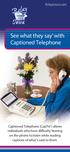 RelayIowa.com See what they say with Captioned Telephone Captioned Telephone (CapTel ) allows individuals who have difficulty hearing on the phone to listen while reading captions of what s said to them.
8x8 Virtual Office Mobile User Guide for ios
 8x8 User Guide for ios Works with iphone, ipad and ipod Touch Version 3.0, August 2012 The Champion For Business Communications Table of Contents Introduction...3 Features...3 Technical Requirements...4
Contents. Cbeyond Communicator for Mobile (ios) extends TotalCloud Phone System (TCPS) calling capabilities to an iphone.
 Cbeyond Communicator for TotalCloud Phone System for Mobile Cbeyond Communicator for Mobile (ios) extends TotalCloud Phone System (TCPS) calling capabilities to an iphone. Cbeyond Communicator is an intuitive
MO-Call Android User Guide
 MO-Call Android User Guide page 1 2. GETTING STARTED https://play.google.com/store/apps/details?id=com.morodocn.mocall There s 4 easy ways to download the latest version of MO-Call app for your Android
Hosted VoIP Outlook TAPI Integration
 Hosted VoIP Outlook TAPI Integration P a g e 1 This Document The purpose of this document is to describe how to download and install the TAPI (Telephony Application Program Interface) available at the
Unified Communications. Using Jabber for Mac 9.2.2. Common Tasks
 Unified Communications Using Jabber for Mac 9.2.2 Common Tasks April 2015 Table of contents Introduction to Jabber... 3 Contacts... 4 1.1 How to find a contact... 4 1.2 How to add a contact to the contacts
Instruction manual Business Telephony
 Instruction manual Business Telephony 1 Contents 1. Introduction 4 2. COMBOX 4 2.1 Description 4 2.2 Use 4 2.2.1 Customer Centre 4 3. Outgoing number display 6 3.1 Description 6 3.2 Use 6 3.2.1 Customer
Using BT MeetMe with Microsoft Lync Online
 Using BT MeetMe with Microsoft Lync Online User Guide BT Conferencing Last modified: 12 Nov 2014 Version: 2.0.0 Contents Introduction 2 Why, when, and what Scheduling & inviting 3 Scheduling a conference
Zoom Participant Guide
 The Office of Academic Technology http://academictech.ottawa.edu/ Zoom Participant Guide Zoom is a conferencing solution that provides both video conferencing and screen sharing capabilities. Its high-quality
Lync TM Phone User Guide Polycom CX600 IP Phone
 The Polycom CX600 IP (Internet Protocol) phone is a full-featured unified communications desktop phone, optimized for use with Microsoft Lync environments. It features Polycom HD Voice technology for crystal-clear
A: MobileMeet is currently available on iphones running ios 7.0 or higher and Android phones running Android OS 4.1 or higher.
 FREQUENTLY ASKED QUESTIONS MOBILE MEETINGS Connecting on the Go with iphones and Android Phones MobileMeet is the cornerstone of on-the-go InterCall Reservationless- Plus meetings. Discover a full-circle
ACE Web CapTel User Guide
 ACE Web CapTel User Guide About ACE The Australian Communication Exchange (ACE) is an innovative not for profit organisation that delivers important communication services for the Deaf, communication impaired,
MiVoice Integration for Salesforce
 MiVoice Integration for Salesforce USER GUIDE MiVoice Integration for Salesforce User Guide, Version 1, April 2014. Part number 58014124 Mitel is a registered trademark of Mitel Networks Corporation. Salesforce
Getting Started Guide. November 25, 2013
 Getting Started Guide November 25, 2013 Getting Started Guide Chapters 1. Scheduling Meetings Configuring Meeting Details Advanced Options Invitation Email, received by the Participants Invitation Email,
Colt Conferencing Frequently Asked Questions
 Colt Conferencing Frequently Asked Questions Conferencing-QA-UK-EN-13-12-2010-v04 Page 1 of 15 1 Requirements and downloads... 5 1.1 What technology/infrastructure is needed to support Colt Conferencing?...
ANDROID GUEST GUIDE. Remote Support & Management PC Tablet - Smartphone. 1. An Introduction. Host module on your PC or device
 ANDROID GUEST GUIDE Remote Support & Management PC Tablet - Smartphone Remote Desktop Guest module on your Android device Host module on your PC or device 1. An Introduction WiseMo develops software for
OfficeSuite HD Meeting User Manual
 OfficeSuite HD Meeting User Manual Welcome to Broadview Networks OfficeSuite HD Meeting. Our service unifies cloud video conferencing, simple online meeting and mobile collaboration into one easy-to-use
Contents First Time Setup... 2 Setting up the Legal Vault Client (KiteDrive)... 3 Setting up the KiteDrive Outlook Plugin... 10 Using the Legal Vault
 Contents First Time Setup... 2 Setting up the Legal Vault Client (KiteDrive)... 3 Setting up the KiteDrive Outlook Plugin... 10 Using the Legal Vault Outlook Plugin... 13 Using KiteDrive to Send Large
PRELIMINARY MEETING PREPARATION For the best quality and experience during your WebEx Meeting, you should have the following:
 HOSTING AN NJIT WEBEX MEETING PRELIMINARY MEETING PREPARATION For the best quality and experience during your WebEx Meeting, you should have the following: Technical Needs: A headset/mic combo unit (preferably
Conducting Virtual Meetings
 Page 1 oovoo Chat & Video Conferencing Information gathered by, International Faculty 2013 Faculty Training General Information What can I do with oovoo? oovoo offers free high quality video chat and instant
Communication Choices
 Communication Choices For deaf or hard of hearing people bt.com/includingyou Foreword If you ve a hearing loss or wear hearing aids, you might sometimes find communication more of a challenge. But you
UniCom Enterprise Phone (Polycom CX600) User Guide
 UniCom Enterprise Phone (Polycom CX600) User Guide 1 6 What is UniCom Enterprise?...1 Frequently Used Make a Call...6 What is Microsoft Lync?...1 Call Functions Use Call Controls...7 Who can use UniCom
Intermedia Cloud Softphone. User Guide
 Intermedia Cloud Softphone User Guide FOR MORE INFO VISIT: CALL US EMAIL US intermedia.net +1.800.379.7729 [email protected] 1 Contents 1 Introduction... 3 1.1 Cloud Softphone Features... 3 2 Installation...
VoIP Adapter User Guide
 VoIP Adapter User Guide This guide is meant to help you set up your VIRTUAL PhoneFusion One phone number and PhoneFusion VoIP Adapter. It will also provide you some tips and shortcuts. Note that PhoneFusion
UNITY MOBILE FOR ANDROID END USER GUIDE
 UNITY MOBILE FOR ANDROID END USER GUIDE Contents 1. Introduction... 3 2. How It Works... 3 3. Getting Started... 4 3.1 Login... 4 3.2 Linking Unity to the Mobile Device... 4 3.3 Specifying the Outgoing
Owning your dialtone The signature ooma dialtone is music to your ears. It means you have unlimited calling within the US with no monthly fees.
 Quick Start guide GET READY TO SAY HELLO TO: Everything you need to get started is inside this box, and everything you need to know about installation is in your hands. Don t be fooled by the size of this
8x8 Virtual Office Mobile User Guide for iphone
 8x8 User Guide for iphone Works with iphone, ipad and ipod Touch Version 2.0, September 2010 Table of Contents Introduction...3 Features...3 Technical Requirements...4 Getting Started...5 Ordering from
Getting Started with Zoom
 Getting Started with Zoom The Institute of Agriculture has recently purchased a site license for a new cloud-based video conferencing service known as Zoom. If you have ever connected to a GoToMeeting,
Getting Started. Sign in and get started. If you re already logged on to your organization s network, sign in by starting Lync.
 Getting Started Sign in and get started If you re already logged on to your organization s network, sign in by starting Lync. 1. On the Windows taskbar, click Start, click All Programs, click Microsoft
Configuring Windows for TAPI
 Configuring Windows for TAPI For TAPI-enabled programs to be able to dial using the TAPI Service Provider, Windows must be configured correctly to be able to use the proper line, get an outside line, and
AVAYA VOICE OVER INTERNET PROTOCOL (VOIP) TELEPHONE USER MANUAL. Revised by Leeward CC IT October 2012. University of Hawaiʻi Community Colleges
 AVAYA VOICE OVER INTERNET PROTOCOL (VOIP) TELEPHONE USER MANUAL Revised by Leeward CC IT October 2012 University of Hawaiʻi Community Colleges Hawaiian Telecom Copyright 2012 Table of Contents PLACING
1. Instruction. 1.1 Summary. 1.2 Features. 1.3 System Requirements. 1.4 Package Contents
 1. Instruction 1.1 Summary Plugging USB VoIP Phone into your computer s USB port, you can make and receive skype calls. Phone rings for all incoming calls. You can select one from Skype contact list or
User Guide. IP Multimedia m6350 Client
 User Guide IP Multimedia m6350 Client Content 1. IP Multimedia m6350 buttons & usage 2. Logging on / off your PC Phone 3. Changing your password 4. Making a call 5. Receiving a call 6. Answering a call
MOBILITY FOR iphone USER GUIDE
 MOBILITY FOR iphone USER GUIDE VERSION 20.0.2 401 Market Street, First Floor Philadelphia, PA 19106 877.258.3722 www.alteva.com Table of Contentsl 1. About Alteva Mobility for iphone... 3 2. Installation...
Unified Communications Android Client Quick Reference Guide
 Unified Communications Android Client Quick Reference Guide Table of Contents About MegaPath Unified Communications (UC)... 2 Download and Install the UC Client... 2 Logging In... 3 Logout... 3 The UC
PhonePresence Small Business Edition Features
 PhonePresence Small Business Edition Features The Small Business Edition of PhonePresence offers a comprehensive list of PBX style features with the additional flexibility of online administration. Where
Unified Communications. Using Jabber for Windows
 Unified Communications Using Jabber for Windows Version: January 2014 TABLE OF CONTENTS Introduction to Jabber... 2 Computer phone settings... 3 Contacts... 4 How to add a contact... 4 How to find a contact...
UniCom Enterprise Phone (Polycom CX600) User Guide
 UniCom Enterprise Phone (Polycom CX600) User Guide 1 6 What is UniCom Enterprise?...1 Frequently Used Make a Call...6 What is Microsoft Lync?...1 Call Functions Use Call Controls...7 Who can use UniCom
DUO SECURITY CISCO VPN USER GUIDE 1/27/2016
 DUO SECURITY CISCO VPN USER GUIDE 1/27/2016 CONTENTS Enrolling Your Devices... 2 Install Cisco AnyConnect VPN Client... 6 Connecting to a PC with Microsoft Remote Desktop... 8 Disconnecting the AnyConnect
Getting Started Guide. July 2013
 Getting Started Guide July 2013 Chapters 1. Scheduling Meetings Configuring Meeting Details Advanced Options Invitation Email, received by the Participants Invitation Email, sent to the Moderator (scheduler)
ios Mobile Dialer Application Manual Make low cost Internet calls from your iphone, ipad and ipod touch
 ios Mobile Dialer Application Manual Make low cost Internet calls from your iphone, ipad and ipod touch ios Mobile Dialer Application 1. Introduction... 2 2. Signup... 3 3. Download & Setup... 5 4. Calling
8x8 Virtual Office Mobile User Guide for ios
 8x8 User Guide for ios Works with iphone, ipad and ipod Touch Version 4.0, October 2012 The Champion For Business Communications Table of Contents Introduction...3 Features...3 Technical Requirements...4
1 Instruction. 1.1 Summary. 1.2 Features. 1.3 System Requirements. 1.4 Package Contents
 1 Instruction 1.1 Summary Plugging USB VoIP Phone into your computer s USB port, you can make and receive skype calls. Phone rings for all incoming calls. You can select one from Skype contact list or
Personal Call Manager User Guide. BCM Business Communications Manager
 Personal Call Manager User Guide BCM Business Communications Manager Document Status: Standard Document Version: 04.01 Document Number: NN40010-104 Date: August 2008 Copyright Nortel Networks 2005 2008
VMobile Talk User Guide
 VMobile Talk User Guide Table of Contents 1. Description 3 2. Supported Devices 3 3. Installation and Usage 3 3.1 Download 3 3.2. Installation 4 3.3. SIP Account Settings 5 3.4. Wi-Fi Connection 6 3.5.
voicemail mobile looking after your calls while you re looking after yourself
 voicemail mobile looking after your calls while you re looking after yourself welcome to the manx telecom voicemail service. The Voicemail messaging service can be activated on your line and provides you
ADOBE ACROBAT CONNECT PRO MOBILE VISUAL QUICK START GUIDE
 ADOBE ACROBAT CONNECT PRO MOBILE VISUAL QUICK START GUIDE GETTING STARTED WITH ADOBE ACROBAT CONNECT PRO MOBILE FOR IPHONE AND IPOD TOUCH Overview Attend Acrobat Connect Pro meetings using your iphone
Avaya one-x Mobile User Guide for iphone
 Avaya one-x Mobile User Guide for iphone Release 5.2 January 2010 0.3 2009 Avaya Inc. All Rights Reserved. Notice While reasonable efforts were made to ensure that the information in this document was
TELUS Business ConnectTM. User Guide
 TELUS Business ConnectTM User Guide TELUS Business Connect User Guide Table of Contents Table of Contents 3 Part - Getting Started 4 Introduction 5 Overview 6 Messages 7 Call Log 8 Contacts 9 User Settings
Android OS Mobile Dialer Application Manual. Make low cost Internet calls from Android Smartphone or Tablet
 Android OS Mobile Dialer Application Manual Make low cost Internet calls from Android Smartphone or Tablet Android Mobile Dialer Application 1. Introduction... 2 2. Signup... 3 3. Download & Setup... 5
Q. The Phone Manager call banner disappears after being displayed for a couple of seconds...5 Q. The Phone Manager icon in the taskbar is blue and
 Phone Manager FAQ s Q. The Phone Manager call banner disappears after being displayed for a couple of seconds...5 Q. The Phone Manager icon in the taskbar is blue and has a cross on it. 5 Q. Some options
Installing the TAPI Support Software
 Installing the TAPI Support Software To install and set up the TAPI 2.1-compliant software, use the following steps: 1. Start Web Portal. 2. Click the Options tab. 3. Click the PC Integration tab. 4. Click
MaxMobile Communicator User Guide
 MaxMobile Communicator User Guide For Android Phones MAX Communication Server Release 7.0 October 2013 WARNING! Toll fraud is committed when individuals unlawfully gain access to customer telecommunication
Getting Started. Getting Started with Time Warner Cable Business Class. Voice Manager. A Guide for Administrators and Users
 Getting Started Getting Started with Time Warner Cable Business Class Voice Manager A Guide for Administrators and Users Table of Contents Table of Contents... 2 How to Use This Guide... 3 Administrators...
HomeOffice Voice. Feature & User Guide. Making the most of our cutting-edge features.
 HomeOffice Voice By Feature & User Guide Making the most of our cutting-edge features. Let s Get Started! Once you have a HomeOffice Voice number, setting up your advanced features through CommPortal is
Mobile i-phonenet User Guide Android
 Chapter 1 : Getting Started 1. Client Download and Installation Step 1: Go to Google Play on your PC or your android device and search for < Mobile ipn >. Step 2: Download and install Mobile ipn. Note
Getting Started Guide
 Getting Started Guide User Guide Chapters 1. Scheduling Meetings Configuring Meeting Details Advanced Options Invitation Email, received by the Participants Invitation Email, sent to the Moderator (scheduler)
TIPT UC-ONE IOS/ANDROID PC & MAC DESKTOP CLIENT GUIDE
 TIPT UC-ONE IOS/ANDROID PC & MAC DESKTOP CLIENT GUIDE WELCOME TO TIPT UC-ONE CLIENT! CONVENTIONS USED IN THIS GUIDE The following typographical conventions are used in this guide for simplicity and readability:
Home Internet Filter User Guide
 Home Internet Filter User Guide TABLE OF CONTENTS About Home Internet Filter... 2 How Home Internet Filter help you?... 2 Setting up the Residential Gateway and accessing to SingTel Home Internet Filter
Skype for Business for Android
 Skype for Business for Android November 2015 Customization note: This document contains guidance and/or step-by-step installation instructions that can be reused, customized, or deleted entirely if they
Customer Self Care Handbook
 1 Advanced Digital Telephone Systems Customer Self Care Handbook Contents: Accessing your Self Care Pages 2 Logging In 2 Enter / Change your personal information 3 Exploring the home Page 4 Checking your
Introduction to Storm Hosted VoIP Phone Systems
 Introduction to Storm Hosted VoIP Phone Systems About Storm Established in 1996, Storm own and operate a cloud based VoIP telephone service, created especially for businesses. Storm specialise in providing
Digital telephony. Softphone Getting Started Guide. Business Edition TEL-GDA-AFF-002-0902
 Digital telephony Business Edition Softphone Getting Started Guide TEL-GDA-AFF-002-0902 Contents ABOUT THIS GUIDE 3 911 EMERGENCY SERVICES 3 DOWNLOADING THE SOFTWARE 3 CONFIGURING THE SOFTWARE 5 INITIALIZING
Getting Started Guide. January 19, 2014
 Getting Started Guide January 19, 2014 User Guide Chapters 1. Scheduling Meetings Configuring Meeting Details Advanced Options Invitation Email, received by the Participants Invitation Email, sent to the
Finding What You Need... 4 Setting Up the Wireless Network Feature... 6 Practice Using the Touchscreen Display... 15
 user guide Table of Contents Getting Started Finding What You Need... 4 Setting Up the Wireless Network Feature... 6 Practice Using the Touchscreen Display... 15 Using Your Phone Making Captioned Phone
MDS Amiba Cloud PBX. Getting Started
 Getting Started Specifications are subject to change without notice. This documentation refers to: Software version 14.119 or higher for the MDS Amiba Cloud PBX system Software version 20.044 or higher
About UmojaPhone App for Android UmojaPhone App Requirements Please note Set up
 About UmojaPhone App for Android UmojaPhone App is a SIP Based Softphone for Android mobile digital devices. The UmojaPhone App Mobile dialer for Android comes equipped with the following features: Ability
Voice Mail - Web PhoneManager (WPM) Rev. 8/4/15
 Voice Mail - Web PhoneManager (WPM) Rev. 8/4/15 Web PhoneManager allows subscribers to manage their messages, mailbox recordings, and mailbox settings over the Internet. Important Notes: WPM is available
Scheduling WebEx Meetings
 Scheduling WebEx Meetings Instructions for ConnSCU Faculty and Staff using ConnSCU WebEx BEFORE YOU BEGIN PLEASE READ! On 7/30/15, the ConnSCU WebEx site was upgraded to a new version. Although the new
UniCom & Skype for Business Windows User Guide
 UniCom & Skype for Business Windows User Guide Downloading Skype Required equipment and how to test it Initiating a call Answering a call Disconnecting a call Placing and removing a call from Hold Transfer
Acano solution. Acano Clients v1.7 Getting Started Guide. June 2015 76-1047-03-D
 Acano solution Acano Clients v1.7 Getting Started Guide June 2015 76-1047-03-D Contents Contents 1 Introduction... 4 1.1 cospaces... 4 1.2 cospace Users... 4 1.3 The Acano Client... 5 2 Overview... 6 2.1
SBBWU PROXY SETTING IT CENTRE How to Set a Proxy Server in All Major Internet Browsers for Windows
 SBBWU PROXY SETTING IT CENTRE How to Set a Proxy Server in All Major Internet Browsers for Windows If you take your laptop to lots of places, including corporate networks that use proxy servers, you need
Calls. Make Calls. Make a Call. Procedure
 Make, page 1 Answer, page 4 Mute Your Audio, page 6 Hold, page 6 Forward, page 8 Transfer, page 8 Conference and Meetings, page 9 Multiple Lines, page 10 Mobile Devices and Your Desk Phone, page 11 Make
Dual Network USB A.T.A. Model: SKYA-ATP User Manual Table of Contents
 Dual Network USB A.T.A. Model: SKYA-ATP User Manual Table of Contents 1. Introduction.. 3 1.1 Package Contents...3 1.2 Product Specification...4 1.3 Main Features...4 1.4 Minimum System Requirements...6
AUT OneDrive for Business. Instructions for Using OneDrive on Windows Platform
 AUT OneDrive for Business Instructions for Using OneDrive on Windows Platform Contents 1 What s OneDrive for Business?... 3 2 Storing Files... 5 1.1 Saving and Opening files from your Office applications...
Mobile i-phonenet User Guide iphone
 Chapter 1 : Getting Started 1. Client Download and Installation Step 1: Go to itunes and search for < Mobile ipn >. Step 2: Download and install Mobile ipn. te : Minimum Requirements : IOS 4 Singapore
How to use Dropbox. What is Dropbox. Please read the University of Melbourne Guidelines on Dropbox and University Information prior to use.
 How to use Dropbox Please read the University of Melbourne Guidelines on Dropbox and University Information prior to use. What is Dropbox Dropbox lets you easily share and collaborate on documents with
Single-User VoIP Service User Manual. Version 20080501 Revised 20110202
 Single-User VoIP Service User Manual Version 20080501 Revised 20110202 Table of Contents Table of Contents... 2 Your VoIP Service... 2 Who Should Read this Manual... 2 Basic Features... 2 Optional Features...
Audio and Web Conferencing
 Audio and Web Conferencing 1 Moderator Touch Tone Commands 3 System Requirements 4 Browsers Operating Systems Plug-ins Internet Connection Hardware Joining your Web Conference 5 Ending your Web Conference