
AdRem NetCrunch. Premium and Premium XE Editions. User s Guide. Version 6.x. Network Monitoring & Management System
|
|
|
- Lynne Bradley
- 9 years ago
- Views:
Transcription
1 AdRem NetCrunch Version 6.x Premium and Premium XE Editions User s Guide Network Monitoring & Management System
2 2010 AdRem Software, Inc. This document is written by AdRem Software and represents the views and opinions of AdRem Software regarding its content, as of the date the document was issued. The information contained in this document is subject to change without notice. ADREM SOFTWARE MAKES NO WARRANTS, EITHER EXPRESS OR IMPLIED, IN THIS DOCUMENT. AdRem Software encourages the reader to evaluate all products personally. AdRem Software and AdRem NetCrunch are trademarks or registered trademarks of AdRem Software in the United States and other countries. All other product and brand names are trademarks or registered trademarks of their respective owners. AdRem Software, Inc. 410 Park Avenue, 15th Floor New York, NY USA Phone: +1 (212) Fax: +1 (212) Web site:

3 Table of Contents TABLE OF CONTENTS... 3 INTRODUCTION OVERVIEW NETCRUNCH 6 ARCHITECTURE MAIN GOALS Network Presentation Monitoring Policies Alerting Reporting MONITORING THE NETWORK Basics Concepts Active Monitoring Smart Monitoring Limiting Monitoring Traffic Setting Network Dependencies Selective Down Nodes Monitoring Event Suppression Mechanism Network Service Monitoring Priorities Performance Monitoring BROWSING THE NETWORK Network Representation Nodes Maps Logical IP Network Physical Segment Dynamic View Static View Charts NETCRUNCH ADMINISTRATION CONSOLE DESCRIPTION MAIN TOOLBAR STATUS BAR NETWORK ATLAS Favorite Maps Atlas Maps MAIN WINDOW Map Window Views Atlas Dashboard Map View Summary View Monitoring View Inventory View EVENT LOG WINDOW

4 AdRem NetCrunch 6.x Premium NODE STATUS WINDOW Opening Node Status Window for Many Nodes Summary Network Services Status Network Service Performance History Network Interfaces Windows Services Performance Counters Node Relationships SETTING MONITORING TRAFFIC LIMIT FINDING A NODE BROWSING LOGS MANAGING NETWORK ATLAS ADDING NETWORKS Adding New Network ATLAS OPERATIONS Creating Maps Custom Map Dynamic View Map Creating Traceroute Map Deleting Map Renaming Map Moving Map Copying Map Exporting/Importing View Rescanning Map Recreating Routing Map Creating Groups on Routing Map Map Folder Adding New Folder Moving Folder Deleting Folder Renaming Folder ADDING AND REMOVING NODES ADDING NODES FROM FILE ENABLING/DISABLING ATLAS MONITORING TRACKING NETWORK STRUCTURE CHANGES MAINTENANCE Exporting Atlas Importing Atlas Exporting SNMP MIB Information Performing Atlas Backup Restoring Atlas WEB ACCESS PROPERTIES MANAGING NODE PROPERTIES
5 Table of Contents Type Properties TCP/IP Properties SNMP Management Properties Web Access Properties Notes Properties NODE MONITORING General Options Disabling Node Monitoring Monitoring Time Changing Monitoring Policy Membership of a Node Setting Monitoring Time Range Setting Node Dependency Changing Monitoring Type Selecting Leading Network Service and Checking Time Excluding From Monitoring Optimization Monitoring Network Services Advanced Options Setting Network Services Monitoring Priority Suppression of Node Service Events Excluding Event Suppression Enabling Monitors Automatically by Policy Windows Performance Monitoring Enabling Monitoring Changing Monitoring Time Specifying Login Information Enabling Windows Services Monitoring Changing Monitoring of Windows Event Log Defining Connection Share Inventory Monitoring Enabling/Disabling Inventory Monitoring Changing Inventory Settings NetWare Performance Monitoring Enabling Monitoring Changing Monitoring Time Managing edirectory Tree Credentials SNMP Performance Monitoring Enabling Monitoring Changing Monitoring Time Linux Performance Monitoring Mac OS X Performance Monitoring BSD Performance Monitoring ESX Server and Virtual Machines Performance Monitoring Selecting Primary Interface INVENTORY INFORMATION OF WINDOWS NODES General Tab Hardware Tab Operating System Tab

6 AdRem NetCrunch 6.x Premium Hotfixes Tab Software Tab Change Log Tab Finding Inventory Information Comparing Inventory Information MANAGING MAP PROPERTIES General IP Networks Maps Custom View Maps Changing the Map Type Changing Filtering Criteria Excluded Nodes Network Auto Discovery Map Appearance Auto Arrangement Sharing Custom Layout of a Map Web Access Properties OPERATING ON MAPS Inserting Node Inserting Node to IP Networks Map Inserting a Node to Custom Views Map Inserting Node from File Inserting Layer 2 Device Static Bridge Configuration Displaying Port Mapping Inserting a Link to Another Map Deleting Nodes Copying Node to Map Arranging Nodes Finding out Which Maps the Node Belongs To Finding out Which Policies the Node Belongs To Managing Node Notes EDITING MAPS Enabling Editing Mode Repositioning Objects Aligning Objects Changing Background Selecting Objects Single Selection Multi-Selection Inserting Graphical Objects Shape Picture Text Inserting Shape

7 Table of Contents Copying Map Objects Connecting Objects Modifying Object Properties Deleting Map Objects USING EVENT LOG EVENT LOG WINDOW EVENT LOG TOOLBAR EVENT PAGE BROWSER EVENT LOG FIELDS EVENT LOG FUNCTIONALITY QUERYING EVENTS Selecting Atlas Scope Selecting a View Selecting Time Range MANAGING CUSTOM VIEWS Creating a Custom View Defining Filtering Criteria PRINTING EVENT LIST EXPORTING EVENT LIST MANAGING EVENTS Changing Resolution of Event Assigning an Event to a User Grouping Events Deleting an Event VIEWING ALERT INFORMATION Event and Panel Preview Viewing Event Details Viewing Alert Execution Information Viewing SNMP Trap Information MONITORING POLICIES IN NETCRUNCH PREDEFINED MONITORING POLICIES CREATING MONITORING POLICIES Creating Dynamic or Blank Policy View Enabling/Disabling Dynamic Policy View Creating Policy View for Existing Map or Single Node Adding Nodes to Monitoring Policy Deleting Nodes from Monitoring Policy Deleting Monitoring Policy ALERTING BASIC CONCEPTS Event Classes Thresholds Using Thresholds in NetCrunch ALERTING ACTIONS A RESPONSE TO AN EVENT Alerting Action Types

8 AdRem NetCrunch 6.x Premium Role based Notification System Basic Action Types Control Action Types Logging Action Types Scripts Action Types Display Alert Notifications MANAGING ALERTING Adding or Removing Alerts Modifying Alerting Rules Configuring Event Parameters Creating New Events Creating Alerting Scripts List of Escalated Alerting Actions Managing Alerting Scripts Default Alerting Script Pending Alerts Clearing Pending Alerts Acknowledging Alerts Changing Message Formats REPORTING REPORT TEMPLATES Reports with Configurable Parameters Defining Performance Reports MANAGING DATA COLLECTION FOR REPORTING Creating Data Collection for Reporting Creating Datasheet Report Based on a Selected View Modifying Data Collection Rules Modifying Report Parameters REPORT VIEWER Starting the Program Generating Reports Why a generated report is empty? TREND DATA FORMAT OPERATING SYSTEM, SNMP AND APPLICATION MONITORING MONITORING SYSTEM AND NETWORK PERFORMANCE Basic monitoring Monitoring Network and Services Operating System Performance SNMP Web Page File Events MONITORING MICROSOFT SQL SERVER MONITORING MICROSOFT IIS MONITORING MICROSOFT EXCHANGE MONITORING ESX SERVER MONITORING OPTIMIZATION STRATEGY
9 Table of Contents PERFORMANCE VIEWS Creating Performance Views Managing Performance Views Changing Panel Properties Viewing Counter History with using Trend Viewer VIRTUAL PERFORMANCE COUNTERS Opening Virtual Performance Counters Window Defining New Virtual Counter Adding Counter Variable Editing Virtual Counter Properties Deleting Virtual Counter MANAGING SNMP DEVICES Viewing and Setting SNMP Variables Extending MIB data MIB Compiler Where to Look for MIB s Receiving and Responding to SNMP Traps Listening Modes Defining a Specific Trap Event Forwarding and Grouping SNMP Traps Turning NetCrunch Alert into SNMP trap Using NetCrunch MIB USING WINDOWS TOOLS USING THE PROGRAM REMOTELY REMOTE ACCESS AUDIT LOG WEB ACCESS Enabling / Disabling Web Access Defining Web Access Users Web Access User Management Managing Web Access Profiles Creating Web Access Profile Editing Web Access Profile Deleting Web Access Profile Managing Access Rights SSL Connection ADMINISTRATION CONSOLE USED ON REMOTE MACHINES PROGRAM OPTIONS GENERAL OPTIONS Server Connections Settings Changing User Interface Style NetCrunch Server Connection Settings Defining Startup Script Error Reporting Changing Confirmations Network Discovery Settings Web Access Settings

10 AdRem NetCrunch 6.x Premium Maintenance Event Database Trend Export Update Options License Manager MONITORING Monitoring Options Setting Default Node Properties Changing Default SNMP Properties Changing Default Windows Account edirectory Tree Credentials Linux Default Credentials Mac OS X Default Credentials BSD Default Credentials Inventory Default Settings Changing Thread Settings Default Network Services Changing Network Services Definition Creating Network Services Definition Changing Definition Duplicate Network Service Definition Physical Segments Topology and Layout SNMP Trap Listener Syslog Message Listener Enabling Windows Event Log DNS Resolver NOTIFICATION Notification Window Settings Pager Settings GSM Mobile Device (phone or modem) ICQ Jabber Settings MAP General Map Settings Icons Captions Styles Background Connection Lines Signaling Method Map Images Cache Map Links Settings Map Appearance Settings ADVANCED NODE MONITORING CONCEPTS UNDERSTANDING NETWORK DEPENDENCIES

11 Table of Contents First Example INTRODUCTION TO EVENT SUPPRESSION Advanced Monitoring Settings Description Important Event Suppression Information Quick Illustration Understanding Service Indeterminable Status Quick Illustration Sample Scenario First Case Second Case Third Case Fourth Case NETWORK DEPENDENCY EVENT SUPPRESSION Second Example Step 1: Setting Up Network Dependencies Step 2: Setting Up Suppression of Events Step 3: Excluding Event Suppression Conclusion SUPPRESSING NETWORK SERVICE EVENTS Third Example Step 1: Disabling Suppression From Depending Nodes Step 2: Setting Up Suppression of Service Events Step 3: Excluding Service Event Suppression Conclusion FOURTH EXAMPLE CUSTOMIZING NETCRUNCH CUSTOMIZING USER INTERFACE Customizing Layout Filtering Atlas Maps Window Undocking Windows Docking a Window Window List Aligning Docked Program Windows Readjusting Window Size Browsing All Currently Opened Windows Arranging Layout for Multi-Display Capability Saving Program Layouts Synchronizing Windows with the Network Atlas CUSTOMIZING TABLES Customizing Columns Sorting Information Grouping Information into Sections Filtering Information Table Options MANAGING NOTIFICATION USERS AND GROUPS MANAGING SNMP PROFILES
12 AdRem NetCrunch 6.x Premium EVENT SUPPRESSION MANAGER Opening Event Suppression Manager Changing Event Suppression Settings CONFIGURING NODE TOOLS MENU Adding New Menu Item Deleting Menu Item Moving Menu Item Changing Menu Item Properties IMPROVING NETWORK DEVICES IDENTIFICATION Using Device List Editor Automatically Updating the DEVICES.XML File Adding New Device Definition CUSTOMIZING SNMP VIEWS Using SNMP View Editor CHANGING EVENT TO MESSAGE TRANSLATION FORMATS TROUBLESHOOTING MONITORING NETWORK SERVICES REQUIREMENTS MONITORING WINDOWS MACHINES IN NETWORKS CONTAINING DOMAINS/WORKGROUPS WINDOWS PERFORMANCE MONITORING REQUIREMENTS MULTIPLE CONNECTIONS TO MONITORED WINDOWS NODES BY THE SAME USER COMMON MIB COMPILING PROBLEMS AND FIXES Missing Aliases MONITORING OF TCP NETWORK SERVICES SLOWDOWN CONNECTING GSM MOBILE DEVICE UTILIZING NETCRUNCH ATLAS DATA RESOURCES INDEX
13 Introduction This guide is intended for network administrators and other professionals in charge of managing enterprise networks. It will demonstrate how to use the extensive visualization, monitoring, alerting and reporting capabilities delivered by AdRem NetCrunch to monitor corporate networks in a cost and time-efficient manner. Because this manual generally applies to TCP/IP networks, from here on the term network will be used to mean specifically TCP/IP networks, unless otherwise indicated. Overview No time for downtime? That is the whole point of deploying AdRem s NetCrunch. Maintaining the highest levels of network and service availability is clearly mission-critical to any successful company. Global markets, new business and technology initiatives, and a growing need to leverage the ever-expanding Internet require a secure, reliable and faulttolerant foundation for delivering network-based services and applications with as close to 100 percent uptime as possible. Without a sophisticated and flexible monitoring, alerting and diagnostics solution, failures of vital hardware devices, network services, and applications can easily go unnoticed. Employees, business partners and customers are increasingly dependent on round-the-clock access to data in the corporate network. Each outage or service unavailability can negatively affect employee work performance and may lead to greatly reduced productivity. Worse, if a network crash occurs over a holiday or weekend period, critical services or even your entire company network could be inaccessible to customers or suppliers for hours even days before you discover the problem. In a worst-case scenario, a prospective client, unable to contact a representative of your company, could get turned off and go elsewhere. With NetCrunch 6.x from AdRem Software, you will no longer have to worry, because if an outage or emergency situation occurs on your network you will know it first. AdRem NetCrunch constantly probes and transacts with network resources at timed intervals to test their availability and responsiveness. It provides an intuitive real-time display of network performance and plots system and service behavior on easy-to-read graphical maps. If a failure or degradation occurs, NetCrunch automatically notifies scheduled administrators via or pager, providing them with the necessary diagnostic information. In addition, detailed reports can be generated on the current and historical performance of particular hosts over any given time frame. Another useful feature of the program is trend collecting. This safeguards and improves service quality and uptime in corporate network installations. AdRem NetCrunch is perfect for checking the ongoing status of company networks, or using it as a dedicated monitoring solution for particular subnets and critical network services and distributed applications. It is also recommended for consultants for troubleshooting customer networks in many locations. Because NetCrunch is a Windows client solution, they can have it installed on a laptop and carry it around with them. It is designed for small and medium- 13

14 AdRem NetCrunch 6.x Premium sized network customers and includes many useful and valuable functions for monitoring networks over longer periods. NetCrunch 6 Architecture AdRem NetCrunch is a comprehensive network management application and monitoring solution for networks consisting of up to few thousand nodes. NetCrunch 6 was designed to improve the monitoring of network infrastructures by implementing a client/server architecture and combining network visualization with detailed alerting mechanisms and reporting capabilities. The new client/server architecture brings the possibility of connecting multiple administration consoles to a one NetCrunch Server and vice versa. The AdRem NetCrunch 6.x Premium and Premium XE editions consist of the following program components: AdRem NetCrunch Server contains all program components (AdRem NetCrunch Administration Console, AdRem NetCrunch Web Server and AdRem NetCrunch Connection Broker) and database for storing all data of created network atlases. It is installed on selected by the user network machine running Windows operating system. The program allows installing many NetCrunch Servers according to the user needs. Each NetCrunch Server can be connected remotely via Web browser or NetCrunch Administration Console. Connection established via Web browser utilizes credentials defined individually for each user in the NetCrunch Server. Connection via NetCrunch Administration Console is established by using NetCrunch Connection Broker which verifies credentials specified for NetCrunch Server. Therefore, each NetCrunch Server has unique credentials specified by the user during the installation process. These credentials are used to establish simultaneous connections of many NetCrunch Administration Consoles installed on remote Windows machines. Once, NetCrunch Server credentials are verified by the NetCrunch Connection Broker, the NetCrunch Administration Console is connected directly to the NetCrunch Server. AdRem NetCrunch Administration Console it is the Graphical User Interface which allows managing all tasks related to network monitoring. It is distributed in separate installation file along with AdRem NetCrunch Connection Broker. Therefore, it can be installed on many network machines running Windows operating system. However, the user can install many NetCrunch Servers in the monitored networks. In such case, the multiple consoles can run on a remote machine simultaneously, having established connections to different NetCrunch Servers and receive event notifications from them independently. To establish connections between NetCrunch Server and NetCrunch Administration Consoles the AdRem NetCrunch Connection Broker is used. AdRem NetCrunch Connection Broker allows establishing connections with NetCrunch Server. It is installed along with the AdRem NetCrunch Server and AdRem NetCrunch Administration Console, if the console is installed separately on remote machines. NetCrunch Connection Broker is used to perform the following tasks: establishing connection between NetCrunch Administration Console and NetCrunch Server by verifying server credentials, 14

15 Introduction receiving desktop notifications on any machine where it is running and all NetCrunch Servers to which it is connected, managing the list of installed NetCrunch Servers and their credentials. AdRem NetCrunch Web Server allows accessing the NetCrunch Server via a Web browser from any remote machine. It is provided with the AdRem NetCrunch Server. The Premium/Premium XE editions of the AdRem NetCrunch 6.x program is distributed in two installation files: NCServer6Premium.exe it is the AdRem NetCrunch Server which consists of all program components described above (AdRem Administration Console, AdRem Web Server and AdRem Connection Broker). It can be run and fully managed on Windows machines where it was successfully installed. The AdRem NetCrunch Server allows remote and simultaneous connections of the NetCrunch Administration Consoles to the same network atlas, created by the user. Furthermore, it can be also accessed from any remote machine via Web browser. NCConsole6Premium.exe consists of Graphical User Interface and AdRem Connection Broker. It is dedicated to install on Windows machines selected by the user and allows connecting remotely to NetCrunch Server installed on a different Windows machine and managing network monitoring. AdRem Connection Broker is a small application used only to establish remote connection between the AdRem Administration Console and AdRem NetCrunch Server. Note The Standard edition of the AdRem NetCrunch 6.x program utilizes the NCServer6Standard.exe only. Therefore, the AdRem NetCrunch Administration Console is installed along with the AdRem NetCrunch Server as integral part of the program and cannot be used separately on remote machines. Main Goals Network Presentation A typical enterprise IT infrastructure represents a complex combination of systems, processes, data, software and hardware. Uninterrupted delivery of services and business processes hinges on proper interaction of all assets that make up a network. Consequently, mapping those different aspects of a network is crucial to the interest of an IT department in a corporation. Generally, people understand information more easily when it is presented graphically. Maps help to adjust or customize network views so users can get to relevant information quickly and efficiently. In reality, maps can show the entire logical or physical network structure as well as various functional aspects of the network topology. In the latter case, graphical representation of the network may be based on criteria such as geographical locations, organizational units or other aspects distinct to each particular company. This flexibility in viewing the network structure 15
16 AdRem NetCrunch 6.x Premium helps users comprehend different aspects of the network topology and, as a result, they are more able to easily maintain and control what they can see. NetCrunch fully supports the discovery of networks and provides almost limitless options for creating different types of network visualization. Monitoring Policies Monitoring policies in NetCrunch are used for monitoring any atlas, map or even single node. A monitoring policy is a set of rules defining what event condition should be checked (alerting) and which performance data should be collected (reporting). Therefore, a monitoring policy may consist of two elements: alerting and data collection. A monitoring policy may contain either one of the elements or both. Alerting Notifying IT administrators or department managers about arising degradations in network health or in the performance of its components is critical to proper functioning of any business organization. It directly follows that a remedy to such situations must be found as soon as possible with the least effort required. Consequently, alerting is always an integral aspect of the network monitoring process. It helps to continuously keep an eye on problems occurring in the monitored network and immediately take precautionary and corrective actions, even automatically. In fact, alerting facilitates housekeeping tasks for the administrator by helping to recognize future sources of potential problems in the network and any of its elements. In NetCrunch, alerting can be defined in any monitoring policy. The program delivers alert escalation schemes specifying that certain events, depending on their priority, trigger specified sets of actions at different times. Each successive action involves more resources or higher chains of command. In this manner, if an immediate alert action, necessitating the least amount of resources, does not produce an effect in the intended time, another action (notification or automatic recovery procedure) can occur with a more sophisticated resolution method. Specifically, the program can execute various types of actions ranging from a notification (such as sending an or SNMP trap as well as displaying an alert dialog) to running a script/program locally or remotely, and even writing alert information to a file. Reporting Constant gathering and utilization of past information about trends in network health and performance, ranks high on the list of an IT administrator s tasks. Essentially, reporting provides a long-term view of the network performance and its elements like services and applications. This significantly helps to plan the future growth and at the same time remove performance bottlenecks. As a result, reporting provides leading indicators for capacity planning and resource management. By using information obtained from processed events and gathered trends, NetCrunch provides a way to define custom data collection in any monitoring policy. Defining data collection for reporting means creating the list of reports, chosen from the predefined report 16

17 Introduction templates list. User can define the list of reports they wish, at any time. Each report can be generated, saved and forwarded to other recipients at different scheduled time. Monitoring the Network Basics Concepts There is no easy way to describe the network because of its diverse nature. However, one way of doing it is to concentrate on its most basic elements nodes with their own network address. Specifically, a decision was made to start describing network elements from layer 2 of the OSI model. This means that nodes will be understood as representing a single unique TCP/IP address. This level can serve as a starting point for looking higher into Network Services (for example, PING, FTP, POP3 or HTTP), Network Interfaces, Windows Services and Processes, and Application Performance of any monitored network element. Active Monitoring Active monitoring means that the program is constantly probing and measuring received responses from remote nodes. The simplest kind of monitoring available in NetCrunch is accessibility monitoring which simply determines the state of an object (services are down, node is down, etc.). Node state is based on the state of its monitored network services. To make this easier, by default PING service is polled by using the ICMP echo message to check node availability. In some cases, this is not enough as you may need to know more about the quality of connection. Therefore, NetCrunch also measures the number of lost packets and response times for each service. Smart Monitoring Limiting Monitoring Traffic NetCrunch is an agentless program, which means it may generate some network traffic by its monitoring. However, NetCrunch uses its own technology, which allows limiting traffic to particular networks and automatically adjusts the monitoring time. For example, if the monitoring of a certain network requires 1MB to be transmitted and users limit this traffic to 5 kb/s, transmitting that amount will take about 3 minutes as this is the usual monitoring time for nodes in that network. Setting Network Dependencies Network dependencies are a useful way to avoid unnecessary events and lower monitoring traffic. Please see the section entitled Understanding Network Dependencies on page 355, for more information on this functionality. 17
18 AdRem NetCrunch 6.x Premium Selective Down Nodes Monitoring When a node is down, only network service designated as leading service is monitored to determine connection state with the node. In the meantime, all other monitors are put in Waiting for response state. Event Suppression Mechanism You can select which node and service state events are generated or suppressed on the dependent nodes that are disabled by dependency rule when the parent node goes down for any reason. Note that this feature is only available in NetCrunch Premium XE edition. Network Service Monitoring Priorities Setting a higher priority to critical nodes helps you to monitor its network services before other type of nodes. You can even lower the priority for unimportant nodes. Note that this feature is only available in NetCrunch Premium XE edition. Performance Monitoring In case of network services, we can easily determine performance by measuring response time and number of lost packets. But we would also like to monitor other elements such as network interfaces (ports) and applications running on a node. The only way to do this is to monitor statistics gathered by the node itself. The nature of these statistics depends on the node type. For example, Windows nodes provide a number of counters measuring different resource utilization (Processor, networks, threads, system objects and application specific counters). In addition, many hardware devices like printers, routers, and switches provide a number of statistics specific to their tasks. NetCrunch simplifies access to that information by defining commonly used reports and events using predefined counters and thresholds. In most cases, the program uses SNMP protocol to retrieve that information but in case of Windows, Linux, Mac OS X, BSD and NetWare machines, it may also use OS specific protocols. 18
19 Browsing the Network This chapter presents the most common components of the NetCrunch Administration Console window. Network Representation Nodes As we mentioned above the node is the central object that gives access to its resources, services and applications running on it. Because a node represents a single TCP/IP address, it may happen that one physical device might be represented in NetCrunch by several nodes. In this case, we advise leaving the single node for service and performance monitoring, and then turning Simplified Monitoring option for the rest of them. Maps Logically, the map allows nodes to be grouped, which is very useful in the case of managing a large number of nodes. The other presentation aspects allow for the creation of nice looking graphical network maps with links to others. Logical IP Network Represents maps of the logical network topology managed by the program. User can populate these maps only with nodes that belong to a certain network. The program can arrange those maps automatically when discovering new nodes, however, they can also be manually ordered by the user. Physical Segment NetCrunch can also graphically represent physical connections between computers and manageable switches. For this to happen, it is required that an SNMP Bridge MIB module is supported by devices. Although physical maps are always fully managed by NetCrunch the users can partially arrange their layout. Dynamic View NetCrunch allows creating dynamic (automatically managed) maps based on certain filtering conditions. For example, you can easily create a map that lists all devices of the same kind or those which reside in the same location. Static View This is the simplest kind of NetCrunch map, fully managed by the users who have to manually insert nodes and arrange them. 19

20 AdRem NetCrunch 6.x Premium Charts Charts in the program are a graphical representation of specific performance counters monitored on any nodes of the atlas. Chart views may be automatically updated by the program or managed manually by the user. NetCrunch Administration Console Description When you first open the NetCrunch Administration Console, the main console window will look something similar to presented in Figure 1. Figure 1 Sample NetCrunch Administration Console window The program can consist of the following windows (not all need to be displayed at the same time), as shown in the table below: Network Atlas The Atlas is the container for all monitored objects and its views. You may treat the atlas like a document holding its contents, style and all other settings related to it. The Network Atlas consists of the Favorite Maps and the Atlas Maps window. 20
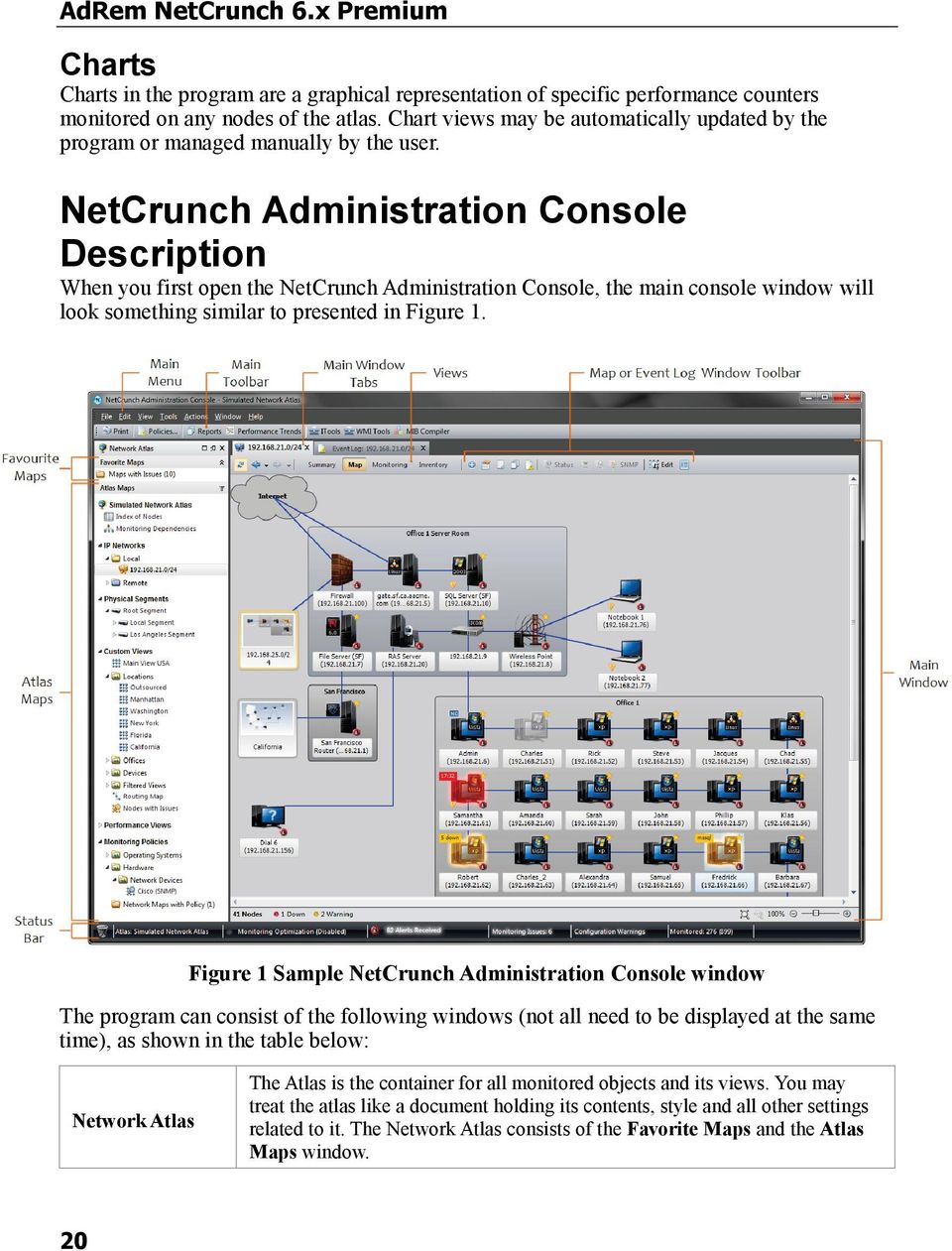
21 Browsing the Network Main Menu Main Toolbar Main Window Event Log Summary View Map View Monitoring view Inventory View It consist of the File, Edit, View, Tools, Window and Help menu items of the NetCrunch Administration Console. Provides several buttons to access main program functions. The purpose of the Main window is to present information related to the item (e.g. atlas, section or view), currently selected in the Atlas Maps window in various forms. It consists of two tabs. The first tab called the Map window, displays the name of the selected item along with the appropriate icon. This tab also contains the Summary, Map, Monitoring and Inventory views. The second tab presents the Event Log window of the item selected in the Atlas Maps window. By default, the Event Log tab is synchronized with the Atlas Maps window. Therefore, it presents events generated in the atlas, section or view selected in the Atlas Maps window. It also allows managing the list of events (e.g. changing event resolution, assigning events to user deleting events, etc.). The Event Log can also be opened as a separate window by selecting the New Event Log window item from the Window main toolbar and synchronized with other Atlas Maps items. The Summary view is available at the top of the Main window when the particular section or view is highlighted in the Atlas Maps window. It presents crucial information about all nodes and network service states available in the currently highlighted view. The Map view is available when you click the Map button at the top of the Main window. It presents network in the graphical form. Therefore, it can be conveniently used to obtain quick information about all nodes and network service states for the view currently highlighted in the Atlas Maps window. Maps in NetCrunch consist of node icons and other objects such as pictures, text, background shapes or connection lines. Furthermore, each icon indicates node monitoring status, by changing the appearance and color. A gold star indicates that the SNMP monitor is enabled. The additional information as the type and version of the operation system running on the node is also displayed. When the user stops the mouse pointer over a node, after a short period of time the hint window opens. The hint window contains the most important information about the selected node. The zoom toolbar is displayed at the bottom. It allows adjusting the zoom in order to manage the displayed size of all items of the currently selected map. The Monitoring view contains the Details, Windows, SNMP, NetWare, Linux, Mac OS X and BSD tabs according to the monitored operating system types. Information in tab is presented in a table format. The Inventory view displays detailed inventory information of Windows nodes. The view contains the Monitor and Software tabs. The Monitor tab presents information about performed inventory audits and basic information about nodes. The Software tab shows information about software installed on inventoried nodes. 21
22 AdRem NetCrunch 6.x Premium Status Bar Displays general information about the monitored atlas, its maps, monitored services, current number of new alerts received in the alerts dialog, selected optimization strategy and monitored issues. The user can click the desired link to open the appropriate window for more information. Notes By default the Main window tabs are synchronized with the Atlas Maps window. This means that if a different section or view is selected in the Network Atlas window, the Main window automatically displays its contents. In such case the Synchronize icon is pressed. The synchronization can be disabled by clicking this icon to release it. In addition, NetCrunch contains three additional stand-alone programs: Report Viewer (used to generate and display predefined reports), Performance Trend Reporter (used to create, generate and display custom trend reports), ITools (providing handy network troubleshooting tools) and WMITools (lets you perform several tasks on nodes running Windows operating system). Main Toolbar The main toolbar contains a list of common global functions accessible at any time. The main toolbar from the program is displayed in Figure 2, below. Figure 2 Main Toolbar The toolbar consists of the following icons (as shown in the table, below): Print Monitoring Policies Reports Trend Viewer ITools WMI Tools Opens the Print Preview window for the currently displayed map. Opens the NetCrunch Monitoring Policies window, where the user may manage the all alerting and data collection used in the monitored atlas. Opens the Report Viewer program (for predefined reports) where the reports may be created, viewed and generated. Opens the Trend Viewer program used for viewing trend data that was previously gathered for an atlas in NetCrunch. Opens the AdRem ITools several network tools such as Ping, Trace Route, DNS Lookup and SNMP. Opens the AdRem WMITools program with the several Windows tools such as Processes, Services, System Hardware, and Operating System. 22
23 Browsing the Network MIB Compiler Opens the MIB Compiler program used to edit and recompile vendor specific MIBs. Please note that the MIB Compiler is available only in NetCrunch Administration Console used locally on the machine with installed NetCrunch Server. Notes You can toggle on/off the showing of the main toolbar by selecting Show Main Toolbar menu item from the View menu. Please note that the Report Viewer, Trend Viewer, ITools, WMITools and MIB Compiler applications contain documentation available by selecting Help Contents from their main menu. Status Bar The main status bar displays valuable information about the monitored atlas. It also warns the user about configuration and monitoring issues in the program. The status bar consists of the following elements: Rubbish Bin this icon is used to delete nodes or events by dragging and dropping. Atlas Name displays the name of the currently monitored atlas. Monitoring Optimization this link displays information about the selected optimization strategy for the entire atlas. By using this link, the user can change the optimization strategy and add nodes to the exclusion list. Alert Received displays the number of recently received alerts. By clicking this link, the Alert Notifications window is opened with the list of recently received alerts. Monitoring Issues displays the number of the monitoring issues in the atlas. By clicking this link the Monitoring Issues window opens with a list containing information about the issue type, node where an issue occurred and reason. Configuration Warnings this link is displayed when the program needs additional configurations setup, such as Web Access or physical segments. By using this link the program automatically opens the appropriate configuration wizard. Nodes displays the number of nodes included in the monitored atlas. Network Atlas The Atlas is the container for all monitored objects and its views. You may treat the atlas like a document holding its contents, style and all other settings related to it. The Network Atlas consists of the Favorite Maps and the Atlas Maps window. 23
24 AdRem NetCrunch 6.x Premium Figure 3 Network Atlas window 24
25 Browsing the Network Favorite Maps When monitoring a network, it is very important to find out quickly, which node (or map) is currently experiencing any monitored issue. It is especially difficult when the user is monitoring a large network. NetCrunch provides an effective solution for this difficulty. In the Favorite Maps window, the folder Maps with Issues contains links only to these maps, where even one node is not in the OK status. NetCrunch adds and removes these links automatically. The link appears in the folder Maps with Issues as long as a problem within an appropriate map persists. Furthermore, in the Favorite Maps window, the user can create the direct link (by dragging) of maps or folders chosen from the Atlas Maps window, except maps belonging to the Physical Segments section. Atlas Maps The Atlas Maps window contains a special Index of Nodes section providing easy access to all monitored nodes. Further sections contain maps, folders and views of the monitored network. The Atlas Maps window consists of two sections managed by the program automatically (IP Networks and Physical Segments) and three users managed ones called Custom Views, Performance Views, and Monitoring Policies respectively. Atlas Maps Main Sections IP Networks Physical Segments Custom Views It contains two types of networks: Local and Remote networks. The Local network lists all networks as seen from the point of view of the machine NetCrunch is running on. The Remote network lists those networks which are not directly connected to the local networks. These networks are discovered during the creation of a new atlas or during a rescanning operation on it. The program also automatically adds a new remote network to this section if a previously inserted node belongs to an unknown remote network to the program. Presents lists views based on the physical network topology. The connection lines drawn on views of physical segments represent real physical network cables that link devices. Views in this section cannot be managed by the user; however their layout can be modified. In order to reflect the network topology change, NetCrunch allows monitoring and set a refresh time interval of the entire Physical Segments topology. This section may contain previously discovered nodes organized into dynamic and/or static views. It may contain any number of different network views created by the user. In the static view, the user manages (adds/removes) nodes, while in the dynamic view nodes are automatically updated based on user-specified filtering criteria. Usually, when opening a new atlas for the first time, after the network discovering step, two default folders are created: edirectory and Windows Domains. The edirectory folder lists the discovered NDS trees of the network, and it is made up of nodes that belong to them. Meanwhile, the Windows Domains folder lists the Windows domains of the network, which were found during network discovery and lists the maps and nodes that belong to them. 25
26 AdRem NetCrunch 6.x Premium Performance Views Monitoring Policies Contains graphs (in the form of charts, bars or gauges) of specific performance counters monitored on nodes (SNMP, NetWare or Windows type). Contains all predefined monitoring policies. It also contains map monitoring policy views (dynamic and/or blank) created by the user from within this section and blank policy views created from within the NetCrunch Monitoring Policy window (except monitoring policies created for a single node). If the monitoring policy was created from within the NetCrunch Monitoring Policies window for maps belonging to the Custom Views section or IP Networks section, then the appropriate link is created in the User Maps with Policy or the Network Maps with Policy folder respectively. Available View Types (in the Atlas Maps sections) Index of Nodes Logical Network Routing Map Monitoring Dependencies Map Dynamic View Static View Dynamic Monitoring Policy View with Operating System Selected Blank Monitoring Policy View with Operating System Selected Physical Segment Lists all existing nodes in the open atlas (that were previously discovered by the program or added manually by the user) in a table format. It contains nodes discovered based on the IP addressing. It belongs to the IP Networks section. Displays a routing map of the monitored network. It belongs to the Custom Views section. Displays nodes that have at least one dependent node and shows the actual monitoring dependencies between them. Displays a dynamic view whose contents are updated automatically by the program based on selected filtering criteria. The Static View contains nodes only managed by the user. The newly created static view does not contain nodes to start with. Therefore, the user needs to copy the selected nodes to such view. The view may contain nodes running different operating systems. Displays a monitoring policy view in the Monitoring Policies section whose contents are updated automatically by the program and restricted to a selected operating system. The icon appearance varies depending on the selected operating system (e.g. Windows, Mac OS X, BSD, Linux or NetWare). Displays a custom monitoring policy view in the Monitoring Policies section whose contents are static (its contents can only be updated manually by the user) and restricted to a selected operating system. The icon appearance varies depending on the selected operating system (e.g. Windows, Mac OS X, BSD, Linux or NetWare). Displays a Physical Segments views created based on a physical network topology. 26
27 Browsing the Network Port View Displays a Physical Segments views of what device is currently connected to a particular port. This map is also based on physical network topology. NetCrunch changes the color of the maps icon, except Index of Nodes to reflect their present status. The color states of a map icons are described in the table below. Normal (OK status) Yellow (WARNING status) Red (DOWN status) Gray (UNKNOWN status) Indicates the OK status of a map. All nodes (and map links) included in a map are in the OK status. Indicates a warning status of a map. At least one node (or map link) on a map is in the WARNING or DOWN status. Indicates a down status of a map. All nodes (and map links) included in a map are in DOWN status. Indicates an unknown status of a map. All nodes included in a map are in the unknown status or the map is empty. In the Atlas Maps window, every view is represented by an appropriate icon. NetCrunch changes the color of the maps' icon in the Atlas Maps window to reflect their present status. A map link also changes color if there are any nodes that are in the down or warning states in the linked map. Therefore, it is possible to use map links to indicate the map status. Please see the section entitled Signaling Method on page 351 for more information. Multiple Map and Event Log windows can be synchronized with the Atlas Maps window. This means that as you select a particular map in the atlas tree, the Map window will immediately display the content related to the selected map. Main Window The purpose of the Main window is to present information related to the monitored atlas in various forms. By default, the Main window is synchronized with the Atlas Maps window. In such case, details about item (e.g. atlas, section or view), currently selected in the Atlas Maps window are presented in the Main window. Directly above, the Main toolbar is displayed with several, frequently used tools. Right under the Main window two tabs are located. The first tab, called the Map window displays the name of the selected item along with the appropriate icon. The second tab presents the Event Log window. Please see the chapter titled Event Log Window on page 51 for more information on the subject. Map Window Views The Map window is opened by selecting the firs left tab (containing icon related to the view currently selected in the Atlas Maps window), of the Main window, located directly below the main program toolbar. The separate Map window can be opened from the program main menu by selecting the Window New Map Window item. The Map window contains the Summary, Map, Monitoring and Inventory views, available according to the selection in the Atlas Maps window (Figure 4). The Summary view presents the most common monitoring information. The Map view presents network in the graphical 27
28 AdRem NetCrunch 6.x Premium form. The Monitoring view contains the Details, Windows, SNMP, NetWare, Linux, Mac OS X and BSD tabs according to the monitored operating system types. Information in tab is presented in a table format. The Inventory view displays detailed inventory information of Windows nodes. The view contains the Monitor and Software tabs. When the atlas name is highlighted in the Atlas Maps window, the atlas dashboard is presented in the Map window. Figure 4 Map window Each view available in the Map window contains the following icons: Back Forward Allows you to move back to the previously viewed map. Allows you to display the next map (if you have moved back from an earlier map). 28
29 Synchronize With Atlas Select View Browsing the Network Permits to synchronize/unsynchornize the Main window contents with what is currently being selected in the Atlas Maps window. If this icon is pressed, the Main window is synchronized with the Atlas Maps window. This icon allows selecting the view to be presented in the Map window. This option is available only when the Map window is unsynchronized with the Atlas Maps window. At the bottom of the Map window, the total number of nodes divided by their current status is presented. Atlas Dashboard The atlas dashboard is presented in the Map window when a given Atlas network is selected in the Atlas Maps window. Dashboard presents the most critical information about monitoring process and allows viewing and/or changing the following features: Atlas Configuration the user can configure the most common options related to the monitoring process (e.g. monitoring areas, optimization, default credentials, administrator profile, Web Access, alerting scripts etc.), in the Atlas Configuration Wizard. Please see the NetCrunch Getting Started Guide for detailed information about using the Atlas Configuration Wizard. Atlas Properties by clicking the Properties button, the Atlas Properties window is opened. The user can change the desired atlas properties. Monitored Nodes Panel displays the number of monitored nodes in the atlas divided according to their current statuses (e.g. OK, Down, Warning, etc.). By clicking the desired status button in this panel, the Details tab opens presenting the list of nodes filtered by this status. Monitored Network Services Panel presents the number network services monitored in the atlas and their current statuses. Events Table the number of events divided according to their severity (e.g. critical, warnings, etc.), generated in the last 12 hours is presented in the table format panel. When icon is clicked in the desired filed of the table, the Event Log window opens with the list of events filtered by their severity, generated in the selected hour. Nodes with Problems presents the list of 10 nodes with the highest number of unacknowledged events, divided according to their severity and generated in the last 24 hours. Nodes with Longest Response Time contains the list of 10 nodes with the highest average value of the response time (RTT). By double-clicking the particular node, the user can open Status window. The average response time is validated for each monitored node and indicated on the Summary tab of the node Status window. Top Processor Utilization shows the list of 10 nodes with the highest percentage value of the processor utilization. Top Memory Utilization presents 10 nodes with the highest percentage value of memory utilization (the Memory field located in the Status window). 29
30 AdRem NetCrunch 6.x Premium Lowest Disk Space lists 10 nodes with the highest percentage value of disk space usage. By double-clicking the particular node listed in the atlas dashboard, the user can open the Status window. However, clicking the desired status button panel or icon, indicating severity, opens the Details tab presenting the list of nodes, filtered by selected status or network service. Figure 5 Atlas Dashboard Information presented in the atlas dashboard is automatically refreshed every 5 seconds. However, the information is actual according to the monitoring time specified by the user in the program Options window for entire atlas or individually for the particular node in Monitoring window. 30
31 Browsing the Network Notes Notice that actual information is presented in the dashboard only when the monitoring network atlas is enabled. Disabled atlas monitoring is indicated by the Atlas Unavailable icon. The program provides dashboard layout for maps and monitoring policies in their Summary view. Please see the chapter titled Summary View on page 35 for more information about differences between information presented in appropriate dashboards. Map View The view is available when you click the Map view at the top of the Main window. It presents the graphical representation of a view selected in the Atlas Maps window. Therefore, it can be used to obtain quick information about all nodes and network service states for the currently highlighted map. Maps in NetCrunch consist of node icons and other objects such as pictures, text, background shapes or connection lines. Furthermore, each icon indicates node monitoring status, by changing the appearance and color. A gold star indicates that the SNMP monitor is enabled. The additional information as the type and version of the operation system running on the node is also displayed. When the user stops the mouse pointer over a node, after a short period of time the hint window opens. The hint window contains the most important information about the selected node. The zoom toolbar is displayed at the bottom. It allows adjusting the zoom in order to manage the displayed size of all items of the currently selected map. The icons displayed in the Map view toolbar change depending on whether an atlas, section, folder or view is selected in the Atlas Maps window. Figure 6 A Sample Map View Toolbar The following icons are available on the Map view toolbar: Add Nodes Arrange Nodes Edit Map Check Node Now Discover Network Services Map Properties Opens Add Node to Monitor window, where you can add a node by typing its IP address. Allows you to arrange nodes in the Main window. Enables or disables editing the contents of a displayed map. Checks the selected node including the status of the network services monitored on the node and its related performance counters. Discovers all network services currently running on a selected node. Opens the Map Properties window where properties relating to the currently displayed map can be changed. 31
32 AdRem NetCrunch 6.x Premium Map Reports Node Status SNMP Event Log Opens the stand-alone Report Viewer application used to view and print predefined map reports that you have generated. Opens the Status window for the currently selected node. Opens a window used for browsing or editing SNMP information available on a selected node. Opens the Event Log window for the map currently highlighted in the Atlas Maps window. At the bottom of the Main window, the zoom toolbar is located, which allows the user to adjust the zoom in order to manage the displayed size of all items in the currently selected map. Recognizing Node State Finding out the present status of a node located in any view is one of the easiest, yet most important tasks in the program. For this purpose, the program uses different colors to indicate the present monitoring status of a node (Map and Details views) or the current connection state of a node (Windows, NetWare, Linux and SNMP views). Graphical Map View By default, node icons on a map appear in different colors, each signifying a different state of the node. This helps to quickly find out the current state of a node located on any map belonging to a particular group of the Network Atlas tree. The following color states of each node icon are possible in NetCrunch if the Map tab is currently selected (please note that the icons displayed below are used only for demonstrative purposes, icons representing other node types also change colors as explained below): Normal (status: OK) Yellow (status: WARNING) Red (statua DOWN) The node is responding to monitoring and is therefore up and running. All of its monitored services are also responding correctly. Indicates a warning state. Some of the node s network services which are monitored are not responding correctly or a monitored issue occur, although the node itself is still up and running. Usually, if you place a cursor over a node in the WARNING state, it will immediately display the names of the network services which are down. The node is down and is not responding at all. None of the network services on the node is responding. 32
33 GRAY (status: UNKNOWN) Browsing the Network The node has monitoring disabled. Therefore, the current exact node state is unknown; it may be either up, some of its services may be unavailable or it may be down altogether. If the program was just started (or a completely new node was added to a map), it may also be possible for nodes to be in the UNKNOWN state temporarily (until the state of the node is checked by the program). This is because the program has not yet polled such nodes for status. As soon as this is done, the icon for such node will change into one of the three remaining states: OK, WARNING or DOWN. Note Apart from displaying different colors, the particular node icons may in addition flash for a short time. This flashing state only occurs when a node's state changes to a worse (more critical) state (for example, from OK to WARNING or from WARNING to DOWN). Enabling or disabling the flashing icon and line capability, as well as specifying duration of flashing and displaying the node error hint time may be set in the program options - from the main menu click Tools Options and select the Map Signaling page. Additional Icon Marks Node is being discovered Node Undiscovered SNMP Manageable device The node icon includes a small magnifying glass located at the bottom-right of the icon (as can be seen in the example icon). Usually, a node remains in that state for several seconds.. During the discovery process the program may not recognize a node type. It is indicated by this icon. In such case, the user can set a node type by selecting the Set Node Type option from its context menu. The Device Type window opens. Please see the section titled Type Properties on page 89 for more information. A SNMP-manageable device icon will contain a small yellow star located at the top-right side of the icon (depending on the type of the node it represents). This means the program will be able to read and possibly set values using SNMP on the node; if the correct Read/Write Community or authentication user and password is specified, depending on the actual SNMP version used. All such SNMP-manageable devices belonging to a particular map are also listed in the SNMP view (by clicking the SNMP tab at the top of the Main window). 33
34 AdRem NetCrunch 6.x Premium Unacknowledged alerts Disabled by time restriction Disabled by dependency rule Unknown state Node with NetCrunch Node with Issue Node with Issue Related to Rules Defined in Monitoring Policy If any unacknowledged alerts exist for a particular node in the map, the icon representing the node will have a small bell attached at its bottom-right corner. This bell will disappear once you change the resolution of all the new generated events for the node to any state other than new, or you delete them altogether. This special icon state is useful as you can immediately note that on a particular node (as displayed in the Map view) some new events were generated. You may then proceed to view such new alerts using the Event Log and change its resolution or even delete them from the Event Log database. This particular condition takes place on the node if you indicated during which hours of a day and/or days of a week the node will (or will not) be monitored. In such a case, the node icon will turn to gray color and a small clock image will appear at the bottom-right corner meaning that it is currently disabled. When a specific node is dependent on another node that currently is down it will also be disabled. The node s icon will turn red and a disconnected plug image will appear at the bottom-right corner to indicate that it is disabled by network dependency. When you remove all network services from the monitored list of a node, the icon will change into the UNKNOWN state (its color by default will turn to gray). Additionally, a small question mark will appear at the bottom-right corner of the icon to indicate that currently there are no network services monitored on the node. The node on which the NetCrunch Server is running will be shown with an icon containing the letters NC placed in its top-left corner. You cannot remove this icon from an atlas, and all the remaining nodes will always be dependent on it. Furthermore, if you create an empty atlas, this node (running NetCrunch Server) will automatically be added to it. If you move an atlas to another computer, the node with NetCrunch Server will automatically be updated to reflect this change. Occurrence of an issue on a node is signaled by the Issue sign on the bottom-left corner. For example, when the user enters valid login information for the selected Windows node to which the program is already connected. The second connection of the same user is not allowed for the Windows operating systems. This situation will be signaled as an issue on this node. Occurrence of any monitored issue on a node is signaled by it s icon color change and the Issue sign will appear on the bottom-left corner. An issue is signaled according to the monitoring policy to which node belongs. 34
35 Network services not responding Browsing the Network NetCrunch allows monitoring many network services on a node. If any network service is not responding on a node then it's icon change color and the sign is placed in it's topleft corner with the name of the appropriate network service. If more network services are not responding then a number of not responded network services is displayed. Notes In addition, it is possible to change the signaling method of nodes (indicating current state) from the default icon coloring, to either drawing background behind the icon or drawing a color frame around the icon. If any of the latter two methods are chosen then you may also change the colors used in some of the icon states (from the default gray for UNKNOWN, yellow for WARNING and red for DOWN). Please see the section entitled Signaling Method on page 351 for more information on how to change any of these options. When you place cursor over a node the tooltip window is opened with the most important monitoring information such as the node status, alerts, interfaces and issues. Summary View The summary view for a map is available when you click the Summary view at the top of the Map window. It can be used to quickly obtain crucial information about all nodes and network service states available in the currently highlighted map. The summary information is presented using separate panels for node state summary, network services summary and other information specifically related to the type of nodes included in the selected map such as SNMP, Windows or Linux nodes. The node state summary panel displays how many nodes from the map are in OK, Warning or Down state. The network services summary panel displays how many network services monitored on the nodes of the map are OK, Down or Disabled. The other charts display specific information related to the type of nodes (e.g. for nodes running Windows, the number of nodes with connection error). The Monitoring Overview bar chart shows on how many nodes a given monitoring (Windows Performance, SNMP Performance, Inventory and other) is enabled and what is its current status (OK, Warning, Error or Unknown). Below the Monitoring Overview bar chart, is located a panel which displays the nodes with the highest percentage of processor and memory utilization as well as the nodes with the lowest disk space. 35
36 AdRem NetCrunch 6.x Premium Figure 7 Summary View In addition to abovementioned panels and sections, the Monitored Events and Data Collection for Reporting sections (as shown in Figure 8) are presented when the monitoring policy is selected in the Atlas Maps window. However, these sections contain only alerts (events with assigned alerting actions) and/or reports defined and currently enabled in the selected monitoring policy. By clicnikng the Edit button, the Map Monitoring Policy window opens, where alerting and reporting can be changed. Please see chapters titled Managing Alerting on page 237 and Managing Data Collection for Reporting on page 269 for more information on the subject. 36
37 Browsing the Network Figure 8 Monitored Events and Data Collection for Reporting sections Monitoring View The Monitoring view allows the user to view the contents of a currently selected map in various forms. By clicking one of the tabs located below the Map Toolbar, the user can view the detailed information about the nodes on the map or switch between the information presented for nodes having installed a specific operating system. The icons displayed in the Monitoring view toolbar change depending on the particular tab selecte.. Figure 9 A Sample Monitoring View Toolbar The following icons are available on the Moniotring view toolbar: Add Nodes Add Report Opens Add Node to Monitor window, where you can add a node by typing its IP address. The Add Raport wizard is opened. The user can define report based on the selected view. Created report definition will be available in the NetCrunch Report Viewer, Add Report window and monitoring policy of the view selected in the Atlas Maps window (except the Index of Nodes). Please see the chapter titled Creating Datasheet Report Based on a Selected View on page for more information. Fruthermore, newly defined report definition will be available while creating a new monitoring policy. Please see the chapter titled Creating Datasheet Report Based on a Selected View on page 273 for details. 37
38 AdRem NetCrunch 6.x Premium Check Node Now Discover Network Services Map Properties Map Reports Node Status SNMP Event Log Options Checks the selected node including the status of the network services monitored on the node and its related performance counters. Discovers all network services currently running on a selected node. Opens the Map Properties window where properties relating to the currently displayed map can be changed. Opens the stand-alone NetCrunch Report Viewer application used to view and print predefined map reports that you have generated. Opens the Status window for the currently selected node. Opens a window used for browsing or editing SNMP information available on a selected node. Opens the Event Log window for the view currently highlighted in the Atlas Maps window. Provides more means to customize the view of a table. Please see the chapter titled Table Options on page 380 for detailed information on the subject. The following icons are additionally available on the Monitoring view toolbar when a performance view containing charts is selected in the Network Atlas window: Add Panle Panel Style Group by Adds a chart, bar or gauge panel to the current performance view. By clicking this icon, the list of styles is displayed, where the desired panel style can be selected. Allows grouping Filter Views By clicking one of these icons, the list of filtered views is displayed, where the desired view can be selected such as, icons, small icons, list or details. Counter History Trend Export Opens the NetCrunch Trend Viewer program where you can view detailed counter history statistics related to the current chart, bar or gauge selected in the performance view. Detailed information on using this program is presented in documentation available by selecting Help Contents from its main menu. Lets you export trends for the selected monitored counter on the node to any external SQL database. 38
39 Browsing the Network Tabs Available in the Monitoring View The tabs of a given view allow you to switch between different informational presentations of the selected map. The following presentation pages are available (as seen in the table below). Details Windows NetWare SNMP Linux Mac OS X BSD Contains a list of nodes with a number of columns. The information presented relates to monitoring statistics/parameters related to each displayed node. Contains a table list of nodes that are running Windows operating systems. The columns available pertain to information obtained specifically from Windows related to each displayed node. Contains a table list of nodes that are running NetWare operating systems starting from version The columns represent different types of information obtained directly from NetWare nodes. Contains a table list of nodes that are currently SNMP-manageable. The columns relate to information obtained directly from the node s SNMP agents. This is a view that lists all nodes of the map running a Linux operating system in a table format. All the information related to the Linux system for each node is presented in clear and convenient table. This is a view that lists all nodes of the map running a Mac OS X operating system in a table format. All the information related to the Mac OS X system for each node is presented in clear and convenient table. This is a view that lists all nodes of the map running a BSD operating system in a table format. All the information related to the BSD system for each node is presented in clear and convenient table. The information presented in the Details, Windows, NetWare, Linux, Mac OS X, BSD and SNMP tables can be conveniently rearranged. The information can be sorted for each table (by clicking a respective column header) and customize the columns displayed in the Main window (temporarily remove them or re-add them). Furthermore, the table information may be grouped into sections based on a few of the columns. The user may also create userdefined filtering rules determining what is displayed in each of the four table pages. For more information, please see the section titled Customizing Tables on page 379. Details Tab If the Details tab is selected in the Monitoring view, the following colors are used on the left-most column of the table to indicate current state of a node: Green (OK) Yellow (WARNING) Red (DOWN) The node is responding to monitoring and is in the up state. It means that all of its monitored network services are responding. A state indicating that some of the node s network services are not responding correctly. However, some node s network services still respond to monitoring. The node is down and is not responding at all because its network services are not responding. 39
40 AdRem NetCrunch 6.x Premium Gray (UNKNOWN) Clock (DISABLED BY TIME RESTRICTION) The following columns are available in the Details tab: Monitoring of the node s network services is disabled (turned off) or there are currently no network services defined to monitor. The node is also in the UNKNOWN state before it gets any monitoring information. This image is displayed if monitoring of the node has been disabled due to a time restriction specified by a user. % Lost Specifies the percentage of packets that were lost during monitoring. % Uptime Specifies the percentage of time the node was up and running. Address Alerts Avg RTT DNS Name Down Since Host Info1 Info2 Interfaces Issue Count Last Alert Last Response Last Status Change Specifies the IP address of a node. Specifies the number of unacknowledged alerts (previously set-up for the node) that have occurred for a node. Specifies the average round-trip time in milliseconds of all packets sent to the node. Specifies the DNS name for a node. Specifies exactly how long the node has been down. Displays the name and IP address of a given node. Specifies information entered by the user on the General tab of the node Properties window. By entering additional user-defined information into this field, it is possible to organize a group of nodes together with similar characteristics (with same Info1 field) to be displayed in a dynamic view map. Specifies information entered by the user on the General tab of the node Properties window. By entering additional user-defined information into this field, it is possible to organize a group of nodes together with similar characteristics (with same Info2 field) to be displayed on a dynamic view map. Lists network interfaces on a node. This information is only available for SNMP-manageable nodes for which additionally the Read Community is properly specified. Displays the number of issues currently occurring on a given node. Specifies the exact time that the last alert for the node took place. Specifies the exact date and time when the last response from the node was received. Displays the time when the status of a given node was last changed. 40
41 Browsing the Network Location MAC Address Max RTT Monitoring Status Monitoring Time Monitoring Type Monitors Name Primary Interface Read Community Services Status Switch Switch Port System Type Virtual Specifies the location of the node in the network. This value is obtained automatically from the node using SNMP. Such location names may be later used as selection rules to create dynamic maps in the Custom Views section of the Atlas Maps window. Specifies the unique serial number of a device s Ethernet adapter; used to identify a network card available on a node from all others. Specifies the maximum round-trip time in milliseconds of sent packets. Indicates the current monitoring status of the node (enabled, disabled or waiting for response). Specifies the monitoring interval for the node. If it is not defined, the default monitoring interval for the node is used instead. This column specifies the monitoring type (simplified, standard or rapid) selected on a node. This columns specifies the status of the monitoring related to the specific system (e.g. Windows, Linux, BSD or NetWare). The user can enable/disable the desired monitor on a node in the Monitoring window. Information is displayed in the Monitors field only when the standard or rapid monitoring type is selected for a node. Specifies the name of a device. Displays the primary interface of the selected node. Specifies the Read Community used by an SNMP-manageable node. Lists services that are currently monitored on the node. By default, the PING network service is monitored on a node, but other services may be added if needed. Specifies the status of a particular node; whether it is connected, logged in or in disconnected state. Displays the switch the node is connected to. Displays the port on a switch the host is connected to. Specifies the operating system that is currently running on the node. This information is only available for SNMP-manageable nodes for which the Read Community is specified. Specifies the type of node and the icon used by it. This field indicates a node that was recognized as virtual. NetCrunch recognizes Windows virtual machines running on VMware ESX, Microsoft Hyper V and Citrix XenServer (with SNMP service enabled), when other than simplified monitoring type is selected in the program. Please refer to the NetCrunch User s Guide for more information about monitoring types used in NetCrunch. 41
42 AdRem NetCrunch 6.x Premium Virtual Host Write Community This field displays name and IP address of the ESX Server host, where a virtual machine is running. In order to obtain information in this field, the SNMP service must be enabled on the ESX Server. Please refer to the ESX Server documentation about future information how to enable the SNMP service on it. Specifies the Write Community used by an SNMP-manageable node. Note The node states specified in the Details view tables are exactly the same as the ones that are displayed in the Map view. Of course, in the Map view the icons change colors to reflect current states, instead of displaying color indicators on the leftmost column of the table, as is the case in the Details view. Node Status in Windows, Linux, Mac OS X, BSD and NetWare Tab The following colors are used to indicate the current OS Monitor connection state of the node: Green (AUTHENTICATED) Yellow (WARNING) Blue (CONNECTED) Red (DOWN) Gray (UNKNOWN) Clock (DISABLED BY TIME RESTRICTION) Plug (DISABLED BY DEPENDENCY RULE) A node is in the connected and logged-in state. The program is attempting to connect to the node. The program established connection to the node but is not logged in to it yet. The program cannot connect to the node correctly (probably because an incorrect login name and password was used). However, the node is up and responding as expected. The node is not available at this time. The program cannot connect to the node, at all. It is most likely down. The selected node can be unavailable, disconnected, disabled by the user, disabled by network or disabled by atlas. This image is displayed if monitoring of the node has been disabled due to a time restriction specified by a user. The node is disabled because another node that it is dependent on is currently in DOWN state. Windows Tab The following columns are available for viewing in the Windows tab: Address Specifies the IP address of the Windows node. 42
43 Bytes Total/sec DNS Name Domain Last Error Last Response Last Response Time Logon Status Logon User Machine Monitoring Status Monitoring Time NetBIOS Name % Memory Utilization Browsing the Network Specifies the total amount of bytes transferred through the network interface(s) on the node during a one second interval. Specifies the DNS name for the Windows node. Specifies the name of the Windows domain to which the node belongs. Specifies the type of error that was last received from the node when attempting to log in. Indicates when the last response was obtained from the Windows node. Indicates the exact date and time when the last response was received from the Windows node. Specifies the current logon status of the node. The status may be in one of the following states: logged in, connection error, monitoring disabled. Specifies the node s Windows domain user login name. The program uses the default user name, password and connection share to log in to a node (specified in the program options). To log in to a node with a different user name, password or connection share, right-click it and select the menu option Monitoring Windows Performance. Then in the displayed window, specify a different Windows user name, password or connection share. Specifies the name or IP address of the node. Indicates the current monitoring status of the node (enabled, disabled or waiting for response). Specifies the Windows performance monitoring interval for the node. If it is not defined, the overall monitoring interval for the node is used instead. Specifies the NetBIOS name of the device, if it applies. Specifies the percentage of time that the memory available on the node device is in use over a certain period. % Network Utilization Specifies the percentage of network utilization by a node. % Processor Utilization Specifies the percentage of time that the CPU of a node is in use. Performance Data Read Time (ms) Performance Data Size Sessions System Specifies the time in milliseconds that NetCrunch took reading Windows performance information on the node. Specifies the size in bytes of Windows performance data that was last read from node. Specifies the number of active sessions on the Windows node. Specifies the operating system running on the node. 43
44 AdRem NetCrunch 6.x Premium Status Virtual Specifies the status of a particular Windows node; whether it is connected, logged in or in disconnected state. Shows if a node was recognized as virtual machine. NetCrunch recognizes virtual machines installed on ESX Server (with SNMP service enabled) and workstations (with other than simplified monitoring type selected for virtual machines). NetWare Tab The following columns can be customized in the NetWare tab: Address Connections In Use DNS Name edirectory Name Last Error Last Response Last Response Time Logged User Monitoring Status Monitoring Time % Utilization Protocol Requests/sec Server Status System Tree Specifies the TCP/IP or IPX/SPX address of a node (depending on which one is used by the particular NetWare device). Specifies the number of NetWare connections to the server. Specifies the DNS name for a node. Specifies the edirectory the node belongs to. Specifies the type of error that was last received from the node when attempting to log in to the NetWare tree. Specifies the time when last response from the NetWare node was received. Indicates the exact date and time when the last response was received from the Windows node. Specifies the name of the edirectory user with full context that is currently logged into the edirectory tree. Indicates the current monitoring status of the node (enabled, disabled or waiting for response). Specifies the NetWare performance monitoring interval used by the node. If it is not defined, the overall monitoring time for the node is used instead. A NetWare-specific counter, which specifies the percentage of time a server is in use. The protocol that the node uses to communicate over the network (it may be either TCP/IP or IPX/SPX). Specifies the total number of NCP packets that are requested during a onesecond interval on the node. The NetWare name of a node or its corresponding network address. Specifies the status of a particular NetWare node; whether it is connected, logged in or in disconnected. The version of NetWare operating system currently running on the node. Specifies the edirectory tree the node is logged into. 44
45 Browsing the Network Type Specifies the type of connection to the node. It may be a connection either directly from NDS or by using Bindery. Linux Tab The Linux view of a particular map can be displayed by clicking on the Linux tab of the Monitoring view. The displayed table shows considerable amount of information related to nodes running some type of Linux based system. The following columns are available for viewing in the table for each node (they are listed in alphabetical order): Address Connection State DNS Name Host Name Last Error Last Response Last Response Time Machine Monitoring Status Monitoring Time Specifies the IP address of the Linux node. Specifies the connection state (logon status) of the node. Specifies the DNS name for the Linux node. Specifies the host name in which the Linux node is configured. It could be different than DNS name. Specifies the type of error that was last received from the node when attempting to log in to the Linux. Specifies the time when last response from the Linux node was received. Indicates the exact date and time when the last response was received from the Windows node. Specifies the DNS name, NetBios name or IP address of the node, depending on the NetCrunch connection. Indicates the current monitoring status of the node (enabled, disabled, connection time out, authentication failed). Specifies the Linux performance monitoring interval for the node. If it is not defined, the default monitoring interval for the node is used instead. % Memory Utilization Specifies the percentage usage of memory over a certain period. % Processor Utilization Specifies the percentage usage of CPU over a certain period. % Swap Utilization Specifies the percentage usage of the swap space by the Linux system. Release Name Status Tasks Up Time Users Specifies the distribution name of the Linux installed on the node. Specifies the status of a particular Linux node; whether it is connected, logged in or in disconnected state. Specifies the number of processes started on the Linux node. Specifies the exact amount of time that a node has been up and running. Please note that this value does not depend on whether NetCrunch has been running. Specifies the number of users currently connected to a Linux node. 45
46 AdRem NetCrunch 6.x Premium Mac OS X Tab The Mac OS X view of a particular map can be displayed by clicking on the Mac OS X tab of the Monitoring view. The displayed table shows considerable amount of information related to nodes running the Mac OS X based system. The following columns are available for viewing in the table for each node (they are listed in alphabetical order): Address Connection State Console User DNS Name Host Name Last Error Last Response Last Response Time Machine Monitoring Status Monitoring Time Specifies the IP address of the Mac OS X node. Specifies the connection state (logon status) of the node. Specifies the name of the currently connected user. Specifies the DNS name for the Mac OS X node. Specifies the host name in which the Mac OS X node is configured. It could be different than DNS name. Specifies the type of error that was last received from the node when attempting to log in to the Mac OS X. Specifies the time when last response from the Mac OS X node was received. Indicates the exact date and time when the last response was received from the Windows node. Specifies the DNS name, NetBios name or IP address of the node, depending on the NetCrunch connection. Indicates the current monitoring status of the node (enabled, disabled, connection time out, authentication failed). Specifies the Mac OS X performance monitoring interval for the node. If it is not defined, the default monitoring interval for the node is used instead. % Memory Utilization Specifies the percentage usage of memory over a certain period. % Processor Utilization Specifies the percentage usage of CPU over a certain period. Processes Specifies the number of processes that are currently running on the node. Status Specifies the status of a particular Mac OS X node; whether it is connected, logged in or in disconnected state. System Version Up Time Users Specifies the version of the Mac OS X running on a node. Specifies the exact amount of time that a node has been up and running. Please note that this value does not depend on whether NetCrunch has been running. Specifies the number of users currently connected to a Mac OS X node. 46
47 Browsing the Network BSD Tab The BSD view of a particular map can be displayed by clicking on the BSD tab of the Monitoring view. The displayed table shows considerable amount of information related to nodes running one of the BSD family systems. The following columns are available for viewing in the table for each node (they are listed in alphabetical order): Address Connection State DNS Name Host name Last Error Last Response Last Response Time Machine Monitoring Status Monitoring Time Specifies the IP address of the BSD node. Specifies the connection state (logon status) of the node. Specifies the DNS name for the BSD node. Specifies the host name in which the BSD node is configured. It could be different than DNS name. Specifies the type of error that was last received from the node when attempting to log in to the BSD. Specifies the time when last response from the BSD node was received. Indicates the exact date and time when the last response was received from the Windows node. Specifies the DNS name, NetBios name or IP address of the node, depending on the NetCrunch connection. Indicates the current monitoring status of the node (enabled, disabled, connection time out, authentication failed). Specifies the BSD performance monitoring interval for the node. If it is not defined, the default monitoring interval for the node is used instead. % Memory Utilization Specifies the percentage usage of memory over a certain period. % Processor Utilization Specifies the percentage usage of CPU over a certain period. Processes Specifies the number of processes that are currently running on the node. Status Specifies the status of a particular BSD node; whether it is connected, logged in or in disconnected state. System Version Up Time Users Specifies the version of the BSD running on a node. Specifies the exact amount of time that a node has been up and running. Please note that this value does not depend on whether NetCrunch has been running. Specifies the number of users currently connected to a BSD node. SNMP Tab The following colors are used to indicate the current state of the node s SNMP connection: Green (AUTHENTICATED) You are currently connected to the node with an SNMP agent. The NetCrunch program can read and possibly write SNMP information from/to this node. 47
48 AdRem NetCrunch 6.x Premium Yellow (WARNING) Blue (CONNECTED) Gray (UNKNOWN) Red (ERROR) Clock (DISABLED BY TIME RESTRICTION) Plug (DISABLED BY DEPENDENCY RULE) The program is attempting to connect to the node. The program established connection to the node but is not logged in to it yet. NetCrunch can t get SNMP response from the selected node. The program cannot read/write SNMP information to/from this node. The program cannot connect to the node correctly (probably because an incorrect login name and password was used). However, the node is up and responding as expected. This image is displayed if monitoring of the node has been disabled due to a time restriction specified by a user. The node is disabled because another node that it is dependent on is currently in DOWN state. Clicking the SNMP tab of the Monitoring view allows you to see a list of information about nodes obtained directly from them using SNMP. More specifically, the following columns are available on this tab. Address Community Connection State DNS Name Last Response Last Response Time Monitoring Status Monitoring Time Name Process Count Specifies the TCP/IP or IPX/SPX address of a node. Specifies the SNMP community name used by a node. The community names are a type of password. They must be known in order to access the SNMP data on your network. Specifies the connection state (logon status) of the node. Three distinctive states are possible: connected, invalid community or unavailable. Specifies the Domain Name Server name in dot notation. Specifies the exact date and time when the last response from the node was received. Indicates the exact date and time when the last response was received from the Windows node. Indicates the current monitoring status of the node (enabled, disabled or waiting for response). Specifies the SNMP performance monitoring interval used by the node. If it is not defined, the overall monitoring time for the node is used instead. Specifies the node name. Specifies the number of processes that are currently running on the node. 48
49 Browsing the Network Status System Name Total Bytes Transmitted Up Time Users Specifies the status of a particular node; whether it is connected, logged in or in disconnected state. Specifies the network name of the device as defined via SNMP. Specifies the total amount of sent or received bytes by network interfaces on a node. Specifies the exact amount of time that a node has been up and running. Please note that this value does not depend on how long NetCrunch has been running. This value is kept as SNMP data on the node itself. Specifies the number of users currently connected to a node. Inventory View The status of an audit is indicated by the following icons, displayed in the Status column of the Monitor tab: Green (OK) Yellow (WARNING) Gray (UNKNOWN) Clock (DISABLED BY TIME RESTRICTION) Plug (DISABLED BY DEPENDENCY RULE) Red (Error) The last inventory audit was successful. Some errors occurred during the last inventory audit. The inventory audit has not been performed yet. The selected node can also be unavailable, disconnected, disabled by the user, disabled by network or disabled by atlas. This image is displayed if monitoring of the node has been disabled due to a time restriction specified by a user. The node is disabled because another node that it is dependent on is currently in DOWN state. The last inventory audit was not performed. The inventory of a particular Windows node can be displayed by clicking the Inventory view. It contains the Monitor and Software tabs. The data presented in each of the tabs is displayed in a convenient table format, showing considerable amount of information related to nodes running Windows operating system. Please see the chapter titled Inventory Information of Windows Nodes on page 138 for more detailed information on inventorying Windows nodes. The following columns are available for viewing in the tables (they are listed in alphabetical order): 49
50 AdRem NetCrunch 6.x Premium Monitor tab Address Audit Count DNS Name Host Name Last Audit Date Last Audit Error Last Scheduled Audit Date Mainboard Manufacturer Memory Monitoring Status Next Audit Date Operating System Processor Serial Number Status Specifies the IP address of the Windows node. Provides the number of performed audits. Specifies the DNS name of the Windows node. Specifies the host name in which the Windows node is configured. It could be different than DNS name. Specifies the exact date and time when the last audit was performed on a Windows node. Displays detailed information why an audit could not be performed. Specifies the exact date and time of the last scheduled audit. Displays detailed information about the mainboard of the network device. Displays the manufacturer of the inventoried device. Specifies the amount of memory installed on the network device. Indicates the current monitoring status of the node (enabled, disabled or waiting for response). Displays the exact date and time of the next audit. Presents the operating system discovered by the program on a network device. Presents information about the CPU of the network device. Displays the serial number of the inventoried device. Presents the status of the inventoried device. Software tab Comments Contact Estimated Size Full Name Help Phone Info URL Install Date Displays comments attached by the manufacturer. Specifies the department responsible for customer support. (who should be contacted in case of any problems with the application.) Displays the estimated size of tha application after installation. Provides the full name of the installed application. Displays the helpline phone number. Displays the manufacturer s URL. Specifies the date when the application was installed on a given node. 50
51 Install Location Installed Language Major Version Manufacturer Minor Version Name Node Version Displays the installation path of the application. Browsing the Network Displays the information whether a given application is currently installed or not. Specifies the language version of the application. Displays the version which has changed significantly since the previous major version. Specifies the application's manufacturer. Displays the version which has changed only slightly since the previous version. Displays the name of the application. Displays the name and IP address of the node where a given application is installed. Displays the full version of the application. Notes To help present information in a clear and more convenient manner, some of the columns are hidden by default and available after clicking the Options icon from the window toolbar. Any of the columns may be removed from the Inventory table to help present information in a clear and more convenient manner. To remove columns, click the Customize Columns icon to open the Customization window and drag the unwanted column header to this window. To immediately perform an audit, select desired node to which you are connected and click the Force Inventory Audit icon. Event Log Window The Event Log is an SQL database used to store NetCrunch events. An event consists of a number of predefined columns as well as any additional parameters. The Event Log window also helps to track execution of alerting actions caused by the event. To conveniently manage NetCrunch events you may open any number of Event Log windows. In the window, you may easily specify which column to display and how to sort the event list. Detailed information about Event Log window is presented in chapter Using Event Log on page 177. Node Status Window NetCrunch lets you open the Status window so that detailed status information about a specific node can be obtained. This window is opened by double-clicking the desired node or directly from its context menu selecting the Status item. 51
52 AdRem NetCrunch 6.x Premium Status Groups Summary Network Services Interfaces Windows Services Performance Counters Relationships This section displays general status information about a node, including Monitoring, SNMP, Windows, Linux and NetWare information. This section displays the presently monitored network services on the node and information pertaining to them. If the node has any network interfaces, their present status is displayed in this section. Please note that this section will only show correctly if the node is running an SNMP agent and SNMP is enabled in NetCrunch. This section is only available if the node is running a Windows operating system and allows users to monitor its Windows services. This section displays the presently monitored performance counters on the node, their status and conditions. This section displays, in the tree like view, node localization on maps, monitoring policies, monitoring dependency, performance views Notes The special status window cannot be opened when more than one node is selected in a map, however, you may open multiple status windows. Please note that content of the Status window varies depending on the node type. Opening Node Status Window for Many Nodes By default, a single Status window is opened individually per selected node. If there is a need to display the Status windows of many nodes, you can use just one window to switch between them. The selected nodes will be available on a list. However, information concerning only one node can be displayed at a time. To open a single node status window for many nodes 1. Right-click desired node. The context menu opens. 2. Select the Status item. Alternatively, please select the View Node Status item from the program main menu or double click the desired node. The Status window for the selected node opens. 3. Click on the Enable Nodes List icon, if it is unselected. 4. Leaving the Status window still opened, double click on the nodes which you want to add to the nodes status list. 5. Click the Down Arrow icon to see the list of added nodes. To switch between the nodes you can also use the arrows which are on the sides of the DNS name of a node. 52
53 Browsing the Network Notes The Status window cannot be opened when more than one node is selected on a map. Please note that clicking on the Enable Nodes List icon while having many Status windows opened, will result in closing all Status windows but the one where the icon was clicked on. Summary The general information about the node is displayed in the Status window by clicking the Summary tab. The summary information about a node is divided into the following sections (some of which may not be available depending on the node type): Summary Sections Monitoring SNMP Windows NetWare Linux Mac OS X BSD Inventory Displays node monitoring information including its current operational status, last response, up time, how often the node is checked for status, when the next check will occur, and monitoring performance data (the average and maximum response time, percentage of packets lost). It may also display a list of non-responding services, the number of interfaces down and the number of unacknowledged alerts (if applicable). Displays information read from the node using SNMP such as full system name, location, computer name, the up time, the number of logged in users and processes currently running on the node. Displays information related to the Windows system such as type of system running, the NetBIOS name and Windows performance counters. Displays information related to the NetWare system, such as operating system version and NetWare performance counters (number of active connections, requests per second and percent of utilization). Displays information related to the Linux system, such as the Host Name, Release Name, Kernel Version, Up Time, CPU Performance utilization, Memory and Swap utilization, number of users and processes. Displays information related to the Mac OS X system, such as the Monitoring Issues, Host Name, System Version, Up Time, Console User, CPU Performance utilization, number of users Displays information related to the BSD system, such as the Monitoring Issues, Host Name, System Version, Up Time, CPU Performance utilization, number of users. Displays detailed inventory information of network nodes, such as Hardware, Operating System, Software Hotfixes and more. Notes To expand all section information, click the Expand All icon. To collapse all section, click the Collapse All icon. If any unacknowledged alerts exist for the node, to quickly see more information on them, click the See Info icon (the Event Log window for the node will be opened). 53
54 AdRem NetCrunch 6.x Premium To change the monitoring time used by the node click the Select icon (the Monitoring window with General tab selected will be opened). Please note that in the SNMP and Linux sections the Users field contains a different number, because in the Users field of the Linux section the current monitoring session is taken into account, therefore it always will be higher by 1. Furthermore, the current monitoring session causes to display additional processes performed on the monitored Linux machine. Therefore, in the Tasks field of the Linux section a different number is displayed than in the Processes fields of the SNMP section. Network Services Status The Network Services tab shows all the presently monitored network services on a node. The page contains a monitored services list at top, and a service detail panel at bottom. The list presents in a table format the monitored network services for the node (their status, round-trip time and percentage of received responses). Service Detail Sections Main Info Figure 10 Status window Displays name of highlighted network service, monitoring state, round-trip time, percentage of received probe responses, monitoring interval and last poll time. 54
55 Browsing the Network Last Poll Total Probes Configuration Displays when the last poll to the monitored node occurred and what was received in response, Displays total number of probes sent and received to/from the monitored node, Displays monitoring time, timeout and repeat count settings for the node. Network Service State Colors Green (UP) Gray (UNKNOWN) Red (DOWN) The network service is responding correctly. When network service is in the UNKNOWN state it is disabled or monitored data has not yet been received. The network service is not responding or disabled. Notes To immediately check the status of a monitored network service, select it in the list and click the Check Now icon. To view history information about a currently highlighted network service, click the History icon at the top of the window. Please see the section called Network Service Performance History on page 55. Additionally, you may view a list of the monitored network services for a node in the Monitoring window with the Network Services tab selected. Please see the section Viewing the Currently Monitored Network Services on a Node on page 109 for more information. In addition, in the top area, the current network service status on the node is specified by the special color indicator (the left-most column in the table). The following network service colors are used to indicate its present state on the node: Network Service Performance History In the history window for a network service monitored on a node, you can see any gathered trend information about the service in three convenient graphs: Response Time, Availability and Percent of Packets Lost. In addition, you can select the time interval for which you want to display results; last 24 hours, or any day, week or month period. Furthermore, using a set of tabs at the top you can select one of the following four tabs: Trends Hours Days Events Displays information in three graphs for a selected time interval. Displays information in three graphs for one day interval. Displays information in three graphs for one week interval. Displays any generated events relating to the node s network service. Network Interfaces NetCrunch monitors network interfaces for any SNMP-manageable node. The interfaces are listed in a convenient table presenting the following information: 55
56 AdRem NetCrunch 6.x Premium Other Monitored Interfaces Status Description Speed Address Network Mask The asterisk indicates interfaces monitored in the atlas as separate nodes. Specifies the present status of the interface. Possible values are UP (green indicator), DOWN (red indicator) or UNKNOWN (gray indicator). Specifies a description of the interface. Specifies the speed of the network interface. Specifies the IP address of the interface, if applicable. Specifies the network mask that the particular network interface uses. Note You may quickly view the status of all interfaces for a node also in the Details view of a map, and looking specifically at the Interfaces column. Much more information about interfaces can be collected from the SNMP View window. To open it, from the node context menu point to SNMP and select the View menu item. Windows Services NetCrunch permits not only viewing the state of Windows services on the node but also managing them. In particular, the user may start, stop, restart, and pause any Windows service belonging to a node as if he/she were doing it locally from the node. The Windows Services page displays all available Windows services for a node. Service Table Columns Status Name Start Type Run As Image File Description Start Type Specifies the current status of a Windows service (running or stopped). Specifies the name of the Windows service. Specifies how the Windows service is started (automatically or manually) when the node is brought up. Specifies how the Windows service is run, for example, whether in the local system or not. Specifies the directory path and filename of the Windows service on the local drive of the node. Specifies a short description about the Windows service. Specifies how the Windows service is started when the system comes up (automatic, manual or disabled). Notes If the Windows Services tab is not visible in the status window of the node, it means the node is not a Windows device, NetCrunch does not have appropriate permissions to log on or the Monitor Windows Services check box is unselected on the node s Windows tab of the Monitoring window. 56
57 Browsing the Network Click the Customize Columns icon, to add or remove table columns. The Customize window will appear where you may drag selected columns from/to the table. Click the Group by icon, to present Windows services grouped by name or status. Using the icons located on the window toolbar, you can additionally, start, stop, restart or pause any currently selected Windows service in the table. Performance Counters For a node displayed in a map, the user can quickly find out which performance counters are being monitored on it and what is their current status. To do so, the node's Status window must be opened with the Performance Counters tab selected. In this window, all the presently monitored performance counters on a node are displayed in the two main panels. The top panel lists in a table format the monitored performance counters for the node grouped by the monitor type (e.g. SNMP, Windows, NetWare, Linux, Network Services). The Performance Counters Table Columns Status Counter Value Last Read Specifies the current state of the performance counter. Specifies the name of the performance counter. Specifies the current value of the performance counter. Specifies the exact time when the performance counter was read. In this table, the special color indicator (the left-most column in the table) specifies the current performance counter status on the node. The following performance counter colors are used to indicate its present state on the node: Green (status: OK) conditions defined Yellow (status: WARNING) Blue (status: OK) conditions not defined Red (status: ERROR) The monitored performance counter with conditions defined by the user. The performance data are collected and conditions are not exceeded. The state indicating that conditions of the monitored performance counter are exceeded. In such case, the read color indicator will be displayed in the details panel below. Conditions of the monitored performance counter are not specified. The performance data are collected. The monitored performance counter is not responding correctly data read error. Node Relationships The Relationships tab contains a node localization in the monitored atlas. It shows the monitored atlas tree structure from the node prospective view: localization on maps, 57
58 AdRem NetCrunch 6.x Premium monitoring policies membership, performance views and monitoring dependency. By rightclicking any location, the context menu opens, where the user can select the appropriate option. The context menu contains a different set of options depending on the selected item from the tree. Setting Monitoring Traffic Limit You can view the generated traffic statistics for any monitored network by opening the Monitoring Traffic Statistics window. To do so, simply select the Monitoring Statistics menu item from the View menu. It allows you to examine real-time statistics related to network traffic in different subnets generated by NetCrunch monitoring or other related operations of the program. In addition, for each monitored network you may establish a traffic limit that should not be exceeded by the program s monitoring activity. This function is particularly helpful in situations where generated network traffic overhead needs to be controlled and kept to a minimum. By establishing a specific maximum value, you ensure that NetCrunch monitoring never becomes a significant burden to the overall performance of your corporate network. Figure 11 Monitoring Traffic Statistics window The Subnet Information Table, presented in the Monitoring Traffic Statistics window, shows (in real time) the amount of traffic to each subnet (in separate row of the table). In addition, the table contains information about whether a limit is setup for a subnet and the total monitoring traffic generated by program. Note You may create a bandwidth traffic limit that NetCrunch should never exceed. This is done by rightclicking the subnet name in the table and selecting an appropriate option. Finding a Node When a displayed map contains a large number of nodes, it may be difficult to locate the desired node. Furthermore, checking selected node location in Physical Segments may be 58
59 Browsing the Network even harder. Both tasks may be easily accomplished with the use of the Find Node window. Furthermore, you may use it to obtain a list of all maps in which the node occurs and browse the obtained results in a separate window. To find a node on a current map 1. Press CTRL+F, directly or select the Edit Find option from the main program menu. The Find Node window opens. 2. Click the Find tab at the top of the window. 3. Enter search string in the Text field. 4. In the Find In field area, select the check boxes corresponding to what the text string in step 3 is to be compared to. The node that fulfills the search criteria will be highlighted on the currently displayed map in the Main window. Notes In step 3, you may additionally enter any number of wildcard characters * to broaden your search results. If no matches are found, information dialog will be opened specifying this fact. To find the next matching occurrence on the map, press F3 or select the Edit Find Next option from the main program menu. After performing step 4, you can additionally select the Select All Matching Nodes check box. This means that when you click F3 to find next occurrence, all occurrences found until this point will stay selected on the current map. To find a node in any atlas map 1. Press CTRL+F, directly or select the Edit Find option from the main program menu. The Find Node window opens. 2. Click the Find in Maps tab at the top of the window. 3. Enter search string in the Text field. 4. In the Find In field area, select the check boxes corresponding to what the text string in step 3 is to be compared to. 5. In the Where field area, select the respective check boxes of the sections/maps that should be included in the search. 6. In the Output field area, you may select the Display Results in Separate Window checkbox if you want the program to show the results found in a separate window. If you opted to display the results in a separate window and the program found at least one occurrence, the Search Results window will be shown. All maps, on which the chosen node was found (fulfilling the criteria), will be listed in black color. Maps in which the searched node does not exist will be grayed out. 59
60 AdRem NetCrunch 6.x Premium Notes In step 3, you may additionally enter any number of wildcard characters * to broaden your search results. If no matches are found, a small information dialog will be opened specifying this condition. If you did not select the Display Results in Separate Window checkbox in step 5, only the first occurrence will be found in a map (the map will be automatically opened in the Network View window and the node fulfilling the search criteria will be highlighted). To find the next matching occurrence in the atlas maps, click F3 or select the Edit Find Next option from the main program menu. Browsing Logs NetCrunch provides data logs of the actions and events that have occurred in the program and allows browsing them in a dedicated log browsers. The logs are available for: Remote Access the log provides information on remote connectionsto NetCrunch Server via a Web browser or Administration Console. Tasks Scheduler the log provides information about the performed tasks that were scheduled in the program. Report Generator the log provides information about the reports generated in the program. Atlas Import the log provides information about the atlases that were imported to the program. Inventory Audit Writer the log provides information about inventory audits that were performed in the program. Atlas Backup the log provides information about atlas backups and exports that were performed in the program. The information is presented in a table format which consists of the following columns: Time presents the exact time and date of the executed action. Type presents the type of an action that was executed. Source presents the name of the program's component that performed an action. Message describes the performed action. To access and use a log 1. From the View menu point to Logs and select the desired item. The log window opens with logs from the last 24 hours. 2. Using the window toolbar, select a desired period for which the logs are to be displayed. 3. In case of any problems or questions, click the Mail to AdRem icon. The Send Message window opens where you can write a message to AdRem Software. 4. To save the log, click the Save icon. The Save As windows opens. 60
61 5. To print the log, click the Print icon. 6. To refresh the log, click the Refresh icon. Browsing the Network 7. To clear the log, click the Clear Log icon. Notes In the program options, specifically the Maintenance page, you can select for how many days to keep the Remote Access Audit logs. In other words, any session that occurred prior to the last number of selected days will automatically be removed from the log. Please note that the table in the Task Scheduler Log consists only of Time and Message columns. Please see the topic titled Managing Data Collection for Reporting on page 269 for more information on the subject. Please see the topic titled Modifying Data Collection Rules on page 274 for more information on changing the report scheduling. Please see the topic titled Inventory View on page 49 for more information on the subject. Please see the topic titled Performing Atlas Backup on page 81 and Exporting Atlas on page 78 for more information on the subjects. Please see the topic titled Remote Access Audit Log on page 311 for detailed information on the subject. Detailed information about monitored atlas, sections, folders and views included in the Atlas Maps window is presented in the Main window located on the right of the NetCrunch Administration Console. 61
62
63 Managing Network Atlas Adding Networks NetCrunch provides two intuitive ways of adding a new network to an atlas: direct and indirect. You can specifically add a new network if you know the IP address that it uses, or just add a new node to the Index of Nodes (that belongs to the unknown network). In the latter case, this new network will be automatically added and will be visible in the IP Networks section of the Atlas Maps window. Adding New Network To add a new network, you must select an appropriate context menu option from the Network Atlas tree. To add a new network 1. In the Atlas Maps window, highlight the IP Networks section and from the context menu, point to New and select the TCP/IP Network menu item. The Network Discovery Wizard opens. 2. In the opened window, enter the address and mask (optional) for the network you want to add to the atlas. 3. Follow the Network Discovery Wizard instructions. Based on what you select, the wizard will automatically discover all nodes of a new network. Notes You can also add a new network from the Actions menu by pointing to Monitoring and selecting the Monitor New Network menu item. To add a new network indirectly, from the Actions menu point to Monitoring and select the Monitor New Node menu item. Enter any node from the new network you want to monitor. For more information, please see the section titled Adding and Removing Nodes on page 75. Atlas Operations Creating Maps Adding new maps is only possible in the atlas Custom Views. To add a network map in IP Networks, please refer to the section titled Adding Networks on page 63. You may create a custom map and add/arrange nodes manually, or create filtered maps that are updated dynamically (based on user-defined filtering rules). Furthermore, those maps 63
64 AdRem NetCrunch 6.x Premium may be located in one of several predefined map folders (edirectory and Windows Domains) or any that were previously created by the user. Custom Map You may add a blank custom map to any folder in the Custom Views section of the atlas. To add a new blank custom map 1. In the Atlas Maps window, highlight the Custom Views section to which you want the new blank (static) map to belong. 2. Right-click on this section name and from the context menu point to New and select the Blank Map menu item. 3. The new map will be created under the group selected in the Custom Views section of the Atlas Maps window. Notes You may proceed to renaming the newly created map. Please see the section entitled Renaming Map on page 69 for more information. Once a blank map is created, you may proceed to add nodes to the map. Please see the section titled Inserting a Node to Custom Views Map on page 155 for more information. A manually created (static) map in the Custom Views section can be easily changed later to a dynamic view type. Simply right-click the map in the Atlas Maps window and select the Properties menu item from the context menu. In the opened window, select the Dynamically Updated Basing on Filtering Criteria radio button and define the desired filtering criteria. Dynamic View Map You may add a dynamic view map to any folder in the Custom Views section. To add a new dynamic view 1. In the Atlas Maps window, highlight the Custom Views section to which the new map is to belong. 2. Right-click on this group name and from the context menu point to New and select the Dynamic View menu item. The Map Properties window opens as shown below. Make sure the Dynamically Updated Basing on Filtering Criteria radio button is selected in the Map View area of the window. 3. Specify the filtering criteria for the newly created map. You may define as many brackets and conditions as you want. For a detailed description of how to define filtering criteria, please read the section entitled Defining Filtering Criteria on page
65 Managing Network Atlas Figure 12 Map Properties window Notes It is possible to create a new dynamic view map which is initially empty, i.e. containing no nodes. This may happen if no nodes on the network match the specified selection rules for the new map. In such a case, you must change the filtering criteria defined so that some nodes will fulfill them, and thus will appear on the new dynamic view map. A created dynamic view map in the Custom Views section can be easily changed later to a blank (static) map type. Simply right-click the map in the Atlas Maps window and select the Properties item from the context menu. In the opened window, in the Map View area, select the Manually Created radio button, and click OK to save changes made. Defining Filtering Criteria Defining filtering criteria in NetCrunch for a new map or changing it for an already created map is a very intuitive process. You do this by opening the Map Properties window and selecting the General tab (the Dynamically Updated Basing on Filtering Criteria radio button must be selected). In the Node Filtering Criteria panel, you can define any filtering criteria. All the filtering criteria use only common English language statements so no prior knowledge of how to define them is necessary. The user has an option to add any number of two types of statements: Condition Consists of a filtering rule; for example: Node Type is equal to Router. 65
66 AdRem NetCrunch 6.x Premium Bracket Used to group any number of filtering conditions together; an example is: any of the following apply. When you decide to add a new bracket, a new filtering condition is also added under the bracket. You may click on any statement order number (located just to the left of the particular statement contents), to reveal a popup menu with all the actions that can be performed on it. You may perform any of the following actions: Add Condition Add Bracket Delete Current Row Adds a new condition under the selected statement. Adds a new bracket with a new condition underneath, just under the selected statement. Removes the selected statement and any other defined conditions and/or brackets defined underneath. Finally, for each statement, some of its contents may be modified by either clicking the particular part of the statement and selecting from a drop-down list one of the defined options, or by entering in a direct value. In particular, for the first part of the condition statement the user has an option to select one of the following: Device Class DNS Name Domain, edirectory Identification Method Info1 Info2 Insertion Time IP Address Last Alert Time Location Manufacturer Minutes Elapsed since Insertion Minutes Elapsed since Last Alert Selects nodes based on device class. Selects nodes based on DNS name. Selects nodes based on the Windows domain or Novell edirectory to which they belong. Selects nodes based on identification method. Selects nodes based on the Info1 field specified in each node s options. Selects nodes based on the Info2 field specified in each node s options. Selects nodes based on the time that the node was inserted to the atlas. Selects nodes based on the IP address range or subnetwork to which they belong. Selects nodes based on the last time an event for the node was generated. Selects nodes based on the network location to which they belong. Selects nodes based on device manufacturer. Selects nodes based on the number of minutes that have passed since the node was inserted to the atlas. Selects nodes based on the number of minutes that have passed since an event for the node was generated. 66
67 Managing Network Atlas Minutes Elapsed since State Change Network Service List Model Monitoring Status Node Service List No. of Unacknowledged Alert Count Node Status Node Status Change Time Operating System OS Version Simplified Monitoring SNMP Manageable Rapid Monitoring Virtual Virtual Host Selects nodes based on the number of minutes that have passed since monitoring state for the node has changed. Selects nodes based on the network services that are currently monitored for a node (are in its list). Selects nodes based on device model. Selects nodes based on monitoring status. Selects nodes based on the network services that are currently monitored for a node (are in its list). Selects nodes based on the number of unacknowledged events for them. Selects nodes based on their current monitoring state (i.e. OK, Down, Disabled by Dependency Rule, etc.). Selects nodes based on the date and time when their monitoring state was last changed. Selects nodes based on their types (i.e. router, NetWare server, Windows XP, Windows 2000 Workstation, Linux etc.). Selects nodes based on Operating System version. Selects nodes based on whether simplified monitoring is enabled on them or not. Selects node based on ability to manage SNMP. Selects nodes based on rapid monitoring. Selects nodes recognized as virtual machine. Selects nodes where a virtual machine is running. Showing Top Nodes Only For a dynamically updated map, you can additionally configure to show only the first specified number of nodes sorted by indicated node property/function in ascending/descending order. To show only top nodes sorter in ascending/descending order 1. Open the Map Properties window for a dynamically updated map. 2. At the bottom in the Show First field, specify how many sorted top nodes are to appear on the map. 3. Using the drop-down list to the right of it, indicate the node property/function on which the nodes are to be sorted by. 67
68 AdRem NetCrunch 6.x Premium 4. Finally, indicate whether to sort the nodes of the dynamic map in ascending or descending order based on the property specified in step 3. Notes The ability to display the top number of nodes does not actually arrange the nodes on a map. To arrange the nodes on a map, from the Actions menu please select the Map Arrange Map Nodes command. The Arrange Nodes window opens. You can also use the fields in the Auto Arrangement tab of the Map Properties window. Both the Arrange Nodes window and the Auto Arrangement tab in the Map Properties window contain the Margins section, where the user can also define custom margins for the selected map. To disable this functionality, select an empty space option from the drop-down list in step 3. Creating Traceroute Map NetCrunch allows you to quickly create a map of route from the local node running the program to any desired node in the network. This task is accomplished using the standard Traceroute network tool. All nodes found in path to the destination node are automatically added to the map and will start to be monitored by the program. To create a route map 1. In the Atlas Maps window click the section under which the created route map is to belong. 2. From the File menu select the New Traceroute Map item. The New Map of Route window opens. 3. In the Node IP Address or DNS Name field, enter the IP address or DNS name of the desired node. 4. In the Maximum Number of Hops field, specify the maximum number of hops that should not be exceeded. 5. In the Timeout field, enter the maximum time in milliseconds the program should wait for the Traceroute to return from the destination node. 6. In the Monitoring Time field, enter the monitoring time (in minutes) for each found node en route - this value will be set in its monitoring properties. Notes New nodes found and route to the destination node are also automatically added to the appropriate IP Networks and Index of Nodes section. In step 2, the New Map of Route window can be opened from the Actions menu by selecting the Monitoring Monitoring Host Route item. Deleting Map In the program, it is possible to delete any available map visible in a particular section, except for maps belonging to the Physical Segments section. It is recommended that you only remove maps belonging to the Custom Views section of the Atlas Maps window or copy of 68
69 Managing Network Atlas this map created in the Favorite Maps window. It should be remembered that maps created within the Custom Views section are only partial views of the network that was scanned (and is displayed in the IP Networks section). Particular care should be taken when removing a map from the IP Networks section. Deleting such a map will remove all its nodes. If the deleted nodes belong to any Custom Views section maps, they will be removed from there as well. Particular care should be taken when removing a map from the IP Networks section. Deleting such a map will remove all its nodes. If the deleted nodes belong to any Custom Views section maps, they will be removed from there as well. Removing a whole map or section from the Favorite Maps window with using the Remove from the Favorite Maps option from the context menu does not have any effect on the source map or section in the Atlas Maps window. However, the user can delete maps from the Favorite Maps window by dragging them to the Rubbish Bin icon. In such case, deleting maps from the Favorite Maps window will also delete their source maps simultaneously from the Atlas Maps window. To delete a map 1. Highlight the map that you want to delete in Atlas Maps window. 2. Right-click the map and from the context menu select the Delete menu item. A Confirmation window opens. 3. Click Yes. The selected map is immediately deleted. Notes Please note that deleting a whole map from the Custom Views, or Performance Views sections removes copy of map from these sections only. The user can permanently delete a selected map by dragging it to the Rubbish Bin icon. Please note that deleting a map from the IP Network section permanently removes all copies of this map from different locations of a monitored atlas. Please read the section titled Copying Map on page 70 for detailed information about copying a whole map. Renaming Map It is possible to change the name of a map belonging to the IP Networks, Custom Views or Physical Segments section. To rename a map 1. Highlight the map that you want to rename in the Atlas Maps window. 2. From its context menu select the Rename item. 3. Enter the new name for the map. 69
70 AdRem NetCrunch 6.x Premium Notes You may also open the properties of the map - from the Actions menu select the Map Edit Map Properties item - and change the map name from there. You can rename the map either in the Favorite Maps or Atlas Maps window. Please note that renaming in one window has the same effect in the both windows. Moving Map Any map of the Atlas Maps window, except maps belonging to the Physical Segments section, can be moved to another location within the same section. It is performed by dragging. Therefore, dragging a whole map (with all nodes belong to it) within the section means moving (not copying) a selected map. When dragging is performed the appropriate hint is displayed with accurate information about currently performed task. To move a map to another place in the Network Atlas tree 1. In the Atlas Maps window, drag the map that you want to move to a new place and drop it there. Notes As you dragging to a new position, and notice that the cursor changes to a Crossed-out symbol, this means that the map cannot be placed in this new position. By dragging the user can create a copy of a whole map in the different section of the Atlas Maps window. Copying Map In the Atlas Maps window the user can copy a whole map (with all nodes belong to it), to the different location, except maps belonging to the Physical Segments section. It is performed by dragging. Whilst dragging, the appropriate hint is displayed with accurate information about the current task. Therefore, please pay attention to these hints. Dragging within the same section performs moving a whole map. Dragging a whole map to the Favorite Maps window creates a copy of this map. Dragging a map to another section in the Atlas Maps window performs different tasks. If a map in another section of the Atlas Maps window is selected as a destination, then all nodes of a dragged map are copied (added) to the destination map. If Custom Views or Performance Views section is selected as a destination, then a new map is created as a copy of the dragged map. When dragging to the Performance Views section the Select Map Counter Wizard is opened, where proper counter must be selected. To create a copy of a whole map 1. In the Atlas Maps window select a map. 2. Drag the selected map to the different section in the Atlas Maps window or to the Favorite Maps window. 70
71 Managing Network Atlas Notes As you dragging the map to new location, and notice that the cursor changes to a Crossed-out symbol, it means that the map cannot be placed in this new position. You can change monitoring configuration on any node in any map s copy and this change has effect in all copies of this map in the monitored atlas. All monitored issues are automatically updated by NetCrunch either in the source map and in its copies. Exporting/Importing View The user can export the information presented on the particular tab of the view, selected from the Atlas Maps section. The information can be exported to a number of different file formats. The Map and Summary views allow exporting information to *.BMP and *.JPG files. The information presented on the rest of the tabs can be exported to *.HTML, *.XML or *.CSV files. Please note that the exported files can only be viewed by using a software that reads the particular file formats. The exported files cannot be imported back to NetCrunch. However, the user can export the view, selected from the Atlas Maps section, to an *.NCVT file. This file format is especially useful while exporting defined alerting and/or reporting rules. The *.NCVT file can be imported back to NetCrunch along with the previously exported alerting and/or reporting rules. To export a view 1. In the Atlas Maps window select the map that you want to export. 2. Select desired view, if you want to export information to a file different than *.ncvt. 3. Select Export View item from the File menu. The Save As window opens. 4. In the Name field, provide the name of a file to which you want to export a given view. 5. In the Save As field select the format of the file. 6. Click on Save. To import a view 1. Select Import View item from the File menu. The Open window opens. 2. Select the file that needs to be imported. 3. Click on Open. Notes Exporting a view to an *.NCVT file, measn exporting the selected by the user properties of a given view. A file exported to an *.BMP, *.JPG, *.HTML, *.XML or *.CSV files, cannot be imported back to a monitored atlas in NetCrunch. Exporting data to a file is used mainly to save a given view in order to display it later, by using a software that reads the particular file formats. 71
72 AdRem NetCrunch 6.x Premium Rescanning Map The IP Networks section maps and Custom Views section maps (belonging to the Windows Domains folder) can be quickly rescanned for new nodes. However, each IP network contains the exclusion list available from within the Map Properties window, which may contain nodes excluded from the discovery process. Therefore, before starting the discovering process for the particular IP network, please check the exclusions list. Please see the chapter titled Excluded Nodes on page 149 for more information on the subject. To rescan a map for new nodes 1. In the Atlas Maps window select a map. 2. Right-click the map and from its context menu select the Discover New Nodes command. Notes If new nodes are found during map scanning operation, they are instantly added to the map (and any dynamic view maps in the Custom Views section that fulfill its defined criteria). You can also rescan all Windows Domains maps, in other words maps belonging to the Windows Domains folder. To do so, right-click the Windows Domains folder in the Atlas Maps window and from its context menu select the Rescan Windows Domains command. Physical Segments maps cannot be manually rescanned since they are a physical representation of a network. The program automatically refreshes the Physical Segments topology at its own interval specified on the Physical Segments page in the Options window. Please note that the Windows Domains folder is displayed in the Custom Views section after the Windows Domains action is performed. This action is available from the Actions Rescan program menu. Recreating Routing Map NetCrunch creates one routing map automatically. However, the user can recreate the Routing Map. This operation is used when the user created custom routing groups and wants to restore the Routing Map or when the Routing Map need to be updated. At the end of the recreating process, if any changes are discovered by NetCrunch, the Recreating Routing Map Options window is displayed. When Rearrange whole map check box is cleared it means that the previous Routing Map was arranged by the user. If this check box is left clear then NetCrunch will keep the previous layout of the Routing Map and adds only updates to it. When this check box is selected, NetCrunch will arrange all elements of the Routing Map automatically. Therefore, all previous custom arrangements will be lost. To create Routing Map 1. From the Actions menu select the Recreate Routing Map item. 2. When the process is finished and no changes were discovered the appropriate information is displayed. Otherwise, the Recreating Routing Map Options window is opened. 3. Please select desired options in the Recreating Routing Map Options window. 72
73 Managing Network Atlas 4. Select Preview button to see the final layout of the new Routing Map before the recreating process is finished. 5. Select OK button to finish the recreation process. Note Please note that recreating the routing map removes all previously created map groups. Creating Groups on Routing Map NetCrunch creates one routing map automatically. However, the user can create custom map groups on the Routing Map. To create a group of devices on the Routing Map 1. Select the Routing Map in the Atlas Maps window. 2. In the Main window, select devices by dragging them diagonally with holding leftmouse button. 3. From the context menu select the Group option. The new routing map is created. Note Please note that the ungrouping operation does restore the previous Routing Map. Therefore, the user must use the Recreate Routing Map operation. Map Folder Maps folders are used to list a set of maps, which for any reason need to be put together; they fulfill a similar role to directories in a file system or chapters in a book. Folders can be added, moved, renamed or deleted within sections of the Atlas Maps window except the Physical Segments section. Furthermore, folders created in the Atlas Maps window can be copied (by dragging) to the Favorite Maps window. Adding New Folder To create a new folder in the Custom Views section of the Atlas Maps window, you need to select the place where you want to add it, and select the appropriate option from the context menu. To add a new folder to the Custom Views section 1. Select the position in the Custom Views section of the Atlas Maps window where you want to add the folder. 2. Right-click the place, and then from the context menu point to New and select the Map Folder menu item. 3. Enter the name for the newly created group. 73
74 AdRem NetCrunch 6.x Premium Notes Once you have created a new map folder anywhere within the Custom Views section, you may then create maps for it. Within the IP Networks section, you can move a selected map to a new folder. Moving Folder Folders located in the Atlas Maps window contain links to all maps belonging to specific folder. Each link indicating whether any monitored issue arises in a proper map. NetCrunch updates status of these links automatically. The user can move folders by dragging to another place in the same section of the Atlas Maps window, except folders belonging to the Physical Segments section. Dragging folder from the Atlas Maps window to the Favorite Maps window creates a folder with links only. Therefore, dragging folder to the Favorite Maps window does not create a separate copy of all maps belonging to this folder in the Atlas Maps window. To move a folder to another place in the Custom Views section 1. In the Atlas Maps window, drag the folder name that you want to reposition and drop it into the desired location. Notes Please note that dragging folder to the Favorite Maps window creates folder's copy, which contains only links to maps within this folder in the Atlas Maps window. All links are displayed in the Main window, when selected folder is highlighted in the Favorite Maps window. When dragging is performed the appropriate hint is displayed with accurate information about currently performed task. As you dragging the map to new location, and notice that the cursor changes to a Crossed-out symbol, it means that the map cannot be placed in this new position. You can create folder's copy in the Favorite Maps window by right-clicking on selected folder and from the context menu select Add to Favorite Maps item. Deleting Folder To remove a folder from the Atlas Maps window, right-click its name and select the appropriate option from the context menu. To delete a folder from the Custom Views section 1. Select the folder that you want to delete from the Atlas Maps window. 2. From its context menu the Delete item. The Confirmation window opens. 3. Click Yes. Notes You can permanently delete a selected item (a whole map, node or folder) by dragging it to the Rubbish Bin icon. Please note that deleting any item from the IP Networks section removes it permanently from a monitored atlas along with all copies of this item created in other places. 74
75 Managing Network Atlas Deleting a folder from the Favorite Maps window removes only this copy from the Favorite Maps window. Renaming Folder Apart from adding, deleting, copying or moving, you may also rename a folder either in the Atlas Maps and Favorite Maps window. To rename a folder 1. Select the folder that you want to rename either in the Atlas Maps or Favorite Maps window. 2. From its context menu select the Rename item. 3. Type in the new folder name. Note You can rename the folder either in the Favorite Maps or Atlas Maps window. Please note that renaming in one window has the same effect in the both windows. Adding and Removing Nodes To add a node to monitor, or remove one from monitoring, select the appropriate menu option. When you add a new node to monitor it will always be added to the Index of Nodes table that lists all monitored nodes in the atlas. To add a new node to monitor 1. From the Actions menu point to Monitoring and select the Monitor New Node item. The Add Node to Monitor window is opened. 2. Enter the IP address or DNS name of the node that you want to monitor. 3. Select the Open Monitoring Properties Window for New Nodes check box if desired. 4. Click OK to confirm. Notes If the node belongs to an already monitored network, it will be automatically inserted into the map in the IP Networks section. If the node belongs to a network that is unknown to the program, a new network map will be added to the IP Networks section. This map will contain this newly inserted node. To remove a node from monitoring 1. Select the node you want to remove from an IP Networks section map or the Index of Nodes table. 2. Right-click the node and from the context menu select the Delete menu item. 3. Click Yes to confirm the deletion. 75
76 AdRem NetCrunch 6.x Premium Notes The deleted node will also be removed automatically from all other maps (i.e. Custom Views, Performance Views or Monitoring Policies section maps that it belonged to). If you select a node located in Custom Views or Monitoring Policies, the Delete Node window opens. To delete the node, select desired option. Adding Nodes from File You can add nodes to monitor to the atlas from any simple text file that consists of DNS names or IP addresses or both. Usually, a typical TCP/IP Hosts file is utilized, which contains the mappings of IP addresses to host names. However any other file can serve this purpose as long as it is in similar format. Each line in such text file consists of information about a single node (DNS name or IP address or both, separated by at least a single space). Meanwhile, lines starting with a hash mark (#) are always considered user comments and therefore are not read by NetCrunch. To add nodes from file 1. From the Atlas Maps window select the place where the new nodes from file are to be added (Index of Nodes or any map from Custom Views section that is not based on filtering rules). 2. From the Edit menu point to Insert and select the Nodes From File menu item. The standard Open window opens. 3. Specify the path and the name of file containing nodes to add to monitor. 4. Click Open. A dialog will display information that the nodes were added to be monitored by NetCrunch. NetCrunch allows importing nodes from a csv file. The csv file can contain a list of nodes or subnetworks with the IP addresses range. If the csv file contains a list of nodes, then the Name, IP Address, Network Mask, Info 1 and Info 2 field can be imported. As for subnetworks, list of IP ranges with the start and end addresses can be imported. The import process is performed automatically if NetCrunch identifies all fields. Otherwise, the Import Nodes from CSV File window is automatically opened, where the user needs to assign the columns in the csv file to the appropriate fields. Specifically when the imported csv file contains a list of subnetworks the user must decide which column contains the start and which contains the end address of the subnetworks. The Import Nodes from CSV File window contains the following elements: File Content allows selecting the appropriate contents of the selected csv file. It is important to select the appropriate file contents, whether it contains a list of node or subnetworks. File Preview allows previewing the contents of the selected csv file. In the Preview window, the user can select the Skip First Row check box to exclude the first row from the import process. 76
77 Managing Network Atlas Column Mapping this section allows assigning the selected csv file columns (on the left) to the appropriate fields (on the right). At least one column needs to be assigned for importing. In each field on the left, the user selects the appropriate column from the csv file by clicking the Down Arrow icon. Then the list of columns available for importing in the csv file is displayed. Skip First Row the selected csv file may contain a header. In such case, the user can select this check box to exclude the first row from the list of columns available for importing from the csv file. Notes New nodes are immediately inserted to selected Custom Views map if it was selected in step 1. The new nodes are always automatically added to the Index of Nodes. If any of them belong to new networks (unknown to NetCrunch at this point), such networks are also added to the IP Networks section of the Atlas Maps window Local or Remote. If NetCrunch finds in the specified file a node which is already monitored, a dialog will be opened indicating this fact. Such node will not be added again for monitoring purposes. Please note that all nodes or subnetworks will be imported from the csv file regardless of the number of columns assigned. The user can import nodes from a file at the beginning, when creating an atlas or at any time after the atlas is created. Enabling/Disabling Atlas Monitoring Enabling or disabling atlas monitoring is a one-step operation. However, the user can specify the desired monitoring disabling time. When monitoring is disabled it means that no monitoring of any kind will occur for the atlas, such as enabled events will not be checked, no trend data will be gathered, no data for currently enabled reports will be accumulated and the Atlas Unavailable icon is displayed in the Atlas Maps window. When you enable atlas monitoring, all of the above functions will be resumed. To disable/enable atlas monitoring 1. Select the Network Atlas icon in the Atlas Maps window. 2. From the Actions menu point to Monitoring and select the Disable option. The Set Atlas Monitoring Disability Time... window is opened. 3. From the options available, please select the monitoring disabling time for the atlas and/or period of time in the future. 4. Click OK to confirm the selection. Notes In step 2, the Disable Monitoring option can be selected from the context menu instead. Monitoring disabling for the atlas can also be done by using the monitoring status field, located directly below the Name field on the General tab in the Atlas Properties window. Enabling/Disabling atlas monitoring can be selected from the context menu when Atlas icon is selected in the Atlas Maps window. 77
78 AdRem NetCrunch 6.x Premium Please note that the Set Atlas Monitoring Disability Time... window allows the user to define the specific date and time range when monitoring for the selected atlas is disabled. To define a regular schedule of when the atlas monitoring will be enabled use the Change button located next to the Allow Monitoring On field on the General tab of the Atlas Properties window. Tracking network structure changes The program can discover newly attached nodes by running an automatic network discovery as a background process. At the same time (no matter if auto-discovery is enabled or not), the program constantly updates information coming from bridge tables about the physical layout. NetCrunch can automatically discover new nodes in the monitored network. To enable this functionality, open the Map Properties window for the network map and click the Auto Discovery tab. Select the Schedule Automatic Node Discovery check box and specify when the auto-scanning on the map should occur (i.e. every hour, day or week). In addition, you can change the Network Discovery Wizard filtering, so that only certain types of nodes will be discovered and added to the monitored network. Apart from scheduling auto-scanning, you can also perform immediate scanning of a particular network. To do so, choose the Discover New Nodes item from the context menu available when the map is selected in the IP Networks section of the Atlas Maps tree. To rescan any Windows domains, right-click the Windows Domains folder and from the context menu select the Rescan Windows Domains command. Note If any new nodes are added to a network, you may later configure the program to arrange them on the map based on several characteristics. Simply select the Arrange Map Nodes item from the Actions Map program menu. Maintenance Exporting Atlas You may export an atlas that is currently opened or has been previously saved. This way all the information related to a particular atlas (such as all its maps and nodes) will be instantly exported into a file with the.ncb extension. You may specify whether to include performance trends data, the events database and the password database in this exported file, as well. The atlas will be exported with all its custom settings. If the visual layout of the map is to be preserved, the Share Visual Map option needs to be selected. Please read the chapter titled Sharing Custom Layout of a Map on page 153 for more information on the subject. Exporting an atlas is performed on a given machine by using the Administration Console. As a result, the.ncb file is available only on the machine where the export was performed. 78
79 To export an atlas to a file 1. From the File menu point to Export and select the Atlas item. The Export Atlas window opens. 2. From the displayed list, highlight the atlas you want to export. Managing Network Atlas 3. Select the Performance Trends Data check box if you want the trends data gathered in the atlas to be included in the exported.ncb file. 4. Select the Events Database check box if you want all the generated events that so far were stored in the database to be exported into the.ncb file. 5. Select the Password Database check box if you want the current atlas passwords in the database to be exported into the.ncb file. 6. In the Export File Name field, enter the desired name of the export.ncb file that will be saved by the program. You may alternatively click the Browse File icon to locate the path and name of an already existing exported atlas file. In such a case, from the standard Open dialog, enter the name in the File Name field and click the Open button. The dialog will then be closed. 7. Click Export. NetCrunch will begin to export the atlas into the specified file. An information dialog opens when the program is done performing the exporting. Notes Trends data gathered by the program are saved for every monitored node belonging to the current atlas. Specifically, for each network service being monitored on any atlas node, three separate trend counters are gathered: round-trip time of sent packets, % of packets lost and % of packets received. Once you have successfully exported an atlas into an.ncb file, you may later, import it back into the program. Please see the section entitled Importing Atlas, below, for more information. If a map, with Share Visual Map option enabled, is exported or backed up to an *.ncb file, the custom layout will be available for anyone who imports this file. Otherwise, the imported maps will have the default layouts. Please see the topic titled titled Sharing Custom Layout of a Map on page 153 for more information on the subject. There is almost no difference between exporting an atlas and performing its backup both operations create an atlas backup file with the.ncb extension. However, exporting an atlas lets you save the backup file in any desired directory in your network. When doing an atlas backup, the.ncb file is saved automatically in the NetCrunch default backup directory specified in the program options (the Maintenance page). Upon initial program installation, this default directory is set to the..\data\backup path of where the program was installed. The location for backing up an atlas can only be specified in the Administration Console installed locally on a machine where NetCrunch Server is running. Exporting an atlas is performed on a given machine by using the Administration Console. As a result, the.ncb file is available only on the machine where the export was performed. The exported atlas is not available as the backup file. 79
80 AdRem NetCrunch 6.x Premium Importing Atlas Any atlas information that has been previously exported, may be later imported back into the program. Importing an atlas from an.ncb file can be done by using NetCrunch Administration Console running on the machine where the atlas has previously been exported. Please see the topic titled Exporting Atlas on page 78 for more information on the subject. The custom map layouts can be made available for other users only if the Share Visual Map option is selected for a given map. Please note that the Share Visual Map option is available only for maps belonging to Custom Views section. Please read the chapter titled Sharing Custom Layout of a Map on page 153 for more information on the subject. To import an atlas from a file 1. From the File menu point Import and select the Atlas item. The Choose Backup File window opens. 2. Highlight the NetCrunch atlas backup file (with the.ncb extension) or enter its name directly in the File Name field. 3. Click Open. The Choose Backup File window closes and the Import Atlas From Backup File window opens. 4. Select the Events Database check box if you want to import all events from the database. 5. Select the Performance Trends Data check box if you want to import all stored performance trends information from the file, as well. 6. Select the Password Database check box if you want to import all stored passwords from the database. 7. Click Import. A confirmation dialog will be opened stating that to continue, the currently opened atlas must be closed first. 8. Click Yes. The specified file will be imported. When done, a small information dialog will be shown stating that the restore atlas operation is complete. Notes There is a difference between importing an atlas and restoring it although both operations must use a previously backed-up file with the.ncb extension. The operation of restoring an atlas replaces the currently opened atlas in the program. Meanwhile, importing an atlas creates an entirely new atlas, containing the data from the imported.ncb file. While restoring the atlas, the.ncb file located in the NetCrunch default backup directory is used. After installing the program for the first time, this default backup directory is set to the..\data\backup path of where the program was installed. However, you may change its path in the program Options window (the Maintenance page). The location for backing up an atlas can only be specified in the Administration Console installed locally on a machine where NetCrunch Server is running. 80
81 Managing Network Atlas Exporting SNMP MIB Information You ca export information from current atlas into a MIB file which may then be copied to a node running SNMP management application. To export an atlas 1. From the File menu point to Export and select the NetCrunch SNMP MIB item. The Save As window opens. 2. Select location for saving the SNMP MIB information. 3. In the File Name field, enter the name of the file to which the view will be exported. 4. In the Save As Type field, select the format of the file. 5. Click Save. Performing Atlas Backup All information listed in an opened atlas can be backed up immediately or regularly at a defined time interval. The backup in NetCrunch includes all maps, nodes, their characteristics and aspects related to monitoring trends, as well as all events gathered for alerting and reporting purposes. Of course, the user can specify not to include the program generated events or trends during the backup operation. Backing up of an atlas is very similar to exporting it both methods save atlas information in a special NetCrunch backup file with the.ncb extension. However, when doing an atlas backup, the.ncb file is saved automatically in the NetCrunch default backup directory specified in the program options (the Maintenance page). Upon initial program installation, this default directory is set to the..\data\backup path of where the data catalog was installed. Since the backup file is created and stored on the NetCrunch Server machine, it is later available for any user who connects to the Server by using local or remote Administration Console. Of course, any of the backups saved by the program can be later restored. For more information on how to do this please see the section entitled Restoring Atlas on page 83. To perform a backup of an atlas 1. From the File menu select the Atlas Properties item. The Atlas Properties window opens. 2. Click the Auto Backup tab. The information related to atlas backup opens. 3. To include in the backup all trends performance data from the atlas, select the Performance Trends Data check box. To exclude them from the backup, clear the Performance Trends Data check box. 4. To include in the backup all generated events stored in the database, select the Events Database check box. To exclude them from the backup, clear the Events Database check box. 81
82 AdRem NetCrunch 6.x Premium 5. To include in the backup all stored passwords in the database, select the Password Database check box. To exclude them from the back up, clear the Password Database check box. 6. In the Number of Backups to Keep field, enter the maximum number of backups to keep. For example, if entering '3', means only the last three backups will be kept by the program. If you perform another backup later, the oldest backup file will be removed to keep the list of backup files at a maximum number of three. 7. Click the Run Backup Now link to immediately begin the backup of the opened atlas. When the program is done performing a backup, an information dialog is opened stating this fact. 8. Click the OK button to confirm. Notes To perform an immediate backup of a currently opened atlas, you may select the File Maintenance Backup option from the main program menu, instead. By default, when doing a backup, atlas contents in form of an.ncb file are automatically saved in the../data/backup subdirectory path, where NetCrunch was initially installed. However, you can change this default path to another location in the program options (specifically, in the Maintenance page of the Options window). The backup file is created and stored on the NetCrunch Server machine. It is later available for any user who connects to the NetCrunch Server by using local or remote Administration Console. The location for backing up an atlas can only be specified in the Administration Console installed locally on a machine where NetCrunch Server is running. Please note that there is a difference between exporting and backing up an atlas. Please see the topic titled Exporting Atlas on page 78 for more information on the subject. If a map, with Share Visual Map option enabled, is exported or backed up to an *.ncb file, the custom layout will be available for anyone who imports this file. Otherwise, the imported maps will have the default layouts. Please see the topic titled titled Sharing Custom Layout of a Map on page 153 for more information on the subject. To schedule a backup of atlas at a regular interval 1. From the File menu select the Atlas Properties item. The Atlas Properties window opens. 2. Click the Auto Backup tab. The backup-related atlas information is displayed. 3. Select the Schedule Automatic Atlas Backup check box, to permit the program to carry out the backup task, automatically. 4. In the Run field area, specify the frequency of the backup using the Every field and drop-down list. You may select to carry out the backup every hour, day or week. 82
83 Managing Network Atlas 5. Specify the start time the backup should occur in the Start At field. If applicable, use the drop-down list to select the day of the week that the backup should begin. 6. To include all trends data in the backup, select the Performance Trends Data check box. To not include the trends in the backup, unselect the Performance Trends Data check box. 7. If you want the backup to include all generated events stored in the database, select the Events Database check box. To not include the generated events in the backup, unselect the Events Database check box. 8. If you want the backup to include all stored passwords in the database, select the Password Database check box. To not include the generated events in the backup, unselect the Password Database check box. 9. In the Number of Backups to Keep field, enter the maximum number of backups to keep. For example, if entering '3', means only the last three backups will be kept by the program. If you perform another backup later, the oldest backup file will be removed to keep the list of backup files at a maximum number of three. 10. Click the OK button to confirm. Notes The maximum number of copies kept on disk (as specified in step 9) is also used when you directly click the Run Backup Now button. Please note that the NetCrunch Task Scheduler service must be started in order for the auto backup to work properly. NetCrunch automatically starts this service. However, if this service is not started the appropriate information is displayed at the bottom of the Auto Backup tab of the Atlas Properties window. The user can start the service by using the Start NetCrunch Task Scheduler Service link. Please note that there is a difference between exporting and backing up an atlas. Please see the topic titled Exporting Atlas on page 78 for more information on the subject. The location for backing up an atlas can only be specified in the Administration Console installed locally on a machine where NetCrunch Server is running. The backup file is created and stored on the NetCrunch Server machine. It is later available for any user who connects to the NetCrunch Server by using local or remote Administration Console. Restoring Atlas To restore the backup of an atlas that has been done automatically or manually, you must open the Restore Atlas window. You can open the window on any Administration Console (local or remote). The created atlas backups are stored on the machine where NetCrunch Server is installed and are organized on a list by atlas name. Under each atlas name, all completed backups are listed by date. Additionally, in a separate section all deleted atlas 83
84 AdRem NetCrunch 6.x Premium backups are listed. The backups can be accessed and restored by using any Administration Console connected to a given NetCrunch Server. To restore an atlas backup 1. From the File menu point to Maintenance and select the Restore command. The Restore Atlas window opens. 2. Click the icon located to the left of the atlas name for which you want to restore the backup. A list of saved backups for the selected atlas is displayed and sorted by date of creation. 3. Select the atlas backup date you are interested in restoring. You may view additional information about the highlighted backup atlas file in the Details field area (for example, exact date created and a short description about the atlas). 4. In the Restore area, select the Events Database check box if you also want to restore events from the database of the backed up atlas. 5. In the Restore area, select the Performance Trends Data check box if you want to restore trends data from the backed up atlas. 6. In the Restore area, select the Password Database check box if you want to restore passwords from the backed up atlas. 7. Click the Restore button to begin restoring the selected atlas from a backup file. A confirmation window opens, stating that the currently open atlas will be closed. Notes All backed up files in NetCrunch have the.ncb extension. Initially an atlas is restored from the program s default backup directory located in the path../data/backup where NetCrunch was installed. You may however, change this default path in the program Options window (the Maintenance page). The location for backing up an atlas can only be specified in the Administration Console installed locally on a machine where NetCrunch Server is running. The backup file is created and stored on the NetCrunch Server machine. It is later available for any user who connects to the NetCrunch Server by using local or remote Administration Console. Please note that there is a difference between exporting and backing up an atlas. Please see the topic titled Exporting Atlas on page 78 for more information on the subject. Web Access Properties Web Access profiles are used to store proper access rights to different program objects. Later, you simply associate the Web Access profile with a defined Web Access user to give him/her only all the necessary access rights to program functions. For an existing Web Access profile, you can easily edit different access rights related to an atlas object, individually. This task is accomplished in the Atlas Properties window for a map while the Web Access tab is selected. 84
85 To change access rights belonging to a Web Access profile for an atlas 1. From the File menu select the Atlas Properties item. The Atlas Properties window opens. 2. Click the Web Access tab. Managing Network Atlas 3. From the Web Access Profiles list select the profile for which you want to make changes. Currently defined access rights for the atlas object (belonging to the highlighted Web Access profile) are displayed in the Access Rights window. 4. To add a new right, click the Add Right icon and in the opened Access Right window specify the desired access rights for the atlas object. To modify properties of an existing access right, select it in the list and click the Edit Right icon. In the opened Access Right Properties window make appropriate changes. To delete an existing access right, select it in the list and click the Delete Right icon. Notes Please be advised that if you make access rights changes and save them for a Web Access profile, all Web Access users that are associated with the particular profile will be automatically affected. To learn more about Web Access profiles, please refer to the section entitled Managing Web Access Profiles on page 318 and all the subsequent sections. 85
86
87 Managing Node Properties Several general properties related to a particular node can be modified. This can be done by opening the special Node Properties window and clicking the General tab. Figure 13 Node Properties window The following are the properties available on this page: Identification Display Name Network/Domain/NDS Tree Node can be identified either by name or by its IP address, depending on whether it uses the dynamic addressing or static one. If you select the IP address in the Identification field, the program will resolve the node name. In other cases, it will resolve the IP Address. If the entered IP Address for a given host name cannot be resolved using DNS, the node status will change to DOWN. The name entered in the field will always be displayed for the node on the map. This read-only field displays the Network IP, Windows Domain or NDS Tree to which the node belongs. 87
88 AdRem NetCrunch 6.x Premium Info1 Info2 An additional user field information may be entered here. By entering additional user-defined information into this field, it is possible to organize a group of nodes together with similar characteristics (with same Info1 field) to be displayed in a dynamic view map. An additional user field information may be entered here. By entering additional user-defined information into this field, it is possible to organize a group of nodes together with similar characteristics (with same Info2 field) to be displayed on a dynamic view map. Notes In addition, you may select multiple nodes and change some of their properties more quickly and efficiently. To open the Monitoring window for selected nodes, please use the Monitoring Properties button located in the Properties window itself, therefore, is accessible independently from the opened tab. To change general node properties 1. In the Main window, select a node. 2. Right-click the node and from its context menu select the Properties item. The Properties window opens with the General tab opened. 3. If you want the program to identify the node by DNS Name or IP Address, please select the appropriate option from the available list in the Identification field. Alternatively, the program default setting is displayed. 4. In the Display Name field, select item form the list or enter the custom display name. 5. Enter additional information in the Info1 and Info2 fields. 6. Click OK to finish the process. To change general properties of multiple nodes at once 1. In the Main window, select multiple nodes. This can be done by holding down CTRL while clicking on each of the nodes. 2. Right-click any of the nodes and from its context menu select the Properties item. The Properties window opens. 3. Make changes to any desired fields. 4. Click OK to finish the process. Notes Fields marked with a Double Check Mark icon will not be modified for the selected nodes. If you have made some changes to a field and you want to quickly leave the field unchanged, click the Check Mark icon located to the left of the field. The Check Mark icon will change back to a Double Check Mark icon, meaning the field will be left unchanged for all the selected nodes. The modified fields will appear in bold to distinguish them from the unchanged ones. 88
89 Managing Node To add a new device definition based on the selected node type, please see the section entitled Adding New Device Definition on page 390, for more information. Type Properties During the auto discovery process, NetCrunch recognizes the types of nodes and assigns the default icons to them. On the Type tab, located in the node's Properties window, the user can manually change the device type and assign an icon to it according to their own needs. For example, the user is interested in a specific service running on the server. Therefore, from the user's point of view, it is not important which operating system is running on the node. In this case, the user can change the device type and assign an icon to this node manually. Please note that both these tasks from the Type tab will have effect on the selected node in the whole atlas. The Type tab of the node's Properties window also provides information about all interfaces assigned to a device represented by the selected node. The device usually contains a list of interfaces including the primary interface, which was selected by NetCrunch during the network discovery process. The list of interfaces assigned to the selected node is displayed in the Interfaces window. By the program default only the primary device interface is fully monitored. Furthermore, a node may represent an additional device interface. In such case, NetCrunch allows the user to assign the appropriate secondary interface to the selected node. The Type tab contains the following elements: Node Represents a Device (Primary Interface) Manage Additional Interfaces Node Represents additional device interface (Secondary Interface) Device Device Type When this check box is selected the selected node represents a device with primary interface. When this link is used the Interfaces windows is opened where the list of all interfaces assigned to the selected node is displayed. The user can manage all interfaces belonging to the selected node. Please note that by default only the primary interface is fully monitored, therefore it cannot be set to the simplified monitoring option. In the Interfaces window the primary interface is indicated by the blue color. When this check box is selected the selected node represents an additional device with secondary interface. In this field the user can add an additional interface by using the Select icon. This field specifies the type of the device. NetCrunch assigns the primary device type automatically. However, if the <select> option is chosen the Device Type window is opened where the user can define the device type manually or use the Run Device Type Wizard link to create a new device type definition. The Device Type field can be defined for multi-selected nodes. 89
90 AdRem NetCrunch 6.x Premium Default Icon This field specifies the default icon for the selected device. NetCrunch assigns the icon to the selected device automatically, however the user can choose the <change> option in this field to assign a different icon. In such case the Map Icon window is opened. The Default Icon field can be defined for multi-selected nodes. To manage device and interfaces on a node 1. Select the node in the Main window and from the context menu select the Properties item. The Properties window is opened. 2. Select the Type tab. 3. To manage a device with the primary interface select the Node Represents a Device (Primary Interface) radio button. 4. To manage the device list of additional interfaces, use the Manage Additional Interfaces link. The Interfaces window opens. 5. To add an additional interface click the Add Interface icon and make the appropriate selection from the Select Node or Main window. To delete an interface, select the interface from the list and click the Delete icon. 6. In the Device Type field choose the <select> option to define the device type manually or create a new device type definition. The Device Type window opens. To create a new device type definition, use the Run Device Type Wizard link. The New Device Definition wizard is opened. 7. In the Device Class field select the desired class of the defined device type. 8. Select the manufacturer or operating system, depending on class selected in the previous step. 9. Select the operating system version or model depending on the selection in the previous step. 10. Select OK to confirm selection. 11. In the Default Icon field select a different icon by choosing the <change> option. The Map Icons window opens. 12. Select the appropriate icon and name. 13. Select OK to confirm selection in the Map Icons window. 14. Select OK to confirm the operation. 90
91 To manage an additional device interface Managing Node 1. Select the node in the Main window and from the context menu select the Properties item. The Properties window opens. 2. Select the Type tab. 3. To manage a device with the primary interface select the Node Represents Additional Device interface (Secondary Interface) radio button. 4. To add an additional interface click the Select icon in the Device filed and make the appropriate selection from the Select Node or Main window. 5. In the Default Icon field please select a different icon by choosing the <change> option. The Map Icons window opens. 6. Select the appropriate icon and name. 7. Select OK to confirm selection in the Map Icons window. 8. Select OK to confirm the operation. Notes To restore the program default settings select the appropriate option in the Device, Device Type and Default Icon fields. To add a new device definition based on the selected node type, please see the section entitled Adding New Device Definition on page 390, for more information. TCP/IP Properties When you open the Properties window and click the TCP/IP tab, information is displayed about the node and network to which it belongs. Specifically, the following is shown: IP Address Network Mask Name Hardware Address This field specifies the IP address of the node in the network. This field specifies the network mask of the IP network to which the node belongs. This field specifies the name of the node in the network. This read-only field specifies the hardware (MAC) address of the node. Notes The IP Address and Name fields can be changed for the node doing this means that what the node is referred to in NetCrunch is modified. Please note that the IP address of the node where NetCrunch Server is installed cannot be changed. If the IP address of a node is changed, the identification of the node changes to IP Address in the General tab. 91
92 AdRem NetCrunch 6.x Premium Please note that if the name of a node is changed, the identification of the node changes to DNS Name in the General tab. You can change the network mask for the node by directly typing it in the proper field on this tab. If such new IP network with the node is not yet in the list, it will automatically be added to the IP Networks section of the Network Atlas window. SNMP Management Properties A node that is running an SNMP agent is SNMP-manageable. NetCrunch can monitor nodes using SNMP. During the network discovery process the user can specify to discover the SNMP manageable nodes. In such case NetCrunch identifies the SNMP manageable nodes, enables the SNMP monitoring in the program for those nodes and adds them to the SNMP tab of the Main window. Changing the SNMP management properties on selected nodes is done from the SNMP tab of the Properties window. If the SNMP manageable host option is enabled, then the node will appear in the SNMP view of the Main window and the user can modify the additional parameters necessary to manage the SNMP information on the selected node. If the SNMP management of a node is enabled, then the node will appear in the SNMP view of any map. Furthermore, if the correct Read SNMP Properties are specified in the SNMP profile then SNMP information can be viewed about the node by opening the SNMP View window. If the correct Write SNMP Properties are specified in the SNMP profile, the user can additionally modify some of the SNMP information about the node. The SNMP tab contains the following fields: This check box allows enabling SNMP management on the selected SNMP Manageable Host node. This field specifies the port used for SNMP monitoring on the SNMP Port selected node. The SNMP profiles are used in NetCrunch to save the SNMP SNMP Profile version, communities and credentials to manage the SNMP agent on the selected node. This parameter specifies the maximum time in milliseconds SNMP Timeout NetCrunch should wait for a reply from SNMP before timing out. This parameter specifies how many requests should be sent if SNMP SNMP Retry Count does not respond correctly (timeout, SNMP error, etc.). The SNMP Info window (available opened by selecting the SNMP Show SNMP View item from context menu of the selected node) allows reading and writing the SNMP information on selected nodes running an SNMP agent. When the SNMP Manageable Host check box is selected the functionality of the SNMP Info window depends on settings in the SNMP tab, specifically the correct read and write communities and SNMP authentication user and password settings specified in the SNMP profile. When the SNMP Manageable Host check box is cleared then NetCrunch will not manage SNMP on the selected nodes. However, the SNMP Info window can still be used regardless of this setting. 92
93 Managing Node Notes Users can multi-select nodes on any map to change some of their properties more quickly and efficiently. Specifically, the user can highlight more than one node on a map and make changes to SNMP properties of all the selected nodes from a single window. For example, this feature is useful when you want to quickly change the SNMP profile for all the selected nodes at once. When new SNMP manageable nodes are discovered or manually inserted by the user, you can select the program defaultsettings.this is defined in the program Options window. Please see the section entitled Setting Default Node Properties on page 336, for more information. In the node s Properties window (with SNMP tab selected) you can additionally click the Properties icon located next to the SNMP Profile drop-down list, to quickly create a new, modify or delete an existing SNMP profile. Please see the section entitled Managing SNMP Profiles on page 382, for more information If selected nodes are in the simplified monitoring state, the appropriate message appears at the bottom of the SNMP tab. To change the simplified monitoring settings use the link provided.. To be able to view information about a node using SNMP, an actual SNMP agent must be running on the node, itself. If there is no agent running, even if the SNMP Manageable Host check box is selected for the node, no SNMP information about it will be available in NetCrunch. The user can manage views displayed in the SNMP Info window. Please see the section titled Customizing SNMP Views on page 391 for more information. To enable/disable SNMP management of a node 1. In the Main window, select the node. 2. Right-click the node and from its context menu select the Properties item. The Properties window opens. 3. Click the SNMP tab. 4. To enable SNMP management of a node, select the SNMP Manageable Host check box. To disable SNMP management of a node, clear the SNMP Manageable Host check box. 5. Specify the SNMP Port. 6. If you have enabled SNMP management of a node, use the SNMP Profile field with the drop-down list to select the desired existing SNMP profile. 7. Specify the SNMP Timeout in milliseconds. 8. Specify the SNMP Retry Count. 9. Click OK to finish the process. Notes You can use multi-selection and enable/disable the SNMP property of several nodes at once. To do so, before proceeding to step 1 select all the desired nodes of a map. In step 6, you can also click the Edit SNMP Profile icon located next to the SNMP Profile field, to create new, modify or delete an existing SNMP profile. Please note that using the SNMP high capacity (64 bits) performance counters to create performance views and SNMP performance threshold events require to specify the SNMPv2 or higher version in the read section of the node's 93
94 AdRem NetCrunch 6.x Premium SNMP profile. Please see the section titled Managing SNMP Profiles on page 382 for more information. To view information about a node using SNMP, an actual SNMP agent must be running on the node, itself. If there is no SNMP agent running, even if the SNMP Manageable Host check box is selected for the node, no SNMP information about it will be available in NetCrunch. To view SNMP information about a node, open the SNMP Info window. To do so, from the node's context menu select SNMP Show SNMP View item If the selected node is in the simplified monitoring state, the appropriate message appears at the bottom of the SNMP tab. To change the simplified monitoring settings use the link provided. Web Access Properties Web Access profiles are used to store proper access rights to different program objects for Web Access functionality. Later, you simply associate the Web Access profile with a defined user to give him/her only all the necessary access rights to program functions. For an existing Web Access profile, you can easily edit different access rights related to a single node object individually. This task is accomplished in the Properties window of a node while the Web Access tab is selected. To change access rights belonging to a Web Access profile for a node 1. Right-click a node in a map and from its context menu select the Properties item. The Properties window for the selected node opens. 2. Click the Web Access tab. 3. From the Web Access Profiles list select the Web Access profile for which you want to make changes. Currently defined access rights for the selected node object (belonging to the highlighted Web Access profile) are displayed, below. 4. To add a new right, click the Add Right icon and in the opened Access Right window specify the desired access rights for the node object. To modify properties of an existing access right, select it in the list and click the Edit Right icon. In the opened Access Right Properties window make appropriate changes. To delete an existing access right, select it in the list and click the Delete Right icon. Notes You can use multi-selection and change access rights of several nodes belonging to a Web Access profile, all at once. To do so, before proceeding to step 1 select all the desired nodes of a map. Please be advised that if you make access rights changes and save them for a Web Access profile, all Web Access users that are associated with the particular profile will be automatically affected. To learn more about Web Access profiles, please refer to the section entitled Managing Web Access Profiles on page 318 and all the subsequent sections. Notes Properties Node notes feature allow you to quickly write down important information about a node and save it in a list for later reuse. You can directly access notes for a particular node from its 94
95 Managing Node properties window. Specifically, from this window (the Notes tab) you can add, change properties, or delete existing node notes. A node note consists of a subject, date created and actual contents. To manage notes for a single node 1. Right-click a node in a map and from its context menu select the Properties item. The Properties window for the selected node opens. 2. Click the Notes tab. 3. In the View field select the desired time period and/or use the Change Time Period icon and Previous or Next arrows. 4. To add a new note, click the Add Notes icon and in the New Note window enter information (subject, category and actual contents). To edit a note, select it in the list and click the Node Properties icon. To delete a note, select it in the list and click the Delete icon. To print a note, select it in the list and click the Print icon. To export a note, select it in the list and click the Export icon. Note You can also manage node notes (belonging to a particular map) from the Node Notes window. Please see the section entitled Managing Node Notes on page 166 for more information. Node Monitoring Monitoring properties of a node can be changed via an easy to open special Monitoring window. All the modifiable information is arranged in several sections that can be displayed by simply pressing an appropriate tab at the top of the window: General Network Services This section allows users to enable/disable all monitoring of a node. It also permits the users to set the polling frequency of the monitored node and the exact period in which it should occur. Furthermore, it is possible to specify whether the node is dependent on any other node (it will only be monitored if the other node is in OK state). This section allows the user to specify which network services are to be monitored on the node. Network services to be monitored can be added, removed or their properties changed. In this window, it is also possible to automatically discover which network services are running on a particular node and then start monitoring them. 95
96 AdRem NetCrunch 6.x Premium Advanced Windows SNMP NetWare Linux Mac OS X BSD Inventory This section allows the user to specify the network service monitoring priority and whether the program should suppress network service state events when node goes up or down. In addition, you can indicate to suppress service and node events from all nodes that are depending on this node. The user can enable event suppression exception to the event suppression rule and enable monitors automatically by monitoring policy. Please see the section entitled Advanced Options on page 122, for more information. This section allows users to enable/disable monitoring related specifically to the Windows system performance counters. In other words, if Windows performance monitoring is disabled no such information will be gathered by NetCrunch and Windows-related counters visible on the Windows view of a map will not be updated at all. This section allows users to enable/disable monitoring related specifically to node information obtained using SNMP. If SNMP performance monitoring is disabled, it means that no SNMP information will be updated on the SNMP view of the map. This section permits users to enable/disable monitoring related specifically to NetWare system. If NetWare performance monitoring is disabled, node information related to NetWare will not be updated on the NetWare view of the map. This section allows you to specify user login name/password and root password to a Linux, so that any actions such as scripts can be executed in it. This tab allows you to enable/disable Mac OS X monitoring, set different monitoring time, node specific Username/Password, so that any actions such as scripts can be executed on it. This tab allows you to enable/disable BSD monitoring, set different monitoring time, Username/Password and root password, SSH connection port, to a BSD machine so that any actions such as scripts can be executed on it. This tab allows you to enable/disable gathering the inventory data for a Windows node for which Standard or Rapid monitoring is enabled. You can also set the default time for gathering the inventory data. The General, Network Services and Advanced sections are always available for all nodes in the special Monitoring window. Please note that Windows, SNMP, Linux, Mac OS X, BSD and NetWare sections are not all available for nodes. For example, a node running a Windows operating system and SNMP agent would only have the Windows and SNMP sections available. The Linux section will only appear if the node is running any Linux operating system. 96
97 Managing Node Figure 14 Node Monitoring window General Options Changing general monitoring options for a node is accomplished by opening the Monitoring window with the General tab. Specifically, the following options may be changed: enabling/disabling all monitoring on the node, specifying the monitoring frequency (how often the node should be checked), indicating the time range during which the program should monitor the node, making the node dependent on any other monitored node, specifying the monitoring type: simplified, standard or rapid, include/exclude node from monitoring optimization, changing the leading service and checking time when node is down. Note Users can multi-select nodes on any map to change some of their properties more quickly and efficiently. Specifically, the user can highlight more than one node on a map and make changes to the general monitoring properties of all the selected nodes from a single window. For example, this feature is useful when you want to quickly enable or disable monitoring on all of the selected nodes at once. 97
98 AdRem NetCrunch 6.x Premium Disabling Node Monitoring There are two methods of enabling or disabling all monitoring on a node. The first standard method is done by opening the respective Monitoring window and selecting the General tab. The second method is a quicker method done by just selecting an appropriate option from the node's context menu. Both methods are described in the following topics. In general, any time you disable or enable all monitoring on a node, this change will affect all the maps on which the particular node is displayed. Once you disable network monitoring on a node, all network services currently defined for the node will no longer be polled for status. Furthermore, any Windows performance (if the node is running a Windows operating system), NetWare performance (if the node is running NetWare), Linux performance (if the node is running Linux), Mac OS X performance (if the node is running Mac OS X), BSD performance (if the node is running BSD) or SNMP performance will not be monitored as well. If there are network interfaces on the node, they also will not be monitored. You can also disable all monitoring on a node for a specified period, only. Doing this is very useful in a situation where you want to force NetCrunch not to monitor a particular node or set of nodes (and consequently send alerts), while you perform maintenance tasks on it or them. To change the monitoring status of a node 1. Right-click the node and from its context menu select the Monitoring Properties item. The Monitoring window opens with the General tab selected. 2. To enable node monitoring, select Monitoring Enabled from the drop-down list at the top. To disable node monitoring, select Monitoring Disabled from the drop-down. 3. To disable node monitoring for a certain period, select Monitoring Disabled For... from the drop-down list. The Set Node Monitoring Disability Time... window opens, where the user can specify exactly how long monitoring of the selected node will be disabled. 4. Click OK to confirm selections. Notes In the Set Node Monitoring Disability Time... window the user can disable monitoring immediately, select the desired disability time or schedule the date and time range of monitoring disability. To do this please select the From...Until option and specify the period of time in the fields below. If the monitoring disability time is scheduled the appropriate information is displayed in the Monitoring field. No matter which of the two methods you use to enable or disable monitoring, the node icon will change color to reflect the new monitoring status. The Monitoring window allows multi-selection of nodes. The program implements the idea of a leading network service for a monitored node in the atlas. Essentially this means that when the node is down and not responding for any reason all of its monitored network services are also down. In such a case, the program will only poll for status the 98
99 Managing Node leading network service on the node (by default it is the PING service but it can be another one selected by the user). All other monitored network services on the node will not be polled for status until the leading network service responds. This helps to preserve program resources and limit monitoring traffic generated by the program - especially in large network cases. Please see the section titled Selecting Leading Network Service and Checking Time on page 104 for more information. Monitoring Time Monitoring Time describes how often a node is checked and can be easily changed in the program. It should be remembered that because the program uses the smart monitoring technology the exact time after which the node is checked varies and really is dynamic. In general, however, the exact time usually is close to the value indicated. Furthermore, the exact specified time frequency is used for all types of monitoring on the node; including network services, Windows performance counters, SNMP performance counters, Linux performance counters and NetWare performance counters on the node. It specifies how often the node is checked. Of course, it is possible to indicate separate monitoring times for the Windows, Linux, Max OS X, BSD, SNMP and NetWare performance counters, if so desired. It is also possible to indicate an entirely separate monitoring time for a specific network service to be monitored on a node. Please see the section entitled Monitoring Network Services on page 108 for more information on how to do this. Apart from being able to specify the monitoring frequency of a node, NetCrunch also lets users indicate the time during which the monitoring of a node should be enabled. Specifically, the user can indicate the days of the week and exact hours during which NetCrunch should monitor the node. To change monitoring time of a node 1. Right-click the node and from the context menu point to Monitoring and select the Properties menu item. The Monitoring window opens with the General tab selected. 2. In the Monitoring Time field, enter how often the node should be checked. 3. To select a different leading service and checking time when the selected node is down please use the appropriate link located below the Monitoring Time field. 4. Click OK to confirm selections. To change monitoring time of several nodes at once 1. In the Main window, select the nodes. This can be done by holding down CTRL while clicking each of the desired nodes in the map. 2. Right-click any of the selected nodes and from its context menu choose the Monitoring Properties item. The Monitoring window opens with the General tab selected. 99
100 AdRem NetCrunch 6.x Premium 3. In the Monitoring Time field, specify the desired monitoring time for all the selected nodes. 4. To select a different leading service and checking time when each of selected nodes is down please use the appropriate link located below the Monitoring Time field. 5. Click OK to confirm selections. Notes Fields marked with a Double Check Mark icon will not be modified for the selected nodes. If you have made some changes to a field and you want to quickly leave the field unchanged, click the Check Mark icon located to the left of the field. The Check Mark icon will change back to a Double Check Mark icon, meaning the field will be left unchanged for all the selected nodes. If monitoring of a node is presently disabled, you will not be able to change the monitoring time for the node. Monitoring of a node must be enabled, first. To do so, select the Enable Monitoring check box and then specify the desired monitoring time. Any modified field contents will appear in bold to distinguish them from the unchanged ones. Please note that the user can specify a different monitoring time for performances related to selected nodes (e.g. SNMP, Windows, NetWare or Linux performance) on appropriate tab in the Monitoring window. Changing Monitoring Policy Membership of a Node A single node can be added to many monitoring policies in the program. The Policy Membership field displays all monitoring policies to which the selected node belongs. The user can change the policy membership of the selected node at any time by using the Change button located next to the Policy Membership field. In such case, the Node Policy Membership window is opened with the list of monitoring policies to which the selected node belongs. The user can add or remove the desired policy from the list. However, if the node cannot be added to the selected monitoring policy, the appropriate information is displayed at the bottom of the Node Policy Membership window (e.g. when the monitoring policy is specifically created to monitor nodes running the Windows operating system only and the selected node running a different operating system). To change the monitoring policy membership of a node 1. Right-click the node in a map and from its context menu select the Monitoring Properties item. The Monitoring window opens with the General tab selected. 2. Click the Change button located next to the Policy Membership field. The Node Policy Membership windows opens. 3. To add the selected node to another monitoring policy click the Add to Policy icon. Alternatively, highlight the monitoring policy from which the node is to be removed and click the Remove from Policy icon. The Add Membership of window opens. 4. Select the monitoring policy to which nodes will be added. 100
101 Managing Node 5. Click OK to confirm selection. The selected monitoring policy is displayed in the Policy Membership field and the node will be added to the monitoring policy. NetCrunch also allows modifying alerting and reporting rules at the level of the selected node without changing the policy membership. To change the alerting rules, right click the selected node and from the context menu select Alerting Edit Node Alerting Policy. A list of alerts defined in all policies to which the selected node belong is listed on the Alerting tab of the Node Monitoring Policy window (except alerts with defined events, which cannot be used at the node level, for example the New node discovered event). To change the reporting rules, right click the selected node and from the context menu select Reporting Edit Node Data Collection Policy. A list of reports defined in all policies to which the selected node belong is listed on the Reporting tab of the Node Monitoring Policy window (except reports which cannot be used at the node level, for example Node Summary Map Report). Please see the section titled Monitoring Policies in NetCrunch on page 195 for more information about using the monitoring policies in NetCrunch. Notes In step 1, you can also multi-select nodes and add them to the desired monitoring policy. In such case, nodes will be added according to the selected monitoring policy type. Please note that the Policy Membership field displays all monitoring policies to which the multiselected nodes belong. Please note that removing nodes from the dynamic policy view will add them to the exclusion list of this policy. Setting Monitoring Time Range Specifying the monitoring time range for a node allows you to configure the day of the week and/or hour of the day that the selected node is to be monitored or not monitored. The Allow Monitoring On field will display the monitoring time range when monitoring on the selected node is enabled. If no information is displayed in this field it means that the monitoring is enabled on the selected node at all times. To change the monitoring time range 1. Right-click the node and from its context menu select the Monitoring Properties item. The Monitoring window opens with the General tab selected. 2. Click the Change button located next to the Allow Monitoring On field. The Time Range Dialog opens. 3. In the Day of Week field, select the Every Day or the Selected Days radio button. If you have chosen the Selected Days radio button, select the days of the week during which the node's monitoring should be enabled. 4. In the Time field, select the exact hours during which you want to monitor the node. Selecting the Anytime radio button means the node will be monitored during all 24 hours of the selected days specified in step 3. Selecting the Between radio button means you can specify the starting and ending hour 101
102 AdRem NetCrunch 6.x Premium of the day between which the program will enable node monitoring. Selecting the Except radio button means you can specify the starting and ending hour for the period which the node's monitoring will be disabled. Notes In step 1, you can also multi-select nodes and change the time restriction monitoring properties for all nodes at once. In step 3, monitoring will not take place on the days of the week that you leave unselected. Setting Node Dependency It may be useful to make a monitored node dependent on another node in the opened atlas. In such a case, the dependent node will be monitored only if the parent node is not down (i.e. its status is OK or WARNING). The dependent node will not be monitored if the other node is in the DOWN state. In this case, its status will change to the UNKNOWN state and the node icon of the dependent node by default will turn gray. In addition, it is possible to manage all network dependencies of an atlas from the Network Dependencies window. Please read the section titled Advanced Node Monitoring Concepts on page 355 for more information. To make a node dependent on any other node 1. Right-click the node and from its context menu select the Monitoring Properties item. The Monitoring window opens with the General tab selected. 2. To change node that the current node is to be dependent on use the Select node icon in the Monitoring Depends on State of field. The Select Node window is opened. 3. Click OK to confirm selection. Note The nodes on the drop-down list are ordered alphabetically by their corresponding DNS name. Changing Monitoring Type NatCrunch allows the user to select the monitoring type for selected nodes. For each monitoring type, the leading service and checking time can be defined. Please see the chapter titled Selecting Leading Network Service and Checking Time on page 104 for more information. Simplified Monitoring Apart from any network services discovered on the node, various performance counters can be tracked on a node if it has full monitoring enabled. Monitored counters will depend on which operating system the node is running and if it is SNMP-manageable. Such counters are displayed in the Network View window by clicking on respective presentation tabs (Windows, Linux, Mac OS X, BSD, SNMP, or NetWare). To permit NetCrunch to monitor a larger number of nodes and reduce resource usage, you may enable simplified monitoring for any node. Specifically, selecting this option for a node tells the program not to collect any performance data (related to Windows, NetWare, Linux, 102
103 Managing Node BSD, Mac OS X, ESX or SNMP). Only network services that were previously discovered on the node will be monitored (for example, PING, HTTP or FTP). Standard Monitoring Apart from any network services discovered on the node, various performance counters can be tracked on a node if it has standard monitoring type enabled. Monitored counters will depend on which operating system the node is running and if it is SNMP-manageable. Such counters are displayed in the Main window by clicking on respective presentation tabs (Windows, Linux, Mac OS X, BSD, SNMP, or NetWare). Rapid Monitoring The rapid monitoring type (similarly to standard monitoring type) allows monitoring performance counters on the monitored nodes. Therefore, the performance data are collected by NetCrunch. The only difference is that rapid monitoring allows setting lest than 1 minute checking time for the selected leading service. The rapid monitoring type can be selected for nodes without dependency rule. If monitoring of the selected node depends on a node another than NetCrunch node (node with installed NetCrunch Server), the appropriate information is displayed. In order to remove dependency rule, clear entry in the Monitoring Depends on State of field, located on the General tab of the node Monitoring window. Please see the chapter titled Setting Node Dependency on page 102 for more information. In such case, the program restores the default dependency on the NetCrunch node. Furthermore, in NetCrunch Premium XE edition, when the rapid monitoring type is chosen for selected nodes, the network services monitoring is automatically set to the Critical priority. Please see the chapter titled Setting Network Services Monitoring Priority on page 122 for more information. If the TCP based network service is chosen as the leading service the checking time can't be less than 15 seconds. To change monitoring type of a node 1. Right-click the node (multiselection with Ctrl) and from its context menu select the Monitoring Properties item. The Monitoring window opens with the General tab selected. 2. Use the Monitoring Type field to select the desired monitoring type. Use the appropriate link below this field to define the leading service and checking time. 3. Click OK button to confirm. Notes You can change the monitoring type on several nodes, at once. To do so, in step 1 multi-select the desired nodes. By default, the simplified monitoring type is disabled for nodes (unless specified otherwise by the user in the Atlas Configuration Wizard in the process of initial network scanning). It is recommended to use as the leading service one of the network services defined at the basic monitoring level. See the chapter titled Monitoring Network Services on page 108 for more information. 103
104 AdRem NetCrunch 6.x Premium The rapid monitoring type is allowed only for nodes without monitoring dependency rule. Please see the chapter titled Advanced Node Monitoring Concepts on page 355 for more information. A node for which simplified monitoring is enabled WILL NOT gather the event data for alerting or reporting purposes. In fact, to configure its alerting and reporting, you will have to disable simplified monitoring for the node, first. The node with simplified monitoring enabled WILL NOT be shown on the Windows, SNMP, NetWare, Mac OS X, BSD or Linux presentation tabs. Please see the chapter Selecting Leading Network Service and Checking Time on page 104 for more information about leading service and checking time concept in NetCrunch. Selecting Leading Network Service and Checking Time NetCrunch uses the idea of a leading network service to determine the monitoring strategy of a node. When the node is down the program polls only the leading service to check if a node is up. Other monitored services on the node are not polled until the leading service responds. When a node is relatively unimportant, the user can set a longer check time to lower network traffic. By default, the program uses PING as the leading network service on a node. If it is not available, the first service on the node's monitored network services list is used for this purpose. However, you can select any network service from the node's list to be the leading network service. In the simplified and standard monitoring types, when the leading network service and all other currently monitored network services on the node become unresponsive (their status is changed to DOWN), the monitoring of other network services on the node is temporarily disabled. In addition, the monitoring of performance counters is disabled for the node as well. In such situation, only the leading service is polled for the status, according to the check time specified by the user. This limited manner of node monitoring is continued in order to conserve resources, until the leading network service is responsive (i.e. is in UP state). In such case, monitoring of other network services and performance counters is enabled. Furthermore, the leading service check time can be defined over 1 minute. The rapid monitoring allows setting the leading service check time below 1 minute. Furthermore, the check time can be defined for the DOWN or UP node state independently along with additional options. It is also important to distinguish between the monitoring time and check time in NetCrunch. The monitoring time is the time interval after which the data necessary in the monitoring process (alerting and/or reporting) is collected by the program. The check time, however, refers only to the selected leading service. It is the time interval after which the network service, selected as the leading service, is polled for status. By the program default the monitoring time and leading service check time are the same. However, the user can define these time intervals separately, even for each monitored node and for different monitoring type. Please see the chapter titled Changing Monitoring Type on page 102 for more information. Notes The current leading service is indicated on the network services list by the blue color. At the bottom of the Network Services tab, the leading service and checking time are displayed. 104
105 Managing Node You can select a network service to be the leading network service only if it is currently defined in the node's monitored list. To learn how to add another network service to the node s monitored list, please see the section entitled Adding Network Services to the Monitored List on page 111. Please note that in NetCrunch Premium XE edition, for the simplified and standard monitoring type, the maximum checking time for the leading service of the parent (dependency) node will always be every 30 seconds regardless of the user settings. The rapid monitoring type is not allowed for nodes with dependency rule and the leading service checking time can be less than 1 minute. Please see the chapter titled Changing Monitoring Type on page 102 for more information. The current leading service checking time for selected node is displayed in the Configuration section on the Network Services tab of the Status window. Leading Service and Checking Time in Simplified and Standard Monitoring Type The simplified and standard monitoring type allows setting the leading service and checking time only when node is DOWN. When the leading network service and all other currently monitored services on the node become unresponsive, the monitoring of other network services on the node is temporarily disabled. In addition, the monitoring of performance counters is disabled for the node. This limited manner of node monitoring will be continued in order to conserve resources, until the leading network service is responsive (is in UP state). In such a case, monitoring of other network services and performance counters will return to normal (will be enabled). For the simplified and standard monitoring type the leading service checking time can be defined over 1 minute. To select a leading network service and checking time for a node with simplified or standard monitoring type 1. Right-click a node in the Map view and from its context menu select the Monitoring Properties item. The Monitoring window opens with the General tab selected. 2. Use the Monitoring Type field to select the Simplified or Standard monitoring type. 3. Use the Change Leading Service and Checking Time When Node is Down link. The Change Leading Service and Check Time window opens. 4. In the Leading Service field select the network service that is to be the leading network service for the current node. 5. In the Check Time field specify the desired time to check if the node is up. Alternatively, use the Reset button set the program default monitoring time. 6. Click OK to confirm selections. Note If you are running NetCrunch under Windows XP Service Pack 2 or Vista and plan to use a TCP network service as the leading service, please see the section entitled Monitoring of TCP Network Services Slowdown on page 420 for additional important information. 105
106 AdRem NetCrunch 6.x Premium Leading Service and Checking Time in Rapid Monitoring Type The rapid monitoring allows setting the leading service checking time below 1 minute. Furthermore, in the Rapid Monitoring Options window the checking time can be defined for the DOWN and UP node state independently. When the leading service is going DOWN, the user can select one of the following options: Set node DOWN state when this option is selected the node and other monitored services state will be determined by the leading service status. If the leading service is going DOWN, NetCrunch will set the DOWN state of the node and other monitored services. Immediately check other monitored services (program default settings) this option is available only when the Set node DOWN state is not selected. When the leading service is going DOWN, NetCrunch will immediately poll for other monitored network services status regardless of defined monitoring time interval. The node state will be determined according to the following scenario: All monitored network services are in the DOWN state the node state will be set to DOWN and NetCrunch will check only the leading service at the defined checking time. The monitoring of other network services and performance counters on the node is temporarily disabled. This scenario will continue until the leading network service is responsive (become UP state). In such a case, monitoring of other network services and performance counters will return to normal (will be enabled). At least one monitored network service is UP the node state will remain unchanged. The leading network service will be polled for status at the defined checking time. Other network services and performance counters will be monitored according to the defined monitoring time and their status will be determined individually. The rapid monitoring type can be selected for nodes without dependency rule. Furthermore, in NetCrunch Premium XE edition, when the rapid monitoring type is chosen for selected nodes, the network services monitoring is automatically set to the Critical priority. Please see the chapter titled Rapid Monitoring on page 103 for more information. To select a leading network service and checking time for a node with rapid monitoring type 1. Right-click a node in the Map view and from its context menu select the Monitoring Properties item. The Monitoring window opens with the General tab selected. 2. Use the Monitoring Type field to select the Rapid monitoring type. If the dependency rule is defined for selected node the appropriate information is displayed. Clear entry in the Monitoring Depends on State of field to remove dependency rule. The node will be dependent on the machine with installed NetCrunch Server. The Critical priority of the network services monitoring will be set automatically (in NetCrunch Premium XE edition only). 106
107 Managing Node 3. Use the Rapid monitoring Options link. The Rapid Monitoring Options window opens. 4. In the Leading Service field select the network service that is to be the leading network service for the current node. 5. Select the desired leading service checking time when node is Down and Up in the appropriate fields (in seconds). 6. In the When the leading service is going Down section select the desired option. 7. Click OK to confirm selections. Notes It is recommended to use as the leading service one of the network services defined at the basic monitoring level. See the chapter titled Monitoring Network Services on page 108 for more information. The rapid monitoring type is allowed only for nodes without monitoring dependency rule. Please note that in NetCrunch Premium XE edition, for the simplified and standard monitoring type, the maximum checking time for the leading service of the parent (dependency) node will always be every 30 seconds regardless of the user settings. The rapid monitoring type is not allowed for nodes with dependency rule and the leading service checking time can be less than 1 minute. Please see the chapter titled Changing Monitoring Type on page 102 for more information. Excluding From Monitoring Optimization If you plan to run the Monitoring Optimization wizard, before doing so, you can individually exclude a node or a group of nodes from the optimization, itself. This is done in the Monitoring window for a node with the General tab selected. To exclude nodes from monitoring optimization 1. Multi-select the nodes or select the single node which you want to exclude from monitoring optimization. 2. Right-click the node and from the context menu point to Monitoring and select the Properties menu item. The Monitoring window opens with the General tab selected. 3. Select the Exclude From Monitoring Optimization check box. 4. Click OK to confirm selection. Notes To include a node or nodes in the monitoring optimization simply clear its Exclude From Monitoring Optimization check box. The actual list of alerts and reports of the selected monitoring policy is displayed in the Summary view. Please see the section entitled Monitoring Optimization Strategy on page 293 for more information. 107
108 AdRem NetCrunch 6.x Premium Monitoring Network Services Monitoring network services on a node is the most basic method of obtaining the current node status. NetCrunch provides a list of network services. These services are predefined at the basic level, which means that services are monitored whether they generate the correct response. However, NetCrunch provides a group of network services which can be monitored at an extended monitoring level where the user can configure additional parameters depending on the network service type. The currently monitored network services on selected nodes are listed on the Network Services tab of the Monitoring window. By clicking the Add Service icon the Add New Service window is open, where the user can select the network service to be monitored in the Name field, configure the monitoring level of the selected network service, change monitoring parameters related to the basic level and create a new service event definition. If a network service is configured to be monitored on a node (i.e. the network service is listed in the Network Services tab of the Monitoring window) then it can be used to define alerts for this node in an alerting. Creating an alerting will allow the user to assign actions to a specified issue related to the network service. Please see the section titled Event Classes on page 206 for more information. In addition, the user can duplicate an existing service definition, create a new service from scratch or create a simple TCP port checking service. All these tasks can be performed by using the Create New Service Definition window opened by clicking the Create new service definition link located at the bottom of the Add New Service window. Once, the new service has been created, it is listed in the Name field of the Add New Service window along with all network services available in the program. Please see the section titled Creating Network Services Definition on page 341 for more information. 108
109 Managing Node Figure 15 Monitoring window Network Services tab NetCrunch allows users to add monitor any number of additional network services to the list of monitored ones (such as the PING, HTTP, FTP, DNS, etc.). It is also possible to easily remove network services from the monitored network services list or modify their respective monitoring parameters. Furthermore, the user has the ability to quickly rescan the node for new network services available so that they can be added instantly to the currently monitored network services list. Finally, with a single menu option it is possible to immediately poll all the network services of a node (belonging to the monitored list) for their present status. One of the network services monitored on a node is selected to be the leading service. The current leading service is indicated by blue color. Viewing the Currently Monitored Network Services on a Node For NetCrunch to check the status of a node, it must have a network service monitored. Of course, it is possible to add or remove any number of network services from the monitored list. The only requirement is that a given network service must be defined in the program. NetCrunch comes with an extensive list of the most commonly used network services. When adding a new network service to be monitored on a node, you need to specify several monitoring parameters. In the Service Monitoring Parameters window the user can define parameters available for each network service. NetCrunch provides a group of network services which can be monitored at the extended monitoring level. Such network services contain various parameters, which the user needs to define in the Add New Service window. 109
110 AdRem NetCrunch 6.x Premium Once the selected network service is added to monitor it will be listed on the Network Services tab. The list of monitored network services contains the following fields: Monitoring Level Timeout Repeat Count Additional Repeat Count Disable Service Event Suppression Monitoring Time This field displays the monitoring level at which the network service is configured. This parameter specifies the maximum time in seconds NetCrunch should wait for a reply from a monitored network service on a node before timing out. This parameter specifies how many packets should always be sent each time the actual network service on a node is polled. This parameter specifies how many additional probes will be sent only if the network service is not responding after number of probes specified in the Repeat Count field, to ensure its correct state is obtained. However, if a node is down, the additional probes will not be performed by the program. This is an advanced option. The check box allows you to create an exception to the network service state event suppression rule defined for a node. Please see the section entitled Disabling Service Event Suppression on page 121, for more information. This parameter permits to selecting the exact monitoring time frequency for a specific network service. If this option is not available, it means the particular network service will use the default monitoring time frequency as specified in the General tab of the Monitoring window of a node. NetCrunch uses the idea of a leading network service to determine the node s monitoring strategy. By default, the program uses Ping as the leading network service on a node. If it is not available, the first network service in the node s monitored list is used for this purpose. The current leading service is indicated by blue color. However, you can select any network service in this list to be the leading network service using the Change leading service and checking time when node is down link when the Standard and Simplified monitoring type is selected. For the Rapid monitoring type the Change Leading Service link is available. When the leading network service and all other currently monitored services become unresponsive, the monitoring of the other network services on the node is temporarily disabled. In addition, monitoring of performance counters are disabled for the node. This limited manner of node monitoring will be continued to conserve resources, until the leading network service is responsive (is in UP state), once again. In such a case, monitoring of other network services and performance counters will revert back to normal will be enabled. To view which network services are currently monitored on a node 1. Right-click the node and from the context menu select Monitoring, point to Network Services, and click the Properties menu item. A list of currently monitored network services on the node is displayed. 110
111 Managing Node Notes When the Add to All check box is selected for a particular network service in the monitored list, it means that this network service is or will be monitored (if this option was just selected) on all of the presently selected nodes. When the Add to All check box is not selected for a particular network service in the monitored list, it means that this network service is monitored on only some (not all) of the presently selected nodes. When a network service name and any of its properties on the monitored list are displayed in gray color instead of the default black, it means that this monitoring property (Timeout, Repeat Count or possibly Monitoring Time) varies among the presently selected nodes. In other words, Timeout, Repeat Count and/or Monitoring Time properties have different values on the presently selected nodes. Please see the chapter titled Changing Monitoring Type on page 102 for more information. Adding Network Services to the Monitored List You can configure various network services to be monitored on a node. The only requirement is that a given network service must be defined in the program. When adding a new network service to be monitored on a node, you need to specify several parameters such as timeout, repeat count and additional repeat count. All basic parameters are specified in the Service Monitoring Parameters window opened by clicking the Change Monitoring Parameters link in the Add New Service window. Figure 16 Add New Service window 111
112 AdRem NetCrunch 6.x Premium To add a network service to the monitored list at the basic monitoring level 1. Right-click the node and from its context menu select the Monitoring Network Services Properties item. The Monitoring window opens with the Network Services tab selected. 2. If you want to the program to set a separate monitoring time for each network service, select the Time Per Service check box. 3. Click the Add icon located at the left side of this window. The Add New Service window opens. 4. Using the Down Arrow located in the Name field select the network service you want to monitor on the node. 5. If the selected network service allows monitoring at the extended level then please select the Basic option in the Monitoring Level field by using the Down Arrow icon. 6. To change the monitoring parameters use the Change monitoring parameters link. The Service Monitoring Parameters window is opened. 7. In the Timeout field, enter the timeout in seconds that should take place during each monitoring poll. 8. In the Repeat Count field, specify the exact number of packets to always send during each poll of a network service. 9. In the Additional Repeat Count field, specify the number of additional packets to be sent only if all of the packets sent as specified in the Repeat Count field fail. 10. Click OK to confirm operation in the Service Monitoring Parameters window. 11. If different monitoring times for each network service were selected in step 2, in the Monitoring Time field enter how often the new service is to be checked. If this field is not available, NetCrunch will use the monitoring frequency time as specified within the General tab of the Monitoring window. 12. Click OK to confirm the operation. Notes In addition, it is possible to select several nodes at once and add new network services to the monitored list from one single window. To do so, use the CTRL key and select the nodes in the Main window. Proceed as outlined in steps above. The newly added network service appears in bold on the list so that it can be easily detected. Because of the nature of UDP-based network service protocols, it is suggested to send at least 3 packets at a time (specify at least a value of 3 in the Repeat Count field). TCP-based protocols may have longer connection time so it is suggested to set the timeout value (in the Timeout field) to at least 15 seconds. Any of the monitoring properties of a network service may later be modified by the user. Please see the section entitled Changing Properties of Monitored Network Services on page 118 for more information. 112
113 Managing Node If the network service you want to monitor is not listed in the Name drop-down list of the Add New Service window, you must define it in the program first. This is done in the program options section. Please read the section entitled Changing Network Services Definition on page 339 for more information on how to do this. In order to work properly some monitoring services may require an additional configuration task. Please see the section titled Monitoring Network Services Requirements on page 415 for more information. Creating New Network Services NetCrunch offers a very flexible and open approach to creating custom definitions of network services. The user can duplicate an existing service definition, create a new service from scratch or create a simple TCP port checking service. All these tasks can be performed from two locations. First, by using the Create New Service Definition window opened by clicking the Create new service definition link located at the bottom of the Add New Service window opened by using the Add Service icon. Second, from the Monitoring Definitions page of the Options window. Once, the new service has been created, it is listed in the Name field of the Add New Service window along with all network services available in the program. The Create New Service Definition window contains the following options: Duplicate An Existing Service This option allows duplicating a network service available in NetCrunch. Create From Scratch When this option is selected the Service Editor window is opened where the user can define the request and response patterns for a newly created service. Please see the section titled Creating Network Services Definition on page 341 for more information. Create Simple TCP Port Checking This option allows creating a simple port checking service. The user needs to enter the desired service name, TCP port and a short description in the Create Simple Port Checking Service window. Once the new port checking service is created it is added to the network services list. 113
114 AdRem NetCrunch 6.x Premium Figure 17 Create New Service Definition window Network Services with Monitoring Levels You can configure various network services to be monitored on a node. NetCrunch provides a group of network services which can be monitored at the extended monitoring level. Such network services contain a sub-list of monitoring levels. Network services to be selected for monitoring are listed in the Name field of the Add New Service window and their current status can be seen on the Network Services tab of the node Status window. If a network service is configured to be monitored on a node (i.e. the service is listed in the Network Services tab of the Monitoring window) then it can be used to define an alerting for this node. Creating an alerting will allow the user to assign actions to a specified issue related to the network service. Configuration of the extended monitoring level is performed in a set of different windows which contains specific parameters related to the type of the configured service. The following network services can be configured and monitored at the extended level: DNS Domain Name System service is used for name resolution of domain names on the network. FTP File Transfer Protocol service is used to transfer files over the network. HTTP Hyper Text Transport Protocol service is used for communication and transfer of information on intranets and the WWW servers HTTPS HTTP service running on Secure Sockets Layer (SSL). POP3 Post Office Protocol 3 service is used to hold incoming s over the network. 114
115 Managing Node SMTP Simple Mail Transfer Protocol service is used to transfer and forward messages over the network. DNS Network Service The user can define the DNS Response Checking level in the DNS Service Monitoring Level Configuration window. The user can provide the DNS name or IP address and query the DNS server by using the Enquire DNS Server option. The answer received from the DNS Server will be displayed in the Expected Response field and become a base response pattern. Therefore, this option is used to configure and reconfigure the base response pattern. Later, the DNS monitor will poll the DNS Server with the specified query and check if the answer matches the base response pattern. If the user selects OK instead then the DNS monitor will execute checking only. The user can specify a phrase in the Expected Response field to check whether it is included in the answer or use the Exact Match check box for a complete match. If the received answer does not match the base response pattern then an alert can be generated if configured in an alerting. FTP Network Service For FTP, the following monitoring levels can be configured: Authentication Checking allows the user to authenticate to the FTP. When this level is selected the FTP Monitoring Level Configuration window is opened where the user can specify the User Name and Password. Directory Checking allows the user to check the content of a specified directory. When this level is selected the FTP Service Monitoring Level Configuration window is opened where the user can specify the following parameters: the User, Password, Passive Mode and Directory Path. The user name and password are needed to authenticate to the FTP server. If the passive mode is selected then data transfer connection is initiated by NetCrunch. The user can specify the directory path on the FTP server. NetCrunch will monitor the directory file list and can notify the user if the file or sub-directory list changes. File Checking allows the user to check a specified file. When this level is selected the FTP Service Monitoring Level Configuration window is opened where the user can specify the following parameters: the User, Password, Passive Mode, File Path and Download File. In the File Path field, the file name must be included for checking if this file exists on the FTP server. If the user selects the Download File check box the FTP monitor will download the specified file and data can be collected for using the Transfer Rate counter and File Content Change event. As a result of response from the network service configured by the user an alert can be generated. POP3 and SMTP Network Services For the POP3 the Authentication Checking can be configured. When this level is selected the POP3 Monitoring Level Configuration window opens where the user can specify credentials for selected nodes. For the SMTP the Verification of Message Sending can be configured. When this level is selected the SMTP Monitoring Level Configuration window opens where the user can 115
116 AdRem NetCrunch 6.x Premium specify the HELO Name, Mail From, Mail To and Message Data. As a result of response from the network service configured by the user an alert can be generated. HTTP and HTTPS Network Services For the HTTP and HTTPS network services the user can configure the Advanced level. When this level is selected the Add New Service window contains the list of the URL Path to Check. To add a URL to this list click the Add icon. The WWW Page Properties window opens, where the user can configure specific parameters such as checking the page header only, authentication and auto redirection. When all checking parameters are configured, the URL will be displayed on the URL Path to Check list. The user can configure as many URLs as necessary. It is possible to change the configuration of previously added URLs at any time by using the Properties icon. To remove a URL from the list please highlight the selected URL and click the Delete icon. Notes Please note that some network services with extended monitoring levels contain the default configuration, which can be done in the Options window. Therefore, it is not necessary to configure them again. Please see the section titled Changing Network Services Definition on page 339 for more information. Please note that during the configuration of the monitoring level the user can return to the default service parameters settings by selecting the Reset option located at the bottom of each opened window. Please note, that currently NetCrunch supports two authentication schemes: Basic and Digest. To add a network service with extended monitoring levels to the list of monitored services 1. Right-click the node and from its context menu select the Monitoring Network Services Properties item. The Monitoring window opens. 2. If you want to set a separate monitoring time for each network service, select the Time Per Service check box. 3. Click the Add icon located at the left side of this window. The Add New Service window opens. 4. Using the Down Arrow located in the Name field select the network service you want to monitor on the node. Network Services with extended monitoring levels contains a sub-list of such. 5. Select the desired monitoring level from the sub-list of chosen network service. The Information window opens. 6. Click Yes to start the configuration of the selected monitoring level. The appropriate window opens with parameters related to the type of currently configured network service. If Cancel is selected then the user can select a different monitoring level of the current network service by using the Down Arrow located in the Monitoring Level field. 116
117 Managing Node 7. Specify the necessary parameters and click OK to confirm the configuration. To change the configuration of the selected monitoring level, use the Configure Monitoring Level link. 8. To change the monitoring parameters use the Change monitoring parameters link. The Service Monitoring Parameters window is opened. 9. In the Timeout field, enter the timeout in seconds that should take place during each monitoring poll. 10. In the Repeat Count field, specify the exact number of packets to be sent during each poll of a network service. 11. In the Additional Repeat Count field, specify the number of additional packets to send only if all of the packets sent as specified in the Repeat Count field fail. 12. If different monitoring times for each network service were selected in step 2, in the Monitoring Time field enter how often the new service is to be checked. If this field is not available, NetCrunch will use the monitoring frequency time as specified within the General tab of the Monitoring window. 13. Click OK to finish the configuration in the Service Monitoring Parameters window. 14. Click OK to finish the operation. The newly configured network service is displayed on the list of monitored services. Note In step 6, a different windows is opened depending on the type of the selected monitoring service. Please refer to the appropriate topic in this chapter for detailed information about the chosen monitoring service. Removing Network Services from the Monitored List The procedure for deleting network services from the node s monitored list is straightforward. You must first open the currently monitored list of network services for a particular node, select the network service you do not want to monitor and click the Remove icon. To delete a network service from the monitored list of a node 1. Right-click the node, select Monitoring from the context menu, point to Network Services, and click the Properties menu item. 2. From the displayed monitored services list for the node, select the network service that you want to remove. 3. Click the Remove icon. 4. In the Confirm dialog, select Yes. 117
118 AdRem NetCrunch 6.x Premium Notes It is possible to select several nodes at once and delete network services from their monitored list from one single window. Use the CTRL key to select all nodes in the Network View window and proceed as outlined in steps 1 through 4. If the PING network service is removed from the monitored services list of any node and there are no other network services in the list, it means NetCrunch will no longer be able to determine the current status of such a node (OK, WARNING, DOWN) and will always be in the UNKNOWN state. By default, an icon representing such node will appear in grey color on a map and a blue question mark will appear at the bottom right hand corner when all network services are removed from a node. Please note that at least one network service must be monitored. Therefore, removing the last network service form the monitored list is not allowed. Changing Properties of Monitored Network Services For any network services that are presently being monitored on any specific node, their monitoring properties may be modified. For example, during polling it is quite possible that NetCrunch will not wait long enough for a reply from a monitored network service on a node. Network services that use TCP-based protocols may require longer connection times. In such a case, the network service will be considered as not responding by NetCrunch even though perhaps it is performing correctly on the node. To solve this problem, the time NetCrunch waits for a reply must be increased (the timeout monitoring property of the network service must be changed). When NetCrunch polls a specific network service on a node, it does so by sending a fixed number of packets. This value is defined in two separate fields of the properties of the network service called Repeat Count and Additional Repeat Count. The Repeat Count field specifies the exact number of packets that always will be sent to check whether the service is responding correctly or not. Meanwhile, the Additional Repeat Count field specifies additional number of packets that will only be sent in a situation when all the packets already sent are unsuccessful (as specified in the Repeat Count field). By defining two separate fields instead of one allows the program to conserve resources as an additional polling of network service will only occur if the number packets sent in the Repeat Count field fail. For example, you could set up the Repeat Count field to 2 and the Additional Repeat Count field to 3 for a network service. In such a case, two packets will always be sent to poll the network service and if unsuccessful (and only in such a case), additionally 3 more packets will be sent. However, if a node is down, the additional packets will not be sent by the program. The monitoring of network services that use UDP-based protocols can be unreliable (some packets in such a case may be lost). For such network services, it is suggested to increase the number of packets to be sent during each poll (increase the number in the Additional Repeat Count field). To change the monitoring properties of network service for a node 1. Right-click the node, select Monitoring from the context menu, point to Network Services and click the Properties menu item. The Monitoring window opens with the Network Services tab selected. A list of presently monitored network services for the node is shown in a table. 118
119 Managing Node 2. From the monitored services list, select the network service for which you want to change the properties. 3. Click the Edit Service Monitoring Properties icon. The Service Properties window opens. 4. To change the monitoring parameters use the Change monitoring parameters link. The Service Monitoring Parameters window is opened. 5. Change the timeout value specified in seconds in the Timeout field. During each checking of a network service on a node, this is the maximum time the program will wait before considering the sent packet to be lost. 6. Change the exact number of packets to send out during each checking of a network service by entering the value in the Repeat Count field. 7. Specify the number of additional packets to send in the Additional Repeat Count field if the number of packets in the Repeat Count field fails. 8. Click OK to finish the configuration in the Service Monitoring Parameters window. 9. If the Monitoring Time field is visible in the Service Properties window, you may change the frequency at which the network service is checked for status. 10. Click OK to finish the operation.. Notes It is possible to select several nodes at once and change the properties of their monitored network services from one single window. To do so, using the CTRL key select the desired nodes in the Main window and proceed as outlined in the steps above. The network service for which monitoring properties were changed will appear in bold on the monitored services list for a node. You can specify 0 in the Additional Repeat Count field if you want the program to always send a fixed number of packets to poll a particular network service. There is an additional property related to the network service in the Service Properties window the Disable Service Event Suppression Exception check box. Please see the section entitled Disabling Service Event Suppression on page 121, for more information. Monitoring Web Pages In NetCrunch the user can monitor Web pages using the HTTP network service. The process of adding a Web page to the monitored atlas is similar to adding a new node. Adding a Web page to monitor is done once using the HTTP Request Configuration Wizard invoked by selecting the Actions Monitoring Monitor Web Page item from the main program menu. The HTTP Request Configuration Wizard contains parameters of the HTTP network service at its advanced monitoring level such as auto redirection, check page response with common error codes (e.g. bad request, unauthorized or forbidden) or check the HTTP response content by providing the exact correct response pattern. When the Web page configuration is successfully finished, the new map is created in the Remote section of the Atlas Maps window with the Web page indicated as a node. At the same time the new node monitoring policy is created and listed in the Node Policies section of the NetCrunch 119
120 AdRem NetCrunch 6.x Premium Monitoring Policies window. The user can monitor any number of Web pages with a different set of configured parameters, modify the monitoring policy and reconfigure the HTTP network service of the monitored Web page at any time. To monitor a Web page 1. From the Actions menu, select the Monitoring Monitor Web Page menu item. The HTTP Request Configuration Wizard is opened. 2. Provide the Web page URL and select the appropriate options following instructions provided by the wizard. When the HTTP Request Configuration Wizard is finished, the new map is created in the Remote section of the Atlas Maps window and the new node monitoring policy in the Node Policies section of the NetCrunch Monitoring Policies window. Notes Please note that the HTTP Request Configuration Wizard is used once in the process of adding a new Web page to monitor. Changing the configuration is done in the same way as any monitored node. Please see the section titled Managing Alerting on page 237 for more information about modifying monitoring policy created for the Web page. Discovering Network Services You can quickly discover any new network services on a node and automatically add them to the node s monitored list. Specifically, the program will check the network services defined in a special list in program options (select Tools Options and the Monitoring Services page). By default, the program specifies a set of the most common network services such as HTTP, HTTPS, FTP, SNMP, DHCP Server, DNS, MSSQL Server, MySQL, POP3, SMTP, SSH v2.0, WINS. To change the network services list used for discovering please see the section titled Default Network Services on page 339. There are actually three ways to discover network services on a node: You may highlight the node of interest and click the appropriate Discover Network Services icon on the Main window toolbar. From the node's context menu select Monitoring Network Services Discover command. If you currently have the Monitoring window open for the node with the Network Services tab selected, you may click the Discover icon. Notes The icon representing the node will contain a magnifying glass for a short amount of time (several seconds). During this amount of time, the program will search the node for any running network service included on the default network service list. If any new ones are found, they will start to be monitored on the node (they will be included on the monitored network services list). In addition, it is possible to select several nodes at once and discover presently available network services running on them. To do so, using the CTRL key select the desired nodes in the Main window and proceed to uste the appropriate icon from the toolbar. 120
121 Managing Node Checking Status of Network Services With NetCrunch, you can immediately check the status of the currently monitored network services on a node. This can be done in one of two ways. You may select the node and click the Check Node Now icon located in the Main window toolbar, or you may right-click the node and from the context menu select the appropriate option. To instantly check the status of network services on a node 1. Select the node in the Main window. 2. Click the Check Node Now icon in the Main window toolbar, or right-click the node, select Monitoring from the context menu, point to Network Services and click the Check Now menu item. Notes If the status of monitored network services changes on the node or set of selected nodes, it will instantly be reflected. By default, the icon representing the node will change color accordingly (unless the default icon coloring method is changed to any other method. Please see the section titled Signaling Method on page 351 for more information). In addition, it is possible to select several nodes at once and immediately check the status of any monitored network services on them. To do so, use the CTRL key and select all desired nodes in the Main window and proceed to step 2, in the procedure above. Disabling Service Event Suppression Network service state events consist of 'Service is Down' events for any particular network service. The program lets you suppress any network service state events on a node, if the node goes down for any reason (including by dependency rule). In such a case, only a 'Node is Down' event will be generated and no additional events related to the state of all its network services currently monitored on it will be generated (even though they are now also down). You specify this setting in the advanced monitoring options for a node. Please see the chapter entitled Suppression of Node Service Events on page 124, for more information. However, there are cases when you want to disable service event suppression for a particular network service on a node, if one of the network services that you are monitoring on a node is very critical to you. For example, if the node is a Web server, it is very likely that you will always want to pay closer attention to the HTTP network service and be notified when it becomes unavailable (an appropriate event will be generated and possible actions run), while still suppressing the network service state events for the remaining monitored network services on the node. The program lets you create such an exception to the network service state event suppression rule for any network service on a node that you are currently monitoring. To disable network service state event suppression 1. Right-click a node of interest and from its context menu select the Monitoring Network Services Properties menu item. The Monitoring window opens with the Network Services tab selected. 2. In the list, select the network service for which you want to exclude service state event suppression. 121
122 AdRem NetCrunch 6.x Premium 3. Click the Edit Service Monitoring Properties icon. The Service Properties window opens. 4. Select the Disable Service Event Suppression check box. 5. Click OK to finish the operation. Notes You can always clear the check box in step 4 to enable the service event suppression back for this particular network service. The monitored network service list for a node, displayed in step 2 contains a column describing whether the program is to disable service event suppression for a network service. The column is called Disable Event Suppression. Please be aware that this setting only has meaning for a network service, if the node it relates to has the suppression of node service events enabled. Furthermore, the child node's parent node (that it is dependent on) must have the suppression of events from depending nodes disabled; or have this option enabled and the excluding of event suppression option enabled on the child node. Event suppression mechanism is only available in NetCrunch Premium XE edition. Advanced Options Setting Network Services Monitoring Priority Normally a node has an assigned priority according to its dependency. However, using advanced monitoring settings, you can now set different network service monitoring priority for different nodes. This feature especially comes in handy in a situation where you plan to use NetCrunch to monitor a reasonably large size network. It would obviously be to your benefit to ensure that certain nodes in your network are always monitored with a higher priority than the regular types. For example, if you consider nodes like servers or routers to be of highly critical importance to your general network health, you can specify a higher priority for their network service monitoring than other type of nodes. This means that NetCrunch will always monitor their network services before proceeding to other type of nodes. 122
123 Managing Node Figure 18 Monitoring window Advanced tab To set network service monitoring priority 1. Right-click a node and from its context menu select the Monitoring Properties item. The Monitoring window opens. 2. Click the Advanced tab. 3. From the Network Services Monitoring Priority drop-down list, select the desired services monitoring priority for the node (low, normal, high or critical). Notes You can multi-select nodes and change the network services monitoring priority for them, all at once. To do so, first select all the nodes of interest using the CTRL key and follow all the steps outlined above. Please note that NetCrunch sets low monitoring priority automatically when the user selects the Simplified Monitoring option on the General tab of the Monitoring window. Please be careful modifying a node's network services monitoring priority, as these settings are of an advanced nature. Setting too many nodes with critical priority may ultimately cause to stop other less-important nodes from network services monitoring altogether. The exact number you can set depends on various factors such as the current network bandwidth to each monitored node and parameters of the computer running NetCrunch - such as the CPU speed and the available memory. 123
124 AdRem NetCrunch 6.x Premium Prioritized monitoring is only available in NetCrunch Premium XE edition. Suppression of Node Service Events This advanced monitoring setting relates to being able to suppress service state events (in other words, 'Service is Down'). When you enable this setting for a node, the program will suppress such service state events in case when the node is down and no service responds. The program will generate just a 'Node is Down' event instead of additional 'Service is Down' events for each monitored network service on a node that is now also down. Ability to perform this task is very handy in situations where you just want to know when a node goes down and when this occur disregarding the network service state events - leaving them for cases when the node is still responding correctly and just the particular service fails. To enable/disable suppression of node service events 1. Right-click a node and from its context menu select the Monitoring Properties item. The Monitoring window opens. 2. Click the Advanced tab. 3. To enable suppression of network service state events, select the Suppress Node Service Events check box. To disable suppression of network service state events, clear the Suppress Node Service Events check box. 4. Click the OK button to confirm. Notes Of course, you can multi-select nodes and enable/disable suppression of node events, all at once. To do so, select the desired nodes using the CTRL key and proceed to the steps outlined above. You can exclude the suppression of network service state events for a monitored network service of a node. Please see the section entitled Disabling Service Event Suppression on page 121. To manage event suppression mechanism properties of nodes from a single window use the Event Suppression Manager. Please see the section entitled Event Suppression Manager on page 383 and Understanding Network Dependencies on page 355 for more information. Please be aware that the events that are complements to the suppressed 'Service is Down' events for a node (namely, "Service is Up'), will also automatically be discarded by the program and not generated. Event suppression mechanism is only available in NetCrunch Premium XE edition. Excluding Event Suppression You can force an exception to the network service and node state event suppression rule that is defined on the parent node on which current node is dependent. By enabling this setting, it will mean that the current node will generate 'Node is Down' or 'Service is Down' events even though it has been disabled by dependency rule by a parent node (that is down for any reason). Utilizing this setting is especially useful to do on infrastructure devices that you find to be critical to your general network health - you always want to generate an event (and possibly 124
125 Managing Node actions) when such node is unavailable for any reason, including its monitoring disabling by dependency rule. To enable event suppression exception 1. Right-click a node and from its context menu select the Monitoring Properties item. The Monitoring window opens. 2. Click the Advanced tab. 3. Select the Exclude Event Suppression check box. 4. Click the OK button to confirm. Notes To disable event suppression exception for the node, simply clear the check box in step 3. Please be aware that this setting only has meaning on a node if the suppression of events from depending nodes option is enabled on a parent node on which the node is dependent. To manage event suppression mechanism properties of nodes from a single window, use the Event Suppression Manager. Please see the section entitled Event Suppression Manager on page 383, for more information. Event suppression mechanism is only available in NetCrunch Premium XE edition. Enabling Monitors Automatically by Policy Another advanced monitoring option involves being able to enable monitors automatically by policy. When a node is added to the selected monitoring policy, it is necessary to enable the appropriate monitors to collect information for events and reports. If this check box is selected then monitoring policy to which a node is added will automatically enable all monitors used by it's events and reports. By program default this option is enabled. To enable/disable monitors on a node 1. Right-click a node and from its context menu select the Monitoring Properties item. The Monitoring window opens. 2. Click the Advanced tab. 3. To enable suppression of events from depending nodes, select the Enable Monitors Automatically by Policy check box. To disable suppression of events from depending nodes, clear the Enable Monitors Automatically by Policy check box. 4. Click the OK button to confirm. Windows Performance Monitoring In NetCrunch, Windows nodes (running a Windows operating system) can have various performance counters monitored on them. You can enable/disable Windows performance monitoring on node(s) or specify the monitoring time just for Windows-related counters. Furthermore, a username and password for logging in to a Windows system/domain can be indicated so that the Windows performance counters can be read properly from a specific 125
126 AdRem NetCrunch 6.x Premium node. In addition, you can enable or disable monitoring of Windows services on nodes. Please note that during configuration the user can return to the program default values settings by selection the Reset option located at the bottom of opened tab. Enabling Monitoring Nodes running a Windows operating system that have been correctly recognized by the program during network discovery can have Windows counter performance monitoring enabled or disabled. By default, NetCrunch has this option enabled. To enable/disable Windows performance monitoring on a node 1. Right-click the node and from the context menu point to Monitoring and click the Windows Performance menu item. The Monitoring window opens with the Windows tab selected. 2. To enable Windows performance monitoring on the node, select the Enable check box. To disable Windows performance monitoring on the node, clear the Enable check box. 3. Click the OK button to confirm. Notes Users can multi-select nodes in the Network View window to change some of Windows performance properties more quickly and efficiently. Using the CTRL key select the nodes for which you want to enable/disable Windows performance monitoring and follow steps outlined above. If the Windows tab is not available in the Monitoring window, it means the node is not running a Windows operating system or the program has not properly discovered this to be the case. Consequently, no Windows-related information can be obtained or tracked by NetCrunch for the node. To enable/disable Windows services monitoring on the node, select or clear the Monitor Windows Services check box, respectively. Changing Monitoring Time By default, the program uses the monitoring time specified for a node in the General tab of the Monitoring window. It is used for monitoring all relevant information about a node (from network services, performance counters, etc). However, you can set separate monitoring time just for the Windows performance counters. To change Windows performance monitoring time for a node 1. Right-click the node, from the context menu point to Monitoring and click the Windows Performance menu item. The Monitoring window opens with the Windows tab selected. 2. Enter the desired monitoring time (in minutes) to be used for Windows performance in the Monitoring Time field. 3. Click the OK button to confirm. 126
127 Managing Node Notes If the Monitoring Time field is left empty, it means that the main monitoring time will be used for the Windows performance monitoring (as specified on the General tab of the Monitoring window). Users can multi-select nodes in the Main window to change the Windows performance monitoring time on all selected nodes at once. Using the CTRL key select the nodes and follow steps outlined above. The contents of a modified field always appear in bold to distinguish them from unchanged ones. When the Double Check Mark icon is displayed to the left of the Monitoring Time field, it means the field was not modified for the selected nodes. On the other hand, when the Check Mark icon is displayed to the left of the Monitoring Time field, it means the field was changed for the selected nodes (some new value was entered in the field). Specifying Login Information To monitor Windows performance counters on a node, it is necessary for NetCrunch to log in to the node itself, or to a Windows domain that it belongs. Once this is done, the program will be able to obtain all Windows performance counter information from the node. To specify the Windows username and password for a node 1. Right-click the node and from the context menu point to Monitoring and click the Windows Performance menu item. The Monitoring window opens with the Windows tab selected. 2. Enter the Windows login username for the node in the Connect As field. 3. Enter the Windows password in the Password field. 4. Click the OK button to confirm. Notes You can log in as a member of a Windows domain. Instead of entering just the username in the Connect As field, specify the domain name followed by a \ (slash) and then the username. For example, if you want to log in as frank to the Sample domain, you would enter the following in the Connect As field: Sample\frank Users can multi-select nodes in the Main window to specify the Windows username/password on selected nodes at once. Using the CTRL key select the nodes and follow the steps outlined above. When the Double Check Mark icon is displayed to the left of the Connect As or the Password fields, it means the field was not modified for the selected nodes. On the other hand, when the Check Mark icon is displayed to the left of the Connect As or the Password fields, it means the field was changed for the selected nodes (some new value was entered in the field). You can specify a default Windows username, password, domain and connection share in the program options. NetCrunch will attempt to use this setting to log in to any Windows nodes that do not have a separate Windows login username, password and possibly domain specified in its Windows performance monitoring options (as outlined above). To specify the default Windows credentials to be used globally for any Windows nodes, from the Tools menu select the Options menu item and from the opened window select the Monitoring Windows page. 127
128 AdRem NetCrunch 6.x Premium In order to obtain performance counters from Windows machines belonging to the Domain (not Workgroup), where the NetCrunch Server was installed, additional configuration is required. Please see the chapter titled Monitoring Windows Machines in Networks Containing Domains/Workgroups on page 416 for detailed information on the subject. Enabling Windows Services Monitoring You can easily enable the monitoring of Windows services on a node or a group of Windows nodes. If for example, you later decide you do not want to monitor them on a particular node (for example, to help preserve resources), you can easily disable this option. To enable/disable Windows services monitoring on a node 1. Right-click the node and from the context menu point to Monitoring and click the Windows Performance menu item. The Monitoring window opens with the Windows tab selected. 2. To enable Windows services monitoring, select the Monitor Windows Services check box. To disable Windows services monitoring, clear the Monitor Windows Services check box. 3. Click the OK button to confirm. Note You can multi-select nodes in the Main window to enable/disable the Windows services monitoring on the selected nodes, at once. Using the CTRL key select the nodes and proceed to steps outlined above. Changing Monitoring of Windows Event Log You can easily change the monitoring of Windows Event Log for the selected node by program default this option is enabled. To disable monitoring of Windows Event Log 1. Right-click the node and from the context menu point to Monitoring and click the Windows Performance menu item. The Monitoring window opens with the Windows tab selected. 2. To disable Windows Event Log monitoring, select the Disable monitoring of Windows Event Log check box. To enable Windows Event Log monitoring, clear the Disable monitoring of Windows Event Log check box. 3. Click the OK button to confirm. Defining Connection Share By default, the program uses ADMIN$ connection share. It requires administration privileges. IPC$ share requires lower privileges. Despite program default settings, it is 128
129 Managing Node possible to define connection share individually for each node running a Windows operating system. To select connection share for node 1. Right-click the node and from the context menu point to Monitoring and click the Windows Performance menu item. The Monitoring window opens with the Windows tab selected. 2. In the Connection Share field select program default, ADMIN$ or IPC$. 3. Click the OK button to confirm. Notes Selecting ADMIN$ or IPC$ for a specific node is independent from program default settings. Share IPC$ may be used by other programs. Connection to this share can be established by using different login information from those entered in NetCrunch. This can cause problems because the program cannot delete the connection and establish another one. To resolve this, simply disconnect connection to IPC$ by using the Windows net use command. Then NetCrunch will automatically establish proper connection to the selected node using IPC$ share. Inventory Monitoring NetCrunch allows gathering hardware and software data, based on which, the user can manage changes. In order to collect inventory information, the program performs audits. The audits can only be run on Windows machines, to which the user is successfully logged in. The program performs hardware, software, operating system and disk scans in order to collect information. You can enable/disable the inventory monitoring on any Windows node. The exact time used for collecting inventory data may also be specified separately from the program default value, defined in the program options. Please note that during configuration you can return to the program default values settings by selecting the Reset option located at the bottom of opened tab. Enabling/Disabling Inventory Monitoring By the program default, the inventory monitoring is enabled for Windows nodes. The user can enable or disable the inventory monitoring directly from the Monitoring window. To enable/disable inventory monitoring of a node 1. Right-click the node and from its context menu select the Monitoring Inventory item The Monitoring window opens with the Inventory tab selected. 2. To enable inventory monitoring, select the Enable check box. To disable inventory monitoring, clear the Enable check box. 3. Click the OK button to confirm. 129
130 AdRem NetCrunch 6.x Premium Notes You can multi-select nodes on the map and change some of their SNMP performance properties more quickly. To do so, hold down CTRL, select the desired nodes and follow the steps outlined above. The audits can only be performed on Windows nodes for which Standard or Rapid moinitoring is enabled. Please see the chapter titled Inventory Information of Windows Nodes on page 138 for more detailed information on inventorying Windows nodes. Changing Inventory Settings By default, the program uses the time specified for monitoring the inventory of a node in the Inventory tab of the Monitoring window. It is used for performing inventory audits on all Windows nodes, where inventory monitoring is enabled. However, you can set a separate monitoring time for an individual Windows node. To change the inventorying time for a node 1. Right-click the node and from its context menu select the Monitoring Inventory item. The Monitoring window opens with the Inventory tab selected. 2. From the Gather Inventory Data Every drop-down menu, select the desired monitoring date and time, to be used for performing audits. 3. Click the OK button to confirm. Notes If the Gather Inventory Data Every section displays the <program default> option, it means that the default monitoring time will be used for performing audits (as specified in the Inventory page of the Monitoring section in NetCrunch Options window). The contents of a modified field always appear in bold to distinguish them from default settings. To restore the program default settings, please use the Reset link. The audits can only be performed on Windows nodes. NetWare Performance Monitoring Nodes running NetWare operating system (such as NetWare servers) can have various performance counters monitored in the program (such as %Utilization or Connections in Use). You can easily enable/disable NetWare performance monitoring on node(s) or specify the monitoring time just for the NetWare performance counters. Furthermore, you can indicate proper edirectory tree credentials so that the NetWare performance counters can be read properly from the NetWare nodes belonging to the tree. Please note that during configuration the user can return to the program default values settings by selection the Reset option located at the bottom of opened tab. 130
131 Managing Node Enabling Monitoring Nodes running a NetWare operating system that have been recognized by the program during network discovery can have NetWare performance counter monitoring enabled or disabled. By default, the program has this option enabled. To enable/disable NetWare performance monitoring on a node 1. Right-click the node, point to Monitoring in the context menu, and select the NetWare Performance menu item. The Monitoring window opens with the NetWare tab selected. 2. To enable NetWare performance monitoring on the node, select the Enable check box. To disable NetWare performance monitoring on the node, clear the Enable check box. 3. Click the OK button to confirm. Notes Please note that using performance counters other than %Utilization requires the SMAGENT.NLM to be installed and loaded on NetWare nodes. Users can multi-select nodes on any map to change some of their NetWare performance properties more quickly and efficiently. Using the CTRL key select the nodes for which you want to enable/disable NetWare performance monitoring and follow the steps outlined above. If the NetWare tab is not available in the Monitoring window, it means the node is not running a NetWare operating system. Consequently, no NetWare-specific information can be obtained or tracked by NetCrunch for the node. Changing Monitoring Time By default, NetCrunch uses the monitoring time specified for a node in the General tab of the Monitoring window. It is used to monitor all relevant information about the node (from network services, performance counters, etc). However, you can set separate monitoring time just for the NetWare performance counters. To change NetWare performance monitoring time for a node 1. Right-click the node, point to Monitoring in the context menu, and select the NetWare Performance menu item. The Monitoring window opens with the NetWare tab selected. 2. Enter the desired monitoring time (in minutes) to be used for NetWare performance counters in the Monitoring Time field. 3. Click the OK button to confirm. Notes If the Monitoring Time field is left empty, it means that the main monitoring time will be used for the NetWare performance monitoring (as specified on the General tab of the Monitoring window). Users can multi-select nodes in the Main window to change the NetWare performance monitoring time on all selected nodes at once. Using the CTRL key select the nodes and follow steps outlined above. 131
132 AdRem NetCrunch 6.x Premium When the Double Check Mark icon is displayed to the left of the Monitoring Time field, it means the field was not modified for the selected nodes. On the other hand, when the Check Mark icon is displayed to the left of the Monitoring Time field, it means the field was changed for the selected nodes (some new value was entered in the field). The contents of a modified field always appear in bold to distinguish them from unchanged ones. Managing edirectory Tree Credentials To be able to monitor NLMs and performance counters on NetWare servers properly, it is necessary to provide appropriate edirectory tree credentials. NetCrunch provides you with an ability to enter such information using the NetWare tab of the Monitoring window. You may also indicate default login edirectory credentials from within the program options. Please note that NetCrunch will automatically connect and monitor every NetWare server contained in an NDS tree (edirectory) to which you have specified login credentials. To manage NDS tree credentials 1. Right-click the NetWare node, point to Monitoring in the context menu, and click the NetWare Performance menu item. The Monitoring window opens with the NetWare tab selected. 2. Click the Manage edirectory Tree Passwords button. The Manage Novell sdirectory Tree Credentials window opens. 3. To add edirectory tree credentials click the Add Credentials icon. The Enter edirectory User Name and Password dialog opens where you may specify proper information. To change properties of stored NDS tree credentials, select them in the list and click the Change Properties icon. The Enter edirectory User Name and Password dialog opens where you can make appropriate changes. To delete stored NDS tree credentials, select them in the list and click the Delete icon. 4. Click the OK button to confirm. SNMP Performance Monitoring The program permits you to monitor SNMP performance counters on nodes. Of course, a requirement is that an SNMP agent must be running on such a node. Furthermore, NetCrunch must recognize the node as an SNMP manageable host, and use the proper SNMP profile and SNMP port. These three settings are directly specified in the Properties window for the node (with the SNMP tab selected). Please see the section entitled SNMP Management Properties on page 92 for more information. You can enable/disable SNMP performance monitoring on any SNMP-manageable nodes. The exact monitoring time used for obtaining SNMP performance counters may also be specified separately. Please note that during configuration the user can return to the program default values settings by selection the Reset option located at the bottom of opened tab. 132
133 Managing Node Enabling Monitoring Nodes running an SNMP agent have, by default, the SNMP performance monitoring on it enabled. You can enable or disable the SNMP performance monitoring directly from the Monitoring window. To enable/disable SNMP performance monitoring on a node 1. Right-click the node, point to Monitoring in the context menu, and select the SNMP Performance menu item. The Monitoring window opens with the SNMP tab selected. 2. To enable SNMP performance monitoring on the node, select the Enable check box. To disable SNMP performance monitoring on the node, clear the Enable check box. 3. Click the OK button to confirm. Notes If the SNMP tab is not available on the opened Monitoring window for a node, it means the SNMP manageability option for the node is currently disabled in the program. Users can perform multi-selection of nodes on any map to change some of their SNMP performance properties more quickly and efficiently. Using the CTRL key select the nodes for which you want to enable/disable SNMP performance monitoring and follow the steps outlined above. Changing Monitoring Time The main monitoring time for all of the node s relevant information (such as network services, performance counters, etc.) can be changed in the General tab of the Monitoring window. However, NetCrunch permits users to set a separate monitoring time just for SNMP performance counters. To change SNMP performance monitoring time for a node 1. Right-click the node, point to Monitoring in the context menu, and select the SNMP Performance menu item. The Monitoring window opens with the SNMP tab selected. 2. Enter the desired monitoring time (in minutes) to be used for SNMP performance in the Monitoring Time field. 3. Click the OK button to confirm. Notes If the Monitoring Time field is left empty, it means that the main monitoring time will be used for the SNMP performance monitoring (as specified on the General tab). Users can multi-select nodes in the Main window to change the SNMP performance monitoring time on all selected nodes at once. Using the CTRL key select the nodes and follow the steps outlined above. When the Double Check Mark icon is displayed to the left of the Monitoring Time field, it means the field was not modified for the selected nodes. On the other hand, when the Check Mark icon is displayed to the left of the Monitoring Time field, it means the field was changed for the selected nodes (some new value was entered in the field). 133
134 AdRem NetCrunch 6.x Premium Linux Performance Monitoring The Linux section only appears in the Monitoring window if the node is recognized as running a Linux operating system. NetCrunch allows monitoring all Linux systems with kernel 2.4 or higher. In order to obtain information from the kernel of the Linux system, the /proc file system must be mounted. Since, it is a default Linux service, no additional installation is required. The Linux machine is monitored by NetCrunch using a SSH protocol. The user can set a different port for this connection. In addition, the user can enable/disable monitoring, enter a different monitoring time and credentials for each monitored Linux machine. The su command to login as root can be used. To specify Linux monitoring information 1. Right-click the Linux node, point to Monitoring in the context menu, and select the Linux Performance item. The Monitoring window opens with the Linux tab selected. 2. Select the Enable check box to enable monitoring. 3. Specify the particular monitoring time in the Monitoring Time field. 4. In the Username field, enter the user name to be used to login to the node. 5. In the Password field, enter the password for the user. 6. In the Root Password field, enter the password to be used to login with the 'su' command. 7. In the SSH Port field, enter the desired port number for the SSH connection. The default port is If the Keep monitoring script on the server check box is selected, the monitoring script will be uploaded on the monitored Linux machine only once and updated when necessary. If this check box is cleared then the monitoring script will be uploaded each time during establishing the Linux machine monitoring. 9. Click the OK button to confirm. Notes Please note that NetCrunch supports Linux systems with kernel 2.4 and higher. In order to obtain information from the kernel of a Linux system, the /proc file system must be mounted. Since it is default Linux file system, no additional installation is required by the user. To obtain information from the Linux machine the SSH connection must be established. Please note that the root credentials are optional. Please note that if credentials are not entered for a particular Linux node then the default credentials defined in the program Options window are used for monitoring. Please see the section titled Linux Default Credentials on page 338 for more information about the default Linux credentials. 134
135 Managing Node Mac OS X Performance Monitoring The Mac OS X tab only appears in the Monitoring window after the user specify the appropriate Mac OS X operating system version in the Device Type field on the Type tab of the node Properties window and the node is not monitored with the simplified monitoring type. In addition, the user can enable/disable monitoring, enter a different monitoring time and credentials for each monitored Mac OS X machine. To specify Mac OS X monitoring information 1. Right-click on a Mac OS X node and from its context menu select the Monitoring Mac OSX Performance item. The Monitoring window opens with the Mac OS X tab selected. 2. Select the Enable check box to enable monitoring. 3. Specify the particular monitoring time in the Monitoring Time field. 4. In the Username field, enter the user name to be used to login to the node. 5. In the Password field, enter the password for the user. 6. If the Keep monitoring script on the server check box is selected, the monitoring script will be uploaded on the monitored Mac OS X machine only once and updated when necessary. If this check box is cleared then the monitoring script will be uploaded each time during establishing the Mac OS X machine monitoring. 7. Click the OK button to confirm. Notes Please note that NetCrunch supports Mac OS X systems from the 10.4 version. The Mac OS X tab only appears in the Monitoring window after the user specify the appropriate Mac OS X operating system version in the Device Type field on the Type tab of the node Properties window and the node is not monitored with the simplified monitoring type. Please see chapters Changing Monitoring Type on page 102 and Type Properties on page 89 for more information. In order to establish connection with the Mac OS X machine the SSH protocol is used. Therefore, the SSH must be enabled on the Mac OS X node. BSD Performance Monitoring The BSD tab only appears in the Monitoring window after the user specify the appropriate BSD operating system version in the Device Type field on the Type tab of the node Properties window and the node is not monitored with the simplified monitoring type. In order to establish connection with the BSD machine the SSH protocol is used. Therefore, the SSH must be enabled on the BSD node. The user can set a different port for this connection. In addition, the user can enable/disable monitoring, enter a different monitoring time and credentials for each monitored BSD machine. The su command to login as root can be used. 135
136 AdRem NetCrunch 6.x Premium To specify BSD monitoring information 1. Right-click a BSD node and from its context menu select the Monitoring BSD Performance item. The Monitoring window opens with the BSD tab selected. 2. Select the Enable check box to enable monitoring. 3. Specify the particular monitoring time in the Monitoring Time field. 4. In the Username field, enter the user name to be used to login to the node. 5. In the Password field, enter the password for the user. 6. In the Root Password field, enter the password to be used to login with the 'su' command. 7. In the SSH Port field, enter the desired port number for the SSH connection. The default port is If the Keep monitoring script on the server check box is selected, the monitoring script will be uploaded on the monitored BSD machine only once and updated when necessary. If this check box is cleared then the monitoring script will be uploaded each time during establishing the BSD machine monitoring. 9. Click the OK button to confirm. Notes Please note that NetCrunch supports OpenBSD, FreeBSD and NetBSD systems. Please note that the root password is not required. The BSD tab only appears in the Monitoring window after the user specify the appropriate BSD operating system version in the Device Type field on the Type tab of the node Properties window and the node is not monitored with the simplified monitoring type. Please see chapters Changing Monitoring Type on apge 102 and Type Properties on page 89 for more information. In order to establish connection with the BSD machine the SSH protocol is used. Therefore, the SSH must be enabled on the BSD node. ESX Server and Virtual Machines Performance Monitoring NetCrunch allows recognizing and monitoring ESX Server (with enabled SNMP), and Windows virtual machines running on it. The information about virtual machines is displayed in Virtual and Virtual Host columns of the Details view. By default, these two columns are not displayed and need to be added. If a proper SNMP profile is defined and SNMP service is enabled on the ESX Server, the program will recognize the ESX Server and display information about virtual machines running on it, in both abovementioned columns. In such case, guest operating systems running on virtual machines are also recognized. In order to use the SNMP and Windows monitor, the monitoring type selected for the ESX Server node must be set to other than 136
137 Managing Node Simplified. To learn more about monitoring types go to Changing Monitoring Type on page 102. However, there are some cases when the SNMP service is not enabled on the ESX Server. The program can still recognize virtual machines with Windows operating system running on them. In such case, the program uses the Windows monitor to gather information about these nodes. Therefore, the monitoring type for these nodes, must be set to other than Simplified and Windows monitor enabled along with proper login credentials entered. These settings are also used to poll virtual machine players running on workstations for information. Please see chapters titled Changing Monitoring Type on page 102 and Windows Performance Monitoring on page 125 for detailed description. Employing virtualization brings measurable profits to the complex and scalable network resources. Due to more effective management of systems such as ESX Server, you have a clear visibility into a virtual machine performance. NetCrunch allows you to create a monitoring policy with alerting and data collection for reporting specifically defined to monitor ESX Server according to the user s individual needs. The SNMP Performance Threshold event class, available in the Add Monitoring Event window, allows selecting the ESX performance object with predefined performance counters used to define events based on performance threshold values. Furthermore, NetCrunch provides predefined reports templates dedicated to collect information about performance and disk usage of the ESX Server resources allocated for virtual machines running on it. The user can also create a custom reports using performance counters available for the ESX Server node on the Performance Reports tab of the Add Report window. Thanks to NetCrunch, administrator s productivity is significantly enhanced by providing a monitoring availability of every individual resource and instance on the ESX Server host. The user can control and compare allocated ESX Server resources more effectively and be warned if some of them are overloaded or under risk of failure. Please see the chapter titled Monitoring Policies in NetCrunch on page 195 for more information. Notes Please note, that the data in Virtual Host column is displayed only for virtual machines running on ESX Server with the SNMP service enabled. Please note that the predefined counters for ESX Server, work only up to ESX Server ver Virtual machine players installed on workstations are also recognized by the program. The Windows monitor is used to gather information from virtual machine players. Using Windows monitor requires user to select the monitoring type other than simplified. Please see chapters titled Changing Monitoring Type on page 102 and Windows Performance Monitoring on page 125 for detailed description. Please see the chapter titled Monitoring ESX Server on page 290 for example of creating monitoring policy dedicated to monitor ESX Server. The ESX performance counters can be used to create custom performance views. Please see the chapter titled Performance Views on page 295 for more information. NetCrunch also recognizes Windows operating systems running on Hyper V Server. In such case, information about Windows system running virtually on Hyper V Server will be displayed in the Virtual column of the Details tab. 137
138 AdRem NetCrunch 6.x Premium Selecting Primary Interface Discovered devices may consist of many interfaces. The program represents and monitors each of them as a separate node. The user can decide which nodes are to be represented as a one device. In such case, the user can optimize monitoring of the device by selecting the primary interface used by the program for monitoring. To select the primary node 1. From the Atlas Maps window select a map. 2. Select the nodes which you want to represent as a one device. 3. Right-click on any of the selected nodes and choose Represent Nodes as One Device item. The Select Primary Interface window opens. 4. From the Name drop-down menu select the node which will be used as a primary interface for monitoring. 5. Select Remove secondary interfaces from map view checkbox, if desired. Notes Please note, that the Remove secondary interfaces from map view checkbox is available for custom views ony. Please see the topic titled Network Interfaces on page 55 for more information on the subject. To restore the default node representation, from the context menu of the selected nodes, choose Properties item and go to Type tab. Inventory Information of Windows Nodes The Node Inventory window presents inventory information about the selected network node based on data collected and stored in NetCrunch. Therefore, at least the first audit must be performed on the selected node to present the inventory data. Inventory information is gathered into tabs in the Node Inventory window, according to the performed audit. Each tab contains detailed information organized into groups and tables. The Node Inventory window contains the following tabs: General Hardware Operating System Hotfixes This tab contains basic information about inventoried network node, such as Computer Name, Operating System, CPU, RAM or Disk Space. This tab contains information about hardware installed on the network node. Inventory data is grouped into sections related to the specific hardware information type (e.g. mainboard, processors, monitor, network adapters, etc.). This tab contains information about the operating system running on the network node. This tab contains a list of updates installed on the selected network node. 138
139 Managing Node Software Change Log Displays information about software installed on the selected network node. This tab contains the list of discovered hardware and software changes based on performed audits on the selected network node. The main toolbar of the Node Inventory window has the most useful program functions, available just one mouse-click away. The following icons are available on the main toolbar: Audit Date allows selecting the date of the audit, from which the inventory data is to be displayed in the Node Inventory window. Compare To allows comparing inventory information of network nodes. Search allows finding desired information concerning network nodes, such as particular update or phrase/sequence containing desired characters. Please see the chapter titled Finding Inventory Information on page 142 for more details on the subject. General Tab The General tab of the Node Inventory window presents the basic information about the selected network node. Information is presented in a convenient table format, containing the following sections: Name Value Specifies the name of the component related to the selected node. Displays detailed information about a given item. The General tab contains the following fields (listed here in alphabetical order): BIOS Computer Name CPU Hot Fixes Mainboard Name Manufacturer Memory Model Network Adapter Operating System Programs Serial Number Service Pack Storage Note Please note that inventory information is presented, basing on the last performed audit. 139
140 AdRem NetCrunch 6.x Premium Hardware Tab The Hardware tab of the Node Inventory window presents information related to the hardware installed on the selected network node. Information is presented in a convenient table format, containing the following sections: Name Description Specifies the name of the component. Displays additional information about the selected component. The hardware components are grouped into the following sections (listed here in alphabetical order): BIOS Controller Display Adapter Input device Mainboard Mass Storage Monitor Network Adapter Port Printer Processor USB Controller USB Hub Notes Click the icon located just to the left of a section name, to expand the list of events belonging to it. Click the icon located just to the left of the expanded section name to collapse the list. Please note that inventory information is presented, basing on the last performed audit. Operating System Tab The Operating System view of the Node Inventory window presents information related to the operating system installed on the selected network device. Information is presented in a convenient table format, containing the following fields: Name Description Specifies the name of the component related to the operating system. Displays additional information about the selected component. Components related to the operating system are grouped into the following sections (listed here in alphabetical order): 140
141 Managing Node Account Groups contains the number of accounts defined in the operating system. General presents the basic information about the operating system installed on the network node. Shares presents the number of available connection shares. User Accounts presents the number of user accounts defined in the operating system. Notes Please note that inventory information is based on the last performed audit. In order to view the details about a given section, click on the View Details link if available. The information presented in the opened window is read only. Click the icon located just to the left of a section name, to expand the list of events belonging to it. Click the icon located just to the left of the expanded section name to collapse the list. Hotfixes Tab The Hotfixes tab of the Node Inventory window presents information about updates installed on the selected network node. Information is presented in a convenient table format, containing the following fields (listed here in alphabetical order): Description Installed On Name Displays additional information about each update. Displays date when a given update was installed. Specifies the name and version of the installed update. Notes By clicking the column header, the user can sort data in the table according to the selected column. Please note that inventory information is presented, basing on the last performed audit. Software Tab The Software tab of the Inventory window presents information about software installed on the selected network node. Information is presented in a convenient table format, containing the following fields (listed here in alphabetical order): Install Date Manufacturer Name Version Specifies the date when the application was installed on a given node. Specifies the application's manufacturer. Provides the full name of the installed application. Displays the version of the installed application. Note Please note that inventory information is presented, basing on the last performed audit. 141
142 AdRem NetCrunch 6.x Premium Change Log Tab The Change Log tab contains a list of discovered hardware and software changes based on performed audits on the selected network nodes. The list of changes is presented in a convenient table format. The following columns are available for viewing in the table (listed here in alphabetical order): Added On Description Removed On Specifies the date when the application was installed on a given node. Provides the full name of the installed application. Specifies the application's manufacturer. Note Please note that inventory information is presented, basing on the last performed audit. Finding Inventory Information In the Node Inventory window the user can find desired information concerning network nodes, such as particular update or phrase/sequence containing desired characters. Furthermore, the user specifies the search scope (whether the entered phrase should be searched in the inventory data of hardware, software or operating system) by selecting the appropriate tab in the Node Inventory window. To find specific inventory information on a node 1. Right click on the selected node and from the context menu select Show Inventory item. The Node Inventory window opens 2. Select the tab corresponding to the type of information you want to find about the node. 3. In the Search field start typing desired phrase. As you type, the program searches the categories available in a given tab and immediately displays the results. Notes After right clicking on the Search field, more search options will be available. The user narrows the searching scope by selecting one of available tabs in the Node Inventory window. Comparing Inventory Information The Node Inventory window allows comparing inventory information of two network nodes selected by the user. The inventory information of the two nodes is presented in the Node Inventory window. The compared inventory information is presented in two columns, dedicated to display the inventory information of each selected node. By using the tabs available in the Node Inventory window, the user can browse compared inventory information, related to the selected tab. For a detailed description of the tabs used to present the inventory data, please see the chapter titled Inventory Information of Windows Nodes on 142
143 Managing Node page 138. Each tab contains inventory information collected by the program based on the last performed audits on the selected network nodes. To compare inventory information 1. Right click on the selected node and from the context menu select Show Inventory item. The Node Inventory window opens. 2. Click Compare icon, located on the window toolbar. The Comparison Type window opens. 3. If you want to compare the inventory information of a node, collected on two different dates, select Compare by date radio button. 4. In the Base date field, select the date that will be used as a primary date while comparing the inventory information. 5. In the Compare to date field, select the date of the inventory information which will be compared with the inventory information, gathered on the date specified in the Base date field. 6. If you want to compare the inventory information of two nodes, select Compare to node radio button. Alternatively, from the Inventory view, select two nodes (by pressing and holding Ctrl key while selecting the nodes) whose inventory information needs to be compared and from the context menu select Compare Inventory. 7. In the Compare to node field, select the node whose inventory information will be compared with the inventory information of a node specified in the Base node field. 8. In the Compare at field, select the date at which the inventory information for both nodes should be compared. 9. Click OK to view the results. If the inventory data is compared in the Node Inventory window, the following colors are used to indicate the comparison state (if the inventory information is viewed in the Hardware and Operating System tabs, only the colors are used instead of icons): Blue (Same item) Yellow (Different item) Red (Deleted item) Green (New item) Indicates that the item is the same on both nodes. Indicates that the item is different on each node. Indicates that the item was deleted on a compared node. Indicates that the item is new on a compared node. 143
144 AdRem NetCrunch 6.x Premium Gray (Unknown item) Indicates that the item is unknown. You can filter the compared inventory data by choosing the following filtering option, available below the table: Show only different items after checking this option, items that are the same on both nodes are not displayed. Notes Please note that the Node Inventory window contains the inventory data based on audit profiles performed on devices selected for comparison. To quit the Comparison view, click the Quit Comparison icon. 144
145 Managing Map Properties To change properties of a selected map, select the Properties menu item from its context menu in the Atlas Maps window. You may also open the context menu in the Main window and select the Properties item. As an alternative, from the Actions menu point to Map and select the Edit Map Properties menu item. The map properties are grouped in several sections. Depending on map type, some sections may not be available. Map Properties Tabs General Auto Discovery (IP Networks) Map Appearance Auto Arrangement Web Access For maps located in custom views, it allows changing the map name and type to manually created or filtered, and then entering the filtering condition. For maps located in the IP Networks section users can set a monitoring traffic limit for a specific network or edit the list of excluded nodes. For a network located in IP Networks, you may enable automatic node discovery of the network the map represents. Furthermore, you may define scanning frequency and filters used. This tab allows configuring the node state visualization on a map. The user can configure whether to enable node state notifications including the use of overlay text and icons. This tab allows enabling automatic node arrangement on the map. Each time a node is added or removed from the map, nodes will be automatically arranged. In addition, the user can also change margins on a map, enable drawing node connections or enable sharing the custom layout of a map. This tab allows you to modify Web Access rights to this map object for all Web Access profiles in which it is defined. General The General properties page may look quite different for different types of map. For the maps belonging to the IP Networks section, the user can modify any of the following properties: Changing the name of the map. Changing the IP Network Mask. Define monitoring disability. Enable monitoring traffic limit. Edit the Excluded Nodes window by using the Add Nodes to Exclusion List link. 145
146 AdRem NetCrunch 6.x Premium For the maps belonging to the Custom Views section the user can modify any of the following general properties: Changing the name of the map. Changing the map type (manually created or dynamic map). Define or modify filtering criteria for the dynamic view type. Edit the list of excluded nodes by using the Add Nodes to Exclusion List link. IP Networks Maps For the maps belonging to the IP Networks section, the user can specify the monitoring traffic limit for the selected network or manage the list of excluded nodes. If the monitoring traffic limit of the selected network is set at low value, then NetCrunch will accordingly adjust monitoring traffic sent to this network. This unique feature of NetCrunch allows effective monitoring of even a larger number of remote nodes. On the General tab of the Map Properties just below the IP Network Mask field, the Monitoring field is located. The user can change the current monitoring status of the selected map by selecting one of the options available: Monitoring Enabled, Monitoring Disabled or define the date and time range of monitoring disability by selecting the Monitoring Disabled For The user can access this list of excluded nodes at any time by opening the properties of a selected IP network map and choosing the Add Nodes to Exclusion List of the Discover Process link. If there are already some nodes added to the list use the Edit List of Nodes Excluded from Discovery Process. What is more, the the user can exclude nodes from the discovery process in the Network Discovery Wizard. If the exclusions list contains any nodes, then link contains information about the number of currently excluded nodes from the selected map. To enable/disable traffic limit for an IP Networks map 1. Select the map in the Atlas Maps window (from the IP Networks section). 2. In the Actions menu point to the Map and select the Edit Map Properties item. The Map Properties window opens with the General tab selected. 3. To enable traffic limit for the network, select the Enable Monitoring Traffic Limit to check box. To disable traffic limit for the network, clear the Enable Monitoring Traffic Limit to check box. 4. Click the OK button to confirm. To change the exclusion list content of an IP map 1. Select the map in the IP Network section of the Atlas Maps window. 2. In the Actions menu point to the Map and select the Edit Map Properties item. The Map Properties window opens with the General tab selected. 146
147 Managing Map 3. Use the Add Nodes to Exclusion List of the Discovery Process link. If there are nodes already added to the list, use the Edit List of Nodes Excluded from Discovery Process. The Nodes Excluded from Discovery Process window opens. 4. Use the toolbar located on the left to add or remove nodes from the list. Removing nodes from the exclusion list will restore them to the current map. 5. To immediately discover nodes removed from the exclusion list, right-click on the map in the IP Network section of the Atlas Maps window and from the context menu select the Discover New Nodes item. Notes If the network is situated behind several gateways (networks), traffic will be limited by every limit defined en route. In addition, you may change the traffic limit for any logical network using the Monitoring Statistics window. To change monitoring status of a selected map 1. In the Atlas Maps window, select the map belonging to the IP Networks section. 2. In the Actions menu point to the Map and select the Edit Map Properties item. The Map Properties window opens with the General tab selected. 3. In the Monitoring field select, the Monitoring Disabled For item. The Set Network Monitoring Disability Time... window opens, where the user can specify exactly how long monitoring of the selected map will be disabled. 4. Click the OK button to confirm. Notes In step 2, right-click on the chosen map and select from the context menu the Disable Monitoring item instead. In the Set Network Monitoring Disability Time... window the user can schedule the date and time range of monitoring disability. To do this please select the From...Until option and specify the period of time in the fields below. If the monitoring disability time is scheduled the appropriate information is displayed in the Monitoring field. No matter which of the two methods you use to enable or disable monitoring, the map icon will change color to reflect the new monitoring status. Custom View Maps To change the name of the Custom Views map 1. Select the Custom Views map in the Atlas Maps window. 2. In the Actions menu point to the Map and select the Edit Map Properties item. The Map Properties window opens with the General tab selected. 3. In the Name field, enter the desired name for the map. 147
148 AdRem NetCrunch 6.x Premium 4. Click the OK button to confirm. Note In step 2, right-click on the selected map and from the context menu select the Properties item instead. Changing the Map Type The map content of maps belonging to Custom Views section may be managed automatically by the program, or manually by the user. It depends on map type, which can be: Static View Dynamic View All nodes must be placed manually on the map by the user. Based on user-defined filtering criteria the program automatically updates map nodes. The user can only add additional graphical objects and links to other maps. To change the Custom Views map type 1. Select the custom map from the Custom Views section in the Atlas Maps window. 2. In the Actions menu point to the Map and select the Edit Map Properties item. The Map Properties window opens with the General tab selected. 3. If the map is to be a custom map (static) type, select the Manually Created radio button. If the map is to be a dynamic view type, select the Dynamically Updated Basing on Filtering Criteria radio button. 4. Click the OK button to confirm. Notes One of the two icons (as shown in the table, above) that are displayed to the left of any map name in the Network Atlas window, help you to quickly determine its type. In step 2, right-click on the selected map and from the context menu select the Properties item instead. In step 3, if you change a map to a dynamic view type, there will be no filtering criteria defined, yet. You may have to define some filtering criteria. Please see the section titled Defining Filtering Criteria on page 65 for more information. In the Atlas Maps window, every map is represented by an appropriate icon. NetCrunch changes the color of the maps' icon in the Atlas Maps window to reflect their present status. A map link also changes color if there are any nodes that are in the down or warning states in the linked map. Therefore, it is possible to use map links to indicate the map status. Please see the section entitled Signaling Method on page 351 for more information. Changing Filtering Criteria The user can modify the filtering criteria of maps with dynamic views at any time. This feature may be useful if the current contents of the dynamic view map are either too narrow or too broad to be of interest. For example, the user is interested in displaying only specific devices on the filtered map, where many differed devices can be included. In this case, the user select desired device in the Node Filtering Condition field. 148
149 Managing Map In this window, all current filtering statements are shown. You may add or delete any of the displayed statements (brackets or conditions) or modify them. For a detailed explanation of filtering criteria, please see the section entitled Defining Filtering Criteria on page 65. Excluded Nodes The dynamically created maps allow the user to filter nodes according to the specified filtering criteria on the General tab of the Map Properties window. If the user decides to delete selected nodes from a dynamically created map in the Custom Views section the Confirm dialog is displayed where deleted nodes can be added to the exclusion list. This list is managed in the Excluded Nodes window. The user can access this list at any time in the dynamically created map by choosing the Add Nodes to Exclusion List link located below the Node Filtering Condition field, in the properties of a selected IP network map by choosing the Add Nodes to Exclusion List of the Discover Process link or if there are already some nodes added to the list use the Edit List of Nodes Excluded from Discovery Process. What is more, the Nodes Excluded from Discovery Process window can also be opened in the Network Discovery Wizard. If the exclusion list contains any node, then link contains information about the number of currently excluded nodes from the selected map. When nodes are deleted from the map belonging to IP Networks section or from its copy in the Favorite Maps window, then, by default two confirmation dialogs are displayed. Specifically, please pay attention to second Confirm dialog, where the program asks whether add deleted nodes to the Exclusion List located in the Network Discovery Wizard. If you select Yes, then deleted nodes will be added to the Exclusion List and next time while rescanning or auto discovering the IP Networks, the program will not discover the deleted nodes. In this case, you can check contents of the Exclusion List, and manually remove nodes from this list. If you select No in the second Confirm dialog, then deleted nodes either will not be added to the Exclusion List, and if previously were included in the Exclusion List, then they will be removed from this list. In this case, deleted nodes will be discovered next time the rescanning will be performed. If the nodes are deleted from a dynamic map or from its copy in the Favorite Maps window, a confirmation dialog is displayed. By selecting Remove from View the program will delete the selected node and add it to the Exclusion List. Next time while rescanning or auto discovering the IP Networks, the program will not discover the deleted node. In this case, you can check contents of the Exclusion List, and manually remove nodes from this list. By selecting Delete from Atlas, the program will delete the selected node from the monitoring atlas. What is more, the deleted node will not be added to the exclusion list and as a result it will be discovered next time while rescanning the network. If the deleted node was previously included in the Exclusion List, then it will be removed from this list. To change exclusion list content 1. In the Custom Views section of the Atlas Maps window, select the dynamically created map. 2. In the Actions menu point to the Map and select the Edit Map Properties item. The Map Properties window opens with the General tab selected. 3. Use the Add Nodes to Exclusion List link to open the Excluded Nodes window. 149
150 AdRem NetCrunch 6.x Premium 4. Use the toolbar icon located on the left to add or remove nodes from the list. Removing nodes from the exclusion list will restore them to the current dynamic map. 5. Click OK in the Excluded Nodes window. 6. Click OK to confirm operation in the Map Properties window. To change the auto discovery exclusion list content 1. Select the map in the IP Network section of the Atlas Maps window. 2. In the Actions menu point to the Map and select the Edit Map Properties item. The Map Properties window opens with the General tab selected. 3. Select the Auto discovery tab and click the Change Filter button. The Network Discovery Wizard is opened. 4. Select the Edit exclusion list link. The Scan Network Properties window opens with the Exclusion List. 5. Removing nodes from the exclusion list will restore them to the current dynamic map. 6. Follow instructions of the Network Discovery Wizard till finish. 7. To immediately discover nodes removed from the exclusion list, right-click on the map in the IP Network section of the Atlas Maps window and from the context menu select the Discover New Nodes item. The list of excluded nodes presented in the Nodes Excluded from Discovery Process window of the particular IP network also contains nodes excluded by the user from the discovery process in the Network Discovery Wizard. These nodes can be discovered by the program if the user removes them from the list of excluded nodes and selects the Discover New Nodes item available by right-click the particular IP network in the Atlas Maps window. To change the exclusion list content of an IP map 1. Select the map in the IP Network section of the Atlas Maps window. 2. In the Actions menu point to the Map and select the Edit Map Properties item. The Map Properties window opens with the General tab selected. 3. Use the Add Nodes to Exclusion List of the Discovery Process link. If there are nodes already added to the list, use the Edit List of Nodes Excluded from Discovery Process. The Nodes Excluded from Discovery Process window opens. 4. Use the toolbar located on the left to add or remove nodes from the list. Removing nodes from the exclusion list will restore them to the current map Notes In step 2, right-click on the selected map and from the context menu select the Properties item instead. 150
151 Managing Map To immediately discover nodes removed from the exclusion list, right-click on the map in the IP Network section of the Atlas Maps window and from the context menu select the Discover New Nodes item. Network Auto Discovery Maps representing TCP/IP networks allow users to manage network Auto Discovery options for each selected network. You may set the discovery process interval and the filtering rules used for network scanning. When Change Filter button is selected, the Network Discovery Wizard is opened. It allows the user to define rules for network scanning process. To enable/disable auto-discovery of a IP Networks map 1. Select the map in the Atlas Maps window (from the IP Networks section). 2. In the Actions menu point to the Map and select the Edit Map Properties item. The Map Properties window opens with the General tab selected. 3. Click the Auto Discovery tab. 4. To disable automatic node discovery on the map, clear the Schedule Automatic Node Discovery check box. To enable automatic node discovery on the map, select the Schedule Automatic Node Discovery check box. 5. To change the filtering criteria press the Change Filter button. The Network Discovery Wizard opens. 6. Click the OK button to confirm. Notes To perform the auto discovery task, a separate process named IScanner is invoked. In order to scan the discovered IP network for newly attached nodes, select the Automatically rescan discovered IP networks check box in the Network Discovery Wizard. Map Appearance Maps displaying various information on each node. The user can enable, disable or use the program default settings to visualize nodes state notification on a map. By program default, a node state is signaled by changing the node icon color, any faulty services and time when a node or one of its network services is down are displayed as an overlay text and overlay icons inform of issues, alerts and state of node configuration. To configure state visualization of nodes 1. In the Atlas Maps window select the map. 2. In the Actions menu point to the Map and select the Edit Map Properties item. The Map Properties window opens with the General tab selected. 3. Click the Map Appearance tab. 151
152 AdRem NetCrunch 6.x Premium 4. Provide the desired selection in the provided fields. 5. Click the OK button to confirm. Notes Please see the section titled Map Appearance Settings on page 353 for information about the program default settings. To hide captions and draw them as colored rectangles, select the appropriate check box. In the % field, enter the exact percentage of the map scale. When map scale becomes less than this value, captions will be hidden and icons will be drawn as rectangles. To enable this option for a whole atlas, please see the chapter titled Captions on page 350. Auto Arrangement For maps that can automatically change their contents, you can specify the arrangement of nodes within such a map by selecting one of the following criteria: Device Class, Domain, edirectory, Info 1, Info 2, Insertion Time, IP Netowrk, Manufacturer or Operating System, Model or OS Version, SNMP Location (default). In addition, the user can select the style of a box that is used for grouping nodes on a map. The following styles are available for selection: Circle, Cloud 1, Cloud 2, Internet Cloud, Layout (default), Oval, Rectangle, Rounded Rectangle. The user can define a custom margins area, where any map elements, such as images, nodes, map links or custom texts can be manually inserted. While the NetCruch creates layout of the map, margins are kept intact. Therefore, this area is used by the user only. When the edit map option is enabled, margins are marked by dashed line and the user can insert selected objects in the margins area. When the edit map option is disabled, then all elements within margins are kept intact. 152
153 Managing Map Notes The manual rearrangement of a map results in disabling the auto-arranementg option automatically. You may also arrange nodes at any time by selecting the Arrange Map Nodes command from Actions Map program menu. For more information, please see the section entitled Arranging Nodes on page 164. Please see the topic titled Sharing Custom Layout of a Map on page 153 for more information on the subject. Please note that Share visual map option is available only for maps located in Custom Views and Monitoring Policies sections. Sharing Custom Layout of a Map If custom layouts should be made available remotely or locally for other users, the Share visual map option must be selected in the Auto Arrangement tab of the Map Properties window. To share the custom layout of a map 1. In the Atlas Maps window select the map. 2. In the Actions menu point to the Map and select the Edit Map Properties item. The Map Properties window opens. 3. Click the Auto Arrangement tab. 4. To share with other users the visual changes on the map, select Share Visual Map check box. The option becomes available only after unchecking the Enable automatic node arrangement check box. 5. Click OK to confirm operation. Notes Please note that the Share Visual Map option is available only for maps located in Custom Views and Monitoring Policies sections. Please see the chapter titled Importing Atlas on page 80 for more information on sharing the custom layouts of maps available in imported atlases. Please see the chapters titled Exporting Atlas on page 78 and Performing Atlas Backup on page 81 for more information on sharing the custom layout of a map in exported or backed up files. Web Access Properties Web Access profiles are used to store proper access rights to different program objects for Web Access functionality. Later, you simply associate the Web Access profile with a defined user to give him/her only all the necessary access rights to program functions. For an existing Web Access profile, you can easily edit different access rights related to a map object, individually. This task is accomplished in the Map Properties window for a map while the Web Access tab is selected. 153
154 AdRem NetCrunch 6.x Premium To change access rights belonging to a Web Access profile for a map 1. In the Atlas Maps window select the map. 2. In the Actions menu point to the Map and select the Edit Map Properties item. The Map Properties window opens with the General tab selected. 3. Click the Web Access tab. 4. From the Web Access Profiles list select the Web Access profile for which you want to make changes. Currently defined access rights for the selected map object (belonging to the highlighted Web Access profile) are displayed in the Access Rights panel. 5. To add a new right, click the Add Right icon and in the opened Access Right window specify the desired access rights for the map object. To modify properties of an existing access right, select it in the list and click the Edit Right icon. In the opened Access Right Properties window make appropriate changes. To delete an existing access right, select it in the list and click the Delete Right icon. To display inherited rights use the Show Inherited button. 6. Click OK to confirm the opearation. Notes Please be advised that if you make access rights changes and save them for a Web Access profile, all Web Access users that are associated with the particular profile are automatically affected. To learn more about Web Access profiles, please refer to the section entitled Managing Web Access Profiles on page 318 and all the subsequent sections. Operating on Maps Inserting Node You may only insert a node to a map belonging to the IP Networks section, the Custom Views section or to the global Index of Nodes table list. This procedure is different in each case. Adding nodes to the maps belonging to the Physical Segments section is not permitted. Maps belonging to this section are considered physical representations of a local network. However, you may add a static bridge device or Layer 2 device manually, in the Physical Segments Configuration wizard when enabling physical segments topology. Inserting Node to IP Networks Map An entirely new node (unknown to the program) may be added to the IP Networks section logical maps. IP Networks section contains a logical representation of local and remote networks. Of course, NetCrunch can auto-discover new nodes in the monitored network for you and add them to the appropriate logical map in the IP Networks section without any intervention. To learn more about this functionality, please see the section entitled Network Auto Discovery on page
155 To insert a node into an IP Networks map 1. In the Atlas Maps window, select map from the IP Networks section. 2. From the Actions menu, select the Insert Node or Map menu item. Alternatively, use Edit menu, point to the Insert and select the Node item. 3. In the Node IP Address field, enter the new node IP address. Managing Map Notes In step 3, the first part of the logical IP address in the field is already partially filled in. This is because the new node must belong to the logical IP network that the selected map represents. After step 3, you may also select the Open Monitoring Properties Window For New Nodes check box to immediately have the ability to change the node s monitoring properties the Monitoring Properties window for the node will be opened after the actual add operation is performed. The newly inserted node may be positioned incorrectly on the map. To position it properly, from the Actions menu point to the Map and select the ArrangeMap Nodes item. Inserting a Node to Custom Views Map The Customs Views section lists maps that are only a partial view of the logical representation of the network (as displayed in the IP Networks section). It is only possible to insert a node into a map in the Customs Views section, provided it was manually created (static) type. Manual node insertion is not possible for the dynamic view map type, whose contents are updated automatically by the program. In the Select Node window the user can narrow searching by choosing a directory in the field Look in, display all interfaces by using Show All Interfaces icon and filter nodes by type. The device type list available in the filter's field is dynamically generated based on the current atlas. Furthermore, this list allows multi selection. To insert a node into Custom Views map 1. In the Atlas Maps window, select any manually created map from the Custom Views section. 2. From the Actions menu, select the Insert Node to Map menu item. Alternatively, use Edit menu, point to the Insert and select the Node item. 3. In the Map field you can specify the map name. Otherwise, click the Select Map icon. 4. From the list in the Select Map window, select the desired map. 5. If you know the name or the IP address of the node, enter it in the Node IP Address or DNS Name field. Otherwise, click the Select Node icon. 6. From the list in the Select Node window, select the node that you want to insert on the selected map. 7. In the Network Mask field enter the network mask for the node (it will only be applied to new nodes that are added). 155
156 AdRem NetCrunch 6.x Premium 8. Click the OK button to confirm. Notes In step 2, you may click anywhere in the Main window and from its context menu select the Insert Node item. You may insert more than one node into a blank map, at once. To do so, in step 4, use the CTRL key to select the nodes that you want to add to the manually created map. If the node you are interested in adding is not shown on the list of the Select Node window (in step 4), it is unknown to the program (it is not currently being monitored). This means it has not been discovered during the network scanning step, or it was not inserted into the IP Networks section maps. To add a new node to an IP Networks section map, please see the section entitled Inserting Node to IP Networks Map on page 154. After step 5, you may also select the Open Monitoring Properties Window For New Node check box to immediately have the ability to change the node s monitoring properties the Monitoring Properties window for the node will be opened after the actual add operation is performed. Inserting Node from File You can add nodes to monitor to the atlas from any simple text file that consists of DNS names or IP addresses or both. Usually, a typical TCP/IP Hosts file is utilized, which contains the mappings of IP addresses to host names. However, any other file can serve this purpose as long as it is in similar format. Each line in such text file consists of information about a single node (DNS name or IP address or both, separated by at least a single space). Meanwhile, lines starting with a hash mark (#) are always considered user comments and therefore are not read by NetCrunch. To insert node from file 1. From the Atlas Maps window select the place where the new nodes listed in file are to be added (Index of Nodes or any map from Custom Views section that is not based on filtering rules). 2. From the Edit menu point to the Insert and select the Nodes From File menu item. Alternatively, you can go to File menu and from the Import select Nodes From File menu item The standard Open window opens. 3. Specify the path and name of the file containing nodes to add to monitor. 4. Click Open. A dialog displays information that the nodes were added to be monitored by NetCrunch. NetCrunch allows importing nodes from a csv file. The csv file can contain a list of nodes or subnetworks with the IP addresses range. If the csv file contains a list of nodes, then the Name, IP Address, Network Mask, Info 1 and Info 2 field can be imported. As for subnetworks, list of IP ranges with the start and end addresses can be imported. The import process is performed automatically if NetCrunch identifies all fields. Otherwise, the Import Nodes from CSV File window is automatically opened, where the user needs to assign the columns in the csv file to the appropriate fields. Specifically when the imported csv file contains a list of subnetworks the user must decide which column contains the start and 156
157 Managing Map which contains the end address of the subnetworks. The Import Nodes from CSV File window contains the elements described in the following table: File Content File Preview Column Mapping Skip First Row Allows selecting the appropriate contents of the selected csv file. It is important to select the appropriate file contents, whether it contains a list of node or subnetworks. Allows previewing the contents of the selected csv file. In the Preview window, the user can select the Skip First Row check box to exclude the first row from the import process. This section allows assigning the selected csv file columns (on the left) to the appropriate fields (on the right). At least one column needs to be assigned for importing. In each field on the left, the user selects the appropriate column from the csv file by clicking the Down Arrow icon. Then the list of columns available for importing in the csv file is displayed. The selected csv file may contain a header. In such case, the user can select this check box to exclude the first row from the list of columns available for importing from the csv file. Notes New nodes are immediately inserted to selected Custom Views map if it was selected in step 1. The new nodes are always automatically added to the Index of Nodes. If any of them belong to new (unknown to NetCrunch at this point) networks, such networks are also added to the IP Networks section of the Atlas Maps window - Local or Remote. If NetCrunch finds in the specified file a node which is already monitored, a dialog will display indicating this fact. Such node will not be added again for monitoring purposes. Please note that all nodes or subnetworks will be imported from the csv file regardless of the number of columns assigned. The user can import nodes from a file at the beginning, when creating an atlas or at any time after the atlas is created. Inserting Layer 2 Device When you enable displaying of physical segments topology maps of your network via a special wizard, NetCrunch attempts to create the best possible physical representation of the network. Physical segments topology in NetCrunch is represented as a tree, where the root of the tree is always the bridge to which the node running NetCrunch is connected. It may be necessary to later insert manually additional Layer 2 devices such as switches or hubs that were not found and mapped out by the physical segments configuration wizard. You can only add Layer 2 devices at the root of the physical segments maps tree. However, they will be repositioned appropriately within the tree once you configure them. To insert a Layer 2 device 1. Click the Physical Segments section in the Atlas Maps window. The root of the physical segments topology map opens in the Maps window. 157
158 AdRem NetCrunch 6.x Premium 2. From the Edit menu point to the Insert and select the Layer 2 Device item. The Add Layer 2 Device wizard opens. 3. Select the Add Layer 2 Device radio button if you want to manually add a new device such as a switch. Proceed to step 4. Select the Add Static Bridge radio button if you want to manually add a static device such as a hub. Proceed to step In the Name or IP Address field enter the IP address or DNS name of the new Layer 2 device. You may click the Browse icon to search for the desired node in the opened Select Node or Main window. 5. In the SNMP Port field enter the SNMP port number the SNMP service on the node uses. 6. From the SNMP Profile drop-down list select the SNMP profile to use and click Next. 7. Click OK. The new device is displayed in the physical segments map. Notes You can only add a Layer 2 device if physical segments monitoring is enabled in the program. This task is accomplished in the program options or by clicking the Physical Segments section in the Atlas Maps window. To view the list of ports, right-click the selected switch and from the context menu select the Show Port Mapping item. In step 6 you can click the Edit Profile icon to edit the properties of the SNMP profile or create a new one for example, to use different Read Community (SNMPv1) or write authentication user and password (SNMPv3). After performing step 6, if NetCrunch could not find proper SNMP information needed, the indicated device can be added as a static user defined bridge (to be configured later). Just select the Create Static Bridge check box before clicking OK. To learn how to configure an inserted static bridge please see the section entitled Static Bridge Configuration, below. Although nodes displayed in the physical segments maps cannot be deleted, you can delete the static bridge devices that you have previously manually inserted and configured they are not considered regular nodes. After you successfully remove a static bridge device, the physical segments maps are automatically redrawn to reflect the change. Static Bridge Configuration A static bridge is not considered a NetCrunch node for example, you cannot monitor it in any way. Once you have inserted a static bridge to the physical segments map it will immediately appear in the physical segments. You will have to proceed to properly configure it so that is visualized correctly in the physical segments section of the network atlas. This task involves specifying whether the device is linked to a parent Layer 2 device (which is closer to the root of the physical segments tree), if so, on which port it is connected, and filling out the forwarding table for all the bridge's additional ports. 158
159 To configure static bridge Managing Map 1. Right-click the static bridge device on the physical segments map and from the context menu select the Static Bridge Configuration item. The Static Bridge Configuration wizard opens. 2. In the Name field enter the name of the device by which it is to be referred to in NetCrunch. 3. In the Number of Ports field enter the number of ports the static bridge has and click Next. 4. If you want to place the static bridge at the top of the physical segments tree, select the Static Bridge Is Not Linked To Other Layer 2 Devices radio button and proceed to step 8. If the device has a parent layer 2 device closer to the physical segments parent tree, select the Static Bridge Has A Parent Layer 2 Device radio button. 5. Using the Parent drop-down list select the existing Layer 2 device that is to be the parent of the static bridge. 6. Using the Parent s Port drop-down list select the port number to which the static bridge is connected on the parent device. 7. Using the Static Bridge Port drop-down list select the port number to which the parent device is connected on the static bridge and click Next. 8. Select a port from the Ports field and click the Add Node icon. The Select Node or Map window opens. 9. Select the node which NetCrunch will connect to the selected port and click OK. The node appears in the Port Forwarding Table section. 10. Repeat steps 8 and 9 for each port for which its connection needs to be set up. 11. Click OK. The static bridge device is automatically repositioned in the proper place in the physical segments map tree and the physical segments maps are redrawn. Notes The Select Node Or Map window in step 8 will only list those nodes which currently are not anywhere in the physical segments structure and those that can be connected to the switch based on where they are in the physical segments tree at the moment. In step 8 you can also change the port name by clicking the Properties icon and in the opened dialog enter another name for the port. To remove a particular node from the port connection in the forwarding table, select the port in the Ports field and the node in the Port Forwarding Table field and click the Remove icon. To learn how to insert a Layer 2 device to the physical segments maps tree, please see the section entitled Inserting Layer 2 Device, above. 159
160 AdRem NetCrunch 6.x Premium Displaying Port Mapping NetCrunch allows users to display nodes connected to each port on the selected switch. If the node connected to the switch is included in the monitored atlas then all information can be displayed in the appropriate fields of the Port Mapping window. If the IP address of the node cannot be resolved, the information <not in atlas> is displayed in the Name field and no additional information is available (except the MAC address). If IP address of the node is resolved but the node is not included on the monitored atlas then the IP address is displayed in the appropriate field. In this case, the node is grayed and can be added to the monitored atlas by using the Add Node to Monitor option available from the context menu when this port is highlighted. Furthermore, NetCrunch allows displaying information about VLANs if they are configured on the monitored switch. In such case the Show VLANs option is available in the context menu and the Swith Port Mapping window toolbar. The list of ports is displayed in a dedicated window and contains the following columns: Description there are two such fields. One of them displays the device's port number and the second displays information about the node connected to this port gathered by SNMP. State specifies the status of a particular node; whether it is connected, logged in or in the disconnected state. Type specifies the type of the node and the icon used by it. Name specifies the DNS name for the node. IP Address specifies the IP address of the node. MAC Address specifies the device's unique serial number used to identify a network card available on a node. Figure 19 Port Mapping window 160
161 Managing Map To display a list of ports on a switch 1. Select the desired physical segment from the Atlas Maps window. 2. In the Map window highlight the switch. 3. Select the Port Mapping icon from the toolbar. Alternatively, right-click the swich and select the Show Port Mapping item from the context menu. The list of ports belonging to the selected switch is displayed in the Port Mapping window based on the full forwarding table. 4. Select the icon to display a list of all connected nodes to the highlighted port. 5. Open the context menu by right-clicking any free space in the window and using appropriate option to manage the list view depending on your preferences. 6. Use the window toolbar icons to perform the most common operations such as saving, printing, finding or customizing the list. 7. To view the list of ports belonging to the different switches in the network, use the Select icon located in the Device field. Notes If the physical segments are enabled, the Directly Connected Only option is available in the context menu. If this option is selected only physical connections to the selected switch are listed. Please note that the Show VLANs option is available in NetCrunch Premium XE edition and it is not available for all types of switches. For a static bridges the Port Mapping window is not accessible. Inserting a Link to Another Map On a map from IP Networks or Custom Views section, you can add a link to another map (a special link icon will be inserted). This functionality is useful if many different maps exist in your atlas. By creating map links on different maps, you can conveniently display those maps without having to find them in the Atlas Maps window first. To quickly display a map in the Main window, double-click its link icon visible on any other map. The link icon representing another map also changes colors to indicate the present status of the map. If the icon is displayed in the default color, it means all nodes belonging to the map are up. If the icon changes to yellow color, it means at least one node is in a warning state or at least one is down. Finally, if the link icon changes to red, all of its nodes are down. To insert a link to another map 1. Select a map from the Atlas Maps window. 2. Fin the Edit menu point to the Insert and select the Link to Map item. 3. In the Insert Link to the Map window, select the map to which you want to create a link. 4. Click OK to confirm the operation. 161
162 AdRem NetCrunch 6.x Premium Note The newly created map link will be positioned randomly on the map. To position the map link in the desired place, click the Edit Map icon, and then drop it into the desired position. Deleting Nodes Nodes can be deleted from maps belonging to the Atlas Maps window and the Favorite Maps window, except nodes belonging to the Physical Segments section. Deleting nodes can be performed either by using a proper menu command or by dragging to the Rubbish Bin icon. It can be done from the Atlas Maps or Favorite Maps window, which means that deleting nodes from the map in the Favorite Maps window will also delete them simultaneously from the source map in the Atlas Maps window. Therefore, particular care should be taken when removing nodes from the logical maps contained in the IP Networks section and from its copies created in the Favorite Maps window. This is because such removed nodes will also be deleted from all other maps belonging to Atlas Maps and Favorite Maps windows. When nodes are deleted from the map belonging to the Custom Views or Monitoring Policies section or from its copy in the Favorite Maps window, the Delete Node window is opened, where the user decide whether the selected nodes should be permanently deleted from the entire atlas or removed from the current view and added to the exclusion list. When nodes are deleted from the map belonging to IP Networks section or from its copy in the Favorite Maps window, then, by default two confirmation dialogs are displayed. Specifically, please pay attention to second Confirm dialog, where the program asks whether add deleted nodes to the Exclusion List located in the Network Discovery Wizard. If you select Yes, then deleted nodes will be added to the Exclusion List and next time rescanning or auto discovery process of the IP Networks will not discover deleted nodes. In this case, you can check contents of the Exclusion List, and manually remove nodes from this list. If you select No in the second Confirm dialog, then deleted nodes either will not be added to the Exclusion List, and if previously were included in the Exclusion List, then they will be removed from this list. In this case, deleted nodes will be discovered next time the rescanning will be performed. Furthermore, selecting Do not ask me again check box along with Yes or No causes that from the next time, NetCrunch will repeat the selected sequence automatically each time deleting is performed, and the second Confirm dialog will not be displayed. The user can change this situation in the Confirmation page of the Options window. To delete a node from a map 1. In the Main window, select nodes that you want to delete. 2. From the Edit menu select the Delete item or directly press DEL. Alternatively, you can delete selected nodes by dragging them to the Rubbish Bin icon. 3. If nodes are selected from the map belonging to the Custom Views or Monitoring Policies section the Delete Node window opens. 4. Select the appropriate option in the Delete Node window. 162
163 Managing Map 5. If nodes are selected from the map belonging to the IP Network section, then second Confirm dialog displays, where you need to decide whether to add selected nodes to the Exclusion List. Select Yes to add selected nodes to the Exclusion List, so next time rescanning or auto discovery process of the IP Networks will not discover deleted nodes. Select No to avoid adding selected nodes to the Exclusion List, so the next time rescanning or auto discovery process of the IP Networks will discover deleted nodes. NetCrunch performs checking the Exclusion List. If selected nodes are on the Exclusion List, then now they will be removed from this list. When Do not ask me again check box is selected along with Yes or No, then from the next time, NetCrunch will repeat the selected sequence automatically each time deleting is performed, and the second Confirm dialog will not be displayed. To check contents of the Exclusion list 1. In the Atlas Maps window select map from the IP Network section. 2. In Actions menu point to the Map and select the Edit Maps properties item. Alternatively, right-click to open the context menu and select Properties item. The Map Properties window opens. 3. Open the Auto Discovery tab. 4. Open the Auto Discovery Wizard by use Change Filter button. 5. Open the Scan Network Properties window, by use Edit Exclusion List link. The Exclusion List contains a list of nodes excluded from the auto discovery process. 6. You can add or remove nodes from Exclusion List by use appropriate icon from the toolbar located on the left. Notes Please note that adding deleted nodes to the Exclusion List causes the next rescan or auto discovery process of the IP Networks to not discover the deleted nodes. The user can always add nodes manually to the current atlas, by right-clicking on the free space of the selected map in the Main window and from the context menu point to Insert Node. The Insert Node window opens, where the user can insert the previously deleted node to the map. However, this operation does not remove this node from the Exclusion List. It is advised to remove nodes only from the Custom Views section maps. Copying Node to Map Nodes can be copied to an existing or newly created blank map in the Custom Views section. You can copy selected nodes from a different map located either in the Custom Views section or from a map located in different section of the Atlas Maps window, except maps belonging to the Performance Views and Physical Segments section. To copy a node to a Custom Views map 1. In the Main window, right-click the node to which you want to copy another map, and select the Copy To menu item from the context menu. 163
164 AdRem NetCrunch 6.x Premium 2. In the Copy Nodes To window, select the map to which the selected node should be copied. Furthermore, nodes can be moved or copied to a custom map in the Custom Views section by dragging. Dragging nodes is allowed among maps belonging to the Custom Views section or from a map located in different section of the Atlas Maps window, except maps belonging to the Performance Views and Physical Segments section. Whilst dragging, the appropriate hint is displayed with accurate information about the current task. Therefore, it is highly recommended to pay attention to these hints. If nodes are dragged to an existing map in the Custom Views section from a map belonging to a different section of the Atlas Maps window, then by default the copying task is performed. If you want to create a new map in the Custom Views section, which contains only dragged nodes, then simply drop them on the Custom Views section. The new map will be created automatically. If nodes are dragging among maps within the Custom Views section, then by default the moving task is performed. However, holding down CTRL key while dragging creates a copy of selected nodes within a destination map. Dragging also allows creating a new map in the Performance View section. You can drag selected nodes from different section in the Atlas Maps window and drop them on the Performance Views section. After dropping, the Select Map Counter wizard is opened, where proper counter must be selected. It is necessary to create charts by NetCrunch for dragged nodes. The new map in the Performance View is created with copied nodes. Notes Please note that you cannot move or copy nodes to any dynamic map, since it is updated automatically by NetCrunch. Moving or copying tasks cannot be performed from the Index of Nodes section located in the Atlas Maps window. If in the Copy Nodes To window the destination map is not visible, double-click the opened folder to display maps that belong to it. In the Copy Nodes To window, maps to which you cannot copy nodes are automatically grayed-out. You may copy several nodes to a selected map, at once. To do so, multi-select all the nodes that you want to copy (by holding down CTRL and clicking each desired node) and proceed to the steps outlined above. As you dragging nodes to new location, and notice that the cursor changes to a Crossed-out symbol, it means that nodes cannot be put in this new position. Arranging Nodes On any map (belonging to IP Networks or Custom Views section), you can arrange nodes manually or automatically by using the Arrange Nodes window. In the latter case, the program can do it for you based on some user-defined rules (how to group them, what group box style to use and whether to draw node connections or not). The user can define a custom margins area, where any map elements, such as images, nodes, map links or custom texts can be manually inserted. NetCruch creates layout of the map outside of the margins area. Therefore, this area is used by the user only. When the edit map option is enabled, margins are marked by dashed line and the user can insert selected objects 164
165 Managing Map in the margins area. When the edit map option is disabled, then all elements within margins are kept intact. Arranging nodes manually on a specific map requires enabling map editing first. Next, you can move nodes to the desired location, connect one to the other, and place additional graphical objects like shapes, text or pictures. For more information on this functionality, please read the section entitled Editing Maps on page 166. To arrange nodes on a map 1. In the Atlas Maps window, select the map and its contents open in the Map tab of the Main window. 2. In the Actions menu point to the Map and select the Arrange Map Nodes command. The Arrange Nodes window opens. 3. In the Group Nodes By section you can select rules on which nodes will be grouped. 4. Select the Draw Node Connections check box if you want the program to draw lines between nodes. 5. Click the Margins below, to define custom margins on the arranged map. 6. Click OK to confirm the operation. Notes After step 3, if you have selected to group nodes, you may also select the group box style with the Group Box Style drop-down list. After step 5, click Preview at the bottom to preview the map contents with the rearranged nodes. You may also tell the program to automatically arrange nodes on a map. This is done by changing the map properties. Finding out Which Maps the Node Belongs To You can quickly see the other maps the node belongs to or even directly locate the particular node on such a map. This functionality is available in the node s context menu. To locate node on other maps 1. Select a node on a map. 2. From its context menu select the Locate On item. A list of other maps the node belongs to is displayed as items. 3. Select the desired map. The map immediately opens with the node selected. Finding out Which Policies the Node Belongs To You can quickly see other monitoring policies the node belongs to. This functionality is available in the node's context menu. 165
166 AdRem NetCrunch 6.x Premium To locate node on other maps 1. Select a node on a map. 2. From its context menu select the Policy Member of item. A list of monitoring policies the node belongs to is displayed as items. 3. Select the desired policy. The policy immediately opens with the node selected. Managing Node Notes At certain times, it is important to save relevant information about particular nodes for later use for example, to note its performance characteristics or monitoring properties. NetCrunch facilitates this task by implementing node notes feature. Node notes in the program can be created, deleted or edited from the Notes window or directly from the actual node s properties window the Notes tab (in the latter case, please see the section entitled Notes Properties on page 94). In the Notes window you can browse for node notes by selected map and date. Each note consists of a subject, creation date, node it is for, category and actual contents. To view node notes for a map 1. From the Window menu select the Node Notes option. The Node Notes window opens presenting notes for entire atlas. 2. To specify the map for which you want to manage notes, click the Select button located in the far-right filed of the window toolbar. The he Select Map window opens. 3. Select the desired map and click the OK button to confirm. 4. To select the desired time period, click the Down Arrow in the filed currently presenting a period of time in the window toolbar and/or use the Change Time Period icon and Previous or Next arrows 5. Use the desired icon from the window toolbar to manage notes. To add a new note for a node from this window, click the Add icon and in the displayed New Note window enter desired information. To change a node note, select it from the list and click the Edit icon. To delete a note, select it from the list and click the Delete icon. 6. To preview contents of notes, select the Preview Notes icon. Editing Maps At any time, you may edit the current map contents in the Main window. The content of a visible map is made up of node icons and additional objects such as pictures, text or background shapes. Additionally any two or more objects may be connected with connection lines. 166
167 Managing Map Enabling Editing Mode To make any modifications to the graphical layout of the map or objects, you need to first enable the map editing option. Map editing is disabled by default. To enable map editing 7. Make sure the Map view is currently selected. 8. From the Map toolbar, click the Edit Map icon to enable map editing. While map editing is enabled, click the Edit Map icon to disable map editing. Notes Map editing is disabled by default. You may also enable map editing by right clicking anywhere in the map background area and selecting Edit Map from the context menu or use the CTRL+E key combination. To undo any changes made while map editing, click the Edit Map icon. A dialog opens asking you whether changes should be saved. Click No to revert to a prior map state in relation to when you made changes during editing. To accept changes and disable the map editing, use the Save Changes icon located on the Edit Map right-hand side toolbar of the window. To cancel changes and disable the map editing, use the Cancel Changes icon located on the Edit Map right-hand side toolbar of the window. Repositioning Objects When you enable map editing, you can freely reposition node icons or other objects (picture, text or background shape) on a map area or custom created margins area. The user can define a custom margins area, where any map elements, such as images, nodes, map links or custom texts can be manually inserted. While the NetCruch creates layout of the map, margins are kept intact. Therefore, this area is used by the user only. When the edit map option is enabled, margins are marked by dashed line and the user can insert selected objects in the margins area. When the edit map option is disabled, then all elements within margins are kept intact. To move a node icon to a new place on a map 1. Enable option Edit Map. 2. Drag and drop the node icon to a position on the map. 3. To accept changes and disable the map editing, use the Save Changes icon. Notes If a particular node is connected to other nodes and is then moved to a new place on a map, the connection line will be redrawn. You may select a number of nodes and move them to any new position on the map. To do so, make sure map editing is enabled and while holding down the CTRL key, click on each of the nodes that you want to move. Once all the desired nodes are highlighted, drag them in a single step to a new location or reposition them individually. 167
168 AdRem NetCrunch 6.x Premium You may change the grid increments to be used, when repositioning any node icon on a map. In addition, you may disable the snap to grid option. In such a case, node icons will be incremented by single pixel values on the map when repositioned manually. To change these settings from the Tools menu click the Options item and select the Map page. Perform the changes in the opened window. To lock a node icon or other map object (text, picture or background shape) into current position (you will not be able to reposition it), double-click it, in the opened Properties window click the Position and Size tab and select the Lock check box. Click Apply. Aligning Objects You can use the Alignment window to align node icons and other objects that are unevenly dispersed on a map. To align objects on a map 1. Enable option edit map. 2. While holding down CTRL, select the node icons you want to align on the map. Alternatively, you can select node icons by dragging diagonally while holding left-click. 3. From the Edit Map toolbar located on the left-hand side, click the Align icon. The Alignment window opens. 4. Select either vertical or horizontal alignment options by selecting appropriate radio button. 5. Click Apply. Notes If you select both the horizontal and vertical alignment of highlighted objects, then the objects will align in such a way that they will be positioned directly on top of each other. In step 2, you can also select to align other objects: inserted pictures, text or background shapes. In step 3, you may right-click one of the icons and from the context menu select the Position Align item. In step 4, if you select to perform both the horizontal and vertical alignment of selected objects on the map, then they will align in such a way that they will be positioned directly on top of each other. Changing Background Apart from all the visible objects on a map (icons, connection lines, inserted pictures, text and background shapes), the user can change the properties of the background area of the current map. You may change the map background to one of the following: a single fill color, a predefined map picture, a predefined texture, any image inserted from a file (in any graphical format desired), a gradient fill, program default. 168
169 Managing Map To change the map background properties 1. Enable option Edit Map. 2. Right-click anywhere on the map background and from the context menu select the Map Background item. The Properties window opens with the Map Background tab selected. 3. Use the Type drop-down list to select one of the options specified above. Depending on your choice, additional configuration options will be displayed, where the user can customize background details. 4. Select Apply after configuration is finished to save the changes. Notes To learn how to enable map editing, please see the chapter titled Enabling Editing Mode on page 167 for more information on the subject. In step 3, the user can customize the chosen background for the current map independently, except program default option (which is the default settings). Selecting Objects Single Selection You select a single object in the program by simply highlighting it with the mouse. Multi-Selection You can multi-select several objects in NetCrunch in several ways: using only the mouse, using the mouse in combination with the CTRL, Shift keys, or by using only the keyboard keys. The first method is done by dragging the mouse cursor over an area (a temporary rectangle perimeter will be shown). When you let go of the button, the objects that were contained in the rectangle will be selected. The second method is done by first holding down CTRL or Shift and clicking on appropriate objects that you want to multi-select. If you hold down CTRL and click various objects consecutively, all of them will be selected. If you hold down Shift and click an object, NetCrunch will multi-select all objects located in the area between it and the previously selected objects. If you want to use just the keyboard keys to multi-select, hold down CTRL and using the arrow keys move to another object and press SPACEBAR to select it. Repeat this procedure for any other objects you want to select. Note You can quickly multi-select only the desired connection lines by holding down CTRL while selecting an area of the map (containing the lines) using the right-mouse button. 169
170 AdRem NetCrunch 6.x Premium Inserting Graphical Objects In general, the procedure of inserting new map objects is similar for all three kinds of objects. Shape Shapes are also used in the program to organize map contents in a better way. They are placed behind nodes and help to divide them into their respective sections based on the network they belong, the SNMP location, or any other user-defined characteristic. Picture When rearranging a particular map, it may also be useful to add some new pictures. For example, such images as company logos or images can be placed anywhere on a map that help in understanding a particular map better. Once a picture is placed on a map, it may easily be moved anywhere else; provided, of course, that you are still editing the map. To insert a picture from a file 1. Enable option Edit Map. 2. From the Edit Map toolbar located at the left-hand side, click the Insert Picture icon or from the Edit menu select Insert then Picture item. The Open window opens. 3. Select the path and name of file corresponding to the picture that you want to insert. 4. Click Open. The picture from the selected file is immediately inserted in the Main window. Text When editing a map, it may be useful to add additional text to help present the network information in a more understandable and clear fashion. Several default styles of text can be added: Header Title Internet Cloud Layout Custom This type of text adds a header to a map. Headers usually also have a particular background associated with them. This type of text can be used to add a title text to anywhere on a map. Title text usually does not have a background associated with it. As the name suggests, standard text can be added anywhere to a map. There is no background associated with this type of text. This type of text is added with a default layout background. This type of text can be placed with a user-defined color, font type and size as well as a specific position on a map. To add text on a map 1. Enable option Edit Map. 170
171 Managing Map 2. From the Edit Map toolbar located at the left-hand side, click the Add Text icon or from the Edit menu select Insert then the Text item. The New Text window opens.. 3. Using the Font Type drop-down list, select the font. 4. In the Size field, enter the size of the font in points. 5. Click the Color icon to change the font color. 6. Click one of the displayed format icons to make the text font bold, italic and/or underlined. 7. If you want the text to appear at an angle, in the Angle field, enter a value between 0 and 360 degrees. 8. In the main area of the window, enter the exact text that is to be inserted. 9. In the Style filed select the desired text style. Notes To resize the text area; highlight the desired text and drag one of the visible small squares around the text. This will not change the text size. After successfully inserting text on a map, the user can change the text parameters by double-click on it the Properties window is opened with all text parameters such as text wrap or justification. Inserting Shape Apart from the visible icons representing nodes or links to other maps, in NetCrunch it is possible to insert any type of shapes. The following styles are available: Rectangle Rounded Rectangle (a rectangle with rounded corners) Oval Cloud 1 Cloud 2 Circle Gradient Background (a rectangle with gradient fill) Layout ( this is the default style for automatically arranged maps) Custom To insert a shape on a map 1. Enable option Edit Map. 2. From the Edit Map toolbar located at the right-hand side, click the Insert Shape icon or from the Edit menu select Insert then the Shape item. The New Shape window opens. 3. Use the Style drop-down list to select the style of background shape. 171
172 AdRem NetCrunch 6.x Premium 4. Use the Shape Type drop-down list to select a shape type. 5. If you want for the background shape to keep its aspect ratio, select the Keep Aspect Ratio check box. Copying Map Objects In NetCrunch the user can copy objects from one map to another. To perform this task at least two maps must be opened with Map view selected in the Main window. The option Edit Map must be enabled at least for the source map, from which selected objects will be copied. However, it is recommended to enable map editing for both maps. Copying is performed by dragging of selected objects to the destination map. To copy map objects 1. Right-click the chosen map in the Atlas Maps window and from the context menu select Open in New Window option. Make sure that the map is opened with Map view. 2. The second map can be opened in the docked Main window with Map view selected. 3. Enable the map editing for both maps (recommended). 4. While holding down CTRL key select objects you want to copy from the source map. Alternatively, you can select objects by dragging diagonally the cursor while holding left mouse button. 5. While holding down CTRL + SHIFT keys and left-click to drag selected objects to the destination map. Notes To learn how to enable map editing, please see the chapter titled Enabling Editing Mode on page 167 for more information on the subject. Please note that copying map objects is permitted only between maps for which no filters are applied and maps which do not belong to the IP Networks section. Connecting Objects The icons on a map can be connected to each other using connection lines. To connect to objects 1. Highlight the object from which you want to insert a connection line. 2. Right-click the highlighted object, point to Lines in the context menu, and select Connect To. Notes You may multi-select several node icons and insert connection lines from them to any other appointed node all at once. To do so, make sure map editing is enabled, and while holding down the CTRL key click on each node icon from which you want to draw a connection line. Once all the node icons are highlighted, right-click on any one of them, from the context menu point to Lines, 172
173 Managing Map select the Connect To menu item and click any other node icon the connection lines are to be drawn to from the highlighted node icons. Any connection line between two node icons that was added to the map, or previously existed on it, may be deleted at any time. Please see the section entitled Deleting Map Objects on page 176 for more information. Modifying Object Properties The modifiable properties of the objects consist of three main categories: General (Picture, Text, Shape) Size Background Lists properties specific to the particular object. They vary depending on the object type. For example, a text caption for the text object, shape type for the background shape object and file path for the picture object are examples of general properties. Lists properties related to the size of the object. Displays the properties related to the object background (including frame and shadow) are listed in this category. Note You may multi-select any number of graphical objects (text, picture or shape) and make changes to their properties, at once. To do so, make sure map editing is enabled first. Next, while holding down the CTRL key, click on each of the objects to highlight them. Right-click any of the highlighted supplementary objects and then select the Properties menu item from the context menu. From the opened window, make any changes to the properties of the highlighted objects. Figure 20 Map Object Properties window 173
174 AdRem NetCrunch 6.x Premium Figure 21 Map Icons window To change size of the object 1. Select the desired object and open the Properties window. 2. Click the Position and Size tab. 3. In the Position area, change the exact object position in pixels. 4. In the Size area, change the exact object size in pixels. 5. If needed, select the Keep Aspect Ratio check box to keep the width to height ratio the same. 6. If needed, select the Lock check box to lock position of the selected object on the map. To change background properties of the object 1. Enable option edit map. 2. Right-click anywhere in the map background and from the context menu select the Map Background item. The Properties window opens with the Map Background tab selected. 3. Use the Type drop-down list to select one of the options specified. Depending of your choice additional configuration options will be displayed, where the user can customize background details. 4. Select Apply after configuration is finished to save changes made. 174
175 To change picture properties Managing Map 1. Right-click the picture object and select the Properties item from the context menu. 2. You may change picture filename by clicking the Browse icon. 3. Select the Transparent check box. Some picture types (PSD, TIFF) may contain transparency information. In such a case, leave the field unchecked. 4. Select the Stretch checkbox if you want to resize the picture by stretching it. 5. If you want to preserve picture width to height ratio, select the Keep Aspect Ratio checkbox. 6. Select Auto Size check box to maintain the original picture size. 7. Use the Stretch Filter drop-down list to change the stretch algorithm used for the selected image. 8. Use the Transparency horizontal bar to set the level of transparency for the selected image. 9. You may also click the Reset button to reload immediately the selected image in the File Name field. To change the text properties 1. Right-click the text object and select the Properties item from the context meu. 2. Using the Font Type drop-down list, select the font type for the text to be displayed. 3. Using the Size drop-down list, select the size of the font for the text. 4. Click the Color icon to change the color of the font for the text to be displayed in. 5. Use the Angle field to position the text at an angle. 6. In the memo box, enter the actual text. 7. Select the Wrap Text check box to wrap text that cannot fit in a single line. 8. Using the Style drop-down list, the style of the text object may be changed. Select any of the predefined styles or leave the style as custom (if you made any changes in steps 2 through 7). To change shape properties 1. Right-click the desired shape and select the Properties item from the context menu. 2. Change object style using the Style drop-down list. 3. Using the Shape Type list, choose the type of shape. 4. If applicable, select the Keep Aspect Ratio check box to make sure width to height ratio is maintained for the shape. 175
176 AdRem NetCrunch 6.x Premium To change the connection line properties 1. Right-click the desired connection line and select the Properties item from the context menu. 2. Select the Line Properties tab. 3. Use the Thickness horizontal sliding bar to change the thickness of the connection line. You may select values between 1 and Use the Dash Style drop-down list to select the desired dash style of the line object. 5. Click Color icon to select the desired line color or select the Use Default Line Color check box to use a default color. 6. Select Connection type, by clicking the Oblique, Rectangular or Bus icons. 7. After selecting the connection type, in the Connection Points area choose a method for how the two icons should be connected (depending on whether Oblique, Rectangular or Bus type was chosen). If you want the program to automatically choose the shortest distance method, select the Auto Select check box. 8. Select the Text tab. 9. Provide the desired text, formatting options and text aligment above the line. 10. Click Apply. Deleting Map Objects Any additional objects such as pictures, free-form text or background shapes, can be deleted from the map at any time. You may remove connection lines and node icons as well. However, removing the node icon from a network map will result in deleting the node record from a monitoring database and removing the node from other maps to which it belongs. In another case, removing the node from a custom map will only remove the icon representing the node on a map, but the node object will still remain on other maps and in a monitoring database. To delete the desired object(s) from a map 1. Select one or more objects. 2. Right-click on one of highlighted objects and select the Delete menu item from the context menu. A confirmation dialog opens. 3. Click Yes to confirm the deletion. 176
177 Using Event Log As the program is used for alerting purposes in the long-term perspective, the Event Log database may contain virtually thousands of events. To facilitate their viewing, the Event Log window was designed to permit easy query of events from the stored database using predefined views. In particular, the user can create custom views. Furthermore, you may select the object scope for the view by selecting an atlas, folder, map or node. The program also lets users specify the query time range. When a monitored event occurs on a particular node, NetCrunch stores it in the Event Log database as a new event (displayed in bold in the list). You may change the event resolution to acknowledge events or assign an event to a particular person for resolution. A large number of events is hard to browse and may cause performance issues. To resolve this situation, NetCrunch divides events into pages that can be easily managed and displayed. Event Log Window The Event Log window is opened by selecting the tab with the Event Log icon located next to the Main window tab directly below the main program toolbar. In this case the Event Log window will show events for all nodes on the map selected in the Atlas Maps window. You may open the Event Log window for the selected node in the Main window by right clicking a particular node, pointing to Alerting and clicking View Node Event Log item from the context menu. The separate Event Log window can be opened from the program main menu by selecting the Window New Event Log Window item. When the Event Log window is opened as a separate window, the user can change the data range displayed by selecting map or node. The window itself consists of the following elements: Toolbar lets you select the node or map for which generated events are to be listed (the scope). You can select an application view or create your own custom view of the event database. In this toolbar you can also specify the desired time range during which events were generated. Finally, other toolbar icons permit such things as exporting and printing current event log list visible in the table, changing an event resolution, assigning an event to a defined user, deleting an event, refreshing the entire list or showing/hiding the preview panel. Event List it is used to show actual events that meet some query criteria in a convenient list. Each event is displayed in a separate row. Table columns describing different event fields may be customized. Preview Panel located at bottom may be shown or hidden from view. It is used to show more specific information about an event (that is currently selected in the event list). Event Page Browser the Event Page Browser sections used to manage events pages. It is located at the bottom of the Event Log window and opened when the number of events exceeds the defined number of events per page on the Event Database page of the Options window. By using arrows the user can browse between pages of events. 177
178 AdRem NetCrunch 6.x Premium Furthermore, arrows located on the top-right of the Event Preview window allow browsing through events within a current event page. In the Event Log window, additional information is displayed such as the number of the currently displayed page and number of events per page. By using the link, the user can easily change the number of events per page setting. Figure 22 Event Log window Note A status bar is displayed just below the event list panel. It indicates the number of total events currently displayed in the table, and the number of events which are of critical, warning, informational and minor severity, respectively. Event Log Toolbar Apart from providing event functions, the Event Log window toolbar also allows the user to select scope, view and time range of exactly what is to be displayed. The table below lists the toolbar items used to select the scope, view and time range: 178
179 Using Event Log This field sets the current scope by letting you select the specific map, group or single node for which events were generated. Use the Change Data Range icon to specify the data range to use as scope. This field displays a selected view and lets you create and/or choose another view. Use the Select View icon to choose an existing view. In addition, use the Edit View icon to create/edit your own custom views (you can specify your own filters to narrow-down the event list). This field displays the current time interval selected to show events. Use the Time Range icon to select the last 24 hours, a day, week or month as a time range. Use the Previous icon and/or Forward icon to change to the previous/next time interval (i.e. next or previous day, week or month). The respective icons displayed in the Event Log window toolbar are explained in the table, below: Synchronize w/atlas Refresh Alert Info Change Resolution Assign Event To Delete Event Options Allows you to synchronize the Event Log contents with what is displayed in the Atlas Maps window (i.e. if you select a particular map in Atlas Maps window, only events belonging to nodes in this map will be displayed in the Event Log window table). Allows you to refresh the events displayed in the table. Allows you to hide or show the preview panel (alert info about a selected event in the table). Allows you to change the resolution of a selected event (to Acknowledged, Assigned to helpdesk, Assigned to subject matter expert, Requires scheduled maintenance, Assigned to external group, or Resolved). Allows you to assign an event to a specific user. Allows you to delete a selected event. Provides more means to customize the view of a table. Please see the chapter titled Table Options on page 380 for detailed information on the subject. Event Page Browser At the bottom of the Event Log window, the event page browser is displayed when the number of current events exceeds the defined number of events per page. This field allows a user to navigate between event pages. 179
180 AdRem NetCrunch 6.x Premium This field provides information about the number of the current event page displayed in the event list view. This field displays the defined number of events per page. It can be changed by using the direct link or choosing Event Database from Options in Tools menu. Event Log Fields The event list presents any view of events stored in the database. Each such stored event consists of several predefined fields (listed here in the order of importance): Raised at Severity State Host Name Host Address Resolution Application Event Type Description Owner User Name Source Info Event Id The occurrence time (including date and the exact hour, minute and second) when the alert event was generated. Please note that the event may be stored in the Event Log database at a later time. The event severity (CRITICAL, WARNING, INFORMATIONAL or MINOR) as specified during the event definition. Please see the section entitled Configuring Event Parameters on page 241 for more information. Specifies whether the event rendered the node or its resource operational. Specifies the host name of the node on which the event occurred. Specifies the host IP address of the node on which the event occurred. Specifies the current event resolution state. It may be any number of values: initially when the event is generated it is in New state but for example can be later changed to Acknowledged or Resolved while using the Event Log window. Specifies the application name to which the event belongs. It is the same application that the actual event definition was created in. Specifies the NetCrunch event class the generated event belongs to (such as Node State or Network Service State). For a complete list of event classes available in the program, please see the section entitled Event Classes on page 206. Specifies a short text describing the event as indicated during its definition. Specifies the user to whom the occurred event was assigned. This field is strictly modified while using the Event Log window and is initially (after the event was generated) empty. Specifies the user whose action caused the event to occur. Usually, this field is obtained by finding out the user currently logged in to a particular operating system where the event occurred. Specifies the name of the subsystem that generated the event on the node (for example, DNS or WWW server). Specifies short descriptive information about the event. Specifies the identification number for the event so it can be distinguished from others (Windows Services). In the current release, all NetCrunch generated (internal) events will have an Id of
181 Using Event Log Category Description Info 1 Info 2 Specifies the additional category that the generated event belongs to (for example, Initialization, Network or Storage). This field is used to describe the event definition and distinguish it from other defined events. Displays the information of a node entered by the user in the Properties window of the node. By entering additional information into this field, it is possible to organize a group of nodes together with similar characteristics (with same Info1 field) to be displayed in a dynamic view map. Displays the information of a node entered by the user in the Properties window of the node. By entering additional user-defined information into this field, it is possible to organize a group of nodes together with similar characteristics (with same Info2 field) to be displayed in a dynamic view map. Notes Any of the event fields above may be specified as a separate columns in the Event list where the actual events are listed. You may rearrange the exact column order or remove some of them altogether. By clicking the column header, the user can sort data alphabetically in the whole event log table according to the selected column. Event Log Functionality You may perform various operations in the Event Log window. In general, they can be grouped in three sections: Customizing the query of event information from the SQL database Event list operations Event operations In particular, you may perform several functions relating to the querying event information. It is possible to select the atlas scope for which to list events (a specific folder, map or node). You may also create and select custom views of event data. Finally, a specific time range for listing events can be indicated. You may select columns, change sorting, and grouping. The Selection button in the column header allows you to filter chosen events. It is also possible to export current listed event data or print it. You may change event information by changing its resolution, assigning the event to a user or deleting it. Querying Events You may query events from the program database based on three different factors: 181
182 AdRem NetCrunch 6.x Premium Atlas Scope Selected View Time Range Allows selecting any single map (as displayed in the Atlas Maps window), provided it belongs to the particular section. In addition, you can select the global Index of Nodes map, which lists all nodes defined in the atlas. Finally, it is possible to select any single node of a map. Only events generated for this single node will be shown in the event list. If you selected a particular map, only events generated for any of the nodes belonging to this view will be shown. You can select to display in the event list only events belonging to a particular application, to its event type or to any single user-defined (custom) view. Enables you to select the exact time interval during which the events were generated. Only events matching the specified time range will be listed in the event list. Specifically, you can select the last 24 hours, as well as a single day, week or month interval. Selecting Atlas Scope When you open the Event Log window, the scope of the object (specific folder, map or node) for which you will display events will be automatically selected. When you open the Event Log window by selecting the Window New Event Log Window item from the program menu, the Index of Nodes map will be selected by default. The currently selected atlas scope of generated events is always displayed in the Data Range field located in the Event Log toolbar. For example, if events generated for nodes of the Index of Nodes map are shown, the field will display: Map: Index of Nodes To change the scope of displayed events 1. Click the Change Data Range icon located in the Data Range display area at the far-left side of the Event Log toolbar. The Select Node or Map dialog will open. 2. Select the group, map or node for which you want to display the generated events. You may double-click any group or map in the window to display its contents. Notes In the Select Node or Map window, you may also select a folder, instead of a particular map or a node. In such a case, all the events belonging to nodes that are part of any maps of the folder will be displayed in the event list. The list of events displayed in the event list is also determined by two other factors: the selected view and time range specified. Please see the section entitled Selecting a View below, and the section entitled Selecting Time Range on page 183 for more information. Selecting a View The Event Log window contains the Current View field next to the Data Range field in the toolbar. 182
183 Using Event Log When you click the down arrow next to Current View field, the Event View tree will appear where you may choose any defined view. The Event View tree is divided into two separate sections: Custom Application This section lists any custom views that were previously created by the user based on defined filtering criteria. To learn more about how to create, modify or delete custom views, please see the section entitled Managing Custom Views on page 184. This section lists applications and event types specific for those applications. By highlighting an application name, all generated events that belong to the application will be shown in the event list. If you highlight a particular event type, only generated events that match this type display in the event list. To select an event view 1. Click the Select View icon located in the Current View field on the left side of the Event Log window toolbar. The Event View tree is shown in the Current View field. 2. From it, select the defined view belonging to the Custom or Application section. Notes When the monitoring policy view is selected in the Atlas Maps window, the Event View tree contains the Policy Events section. When this section is selected in step 2, the Event Log window displays all events received by the selected policy according to its configured event rules. The list of monitored events in the selected monitoring policy is displayed in the Monitored Events section of the Summary tab. A view listed in the expanded Event View tree section that is displayed in bold (additionally showing a number to the right of its name) means that it contains events that have not yet been resolved. In other words, their Resolution field is set to New. The number displayed in bold to the right of the view name indicates the total number of new events (that have not been resolved yet). No matter what view you have selected, the list of events displayed in the event list is also determined by two other factors: the atlas scope and time range specified. Selecting Time Range You may specify the exact time range for which to display the events of the currently selected event view. This means that the event list will show only those events which occurred during the chosen time. The program offers various time ranges: last 24 hours, any day, any week, any month. The currently selected time range is always displayed in the Time Range field on the Event Log toolbar. To change the time range you must use the Date, Day, Week or Month icon. If you selected a day, week or month time range, the Select window is opened with appropriate time scope. 183
184 AdRem NetCrunch 6.x Premium When the corresponding Down Arrow icon is selected, the list of available time ranges is opened. If you selected a day, week or month time range, you can additionally navigate to the next or previous period of time using the Previous or Next icons, respectively. Managing Custom Views Apart from selecting an event view from the Application section of the Event View tree, the user can select any previously created custom view as well. Once defined, they will appear in the expanded Event View tree anywhere under the Custom section. The task of creating a custom event view involves performing several actions. You must define a convenient descriptive name for it and create a set of filtering rules to use during the query to the Event Log database. Finally, you have to specify which columns to display in the event list table when the custom view is actually selected. In the case of a large number of displayed events, it may also be useful to group them according to a specific event field. Any custom event view that was successfully created can have its properties changed later. For example, you may change the name used for the created custom view or modify any of its filtering criteria. In addition, any custom event view can later be deleted. Creating a Custom View Creating a new custom event view is useful in cases when none of the event views in the Applications list satisfy your needs. A custom view displays all the events based on some predetermined condition. Creating custom event views permits the user to specify the exact filtering criteria to be used by the program during an actual query to the Event Log database. Defining the filtering criteria is easy to do as the program uses only common English-language statements. It is possible to create a very simple type of filtering or a more elaborate one using compound statements. For example, you may create a convenient custom event view which only lists events with the critical severity (i.e. their Severity field is equal to CRITICAL), new ones (i.e. their Resolution field is equal to NEW), as well as ones that happened on two nodes with specific IP addresses. Creating a new custom event view is done from the New View window. It is divided into four separate sections (each describing a different aspect of event view definition): Name Filter Columns Group By Lists the name of the custom event view to distinguish it from any others listed in the Customs Views list or expanded Event Tree view. This area is used to create the actual filtering rules to be used during a query to the Event Log database for the custom event view. Please refer to the section entitled Defining Filtering Criteria on page 186 for more information. Used to specify which columns are to be displayed in the event list when the custom event view is selected. Used to additionally group displayed events for the custom event view in the event list according to one of selected event fields. 184
185 Using Event Log To create a custom event view in the Event Log window 1. Click the Edit Views icon in the toolbar. The Custom Views Edit Dialog window opens. 2. Click the Add icon or right-click anywhere in the free Custom Views list and select the Add option from the context menu. The New View window opens. 3. In the Name field, enter the name for the new custom view. 4. Specify the desired filtering conditions in the Filter field. Please read the section entitled Defining Filtering Criteria on page 186 for more information on how to do this. 5. In the Columns section, select the event field columns that you want to appear in the event list when you highlight the custom event view. This can be done by selecting the appropriate check box located to the left of each event field name. 6. Using the Group By drop-down list, select the field according to which the event view should be grouped by in the event list. You do not even have to select the event field at all. By default, the program does not group the contents of the custom event view in the event list. Note Each created custom view will always be added to the end of the Custom View list (visible in the Custom Views Edit Dialog window). To modify a custom event view 1. Click the Edit Views icon located in the Current View field of the Event Log window toolbar. The Custom Views Edit Dialog window opens. 2. In the Custom View List, select the custom view that you want to modify. 3. Click the Properties icon or right-click the custom view and from its context menu select the Properties option. The Edit View window opens. 4. If you want to change the name used by the custom event view, enter it in the Name field. 5. Using the Filter section, make changes to the defined filtering statements. 6. If you want add or delete columns to/from the custom view, select or clear appropriate check boxes in the Columns section. 7. Using the Group By drop-down list, change how the events fulfilling the filtering rules are to be grouped in the table. Note For step 5, please read the topic titled Defining Filtering Criteria on page 186, for more information about setting or changing filtering rules. 185
186 AdRem NetCrunch 6.x Premium To delete a custom event view 1. Clic k the Edit Views icon located in the Current View field of the Event Log window toolbar The Custom Views Edit Dialog displays. 2. From the Custom View list, select the custom view to be removed. 3. Click the Delete icon or right-click the event view and from its context menu select the Delete command Note You can remove several custom views at once; just repeat steps 2 and 3 for each additional custom view you want to delete. Defining Filtering Criteria Defining filtering criteria for a new custom event view or changing it for a previously defined custom view is done very intuitively. When the New View or Edit View window is opened, in the Filter field you can create filtering criteria or modify any of those previously defined. All the filtering criteria use common English language statements so no prior knowledge of how to define them is necessary. The user has an option to add any number of the following two types of statements: Condition Bracket Consists of a filtering rule; for example: Severity is equal to Informational. This sample filtering condition will tell NetCrunch that only events whose severity field is equal to Informational are to be retrieved from the Event Log database. Used to group any number of filtering conditions together; an example is: any of the following apply. When you decide to add a new bracket, a new filtering condition is also added under the bracket. You may click any statement number (located just to the left of the particular statement sentence), to reveal a context menu with all the actions that can be performed on it. You may perform any of the following actions: Add Condition Add Bracket Delete Current Row Adds a new condition under the selected statement. Adds a new bracket with a new condition underneath, just under the selected statement. Removes the selected statement and any other defined conditions and/or brackets defined underneath. For each statement displayed in the Filter field (bracket or condition), some of its contents may be modified by clicking the particular part of a statement and selecting from the dropdown list one of the defined items. In some instances, a direct value may be entered. As regards the bracket, you may only modify the logical operator of the statement. When you click the first word of a bracket statement, in the popup menu you have an option to select one of logical operators: all, any, none, and not all. 186
187 Using Event Log Meanwhile, any condition statement is a logical sentence made up of three modifiable parts: 1. Subject allows the selection of one of the event columns. When you click the first part of any condition statement, from the popup menu you may also select any desired event column. 2. Operator logical operator related to parameter and argument. When you click the operator part of any condition, the following operators can be selected (not all operators may be available for selection for a particular expression): is equal to, is not equal to, contains, does not contain, is in list and is not in list. 3. Argument expression argument appropriate for a selected parameter and operator. It may be a value or a list. Changing the argument for part of the condition statement can be done in several ways depending on the operator and item type selected. For example, for the condition statement State is equal to non-operational, State is the subject, is equal to is the operator, and non-operational is the argument of the statement. Printing Event List The list of events currently displayed may be printed. You may select any event view, group the events into specific sections or even rearrange columns before actually printing the event list. To print the list of events displayed in the event list 1. Right-click anywhere in the event list and select the Print item from the context menu. The Print Preview window opens. 2. Using toolbar options modify the print page layout the way you would like to print the list. 3. Click the Print icon. The list will be printed as displayed in the window. Exporting Event List The list of events displayed in the event list may be exported to a file into any one of the following three formats: Comma delimited file HTML file XML file Of course, you may rearrange the events in the table into specific groups or change the columns used, before actually exporting the information. 187
188 AdRem NetCrunch 6.x Premium To export the list of events from the event list 1. Right-click anywhere in the event list and select the Export item from the context menu. The Save As window opens. 2. Change the path to the directory where the exported file is to be saved. 3. Using the Save As Type drop-down list, select the file format to be used to save the event list (Comma delimited, HTML or XML file). 4. Click Save. The Save As window will be closed and the event list saved into the file using the specified format. Note Any exported event list that has been saved to a file (in HTML or XML format) may be later opened for viewing using a standard Web browser. Managing Events In the Event Log window, you can perform various operations on single or multi-selected events. Specifically, you can do one of the following: change the resolution of an event, assign an event to an owner, group events, delete an event, view alert information. Notes You can use multi-selection capability to mark several events and perform one of the abovementioned operations such as deleting an event or changing its resolution, at once. To highlight more than one event, hold down CTRL and click on each one for which you want to perform an operation. To highlight all events currently displayed for a view, right-click anywhere in the table and select the Select All menu item from the context menu. Changing Resolution of Event The Event Log window uses the idea of event resolution to distinguish the exact state of solution for each generated event in the program. In fact, resolution is one of the fields describing the event in the Event Log database. Initially, when an event is generated and stored in the Event Log database, its resolution is set to New meaning the occurred event has not yet been attended to and resolved. In fact, if you display events belonging to any event view, the events that are still new (those that have the resolution field set to New) are marked in bold to distinguish them from events with other resolution status. Furthermore, any event view in the expanded Event View tree which contains new events will also be marked 188
189 Using Event Log in bold and will specify the number of such new events (the exact value is displayed to the right of a particular event view name in parenthesis). NetCrunch allows the user to change the resolution of any event to one of the following states: Acknowledged Assigned to helpdesk Assigned to subject matter expert Requires scheduled maintenance Assigned to external group Resolved Indicates the event has been recognized by the user. Indicates that the event has been assigned to helpdesk to help solve the problem it caused. Indicates that the event has been assigned to a specialist. Indicates that the occurred event requires a scheduled maintenance task or tasks. Indicates that the event has been assigned to an outside group to help resolve the problem. Indicates that the problem that caused the event has been resolved successfully. Of course, you may also change the current resolution of an event to any of the above listed states. Using event resolution is very helpful especially when the Event Log database contains a large amount of events, which makes it difficult to maintain them. For example, you can create custom event views using a particular resolution state such as New or Assigned to subject matter expert, or even group currently listed events into sections based on each resolution state. These functions let you manage the Event Log database in a more convenient manner. To change the resolution of an event in the event list 1. Highlight an event view from the Event Log window toolbar. 2. In the table, right-click on the selected event and select the Change Event Resolution item and then one of the resolution states listed above. Alternatively, you can click the Change Resolution icon on the Event Log window toolbar. Notes If the event is shown in bold, it means its resolution is set to New. If you click the Change Resolution icon directly (without clicking the Down Arrow icon next to it), the event s resolution state will automatically be changed to Acknowledged. If the event list does not contain the Resolution column, you will not be able to see the current resolution state of the events. You must add this column to current list, by selecting the Columns Customize item form the context menu. 189
190 AdRem NetCrunch 6.x Premium Assigning an Event to a User Events that have been generated and are stored in the Event Log database can be assigned to a specific user for organizational purposes. Specifically, the Owner column is used for this task. To assign a user to an event in the event list 1. Select the event to which you want assign an owner. 2. Right-click the event and from the context menu, select the Assign Event To command. The Assign Event to window opens. 3. Select the name of the user from the list or add a new one using the NAdd Event Owner icon. Notes If event list does not currently show the Owner column, you will be not be able to see the user to which the event is assigned. You must add this column to current list, by selecting the Columns Customize item form the context menu. In step 3, you may also change the name of any user in the list by clicking Modify icon. Grouping Events Events displayed in the Event Log window, can be easily grouped according to various criteria. To group events displayed in the list into section 1. Select a desired event view, scope and time range in the Event Log window toolbar. Only events fulfilling the criteria will be displayed in the list. 2. Right-click anywhere in the table and from its context menu select the Group By option and then the event field to be used for grouping. Notes It is possible for the selected event field used for grouping to be undefined (left blank) for all the events. In such case, the grouping section in the table will not have a name associated with it. While the Rise Time is selected from the drop-down list of the Group by option, the program organizes events into groups according to their rise time (e.g. 5 minutes, 15 minutes ago, etc.). If you want to get rid of the grouping sections, right-click anywhere in the table and from the context menu, select the Group By None option. The events list will revert back to normal view (without grouping sections). Deleting an Event Deleting an event from the list in the Event Log window automatically removes it from the Event Log database. However, remember that you can also tell the program to remove events which are older than certain amount of days - this setting is specified in the program Options window (specifically, the Maintenance page). Deleting older events may be necessary to do as the number of generated events increases dramatically and takes up limited disk space. 190
191 To delete an event from the Event Log database 1. Select the event you want to delete. Using Event Log 2. From the Event Log window toolbar, click the Delete icon or right-click the event in the list and from its context menu select the Delete command. Alternatively, you can delete selected events permanently by dragging them to the Rubbish Bin icon. Viewing Alert Information In the Event Preview window or the Preview Panel, you may quickly view detailed information about a generated event. This includes information about when and if any actions were executed successfully for the event, if applicable. Event browser arrows are located on the top-right of the Event Preview window. With these arrows, the user can browse conveniently through events within the events page currently displayed in the Event Log window. Depending on type of the selected event the Event Log window may contains different tabs. Specifically, the information in both previews is divided into convenient tabs: Event Details Action Log Trap Info Live Performance Performance Snapshot Lists detailed information about the occurred event, information about the node to which the event relates, specific details about the event, and the program parameters used to define the event (that vary depending on event type). Displays information about executed actions for the selected event. Specifically, it shows the exact time when an action associated with the event occurred (the Time column), how many minutes after the generated event the action was executed (the Run After column), the type of action (the Action column), and whether the action was executed successfully or any errors occurred (the Message column). Displays information about the received SNMP Trap Event received during atlas monitoring. It contains information based on the appropriate MIB data file, organized into fields such as the Object Type, Name, Enterprise, Specific Type, Variables and Description. Displays information about the current event with a threshold condition. Information is displayed in the chart form. Displays information about the current event with a threshold condition. Information is displayed in the chart form. Notes Remember that the internal parameters used by an event and their values (as displayed in the Parameters section of the Event details tab) can also be used to setup a custom view of the Event Log database. Please note that depending on the event s type, the number of tabs in the Event Preview window and the Panel Preview may vary. 191
192 AdRem NetCrunch 6.x Premium Event and Panel Preview The Event Preview window is used to show the alert information about an event in a separate window, instead of the Preview Panel, which is displayed in the Event Log window. However, the information is exactly the same in both previews. To open the Event Preview window 1. Select an event in the table. 2. From its context menu select the Preview command. The Event Preview window is opened. 3. By using the event browser arrows located at the top-right of the window, the user can browse through events within the events page currently displayed in the Event Log window. To open the Preview Panel window 1. Select an event in the table. 2. From the Event Log window toolbar click Show Preview Panel icon. The Preview Panel is displayed in the Event Log window. Notes You may select or clear the Hide Empty Rows check box in the Event Preview window to either show only fields with values or all fields, respectively. To conveniently navigate through event table in the Event Log window please use the Show Previous Event or Show Next Event arrow located in the Event Preview window. Viewing Event Details By clicking the Event Details tab in the Preview Panel or the Event Preview window, you can see the detailed information about selected event, in the following four sections: General Node Details Parameters Shows when the event was generated and processed by the program, its severity, description and info fields. Shows information about the node on which the event occurred: DNS name and IP address of the node, its type, the info1 and info2 fields (from node's properties) and its MAC address. Shows the state of the node after the node is processed, event type, the application to which it belongs, current resolution state, owner, user name, source, category and event id number. Shows the program parameters related to the specific event type (their exact number may vary depending on the event type). To view general information about event 1. In the list, select the event for which you want to see details. 192
193 Using Event Log 2. Click the Show Preview Panel icon in the Event Log window toolbar and select the desired place of the Preview Panel in the Event Log window. To open Event Preview window select Preview command from the context menu. 3. In the Event Details tab, expand or collapse the General, Node, Details, or Parameters sections to see more information about each item. Notes It is quite possible that after performing step 2, the preview panel will be relatively small in comparison to the event list. To increase the preview panel, drag upwards and drop the border line between the preview panel and event list. You may also maximize the Event Log window. To conveniently navigate through event table in the Event Log window please use the Show Previous Event or Show Next Event arrow located in the Event Preview window. Viewing Alert Execution Information If you select an event in the list and it has at least one action defined (that was executed successfully or not), you can easily see the following information about each such action in the Action Log tab of the Preview Panel or the Event Preview window: Time shows the exact time when an action associated with the event occurred. Run After (min) indicates the delay time (in minutes) between the generated events and action occurrence. The action execution delay time is defined by the user when an action is assigned to an event in the Run After field of the Edit Action Parameters window. Action Name displays information about the action type. Message contains information about action execution, whether it was executed successfully or not. To view alert execution log for an event 1. Select the event for which you want to see the alert execution log. 2. Click the Show Preview Panel icon in the Event Log toolbar and select the desired place of the Preview Panel in the Event Log window. To open Event Preview window select Preview command from the context menu. 3. In the Preview Panel or the Event Preview window, click the Action Log tab. Notes It is quite possible that after performing step 2, the preview panel will be relatively small in comparison to the event list. To increase the preview panel, drag upwards and drop the border line between the preview panel and event list. You may also maximize the Event Log window. Not all executed actions for an event are shown in the preview panel. For example, Write to Event Log action will not be listed in the Preview Panel of the Event Log window. 193
194 AdRem NetCrunch 6.x Premium Viewing SNMP Trap Information If you select the received SNMP Trap Event from the Event Log window list, you can easily see the information about it in the Trap Info tab of the Preview Panel or the Event Preview window: 1. Select the received SNMP Trap Event for which you want to see details. 2. Click the Show Preview Panel icon in the Event Log window toolbar and select the desired place of the Preview Panel in the Event Log window. To open the Event Preview window select Preview command from the context menu. 3. In the Preview Panel or the Event Preview window, click the Trap Info tab. Notes In the Variables section, please use Show Details icon to display detailed information about the appropriate MIB object. Not all executed actions for an event are shown in the preview panel. For example, Displaying an Alert Dialog action will not be listed in the Preview Panel of the Event Log window. 194
195 Monitoring Policies in NetCrunch Monitoring policies in NetCrunch are used for monitoring any atlas, map or even single node. A monitoring policy is a set of rules defining what event conditions should be checked (alerting) and which performance data should be collected (reporting). It also automatically manages monitors that need to be enabled for each node in order to fulfill policy rules. Therefore, a monitoring policy consists of two elements: alerting and data collection. A monitoring policy may contain either one of the elements or both. NetCrunch provides a list of predefined, ready to use monitoring policies. However, the user can create custom monitoring policies and define different alerts and/or data collection for reporting. The user can change rules of any monitoring policy used in the program at any time. All monitoring policies with defined alerts and/or data collection for reporting are displayed in the NetCrunch Monitoring Policies window opened by clicking the Policies icon from the program main toolbar. Figure 23 NetCrunch Monitoring Policies window The predefined and custom created monitoring policies are dynamic or blank (static) policy views. Nodes in the enabled dynamic policy view are automatically updated by NetCrunch. Blank policy views do not contain any nodes to start with. Therefore, the user needs to add the selected map or nodes to such policies. 195
196 AdRem NetCrunch 6.x Premium Predefined Monitoring Policies The predefined, ready to use monitoring policies contain a different alerting and reporting types specifically tailored to the basic monitoring needs. However, in each predefined monitoring policy, the user can define and modify the alerting and data collection for reporting rules at any time. Depending on the monitoring purpose, the predefined monitoring policies displayed in the Monitoring Policies section of the Atlas Maps window are divided into the following folders: Operating Systems, Hardware and Applications. In the NetCrunch Monitoring Policies window, all predefined monitoring policies are listed in the Monitoring Policies section. The predefined monitoring policies are created as a dynamic and blank (static) policy views. Useful information about the selected monitoring policy is displayed in the Summary view, which also allows adding nodes to the selected monitoring policy, checking and modifying rules of events and data collection for reporting by using the appropriate link. Using a monitoring policy means copying nodes to it. Please see the section titled Adding Nodes to Monitoring Policy on page 202 for more information. Any predefined monitoring policy can be reconfigured at any time. Please see the section titled Alerting on page 205 for more information. Creating Monitoring Policies The creation of a monitoring policy with alerts and/or data collection for reporting is a process containing two stages. First, based on the monitoring needs, the user creates a new dynamic or blank (static) policy view in the Monitoring Policies section of the Atlas Maps window. During this process, the user can select the operating system type for the policy view. By the program default, monitoring policy views created by the user contain only a list of alerts inherited from the atlas monitoring policy defined at the global level of the monitored atlas. Therefore, in the second stage, after the new monitoring policy view is created, the user can start defining an alert and/or data collection for reporting. The creation of a monitoring policy view can be done in two main methodologies: When the user is creating a new dynamic or blank policy view. It starts with the creation of a dynamic or blank policy view from within the Monitoring Policies section of the Atlas Maps window. After the policy view is created the user needs to define the alerting and/or data collection by selecting Alerting Edit Map Alerting Policy or Reporting Edit Data Collection for Reporting from the context menu. When a monitoring policy is created for maps or nodes existing in the monitored atlas. They are selected from the Custom Views or IP Networks section of the Atlas Maps window. This task can be done in two methods: 196
197 Monitoring Policies in NetCrunch By selecting the Policies icon from the main program toolbar. The NetCrunch Monitoring Policies window is opened. It contains all monitoring policies in the monitored atlas with alerting and/or data collection defined and they are grouped at the appropriate level (atlas, map or node). In this window, by selecting the Create Policy icon located on the window toolbar, the user starting the process of creating a monitoring policy. The Create New Policy window is opened. The user can create a new (blank) monitoring policy, policy for a single node or map. If the monitoring policy was created for the map belonging to the IP Network section, then the appropriate link is created in the Network Maps with Policy folder. If the monitoring policy was created for the map belonging to the Custom Views section, then the appropriate link is created in the User Maps with Policy folder. If the monitoring policy was created for a single node, then such policy is listed only in the Node Policies section of the NetCrunch Monitoring Policies window. Figure 24 Create New Policy window If the user selects the Monitoring Policy option in the Create New Policy window a blank policy view is created in the Monitoring Policies section of the Atlas Maps window. By dragging. In the Atlas Maps window, the user can simply drag the selected map or nodes and drop it on the Monitoring Policies section. After dropping, the Create Policy View window opens where the user specifies the name and the operating system type. After the policy view is created, the user can define the alerts and/or data collection process by selecting Alerting Edit Map Alerting Policy or Reporting Edit Data Collection for Reporting from the context menu. The user can also drag nodes to the selected monitoring policy in the Monitoring Policy section. In this case, dragged nodes will be added to the destination according to its type and the appropriate information will be displayed during this action. 197
198 AdRem NetCrunch 6.x Premium Notes If the user drops the selection directly on the selected monitoring policy view, the program will copy nodes according to the operating system type of the target policy view. The appropriate Information window and hint are displayed. In any case, all functions related to the management of monitoring policies, with an alert and/or data collection for reporting defined, can be done from within the NetCrunch Monitoring Policies window and from the Summary view of the selected monitoring policy view. Monitoring policies can be created from within the NetCrunch Monitoring Policy window, for convenience it is recommended to create them from within the Monitoring Policies section of the Atlas Maps window. Creating Dynamic or Blank Policy View The creation of a dynamic or blank policy view with alerts and/or data collection for reporting is a process, containing two stages. First, based on the monitoring needs, the user creates a new dynamic or blank policy view in the Monitoring Policies section of the Atlas Maps window with the operating system type and node filtering criteria selected for the dynamic policy view. Second, when the new map monitoring policy view is created, the user starts defining of alerting and/or data collection for reporting. To create a dynamic policy view 1. Right-click on a selected folder in the Monitoring Policies section of the Atlas Maps window and from the context menu select the New Dynamic Policy View item. The Map Properties window opens with the General tab selected. 2. In the Name field, enter the desired name of the policy view. 3. Use the Node Filtering Criteria field to narrow filtering criteria of the dynamically updated map. NetCrunch will automatically add all nodes from the monitored atlas based on selected criteria. 4. Specify the policy type by selecting the desired operating system in the Policy Operating System Type field. 5. Select the SNMP Required check box if the SNMP service is necessary. 6. Click OK to confirm operation. The new policy view is created. NetCrunch will add nodes to a newly created policy view according to the specified policy type. To create a blank policy view 1. Right-click on a selected folder in the Monitoring Policies section of the Atlas Maps window and from the context menu select the New Blank Policy View item. The Create Policy View window opens. 2. In the Name field, enter the desired name of the policy view. 198
199 Monitoring Policies in NetCrunch 3. Specify the policy type by selecting the desired operating system in the Policy Operating System Type field. 4. Select the SNMP Required check box if the SNMP service is necessary. 5. Click OK to confirm operation. The new policy view is created. NetCrunch will add nodes to a newly created policy view according to the specified policy type. Notes Please note that the number of events and reports types available to define alerting and reporting rules depends on the selected monitoring policy type. The newly created dynamic policy view contains only a list of alerts inherited from the global level of the monitored atlas. Therefore, the user needs to define the alerts and/or data collection for reporting. Please see the chapter titled Managing Alerting on page 237 and Managing Data Collection for Reporting on page 269 for more information. For a detailed explanation of filtering criteria, please see the chapter titled Changing Filtering Criteria on page 148. The (global) atlas monitoring policy can be displayed by double-clicking the monitored network name located in the Global section of the NetCrunch Monitoring Policies window. Please note that nodes must be added manually to a blank policy view. Please see the section titled Adding Nodes to Monitoring Policy on page 202 for more information. Enabling/Disabling Dynamic Policy View The user can enable or disable the selected dynamic policy view. Nodes in the enabled dynamic policy view are automatically updated by NetCrunch. A disabled dynamic policy view does not contain any nodes, and they are not updated by NetCrunch. However, disabling will not change any alerting, reporting and filtering conditions defined by the user. When the dynamic policy view is disabled, the appropriate information is displayed in the Summary view with the Enable Policy link and in the Atlas Maps window. To enable/disable a dynamic policy view 1. Right-click on a selected dynamic policy view from the Monitoring Policies section of the Atlas Maps window. The context menu opens. 2. To disable the dynamic policy view, select the Disable Policy item. To enable the dynamic policy view, select the Enable Policy item. Notes Please note that enabling or disabling will not affect the exclusion list of the selected dynamic policy view. Please note that disabling policy view only removes the nodes from the disabled dynamic policy view. It does not delete them from the monitored atlas and the nodes are kept being monitored in the atlas. Enabling/Disabling a dynamic policy view can also be selected from the General tab of the Map Properties window by using the Node Filtering Condition check box. 199
200 AdRem NetCrunch 6.x Premium Creating Policy View for Existing Map or Single Node To create a monitoring policy by using the NetCrunch Monitoring Policies window 1. Click on the Policies icon located in the main program toolbar. Alternatively, select the Alerting & Reporting Policies... item from the Tools main program menu. The NetCrunch Monitoring Policies window opens. 2. Select the Create Policy icon from the window toolbar and select the Node or Map Policy item. The Create New Policy window opens. 3. Select the Policy for a single node option. The Select Node or Map window opens. 4. Select a map or single node for which the monitoring policy will be created. 5. Click OK to confirm the selection. The Map Monitoring Policy window opens with a list of inherited events displayed on the Alerting tab. 6. To define an alert select the Add icon from the window toolbar. The Add Monitoring Event window opens. 7. Select the appropriate tab. Each tab contains event classes. 8. Double-click on the selected predefined event to add it to the created alerting list. Alternatively, double-click an event marked by the asterisk on the left side and specify the appropriate parameters for the selected event or create a new one. 9. Click OK to confirm the selection. In the Map Monitoring Policy window, the added alert appears on the list with the default Inherited option, Write to Event Log action and event state Enabled. 10. Click OK to close the Map Monitoring Policy window and finish the process. Depending on the selection in step 3, the newly created monitoring policy with the alert defined is displayed in the Group Policies or Node Policies section of the NetCrunch Monitoring Policies window with the name of the selected map or node respectively. To create a monitoring policy by dragging 1. Drag a map in the Custom Views or IP Network section and drop it on the Monitoring Policies section of the Atlas Maps window. Alternatively, select nodes in the Map view of the Main window. The Create Policy View window opens. 2. In the Name field, enter the desired name of the policy view. 3. Specify the policy type by selecting the desired operating system in the Operating System Type field. 200
201 Monitoring Policies in NetCrunch Depending on the selection in this field, the appropriate nodes will be copied to the newly created policy view. 4. Select the SNMP Required check box if the SNMP service is necessary for the new alerts. 5. Click OK to confirm the operation. The newly created policy view is displayed in the Monitoring Policies section. Nodes can be copied to the newly created policy view according to the specified policy type. 6. Right-click on the newly created policy view in the Monitoring Policies section of the Atlas Maps window and from the context menu select Alerting Edit Map Alerting Policy item to define the alerting policy. Alternatively, select the Reporting Edit Data Collection Reporting to define the data collection for reporting. The Map Monitoring Policy window opens with a list of inherited events displayed on the Alerting tab. 7. Select the Add icon from the window toolbar. The Add Monitoring Event window opens. 8. Select the appropriate tab. Each tab contains event classes. 9. Double-click on the selected predefined event for adding it to the created alerting list. Alternatively, double-click an event marked by the asterisk on the left side and specify appropriate parameters for the selected event or create a new one. 10. Click OK to confirm the selection. In the Map Monitoring Policy window, the added alert appears on the list with the default Inherited option, Write to Event Log action and event state Enabled. 11. Click OK to close the Map Monitoring Policy window and finish the process. The created monitoring policy is displayed in the Group Policies section of the NetCrunch Monitoring Policies window with the new policy view name. Notes When the node monitoring policy is created the Add Monitoring Event window contains events related to the selected node type only. Once the monitoring policy is created, the user can define the data collection for reporting. Please see the chapter titled Creating Data Collection for Reporting on page 271 for more information. Please see the chapter titled Managing Alerting on page 237 and Managing Data Collection for Reporting on page 269 for more information about the Map Monitoring Policy window. Please note that the monitoring policy created for a single node is displayed only in the Node Polices section of the NetCrunch Monitoring Policies window. However, the dragging creates the monitoring policy view in the Monitoring Policies section of the Atlas Maps window regardless of the user selection. 201
202 AdRem NetCrunch 6.x Premium Adding Nodes to Monitoring Policy The predefined and custom created monitoring policies can be dynamic or blank (static) policy views. The dynamic policy views are automatically updated by NetCrunch. Blank policy views do not contain any nodes to start with. Therefore, the user needs to add nodes to such policies. Copying nodes to a monitoring policy can be can be done in two main methodologies: By dragging the user s selection (map or nodes) to the chosen monitoring policy displayed in the Monitoring Policies section of the Atlas Maps window. By using the Select nodes for which that policy should be applied to link available in the Summary view of a blank (static) monitoring policy. When dragging the user's selection to the chosen monitoring policy, NetCrunch will copy nodes according to the operating system type selected in the destination monitoring policy. If the dropped selection contains a different type of node the Information window will appear, informing you that all nodes cannot be copied to the selected monitoring policy (e.g. when the selected monitoring policy is specifically created to monitor nodes running the Windows operating system only and dragged selection contains nodes running other operating systems). In such case only those nodes running the appropriate operating system will be copied. When the Select nodes for which that policy should be applied to link is clicked the Select Nodes window opens. This window contains a list of nodes, which can be added to a blank monitoring policy according to the selected operating system type. To add selected map or nodes to monitoring policy Drag a map in the Custom Views or IP Network section and drop it on the chosen monitoring policy in the Monitoring Policies section of the Atlas Maps window. To add selected nodes, drag them from the Map view in the Main window and drop the selection on the monitoring policy view in the Monitoring Policies section of the Atlas Maps window. Notes Please note that dragging selected map or nodes creates copies of nodes in the destination monitoring policy. Please note that the Select nodes for which that policy should be applied to link is available only for blank (static) monitoring policies. Please see the chapter titled Alerting on page 205 for more information about changing the monitoring policy rules. Deleting Nodes from Monitoring Policy Monitoring policies can be dynamic or blank (static) policy views. The dynamic policy views are automatically updated by NetCrunch. However, the user can delete nodes from such policy views. When deleting is performed in the dynamic policy view the Delete Node window is opened. The user can delete the node from the entire atlas or remove it from the selected policy view only and add it to the exclusion list. If the excluded nodes list is not 202
203 Monitoring Policies in NetCrunch empty, the Excluded Nodes icon is displayed on the Main window toolbar. It is possible to add the excluded nodes back to the dynamic policy view. Deleting nodes from blank policy views remove them only from the selected policy. In such case, the Confirm window is opened. To delete selected nodes from a monitoring policy 1. Click on the selected policy view icon located in the Monitoring Policies section of the Atlas Maps window. 2. In the Main window, open the Map view and select nodes to delete. 3. From the Edit menu select the Delete item or directly press Del. Alternatively, you can delete selected nodes by dragging them to the Rubbish Bin icon. 4. Follow the instructions displayed in the Confirm or Delete Node window. Note The user can skip steps 1 and 2 by right-clicking on the selected nodes and select the Delete item from the context menu. Deleting Monitoring Policy Once the monitoring policy with alerts and/or data collection for reporting is created, the user can delete it at any time. It is important to know that deleting is an irreversible process. Therefore, the predefined monitoring policy is deleted permanently from the monitored atlas. To delete a monitoring policy 1. Click on the Policies icon located in the main program toolbar. Alternatively, select the Alerting & Reporting Policies... item from the Tools main program menu. The NetCrunch Monitoring Policies window opens. 2. Select the policy from the list. 3. Click the Delete icon from the window toolbar. The Confirm window opens. 4. Click Yes to confirm selection. Note The user can skip steps 1 and 2 by right-clicking on the selected policy view in the Monitoring Policies section of the Atlas Maps window and select the Delete item or drag the selected monitoring policy to the Rubbish Bin icon. 203
204
205 Alerting Once the monitoring policy is created the user can mange it at any time. In any case, all functions related to management of monitoring policies can be done from within the NetCrunch Monitoring Policies window and from the Summary view of the selected monitoring policy view. The Summary view of the selected monitoring policy allows the user to modify rules of alerting and data collection for reporting. It also displays information in separate charts for a node state summary, network services summary and other information specifically related to the type of nodes included in the selected monitoring policy. NetCrunch allows managing the rules of alerting and data collection for reporting in any monitoring policy used in the program. The alerting capability is widely used in network monitoring software as it permits users to quickly determine minor or critical problems and later be able to fix them. Alerting is essentially an integral part of the process of probing and responding to network behavior and general performance of any of its components. Furthermore, without the ability to perform monitoring, important measuring metrics would not be obtained to support the alerting process. Therefore, in simplest terms, alerting is the general process of gathering information about network health and at the same time responding to the different conditions that occurred on the network. Specifically, the alerting capability lets the user enable defined events under certain conditions and possibly perform any actions when the events take place anywhere in the monitored network. Those events usually involve using some previously determined monitoring metrics (such as changing states or threshold performance counters). Meanwhile, an alerting action itself can take various forms, such as any type of user notification, or executing a particular action. In NetCrunch the user can assign a single alerting action to the selected event or create a lists of actions and reassign them to any event. A list of selected alerting actions is called the alerting script. When an alerting script is created, the user can select a different set of actions and specify the delay time and other parameters for actions to be executed. In such case, the list of escalated alerting actions is created. Notes By properly configuring NetCrunch alerting mechanism, you can eliminate unnecessary monitoring traffic and alerts. Please see the chapter titled Managing Alerting on page 237 and Managing Data Collection for Reporting on page 269 for more information. Basic Concepts It is important to distinguish between alerts and events. Events can be defined as some conditions that occur in the network and therefore are generated on a given computer system or systems by the monitoring part of a program. Their role is crucial both in alerting and in 205
206 AdRem NetCrunch 6.x Premium reporting. Specifically, during the network monitoring process they are gathered and stored in an event log database. Events become alerts when they are associated with particular actions. Alerting actions are used for notifying appropriate users or executing other programs to resolve the problem. Therefore, the defined alerting contains a list of alerts to be executed during the monitoring process. Each alert consists of a chosen event and at least one action. Event Classes NetCrunch permits a very flexible approach to choosing events. All events in the program fall into two main categories, distinguished by when a state changes (for node or its service) or which are directly related to a threshold performance counter. The 'State Change' types of events are straightforward to understand and are more commonly used. They tell (are triggered) when for example a node status or its services changes. Events that are dependent on a threshold are more complex and configurable. Virtually any performance counter (from Windows/Linux/Mac OS X/BSD/NetWare/SNMP) can be tracked using thresholds. NetCrunch provides a comprehensive list of predefined events, either refers to the state change and threshold performance counters. Such events are ready to use and can only be added to the created alerting. In addition to predefined events, NetCrunch provides a group of events which contains some parameters designed to configure by the user. Finally, NetCrunch allows the user to create new events in some event classes. Ability to create a new event or configure parameters of an event is indicated by the asterisk located on the left side of the appropriate event in the Add Monitoring Event window. For convenience use, all events are intuitively divided into types and classes. Types of events refer to their purpose and gathered into tabs in the Add Monitoring Event window. Each tab contains events organized into classes. This greatly simplifies event definition since each class can have a dedicated event editor. All event types and classes are described in the following table. Basic Events Map Actions Node Actions Node State Policy Event Received Syslog Message Event Heartbeat Defines an event when a node is added or removed from a particular map. Defines an event when a node is: discovered, deleted, disabled, or enabled. Defines an event to tell you whether during selected time range a node is in undesired state (ALIVE or DOWN). Defines an event for an incoming Syslog message from a remote node. Defines an event used to specifically tell you that NetCrunch is running and responding correctly. 206
207 Services & Interfaces Events Advanced Network Service Event Network Interface State Rules Network Service Availability Threshold Network Service State Event Alerting Permits to use or create an event referred to the selected service. For example, "Authentication to FTP Server Failed". Define an event for the network interface state (UP or DOWN) change on a node. While adding the selected interface event, the Edit Event Definition window opens where the user can specify the basic parameters along with the monitored interface, address display and interface identification method. By default, NetCrunch identifies network interfaces using the SNMP index, which can be changed in the SNMP agent configuration. In this case, it is suggested to use the hardware address. Define an advanced type of event (using threshold value) for any network service on the node. While defining this event the Edit Event Definition window opens where the user can specify the basic parameters along with a threshold value for the network service (such as PING, DNS, HTTP, or FTP), condition type (basic, unexpected change, unexpected change %, state, existence and value change) and performance counter on the node. The performance counter can be selected from the % Packets Lost, Check Time, % Failure Rate or Round-Trip Time. For the FTP, HTTP and HTTPS services, the Transfer Rate (kbps) is additionally available. Define an event for any change in network services (such as PING, HTTP or FTP) status on a node (Up or Down). While adding the selected service state event, the Edit Event Definition window opens where the user can specify the basic parameters along with the network service. Please note that the selected network service must be added to the list of monitored services on the nodes for which the event is configured. Windows Events Received NTLog Entry Event Windows Application Performance Threshold Define event to occur when specified NTLog entries appear on a Windows NT node. The user can create and specify parameters of such events. Once such events are created, the user must make sure the monitoring of the Windows Event Log is enabled in the Windows Event Log page of the program Options window. Define an advanced type of event (using threshold value) for any Windows performance counter on the node (applies only to Windows nodes). The actual list of Windows performance counters depends on the performance object selected. The user can define custom windows application performance events depending on specific needs. 207
208 AdRem NetCrunch 6.x Premium Windows Service State Event NetWare Events Novell NetWare Threshold SNMP Events Received SNMP Trap Event SNMP Performance Threshold Define an event for the node s Windows service state (stopped, running, paused). While adding the selected service state event, the Edit Event Definition window opens where the user can specify the basic parameters along with the Windows service name and startup type (automatic, boot, manual, disabled, system start or any). Define an advanced type of event (using a threshold value) for any NetWare performance counter on the node (applies only to NetWare nodes). The actual list of NetWare performance counters depends on the performance object selected. In any case, the actual list to choose from is very extensive and beyond the scope of this manual. An example of a NetWare performance counter is the % Memory Used value for the Server performance object. While defining a new event the Edit Event Definition window opens where the user can specify the basic parameters along with the condition type (basic, unexpected change, unexpected change %, state, existence and value change) and conditions related to the selected performance counter. It is important to notice that using performance counters other than %Utilization requires the SMAGENT.NLM to be installed and loaded on NetWare nodes. Define an event for an incoming SNMP trap from the node. While defining this event the Edit Event Definition window opens where the user can specify the basic parameters along with the community, generic SNMP trap type (cold start, warm start, link down, link up, authentication failure, neighbor loss, enterprise specific), specific trap (by selecting the MIB object or the advanced option that allow specifying the trap version, enterprise and/or trap) and trap variable conditions. Please note that incoming SNMP traps can be filtered based on the values passed as its parameters. Define an advanced type of event (using a threshold value) for any SNMP performance counter on the node (it must be an SNMPmanageable node). The actual list of SNMP performance counters depends on the performance object selected. In any case, the actual list to choose from is very extensive and beyond the scope of this manual. An example of an SNMP performance counter is the Up Time value for the Global performance object. When defining this event the Edit Event Definition window opens where the user can specify the basic parameters along with the condition type (basic, unexpected change, unexpected change %, state, existence and value change) and conditions related to selected performance counter. 208
209 Alerting Linux Events Linux Performance Threshold Mac OS X Mac OS X Performance Threshold BSD BSD Performance Threshold Web Page Events Web Page Download Time Threshold Web Page Monitoring Event Define an advanced type of event (using a threshold value) for any Linux performance counter on the node (applies only to Linux nodes). While defining this event the Edit Event Definition window opens where the user can specify the basic parameters along with the condition type (basic, unexpected change, unexpected change %, state, existence and value change) and conditions related to selected performance counter. Define an advanced type of event (using a threshold value) for any Mac OS X performance counter on the node (applies only to Mac OS X nodes). While defining this event the Edit Event Definition window opens where the user can specify the basic parameters along with the condition type (basic, unexpected change, unexpected change %, state, existence and value change) and conditions related to selected performance counter. Define an advanced type of event (using a threshold value) for any BSD performance counter on the node (applies only to BSD nodes). While defining this event the Edit Event Definition window opens where the user can specify the basic parameters along with the condition type (basic, unexpected change, unexpected change %, state, existence and value change) and conditions related to selected performance counter. Define an event (using a threshold value) for Web page download time. While defining this event the Edit Event Definition window opens where the user can specify the basic parameters along with the condition type (basic, unexpected change %) and condition criteria. Define an event related to the HTTP and HTTPS monitoring services that check a Web page in the following ways: existence of a page on server, page content change and authentication. While adding this event the Edit Event Definition window opens where the user can specify the basic parameters along with the condition, URL path, pattern matching condition and define the exact patterns to be used for response validation. Please see the topic titled Defining Response on page 342 for more information on the subject. 209
210 AdRem NetCrunch 6.x Premium File Events FTP Data Monitoring Event FTP File Download Time Threshold Define an event related to FTP monitoring service such as existence of file on server, directory content change and file content change. Define an event (using a threshold value) for file download time. Notes For SNMP Trap and Syslog Messages, the program combines the same events respectively by source and content. The number of combined events is calculated over a 15 seconds period. Please note that content of the Add Monitoring Event window vary depending on the monitoring policy type and node type (in case of creating the node monitoring policy). For example, the SNMP tab is displayed only if the monitoring policy contains the SNMP manageable nodes. Thresholds Thresholds are an advanced and integral aspect of the alerting process. Compound event definitions are usually associated with some type of threshold boundary values. Those values -- usually obtained by monitoring any performance counter (depending on the node s operating system) are harder to define but at the same time permit a greater deal of flexibility in the alerting process. More insight about a particular aspect of the monitored network can be obtained with thresholds. In NetCrunch, to facilitate their definition, a special program wizard defines all types of thresholds. In fact, this wizard is responsible for creating all types of event definitions; ones depending on the simpler state change and others using threshold boundaries. Definition In relation to the alerting process, a threshold can be defined as a limit or boundary point that must be exceeded or dropped below to elicit some kind of response (for example, an action). A basic rising type of threshold specifies that when the established boundary is exceeded, an action will take place; on the other hand, when the monitored value drops below it, no action will occur. A basic falling type of threshold works in exactly the opposite way. By definition, it implies that when the monitored value falls below an established limit, an action will be executed. No action will occur when the tracked value exceeds the limit. Therefore, using thresholds adequately implies that some type of performance counters must be monitored over time. Before responding with an action or set of actions, the program must track the specified counter and detect the moment when values go above or below the previously set limits on the counter. Apart from the basic type, three other threshold condition types are also available. However, they should be treated as special cases most of the time, they will only be used in specific situations. To use thresholds adequately in alerting, the following properties have to be defined (not all apply, depending on the specific threshold condition type): 210
211 Alerting Threshold Condition Type Performance Counter Monitoring Time Value (Boundary) Reset Value Averaged-Value Period Change from previous value Delay Time It can be one of the following four pairs: basic (rising/falling), unexpected change (rising/falling), state (is equal/is different), or existence (any received value/no received value) type. Specifies the metric that will be measured over time to see whether a particular condition is met (i.e. a value exceeded a certain boundary or dropped below it for rising or falling threshold type). The performance counter can relate to any Windows, NetWare, SNMP objects or any monitored network service on the node. Specifies how often the specific performance counter is checked for the current value over time. The ability to change the frequency of polling is very valuable to the overall alerting process when thresholds are involved. (applies to basic and state condition types, only): specifies the upper or lower limit of the threshold (depending on whether it is a rising or falling type). When this critical value is exceeded or current reading of the performance counter drops below it, an actual event is generated. (applies to basic condition types, only): specifies the reset boundary of the threshold. For the rising type when the monitored performance counter reading equals or drops below this value, the threshold is reset. In case of the falling threshold type, when the monitored performance counter reading equals or exceeds this value, the threshold is reset. To simplify threshold definition, you can set the reset value to the same value as the defined boundary. (applies to basic and unexpected change condition types, only): specifies the time (in minutes) used to postpone making a decision on whether an established boundary has been exceeded or the performance counter has dropped below it. In this case, values for the performance counter will still be continuously read at the preset monitoring time interval and after the time has passed for the period, the AVERAGE of all the read values (during this period) will be used to decide whether the threshold boundary has been compromised. (applies to value change condition type, only): the event will be generated when the current value of the selected performance counter becomes smaller or greater than previous value. There is no reset capability for this condition type. Therefore, the event will be generated each time when the selected condition occurs. (applies to state and existence condition types, only): specifies the time (in minutes) to postpone making a decision on whether a threshold boundary has been compromised. Usually, the delay period is set to a slightly higher value then the monitoring time, so that only changes that occur for longer time are taken into consideration. 211
212 AdRem NetCrunch 6.x Premium Percent Tolerance Percent Error Margin Generate or Not Generate (When Reset) (applies to unexpected change condition types, only): specifies the percentage of tolerance that a measured value can be within compared to its averaged value for a defined period. If the current value falls outside the defined tolerance, an event will be generated for this type of threshold. (applies to unexpected change condition types, only): specifies the margin of error that a current measured value can fall within in comparison to the average value so that the threshold can be reset. In other words, once current value drops to within the percentage margin of error of the average value, this type of threshold will be reset. Specifies whether an event is also to be generated or not, when a specific threshold type conditions are met and it is reset. Please be advised, that when the threshold reaches the reset event state the program does not execute any actions except Write To Event Log, providing that the user selected generate event while defining the event condition. Note It is suggested to utilize the averaged-value period or delay time when measuring a particular performance counter that is known to oscillate randomly over time (i.e. especially fluctuating to high and low extremes in relatively short periods). In such instances, if the delay is not used, the threshold boundaries will likely be exceeded or the read counter value would drop below it (even multiple times within a short time interval). This would generate a threshold event every time not making the readings very useful al all. In turn, by implementing the delay time or using only the average of the read values over time, a better decision can be made on how the actual performance counter is performing: whether it has a tendency to stay above or below the established threshold. Basic Type The basic condition threshold can be either rising or falling they are direct opposites of each other. The rising threshold is used for alerting to produce a response when an average of measured values over a period of a performance counter exceeds a certain critical point (an actual event is generated in such a case and possible actions are executed). When the average of currently measured values over a period equals or drops below another point (called the reset value), the threshold is reset. The critical point value in this case establishes the upper boundary, while the reset value establishes the lower boundary for the rising type of threshold. A basic rising threshold is defined in the following way: Generate an event when the value of a PERFORMANCE COUNTER exceeds a critical boundary of VALUE. Reset the event and GENERATE or DO NOT GENERATE a new event when the measured value equals or drops below a boundary having a value of RESET VALUE. The counter value will be calculated as an average of values read during AVERAGED VALUE PERIOD of minutes. 212
213 Alerting Figure 25 Rising Threshold Example To simplify the definition, you can proceed to use always the current value read for the performance counter, instead of the averaged-value over a period, to check if threshold conditions are met. In such a case, set the AVERAGE VALUE PERIOD property to 0 minutes when creating the threshold definition this essentially disables using averaged-values over a period to check for a condition. The simplified rising threshold example is shown on next page. Figure 26 Simple Rising Threshold Example The basic falling threshold is defined as the exact opposite of the basic rising type threshold. Specifically, the falling threshold is used in alerting to produce a response when an average of measured values over a period of a performance counter drops below a certain critical point (an actual event is generated in such a case and possible actions are taken). When the average of currently measured values over a period equals or rises above another point (called the reset value), the threshold is reset. The critical point value in this case establishes the lower boundary, while the reset value establishes the upper boundary for the falling type of threshold. A basic falling threshold is defined in the following way: 213
214 AdRem NetCrunch 6.x Premium Generate an event when the value of PERFORMANCE COUNTER drops below a critical boundary of VALUE. Reset the event and GENERATE or DO NOT GENERATE a new event when the measured value equals or exceeds a boundary having a value of RESET VALUE. The counter value will be calculated as an average of values read during AVERAGED VALUE PERIOD of minutes. Figure 27 Falling Threshold Example To make the definition simpler, you can proceed to use always the current value read for the performance counter, instead of the averaged-value over a period, to check if threshold conditions are met. In such a case, set the AVERAGE VALUE PERIOD property to 0 minutes when creating the threshold definition this essentially disables using the averaged-values over a period to check for a condition. The simplified falling example is shown below. Figure 28 Simple Falling Threshold Example Notes In Figure 27 above, when the averaged-value period is used, the threshold event will only be generated at time t(x) when the average of the read performance counter values (during the specified period) drops below the critical (lower) boundary. Similarly, later on at time t(y), if the 214
215 Alerting average of the read performance counter values exceeds the reset (upper) boundary (during the specified period), the threshold will be reset. However, notice that in Figure 28 above, when an average value is not used (for the same set of performance counter data), the event is generated at two different times, namely: t(a) and t(x). Remember that you can also set the critical boundary to the same value as the reset boundary, to simplify the rising or falling threshold definition even further. Please note that setting 'DO NOT GENERATE' as a parameter of a condition, will result in not generating a new event, after resetting the already generated one. A good example of a simple falling threshold for a measured parameter is Memory Available Percentage of a particular computer. For a NetWare server you could use the Server object s % Memory Available counter. Of course, as a rule of thumb, an action should occur if the value drops below some critical percentage point. The upper and lower boundary could, for example, be set to 10%. In such a case, when the Memory Available Percentage of the server drops below 10%, an event would be generated and a particular action or actions assigned to the threshold event would be run. When the value rises above 10%, the threshold will be reset. Unexpected Change Type The unexpected change threshold can be either rising or falling. They are direct opposites of each other. The unexpected change rising type is a special scenario used for alerting to produce a response when a measured value has unpredictably risen to a much larger value then what is typically expected. Specifically, the threshold event is generated (and possible actions are executed), when the current read value of the performance counter suddenly surpasses above the expected tolerance level in comparison to the average values read over a period. Therefore, the critical point is always calculated based on current average value relative to the tolerance expected above it. The event will be reset when the current read value drops back to an expected value within a relative margin of error in comparison to the average value obtained during a period. The event can also be reset when a read value drops to any point below the average value obtained during a period and 0. An unexpected change % (rising) threshold is defined in the following way: Generate an event when the current value of a PERFORMANCE COUNTER is greater at least PERCENT TOLERANCE from the average of values read during the period of last AVERAGED VALUED PERIOD of minutes. Reset the event and GENERATE or DO NOT GENERATE a new event when the current value returns to the previous average value with a maximum PERCENT MARGIN OF ERROR margin of error. The previous average value is obtained during the time when the event was generated. An unexpected change (rising) threshold is defined in the following way: Generate an event when the current value of a PERFORMANCE COUNTER is greater at least NUMERICAL VALUE OF TOLERANCE from the average of values read during the period of last AVERAGED VALUED PERIOD of minutes. Reset the event and GENERATE or DO NOT GENERATE a new event when the current value returns to the previous average value with a maximum of NUMERICAL VALUE margin of error. The previous average value is obtained during the time when the event was generated. 215
216 AdRem NetCrunch 6.x Premium Figure 29 Unexpected Change (Rising) Threshold Example In Figure 29 an example of this type of threshold is shown. In particular, p is the allowable tolerance with respect to the calculated average value over a period. Notice that when the tolerance level is breached at time t(x), an event is generated. Meanwhile, m is the allowable margin of error in comparison to the current calculated average value over a period. Notice that at time t(y) the threshold is reset because currently read value falls within the established margin of error in comparison to the calculated average value for a period. The unexpected change falling threshold is complementary to the unexpected change rising threshold explained above. It is also a special case condition type used for alerting to produce a response when a measured value unexpectedly drops to a much lower value than what is normally expected. Specifically, the threshold event is generated (and possible actions taken place), when the current read value of the performance counter suddenly drops below the expected tolerance level in comparison to the average values read over a period. Therefore, the critical point is always calculated based on current average value relative to the tolerance expected below it. The event will be reset when the current read value rises back to an expected value within the relative margin of error in comparison to the average value obtained during a period. The event is also reset when the value rises to any point above the average value calculated during the period. An unexpected change % (falling) threshold is defined in the following way: Generate an event when the current value of a PERFORMANCE COUNTER is smaller at least PERCENT TOLERANCE from the average of values read during a period of last AVERAGED VALUED PERIOD of minutes. Reset the event and GENERATE or DO NOT GENERATE a new event when the current value returns to the previous average value with a maximum PERCENT MARGIN OF ERROR margin of error. The previous average value is obtained during the time when the event was generated. An unexpected change (falling) threshold is defined in the following way: Generate an event when the current value of a PERFORMANCE COUNTER is smaller at least NUMERICAL VALUE OF TOLERANCE from the average of values read during the period of last AVERAGED VALUED PERIOD of minutes. Reset the event and GENERATE or DO NOT 216
217 Alerting GENERATE a new event when the current value returns to the previous average value with a maximum of NUMERICAL VALUE margin of error. The previous average value is obtained during the time when the event was generated. Figure 30 Unexpected Change (Falling) Threshold Example In Figure 30, an example of this type of threshold is shown. In particular, p is the allowable tolerance with respect to the calculated average value over a period. Notice that when the tolerance level is breached at time t(x), an event is generated. Meanwhile, m is the allowable margin of error in comparison to the current calculated average value over a period. Notice that at time t(y) the threshold event is reset because currently read value falls within the established margin of error in comparison to the calculated average value for a period obtained during the time when the event was generated. Notes When an event is generated for an unexpected change condition type of threshold, the current averaged value for a period will be kept and used to check whether current read value falls within the margin of error. In Figure 30, for unexpected falling case, this can be seen between the time t(x) and t(y). When this condition takes place, the threshold event is reset and the average value will be once again calculated for a period this can be seen in Figure 30 after time t(y). Please note that setting 'DO NOT GENERATE' as a parameter of a condition, will result in not generating a new event, after resetting the already generated one. A good example of using the unexpected change rising condition type is with a performance counter of an outgoing router related to network traffic. Specifically, with NetCrunch you could measure if the number of errors related to network traffic on such router rises unexpectedly. State Type The state condition threshold consists of two cases that are complementary to each other. The is equal state condition is used mainly for alerting to produce a response when a measured value stays equal to an established constant over an indicated period. The threshold event is generated (and possible actions executed), when the current read value is the same as the specified critical constant for at least the specified delay time. The threshold will be reset when this is not true anymore. 217
218 AdRem NetCrunch 6.x Premium A state (is equal) threshold is defined in the following way: Generate an event when the value of PERFORMANCE COUNTER is equal to the constant VALUE during the period of at least DELAY TIME minutes. Reset the event and GENERATE or DO NOT GENERATE a new event when the above condition does not hold true during the specified period. Figure 31 State (Is Equal) Threshold Example In the example presented in Figure 31, the event will be generated at time t(x) because the read value for the performance counter has stayed equal to the established constant for at least the time d (the delay time). At time t(y) the threshold will be reset because the read value for the performance counter is not equal to the established constant for at least the time d (the delay time). Finally, also notice that at time t(b) the event will not be generated because the read value has not stayed equal to the constant for the time d. The complement of the is equal state condition type is the is different condition. The is equal state condition type is used for alerting to produce a response when a measured value stays different from an established boundary over an indicated period. The threshold event is generated (and possible actions executed), when the current read value is different from the specified established constant for at least the specified delay time. The threshold will be reset when this is not true anymore. A state (is different) threshold is defined in the following way: Generate an event when the value of PERFORMANCE COUNTER is different from the constant VALUE during the period of at least DELAY TIME minutes. Reset the event and GENERATE or DO NOT GENERATE a new event when the above condition does not hold true during the specified period. 218
219 Alerting Figure 32 State (Is Different) Threshold Example In the example presented in Figure 32, the event will be generated at time t(x) because the read value for the performance counter has stayed different from the established constant for at least the time d (the delay time). At time t(y), the threshold will be reset because the read value for the performance counter has stayed equal to the established constant for at least the time d (the delay time). Notice that at time t(b) the event will not be generated because the read value has not stayed different from the constant for the time d. The 'Changed State' condition type is used for generating an alert when the program detects a change from one previously defined value of a monitored performance counter on a node to the other. The program checks the performance counter value every monitoring time interval. For more information on setting the node's monitoring time interval, please see the chapter Changing Monitoring Time on page 131. The threshold event is generated (and possible actions executed), when the program detects a change between two values of a monitored performance counter on a node. The two values, however, must be defined by the user beforehand, while creating the condition of the event. The event is reset when after generating the event, the program detects the read value 1, irrespectively of when it occurs. A state (changed) threshold is defined in the following way: Generate an event when the current value of PERFORMANCE COUNTER CHANGED from FIRST VALUE to SECOND VALUE. Reset the event and GENERATE or DO NOT GENERATE a new event when the current value returns to the previous one. 219
220 AdRem NetCrunch 6.x Premium Figure 33 State (Changed) Threshold Example In the example presented in the figure above, the event is generated at time t(x) and t(z) because the read value 1 for the performance counter has changed to the read value 2, both values previously defined by the user. The necessary factor for the 'Changed State' condition to occur is that after read value 1, the next value detected by the program must be the read value 2. In the case when between read value 1 and read value 2 the program detects any other value, the 'Changed State' condition will not occur. The threshold event was reset at the t(y) time because read value 1 was again detected by the program. Notes The is equal state condition type is used in special cases when it is important to track a certain performance counter, knowing that normally it should always stay different from one certain value (the constant). The is different state condition type, on the other hand, is used in cases when normally a certain performance counter stays equal to a certain value (the constant) and it is important to know when this does not hold true. Keeping track of room temperature (always to be constant) in a laboratory room in a building could be used with this type of threshold. When the temperature in the room changes to anything different from what is expected (a constant value), an event would be generated. The changed condition type can be used in cases when you need to know when a particular change between two, previously defined values occurs. The common usage of this condition type is when you need to monitor values of counters indicating statuses. For example, values of the selected counter refer to statuses such as: 0 disabled, 1 enabled, 2 ready, 3 standby. By specifying the condition where Value 1 = 0 and Value 2 = 2, the program will monitor the selected counter and when the defined change occurs the program will generate an event. In this case, the generated event indicates status changed from disabled to ready. The generated event will be reset when the counter reaches again the disabled status which is the Value 1. Please note that you cannot set the delay time parameter in the 'Changed State' condition, which means that only a specific value at a given time is checked. 220
221 Alerting Please note that setting 'DO NOT GENERATE' as a parameter of a condition, will result in not generating a new event, after resetting the already generated one. Please note that the 'changed' condition type allows you only to set a specific values. If you want to use 'any value' to specified or 'specified' to different use 'is equal' and 'is different' thresholds respectively. Existence Type The existence condition type is used to check whether any data is received or no data is received for a performance counter over time the two cases being complementary to each other. The No Received Value condition type is used mainly for alerting to produce a response in a situation when no value is obtained for a particular performance counter over an indicated period. The threshold event is generated (and possible actions run), when no value is read for at least a specified period. The threshold event is reset when any value is obtained for at least a specified period. The No Received Value condition type is defined in the following way: Generate an event when a value was not received for the counter PERFORMANCE COUNTER during a period of at least DELAY TIME minutes. Reset the event and GENERATE or DO NOT GENERATE a new event when any value is received for the counter during the specified period. Figure 34 Existence (No Received Value) Threshold Example In the example of this threshold in Figure 34 above, an event will be generated at time t(x) when no value is obtained for a performance counter for the period of d. The event will be reset at time t(y) when values for a performance counter are obtained for at least a period of d. Notice that at time t(b) an event will not be generated since the data was begun to be obtained during the period d. The Any Received Value condition type is used for alerting to produce a response in a situation when any value is obtained for a performance counter for at least an indicated 221
222 AdRem NetCrunch 6.x Premium period. The threshold is reset when no value is obtained for at least the specified time interval. The Any Received Value condition type is defined in the following way: Generate an event when any value is received for the counter PERFORMANCE COUNTER during a period of at least DELAY TIME minutes. Reset the event and GENERATE or DO NOT GENERATE a new event when no value is received for the counter during the specified period. In the example of this type of threshold in Figure 35 below, at the time t(x) an event will be generated because values have been obtained for at least the period d. The event will be reset at time t(y) since no value was obtained during at least the period of d. Notice that at time t(b) no event will be generated since during the period of d a value was not received part of the time. Figure 35 Existence (Any Received Value) Threshold Example Notes A good example of using the No Received Value condition type is checking to see whether a particular process (related to an important network service such as a database application) is responding or not. By constantly monitoring one of its performance counters and applying the No Received Value condition type, you will be able to tell when such database application stops responding. A typical example of using the Any Received Value condition type is checking to see when a particular process begins responding (for example, related to an application that should normally not be running due to security). By constantly monitoring one of its performance counters and applying the Any Received Value condition type, you will be able to tell when such undesired process begins running. The user can also create the counter based on the currently running processes list (e.g. performance counters of the SNMP, Windows, etc.). Please note that setting 'DO NOT GENERATE' as a parameter of a condition, will result in not generating a new event, after resetting the already generated one. 222
223 Alerting Value Change Type The value change condition type is used to check whether the value of the selected performance counter has been changed. Therefore, it is mainly used for alerting to produce a response each time when the current performance counter value becomes smaller or greater than the previous value (without calculated average value and delay time). The value change condition threshold consists of two selectable cases that are opposite to each other: the is smaller and is greater condition. Notice that the threshold event has no reset capability. Therefore, the event will be generated each time when the selected condition occurs at the monitoring time interval. When the is smaller condition is used, the threshold event is generated (and possible actions executed) each time when the current read value becomes smaller at least the specified value from the previous value. A value change (is smaller) threshold is defined in the following way: Generate an event when the current value of the PERFORMANCE COUNTER IS SMALLER at least VALUE from the previous value. This event has no reset condition and it will be generated every time the defined condition occurs. Figure 36 Value Change (is smaller) Threshold Example In the example of this threshold in Figure 36, an event will be generated at time t(x) when the value y 2 obtained at the monitoring time interval t mi for a performance counter becomes smaller at least v from the previous value y 1. When the is greater condition is used, the threshold event is generated (and possible actions executed) each time when the current read value becomes greater by the specified value from the previous value. A value change (is greater) threshold is defined in the following way: Generate an event when the current value of the PERFORMANCE COUNTER IS GREATER at least VALUE from the previous value. 223
224 AdRem NetCrunch 6.x Premium This event has no reset condition and it will be generated every time the defined condition occurs. In the example of this threshold in Figure 37, an event will be generated at time t(x) when the value y 2 obtained at the monitoring time interval t mi for a performance counter becomes greater by value v from the previous value y 1. Figure 37 Value Change (is greater) Threshold Example The value change condition type is used for generating an alert when the program detects a change from one previously defined value of a monitored performance counter on a node to the other. The program checks the performance counter value every monitoring time interval. For more information on setting the node's monitoring time interval, please see the chapter Changing Monitoring Time on page 131. The threshold event is generated (and possible actions executed), when the program detects a change between two values of a monitored performance counter on a node. The two values, however, must be defined by the user beforehand, while creating the condition of the event. A value change (changed) threshold is defined in the following way: Generate an event when the current value of PERFORMANCE COUNTER CHANGED from FIRST VALUE to SECOND VALUE. This event has no reset condition, it will be generated every time defined condition occurs. 224
225 Alerting Figure 38 Value Change (changed) Threshold Example In the example presented in the figure above, the event is generated at time t(x) and t(z) because the read value 1 for the performance counter has changed to the read value 2, both values previously defined by the user. The necessary factor for the 'Value Change' condition to occur is that after read value 1, the next value detected by the program must be the read value 2. In the case when between read value 1 and read value 2 the program detects any other value, the 'Value Change' condition will not occur. This event has no reset condition, which means that the event will be generated each time the defined condition occurs. Notes A good example of using the is greater condition type is checking to see whether an error counter is greater by 1 (the program default value) from the previous value. By constantly monitoring one of the error counters and applying the is greater condition to it, you will be able to tell when the value of the error counter has been increased. Notice that the threshold event of the value change condition type has no reset capability. Therefore, the event will be generated each time when the selected condition occurs at the monitoring time interval. The changed condition type can be used in cases when you need to know when a particular change between two, previously defined values occurs. The common usage of this condition type is when you need to monitor values of counters indicating statuses. For example, values of the selected counter refer to statuses such as: 0 disabled, 1 enabled, 2 ready, 3 standby. By specifying the condition where Value 1 = 0 and Value 2 = 2, the program will monitor the selected counter and when the defined change occurs the program will generate an event. In this case, the generated event indicates status changed from disabled to ready. Please note that you cannot set the delay time parameter in the 'Value Change' condition, which means that only a specific value at a given time is checked. Using Thresholds in NetCrunch When using NetCrunch for alerting purposes, it is important to distinguish between types of devices for which you can set specific thresholds, since each type has its own set of 225
226 AdRem NetCrunch 6.x Premium performance counters. In general, it is possible to setup thresholds in the following separate areas: Network Services Availability SNMP Performance Windows Application Performance Novell NetWare Linux Performance Mac OS X Performance BSD Performance Web Page Download Time FTP File Download Time You may select one of two network service availability performance counters, namely the check time, % failure rate, % packets lost, response time rate. For the FTP, HTTP and HTTPS services, the Transfer Rate (kbps) is additionally available. You may select various SNMP object performance counters. Their exact number varies depending on the type of the SNMP-manageable device monitored. You may select various Windows-based object performance counters. Their exact number varies on the type of the Windows operating system running on the device being monitored. You may select various NetWare-based object performance counters. You may select a number of Linux based object performance counters. You may select a number of Mac OS X based object performance counters. You may select a number of BSD based object performance counters. Permits to create an event with a threshold condition for Web page download time Permits to create an event with a threshold condition for file download time Note All seven threshold areas are defined in NetCrunch as separate event classes. Specifically, they can be chosen in the very first screen of the Event Definition window. Alerting Actions a response to an event Another important aspect of the alerting process is that each alert in the program not only describes an event that is to occur under certain conditions, but it also has a set of actions defined for it (scheduled to take place any time after the event happens). Hence, alerting actions must be defined by the user and associated with particular events. They are different from events in that they describe exactly what is to be done when a particular event takes place. An example of an alerting action is ing a specific user (or group of users) when an event such as 'Node DOWN' takes place on a monitored node. In any case, all defined actions for an alert will be executed over a specified period of time when the defined conditions for the event hold true and it is actually generated. Furthermore, by creating and using an alert escalation list of actions for an event, it is possible to let the program perform several actions at different times starting from when the actual event occurred. Consequently, an alert may have more than one action defined. 226
227 Alerting Alerting Action Types NetCrunch provides a vast array of alerting actions. For convenient use, all actions are intuitively divided into types and groups. Types of actions refer to their purpose and gathered into tabs in the Add Action window. Each tab contains actions organized into groups. All actions types and groups are described in the following table. Scripts Basic Control Logging Linux allows executing the selected script such as: restarting or shutting down machine, restart SNMP Deamon, send memory/network status and processes list, mount/dismount cd-rom. NetWare allows executing the selected script such as: restarting or shutting down server, load/unload FTP NLM, save configuration to Config.txt file. Windows allows executing the selected script such as: starting or stopping SNMP service, deleting virtual drive, running disc defragmenter, terminating Notepad.exe process. Please see the section titled Scripts Action Types on page 235 for more information. Desktop displaying an alert bar on the desktop, playing a sound and displaying an alert dialog are examples of this type of action. Such notification actions will only take place on the computer where Connection Broker is running and connected to a given server. Diagnostics adding a traceroute to an alert message or network services status to an alert message are examples of this type of action. Notify permits automatically notifying a user or a group of users about an occurred event. How to notify each of them ( , text message (SMS), ICQ or Jabber message and pager) is previously defined in the program when users are defined to simplify this type of new action. You do not have to specify for each event how the notification should be sent to different users. Simple allows using an action such as notifying a user by , pager, text message (SMS) via , text message (SMS) via GSM, ICQ Message, Jabber Message. During the definition of any of these types of actions you must specify each time to whom the notification should be sent to (by configuring phone number, destination host, etc). Please see the section titled Basic Action Types on page 228 for more information. Computers controlling a Windows service, restarting/shutting down computer, running program/script, setting SNMP variable, terminating process, or wake on LAN are all examples of this type of action. NetCrunch allows changing the monitoring state of a node. Please see the section titled Control Action Types on page 231 for more information. Local writing to a user-selected file, writing to Windows event log and Write to Unique File are examples of this type of action. Remote allows using SNMP alert and Syslog message actions. Please see the section titled Logging Action Types on page 234 for more information. Note All available actions are described in the sections below. 227
228 AdRem NetCrunch 6.x Premium Role based Notification System To help in the alerting aspect of network monitoring, NetCrunch provides the concept of a Role-based Notification System. The purpose of this system is to helping to simplify the process of assigning a notification action or actions for a particular event to a user or a group of users. It can consist of an , ICQ, Jabber, pager and/or text message (SMS) type of notification. Essentially, in the User and Group Settings window, it is possible to setup users and the methods that each user should be notified in case some event takes place. For each user various notification methods (more than one, if necessary) can be set up. For example, for a defined user you may specify to notify in five different ways: via , by pager, text message (SMS), ICQ or Jabber message. Once this step is done, the task of defining an action for an event becomes even simpler. When the notify user or group action is assigning to an event, you only specify that you want to notify a user or a group and select the actual user or a group (previously defined in the User and Group Settings window). Please note that there is no need to specify the action or set of actions that should take place when the event actually happens since this has already been defined in the above-mentioned window. Note Please see the section entitled Managing Notification Users and Groups on page 381 for more information on creating notification/web access users. Basic Action Types The Basic action types consist of four action groups: Desktop, Diagnostics, Notify and Simple. Desktop The Desktop group contains notification actions that all occur on the computer where Connection Broker is running and connected to a given server. They are intended for the person using the program as an immediate visual or audible notification, so that responses to various network problems raised by alerts can be executed as quickly as possible. The Desktop notifications available in the program are the following: Play Sound Another desktop notification involves playing a sound alert, on the computer where Connection Broker is running and connected to a given server, when a selected event is processed. During the actual definition of this action type for an event you have to select an appropriate sound file from your local or network drive (for example in standard.wav format). Display Desktop Notification Window The alert dialog is a special program window used to display processed alerts. Defining this type of desktop notification action for an event permits user to see new unacknowledged 228
229 Alerting alerts in a convenient table. You can display this dialog by clicking the Alerts Received link in the program's status bar (if any alerts were recently received). Diagnostics The Diagnostics group contains actions related to alert messages such as: Add Traceroute to Alert Message Use this type of action if you want to extend alert information for debugging purposes; in this case, an additional diagnostic step will be performed before other predefined actions take place. You can set several parameters when defining this type of action: the maximum number of hops to use during traceroute, whether to resolve names and the maximum time to wait in minutes. Add Network Services Status to Alert Message Use this type of diagnostic action to add network services status to the actual alert message. Notify Notify user or group Permits automatically notifying a user or a group of users about an occurred event. Information about how to notify each of them ( , text message (SMS), ICQ, Jabber message and pager) is previously defined in the program to simplify this type of new action. You do not have to specify each time how the notification should be sent to different users. Please see the chapter titled Role based Notification System on page 228 for more information. Simple The Simple group contains various message actions. For a simple notification action, you have to define parameters relating to whom you want to notify. They vary depending which simple notification you select. You can define one of the following simple notification types: Selecting this type of notification implies that it will occur via . When setting up this type of simple notification you will have to specify the address of the recipient. You can additionally customize the Subject field of the . Pager You can select a simple notification using a pager by one of two methods: via Modem or via Internet. In each case, you need to specify the actual pager number to which the alert notification should be sent. In addition, before using this notification type, appropriate pager settings must be configured (available by selecting Tools Options from the menu and the Notification Pager page). If you plan to use pager notification via modem, you will have to select the modem and TAP service to use. TAP stands for Telocator Alphanumeric Protocol used to transmit up to a thousand characters to a pager. If using pager notification via 229
230 AdRem NetCrunch 6.x Premium internet, you need to specify the SNPP (Simple Network Paging Protocol) server name and the port number for communication. ICQ The notification can be performed by sending a message to a unique ICQ number. When defining this type of action, you only need to specify the ICQ number. Of course the program options you need to specify an ICQ server, own ICQ number, nickname and password; otherwise, you will not be able to use this type of action. Jabber Selecting this type of notification implies that it will occur via Jabber message. When setting up this type of simple notification you will have to specify a Jabber address of the recipient. Please note that the Jabber service allows transferring message to other services. SMS via This type of method involves sending a notification in an to an SMS gateway which then redirects it using a cellular phone message (SMS) to the recipient. To be able to use it, you need to configure/select the appropriate SMS gateway so that the message gets processed correctly. Since NetCrunch will send an , proper mail configuration must also be performed (for example, specifying reply address and enabling an external mail server instead of the built-in one in the program). SMS via GSM To use SMS notification via GSM phone, you need to connect and setup the phone or a device acting as it, first. This is usually done by using one of standard COM ports on the computer running NetCrunch. After successfully doing this, you may proceed to setup NetCrunch options related to using the GSM phone. Cellular Phone Message SMS Two methods are available for sending notification via SMS: using an gateway or GSM phone/mode. In each case, you need to specify the phone number of the intended recipient of the SMS. Proper program configuration must be performed for each type you are planning to use. This is accomplished by selecting Tools Options from the menu and selecting Notification GSM Device. You can also configure each method directly during setting up of the notification alert (just click the Setup button). Using Gateway. This method involves sending a notification with an to an SMS gateway who then redirects it using a cellular phone message (SMS) to the recipient. To be able to use it, you need to configure/select appropriate SMS gateway so that the message is processed correctly. Since NetCrunch will send an , proper mail configuration must also be performed (for example, specifying reply address and enabling an external mail server instead of the built-in one in the program). 230
231 Alerting Using GSM phone or mode. To use the SMS notification via GSM phone, you need to connect and setup the phone or a device acting as it, first. This is usually done by using one of standard COM ports on the computer running NetCrunch. Having done that, you may proceed to setup NetCrunch options related to using GSM phone. Control Action Types The Control actions involve specific actions that allow you to change the state of a node, its services, properties or processes of the device generating the event, NetCrunch or the selected node. During configuration of these action types, the Edit Action Parameters window is opened. It consists of various parameters depending on the selected control action. Please see the section titled Scenarios on page 232 for more information. Computers The Computers group contains the following actions: Restart or Shutdown Computer Performs a restart or shutdown of a computer. You can perform this action directly on the node causing the event or any other node of the atlas. For Linux type of nodes you can select the connection type to the node to be via either SSH (Secure Shell) or Telnet (that is needed to perform a restart/shutdown). Run Windows Program, Run Windows Script, Run SSH Script, Run NetWare Commands Involves running an external program or script to help solve the occurred problem. Please note that the program/script may be executed locally (on the machine where the program is running) or remotely (on the node where the alert was generated). An alert that executes a program/script locally on the same machine running NetCrunch Server means that you can immediately use other applications to notify you or perform other useful tasks. Defining a remote program/script alert action, permits you to take precautionary or corrective actions; for example, fixing the problem on the actual node where the event occurred. Please note that in order to run a program or script, the appropriate credentials must be provided for selected node. Set SNMP Variable Use this type of action when you need to set a particular SNMP variable on the node causing the event or any other node of the current atlas. Specifically, you can select a particular OID of the desired SNMP variable from the MIB database or by entering its value directly. You can also set an SNMP variable consisting of a hexadecimal format instead of an integer. Terminate Windows Process The ability to terminate any previously indicated process of a Windows type of node. Of course, you can terminate a process on the actual Windows node causing the event or another Windows node of the atlas. 231
232 AdRem NetCrunch 6.x Premium Control Windows Service For Windows type of nodes (either the node causing the event or another node of the atlas), you can additionally perform an action relating to the control of any of its Windows services. Specifically, you can start, stop, pause, restart or continue a selected Windows service for a node. Wake on LAN This type of action is used to switch on a computer remotely via a Wake on LAN command (through special network packets). Scenarios If you plan to run a program/script locally, it means that the alert action will be executed on the Windows machine where NetCrunch Server is running. However, NetCrunch allows the user to run a program/script or perform the selected action control remotely on the Windows, NetWare or Linux machines. In each case, you have to make sure you have appropriate user rights to run program/script on such a remote node. This can be done by specifying the login name and password in the monitoring properties of the particular node (Windows, NetWare or Linux tab). Several fields are used in the Edit Action Parameters window when defining the control actions. Depending on the selected action control type, the Edit Action Parameters consists of a different fields. The most common fields, used to create the escalation list of actions are described in the following table: Description Run After Time Restriction Specifies the name of the action selected from the list. When the event happens, the action assigned to it will only take place immediately or after a specified amount of time such as 5 minutes. An example of such a definable action in the program is "Notify User or Group." You may define various times that certain actions should run after there is no limit; for example, one set of actions can take place after 2 minutes, another after 5 minutes, and yet a third set of actions after 10 minutes. When the event happens, the action assigned to it will only take place in specified days and time. For example, the user can specify day and time when selected action is sending " " to the provided address. The common fields related to the control actions running the program or script are listed in the following table: Run Program On File Name Specifies the node on which the program or script will be executed. The user can select the NetCrunch Host, Node Causing Event or Select Node option. Specifies the name of the program or script that will be executed on the selected machine. 232
233 Alerting Parameters Defines any parameters that you can pass to the program/script as parameter. You may right-click this field and select various NetCrunchspecific parameters or directly enter your own. Please see the section entitled Changing Event to Message Translation Format on page 396, for a complete list of fields you can select. The specified parameter will be added to the script command line. For Windows program actions, the following fields are additionally available: Copy Program to Remote Host Selecting this check box permits NetCrunch to additionally copy the program that will run on the remote Windows host before executing (this option is only available if a program is to run remotely). File with Alert Message as Parameter If you select this check box, the actual alert message will be temporarily saved by the program to file and passed to the script command line as a parameter. For Windows script actions, the following fields are used as well: Scripting Host Timeout Specifies the Windows scripting engine host on the local machine (e.g. wscript.exe). Determines the maximum number of seconds the script is permitted to execute. If this specified timeout value is exceeded and the script is still running, the scripting host interrupts the script engine and automatically terminates the process. Add File with Alert Message as Parameter If you select this check box, the actual alert message will be temporarily saved by the program to file and passed to the script command line as a parameter. For SSH script actions. Defining this type of action executes a script on the Linux machine, which caused the event or remote Linux node. It additionally involves specifying the following field: SSH Port Select SSH port which is to be used by the action in order to connect to the server. For NetWare commands actions. When defining an action for a NetWare node which causing event or NetWare remote node, the only field used is File Name. It specifies the name of the NetWare script to execute remotely on the node that caused the alert. Please note that a NetWare script usually has an.ncf extension. For example, you can use it to load and unload NLMs on the remote host. NetCrunch The NetCrunch group contains the following actions: 233
234 AdRem NetCrunch 6.x Premium Change Node Monitoring State If desired, an action can consist of changing the monitoring state of a node (either the one causing the event or another one of the atlas): enable node monitoring, disable node monitoring indefinitely or disable node monitoring for a specified time only. Modify Node Issue List This action allows setting or clearing issue on a node. The user can select the appropriate option and provide custom information in the Issue field of the Edit Action Parameters window. This information will appear in the Monitoring Issues window. Furthermore, in the Reason field the user can provide a short message, which will be displayed in the Info field of the Event Log window and tool tip. Set Event Arrived Issue Action will be executed to add the issue to the node issue list. Clear Event Arrived Issue Action will be executed to clear issue from the node issue list. Note During the editing of action properties, you will be asked to choose which node to perform indicated action on. From the drop-down list you can choose the node running NetCrunch, the node causing the event or any other node of choice from the atlas. Logging Action Types The Logging actions types consist of two action groups: Local and Remote. Local The Local group contains the following actions: Write to File This action writes information about generated event to a selected file on the computer where the monitoring program is running. Defining this type of action is useful if you want to keep information about certain nodes in a single file. When defining this action, you can specify the file name to use (including its path) and file type (text, XML or HTML format), and you can even limit its size (if the file exceeds this value, the oldest alert data will be discarded) and assign the message format. If the action is selected on a remote Administration Console, the file is written on the NetCrunch Server machine. Write to Windows Event Log This action writes information about the generated event into the Windows Event Log. Write to Unique File This action writes detailed information about each generated event to a separate (unique) file. The user specifies a message format and directory where unique files will be written by the program. The user can specify a different message format and directory location for each 234
235 Alerting event with assigned Write to Unique File action. It is important to notice that the program creates a separate file for each generated event to which the Write to Unique File action is assigned. The file name is also unique and automatically created by the program. The file name consists of date and time when a particular file was created and subsequent file number. If the action is selected on a remote Administration Console, the file is written on the NetCrunch Server machine. Remote The Remote group contains the following actions: Send SNMP Trap If you plan to forward notifications to other external applications, you can use an SNMP alert for this purpose. You must specify the destination host name or IP address, the port number to connect on and the SNMP trap community to use. Send Syslog Message A Syslog message is another simple type of notification that you can setup in NetCrunch. Several options need to be specified during its definition: the host name or IP address and port number to send the Syslog message to and two Syslog specific fields to be included in the message itself: the facility and severity. Note Please note that while selecting the Write to File and Write to Unique File actions on a remote Administration Console, the File Name or Directory fields require providing the path manually. The Select Directory or Open Files icons are grayed out. Scripts Action Types The Scripts actions types consist of three action groups: Linux, Netware and Windows. Linux The Linux group contains the following scripts: Shutdown or Reboot Linux Machine performs the shutdown or reboot of the Linux machine. Restart Linux SNMP Deamon restarts the Linux SNMP Deamon. Mount or Dismount CD ROM mounts or dismounts CD ROM on the Linux machine. NetWare The NetWare group contains the following scripts: Down or Restart NetWare Server performs the shutdown or restart of the NetWare server. Load or Unload FTP NLM loads or unloads FTP NLM on the NetWare machine. 235
236 AdRem NetCrunch 6.x Premium Windows The Windows group contains the following scripts: Start or Stop SNMP Service starts or stops the SNMP service on the selected machine. Run Disk Defragmenter runs the disk defragmenter on the Windows machine. Display Alert Notifications The NetCrunch Alert Notifications window is used to display the list of recently received alerts. It is also used to display the list of alerts via the AdRem NetCrunch Connection Broker. It is also opened by selecting the View Alert Notifications item of the program main menu or by clicking the Alerts Received link located in the program status bar. Figure 39 NetCrunch Alert Notifications window The NetCrunch Alert Notifications window allows the user to perform several tasks related to the alerts: View detailed information about an alert (select the Preview icon from the window main menu or the context menu for the selected event). Remove them from the displayed table list (by selecting the Clear All menu item from the context menu for the selected event). The number of last incoming events displayed in NetCrunch Alert Notifications window, is specified in the Keep Last field available from the Options menu. It can be changed from 100 (default limit) to
237 Alerting Preview information about an alert selected from the list (by selecting the Simple Preview item from the Options menu). When NetCrunch is receiving notifications about events with assigned Display Desktop Notification Window action, the NetCrunch Alert Notifications window can be automatically open if the following options is specified on the Notification Window page of the program Options window: the Show notification window check box is cleared and the Flash on Windows task bar check box is cleared. If the Flash on Windows task bar check box is selected the NetCrunch Alert Notifications window is minimized and flashing on the Windows task bar. If the Show notification window check box is selected the small dialog notification for generated events is temporarily displayed instead. Notes Plase note that the Display Desktop Notification Window action must be assigned to an event in order to receive any desktop notification. When new alerts are received by NetCrunch the Alert Received link is displayed on the main status bar regardless of options selected in the program Options window. By clicking this link, the NetCrunch Alert Notifications window is opened. You can clear all displayed events in the table of the alert dialog by selecting the Clear All item from the context menu. You can immediately see the number of new alerts by looking at the program status bar. The NetCrunch Alert Notifications window is also available via AdRem NetCrunch Connection Broker. Managing Alerting The alerting section of a monitoring policy allows a user to define and configure alerts. Each alert consists of a selected event and the alerting script assigned to it. NetCrunch provides a comprehensive list of predefined events, related to either a state change or threshold performance counter. In addition to predefined events, NetCrunch provides a group of events with parameters designed to be configured by the user. Finally, NetCrunch allows the user to create new events in some event classes. Ability to create a new event or configure parameters of an event is indicated by the asterisk located on the left side of such event in the Add Monitoring Event window. To each event at least one alert action must be assigned. NetCrunch allows managing the rules of alerting in any monitoring policy from within the Map Monitoring Policy window. Managing alerting rules includes the following tasks: managing list of alerts, enabling/disabling events, defining inheritance rules of each event, configuring parameters for selected events, 237
238 AdRem NetCrunch 6.x Premium creating alerting scripts, defining alert message format, assigning the selected action or alerting script to each monitored event. Figure 40 Map Monitoring Policy window The Summary view of the selected monitoring policy allows user to modify the rules of alerting, data collection for reporting and add nodes to the policy view. It also displays information using separate charts for a node state summary, network services summary and other information specifically related to the type of nodes included in the selected monitoring policy. Note In any case, all functions related to the management of monitoring policies (with an alerting and/or data collection for reporting defined) can be done from within the NetCrunch Monitoring Policies window and from the Summary view of the selected monitoring policy. Adding or Removing Alerts Each alert consists of an event with actions assigned to it. Therefore, adding an alert means performing two steps: first is selecting appropriate events and second is assigning alerting actions or alerting script to them. Both steps are done in one process of adding an event to the alerting list. In this way, a list of alerts (events and assigned alerting script) is created and displayed on the Alerting tab of the Map Monitoring Policy window. Once the alerting list has been created the user can modify both event rules and assigned alerting actions. 238
239 To add a new alert to a monitoring policy Alerting 1. Right-click the monitoring policy from the Monitoring Policies section of the Atlas Maps window. The context menu opens. 2. Select the Alerting Edit Map Alerting Policy item. The Map Monitoring Policy window opens with the Alerting tab selected. 3. Select the Add icon from the window toolbar. The Add Monitoring Event window opens. 4. Select the appropriate tab. Each tab contains event classes. 5. Double-click on the selected predefined event for adding it to the created alerting list. Alternatively, double-click an event marked by the asterisk on the left side and specify appropriate parameters for the selected event or create a new one. 6. Click OK to confirm selection. The selected event is displayed on the alerting list with the default Policy inheritance rule, Write to Event Log action assigned and event state Enabled. 7. Click OK to close the Map Monitoring Policy window and finish the alert creation process. Once an alert is defined and enabled within a monitoring policy, the Monitored Events and Collecting Data for Reports section is displayed on the Summary view of such policy, with the appropriate links designed to modify the rules of alerting and data collection. To remove the selected alert 1. Select the monitoring policy from the Monitoring Policies section of the Atlas Maps window. 2. Select the Summary view in the Main window. 3. Use the Edit option in the Monitored Events panel. The Map Monitoring Policy window displays with the Alerting tab opened. 4. To remove an alert from the list, highlight the chosen event and select the Remove icon from the window toolbar. Please note that the predefined events for some specific devices and operating systems cannot be deleted, since in the case of deletion, they could not be restored. Therefore, generating the events can only be enabled/disabled. The Confirm window opens. 5. Select Yes to confirm selection. Notes Please note that when the list of alerts is managed for the global (atlas) monitoring policy, the inheritance rule is not displayed. The reason is that the list of alerts defined at the global (atlas) level can only be inherited by any monitoring policy created for map or nodes. 239
240 AdRem NetCrunch 6.x Premium The inherited events are not displayed in the Monitored Events section of the Summary view. They are displayed on the Alerting tab of the Map Monitoring Policy window. The user can modify the alerting rules for individually selected nodes. In such case select the nodes in the Main window, right-click to open the context menu and point to the Alerting Edit Node Alerting Policy item. A list of alerts defined in all policies to which the selected node belong is listed on the Alerting tab of the Node Monitoring Policy window (except alerts with defined events, which cannot be used at the node level, for example the New node discovered event). Please note that the predefined events for some specific devices and operating systems cannot be deleted, since in the case of deletion, they could not be restored. Therefore, generating the events can only be enabled/disabled. Modifying Alerting Rules Once the alert is created, the user can configure the alert rule. Specifically the user can enable, disable and change the inheritance rule for the selected alert. Information about alerts is displayed on the Alerting tab of the Map Monitoring Policy window in the Rule and Event State field. The inheritance rule can be set to one of the following settings: Inherited Overridden Extended Policy Alert (event and assigned actions) is inherited from the global (atlas) monitoring policy. When the new monitoring policy view is created, the Alerting tab contains a list of alerts inherited from the global (atlas) monitoring policy. Alert (event and assigned actions) was created at a higher level. When alert is inherited the user cannot change the assigned actions. To change definition of the inherited actions in the selected alert the user must first change the inheritance rule to overridden. Then actions assigned to an event at the higher level will not be executed, and it is possible to assign different actions. Please note that only inherited alerts can be changed to the overridden rule. If the inheritance is changed to override rule and the user does not assign an action, then the event defined in the selected alert is still monitored and NetCrunch automatically assigns the default Write To Event Log action since execution of all inherited actions has been suspended. Alert (event and assigned actions) was created at a higher level. The user cannot change the alert definition. However, it is possible to add actions or remove the previously added actions. When the user adds an action the inheritance is changed to extended. This is the default setting when the alert is created in the current monitoring policy. The inheritance option cannot be changed. To enable/disable the selected alert 1. Select the monitoring policy from the Monitoring Policies section of the Atlas Maps window. 2. Select the Summary view in the Main window. 3. Use the Edit option in the Monitored Events panel. The Map Monitoring Policy window displays with the Alerting tab opened. 240
241 Alerting 4. Right-click the alert and in the context menu point to the Alert Rule and select Disable Event Generation item from the list. Alternatively, select the Alert Rule Enable Event Generation. 5. Click OK to close the Map Monitoring Policy window. To change the inheritance rule of the selected alert 1. Select the monitoring policy from the Monitoring Policies section of the Atlas Maps window. 2. Select the Summary view in the Main window. 3. Use the Edit option in the Monitored Events panel. The Map Monitoring Policy window displays with the Alerting tab opened. 4. Right-click the alert and in the context menu point to the Alert Rule and select the appropriate item from the list. 5. Click OK to close the Map Monitoring Policy window. Notes Please note that the disabling operation does not change the configuration of the event and assigned alerting script. Therefore, it can be enabled at any time with the same configuration. Please note that when the list of alerts is managed for the global (atlas) monitoring policy, the inheritance rule is not displayed. The reason is that the list of alerts defined at the global (atlas) level can only be inherited by any monitoring policy created for map or nodes. Configuring Event Parameters NetCrunch provides a comprehensive list of predefined events, referred either to the state change and threshold performance counters. Such events are ready to use and can only be added to the created alerting type. In addition to predefined events, NetCrunch provides a group of events with parameters designed to be configured by the user. Finally, NetCrunch allows the user to create new events in some event classes. 241
242 AdRem NetCrunch 6.x Premium Figure 41 Add Monitored Event window Ability to create a new event or configure parameters of an event is indicated by the asterisk located on the left side of such event in the Add Monitored Event window. Note Please note that content of the Add Monitoring Event window vary depending on the monitoring policy type. For example, the SNMP tab is displayed only if the monitoring policy contains the SNMP manageable nodes. The user can configure parameters for the event classes described in the following table: Node State Policy Event Network Interface State Rules Network Service State Event Windows Service State Event Event to occur when a node is in an undesired (ALIVE or DOWN) state during the specified time. Event for the network interface state (UP or DOWN) change on the node. Event for the change in network service (such as PING, HTTP or FTP) status on a node (UP or DOWN). Event for the change in Windows service state (stopped, running, paused) on the node. 242
243 Web Page Monitoring Event Alerting Event related to the HTTP and HTTPS monitoring services that check a Web page in the following ways: existence of a page on server, page content change and authentication. Event related to the FTP monitoring service such as: existence of FTP Data Monitoring Event file on server, director content change and file content change. Double-clicking on the event (selected from the group described above) in the Add Monitoring Event window opens the Edit Event Definition window where the user can specify parameters of the selected event. In general, all event definitions contain at least four fields that always have to be defined (no matter which event class they belong to). These fields are described in the following table: Description State Severity This field is used to describe the new event definition and distinguish it from other defined events. It is the event name. This event description is visible in the Application List on the Alerts Configuration window, under the particular application the actual event belongs to. Helps to describe whether after the event is generated by the program, it renders the node, its service or another resource non-operational or not. Possible values are the following: OPERATIONAL NON-OPERATIONAL This event field can also be used in sorting or querying events in the Event Log database. Helps to describe the severity of the event, when it takes place on the node (is generated by the program). Possible values are the following: CRITICAL the occurred event is very serious and has possibly grave consequences to the overall network health. WARNING the occurred event is fairly important and has some network performance consequences. INFORMATIONAL the occurred event is somewhat important and needs to be at least acknowledged for informational purposes. MINOR the occurred event is a minor issue and has almost no bearing on the current network performance and stability. This event field can be used to sort or query events in the Event Log database. 243
244 AdRem NetCrunch 6.x Premium Application Group This field is used to assign the selected event to a chosen application group available. Possible applications are the following: GENERAL EVENTS HOST ACCESSIBILITY MICROSOFT SQL SERVER NETCRUNCH EVENTS NETWARE FILE SERVER NETWORK INTERFACES NETWORK SERVICES WINDOWS SERVER Figure 42 Edit Event Definition window In turn, each NetCrunch event contains a variety of event conditions that can be specified in the Condition Type and Condition field of the Edit Event Definition window. Their exact type and number varies depending on the event type and class. When the user specifies criteria in the Condition field, the performance counter option is available for several event classes. Depending on the event class, the performance counter option opens a different window. The Add Counters window allows defining variables for any predefined performance counter. The user can select the source node, performance object, counter and instance 244
245 Alerting from the provided lists. The Add Counters window is opened if the user defines a new event in the following event classes: Windows Application Performance Threshold. Novell NetWare Threshold. SNMP Performance Threshold if the Predefined Counters option is selected in the SNMP Counter Source Type field of the Select Performance Counter window. Linux Performance Threshold. Mac OS X Performance Threshold. BSD Performance Threshold. Figure 43 Add Counters window The Select Service Counter window is opened if the user defines a new event in the Network Service Availability Threshold event class. This window contains the Counter field, where the user can select a counter from the following list: Round Trip Time. Check Time. % Failure Rate. % Packets Lost. 245
246 AdRem NetCrunch 6.x Premium Transfer Rate (kbps) available for the FTP, HTTP and HTTPS services only. The Select Performance Counter window is opened if the user defines a new event in the SNMP Performance Threshold event class. This window contains the SNMP Counter Source Type field with three possible options: Predefined Counters MIB Database Counter Custom OID Counter When this option is selected, the Counter field is displayed where the Add Counter window is opened by using the Select Counter button. The SNMP performance threshold events can be defined based on various counters. Specifically, values of the high capacity (64 bits) counters can be read only if the SNMPv2 or higher is used in the Read section of the node's SNMP Profile. Please see the section titled Managing SNMP Profiles on page 382 for more information. When this option is selected, the Counter field is displayed where the Select MIB Object window is opened by using the Select MIB Object button. The Select MIB Object window allows selecting a SNMP counter by browsing through the MIB tree. In the Instance field, the user can select an instance for the selected object containing numerical values. In such case, the Select Instance window is opened by using the Select Instance button. If the selected object containing no numerical values only the Count aggregation can be used in the Instance field. At the bottom of the window, the Value/sec checkbox appears. If it is selected the change in the last two read values of the selected SNMP counter will be used to calculate the value per second. When this option is selected, you must directly enter the OID of the SNMP counter to be used as a variable. The Value/sec check box is available. If it is selected the change in the last two read values of the selected SNMP counter will be used to calculate the value per second. To modify event parameters 1. Click on the Policies icon located in the main program toolbar. Alternatively, select the Alerting & Reporting Policies... item from the Tools main program menu. The NetCrunch Monitoring Policies window opens. 2. Select the monitoring policy in the Monitoring Policies section. 3. Click the Edit icon from the window toolbar. The Map Monitoring Policy window opens with the Alerting tab opened. The Alerting tab contains a list of already defined alerts. 4. Select the Add icon from the window toolbar. The Add Monitoring Event window opens. 5. Select the appropriate tab. Each tab contains categorized events. 246
247 Alerting 6. Double-click on the desired event indicated by the asterisk on the left. Alternatively, click on the desired event indicated by the asterisk and use the OK button. The Edit Event Definition window opens with different fields depending on the selected event class. 7. Specify desired conditions in the provided fields. 8. Select the Save as common definition check box to add the newly created event to the list in the Add Monitoring Event window. The Save as common definition check box is available only for <Select to create new...> events. 9. Click OK to confirm the operation. Notes In step 2, if the monitoring policy is selected from the Global section, the defined alerts will be inherited by group and node policies. Please see the chapter titled Modifying Alerting Rules on page 240 for more information on the inheritance rule. In step 7, if the Edit Event Definition window contains the Condition field, the user must specify additional criteria in it. Please note that a monitored network services can be used to create an event. In this case, such service must be configured on nodes included in the selected monitoring policy. Please see the section entitled Monitoring Network Services on page 108 for more information. If the value of any field is required, appropriate information is displayed in red color at the bottom of the Edit Event Definition window. Please note that the Transfer Rate (kbps) is available for the FTP, HTTP and HTTPS services only. In order to obtain performance counters from Windows machines belonging to the Domain (not Workgroup), where the NetCrunch Server was installed, additional configuration is required. Please see the chapter titled Monitoring Windows Machines in Networks Containing Domains/Workgroups on page 416 for detailed information on the subject. Creating New Events NetCrunch allows the user to create new events in some event classes. Ability to create a new event or configure parameters of an event is indicated by the asterisk located on the left side of such event in the Add Monitoring Event window. The user can create new events in the following event classes: Received Syslog Message Event Advanced Network Service Events Network Service Availability Threshold Event for when an incoming Syslog message is received from a remote node. Event related to a set of services with advanced configuration levels. For example "Authentication to FTP Server Failed". Event using a threshold value for a network service (such as PING, HTTP, DNS or FTP) performance counter on the node. The performance counter can be selected from: % Packets Lost, Round-Trip Time, Check time and % Failure Rate. 247
248 AdRem NetCrunch 6.x Premium Received NTLog Entry Event Windows Application Performance Threshold Novell NetWare Threshold SNMP Performance Threshold Received SNMP Trap Event Linux Performance Threshold Mac OS X Performance Threshold Event to occur when specified NTLog entries appear on a Windows node. The user can create and specify parameters of such events. The user must enable the monitoring of the Windows Event log in the Windows Event Log page of the program Options window. Event using a threshold value for a Windows performance counter on the node (it must be running some type of Windows operating system). The actual list of Windows performance counters depends on the performance object selected. The user can define custom Windows application performance events depending on the specific needs. Event with a threshold value for a NetWare performance counter on the node (it must be running some type of NetWare operating system). The actual list of NetWare performance counters depends on the performance object selected. In any case, the actual list to choose from is very extensive and beyond the scope of this manual. An example of a NetWare performance counter is the % Memory Used value for the Server performance object. It is important to notice that using performance counters other than %Utilization requires the SMAGENT.NLM to be installed and loaded on NetWare nodes. Event with a threshold value for an SNMP performance counter on the node (it must be an SNMP-manageable node). The actual list of SNMP performance counters depends on the performance object selected. In any case, the actual list to choose from is very extensive and beyond the scope of this manual. An example of an SNMP performance counter is the Up Time value for the Global performance object. The SNMP performance threshold events can also be defined based on the high capacity (64 bits) counters. However, values of the high capacity counters can be read only if the SNMPv2 or higher is used in the Read section of the node's SNMP Profile. Please see the section titled Managing SNMP Profiles on page 382 for more information. Event for an incoming SNMP trap from the node. It can be one of the following generic SNMP trap types: cold tart, warm start, link down, link up, authentication failure, neighbor loss, and enterprise specific. Please note that incoming SNMP traps can be filtered based on the values passed as its parameters. Event with a threshold value for Linux performance counter on the node (it must be running some type of Linux operating system). Event with a threshold value for Mac OS X performance counter on the node (it must be running some type of Mac OS X operating system). 248
249 Alerting BSD Performance Threshold Web Page Download Time Threshold FTP File Download Time Threshold Event with a threshold value for BSD performance counter on the node (it must be running some type of BSD operating system). Event with a threshold condition for Web page download time. The HTTP and HTTPS network services can be used. Event with a threshold condition for file download time. The creation of a new event is the process of adding an event to any monitoring policy. To create a new event, first the user selects an event class in the Add Monitoring Event window. The event class where a new event can be created contains the appropriate link <Select to create new...>. Second, the user specifies the conditions for the created event. Conditions vary depending on the selected event class. To facilitate the process of creating a new event the Edit Event Definition window is used. In this window the Condition Type and Condition fields are used to specify desired conditions. Especially, the Condition field contains a list of configurable criteria related to the selected event class, which the user must specify. Please see the section titled Configuring Event Parameters on page 241 for more information. When the appropriate configuration is done, the user can save such event definition as a common definition by selecting the Save as common definition checkbox. It will be listed in the Add Monitoring Event window then. To create a new event 1. Click on the Policies icon located in the main program toolbar. Alternatively, select the Alerting & Reporting Policies... item from the Tools main program menu. The NetCrunch Monitoring Policies window opens. 2. Double-click the selected monitoring policy. The Map Monitoring Policy window opens with the Alerting tab opened. 3. Select the Add Event icon from the window toolbar. The Add Monitoring Event window opens. 4. Select the appropriate tab. Each tab contains categorized events. 5. Create a new custom event by double clicking the <Select to create new event>. The Edit Event Definition window opens with different fields depending on the selected event class. 6. Specify desired conditions in the provided fields. 7. Select the Save as common definition check box to add the newly created event to the list in the Add Monitoring Event window. 8. Click OK to confirm the operation. 249
250 AdRem NetCrunch 6.x Premium Notes In step 2, the user can select any monitoring policy available in the NetCrunch Monitoring Policies window. However, if the new event is created at the global level, then it is inherited by all monitoring policies below and its not displayed in the Add Monitoring Event window. In step 6, if the Edit Event Definition window contains the Condition field, the user must specify additional criteria in it. Please see the section titled Configuring Event Parameters on page 241 for more information. Please note that setting 'DO NOT GENRATE' as a parameter of a condition, will result in not generating a new event, after resetting the already generated one. However, the fact of resetting the generated event will be noted in the event's Action Log view, available in the Event Log window of a given map, only if the program clears the actions assigned to this event but not executed yet (e.g. actions script or escalated actions list) or actions that are scheduled to be repeated. Please note that a monitored network services can be used to create an event. In this case, such service must be configured on nodes included in the selected monitoring policy. Please see the section titled Monitoring Network Services on page 108 for more information. Creating Alerting Scripts When the alert is defined, the user selects events and assigns actions to them. During the process of adding an event to the alerting list the Write to Event Log action is automatically assigned and listed only in the Alerting Actions (Scripts) field of the Map Monitoring Policy window. This way, a list of alerts (events and assigned alerting script) is created. The user can change actions assigned to an event at any time. NetCrunch allows the user to create a list of alerting actions in the Edit Alerting Script window, which can be defined individually for the selected event (custom alerting script) or saved for reassigning to any event (predefined alerting script). Such list of alerting actions is called the alerting script. This way, a list of predefined alerting scripts has been created, where the default alerting script is also included. In the created alerting script, the user can include various actions. During adding an action, the user can specify a short description of each action according to the individual needs (in the Description field of the Edit Action Parameters window), define delays and other parameters related to the execution process of these actions. In this way, a list of escalated alerting actions is created. Once an alerting script is created, it can be redefined at any time. Actions described in the Edit Alerting Script window with the square brackets have their program default description. The Add Action window contains all alerting actions. For convenient use, all actions are intuitively divided into types and groups. The types of actions refer to their purpose and placed in separate tabs. While selecting an alerting action, the Edit Action Parameters window is opened where the user can specify execution parameters in the provided fields. The Edit Action Parameters window contains a different set of parameters depending on the type of selected alert action. By selecting different alert action parameters in the Run After and Time Restriction field, the user can create a list of escalated alerting actions for the selected event, which will be executed at different time. 250
251 Alerting Once the list of actions is created in the Edit Alerting Script widow, the user can save it. In such case, NetCrunch adds the created alerting script the list of predefined alerting scripts. The user can reassign the predefined alerting scripts to any event. Figure 44 Add Action window Figure 45 Edit Action Parameters window 251
252 AdRem NetCrunch 6.x Premium Figure 46 Edit Alerting Script window To add, change or remove an action or assign the predefined alerting script 1. Click on the Policies icon located in the console main toolbar. Alternatively, select the Alerting & Reporting Policies... item from the Tools main menu. The NetCrunch Monitoring Policies window opens. 2. Select and double-click the monitoring policy from the list. The Map Monitoring Policy window opens with the Alerting tab opened. 3. Highlight the event from the list, click the Edit icon from the window toolbar and select the Edit Alerting Script item. Alternatively, double-click the selected event or select the Edit Alerting Script item from the context menu. The Edit Alerting Script window opens. 4. To assign the predefined alerting script, click the Predefined icon and select the desired alerting script from the list. 5. To add an action, click the Add icon from the window toolbar and select the desired option from the list. The Add Action window opens. 6. Select the appropriate tab. Each tab contains grouped actions. 7. Select the desired action from the list and click the OK button. The Edit Action Parameters window opens with parameters related to the selected action. 252
253 Alerting 8. Specify a short description (if possible) and execution parameters in provided fields. If the value of any field is required, appropriate information is displayed in red color. 9. Click OK to confirm the operation. 10. To change the parameters of the selected action, click the Edit icon from the window toolbar. The Edit Action Parameters window opens where the user can change the desired parameters. 11. To move an action, highlight it and use Move Up or Move Down icon 12. To move an action, highlight it and use Move Up or Move Down icon. 13. To remove actions, highlight the desired action from the list and click the Remove icon from the window toolbar. The Confirm window opens. Click Yes to confirm the selection. 14. To move the highlighted action within the list of actions, use the arrows located in the Edit Alerting Script window toolbar. 15. To repeat the last action on the list select the Until Alert Cleared Repeat Last Action Every check box and specify the number of minutes in the displayed field. The last action on the list will be repeated indefinitely. 16. Click the OK button in the Edit Alerting Script window. 17. Click the OK button in the Map Monitoring Policy window. 18. Click the OK button in the NetCrunch Monitoring Policies window to finish the operation. Notes Repeat steps from 5 to 9 to create a list of actions. Select different alerting actions, execution parameters and specify repeated actions (if desired) to create a list of escalated alerting actions. After specifying desired parameters in step 8, if available, you can send a test message to check if the action works properly. The test message can be sent by clicking the Test button. Please note that, only for testing purposes, Info 1, Info 2 and other properties of a node are taken form the node where NetCrunch Server is installed and not from the node for which the action is being created. It is important to notice that the alerting actions list allows the user to define exactly how to proceed with executing actions (what action or group of actions to perform, when and how). In fact, using the list of escalated alerting actions permits the user a greater deal of flexibility in how and when exactly to respond to events monitored in the network. To create the predefined alerting script with the selected and defined list of alerting actions use the Save as button located at the button of the Edit Alerting Script window. Once the alerting script is created, the user can change its settings at any time by selecting an event and following the instructions from step
254 AdRem NetCrunch 6.x Premium To assign the predefined alerting script to the selected event, click the Edit icon from the Map Monitoring Policy window toolbar, point to the Assign Predefined Alerting Script and select the desired action from the opened list. Please note that the Write to Event Log action is not listed in the Edit Alerting Script window since the program assigns it to each event by default. Selecting different actions for an event remove the default action from the assigned list of actions. Please see the section titled Default Alerting Script on page 256 for more information about the default alerting script. For the Simple actions group the user can select the program default or one of the predefined message formats in the Message Format field of the Edit Action Parameters window. However, NetCrunch allows changing these message formats. Please see the section titled Changing Message Formats on page 258 for more information. List of Escalated Alerting Actions You can define certain actions to take place at different times. This means that alert escalation is possible when the initial set of actions does not resolve the problem, other sets of actions defined to occur at some later period to rectify the problem at the next level of severity. You can create any number of actions to be run at different times after the event is processed (this includes specifying various actions to occur at the same time). In the created alerting script, the user can include various actions and specify delays and other parameters related to the execution process of these actions. In this way, a list of escalated alerting actions is created. NetCrunch allows the user to configure all parameters in one convenient Edit Action Parameters window. A list of escalated alerting actions means that the generated alerting actions (for a defined event) may be received by the user or a group of users in the following four basic stages: Run Immediately When the event occurs, the action assigned to the event will instantly take place. A good example of such action in NetCrunch is the "Display Desktop Notification Window" when a particular event occurs. Run After Selected Time When the event occurs, the action assigned to it will only take place after a specified amount of time such as 5 minutes. An example of such action is the "Notify User or Group." You may define various times that certain actions should run after for example, one set of actions can take place after 2 minutes, another after 5 minutes, and yet a third set of actions after 10 minutes. Time Restriction When the event occurs, the action assigned to it will only take place in specified days and times. For example, the user can specify the day and time when a selected action sends " " to the provided address. Repeat Last Action 254
255 Alerting When the event occurs, the action assigned to the event will be executed and repeated according to the specified time interval. The action is no longer repeated in the case when the pending alert is cleared by the user or the event that caused the action ceased to occur. The option of repeating the last action is available in the Edit Alerting Script window. Note It is important to notice that the list of escalated alerting actions allows the user to define exactly the way to proceed (what action or group of actions to perform, when and how). In fact, using the list of escalated alerting actions permits the user a greater deal of flexibility in how and when exactly to respond to events monitored in the network. Actions can be easily defined in each of the four types of stages in one place, to produce a much better methodology of quickly responding to problems arising in the monitored network. Again, all this facilitates implementing alerting for maps on the monitored network. Managing Alerting Scripts A created alerting script is added to the list of predefined alerting scripts and can be conveniently assigned to any event. Once the alerting script has been created the user can change it at any time. However, it is important to notice that changing an alerting script in the one Alerting Scripts window will affect all events to which this alerting script is assigned. To define an alerting script 1. Select the Alerting & Reporting Predefined Alerting Scripts item from the Tools main program menu. The Alerting Scripts window opens with the list of all predefined alerting scripts. 2. To create a new alerting script click the Add Alerting Script icon. 3. To change the properties of an existing alerting script, highlight the desired alerting script and click the Edit Alerting Script icon. The Edit Alerting Script window opens. 4. To add an action, click the Add icon from the window toolbar and select the desired option from the list. The Add Action window opens. 5. Select the appropriate tab. Each tab contains grouped actions. 6. Select the desired alert action from the list and click the OK button. The Edit Action Parameters window opens with parameters related to the selected action. 7. Specify execution parameters in the provided fields. If the value of any field is required, appropriate information is displayed in red color. 8. Click OK to confirm the operation. 9. To change the parameters of the selected action, click the Edit icon from the window toolbar. 255
256 AdRem NetCrunch 6.x Premium The Edit Action Parameters window opens where the user can change the desired parameters. 10. To remove actions, highlight the desired actions from the list and click the Remove icon from the window toolbar. The Confirm window opens. Click OK to confirm the selection. 11. To move the highlighted alert action within the list of alerting actions, use the arrows located in the Edit Alerting Script window toolbar. 12. To repeat the last alert action on the list select the Until Alert Cleared Repeat Last Action Every check box and specify the number of minutes in the displayed field. The last alert action on the list will be repeated indefinitely. 13. Click the Save As button in the Edit Alerting Script window to save the list of actions as an alerting script. The Save Alerting Script window opens. 14. Enter the name of the newly created alerting script. 15. Click the OK button to finish the operation. The newly created alerting script will be added to the list of predefined alerting scripts available by clicking the Predefined icon in the Edit Alerting Script window. Notes In step 1, you can click the Policies icon located in the main program toolbar, click the Tools icon from the NetCrunch Monitoring Policies window and select the Predefined Alerting Scripts option instead. Repeat steps from 4 to 8 to create a list of actions. Select different alerting actions, execution parameters and specify repeated actions (if desired) to create a list of escalated alerting actions. To delete highlight the desired alerting script and click the Delete icon in the Alerting Scripts window. It is important to notice that the alerting actions list allows the user to define exactly how to proceed with executing actions (what action or group of actions to perform, when and how). In fact, using the escalated alerting action list permits the user a greater deal of flexibility in how and when exactly to respond to events monitored in the network. For the Simple group actions the user can select the program default or one of the message formats provided in the Message Format field of the Edit Action Parameters window. Default Alerting Script When the network discovery process is finished, the Atlas Configuration Wizard window is opened. The user can configure the common aspects of network monitoring such as the administrator profile, Web Access setup, monitoring options and default alerting script. The default alerting script will be assigned to all events in the predefined monitoring policies. It will also be added to the list of predefined alerting scripts. Once the default alerting script is defined it can be assigned later to any event in monitoring policies used in the program. 256
257 Alerting In the Atlas Configuration Wizard,the user can specify the following actions: Display desktop notification select this check box to see the alert dialog on the desktop with the information about an event immediately or after specified time. Notify All Administrators select this check box if administrators group specified in Users and Groups step of the Atlas Configuration Wizard should receive and/or GSM phone number with the predefined alert notifications. Notes It is recommended to select at least one action. Otherwise, the default alerting script will contain no action and the user will not be notified about events occurring in the monitored atlas. Please see the NetCrunch Getting Started Guide for detailed information about using the Atlas Configuration Wizard. Pending Alerts Pending alerts occur when an event that triggered some actions still contains other actions scheduled to occur later. A pending alert usually occurs when its alert escalation list contains various actions to occur at different times or the Until Alert Cleared Repeat Last Action Every check box is selected with the time interval specified in the Edit Alerting Script window. Clearing Pending Alerts The pending actions for an alert are cleared either automatically by the program or manually by the user (by selecting an appropriate item from the node context menu). The sections below describe each case. Automatic Alert Clearing Automatic alert clearing occurs when the generated event conditions change and do not hold true anymore. This means that pending actions for an alert will be automatically cleared (they will not occur). To illustrate this let us consider the following example. Suppose an event was setup in NetCrunch to occur when a particular node goes down. Specifically, two actions were associated with the event one to take place immediately, and another after 15 minutes. If the node state changes to Down, NetCrunch will immediately process the event and run the first action associated with it (while the second one is pending). If within the 15 minutes the node state changes back to Up, the alert automatically clears itself. This means the second pending action will not be run by NetCrunch because the event conditions defined for the particular node do not hold true anymore. Of course, you may always clear pending alerts manually. Manual Alert Clearing To clear any pending alerts manually for a node simply select the appropriate item from the node s context menu. To clear an alert 1. From the Main window, open the context menu for the node containing pending actions. 257
258 AdRem NetCrunch 6.x Premium 2. Point to Alerting and select the Clear Pending Alerts menu item. Acknowledging Alerts You acknowledge an event by changing its Resolution field from New to another state (like Acknowledged). This is done by opening the Event Log window (select the Change Event Resolution Acknowledged option from the context menu of a node), selecting the event and changing its resolution from the context menu. Notes If there were pending actions for a recently acknowledged event, this will have no effect on them (i.e. they will not be cleared). You must clear them manually or wait for the program to do it automatically. Please note that you can also clear pending alerts by going to Event Log tab of a given map and from the context menu of a given log select Alerting Node Actions Clear Node Pending Alerts. Changing Message Formats NetCrunch provides default message formats for all events. When adding a notification action the user can select the program default or one of the message formats provided in the Message Format field of the Edit Action Parameters window. However, the user can also change message formats. All message formats along with event classes are displayed in the Event to Message Translation Formats window. The user can use the default message formats and/or define translation rules for a selected vent or all events of a particular event class on the Message Definitions tab of the Event to Message Translation Formats window. Once transaction rules for the selected event or class of events are created, NetCrunch will use them if any of those events occur in the monitored atlas. In the Edit Event to Message Translation Definition window, the user can manage the structure of the message format: add, remove, and define various message parts depending on the selected event type class and user preferences. Any time during the configuration process, the user can check the appearance of the message, by using the Preview icon. 258
259 Alerting Figure 47 Event to Message Translation Formats window Figure 48 Event to Message Translation Definition window 259
260 AdRem NetCrunch 6.x Premium Furthermore, on the Assignments tab of the Event to Message Translation Formats window, the user can assign the message format from the available list of formats to the action type. To add a message definition to an event 1. Click on the Policies icon located in the main program toolbar. Alternatively, select the Alerting & Reporting Policies... item from the Tools main program menu. The NetCrunch Monitoring Policies window opens. 2. Click the Tools icon from the window toolbar and select the Alerting Message Formats option. Alternatively, from the Tools main program menu select the Alerting & Reporting Alerting Message Formats item. The Event to Message Translation Formats window opens. 3. Select the Message Definitions tab. 4. Click the Add icon from the window toolbar and select the message format for which the translation rules will be defined. The Edit Event to Message Translation Definition window opens. 5. Select an event or an event class in the Use Definition to Translate field. 6. Select the Advanced check box to define translation for the specific event. Depending on the selected message format the appropriate message parts and structure are available. 7. Select the appropriate message part in the Message Parts section. 8. Select the Insert Event Parameter button and add as many parameters as necessary. 9. Select the message structure object and use the appropriate icon from the standard toolbar located above the preview panel. Click the Add icon to select and include the desired structure object from the pull-down list. Click the Delete icon to remove the message object selected in the preview panel. Click the Edit to configure the message object selected in the preview panel. Click the Preview icon to check how the message will appear. 10. Click OK to confirm selections. To assign a message format to an action type 1. Click on the Policies icon located in the main program toolbar. Alternatively, select the Alerting & Reporting Policies item from the Tools main program menu. The NetCrunch Monitoring Policies window opens. 2. Click the Tools icon from the window toolbar and select the Alerting Message Formats option. 260
261 Alerting Alternatively, from the Tools main menu select the Alerting & Reporting Alerting Message Formats item. The Event to Message Translation Formats window opens. 3. Select the Assignments tab. 4. Click anywhere in the Message Format field of the selected action type. The Down Arrow icon appears. 5. Click on the displayed arrow icon and select the message format from the pull-down list. 6. Click OK to confirm selections. Note Please see the section titled Changing Event to Message Translation Formats on page 396 for more information about message formats used in NetCrunch. 261
262
263 Reporting The capability of gathering necessary information and then using it to generate reports is an integral part of NetCrunch. In fact, the program actually separates the process of gathering required data for a report from creating a final report for viewing. Consequently, creating and generating reports is one of the key tasks available in the program. This is because one of the primary goals of network monitoring software such as NetCrunch is to provide the reporting capability; for example, to show that something is not working properly in the network or to quickly display warning signs about its degrading performance. The reporting capability involves collecting the appropriate data and later presenting it in an informative format (as a graph or a table). To facilitate the reporting capability, NetCrunch comes with a predefined and configurable set of report templates (viewable in the NetCrunch Report Viewer and Add Report window). Data collection in NetCrunch is used for reporting to gather information from the monitored network following the user specifications. Therefore, the user needs to define a data collection for reporting in chosen monitoring policies. Defining a data collection for reporting means creating a list of reports, chosen from the predefined report templates list. Each report can be generated, saved and sent via at different scheduled times. Report Templates NetCrunch provides a comprehensive list of predefined report templates pertaining either to state changes or performance counters. Such reports are ready to use and can only be added for the data collection. In addition to the predefined report templates, NetCrunch provides a group of reports which can be configured by the user. The ability to configure this type of report is indicated by the asterisk located on the left side of a report in the Add Report window. These report templates can also be used to create a new predefined report. For convenience, all report templates are intuitively divided into types and classes. The types refer to their purpose and are separated into tabs in the Add Report window. Each tab contains report templates organized into classes. All report types and classes are described in the tables below. Report for entire policy Report for Node Reports indicated by this icon contains information and statistics of the entire monitoring policy. These reports are unavailable in the Add Report window opened for a single node. Reports indicated by this icon can be defined for a single node. Therefore, if a single node is selected by the user, the Add Report window contains only this type of reports. The user can also select the entire map and define such reports. In such case, these reports will be inherited by each node belonging (or dragged) to this map. 263
264 AdRem NetCrunch 6.x Premium REPORT TYPE Basic Windows Server REPORT CLASS Node Reports Datasheet Reports Performance Reports DESCRIPTION Node Availability Report shows information about the up and down status of a node. Node Availability Report Percent of Packet Lost shows information about the percentage of packets lost for a specific node. Node Summary Report shows information about the node and availability of monitored services on it. Nodes Summary Map Report shows information about map nodes and all services available. TCP/IP Report shows IP, ICMP and TCP statistics. Top 10 Nodes Availability Report shows information about the top 10 nodes by availability. Detailed Report of SNMP Enabled Nodes shows information about SNMP enabled nodes. Details of Nodes Monitoring Report shows information related to the monitored nodes in the network. Nodes Properties Report shows information about configured monitoring properties. Physical Segments Report shows information about the monitored Physical Segments. Basic Performance and Capacity Planning Report presents information about the Windows system on a node. Disk Usage and Performance presents information about disk usage and performance on a Windows node. Memory Usage Analysis presents information about memory usage on a Windows node. Processor Bottleneck Analysis presents information about a Windows node s processor. 264
265 Reporting REPORT TYPE Services & Interfaces REPORT CLASS Server Reports Datasheet Reports Network Interfaces Network Service Reports Network Service Map Reports Datasheet Reports DESCRIPTION MS HTTP Server Report presents information about the Windows system on a node. Windows Server Report presents information about the Windows server. Detailed Report of Windows Nodes shows detailed information about Windows nodes. Node Windows Services View shows information about node Windows services. Network Traffic on Node Interfaces presents information about the amount of network traffic on each interface of the node. Node Interfaces Availability presents information about the availability of the node's interfaces and the network traffic generated on them. Node Interfaces Availability presents information about the availability of the node's interfaces and the network traffic generated on them (based on SNMP information). Select Service Availability presents information about the top ten network services on a map in terms of their availability. Select Service Think Time presents information about the comparison between response time of a network service with the response time of the PING service on the node. Select Service Up Time presents information about how long the service is up or down; it describes time statistics such as the hours when the service was up. While adding any of these report templates, the Edit Report Parameters window opens where the user can select the desired network service from the list. Node Network Services and Interfaces View presents detailed information about node network services and interfaces. 265
266 AdRem NetCrunch 6.x Premium REPORT TYPE Linux Mac OS X BSD ESX Performance Reports REPORT CLASS Linux Reports Datasheet Reports Mac OS X Reports Datasheet Reports BSD Reports Datasheet Reports ESX Server Reports Trends Reports Datasheet Reports DESCRIPTION Linux Server Report presents basic information about the Linux Server. Detailed Report of Linux Nodes presents information about monitored Linux nodes. Mac OS X Report presents basic information about the Mac OS X workstation. Detailed Report of Mac OS X Nodes presents information about monitored Mac OS X nodes. BSD Report presents basic information about the BSD Server. Detailed Report of BSD Nodes presents information about monitored BSD nodes. ESX Server Report presents basic information about the ESX server state and virtual machines ran on it. Virtual Machines Disk usage presents information about disks usage and performance of virtual machines on ESXServer. Virtual Machines Network Traffic presents information about network traffic on interfaces of virtual machines running on the ESX Server. Select Counter Report presents information about selected performance counters on a node. Select Counter on Multiple Nodes Report presents information about selected performance counters on multiple nodes. While adding any of these report templates, the Edit Report Parameters window opens where the user can specify parameters related to the performance counters (NetWare, Windows, Linux, BSD, ESX, SNMP, SNMP MIB Database and/or Network Service) that you may utilize. Node Performance Counters View presents detailed information about node performance counters. 266
267 Reporting REPORT TYPE Inventory REPORT CLASS Datasheet Reports DESCRIPTION Basic Inventory Report presents basic inventory information of Windows nodes. Figure 49 Add Report window Notes Please note that the content of the Add Report window varies depending on the monitoring policy type. For example, the Linux tab is displayed only if the monitoring policy contains such nodes. In the Add Report window select the Show Report Description check box to display a short description about the report templates. To see a preview of the selected report template use the Preview button in the Add Report window. In order to preview report templates a pdf viewer is needed. Please see the section titled Report Viewer on page 278, for more information. Reports with Configurable Parameters Configuration of a report is always performed when one of the report templates indicated by the asterisk is added to the data collection. When the appropriate configuration is done, the user can save such report as a common report definition by selecting the Save as common definition checkbox. As a result, it will be listed in the Add Report window. The user can configure parameters and create a new predefined report for the following report templates: 267
268 AdRem NetCrunch 6.x Premium Selected Service Availability presents information about the availability of top ten network services on a map and availability of the selected network service on a node. Selected Service Think Time presents information about the comparison between the response time of a network service with the response time of a PING service on the node. Selected Service Uptime presents information about how long the service is up or down; it describes time statistics such as the hours when the service was up. Selected Counters Report presents information about selected performance counters on a node. Selected Counters on Multiple Nodes Report presents information about selected performance counters on multiple nodes. Custom allows creating custom report definitions by providing desired parameters. By double-clicking the selected report template, the Edit Report Parameters window opens where the user need to select the network service or counter and specify other parameters of depending on their type. The report template configuration is always performed when one of the reports described above is added to the data collection. Defining Performance Reports The actual parameters available for a report, depend on the report template type. Therefore, the actual procedure of specifying parameters varies. If a report template is selected from the Performance Reports tab in the Add Report window, then the Edit Report Parameters window allows adding and defining counters. In such case the user should add counters for the report. When the appropriate configuration is done, the user can save such report as a common report definition by selecting the Save as common definition checkbox. As a result, it will be listed in the Add Report window. By using the Add Counter button in the Edit Report Parameters window, the user first selects the type of counter. The available list contains the following types of counters: SNMP Performance Counters (Custom Counter OID) When this type is selected the Add Counter window opens where you must directly enter the OID of the SNMP counter to be used as a variable. The Value/sec check box is available below. If it is selected the change in the last two read values of the selected SNMP counter will be used to calculate the value per second. SNMP Performance Counters (MIB Database) When this type is selected, the Add Counter window opens, and in the Counter field the Select MIB Object window is opened by using the Select MIB Object button. The Select MIB Object window allows selecting a SNMP counter by browsing the MIB tree. In addition, the Instance field is available where the Select Instance window is opened by using the Select Instance button. At the bottom of the window the Value/sec checkbox appears. If it is selected the change in the last two read values of the selected SNMP counter will be used to calculate the value per second. SNMP, Windws, Linux, Mac OS X, BSD Performance Counters (Predefined Counters) When this type is selected, the Add Counters window is opened. Here you must select a source node, performance object, actual counter and instance (if applicable). 268
269 Reporting The SNMP Performance counters (predefined type) contain the high capacity (64 bits) counters. However, values of the high capacity (64 bits) counters can be read only if the SNMPv2 or higher is used in the Read section of the node's SNMP Profile. Please see the section titled Managing SNMP Profiles on page 382 for more information. Network Service Performance Counters When this type is selected, the Add Counter window opens. This window contains the Network Service and Counter field. In both fields the user must select the desired network service and counter from the list. The Counter field contains the following counters: round trip time, check time, % failure rate, % packets lost, total packets sent, total packets received and % available. For the FTP, HTTP and HTTPS services, the transfer rate (kbps) is additionally available. Notes Please see the section titled Configuring Event Parameters on page 241 for more information. If the value of any field is required, appropriate information is displayed in red color at the bottom of the Edit Report Parameters window. Please note that the source node s performance counters WILL NOT be used for collecting performance data for a report until it will be selected for generating. In order to obtain performance counters from Windows machines belonging to the Domain (not Workgroup), where the NetCrunch Server was installed, additional configuration is required. Please see the chapter titled Monitoring Windows Machines in Networks Containing Domains/Workgroups on page 416 for detailed information on the subject. Managing Data Collection for Reporting All necessary configurations from collecting data to specifying the time schedule for generating, saving and sending reports is performed in one process of creating a data collection. A list of all configured reports with inheritance and schedule information is displayed on the Data Collection for Reporting tab of the Map Monitoring Policy window. This list consists of the Data Collection, Report Name, State and Schedule fields. 269
270 AdRem NetCrunch 6.x Premium Figure 50 Map Monitoring Policy window From the Data Collection for Reporting tab of the Map Monitoring Policy window, it is possible to configure the data collection to start collecting the appropriate data, specifying how often to save reports (daily, weekly, monthly) and whom to send them to. You may create a data collection for a single node or map depending on the scope you are interested in. Managing rules of data collection for reporting includes the following tasks: Adding report template to the list of data collection. Defining inheritance rule. Assigning a task schedule for each report and actions such as saving to a file and ing them to the specified address. Modify the report scheduling scheme. Deleting the selected report from the data collection list. Once a data collection for reporting has been defined, the user can modify the data collection rules at any time. The inheritance rule can be set to one of the following settings: Inherited The report and defined task schedule is inherited from a higher level (e.g. if the user creates a monitoring policy for a single node which is already included in another monitoring policy with defined reports, then such node inherits reports and scheduled tasks). 270
271 Reporting Overridden Extended Policy Report along with the task schedule was defined at a higher level. When the report is inherited the user cannot change the task schedule definition. To change it, the user must first change the inheritance rule to overridden. Then it is possible to change the scheduled tasks of such report. Please note that only inherited reports can be changed to the overridden rule. If the user does not assign a new task schedule, then NetCrunch will collect data, but the report will not be generated. The report was defined at a higher level. The user cannot change the report definition. However, it is possible to add a different scheduling scheme or remove the previously added one. When the user adds a new scheduling task the inheritance rule is changed to extended. This is the default setting when the report along with the task schedule is defined in the current monitoring policy. The inheritance option cannot be changed. Notes It is important to notice that NetCrunch collects data only for those reports added to any monitoring policy regardless of scheduling. As a result, the program will gather only relevant data and conserve network resources. All collected data are kept in NetCrunch for the period defined on the Maintenance page in the Options window. In any case, all functions related to the management of monitoring policies (with an alerting and/or data collection for reporting defined) can be done from within the NetCrunch Monitoring Policies window and from the Summary view of the selected monitoring policy. The user can modify the report rules for individually selected nodes. In such case select the node in the Main window, right-click to open the context menu and point to the Reporting Edit Node Data Collection Policy item. A list of reports defined in all policies to which the selected node belong is listed on the Reporting tab of the Node Monitoring Policy window (except reports which cannot be used at the node level, for example Node Summary Map Report). Creating Data Collection for Reporting A data collection contains a list of reports selected and configured by the user. Therefore, creating a data collection means performing two steps: first is selecting the report templates and second is assigning each report a scheduled time for generating, saving and sending via . In this way, a list of reports is created and displayed on the Data Collection for Reporting tab of the Monitoring Policy window. A schedule for generating, saving to file and sending via can be assigned to each report. By default, the Enabled state is assigned and no report is scheduled. The user can specify the schedule and assign it to any selected report. The schedule configuration is the final step in the process of defining reports. In this step, the report generation is configured. At the specified generation time, NetCrunch will save the collected data to a file and sent via in pdf format. Furthermore, the user can specify the mail recipient to whom the selected report will be sent automatically at the scheduled time. In this way each report included in the data collection can be saved and sent to different recipients at various time schedules. 271
272 AdRem NetCrunch 6.x Premium To create data collection for reporting 1. Right-click the monitoring policy from the Monitoring Policies section of the Atlas Maps window. The context menu opens. 2. Select the Reporting Edit Map Data Collection Policy item. The Map Monitoring Policy window opens with the Data Collection for Reporting tab opened. 3. Click the Add Report icon from the window toolbar. The Add Report window opens. 4. Select the appropriate tab. Each tab contains report template classes. 5. Double-click on the selected predefined report template for adding it to the created data collection list. Alternatively, double-click a report template marked by the asterisk on the left side and specify the appropriate parameters for the selected report template. 6. Click OK to confirm selection. In the Map Monitoring Policy window, the added report appears on the data collection list with the default Enabled state assigned. This report can be generated and viewed in the Report Viewer program. 7. Click the Edit icon in the window toolbar and select the Edit Report Scheduling item from the list. Alternatively, double-click the selected report. The Edit Report Scheduling window opens. 8. In the Report Scheduling section select the appropriate check boxes in the Generate field on the left of the predefined schedule time located in the Description field. The selected report will be saved to a pdf file at the specified time schedule. Alternatively, click the Modify Report Scheduling Scheme link located at the bottom to define a new time schedule in the Edit Report Scheduling Scheme window. 9. In the Report Scheduling section click the + icon in the Mail Report To field to add the recipients from the defined users list. The selected report will be sent to the selected user at the specified time. Alternatively, please click the icon to remove recipient from the Mail Report To field. 10. Click the OK button to confirm the selection in the Edit Report Scheduling window. 11. Click OK to close the Map Monitoring Policy window and finish the data collection creation process. Notes Please note that report recipients (selected from the list of defined users) must have a valid address defined in the program. 272
273 Reporting The user can add, remove or change the time schedule used for reporting directly from the NetCrunch Monitoring Policies window by selecting the Tools button and the Report Scheduling Scheme option or directly from the Tools main program menu select the Alerting & Reporting Report Scheduling Scheme item. In the Add Report window select the Show Report Description check box to display a short description about the report templates. To see a preview of the selected report template use the Preview button in the Add Report window. In order to preview report templates the pdf viewer is needed. Please note that content of the Add Report window vary depending on the monitoring policy type. For example, the Linux tab is displayed only if the monitoring policy contains the Linux manageable nodes. Creating Datasheet Report Based on a Selected View Creating a data collection for reporting, based on view selected in the Atlas Maps widnow, allows you to quickly define a report basing on specific for the selected view counters and/or node properties. A newly created report definition will be available for usage in the following locations: The NetCrunch Report Viewer and available for future use. Please see the chapter titled Report Viewer on page 278 for more information. The Datasheet Reports group in the appropriate tab of the Add Report window. This report definition can be used in newly created monitoring policies. Please see the chapter titled Report Templates on page 263 for details. If the report is created for a view except the Index of Nodes, then the user can select the Add this report definition to monitoring policy of the selected map option. In such case, the report will be added to monitoring policy of the selected view. If such policy is not yet created, the program will create it and add to the list of policies in the NetCrunch Monitoring Policies window (Monitoring Policies in NetCrunch on page 195). To create datasheet report based on a selected view 1. Right-click the desired view or monitoring policy from the Atlas Maps window. The context menu is displayed. 2. Select the Reporting Add Report item. Alternatively, click the Add Report icon from the Map window toolbar. The Add Report wizard opens. 3. In the Report Name field, provide the name for the new report. 4. Use the Based on View drop-down menu to select the view on which the report is to be based. The report definition will be added to the appropriate Datashet Report group. 5. Click Next. The Report Customization window opens. 273
274 AdRem NetCrunch 6.x Premium 6. Click the Add icon to add counters or node properties. Please read the topic titled Defining Performance Reports on page 268 for more information on adding performance counters. 7. Click the Remove icon to remove selected counters or node properties. 8. By using Move Up or Move Down icons, you can move the selected counters or node properties up or down in the table. 9. In the Sort By section, select the counter or node property by which the data in the table will be sorted. 10. In the Group By section, select the counter or node property, according to which the data in the table will be grouped by. 11. In the Sort Order section, select the descending or ascending way of sorting the data in the table. 12. Click Next. 13. In the Summary step, select desired operation. Select the Show defined report option to open the NetCrunch report Viewer and generate created report. If the Add this report definition to monitoring policy of the selected map option is selected, the program will add a newly created report definition to the monitoring policy of the view selected in the Atlas Maps window. 14. Click the OK button to confirm the changes. Notes In step 13, the Add this report definition to monitoring policy of the selected map option is not available when the Index of Nodes is selected in the Atlas Maps window. Please note that the program will collect data necessary for a newly created report definition added to the monitoring policy. Modifying Data Collection Rules Once a data collection for reporting has been created, the user can modify the data collection rules at any time. In any case, all functions related to the management of monitoring policies can be done from within the NetCrunch Monitoring Policies window and from the Summary view of the selected monitoring policy. To add a new report to a data collection 1. Select the monitoring policy from the Monitoring Policies section of the Atlas Maps window. 2. Select the Summary view in the Main window. 3. Use the Edit link in the Data Collection For Reporting panel. Alternatively, right-click the desired monitoring policy and from its context menu select Reporting Edit Map Data Collection Policy item. 274
275 Reporting The Map Monitoring Policy window opens with the Data Collection for Reporting tab selected. 4. Click the Add Report icon from the window toolbar. The Add Report window opens. 5. Select the appropriate tab. Each tab contains report template classes. 6. Double-click on the selected predefined report template to add it to the created data collection list. Alternatively, double-click a report template marked by the asterisk on the left side and specify the appropriate parameters for the selected report template. 7. Click OK to confirm selection. In the Map Monitoring Policy window, the added report appears on the data collection list with the default Enabled state assigned. 8. Click the Edit icon in the window toolbar and select the Edit Report Scheduling item from the list. Alternatively, double-click the selected report. The Edit Report Scheduling window opens. 9. In the Report Scheduling section select the appropriate check boxes in the Generate field on the left of the predefined schedule time located in the Description field. The selected report will be saved to a pdf file at the specified time schedule. Alternatively, click the Modify Report Scheduling Scheme link located at the bottom to define a new time schedule in the Edit Report Scheduling Scheme window. 10. In the Report Scheduling section click the icon in the Mail Report To field to add the recipients from the defined users list. The selected report will be sent to the selected user at the specified time schedule. Alternatively, please click the icon to remove recipient from the Mail Report To field. 11. Click the OK button to confirm the selection in the Edit Report Scheduling window. 12. Click OK to close the Map Monitoring Policy window and finish the data collection creation process. Notes To add more reports to the data collection repeat steps from 4 to 11. In the description above, the user can skip steps 1, 2 and 3 by right-clicking on the selected policy view in the Monitoring Policies section of the Atlas Maps window and select the Reporting Edit Map Data Collection Policy item. The Map Monitoring Policy window opens for the selected policy view. Please note that by adding reports to the Data Collection for Reporting tab NetCrunch will collect necessary data regardless of scheduling. All collected data is kept in NetCrunch for the period defined on the Maintenance page in the Options window. 275
276 AdRem NetCrunch 6.x Premium To remove a report from data collection 1. Select the monitoring policy from the Monitoring Policies section of the Atlas Maps window. 2. Select the Summary view in the Main window. 3. Use the Edit link in the Data Collection For Reporting panel. Alternatively, right-click the desired monitoring policy and from its context menu select Reporting Edit Map Data Collection Policy item. The Map Monitoring Policy window opens with the Data Collection for Reporting tab selected. 4. To delete a report from the data collection, highlight it on the list and click the Remove icon from the window toolbar. Please note that the predefined reports for some specific devices and operating systems cannot be deleted, since in the case of deletion, they could not be restored. Therefore, the reports can only be enabled/disabled. The Confirm window opens. 5. Click Yes to confirm selection. To change report scheduling 1. Select the monitoring policy from the Monitoring Policies section of the Atlas Maps window. 2. Select the Summary view in the Main window. 3. Use the Edit link in the Data Collection For Reporting panel. Alternatively, right-click the desired monitoring policy and from its context menu select Reporting Edit Map Data Collection Policy item. The Map Monitoring Policy window opens with the Data Collection for Reporting tab selected. 4. Highlight the desired report with defined parameters from the list. 5. Click the Edit icon in the window toolbar and select the Edit Report Scheduling item from the list. Alternatively, double-click the selected report. The Edit Report Scheduling window opens. 6. In the Report Scheduling section select the appropriate check boxes in the Generate field on the left of the predefined schedule time located in the Description field. The selected report will be saved to a pdf file at the specified time schedule. Alternatively, click the Modify Report Scheduling Scheme link located at the bottom to define a new time schedule in the Edit Report Scheduling Scheme window. 7. In the Report Scheduling section click the + icon in the Mail Report To field to add the recipients from the defined users list. 276
277 Reporting The selected report will be sent to the selected user at the specified time schedule. Alternatively, please click the icon to remove recipient from the Mail Report To field. 8. Click the OK button to confirm the selection in the Edit Report Scheduling window. 9. Click OK to close the Map Monitoring Policy window and finish the process. Notes In step 7, the Select Recipients to be added to the List window opens the list of recipients and groups defined in NetCrunch. To learn how to define and change properties or delete users and groups, please see the section titled Managing Notification Users and Groups on page 381. Please note that the predefined reports for some specific devices and operating systems cannot be deleted, since in the case of deletion, they could not be restored. Therefore, the reports can only be enabled/disabled. To enable/disable the selected report 1. Select the monitoring policy from the Monitoring Policies section of the Atlas Maps window. 2. Select the Summary view in the Main window. 3. Use the Edit link in the Data Collection For Reporting panel. Alternatively, right-click the desired monitoring policy and from its context menu select Reporting Edit Map Data Collection Policy item. The Map Monitoring Policy window opens with the Data Collection for Reporting tab selected. 4. Highlight the desired report with defined parameters from the list. 5. Right-click the chosen alert, in the context menu point to the Report and select the Disable Data Collection item from the list. Alternatively, select the Report Enable Data Collection. 6. Click OK to close the Map Monitoring Policy window. Notes Please note that the disabling operation does not change the configuration of the report. Therefore, it can be enabled at any time with the same configuration. The user can enable/disable reports for selected monitoring policy and for individually selected nodes. The user can add, remove or change the time schedule used for reporting directly from the NetCrunch Monitoring Policy by selecting the Tools button and the Report Scheduling Scheme option or directly from the Tools main menu select the Alerting & Reporting Report Scheduling Scheme item. Modifying Report Parameters Once the report with defined parameters is added to the list of reports, it can be reconfigured at any time. 277
278 AdRem NetCrunch 6.x Premium To modify report parameters 1. Select the monitoring policy from the Monitoring Policies section of the Atlas Maps window. 2. Select the Summary view in the Main window. 3. Use the Edit link in the Data Collection For Reporting panel. Alternatively, right-click the desired monitoring policy and from its context menu select Reporting Edit Map Data Collection Policy item. The Map Monitoring Policy window opens with the Data Collection for Reporting tab selected. 4. Highlight the desired report with defined parameters from the list. 5. Click the Edit icon in the window toolbar and select the Modify Report Definition item from the list. The Edit Report Parameters window opens. 6. Enter the desired changes in the provided fields. 7. Click the OK button to confirm changes in the Edit Report Parameters window. 8. Click OK to close the Map Monitoring Policy window and finish the process. Report Viewer The Report Viewer is an easy-to-use program that complements the main NetCrunch program. It provides essential operations to present the report templates as a demo, generate the selected report if it is enabled and analyze the configured reports in a monitoring policy based on data collected by NetCrunch. Reports can be generated and viewed in the specified time range. A list of possible reports is displayed in the Reports Tree window located on the left. When you click the Show all Possible Reports link located at the bottom is selected, the program displays all reports possible to generate. When you click the Hide reports not used in data collection policies link the program displays only reports used (added to data collection for reporting and enabled) in any monitoring policy in the program. The main window consists of the report details section, with the report name at the top and report information. It also allows enabling data collection, see report's demo and generate report. Once, the report has been generated, it is displayed in the report details section. 278
279 Reporting Figure 51 NetCrunch Report Viewer window The Pregenrated Reports tab contains a list of reports generated by NetCrunch and/or by the user. The selected report can be displayed by double-clicking. The user can also delete the selected report by using the appropriate commend from the context menu. The Bookmarks section is displayed when the desired report is selected. It is contents of the selected report, which allows navigating through the selected report. It is a very useful tool, especially when the selected report contains many pages. Any time you need to create reports for a specific node group, you may create a custom map in NetCrunch containing desired nodes and create map reports. Notes The program will gather data only when it is possible. For example, if a user enables a particular report for a Windows node (events for it will start to be generated and trends will be gathered) when in fact the computer is running some version of a NetWare operating system, then it will be virtually impossible to properly gather data. The user can enable data collection for the selected report from within the Report Viewer by using the Enable Data Collection option. In this case, the enabled report is added to the monitoring policy of the selected node, map or policy view. Furthermore, if the Report Viewer is opened for an existing map without a previously defined monitoring policy, then enabling the selected report will 279
280 AdRem NetCrunch 6.x Premium create the monitoring policy along with the selected report. The newly created monitoring policy with the defined data collection is displayed in the NetCrunch Monitoring Policies window, the appropriate link is added to the Network Maps with Policy or User Maps with Policy. Please see the section titled Creating Data Collection for Reporting on page 271 for more information. Starting the Program You may use Report Viewer to generate reports only when the NetCrunch Server is running since it contains some necessary routines for accessing the NetCrunch database. You can open the Report Viewer directly from NetCrunch Administration Console by using the node or map context menu (by pointing to Reporting and selecting the View Reports item), directly using the View Reports icon located in the main NetCrunch toolbar, or selecting the Reports menu item from the View menu. Generating Reports To generate a report 1. Click the View Reports icon from the NetCrunch main toolbar. 2. In the Subject field please specify the report scope for which you want to generate results by using the Select button. 3. Click the Range field to change the report date. You may also select the report period by using the Change Report Period icon and Previous or Next arrows. 4. To generate a report, please select the desired report from the Report Tree window list located on the left and select the Generate Report item located in the report details section. If the selected report is based on the current data, the Range filed will be grayed out. A progress window will be shown for a short time. Once the report is finished, its contents will be displayed. 5. To navigate through the generated report pages use the Bookmarks window located on the right or the navigation arrows on the Report Viewer toolbar. 6. Click the Save as icon to save the generated report. 7. Click the Print icon to print the generated report. Notes Instead of generating the report on demand, you may view a demo report. In such case, click the Demo button. If the selected report cannot be generated the appropriate information is displayed in the Report View tab with short explanation. Please note that in the case of selecting a report based on current data, the date Range filed is grayed out. 280
281 Reporting Please note that in the Report Tree window all reports not used in any monitoring policy are indicated by the gray color. Click the Hide reports not used in data collection policies link to display only a list of reports used (added to data collection and enabled) in any monitoring policy. If a single node is selected in the For field a list of reports used in all monitoring policies to which the node belongs will be displayed. The generated report can be saved to a pdf file. Why a generated report is empty? There may be several reasons why the contents of a report you generated and want to examine are empty. In general, the possible reasons fall into one of the following areas: The report is not enabled a particular report for a map or a node is not added to the monitoring policy or disabled. The appropriate information is displayed with a short explanation. The user can enable the report. In such case, the report will be added to the data collection list of the monitoring policy belonging to the selected map or node. NetCrunch will collect the necessary data for this report. Report data was not collected no appropriate data for a report was obtained by NetCrunch. For example, if you enabled a report for a Windows node (it will gather data related to this operating system), but NetCrunch was not able to log in to the device, therefore no data will be gathered by the program. Similarly, if you enabled a report related to a SNMP service for a node and the device contains no data, NetCrunch will generate a report with no data. To solve this type of problem make sure NetCrunch is able to gather data for the node/map for which you enabled a report. Wrong atlas was loaded or NetCrunch was not running during the selected report period if NetCrunch was not running for the selected period that data is to be generated, an empty report will be produced. Another reason is when a different atlas was opened in the program from the one that you want to generate a report for the specified time period. The solution is making sure that during the period you select for the report to generate, NetCrunch was running with the same atlas that the selected report node/map belongs to. Range of a report exceeds the time range for keeping the trend data the report shows the trend data which are kept by the program. If the time range of a report exceeds the time range for storing the trend data, the report may be partially empty. Trend Data Format NetCrunch automatically collects trend data about monitored nodes; specifically, various performance counters, the response time (in milliseconds), availability and percent of packets lost for each network service polled on the node. You can view the trend history of a node s network services with the Status window, by starting the Trend Viewer program or by looking at Windows/NetWare/Linux/Mac OS X/BSD/SNMP presentation views. All trend data is stored in the following directory: /data/<atlas_number>/trends Specifically, the <ATLAS_NUMBER> is a number specifying the atlas. For example, if you have created three separate atlases, each atlas will have its own directory indicated by a 281
282 AdRem NetCrunch 6.x Premium unique number: 1, 2, and 3. Note that 1 is automatically reserved for the simulated network atlas. Furthermore, under this directory path, each node existing in the atlas will have its own subdirectory under which all of its trend data will be stored. Such directory names are simply a unique four digit number, like 1001, 1002, etc. All trend data for each node is stored under such directory in a single file representing all the gathered trends for a current day. The file has a.trd extension and its name represents the year, month and day of when the data was gathered. For example, a trend file called trd represents data gathered on 14 th January, Apart from the.trd file, for each node there exists another file with.arc extension. It contains all trend data in a compressed format from the past days in which NetCrunch was running. For each node of the atlas monitored over a long period, this file may become quite large. NetCrunch includes a maintenance mechanism to discard the oldest trends. This is done in the program options specifically, the maintenance page. 282
283 Operating System, SNMP and Application Monitoring NetCrunch provides various methods of monitoring system performance. The actual number of ways available is dependent on the type of operating system, the amount of applications installed on a node, and whether it is SNMP-manageable or not. Figure 52 The Summary tab of the selected monitoring policy Once NetCrunch is installed all predefined monitoring policies are listed in the Monitoring Policies section of the Atlas Maps window and NetCrunch Monitoring Policies window opened by using the Policies icon from the main program toolbar. The predefined monitoring policies are ready to use. Therefore, the user can simply drag nodes to them for monitoring. The predefined monitoring policies contain a list of alerts (events and assigned alerting scripts) and reports specifically selected to the monitoring purpose (e.g. operating system, application or SNMP manageable nodes). However, the user can either change the alerting and reporting rules of the predefined monitoring policy any time or create the custom monitoring policies with individually defined alerts and data collection for reporting. Checking/modifying alerting and reporting rules can be done by using the appropriate link located in the Summary view of the selected monitoring policy. The user can disable/enable 283
284 AdRem NetCrunch 6.x Premium selected alerts or reports, change events configuration parameters and/or define new alerts and reports specifically tailored to the individual needs. To change alerting and reporting rules of the selected monitoring policy 1. Select the monitoring policy in Monitoring Policies section of the Atlas Maps window. 2. Select the Summary view in the Main window. The list of all alerts (events and alerting scripts) and reports are displayed. 3. Use the Edit option in the Monitored Events panel. The Map Monitoring Policy window displays with the Alerting tab opened. 4. To view details about each report, change and define new reports and schedule click the Modify data collection rules link. The Map Monitoring Policy window opens with the Data Collection for Reporting tab selected where the user can manage reports and schedule parameters. 5. If the selected monitoring policy is not the dynamic policy view the user can add nodes by using the Select nodes for which that policy should be applied to link. The predefined monitoring policies are created as dynamic and blank (static) policy views. Nodes included in enabled dynamic policy views are automatically updated by NetCrunch (e.g. Windows policy view). Blank policy views do not contain any nodes. Therefore, the user needs to add the selected map or nodes to such policies for monitoring. Notes Please note that NetCrunch provides a comprehensive list of predefined monitoring policies. Therefore, it is suggested to check the Monitoring Policies section of the Atlas Maps window directly after NetCrunch is installed. Please see the section titled Managing Alerting on page 237 and Managing Data Collection for Reporting on page 269 for more information. Please see the section titled Creating Monitoring Policies on page 196 for more information. Please see the section titled Adding Nodes to Monitoring Policy on page 202 for more information. Monitoring System and Network Performance Network communication is crucial in an informational system of an enterprise. By analyzing network performance such as resource utilization and traffic monitoring you can optimize system performance. Specifically, various methods can be applied to monitor network performance with NetCrunch; this especially applies to nodes such as routers and switches. To monitor system performance on applications, Windows, NetWare, Linux, Mac OS X, BSD operating systems or via SNMP, the user can use any of the predefined monitoring policies provided in the appropriate folder in the Monitoring Policies section of the Atlas Maps window. In any selected monitoring policy the user change and/or add new events with alerting scripts specifically tailored to the user needs. The most common usage of the events types is described below. 284
285 Operating System, SNMP and Application Monitoring Basic monitoring The basic network monitoring is related to the node actions, state (ALIVE or DOWN), NetCrunch heartbeat and Syslog message events. Such events are gathered on the Basic tab of the Add Monitoring Event window. Monitoring Network and Services The Services & Interfaces tab of the Add Monitoring Event window contains events related to the monitoring network interfaces and services. The user can define and create events related to the network interface state (service UP or DOWN), network service availability threshold (using a service counter) and advanced network service events with authentication conditions. In each event class, the user can select a network service. It is important to make sure that the selected network service is configured on the nodes for which the event is created. Operating System Performance NetCrunch provides the predefined monitoring policies dedicated to monitor the Windows, NetWare and Linux operating system. The user can check the list of predefined alerts and reports in the Summary view of the selected monitoring policy. However, the user can also create custom monitoring policies with individually selected events and actions. All specific events for the Windows, NetWare and Linux operating system are displayed on the appropriate tab in the Add Monitoring Event window. The user can select the predefined or configurable event or create new events with using the appropriate performance thresholds. The predefined events such as the node s Available Memory < 10MB, Disk Usage Time > 70 %, Server Utilization > 90 % or Processor Utilization > 95 % are fully preconfigured and can simply be added to the selected monitoring policy. The user can select an event marked by the asterisk on the left side and specify the appropriate parameters for the selected event. Finally, the user can create new events by selecting the <Select to create new...> link in the appropriate events class. When the user specifies criteria in the Condition section of the Edit Event Definition window the performance counter option opens the Add Counter window where the user can add selected counters and instances. SNMP If the node for which you want to monitor system performance is SNMP-enabled, the user can additionally use performance counters read directly from SNMP. Proceed as described in the previous sections, the user can create new events based on the SNMP trap and/or performance thresholds from the SNMP tab in the Edit Monitoring Event window. In the Select Performance Counter window, the user will have options for choosing the predefined performance counter, custom counter OID or browse the MIB database. 285
286 AdRem NetCrunch 6.x Premium Web Page NetCrunch allows the user to monitor Web pages. All events related to monitoring a Web page can be created on the Web Page tab of the Add Monitoring Event window. First, the user can create an event (using a threshold value) for Web page download time. Second, the user can define an event related to the HTTP and HTTPS monitoring services that checks Web page in the following ways: existence of a Web page on server, page content change and authentication. All specific parameters related to the Web page monitoring events are configured in the Edit Event Definition window. File Events The user can create events related to the FTP monitoring services from the File Events tab in the Add Monitoring Event window. First, the user can define data monitoring events, such as file or directory content change and presence of a file on the FTP server. Second, the user can create a FTP download time event using a threshold value. Notes Please see the section titled Event Classes on page 206 for more information. Please see the section titled Configuring Event Parameters on page 241 for more information. Please see the section titled Creating New Events on page 247 for more information. Monitoring Microsoft SQL Server NetCrunch provides a predefined monitoring policy specifically dedicated to monitor Microsoft SQL Server. It is located in the Applications/MS SQL Server folder of the Monitoring Policies section in the Atlas Maps window. The user can check the list of predefined alerts and reports, add nodes and modify rules of this policy from the Summary view. However, the user can monitor MS SQL Server with NetCrunch in several ways. You can add the MSSQL network service to the monitored list for the node (running MS SQL). If this is done, you can setup an alert for this network service (either network service state event or service availability threshold) so that appropriate actions are taken when the service goes down, is responding too slowly or too many of its sent packets are lost. Secondly, you can setup an alert for Windows service related to MS SQL Server (i.e. MSSQLSERVER or MSSQLServerAdHelper service) so that if it stops or pauses you are notified or an appropriate preventive action is taken. Finally, you can setup Windows Application Performance Threshold alert from the Windows tab in the Add Monitoring Event window for counters of one of several performance objects related directly to MS SQL Server (such as SQLServer:Databases, SQLServer:GeneralStatistics, SQLServer:SQLStatistics, SQLServer:AccessMethods). Note The actual list of alerts and reports of the selected monitoring policy is displayed in the Summary view. 286
287 Operating System, SNMP and Application Monitoring Monitoring Microsoft IIS NetCrunch provides a predefined monitoring policy specifically dedicated to monitor Microsoft IIS. It is located in the Applications/Microsoft folder of the Monitoring Policies section in the Atlas Maps window. The user can check the list of predefined alerts and reports add nodes and modify rules of this policy from the Summary view. However, you can accomplish monitoring Microsoft IIS using several different methods. First, the HTTP network service must be added to the monitored list for the node (that is running IIS). If this is done, you can setup an alert for this specific network service (such as when its state changes to DOWN or UP, or it is responding slowly and/or too many packets are lost). This is done by selecting either the Network Service State Event or the Network Service Availability Threshold class during actual event definition. Another method of monitoring IIS consists of setting up an alert for a Windows service related to this Web server. During actual event definition, select the Windows Service State Event class and select such Windows service as IIS Admin Service. You can choose to generate an alert if this service is stopped, paused or run for any reason so that notification or another type of preventive action is taken. Finally, you can setup an alert using the Windows Application Performance Threshold class. Any number of the following counter objects related to IIS can be setup (i.e. actual specific counters for each need to be chosen): Active Server Pages FTP Service HTTP Indexing Service Indexing Service Indexing Service Filter Internet Information Services Global NNTP Commands NNTP Server SMTP NTFS Store Driver SMTP Server Web Service Counters related to ASP scripts and applications running on the server. Counters specific to the FTP service. Counters related to the Indexing Service for Web sites, active queries and caching results. Counters for Indexing Service that relate to indexing processes, work lists and queries. Counters supply additional performance information related to content filters and indexing speed related to filters. Counters that, give additional performance information related to object applied jointly to the HTTP and FTP services. Counters specific to NNTP commands that users are executing on the server. Counters used to track overall NNTP performance, such as the number of articles sent, received, and posted per second. Counters used for tracking the total number of messages and message streams. Counters that track overall SMTP performance, such as the number of messages sent and received per second. Counters related to the World Wide Web Publishing Service. 287
288 AdRem NetCrunch 6.x Premium Note The actual list of alerts and reports of the selected monitoring policy is displayed on the Summary view. Monitoring Microsoft Exchange NetCrunch provides a predefined monitoring policy, specifically dedicated to monitor Microsoft Exchange. It is located in the Applications/Microsoft folder of the Monitoring Policies section in the Atlas Maps window. The user can check the list of predefined alerts and reports, add nodes and modify rules of this policy from within the Summary view. The predefined Microsoft Exchange policy (as each of the predefined monitoring policies in NetCrunch), contains the configured alerts and reports. The user can simply change rules of them at any time according to the individual needs. The user can accomplish monitoring of the Microsoft Exchange using several different methods. First, the SMTP and POP3 or IMAP4 network service should be added to the monitored list for the node (running MS Exchange). If this is done, the user can setup an alert for each of these specific network services (such as when its state changes to DOWN or UP, or it is responding slowly and/or too many packets are lost). This is done by selecting either the Network Service State Event or the Network Service Availability Threshold class during actual event definition. Another method of monitoring the Microsoft Exchange is setup an alert using the Windows Application Performance Threshold class. Any number of the counter objects related to the Microsoft Exchange can be setup. To create a new or change the Windows Performance Threshold 1. Select the Exchange 2003 policy in Monitoring Policies section of the Atlas Maps window. 2. Select the Summary view in the Main window. The list of defined alerts (events and alerting scripts) and reports is displayed on the Summary view. 3. Use the Edit option in the Monitored Events panel. The Map Monitoring Policy window displays with the Alerting tab opened. 4. To add a new performance threshold, click the Add icon. To change the rules, select the existing performance threshold from the list, select the Edit Modify Event Rule item from the window toolbar and follow to the step 6. The Add Monitoring Event window opens with the Windows tab selected. 5. Double-click the Select to create new Windows Application Performance Threshold link. The Edit Event Definition window opens. 6. Click the Performance counter link in the Condition field. The Add Counter window opens. 288
289 Operating System, SNMP and Application Monitoring 7. In the Source field select the node running the Microsoft Exchange. 8. Select the appropriate object related to the Microsoft Exchange in the Performance object field. 9. Select the counter and instance from the appropriate list below. 10. Click the Add button. Finally, you can setup an alert using the Windows Services available in the Windows Service State Event class located on the Windows tab of the Add Monitoring Event window. Any number of the Windows services listed in the Services field of the Select Windows Service window can be used. The most common Windows services are described in the following table: Microsoft Exchange System Attendant Microsoft Exchange Routing Engine Microsoft Exchange POP3 Microsoft Exchange Management Microsoft Exchange MTA Stacks Microsoft Exchange Information Store Microsoft Exchange IMAP4 Microsoft Exchange Event Provides monitoring, maintenance, and Active Directory lookup services, for example, monitoring of services and connectors, defragmenting the Exchange store, and forwarding Active Directory lookups to a Global Catalog server. If this service is stopped, monitoring, maintenance, and lookup services are unavailable. If this service is disabled, any services that explicitly depend on it will fail to start. Provides topology and routing information to Exchange Server 2003 servers. If this service is stopped, optimal routing of messages will not be available. Provides Post Office Protocol version 3 (POP3) Services to clients. If this service is stopped, clients are unable to connect to this computer using the POP3 protocol. Provides Exchange management information using Windows Management Instrumentation (WMI). If this service is stopped, Exchange management information is unavailable using WMI. Provides Microsoft Exchange X.400 services. Exchange X.400 services are used for connecting to Exchange 5.5 servers, and by other connectors (custom gateways). If this service is stopped, Exchange X.400 services are unavailable. Manages the Microsoft Exchange Information Store. This includes mailbox stores and public folder stores. If this service is stopped, mailbox stores and public folder stores on this computer are unavailable. If this service is disabled, any services that explicitly depend on it will fail to start. Provides Internet Message Access Protocol (IMAP4) Services to clients. If this service is stopped, clients are unable to connect to this computer using the IMAP4 protocol. Monitors folders and fires events, for Exchange 5.5-compatible server applications. 289
290 AdRem NetCrunch 6.x Premium Notes To create more Windows performance thresholds, repeat steps 4 to 10. To use the Windows services, in step 5 double-click the appropriate item from the Windows Service State Event class. In the Windows service name filed, click the Select icon and select the appropriate Windows service from the Services filed of the Select Windows Service window. Repeat these steps to add more Windows services. The actual list of alerts and reports of the selected monitoring policy is displayed in the Summary view. Monitoring ESX Server NetCrunch allows you to create monitoring policies specifically dedicated to monitor ESX servers and virtual machines installed on them. Once, the ESX server is recognized along with virual machines, they are automatically added by the program to the dynamic Virtual Machines view created in the Custom Views section of the Atlas Maps window. Please see the chapter titled ESX Server and Virtual Machines Performance Monitoring on page 136 for more information about recognizing ESX servers and virtual machines. Creation of a monitoring policy is a single process, which consists of three main steps. First the user creates monitoring policy. During this process, it is important to select the SNMP Required check box, since the program employs SNMP service to monitor these nodes. Next two steps can be performed according to the user preferences. Newly created monitoring policy contains inherited alerts only. Therefore, the second step is to define events based on the ESX performance counters grouped into performance objects described in the table below. NCVC.SNMP.ESX Server VM Performance ESX Server VM Disk ESX Server VM Interfaces ESX Server VM Performance ESX Server VM State Provides percentage information about the utilization of CPU and memory by a virtual machine. Shows the amount of kilobytes which were read or written to a disk. The counter also provides the number of reads and writes to a disk. Provides information about kilobytes and packets that were sent or received on NIC. Provides data about the utilization of ESX Server resources by a virtual machine. Provides information about the current state of virtual or guest machine. Third step consists in defining data collection for reporting. The user can add predefined reports avialble in ESX tab of the Add Report window or create custom reports using ESX performance counters abvaialble in the Performance Reprots tab of the Add Report window. To create a monitoring policy by dragging 1. Drag the Virtual Machines map in the Custom Views section and drop it on the Monitoring Policies section of the Atlas Maps window. 290
291 Operating System, SNMP and Application Monitoring Alternatively, select nodes on the Map view in the Main window. The Create Policy View window opens. 2. In the Name field, enter the desired name of the policy view and select the SNMP Required check box. 3. Click OK to confirm the operation. The newly created policy view is displayed in the Monitoring Policies section. Nodes can be copied to the newly created policy view according to the specified policy type. Once, the monitoring policy is created the user can define alerting, data collection for reporting or both. To define alerts used for monitoring ESX servers and/or virtual machines 1. Right-click on the newly created policy view in the Monitoring Policies section of the Atlas Maps window and from the context menu select Alerting Edit Map Alerting Policy item to define the alerting policy. The Map Monitoring Policy window opens with a list of inherited events displayed on the Alerting tab. 2. Select the Add icon from the window toolbar. The Add Monitoring Event window opens. 3. Select the SNMP tab. Each tab contains event classes. 4. Double-click the Select to create new SNMP Performance Threshold link. The Edit Event Definition window opens. 5. Enter name in the Description field. You can also define several other options in fileds: Severity, State, Application Group or Conditional Type. 6. Click on performance counter link in the Condition section. 7. Make sure the SNMP Counter Source Type field is set to Predefined counters. Click on Add Counters icon in the Counter field. The Add Counters window opens. 8. Click on the Select Node icon in the the Source field to select the source node. 9. From the Performance Object drop-down list, select the desired ESX performance object described in the table above. 10. Select a counter from the list below. The counter description is in the field at the bottom of the window. 11. After selecting a counter from the list, choose an instance from the list on the right. 12. Click Add button. 13. Click OK button in the Select Performance Counter window. 14. Set values of the remaining links in the Condition section of the Edit Event Definition window. 291
292 AdRem NetCrunch 6.x Premium 15. Select the Save as common definition check box if you want add the newly created event to the list in the Add Monitoring Event window. 16. Click OK to confirm the selection. In the Map Monitoring Policy window, the added alert appears on the list with the Policy option, Write to Event Log action and event state Enabled. To change the assigned acton or define alerting script please see the chapter titled Creating Alerting Scripts on page 250 for more information. 17. Click OK to close the Map Monitoring Policy window and finish the process. The created monitoring policy is displayed in the Group Policies section of the NetCrunch Monitoring Policies window with the new policy view name. To add reports to created monitoring policy for ESX servers and/or virtual machines 1. To define data collection for reporting, right-click the monitoring policy from the Monitoring Policies section of the Atlas Maps window. The context menu opens. 2. Select the Reporting Edit Map Data Collection Policy item. The Map Monitoring Policy window opens with the Data Collection for Reporting tab opened. 3. Click the Add Report icon from the window toolbar. The Add Report window opens. 4. To use predefined ESX server reports go to ESX tab. If you want to create a new report event, select Performance Reports tab and double-click the desired report. The Edit Report Parameters window opens. 5. Enter a report description in the Report field. 6. Make sure the SNMP Counter Source Type field is set to Predefined counters. Click on Add Counters icon in the Counter field. The Add Counters window opens. 7. Click on the Select Node icon in the the Source field to select the source node. 8. From the Performance Object drop-down list, select the desired ESX performance object from the list described in the table above. 9. Select a counter from the list below. The counter description is in the field at the bottom of the window. 10. After selecting a counter from the list, choose an instance from the list on the right. 11. Click Add button. 12. To add a new counter follow steps from 7 to 11. Please note, that you can add multiple counters by selecting them and clicking on Add button. In order to finish the operation press Close. 13. Click OK button in the Select Performance Counter window. 292
293 Operating System, SNMP and Application Monitoring 14. Provide the desired selections in the Edit Report Parameters window related to the report preparation. 15. Select the Save as common definition check box if you want add the newly created event to the list in the Add Monitoring Event window. 16. Click OK to confirm the operation. In the Map Monitoring Policy window, the added report appears on the data collection list with the default Enabled state assigned. This report can be generated and viewed in the Report Viewer program. 17. Click the Edit icon in the window toolbar and select the Edit Report Scheduling item from the list. Alternatively, double-click the selected report. The Edit Report Scheduling window opens. 18. In the Report Scheduling section select the appropriate check boxes in the Generate field on the left of the predefined schedule time located in the Description field. The selected report will be saved to a pdf file at the specified time schedule. Alternatively, click the Modify Report Scheduling Scheme link located at the bottom to define a new time schedule in the Edit Report Scheduling Scheme window. 19. In the Report Scheduling section click the + icon in the Mail Report To field to add the recipients from the defined users list. The selected report will be sent to the selected user at the specified time. Alternatively, please click the icon to remove recipient from the Mail Report To field. 20. Click the OK button to confirm the selection in the Edit Report Scheduling window. 21. Click OK to close the Map Monitoring Policy window and finish the data collection creation process. Notes Please see the section titled Creating Policy View for Existing Map or Single Node on page 200 for more information. In order to recognize ESX Servers, the SNMP service must be enabled on them. Monitoring Optimization Strategy NetCrunch allows the user to select the desired monitoring optimization strategy. The selected monitoring optimization will take effect on all nodes in the monitored atlas. However, the user can specify nodes to be excluded from the specified monitoring optimization. This way NetCrunch allows the user to customize monitoring of the network atlas according to the specific needs. The user can select one of the following two monitoring optimization strategies: 293
294 AdRem NetCrunch 6.x Premium Simplified (servers & routers) Extensive Disabled Selecting this strategy permits the program to monitor fully, only servers and routers. Other types of nodes will be monitored using simplified monitoring, which means no performance data is collected including for alerting, reporting or in both cases. The program will set monitoring parameters for nodes based on different node properties. For example, critical nodes will be monitored more frequently and for other nodes only selected monitors will be enabled. This option means that the optimization strategy is not selected for the monitored atlas. The prgram also allows you to exclude any atlas nodes from the monitoring optimization. This is done by adding them to the exclude list in the Monitoring Optimization Exclusions window. To change the monitoring optimization and exclusion list 1. From the Tools menu point to Automatic Monitoring Optimization item. The list of the optimization strategies is opened. 2. Select the desired optimization strategy from the available list. 3. If you want to exclude any nodes from being part of the optimization, select the Exclusion List item. The Monitoring Optimization Exclusions window opens with the list of all nodes excluded from the optimization strategy. To add nodes to the exclusions list, click Exclude Nodes icon and in the opened dialog select nodes (you can multi-select several nodes at once) to be excluded from the optimization strategy. To remove the selected node from the list of node to be excluded, please use the Remove icon. Notes You can also exclude a particular node from monitoring optimization by selecting the Exclude From Monitoring Optimization check box in its Monitoring window (specifically in the General tab). The appropriate information about the selected monitoring optimization strategy for the entire atlas is displayed on the program status bar. By clicking it, the user can quickly change the optimization strategy for the entire atlas. Please note that the selected monitoring optimization strategy will also be applied to the newly added and/or discovered nodes in the monitored atlas. 294
295 Performance Views You can create performance graphs on the Panels tab in the Monitoring view relating to selected maps or nodes in the atlas. The Summary view contains the most important information about performance view, such as filtering condition or status. They provide an indication of a performance aspect that for any number of reasons needs to be additionally monitored. Specifically, the graphs can consist of one of three types: chart, gauge or bar. Depending on the actual performance counters that you are interested in tracking, one of these types may be more appropriate to visualize the data correctly. Furthermore, information about every chart created on the Panels tab is displayed on the Details tab, where it can be grouped by using the Change Grouping icon. The performance counters can be selected from one of the following five types: relating directly to Network Service, Windows Performance, SNMP Performance, Linux Performance, Mac OS X Performance, BSD Performance or NetWare Performance. Before creating a performance view, you have to decide whether you want to create a blank chart view or a dynamic chart view. The blank chart view consists of actual performance charts for nodes that you have added manually to the map. The dynamic chart view, on the other hand, consists of a list of nodes with performance charts that are automatically added based on previously established filtering rules. You cannot manually add performance charts for new nodes for this type of view. It is possible to drag a whole map from the Custom Views or IP Networks section to the Performance Views section and create a selected chart for every node on the dragged map at once. Please see the section titled Copying Map on page 70 for more information. When one chart per node with a selected counter is displayed on the Panels tab of the selected performance view, no grouping is necessary. However, the user can change the Panels tab view by grouping charts per counter or per node. Depending on the selected grouping, series on a chart represent a counter (when grouping by node is selected), or nodes (when grouping by counter is selected). It is a very useful tool when charts are created by dragging a whole map to the Performance Views section of the Atlas Maps window. Once the performance view is created it can consist of three tabs, where charts and other information can be managed in various ways depending on the user needs. The Performance View may consist of the two following tabs: Panels this tab displays all panels. The view of the Panels tab depends on the selected grouping. To change the Panels tab view please use the Change Grouping icon. To add a new panel the New Panel icon can be used. Each panel on the Panels tab can be independently managed. The user can define the title, footer, scale, values range and number of visible series. All these tasks can be performed from within the Panel Properties window opened by selecting the Properties item from the context menu of the highlighted panel. Details it contains details about all nodes and counters in a convenient table format. The user can group the table by using the Change Grouping icon or add nodes and counters by using the New icon. 295
296 AdRem NetCrunch 6.x Premium Creating Performance Views To create a dynamic chart view 1. In the Atlas Maps window, right-click the Performance Views section or any folder belonging to it. 2. From the context menu, point to New and select the Dynamic Chart View menu item. 3. In the Map Properties window, enter the chart view name and in the Node Filtering Condition field, create node-filtering criteria. 4. Click the Select button in the Counter field, to select a performance counter to be used. You may select one from the available list or add a new one. 5. In the Default Color Scheme select the style in which the chart will be displayed. 6. In the Default Panel Type select the type of the graph to be used (Chart, Gauge or Bar). 7. In the Group Panels by specify whether panels should be grouped by node, counter or without grouping (none). 8. Click the OK button to confirm. To create a blank chart view 1. In the Atlas Maps window, right-click the Performance Views section or a folder belonging to it. 2. From the context menu select the New Blank Chart View option. 3. In the Main window, right-click anywhere in the free space on the Panels tab and from the context menu point to New and click the Chart menu item. The Insert Performance Panel wizard opens. 4. From the Monitored Node field select the node for which to display performance data related to a counter. You will have to click the Select Node icon and select the desired node in the opened window. 5. Click Next. 6. Click the Add Counter icon and select the type of counter for which you want to display data on chart. 7. Repeat step 6 for each additional counter data that you want to display as a separate chart panel for the selected node in step Click OK to confirm. Repeat steps 3 through 7 for each additional node you want to create a chart for. 9. To reuse this created blank chart view, highlight it in the Atlas Maps window and select the Save As Template option from the context menu. 296
297 To create a chart view from template Performance Views 1. In the Atlas Maps window, right-click the Performance Views section or a folder belonging to it. 2. From the context menu select the New Chart View From Template option. The Create New Chart View from Template wizard is opened. 3. In the Template File field select the previously saved view by using the Select icon. The Open window opens. 4. Select the desired template file and click OK to confirm selection. In the Performance Counters window the list of counters is displayed. 5. Select the Next button. 6. To add or remove nodes use the appropriate icon on the toolbar. 7. Select the Next button to see the summary. 8. Select the OK button to finish the operation. The new map is created in the Performance Views section with the selected chart template. The previously created template can also be used as a counter source when the user is adding a new panel to the existing performance view. In such case, the Insert Performance Panel wizard is opened, where the user can select counters from the template by using the From Template item from the list of counters. Notes In step 6 you can select one of various types of counters: NetWare performance, SNMP Performance (via custom counter OID, MIB database or predefined type), Windows, Linux, Mac OS X, BSD performance or Network Service performance depending on the selected node. However, using the SNMP high capacity (64 bits) performance counters require to specify the SNMPv2 or higher version in the read section of the node's SNMP profile. Please see the section titled Managing SNMP Profiles on page 382 for more information. Please note that the Transfer Rate (kbps) counter is available for the FTP, HTTP and HTTPS services only. In the Select Node window the user can narrow down the search by choosing a directory in the field Look in, displaying all interfaces using Show All Interfaces icon and filtering nodes by type. The device type list available in the filter's field is dynamically generated based on the current atlas. Furthermore, this list allows multi selection. Information about every chart created on the Panels tab is displayed on the Details tab, where it can be grouped by using the Change Grouping icon. Managing Performance Views Once the performance view has been created the user can add nodes, counters, change the grouping option, show counter history, export trends, change panel style and filter views. Most operations can be done by selecting the appropriate item from the context menu or using icons available on the Main window toolbar. Please note that different operations are 297
298 AdRem NetCrunch 6.x Premium available in each tab. The performance view may consist of the Panels and Details tabs. Each of them provide different aspects of information about nodes and counters displayed in the selected performance view. The tabs also display information differently. The Panels tab displays charts. The Details tab shows all nodes and counters in a table format. The Summary view contains the most important information bout performance view such as the status or filtering condition. The user can change the grouping method by using the Change Grouping icon on the Panels tab or Details tab. On the Panels tab, charts can be grouped by node or by counter. Depending on the selected grouping method, the panels can represent either counters (when grouping by node is selected), or nodes (when grouping by counter is selected). When grouping by nodes is selected, all nodes are displayed at the top of the Panels tab and each counter of the selected node is displayed on a separate panel below. When grouping by counters is selected in the Panels tab, each panel is assigned to one counter with a list of nodes. The maximum number of series per panel is 10, which means that the first 10 nodes from the list are displayed on the panel. When a panel is selected, the user can add, remove or change the sorting order of the list by selecting the appropriate button from the top bar of the panel. Therefore, each panel may display a different set of nodes. To manage the selected performance view 1. In the Atlas Maps window, right-click the selected map in the Performance Views section. 2. From Main window select the Monitoring view, then Panels or Details tab. 3. To change the grouping rules please use the Change Grouping icon. 4. To add a new panel the New Panel icon can be used. The Insert Performance Panel wizard is opened, where the user can select nodes and counters. 5. To change the filter view, please select grouping by node on the Panles tab and use the Filter Views icon. 6. To change the style view on the Panels tab and use the Panel Style icon. 7. To view counter history, select the counter or chart and use the Show Counter History icon. The Trend Viewer program opens. Notes Each panel on the Panels tab can be independently managed. Please see the topic titled Changing Panel Properties on page 299 for more information. When a new panel is added, the Insert Performance Panel wizard is opened, where the user can select from the monitored nodes and available counters. Specifically, the user can add counters from a previously created template. The user can also export trends from the performance view. To do so, click the Export trends icon. The Export wizard will guide you through the process of selecting trends and configure connection to the database. 298
299 Performance Views Changing Panel Properties Changing the properties related to a displayed panel is done from the Panel Properties window opened via its context menu command. This window contains the General and Scale tab. Specifically, you can change any of the following properties: Title Footer Panel Type Color Scheme Scale Show Values Between Visible Series Use scientific notation for very large values Specifies the title text that is to appear just above the chart. Specifies any additional text that is to appear as a footer. Specifies whether a chart, gauge or bar type of graph is to appear. Specifies the colors to be used for different value ranges on the chart. You can create your own color combinations. Specifies the scale measurement units to be used - selected automatically by value, in K, KB, M, MB, G or GB format. When selecting by value, the user can specify the scale value in the field on the right. Specifies the minimum and maximum value range that is to appear on the chart. These values limit the scale of the graph. If you enter 0 for both of these values, the program will use a default maximum and minimum. This option allows specifying how many series will be displayed on the panel. This field is only available if grouping by Counter is selected. This option allows displaying very large values in the scientific notation. The scientific notation is always used in the gauge panel. Therefore, this option is unavailable for the gauge panels. To change panel properties 1. Select a desired view from the Performance View section of the Atlas Maps window. 2. Right-click a panel on the Panels tab for which you want to change properties and select the Properties item. The Panel Properties window opens with the General tab selected. 3. In the Title field enter a descriptive title for the chart. 4. In the Footer field enter additional text that is to appear as a footer on the chart. 5. To change the panel type, from the Panel Type drop-down list select chart, gauge, or bar type. 6. Use the Color Scheme drop-down list to select a desired color scheme for different values appearing on the chart. 7. To change the colors of the selected value ranges or create new, click the Properties icon. The Color Scheme Properties window opens. To add a new color range, click the Add icon. To delete selected color range, click the Delete icon. To change the properties of the selected color range, click the Properties icon. 299
300 AdRem NetCrunch 6.x Premium To save the defined color range, click the Save As button. In the Name field, provide the name for the defined color range. 8. Click the Scale tab. 9. Use the Scale drop-down list and the field next to it to select the scale units and increments to use on the chart. 10. Enter the scale interval value in the field next to the Scale drop-down list. 11. In the Show Values Between field enter the maximum and minimum values that will limit the scale on the chart. 12. To conveniently display very large numbers, select the Use the scientific notation for very large values checkbox. 13. Click OK to confirm the operation. Notes In step 6, you can additionally click the Properties icon located to the right of the drop-down list and in the opened Color Scheme Properties window select own colors to be used for different value ranges on chart. When done defining them, you may click the Save As button to save the changes as a new color scheme (it will then automatically appear in the Color Scheme drop-down list). Please note that the scientific notation is always used in the gauge panel. Viewing Counter History with using Trend Viewer For any chart displayed in a particular performance view, you can quickly check the performance history of the related counter. This task is done by using the context menu for a chart. To view performance counter history 1. From the Atlas Maps window select a performance view for which you are interested. Its charts are displayed on the Panels tab in the Main window. 2. Right-click the chart for which you want to view counter history and from the context menu select the Show Counter History item. Alternatively, from the Details tab right-click on the selected row, which represents a chart and from the context menu select the Show Counter History item The NetCrunch Trend Viewer program opens in a new window. Note Detailed information on using the NetCrunch Trend Viewer application is presented in documentation available by selecting Help Contents from its main menu. Virtual Performance Counters Virtual performance counters are a special type of counters that are used only within NetCrunch. They are referred to as virtual since they do not actually refer directly to an 300
301 Performance Views existing performance counter that is monitored. Their main purpose is creating custom counters, defined by a simple or compound arithmetic expression consisting of variables (using addition, subtraction, multiplication, division and MIN or MAX functions), to which real collected data from monitored device counters (of SNMP, Windows, Linux, Mac OS X, BSD or NetWare type) are assigned. However, in a virtual counter definition you can only use real monitored performance counters of one type (i.e. SNMP, Linux, Mac OS X, BSD, NetWare or Windows) as an arithmetic expression variables. You define a virtual performance counter using the program wizard. During the definition of a virtual performance counter, if instances are used, you must point to a virtual instance of the selected real monitored counter called '_VCounter' that will be used in actual arithmetic expression as a variable. Later, you can use the created virtual counter regularly just as any counter in threshold definitions, trend viewer, reports or events - it always starts with '.NCVC' to distinguish it from regular device counters. Please note that you may not delete a virtual performance counter definition if it is already being used somewhere in the program. Opening Virtual Performance Counters Window The Virtual Performance Counters window is used to manage virtual counters in the program. From the window, you can easily add new virtual counter, edit its arithmetic expression consisting variables assigned to real device counters or delete it altogether. To open Virtual Performance Counters window 1. From the Tools menu select the Virtual Performance Counters item. The Virtual Performance Counters window opens a list of currently defined virtual counters in the program along with a short description about each. Notes The virtual counter list in the window is divided into convenient sections: relating to Windows, NetWare, Linux, Mac OS X, BSD and SNMP type of performance counters, respectively. You can expand or collapse a list of virtual counters for a particular type belonging to a section. Defining New Virtual Counter When you define a virtual counter, you must first select the type that it consists of: Windows, Linux, Mac OS X, BSD, NetWare performance or SNMP performance. Next, you must indicate the performance object to which it falls under (you may select an existing or create a new one for SNMP performance type). Following this, you must specify the name of the new virtual counter and a short description about it. Finally, you build an arithmetic expression consisting of variables assigned to real device counters of same type that was chosen (Windows, Linux, Mac OS X, BSD, SNMP or NetWare). To define a virtual performance counter 1. Open the Virtual Performance Counters window. 2. Click the Add Virtual Counter icon. The Virtual Counter Definition window opens. 301
302 AdRem NetCrunch 6.x Premium 3. Select the monitor performance type the new virtual counter is to belong: Windows, Linux, Mac OS X, BSD, SNMP or NetWare. 4. Click Next. 5. From the Performance Object Name drop-down list, select the performance object to which the new virtual counter falls under. 6. In the Performance Counter Name field, enter the name for the new virtual counter. 7. To calculate the value per second of the new virtual counter, select the Value/sec check box. 8. In the Description field enter a short text describing the new virtual counter. 9. Click Next. 10. Add all the desired counter variables (please see the section titled Adding Counter Variable on page 302, for more information). 11. In the Counter Expression field, use the just defined variables to build an arithmetic expression for the new virtual counter (using addition, subtraction, multiplication and division). Notes In step 5, you can click the Edit button to create a new SNMP performance object for the virtual performance counter you are creating. In the SNMP Performance Object Properties window you will additionally have to specify the counters instance source a column from an SNMP table that is the source of instance of the counters for the particular object. Proceed to click Save As to create a new name for the SNMP performance object. In step 10, while building an arithmetic expression, in the Counter Variables field section doubleclick a particular variable to automatically add it to the Counter Expression field. Please note that the Value/sec option is not available for virtual counters of the Windows Performance Monitor. Adding Counter Variable You can add as many counter variables as you need. Later, you may incorporate the name of each counter variable in an arithmetic expression for the virtual performance counter you are creating. The actual procedure of adding SNMP counter type variables and Windwos/Linux/Mac OS X/BSD/NetWare counter type variables varies somewhat. Specifically, when adding an SNMP type of counter as a variable, you can select it in one of the following three ways: Predefined SNMP Counter You must select the source node, performance object it belongs, counter, and possibly its correct instance ('_VCounter'). The program allows using various counters, also high capacity counters. However, values of the high capacity (64 bits) counters can be read only if the SNMPv2 or higher is used in the Read section of the node's SNMP Profile. Please see the section titled Managing SNMP Profiles on page 382 for more information. 302
303 Performance Views MIB Database Counter Custom OID Counter When this option is selected, the Counter field is displayed where the Select MIB Object window is opened by using the Select MIB Object button. The Select MIB Object window allows selecting a SNMP counter by browsing through the MIB tree. In the Instance field, the user can select an instance for the selected object containing numerical values. In such case, the Select Instance window is opened by using the Select Instance button. If the selected object containing no numerical values only the Count aggregation can be used in the Instance field. At the bottom of the window, the Value/sec checkbox appears. If it is selected the change in the last two read values of the selected SNMP counter will be used to calculate the value per second. You must directly enter the OID of the SNMP counter to be used as a variable. To add Windows/NetWare/Linux/Mac OS X/BSD counter variables 1. From the Virtual Counter Definition window (the Define Counter Expression screen), click the Insert icon. 2. Select the Performance Counter item. The Add Counters window opens. 3. From the Source drop-down list, select the source node. 4. From the Performance Object drop-down list, select the performance object. 5. Select the counter from the list and if it has instances, select the '_VCounter' instance. 6. Click Add. 7. Specify the name for the variable to which the selected real device counter is assigned (from steps 3 through 5) and click OK. The new variable appears in the Counter Variables list. 8. Repeat steps 1 through 7, if you want to add another real device counter as a variable. Notes In step 1, after clicking the Insert icon you can also select the MAX() or MIN() function which allow you to select the maximum or minimum value between two compared variable values. It will be immediately added to the counter expression displayed in the Counter Expression field. Use two variable names separated by a comma, inside the MAX() or MIN() function brackets (i.e. MAX(var1, var2)). After performing step 8, all defined variables will be conveniently listed in the Counter Variables field section. After you are done adding all the variables, you are ready to build an arithmetic expression for the new virtual performance counter. Please see the last step in the section titled Defining New Virtual Counter on page 301, for more information. 303
304 AdRem NetCrunch 6.x Premium To add SNMP counter variable 1. From the Virtual Counter Definition window (the Define Counter Expression screen), click the Insert icon. 2. Select either the Predefined SNMP Counter, MIB Database Counter, or Custom OID Counter item. 3. If you selected the Predefined SNMP Counter item, follow steps 3 through 7 outlined in the preceding section. If you selected the MIB Database Counter item, the Add Counter window opens. Use the MIB Browser window to search for the SNMP counter and enter its instance (if applicable). Click Add. If you selected the Custom OID Counter item, the Add Counter window opens. Enter the OID of the desired SNMP counter in the OID field and click Add. 4. Repeat steps 1 through 3, if you want to add another SNMP counter as a variable. Notes In step 3, if you selected the MIB Database Counter or the Custom OID Counter item, in the Add Counter window you may additionally select the Value/Sec check box. This means that the change in the last two read values of the selected SNMP counter will be calculated per second. After you are done adding all the variables, you are ready to build an arithmetic expression for the new virtual performance counter. Please see the last step in the section titled Defining New Virtual Counter on page 301, for more information. Editing Virtual Counter Properties Once you define a virtual performance counter, you can only modify its arithmetic expression consisting of variables assigned to real device counters and also the short text describing the virtual counter. You cannot rename the virtual counter or change the performance object to which it belongs. To edit virtual counter properties 1. Open the Virtual Performance Counters window. 2. Select a counter from the list and click the Change Properties icon. The Virtual Counter Definition window opens. 3. Make changes to the arithmetic expression or defined variables assigned to real device counters. Note To change the short text describing the virtual counter, click the Back button and type it in, in the Description field. Deleting Virtual Counter You can only delete a virtual performance counter that is currently not being used by NetCrunch (i.e. in thresholds, events, reports, or trend viewer). 304
305 Performance Views To delete a virtual performance counter 1. Open the Virtual Performance Counters window. 2. From the displayed list select a virtual counter you want to delete. You may have to expand a counter section (Windows, Linux, Mac OS X, BSD, SNMP or NetWare). 3. Click the Delete Counter icon. The selected virtual counter will be deleted. Managing SNMP Devices Viewing and Setting SNMP Variables The program delivers two methods of viewing/setting SNMP information: directly inside the NetCrunch environment or using an external program called ITools (also opened from the program). Both methods provide the same functionality since you can view and set SNMP variables. To use either of the methods, open the context menu for the node you want to browse/set SNMP information for and select SNMP Show SNMP View or directly click the ITools icon from the toolbar, respectively. Of course, you need to specify correct Read and Write Communities to be able to view and set SNMP data on the node. If you open the ITools window, you can additionally use the built-in MIB browser to view/set SNMP information. Simply select the MIB Browser radio button from the SNMP Tool field. Note Detailed information on using the ITools application is presented in documentation available by selecting Help Contents from its main menu. Extending MIB data MIB Compiler The MIB compiler is a useful auxiliary program bundled with NetCrunch that allows you to do one of the following: edit MIB module contents, compile MIB module(s), browse MIB module contents by tree, defined variables or defined traps, create aliases for a specific MIB module, remove a MIB module, find MIB object. Apart from these main functions, the MIB compiler offers an easy-to-use method of sorting and filtering the loaded MIB module list. Essentially, the MIB compiler lets you add only 305
306 AdRem NetCrunch 6.x Premium vendor-specific MIBs, so that you can browse its information correctly through NetCrunch or another program like ITools. For the common MIB compiling problems please see the section titled Common MIB Compiling Problems and Fixes on page 420. Notes Please note that the MIB Compiler application is available only on NetCrunch Admiistration Console used locally on the machine with installed NetCrunch Server. Detailed information on using the MIB Compiler application is presented in documentation available by selecting Help Contents from its main menu. Where to Look for MIB s If you need to obtain a MIB for a particular vendor s device, the best approach is to use one of the several MIB repository sites available on the Internet. You may also try to obtain a vendor s MIB directly from their official site, as it may be more up to date in comparison to the ones listed on MIB repository sites. Here is a list of common MIB repository sites you may use to search for a vendor-specific MIB: Receiving and Responding to SNMP Traps Listening Modes To allow NetCrunch to listen/receive SNMP traps you must edit appropriate program options (from the Tools menu select the Options item and click the Monitoring SNMP Traps page). There you can enable the program to listen to SNMP traps (you can specify the port number on which to listen), and enable the redirecting of incoming SNMP traps (you need to specify the host and port number on which it will be listening). The program provides two separate listening modes: using Windows SNMP Trap Service or by an internal listening mechanism. However, only one of them is used when the program is running. In general, when you start NetCrunch (or change the SNMP settings in the program options) and the Windows SNMP Trap service is running, the program will ask you whether it should use it for listening or disable it and use the built-in SNMP trap listener. However, if the Windows SNMP Trap service is not available (i.e. the service was not installed) then the program will automatically use the internal method of listening, instead. Please note that if the listening port specified in the options is occupied by another application (such as HP OpenView trap service), NetCrunch will display a warning dialog indicating this problem. To fix this, you will have to indicate a different listening port in the program settings and modify SNMP agent settings on the nodes so that the traps they generate will be forwarded to the correct new port number. 306
307 Performance Views Defining a Specific Trap Event NetCrunch contains a special class of events just for incoming SNMP traps. You can define such an event for the generic or an enterprise-specific type of SNMP traps. Furthermore, you can even filter incoming SNMP traps based on values passed as its parameters. To define a trap event in an existing monitoring policy 1. Click the Policies icon from the main program toolbar. The NetCrunch Monitoring Policies window opens 2. Double-click the monitoring policy to which you want to add the SNMP trap event. The Map Monitoring Policy window opens with the Alerting tab opened. 3. Click the Add icon from the window toolbar. The Add Monitoring Event window opens. 4. Select the SNMP tab. 5. Double click the <Select to create new Received SNMP Trap Event> link located in the Received SNMP Trap Event class. Alternatively, double-click the <Select to create new SNMP Performance Threshold> link in the SNMP Performance Threshold class. 6. Provide the necessary information in the Edit Event Definition window. Provide information in the common fields such as Description, Severity, State, Application Group. 7. Use the following four fields to describe the trap (as described in the table below). 8. If you plan to filter SNMP traps based on values passed as its parameters, select the Trap Variable Conditions check box. 9. Select the Save as predefined check box if the new predefined event should be displayed on the list of events in the Add Monitored Event window. 10. Click OK to finish the operation. The newly created event will be added to the alerting list of the selected monitoring policy with the Write To Event Log action assigned and event state enabled. FIELD NAME Generic Type Community Enterprise Matching Traps FIELD DESCRIPTION Allows you to select the generic type (Cold Start, Warm Start, Link Down, Link Up, Authentication Failure, Neighbor Loss) or Enterprise specific type of traps. Allows you to choose the Trap Community to use for listening. Describes the specific vendor whose traps are listened to. Allows you to select a vendor-specific trap type to listen to by using the Browse button. 307
308 AdRem NetCrunch 6.x Premium Notes To create a custom trap click the Custom Trap button located on the right of the Browse button. Please note that content of the Add Monitoring Event window vary depending on the selected monitoring policy type. For the SNMP trap events, the selected monitoring policy must contain SNMP manageable nodes. Please see the section titled Configuring Event Parameters on page 241 for more information about the common fields in the Edit Event Definition window and the specific fields related to the SNMP Performance Threshold class. You can select any option for Generic Type, Community or Enterprise fields. If you choose any for the Generic field, it means that the event will be generated for any type of incoming SNMP traps (generic or enterprise specific). If you select any option for Community field, the program will then listen to all community traps. In case of the Enterprise field, NetCrunch will listen to traps from all vendors. In step 6, the Trap Variables Conditions check box may be grayed out for certain selected trap types. This means you cannot filter its parameters in the program. Once you define and enable an incoming SNMP trap event you can assign actions to it. Please see the section titled Creating Alerting Scripts on page 250 for more information. Forwarding and Grouping SNMP Traps If you want to forward incoming SNMP traps from any node to another host, just select the appropriate setting in the program options. NetCrunch uses the mechanism of grouping identical SNMP trap messages received during monitoring. In the Traps Group Time field the user can specify time when received messages will be combined. The program default is 15 seconds. To forward SNMP traps to another host and/or change the traps group time 1. From the Tools menu select the Options menu item. 2. In the opened window, select the Monitoring SNMP Traps page. 3. Select the Listen to SNMP Traps check box. 4. In the Port field below, enter the port number that NetCrunch should listen on. 5. To tell NetCrunch to use the Windows SNMP Trap service for listening to SNMP traps, select the Use Windows SNMP Trap Service if Possible check box. 6. Select the Redirect SNMP Traps check box. 7. In the Host Name or IP Address field, indicate the IP address or host name of the node to which NetCrunch should forward incoming SNMP traps. 8. In the Port field below, enter the port number that the remote host will listen for SNMP traps. 9. In the Traps Group Time field specify the number of seconds when received messages will be combined. 10. Click OK to save changes. 308
309 Performance Views Notes If the Listen to SNMP Traps check box is not selected then other parameters are not available and are grayed out. This is because if SNMP traps are not allowed by the program to be listened to then they cannot be redirected to another node. Please note that the number of combined SNMP trap events is displayed in the Event.Count field of the Event Preview window. Turning NetCrunch Alert into SNMP trap This task is done by adding the Send SNMP Trap action located on the Logging tab of the Add Action window to the specific event. While defining this action, the Edit Action Parameters window opens where the user have to indicate the destination host name or address, port number and SNMP Trap Community used by the remote node listening to traps. Please see the section titled Creating Alerting Scripts on page 250 for more information on the subject. Furthermore, after defining an SNMP trap action for an event, the user can export the NetCrunch MIB to a file. Such a file can then be compiled to the database of the listening application on the host that is to receive NetCrunch generated SNMP traps. Please see the section entitled Using NetCrunch MIB on page 309 for more information. Using NetCrunch MIB The NetCrunch MIB is automatically generated when you add the Send SNMP Trap action to a specific alert. It contains a list of SNMP traps defined within the program. This MIB can be easily imported and compiled to an external SNMP monitor. You can export it from the File menu by pointing to Maintenance Export and selecting the NetCrunch SNMP MIB menu item. Next, just compile this exported file to the database of the host application that will be listening for NetCrunch SNMP alerts, so that its SNMP monitoring program knows how to process correctly all incoming information from NetCrunch. Using Windows Tools NetCrunch comes bundled with a separate program called WMI Tools. The application consists of several handy tools that allow you to manage any node running Windows operating system (Windows 2000 or higher). Specifically, you can do one of the following: display basic information about the Windows computer, view and terminate any processes running on the node, display Windows services on the computer and also start/stop/pause them, manage Windows log files on the node: Application, Security and System, inspect hardware inventory on the Windows computer, view software inventory on the node, setup and explore namespaces and WMI classes on the computer. 309
310 AdRem NetCrunch 6.x Premium To run the WMI Tools program and its specific tool 1. Click the WMI Tools icon locate on the main program toolbar. Alternatively, from the Tools menu select the WMI Tools item. 2. From the navigation button pane, select the tool you are interested in using. 3. In the Host field enter the IP address or host name of the Windows node. 4. Click Connect icon. Note Detailed information on using the WMITools application is presented in documentation available by selecting Help Contents from its main menu. 310
311 Using the Program Remotely The new version of NetCrunch, is based on a new client/server architecture, which brings the possibility of connecting multiple administration consoles to a one NetCrunch Server and vice versa. Please see the chapter titled NetCrunch 6 Architecture on page 14 for more information on the subject. Furthermore, the new program architecture facilitates managing the program remotely since the data storage is centralized on a NetCrunch Server machine. The user decides on which Windows machines NetCrunch Server should be installed. NetCrunch Administration Console is dedicated for remote connection to NetCrunch Server. Therefore, it can be installed on many Windows machines from which the user plans to connect remotely to NetCrunch Server. What is more, the program also allows for connecting to NetCrunch Server via any Web browser by typing into a browser the IP address or host name of the node where NetCrunch Server is running along with user name and password. From the opened Web page, log in to the program using the defined Web Access User credentials. To conclude, you can connect to NetCrunch Server remotely by using: Web Access allows connecting remotely to a NetCrunch Server using a Web browser, Administration Console allows connecting remotely or locally to a NetCrunch Server. The NetCrunch Premium and Premium XE editions provide AdRem NetCrunch Administration Console in separate installation files. As a result, it can be installed and used on remote machines. Locally used console, in contrary to the console run on a remote machine, allows compete management of NetCrunch Server, giving the access to all its functionalities. Note NetCrunch supports most Web browsers available today, including Microsoft Internet Explorer and Mozilla Firefox. However, AdRem Software recommends Chrome and Safari Web browsers which ensure faster rendering. Remote Access Audit Log Each time a user connects to NetCrunch Server via a Web browser or Administration Console, the session is automatically logged in a special log file. This access session log file is displayed in the Remote Access Log window by selecting proper command from the file menu. It shows the following information for each logged session: the user who connected remotely, the exact time interval during which the user was connected, the time the session was started, the time the session was terminated. Furthermore, when you select a particular user session displayed in the list and from its context menu select the Preview item, the Session Log Preview window displays information about general tasks the user performed in NetCrunch remotely via a Web 311
312 AdRem NetCrunch 6.x Premium browser or Administration Console. Specifically, only the following information type (with appropriate time stamp) is a part of the list: user was connected from specific IP address, a node s properties were modified, a node s monitoring properties were modified, a node was added to monitoring, a node was added to specific map, network services were checked for status on specific node, discovery of network services was performed on specific node, user was disconnected. To examine Remote AccessAaudit log file 1. From the View menu point to Logs and select the Remote Access Audit item. The Remote Access Log window displays currently logged remote sessions for the last 24 hours. 2. Using the window's toolbar, select a desired period for which sessions are to be displayed. 3. To save the log, click the Save icon. The Save As windows opens. 4. To print the log, click the Print icon. 5. To refresh the log, click the Refresh icon. 6. To group the remote sessions, click the Group By icon. 7. Select a user session in the list and from its context menu select the Preview option. The Session Log Preview window displays all tasks that the user performed remotely in the session. Notes In step 2, you can select to display all logged sessions for the last 24 hours, any day, week or month. Using the window s toolbar you can print the Web Access log contents or export them to an HTML, XML, or text file. In the program options, specifically the Maintenance page, you can select for how many days to keep the Remote Access Audit logs. In other words, session that occurred prior to the last number of selected days will automatically be removed from the log. Web Access Web Access provides a way of connecting to NetCrunch Server from a remote machine using just a Web browser. Web Access is specifically dedicated to establishing a remote communication with NetCrunch Server and receiving notifications on the remote computer 312
313 Using Web Access using any Web browser. Many of the program s standard functions are available at your fingertips via the Web browser connection, including mapping, monitoring, alerting, reporting, event management and performance charts view. Web Access profiles implemented in the Web interface allows you to define which access rights (e.g. read or read/write) to a selected functions in NetCrunch will be granted for each user. By employing the state of the art technique, Web Access in NetCrunch uniquely combines Flash technology and advanced Ajax implementation model, allowing quick, incremental updates of the user interface without reloading the entire browser page. It is optimal for monitoring networks, when quick and accurate information need to be displayed remotely. You can almost immediately use the Web Access capability (via a Web browser). However, you should configure a few program options first in NetCrunch Server. You must do the following: Make sure the Web Access capability is enabled in the program. Define a Web Access user by specifying a password and appropriate Web Access Profile properties for the user. Once you have defined and enabled the Web Access user and turned on the Web Access capability in the Options window, you can use many of the program functions remotely via a standard Web browser. In order to connect to the NetCrunch Server via a Web browser, please open a standard Web browser and type in the IP address or DNS name of the host where NetCrunch Server is installed (and is currently running). For example, if you installed the program on a computer with an IP address of , type the following link in the Address field of your Web browser: Since Web Access gives the possibility of simultaneous connection of many users to the same NetCrunch Server, to avoid overlapping of changes made by the users and to give each of them the possibility to personalize their atlases, the following elements are configurable per user: favorite maps, filtering Atlas Maps, collapsing / expanding tress, previewing node notes, selecting a view in the Event Log, zooming maps, folders and performance views, showing reports in the Report Viewer. Notes Please note that the program utilizes one Remote Access license for each remote connection to NetCrunch Server via NetCrunch Administration Console or any Web Access connection. Please note that Web Access provides the most common functionalities of NetCrunch Administration Console. However, some of them can be limited while accessing NetCrunch Server 313
314 AdRem NetCrunch 6.x Premium via a Web browser. More information on the Web Access functionalities is available in the topics concerning the selected subjects. Please note that while connecting via Web Access, AdRem NetCrunch Connection Broker is not used. Enabling / Disabling Web Access Once you have created a Web Access user, you must configure the Web Access in the program for any connection via a Web browser (it is disabled by default). To do so, you have to open the Options window in the NetCrunch Administration Console and use the Web Access Configuration Wizard available from the General Web Access page. Connecting remotely via a Web browser requires some additional configuration. However, all Web Access capabilities are configured from one window in program Options. To enable the Web Access in the program 1. From the NetCrunch Administration Console menu, select Tools Options. The Options window opens. 2. Select the General Web Access page from the left side of the window. 3. Select the Edit Web Access Configuration link. The Web Access Configuration Wizard is displayed. Please follow the instructions on the screen. 4. Select Allow Web Access check box if the connection via Web browser will be used. 5. Specify Web Server Port and SSL option if desired. 6. Specify the Automatic Data Refresh Time. 7. Select Next button. 8. If necessary, select Web Access users from the list and use the proper toolbar icon to add a user, create a new user or change the properties of a selected user from the list. 9. Select Next button. 10. The wizard will show you the URL address that should be typed in a Web browser address field to start using NetCrunch via the Web browser. 11. Select OK button to save changes. To disable the Web Access 1. From the NetCrunch Administration Console menu, select Tools Options. The Options window opens. 2. Select the General Web Access page from the left side of the window. 3. Select the Edit Web Access Configuration link. The Web Access Configuration Wizard is displayed. Please follow the instructions on the screen. 314
315 Using Web Access 4. Unselect the Allow Web Access check box to disable the connection via Web browser. 5. Select Next button till the Summary page opens. 6. Select OK button to save changes. Notes Please note that once the Web Access has been configured, it is possible to disable the Web Access only. If the Web Access is not yet configured, the Web Access Configuration Wizard can be opened by clicking the Configuration Warnings link displayed at the bottom bar of the main program window. Please see the topic titled Defining Web Access Users on page 315 for more information about adding users for Web access. Defining Web Access Users You can define an unlimited number of users for Web Access and notification purposes. This makes sense, as you first setup the notification methods for the defined user (i.e. how and when the user should be notified). It can be done in the Notification Policy section of the User Properties window. This section allows defining the list of notification methods and assigning time restrictions to each of them. It is important to notice that the Web Access user will be notified about monitored events when the Notify user or group action is assigned to them. Once such a user is notified about some problems in the network, he/she will very likely want to login to NetCrunch remotely using a Web browser to find out what the problem is and how to solve it. Figure 53 Users and Groups Settings window 315
316 AdRem NetCrunch 6.x Premium Figure 54 User Properties window Figure 55 Notification Properties window 316
317 Using Web Access To define a user for Web Access Figure 56 Web Access Profile Properties window 1. From the Tools menu point to Profiles and select the Users and Groups item. The Users and Groups Settings window opens. 2. Select the user for which you want to enable Web Access and click the Edit icon. If you want to create an entirely new user, click Add New User icon, instead. The User Properties window opens. 3. If you are editing an existing user, skip the User Name field. This will be the login name used for Web Access by the user. Otherwise, enter a login name for the new Web user. 4. Specify an access profile for the user by using the Web Access Profile drop-down list, edit an existing profile or create a new profile by clicking the Change Profile icon. The Web Access Profile Properties window opens, where the user can specify the desired access rights for the user. 5. In the Notification policy section specify the notification methods. Use the standard toolbar icons to add, modify or remove notification methods. Optionally, the user can specify the time restriction for each defined notification method. This way the user will be notified at the different time with the appropriate method. 6. Click the Change Password button. The Change Password dialog opens. 317
318 AdRem NetCrunch 6.x Premium 7. In the New Password field enter the password for the Web Access user you are creating or editing. 8. In the New Password Confirmation field enter the password once again to confirm. The current user's Web Access is enabled. 9. Click OK to confirm operation. Notes To disable the Web Access for a user, in step 4 select the No access item from the Web Access Profile drop-down list. By default, the program comes with several standard Web Access profiles, including: Full Access and Read-only Access. As the name suggests, the former gives full access rights, while the latter just read-only access rights. You cannot delete these two profiles. However, other predefined Web Access profiles can be deleted. You may also create an entirely new Web Access profile to fit your needs using the Web Access Profile Manager window. To learn how to do this task, please see the section entitled Managing Web Access Profiles, below. To learn more about managing notification users and groups, please refer to the section entitled Managing Notification Users and Groups on page 381. Web Access User Management When you open the Users and Groups Settings window, you will immediately see the already defined users and groups. In addition, the current Web Access status for each user is shown in a separate column of this list. It can be either not connected or connected. If you expand the list related to a currently connected Web Access user, you will also immediately see from which IP address such user is connected and at exactly what time the user logged in via the Web browser. Finally, any user who is remotely connected via Web browser, you can immediately disconnect him from NetCrunch Server by selecting the user and the Disconnect icon from the Users and Groups Settings window toolbar. You will have an option to specify a disconnect message that the user connected via Web browser will see before being actually disconnected. Note The number of concurrent users that are allowed to connect remotely to NetCrunch Server via a Web browser is dependant on the type of Remote Access License you have purchased. Managing Web Access Profiles The Web Access profile contains all the access rights defined for particular NetCrunch objects and their functions. Specifically, you can define access rights for any of the following program functions for a user (and save them in a Web Access profile): Program Function For Object Access Level Add Node to Monitor Program Allowed or Denided Change Web Access Options Program Allowed or Denied 318
319 Using Web Access Program Function For Object Access Level Change Web Access Password Program Allowed or Denied Use IP Tools Program Allowed or Denied Configure Policy Atlas, Map or Folder Allowed or Denided Discover Network Services Atlas, Map or Folder Allowed or Denied View Alerts Atlas, Map or Folder Read/Write, Read-only or Denied View Map Atlas, Map or Folder Allowed or Denied View Node Monitoring Properties View Node Properties View Node SNMP Atlas, Map, Folder or Node Atlas, Map, Folder or Node Atlas, Map, Folder or Node Read/Write, Read-only or Denied Read/Write, Read-only or Denied Read/Write, Read-only or Denied View Node Status Atlas, Map, Folder or Node Allowed or Denied View Notes Atlas, Map, Folder or Node Read/Write, Read-only or Denied View Reports Atlas, Map or Folder Allowed or Denied View Node Trends Atlas, Map, Folder or Node Allowed or Denied View Windows Services Atlas, Map, Folder or Node Allowed or Denied As can be seen in the table above, NetCrunch offers a wide-range of access rights which enable accessing its functions through Web access. For example, for some program functions, you can specify different access levels for different objects or create exceptions to an inherited access level for an object. Note Please note that in order to view the Alerting item in the context menu of a node, the user must be granted View Alerts access right. However, granting Read-only access will result in displaying only a limited number of functions. Creating Web Access Profile To create a Web Access profile you must use the Web Access Profiles window. In this window you can either create, edit or delete Web Access profiles. Remember that the program comes already with several predefined Web Access profiles, including Full Access and Read-only. Although, you cannot delete these two predefined profiles, you can delete all the others. 319
320 AdRem NetCrunch 6.x Premium To create a new Web Access profile 1. From the Tools menu of the NetCrunch Administration Console, point to Profiles and select the Web Access Rights menu item. The Web Access Profiles window opens, with the list of currently defined Web Access profiles. 2. Click the Add Web Access Profile icon. The Web Access Profile Properties window opens. 3. Make appropriate selections related to proper access rights and the access level to each desired program object. 4. Click the Save Profile As button. The Save Profile As dialog appears. 5. In the Profile Name specify the name for the profile. Note From the window in step 3, you can manage rights and access level to different program objects. Please see the sections entitled Adding Access Rights on page 322, Editing Access Rights on page 322 or Deleting Access Rights on page 323, for more detailed information. Editing Web Access Profile You can edit all Web Access profiles with the exception of the two of the several predefined ones available: providing full and read-only access. To edit existing user-defined Web Access profile 1. From the Tools menu of the NetCrunch Administration Console, point to Profiles and select the Web Access Rights menu item. The Web Access Profiles window opens with the list of currently defined Web Access profiles in the program. 2. Select a Web Access profile you want to edit. 3. Click Edit Profile icon. The Web Access Profile Properties window opens. 4. Make changes to the program objects to which you want to modify user rights and corresponding access level. Note From the window in step 4, you can manage rights and access level to different program objects. Please see the sections entitled Adding Access Rights on page 322, Editing Access Rights on page 322 or Deleting Access Rights on page 323, for more detailed information. Deleting Web Access Profile The full access and read-only access predefined profiles cannot be deleted. 320
321 To delete an existing user-defined Web Access profile Using Web Access 1. From the Tools menu of the NetCrunch Administration Console, point to Profiles and select the Web Access Rights menu item. The Web Access Profiles window opens with the list of currently defined Web Access profiles (including the two predefined ones). 2. From the list select the Web Access profile that you want to delete from the program. 3. Click the Delete Profile icon. Managing Access Rights The Web Access Profile Properties window is used to manage all access rights and access levels to different program objects for currently selected Web Access profile. In fact, you can create new access rights with proper access level for an object or create a restriction to an inherited access right for the object. To open Web Access Profile Properties window 1. From the Tools menu of the NetCrunch Administration Console, point to Profiles and select the Web Access Rights menu item. The Web Access Profiles window opens with the list of defined Web Access profiles. 2. Select a profile and click the Edit Profile icon, if you plan to edit an existing Web Access profile. Directly click the Add Web Access Profile icon, if you plan to create a new Web Access profile. The Web Access Profile Properties window opens. Adding Object to Profile Properties To grant or restrict particular rights of program functionality to an object, you must first add the object to the object list for the currently selected Web Access profile. To add object to profile list 1. Open the Web Access Profile Properties window for desired Web Access profile. 2. Click the arrow located to the right of the Add Object icon. 3. From the displayed menu select the object which you want to add (program, atlas, node/map/folder). The object immediately displays in the object list. Note In step 3, if you selected to add a node or map, you will have to select an actual map or node from the Select Node or Map window. Deleting Object from Profile Properties If you remove an object from the object list of a selected Web Access profile, it means you will also automatically lose all the granted or restricted access rights to specified program functions for that object. Therefore, you should be careful performing this operation. 321
322 AdRem NetCrunch 6.x Premium To delete object from profile properties 1. Open the Web Access Profile Properties window. 2. From the object list select the object that you want to delete. Granted or restricted access rights for this object are immediately displayed on the list below. 3. Click the Delete Object icon. Adding Access Rights In the Web Access Profile Properties window you can select a program object (program, atlas, any map, folder or node) and grant or deny appropriate access rights to it for a particular program function. Therefore, the general procedure should be as follows: Select the object (program, atlas, map or node) for which you want to grant or restrict user rights. Select a particular program function to which you want to grant/restrict rights. Select access level to the right (Read/Write, Read-only, or Denied; Allowed or Denied). Repeat steps above for each object to which you are granting or restricting rights. To add a new access right 1. Open the Web Access Profile Properties window for a desired Web Access profile. 2. Select a desired object from the object list or directly add it. 3. To grant/deny particular access right to the selected object, click the Add Right icon. The Access Right Properties window opens. 4. From the Access Right drop-down list select the access right that you want to grant or restrict to the selected object. 5. In the Access field select the corresponding radio button (Read/Write, Read-only, or Denied; Allowed or Denied). Note In step 2 if adding an object to the list, please see the section entitled Adding Object to Profile Properties on page 321, for more information on the subject. Editing Access Rights To edit an existing access right 1. Open the Web Access Profile Properties window for a desired Web Access profile. 2. Select a desired object from the object list. Access rights that were granted/restricted to program functions are displayed below. 3. From the displayed access rights list, select the access right corresponding to a program function for which you want to change properties. 322
323 Using Web Access 4. Click the Edit Right icon. The Access Right Properties window opens. 5. In the Access field select the radio button corresponding to the desired access level (Read/Write, Read-only, or Denied; Allowed or Denied). Deleting Access Rights To delete an existing access right 1. Open the Web Access Profile Properties window for a desired Web Access profile. 2. Select a desired program object from the object list. Access rights that were granted/restricted to specific program functions are displayed below. 3. Select the access right that you want to delete for the current object of the selected Web Access profile. 4. Click the Delete Right icon. SSL Connection Secure Sockets Layer (SSL) is a widely used method for creating a secure type of remote connections that are fully encrypted. In particular, the method utilizes the so-called public key cryptography to securely generate and exchange a session key for symmetric encryption. The SSL cannot be used until a certificate is obtained from a certification authority (CA) on the Web. For testing purpose NetCrunch provides a root certificate which verifies the validity of the certification authority (CA) that issued the certification file for the machine on which the program is running. The self signed certificates are not trusted by browsers, which results in displaying "warning messages" even though they can be used for encryption. Therefore, in order to avoid the certificate error messages the user needs to obtain the security certificate from a trusted certifying authority. Before you establish a secure connection with NetCrunch using Web Access you must first enable SSL in the program. This is done in the program options (select Tools Options from the main menu and the Web Access page). Furthermore, to have this functionality work correctly, you will need to indicate the following: Key File (.KEY extension) - contains the public key used for encrypting/decrypting secure Web Access connection to NetCrunch. Certification File (.CRT extension) - used to validate the machine on which the NetCrunch program is running and to which you will later connect using Web Access with SSL. Root Certification File (.CRT extension) - used to validate the certification authority (CA) that issued the certification file used to validate the machine on which NetCrunch is running. 323
324 AdRem NetCrunch 6.x Premium To connect to NetCrunch using the Web with SSL, in your Web browser type in the following: Notes All three files described above are located in the...\webaccess\ssl directory of where NetCrunch was originally installed. Please note that Key File, Certification File and Root Certification File can only be selected from the local Administration Console, installed on the machine where NetCrunch Server is running. The port number can also be changed in the program options (the Web Access page). Administration Console Used on remote Machines AdRem NetCrunch Administration Console is a Graphical User Interface which allows connecting locally or remotely to NetCrunch Server installed on a Windows machine. The NetCrunch Premium and Premium XE editions provide AdRem NetCrunch Administration Console in separate installation files. As a result, it can be installed and used on many remote machines. Locally used console, in contrary to the console run on a remote machine, allows compete management of NetCrunch Server, giving the access to all of its functionalities. However, the user can install many NetCrunch Servers in the monitored networks. In such case, the multiple consoles can run on a remote machine simultaneously, having established connections with different NetCrunch Servers and receive event notifications from them independently. To establish connections between NetCrunch Server and NetCrunch Administration Consoles the AdRem NetCrunch Connection Broker is used. However, there are some differences between the functionalities of NetCrunch Administration Console installed locally and remotely. Below is the list of functions that can only be set from the local administration console, installed on the machine where NetCrunch Server is running: Selecting Key File, Certification File and Root Certification File. Trend Exporter (available only on the local administration console). Selecting the location for backing up an atlas. Defining startup scripts. Assigning Write to File and Write to Unique File actions require specifying the file name and directory location. These actions are executed locally on the machine with installed NetCrunch Server. Therefore, in order to assign these actions on remote NetCrunch Administration Console, the user must provide manually location valid on the machine with installed NetCrunch Server. Notes Please note that AdRem Administration Console is a part of AdRem NetCrunch Server and is installed automatically while installing NetCrunch Server. 324
325 Using Web Access AdRem Administration Console does not monitor the network. In order to have an access to the map of your network a connection with NetCrunch Server is necessary. Please note that the program utilizes one Remote Access license for each remote connection to NetCrunch Server, made by NetCrunch Administration Console or any Web Access connection. The first NetCrunch Administration Console connected locally to the NetCrunch Server does not use any license. However, each next console, connected to the same NetCrunch Server, utilizes one Remote Access license. To establish connection (either local or remote) with NetCrunch Server, the Connection Broker is used. Please refer to the NetCrunch Getting Started Guide for detailed information about installing and using the NetCrunch Administration Console on remote machines. 325
326
327 Program Options NetCrunch offers a certain amount of configurability with its options. These settings allow easy modification of the program to meet different user needs. The modifiable options in NetCrunch are divided into several main sections covering the following areas: general options, monitoring, notification, map, reports, Web Access, network discovery, maintenance, event database, error reporting, license manager and trend export. The Options window is accessed by selecting the Tools Options item from the program main menu. Figure 57 Options window General Options The General Options page allows users to modify the following program settings: Server allows user to set or change the password to NetCrunch Server used when connecting via NetCrunch Administration Console. The user can also specify the port on which NetCrunch Server is running. Startup Scripts allows user to define a script, which will be executed automatically during the next time startup procedure of NetCrunch, but prior NetCrunch is running. Error Reporting allows sending error reports to AdRem Software automatically if any errors occur. 327
328 AdRem NetCrunch 6.x Premium Confirmations allows user to configure the display of the Confirm dialog when deleting nodes. Network Discovery allows changing certain parameters that NetCrunch uses during the network discovery process. Web Access allows user to define Web Access options. Maintenance allows configuring several program settings related to atlas backup and program maintenance. Event Database allows specifying the number of events per page displayed in the Event Log window and time interval of verifying the integrity of the events database. Trend Export allow automatic trend export to SQL databases. Update Options allows enabling/disabling automatic check for updates as well as setting proxy server options. License Manager allows managing the program licenses and updates. Server Connections Settings The Server page of the Options window allows the configuration of basic NetCrunch Server connection settings like password or port number. The unique password protects the server from unauthorized or accidental connections. To change the NetCrunch Server connection settings 1. Open the Options window by selecting Tools Options from the main program menu. 2. Select the General Options page from the left side of the window and point to Server page. 3. In the Console Password field type the password used when connecting via Administration Console. 4. In the Confirm Password field retype the password. 5. In the Port field type the port number on which the NetCrunch Administration Console connects to NetCrunch Server. 6. Click OK to accept the settings. Notes Please note that if the changes are to be effective, the NetCrunch Connection Broker must be restarted on the NetCrunch Server machine. The default port used for connecting NetCrunch Administration Console to NetCrunch Server is It is specifically important when the console is used on remote machine. Changing User Interface Style The General Options page allows users to choose the style of the NetCrunch graphical user interface and font edges smoothing. Depending on individual preferences, in the User Interface Style field the user can select one style from the following list: 328
329 Program Options Blue. Silver. Black. The program allows selecting the layout settings when the NetCrunch Administration Console is opened. By default, the Open atlas in the Network Atlas view check box is selected. In such case, the console will be opened always with the default layout settings. However, if this option is disabled, the console will be opened with the layout settings the user closed the console for the last time. Note In the Font edges smoothing method section, the user can select the system default or ClearType edge smoothing option of the graphical user interface elements. Please note that the Font edges smoothing method section is not available when NetCrunch is running on the Vista operating system. NetCrunch Server Connection Settings The Server page of the Options window allows the configuration of basic NetCrunch Server connection settings like password or port number. The unique password protects the server from unauthorized or accidental connections. To change the NetCrunch Server connection settings 1. Open the Options window by selecting Tools Options from the main menu. 2. Select the General Options page from the left side of the window and point to Server page. 3. In the Password field type the password used when connecting via Administration Console. 4. In the Confirm Password field retype the password. 5. In the Port field type the port number on which the NetCrunch Administration Console is connecting to NetCrunch Server. 6. Click OK to accept the settings. Notes Please note that if the changes are to be effective, the NetCrunch Connection Broker must be restarted on the NetCrunch Server machine. The default port used for connecting NetCrunch Administration Console to NetCrunch Server is It is specifically important when the console is used on remote machine. Defining Startup Script In the Startup Script page the user can define a script which will be executed automatically during the NetCrunch startup procedure before NetCrunch is started. For example, the user may want to perform the hard drive mapping before running NetCrunch. When a startup 329
330 AdRem NetCrunch 6.x Premium script is defined, it will be executed automatically beginning from the next startup time of NetCrunch. The Startup Script page contains the following elements: Script File Name In this field the user can select a script file to be executed automatically NetCrunch allows executing files with following extensions: *.bat, *.cmd, *.wsh, *.js, *.vbs. Parameters In this field the user can define additional parameters to the selected script. Wait Until Script Finishes When this check box is selected the user can define a delay time before NetCrunch will resume the startup procedure. If the script execution process exceeds the delay time, then NetCrunch will interrupt it and resume the startup procedure. If the script execution process will complete prior to the delay time then NetCrunch will resume the startup procedure immediately. Please note that the script is executed as a independent process. Therefore, if this check box is unselected, the script is executed concurrently, regardless of the NetCrunch startup procedure. Test Script By selecting this button, the use can test the selected script immediately. View Log This button opens the script executing log file (StartupScript.txt). The log file is created during the script execution of the NetCrunch startup procedure. Clear Log By selecting this button, the user can clear the log file. Note Please note that in the script executing log file, the user can check whether the startup script was executed successfully or any errors occurred during execution. However, the information in the log file appears only when console communication is used during a startup script execution and the Wait Until Script Finishes check box must be selected. Error Reporting To help to improve the program, NetCrunch lets you specify whether an error report documenting occurred problem will directly be sent to AdRem Software. You may also indicate your proper address so that AdRem Software will later be able to contact you to explain and fix the occurred problem. Changing Confirmations The Confirmations page contains a list of messages included in a several Confirm dialogs of NetCrunch. In the State field the user can specify what action NetCrunch should perform for each listed message. Depending of the user selection NetCrunch will perform appropriate action automatically. By default all messages are defined with ASK option. The user can choose from the following options: Ask the described action will not be executed and the program will always ask the user to decide what action should be performed (default option). Yes NetCrunch will execute the described action automatically without asking the user. No NetCrunch will not execute the described action and the user will not be asked for a decision. 330
331 Note Program Options Please note that adding deleted nodes to the Exclusion List causes that next time rescanning or auto discovery process of the IP Networks will not discover these nodes. Therefore, the user must manually remove these nodes from the Exclusion List (located in the Auto Discovery Wizard) if these nodes should be discovered next time. Network Discovery Settings You can easily change certain parameters that NetCrunch uses during the network discovery process. This can help perform the discovery task in a more accurate and improved manner. Specifically, you can change the maximum time that a node is to be scanned and also the retry count and timeout values for sent packets using ICMP. In addition, you can specify the timeout for the SNMP node scan. Indicating larger value for the timeout means NetCrunch will have more time to properly scan the node using SNMP. Finally, you can enable/disable a warning to be displayed before scanning foreign/internet networks (this option is enabled by default). To change network discovery options 1. Open the Options window by selecting Tools Options from the main program menu. 2. Select the General Options Network Discovery page from the left side of the window. 3. In the Maximum Node Scan Time field indicate the maximum time that NetCrunch will have to obtain information about particular node during network discovery. 4. In the Try Count field, enter the maximum number of attempts that NetCrunch should use to send packets using ICMP before considering the node non-existent in a specific network. 5. In the Timeout field, enter the maximum time (in milliseconds) that NetCrunch should wait for a reply from node to which the packet was sent using ICMP, before considering it lost. 6. In the Node Scan Timeout field, enter the maximum time that NetCrunch should use to obtain information about the node using SNMP. 7. To tell the program to always warn before scanning foreign/internet networks, select the Warn Before Scanning Foreign/Internet Networks check box. 8. Click the OK button to confirm. Web Access Settings You can change the Web Access capability in the program by clicking on the Edit Web Access Configuration link in the Web Access page of the Options window. Since the program comes bundled with a built-in HTTP server, on this page you can enable or disable the server and change the port it uses (default is 80). If you plan to use a secure connection while accessing program functions remotely, you can additionally enable SSL. In such a case, 331
332 AdRem NetCrunch 6.x Premium you will have to specify the Key, Certification, and Root Certification files. Please read the section entitled SSL Connection on page 323 for more information on the subject. Finally, you can change the exact number of minutes after which the program should periodically refresh the current Web page that you are viewing (the default is 1 minute). Maintenance You can specify exactly how long to keep generated events in the SQL database before discarding them. In other words, if any events are stored longer than the specified number of days, they are deleted automatically. Similarly, you can indicate in the maintenance settings how long to keep the accumulated trends on disk before deleting them. By using these two settings you can avoid a situation where at some point in the future NetCrunch utilizes too much of the hard disk space for its gathered trends and generated events. In general, it is suggested to keep events and trends only for the number of days that is necessary. In addition, you can specify for how many days to keep Remote Access session audit logs before discarding them from the program. For more information please see the section entitled Remote Access Audit Log on page 311. Finally, the directory path where atlas backup is saved (and later restored) can be changed on this specific page. By default, this path is set to../data/backup. Note Please note that reports selected in the Report Viewer program for generating with a specific date in the past will contain data according to the specified options in the Maintenance tab. Event Database Displaying an enormous number of events can cause delays when running the program and it can be difficult to browse by the user. In order to avoid this situation, the events paging is used. This mechanism organizes all events into pages. In the field Number of Events per Event Log Page the user can define the number of events per page. The program default is 1000 events per page. Furthermore, to ensure events database consistency and improve performance, the integrity of the events database should be periodically verified. For this task, the Verify Database at Startup Every field is used. The user can define how often events database will be checked. The program default is 14 days. Note Number of events per page can be also changed by using the link, which is located at the bottom of Event Log window in Event Page Browser. However, this toolbar appears only when number of current events exceeds defined number per page. Trend Export Trends of any type and for selected nodes can be configured to be automatically exported to specific SQL databases. All of this can be managed directly from the NetCrunch Trend Exporter window. Here you can add a new trend exporting task, delete or change its properties or manage any previously setup database connections (as used in the trend 332
333 Program Options exporting tasks). Specifically, when adding or modifying a trend exporting task, the following needs to be indicated or changed: Task Name specifies the name for the trend exporting task. Export Trend Data by Counter or From Nodes specifieghms whether you should first choose trend counters or nodes for the exporting task. Counter specifies the counters whose trends are to be exported to the indicated SQL database. Nodes specifies all chosen nodes whose trends are to be exported to the indicated SQL database. Trend Type specifies day, day by hours, week, week distributions by hours, month, monthly distribution by hours or monthly distribution by weekday. Database specifies connection name, database server type, server name, database name, authentication type, login name and password. To setup automatic trend export capability 1. Select the Options item from the Tools menu. The Options window displays program options. 2. From the left-hand side, select the General Options Trend Export page. 3. Select the Enable Automatic Trend Export check box. 4. Click Configure. The NetCrunch Trend Exporter window opens. 5. To add new trend exporting task, from the Task menu select the New option. Follow directions in the opened wizard window. Notes To change the properties of a previously created trend exporting task, select the task from the list and from the Task menu select the Properties option. Follow directions in the opened wizard window. To delete a previously created task, select it in the list and from the Task menu select the Delete option. To manage previously created database connections, from the Tools menu select the Database Connections option. In the Database Connections window you can add new, modify properties or delete existing database connections. The database server types supported for automatic trend exporting are the following: MS SQL Server 2000/2005, MS Access, Oracle, MySQL, DBISAM 4.x, Interbase and ODBC. Please note that automatic trend export to SQL database capability is only available in the NetCrunch Premium XE edition. Please note that Trend Exporter is only available in the NetCrunch Administration Console running locally on the machine where NetCrunch Server is installed. 333
334 AdRem NetCrunch 6.x Premium Update Options In the case when user utilizes a proxy server, the appropriate options must be set in the program, in order to check and eventually download the updates. To setup update options 1. Select the Options item from the Tools menu. The Options window displays program options. 2. From the left-hand side, select the General Options Update Options page. 3. Select the Automatically Check For Updates checkbox if it is cleared. 4. Select the Use Proxy Server check box. 5. In the Server field, provide the IP address or name of the proxy server. 6. In the Port field, type the port number that is used by the proxy server for client connections (by default, 8080). Note The proxy settings are used when the program checks for updates and when user updates the list of device definitions. Please see the chapter titled Using Device List Editor on page 388 for more information on updating device definitions. License Manager To quickly see a list of installed NetCrunch licenses (its type, count, expiration date and serial number) select the License Manager page in the Options window, where you can also easily install a new license or check for any available updates. A single NetCrunch license consists of one *.als file and one Activate.key file. On purchasing more than one license (i.e. to use the program on more than one monitoring station) you should receive the number of *.als files that is equal to the number of monitoring stations (which in turn matches the number of purchased licenses) along with just one Activate.key file. In this case, a single license is understood as a combination of the unique *.als file and the common Activate.key. This means that the same Activate.key is used in all AdRem NetCrunch licenses purchased by an organization. The first license must be installed manually by using the Install License icon. The Installed License List contains all licenses installed on the machine. The user can also install licenses manually later, at any time. However, in order to install license manually, the *.als file and Activate.key file must be downloaded first from the users AdRem Customer Portal and saved in the same directory on the machine. Once, the first license is installed, it can be later updated automatically by using the Update license icon. In such case, the program performs the following tasks: Automatically connects to the AdRem Software servers. Checks the current list of user licenses. If a new license is purchased by the user for the program edition currently installed on the machine, then it will be downloaded and 334
335 Program Options installed automatically. In such case, newly installed license will be added to the Installed License List of the License Manager page. To install licenses manually 1. Download the *.als and Activate.key from your MyAdRem and save them in the same folder. 2. From the left-hand side, select the General Options License Manager page. 3. Select the Install License icon. The Open window opens. 4. Select the *.als file and press Open. The license will be installed on the machine and added to the Installed License List. To update list of licenses automatically 1. From the left-hand side, select the General Options License Manager page. 2. Select the Update license icon. The program automatically connects to t the AdRem Software servers, checking for available licenses. New licenses available for the installed product will be downloaded and installed. Notes Please note that in order to install the license manually for the first time, the *.als file and Activate.key file must be first downloaded and saved in the same directory. Please note that if the user is utilizing a proxy server, in order to update a license, the program uses the proxy server settings, available for configuring in the program General Options. Please see the topic titled Update Options on page 334 for more information on changing the proxy server settings in the program. Please note that installing the updates released after the program expiration date, allows using the program in the trial period only. Please note that the program utilizes one Remote Access license for each remote connection to NetCrunch Server, made by NetCrunch Administration Console or any Web Access connection. The first NetCrunch Administration Console connected locally to the NetCrunch Server does not use any license. However, each next console, connected to the same NetCrunch Server, utilizes one Remote Access license. Monitoring The monitoring options allow users to modify program settings such as: Using WINS to resolve node properties [obtain NetBIOS name and hardware (MAC) address. Setting default identification, monitoring and SNMP management properties for new nodes. Specifying default Windows account to be used to log in to Windows nodes. 335
336 AdRem NetCrunch 6.x Premium Specifying the default edirectory tree credentials to use to log in to (NetWare server) nodes. Specifying the default Linux credentials. Specifying the default Mac OS X credentials. Specifying the default BSD credentials. Changing monitoring threads strategy for improved program performance. Selecting the default list of network services to discover on each node. Adding new network service definitions to the default list (so that they can be setup to be monitored on any node). Enable/disable physical segments monitoring. Making the program listen to SNMP traps and redirect the incoming SNMP traps to another TCP/IP node. Making the program listen for Syslog messages and redirect the incoming Syslog messages to another TCP/IP node. Configuring Windows Event Log monitoring and grouping capability. Enabling/Disabling the DNS resolver and the manual flushing of cache memory used for DNS names. Monitoring Options In certain situations it is advisable to use only the WINS server, instead of the DNS server or use both of them in your local network. NetCrunch allows indicating whether WINS should be used to resolve node properties specifically in resolving NetBIOS name and hardware (MAC) address of nodes. The user can select the NetCrunch node address from the list of local interface addresses. Since the monitoring of all nodes in the atlas depends on NetCrunch node, therefore other nodes will be monitored only when selected interface in the NetCrunch Node Address field is enabled and working properly. In the case that the selected interface becomes unavailable, the program changes the NetCrunch node automatically to another available interface. Using the DHCP service can cause this change in the local machine IP address. In this case, it is recommended to select the Automatically Change NetCrunch Node check box. NetCrunch can monitor every discovered IP address as a separate node. To unite newly discovered devices with the same MAC address into one node select the Unite Devices by MAC Address check box. Setting Default Node Properties In the program options, you can specify the default identification (IP address or DNS name) monitoring time, the default SNMP profile and SNMP port to use (if applicable) for nodes. Later, when new nodes are discovered or inserted in the atlas, they will automatically be setup with the default settings specified in these specific options. These options are very useful, as you do not have to modify the above-mentioned settings for each such discovered or manually inserted node, individually. 336
337 Note Please note that the default monitoring time will be applied only to newly added nodes. Program Options Changing Default SNMP Properties In the program options, user can specify the default SNMP profile, port, timeout and retry count for any newly discovered or inserted nodes to the current atlas. This feature is very helpful as you do not have to later modify the above-mentioned settings for each discovered or inserted node, individually. To view information about a node using SNMP, an actual SNMP agent must be running on the node, itself. If there is no SNMP agent running, even if the SNMP Manageable Host check box is selected for the node, no SNMP information about it will be available in NetCrunch. Note In case of problems with SNMP monitoring or physical segments such as delays, it is suggested to specify higher values for the SNMP Retry Count and/or SNMP Timeout. Changing Default Windows Account Another useful option that can be set in the program has to do with logging in to nodes running the Windows operating system. In the Monitoring Windows page of the Options window, it is possible for the user to specify the user name, password and domain that should be used by the program to log in to remote Windows machines by default. This option is particularly useful for users having Windows administrator rights since once the appropriate username, password and domain is specified, the NetCrunch program will be able to log in to such nodes remotely and monitor Windows performance counters. By default program uses ADMIN$ connection share. However, it is possible to select Monitor Using IPC$ Share for program default settings. Notes If the username and password used do not have full Windows administrator rights, the program will only log in to the local Windows node to obtain Windows performance counters for monitoring purposes. The Domain field is optional. However, in order to obtain performance counters from Windows machines belonging to the Domain (not Workgroup), where the NetCrunch Server was installed, additional configuration is required. Please see the chapter titled Monitoring Windows Machines in Networks Containing Domains/Workgroups on page 416 for detailed information on the subject. edirectory Tree Credentials For the program to connect and read performance counters from NetWare servers monitored in the program, you need to specify proper edirectory tree credentials to which the servers belong. You can do this in the Monitoring NetWare page of the program options window. Specifically, you can add all necessary edirectory tree credentials (user name, context and password); as well as, later change its stored properties or delete them completely. 337
338 AdRem NetCrunch 6.x Premium Linux Default Credentials NetCrunch permits setting and changing the default credentials for all monitored Linux machines. The user can also specify Linux credentials for a particular node in the monitored network. Please note that credentials specified in the Options window will be used by NetCrunch only if no such information is provided for a particular node in the Monitoring window. Notes NetCrunch supports Linux systems with kernel 2.4 and higher. In order to obtain information from the kernel of a Linux system, the /proc file system must be mounted. Since it is a default Linux file system, no additional installation is required. To obtain information from the Linux machine the SSH connection must be established. Mac OS X Default Credentials NetCrunch permits setting and changing the default credentials for all monitored Mac OS X machines. It is done in the program Options window. The user can also specify Mac OS X credentials for a particular node in the monitored network. Please note that credentials specified in the Options window will be used by NetCrunch only if no such information is provided for a particular node in the Monitoring window. Notes Please note that NetCrunch supports Mac OS X systems from the 10.4 version. In order to establish connection with the Mac OS X machine the SSH protocol is used. Therefore, the SSH must be enabled on the Mac OS X node. Please note that the Mac OS X credentials specified on the Mac OS X page will be used only if no such information is provided for the node. BSD Default Credentials NetCrunch permits setting and changing the default credentials for all monitored BSD machines. It is done in the program Options window. The user can also specify BSD credentials for a particular node in the monitored network. Please note that credentials specified in the Options window will be used by NetCrunch only if no such information is provided for a particular node in the Monitoring window. Notes Please note that NetCrunch supports OpenBSD, FreeBSD and NetBSD systems. Please note that the root password is not required. In order to establish connection with the BSD machine the SSH protocol is used. Therefore, the SSH must be enabled on the BSD node. Please note that the BSD credentials specified on the BSD page will be used only if no such information is provided for the node. 338
339 Program Options Inventory Default Settings NetCrunch permits setting and changing the default inventory settings. It is done in the program Options window. The user can set the default time and date when the audits should be performed. Changing Thread Settings You can change several options related to NetCrunch threads in monitoring to help improve program performance. However, these configuration settings are considered advanced and as such, they require caution when tweaking. In general, the default settings should be left alone, but in some cases it might be necessary to change them. You can increase monitoring performance by changing thread settings if NetCrunch is running on a high-end machine dedicated exclusively to this monitoring application. For example, if the computer running NetCrunch has a limited number of resources (CPU, memory, etc.), you may change the thread allocation strategy to minimize the number of monitoring threads in the program. If the computer with NetCrunch has plenty of extra resources, the setting can then be specified to maximize monitoring efficiency. Additionally, you can change the thread count check time, as well as the maximum number of monitoring threads that the program is to use. The thread count check time specifies how often the monitoring thread management mechanism allocates or releases unused monitoring threads. Decrease this number if you want NetCrunch to make such decisions more frequently at the price of greater computer resource utilization. Increasing this value decreases threads management to conserve precious resources such as CPU utilization. Specifically, the maximum number of monitoring threads may be doubled or even tripled from the default value. In general, however, it should not be over 400. Increasing this setting is particularly useful when NetCrunch monitors many nodes running Windows operating system. Default Network Services An important program option that can be modified is a list of network services that will be discovered by default on any node in the program. When a user performs the network services discovery operation on a node, a set of network services defined in this special monitor list setting will only be checked for their availability. This option is quite useful because it eliminates the necessity to discover all possible network services defined in the program. Users can add or delete network services within this list in the program options. Changing Network Services Definition In NetCrunch, the user has the ability to define network services if they are currently not listed in the program default list. This feature gives the user extra flexibility in service monitoring since practically any service can be defined in this manner. For a discussion on network services available for monitoring on any device, please refer to the section entitled Network Services on Devices in the NetCrunch Network Monitoring Guide. 339
340 AdRem NetCrunch 6.x Premium Furthermore, NetCrunch allows monitoring some services at the extended level. These services are indicated by the Blue Ball icon located on the left side in the Monitoring Network Services Definitions page of the Options window. By program default, all network services definitions specified in the Options window have effect on all monitored nodes in the current atlas. For the user-defined and network services with extended monitoring levels the several functions are available in the program: Adding a new network service definition. Changing network service definition. Deleting a network service definition. Creating a duplicate of a network service definition in the list. To add services to the default monitor list 1. Open the Options window by selecting Tools Options from the main program menu. 2. Select the Monitoring Network Services page from the left side of the window. A list of network services to be checked during services discovery on nodes will be displayed. 3. Click the Add Network Services icon. The Add to Monitored Services window will be opened. 4. Highlight the network service to be added to the list. To highlight more than one service, hold down CTRL and click on each wanted service in the list. 5. Click OK to close the Add to Monitored Services window. The selected services will now appear on the Services list to be monitored by the program. 6. You may change the Repeat and Timeout values for the newly added network service visible on the window. The Repeat value specifies the maximum number of times the network service should be polled by NetCrunch before considering its status as down. On the other hand, the Timeout value specifies the number of seconds NetCrunch should wait for a response during the polling of a particular network service. To change the Repeat or Timeout values for a network service, click on the current value that you want to change and enter the new value in its place. To quickly increase or decrease a particular value, you may also use the arrow buttons located in the area when it is currently highlighted. 7. If you want to specify separate monitoring time interval for each network service, select the Separate Monitoring Time for Each Service check box. A new column called 'Monitoring Time' will appear. You can change the monitoring time for each separate network service by clicking on the current value. 340
341 Program Options Creating Network Services Definition NetCrunch offers a very flexible and open approach to creating custom definitions of network services. The user can duplicate an existing service definition or create a new service. Once a new network service is created it will be available in the Add New Service window. Please see the section titled Creating New Network Services on page 113 or more information. To create a new network service definition 1. Open the Options window by selecting the Options item from the Tools menu. 2. Select the Monitoring Definitions page from the left side of the window. A list of network services defined in the program will be displayed. 3. To create a new network service to the defined list available in the program click the New Service icon. The Create New Service Definition window opens. 4. Select the Create from Scratch option. The Service Editor window opens. 5. Enter the new service name in the Protocol/Service Name field. 6. Select the protocol type (UDP, TCP, or IPX) for the new service using the Protocol Type drop down list. 7. Enter the port number for the new network service in the Port data field. 8. Enter a short description about the new network service you are defining in the Description field. 9. Define a request that is to be always sent to the network service to test its status. Please see the section entitled Defining Request, below, for more information. 10. Define the expected patterns that are to be matched to the received response from the new network service. Please see the section entitled Defining Response, below, for more information. Defining Request When defining the request you must specify the exact data to be sent by NetCrunch to test the state of this new network service. You can specify and send the request data in text or hexadecimal format. In addition, to assist in proper functioning of this feature, you can indicate to set a delay during sending of each request. To define a request 1. From the Service Editor window select the Request tab. 2. From the Send drop-down list select the format in which the request data is to be in (text or hexadecimal). 3. In the field below type in the exact request that is to be sent each time to test the network service status. 341
342 AdRem NetCrunch 6.x Premium 4. If you plan to set a delay during sending of the request, select the Delay Sending Request Data check box. Defining Response Defining a response consists of creating a pattern or set of patterns that matches (or does not match) expected response from the new network service. Specifically, you can indicate the response to be valid when any defined pattern matches, when all patterns match or none of the patterns match. You create each pattern separately in the Response Pattern Properties window by entering proper information in a logical condition statement. You must also specify the format of the condition pattern to be text, hexadecimal or regular expression type. The condition statement that you specify varies depending whether it is text/hexadecimal or regular expression type. For the first two types, you must indicate the following information: Starting Byte Comparison Position Starts With/Does Not Start With/Contains/Does Not Contain/Is Greater Than/Is Lower Than Pattern Specifies from which byte of the response, the pattern is to be exactly matched or searched. Specifies the logical relationship between the response and exactly matched or searched pattern. Please notice that the program checks the response pattern starting from the byte specified by the user. The program checks only the number of bytes specified by the user in the response pattern. Checking is continued until the first byte matches the condition entered by the user. In the case of selecting Contains/Does Not Contain condition, the user can specify the maximum number of bytes to be processed while checking the response. Specifies the actual pattern (for example, 'ABCD123') that is to be exactly matched or searched within the received response. If the hexadecimal format is selected, the two characters of the response pattern, entered by the user, represent a single byte. For the selected text format, a single character represents one checked byte of response (ASCII representation). For the latter case, the regular expression type, you must indicate the following information in the condition statement: Starting Byte Ending Byte Pattern Specifies the starting byte position of the response that the regular expression is to be searched from. Specifies the ending byte position of the response that the regular expression is to be searched until. Specifies the actual regular expression to be matched in the response. To define a response 1. From the Service Editor window click the Response tab. 2. In the Valid When drop-down list select proper pattern matching type (any, all or none). 3. Click the Add Pattern icon. The Response Pattern Properties window opens. 342
343 Program Options 4. In the Format field enter the format of the pattern that will be compared to the received response from the new network service. 5. In the Condition field enter the proper information (as described in the tables, above). 6. Click OK. The defined pattern is now displayed in the table. 7. Repeat steps 3 through 6 to define another pattern to be compared to the response. Notes You can easily edit or delete already defined pattern conditions that are listed in the table. Just select the pattern condition from the table and click the Edit or Delete icons, respectively. Regular expressions allow you a very flexible and advanced manner of searching for patterns in a data string. However, detailed description of this subject is beyond the scope of this help file. To learn more about creating regular expressions, visit a Web site such as Once you are done defining all the patterns, you can easily verify whether it works correctly by clicking the Test button in the Service Editor window. The Test Response Patterns window opens where you can type in the expected service response and click the Test button to see whether the defined patterns are successful matching it or not. Changing Definition The properties for any user-created network service definitions in the list can be easily changed. To do so, from the Options window highlight the network service for which you want to change the properties and open the Service Editor window (by clicking the Change Service Definition icon). Note You may only change the properties of a particular network service definition that you have created while using the program. You are not permitted to modify any of the predefined network service definitions. Duplicate Network Service Definition Instead of creating a network service definition by adding a new one, you may quickly create a copy of a network service definition from the list. All that is required is to specify the new port number and name for the service. The created network service definition will be immediately visible in the list. To duplicate a network service definition 1. Open the Options window by selecting Tools Options from the main program menu. 2. Select the Monitoring Definitions page at the left side of the window. A list of network service definitions will be displayed. 3. Click the New Service icon. The Create New Service Definition window opens. 343
344 AdRem NetCrunch 6.x Premium 4. Select the Duplicate an Existing Service Definition option. The Duplicate Service window will be opened. 5. Select the network service to be duplicated from the list in the Existing Service Name field. 6. Enter the new name for the network service definition in the New Service Name field. 7. Enter the new port number for the network service definition in the Port field. 8. Click OK to confirm operation. Physical Segments Topology and Layout The program can represent the physical connections between computers and manageable switches (Level 2 devices that support the Bridge MIB [RFC 1493]) of local or remote networks. Building the physical segments topology is always accomplished by processing of forwarding tables and optionally by additional analysis methods, namely: Spanning Tree Protocol (STP), Cisco Discovery Protocol (CDP) and SynOptics Network Management Protocol (SONMP). A wizard is provided to assist you in this task. In addition, in the wizard you can add other Layer 2 devices or non-manageable (static bridge) devices. You can even edit the default physical segments layout characteristics to fit your needs. Once the physical segments are created, the user can change the analysis method at any time. In addition, the user can specify the following options: Hide Inactive Nodes by default, NetCrunch is trying to remember the last position of all nodes. If this check box is selected, the down nodes will not be shown on Physical Segments Maps. Data Refresh Time this field specifies the time interval when NetCrunch will collect information about the physical topology of the monitored atlas. In this field the user can specify a different time for refreshing all physical segments in the monitored atlas from the time of monitoring services. Since the topology of physical maps is not changing frequently it is suggested to define a longer period. All maps in the Physical Segments section of the Atlas Maps window will be updated if any change has been discovered. Connection lines drawn on physical segment maps represent physical connections between bridges and other devices. The red color of the connection line indicates that one of the connection ports (or interfaces) is in the down status. By double-clicking the selected line on a physical map the Connection Status window is opened with information about the interface properties and input/output data of both connected devices, displayed on separate tabs. When you enable the displaying of physical segments topology maps of your network via a special wizard, NetCrunch attempts to create the best possible physical representation of the network. However, the user can specify some layout elements of the created maps. In the Monitoring Map Layout page of the program Options window, the user can specify the following map elements: Port Name Style this field specifies the style of the port name on maps. 344
345 Port Box Style this field specifies the style of the port shape on maps. Sort Ports By it allows sorting ports by number or name. Program Options Notes If the physical segments topology structure created by running the wizard does not completely reflect your network, you can later add your own Level 2 devices including non-manageable (static bridge) devices. Please see the section entitled Inserting Layer 2 Device on page 157, for more information. Please note that while refreshing physical segments NetCrunch is gathering information about network topology of the monitored atlas. Therefore, additional network traffic is generated during this process. It is not suggested to select the CDP or SNMP option if not all switches in the network support these protocols. Otherwise, the physical maps my be drawn incorrectly. SNMP Trap Listener NetCrunch provides a way for listening to SNMP traps. The program has a built-in SNMP trap listener that can be customized to listen to a different port than the default one. You should be aware that only one program may be listening on a specific port, so if you need to share SNMP trap information with other programs either on the same or a different computer, you will need to enable trap forwarding by checking the Redirect SNMP traps box and specifying the address and port of another trap listener. NetCrunch combines SNMP Trap events by their source and content. Information about the number of combined SNMP Trap events is generated every 15 seconds and displayed in the Event.Count field, located in the Event Preview window. Syslog Message Listener You can indicate for the program to listen for incoming Syslog messages on any specified port (this is done in the Monitoring Syslog page of the Options window). Additionally, you can specify for the program to redirect incoming Syslog messages to any other node the host name or IP address of the node and the port it will be listening on must be indicated in such case. NetCrunch combines Syslog events by their source and content. Information about the number of combined Syslog events is generated every 15 seconds and displayed in the Event.Count field, located in the Event Preview window. Enabling Windows Event Log NetCrunch allows users to monitor the Event Logs on selected Windows machines in the monitored atlas. Such events can be created in the Received NTLog Entry Event class of the Add Monitoring Event window, during the alerting creation process. Before such events are created and added to an alerting, the user must enable monitoring of the Windows Event Log in NetCrunch. By program default, this option is disabled. In addition, the user can specify the reconnect time interval when NetCrunch will connect to the Windows machines selected 345
346 AdRem NetCrunch 6.x Premium in alerting and gather information specified in created events. Detailed information received by the NTLog Entry Event is displayed in the Event Preview window. NetCrunch uses the mechanism of grouping identical Windows Event Log entries received during monitoring. In the Entries Group Time field, the user can specify the time when received Windows Event Log entries will be combined. The program default is 15 seconds.. To enable monitoring Windows Event Logs 1. Open the Options window by selecting Tools Options from the main program menu. 2. Select the Monitoring Windows Event Log page. 3. Select the Enable Windows event log monitoring check box to receive current information by creating NTLog Entry Events. 4. Specify the time interval when NetCrunch will reconnect to Windows machines in the Reconnect Time field. 5. Select the Group same log entries option to combine the identical entries into one. 6. In the Entries Group Time field specify the number of seconds when received entries will be combined. 7. Use OK button to confirm settings. DNS Resolver NetCrunch allows users to add the DNS Name column to the Main window. During network monitoring, the DNS name can be resolved for each monitored node. However, to obtain this information the Use direct DNS name resolver check box must be selected. Additionally, NetCrunch is using the cache memory to store DNS names. The cache memory used for storing DNS names is updated at the defined monitoring time. If the Flush name cache button is used, the cache memory of the DNS names is cleared and NetCrunch will query the DNS server to resolve DNS names. It is important when the DNS server configuration in the monitored network is changed. To change DNS Reslover Settings 1. Open the Options window by selecting Tools Options from the main program menu. 2. Select the Monitoring DNS Resolver page. 3. Select the Use direct DNS name resolver check box to obtain current information about DNS name for nodes in the DNS Name column. 4. If the DNS server configuration is changed please use the Flush name cache button. 5. Use OK button to confirm settings. Note Please note that to obtain current information about DNS Name, the Use direct DNS name resolver check box must be selected. 346
347 Program Options Notification The program options related to notification are divided into the following aspects: ICQ, e- mail, pager settings, Jabber, Display Alert Dialog, GSM mobile device. Notification Window Settings Occurrence of a new event received by NetCrunch can be signaled differently according to the user specifications. If the Show notification window and Flash on Windows task bar check box is cleared, the NetCrunch Alert Notifications window is automatically opened when a new alert is received by NetCrunch. If the Flash on Windows task bar check box is selected the NetCrunch Alert Notifications window is opened as minimized and flashing on the Windows task bar. If the Show notification window check box is selected the small dialog notification for generated events is temporarily displayed instead. The number of last incoming events displayed in NetCrunch Alert Notifications window is specified in the Keep Last field. It can be changed from 100 (default limit) to The user can also specify a sound file, which will be playing when a new alert is received by NetCrunch. In such case, select the Play sound on active check box and specify the file path. Notes When new alerts are received by NetCrunch, the Alert Received link is displayed on the main status bar regardless of settings selected by the user in the program Options window. By clicking this link, the NetCrunch Alert Notifications window is opened. Please note that the NetCrunch Alert Notifications window contains events with assigned Display Desktop Notification Window action only. Therefore, this window can be automatically opened by received event with assigned Display Desktop Notification Window action. In the program, you have an option to use the built-in SMTP server or use any external SMTP mail server for sending notification in the alerting process. If the external server is to be used, you will have to additionally specify its name and port for communication (and possibly username and password to login, if it also requires authentication). Only the reply address is necessary for the built-in SMTP server. This reply address will be used by any notification message sent in the program during the alerting process. Pager Settings Another important method of sending notifications in the alerting process is sending pager messages. Prior to using it, the pager settings have to be configured correctly. NetCrunch allows two separate methods of using pager notification. It may be used via a standard modem installed on the computer where NetCrunch is running or directly via Internet. In fact, you can specify which method should be used by default in the pager notification. For the pager notification via modem, three settings need to be configured. The modem device to be used on the computer where NetCrunch is running must be selected using a drop-down list. The number of dial attempts by the modem must also be specified. Finally, 347
348 AdRem NetCrunch 6.x Premium you need to configure and select the TAP service. TAP is an industry-standard paging protocol used to transmit data to any alphanumeric pager. GSM Mobile Device (phone or modem) You can send notification via a GSM cellular phone that is connected in some way to the computer running NetCrunch via a COM port. You may use a standard cable attachment, Bluetooth, IrDA or any other type of connection as long as from the computer s point of view it uses one of its COM ports. You must define the settings in NetCrunch for the GSM mobile device. The program includes a GSM Device Discover dialog where you may specify correct COM port parameters and check the device. Additionally, you can indicate whether NetCrunch should automatically split messages longer than 160 characters into two or more messages. Finally, the SMSC number and any additional initialization AT+C commands may be specified. Please see the section entitled Connecting GSM Mobile Device on page 421 for more information about the GSM mobile device connection issues. ICQ The settings available in this section allow users to configure correctly the ICQ message type of notification. Specifically, you need to identify the ICQ server (either its IP address or host name) or servers, and a unique ICQ number, nickname and password to be used. Once all of this information is configured properly, the ICQ notification can be used in the alerting process. Jabber Settings The settings available in this section allow users to correctly configure the Jabber type of notification. Specifically, you need to identify the Jabber user and password. Optionally, SSL encryption can be used and the resource for the provided Jabber account. Resources allow multiple clients to log in using the same account. The server will forward all messages aimed at a specific resource to that resource. If a command or message is to be sent to a Jabber account with no specified resource, the server will push that command or message out to all connected resources. It is also possible to register new jabber users with the Register New User button. The Jabber service allows transferring messages to other services. Once all these options are configured properly, the Jabber type of notification can be used in the alerting process. Map The map options permit users to specify such program settings as: Snapping node icons to a grid, using transparent edit dialog boxes and selecting the program default drawing scheme. Selecting the default icons for specific node types. Changing the information related to node captions on a map. 348
349 Program Options Defining new styles of map objects (background shape and text). Changing the default background area of a map. Changing the options relating to connection lines. Changing the signaling method of nodes (used to display the status of network nodes being monitored). Changing the image cache memory. Selecting map links to be shown as preview images in the desired sections of the monitored atlas. General Map Settings The general map options apply specifically to when map editing is enabled. The user may set the map icons to snap to a particular grid size when moving them around the map. This feature allows users to place all respective node icons in desired position on a map manually, without using dragging capability. If the snap to grid capability is turned off, icons may be moved manually by single pixel values in any direction. It is also possible for a user to set the transparency level of the properties window of an object (text, picture, or background shape). This helps the user see all map contents while making changes to a particular node or additional map object in the Properties window. Furthermore, the user can select the default drawing theme for the program. Icons The NetCrunch program allows users to manage the map icons used as visual representations of different node types. New icon types may be added freely. All that is needed is for the user to specify the graphic image that is to represent the new type of node in the program (an extensive list of image types can be used such as GIF, JPG, BMP) and additionally a short descriptive text name. Once this is specified, the user can freely change a node icon s properties in the Icon Properties window. Map icon definitions may also be deleted at any time. The user can configure different node icons for various sizes and states. The Icons section on the right of the Icons page consists of three main parts. At the top the user can select the type of node by selecting the appropriate tab which the icons belong to. At the bottom the selected icon is displayed with its name. The selected icon is displayed in the Preview panel. Notes You do not have to introduce several colors of an icon to the available list (each representing a particular state such as DOWN, WARNING or UNKNOWN) since NetCrunch automatically changes the color of an icon from the normal state. Only the normal-colored icon needs to be added to the available list. Adding new icons to the program list also serves another purpose. It allows the program to discover a new type of nodes during scanning and place them on maps using such newly defined icons in the program s list. For more information, please see the section entitled Improving Network Devices Identification on page
350 AdRem NetCrunch 6.x Premium Captions By default, the program automatically displays the DNS name of any node below its icon on a map as a caption. However, you may change a default setting to one of following: SNMP System Name IP Address This is the System Name field read from the SNMP agent running on the node. The program will display the node s IP address as caption. DNS Name The program will display DNS host name of the node. You can additionally indicate to always add the node IP Address to the caption. When zooming out on a map, its scale decreases to less than 100%. The program can automatically hide node icons and draw them as colored rectangles when their size makes them hard to recognize. By default, this threshold has been set to 50%. You can change the setting or disable it completely. Another useful option is specifying the desired font type, style and size for the node captions in the program. You can also indicate the captions for node icons on maps to have normal or auto-highlight visibility. Using the latter case means that the program will only show a caption when the node needs attention (there are unacknowledged events for them, or the node or any of its network services are not in up state). You can even specify the opacity level for node captions on maps that use the auto-highlight visibility. Finally, you can opt to tell the program to use a fade effect when hiding node icons in such a case. Note Please note that hiding captions and drawing them as colored rectangles is also available for a single map only. Please see the topic Map Appearance on page 151 for moreinformation on the subject. Styles The NetCrunch program allows users to insert graphical objects (shapes and text) on a map. You may use graphical styles to ease changes of map object appearance in the program. A new style can be defined for a specific shape or text object. Furthermore, it is easy to distinguish for which object a specific style is used all you need to do is look at small graphic just to the left of the name of a style in the Options window on the Map Styles page: shape style only text style only style for a shape and text object Background On this page, you may select a default map color. Specifically, you may select one of the following background types: 350
351 Program Options Solid Color Map Texture Image Gradient The map background will consist of a solid color. Additionally, you will have to specify the color to use. The map background will consist of one of the map images that are defined in the program (such as a map of USA or Europe). You can manually add your own map images to this list. For further information, please see the Notes below. The background of maps will consist of one of the predefined image textures. You can manually add texture images to the defined list. For further information, please see the Notes below. The background of maps will consist of any image file selected from a directory path. Additionally, you have an option to stretch the image in the map background to fit within its area. The background of maps will consist of a gradient fill. You will have to select the first and second color for the gradient and additionally from which area (top, bottom, left, right) to start changing the color. Notes If you have images that represent maps and you want to add them to the default list defined in the program, you must first change such images to the.jpg,.gif or.psd format. Next, copy it to the following subdirectory of where NetCrunch was originally installed: \Background\Maps. If you have your own texture images that you want to use as map background, change it to the.jpg,.gif or.psd file format. Next, copy such files to the following subdirectory where NetCrunch was originally installed: \Background\textures. Please use the Change Default Map Margins link to change the default settings of margins on maps. Connection Lines You may define default settings for connection lines displayed on maps. Several parameters related to connection lines can be modified: Thickness of the line. Dash style of the line. Color of the line. Diagonal connection type (oblique, rectangular or data bus). Signaling Method By default, when node state changes, the program changes the color of a node icon to reflect its present status. An unchanged icon color indicates that the particular node is in the OK state, it is up and all of its monitored network services are responding correctly. On the other hand, the yellow color means that the particular node is in the WARNING state; although it is up, some of its monitored network services are not responding. Meanwhile, the red color of the icon tells the user that the specific node is in the DOWN state; the node is not up and none of its monitored network services are responding correctly. Finally, the grey icon color denotes that the respective node is in the UNKNOWN state; either monitoring is turned off 351
352 AdRem NetCrunch 6.x Premium altogether on the particular node or there are no network services being monitored on it. Please read the section entitled Browsing Logs on page 60 for more information about the different node states available in the program. The signaling method of nodes, specifying the state a current node is in, is changeable from the default method of colorizing the icon explained in the previous paragraph. The program provides two other methods of signaling node states: Drawing a colored rectangle behind and surrounding the icon, Drawing a colored frame around the icon. Furthermore, all of these methods (including the default colorizing icon) allow users to enable the flashing icon capability in the program. When it is enabled (the program default), an icon will start flashing for a specified amount of time if its status changes. An additional option specifies that connection lines (representing real physical cables) on any physical network maps flash when they are disconnected from devices. You can indicate to NetCrunch that error hints about problem nodes are always to be shown. Finally, the exact amount of time that icons and physical connection lines may flash can also be changed. In the Custom Maps and IP Networks sections, the user can insert a link to other maps. When linking maps to other maps containing links, a chain of inter-linked maps can be created. An example is a group of custom maps starting with a map of a country at the top level containing a map link to another map of a state and continuing down the chain with links to lower levels such as city, office and room. A map link changes color if there are any nodes that are in down or warning states in the linked map. Additionally, the tooltip of the link will indicate the number of nodes with these issues. In the Maximum Levels of Map State Calculation field, the user can specify the number of hops (via map links) through which the map link will display the occurrence of any issue. If 0 is selected, it will only indicate the status of the map it is linked to. In this case, the map icons in the Atlas Maps window will change color only for the maps containing nodes with issues and the links to these maps will be added to the Maps with Issues folder located in the Favorite Maps window.by selecting 1 or more, the map links and map icons (in the Atlas Maps and Favorite Maps) will indicate the status of nodes and will pass through a number of map links (hops) specified in this field.. Accordingly, the Maps with Issues in the Favorite Maps window will display maps linked to any map with issues within the number of hops selected in this field. Map Images Cache To improve the drawing performance of map contents, the program utilizes the map image cache. In this cache, the program stores the most frequent images that are used on maps, helping to minimize the memory consumed during the drawing process. In the program options related to this particular aspect, you can indicate the maximum size of this special image cache (in Mbytes), as well as the minimum size of the image that can be cached in it (in kbytes). Map Links Settings The user can choose the way in which map links are displayed in any section of the Atlas Maps window. The user can select whether map links should be displayed as a preview 352
353 Program Options image on chosen section of the Atlas Maps window. It is done by selecting the desired check box. If the check box is cleared then map links will be displayed as standard icons. Map Appearance Settings By default, NetCrunch can signal a node state by changing the color of the node icon. When a node or one of its network services is down the program can display overlay text. The program can also warn the user by displaying additional small, overlaying icons on the main node icon which inform of issues, alerts and state of node configuration. 353
354
355 Advanced Node Monitoring Concepts Understanding Network Dependencies An issue that is of vital importance in network management is the network dependency among nodes. Network dependencies specify how different nodes on such networks relate and rely on each other. This issue becomes particularly important in network monitoring. In many instances, it may be necessary to only monitor a specific node A and node B on the network if some other node C is already responding correctly (it is up and running). On the other hand, if the node C is currently down, it is unnecessary to monitor the node A or node B. Therefore, their monitoring should be temporarily disabled by dependency rule (until node C is up and running again). First Example Let us imagine a medium sized corporate network. It contains several subnetworks possibly in different geographical locations of the company that in turn are interconnected to each other by special network nodes called routers. A sample corporate network is displayed on Figure 58. Figure 58 Sample Corporate Network 355
356 AdRem NetCrunch 6.x Premium Furthermore, let us assume that a network administrator is running the NetCrunch monitoring software on his/her workstation. Using the program, the administrator is able to monitor any number of the nodes available in his/her network. This includes the critical nodes such as routers and servers on several of the sub networks. It is quite probable that this administrator has to keep track of a large number of nodes, which makes his monitoring task complex. This is where the network dependency aspect comes to his/her aid simplifying the monitoring process. By assuming that some key nodes are dependent on another critical node, NetCrunch automatically stops monitoring dependant nodes when the node to which they are linked go down. They will only be monitored if that critical node is up and running. Looking at Figure 58 we may conclude that if the routers in subnetwork 1 or subnetwork 3 are down (router 1 and router 3, respectively), the program will temporarily disable the monitoring of the servers belonging to the router s subnetwork. This is because if the specific routers are down there will be no connectivity with the subnetworks from the administrator s workstation. So, in such a case any servers belonging to a router subnetwork will be seen in temporarily disabled status. To summarize, the administrator of a corporate network can use network dependency in NetCrunch to monitor key servers in a subnetwork only when its router is up and running. As soon as the router becomes unavailable, the servers lose connectivity to it. In such cases, NetCrunch uses the network dependency mechanism to automatically disable monitoring of key nodes (the servers), which are dependent on critical node (the router) that has just gone down. In addition, this helps the administrator to quickly notice that a specific router has gone down without having to deal with all the other nodes that become unavailable in the process (they will simply be disabled until the router comes up again). Notes The program marks the node running NetCrunch with a special NC letters in its icon to distinguish it from all others. All remaining nodes are always dependent on it this state cannot be changed. For comprehensive presentation of event suppression basics and its relation to network dependency in NetCrunch, please read the section, below. However, please be advised that event suppression functionality is only available in the NetCrunch Premium XE edition. Introduction to Event Suppression Advanced Monitoring Settings Description The following four settings are used in the advanced event suppression mechanism in NetCrunch: 356
357 Advanced Node Monitoring Concepts Suppress Events From Depending Nodes Exclude Event Suppression Suppress Node Service Events Disable Service Event Suppression This option only relates to a node that is involved in a monitoring dependency tree in other words, at least one child node exists that is dependent on it. If set, this option will not be visible in the settings of the node s depending child nodes. When the option is set on a node, and the node goes down for any reason, events of Node Down or Service Down type WILL NOT be generated for its dependent child nodes (they will be down by dependency rule). When the option is disabled, all Node Down and Service Down events WILL be generated on all its dependent child nodes (by also taking into account the Suppress Node Service Events setting on them). This option only relates to a child node that has a parent node with the Suppress Events From Depending Nodes setting enabled. Setting the Exclude Event Suppression option on a child node means that the node will be disabled from the event suppression mechanism specified on its parent node that it is dependent. When this option is set, all Node Down and Service Down events WILL be generated for such a node (by also taking into account the Suppress Node Service Events setting on it). When this option is set on a node and the node goes down, it means that additional Service Down events WILL NOT be generated. Only a single Node Down event will be generated for the node. This option is only meaningful if the Suppress Node Service Events setting is also set on a node. When the Disable Service Event Suppression option is enabled for a node s service, it means a Service Down event WILL be generated for this particular service only, even though by default all service events are to be suppressed on this node (per the enabled Suppress Node Service Events setting). Notes The four settings, above, are listed in the order of most to least important logical priority. The first three settings can be changed in the Advanced tab of the node s Monitoring window, or directly in the Event Suppression Manager. The fourth one is changed in the Service Properties window for a particular network service of a node. Important Event Suppression Information When any service and node event is suppressed by NetCrunch ( Service Down or Node Down ), related complementary state up events at a later time (when proper conditions are met) will also never be generated (in other words, Service Up or Node Up events). By default, the Suppress Events From Depending Nodes option is enabled on all scanned and inserted nodes to an atlas. The remaining three settings are always by default disabled on them. The only exception to this is the node running NetCrunch, for which all of the above four options are always disabled. In a situation where you move an atlas to another computer (also with installed NetCrunch) in the network and open it, the node designated as running NetCrunch is automatically changed to this computer to reflect the change. In such a case, the current Suppress Events From 357
358 AdRem NetCrunch 6.x Premium Depending Nodes setting for the previous NetCrunch node (enabled or disabled) will be automatically copied to the newly designated NetCrunch node. When you enable the Suppress Events From Depending Nodes setting on a parent node, the option will also be automatically enabled on all dependent child nodes. Furthermore, you will not be able to disable this setting on respective child nodes (it will be grayed out). To create an exception to this setting on particular child nodes, enable their Exclude Event Suppression option. However, if you disable the Suppress Events From Depending Nodes option on a parent node, it DOES NOT mean that this option will also be disabled automatically on each dependent child node. To disable this option on such child nodes, multi-select them and clear the Suppress Events From Depending Nodes option (for example, via the Event Suppression Manager or Monitoring Dependencies map). Quick Illustration In a situation when node B (child) is dependent on node A (parent), the following is true: The Exclude Event Suppression option on dependent child node B has only meaning if the Suppress Events From Depending Nodes option is enabled on parent node A. The Suppress Node Service Events option on dependent child node B only has meaning : - if the Suppress Events From Depending Nodes option on parent node A is disabled. - or if the Suppress Events From Depending Nodes option on parent node A is enabled and the Exclude Event Suppression option on dependent child node B is enabled. The Disable Service Event Suppression option on dependent child node B has meaning only if the Suppress Node Service Events option has meaning and is enabled on dependent child node B. Understanding Service Indeterminable Status A side effect to utilizing (in other words, enabling) the above four settings is that the generation of a down event on a dependent child node will be delayed until the program finds out if its parent node is responding (is up) or is disabled for any reason (is down). If the parent is dependent also on another node, the program will additionally have to find out the state of this other (grandparent) node, too. In the Suppress Events From Depending Nodes option case, this delay will not be larger than 30 seconds because the leading service of a parent node will always be monitored approximately every 30 seconds. During the time of this delay, the status of the child node s network services change to a temporary state called INDETERMINABLE. This special status defines a network service state that temporarily cannot be determined because the node is still waiting for confirmation of up or down status of the parent node on which it is dependent. 358
359 Note Advanced Node Monitoring Concepts For the Suppress Node Service Events setting, the delay will never be larger than the network service monitoring time. If different monitoring times are used for each network service, the program will always use the shortest one to verify that the node is responding or is down. Quick Illustration For example, suppose a parent node A having a PING network service as its leading service and a dependent child node B having an SNMP network service as its leading service both exist. If the Suppress Events From Depending Nodes option is cleared on parent node A and the SNMP service on child node B stops responding, then the SNMP service status will change to ERROR (down state) on node B and a SNMP Service Down event will be generated for node B. If the Suppress Events From Depending Nodes option is set on the parent node A and the SNMP service on child node B stops responding, then the program will wait for the up/down status of the parent node A on which it is dependent. During this time, the status of the SNMP service on child node B is temporarily changed to INDETERMINABLE state. Three possibilities can occur during this at most a roughly 30-second delay time (the time it takes the program to check the leading service of the parent node A): Child node s SNMP service starts responding correctly again the status of the SNMP service changes back to OK state, both SNMP Service Down and SNMP Service Up events are generated for the child node B. Parent node s PING service (leading) responds correctly ( OK state ) the status of the SNMP service changes to ERROR and a SNMP Service Down event will be generated for child node B. Parent node s PING service (leading) fails to respond ( ERROR state) the status of the SNMP service changes to ERROR and SNMP Service Down IS NOT generated (because of suppression rule defined in the parent node A). However, a Node Down event is generated for the parent node A. Sample Scenario For all the four cases presented, below: node A has a PING service as its leading service and another service SNMP both in its monitored service list. node B, which is dependent on node A, has also PING service as its leading service and another service HTTP both in its monitored service list. node C, which is dependent on node B, has also PING as its leading service and another service FTP both in its monitored service list. 359
360 AdRem NetCrunch 6.x Premium Figure 59 Sample Scenario Nodes First Case All four suppression mechanism options are disabled on each of the three nodes. In such a case, all Node Down and Service Down, as well as Node Up and Service Up events WILL BE generated in the order determined by the NetCrunch monitoring process. Second Case The Suppress Events From Depending Nodes option is enabled on the node A. Therefore, it is also automatically enabled on child node B which has at least one dependent node, node C. On node C, however, this setting has no meaning (it is disabled) since the node does not have any dependent nodes. When node B goes down, the following happens (as seen in the next figure, below): 360
361 Advanced Node Monitoring Concepts Figure 60 Second Case A Notice that even though PING and FTP services on node C become unavailable (by dependency rule), no respective events are generated. The PING Service Down, FTP 361
362 AdRem NetCrunch 6.x Premium Service Down and Node C Down events are suppressed due to the Suppress Events From Depending Nodes check box being set on node B. On the other hand, when later node B goes up and FTP service on node C goes down, the following happens (as seen in the figure, below): Figure 61 Second Case B Notice that in this case, three Up events related to node B are generated since their Down state counterparts were previously generated (as demonstrated in the previous example). For node C, however, only FTP service Down event is generated because this particular service became unresponsive. The Up state events for node C are not generated since their Down counterparts were suppressed and therefore not generated (as shown in the previous example). 362
363 Advanced Node Monitoring Concepts Third Case The Suppress Events From Depending Nodes option is enabled on node A (therefore it is also enabled on node B, since this node has at least one dependent node). In addition, on node B the Exclude Event Suppression option and the Suppress Node Service Events option are both enabled. Therefore, when node A goes down, the following happens: Figure 62 Third Case A As can be seen, all three events are generated for node A, which goes down, as expected: Node is Down, SNMP Service is Down and PING Service is Down. Meanwhile, all three events for node C are suppressed because on node B the Suppress Events From 363
364 AdRem NetCrunch 6.x Premium Depending Nodes option is enabled. Finally, on node B, only Node is Down event is generated because the enabled the Exclude Event Suppression setting is enabled means its service and node state events will not be suppressed (even though this is indicated in the appropriate setting on node A on which it is dependent). However, additionally, the events PING Service is Down and HTTP Service is Down will not be generated, because the Suppress Node Service Events option is enabled on node B. When node A goes back up, the following happens: Figure 63 Third Case B Notice, that only the Up events are generated for which its complementary Down events were previously generated. No events for node C were generated, because all three of its Down events (service and node state) were suppressed. Similarly, no PING Service is Up or HTTP Service is Up events will be generated for node B because its complementary Down events were suppressed. 364
365 Advanced Node Monitoring Concepts Fourth Case Suppose we are interested only in node A. In particular, its Suppress Events From Depending Nodes option is disabled, Suppress Node Service Events option is enabled. Finally, the Disable Service Event Suppression option is enabled for the SNMP network service on node A. When node A goes down, the following occurs (as shown in the figure, below): Figure 64 Fourth Case A Notice that although network service state events are suppressed on node A (per the enabled Suppress Node Service Events option), the SNMP Service is Down event is nevertheless generated because of the fact that the Disable Service Event Suppression option was enabled for this node s SNMP network service. When node A goes back up, the following happens (as seen in the figure, below): 365
366 AdRem NetCrunch 6.x Premium Figure 65 Fourth Case B Notice that only the two Up events are generated for which their complementary DOWN events were previously generated. In other words, the complements of the suppressed events are also not generated (namely the PING Service Up event). Network Dependency Event Suppression When you create network dependencies between your network nodes, it is also important to keep track of the events that you want to generate or suppress at each dependency level. By default, it is useful to suppress events for depending nodes, unless the depending node is an infrastructure device (server, router, switch, etc.) or any other type of node that you find to be of a critical importance to your enterprise. In such a situation, you want to exclude event suppression, so that you are always aware when such critical node goes down NetCrunch generates appropriate events and possible actions. Second Example For example, a typical scenario might involve a network structure as seen in the diagram presented below. A computer running NetCrunch is shown at the top-left corner. As can be seen, the network consists of two switches to which local workstation nodes are connected; and two routers allowing connectivity to other nodes in two corporate WANs. 366
367 Advanced Node Monitoring Concepts Figure 66 Example of a Corporate Network The infrastructure devices that are critical to the general health of the network are in this case the two switches and two routers. Therefore, the general procedure to do should be the following: Step 1: setup the proper network dependencies on the critical infrastructure devices and other nodes. Step 2: setup the suppression of (network service and node state) events on depending nodes on each dependency level. Step 3: exclude event suppression on the critical infrastructure devices so that their service and node state events are always generated when the node that they are dependent goes down. Step 1: Setting Up Network Dependencies Step 1 involves creating appropriate network dependencies on the critical infrastructure devices and other type of nodes. First, you should make router C0 and router D0 dependent on switch B0. You should also proceed to make nodes B1, B2, B3, B4 and B5 dependent on the switch B0. Now, when switch B0 fails in the network for any reason, both router C0 and router D0 (and of course, nodes B1 through B5) monitoring will be automatically disabled by NetCrunch due to the dependency rule. 367
368 AdRem NetCrunch 6.x Premium Next, you should proceed to make switch B0 dependent on switch A0, so that when this latter switch fails, the monitoring of switch B0 will be automatically disabled by dependency rule. In addition, make nodes A1, A2, A3, A4, A5 and A6 dependent on switch A0. Now you have properly setup network dependencies in the program: router C0 is dependent on switch B0 and router D0 is also dependent on switch B0. Nodes B1 through B5 are also dependent on switch B0. Meanwhile, switch B0 is dependent on switch A0; and nodes A1 through A6 are also dependent on switch A0. Finally, switch A0 is dependent on NetCrunch node. The dependency levels that were setup are shown in the diagram, below. Figure 67 Dependency Level Diagram Notes You do not have to make switch A0 dependent on NetCrunch node, because the program automatically makes all discovered nodes dependent on the node running NetCrunch. You setup network dependency on each node s Monitoring window by clicking the General tab and selecting another node on which it is to be dependent in the Monitoring Depends on State of field. Step 2: Setting Up Suppression of Events Once the proper network dependencies are setup, you can proceed to step 2 creating events suppression on all depending nodes at each dependency level. The named task will ensure that when a node goes down (and all its depending nodes will go down by dependency rule), no events (such as Node is Down or Service is Down ) are generated for such depending nodes. In other words, only one event will be generated ( Node is Down event), even though the depending nodes are now down too (disabled by dependency). To suppress events from depending nodes, you must select an appropriate monitoring option on the node itself. As a matter of fact, you need to only select such option on the node at the highest dependency level (not counting the NetCrunch node) because all the node s depending nodes that have at least one dependent node (at each sublevel) will then also automatically have this option selected. In our example, from the dependency diagram presented in Figure 67, above, the node with the highest dependency level (not counting the NetCrunch node) is switch A0. Therefore, we must only suppress events from the depending nodes on the switch A0 node and this setting 368
369 Advanced Node Monitoring Concepts will be propagated to all depending nodes with at least one dependent node (at each sublevel). Note You setup this setting by opening a node s Monitoring window, clicking the Advanced tab, and selecting the Suppress Events from Depending Nodes check box. Step 3: Excluding Event Suppression Now that we have properly setup the suppression of depending node events (service and node state type), when a node such as switch A0 goes down, all its depending nodes (at each sublevel) will be disabled by dependency rule. However, no actual Node is Down or Service is Down events will be generated for the depending nodes because of the suppression rule that was setup. To make sure that you are always aware of when any of the important infrastructure devices are disabled by dependency rule, you must additionally exclude event suppression on such critical infrastructure devices. To do so, on each infrastructure node, namely: switch A0, switch B0, router C0 and router D0 you must enable the exclude event suppression setting. Note You enable the event suppression exception, by opening the node s Monitoring window, clicking the Advanced tab, and selecting the Exclude Event Suppression check box. Conclusion Using the program s event suppression and network dependency mechanism requires a good foundation of what you want to accomplish. Before attempting to tweak with the advanced monitoring settings of nodes, you must have a clear understanding which type of nodes, exactly, for your network are of critical importance to you and their network dependencies. Once you have narrowed down the list of critical infrastructure devices for your network (for which you always want to receive Node Down and Service Down events), you can proceed to the three steps outlined in the three sections, above. Remember that performing the three steps allows you to have an advanced monitoring and alerting mechanism implemented for your corporate network. For example, for the network shown in Figure 66 on page 367, you could tie notification action with Node is Down events for different critical infrastructure devices. Main administrator would obtain an when any of the devices go down (for any reason, including dependency rule): switch A0, switch B0, router C0 and router D0. In addition, another minor administrator responsible for only the WAN C would only obtain a notification for when router C0 goes down. Similarly, a third minor administrator responsible for the WAN D would only obtain a notification for when router D0 goes down (including dependency rule). Therefore, by using event suppression and network dependency, the program ensures that proper people at different importance levels can immediately obtain information about an occurred problem in the corporate network paying particular attention to critical infrastructure node problems. 369
370 AdRem NetCrunch 6.x Premium Suppressing Network Service Events You can change another advanced monitoring setting of a node related to the suppression of network service state events when the node goes down (and therefore none of its network services respond). In other words, when the node goes down, multiple Network Service is Down events for the monitored network services of the node will be suppressed and will not be generated. Of course, you can also indicate to disable service event suppression on a network service that you find to be critical to your network a Network Service is Down event will be generated in such case for such a particular network service. Third Example For example, a typical scenario might involve a network similar to the one shown in the diagram, below. The workstation running NetCrunch is shown at the top and is connected to a switch 0. Various other nodes are connected to this switch: Web server A, Web server B, workstation C, workstation D, workstation E, workstation F and router G. Notice that router G is also an entry point to a WAN. For all the nodes connected to the switch, let us assume you are only interested in receiving node state events ( Node is Down ) and not additional service state events ( Network Service is Down ) when the particular node is disabled by dependency rule when the switch goes down. The only exception to this rule are the two Web server nodes running HTTP network service on each. Here you want to always be notified when the crucial HTTP network service on those two nodes is unavailable including when the node is disabled by dependency rule. Therefore, you want to exclude the service event suppression for HTTP network service on the Web server A and Web server B nodes. Please note that in this example, we will not use the suppression of events from depending nodes capability to make it more straightforward. 370
371 Advanced Node Monitoring Concepts The general procedure should be as follows: Figure 68 Sample Network Step 1: make sure the suppress events from depending nodes capability is not enabled on the parent node of the nodes where you want to suppress service events. Step 2: setup the suppression of network service events on all the appropriate nodes. Step 3: exclude the suppression of service state event on the Web server nodes for its HTTP network service. Step 1: Disabling Suppression From Depending Nodes In the network presented above, the parent node of nodes for which you want to suppress service events is the switch 0. Therefore, in this node s advanced monitoring options, make sure the suppression of events from depending nodes capability is disabled. Note You setup this setting by opening the Monitoring window for the node, clicking the Advanced tab, and clearing the Suppress Events from Depending Nodes check box. 371
372 AdRem NetCrunch 6.x Premium Step 2: Setting Up Suppression of Service Events Next, on all the nodes connected to switch 0 (with the exception of workstation running NetCrunch), you must enable the suppression of node service events. Doing this will mean that when any of these nodes are disabled by dependency rule when the parent node (switch 0) goes down (and appropriate Node is Down event is generated), no additional service state events will be generated ( Network Service is Down ), for the network services monitored on each such node. Note You can quickly enable this option on all the nodes at once, by multi-selecting them, and from the opened Monitoring window, clicking the Advanced tab, and finally selecting the Suppress Node Service Events check box. Step 3: Excluding Service Event Suppression Finally, we are interested in always being aware of when the two Web server nodes are not responding and consequently their monitored HTTP network service is unavailable. Since network service state events ( Network Service is Down ) are suppressed on Web server A and Web server B (done in step 2), we now must disable service event suppression on these two nodes HTTP network service. Note To create an exception to service event suppression for a particular monitored network service for a node, open the Monitoring window, click the Network Services tab, select the network service of interest, and click the Properties icon. In the Service Properties window, select the Disable Service Event Suppression check box. Conclusion Therefore, by performing the three outlined steps above for the sample network, we accomplished the following: When any of the nodes connected to switch 0 are disabled by dependency rule (with the exception of workstation running NetCrunch), only a Node is Down event will be generated for each of them (and no additional multiple Network Service is Down events will be generated for each monitored network service on such node). The exception to this rule are the two nodes running a Web server (namely: Web server A and Web server B). When any of these two nodes are disabled by dependency rule, not only the Node is Down event will be generated but also an HTTP Service is Down event. This ensures that we are always aware of when the critical HTTP network service on each of the Web servers is unavailable for any reason (including by dependency rule), while suppressing other service state events for all nodes connected to switch
373 Advanced Node Monitoring Concepts Fourth Example To summarize, the concepts presented in the two main sections above can be applied jointly. Therefore, you can use network dependency event suppression together with network service event suppression on your network nodes. To demonstrate this functionality, the same network as presented in last section of this chapter is used, as shown below. Figure 69 Sample Network Let us assume that by default for the sample network you want to enable event suppression of dependent nodes. Furthermore, on the critical infrastructure nodes (two Web servers and router), you want to exclude such event suppression if their parent node (switch or workstation with NetCrunch) goes down. Next, on the router node we are just interested in receiving Node is Down and not Service is Down events when parent node goes down (i.e. disabling the router by dependency rule). Finally, for the two Web server nodes, we do want to receive not only Node is Down but also the Service is Down event for the critical HTTP network service when either of the two nodes are disabled by dependency rule. To summarize, when switch or workstation with NetCrunch goes down for any reason, by dependency rule all its dependent child nodes will automatically be disabled. In such a case, we want the program to generate Node is Down events only for the critical infrastructure devices (two Web servers and the router), and also a Service is Down event only for the critical HTTP network service on both Web servers. For the four other workstations, we want 373
374 AdRem NetCrunch 6.x Premium to suppress all Node is Down and Service is Down events. In other words, when the switch or workstation with NetCrunch goes down, we additionally always want to know that the two Web servers and router are now disabled by dependency rule and that HTTP service on the two Web servers is not responding either. The general procedure to perform should be the following: Step 1: setup the proper network dependencies on all the network nodes: the switch node is dependent on the workstation with NetCrunch and all remaining nodes are dependent on the switch node. Step 2: enable the suppression of events from depending nodes (at each dependency level): this setting must be enabled on workstation with NetCrunch and the switch node. Step 3: exclude event suppression on the critical infrastructure devices (switch and two Web server nodes) so that their service and node state events are always generated when the node that they are dependent on goes down. Step 4: enable the suppression of network service events on all the infrastructure devices (switch and the two Web server nodes) so that no service state events are generated when such a node is disabled by dependency rule. Step 5: exclude the suppression of service state events on the two Web server nodes for its HTTP network service (so that Service is Down event is always generated only for the HTTP service when Web server nodes are disabled by dependency rule). 374
375 Customizing NetCrunch Customizing User Interface The user interface can be tailored to fit your needs. This includes customizing the program layout and actual tables displayed in the network view pages. Customizing Layout The program windows are customized by rearranging their position, undocking/docking them. You can even save program layouts to a file for later retrieval. More specifically, the program permits users to open its various panels as separate windows. You can dock/undock the following program windows (as seen in table below): Network Atlas Main window Event Log Window List Monitoring Traffic Statistics Search Used to organize all the atlas maps in the Atlas Maps and Favorite Maps window. Used to display network views in a graphical map representation or table format. Used to display/manage events processed in the program. Displays a list of currently open program windows other than the main window. Displays real-time information about monitoring performed by the program and allows you to set monitoring traffic limits to subnets. Displays results of a node Find operation. Filtering Atlas Maps Window By default all five sections are displayed in the Atlas Maps window. The only exceptions are empty dynamic views and inactive monitoring policies which are hidden in the Atlas Maps tree. However, the user can filter the sections to be displayed. Click the Change Filter icon and select the appropriate options from the menu. The user can filter the Atlas Maps tree by checking or unchecking the following views and options: IP Networks, Physical Segments, Custom Views, Performance Views, Monitoring Policies, Hide Empty Dynamic Views, 375
376 AdRem NetCrunch 6.x Premium Hide Inactive Monitoring Policies, Show All Atlas Views, Show Filtering Warning. Undocking Windows You can easily undock program windows such as Network Atlas, Map, Event Log or Window List from the main or other docking sites by clicking the Undock icon. To undock a program window from the current docking site, you may also right-click its title bar and from the context menu select the Undock option. To undock/dock the Map or Event Log, window, click and hold the tab of the selected window and drag it to a new location. Note Before docking/undocking windows, make sure docking is enabled in the program; from the Window menu select the Enable Docking menu item. Docking a Window An undocked window that is visible is dockable to another program docking site. This task is done by dragging the selected window title bar to a position in another window and dropping it there. As you drag an undocked window into a docking site window a special popup graphic will temporarily be shown (for each docked window you move the mouse cursor over) to assist you in the docking task. Figure 70 shows the different areas of the popup graphic where you can drop the title bar of the window you are dragging. It also displays the resulting action that will take place when doing so. Figure 70 Popup Graphic Resulting Actions Dropping into the popup graphic areas allows you to easily position the window into one of the following: 376
377 Customizing NetCrunch At the top of docked window in the docking site, At the bottom of the docked window in the docking site, To the left of the docked window in the docking site, To the right of the docked window in the docking site, Centrally (on top) of the docked window in the docking site (special tabs will be created to navigate between the old and newly docked windows). Window List From the Window menu, select the Window List menu item to display the Window List. This window is responsible for listing opened program windows that are not currently docked to the docking site that the Window List is a part of. To open a hidden window, simply click its name in the Window List. Note When you want to reposition a program window that was previously docked centrally into a docking site, drag the tab with the name of the window, instead of dragging the section s title bar (that is not visible). Aligning Docked Program Windows Once you have positioned the appropriate windows into a docking site, you can very easily reposition them in relation to other windows. The alignment position of a window must be one of the following (click its title bar to select a desired option, as seen in Figure 66): Top Bottom Left Right Client The window will be moved to the top of the docking site in relation to other windows. The window will be moved to the bottom of the docking site in relation to other windows. The window will be moved to the left side of the docking site in relation to other windows. The window will be moved to the right side of the docking site in relation to other windows. The window will remain where it is located and will be resized as you make its docking site smaller or larger. 377
378 AdRem NetCrunch 6.x Premium Figure 71 Selecting Alignment Position of Network View window Readjusting Window Size The program windows that are visible in a docking site can have their size readjusted according to the users needs. This is done by dragging a window s border to make its area smaller or larger in relation to other windows in the docking site. Browsing All Currently Opened Windows As you learn to open new program windows and dock/undock them into different docking sites, it may become useful to quickly navigate to a window that is hidden behind other ones. To do so, you can select an appropriate option from the Window menu item or use the Window List window. This window lists all currently open program windows that may be visible or hidden from view. Arranging Layout for Multi-Display Capability Creating several docking sites is easy and serves another purpose when the multi-display capability is available on the machine where NetCrunch is running. For example, you can then make the main docking site contain the Network Atlas and Maps windows visible in one monitor, while keeping additional Maps windows visible in another monitor (in 378
379 Customizing NetCrunch maximized size) or even a wall projector. If you have more display devices setup on the machine where NetCrunch is running, you can of course create additional docking sites with desired program windows in each. Saving Program Layouts When you close the program, the active layout is automatically remembered so that when you open NetCrunch later it will appear in exactly the same way. Synchronizing Windows with the Network Atlas A selected view shown in the Map window is by default synchronized with the network atlas. This means that as you select different maps in the Network Atlas window, the Main window automatically displays its contents. However, if you open the Main window in a separate window from the docking site, this capability is turned off. This is because opening a network view in a separate window usually means you want to keep its contents displayed there at all times for monitoring/alerting purposes. Of course, you can synchronize it with the network atlas later. The same situation occurs with the Event Log window, whether it is docked or undocked in relation to other program windows. You can synchronize the event log contents to display only items that belong to the map that you have selected in the Atlas Maps window. To change the view in the Event Log window the Select View icon is used. It permits to select a different view from the monitored atlas. When this icon is selected the monitored atlas tree window is opened where the user can select a different view. To return to the previous view without making selection please use the Synchronize with Network Atlas icon. You can dock and undock several map and event log windows into different program docking sites (main and additional ones). However, the main program window will always contain the main global toolbar. Customizing Tables In the Main window, when clicking on one of the presentation tabs, useful information, pertaining to a selected network view type, is shown. Some views display the information in the form of a table. The program allows you to customize the table content according to your own needs and requirements. Customizing Columns You can temporarily remove or add columns to a table. To do so, click the Customize Columns icon to open the Customization dialog. From this dialog, drag a column into another table header position. To remove visible columns in a table, drag its header into the Customization dialog. 379
380 AdRem NetCrunch 6.x Premium Sorting Information To sort information in a table, click a particular column header on which you would like to base the sorting. Clicking it once will sort the fields contained in this column starting alphabetically from the beginning cell. Clicking it again, will sort it alphabetically in reverse order. Grouping Information into Sections To divide information in a table into sections based on a column header, click the down arrow located next to the Group By icon in the Main window toolbar. Select the column header to base the grouping on. The table contents will be immediately rearranged into the appropriate sections. Filtering Information To narrow down the information presented in a table, you can click the Down Arrow icon located in a particular column header. Please note that the available columns for setting up filters is determined by which tabbed view you currently have selected in the Main window. To create custom filters, click the (Custom ) item and use the Custom Filter window to build your own rules using simple English language statements. To remove the currently applied filters in a table, click the Close icon located at the bottom-left corner of the Main window. Table Options The information presented in a table can be customized and modified in many ways. The following options are available after clicking the Options icon from the window toolbar. Auto Width Customize Show Errors Only Group By Best Fit Best Fit All Automatically adjusts the width of columns to fit all of them exactly to the size of the window. Opens the Customization window where you may add or remove columns to the map displayed in the table format in the Main window. Allows the user to hide elements with the OK status in the Interfaces, Monitors and Services columns. The number of services with OK status is displayed in the Services column. Please note that the Monitors field contains information only when the standard or rapid monitoring is enabled on a node. Permits to group map nodes displayed in table format according to several characteristics. Adjusts the width of the selected column, according to its longest content. Adjusts the width of all columns in the table, according to their longest contents. 380
381 Customizing NetCrunch Row Auto Height Row Highlighting Automatically adjusts the height of the individual rows to present the contained information in a clear and more convenient manner. Highlights the rows, where status of a device is Down or Warning. Notes To rearrange all nodes back into a single table without sections, simply select from the drop-down list the None option, available after clicking the Group By icon. Grouping information on a tabbed view has global effect. In other words, all maps with the particular table tabbed view will be seen with the chosen grouping criteria. The options available after clicking the Options icon are also available by right-clicking the desired column header. Depending on the selected view or window the abovementioned options may vary. Managing Notification Users and Groups You can setup users and group profiles in the program. Doing this is important they are used in the following program areas: Web Access a user profile indicates the username and password for logging in to NetCrunch Server via a Web browser and setting read/write, read-only or denied access to particular program functions for such user. Alerting indicates a user or a group to quickly setup a notification type of action for alerting. The user/group profile specifies the method of notification, its required parameters and the time when it is to occur (or a time restriction). Reporting you can quickly select a user or group to forward the generated report results. The user/group profile must include an method of sending the results and any time restrictions. To setup/modify notification users or groups 1. From the Tools menu select the Profiles Users and Groups item. The Users and Groups Settings window appears, showing a list of currently defined users/groups in the program. 2. Select the user or group you want to modify settings for, click the Edit icon and make any changes in the opened window. To add a new user, click the Add New User icon and in the opened User Properties window indicate the user name, Web Access. Click the Add Notification icon to specify the notification policy in the Notification Properties window. Select the notification type, message format and list of addresses, where alert notifications will be sent. To add a new group, click the Add New Users Group icon and in the opened window indicate new members belonging to the group. To delete a user or group, select it and click the Delete icon. To disconnect, highlight the previously established connection and click the Disconnect icon. 381
382 AdRem NetCrunch 6.x Premium Notes You can add, delete or modify the properties of groups and user profiles. Groups are used to list any number of defined users. You can check the connection status for any Web Access users and even force to disconnect them. Please see the section entitled Web Access User Management on page 318, for more information. Managing SNMP Profiles SNMP profiles save specific settings related to proper authorization to view and change information using SNMP on nodes. In particular, an SNMP profile typically contains (separate settings for reading and writing information using SNMP): The SNMP version to use (SNMPv1, SNMPv2c, or SNMPv3). The SNMP Read and Write Community (applies to SNMPv1 and SNMPv2c, only). Whether to use no authentication, authentication, or authentication with encryption (applies to SNMPv3, only). The authentication user, password and protocol; and encryption password (all apply to SNMPv3, only) depending what is selected in the previous point. A defined SNMP profile can then by applied to any SNMP-manageable node, individually. Please see the section entitled SNMP Management Properties on page 92, for more information on this topic. Additionally, in the program options you can specify the default SNMP profile to use for any new discovered or manually inserted nodes in the atlas. Please see the section entitled Setting Default Node Properties on page 336, for more information. To setup/modify an SNMP profile 1. From the Tools menu, point to Profiles and select the SNMP Communities and Passwords item. The Manage SNMP Profiles window opens. 2. To add a new SNMP profile, click the Add SNMP Profile icon and in the opened SNMP Profile Properties window enter the desired information related to the SNMP profile in the Read and Write section. To modify an existing SNMP profile, select it in the list and click the Edit icon. In the opened SNMP Profile Properties window, make any necessary changes. To delete an existing SNMP profile, select it in the list and click the Delete icon. In the confirmation dialog, click Yes. Notes By default, NetCrunch comes with two predefined SNMP profiles called Default (read only) and Default (read-write). They both relate to SNMPv1 and use the public and private SNMP Read Community and SNMP Write Community, respectively. You can also create, edit or delete an SNMP profile directly from any node s SNMP management properties or the program options. However, when you edit or delete an SNMP profile in such a manner, the SNMP profile for the node will be automatically set to Custom. To globally modify or 382
383 Customizing NetCrunch delete an SNMP profile used by any nodes of the atlas, it is suggested to directly use the Manage SNMP Profiles window, as indicated in this section. Please note that using the SNMP high capacity (64 bits) performance counters require to specify the SNMPv2 or higher version in the Read section of the SNMP profile. Event Suppression Manager Setting up proper event suppression mechanism for your network nodes requires good understanding of what you want to accomplish. You can use the Event Suppression Manager to help you administer and visualize it from one single window. The Event Suppression Manager displays all the network dependencies and whether any of the three suppression settings of the available four (the fourth one is only setup in network service properties) for each node are enabled or disabled. Each of the three suppression settings for a node is displayed in a separate table column. In addition, you can easily change these settings for a node in the list. Please see the section entitled Changing Event Suppression Settings on page 383, for more information. Note Please be advised that event suppression manager is only available in NetCrunch Premium XE edition. Opening Event Suppression Manager When you open the Event Suppression Manager, you can immediately see the relation between different nodes how they are dependent on each other. Furthermore, for each node showed in the list you can see whether any of the three suppression settings are enabled (a green check mark indicates the given setting is turned on). To open Event Suppression Manager 1. From the Tools menu point to Event Suppression Manager item. The Network Dependencies window opens with the Event Suppression Manager tab selected. Note If you plan to change monitoring dependencies between nodes, click the Monitoring Dependencies tab and perform the desired changes. You can always return later to the Event Suppression Manager by clicking the Event Suppression Manager tab. Changing Event Suppression Settings You can easily modify event suppression settings related to a particular node from the convenient Suppression Properties window. Once you make any changes, the Event Suppression Manager node list will clearly display which suppression setting is enabled for each node (a green check mark will be visible if it is enabled, gray check mark is visible if the option is grayed out, no check mark means it is turned off). 383
384 AdRem NetCrunch 6.x Premium To change event suppression settings for a node 1. Open Event Suppression Manager. The Network Dependencies window displays with the Event Suppression Manager tab selected. 2. From the network dependencies list, double-click the node of interest (you may have to scroll down the list). The Suppression Properties window opens. 3. To suppress node service events on the node ( Service is Down ) when the node goes down for any reason, select the Suppress Node Service Events check box. 4. To suppress events from depending nodes when this node goes down for any reason, select the Suppress Events From Depending Nodes check box. 5. To exclude event suppression (as defined on the parent node that this node is dependent), select the Exclude Event Suppression check box. Notes Not all of the three check boxes may be available for a node for example, depending if the node has at least one dependent node or not; or whether suppression of events from depending nodes option is enabled on its parent node. To learn more about the options in steps 3 through 5, please also see the sections entitled Suppression of Node Service Events on page 124, Enabling Monitors Automatically by Policy on page 125, and Excluding Event Suppression on page 124. To learn more about the advanced suppression mechanism implemented in the program, please see the section entitled Advanced Node Monitoring Concepts on page 355. Configuring Node Tools Menu When you right-click on a node, a context menu appears from which you may perform various standard operations related to node status, monitoring, SNMP, alerting, reporting, changing node properties and using additional tools. In the additional tools menu (available when you select the Tools menu item from the node s context menu), you can run useful utilities found in the stand-alone ITools program (such as Ping, Traceroute, Lookup, etc.) and additionally a number of user-selected commands for the node (such as opening a standard Web browser using the node s IP address). Specifically, you may configure the tools menu to include any number of commands to be run for the node (they will each be listed as separate menu items). Furthermore, you may indicate to add each of the menu items to all nodes, to just a selected node or to a particular node type only (such as Windows, Unix, Linux, NetWare or router). Configuring the tools menu items is very easy. You have to right-click on any node for a map and from the context menu point to Tools and select the Configure Tools menu item. A special Configure Tools window will appear from where you may add new, delete or modify existing menu items. 384
385 Customizing NetCrunch You may perform the following operations from the Configure Tools window: add a new menu item to the displayed list, add a new separator to the displayed list, delete a menu item from the displayed list, change menu properties of any previously defined menu item, move a menu item up or down the displayed list. Notes The standard menu items representing all the tools available in the stand-alone ITools program (such as Ping, Traceroute, Lookup, etc.) cannot be deleted. You can only move them up or down the menu item list. Detailed information on using the ITools application is presented in documentation available by selecting Help Contents from its main menu. Adding New Menu Item It may be useful to define a new type of command to be run on the node after right-clicking it, and selecting the Tools menu item from the context menu. Specifically, any such new command can be easily added as a new menu item in the tools context menu. To add a new command as a menu item 1. Right-click a node and from the context menu point to Tools and select the Configure Tools menu item. The Tools Submenu window opens. 2. Click the Add New icon. The New Menu Item window appears. 3. In the Name field, enter the command name that should appear as a new menu item. 4. In the Command field, enter the name of the program that is to run when you click the new menu item. You may have to specify the program directory path. 5. In the Arguments field, enter any arguments to be used by the Command field. If more than one parameter is entered, separate each argument by a single space. 6. Select the appropriate radio button describing for which type of nodes the new menu item is to appear (you may add this menu item to all nodes, this node only, or nodes of specific type Windows, Unix, Linux, NetWare, CamView and/or Router). Notes In step 4, click the Browse icon and from the opened Browse window find the exact path and program file name to be run as a command. Once you have selected the program name, click the Open button to close the Browse window. The full program name with its path will be visible in the Command field. 385
386 AdRem NetCrunch 6.x Premium By clicking the special Select Argument icon, you may additionally add any of the following arguments (Host Name, IP Address, SNMP Host Name, NetBios Name of the Node, Info1, Info2, Status, Read/Write Community, Type, Identification, and Hardware Address). Deleting Menu Item The commands or separators that were added to the Tools menu item list are very easily removed. However, you may not remove the standard network tool commands available for the ITools program (Ping, Traceroute, Lookup, etc.). To remove a command or separator menu item 1. Right-click a node, and from the context menu point to Tools and select the Configure Tools menu item. The Tools Submenu window opens. 2. From the menu item list, select the command you want to delete. 3. Click the Delete icon to remove the selected command from the menu item list. Note If you right-click the node and from the context menu select the Tools submenu, the displayed menu item list will not contain the recently deleted command. Moving Menu Item The user can reposition the menu commands or separators visible after right-clicking a node and from its context menu selecting Tools. You may move them up or down the list. This task is accomplished in the Configure Tools window. To move a menu item up or down the list 1. Right-click a node and from its context menu select the Tools Configure Tools option. The Tools Submenu window opens. 2. Select the menu item (either a command or a separator), which you want to move up or down the list. 3. Click the Move Up icon or the Move Down icon to move the selected menu item up or down the list, respectively. If you now open the Tools submenu (by right-clicking a node), the menu items will be arranged in the manner specified in the previous steps. Changing Menu Item Properties The program allows changing properties of menu items, except the standard network tool commands available for the ITools program (Ping, Traceroute, Lookup, etc.). 386
387 To change properties of a menu item Customizing NetCrunch 1. Right-click the node and from its context menu select the Tools Configure Tools option. The Tools Submenu window opens. 2. Select the desired item and click the Properties icon. The Menu Item Properties window opens. 3. In the Name field, enter the command name that should appear as a menu item. 4. In the Command field, enter the application that should be started when you click on the menu item. You may have to specify the correct path. 5. In the Arguments field, enter the arguments to be used by the application in the Command field. If more than one parameter is entered, separate each argument by a single space. 6. Select the appropriate radio button describing for which type of nodes the menu item is to appear (you may add this menu item to all nodes, this node only, or nodes of specific type Windows, Unix, Linux, NetWare, CamView and/or Router). Notes In step 4, you may click the Browse icon and using the Browse window find the desired application. When you click Open, the name of the application with correct path automatically displays in the Command field. In step 5, by clicking the Select Argument icon, you may select one of the following program fields as arguments (Name, IP Address, SNMP Computer Name, NetBIOS Name, Info1, Info2, Status, Read Community, Write Community, Type, Identification, Hardware Address, and Current Atlas). Improving Network Devices Identification When the program scans a specified network for nodes, it automatically identifies their type (using SNMP) and assigns one of the default icons for each of them. All the icons available are listed in the Options window when the Map Icons page is selected. NetCrunch recognizes different types of devices based on the sysobjectid and sysdescr variables used in SNMP. These MIB variables are responsible for device identification in the network. You may use both of them to improve the correct recognition of icons for similar devices. In the program, currently recognized devices are listed in a special file called devices.xml located in the directory path where NetCrunch was installed. Specifically, you use the NetCrunch Device List Editor stand-alone program to make changes to this file. You can also add an entirely new device definition to this list. 387
388 AdRem NetCrunch 6.x Premium Using Device List Editor You open the Device List Editor program directly from the Actions menu by selecting Manage Device Types menu item. The program, itself, looks something similar to what is displayed in the figure below. Figure 72 Device List Editor The table conveniently lists all currently defined network devices recognized by NetCrunch by sections. The sections, also referred to as device groups, can be expanded by clicking next to its name. A list of defined network devices belonging to the particular group will immediately appear below. Each defined device in the table may contain the following information: Icon specifies the icon to be used by the device in NetCrunch. The icon with this name and corresponding image must directly relate to one of the defined in the list in the 388
389 Customizing NetCrunch Options window (the Map Icons page). During network scanning, when NetCrunch recognizes a device based on the sysobjectid value, it will use the particular icon specified here to display it in the Network View window. Name specifies the name of the device in other words, the name that will be associated with the device in NetCrunch. SysObjectID specifies the MIB object identifier of the device (based on the unique sysobjectid value). This is probably the most important field. If an incorrect value is filled in, NetCrunch will not be able to discover and distinguish the device during the scanning process and add the corresponding icon on a map in the Network View window. Match String specifies short information related to the device based on sysdescr value. Some devices may be recognized by NetCrunch based solely on their sysdescr value instead of the SysObjectID. To add a new device or group 1. From the Actions menu select the Manage Device Types item. The NetCrunch Device List Editor is opened. 2. Click the Add Device Definition icon from the toolbar. The New Device window opens. 3. Select appropriate information in provided fields. 4. Click OK. The new group or device immediately is displayed with the table of the NetCrunch Device List Editor. 5. To save changes, from the File menu select the Save menu item. Notes If you later need to change properties of a previously defined group or device (its name, manufacturer, sysobjectid, match string or icon), select it in the table and from the Edit menu choose the Properties menu item. For icons belonging to one s own devices, you can change all the fields. For icons belonging to standard devices (originally provided in NetCrunch during installation) you may only change the icon type. Please note that if the user is utilizing a proxy server, in order to update a licensethe definitions of devices, the program uses the proxy server settings, available for configuring in the program General Options. Please see the chapter titled Update Options on page 334 for more information on changing the proxy server settings in the program. To quickly locate a device group or device definition within the table, from the Edit menu select Find and in the opened dialog enter the search parameters that you want to look for. Once you add new, edit or delete existing groups/devices, the changes will be automatically saved in the devices.xml file. However, the modified file will be saved in the../data subdirectory under where NetCrunch was originally installed. It will be globally available for any atlases that you have defined and will later open in NetCrunch. The original version (from installation) will be still listed unchanged in the main directory where NetCrunch was installed. 389
390 AdRem NetCrunch 6.x Premium Automatically Updating the DEVICES.XML File The Device List Editor program offers an easy way of updating your device list directly from the AdRem Software Website. New version of this list will be periodically updated by AdRem based on information provided by NetCrunch clients. You can also send definitions that you have created to AdRem so that other NetCrunch users can update their device lists. Both of these tasks are directly done from within the Device List Editor program, by selecting the Update icon the window toolbar). Just follow the directions specified in the Device Update wizard. Adding New Device Definition You can easily add a completely new device definition so that NetCrunch can correctly recognize this device type (and its corresponding icon) and perform network discovery, monitoring, alerting and reporting tasks. A special wizard is utilized for this purpose. You create a new device definition based on an already existing node or you can create one from scratch. In the former case, the new device definition will be automatically applied to the selected base node. In the latter case, you are required to provide the sysobjectid or sysdescr field or both, in addition to associating an existing icon or creating a new one and adding it to the icon list. During the process of a new device definition the device classification window appears, where the user needs to classify device and select the default icon for it. The Device Classification window contains following fields: Device Class this field specifies class of the device. Operating System or Manufacturer this field specifies the operating system or manufacturer depending on the previously selected device class. OS Version or Model this field specifies version of the operating system or model depending on the previously selected operating system or manufacturer. Default Icon this field specifies default icon for the selected node. To add a new device definition 1. From the Actions menu select the New Device Type menu item. The New Device Definition wizard opens. 2. If you plan to create a new device definition based on an existing node, select the Automatically identify node by type information check-box and click the Select Node icon and select it in the opened dialog. If you plan to create a new device definition from scratch, skip this step. 3. Click Next. 4. If required, modify the identification parameters for the new device (the sysobjectid or sysdescr field or both). 5. Click Next. 6. In the Device Classification window please provide the appropriate information and select the appropriate icon. 390
391 7. Click OK To finish the process. Customizing NetCrunch Notes In step 6, if you do not find an adequate icon to represent the new device type in the list, add it to the list by clicking Select icon and selecting an appropriate image file from your directory path. Once you complete all the steps listed above, the new device definition is automatically added to the devices.xml file. This means you are now able to perform all program tasks such as network discovery, monitoring, alerting and reporting with nodes of this new type. If you now open the Device List Editor program, it will appear under a new group called Device Type Wizard. You can then proceed to dragging it to any other existing group. Customizing SNMP Views You can view/change node data using SNMP in NetCrunch. Simply select SNMP and Show SNMP View from the node s context menu. Please see the section titled SNMP Management Properties on page 92 for more information. To create your own customized SNMP views for all types of nodes or any particular types (Windows, Linux, NetWare, routers, etc.), or even change existing ones, you can use the SNMP View Editor stand-alone program. This program makes it easy to modify what you see exactly as it appears when you view node data using SNMP in any atlas opened with NetCrunch. Using SNMP View Editor You open the SNMP View Editor program directly from the Tools menu by selecting the SNMP View Editor menu item. The program looks something similar to what is displayed in the figure, below. On the left, just below the menu, the Device Type field is shown. It is used to filter available SNMP information to be presented in views. It allows selecting and displaying SNMP views related to all devices or only certain types selected by the user. Just below this field, an SNMP view tree is shown. It displays exactly what you would see while browsing in the SNMP Info window for a selected node. The tree shows groups and forms. Groups act as folders, which contain the list of different and previously defined forms, whereas forms represent what is displayed when you select it in the SNMP Viewer. They consist of different sections and can be of either table or panel type of style. The table at the top-right shows different sections that are currently defined for a selected form in the SNMP view tree. If you select one of the sections in it, the bottom-right table displays all fields or columns that are at this moment defined for it for panel or table type of section, respectively. 391
392 AdRem NetCrunch 6.x Premium Figure 73 SNMP View Editor When adding a new section to a form, you need to indicate the following information: Name specifies the name that the section will be referred to throughout this program and while browsing through MIB information with NetCrunch. Filtering Conditions specifies for which types of devices the section is to appear in the SNMP browser. You may also use the Advanced Filtering Criteria to precisely indicate the type of operating system or network device for which the section is to appear. Height specifies the height of the section in pixels that is to appear when browsing. When adding a new column or field to a section, the following common information needs to be specified: Name specifies the name of the column or field. Syntax specifies the syntax of the column/field value can either be String, Integer, DateTime, Physical Address, Device Name or Time type. Refresh Time indicates the exact recurring refresh time interval in seconds for the column/field. If no value is specified, no refreshing will occur for column/field value. Access indicates whether the column/field is a read/write or just a read-only value. Visible indicates whether the column/field value is visible or not on the section. To add a group or form to SNMP View tree 1. On the left, select the place in the SNMP View tree where the group or form is to be inserted. 2. From the Insert menu, select the Group or Form menu item. 392
393 Customizing NetCrunch 3. In the opened dialog, enter the name for the new group or form you are creating. To add a section to a form 1. On the left, select the form to which you want to add a section. 2. From the Insert menu, select the Section Panel or Table menu item. 3. In the Add Panel or Table to <FORM_NAME> dialog, enter the name for the new section. 4. Using the Filtering Condition section, select the types of devices for which the section is to appear, or select the Any Devices to make sure it is visible for all types of devices. 5. If you are adding a table, enter the height of the section in pixels. 6. Use Advanced Filtering Criteria to specify filtering conditions. To add a new variable/column to a section Figure 74 Add Table window 1. In the top-right table, select the section to which you want to add a column/field. If it is not visible, select an appropriate form in the SNMP View tree on the left, first. 2. From the Insert menu, select Column or Field menu item (depending on whether the section s style is table or panel, respectively). 3. Follow directions in the opened window and fill out all information related to the new column or field. 393
394 AdRem NetCrunch 6.x Premium Figure 75 Column Properties Window Below is a detailed description of the options available in the Column Properties window. The table also contains brief instruction on how to proceed with creating each type of column. Simple Calculated Allows you to display a single SNMP variable or an SNMP table column. In the first step of creating a new column, you will have to provide new column name in the Caption field and choose MIB Object that needs to be displayed in the column. You can choose the object by clicking on Browse icon, in the OID field. In the Syntax field the user can select the desired type of information. If the String is selected, the Unicode (UTF - 8) Encoding option is available. If the UTF 8 standard is used on the text, the program can display it correctly using the UTF 8 encoding. In such case, the Unicode (UTF 8) Encoding option must be checked. Shows a result of a simple expression calculated from two SNMP variables/columns of a table. In order to receive the result of the calculation, you have to provide variables to the equation. Both variables can be selected from OID of V1 and OID of V2 fields respectively. You can choose already existing values in the Section Variables/Column section or define a new item by clicking Add Simple Item icon. Next, you will have to define the type of calculation in the Expression field. After providing base information, you will have some additional options to define as Units and type of Conversion. 394
395 Customizing NetCrunch Formatted Local Lookup Lookup by Table Index Lookup by Colum Allows you to display a string of multiple variables in a one column. To format a desired column you will have to define a name for the new format type in the Caption field. Next, in the Display Format field, first define base value and then format types. You can choose between formats available only in the Section Variables/Columns section of the SNMP View Editor window. Enables converting an ambiguous form of an SNMP variable value to a more readable format. It gives the possibility to change a numeric value into a graphical form, e.g. an icon.to convert a given variable, first define it in the OID of Lookup Value field. You can choose a column OID from already created ones or you can define a new simple item, by clicking the Add Simple Item icon. The Display Table field allows you to choose a format the information from the table above will be displayed in. Allows you to extend the base table with additional columns from a dependant table. The extension is possible only for those rows that have a common index value.the index columns in the dependent table are implicit. They don't exist as columns, but are conceptually part of the table and have been introduced for indexing purposes. In order to select a MIB Object which is to be displayed in the new column, click Browse icon in the Display Column OID field. Enables you to represent values from one column by means of values from another column, which are less confusing to the user. In the first step you will be asked to provide a name for the new column in the field Caption. After entering a proper name, it is essential to provide the OID of a column which represents base values in the Index Column OID field. You can choose one from already created columns, visible in the Section Variables/Columns section, or you can define a new OID by defining a new item by using the Add Simple Item icon. Next, in the Display Column OID field, provide the OID of the column by means of which the base values will be represented. You can browse for the desired column OID by clicking on Browse icon. As a result, Select MIB Object window appears where you can select desired value. Notes To quickly see what an edited section will look like, select the Preview tab at the bottom. Click the Sections tab to go back to editing view (sections and sections variables/columns tables). If you later want to modify an already defined group, form, section or column/field; select the item and from the Edit menu select the Properties option. In the opened dialog, make the required changes. To immediately save the changes made to SNMP views, from the File menu select the Save menu item. However, if you attempt to exit SNMP View Editor without saving first, a warning dialog will appear allowing you to save changes before closing the application. To view or edit the list of lookup tables currently in use, from the Tools menu select the Local Lookup Tables menu item and in the opened dialog make required changes. Once you save the changes, they will be globally available for any atlases that you have defined and will open later in NetCrunch. 395
396 AdRem NetCrunch 6.x Premium Changing Event to Message Translation Formats In NetCrunch, most alerts (type with the exception of the desktop notification) must contain information related to the generated event to which they are associated. This is necessary so that the details about the event are described properly. For several types of actions you may select the exact format of the message to be sent. When adding the selected notification action the user can select the program default or one of the predefined message formats in the Message Format field of the Edit Action Parameters window. However, the user can also change the event to message translation formats. During the process of changing the event to message translation format the user can add variables selected from the list. Please see the section titled Changing Message Formats on page 258 for more information. You may save the message in one of the following formats: Text Short text. Sms text. Syslog. Pager text. Export text. . text. Depending on the selection, you will be able to create your own message content using a set of available parameters (their exact number varies depending on the event). You select a parameter by clicking the Insert Event Parameter button located in the Edit Event to Message Translation Definition window. Parameters can also be selected in the Edit Action Parameters window when the appropriate action is defined (e.g. Run Windows Program action). You may use parameters containing general information about the event (the Common and Properties types). They are present for all types of events. Others are only available for a specific event type for which you are defining an action. The parameters are gathered into groups described in tables below. Each parameter includes the name, variable name, short description, and a sample value for each. Advanced Network Service NAME VARIABLE DESCRIPTION Message $AdvancedNetworkService.Message Displays an error message. SAMPLE VALUE Authorization failed 396
397 Customizing NetCrunch NAME VARIABLE DESCRIPTION Service Status $AdvancedNetworkService.Service $AdvancedNetworkService.Status Specifies the network service with advanced level for which the threshold event occurred (for example, HTTP, HTTPS, etc.). Type of state change (raised or cleared). HTTP Raised SAMPLE VALUE Atlas Node Action NAME VARIABLE DESCRIPTION Action $AtlasNodeAction.Action Specifies the action for a node. Deleted SAMPLE VALUE BSD NAME VARIABLE DESCRIPTION Counter CounterPath Kind Status Threshold $BSD.Counter $BSD.CounterPath $BSD.Kind $BSD.Status $BSD.Threshold The performance counter on the BSD node being monitored for a threshold-based event. Specifies the path of the performance counter that is monitored on the BSD node. Specifies if the value is below or above the threshold. Type of state change (raised or cleared). Specifies the threshold value that when breached generates an event. SAMPLE VALUE Server\%Memory used \\Computer\PerfO bject(parentinstan ce/objectinstance #InstanceIndex)\C ounter Above Raised
398 AdRem NetCrunch 6.x Premium Value NAME VARIABLE DESCRIPTION $BSD.Value Specifies the value read from the performance counter when the threshold event was generated. 10 SAMPLE VALUE Common NAME VARIABLE DESCRIPTION SAMPLE VALUE AlertInfo $Common.AlertInfo Short descriptive information about the event. SNMP Trap Enterprise specific 1 from switch01 on test15.adrem ( ) Application $Common.Application Specifies the application that the event belongs to. It is the same application Windows Server that the actual event definition was created in. ClearedId $Common.ClearedId Specifies the Id of the automatically cleared 4 event. Description $Common.Description Name of the event as specified during its Trap definition. EventType $Common.EventType The type of event. SNMP Trap Event Id $Common.Id The identification number assigned to the event so that external events (coming from SNMP traps or Syslog messages) can be distinguished from others. Currently all internal events have an Id of
399 Customizing NetCrunch NAME VARIABLE DESCRIPTION SAMPLE VALUE Severity State Time XML $Common.Severity $Common.State $Common.Time $Common.XML The event severity as specified during the event s definition (i.e. CRITICAL, WARNING, INFORMATIONAL or MINOR). Specifies whether the event occurrence rendered the node on which it happened or its resource operational. The exact date and time of when the event was processed. Full information about the event in XML (i.e. the same information that is generated when selecting XML message format). Critical Operational :40:471 Extended NAME VARIABLE DESCRIPTION AllParamList ProgramSN ServicesStateTable TraceRouteTable $Extended.AllParamList $Extended.ProgramSN $Extended.ServicesStateTable $Extended.TraceRouteTable Contains a list of all event parameters. Specifies the serial number of the product license. Specifies the state to the network services when the event occurred. Contains the raceroute table to the device at the moment when the event occurred. SAMPLE VALUE 1 The format of the date may vary depending on the user specified settings on machine running NetCrunch. 399
400 AdRem NetCrunch 6.x Premium FTP File FileCounter Kind Status Threshold Value NAME VARIABLE DESCRIPTION $FTPFile.FileCounter $FTPFile.Kind $FTPFile.Status $FTPFile.Threshold $FTPFile.Value The performance counter on the FTP File being monitored for a threshold-based event. Specifies if the value is below or above the threshold. Type of state change (raised or cleared). Specifies the threshold value that when breached generates an event. Specifies the value read from the performance counter when the threshold event was generated. SAMPLE VALUE FTP(file name)\check Time Above Raised FTP Server NAME VARIABLE DESCRIPTION FTPReplyCode Kind Path ResourceType Status TestForPresence $FTPServer.FTPReplyCode $FTPServer.Kind $FTPServer.Path $FTPServer.ResourceType $FTPServer.Status $FTPServer.TestForPresence Specifies code returned by server (e.g. 200 OK, defined in RFC 959). Specifies the type of event. Specifies the path of directory or file. Specifies directory or file. Type of state change (raised or cleared). Test for file existence SAMPLE VALUE Test\File.txt File Raised 1 400
401 Customizing NetCrunch Heartbeat NAME VARIABLE DESCRIPTION ActiveAtlasDescrip tion ActiveAtlasMonito ringstatus ActiveAtlasName ActiveAtlasUptime HeartbeatInterval NetCrunchCPUUtil ization NetCrunchMemory Status NetworkServiceCo unt NetworkServiceErr ors NetworkServicesU nknown $Heartbeat.ActiveAtlasDescrip tion $Heartbeat.ActiveAtlasMonitor ingstatus $Heartbeat.ActiveAtlasName $Heartbeat.ActiveAtlasUptime $Heartbeat.HeartbeatInterval $Heartbeat.NetCrunchCPUUtil ization $Heartbeat.NetCrunchMemory Status $Heartbeat.NetworkServiceCo unt $Heartbeat.NetworkServiceErr ors $Heartbeat.NetworkServicesU nknown Specifies the short description about an atlas that is currently open. Specifies the monitoring status of the active atlas. Specifies the name of the NetCrunch atlas that is currently open. Specifies for how long the active atlas has been loaded in NetCrunch. Specifies how often the Heartbeat event is generated in NetCrunch. Specifies the CPU utilization of NetCrunch program. Specifies the memory status of the NetCrunch program that is running. Specifies the number of network services monitored in the active atlas. Specifies the number of network service errors in the active atlas. Specifies the number of unknown network services in the active atlas. SAMPLE VALUE Local atlas Enabled Network ( ) 2 days 20 hours 51 min 30 sec Daily, at 12:00:00 7% Allocated: 15360kB, Free: 3514kB
402 AdRem NetCrunch 6.x Premium NAME VARIABLE DESCRIPTION NetworkServiceWa rnings NodeCount NodesDown NodesUnknown $Heartbeat.NetworkServiceWa rnings $Heartbeat.NodeCount $Heartbeat.NodesDown $Heartbeat.NodesUnknown Specifies the number of network services with warnings in the active atlas. Specifies the number of nodes in the active atlas. Specifies the number of nodes that are down in the active atlas. Specifies the number of unknown nodes in the active atlas SAMPLE VALUE Interface State NAME VARIABLE DESCRIPTION HardwareAddress Index Interface Status $InterfaceState.Hardwar eaddress $InterfaceState.Index $InterfaceState.Interfac e $InterfaceState.Status Specifies the hardware (MAC) address of the network interface for which the event was generated. Specifies the index of the network interface for which the event occurred (for example, 109 means Unit 1, Port 09). Specifies the name of the interface for which the event occurred. Specifies the type of change that occurred on the interface (Up or Down). SAMPLE VALUE D2 109 RMON Port 09 on unit 1 Up 402
403 Customizing NetCrunch Linux Counter NAME VARIABLE DESCRIPTION CounterPath Kind Status Threshold Value $Linux.Counter $Linux.CounterPath $Linux.Kind $Linux.Status $Linux.Threshold $Linux.Value The performance counter on the Linux node being monitored for a thresholdbased event. Specifies the path of the performance counter that is monitored on the Linux node. Specifies if the value is below or above the threshold. Type of state change (raised or cleared). Specifies the threshold value that when breached generates an event. Specifies the value read from the performance counter when the threshold event was generated. SAMPLE VALUE Server\%Memory used \\Computer\PerfO bject(parentinstan ce/objectinstance #InstanceIndex)\C ounter Above Raised MacOSX Counter NAME VARIABLE DESCRIPTION CounterPath Kind Status $MacOSX.Counter $MacOSX.CounterPath $MacOSX.Kind $MacOSX.Status The performance counter on the MacOSX node being monitored for a thresholdbased event. Specifies the path of the performance counter that is monitored on the MacOSX node. Specifies if the value is below or above the threshold. Type of state change (raised or cleared). SAMPLE VALUE Server\%Memory used \\Computer\PerfO bject(parentinstan ce/objectinstance #InstanceIndex)\C ounter Above Raised 403
404 AdRem NetCrunch 6.x Premium Threshold Value NAME VARIABLE DESCRIPTION $MacOSX.Threshold $MacOSX.Value Specifies the threshold value that when breached generates an event. Specifies the value read from the performance counter when the threshold event was generated SAMPLE VALUE Map Action NAME VARIABLE DESCRIPTION SAMPLE VALUE Action $MapAction.Action Specifies what action was changed on a map. Delete MapId $MapAction.MapId Specifies the identification number of the map on which 3 the change occurred. MapName $MapAction.MapName Specifies the name of the map on which the change occurred. Workgroup NetWare Counter NAME VARIABLE DESCRIPTION SAMPLE VALUE CounterPath Kind Status Threshold $Netware.Counter $Netware.CounterPath $Netware.Kind $Netware.Status $Netware.Threshold The performance counter on the NetWare node being monitored for a thresholdbased event. Specifies the path of the performance counter that is monitored on the Netware node. Specifies if the value is below or above the threshold. Type of state change (raised or cleared). Specifies the threshold value that when breached generates an event. Server\%Memory used \\Computer\PerfO bject(parentinstan ce/objectinstance #InstanceIndex)\C ounter Above Raised
405 Customizing NetCrunch Value NAME VARIABLE DESCRIPTION SAMPLE VALUE $Netware.Value Specifies the value read from the performance counter when the threshold event was generated Network Service Counter NAME VARIABLE DESCRIPTION SAMPLE VALUE CounterPath Kind Status Threshold Value $NetworkService.Counter $NetworkService.CounterP ath $NetworkService.Kind $NetworkService.Status $NetworkService.Threshold $NetworkService.Value Specifies the performance counter that is monitored on the node. Specifies the path of the performance counter that is monitored on the node. Specifies if the value is above or below the threshold. Type of threshold state change (i.e. raised or cleared). The threshold value that when breached generates an event. Specifies the value read from the performance counter when the threshold type of event was generated. PING/Round Trip Time \\Computer\PerfO bject(parentinstan ce/objectinstance #InstanceIndex)\C ounter Above Cleared Network Service State NAME VARIABLE DESCRIPTION ErrorMessage $NetworkServiceState.Error Message Specifies the selected network service responds incorrectly. SAMPLE VALUE Incorrect Response 405
406 AdRem NetCrunch 6.x Premium Service Status NAME VARIABLE DESCRIPTION $NetworkServiceState.Servic e $NetworkServiceState.Status Specifies the network service for which the threshold event occurred (for example, PING, HTTP, etc.). Specifies what type of change has occurred (Up or Down). HTTP Up SAMPLE VALUE Node Action Action NAME VARIABLE DESCRIPTION $NodeAction.Action Indicates the type of action that was performed on the node. Deleted SAMPLE VALUE Node Discovery Action Action NAME VARIABLE DESCRIPTION $NodeDiscoveryAction.Action Specifies a node discovery. SAMPLE VALUE Discovered Node State Status NAME VARIABLE DESCRIPTION $NodeState.Status Specifies the status of the node (for example, Down or Up). Down SAMPLE VALUE 406
407 Customizing NetCrunch Node State Monitoring State NAME VARIABLE DESCRIPTION TimeRange TimeRangeInfo $NodeStateMon.State $NodeStateMon.TimeRange $NodeStateMon.TimeRangeInfo Specifies the node state that is undesired causing the event to be generated if present during indicated time range. Specifies information about the time range. This variable is used internally by NetCrunch. Specifies the time range during which the node state is monitored. Down SAMPLE VALUE 123, 54 Mon, Tue, Wed, Thu, Fri from 9:00 to 17:30 NTEvent Log NAME VARIABLE DESCRIPTION SAMPLE VALUE Category $NTEventLog.Category Specifies a classification of the event, as defined by the source that logged the event. 101 CategoryString ComputerName EventCode EventIdentifier $NTEventLog.CategoryStr ing $NTEventLog.ComputerN ame $NTEventLog.EventCode $NTEventLog.EventIdentif ier Specifies the category name of an event. Specifies the exact name of the computer where the logged event occurred. Specifies value of the lower 16-bits of the EventIdentifier property. It is present to match the value displayed in the Windows Event Viewer. Specifies an event number to identify the specific event in the system. Test
408 AdRem NetCrunch 6.x Premium EventType Logfile Message NAME VARIABLE DESCRIPTION SAMPLE VALUE SourceName TimeGenerated TimeWritten Type User $NTEventLog.EventType $NTEventLog.Logfile $NTEventLog.Message $NTEventLog.SourceNam e $NTEventLog.TimeGenera ted $NTEventLog.TimeWritte n $NTEventLog.Type $NTEventLog.User Displays the type of event such as Error, Warning, Information, etc. Specifies the name of the Windows Event Log file. Specifies a text description of the event. Specifies the source of the logged event (e.g. software or component of the system) Specifies the time the event was logged. Specifies the time the event was written to NTEventLog file. Specifies the type of the NTEventLog file. Specifies the user name if an event is attributed to a specific user. Warning Text Driver TESTER Properties Address NAME VARIABLE DESCRIPTION ComputerName DevCategoryId DevCategoryName $Properties.Address $Properties.ComputerName $Properties.DevCategoryId $Properties.DevCategoryName Specifies the IP address of the node on which the event occurred. Specifies the computer name of the node on which the event occurred. Specifies the Id of the Operating System or device manufacturer Specifies the Name of the Operating System or device manufacturer SAMPLE VALUE Test15 3 Linux 408
409 Customizing NetCrunch DevClassId NAME VARIABLE DESCRIPTION DevClassName DevSubCategoryId DevSubCategoryN ame DisplayName HardwareAddress HostName Info1 $Properties.DevClassId $Properties.DevClassName $Properties.DevSubCategoryId $Properties.DevSubCategoryN ame $Properties.DisplayName $Properties.HardwareAddress $Properties.HostName $Properties.Info1 Specifies the device s Id (router, computer, etc). Specifies the device s name (router, computer, etc). Specifies the Id of the operating system version or device model. Specifies the name of the operating system version or device model. Specifies DNS name and IP address of the node on which the event occurred in <DNS_NAME>(<IP_A DDRESS>) format. 2 Specifies the MAC address of the node. Specifies the host name of the node on which the event occurred. Indicates contents from the node s properties window field of the same name. This field may be used as a condition rule in setting up filtering criteria for a dynamic custom views map. 3 SAMPLE VALUE test15 2,4 Windows XP Test15.adrem( ) DF61 C Test15 Office 2 The Display Name field in the properties of a node only affects the text that is displayed in the map. Additionally, the same node on different maps may contain different display names on each. 409
410 AdRem NetCrunch 6.x Premium Info2 NAME VARIABLE DESCRIPTION ReadCommunity WriteCommunity $Properties.Info2 $Properties.ReadCommunity $Properties.WriteCommunity Indicates contents from the node s properties window field of the same name. This field may be used as a condition rule in setting up filtering criteria for a dynamic custom views map. Specifies the SNMP Read Community used by the node, if applicable. Specifies the SNMP Write Community used by the node, if applicable. SAMPLE VALUE 2nd Floor Public Private SNMP Counter NAME VARIABLE DESCRIPTION CounterPath Kind Status $Snmp.Counter $Snmp.CounterPath $Snmp.Kind $Snmp.Status The performance counter on the SNMPmanageable node that is being monitored for a threshold-based event. Specifies the path of the performance counter on the SNMPmanageable node. Specifies if the value is below or above the threshold. Type of state change (for example: raised or cleared). SAMPLE VALUE Global\Up time \\Computer\Perf Object(ParentIns tance/objectinst ance#instancein dex)\counter Above Cleared 410
411 Customizing NetCrunch Threshold Value NAME VARIABLE DESCRIPTION $Snmp.Threshold $Snmp.Value Specifies the threshold value that when breached generates an event. Indicates the value read from the performance counter when the threshold event was generated SAMPLE VALUE SNMP Trap NAME VARIABLE DESCRIPTION SAMPLE VALUE Community $SnmpTrap.Community Specifies the SNMP Trap Community. Private Count $SnmpTrap.Count Specifies the number of combined SNMP 5 trap events. Enterprise $SnmpTrap.Enterprise OID of the sender. A3Com ( ) GenericType $SnmpTrap.GenericType Specifies the generic type of SNMP trap. Cold Start Info OID PDUVersion $SnmpTrap.info $SnmpTrap.OID $SnmpTrap.PDUVersion Descriptive information about the specific SNMP trap type that was generated. This trap is generated when a change of state of one of the ports in a resilient pair does not result in a switch of active port. If such a switch were to occur, the resresilienceswitch would be generated. Specifies the OID of the sender and SpecificType field 3 Specifies the SNMP 1 PDU version. 3 This variable is only filled for node using SNMPv2. 411
412 AdRem NetCrunch 6.x Premium NAME VARIABLE DESCRIPTION SAMPLE VALUE SpecificType TrapVersion $SnmpTrap.SpecificType $SnmpTrap.TrapVersion Indicates the specific type of SNMP trap. Specifies the trap SNMP version. resstatechange(44) 2 Syslog Content Count Facility HostName ProcessId NAME VARIABLE DESCRIPTION ProcessName Severity TimeStamp $Syslog.Content $Syslog.Count $Syslog.Facility $Syslog.HostName $Syslog.ProcessId $Syslog.ProcessName $Syslog.severity $Syslog.TimeStamp Specifies the process that invoked the Syslog message. Specifies the number of combined Syslog messages. Specifies the Facility field received from the incoming Syslog message. Specifies the IP address or host name of the node that invoked the Syslog message. Specifies the Id of the Syslog process. Specifies the Syslog process Name. Specifies the Severity field received from the incoming Syslog message from the host. Specified the time when Syslog message occurred. SAMPLE VALUE Gsview 18 User level Error 17:30 Windows Counter NAME VARIABLE DESCRIPTION $Windows.Counter Indicates the performance counter on the Windows type of node that is being monitored for a threshold type of event. SAMPLE VALUE Memory\Availab le Bytes 412
413 NAME VARIABLE DESCRIPTION CounterPath $Windows.CounterPath Specifies the path of the performance counter that is monitored on the Windows node. Customizing NetCrunch Kind $Windows.Kind Specifies if the value is below or above the Below threshold. Status $Windows.Status Type of state change. Raised Threshold $Windows.Threshold Specifies the predefined threshold value that when 380 breached generates an event. Value $Windows.Value The value read from the Windows performance counter when the threshold was breached. 320 SAMPLE VALUE \\Computer\Perf Object(ParentIns tance/objectinst ance#instancein dex)\counter Windows Service Service StartType Status NAME VARIABLE DESCRIPTION $WindowsService.Service $WindowsService.StartType $WindowsService.Status Specifies the Windows service for which the event occurred. Specifies the Windows service startup type. Specifies the state of the changed Windows service (for example: Running, Paused or Stopped). SAMPLE VALUE MSSQLSERVE R Manual Running WWW Page NAME VARIABLE DESCRIPTION SAMPLE VALUE HTTPStatus $WWWPage.HTTPStatus Specifies the server response (according to the RFC 1945) Kind $WWWPage.Kind Specifies the event type
414 AdRem NetCrunch 6.x Premium Status NAME VARIABLE DESCRIPTION $WWWPage.Status Type of state change (raised or cleared). URL $WWWPage.URL Specifies the URL. Raised SAMPLE VALUE com/page.html WWW Page Threshold Kind NAME VARIABLE DESCRIPTION $WWWPageThreshold.Kind Specifies if the value is below or above the threshold. Above Status $WWWPageThreshold.Status Type of state change. Raised Threshold URLCounter Value $WWWPageThreshold.Thres hold $WWWPageThreshold.URL Counter $WWWPageThreshold.Value Specifies the predefined threshold value that when breached generates an event. The performance counter on the HTTP/HTTPS page being monitored for a thresholdbased event. The value read from the Windows performance counter when the threshold was breached. 155 SAMPLE VALUE HTTP( emsoft.com/pag e.html)\check Time
415 Troubleshooting This section describes the most common issues. Please view the AdRem Knowledge Base available at for more information. Monitoring Network Services Requirements In order to get some monitoring services to work properly, an additional configuration task should be performed. The list of network services, which an additional configuration may be required is included in the following table. DHCP Server Checking Restrictions MySQL Server NetCrunch must open the 68 UDP (DHCP client) port to send DHCP inform a request, because DHCP Server always responds to port 68. Service checking will not be working if NetCrunch is running on the machine where the DHCP Server is active (Windows DHCP Server has always ports 67 (server) and 68 (client) opened). Socket error will be generated by NetCrunch in this case. The IP address of NetCrunch s machine must be included in any checked DHCP Server Scope (WINDOWS DHCP Server tested). For example, if the machine where NetCrunch is running has the address , and the DHCP Server is on , then the server must have the scope with any range from x addresses. DHCP is working only in a local network. DHCP Server on Linux must have the authoritative option enabled. During the monitoring of the MySQL Server, NetCrunch is connecting to MySQL, checking the response and then disconnecting. After 10 routine times, it will be treated by MySQL as an intrusion. The machine on which NetCrunch is running will be recognized as a threat. In such case the Denial of Service is performed. To resolve this problem and unblock access to the MySQL Server from the NetCrunch machine the FLUSH HOSTS command should be performed. This method allows NetCrunch to connect the next 10 times to the MySQL Server. Another method is to change the configuration of MySQL. The user needs to change the max_connect_errors parameter on the MySQL to a higher number. This way the number of allowed connection routines is higher. 415
416 AdRem NetCrunch 6.x Premium MSSQL Server SSH Service To monitor the MSSQL Server, the TCP port 1433 is used. However, by default the MSSQL Express installed on the network node does not accept any connection from another machine. Therefore, NetCrunch cannot monitor the MSSQL Express instance. In order to monitor the MSSQL Express the TCP/IP protocol must be enabled and the server instance must accept a remote connection on port Please refer to the MSSQL Express documentation for more information about how to enable the TCP/IP and allow the remote connection to the server instance. The user can also duplicate the existing service definition in NetCrunch and provide a different port. Please see the section titled Duplicate Network Service Definition on page 343 for more information. NetCrunch allows monitoring the status of SSH service using SSH protocol ver.1 and/or ver.2. By the program default, the SSHv2 protocol is monitored on the network nodes. If the network node supports the older version of the SSH protocol, then the status of the network service sets to unrecognized response. In such case, NetCrunch provides a user with SSHv1 service, which should be used in order to check whether a given server supports the previous version of the SSH protocol. Please see the chapter titled Monitoring Network Services on page 108 for more information. Monitoring Windows Machines in Networks Containing Domains/Workgroups Monitoring Windows machines in Domains/Workgroups network environment may require an additional configuration, depending on the location of a monitoring station (machine with installed NetCrunch Server). Specifically, if monitoring station belongs to a Domain in the network, then it should be added to the Domain Admins group after removing Windows credentials in the program Options window. Otherwise, the performance counters data cannot be collected from Windows machines belonging to this Domain. To add monitoring station to Domain Admins group 1. Open the Options window by selecting Tools Options from the NetCrunch Administration Console main menu. 2. Select the Monitoring Windows page. 3. Remove information presented in the User Name, Password and Domain or Workgroup fields. Leave these fields empty. 4. Click OK to confirm. 5. On the Domain Controller, click the Start button, point to Administrative Tools and select the Active Directory Users and Computers item. The Active Directory Users and Computers window opens. 416
417 Troubleshooting 6. Select the Users folder in your Domain (where NetCrunch Server is installed). 7. Double-click the Domain Admins item on the right. The Domain Admins Properties window opens. 8. Select the Members tab. 9. Select the Add button to add monitoring station to the Members list. The Select Users, Contacts, or Computers window opens. 10. Select the Object Types button. The Object Type windows opens. 11. Select the Computers check box and click the OK button. 12. Press the Advanced button. 13. Select the Find Now button. The list of objects opens. 14. Select the monitoring machine (machine with installed NetCrunch Server) from the list. 15. Click OK to finish the operation. 16. Please restart the Windows machine where NetCrunch Server is running. In the case when the monitoring station belongs to the Windows Workgroup, the valid credentials must be specified in the program Options window. However, if the username and password entered do not have full Windows administrator rights, the program will not be able to obtain Windows performance counters for monitoring purposes. Please see the chapter titled Changing Default Windows Account on page 337 for detailed information on the subject. Windows Performance Monitoring Requirements Nodes running a Windows operating system can have various performance counters monitored on them. In order to obtain information from Windows performance counters the user must enable the Windows performance option and provide a valid user name and password in NetCrunch. If the Windows performance counters cannot be read properly from a specific node despite the correct settings in NetCrunch the error message will be displayed in the Windows section on the Summary tab of the node Status window. Furthermore, the appropriate information is indicated in the Monitors field on the Details tab of the Main window for such node. If the Windows monitor is not working properly the node issue is additionally signaled on the map. 417
418 AdRem NetCrunch 6.x Premium When the Windows monitor is not working, the user need to check the following configuration: PORT NUMBER PROTOCOL DESCRIPTION 139, 445 TCP File and Printer Sharing 137, 138 UDP File and Printer Sharing 161 UDP SNMP ICMP Incoming echo request Ping For the monitored node running the Windows XP the user need to perform additional configuration: 1. Click the Start button point to Settings and select the Control Panel item. The Control Panel window opens. 2. Double-click the Administrative Tools item. The Administrative Tools window opens. 3. Double-click the Local Security Policy item. The Local Security Settings window opens. 4. Select the Local Policies Security Options item from the left window tree. 5. Double-click the Network Access: Sharing and security model for local accounts item from the right side window list. The Network Access window opens. 6. Select the Classic - local users authenticate as themselves item in the provided field. 7. Click OK to finish the operation. If the Event Log Monitoring Status field on the Summary tab in the node Status window shows the following message: Disconnected (Win32 Error: The RPC server is unavailable. (0x800706BA)). In such case the user need to configure the firewall with the Remote Administration service. To configure the firewall on the monitored node running Windows XP/ Open the window command by clicking the Start, select the Run option and enter the 'cmd' command in the Open field. The Command Line window opens. 2. In the line enter the following command: 'netsh firewall set service RemoteAdmin' and press Enter. If the operation is done correctly the OK is displayed below the line. To configure the firewall on the monitored node running Windows Vista 1. Click the Start button and select the Control Panel option. The Control Panel window opens. 418
419 Troubleshooting 2. Select the Windows Firewall item. The Windows Firewall window opens. 3. Select the Change Settings link. The Windows Firewall Settings opens. 4. Select the Exceptions tab. 5. Select the check box on the right of the Remote Administration item. 6. Click the Apply button. 7. Click OK to finish the operation. Note In order to minimize the difficulties in monitoring performance counters, it is recommended to keep updated the Windows operating systems, running on monitored machines. Multiple Connections to Monitored Windows Nodes by the Same User In order to fully monitor Windows nodes, the appropriate credentials must be specified. The program uses credentials to login to Windows nodes and perform monitoring tasks. The user can change the credentials at any time. If credentials are changed, the new connection cannot be established until the previous one is cleared. The multiple connections of the same user using more than one user name are not allowed on Windows operating systems. This situation is signaled by Issue icon and the Last Error field on the Summary tab in the node Status window showing the following message: Multiple connections to server or shared resource by the same user, using more than one user name, are not allowed. Disconnect all previous connections to the server or shared resource and try again. The solution to this problem is to restart NetCrunch if it is installed as application or service. To restart NetCrunch Server 1. Select the Stop NetCrunch Server item from the Start AdRem NetCrunch 6.x directory. 2. To start the program select the Start NetCrunch Server item from the Start AdRem NetCrunch 6.x directory. While restarting, the program will disconnect all previously established connections and use newly entered credentials to establish new connections. Notes Please note that the AdRem NetCrunch 6.x directory is available only for user account used to install the program. 419
420 AdRem NetCrunch 6.x Premium Please see the section titled Specifying Login Information on page 127 for more information about changing Windows credentials on selected nodes. The valid credentials are required to be entered in other than simplified monitoring type. Please see the section titled Changing Monitoring Type on page 102 for more information. Please see the section titled Node Status Window on page 51 for more information about the Status window. Common MIB Compiling Problems and Fixes Several MIB compiling problems may occur while using the MIB compiler. Problems as well as their solutions are described in the sections below. Missing Aliases Since currently there are no industry-endorsed MIB file-naming standards, it is possible for the compiler to generate errors during compilation. To solve this problem, before compiling a MIB (which usually is dependent on other MIBs), it is necessary to specify a set of aliases for the imported MIBs. For example, a MIB called RFC1155-SMI may in addition be referred to as RFC-1155, RFC1155 or RFC1155SMI. After you declare all the different naming conventions for the specific MIB in the alias section, you will be able to compile it successfully. Monitoring of TCP Network Services Slowdown If you are running NetCrunch under Windows XP (SP2 or SP3), Vista or Vista SP1 operating system, you may experience a slowdown of monitoring of network services that use the TCP protocol (such as HTTP, POP3 or SMTP). This is the case because under these operating systems, the number of simultaneous half-open TCP connections has been limited. After the limit has been reached, subsequent connection attempts (such as NetCrunch trying to monitor TCP network services on unavailable nodes), are put in a queue. When this situation occurs, if you open your Windows system's event log, a new event appears with the ID To solve this problem entirely, it is suggested to install NetCrunch on a computer with Windows Server operating system where the problem described above does not exist. Notes Please refer to the appropriate documentation of the Windows operating system under which NetCrunch is running about half open TCP connection issues. Due to the possibility of the problem described above, it is strongly recommended to use an ICMP or UDP protocol network service (i.e. PING or SNMP) as your leading network service, if you are running NetCrunch under Windows XP (SP2 or SP3), Vista or Vista SP1 operating system and plan to monitor a substantial amount of nodes. 420
421 Troubleshooting Connecting GSM Mobile Device NetCrunch allows using the GSM mobile device to send notification via a GSM cellular phone that is connected to the computer running NetCrunch via the COM port. If the GSM mobile device is not correctly installed as modem on the computer running the NetCrunch you may experience a problem with receiving notifications via GSM device. To solve this problem, please check the following settings: Check the if NetCrunch properly recognizes connected GSM mobile device 1. Open the Options window by selecting Tools Options from the main program menu. 2. Select the Notification GSM Device page. 3. Click the Browse icon in the COM Port field to open the GSM Device Discovery window. 4. Select the correct port parameters in the Port parameters section and click the Check Device button. The port parameters of the selected COM port must be the same as in the Windows system. If the entered port parameters are correct, the GSM mobile device and its status is displayed in the GSM Device Discovery window. In such case, the GSM mobile device is properly recognized by NetCrunch. Check the connected GSM mobile device under the Windows operating system 1. Open the Start Settings Control Panel Phone and Modem Options window and select the Modems tab. The GSM mobile device properly connected as modem to the Windows machine should appear on the list. Otherwise, in order to install the GSM mobile device, the proper device driver my be required. In such case, please refer to the GSM mobile device documentation for more information about necessary driver and its installation procedure under the Windows operating system. 2. Select the connected GSM mobile device from the list and click the Properties button. The properties of the selected GSM mobile device are opened with the General tab selected. 3. Select the Modem tab and check the port parameters. The port parameters must be the same as selected in the GSM Device Discovery window of the NetCrunch program. 4. Select the Diagnostics tab. 5. Click the Query Modem button. The AT+C commands should appear in the diagnostic window if the port parameters are entered properly. 421
422 AdRem NetCrunch 6.x Premium Utilizing NetCrunch Atlas Data Resources Atlases created in NetCrunch utilizes 32-bit data resources. The list of data resources is presented on the System DSN tab in the ODBC Data Source Administrator window, available from the Windows Administrative Tools. The default location of the ODBC Data Source Administrator window in the Windows operating system, is folder system32 (%SystemRoot%\system32\odbcad32.exe). Therefore, if NetCrunch Server is installed on 64- bit Windows operating system, data resources are not presented on the System DSN tab in the ODBC Data Source Administrator window, since the program utilizes the 32-bit data resources. To see the data resources of NetCrunch atlases under 64-bit Windows, the location of the ODBC Data Source Administrator window should be changed to folder SysWOW64 (%SystemRoot%\SysWOW64\odbcad32.exe). Note Please refer to the Windows operating system documentation about using Administrative Tools and changing location of the ODBC Data Source Administrator window. 422
423 Index Action Message changing formats Adding an IP Network Adding Nodes from file Administration Console description Alerting acknowledging alerts actions types alerting actions overview alerting scripts basic actions basic concepts clearing pending alerts control actions default alerting script defining thresholds in NetCrunch event class description list of escalated alerting actions logging actions pending alerts raising threshold example role-based notification system scripts actions threshold definition threshold overview Atlas adding a folder adding a node to monitor adding custom type map adding dynamic view type map adding networks adding nodes from file changing Web Access properties copying a map creating groups on routing map creating maps creating traceroute map defining filtering criteria for dynamic view map deleting a folder deleting a map enable/disable monitoring exporting exporting SNMP MIB information exporting view importing importing view moving a folder moving a map performing backup recreating routing map removing a node from monitoring renaming a folder renaming a map rescanning map restoring Atlas Dashboard description Atlas Maps filtering Basic Actions desktop group diagnostics group notify group simple group sms Charts Computer Group control windows service restart or shutdown computer run programs or scripts set snmp variable terminate windows process wake on lan Control Actions computer group netcrunch group Customizing user interface Customizing the Program Deleting background shape from a map map objects picture from a map
424 AdRem NetCrunch 6.x Premium text from a map Desktop Group desktop notification window play sound Device Definition adding new Device List Editor using DEVICES.XML automatically updating changing Diagnostics Group add network service status to alert message add traceroute to alert message Display Alert Notifications netcrunch alert notifications window Dynamic view Event class description event parameters Event Log assigning event to a user available fields changing resolution of event creating custom view defining filtering criteria for custom view deleting event event page browser event preview window exporting event list functionality description grouping events managing custom views managing events preview panel printing event list query scope querying events selecting a view selecting time range toolbar description using - overview viewing alert information window description Event Log Window description Event Preview event details Event Suppression Manager changing event suppression settings for nodes opening in program overview Event Suppression Settings changing for node Inserting objects Introduction main goals overview Inventory change log comparing information finding information general hardware hotfixes operating system software IP Networks tracking structure changes Layer 2 Device inserting on physical segments map 157 Layout saving Local Group write to file write to unigue file write to windows event log Logging Actions local group remote group Logical IP network Main Goals alerting monitoring policies network presentation reporting Main Toolbar description Main Window description
425 Index Managing Monitoring Policies adding, removing alerts changing message formats configuring event parameters creating alerting scripts creating new events enabling/disabling alerts managing alerting modifying alert inheritance rule Map adding layer 2 device arranging nodes auto-arrangement changing background changing filtering criteria changing general properties changing map appearance changing properties overview changing type changing Web Access properties deleting a node displaying port mapping enabling/disabling auto-discovery exclude nodes inserting a map link inserting a node locating nodes in monitoring policies locating nodes in other node notes for sharing custom layout static bridge configuration Map Editing aligning objects changing properties connecting objects copying objects disabling enabling inserting objects repositioning objects selecting objects Map Folder description Map Images Cache Map Object deleting Map View Map Window Views Message Format changing for specific action MIB common compiling problems compiler description extending its data where to find Monitoring active monitoring alerting basic concepts browsing logs create new network services data collection for reporting ESX Server Managing Policies Microsoft Exchange Microsoft IIS Microsoft SQL server monitoring Web pages network representation operating system, application and snmp performance monitoring report templates reporting smart monitoring system and network performance Monitoring Optimization setting Monitoring Policies adding nodes to monitoring policy creating dynamic or blank policy view creating monitoring policies creating policy view for map or single node deleting monitoring policy deleting nodes from monitoring policy enabling/disabling dynamic policy view predefined monitoring policies NetCrunch Group change node monitoring state
426 AdRem NetCrunch 6.x Premium clear event arrived issue modify node issue list set event arrived issue Network browsing finding a node monitoring traffic limit recognizing node state Network Atlas description Network Atlas window atlas maps favorite maps Network Dependency example overview Network Representation maps nodes New Device Definition adding Node adding network services to monitor. 111 BSD monitoring options changing general monitoring properties changing general properties changing monitoring policy memebership of a node changing NetWare performance monitoring time changing network mask changing notes changing overall monitoring time changing properties of monitored services changing SNMP management properties changing SNMP monitoring time changing type changing Web Access properties changing Windows performance monitoring time , 130 checking status of network service copying to a map create new network services defining connection share Windows systems disabling service event suppression for network service discovering network services DNS network service enabling monitors automatically by policy enabling Windows services monitoring enabling/disabling all monitoring enabling/disabling NetWare performance monitoring enabling/disabling SNMP performance monitoring enabling/disabling Windows performance monitoring , 129 enabling/disabling Windows services monitoring , 129 ESX monitoring excluding event suppression finding FTP network service HTTP and HTTPS network services 116 inserting from file inserting to Custom Views map inserting to IP Networks map inventory information leading network service and checking time in rapid monitoring type leading network service and checking time in simplified and standard monitoring type Linux monitoring options locating node in monitoring policies locating on other maps Mac OS X monitoring options monitoring network services monitoring properties overview monitoring TCP network services - slowdown monitoring type monitoring Web pages NetWare performance monitoring network services with monitoring levels
427 Index POP3 and SMTP network services. 115 rapid monitoring recognizing its state removing network services from monitoring selecting leading network service and checking time selecting primary interface setting dependency setting monitoring time range setting network service monitoring priority simplified monitoring SNMP Info read and write SNMP performance monitoring specifying edirectory tree credentials specifying Linux monitoring information specifying Windows login information standard monitoring suppressing node service events viewing currently monitored list viewing notes viewing TCP/IP information for viewing type information Windows event log monitoring Windows performance monitoring 125, 129 Node Device Identification improving Node Properties setting default in options Node Status additional icon marks BSD view Linux view Mac OS X view map view NetWare view Windows view Node Status Window description interfaces tab network services tab opening the window for many nodes 52 Performance Counters relationships tab summary tab Windows services Node Tools Menu adding new menu item changing menu item properties configuring deleting menu item moving menu item Notes managing for a map managing for a node Notification Users/Groups managing Notify Group notify user or group Optimization Strategy changing Options adding network service definition appearance page background page BSD default credentials BSD page captitions page changing confirmations changing connection line types changing default icon caption changing default interface style changing default SNMP properties. 337 changing event database changing maitenence changing map background changing monitoring thread strategy changing NetCrunch Server connection settings changing network discovery changing network service definition 343 changing network services definitions changing related to changing related to error reporting changing related to ICQ changing related to Jabber changing related to mobile device
428 AdRem NetCrunch 6.x Premium changing related to pager changing styles changing Web Accesss connection lines page default node properties defining startup script definitions duplicate network service definition dns resolver edirectory default credentials page enabling/disabling listening to SNMP traps error reporting page event database page general confirmations page general maintenence page general map racerou general network discovery page general options page , 329 general startup script page general Web Access page gsm device page icons page icq page images cache page Inventory default settings Inventory page jabber page license manager License Manager page links page Linux default credentials Linux page Mac OS X page Mac S X default credentials managing the map icons map appearance settings map links settings map page monitoring page monitoring SNMP page NetWare page notification window page pager page physical segments layout physical segments topology related to general related to map related to monitoring related to notification server connection settings Server page setting default network services setting default SNMP management properties for node signaling method signaling page styles page trend export Trend Export page update options Update Options pageupdate using WINS, and MAC address Windows default credentials windows event log page Windows page Options Panel Preview event details Performance Views changing panel properties creating managing Physical segment Physical Segments Map adding layer 2 device static bridge configuration Program Performance changing monitoring threads strategy Remote Access administration console audit log overview Remote Group snmp alert syslog message Report Viewer empty reports generating reports starting using report viewer Reporting 428
429 Index configurable reports data collection overview performance reports report templates Reports adding, deleting changing reports creating data collection for reporting creating datasheet report based on a selected view modifying report parameters modifying rules trend data format Scripts Actions linux group netware group windows group Simple Group cellular phone message - sms icq jabber pager sms via sms via gsm SNMP Devices managing SNMP Profile adding deleting editing SNMP Trap defining trap event forwarding and grouping listening modes receving responding turning NetCrunch alert into SNMP Variables viewing/setting SNMP View creating editing SNMP View Editor using SNMPVIEW.XML changing Static Bridge configuration on map Static view Status Bar description Table customizing customizing its columns filtering its information grouping its information options sorting its information Threads changing strategy used in monitoring Troubleshooting common MIB compiling problems. 420 gsn mobile device connection monitoring network containing domains/workgroups monitoring network services requirements multiple connections of same user to monitored Windows nodes utilizing NetCrunch atlas data resources windows performance monitoring requirements View Tabs BSD description details Linux Mac OS X NetWare SNMP Windows Viewing Alert Execution Information. 193 Viewing SNMP Trap Information Views inventory monitoring summary Virtual Counter creating new defining new
430 AdRem NetCrunch 6.x Premium deleting editing properties of opening Virtual Performance Counters window overview Web Access access profiles adding access right adding object to profile properties creating Web Access profile defining Web Access users deleting access right deleting object from profile properties deleting Web Access profile disconnecting user editing access rights editing Web Access profile enabling / disabling managing access rights SSL connection user account management viewing user connection status Web Access Window aligning in docking site displaying hidden docking readjusting size synchronizing with Network Atlas undocking Window List description Windows Tools using WinTools using
NetCrunch 6. AdRem. Network Monitoring Server. Document. Monitor. Manage
 AdRem NetCrunch 6 Network Monitoring Server With NetCrunch, you always know exactly what is happening with your critical applications, servers, and devices. Document Explore physical and logical network
Table of Contents. Introduction...9. Installation...17. Program Tour...31. The Program Components...10 Main Program Features...11
 2011 AdRem Software, Inc. This document is written by AdRem Software and represents the views and opinions of AdRem Software regarding its content, as of the date the document was issued. The information
WhatsUp Gold v11 Features Overview
 WhatsUp Gold v11 Features Overview This guide provides an overview of the core functionality of WhatsUp Gold v11, and introduces interesting features and processes that help users maximize productivity
NMS300 Network Management System
 NMS300 Network Management System User Manual June 2013 202-11289-01 350 East Plumeria Drive San Jose, CA 95134 USA Support Thank you for purchasing this NETGEAR product. After installing your device, locate
WhatsUpGold. v3.0. WhatsConnected User Guide
 WhatsUpGold v3.0 WhatsConnected User Guide Contents CHAPTER 1 Welcome to WhatsConnected Finding more information and updates... 2 Sending feedback... 3 CHAPTER 2 Installing and Configuring WhatsConnected
NETWORK PRINT MONITOR User Guide
 NETWORK PRINT MONITOR User Guide Legal Notes Unauthorized reproduction of all or part of this guide is prohibited. The information in this guide is subject to change without notice. We cannot be held liable
Legal Notes. Regarding Trademarks. 2012 KYOCERA Document Solutions Inc.
 Legal Notes Unauthorized reproduction of all or part of this guide is prohibited. The information in this guide is subject to change without notice. We cannot be held liable for any problems arising from
User Manual. Onsight Management Suite Version 5.1. Another Innovation by Librestream
 User Manual Onsight Management Suite Version 5.1 Another Innovation by Librestream Doc #: 400075-06 May 2012 Information in this document is subject to change without notice. Reproduction in any manner
WhatsUp Gold v11 Features Overview
 WhatsUp Gold v11 Features Overview This guide provides an overview of the core functionality of WhatsUp Gold v11, and introduces interesting features and processes that help users maximize productivity
There are numerous ways to access monitors:
 Remote Monitors REMOTE MONITORS... 1 Overview... 1 Accessing Monitors... 1 Creating Monitors... 2 Monitor Wizard Options... 11 Editing the Monitor Configuration... 14 Status... 15 Location... 17 Alerting...
Features Overview Guide About new features in WhatsUp Gold v14
 Features Overview Guide About new features in WhatsUp Gold v14 Contents New Features in Ipswitch WhatsUp Gold v14 Welcome to WhatsUp Gold v14!... 1 About the Welcome Center About the Quick Setup Assistant...
Features Overview Guide About new features in WhatsUp Gold v12
 Features Overview Guide About new features in WhatsUp Gold v12 Contents CHAPTER 1 Learning about new features in Ipswitch WhatsUp Gold v12 Welcome to WhatsUp Gold... 1 What's new in WhatsUp Gold v12...
Assignment One. ITN534 Network Management. Title: Report on an Integrated Network Management Product (Solar winds 2001 Engineer s Edition)
 Assignment One ITN534 Network Management Title: Report on an Integrated Network Management Product (Solar winds 2001 Engineer s Edition) Unit Co-coordinator, Mr. Neville Richter By, Vijayakrishnan Pasupathinathan
2X ApplicationServer & LoadBalancer Manual
 2X ApplicationServer & LoadBalancer Manual 2X ApplicationServer & LoadBalancer Contents 1 URL: www.2x.com E-mail: [email protected] Information in this document is subject to change without notice. Companies,
Dell Active Administrator 8.0
 What s new in Dell Active Administrator 8.0 January 2016 Dell Active Administrator 8.0 is the upcoming release of Dell Software's complete solution for managing Microsoft Active Directory security auditing,
HDA Integration Guide. Help Desk Authority 9.0
 HDA Integration Guide Help Desk Authority 9.0 2011ScriptLogic Corporation ALL RIGHTS RESERVED. ScriptLogic, the ScriptLogic logo and Point,Click,Done! are trademarks and registered trademarks of ScriptLogic
Kaseya 2. User Guide. for Network Monitor 4.1
 Kaseya 2 Ping Monitor User Guide for Network Monitor 4.1 June 5, 2012 About Kaseya Kaseya is a global provider of IT automation software for IT Solution Providers and Public and Private Sector IT organizations.
Integration Guide. Help Desk Authority, Perspective and sl360. 1.800.424.9411 www.scriptlogic.com
 Integration Guide Help Desk Authority, Perspective and sl360 1.800.424.9411 www.scriptlogic.com Table of Contents Introduction... 3 Product Overview... 3 Benefits of Product Integration... 3 Advanced Help
NNMi120 Network Node Manager i Software 9.x Essentials
 NNMi120 Network Node Manager i Software 9.x Essentials Instructor-Led Training For versions 9.0 9.2 OVERVIEW This course is designed for those Network and/or System administrators tasked with the installation,
SolarWinds Certified Professional. Exam Preparation Guide
 SolarWinds Certified Professional Exam Preparation Guide Introduction The SolarWinds Certified Professional (SCP) exam is designed to test your knowledge of general networking management topics and how
PRINT FLEET MANAGER USER MANUAL
 PRINT FLEET MANAGER USER MANUAL 1 Disclaimer of warranties and limitation of liabilities ( YES ) reserves all rights in the program as delivered. The program or any portion thereof may not be reproduced
Using WhatsUp IP Address Manager 1.0
 Using WhatsUp IP Address Manager 1.0 Contents Table of Contents Welcome to WhatsUp IP Address Manager Finding more information and updates... 1 Sending feedback... 2 Installing and Licensing IP Address
PowerLogic ION Enterprise 5.6
 PowerLogic ION Enterprise 5.6 Power Management Software User Guide April 2007 Notices This section describes the symbols used in this guide. Danger This alerts you to things that may cause serious injury
Pharos Control User Guide
 Outdoor Wireless Solution Pharos Control User Guide REV1.0.0 1910011083 Contents Contents... I Chapter 1 Quick Start Guide... 1 1.1 Introduction... 1 1.2 Installation... 1 1.3 Before Login... 8 Chapter
Smart Business Architecture for Midsize Networks Network Management Deployment Guide
 Smart Business Architecture for Midsize Networks Network Management Deployment Guide Introduction: Smart Business Architecture for Mid-sized Networks, Network Management Deployment Guide With the Smart
BlackBerry Enterprise Server Version: 5.0. Monitoring Guide
 BlackBerry Enterprise Server Version: 5.0 Monitoring Guide SWD-567890-0331093029-001 Contents 1 BlackBerry Enterprise Server monitoring solution... 5 BlackBerry Monitoring Service... 5 Web address and
How To Use A Help Desk With A Pnettrap On A Pc Or Mac Or Mac (For A Laptop)
 Integration Guide Help Desk Authority, PacketTrap and sl360 1.800.424.9411 www.scriptlogic.com 2010 ScriptLogic Corporation ALL RIGHTS RESERVED. ScriptLogic, the ScriptLogic logo, Help Desk Authority and
enicq 5 System Administrator s Guide
 Vermont Oxford Network enicq 5 Documentation enicq 5 System Administrator s Guide Release 2.0 Published November 2014 2014 Vermont Oxford Network. All Rights Reserved. enicq 5 System Administrator s Guide
WHITE PAPER September 2012. CA Nimsoft For Network Monitoring
 WHITE PAPER September 2012 CA Nimsoft For Network Monitoring Table of Contents EXECUTIVE SUMMARY 3 Solution overview 3 CA Nimsoft Monitor specialized probes 3 Network and application connectivity probe
Kaseya 2. User Guide. Version 7.0. English
 Kaseya 2 Monitoring Configuration User Guide Version 7.0 English September 3, 2014 Agreement The purchase and use of all Software and Services is subject to the Agreement as defined in Kaseya s Click-Accept
BlackBerry Enterprise Server
 BlackBerry Enterprise Server Version: 5.0 Service Pack: 3 Monitoring Guide Published: 2011-03-07 SWD-1398426-0307061008-001 Contents 1 BlackBerry Enterprise Server monitoring solution... 5 BlackBerry Monitoring
Network Management Deployment Guide
 Smart Business Architecture Borderless Networks for Midsized organizations Network Management Deployment Guide Revision: H1CY10 Cisco Smart Business Architecture Borderless Networks for Midsized organizations
Dell SupportAssist Version 2.0 for Dell OpenManage Essentials Quick Start Guide
 Dell SupportAssist Version 2.0 for Dell OpenManage Essentials Quick Start Guide Notes, Cautions, and Warnings NOTE: A NOTE indicates important information that helps you make better use of your computer.
TSM Studio Server User Guide 2.9.0.0
 TSM Studio Server User Guide 2.9.0.0 1 Table of Contents Disclaimer... 4 What is TSM Studio Server?... 5 System Requirements... 6 Database Requirements... 6 Installing TSM Studio Server... 7 TSM Studio
2X ApplicationServer & LoadBalancer Manual
 2X ApplicationServer & LoadBalancer Manual 2X ApplicationServer & LoadBalancer Contents 1 URL: www.2x.com E-mail: [email protected] Information in this document is subject to change without notice. Companies,
Desktop Surveillance Help
 Desktop Surveillance Help Table of Contents About... 9 What s New... 10 System Requirements... 11 Updating from Desktop Surveillance 2.6 to Desktop Surveillance 3.2... 13 Program Structure... 14 Getting
Citrix EdgeSight Administrator s Guide. Citrix EdgeSight for Endpoints 5.3 Citrix EdgeSight for XenApp 5.3
 Citrix EdgeSight Administrator s Guide Citrix EdgeSight for Endpoints 5.3 Citrix EdgeSight for enapp 5.3 Copyright and Trademark Notice Use of the product documented in this guide is subject to your prior
ENC Enterprise Network Center. Intuitive, Real-time Monitoring and Management of Distributed Devices. Benefits. Access anytime, anywhere
 Scalability management up to 2,000 devices Network and device auto-discovery Firmware upgrade/backup and device configurations Performance alerts and monitoring ZyXEL switch specialized in RMON management
Deploying Windows Streaming Media Servers NLB Cluster and metasan
 Deploying Windows Streaming Media Servers NLB Cluster and metasan Introduction...................................................... 2 Objectives.......................................................
Deploying System Center 2012 R2 Configuration Manager
 Deploying System Center 2012 R2 Configuration Manager This document is for informational purposes only. MICROSOFT MAKES NO WARRANTIES, EXPRESS, IMPLIED, OR STATUTORY, AS TO THE INFORMATION IN THIS DOCUMENT.
CentreWare for Microsoft Operations Manager. User Guide
 CentreWare for Microsoft Operations Manager User Guide Copyright 2006 by Xerox Corporation. All rights reserved. Copyright protection claimed includes all forms and matters of copyright material and information
SOLARWINDS ENGINEER S TOOLSET FAST FIXES TO NETWORK ISSUES
 DATASHEET SOLARWINDS ENGINEER S TOOLSET FAST FIXES TO NETWORK ISSUES SolarWinds Engineer s Toolset (ETS) helps you monitor and troubleshoot your network with the most trusted tools in network management.
Kaseya 2. Quick Start Guide. for VSA 6.1
 Kaseya 2 Monitoring Configuration Quick Start Guide for VSA 6.1 January 17, 2011 About Kaseya Kaseya is a global provider of IT automation software for IT Solution Providers and Public and Private Sector
RUNNING A HELPDESK CONTENTS. using HP Web Jetadmin
 RUNNING A HELPDESK using HP Web Jetadmin CONTENTS Overview... 2 Helpdesk examples... 2 Viewing devices... 2 Quick Device Discovery... 3 Search... 3 Filters... 3 Columns... 4 Device Groups... 4 Troubleshooting
Advanced Event Viewer Manual
 Advanced Event Viewer Manual Document version: 2.2944.01 Download Advanced Event Viewer at: http://www.advancedeventviewer.com Page 1 Introduction Advanced Event Viewer is an award winning application
2X ApplicationServer & LoadBalancer & VirtualDesktopServer Manual
 2X ApplicationServer & LoadBalancer & VirtualDesktopServer Manual 2X VirtualDesktopServer Contents 1 2X VirtualDesktopServer Contents 2 URL: www.2x.com E-mail: [email protected] Information in this document
Using SolarWinds Orion for Cisco Assessments
 Using SolarWinds Orion for Cisco Assessments Cisco Network Assessments Registering Your Assessment... 1 Installing SolarWinds Orion Network Performance Monitor... 1 Discovering Your Network... 1 Polling
Step-by-Step Configuration
 Step-by-Step Configuration Kerio Technologies Kerio Technologies. All Rights Reserved. Printing Date: August 15, 2007 This guide provides detailed description on configuration of the local network which
WhatsUp Gold. User s Guide. Software Version 4. Ipswitch, Inc.
 User s Guide Software Version 4 Ipswitch, Inc. Ipswitch, Inc. Phone: 781-676-5700 81 Hartwell Ave Fax: 781-676-5710 Lexington, MA 02421-3127 Web: http://www.ipswitch.com The information in this document
KASPERSKY LAB. Kaspersky Administration Kit version 6.0. Administrator s manual
 KASPERSKY LAB Kaspersky Administration Kit version 6.0 Administrator s manual KASPERSKY ADMINISTRATION KIT VERSION 6.0 Administrator s manual Kaspersky Lab Visit our website: http://www.kaspersky.com/
EventSentry Overview. Part I About This Guide 1. Part II Overview 2. Part III Installation & Deployment 4. Part IV Monitoring Architecture 13
 Contents I Part I About This Guide 1 Part II Overview 2 Part III Installation & Deployment 4 1 Installation... with Setup 5 2 Management... Console 6 3 Configuration... 7 4 Remote... Update 10 Part IV
FileMaker Server 11. FileMaker Server Help
 FileMaker Server 11 FileMaker Server Help 2010 FileMaker, Inc. All Rights Reserved. FileMaker, Inc. 5201 Patrick Henry Drive Santa Clara, California 95054 FileMaker is a trademark of FileMaker, Inc. registered
WhatsUp Gold 2016 Getting Started Guide
 WhatsUp Gold 2016 Getting Started Guide Contents CHAPTER 1 Welcome Welcome to WhatsUp Gold... 1 About WhatsUp Gold... 1 WhatsUp Gold Editions... 2 Deploying Deploying WhatsUp Gold... 5 STEP 1: Prepare
NETWRIX EVENT LOG MANAGER
 NETWRIX EVENT LOG MANAGER QUICK-START GUIDE FOR THE ENTERPRISE EDITION Product Version: 4.0 July/2012. Legal Notice The information in this publication is furnished for information use only, and does not
S&C IntelliTeam CNMS Communication Network Management System Table of Contents Overview Topology
 S&C IntelliTeam CNMS Communication Network Management System Operation Topology Table of Contents Section Page Section Page Overview.... 2 Topology Discovery... 4 Viewing the Network.... 4 Add Entire Network
Kaseya 2. Quick Start Guide. for Network Monitor 4.1
 Kaseya 2 VMware Performance Monitor Quick Start Guide for Network Monitor 4.1 June 7, 2012 About Kaseya Kaseya is a global provider of IT automation software for IT Solution Providers and Public and Private
Using WhatsConnected Layer 2 Discovery About, configuring, installing, and using the Layer 2 discovery features in WhatsUp Gold
 Using WhatsConnected Layer 2 Discovery About, configuring, installing, and using the Layer 2 discovery features in WhatsUp Gold Contents CHAPTER 1 WhatsConnected Overview Welcome to WhatsConnected... 1
COMMANDS 1 Overview... 1 Default Commands... 2 Creating a Script from a Command... 10 Document Revision History... 10
 LabTech Commands COMMANDS 1 Overview... 1 Default Commands... 2 Creating a Script from a Command... 10 Document Revision History... 10 Overview Commands in the LabTech Control Center send specific instructions
Vector HelpDesk - Administrator s Guide
 Vector HelpDesk - Administrator s Guide Vector HelpDesk - Administrator s Guide Configuring and Maintaining Vector HelpDesk version 5.6 Vector HelpDesk - Administrator s Guide Copyright Vector Networks
Metalogix SharePoint Backup. Advanced Installation Guide. Publication Date: August 24, 2015
 Metalogix SharePoint Backup Publication Date: August 24, 2015 All Rights Reserved. This software is protected by copyright law and international treaties. Unauthorized reproduction or distribution of this
Implementing, Managing, and Maintaining a Microsoft Windows Server 2003 Network Infrastructure
 Question Number (ID) : 1 (wmpmsp_mngnwi-121) You are an administrator for an organization that provides Internet connectivity to users from the corporate network. Several users complain that they cannot
Getting Started. A Getting Started Guide for Locum RealTime Monitor. Manual Version 2.1 LOCUM SOFTWARE SERVICES LIMITED
 Getting Started A Getting Started Guide for Locum RealTime Monitor Manual Version 2.1 LOCUM SOFTWARE SERVICES LIMITED Locum House, 84 Brown Street, Sheffield, S1 2BS, England Telephone: +44 (0) 114 252-1199
HP Server Management Packs for Microsoft System Center Essentials User Guide
 HP Server Management Packs for Microsoft System Center Essentials User Guide Part Number 460344-001 September 2007 (First Edition) Copyright 2007 Hewlett-Packard Development Company, L.P. The information
SAS BI Dashboard 4.4. User's Guide Second Edition. SAS Documentation
 SAS BI Dashboard 4.4 User's Guide Second Edition SAS Documentation The correct bibliographic citation for this manual is as follows: SAS Institute Inc. 2013. SAS BI Dashboard 4.4: User's Guide, Second
WHITE PAPER OCTOBER 2014. CA Unified Infrastructure Management for Networks
 WHITE PAPER OCTOBER 2014 CA Unified Infrastructure Management for Networks 2 WHITE PAPER: CA UNIFIED INFRASTRUCTURE MANAGEMENT FOR NETWORKS ca.com Table of Contents Solution Overview 3 Specialized Probes
NEC Express5800 Series NEC ESMPRO AlertManager User's Guide
 NEC Express5800 Series NEC ESMPRO AlertManager User's Guide 7-2006 ONL-4152aN-COMMON-128-99-0606 PROPRIETARY NOTICE AND LIABILITY DISCLAIMER The information disclosed in this document, including all designs
Network Monitoring with SNMP
 Network Monitoring with SNMP This document describes how SNMP is used in WhatsUp Gold v11 and provides examples on how to configure performance, active, and passive monitors. Introduction SNMP (Simple
WebSphere Business Monitor
 WebSphere Business Monitor Dashboards 2010 IBM Corporation This presentation should provide an overview of the dashboard widgets for use with WebSphere Business Monitor. WBPM_Monitor_Dashboards.ppt Page
Network Probe User Guide
 Network Probe User Guide Network Probe User Guide Table of Contents 1. Introduction...1 2. Installation...2 Windows installation...2 Linux installation...3 Mac installation...4 License key...5 Deployment...5
Virtual CD v10. Network Management Server Manual. H+H Software GmbH
 Virtual CD v10 Network Management Server Manual H+H Software GmbH Table of Contents Table of Contents Introduction 1 Legal Notices... 2 What Virtual CD NMS can do for you... 3 New Features in Virtual
How To Get Started With Whatsup Gold
 WhatsUp Gold v16.2 Getting Started Guide Co Welcome Welcome to WhatsUp Gold... 1 About WhatsUp Gold... 1 WhatsUp Gold Editions... 2 Deploying Deploying WhatsUp Gold... 4 STEP 1: Prepare the network...
MULTIFUNCTIONAL DIGITAL SYSTEMS. Operator's Manual for TWAIN Driver/File Downloader
 MULTIFUNCTIONAL DIGITAL SYSTEMS Operator's Manual for TWAIN Driver/File Downloader 2008 KYOCERA MITA Corporation All rights reserved Preface Thank you for purchasing KYOCERA MITA Multifunctional Digital
NVMS-1200. User Manual
 NVMS-1200 User Manual Contents 1 Software Introduction... 1 1.1 Summary... 1 1.2 Install and Uninstall... 1 1.2.1 Install the Software... 1 2 Login Software... 3 2.1 Login... 3 2.2 Control Panel Instruction...
2X ApplicationServer & LoadBalancer Manual
 2X ApplicationServer & LoadBalancer Manual 2X ApplicationServer & LoadBalancer Contents 1 URL: www.2x.com E-mail: [email protected] Information in this document is subject to change without notice. Companies,
Application Performance Monitoring for WhatsUp Gold v16.1 User Guide
 Application Performance Monitoring for WhatsUp Gold v16.1 User Guide Contents Table of Contents Introduction APM Overview... 1 Learning about APM terminology... 2 Getting Started with APM... 3 Application
PerleVIEW Device Management System User s Guide
 PerleVIEW Device Management System User s Guide Version 1.2 Part #5500320-12 May 2013 PerleVIEW V1.2 Copyright Statement This document must not be reproduced in any way whatsoever, either printed or electronically,
Leveraging Best Practices for SolarWinds IP Address Manager
 Leveraging Best Practices for SolarWinds IP Address Manager Share: Leveraging Best Practices for SolarWinds IPAM SolarWinds IP Address Manager (IPAM) is a comprehensive IP address management solution that
FileMaker Server 10 Help
 FileMaker Server 10 Help 2007-2009 FileMaker, Inc. All Rights Reserved. FileMaker, Inc. 5201 Patrick Henry Drive Santa Clara, California 95054 FileMaker, the file folder logo, Bento and the Bento logo
IBM. Vulnerability scanning and best practices
 IBM Vulnerability scanning and best practices ii Vulnerability scanning and best practices Contents Vulnerability scanning strategy and best practices.............. 1 Scan types............... 2 Scan duration
ivms-4200 Client Software Quick Start Guide V1.02
 ivms-4200 Client Software Quick Start Guide V1.02 Contents 1 Description... 2 1.1 Running Environment... 2 1.2 Surveillance System Architecture with an Performance of ivms-4200... 3 2 Starting ivms-4200...
Freshservice Discovery Probe User Guide
 Freshservice Discovery Probe User Guide 1. What is Freshservice Discovery Probe? 1.1 What details does Probe fetch? 1.2 How does Probe fetch the information? 2. What are the minimum system requirements
Running custom scripts which allow you to remotely and securely run a script you wrote on Windows, Mac, Linux, and Unix devices.
 About Foglight NMS Foglight NMS is a comprehensive device, application, and traffic monitoring and troubleshooting solution. It is capable of securely monitoring single and multi-site networks of all sizes,
Online Help StruxureWare Data Center Expert
 Online Help StruxureWare Data Center Expert Version 7.2.1 What's New in StruxureWare Data Center Expert 7.2.x Learn more about the new features available in the StruxureWare Data Center Expert 7.2.x release.
PREFACE http://www.okiprintingsolutions.com 07108001 iss.01 -
 Network Guide PREFACE Every effort has been made to ensure that the information in this document is complete, accurate, and up-to-date. The manufacturer assumes no responsibility for the results of errors
How To Use Mindarray For Business
 Minder Network Performance Monitoring Monitor everything about your Network performance Discover, visualize and monitor your complete IT Infrastructure in less than an hour. Mindarray s Minder is a powerful
How To Install An Aneka Cloud On A Windows 7 Computer (For Free)
 MANJRASOFT PTY LTD Aneka 3.0 Manjrasoft 5/13/2013 This document describes in detail the steps involved in installing and configuring an Aneka Cloud. It covers the prerequisites for the installation, the
NetIQ. How to guides: AppManager v7.04 Initial Setup for a trial. Haf Saba Attachmate NetIQ. Prepared by. Haf Saba. Senior Technical Consultant
 How to guides: AppManager v7.04 Initial Setup for a trial By NetIQ Prepared by Haf Saba Senior Technical Consultant Asia Pacific 1 Executive Summary This document will walk you through an initial setup
WhatsUp Gold v16.3 Installation and Configuration Guide
 WhatsUp Gold v16.3 Installation and Configuration Guide Contents Installing and Configuring WhatsUp Gold using WhatsUp Setup Installation Overview... 1 Overview... 1 Security considerations... 2 Standard
Application Performance Monitoring for WhatsUp Gold v16.2 User Guide
 Application Performance Monitoring for WhatsUp Gold v16.2 User Guide C o n t e n t s CHAPTER 1 Introduction APM Overview... 1 Learning about APM terminology... 2 Getting Started with APM... 3 Application
Monitor free disc space on a server. AdRem NetCrunch 6.x Tutorial
 How To Monitor free disc space on a server AdRem NetCrunch 6.x Tutorial 2011 AdRem Software, Inc. This document is written by AdRem Software and represents the views and opinions of AdRem Software regarding
BusinessObjects Enterprise InfoView User's Guide
 BusinessObjects Enterprise InfoView User's Guide BusinessObjects Enterprise XI 3.1 Copyright 2009 SAP BusinessObjects. All rights reserved. SAP BusinessObjects and its logos, BusinessObjects, Crystal Reports,
Dell Spotlight on Active Directory 6.8.3. User Guide
 Dell Spotlight on Active Directory 6.8.3 User Guide 2013 Dell Software Inc. ALL RIGHTS RESERVED. This guide contains proprietary information protected by copyright. The software described in this guide
Troubleshooting File and Printer Sharing in Microsoft Windows XP
 Operating System Troubleshooting File and Printer Sharing in Microsoft Windows XP Microsoft Corporation Published: November 2003 Updated: August 2004 Abstract File and printer sharing for Microsoft Windows
WhatsUp Event Alarm v10x Quick Setup Guide
 WhatsUp Event Alarm v10x Quick Setup Guide Contents CHAPTER 1 WhatsUp Event Alarm Quick Setup Guide Microsoft Vista/Server 2008/Windows 7 Requirements/Recommendations... 3 Before You Begin... 7 Installation
Managing Software Updates with System Center 2012 R2 Configuration Manager
 Managing Software Updates with System Center 2012 R2 Configuration Manager Managing Microsoft Updates with Configuration Manager 2012 R2 This document is for informational purposes only. MICROSOFT MAKES
Cisco Change Management: Best Practices White Paper
 Table of Contents Change Management: Best Practices White Paper...1 Introduction...1 Critical Steps for Creating a Change Management Process...1 Planning for Change...1 Managing Change...1 High Level Process
Setting Up SSL on IIS6 for MEGA Advisor
 Setting Up SSL on IIS6 for MEGA Advisor Revised: July 5, 2012 Created: February 1, 2008 Author: Melinda BODROGI CONTENTS Contents... 2 Principle... 3 Requirements... 4 Install the certification authority
Chapter 15: Advanced Networks
 Chapter 15: Advanced Networks IT Essentials: PC Hardware and Software v4.0 1 Determine a Network Topology A site survey is a physical inspection of the building that will help determine a basic logical
Quadro Configuration Console User's Guide. Table of Contents. Table of Contents
 Epygi Technologies Table of Contents Table of Contents About This User s Guide... 3 Introducing the Quadro Configuration Console... 4 Technical Specification... 6 Requirements... 6 System Requirements...