
CoCreate Manager Server Installation Guide. CoCreate Manager Server Installation Guide 1
|
|
|
- Terence Rice
- 9 years ago
- Views:
Transcription
1 CoCreate Manager Server Installation Guide CoCreate Manager Server Installation Guide 1

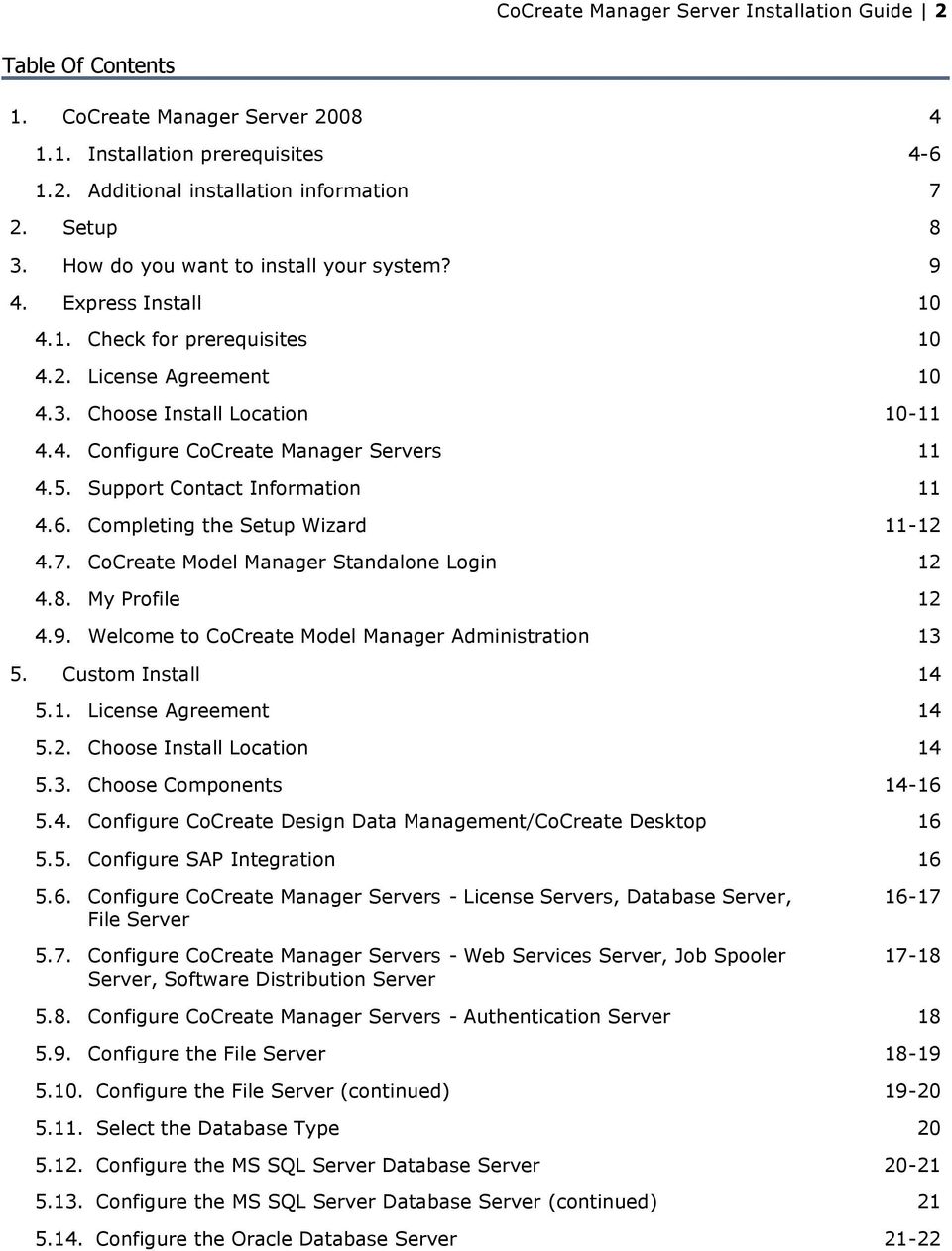
2 CoCreate Manager Server Installation Guide 2 Table Of Contents 1. CoCreate Manager Server Installation prerequisites Additional installation information 7 2. Setup 8 3. How do you want to install your system? 9 4. Express Install Check for prerequisites License Agreement Choose Install Location Configure CoCreate Manager Servers Support Contact Information Completing the Setup Wizard CoCreate Model Manager Standalone Login My Profile Welcome to CoCreate Model Manager Administration Custom Install License Agreement Choose Install Location Choose Components Configure CoCreate Design Data Management/CoCreate Desktop Configure SAP Integration Configure CoCreate Manager Servers - License Servers, Database Server, File Server 5.7. Configure CoCreate Manager Servers - Web Services Server, Job Spooler Server, Software Distribution Server Configure CoCreate Manager Servers - Authentication Server Configure the File Server Configure the File Server (continued) Select the Database Type Configure the MS SQL Server Database Server Configure the MS SQL Server Database Server (continued) Configure the Oracle Database Server 21-22
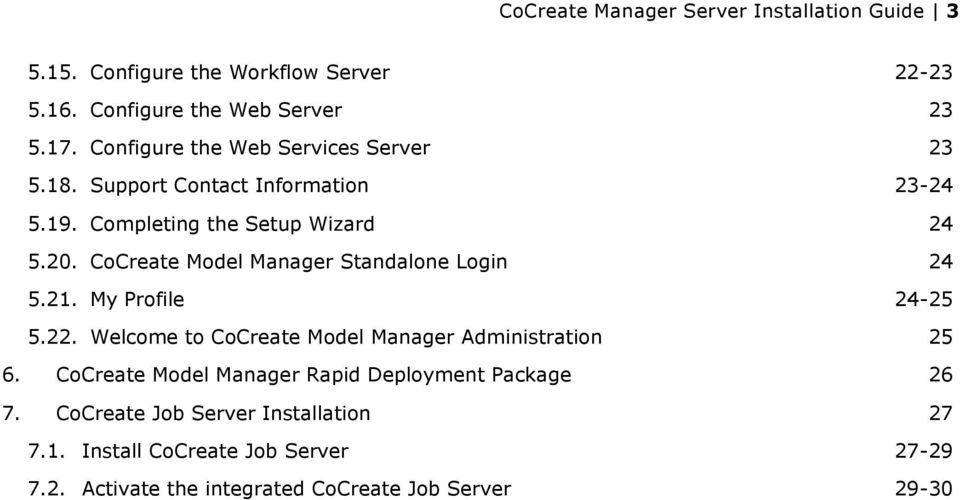
3 CoCreate Manager Server Installation Guide Configure the Workflow Server Configure the Web Server Configure the Web Services Server Support Contact Information Completing the Setup Wizard CoCreate Model Manager Standalone Login My Profile Welcome to CoCreate Model Manager Administration CoCreate Model Manager Rapid Deployment Package CoCreate Job Server Installation Install CoCreate Job Server Activate the integrated CoCreate Job Server 29-30
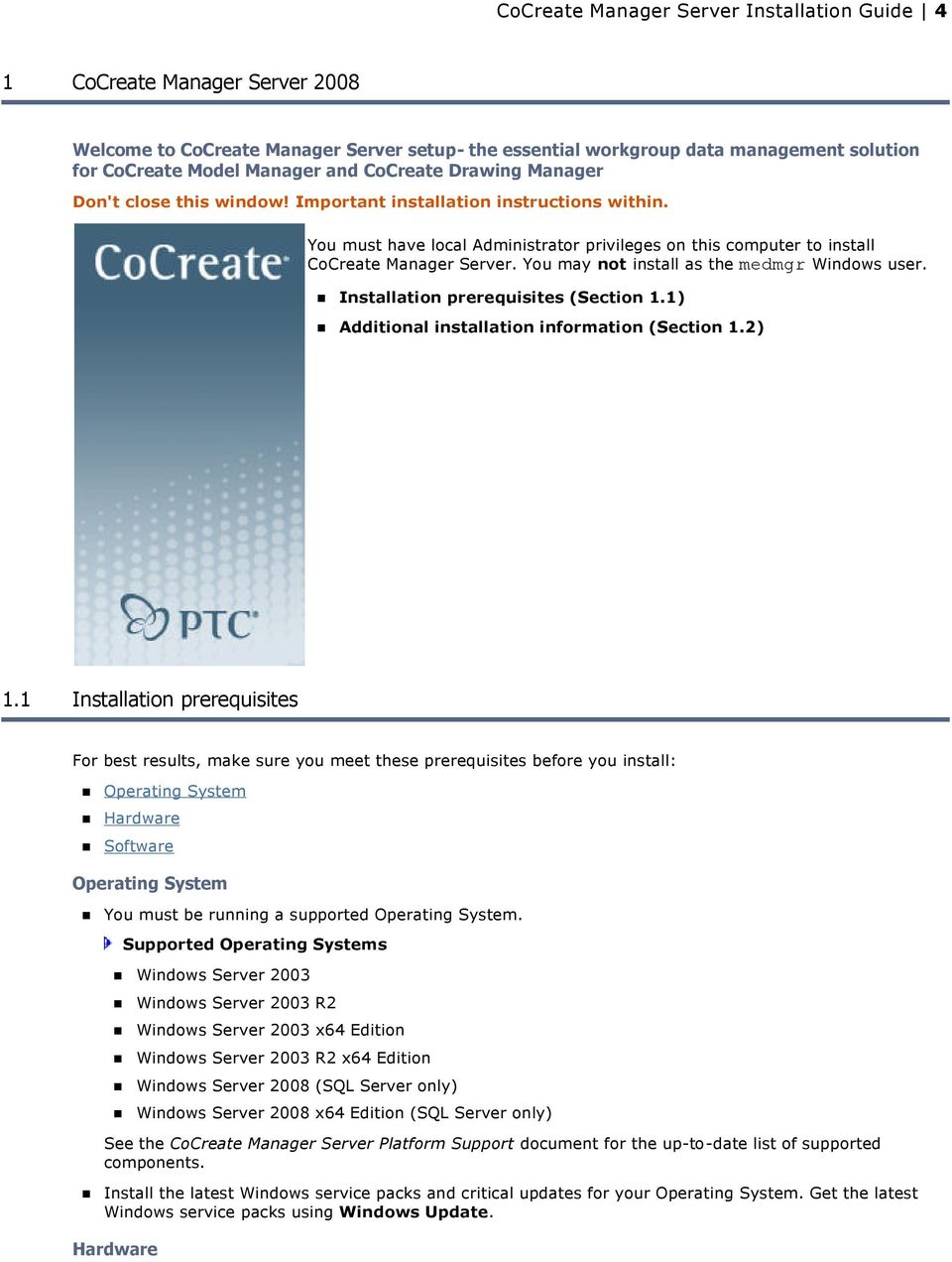
4 CoCreate Manager Server Installation Guide 4 1 CoCreate Manager Server 2008 Welcome to CoCreate Manager Server setup- the essential workgroup data management solution for CoCreate Model Manager and CoCreate Drawing Manager Don't close this window! Important installation instructions within. You must have local Administrator privileges on this computer to install CoCreate Manager Server. You may not install as the medmgr Windows user. Installation prerequisites (Section 1.1) Additional installation information (Section 1.2) 1.1 Installation prerequisites For best results, make sure you meet these prerequisites before you install: Operating System Hardware Software Operating System You must be running a supported Operating System. Supported Operating Systems Windows Server 2003 Windows Server 2003 R2 Windows Server 2003 x64 Edition Windows Server 2003 R2 x64 Edition Windows Server 2008 (SQL Server only) Windows Server 2008 x64 Edition (SQL Server only) See the CoCreate Manager Server Platform Support document for the up-to-date list of supported components. Install the latest Windows service packs and critical updates for your Operating System. Get the latest Windows service packs using Windows Update. Hardware
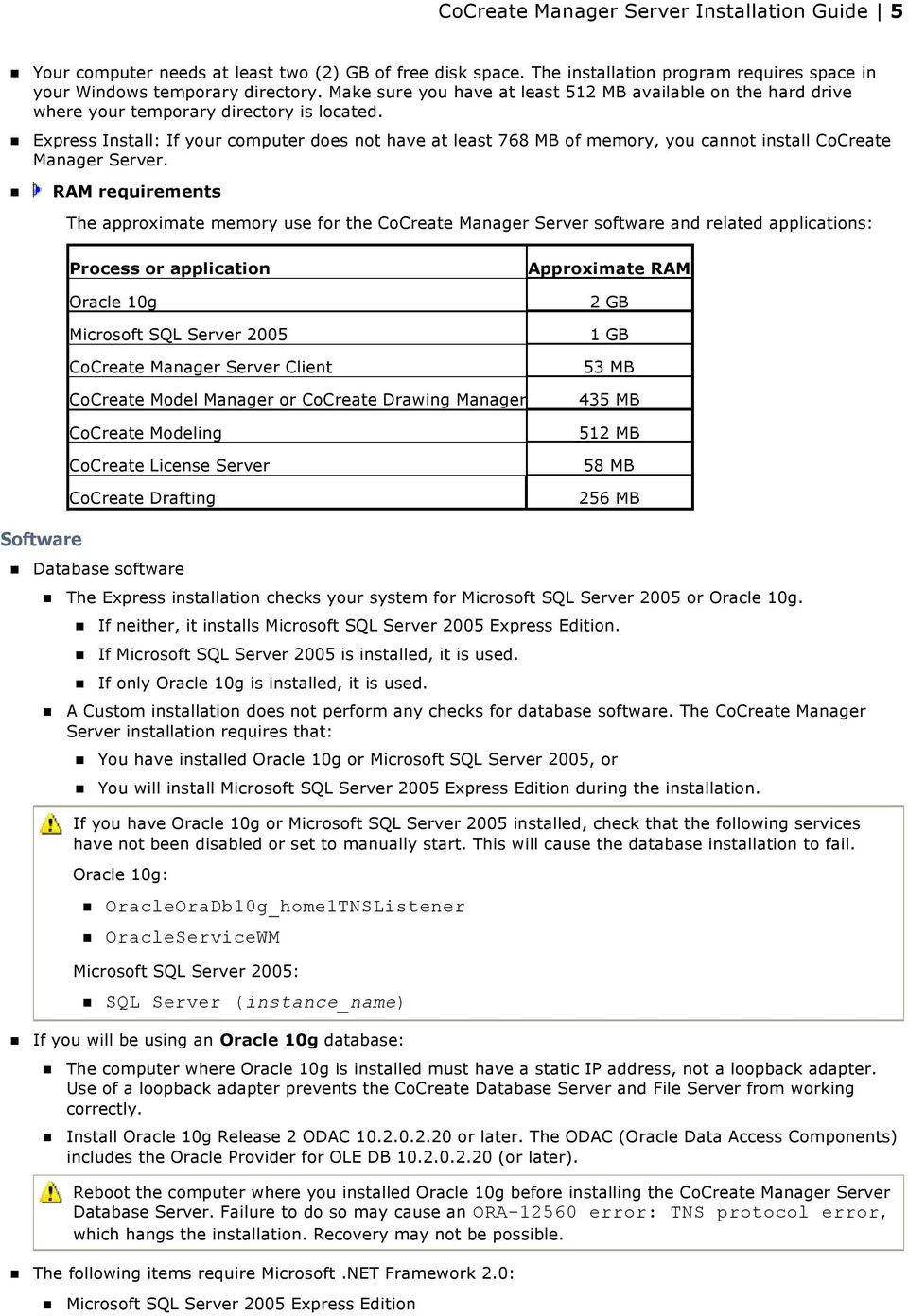
5 CoCreate Manager Server Installation Guide 5 Your computer needs at least two (2) GB of free disk space. The installation program requires space in your Windows temporary directory. Make sure you have at least 512 MB available on the hard drive where your temporary directory is located. Express Install: If your computer does not have at least 768 MB of memory, you cannot install CoCreate Manager Server. RAM requirements The approximate memory use for the CoCreate Manager Server software and related applications: Process or application Oracle 10g Microsoft SQL Server 2005 CoCreate Manager Server Client CoCreate Model Manager or CoCreate Drawing Manager CoCreate Modeling CoCreate License Server CoCreate Drafting Approximate RAM 2 GB 1 GB 53 MB 435 MB 512 MB 58 MB 256 MB Software Database software The Express installation checks your system for Microsoft SQL Server 2005 or Oracle 10g. If neither, it installs Microsoft SQL Server 2005 Express Edition. If Microsoft SQL Server 2005 is installed, it is used. If only Oracle 10g is installed, it is used. A Custom installation does not perform any checks for database software. The CoCreate Manager Server installation requires that: You have installed Oracle 10g or Microsoft SQL Server 2005, or You will install Microsoft SQL Server 2005 Express Edition during the installation. If you have Oracle 10g or Microsoft SQL Server 2005 installed, check that the following services have not been disabled or set to manually start. This will cause the database installation to fail. Oracle 10g: OracleOraDb10g_home1TNSListener OracleServiceWM Microsoft SQL Server 2005: SQL Server (instance_name) If you will be using an Oracle 10g database: The computer where Oracle 10g is installed must have a static IP address, not a loopback adapter. Use of a loopback adapter prevents the CoCreate Database Server and File Server from working correctly. Install Oracle 10g Release 2 ODAC or later. The ODAC (Oracle Data Access Components) includes the Oracle Provider for OLE DB (or later). Reboot the computer where you installed Oracle 10g before installing the CoCreate Manager Server Database Server. Failure to do so may cause an ORA error: TNS protocol error, which hangs the installation. Recovery may not be possible. The following items require Microsoft.NET Framework 2.0: Microsoft SQL Server 2005 Express Edition
6 CoCreate Manager Server Installation Guide 6 CoCreate Manager Server Express installation CoCreate Web Services Server Do I have Microsoft.NET Framework 2.0? Check if Microsoft.NET Framework 2.0 is installed by opening the Control Panel and double-clicking Add or Remove Programs. Scroll through the list and look for Microsoft.NET Framework 2.0. What if I don't have it? 1. From Internet Explorer, click Tools > Windows Update or browse to ( and navigate to Windows Update for your operating system. 2. If you do not have the latest version of Windows updating software, you will be prompted to update. 3. Make sure you have all the latest updates and service packs for your operating system. If you are out-of-date, you may be required to run through the Windows update process several times, as some updates cannot be installed until previous updates have been installed. You may also be required to reboot after some of the updates. 4. Click Custom to find the Microsoft.NET Framework 2.0 update. 5. The Microsoft.NET Framework 2.0 update can be found in the Software, Optional category. 1. Select Microsoft.NET Framework Click Review and install updates. 6. Click Install Updates. 7. Once Microsoft.NET Framework 2.0 has finished installing, click Close. Microsoft SQL Server 2005 requires Microsoft Data Access Components 2.8. What if I don't have it? 1. Browse to msdn.microsoft.com/data/ref/mdac/downloads/ ( 2. Download and install the latest version for your computer. 3. Once Microsoft DAC has finished installing, click Close. You must not have Microsoft SQL Server Native Client installed without Microsoft SQL Server Do I have one without the other? 1. Open the Control Panel and double-click Add or Remove Programs. 2. Scroll through the list and look for Microsoft SQL Server Native Client. If Microsoft SQL Server 2005 is not also in the installed list, Microsoft SQL Server Native Client must be removed. 1. Select Microsoft SQL Server Native Client. 2. Click Remove. You must install Microsoft SQL Server Native Client on the Database Server computer if your SQL Server 2005 database is on a different computer. What if I don't have it? 1. Browse to ( 2. Search All Downloads for Microsoft SQL Server Native Client (you should find it as part of the Feature Pack for Microsoft SQL Server 2005). 3. Download and install the appropriate package for your Database Server computer. You must have the most recent CoCreate License Server installed and available to the server computer (s), with the appropriate licenses installed and configured. In order for the CoCreate Job Spooler to correctly connect to a CoCreate Job Server, they must have the same version. (For example, a Job Spooler installed from CoCreate Manager Server 2008 requires a CoCreate Job Server 2008, which in turn requires CoCreate Modeling/CoCreate Drafting 2008.) Before installing CoCreate Manager Server on a Microsoft Windows Small Business Server 2003 system, set the following system environment variable: WM_NO_MAPI=1
7 CoCreate Manager Server Installation Guide Additional installation information For Oracle 10g installation help, click here ( For Microsoft SQL Server 2005 installation help, click here ( CoCreate Manager Server Client Quick Start Guide ( How to install Oracle and the CoCreate Manager Server Database Server on different servers ( Troubleshooting ( Recovering from a failed installation ( Check services and test clients ( System Configuration changes (
8 CoCreate Manager Server Installation Guide 8 2 Setup If this is not a new installation, you will be prompted to uninstall or reconfigure the existing CoCreate Manager Server components. Choose one of the following: Click Yes to continue. Click Yes to run the uninstall program, which will remove the existing CoCreate Manager Server components from this computer. Once it is uninstalled, the installation will continue. The database is not removed when you uninstall CoCreate Manager Server. Click No to reconfigure the existing CoCreate Manager Server. Click No to run the installation program in reconfigure mode, which allows you to modify the existing installation. The currently installed features are displayed in the installation windows. Add or remove as necessary. If you uncheck a component, it will be unavailable after reconfiguration. Make sure you only uncheck those that you want to remove. Click Cancel to end the installation. Click Cancel to end the installation program with no changes to the existing CoCreate Manager Server installation.

9 CoCreate Manager Server Installation Guide 9 3 How do you want to install your system? 3.1 Express Install Select Express Install if you are new to CoCreate Manager Server, or want the typical installation when installing all of the CoCreate Manager Server components on the same computer. The Express installation: Checks your system for prerequisites (memory, Microsoft.NET Framework 2.0, Microsoft Data Access Components). Checks your system for Microsoft SQL Server 2005 or Oracle 10g. If neither, it installs Microsoft SQL Server 2005 Express Edition. If Microsoft SQL Server 2005 is installed, it is used. If only Oracle 10g is installed, it is used. Installs CoCreate Manager Server components. What components are installed with the Express installation? CoCreate Manager Server Client File Server Database Server Web Services Server, including the Job Spooler Server. Software Distribution Server You install Job Servers independently from this installation. See Install Job Servers (Section 7.1) for more information. The Express installation is not the right choice if you have multiple distributed File Server components, or want your database engine on a separate computer from the CoCreate Manager Server components. 3.2 Custom Install Select Custom Install if you want to choose which components to install and where to install them. This is recommended for Advanced users.

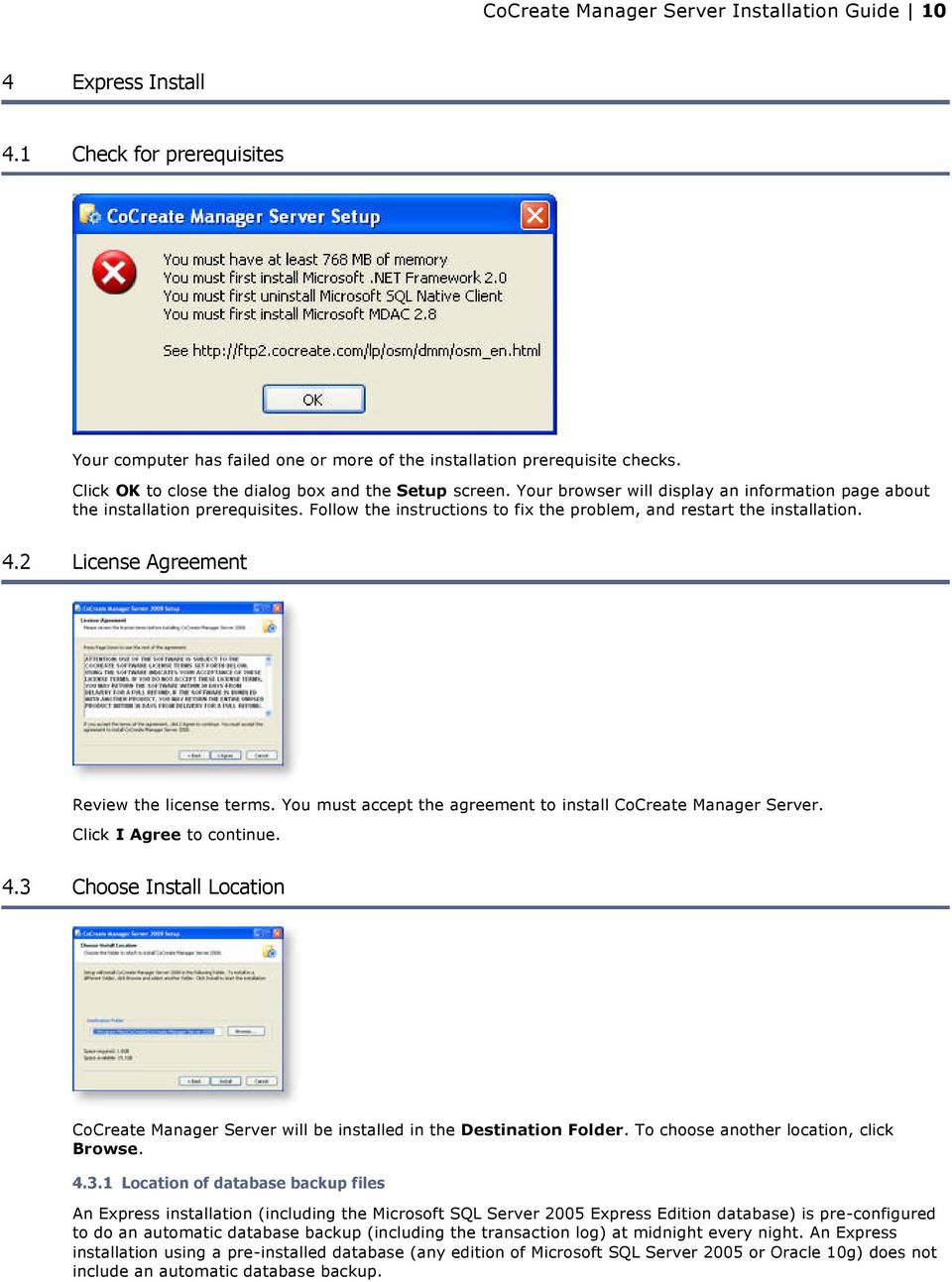
10 CoCreate Manager Server Installation Guide 10 4 Express Install 4.1 Check for prerequisites Your computer has failed one or more of the installation prerequisite checks. Click OK to close the dialog box and the Setup screen. Your browser will display an information page about the installation prerequisites. Follow the instructions to fix the problem, and restart the installation. 4.2 License Agreement Review the license terms. You must accept the agreement to install CoCreate Manager Server. Click I Agree to continue. 4.3 Choose Install Location CoCreate Manager Server will be installed in the Destination Folder. To choose another location, click Browse Location of database backup files An Express installation (including the Microsoft SQL Server 2005 Express Edition database) is pre-configured to do an automatic database backup (including the transaction log) at midnight every night. An Express installation using a pre-installed database (any edition of Microsoft SQL Server 2005 or Oracle 10g) does not include an automatic database backup.
11 CoCreate Manager Server Installation Guide 11 If you choose a different folder, the automatic database backup will not be saved in the default location. The default location for the backup files is C:\Program Files\CoCreate\CoCreate Manager Server data Installing to a different drive or folder puts the backup files in <your drive>:<your location>\cocreate Manager Server data 4.4 Configure CoCreate Manager Servers License Servers The name of the CoCreate License Server that you use for CoCreate Modeling. Multiple servers can be specified by separating the names with a ";". The servers are contacted in the order they are listed, and the first License Server which can provide the requested license is the one that is used. Database Server The Database Server will be installed on this computer, so the field is not editable. File Server The File Server will be installed on this computer, so the field is not editable. 4.5 Support Contact Information The information that you type here will appear in the Support link on the CoCreate Software Distribution Server page. 4.6 Completing the Setup Wizard

12 CoCreate Manager Server Installation Guide 12 Congratulations! Click Finish to complete the installation process. New installation Now it's time to log in to CoCreate Model Manager as medmgr (leave the password blank on a new database). After you do, you will be guided through the initial configuration steps. Reconfigure existing installation Log in to CoCreate Model Manager as medmgr with the existing password. 4.7 CoCreate Model Manager Standalone Login 1. Type medmgr for the User Name. Leave the Password blank for a new installation. 2. Click OK. 4.8 My Profile The first screen that appears after you log in is My Profile for the medmgr user. 1. Verify the Full Name and entries. 2. Enter or update Phone and Address information. These fields are optional. 3. To change the medmgr password from null (blank) to something else, click Change My Password. a. Type the new value in both New Password and Confirm New Password. b. Click OK. 4. Click OK. Don't worry - you can always update this information later from the Edit > My Profile or Edit > Change Password menu items.

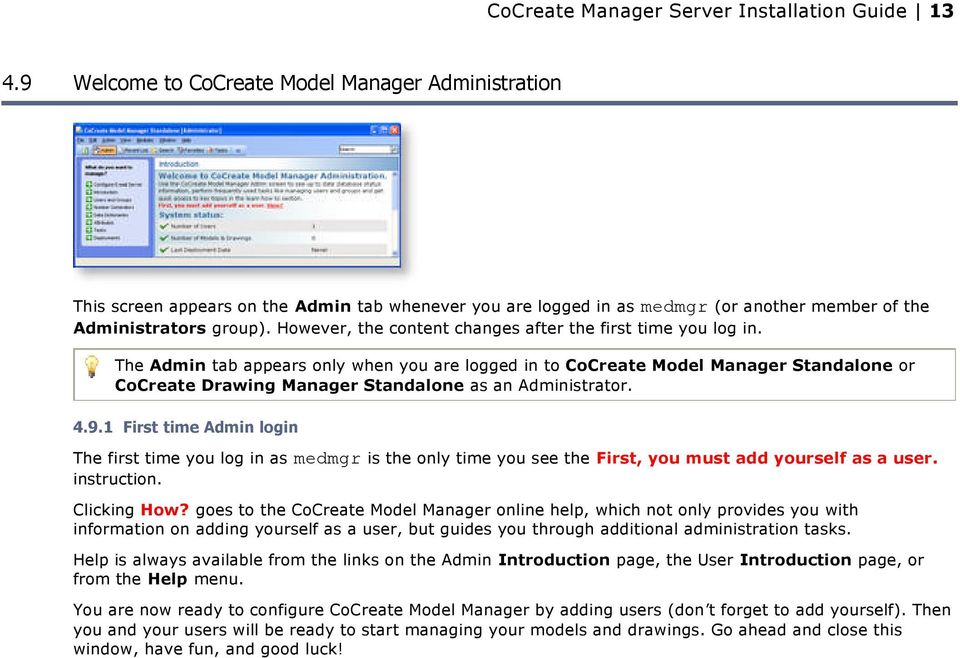
13 CoCreate Manager Server Installation Guide Welcome to CoCreate Model Manager Administration This screen appears on the Admin tab whenever you are logged in as medmgr (or another member of the Administrators group). However, the content changes after the first time you log in. The Admin tab appears only when you are logged in to CoCreate Model Manager Standalone or CoCreate Drawing Manager Standalone as an Administrator First time Admin login The first time you log in as medmgr is the only time you see the First, you must add yourself as a user. instruction. Clicking How? goes to the CoCreate Model Manager online help, which not only provides you with information on adding yourself as a user, but guides you through additional administration tasks. Help is always available from the links on the Admin Introduction page, the User Introduction page, or from the Help menu. You are now ready to configure CoCreate Model Manager by adding users (don t forget to add yourself). Then you and your users will be ready to start managing your models and drawings. Go ahead and close this window, have fun, and good luck!
14 CoCreate Manager Server Installation Guide 14 5 Custom Install 5.1 License Agreement Review the license terms. You must accept the agreement to install CoCreate Manager Server. Click I Agree to continue. 5.2 Choose Install Location CoCreate Manager Server will be installed in the Destination Folder. To choose another location, click Browse Location of database backup files The Microsoft SQL Server 2005 Express Edition database installation is pre-configured to do an automatic database backup (including the transaction log) at midnight every night. An installation using a pre-installed database (any edition of Microsoft SQL Server 2005 or Oracle 10g) does not include an automatic database backup. If you choose a different folder, the automatic database backup will not be saved in the default location. The default location for the backup files is C:\Program Files\CoCreate\CoCreate Manager Server data Installing to a different drive or folder puts the backup files in <your drive>:<your location>\cocreate Manager Server data 5.3 Choose Components
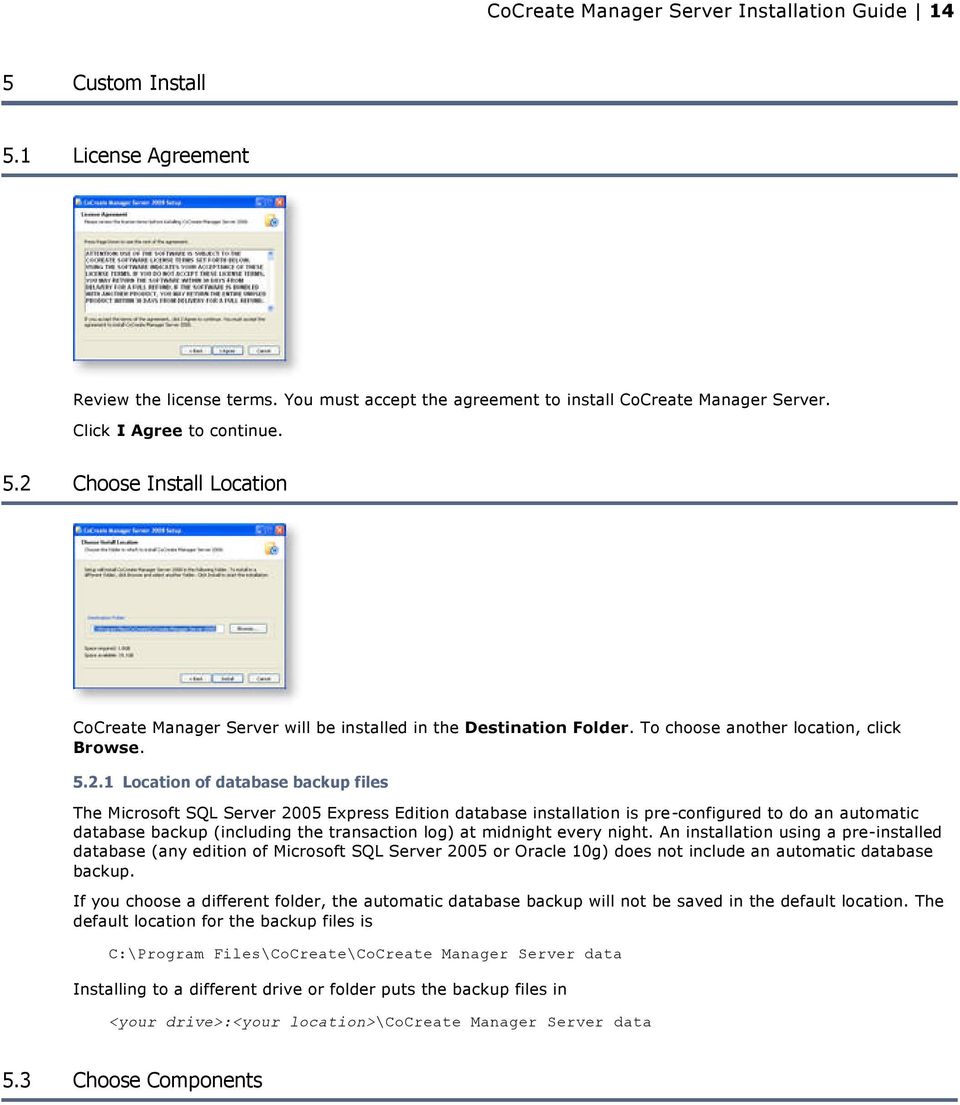
15 CoCreate Manager Server Installation Guide 15 You will have to scroll to see the entire list. Clients: If you are reconfiguring an existing installation, the installed components are already checked. If you uncheck a component, it will be unavailable after the installation. CoCreate Manager Server Client: If you select this option, you are requesting to install the basic CoCreate Manager Server Client (typically used for advanced database administration tasks). If you select a component that requires the CoCreate Manager Server Client, it will be selected for you, and a message will be displayed telling you that it was selected. CoCreate Design Data Management and CoCreate Desktop: If you select this option, you are requesting to use the CoCreate Design Data Management and CoCreate Desktop personalities, and you will see an additional screen to set up this part of the client. SAP Process Adapter: If you use the SAP integration with CoCreate Design Data Management or CoCreate Desktop, you should select this option to setup the initial configuration. If you select this option, you will see an additional screen to set up this part of the client. Servers: Not supported on Windows Vista. You can either install a specific server or use an existing server. If you do not select a particular server, the installation program assumes that you will be using an existing server (you will enter this information in later steps). File Server: Manages model and drawing files for CoCreate Model Manager and CoCreate Drawing Manager. Database Server: Manages metadata for CoCreate Model Manager and CoCreate Drawing Manager. Authentication Server: Provides Windows authentication services for CoCreate Manager Server running on HP-UX. Workflow Server: Executes formal workflow processes from CoCreate Design Data Management or CoCreate Desktop. Web Server: Enables Web browser access to your models, drawings, and metadata. Web Services Server: A Web Services Server is required by CoCreate Model Manager for delivery of e- mail notifications of subscribed events. A Web Services compliant interface to external applications running Web Services (such as BizTalk or InfoPath) is also required. Even if BizTalk, InfoPath, or other Web Service-based integrations are not expected, the Web Services Server is still a required component for handling the Event Notifications from CoCreate Model Manager or CoCreate Drawing Manager. If you install this server, you may also want to specify the location of the Mail Server (SMTP). The Mail Server is configured from the CoCreate Model Manager Standalone or CoCreate Drawing Manager Standalone Admin screen. Installing the Web Services Server also installs the Job Spooler Server, which provides the background job processing service for Task Agent jobs. The Job Schedule Processor Service requires the Web Services Server. Software Distribution Server: A Web server required for CoCreate Manager Server rapid deployment clients and documentation. CoCreate Model Manager and CoCreate Drawing Manager Software: Installing the Software Distribution Server automatically creates the CoCreate Model Manager Standalone and CoCreate Drawing Manager Standalone rapid deployment packages.
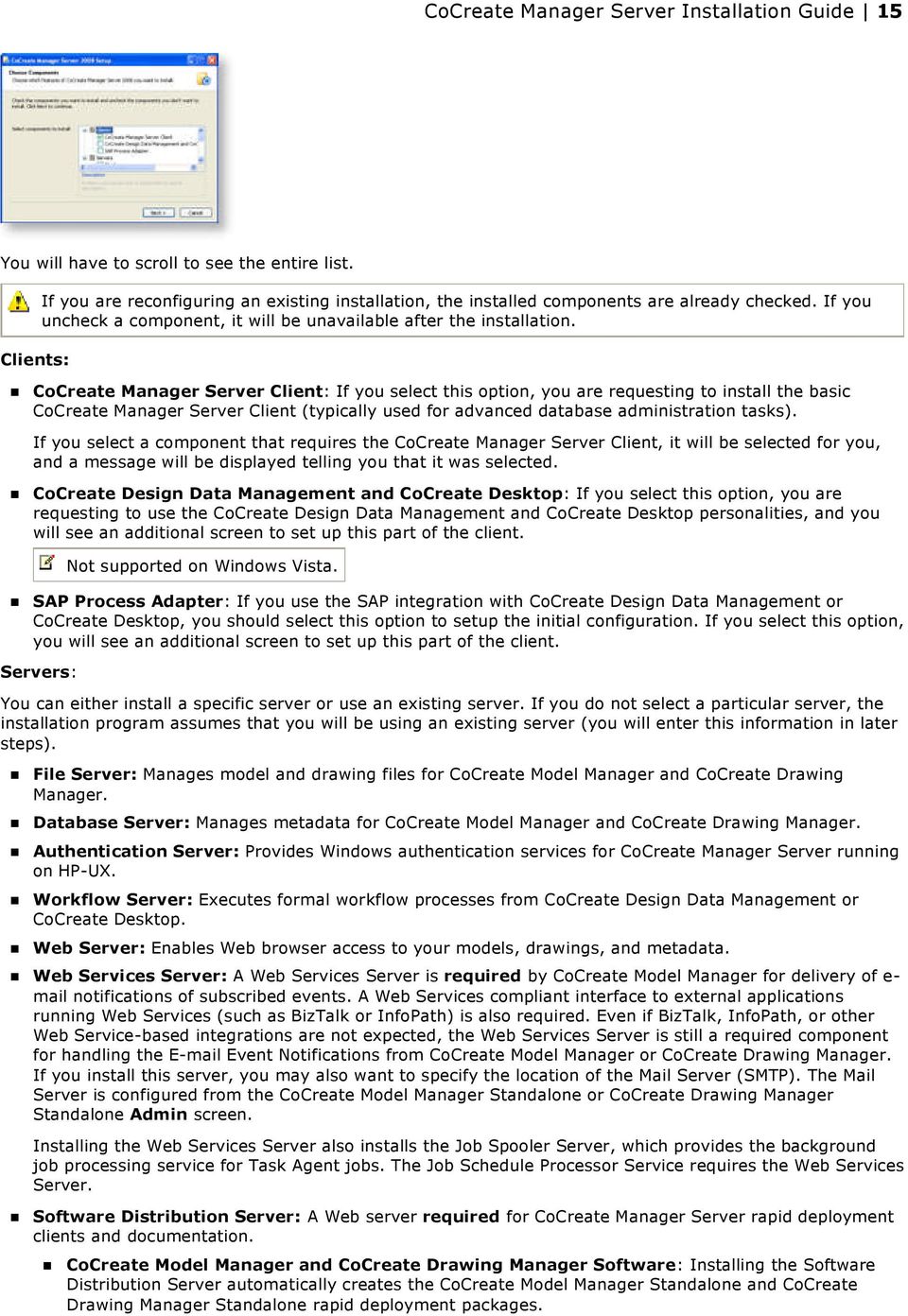
16 CoCreate Manager Server Installation Guide 16 CoCreate 3D Access and CoCreate 2D Access Software: Selecting this copies the CoCreate 2D Access and CoCreate 3D Access installation packages to the Software Distribution Server. CoCreate Supplementary Documentation: Selecting this installs advanced and historic documentation, as well as online help for the CoCreate Manager Server Client, Workflow Designer, and Workflow Monitor. In order for the CoCreate Manager Server deployment functionality to work, the Software Distribution Server and the Web Services Server must be installed on the same computer. Click Next> to continue. 5.4 Configure CoCreate Design Data Management/CoCreate Desktop This screen only appears if you are installing CoCreate Design Data Management / CoCreate Desktop. Select a profile: Designer provides basic CoCreate Design Data Management functionality. Advanced provides some additional CoCreate Design Data Management functionality. Expert provides all CoCreate Design Data Management functionality. Expert Classic provides the Expert functionality with the CoCreate Desktop (Classic) user interface. Desktop provides the CoCreate Desktop user interface and functionality. Select integrations: Select the integrations for those CAD products that you will be using with CoCreate Design Data Management or CoCreate Desktop. You may select one, two, or all three. Click Next> to continue. 5.5 Configure SAP Integration This screen only appears if you are installing SAP Integration. Destination SAP instance: The instance name for SAP (for example, CE8). SAP server name: The name of the SAP server (for example, cpce801). SAP system number: The system number of SAP (for example, 75). Click Next> to continue. 5.6 Configure CoCreate Manager Servers - License Servers, Database Server, File Server
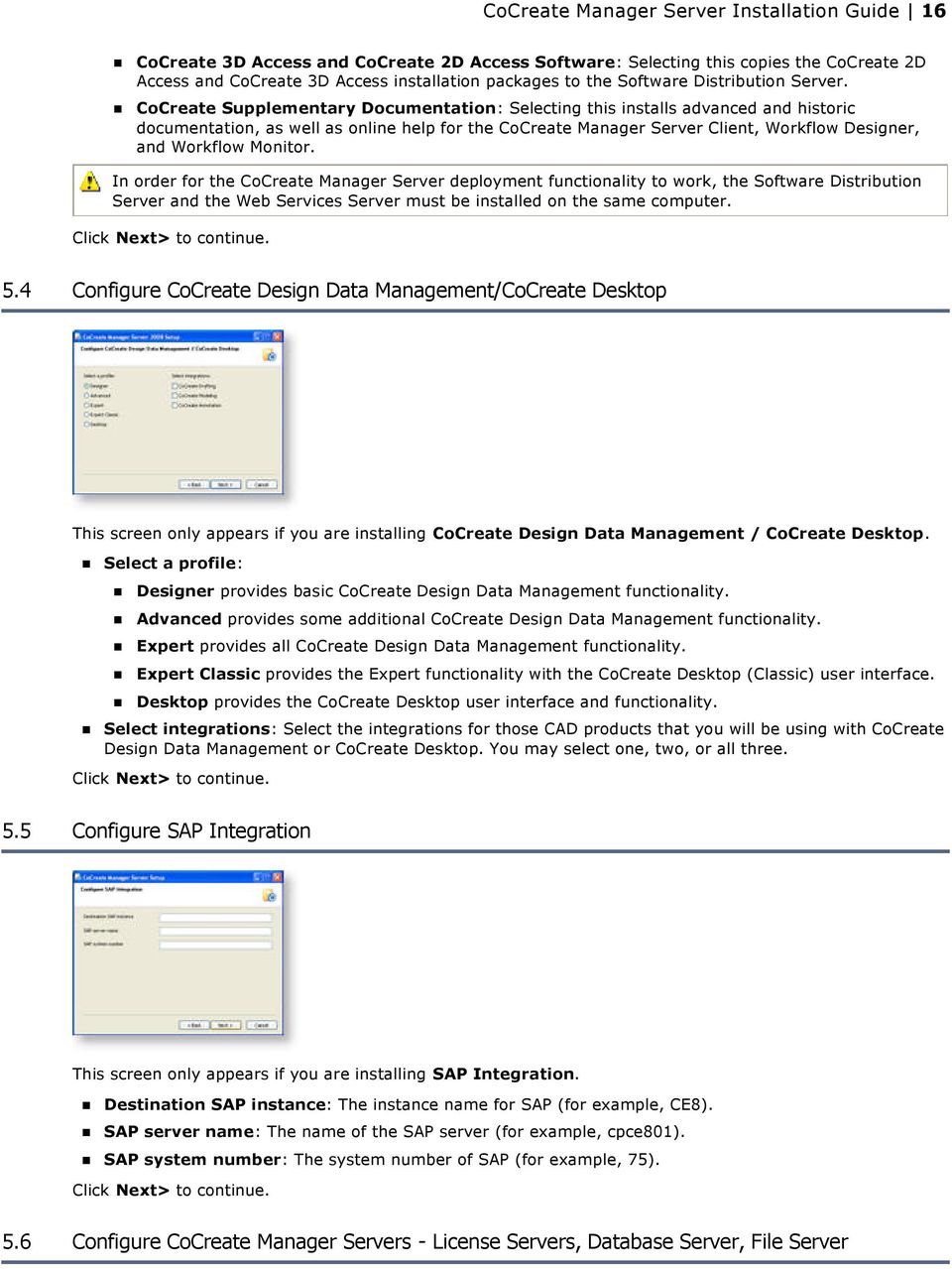
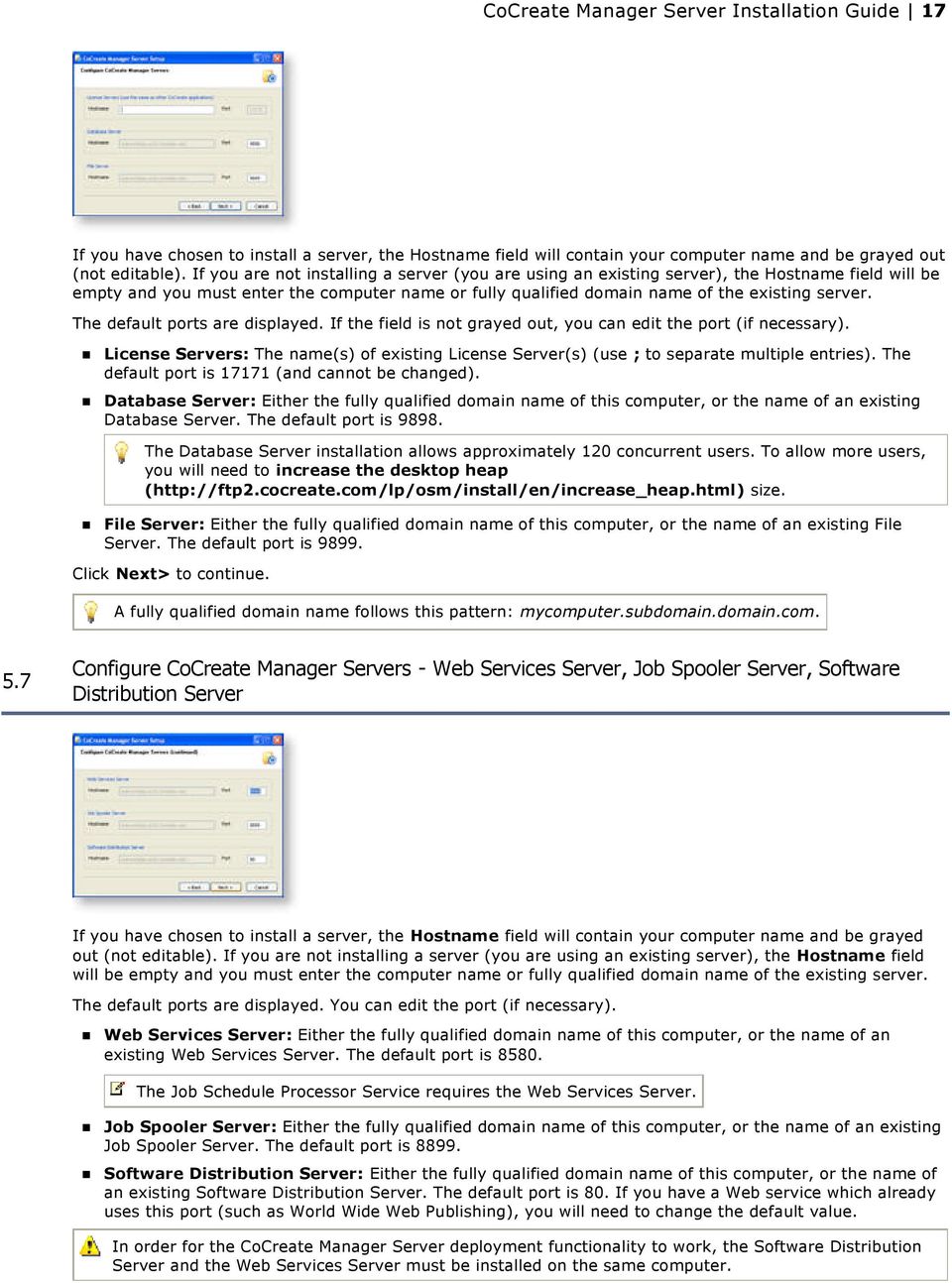
17 CoCreate Manager Server Installation Guide 17 If you have chosen to install a server, the Hostname field will contain your computer name and be grayed out (not editable). If you are not installing a server (you are using an existing server), the Hostname field will be empty and you must enter the computer name or fully qualified domain name of the existing server. The default ports are displayed. If the field is not grayed out, you can edit the port (if necessary). License Servers: The name(s) of existing License Server(s) (use ; to separate multiple entries). The default port is (and cannot be changed). Database Server: Either the fully qualified domain name of this computer, or the name of an existing Database Server. The default port is The Database Server installation allows approximately 120 concurrent users. To allow more users, you will need to increase the desktop heap ( size. File Server: Either the fully qualified domain name of this computer, or the name of an existing File Server. The default port is Click Next> to continue. A fully qualified domain name follows this pattern: mycomputer.subdomain.domain.com. 5.7 Configure CoCreate Manager Servers - Web Services Server, Job Spooler Server, Software Distribution Server If you have chosen to install a server, the Hostname field will contain your computer name and be grayed out (not editable). If you are not installing a server (you are using an existing server), the Hostname field will be empty and you must enter the computer name or fully qualified domain name of the existing server. The default ports are displayed. You can edit the port (if necessary). Web Services Server: Either the fully qualified domain name of this computer, or the name of an existing Web Services Server. The default port is The Job Schedule Processor Service requires the Web Services Server. Job Spooler Server: Either the fully qualified domain name of this computer, or the name of an existing Job Spooler Server. The default port is Software Distribution Server: Either the fully qualified domain name of this computer, or the name of an existing Software Distribution Server. The default port is 80. If you have a Web service which already uses this port (such as World Wide Web Publishing), you will need to change the default value. In order for the CoCreate Manager Server deployment functionality to work, the Software Distribution Server and the Web Services Server must be installed on the same computer.
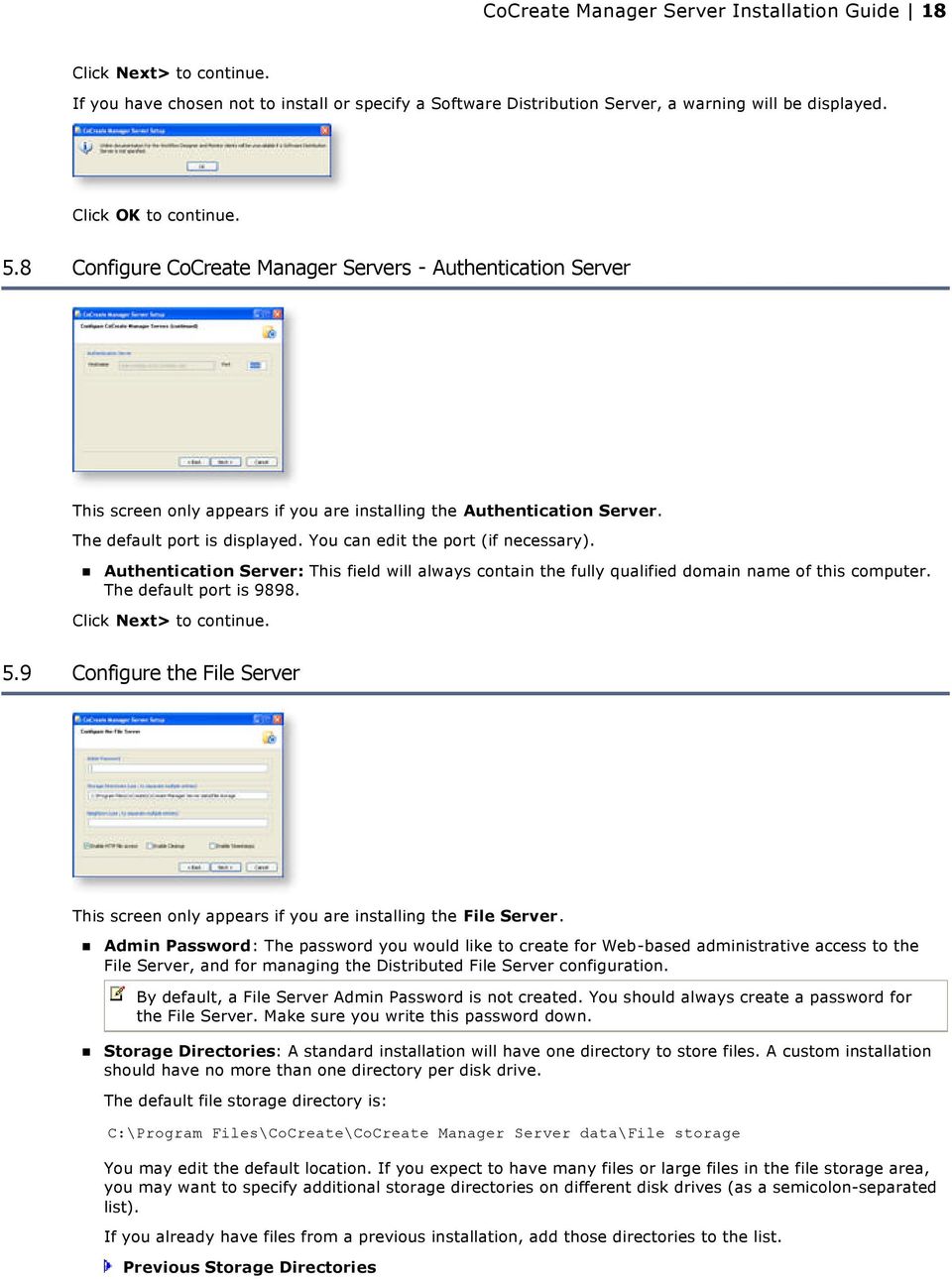
18 CoCreate Manager Server Installation Guide 18 Click Next> to continue. If you have chosen not to install or specify a Software Distribution Server, a warning will be displayed. Click OK to continue. 5.8 Configure CoCreate Manager Servers - Authentication Server This screen only appears if you are installing the Authentication Server. The default port is displayed. You can edit the port (if necessary). Authentication Server: This field will always contain the fully qualified domain name of this computer. The default port is Click Next> to continue. 5.9 Configure the File Server This screen only appears if you are installing the File Server. Admin Password: The password you would like to create for Web-based administrative access to the File Server, and for managing the Distributed File Server configuration. By default, a File Server Admin Password is not created. You should always create a password for the File Server. Make sure you write this password down. Storage Directories: A standard installation will have one directory to store files. A custom installation should have no more than one directory per disk drive. The default file storage directory is: C:\Program Files\CoCreate\CoCreate Manager Server data\file storage You may edit the default location. If you expect to have many files or large files in the file storage area, you may want to specify additional storage directories on different disk drives (as a semicolon-separated list). If you already have files from a previous installation, add those directories to the list. Previous Storage Directories
19 CoCreate Manager Server Installation Guide 19 Files from the previous storage directory must be in the specified path. The previous default path for Oracle 9i Storage Directories was: C:\oracle\ora92\oradata\WM\area1 Any existing data will remain in the old file storage area. Neighbors: The fully qualified domain name for each File Server host computer. You must have a license for each distributed file server location. Leave blank if you only have one File Server. Enable HTTP file access: HTTP access to the File Server is used in conjunction with the Web Services Server. For example, an InfoPath form may browse the Database or choose a file to download or open. Access to that file is generally provided by a URL to its location on the File Server. Enable Cleanup: Enables File Server cleanup which runs at least once per cleanup interval. When the File Server does a cleanup, it considers all distributed file server (DFS) copies as possible candidates for removal, since all DFS copies are known to have a master file on another File Server. Cleanup settings are specified on the next screen. A File Server without a neighbor will never run the cleanup process. Enable Timestamps: Select this to include timestamps in the File Server logfile. Click Next> to continue Configure the File Server (continued) This screen only appears if you are installing the File Server. Log File: Type a file name for File Server activity log (include the full path). Cleanup Interval: You can specify the interval in which the File Server performs cleanups. The default is 6 hours (6h). Format xw xd xh xm xs x weeks x days x hours x minutes x seconds Cleanup Minfree: You can specify the minimum free disk space on your File Server's file system. The default is 10 Mbytes (10M). When only the minimum amount of disk space remains, distributed file server (DFS) copies are removed. Format xg xm xk xb x gigabytes x megabytes x kilobytes x bytes

20 CoCreate Manager Server Installation Guide 20 Cleanup Maxage: You can specify the maximum length of time to retain a DFS copy since it was last referenced. The default is 30 days (30d) - CoCreate Manager Server deletes a distributed file server (DFS) copy 30 days after a user last accesses the copy. Format xw xd xh xm xs x weeks x days x hours x minutes x seconds After installation, you can view or edit the File Server configuration from the Start > All Programs > CoCreate > CoCreate Manager Server 2008 > Manager Server 2008 Components > File Server 2008 Status page. Click Next> to continue Select the Database Type This screen only appears if you are installing the Database Server. Select the database type: Oracle 10g MS SQL Server Selecting MS SQL Server when a version is not already installed installs the SQL Server 2005 Express Edition software. Click Next> to continue Configure the MS SQL Server Database Server This screen only appears if you are using a SQL Server Database Server. SQL Server Computer Name: The default is your local machine. If your SQL Server database is on a different computer than the Database Server, enter the computer name (not fully-qualified) of the SQL Server 2005 computer. Do not use the string localhost as your SQL Server Computer Name.

21 CoCreate Manager Server Installation Guide 21 Database Instance: The installer displays the database instance name if the database is installed on this computer. If SQL Server 2005 is not installed, this field will be blank. LEAVE IT BLANK. Installing SQL Server 2005 Express Edition creates the SQLEXPRESS instance. If your SQL Server 2005 database is on a different computer than the Database Server, this field will be blank. Type the database instance name used when you installed Microsoft SQL Server If you installed the SQL Server 2005 Express Edition, this should be SQLEXPRESS. If you installed a Default instance, this should be MSSQLSERVER. If you installed a Named instance during the SQL Server 2005 Workgroup, Standard, or Enterprise Edition installation, type your database instance name. CoCreate Database Name: The name for your CoCreate database. This name must not exist for a new database, but must exist for an existing database. Database Server Logging: Select if you want Database Server logging. Click Next> to continue Configure the MS SQL Server Database Server (continued) This screen only appears if your MS SQL Server Database Server is not on your local machine (i.e. a remote machine). This may be the case if: The database is on a computer that is part of a Server Farm. There are performance or hardware issues. You must install Microsoft SQL Server Native Client on the CoCreate Database Server computer if your SQL Server 2005 database is on a different computer. SQL Server login credentials for database installation: Enter a UserID and Password that will enable you to create a SQL Server database on the remote system (this UserID and Password need to exist prior to this installation). This is only needed for the initial database installation, not for schema updates. You may need to contact your IT department for this information. For Windows Authentication, leave these fields blank. The installation will use your Windows login credentials to create the database. SQL Server login credentials for connecting the CoCreate Database Server to SQL Server: The install process creates this UserID and Password for the CoCreate Database Server to communicate with SQL Server. UserID: medmgr (cannot be changed) Password: The password you want assigned to your database for the user medmgr. Click Next> to continue Configure the Oracle Database Server
22 CoCreate Manager Server Installation Guide 22 This screen only appears if you are using an Oracle Database Server. Oracle Database Host Name (leave empty for local machine): The default is your local machine. If your Oracle 10g database is on a different computer than the Database Server, enter the hostname (not fully-qualified) of the Oracle computer. Oracle system password: The installer assumes the default Oracle system password. If you changed the Oracle system password, type it here. Oracle medmgr password: The password you want assigned to your database for the user medmgr. The default password is medmgr. Oracle SID: The SID for your CoCreate database. This must not exist for a new database, but must exist for an existing database. Database Server Logging: When selected, all client requests are written to a log file on the database server computer. Connect to an existing SJIS database: Check this option only if you're upgrading your installation and the database you're upgrading was originally installed using the Shift-JIS character set. Click Next> to continue. See the Oracle logfiles for installation results and information on changing passwords and other Oracle account information: ORACLE_HOME\admin\ORACLE_SID\create\* Configure the Workflow Server This screen only appears if you are installing the Workflow Server. The installation program will provide the default values for the Workflow Server. The default directories for log files are displayed. Please verify that these directories exist, or create new directories and enter the paths in the appropriate fields. Please verify and correct the fields, as described below. Check Interval: How often the Workflow Server should check the database, in seconds. The default is recommended. If you are doing Workflow development, you may want to decrease the interval to 15. Error Log: The file name for the Workflow error log. You may provide a different name and path. Server Debug Log: The file name for the Workflow debugging log. You may provide a different file name and path. Server Debug Level: See the CoCreate Manager Server Administrator Guide for the debug values. The default is recommended. Number of Servers: In most installations, one server is sufficient. Your CoCreate consultant will recommend additional servers, if necessary.
23 CoCreate Manager Server Installation Guide 23 Run Workflow Server with History: Check this box if you are replicating data used by the Workflow Server, or want to keep track of the history of the Workflow Server. Click Next> to continue Configure the Web Server This screen only appears if you are installing the Web Server. Number of Servers: The default of 4 is appropriate for most applications. A large user community should add additional servers. Base Port Address: The default base port is Click Next> to continue Configure the Web Services Server This screen only appears if you are installing the Web Services Server. Number of Servers: The default of 4 is appropriate for most applications. A large user community should add additional servers. Job Spooler Data Location: A directory where the Job Spooler temporarily stores input/output data. The default location is C:\Program Files\CoCreate\CoCreate Manager Server data\jobspoolerserverdata When a job executes, the Job Schedule Processor uploads the data and triggers execution. After the job executes, the results are stored here until retrieved by the Job Schedule Processor. The temporary data is then deleted. Click Next> to continue Support Contact Information
24 CoCreate Manager Server Installation Guide 24 The information that you type here will appear in the Support link on the CoCreate Software Distribution Server page Completing the Setup Wizard Congratulations! Click Finish to complete the installation process. New installation Now it's time to log in to CoCreate Model Manager as medmgr (leave the password blank on a new database). After you do, you will be guided through the initial configuration steps. Reconfigure existing installation Log in to CoCreate Model Manager as medmgr with the existing password CoCreate Model Manager Standalone Login 1. Type medmgr for the User Name. Leave the Password blank for a new installation. 2. Click OK My Profile
25 CoCreate Manager Server Installation Guide 25 The first screen that appears after you log in is My Profile for the medmgr user. 1. Verify the Full Name and entries. 2. Enter or update Phone and Address information. These fields are optional. 3. To change the medmgr password from null (blank) to something else, click Change My Password. a. Type the new value in both New Password and Confirm New Password. b. Click OK. 4. Click OK. Don't worry - you can always update this information later from the Edit > My Profile or Edit > Change Password menu items Welcome to CoCreate Model Manager Administration This screen appears on the Admin tab whenever you are logged in as medmgr (or another member of the Administrators group). However, the content changes after the first time you log in. The Admin tab appears only when you are logged in to CoCreate Model Manager Standalone or CoCreate Drawing Manager Standalone as an Administrator First time Admin login The first time you log in as medmgr is the only time you see the First, you must add yourself as a user. instruction. Clicking How? goes to the CoCreate Model Manager online help, which not only provides you with information on adding yourself as a user, but guides you through additional administration tasks. Help is always available from the links on the Admin Introduction page, the User Introduction page, or from the Help menu. You are now ready to configure CoCreate Model Manager by adding users (don't forget to add yourself). Then you and your users will be ready to start managing your models and drawings. Go ahead and close this window, have fun, and good luck!
26 CoCreate Manager Server Installation Guide 26 6 CoCreate Model Manager Rapid Deployment Package Installing the Software Distribution Server causes the rapid deployment package for CoCreate Model Manager, CoCreate Drawing Manager, 2D Access, 3D Access, the edrawings Viewer, and the XVL player to be created. CoCreate Model Manager or CoCreate Drawing Manager is always installed from the Software Distribution Server. The download page for these packages is located at: In most cases, when taking the defaults during the Software Distribution Server installation, no port number would be required. However, during installation you can specify a different port (such as if you have a Web Server on the default port 80 and you don't want the Software Distribution Server to conflict with that server). It is important for you to provide the hostname (and port number, if not the default) of the Software Distribution Server to your users. CoCreate Model Manager or CoCreate Drawing Manager can be installed in one of two ways: A standalone version. This version is installed directly from the CoCreate Software Distribution Server page. From CoCreate Modeling or CoCreate Drafting. If you start CoCreate Model Manager or CoCreate Drawing Manager in this way, the following occurs: If this is the first time CoCreate Model Manager or CoCreate Drawing Manager has been started from CoCreate Modeling or CoCreate Drafting, the user will be prompted to enter the location of the Software Distribution Server. If CoCreate Model Manager or CoCreate Drawing Manager has been previously installed, the Software Distribution Server is checked to see if a newer version exists. If it does, the user is asked whether they want to upgrade. Click Yes to upgrade.
27 CoCreate Manager Server Installation Guide 27 7 CoCreate Job Server Installation 7.1 Install CoCreate Job Server The Job Spooler Server (part of the CoCreate Manager Server installation) assigns a job to a CoCreate Job Server and triggers the actual execution on that server. The CoCreate Job Server computer requires CoCreate Modeling (for Clash Analysis or 3D Format Generation jobs), or CoCreate Drafting (for 2D Format Generation or Plot jobs). The CoCreate Job Server installs separately from the other CoCreate Manager Server components. You should install the CoCreate Job Server on a dedicated machine because of the heavy processing load. In order to generate the 3D PDF and U3D viewing formats, you must install both the CoCreate Job Server and CoCreate Modeling on a 32-bit system. CoCreate Job Server installation Install the CoCreate Job Server from the CoCreate product family DVD. Click the button for CoCreate Modeling and CoCreate Drafting, including 3D Access and 2D Access. The InstallShield Wizard starts. Click Next Select Features Uncheck everything except CoCreate Job Server. Click Next Start Copying Files Verify that CoCreate Job Server is listed under Current Settings.
28 CoCreate Manager Server Installation Guide 28 Click Next Welcome Click Next License Agreement Click I accept the terms in the license agreement and click Next Destination Folder By default, the CoCreate Job Server installs in: C:\Program Files\CoCreate\CoCreate Job Server 2008\ Click Next System check This window only appears if the desktop heap on this system is too small. The change to the desktop heap size won't occur until you reboot the system. Click Next Configure Port: The port that the Job Spooler will use when it assigns a job to this server. The default port is Click Next Enter the Service User Name The CoCreate Job Server Service runs as a Local System Account by default. Click Why choose an account for help. The CoCreate Job Server needs access to your printers to run Plot jobs. If the CoCreate Job Server Service runs as a Local System Account, you can only access "local" printers. If the CoCreate Job Server Service runs under a user account, you can access all printers, including network printers, available to that user. Click Next Ready to Install the Program Click Install InstallShield Wizard Completed Click Finish.
29 CoCreate Manager Server Installation Guide CoCreate Job Server Installer Information This window appears when you are increasing the size of the desktop heap on this system. You must restart the computer for the change to take effect. Register the CoCreate Job Server Once you complete the installation, register the CoCreate Job Server from the CoCreate Model Manager Standalone or CoCreate Drawing Manager Standalone Admin tab. 1. Click Tasks. 2. In the Task & Job Views panel, click Job Servers. 3. In the Job Server Tasks panel, click Add Job Server. 1. Host: Type the hostname of the computer where you installed the CoCreate Job Server. 2. Port: The default port is Type the port number you used during installation, if different. 7.2 Activate the integrated CoCreate Job Server An integrated CoCreate Job Server runs in the same process as the Job Spooler, but behaves as if it was installed separately. This would be useful in cases where the job execution requires few resources (for example, custom generic jobs). Integrated CoCreate Job Server activation You activate the integrated CoCreate Job Server on the CoCreate Manager Server's Web Services Server (and Job Spooler Server) computer. 1. Navigate to the JobSpoolerServer directory: C:\Program Files\CoCreate\CoCreate Manager Server 2008\JobSpoolerServer\ 2. Double-click ConfigureJobSpooler.exe.
30 CoCreate Manager Server Installation Guide Check Integrated Job Server and click OK. You don't need to specify a port for the integrated Job Server - the Job Spooler knows the port it will use. ConfigureJobSpooler.exe restarts the JobSpoolerServer service with an integrated CoCreate Job Server. The installer automatically registers the integrated CoCreate Job Server, so you don't need to add it from the CoCreate Model Manager Admin page. The integrated CoCreate Job Server runs under a System Account, so it has no access to network printers. You can't install a CoCreate Job Server on the CoCreate Job Spooler computer and then try to activate the integrated CoCreate Job Server. You can only have a single registered job server on the CoCreate Job Spooler computer. If you install CoCreate Modeling and/or CoCreate Drafting on the CoCreate Job Spooler computer, the integrated CoCreate Job Server will also be able to process the corresponding jobs.
STATISTICA VERSION 12 STATISTICA ENTERPRISE SMALL BUSINESS INSTALLATION INSTRUCTIONS
 STATISTICA VERSION 12 STATISTICA ENTERPRISE SMALL BUSINESS INSTALLATION INSTRUCTIONS Notes 1. The installation of STATISTICA Enterprise Small Business entails two parts: a) a server installation, and b)
Installation Instruction STATISTICA Enterprise Small Business
 Installation Instruction STATISTICA Enterprise Small Business Notes: ❶ The installation of STATISTICA Enterprise Small Business entails two parts: a) a server installation, and b) workstation installations
Installation Instruction STATISTICA Enterprise Server
 Installation Instruction STATISTICA Enterprise Server Notes: ❶ The installation of STATISTICA Enterprise Server entails two parts: a) a server installation, and b) workstation installations on each of
Symantec Backup Exec 12.5 for Windows Servers. Quick Installation Guide
 Symantec Backup Exec 12.5 for Windows Servers Quick Installation Guide 13897290 Installing Backup Exec This document includes the following topics: System requirements Before you install About the Backup
How To Create An Easybelle History Database On A Microsoft Powerbook 2.5.2 (Windows)
 Introduction EASYLABEL 6 has several new features for saving the history of label formats. This history can include information about when label formats were edited and printed. In order to save this history,
Installation Guide for Pulse on Windows Server 2012
 MadCap Software Installation Guide for Pulse on Windows Server 2012 Pulse Copyright 2014 MadCap Software. All rights reserved. Information in this document is subject to change without notice. The software
System Administration Training Guide. S100 Installation and Site Management
 System Administration Training Guide S100 Installation and Site Management Table of contents System Requirements for Acumatica ERP 4.2... 5 Learning Objects:... 5 Web Browser... 5 Server Software... 5
Table of Contents. FleetSoft Installation Guide
 FleetSoft Installation Guide Table of Contents FleetSoft Installation Guide... 1 Minimum System Requirements... 2 Installation Notes... 3 Frequently Asked Questions... 4 Deployment Overview... 6 Automating
STATISTICA VERSION 9 STATISTICA ENTERPRISE INSTALLATION INSTRUCTIONS FOR USE WITH TERMINAL SERVER
 Notes: STATISTICA VERSION 9 STATISTICA ENTERPRISE INSTALLATION INSTRUCTIONS FOR USE WITH TERMINAL SERVER 1. These instructions focus on installation on Windows Terminal Server (WTS), but are applicable
Installation Guide for Pulse on Windows Server 2008R2
 MadCap Software Installation Guide for Pulse on Windows Server 2008R2 Pulse Copyright 2014 MadCap Software. All rights reserved. Information in this document is subject to change without notice. The software
NSi Mobile Installation Guide. Version 6.2
 NSi Mobile Installation Guide Version 6.2 Revision History Version Date 1.0 October 2, 2012 2.0 September 18, 2013 2 CONTENTS TABLE OF CONTENTS PREFACE... 5 Purpose of this Document... 5 Version Compatibility...
Enterprise Manager. Version 6.2. Installation Guide
 Enterprise Manager Version 6.2 Installation Guide Enterprise Manager 6.2 Installation Guide Document Number 680-028-014 Revision Date Description A August 2012 Initial release to support version 6.2.1
QUANTIFY INSTALLATION GUIDE
 QUANTIFY INSTALLATION GUIDE Thank you for putting your trust in Avontus! This guide reviews the process of installing Quantify software. For Quantify system requirement information, please refer to the
WhatsUp Gold v16.1 Installation and Configuration Guide
 WhatsUp Gold v16.1 Installation and Configuration Guide Contents Installing and Configuring Ipswitch WhatsUp Gold v16.1 using WhatsUp Setup Installing WhatsUp Gold using WhatsUp Setup... 1 Security guidelines
Embarcadero Performance Center 2.7 Installation Guide
 Embarcadero Performance Center 2.7 Installation Guide Copyright 1994-2009 Embarcadero Technologies, Inc. Embarcadero Technologies, Inc. 100 California Street, 12th Floor San Francisco, CA 94111 U.S.A.
STATISTICA VERSION 10 STATISTICA ENTERPRISE SERVER INSTALLATION INSTRUCTIONS
 Notes: STATISTICA VERSION 10 STATISTICA ENTERPRISE SERVER INSTALLATION INSTRUCTIONS 1. The installation of the STATISTICA Enterprise Server entails two parts: a) a server installation, and b) workstation
StruxureWare Power Monitoring 7.0.1
 StruxureWare Power Monitoring 7.0.1 Installation Guide 7EN02-0308-01 07/2012 Contents Safety information 5 Introduction 7 Summary of topics in this guide 7 Supported operating systems and SQL Server editions
WhatsUp Gold v16.2 Installation and Configuration Guide
 WhatsUp Gold v16.2 Installation and Configuration Guide Contents Installing and Configuring Ipswitch WhatsUp Gold v16.2 using WhatsUp Setup Installing WhatsUp Gold using WhatsUp Setup... 1 Security guidelines
Introduction and Overview
 Inmagic Content Server Workgroup 10.00 Microsoft SQL Server 2005 Express Edition Installation Notes Introduction and Overview These installation notes are intended for the following scenarios: 1) New installations
Installing The SysAidTM Server Locally
 Installing The SysAidTM Server Locally Document Updated: 17 October 2010 Introduction SysAid is available in two editions: a fully on-demand ASP solution and an installed, in-house solution for your server.
NTP Software File Auditor for Windows Edition
 NTP Software File Auditor for Windows Edition An NTP Software Installation Guide Abstract This guide provides a short introduction to installation and initial configuration of NTP Software File Auditor
Reconfiguring VMware vsphere Update Manager
 Reconfiguring VMware vsphere Update Manager vsphere Update Manager 6.0 This document supports the version of each product listed and supports all subsequent versions until the document is replaced by a
Spector 360 Deployment Guide. Version 7.3 January 3, 2012
 Spector 360 Deployment Guide Version 7.3 January 3, 2012 Table of Contents Deploy to All Computers... 48 Step 1: Deploy the Servers... 5 Recorder Requirements... 52 Requirements... 5 Control Center Server
Table of Contents. CHAPTER 1 About This Guide... 9. CHAPTER 2 Introduction... 11. CHAPTER 3 Database Backup and Restoration... 15
 Table of Contents CHAPTER 1 About This Guide......................... 9 The Installation Guides....................................... 10 CHAPTER 2 Introduction............................ 11 Required
Installation and Configuration Guide for Windows and Linux
 Installation and Configuration Guide for Windows and Linux vcenter Operations Manager 5.0.3 This document supports the version of each product listed and supports all subsequent versions until the document
Sophos for Microsoft SharePoint startup guide
 Sophos for Microsoft SharePoint startup guide Product version: 2.0 Document date: March 2011 Contents 1 About this guide...3 2 About Sophos for Microsoft SharePoint...3 3 System requirements...3 4 Planning
WhatsUp Gold v16.3 Installation and Configuration Guide
 WhatsUp Gold v16.3 Installation and Configuration Guide Contents Installing and Configuring WhatsUp Gold using WhatsUp Setup Installation Overview... 1 Overview... 1 Security considerations... 2 Standard
Installation & Configuration Guide
 Installation & Configuration Guide Bluebeam Studio Enterprise ( Software ) 2014 Bluebeam Software, Inc. All Rights Reserved. Patents Pending in the U.S. and/or other countries. Bluebeam and Revu are trademarks
Installation and Configuration Guide for Windows and Linux
 Installation and Configuration Guide for Windows and Linux vcenter Operations Manager 5.7 This document supports the version of each product listed and supports all subsequent versions until the document
LifeSize Control Installation Guide
 LifeSize Control Installation Guide April 2005 Part Number 132-00001-001, Version 1.0 Copyright Notice Copyright 2005 LifeSize Communications. All rights reserved. LifeSize Communications has made every
ISSUE TRACK FOR WINDOWS INSTALLATION GUIDE VERSION 4.0.0.XX
 ISSUE TRACK FOR WINDOWS INSTALLATION GUIDE VERSION 4.0.0.XX Contents CONTENTS Chapter 1 Introduction 1-1 Welcome to Issue Track for Windows 1-1 About this Guide 1-1 Product Name 1-1 Documentation Roadmap
TANDBERG MANAGEMENT SUITE 10.0
 TANDBERG MANAGEMENT SUITE 10.0 Installation Manual Getting Started D12786 Rev.16 This document is not to be reproduced in whole or in part without permission in writing from: Contents INTRODUCTION 3 REQUIREMENTS
Kaseya Server Instal ation User Guide June 6, 2008
 Kaseya Server Installation User Guide June 6, 2008 About Kaseya Kaseya is a global provider of IT automation software for IT Solution Providers and Public and Private Sector IT organizations. Kaseya's
ArcGIS 9. Installation Guide: Workgroup for Microsoft SQL Server Express
 ArcGIS 9 Installation Guide: Workgroup for Microsoft SQL Server Express Copyright 2006 ESRI All Rights Reserved. Printed in the United States of America. The information contained in this document is the
ServiceDesk 7.1 Installation and Upgrade. ServiceDesk 7.1 Installation and Upgrade - Using Domain Service Credentials A Step by Step Guide
 ServiceDesk 7.1 Installation and Upgrade - Using Domain Service Credentials A Step by Step Guide Contents ServiceDesk 7.1 Installation and Upgrade - Using Domain Service Credentials A Step by Step Guide...
Metalogix SharePoint Backup. Advanced Installation Guide. Publication Date: August 24, 2015
 Metalogix SharePoint Backup Publication Date: August 24, 2015 All Rights Reserved. This software is protected by copyright law and international treaties. Unauthorized reproduction or distribution of this
PLEASE NOTE: The client data used in these manuals is purely fictional.
 Welcome! CAREWare Quick Start guides will walk you through the basics of setting up, managing and using the main CAREWare functions. It is intended for non-technical users who just need to get basic information
026-1010 Rev 7 06-OCT-2011. Site Manager Installation Guide
 026-1010 Rev 7 06-OCT-2011 Site Manager Installation Guide Retail Solutions 3240 Town Point Drive NW, Suite 100 Kennesaw, GA 30144, USA Phone: 770-425-2724 Fax: 770-425-9319 Table of Contents 1 SERVER
4.0 SP1 (4.0.1.0) November 2014 702P03296. Xerox FreeFlow Core Installation Guide: Windows Server 2008 R2
 4.0 SP1 (4.0.1.0) November 2014 702P03296 Installation Guide: Windows Server 2008 R2 2014 Xerox Corporation. All rights reserved. Xerox, Xerox and Design, FreeFlow, and VIPP are trademarks of Xerox Corporation
Cloud Services ADM. Agent Deployment Guide
 Cloud Services ADM Agent Deployment Guide 10/15/2014 CONTENTS System Requirements... 1 Hardware Requirements... 1 Installation... 2 SQL Connection... 4 AD Mgmt Agent... 5 MMC... 7 Service... 8 License
Lenovo Online Data Backup User Guide Version 1.8.14
 Lenovo Online Data Backup User Guide Version 1.8.14 Contents Chapter 1: Installing Lenovo Online Data Backup...5 Downloading the Lenovo Online Data Backup Client...5 Installing the Lenovo Online Data
How To Install Powerpoint 6 On A Windows Server With A Powerpoint 2.5 (Powerpoint) And Powerpoint 3.5.5 On A Microsoft Powerpoint 4.5 Powerpoint (Powerpoints) And A Powerpoints 2
 DocAve 6 Service Pack 1 Installation Guide Revision C Issued September 2012 1 Table of Contents About the Installation Guide... 4 Submitting Documentation Feedback to AvePoint... 4 Before You Begin...
Portions of this product were created using LEADTOOLS 1991-2009 LEAD Technologies, Inc. ALL RIGHTS RESERVED.
 Installation Guide Lenel OnGuard 2009 Installation Guide, product version 6.3. This guide is item number DOC-110, revision 1.038, May 2009 Copyright 1992-2009 Lenel Systems International, Inc. Information
Installation Notes for Outpost Network Security (ONS) version 3.2
 Outpost Network Security Installation Notes version 3.2 Page 1 Installation Notes for Outpost Network Security (ONS) version 3.2 Contents Installation Notes for Outpost Network Security (ONS) version 3.2...
Migrating TimeForce To A New Server
 Rev. 4/28/14 Migrating TimeForce To A New Server Table of Contents 1. Installation Prerequisites... 2 Required... 2 Recommended... 3 2. Update to a Migration Compatible Version... 3 Determine the Database
Diamond II v2.3 Service Pack 4 Installation Manual
 Diamond II v2.3 Service Pack 4 Installation Manual P/N 460987001B ISS 26APR11 Copyright Disclaimer Trademarks and patents Intended use Software license agreement FCC compliance Certification and compliance
EntroWatch - Software Installation Troubleshooting Guide
 EntroWatch - Software Installation Troubleshooting Guide ENTROWATCH SOFTWARE INSTALLATION TROUBLESHOOTING GUIDE INTRODUCTION This guide is intended for users who have attempted to install the EntroWatch
DESLock+ Basic Setup Guide Version 1.20, rev: June 9th 2014
 DESLock+ Basic Setup Guide Version 1.20, rev: June 9th 2014 Contents Overview... 2 System requirements:... 2 Before installing... 3 Download and installation... 3 Configure DESLock+ Enterprise Server...
Installing Oracle 12c Enterprise on Windows 7 64-Bit
 JTHOMAS ENTERPRISES LLC Installing Oracle 12c Enterprise on Windows 7 64-Bit DOLOR SET AMET Overview This guide will step you through the process on installing a desktop-class Oracle Database Enterprises
Team Foundation Server 2013 Installation Guide
 Team Foundation Server 2013 Installation Guide Page 1 of 164 Team Foundation Server 2013 Installation Guide Benjamin Day [email protected] v1.1.0 May 28, 2014 Team Foundation Server 2013 Installation Guide
Dell Statistica 13.0. Statistica Enterprise Installation Instructions
 Dell Statistica 13.0 2015 Dell Inc. ALL RIGHTS RESERVED. This guide contains proprietary information protected by copyright. The software described in this guide is furnished under a software license or
NovaBACKUP xsp Version 15.0 Upgrade Guide
 NovaBACKUP xsp Version 15.0 Upgrade Guide NovaStor / November 2013 2013 NovaStor, all rights reserved. All trademarks are the property of their respective owners. Features and specifications are subject
How To Use Gfi Mailarchiver On A Pc Or Macbook With Gfi Email From A Windows 7.5 (Windows 7) On A Microsoft Mail Server On A Gfi Server On An Ipod Or Gfi.Org (
 GFI MailArchiver for Exchange 4 Manual By GFI Software http://www.gfi.com Email: [email protected] Information in this document is subject to change without notice. Companies, names, and data used in examples
How To Install An Aneka Cloud On A Windows 7 Computer (For Free)
 MANJRASOFT PTY LTD Aneka 3.0 Manjrasoft 5/13/2013 This document describes in detail the steps involved in installing and configuring an Aneka Cloud. It covers the prerequisites for the installation, the
Active Directory Management. Agent Deployment Guide
 Active Directory Management Agent Deployment Guide Document Revision Date: June 12, 2014 Active Directory Management Deployment Guide i Contents System Requirements...1 Hardware Requirements...1 Installation...3
VERITAS Backup Exec TM 10.0 for Windows Servers
 VERITAS Backup Exec TM 10.0 for Windows Servers Quick Installation Guide N134418 July 2004 Disclaimer The information contained in this publication is subject to change without notice. VERITAS Software
Portions of this product were created using LEADTOOLS 1991-2010 LEAD Technologies, Inc. ALL RIGHTS RESERVED.
 Installation Guide Lenel OnGuard 2010 Installation Guide, product version 6.4. This guide is item number DOC-110, revision 1.045, May 2010 Copyright 1995-2010 Lenel Systems International, Inc. Information
Installation / Backup \ Restore of a Coffalyser.Net server database using SQL management studio
 Installation / Backup \ Restore of a Coffalyser.Net server database using SQL management studio This document contains instructions how you can obtain a free copy of Microsoft SQL 2008 R2 and perform the
SQL EXPRESS INSTALLATION...
 Contents SQL EXPRESS INSTALLATION... 1 INSTALLING SQL 2012 EXPRESS... 1 SQL EXPRESS CONFIGURATION... 7 BILLQUICK DATABASE... 9 SQL Express Installation The Microsoft SQL Server 2012 Express software is
WhatsUp Gold v16.2 MSP Edition Deployment Guide This guide provides information about installing and configuring WhatsUp Gold MSP Edition to central
 WhatsUp Gold v16.2 MSP Edition Deployment Guide This guide provides information about installing and configuring WhatsUp Gold MSP Edition to central and remote sites. Contents Table of Contents Using WhatsUp
MIGRATING TO AVALANCHE 5.0 WITH MS SQL SERVER
 MIGRATING TO AVALANCHE 5.0 WITH MS SQL SERVER This document provides instructions for migrating to Avalanche 5.0 from an installation of Avalanche MC 4.6 or newer using MS SQL Server 2005. You can continue
How To Set Up Safetica Insight 9 (Safetica) For A Safetrica Management Service (Sms) For An Ipad Or Ipad (Smb) (Sbc) (For A Safetaica) (
 SAFETICA INSIGHT INSTALLATION MANUAL SAFETICA INSIGHT INSTALLATION MANUAL for Safetica Insight version 6.1.2 Author: Safetica Technologies s.r.o. Safetica Insight was developed by Safetica Technologies
Print Audit 6 - SQL Server 2005 Express Edition
 Print Audit 6 - SQL Server 2005 Express Edition Summary This is a step-by-step guide to install SQL Server 2005 Express Edition to use as a database for Print Audit 6. Pre-Requisites There are a few pre-requisites
Bosch ReadykeyPRO Unlimited Installation Guide, product version 6.5. This guide is item number DOC-110-2-029, revision 2.029, May 2012.
 Bosch ReadykeyPRO Unlimited Installation Guide, product version 6.5. This guide is item number DOC-110-2-029, revision 2.029, May 2012. Copyright 1995-2012 Lenel Systems International, Inc. Information
Installing and Configuring WhatsUp Gold
 Installing and Configuring WhatsUp Gold This guide provides information about installing and configuring WhatsUp Gold v14.2, including instructions on how to run the WhatsUp web interface through an Internet
Telelogic DASHBOARD Installation Guide Release 3.6
 Telelogic DASHBOARD Installation Guide Release 3.6 1 This edition applies to 3.6.0, Telelogic Dashboard and to all subsequent releases and modifications until otherwise indicated in new editions. Copyright
ManageEngine IT360. Professional Edition Installation Guide. [[email protected]]
![ManageEngine IT360. Professional Edition Installation Guide. [ims-eval@manageengine.com]](/thumbs/20/454087.jpg "ManageEngine IT360. Professional Edition Installation Guide. [ims-eval@manageengine.com]") ManageEngine IT360 (Division of ZOHO Corporation) ) www.manageengine.com/it360 ManageEngine IT360 Professional Edition Installation Guide [[email protected]] [This document is a guideline for installing
ManageEngine IT360 (Division of ZOHO Corporation) ) www.manageengine.com/it360 ManageEngine IT360 Professional Edition Installation Guide [[email protected]] [This document is a guideline for installing
SC-T35/SC-T45/SC-T46/SC-T47 ViewSonic Device Manager User Guide
 SC-T35/SC-T45/SC-T46/SC-T47 ViewSonic Device Manager User Guide Copyright and Trademark Statements 2014 ViewSonic Computer Corp. All rights reserved. This document contains proprietary information that
Interworks. Interworks Cloud Platform Installation Guide
 Interworks Interworks Cloud Platform Installation Guide Published: March, 2014 This document contains information proprietary to Interworks and its receipt or possession does not convey any rights to reproduce,
3M Command Center. Installation and Upgrade Guide
 3M Command Center Installation and Upgrade Guide Copyright 3M, 2015. All rights reserved., 78-8129-3760-1d 3M is a trademark of 3M. Microsoft, Windows, Windows Server, Windows Vista and SQL Server are
@ptitude Observer. Installation Manual. Part No. 32170700 Revision G
 Part No. 32170700 Revision G Installation Manual Copyright 2012 by SKF Reliability Systems All rights reserved. Aurorum 30, 977 75 Lulea Sweden Telephone: +46 (0) 31 337 10 00, Fax: +46 (0) 920 134 40
Active Directory Management. Agent Deployment Guide
 Active Directory Management Agent Deployment Guide Document Revision Date: April 26, 2013 Active Directory Management Deployment Guide i Contents System Requirements... 1 Hardware Requirements... 2 Agent
Install SQL Server 2014 Express Edition
 How To Install SQL Server 2014 Express Edition Updated: 2/4/2016 2016 Shelby Systems, Inc. All Rights Reserved Other brand and product names are trademarks or registered trademarks of the respective holders.
INSTALL AND CONFIGURATION GUIDE. Atlas 5.1 for Microsoft Dynamics AX
 INSTALL AND CONFIGURATION GUIDE Atlas 5.1 for Microsoft Dynamics AX COPYRIGHT NOTICE Copyright 2012, Globe Software Pty Ltd, All rights reserved. Trademarks Dynamics AX, IntelliMorph, and X++ have been
NETWRIX FILE SERVER CHANGE REPORTER
 NETWRIX FILE SERVER CHANGE REPORTER ADMINISTRATOR S GUIDE Product Version: 3.3 April/2012. Legal Notice The information in this publication is furnished for information use only, and does not constitute
Xactimate v.27 Network Installation
 Xactimate v.27 Network Installation Requirements Like all networked software applications, Xactimate Version 27 must be installed on a workstation connected to a network that has been properly set up and
Quick Install Guide. Lumension Endpoint Management and Security Suite 7.1
 Quick Install Guide Lumension Endpoint Management and Security Suite 7.1 Lumension Endpoint Management and Security Suite - 2 - Notices Version Information Lumension Endpoint Management and Security Suite
Kaseya 2. Installation guide. Version 7.0. English
 Kaseya 2 Kaseya Server Setup Installation guide Version 7.0 English September 4, 2014 Agreement The purchase and use of all Software and Services is subject to the Agreement as defined in Kaseya s Click-Accept
Sharp Remote Device Manager (SRDM) Server Software Setup Guide
 Sharp Remote Device Manager (SRDM) Server Software Setup Guide This Guide explains how to install the software which is required in order to use Sharp Remote Device Manager (SRDM). SRDM is a web-based
Setting Up a Unisphere Management Station for the VNX Series P/N 300-011-796 Revision A01 January 5, 2010
 Setting Up a Unisphere Management Station for the VNX Series P/N 300-011-796 Revision A01 January 5, 2010 This document describes the different types of Unisphere management stations and tells how to install
Sage Accpac Extended Enterprise Edition 5.6A. Installation and System Administrator's Guide
 Sage Accpac Extended Enterprise Edition 5.6A Installation and System Administrator's Guide 2009 Sage Software, Inc. All rights reserved. Sage, the Sage logos, and all Sage Accpac product and service names
insync Installation Guide
 insync Installation Guide 5.2 Private Cloud Druva Software June 21, 13 Copyright 2007-2013 Druva Inc. All Rights Reserved. Table of Contents Deploying insync Private Cloud... 4 Installing insync Private
Installing GFI MailSecurity
 Installing GFI MailSecurity Introduction This chapter explains how to install and configure GFI MailSecurity. You can install GFI MailSecurity directly on your mail server or you can choose to install
Microsoft Corporation. Project Server 2010 Installation Guide
 Microsoft Corporation Project Server 2010 Installation Guide Office Asia Team 11/4/2010 Table of Contents 1. Prepare the Server... 2 1.1 Install KB979917 on Windows Server... 2 1.2 Creating users and groups
InventoryControl for use with QuoteWerks Quick Start Guide
 InventoryControl for use with QuoteWerks Quick Start Guide Copyright 2013 Wasp Barcode Technologies 1400 10 th St. Plano, TX 75074 All Rights Reserved STATEMENTS IN THIS DOCUMENT REGARDING THIRD PARTY
Abila MIP. Installation Guide
 This is a publication of Abila, Inc. Version 2015.x Copyright 2014 Abila, Inc. All rights reserved. Abila, the Abila logos, and the Abila product and service names mentioned herein are registered trademarks
Budget Developer Install Manual 2.5
 Budget Developer Install Manual 2.5 ARGUS Budget Developer Install Version 2.5 2/13/2013 ARGUS Software An Altus Group Company Application Server Installation for ARGUS Enterprise Version 9.1 2/13/2013
Web Filter. SurfControl Web Filter 5.0 Installation Guide. www.surfcontrol.com. The World s #1 Web & E-mail Filtering Company
 Web Filter SurfControl Web Filter 5.0 Installation Guide www.surfcontrol.com The World s #1 Web & E-mail Filtering Company NOTICES NOTICES Copyright 2005 SurfControl plc. All rights reserved. No part
Synchronizer Installation
 Synchronizer Installation Synchronizer Installation Synchronizer Installation This document provides instructions for installing Synchronizer. Synchronizer performs all the administrative tasks for XenClient
How To Upgrade A Websense Log Server On A Windows 7.6 On A Powerbook (Windows) On A Thumbdrive Or Ipad (Windows 7.5) On An Ubuntu 7.3.2 (Windows 8) Or Windows
 Websense v7.6 Install or Upgrade Checklist Greetings from Websense Technical Support. Most Websense upgrades complete successfully, and from my years of troubleshooting, I have learned a number of steps
Reconfiguring VMware vsphere Update Manager
 Reconfiguring VMware vsphere Update Manager vsphere Update Manager 5.5 This document supports the version of each product listed and supports all subsequent versions until the document is replaced by a
SQL Server 2008 R2 Express Edition Installation Guide
 Hardware, Software & System Requirements for SQL Server 2008 R2 Express Edition To get the overview of SQL Server 2008 R2 Express Edition, click here. Please refer links given below for all the details
Reporting for Contact Center Setup and Operations Guide. BCM Contact Center
 Reporting for Contact Center Setup and Operations Guide BCM Contact Center Document Number: NN40040-302 Document Status: Standard Document Version: 04.00 Part Code: N0060637 Date: June 2006 Copyright 2005
Sage 300 ERP 2014. Installation and Administration Guide
 Sage 300 ERP 2014 Installation and Administration Guide This is a publication of Sage Software, Inc. Copyright 2013. Sage Software, Inc. All rights reserved. Sage, the Sage logos, and the Sage product
To install Multifront you need to have familiarity with Internet Information Services (IIS), Microsoft.NET Framework and SQL Server 2008.
 Znode Multifront - Installation Guide Version 6.2 1 System Requirements To install Multifront you need to have familiarity with Internet Information Services (IIS), Microsoft.NET Framework and SQL Server
NetWrix Server Configuration Monitor
 NetWrix Server Configuration Monitor Version 2.2 Quick Start Guide Contents NetWrix Server Configuration Monitor Quick Start Guide 1. INTRODUCTION... 3 1.1 KEY FEATURES... 3 1.2 LICENSING... 4 1.3 HOW
Spector 360 Deployment Guide. Version 7
 Spector 360 Deployment Guide Version 7 December 11, 2009 Table of Contents Deployment Guide...1 Spector 360 DeploymentGuide... 1 Installing Spector 360... 3 Installing Spector 360 Servers (Details)...
Request Manager Installation and Configuration Guide
 Request Manager Installation and Configuration Guide vcloud Request Manager 1.0.0 This document supports the version of each product listed and supports all subsequent versions until the document is replaced
About This Manual. 2 About This Manual
 Ver.4.1 Important This System Guide applies to RadiNET Pro Ver. 4.1. Please read this System Guide and the User s Manual on the RadiNET Pro CD-ROM carefully to familiarize yourself with safe and effective
Nexio Connectus with Nexio G-Scribe
 Nexio Connectus with Nexio G-Scribe 2.1.2 3/20/2014 Edition: A 2.1.2 Publication Information 2014 Imagine Communications. Proprietary and Confidential. Imagine Communications considers this document and