
ISSUE TRACK FOR WINDOWS INSTALLATION GUIDE VERSION XX
|
|
|
- Lesley Skinner
- 9 years ago
- Views:
Transcription
1 ISSUE TRACK FOR WINDOWS INSTALLATION GUIDE VERSION XX

2 Contents CONTENTS Chapter 1 Introduction 1-1 Welcome to Issue Track for Windows 1-1 About this Guide 1-1 Product Name 1-1 Documentation Roadmap 1-1 Chapter 2 Security Features 2-2 Web Interface 2-2 Integration with AutoAudit for Windows 2-2 Configuration 2-2 Security- and Permission-Based User Rights 2-2 SQL Server Database Administration 2-3 Create Issue Track Roles in SQL Server Enterprise Manager 2-3 Issue Track Roles: Select & Update Authorization Security Table 2-3 Security User Roles and Functions 2-4 Chapter 3 Pre-installation Notes 3-5 What the Installation Program Does 3-5 Chapter 4 Upgrade Installation 4-6 Upgrading an Existing Issue Track Version 4-6 Before Performing an Upgrade Installation 4-6 Uninstalling Issue Track 4-6 Changing Permission Settings for an Upgrade 4-6 Chapter 5 Initial Installation Procedure 5-7 Chapter 6 After Installation 6-16 Changing SQL Server Connection String 6-16 Web.Config File 6-16 Using integrated Security 6-16 Using Single Sign On (SSO) environment Security 6-17 Web.config File 6-17 Using Windows Integrated Security 6-17 Using Issue Track Forms-Based Security 6-18 Changing the Settings for File Attachments 6-18 Web.Config File 6-18 User ID & Password, and Settings 6-18 In AutoAudit for Windows 6-18 Starting Issue Track 6-19 ii

3 Contents Chapter 7 Troubleshooting link to an Action Plan Failure 7-20 Send Error Reports 7-21 Service Desk Contacts 22 iii

4 Introduction CHAPTER 1 INTRODUCTION WELCOME TO ISSUE TRACK FOR WINDOWS You have invested in an easy to use Web-based application that is used as a companion tool with AutoAudit for Windows. ABOUT THIS GUIDE This guide presents two installation scenarios 1) Upgrade Installation (upgrading an existing Issue Track for Windows version) 2) First-Time Installation Product Name The name Issue Track for Windows has been abbreviated to Issue Track. The name AutoAudit for Windows has been abbreviated to AutoAudit. Documentation Roadmap Reference Issue Track for Windows Reference Manual Reference AutoAudit for Windows Setup Guide Reference AutoAudit for Windows Reference Manual Reference AutoAudit for Windows and Issue Track for Windows Technical Specifications 1-1

5 Security Features CHAPTER 2 SECURITY FEATURES Web Interface As a Web-based application, Issue Track is easily accessible by anyone with a common Web browser. Users can edit data using Internet Explorer. Issue Track can be used over your corporate Intranet, or over the Internet. Integration with AutoAudit for Windows Issue Track is used with AutoAudit, allowing Auditors and Coordinators to communicate using a Web browser. Configuration Issue Track is configured to work with an existing AutoAudit database. The data is seamlessly pushed back and forth between the two applications resulting in immediate display in either application with minimal user intervention. Security- and Permission-Based User Rights Issue Track lets you track open issues on a secure Web site, where Coordinators can monitor and update progress. Auditors can exchange data through the AutoAudit interface. Access to Issue Track is granted via User ID and password, which are defined in the Coordinator Setup section of WorkForce Scheduling in AutoAudit. Reference AutoAudit for Windows Setup Guide 2-2

6 Security Features SQL SERVER DATABASE ADMINISTRATION Normally the SQL Server Login that connects to the SQL Server for Issue Track is part of the Client Role, which has permissions to all tables. Create Issue Track Roles in SQL Server Enterprise Manager An Issue Track Role could be created in the SQL Server with the permissions listed in the table below. Then the SQL Server Login that connects for Issue Track to SQL Server could belong to this Issue Track Role, which has only the minimum permissions needed for Issue Track. Issue Track Roles: Select & Update Authorization Security Table Employees LanguageAA ActPlans Activities Issues Security Attachment2 Attachment2FolderContent Attachment2Folders Attachment2History Attachment2Version Coord AppSystem MSTCheck TMCollect Overview Select Select Select, Update Select Select Select Select, Update, Insert, Delete Select, Update, Insert, Delete Select, Update, Insert, Delete Select, Update, Insert, Delete Select, Update, Insert, Delete Select, Update Select Select Select Select 2-3

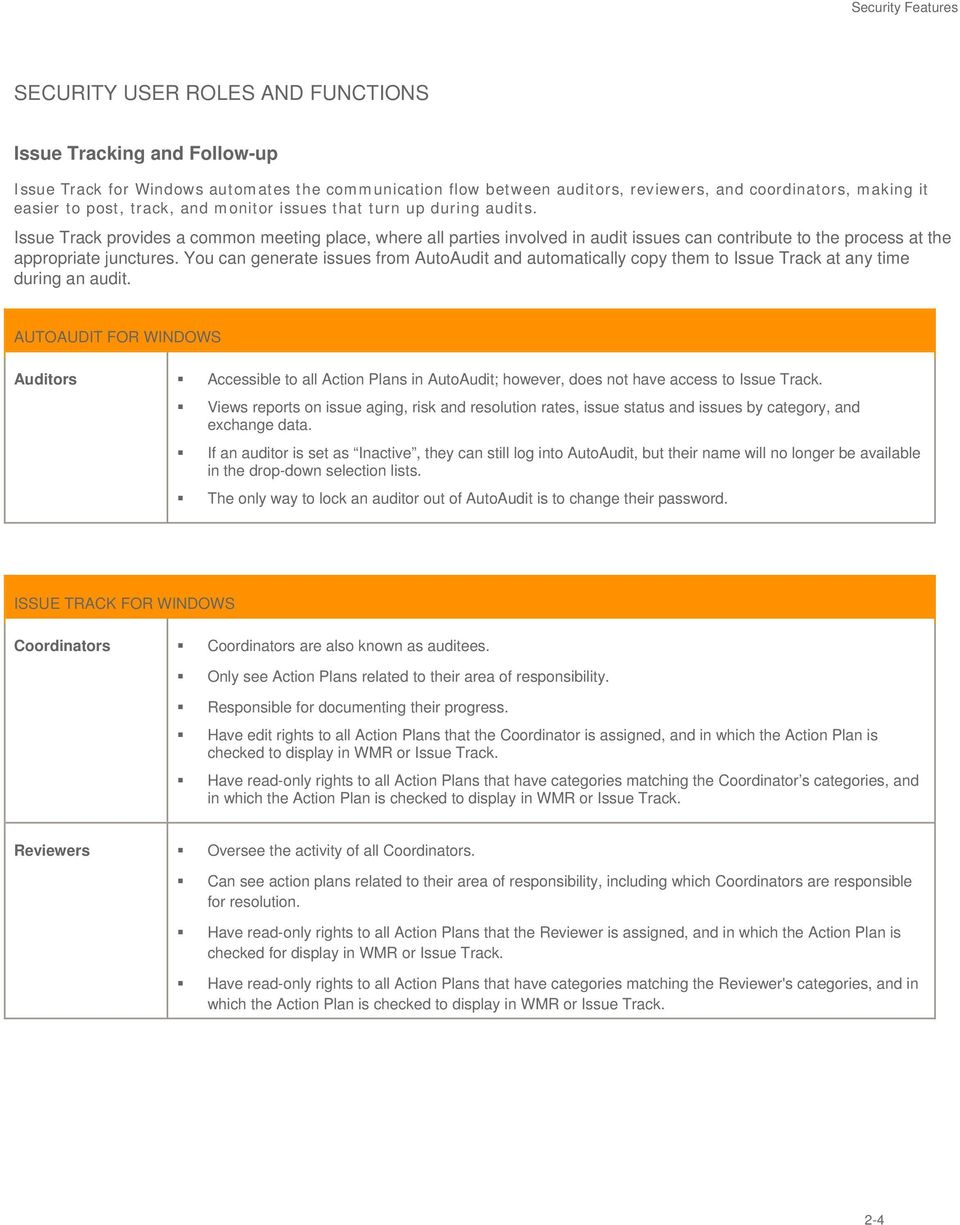
7 Security Features SECURITY USER ROLES AND FUNCTIONS Issue Tracking and Follow-up Issue Track for Windows automates the communication flow between auditors, reviewers, and coordinators, making it easier to post, track, and monitor issues that turn up during audits. Issue Track provides a common meeting place, where all parties involved in audit issues can contribute to the process at the appropriate junctures. You can generate issues from AutoAudit and automatically copy them to Issue Track at any time during an audit. AUTOAUDIT FOR WINDOWS Auditors Accessible to all Action Plans in AutoAudit; however, does not have access to Issue Track. Views reports on issue aging, risk and resolution rates, issue status and issues by category, and exchange data. If an auditor is set as Inactive, they can still log into AutoAudit, but their name will no longer be available in the drop-down selection lists. The only way to lock an auditor out of AutoAudit is to change their password. ISSUE TRACK FOR WINDOWS Coordinators Coordinators are also known as auditees. Only see Action Plans related to their area of responsibility. Responsible for documenting their progress. Have edit rights to all Action Plans that the Coordinator is assigned, and in which the Action Plan is checked to display in WMR or Issue Track. Have read-only rights to all Action Plans that have categories matching the Coordinator s categories, and in which the Action Plan is checked to display in WMR or Issue Track. Reviewers Oversee the activity of all Coordinators. Can see action plans related to their area of responsibility, including which Coordinators are responsible for resolution. Have read-only rights to all Action Plans that the Reviewer is assigned, and in which the Action Plan is checked for display in WMR or Issue Track. Have read-only rights to all Action Plans that have categories matching the Reviewer's categories, and in which the Action Plan is checked to display in WMR or Issue Track. 2-4
8 Pre-installation Notes CHAPTER 3 PRE-INSTALLATION NOTES The installation must run under a privileged user account. Typically this is an administrator account. Issue Track cannot be installed to the system directory. This release requires AutoAudit for Windows 3.0, 3.1, 3.2, or 4.0. A Server Variable entry is available for Secure Access Manager (SAM) users. Refer to the Integrated Security Solutions section for Web.Config File changes in this guide for more information. This entry will bypass the login page with secure access. For non-english installations, a dialog box prompts to select the Web site that you want to deploy to the virtual directory. In addition, the application uses Security ID for the administrators group. If using Internet Explorer 5.5 or lower, the grid control will not display correctly in Issue Track. The Issue Track installation requires that you have AutoAudit installed with an AutoAudit SQL Server database created. WHAT THE INSTALLATION PROGRAM DOES The installation program performs the following tasks during a first-time installation: Installs the Microsoft.NET Framework and service packs. Installs Microsoft Data Access Components (MDAC) 2.7 and service packs. Sets Issue Track file and folder permissions. Note The installation will register asp.net with the Issue Track program only. 3-5

9 Upgrade Installation CHAPTER 4 UPGRADE INSTALLATION UPGRADING AN EXISTING ISSUE TRACK VERSION New versions of the program, incorporating enhancements and new features, are regularly introduced as part of our continuing service. We strongly recommend that you upgrade all new versions immediately to make sure that your program is operating with the most current functions and features. BEFORE PERFORMING AN UPGRADE INSTALLATION Uninstalling Issue Track An upgrade installation requires that you first remove the previous version of Issue Track before you install the new version. Follow these steps to upgrade an existing Issue Track version. 1) Use Windows Control Panel Add/Remove Programs, select Issue Track Change or Remove Programs. 2) Navigate to the original Issue Track installation directory and remove any files and subfolders left behind; for example, any temp files. 3) Use the Initial Installation Procedure in this manual to install the new version of Issue Track. CHANGING PERMISSION SETTINGS FOR AN UPGRADE Review the Select and Update Authorization Security Table on page 2-3 for changing permission settings. Reference AutoAudit for Windows Setup Guide 4-6

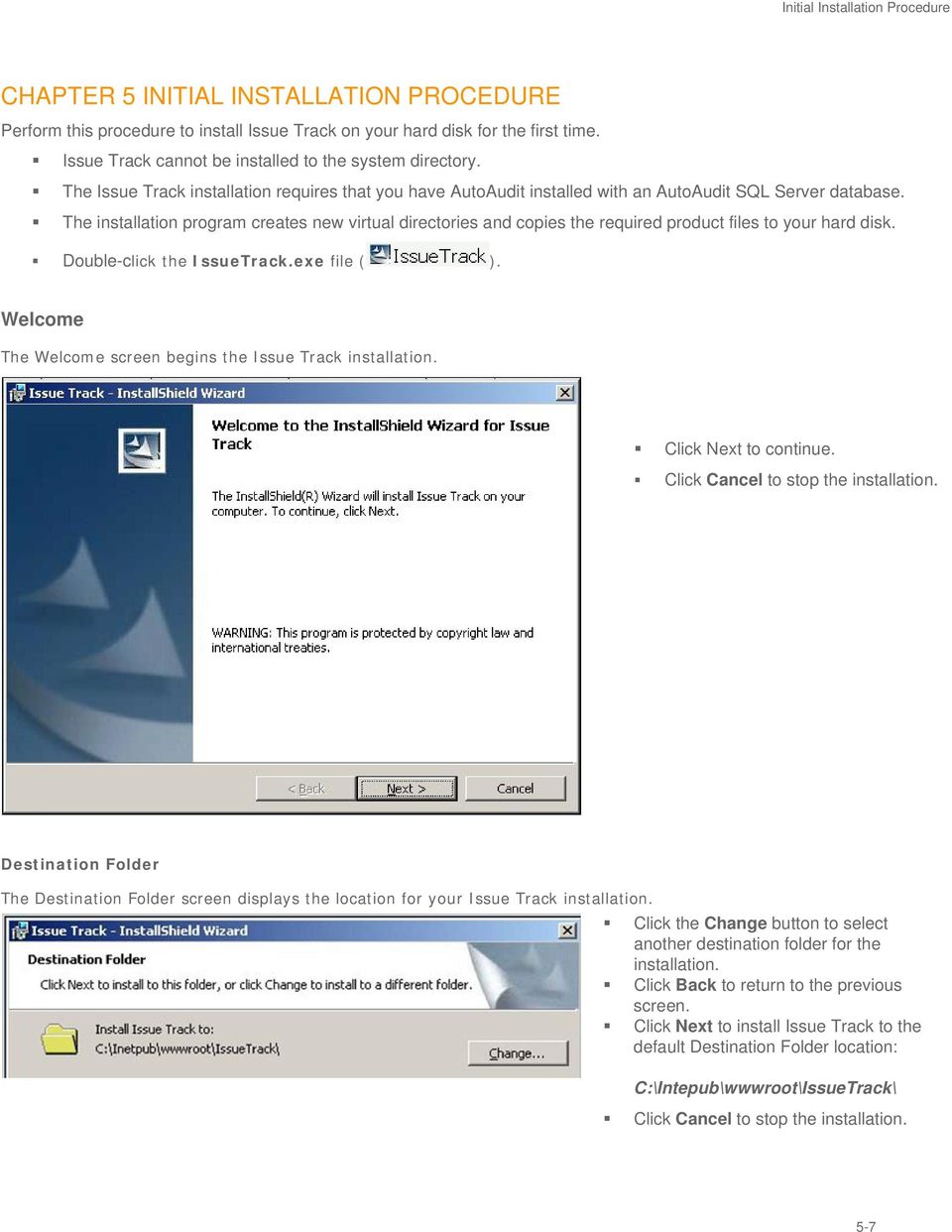
10 Initial Installation Procedure CHAPTER 5 INITIAL INSTALLATION PROCEDURE Perform this procedure to install Issue Track on your hard disk for the first time. Issue Track cannot be installed to the system directory. The Issue Track installation requires that you have AutoAudit installed with an AutoAudit SQL Server database. The installation program creates new virtual directories and copies the required product files to your hard disk. Double-click the IssueTrack.exe file ( ). Welcome The Welcome screen begins the Issue Track installation. Click Next to continue. Click Cancel to stop the installation. Destination Folder The Destination Folder screen displays the location for your Issue Track installation. Click the Change button to select another destination folder for the installation. Click Back to return to the previous screen. Click Next to install Issue Track to the default Destination Folder location: C:\Intepub\wwwroot\IssueTrack\ Click Cancel to stop the installation. 5-7
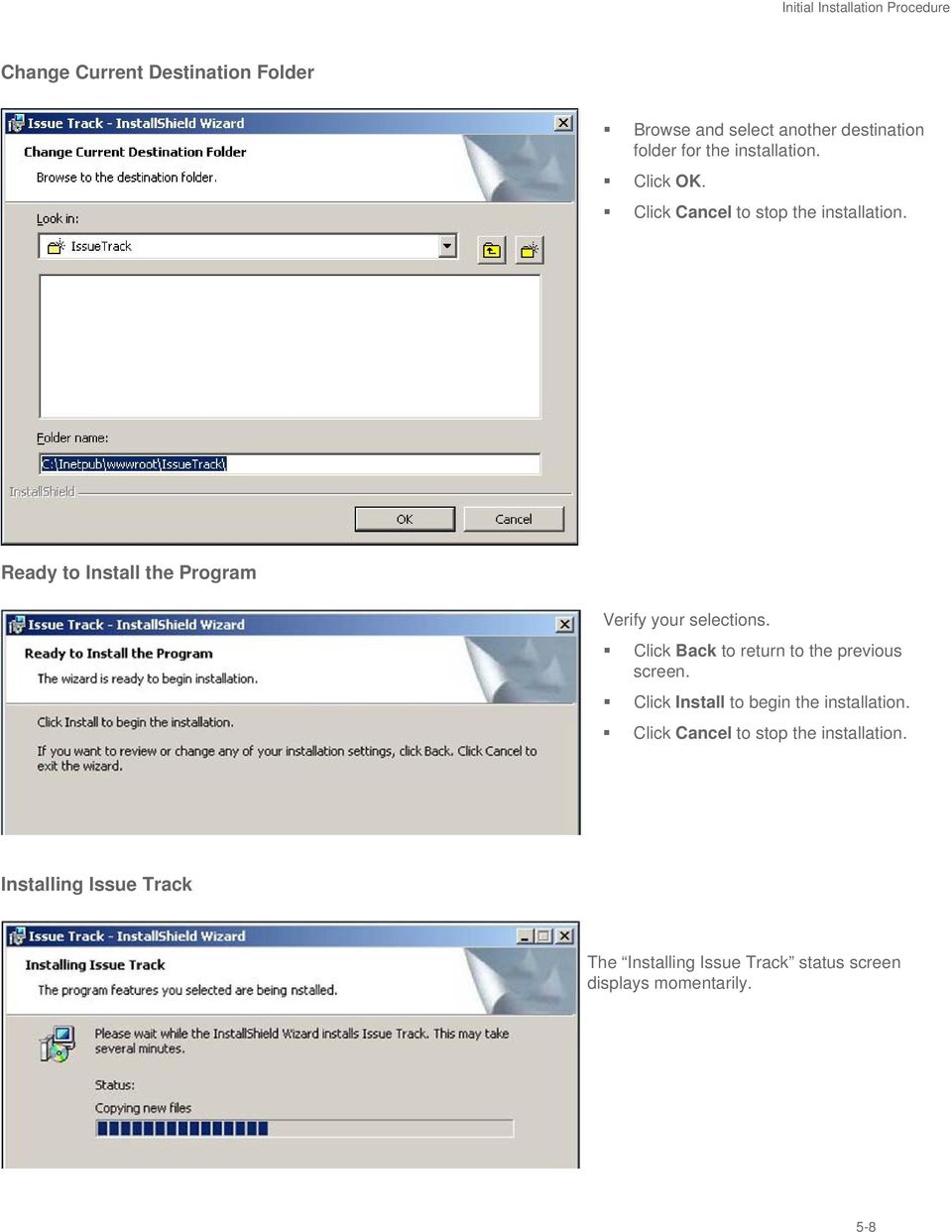
11 Initial Installation Procedure Change Current Destination Folder Browse and select another destination folder for the installation. Click OK. Click Cancel to stop the installation. Ready to Install the Program Verify your selections. Click Back to return to the previous screen. Click Install to begin the installation. Click Cancel to stop the installation. Installing Issue Track The Installing Issue Track status screen displays momentarily. 5-8
12 Initial Installation Procedure Welcome When the program is finished copying new files, you will see the Welcome screen. Click Next to continue. Company Name Enter your organization s name and click Next. AutoAudit Database Connectivity Choose a connection string to the AutoAudit database. Click the browse ( ) button to display the Data Link Properties dialog box. Click Back to return to the previous screen. Click Next to continue. Click Cancel to stop the installation. Data Link Properties The Data Link Properties dialog box lets you select an existing AutoAudit database. This is the standard Windows system interface for configuring connection strings to data sources. The Provider tab should already display the correct OLE DB Provider. If not already displayed, select the Connection tab. Use this tab to specify where your data is located and how to connect to it using this OLE DB provider. 5-9

13 Initial Installation Procedure Make sure that the Allow saving password box is checked to save the password for future connection. Click this button to test the connection with the specified data source. Select or enter a server name: Enter the server name for the server containing the AutoAudit database. Spaces are not allowed in database names. Enter information to log on to the server: Select Use a specific user name and password to authenticate your logon information to the data source. Note User name: Type the User ID to use for SQL authentication when you log on. Password: Type the password to use for SQL authentication when you log on. Allow saving password: Check this box to allow the password to be saved with the connection string. If you do not check this box, the message: "Connection Unsuccessful" displays when you later click Next on the "AutoAudit Database Connectivity" dialog box. 5-10

14 Initial Installation Procedure Select the database on the server Test Connection Click this button to test the connection with the specified data source. If a test connection is made, the Test successful message displays. If an incorrect user name is entered, a Microsoft Data Link Error displays: Test connection failed because of an error in initializing provider. Login failed for user xxxxxxx. If no connection is made, the Connection Unsuccessful message displays. If Connection Unsuccessful, review the settings. Spelling errors or case sensitivity in the Data Link Properties dialog box can block connections. Repeat steps to create a valid connection string. Make sure that the Allow Saving Password box is checked. Click OK. AutoAudit Database Connectivity The AutoAudit Database Connectivity screen displays again with the selected connection string. Click Back to return to the previous screen. Click Next to continue. Click Cancel to stop the installation. 5-11

15 Initial Installation Procedure SMTP Server Connectivity Issue Track uses SMTP (Simple Mail Transfer Protocol, an IETF standard for effective transfer) to send systemgenerated error reports via back to Paisley, a Thomson Reuters company, for troubleshooting purposes. Enter your SMTP server name. Click the Test button to verify the SMTP server connection. If the mail server that was specified is not found, the test fails and a message displays indicating the test failed. IIS Setup If you receive an Unsuccessful SMTP Connection, click OK. Verify that the proper mail server name was entered, and then check the mail server configuration. If the server is set to block s, the Issue Track generated-report function will be disabled and you can continue. If the SMTP server connection is good, the Test Successful message displays, and the inbox for the specified address will contain a test message. Click Next. In Windows XP Professional and Windows 2000 Professional, only the Default option is available. In Windows 2000x Server environments, two IIS Setup options are available for your Web site connection. Choose either Default or Advanced. On certain systems the Advanced option is disabled because the operating system does not support it. 5-12

16 Initial Installation Procedure Default Windows XP Professional and 2000 Professional Click Next to continue. Advanced Windows 2000 Server Families If you chose Default, virtual directories are created for Issue Track under the IIS Default Web site. IIS provides Internet services such as the WWW service for hosting Internet and Intranet content. If you chose Advanced, the IIS Advanced Setup screen displays to let you create a new Issue Track Web site name for IIS. Website Name Root Directory Host Header: Static IP Address URL to site Enter the Web site name that will display in IIS Manager. The Root Directory text box displays the Issue Track files installation location. If you choose Host Header configuration, enter the host header name in the text box. If you choose the Static IP Address for the Issue Track Web site, enter the IP address in the text box. Both choices require a DNS entry. Enter the URL for the Issue Track Web site. This URL entry will depend on the configuration option specified (that is, either Host Header or Static IP). 5-13

17 Initial Installation Procedure Summary A summary of the settings you have chosen displays. Verify your selections and click Install to begin the installation. InstallShield Wizard Completed 5-14

18 Initial Installation Procedure The installation status screen displays momentarily, and then the InstallShield Wizard Completed screen displays. Click Finish. The installation procedure is completed. 5-15

19 After Installation CHAPTER 6 AFTER INSTALLATION CHANGING SQL SERVER CONNECTION STRING Integrated Security Solutions Web.Config File This connection string must be placed in the web.config file in the root directory of Issue Track. Place a connection string like the following one in the AutoAuditDataConnection key in the AppSettings section of the Web.Config file: "Data Source=CKOVBTLGX620;Initial Catalog=AutoAudit;User ID=ClientID;Password=ClientPWD;Connection Timeout=120;" After logging into Issue Track, the AutoAuditDataConnection value is cleared and the connection string becomes encrypted under EncryptedData. Using integrated Security When using this setting, CanChangeLogin should be set to 0. <Entry> <key xsi:type="xsd:string">clientservervariable</key> <value xsi:type="xsd:string">logon_user</value> </Entry> <Entry> <key xsi:type="xsd:string">canchangelogin</key> <value xsi:type="xsd:string">0</value> </Entry> If Integrated Security (ClientServerVariable set to LOGON_USER as above), it will override/nullify the AutoAudit for Windows password security settings for Coordinators. If Enable Password Security is checked in AutoAudit for Windows security setup form, CanChangeLogin should be set to 1 so Issue Track's Personal Settings page works as it should for users when they need to make a nonexpired password change. 6-16

20 After Installation USING SINGLE SIGN ON (SSO) ENVIRONMENT SECURITY Web.config File An SSO (provided by SAM, Tivoli or Siteminder, etc.) access control solution can pass the user name credentials to Issue Track via a custom HTTP header variable. The variable name used to pass the value must be entered in the web.config file's ClientServerVariable value so Issue Track knows the header variable (servervariable) carries the username. In this example the Http header variable name is HTTP_MY_USER. Issue Track will read the value contained in this variable and attempt to match it to a coordinator's UserID. If matched, the user is logged in automatically. If no match is found, access to Issue Track is denied. Http Header Variable Name = HTTP_MY_USER <Entry> <key xsi:type="xsd:string">clientservervariable</key> <value xsi:type="xsd:string">http_my_user</value> </Entry> <Entry> <key xsi:type="xsd:string">canchangelogin</key> <value xsi:type="xsd:string">0</value> </Entry> USING WINDOWS INTEGRATED SECURITY If a Windows user is logged into the domain that contains Issue Track's IIS server, the user can be automatically logged into Issue Track using Windows Integrated Security. There are two main steps to enable this. 1) Turn on Integrated Windows authentication in IIS for the Issue Track site (note that this will cause IIS to check Windows credentials when accessing files in the Issue Track directory). Also, deselect Anonymous Access. 2) Set the ClientServerVariable value to LOGON_USER. Make sure the Coordinators' Login IDs match their network IDs. <Entry> <key xsi:type="xsd:string">clientservervariable</key> <value xsi:type="xsd:string">logon_user</value> </Entry> <Entry> <key xsi:type="xsd:string">canchangelogin</key> <value xsi:type="xsd:string">0</value> </Entry> 6-17

21 After Installation USING ISSUE TRACK FORMS-BASED SECURITY This is Issue Track's overriding security method. Whether the ClientServerVariable is blank or not, this security is set ON. When the ClientServerVariable value is blank, requests for any Issue Track resource will require the coordinator to provide valid credentials as entered in AutoAudit's Coordinator Setup form. <Entry> <key xsi:type="xsd:string">clientservervariable</key> <value xsi:type="xsd:string"></value> </Entry> <Entry> <key xsi:type="xsd:string">canchangelogin</key> <value xsi:type="xsd:string">1</value> </Entry> CHANGING THE SETTINGS FOR FILE ATTACHMENTS Web.Config File The default attachment limit is 4 megabytes. This setting can be changed in the Web.Config file by adding the maxrequestlength attribute to the httpruntime element setting the executiontimeout attribute as shown below. <system.web> <httpruntime maxrequestlength="4096" executiontimeout="900" /> USER ID & PASSWORD, AND SETTINGS Setup options are available in AutoAudit for Windows You can choose to allow User ID & Password, and changes in Issue Track. In the Web Response System (WRS) you can choose the information that you would like to show or not show. For example, if you do not want coordinators to see information like Discussion & Background, and Cause & Effect information, do not check the boxes. If you want coordinators to only see the recommendations, you can check the box to allow this information to be shown. AutoAudit for Windows Setup Guide, Options System Setup Web/ . In AutoAudit for Windows Do the following: Enable Issue Track in AutoAudit (refer to the Web/ Enabling Issue Track section of the AutoAudit for Windows Setup Guide). Enable access to AutoAudit (refer to the Coordinator Setup section of the AutoAudit for Windows Setup Guide). 6-18
22 After Installation Make sure the Display in Issue Track check box is checked on the AutoAudit Action Plan form (refer to the AutoAudit for Windows Reference Manual). Now Coordinators and Reviewers can be assigned to Action Plans and s can be sent to them. STARTING ISSUE TRACK In the newly-installed Issue Track application based on the Issue Track Web configuration you have chosen (for example, at name/issuetrack where machine name is the host computer name without an extension). Coordinators and Reviewers can log into Issue Track and open Action Plans. The Issue Track for Windows Log In screen displays. Type in your Username, if it is not displayed. Type in your Password. Select a Language from the drop-down list. After you have entered your username and password, click the Login button to access the Issue Track. Reference Issue Track for Windows Reference Manual, or online Help files. 6-19
23 Troubleshooting CHAPTER 7 TROUBLESHOOTING LINK TO AN ACTION PLAN FAILURE What is the URL in AutoAudit for Windows? Go into AutoAudit for Windows: Options System Setup Web/ The URL on this screen is as follows: The default installation: Advanced installations: If the link does not work, you can log into Issue Track manually. Open an Internet Explorer browser session (we do not support other browsers). Type in the Issue Track URL without /Application/ that appears in the URL: Default URL for manual access: Advanced installations: If you receive "Internal Error" messages while connected to Issue Track, Paisley needs copies of the error messages that are in the Application Event Viewer on the IIS Server hosting the Issue Track Web application. Do the following: 1. From the IIS Server desktop, right-click on My Computer icon. 2. Select Manage. 3. Select Event Viewer. 4. Select Application. 5. Select View Filter. 6. Select Error only If your IS person can't determine why the application is not working correctly, send the error log files to Paisley for review. Action Save Log File As Save the file to text (*.txt) format If the Web site does not open, send Paisley the ITInstall.log file from the C:\root directory of the IIS Server where Issue Track was installed. Note Have your IS department review the log to determine if they did an Advanced Installation to the Default Web site path. You can determine this by looking at the path where Issue Track was installed. 7-20
24 Troubleshooting If the path is C:\inetpub\wwwroot, that is the default Web site path. Continue to review the ITInstall.log file and determine if the application was installed as an Advanced installation or Default. Advanced installation values: IISSetup = "Advanced"; InstallationController.URL = " (URL will NOT be Server Name>/IssueTrack) A Default installation values: InstallationController.IISSetup = "Default"; InstallationController.WebsiteName= "Default Web Site"; InstallationController.InstallDirectory = "C:\Inetpub\wwwroot\IssueTrack\"; If you have the application installed to C:\inetpub\wwwroot on the IIS Server, you have a default installation. If you have the default path, and an advance installation, you will need to: Uninstall Issue Track (through Add/Remove Programs in the Control Panel), if you want to do an Advanced installation of Issue Track, make sure you 1. Install the application to a different path from C:\inetpub\wwwroot. 2. Add the custom Web site to your DNS. 3. Create a host header for the advanced Web site. SEND ERROR REPORTS A message displays when an internal Issue Track error occurs: Internal Error. If this error keeps occurring contact your system administrator. When you click the Send error report text link, Issue Track will try to connect to a Web service to send a formatted with the exception to Paisley. If it cannot connect, it will try to send a generic with the error report. 7-21
25 Service Desk Contacts SERVICE DESK CONTACTS Self-Service Client self-service provides the ability to interact with the service desk through a web-based tool. This tool offers clients an easy method to create and manage support occurrences and interact with the support staff and is available to all clients with current maintenance agreements. Call/Fax Toll free: (U.S. and Canada) Phone: (all other countries) Fax: To learn more about our products [email protected] or visit AutoAudit for Windows is a registered trademark of Thomson Reuters Thomson Reuters. All rights reserved. Republication or redistribution of Thomson Reuters content, including by framing or similar means, is prohibited without the prior written consent of Thomson Reuters. 'Thomson Reuters' and the Thomson Reuters logo are registered trademarks and trademarks of Thomson Reuters and its affiliated companies.. IT-INSTALL
STATISTICA VERSION 10 STATISTICA ENTERPRISE SERVER INSTALLATION INSTRUCTIONS
 Notes: STATISTICA VERSION 10 STATISTICA ENTERPRISE SERVER INSTALLATION INSTRUCTIONS 1. The installation of the STATISTICA Enterprise Server entails two parts: a) a server installation, and b) workstation
Sage 200 Web Time & Expenses Guide
 Sage 200 Web Time & Expenses Guide Sage (UK) Limited Copyright Statement Sage (UK) Limited, 2006. All rights reserved If this documentation includes advice or information relating to any matter other than
CoCreate Manager Server Installation Guide. CoCreate Manager Server Installation Guide 1
 CoCreate Manager Server Installation Guide CoCreate Manager Server Installation Guide 1 CoCreate Manager Server Installation Guide 2 Table Of Contents 1. CoCreate Manager Server 2008 4 1.1. Installation
Click Studios. Passwordstate. Installation Instructions
 Passwordstate Installation Instructions This document and the information controlled therein is the property of Click Studios. It must not be reproduced in whole/part, or otherwise disclosed, without prior
Installation Instruction STATISTICA Enterprise Server
 Installation Instruction STATISTICA Enterprise Server Notes: ❶ The installation of STATISTICA Enterprise Server entails two parts: a) a server installation, and b) workstation installations on each of
Installation Guide for Pulse on Windows Server 2012
 MadCap Software Installation Guide for Pulse on Windows Server 2012 Pulse Copyright 2014 MadCap Software. All rights reserved. Information in this document is subject to change without notice. The software
Kaseya Server Instal ation User Guide June 6, 2008
 Kaseya Server Installation User Guide June 6, 2008 About Kaseya Kaseya is a global provider of IT automation software for IT Solution Providers and Public and Private Sector IT organizations. Kaseya's
Installation Guide for Pulse on Windows Server 2008R2
 MadCap Software Installation Guide for Pulse on Windows Server 2008R2 Pulse Copyright 2014 MadCap Software. All rights reserved. Information in this document is subject to change without notice. The software
Kaseya 2. Installation guide. Version 7.0. English
 Kaseya 2 Kaseya Server Setup Installation guide Version 7.0 English September 4, 2014 Agreement The purchase and use of all Software and Services is subject to the Agreement as defined in Kaseya s Click-Accept
MadCap Software. Upgrading Guide. Pulse
 MadCap Software Upgrading Guide Pulse Copyright 2014 MadCap Software. All rights reserved. Information in this document is subject to change without notice. The software described in this document is furnished
NTP Software File Auditor for Windows Edition
 NTP Software File Auditor for Windows Edition An NTP Software Installation Guide Abstract This guide provides a short introduction to installation and initial configuration of NTP Software File Auditor
STATISTICA VERSION 9 STATISTICA ENTERPRISE INSTALLATION INSTRUCTIONS FOR USE WITH TERMINAL SERVER
 Notes: STATISTICA VERSION 9 STATISTICA ENTERPRISE INSTALLATION INSTRUCTIONS FOR USE WITH TERMINAL SERVER 1. These instructions focus on installation on Windows Terminal Server (WTS), but are applicable
WhatsUp Gold v16.1 Installation and Configuration Guide
 WhatsUp Gold v16.1 Installation and Configuration Guide Contents Installing and Configuring Ipswitch WhatsUp Gold v16.1 using WhatsUp Setup Installing WhatsUp Gold using WhatsUp Setup... 1 Security guidelines
System Administration Training Guide. S100 Installation and Site Management
 System Administration Training Guide S100 Installation and Site Management Table of contents System Requirements for Acumatica ERP 4.2... 5 Learning Objects:... 5 Web Browser... 5 Server Software... 5
NSi Mobile Installation Guide. Version 6.2
 NSi Mobile Installation Guide Version 6.2 Revision History Version Date 1.0 October 2, 2012 2.0 September 18, 2013 2 CONTENTS TABLE OF CONTENTS PREFACE... 5 Purpose of this Document... 5 Version Compatibility...
Archive Attender Version 3.5
 Archive Attender Version 3.5 Getting Started Guide Sherpa Software (800) 255-5155 www.sherpasoftware.com Page 1 Under the copyright laws, neither the documentation nor the software can be copied, photocopied,
STATISTICA VERSION 12 STATISTICA ENTERPRISE SMALL BUSINESS INSTALLATION INSTRUCTIONS
 STATISTICA VERSION 12 STATISTICA ENTERPRISE SMALL BUSINESS INSTALLATION INSTRUCTIONS Notes 1. The installation of STATISTICA Enterprise Small Business entails two parts: a) a server installation, and b)
Oracle Enterprise Single Sign-on Provisioning Gateway. Administrator Guide Release 10.1.4.1.0 E12613-01
 Oracle Enterprise Single Sign-on Provisioning Gateway Administrator Guide Release 10.1.4.1.0 E12613-01 March 2009 Oracle Enterprise Single Sign-on Provisioning Gateway, Administrator Guide, Release 10.1.4.1.0
Installation Guide v3.0
 Installation Guide v3.0 Shepherd TimeClock 4465 W. Gandy Blvd. Suite 800 Tampa, FL 33611 Phone: 813-882-8292 Fax: 813-839-7829 http://www.shepherdtimeclock.com The information contained in this document
Migrating TimeForce To A New Server
 Rev. 4/28/14 Migrating TimeForce To A New Server Table of Contents 1. Installation Prerequisites... 2 Required... 2 Recommended... 3 2. Update to a Migration Compatible Version... 3 Determine the Database
026-1010 Rev 7 06-OCT-2011. Site Manager Installation Guide
 026-1010 Rev 7 06-OCT-2011 Site Manager Installation Guide Retail Solutions 3240 Town Point Drive NW, Suite 100 Kennesaw, GA 30144, USA Phone: 770-425-2724 Fax: 770-425-9319 Table of Contents 1 SERVER
To install Multifront you need to have familiarity with Internet Information Services (IIS), Microsoft.NET Framework and SQL Server 2008.
 Znode Multifront - Installation Guide Version 6.2 1 System Requirements To install Multifront you need to have familiarity with Internet Information Services (IIS), Microsoft.NET Framework and SQL Server
Installing the ASP.NET VETtrak APIs onto IIS 5 or 6
 Installing the ASP.NET VETtrak APIs onto IIS 5 or 6 2 Installing the ASP.NET VETtrak APIs onto IIS 5 or 6 3... 3 IIS 5 or 6 1 Step 1- Install/Check 6 Set Up and Configure VETtrak ASP.NET API 2 Step 2 -...
WhatsUp Gold v16.2 Installation and Configuration Guide
 WhatsUp Gold v16.2 Installation and Configuration Guide Contents Installing and Configuring Ipswitch WhatsUp Gold v16.2 using WhatsUp Setup Installing WhatsUp Gold using WhatsUp Setup... 1 Security guidelines
Installation Instruction STATISTICA Enterprise Small Business
 Installation Instruction STATISTICA Enterprise Small Business Notes: ❶ The installation of STATISTICA Enterprise Small Business entails two parts: a) a server installation, and b) workstation installations
HYPERION SYSTEM 9 N-TIER INSTALLATION GUIDE MASTER DATA MANAGEMENT RELEASE 9.2
 HYPERION SYSTEM 9 MASTER DATA MANAGEMENT RELEASE 9.2 N-TIER INSTALLATION GUIDE P/N: DM90192000 Copyright 2005-2006 Hyperion Solutions Corporation. All rights reserved. Hyperion, the Hyperion logo, and
WhatsUp Gold v16.3 Installation and Configuration Guide
 WhatsUp Gold v16.3 Installation and Configuration Guide Contents Installing and Configuring WhatsUp Gold using WhatsUp Setup Installation Overview... 1 Overview... 1 Security considerations... 2 Standard
Click Studios. Passwordstate. Installation Instructions
 Passwordstate Installation Instructions This document and the information controlled therein is the property of Click Studios. It must not be reproduced in whole/part, or otherwise disclosed, without prior
Defender 5.7 - Token Deployment System Quick Start Guide
 Defender 5.7 - Token Deployment System Quick Start Guide This guide describes how to install, configure and use the Defender Token Deployment System, based on default settings and how to self register
NETWRIX ACCOUNT LOCKOUT EXAMINER
 NETWRIX ACCOUNT LOCKOUT EXAMINER ADMINISTRATOR S GUIDE Product Version: 4.1 July 2014. Legal Notice The information in this publication is furnished for information use only, and does not constitute a
Sophos for Microsoft SharePoint startup guide
 Sophos for Microsoft SharePoint startup guide Product version: 2.0 Document date: March 2011 Contents 1 About this guide...3 2 About Sophos for Microsoft SharePoint...3 3 System requirements...3 4 Planning
Security Guidelines for MapInfo Discovery 1.1
 Security Guidelines for MapInfo Discovery 1.1 This paper provides guidelines and detailed instructions for improving the security of your Mapinfo Discovery deployment. In this document: Overview.........................................
Setting up Sharp MX-Color Imagers for Inbound Fax Routing to Email or Network Folder
 Setting up Sharp MX-Color Imagers for Inbound Fax Routing to Email or Network Folder MX-2300, MX-2600, MX-2700, MX-3100, MX-3501, MX-4501, MX-5500, MX-6200, MX-6201, MX-7000, MX-7001, *MX-M850, *MX-M950,
WebSpy Vantage Ultimate 2.2 Web Module Administrators Guide
 WebSpy Vantage Ultimate 2.2 Web Module Administrators Guide This document is intended to help you get started using WebSpy Vantage Ultimate and the Web Module. For more detailed information, please see
VERITAS Backup Exec 9.1 for Windows Servers Quick Installation Guide
 VERITAS Backup Exec 9.1 for Windows Servers Quick Installation Guide N109548 Disclaimer The information contained in this publication is subject to change without notice. VERITAS Software Corporation makes
Nexio Connectus with Nexio G-Scribe
 Nexio Connectus with Nexio G-Scribe 2.1.2 3/20/2014 Edition: A 2.1.2 Publication Information 2014 Imagine Communications. Proprietary and Confidential. Imagine Communications considers this document and
Mixed Authentication Setup
 Mixed Authentication Setup Version 8.2 January 1, 2016 For the most recent version of this document, visit our documentation website. Table of Contents 1 Overview 3 2 IIS installed components 3 2.1 Creating
Installing GFI MailSecurity
 Installing GFI MailSecurity Introduction This chapter explains how to install and configure GFI MailSecurity. You can install GFI MailSecurity directly on your mail server or you can choose to install
SafeGuard Enterprise Web Helpdesk. Product version: 6.1
 SafeGuard Enterprise Web Helpdesk Product version: 6.1 Document date: February 2014 Contents 1 SafeGuard web-based Challenge/Response...3 2 Scope of Web Helpdesk...4 3 Installation...5 4 Allow Web Helpdesk
NETWRIX EVENT LOG MANAGER
 NETWRIX EVENT LOG MANAGER ADMINISTRATOR S GUIDE Product Version: 4.0 July/2012. Legal Notice The information in this publication is furnished for information use only, and does not constitute a commitment
Microsoft Dynamics GP. Workflow Installation Guide Release 10.0
 Microsoft Dynamics GP Workflow Installation Guide Release 10.0 Copyright Copyright 2008 Microsoft Corporation. All rights reserved. Complying with all applicable copyright laws is the responsibility of
1. Set Daylight Savings Time... 3. 2. Create Migrator Account... 3. 3. Assign Migrator Account to Administrator group... 4
 1. Set Daylight Savings Time... 3 a. Have client log into Novell/Local Machine with Administrator Account...3 b. Access Adjust Date/Time...3 c. Make sure the time zone is set to Central Time...3 2. Create
Microsoft Dynamics GP Release
 Microsoft Dynamics GP Release Workflow Installation and Upgrade Guide February 17, 2011 Copyright Copyright 2011 Microsoft. All rights reserved. Limitation of liability This document is provided as-is.
Migrating helpdesk to a new server
 Migrating helpdesk to a new server Table of Contents 1. Helpdesk Migration... 2 Configure Virtual Web on IIS 6 Windows 2003 Server:... 2 Role Services required on IIS 7 Windows 2008 / 2012 Server:... 2
NETWRIX USER ACTIVITY VIDEO REPORTER
 NETWRIX USER ACTIVITY VIDEO REPORTER ADMINISTRATOR S GUIDE Product Version: 1.0 January 2013. Legal Notice The information in this publication is furnished for information use only, and does not constitute
Installing Policy Patrol on a separate machine
 Policy Patrol 3.0 technical documentation July 23, 2004 Installing Policy Patrol on a separate machine If you have Microsoft Exchange Server 2000 or 2003 it is recommended to install Policy Patrol on the
File Auditor for NAS, Net App Edition
 File Auditor for NAS, Net App Edition Installation Guide Revision 1.2 - July 2015 This guide provides a short introduction to the installation and initial configuration of NTP Software File Auditor for
Version 3.8. Installation Guide
 Version 3.8 Installation Guide Copyright 2007 Jetro Platforms, Ltd. All rights reserved. This document is being furnished by Jetro Platforms for information purposes only to licensed users of the Jetro
Crystal Reports Installation Guide
 Crystal Reports Installation Guide Version XI Infor Global Solutions, Inc. Copyright 2006 Infor IP Holdings C.V. and/or its affiliates or licensors. All rights reserved. The Infor word and design marks
Installation and Configuration Guide
 Installation and Configuration Guide BlackBerry Resource Kit for BlackBerry Enterprise Service 10 Version 10.2 Published: 2015-11-12 SWD-20151112124827386 Contents Overview: BlackBerry Enterprise Service
IIS, FTP Server and Windows
 IIS, FTP Server and Windows The Objective: To setup, configure and test FTP server. Requirement: Any version of the Windows 2000 Server. FTP Windows s component. Internet Information Services, IIS. Steps:
Millennium Drive. Installation Guide
 Millennium Drive Installation Guide This is a publication of Abila, Inc. Version 2015.1 2015 Abila, Inc. and its affiliated entities. All rights reserved. Abila, the Abila logos, and the Abila product
Quick Install Guide. Lumension Endpoint Management and Security Suite 7.1
 Quick Install Guide Lumension Endpoint Management and Security Suite 7.1 Lumension Endpoint Management and Security Suite - 2 - Notices Version Information Lumension Endpoint Management and Security Suite
Embarcadero Performance Center 2.7 Installation Guide
 Embarcadero Performance Center 2.7 Installation Guide Copyright 1994-2009 Embarcadero Technologies, Inc. Embarcadero Technologies, Inc. 100 California Street, 12th Floor San Francisco, CA 94111 U.S.A.
0651 Installing PointCentral 8.0 For the First Time
 Prerequisites Microsoft Windows Server 2003 or Windows Server 2008 Microsoft.NET Framework 4 Microsoft SQL Server 2005 or SQL Server 2008 IIS **For Windows Server 2003. You must manually configure IIS6
Reference and Troubleshooting: FTP, IIS, and Firewall Information
 APPENDIXC Reference and Troubleshooting: FTP, IIS, and Firewall Information Although Cisco VXC Manager automatically installs and configures everything you need for use with respect to FTP, IIS, and the
Installation and Program Essentials
 CS PROFESSIONAL SUITE ACCOUNTING PRODUCTS Installation and Program Essentials version 2015.x.x TL 28970 3/26/2015 Copyright Information Text copyright 1998 2015 by Thomson Reuters. All rights reserved.
http://docs.trendmicro.com
 Trend Micro Incorporated reserves the right to make changes to this document and to the products described herein without notice. Before installing and using the product, please review the readme files,
NovaBACKUP xsp Version 15.0 Upgrade Guide
 NovaBACKUP xsp Version 15.0 Upgrade Guide NovaStor / November 2013 2013 NovaStor, all rights reserved. All trademarks are the property of their respective owners. Features and specifications are subject
Juris Installation / Upgrade Guide
 Juris Installation / Upgrade Guide Version 2.7 2015 LexisNexis. All rights reserved. Copyright and Trademark LexisNexis, Lexis, and the Knowledge Burst logo are registered trademarks of Reed Elsevier Properties
DESLock+ Basic Setup Guide Version 1.20, rev: June 9th 2014
 DESLock+ Basic Setup Guide Version 1.20, rev: June 9th 2014 Contents Overview... 2 System requirements:... 2 Before installing... 3 Download and installation... 3 Configure DESLock+ Enterprise Server...
Integrating LANGuardian with Active Directory
 Integrating LANGuardian with Active Directory 01 February 2012 This document describes how to integrate LANGuardian with Microsoft Windows Server and Active Directory. Overview With the optional Identity
Installing and Configuring WhatsUp Gold
 Installing and Configuring WhatsUp Gold This guide provides information about installing and configuring WhatsUp Gold v14.2, including instructions on how to run the WhatsUp web interface through an Internet
Pro-Watch Software Suite Installation Guide. 2013 Honeywell Release 4.1
 Pro-Watch Software Suite Release 4.1 Installation Guide Document 7-901073V2 Pro-Watch Software Suite Installation Guide 2013 Honeywell Release 4.1 Copyright 2013 Honeywell. All rights reserved. Pro-Watch
IBM Aspera Add-in for Microsoft Outlook 1.3.2
 IBM Aspera Add-in for Microsoft Outlook 1.3.2 Windows: 7, 8 Revision: 1.3.2.100253 Generated: 02/12/2015 10:58 Contents 2 Contents Introduction... 3 System Requirements... 5 Setting Up... 6 Account Credentials...6
Secret Server Installation Windows 8 / 8.1 and Windows Server 2012 / R2
 Secret Server Installation Windows 8 / 8.1 and Windows Server 2012 / R2 Table of Contents Table of Contents... 1 I. Introduction... 3 A. ASP.NET Website... 3 B. SQL Server Database... 3 C. Administrative
ProSystem fx Document
 ProSystem fx Document Server Upgrade from Version 3.7 to Version 3.8 1 This Document will guide you through the upgrade of Document Version 3.7 to Version 3.8. Do not attempt to upgrade from any other
Password Manager Windows Desktop Client
 Password Manager Windows Desktop Client EmpowerID provides an extension that allows organizations to plug into Password Manager to customize the Windows logon experience beyond that supplied by the standard
User Guide. Version 3.2. Copyright 2002-2009 Snow Software AB. All rights reserved.
 Version 3.2 User Guide Copyright 2002-2009 Snow Software AB. All rights reserved. This manual and computer program is protected by copyright law and international treaties. Unauthorized reproduction or
LifeSize Control Installation Guide
 LifeSize Control Installation Guide April 2005 Part Number 132-00001-001, Version 1.0 Copyright Notice Copyright 2005 LifeSize Communications. All rights reserved. LifeSize Communications has made every
Upgrading to Document Manager 2.7
 Upgrading to Document Manager 2.7 22 July 2013 Trademarks Document Manager and Document Manager Administration are trademarks of Document Logistix Ltd. TokOpen, TokAdmin, TokImport and TokExRef are registered
NetWrix Account Lockout Examiner Version 4.0 Administrator Guide
 NetWrix Account Lockout Examiner Version 4.0 Administrator Guide Table of Contents Concepts... 1 Product Architecture... 1 Product Settings... 2 List of Managed Domains and Domain Controllers... 2 Email
8.7. NET SatisFAXtion Email Gateway Installation Guide. For NET SatisFAXtion 8.7. Contents
 NET SatisFAXtion Email Gateway Installation Guide For NET SatisFAXtion 8.7 Contents Install Microsoft Virtual SMTP Server 2 XP and 2003 2 2008 and 2008 R2 2 Windows 7 2 Upgrade Path 2 Configure Microsoft
IP Office Conferencing Center Installation
 Conferencing Center Installation - Issue 03a - (13 June 2009) 2009 AVAYA All Rights Reserved. Notice While reasonable efforts were made to ensure that the information in this document was complete and
Installation and Upgrade Guide
 ControlPoint for Office 365 Publication Date: January 12, 2016 All Rights Reserved. This software is protected by copyright law and international treaties. Unauthorized reproduction or distribution of
Sage HRMS 2014 Sage Employee Self Service Tech Installation Guide for Windows 2003, 2008, and 2012. October 2013
 Sage HRMS 2014 Sage Employee Self Service Tech Installation Guide for Windows 2003, 2008, and 2012 October 2013 This is a publication of Sage Software, Inc. Document version: October 17, 2013 Copyright
ControlPoint. Advanced Installation Guide. Publication Date: January 12, 2016. Metalogix International GmbH., 2008-2016 All Rights Reserved.
 ControlPoint Publication Date: January 12, 2016 All Rights Reserved. This software is protected by copyright law and international treaties. Unauthorized reproduction or distribution of this software,
Installation and Deployment
 Installation and Deployment Help Documentation This document was auto-created from web content and is subject to change at any time. Copyright (c) 2016 SmarterTools Inc. Installation and Deployment SmarterStats
Retail Deployment Guide. Microsoft Dynamics AX 2012 Feature Pack
 Retail Deployment Guide Microsoft Dynamics AX 2012 Feature Pack Microsoft Corporation February 2012 Microsoft Dynamics is a line of integrated, adaptable business management solutions that enables you
LearningServer Portal Manager
 Overview LearningServer Portal Manager Portal Manager is a web-based, add-on module to LearningServer that allows organizations to create multiple LearningServer web sites. Each site services different
BUILDER 3.0 Installation Guide with Microsoft SQL Server 2005 Express Edition January 2008
 BUILDER 3.0 Installation Guide with Microsoft SQL Server 2005 Express Edition January 2008 BUILDER 3.0 1 Table of Contents Chapter 1: Installation Overview... 3 Introduction... 3 Minimum Requirements...
Appendix E. Captioning Manager system requirements. Installing the Captioning Manager
 Appendix E Installing and configuring the Captioning Manager The Mediasite Captioning Manager, a separately sold EX Server add-on, allows users to submit and monitor captioning requests through Automatic
Password Reset Server Installation Guide Windows 8 / 8.1 Windows Server 2012 / R2
 Password Reset Server Installation Guide Windows 8 / 8.1 Windows Server 2012 / R2 Last revised: November 12, 2014 Table of Contents Table of Contents... 2 I. Introduction... 4 A. ASP.NET Website... 4 B.
Lepide Software. LepideAuditor for File Server [CONFIGURATION GUIDE] This guide informs How to configure settings for first time usage of the software
![Lepide Software. LepideAuditor for File Server [CONFIGURATION GUIDE] This guide informs How to configure settings for first time usage of the software](/thumbs/33/16328811.jpg "Lepide Software. LepideAuditor for File Server [CONFIGURATION GUIDE] This guide informs How to configure settings for first time usage of the software") Lepide Software LepideAuditor for File Server [CONFIGURATION GUIDE] This guide informs How to configure settings for first time usage of the software Lepide Software Private Limited, All Rights Reserved
Lepide Software LepideAuditor for File Server [CONFIGURATION GUIDE] This guide informs How to configure settings for first time usage of the software Lepide Software Private Limited, All Rights Reserved
Using Avaya Aura Messaging
 Using Avaya Aura Messaging Release 6.3.2 Issue 1 December 2014 Contents Chapter 1: Getting Started... 4 Messaging overview... 4 Prerequisites... 4 Accessing your mailbox from any phone... 4 Accessing the
Portions of this product were created using LEADTOOLS 1991-2009 LEAD Technologies, Inc. ALL RIGHTS RESERVED.
 Installation Guide Lenel OnGuard 2009 Installation Guide, product version 6.3. This guide is item number DOC-110, revision 1.038, May 2009 Copyright 1992-2009 Lenel Systems International, Inc. Information
How To Create An Easybelle History Database On A Microsoft Powerbook 2.5.2 (Windows)
 Introduction EASYLABEL 6 has several new features for saving the history of label formats. This history can include information about when label formats were edited and printed. In order to save this history,
Preparing Your Server for an MDsuite Installation
 Preparing Your Server for an MDsuite Installation Introduction This document is intended for those clients who have purchased the MDsuite Application Server software and will be scheduled for an MDsuite
CA VPN Client. User Guide for Windows 1.0.2.2
 CA VPN Client User Guide for Windows 1.0.2.2 This Documentation, which includes embedded help systems and electronically distributed materials, (hereinafter referred to as the Documentation ) is for your
Installing GFI MailSecurity
 Installing GFI MailSecurity Introduction This chapter explains how to install and configure GFI MailSecurity. You can install GFI MailSecurity directly on your mail server or you can choose to install
User Manual. Onsight Management Suite Version 5.1. Another Innovation by Librestream
 User Manual Onsight Management Suite Version 5.1 Another Innovation by Librestream Doc #: 400075-06 May 2012 Information in this document is subject to change without notice. Reproduction in any manner
Server Installation Manual 4.4.1
 Server Installation Manual 4.4.1 1. Product Information Product: BackupAgent Server Version: 4.4.1 2. Introduction BackupAgent Server has several features. The application is a web application and offers:
Installing The SysAidTM Server Locally
 Installing The SysAidTM Server Locally Document Updated: 17 October 2010 Introduction SysAid is available in two editions: a fully on-demand ASP solution and an installed, in-house solution for your server.
Secure Messaging Server Console... 2
 Secure Messaging Server Console... 2 Upgrading your PEN Server Console:... 2 Server Console Installation Guide... 2 Prerequisites:... 2 General preparation:... 2 Installing the Server Console... 2 Activating
Configuration Task 3: (Optional) As part of configuration, you can deploy rules. For more information, see "Deploy Inbox Rules" below.
 Configure the E-mail Router After the E-mail Router has been installed, you can configure several aspects of it. Some of these configuration tasks are mandatory. Others are optional in that you use them
Oracle Enterprise Single Sign-On Provisioning Gateway. Administrator's Guide Release 11.1.2 E27317-02
 Oracle Enterprise Single Sign-On Provisioning Gateway Administrator's Guide Release 11.1.2 E27317-02 August 2012 Oracle Enterprise Single Sign-On Provisioning Gateway, Administrator's Guide, Release 11.1.2
SafeGuard Enterprise Web Helpdesk. Product version: 6 Document date: February 2012
 SafeGuard Enterprise Web Helpdesk Product version: 6 Document date: February 2012 Contents 1 SafeGuard web-based Challenge/Response...3 2 Installation...5 3 Authentication...8 4 Select the Web Helpdesk
WS_FTP Server. User s Guide. Software Version 3.1. Ipswitch, Inc.
 User s Guide Software Version 3.1 Ipswitch, Inc. Ipswitch, Inc. Phone: 781-676-5700 81 Hartwell Ave Web: http://www.ipswitch.com Lexington, MA 02421-3127 The information in this document is subject to
PaperPort PSP Server 3 SERVER ADMINISTRATOR S GUIDE
 PaperPort PSP Server 3 SERVER ADMINISTRATOR S GUIDE 1. Third party licenses and notices 5 2. Welcome 6 3. Installation requirements 7 3.1. System requirements 7 3.2. Installing prerequisites 7 3.3. Pre-installation