
Oklahoma State Department of Education
|
|
|
- Alexandrina Campbell
- 10 years ago
- Views:
Transcription
1 Oklahoma State Department of Education Oklahoma Educator Credentialing System

2 Table of Contents Getting Started... 2 Creating a New User Account... 2 Logging into the system Home Single Sign On menu Your Account Help Page Sign Out Recovering your Username or Password OECS Applying for College Recommendations View Applying for Oklahoma Career Tech Credentials View Applying for Teach for America Credentials View Renewing Educator Credentials View Help with Wizard steps Requesting Duplicate Copies Adding an Area Educators Options Menu Updating Information Task Menus Oklahoma State Department of Education Page 1


3 Getting Started Begin by accessing the Oklahoma State Department of Education website. From the home page click on the link in blue labeled Single Sign On to access your account Creating a New User Account If you have never created an account to manage various school or state reports or your own teacher records you will need to create a user account. o Click, Are you a new user? Click here to create an account Oklahoma State Department of Education Page 2

4 Create a New User Account Wizard Steps Step 1 Fill in the blanks with the required information Use the drop down menus to fill in your Date of Birth Click Next The username and address must be unique. Only one address can be tied to an account for if you ever forget your password the system will send you an to reset your password. The username can only be tied to one account as it is a searchable option when locating accounts in the SSO system. Oklahoma State Department of Education Page 3


5 Step 2 Select a Secret Question from the drop down menu Enter your answer to each question Click Next Here is an example of the Secret Question bank Once you choose a question it will not appear on next question selection bank Oklahoma State Department of Education Page 4


6 Step 3 On this step you will indicate whether the Oklahoma State Department of Education holds an educator file for you or if you are just beginning the certification process. If you currently hold an Oklahoma teaching certificate, are needing to complete a college recommendation, Career Tech recommendation, or a Teach for America recommendation you will highlight the bubble, I DO want to access my Oklahoma certification records. Enter your teacher number if you have one and know it, or you can use your social security number to verify your identity and link your Single Sign On (SSO) account with your Oklahoma teacher record. If you are working on getting your Oklahoma teacher certification but have not submitted paperwork you will highlight the bubble, I do NOT want access to my Oklahoma certification records. You can continue creating your account but you will not have access to the Oklahoma Educator Credentialing System until paperwork has been submitted. Oklahoma State Department of Education Page 5


7 Oklahoma State Department of Education Page 6


8 Step 4 Once the system finds your teacher file it will link your Single Sign On account with your Oklahoma online teacher file. This last step is a summary of your Single Sign On account. Once you click Submit it will bring you back to the log in page. Oklahoma State Department of Education Page 7

9 Step 4 If you do not have an existing Oklahoma educator record with the Oklahoma State Department of Education this is an example of what you will see for step 4. Oklahoma State Department of Education Page 8


10 After you have created your account and later you need access to your Oklahoma educator record you may do so by clicking on the link, Your Account. Click on the link, Edit Account Oklahoma State Department of Education Page 9


11 Enter you Teacher Number or Social Security Number Click Submit Oklahoma State Department of Education Page 10


12 Logging into the system Enter your username and password to log into the system. Home Single Sign On menu The menu for the SSO system gives links to Home/Applications o This tab takes you to the Single Sign On home page Your Account o This tab is where your login information is held. If you need to make changes you would do so here. About this site o This tab gives information about the Single Sign On system Helpful Links o Located in this tab are links to the SDE service desk. Should you have issues regarding the system you would notify them and someone from the help desk could walk you through the system. Also located is a link to the Oklahoma State Department of Education home page, Accountability at a Glance, and the Wise Tool Online. Oklahoma State Department of Education Page 11


13 Sign Out o This is the link you would use to log out of the system. Your Account From here you can manage your Single Sign On profile. Below your profile information are tabs to make updates to each section. Oklahoma State Department of Education Page 12

14 When you click on the first tab this edits your account information. Make your changes Click Submit Oklahoma State Department of Education Page 13


15 The second tab allows you to make changes to your username Update your username Click Submit The third tab allows you to update your password information Create a new password Click Submit Oklahoma State Department of Education Page 14


16 The fourth tab allows you to make changes to your security questions Select a new Secret Question from the drop down menu Enter your new answer in the box below Click Submit At any time if you decide to cancel any of the update wizards the system will ask to confirm before it exits the wizard without saving your changes. Below is an example of the pop up conformation. Oklahoma State Department of Education Page 15

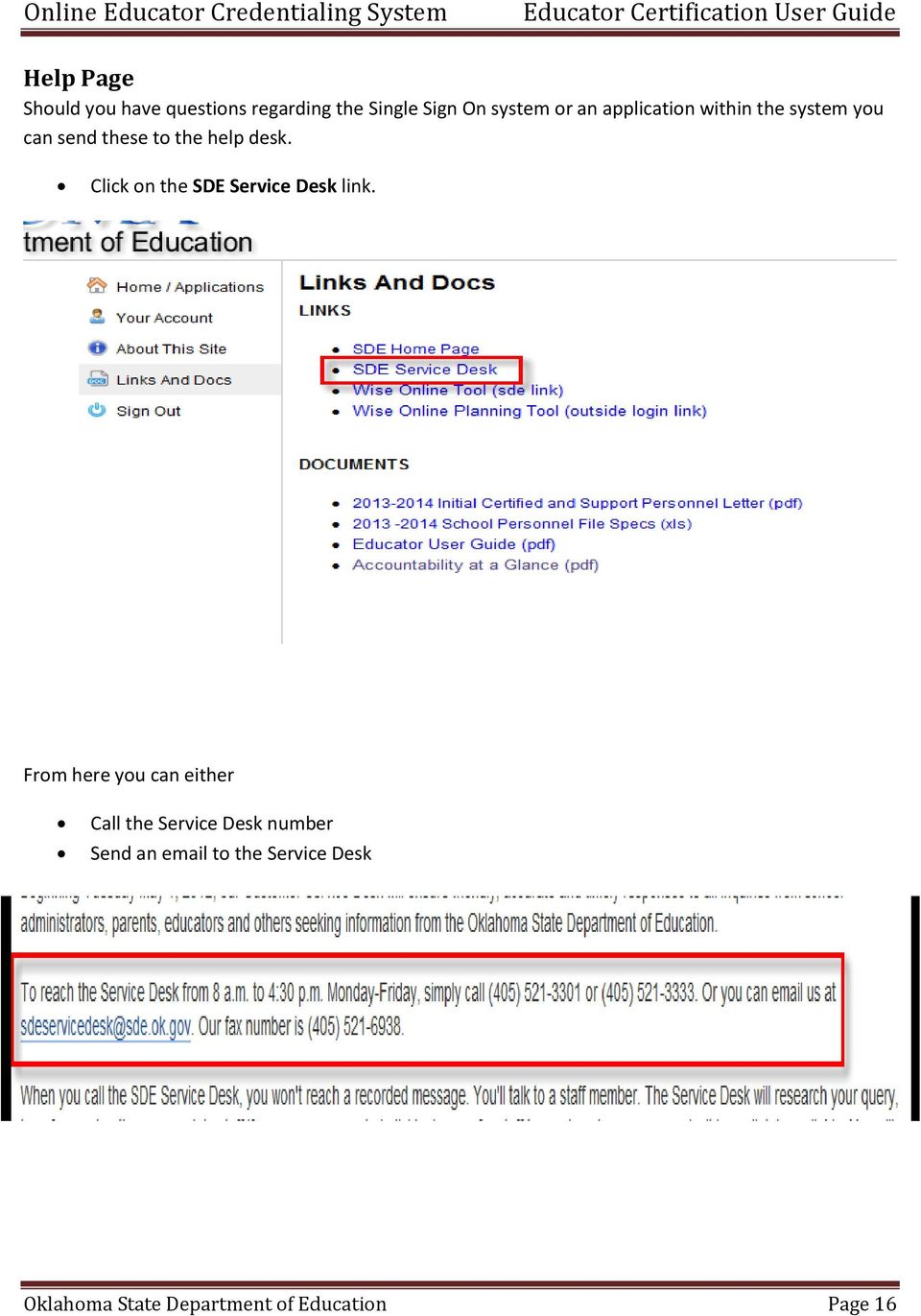
17 Help Page Should you have questions regarding the Single Sign On system or an application within the system you can send these to the help desk. Click on the SDE Service Desk link. From here you can either Call the Service Desk number Send an to the Service Desk Oklahoma State Department of Education Page 16


18 Sign Out The Sign Out tab logs you out of the system. By clicking on this link it takes you back to the log in page. Recovering your Username or Password If you forget your login information you can use the links below to have the system send you a link to reset your information. Oklahoma State Department of Education Page 17


19 By clicking on either link depending on what information you are needing to reset you will need to enter your address. This address must match the address listed in your profile. Enter your address Click Submit The system will send an to you with a link to reset your profile information Oklahoma State Department of Education Page 18


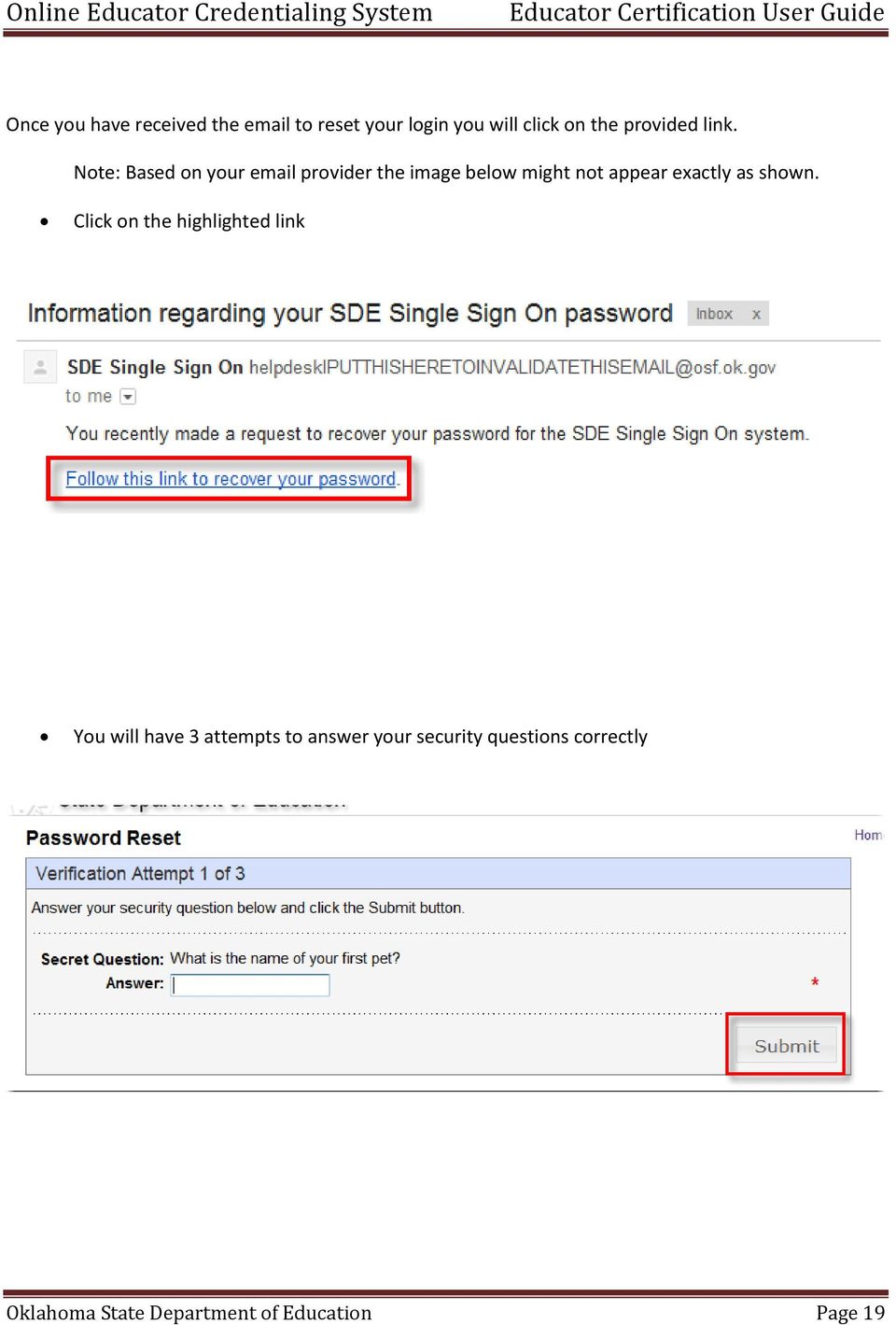
20 Once you have received the to reset your login you will click on the provided link. Note: Based on your provider the image below might not appear exactly as shown. Click on the highlighted link You will have 3 attempts to answer your security questions correctly Oklahoma State Department of Education Page 19
21 Once you have successfully answered the questions you will be prompted to create a new password. Click Submit The Single Sign On home page will pop up OECS After successfully logging in or creating your account, the System Listing screen is displayed. By clicking the Educator link you will be navigated to the educator s home page. The Home Page welcomes the educator with informational news bulletins, as well as a link to view their credentials and if applicable, a link to apply for recommendations, renew credentials and/or adding additional credential areas. Oklahoma State Department of Education Page 20
22 Applying for College Recommendations View Applying for Oklahoma Career Tech Credentials View Oklahoma State Department of Education Page 21
23 Applying for Teach for America Credentials View Renewing Educator Credentials View Oklahoma State Department of Education Page 22


24 Help with Wizard steps After clicking apply or renew the 7 step wizard is launched. Step 1 Fill in the information that is required marked with the * sign as well as any other applicable information that pertains to you. If you are a US citizen click the Yes bubble and click Next. If you are not a US citizen you will click the No bubble and fill in your work expiration date and click Next to continue to step 2 in the wizard. Note: Gender, Birth Date, and Ethnicity do not have the * sign but they are required to be filled out to continue to step 2. Step 2 Update the required boxes and click Next. If your address has not changed continue to step 3. Oklahoma State Department of Education Page 23

25 Step 3 Fill in the applicable information and click Next. Oklahoma State Department of Education Page 24

26 Step 4 Answer the Criminal History Disclosure questions and click the check box confirming you are the person that holds the credential being renewed. Checking the box is your electronic signature for the statement. Note: When answering these questions mark the bubbles correctly. If you mark a bubble Yes in error you will need to send in an information update form which is found on the SDE website, and this may delay your application/renewal process. Oklahoma State Department of Education Page 25

27 Step 5 Here you will enter in your credit/debit card information for online payment. Fill in the required information boxes noted by the * sign. Verification code is the 3 or 4 digit code located on the back of your card under the magnetic strip to the right of the signature box. Credit Card Street is the billing address where the statement is mailed. Note: Fee type, amount, processing fee, and total renewal fee are grayed out because those are the only options for those boxes. Oklahoma State Department of Education Page 26

28 Step 6 This step is to review your information to make sure it is all correct. By clicking Next you will be submitting your information to our database and your credit/debit card will be processed by clicking the Next button. If you discover a change you need to make click the (edit) button next to the information type to make the update. You will not receive a receipt along with your certificate. You can print this page and this can act at your receipt if you need verification for billing or reimbursement purposes or you can contact OSF Helpdesk and they will be able to you a receipt. Oklahoma State Department of Education Page 27


29 Step 7 This last step is to verify your information was sent and is being processed. Click Submit and your credentials page will come up and you will see your certificate. The highlighted purple row shows the certificate you just applied for or renewed. The status column is if your file needs to be sent to a specialist to review before it can be renewed if you had requirements that needed to be met in order to renew. The application date is the date you did the online renewal. The process can take up to a few weeks depending on the volume of renewals and applications the office receives. You can check periodically to see if your certificate has been printed. When it is printed in the Printed? column it will have the date it was printed. Once they are printed you will receive your certificate within a week of the print date. Oklahoma State Department of Education Page 28
30 Requesting Duplicate Copies After your certificate has been issued you are able to request a duplicate copy online. Log into the OECS system Click My Credentials or View My Credentials Click Request Duplicate next to the valid certificate Step 1 Verify or update your profile information Click Next Oklahoma State Department of Education Page 29

31 Step 2 Verify or update your address information Click Next Step 3 Verify or update your contact information Click Next Oklahoma State Department of Education Page 30

32 Step 4 Select the number of copies you would like to have Click Next Step 5 Here you will enter in your credit/debit card information for online payment. Fill in the required information boxes noted by the * sign. Verification code is the 3 or 4 digit code located on the back of your card under the magnetic strip to the right of the signature box. Credit Card Street is the billing address where the statement is mailed. Note: Fee type, amount, processing fee, and total renewal fee are grayed out because those are the only options for those boxes. Oklahoma State Department of Education Page 31

33 Step 6 This step is to review your information to make sure it is all correct. By clicking Duplicate Request you will be submitting your information to our database and your credit/debit card will be processed by clicking the Duplicate Request button. If you discover a change you need to make click the (edit) button next to the information type to make the update. You will not receive a receipt along with your certificate. You can print this page and this can act at your receipt if you need verification for billing or reimbursement purposes or you can contact OSF Helpdesk and they will be able to you a receipt. Oklahoma State Department of Education Page 32

34 Step 7 This last step is to verify your information was sent and is being processed. Click Submit and your credentials page will come up and you will see your certificate. Oklahoma State Department of Education Page 33
35 Adding an Area If you have taken a subject area test there will be a link for you to have the area added to your certificate. If you have taken more than one test they will be automatically checked to have them added to your credentials using one add area application. If you don t want a test added simply uncheck the box for that test. Once you have selected the tests you would like to have added to your credentials follow the link Click Here to Add the Selected Areas to launch the Add Area From Test Application wizard. Oklahoma State Department of Education Page 34
36 Step 1 Verify or update your profile information Click Next Oklahoma State Department of Education Page 35

37 Step 2 Verify or update your address information Click Next Step 3 Verify or update your contact information Click Next Oklahoma State Department of Education Page 36

38 Step 4 Answer the Criminal History Disclosure questions and click the check box confirming you are the person that holds the credential being renewed. Checking the box is your electronic signature for the statement. Note: When answering these questions mark the bubbles correctly. If you mark a bubble Yes in error you will need to send in an information update form which is found on the SDE website, and this may delay your application/renewal process. Oklahoma State Department of Education Page 37

39 Step 5 Here you will enter in your credit/debit card information for online payment. Fill in the required information boxes noted by the * sign. Verification code is the 3 or 4 digit code located on the back of your card under the magnetic strip to the right of the signature box. Credit Card Street is the billing address where the statement is mailed. Note: Fee type, amount, processing fee, and total renewal fee are grayed out because those are the only options for those boxes. Oklahoma State Department of Education Page 38

40 Step 6 This step is to review your information to make sure it is all correct. By clicking Next you will be submitting your information to our database and your credit/debit card will be processed by clicking the Next button. If you discover a change you need to make click the (edit) button next to the information type to make the update. You will not receive a receipt along with your certificate. You can print this page and this can act at your receipt if you need verification for billing or reimbursement purposes or you can contact OSF Helpdesk and they will be able to you a receipt. Oklahoma State Department of Education Page 39


41 Step 7 This last step is to verify your information was sent and is being processed. Click Submit and your credentials page will come up and you will see your areas have been added to your certificate. After you have finished the wizard the system will take you to your credentials page. If you look under the Areas for selected certificate you will see the area(s) that you just added with that day s date as the application date, issued date, and effective date. Under certificates in the Printed? column it will say Queued. Once it is reprinted with the added areas it will have the date it was printed and you will receive it in the mail within 5 business days. Note: If you have areas that you decide not to add, when you log into the OECS system again the option to add your tested areas will be there if you later decide to add them to your credentials. Oklahoma State Department of Education Page 40
42 Educators Options Menu In the Educators Options menu you can navigate through your file to view your degrees, background submissions, passed tests, and mailed in applications. Listed below are examples of each. Viewing Degrees In the Degrees tab you can view the degrees the State Department has on file for you. From here you can view the degree type, date, when it was entered in the system, and if and when it was updated. Viewing Background In the Background tab you can view the dates your fingerprints were submitted, the dates they were cleared by OSBI and FBI, and the dates they were scanned into your file. Viewing Tests In the Tests tab you are able to view the test(s) the State Department has on file of you passing and the date of the test. Oklahoma State Department of Education Page 41


43 Viewing Images In the Images tab you can view the date in which the State Department received and scanned in your applications to your file. Viewing Assignments Under the Educator Options menu you can click on Assignments and view your teaching assignments, co-teacher assignments, and HQT application statuses. Other Credentials In the Other Credentials tab you can view your specialty credentials such as National Board, Speech Pathology or ASHA credentials. Oklahoma State Department of Education Page 42


44 Updating Information In the Credentials view at the top of the screen in the three boxes is your primary information. If you ever need to update this information click the link under the boxes labeled Click Here to Edit Educator. If you change your address you will also need to change it in your myokdoe profile. When you first log in click My Profile, then Edit Profile. Note: If you have your name legally changed you will need to fill out a name change request form and fax it in along with a copy of your new social security card with your new name on it. Task Menus Under the Location menu you can click on home and it will bring you back to your home page or to your credentials page. The Help menu allows access to the educator user manual and a shortcut to contact the OESC support if you have any questions the user manual could not answer. Screen Help will give you a short cut to forms that you may need for the page you are viewing. The DOE Home tab takes you to the Oklahoma State Department of Education main webpage. The Logout tab logs you out of the OECS system. Oklahoma State Department of Education Page 43
Mississippi Educator Licensure Management System. Single Sign On User Guide
 Mississippi Educator Licensure Management System Single Sign On User Guide September 2009 Table of Contents Table of Contents... 2 myelms SSO User Guide... 3 Login Screen... 3 myelms Login Screen Overview...
User Manual 03/12/2014. A collaborative effort by
 User Manual 03/12/2014 A USER GUIDE DESIGNED TO HELP CREATE AND MAINTAIN PERSONAL ACCOUNTS IN mynhdoe, THE NH DEPARTMENT OF EDUCATION SINGLE SIGN-ON SYSTEM FOR ACCESSING SECURE APPLICATIONS A collaborative
Washington State Educator Electronic Certificate System (E-Certification) Educator User Guide
 Washington State Educator Electronic Certificate System (E-Certification) Educator User Guide October 13, 2015 Table of Contents 1.0 Welcome Log In Instructions... 3 1.1 Home Page... 4 1.2 Welcome Educator...
Using YSU Password Self-Service
 Using YSU Password Self-Service Using YSU Password Self-Service Password Self-Service Web Interface Required Items: YSU (MyYSU) Directory account, Web browser This guide will assist you with using the
IRS e-services Registration Process
 IRS e-services Registration Process 1 What is e-services? Suite of products designed for tax professionals and taxpayers to do business with IRS electronically Includes: - Registration - e-file Application
eadvantage Certificate Enrollment Procedures
 eadvantage Certificate Enrollment Procedures Purpose: Instructions for members to obtain a digital certificate which is a requirement to conduct financial transactions with the Federal Home Loan Bank of
Web Help Desk - EASD Technology Support
 Web Help Desk - EASD Technology Support EASDʼs Technology Services department has instituted a new tech request database system called Web Help Desk. This help desk system will now allow staff members
Signature: Take Back Control of Your Online Data. First-Time Log In to Signature Reset Password
 Quick Start Guide Contents Signature: Take Back Control of Your Online Data... 3 First- Time Log In to Signature Reset Password... 3 Log In to Signature... 7 Adding Attributes... 8 Assigning Attributes
Vendor Portal User Guide
 State of Illinois Illinois Department of Transportation Vendor Portal User Guide Version 2.1 November 2015 0137-16, 11/15, web Item Document Title File Name Disposition Author Document Description Description
7. In the boxed unlabeled field, enter the last 4 digits of your Social Security number.
 CREATE YOUR MYVIEW LOGIN To access myview while ensuring security, you will be given an encrypted access key token. You will use this token the first time you log into myview. Once you have successfully
Navigate to the Legacy website at: http://www.legacy-christian.com
 Legacy Christian Academy Online Student Information System QUICK START TUTORIAL Sycamore Education is an interactive web-based application that allows parents to view a range of information about their
Teacher One 4 One Trade User Manual. Teacher Edition
 Teacher One 4 One Trade User Manual Teacher Edition March 2012 The Teacher One 4 One Trade software can be found on mykpr in the Quick Links to Applications. There are several key concepts to understanding
Entering a Case Into the PeopleSoft Helpdesk (CRM) Logging in
 Entering a Case Into the PeopleSoft Helpdesk (CRM) Logging in Open Internet Explorer Logging in Navigate to the district home page: http://www.fortbend.k12.tx.us/ Click on Employee Services Finally, click
Educational Data System (EDS) Administration Manual and Policy
 Educational Data System (EDS) Administration Manual and Policy Randy Dorn State Superintendent of Public Instruction Prepared by OSPI Customer Support Greg Beck, Application Development Director Information
External Account Creation and Upload Instructions for the Local Government (LG) Audit Report Collection System
 External Account Creation and Upload Instructions for the Local Government (LG) Audit Report Collection System In order to submit data for any Department of Audits and Accounts (DOAA) web application,
TEAL and ECOS Access Instructions for Educators
 TEAL (TEA Login) is the security gateway to TEA web resources. To access your Educator Account, you will need a TEAL profile that is set up with access to your profile in the Educator Certification Online
NEWPORT CITY COUNCIL EMPLOYEE SELF SERVICE (ESS) USER GUIDE VERSION 2.0 (APRIL 2015)
 NEWPORT CITY COUNCIL EMPLOYEE SELF SERVICE (ESS) USER GUIDE VERSION 2.0 (APRIL 2015) INTRODUCTION Employee Self Service (ESS) is a module of the itrent integrated HR and Payroll system that is managed
OHIO BUSINESS GATEWAY USER ACCOUNT UPDATE GUIDE FOR PASSWORD RESET AND ACCOUNT SECURITY FUNCTIONALITY
 OHIO BUSINESS GATEWAY USER ACCOUNT UPDATE GUIDE FOR PASSWORD RESET AND ACCOUNT SECURITY FUNCTIONALITY Ohio Business Gateway 1-866-OHIO-GOV Last Updated: November 16, 2015 Contents 1. Completing a Business
How to Create a Broker Account
 How to Create a Broker Account 1. Once you have created your NY.gov ID and set your password (see the guide, How to Create a NY.gov ID ), return to the Broker tab from the NYSOH home page and select CLICK
Frequently Asked Questions
 Frequently Asked Questions Questions regarding your account may be directed to the Chesterfield County Department of Utilities billing and customer service section at 804-748-1291 from 8:30 a.m. to 5 p.m.
Project Management Software Getting Started Guide
 Project Management Software Getting Started Guide + For additional support e-mail us at [email protected] call us at 706-395-8400 Contents 1.1 Welcome Email... 3 1.2 Login Screen... 3 2.1 Home Toolbar...
Wentworth Institute of Technology Performance Management Employee s Guide
 Wentworth Institute of Technology Performance Management Employee s Guide A Step-By-Step Employee Guide for completing performance evaluations in the PeopleAdmin Performance Management Suite PeopleAdmin
Topic: ACE Initial Account Access
 What s Inside: Account Creation Automatic e-mail Page 1 Password Retrieval Page 2 Initial Login Page 3 Creating New Password Page 4 Changing Password Page 6 Login Failure Page 6 Additional ACE Resources
COMPASS Quick Reference Guide
 COMPASS Quick Reference Guide COMPASS Overview COMPASS is Pennsylvania's fast and easy way to apply online for health and human services. With the click of a button, you can learn about benefits, see if
HEALTH SAVINGS ACCOUNT SUBSCRIBER WEBSITE GUIDE
 HEALTH SAVINGS ACCOUNT SUBSCRIBER WEBSITE GUIDE ENROLLING IN YOUR HSA 1. Obtain the enrollment username and password from your employer. 2. Go to www.sterlinghsa.com. 3. Click the orange Sign Up Now box
Using the Help Desk. Logging into Help Desk. Creating a New Help Desk Ticket
 powered by Logging into Help Desk 1. Go to http://helpdesk.hslc.org. 2. Login using your username and password. 3. Are you creating a new Help Desk ticket? If yes, see Creating a New Help Desk Ticket.
Substitute Management Center
 Substitute Management Center The Tyler ISD Substitute Management Center (SMC) is provided to allow substitutes to manage their sub profiles, accept or reject pre-arranged jobs, search and accept sub jobs,
Table of Contents. Overview of the TEA Login Application... 1. Features... 1. Roles in Obtaining Application Access... 1. Approval Process...
 TEAL Help Table of Contents Overview of the TEA Login Application... 1 Features... 1 Roles in Obtaining Application Access... 1 Approval Process... 2 Processing an Application Request... 4 The Process
Support System User Guide
 Support System User Guide The Virtual Office support system provides users with a useful way to submit and track issues and resolutions. This feature- rich system is one more way that VO provides customers
Citrix Client Install Instructions
 Citrix Client Install Instructions If you are using Citrix remotely, Information Technology Services recommends updating Citrix client to the newest version available online. You must be an administrator
Welcome (slide 1) Welcome to the Florida Department of Education Single Sign-On tutorial for federated user login and navigation.
 LOGIN AND NAVIGATION FOR FEDERATED USERS Welcome (slide 1) Welcome to the Florida Department of Education Single Sign-On tutorial for federated user login and navigation. These tutorials are designed to
How to Apply Online Select School and Program
 How to Apply Online Go to the application site at www.houstonisdschoolchoiceapplication.com. When you are ready to apply for a student within your household, continue to the application by clicking on
Health Indicators Advancing Healthy Aging in Your Community. Database Instructions for Managers
 Health Indicators Advancing Healthy Aging in Your Community Database Instructions for Managers Getting to the Database Website You can access the Health Indicators online database in two different ways.
UCB erequest IIS Requestor - Quick Reference Guide
 UCB erequest - CONTENTS 1 INTRODUCTION... 3 2 HOW TO REGISTER AND LOG-IN... 3 2.1 REGISTER TO RECEIVE AN EXTERNAL REQUESTOR USER ID AND PASSWORD... 3 2.2 LOGIN WITH USER ID AND PASSWORD... 5 3 HOW TO SUBMIT
Acunetix Web Vulnerability Scanner. Getting Started. By Acunetix Ltd.
 Acunetix Web Vulnerability Scanner Getting Started V8 By Acunetix Ltd. 1 Starting a Scan The Scan Wizard allows you to quickly set-up an automated scan of your website. An automated scan provides a comprehensive
Online Services Booking. Booking Appointments & Purchasing Gifts
 Online Services Booking Booking Appointments & Purchasing Gifts Logging In for Online Booking New Guest Registration If the client is a first time visitor to your business and would like to book an appointment
E-Consent and E-Disclosure Process
 You will receive mortgage disclosure documents at various points during both the mortgage loan application and funding process, providing you with key details of your mortgage loan. To assist you in making
Teacher Certification Office SBS N 221, SUNY/Stony Brook Stony Brook, NY11794-4310 *Include last 4 digits of zip code
 ABBREVIATED CERTIFICATION APPLICATION PROCEDURES CERTIFICATE PROGRAMS: School District Business Leader 1. You must file for graduation in a timely fashion. **Please note that filing for graduation and
HOW TO SET UP SINGLE SIGN ON FOR PARENT PORTAL IN POWERSCHOOL
 HOW TO SET UP SINGLE SIGN ON FOR PARENT PORTAL IN POWERSCHOOL Before you can access your student(s) information, you MUST create your account which ties you to your student(s). Even if you have your user
New Help Desk Ticketing System
 New Help Desk Ticketing System Starting Monday, November 30, 2009 at 6 am the University will be going live with their new help desk ticketing system. The website to access the new ticketing system is
User Manual on TrixCRM Web Self Care Helpdesk Management
 on TrixCRM Web Self Care Helpdesk Management Table of Contents 1 Preface...3 2 Introduction...4 2.1 Target Audience of the Document...4 3 TrixCRM Helpdesk Management...5 3.1 System Overview...5 3.2 Main
Setting up an account and logging in using Design & Print Online. Opening a saved project
 Setting up an account and logging in using Design & Print Online Opening a saved project 1 of 7 Account Set-Up & Login 1. On the Design and Print Online home page click on the Click to start Design & Print
Online eopf Self-service Feature for Login ID and Password Retrieval for New Users
 For Employees Online eopf Self-service Feature for Login ID and Password Retrieval for New Users eopf provides web-based access for Federal personnel to view and print employment documents. Employees are
Provider OnLine. Log-In Guide
 Provider OnLine Log-In Guide Table of Contents 1 LOG-IN ACCESS... 3 1.1 ENTERING THE USER ID AND PASSWORD... 4 1.2 OVERVIEW AND PURPOSE OF TRICIPHER... 5 1.2.1 Log-in for Users Who Are Active, But Not
This process is required in order to start work as a Florida Atlantic University employee.
 This process is required in order to start work as a Florida Atlantic University employee. Onboarding is completed by the new or returning employee. The employee will receive an email from [email protected]
What is e-services? Registered User Portal RUP
 IRS e-services Registration Process What is e-services? Suite of products designed for tax professionals and taxpayers to do business with IRS electronically Includes: Registration e-file Application Preparer
HRMS Reporting Tool Class
 HRMS Reporting Tool Class Department of Public Instruction Raleigh, North Carolina Table of Contents Knowledge Base 2 Installation Guide 3 Reporting Tool Adhoc Reports 9 Exporting Data 14 Access Saved
Guidelines for Using the Web Help Desk
 Guidelines for Using the Web Help Desk Technology Department 7/15/2013 The purpose of this document is to provide guidance on how to navigate the School Association for Special Education in DuPage County
Introduction to UCONNECT Student Edition. 4/14/11 v.1.3
 Introduction to UCONNECT Student Edition 4/14/11 v.1.3 Contents Accessing UCONNECT... 2 How do I get a username for UCONNECT?... 2 How do I log in?... 2 What should I see when I login?... 3 Channels...
Guidance for completing an online application* for admissions to Primary and Secondary Schools in Cardiff Council
 Guidance for completing an online application* for admissions to Primary and Secondary Schools in Cardiff Council *This guidance relates to making an online application in English. You are strongly advised
Citrix (SSL) Access Gateway End User Documentation
 Citrix (SSL) Access Gateway End User Documentation This document details the steps required to remotely access internal ADOT web sites and applications through the Citrix Access Gateway. Citrix Access
Self-Service Password Manager
 WWW.ROSE-HULMAN.EDU/EIT OFFICE OF ENTERPRISE INFORMATION TECHNOLOGY Self-Service Password Manager Rose-Hulman Institute of Technology has implemented a self-service password manager that provides an easy-to-use
Creating and Modifying PVAAS Accounts for Your School District
 District Admin Account Holder Has full access to all reports for the district level and below (ex: access to all district, school, and student reports) Has the ability to create the following types of
FILING REPRESENTATIVES TRAINING ONLINE COURSE SCHEDULING USER GUIDE
 FILING REPRESENTATIVES TRAINING ONLINE COURSE SCHEDULING USER GUIDE October 18, 2013 Online Course Scheduling User Guide Page 1 of 28 TABLE OF CONTENT 1 ABOUT THIS DOCUMENT... 3 2 REGISTRATION... 4 2.1
Citrix Remote Access Portal U s e r M a n u a l
 Citrix Remote Access Portal U s e r M a n u a l 1 P a g e Table of Contents Table of Contents... 2 Introduction... 3 1. What is Citrix and how does it work?... 4 2. PC Setup/Internet Explorer - Connecting
How Parents Use Single Sign On and New PowerSchool Features
 How Parents Use Single Sign On and New PowerSchool Features Single Sign On (SSO) What is Single Sign On? Single Sign On (SSO) is a system that allows parents to use one username and password to access
How To Register For A Course Online
 How to Register and Pay for BEST Center Classes Online Welcome to our new online registration system for The BEST Center at Genesee Community College! All of our scheduled noncredit classes are listed
End User Training Guide
 End User Training Guide October 2013 2005-2013 ExpenseWire LLC. All rights reserved. 1 expensewire.com Use of this user documentation is subject to the terms and conditions of the applicable End- User
The FlexiSchools Online Order Management (FOOM) Installation Guide
 The FlexiSchools Online Order Management (FOOM) Installation Guide Installation Pack Welcome to the FlexiSchools system. You will have been sent an email and two packages delivered by courier, one with
CONTENTS. SETUP SECURITY ENHANCEMENTS... 17 Existing User... 17 New User (Enrolled by Employer or Self)... 21
 HEALTH SAVINGS ACCOUNT SUBSCRIBER WEBSITE GUIDE CONTENTS BROWSER COMPATIBILITY... 2 ONLINE ENROLLMENT... 3 Online Enrollment Process... 3 REGISTERING YOUR ACCOUNT FOR ONLINE ACCESS... 12 INDIVIDUAL ENROLLMENT...
MySQL Manager. User Guide. July 2012
 July 2012 MySQL Manager User Guide Welcome to AT&T Website Solutions SM We are focused on providing you the very best web hosting service including all the tools necessary to establish and maintain a successful
Welcome to Your FCSL Student Web Portal. Course Schedule Students can view and search course schedules and view class details.
 Welcome to Your FCSL Student Web Portal Course Schedule Students can view and search course schedules and view class details. Online Registration Online registration allows students to register for courses
BUSINESS SERVICES ONLINE. Registration and Access to Services. Handbook
 If you are navigating using only the keyboard or using an assistive device and need help, visit our Navigation Instructional page for alternative views and navigation. Warning: If you select this link,
SWAN Website Manual. Members. support.swanlibraries.net
 SWAN Website Manual Members support.swanlibraries.net 1 Table of Contents Contents SWAN vs. RAILS... 3 L2 Library Learning Accounts... 4 Website Login... 5 Search Box... 6 Critical Announcements... 7 Help
SuccessFactors Onboarding Phase 1 Verification Team Reference Guide Last revised 12.8.15
 SuccessFactors Onboarding Phase 1 Verification Team Reference Guide Last revised 12.8.15 Table of Contents Overview... 2 The Onboarding Dashboard... 2 Locating the Hire in the Onboarding System... 5 Completing
Vendor User Accounts managing your NAP User Account
 This guide explains how to request and manage your NAP User Account so that you may access Web Status. Topics include: Reactivating an existing NAP User Account Requesting a NAP User Account Managing your
Guidelines for Using the Web Help Desk
 BURBANK SCHOOL DISTRICT 111 Guidelines for Using the Web Help Desk Technology Department 1/7/2013 The purpose of this document is to provide guidance on how to navigate the Burbank School District 111
Secure Messaging Quick Reference Guide
 Secure Messaging Quick Reference Guide Overview The SHARE Secure Messaging feature allows a SHARE registered user to securely send health information to another SHARE registered user. The Secure Messaging
Version 10.3. End User Help Files. GroupLink Corporation 2014 GroupLink Corporation. All rights reserved
 Version 10.3 End User Help Files GroupLink Corporation 2014 GroupLink Corporation. All rights reserved GroupLink and everything HelpDesk are registered trademarks of GroupLink Corporation. The information
Version 11.0.1. End User Help Files. GroupLink Corporation 2015 GroupLink Corporation. All rights reserved
 Version 11.0.1 End User Help Files GroupLink Corporation 2015 GroupLink Corporation. All rights reserved GroupLink and everything HelpDesk are registered trademarks of GroupLink Corporation. The information
Set My University of Melbourne Identity Management Password for the First Time
 Set My University of Melbourne Identity Management Password for the First Time This document provides instructions for New Staff or Existing Staff members who are using the Identity Management System (IdMS)
Email Update Instructions
 Email Update Instructions Table of Contents Email Client Settings The Basics... 2 Outlook 2013... 2 Outlook 2007... 4 Outlook Express... 6 Windows Mail... 7 Thunderbird 3... 9 Apple Mail... 11 1 Email
How do I enroll in the password portal?
 The self-serve portal is designed to allow you to change your password and unlock your locked account even if you have forgotten your password. You must enroll for this service to be able to use it. You
My LMS. Learning Management System Guide for Students
 My LMS Learning Management System Guide for Students Revision Date: October 17, 2014 Table of Contents Learning Management System (LMS) Overview... 2 Accessing My LMS... 2 General Navigation... 5 Your
On-Campus Employer Guide
 On-Campus Employer Guide How to navigate the Career Connections Opportunities Board WELCOME! This guide will help you navigate our online job system the Career Connections Opportunities Board. With this
Campus Solutions Self Service: Student Quick Reference Guide
 Campus Solutions Self Service: Student Table of Contents Introduction to Step Sheets... 4 Getting Started in CUNYfirst... 5 Activate My CUNYfirst Account... 6 Log into My CUNYfirst Account... 10 Sign Out
Identity & Access Frequently Asked Questions (FAQs)
 Contents Contents... 1 General... 2 Registration... 7 My Profile... 9 Employer Information... 11 My Connections... 15 My Staff... 22 Appendix A Acronyms, Key Terms, and Definitions... 25 6/27/2015 1 General
Missouri Department of Health and Senior Services Bureau of Immunization Assessment and Assurance February 2013
 1 SMV Help Desk: 877.813.0933 / [email protected] Missouri Department of Health and Senior Services Bureau of Immunization Assessment and Assurance February 2013 Accessing ShowMeVax website
Student BYOD - Olathe Public Schools
 Student BYOD - Olathe Public Schools Connecting a Personally-Owned Device to the District s Wireless Network Students may attach ONE personal electronic device to the Olathe Public Schools wireless network
COSTARS Sales Reporting Manual December 2013
 COSTARS Sales Reporting Manual December 2013-1 - DGS/COSTARS website Suppliers access the COSTARS website through the DGS website. Follow the steps below to navigate to the COSTARS website. 1. Navigate
e-qip Electronic Questionnaires for Investigations Processing User s Manual
 e-qip Electronic Questionnaires for Investigations Processing User s Manual HEADQUARTERS U.S. MARINE CORPS SECURITY DIVISION (PS) Sources This user s guide was prepared using U.S. Office of Personnel
EXPRESSPATH PROVIDER PORTAL USER GUIDE AUGUST 2013
 EXPRESSPATH PROVIDER PORTAL USER GUIDE AUGUST 2013 2013-2020 Express Scripts, Inc. All rights reserved. No part of this publication may be reproduced or transmitted in any form or by any means, electronic
Welcome to the Florida On-line Application for Educator Certification!
 Welcome Page Submit Application The following is the text displayed for you to read and agree to: Welcome to the Florida On-line Application for Educator Certification! You may use this site to apply for:
Rider University, Help Desk RosettaStone. Rosetta Stone: Learning and FAQ
 1 Rosetta Stone: Learning and FAQ 1. To login to, easypass username and password is to be used. If you have forgotten your easypass, then call the Help Desk at 609-219-3000 for information 2. Once you
Web Payroll System User Guide Table of Contents
 Web Payroll System User Guide Table of Contents Topic Page Employee Timesheets General Information 1 Vendor/Independent contractor Invoices and Reimbursement Requests General Information 1 Preparation
Onboarding User Manual Version 9-20159
 Contents Hire (Companies using Hiring Manager + Onboarding)... 4 Hire (Companies using Onboarding only)... 5 Starting the Onboarding Process... 6 Complete at Home... 6 What If the Employee Can t Locate
MQA Online Services Portal
 MQA Online Services Portal Registration and Adding a License User Guide 1. Hello and welcome to the Division of Medical Quality Assurance s online help tutorials. The MQA Online Services Portal is the
Recognition Program Online Application Step-by-step Instructions Guide for Single Site Submission
 Recognition Program Online Application Step-by-step Instructions Guide for Single Site Submission No part of this publication may be reproduced or transmitted in any form or by any means, electronic or
Student Access Reference Guide
 Student Access Reference Guide Table of Contents Student Access Overview... 2 Logging on to the Student Portal... 3 Password Security Question Setup... 4 Need Help Signing In... 6 Navigating the Student
HealthInfoNet HELP DESK REFERENCE GUIDE. Revised on 10.16.2014 Page 1 of 26
 HealthInfoNet HELP DESK REFERENCE GUIDE Revised on 10.16.2014 Page 1 of 26 INSIDE: HealthInfoNet Help Desk Reference Guide Contacting HealthInfoNet (HIN) Determining Priority How to Reach HIN Account Management
Setting up CatMail on Outlook 2010
 Setting up CatMail on Outlook 2010 Before beginning this process, make sure that IMAP is enabled in your account and that you have your CatMail Secondary password. For more information on CatMail Secondary
ACT State Testing Online Services Tutorial
 ACT State Testing Online Services Tutorial Back-up Test Supervisor Version Released July, 2009 2009 by ACT, Inc., All rights reserved. Back-up Test Supervisor Online Profile Form Introduction The Back-up
NYC Common Online Charter School Application
 NYC Common Online Charter School Application Admin Guide In this guide, you will find information about the following features: How to log in How to view or export basic data 1. Application index How to