
P6 Analytics Reference Manual
|
|
|
- Geoffrey Gibbs
- 10 years ago
- Views:
Transcription
1 P6 Analytics Reference Manual Release 3.2 October 2013

2

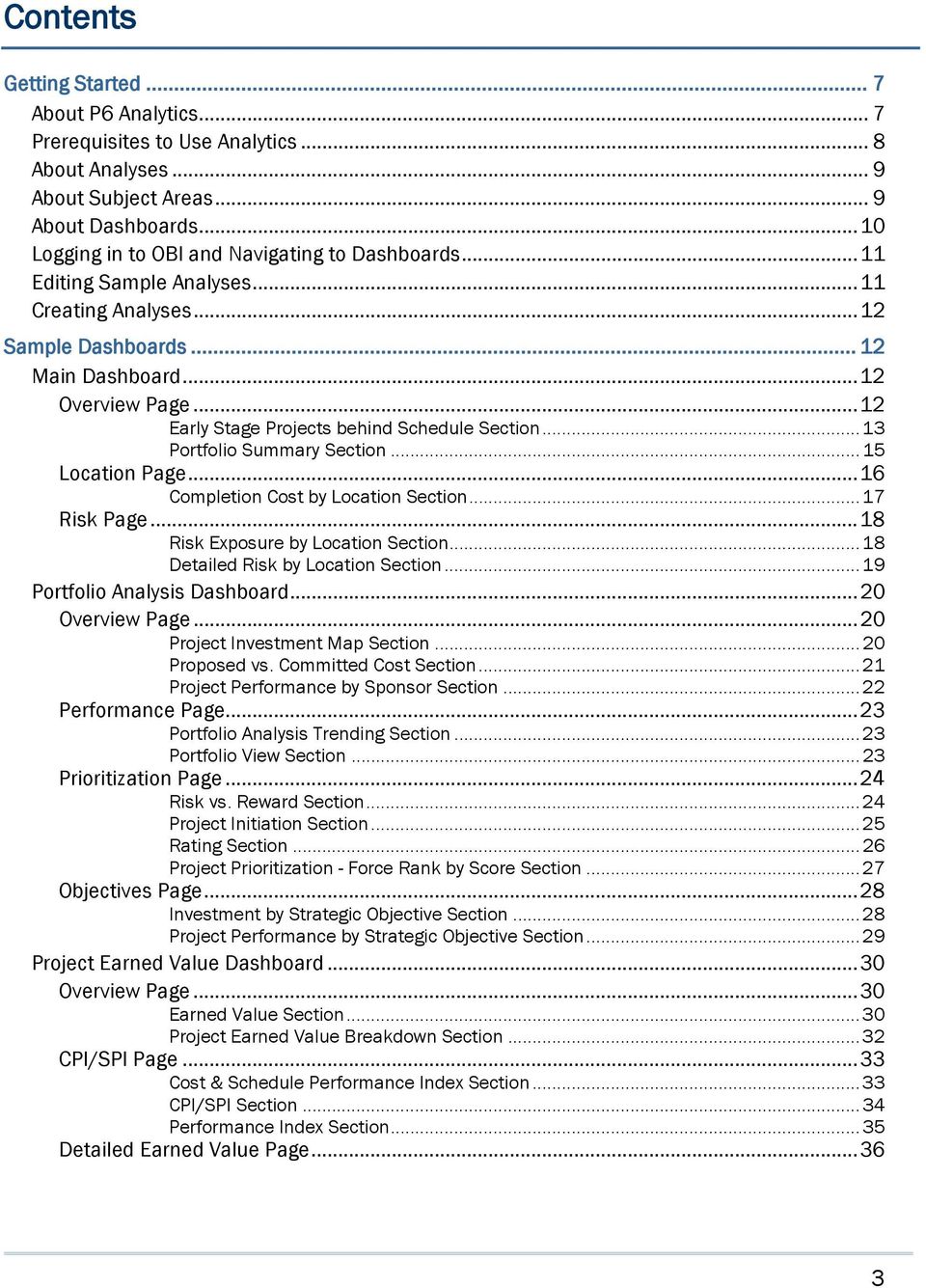
3 Contents Getting Started... 7 About P6 Analytics... 7 Prerequisites to Use Analytics... 8 About Analyses... 9 About... 9 About Dashboards Logging in to OBI and Navigating to Dashboards Editing Sample Analyses Creating Analyses Sample Dashboards Main Dashboard Overview Page Early Stage Projects behind Schedule Section Portfolio Summary Section Page Completion Cost by Section Risk Page Risk Exposure by Section Detailed Risk by Section Portfolio Analysis Dashboard Overview Page Project Investment Map Section Proposed vs. Committed Cost Section Project Performance by Sponsor Section Performance Page Portfolio Analysis Trending Section Portfolio View Section Prioritization Page Risk vs. Reward Section Project Initiation Section Rating Section Project Prioritization - Force Rank by Score Section Objectives Page Investment by Strategic Objective Section Project Performance by Strategic Objective Section Project Earned Value Dashboard Overview Page Earned Value Section Project Earned Value Breakdown Section CPI/SPI Page Cost & Schedule Performance Index Section CPI/SPI Section Performance Index Section Detailed Earned Value Page
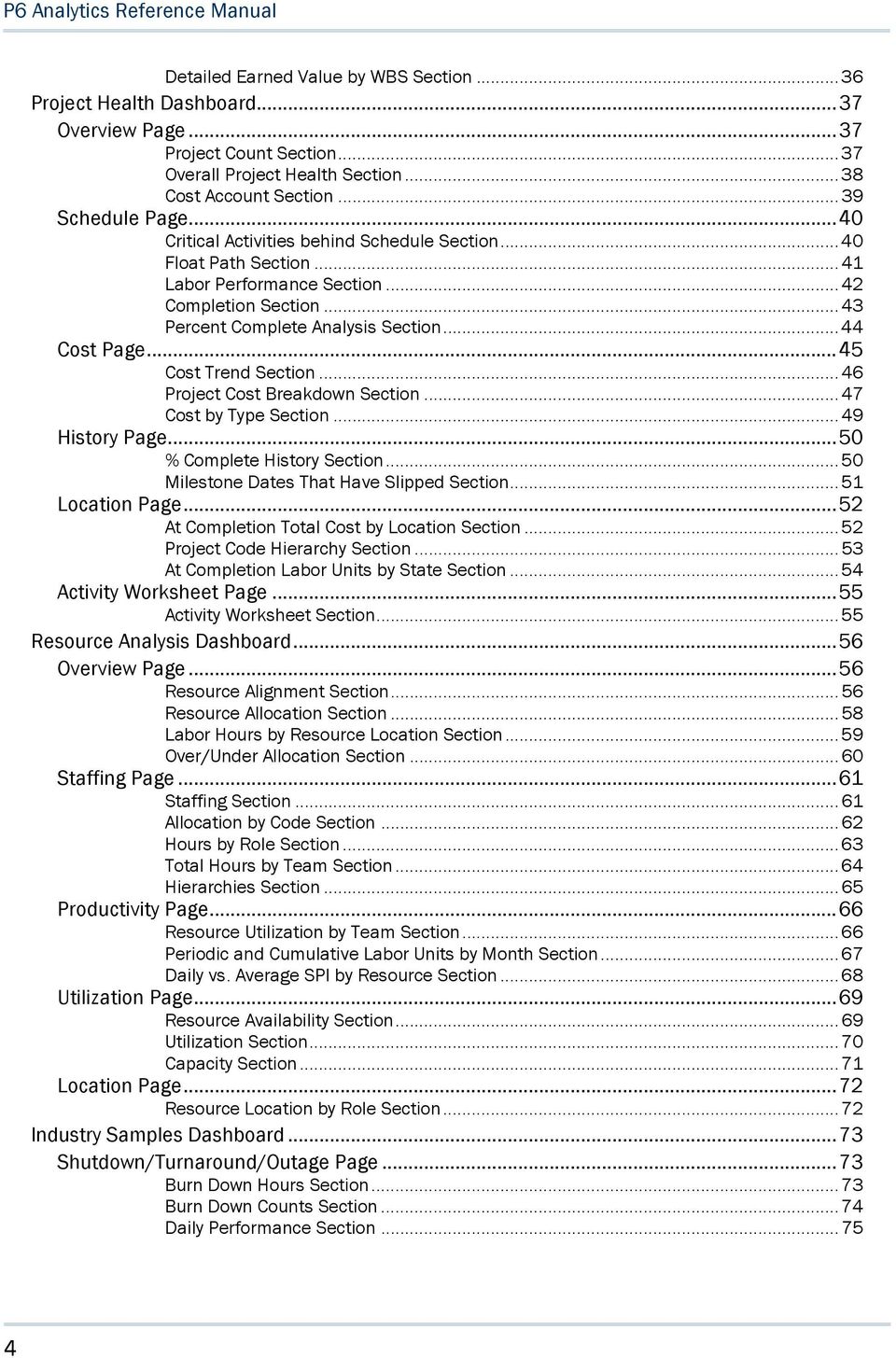
4 P6 Analytics Reference Manual Detailed Earned Value by WBS Section Project Health Dashboard Overview Page Project Count Section Overall Project Health Section Cost Account Section Schedule Page Critical Activities behind Schedule Section Float Path Section Labor Performance Section Completion Section Percent Complete Analysis Section Cost Page Cost Trend Section Project Cost Breakdown Section Cost by Type Section History Page % Complete History Section Milestone Dates That Have Slipped Section Page At Completion Total Cost by Section Project Code Hierarchy Section At Completion Labor Units by State Section Activity Worksheet Page Activity Worksheet Section Resource Analysis Dashboard Overview Page Resource Alignment Section Resource Allocation Section Labor Hours by Resource Section Over/Under Allocation Section Staffing Page Staffing Section Allocation by Code Section Hours by Role Section Total Hours by Team Section Hierarchies Section Productivity Page Resource Utilization by Team Section Periodic and Cumulative Labor Units by Month Section Daily vs. Average SPI by Resource Section Utilization Page Resource Availability Section Utilization Section Capacity Section Page Resource by Role Section Industry Samples Dashboard Shutdown/Turnaround/Outage Page Burn Down Hours Section Burn Down Counts Section Daily Performance Section
5 Contents Schedule Compliance Section Average vs. Baseline (Hours) Section Daily Performance Index (Hours) Section Routine/On-Line Maintenance Page Work Planning Look Ahead Section Work Planning T+1 Critique Section On-Line Daily Schedule Adherence - Graded Section On-Line Daily Schedule Adherence - Standard Section Schedule Compliance Section Burn Down Activity Use Cases Burn Down Activity Scenarios Completed Before Outage Project Snapshot Use Case Started Before Outage Project Snapshot Spanning into Outage Use Case Completed Day of Outage Project Snapshot Use Case Pre-Outage Work Spanning into Outage Use Case Completed as Scheduled on Day 1 of Outage Use Case Completed Late on Day 3 of Outage Use Case Emergent Activity on Day 3 of Outage Use Case Deleted After Outage Start Use Case Data Flow from P6 EPPM to P6 Analytics Day 0 (3/31/2013) Day 1 (4/01/2013) Day 2 (4/02/2013) Day 3 (4/03/2013) For More Information Where to Get Documentation Where to Get Training Where to Get Support Legal Notices

6

7 Getting Started This document demonstrates ways that P6 Analytics can present data. The sample data is from multiple sources and is intended for illustration only. Data and descriptions are part of the P6 Analytics sample catalog and therefore may not reflect your environment. You can use the sample catalog and the Star database to replicate these analyses. The samples are intended to provide you with a general understanding of P6 Analytics and Oracle Business Intelligence (OBI). Customers can use these samples to customize both content and layout to their specific requirements. For information on the types of views, graphs, and gauges that are available, see the OBI help. See the P6 Data Dictionary available with your version of P6 (the Data Dictionary is available for P6 8.1 and later) for information on P6 fields. See the P6 EPPM documentation for information on using or configuring P6 in order to gather sufficient data for P6 Analytics. This section highlights the tasks a user will perform when first using P6 Analytics. In This Section About P6 Analytics... 7 Prerequisites to Use Analytics... 8 About Analyses... 9 About... 9 About Dashboards Logging in to OBI and Navigating to Dashboards Editing Sample Analyses Creating Analyses About P6 Analytics P6 Analytics provides an in-depth and comprehensive method for analyzing and evaluating project performance, project history, resource assignments, and utilization. Built upon the Oracle Business Intelligence (OBI) suite, it delivers a catalog of analyses that provide an interactive way of viewing, analyzing, and evaluating P6 EPPM data. In addition, it provides a Repository Definition (.rpd) file that contains the data mappings between the physical data and the presentation layer of OBI. 7

8 P6 Analytics Reference Manual The dashboards provide detailed insight into your P6 EPPM data through analytical charts, tables, maps, and graphics. Dashboards allow you to navigate to other analyses to provide precise root-cause analysis. OBI allows you to configure individual analyses with the P6 EPPM Action Link, enabling you to navigate directly to your P6 site for true "Insight to Action" capabilities. You can save analyses created with OBI Answers in the OBI Presentation Catalog and integrate the analyses into any OBI home page or dashboard. You can enhance results through options such as charting, result layout, calculation, and drill-down features. Use P6 Analytics to: Perform root-cause analysis and employ management-by-exception. Gather critical insights into current and historical performance of all projects, programs, and portfolios. Make better decisions to eliminate project failure. Quickly visualize critical project performance in early stages. Predict and identify cost trends early in the project life cycle to rescue troubled projects. Gain visibility into resource performance through s-curves. With interactive dashboards, you can drill down to examine the root-cause of a problem. Show staffing needs by portfolio with early warning indicators for upcoming under-staffed project work. Use geospatial visualization to view project, activity, and resource data metrics by geographic location with full drill-down capabilities. Performance Data P6 Analytics provides an.rpd file to use with the OBI suite. The.rpd file contains: A physical representation of the Star schema. A business layer to perform customized calculations. A presentation layer that groups all the calculated business layer fields into logical subject areas. The.rpd delivers an extensive amount of Earned Value, Costs, Units, Percent Completes, and other key performance indicators. It enables data to be sliced by dimensions such as time, EPSs, portfolios, projects, activities, and resources. P6 Analytics delivers a sample dataset, consisting of Star data, where the dashboards and analyses in the catalog were built. You can use this sample data to view the power of dashboard and analyses delivered in the catalog, and see how you can integrate the catalog with your data. Prerequisites to Use Analytics The following prerequisites need to be met before you can use P6 Analytics: P6 EPPM must be installed. Publishing must be switched on in P6. You must have module access to P6 Analytics in P6. OBI must be installed. You must be an OBI user. Your OBI user name must match your P6 user name. 8

9 Getting Started The catalog must be installed. The ETL process must be run to update the Analytics data. Work with your administrator to determine the optimal time to run this process. Contact your administrator if you require any of the above privileges. About Analyses Analyses are queries against data, P6 data for example, which allow you to evaluate the information. Analyses let you explore and interact with information by visually presenting data in tables, graphs, and pivot tables. If you have the required permissions, you can save, organize, and share the results of analyses. You can save analyses that you create in the OBI Presentation Catalog and integrate them into any OBI dashboard. You can enhance analyses through features such as graphs, result layout, calculated items, and drilling. About A subject area contains folders, measure columns, attribute columns, hierarchical columns, and hierarchy levels that represent information about the areas of an organization's business or about groups of users with an organization. Subject areas usually have names that correspond to the types of information that they contain. A subject area corresponds to the presentation layer in an OBI metadata repository. In a repository, the subject area is the highest-level object in the presentation layer and represents the view of the data that end users see when they create or edit an analysis. Use subject areas to organize the data you see in an analysis. The following are the subject areas supported by P6 Analytics: Primavera - Activity Use this subject area to analyze project, WBS, and activity-level details. This subject area includes earned value metrics and percent complete metrics, planned and actual units and hours, and project baseline comparisons. Primavera - Activity History Use this subject area to analyze daily activity-level history, including changes to both facts and dimensions, to help you understand changes over time. This subject area requires project-specific configuration in P6. Primavera - Activity User Defined Fields Use this subject area to analyze activity User Defined Field (UDF) data for cost, integer, or number types. This subject area requires UDF configuration using the ETL process. Primavera - Burn Down Use this subject area to analyze daily project performance through burn down charts and schedule adherence metrics. Metrics include planned, actual, remaining, and emergent counts and units. Emergent data is from activities which were added after burn down began. This subject area requires project specific UDF configuration in P6. 9

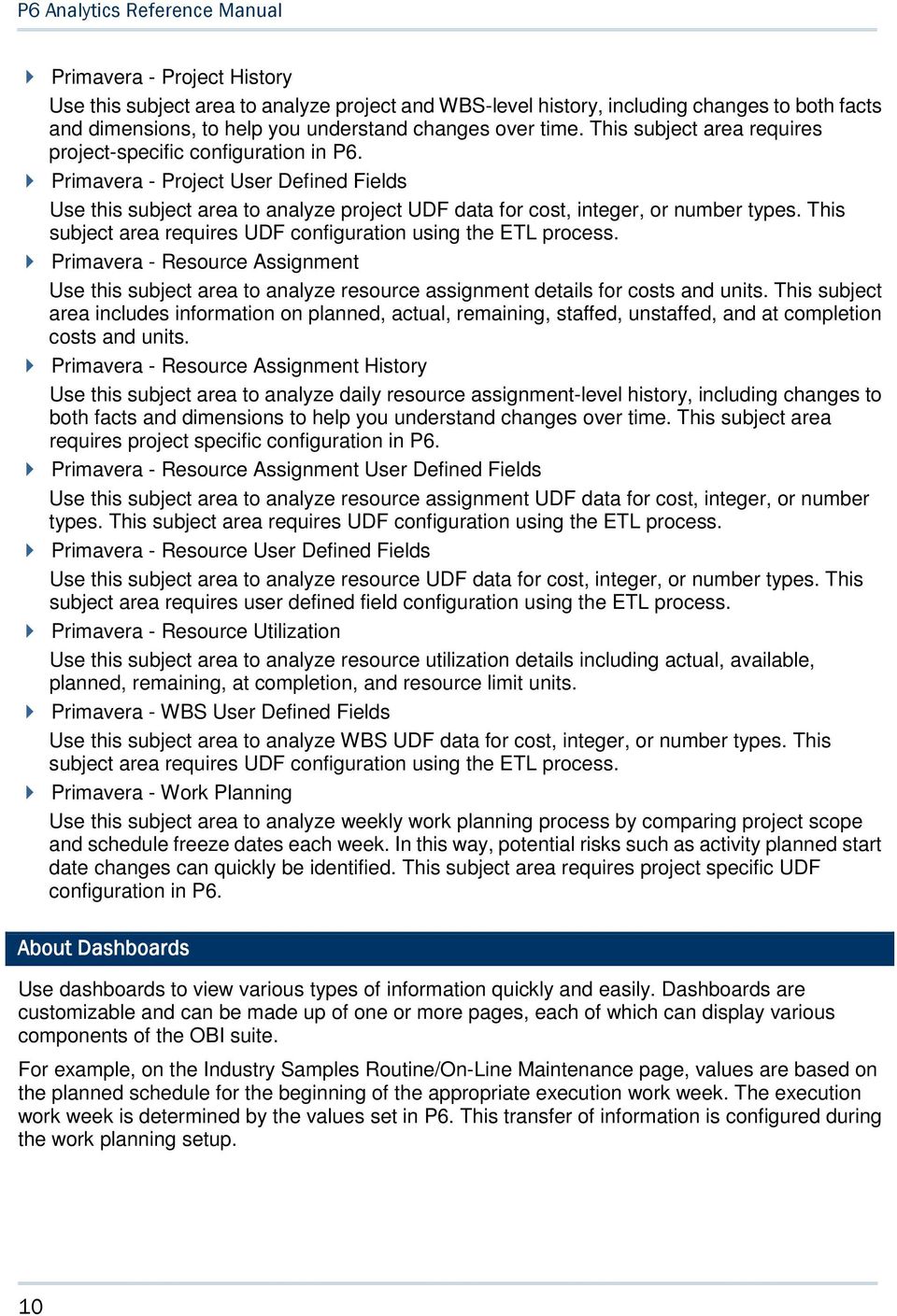
10 P6 Analytics Reference Manual Primavera - Project History Use this subject area to analyze project and WBS-level history, including changes to both facts and dimensions, to help you understand changes over time. This subject area requires project-specific configuration in P6. Primavera - Project User Defined Fields Use this subject area to analyze project UDF data for cost, integer, or number types. This subject area requires UDF configuration using the ETL process. Primavera - Resource Assignment Use this subject area to analyze resource assignment details for costs and units. This subject area includes information on planned, actual, remaining, staffed, unstaffed, and at completion costs and units. Primavera - Resource Assignment History Use this subject area to analyze daily resource assignment-level history, including changes to both facts and dimensions to help you understand changes over time. This subject area requires project specific configuration in P6. Primavera - Resource Assignment User Defined Fields Use this subject area to analyze resource assignment UDF data for cost, integer, or number types. This subject area requires UDF configuration using the ETL process. Primavera - Resource User Defined Fields Use this subject area to analyze resource UDF data for cost, integer, or number types. This subject area requires user defined field configuration using the ETL process. Primavera - Resource Utilization Use this subject area to analyze resource utilization details including actual, available, planned, remaining, at completion, and resource limit units. Primavera - WBS User Defined Fields Use this subject area to analyze WBS UDF data for cost, integer, or number types. This subject area requires UDF configuration using the ETL process. Primavera - Work Planning Use this subject area to analyze weekly work planning process by comparing project scope and schedule freeze dates each week. In this way, potential risks such as activity planned start date changes can quickly be identified. This subject area requires project specific UDF configuration in P6. About Dashboards Use dashboards to view various types of information quickly and easily. Dashboards are customizable and can be made up of one or more pages, each of which can display various components of the OBI suite. For example, on the Industry Samples Routine/On-Line Maintenance page, values are based on the planned schedule for the beginning of the appropriate execution work week. The execution work week is determined by the values set in P6. This transfer of information is configured during the work planning setup. 10
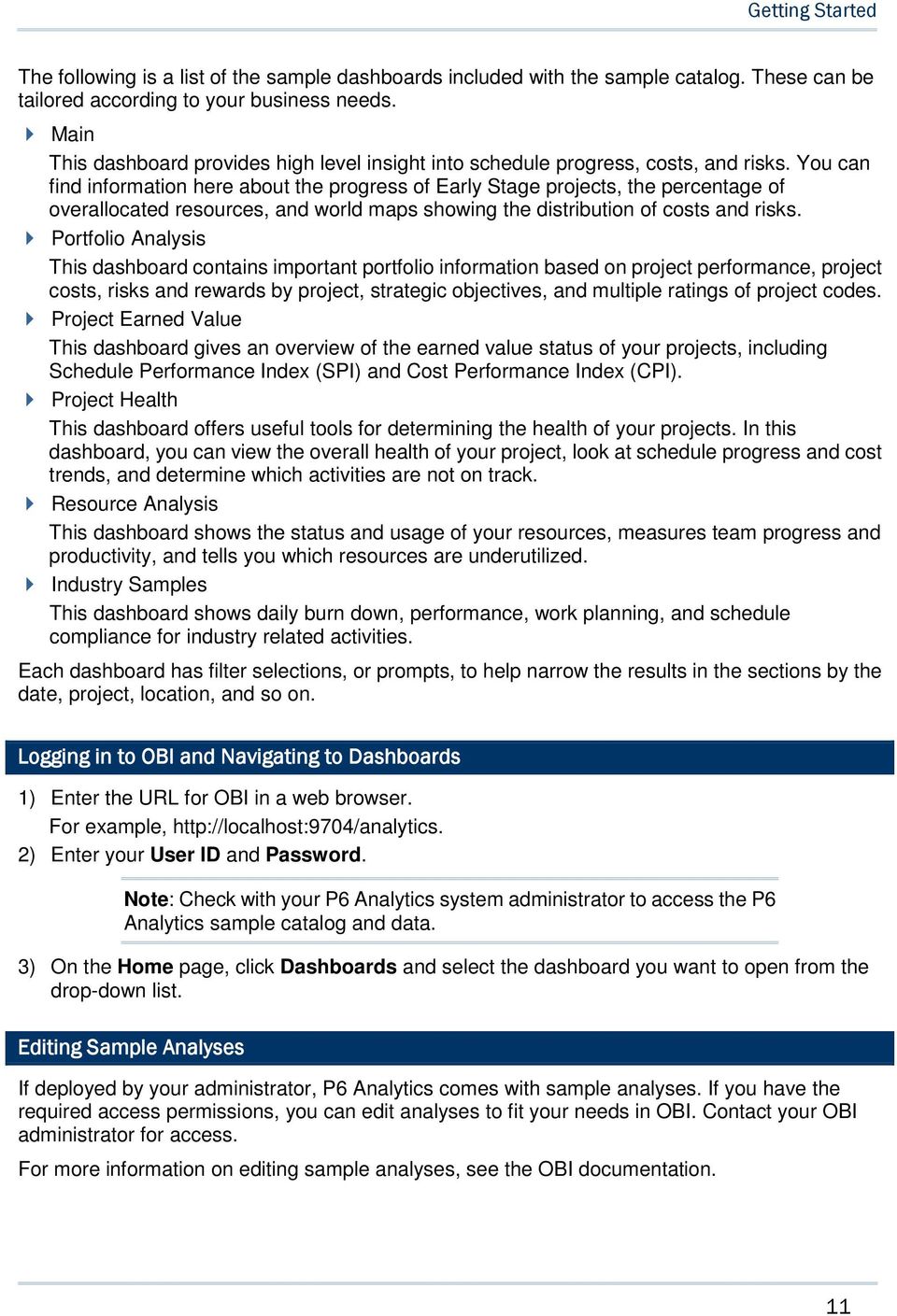
11 Getting Started The following is a list of the sample dashboards included with the sample catalog. These can be tailored according to your business needs. Main This dashboard provides high level insight into schedule progress, costs, and risks. You can find information here about the progress of Early Stage projects, the percentage of overallocated resources, and world maps showing the distribution of costs and risks. Portfolio Analysis This dashboard contains important portfolio information based on project performance, project costs, risks and rewards by project, strategic objectives, and multiple ratings of project codes. Project Earned Value This dashboard gives an overview of the earned value status of your projects, including Schedule Performance Index (SPI) and Cost Performance Index (CPI). Project Health This dashboard offers useful tools for determining the health of your projects. In this dashboard, you can view the overall health of your project, look at schedule progress and cost trends, and determine which activities are not on track. Resource Analysis This dashboard shows the status and usage of your resources, measures team progress and productivity, and tells you which resources are underutilized. Industry Samples This dashboard shows daily burn down, performance, work planning, and schedule compliance for industry related activities. Each dashboard has filter selections, or prompts, to help narrow the results in the sections by the date, project, location, and so on. Logging in to OBI and Navigating to Dashboards 1) Enter the URL for OBI in a web browser. For example, 2) Enter your User ID and Password. Note: Check with your P6 Analytics system administrator to access the P6 Analytics sample catalog and data. 3) On the Home page, click Dashboards and select the dashboard you want to open from the drop-down list. Editing Sample Analyses If deployed by your administrator, P6 Analytics comes with sample analyses. If you have the required access permissions, you can edit analyses to fit your needs in OBI. Contact your OBI administrator for access. For more information on editing sample analyses, see the OBI documentation. 11
12 P6 Analytics Reference Manual To edit sample analyses: 1) In OBI, click Catalog. 2) In the Folders pane, expand Shared Folders, Primavera, Dashboards. 3) Click a dashboard to view a list of analyses. 4) Click Edit for one of the analyses. 5) Roll over an analysis and click the Properties icon which appears. 6) Select Edit Analysis from the Properties menu. 7) Edit the analysis as necessary and click Save. Creating Analyses If you have the required permissions, you can create analyses. To create analyses: 1) In OBI, click New, Analysis. 2) In the Select Subject Area menu, select the main type of subject area that will be used for this analysis. 3) Add columns and filters as necessary to the subject area. 4) Click Save. 5) In the Save As dialog box, select a location for the new analysis and give it a name. Click OK. 6) Click the Results tab to view the results of the analysis. Sample Dashboards Main Dashboard This dashboard provides high level insight into schedule progress, costs, and risks. You can find information here about the progress of early stage projects, the percentage of overallocated resources, and world maps showing the distribution of costs and risks. Overview Page This page gives overview information about budget and schedule. The Overall Cost Variance narrative shows the amount that the Actual Value is over or under the Planned Value. A negative value indicates that that Actual Cost has exceeded the Planned Value. This is calculated as Earned Value Cost minus the Actual Cost. 12
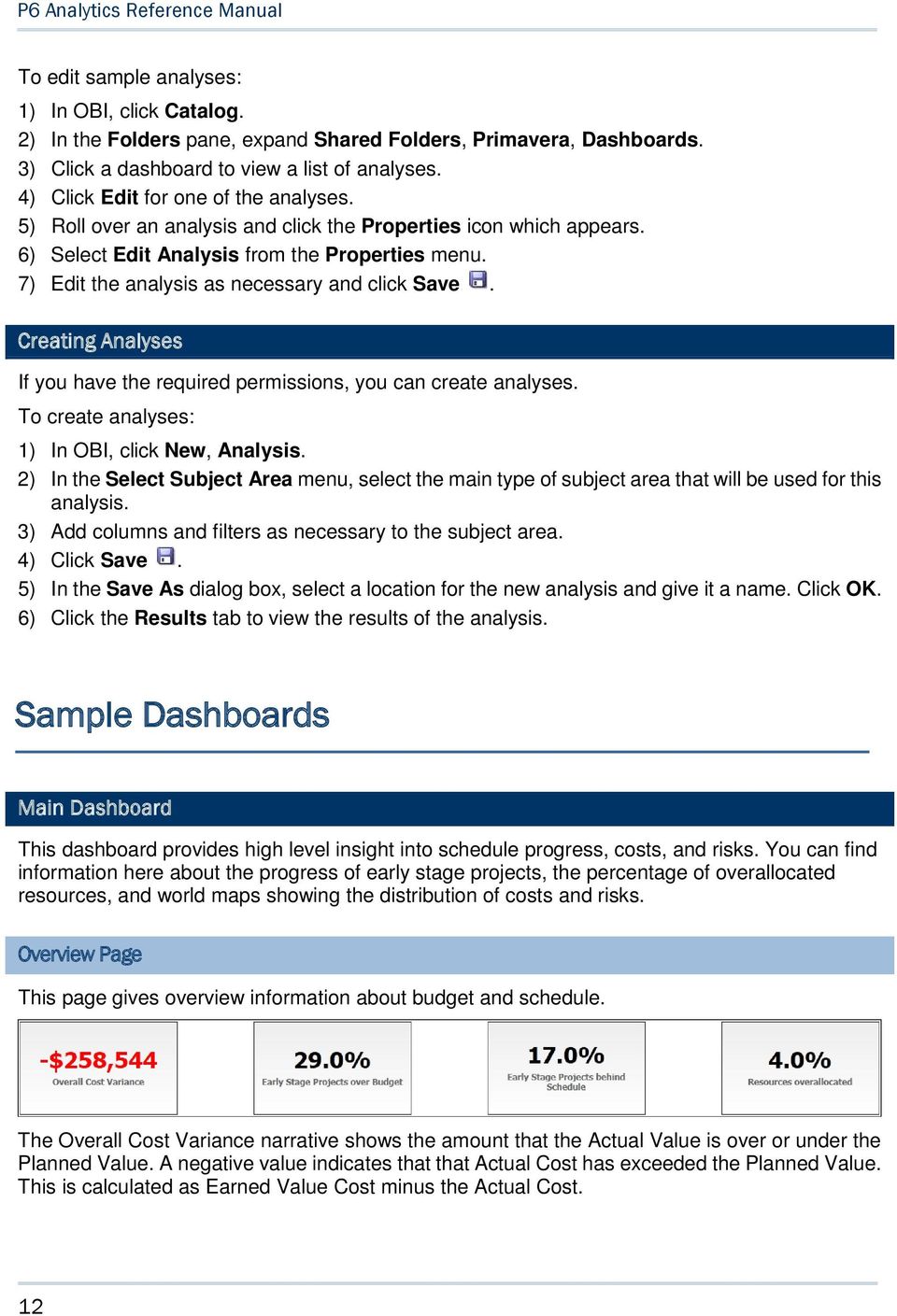
13 Sample Dashboards The Early Stage Projects over Budget narrative shows the percentage of early stage projects which are over budget. Early stage projects are those with a Performance Percent Complete less than 40. Over budget projects are those whose maximum activity total cost expressed as a percentage of baseline total cost is greater than zero. The Early Stage Projects behind Schedule narrative shows the percentage of early stage projects which are behind schedule. Early stage projects are those with a Performance Percent Complete less than 40. Behind schedule projects are those with a Schedule Performance Index less than The Resources overallocated narrative shows the percentage of resources that are overallocated. This is calculated as the number of resources that are overallocated divided by the total number of resources. Resources are qualified as overallocated if their remaining units minus their unit limit is greater than 0. Early Stage Projects behind Schedule Section The early stage projects which are behind schedule stacked line-bar graph shows: A stacked bar for each project showing the Remaining Units and Completed Units 13

14 P6 Analytics Reference Manual A line showing Delay Percentage The x-axis shows project names. The y-axis for the bars, on the left, shows At Complete Units. The y-axis for the line, on the right, shows Delay percentage. The early stage projects which are over budget stacked line-bar graph shows: A stacked bar for each project showing Actual Total Cost and Remaining Total Cost A line showing Cost Overrun Percentage The x-axis shows project names. The y-axis for the bars, on the left, shows At Complete Cost. The y-axis for the line, on the right, shows Cost Overrun percentage. 2) Under Primavera, select Main. 3) On the Main dashboard, click the Overview page. 4) On the Overview page, expand the Early Stage Projects behind Schedule section. Activity 14
15 Sample Dashboards Portfolio Summary Section This pivot table shows costs and units for each portfolio. Over budget values are highlighted in red text. The pivot table shows columns for: Portfolio Name Actual (Cost) At Completion (Cost) Budgeted (Cost) Variance (Cost) Actual (Units) At Completion (Units) Budgeted (Units) Variance (Units) This vertical stacked bar graph shows a stacked bar for the number of Remaining Units and Overallocation Units. There is a bar for any resource that is overallocated. 15
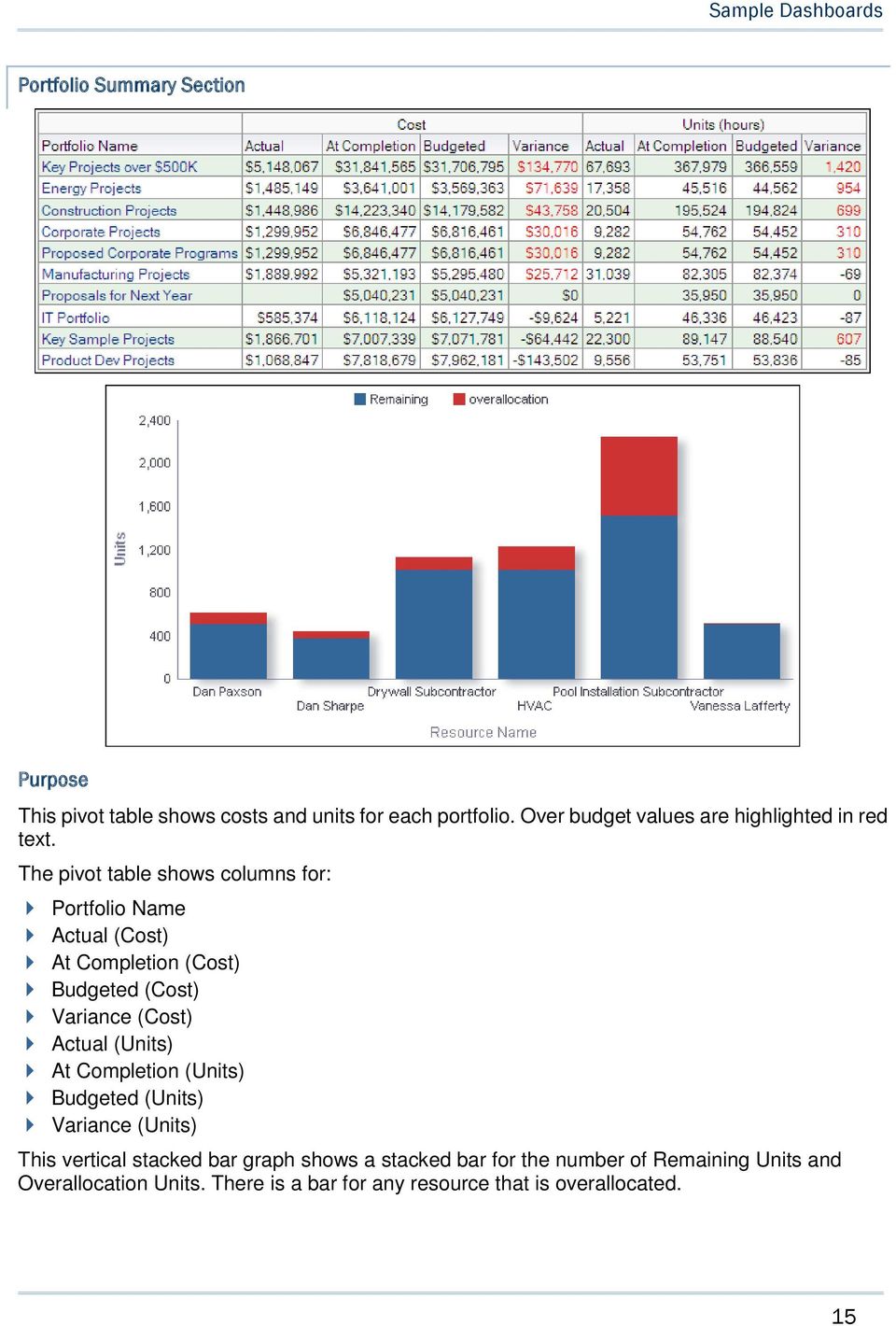
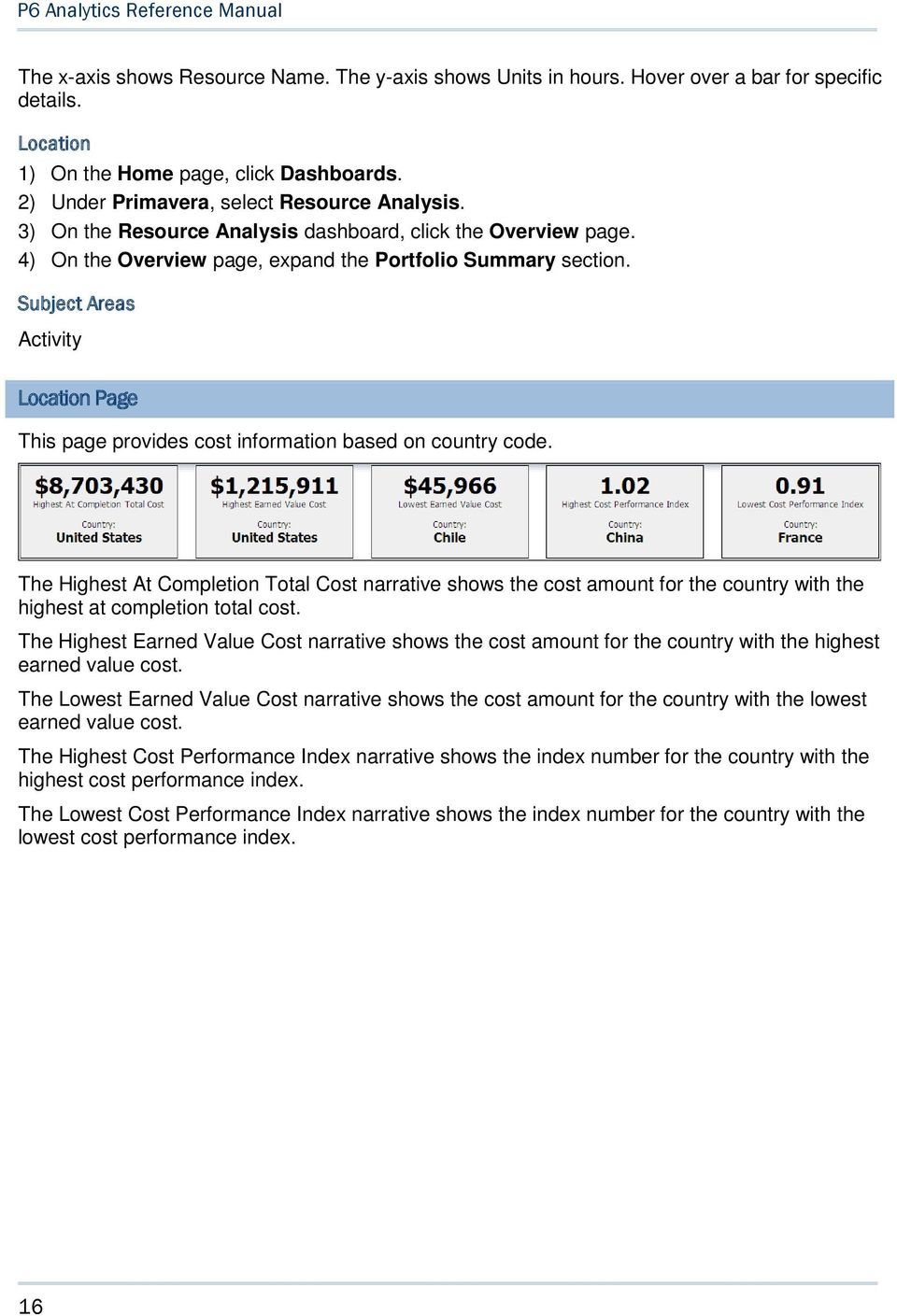
16 P6 Analytics Reference Manual The x-axis shows Resource Name. The y-axis shows Units in hours. Hover over a bar for specific details. 2) Under Primavera, select Resource Analysis. 3) On the Resource Analysis dashboard, click the Overview page. 4) On the Overview page, expand the Portfolio Summary section. Activity Page This page provides cost information based on country code. The Highest At Completion Total Cost narrative shows the cost amount for the country with the highest at completion total cost. The Highest Earned Value Cost narrative shows the cost amount for the country with the highest earned value cost. The Lowest Earned Value Cost narrative shows the cost amount for the country with the lowest earned value cost. The Highest Cost Performance Index narrative shows the index number for the country with the highest cost performance index. The Lowest Cost Performance Index narrative shows the index number for the country with the lowest cost performance index. 16
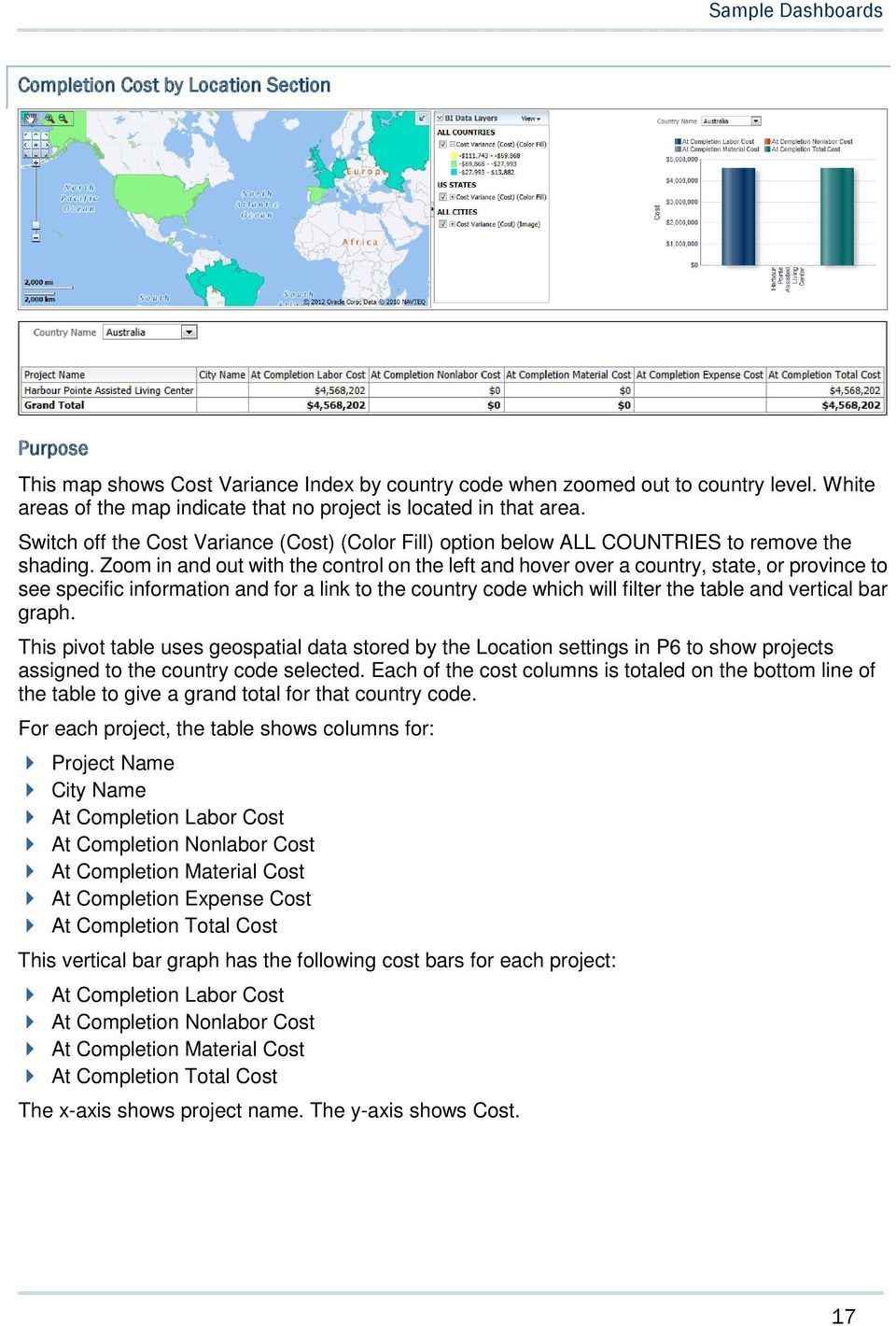
17 Sample Dashboards Completion Cost by Section This map shows Cost Variance Index by country code when zoomed out to country level. White areas of the map indicate that no project is located in that area. Switch off the Cost Variance (Cost) (Color Fill) option below ALL COUNTRIES to remove the shading. Zoom in and out with the control on the left and hover over a country, state, or province to see specific information and for a link to the country code which will filter the table and vertical bar graph. This pivot table uses geospatial data stored by the settings in P6 to show projects assigned to the country code selected. Each of the cost columns is totaled on the bottom line of the table to give a grand total for that country code. For each project, the table shows columns for: Project Name City Name At Completion Labor Cost At Completion Nonlabor Cost At Completion Material Cost At Completion Expense Cost At Completion Total Cost This vertical bar graph has the following cost bars for each project: At Completion Labor Cost At Completion Nonlabor Cost At Completion Material Cost At Completion Total Cost The x-axis shows project name. The y-axis shows Cost. 17
18 P6 Analytics Reference Manual 2) Under Primavera, select Main. 3) On the Main dashboard, click the page. 4) On the page, expand the Completion Cost by section. Activity Risk Page This page shows the risk exposure for each project by country. Risk Exposure by Section This map shows total risk exposure by country code. White areas of the map indicate that no project is located in that area. Zoom in and out with the control on the left and hover over a country, state, or province to see specific information. This horizontal bar graph shows a bar for each country showing Risk Exposure in dollars. Red bars denote a risk exposure greater than $100,000, yellow bars denote a risk exposure between $50,000 and $100,000, and green bars denote risk exposure less than $50,000. The x-axis shows Risk Exposure. The y-axis shows country name. 2) Under Primavera, select Main. 3) On the Main dashboard, click the Risk page. 4) On the Risk page, expand the Risk Exposure by section. Project History 18

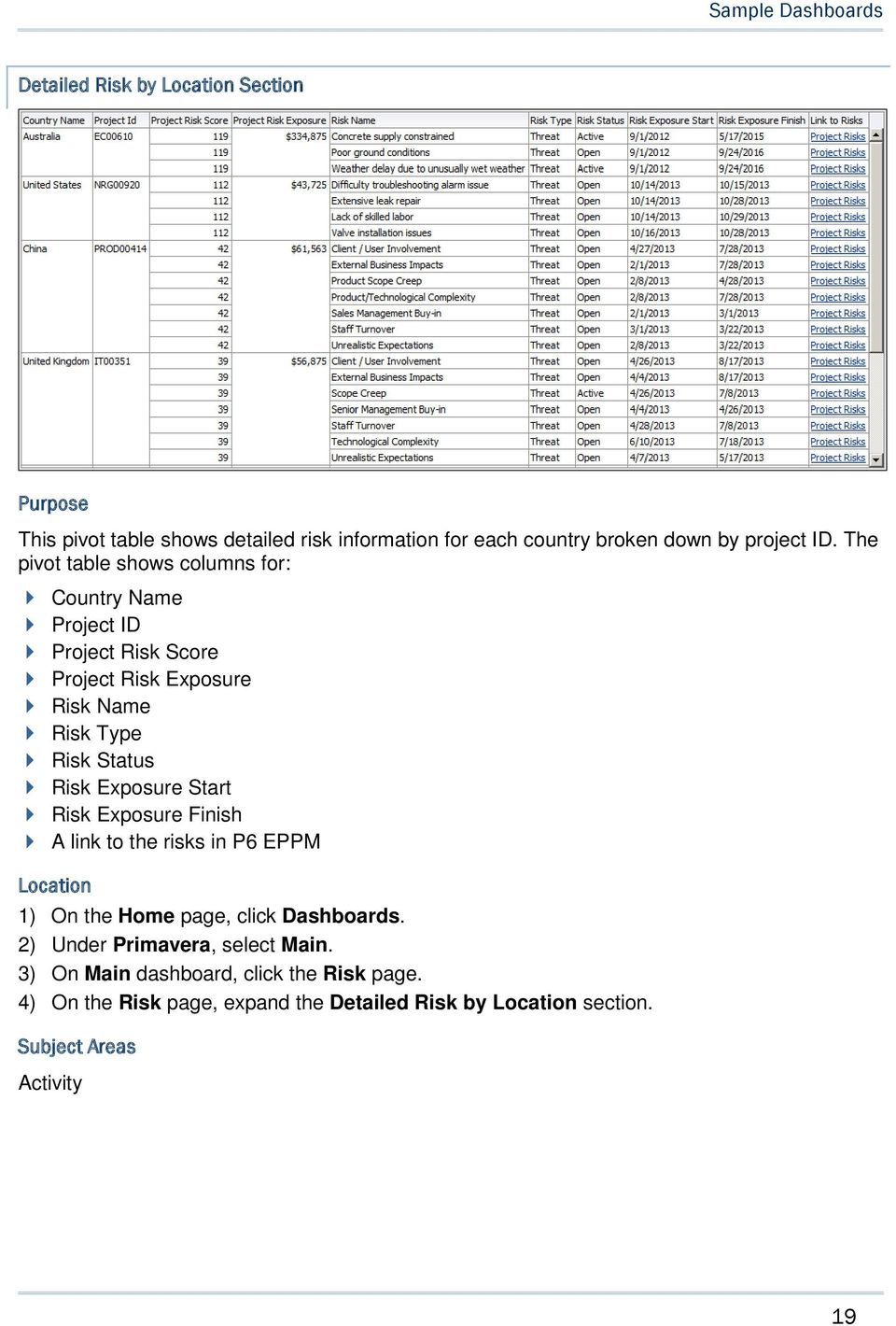
19 Sample Dashboards Detailed Risk by Section This pivot table shows detailed risk information for each country broken down by project ID. The pivot table shows columns for: Country Name Project ID Project Risk Score Project Risk Exposure Risk Name Risk Type Risk Status Risk Exposure Start Risk Exposure Finish A link to the risks in P6 EPPM 2) Under Primavera, select Main. 3) On Main dashboard, click the Risk page. 4) On the Risk page, expand the Detailed Risk by section. Activity 19
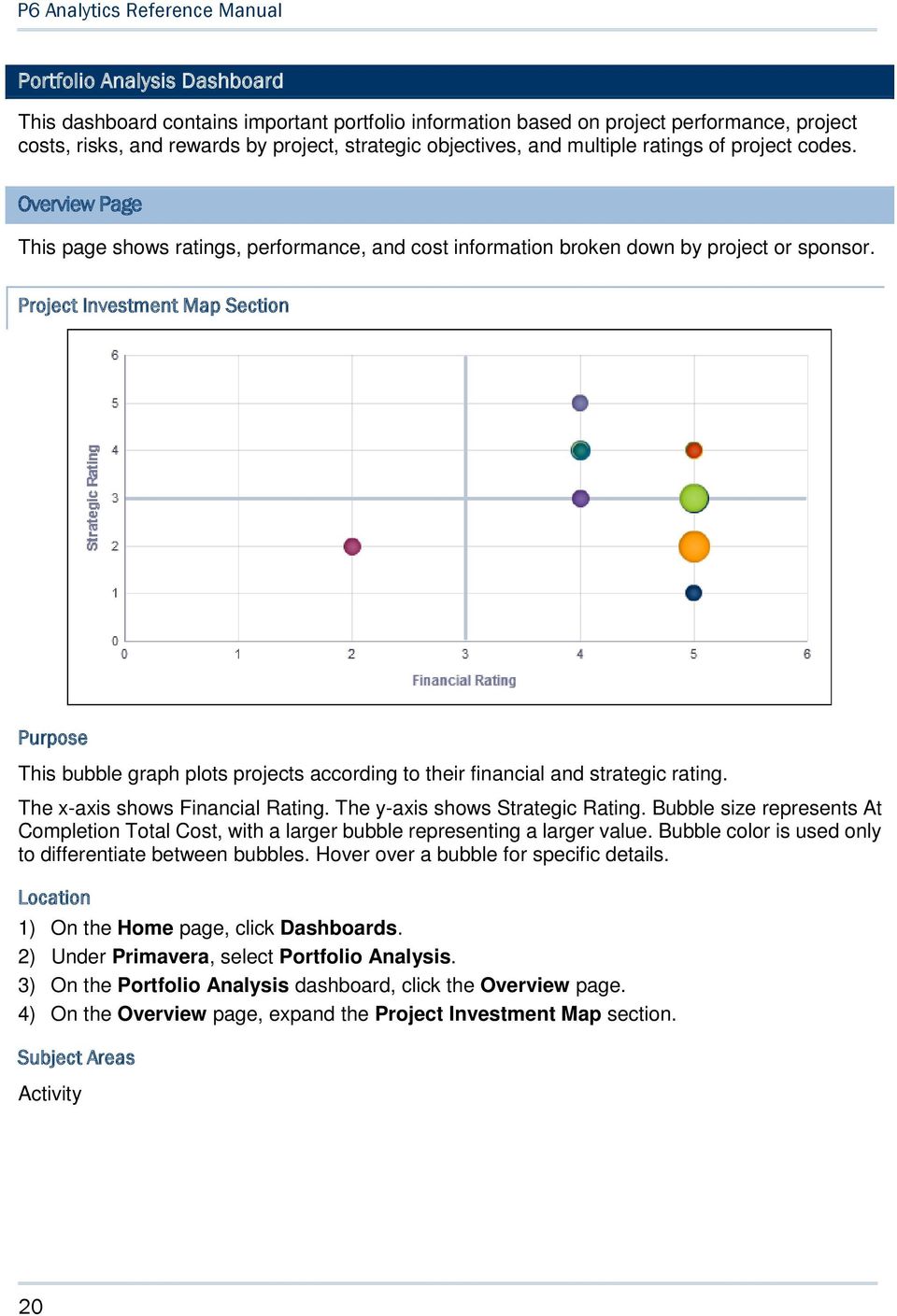
20 P6 Analytics Reference Manual Portfolio Analysis Dashboard This dashboard contains important portfolio information based on project performance, project costs, risks, and rewards by project, strategic objectives, and multiple ratings of project codes. Overview Page This page shows ratings, performance, and cost information broken down by project or sponsor. Project Investment Map Section This bubble graph plots projects according to their financial and strategic rating. The x-axis shows Financial Rating. The y-axis shows Strategic Rating. Bubble size represents At Completion Total Cost, with a larger bubble representing a larger value. Bubble color is used only to differentiate between bubbles. Hover over a bubble for specific details. 2) Under Primavera, select Portfolio Analysis. 3) On the Portfolio Analysis dashboard, click the Overview page. 4) On the Overview page, expand the Project Investment Map section. Activity 20
21 Sample Dashboards Proposed vs. Committed Cost Section This pivot table shows proposed and committed costs broken down by the project codes you select in the View by lists. Use the left View by list to select the project code to be used on the left side of the table. Use the right View by list to select the project code to be used across the top of the table. Left View by list project codes: Sponsor Business Segment Project Manager Project Type Strategic Objective Right View by list project codes: Business Segment Project Manager Project Type Strategic Objective Proposed Cost is displayed in blue italicized text. Committed Cost is display in black text. 2) Under Primavera, select Portfolio Analysis. 21
22 P6 Analytics Reference Manual 3) On the Portfolio Analysis dashboard, click the Overview page. 4) On the Overview page, expand the Proposed vs. Committed Cost section. Activity Project Performance by Sponsor Section This stacked horizontal bar graph shows stacked bars plotting the At Completion Total Cost per sponsor. Each band on a bar represents a different project and bands are colored according to their project score, which is a measure of their performance. Blue bands represent projects with a project score of more than 65; red bands represent poorly performing projects with a project score of less than 65. The x-axis shows investment Cost. The y-axis shows the project Sponsor. Hover over a bar for specific data and click on the bar to drill down to see more information about the project. 2) Under Primavera, select Portfolio Analysis. 3) On the Portfolio Analysis dashboard, click the Overview page. 4) On the Overview page, expand the Project Performance by Sponsor section. Activity 22
23 Sample Dashboards Performance Page This page displays performance data for each portfolio. Find the monthly Schedule Performance Index (SPI) and Cost Performance Index (CPI), as well as units and cost statistics for every project in your portfolio. Portfolio Analysis Trending Section This pivot table shows CPI and SPI per month for each portfolio. CPIs and SPIs lower than are highlighted in red whereas CPIs and SPIs higher than are highlighted in green. Values of exactly are not highlighted. 2) Under Primavera, select Portfolio Analysis. 3) On the Portfolio Analysis dashboard, click the Performance page. 4) On the Performance page, expand the Portfolio Analysis Trending section. Activity Portfolio View Section 23
24 P6 Analytics Reference Manual This pivot table shows cost and units for each portfolio. Values that are over budget are highlighted in red text. The pivot table shows columns for: Portfolio Name Actual (Cost) At Completion (Cost) Budgeted (Cost) Variance (Cost) Actual (Units) At Completion (Units) Budgeted (Units) Variance (Units) 2) Under Primavera, select Portfolio Analysis. 3) On the Portfolio Analysis dashboard, click the Performance page. 4) On the Performance page, expand the Portfolio View section. Activity Prioritization Page This page displays the priority of your projects. You can find information on the financial rating and risk of each project, group them by multiple ratings, or see the current phase of each project, separated by strategic rating. Risk vs. Reward Section 24
25 Sample Dashboards This bubble graph plots projects according to their financial rating and risk. Bubbles in the red quadrant of the bubble graph have a low financial rating (reward) and a high risk while those in the white quadrant have a low risk but offer a high reward. Risk in this case is a project code and is not related to P6 EPPM risks functionality. The x-axis shows Risk. The y-axis shows Financial Rating. Bubble size represents current budget, with a larger bubble representing a larger value. Bubble color is used only to differentiate between bubbles. Hover over a bubble for specific details. This pivot table groups projects according to their priority. The pivot table shows columns for: Project Priority Project Name Current Budget Strategic Rating Use the up and down arrows below the table to navigate to other sections of the table. Use the double-ended arrow to view the whole table in one screen (to a maximum of 500 rows per page). 2) Under Primavera, select Portfolio Analysis. 3) On the Portfolio Analysis dashboard, click the Prioritization page. 4) On the Prioritization page, expand the Risk vs. Reward section. Activity Project Initiation Section 25
26 P6 Analytics Reference Manual This stacked horizontal bar graph shows the number of projects for each strategic rating, grouped by the current phase project code. Each band on a bar represents a different value of the current phase sample project code. The x-axis shows the number of projects. The y-axis shows Strategic Rating. Hover over a band to see specific information. 2) Under Primavera, select Portfolio Analysis. 3) On the Portfolio Analysis dashboard, click the Prioritization page. 4) On the Prioritization page, expand the Project Initiation section. Activity Rating Section This radar graph shows project code ratings per project. 26
27 Sample Dashboards Each colored line on the graph represents a separate project. The axes show the following project codes: Financial Rating Resource Rating Strategic Rating Technology Rating Risk Rating 2) Under Primavera, select Portfolio Analysis. 3) On the Portfolio Analysis dashboard, click the Prioritization page. 4) On the Prioritization page, expand the Rating section. Activity Project Prioritization - Force Rank by Score Section This pivot table sorts projects by project score (descending). Project scores above 85 are highlighted in green; project scores from 65 to 85 are highlighted in yellow; project scores below 65 are highlighted in red. 27
28 P6 Analytics Reference Manual The pivot table shows columns for: Project Name Project Score Financial Rating Resource Rating Strategic Rating Technology Rating 2) Under Primavera, select Portfolio Analysis. 3) On the Portfolio Analysis dashboard, click the Prioritization page. 4) On the Prioritization page, expand the Project Prioritization - Force Rank by Score section. Activity Objectives Page This page shows the investment breakdown and performance of projects by the Strategic Objective project code. Investment by Strategic Objective Section This pie chart shows the investment (determined from At Completion Total Cost for the project) broken down by the Strategic Objective project code. The segments represent the amount of At Completion Total Cost accountable to each Strategic Objective. The Strategic Objective project codes are: Improved Customer Satisfaction 28
29 Sample Dashboards Increased Customer Retention Reduced Cycle Time Regulatory Compliance Revenue Growth 2) Under Primavera, select Portfolio Analysis. 3) On the Portfolio Analysis dashboard, click the Objectives page. 4) On the Objectives page, expand the Investment by Strategic Objective section. Activity Project Performance by Strategic Objective Section The Improved Customer Satisfaction, Increased Customer Retention, Reduced Cycle Time, Regulatory Compliance, and Revenue Growth stacked horizontal bar graphs show the investment amount for projects grouped by sponsor name. Each graph shows data for a different set of projects, selected by a project code. Each band on a bar represents a different project. Hover over a section of a bar to see specific data. The x-axis shows Investment. The y-axis shows Sponsor. 2) Under Primavera, select Portfolio Analysis. 29
30 P6 Analytics Reference Manual 3) On the Portfolio Analysis dashboard, click the Objectives page. 4) On the Objectives page, expand the Project Performance by Strategic Objective section. Activity Project Earned Value Dashboard This dashboard gives an overview of the earned value status of your projects, including SPI and CPI. Overview Page This page shows statistics on a project's planned value, earned value, actual costs, and the estimated cost at completion, grouped by month or project manager. Earned Value Section Use the Select a View list to determine how cost information will display. The available views are: Periodic/Cumulative Periodic 30
31 Sample Dashboards Cumulative The line-bar graph shows cost information dependent on the view you select: Bars for Actual Total Cost, Earned Value (Cost), Planned Value (Cost), and Estimate At Completion (Cost) Lines for cumulative values of Actual Cost, Earned Value, Planned Value, and Estimate At Completion The x-axis of the graph shows the year and month. The y-axis for the bars, on the left, shows period Cost. The y-axis for the lines, on the right, shows Cost (Cumulative). This pivot table breaks down cost data by year, quarter, and month. Depending on the selected view, the table shows columns for: Year Name Quarter Name Month Name Actual Total Cost Actual Cost (Cumulative) Earned Value (Cost) Earned Value (Cumulative) Planned Value (Cost) Planned Value (Cumulative) Estimate At Completion (Cost) Estimate At Completion (Cumulative) 2) Under Primavera, select Project Earned Value. 3) On the Project Earned Value dashboard, click the Overview page. 4) On the Overview page, expand the Earned Value section. Activity 31
32 P6 Analytics Reference Manual Project Earned Value Breakdown Section Use the Select a View list to determine whether this cost information will display as a horizontal bar graph or table. Regardless of the view chosen, the data is the same. This horizontal bar graph breaks down data by the Project Manager project code and shows bars for: Actual Total Cost Earned Value (Cost) Planned Value (Cost) Estimate to Complete (Cost) The x-axis shows Cost. The y-axis shows the Project Manager project code. Hover over a bar to see specific information. This table breaks data down by Project Manager and shows columns for: Project Manager Actual Total Cost Earned Value (Cost) Planned Value (Cost) Estimate to Complete (Cost) 32
33 Sample Dashboards 2) Under Primavera, select Project Earned Value. 3) On the Project Earned Value dashboard, click the Overview page. 4) On the Overview page, expand the Project Earned Value Breakdown section. Activity CPI/SPI Page This page provides CPI and SPI information, helping you to identify which projects are over budget or behind schedule. Cost & Schedule Performance Index Section This scatter graph plots each project on a scatter graph according to its SPI and CPI. The x-axis shows Schedule Performance Index (Cost). The y-axis shows Cost Performance Index (Cost). Hover over a point to see specific information. 33
34 P6 Analytics Reference Manual 2) Under Primavera, select Project Earned Value. 3) On the Project Earned Value dashboard, click the CPI/SPI page. 4) On the CPI/SPI page, expand the Cost & Schedule Performance Index section. Activity CPI/SPI Section This section shows: A line graph which plots the CPI and Cumulative CPI by month. A line graph which plots the SPI and Cumulative SPI by month. The x-axis shows the month and year. The y-axis shows the Cost Performance Index or the Schedule Performance Index. Note: Cumulative SPI and Cumulative CPI are calculated from cumulative values, rather than being accumulations of CPI or SPI values from previous periods. 2) Under Primavera, select Project Earned Value. 3) On the Project Earned Value dashboard, click the CPI/SPI page. 4) On the CPI/SPI page, expand the CPI/SPI section. Activity 34
35 Sample Dashboards Performance Index Section This bubble graph plots bubbles for projects according to their Cost Performance Index (Cost) and Schedule Performance Index (Cost). The location of each bubble in the chart will tell you whether the project it represents is under or over budget (above or below the horizontal center, respectively) and whether it is behind or ahead of schedule (left or right of the vertical center, respectively). The x-axis shows Schedule Performance Index (Cost). The y-axis shows Cost Performance Index (Cost). Bubble size represents At Completion Total Cost, with larger bubbles representing larger values. Bubble color is used only to differentiate between bubbles. Hover over a bubble for specific details. 2) Under Primavera, select Project Earned Value. 3) On the Project Earned Value dashboard, click the CPI/SPI page. 35
36 P6 Analytics Reference Manual 4) On the CPI/SPI page, expand the Performance Index section. Activity Detailed Earned Value Page This page provides a detailed view of a project's earned value, total costs, and estimate at completion costs. Detailed Earned Value by WBS Section This pivot table breaks projects down by WBS and shows columns for: WBS Hierarchy Actual Total Cost Actual Cost (Cumulative) Earned Value (Cost) Earned Value (Cumulative) Planned Value (Cost) Planned Value (Cumulative) Estimate At Completion (Cost) Estimate At Completion (Cumulative) Use the expand/collapse control to drill down into the WBS structure. 36
37 Sample Dashboards 2) Under Primavera, select Project Earned Value. 3) On the Project Earned Value dashboard, click the Detailed Earned Value page. 4) On the Detailed Earned Value page, expand the Detailed Earned Value by WBS section. Activity Project Health Dashboard This dashboard offers useful tools for determining the health of your projects. On this dashboard, you can view the overall health of your project, look at schedule progress and cost trends, and determine which activities are not on track. Overview Page This page provides statistics for your project based on numerous variables, including project codes and ratings. You can view overall health and cost variance by cost account for any of your projects. Project Count Section Use the View By list to select a project code by which to view this table and pie chart. The available codes are: Project Manager Financial Rating Priority Sponsor 37
38 P6 Analytics Reference Manual Strategic Objective Strategic Rating This table shows the number of projects and activities assigned to each value of the selected project code. This pie chart shows the number of projects assigned to each value of the selected project code expressed as a percentage of total projects. Hover over a segment of the pie graph to see more detailed information, including the number of projects assigned to the code value. 2) Under Primavera, select Project Health. 3) On the Project Health dashboard, click the Overview page. 4) On the Overview page, expand the Project Count section. Activity Overall Project Health Section Use the Business Process list to determine what data the first pivot table will show. The available business processes are: Accounting Billing Construction Customer Relationship Financing Human Resources Information Technology Manufacturing Operations 38
39 Sample Dashboards Order Management Plant Maintenance Supply Chain This business process pivot table shows columns for: Project ID Project Name Project Score (weighted project code) Budget Variance At Completion Total Cost Current Budget A link to the project in P6 EPPM The second pivot table shows at completion total cost broken down by project owner and project. 2) Under Primavera, select Project Health. 3) On the Project Health dashboard, click the Overview page. 4) On the Overview page, expand the Overall Project Health section. Activity Cost Account Section This horizontal bar graph shows the cost variance for each cost account. The x-axis shows Cost Variance. The y-axis shows the Cost Account Name ordered by Cost Variance. Red bars indicate a negative Cost Variance value, whereas black bars indicate a positive Cost Variance value. Hover over a bar to see specific information for the cost account. This pivot table breaks data down by Cost Account Name and year. The table shows columns for: 39
40 P6 Analytics Reference Manual Cost Account Name Planned Cost At Completion Cost Cost Variance 2) Under Primavera, select Project Health. 3) On the Project Health dashboard, click the Overview page. 4) On the Overview page, expand the Cost Account section. Resource Assignment Schedule Page This page shows you which activities are behind schedule, the performance of each activity in a project, a comparison of project schedule and performance, and resources with the highest At Completion Units. The Schedule narrative shows the percentage of activities that are complete in all projects. The Cost narrative shows the percentage of the total cost for activities that are complete in all projects. The Units narrative shows the percentage of units that are complete in all projects. The Labor Units narrative shows the percentage of labor units that are complete in all projects. The Nonlabor Units narrative shows the percentage of nonlabor units that are complete in all projects. Critical Activities behind Schedule Section 40
41 Sample Dashboards This narrative shows the percentage of critical activities which are behind schedule according to their Baseline Project Finish Date Variance. This table is grouped by Variance At Completion units, high to low, and then by project. This allows you to see the activities with the highest variance at completion quickly and then to see the other activities which have finish variance in the same project. This table shows columns for: Project Name Activity ID Activity Name Variance at Completion (Units) A link to the project activities 2) Under Primavera, select Project Health. 3) On the Project Health dashboard, click the Schedule page. 4) On the Schedule page, expand the Critical Activities behind Schedule section. Activity Float Path Section This pivot table shows the number of activities per float path grouped by primary resource. This vertical bar graph shows the number of activities for each primary resource in a float path. The x-axis shows the Float Path. The y-axis shows the number of activities. Hover over a bar for specific information. 41
42 P6 Analytics Reference Manual 2) Under Primavera, select Project Health. 3) On the Project Health dashboard, click the Schedule page. 4) On the Schedule page, expand the Float Path section. Activity Labor Performance Section The Phase and Department line-bar graphs show data for activities assigned to the Phase and Department activity codes. Both of these line-bar graphs show: Bars for the Actual and Planned labor A line for the Percent of Plan labor units expressed as a percentage of baseline project labor units The x-axis of the Phase line-bar graph shows Phase code values. The x-axis of the Department line-bar graph shows Department code values. On both line-bar graphs the y-axis for the bars, on the left, shows labor Units. On both line-bar graphs the y-axis for the line, on the right, shows the Percent of Plan. Use the Labor Performance By pivot table to determine whether Phase or Department data is displayed. The pivot table shows columns for: Current Phase or Department 42
43 Sample Dashboards Project Planned (baseline project labor units) Actual (actual labor units) Percent of Plan (actual labor units expressed as a percentage of baseline project labor units) 2) Under Primavera, select Project Health. 3) On the Project Health dashboard, click the Schedule page. 4) On the Schedule page, expand the Labor Performance section. Activity Completion Section Use the Select a View list to determine whether the At Completion Units for a resource will display in a bar graph or pie graph. This horizontal bar graph shows the ten resources that had the highest At Completion Units for that year on a horizontal bar graph. The x-axis shows the At Completion Units. The y-axis shows Resource Name. This pie graph shows the ten resources that had the highest At Completion Units for that year. The sections of the pie chart show the percentage of At Completion Units for each resource. The percentage for each resource is dynamically determined based on the total At Completion Units. This line graph shows the cost for various dates. The x-axis shows the month, day, and year. The vertical bar on the graph shows the Data Date. The y-axis shows Cost. The blue line shows Cumulative Cost and the green line shows Cumulative At Completion Total Cost. 43
44 P6 Analytics Reference Manual 2) Under Primavera, select Project Health. 3) On the Project Health dashboard, click the Schedule page. 4) On the Schedule page, expand the Completion section. Resource Assignment Percent Complete Analysis Section These pivot tables show percent complete data grouped by project name or project ID. The first pivot table shows percent complete information grouped by project name. This table shows columns for: Project Name Schedule (Overall % Complete) Performance (Overall % Complete) Cost (Overall % Complete) Units (Overall % Complete) Labor (Cost % Complete) Nonlabor (Cost % Complete) 44
45 Sample Dashboards Expense (Cost % Complete) Material (Cost % Complete) Labor (Units % Complete) Nonlabor (Units % Complete) The second table shows percent complete information grouped by project ID and date. This table shows columns for: Project ID Date Cost (% Complete) Units (% Complete) Schedule (% Complete) Performance (% Complete) Labor Cost (% Complete) Labor Units (% Complete) 2) Under Primavera, select Project Health. 3) On the Project Health dashboard, click the Schedule page. 4) On the Schedule page, expand the Percent Complete Analysis section. Activity Cost Page This page shows the cost trends of your project, the cost breakdown by different variables, and the different types of costs your projects incur. Use the filters to determine what information will display in the narratives. If no filters are applied, these narratives will show data for all projects and portfolios. The Total Cost narrative shows what the total cost of the selected projects or portfolios will be at completion. The Labor Cost narrative shows what the total labor cost of the selected projects or portfolios will be at completion. The Nonlabor Cost narrative shows what the total nonlabor cost of the selected projects or portfolios will be at completion. The Material Cost narrative shows what the total material cost of the selected projects or portfolios will be at completion. 45
46 P6 Analytics Reference Manual The Expense Cost narrative shows what the total expense cost of the selected projects or portfolios will be at completion. Cost Trend Section Use the Select a View list to determine whether cost information will display as a bar graph, line graph, or table. This vertical bar graph shows bars for: Actual Total Cost Remaining Total Cost At Completion Total Cost The x-axis shows the year and month. The y-axis shows cost. Hover over a bar to see specific information about it. This line graph shows lines for: Actual Total Cost Remaining Total Cost At Completion Total Cost The x-axis shows the year and month. The y-axis shows cost. Hover over a point on a line to see specific information about it. 46
47 Sample Dashboards This pivot table breaks data down by project and date. The columns spread the data across five months. The table shows information per project for: Actual Total Cost Remaining Total Cost At Completion Total Cost 2) Under Primavera, select Project Health. 3) On the Project Health dashboard, click the Cost page. 4) On the Cost page, expand the Cost Trend section. Project History Project Cost Breakdown Section Use the Select a View list to determine how cost and project code information will display. Depending on the selection, the view will display as a horizontal bar chart or table. The available views are: Cost Breakdown by 47
48 P6 Analytics Reference Manual Cost Breakdown by Project Manager Cost Breakdown by Sponsor Table by Table by Project Manager Table by Sponsor The horizontal bar graphs break data down by the, Project Manager, and Sponsor project codes respectively. The bar graphs show bars for: Actual Total Cost At Completion Total Cost Remaining Total Cost Cost Variance (Cost) The x-axis shows Cost. The y-axis shows the project code selected in the Select a View list. The tables break down data by the, Project Manager, and Sponsor project codes respectively. The pivot tables show columns for: Project Manager Actual Total Cost At Completion Total Cost Remaining Total Cost Cost Variance (Cost) 2) Under Primavera, select Project Health. 3) On the Project Health dashboard, click the Cost page. 4) On the Cost page, expand the Project Cost Breakdown section. Activity 48
49 Sample Dashboards Cost by Type Section Use the Select a View list to determine how project cost information will display. The available views are: Expense Cost Labor Cost Nonlabor Cost Material Cost Total Cost The vertical bar graph and the pivot table show the same data. There are bars and columns for: Actual <Cost Type> Cost At Completion <Cost Type> Cost Remaining <Cost Type> Cost In the bar graph, the x-axis shows Projects. The y-axis shows the cost type selected in the Select a View list. Hover over a bar on the graph to see specific data. The table shows columns for the same data broken down by project name. 2) Under Primavera, select Project Health. 3) On the Project Health dashboard, click the Cost page. 4) On the Cost page, expand the Cost by Type section. Activity 49
50 P6 Analytics Reference Manual History Page This page shows the At Completion Variance Percentage of each project in your portfolio, as well as a detailed history of each activity in a project. % Complete History Section These analyses show percent complete information broken down by date. This table breaks down data by date and shows columns for: Calendar Date Project Name Units (Today % Complete) Cost (Today % Complete) Units (Yesterday % Complete) Cost (Yesterday % Complete) Units (% Complete Change Yesterday to Today) Cost (% Complete Change Yesterday to Today) This line graph shows the Today Percent Complete from the start of project until the given day of analysis. There are lines for Units and Cost. The x-axis shows the Calendar Date. The y-axis shows the Today Percent Complete on the given day from start. Hover over a point for specific information. 2) Under Primavera, select Project Health. 3) On the Project Health dashboard, click the Trend page. 4) On the Trend page, expand the % Complete History section. 50
51 Sample Dashboards Project History Milestone Dates That Have Slipped Section The pivot table shows data for all milestones whose dates have changed since the previous history interval. Data is broken down and ordered by project and date. The table shows columns for: Project Name Calendar Date Activity ID Activity Name Activity Type Current Planned Start Current Planned Finish Prior Planned Start Prior Planned Finish Use the up and down arrows below the table to navigate to other sections of the table. Use the double-ended arrow to view the whole table in one screen (to a maximum of 500 rows per page). 2) Under Primavera, select Project Health. 3) On the Project Health dashboard, click the Trend page. 4) On the Trend page, expand the Milestone Dates that Have Slipped section. 51
52 P6 Analytics Reference Manual Project History Page This page shows the At Completion Total Cost for any of your projects by country or state. At Completion Total Cost by Section This map shows At Completion Total Cost for all projects by country. White areas of the map indicate that no project is located in that area. Switch off the At Completion Total Cost (Color Fill) option below ALL COUNTRIES to remove the shading when zoomed out to Country level. Switch off the At Completion Total Cost (Image) option below ALL CITIES to remove the shading when zoomed in to state level. Zoom in and out with the control on the left. Hover over a country, state, or province to see specific information or click on a country, state, or province to bring up a call out with specific information. 2) Under Primavera, select Project Health. 3) On the Project Health dashboard, click the page. 4) On the page, expand the At Completion Total Cost by section. Activity 52
53 Sample Dashboards Project Code Hierarchy Section This pivot table breaks down At Completion Total Cost by project code value. Click expand/collapse next to a value to drill down into the hierarchy. This pie graph reflects the data shown in the pivot table and will change with the table. This pie chart shows the At Completion Total Cost broken down by country. The segments represent the amount of At Completion Total Cost accountable to each location shown. The pie chart will update based on the displayed hierarchies in the pivot table. 2) Under Primavera, select Project Health. 3) On the Project Health dashboard, click the page. 4) On the page, expand the Project Code Hierarchy section. Activity 53
54 P6 Analytics Reference Manual At Completion Labor Units by State Section This map shows At Completion Labor Units for projects by state. White areas of the map indicate that no project is located in that area. Switch off the At Completion Labor Units (Pie Graph) option below US STATES to remove the pie graphs from states. Switch off the Remaining Total Cost (Color Fill) option to remove the cost shading on a state. Zoom in and out with the control on the left. Hover over a pie graph to see specific information for that state. 2) Under Primavera, select Project Health. 3) On the Project Health dashboard, click the page. 4) On the page, expand the At Completion Labor Units by State section. Activity 54
55 Sample Dashboards Activity Worksheet Page This page shows each activity associated with a project within your portfolio. Activity Worksheet Section This pivot table lists activities, grouped by WBS. Filter the data in the table by project name or activity status using the Project Name and Activity Status lists at the top of the page. The pivot table shows columns for: WBS Name (Project Level) Activity Name Status Resource Name Start Finish Finish Variance (Hours) Link to the Activities in P6 55
56 P6 Analytics Reference Manual Use the up and down arrows below the table to navigate to other sections of the table. Use the double-ended arrow to view the whole table in one screen (to a maximum of 500 rows per page). 2) Under Primavera, select Project Health. 3) On the Project Health dashboard, click the Activity Worksheet page. 4) On the Activity Worksheet page, expand the Activity Worksheet section. Activity Resource Analysis Dashboard This dashboard shows the status and usage of your resources, measures team progress and productivity, and tells you which resources are underutilized. Overview Page This page gives an overview of resource status, including a view showing how resources are contributing to your strategic objectives, the percentage of resources which are overallocated, a tabular view of the labor hours expended by country, and a view of resource over and underallocation. Resource Alignment Section These analyses can be viewed as a bar chart, pie chart, or table. The Actual Units by Strategic Objective and Remaining Units by Strategic Objective horizontal bar charts show the number of Actual Units or Remaining Units respectively broken down by Strategic Objective. It shows bars for: Increased Customer Retention Reduced Cycle Time 56
57 Sample Dashboards Improved Customer Satisfaction Regulatory Compliance Revenue Growth Hover over a bar to see specific data. Click on a bar to drill down to see actual effort by project. The To Date Units by Strategic Objective and Remaining Units by Strategic Objective pie charts show the number of To Date Units or Remaining Units respectively broken down by Strategic Objective. It shows segments for: Improved Customer Satisfaction Increased Customer Retention Reduced Cycle Time Regulatory Compliance Revenue Growth Click on a segment to drill down to see actual effort by project. The Actual Units and Remaining Units pivot tables show strategic objective and units for each project. The tables show columns for: Strategic Objective Description Project Name Actual Units or Remaining Units Year Name (Actual Units table only) Use the up and down arrows below the table to navigate to other sections of the table. Use the double-ended arrow to view the whole table in one screen (to a maximum of 500 rows per page). 2) Under Primavera, select Resource Analysis. 3) On the Resource Analysis dashboard, click the Overview page. 4) On the Overview page, expand the Resource Alignment section. Resource Assignment 57
58 P6 Analytics Reference Manual Resource Allocation Section This bar graph shows how a resource's usage is distributed over time. The x-axis shows calendar dates. The y-axis shows Units of time. The solid horizontal line represents the allocation Limit; the dotted horizontal line represents the overallocation Limit Plus 25%. The green area represents time overallocated by more than 25%; the brown area represents time overallocated by less than 25%; the blue area represents time that is not overallocated. Hover over a bar for specific details. Use the slide to view the allocation for resources in a given quarter. This stacked vertical bar graph shows the remaining and overallocated units for a resource. The x-axis shows Resource Name. The y-axis shows Units of time. Blue bands on the bar represent Remaining Units. Red bands represent Overallocation Units. Hover over a bar for specific details. 2) Under Primavera, select Resource Analysis. 3) On the Resource Analysis dashboard, click the Overview page. 4) On the Overview page, expand the Resource Allocation section. Resource Utilization 58
59 Sample Dashboards Labor Hours by Resource Section This pivot table breaks down labor hours by resource, location, and year. Rows show data for s with Labor Hour totals at the right of the table. Columns show data for resources with Labor Hour totals at the bottom of the table. Use the Select a View list to filter data by project code. The available codes are: At Completion by Sponsor At Completion by Business Segment At Completion by Priority Click on the year to drill down to half-year. 2) Under Primavera, select Resource Analysis. 3) On the Resource Analysis dashboard, click the Overview page. 4) On the Overview page, expand the Labor Hours by Resource section. Resource Assignment 59
60 P6 Analytics Reference Manual Over/Under Allocation Section This analysis shows Overallocated Units By Resource and Underallocated Units By Resource bar graphs. The Overallocated Units By Resource vertical bar graph shows overallocation bars for each resource broken down by year and quarter. If no resource is overallocated in a quarter, that quarter will not appear in the graph. The x-axis shows the year and the quarter. The y-axis shows overallocated Units. Hover over a bar for specific information about that bar. The Underallocated Units By Resource vertical bar graph shows underallocation bars for each resource broken down by year and quarter. If no resource is under allocated in a quarter, then that quarter will not appear in the graph. The x-axis shows the year and the quarter. The y-axis shows underallocation Units. Hover over a bar for specific information about that bar. 2) Under Primavera, select Resource Analysis. 3) On the Resource Analysis dashboard, click the Overview page. 4) On the Overview page, expand the Over/Under Allocation section. Resource Utilization 60
61 Sample Dashboards Staffing Page This page shows staffing activity, allocated and remaining resources remaining, hours allotted by role, and total hours by an entire team. Staffing Section This pivot table breaks down unit data by project and date. There are rows for: Staffed Unstaffed Total FTE (calculated as Staffed plus Unstaffed) Click on a project name for links to WBS Earned Value and Activity Worksheet. Click on a year-quarter label to drill down to monthly data. Use the up and down arrows below the table to navigate to other sections of the table. Use the double-ended arrow to view the whole table in one screen (to a maximum of 500 rows per page). 2) Under Primavera, select Resource Analysis. 3) On the Resource Analysis dashboard, click the Staffing page. 4) On the Staffing page, expand the Staffing section. Resource Assignment 61
62 P6 Analytics Reference Manual Allocation by Code Section This stacked vertical bar graph shows a stacked bar for each resource code showing Allocated Units and Overallocated units. Use the View by list to select a resource code. The available codes are: Classification Plant Department The x-axis shows the resource code selected in the View by list. The y-axis shows allocation Units. Hover over a bar to show specific data. This table breaks down unit data based on the resource code selected in the View by list. The table shows columns for: Remaining Units Overallocated Allocated Table rows are determined by the View by list selection. 2) Under Primavera, select Resource Analysis. 3) On the Resource Analysis dashboard, click the Staffing page. 4) On the Staffing page, expand the Allocation by Code section. Resource Utilization 62
63 Sample Dashboards Hours by Role Section This analysis shows at completion units by date grouped by primary role. Use the Select a View list to determine whether the content will display as a graph or table. The graph and the table display the same information. There are bars or columns for: Business Analyst Developer Quality Assurance The x-axis of the graph shows the year, month, and date. The y-axis shows At Completion Units. Hover over a bar to see details of the data. The pivot table breaks down At Completion Units by role and week. Columns show at Completion Units broken down by week with totals in the last row. Click on a week name to drill down and view the data broken down by day. 2) Under Primavera, select Resource Analysis. 3) On the Resource Analysis dashboard, click the Staffing page. 4) On the Staffing page, expand the Hours by Role section. Resource Assignment 63
64 P6 Analytics Reference Manual Total Hours by Team Section This pivot table shows At Completion Units for each resource in a team broken down by quarter. This data is aggregated by resource team and quarter. Click a resource team name to display that team's data in the stacked vertical bar graph. This table has columns for: Resource Team Quarter Name Resource Name At Completion Units The Resource Hours by Team stacked vertical bar graph shows At Completion Units for each resource per quarter. Use the Resource Team list to filter the data by resource team. The x-axis shows year and quarter. The y-axis shows At Completion Units. Hover over a bar for details. 2) Under Primavera, select Resource Analysis. 3) On the Resource Analysis dashboard, click the Staffing page. 4) On the Staffing page, expand the Total Hours by Team section. Resource Assignment 64
65 Sample Dashboards Hierarchies Section This Resource pivot table and vertical bar graph show units broken down by resource. Both the table and the bar graph display the same information. Hierarchy selections in the Resource table will impact the bar graph. There are columns/bars for: Remaining Units Planned Units Actual Units In the bar graph, the x-axis shows Resource. The y-axis shows Units. Hover over a bar for details. This Role pivot table and vertical bar graph show units broken down by role. Both the table and the bar graph display the same information. Hierarchy selections in the Role table will impact the bar graph. There are columns/bars for: Remaining Units Planned Units Actual Units In the bar graph, the x-axis shows Role. The y-axis shows Units. Hover over a bar for details. 65
66 P6 Analytics Reference Manual 2) Under Primavera, select Resource Analysis. 3) On the Resource Analysis dashboard, click the Staffing page. 4) On the Staffing page, expand the Hierarchies section. Resource Assignment Productivity Page This page shows team progress, resource productivity, and periodic versus cumulative hours. Resource Utilization by Team Section This horizontal bar graph shows the utilization rate percentage for each team. Resource utilization is a measure of a resource's allocated units against the resource limit. The values for each team are an aggregation of values for individual resources (rather than being calculated at team level). When a resource's utilization is more than 100%, the resource is overallocated. 66
67 Sample Dashboards The x-axis shows the Utilization Rate Percentage. The y-axis shows the Resource Team Name. 2) Under Primavera, select Resource Analysis. 3) On the Resource Analysis dashboard, click the Productivity page. 4) On the Productivity page, expand the Resource Utilization by Team section. Resource Utilization Periodic and Cumulative Labor Units by Month Section This analysis shows labor units and cumulative labor units broken down by date. Use the Select a View list to determine whether the content will display as a graph or table. The graph and the table display the same information. The line-bar graph shows: Bars for Baseline Project Labor Units, At Completion Labor Units, and Actual Labor Units Cumulative Lines for Actual Labor Units, Baseline Project Labor Units Cumulative, and Forecast Labor Units Cumulative The x-axis shows the year and month. The y-axis for the bars, on the left, shows labor Units. The y-axis for the lines, on the right, shows labor Units (Cumulative). Hover over a bar or a point on a line to see detailed information. The pivot table breaks data down by month and resource. The data is ordered by month. The pivot table shows columns for: 67
68 P6 Analytics Reference Manual Month Name Resource Name Baseline Project Labor Units Actual Labor Units At Completion Labor Units Baseline Project Labor Units Cumulative Actual Labor Units Cumulative Forecast Labor Units Cumulative Click on a month name to drill down to weekly data. Use the up and down arrows below the table to navigate to other sections of the table. Use the double-ended arrow to view the whole table in one screen (to a maximum of 500 rows per page). 2) Under Primavera, select Resource Analysis. 3) On the Resource Analysis dashboard, click the Productivity page. 4) On the Productivity page, expand the Periodic and Cumulative Labor Units by Month section. Activity Daily vs. Average SPI by Resource Section The Daily SPI and Average SPI line graphs show the Schedule Performance Index (SPI) using a green line. The blue line shows the target (set at 1.0). The Average SPI is based on the cumulative average over time from the beginning of the graph. Once the graph exceeds 30 days, the average is of the 30 days prior to the data point. The x-axis for both graphs shows dates. The y-axis for both graphs shows the SPI. 68
69 Sample Dashboards 2) Under Primavera, select Resource Analysis. 3) On the Resource Analysis dashboard, click the Productivity page. 4) On the Productivity page, expand the Daily vs. Average SPI by Resource section. Activity Utilization Page This page shows resource availability, utilization, and capacity. Resource Availability Section This line-bar graph provides availability data for the selected resource. If no resource is selected, the selection defaults to the first resource in the list. The graph shows: Bars for Planned Units and Available Units A line for the % Units Available (Available Units calculated as a percentage of Available plus Planned Units) 69
70 P6 Analytics Reference Manual The x-axis shows dates broken into weeks. The y-axis for the bars, on the left, shows Units. The y-axis for the line, on the right, shows Percentage of Units Available. This pivot table shows the same data as the line-bar graph. Rows show Available Units, Planned Units, and % Available. Columns show the date broken into weeks. 2) Under Primavera, select Resource Analysis. 3) On the Resource Analysis dashboard, click the Utilization page. 4) On the Utilization page, expand the Resource Availability section. Resource Utilization Utilization Section This line-bar graph breaks data down for the selected resource by week. If no resource is selected, the selection defaults to the first resource in the list. The line-bar graph shows: Bars for Limit, Planned Units, and Actual Units Lines for Planned % Utilization and Actual % Utilization The x-axis shows dates broken into weeks. The y-axis for the bars, on the left, shows Units. The y-axis for the lines, on the right, shows Percent Utilization. Hover over a bar or a point on a line to see details. This table breaks down the selected resource's data by week, showing columns for: Week Name Resource Name Limit Planned Units Planned % Utilization Actual Units Actual % Utilization 70
71 Sample Dashboards Click a week name to drill down to resource analysis information for that week. 2) Under Primavera, select Resource Analysis. 3) On the Resource Analysis dashboard, click the Utilization page. 4) On the Utilization page, expand the Utilization section. Resource Utilization Capacity Section This line-bar graph breaks data for the selected resource down by month. The graph shows: Bars for Planned Units, Actual Units, Remaining Units, and Available Units A line for Limit The x-axis shows months. The y-axis for the bars, on the left, shows Units. The y-axis for the line, on the right, shows Limit (Units). Hover over a bar or a point on a line for details. This pivot table breaks data down by month then resource. For each resource, the pivot table shows columns for: Month Name Resource Name Planned Units Actual Units Limit Available Units Remaining Units 71
72 P6 Analytics Reference Manual Use the up and down arrows below the table to navigate to other sections of the table. Use the double-ended arrow to view the whole table in one screen (to a maximum of 500 rows per page). 2) Under Primavera, select Resource Analysis. 3) On the Resource Analysis dashboard, click the Utilization page. 4) On the Utilization page, expand the Capacity section. Resource Assignment Page This page shows location information for resources. Resource by Role Section This map shows resource locations broken down by roles. s are marked by gold bubbles. Hover over a gold bubble to see specific information about the resource related to the location. 2) Under Primavera, select Resource Analysis. 3) On the Resource Analysis dashboard, click the page. 72
73 Sample Dashboards 4) On the page, expand the Resource by Role section. Resource Assignment Industry Samples Dashboard This dashboard shows daily burn down, performance, work planning, and schedule adherence for industry related activities. Shutdown/Turnaround/Outage Page This page shows an overview of daily burn downs, schedule compliance, and other performance metrics. Burn Down Hours Section This line-bar graph shows burn down hours broken down by date. Use the View list to determine how the information is displayed. The available views are: All: This displays totals for the project. Resource Slider: This filters the graph by resource. The graph will update as the slider is moved. This line-bar graph shows: Bars for Original Remaining and Emergent Remaining hours for each day 73
74 P6 Analytics Reference Manual Lines for the Total Man Hours, Baseline Work Down, and Current Work Down hours for each day The x-axis shows the date. The y-axis shows hours. 2) Under Primavera, select Industry Standards. 3) On the Industry Standards dashboard, click the Shutdown/Turnaround/Outage page. 4) On the Shutdown/Turnaround/Outage page, expand the Burn Down Hours section. Burn Down Burn Down Counts Section This line-bar graph shows burn down counts broken down by date. Use the View list to determine whether the information is displayed as All or Resource Slider. This line-bar graph shows: Bars for the Original Remaining and Emergent Remaining counts for each day Lines for Total Number of Activities, Baseline Work Down, and Current Work Down counts for each day The x-axis shows days. The y-axis shows the number of activities. 2) Under Primavera, select Industry Samples. 74
75 Sample Dashboards 3) On the Industry Samples dashboard, click the Shutdown/Turnaround/Outage page. 4) On the Shutdown/Turnaround/Outage page, expand the Burn Down Counts section. Burn Down Daily Performance Section This pivot table shows daily data organized by date and team. The table has columns for: Calendar Date Team Scheduled Starts (Yest) Actual Reported Starts (Yest) % Scheduled vs Actual Starts (Yest) Scheduled Finishes (Yest) Actual Reported Finish (Yest) % Scheduled vs Actual Finish (Yest) Scheduled Finishes Today Actual Completed to Date Scheduled Finishes to Date Total Activities Scope Changes % Complete to Date The last row shows the totals for each column. 2) Under Primavera, select Industry Samples. 3) On the Industry Samples dashboard, click the Shutdown/Turnaround/Outage page. 4) On the Shutdown/Turnaround/Outage page, expand the Daily Performance section. Burn Down 75
76 P6 Analytics Reference Manual Schedule Compliance Section This line-bar graph shows: Bars for Original Schedule and Completed, Original Schedule and Not Completed, Emergent and Completed, and Total Scheduled A line for Original Schedule Compliance percentage (the percentage of activities which were completed on a day that were scheduled to be completed on that day) The x-axis shows the month, day, and year. The y-axis for the bars, on the left, shows the Activity Count. The y-axis for the line, on the right, shows the Schedule Compliance Percentage. Filter the graph by week using the Week Name list. Click on a bar or point to show the data in a table. 2) Under Primavera, select Industry Standards. 3) On the Industry Standards dashboard, click the Shutdown/Turnaround/Outage page. 4) On the Shutdown/Turnaround/Outage page, expand the Schedule Compliance section. Burn Down 76
77 Sample Dashboards Average vs. Baseline (Hours) Section This analysis shows a Baseline, Actuals line graph and a Baseline Average, Actual Average, Baseline Daily, Actual Daily line-bar graph. The Baseline, Actuals line graph shows lines for Baseline hours and Actuals hours for each day. The x-axis shows dates. The y-axis shows hours. The Baseline Average, Actual Average, Baseline Daily, Actual Daily line-bar graph shows: Bars for Baseline Daily hours and Actual Daily hours Lines for Baseline Average hours and Actual Average hours The x-axis shows dates. The y-axis shows hours. 2) Under Primavera, select Industry Standards. 3) On the Industry Standards dashboard, click the Shutdown/Turnaround/Outage page. 4) On the Shutdown/Turnaround/Outage page, expand the Average vs. Baseline (Hours) section. Burn Down 77
78 P6 Analytics Reference Manual Daily Performance Index (Hours) Section This analysis shows Baseline, Daily Actuals and Baseline, Daily Actuals (AVG) line graphs. The Baseline, Daily Actuals line graph shows lines for: Baseline (a constant, set to 1) Daily Actuals (calculated as Actual Labor Units divided by Planned Labor Units) The x-axis shows dates. The y-axis shows Performance Index (calculated as Actual Labor Units divided by Planned Labor Units). The Baseline, Daily Actuals (AVG) line graph shows lines for: Baseline (a constant, set to 1) Daily Actuals (calculated as a 365 day average of Actual Labor Units divided by Planned Labor Units) The x-axis shows dates. The y-axis shows Performance Index (calculated as Actual Labor Units divided by Planned Labor Units). 2) Under Primavera, select Industry Standards. 3) On the Industry Standards dashboard, click the Shutdown/Turnaround/Outage page. 4) On the Shutdown/Turnaround/Outage page, expand the Daily Performance Index (Hours) section. Activity 78
79 Sample Dashboards Routine/On-Line Maintenance Page This page shows work planning and schedule adherence. Work Planning Look Ahead Section This pivot table shows how Key Performance Indicators (KPIs) are performing from a planning perspective in the upcoming execution work weeks. The percentages shown are color coded to highlight where improvement needs to be made. Green shaded percentages are good, yellow highlights potential issues, and red indicates where corrective action might be needed. The thresholds that determine when an issue is green, yellow, or red are customizable. The KPIs are based on INP0 AP-928 standards, which are used by the United States nuclear power utility industry. The last four KPIs shown are based on custom activity codes. The columns show execution workweek start dates, workweeks, and workweek indicators (from T-05 to T-01, T-01 being next week and T-05 being five weeks in the future). Note: The workweek is often used in the nuclear industry. This is determined by taking the last two digits of the year and attaching the week number to the end. For example, the 22nd week of 2013 would have a Workweek number of 1322 and the 23rd week would be The rows show: Scope Stability Schedule Stability Scope Survival Emergent Work Operations Clearances Ready Parts Identification Parts Availability Maintenance Walkdowns Completed Click on a cell to drill down to activities. 79
80 P6 Analytics Reference Manual 2) Under Primavera, select Industry Standards. 3) On the Industry Standards dashboard, click the Routine/On-Line Maintenance page. 4) On the Routine/On-Line Maintenance page, expand the Work Planning Look Ahead section. Work Planning Work Planning T+1 Critique Section This pivot table shows a historical perspective of a particular execution work week, shown in the table as T-00. This table allows you to see how specific Key Performance Indicators (KPIs) performed week after week. The table shows the percentages for T-10 through T-00, T-10 being 10 weeks before the execution work week. Cells are color coded per KPI to show whether the values represent good performance or indicate that corrective work should considered or is urgently required. The columns show execution workweek indicators (from T-10 to T-00) and workweeks. Note: The workweek is often used in the nuclear industry. This is determined by taking the last two digits of the year and attaching the week number to the end. For example, the 22nd week of 2013 would have a Workweek number of 1322 and the 23rd week would be
81 Sample Dashboards The rows show: Scope Stability Scope Survival Schedule Stability Emergent Work Use the Execution Work Week list to change to view a different week's history. 2) Under Primavera, select Industry Standards. 3) On the Industry Standards dashboard, click the Routine/On-Line Maintenance page. 4) On the Routine/On-Line Maintenance page, expand the Work Planning T+1 Critique section. Work Planning On-Line Daily Schedule Adherence - Graded Section This pivot table shows schedule adherence, broken down by team. The table shows columns for: Team Grade Scheduled (Per day and total) Completed (Per day and total) Percentage of scheduled activities which were completed (Per day and total) Click on a day name to see a table showing only that day. Grades represent the level of work scheduling: A: Hourly B: Daily C: Weekly D: No Tracking 81
82 P6 Analytics Reference Manual 2) Under Primavera, select Industry Standards. 3) On the Industry Standards dashboard, click the Routine/On-Line Maintenance page. 4) On the Routine/On-Line Maintenance page, expand the On-Line Daily Schedule Adherence - Graded section. Burn Down On-Line Daily Schedule Adherence - Standard Section This pivot table shows schedule adherence, broken down by team. The table shows columns for: Team Scheduled (Per day and total) Completed (Per day and total) Percentage of scheduled activities which were completed (Per day and total) Click on a week name to see a table showing only that week. 2) Under Primavera, select Industry Standards. 3) On the Industry Standards dashboard, click the Routine/On-Line Maintenance page. 4) On the Routine/On-Line Maintenance page, expand the On-Line Daily Schedule Adherence - Standard section. Burn Down 82
83 Sample Dashboards Schedule Compliance Section This bar-line graph shows scheduled compliance for the selected week. Original Schedule Compliance percentage measures the number of activities which were completed against the number which were scheduled to complete. The line-bar graph shows: Bars for Original Schedule and Completed, Original Schedule and Not Completed, Emergent and Completed, and Total Scheduled A line for Original Schedule Compliance Percentage The x-axis shows dates. The y-axis for the bars, on the left, is the Activity Count. The y-axis for the line, on the right, is Schedule Compliance Percentage. Select the week to view from the Week Name list. Click on a bar or point to show the data in table form. 2) Under Primavera, select Industry Standards. 3) On the Industry Standards dashboard, click the Routine/On-Line Maintenance page. 4) On the Routine/On-Line Maintenance page, expand the Schedule Compliance section. Burn Down 83
84 P6 Analytics Reference Manual Burn Down Activity Use Cases The activity use cases demonstrate common activity scenarios you can encounter while using the Burn Down feature and the expected outcomes after running the ETL process. Note: For information on scheduling a Burn Down, see the Burn Down topics in the P6 Analytics Post Installation Administrator's Guide. Burn Down Activity Scenarios The following topics show individual activity use case details for different Burn Down project activity states. The following assumptions are made for the activity use cases: sys_workdown_date: The project schedule uses a sys_workdown_date of 3/31/2013. Data Date: This is equal to the project's Data Date when the ETL process is run. ETL Process Date: The ETL process is run each day no later than 11:59 p.m. and after the schedule is updated and the Data Date is advanced. To properly calculate Burn Down metrics, the schedule must be updated and the ETL process must be run daily. Completed Before Outage Project Snapshot Use Case This use case describes what happens when an activity completes before the Outage Project Snapshot is taken. P6 Values Table Field Planned Value Actual Value Start 3/30/ :00 a.m. 3/30/ :00 a.m. Finish 3/30/ :00 a.m. 3/30/ :00 a.m. Duration 10 hours 10 hours Units Burn Down Results 3/31: Only the Actual Units Burn values will be captured in Burn Down because the activity was completed before the snapshot date of 3/31/
85 Burn Down Activity Use Cases Day Remaining Units Burn Actual Units Burn Completed Emergent Count Day 0 (3/31) Day 1 (4/1) Day 2 (4/2) Day 3 (4/3) Note: These activities can be filtered with Oracle Business Intelligence. Started Before Outage Project Snapshot Spanning into Outage Use Case This use case describes what happens when an activity starts before the sys_workdown_date and ends after the Outage Project Snapshot is taken, on Day 1. P6 Values Table Field Planned Value Actual Value Start 3/30/ :00 a.m. 3/30/ :00 a.m. Finish 4/01/2013 2:00 a.m. 4/01/2013 2:00 a.m. Duration 50 hours 50 hours Units Burn Down Results 3/31: When the ETL process runs, this activity has only two Remaining Units and it is scheduled to finish on Monday 4/01/2013 (Day 1). 4/01: The activity is completed in P6 on 4/01 and then it is counted as complete when the ETL runs on 4/01. The Actual Units Burn value of 50 will continue to be captured after completion so Cumulative Totals can be counted by day. Day Remaining Units Burn Actual Units Burn Completed Emergent Count Day 0 (3/31) Day 1 (4/01) Day 2 (4/02) Day 3 (4/03)
86 P6 Analytics Reference Manual Completed Day of Outage Project Snapshot Use Case This use case describes what happens when an activity starts and completes on the project snapshot date. P6 Values Table Field Planned Value Actual Value Start 3/31/ :00 a.m. 3/31/ :00 a.m. Finish 3/31/ :00 a.m. 3/31/ :00 a.m. Duration 10 hours 10 hours Units Burn Down Results 3/31: The activity is completed in P6 and counted as complete when the ETL process runs. The Actual Units Burn value of 10 will continue to be captured after completion so Cumulative Totals can be counted by day. Day Remaining Units Burn Actual Units Burn Completed Emergent Count Day 0 (3/31) Day 1 (4/01) Day 2 (4/02) Day 3 (4/03) Pre-Outage Work Spanning into Outage Use Case This use case describes what happens when an activity starts on the project snapshot date and completes on Day 1 of the outage. P6 Values Table Field Planned Value Actual Value Start 3/31/ :00 a.m. 3/31/ :00 a.m. Finish 4/01/2013 6:00 a.m. 4/01/2013 6:00 a.m. Duration 30 hours 30 hours Units
87 Burn Down Activity Use Cases Burn Down Results 3/31: When the ETL process runs, this activity will have six Remaining Units and it will be scheduled to finish on Monday 4/01/2013 (Day 1). 4/01: The activity is completed in P6 and then it is counted as complete when the ETL process runs. The Actual Units Burn value of 30 will continue to be captured after completion so Cumulative Totals can be counted by day. Day Remaining Units Burn Actual Units Burn Completed Emergent Count Day 0 (3/31) Day 1 (4/1) Day 2 (4/2) Day 3 (4/3) Completed as Scheduled on Day 1 of Outage Use Case This use case describes what happens when an activity starts and completes as scheduled on Day 1 of the outage. P6 Values Table Field Planned Value Actual Value Start 4/01/ :00 a.m. 4/01/ :00 a.m. Finish 4/01/ :00 a.m. 4/01/ :00 a.m. Duration 10 hours 10 hours Units Burn Down Results 3/31: When the ETL process runs, this activity has 10 Remaining Units and it is scheduled to finish on Monday 4/01/2013 (Day 1). 4/01: The activity is completed in P6 and counted as complete when the ETL process runs. The Actual Units Burn value of 10 will continue to be captured after completion so Cumulative Totals can be counted by day. Day Remaining Units Burn Actual Units Burn Completed Emergent Count Day 0 (3/31) Day 1 (4/01) Day 2 (4/02)
88 P6 Analytics Reference Manual Day 3 (4/03) Completed Late on Day 3 of Outage Use Case This use case describes what happens when an activity starts on Day 2 and additional Remaining Units and Duration are added to the activity causing it to not finish as scheduled. In this use case, the activity finishes on the following day, 4/03/2013. P6 Values Table Field Planned Value Actual Value Start 4/02/ :00 a.m. 4/02/ :00 a.m. Finish 4/02/ :00 a.m. 4/03/2013 6:00 a.m. Duration 10 hours 30 hours Units (+20) Burn Down Results 3/31: When the ETL process runs, this activity has 10 Remaining Units and it is scheduled to finish on Monday 4/02/2013 (Day 2). 4/01: When the ETL process runs, this activity still has 10 Remaining Units and is scheduled to finish on Monday 4/02/2013 (Day 2). 4/02: The activity has 20 additional units added. The Remaining Units Burn increases from 0 to 6. Actual Units Burn increases from 10 to 24. 4/03: The activity is completed in P6 and counted as complete when the ETL process runs. Day Remaining Units Burn Actual Units Burn Completed Emergent Count Day 0 (3/31) Day 1 (4/01) Day 2 (4/02) Day 3 (4/03) Emergent Activity on Day 3 of Outage Use Case This use case describes what happens when an activity is added to the schedule on Day 2 and completed on Day 3. 88
89 Burn Down Activity Use Cases P6 Values Table Field Planned Value Actual Value Start 4/03/ :00 a.m. 4/03/ :00 a.m. Finish 4/03/ :00 a.m. 4/03/ :00 a.m. Duration 10 hours 10 hours Units (+10) Burn Down Results 4/02: The activity is added and scheduled to complete on 4/03. Remaining Units Burn = 10 Emergent Count = 1 4/03: The activity is completed in P6 and counted as complete when the ETL process runs. Day Remaining Units Burn Actual Units Burn Completed Emergent Count Day 0 (3/31) Day 1 (4/01) Day 2 (4/02) Day 3 (4/03) Deleted After Outage Start Use Case This use case describes what happens when an activity is completed as scheduled on Day 1 and deleted on Day 3. P6 Values Table Field Planned Value Actual Value Start 4/01/ :00 a.m. 4/01/ :00 a.m. Finish 4/01/ :00 a.m. 4/01/ :00 a.m. Duration 10 hours 10 hours Units
90 P6 Analytics Reference Manual Burn Down Results 3/31: When the ETL process runs, this activity has 10 Remaining Units and it is scheduled to finish on Monday, 4/01/2013 (Day 1). 4/01: The activity is completed in P6 and counted as complete when the ETL process runs. The Actual Units Burn value of 10 will continue to be captured after completion so Cumulative Totals can be counted by day. 4/02: There will be no change on 4/02. 4/03: The activity is deleted in P6 and, when the ETL process runs, all records for this activity are removed from the Burn Down subject area. Day Day 0 (3/31) (Day and values deleted) Day 1 (4/01) (Day and values deleted) Day 2 (4/02) (Day and values deleted) Day 3 (4/03) (Day and values deleted) Remaining Units Burn Actual Units Burn Completed Emergent Count Note: Alternatively, this activity can be marked or coded as deleted in P6. The activity is not physically deleted, but is filtered out in Oracle Business Intelligence. Data Flow from P6 EPPM to P6 Analytics The following topics detail how the Burn Down subject area captures metrics from your P6 project on a daily basis. Day 0 (3/31/2013) sys_workdown_date: 3/31/2013 Data Date: 3/31/2013 ETL Process Date: 3/31/ :59 p.m. On Day 0, two activities are started and in-progress. One activity is started and completed on 3/31/2013. At the time the ETL process is run, the schedule is captured in the Burn Down. This ETL process capture point becomes the Burn Down baseline of the schedule in P6 Analytics, as 3/31/2013 is the date specified in the sys_workdown_date Project UDF value. All activities completed on or after the 3/31/2013 date until the project s Finish Date receive these baseline metrics. 90
91 Burn Down Activity Use Cases Schedule Updates Figure 1: Day 0 Schedule Updates Graphic Started before Outage Project Snapshot Spanning into Outage - AC2 Status: In-progress Actual Units: 48 Remaining Units: 2 Completed Day of Outage Project Snapshot - AC3 Status: Complete Actual Units: 10 Remaining Units: 0 Pre-Outage Work Spanning into Outage - AC4 Status: In-progress Actual Units: 24 Remaining Units: 6 Burn Down Hours Burn Down Hours Summary 38 Baseline Hours remain 38 Actual Hours remain 91
92 P6 Analytics Reference Manual 130 Total Hours (Actual and Remaining) At the time the ETL process is run on 3/31/2013 there are 38 hours remaining in the schedule. There are 130 Total Hours remaining, which is a combination of the Actual Units Burn and Remaining Units Burn. This table shows a subset of the activity metrics that are summarized in the Burn Down Hours line-bar graph. Figure 2: Day 0 Burn Down Hours Table Burn Down Counts Burn Down Counts Summary 5 Baseline Activities remain 5 Actual Activities remain 92
93 Burn Down Activity Use Cases 7 Total Activities (Complete and Remaining) At the time the ETL process is run on 3/31/2013, there are five activities with hours remaining in the schedule. There are seven Total Activities, which include activities with Remaining Units and all other activities included as of the sys_workdown_date ETL process snapshot. This table shows a subset of the activity metrics that are summarized in the Burn Down Counts line-bar graph. Figure 3: Day 0 Burn Down Counts Table 93
94 P6 Analytics Reference Manual Day 1 (4/01/2013) sys_workdown_date: 3/31/2013 Data Date: 4/01/2013 ETL Process Date: 4/01/ :59 p.m. On Day 1, three activities are marked complete, leaving only two activities remaining. The Data Date is then updated accordingly. At the time the ETL process is run, the actuals are captured from the schedule in the Burn Down. Schedule Updates Figure 4: Day 1 Schedule Updates Graphic Started before Outage Project Snapshot Spanning into Outage - AC2 Status: Complete Actual Units: 50 (2 today) Remaining Units: 0 Pre-Outage Work Spanning into Outage - AC4 Status: Complete Actual Units: 30 (6 today) Remaining Units: 0 Completed as Schedule on Day 1 of Outage - AC5 Status: Complete Actual Units: 10 Remaining Units: 0 Burn Down Hours Burn Down Hours Summary 20 Baseline Hours remain 20 Actual Hours remain 94
95 Burn Down Activity Use Cases 130 Total Hours (Actual and Remaining) At the time the ETL process is run on 4/01/2013 there are 20 hours remaining in the schedule. As all the activities still match the plan on 3/31/2013, there are 130 Total Hours, which is a combination of the Actual Units Burn and Remaining Units Burn. This table shows a subset of the activity metrics that are summarized in the Burn Down Hours line-bar graph for Day 1. Figure 5: Day 1 Burn Down Hours Table Burn Down Counts Burn Down Counts Summary 2 Baseline Activities remain 2 Actual Activities remain 95
96 P6 Analytics Reference Manual 6 Total Activities (Complete and Remaining) At the time the ETL process is run on 4/01/2013, there are two activities with hours remaining in the schedule. As all of the activities match the plan on 3/31/2013, there are seven Total Activities, which include activities with Remaining Units and all other activities included as of the sys_workdown_date ETL process snapshot. This table shows a subset of the activity metrics that are summarized in the Burn Down Counts line-bar graph. Figure 6: Day 1 Burn Down Counts Table 96
97 Burn Down Activity Use Cases Day 2 (4/02/2013) sys_workdown_date: 3/31/2013 Data Date: 4/02/2013 ETL Process Date: 4/02/ :59 p.m. On Day 2, one activity is marked complete, one activity is started (but not completed as scheduled), and two new activities are added to the schedule to be completed on 4/03/2013. Three activities are left. The Data Date is updated accordingly and the actuals are captured from the schedule in the Burn Down. Schedule Updates Figure 7: Day 2 Schedule Updates Graphic Completed Late on Day 3 of Outage - AC6 Status: In-progress Actual Units: 24 (24 today) Remaining Units: 6 Planned: 10 Emergent Activity A on Day 3 of Outage - AC7 Status: Not Started Actual Units: 0 Remaining Units: 0 Emergent Activity B on Day 3 of Outage - AC8 Status: Not Started Actual Units: 0 Remaining Units: 10 Deleted After Outage Start - AC9 Status: Complete Actual Units: 10 (10 today) Remaining Units: 0 97
98 P6 Analytics Reference Manual Burn Down Hours Burn Down Hours Summary 0 baseline hours remain 6 actual hours remain (from original activities in the schedule) 20 emergent hours remain 170 Total hours (actual and remaining) At the time the ETL process is run on 4/02/2013, there are six hours remaining from the late activity with additional units and 20 emergent hours remaining from the activities added to the schedule. There are 170 Total Hours, which is a combination of the Actual Units Burn and Remaining Units Burn. The Baseline Hours are 0, illustrating the deviation from the plan on 3/31. This table shows a subset of the activity metrics that are summarized in the Burn Down Hours line-bar graph. Figure 8: Day 2 Burn Down Hours Table Burn Down Counts Burn Down Counts Summary 1 Baseline Activity remains 1 Actual Activity remains (from original activities in the schedule) 2 Emergent Activities remain 98
99 Burn Down Activity Use Cases 9 Total Activities (Original and Emergent) At the time the ETL process is run on 4/02/2013 there are two emergent, one original, and one baseline activity remaining in the schedule. There are nine Total Activities as a result of the two new activities added to the schedule. This table shows a subset of the activity metrics that are summarized in the Burn Down Counts line-bar graph. Figure 9: Day 2 Burn Down Counts Table 99
100 P6 Analytics Reference Manual Day 3 (4/03/2013) sys_workdown_date: 3/31/2013 Data Date: 4/03/2013 ETL Process Date: 4/03/ :59 p.m. On Day 3, one activity is deleted. The late activity and two emergent activities are completed. Zero activities now remain. The Data Date is updated accordingly and the actuals are captured from the schedule in the Burn Down. Schedule Updates Figure 10: Day 3 Schedule Updates Graphic Emergent Activity B on Day 3 of Outage - AC6 Status: Complete Actual Units: 10 Remaining Units: 0 Emergent Activity A on Day 3 of Outage - AC7 Status: Complete Actual Units: 30 (6 today) Remaining Units: 0 Emergent Activity A on Day 3 of Outage - AC8 Status: Complete Actual Units: 10 Remaining Units: 0 Deleted After Outage Start - AC9 Status: X - Deleted Burn Down Hours Burn Down Hours Summary 0 Baseline Hours remain 0 Actual Hours remain (from original activities in the schedule) 0 Emergent Hours remain 100
101 Burn Down Activity Use Cases 170 Total Hours (Actual and Remaining) At the time the ETL is run on 4/3/2013, all activities are completed and 0 hours remain in the schedule. There are 160 Total Hours, due to the deletion of one 10 hour activity from the schedule. The Burn Down is now complete. This table shows a subset of the activity metrics that are summarized in the Burn Down Hours line-bar graph. Figure 11: Day 3 Burn Down Hours Table Burn Down Counts Burn Down Counts Summary 0 Baseline Activities remain 0 Actual Activities remain 0 Emergent Activities remain 101
102 P6 Analytics Reference Manual 6 Total activities (Original and Emergent) At the time the ETL process is run on 4/03/2013, there are zero activities remaining in the schedule. There are eight Total Activities as a result of the activity deleted from the schedule. This table shows a subset of the activity metrics that are summarized in the Burn Down Counts line-graph. Figure 12: Day 3 Burn Down Counts Table 102
103 For More Information In This Section Where to Get Documentation Where to Get Training Where to Get Support Where to Get Documentation For the most up-to-date versions of all manuals and technical documents related to installing, administering, and using P6 Analytics, go to: Most documentation assumes a standard setup of the product, with full access rights to all features and functions. You can also access the versions of the product manuals and technical documents that were available at the time of the release from the P6 Analytics Documentation Center, located in the \Documentation\Documentation_library\language folder of the P6 Analytics physical media or download. The following table describes the core documents available for P6 Analytics and lists the recommended readers by role. Title What's New in P6 Analytics P6 Analytics and P6 Reporting Database Planning and Sizing Guide Description This guide highlights the new and enhanced features included in this release. You can also use the Cumulative Feature Overview Tool to identify the features that have been added since a specific release level. All users should read this guide. This guide details how to plan your installation and ensures you have the necessary technical specifications to successfully install P6 Analytics and P6 Reporting Database. It also includes checklists for P6 Analytics and P6 Reporting Database to help guide you through the installation. All administrators should read this guide. 103
104 P6 Analytics Reference Manual Title P6 Analytics and Star Database Installation and Configuration Guide P6 Reporting Database for ODS Installation and Configuration Guide P6 Analytics Post Installation Administrator's Guide P6 Analytics Reference Manual P6 EPPM and P6 Analytics 3.2 System Architecture Data Sheet Security Guidance for P6 Analytics and P6 Reporting Database Tested Configurations Description Distributing Information to the Team This guide gives step-by-step instructions for installing and configuring P6 Analytics and the Star database portion of P6 Reporting Database. All administrators should read this guide. This guide explains how to install and configure the ODS portion of P6 Reporting Database. It describes how to install and configure the Oracle Gateway if the P6 Reporting Database is installed on a Microsoft SQL Server. It also provides information about how to run the Configuration Utility and configure P6 Reporting Database with BI Publisher. All administrators should read this guide. This guide provides information about P6 Analytics administrative tasks. It also includes information for Star security configuration, OBI installation and configuration, Financial Periods installation and configuration, and for configuring the Secure Sockets layer. All administrators should read this guide. This manual has examples of sample dashboards and Burn Down activity use cases. It also tells users how to get started with P6 Analytics. All non-administrator users should read this guide. The data sheet provides information on P6 EPPM, P6 Analytics, and P6 Reporting Database. It also provides a diagram to show how all products work together. All administrators should read this guide. This guide enables you to plan your security strategy for P6 Analytics and P6 Reporting Database. It includes information on safe deployments, authentication options, and specific security settings for the Star and ODS database. All administrators should read this guide. Lists the configurations that have been tested and verified to work with P6 Analytics. The network administrator/database administrator and P6 Analytics administrator should read this document. You can copy the online documentation to a network drive for access by project participants. Each team member can then view or print those portions that specifically relate to his or her role in the organization. 104
105 For More Information Throughout this documentation, the Security Guidance icon helps you to quickly identify security-related content to consider during the installation and configuration process. Where to Get Training To access comprehensive training for all Primavera products, go to: Where to Get Support Access to Oracle Support Oracle customers have access to electronic support through My Oracle Support. For information, visit or visit if you are hearing impaired. Using Primavera's Support Resource Centers Primavera s Support Resource Center provides links to important support and product information. Primavera's Product Information Centers (PICs) organize documents found on My Oracle Support (MOS), providing quick access to product and version specific information such as important knowledge documents, Release Value Propositions, and Oracle University training. PICs also offer documentation on Lifetime Management, from planning to installs, upgrades, and maintenance. Visit to access links to all of the current PICs. PICs also provide access to: Communities which are moderated by Oracle providing a place for collaboration among industry peers to share best practices. News from our development and strategy groups. Education via a list of available Primavera product trainings through Oracle University. The Oracle Advisor Webcast program brings interactive expertise straight to the desktop using Oracle Web Conferencing technology. This capability brings you and Oracle experts together to access information about support services, products, technologies, best practices, and more. 105
106 Legal Notices Oracle Primavera P6 Analytics Reference Manual Copyright 2013, Oracle and/or its affiliates. All rights reserved. Oracle and Java are registered trademarks of Oracle and/or its affiliates. Other names may be trademarks of their respective owners. This software and related documentation are provided under a license agreement containing restrictions on use and disclosure and are protected by intellectual property laws. Except as expressly permitted in your license agreement or allowed by law, you may not use, copy, reproduce, translate, broadcast, modify, license, transmit, distribute, exhibit, perform, publish or display any part, in any form, or by any means. Reverse engineering, disassembly, or decompilation of this software, unless required by law for interoperability, is prohibited. The information contained herein is subject to change without notice and is not warranted to be error-free. If you find any errors, please report them to us in writing. If this is software or related documentation that is delivered to the U.S. Government or anyone licensing it on behalf of the U.S. Government, the following notice is applicable: U.S. GOVERNMENT END USERS: Oracle programs, including any operating system, integrated software, any programs installed on the hardware, and/or documentation, delivered to U.S. Government end users are commercial computer software" pursuant to the applicable Federal Acquisition Regulation and agency-specific supplemental regulations. As such, use, duplication, disclosure, modification, and adaptation of the programs, including any operating system, integrated software, any programs installed on the hardware, and/or documentation, shall be subject to license terms and license restrictions applicable to the programs. No other rights are granted to the U.S. Government. This software or hardware is developed for general use in a variety of information management applications. It is not developed or intended for use in any inherently dangerous applications, including applications that may create a risk of personal injury. If you use this software or hardware in dangerous applications, then you shall be responsible to take all appropriate failsafe, backup, redundancy, and other measures to ensure its safe use. Oracle Corporation and its affiliates disclaim any liability for any damages caused by use of this software or hardware in dangerous applications. This software or hardware and documentation may provide access to or information on content, products and services from third-parties. Oracle Corporation and its affiliates are not responsible for and expressly disclaim all warranties of any kind with respect to third-party content, products, and services. Oracle Corporation and its affiliates will not be responsible for any loss, costs, or damages incurred due to your access to or use of third-party content, products, or services. 106
P6 Analytics Sample Dashboards Reference Manual
 P6 Analytics Sample Dashboards Reference Manual January 2013 Legal Notices Oracle Primavera P6 Analytics Sample Dashboards Reference Manual Copyright 1997, 2013, Oracle and/or its affiliates. All rights
Primavera P6 Analytics. Shawn Lafferty Oracle Primavera Development [email protected]
 Primavera P6 Analytics Product Overview & Roadmap Shawn Lafferty Oracle Primavera Development [email protected] The following information is intended to outline our general product direction. It
MicroStrategy Analytics Express User Guide
 MicroStrategy Analytics Express User Guide Analyzing Data with MicroStrategy Analytics Express Version: 4.0 Document Number: 09770040 CONTENTS 1. Getting Started with MicroStrategy Analytics Express Introduction...
ORACLE BUSINESS INTELLIGENCE WORKSHOP
 ORACLE BUSINESS INTELLIGENCE WORKSHOP Creating Interactive Dashboards and Using Oracle Business Intelligence Answers Purpose This tutorial shows you how to build, format, and customize Oracle Business
MicroStrategy Desktop
 MicroStrategy Desktop Quick Start Guide MicroStrategy Desktop is designed to enable business professionals like you to explore data, simply and without needing direct support from IT. 1 Import data from
State Analytical Reporting System (STARS)
 User Guide Financials - Accounts Payable Page 0 Financial Analytics Dashboards and Reports Table of Contents Financial Analytics Dashboards and Reports... 1 Accounts Payable Dashboards... 2 Voucher Details...
ReceivablesVision SM Getting Started Guide
 ReceivablesVision SM Getting Started Guide March 2013 Transaction Services ReceivablesVision Quick Start Guide Table of Contents Table of Contents Accessing ReceivablesVision SM...2 The Login Screen...
LECTURE -08 INTRODUCTION TO PRIMAVERA PROJECT PLANNER (P6)
 LECTURE -08 INTRODUCTION TO PRIMAVERA PROJECT PLANNER (P6) GOAL In this lecture, we ll learn: Background of Primavera Project Planner (P6) Getting Started P6 Interface Basic Navigation and Operation Setting
ORACLE BUSINESS INTELLIGENCE WORKSHOP
 ORACLE BUSINESS INTELLIGENCE WORKSHOP Integration of Oracle BI Publisher with Oracle Business Intelligence Enterprise Edition Purpose This tutorial mainly covers how Oracle BI Publisher is integrated with
Create an Excel BI report and share on SharePoint 2013
 2013 Create an Excel BI report and share on SharePoint 2013 Hands-On Lab Lab Manual This document is provided as-is. Information and views expressed in this document, including URL and other Internet Web
SAP Business Intelligence ( BI ) Financial and Budget Reporting. 2nd Edition. (Best Seller Over 1,000,000 copies sold)
 SAP Business Intelligence ( BI ) Financial and Budget Reporting 2nd Edition (Best Seller Over 1,000,000 copies sold) August 2009 Table of Contents Log In... 1 Initial Variable Screen... 4 Fund Center Hierarchy
Participant Guide RP301: Ad Hoc Business Intelligence Reporting
 RP301: Ad Hoc Business Intelligence Reporting State of Kansas As of April 28, 2010 Final TABLE OF CONTENTS Course Overview... 4 Course Objectives... 4 Agenda... 4 Lesson 1: Reviewing the Data Warehouse...
Creating Analyses and Dashboards Topic List Collapse All Topics Hide All Images Print
 Creating Analyses and Dashboards Topic List Collapse All Topics Hide All Images Print Overview Purpose In this tutorial, you will learn how to build, format, and customize Oracle Business Intelligence
WHAT S NEW IN OBIEE 11.1.1.7
 Enterprise Data Management OBI Author Training, March 2015 WHAT S NEW IN OBIEE 11.1.1.7 NEW PRESENTATION FEATURES VIEWS 1) Recommended Visualizations Feature When you create a new view, OBIEE looks at
The Cisco CMX Analytics Service
 Overview of the Analytics Service, page 1 The Analytics Dashboard, page 2 Customized Widgets, page 8 Social Media Analytics, page 14 Performing Heatmap Analysis, page 16 Using the Schedule Manager, page
CHAPTER 11: SALES REPORTING
 Chapter 11: Sales Reporting CHAPTER 11: SALES REPORTING Objectives Introduction The objectives are: Understand the tools you use to evaluate sales data. Use default sales productivity reports to review
SAS BI Dashboard 4.3. User's Guide. SAS Documentation
 SAS BI Dashboard 4.3 User's Guide SAS Documentation The correct bibliographic citation for this manual is as follows: SAS Institute Inc. 2010. SAS BI Dashboard 4.3: User s Guide. Cary, NC: SAS Institute
National Finance Center. Insight: Using Reports and Dashboards Participant Guide
 National Finance Center Insight: Using Reports and Dashboards Participant Guide June 2013 0 Table of Contents Table of Contents... 1 1.0. Training Information... 3 1.1. Agenda... 3 1.2. Purpose... 3 1.3.
HRS 750: UDW+ Ad Hoc Reports Training 2015 Version 1.1
 HRS 750: UDW+ Ad Hoc Reports Training 2015 Version 1.1 Program Services Office & Decision Support Group Table of Contents Create New Analysis... 4 Criteria Tab... 5 Key Fact (Measurement) and Dimension
Microsoft Access 2010 handout
 Microsoft Access 2010 handout Access 2010 is a relational database program you can use to create and manage large quantities of data. You can use Access to manage anything from a home inventory to a giant
Oracle Primavera. P6 Dashboards Demo Script
 Oracle Primavera P6 Dashboards Demo Script Script Team Information Role Name Email Primary Author L. Camille Frost [email protected] Contributor Reviewer Richard Ring [email protected] Manager
Project Management within ManagePro
 Project Management within ManagePro This document describes how to do the following common project management functions with ManagePro: set-up projects, define scope/requirements, assign resources, estimate
SWIFT Data Warehouse Frequently Asked Questions & Glossary of Terms
 Page 1 of 30 SWIFT Data Warehouse Frequently Asked Questions & Glossary of Terms This FAQ is organized into the following categories of questions: Access and Security focus is on how users access the SWIFT
Finance Reporting. Millennium FAST. User Guide Version 4.0. Memorial University of Newfoundland. September 2013
 Millennium FAST Finance Reporting Memorial University of Newfoundland September 2013 User Guide Version 4.0 FAST Finance User Guide Page i Contents Introducing FAST Finance Reporting 4.0... 2 What is FAST
Scheduling Document Creation
 Scheduling Document Creation What is a Schedule in epm? Schedules The epm Schedule application is an integral part of the Portfolio Management suite of applications. Start and end dates for each summary
Oracle BIEE 11g Reports and Dashboard Hands On
 Username: student Oracle BIEE 11g Reports and Dashboard Hands On Vlamis Software Solutions is one of the most respected training organizations in the Oracle Business Intelligence community because our
Salient Dashboard Designer 5.75. Training Guide
 Salient Dashboard Designer 5.75 Training Guide Salient Dashboard Designer Salient Dashboard Designer enables your team to create interactive consolidated visualizations of decision support intelligence,
Bazaarvoice Intelligence reference guide
 Bazaarvoice Intelligence reference guide Disclaimer Copyright 2012 Bazaarvoice. All rights reserved. The information in this document: Is confidential and intended for Bazaarvoice clients. No part of this
CHAPTER 6: ANALYZE MICROSOFT DYNAMICS NAV 5.0 DATA IN MICROSOFT EXCEL
 Chapter 6: Analyze Microsoft Dynamics NAV 5.0 Data in Microsoft Excel CHAPTER 6: ANALYZE MICROSOFT DYNAMICS NAV 5.0 DATA IN MICROSOFT EXCEL Objectives The objectives are: Explain the process of exporting
INFOASSIST: REPORTING MADE SIMPLE
 INFOASSIST: REPORTING MADE SIMPLE BRIAN CARTER INFORMATION BUILDERS SUMMIT 2010 USERS CONFERENCE JUNE 2010 Presentation Abstract: InfoAssist, WebFOCUS' browser-based ad hoc reporting tool, provides a single
ZOINED RETAIL ANALYTICS. User Guide
 ZOINED RETAIL ANALYTICS User Guide Contents Using the portal New user Profile Email reports Portal use Dashboard Drilling down into the data Filter options Analytics Managing analysis Saving the analysis
SAP Business Intelligence (BI) Reporting Training for MM. General Navigation. Rick Heckman PASSHE 1/31/2012
 2012 SAP Business Intelligence (BI) Reporting Training for MM General Navigation Rick Heckman PASSHE 1/31/2012 Page 1 Contents Types of MM BI Reports... 4 Portal Access... 5 Variable Entry Screen... 5
Cloudfinder for Office 365 User Guide. November 2013
 1 Contents Getting started with Cloudfinder for Office 365 1... 3 Sign up New Cloudfinder user... 3 Sign up Existing Cloudfinder user... 4 Setting the Admin Impersonation... 4 Initial backup... 7 Inside
Business Insight Report Authoring Getting Started Guide
 Business Insight Report Authoring Getting Started Guide Version: 6.6 Written by: Product Documentation, R&D Date: February 2011 ImageNow and CaptureNow are registered trademarks of Perceptive Software,
Next Generation Dashboard Guide
 Next Generation Dashboard Guide For use with READ 180 Next Generation, System 44 Next Generation, FASTT Math Next Generation, iread, MATH 180, and Scholastic Achievement Manager (SAM) version 2.0.2 or
SAP BusinessObjects Financial Consolidation Web User Guide
 SAP BusinessObjects Financial Consolidation Document Version: 10.0 Support Package 18 2016-02-19 SAP BusinessObjects Financial Consolidation Web User Guide Content 1 General user functions....12 1.1 To
The Reporting Console
 Chapter 1 The Reporting Console This chapter provides a tour of the WebTrends Reporting Console and describes how you can use it to view WebTrends reports. It also provides information about how to customize
SAS BI Dashboard 3.1. User s Guide
 SAS BI Dashboard 3.1 User s Guide The correct bibliographic citation for this manual is as follows: SAS Institute Inc. 2007. SAS BI Dashboard 3.1: User s Guide. Cary, NC: SAS Institute Inc. SAS BI Dashboard
Market Pricing Override
 Market Pricing Override MARKET PRICING OVERRIDE Market Pricing: Copy Override Market price overrides can be copied from one match year to another Market Price Override can be accessed from the Job Matches
Contents Overview of Planning Your Implementation... 7 Critical Performance Factors... 11 Planning Process... 12 Physical Sizing...
 P6 Analytics and P6 Reporting Database Planning and Sizing Guide Release 3.2 October 2013 Contents Overview of Planning Your Implementation... 7 About Oracle Primavera P6 Enterprise Project Portfolio
WebSphere Business Monitor V7.0 Business space dashboards
 Copyright IBM Corporation 2010 All rights reserved IBM WEBSPHERE BUSINESS MONITOR 7.0 LAB EXERCISE WebSphere Business Monitor V7.0 What this exercise is about... 2 Lab requirements... 2 What you should
CalPlanning. Smart View Essbase Ad Hoc Analysis
 1 CalPlanning CalPlanning Smart View Essbase Ad Hoc Analysis Agenda Overview Introduction to Smart View & Essbase 4 Step Smart View Essbase Ad Hoc Analysis Approach 1. Plot Dimensions 2. Drill into Data
Learn About Analysis, Interactive Reports, and Dashboards
 Learn About Analysis, Interactive Reports, and Dashboards This document supports Pentaho Business Analytics Suite 5.0 GA and Pentaho Data Integration 5.0 GA, documentation revision February 3, 2014, copyright
WebSphere Business Monitor V6.2 Business space dashboards
 Copyright IBM Corporation 2009 All rights reserved IBM WEBSPHERE BUSINESS MONITOR 6.2 LAB EXERCISE WebSphere Business Monitor V6.2 What this exercise is about... 2 Lab requirements... 2 What you should
REUTERS/TIM WIMBORNE SCHOLARONE MANUSCRIPTS COGNOS REPORTS
 REUTERS/TIM WIMBORNE SCHOLARONE MANUSCRIPTS COGNOS REPORTS 28-APRIL-2015 TABLE OF CONTENTS Select an item in the table of contents to go to that topic in the document. USE GET HELP NOW & FAQS... 1 SYSTEM
QAD Enterprise Asset Management BI Metrics Demonstration Guide. May 2015 BI 3.11
 QAD Enterprise Asset Management BI Metrics Demonstration Guide May 2015 BI 3.11 Overview This demonstration focuses on one aspect of QAD Enterprise Asset Management Business Intelligence Metrics and shows
About Google Analytics
 About Google Analytics v10 OmniUpdate, Inc. 1320 Flynn Road, Suite 100 Camarillo, CA 93012 OmniUpdate, Inc. 1320 Flynn Road, Suite 100 Camarillo, CA 93012 800.362.2605 805.484.9428 (fax) www.omniupdate.com
Cal Answers Analysis Training Part III. Advanced OBIEE - Dashboard Reports
 Cal Answers Analysis Training Part III Advanced OBIEE - Dashboard Reports University of California, Berkeley March 2012 Table of Contents Table of Contents... 1 Overview... 2 Remember How to Create a Query?...
Sage Accpac ERP 5.6A. CRM Analytics for SageCRM I User Guide
 Sage Accpac ERP 5.6A CRM Analytics for SageCRM I User Guide 2009 Sage Software, Inc. All rights reserved. Sage, the Sage logos, and all SageCRM product and service names mentioned herein are registered
ORACLE PROJECT MANAGEMENT
 ORACLE PROJECT MANAGEMENT KEY FEATURES Oracle Project Management provides project managers the WORK MANAGEMENT Define the workplan and associated resources; publish and maintain versions View your schedule,
SAP Business Intelligence ( BI ) Financial and Budget Reporting. 7.0 Edition. (Best Seller At Least 43 copies Sold)
 SAP Business Intelligence ( BI ) Financial and Budget Reporting 7.0 Edition (Best Seller At Least 43 copies Sold) November 2011 Table of Contents Log In... 3 Initial Variable Screen... 5 Multiple / Single
Oracle Business Intelligence (OBI) User s Guide October 2011
 Page 1 of 9 Oracle Business Intelligence (OBI) User s Guide October 2011 OBI is a web-based reporting tool that enables PeopleSoft users to analyze and report on information stored in the PeopleSoft Finance
How to build Dashboard - Step by Step tutorial/recipe
 How to build Dashboard - Step by Step tutorial/recipe Contents How to build Dashboard - Step by Step tutorial/recipe...1 How to create Excel Dashboard [ as direct connection ]...2 Purpose of this Dashboard
MetroBoston DataCommon Training
 MetroBoston DataCommon Training Whether you are a data novice or an expert researcher, the MetroBoston DataCommon can help you get the information you need to learn more about your community, understand
Novell ZENworks Asset Management 7.5
 Novell ZENworks Asset Management 7.5 w w w. n o v e l l. c o m October 2006 USING THE WEB CONSOLE Table Of Contents Getting Started with ZENworks Asset Management Web Console... 1 How to Get Started...
EMC Smarts Network Configuration Manager
 EMC Smarts Network Configuration Manager Version 9.4.1 Advisors User Guide P/N 302-002-279 REV 01 Copyright 2013-2015 EMC Corporation. All rights reserved. Published in the USA. Published October, 2015
SAP Business Intelligence (BI 7) Reporting Training. General Navigation. Created by the Budget Office Bloomsburg University 2/23/2012
 2012 SAP Business Intelligence (BI 7) Reporting Training General Navigation Created by the Budget Office Bloomsburg University 2/23/2012 1 Contents Business Intelligence 7.0 (BI) Reports... 4 BI Logon...
Adobe Marketing Cloud Data Workbench Dashboard User Guide
 Adobe Marketing Cloud Data Workbench Dashboard User Guide Contents Data Workbench Dashboard User Guide...4 Business Opportunities...4 Features...4 Glossary...4 Getting Started...6 Dashboard User Interface...6
History Explorer. View and Export Logged Print Job Information WHITE PAPER
 History Explorer View and Export Logged Print Job Information WHITE PAPER Contents Overview 3 Logging Information to the System Database 4 Logging Print Job Information from BarTender Designer 4 Logging
Custom Reporting System User Guide
 Citibank Custom Reporting System User Guide April 2012 Version 8.1.1 Transaction Services Citibank Custom Reporting System User Guide Table of Contents Table of Contents User Guide Overview...2 Subscribe
Oracle Utilities Meter Data Management Business Intelligence
 Oracle Utilities Meter Data Management Business Intelligence Metric Reference Guide Release 2.3.2 E22567-01 May 2011 Oracle Utilities Meter Data Management Business Intelligence Metric Reference Guide
QAD Business Intelligence Dashboards Demonstration Guide. May 2015 BI 3.11
 QAD Business Intelligence Dashboards Demonstration Guide May 2015 BI 3.11 Overview This demonstration focuses on one aspect of QAD Business Intelligence Business Intelligence Dashboards and shows how this
PROJECT MANAGEMENT IN PRIMAVERA P6 WEB ACCESS REL 7
 PROJECT MANAGEMENT IN PRIMAVERA P6 WEB ACCESS REL 7 Duration: 03 days INTRODUCTION This course provides hands-on training for Primavera s web-based solution. Participants will create a project, add activities
User Guide Version 5.1
 User Guide Version 5.1 Copyright 2010 Pearson Education, Inc. or its affiliate(s). All rights reserved. No part of this publication may be reproduced or transmitted in any form or by any means, electronic
Creating a Patch Management Dashboard with IT Analytics Hands-On Lab
 Creating a Patch Management Dashboard with IT Analytics Hands-On Lab Description This lab provides a hands-on overview of the IT Analytics Solution. Students will learn how to browse cubes and configure
ALTAIR SOFTWARE ASSET OPTIMIZATION USER GUIDE
 ALTAIR SOFTWARE ASSET OPTIMIZATION USER GUIDE Table Of Contents What is Altair SAO?... 6 System Architecture... 7 Report Navigation Chart... 8 Report Navigation Chart Dashboard... 9 Report Navigation Chart
vrealize Operations Manager User Guide
 vrealize Operations Manager User Guide vrealize Operations Manager 6.0.1 This document supports the version of each product listed and supports all subsequent versions until the document is replaced by
Version 10.3. End User Help Files. GroupLink Corporation 2014 GroupLink Corporation. All rights reserved
 Version 10.3 End User Help Files GroupLink Corporation 2014 GroupLink Corporation. All rights reserved GroupLink and everything HelpDesk are registered trademarks of GroupLink Corporation. The information
Version 11.0.1. End User Help Files. GroupLink Corporation 2015 GroupLink Corporation. All rights reserved
 Version 11.0.1 End User Help Files GroupLink Corporation 2015 GroupLink Corporation. All rights reserved GroupLink and everything HelpDesk are registered trademarks of GroupLink Corporation. The information
NV301 Umoja Advanced BI Navigation. Umoja Advanced BI Navigation Version 5 1
 NV301 Umoja Advanced BI Navigation Umoja Advanced BI Navigation Version 5 Last Copyright Modified: United 08-August-13 Nations 1 Agenda Course Introduction Module 1: Analysis Workspaces Module 2: Define
ELOQUA INSIGHT Reporter User Guide
 ELOQUA INSIGHT Reporter User Guide Copyright 2012 Eloqua Corporation. All rights reserved. July 2012 revision. Table of Contents Preface... 5 Introduction toeloqua Insight Business Intelligence... 6 Introduction
CA Clarity Project & Portfolio Manager
 CA Clarity Project & Portfolio Manager Project Management User Guide v12.1.0 This documentation and any related computer software help programs (hereinafter referred to as the "Documentation") are for
CA Clarity PPM. Project Management User Guide. v13.0.00
 CA Clarity PPM Project Management User Guide v13.0.00 This documentation, which includes embedded help systems and electronically distributed materials, (hereinafter referred to as the Documentation )
MONEY MONITOR Frequently Asked Questions (FAQs)
 MONEY MONITOR Frequently Asked Questions (FAQs) Contents Link Account... 5 How do I start with?... 5 Why should I add all my accounts?... 5 How long will it take me to add my accounts? What information
TIBCO Spotfire Business Author Essentials Quick Reference Guide. Table of contents:
 Table of contents: Access Data for Analysis Data file types Format assumptions Data from Excel Information links Add multiple data tables Create & Interpret Visualizations Table Pie Chart Cross Table Treemap
DataPA OpenAnalytics End User Training
 DataPA OpenAnalytics End User Training DataPA End User Training Lesson 1 Course Overview DataPA Chapter 1 Course Overview Introduction This course covers the skills required to use DataPA OpenAnalytics
Kyubit Business Intelligence OLAP analysis - User Manual
 Using OLAP analysis features of Kyubit Business Intelligence www.kyubit.com Kyubit Business Intelligence OLAP analysis - User Manual Using OLAP analysis features of Kyubit Business Intelligence 2016, All
United States Department of Agriculture (USDA) Agricultural Marketing Service (AMS) Livestock and Grain Market News (LGMN)
 United States Department of Agriculture (USDA) Agricultural Marketing Service (AMS) Livestock and Grain Market News (LGMN) Livestock Mandatory Reporting (LMR) Dashboard Users Guide Version 3.0 / 11 May
Earned Value User s Guide
 ENTC 419 Project Management Earned Value User s Guide Jacob Terkelsen Project Manager Digerati Group Table of Contents TABLE OF CONTENTS... 2 INTRODUCTION... 3 REQUIREMENTS... 3 LAYOUT... 4 IMPLEMENTATION...
DASHBOARD VISUALIZATIONS IN ORACLE BAM 12.1.3 ORACLE WHITE PAPER SEPTEMBER 2014
 DASHBOARD VISUALIZATIONS IN ORACLE BAM 12.1.3 ORACLE WHITE PAPER SEPTEMBER 2014 Disclaimer The following is intended to outline our general product direction. It is intended for information purposes only,
Executive Dashboard. User Guide
 Executive Dashboard User Guide 2 Contents Executive Dashboard Overview 3 Naming conventions 3 Getting started 4 Welcome to Socialbakers Executive Dashboard! 4 Comparison View 5 Setting up a comparison
WebSphere Business Monitor V6.2 KPI history and prediction lab
 Copyright IBM Corporation 2009 All rights reserved IBM WEBSPHERE BUSINESS MONITOR 6.2 LAB EXERCISE WebSphere Business Monitor V6.2 KPI history and prediction lab What this exercise is about... 1 Lab requirements...
EmpCenter Employee Training for Harvey Mudd College. TR-01: Time and Attendance Employee Functions
 ` EmpCenter Employee Training for Harvey Mudd College TR-01: Time and Attendance Employee Functions LEGAL NOTICES Copyright 2012 WorkForce Software All Rights Reserved. WorkForce Software 38705 Seven Mile
SAS VISUAL ANALYTICS AN OVERVIEW OF POWERFUL DISCOVERY, ANALYSIS AND REPORTING
 SAS VISUAL ANALYTICS AN OVERVIEW OF POWERFUL DISCOVERY, ANALYSIS AND REPORTING WELCOME TO SAS VISUAL ANALYTICS SAS Visual Analytics is a high-performance, in-memory solution for exploring massive amounts
Intellect Platform - Tables and Templates Basic Document Management System - A101
 Intellect Platform - Tables and Templates Basic Document Management System - A101 Interneer, Inc. 4/12/2010 Created by Erika Keresztyen 2 Tables and Templates - A101 - Basic Document Management System
OCFS Data Warehouse Reporting: PowerPlay Table of Contents
 OCFS Data Warehouse Reporting: PowerPlay Table of Contents Module 1: Introduction... 1 Participant Information... 1 What is Cognos?... 2 What is the OCFS data warehouse?... 2 The Content of This Guide...
Corporate Performance Management (CPM) Software
 Corporate Performance Management (CPM) Software Getting Started With Covalent Version 13.0 CONTENTS 1. SO WHAT DOES COVALENT DO?... 3 1.1. Core Elements and Perspectives... 3 1.2. Information Display...
Sharperlight 3.0 Sample Dashboard
 Sharperlight 3.0 Sample Dashboard www.sharperlight.com [email protected] Sharperlight 3.0 Sample Dashboard Published by philight Software International Pty Ltd All other copyrights and trademarks are
BusinessObjects Planning Excel Analyst User Guide
 BusinessObjects Planning Excel Analyst User Guide BusinessObjects Planning Excel Analyst 5.2 Copyright Third-party contributors Copyright 2007 Business Objects. All rights reserved. Business Objects owns
WEBFOCUS QUICK DATA FOR EXCEL
 WEBFOCUS QUICK DATA FOR EXCEL BRIAN CARTER INFORMATION BUILDERS SUMMIT 2008 USERS CONFERENCE JUNE 2008 Presentation Abstract: Even with the growing popularity and evolvement of Business Intelligence products
SolarEdge Monitoring Portal. User Guide 1.1. Table of Contents
 Table of Contents Table of Contents... 2 About This Guide... 3 Support and Contact Information... 4 Chapter 1 - Introducing the SolarEdge Monitoring Portal... 5 Chapter 2 - Using the SolarEdge Monitoring
for Sage 100 ERP Business Insights Overview Document
 for Sage 100 ERP Business Insights Document 2012 Sage Software, Inc. All rights reserved. Sage Software, Sage Software logos, and the Sage Software product and service names mentioned herein are registered
Quick Start Guide. Ignite for SQL Server. www.confio.com. Confio Software 4772 Walnut Street, Suite 100 Boulder, CO 80301 866.CONFIO.
 Quick Start Guide Ignite for SQL Server 4772 Walnut Street, Suite 100 Boulder, CO 80301 866.CONFIO.1 www.confio.com Introduction Confio Ignite gives DBAs the ability to quickly answer critical performance
Table of Contents. Table of Contents
 Table of Contents Table of Contents Table of Contents... 2 About This Guide... 3 Support and Contact Information... 4 Chapter 1 - Introducing the SolarEdge Monitoring Portal... 5 Chapter 2 - Using the
Table of Contents Find the story within your data
 Visualizations 101 Table of Contents Find the story within your data Introduction 2 Types of Visualizations 3 Static vs. Animated Charts 6 Drilldowns and Drillthroughs 6 About Logi Analytics 7 1 For centuries,
Consuming Real Time Analytics and KPI powered by leveraging SAP Lumira and SAP Smart Business in Fiori SESSION CODE: 0611 Draft!!!
 Consuming Real Time Analytics and KPI powered by leveraging SAP Lumira and SAP Smart Business in Fiori SESSION CODE: 0611 Draft!!! Michael Sung SAP Consuming Real Time Analytics and KPI powered by leveraging
IBM Unica Leads Version 8 Release 6 May 25, 2012. User Guide
 IBM Unica Leads Version 8 Release 6 May 25, 2012 User Guide Note Before using this information and the product it supports, read the information in Notices on page 33. This edition applies to version 8,
Oracle Fusion Middleware User s Guide for Oracle Approval Management for Microsoft Excel 11gRelease 1 (11.1.1.7.2)
 Oracle Fusion Middleware User s Guide for Oracle Approval Management for Microsoft Excel 11gRelease 1 (11.1.1.7.2) July 2014 Copyright 2014, Oracle and/or its affiliates. All rights reserved. Disclaimer
OECD.Stat Web Browser User Guide
 OECD.Stat Web Browser User Guide May 2013 May 2013 1 p.10 Search by keyword across themes and datasets p.31 View and save combined queries p.11 Customise dimensions: select variables, change table layout;