
SIMMS. e6 PULSE MONITOR MODULE Installation Guide e6-pm10
|
|
|
- Conrad Goodman
- 10 years ago
- Views:
Transcription
1 SIMMS ENERGY AUTOMATION e6 PULSE MONITOR MODULE Installation Guide e6-pm10 Simms Energy 3230 Broadmoor Avenue Grand Rapids, MI tel toll free

2 List of Figures Section 1: Introduction...3 Figure 1.1: Monitor Components... 5 Section 2: Installation Procedures...9 Figure 2.1 Pulse Monitor Mounting... 9 Figure 2.2: Single Monitor Network Diagram Figure 2.3: Multiple Monitor Network Diagram Figure 2.4: Mounting Diagram Figure 2.5: Pulse Monitor Wiring with One Meter Figure 2.6: Monitor with Two Pulse Meter Inputs Section 3: ipad Software Setup...15 Figure 3.1: Main Setting Screen Figure 3.2: SIMMSnet Settings Screen Figure 3.3: Ethernet Setup Screen Figure 3.4: Pulse Settings Screen Section 4: Windows Software Setup...19 Figure 4.1: Main Setting Screen Figure 4.2: SIMMSnet Settings Screen Figure 4.3: Ethernet Setup Screen Figure 4.4: Pulse Settings Screen Section 5: Product Returns...22 Section 6: Warranty e6-em10-3ph / Simms Energy Electricity Monitor Installation Guide

3 Section 1: Introduction INSTALLATION GUIDE Thank you for your recent purchase of the Simms Energy e6 Pulse Monitor. Our mission at Simms Energy is to provide reliable, accessible and affordable technology that gives the right tools to foster a culture of conservation and sustainability. We stand behind our products and hope you will enjoy the experience of owning a Simms Energy System. Your satisfaction is very important to us and we are available to provide you product support, answer your questions and address your concerns. Please contact us Monday through Friday 8:30am-5pm (ET): Simms Energy 3230 Broadmoor Avenue Grand Rapids, MI tel toll free [email protected] Why Monitor? To effectively implement an energy management program, you must establish a consumption baseline through monitoring and reporting. The Simms Energy e6 Pulse Monitor and Simms Energy software give you the tools to understand your gas and water use and therefore impact your ability to make informed decisions about your consumption and savings potential. The Simms Energy e6 Pulse Monitor is one tool in a comprehensive toolbox of energy monitoring and control devices that will help you to identify the targets for change - through equipment upgrades, altering usage patterns, increasing the efficiency of raw material conversion, improving the thermal envelop properties of buildings, or numerous other possibilities that contribute to sustainable operations Simms Energy Rev 0.02 www. simmsenergy.com 3

4 Safety Instructions NOTICE This product is not intended for life or safety applications. Do not install this product in hazardous or classified locations. The installer must conform to all applicable codes. Please consult your local electrical and plumbing codes for the installation process. SAFETY ICON DESCRIPTION This symbol indicates an electrical shock hazard. Documentation must be consulted where this symbol is used on this product. Risk of equipment damage due to overheating. Please take note. This is important but poses no hazard to equipment or person. 4 e6-pm10 / Simms Energy Pulse Monitor Installation Guide

5 Pulse Monitor Items and Descriptions Figure 1.1: Monitor Components INSTALLATION GUIDE SIMMS ENERGY AUTOMATION ethernet 10/100 RF ANT control power 12V-24V DC setup 9 Pulse Module Model No. e6-pm10 standard hookup meter external switch channel 1 pulse input channel 2 pulse input 8 7 power ethernet mesh control fault KEY# ITEM 1 Ethernet Input 2 Power LED 3 Ethernet LED 4 Mesh LED 5 Control LED 6 Fault LED 7 Channel 2 Input 8 Channel 1 Input 9 Control Power Input 10 Setup Button 11 Antenna Connection (if required) Rev 0.02 www. simmsenergy.com 5

6 Descriptions INPUTS: Ethernet Input (1) Channel 1 Input (8) Channel 2 Input (7) Control Power (9) Setup Button (10) Antenna Connection (11) Standard 10/100 Ethernet connection. Input terminal block for gas or water meter dry contact. Input terminal block for gas or water meter dry contact. Powers the monitor s internal electronics. Provides multiple setup functions and system reset. To reset module to factory defaults, press and hold setup button for five seconds. Fault LED (see below) will illuminate during reset operation. Resetting does not purge historical usage data. For additional Setup Button settings refer to www. simmsenergy.com/support. Antenna connection point. LEDs: Power LED (2) Ethernet LED (3) Mesh LED (4) Control LED (5) Fault LED (6) No light - No power. Solid green - Control power applied. No light - Ethernet not connected. Solid green - Ethernet connected. Intermittent - Ethernet communicating to data server. Solid green - Connected but not communicating. Intermittent - Indicates that the unit is communicating with another Simms Energy device. Blinks at one second intervals to indicate the monitor is logging data. Solid red - Indicates hardware fault. 6 e6-pm10 / Simms Energy Pulse Monitor Installation Guide

7 Product Specifications PULSE INPUT Pulse Rate 100 Hz Maximum Data Update Rate Dependent on meter Type of Measurement - Accumulative CF, CM, Gallons Type of Measurement - Flow Rate CFH, CMH, GPM, LPM Input Type Suitable for dry contact or open collector device Input Pull-up Resistance 1.00K Ohm Switch Voltage VDC Input - 0.7V DATA OUTPUT Pulse Count Pulse Rate Adjusted pulse count based on Units of Measure Calibration Factor Adjusted pulse rate based on Units of Measure Calibration Factor CONTROL POWER Input Voltage Range (VDC Input) Input Current Power Power Supply Input Plug 12-24VDC <250mA 2W Multi-blade (North America, Europe,UK, Australia, China) COMMUNICATIONS Topology Dual Connection - Ethernet/RF Protocol SIMMSnet Network Addresses Available 65,000 Interface ipad Windows Simms Energy Web Portal Rev 0.02 www. simmsenergy.com 7

8 Ethernet Communication Ethernet Port 100MB Unit to Unit Communication UDP port Web Server Communication UDP and RF Communication Operating Frequency 2.4GHz Number of Selectable Channels 14 Range Indoor: 300ft (90m) Outdoor: Line of ht one mile (1.6km) Output Power 63 mw (+18 dbm) NA 10 mw (+10 dbm) International Sensitivity -100 dbm Certifications FCC Part CE ETSI Canada 4214A Japan R201WW Australia C-Tick MECHANICAL Weight Size Terminal Block Torque 2.5 pounds 7.55 x 6.5 x 1.54 inches 0.5 N-m nominal / 0.6 N-m MAX ENVIRONMENTAL CONDITIONS Operating Temperature Storage Temperature Humidity Range Altitude of Operation -20 to 60 C -40 to 85 C <95% RH (non-condensing) 3km SAFETY Conducted and Radiated Emissions Conducted and Radiated Immunity FCC part 15 EN61000 Class B EN61000 Class A 8 e6-pm10 / Simms Energy Pulse Monitor Installation Guide

9 Pulse Module Model No. e6-pm10 standard hookup meter external switch ethernet 10/100 RF ANT control power 12V-24V DC power ethernet mesh control fault setup INSTALLATION GUIDE Section 2: Installation Procedures In the Box Engage a qualified plumber or mechanical contractor to install any necessary meters and the e6 Pulse Monitor in accordance with local building codes. When you receive your Simms Energy e6 Pulse Monitor, in the box you will find: One pulse monitor: e6-pm10 One RF antenna This Installation Guide In a separate package you will find an AC-DC Power Supply used to power the Pulse Monitor. The Power Supply includes interchangeable AC blades so it can be used in most countries. A flow meter that includes a pulse output (dry contact) is required and is NOT included with the e6 Pulse Monitor. Simms Energy recommends that you include new meters that are not used by your utility provider as part of your installation. Choosing a Location Locate a suitable wall in proximity to the gas or water meter you wish to monitor. The monitor will require a power input. Figure 2.1 Pulse Monitor Mounting V AC Note: Illustrated components are not drawn to a common scale SIMMS ENERGY AUTOMATION channel 1 pulse input channel 2 pulse input pulse monitor module Rev 0.02 www. simmsenergy.com 9

10 power ethernet mesh control fault INSTALLATION GUIDE Network Connection In order for Simms Energy products to work properly, one monitor must be connected to a standard Ethernet network. This connected monitor becomes a gateway. (The gateway is a network point that serves to relay data from all of the local monitors to the external Simms Energy Data Server.) Importantly, any one of the Simms Energy devices (electricity monitor, pulse monitor (gas or water), lighting control, HVAC control, irrigation control) can act as a gateway. The gateway device is selected via the Simms Energy App for ipad or Windows program after the device has been powered up. If more than one device is selected as a gateway, the system will not function properly. If multiple devices are installed, only one Ethernet connection is required as long as the other devices are in range of each other. (Indoor range up to 300ft/90m) For best performance, whenever possible, it s advisable to use a wired Ethernet connection. Figure 2.2: Single Monitor Network Diagram gas meter simms energy data server SIMMS ENERGY AUTOMATION pulse monitor router local and remote web based monitoring and control Ethernet* WiFi access via ipad 10 e6-pm10 / Simms Energy Pulse Monitor Installation Guide

11 power ethernet mesh control fault power ethernet mesh control fault power ethernet mesh control fault INSTALLATION GUIDE Figure 2.3: Multiple Monitor Network Diagram SIMMS ENERGY AUTOMATION SIMMS ENERGY AUTOMATION SIMMS ENERGY AUTOMATION simms energy data server electricity monitor gateway enabled pulse monitor (gas) pulse monitor (water) Ethernet* WiFi Zigbee Wireless local and remote web based monitoring and control router access via ipad * Ethernet requires connection to only one device, all other Ethernet connections are optional. Mounting 1. Remove the four screws securing the e6 Pulse Monitor s cover. Set the cover aside with the screws. 2. Use the precut mounting keyholes on the monitor to mark and drill the four screw holes for mounting the box. 3. The monitor is to be mounted on a flat surface using four fasteners. (Not included) 4. Locate the UUID address for the monitor. The UUID is printed on the product box, on the monitor itself and on the shipping invoice. It also appears in the setup screen of the ipad software and the Windows program. The UUID has the form xx-xx-xx-xx-xx-xx. When you activate your monitor on the Simms Energy Data Portal website, you ll need to enter the UUID address Rev 0.02 www. simmsenergy.com 11

12 Figure 2.4: Mounting Diagram ethernet 10/100 RF ANT setup mounting hole SIMMS ENERGY AUTOMATION control power 12V-24V DC mounting hole Pulse Module Model No. e6-pm10 standard hookup meter external switch channel 1 pulse input mounting hole channel 2 pulse input mounting hole power ethernet mesh control fault Simms Energy recommends that you include installation of secondary meters as part of your monitoring project scope. These meters must include a pulse output. Contact Simms Energy or your dealer for assistance specifying appropriate meters. Connecting e6 Pulse Monitor to a Meter To measure the flow of gas or water through a meter using a Simms Energy e6 Pulse Monitor requires you to make a wired connection between the pulse output of the meter and the monitor. If you are planning to use an existing dry contact meter, first ascertain to whom the meter belongs and whether there are restrictions on connecting to the meter. Utility companies, be they water, gas or electricity providers, generally restrict access to their meters since the meter s output is typically used for billing purposes, and deliberate tampering with their property may result in fines or other forms of prosecution. DO NOT TAMPER WITH METERS THAT ARE PROPERTY OF UTILITY COMPANIES. 12 e6-pm10 / Simms Energy Pulse Monitor Installation Guide

13 Figure 2.5: Pulse Monitor Wiring with One Meter AC-DC Power Supply SIMMS ENERGY AUTOMATION Pulse Module Model No. e6-pm10 ethernet 10/100 RF ANT control power 12V-24V DC setup Control Power white stripe wire 12V-24V DC black wire standard hookup meter external switch channel 1 pulse input pulse output meter channel 2 pulse input power ethernet mesh control fault pulse monitor module Meter Connection no connection polarity of pulse output wires does not matter pulse switch Connect the dry contact wires from the pulse output meter to the nal () and ground () screws of the Channel 1 or Channel 2 terminal block. Do not connect anything to the power () screw. It does not matter which of the two wires from the pulse output meter is connected to the Signal screw and which is connected to the Ground. Connecting e6 Control Power Connect the two wires of the AC-DC Power Supply to the Control Power terminal block. The polarity of these connections is important. Secure the wire with a white stripe to the 12V-24V DC terminal. Secure the solid black wire to the ground () terminal. Secure the Monitor cover before powering up the Monitor Rev 0.02 www. simmsenergy.com 13

14 Connecting e6 Pulse Monitor to Multiple Meters The e6 Pulse Monitor includes two input channels. This means that you can connect two different pulse output meters to the monitor and measure the energy flows independently. As is shown in Figure 2.6, connect one pulse meter to the Channel 1 input and the other pulse meter to the Channel 2 input. Connect the power supply as shown in Figure 2.5. Figure 2.6: Monitor with Two Pulse Meter Inputs AC-DC Power Supply pulse meter 1 ethernet 10/100 RF ANT setup SIMMS ENERGY AUTOMATION control power 12V-24V DC Pulse Module Model No. e6-pm10 standard hookup meter external switch channel 1 pulse input channel 2 pulse input power ethernet mesh control fault pulse monitor module Channel 1 Meter Connection no connection polarity of pulse output wires does not matter pulse switch Channel 2 Meter Connection no connection polarity of pulse output wires does not matter pulse switch pulse meter 2 14 e6-pm10 / Simms Energy Pulse Monitor Installation Guide

15 Section 3: ipad Software Setup An ipad or Windows PC is necessary for setup. ipad is a registered trademark of Apple Inc. Windows is a registered trademark of Microsoft, Inc. If multiple monitors are being installed, power up the first and complete setup before powering the next to facilitate module-to-module data communication. This section addresses the use of an ipad to setup and configure your Simms Energy e6 monitor. The following section (Section 4) presents the same information for the Windows version of the software. After you have set up your monitor, you can access the Simms Energy Web Portal at to view real time and historical usage, organize multiple monitors, locations and filters, and manage users. Before attempting to set up the Simms Energy software for ipad, your first e6 hardware device should be wired, mounted, connected to Ethernet and powered up. 1. Download the Simms Energy e6 App from the App Store sm. 2. Launch the App. 3. Click on the Energy tab on the bottom navigation bar as shown in Figure 3.1 on the following page. 4. Select Device on top drop down. The default name asned to the monitor will appear as: PM10 xx-xx-xx with the last three digits matching the last three digits of the UUID. If multiple devices are being installed, all device names will appear in this drop down menu. 5. Click on the Settings link and begin the setup process. Repeat for each device you are configuring Rev 0.02 www. simmsenergy.com 15

16 Figure 3.1: Main Setting Screen Select device Settings Energy tab MAIN SETTINGS DESCRIPTION Device Name Rename your device by clicking on the default name and typing a new name. Limit of 16 characters. SIMMSnet/Gateway See SIMMSnet Settings, Figure 3.2 Ethernet Setup Setup your Ethernet network connection, Figure 3.3 Wireless Setup Setup your wireless network connection Date & Time Setup Sync the Simms device to date and time of your ipad Update Device Firmware Update firmware when applicable Pulser Settings See Device Setup, Figure 3.4 Figure 3.2: SIMMSnet Settings Screen 16 e6-pm10 / Simms Energy Pulse Monitor Installation Guide

17 SIMMSnet SETTINGS UUID PAN ID Database Gateway Mobile Control Gateway Data Beacon DESCRIPTION The monitor s unique, factory-asned ID necessary for posting usage data to the Simms database server The PAN ID is used to restrict access to the SIMMSnet network from unauthorized ipad users. Each device in the PAN (Personal Area Network) must have a matching ID number between 1 and The factorydefault setting for the PAN is 1. For comprehensive instructions about changing the PAN ID, refer to www. simmsenergy.com/support. Turn this switch on to specify this device as the database gateway. Only one device on a network should be denated as the gateway. Turn this switch on to allow remote access to Control (Lighting, HVAC or Irrigation) modules. Requires optional Web Portal Services subscription from Simms Energy. Rate at which sampled energy data is posted to the remote database Figure 3.3: Ethernet Setup Screen STATIC DHCP IP ADDRESS DESCRIPTION Use this panel to enter a Static IP address for the device. Your network administrator should be consulted for Static IP settings. Click the Save Settings to Device button to save your edits. DHCP is the default setting for the device. This panel will display the IP address that is dynamically asned by the DHCP server. The addresses shown are not editable Rev 0.02 www. simmsenergy.com 17

18 Figure 3.4: Pulser Settings Screen Config DEVICE SETUP DESCRIPTION Choose Off if channel is not used. Choose Gas for gas meter Units of Measure Units Per Pulse Channel Name Choose Water for water meter Choose Cubic Feet or Cubic Meters for gas Choose Gallons of Cubic Meters for water Enter the number of Units of Measure detected with each pulse. For example, if one pulse represents 10 gallons, enter 10. Enter a descriptive name for the channel. Limit of 16 characters. 18 e6-pm10 / Simms Energy Pulse Monitor Installation Guide

19 Section 4: Windows Software Setup An ipad or Windows PC is necessary for setup. ipad is a registered trademark of Apple Inc. Windows is a registered trademark of Microsoft, Inc. If multiple monitors are being installed, power up the first and complete setup before powering the next to facilitate module-to-module data communication. This section addresses the use of a Windows PC to setup and configure your Simms Energy e6 monitor. The previous section (Section 3) presents the same information for the ipad version of the software. After you have set up your monitor, you can access the Simms Energy Web Portal at to view real time and historical usage, organize multiple monitors, locations and filters, and manage users. Before attempting to set up the Simms Energy software for Windows, your first e6 hardware device should be wired, mounted, connected to Ethernet and powered up. 1. Download the Simms Energy e6 Windows Program from the Simms Energy website: 2. Launch the program. 3. Click on the Setup menu to confirm that your PC is using the correct Network Interface to communicate with the e6 device. 4. Select the device that you want to configure from the list on the left of the screen. For a Pulse Monitor, the default name asned to the monitor will appear as: PM10 xx-xx-xx with the last three digits matching the last three digits of the UUID. If multiple devices are being installed, all device names will appear in the outline. 5. Click on the Setup tab and begin the configuration process. Repeat for each device you are configuring Rev 0.02 www. simmsenergy.com 19

20 Figure 4.1: Main Setting Screen Select device Settings Setup tab MAIN SETTINGS DESCRIPTION Device Name Rename your device by clicking on the default name and typing a new name. Limit of 16 characters. SIMMSnet/Gateway See SIMMSnet Settings, Figure 4.2 Ethernet Setup Setup your Ethernet network connection, Figure 4.3 Wireless Setup Setup your wireless network connection Date & Time Setup Sync the Simms device to date and time of your PC Update Device Firmware Update firmware when applicable Pulser Settings See Device Setup, Figure 4.4 Figure 4.2: SIMMSnet Settings Screen 20 e6-pm10 / Simms Energy Pulse Monitor Installation Guide

21 SIMMSnet SETTINGS UUID PAN ID Database Gateway Mobile Control Gateway Data Beacon DESCRIPTION The monitor s unique, factory-asned ID necessary for posting usage data to the Simms database server The PAN ID is used to restrict access to the SIMMSnet network from unauthorized ipad users. Each device in the PAN (Personal Area Network) must have a matching ID number between 1 and The factorydefault setting for the PAN is 1. For comprehensive instructions about changing the PAN ID, refer to www. simmsenergy.com/support. Turn this switch on to specify this device as the database gateway. Only one device on a network should be denated as the gateway. Turn this switch on to allow remote access to Control (Lighting, HVAC or Irrigation) modules. Requires optional Web Portal Services subscription from Simms Energy. Rate at which sampled energy data is posted to the remote database Figure 4.3: Ethernet Setup Screen STATIC DHCP IP ADDRESS DESCRIPTION Use this panel to enter a Static IP address for the device. Your network administrator should be consulted for Static IP settings. Click the Set IP Address to save your edits. DHCP is the default setting for the device. This panel will display the IP address that is dynamically asned by the DHCP server. The addresses shown are not editable Rev 0.02 www. simmsenergy.com 21
22 Figure 4.4: Pulser Settings Screen Config DEVICE SETUP DESCRIPTION Choose Off if channel is not used. Choose Gas for gas meter Units of Measure Units Per Pulse Channel Name Choose Water for water meter Choose Cubic Feet or Cubic Meters for gas Choose Gallons or Cubic Meters for water Enter the number of Units of Measure detected with each pulse. For example, if one pulse represents 10 gallons, enter 10. Enter a descriptive name for the channel. Limit of 16 characters. Section 5: Product Returns To return product to Simms Energy you must first obtain a Return Material Authorization (RMA). Contact the Dealer from whom you purchased your Simms Energy product(s) to obtain an RMA. If you do not know the identity of your Dealer or you do not have contact information for the Dealer, contact Simms Energy Customer Service by phone or tel toll free [email protected] 22 e6-pm10 / Simms Energy Pulse Monitor Installation Guide
23 Section 6: Warranty INSTALLATION GUIDE LIMITED WARRANTY: All goods furnished by Seller are warranted (a) to be free from defects in material and workmanship, and (b) to conform in all material respects with the Seller s published specifications with respect to the goods. This warranty shall inure to the benefit of Purchaser, and is non-transferrable. This warranty shall be effective for one year from the date of FCA delivery by Seller as provided herein. Purchaser s sole remedy for breach of warranty, and Seller s sole obligation, will be prompt repair or replacement of the non-conforming good, as selected by Seller in its sole discretion. Any such repair or replacement shall be without cost to Purchaser, including costs of customary shipment. THE FOREGOING SETS FORTH THE EXCLUSIVE WARRANTY FOR THE GOODS AND SERVICES PROVIDED BY SELLER. SELLER DISCLAIMS ALL OTHER WARRANTIES, EXPRESS OR IMPLIED, INCLUDING WITHOUT LIMITATION, WARRANTIES OF MERCHANTABILITY AND FITNESS FOR A PARTICULAR PURPOSE, WHICH ARE EXPRESSLY EXCLUDED. Seller shall have no obligation to make repairs or replace goods where the nonconformity is attributable to normal wear and tear. This warranty is void and of no effect if: (i) the goods are not stored, handled or serviced properly; (ii) the non-conformity resulted from damages occurring after the FCA delivery by Seller, whether by misuse, accident or improper application or maintenance; (iii) the nonconformity arose from causes external to the goods, including but not limited to power or air conditioning failure; or (iv) the non-conformity has not been reported to Seller in writing within the one year warranty period. RETURN MATERIAL AUTHORIZATION: Purchaser must promptly notify Seller in writing, before expiration of the warranty period, if Purchaser believes goods are in breach of the above warranty. In that case, and if the warranty was not rendered void for any of the reasons described above, then Seller will issue a return material authorization (RMA) number and shipping instructions. If Purchaser returns goods to Seller without an RMA number, such goods will be held by Seller for 20 days after which Seller may deem the goods abandoned and dispose of them as it sees fit, without crediting Purchaser s account. If goods are returned with a valid RMA number, the goods will be tested by Seller. If Seller finds the goods to be conforming, Seller will notify Purchaser and will return them FCA Seller s Grand Rapids, Michigan facility (Incoterms 2010), to the address to which the original goods were delivered (unless Purchaser provides another address in writing when the goods are returned), all at Purchaser s sole cost and risk. If goods are returned with a valid RMA number, and if after testing Seller determines that the goods are nonconforming, Seller will either repair or replace the goods, in Seller s sole discretion, and return them to Purchaser CIP Purchaser s address (Incoterms 2010). LIMITATION OF DAMAGES: Other than Seller s warranty repair or replacement obligation provided herein, neither Seller nor its licensors shall be responsible for any damages arising from this Order or the goods, direct or indirect, special, incidental or consequential, including but not limited to damages arising from claims of lost data or lost profits, including without limitation those arising from any defect, failure, nonconformity or malfunction of goods, whether such claim or such damage is based upon warranty, contract, tort or otherwise. This limitation shall apply regardless of whether any such damages were foreseeable. In addition, Seller s liability hereunder and with respect to the goods shall be limited to the actual amount paid by Purchaser under the Order. Please contact us with questions about the warranty or products Rev 0.02 www. simmsenergy.com 23
24 SIMMS ENERGY AUTOMATION 3230 Broadmoor Avenue Grand Rapids, MI tel toll free
Owner's Manual [ S/N LABEL HERE ] Document # BW-BCU5DOC
![Owner's Manual [ S/N LABEL HERE ] Document # BW-BCU5DOC](/thumbs/39/18146231.jpg "Owner's Manual [ S/N LABEL HERE ] Document # BW-BCU5DOC") Owner's Manual [ S/N LABEL HERE ] Document # BW-BCU5DOC BAYweb Remote Model BW-BCU5 Owner's Manual Copyright 2009-2010 Bay Controls, LLC Part Number: BW-BCU5DOC Revision: 0.2 April 18, 2010 BAYweb is a
Owner's Manual [ S/N LABEL HERE ] Document # BW-BCU5DOC BAYweb Remote Model BW-BCU5 Owner's Manual Copyright 2009-2010 Bay Controls, LLC Part Number: BW-BCU5DOC Revision: 0.2 April 18, 2010 BAYweb is a
Advantium 2 Plus Alarm
 ADI 9510-B Advantium 2 Plus Alarm INSTALLATION AND OPERATING INSTRUCTIONS Carefully Read These Instructions Before Operating Carefully Read These Controls Corporation of America 1501 Harpers Road Virginia
InHome Water Leak Detection Package
 InHome Water Leak Detection Package For Model Numbers ILD10A-L and ILD10A-B Installation Guide / Wiring Diagram For Creating Water Leak Detection-based Events with Line-Powered or Battery-Powered Sensors
Installation Guide Wireless 4-Port USB Sharing Station. GUWIP204 Part No. M1172-a
 Installation Guide Wireless 4-Port USB Sharing Station 1 GUWIP204 Part No. M1172-a 2011 IOGEAR. All Rights Reserved. PKG-M1172-a IOGEAR, the IOGEAR logo, MiniView, VSE are trademarks or registered trademarks
HANDS-FREE BLUETOOTH CONTROLLER for SMART READY TABLETS AND COMPUTERS
 HANDS-FREE BLUETOOTH CONTROLLER for SMART READY TABLETS AND COMPUTERS Operating Manual 2 CONTENTS Before Turning on Your PED... 4 Power... 5 ON... 5 OFF... 5 Modes... 6 Changing the MODE... 7 Connecting
Weather Radio Alarm Clock
 1200093 User s Guide Weather Radio Alarm Clock Thank you for purchasing your Weather Radio Alarm Clock from RadioShack. Please read this user s guide before installing, setting up, and using your new weather
ZigBee Extender 3. Features. Supported Models and Requirements. Important Safety Instructions. What Is Included: Specifications
 ZigBee Extender 3 Features The Card Access ZigBee Extender 3 operates as a ZigBee (IEEE 802.15.4) router and mesh extender. The Extender is designed to improve ZigBee signal latency that can occur when
The software is sold on an AS IS basis. ALVARION, its affiliates or its licensors MAKE NO
 NG_VG Integrated Wireless Home Gateway TECHNICAL SPECIFICATION * Temporary product name Legal Rights The material contained herein is proprietary, and owned by ALVARION Co., Ltd or its third party licensors.
BroadBand PowerShield. User Manual
 BroadBand PowerShield User Manual 990-0375G 12/2006 Chapter 1 General Information The PowerShield provides a power source for broadband telephony and other DC applications. Safety This Safety Guide contains
User Manual. PePWave Surf / Surf AP Indoor Series: Surf 200, E200, AP 200, AP 400. PePWave Mesh Connector Indoor Series: MC 200, E200, 400
 User Manual PePWave Surf / Surf AP Indoor Series: Surf 200, E200, AP 200, AP 400 PePWave Mesh Connector Indoor Series: MC 200, E200, 400 PePWave Surf AP Series: Surf AP 200-X, E200-X, 400-X PePWave Surf
BACnet Automation Interface Module (Network Version)
 Sense +V Tx Rx LAN LINK Over ARCNET KBaud BACnet Rx BACnet Tx Archive Valid Port S Tx Port S Rx Low Battery Network- Enhanced Access Default MSTP PTP = Download Required on Rnet and Port S IP Address IP
User Manual (English)
 User Manual (English) Table of Contents General Safety Information...2 Fueltank UNO Components...3 Charging the Fueltank UNO...4 Using the Fueltank UNO...5 Power Saving Mode...6 Checking the Fueltank UNO
300Mbps Wireless-N Access Point/Repeater
 300Mbps Wireless-N Access Point/Repeater WFREPEAT300N *actual product may vary from photos DE: Bedienungsanleitung - de.startech.com FR: Guide de l'utilisateur - fr.startech.com ES: Guía del usuario -
Crow Limited Warranty. Print Version 017
 Crow Limited Warranty (Crow) warrants this product to be free from defects in materials and workmanship under normal use and service for a period of one year from the last day of the week and year whose
Installation Guide. Wireless N Access Point EAP110/EAP120/EAP220
 Installation Guide Wireless N Access Point EAP110/EAP120/EAP220 CONTENTS Network Topology 01 Hardware Overview 02 Hardware Installation 05 1. Installation Requirements... 05 2. Mounting Bracket... 05
LabelWriter. Print Server. User Guide
 LabelWriter Print Server User Guide Copyright 2010 Sanford, L.P. All rights reserved. 08/10 No part of this document or the software may be reproduced or transmitted in any form or by any means or translated
Model SRMD Setra Remote Monitoring Display
 Model SRMD Setra Remote Monitoring Display 1.0 GENERAL INFORMATION Thank you for purchasing the Setra Remote Monitoring Display (SRMD). The SRMD is a digital panel meter with a bright 1 LED display for
1. Installation Requirements
 1. Installation Requirements 1.1. Package Contents Analog Telephone Adapter (CRA-210) Standard Telephone Cable (RJ11) Ethernet Cable (RJ45) Power Adapter 1.2. You will also need the following: 1.2.1. A
Quick Start Guide. Rev. 1.0
 Quick Start Guide Rev. 1.0 WARNING TO PREVENT SERIOUS INJURY OR DEATH FROM MOVING GARAGE DOORS OR GATES: DO NOT let children use the Gogogate product and app without adult supervision. ONLY operate your
Nest Learning Thermostat Installation Guide. Installation step-by-step
 Nest Learning Thermostat Installation Guide Installation step-by-step Contents Compatibility. 3 In the box. 4 Before you start. 5 Choose an installation method. 6 Replacing an existing wired thermostat.
How To Use An Imclean Dad (Dvd) With A Car Or Car (Dcd) On A Computer Or Car
 IMclean Manual Note: Before you start, Please Fill out the enclosed disclosure form send to Drew Technologies LIMITED WARRANTY Drew Technologies, Inc. guarantees that every IMClean device as well as included
Wireless Router Setup Manual
 Wireless Router Setup Manual NETGEAR, Inc. 4500 Great America Parkway Santa Clara, CA 95054 USA 208-10082-02 2006-04 2006 by NETGEAR, Inc. All rights reserved. Trademarks NETGEAR is a trademark of Netgear,
PePWave Surf Series PePWave Surf Indoor Series: Surf 200, AP 200, AP 400
 PePWave Surf Series PePWave Surf Indoor Series: Surf 200, AP 200, AP 400 PePWave Surf Outdoor Series: Surf AP 200/400-X, PolePoint 400-X, Surf 400-DX User Manual Document Rev. 1.2 July 07 COPYRIGHT & TRADEMARKS
Disclaimers. Important Notice
 Disclaimers Disclaimers Important Notice Copyright SolarEdge Inc. All rights reserved. No part of this document may be reproduced, stored in a retrieval system, or transmitted, in any form or by any means,
Wireless Indoor/ Outdoor Thermometer
 Wireless Indoor/ Outdoor Thermometer Owner s Manual Please read before using this equipment. ˆ Contents FCC Information... 3 FCC Declaration of Conformity... 5 Preparation... 5 Installing Batteries...
hello. welcome to smart watering.
 Quick Start Guide hello. welcome to smart watering. 04 Introduction myblossom.com i m your yard s new brain. let s get started. 06 Contents what s in the box. 1 2 3 4 5 Blossom Controller Blossom Bracket
IEEE 802.15.4/ZigBee USB Dongle
 IEEE 802.15.4/ZigBee USB Dongle ZigBee Dongle for 2.4GHz Band DESCRIPTION The IEEE 802.15.4 USB Dongle from Integration provides a compliant 802.15.4 interface that can be quickly and easily connected
Temperature & Humidity SMS Alert Controller
 Temperature & Humidity SMS Alert Controller Version 7 [Windows XP/Vista/7] GSMS THR / GSMS THP Revision 110507 [Version 2.2.14A] ~ 1 ~ SMS Alarm Messenger Version 7 [Windows XP/Vista/7] SMS Pro series
TCP/IP MODULE CA-ETHR-A INSTALLATION MANUAL
 TCP/IP MODULE CA-ETHR-A INSTALLATION MANUAL w w w. c d v g r o u p. c o m CA-ETHR-A: TCP/IP Module Installation Manual Page Table of Contents Introduction...5 Hardware Components... 6 Technical Specifications...
Gibson Dark Fire System Quick Start
 Gibson Dark Fire System Quick Start Installation and Authorization Windows XP RIP Console Native Instruments Guitar Rig 3 Ableton Live 7 Lite Gibson Studio Edition Owner s Manual Version 1.1 1 Important
FriendlyNet Hub 5-Port or 8-Port Ethernet Hub User s Manual
 FriendlyNet Hub 5-Port or 8-Port Ethernet Hub User s Manual Asanté Technologies, Inc. 821 Fox Lane San Jose, CA 95131 Copyright Notice Copyright 1997 by Asanté Technologies, Inc. All rights reserved. No
PK5500 v1.1 Installation Instructions
 PK5500 v1.1 Installation Instructions 1 2 3 4 5 6 7 8 9 * 0 # WARNING: Please refer to the System Installation Manual for information on limitations regarding product use and function and information on
FXM Communication Manual
 Operator s Manual 017-201-B1 9/06 EFFECTIVE: September, 2006 Alpha Technologies Power Alpha Technologies 1 Introduction to FXM Computer Communication There are several ways to connect a computer to the
Usage, Installation, Warranty and Service Information
 T13C Table Updater for Seating Management U S E R M A N UA L Usage, Installation, Warranty and Service Information Long Range Systems, LLC 4550 Excel Parkway, Suite 200 Addison, TX 75001 800.437.4996 www.lrsus.com
VoIP Zone Controller: 4-Port Audio Out Operations Guide
 The IP Endpoint Company VoIP Zone Controller: 4-Port Audio Out Operations Guide SiP Compliant 010881 Document Part #930109D for Firmware Version 1.0.6 CyberData Corporation 3 Justin Court Monterey, CA
Quick Installation Guide of WLAN Broadband Router
 To avoid users without access right through your WLAN Broadband Router, suggest that use security mechanism like WEP, WPA or set ID/password for web configuration login IP address 192.168.1.254. Preparation
16-Port Gigabit Green Switch (TEG-S16Dg) 24-Port Gigabit Green Switch (TEG-S24Dg)
 16-Port Gigabit Green Switch (TEG-S16Dg) 24-Port Gigabit Green Switch (TEG-S24Dg) ŸQuick Installation Guide (1) ŸTechnical Specifications (3] ŸTroubleshooting (4) 1.02 1. Before You Start Package Contents
Installation Guide Smart-UPS X External Battery Pack SMX120BP
 Installation Guide Smart-UPS X External Battery Pack SMX120BP Inventory Inspect the contents upon receipt. Notify the carrier and dealer if there is damage. Two bezels Tie brackets used to secure multiple
USER MANUAL. Model 6103 3U ForeFront Alarm Card SALES OFFICE (301) 975-1000 TECHNICAL SUPPORT (301) 975-1007. An ISO-9001 Certified Company
 USER MANUAL Model 6103 3U ForeFront Alarm Card An ISO-9001 Certified Company Part# 07M6103 Doc# 123011U Rev. A Revised 7/15/03 SALES OFFICE (301) 975-1000 TECHNICAL SUPPORT (301) 975-1007 CONTENTS 1.0
Operation Manual Videohub Software Control. Mac OS X Windows
 Operation Manual Videohub Software Control Mac OS X Windows September 2014 Welcome We hope you share our dream for the television industry to become a truly creative industry by allowing anyone to have
Smart-UPS RT External Battery Pack Stack/Rack-Mount 6U
 Smart-UPS RT External Battery Pack Stack/Rack-Mount 6U SURT192RMXLBP2 SURT192RMXLBP2J English 990-2485B 02/2009 Introduction About this UPS The American Power Conversion (APC ) SURT192RMXLBP2 external
Industrial 1 Port RS232/422/485 to Dual Ethernet Serial Device Server
 Industrial 1 Port RS232/422/485 to Dual Ethernet Serial Device Server NETRS232485 *actual product may vary from photos DE: Bedienungsanleitung - de.startech.com FR: Guide de l'utilisateur - fr.startech.com
GWA502 package contains: 1 Wireless-G Broadband Router 1 Power Adapter 1 Ethernet Cable 1 Manual CD 1 Quick Start Guide 1 Warranty/Registration Card
 Wireless-G Broadband Router GWA502 Quick Start Guide Read this guide thoroughly and follow the installation and operation procedures carefully to prevent any damage to the unit and/or any of the devices
AGS. Owner's Manual. Xantrex Automatic Generator Start Control System
 AGS Owner's Manual Xantrex Automatic Generator Start Control System TABLE OF CONTENTS INTRODUCTION...3 Main Features...3 Safety Summary...3 THINGS YOU SHOULD KNOW...4 THEORY OF OPERATION...5 System...5
Recommended Tools and Supplies: Small Flat Blade Screwdriver, 35mm x 7.5mm DIN Rail. Qwik Install
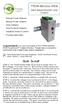 TPDIN-Monitor-WEB Web Based Monitor and Control Remote Power Stations Backup Power Systems Solar Systems Wind Powered Systems Industrial Sense & Control Process Automation Congratulations! on your purchase
MACTek Corporation. USB HART Interface. Users Manual
 MACTek Corporation USB HART Interface DM01003100AA February, 2003 LIMITED WARRANTY VIATOR Interface for HART MACTek Corporation warrants this Interface and all of its component against defects in materials
PRO 5000 CPE 1D Quick Installation Guide
 PRO 5000 CPE 1D Quick Installation Guide Introduction This Quick Installation Guide covers the basic installation of the PRO 5000 CPE. For more information, refer to the relevant sections in the Product
3M Stats and Status Software for 3M Detection System Model 8900/9900. Staff Guide
 3M Stats and Status Software for 3M Detection System Model 8900/9900 Staff Guide Copyright 2009, 3M. All rights reserved. 3M Stats and Status Software for 3M Detection System Model 8900/9900 Staff Guide
ITC-BTTN Cellular Bluetooth Gateway. Owner s Manual 1
 ITC-BTTN Cellular Bluetooth Gateway Owner s Manual 1 2 Table of Contents Introduction...3 Package Contents...3 XLink Connections Diagram...4 Setup...5 Pairing your Bluetooth Cell Phone to the XLink...6
CABLE MODEM QUICK START
 CABLE MODEM QUICK START This Quick Start describes how to connect your Zoom cable modem to a cable modem service. This lets your cable modem provide Internet access to a computer or other device connected
Laser Wireless Rechargeable Mouse. User s Manual
 Laser Wireless Rechargeable Mouse Model #: LM8000WR User s Manual Rev. 060801 User s Record: To provide quality customer service and technical support, it is suggested that you keep the following information
Intelli-Time Alarm Clock model 13027
 Instruction Manual Intelli-Time Alarm Clock model 13027 CONTENTS Unpacking Instructions... 2 Package Contents... 2 Product Registration... 2 Features & Benefits... 3 Clock Setup... 4 Intelli-Time Clock...
iosafe Solo External Hard Drive
 Users Manual & Limited Warranty iosafe Solo External Hard Drive USB 2.0 Fireproof Waterproof FloSafe Cooling Technology Data Recovery Service 910-10841-00 REV 7.1 2 COPYRIGHTS Copyright iosafe, Inc. 2009.
mysensors mysensors Wireless Sensors and Ethernet Gateway Quick Start Guide Information to Users Inside the Box mysensors Ethernet Gateway Quick Start
 mysensors Information to Users mysensors Wireless Sensors and Ethernet Gateway Quick Start Guide This equipment has been tested and found to comply with the limits for a Class B digital devices, pursuant
JKW-IP. IP Video Entry System. QuikStart Guide
 1210 JKW-IP IP Video Entry System QuikStart Guide This is an abbreviated instruction manual for installation purposes. Please see the JKW-IP Installation Manual and JKW-IP Operation Manual for complete
User's Guide. Integrating Sound Level Datalogger. Model 407780. Introduction
 User's Guide 99 Washington Street Melrose, MA 02176 Phone 781-665-1400 Toll Free 1-800-517-8431 Visit us at www.testequipmentdepot.com Back to the Extech 407780 Product Page Integrating Sound Level Datalogger
Dual-Band Wireless Network Extender. Model #: WCB3000N. User Manual. Ver 1.0
 Dual-Band Wireless Network Extender Model #: WCB3000N User Manual Ver 1.0 Table of Contents Table of Contents 1 Introduction 3 Features 4 Getting to Know the WCB3000N 5 Front Panel 5 Back Panel 5 Accessing
ES-CAM3A Outdoor IP Camera
 ES-CAM3A Outdoor IP Camera www.etiger.com EN Specifications - Image sensor: 1/3 CMOS, 3.15 MP - Video resolution: 160x90, 320x180, 640x360, 1280x720 (H.264) - Digital zoom: 2x - Focal: 3.6mm, Aperture:
Quick Start Guide. RV 120W Wireless-N VPN Firewall. Cisco Small Business
 Quick Start Guide Cisco Small Business RV 120W Wireless-N VPN Firewall Package Contents Wireless-N VPN Firewall Ethernet Cable Power Adapter Quick Start Guide Documentation and Software on CD-ROM Welcome
Powerware Relay-Serial Card User s Guide
 Powerware Relay-Serial Card User s Guide Special Symbols The following are examples of symbols used on the UPS and accessories to alert you to important information: This symbol indicates that you should
10/2011 - English Edition 1. Quick Start Guide. NWA1100N-CE CloudEnabled Business N Wireless Access Point
 10/2011 - English Edition 1 Quick Start Guide NWA1100N-CE CloudEnabled Business N Wireless Access Point Package Contents - 1 x ZyXEL NWA1100N-CE Access Point - 2 x Detachable Antennas - 1 x Power Adapter
User Manual. Page 2 of 38
 DSL1215FUN(L) Page 2 of 38 Contents About the Device...4 Minimum System Requirements...5 Package Contents...5 Device Overview...6 Front Panel...6 Side Panel...6 Back Panel...7 Hardware Setup Diagram...8
User manual. Your best protection against theft and loss. (Android) Made for
 User manual Made for Your best protection against theft and loss (Android) Warranty SCOPE OF THE WARRANTY Subject to legal provisions, the responsibility of SECU4 under this warranty is limited to the
Quick Start Guide. WAP371 Wireless AC/N Dual Radio Access Point with Single Point Setup Quick Start Guide. Cisco Small Business
 Quick Start Guide Cisco Small Business WAP371 Wireless AC/N Dual Radio Access Point with Single Point Setup Quick Start Guide Versión en Español para México en el CD Version en français sur CD Versione
Atomic Alarm Clock model 13131W2
 Instruction Manual Atomic Alarm Clock model 13131W2 CONTENTS Unpacking Instructions... 2 Package Contents... 2 Product Registration... 2 Features & Benefits... 3 Clock Setup... 4 Atomic Clock... 5 Set
About Your NetBotz 4-20mA Sensor Pod
 Thank you for purchasing this NetBotz 4-20mA Sensor Pod. Each 4-20mA Sensor Pod enables you to connect up to four 4-20mA sensors to your NetBotz 420 or NetBotz 500 appliance. Hundreds of 4-20mA sensors
Congratulations on your HomePortal purchase. To install your HomePortal and configure your home network, follow these steps.
 Notice to Users 2003 2Wire, Inc. All rights reserved. This manual in whole or in part, may not be reproduced, translated, or reduced to any machine-readable form without prior written approval. 2WIRE PROVIDES
Disclaimers. Important Notice
 Disclaimers Disclaimers Important Notice Copyright SolarEdge Inc. All rights reserved. No part of this document may be reproduced, stored in a retrieval system, or transmitted, in any form or by any means,
Quick Start Guide. RV0xx Series Routers
 Quick Start Guide RV0xx Series Routers RV042 Dual WAN VPN Router RV042G Gigabit Dual WAN VPN Router RV082 Dual WAN VPN Router RV016 Multi-WAN VPN Router Package Contents VPN Router Power Adapter (Cisco
Wireless Access Point AT-WA7400. Installation Guide. PN 613-000487 RevA
 Wireless Access Point AT-WA7400 Installation Guide PN 613-000487 RevA Copyright 2006 Allied Telesyn, Inc. All rights reserved. No part of this publication may be reproduced without prior written permission
GENERATOR START CONTROL MODULE - MINI (2 Wire to 3 Wire)
 FEATURES & APPLICATIONS Inexpensive 2 wire to 3 wire start controller for electric start high speed gas generators. Optimized for use with Outback Invertors. Supports three types of 3 wire generator control
GWA501 package contains: 1 Wireless-G Broadband Gateway 1 Power Adapter 1 Ethernet Cable 1 Manual CD 1 Quick Start Guide 1 Warranty/Registration Card
 Wireless-G Broadband Gateway GWA501 Quick Start Guide Read this guide thoroughly and follow the installation and operation procedures carefully to prevent any damage to the unit and/or any of the devices
LCD5500Z / PKP-LCD v3.x Installation Instructions
 LCD5500Z / PKP-LCD v3.x Installation Instructions TM Introduction The LCD5500Z / PKP-LCD keypad displays system status using an LCD screen. The keypad can be used on PowerSeries security systems with up
Frontier DSL SelfConnect Guide
 Frontier DSL SelfConnect Guide Frontier DSL Self-Installation Guide Table of Contents Getting Started...2 Customer and Computer Requirements...2...3 STEP 1: Install Microfilters...3 STEP 2: Install Your
Operating Instructions. Sophos Access Points
 Sophos Access Points Foreword We are pleased to welcome you as a new Sophos Access Point customer. These operating instructions will help you install and configure the access point and provide technical
DELORME. Getting Started with. Earthmate GPS BT-20. Bluetooth
 DELORME Getting Started with GPS BT-20 Bluetooth Earthmate Table of Contents Overview... 2 Hardware Features... 2 Using the Earthmate GPS BT-20... 3 Charging the Battery... 4 Troubleshooting... 4 Hardware
HG659 Home Gateway. User Guide HUAWEI TECHNOLOGIES CO., LTD.
 HG659 Home Gateway User Guide HUAWEI TECHNOLOGIES CO., LTD. Product Overview...................................... 1 Ports and Buttons.................................................. Indicators.........................................................
Master Time Clock MTC-200 MTC-400 MTC-600. Users Manual
 Master Time Clock MTC-200 MTC-400 MTC-600 Users Manual Toll Free (888)713-0373 Phone (972)987-4408 FAX (877)720-9291 www.midwest-time.com [email protected] TABLE OF CONTENTS TOPIC PAGE GENERAL DESCRIPTION
Wi-Fi Camera with Night Vision NETCAM. User Manual. F7D7601V1 8820-01175 Rev. B00
 Wi-Fi Camera with Night Vision NETCAM User Manual F7D7601V1 8820-01175 Rev. B00 TABLE OF CONTENTS Getting Started... 1 What s in the Box....1 Initial Setup...1 Set Up Your Camera Wirelessly Through Your
AXIS T81B22 DC 30W Midspan
 INSTALLATION GUIDE AXIS T81B22 DC 30W Midspan ENGLISH About this Document This document includes instructions for installing AXIS T81B22 on your network. Previous experience of networking will be beneficial
INSTALLER S & OWNER S MANUAL
 INSTALLER S & OWNER S MANUAL HVAC INSTALLER: PLEASE LEAVE MANUAL FOR HOMEOWNER DEH 3000 DEH 3000 Part No. 4028539 Dehumidifier & Ventilation System Controller P.O. Box 8680 Madison, WI 53708 TOLL-FREE
Leak Detection System
 Instructions - Parts List Leak Detection System 311200A For detecting leaks in your diaphragm pump system. Not for use in explosive atmospheres. Part No. 234576 120 psi (0.8 MPa, 8 bar) Maximum Air Input
ibaby Monitor Model: M3s User Manual
 ibaby Monitor Model: M3s User Manual Index 1 Introduction...3 1.1 The package contents...3 1.2 Product Features...3 1.3 Product Specifications...4 2 Appearance and Interface...5 2.1 Appearance...5 2.2
User Guide. Guide d utilisation Guida dell'utente Benutzerhandbuch Guía del usuario Guia do Usuário WNA-100. Wireless Network Adapter
 WNA-100 Wireless Network Adapter User Guide Guide d utilisation Guida dell'utente Benutzerhandbuch Guía del usuario Guia do Usuário www.xerox.com/office/wna Copyright 2007 Xerox Corporation. All Rights
Hardware Installation Guide HotPoint 5100 Access Point
 HotPoint Hardware Installation Guide HotPoint 5100 Access Point Published March 2014 (Revised 2015) 2014 Firetide, Inc. All rights reserved. Firetide, the Firetide logo, Reliable connectivity anywhere,
User s Guide. High Power Wireless-300N Smart Access Point AP300
 User s Guide High Power Wireless-300N Smart Access Point AP300 CONTENTS INTRODUCTION... 2 GETTING STARTED... 3 Package Contents... 3 LED Indicators... 4 Back Panel Description... 5 PLUG AND PLAY SETUP
What is Bitdefender BOX?
 Quick Setup Guide What is Bitdefender BOX? Think about Bitdefender BOX like an antivirus for your network. It s a hardware device that sits next to your Wi-Fi router and protects all Internet connected
Verbatim PowerBay Single USB and esata External Hard Drive Version 1.00
 Verbatim PowerBay Single USB and esata External Hard Drive Version 1.00 User Manual Table of Contents Introduction... 2 Controls, Connectors and Indicators... 2 About the Hard Drive... 2 Locating the Drive
Application/Connection Examples
 This Quick Start Guide is designed to familiarize the user with the connection and configuration of the DTS-305 DIN rail mounted single / 3 phase power & energy meter with RS-485 or TCP communications.
Product Specifications
 Cisco Model EPR2320 EuroDOCSIS 2.0 Residential Gateway with Wireless Access Point The Cisco Model EPR2320 EuroDOCSIS 2.0 Residential Gateway (EPR2320) combines a cable modem, router, and wireless access
WBSn Family. FW Upgrade
 WBSn Family FW Upgrade WBSn-2400 and WBSn-2450 Software Version: 1.3.2 Doc version: v1 Jan 2013 WBSn Family FW Upgrade Procedure Copyright 2013 Alvarion All rights reserved. FCC Statement Federal Communication
User Manual. Humidity-Temperature Chart Recorder. Model RH520
 User Manual Humidity-Temperature Chart Recorder Model RH520 Introduction Congratulations on your purchase of the Extech RH520 Temperature + Humidity Chart Recorder. The RH520 measures and displays Temperature,
7 High-Resolution Digital Photo Frame
 TM 16-1003 User s Guide 7 High-Resolution Digital Photo Frame One demo photo included, as illustrated Please read this user s guide before using your new photo frame. Package contents Photo Frame AC Adapter
WIRELESS ACCESS POINT
 WIRELESS ACCESS POINT AN-100-AP-I-N AN-300-AP-I-N FCC Warning Changes or modifications not expressly approved by the party responsible for compliance could void the user s authority to operate the equipment.
Energy Communication Unit (ECU)
 Altenergy Power System Energy Communication Unit (ECU) Installation and User Manual (For ECU-3 V3.8) ALTENERGY POWER SYSTEM INC. All rights reserved TABLE OF CONTENTS 1.0 Introduction... 2 2.0 Installation...
Energy Communication Unit (ECU)
 Altenergy Power System Energy Communication Unit (ECU) Installation and User Manual (For ECU-3 V3.7) Version:3.0 ALTENERGY POWER SYSTEM INC. All rights reserved TABLE OF CONTENTS 1.0 Introduction... 2
safe, smart, protected
 safe, smart, protected en Safety, Regulatory, &Legal Charging Dock Operation Charging Dock Operation The charging dock is designed for tabletop use. To be compliant with RF exposure guidelines and to
Wireless Base Station Single and Multiple Headsets
 Wireless Base Station Single and Multiple Headsets Operation Manual 7340 SW Durham Road Portland, OR 97224 USA Phone: 503-684-6647 1-800-527-0555 Fax: 503-620-2943 email: [email protected] www.firecom.com
N600 WiFi USB Adapter
 Model WNDA3100v3 User Manual December 2014 202-11470-01 350 East Plumeria Drive San Jose, CA 95134 USA Support Thank you for selecting NETGEAR products. After installing your device, locate the serial