
HEALTH SAVINGS ACCOUNT SUBSCRIBER WEBSITE GUIDE
|
|
|
- Shon Armstrong
- 10 years ago
- Views:
Transcription
1 HEALTH SAVINGS ACCOUNT SUBSCRIBER WEBSITE GUIDE ENROLLING IN YOUR HSA 1. Obtain the enrollment username and password from your employer. 2. Go to 3. Click the orange Sign Up Now box and select Individual, Part of an Employer Group. 4. Here you can enter the enrollment username and password provided by your employer. 5. Fill out the form in its entirety and digitally sign the application by accepting the terms of the agreements and then click Submit Form at the bottom. A note to accountholders with multiple account types with Sterling HSA: We now support a single login for all of your accounts with Sterling. If you have already registered another account type under the same social security number with Sterling, you do not need to register again. REGISTERING YOUR ACCOUNT FOR ONLINE ACCESS IF YOU RECEIVED A WELCOME LETTER IN THE MAIL 1. Go to and click the blue Register for online access button on the right hand side. 2. Fill in the form with your account number (from the letter) and date of birth. Choose a user name and password and also create a password reminder question and answer, in case you ever forget your password. Enter the address that you would like to use with your account, affirm that you have read the Electronic Access Agreement and then click Submit Form. Page 1 of 25
2 3. You will receive a message that your registration was submitted successfully. 4. Check your for a message from Sterling Health Services and click the link provided to confirm your address. 5. Once confirmed, you may log in with your user name and password at IF YOU RECEIVED YOUR WELCOME LETTER BY 1. Click on the link provided in your Welcome Letter This will take you to the registration page (pictured above) which will be pre-populated with your account number and date of birth. Choose a user name and password as well as a password reminder question and answer, in case you ever forget your password. Click Submit Form. 3. You will receive a message that your registration was completed successfully and you may log in with your user name and password at YOUR ACCOUNT PAGES PORTFOLIO If you have multiple account types with us, the first page that you see upon logging in is your portfolio. This is a brief glance at all of your accounts. Click on any account type to view more details and submit claims. ACCOUNT SUMMARY This is your account overview. It briefly displays your account balances, contributions and claims activity year to date as well as your debit card transactions. Page 2 of 25

3 CONTRIBUTIONS This page is an overview of the contributions that have been applied to your HSA account. These will either be from your own contributions or that of your employer and will be indicated as such. If you wish to make a contribution, please see the section entitled Make a Contribution. DISBURSEMENT There are 5 options in Disbursement: New Disbursement, View Disbursement, EOB, Manage Payees and Archive Documents. See the Disbursement section for more detailed information. ADD/UPDATE BANK ACCOUNTS You may have multiple bank accounts associated with your HSA account. When making a contribution online, you will select from one of these accounts. You may add, remove or edit accounts as necessary. See the section entitled Managing Bank Accounts for more details. ACTIVITY STATEMENT Your Activity Statement is a detailed view of your account activity for the period you select. You may choose your desired time period from the drop-down list at the top of the page and the information will automatically load. USER PROFILE Your user profile is where you may update your name, address, phone number or address as well as change the password on your online account. This page also lists the debit cards associated with your account and close or open debit cards. Note: If your debit card is lost or stolen, call Sterling customer service at to report it. BENEFICIARIES This is a view-only list of the beneficiaries that you have designated on your HSA account. Changes require a signature and can be submitted with a Beneficiary Change form. DEPENDENTS Here, you may view, remove or add dependents associated with your HSA account. Proper social security numbers and dates of birth are required. Note: Debit cards are allowed only for dependents 10 years of age or older. CONNECT TO MY HEALTH PLAN With Health Expense from Sterling, you can connect your health plan explanation of benefits (EOBs) with your HSA, HRA or FSA account for an online, single-source view of medical claims and to make payments or reimburse yourself using funds available in your Sterling account. Depending upon your account type, health plan insurance carrier, and your employer's decision to "opt-in" to the service, you will automatically have access for no additional cost to you. If the service is available, you'll see "Connect to My Health Plan" in the menu options after you log into your Sterling account. Just follow the simple steps to set up the connection to your health plan EOB information. Remember that the connection is established using your health plan carrier login information (username and password) that you set up with your health plan carrier. This is not the same as your Sterling account login username and password. For more detailed information and instructions, please click here: Page 3 of 25

4 MANAGE MY HEALTH PLAN CONNECTION After your health plan insurance EOB connection is established, you can go to the menu option "Manage My Health Plan Connection" to update your health plan login information (if you change it through your health plan carrier), or cancel the EOB connection to your Sterling HSA, HRA or FSA account. For more details, please click here: MAKE A CONTRIBUTION To make a contribution to your HSA account, you may send a check to our office or you may submit an ACH transaction online. If you do not already have a bank account associated with your HSA account, visit the section Managing Bank Accounts before continuing here. 1. Click Contributions on the menu on the left hand side. 2. Fill out the form on this page. 3. Description will usually be Regular Contribution. See below for an explanation for the other types of contributions you may be able to make. 4. The Service Fee amount is option this amount will go into your Fee Bucket and will only be used to pay initial set up fees or monthly administration fees. 5. You may future date a contribution but you may not back date them. Contributions are deducted directly from the bank account indicated and take 3-4 days to process. Funds will be available to you on the fourth day, unless there is a problem with the contribution transaction. CONTRIBUTION TYPES Initial Contribution If your account does not yet have funds, you will have this option to let us know that this is your first contribution to the account. Regular Contributions Most contribution types will fall in this category. This type accumulates each year and is reported to the IRS at the end of the tax year. Prior Year Contribution This option is available between January 1 st and April 15 th of each year. This will mark the contribution as intended for a previous year. Please contact customer service for a more indepth explanation of how this can affect your year-end tax situation. Roll-over Contribution If you are moving your HSA from another administrator to Sterling, you may use this option to tell us that this amount is from your old account. This will not affect your total contributions for the year, as it has already been accounted for in previous reporting. Catch-up Contribution If you are 55 years of age or older, you may make an additional $1,000 contribution each year. WHAT IS THE FEE BUCKET? The Fee Bucket was introduced in 2010 to allow accountholders to keep their monthly administration fees separated from their HSA contributions. You may make contributions to this account that will not be reported to the IRS. These funds will only be used to pay your initial set up fees and monthly administration fees. Funds in the Fee Bucket cannot be transferred to the HSA account to be used for medical expenses. Page 4 of 25

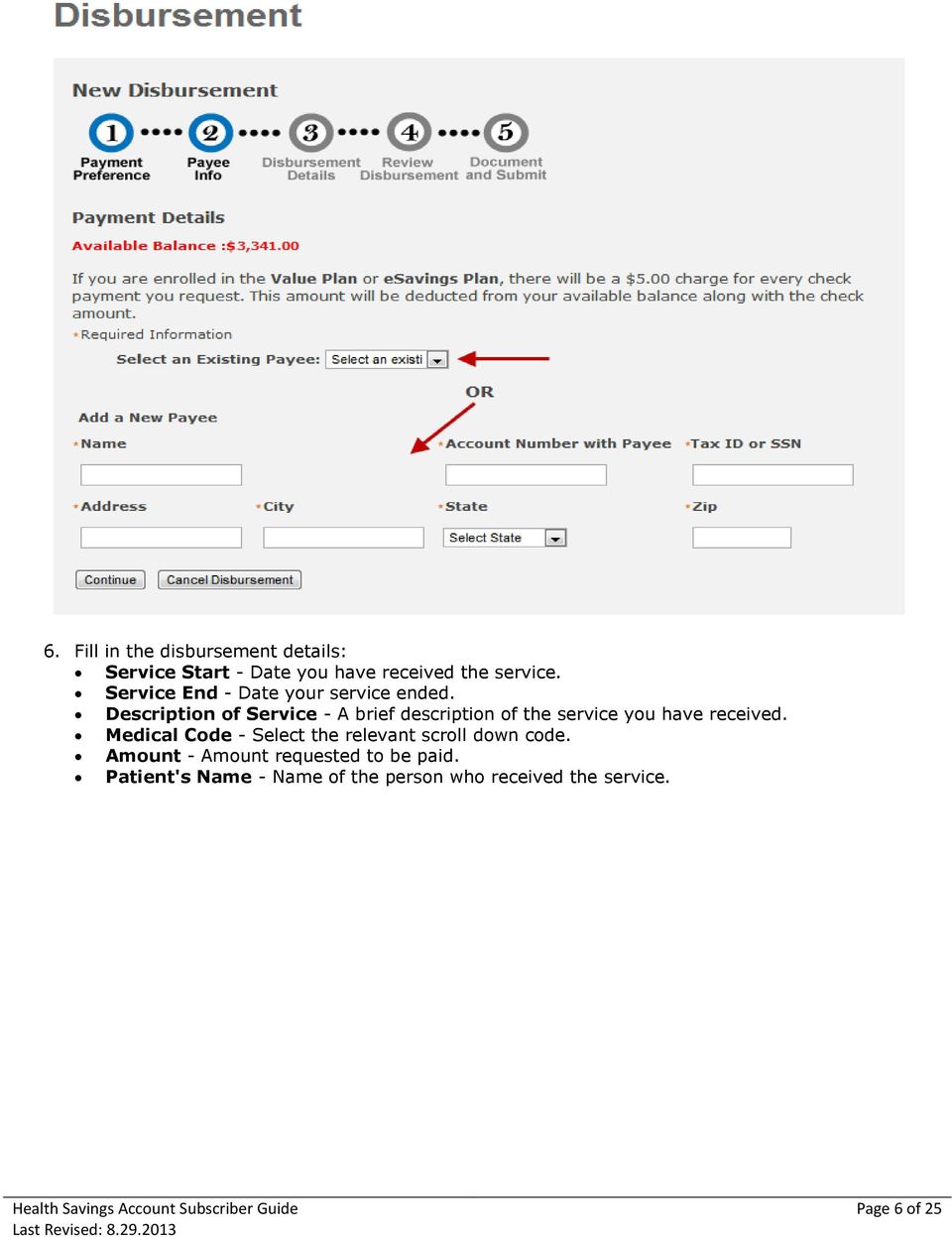
5 DISBURSEMENT There are 5 options in Disbursement: New Disbursement, View Disbursement, EOB, Manage Payees and Archive Documents. NEW DISBURSEMENT There are three types of disbursements for an HSA account: Pay My Provider, Pay me By Check, and Pay me By Direct Deposit. Each type is outlined below: PAY MY PROVIDER Use this option if you have received a bill from your provider and would like Sterling to pay the provider directly using your HSA funds. 1. Click 'Disbursement' > New Disbursement > select 'Pay My Provider'. 2. Leave the defaulted date or select a future date. You cannot use the current or past date. 3. Click "Continue". 4. Select an Existing Payee or add a New Payee by filling in the required fields. 5. Click 'Continue'. Page 5 of 25

6 6. Fill in the disbursement details: Service Start - Date you have received the service. Service End - Date your service ended. Description of Service - A brief description of the service you have received. Medical Code - Select the relevant scroll down code. Amount - Amount requested to be paid. Patient's Name - Name of the person who received the service. Page 6 of 25
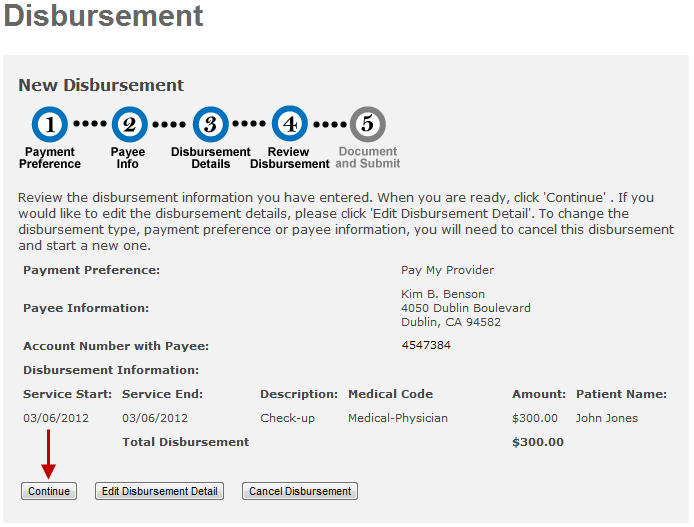
7 7. Checkmark the terms and conditions box. 8. Click 'Continue'. 9. Review the disbursement and make sure the information you have filled in is correct. If not, then click 'Edit Disbursement' to edit. 10. Click 'Continue' when done. Page 7 of 25

8 Page 8 of 25

9 11. Upload document(s) by browsing for the document(s) then click 'Submit Disbursement'. 12. The confirmation page is shown below: Page 9 of 25

10 Note: Sterling Health Services Administration offers EOB review for claims that are submitted through our office. An experience claims adjudicator will review the documentation that you provide, looking for appropriate charges and areas where you may be entitled to discounts. If you submit your Provider Payment through the website, this step will be bypassed. PAY ME BY CHECK Use this option to get reimbursed with a check for a qualified expense that you have already paid. 1. Click 'Disbursement' > New Disbursement > select 'Pay me By Check'. 2. Leave the defaulted date or select a future date. You cannot use the current or past date. 3. Click "Continue". Page 10 of 25


11 4. Confirm that your defaulted address is correct. If not, then change it in your 'Profile' left navigation tab. 5. If correct, click 'Continue'. Page 11 of 25

12 6. Fill in the disbursement details: Service Start - Date you have received the service. Service End - Date your service ended. Description of Service - A brief description of the service you have received. Medical Code - Select the relevant scroll down code. Amount - Amount requested to be paid. Patient's Name - Name of the person who received the service. 7. Checkmark the terms and conditions box. 8. Click 'Continue'. Page 12 of 25

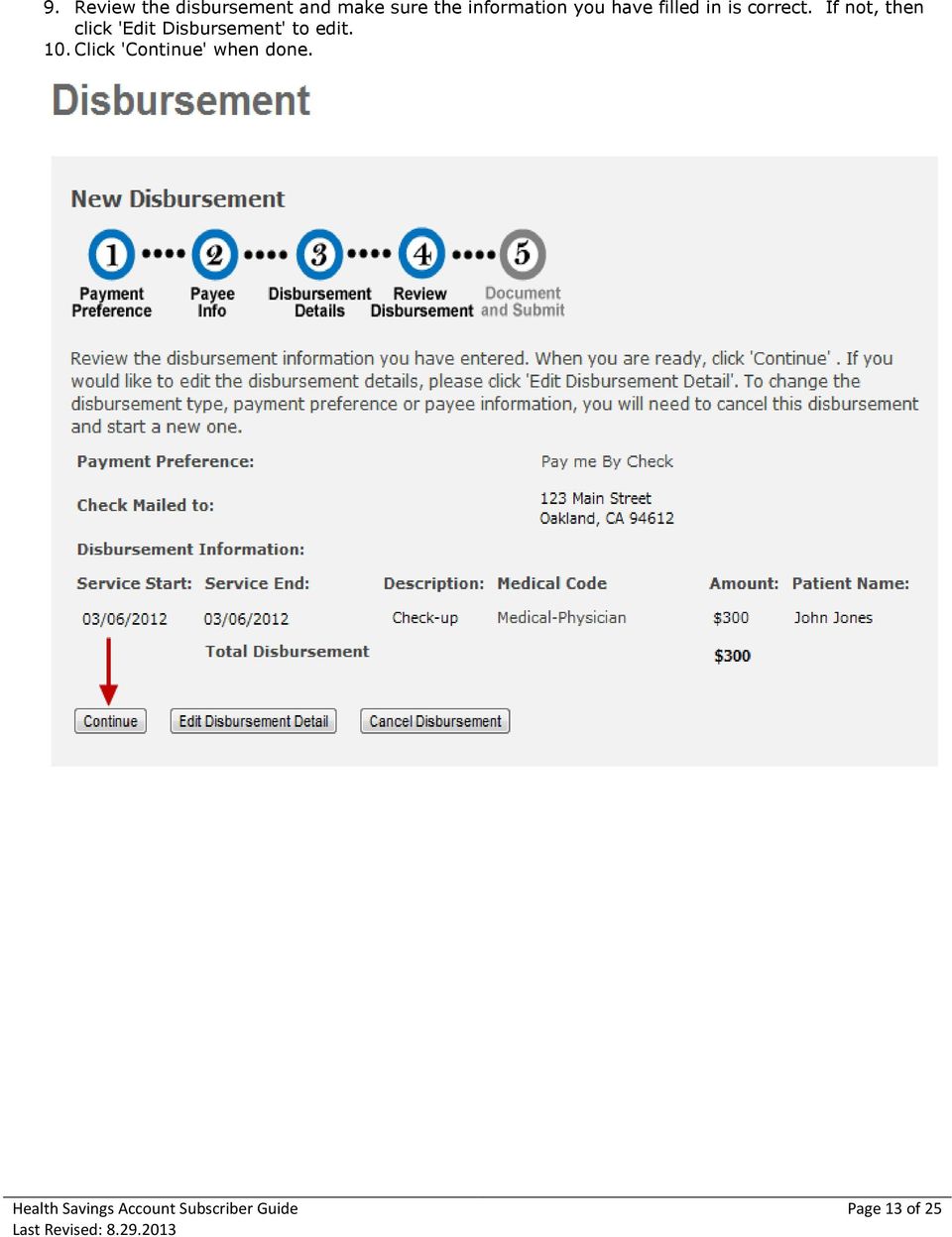
13 9. Review the disbursement and make sure the information you have filled in is correct. If not, then click 'Edit Disbursement' to edit. 10. Click 'Continue' when done. Page 13 of 25
14 11. Upload document(s) by browsing for the document(s) then click 'Submit Disbursement'. Page 14 of 25
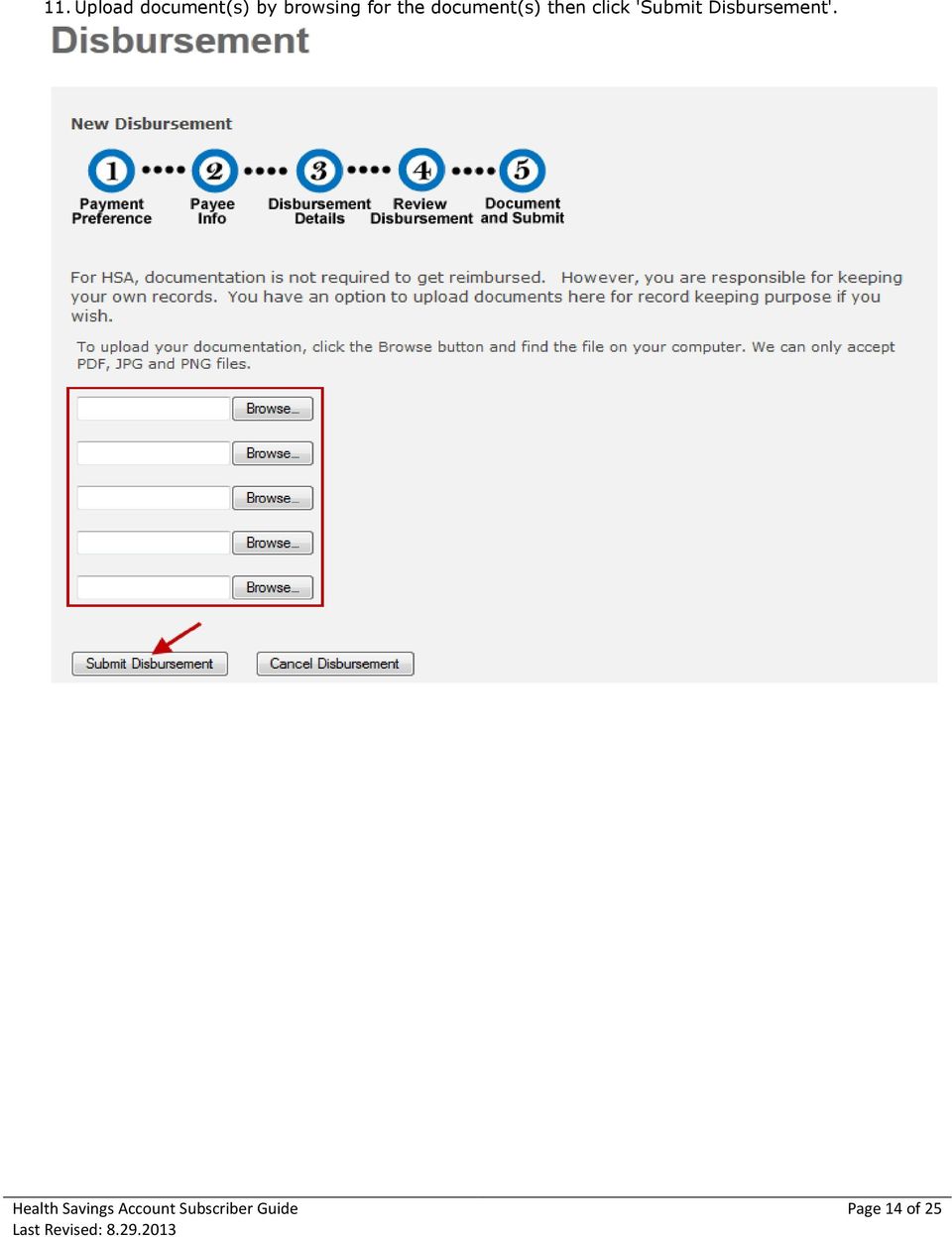
15 12. The confirmation page is shown below: Page 15 of 25


16 PAY ME BY DIRECT DEPOSIT Use this option to get reimbursed via Direct Deposit for a qualified expense that you have already paid. 1. Click 'Disbursement' > New Disbursement > select 'Pay me By Direct Deposit'. 2. Leave the default date or select a future date. You cannot use the current or past date. 3. Click "Continue". Page 16 of 25
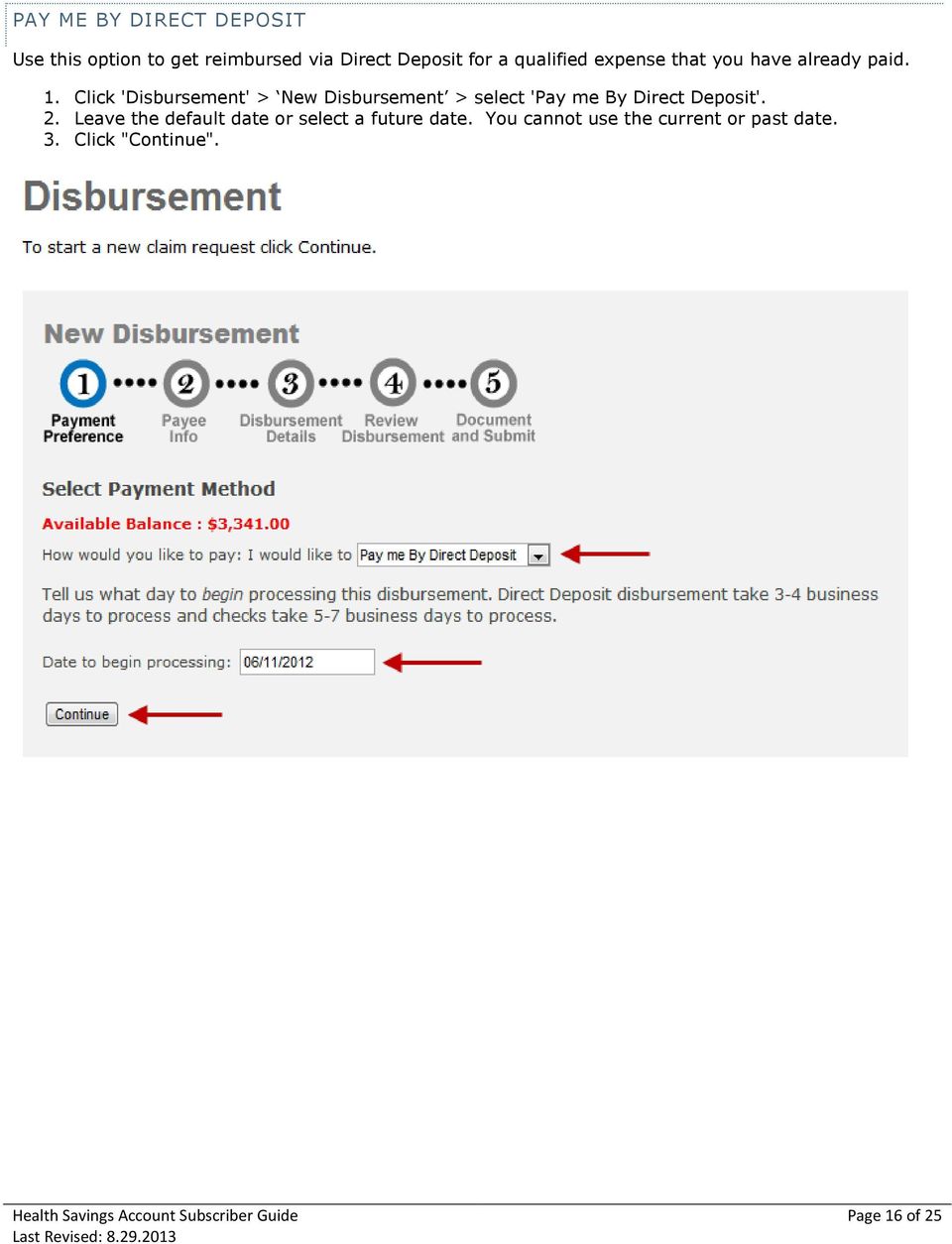
17 4. Select an existing bank or add a new bank. 5. Click 'Continue' after the selection. Page 17 of 25


18 6. Fill in the disbursement details: Service Start - Date you have received the service. Service End - Date your service ended. Description of Service - A brief description of the service you have received. Medical Code - Select the relevant scroll down code. Amount - Amount requested to be paid. Patient's Name - Name of the person who received the service. 7. Checkmark the terms and conditions box. 8. Click 'Continue'. Page 18 of 25
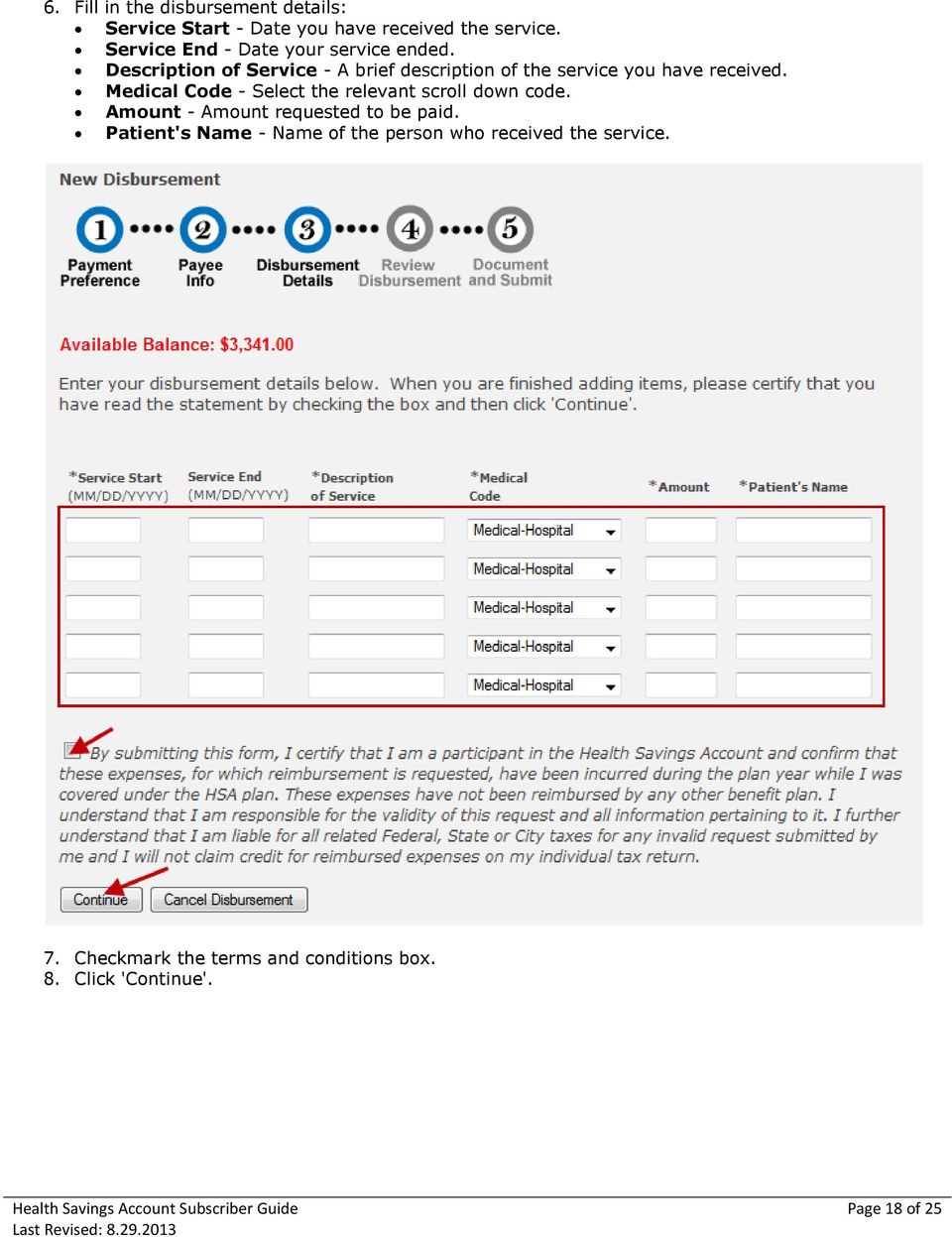

19 9. Review the disbursement and make sure the information you have filled in is correct. If not, then click 'Edit Disbursement' to edit. 10. Click 'Continue' when done. Page 19 of 25

20 11. Upload document(s) by browsing for the document(s) then click 'Submit Disbursement'. 12. The confirmation page is shown below: Page 20 of 25
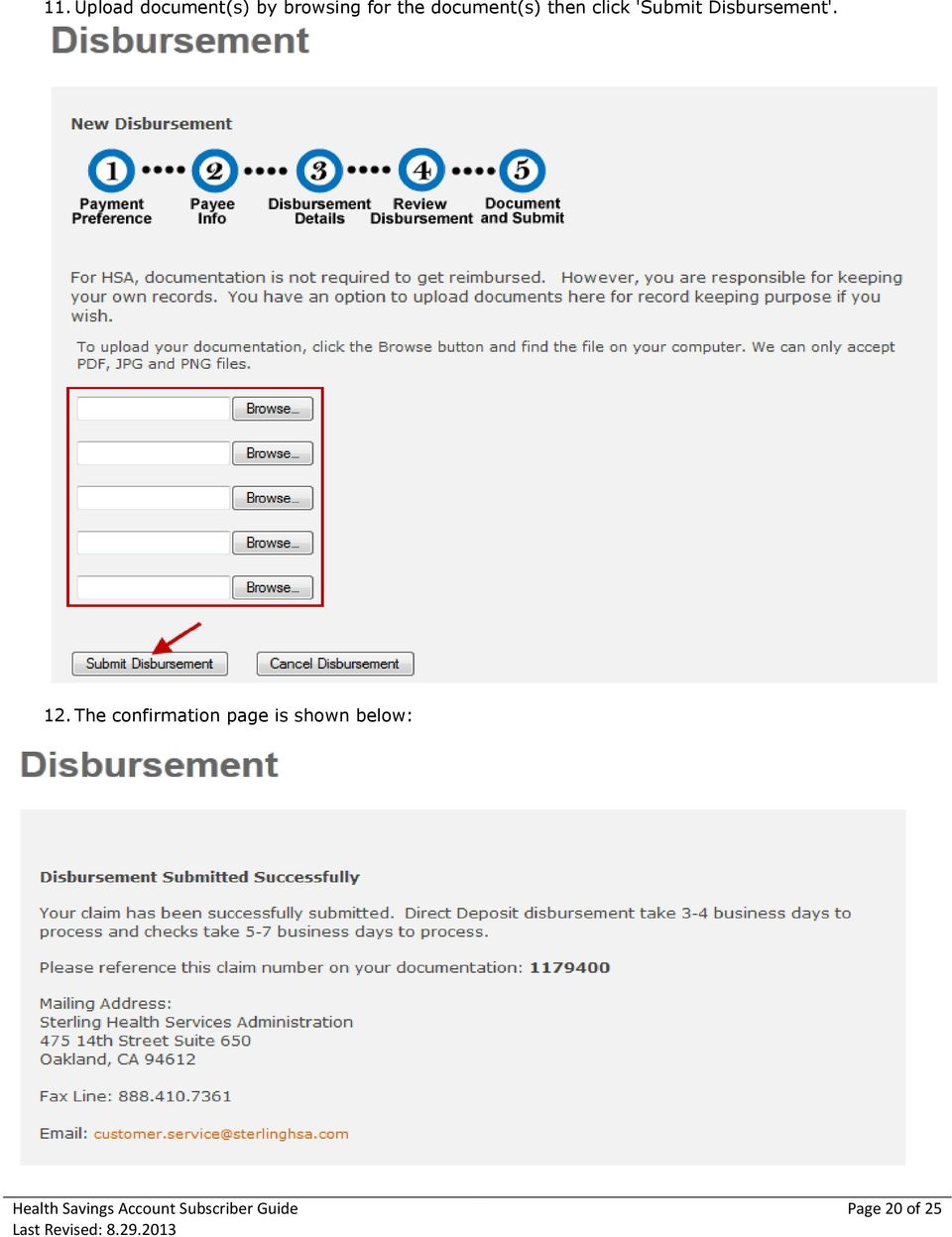
21 VIEW DISBURSEMENT You can search for any of your disbursements by setting your search parameters and click on 'Search'. All the disbursements you see on the main search page are within 90 days of your transactions. Page 21 of 25
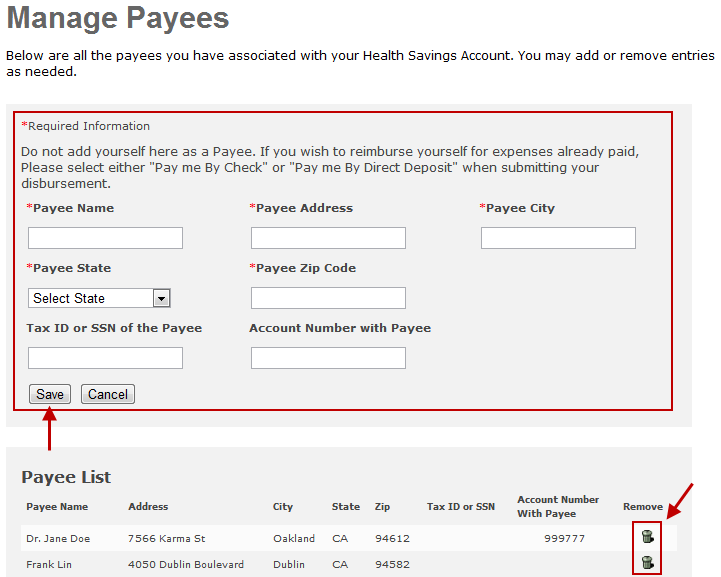
22 MANAGE PAYEES You can add a payee or remove a payee on this page: Page 22 of 25
23 ARCHIVE DOCUMENTS You can upload all your healthcare related documents on this page to keep as records: Page 23 of 25
24 MANAGING BANK ACCOUNTS You may have multiple bank accounts associated with your HSA account. These are accounts that you will instruct Sterling to debit in order to contribute to your personal HSA account. TO ADD A NEW ACCOUNT 1. Go to Add/Edit Bank Accounts 2. Click Add New Bank Account 3. A form will appear on the page. Fill this out with your banking information and click Save. TO REMOVE AN EXISTING ACCOUNT 1. Go to Add/Edit Bank Accounts 2. Check the box in the row of the account you would like to remove and click Save TO EDIT AN EXISTING ACCOUNT 1. Go to Add/Edit Bank Accounts 2. Click the Edit icon in the row of the account you would like to edit. 3. A form will appear below with the account information. 4. Make the necessary changes and click Save. USER LOGIN You are allowed three (3) invalid login attempts before your account is temporarily suspended for 30 minutes. After 30 minutes you can attempt to login again. If you have forgotten your User Name or Password the system will permit you to recover them. FORGOT YOUR PASSWORD 1. Click Forgot your password. 2. Type in your user name. 3. A prompt will appear to request a password answer to your password reminder you had created during registration. 4. Click Submit. The system will send you a password recovery with a link to reset your password. Page 24 of 25
25 FORGOT YOUR USER NAME 1. Click Forgot your Username 2. You will be prompt to enter in your SSN/EIN/Broker License, Address and Account Type 3. Click Submit. 4. Type in your user name. 5. A prompt will appear to request a password answer to your password reminder you had created during registration. Click Submit. The system will send you a password recovery containing your username. Page 25 of 25
CONTENTS. SETUP SECURITY ENHANCEMENTS... 17 Existing User... 17 New User (Enrolled by Employer or Self)... 21
 HEALTH SAVINGS ACCOUNT SUBSCRIBER WEBSITE GUIDE CONTENTS BROWSER COMPATIBILITY... 2 ONLINE ENROLLMENT... 3 Online Enrollment Process... 3 REGISTERING YOUR ACCOUNT FOR ONLINE ACCESS... 12 INDIVIDUAL ENROLLMENT...
HEALTH SAVINGS ACCOUNT EMPLOYER WEBSITE GUIDE
 REGISTERING YOUR ACCOUNT FOR ONLINE ACCESS HEALTH SAVINGS ACCOUNT EMPLOYER WEBSITE GUIDE A note to accountholders with multiple account types with Sterling HSA: We now support a single login for all of
A SMART WAY TO PAY. AN EASY WAY TO SAVE. Fifth Third Bank Health Savings Account
 A SMART WAY TO PAY. AN EASY WAY TO SAVE. Fifth Third Bank Health Savings Account Contents Welcome 3 Getting Started 4 Logging in for the First Time 4 Forget your Username or Password? 4 Home Page 5 Make
ONLINE CLAIM FILING. To file claims, click on File Claim on the right side of the page. File claims directly from the home screen by clicking here
 ONLINE CLAIM FILING Online Claim Filing is the fastest way to file your claims for reimbursement. Before you begin, be sure to have the valid receipt(s) for your expenses handy. If you have your receipts
Benefits Participant Guide
 Benefits Participant Guide Table of Contents Refer to the Table of Contents for a full summary of the information contained within this guide. Click the section headings to be brought directly to that
HSA EMPLOYER RESOURCE GUIDE. Fifth Third Bank Health Savings Account Revision 3
 HSA EMPLOYER RESOURCE GUIDE Fifth Third Bank Health Savings Account Revision 3 CONTENTS Welcome... 3 About Your HSA... 4 Benefits to You... 4 Benefits to Your Employees... 4 Your HSA Implementation Checklist...
What is e-services? Registered User Portal RUP
 IRS e-services Registration Process What is e-services? Suite of products designed for tax professionals and taxpayers to do business with IRS electronically Includes: Registration e-file Application Preparer
Understanding Your Health Savings Account (HSA) Frequently Asked Questions THE BASICS. What is a Health Savings Account (HSA)?
 Understanding Your Health Savings Account (HSA) Frequently Asked Questions THE BASICS What is a Health Savings Account (HSA)? An HSA is a special, tax advantaged account that is owned by you and is designed
Your Archiving Service
 It s as simple as 1, 2, 3 This email archiving setup guide provides you with easy to follow instructions on how to setup your new archiving service as well as how to create archiving users and assign archiving
PayFlex HealthHub TM Health Savings Account Set Up Portal Guide
 PayFlex HealthHub TM Health Savings Account Set Up Portal Guide PRESENTED BY: 10802 Farnam Drive, Suite 100 Omaha, Nebraska 68154 (800) 284-4885 TABLE OF CONTENTS PAYFLEX ACADEMY Section 1 HSA Requirements...
Secure Email A Guide for Users
 Secure Email A Guide for Users October 14, 2013 10/13 TABLE OF CONTENTS USING THE SYSTEM FOR THE FIRST TIME... 3 EMAIL NOTIFICATION OF SECURE INFORMATION... 3 GETTING REGISTERED ON THE SYSTEM... 4 ACCOUNT
IRS e-services Registration Process
 IRS e-services Registration Process 1 What is e-services? Suite of products designed for tax professionals and taxpayers to do business with IRS electronically Includes: - Registration - e-file Application
account multiple solutions
 Quick Start Guide 1 Our easy to use guide will get you up and running in no time! The guide will assist you with: Generating your Sage Pay login Navigation Creating contacts Creating system users Setting
Health Savings Account (HSA) Online Enrollment Guide New Users
 Health Savings Account (HSA) Online Enrollment Guide New Users Follow the steps below to open your HSA with 24HourFlex. If you run into problems or have further questions, please contact our customer service
4H Online Re-Enrollment
 4H Online Re-Enrollment This instruction sheet if for returning 4H members only! 1. Navigate to the site ne.4honline.com. You will see changes have been made to the site since last time you logged in.
Online Employment Application Guide
 Online Employment Application Guide This guide describes how to apply for jobs using the LA Careers website. The process consists of the following steps: Create an Account Find Jobs Apply for a Job Create
Apple Bank Online Banking Guide
 Apple Bank Online Banking Guide 24/7 Banking Financial Management Funds Transfer Bill Payment Convenient, Easy to Use Secure Table of Contents Online Banking Overview - Convenient, Easy, Secure 1 Registration
Receiving Secure Emails
 Receiving Secure Emails This document explains how you can access emails that have been sent to you through CyberArk s Secure Email system in several simple steps. When you receive a secure email, you
OHIO BUSINESS GATEWAY USER ACCOUNT UPDATE GUIDE FOR PASSWORD RESET AND ACCOUNT SECURITY FUNCTIONALITY
 OHIO BUSINESS GATEWAY USER ACCOUNT UPDATE GUIDE FOR PASSWORD RESET AND ACCOUNT SECURITY FUNCTIONALITY Ohio Business Gateway 1-866-OHIO-GOV Last Updated: November 16, 2015 Contents 1. Completing a Business
Schools CPD Online General User Guide Contents
 Schools CPD Online General User Guide Contents New user?...2 Access the Site...6 Managing your account in My CPD...8 Searching for events...14 Making a Booking on an Event...20 Tracking events you are
!"#$ Stonington Public Schools Parents Guide for InfoSnap Online Enrollment. for Returning. Students. August. Online Enrollment.
 Stonington Public Schools Parents Guide for InfoSnap Online Enrollment for Returning Students August!"#$ Explains how to complete Returning Student Enrollment forms Online through the PowerSchool Parent
Health Savings Account (HSA) Member Guide. 2014 Xerox HR Solutions, LLC. All rights reserved.
 Health Savings Account (HSA) Member Guide 2014 Xerox HR Solutions, LLC. All rights reserved. Table of contents Welcome to the BenefitWallet HSA!... 3 What is a Health Savings Account (HSA)?...3 Your BenefitWallet
Access and Login. Single Sign On Reference. Signoff
 Access and Login To access single sign on, here are the steps: Step 1: type in the URL: postone.onelogin.com Step 2: Enter your Post student email in the username field Step 3: Enter your Post student
Health Savings Account Administration Instructions
 475 14 th Street, Suite 650 Oakland, CA 94612 P.O. Box 71107 Oakland, CA 94612 T: 1.800.617.4729 F: 1.877.517.4729 Health Savings Account Administration Instructions No Plan Document is needed for Healthcare
Understanding Your Aetna HealthFund Health Savings Account (HSA)
 Understanding Your Aetna HealthFund Health Savings Account (HSA) Frequently Asked Questions (FAQs) THE BASICS What is a Health Savings Account (HSA)? An HSA is a tax-advantaged account that you own. With
PARENT/GUARDIAN ACCESS TO SCHOOLOGY
 PARENT/GUARDIAN ACCESS TO SCHOOLOGY Website: http://schoology.com Logging In Select Login. Enter the Username and Password you received. Type in Sitka s zip code: 99835 Username Password Zip Code Use the
Understanding Your Health Savings Account (HSA) Frequently Asked Questions THE BASICS. What is a Health Savings Account (HSA)?
 Understanding Your Health Savings Account (HSA) Frequently Asked Questions THE BASICS What is a Health Savings Account (HSA)? An HSA is a special, tax advantaged account that that is owned by you and is
INVESTOR360º CLIENT USER GUIDE
 INVESTOR360º CLIENT USER GUIDE TABLE OF CONTENTS 1. About Investor360 3 1.1 What does Investor360 provide? 3 1.2 Security 3 2. Logging in to Investor360 4 3. Welcome to Investor360 7 4. Navigating in Investor360
External Account Creation and Upload Instructions for the Local Government (LG) Audit Report Collection System
 External Account Creation and Upload Instructions for the Local Government (LG) Audit Report Collection System In order to submit data for any Department of Audits and Accounts (DOAA) web application,
Milwaukee Carpenters District Council Health, Vacation, and Millwright Funds. Online Remittance Processing Instructions
 Milwaukee Carpenters District Council Health, Vacation, and Millwright Funds Online Remittance Processing Instructions Milwaukee Carpenters District Council Health, Vacation, and Millwright Funds Online
BT Online Employer Easy User Guide. November 2010
 BT Online Employer Easy User Guide November 2010 Contents I Introduction 3 Getting started 3 Register for BTOE 3 Login to BTOE 3 If you forget your password 4 Where to get help in BTOE? 4 Manage your BT
CONSUMER PORTAL QUICKSTART GUIDE: HSA
 CONSUMER PORTAL QUICKSTART GUIDE: HSA Welcome to your Benefit Strategies Consumer Portal. This one-stop portal gives you 24/7 access to view information and manage your Health Savings Account. Our one-stop
Proofpoint provides the capability for external users to send secure/encrypted emails to EBS-RMSCO employees.
 Proofpoint provides the capability for external users to send secure/encrypted emails to EBS-RMSCO employees. To create a new email message to be sent securely to an EBS-RMSCO employee: 1. Click on the
1 CoverMyMeds User s Guide User s Guide
 1 CoverMyMeds User s Guide User s Guide 2 CoverMyMeds User s Guide TABLE OF CONTENTS Overview 3 Starting a Request 3 Using a Key 4 Completing the Request 5 Address Books 5 Required and Important Tags 5
ACT State Testing Online Services Tutorial
 ACT State Testing Online Services Tutorial Back-up Test Supervisor Version Released July, 2009 2009 by ACT, Inc., All rights reserved. Back-up Test Supervisor Online Profile Form Introduction The Back-up
Welcome to HomeTown Bank s Secure E-mail! User Guide
 Welcome to HomeTown Bank s Secure E-mail! User Guide To access the secure email message center, click the Secure Email link on the www.htbmn.com main web page. Select whether you are a new user of the
I. Setting Listserv password
 I. Setting Listserv password Before you can manage the Listserv lists that you own, you will need to set up a Listserv password. This is a one- time procedure, although for security purposes it is a good
MAKING PAYMENTS ONLINE. ELECTRONIC CHECKING (ACH) PAYMENTS PINLESS ATM DEBIT CARD PAYMENTS CREDIT CARD(only for Deposit Payments)
 MAKING PAYMENTS ONLINE ELECTRONIC CHECKING (ACH) PAYMENTS PINLESS ATM DEBIT CARD PAYMENTS CREDIT CARD(only for Deposit Payments) On the Hofstra home page (www.hofstra.edu) click (myhofstra) to log onto
NEWPORT CITY COUNCIL EMPLOYEE SELF SERVICE (ESS) USER GUIDE VERSION 2.0 (APRIL 2015)
 NEWPORT CITY COUNCIL EMPLOYEE SELF SERVICE (ESS) USER GUIDE VERSION 2.0 (APRIL 2015) INTRODUCTION Employee Self Service (ESS) is a module of the itrent integrated HR and Payroll system that is managed
Using STAGES. Logging into STAGES. Verifying your User Profile
 Using STAGES Logging into STAGES 1. You will receive an email letting you know that your evaluation has been started. 2. Click on the link provided in the email to access the STAGES Website. 3. Enter your
Guide. for HR Users. Posted May 1, 2012
 Guide for HR Users Posted May 1, 2012 Go to this URL: https://hrx.talx.com/webmanager/loginclientkey.aspx to log on to the Administrative site for the UGA Onboarding System. The Employer Code is 13990
Online Job Application Guide
 Instructions for the First-Time User 1. Go to www.mspb.ms.gov 2. Click on Job Seekers 3. Under MSPB Career Center, Click on Job Openings Important Notes for Applicants: When applying online, each applicant
Leicestershire County Council s Secure File Transfer System
 any comms + Leicestershire County Council s Secure File Transfer System Guide for Early Years Providers AnyComms+ User Guide v1.0 Page 1 of 14 [email protected] Introduction anycomms+ is a file
NSU Bursar Services Instructions
 1 NSU Bursar Services Instructions Contents Log In to Bursar Services... 2 Make a Payment... 4 Create Saved Payment Methods... 8 Create an erefund Account... 10 Set Up Authorized Users... 12 goplan Payment
Onboarding User Manual Version 9-20159
 Contents Hire (Companies using Hiring Manager + Onboarding)... 4 Hire (Companies using Onboarding only)... 5 Starting the Onboarding Process... 6 Complete at Home... 6 What If the Employee Can t Locate
Purchasing & Enrollment Guide
 Purchasing & Enrollment Guide Last updated June 30, 2014 Contents Purchasing Student Licenses for a North Carolina Public School/District... 3 Purchasing Additional Student Licenses for a School or District...
Online Employment Application Guide: Seattle Public Schools
 This guide describes how to apply for jobs using the Seattle Public Schools NEOGOV job application system. The process consists of the following steps: Create an Account Find Jobs Apply for a Job CREATE
User Manual 03/12/2014. A collaborative effort by
 User Manual 03/12/2014 A USER GUIDE DESIGNED TO HELP CREATE AND MAINTAIN PERSONAL ACCOUNTS IN mynhdoe, THE NH DEPARTMENT OF EDUCATION SINGLE SIGN-ON SYSTEM FOR ACCESSING SECURE APPLICATIONS A collaborative
Online Banking User Guide
 Online Banking User Guide Page 1 of 14 Set Up and Access to Online Banking How do I set up Online Banking? To enroll in Online Banking, complete the following: 1. Go to https://www.cobnks.com. 2. Under
USER GUIDE for Salesforce
 for Salesforce USER GUIDE Contents 3 Introduction to Backupify 5 Quick-start guide 6 Administration 6 Logging in 6 Administrative dashboard 7 General settings 8 Account settings 9 Add services 9 Contact
09/14. Online Workers Compensation Monthly Self Bill Instructions
 09/14 Online Workers Compensation Monthly Self Bill Instructions Contents Online Workers Compensation...1 Completing the Payroll Report...1 Mail In Payment...5 Online Payment...7 Email Management...13
Student Manager s Guide to the Talent Management System
 Department of Human Resources 50 Student Manager s Guide to the Talent Management System 1 Table of Contents Topic Page SYSTEM INTRODUCTION... 3 GETTING STARTED... 4 NAVIGATION WITHIN THE TALENT MANAGEMENT
Georgia Department of Revenue. georgia tax center. Quick Reference Guide
 georgia tax center Quick Reference Guide 1 Table of Contents 1. Forgot Password or Username.. 3 2. Create a New GTC Profile.. 4 3. Register a New GA Business.. 5 4. Add Accounts to my GTC Profile. 6 5.
Bahamas Tax Information Exchange Portal Documentation
 Bahamas Tax Information Exchange Portal Documentation This sub section of the Portal Documentation covers the following Topics: Portal Overview Portal Login Account Status Reportable Account File Processing
WebFile Guide For Claimants
 COMMONWEALTH OF VIRGINIA WORKERS COMPENSATION COMMISSION WebFile Guide For Claimants Instructional Guide for WebFile System SEPTEMBER 2009 EDITION PREFACE This Guide is designed to assist Claimants with
DI SHAREPOINT PORTAL. User Guide
 DI SHAREPOINT PORTAL User Guide -1- TABLE OF CONTENTS PREFACE... 3 SECTION 1: DI PORTAL ACCESS... 4 REQUEST USER ACCESS... 4 To register... 4 SIGNING IN TO THE PORTAL... 8 To sign in to the DI Portal...
Simplify Your Banking with eservices May 5 th, 2015
 Important Notice: The following material is intended for the sole use of our members and is the property of Seven Seventeen Credit Union and may not be redistributed or reused by other parties without
ADP Spending Account Services Health Savings Account (HSA)
 ADP Spending Account Services Health Savings Account (HSA) Participant Web Account User Guide Version 14.05.1 HR. Payroll. Benefits myspendingaccount.adp.com ADP Copyright Information Copyright 1993 2014
Setting up an account and logging in using Design & Print Online. Opening a saved project
 Setting up an account and logging in using Design & Print Online Opening a saved project 1 of 7 Account Set-Up & Login 1. On the Design and Print Online home page click on the Click to start Design & Print
DarwiNet Client Level
 DarwiNet Client Level Table Of Contents Welcome to the Help area for your online payroll system.... 1 Getting Started... 3 Welcome to the Help area for your online payroll system.... 3 Logging In... 4
Online Services User Guide
 Online Services User Guide Welcome to online banking! Whether you re online or using a mobile device, access your accounts whenever and wherever it s convenient for you. Log In: BankMidwest.com Online
For further support information, refer to the Help Resources appendix. To comment on the documentation, send an email to [email protected].
 Technical Support and Product Information tk20.com Tk20 Corporate Headquarters 10801 MoPac Expressway, Suite 740, Austin, Texas 78759 USA Tel: 512-401-2000 For further support information, refer to the
Quick Reference Card Create a Mileage Only Expense Report in Concur Travel and Expense
 Use this QRC when completing a mileage only expense report. LOG IN TO CONCUR Go to the Employee Portal at www.purdue.edu/employeeportal Choose Travel System (Concur). Log in using Purdue Career Account
How To Apply For A Degree At Griffith University
 Applying for admission to a postgraduate program through Griffith University Degree and Career Finder video script Target audience Direct postgraduate applicants Welcome to this short video titled Griffith
Ordering Your Books through CCC s Online Bookstore
 Ordering Your Books through CCC s Online Bookstore Effective with the Summer 2014 term, CCC has partnered with TexbookX.com to provide low cost textbooks to all CCC students. To order your books through
Kalendi Android Calendar Client User Manual
 Kalendi Android Calendar Client User Manual After Installation! 1 How to hook up to Kalendi! 2 How to hook up to Google! 4 Periodic Syncing! 4 Calendars! 5 Recurring events! 6 Custom properties! 8 Attachments!
Health Savings Option with a Health Savings Account (HSA)
 Health Savings Option with a Health Savings Account (HSA) The Health Savings Option is a high deductible health insurance plan administered by United Medical Resources (UMR), a United Healthcare Company,
How to File a Claim. To file a claim and upload documentation, follow these steps: Navigate to the Infinisource login page.
 Infinisource provides all Flexible Spending Account (FSA) and Health Reimbursement Arrangement (HRA) participants with an online portal that provides anytime access to view and manage account information.
QUICK GUIDE TO THE PORT STEPHENS COUNCIL CONTRACTOR MANAGEMENT SYSTEM
 QUICK GUIDE TO THE PORT STEPHENS COUNCIL CONTRACTOR MANAGEMENT SYSTEM Port Stephens Council uses two separate systems to gather contractor information. These two systems are CIMS and SitePass, and require
Online Budget Submission Quick Start Guide www.stats.indiana.edu/govtgateway
 Online Budget Submission Quick Start Guide www.stats.indiana.edu/govtgateway The Indiana Gateway for Government Units provides a central portal for local governments to submit forms to the Department of
NCAA Single-Source Sign-On System User Guide
 NCAA Single-Source Sign-On System Table of Contents General Description... 1 Glossary of Terms... 1 Common Features Log In... 2 Password... 3 Log Out... 4 Tabs... 4 Buttons and Links... 4 Management and
Answers to Cardmember questions about Online Services and statement delivery.
 Answers to Cardmember questions about Online Services and statement delivery. For more information, please contact your Program Administrator or Customer Service. Online Statements What is an Online Statement?
Symplicity Walk-Through
 Symplicity Walk-Through UF Law Center for Career Development Career Development maintains an online listing of full-time, part-time and summer employment opportunities for all students and alumni. Symplicity
Host Excellence. Client Helpdesk. Version 1.0
 Host Excellence Client Helpdesk Version 1.0 1 Table of Contents 1 Accessing the Helpdesk... 3 2 What Is A Helpdesk Ticket?... 3 3 Ticket Overview... 3 3.1 Ticket Status... 4 3.2 Ticket Category... 4 3.3
Member Self-Service User Guide Department of Treasury Tennessee Consolidated Retirement System Concord Project
 Member Self-Service User Guide Department of Treasury Tennessee Consolidated Retirement System Concord Project Contents 1. Registration and Login... 4 1.1. Registering for Member Self-Service... 4 1.2.
E-FILE. Universal Service Administrative Company (USAC) Last Updated: September 2015
 E-FILE USER GUIDE This document providers E-File users with an overview of E-File account management, managing entitlements, and instructions on how to submit forms, such as the FCC Form 498, FCC Form
SuccessFactors Onboarding Phase 1 Verification Team Reference Guide Last revised 12.8.15
 SuccessFactors Onboarding Phase 1 Verification Team Reference Guide Last revised 12.8.15 Table of Contents Overview... 2 The Onboarding Dashboard... 2 Locating the Hire in the Onboarding System... 5 Completing
Introduction to Client Online. Factoring Guide
 Introduction to Client Online Factoring Guide Contents Introduction 3 Preparing for Go live 3 If you have any questions 4 Logging In 5 Welcome Screen 6 Navigation 7 Navigation continued 8 Viewing Your
First Financial Bank Online Banking User Guide
 First Financial Bank Online Banking User Guide Table of Contents INTRODUCTION...5 ACCESSING ONLINE BANKING...5 Enrolling in Online Banking...5 Logging In... 11 GETTING AROUND... 13 Home Page... 13 Home
Teaching Strategies GOLD Online Guide for Administrators
 Assessment Teaching Strategies GOLD Online Guide for Administrators June 2013 Welcome to Teaching Strategies GOLD online! Welcome to Teaching Strategies GOLD online! It s easy to start using the system.
Personal Internet Banking FAQs
 Enrollment How do I enroll for Consumer Internet Banking and are there any fees? - This service is free to all of our consumer customers. (Please note, internet service provider fees may apply.) Simply
GETTING STARTED WITH D2L
 GETTING STARTED WITH D2L Quick Start Guide v.9.2.1 ecampus This guide provides tips for users new to using the D2L Learning Environment. It discusses how to navigate the main areas and how to change your
CANADA SAVINGS BONDS WEB TRANSMISSION GUIDE 2014. csb.gc.ca PAYROLL SAVINGS PROGRAM 20$ 40$ 80$ 50 $ 30$ WEBGUIDE-14
 7 WEB TRANSMISSION GUIDE 204 CANADA SAVINGS BONDS csb.gc.ca PAYROLL SAVINGS PROGRAM 40$ 5$ 30$ 0$ 20$ 80$ 70$ 0$ What are you saving for? 50 $ 40$ 20 0$ 80$ 4 20$ 7 7 $ $ $ $ $ $ $ $ $ $ $ $ WEBGUIDE-4
Online Banking Quick Reference Guide
 1 Page 2 Set Up and Access to Online Banking 2 How do I set up Online Banking? 2 How do I sign in to Online Banking? Online Banking Quick Reference Guide 3 Security 3 How do I change User ID? 3 What should
Oklahoma State Department of Education
 Oklahoma State Department of Education Oklahoma Educator Credentialing System Table of Contents Getting Started... 2 Creating a New User Account... 2 Logging into the system... 11 Home Single Sign On menu...
Switch Your Account Today!
 Switch Your Account Today! A tool to make the switch to a BlackRidgeBANK checking account easy Switch Your Account In 5 Easy Steps! 1. Open a checking account at BlackRidgeBANK Stop in at any one of our
How to Register for an Event Using Cheer America s New Online Registration System
 Step 1: Go to our website (www.cachampionships.com). Click on the Registration Button. Step 2: On the Registration Page, click on the blue button Click HERE to REGISTER. Step 3: Welcome to our Registration
TELPAS Rater s User Guide for Online Holistic Rating Training
 TELPAS Rater s User Guide for Online Holistic Rating Training New User Registration TrainingCenter Site Code You will need a TrainingCenter site code from your district or campus testing coordinator in
1603 Program Online System Guide https://treas1603.nrel.gov/ Submitting Reviewer Requested Documentation Pages 6 8
 Payments for Specified Energy Property in Lieu of Tax Credits Under the American Recovery and Reinvestment Act of 2009 1603 Program Online System Guide https://treas1603.nrel.gov/ The online system is
For adviser use only. Online applications reference guide Getting your advice working sooner
 For adviser use only Online applications reference guide Getting your advice working sooner Preparation date 27 October 2014 Contents Introduction to s 3 How it works 3 The benefits of s 3 Products available
Selection Manager: Quick Start Guide
 VERSION 1103 01.24.12 SELECTION MANAGER GUIDE Selection Manager: Quick Start Guide PART 1: GENERAL INFORMATION Selection Manager is the hiring official s interface for USA Staffing. In Selection Manager,
1. What practices does Raleigh Medical Group, P.A. include? 2. Is my health information secure? Who has access to this information?
 Troubleshooting and Frequently Asked Questions FollowMyHealth Patient Portal 1. What practices does Raleigh Medical Group, P.A. include? 2. Is my health information secure? Who has access to this information?
Online Banking Frequently Asked Questions
 HOME BANKING Q. What is Freedom's Home Banking? A. Freedom s Home Banking allows you to bank anywhere, at any time, electronically. Our system allows you to securely access your accounts by way of any
Ready to get started? Click the button below to tell us which account number you currently have:
 We re pleased to announce the launch of your new Energy Online Account. As part of an upgrade in our customer care and billing system, all customers will need to re-register in order to use our new online
Banner Self-Service Direct Deposit Instructions Table of Contents
 Banner Self-Service Direct Deposit Instructions Table of Contents Accessing the Online Form... 2 Primary Accounts... 3 Adding Primary Accounts... 3 Allocation Accounts... 4 Adding Allocation Accounts...