
Solar Eclipse Trackers, Logs and Queues. Release 8.7.2
|
|
|
- Antony Cameron
- 10 years ago
- Views:
Transcription
1 Solar Eclipse Trackers, Logs and Queues Release 8.7.2
2 Legal Notices 2011 Epicor Software Corporation. All rights reserved. Unauthorized reproduction is a violation of applicable laws. Epicor and the Epicor logo are registered trademarks and/or registered service marks of Epicor Software Corporation in the United States and other countries. Epicor Eclipse is a trademark and/or service mark of Epicor Software Corporation. All other trademarks or service marks are the property of their respective owners and should be treated as such. Epicor Eclipse Online Help System This online help system, as well as the software described in it, is provided under license and may be used only in accordance with the terms of the license. The content provided is for informational use only and is subject to change without notice. Epicor Software Corporation assumes no responsibility or liability for any errors or inaccuracies that may be included in this documentation. Publication Date: September 26, 2011
3 Table Of Contents Trackers, Logs, and Queues Overview... 1 Trackers... 1 Activity Logs... 1 Queues... 1 Setup Requirements for Call Tracking... 2 Control Maintenance Records... 2 Additional Setup... 2 Setup Requirements for Activity Logs... 3 Control Maintenance Records... 3 Authorization Keys... 3 Setup Requirements for User Job Queues... 4 Control Maintenance Records... 4 Authorization Key... 4 Call Tracking Overview... 5 Creating Trackers... 6 Copying or Moving Trackers... 8 Creating Trackers From Ledger Transactions... 9 Spawning Trackers Opening Trackers Appending Comments to Trackers Editing Header Information on Trackers Finding and Editing Comments on Trackers Adding Internal Notes to Trackers Attaching Documents and Images to Trackers Forwarding Trackers to Other Users Closing Trackers Call Tracking Entry Menu Options Tracking Hours Worked on Trackers Overview Viewing and Logging Hours to Trackers Logging Hours with the Tracker Stop Watch Viewing a Summary of Hours Worked on Trackers Online Customer Call Tracking Overview Before You Start iii

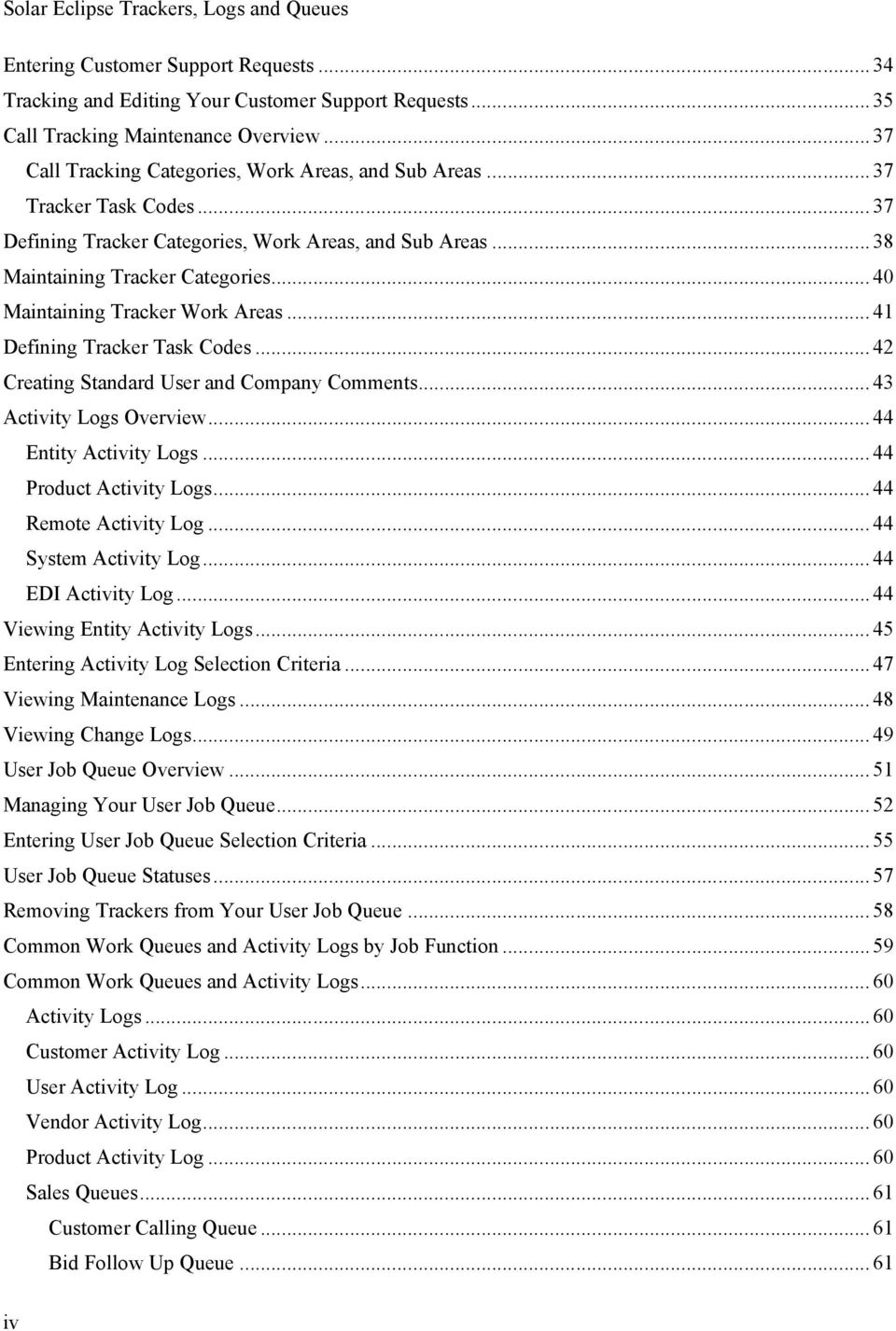
4 Solar Eclipse Trackers, Logs and Queues Entering Customer Support Requests Tracking and Editing Your Customer Support Requests Call Tracking Maintenance Overview Call Tracking Categories, Work Areas, and Sub Areas Tracker Task Codes Defining Tracker Categories, Work Areas, and Sub Areas Maintaining Tracker Categories Maintaining Tracker Work Areas Defining Tracker Task Codes Creating Standard User and Company Comments Activity Logs Overview Entity Activity Logs Product Activity Logs Remote Activity Log System Activity Log EDI Activity Log Viewing Entity Activity Logs Entering Activity Log Selection Criteria Viewing Maintenance Logs Viewing Change Logs User Job Queue Overview Managing Your User Job Queue Entering User Job Queue Selection Criteria User Job Queue Statuses Removing Trackers from Your User Job Queue Common Work Queues and Activity Logs by Job Function Common Work Queues and Activity Logs Activity Logs Customer Activity Log User Activity Log Vendor Activity Log Product Activity Log Sales Queues Customer Calling Queue Bid Follow Up Queue iv
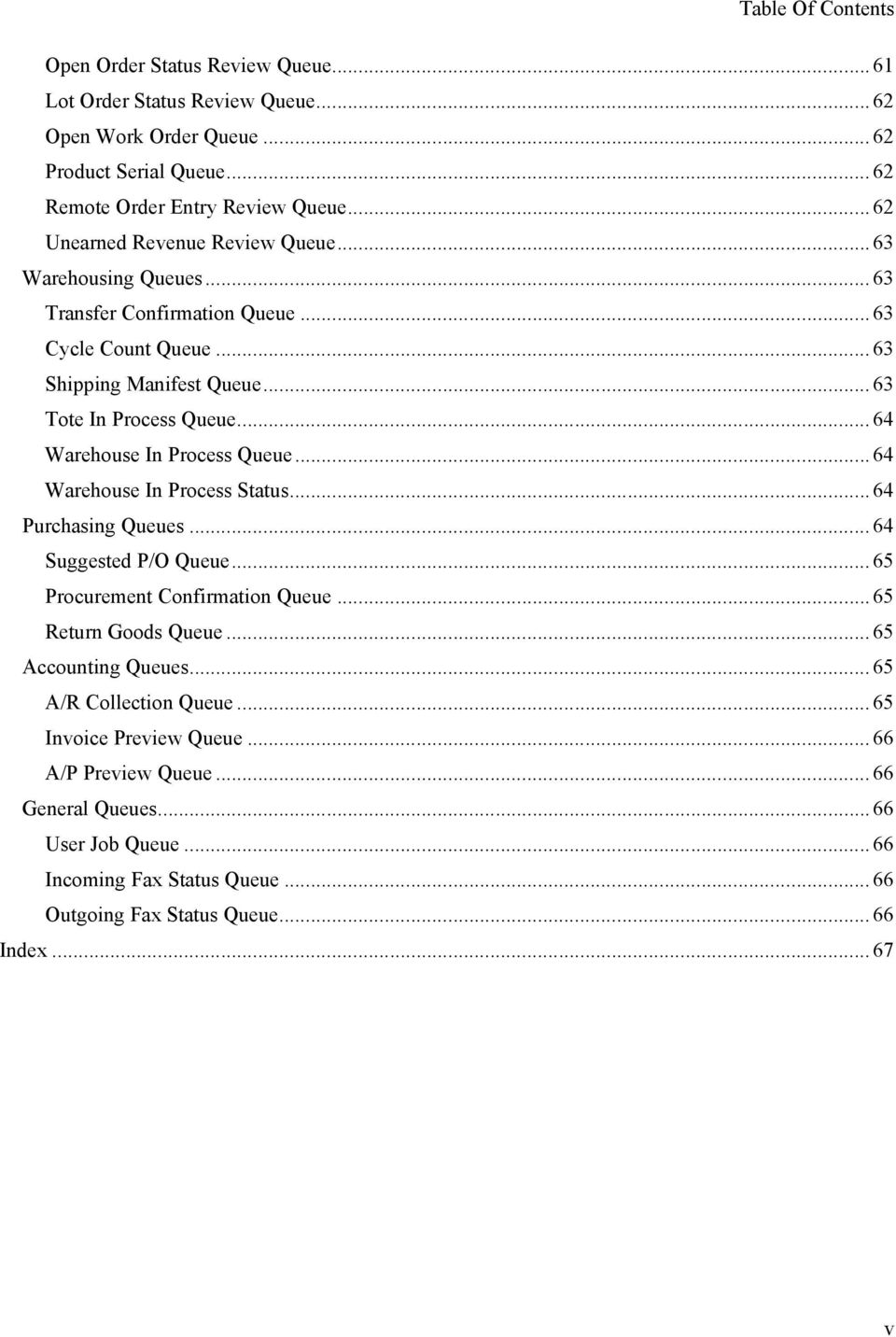
5 Table Of Contents Open Order Status Review Queue Lot Order Status Review Queue Open Work Order Queue Product Serial Queue Remote Order Entry Review Queue Unearned Revenue Review Queue Warehousing Queues Transfer Confirmation Queue Cycle Count Queue Shipping Manifest Queue Tote In Process Queue Warehouse In Process Queue Warehouse In Process Status Purchasing Queues Suggested P/O Queue Procurement Confirmation Queue Return Goods Queue Accounting Queues A/R Collection Queue Invoice Preview Queue A/P Preview Queue General Queues User Job Queue Incoming Fax Status Queue Outgoing Fax Status Queue Index v
6

7 Trackers, Logs, and Queues Overview The Eclipse system uses trackers, activity logs, and queues to keep users up-to-date about tasks that need to be accomplished. Trackers Use the Call Tracking System to track and report on customer, vendor, and user issues. In addition, use the Call Tracking System to resolve problems. Trackers, at a group level, provide a running account of a problem and the activities taken to resolve it. At an individual level, use trackers to keep a running list of your tasks in the User Job Queue. Use the Call Tracking System to: Append messages and vital information to a single record stored on your system, and accessible only by specific users. Submit work and enhancement requests for the system directly to Eclipse support and to monitor the progress of these trackers through the Eclipse Support Website. Assign and remove personnel from a tracker. Prioritize work requests, assign follow-up dates, and track hours spent on a tracker. Integrate trackers with the User Job Queue, allowing users to display trackers assigned to them, and to filter and sort trackers according to priority. Activity Logs Activity logs are archives for trackers. Every customer, vendor, user, product, and order has an associated activity log. Use an activity log to assign tasks to other users, to monitor the progress of those tasks, and to facilitate communication. Two additional activity logs monitor the Electronic Data Interface (EDI), if it is installed, and the system as a whole. The system populates the logs, which system administrators and Eclipse support personnel use for diagnosing system problems. Queues Queues are electronic to-do lists. Queues hold system-generated or user-generated reminders of tasks that you need to manage. You are responsible for monitoring your job queues and different function queues. For example, one function queue is the Call When Complete Queue. If an open order (one that is waiting for a back ordered item) has a status of Call When Complete and the back ordered item is received, the system adds an entry to the Call When Complete function queue Epicor Software Corporation. All rights reserved. 1
8 Solar Eclipse Trackers, Logs and Queues Rel Setup Requirements for Call Tracking Following are the control maintenance records and additional setup requirements for call tracking. Control Maintenance Records Set the following control maintenance records. User Defined Call Tracking Notes Bypass Header Information For Call Tracking Entry Default Status For New Entry In Call Tracking Followup List Enable Auto Hours Tracking In Call Tracking System Valid Tracker Report Types Valid Tracker Severity Valid Tracker Types Valid User Job Queue Statuses Additional Setup In User Maintenance, set up user defaults for call tracking Epicor Software Corporation. All rights reserved.

9 Rel Trackers, Logs, and Queues Setup Requirements for Activity Logs Following are the control maintenance records and authorization keys for activity logs. Control Maintenance Records Set the following control maintenance records: Cust/Vend/User Activity Log Viewing Default Transcription Type Valid Activity Sources Authorization Keys Assign the following authorization keys: CUST.ACTIVITY.CMT.EDIT CUST.ACTIVITY.EDIT CUST.ACTIVITY.VIEW PRD.ACTIVITY.CMT.EDIT PRD.ACTIVITY.EDIT PRD.ACTIVITY.VIEW USER.ACTIVITY.CMT.EDIT USER.ACTIVITY.EDIT USER.ACTIVITY.VIEW VENDOR.ACTIVITY.CMT.EDIT VENDOR.ACTIVITY.EDIT VENDOR.ACTIVITY.VIEW 2011 Epicor Software Corporation. All rights reserved. 3

10 Solar Eclipse Trackers, Logs and Queues Rel Setup Requirements for User Job Queues Following are the control maintenance records and authorization key for setting up the User Job Queue. Control Maintenance Records Set the following control maintenance records: Bypass Header Information For Call Tracking Entry Cust/Vend/User Activity Log Viewing Default Transcription Type Default Status For New Entry In Call Tracking Followup List Enable Auto Hours Tracking In Call Tracking System Job Tracking Default Early Release Status Next Action By For Dollars Invoiced Quote Number Of Days Before Job Quote Expires Number Of Records To Save In User Quick Access Lists Use User's Sec Level As Default For Queue Entries Valid Activity Sources Valid Tracker Report Types Valid Tracker Severity Valid Tracker Types Valid User Job Queue Statuses Authorization Key Assign the following authorization key: USER.JOB.QUEUE Epicor Software Corporation. All rights reserved.
11 Rel Trackers, Logs, and Queues Call Tracking Overview Trackers are work requests that help you identify issues that need to be resolved, contain a running log of how work is being done, and indicate to whom the work is assigned. You can also attach pertinent documents and images to trackers. When you create trackers, you can access the Call Tracking Entry window from various menus to identify for whom you are creating the tracker. When you create a tracker for a customer, vendor, or user, the system permanently stores the tracker is the designated entity's activity log. You can share trackers with other users by adding the user IDs to the tracker's forward list. When your user ID is on a tracker's forward list, the system places a copy of the tracker in your user job queue. Note: To display summary information for this queue at all times, add a User Job Queue widget to your Solar Eclipse main window. You can copy a tracker to create a new one with similar information. You can add comments and notes to assist users assigned to the tracker or as a record of your work. You can also attach documents or transfer information to a tracker. In addition you can create trackers from the following: Transactions - From a transaction's window, copy the data into a tracker to better monitor its progress. Existing trackers - Spawn a tracker from another to address a separate facet of the same issue. Copy a tracker from another to assign it to a new user or entity Epicor Software Corporation. All rights reserved. 5
12 Solar Eclipse Trackers, Logs and Queues Rel Creating Trackers Use the Call Tracking Entry window to create new trackers. Depending upon how you access the Call Tracking window, you can create a tracker for a user, a customer, or a vendor. When you create trackers, you can define the business area the tracker affects, such as accounting, the security level to protect who can access the tracker, and the expected date by which the tracker should be resolved. After you create a tracker, append your comments, forward it to other users who need to work on it, and monitor its progress. Manage the tracker, as needed, until it the issue that it is recording is resolved. The tracker heading contains the following information used for tracking the work request: Entity to whom the tracker is assigned and contact person. Category, work area, and sub area assigned to the work request. Source of the work request, such as , telephone, or in-person. Priority for the work request. Personnel responsible for next action and final action. Expected completion and delivery dates. Security levels and statuses to determine who can view the tracker. To create a tracker: 1. Display the Call Tracking Entry window in one of the following ways: From the System menu, select User Activity Log Entry to store the tracker in the designated user's activity log. From the A/R menu, select Customer Activity Log Entry to store the tracker in the designated customer's activity log. From the A/P menu, select Vendor Activity Log Entry to store the tracker in the designated vendor's activity log. 2. In the Call Tracking Search window, enter the user, customer, or vendor name and click New. The Call Tracking Entry window displays, with the user or entity name in the User/Customer/Vendor field. Note: From any Call Tracking Entry window, you can create a new tracker by selecting the File > New menu option. You can also create a tracker from a displayed transaction, copy a tracker, and spawn a tracker. The system assigns a tracker ID and displays the Call Tracking Entry window. The window shows the ID and name of the ID of the user creating the tracker. 3. Complete the header information fields, as needed. 4. On the Comments tab, enter the initial tracker comment. In the first line of the comment, use keywords that define the tracker. When the system lists trackers in synopsis mode, the keywords help users identify the tracker contents Epicor Software Corporation. All rights reserved.
13 Rel Trackers, Logs, and Queues 5. Select the forward tab and add users to the forward list, as needed. 6. Use the remaining menu options, as needed. 7. Save the information and exit the window Epicor Software Corporation. All rights reserved. 7
14 Solar Eclipse Trackers, Logs and Queues Rel Copying or Moving Trackers Copying a tracker creates a new tracker, which contains the same information as the original tracker. Use this function to create similar trackers for multiple entities. Moving a tracker changes the activity log to which a tracker is assigned. The system removes the tracker from one activity log and moves it to another. Use this function if you mistakenly assigned a tracker to the wrong entity. To copy or move a tracker: 1. Open the tracker you want to copy or move. 2. From the File menu, select Copy to display the Tracking Log Copy window. 3. Click the User or Entity tab and enter the ID of the user or entity to whom you want to assign the new or moved tracker. 4. In the Comments to Copy field, select one of the following: All - Copies all comments. Internal - Copies internal comments only. External - Copies external comments only. Secure - Copies secure comments only. For additional information about appended comments, see Appending Comments to Trackers. 5. In the Copy Notes (Y/N) and Copy Hours (Y/N) fields, indicate whether you want to include all notes and hours associated with the original tracker in the new or moved tracker. 6. Click one of the following buttons, as needed: Button Copy Move Function Copies the tracker to the user or entity activity log. The initial comment remains unchanged. A new tracker ID and date/time stamp are assigned. The system indicates that the tracker was copied by inserting ** Copied from and the original Tracker ID and Date prior to the initial comment. Moves the tracker to the user or entity Activity Log. The original comment remains unchanged. A new tracker ID and date/time stamp are assigned. The system indicates that the tracker was moved by inserting ** Moved from and the original Tracker ID and Date prior to the initial comment. The system displays the new tracker in the Call Tracking Entry window. 7. Edit the tracker, as needed, and then save the tracker Epicor Software Corporation. All rights reserved.
15 Rel Trackers, Logs, and Queues Creating Trackers From Ledger Transactions You can create a tracker from any ledger transaction, such as a sales order or cash receipt. The system includes the transaction ID and other information in the initial tracker comment. From the tracker, you can use the Edit > View Contents menu option to view the transaction. To copy line item information from a sales, purchase, or transfer order into a tracker, add the designated line items to the OE clipboard and then select the Line Item Clipboard Info option when performing the following procedure. When you create a tracker from a sales order transaction and the order is invoiced, the system appends to the tracker with the invoice information. To create a tracker from a ledger transaction: 1. From the order's body tab, press Shift-F4. At the Enter Tracker For prompt, the system displays the activity logs to which you can assign the tracker. The options, which vary depending on the type of transaction from which you press Shift-F4, can include the following: Option Ship-To Bill-To Ship-From Pay-To User Different User Order Line Item Clipboard Info Assigns the tracker to... the ship-to customer's activity log. the bill-to customer's activity log. the ship-from vendor's activity log. the pay-to vendor's activity log. your activity log. another designated user's activity log. the order's activity log. the ship-to customer's activity log and copies the order generation's line item data from the OE clipboard into the tracker. Note: The system only displays this option if you are viewing a sales, purchase, or transfer order generation and have copied one or more line items from the order generation to the OE clipboard. 2. Select the activity log to which to assign the tracker. The system displays the Call Tracking Entry window with the transaction information in the comment section of the tracker. 3. Edit the header information fields, as needed. 4. Append your comment to the tracker. 5. Update the forward list, as needed. 6. Use the remaining menu options, as needed. 7. Save the tracker and exit the window to save the tracker, send it to the users on the forward list, and return to the ledger transaction Epicor Software Corporation. All rights reserved. 9
16 Solar Eclipse Trackers, Logs and Queues Rel Note: To access the tracker from the ledger transaction, view the transaction's change log Epicor Software Corporation. All rights reserved.

17 Rel Trackers, Logs, and Queues Spawning Trackers Spawn a new tracker from an original tracker when a new issue, which is related but secondary to the original issue, is found. The original tracker is linked to the spawned tracker, but you resolve each individually. Spawning a new tracker prevents the original tracker from being cluttered with secondary issues, so you can focus on the original issue. On the original tracker, a Spawn button displays in task bar at the bottom of the window to indicate that trackers have been spawned. Click this button to view spawned trackers. On the spawned tracker, a View button displays in the task bar at the bottom of the window to indicate that the tracker was spawned. Click this button to view the original tracker. To spawn a tracker: 1. Display the tracker from which you want to spawn a new tracker. 2. From the File menu, select Spawn to display the Spawned Trackers window and select New. The Call Tracking Spawn window displays, prompting you for the type of information to copy to the spawned tracker. 3. For each of the following fields, accept the defaults or change the values. Field Entity Clear Comments for Spawn Clear Followup List for Spawn Description The customer or vendor to whom to assign the spawned tracker. By default, the system assigns the tracker to the same entity as the original tracker. Indication whether to clear or copy the comments from the original tracker in the new tracker. Yes &endash; Clears all original tracker comments from the spawned tracker. For long trackers, we recommend selecting this option. This is the default. No &endash; Copies all comments from the original tracker to the new tracker. Indication whether to clear or copy the forward list from the original tracker to the new tracker. Yes - Clears the original forward list from the spawned tracker. Select this option to create a new forwarding list for the spawned tracker. This is the default. 4. Click OK to display the Call Tracking Entry window. Note: If one or more contacts are following the progress of the tracker using online customer call tracking, a prompt displays asking if you want to clear the external forwarding list for the tracker. At the prompt type N to copy the contacts on the external forwarding list to the spawned tracker. Type Y to clear the contacts on the external forwarding list of the new tracker. No - Copies the forward list from the original tracker to the new tracker. The window displays for the spawned tracker with the header information copied from the original tracker. 5. Edit the header information on the tracker, as needed Epicor Software Corporation. All rights reserved. 11

18 Solar Eclipse Trackers, Logs and Queues Rel In the Comments tab, enter the new tracker issue. 7. Update the forwarding list, as needed. 8. Use the remaining menu options, as needed. 9. Save the spawned tracker and exit the window. The original tracker from which you spawned the new tracker displays. Note: To display the original tracker from which the current tracker was spawned, select the File > View Parent Tracker menu option Epicor Software Corporation. All rights reserved.
19 Rel Trackers, Logs, and Queues Opening Trackers In addition to creating trackers, you can use the Call Tracking Entry window to open existing trackers. If you open a tracker that another user is editing, the system displays the tracker for you in view-only mode with a message identifying the user who has the tracker locked. If you open a tracker that you are already editing, the system displays a reminder that you already have the tracker open for editing and gives you the option to display the tracker in view-only mode. Note: You can also open trackers from the User Job Queue Viewing and Activity Log Viewing windows. To open a tracker: 1. Display the Call Tracking Search window in one of the following ways: From the System menu, select User Activity Log Entry. From the System menu, select Activity Log Indexing. From the A/R menu, select Customer Activity Log Entry. From the A/P menu, select Vendor Activity Log Entry. 2. To locate a tracker assigned to a designated user, customer, or vendor, enter the name in the corresponding field. You can also click the list button in this field to display a quick access list of your most recently accessed trackers. 3. In the Type field, select one of the following options to define the types of trackers to search. Show All Trackers - The system searches all trackers that contain the keyword, contact ID, or entity ID that you enter in the Search String field. Open Trackers - The system searches all open trackers that contain the keyword, contact ID, or entity ID that you enter in the Search String field. Closed Trackers - The system searches all closed trackers that contain the keyword, contact ID, or entity ID that you enter in the Search String field. Internal Open Trackers - The system searches all trackers open internally but closed externally that contain the keyword, contact ID, or entity ID that you enter in the Search String field. It also disregards closed trackers and trackers that are both internally and externally open. 4. In the Search String field, enter one of the following: A word or phrase in the keyword list of the tracker for which you are searching. A contact's ID assigned to the tracker for which you are searching. An entity's ID assigned to the tracker for which you are searching. Note: Click the Show Advanced button, if needed, to display the User Job Queue Selection Criteria window, where you can enter additional search criteria. 5. Click the Search button to begin the search. The system displays a list of all trackers containing the search criteria Epicor Software Corporation. All rights reserved. 13
20 Solar Eclipse Trackers, Logs and Queues Rel Select the tracker you want to view. The system displays the tracker in the Call Tracking Entry window Epicor Software Corporation. All rights reserved.
21 Rel Trackers, Logs, and Queues Appending Comments to Trackers Appended comments, also called appends, record the progress of trackers. Users assigned to trackers can record all work done on a tracker, such as testing or placing a call to a customer regarding an order. Appends can be internal, external, or secure. Only internal users on the forward list can view internal appends. Internal users and external users (customers assigned to the tracker) can view external appends. Only the author and the author's selected users can view secure appends. By default, the system sends a message to every user on the forward list when you make an append to a tracker, but you can determine who receives message notification. Limiting the messages the system sends to only the users who need notification, eliminates unnecessary messages for the other users on the forward list. In addition to making appends, you can also attach documents or images to the tracker. For example, if you have a tracker for monitoring a customer's large outstanding balance and the customer sends a letter that explains their payment plan, you can scan the letter and attach the image to the tracker. Note: If the user is not the owner of the original append and their view level in USER.ACTIVITY.VIEW, VENDOR.ACTIVITY.VIEW, or CUST.ACTIVITY.VIEW (depending on the tracker type) is at least the security level of the tracker, the user is allowed to edit the original append. If there is no tracker security level, any user that has access to view the tracker can edit an original append. To append a comment to a tracker: 1. Open a tracker. 2. From the Edit menu, select New Append to display the Append Comment window. The window displays the tracker number. 3. In the To field, indicate to whom you are directing your comment. Do one of the following: To enter an append for... a single user a group of users Task Enter that user's ID in the To field, such as ADMINTEAM or SUPPORT. The system begins the append with this user's ID. Do one of the following: Click the Multiple Item button in the To field. The system displays the Multiple Append User List window which shows all the users on the forward list. Add a user ID on a blank line Delete a user ID from the list. Save the list and exit the window to address the message to multiple users. Note: The system displays **Multiple** in the To field and prefixes your append with all user IDs to whom the message is addressed Epicor Software Corporation. All rights reserved. 15
22 Solar Eclipse Trackers, Logs and Queues Rel To enter an append for... everyone on the forward list a note, without updating anyone Task Do one of the following: Clicking the Multiple Item button in the To field. Entering all.list in the To field. The system displays the Multiple Append User List window which shows all users on the forward list. Save the list and exit the window to address the message to all users on the list. The system displays **Multiple** in the To field and prefixes your append with all user IDs on the forward list. Type note in the To field. The system does not send the appended message, but all users on the tracker's forward list can view the appended note. The system adds NOTE as the prefix to your append. Note: If your company has more than one kind of note entry, the system prompts you to select a note type. 4. Depending on who you addressed the append message to, press Enter or Tab to advance through the Status and Next Action fields. If you have addressed the appended message to a single user, the system displays that user's current status on the tracker in the Status field. In the Next Action field, the system displays the current user ID assigned the next action for the tracker. 5. From the Append Type menu, select one of the following append types: Append Type Internal External Secure Function Only internal users are able to view these appended comments. Both internal users and customers are able to see the appended comments. Only you and the users you select on the Secure List window can view the appended comments. From the File menu, select Secure List to enter a list of users that can view the secure append. Note: The system displays the type of append at the bottom of the Append Comment window. 6. In the window's body, enter your message. 7. To use a predefined user or company comment from the File > Select Comment menu. This is optional Epicor Software Corporation. All rights reserved.
23 Rel Trackers, Logs, and Queues 8. Use the following menu options, as necessary: Menu Menu Option Function File Add Cross- Reference Set Tab Size At the prompt, edit the number of spaces to assign to the Tab size. Click OK once you have set a new Tab size. Select Comment Displays the User / Company (*) Defined Comments window, where you can select a standard user or company comment to add to your append message. The screen lists user-defined comments first. Asterisks precede company-defined comments. Edit Comments Keywords Secure List Product / Entity / Tracker / Order Displays the User Comments Maintenance window, where you can create or edit standard company comments, if authorized, to add to tracker appends, tracker closing comments, or fax memo comments. Adds more keywords for the search routines to use in identifying this tracker. Displays the Secure List window, where you can create the list of users who can view the secure append. At the prompt, enter the product, entity, tracker, or order ID with which to cross-reference this tracker. 9. Save your append and exit the window to return to the Call Tracking Entry window. Note: Edit appends by placing the cursor on the append and selecting the Edit > Edit Append menu option on the Call Tracking Entry window. The system displays the Append Comment window with the selected append. Edit and save the append comment, as needed Epicor Software Corporation. All rights reserved. 17
24 Solar Eclipse Trackers, Logs and Queues Rel Editing Header Information on Trackers The fields in a tracker header identify the user, customer, or vendor to whom to tracker is assigned and other key information about the tracker, such as accounting, the security level to protect who can access the tracker, and the expected date by which the tracker should be resolved. Edit these fields as needed. To edit header information on a tracker: 1. Open a tracker. 2. Edit the following fields, as needed: Field Customer Contact Category Work Area Sub Area Source Priority Ext Status Int Status Sec Level Next Action Final Action Expected Dt Delivery Dt Description The customer, vendor, or user to whom the tracker is assigned. For customer or vendor trackers, the primary contact responsible for monitoring this tracker. Display the list of contacts assigned to the customer or vendor and select one. Category to which to assign the tracker for reporting purposes. Select a category. Work area within the category assigned for reporting purposes. After assigning a category, select a work area. Sub area within the work area assigned for reporting purposes. After assigning a work area, select a sub area. Source from which this tracker originated, such as Phone, , or In Person. Select a source. Priority assigned to the tracker. Select from the list of system-defined priorities. Tracker status for external users, such as customer contacts, who view this tracker. Select a status from the list. Tracker status for internal users, such as your employees, who view this tracker. Select a status from the list. Security level (1-99) associated with the tracker. If your security level in the CUST.ACTIVITY.EDIT or VENDOR ACTIVITY.EDIT authorization key, depending on the type of tracker you are creating, is less than the security level, you cannot change the security level of the tracker. User ID of the person responsible for taking the next action on the tracker. User ID of the person responsible for taking final action and closing the tracker. Date when you expect the tracker to be resolved. Date when you must deliver the tracker results to the customer, vendor, or user to whom it is assigned. 3. Append a comment to the tracker or use the menu options, as needed. 4. Press Esc to save your changes and exit the tracker Epicor Software Corporation. All rights reserved.
25 Rel Trackers, Logs, and Queues Finding and Editing Comments on Trackers Use the Job Tracking Search window to locate a word or phrase in the comments appended to a tracker. For example, to locate a comment that you previously appended to a tracker, use your user ID as the search string. To find a comment about completing a work order, enter work order as the search string. You can edit any comment that you appended to the tracker. You cannot edit comments entered by other users. To find a comment on a tracker: 1. Open a tracker. 2. From the Edit menu, select Search to display the Job Tracking Search dialog box. 3. In the Search String field, enter the text you want to locate. 4. In the Start From Top field, select either of the following: Y - If you want the search to begin from the first line of the tracker. N - To start the search from the current cursor position. 5. In the Display Number of Occurrences field, select either of the following: Y - To have the system indicate how many times the search string occurs in the tracker. N - If you do not want the number to display. 6. Click the Search button to perform the search. If you indicated that you want to see how many times the string occurs in the tracker, the system displays a message indicating the number of occurrences found. Press Enter to acknowledge the message and continue. If there is an occurrence of the text string, the cursor moves to the line where the text is located. If there is no occurrence of the text string, the system returns to the Call Tracking Entry window. 7. To search for the next occurrence that meets your search criteria, repeat steps 2-6. If no additional occurrences exist, the system displays a prompt alerting you that the item was not found and asking if you want to search again starting from the top of the tracker. Press Enter to continue the search from the top, or type N and press Enter to end the search. To find a comment on a tracker: 1. Open a tracker. 2. Find the comment you want to edit. 3. From the Options menu, select Edit Append to display the selected comment on the Append Comment window. 4. Edit the text of the comment, as needed. 5. Save your changes and exit the tracker Epicor Software Corporation. All rights reserved. 19
26 Solar Eclipse Trackers, Logs and Queues Rel Adding Internal Notes to Trackers Use the Notes window to add internal comments to a tracker. Internal notes do not display in the body of the tracker with the appends, and therefore do not print or send a notification to any users when added. Use the Notes menu option to add or view notes. The note types you can create are defined in the User Defined Call Tracking Notes control maintenance record. To add an internal note to a tracker: 1. Open the tracker to which you want to add a note. 2. From the File menu, select Notes to display the Select Product Note dialog box, which lists the types of notes you can enter. 3. Select the note type. The Notes dialog box for the topic you selected, such as Customer Notes, displays. 4. Enter the note to attach to the tracker. 5. Click OK to save the note and return to the tracker. 6. Save your changes and exit the window Epicor Software Corporation. All rights reserved.
27 Rel Trackers, Logs, and Queues Attaching Documents and Images to Trackers In addition to appending comments to a tracker, you can also attach documents and images that can clarify or enhance the tracker discussion. To do this, your company must have the Document Imaging companion product. To attach a document or image to a tracker: 1. Open the tracker to which you want to attach a document or image. 2. Do one of the following: Press Shift-F7. From the User Tools > Imaging menu, select Index Images. 3. Browse to the file you want to attach and select it. The Attachment Indexing window displays. 4. In the Image Description field, replace the default profile description with a more complete description of the attached image, if needed. 5. In the Document Profile field, replace the default document profile, if needed, by selecting from a list of available document profiles, such as Signature or Letter. 6. Populate the rest of the fields, as needed. 7. Click the Preview button to view the attachment, if needed. 8. Click one of the following buttons: Index - Cuts the file from the current location and pastes it in the index. For example, if you attach a file from your hard drive, the system removes the file from that location and places it into the indexed file. Index Without Delete - Copies the file from the current location and pastes it in the index. The file is then in two places. For more information about attachment indexing, see Attaching Images to Eclipse Records. Note: Click the image icon in the upper-right corner of the Call Tracking Entry window to display the attachment. 9. Save your changes and exit the window Epicor Software Corporation. All rights reserved. 21
28 Solar Eclipse Trackers, Logs and Queues Rel Forwarding Trackers to Other Users Use a tracker's forward list to include all the users that need to be notified as work is being done on a tracker. For example, you might have a tracker in your job queue that requires approval by your manager after you complete your portion of the work, or the tracker might require action by users in more than one department. When you add a user to a tracker, the tracker displays in those users' job queues. To forward a tracker to other users: 1. Open a tracker. 2. Click the Forward List tab to display the Forward List section of the window. 3. In the Forward To field, place the cursor on a blank line and enter additional user IDs. The system enters each user's full name in the Forward Name field and assigns the status Newitem. Current scheduled events display in the Schedule field for each user on the list. Note: Immediately behind the user information in the Forward Name field, the system displays the user's current status, such as Logged In or Logged On - Not Clocked In. 4. In the Status field, select a new status for users, as needed. Typically, only supervisors can change the status for another user; however, you can update your own status. 5. To set an alarm date for a tracker, enter a date in the Alarm Date field. For example, a customer requires completion of the task described in the tracker by March 4, 2003, and you want to ensure that the tracker is complete before that date. Set the alarm date for March 2, 2003, to allow a two-day grace period for the tracker's completion. The tracker displays in the user's job queue on the alarm date you set. Use alarm dates as an additional way to prioritize trackers. 6. In the Followup Date field, enter the date on which you want the entry to appear in the job queue of the recipient. Normally, users set the follow-up date as a means of managing items in their own job queue. Note: When you append to a tracker, it displays in the job queue of each user to whom the append is addressed, even if you entered a future date in the Followup Date field for a user. 7. Use the following items on the Options menu, as necessary: Menu Option Find User Contact Access Add Creator Final Action Function Finds a user ID in the Forward To list that you enter at the prompt. Displays the Call Tracking Contact List dialog box, which lists contacts from outside the company with whom your company is working. It also lists those contacts' statuses on the tracker. Assigns the Next Action to the user ID of the person who created this tracker and removes your user ID from the Next Action field on the tracker. Copies the user ID assigned in the Final Action field to the Next Action field and to the Forward To field, if it is not already there, indicating which user has the final action for the tracker Epicor Software Corporation. All rights reserved.
29 Rel Trackers, Logs, and Queues Menu Option Remove Yourself Function Removes your user ID from the Forward To list. If your user ID is assigned to the Next Action field, the system prompts to assign a new user ID to that field. 8. Save your changes and close the window to forward the tracker Epicor Software Corporation. All rights reserved. 23
30 Solar Eclipse Trackers, Logs and Queues Rel Closing Trackers Closing a tracker indicates that the problem or issue for which the tracker was created has been resolved. To close a tracker, your user ID must be assigned to the Final Action field on the Call Tracking Entry window or you must be designated as a maintenance user for the user ID that is assigned. If you are authorized to close trackers, consider the following: If the tracker's external status is not Closed, using the Close menu option displays the Close Type window, which gives you the option to change only the external status or both the external and internal statuses to Closed. If the tracker's external status is Closed, using the Close menu option displays the Closing Message dialog box, where you can enter a closing message to append to the tracker. The system changes the tracker's internal status to Closed. Even though you close the tracker and remove yourself from the forwarding list, other users remain on the forward list and the tracker remains in their job queue until they remove themselves from the list. To close a tracker: 1. Open the tracker that you want to close. 2. From the File menu, select Close Tracker. The system displays the Detail Tracking Hours dialog box. 3. Enter the time worked, if applicable. 4. Perform one of the following to close the tracker: The system displays one of the following prompts: If your user ID is in the Final Action field of the tracker's forwarding window and if you are authorized to close the tracker, the Close Type prompt displays. From the option list, select one of the following: Both - Closes the tracker for internal and external viewers. External - Closes the tracker for external viewers only. If your user ID is not in the Final Action field of the tracker's forwarding window but you are authorized to close trackers, the You are not the Final Action By prompt displays. Select Close Anyway from the displayed list to close the tracker. The system then displays the Closing Message dialog box. 5. Type a closing message that explains why you are closing the tracker. Use the following menu options, as needed, to add pre-defined comments to the closing message: Menu Option File > Select Comment File > Edit Comments Function Displays the User / Company (*) Defined Comments window, where you can select a pre-defined comment to add to the closing message. Displays the User Comments Maintenance window, where you can create or edit a standard comment to add to the closing message Epicor Software Corporation. All rights reserved.
31 Rel Trackers, Logs, and Queues 6. Exit the Closing Message dialog box. The system does the following: Updates the tracker with your closing message. Changes the value in the Ext Status field on the Call Tracking Entry window to Closed, if you selected External. Changes the values in the Ext Status and Int Status fields on the Call Tracking Entry window to Closed, if you selected Both. Replaces your user ID with blanks in the Final Action and Action By fields on the Call Tracking Entry window and the Final Action By and Action Required By fields on the Forwarding window. Removes your name from the forwarding list and forwards the tracker to all other users on the list. Deletes the tracker from your user job queue Epicor Software Corporation. All rights reserved. 25
32 Solar Eclipse Trackers, Logs and Queues Rel Call Tracking Entry Menu Options Use these additional menu options on the Call Tracking Entry window to perform the following functions: Menu Menu Option Function File View Parent Tracker Print Comments Page Setup Fax Entity Contacts Maintenance Log Notes If the currently displayed tracker was spawned from another tracker, displays the original tracker. Prints comments for the tracker from the selected printer. At the Select Append Type prompt, select which types of appends to print. Faxes the tracker to the recipients you indicate in the Fax Memo window. At the Select Append Type prompt, select which types of appends to fax. Displays the Tracker window, where you can the tracker to the indicated recipient. Perform the following to send the In the Enter Address field, the system enters the address of the contact associated with the tracker. Edit the recipient's address, as needed. In the Select Options field, select one of the following: Memo &endash; Sends an message you enter. Send Tracker &endash; Sends a copy of the tracker in the e- mail. If you selected Send Tracker in the Select Options field, select which type of appends to in the Select Append Type field. The default is External. Displays the Contacts window, which lists the contacts associated with the entity to which the tracker is assigned. Select a contact or New to create a new contact. Displays the maintenance log associated with this tracker. Displays internal notes attached to the tracker. Edit Edit Append Edit the append on which the cursor is placed. Keywords Displays the Keywords window, where you can add keywords to the tracker. By default the system includes the first line of the original comment in this window. You can enter additional keywords on this screen to assist you in searching for this tracker using the Search function Epicor Software Corporation. All rights reserved.
33 Rel Trackers, Logs, and Queues Menu Menu Option Function View Items Search View Contents Edit Contents Comments Forward List Displays an attachment or inquiry option associated with the tracker. If more than one attachment exists, a list of attachments displays from which you can select. Attachments are identified by a customer, vendor, part, transaction, schedule, or tracker number. If the currently displayed tracker was spawned from another tracker, the system lists the parent tracker as one of the attachments. Displays the Job Tracking Search window, where you can enter search criteria for finding a tracker comment. Displays the Comments section of the Call Tracking Entry window. Displays the Forward List section of the Call Tracking Entry window. Options Sort Sorts the appended messages on the Call Tracking Entry window. Select to sort appends either By Ascend Date or By Descend Date. The system remembers your choice and displays appends accordingly. Regardless of your choice, the system always lists the original comment as the first append. User Tools > Imaging Show Append Set Tab Size Index Images View Images Edit Images View Preferences Capture Screen Select to view the following types of appends: All Internal External Secure Release Notes All-Note Secure At the prompt, edit the number of spaces to assign to the Tab size. Click OK once you have set a new Tab size. View only the images. Use to edit attached images. See Document Imaging Overview. Use to define view preferences for attached images. See Document Imaging Overview. Use to take a screen shot of the current window. You can attach the screen shot to the tracker by entering the tracker ID at the prompt. See Document Imaging Overview Epicor Software Corporation. All rights reserved. 27
34 Solar Eclipse Trackers, Logs and Queues Rel Tracking Hours Worked on Trackers Overview When you display a tracker, the system begins tracking the time the tracker is open. When you close the tracker, the system displays the time you spent and prompts you to record the hours worked, along with a task code identifying the type of work you did. From the Call Tracking Entry window you can also use the Detail Hours menu option to view or enter your hours. The Summary Hours menu option enables you to view a summary of hours worked by all users associated with the tracker. Use the tracker stop watch, accessed by pressing Shift-F10 from anywhere in the system, to track the time you spend working on a tracker without having to keep the tracker open while you are working. Run the Tracking Hours report to summarize the time spent working on trackers. You can use the report to analyze the types of tasks that require the most time. See the following topics for information about how to log and track your time spent working on a tracker: Viewing and Logging Hours to Trackers Logging Hours with the Tracker Stop Watch Viewing a Summary of Hours Worked on Trackers Running the Tracking Hours Report See Also: Call Tracking Overview Epicor Software Corporation. All rights reserved.
35 Rel Trackers, Logs, and Queues Viewing and Logging Hours to Trackers Use the Tracking Hours window to view the time you logged to a tracker. The window displays the date, time logged for that date, and task assigned to the logged time for the date. You can also enter time that you worked on a tracker in the Tracking Hours window. However, we recommend that you use the tracker stop watch to log time. The tracker stop watch logs time as it accumulates, instead of requiring you to estimate the time you spent working on the tracker. This topic discusses how to do the following: View the time you logged to a tracker. Enter hours you worked on a tracker. View all hours logged to a tracker by multiple users. To view the time you logged to a tracker: 1. Open the tracker for which you want to view logged time. 2. From the Additional menu, select Detail Hours to display the Detail Tracking Hours dialog box. Note: The window also displays when you close a tracker or exit a tracker in which you have added or updated an append, or updated the forward list. The system displays the window with the tracker ID, your name, and the current date. If the window displays and you do not want to record any hours worked, close the window to return to the tracker. To enter hours you worked on a tracker: 1. Open the tracker for which you want to view logged time. 2. From the Additional menu, select Detail Hours to display the Detail Tracking Hours dialog box. 3. In the Date field, accept the current date or enter a different date. 4. In the Task Code field, select the code that best describes the action you took on the tracker. 5. In the Hours field, enter the number of hours worked. The system updates the Total Hours For User field located at the bottom of the window. 6. Save your changes and exit the window. Note: You can enter the same date and task code multiple times. When you exit the window, the system combines all of the entries with the same date and task code. To view all hours logged to a tracker: 1. Open the tracker for which you want to view logged time. 2. From the Additional menu, select Detail Hours to display the Detail Tracking Hours dialog box. 3. From the File menu, select Summary Hours to display the Summary Hours dialog box. 4. View the summary information and use the menus to view additional information, as described in Viewing a Summary of Hours Worked on Trackers Epicor Software Corporation. All rights reserved. 29
36 Solar Eclipse Trackers, Logs and Queues Rel Logging Hours with the Tracker Stop Watch Use the tracker stop watch functionality to log the time you spend working on trackers without having to keep the trackers open. The Tracker Stopwatch window displays lapsed time for all trackers on which you are working. In this window, you can stop tracking time for one tracker and start tracking time for a new tracker. Also, if you are interrupted while working on a tracker, pause the clock for that tracker and start the clock for the new tracker. To log hours with the tracker stop watch: 1. From any window in the system, press Shift-F10 to display the Call Tracking Stop Watch window. Note: If you have a tracker open and press Shift-F10 from within the tracker, the tracker is listed on the window and the time the tracker has already been open is added to the Lapse Time field. 2. To begin tracking time worked on a new tracker, position the cursor on a blank line in the Tracker field and enter the tracker number. You can also select a tracker from the User Quick Access List, which displays a list of trackers you have viewed recently. The system displays a window indicating the time at which you want to start the stop watch. 3. In the Start Time field, accept the current time default or enter a new time and then click OK to begin logging time. For example, if you have already been working on the tracker and forgot to start the stop watch, enter the time you actually started working on the tracker. 4. Click OK. The system returns you to the Tracker Stop Watch window, begins logging time, and displays the following information: Field Tracker Tracker Comment Lapse Time Description The ID of the tracker. The first line of the comments associated with the tracker. The time worked on the tracker. Although the clock runs continuously, refresh the displayed time from the Edit > Refresh menu. If you press Shift-F10 from within a tracker that is already listed on the Tracker Stop Watch window, but paused, a prompt displays asking you if you want to start the stop watch again. You can override the time displayed in this field. When you enter a new time, the system displays a prompt asking you to indicate whether this is a fixed amount of time associated with this tracker or whether the stop watch should continue incrementing the time entered. If you click No to indicate that the time entered is a fixed amount of time, an asterisk (*) displays in the S field. If you click Yes to indicate that the time entered is incremental, an I displays in the S field Epicor Software Corporation. All rights reserved.
37 Rel Trackers, Logs, and Queues Field S Taskcode Description Displays whether the system is currently logging time to the tracker. Entries in the field display the following: Blank - Time is currently being logged to the tracker. P - The tracker is paused and is not accumulating time. Select a task code to apply to the logged time. The system records the task code along with the lapsed time and today's date on the Tracking Hours window. 5. Use the following menu options, as needed: Menu Menu Option Function Edit Start Starts the paused stop watch for the tracker on which the cursor is positioned. Stop Pause Cancel Edit Tracker Refresh Stops the clock for the tracker on which the cursor is positioned. The system prompts you to enter a task code if you have not already done so. Pauses the stop watch for the tracker on which the cursor is positioned. The lapsed time is refreshed and saved, but the tracker does not continue to accumulate time. Cancels the tracking of lapsed time for the tracker on which the cursor is positioned. Displays the Call Tracking Entry window in edit mode for the tracker on which the cursor is positioned. If you are not finished with the tracker but want to exit the Call Tracking Entry window, close it. The Tracking Hours window displays, where you enter a task code for the accumulated time worked. When you close the Tracking Hours window, the system prompts you to Stop or Reset the watch for the tracker. Select Reset. If you are finished with the tracker, close the window. The Tracking Hours window displays, where you enter a task code for the accumulated time worked. When you close the Tracking Hours window, the system prompts you to Stop or Reset the stop watch for the tracker. Select Stop. Refreshes the time displayed in the Lapse Time field for all currently listed trackers for which the clock is running. 6. Exit the Tracker Stop Watch window and return to your work. The stop watch continues to run in the background for the selected trackers. When you redisplay the window, the time logged to the trackers displays Epicor Software Corporation. All rights reserved. 31
38 Solar Eclipse Trackers, Logs and Queues Rel Viewing a Summary of Hours Worked on Trackers Use the Summary Hours window to view a list of the hours each user spent time working on a tracker. The window displays quoted hours, billed hours, and non-billed hours in view-only mode. To view a summary of hours worked on a tracker: 1. Open the tracker for which you want to view the hours logged. 2. From the Additional menu, select Summary Hours to display the Summary Hours dialog box. The system displays the following information: Field Invoice Number Order Status Quoted Hours Difference Description For Eclipse use only. Displays the order's status code, such as I for invoice. See Sales Order Statuses for a list of possible statuses. For Eclipse use only. The difference between quoted hours and actual worked hours on the tracker. User Name Billable Hours Non-Billable Hours Each user who has worked on the tracker. The total billable hours for each user who has worked on the tracker. The total non-billable hours for each user who has worked on the tracker. Note: Billable and non-billable hours are determined by the task code associated with the hours recorded on the Detail Tracking Hours window. These task codes are defined on the Task Code Maintenance window. Total Hours Total Dollars At the bottom of the Billable Hours and Non-Billable Hours fields, the total billable and non-billable hours. The total dollar amount of billable time. 3. Use the following File menu options to view more information about the tracker: Menu Option Detail Hours View Entry Function Displays the Detail Tracking Hours window for the user on which the cursor is positioned. For Eclipse internal use only. 4. Exit the window to return to the Call Tracking Entry window. See Also: Tracking Hours Worked on Trackers Overview Viewing and Logging Hours to Trackers Epicor Software Corporation. All rights reserved.
39 Rel Trackers, Logs, and Queues Online Customer Call Tracking Overview Use Online Customer Call Tracking on the Eclipse Customer Support web site to enter and track your own customer support requests. When you enter a customer support request, the system creates a new tracker to add to your list of active requests. You can view this list on the Eclipse Customer Support web site. As Eclipse personnel work toward fulfilling a request or solving a problem, they append messages to the tracker that indicate the progress. After you are satisfied that your request has been resolved and you no longer want to monitor the tracker, remove the tracker from your list of active requests. Before You Start To use the Online Customer Call Tracking feature on the Eclipse web site, complete the following: Obtain a customer support ID and password. The Eclipse office assigns your customer support ID and password. Call to obtain your ID and password. Ensure that your Web browser, such as Netscape or Internet Explorer, is JavaScript enabled Epicor Software Corporation. All rights reserved. 33
40 Solar Eclipse Trackers, Logs and Queues Rel Entering Customer Support Requests After you receive your support ID and password, you can log into Eclipse Customer Support online and submit requests. The system populates the Support Request screen with your company's name, contact name, and address. You can change the contact and address, if necessary. On the Support Request window, assign the request a type and a status and enter your request in the provided area. To enter a customer support request: 1. Start your Web browser and enter to display the Eclipse home page. 2. Click the Support link located in the top navigation bar to display the Customer Support page. 3. In the User ID and Password fields, enter the user ID the Eclipse office assigned to you. Note: If necessary, call to obtain your ID and password. 4. Click Login to display the Customer Support page. 5. Click Enter a Support Request under the Web Care heading. The Enter Support Request page displays with the three fields beneath the Requested By heading populated with information from your Eclipse Contact file. 6. Change the entries in the Contact and fields, as necessary. 7. In the Request Type field under the About This Request heading, select a request type from the drop-down list. 8. In the Category and Work Area fields, select additional subcategories to classify your request. 9. In the Your Status field, select a status to assign to the request from the drop-down list. 10. In the Request field, type your request. 11. Click Submit Support Request to submit your request to Eclipse. The system creates a tracker for this request, which you can view and edit online on the View Customer Support Requests page Epicor Software Corporation. All rights reserved.
41 Rel Trackers, Logs, and Queues Tracking and Editing Your Customer Support Requests After you submit a request through the Customer Support Request page, the system creates a tracker, which you can monitor and edit on the Eclipse web site. You can see the progress being made on your request using the View Support Requests page. This page displays all of your active support requests. You can also view other trackers by searching for them on this screen. From the View Support Requests page, you can access the Support Request page for a tracker, which you can use to edit the original request. To track and edit your customer support requests: 1. Start your Web browser and enter to display the Eclipse support login page. 2. Click the Support link located in the top navigation bar to display the Customer Support page. 3. In the User ID and Password fields, enter the user ID and password the Eclipse office assigned to you. 4. Click Login to display the Eclipse Customer Support page. 5. Select View Support Requests under the Web Care heading to display your active support requests. Note: If you do not see the tracker you want to view in the current list, enter the tracker ID or a keyword in the Search field. Click Search to locate the tracker. If the system locates the tracker, it displays in your list. The system displays the following information. Click any column heading to sort the table by that element. Column Heading View Selected Entered Updated Support Request Exp Date Description C:Company Status Y:Your Status E:Eclipse Status Function Select a check box and click the View Selected link to display the Support Requests page for the designated tracker. Date the request was entered. Date the tracker was last updated. Tracker ID that the Eclipse system assigned. Click the tracker ID to display the Support Requests page for that tracker. Expiration date for the request, if assigned one. Original description you entered for the request. Request type you assigned to the request. Status you assigned to the request. Status Eclipse assigned to the tracker. 6. Select a request to edit in one of the following ways: Select the box in the View Selected column next to the tracker to edit and click the View Selected link Epicor Software Corporation. All rights reserved. 35
42 Solar Eclipse Trackers, Logs and Queues Rel Click a tracker number in the Support Request column. 7. Do any of the following to edit the request: In the Company Status field, select a new status from the drop-down list. In the Add a Comment field, enter an append message and click Update Tracker to update the request. Note: You cannot append to a tracker with a closed status. Click Remove Tracker from My Requests to remove the request from your list on the View Support Requests page. Under the Add New Contacts heading, select new Eclipse personnel to add to the tracker and click Update Forward List to add the new contacts to the tracker's forward list. Note: You can also assign a status for the contacts on the forward list by clicking the Select A Status list and selecting a status. Under the Contact heading, either remove the contact or assign a new status. 8. Close the page in one of the following ways: Click the Back button on the toolbar. Click Support Log Off Epicor Software Corporation. All rights reserved.
43 Rel Trackers, Logs, and Queues Call Tracking Maintenance Overview The system uses tracker categories, work areas, sub areas, and task codes for reporting, billing, and sorting purposes. Use the tracker maintenance screens to define these items. Call Tracking Categories, Work Areas, and Sub Areas Categories, work areas, and sub areas are groups within the system that you can assign to trackers for reporting and unquality event tracking purposes. Categories - Identify major groups to which you can assign trackers, such as ACCOUNTING or SALES. Work areas - Identify groups within a category, such as PAYABLES within ACCOUNTING. Sub areas - Identify groups within a work area, such as WORK ORDERS within PAYABLES within ACCOUNTING. Use the Category/Work Area/Sub Area Maintenance screen to define categories, work areas, and sub areas. You can also use this screen to print a list of the defined groups. Use the Category Maintenance screen to maintain categories and the Work Area Maintenance screen to maintain work areas. Tracker Task Codes Use tracker task codes to categorize the time you spend working on trackers for reporting purposes. For example, if you are working on an accounting tracker and collecting payments, assign the task code COLLECTION to the hours you work on the tracker. Create task codes in the Call Tracking Task Code Maintenance screen. Assign task codes to trackers from the Tracker Stop Watch or the Summary Hours screens Epicor Software Corporation. All rights reserved. 37
44 Solar Eclipse Trackers, Logs and Queues Rel Defining Tracker Categories, Work Areas, and Sub Areas For reporting and unquality event tracking purposes, you can assign trackers to one, two, or three predefined reporting groups. Categories - Identify major groups to which you can assign trackers. Work areas - Identify groups within a category. Sub areas - Identify groups within a work area. For example, if there is a network problem with a terminal computer in your warehouse, you might assign the tracker to the SYSTEM category, DESKTOP work area, and CONNECTIVITY sub area. If you are reporting an application issue, you might assign the tracker to the APPLICATION category, ORDER ENTRY work area, and LOT BILLING sub area. This topic describes how to do the following: Create a tracker category. Create a tracker work area. Create a tracker sub area. To create a tracker category: 1. From the System > System Files > Call Tracking Maintenance menu, select Category/WorkArea/SubArea Maintenance to display the Category Maintenance screen. Note: If prompted, log on to the character-based system. The screen displays the defined categories. 2. Position the cursor on a blank line or press Alt-Insert to insert a new line, and enter a category name up to 20 characters. Note: To delete a category, position the cursor on the category and press Alt-Delete. 3. Use the following hot keys, as needed: Hot Key Work Areas Print Function Displays the Work Area Maintenance screen, where you can create work areas for the category on which the cursor is positioned. Displays the Category Report screen, where you can print a report listing each category and the corresponding work areas and sub areas. 4. Press Esc to save your changes. To create a tracker work area: 1. From the System > System Files > Call Tracking Maintenance menu, select Category/WorkArea/SubArea Maintenance to display the Category Maintenance screen. Note: If prompted, log on to the character-based system Epicor Software Corporation. All rights reserved.
45 Rel Trackers, Logs, and Queues 2. Position the cursor on a category and use the Work Area hot key to display the Work Area Maintenance screen. The screen displays the work areas defined for the selected category. 3. Position the cursor on a blank line or press Alt-Insert to insert a new line, and enter a work area name up to 20 characters. Note: To delete a work area, position the cursor on the work area and press Alt-Delete. 4. To create sub areas for the work area on which the cursor is positioned, use the Sub Areas hot key and continue with the next procedure. 5. Press Esc to save your changes. To create a tracker sub area: 1. From the System > System Files > Call Tracking Maintenance menu, select Category/WorkArea/SubArea Maintenance to display the Category Maintenance screen. Note: If prompted, log on to the character-based system. 2. Position the cursor on a category and use the Work Area hot key to display the Work Area Maintenance screen. The screen displays the work areas defined for the selected category. 3. Position the cursor on a work area and use the Sub Area hot key to display the Sub Area Maintenance screen. The screen displays the sub areas defined for the selected category and work area. 4. In the Sub Area Name column, position the cursor on a blank line or press Alt-Insert to insert a new line, and enter a sub area name up to 20 characters. Note: To delete a sub area, position the cursor on the sub area and press Alt-Delete. 5. In the QA Group column, enter the quality assurance group associated with the designated sub area. This field is optional. 6. Press Esc to save your changes Epicor Software Corporation. All rights reserved. 39
46 Solar Eclipse Trackers, Logs and Queues Rel Maintaining Tracker Categories Use the Category Maintenance screen to edit the work areas assigned to tracker categories. To maintain a tracker category: 1. From the System > System Files > Call Tracking Maintenance menu, select Call Track Category Maint to display the Category Maintenance screen. Note: If prompted, log on to the character-based system. 2. In the Category field, press F10 and select the category for which you want to edit the work areas. You can also select New and then enter a new category. Note: To delete the category and associated work areas, use the Delete Category hot key. 3. In the Work Area field, do any of the following: To add a work area, position the cursor on a blank line or press Alt-Insert to insert a new line and enter a work area name up to 20 characters. To delete a work area, position the cursor on the work area to delete and press Alt-Delete. 4. Press Esc to save your changes Epicor Software Corporation. All rights reserved.
47 Rel Trackers, Logs, and Queues Maintaining Tracker Work Areas Use the Work Area Maintenance screen to edit the work areas assigned to tracker categories. To maintain a tracker work area: 1. From the System > System Files > Call Tracking Maintenance menu, select Work Area Maintenance to display the Work Area Maintenance screen. Note: If prompted, log on to the character-based system. 2. In the Work Area field, press F10 and select the work area for which you want to edit the sub areas. You can also select New and then enter a new work area. Note: To delete the category and associated work areas, use the Delete Area hot key. 3. In the Work Area field, do any of the following: To add a work area, position the cursor on a blank line or press Alt-Insert to insert a new line and enter a sub area name up to 20 characters. To delete a sub area, position the cursor on the work area to delete and press Alt-Delete. 4. Press Esc to save your changes Epicor Software Corporation. All rights reserved. 41
48 Solar Eclipse Trackers, Logs and Queues Rel Defining Tracker Task Codes Use the Call Tracking Task Code Maintenance screen to identify the types of work required to resolve trackers. When you define tasks, indicate whether they are billable or non-billable. If they are billable, set up a miscellaneous charge product whose unit cost equals the hourly rate. Then, associate the task code with the miscellaneous charge product in Task Code Maintenance. For example, you create a task code for delivering plumbing supplies and name it plumb deliv. Then you create a miscellaneous charge product for the task code, plumbing deliv prod, and assign it a unit cost of $2.00. On the Task Code Maintenance screen, you enter plumbing deliv prod as the product description for the plumb deliv task code. Time tracked to this task code bills at $2.00 per hour. So, if a delivery takes four hours for a customer, that customer is charged $8.00 for the delivery. Assign task codes for time logged to a tracker on the Tracker Stop Watch or Summary Hours screens. To define a tracker task code: 1. From the System > System Files > Call Tracking Maintenance menu, select Call Tracking Task Code Maint to display the Call Tracking Task Code Maintenance screen. Note: If prompted, log on to the character-based system. 2. Position your cursor on a blank line. 3. In the Task Code field, enter the task code name, using up to 10 characters. 4. In the Description field, enter a short description for the task code. 5. In the Bill field, enter Y or N to indicate whether this task code is billable. 6. If the task code is billable, in the Product Description field, enter the name of the miscellaneous charge product that you defined for this task code. If needed, use the Product Maint hot key to display the Product Maintenance screen where you can define or search for miscellaneous charge products. 7. Press Esc to save the task codes and return to the main menu Epicor Software Corporation. All rights reserved.
49 Rel Trackers, Logs, and Queues Creating Standard User and Company Comments Use user and company-defined comments to create standard comments. Your personnel can use these comments when appending to trackers or entering tracker closing comments. For example, create a pre-defined comment for each order status, such as "Order placed. Will call when complete." To create a standard user or company comment: 1. Do one of the following to display the User Comments Maintenance window: Display the Append Message window. From the File menu, select Edit Comments. Display the Closing Message window. From the File menu, select Edit User Comments. From the Send screen, use the Edit Usr Cmt hot key. From the Fax Memo window, use the Comments > Edit User Comments menu option. 2. In the Comment Type field, select the type of comment to create: User - Create a user comment. Your user ID displays in the Valid For field. Only you can use the comment. Company - Create a company comment. Company displays in the Valid For field. All personnel in your company can use the comment. 3. In the Comment ID field, type an ID to assign to the comment or select an ID from the list. 4. In the body of the window, enter or edit the comment. 5. Use the following menu options, as needed: From the Edit menu, select Copy to copy the currently displayed comment to a new or existing comment ID. At the prompt, enter the comment ID to which you want to copy the current comment. From the Edit menu, select Delete to delete the currently displayed comment. From the Edit menu, select Append Comment to append the displayed comment to the window from which you accessed the comment. 6. Save the comments and exit the window Epicor Software Corporation. All rights reserved. 43
50 Solar Eclipse Trackers, Logs and Queues Rel Activity Logs Overview Activity logs are permanent archives of comments, system-generated log entries, or trackers assigned to customers, vendors, users, products, EDI transactions, or system activities. When necessary, the system administrator can purge activity logs. Entity Activity Logs Every customer, vendor, and user in the system has an activity log, which contains the trackers assigned to that customer, vendor, or user. Every time you create a tracker, you must assign the tracker to a customer, vendor, or user. The system then stores the tracker in the designated entity's activity log. The system places copies of trackers in the job queues of users on the trackers' forward lists. When users remove their IDs from tracker forward lists, the system removes the tracker copies from the users' queues, but the trackers continue to reside permanently in their activity logs. Product Activity Logs Product activity logs record events that affect the quantities and locations of products in your warehouse. The log is a permanent repository for this information and maintenance is not required. To view a product's activity log, use the Activity Log option located on various product related windows, such as Inventory Inquiry, Inventory History Ledger, or Product Location Maintenance. When necessary, you can add additional comments using the Product Activity Log Entry window. Remote Activity Log The Remote Activity Log records all the activity associated with remote transactions, such as BCXML, to and from Eclipse. From the activity log, you can drill down to the transaction details, such as the system-generated order for a customer's order submit transaction. System Activity Log The system activity log records events such as program compiles, e-commerce transfers, file saves, system backups, and record purges. It also logs users dialing into and exiting the system. When necessary, Eclipse Support personnel can create system activity log entries. EDI Activity Log The EDI activity log contains a summary of transmission connection attempts, actual connections, and transaction information, such as whether a document was sent or received. The log is a permanent repository for this information and maintenance is not required. Use the log to monitor the daily activity of EDI programs Epicor Software Corporation. All rights reserved.
51 Rel Trackers, Logs, and Queues Viewing Entity Activity Logs Use the Customer, Vendor, and User Activity Log Viewing screens to view trackers and other log entries that are assigned to these entities and stored in their activity logs. The activity log viewing screens for each entity type have the same format. From this screen, you can view and edit the trackers stored in the activity log. Note: You must be authorized to access activity logs other than your own. You must also be authorized to view and edit trackers submitted by other users. To view an entity activity log: 1. Display the activity log viewing window in one of the following ways: From the A/R menu, select Customer Activity Log Viewing to display the Customer Activity Log Viewing window. From the A/P menu, select Vendor Activity Log Viewing to display the Customer Activity Log Viewing window. From the System menu, select User Activity Log Viewing to display the User Activity Log Viewing window. 2. In the Customer Name, Vendor Name, or User ID field, enter the entity's ID. 3. In the End Date field, press Enter to view trackers that have an expected date less than or equal to the currently displayed date. You can change the date. 4. Click the Update button to display all trackers with expected dates earlier than or equal to the end date. The trackers display in date and time sequence, with the most recent trackers listed first. The screen displays the following information for each log entry: Field User ID Date Time Tracker ID Comment Description User ID of the person who assigned the tracker to this activity log. Date the tracker was created. Time the tracker was created. Internal ID assigned to the tracker. Text of the original comment appended to the tracker or text of the log entry the system created. Note: This field displays when you select the Comment view. This is the default. Problem/Solution Text of the tracker's problem and solution comments or text of the log entry the system created. Note: This field displays when you select the Problem/Solution view. Note: If the Default Customer Activity Source In A/R Inquiry control maintenance record is set to COLLECT, the system uses this default as the selection criteria for viewing the entries in the customer activity log Epicor Software Corporation. All rights reserved. 45
52 Solar Eclipse Trackers, Logs and Queues Rel Place the cursor on a tracker and use the following menu options, as needed: Menu Menu Option Function File New Tracker Displays the Call Tracking Entry window, where you can create a new tracker assigned to this activity log. The system populates the name, security level, and date, and assigns a tracker number to the item. Edit Edit Tracker Displays the Call Tracking Entry window, where you can edit the selected tracker. Append Tracker Edit Cross- References User Job Queue Displays the Append Message dialog box, where you can append a comment to the selected tracker. Displays a list of entity, product, tracker, and order IDs referenced in the tracker. From the list, select an ID to edit the associated record or transaction. Displays the User Job Queue, where you can enter a user ID and view that user's job queue. View Expanded View Changes the view to show the expanded text in the Comment or Problem/Solution column for each tracker. Synopsis View View Cross- References Change View Changes the view to show only the first line of text in the Comment or Problem/Solution column for each tracker. Displays a list of entity, product, tracker, and order IDs referenced in the tracker. From the list, select an ID to view the associated record or transaction. Changes the screen view to display either the Comment or the Problem/Solution for each tracker. Selection Select Criteria Displays a screen where you enter criteria to be used in locating a certain activity log. You can use this option before or after populating the screen. Clear Selection Auto Clear Selection Criteria 6. Exit the window to return to the main menu. Clears the selection criteria. If this option is checked, the system automatically clears selection criteria after it is entered and used in the search Epicor Software Corporation. All rights reserved.
53 Rel Trackers, Logs, and Queues Entering Activity Log Selection Criteria Use the Activity Log Selection Criteria window to select a subset of the items to display on the Activity Log Viewing window. To enter activity log selection criteria: 1. Display an Activity Log Viewing window and use the Selection > Select Criteria menu option. 2. Enter selection criteria in any of the following fields: Field Pattern User Level Source Show Only Open Items Description Enter a string of text to display trackers that contain that text in the tracker comments. Enter a user ID to display trackers entered by that user. Enter a security level to display trackers assigned that security level. Select a source to display trackers from that source. Indicate whether to display only open trackers. Yes - Displays only open trackers. No - Displays open and closed trackers. 3. Click OK to start the selection process and return to the Activity Log Viewing window Epicor Software Corporation. All rights reserved. 47
54 Solar Eclipse Trackers, Logs and Queues Rel Viewing Maintenance Logs Maintenance logs track and record changes made to fields in records throughout the system. The system also records your responses to the Reason for Change prompt when you exit screens after making changes. You must enable maintenance logging for a file before the system can record information for that file. For more information, see Setting Maintenance Logging Parameters. To view a maintenance log: 1. From the File menu, select Maintenance Log to display the Maintenance Log Viewing window. The system populates the fields with the following tracker maintenance log information: Field File Item User ID Date Time Description Description The file name of the system program where you made changes, such as TRACKING.LOG, PRODUCT, MATRIX, or CUSTOMER. The first line from the record, such as a customer or product description, or the first comment from the tracker in Call Tracking. The user ID of the person who made the change to the record or tracker. The date of the change. The time of the change, including the time zone. The description of the change. The system records the following: System-generated changes, such as field changes when a tracker was created, or branch-specific changes to products or entities. User-entered messages, such as reasons for making changes to records. The amount of detail displayed in this field depends on the entry in the Maint Logging field on the File Definitions Maintenance screen. 2. Use the following menu options, as necessary. Menu Menu Option Function Select Select Criteria Displays a screen where you can enter criteria to locate a change in a log. Clear Selection Clears the selection criteria entered. View View Item Displays attached transactions included in the comments. Synopsis View Expanded View 3. Exit the window to return to the previous window. Displays only the first line of each entry's description. Displays all lines of each entry's description Epicor Software Corporation. All rights reserved.
55 Rel Trackers, Logs, and Queues Viewing Change Logs Change logs track and record changes made to transaction records, such as cash receipts, stock receipts, rental agreements, and orders. View a change log to see the transaction's history. You can view who changed the transaction, when it was changed, and why. Because you cannot edit the log, it provides a secure audit trail for each order and each order generation. To view a change log: 1. Do one of the following to display the Change Log Viewing screen: On the SOE Header screen use the Chg Log hot key. On the POE Header screen use the Chg Log hot key. On the TOE Header screen, use the Change Log hot key. On the WOE Header screen, use the Change Log hot key. On the Stock Receipts Header screen, use the Chg Log hot key. On the A/P Entry screen, use the Chng Log hot key. On the Cash Receipts screen, use the Log hot key. On the Rental Agreement Entry Header screen, use the Change Log hot key. 2. Review the following fields, as needed, for each transaction: Field Change Log for ShipDate/Inv# User ID Date Time Port Comment Description The transaction number. The shipment date of the transaction generation or the invoice number. To view changes for a different ship date or invoice, use the Change ShipDate/Inv# hot key. The user who made the change. The date the user made the change. The time the user made the change. The terminal port from which the change was made. A system-generated description of each change, or user comments. 3. Use the following hot keys, as needed. Hot Key Change ShipDate/Inv# View Edit Add Comment Function Displays a selection list of the transaction generations. Select a date and press Enter to display the change log entries for that ship date. Select ALL and press Enter to display the change log entries for all ship dates. Displays the transaction in view-only mode. Displays the transaction in edit mode. Displays a selection list of the transaction generations. Select a date and then enter a comment at the Reason for Change prompt. The system adds your comments as a log entry Epicor Software Corporation. All rights reserved. 49
56 Solar Eclipse Trackers, Logs and Queues Rel Press Esc to return to the Header screen. See Also: Running the Nonstock Products Returned Report Epicor Software Corporation. All rights reserved.
57 Rel Trackers, Logs, and Queues User Job Queue Overview Each Eclipse user has a job queue. Your job queue is an electronic to-do list that contains copies of trackers with your user ID on their forward list. The system adds a copy of a tracker to your job queue when someone adds your user ID to the tracker's forward list. The system removes the tracker copy from your job queue when you remove your user ID from the tracker's forward list. Note: Trackers permanently reside in the activity logs to which they have been assigned, even when all user IDs have been removed from the tracker's forward list. Use your job queue to manage your trackers. From the queue, you can do the following: Drill down into trackers to review them. Assign statuses so that you can know tracker priorities at a glance. Sort trackers so that you can view them in order of importance. Select trackers to display based on selection criteria, so you do not have to view all your trackers at once. Select display options so you can view the most important information right from the queue. Remove trackers from your queue when you no longer need to monitor them. See Also: Setup Requirements for User Job Queues Managing Your User Job Queue 2011 Epicor Software Corporation. All rights reserved. 51
58 Solar Eclipse Trackers, Logs and Queues Rel Managing Your User Job Queue Use the User Job Queue window to view and manage the trackers in your user job queue. From this window you can access the Call Tracking Entry window for the tracker on which the cursor is positioned to review all information in the tracker. To manage your user job queue: 1. Display the User Job Queue window in one of the following ways: From the System menu, select User Job Queue Viewing. From any window in the system, press Shift-F3. 2. In the following header fields, press Enter to accept the defaults or enter new values. You can also use the Select hot key to enter additional selection criteria before displaying the queue. Field User ID End Date Selection Type Description Press Enter to view trackers in your queue or enter another user ID to view the trackers in that user's queue. Press Enter to accept the current date or enter another date. Enter future dates in the End Date field to display entries with followup or alarm dates that are later than the current date. Press Enter to accept the current selection type or select one of the following: Followup - Displays all the trackers where your user ID is included in the Forward To field of the Forward window. Action Required - Displays only the trackers where your user ID is included in the Action Required By field of the Forward window. Final Action - Displays only the trackers where your User ID is included in the Final Action By field of the Forward window. All - Displays all trackers where your user ID is included in either the Forward To field or the Final Action field of the Forward window. The system lists each selected tracker in the queue. At the top of the queue are the trackers that others have updated but you have not yet reviewed. A red dot precedes each of these trackers. The system then lists all the other selected trackers. The screen can display the following information, depending on the selected view and display option. Field Followup Date Expected Date Delivery Dt Tracker Customer Assigned Description Followup date from the Followup Date field associated with your user ID on the trackers Forward tab. Expected date from the tracker's Expected Date field. Delivery date from the tracker's Delivery Date field. Tracker ID from the tracker's ID field. Customer, if any, to which the tracker is assigned. ID of user assigned to the tracker's Next Action field Epicor Software Corporation. All rights reserved.
59 Rel Trackers, Logs, and Queues Field Status Trackers* Release Notes* Keywords* Problem/Solution* Description Status assigned to the tracker for your user ID. You can enter a new status in this field, or you can edit the tracker and change the status on the forwarding screen. First line of the initial tracker comment. The first line of text in the release notes for the tracker. The first line of keywords stored for the tracker. The first line of text in the problem/solution statement for the tracker. Use the Expand Line hot key to expand this field to display the entire comment. * Use the View > Change View menu option to change the display to include this column and use the Expanded Tracker Comments or Expand Line hot key to expand the amount of text displayed in this column. 3. Use the following menu options, as needed: Menu Menu Option Function File New Tracker Displays the Call Tracking Entry window, where you can enter a new tracker. Close Tracker Print Queue Fax Queue Closes the tracker on which the cursor is positioned. The system prompts you to enter a closing message and then removes your user ID from the tracker. Note: To close a tracker your user ID must be listed in the Final Action field of the tracker or you must be designated as a maintenance user for the user ID that is assigned. Prints a report of the trackers in the queue. The system prompts you to select whether to include internal, external, secure, or all tracker comments in the report. Faxes a report of the trackers in the queue. The system prompts you to select whether to include internal, external, secure, or all tracker comments in the report. Edit Edit Tracker Displays the tracker on which the cursor is positioned in edit mode. Append Tracker Forward Tracker Edit Cross References Displays the Append Message window for the tracker on which the cursor is positioned, where you can add a comment to the tracker. Displays the forwarding window for the tracker on which the cursor is positioned, where you can add IDs of users to receive a copy of this tracker in their user job queue. Displays a list of entity, product, tracker, and order IDs referenced in the tracker. From the list, select an ID to view the associated record or transaction in edit mode Epicor Software Corporation. All rights reserved. 53
60 Solar Eclipse Trackers, Logs and Queues Rel Menu Menu Option Function View Review Tracker Mark as Read View Cross References Change View Returns the tracker on which the cursor is positioned to review mode by inserting a red dot in front of the tracker entry. All trackers preceded by a red dot automatically sort to the top of the list. Releases the tracker on which the cursor is positioned from review mode by removing the red dot in front of the tracker entry. Displays a list of entity, product, tracker, and order IDs referenced in the tracker. From the list, select an ID to view the associated record or transaction. If the current tracker was spawned from another tracker, the system includes the tracker from which it was spawned in the list. Select an option to change the tracker information displayed in the User Job Queue Viewing window. The system saves the view you select as the default for displaying the queue. Selection Select Criteria Displays a selection criteria window, which you can use to select a subset of the items in the queue for display in the User Job Queue window. Clear Selection Clears the data entered in the selection criteria window and re-displays the User Job Queue. Options Expanded View Expands the text displayed in the right column from showing only the first line of text for each tracker to showing the complete text of all appended comments. 4. Press Esc to exit the queue. Synopsis View Auto Update Color Rows Color Row Maintenance Contracts the text displayed in the right column to show only the first line of the original comment for each tracker. Highlights trackers whose alarm date, expected date, or delivery date is earlier than the current date using the colors designated in the Color Row Maintenance menu option. Displays the Color Maintenance window, where you can associate colors with the alarm date, expected date, and delivery date on trackers. When you select the Color Rows menu option, the system uses the designated colors to highlight trackers whose dates are in the past Epicor Software Corporation. All rights reserved.
61 Rel Trackers, Logs, and Queues Entering User Job Queue Selection Criteria Use the User Job Queue Selection Criteria window to select a subset of the items to display on the User Job Queue Viewing window. To enter tracker selection criteria: 1. Display the User Job Queue Viewing window and use the Selection > Select Criteria menu option. 2. For any of the items listed in the Select Prompt column, do the following: In the Select Type field, select how to use the select value. In the Select Value field, enter one or more values to use as selection criteria. Select Prompt Select Type Select Value Text String Sec Level From User Source Status Entity Category Work Area Sub Area Priority Int Status Ext Status Containing Not Containing Beginning With Ending With Exact Match Equal To Not Equal To Equal To Not Equal To Equal To Not Equal To Equal To Not Equal To Equal To Not Equal To Equal To Not Equal To Equal To Not Equal To Equal To Not Equal To Equal To Not Equal To Equal To Not Equal To Equal To Not Equal To String of characters in the tracker comments. Security level assigned to the tracker. ID of the user who entered the tracker. Source assigned to the tracker. Status assigned to the tracker. Entity to which the tracker is assigned. Category to which the tracker is assigned. Work area to which the tracker is assigned. Sub area to which the tracker is assigned. Priority assigned to the tracker. Internal status assigned to the tracker. External status assigned to the tracker Epicor Software Corporation. All rights reserved. 55
62 Solar Eclipse Trackers, Logs and Queues Rel Select Prompt Select Type Select Value Next Action Equal To Not Equal To ID of the user assigned to the Next Action field. 3. Click OK to start the selection process and display the selected trackers on the User Job Queue Viewing window Epicor Software Corporation. All rights reserved.
63 Rel Trackers, Logs, and Queues User Job Queue Statuses The system administrator or authorized users create system-wide tracker statuses in the Valid User Job Queue Statuses control maintenance record. All users can assign these statuses to their trackers. You can also create personal tracker statuses, which you can use in addition to the system-wide statuses. Note: When your user ID is added to a tracker, the system assigns the tracker a status of Newitem. When another user updates a tracker and forwards it to you, the tracker moves to the top of your User Job Queue Viewing list. The tracker is preceded by a caret (^) indicating that it has been updated and that you have not opened the tracker since the update was made. After you review the tracker, the system removes the caret. The next time you enter the User Job Queue Viewing screen, the system lists the tracker according to its status Epicor Software Corporation. All rights reserved. 57
64 Solar Eclipse Trackers, Logs and Queues Rel Removing Trackers from Your User Job Queue You can remove trackers from your user job queue by doing one of the following: Remove your user ID from the tracker's forwarding list. Close the tracker. Note: To close a tracker, you must be authorized or your user ID must appear in the Final Act field on the tracker's forwarding screen. To remove your user ID from a tracker's forwarding list: 1. Display your user job queue. 2. Open the tracker from which you want to remove your ID. 3. From the Edit menu, select Forward Tracker to display the Call Tracking Followup List dialog box. 4. From the Options menu, select Remove Yourself to delete your user name and ID from the Call Tracking Followup List and return to the User Job Queue window. The system removes the tracker from your queue and deletes your user ID from the tracker's forwarding list. To remove a tracker from your queue by closing it: 1. Display your user job queue. 2. From the File menu, select Close Tracker to display the Close Type dialog box. The system responds, as follows: If your user ID is in the Final Action By field of the tracker's Forward List tab and you are authorized to close trackers, the system prompts you to select what to close. If your user ID is not in the Final Action By field of the tracker's Forward List tab but you are authorized to close trackers, select Close Anyway from the option list. If you are not authorized to close the tracker, you must select either Abort Close or Remove Me From Followup from the option list. 3. From the option list, select Both to close the tracker completely, or select External to close the tracker for external viewers but leave it open for internal viewers. 4. Enter a closing message and exit the dialog box to close the tracker. The system deletes the tracker from your queue and forwards it to all other users on the tracker's forward list so that they know you have closed the tracker Epicor Software Corporation. All rights reserved.
65 Rel Trackers, Logs, and Queues Common Work Queues and Activity Logs by Job Function Queues are electronic to-do lists that provide an efficient way to monitor the processes in your company in a timely fashion. Activity logs are permanent archives of comments, system-generated log entries, or trackers assigned to customers, vendors, users, products, EDI transactions, or system activities. Following are the common work queues in Eclipse, organized by job. Job Function Sales Warehousing Purchasing A/R A/P General Queues Common Queues Customer Calling Queue Bid Follow Up Queue Open Order Status Review Queue Lot Order Status Review Queue Open Work Order Queue Product Serial Queue Remote Order Entry Review Queue Unearned Revenue Review Queue Transfer Confirmation Queue Cycle Count Queue Shipping Manifest Queue Tote in Process Queue Warehouse in Process Queue Warehouse in Process Status Product Activity Log Suggested P/O Queue Procurement Confirmation Queue Return Goods Queue Vendor Activity Log & Entry A/R Collection Queue Invoice Preview Queue Unearned Revenue Review Queue Customer Activity Log & Viewing A/P Preview Queue Vendor Activity Log & Viewing User Job Queue for Entry & Viewing User Activity Log Incoming Fax Status Queue Outgoing Fax Status Queue 2011 Epicor Software Corporation. All rights reserved. 59
66 Solar Eclipse Trackers, Logs and Queues Rel Common Work Queues and Activity Logs Following are common work queues and activity logs, along with their menu paths and purposes. Activity logs are permanent archives of comments, system-generated log entries, or trackers assigned to customers, vendors, users, products, EDI transactions, or system activities. Following are common work queues and activity logs, along with their menu paths and purposes. Activity Logs The following tables describe the frequently used activity logs in the Eclipse system. Customer Activity Log Purpose Information Displayed Menu Path Use the Customer Activity Log to view or edit trackers assigned to a customer. Archive of customer trackers. Use a purge utility to delete items. A/R > Customer Activity Log Viewing. User Activity Log Purpose Information Displayed Menu Path Use the User Activity Log to view or edit trackers assigned to a user. Archive of trackers assigned to a user. Use a purge utility to delete items. System > User Activity Log Viewing. Vendor Activity Log Purpose Information Displayed Menu Path Use the Vendor Activity Log to view or edit trackers assigned to a vendor. Archive of vendor trackers. Use a purge utility to delete items. A/P > Vendor Activity Log Viewing. Product Activity Log Purpose Information Displayed Menu Path The Product Activity Log records events that affect the quantities and locations of products in your warehouse. Product activity. Use a purge utility to delete items. Use the Log option on various product related windows, such as Inventory Inquiry, Inventory History Ledger, or Product Location Maintenance Epicor Software Corporation. All rights reserved.
67 Rel Trackers, Logs, and Queues Sales Queues The following tables describe the sales queues in the Eclipse system. Customer Calling Queue Purpose Information Displayed Menu Path Use the Customer Calling Queue to monitor open orders in the system. For example, use it to monitor those orders where a customer is waiting for a follow-up call (as in the Call When Available or Call When Complete order statuses). Bid Follow Up Queue Generation Status Codes: The order is complete. A line item is complete. An item is available. The indicated date has arrived. Orders > Queues > Customer Calling Queue Purpose Information Displayed Menu Path Use the Bid Follow Up Queue to view, edit, and follow up on bids. Orders that you entered in bid mode, with a followup date. The bid appears in this queue on the followup date. Once you acknowledge it, the system removes the bid from the queue. Orders > Queues > Bid Follow Up Queue. Open Order Status Review Queue Purpose Information Displayed Menu Path Use the Open Order Status Review Queue to: Verify ticket printing for warehouse personnel. Check the status of an order. Check which orders are on credit hold and ready to print. Printed tickets. Order status. Orders > Queues > Open Order Status Review Queue Epicor Software Corporation. All rights reserved. 61
68 Solar Eclipse Trackers, Logs and Queues Rel Lot Order Status Review Queue Purpose Information Displayed Menu Path Use the Lot Order Status Review Queue to monitor and expedite open lot item orders. Open Work Order Queue Depending on your selections, one of the following: Lot item orders from a customer or vendor perspective based on either a price or cost basis. Orders based on a percent complete. Orders with no shipments or invoicing activities by date. Orders based on complete date, ship date, or followup date. Shipments that are on hold for vendor release. Orders > Queues > Lot Order Status Review Queue. Purpose Information Displayed Menu Path Use the Open Order Work Queue to manage work orders. You can set the work orders with material available in process. Product Serial Queue Work orders: With enough material to release them. Whose start date is before the available date for the material. Scheduled to start in the future. All open work orders. Orders > Queues > Open Work Order Queue. Purpose Information Displayed Menu Path Use the Detail Product Serial Queue as a tool for checking the accuracy of information for products with inbound or outbound serial numbers. Remote Order Entry Review Queue By branch and buy line, products where: The on-hand quantity does not equal the serial number quantity. The serial number quantity does not equal the total number of serial numbers. Orders > Queues > Product Serial Queue. Purpose Information Displayed Menu Path Use the Remote Order Entry Review Queue to review orders submitted through Remote Order Entry before they enter the system to be processed. You can also review new and changed bids. Remote order entries. New bids. Edited bids. Orders > Queues > Remote Order Entry Review Queue. Note: At least one user in your organization must be responsible for reviewing items on this queue and clearing them from order entry processing Epicor Software Corporation. All rights reserved.
69 Rel Trackers, Logs, and Queues Unearned Revenue Review Queue Purpose Information Displayed Menu Path Use the Unearned Revenue Review Queue to track orders where the entire amount of the order is billed upon first shipment. Incomplete single invoice orders. Orders > Queues > Unearned Revenue Review Queue. Warehousing Queues The following tables describe the warehousing queues in the Eclipse system. Transfer Confirmation Queue Purpose Information Displayed Menu Path Use the Transfer Confirmation Queue to see what items are being requested for procurement and transfer between branches in a multi-branch network. All branch procurements. This queue does not include return transfers. Xfers > Transfer Confirmation Queue. Note: You commit items appearing on this queue from the From: branch to the To: branch, even if you have not yet generated the transfer. Cycle Count Queue Purpose Information Displayed Menu Path Use the Cycle Count Queue to verify inventory counts for items that you need to check and correct. Shipping Manifest Queue On-hand quantities of less than zero. Items that were over-committed during the sales entry process. Physical > Cycle Count Queue: Generate/Print Purpose Information Displayed Menu Path Use the Shipping Manifest Queue to view orders on a manifest and package types. List of the orders to be on a shipment (through company truck or commercial carrier) for delivery. Order package types. Warehouse Management > Warehouse Queues > Shipping Manifest Queue Epicor Software Corporation. All rights reserved. 63
70 Solar Eclipse Trackers, Logs and Queues Rel Tote In Process Queue Purpose Information Displayed Menu Path Use this queue to: Track items' picking or putting away statuses through radio frequency (RF) counts. Catch any mistakes that may occur in picking or putting away processes. Items' RF counts. Warehouse Management > Warehouse Queues > Tote In Process Queue. Warehouse In Process Queue Purpose Information Displayed Menu Path Use this queue to: Review tickets or receipts that have been processed before the actual items have been picked or put away. Close orders that you know have been picked or received but are still in the queue for some other reason. Warehouse In Process Status Detailed view of products not yet picked or put away, listed individually on separate lines. Warehouse Management > Warehouse Queues > Warehouse In Process Queue. Purpose Information Displayed Menu Path Use this queue to: Assign an employee picking or putting away duties for an order. Monitor the progress of orders that are being picked or put away. Open sales orders. Purchase orders (normal or returns). Transfers (inbound and returns). Locations. Summary view of order generations. The Warehouse In Process Status program is constantly updated. The changes may occur on the screen as you are viewing it. Updating appears in the lower right corner of the screen as the system updates information. Note: If no one indicates order types for your branch, then your screen is Warehouse Management > Warehouse Queues > Warehouse In Process Status. Purchasing Queues The following tables describe the purchasing queues in the Eclipse system Epicor Software Corporation. All rights reserved.
71 Rel Trackers, Logs, and Queues Suggested P/O Queue Purpose Information Displayed Menu Path Use this queue to determine when and how much to buy based on the calculated suggestions. Procurement Confirmation Queue Buy lines that have fallen below order point. Products can be displayed by: Normal Emergency Overdue P/Os Open P/Os Select Queues Purchase > Queues > Suggested P/O Queue. Purpose Information Displayed Menu Path Use this queue to view non-stock items that you need to procure from a vendor in order to fill a customer order. You can edit the order and add it to a suggested P/O. Return Goods Queue Purchase orders that need nonstock items that you need to procure. Purchase > Queues > Procurement Confirmation. Purpose Information Displayed Menu Path Use this queue to handle items that have either been returned by a customer or received from a vendor as defective, as an overshipment, or not as ordered. The queue tracks returned goods until you add an item to a purchase order or dispose of it in some way. Returned items from customers. Defective Items from vendors. Purchase > Queues > Return Goods Queue. Accounting Queues The following tables describe the purchasing queues in the Eclipse system. A/R Collection Queue Purpose Information Displayed Menu Path Use this queue to: Select and view a list of customers with past due balances. View invoices and payments. View customer notes. Schedule followup actions. Edit customer files. Change customer credit status. Customers with past due balances. A/R > A/R Collection Queue Epicor Software Corporation. All rights reserved. 65
72 Solar Eclipse Trackers, Logs and Queues Rel Invoice Preview Queue Purpose Information Displayed Menu Path Use this queue to review invoices or orders before printing them. After you resolve any questions or problems for the invoice, change the Print Status back to P. Orders depending upon the status given to the invoice. The system removes the invoice from the queue after you have printed it and sent it to the customer. Orders > Queues > Invoice Preview Queue. A/P Preview Queue Purpose Information Displayed Menu Path Use this queue to manage payment approval and timing of payables from A/P Entry. You can manage the payment schedule of the listed payables. To remove an invoice from a Preview Queue, you must print a check for that invoice. Open payable invoices. A running total of all approved invoices. A/P > A/P Preview Queue. General Queues The following tables describe the frequently used general queues in the Eclipse system. User Job Queue Purpose Information Displayed Menu Path Use this queue to view and edit trackers: Assigned to you. With you on the forwarding list. Incoming Fax Status Queue Trackers assigned or forwarded to you. System > User Job Queue Viewing. Purpose Information Displayed Menu Path Use this queue to manage faxes sent through VSI*FAX or VSI-FAX Gold. Outgoing Fax Status Queue Faxes received. System > Printers > Incoming Fax Status Queue. Purpose Information Displayed Menu Path Use this queue to schedule faxes to be sent. Faxes scheduled to be sent. System > Printers > Outgoing Fax Status Queue Epicor Software Corporation. All rights reserved.
73 Index A activity logs C about entity selection criteria setup requirements... 3 call tracking about... 5 hours worked about logging logging with the stop watch summary viewing maintenance about categories creating user and company comments defining categories, work areas, and sub areas defining tracker task codes work areas menu options online about entering customer support requests tracking and editing customer support requests setup requirements... 2 trackers about... 1 appending comments attaching documents or images closing copying or moving... 8 creating... 6 editing forwarding from transactions... 9 header information internal notes menu options opening removing from your job queue spawning category maintenance, call tracking change logs company-defined notes customer support requests, online about entering tracking and editing F forward list, trackers H hours worked logging to trackers I images attaching to trackers J job queues about managing Epicor Software Corporation. All rights reserved. 67
74 Solar Eclipse Trackers, Logs and Queues Rel removing trackers from selection criteria setup requirements... 4 statuses L logs activity about selection criteria setup requirements... 3 viewing change viewing maintenance viewing M maintenance logs viewing O online customer call tracking about customer support requests... 36, 37 Q queues user job about managing removing trackers from selection criteria setup requirements... 4 statuses work... 61, 63 S stop watch for trackers T trackers about... 5 appending comments attachments closing copying... 8 creating... 6 finding finding comments forwarding from transactions... 9 hours about logging stop watch summary viewing internal notes logging time managing new... 6 online about customer support requests... 36, 37 opening spawning U user job queues about managing removing trackers from selection criteria setup requirements... 4 statuses Epicor Software Corporation. All rights reserved.
75 Index user-defined notes W work area maintenance, call tracking work queues... 61, Epicor Software Corporation. All rights reserved. 69
Solar Eclipse Accounts Payable. Release 8.7.2
 Solar Eclipse Accounts Payable Release 8.7.2 Legal Notices 2011 Epicor Software Corporation. All rights reserved. Unauthorized reproduction is a violation of applicable laws. Epicor and the Epicor logo
Solar Eclipse Accounts Receivable. Release 8.7.2
 Solar Eclipse Accounts Receivable Release 8.7.2 Legal Notices 2011 Epicor Software Corporation. All rights reserved. Unauthorized reproduction is a violation of applicable laws. Epicor and the Epicor logo
Eclipse Palm Sales Force Automation. Release 8.6.2 (Eterm)
 Eclipse Palm Sales Force Automation Release 8.6.2 (Eterm) Legal Notices 2007 Activant Solutions Inc. All rights reserved. Unauthorized reproduction is a violation of applicable laws. Activant and the Activant
Setting Up Solar Web Commerce. Release 8.6.9
 Setting Up Solar Web Commerce Release 8.6.9 Legal Notices 2011 Epicor Software Corporation. All rights reserved. Unauthorized reproduction is a violation of applicable laws. Epicor and the Epicor logo
Eclipse Release 8.7.7 Feature Summary. Release 8.7.7
 Eclipse Release 8.7.7 Feature Summary Release 8.7.7 Disclaimer This document is for informational purposes only and is subject to change without notice. This document and its contents, including the viewpoints,
for Sage 100 ERP Purchase Order Overview Document
 for Sage 100 ERP Purchase Order Document 2012 Sage Software, Inc. All rights reserved. Sage Software, Sage Software logos, and the Sage Software product and service names mentioned herein are registered
Solar Eclipse Electronic Data Interchange (EDI) Release 9.0.1
 Solar Eclipse Electronic Data Interchange (EDI) Release 9.0.1 Disclaimer This document is for informational purposes only and is subject to change without notice. This document and its contents, including
for Sage 100 ERP Sales Order Overview Document
 for Sage 100 ERP Sales Order Document 2012 Sage Software, Inc. All rights reserved. Sage Software, Sage Software logos, and the Sage Software product and service names mentioned herein are registered trademarks
TheFinancialEdge. Configuration Guide for Accounts Payable
 TheFinancialEdge Configuration Guide for Accounts Payable 102312 2012 Blackbaud, Inc. This publication, or any part thereof, may not be reproduced or transmitted in any form or by any means, electronic,
Microsoft Outlook 2013 Part 1: Introduction to Outlook
 CALIFORNIA STATE UNIVERSITY, LOS ANGELES INFORMATION TECHNOLOGY SERVICES Microsoft Outlook 2013 Part 1: Introduction to Outlook Fall 2014, Version 1.0 Table of Contents Introduction...3 Starting Outlook...3
Outlook Email. User Guide IS TRAINING CENTER. 833 Chestnut St, Suite 600. Philadelphia, PA 19107 215-503-7500
 Outlook Email User Guide IS TRAINING CENTER 833 Chestnut St, Suite 600 Philadelphia, PA 19107 215-503-7500 This page intentionally left blank. TABLE OF CONTENTS Getting Started... 3 Opening Outlook...
Microsoft Office Outlook 2013
 Microsoft Office Outlook 2013 Navigating the Outlook Interface The Components of the Outlook 2013 Interface Component Title bar Quick Access Toolbar The ribbon Ribbon tabs Folder pane Content pane Sort
Work Order Management. Release 8.7.2
 Work Order Management Release 8.7.2 Legal Notices 2011 Epicor Software Corporation. All rights reserved. Unauthorized reproduction is a violation of applicable laws. Epicor and the Epicor logo are registered
ACCELLOS HELPDESK CUSTOMER GUIDE
 ACCELLOS HELPDESK CUSTOMER GUIDE Version: 2.0 Date: December 2011 Copyright Accellos, Inc. All rights reserved The information contained in this document is confidential and is intended only for the persons
The LSUHSC N.O. Email Archive
 The LSUHSC N.O. Email Archive Introduction The LSUHSC N.O. email archive permanently retains a copy of all email items sent and received by LSUHSC N.O. Academic email users. Email items will be accessible
Module One: Getting Started... 6. Opening Outlook... 6. Setting Up Outlook for the First Time... 7. Understanding the Interface...
 2 CONTENTS Module One: Getting Started... 6 Opening Outlook... 6 Setting Up Outlook for the First Time... 7 Understanding the Interface...12 Using Backstage View...14 Viewing Your Inbox...15 Closing Outlook...17
Time Matters and Billing Matters 11.1. User Guide
 Time Matters and Billing Matters 11.1 User Guide About this guide This guide provides steps to achieve basic, commonly performed tasks. For additional details, including interface elements and advanced
TIPS AND TRICKS for the CORE ACCOUNTING MODULES REMINDER:
 REMINDER: Please remember that this document is meant to be a guideline with some ideas of ways you can use MAS 90 / 200 core accounting modules more fully. However, your settings or process may not work
Welcome to MaxMobile. Introduction. System Requirements. MaxMobile 10.5 for Windows Mobile Pocket PC
 MaxMobile 10.5 for Windows Mobile Pocket PC Welcome to MaxMobile Introduction MaxMobile 10.5 for Windows Mobile Pocket PC provides you with a way to take your customer information on the road. You can
SKYLINE FACILITIES MAINTENANCE. Quick Start Training
 SKYLINE FACILITIES MAINTENANCE Quick Start Training Copyright 2008 SS&C Technologies, Inc. All Rights Reserved. SKYLINE Facilities Maintenance Quick Start Training This document contains confidential and
The End of Month Closing process cuts off all sub-journal postings for the month and should be performed at the conclusion of each month.
 End of Month Closing The End of Month Closing process cuts off all sub-journal postings for the month and should be performed at the conclusion of each month. Closing the month involves up to five steps:
State of Connecticut Core-CT Continuing Education Initiative. Introduction to eprocurement
 State of Connecticut Core-CT Continuing Education Initiative Introduction to eprocurement 1 Handout The handout has the same screen shots as the in-class presentation, but has been designed as a Step by
Outlook 2010 Essentials
 Outlook 2010 Essentials Training Manual SD35 Langley Page 1 TABLE OF CONTENTS Module One: Opening and Logging in to Outlook...1 Opening Outlook... 1 Understanding the Interface... 2 Using Backstage View...
rbweb RB Web 8 online office for attorneys, paralegals and secretaries User Guide
 rbweb RB Web 8 online office for attorneys, paralegals and secretaries User Guide Table of Contents Program Basics Logging in.... 1 Resetting password for security reasons.... 1 Navigating the site...
How To Log On To The Help Desk On Manageengine Service Desk Plus On Pc Or Mac Or Macbook Or Ipad (For Pc Or Ipa) On Pc/ Mac Or Ipo (For Mac) On A Pc Or Pc Or Mp
 Service Desk Plus: User Guide Introduction ManageEngine ServiceDesk Plus is comprehensive help desk and asset management software that provides help desk agents and IT managers, an integrated console to
Solar Eclipse Printer Setup. Release 8.7.1
 Solar Eclipse Printer Setup Release 8.7.1 Legal Notices 2011 Epicor Software Corporation. All rights reserved. Unauthorized reproduction is a violation of applicable laws. Epicor and the Epicor logo are
Blackbaud FundWare Accounts Receivable Guide VOLUME 1 SETTING UP ACCOUNTS RECEIVABLE
 Blackbaud FundWare Accounts Receivable Guide VOLUME 1 SETTING UP ACCOUNTS RECEIVABLE VERSION 7.50, JULY 2008 Blackbaud FundWare Accounts Receivable Guide Volume 1 USER GUIDE HISTORY Date Changes June 2000
Legal Notes. Regarding Trademarks. 2012 KYOCERA Document Solutions Inc.
 Legal Notes Unauthorized reproduction of all or part of this guide is prohibited. The information in this guide is subject to change without notice. We cannot be held liable for any problems arising from
AdventNet ManageEngine SupportCenter Plus :: User Guide. Table Of Contents INTRODUCTION... 3 REQUEST... 4. Creating a New Request...
 Table Of Contents INTRODUCTION... 3 REQUEST... 4 Creating a New Request... 5 Quick Create...5 Contact Details...5 Classifying Request Category...5 Prioritizing Request...6 Describe Request...6 Add Attachments
Unicenter Service Desk v11 (USD) Training Materials for Analysts
 Unicenter Service Desk v11 (USD) Training Materials for Analysts 1 Table of Contents Introduction... 3 Logging In as an Analyst... 4 Reading the Scoreboard... 5 My Requests...5 Viewing My Group Unassigned
Contact Manager and Document Tracking. CampusVue Student User Guide
 Contact Manager and Document Tracking CampusVue Student User Guide Campus Management Corporation Web Site http://www.campusmanagement.com/ E-mail Information: Support: E-mail form on Web site [email protected]
Lotus Notes Client Version 8.5 Reference Guide
 Lotus Notes Client Version 8.5 Reference Guide rev. 11/19/2009 1 Lotus Notes Client Version 8.5 Reference Guide Accessing the Lotus Notes Client From your desktop, double click the Lotus Notes icon. Logging
Microsoft Outlook 2010 Part 1: Introduction to Outlook
 CALIFORNIA STATE UNIVERSITY, LOS ANGELES INFORMATION TECHNOLOGY SERVICES Microsoft Outlook 2010 Part 1: Introduction to Outlook Spring 2015, Version 1.4 Table of Contents Introduction...3 Starting Outlook...3
EVENT SERVICES. EMS Master Calendar
 EVENT SERVICES EMS Master Calendar EMS Master Calendar is the central location for Mount Mercy University events. The are 6 calendars: Athletic Events, Campus Meetings, Community Events, Fine Arts & Entertainment,
Version 10 ACCOUNTS RECEIVABLE
 Version 10 ACCOUNTS RECEIVABLE Accounts Receivable Manual Version 10 ACCOUNTS PAYABLE ACCOUNTS RECEIVABLE BILLING CONTROL FILES FIXED ASSETS GENERAL LEDGER INVENTORY PAYROLL PERSONNEL ii N/Compass Hotline
Accounts Receivable WalkThrough
 PRACTICE CS Accounts Receivable WalkThrough Version 2014.x.x TL 27675a 1/16/15 Copyright Information Text copyright 2004-2015 by Thomson Reuters. All rights reserved. Video display images copyright 2004-2015
Introduction... 4. Purpose... 4 Scope... 4 Manitoba ehealth Change Management... 4 Icons... 4. RFC Procedures... 5
 Remedy Change Management Version 3.0 Modified: 10/27/2015 Table of Contents Introduction... 4 Purpose... 4 Scope... 4 Manitoba ehealth Change Management... 4 Icons... 4 RFC Procedures... 5 Process Flow
Blue Moon Industries. Warehouse Management Integration. for Microsoft Dynamics GP Manhattan Associates' ILS.Net Release 10.0
 Blue Moon Industries Warehouse Management Integration for Microsoft Dynamics GP Manhattan Associates' ILS.Net Release 10.0 Copyright Manual copyright 2008 Blue Moon Industries. All rights reserved. Your
GroupWise to MS Outlook 2007
 GroupWise to MS Outlook 2007 "GroupWise to MS Outlook 2007" The following is a list of GroupWise features with the equivalent names and brief instructions for performing similar actions in Microsoft Outlook.
CLIENT BOOKKEEPING SOLUTION ACCOUNTS RECEIVABLE. Getting Started. version 2007.x.x
 CLIENT BOOKKEEPING SOLUTION ACCOUNTS RECEIVABLE Getting Started version 2007.x.x TL 20746 (06/09/09) Copyright Information Text copyright 1997 2009 by Thomson Reuters/Tax & Accounting. All rights reserved.
Microsoft Outlook 2003 Basic Guide
 Microsoft Outlook 2003 Basic Guide Table of Contents Introduction... 2 Getting Help... 2 Exploring Outlook... 3 Drop-Down Menus... 3 Navigation Pane... 4 Folder Pane... 7 Reading Pane... 7 Toolbars...
ICE for Eclipse. Release 9.0.1
 ICE for Eclipse Release 9.0.1 Disclaimer This document is for informational purposes only and is subject to change without notice. This document and its contents, including the viewpoints, dates and functional
Kuali Basics. Reference and Training Guide. Kuali Financial System Kuali Enterprise Workflow. Belongs to: Version 20110802
 Kuali Basics Reference and Training Guide Kuali Financial System Kuali Enterprise Workflow Belongs to: Version 20110802 Table of Contents edoc Fundamentals...1 About edoc Routing... 1 What is Ad Hoc Routing?...
New Features in Sage BusinessVision 2013 (version 7.6)
 New Features in Sage BusinessVision 2013 (version 7.6) 2012 Sage Software, Inc. All rights reserved. Sage Software, Sage Software logos, and the Sage Software product and service names mentioned herein
Solar Eclipse Document Imaging. Release 8.6.9
 Solar Eclipse Document Imaging Release 8.6.9 Legal Notices 2011 Epicor Software Corporation. All rights reserved. Unauthorized reproduction is a violation of applicable laws. Epicor and the Epicor logo
Table of Contents INTRODUCTION...2 HOME PAGE...3. Announcements... 6 Personalize... 7 Reminders... 9 Recent Items... 11 SERVICE CATALOG...
 Table of Contents INTRODUCTION...2 HOME PAGE...3 Announcements... 6 Personalize... 7 Reminders... 9 Recent Items... 11 SERVICE CATALOG...12 REQUEST...14 Request List View... 15 Creating a New Incident...
Table of Contents INTRODUCTION... 2 HOME PAGE... 3. Announcements... 7 Personalize & Change Password... 8 Reminders... 9 SERVICE CATALOG...
 Table of Contents INTRODUCTION... 2 HOME PAGE... 3 Announcements... 7 Personalize & Change Password... 8 Reminders... 9 SERVICE CATALOG... 11 Raising a Service Request... 12 Edit the Service Request...
Help Desk Web User Guide
 Help Desk Web User Guide 1 P age Contents Create an Incident... 3 Classifying Category... 3 Describe Incident Request... 3 Add Attachments to the Request... 4 Requests... 4 Request List View... 5 Modes
Table of Contents INTRODUCTION... 2 HOME... 3. Dashboard... 5 Reminders... 8 Announcements... 12 Preferences... 13 Recent Items... 15 REQUESTS...
 Table of Contents INTRODUCTION... 2 HOME... 3 Dashboard... 5 Reminders... 8 Announcements... 12 Preferences... 13 Recent Items... 15 REQUESTS... 16 Request List View... 17 Requests based on Filters...
TOPS v3.2.1 Calendar/Scheduler User Guide. By TOPS Software, LLC Clearwater, Florida
 TOPS v3.2.1 Calendar/Scheduler User Guide By TOPS Software, LLC Clearwater, Florida Document History Version Edition Date Document Software Trademark Copyright First Edition Second Edition 02 2007 09-2007
Microsoft Outlook 2010 Part 1: Introduction to Outlook
 CALIFORNIA STATE UNIVERSITY, LOS ANGELES INFORMATION TECHNOLOGY SERVICES Microsoft Outlook 2010 Part 1: Introduction to Outlook Spring 2012, Version 1.0 Table of Contents Introduction...3 Starting the
Abila Grant Management. Document Management
 Abila Grant Management This is a publication of Abila, Inc. Version 2014 2014 Abila, Inc. and its affiliated entities. All rights reserved. Abila, the Abila logos, and the Abila product and service names
User Manual for Web. Help Desk Authority 9.0
 User Manual for Web Help Desk Authority 9.0 2011ScriptLogic Corporation ALL RIGHTS RESERVED. ScriptLogic, the ScriptLogic logo and Point,Click,Done! are trademarks and registered trademarks of ScriptLogic
[MP2 TRAINING MANUAL]
![[MP2 TRAINING MANUAL]](/thumbs/31/15009339.jpg "[MP2 TRAINING MANUAL]") 2015 Technical Services James Titford [MP2 TRAINING MANUAL] Process for Work Order and Purchase Requisition entry on MP2. Table of Contents Introduction... 2 Logging on to MP2... 2 Navigating MP2:... 3
2015 Technical Services James Titford [MP2 TRAINING MANUAL] Process for Work Order and Purchase Requisition entry on MP2. Table of Contents Introduction... 2 Logging on to MP2... 2 Navigating MP2:... 3
MCCG PowerChart. Message Center Complete Manual. Hold the Ctrl key down & then left click on a link below to navigate to it:
 Hold the Ctrl key down & then left click on a link below to navigate to it: Table of Contents Overview of the Message Center Message Center Basics Working with the Message Journal Working with Documents
Job Streaming User Guide
 Job Streaming User Guide By TOPS Software, LLC Clearwater, Florida Document History Version Edition Date Document Software Trademark Copyright First Edition 08 2006 TOPS JS AA 3.2.1 The names of actual
State Analytical Reporting System (STARS)
 User Guide Financials - Accounts Payable Page 0 Financial Analytics Dashboards and Reports Table of Contents Financial Analytics Dashboards and Reports... 1 Accounts Payable Dashboards... 2 Voucher Details...
Invoicing User s Guide
 Invoicing User s Guide Last updated: September 2010 PayPal Invoicing User s Guide Document Number: 10115.en_US-201009 2010 PayPal, Inc. All rights reserved. PayPal is a registered trademark of PayPal,
Accounts Receivable User s Guide. Version 7.6 2210.AR76
 Accounts Receivable User s Guide Version 7.6 2210.AR76 2010 Open Systems Holdings Corp. All rights reserved. No part of this manual may be reproduced by any means without the written permission of Open
Inventory Management Overview Document. for Sage 100 ERP
 Document for Sage 100 ERP 2012 Sage Software, Inc. All rights reserved. Sage Software, Sage Software logos, and the Sage Software product and service names mentioned herein are registered trademarks or
Decision Support AITS University Administration. Web Intelligence Rich Client 4.1 User Guide
 Decision Support AITS University Administration Web Intelligence Rich Client 4.1 User Guide 2 P age Web Intelligence 4.1 User Guide Web Intelligence 4.1 User Guide Contents Getting Started in Web Intelligence
User Guide for TASKE Desktop
 User Guide for TASKE Desktop For Avaya Aura Communication Manager with Aura Application Enablement Services Version: 8.9 Date: 2013-03 This document is provided to you for informational purposes only.
Business Manager Company Administrator s Guide Peoples Bank Customer Support 800.584.8859
 Peoples Bank Business Manager Company Administrator s Guide Peoples Bank Customer Support 800.584.8859 Revised 08/2012 Table of Contents About Business Manager... 4 Overview... 4 Access Business Manager...
Solar Eclipse Printer Setup. Release 9.0
 Solar Eclipse Printer Setup Release 9.0 Disclaimer This document is for informational purposes only and is subject to change without notice. This document and its contents, including the viewpoints, dates
Kaseya 2. User Guide. for VSA 6.3
 Kaseya 2 Ticketing User Guide for VSA 6.3 September 17, 2013 Agreement The purchase and use of all Software and Services is subject to the Agreement as defined in Kaseya s Click-Accept EULA as updated
Nationwide Marketing Storefront Guide
 Nationwide Marketing Storefront Guide Table of Contents I. Introduction... 2 Marketing Storefront Overview... 2 Benefits of Marketing Storefront... 2 Features of Marketing Storefront... 2 Accessing Marketing
Kaseya 2. User Guide. Version 7.0. English
 Kaseya 2 Ticketing User Guide Version 7.0 English September 3, 2014 Agreement The purchase and use of all Software and Services is subject to the Agreement as defined in Kaseya s Click-Accept EULATOS as
Year End Closing Procedures for Sage 100 ERP. Martin & Associates
 Year End Closing Procedures for Sage 100 ERP 2014 Martin & Associates Period End/Year End FAQs Page 1 of 2 Period End/Year End FAQs Home FAQs & Troubleshooting Show/Hide All Click a question below to
Document Cycle Tracking Service User Guide
 Document Cycle Tracking Service User Guide Interactive Table of Contents: Overview Getting Started Signing On The Main Menu & Standard Navigation Links Signing Off Searching Documents Online - Document
Information Exchange Network (IEN) System Operator Training Day 3
 March 3 rd, 2003 Information Exchange Network (IEN) System Operator Training Day 3 Final March 3 rd, 2003 IEN System Operator s Training Part 3 Operator s Training Part 3 Agenda IEN Alarm Viewer TCS and
ONE POS User Manual. A brief hand guide for ONE ERP POS SYSTEM MYIT SOLUTION. Latest update on: 03/09/12
 ONE POS User Manual A brief hand guide for ONE ERP POS SYSTEM MYIT SOLUTION Latest update on: 03/09/12 TABLE OF CONTENTS CHAPTER 1 - SETTINGS Database Setup... 3 Printer Configuration... 5 Cash Drawer
User Guide Package Exception Management
 User Guide Package Exception Management 70-3262-4.6 PRECISION Applications 2012 September 2012 2012 Precision Software, a division of QAD Inc. Precision Software products are copyrighted and all rights
REP200 Using Query Manager to Create Ad Hoc Queries
 Using Query Manager to Create Ad Hoc Queries June 2013 Table of Contents USING QUERY MANAGER TO CREATE AD HOC QUERIES... 1 COURSE AUDIENCES AND PREREQUISITES...ERROR! BOOKMARK NOT DEFINED. LESSON 1: BASIC
Allied Marketing Storefront Guide
 Allied Marketing Storefront Guide Table of Contents I. Introduction... 2 Marketing Storefront Overview... 2 Benefits of Marketing Storefront... 2 Features of Marketing Storefront... 2 Accessing Marketing
MSI Accounts Receivable Version 4.0
 MSI Accounts Receivable Version 4.0 User s Guide Municipal Software, Inc. 1850 W. Winchester Road, Ste 209 Libertyville, IL 60048 Phone: (847) 362-2803 Fax: (847) 362-3347 Contents are the exclusive property
Document Services Online Customer Guide
 Document Services Online Customer Guide Logging in... 3 Registering an Account... 3 Navigating DSO... 4 Basic Orders... 5 Getting Started... 5 Attaching Files & Print Options... 7 Advanced Print Options
Studio Designer 80 Guide
 Table Of Contents Introduction... 1 Installation... 3 Installation... 3 Getting started... 5 Enter your company information... 5 Enter employees... 6 Enter clients... 7 Enter vendors... 8 Customize the
Table of Contents OBJECTIVE... 3 USING WORKFLOW... 3 WORKFLOW USER ATTRIBUTE MAINTENANCE... 5 WORKFLOW PARAMETER MAINTENANCE... 6
 Using Workflow Table of Contents OBJECTIVE... 3 USING WORKFLOW... 3 WORKFLOW USER ATTRIBUTE MAINTENANCE... 5 WORKFLOW PARAMETER MAINTENANCE... 6 Establish Logon Hours (Workflow Assistant)... 12 Create
Welcome to MaxMobile. Introduction. System Requirements
 MaxMobile 10.5 for Windows Mobile Smartphone Welcome to MaxMobile Introduction MaxMobile 10.5 for Windows Mobile Smartphone provides you with a way to take your customer information on the road. You can
TheFinancialEdge. Administration Guide
 TheFinancialEdge Administration Guide 102011 2011 Blackbaud, Inc. This publication, or any part thereof, may not be reproduced or transmitted in any form or by any means, electronic, or mechanical, including
ACCOUNT RECEIVABLES TABLE OF CONTENTS
 ACCOUNT RECEIVABLES TABLE OF CONTENTS 1. SETUP CUSTOMER...2 2. CUSTOMER LISTING...6 3. CUSTOMER INVOICE...7 4. CUSTOMER INVOICE LISTING...12 5. ENTER CREDITS / REFUNDS...14 6. CUSTOMER CREDITS LISTING...20
384 PastPerfect Museum Software User s Guide THE CONTACTS SCREEN
 20 CONTACTS In this chapter, we will show you how PastPerfect can help you manage your patrons and memberships. PastPerfect s contact management features automate tracking donors, potential donors, current
Kuali Requisition Training
 Kuali Requisition Training From the Kuali Main Menu, click Requisition to start the process of creating a requisition. This Guide covers the tabs that are needed to create a requisition. When creating
for Sage 100 ERP General Ledger Overview Document
 for Sage 100 ERP General Ledger Document 2012 Sage Software, Inc. All rights reserved. Sage Software, Sage Software logos, and the Sage Software product and service names mentioned herein are registered
BCSD WebMail Documentation
 BCSD WebMail Documentation Outlook Web Access is available to all BCSD account holders! Outlook Web Access provides Webbased access to your e-mail, your calendar, your contacts, and the global address
TheFinancialEdge. Administration Guide
 TheFinancialEdge Administration Guide 110309 2009 Blackbaud, Inc. This publication, or any part thereof, may not be reproduced or transmitted in any form or by any means, electronic, or mechanical, including
Microsoft Office 365 Outlook Web App (OWA)
 CALIFORNIA STATE UNIVERSITY, LOS ANGELES INFORMATION TECHNOLOGY SERVICES Microsoft Office 365 Outlook Web App (OWA) Winter 2015, Version 2.0 Table of Contents Introduction...3 Logging In...3 Navigation
Introduction to Microsoft Access 2010
 Introduction to Microsoft Access 2010 A database is a collection of information that is related. Access allows you to manage your information in one database file. Within Access there are four major objects:
University of Minnesota Voucher and Journal Imaging Guide for ImageNow 6.2
 University of Minnesota Voucher and Journal Imaging Guide for ImageNow 6.2 INTRODUCTION... 2 LAUNCHING IMAGENOW AND LOGGING IN... 2 IMAGENOW TOOLBAR... 3 VENDOR PAYMENT OR JOURNAL ENTRY WORKFLOW... 3 OPENING
Outlook. Getting Started Outlook vs. Outlook Express Setting up a profile Outlook Today screen Navigation Pane
 Outlook Getting Started Outlook vs. Outlook Express Setting up a profile Outlook Today screen Navigation Pane Composing & Sending Email Reading & Sending Mail Messages Set message options Organizing Items
for Sage 100 ERP Accounts Payable Overview Document
 for Sage 100 ERP Accounts Payable Document 2012 Sage Software, Inc. All rights reserved. Sage Software, Sage Software logos, and the Sage Software product and service names mentioned herein are registered
CHAPTER 5: PROCESS PURCHASES
 Chapter 5: Process Purchases CHAPTER 5: PROCESS PURCHASES Objectives Introduction The objectives are: Outline a complete purchase process and how it connects to other application areas. Set up a new vendor
REMEDY 7.5 INCIDENT MANAGEMENT AND CHANGE MANAGEMENT USER MANUAL
 INCIDENT MANAGEMENT AND CHANGE MANAGEMENT USER MANUAL 08/17/2009 Contents OVERVIEW... 3 CREATING INCIDENT TICKETS... 13 WORKING AND RESOLVING INCIDENTS AS SUPPORT STAFF... 28 CHANGE MANAGEMENT... 33 SEARCHING
CHAPTER ACCOUNTS RECEIVABLE CHAPTER OBJECTIVES. The purpose of this chapter is to show how to:
 CHAPTER 6 ACCOUNTS RECEIVABLE Simply Accounting for Windows is a powerful tool for creating invoices, recording and keeping track of accounts receivable, and registering the payments received on account.
Easy Manage Helpdesk Guide version 5.4
 Easy Manage Helpdesk Guide version 5.4 Restricted Rights Legend COPYRIGHT Copyright 2011 by EZManage B.V. All rights reserved. No part of this publication or software may be reproduced, transmitted, stored
Need help? The Accounts Payable Help Documentation is designed to make your Accounts Payable experience as efficient as possible.
 Need help? The Accounts Payable Help Documentation is designed to make your Accounts Payable experience as efficient as possible. All you have to do to navigate through this document is simply use the
Share Point Document Management For Sage 100 ERP
 Share Point Document Management For Sage 100 ERP 457 Palm Drive Glendale, CA 91202 818-956-3744 818-956-3746 [email protected] www.iigservices.com Share Point Document Management 2 Information in this
1. Introduction 3 Overview 1.1 Profiles
 QUICK START GUIDE In this guide, you will find a brief summary of the steps needed to begin using your FingerCheck Workforce Management Solution. To see detailed instructions on all of the features available,
PUBLIC. How to Use E-Mail in SAP Business One. Solutions from SAP. SAP Business One 2005 A SP01
 PUBLIC How to Use E-Mail in SAP Business One Solutions from SAP SAP Business One 2005 A SP01 February 2007 Contents Purpose... 3 Sending an E-Mail... 4 Use... 4 Prerequisites... 4 Procedure... 4 Adding