
|
|
|
- Polly Walton
- 10 years ago
- Views:
Transcription
1 Model: R-1630C Owner's Manual Please read before using this Alert Radio S.A.M.E Digital Weather / All Hazard Alert Radio Reecom Electronics Inc.

2 FCC Information This device complies with Part 15 of the FCC Rules. Operation is subject to the following two conditions: (1) This device may not cause harmful interference, and (2) This device must accept any interference received, including interference that may cause undesired operation. In accordance with FCC requirements, changes or modifications to this unit not expressly approved by the party responsible for compliance could void the user's authority to operate this product. NOTE: This equipment has been tested and found to comply with the limits for a Class B digital device, pursuant to Part 15 of the FCC Rules. These limits are designed to provide reasonable protection against harmful interference in a residential installation. This equipment generates, uses and can radiate radio frequency energy and, if not installed and used in accordance with the instructions, may cause harmful interference to radio communications. However, there is no guarantee that interference will not occur in a particular installation. If this equipment does cause harmful interference to radio or television reception, which can be determined by turning the equipment off and on, the user is encouraged to try to correct the interference by one or more of the following measures: 1. Reorient or relocate the receiving antenna; 2. Increase the separation between the equipment and receiver; 3. Connect the equipment into an outlet on a circuit different from that to which the receiver is needed; 4. Consult the dealer or an experienced radio/tv technician for help

3 Table Of Contents Features Getting Started Choosing A Location Installing the Back-up Batteries Powering Up the Radio Setting Up the Radio Setting Date / Time Setting Weather Channel Storing County Code Setting Alert Mode Setting Siren Volume Receiving Alert Message National Weather Service Test Signals Alert / Test Message Table Non-Alert Messages Non-Alert Message Table Setting Event Blocking ALARM OUT Socket AUDIO OUT Socket Siren Tes t Deleting County Code

4 Operation LCD Back Light Access to Program Menu Page Review Stored County Codes Review Alert Message Turn On the Radio Turn Off the Radio Alarm Clocks Activate / De-activate Alarm Clock Activate / De-activate Alarm Clock Stop Alarm Trouble Shooting Specification Service ONE YEAR LIMITED WARRANTY

5 Features: S.A.M.E. (Specific Area Message Encoding) Operation - Receives and decodes alert messages to text on LCD - capable to filter out alerts that is not declared in your area 7 Weather Channels - digital PLL tuning to NOAA channels LCD - Two-Line Alert Messages and Effective Time display LCD Back Light - continuous back light selectable LED - indicates Warning, Watch and Advisory alert levels Voice Alert - automatically activates voice announcement Siren Volume Control - Sixteen (16) siren loudness levels Digital Volume Control - Sixteen (16) voice loudness levels Event Memory - stores up to 25 alert messages with date/time County Code Memory - stores / monitors up to 26 counties Selectable Defeat Siren - sets siren On / Off for some events Time Function - real time clock and Auto-Calendar on display Dual Alarm Clocks - buzzer alarms up to 1 hour Battery Low Detection - detects backup battery voltage level External Antenna Jack - allows to connect external antenna Alarm Out Socket - allows to connect external control system Audio Out Socket - provides audio source to external system - 4 -

6 Getting Started Choosing A Location - Choose a location nearing a window that is facing the direction the NOAA (National Oceanic and Atmospheric Administration) broadcast is coming from. - Keep the radio away from obstructions such as a refrigerator, a metal door, cabinet or wall, or a water pipe hidden behind a wall which would greatly reduces the radio's reception sensitivity. - keep the radio away from sources of electrical noise such as motors, microwave ovens, and fluorescent lighting. - The location should be close to a continuous power outlet which is not switchable Installing the Back-up Batteries The radio requires four (4) 1.5 Volt AA size batteries Info for back-up power when AC power fails (especially during emergency) or is temporarily disconnected. 1. Press down the battery base cover and slide it downward to remove. 2. Insert four batteries with the correct polarity as indicated by the '+' and '-' symbols inside the component. 3. Place the battery case cover back on the radio by sliding it upwards until it clicks into place. 1. When the back-up battery is low, the LCD will Note display icon. 2. It is recommended to always power up the radio with the supplied AC adapter to maximize back up battery life time. 3. Do not leave weak or dead batteries in the battery compartment; the batteries may leak and damage the radio. Powering Up the Radio Connect the supplied AC adapter to the radio's DC Jack and to a standard 120V AC wall outlet.

7 Setting Up the Radio The radio offers you an extensive range of functions Info which are grouped in program menu pages as shown below. To access the program menu page, press PROG key for two seconds. Scroll with or key through the menu pages and select the menu page by pressing ENTER key. Select submenu pages and settings of your choice in the same way. Press PROG key to return to the previous menu level, and keep pressing PROG key to exit the program menu page. If no key are pressed for about 5 minutes, the radio will exit program menu page automatically. Two-beep sound indicates wrong key is pressed. Menu Page P1 P2 P3 P4 P5 P6 P7 P8 P9 P10 Menu Page Description SET DATE TIME CHANNEL SELECT ENTER COUNTY ALERT MODE SIREN VOLUME SET EVENT BLOCKING ALARM SOCKET SIREN TEST SET ALARM 1 SET ALARM 2 Setting Date / Time The date and time must be set correctly since they will be Note logged into the event memory upon the alert message reception. 1. Press and hold PROG key for 2 seconds to enter program menu page. Skip this step if it is now in program menu. 2. Press ENTER key to select menu page P1. 3. Press or key to set Month. 4. Press key to select Day. 5. Press or key to set Day. 6. Repeat steps 4 & 5 to set Year, Hour and Minute respectively. 7. Press ENTER key to save. Press and hold or key will change the Tips number continuously. Release the key to stop

8 Obtaining Weather Channel/County Codes From NOAA In order to receive alerts, the radio must be set to the correct weather channel and county code(s) (FIPS code). To get these information for your area, call the NWS toll free number: NWS-SAME ( ), or visit the NOAA web site: In the above web site, search the state and county for your area and then write down the Channel (Frequency) and county code(s). You may want to obtain the codes for other local areas that you travel through to work. The radio memory can store up to 26 county codes (FIPS codes) to monitor alerts. Setting Weather Channel 1. Press and hold PROG key for 2 seconds to enter program menu page. Skip this step if it is now in program menu. 2. Press key to menu page P2. 3. Press ENTER key to select. Hint Press or key to adjust the volume Info 4. Press key to set the weather channel as you desired. 5. Press ENTER key to confirm and complete this section. Storing County Code 1. Press and hold PROG key for 2 seconds to enter program menu page. Skip this step if it is now in program menu. 2. Keep pressing key to menu page P3. 3. Press ENTER key to select. 4. Press or key to select county option. Hint Info Press PROG key will leave this section without update. There are three (3) county options available for your selection. They are: 1. ALL COUNTY CODES, 2. MULTIPLE COUNTY and 3. SINGLE COUNTY.

9 Info The radio initially sets to the ALL COUNTY CODES by default. With this option, the radio will respond to all alerts regardless of the affected areas as long as the channel is correctly set. If you want to monitor alerts in more than one county (area), the MULTIPLE COUNTY option would be the choice. You can store up to 26 county codes in the radio memory. The more the county codes you store in, the broader the area coverage the radio will monitor and vice versa. If the SINGLE COUNTY option is selected, the radio will monitor alerts only affecting your local county / area. You must store the county code in the first memory location which is COUNTY Press ENTER key to confirm. If the ALL COUNTY CODES option is selected, Hint this section is completed. 6. Press or key to scroll memory locations for county code entry / edit. If there is no county codes stored in the memory, go Hint to next step. 7. Press ENTER key to select. 8. Press or key to input the desired code number. Press and hold or key will continuously Tips change the number. Release the key to stop. 9. Press key to the next digit. 10. Repeat steps 8 & 9 to input the 2nd to 6th digit. 11. Press ENTER key to save. If any one of the code digit is blank ( _ ), the input Hint will not be updated. Repeat steps 6 to 10 to enter the next county code, if any. Press PROG key to leave this section. If there is no county codes stored in the memory, the Note radio will re-set to ALL COUNTY CODES option automatically

10 Setting Alert Mode The Alert Option Table below describes how the radio will respond in both visual and audio upon receiving alerts.. Alert Enable and VOICE options are preset by default. Info If you are satisfied with this setting, skip this section. Alert Option Table: Alert Option: VOICE Alert Enable SIREN Alert Disable You Hear: 8 seconds sire, then, voice broadcast the message (maximum 15 minutes) or until you press STOP key. 5 minutes siren or until you press STOP key. No siren and voice broadcast ALARM OUT Socket: You See: Activates for 8 seconds LCD displays event alert Activates for 5 minutes or until you press STOP key. Not activate message and Effective Time. At the VOICE option, after voice broadcast, the radio will return to the previous state. 1. Press and hold PROG key for 2 seconds to enter program menu page. Skip this step if it is now in program menu. 2. Keep pressing key to the menu page P4. 3. Press ENTER key to select. 4. Press key to select the alert option either Alert Enable or Alert Disable.. Press PROG key will leave this section without update. 5. Press ENTER key to confirm. If Alert Disable is selected, this section is completed. 6. Press key to select either VOICE or SIREN option. 7. Press ENTER key to confirm and complete this section Hint Note Hint

11 Setting Siren Volume The radio provides 16 siren volume level adjustment for Info different noise environment and hearing impaired use. Siren mute option is available for non-critical events. 1. Press and hold PROG key for 2 seconds to enter program menu page. Skip this step if it is now in program menu. 2. Keep pressing key to menu page P5. 3. Press ENTER key to select. The siren volume is displayed. 4. Press or key to adjust siren volume. 5. Press ENTER key to save and complete this section. 1. Press STOP key to stop and save the siren volume. Tips 2. The ALARM OUT socket becomes active during siren. If the radio receives the below alert messages and the Note siren volume has been set to 00 or SIREN MUTE, it will still be siren at the volume level the same as to what you have previously set the volume to hear radio broadcast. 1. BIOLOGICAL HAZARD WARNING 2. CIVIL DANGER WARNING 3. CIVIL EMERGENCY MESSAGE 4. CHEMICAL HAZARD WARNING 5. DAM BREAK WARNING 6. CONTAGIOUS DISEASE WARNING 7. CONTAMINATED WATER WARNING 8. EMERGENCY ACTION NOTIFICATION 9. EMERGENCY ACTION TERMINATION 10 EARTHQUAKE WARNING 11. IMMEDIATE EVACUATION 12. FOOD CONTAMINATION WARNING 13. HAZARDOUS MATERIALS WARNING 14. HURRICANE WARNING 15. INDUSTRIAL FIRE WARNING 16. LOCAL AREA EMERGENCY 17. LAW ENFORCEMENT WARNING 18. LAND SLIDE WARNING 19. NUCLEAR POWER PLANT WARNING 20. RADIOLOGICAL HAZARD WARNING 21. SHELTER IN-PLACE WARNING 22. TORNADO WARNING 23. TROPICAL STORM WARNING 24. TSUNAMI WATCH 25. TSUNAMI WARNING 26. VOLCANO WARNING 27. WILD FIRE WARNING

12 Receiving Alert Message When the radio receives an alert message, it will display Info the Effective Time and respond according to the alert option set in program menu page P4 ( refer to Alert Option Table).The flashing LED indicates the alert level (Warning, Watch, or Advisory/ Statement). The radio's real time clock / date, together with the alert message will be logged and saved into the event memory. For the scrolling message, press and hold STOP key will Tips stop scrolling. Release the key will resume scrolling. When the radio receives Non-Alert Messages (refer to Info page 14), it will not give audio and visual response but save the message to the event memory. If a new message is received, the Non-Alert Message will be cleared from the event memory right away. National Weather Service (NWS) Test Signals Periodic test signals (Required Weekly Test or Required Info Monthly Test) are sent out by NWS transmitter stations. Such test signals are used to let the users to confirm their alert radios in use functioning properly. Upon receiving the test signal, the radio will display the test message on the LCD. The beep tone (for test signals) is disabled by default. You can enable the beep tone in program menu page P6. Note If the radio has not received any messages (e.g. Test, Alert or Non-Alert messages) for consecutive 10 days, the LCD will display: RE-CHECK SET UP. In such occasion, you have to 1. check if the weather channel is set correctly, 2. check if the county codes stored are right for your local area, 3. check if the radio is in weak signal reception (statics), 4. contact your local NOAA to see if they transmit test signals periodically. The RE-CHECK SET UP message will disappear in about 5 minutes after any key is pressed. After that, You can review it in the event memory (by pressing MEMORY key). It will be cleared from the memory as soon as the radio decodes the next coming message.

13 Alert / Test Message Table Event N0. Alert Message on Display 1. REQUIRED WEEKLY TEST 2. REQUIRED MONTHLY TEST 3. ADMINISTRATIVE MESSAGE 4. AVALANCHE WATCH 5. AVALANCHE WARNING 6. BOIL WATER WARNING 7. BLIZZARD WARNING 8. CHILD ABDUCTION EMERGENCY 9. COASTAL FLOOD WATCH 10. COASTAL FLOOD WARNING 11. DAM WATCH 12. DUST STORM WARNING 13. EVACUATION WATCH 14. FLASH FLOOD STATEMENT 15. FLASH FLOOD WATCH 16. FLASH FLOOD WARNING 17. FLOOD STATEMENT 18. FLOOD WATCH 19. FLOOD WARNING 20. FIRE WARNING 21. FLASH FREEZE WARNING 22. FREEZE WARNING 23. HIGH WIND WATCH 24. HIGH WIND WARNING 25. HURRICANE STATEMENT 26. HURRICANE WATCH 27. ICEBERG WARNING 28. NATIONAL INFORMATION CENTER 29. NATIONAL PERIODIC TEST 30. NATIONAL AUDIBLE TEST 31. NATIONAL SILENT TEST 32. NETWORK NOTIFICATION MESSAGE 33. PRACTICE / DEMO 34. POWER OUTAGE ADVISORY 35. SPECIAL MARINE WARNING Audio Alert Tone Beep (disabled by default) Beep (disabled by default) Beep (disabled by default) Watch Siren Advisory Siren Watch Siren Watch Siren Watch Siren Advisory Siren Watch Siren Advisory Siren Watch Siren Watch Siren Advisory Siren Watch Siren Beep (disabled by default) Beep (disabled by default) Beep (disabled by default) Beep (disabled by default) Beep (disabled by default) Beep (disabled by default) Advisory Siren

14 Alert Test Message Table (continue) Event No. Alert Message on Display 36. SPECIAL WEATHER STATEMENT 37. SEVERE WEATHER STATEMENT 38. SEVERE THUNDERSTORM WATCH 39. SEVERE THUNDERSTORM WARNING 40. TORNADO WATCH TELEPHONE OUTAGE EMERGENCY 42. TROPICAL STORM WATCH 43. WINTER STORM WATCH 44. WINTER STORM WARNING 45. WILD FIRE WATCH 46. UNRECOGNIZED STATEMENT 47. UNRECOGNIZED WATCH 48. UNRECOGNIZED EMERGENCY 49. BIOLOGICAL HAZARD WARNING 50. CIVIL DANGER WARNING 51. CIVIL EMERGENCY MESSAGE 52. CHEMICAL HAZARD WARNING 53. CONTAMINATED WATER WARNING 54. DAM BREAK WARNING 55. CONTAGIOUS DISEASE WARNING 56. EMERGENCY ACTION NOTIFICATION 57. EMERGENCY ACTION TERMINATION 58. EARTHQUAKE WARNING 59. IMMEDIATE EVACUATION 60. FOOD CONTAMINATION WARNING 61. HAZARDOUS MATERIALS WARNING 62. HURRICANE WARNING 63. INDUSTRIAL FIRE WARNING 64. LOCAL AREA EMERGENCY 65. LAW ENFORCEMENT WARNING 66. LAND SLIDE WARNING 67. NUCLEAR POWER PLANT WARNING 68. RADIOLOGICAL HAZARD WARNING Audio Alert Tone Advisory Siren Advisory Siren Watch Siren Watch Siren Advisory Siren Watch Siren Watch Siren Watch Siren Advisory Siren Watch Siren Advisory Siren WarningSiren AdvisorySiren Advisory Siren

15 Alert Message Table (continue) Event No. Alert Message on Display 69. SHELTER IN-PLACE WARNING 70. TORNADO WARNING 71. TROPICAL STORM WARNING 72. TSUNAMI WATCH 73. TSUNAMI WARNING 74. VOLCANO WARNING 75. WILD FIRE WARNING 76. UNRECOGNIZED WARNING Audio Alert Tone Watch Siren Note 1. The audio alert tone can be tested in menu page P8, SIREN TEST. 2. The alert messages from Event No. 1 to 48 in the Alert / Test Message Table can be individually set to block or unblock. See page 15 for details. Non - Alert Messages Note When the radio receiving Non-Alert Messages described in the table below, it will not generate audio tone nor display the message on the LCD but the message will be saved to the event memory. A new received message will over-write the Non-Alert message in the event memory. Non - Alert Message Table No. Non-Alert Messages 1. TRANSMITTER BACKUP ON 2. TRANSMITTER CARRIER OFF 3. TRANSMITTER CARRIER ON 4. TRANSMITTER PRIMARY ON Audio Alert Tone None

16 Setting Event Blocking (defeat siren / voice) Some alert messages can be set to no audio alert (SIREN Info and VOICE) but display the messages on the LCD in order not to annoy you frequently. These messages are grouped from Event No. 1 to 48 in the Alert Message Table. When the radio receives such a message e.g. REQUIRED WEEKLY TEST, and you have already set it blocked, there will be no siren nor voice alert but display the message on the LCD. The messages below are initially set to block Note at the factory (by default). 1. REQUIRED WEEKLY TEST 2. REQUIRED MONTHLY TEST 3. ADMINISTRATIVE MESSAGE 4. NATIONAL INFORMATION CENTER 5. NATIONAL PERIODIC TEST 6. NATIONAL AUDIBLE TEST 7. NATIONAL SILENT TEST 8. NETWORK NOTIFICATION MESSAGE 9. PRACTICE / DEMO Editing Event Blocking 1. Press and hold PROG key for 2 seconds to enter program menu page. Skip this step if it is now in program menu. 2. Keep pressing key to menu page P6. 3. Press ENTER key to select. 4. Press key to scroll through the alert messages to edit. The Event No., Corresponding to the Alert Message Hint Table, is displayed on the LCD. 5. Press ENTER key to select the message to be edited. 6. Press key to set it to block or not. Alert Disable (flashing) = Event Blocked Alert Enable (flashing) = Event Not Blocked 7. Press ENTER key to confirm. 8. Repeat steps 4 to 7 to edit others if you desire. Press PROG key to end this section. The ALARM OUT socket will not be activated if the Note blocked event is received Hint

17 ALARM OUT Socket Info The ALARM OUT socket is provided on the back of the radio. The socket's output is compatible with home automation devices from suppliers such as Plug'n Power, X-10 or others. Connect a 3.5mm (1/8inch) phone jack with polarity as indicated underneath the socket. 1. Press and hold PROG key for 2 seconds to enter program menu page. Skip this step if it is now in program menu. 2. Keep pressing key to menu page P7. 3. Press ENTER key to select. 4. Press key to select DC OUT or SWITCH option. 5. Press ENTER key to confirm. To exit the program menu, press PROG key. If the socket is set to DC OUT, then, when the radio Info receives alerts, the socket will output 6 Volts DC (the voltage will be less when the radio is only powered with back-up batteries) to the external connected device. (the output polarity is shown underneath the socket) If the socket is set to SWITCH (as internal POWER SWITCH), then, when the radio receives alerts, the internal power switch will be 'closed' and to turning on the power of the external connected device / accessory. Press STOP key to 'open' the internal switch. Refer to program menu page P8 (SIREN TEST) to test this function, if necessary. For this function, the socket's electrical maximum rating is: DC voltage: 12 Volt. DC current: 350mA. AUDIO OUT Socket The socket outputs siren and voice broadcast signal to Info the external audio systems such as Public Address system, external speaker system and etc. When it is necessary to use this socket, connect the 3.5mm (1/8 inch) phone jack to the socket with polarity as indicated underneath the socket; the speaker voice is muted. The volume keys or, controls the audio output level

18 Siren Test Info The SIREN TEST menu page P8 lets you to pre-hear and be familiar with the actual siren / beep tone generated by the radio when actual alerts / tests are received. In addition, the ALARM OUT socket function can be tested here. If desired, connect the external device to the socket before proceeding to the steps below. 1. Press and hold PROG key for 2 seconds to enter program menu page. Skip this step if it is now in program menu. 2. Keep pressing key to menu page P8. 3. The warning siren, watch siren, advisory siren and beep tone will be generated respectively each time you press or ENTER key. Hint 1. The siren / beep tone will last for about 15 seconds. 2. Press STOP key will stop the siren / beep tone. 3. During the siren, the ALARM OUT socket will output control signal to trigger the external device. 4. When the siren / beep tone stops, press PROG key to exit program menu page

19 Deleting County Code 1. Press and hold PROG key for 2 seconds to enter program menu page. Skip this step if it is now in program menu. 2. Keep pressing key to menu page P3. 3. Press ENTER key to select. 4. Select the MULTIPLE COUNTY option. 5. Press ENTER key. 6. Press or key to select the county code you want to delete. 7. Press or key to set all 6 digits to (blank) and press ENTER key to delete. To delete other county codes, repeat steps 6 & 7. Tips A beep tone confirms the county code was deletion. Press PROG key to end this section

20 Blank

21 Blank
22 Blank
23 Blank
24 Operation LCD Back Light If the radio is powered up by AC adapter, press ENTER key to turn on / off LCD back light (toggle key function). If the radio is powered up by back up battery, press any key once will turn on the LCD back light for 10 seconds. Info Standby Mode : When the radio is ready for use, no voice on the speaker, and you have not pressed any key, the radio is in standby mode. Review Stored County Codes - Press or key (in standby mode) to see the county code(s). Review Alert Message - Press MEMORY key (in standby mode) to enter event memory mode Access to Program Menu Page - Press and hold PROG key for 2seconds.(in standby mode) Info Tips Note If the radio has not received any alert message ever since the radio powered up, the LCD will display: 'NO EVENT MESSAGES'. If alerts have been received before, you will see the alert message and the message number on the display. The highest message number is for the latest alert message. The effective time will be shown if the alert event is still in effect. The 'Effective Time OFF', if shown, indicates the event effective time count down has expired but the emergency event may still continue. The radio's memory can store up to 25 alert messages. If the memory is full and if a new message receives, the oldest message will be cleared and the new message will be saved to the memory. Press MEMORY key again, you will see the date / time stamp for the alert message at the time received. The message number is shown on the bottom right at this time. You must set the real time clock and date correctly to ensure the message receiving time in event memory is properly displayed.
25 - Press or key to scroll through other alert messages if any. - Press PROG key to exit event memory mode, if desired. If no key pressed for 2 minutes, the event memory mode Hint will be exit automatically. Turn On the Radio - Press RADIO key to turn on the radio. Tips Press RADIO key again, the weather channel frequency will be displayed for a short while. - Press or key to adjust the speaker volume if desired. Tips Press and hold the key will adjust the volume continuously. Turn Off the Radio - Press STOP key will turn off the radio voice and the radio will be in standby mode
26 Alarm Clocks Info The radio offers two (2) alarm clocks. The default alarm times are 7:00 AM and 7:30 AM for alarm clock 1 and 2 respectively Activate / De-activate Alarm Clock 1: 1. Press and hold PROG key for 2 seconds to enter program menu page. Skip this step if it is now in program menu. 2. Keep pressing key to menu page P9. 3. Press ENTER key to select. 4. Press key to activate or de-activate the alarm clock. Hint ALARM ON flashing - activate alarmclock. ALARM OFF flashing - de-activate alarmclock. 5. Press ENTER key to save. If you choose to de-activate the clock alarm, the Note setting is completed. Press PROG to exit program menu. 6. Press or key to set hour. 7. Press key to minute digits. 8. Press or key to set minute. 9. Press ENTER key to save. To exit program menu, press PROG key. Tips Hint Press and hold or key will change the number continuously. The bell icon or indicates alarm 1 or 2 has been activated. Activate / De-activate Alarm Clock 2: Follow steps 1 to 9 in above but in program menu page P10. Stopping Alarm Press STOP key to turn off the alarm. Press SNOOZE key will turn off the alarm for about 7 minutes. After that, the alarm will re-activate. The SNOOZE function can repeat for up to 1 hour. Note If uninterrupted, the alarm will stop in 1 hour.
27 Trouble Shooting: Problem No Sound/Power No weather broadcast when turning on the radio Poor radio reception The display reads RE-CHECK SET UP Possible Cause / Suggestion - AC adapter is not securely connected to the wall outlet or AC adapter DC jack loose connection to the radio. - The weather channel is not set correctly. re-set the channel in program menu page P2. - Contact your local NOAA to check if it is currently broadcasting. - Weak signal - Fully extend the antenna - Direct / rotate the antenna to have optimum reception. - When external antenna is used, ensure good connection between the radio and antenna. - The radio has not received any message for the past consecutive 10 days. - the channel and /or the county code may not set correctly. Re-set them in program menu page P2, P3. - the radio is in poor reception, fully extend the antenna or re-locate radio to get optimum reception, - contact your local NOAA to check if they transmitted test signal periodically
28 Specification: Power Supply: 9-14 Volt DC Back-up Battery: 6 Volt (4 'AA' batteries) Operating Temperature: 0 C ( 32 F) ~ +50 C (122 F) The fresh alkaline battery will power the radio up to 40 hours in standby mode. Weather Band Receiver: Channel: Freq.(MHz) Receiving db SINAD: 0.22uV FIPS code +/- 4.0KHz Dev.: 0.24uV Channel Selectivity: 60dB S/NRatio: 45dB Distortion: 3% Max output power: 250mW Dimensions (HWD): 203mm x 138mm x 47mm (8 x 5.4 x 1.85 inches) Specifications are typical; individual units might vary. Specifications and features are subject to change and improvement without prior notice
29 Service If the Product fails to operate and it is covered by warranty, follow the procedures below: 1. Pack the Radio and AC adapter in its original box. 2. Pack the original box in a suitable shipping carton. (Improper packing may result in damage during shipment). Enclose the followings to the package : A). A photocopy of the receipt showing the date of purchase. B). Detailed description of any problems. C). Your printed name, address and phone number that you can be contacted. D). A money order for $12.50 to cover shipping and handling. 3. Ship the above package prepaid to the address below. If the Product is out of warranty or over one (1) year from the date of purchase, ship the Product to the address below and the repair charge is $44.00 plus $12.50 for shipping and handling. Send only cashier check, money order or Master Card / Visa Card number to: Address: Reecom Electronics Inc Woodlark Dr. Roswell, GA Please allow 3 to 4 weeks for the Product to be serviced. If Reecom Electrons, Inc. replaces the Product, the replaced Product will become the property of Reecom Electronics, Inc
30 Limited One-Year Warranty Subject to the conditions of this Limited Warranty, Reecom Electronics Inc. (Reecom) warrants this Product to be free from defects in material and workmanship at the time of its original purchase by a consumer, and for a subsequent period of one (1) year. Should your Product need warranty service, return the Product, freight prepaid, along with a copy of the original sales receipt specifying the date of purchase to: Reecom Electronics Inc Woodlark Dr. Roswell, GA Reecom will at its option, either repair or replace the Product in accordance with the terms and conditions stipulated herein. Reecom shall charge repair / replacement fee plus shipping handling fee if a returned Product is found not to be under warranty according to the conditions below. CONDITIONS 1. This warranty does not cover (a) damage or failure resulting from liquid or due to acts of God, abuse, accident, misuse, improper or abnormal usage, failure to follow instructions, lightning or other incidence of excess voltage or current; (b) consumables such as back-up batteries; (c) cosmetic damage;(d) transportation, shipping or insurance costs; (e) costs of product removal, installation, set-up service adjustment or reinstallation of product in a vehicle or other mounting; or (f) any antennas, which may be a part of or included with the warranted Product. 2. This warranty does not cover Product failures caused by installation, modifications or hardware adjustment, or repaired or opening of the Product performed by a non-reecom authorised person. 3. If Reecom repairs or replaces the Product, the repaired or replaced Product shall be warranted for the remaining time of the original warranty period or for sixty (60) days from the date of repair, whichever is longer
31 4. Damaging / tampering with any of the seals on the Product will void the warranty. 5. THERE ARE NO EXPRESS WARRANTIES, WHETHER WRITTEN OR ORAL, OTHER THAN THIS PRINTED LIMITED WARRANTY. ALL IMPLIED WARRANTIES, INCLUDING WITHOUT LIMITATION THE IMPLIED WARRANTIES OF MERCHANTABILITY OR FITNESS FOR A PARTICULAR PURPOSE, ARE LIMITED TO THE DURATION OF THIS LIMITED WARRANTY. IN NO EVENT SHALL Reecom BE LIABLE FOR INCIDENTAL OR CONSEQUENTIAL DAMAGES OF ANY NATURE WHATSOEVER, INCLUDING BUT NOT LIMITED TO LOST PROFITS OR COMMERCIAL LOSS, TO THE FULL EXTENT THOSE DAMAGES CAN BE DISCLAIMED BY LAW. Note Some states do not allow the exclusion or limitation of incidental or consequential damages, or limitation of the duration of implied warranties, so the preceding limitations or exclusions may not apply to you. This warranty gives you specific legal rights, and you may also have other rights, which vary, from state to state. Reecom Electronics Inc Woodlark Dr. Roswell, GA Tel: (770) Fax: (770) [email protected] Web Site: Printed in Hong Kong
Programming Guide. http://www.reecominc.com. Model: R-1630C
 Programming Guide S.A.M.E Digital Weather / All Hazards Alert Radio CEA-2009-A Certified Alert Receiver Model: R-1630C Public Alert Certified Reecom Electronics Inc. http://www.reecominc.com Features:
All Hazards Weather Alert Radio WR300
 All Hazards Weather Alert Radio WR300 Owner s Manual Quick Start Instructions: Please see pg. 5 for important buttons and controls. 1. Place 4 AA batteries (not supplied) into the compartment on the underside
Weather Radio Alarm Clock
 1200093 User s Guide Weather Radio Alarm Clock Thank you for purchasing your Weather Radio Alarm Clock from RadioShack. Please read this user s guide before installing, setting up, and using your new weather
All Hazards Weather Alert Radio WR-100
 All Hazards Weather Alert Radio WR-100 Owner s Manual Quick Start Instructions: Please see pg. 5 for important buttons and controls 1. Place 3 AAA alkaline batteries (not supplied) into the compartment
All Hazards Weather Alert Radio
 All Hazards Weather Alert Radio WR-300 Owner s Manual Quick Start Instructions: Please see pg. 5 for important buttons and controls. 1. Place 4 AA batteries (not supplied) into the compartment on the underside
7-Channel Portable SAME Weatheradio
 7-Channel Portable SAME Weatheradio with Alert Owner s Manual Please read before using this equipment. ˆ Contents Features... 5 How Your Radio Works... 6 Weather Alerts... 7 New Alert Types... 8 Understanding
Wireless Indoor/ Outdoor Thermometer
 Wireless Indoor/ Outdoor Thermometer Owner s Manual Please read before using this equipment. ˆ Contents FCC Information... 3 FCC Declaration of Conformity... 5 Preparation... 5 Installing Batteries...
Alarm Clock USER GUIDE
 Alarm Clock USER GUIDE Jazwares, Inc. 2012 CONTENTS Please read the instructions along with the Alarm Clock carefully before you use it, so that you can operate it conveniently. WELCOME & Warnings Page
7 High-Resolution Digital Photo Frame
 TM 16-1003 User s Guide 7 High-Resolution Digital Photo Frame One demo photo included, as illustrated Please read this user s guide before using your new photo frame. Package contents Photo Frame AC Adapter
Alarm Clock USER GUIDE
 Alarm Clock USER GUIDE Jazwares, Inc. 2010 1 CONTENTS Please read the instructions along with the alarm clock carefully before you use it, so that you can operate it conveniently. WELCOME, Safety Tips
AM/FM Emergency Weather Radio/Light With Hand Crank Back-Up Power
 VEC173 ONE YEAR LIMITED WARRANTY PROGRAM This limited warranty program is the only one that applies to this product, and it sets forth all the responsibilities of Vector Manufacturing, regarding this product.
User manual. Your best protection against theft and loss. (Android) Made for
 User manual Made for Your best protection against theft and loss (Android) Warranty SCOPE OF THE WARRANTY Subject to legal provisions, the responsibility of SECU4 under this warranty is limited to the
PC Tab Security System INSTRUCTION MANUAL
 PC Tab Security System INSTRUCTION MANUAL This manual is intended as a Quick Start manual covering the basic functions that have been enabled on the alarm panel. The alarm panel is capable of extensive
ER102. Emergency Crank Weather Radio Owner s Manual. www.midlandradio.com
 ER102 Emergency Crank Weather Radio Owner s Manual Table of Contents Welcome to the World of Midland Electronics Major ER102 Features ER102 Controls and Functions ER102 Power Sources - Built-in Rechargeble
Atomic Alarm Clock model 13131W2
 Instruction Manual Atomic Alarm Clock model 13131W2 CONTENTS Unpacking Instructions... 2 Package Contents... 2 Product Registration... 2 Features & Benefits... 3 Clock Setup... 4 Atomic Clock... 5 Set
Portable Handheld NWR-SAME Weatheradio 12-259
 www.radioshack.com SM OWNER S MANUAL Please read before using this equipment. Thank you for buying the RadioShack Portable Handheld NWR-Same Weatheradio. It uses Specific Area Message Encoding (SAME) circuitry
900 MHz Lightweight Wireless Stereo Headphones
 33-1165.fm Page 1 Tuesday, August 10, 1999 10:50 AM Cat. No. 33-1165 OWNER S MANUAL Please read before using this equipment. 900 MHz Lightweight Wireless Stereo Headphones 33-1165.fm Page 2 Tuesday, August
Portable Multiband Radio (120-0456A) Features Faxback Doc. # 56400
 (120-0456A) Features Faxback Doc. # 56400 Your RadioShack Portable Multiband Radio is an all-in-one radio system designed to provide high-quality sound. the multi-band tuner lets you listen to the radio,
ITC-BTTN Cellular Bluetooth Gateway. Owner s Manual 1
 ITC-BTTN Cellular Bluetooth Gateway Owner s Manual 1 2 Table of Contents Introduction...3 Package Contents...3 XLink Connections Diagram...4 Setup...5 Pairing your Bluetooth Cell Phone to the XLink...6
Mini Power Bank and Charger
 Mini Power Bank and Charger Owner s Manual Please read before using this equipment. Your charger is ETL listed to UL standards and meets all applicable FCC standards. WARNING: To reduce the risk of fire
Intelli-Time Alarm Clock model 13027
 Instruction Manual Intelli-Time Alarm Clock model 13027 CONTENTS Unpacking Instructions... 2 Package Contents... 2 Product Registration... 2 Features & Benefits... 3 Clock Setup... 4 Intelli-Time Clock...
Conference Phone UserÕs Manual. Part No. 54-2070-01R1 Printed in Korea. 2002 Bogen Communications, Inc.
 Part No. 54-2070-01R1 Printed in Korea. 2002 Bogen Communications, Inc. UserÕs Manual Notice Every effort was made to ensure that the information in this guide was complete and accurate at the time of
Wireless Home Security System Product Manual (Model #80355)
 Wireless Home Security System Product Manual (Model #80355) Installation Instructions During set-up, if no key is pressed for 15 seconds it will come out of the setup mode and you will have to start over.
Wireless Alarm System. Alarm Siren. User s Manual. Choice ALERT. Control all Sensors & accessories from one location
 45136 Wireless Alarm System Alarm Siren User s Manual Low Batt On Armed ON/OFF LEARN Choice ALERT Control all Sensors & accessories from one location Table of Contents Important Safeguards 4 Introduction
25 Code GTO Digital Keypad
 2 Code GTO Digital Keypad Instructions for Wired and Wireless Installations (FM1-G only) Thank you for purchasing the GTO Digital Keypad. Be sure to read the directions carefully and completely. Before
Model: 616-146v2 Quick Setup Guide DC: 071015 Atomic Projection Alarm with Indoor and Outdoor Temperature
 Model: 616-146v2 Quick Setup Guide DC: 071015 Atomic Projection Alarm with Indoor and Outdoor Temperature Snooze/Backlight BUTTONS Time, Alarm with Snooze, & Calendar Projection Arm Rotates 180 Indoor/Outdoor
PORTABLE ALARM CLOCK. Dual Alarm. FM Radio. Wake-up Sounds. USB Phone Charger G-1CR
 G-BUZZ PORTABLE ALARM CLOCK Dual Alarm FM Radio Wake-up Sounds USB Phone Charger G-1CR Welcome Alarm clocks can be boring. Get ready to shake things up with your new G-BUZZ. Slap the snooze for more ZZZ
AM/FM PLL Clock/Table Radio
 12-1632.fm Page 1 Wednesday, May 10, 2000 10:57 AM Cat. No. 12-1632 OWNER S MANUAL Please read before using this equipment. AM/FM PLL Clock/Table Radio 12-1632.fm Page 2 Wednesday, May 10, 2000 10:57 AM
2GB MP3 Player USER GUIDE
 DO NOT FORMAT UNIT under FAT. 2GB MP3 Player USER GUIDE Jazwares, Inc. 2010 CONTENTS Please read the instructions along with the MP3 Player carefully before you use it, so that you can operate it conveniently.
DX-395. FM/AM/SW1/SW2 PLL Synthesized Receiver OWNER S MANUAL. Cat. No. 20-225. Please read before using this equipment.
 20-225.fm Page 1 Wednesday, August 4, 1999 10:07 AM Cat. No. 20-225 OWNER S MANUAL Please read before using this equipment. DX-395 FM/AM/SW1/SW2 PLL Synthesized Receiver 20-225.fm Page 2 Wednesday, August
Weather & Emergency Alert Monitor Model: WR103NX User Manual
 Weather & Emergency Alert Monitor Model: WR103NX User Manual CONTENTS Introduction... 2 About the National Weather Radio system... 2 Key features... 3 Front... 3 Back... 3 Top... 3 Left / Right... 4 7.5V
Contents. Product Code -------------------------------------------------------15. Page 1
 Contents Important Safety Instructions -------------------------------------2 BT HP01 --------------------------------------------------------------4 BT HP01 Anatomy ---------------------------------------------------5
THE NEW GENERATION IN TECHNOLOGY. NI-3103A Alarm Clock w/fm Radio ipod & iphone Docking. Operating Instructions
 THE NEW GENERATION IN TECHNOLOGY NI-3103A Alarm Clock w/fm Radio ipod & iphone Docking Operating Instructions Table of Contents Important Safeguards... 3 Parts... 6 Controls... 6 To Set Up... 7 ipod/iphone
Atomic Projection Alarm with Indoor and Outdoor Temperature
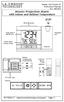 Model: WS-5220U-IT Instruction Manual DC: 082415 Atomic Projection Alarm with Indoor and Outdoor Temperature SNOOZE button Time, Alarm + WWVB Icon Projection arm Indoor Temp., Outdoor Temp. Battery Compartment
2013 VTech Printed in China 91-009656-000 US
 Rechargeable Power Pack User s Manual 2013 VTech Printed in China 91-009656-000 US INTRODUCTION The Rechargeable Power Pack makes it easier than ever to keep the InnoTab 3 or InnoTab 3S charged and ready
Wireless Alarm System. Silent Alert. User s Manual. Choice ALERT. Control all Sensors & accessories from one location
 45137 Wireless Alarm System Silent Alert User s Manual Choice ALERT Control all Sensors & accessories from one location Table of Contents Important Safeguards 4 Introduction 4 Adding a Silent Alert to
AM/FM Portable Radio
 Cat. No. 12-798 OWNER S MANUAL Please read before using this equipment. AM/FM Portable Radio with Dual Time, Single Alarm FEATURES Your Optimus AM/FM Portable Radio is designed for your active lifestyle.
PR-D9W. GB Version 1
 PR-D9W Version 1 Table of contents Important safety instructions... 2-3 Introduction... 4 Controls... 5-8 Using your weather alert radio for the first time... 9 Operating your radio Search tuning AM/FM...
SP1790JK 900MHz Wireless Indoor/Outdoor Speakers. User Manual INTRODUCTION FEATURES IMPORTANT SAFETY INFORMATION
 SP1790JK 900MHz Wireless Indoor/Outdoor Speakers INTRODUCTION This 900 MHz digital hybrid wireless speaker system uses the latest wireless technology that enables you to enjoy music and TV sound anywhere
Fit Clip Plus Portable Media Player
 Fit Clip Plus Portable Media Player User Guide BL 8GB Thank you for purchasing a Fit Clip Plus Portable Media Player! To get the most out of your Fit Clip Plus, please read this entire user guide carefully.
VOIP Business Phone User Guide
 VOIP Business Phone User Guide Model 25630/25600 MGCP Please read this manual before operating the product for the first time. Interference Information This device complies with Part 15 of the FCC Rules.
Auto Dialer. Manual E-921APQ E-921GPQ
 Troubleshooting: Auto dialer will not arm/disarm Auto dialer will not dial out Unit doesn t respond to a call-back Difficulty in activating room monitor by telephone remote control Make sure that you have
Owner s Manual. Not suitable for mobile applications. Important Safety Instructions 2. Quick Installation 3. Basic Operation 4. Storage & Service 7
 Register online today for a chance to win a FREE Tripp Lite product! www.tripplite.com/warranty Owner s Manual Internet Office & BC Personal UPS Systems Not suitable for mobile applications. Important
Model: 308-1412 Manual DC: 080215 WIRELESS COLOR FORECAST STATION
 Model: 308-1412 Manual DC: 080215 WIRELESS COLOR FORECAST STATION FRONT VIEW SENSOR TX141TH-Bv2 LED TX Sensor Battery Cover Sensor Battery Compartment 2 AA Buttons Battery Compartment 3 AAA BACK VIEW Battery
How To Use A U.S. Cell Phone At Home
 U.S. Cellular Home Phone 1 Contents Getting to Know Your Device...5 Appearance... 5 LED Indicators... 6 Device Installation...7 Before You Begin... 7 Installing the Battery... 7 Installing the Power Adapter...
PR-2500 Portable Receiver. Owner s Manual
 PR-2500 Portable Receiver Owner s Manual CONTENTS The PR-2500, battery charger, and belt clip. (figure 1) Figure 1 Warning This device complies with Part 15 of the FCC rules, operation of this device is
Security Auto Dialer. Owner s Manual. Please read before using this equipment.
 Security Auto Dialer Owner s Manual Please read before using this equipment. ˆ Contents Features... 2 FCC Statement... 3 Lightning... 3 A Quick Look at Your Auto Dialer... 4 Installation... 5 Selecting
User s Manual. Bluetooth Calculator Keypad. Page
 User s Manual Bluetooth Calculator Keypad Page Regulatory Compliance This device complies with Part 15 of the FCC Rules. Operation is subject to the following two conditions: (1) This device may not cause
Emergency Portable Weather Radio Model: WR601N. User Manual
 Emergency Portable Weather Radio Model: WR601N User Manual Emergency Portable Weather Radio Model: WR601N User Manual CONTENTS Introduction... 2 About the National Weather Radio system... 2 Key features...
INSTRUCTION MANUAL PC5OO WITH PC5OORK KEYPAD
 INSTRUCTION MANUAL PC5OO WITH PC5OORK KEYPAD TABLE OF CONTENTS SYSTEM INFORMATION 2 INTRODUCTION 3 Test Your System Regularly...3 Important Notice...3 Glossary...3 BASIC OPERATION 4 Arming Your System...4
How To Set Up A Cell Phone With A Cellphone From A Celltower.Com
 Model 29875 Digital Answering System (with English or Spanish Voice Prompts) User s Guide 2 Equipment Approval Information Your telephone equipment is approved for connection to the Public Switched Telephone
RADIO CONTROLLED DIGITAL CLOCK MODELS 88905 / 88906
 RADIO CONTROLLED DIGITAL CLOCK MODELS 88905 / 88906 QUICK SETUP GUIDE IMPORTANT! INSTALL BATTERIES IN THE OUTDOOR TRANSMITTER BEFORE INSTALLING BATTERIES IN THE RADIO-CONTROLLED CLOCK. ALKALINE BATTERIES
Caller-ID on your TV!
 TM Caller-ID on your TV! User s Manual and Installation Guide Copyright 1998 NetMedia Inc., All rights reserved. Rev. 061898 Thank you for your purchase of Caller-TV! You are now ready to enjoy the convenience
Wireless Alarm System. Window/Door Sensor. User s Manual. Choice ALERT. Control all Sensors & accessories from one location
 45131 Wireless Alarm System Window/Door Sensor User s Manual Choice ALERT Control all Sensors & accessories from one location Table of Contents Important Safeguards 4 Introduction 5 Installation 6 Assigning
Owner s Guide. ca6554
 PROFESSIONAL SERIES Owner s Guide For Models: ca6554 Deluxe Vehicle Security and Remote Start System with 2 Way Confirming LCD Remote Control IMPORTANT NOTE: The operation of the Security and Convenience
Usage, Installation, Warranty and Service Information
 T13C Table Updater for Seating Management U S E R M A N UA L Usage, Installation, Warranty and Service Information Long Range Systems, LLC 4550 Excel Parkway, Suite 200 Addison, TX 75001 800.437.4996 www.lrsus.com
User and Installation Guide
 Connect the AC adapter with the amplifier BEFORE plugging the AC adapter into an outlet to avoid spark generation! User and Installation Guide BlueFIDELITYTM Bluetooth Audio Amplifier Model 300 Contents
Wireless Security System. Wireless Security Camera. SI519 Instructions. SI513 Instructions. Read and save these instructions.
 Wireless Security System SI519 Instructions Wireless Security Camera SI513 Instructions Read and save these instructions. Dear Sharper Image Customer, Thank you for your purchase of a Sharper Image product.
Owner s Manual & Safety Instructions
 Owner s Manual & Safety Instructions Save This Manual Keep this manual for the safety warnings and precautions, assembly, operating, inspection, maintenance and cleaning procedures. Write the product s
Laser Wireless Rechargeable Mouse. User s Manual
 Laser Wireless Rechargeable Mouse Model #: LM8000WR User s Manual Rev. 060801 User s Record: To provide quality customer service and technical support, it is suggested that you keep the following information
Indoor/Outdoor Color Camera with Built-in 2.4 GHz Wireless Transmitter, plus X10 controlled power supply, and Video Receiver.
 Indoor/Outdoor Color Camera with Built-in 2.4 GHz Wireless Transmitter, plus X10 controlled power supply, and Video Receiver. OWNER'S MANUAL VR36A XC18A XM13A MODEL VK69A (INCLUDES XC18A CAMERA, XM13A
466-1936 Rev E October 2004 ZZZ*(6HFXULW\FRP. Part No: 60-883-95R. CareGard. User Guide
 ) *(6HFXULW\ 466-1936 Rev E October 2004 ZZZ*(6HFXULW\FRP Part No: 60-883-95R CareGard User Guide FCC Notices FCC Part 15 Information to the User Changes or modifications not expressly approved by GE Security
Table of Contents Function Keys of Your RF Remote Control Quick Setup Guide Advanced Features Setup Troubleshooting
 Congratulations on your purchase of the AT&T U-verse TV Point Anywhere RF Remote Control. This product has been designed to provide many unique and convenient features to enhance your AT&T U-verse experience.
PIR-1 Owner s Manual
 PIR-1 Owner s Manual PIR-1 Owner s Manual 2010 Universal Remote Control, Inc. The information in this manual is copyright protected. No part of this manual may be copied or reproduced in any form without
USER GUIDE. Compatible with most Bluetooth phones & Bluetooth enabled computers (Windows or Macintosh )
 USER GUIDE Compatible with most Bluetooth phones & Bluetooth enabled computers (Windows or Macintosh ) TABLE OF CONTENTS 4 Package Contents 5 Safety Instructions/ Glossary 6 Charging the Headset 7 Battery
Solar Weather Station Model: BAR806 / BAR806A
 Solar Weather Station Model: BAR806 / BAR806A EN CONTENTS USER MANUAL Overview... 2 Front view... 2 Back view... 3 Remote sensor... 3 Getting started... 3 Solar panel... 3 Insert batteries... 4 Remote
Atomic Projection Alarm Clock model 13021
 Instruction Manual Atomic Projection Alarm Clock model 13021 CONTENTS Unpacking Instructions... 2 Package Contents... 2 Product Registration... 2 Features & Benefits... 3 Clock Setup... 5 Atomic Clock...
Important Safety Instructions
 PR-D7 GB Revision 1 Important Safety Instructions 1. Read these instructions. 2. Keep these instructions. 3. Heed all warnings. 4. Follow all instructions. 5. Do not use this apparatus near water. 6. Clean
WIRELESS ALARM SYSTEM WITH TELEPHONE AUTO DIALER
 BAT.LOW AC WIRELESS ALARM SYSTEM WITH TELEPHONE AUTO DIALER THE SYSTEM THAT CALLS YOU! Our WIRELESS ALARM SYSTEM WITH TELEPHONE AUTO DIALER is designed to allow you to create your own security system.
User Guide for the Wireless Headset (HS-11W) 9235346 Issue 1
 User Guide for the Wireless Headset (HS-11W) 9235346 Issue 1 DECLARATION OF CONFORMITY We, NOKIA CORPORATION declare under our sole responsibility that the product HS-11W is in conformity with the provisions
Why Do We Need Weather Radios?
 Why Do We Need Weather Radios? Many safety reasons: 2005 Evansville, IN tornado CJ Law The 1 st defense against tornados Other alerts not associated with weather Amber alerts, civil warnings, technological
BroadBand PowerShield. User Manual
 BroadBand PowerShield User Manual 990-0375G 12/2006 Chapter 1 General Information The PowerShield provides a power source for broadband telephony and other DC applications. Safety This Safety Guide contains
Wireless Mouse USER GUIDE. for Mac. www.targus.com/us/formac ONE YEAR LIMITED WARRANTY N2953
 AMW43US / 410-1514-001C N2953 www.targus.com/us/formac 2008 Manufactured or imported by Targus Group International, Inc. (for U.S. sales: 1211 North Miller Street, Anaheim, CA 92806 USA, for Australia
Passive Infrared Sensor Alarm
 49-329.fm Page 1 Wednesday, August 18, 1999 4:23 PM Cat. No. 49-329 OWNER S MANUAL Please read before using this equipment. Passive Infrared Sensor Alarm with Keychain Remote 49-329.fm Page 2 Wednesday,
ST815 Illumination Sensor with LCD
 ST815 Illumination Sensor with LCD The Illumination Sensor with LCD (refer to as Illumination Sensor hereafter) is a Z-Wave TM enabled device which is fully compatible with any Z-Wave TM enabled network.
WAVE BLUETOOTH MUSIC ADAPTER
 WAVE BLUETOOTH MUSIC ADAPTER FOR WAVE SYSTEMS Owner s Guide Bedienungsanleitung Guía de usuario Notice d utilisation Manuale di istruzioni Gebruiksaanwijzing Tab 8, 16 Tab 7, 15 Tab 6, 14 Tab 5, 13 Tab
Portable Satellite TV Antenna. VQ1000 Owner s Manual
 Portable Satellite TV Antenna VQ1000 Owner s Manual Model VQ1 Solutions for Mobile Markets 11200 Hampshire Avenue South, Bloomington, MN 55438-2453 Phone: (952) 922-6889 Fax: (952) 922-8424 20963 REV E
WIRELESS ALARM SYSTEM WITH TELEPHONE AUTO DIALER
 BAT.LOW AC WIRELESS ALARM SYSTEM WITH TELEPHONE AUTO DIALER THE SYSTEM THAT CALLS YOU! Our WIRELESS ALARM SYSTEM WITH TELEPHONE AUTO DIALER is designed to allow you to create your own security system.
AM/FM Aircraft Radio (120-0615) Features Faxback Doc. # 17253
 (120-0615) Features Faxback Doc. # 17253 The Radio Shack AM/FM Aircraft Radio is ideal for aviation enthusiasts - you can monitor transmissions between pilots and other planes or air traffic control facilities.
Wireless Phone Jack System
 926 Manual V2.0(1J9643) 6/10/99 1:39 PM Page 1 RC926 Wireless Phone Jack System (Digital Satellite System # D916) The Wireless Phone Jack System works with most telephone line devices, such as: Answering
AVerMedia AVerKey imicro User s Manual
 FCC NOTICE This device has been tested and found to comply with the limits for a Class B digital device, pursuant to Part 15 of the FCC Rules. These limits are designed to provide reasonable protection
Wake-up Light. Always here to help you. www.philips.com/welcome HF3510. User manual Manuel d utilisation. Register your product and get support at
 Always here to help you Register your product and get support at www.philips.com/welcome Question? Contact Philips Wake-up Light HF3510 User manual Manuel d utilisation IMPORTANT SAFETY INSTRUCTIONS WARNING
ATS-505. GB Version 1
 ATS-505 GB Version 1 Control Locations Power/Sleep Power On/off/Alarm off/sleep function Display Switch between radio frequency and time while radio is power on Mode Mode set up (please see below mode
Automatic Phone-Out Home Monitoring Systems
 Automatic Phone-Out Home Monitoring Systems Power Outage and Freeze Alarm Model Number: THP202 Power Outage, Freeze and Flood Alarm Product Description Model Number: THP201 These monitoring systems are
ADEMCO 4500 Thermostat
 ADEMCO 4500 Thermostat User Guide N7972V1 5/05 Rev. A TABLE OF CONTENTS About the 4500 Thermostat...1 Saving Money on Energy Bills...1 The 4500 Thermostat Provides Comfort and Convenience...1 How the 4500
safe, smart, protected
 safe, smart, protected en Safety, Regulatory, &Legal Charging Dock Operation Charging Dock Operation The charging dock is designed for tabletop use. To be compliant with RF exposure guidelines and to
CA 1050 Owner s Guide
 PROFESSIONAL SERIES CA 1050 Owner s Guide Vehicle Security and Keyless Entry System IMPORTANT NOTE: The operation of the Security and Convenience System as described in this manual is applicable to most
Contents. 2 NP560-NP562 Installation Guide YML821 Rev1
 Contents Introduction...4 Package Contents...5 Installing the NetComm Indoor Wireless Booster (NP560/NP562)...6 Electrical Specification...8 Appendix A: Registration and Warranty Information...9 2 NP560-NP562
Compaq ipaq Personal Mini-CD Player PM-1. User Guide
 Compaq ipaq Personal Mini-CD Player PM-1 User Guide Notice 2001 Compaq Computer Corporation COMPAQ and the Compaq logo registered in U.S. Patent and Trademark Office. ipaq is a trademark of Compaq Information
2.4 GHz Dual Handset Cordless Telephone Answering System 2255 with Caller ID/Call Waiting
 USER S MANUAL Part 2 2.4 GHz Dual Handset Cordless Telephone Answering System 2255 with Caller ID/Call Waiting Please also read Part 1 Important Product Information AT&T and the globe symbol are registered
Wolverine 35mm Film to Digital Converter. Model F2D USER MANUAL
 Wolverine 35mm Film to Digital Converter Model F2D USER MANUAL Version 1.01 December 2008 TABLE OF CONTENTS DESCRIPTION PAGE Table of Contents 1 Before Using the F2D Converter 3 FCC Certifications 3 Warning
CA-125 Owner's Manual
 Remote Vehicle Control System CA-125 Owner's Manual Vehicle Security System With Remote Keyless Entry IMPORTANT NOTE: The operation of the Security and Convenience System as described in this manual is
Operating Guide Manuel de l utilisateur
 Operating Guide Manuel de l utilisateur Model RF-110 Modèle RF-110 English Thank you for purchasing this Ringmaster; please read this operating guide carefully before use and keep it for future reference.
Owner s Instruction Manual. 2500/2554 Telephones Message Waiting
 Owner s Instruction Manual 2500/2554 Telephones Message Waiting THANK YOU FOR PURCHASING THIS TELEPHONE We want you to know all about your new telephone, how to install it, the features it provides, and
User Guide for the Kidde RemoteLync. Remote Notification Device
 User Guide for the Kidde RemoteLync Remote Notification Device 120V AC 3 Color LED Indicator Voice Message System For questions concerning your device, please call our Product Support Line at 1-800-880-6788.
EE7016 EchoStream Survey Kit
 EE7016 EchoStream Survey Kit Installation and Operation Manual - 06152B 1 Quick Start By following this procedure you can quickly configure the supplied equipment to perform a site survey. Review the main
Business Audio System: Music & Messaging MP3 Player. by Grace Digital Audio. User Guide. Model No. GDI-USBM10
 Business Audio System: Music & Messaging MP3 Player by Grace Digital Audio User Guide Model No. GDI-USBM10 User Guide Contents Introduction 2 Safety & General Use Information 2 Features 3 Set Up & Operation
iosafe Solo External Hard Drive
 Users Manual & Limited Warranty iosafe Solo External Hard Drive USB 2.0 Fireproof Waterproof FloSafe Cooling Technology Data Recovery Service 910-10841-00 REV 7.1 2 COPYRIGHTS Copyright iosafe, Inc. 2009.
User's Guide. Integrating Sound Level Datalogger. Model 407780. Introduction
 User's Guide 99 Washington Street Melrose, MA 02176 Phone 781-665-1400 Toll Free 1-800-517-8431 Visit us at www.testequipmentdepot.com Back to the Extech 407780 Product Page Integrating Sound Level Datalogger
2-Line Professional Digital Answering Machine
 2-Line Professional Digital Answering Machine Owner s Manual Please read before using this equipment. ˆ Contents Contents... 2 Important Information... 3 Features... 5 Preparation... 6 Connecting to the