
USER MANUAL. SAILOR 100 Satellite TV
|
|
|
- Kenneth Elliott
- 10 years ago
- Views:
Transcription
1 USER MANUAL SAILOR 100 Satellite TV

2

3 SAILOR 100 Satellite TV User Manual Document number: A Release date: September 21, 2012

4 Disclaimer Any responsibility or liability for loss or damage in connection with the use of this product and the accompanying documentation is disclaimed by Thrane & Thrane. The information in this manual is provided for information purposes only, is subject to change without notice and may contain errors or inaccuracies. Manuals issued by Thrane & Thrane are periodically revised and updated. Anyone relying on this information should acquire the most current version e.g. from thrane.com or from the distributor. Thrane & Thrane is not responsible for the content or accuracy of any translations or reproductions, in whole or in part, of this manual from any other source. Copyright 2012 Thrane & Thrane A/S. All rights reserved. Printed in Denmark. Trademark Acknowledgements Thrane & Thrane is a registered trademark of Thrane & Thrane A/S in the European Union and the United States. SAILOR is a registered trademark of Thrane & Thrane A/S in the European Union and the United States. Product and company names mentioned in this manual may be trademarks or trade names of their respective owners.

5 Safety summary 1 The following general safety precautions must be observed during all phases of operation, service and repair of this equipment. Failure to comply with these precautions or with specific warnings elsewhere in this manual violates safety standards of design, manufacture and intended use of the equipment. Thrane & Thrane assumes no liability for the customer's failure to comply with these requirements. DO NOT OPERATE IN AN EXPLOSIVE ATMOSPHERE Do not operate the equipment in the presence of flammable gases or fumes. Operation of any electrical equipment in such an environment constitutes a definite safety hazard. KEEP AWAY FROM LIVE CIRCUITS Operating personnel must not remove equipment covers. Component replacement and internal adjustment must be made by qualified maintenance personnel. DO NOT SUBSTITUTE PARTS OR MODIFY EQUIPMENT Because of the danger of introducing additional hazards, do not substitute parts or perform any unauthorized modification to the equipment. Failure to comply with the rules above will void the warranty! iii

6 About the manual 2 Intended readers Manual overview This manual is a user manual for the SAILOR 100 Satellite TV system. This manual is intended for anyone who is using or intends to use this system. No specific skills are required to operate the SAILOR 100 Satellite TV. However, it is important that you operate the system according to the guidelines in this manual. Note that this manual does not cover installation of the system. For information on installation refer to the SAILOR 100 Satellite TV Installation manual. Part numbers for related manuals are listed in the next section. This manual has the following chapters: Introduction contains a brief description of the system. Operation explains how to start up and use the system. Troubleshooting contains a short troubleshooting guide and information on service and repair. iv

7 Related documents The below list shows the documents related to this manual and to the SAILOR 100 Satellite TV system. Title and description Document number SAILOR 100 Satellite TV Installation manual Control Panel Installation manual (TT-6006A and TT-6007A Message Terminal) SAILOR Transmodulator Installation manual Typography In this manual, typography is used as indicated below: Bold is used for the following purposes: To emphasize words. Example: Do not touch the antenna. To indicate what the user should select in the user interface. Example: Select SETTINGS > LAN. Italic is used to emphasize the paragraph title in cross-references. Example: For further information, see Connecting Cables on page.... v

8 vi

9 Table of contents Chapter 1 Chapter 2 Chapter 3 Introduction SAILOR 100 Satellite TV... 1 User interfaces...2 Control Panel for handling satellite profiles...2 ACU display for status and system parameters...2 Operation Control Panel...3 Getting started...3 Creating or editing a profile...5 Selecting the active profile...8 Deleting a profile...9 Event list Help About Keypad and menus of the ACU...12 ACU display and keypad...12 Navigating the menus...13 The menu tree...14 Adjusting brightness of the display Resetting the system Troubleshooting LEDs on the ACU...20 Troubleshooting guide...21 Error messages...21 Service and repair...21 Repacking for shipment...21 vii

10 Table of contents App. A Conformity SAILOR 100 Satellite TV...23 CE (LVD & EMC)...23 Index...25 viii

11 Chapter Introduction 1 SAILOR 100 Satellite TV Introduction The SAILOR 100 Satellite TV is a maritime satellite TV antenna for high-quality worldwide TV reception. It consists of the following units: Above Deck Unit (ADU) Antenna Control Unit (ACU) Control Panel ADU ACU Control Panel To TV distribution A Multiswitch or a SAILOR Transmodulator can be connected for TV distribution. During installation all setup tasks are taken care of. The system is easy to use. You only have to select a new satellite profile if you wish to watch channels on a different satellite or you do not have coverage from the currently selected satellite. If necessary you can add further satellite profiles to the list that has been created during installation. 1

12 Chapter 1: Introduction User interfaces Control Panel for handling satellite profiles The user interface of the SAILOR 100 Satellite TV is the Control Panel. It has a touch screen. You can tap through settings and menus to handle satellite profiles, show status information and system messages. The following screen shows the Dashboard. ACU display for status and system parameters You can view status and system parameters in the display of the ACU. 2 User interfaces

13 Chapter 2 Operation The SAILOR 100 Satellite TV has the following user interfaces: Control Panel Keypad and menus of the ACU There is also a web interface for installation and advanced setup. For further details see the SAILOR 100 Satellite TV Installation manual. Operation Control Panel The following sections describe how to set up and use the SAILOR 100 Satellite TV using the Control Panel: Getting started Creating or editing a profile Selecting the active profile Deleting a profile Event list Getting started Use the Control Panel for handling and selecting satellite profiles. The unit is equipped with a touch screen, an external keyboard is not required. Note When reading status information in this application, read carefully whether it is the status information of the ACU or the Satellite TV application on the Control Panel. 3

14 Chapter 2: Operation Navigation and start-up To navigate through the user interface you have the following possibilities: Icon in the top right corner to display the main menu. Arrow icon (lower left corner) for back function and to collapse the onscreen keyboard when you do not need it any more. Main menu Back, collapse keyboard To get started with the Control Panel, do as follows: 1. Make sure that it is connected to the LAN port 4 at the rear of the ACU, possibly through a switched network. Note If connected directly to the ACU, make sure that the DHCP server has been enabled on that port. For details on ACU network configuration see the SAILOR 100 Satellite TV Installation manual. 2. Press the on/off button. A couple of start-up screens are displayed. Wait until the Dashboard is displayed: ACU connection: OK System: status information, e.g. TRACKING. When a yellow triangle is displayed in the section ACU Connection the ACU is not ready for operation. 4 Control Panel

15 3. The Dim button is used to dim the light in the Control Panel. Push and hold to dim the display more/less. Each new push changes direction between more and less. Now you can create satellite profiles. Chapter 2: Operation Creating or editing a profile To create or edit a profile, i.e. satellite profile, do as follows: 1. Tap the menu icon. 2. Select Settings. 3. Select Create profile or Edit profile. Operation 4. Fill in or edit the satellite profile name. Note It is helpful to assign a name containing the location where the Satellite profile is to be used (e.g. "Gulf of Mexico" or "North Sea") and possibly the provider. Control Panel 5

16 Chapter 2: Operation 5. Tap the field Satellite. A new window is displayed. Tap and scroll to find the wanted satellite, then tap on a satellite to select it. The list is sorted as follows: 180 W -> 0 -> 180 E. Profile handling Create new profile Edit profile Default satellite in the list The satellite closest to the ship s position is highlighted. The satellite currently selected for this profile is highlighted. Note At some longitudes, multiple satellites are co-located. In this case, it is not important which is chosen as long as the longitude is correct. The chosen satellite will be the one the system tracks, but it will receive and forward the TV signals from all the co-located satellites. 6. Configure the tracking properties. Automatic: The system will automatically determine which signal to track on, based on an automatic frequency and transponder scan of the satellite. Note If the vessel moves out of coverage of the transponder currently being tracked, the system will initiate a new frequency and transponder scan and find another transponder to track, on the same satellite (assuming the vessel is still in coverage of the satellite). Polarisation: Select Linear or Circular depending on the polarisation with which your provider transmits the TV signals 1. Note During frequency and transponder scan, TV reception is possible. Thus, Automatic tracking is not slower than manually configured tracking parameters. Selecting Linear when the TV signal is transmitted with Circular polarisation, or vice versa, results in a 3 db loss in signal strength. Hence, this setting cannot be verified by presence of TV signal alone. 1. For more information see e.g. or Linear signals are marked with the letter H for Horizontal or V for Vertical. Circular signals are marked with either L for Left hand or R for Right hand. 6 Control Panel

17 Chapter 2: Operation DVB-S / DVB-S2: By selecting DVB-S / DVB-S2, it is possible to configure the system to track a specific transponder. Polarisation: Linear Horizontal, Linear Vertical, Circular Left hand or Circular Right hand. Tracking frequency: Frequency of the transponder (e.g GHz). Symbol rate: Mega symbols per second (e.g MS/s). Note It is highly recommended always to use Automatic tracking. 7. Tap Save to save the satellite profile. 8. An information window is displayed. Verify the data for the new profile and tap OK to close the window Operation Control Panel 7

18 Chapter 2: Operation Selecting the active profile To change the active profile, select another profile from the list of created profiles. Note Do as follows: When you select another profile, the antenna moves to the new position and goes through the acquisition procedure. This may take a couple of minutes. 1. Tap the menu icon. 2. Select Activate profile. 3. From the list of existing profiles select the new profile. 4. A confirmation window is displayed. Verify activation of the selected profile and tap OK to accept. 5. The Dashboard is displayed again and the new profile is selected. An azimuth adjustment is made (if enabled during installation), and the antenna turns to the new position and starts acquiring signal from the new satellite. 8 Control Panel

19 Deleting a profile Chapter 2: Operation You can delete profiles that you don t use anymore. You cannot delete the currently active profile. To delete a profile, do as follows: Tap the menu icon. 2. Select Settings. 3. Select Delete profile. 4. Tap the profile you want to delete. 5. A confirmation window is displayed. Verify the profile name you want to delete and press OK to accept. Operation Control Panel 9

20 Chapter 2: Operation Event list This list provides active events and history of the system. Notifications are earlier events, they are cleared after 24 hours. There are two ways to display the Event list: Tap the menu icon and tap Event list. or 1. Tap the yellow triangle in the lower right corner of the Control Panel. 2. Tap Active events. 10 Control Panel

21 Help Chapter 2: Operation Tap the menu icon and tap Help. Help provides a description how to handle satellite profiles. Scroll through the help or use the links at the start to jump to a specific topic About Tap the menu icon and tap About. About provides the following information: Software version of the SAILOR 100 Satellite TV application. Software version of the ACU is shown on the Dashboard page in the section Unit information. IP address of the Control Panel Legal Notices with software licence information Operation Control Panel 11
22 Chapter 2: Operation Keypad and menus of the ACU The following sections describe how to use the keypad and view the menus of the SAILOR 100 Satellite TV: ACU display and keypad Navigating the menus The menu tree Adjusting brightness of the display Resetting the system ACU display and keypad In the ACU display you can see the current state of the system. You can also see events (warnings, errors and information) and how the system has been configured. Use the keypad to navigate through the menu tree Signal strength 1. Current status of the SAILOR 100 Satellite TV: NOT READY (Waiting for input from GNSS, e.g. GPS) READY (no satellite profile selected) POINTING ANTENNA (Locating the satellite) ACQUIRING SIGNAL (Acquiring the satellite signal) TRACKING (Tracks the current satellite) FREQUENCY SCAN (Scanning for transponders) BLOCKING ZONE (Antenna is pointing into a blocking zone) 12 Keypad and menus of the ACU
23 Chapter 2: Operation 2. Current menu. See The menu tree on page GPS: GPS signal is received from the GPS module, OK or. 4. HDG: Ship heading data received from the ship s gyro, OK or. 5. LAN: LAN connectors used, 1, 2, 3, 4,. 6. SAT: Satellite position of currently active satellite profile. 7. RX: RX polarisation of currently active satellite profile. H (horizontal), V (vertical), L (left-hand) R (right-hand). 8. RX: Rx RF tracking frequency in GHz. After 1 hour the display is dimmed to lowest intensity. Press any key to light up the display Operation Navigating the menus Use the keypad to navigate the menus. Press OK or to select a menu item. Use the arrow keys and to go through the menu items or enter a number, digit by digit. Use the arrow keys and to go through the settings and move from one digit to the next. Press OK to select a setting. Press again to move one level up. If applicable, confirm to store the new setting by pressing OK. Keypad and menus of the ACU 13
24 Chapter 2: Operation The menu tree In the menu tree you can see how the system has been configured. You can also enter satellite information directly, if it is necessary to change the satellite information and you cannot use a connected PC and the web interface. MAIN ANTENNA NETWORK SATELLITE EVENTS ANT POINTING POLARISATION GPS HEADING VERSIONS SERIAL NUMBERS TV* NET PORT 1/2 IP PORT 1/2 MASK PORT 3 IP PORT 3 MASK PORT 4 IP PORT 4 MASK DEFAULT GATEWAY SAT POSITION RX POLARISATION RX FREQUENCY EVENT <EVENT 1> <EVENT 2> <EVENT...> <EVENT n> ANT-1 ANTENNA STATE ELEVATION AZIMUTH ANT-2 RX POLARISATION ANT-3 LATITUDE LONGITUDE FIX TYPE ANT-4 HEADING ANT-5 SW VERSION ANT-6 ACU ADU 14 Keypad and menus of the ACU
25 Top-level menu Top-level menu Description Chapter 2: Operation MAIN View with current status of the SAILOR 100 Satellite TV. This view is displayed after a time out of 10 minutes. Press any key (except left arrow) to enter the menu at MAIN. New events are shown in this display. If an event is displayed, press OK to jump directly to the menu EVENTS for viewing the currently active events. Operation ANTENNA NETWORK SATELLITE EVENTS Shows the current ADU parameters, position, software version and serial numbers of the ADU and ACU. Shows the IP addresses and netmasks of the LAN connectors of the ACU. Current satellite information. This information is selected using the web interface or the Control Panel. View system events. Active events are shown as: X ACTIVE EVENTS in the MAIN display. Press OK to update the list. Menu descriptions ANTENNA menu POINTING POLARISATION Description ANTENNA: Current state of the antenna ELEVATION: Current elevation angle of the antenna AZIMUTH: Current azimuth of the antenna, with reference to North RX POLARISATION: Setting of polariser. Keypad and menus of the ACU 15
26 Chapter 2: Operation GPS ANTENNA menu HEADING VERSIONS SERIAL NUMBERS LATITUDE: current latitude, read from GPS module. LONGITUDE: current longitude, read from GPS module. FIX TYPE: 3D or NONE Ship s heading in degrees with reference to North, provided by the ship s gyro. Current software version. Description ACU: ACU serial number ADU: Serial number of the antenna NETWORK menu Description PORT 1/2 IP Current IP address for LAN 1 and LAN 2. MASK 1/2 Current netmask for LAN 1 and LAN 2. PORT 3 IP MASK 3 (LAN 3) Current IP address of the SAILOR 100 Satellite TV web interface (default: ). (LAN 3) Current netmask of the SAILOR 100 Satellite TV web interface (default: ). PORT 4 IP Current IP address for LAN 4. MASK 4 Current netmask for LAN 4. DEFAULT GATEWAY Current default gateway. 16 Keypad and menus of the ACU
27 SATELLITE menu POSITION RX POLARISATION Description Position of the current satellite. Linear polarisation: HORIZONTAL, VERTICAL Circular polarisation: LEFT HAND, RIGHT HAND. Chapter 2: Operation RX FREQUENCY EVENT menu Ku band receiving frequency of the active satellite. Description Operation <EVENT> In this menu all active events are listed. Use and to go through the active events. Events can be of the type WARNING or ERROR. For a list of events see Event messages overview on page 1. If a new event occurs or there is a change in the event list while you are in the EVENTS menu, a * is shown in the upper left corner of the display, next to the menu name. Press OK to update the EVENTS list, the * will be removed. A > means the event text is longer than the display. Press > to see the remaining text. Example: EVENT 1/4*: This is the first event out of a list of 4 and there has been a change in the list. EVENT 1/4 will always be shown, the * indicates that there has been a change. Keypad and menus of the ACU 17
28 Chapter 2: Operation Adjusting brightness of the display To adjust the brightness do the following: 1. Press and hold OK for a short moment until BRIGHTNESS XXX% is displayed (XXX is the current brightness value). 2. Hold OK pressed + press for lighter or for darker display. 3. Release OK to leave the brightness menu. Resetting the system To reset the system do the following: 1. Press and hold and until the ACU display shuts down and the ACU reboots. 2. Wait until the system has rebooted and is operational again. The last active satellite profile will be used. 18 Keypad and menus of the ACU
29 Chapter 3 Troubleshooting 3 This chapter gives guidelines for troubleshooting and provides an overview of the different means of status signalling. It has the following sections: LEDs on the ACU Troubleshooting guide Error messages Service and repair Troubleshooting 19
30 Chapter 3: Troubleshooting LEDs on the ACU The ACU has 3 LEDs: Power, TV Ready and Fail/Pass LED. LED Behavior Description Power Steady green Power supply OK Steady red Off Power supply failure No power TV Ready Steady green Tracking satellite. Fail/Pass LED Off Steady red Flashing green Flashing red Steady green Not tracking satellite. A fault which prevents operation is present in the system (ACU, ADU). A Power On Self Test (POST) or Person Activated Self Test (PAST) in progress. The current status is displayed. Active BITE (Built In Test Equipment) failure or warning. The event is shown in the ACU display. No faults. 20 LEDs on the ACU
31 Troubleshooting guide Error messages Chapter 3: Troubleshooting Active errors are indicated by a yellow triangle on the Dashboard page of the Control Panel. To see further info see Event list on page 10. Service and repair Should your Thrane & Thrane product fail, please contact your dealer or installer, or the nearest Thrane & Thrane partner. You will find the partner details on thrane.com where you also find the Thrane & Thrane Self Service Center web-portal, which may help you solving the problem. Your dealer, installer or Thrane & Thrane partner will assist you whether the need is user training, technical support, arranging on-site repair or sending the product for repair. Your dealer, installer or Thrane & Thrane partner will also take care of any warranty issue. Troubleshooting Repacking for shipment Should you need to send the product for repair, please read the below information before packing the product. The shipping carton has been carefully designed to protect the SAILOR 100 Satellite TV and its accessories during shipment. This carton and its associated packing material should be used when repacking for shipment. Attach a tag indicating the type of service required, return address, part number and full serial number. Mark the carton FRAGILE to ensure careful handling. Note Correct shipment is the customer s own responsibility. Troubleshooting guide 21
32 Chapter 3: Troubleshooting If the original shipping carton is not available, the following general instructions should be used for repacking with commercially available material. 1. Wrap the defective unit in heavy paper or plastic. Attach a tag indicating the type of service required, return address, part number and full serial number. 2. Use a strong shipping container, e.g. a double walled carton. 3. Protect the front- and rear panel with cardboard and insert a layer of shock-absorbing material between all surfaces of the equipment and the sides of the container. 4. Seal the shipping container securely. 5. Mark the shipping container FRAGILE to ensure careful handling. Failure to do so may invalidate the warranty. 22 Service and repair
33 Conformity SAILOR 100 Satellite TV Appendix A A AAAAA Conformity CE (LVD & EMC) The Thrane SAILOR 100 Satellite TV is CE certified (LVD &EMC directives) as stated in the Declaration of Conformity with LVD and EMC Directives, enclosed in copy on the next page. 23
34
35 Index A ACU display menus and keypad, 12 ACU LEDs, 20 B back function, 4 brightness in display, 18 C CE compliance, 23 conformity, 23 Control Panel IP address, 11 navigation, 4 software version, 11 coverage, 6 create satellite profile, 5 D Declaration of Conformity, 24 delete satellite profile, 9 dim display, 5 display brightness, 18 dim, 5 menu descriptions, 15 menu tree, 14 menus and keypad, 12 navigation, 13 DVB-S, 7 DVB-S2, 7 E edit satellite profile, 5 error messages, 21 event list, 21 view, 10 events display in Control Panel, 10 I IP address Control panel, 11 K keyboard, 3 collapse, 4 L LEDs on ACU, 20 light indicators in ACU, 20 M main menu, 4 manual order number, i menu descriptions, 15 tree, 14 menus navigate, 13 menus in ACU display, 12 Index B BBBBB Index 25
36 Index N navigate Control Panel, 4 display menus, 13 O order number manual, i P packing for shipment, 21 polarisation, 6 DVB-S, 7 power on, 4 profile create or edit, 5 delete, 9 select active, 8 service, 21 shipment, 21 software version ACU, 11 control panel, 11 start-up, 4 system ACU reset, 18 system reset, 18 T tracking properties, 6 W warranty, 21 R repair, 21 reset, 18 keys on ACU, 18 system, 18 S safety summary, iii satellite profile create or edit, 5 delete, 9 select active, 8 select satellite profile, 8 26
37
38 A thrane.com
Ethernet Radio Configuration Guide
 Ethernet Radio Configuration Guide for Gateway, Endpoint, and Repeater Radio Units April 20, 2015 Customer Service 1-866-294-5847 Baseline Inc. www.baselinesystems.com Phone 208-323-1634 FAX 208-323-1834
mysensors mysensors Wireless Sensors and Ethernet Gateway Quick Start Guide Information to Users Inside the Box mysensors Ethernet Gateway Quick Start
 mysensors Information to Users mysensors Wireless Sensors and Ethernet Gateway Quick Start Guide This equipment has been tested and found to comply with the limits for a Class B digital devices, pursuant
How to Change WaveCall Coverage Areas For WaveCall by Marlink Updated: May 22 nd, 2012
 [HOW TO CHANGE WAVECALL COVERAGE AREAS Satellite Coverage Document] 1 How to Change WaveCall Coverage Areas For WaveCall by Marlink Updated: May 22 nd, 2012 NOTE: To ensure you have the most current information,
WLAN600 Wireless IP Phone Administrator s Guide
 WLAN600 Wireless IP Phone Administrator s Guide Trademark Acknowledgement All brand names are trademarks or registered trademarks of their respective companies. Disclaimer This document is supplied by
USER MANUAL. SAILOR 500/250 FleetBroadband Including 19 Rack Version
 USER MANUAL SAILOR 500/250 FleetBroadband Including 19 Rack Version SAILOR 500 FleetBroadband SAILOR 250 FleetBroadband Including 19" Rack Version User manual Document number: TT98-125645-E Release date:
USER MANUAL. SAILOR 150 FleetBroadband
 USER MANUAL SAILOR 150 FleetBroadband SAILOR 150 FleetBroadband Document number: 98-129217-A Release date: June 9, 2009 Disclaimer Any responsibility or liability for loss or damage in connection with
Disclaimers. Important Notice
 Disclaimers Disclaimers Important Notice Copyright SolarEdge Inc. All rights reserved. No part of this document may be reproduced, stored in a retrieval system, or transmitted, in any form or by any means,
INSTALLATION MANUAL. AC/DC Power Supply
 INSTALLATION MANUAL AC/DC Power Supply Thrane & Thrane A/S AC/DC Power Supply Installation Manual Document number: 98-129099-C Release date: February 26, 2010 Disclaimer Any responsibility or liability
Chapter 1 Installing the Gateway
 Chapter 1 Installing the Gateway This chapter describes how to set up the wireless voice gateway on your Local Area Network (LAN), connect to the Internet, and perform basic configuration. For information
(2012 10 24) manual_tocomsat duo LITE.indd 20-1 2012-10-24 7:44:57
 (2012 10 24) manual_tocomsat duo LITE.indd 20-1 2012-10-24 7:44:57 TABLE OF CONTENTS Table of Contents Table of Contents Safety Warning General Information Package Contents & Features Front Panel Rear
Disclaimers. Important Notice
 Disclaimers Disclaimers Important Notice Copyright SolarEdge Inc. All rights reserved. No part of this document may be reproduced, stored in a retrieval system, or transmitted, in any form or by any means,
Amcrest 960H DVR Quick Start Guide
 Amcrest 960H DVR Quick Start Guide Welcome Thank you for purchasing our Amcrest 960H DVR! This quick start guide will help you become familiar with our DVR in a very short time. Before installation and
USER MANUAL EXPLORER 325
 USER MANUAL EXPLORER 325 EXPLORER 325 Document number: 98-131305-A Release date: June 17, 2010 Disclaimer Any responsibility or liability for loss or damage in connection with the use of this product and
10 Magni Tablet User Guide
 10 Magni Tablet User Guide MODEL NUMBER: Wireless Mobile Internet Tablet Powered by SYTAB10ST Top View Front View Bottom View Side View SYTAB10ST Getting to Know Your New Tablet: MINI Micro SD Micro SD
WLAN660 Wireless IP Phone Administrator s Guide
 FEDERAL COMMUNICATIONS COMMISSION This device complies with Part 15 of the FCC Rules. Operation is subject to the following two conditions: (1) this device may not cause harmful interference, and (2) this
Instructions for - Installation of Satellite Channels
 ENGLISH Instructions for - Installation of Satellite Channels Updated: March 2011 Experience Reality AQUOS LCD-TVs Spring/Summer 2011 Page - 1 - LE820 - LE822 - LE814 - LE824 - LE914 - LE925 Contents:
Field Manager Mobile Worker User Guide for RIM BlackBerry 1
 Vodafone Field Manager Mobile Worker User Guide for RIM BlackBerry APPLICATION REQUIREMENTS Supported devices listed here o http://support.vodafonefieldmanager.com Application requires 600 KB of application
Infinity C Reference Guide
 1 2! Infinity C Reference Guide Table of Contents Components... 1 Hardware Setup... 5 SmartDrive Configuration... 12 Startup... 15 Login... 16 System Configuration... 19 DICOM Setup... 20 Monitoring Status...
Verizon Wireless Field Force Manager. Windows Mobile Devices
 Verizon Wireless Field Force Manager User Guide for Windows Mobile Devices Verizon Wireless Field Force Manager User Guide for Windows Mobile Devices Table of Contents Application Requirements...3 Windows
Wireless Mouse USER GUIDE. for Mac. www.targus.com/us/formac ONE YEAR LIMITED WARRANTY N2953
 AMW43US / 410-1514-001C N2953 www.targus.com/us/formac 2008 Manufactured or imported by Targus Group International, Inc. (for U.S. sales: 1211 North Miller Street, Anaheim, CA 92806 USA, for Australia
Tooway KA-SAT Installation Guide
 Tooway KA-SAT Installation Guide 1. Before you can proceed with the installation you must get the following information: Spot beam colour for you location Elevation Angle the dish needs to be set to Azimuth
AVerMedia AVerKey imicro User s Manual
 FCC NOTICE This device has been tested and found to comply with the limits for a Class B digital device, pursuant to Part 15 of the FCC Rules. These limits are designed to provide reasonable protection
Troubleshooting Guide
 Troubleshooting Guide TM Satellite Solutions for Mobile Markets 11200 Hampshire Avenue South, Bloomington, MN 55438-2453 Phone: (800) 982-9920 Fax: (952) 922-8424 www.kingcontrols.com 1305 TROUBLESHOOTING
DSTV DECODER SETUP MANUAL July 2013
 DSTV DECODER SETUP MANUAL July 2013 DSTV SINGLE VIEW AND SD PVR DECODER SETUP How to program your Single View and SD PVR DSTV Decoders STEP 1 Ensure that the DSTV decoder is connected correctly to the
Using the Control Panel for Wireless Network Installation. WorkForce 600 Series Artisan 700 Series
 Using the Control Panel for Wireless Network Installation WorkForce 600 Series Artisan 700 Series Before You Begin Make sure you installed ink cartridges and loaded paper in the printer as described on
Evolution Digital HD Set-Top Box Important Safety Instructions
 Evolution Digital HD Set-Top Box Important Safety Instructions 1. Read these instructions. 2. Keep these instructions. 3. Heed all warnings. 4. Follow all instructions. 5. Do not use this apparatus near
CAUTION RISK OF ELECTRIC SHOCK NO NOT OPEN
 Evolution Digital HD Set-Top Box Important Safety Instructions 1. Read these instructions. 2. Keep these instructions. 3. Heed all warnings. 4. Follow all instructions. 5. Do not use this apparatus near
USER MANUAL. Model 6103 3U ForeFront Alarm Card SALES OFFICE (301) 975-1000 TECHNICAL SUPPORT (301) 975-1007. An ISO-9001 Certified Company
 USER MANUAL Model 6103 3U ForeFront Alarm Card An ISO-9001 Certified Company Part# 07M6103 Doc# 123011U Rev. A Revised 7/15/03 SALES OFFICE (301) 975-1000 TECHNICAL SUPPORT (301) 975-1007 CONTENTS 1.0
Introduction. Setting Up Your Remote Installing the Battery. Contents. System Requirements
 410-1681-001F / AMP13US 1 YEAR LIMITED WARRANTY: We pride ourselves on the quality of our products. For complete warranty details and a list of our worldwide offices, please visit www.targus.com. Features
Operating Instructions
 Operating Instructions (For Setting Up) Digital Imaging Systems Installation Overview Model No. DP-8060 / 8045 / 8035 Table of Contents Setting Your Machine Installation Overview General Installation Overview...
Wireless-N Wi-Fi Repeater/ Extender Quick Installation Guide
 Wireless-N Wi-Fi Repeater/ Extender Quick Installation Guide Introduction The Wireless-N Wi-Fi Repeater/Extender can extend and increase signal strength for 802.11n/g/b wireless networks. Features and
Quick Start Guide. RV 120W Wireless-N VPN Firewall. Cisco Small Business
 Quick Start Guide Cisco Small Business RV 120W Wireless-N VPN Firewall Package Contents Wireless-N VPN Firewall Ethernet Cable Power Adapter Quick Start Guide Documentation and Software on CD-ROM Welcome
Fi TV Gold Quick Start Guide
 Quick Start Guide Fi TV Gold Quick Start Guide Welcome to Fi TV! We re happy that you chose EPB Fiber Optics to bring the best movies, sports, news and television programming into your home and we will
Dolphin 9900 Mobile Computers
 Dolphin 9900 Mobile Computers Dolphin 9900 Dolphin 9950 Dolphin 9951 with Windows Mobile 6.1 Quick Start Guide Dolphin 9900 Series Quick Start Guide Out of the Box Verify that the box contains the following
Network Installation Guide. WorkForce 600 Series Artisan 700 Series Artisan 800 Series
 Network Installation Guide WorkForce 600 Series Artisan 700 Series Artisan 800 Series Before You Begin Make sure you installed ink cartridges and loaded paper as described on the Start Here poster. Then
Chapter 1 Connecting the Router to the Internet
 Chapter 1 Connecting the Router to the Internet This chapter describes how to set up the router on your Local Area Network (LAN) and connect to the Internet. It describes how to set up your wireless ADSL
3.5 EXTERNAL NETWORK HDD. User s Manual
 3.5 EXTERNAL NETWORK HDD User s Manual Table of Content Before You Use Key Features H/W Installation Illustration of Product LED Definition NETWORK HDD Assembly Setup the Network HDD Home Disk Utility
BiPAC 7800NL. Wireless-N ADSL2+ Firewall Router. Quick Start Guide
 BiPAC 7800NL Wireless-N ADSL2+ Firewall Router Quick Start Guide BiPAC 7800NL Wireless-N ADSL2+ Firewall Router Billion BiPAC 7800NL Wireless-N ADSL2+ Firewall Router PLEASE READ THE QUICK START GUIDE
Benchtop Computer Monitor Generator
 Model: 1280B Benchtop Computer Monitor Generator USER MANUAL Safety Summary The following safety precautions apply to both operating and maintenance personnel and must be observed during all phases of
USER MANUAL. Thrane IP Handset
 USER MANUAL Thrane IP Handset Thrane IP Handset User Manual Document number: 98-126059-G Release date: February 24, 2010 Disclaimer Any responsibility or liability for loss or damage in connection with
1. Installing The Monitoring Software
 SD7000 Digital Microphone Monitor Software manual Table of Contents 1. Installing The Monitor Software 1.1 Setting Up Receivers For Monitoring 1.2 Running The Application 1.3 Shutdown 2. The Detail Monitoring
1.3 MEGAPIXEL WIRELESS NETWORK CAMERA SERIES
 1.3 MEGAPIXEL WIRELESS NETWORK CAMERA SERIES ADVANCED NETWORK SETUP Please read instructions thoroughly before operation and retain it for future reference. n812_813_network_v1.3 IMPORTANT SAFEGUARD All
R&S AFQ100A, R&S AFQ100B I/Q Modulation Generator Supplement
 I/Q Modulation Generator Supplement The following description relates to the Operating Manuals, version 03 of R&S AFQ100A, and version 01 of R&S AFQ100B. It encloses the following topics: LXI features,
8 Digital Photo Frame Instructional Manual
 8 Digital Photo Frame Instructional Manual aluratek.com mnl M10126 ADMPF108F Copyright 2012 Aluratek, Inc. All Rights Reserved. Table of Contents Frame Close-up... Remote Control Close-up... Package Contents...
CABLE MODEM QUICK START
 CABLE MODEM QUICK START This Quick Start describes how to connect your Zoom cable modem to a cable modem service. This lets your cable modem provide Internet access to a computer or other device connected
WNMS Mobile Application
 WNMS Mobile Application User s Guide Revision 1.0 18 October 2013 Copyright 2013 Deliberant www.deliberant.com Copyright 2013 Deliberant This user s guide and the software described in it are copyrighted
User Guide. for Card Reader and Payment Application
 User Guide for Card Reader and Payment Application Introduction to Pogo> This document provides detailed information on how best to use the Pogo> application to benefit your business. The intention is
AIRAVE 2.5 User Guide
 AIRAVE 2.5 User Guide 2012 Sprint. Sprint and the logo are trademarks of Sprint. Other marks are trademarks of their respective owners. 911702 Rev. 51.13 Important Messages IMPORTANT: Sprint s policies
Quick Installation Guide of WLAN Broadband Router
 To avoid users without access right through your WLAN Broadband Router, suggest that use security mechanism like WEP, WPA or set ID/password for web configuration login IP address 192.168.1.254. Preparation
Application Note - Connecting an Electricity Meter to SolarEdge Devices (Europe and APAC)
 February 2015 February 2015 Application Note - Connecting an Electricity Meter to SolarEdge Devices (Europe and APAC) This document describes how to connect an electricity meter to a SolarEdge device (inverters,
PRO 5000 CPE 1D Quick Installation Guide
 PRO 5000 CPE 1D Quick Installation Guide Introduction This Quick Installation Guide covers the basic installation of the PRO 5000 CPE. For more information, refer to the relevant sections in the Product
SE05: Getting Started with Cognex DataMan Bar Code Readers - Hands On Lab Werner Solution Expo April 8 & 9
 SE05: Getting Started with Cognex DataMan Bar Code Readers - Hands On Lab Werner Solution Expo April 8 & 9 Learning Goals: At the end of this lab, the student should have basic familiarity with the DataMan
Keysight N4877A Clock Data Recovery and Demultiplexer 1:2
 Keysight N4877A Clock Data Recovery and Demultiplexer 1:2 Getting Started Getting Started with the Keysight N4877A Clock Data Recovery and Demultiplexer 1:2 You only need a few minutes to get started
StereoBrain. Network Interface Set-up
 StereoBrain Network Interface Set-up Safety Instruction Warning: The socket-outlet for the DC Converter mains shall be installed near the equipment and be easily accessible, the product has no disconnect
User Guide. Vehicle Diagnostics by Delphi
 User Guide Vehicle Diagnostics by Delphi Table Of Contents Welcome...9 Is My Vehicle Compatible?...9 Equipment Overview...10 Package Contents...10 System Requirements...11 Installation Requirements...11
Acellus Natural 3D Tablet
 Acellus Natural 3D Tablet Locked Down & Optimized for Use with the Acellus Learning System Acellus Natural 3D Tablet Locked Down & Optimized for Use with the Acellus Learning System Contents I. Quick Start
Tutorial: Configuring GOOSE in MiCOM S1 Studio 1. Requirements
 Tutorial: Configuring GOOSE in MiCOM S1 Studio 1. Requirements - Two (2) MiCOM Px4x IEDs with Version 2 implementation of IEC 61850 - Two (2) Cat 5E Ethernet cable - An Ethernet switch 10/100 Mbps - MiCOM
User s Guide for version 5 Page
 Network Management Interface Catalog VPi 32.15E For use with these ATS products: 7000 & 4000 Series (Group 5 Controller) Series 300 (Group 1 Controller), and 940, 962, 436, 434, 447, 448 (Group 6A/7A Control
USER S MANUAL. Settop Cell-Xtrem
 USER S MANUAL Settop Cell-Xtrem Rev. March 2014 USER S MANUAL 2 Index USER S MANUAL... 1 Settop Cell-Xtrem... 3 Become familiar with the Settop Cell-Xtrem... 4 Become familiar with the Settop Cell-Xtrem
MicroTech II McQuay Maverick II Rooftop Unit Controller BACnet Communication Module (MS/TP)
 Installation and Maintenance Manual IM 852 Group: Controls Part Number: IM 852 Date: June 2007 Supercedes: New MicroTech II McQuay Maverick II Rooftop Unit Controller BACnet Communication Module (MS/TP)
Quick Installation Guide. Live! Titanium
 Quick Installation Guide Live! Titanium Contents 1. Live! overview... 2. Installation... 3. Network setup... 4. Wireless setup... 5. Configuring your Live!... 6. Troubleshooting... 2 4 7 8 9 10 1 1. Live!
User Manual USB Laptop KVM Switch. GCS661U Part No. M1069
 User Manual USB Laptop KVM Switch 1 GCS661U Part No. M1069 2 Table of Contents User Notice 4 A Note About Terminology 5 Overview 6 Features 7 Package Contents 8 Requirements 9 Operating System Support
User Manual. Humidity-Temperature Chart Recorder. Model RH520
 User Manual Humidity-Temperature Chart Recorder Model RH520 Introduction Congratulations on your purchase of the Extech RH520 Temperature + Humidity Chart Recorder. The RH520 measures and displays Temperature,
QUICK INSTALLATION GUIDE. VEBAR Battman Monitoring Software
 QUICK INSTALLATION GUIDE VEBAR Battman Monitoring Software For Microsoft operating systems XP, VISTA, WINDOWS 7 For Linux OS install, please contact customer service and refer to document: VEBAR Software
Getting Started. Table of Contents. Quick User Guide - English
 Getting Started This Quick User Guide helps you get started with the IRIScan TM Anywhere Wifi. Please read this guide before operating this scanner and its software. All information is subject to change
InfoPrint 4247 Serial Matrix Printers. Remote Printer Management Utility For InfoPrint Serial Matrix Printers
 InfoPrint 4247 Serial Matrix Printers Remote Printer Management Utility For InfoPrint Serial Matrix Printers Note: Before using this information and the product it supports, read the information in Notices
OPTICAL HEADEND PLATFORM OTOHP-NMS NETWORK MONITORING MODULE INSTRUCTION MANUAL
 OPTICAL HEADEND PLATFORM OTOHP-NMS NETWORK MONITORING MODULE INSTRUCTION MANUAL Phone: (209) 586-1022 (800) 545-1022 Fax: (209) 586-1026 OTOHP-NMS Rev. X1 E-Mail: [email protected] www.olsontech.com
CNC File Transfer Box. Connecting the CNC File Transfer. CNC Transfer Program
 CNC File Transfer Box The CNC File Transfer connects a serial CNC device to the network so files can be easily transferred from a computer to the CNC equipment. Any computer on the network can transfer
Additional Requirements for ARES-G2 / RSA-G2. One Ethernet 10 Base T/100 Base TX network card required for communication with the instrument.
 TA Instruments TRIOS Software Installation Instructions Installation Requirements Your TRIOS Instrument Control software includes all the components necessary to install or update the TRIOS software, as
PLANET is a registered trademark of PLANET Technology Corp. All other trademarks belong to their respective owners.
 Trademarks Copyright PLANET Technology Corp. 2004 Contents subject to revise without prior notice. PLANET is a registered trademark of PLANET Technology Corp. All other trademarks belong to their respective
Wireless Router Setup Manual
 Wireless Router Setup Manual NETGEAR, Inc. 4500 Great America Parkway Santa Clara, CA 95054 USA 208-10082-02 2006-04 2006 by NETGEAR, Inc. All rights reserved. Trademarks NETGEAR is a trademark of Netgear,
15 Digital Photo Frame Instructional Manual
 15 Digital Photo Frame Instructional Manual aluratek.com mnl M10054 ADMPF315F Copyright 2011 Aluratek, Inc. All Rights Reserved. Table of Contents Frame Close-up... Remote Control Close-up... Package Contents...
Cisco Unified IP Conference Phone 8831 Installation
 Cisco Unified IP Conference Phone 8831 Installation Cisco Unified IP Conference Phone 8831 Installation Overview, page 1 Before You Begin, page 1 Cisco Unified IP Conference Phone 8831 Components, page
Palm Dialer Handbook
 Palm Dialer Handbook Copyright Copyright 2002 Palm, Inc. All rights reserved. Graffiti and Palm OS are registered trademarks of Palm, Inc. Palm and the Palm logo are trademarks of Palm, Inc. Other product
VOIP Business Phone User Guide
 VOIP Business Phone User Guide Model 25630/25600 MGCP Please read this manual before operating the product for the first time. Interference Information This device complies with Part 15 of the FCC Rules.
Setting Up the ZigBee Ethernet Gateway
 Setting Up the ZigBee Ethernet Gateway MAN-01-00030-1.4 This manual describes how to install and set up ZigBee communication between a SolarEdge device (Inverters or Safety and Monitoring Interface) and
Eclipse Palm Sales Force Automation. Release 8.6.2 (Eterm)
 Eclipse Palm Sales Force Automation Release 8.6.2 (Eterm) Legal Notices 2007 Activant Solutions Inc. All rights reserved. Unauthorized reproduction is a violation of applicable laws. Activant and the Activant
COMSPHERE 6700 SERIES NETWORK MANAGEMENT SYSTEM
 COMSPHERE 6700 SERIES NETWORK MANAGEMENT SYSTEM SECURITY MANAGER FEATURE SUPPLEMENT Document No. 6700-A2-GB41-30 February 1998 Copyright 1998 Paradyne Corporation. All rights reserved. Printed in U.S.A.
Troubleshooting Tips Lifestyle SA-2 & SA-3 Amplifier. Troubleshooting Tips
 Troubleshooting Tips Lifestyle SA-2 & SA-3 Amplifier Refer to the Lifestyle SA-2 & SA-3 Amplifier service manuals, part number 271720 for schematics, PCB layouts and parts lists. Preventative Repair Measures
Digital Satellite Receiver
 USER GUIDE Digital Satellite Receiver Models DSR207, DSR317, DSR505, and DSR530 CONTENTS IMPORTANT SAFETY INSTRUCTIONS...1 DSR BASICS SYMBOLS/ICONS...6 Front Panel...6 Back Panel...7 CONNECTING YOUR DSR...10
N600 WiFi USB Adapter
 Model WNDA3100v3 User Manual December 2014 202-11470-01 350 East Plumeria Drive San Jose, CA 95134 USA Support Thank you for selecting NETGEAR products. After installing your device, locate the serial
CaptionCall 67TB Phone
 CaptionCall 67TB Phone User Guide Contents Welcome... 7 How CaptionCall Works... 9 Phone Features... 9 Key Parts of Your CaptionCall Phone... 11 The Back of Your CaptionCall Phone...12 Touchscreen... 14
Table of Contents. Part I Welcome. Part II Introduction. Part III Getting Started. Part IV The User Interface. Part V Quick Start Tutorials
 Contents I Table of Contents Part I Welcome 5 Part II Introduction 5 1 Overview... 5 2 Product... Levels 5 3 Technical... Support 6 4 Copyright... 7 Part III Getting Started 7 1 Installation... 7 2 Register...
Pocket PC Phone Quick Start Guide. Read this guide before operating your Pocket PC Phone.
 Pocket PC Phone Quick Start Guide Read this guide before operating your Pocket PC Phone. 1 Feature Maps Front Panel Components 4. 5. 2. 3. 6. 7. 1. 12. 11. 9. 8. 10. 1 Volume. Press to adjust the volume
Nighthawk AC1900 WiF Range Extender
 Nighthawk AC1900 WiF Range Extender Model EX7000 User Manual December 2014 202-11469-01 350 East Plumeria Drive San Jose, CA 95134 USA Nighthawk AC1900 WiF Range Extender Support Thank you for selecting
CORROSION PRODUCTS DIVISION GYPSY II. MSES consultants, inc. Users Manual. GPS Synchronized Current Interrupter. Model No. CI-200
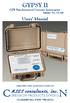 GYPSY II GPS Synchronized Current Interrupter Model No. CI-200 Users Manual DESIGNED AND MANUFACTURED BY MSES consultants, inc. CORROSION PRODUCTS DIVISION CLARKSBURG, WEST VIRGINIA GYPSY II GPS SYNCHRONIZED
USER S MANUAL. AXIS Mobile Monitor
 USER S MANUAL AXIS Mobile Monitor AXIS Mobile Monitor Overview Main window Main menu Find Devices Find Devices menu Monitor window Monitor menu Sequence window Sequence menu How to Use AXIS Mobile Monitor
iosafe Solo External Hard Drive
 Users Manual & Limited Warranty iosafe Solo External Hard Drive USB 2.0 Fireproof Waterproof FloSafe Cooling Technology Data Recovery Service 910-10841-00 REV 7.1 2 COPYRIGHTS Copyright iosafe, Inc. 2009.
RouteFinder SOHO. Quick Start Guide. SOHO Security Appliance. EDGE Models RF825-E, RF825-E-AP CDMA Models RF825-C-Nx, RF825-C-Nx-AP
 RouteFinder SOHO SOHO Security Appliance EDGE Models RF825-E, RF825-E-AP CDMA Models RF825-C-Nx, RF825-C-Nx-AP Quick Start Guide RouteFinder RF825 Series Quick Start Guide RouteFinder SOHO Security Appliance
Mechanics Bank Mobile Banking Mobile Finance Manager (MFM) Application Windows Mobile Phone Installation
 Mechanics Bank Mobile Banking Mobile Finance Manager (MFM) Application Windows Mobile Phone Installation Thank you for your interest in Mechanics Bank Mobile Banking. This guide will help you get started
EPSON Network Image Express Card User s Guide
 Network Scan Server English EPSON Network Image Express Card User s Guide All rights reserved. No part of this publication may be reproduced, stored in a retrieval system, or transmitted in any form or
User Manual. Sipura SPA-2100 ATA with PC Router. January 2005 v1. Linhagratuita grupo csdata www.linhagratuita.com.br
 User Manual Sipura SPA-2100 ATA with PC Router January 2005 v1 Linhagratuita grupo csdata www.linhagratuita.com.br Disclaimer Please Read: This document contains implementation examples and techniques
IP Talk Hosted VoIP Solutions Small Office/Home Office (SOHO) Setup Guide
 IP Talk Hosted VoIP Solutions Small Office/Home Office (SOHO) Setup Guide 10.6.09 1 Table of Contents IP Talk Hosted VoIP Solutions... 1 Small Office/Home Office (SOHO) Setup Guide... 1 IP Talk SOHO Definition...
7 Mini Tablet User Guide
 7 Mini Tablet User Guide MODEL NUMBER: Powered by SYTABBL7 Wireless Mobile Internet Tablet Getting to Know Your New Tablet: Front View: Back View: Side Angle View: MENU MENU Power Key ON/OFF, Back Button
VRC 7900/8900 Avalanche Enabler User s Manual
 VRC 7900/8900 Avalanche Enabler User s Manual WLE-VRC-20030702-02 Revised 7/2/03 ii Copyright 2003 by Wavelink Corporation All rights reserved. Wavelink Corporation 6985 South Union Park Avenue, Suite
SA-9600 Surface Area Software Manual
 SA-9600 Surface Area Software Manual Version 4.0 Introduction The operation and data Presentation of the SA-9600 Surface Area analyzer is performed using a Microsoft Windows based software package. The
TL-PS310U Single USB 2.0 Port MFP and Storage Server
 TL-PS310U Single USB 2.0 Port MFP and Storage Server Rev: 2.0.0 1910010313 Contents Chapter 1 Introduction... 1 1.1 Product Overview...1 1.2 Network Management...1 1.3 Components and Features...1 1.4 Hardware
STM Quick Installation Guide
 www.allo.com Version 2.0 1 Copy Right Copyright 2014 Allo.com. All rights reserved. No part of this publication may be copied, distributed, transmitted, transcribed, stored in a retrieval system, or translated
Page 1 S5.5 Monitoring Software Manual Rev 1.2 for Software Ver 1.0
 Trantec S5.5 Monitoring Software Manual Initial Setup Minimum PC Requirements 1.6 GHz CPU, 256 MB Memory, 1 available USB port, Windows XP Recommended PC >2.0 GHz CPU, 512 MB (XP) 1 GB (Vista) memory,
Moxa Device Manager 2.0 User s Guide
 First Edition, March 2009 www.moxa.com/product 2009 Moxa Inc. All rights reserved. Reproduction without permission is prohibited. Moxa Device Manager 2.0 User Guide The software described in this manual